
VIEWPAD E70 - Tablet VIEWSONIC - Free user manual and instructions
Find the device manual for free VIEWPAD E70 VIEWSONIC in PDF.



| Product Type | Touchscreen Tablet |
| Brand | ViewSonic |
| Model | ViewPad E70 |
| Screen | 7 inches, capacitive touchscreen |
| Dimensions (approx.) | 200 x 120 x 12 mm |
| Weight (approx.) | 350 g |
| Power Supply | AC adapter 100-240 V AC, 50/60 Hz; output 5 V DC, 2 A; built-in 3300 mAh lithium-ion battery |
| Wi-Fi Connectivity | 802.11 b/g/n |
| Bluetooth | 2.1 + EDR (on some models) |
| GPS | GPS / AGPS (on some models) |
| Storage | Expansion via microSD card (up to 32 GB supported) |
| Camera | Front (VGA); rear (2 MP) on some models |
| Operating System | Android 2.x (Gingerbread / Honeycomb) |
| Main Functions | Internet browsing, email, Google Apps, multimedia playback, FM radio, Bluetooth, GPS |
| Maintenance and Cleaning | Clean the screen with a soft, dry cloth; avoid abrasive products |
| Safety | Do not expose to moisture, dust, or magnetic fields; use only the provided adapter; do not disassemble |
| Spare Parts and Repairability | AC adapter included; non-removable battery; repair only by certified technician |
| General Information | 1-year warranty; CE and FCC compliance; RoHS and WEEE directives compliance |
Frequently Asked Questions - VIEWPAD E70 VIEWSONIC
User questions about VIEWPAD E70 VIEWSONIC
0 question about this device. Answer the ones you know or ask your own.
Ask a new question about this device
Download the instructions for your Tablet in PDF format for free! Find your manual VIEWPAD E70 - VIEWSONIC and take your electronic device back in hand. On this page are published all the documents necessary for the use of your device. VIEWPAD E70 by VIEWSONIC.
USER MANUAL VIEWPAD E70 VIEWSONIC
The following statement applies to all products that have received FCC approval. Applicable products bear the FCC logo, and/or an FCC ID in the format FCC ID: GSS-VS14572G on the product label. This device complies with part 15 of the FCC Rules. Operation is subject to the following two conditions: (1) This device may not cause harmful interference, and (2) This device must accept any interference received, including interference that may cause undesired operation. This mobiledevice has been tested and found to comply with the limits for a Class B digital device, pursuant to Part 15 of the FCC Rules. These limits are designed to provide reasonable protection against harmful interference in a residential installation. This equipment generates, uses and can radiate radio frequencyenergy and, if not installed and used in accordance with the instructions, may cause harmful interferenceto radio communications.
However, there is no guarantee that interference will not occur in a particular installation. If this equipment does cause harmful interference to radio or television reception, which can be determined by turning the equipment off and on, the user is encouraged to try to correct the interference by one or more of the following measures
• Reorient or relocate the receiving antenna.
- Increase the separation between the equipment and receiver.
- Connect the equipment into an outlet on a circuit different from that to which the receiver is connected.
- consult the dealer or an experienced radio/TV technician for help.
Changes or modifications not expressly approved by the party responsible for compliance could void theuser's authority to operate the equipment. The antenna(s) used for this transmitter must not be colocated or operating in conjunction with any otherantenna or transmitter.
FCC SAR information
FCC Radiation Exposure Statement
This equipment complies with FCC RF radiation exposure limits set forth an uncontrolled environment. This transmitter must not be co-located or operating in conjunction with any other antenna or transmitter.
The device was tested and complies to measurement standards and procedures specified in FCC OET Bulletin 65, Supplement C
RF Exposure Information (SAR)
This device meets the government's requirements for exposure to radio waves. This device is designed and manufactured not to exceed the emission limits for exposure to radio frequency (RF) energy set by the Federal Communications Commission of the U.S. Government.
The exposure standard employs a unit of measurement known as the Specific Absorption Rate, or SAR. The SAR limit set by the FCC is 1.6W/kg. Tests for SAR are conducted using standard operating positions accepted by the FCC with the EUT transmitting at the specified power level in different channels.
The highest SAR value for the device as reported to the FCC is 0.373W/kg when placed next to the body.
The FCC has granted an Equipment Authorization for this device with all reported SAR levels evaluated as in compliance with the FCC RF exposure guidelines. SAR information on this device is on file with the FCC and can be found under the Display Grant section of www.fcc.gov/oet/ea/fccid after searching on FCC ID: GSS-VS14572G.
Canada Statement
This device complies with Industry Canada licence-exempt RSS standard(s).
Operation is subject to the following two conditions: (1) this device may not cause interference, and (2) this device must accept any interference, including interference that may cause undesired operation of the device.
This Class B digital apparatus complies with Canadian ICES-003.
The County Code Selection feature is disabled for products marketed in the US/Canada. For product available in the USA/ Canada markets, only channel 1\~11 can be operated. Selection of other channels is not possible.
IMPORTANT NOTE:
IC Radiation Exposure Statement
This EUT is compliance with SAR for general population/uncontrolled exposure limits in IC RSS-102 and had been tested in accordance with the measurement methods and procedures specified in IEEE 1528.
CE Conformity for European Countries

The device complies with the EMC Directive 2004/108/EC and Low Voltage Directive 2006/95/EC, R&TTE Directive 1999/5/EC.
CE SAR Information
THIS MOBILE DEVICE MEETS GUIDELINES FOR EXPOSURE TO RADIO WAVES. Your mobile device is a radio transmitter and receiver. It is designed not to exceed the limits for exposure to radio waves recommended by international guidelines. These guidelines were developed by the independent scientific organization ICNIRP and include safety margins designed to assure the protection of all persons, regardless of age and health.
The exposure guidelines for mobile devices employ a unit of measurement known as the Specific Absorption Rate or SAR. The SAR limit stated in the ICNIRP guidelines is 2.0 W/kg averaged over 10 grams of tissue. Test for body worn SAR, the positions of the device are at a minimum of 1.5 cm from the body with the device transmitting at its highest certified power level in all tested frequency bands. The actual SAR level of an operating device can be below the maximum value because the device is designed to use only the power required to reach the network. That amount changes depending on a number of factors such as how close you are to a network base station. The highest SAR value under the ICNIRP guidelines for use of the device at the body is 0.375 W/kg. Use of device accessories and enhancements may result in different SAR values. SAR values may vary depending on national reporting and testing requirements and the network band.
Following information is only for EU-member states:
The mark shown to the right is in compliance with the Waste Electrical and Electronic Equipment Directive 2002/96/EC (WEEE).

The mark indicates the requirement NOT to dispose the equipment as unsorted municipal waste, but use the return and collection systems according to local law.
If the batteries, accumulators and button cells included with this equipment, display the chemical symbol Hg, Cd, or Pb, then it means that the battery has a heavy metal content of more than 0.0005% Mercury, or more than 0.002% Cadmium, or more than 0.004% Lead.

European Union Regulatory Conformance
The equipment complies with the RF Exposure Requirement 1999/519/EC, Council Recommendation of 12 July 1999 on the limitation of exposure of the general public to electromagnetic fields (0–300 GHz). This equipment meets the following conformance standards: EN50332-1/2, EN301489-1, EN301489-17, EN55022/24, EN62209-2, EN60950-1, EN300328, EN301908-1/2, EN301489-24, EN301489-7, EN301511, EN301489-3, EN300440.
The device has been tested to comply with the Sound Pressure Level requirement laid down in the applicable EN 50332-1 and EN 50332-2 standards. Permanent hearing loss may occur if earphones or headphones are used at high volume for prolonged periods of time.

The conformity assessment procedure has been followed with the involvement of the following Notified Body:
PHOENIX TESTLAB
Identification mark:
CE 0700 Ⓙ
| This equipment may be operated in: | |||||||
| AT | BE | BG | CH | CY | CZ | DE | DK |
| EE | ES | FI | FR | GB | GR | HU | IE |
| IT | IS | LI | LT | LU | LV | MT | NL |
| NO | PL | PT | RO | SE | SI | SK | TR |
We, hereby, declare that this cellular, Wi-Fi, & Bluetooth radio is in compliance with the essential requirements and other relevant provisions of Directive 1999/5/EC.
Products with 2.4-GHz Wireless LAN Devices France
For 2.4-GHz wireless LAN operation of this product, certain restrictions apply. This equipment may use the entire-2400-MHz to 2483.5-MHz frequency band (channels 1 through 13) for indoor applications. For outdoor use, only 2400-2454 MHz frequency band (channels 1-9) may be used. For the latest requirements, see http://www.art-telecom.fr.
Caution:
Risk of explosion if battery replaced aced by an incorrect type.
Dispose of used batteries according to the instructions.
RISK GROUP 1
CAUTION
Possibly hazardous optical radiation emitted from this product.
Do not stare at operating lamp. May be harmful to the eyes.
IEC 62471: 2006
Declaration of RoHS Compliance
This product has been designed and manufactured in compliance with Directive 2002/95/EC of the European Parliament and the Council on restriction of the use of certain hazardous substances in electrical and electronic equipment (RoHS Directive) and is deemed to comply with the maximum concentration values issued by the European Technical Adaptation Committee (TAC) as shown below:
| Substance | Proposed Maximum Concentration | Actual Concentration |
| Lead (Pb) | 0.1% | < 0.1% |
| Mercury (Hg) | 0.1% | < 0.1% |
| Cadmium (Cd) | 0.01% | < 0.01% |
| Hexavalent Chromium ( Cr^6+ ) | 0.1% | < 0.1% |
| Polybrominated biphenyls (PBB) | 0.1% | < 0.1% |
| Polybrominated diphenyl ethers (PBDE) | 0.1% | < 0.1% |
Certain components of products as stated above are exempted under the Annex of the RoHS Directives as noted below:
Examples of exempted components are:
- Mercury in compact fluorescent lamps not exceeding 5 mg per lamp and in other lamps not specifically mentioned in the Annex of RoHS Directive.
- Lead in glass of cathode ray tubes, electronic components, fluorescent tubes, and electronic ceramic parts (e.g. piezoelectronic devices).
- Lead in high temperature type solders (i.e. lead-based alloys containing 85% by weight or more lead).
- Lead as an allotting element in steel containing up to 0.35% lead by weight, aluminium containing up to 0.4% lead by weight and as a cooper alloy containing up to 4% lead by weight.
Important Safety Instructions
- DO NOT place objects on top of the ViewPad, as objects may scratch the screen.
- DO NOT expose the ViewPad to dirty or dusty environments.
- DO NOT place the ViewPad on an uneven or unstable surface.
- DO NOT insert any foreign objects into the ViewPad.
- DO NOT expose the ViewPad to strong magnetic or electrical field.
- DO NOT expose the ViewPad to direct sunlight as it can damage the LCD Screen. Keep it away from heat sources.
- Do not store your device in temperatures higher than 50^ C ( 122^ F). The operating temperature for this device is from 0^ C ( 32^ F) to 35^ C ( 95^ F).
- DO NOT use the ViewPad in the rain.
- Please check with your Local Authority or retailer for proper disposal of electronic products.
- The ViewPad and the adapter may produce some heat during normal operation or charging. DO NOT leave the ViewPad on your lap to prevent discomfort or injury from heat exposure.
- POWER INPUT RATING: Refer to the rating label on the ViewPad and be sure that the power adapter complies with the rating. Only use accessories specified by the manufacturer.
- DO NOT use a pen or any sharp object to tap the screen.
- Clean the touch screen with a soft cloth. If needed, dampen the cloth slightly before cleaning. Never use abrasives or cleaning solutions.
- Always power off the ViewPad to install or remove external devices that do not support hot-plug.
- Disconnect the ViewPad from an electrical outlet and power off before cleaning the ViewPad.
- DO NOT disassemble the ViewPad, only a certified service technician should perform repair.
- The ViewPad has apertures to disperse heat. DO NOT block the ViewPad ventilation, the ViewPad may become hot and malfunction as a result.
- Risk of explosion if battery replaced aced by an incorrect type. Dispose of used batteries according to the instructions.
- Users have to use the connection to USB interfaces with USB 2.0 version or higher.
- PLUGGABLE EQUIPMENT, the socket-outlet shell be installed near the equipment and shall be easily accessible.
Copyright Information
Copyright © ViewSonic® Corporation, 2012. All rights reserved.
Android is a trademark of Google Inc. Use of this trademark is subject to Google Permissions.
This product has an Android ^™ platform based on Linux, which can be expanded by a variety of JME-based application SW.
All products used in this device and trademarks mentioned herein are trademarks or registered trademarks of their respective owners.
Google™, the Google logo, Android™, the Android logo and Gmail™ are trademarks of Google Inc. Use of this trademark is subject to Google Permissions.
Wi-Fi and the Wi-Fi CERTIFIED logo are registered trademarks of the Wireless Fidelity Alliance.
microSD ^TM is a trademark of SD Card Association.
Bluetooth and the Bluetooth logo are trademarks owned by Bluetooth SIG, Inc.
Java, JME and all other Java-based marks are trademarks or registered trademarks of Sun Microsystems, Inc. in the United States and other countries.
The prediction engine of the input method is TOUCHPAL, provided by COOTEK.
DataViz and RoadSync are registered trademarks of DataViz, Inc. All rights reserved.
DataViz and Documents To Go are trademarks or registered trademarks of DataViz, Inc. All rights reserved.
Word To Go™, Sheet To Go®, Slideshow To Go®, PDF To Go® and icons are trademarks or registered trademarks of DataViz, Inc. All rights reserved.
Disclaimer: ViewSonic Corporation shall not be liable for technical or editorial errors or omissions contained herein; nor for incidental or consequential damages resulting from furnishing this material, or the performance or use of this product.
In the interest of continuing product improvement, ViewSonic Corporation reserves the right to change product specifications without notice. Information in this document may change without notice.
No part of this document may be copied, reproduced, or transmitted by any means, for any purpose without prior written permission from ViewSonic Corporation.
Intellectual Property Right Information
Right to all technologies and products that comprise this device are the property of their respective owners:
This product has an Android platform based on Linux, which can be expanded by a variety of Java-Script-based application SW.
Google, the Google logo, Android, the Android logo, Gmail, and YouTube are trademarks of Google Inc.
Bluetooth and the Bluetooth logo are trademarks owned by Bluetooth SIG, Inc.
Java, JME and all other Java-based marks are trademarks or registered trademarks of Sun Microsystems, Inc. in the United States and other countries.
microSD is a trademark of SD Card Association.
The prediction engine of the input method is TOUCHPAL, provided by COOTEK.
Product Registration
To meet your future needs, and to receive any additional product information as it becomes available, please register your product on the Internet at:
www.viewsonic.com.
For Your Records
Product Name: ViewPad E70/G70
Model Number: VS14572
Document Number: ViewPad E70/G70_UG_ENG Rev. 1a 01-10-12
Serial Number: ____
Purchase Date: ____
Product disposal at end of product life
ViewSonic respects the environment and is committed to working and living green.
Thank you for being part of Smarter, Greener Computing. Please visit ViewSonic website to learn more.
USA & Canada: http://www.viewsonic.com/company/green/recycle-program/
Europe: http://www.viewsoniceurope.com/uk/kbase/article.php?id=639
Taiwan: http://recycle.epa.gov.tw/recycle/index2.aspx
Chapter 1: Getting Started.... 1
1.1 Your Device.... 1
Front....1
Back 1
Top 2
Down 2
Left & Right 2
1.2 Accessories ...... 2
1.3 Installing Memory/SIM Card 3
1.4 Charging Battery 3
1.5 Using Headsets 4
1.6 Turning the Device On or Off 4
1.7 Unlocking the Screen.... 5
Chapter 2: The Basics.... 6
2.1 Home Screen 6
Extended Home screen.... 6
Shortcut menu 7
Using widgets....9
Application drawer.... 10
Setting wallpaper.... 10
2.2 Adjusting Volume.... 11
2.3 Setting up Wi-Fi 12
Chapter 3: Entering Information .... 13
3.1 On-Screen Keyboard.... 13
Using the on-screen keyboard 13
Setting input method 13
3.2 Configuring Keyboard Settings 13
3.3 Using User Dictionary.... 14
Adding Words in the Dictionary 14
Editing Words in the Dictionary 14
Chapter 4: Email.... 15
4.1 Email Accounts 15
Setting up an Internet email account.... 15
Viewing email accounts.... 16
Customizing email settings 16
Composing and sending emails 16
Sending an email from Contacts 17
Receiving emails 17
To manually receive emails.... 17
Reading and replying to emails 17
To reply or forward an email 18
Chapter 5: Using Internet 19
5.1 Browsing Web Pages.... 19
Managing web pages 20
Chapter 6: Google Apps (Select Model) 21
6.1 Gmail 21
Signing in to Gmail 21
Refreshing Gmail 21
Creating and sending emails.... 21
Reading and replying to emails 22
Forwarding emails 22
Managing emails 22
Viewing folder labels 23
Searching for emails 23
Configuring Gmail settings 23
6.2 Talk 24
Signing in to Google Talk 24
Google Talk options 24
Starting chat 24
Configuring Google Talk settings 24
6.3 Maps 26
Viewing Map.... 26
Finding places 27
6.4 Navigation 27
Getting directions 28
Finding your current location.... 28
6.5 Latitude 29
Starting Latitude 29
Configuring privacy settings 29
6.6 Market.... 30
Searching for applications.... 30
Downloading applications 30
Removing applications 30
6.7 Places 31
6.8 Google Search 31
Searching information by entering text.... 31
6.9 Voice Search.... 32
6.10 YouTube 32
Watching videos.... 32
Uploading videos.... 32
Searching videos.... 32
Chapter 7: Using Bluetooth (Select Model).... 33
7.1 Connecting to Bluetooth Devices.... 33
Chapter 8: Multimedia Applications ...... 34
8.1 Videos and Photos 34
Taking a photo 34
Recording a video 34
Reviewing a photo.... 34
Reviewing a photo.... 34
Configuring camera settings 34
8.2 Viewing Videos & Photos 35
Playing videos 35
Viewing photos 35
8.3 Playing music 35
Playing music.... 35
Managing playlists.... 36
Chapter 9: Programs (Select Model)...... 37
9.1 Books 39
Browsing an ebook.... 39
Downloading an ebook.... 39
9.2 Browser 39
9.3 Calculator.... 39
9.4 Calendar 40
9.5 Camera 40
9.6 Clock.... 40
9.7 Contacts 40
9.8 Downloads 41
Managing files 41
9.9 Email.... 41
Managing files and folders 41
9.11 FM Radio 42
9.12 Gallery 43
9.13 Gmail 43
9.14 Google Search 43
9.15 Latitude 43
9.16 Maps 43
9.17 Market 43
9.18 Music 43
9.19 Navigation 44
9.20 Places 44
9.21 Settings 44
9.22 Spare Parts 44
9.23 Talk 44
9.24 Voice Search.... 44
9.25 YouTube 44
9.26 Dropbox.... 44
9.27 Note Everything.... 45
9.28 Sketcher 45
9.29 Tuneln Radio.... 45
9.30 Amazon Kindle 45
9.31 Amazon Appstore.... 45
9.32 Amazon MP3 45
9.33 FW Update.... 45
Chapter 10: Managing Your Device.... 46
10.1 Wireless & networks 46
10.2 Device Sound.... 46
10.3 Device Display 46
10.4 Device Storage 47
10.5 Device battery 47
10.6 Device Apps.... 47
10.7 Accounts and Sync 47
10.8 Location Services.... 47
10.9 Security 48
10.10 Language & Input 48
10.11 Backup & reset 48
10.12 Date and Time.... 49
10.13 Accessibility 49
Specifications 50
Customer Support 51
Limited Warranty 52
Chapter 1: Getting Started
1.1 Your Device
Front
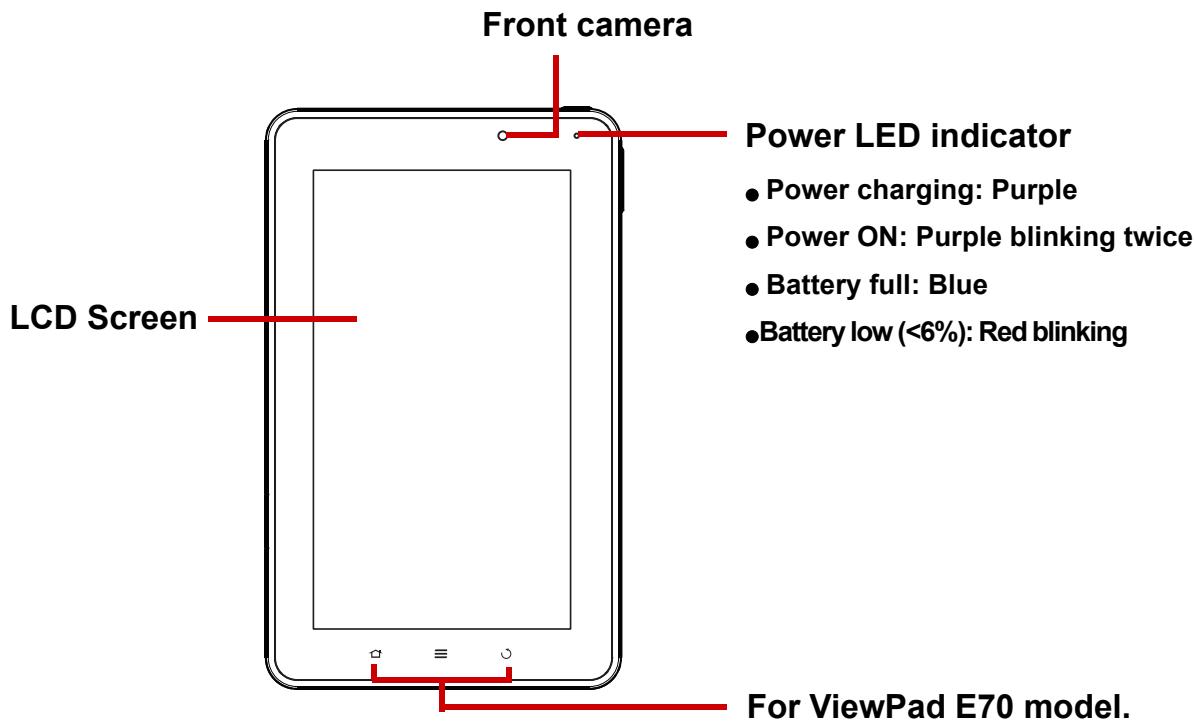
Back
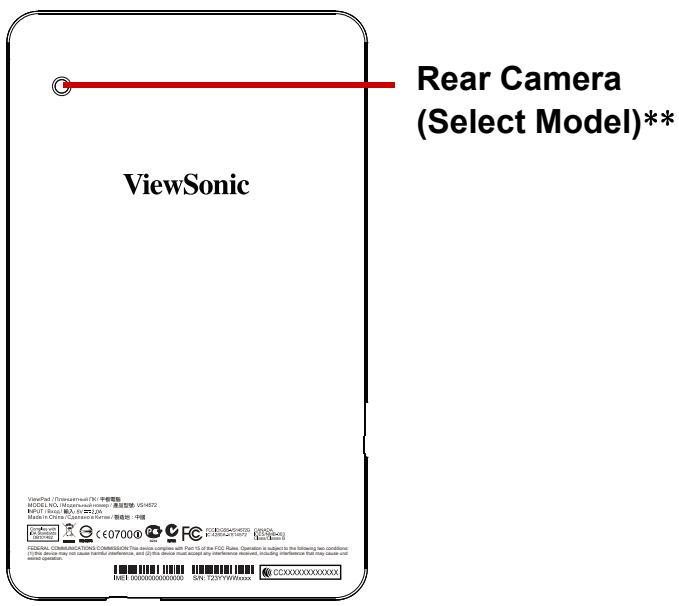
** For ViewPad G70 model.
Top

Down
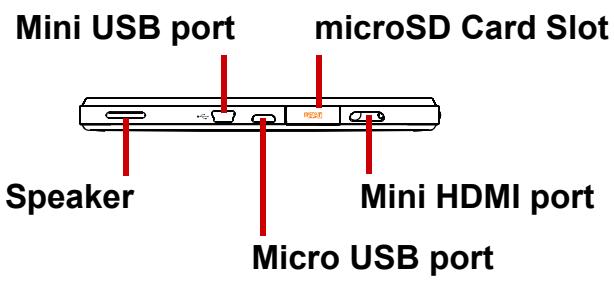
NOTE:
- Mini USB port is only for host mode: Support keyboard, mouse and memory stick which are under 500mA usage devices.
- Micro USB port is only for device mode link to computer and power charging.
Left & Right
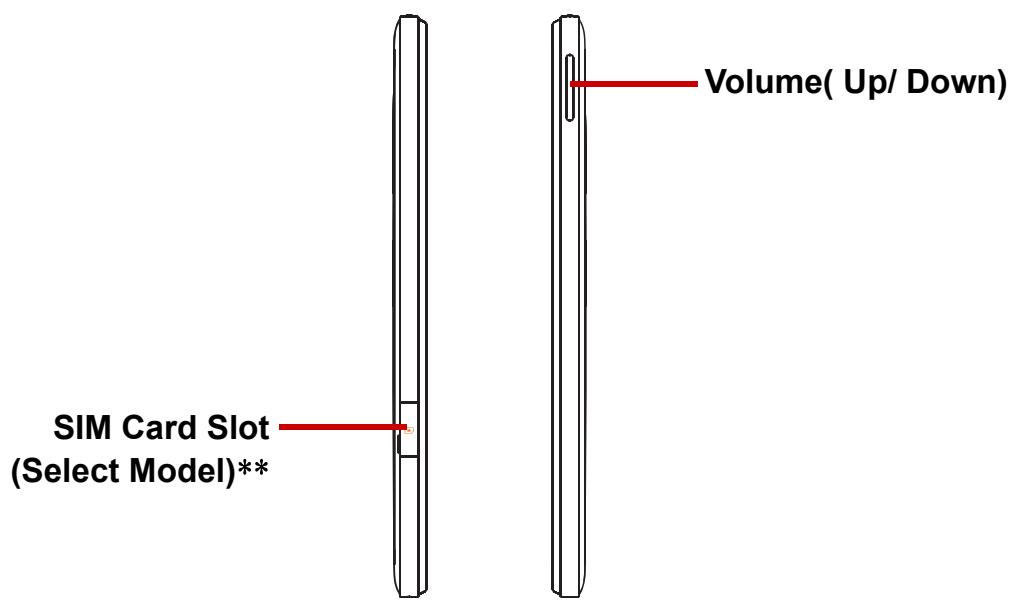
** For ViewPad G70 models.
1.2 Accessories
Your package comes with the following items. If any of them is missing, please contact your retailer.
- ViewPad 7"
• AC adapter and plugs
- Quick Start Guide
• Compliance information
1.3 Installing microSD/SIM Card
You need a microSD ^® card to store photos, music, videos, and other data.
To install the microSD card
- Open the card cover.
- Insert the microSD card as shown. Make sure the gold contacts are facing down.
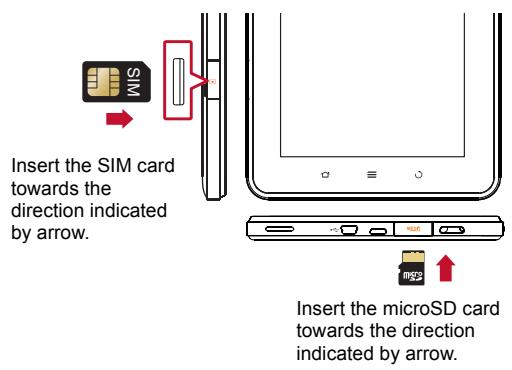
To remove the microSD card
-
For safe removal, tap □ > Settings > Storage > Unmount microSD card.
-
Open the card cover.
- Push to eject the microSD card from the slot.
NOTE: Do not remove the microSD card while the device is turned on. Sudden removal of the microSD card may cause data loss or unpredictable system hang up.
To install the SIM card (select model)
- Open the card cover.
- Insert the SIM card as shown. Make sure the gold contacts are facing down.
To remove the SIM card
- Open the card cover.
- Push to eject the SIM card from the slot.
- Close the card cover.
NOTE: Do not remove the SIM card while the device is turned on. Sudden removal of the SIM card may cause data loss or unpredictable system hang up.
1.4 Charging Battery
The battery is only partially charged. To fully charge the battery, charge it for 3 hours.
Charge the battery
- Connect one end of the AC adaptor to the Micro USB port of the device.
- Plug the other end of the AC adaptor to the wall outlet to start charging.
When the battery is charging and the device is turned on, the 📁 icon is displayed on the status bar. When the battery is fully charged, the 🔔 icon is displayed on the status bar.
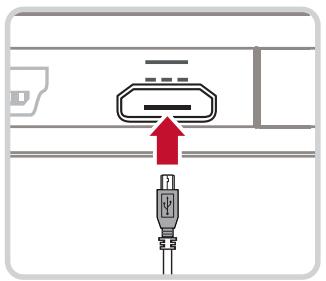
natural_image
Pure diagram of a connector with a red arrow pointing to it, no text or symbols presentNOTE: The LED indicator will turn to blue when fully power charged.
1.5 Using Headsets
For hands-free conversation or listening to music, plug a headset to the headset jack.
NOTE:
- When using a headset, your ability to hear outside sounds may be limited. Do not use headset if it will endanger you.
- When using a headset, do not set the volume to its maximum as it may damage your hearing.
1.6 Turning the Device On or Off
After installing the memory card and charging the battery, the device is ready to be turned on.
To turn on your device
Press and hold the Power button until the device blinking purple twice.
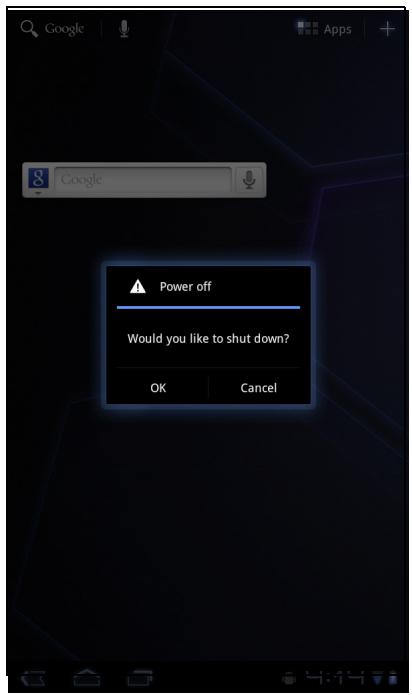
To turn off your device
- Press and hold the Power button for 5 seconds.
- A pop-up window appears, tap OK to confirm.
To set your device to Sleep mode
To set the device to sleep mode, press the Power button. This will turn the display off.
To turn the display on, press the Power button again.
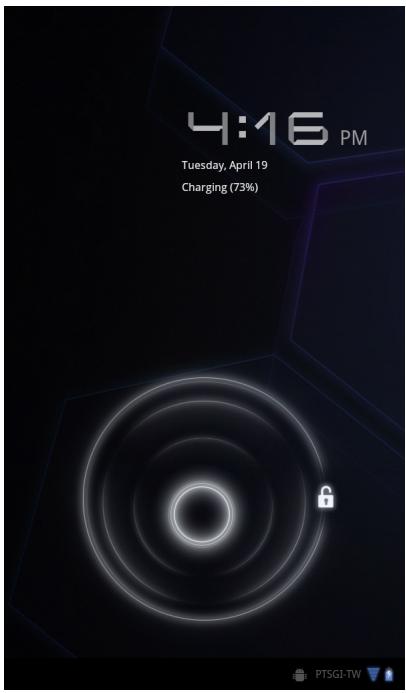
1.7 Unlocking the Screen
By default, the screen automatically locks after a period of inactivity. You can set the length of time until the screen locks.
To unlock the screen
- Press the Power button to turn on the display from Sleep mode.
- Tap 🔒 and drag the middle circle (○) to 🔒 to unlock the screen.
Chapter 2: The Basics
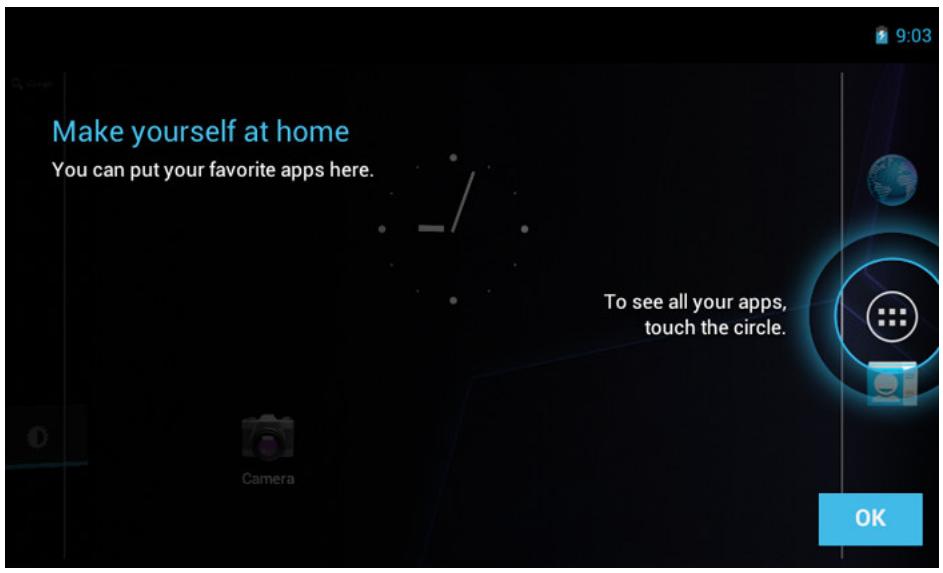
2.1 Home Screen
From the Home screen, you can quickly access common features and view notifications of received messages, battery and connection status.
Extended Home screen
Swipe your finger to the left or right across the Home screen.
The two extensions to the left and to the right of the Home screen provide more space for icons, widgets, shortcuts, and other items.
Shortcut menu
The shortcut menu allows you to easily access an application from the Home screen. To open an application, tap an icon.
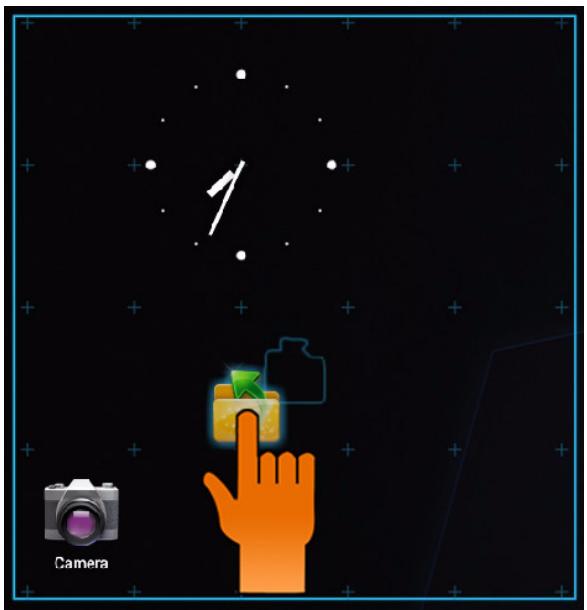
Customizing shortcut menu
Home screen: Tap 📁 You can add apps and widgets to your home screen.
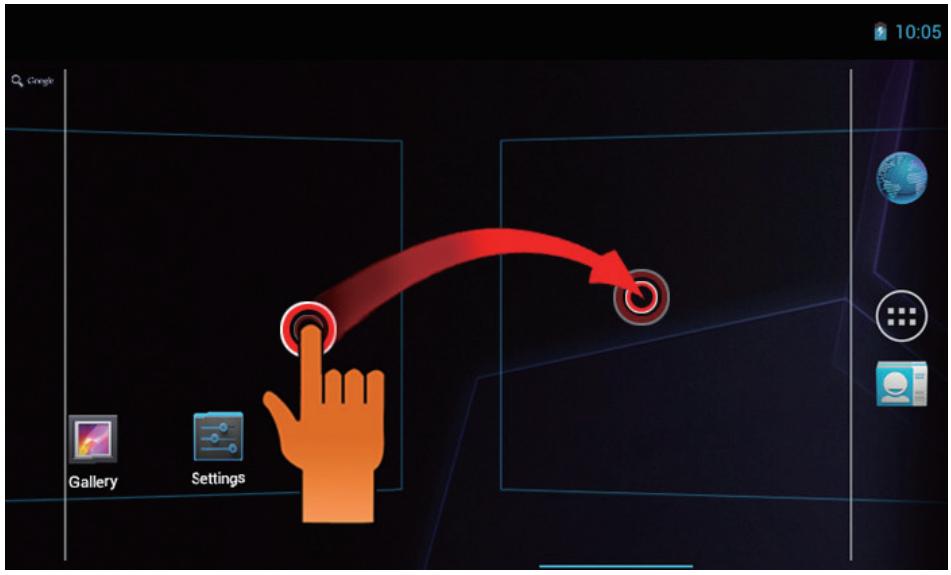
Touch & hold to move icon.
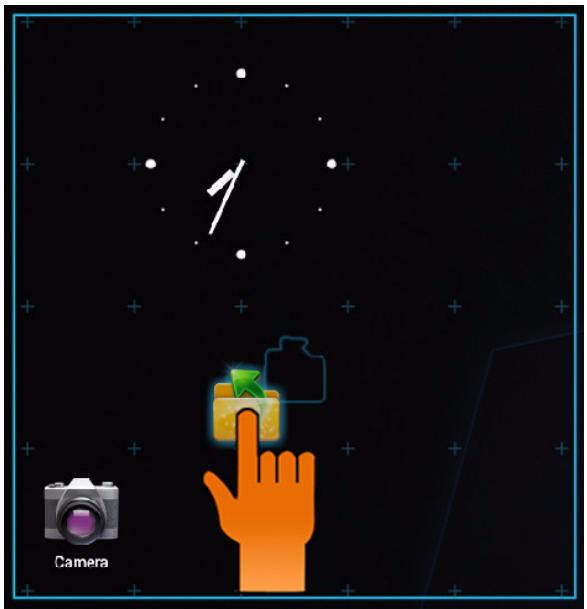
natural_image
Illustration of a hand interacting with a camera and clock on a starry night sky (no text or symbols)From this screen, you can add items to all home screen panels. Use panels to organize your Widgets and Apps.
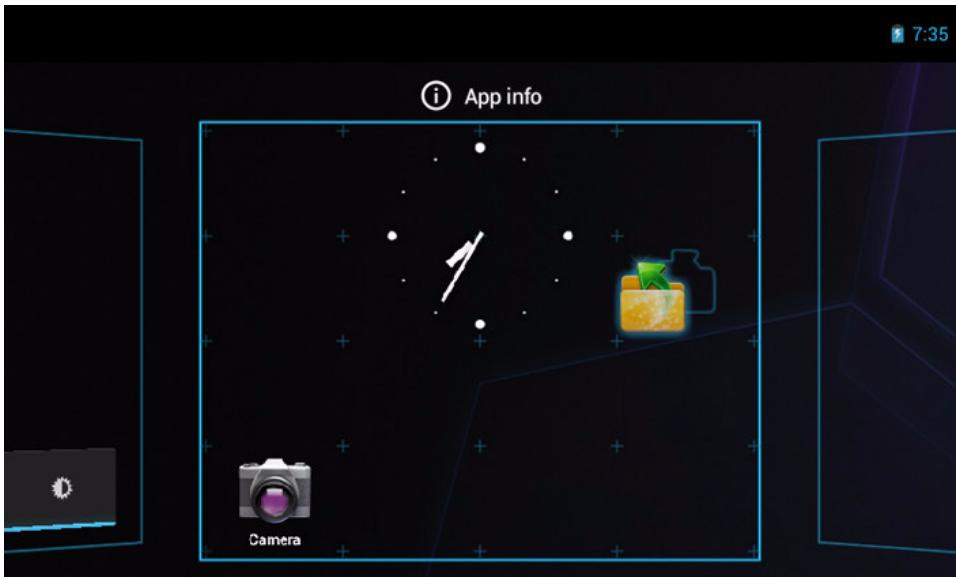
To move or delete something, touch and hold on the icon, then drag it to another panel or to the trash at 📄 of the screen.
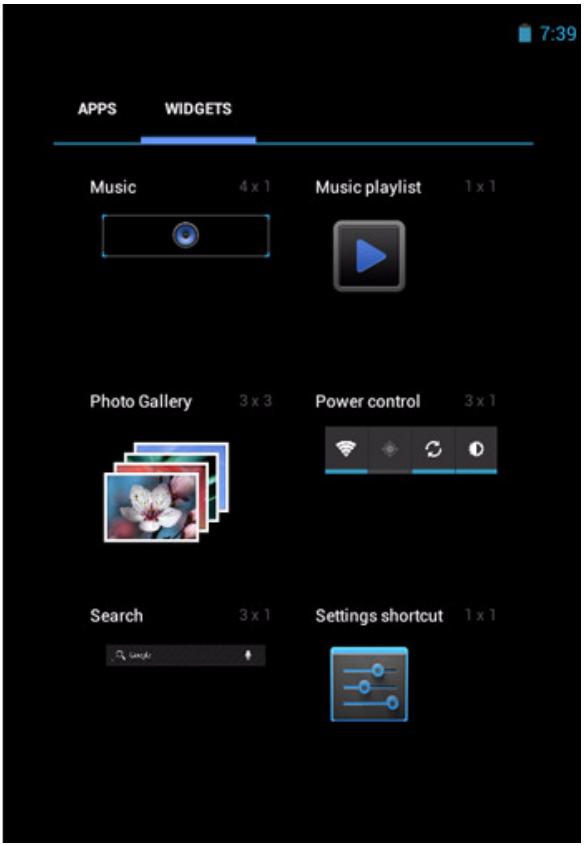
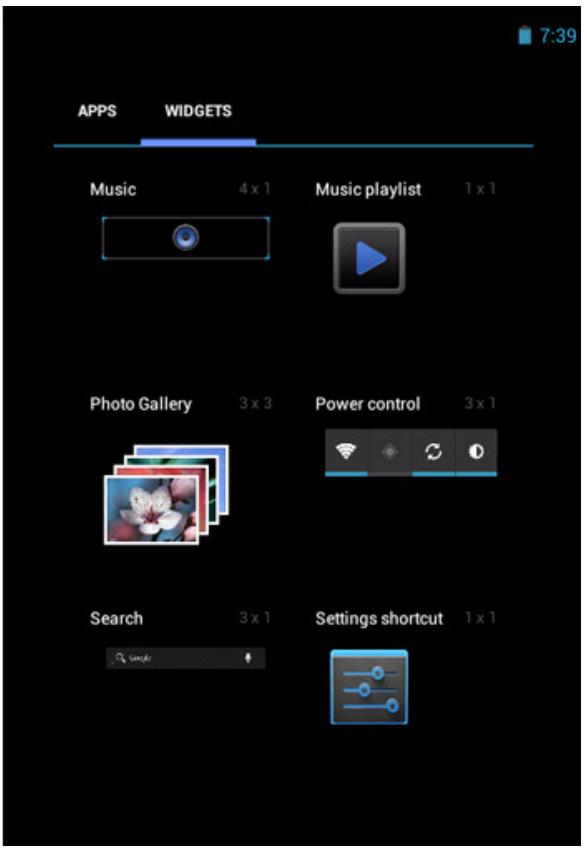
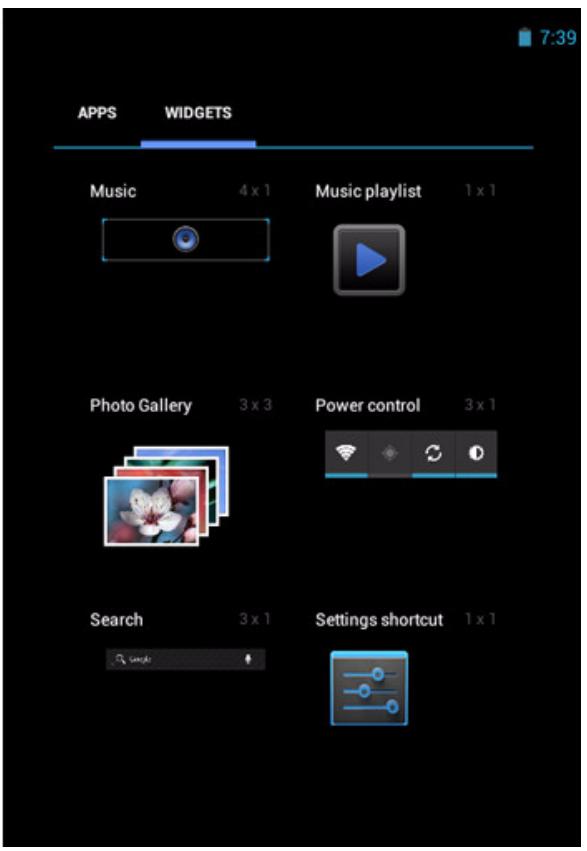
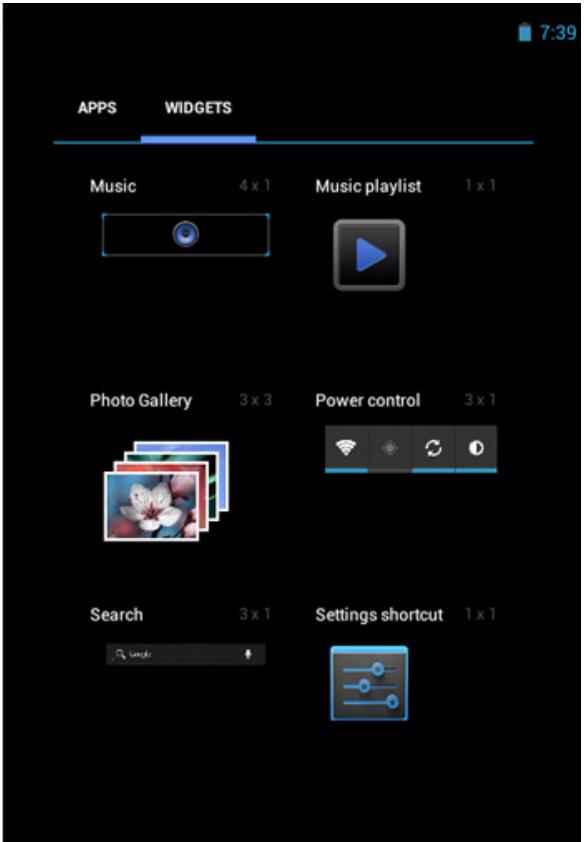
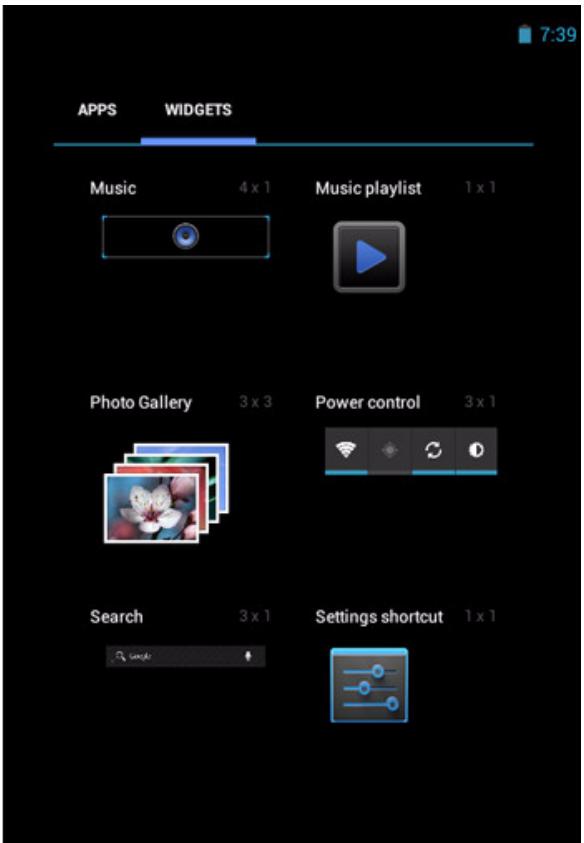
Using widgets
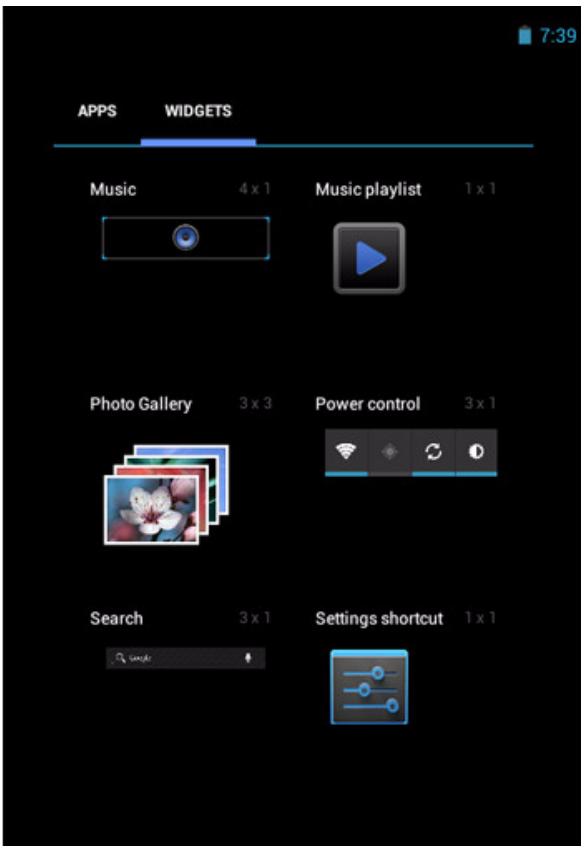
Save time with live updates right on the Home screen and get all your personalized updates in one place.
You may add and customize the Widgets on the Home screen as you like.
-
From the Home screen, tap
All available widgets are displayed. -
To add widget, drag the widget icon to the specific Home screen.
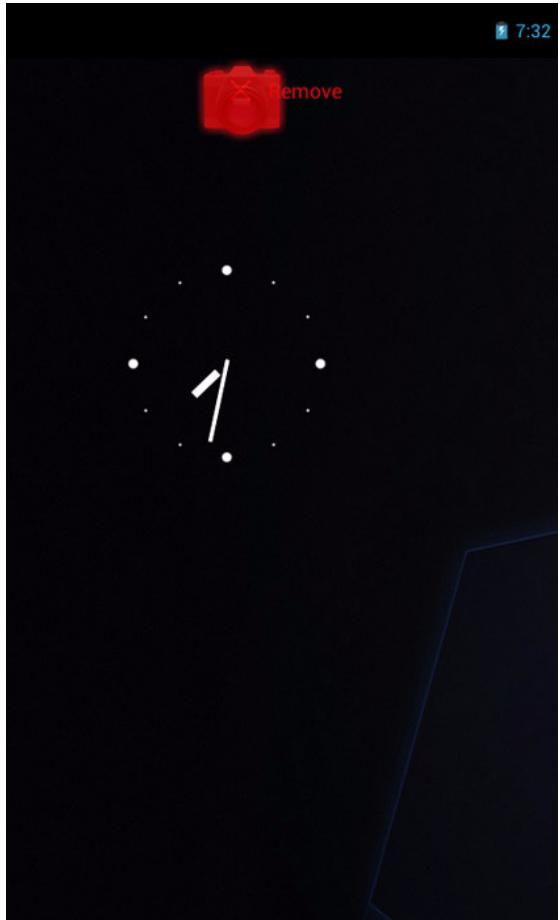
To remove widgets:
-
From the Home screen, tap and hold the desired widget. The ✗ Remove icon appears on the top right of the Home screen.
-
Drag the widget to ✗ Remove icon to delete it from the Home screen.
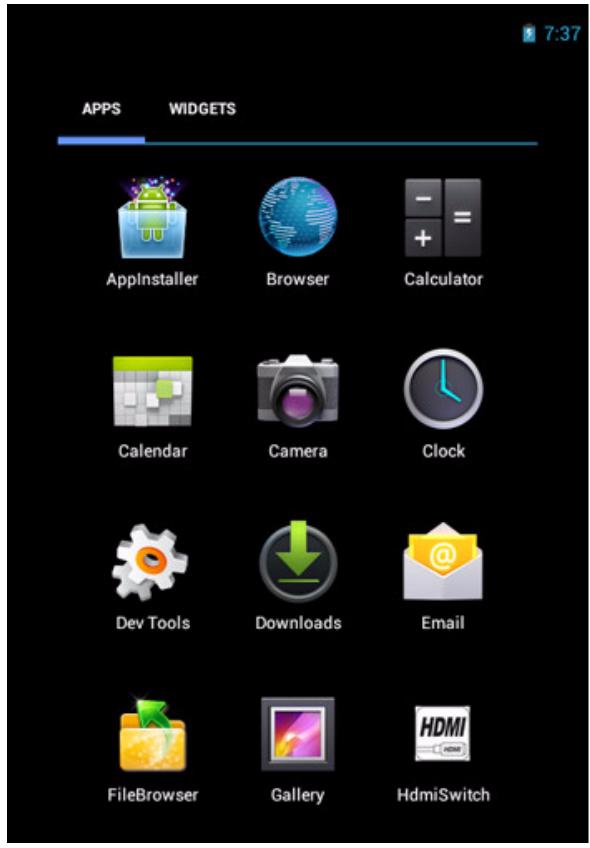
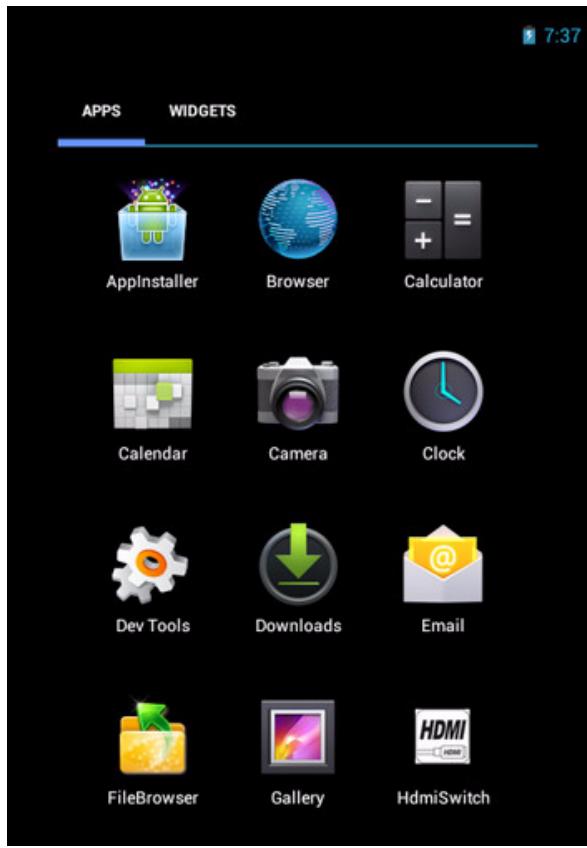
Application drawer
The Application Drawer contains all applications and settings. Tap ☐ to open the menu.
- Tap an icon to access the application.
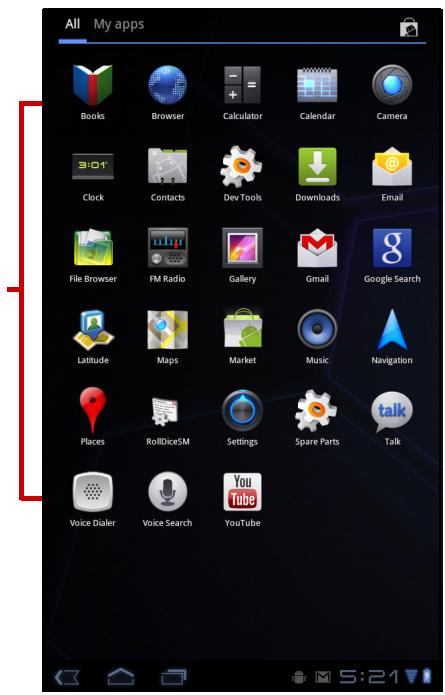
Setting wallpaper
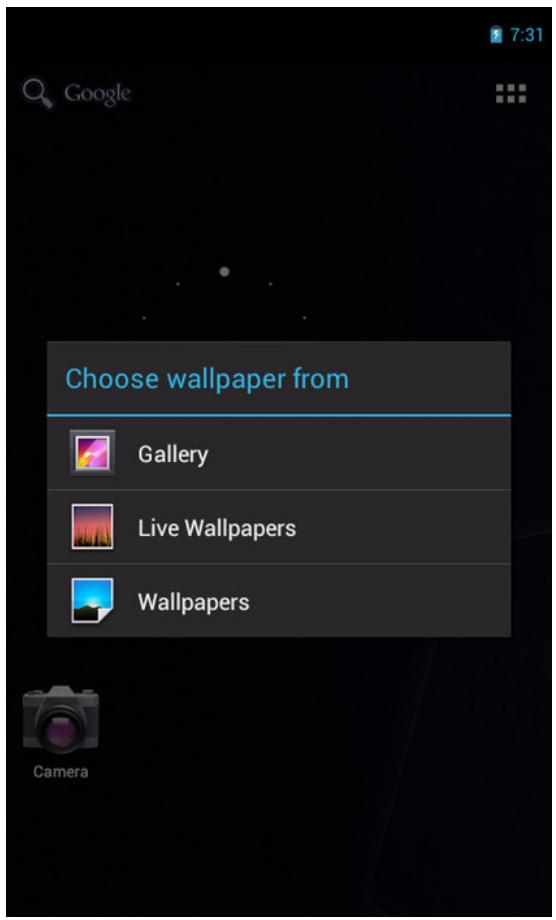
Wallpapers : Long press on empty space
on desktop or tap ≡ [Menu / Wallpaper] to change your wallpaper.
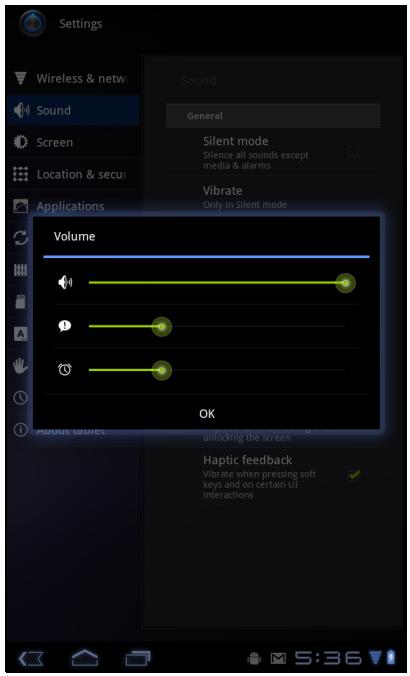
2.2 Adjusting Volume
This device features three types of volume which can be adjusted separately:
• Ringer volume: Set the volume for notifications.
• Media volume: Set the volume for music and videos.
• Alarm volume: Set the volume for alarms.
To adjust the volume
- From the Home screen, tap 📄 > Settings > Sound.
- Tap Volume.
- To adjust the volume, do either of the following:
a. Drag the respective volume slider to adjust the volume.
b. Press the volume button to adjust the volume.
NOTE: When the device is set to silent mode, all sounds are turned off except media and alarm.
- Tap OK to save your settings.
2.3 Setting up Wi-Fi
You need to connect to a wireless network before surfing the Internet or using the related applications that require internet connection.
To turn Wi-Fi on or off
- From the Home screen, tap > Settings > Wi-Fi.
- Tap Wi-Fi to turn Wi-Fi function on or off..
To connect to a Wi-Fi network
- Turn Wi-Fi on.
- Tap Wi-Fi to start detecting networks.
- The available networks are listed. Tap a network to connect to or tap ADD NETWORK to manually add a connection.
- If you select an unsecured network, the connection is automatically established. Otherwise, proceed to the next step.
- When connecting to a secured network, you will be prompted for the password. Enter the password then tap Connect.
Chapter 3: Entering Information
3.1 On-Screen Keyboard
The on-screen keyboard appears when an application requires text input, such as messaging and writing emails. The keyboard input method is activated by default.
Using the on-screen keyboard
Tap the screen to display the on-screen keyboard.
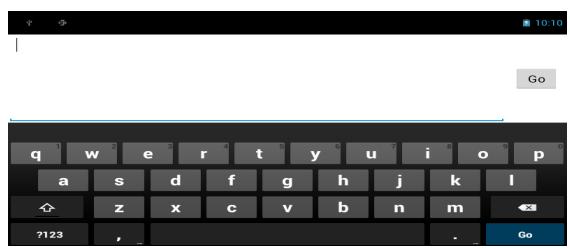
Lowercase keyboard
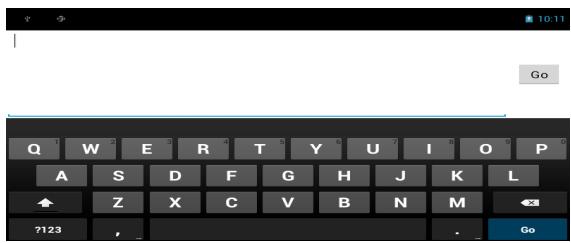
Uppercase keyboard
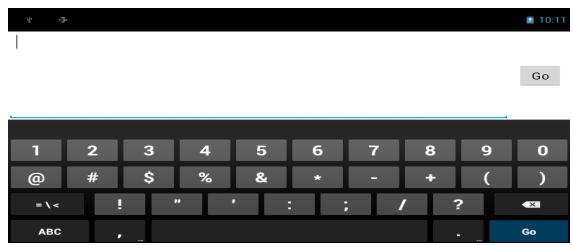
Numbers and symbols
- Tap the keys to enter the characters.
- To toggle between upper and lower case letter display, tap ↗.
- To display the numeric and symbols keyboard, tap ?123. To switch back to lower case letter display, tap ABC.
Setting input method
- On the on-screen keyboard, tap
- Tap Select input method.
- Change the keyboard settings.

3.2 Configuring Keyboard Settings
Use keyboard aids to set up various input settings.
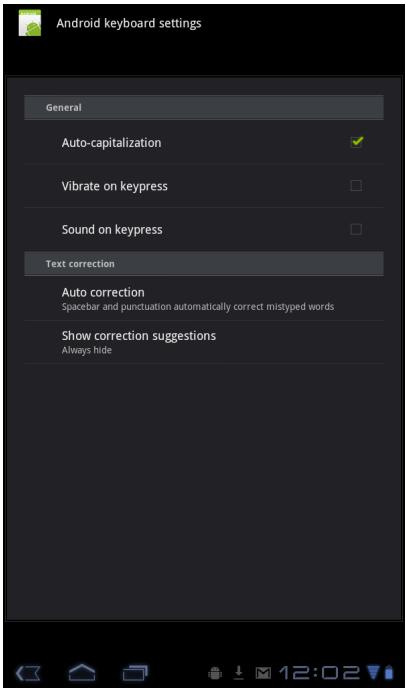
- From the Home screen, tap > Settings > Language & input.
- Tap Default > Android keyboard.
-
Select the applicable options from the following Android keyboard settings:
-
Auto-capitalization: Select to automatically capitalize the first letter of a sentence.
- Vibrate on keypress: Select to activate vibration when a key is touched.
- Sound on keypress: Select to activate a clicking sound when a key is touched.
- Popup on keypress: Select to enter a highlighted word automatically if a space or punctuation symbol is typed.
- Show settings key: Select to activate a Setting key on keypad for setting.
- Voice input key : Select to activate voice input key.
- Auto correction : Select to enter a highlighted word automatically if a space or punctuation symbol is typed.
• Show correction suggestions : Select to display suggested words as you type.
3.3 Using User Dictionary
Select to add user preset words to the dictionary.
Adding Words in the Dictionary
- From the Home screen, tap > Settings > Language & input.
- Tap User dictionary.
- To add a new word, tap + > Add.
- Enter the word you want to add, and touch OK.
Editing Words in the Dictionary
- From the Home screen, tap > Settings > Language & input.
- Tap User dictionary.
- Do one of the following:
• To edit the word, tap a word. Revise the selected word and tap OK.
• To delete the word from the dictionary, tap ✗
Chapter 4: Email
Use Email to send and receive email messages via your internet email accounts.
4.1 Email Accounts
Your device can send and receive emails just as you do with a computer. Your device supports email accounts provided by an Internet Service Provider (ISP) or web-based email, such as Hotmail, Yahoo! Mail, etc.
Setting up an Internet email account
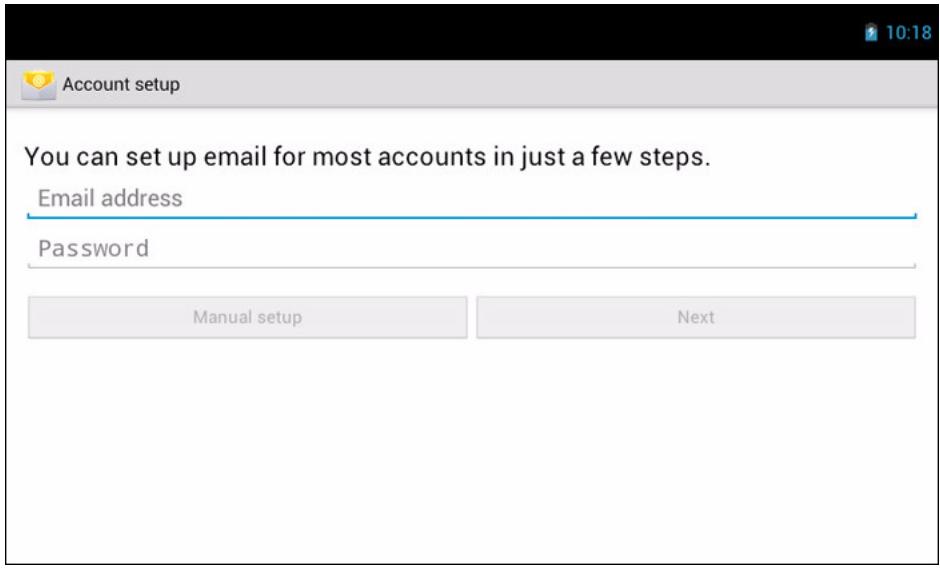
- From the Home screen, tap > Email.
- Enter your Email address and Password.
- Tap Next. The device will automatically retrieve the email settings.
• To add another email account, tap ≡ > Account settings > Add account.
- Enter Your Name and Account display name.
NOTE: The Account display name is the name shown to the recipients of your emails.
- Tap Next.
Once the account set up is completed, the device will automatically retrieve your emails.
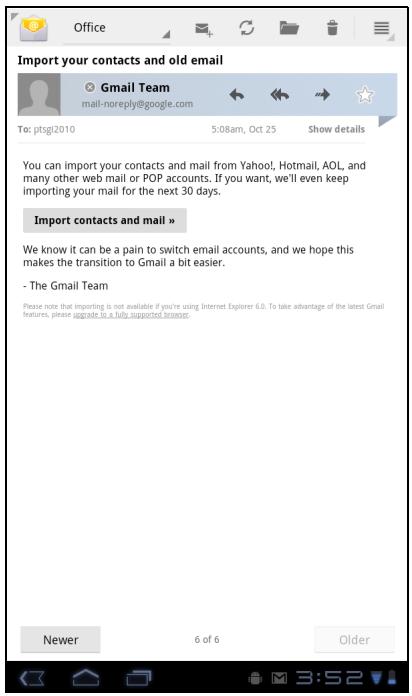
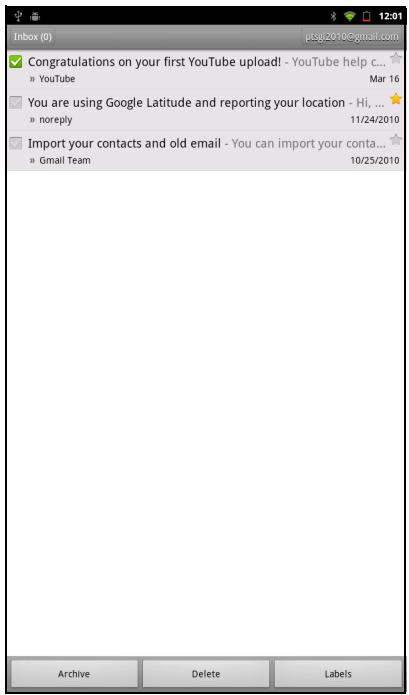
Viewing email accounts
- From the Home screen, tap □ > Email.
- Tap the account picker box at the top left of the screen.
- Tap the account you want to access from the available email accounts.
![Office AzurahMat Wednesday — Warmest regards - Azurah Mat Techni... 2:22am AzurahMat test for icon — Warmest regards - Azurah Mat Techni... Apr 19 AzurahMat attachment for testing Download — Warmest regard... Apr 12 Personal YouTube Congratulations on your first YouTube upload! — Congrat... Mar 16 Travel noreply@google.com 11/24/2010 You are using Google Latitude and reporting your location ... Work Gmail Team Import your contacts and old email — You can import you... 10/25/2010 [Gmail]/All Mail [Gmail]/Drafts [Gmail]/Sent Mail Load more messages [Gmail]/Spam [Gmail]/Starred [Gmail]/Trash](/content/2025/01/170160/images/c398594ed56df5f575c4fffbdde70c74b11fcf398e42788c989d1341f2e61579.jpg)
Customizing email settings
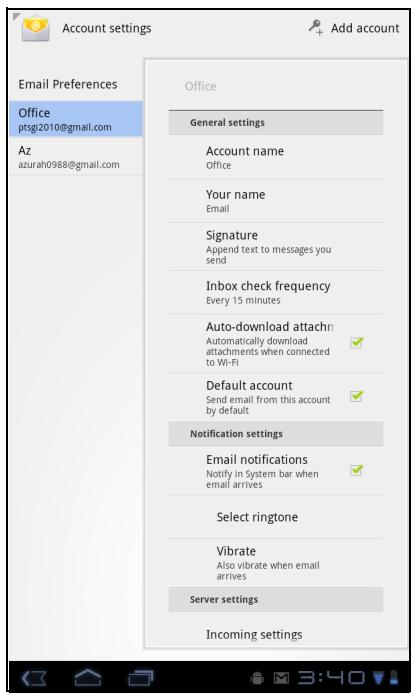
Configure message settings using the Account settings menu.
- From the Home screen, tap □ > Email.
- Tap the account you want to access.
- Tap ≡ > Account settings to open the email setting menu.
Composing and sending emails
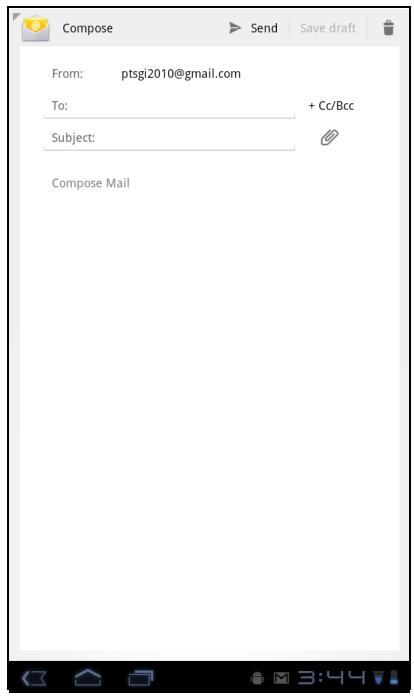
- From the Home screen, tap □ > Email.
- Tap an email account.
-
Tap
-
In the To field, enter the recipient's email address.
- Enter a Subject.
- Compose your email.
- Tap ▶ Send .
Sending an email from Contacts
You can send an email to a contact with an email address stored in Contacts.
- From the Home screen, tap > Contacts.
- Tap a name to open contact.
- Tap Email Home or Email Work.
- Enter a Subject.
- Compose your email.
- Tap ▶ Send .
Adding attachments to an email message
- On the Compose screen, tap 🎨.
- Select the file that you want to attach.
Receiving emails
Emails are automatically received in your Inbox when the device connects to a wireless network.
To manually receive emails
- From the Home screen, tap □ > Email.
- Tap an email account.
- Tap ↻.
Reading and replying to emails
Inbox displays email headers. Download the email to view the complete content.
To download attachments
- With POP3 email accounts, attachments are downloaded when you download the complete message.
- With IMAP4 email accounts, tap the attachment to mark it for download. The attachment is downloaded the next time you connect to your email server.
NOTE: Only supported file types can be opened on the device.
To reply or forward an email
- From the Home screen, tap □ > Email.
- Tap an email account.
- Tap a message to open.
-
Do any of the following:
-
Tap ← (Reply) or ↔ (Reply all) to reply the email.
-
Tap (Forward). Then enter the recipient in the To field.
-
Compose your message.
-
Tap ▶ Send .
Chapter 5: Using Internet
5.1 Browsing Web Pages
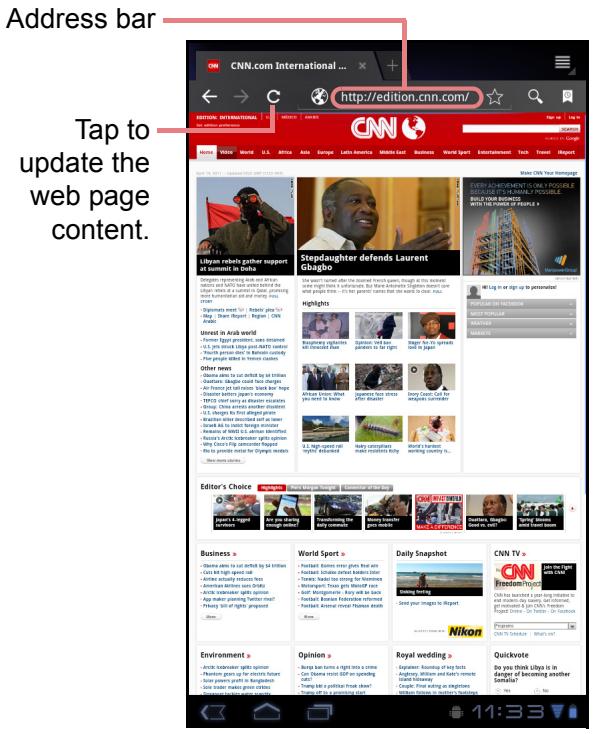
- From the Home screen, tap □ > Browser.
- Tap the address bar.
- Type the URL. As you type, a list of URL suggestions appears on the screen.
- Tap a match item in the list.
To scroll the page
To scroll up or down, swipe your finger down or up. To scroll left or right, tap and swipe your finger to the right or left.
To set Home page
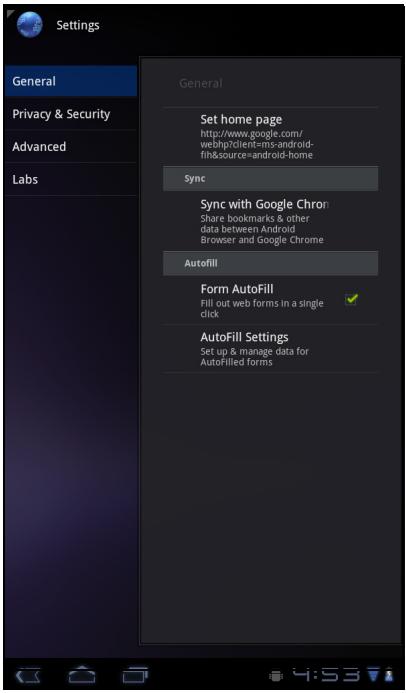
- While viewing a web page, tap > Settings > General > Set home page.
- Enter the URL of the page that you want to set as home page.
- Select Current page or Default page.
- Tap OK to save your settings.
Managing web pages
While viewing a web page, tap ≡ to configure the browser settings:
- General: Select to set home page, and configure sync data and autofill settings.
- Privacy & Security: Select to configure privacy and security settings including cache, history, cookies, form data, location, and etc.
- Advanced: Select to set search engine, open in background, enable JavaScript, enable plug-ins, advanced settings for individual website, page content settings, and reset all settings to the factory default.
Chapter 6: Google Apps (Select Model)
The following sections cover Android and Google applications that come pre-installed on your device depends on models.
NOTE: ViewPad E70 is not available for these Android/ Google applications.
6.1 Gmail
Gmail is the email service provided by Google.
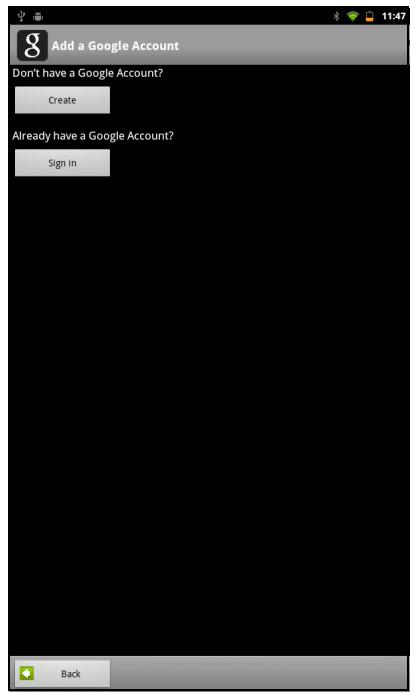
Signing in to Gmail
- From the Home screen, tap > Gmail.
- Tap Create or Sign in your Google account.
- Follow the on-screen instructions to login or create your Gmail account.
- Once logged in, you can begin reading and sending emails from your Gmail account.
Refreshing Gmail
- From the Home screen, tap > Gmail.
- Tap Menu > Refresh.
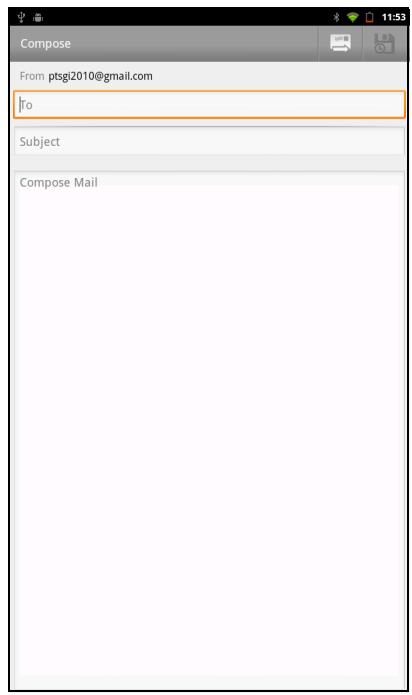
Creating and sending emails
- From the Home screen, tap > Gmail.
- Tap Menu > Compose.
- Enter the recipient.
- Enter the subject and compose your message.
- If necessary, do any of the following:
• To add Cc/Bcc, tap Menu > Add Cc/Bcc.
• To attach files, tap Menu > Attach. -
To save as draft, tap 📋 or tap Menu > Save draft.
-
Tap 📋 to send the email.
Reading and replying to emails
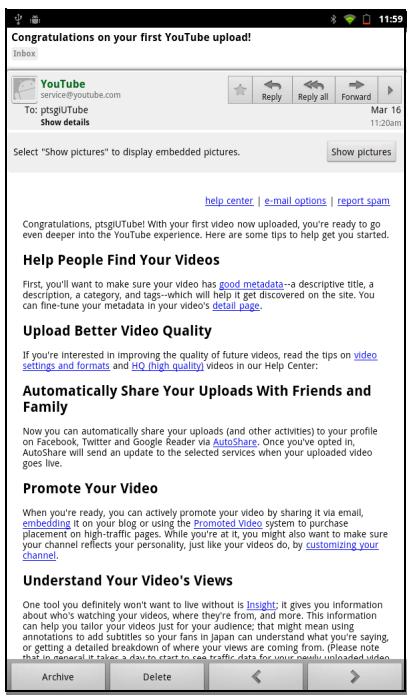
- From the Home screen, tap > Gmail.
- Tap an email to read.
- To reply, tap ⇔ (Reply) or ↔ (Reply all).
- Compose your message.
- Tap 📋 to send the email.
To preview and download attachments
- From the Home screen, tap > Gmail.
- Tap an email to read.
- Scroll to the end of the email and do any of the following:
• To preview an attachment, tap Preview.
• To download an attachment, tap Download.
Forwarding emails
- From the Home screen, tap > Gmail.
- Tap an email to open.
- To forward, tap → .
- Enter the recipient.
- Tap to send the email.
Managing emails
To delete emails
- From the Home screen, tap > Gmail.
- Tap and hold an email, then tap Delete.
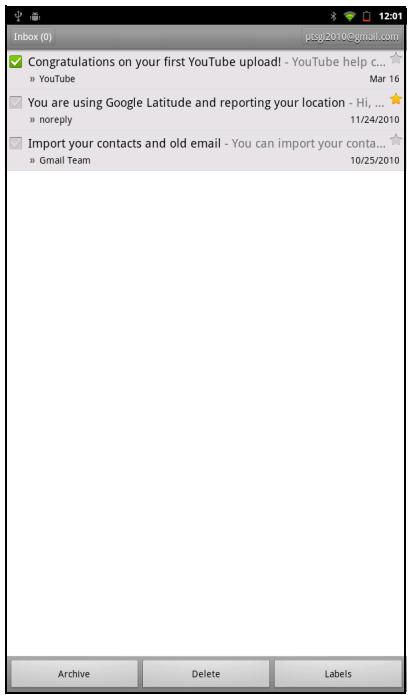
To add a star to emails
- From the Home screen, tap > Gmail.
- Tap the star icon.
To select emails
- From the Home screen, tap > Gmail.
- Tap the check icon.
To mark emails as read or unread
- From the Home screen, tap > Gmail.
- Tap and hold an email, then tap Mark read or Mark unread.
To place emails in archive
- From the Home screen, tap > Gmail.
- Tap and hold an email, then tap Archive.
To mute emails
- From the Home screen, tap > Gmail.
- Tap and hold an email, then tap Mute.
To change labels of emails
- From the Home screen, tap > Gmail.
- Tap and hold an email, then tap Change labels.
- Tap a label, then tap OK.
Viewing folder labels
- From the Home screen, tap > Gmail.
- Tap Menu > Go to labels.
Searching for emails
- From the Home screen, tap > Gmail.
- Tap Menu > Search.
- Type the text to search, then tap
Configuring Gmail settings
- From the Home screen, tap > Gmail.
- Tap Menu > More > Settings.
- Tap one of the following settings:
![Labels Inbox Sync 4 days Starred ★ Chats Sent Sync 4 days Outbox Drafts Sync all All Mail Spam Trash [Imap]/Trash Personal Receipts Travel Work](/content/2025/01/170160/images/4e035336631547d315b4fd2c7a5217dbef8f7fd4b776fc5e5f0538d25a1904d2.jpg)
• Signature: Add a text signature to your outgoing emails.
- Confirm actions: Prompt for confirmation before archiving, deleting, or sending emails.
- Reply all: Make “Reply all” as the default when replying emails.
- Auto-advance: Select which screen to show after you delete or archive a conversation.
- Message text size: Set the font size used in emails.
- Batch operations: Allow label operations on more than one conversation.
- Clear search history: Remove all the searches you have performed.
- Labels: Select which labels are synchronized.
- Email notifications: Displays a notification icon on the status bar when an email is received.
- Select ringtone: Select email notification ringtone.
- Vibrate: Enable the device to vibrate when an email is received.
- Notify once: Notify once for new email, not for every new email.
6.2 Talk
Use Google Talk to chat with your friends who also have Google accounts.
Signing in to Google Talk
-
From the Home screen, tap □ > Talk.
-
Select an account and tap Sign in.
If you log in for the first time, enter your username and password, then tap Sign in.
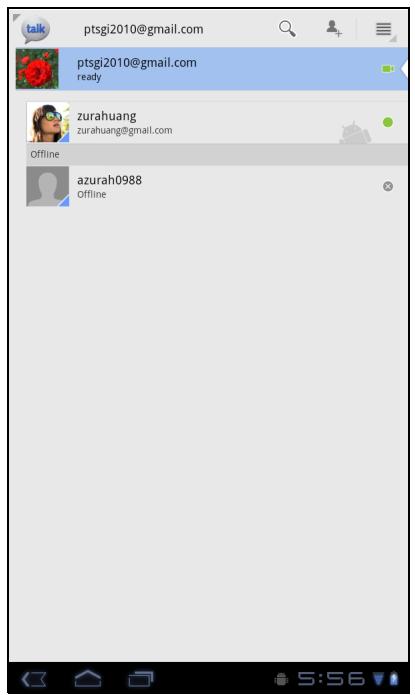
Google Talk options
Once logged in, you can begin using Google Talk and do any of the following:
• To view friends list, tap ≡ > All friends.
• To add friends to friend's list, tap 🖱+ .
• To search a person, tap 🔒.
• To sign out, tap ≡ > Sign out.
- To configure Google Talk settings, tap ≡ > Settings.
- To block a person, tap and hold an account and tap Block friend.
• To close all chats, tap ≡ > Close all chats.
Starting chat
- From the Home screen, tap □ > Talk.
- Tap a friend on your friends list.
- Type your message, then tap ▶.
Configuring Google Talk settings
- From the Home screen, tap □ > Talk.
2. Tap ≡ > Settings.
-
Tap one of the following settings:
-
Sign in automatically: Enable to automatically sign in when Google Talk is opened.
- Mobile indicator: Enable to show mobile indicator to your friends.
- Set status to away when screen is turned off: Enable to set status to away when the screen is turned off.
- IM notifications: Enable to display a notification icon when an instant message is received.
- Notification Ringtone: Select the ringtone to use when an instant message is received.
- Vibrate: Enable to vibrate when an instant message is received.
- Invitation notifications: Enable to display a notification icon when friends invitations are received.
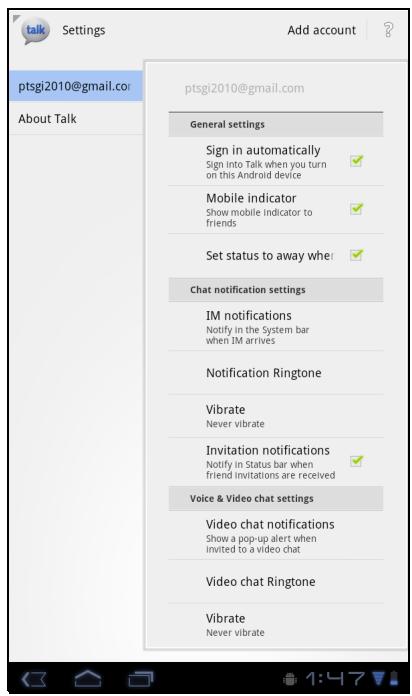
- Video chat notifications: Enable to display a notification icon when a video chat invitation is received.
- Video chat Ringtone: Select the ringtone to use when a video chat invitation is received.
• Vibrate: Enable to vibrate when a video chat invitation is received.
- Blocked friends: View the blocked friends list.
- Clear search history: Clear previous Google Talk chat searches from showing up in the Search box.
- Manage account: Set the general sync settings and manage accounts.
6.3 Maps
Use Google Maps ^TM to find places, view traffic and direction information, and find your friends' location.
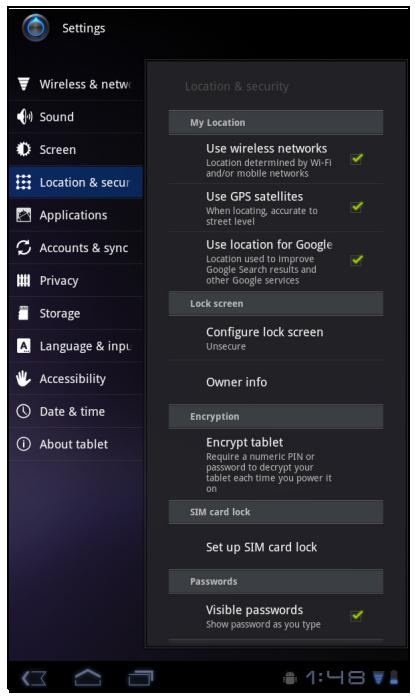
Before starting Maps ^TM , do the following:
- From the Home screen, tap Location & security. > Settings >
- Tap to enable Use wireless networks.
- Tap to enable Use GPS satellites.
NOTE: Some GPS functions may not be available depending on model.
Viewing Map
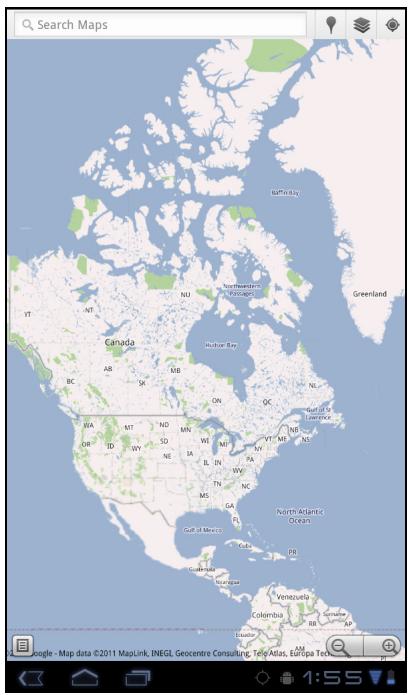
- From the Home screen, tap > Maps.
-
Do any of the following:
-
Tap and hold an area on the map to view the address.
- Slide your finger on the screen to scroll the map.
- Tap the zoom controls to zoom in or out.
- To select nearby attractions, tap 🤒 then tap the desired category.
- To select Map mode, tap 📋 then tap Traffic, Satellite, Terrain, Buzz, Latitude, My Maps, Wikipedia, Transit Lines, or Favorite Places.
• To find your location, tap - To search for a place of interest, tap the Search Maps box then type in a keyword to begin search.
• To get direction, tap the address box and tap 📋.
Finding places
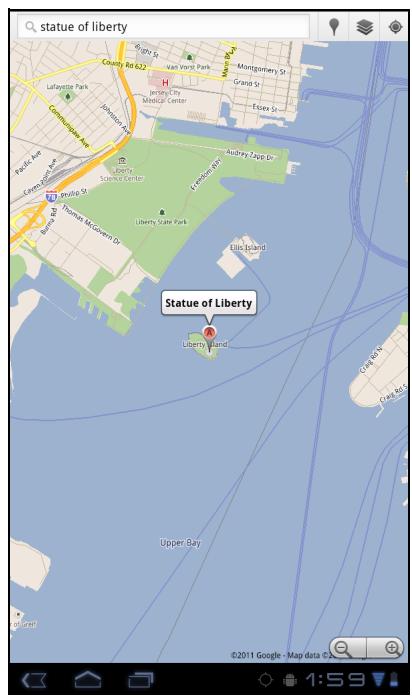
- From the Home screen, tap > Maps.
- Tap the Search Maps box.
- Type the place to search on the text field.
- Tap ▶.
A callout appears to indicate the location of the searched place.
6.4 Navigation
Google Maps Navigation allows you to say the destination and get voice directions.
NOTE: Not available in all locations.
Before starting Navigation, do the following:
- From the Home screen, tap □ > Settings > Location & security.
- Tap to enable Use wireless networks.
- Tap to enable Use GPS satellites.
NOTE: Some GPS functions may not be available depending on model.
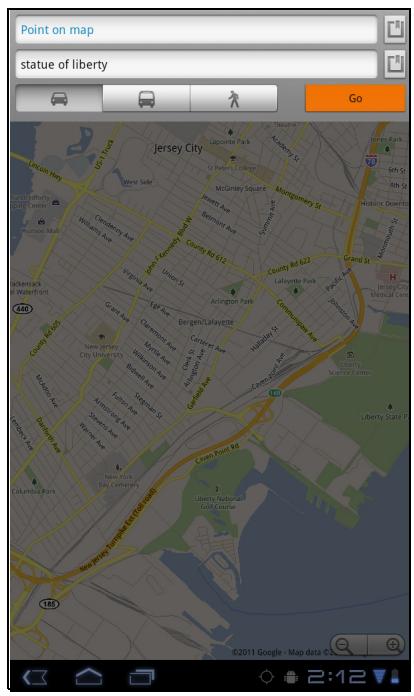
Getting directions
- From the Home screen, tap >Navigation.
- Enter the starting point and the ending point, or tap the corresponding 📋 and select an option.
- Select a direction icon.
• : Driving directions
• : Transit directions
• : Walking directions
- Tap Go to view the directions.
Finding your current location
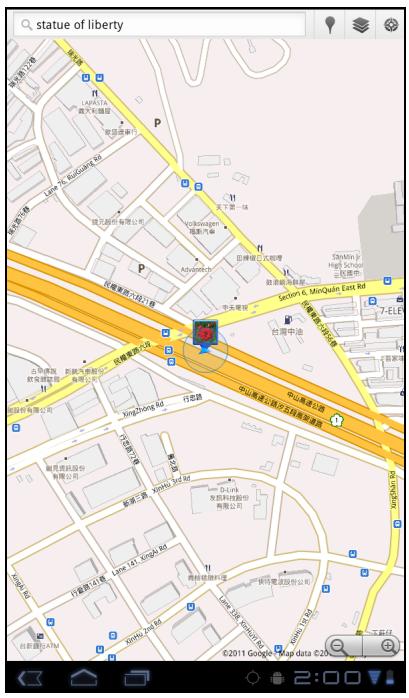
- From the Home screen, tap >Navigation.
- Tap 🔒 to view your location on the map.
A blue blinking arrow indicates your current location on the map.
6.5 Latitude
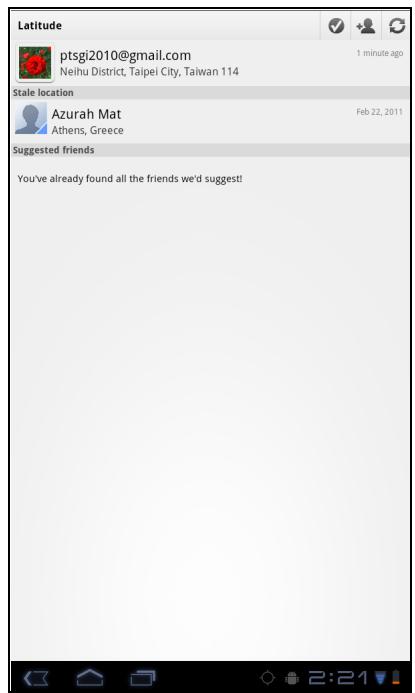
With Latitude, you can view your friends' location and share your location to them on Google Maps™.
Starting Latitude
- From the Home screen, tap > Latitude.
- Do any of the following:
• To add friends, tap +
• To refresh your friends list, tap 📞.
- To share your current location with your friends, tap √ and select a place from the available list.
• To view the map, tap your account > ☐.
- To change your privacy settings, tap your account > Edit privacy settings.
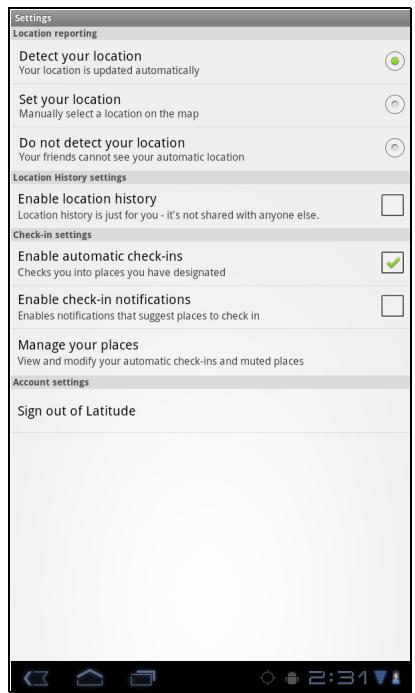
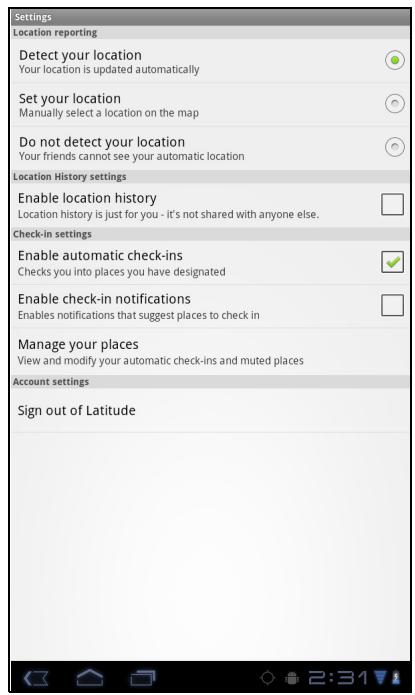
Configuring privacy settings
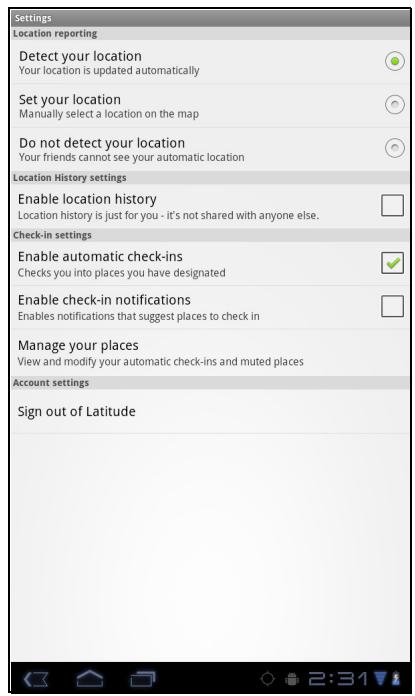
- From the Home screen, tap > Latitude.
- Tap your account > Edit privacy settings.
- Tap one of the following:
- Detect your location: Select to automatically update your location.
- Set your location: Select to manually set your location on the map.
- Do not detect your location: Select to hide your location from your friends.
- Enable location history: Select to store your previous locations and visualize them on the Latitude website.
- Enable automatic check-ins: Select to enable you to check in at places that you chose.
- Enable check-in notifications: Select to enable notifications that suggest places to check in.
- Manage your places: Select to manage and modify your automatic check-ins and muted places.
• Sign out of Latitude: Tap to sign out from Latitude.
6.6 Market
Android Market ^™ allows you to purchase and download games and other applications to your device.
When opening Android Market for the first time, the Terms of Service is displayed on screen. Tap Accept to accept the terms and continue.
NOTE: Android Market may not be supported on all models or in all countries.
Searching for applications
- From the Home screen, tap □ > Market.
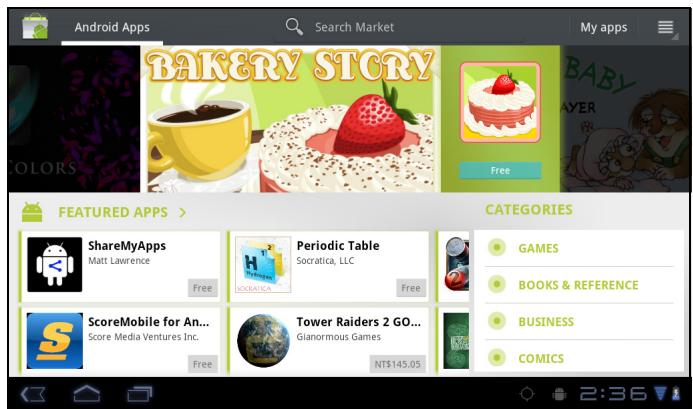
- To browse for an application, tap a category to view available applications.
- To search, tap Search Market box.
- Type the application name, then tap
Downloading applications
- From the Home screen, tap □ > Market.
- Search for desired application.
- Tap the application that you want to download.
- Tap DOWNLOAD > OK.
Removing applications
- From the Home screen, tap □ > Market.
- Tap My apps. The list of downloaded applications are displayed on screen.
- Tap the application that you want to remove.
- Tap Uninstall.
6.7 Places
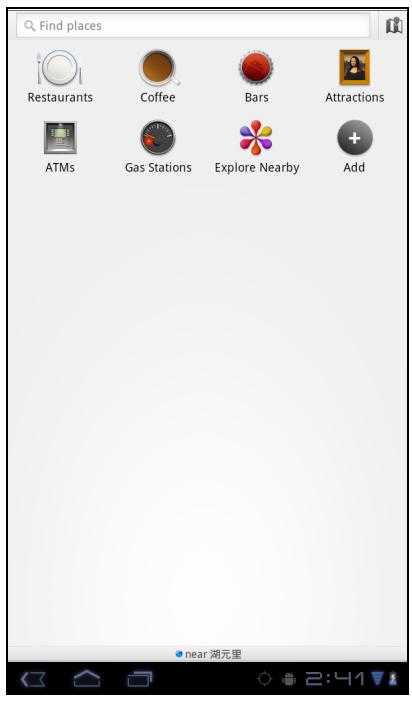
Places is a location-based application that helps you find the places and things around you. Local information available includes restaurants, coffee shops, bars, hotels, attractions, ATMs, gas stations, and more. This application also helps you get where you are going with maps and directions.
From the Home screen, tap □ > Places.
6.8 Google Search
From the Home Screen, you can search information on your device and on the web with Google Search right away.
Searching information by entering text
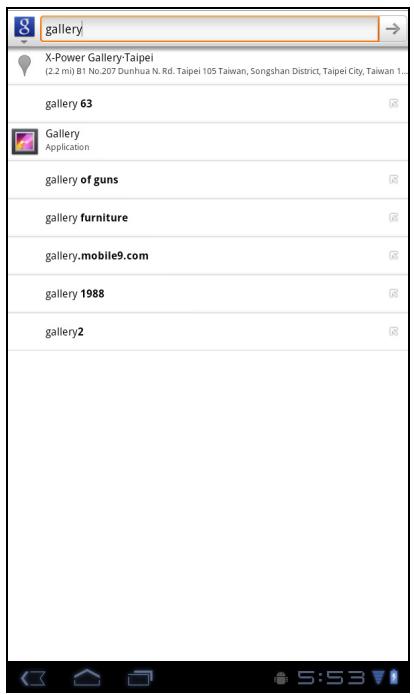
- From the Home screen, tap 📄 > Google Search or tap Google Search widget.
- Enter the text you are searching in the Quick Search box.
- As you type, matching items on your device and suggestions from Google web search are added to the list of previously chosen search results. Tap a match item in the list.
- If what you are searching is not in the list, tap → in the Quick Search box. The Browser opens, displaying results of a Google search on the web.
6.9 Voice Search
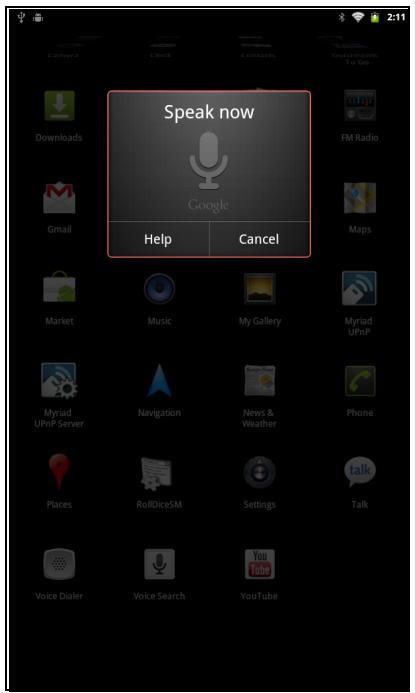
Speak your query to search item on Google, or for applications or contacts on your device.
- From the Home screen, tap 📄 > Voice Search or tap 🏠 in the Quick Search box.
- A dialog opens, prompting you to speak the words that you want to search for.
- When you are finished speaking, Voice Search analyzes your speech and displays the results of your search.
If Voice Search misunderstands you, Quick Search Box presents a list of similar-sounding search terms.
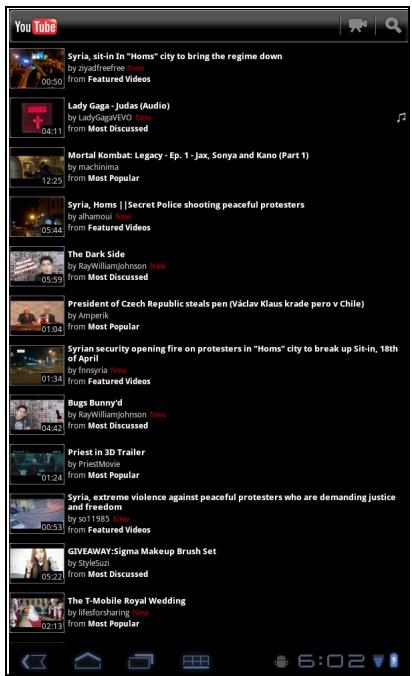
6.10 YouTube
YouTube allows you to watch streaming video and upload movies from your device.
Watching videos
- From the Home screen, tap > YouTube.
- Tap a video to start playback.
Uploading videos
- From the Home screen, tap > YouTube.
- Tap to record your video.
- Sign in to your YouTube account.
- Follow the on-screen instructions to upload your video.
Searching videos
- From the Home screen, tap > YouTube.
- To search for videos, tap 🔒.
- Type the keyword to search.
- Tap ▶.
Chapter 7: Using Bluetooth (Select Model)
Bluetooth modes
- On: Bluetooth is turned on. Your device detects other Bluetooth devices, but your device is not visible to others.
- Discoverable: Bluetooth is turned on and your device is visible to other Bluetooth devices.
• Off: Bluetooth is turned off.
To turn Bluetooth on or off
- From the Home screen, tap > Settings > Bluetooth.
- Tap Bluetooth check box to activate the Bluetooth function.
- To make your device visible to others, tap Bluetooth settings > Discoverable check box to make this device visible to other devices.
7.1 Connecting to Bluetooth Devices
A connection to a Bluetooth device is called a partnership. You need to pair and create a partnership with a Bluetooth device to exchange information.
- From the Home screen, tap > Settings > Wireless & networks.
- Tap Bluetooth settings to view the menu options.
- To search for a new device, tap Scan for devices.
- Tap a detected device.
- To start pairing, enter the PIN and tap OK.
NOTE:
- The PIN of the device must be the same PIN on the other bluetooth device.
-
On some devices, tap Pair to start pairing.
-
The paired bluetooth device name is displayed.
NOTE: Once a partnership has been created, connecting to that device again will no longer require entering the PIN.
Chapter 8: Multimedia Applications
8.1 Videos and Photos
Your device is equipped with a front camera and a main camera for you to take photos and record videos.
NOTE: ViewPad E70 with front camera only.
Taking a Photo
- On the Home screen, tap □ > Camera.
- Aim the device at the desired subject.
- Tap to take the photo.
Recording a Video
- On the Home screen, tap □ > Camera.
- Tap to go to the video mode.
- Aim the device at the desired subject.
- Tap ● to start recording, and tap ⏰ to stop recording.
Reviewing a photo
After taking a photo, tap the window located at top right corner to preview the latest captured photo on the screen.
- Tap Share to share the photo via Bluetooth, Picasa, Messaging, Email, or Gmail.
- Tap Delete to delete the photo.
- Tap More to view photo details, set the photo as Contact icon/Wallpaper, crop the photo, rotate the photo to the left/right, or set the slideshow settings.
- Tap 🎨 to return to Camera mode.
Configuring Camera Settings
You can adjust the settings when you take photos or videos. Tap the icon to access the respective menu, and scroll the bar to view more options.
Tap to view and adjust the general settings of your camera:
| Mode | Setting | Available options |
| Photo mode | White balance | Auto, Incandescent, Daylight, Fluorescent |
| Exposure | +4, +3, +2, +1, 0, -1, -2, -3, -4 | |
| Camera settings | Restore defaults, Store location (Off/ On) | |
| Video mode | White balance | Auto, Incandescent, Daylight, Fluorescent |
| Time laspe interval off | 1s, 1.5s, 2s, 2.5s, 3s, 5s, 10s | |
| Camera settings | Restore defaults, Store location (Off/ On) |
8.2 Playing Photos and Videos
The photos and videos you took or recorded are saved in the respective folder categories in Gallery by default.
Viewing Photos
- On the Home screen, tap > Gallery.
- Tap Photos to view the images in thumbnails.
- Tap an image to view it in full screen.
- Swipe your finger to left or right to view the previous or next image.
Tap Slideshow, the images will play one by one automatically in slideshow mode. And if you want to share, edit or delete the image, please tap Menu and then select the desired option.
Playing Videos
- On the Home screen, tap > Gallery.
- Tap Videos to display all saved videos.
- Tap a video to start playing.
8.3 Playing Music
You can play the music stored in your device or Micro SD card inserted.
Playing Music
- On the Home screen, tap > Music.
- Select the desired track from the Songs list or Playlists to play it.
- Press the Volume button to increase or decrease the playing sound.
During playing, you can press Menu ≡ to add it to the desired playing list or delete it.
Item
Description

To play the track

To pause the track
Play the previous track
Play the next track
Process bar
Play forward or backward
To view the playing list
Turn on or off shuffle
Repeat the current song or all songs, or turn off repeat
NOTE:
You can leave the playback screen and browse other pages without stopping the playback.
Managing Playlist
You can add any songs to your preferred playlist.
To play music
- On the Home screen, tap > Music.
- Tap and hold the desired track until a pop-up window appears.
- Tap Add to playlist, and then select Current playlist or New to save.
If you select New, you need to enter the playlist name and then tap Save to create a new playlist.
Chapter 9: Programs (Select Model)
Your device comes with the following pre-installed programs.
| Programs | Description | |
 | Books | Download ebooks from online catalog for viewing on your device. |
 | Browser | Browse the web and download files from the Internet. |
 | Calculator | Perform basic arithmetic functions, such as addition, subtraction, multiplication, and division. See page 39. |
 | Calendar | Create and track schedule or appointments. |
 | Camera | Capture photos. |
 | Clock | Set up alarms. |
 | Contacts | Store names, numbers, email, and other information. See page 12. |
 | Downloads | View or delete the files that you have downloaded in Browser, Gmail, or Email. |
 | Send and receive email messages. | |
 | File Browser | Manage audio, video, photo, and other files. |
 | FM Radio | Tune and listen to the radio. |
 | Gallery | View and edit photos and videos. |
 | Gmail | Access your Gmail account on your device. |
| [Gx87] | Google Search | Search applications and contacts on your device, and the Internet using Google Search. |
 | Latitude | See your friends' locations and share yours with them. You need to sign in with your Google account to use this feature. |
 | Maps | View the map and get directions to your destination. |
 | Market | Purchase games and other applications from Android Market and download them to your device. |
 | Music | Play and manage music and audio files on your device. |
 | Navigation | Use to track your location, find places, and get driving directions to your destination. |
| [board] | Places | Help you to find the places around you. Local information available includes restaurants, coffee shops, bars, hotels, attractions, ATMs, gas stations, and more. See page 31. |
| [date] | Settings | Configure wireless settings and other general settings of your device. |
| [insert] | Spare Parts | View device information and configure animations, font size, end button behaviour, haptic feedback, and compatibility mode settings. |
| [download] | Talk | Log in and chat with friends using Google Talk. |
 | Voice Search | Use Google Search by saying the word instead of typing them. |
 | YouTube | Watch videos from YouTube on your device. |
9.1 Books
The Books program allows you to download ebooks from online catalog for viewing on your device.
Browsing an ebook
- From the Home screen, tap □ > Books.
- Select an ebook and tap the book cover to start reading.
- Swipe your fingers right and left to flip to the previous and the next page.
• To view the table of contents, tap ≡: .
• To change the reader settings, tap Aa.
- To view the book information or access on-line help, tap ≡ to show more options.
Downloading an ebook
- From the Home screen, tap □ > Books.
- To add more ebooks to your library, tap Shop to browse on Google eBookstore or tap to search by book title or author name.

9.2 Browser
Open the Browser to view web pages. See “Browsing Web Pages” on page 19.
9.3 Calculator
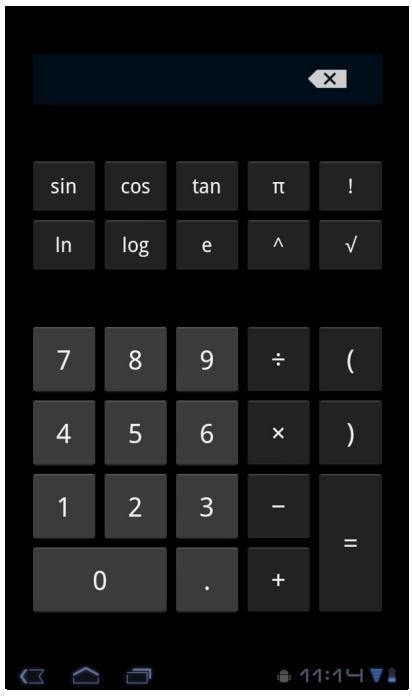
With Calculator, you can perform basic arithmetic functions on your device.
- From the Home screen, tap □ > Calculator.
- Use the on-screen calculator keypads to perform arithmetic calculation.
9.4 Calendar
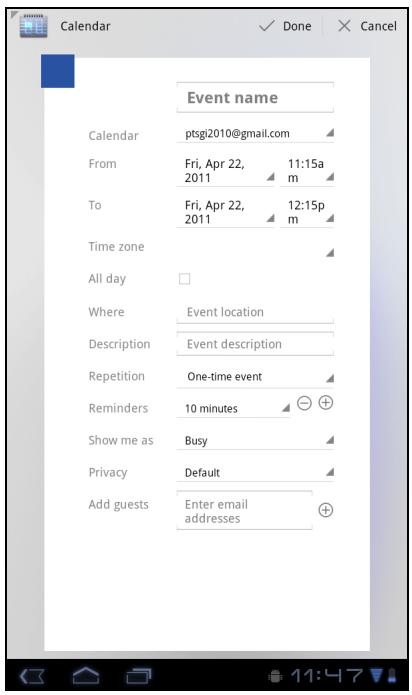
The Calendar lets you schedule and sound alarms for appointments, meetings and other events. Scheduled appointments for the day can be displayed on the Home screen.
To schedule an event
- From the Home screen, tap □ > Calendar.
- Tap
- Enter the event details.
- Select the date and time for From and To fields.
NOTE: For an all-day event, check All day.
- To set repetition, select the repetition from the list.
- To set a reminder, select the time from the list.
- When finished, tap √ Done
TIP: From the Calendar screen, tap and hold a day or a time slot then set a new appointment on the tapped date or time.
9.5 Camera
Capture photos with this device.
9.6 Clock
Set alarms with this device.
9.7 Contacts
View or manage your contact list. See “When connecting to a secured network, you will be prompted for the password. Enter the password then tap Connect.”
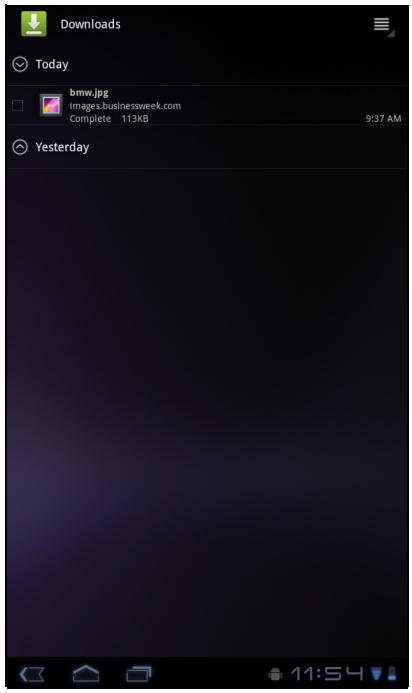
9.8 Downloads
Use Downloads to view or delete what you have downloaded in Browser, Gmail, or Email.
NOTE: The downloaded files are stored in the "Download" folder in your memory card.
- From the Home screen, tap □ > Download.
- Tap an image to view it.
Managing files
- To delete a file, tap the check box on the left side of the image. A green tick appears, tap Delete.
• To sort the file by size, tap ≡ > Sort by size.
• To sort the file by time, tap ≡ > Sort by time. - To view files that have been downloaded earlier, tap the headings.
9.9 Email
Use Email to connect to your remote mailbox and retrieve your email messages from your device.
9.10 File Browser
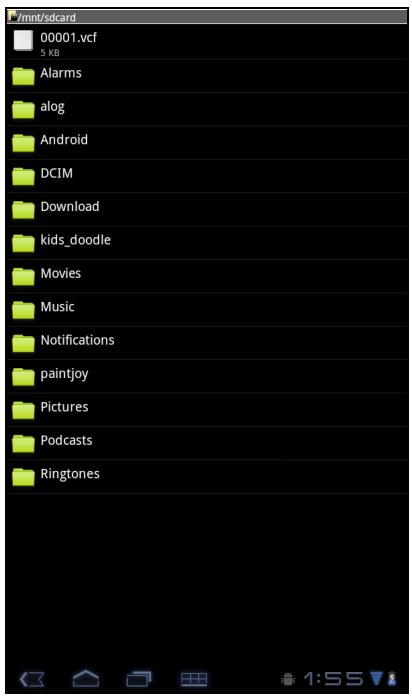
File Browser lets you browse the contents of your device and the memory card.
- From the Home screen, tap > File Browser.
- Tap the folder list and tap the folder you want to explore.
Managing files and folders
• To open a folder or file, tap the file or folder.
- To move, delete, rename or view file or folder details, tap and hold to view the options. Then tap a desired option.
- To copy, tap and hold a file or folder, then tap Copy. To paste a file or folder, tap > Paste.
• To create a new folder, tap > New folder.
• To sort items, tap □ > Sort, then tap a sorting option.
• To mark a file or folder, tap □ > Mark.
• To copy all files and folders, tap 📄 > Copy all.
• To delete all files and folders, tap > More > Delete all.
• To search for a file, tap □ > More > Search.
9.11 FM Radio
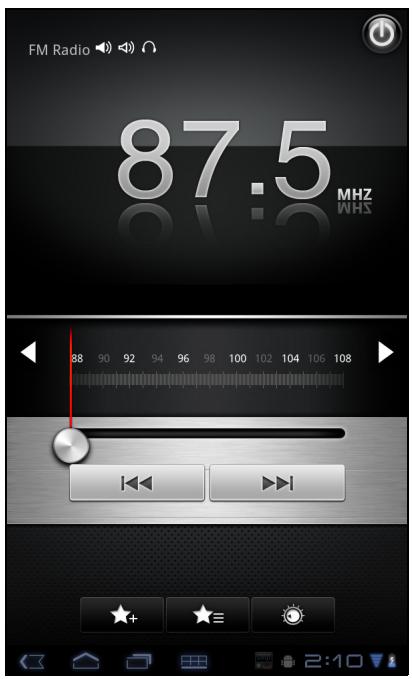
FM Radio lets you listen to the FM radio.
NOTE: You must connect a headset or an earphone to use this function.
- From the Home screen, tap > FM Radio.
- Do any of the following:
- To manually tune to a frequency, tap on a desired frequency.
- To tune to another radio station, tap or ▶▶▶.
• To view the Favorite List, tap
- To add the current radio station into the Favorite list, tap 🎋, and then enter the station name and tap OK.
- To set the desired radio station frequency, tap 🙏. Enter the radio frequency and tap OK.
• To turn on the speaker, tap 📄 > Speaker.
• To mute the sound, tap > Mute.
- To change other radio settings, tap > Settings.
9.12 Gallery
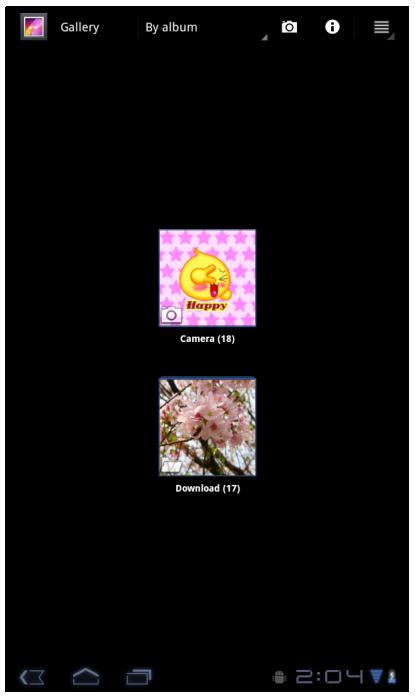
You can view your captured images, recorded video clips, and downloaded images in Gallery.
- From the Home screen, tap □ > Gallery.
- Tap the desired folder to view the camera pictures or camera videos.
The images or videos are displayed in thumbnails.
9.13 Gmail
Use Gmail to send and receive emails using your Google email account.
9.14 Google Search
Search information on your device and on the web with Google Search.
9.15 Latitude
Latitude allows you to keep track of your friends' location and share your location to them.
9.16 Maps
Use Maps to view the map and get directions to your destination.
9.17 Market
Use Market to purchase and download games and other applications to your device.
9.18 Music
Use Music to play music files or recorded voice files.
9.19 Navigation
Use Navigation to locate your location and provide a real time turn by turn direction to your chosen destination.
9.20 Places
Places is a location-based application that helps you find the places and things around you.
9.21 Settings
In the Settings menu, you can view and make adjustments for wireless & network settings, device general settings and security settings.
9.22 Spare Parts
With Spare Parts, you can view device information and configure animations, font size, end button behaviour, haptic feedback, and compatibility mode settings.
From the Home screen, tap □ > Spare Parts.
9.23 Talk
Use Talk to chat with your friends.
9.24 Voice Search
Use Voice Search to say the words to search in the Internet using Google search engine.
9.25 YouTube
Use YouTube to watch, upload, and view videos from YouTube using your device.
9.26 Dropbox
DropBox gives you 2GB of free cloud storage. Access all your important documents, media files and more, anywhere, right from your ViewPad. If you don't have a DropBox account, you can create one easily for free the first time you launch the app.
9.27 Note Everything
This full-featured note taking app makes it easy to create, view and manage text notes, as well as hand-drawn notes and voice recordings.
9.28 Sketcher
Create beautiful drawings with the sketchpad app, featuring a variety of textured brushes and colors.
9.29 Tuneln Radio
Listen to your favorite AM/FM and Internet radio stations from around the globe. You can browse by category, genre or location, search for artists, and bookmark your favorite stations.
9.30 Amazon Kindle
Buy and read your e-books from Amazon Kindle. Log in with your Amazon account to read your Kindle e-books or browse and download new ones.
Amazon Appstore for Android offers instant download of thousands of free and premium apps for communication, entertainment and more. Simply sign in with your Amazon account. (Currently only available in the USA.)
9.32 Amazon MP3
Amazon MP3 includes the Amazon MP3 store and cloud player. Browse, preview and listen to your favorite music, whether stored on your SD card or in your Amazon Cloud Drive. (Currently available only in the USA and Europe.)
9.33 FW Update
Check if a new firmware is available for your device and perform the system update. Please refer to the screen instruction to manually start the firmware update.
NOTE: Please make sure that your device has at least 50% battery power or the AC adapter
Chapter 10: Managing Your Device
10.1 Wireless & networks
From the Home screen, tap 📄 > Settings to view and adjust the settings of your device.
| Application | Description |
| WiFi | Manage Wi-Fi connections, scan and connect to available Wi-Finetworks. |
| Bluetooth settings | Manage connections, set device name, and discoverability of the device. |
| Data Usage | Mobile Data : Measure by your tablet. Your carrier's data usage accounting may differ. |
| Airplane mode | Disable all wireless connections. |
| VPN settings | Set up and manage Virtual Private Networks (VPNs). |
| Mobile networks | Set options for roaming, networks, and Access Point Names. |
10.2 Device Sound
| Application | Description |
| Volume | Adjust the volume for media, notification, and alarms. |
| Silent mode | Turn silent mode on/off. All sounds except media and alarms are turned off. |
| Ringtone & Notification | Set your default notification ringtone. |
| Vibrate and ring | Set up device vibrate and ring. |
| Touch sounds | Play sounds when touch screen. |
| Screen lock sounds | Play sounds when locking or unlocking the screen. |
10.3 Device Display
| Application | Description |
| Brightness | Adjust the brightness of the screen. |
| Wallpaper | Choose wallpaper from Gallery, Live Wallpapers and Wallpapers. |
| Auto-rotate screen | Switch orientation automatically when rotating the device. |
| Sleep | Adjust display enter sleep inactivity time. |
| Font size | Set up Font size from small, normal, Large and Huge. |
10.4 Device Storage
| Application | Description |
| Internal storage | Show available device storage on total space. |
| Unmount SD card | Unmount the SD card so you can safety remove it. |
| Erase SD cad | Erases all data on the SD card, such as music and photos. |
10.5 Device battery
| Application | Description |
| Battery | View the battery usage on the currently running applications. |
10.6 Device Apps
| Application | Description |
| Downloaded | Manage and remove downloaded applications. |
| On SD card | Manage and remove applications on SD card. |
| Running | View and show cached processes on setting and Android keyboard. |
| All | View and manage all applications. |
10.7 Accounts and Sync
| Applications | Description |
| Auto-sync | Automatically sync data. |
| Manage accounts | Tap Add account to add an account to configure synchronization settings for Calendar, Contacts, and Gmail. |
10.8 Location Services
| Application | Description |
| Google location service | Let apps use data from sources such as Wi-Fi and networks to determine your approximate location. |
| Application | Description |
| GPS satellites | Let apps use GPS to pinpoint your location. |
10.9 Security
| Application | Description |
| Screen lock | Set up screen lock with none, Slide, Pattern, PIN or Password. |
| Owner Information | Show owner info on lock screen. |
| Set up SIM card lock | Set up SIM card lock info. |
| Device administrators | View or deactivate device administrator. |
| Unknown sources | Allow installation of non-Market apps. |
| Trusted credentials | Display trusted CA certificates. |
| Install from SD card | Install certificate from SD card. |
10.10 Language & Input
| Application | Description |
| Languages | Set the on-screen display language for your device. |
| Spelling correction | Spelling correction by Android. |
| Personal dictionary | Add or edit user preset words to the dictionary. |
| Default | Android languages and keyboard settings. |
| Text-to-speech output | Set the text-to-speech settings. |
| Mouse/trackpad pointer speed | Set the pointer speed. |
10.11 Backup & reset
| Application | Description |
| Factory data reset | Delete all data on the device and restore to factory default settings. |
10.12 Date and Time
| Application | Description |
| Automatic date and time | Check to use network provided time. |
| Automatic time zone | Check to use network provided time zone. |
| Set date | Set the date. |
| Set time | Set the time. |
| Select time zone | Select the time zone of your current location. |
| Use 24-hour format | Set the clock to 24-hour format. |
| Select date format | Set the preferred date format. |
10.13 Accessibility
| Application | Description |
| System Accessibility | Configure the settings for the downloaded application with an accessibility feature. |
| Large text | Set the text. |
| Auto-rotate screen | Set device auto-rotate screen. |
| Speaker passwords | Set up speaker passwords. |
| Touch & hold delay | Set up touch & hold delay time on short, medium or long. |
| Install web scripts | Allow apps to install scripts from Google to make web contents more accessible. |
About tablet
Check the system update and view device status, battery usage, legal information, model number, and software version.
Specifications
| Connectivity | |
| GPS | GPS / AGPS (select models) |
| Wi-Fi | 802.11 b/g/n |
| Bluetooth | 2.1 with EDR (select models) |
| USB | USB 2.0 High-Speed client (micro-B type) |
| Power | |
| Battery | 2 cell battery pack (3300mAh, in series), unremovable |
| AC Adapter | AC input voltage: 100-240Vac, 50/60HzAC input current: 300mAac max.DC output voltage: 5Vdc (typical)DC output current: 2A (typical) |
| Temperature | |
| Operating | 0°C to 35°C |
| Non-operating / Storage | -30°C to 65°C |
| Charging | 0°C to 35°C |
| Humidity | |
| Operating | 15% to 90% non-condensing |
| Non-operating / Storage | 5% to 95% non-condensing |
Customer Support
For technical support or product service, see the table below or contact your reseller.
NOTE: You will need the product serial number.
| Country/Region | Website | T = TelephoneF = FAX | |
| Australia/New Zealand | www.viewsonic.com.au | AUS= 1800 880 818NZ= 0800 008 822 | service@au.viewsonic.com |
| Canada | www.viewsonic.com | T (Toll-Free)= 1-866-463-4775T (Toll)= 1-424-233-2533F= 1-909-468-3757 | service.ca@viewsonic.com |
| Europe | www.viewsoniceurope.com | www.viewsoniceurope.com/uk/support/call-desk/ | |
| Hong Kong | www.hk.viewsonic.com | T= 852 3102 2900 | service@hk.viewsonic.com |
| India | www.in.viewsonic.com | T= 1800 266 0101 | service@in.viewsonic.com |
| Ireland (Eire) | www.viewsoniceurope.com/uk/ | www.viewsoniceurope.com/uk/support/call-desk/ | service_ie@viewsoniceurope.com |
| Korea | www.kr.viewsonic.com | T= 080 333 2131 | service@kr.viewsonic.com |
| Latin America(Argentina) | www.viewsonic.com/la/ | T= 0800-4441185 | soporte@viewsonic.com |
| Latin America (Chile) | www.viewsonic.com/la/ | T= 1230-020-7975 | soporte@viewsonic.com |
| Latin America(Columbia) | www.viewsonic.com/la/ | T= 01800-9-157235 | soporte@viewsonic.com |
| Latin America (Mexico) | www.viewsonic.com/la/ | T= 001-8882328722 | soporte@viewsonic.com |
| Renta y Datos, 29 SUR 721, COL. LA PAZ, 72160 PUEBLA, PUE. Tel: 01.222.891.55.77 CON 10 LINEASElectroser, Av Reforma No. 403Gx39 y 41, 97000 Mérida, Yucatán. Tel: 01.999.925.19.16Other places please refer to http://www.viewsonic.com/la/soporte/index.htm#Mexico | |||
| Latin America (Peru) | www.viewsonic.com/la/ | T= 0800-54565 | soporte@viewsonic.com |
| Macau | www.hk.viewsonic.com | T= 853 2870 0303 | service@hk.viewsonic.com |
| Middle East | ap.viewsonic.com/me/ | Contact your reseller | service@ap.viewsonic.com |
| Puerto Rico & Virgin Islands | www.viewsonic.com | T= 1-800-688-6688 (English)T= 1-866-379-1304 (Spanish)F= 1-909-468-3757 | service.us@viewsonic.comsoporte@viewsonic.com |
| Singapore/Malaysia/Thailand | www.viewsonic.com.sg | T= 65 6461 6044 | service@sg.viewsonic.com |
| South Africa | ap.viewsonic.com/za/ | Contact your reseller | service@ap.viewsonic.com |
| United Kingdom | www.viewsoniceurope.com/uk/ | www.viewsoniceurope.com/uk/support/call-desk/ | service_gb@viewsoniceurope.com |
| United States | www.viewsonic.com | T (Toll-Free)= 1-800-688-6688T (Toll)= 1-424-233-2530F= 1-909-468-3757 | service.us@viewsonic.com |
Limited Warranty
ViewSonic® ViewPad
What the warranty covers:
ViewSonic warrants its products to be free from defects in material and workmanship, under normal use, during the warranty period. If a product proves to be defective in material or workmanship during the warranty period, ViewSonic will, at its sole option, repair or replace the product with a like product. Replacement product or parts may include remanufactured or refurbished parts or components.
How long the warranty is effective:
ViewSonic ViewPad are warranted for at least 1 year for labor from the date of the first customer purchase.
Who the warranty protects:
This warranty is valid only for the first consumer purchaser.
What the warranty does not cover:
- Any product on which the serial number has been defaced, modified or removed.
- Damage, deterioration or malfunction resulting from:
a. Accident, misuse, neglect, fire, water, lightning, or other acts of nature, unauthorized product modification, or failure to follow instructions supplied with the product.
b. Any damage of the product due to shipment.
c. Removal or installation of the product.
d. Causes external to the product, such as electric power fluctuations or failure.
e. Use of supplies or parts not meeting ViewSonic's specifications.
f. Normal wear and tear.
g. Any other cause which does not relate to a product defect.
-
Any product exhibiting a condition commonly known as "image burn-in" which results when a static image is displayed on the product for an extended period of time.
-
Removal, installation, one way transportation, insurance, and set-up service charges.
How to get service:
- For information about receiving service under warranty, contact ViewSonic Customer Support (Please refer to Customer Support page). You will need to provide your product's serial number.
- To obtain warranty service, you will be required to provide (a) the original dated sales slip, (b) your name, (c) your address, (d) a description of the problem, and (e) the serial number of the product.
- Take the original container to an authorised ViewSonic Service Centre or use the prepaid product freight option to ship to ViewSonic directly.
- For additional information or the name of the nearest ViewSonic service center, contact ViewSonic.
Limitation of implied warranties:
There are no warranties, express or implied, which extend beyond the description contained herein including the implied warranty of merchantability and fitness for a particular purpose.
Exclusion of damages:
ViewSonic's liability is limited to the cost of repair or replacement of the product.
ViewSonic shall not be liable for:
- Damage to other property caused by any defects in the product, damages based upon inconvenience, loss of use of the product, loss of time, loss of profits, loss of business opportunity, loss of goodwill, interference with business relationships, or other commercial loss, even if advised of the possibility of such damages.
- Any other damages, whether incidental, consequential or otherwise.
- Any claim against the customer by any other party.
- Repair or attempted repair by anyone not authorized by ViewSonic.
4.3: ViewSonic TPC Warranty
TPC_LW01 Rev. 1e 08-06-10
natural_image
Diagram showing a plug inserted into a socket with a red upward arrow indicating direction (no text or symbols)Menu des raccourcis
natural_image
Illustration of a hand interacting with a camera and clock on a starry night sky (no text or symbols)Utiliser des widgets
2.3 Configuration de Wi-Fi
6.3 Cartes
Afficher la carte
6.4 Navigation
6.8 Google Search (Recherche Google)
9.5 Caméra
9.13 Gmail
4.3: ViewSonic TPC Warranty
TPC_LW01 Rev. 1e 08-06-10
9.33 FW Update.... 45
natural_image
Diagram showing a plug inserted into a socket with a red upward arrow indicating direction (no text or symbols)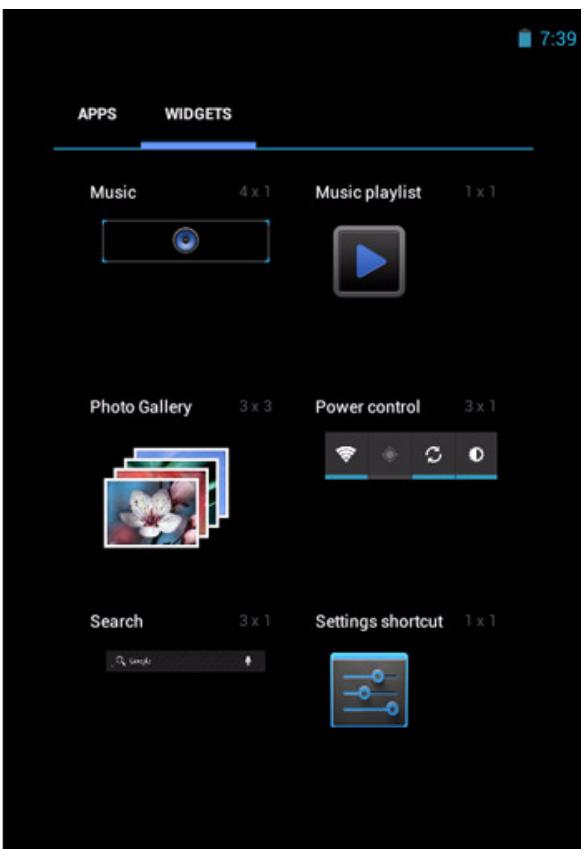
natural_image
Illustration of a hand interacting with a camera and clock on a starry night sky (no text or symbols)Utilizar widgets
Para quitar widgets:
6.3 Maps (Mapas)
Ver mapas
Buscar lugares
6.8 Google Search
9.5 Cámara
9.11 FM Radio (Radio FM)
9.13 Gmail
4.3: ViewSonic TPC Warranty
TPC_LW01 Rev. 1e 08-06-10
Chapter 4: Email (E-Mail).... 15
9.9 Email (E-Mail) 41
9.10 File Browser (Datei-Browser) 41
Verknüpfungen-Menü
natural_image
Illustration of a hand interacting with a camera and a clock, set against a starry night sky background (no text or symbols)Widgets verwenden
6.3 Maps
Karte betrachten
6.4 Navigation
6.8 Google Search
9.5 Kamera
9.13 Gmail
4.3: ViewSonic TPC Warranty
TPC_LW01 Rev. 1e 08-06-10
Visualizar as contas de e-mail 16
** Para os modelos ViewPad G70.
Topo

natural_image
Diagram showing a plug inserted into a socket with a red upward arrow indicating direction (no text or symbols)Ecrã Home Avançado
Menu de Atalhos
natural_image
Illustration of a hand interacting with a camera and a clock, set against a starry night sky background (no text or symbols)Utilizar widgets
Para remover widgets:
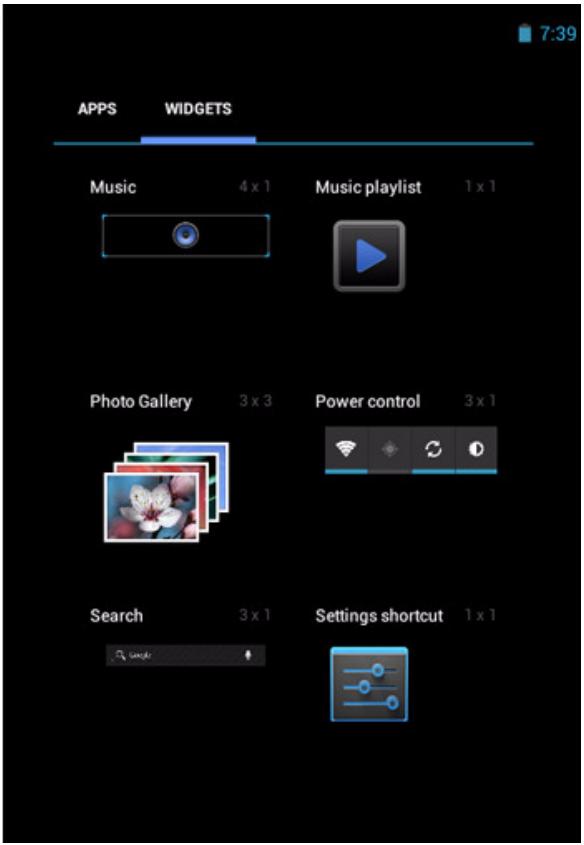
2.2 Ajustar o volume
2.3 Configurar o Wi-Fi
Visualizar as contas de e-mail
Compor e enviar e-mails
Criar e enviar e-mails
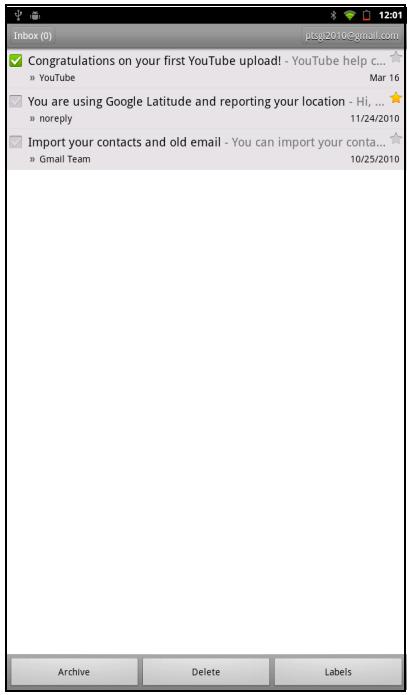
Para arquivar e-mails
Visualizar o Mapa
6.4 Navegação
6.8 Pesquisa do Google
6.9 Pesquisa de Voz
9.5 Câmara
9.13 Gmail
4.3: ViewSonic TPC Warranty
TPC_LW01 Rev. 1e 08-06-10
9.11 FM Radio (FM-радио)...... 42
9.12 Gallery (Галерея) 43
9.13 Gmail 43
9.14 Google Search (Поиск Google) 43
9.15 Latitude (Широта) 43
9.16 Maps (Карты)...... 43
9.33 FW Update.... 45
natural_image
Diagram showing a plug inserted into a device with a red upward arrow indicating direction (no text or symbols)natural_image
Diagram showing a plug inserted into a device with a red upward arrow indicating direction (no text or symbols)Меню ярлыков
natural_image
Illustration of a hand interacting with a camera and clock on a starry night sky (no text or symbols)
Панель приложений
2.3 Настройка Wi-Fi
3.3 Использование
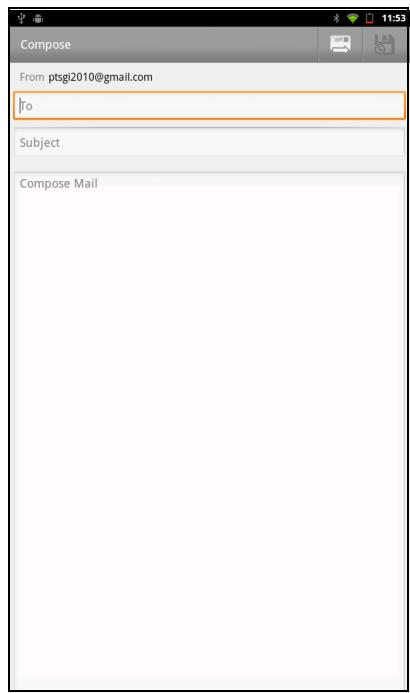
6.3 Maps (Карты)
Просмотр карты
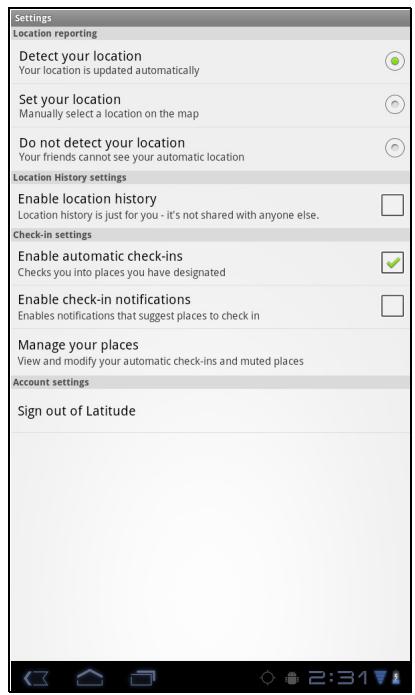
6.8 Поиск Google
9.5 Camera (Kamepa)
9.11 FM Radio (FM-радио)
9.13 Gmail
4.3: ViewSonic TPC Warranty
TPC_LW01 Rev. 1e 08-06-10
電磁相容資訊
注意:
若電池若未正確更換,可能會爆炸。
For better environmental protection, waste batteries should be collected separately for recycling or special disposal.
NCC
natural_image
Diagram showing a plug inserted into a socket with a red upward arrow indicating direction (no text or symbols)1.5 使用耳機
1.7 畫面解鎖
第 2 章:基本功能
2.1 首頁畫面
延伸首頁畫面
手指向左或向右滑動即可捲動首頁畫面。
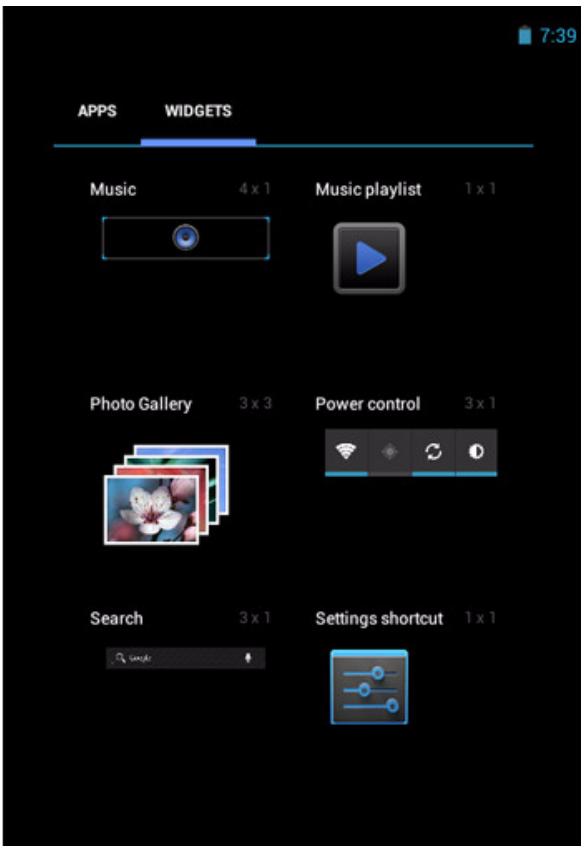
點按即可移動圖示。
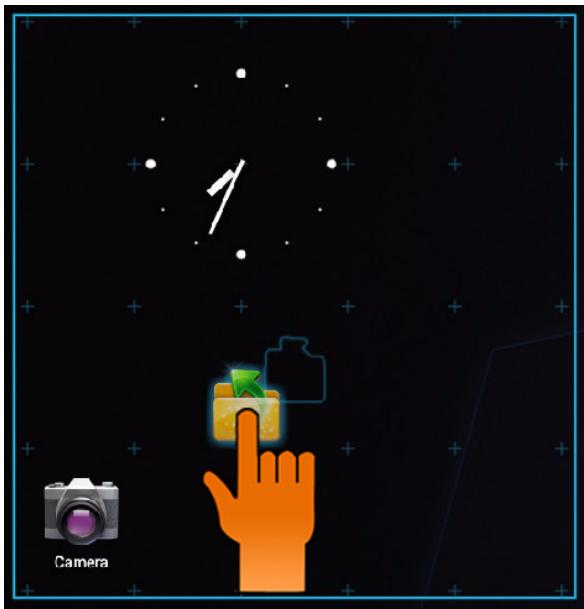
natural_image
Illustration of a hand interacting with a camera and a clock, set against a starry night sky background (no text or symbols)使用小工具
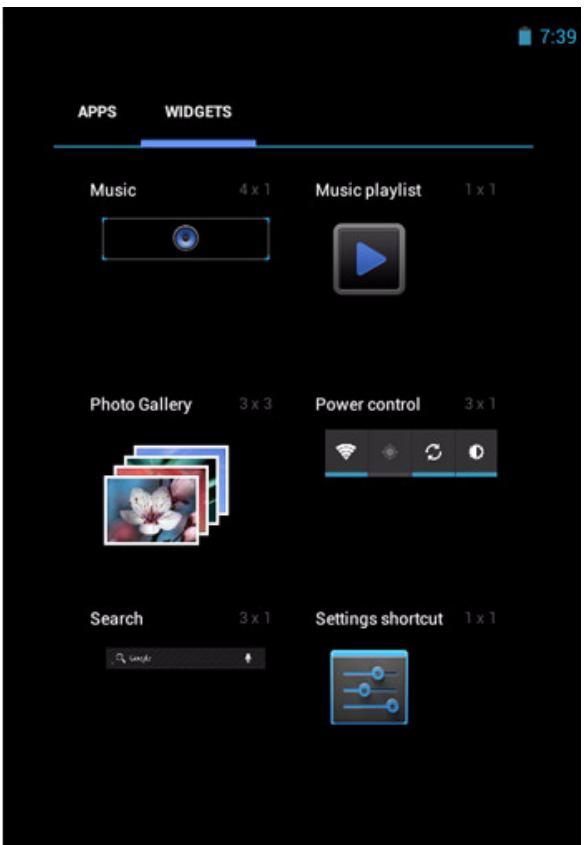
應用程式抽屜
2.2 調整音量
本裝置提供三種可分別調整的音量:
2.3 設定 Wi-Fi
大寫鍵盤
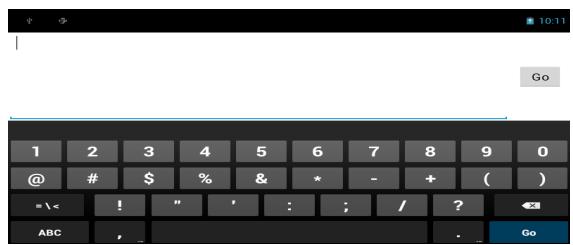
數字和符號
3.3 使用使用者字典
選擇後,可將使用者預設字詞加入字典中。
將字詞加入字典
檢視電子郵件帳戶
自訂電子郵件設定
撰寫及傳送電子郵件
第 5 章:使用網際網路
5.1 瀏覽網頁
若要捲動網頁
建立與傳送電子郵件
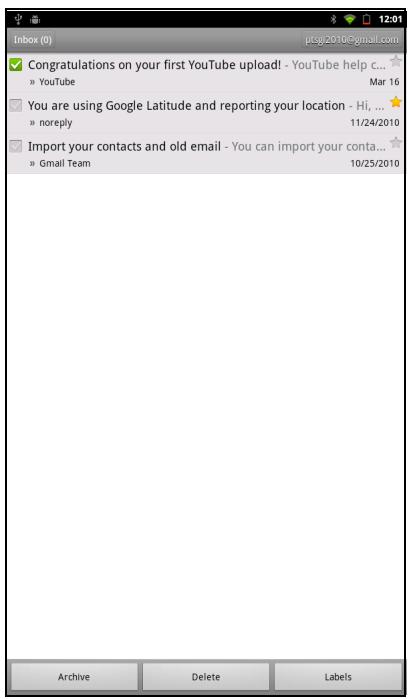
若要將電子郵件封存
檢視地圖
6.4 導航
尋找您目前的位置
6.5 定位
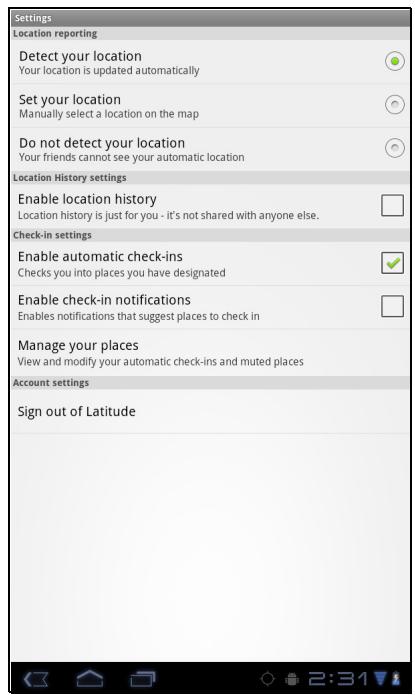
6.6 Market
6.8 Google 搜尋
6.9 語音搜尋
第 7 章:使用藍牙(特定機型)
藍牙模式
9.5 相機
用本裝置拍攝照片。
9.6 鬥鐘
用本裝置設定鬧鐘。
9.7 聯絡人
9.13 Gmail
4.3: ViewSonic TPC Warranty
TPC_LW01 Rev. 1e 08-06-10
电磁相容信息
电池
1.5 使用耳机
1.7 解锁屏幕
第 2 章:概述
2.1 主屏幕
扩展的主屏幕
在主屏幕上左右滑动手指。

点击并按住可移动图标。
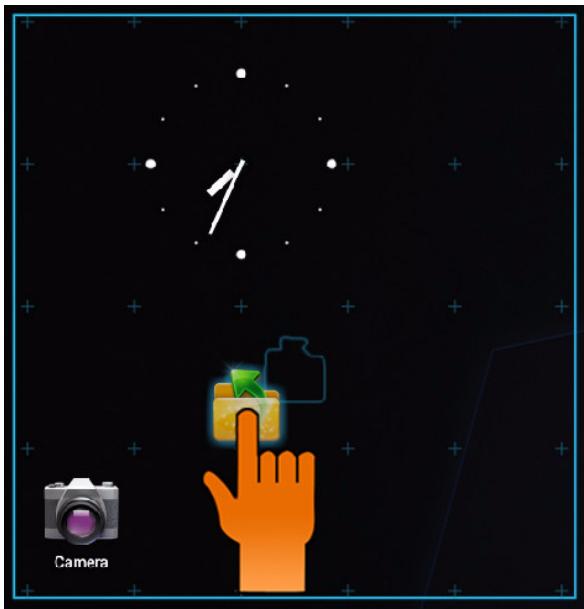
natural_image
Illustration of a hand interacting with a camera and a clock, set against a starry night sky background (no text or symbols)使用小部件
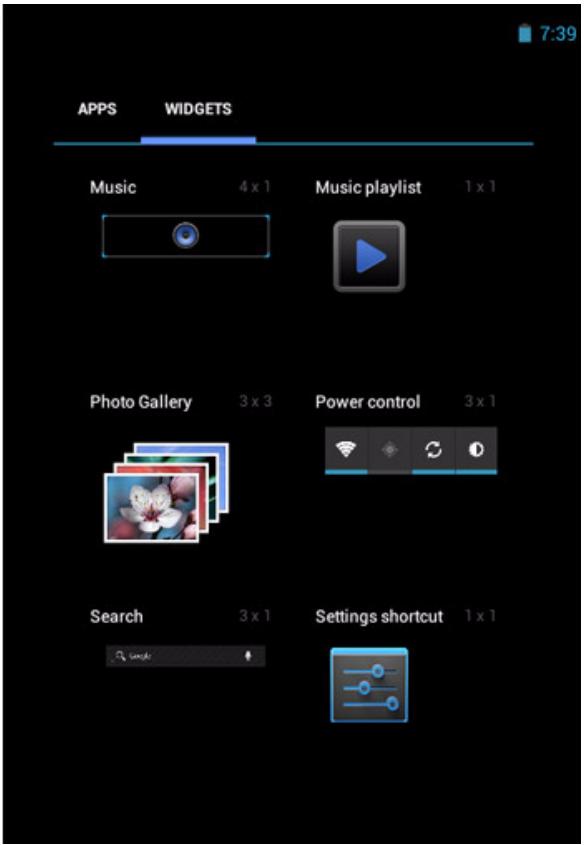
应用程序抽屉
2.2 调整音量
2.3 设置 Wi-Fi
大写键盘
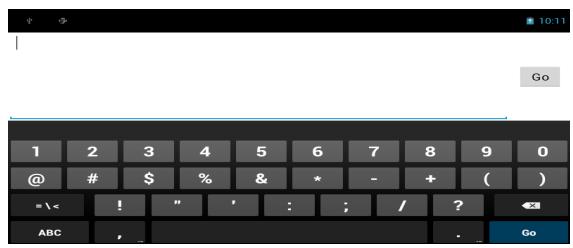
数字和符号
3.3 使用用户词典
选择向字典中添加用户预设字。
向字典中添加字
查看电子邮件帐户
自定义电子邮件设置
撰写和发送电子邮件
第 5 章: 使用 Internet
5.1 浏览网页
滚动页面
创建和发送电子邮件
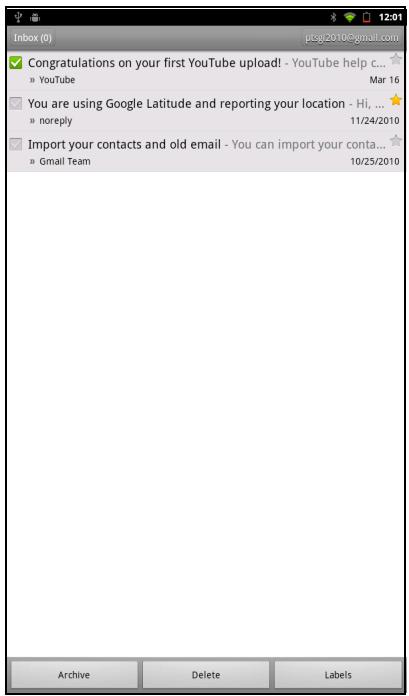
电子邮件归档
6.3 地图
查看地图
6.4 导航
查找您的当前位置
6.5 纬度
配置隐私设置
6.6 电子市场
6.8 Google 搜索
6.9 语音搜索
第 7 章:使用蓝牙(特定型号)
蓝牙模式
9.5 相机
使用此设备拍摄照片。
9.6 时钟
使用此设备设置闹钟。
9.7 联系人
9.13 Gmail
natural_image
Illustration of three colorful bird perched on a green branch against a red background (no text or symbols)ViewSonic®
- FCC SAR information
- RF Exposure Information (SAR)
- Canada Statement
- IMPORTANT NOTE:
- IC Radiation Exposure Statement
- CE Conformity for European Countries
- CE SAR Information
- Following information is only for EU-member states:
- European Union Regulatory Conformance
- Products with 2.4-GHz Wireless LAN Devices France
- Caution:
- Declaration of RoHS Compliance
- Important Safety Instructions
- Copyright Information
- Intellectual Property Right Information
- Product Registration
- For Your Records
- Product disposal at end of product life
- Chapter 1: Getting Started.... 1
- Your Device.... 1
- Accessories ...... 2
- Chapter 2: The Basics.... 6
- Home Screen 6
- Adjusting Volume.... 11
- Chapter 3: Entering Information .... 13
- On-Screen Keyboard.... 13
- Configuring Keyboard Settings 13
- Chapter 4: Email.... 15
- Email Accounts 15
- Chapter 5: Using Internet 19
- Browsing Web Pages.... 19
- Chapter 6: Google Apps (Select Model) 21
- Gmail 21
- Talk 24
- Maps 26
- Navigation 27
- Latitude 29
- Market.... 30
- Places 31
- Google Search 31
- Voice Search.... 32
- YouTube 32
- Chapter 7: Using Bluetooth (Select Model).... 33
- Connecting to Bluetooth Devices.... 33
- Chapter 8: Multimedia Applications ...... 34
- Videos and Photos 34
- Viewing Videos & Photos 35
- Chapter 9: Programs (Select Model)...... 37
- Chapter 10: Managing Your Device.... 46
- Chapter 1: Getting Started
- Your Device
- Top
- Down
- NOTE:
- Left & Right
- Accessories
- Installing microSD/SIM Card
- To install the microSD card
- To remove the microSD card
- To install the SIM card (select model)
- To remove the SIM card
- Charging Battery
- Charge the battery
- Using Headsets
- Turning the Device On or Off
- To turn on your device
- To turn off your device
- To set your device to Sleep mode
- Unlocking the Screen
- To unlock the screen
- Chapter 2: The Basics
- Home Screen
- Extended Home screen
- Shortcut menu
- Customizing shortcut menu
- Using widgets
- To remove widgets:
- Application drawer
- Setting wallpaper
- Adjusting Volume
- To adjust the volume
- Setting up Wi-Fi
- To turn Wi-Fi on or off
- To connect to a Wi-Fi network
- Chapter 3: Entering Information
- On-Screen Keyboard
- Using the on-screen keyboard
- Setting input method
- Configuring Keyboard Settings
- Using User Dictionary
- Adding Words in the Dictionary
- Editing Words in the Dictionary
- Chapter 4: Email
- Email Accounts
- Setting up an Internet email account
- Viewing email accounts
- Customizing email settings
- Composing and sending emails
- Sending an email from Contacts
- Adding attachments to an email message
- Receiving emails
- To manually receive emails
- Reading and replying to emails
- To download attachments
- To reply or forward an email
- Chapter 5: Using Internet
- Browsing Web Pages
- To scroll the page
- To set Home page
- Managing web pages
- Chapter 6: Google Apps (Select Model)
- Gmail
- Signing in to Gmail
- Refreshing Gmail
- Creating and sending emails
- To preview and download attachments
- Forwarding emails
- Managing emails
- To delete emails
- To add a star to emails
- To select emails
- To mark emails as read or unread
- To place emails in archive
- To mute emails
- To change labels of emails
- Viewing folder labels
- Searching for emails
- Configuring Gmail settings
- Talk
- Signing in to Google Talk
- Google Talk options
- Starting chat
- Configuring Google Talk settings
- Tap ≡ > Settings.
- Maps
- Viewing Map
- Finding places
- Navigation
- Getting directions
- Finding your current location
- Latitude
- Starting Latitude
- Configuring privacy settings
- Market
- Searching for applications
- Downloading applications
- Removing applications
- Places
- Google Search
- Searching information by entering text
- Voice Search
- YouTube
- Watching videos
- Uploading videos
- Searching videos
- Chapter 7: Using Bluetooth (Select Model)
- Bluetooth modes
- To turn Bluetooth on or off
- Connecting to Bluetooth Devices
- Chapter 8: Multimedia Applications
- Videos and Photos
- Taking a Photo
- Recording a Video
- Reviewing a photo
- Configuring Camera Settings
- Playing Photos and Videos
- Viewing Photos
- Playing Videos
- Playing Music
- Playing Music
- Managing Playlist
- To play music
- Chapter 9: Programs (Select Model)
- Books
- Browsing an ebook
- Downloading an ebook
- Browser
- Calculator
- Calendar
- To schedule an event
- Camera
- Clock
- Contacts
- Downloads
- Managing files
- File Browser
- Managing files and folders
- FM Radio
- Gallery
- Gmail
- Google Search
- Latitude
- Maps
- Market
- Music
- Navigation
- Places
- Settings
- Spare Parts
- Talk
- Voice Search
- YouTube
- Dropbox
- Note Everything
- Sketcher
- Tuneln Radio
- Amazon Kindle
- Amazon MP3
- FW Update
- Chapter 10: Managing Your Device
- Wireless & networks
- Device Sound
- Device Display
- Device Storage
- Device battery
- Device Apps
- Accounts and Sync
- Location Services
- Date and Time
- Accessibility
- About tablet
- Specifications
- Customer Support
- Limited Warranty
- ViewSonic® ViewPad
- What the warranty covers:
- How long the warranty is effective:
- Who the warranty protects:
- What the warranty does not cover:
- How to get service:
- Limitation of implied warranties:
- Exclusion of damages:
- Menu des raccourcis
- Utiliser des widgets
- Configuration de Wi-Fi
- Cartes
- Afficher la carte
- Google Search (Recherche Google)
- Caméra
- Utilizar widgets
- Para quitar widgets:
- Maps (Mapas)
- Ver mapas
- Buscar lugares
- Cámara
- FM Radio (Radio FM)
- Chapter 4: Email (E-Mail).... 15
- Verknüpfungen-Menü
- Widgets verwenden
- Karte betrachten
- Kamera
- Topo
- Ecrã Home Avançado
- Menu de Atalhos
- Para remover widgets:
- Ajustar o volume
- Configurar o Wi-Fi
- Visualizar as contas de e-mail
- Compor e enviar e-mails
- Criar e enviar e-mails
- Para arquivar e-mails
- Visualizar o Mapa
- Navegação
- Pesquisa do Google
- Pesquisa de Voz
- Câmara
- Меню ярлыков
- Панель приложений
- Настройка Wi-Fi
- Использование
- Maps (Карты)
- Просмотр карты
- Поиск Google
- Camera (Kamepa)
- FM Radio (FM-радио)
- 電磁相容資訊
- 注意:
- NCC
- 使用耳機
- 畫面解鎖
- 第 2 章:基本功能
- 首頁畫面
- 延伸首頁畫面
- 使用小工具
- 應用程式抽屜
- 調整音量
- 設定 Wi-Fi
- 使用使用者字典
- 將字詞加入字典
- 檢視電子郵件帳戶
- 自訂電子郵件設定
- 撰寫及傳送電子郵件
- 第 5 章:使用網際網路
- 瀏覽網頁
- 若要捲動網頁
- 建立與傳送電子郵件
- 若要將電子郵件封存
- 檢視地圖
- 導航
- 尋找您目前的位置
- 定位
- Google 搜尋
- 語音搜尋
- 第 7 章:使用藍牙(特定機型)
- 藍牙模式
- 相機
- 鬥鐘
- 聯絡人
- 电磁相容信息
- 电池
- 使用耳机
- 解锁屏幕
- 第 2 章:概述
- 主屏幕
- 扩展的主屏幕
- 使用小部件
- 应用程序抽屉
- 调整音量
- 设置 Wi-Fi
- 使用用户词典
- 向字典中添加字
- 查看电子邮件帐户
- 自定义电子邮件设置
- 撰写和发送电子邮件
- 第 5 章: 使用 Internet
- 浏览网页
- 滚动页面
- 创建和发送电子邮件
- 电子邮件归档
- 地图
- 查看地图
- 导航
- 查找您的当前位置
- 纬度
- 配置隐私设置
- 电子市场
- Google 搜索
- 语音搜索
- 第 7 章:使用蓝牙(特定型号)
- 蓝牙模式
- 相机
- 时钟
- 联系人
Brand : VIEWSONIC
Model : VIEWPAD E70
Category : Tablet