
VMP70 - Media player VIEWSONIC - Free user manual and instructions
Find the device manual for free VMP70 VIEWSONIC in PDF.

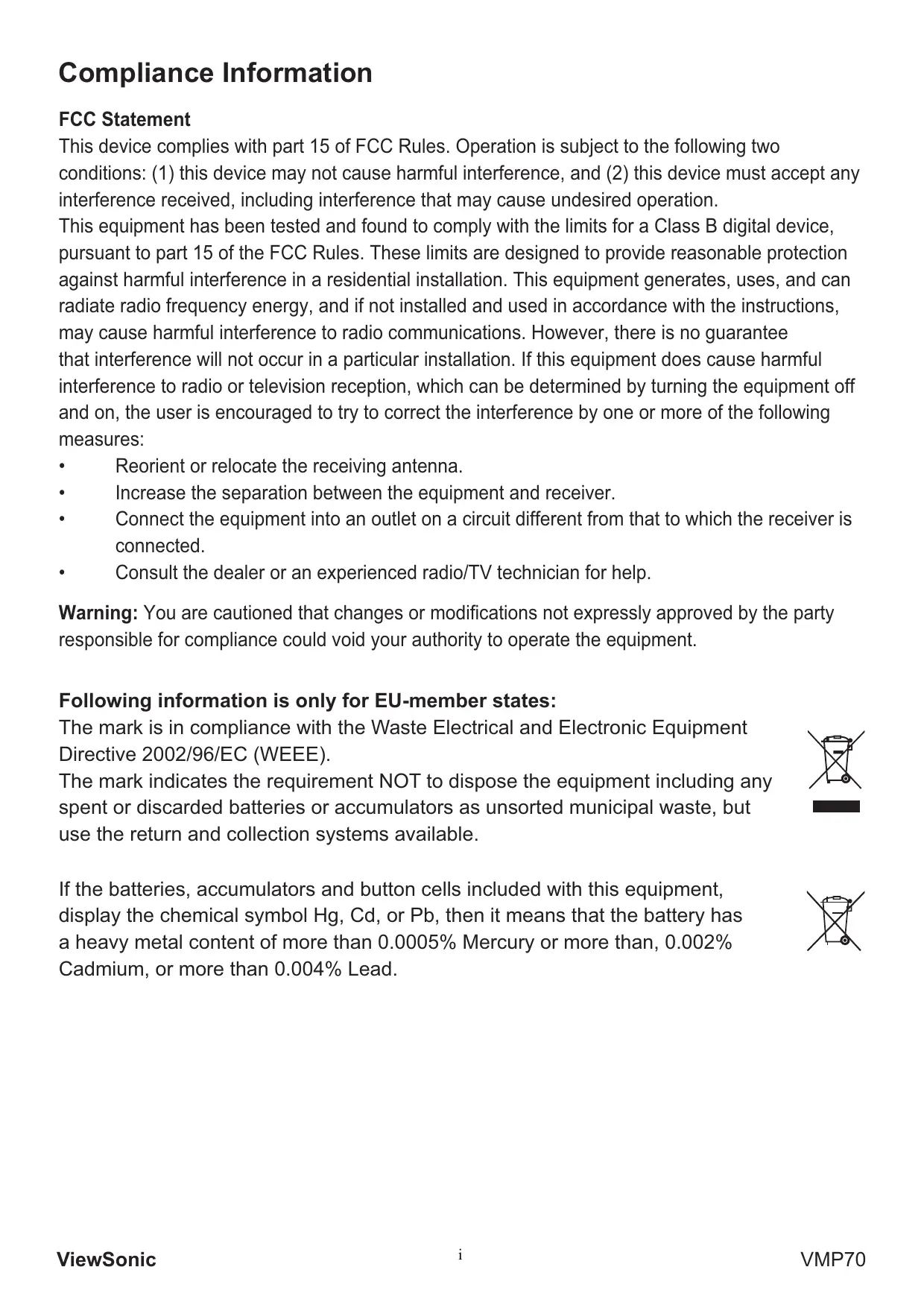

| Product Type | HD Media Player |
| Brand | ViewSonic |
| Model | VMP70 |
| Dimensions (W x D x H) | 204 x 145.4 x 40 mm |
| Power Supply | 100-240V ~ 50/60Hz via 12V/2A AC adapter |
| Video Outputs | HDMI, YPbPr, Composite (Yellow RCA) |
| Audio Outputs | Audio L/R, Optical S/PDIF |
| USB Ports | 2 USB 2.0 ports for storage devices |
| Supported Video Formats | MPEG1/2/4, DivX, H.264, VC-1, WMV9, Real Video 8/9/10, etc. |
| Supported Audio Formats | MP3, WMA, FLAC, AAC, OGG, Dolby Digital, DTS, etc. |
| Supported Photo Formats | JPEG, GIF, PNG, BMP, TIFF |
| Supported Subtitles | SRT, SMI, SUB, SSA, IDX+SUB |
| Maximum Resolution | 1080p (Full HD) |
| USB File System Formats | FAT16/32, NTFS, EXT3 |
| Remote Control | Infrared with navigation, playback, settings functions |
| Main Features | Playback of videos, music, photos; playlist creation; slideshow with background music; zoom; rotation |
| Care and Cleaning | Unplug before cleaning; use a damp cloth; do not use liquid or aerosol cleaners |
| Safety | Do not expose to water or moisture; do not open the casing; refer all servicing to qualified personnel |
| Spare Parts and Repairability | Repair by authorized center; limited 1-year labor warranty |
| General Information | Network media player, compatible with USB hard drives; firmware update via USB |
Frequently Asked Questions - VMP70 VIEWSONIC
User questions about VMP70 VIEWSONIC
0 question about this device. Answer the ones you know or ask your own.
Ask a new question about this device
Download the instructions for your Media player in PDF format for free! Find your manual VMP70 - VIEWSONIC and take your electronic device back in hand. On this page are published all the documents necessary for the use of your device. VMP70 by VIEWSONIC.
USER MANUAL VMP70 VIEWSONIC
FULL HD media player
-User Guide
- Guide de l'utilisateur
- Guía del usuario
Compliance Information
FCC Statement
This device complies with part 15 of FCC Rules. Operation is subject to the following two conditions: (1) this device may not cause harmful interference, and (2) this device must accept any interference received, including interference that may cause undesired operation.
This equipment has been tested and found to comply with the limits for a Class B digital device, pursuant to part 15 of the FCC Rules. These limits are designed to provide reasonable protection against harmful interference in a residential installation. This equipment generates, uses, and can radiate radio frequency energy, and if not installed and used in accordance with the instructions, may cause harmful interference to radio communications. However, there is no guarantee that interference will not occur in a particular installation. If this equipment does cause harmful interference to radio or television reception, which can be determined by turning the equipment off and on, the user is encouraged to try to correct the interference by one or more of the following measures:
Reorient or relocate the receiving antenna.
- Increase the separation between the equipment and receiver.
- Connect the equipment into an outlet on a circuit different from that to which the receiver is connected.
- Consult the dealer or an experienced radio/TV technician for help.
Warning: You are cautioned that changes or modifications not expressly approved by the party responsible for compliance could void your authority to operate the equipment.
Following information is only for EU-member states:
The mark is in compliance with the Waste Electrical and Electronic Equipment Directive 2002/96/EC (WEEE).
The mark indicates the requirement NOT to dispose the equipment including any spent or discarded batteries or accumulators as unsorted municipal waste, but use the return and collection systems available.

If the batteries, accumulators and button cells included with this equipment, display the chemical symbol Hg, Cd, or Pb, then it means that the battery has a heavy metal content of more than 0.0005% Mercury or more than, 0.002% Cadmium, or more than 0.004% Lead.

Declaration of RoHS Compliance
This product has been designed and manufactured in compliance with Directive 2002/95/ EC of the European Parliament and the Council on restriction of the use of certain hazardous substances in electrical and electronic equipment (RoHS Directive) and is deemed to comply with the maximum concentration values issued by the European Technical Adaptation Committee (TAC) as shown below:
| Substance | Proposed Maximum Concentration | Actual Concentration |
| Lead (Pb) | 0.1% | < 0.1% |
| Mercury (Hg) | 0.1% | < 0.1% |
| Cadmium (Cd) | 0.01% | < 0.01% |
| Hexavalent Chromium (Cr6+) | 0.1% | < 0.1% |
| Polybrominated biphenyls (PBB) | 0.1% | < 0.1% |
| Polybrominated diphenyl ethers (PBDE) | 0.1% | < 0.1% |
Certain components of products as stated above are exempted under the Annex of the RoHS Directives as noted below:
Examples of exempted components are:
- Mercury in compact fluorescent lamps not exceeding 5mg per lamp and in other lamps not specifically mentioned in the Annex of RoHS Directive.
- Lead in glass of cathode ray tubes, electronic components, fluorescent tubes, and electronic ceramic parts (e.g. piezoelectronic devices).
- Lead in high temperature type solders (i.e. lead-based alloys containing 85% by weight or more lead).
- Lead as an allotting element in steel containing up to 0.35% lead by weight, aluminium containing up to 0.4% lead by weight and as a cooper alloy containing up to 4% lead by weight.
Copyright Information
Copyright © ViewSonic Corporation, 2010. All rights reserved.
ViewSonic, the three birds logo, OnView, ViewMatch, and ViewMeter are registered trademarks of ViewSonic Corporation.
Disclaimer: ViewSonic Corporation shall not be liable for technical or editorial errors or omissions contained herein; nor for incidental or consequential damages resulting from furnishing this material, or the performance or use of this product.
In the interest of continuing product improvement, ViewSonic Corporation reserves the right to change product specifications without notice. Information in this document may change without notice.
No part of this document may be copied, reproduced, or transmitted by any means, for any purpose without prior written permission from ViewSonic Corporation.
For Your Records
Product Name: VMP70
ViewSonic FULL HD media player
Model Number: VS13041
Document Number: VMP70-1M_UG_ENG Rev. 1C 01-11-10
Serial Number:
Purchase Date:
Product disposal at end of product life
ViewSonic is concerned about the preservation of our environment. Please dispose of this product properly at the end of its useful life. Your local waste disposal company may provide information about proper disposal.
Table of Contents
Table of Contents 1
SAFETY INSTRUCTIONS 2
1 INTRODUCTION 4
PACKAGE CONTENT 4
Video Output 5
2 SETTING UP VMP70 9
STEP1: CABLE CONNECTIONS. 9
STEP2: CONNECT USB DEVICES 10
STEP 3: POWER CORD CONNECTION 10
STEP 4: SWITCH YOUR TV INPUT/SOURCE 10
3 MEDIA CENTER 11
VIDEO PLAYBACK 12
MUSIC PLAYBACK 13
PHOTO PLAYBACK 15
4 SETUP MENU. 17
AUDIO 17
VIDEO 18
SYSTEM 19
OTHER 20
5 TROUBLESHOOTING 21
Safety Instructions
This product has been engineered and manufactured to assure your personal safety. However, improper use can result in potential electric shock or fire hazards. In order not to defeat the safe-guards incorporated in this instrument and its accessories, please adhere to the following instructions when installing, operating and servicing.
Power Source Warning
- A marking label attached on the rear side of the adapter (supplied) indicates the correct power source for this equipment. Operate this product only from an electrical outlet with the voltage and frequency indicated on the product label. Incorrect power source may result in a risk of electric shock or fire. If you are uncertain of the type of power supplied to your home, consult your local power company or appliance dealer.
- Only use the power cord and adapter provided by the manufacturer. Internal component may be damaged if you use a different adapter to power this product. To avoid electric shock and fire hazard, match the plug and outlet connections carefully, then fully insert. If the plug fails to fit the outlet, please contact an electrician to update your power outlets.
- Do not overload electrical outlets, extension cords, or integral convenience receptacles as this can result in a risk of fire or electric shock. And to prevent power cord damage, arrange all power cords so that people cannot walk on the cords. Do not place objects on the cords.
- Place this product in a location that is close enough to an electrical outlet and where the power cord is easily accessible to be disconnected from the wall outlet.
Usage Warning
- To reduce the risk of electric shock, do not remove the cover or attempt to disassemble this product. There are no user-serviceable parts inside. Please refer all servicing to qualified service personnel.
- Protect this product from foreign objects. Never push object of any kind into this product through openings as they may touch dangerous voltage points or short-out parts that could result in a fire or electric shock.
- Do not expose this product to liquids, rain or moisture.
- This product has ventilation openings that protect it from overheating. Never block or cover these openings. And do not place this product near heat sources such as radiators, heat registers, stoves or other products producing heat.
- Before cleaning or wiping this product, make sure your power cord is already unplugged from the electrical outlet. Only use damp cloth to clean this product, and never use a liquid cleaner or an aerosol cleaner.
- During a thunderstorm, or when this product is unused for long periods of time, unplug power cord from the wall outlet. This will prevent damage to the product due to lightning and power-line surges.
Service Warning
-
Refer all servicing to qualified service personnel. For damage that requires service, please unplug your power cord from the AC outlet first, and contact your dealer or servicing personnel to obtain service for the following conditions.
-
If there is damage to the adapter, power cord or plug.
- If liquid enters this product.
- If you drop this product, a heavy object falls on this product, or damage occurs to the cover of this product.
- If you expose this product to rain or water.
- If this product does not operate normally by following the operating instructions.
- If this product exhibits a distinct change in performance.
1
INTRODUCTION
VMP70 is a high-definition multimedia player and streamer connecting to the external USB hard drives and your HD TV.
It supports most video.audio/image formats so you do not need to convert downloaded media to another format. You can plug in your USB devices to the VMP70 to play music, movies and pictures on TV by following the on-screen display (OSD) menu. It supports high-definition media playback with HDMI output.
Package content
Please make sure the following items are included within your new VMP70 package. If any item is missing or damaged, please contact your dealer. VMP70 might not be compatible with some accessories made by other manufacturers. We highly recommend that you use only the specific accessories we suggest.
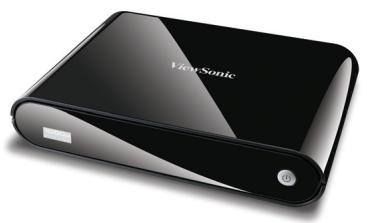
ViewSonic VMP70
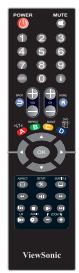
Remote Control
Battery x2
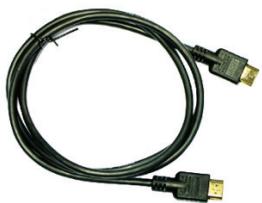
HDMI cable
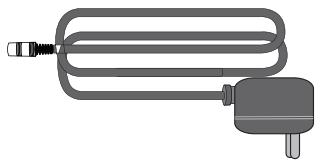
AC Power Adapter
Specification
| Interfaces | ||
| Video Output | HDMI、YPbPr、Composite Video | |
| Audio Output | Audio L/R、S/P DIF (Optical) | |
| Data Transfer | USB x 2 | |
| General Specifications | ||
| Support Media Format | Video | MPEG1 (AVI/MKV/TS/DAT/MPG/MPEG/VOB) |
| MPEG2 (MKV/DAT/MPG/MPEG/VOB/ISO/IFO/TS/TP)/M2TS | ||
| MPEG4 (AVI/MP4/MKV/MOV/WMV/ASF) | ||
| DivX 3/4/5/6、Xvid (AVI/MKV/MP4/MOV) | ||
| H.264/AVC | ||
| (TS/AVI/MP4/MKV/MOV/FLV)/M2TS | ||
| VC-1 (TS/AVI/ASF/WMV)/M2TS | ||
| WMV9 (ASF/WMV) | ||
| Real Video 8/9/10 (RM/RMVB) | ||
| Audio | MP3、MPEG Audio、Dolby Digital、DTS、WMA、PCM、LPCM、ADPCM、FLAC、WAV、AAC、RA、OGG、MKA | |
| Photo | HD JPEG、GIF、PNG、BMP、TIF、TIFF | |
| Subtitle | SRT、SMI、SUB、SSA、IDX+SUB | |
| USB Device File Systems | EXT3、NTFS、FAT16/32 | |
| Decoding | Up to 1080p (RMVB up to 720p) | |
| Output | Up to 1080p | |
| Dimension | 204 mm×145.4 mm×40 mm (8.0 x 5.7 x 1.6 inch) | |
| Power Supply | 100~240V ±10% input voltage/ 12V @ 2A | |
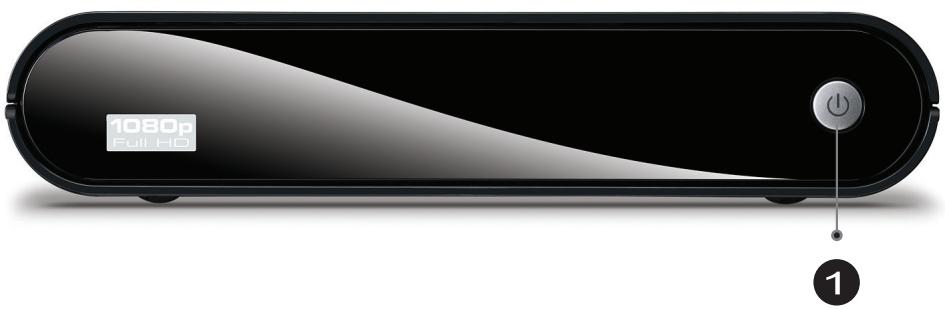
(1) Power
Press to turn the VMP70 on.
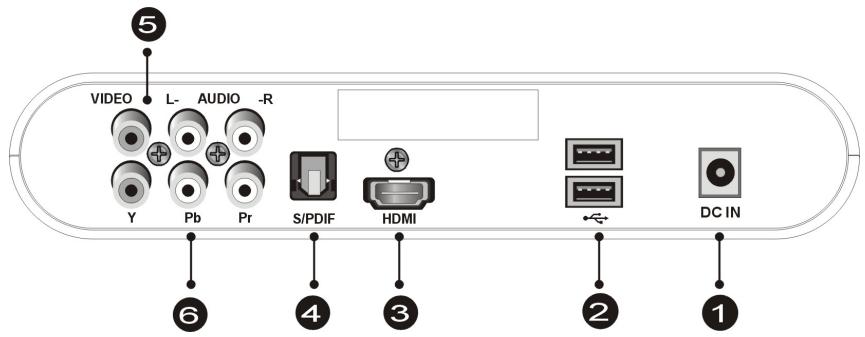
Back View
| ① | DC IN | Connects to the DC output of the power adapter. |
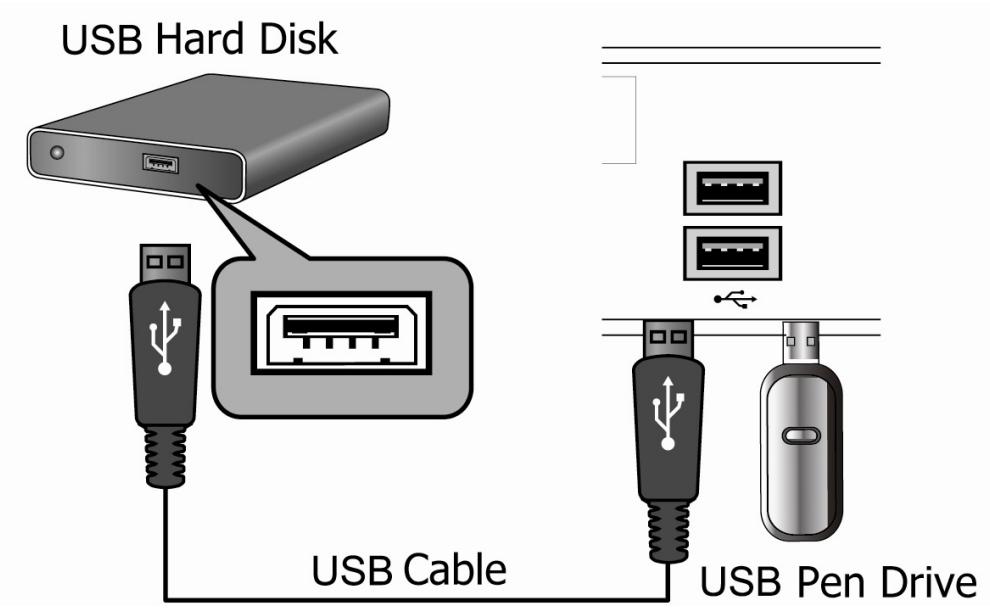
| ② | USB Port | Plug the supported USB devices into USB ports, such as USB hard drives, cameras, camcorders and wireless USB dongles. |
| ③ | HDMI OUT | Connects to the HDMI jack on the display; a single cable transmits both audio and video data. |
| ④ | S/PDIF | Connects the VMP70 to a display or AV receiver that has an optical digital audio port, using an optical digital audio (also called TOSLINK) cable. |
| ⑤ | AUDIO L/R/VIDEO | Connects to the display with the VIDEO IN/ AUDIO L/R IN jacks on the display using VIDEO (Yellow)/ AUDIO L (White)/R (Red) cables. |
| ⑥ | Y/Pb/Pr | Connect to a Y/Pb/Pr-compatible display using three video (Y/Pb/Pr) and two audio jacks (AUDIO L/R), through a component video cable with green, blue, and red connectors. |
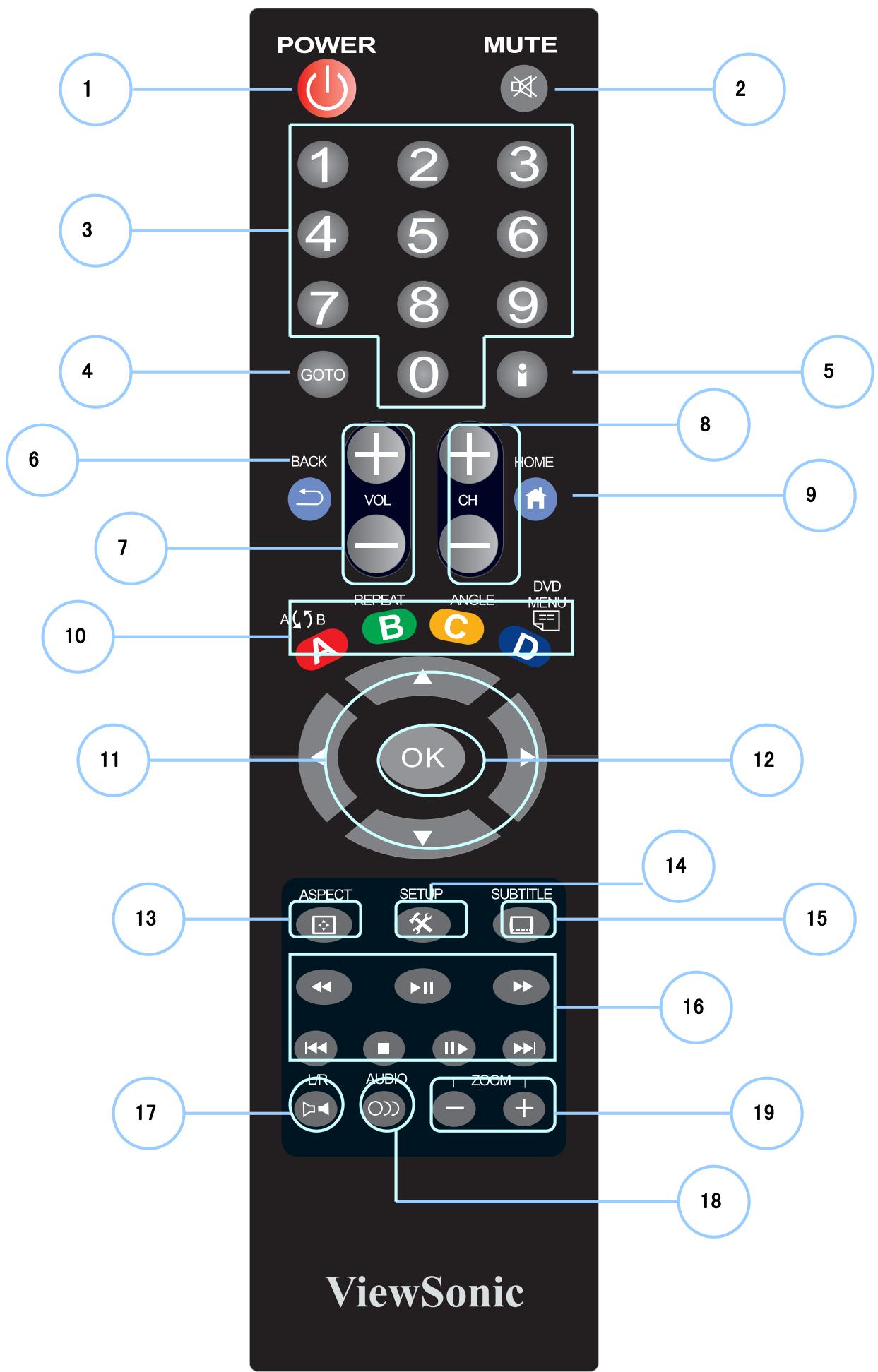
REMOTE CONTROL
REMOTE CONTROL
| ① | POWER | Press to turn on the VMP70; press again to switch to stand-by mode. | |
| ② | MUTE | Press to mute the sound. | |
| ③ | 1 | Number | 0-9 number keys for selecting desired options. |
| ④ | GOTO | GOTO | Video/movie chapter selection. |
| ⑤ | i | INFO | Display the information of media files while in play mode. |
| ⑥ | BACK | Return to the previous display. | |
| ⑦ | + - | VOL | Increase/decrease the volume. |
| ⑧ | + - | CHANNEL | Reserved keypad. |
| ⑨ | HOME | Hot key to the main OSD menu. | |
| ⑩ | A | REPEAT A-B | Enable/disable repeat of file playback Move to B. |
| B | REPEAT | Press once to mark desired repeat point A; press again to mark desired repeat point B; press yet again to turn this feature off Move to A. | |
| C | ANGLE | Switch DVD display angles. | |
| D | DVD MENU | Show DVD Menu. | |
| ⑪ | Navigate through menu screen or media libraries. | ||
| ⑫ | OK | OK | Confirm or select. |
| ⑬ | ASPECT | Adjust aspect ratio | |
| ⑭ | SETUP | Enter setup menu | |
| ⑮ | SUBTITLE | Switch subtitle files. | |
| ⑯ | Rewind / fast-forward video: 1.5x, 2x, 4x, 8x, 16x, 32x | ||
| II | PALY/ PAUSE | Play/pause selected file. | |
| PREV | Return to previous file. | ||
| NEXT | Go to next file. | ||
| STOP | Stop playback and return to the previous screen. | ||
| II | SLOW MOTION | Play films in slow mode. | |
| ⑰ | L/R | Switch to Left/Right audio channel. | |
| ⑱ | AUDIO | Switch audio outputs. | |
| ⑲ | + - | ZOOM | Zoom video or image display on screen. |
2
SETTING UP VMP70
Step1: Cable connections.
Match the cables to the connections on your display. Your choices of connection include:
| HDMI | For both audio and video output |
| RCA Cable | For composite video (yellow) and stereo audio (white and red) |
| Y/Pb/Pr | For component video output |
| S/PDIF | For multichannel audio output |
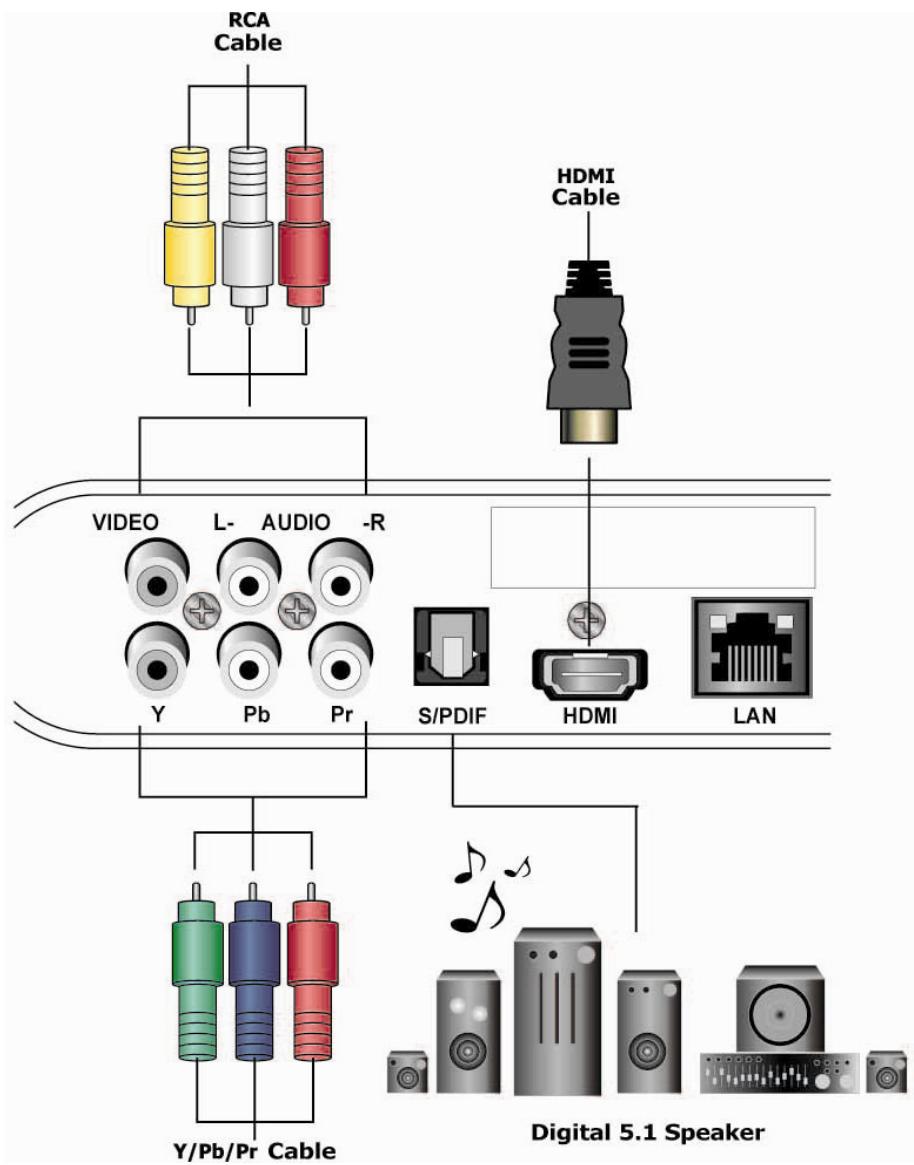
Step2: Connect USB devices
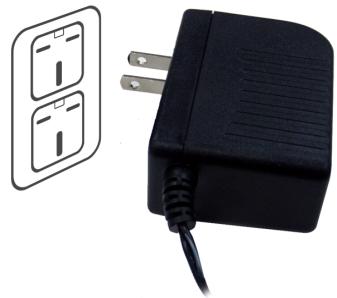
Step 3: Power cord connection
Plug one end of the power cord into the back of the VMP70 and the other end into a power outlet. VMP70 will start automatically without pressing any other button once the power is connected.
Step 4: Switch your TV Input/Source
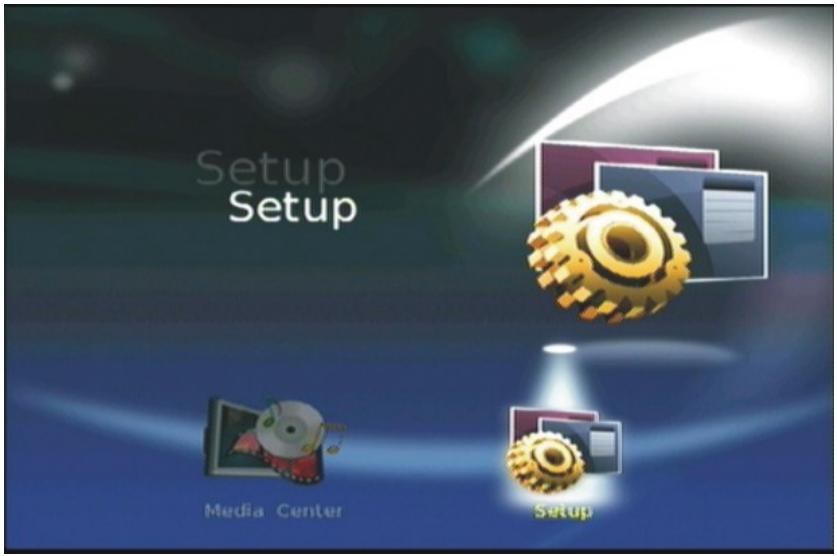
After connecting the desired video and audio cables, you need to select appropriate video input mode on your display to match your video cable connection by pressing the Input/Source button on your display remote control.
3
Media Center
| Remote | Description |
| + OK | Enter Main Menu > Media Center |
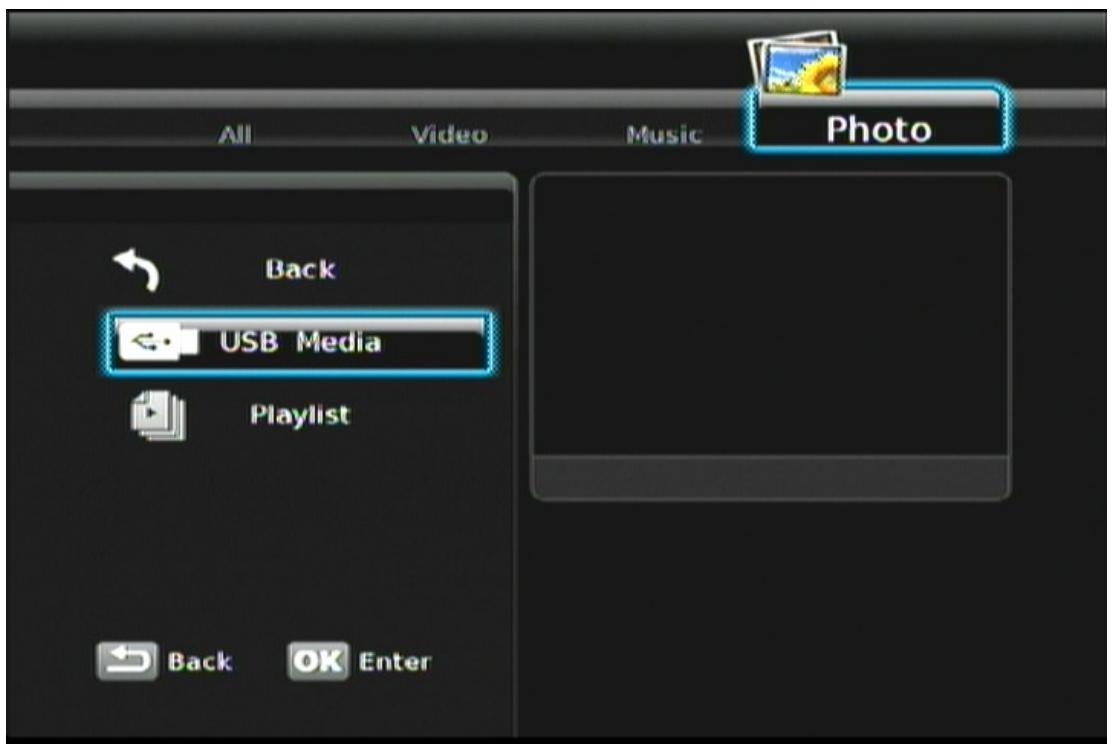
| + OK | Under Media Center, select the media source from USB Media/ Playlist as shown. |
| + OK | Open your file or folder. A folder/file list will be shown on the left. |
| OK | Play the selected video/music/photo file. |
> USB Media
VMP70 searches and displays all available images, music and video files on the external USB device if All media type is selected.
> Playlist
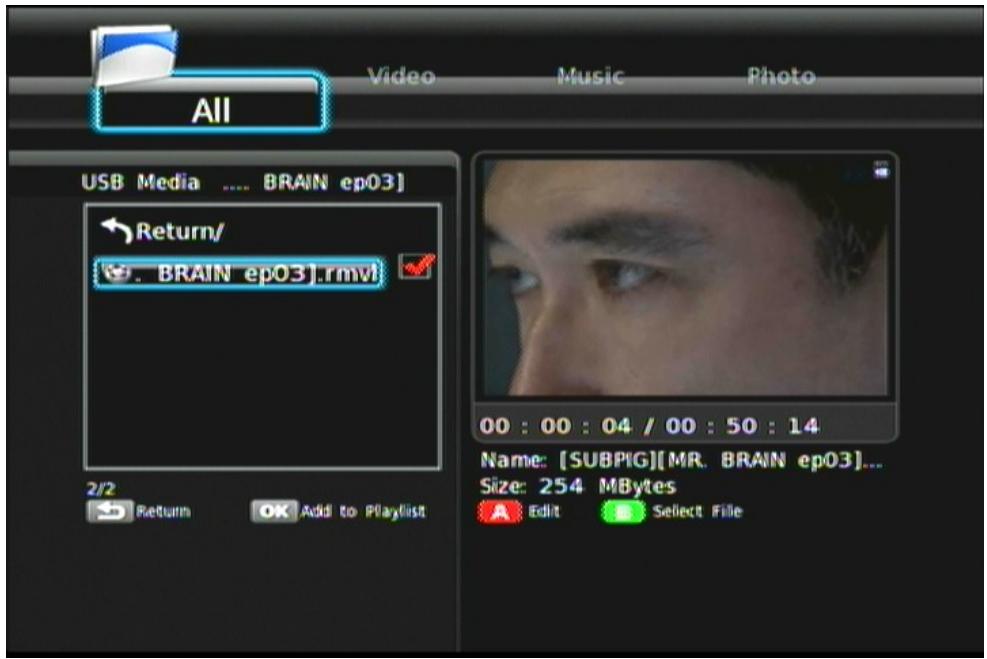
Playlist allows you to playback a sequence of music, photo and video files stored on the external device. You can add music, photos, and video files to create a playlist.
| Remote | Description | |
| B + OK | Add/remove to/from | |
| Playlist | Add/remove selected file to/from the Playlist. | |
| A | Edit | Rename/delete file. |
Note: For the files added to the playlist, VMP70 will categorize the media files with video/music/photo tags.
VIDEO PLAYBACK
| Remote | Description | |
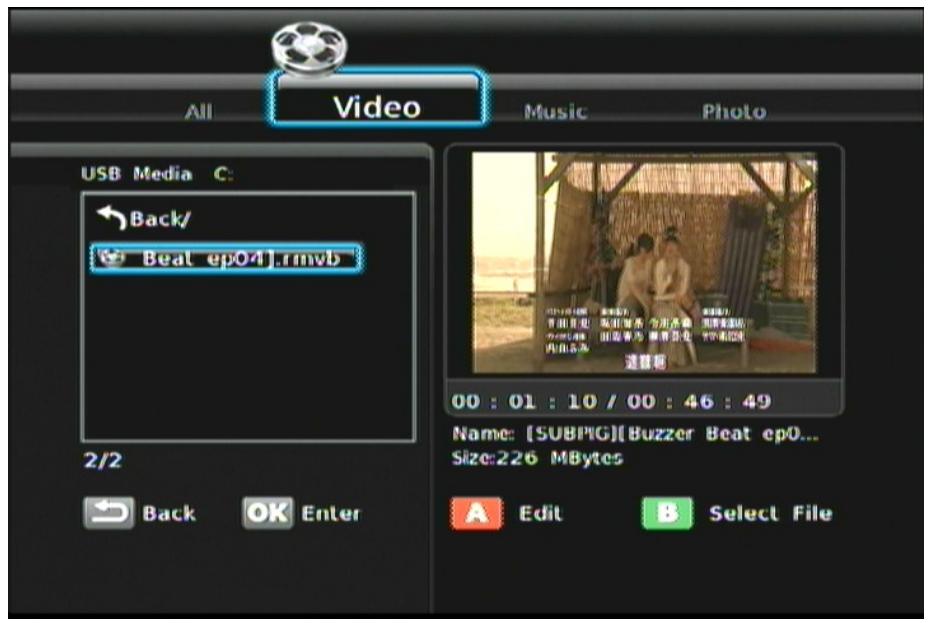
| Enter Media Center> Video | ||
| Select the media file you want to play. The preview window shows the highlighted video. | ||
| A | Edit | Rename /Delete file. |
| B + OK | Add to Playlist | Add selected file to Playlist. |
| Back | Return to previous display. | |
| OK | Full screen view mode. | |
FULL SCREEN MODE
| Remote | Description | ||
| Play/pause selected file. | |||
| Rewind/Forward | |||
| Slow motion. | |||
| Return to previous file. | |||
| Go to next file. | |||
| + | - | Zoom | |
| Zoom in/out on photos or movies. | |||
| Stop playback and leave full screen mode. | |||
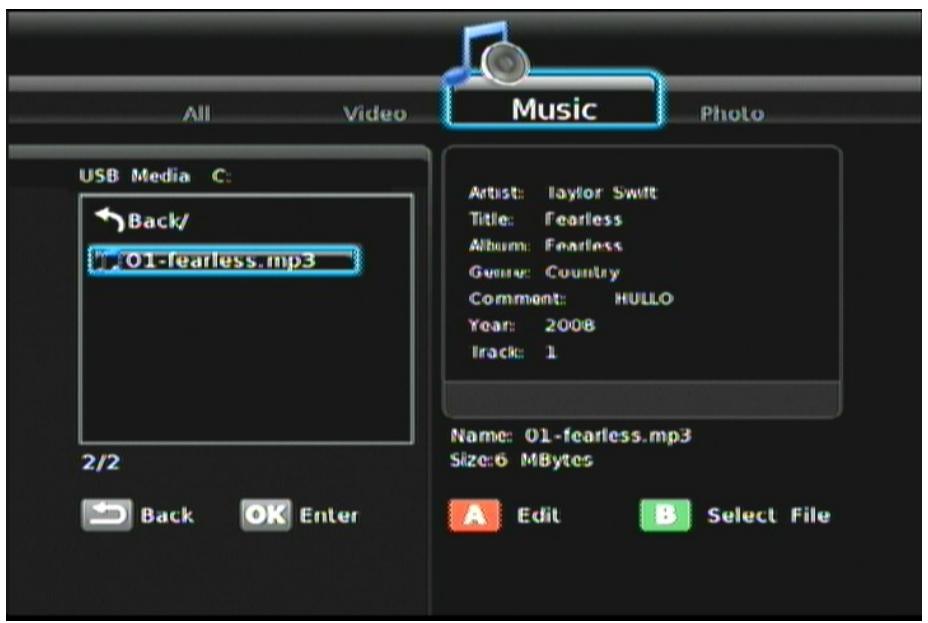
MUSIC PLAYBACK
| Remote | Description | |
| Enter Media Center> Music | ||
| Select the music file you want to play. The preview window shows the selected file details. | ||
| A | Edit | Rename /Delete file. |
| B + OK | Add to Playlist | Add selected file to Playlist. |
| Back | Back to previous display. | |
| OK | Play selected file. | |
| II | Play/pause selected file. | |
| Fast forward. | ||
| Rx | Rewind. | |
| Stop playback and return to the previous display | ||
Note: Music will continue to play on the background when you leave MUSIC PLAYBACK menu. Press to stop music playback.
PHOTO PLAYBACK
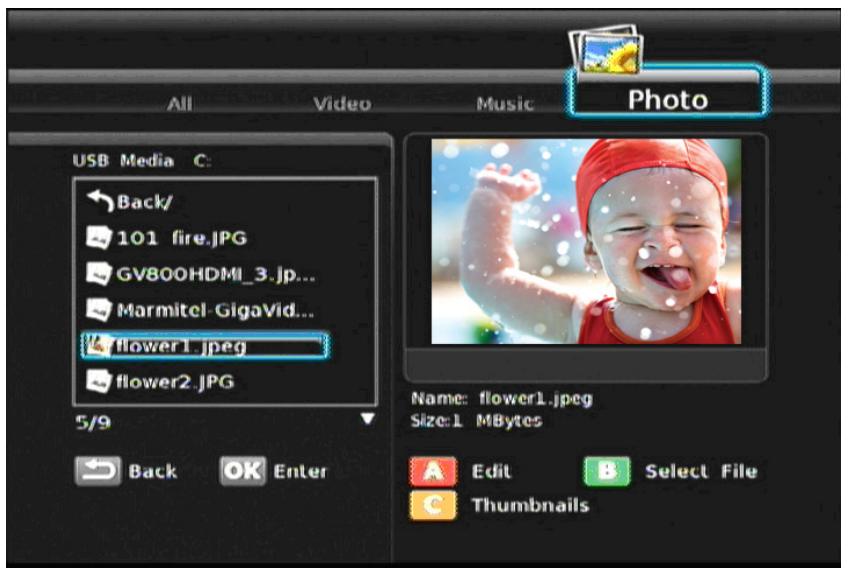
| Remote | Description | |
| Enter Media Center > Photo | ||
| Select the photo file you want to view. The preview window shows the file selected details. | ||
| A | Edit | Rename /Delete file. |
| B+ | OK Add to Playlist | Add selected file to Playlist. |
| C | Thamburger mode. | |
| ← | Back | Back to previous display. |
| OK | Full screen view mode. | |
THUMBMAIL MODE
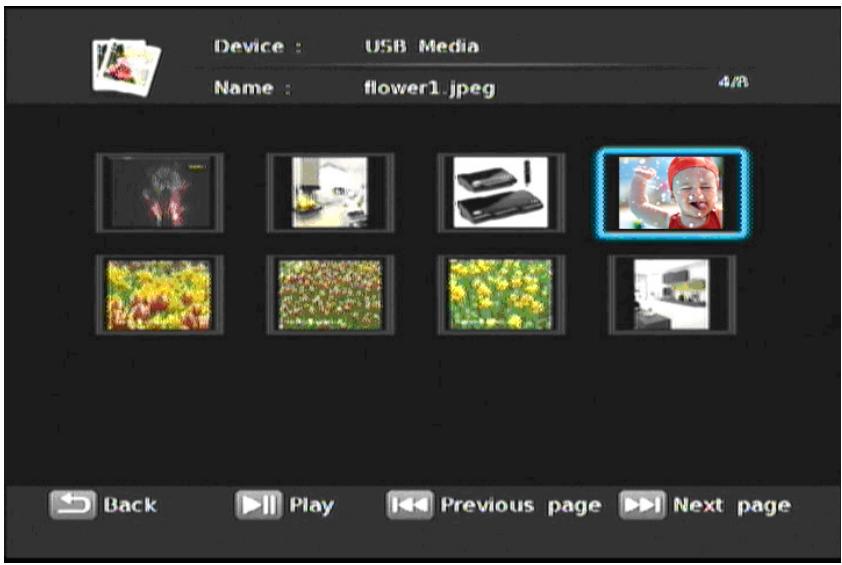
| Remote | Description | |
| OK | Full screen view mode. | |
| Back | Back to previous display. | |
| Previous page. | ||
| Next page. | ||
| Leave thumbnail mode. | ||
FULL SCREEN MODE

| Remote | Description |
| Previous picture | |
| Next picture | |
| Rotate the viewing picture counterclockwise | |
| Rotate the viewing picture clockwise. | |
| Leave full screen view mode. |
Note: You can choose the slide show transition effects in the Setup menu. If you'd like to turn off this function, please enter Setup > Other> Transition Effect.
To add background music to the slide show, simply add the music file(s) to the same photo folder. Otherwise, there will be no background music when viewing the slideshow.
4
SETUP MENU
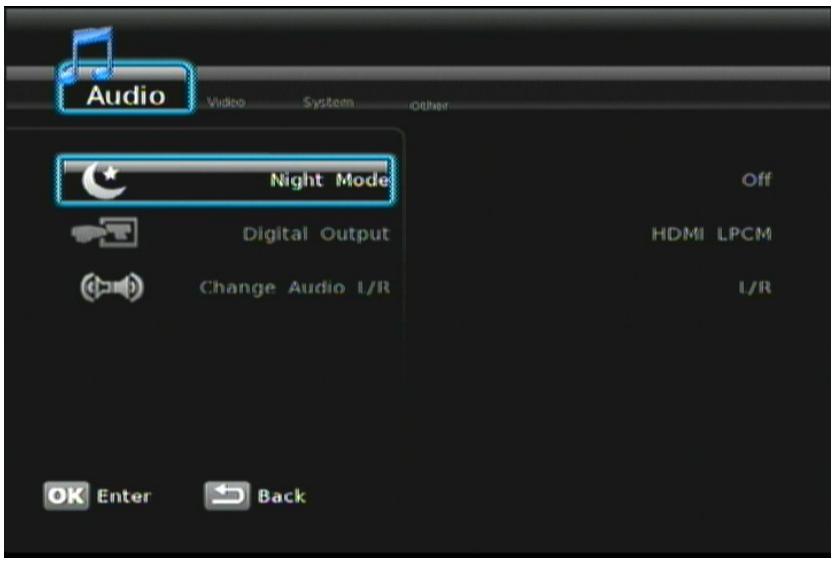
AUDIO
| Remote | Description |
| Enter "Audio" setup menu. | |
| + OK | Select the item for adjustment. |
| OK | Confirm the change. |
| Return to previous display. | |
| Item | Options |
| Night Mode | On/Off. See audio dynamic range control description below. |
| Digital Output | HDMI LPCM HDMI RAW SPDIF LPCM SPDIF RAW |
AUDIO SETUP-"Night Mode" (Audio Dynamic Range Control)
When the Night Mode is enabled the sound level of compatible audio soundtracks will be dynamically compressed. Dynamic range control (DRC) increases low-level audio content (such as the dialog in the movies),
making it easier to be heard at low volume levels while reducing the intensity of higher-level audio content at the same time.
"When you're listening to movie dialogue late at night and have to turn down the volume during loud scenes, the dynamic range suffers and you may miss some dialogue and other sounds. With the Night Mode on, you can reduce the volume and still enjoy proper tonal balance and dynamic range."
VIDEO
| Remote | Description |
| + + | Enter “Video” setup menu. |
| + OK | Select the item for adjustment. |
| OK | Confirm the change. |
| ← | Return to previous display. |
| Item | Options |
| Aspect Ratio | Pan Scan 4:3 |
| Letter Box 4:3 | |
| Wide Screen 16:9 | |
| Full Screen | |
| Resolution | HDMI Auto |
| 480i | |
| 480P | |
| 720P | |
| 1080i | |
| 1080P | |
| + | Enter “System” setup menu. |
| + OK | Select the item for adjustment. |
| OK | Confirm the change. |
| Return to previous display. | |
| Item | Options |
| Menu Language | English Espanol François |
| Subtitle Encoding | Unicode (UTF 8) 简体中文 (GBK) 繁體中文(BIG5) |
| System info | Software Version/ BOX ID/ Customer ID/ |
| Software Update | USB Firmware Update |
| Default Setting | Cancel/OK to restore factory settings |
| Remote | Description |
| + | Enter “Other” setup menu. |
| + OK | Select the item for adjustment. |
| OK | Confirm the change. |
| Return to previous display. | |
| Item | Options |
| Resume Play | Off/On |
| Slide Show Timer | Off/2,5,10,30 Seconds/1,2 Minutes |
| Transition Effect | Off/Cross Fade/Left to Right/Top to Bottom/Waterfall/Snake/Dissolve/Strip Left Down/All Effect Shuffle |
| Background Music | Off/On |
| Screen Saver | Off/On |
| Movie Preview | Off/On |
5
TROUBLESHOOTING
The following are frequently asked questions you may encounter and methods for remedy. Please refer to this checklist prior to contacting qualified service personnel. You can also visit the FAQ page on www.viewsonic.com
| Symptom | Remedy |
| No picture is displayed. | ● Check the power cord connection. Or connect the power cord to another power outlet.Are the Component Y/Pb/Pr/ AUDIO L/R cables or HDMI Cable loose or disconnected? Make sure one of the video connections is selected correctly on the video setup menu.● Use the "SOURCE" or "INPUT" button on your display remote control, to select the correct input source. |
| On "USB Media" menu under the main menu, no USB device is listed. | ● Check USB device is firmly connected.● Check the format of your USB device. The VMP70 supports the following formats: NTFS, EXT3, FAT16, and FAT32. |
Customer Support
For technical support or product service, see the table below or contact your reseller.
Note: You will need the product serial number.
| Country/Region | Web Site | Telephone | |
| Australia/New Zealand | www.viewsonic.com.au | AUS= 1800 880 818 NZ= 0800 008 822 | service@au.viewsonic.com |
| Canada | www.viewsonic.com | T (Toll-Free)= 1-866-463-4775 T (Toll)= 1-424-233-2533 F= 1-909-468-1202" | service.ca@viewsonic.com |
| Europe | www.viewsoniceurope.com | www.viewsoniceurope.com/uk/Support/Calldesk.htm | |
| Hong Kong | www.hk.viewsonic.com | T= 852 3102 2900 | service@hk.viewsonic.com |
| India | www.in.viewsonic.com | T= 1800 11 9999 | service@in.viewsonic.com |
| Ireland (Eire) | www.viewsoniceurope.com/uk/ | www.viewsoniceurope.com/uk/support/call-desk/ | service_je@viewsoniceurope.com |
| Korea | www.kr.viewsonic.com | T= 080 333 2131 | service@kr.viewsonic.com |
| Latin America(Argentina) | www.viewsonic.com/la/ | T= 0800 666 0194 | soporte@viewsonic.com |
| Latin America(Chele) | www.viewsonic.com/la/ | T= 800 440 303 | soporte@viewsonic.com |
| Latin America(Columbia) | www.viewsonic.com/la/ | T= 01 800 915 6588 | soporte@viewsonic.com |
| Latin America(Mexico) | www.viewsonic.com/la/ | T= 001 800 514 6518 | soporte@viewsonic.com |
| Renta y DATOS, 29 SUR 721, COL. LA PAZ, 72160 PUEBLA, PUE. Tel: 01.222.891.55.77 CON 10 LINEASElectroser, Av Reforma No. 403Gx39 y 41, 97000 Mérida, Yucatán. Tel: 01.999.925.19.16Other places please refer to http://www.viewsonic.com/la/soporte/index.htm#Mexico | |||
| Latin America(Puerto) | www.viewsonic.com/la/ | T= 0800 53458 | soporte@viewsonic.com |
| Macau | www.hk.viewsonic.com | T= 853 2870 0303 | service@hk.viewsonic.com |
| Middle East | ap.viewsonic.com/me/ | Contact your reseller | service@ap.viewsonic.com |
| Puerto Rico &Virgin Islands | www.viewsonic.com | T= 1-800-688-6688 (English)T= 1-866-379-1304 (Spanish)F= 1-909-468-1202" | service.us@viewsonic.comsoporte@viewsonic.com" |
| Singapore/Malaysia/Thailand | www.viewsonic.com.sg | T= 65 6461 6044 | service@sg.viewsonic.com |
| South Africa | ap.viewsonic.com/za/ | Contact your reseller | service@ap.viewsonic.com |
| United Kingdom | www.viewsoniceurope.com/uk/ | www.viewsoniceurope.com/uk/support/call-desk/ | service_gb@viewsoniceurope.com |
| United States | www.viewsonic.com | T (Toll-Free)= 1-800-688-6688 T (Toll)= 1-424-233-2530F= 1-909-468-1202" | service.us@viewsonic.com |
Limited Warranty
ViewSonic FULL HD media player
What the warranty covers:
ViewSonic warrants its products to be free from defects in material and workmanship, under normal use, during the warranty period. If a product proves to be defective in material or workmanship during the warranty period, ViewSonic will, at its sole option, repair or replace the product with a like product. Replacement product or parts may include remanufactured or refurbished parts or components.
How long the warranty is effective:
ViewSonic FULL HD media player are warranted for 1 year for labor from the date of the first customer purchase.
Who the warranty protects:
This warranty is valid only for the first consumer purchaser.
What the warranty does not cover:
- Any product on which the serial number has been defaced, modified or removed.
- Damage, deterioration or malfunction resulting from:
a. Accident, misuse, neglect, fire, water, lightning, or other acts of nature, unauthorized product modification, or failure to follow instructions supplied with the product.
b. Repair or attempted repair by anyone not authorized by ViewSonic.
c. Causes external to the product, such as electric power fluctuations or failure.
d. Use of supplies or parts not meeting ViewSonic's specifications.
e. Normal wear and tear.
f. Any other cause which does not relate to a product defect.
- Any product exhibiting a condition commonly known as "image burn-in" which results when a static image is displayed on the product for an extended period of time.
How to get service:
- For information about receiving service under warranty, contact ViewSonic Customer Support (please refer to Customer Support page). You will need to provide your product's serial number.
- To obtain warranted service, you will be required to provide (a) the original dated sales slip, (b) your name, (c) your address, (d) a description of the problem, and (e) the serial number of the product.
- Take or ship the product freight prepaid in the original container to an authorized ViewSonic service center or ViewSonic.
- For additional information or the name of the nearest ViewSonic service center, contact ViewSonic.
Limitation of implied warranties:
There are no warranties, express or implied, which extend beyond the description contained herein including the implied warranty of merchantability and fitness for a particular purpose.
Exclusion of damages:
ViewSonic's liability is limited to the cost of repair or replacement of the product. ViewSonic shall not be liable for:
- Damage to other property caused by any defects in the product, damages based upon inconvenience, loss of use of the product, loss of time, loss of profits, loss of business opportunity, loss of goodwill, interference with business relationships, or other commercial loss, even if advised of the possibility of such damages.
- Any other damages, whether incidental, consequential or otherwise.
- Any claim against the customer by any other party.
- Compliance Information
- FCC Statement
- Following information is only for EU-member states:
- Declaration of RoHS Compliance
- Copyright Information
- For Your Records
- Product disposal at end of product life
- Table of Contents
- SAFETY INSTRUCTIONS 2
- INTRODUCTION 4
- SETTING UP VMP70 9
- MEDIA CENTER 11
- SETUP MENU. 17
- TROUBLESHOOTING 21
- Safety Instructions
- Power Source Warning
- Usage Warning
- Service Warning
- 1
- INTRODUCTION
- Package content
- Specification
- REMOTE CONTROL
- 2
- SETTING UP VMP70
- Step1: Cable connections.
- Step2: Connect USB devices
- Step 3: Power cord connection
- Step 4: Switch your TV Input/Source
- 3
- Media Center
- > USB Media
- > Playlist
- VIDEO PLAYBACK
- PHOTO PLAYBACK
- THUMBMAIL MODE
- FULL SCREEN MODE
- 4
- SETUP MENU
- AUDIO SETUP-"Night Mode" (Audio Dynamic Range Control)
- VIDEO
- 5
- TROUBLESHOOTING
- Customer Support
- Limited Warranty
- ViewSonic FULL HD media player
- What the warranty covers:
- How long the warranty is effective:
- Who the warranty protects:
- What the warranty does not cover:
- How to get service:
- Limitation of implied warranties:
- Exclusion of damages:
Brand : VIEWSONIC
Model : VMP70
Category : Media player