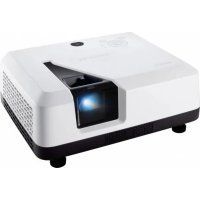
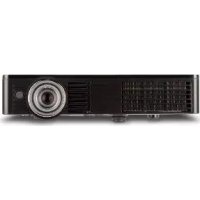
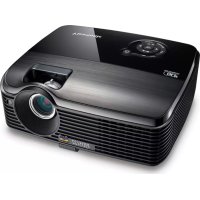
PJD6251 - Projector VIEWSONIC - Free user manual and instructions
Find the device manual for free PJD6251 VIEWSONIC in PDF.


User questions about PJD6251 VIEWSONIC
0 question about this device. Answer the ones you know or ask your own.
Ask a new question about this device
Download the instructions for your Projector in PDF format for free! Find your manual PJD6251 - VIEWSONIC and take your electronic device back in hand. On this page are published all the documents necessary for the use of your device. PJD6251 by VIEWSONIC.
USER MANUAL PJD6251 VIEWSONIC
PJD6251 DLP Projector
-User Guide
- Guide de l'utilisateur
-Bedienungsanleitung
-Guia del usuario
-Guidedell'utente
-Guiadousuario
- Användarhandbok
- Kayttoopas
-PykoBOOCTBO NOJIb3OBaTeJRA
-使用手册(繁體)
- 使用手册(简体)
- 柜記者 問問
-
- Podrcznik uzytkownika
-Kullanici kilavuzu
IMPORTANT: Please read this User Guide to obtain important information on install-
ing and using your product in a safe manner, as well as registering your product for
future service. Warranty information contained in this User Guide will describe your
limited coverage from ViewSonic Corporation, which is also found on our web site
at http://www.viewsonic.com in English, or in specific languages using the Regional
selection box in the upper right corner of our website.
This device complies with part 15 of FCC Rules. Operation is subject to the following two conditions: (1) this device may not cause harmful interference, and (2) this device must accept any interference received, including interference that may cause undesired operation.
This equipment has been tested and found to comply with the limits for a Class B digital device, pursuant to part 15 of the FCC Rules. These limits are designed to provide reasonable protection against harmful interference in a residential installation. This equipment generates, uses, and can radiate radio frequency energy, and if not installed and used in accordance with the instructions, may cause harmful interference to radio communications. However, there is no guarantee that interference will not occur in a particular installation. If this equipment does cause harmful interference to radio or television reception, which can be determined by turning the equipment off and on, the user is encouraged to try to correct the interference by one or more of the following measures:
Reorient or relocate the receiving antenna.
- Increase the separation between the equipment and receiver.
- Connect the equipment into an outlet on a circuit different from that to which the receiver is connected.
- Consult the dealer or an experienced radio/TV technician for help.
Warning: You are cautioned that changes or modifications not expressly approved by the party responsible for compliance could void your authority to operate the equipment.
For Canada
CE Conformity for European Countries
The device complies with the EMC Directive 2004/108/EC and Low Voltage Directive 2006/95/EC.
Following information is only for EU-member states:
The mark is in compliance with the Waste Electrical and Electronic Equipment Directive 2002/96/EC (WEEE).
The mark indicates the requirement NOT to dispose the equipment including any spent or discarded batteries or accumulators as unsorted municipal waste, but use the return and collection systems available.
If the batteries, accumulators and button cells included with this equipment, display the chemical symbol Hg , Cd, or Pb, then it means that the battery has a heavy metal content of more than 0.0005% Mercury or more than, 0.002% Cadmium, or more than 0.004% Lead.


Important Safety Instructions
- Read these instructions.
- Keep these instructions.
- Heed all warnings.
- Follow all instructions.
- Do not use this unit near water.
- Clean with a soft, dry cloth.
- Do not block any ventilation openings. Install the unit in accordance with the manufacturer's instructions.
- Do not install near any heat sources such as radiators, heat registers, stoves, or other devices (including amplifiers) that produce heat.
- Do not defeat the safety purpose of the polarized or grounding-type plug. A polarized plug has two blades with one wider than the other. A grounding type plug has two blades and a third grounding prong. The wide blade and the third prong are provided for your safety. If the provided plug does not fit into your outlet, consult an electrician for replacement of the obsolete outlet.
- Protect the power cord from being walked on or pinched particularly at plugs. Convenience receptacles and the point where they exit from the unit. Be sure that the power outlet is located near the unit so that it is easily accessible.
- Only use attachments/accessories specified by the manufacturer.
- Use only with the cart, stand, tripod, bracket, or table specified by the manufacturer, or sold with the unit. When a cart is used, use caution when moving the cart/unit combination to avoid injury from tipping over.
- Unplug this unit when unused for long periods of time.
- Refer all servicing to qualified service personnel. Servicing is required when the unit has been damaged in any way, such as: if the power-supply cord or plug is damaged, if liquid is spilled onto or objects fall into the unit, if the unit is exposed to rain or moisture, or if the unit does not operate normally or has been dropped.
Declaration of RoHS Compliance
This product has been designed and manufactured in compliance with Directive 2002/95/EC of the European Parliament and the Council on restriction of the use of certain hazardous substances in electrical and electronic equipment (RoHS Directive) and is deemed to comply with the maximum concentration values issued by the European Technical Adaptation Committee (TAC) as shown below:
| Substance | Proposed Maximum Concentration | Actual Concentration |
| Lead (Pb) | 0.1% | < 0.1% |
| Mercury (Hg) | 0.1% | < 0.1% |
| Cadmium (Cd) | 0.01% | < 0.01% |
| Hexavalent Chromium (Cr6+) | 0.1% | < 0.1% |
| Polybrominated biphenyls (PBB) | 0.1% | < 0.1% |
| Polybrominated diphenyl ethers (PBDE) | 0.1% | < 0.1% |
Certain components of products as stated above are exempted under the Annex of the RoHS Directives as noted below:
Examples of exempted components are:
- Mercury in compact fluorescent lamps not exceeding 5mg per lamp and in other lamps not specifically mentioned in the Annex of RoHS Directive.
- Lead in glass of cathode ray tubes, electronic components, fluorescent tubes, and electronic ceramic parts (e.g. piezoelectronic devices).
- Lead in high temperature type solders (i.e. lead-based alloys containing 85% by weight or more lead).
- Lead as an allotting element in steel containing up to 0.35% lead by weight, aluminium containing up to 0.4% lead by weight and as a cooper alloy containing up to 4% lead by weight.
Copyright Information
Copyright © ViewSonic® Corporation, 2010. All rights reserved.
Macintosh and Power Macintosh are registered trademarks of Apple Inc.
Microsoft, Windows, Windows NT, and the Windows logo are registered trademarks of Microsoft Corporation in the United States and other countries.
ViewSonic, the three birds logo, OnView, ViewMatch, and ViewMeter are registered trademarks of ViewSonic Corporation.
VESA is a registered trademark of the Video Electronics Standards Association. DPMS and DDC are trademarks of VESA.
PS/2, VGA and XGA are registered trademarks of International Business Machines Corporation.
Disclaimer: ViewSonic Corporation shall not be liable for technical or editorial errors or omissions contained herein; nor for incidental or consequential damages resulting from furnishing this material, or the performance or use of this product.
In the interest of continuing product improvement, ViewSonic Corporation reserves the right to change product specifications without notice. Information in this document may change without notice.
No part of this document may be copied, reproduced, or transmitted by any means, for any purpose without prior written permission from ViewSonic Corporation.
Product Registration
To meet your future needs, and to receive any additional product information as it becomes available, please register your product on the Internet at: www.viewsonic.com. The ViewSonic® Wizard CD-ROM also provides an opportunity for you to print the registration form, which you may mail or fax to ViewSonic.
| For Your Records | |
| Product Name: | PJD6251 ViewSonic DLP Projector |
| Model Number: | VS12585 |
| Document Number: | PJD6251_UG_ENG Rev. 1B 01-01-10 |
| Serial Number: | |
| Purchase Date: | |

The lamp in this product contains mercury. Please dispose of in accordance with local, state or federal laws.
Notes on the AC Power Cord
AC Power Cord must meet the requirement of countries where you use this projector. Please confirm your AC plug type with the graphics below and ensure that the proper AC Power Cord is used. If the supplied AC Power Cord does not match your AC outlet, please contact your sales dealer. This projector is equipped with a grounding type AC line plug. Please ensure that your outlet fits the plug. Do not defeat the safety purpose of this grounding type plug. We highly recommend using a video source device also equipped with a grounding type AC line plug to prevent signal interference due to voltage fluctuations.
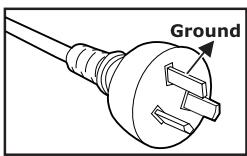
For Australia and Mainland China
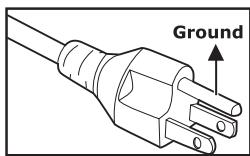
For the U.S.A. and Canada
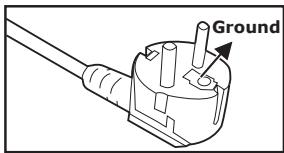
For Continental Europe
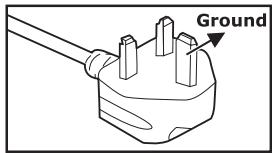
For the U.K.
CONTENTS
Introduction 5
Projector Features 5
Package Contents 6
Projector Overview 7
Using the Product 9
Control Panel 9
Connection Ports 10
Remote Control 11
Installing the Batteries 12
Remote Control Operation 13
Installation 14
Connecting the Projector 14
Powering On/Off the Projector 15
Adjusting the Projector 16
Menu Operation 18
Network Control 25
Maintenance 40
Cleaning the Lens 40
Cleaning the Projector Housing 40
Replacing the Lamp 41
Specifications 43
Appendix 44
LED Indicator Messages 44
Compatibility Modes 45
Troubleshooting 47
RS-232 Command and Configuration 48
IR Control Code 50
Introduction
Projector Features
The projector integrates high-performance optical engine projection and a user - friendly design to deliver high reliability and ease of use.
The projector offers the following features:
Single chip 1.397cm / 0.55" Texas Instruments DLP® technology
XGA (1024 x 768 pixels)
Auto image re-sizing (Auto-Sync.) to 1024 x 768 full screen with scaling compression compatibility for VGA, SVGA, XGA and SXGA
Compatibility with Macintosh® computers
Compatibility with NTSC, PAL, SECAM and HDTV
D-Sub 15-pin terminal for analog video connectivity
User-friendly, multi-language on-screen display
Advanced electronic keystone correction
RS-232 connector for serial control
RJ-45 connector for networked control

The information in this manual is subject to change without notices.
The reproduction, transfer or copy of all or any part of this document is not permitted without express written consent.
Package Contents
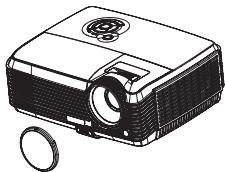
When you unpack the projector, make sure you have all these components:
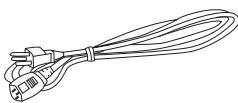
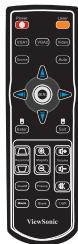

Remote Control (IR) & batteries
Projector with Lens Cap
AC Power Cord
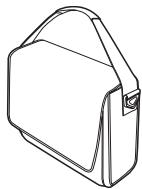
Projector Carrying Case
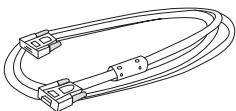
VGA Cable (D-SUB to D-SUB)


ViewSonic CD Wizard
Quick Start Guide
Optional accessories

RS232 cable
P/N: J2552-0208-00
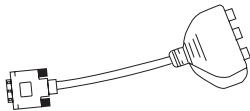
RGB to component adapter
P/N: J2552-0212-00
(NOTE)
- Contact you dealer immediately if any items are missing, appear damaged, or if the unit does not work.
Save the original shipping carton and Packing material; they will come-in handy if you ever to ship your unit. for maximum protection, repack your unit as it was originally packed at the factory.
Projector Overview
Front View
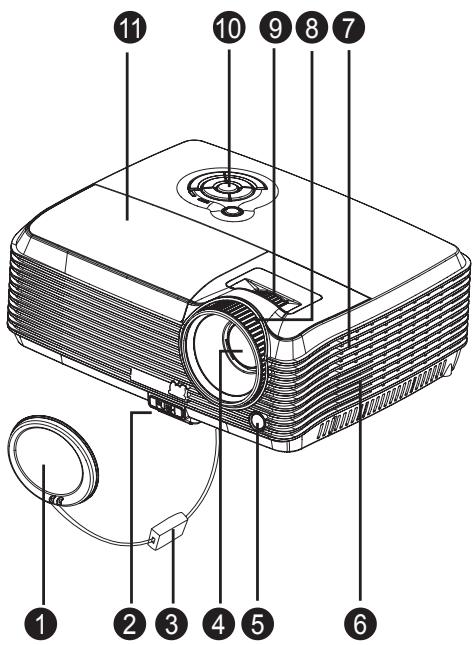
1 Lens cap
Elevator button
Lens cap strap
4 Projection lens
5 Front IR remote control sensor
6 Ventilation holes (intake)
7 Speaker
Focus ring
⑨ Zoom ring
10 Control panel
Lamp cover
Rear View
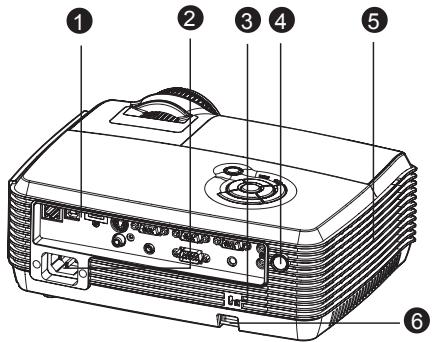
1 Connection ports
AC power socket
Kensington lock
4 Rear IR remote control sensor
5 Ventilation holes (exhaust)
Security bar
Bottom View
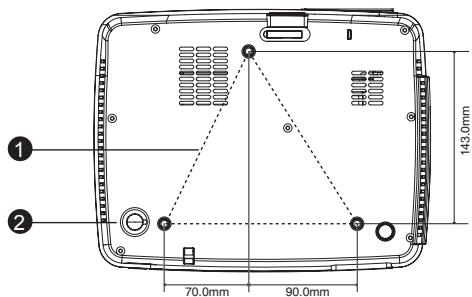
Ceiling mount (M4*6)
2 Tilt-adjustment feet

This projector can be used with a ceiling mount for support. The ceiling mount is not included in the package.
Contact your dealer for information to mount the projector on a ceiling.
Using the Product
Control Panel
LED
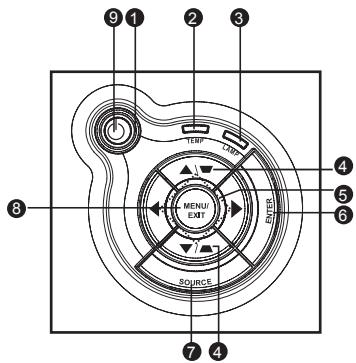
Power (Power LED indicator) Refer to "LED Indicator Messages".
TEMP (Temperature LED indicator) Refer to "LED Indicator Messages".
LAMP (Lamp LED indicator) Refer to "LED Indicator Messages".
Button Function
4 V/Keystone
Manually correct distorted images resulting from an angled projection.
6 Four directional buttons
Use four directional buttons to select items or make adjustments to your selection.
6 ENTER
Enter to sub-menu and confirm the menu selection.
SOURCE
Manually select an input source.
3 MENU/EXIT
Display or exit the on-screen display menus.
Power
Turn the projector on or off.
Connection Ports
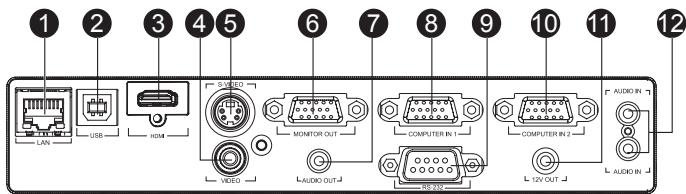
1 LAN
For network control.
USB
This connector is for firmware update and mouse function support.
3 HDMI
Connect HDMI output from video equipment to this jack.
VIDEO
Connect composite video output from video equipment to this jack.
S-VIDEO
Connect S-Video output from video equipment to this jack.
6 MONITOR OUT
Connect to a computer display, etc.
AUDIO OUT
Connect to a speaker or other audio input equipment.
COMPUTER IN 1
Connect image input signal (analog RGB or component) to this jack.
RS-232
When operating the projector via a computer, connect this to the controlling computer's RS-232C port.
10 COMPUTER IN 2
Connect image input signal (analog RGB or component) to this jack
12V OUT
12V DC out
12 AUDIO IN
Connect an audio output from video equipment to this jack. The upper AUDIO IN is Audio 1, and the lower one is Audio 2. When Audio 1 is turned on, Audio 2 will turn off automatically and vice versa.
Remote Control
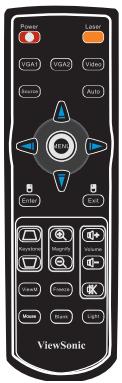
1 POWER
Turn the projector on or off.
VGA1
Select analog RGB signal from
COMPUTER IN 1 terminal.
Source
Manually select an input source by sequence.
Enter
Confirmed selections.
6 Keystone+ / -
Adjust image distortion caused by tilting the projector.
ViewM
Switch in between high brightness performance or Accuracy color performance.
7 Freeze
Press "Freeze" to pause the screen image. Press again to cancel the freeze function.
Mouse
Switch between OSD control and Mouse control (Apply to Navigation buttons, Enter/Mouse Left Click, and Exit/Mouse Right Click buttons).
Laser
Aim the remote at the viewing screen, press and hold this button to activate the laser pointer.
10 VGA2
Select analog RGB signal from COMPUTER IN 2 terminal.
Video
Select video signal from video equipment.
Auto
Resynchronize the projector to the input signal from a computer. This function is available for computer mode only.
3 MENU
Display on-screen display menus.
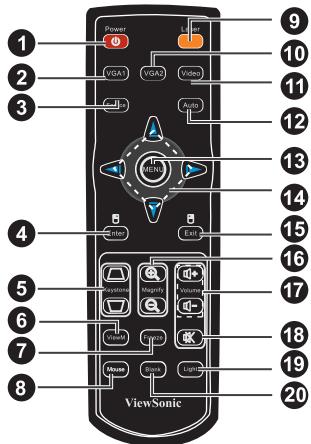
Four directional buttons
Use four directional buttons to select items or make adjustment to your selection.
15 Exit
Exit OSD Menu.
Magnify
Zoom in and out the images.
Volume +1 -
Adjust the volume level.
18 Mute
Cut off the sound temporarily. Press again to cancel the Mute function.
19 Light
Enable backlight functions of the remote control's buttons.
20 Blank
Cut off the screen temporarily. Press again to cancel the Blank Screen function.
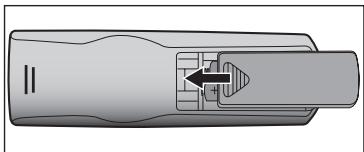
Installing the Batteries
- Open the battery cover in the direction shown.
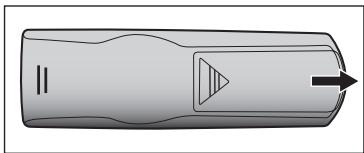
- Install batteries as indicated by the diagram inside the compartment.
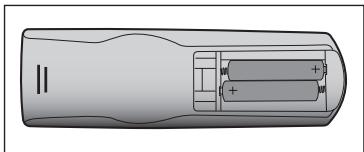
- Close the battery cover into position.

Caution
■ Risk of explosion if battery is replaced by an incorrect type.
- Dispose of used batteries according to the instructions.
Make sure the plus and minus terminals are correctly aligned when loading a battery.

- Keep the batteries out of the reach of children. There is a danger of death by accidentally swallowing the batteries.
Remove batteries from remote control when not using for extended periods. - Do not dispose of the used batteries along with household waste. Dispense of used batteries according to local regulations.
Danger of explosion may happen if batteries are incorrectly replaced. Replace all the batteries with new ones.
Batteries should not be in or near to fire or water, keep batteries in a dark, cool and dry place.
If suspect battery leakage, wipe out the leakage and then replace new batteries. If the leakage adheres to your body or clothes, rinse well with water immediately.
Remote Control Operation
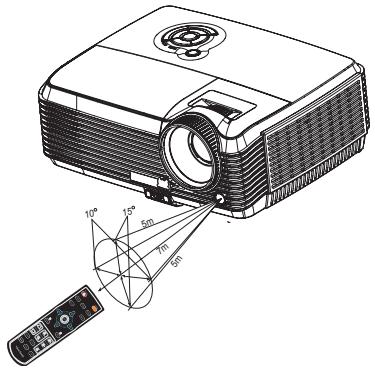
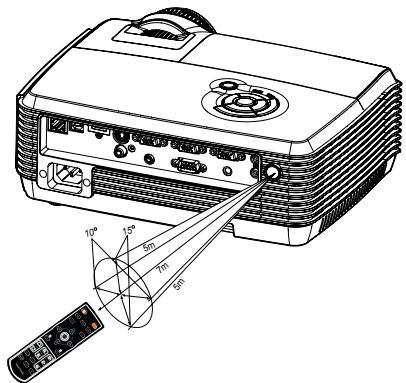
Point the remote control at the infrared remote sensor and press a button.
Operating the projector from the front
Operating the projector from the rear

- Do not point the laser directly to the people's eyes (especially small children). There is a danger of injury to the eyes.
The remote control may not operate when there is sunlight or other strong light such as a fluorescent lamp shining on the remote sensor.
Operate the remote control from a position where the remote sensor is visible.
Do not drop the remote control or jolt it. - Keep the remote control out of locations with excessively high temperature or humidity.
Do not get water on the remote control or place wet objects on it.
Do not disassemble the remote control.
Installation
Connecting the Projector
USB Cable
6 Composite Video Cable
VGA Cable (D-Sub to D-Sub)
S-Video Cable
RS-232 Cable
Internet Cable
Audio Cable
9 HDMI Cable
VGA (D-Sub) to HDTV (RCA) Cable
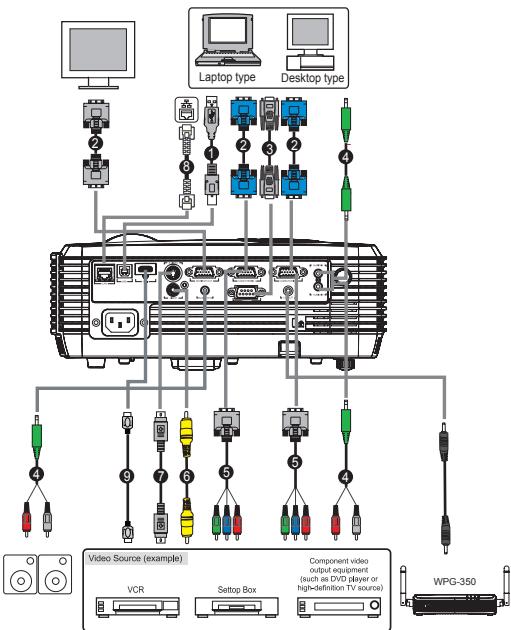

- When connecting cable, power cords of both projector and external equipment should be disconnected from AC outlet.
The figure above is a sample connection. This does not mean that all of these devices can or must be connected simultaneously.
The cables that come with the projector may differ from the above illustration. The included cables are based on actual shipment delivery.
Powering On/Off the Projector
Powering On the Projector:
- Remove the projector lens cap.
- Complete the AC power cord and peripheral signal cable(s) connections.
- Press button to turn on the projector.
The projector takes a minute or so to warm up.
- Turn on your source (computer, notebook, DVD, etc.). The projector automatically detects your source.
If you are connecting multiple sources to the projector simultaneously, press the SOURCE button on the control panel or the Source button on the remote control.

Warning
Remove the lens cap first before powering on.
■ Never look into the lens when the lamp is on. This can damage your eyes.
This focal point concentrates high temperature. Do not place any object near it to avoid possible fire hazard.
Powering Off the Projector:
- Press button to turn off the projector lamp. You will see a message "Power off? Press Power again" appear on the screen.
- Press button again to confirm.
The cooling fans continue to operate for cooling cycle.
When the Lamp LED begins flashing, the projector has entered stand-by mode.
If you want to turn the projector back on, you must wait until the projector has completed the cooling cycle and has entered stand-by mode. Once in standby mode, simply press button to restart the projector.
- Disconnect the AC power cord from the electrical outlet and the projector.
- Do not turn on the projector right after power off.
Adjusting the Projector
Adjusting the Projector Height
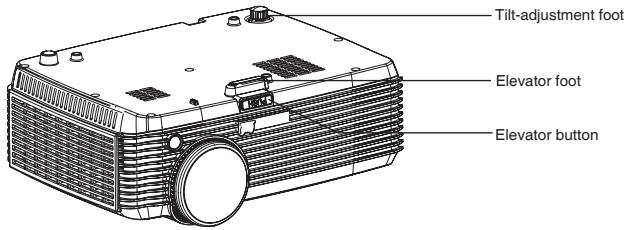
The projector is equipped with an elevator foot to adjust the image height.
To raise or lower the image:
- To raise or lower the image, press the elevator button and raise or lower the front of the projector. Release the button to lock the adjustment.
- To level the image on the screen, turn the tilt-adjustment foot to fine-tune the height.

To avoid damaging the projector, make sure that the elevator foot and tilt-adjustment foot are fully retracted before placing the projector in its carrying case.
Adjusting the Projector Zoom and Focus
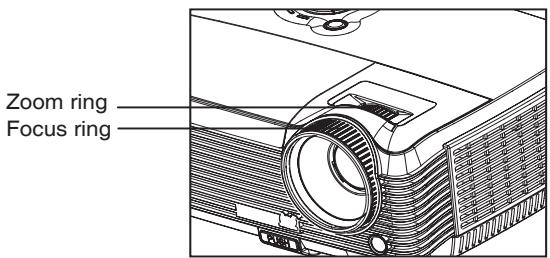
- Focus the image by rotating the focus ring. A still image is recommended for focusing.
- Adjust the image by sliding the zoom ring.
Adjusting Projection Image Size
Refer to the graphic and table below to determine the screen size and projection distance.
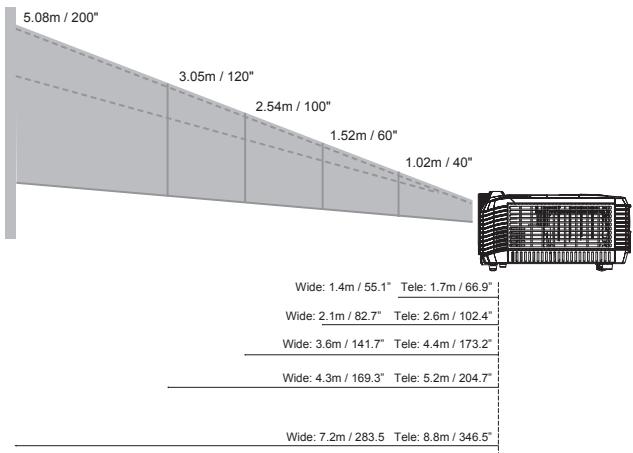
| Screen size Diagonal | 4 : 3 Screen | |||
| Wide | Tele | |||
| Projection distance | Projection distance | |||
| m | inch | m | inch | |
| 1.02m / 40" | 1.40 | 55.1 | 1.70 | 66.9 |
| 1.27m / 50" | 1.80 | 70.9 | 2.20 | 86.6 |
| 1.52m / 60" | 2.10 | 82.7 | 2.60 | 102.4 |
| 1.78m / 70" | 2.50 | 98.4 | 3.00 | 118.1 |
| 2.03m / 80" | 2.80 | 110.2 | 3.50 | 137.8 |
| 2.29m / 90" | 3.20 | 126.0 | 3.90 | 153.5 |
| 2.54m / 100" | 3.60 | 141.7 | 4.40 | 173.2 |
| 3.05m / 120" | 4.30 | 169.3 | 5.20 | 204.7 |
| 3.81m / 150" | 5.40 | 212.6 | 6.60 | 259.8 |
| 5.08m / 200" | 7.20 | 283.5 | 6.60 | 346.5 |
| 6.35m / 250" | 9.00 | 354.3 | 11.00 | 433.1 |
| 7.62m / 300" | 10.80 | 425.2 | 13.20 | 519.7 |

Position the projector in a horizontal position; other positions can cause heat build-up and damage to the projector.
- Keep a space of 30~cm or more between the sides of the projector.
- Do not use the projector in a smoky environment. Smoke residue may build-up on critical parts and damage the projector or its performance.
■ Consult with your dealer for special installation such as suspending from a ceiling.
Menu Operation
The projector has multilingual on-screen display menus that allow you to make image adjustments and change a variety of settings.
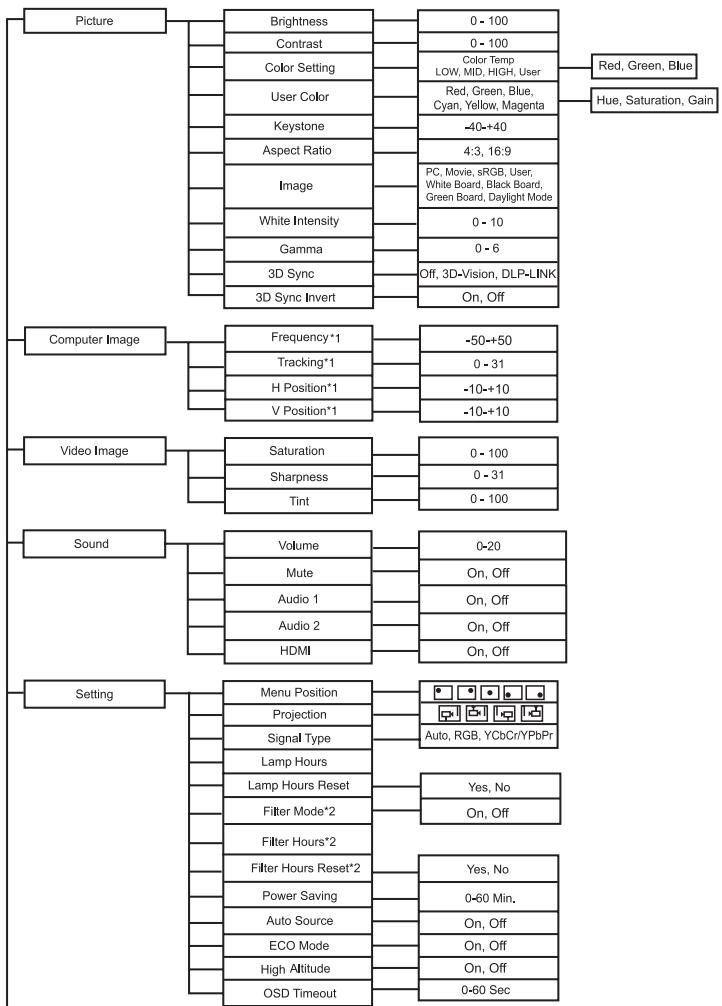
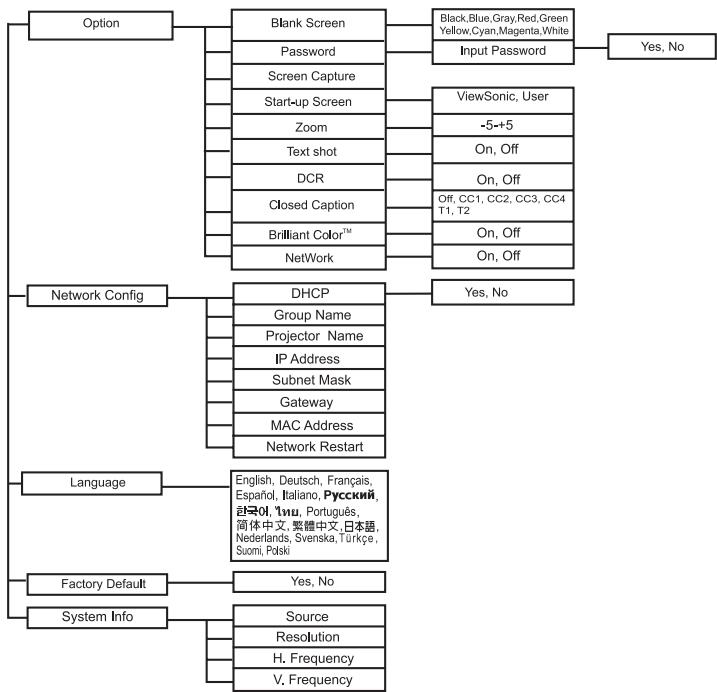
1 Adjustable range and default setting vary depending on signal type.
2 This function is only available when the projector is installed an optional filter cover.
How to operate
- Press the MENU button to open the OSD menu.
- When OSD is displayed, use / to select any feature in the main menu.
- After selecting the desired main menu item, press to enter sub-menu for feature setting.
- Use / to select the desired item and adjust the settings with / .
- Press the MENU button, the screen will return to the main menu.
- To exit OSD, Press the MENU button again. The OSD menu will close and the projector will automatically save the new settings.
Picture (Computer / Video Mode)
Brightness
Brighten or darken the image.
Contrast
Set the difference between light and dark areas.
Color Setting
Adjust the color temperature. At higher temperature the screen looks colder; at lower temperature, the screen looks warmer. If you select "User", then you can change the intensity of each of 3 color (Red, Green, Blue) to customize user color temperature.
User Color
User Color provides six sets (RGBCMY) of colors to be adjusted. When you select each color, you can independently adjust its range and saturation according to your preference.
Keystone
Manually correct distorted images resulting from an angled projection.
Aspect Ratio
Select how the picture fits on the screen:
4:3 : The input source will be scaled to fit the projection screen.
16:9 : The input source will be scaled to fit the width of the screen.
Image
There are many factory presets optimized for various types of images.
PC For computer or notebook.
■ Movie : For home theater.
■ sRGB : For PC standard color.
User : Memorize user's settings.
White Board: For white projection screen type.
Black Board : For black projection screen type.
Green Board: For green projection screen type.
Daylight Mode: For a daylight environment.
White Intensity
Increase the brightness of white areas.
Gamma
Effect the represent of dark scenery. With greater gamma value, dark scenery will look brighter.
3D Sync
Off: Disable 3D function
3D-Vision: For NVIDIA 3D Vision application
DLP-LINK: For TI 3D DLP-LINK application
3D Sync Invert (for TI 3D DLP-LINK only)
On: Invert left and right frame contents.
Off: Default frame contents.
Computer Image (Computer Mode)
Frequency
Adjust the timing of the projector relative to the computer.
Tracking
Adjust the phase of the projector relative to the computer.
H Position (Horizontal Position)
Adjust the image left or right within the projection area.
V Position (Vertical Position)
Adjust the image up or down within the projection area.
Video Image (Video Mode)
Saturation
Adjust a video image from black and white to fully saturated color.
Sharpness
Sharpen or soften the image.
Tint
Shift colors toward red or green.
Sound (Computer / Video Mode)
Volume
Adjust the volume level.
Mute
Cut off the sound temporarily.
Audio 1
Enable or disable Audio 1.
When Audio 1 is turned on, Audio 2 and HDMI will turn off automatically.
Audio 2
Enable or disable Audio 2.
When Audio 2 is turned on, Audio 1 and HDMI will turn off automatically.
HDMI
Enable or disable sound from HDMI input signal.
When HDMI is turned on, Audio 1 and Audio 2 will turn off automatically.
Setting (Computer / Video Mode)
Menu Position
Choose the menu location on the display screen.
Projection
Adjust the picture to match the orientation of the projector: upright or upside-down, in front of or behind the screen. Invert or reverse the image accordingly.
Signal Type
Specify the source to the COMPUTER IN 1/COMPUTER IN 2 terminal that you wish to project.
Auto: Automatically detect the input signal type from COMPUTER IN 1 and COMPUTER IN 2 terminals.
RGB : For VGA signal
YCbCr/YPbPr:For component signal
Lamp Hours
Display the lamp's elapsed operating time (in hours).
Lamp Hours Reset
Reset the lamp Hour to 0 hours.
Filter Mode
Use this function to activate filter mode after the projector is installed an optional filter cover.
Filter Hours
Display the filter's elapsed operating time (in hours).
When Filter Mode is turned on, the Filter Hours also turns on automatically.
Filter Hours Reset
Reset the filter Hour to 0 hours.
Power Saving
If no operation is performed for a specific period of time, projector will automatically turn off.
Auto Source
Automatically scan through all the input source.
ECO Mode
Use this function to dim the projector lamp light output which will lower power consumption and increase lamp life.
This function will be unavailable when the DCR function is on.
High Altitude
Use this function to allow the fans operates at full speed continuously to achieve proper high altitude cooling of the projector.
OSD Timeout
Duration of OSD menu display countly starts (at idle state by second).
Option (Computer / Video Mode)
Blank Screen
Blank the screen temporarily, and select the screen color when this function is active.
Password
Set or change the password. When the password function is added, image projection will require to input the preset password when turning on the projector.
Screen Capture
Capture the current projection screen as a start-up screen.
Start-up Screen
Select start-up screen when the projector is powered on or when no signal is input.
"User" is the screen that you captured.
Zoom
Zoom in and out the images.
Text shot
Using command codes, text messages can be sent for display by the projector over a network connection. Text is shown on the center of the projection screen. This is a great way to display urgent alert messages to employees, and simply requires a connection to the projector's LAN connector.
DCR (Dynamic Contrast Ratio)
Enable DCR will further enhance contrast ratio by darkening the black scenes. Disable DCR will resume to normal contrast performance. DCR will impact lamp life and system noise performance.
Closed Caption
Enable or Disable closed captions by selecting CC1 (closed caption1, the most common channel), CC2, CC3, CC4, T1, T2 or OFF.
Brilliant ColorTM
Produce an expanded on-screen color spectrum that delivers enhanced color saturation for bright, true-to-life images. Suggesting to turn Off for most video sources and On for most computer sources.
NetWork
Enable or disable network management via RJ45 connector.
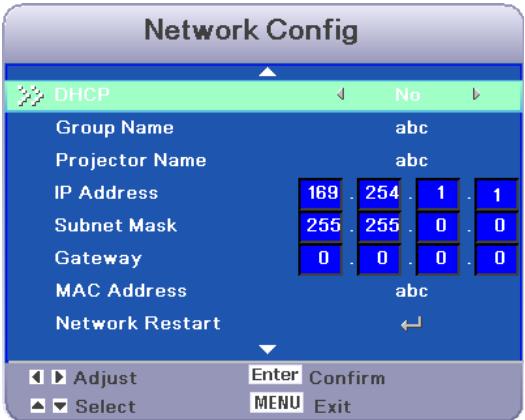
Network Config (Computer / Video Mode)
DHCP
Abbreviation for Dynamic Host Configuration Protocol. This protocol automatically assigns IP Address to networked devices.
When the "DHCP" sets to "Yes", it takes some time to obtain IP address from DHCP server.
When the "DHCP" sets to "No", that means user will set IP address by manually.
Group Name
Display group name.
Projector Name
Display projector name.
IP Address
Numerical address to identify networked computers. This function can only be used when DHCP is set to No.
The IP Address is the number that identifies this projector on the network. You cannot have two devices with the same IP Address on the same network.
The IP Address "0.0.0.0" is prohibited.
Subnet Mask
A numeric value to define the number of bits used for a network address of a divided network (or subnet) in an IP Address. This function can only be used when DHCP is set to No.
The Subnet Mask "0.0.0.0" is prohibited.
Gateway
A server (or router) to communicate across networks (subnets) that are divided by Subnet Mask. This function can only be used when DHCP is set to No.
MAC Address
Abbreviation for Media Access Control Address. MAC Address is a unique ID number assigned to each network adapter.
Network Restart
Restart network function when the device is not working properly or to apply changes made on OSD configuration menu.
Language (Computer / Video Mode)
Select the language used by the on-screen menu.
Factory Default (Computer / Video Mode)
Restore settings to factory default.
System Info (Computer / Video Mode)
Source
Display the current input source.
Resolution
Display current input source resolution.
H. Frequency
Display current image horizontal frequency.
V. Frequency
Display current image vertical frequency.
Network Control
This feature provides the ability to remotely control and manage the projector through the network.
Preparation:
- Connect one end of the internet cable to the Network Control connector on the projector.
- Connect the other end of the internet cable to an available RJ-45 connector on your computer.
- Turn on your projector and computer.
There are two ways to connect to the network control:
A. Auto IP address setting (DHCP: Yes):
-
Enable DHCP from the projector OSD, under Network Config.
-
When DHCP is enabled, IP Address, Subnet Mask and Gateway information will get from DHCP server automatically.
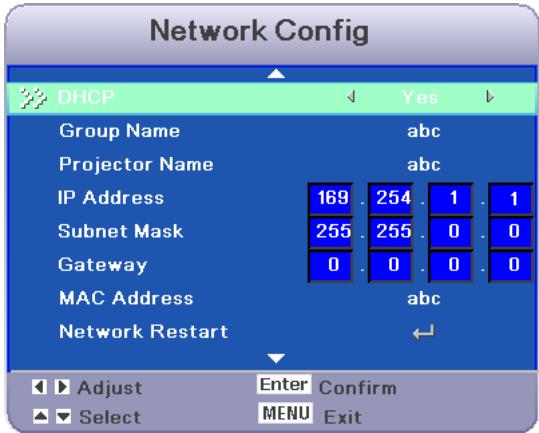
- Start browser in PC and specify following URL, then click "Go" button.
URL: http://(Projector IP address)/
For example, if projector IP address is 169.254.1.1, specify URL: http://169.254.1.1/
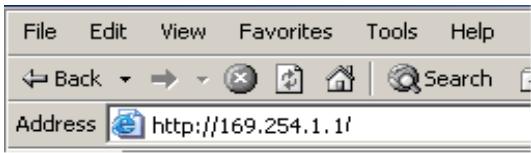
- If connection succeeds, the login screen is displayed. Enter your User name and Password and click "OK". Below are the factory default settings for administrator, user and passwords.
| Item | User name | Password |
| Administrator | Admin | <blank> |
| User | User | <blank> |
For setting passwords, please go to Network Control page > Password.
B. Manual IP address setting (DHCP: No):
- Set IP Address and Subnet Mask under Network Config.
IP Address: Numerical address to identify networked computers.
- Subnet Mask: A numeric value to define the number of bits used for a network address of a divided network (or subnet) in an IP Address.
- Gateway: A server (or router) to communicate across networks (subnets) that are divided by Subnet Mask.
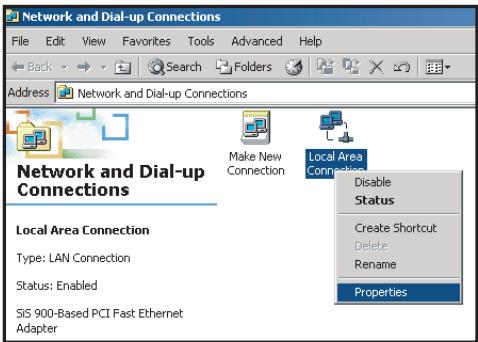
- From your computer, go to Start > Settings > Network and Dial-up Connections > Local Area Connection and right click to select Properties..
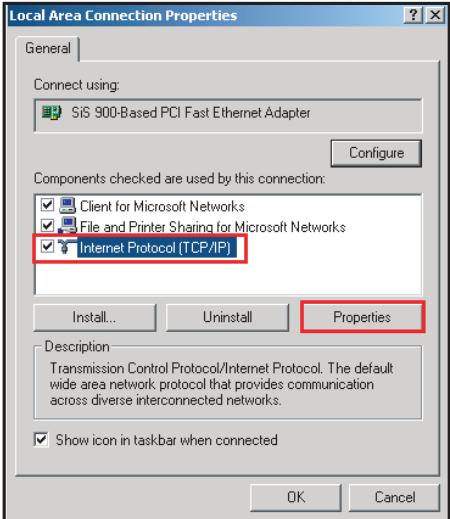
3. Select "Intel Protocol (TCP/IP)" and click "Properties".
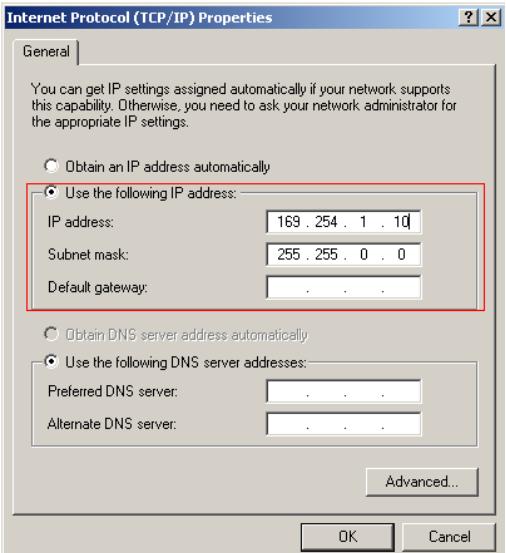
4. Set your PC's IP address, and click OK.
Click "Use the following IP address"
The network address portion included in the IP address set into your PC should be common with projector's one.
In this case, projector has "169.254.1.1" IP address, specify "169.254.1.xxx" for PC's IP address. Select from 1 to 254 for xxx except 2 for PC.
- Start browser in PC and specify following URL, then click "Go" button.
URL: http://(Projector IP address)/
For example, if projector IP address is 169.254.1.1, specify URL: http://169.254.1.1/.
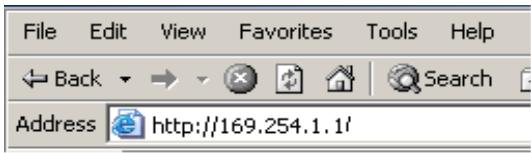
- If connection succeeds, the login screen is displayed. Enter your User name and Password and click "OK". Below are the factory default settings for administrator, user and passwords.
| Item | User name | Password |
| Administrator | Admin | <blank> |
| User | User | <blank> |
For setting passwords, please go to Network Control page > Password.
Control the projector via a web browser
Login
If the administrator and user passwords are disabled, it will directly go into the Status page.

ViewSonic Network control

status
m = 311
12 = 12( m - 1) ( m + 3)
control
m = 311
1
12 =
一
www.workercn.cn
m = 311 ;
12 =
alert
m = 311
m = 311 ;
12 =
一
Network Setting
Network
DHCP Enable:
IP Address
Subnet Mas
Getway.
DNS Server
Group Name
Projector Name
ON OFF
169.254.1.1
2552552550
192.168.01
168.95.11
TEST
MCHPBOARD
Submit
Password
Administrator
New Password
Confirm Password
ONOFF
Submit
User
New Password
Confirm Password
ONOFF
Submit

ViewSonic Network control

status
control
12
ne
水
ale
sc1
1e
Status
IP Address:
169.254.1.1
MAC Address:
00:04:a3:00:00:00
Projector Name
System Status
Power Off
Input Status :
1
Lamp Hours:
UDEF!
Filter Hours :
UDEFI
System Temperature
Projection Status :
F/W Version
v0.1a
Data (mm/dd/yy)
01/01/00
Time
08:03
If the Administrator & User passwords are enabled, select your User Name and enter password to login.
Authority on the network control of Administrator & User:
| Item | Description | Administrator | User |
| Status | Show current projector status and network configuration settings. | v | v |
| Control | Control the projector via network. | v | v |
| Network Setting | Network configuration & Password setup. | v | x |
| Alert | Show and setup Alert configurations. | v | x |
| Schedule | Show and setup Scheduling configurations. | v | v |
Status

ViewSonic Network control

control
network
alert
schedule
Status
| IP Address: | 169.254.1.1 |
| MAC Address: | 00.04.a3.00.00.00 |
| Projector Name : | |
| System Status : | Power Off |
| Input Status : | 1 |
| Lamp Hours: | UDEF1 |
| Filter Hours: | UDEF1 |
| System Temperature : | |
| Projector Status : | |
| F/W Version : | v0.1a |
| Data (mm/dd yy) : | 01/01/00 |
| Time : | 08:03 |
All screen images in this manual are shown when you login with the Administrator ID. The image will differ if you login with User ID.
| Item | Description |
| IP Address | Show current IP address. |
| MAC Address | Show current MAC Address. |
| Projector Name | Show projector name. |
| System Status | Show if projector is Powered ON or Standby. |
| Input Status | Show current input source. |
| Lamp Hours | Show lamp used hours on current projector. |
| Filter Hours | Show filter used hours on current projector. |
| System Temperature | Show system temperature. |
| Projector Status | Show current projector status, either function normally or error found. |
| F/W Version | Show projector's F/W version |
| Date(mm/dd/yy) | Show date set on current projector. |
| Time | Show time set on current projector * . |
Remark:
*If the power has not been supplied for over 50 hours, date and time will be reset.

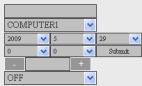
ViewSonic Network control


Control
BASIC
Power Switch:
Input Source:
Date:
Time
Volume:
Mute
Picture
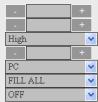
Brightness:
Contrast
Color Temperature:
Keystone:
Picture Mode
Aspect Ratio:
Freeze:
Video Image
Color:
Tint
Sharpness:

Computer Image
Frequency
Tracking
H Position:
V Position:

Setting
Menu Position:
Projection:
Auto Source
ECO Mode
High Altitude
OSD Timeout
Language:
Factory Default:
Option
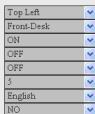
ViewMatch:
White Intensity:
Gamma:
Singal Type:
Filter Mode
Power Saving:
Start UP Screen
Closed Caption:
Blank Screen:
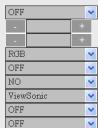
| Item | Description |
| Basic | |
| Power Switch | Power On or Power Off the projector via network. |
| Input Source | Select input source. |
| Date | Show date set on current projector. |
| Time | Show time set on current projector*. |
| Volume | Adjusts the volume setting. (0 - 20) |
| Mute | Enable or disable the mute function. |
| Picture | |
| Brightness | Adjusts the brightness setting. (0 - 100) |
| Contrast | Adjusts the contrast setting. (0 - 100) |
| Color Temperature | Selects the color temperature setting. |
| Keystone | Adjusts the keystone setting. (-40 - +40) |
| Picture Mode | Selects the picture mode setting. |
| Aspect Ratio | Selects the aspect ratio setting. |
| Freeze | Enable or disable the freeze function. |
| Video Image | |
| Color | Adjusts the color setting. |
| Tint | Adjusts the tint setting. (0 - 100) |
| Sharpness | Adjusts the sharpness setting. (0 - 31) |
| Computer Image | |
| Frequency | Adjusts the frequency. (-50 - +50) |
| Tracking | Adjusts the tracking. (0 - 31) |
| H Position | Adjusts the horizontal position. (-10 - +10) |
| V Position | Adjusts the vertical position. (-10 - +10) |
| Setting | |
| Menu Position | Adjusts the menu position. |
| Projection | Selects the projection setting. |
| Auto Source | Enable or disable the auto source function. |
| ECO mode | Enable or disable the ECO function. |
| High Altitude | Enable or disable the high altitude function. |
| OSD Timeout | Selects the OSD timeout setting. |
| Language | Selects preferred OSD language. |
| Factory Default | Enable or Disable factory default. |
| Option | |
| ViewMatch | Selects ViewMatch setting. |
| White Intensity | Adjusts white intensity setting. |
| Gamma | Adjusts gamma setting. |
| Signal Type | Selects signal type setting. |
| Filter Mode | Selects filter mode setting. |
| Power Saving | Selects power saving setting. |
| Start Up Screen | Selects start-up screen setting. |
| Closed Caption | Selects closed caption setting. |
| Blank Screen | Selects blank screen setting. |
Remark:
*If the power has not been supplied for over 50 hours, date and time will be reset.

If the adjustment did not display properly. Please "refresh" or "reload" the browser again.
status
control
network
alert
schedule
Network Setting
Network
DHCP Enable:
ON OFF
IP Address
168.254.1.1
Subnet Mask
255.255.2550
Getway.
192.168.0.1
DNS Server
168.95.1.1
Group Name:
TEST
Projector Name:
MCHBOARD
Submit
Password
Administrator
ON OFF
New Password
|
Confirm Password
Submit
User
ON DFF
New Password
Confirm Password:
Submit
Item
Description
Network
DHCP Assign an IP address to the projector from the DHCP server automatically or manually.
IP Address Setup IP address when DHCP is disable.
Subnet Mask Setup subnet mask when DHCP is disable.
Gateway Setup gateway when DHCP is disable.
DNS Server Setup DNS server address when DHCP is disable.
Group Name Create projector group. (Max length: 6 characters)
Projector Name Create projector naming of the current projector. (Max length: 15 characters)
Password
Administrator Enable or disable administrative password function.
New Password Setup administrative password. (Max length: 4 characters)
Confirm Password Re-enter administrative password.
User Enable or disable user password function.
New Password Setup user password. (Max length: 4 characters)
Confirm Password Re-enter user password.
Click "Submit" button to save the settings.
status
control
network
alert
schedule
Alert
Email Setting
To
jomes6666@hotmail.com
CC
jmeschao@gmail.com
Subject:
TEST123
From:
joanes@wfe.com.tw
Server
UserID
60.248 43.19
Password
iome8
Submit
Issue Test Mail
Alert Condition
Fan Lock
Over Temperature
Lamp Fail
Lamp Time Alert
√ Schedule Execution Error
Filter Time Alert
Submit
| Item | Description |
| Email Setting | |
| To | Setup the mail alert attendee. (Max length: 40 characters) |
| Cc | Setup the backup mail alert attendee. (Max length: 40 characters) |
| Subject | Setup the subject of the alert e-mail. (Max length: 30 characters) |
| From | Setup the sender e-mail address. (Max length: 40 characters) |
| Server | To enter the SMTP server (Mail server) name of the company. For example: mail.viewsonic.com (Max length: 30 characters) |
| User Name | Enter user name of the sender's e-mail account. (Max length: 20 characters) |
| Password | Enter password of the sender's e-mail account. (Max length: 14 characters) |
| Alert Condition | |
| Fan Lock | The cooling fan is not operating. |
| Over Temperature | The projector internal is over heated. |
| Lamp Fail | The lamp does not light up. |
| Lamp Time Alert | Lamp is approaching the end of its useful life in full power operation. Replacement is suggested. |
| Schedule Execution Error | Schedule Execution Error. |
| Filter Time Alert | Filter is approaching the end of its useful life. Replacement is suggested. |
Click "Submit" button to save the settings, then click "Issue Test Mail" to send a test mail to check whether all settings and functions are correct.
Schedule
The schedule function is divided into two scheduling categories, as shown below: Weekly Schedule: defines the date of each week will execute the command

ViewSonic Network control

status
m = 311
m = 311
m = 311
1
m = 311
m = 311 ;
1
Trial
1 + u7 = 70%
1 + u7 = 70%
1
一
rk
m = 311
1 + u7 = 70%
m = 311
1 + u7 = 70%
m = 311
1
lert
m = 311 ;
m = 311
1 + u7 = 70%
1 + u7 = 70%
1
m = 311
m = 311
1 + u7 = 70%
and
1 + u7 = 70%
Schedule
Weekly Day

.


Power Off Time
0
| No. | Week | Power ON | Power OFF | Input Source | Cancel |
| 1 | Fi | 18:17 | 16:15 | 1 | cancel |
| 2 | cancel | ||||
| 3 | cancel | ||||
| 4 | cancel | ||||
| 5 | cancel | ||||
| 6 | cancel |
Click "Add" button to create new schedule. To delete schedule, click "Cancel". Specific Day: defines the month and day that will execute the command.

ViewSonic Network control

control
network
alert
schedule
Schedule
Specific Day

Power On Time


PowerOffTime
2009年/5月
√29 at0 0
| No. | Power On | Power Off | Input Source | Cancel |
| 1 | Submit | |||
| 2 | Submit | |||
| 3 | Submit | |||
| 4 | Submit | |||
| 5 | Submit | |||
| 6 | Submit |
Click "Submit" button to create new schedule. To delete schedule, click "Cancel".
Tips for solving web page problems:
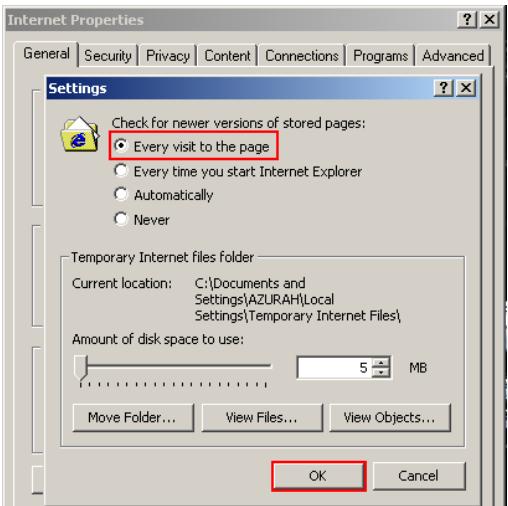
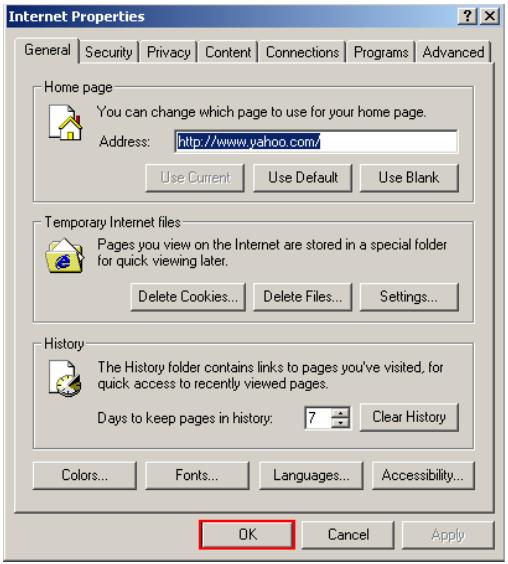
If your web page is not running smoothly, please follow below steps to set the browser.
- Go to Tools > General and click "Settings".
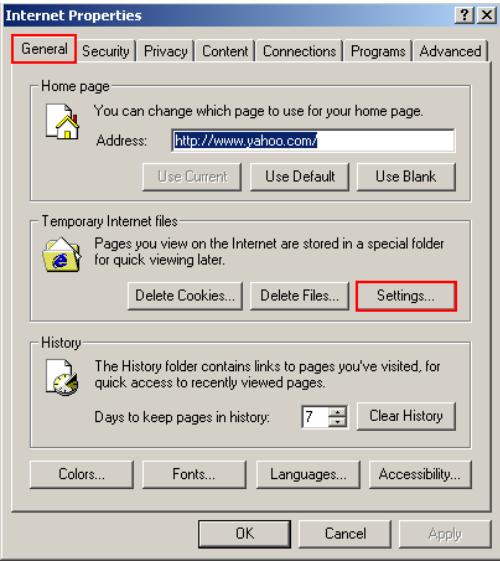
2. Click "Every visit to the page" and "OK".
3. Click "OK" to exit "Internet Properties".
Maintenance
The projector needs proper maintenance. You should keep the lens clean as dust, dirt or spots will project on the screen and diminish image quality. If any other parts need replacing, contact your dealer or qualified service personnel. When cleaning any part of the projector, always switch off and unplug the projector first.

Warning
Never open any of the covers on the projector. Dangerous electrical voltages inside the projector can cause severe injury. Do not attempt to service this product yourself. Refer all servicing to qualified service personnel.
Cleaning the Lens
Gently wipe the lens with lens cleaning paper. Do not touch the lens with your hands.
Cleaning the Projector Housing
Gently wipe with a soft cloth. If dirt and stains are not easily removed, use a soft cloth damped with water, or water and neutral detergent, and wipe dry with a soft, dry cloth.

Turn off the projector and remove the AC power cord from the power outlet before beginning maintenance work.
Make sure the lens is cool before cleaning.
- Do not use detergents or chemicals other than those noted above. Do not use benzene or thinners.
Do not use chemical sprays.
Use a soft cloth or lens paper only.
Replacing the Lamp
As the projector operates over time, the brightness of the projector lamp gradually decreases and the lamp becomes more susceptible to breakage. We recommend replacing the lamp if a warning message is displayed. Do not attempt to replace the lamp yourself. Contact the qualified service personnel for replacement.

The lamp is extremely hot right after turning off the projector. If you touch the lamp, you may scald your finger. When you replace the lamp, wait for at least 45 minutes for the lamp to cool down.
- Do not touch the lamp glass at any time. The lamp may explode due to improper handling, including the touching of the lamp glass.
Lamp lifetime may differ from lamp to lamp and according to the environment of use. There is no guarantee of the same lifetime for each lamp. Some lamps may fail or terminate their lifetime in a shorter period of time than other similar lamps.
A lamp may explode as a result of vibration, shock or degradation as a result of hours of use as its lifetime draws to an end. Risk of explosion may differ according to the environment or conditions in which the projector and lamp are being used.
Wear protective gloves and eyeglasses when fixing or detaching the lamp.
- Faster on-off-cycles will damage the lamp and reduce lamp life. Wait at least for 5 minutes to turn off the projector after powering on.
- Do not operate the lamp in proximity to paper, cloth, or other combustible material nor cover it with such materials.
- Do not operate the lamp in an atmosphere containing an inflammable substance, such as thinner.
Thoroughly ventilate the area or the room when operating the lamp in an oxygen atmosphere (in the air). If ozone is inhaled, it could cause headaches, nausea, dizziness, and other symptoms.
The inorganic mercury is involved in the lamp. If the lamp bursts, the mercury inside the lamp will be exposed. Leave the area immediately if the lamp shatters while being operated and ventilate the area for at least 30 minutes in order to avoid the inhalation of mercury fumes. Otherwise it could be harmful to user's health.
- Turn off the projector.
- If the projector is installed in a ceiling mount, remove it
- Unplug the power cord.
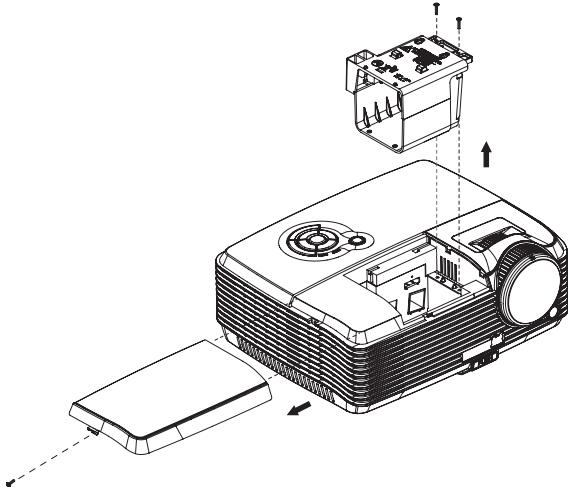
- Loosen the screw in the side of the lamp cover and remove the cover.
- Remove the screws from the lamp module, raise the handle, and lift out the module.
- Insert the new lamp module into the projector and tighten the screws.
- Replace the lamp cover and tighten the screw.
- Turn on the projector. If the lamp does not turn on after the warm-up period, try reinstalling the lamp.
- Reset the lamp hour. Refer to the "Setting" menu.

Dispose the used lamp according to local regulations.
Ensure that screws are tightened properly. Screws not tightened fully may result in injury or accidents.
Since the lamp is made of glass, do not drop the unit and do not scratch the glass.
Do not reuse the old lamp. This could cause the lamp to explode.
- Be sure to turn off the projector and unplug the AC power cord before replacing the lamp.
Do not use the projector with the lamp cover removed.
Specifications
| Display system | Single 1.397cm / 0.55" DLP panel |
| Resolution | XGA (1024 × 768) |
| Zoom | 1.2X |
| F/No. | 2.5 - 2.73 |
| Focal length | 19.9 - 23.88mm |
| Screen size | 101.6cm ~ 762cm / 40" – 300" |
| Lamp | 280W |
| Input terminal | D-Sub 15-pin x 2, S-VIDEO x 1, VIDEO x 1, Audio signal input (3.5 mm stereo mini jack) x 2, HDMI x 1 |
| Output terminal | D-Sub 15 pin x 1, Audio signal output (3.5 mm stereo mini jack) x 1, 12-Vdc trigger output x 1 |
| Control terminal | RS-232 x 1, USB x 1, LAN x 1 |
| Speaker | 5 watt x 2 |
| Video compatibility | NTSC, NTSC 4.43 PAL, PAL-N, PAL M SECAM, HDTV (480p, 576p, 720p, 1080i/p), Composite video |
| Scanning frequency Horizontal frequency Vertical frequency | 31 - 80 KHz 50 - 120 Hz |
| Environment | Operating: Temperature: 0°C to 40°C Humidity: 30%-85% Storage: Temperature: -20°C to 60°C Humidity: 30%-85% |
| Power requirement | AC 100-240 V, 50 - 60 Hz, 2.5A |
| Power consumption | 290 W |
| Dimension (W x D x H) | 279.5mm x 218mm x 105mm / 11.0" x 8.6" x 4.1" |
| Weight | 2.7 kg (6lb) |
| Note: Design and Specifications are subject to change without prior notice. | |
Appendix
LED Indicator Messages
| LED Type | Color | Status | Meaning |
| Power LED | Blue | Solid | The projector is in standby mode. |
| Lamp LED | Off | Off | |
| Temp LED | Off | Off | |
| Power LED | Blue | Solid | Powering up |
| Lamp LED | Off | Off | |
| Temp LED | Off | Off | |
| Power LED | Blue | Solid | Normal operation |
| Lamp LED | Off | Off | |
| Temp LED | Off | Off | |
| Power LED | Blue | Flash | Power-down |
| Lamp LED | Off | Off | |
| Temp LED | Off | Off | |
| Power LED | Blue | Solid (Full brightness) | The projector system has some problems with its fans, so the projector cannot start up. |
| Lamp LED | Red | Solid | |
| Temp LED | Red | Flash | |
| Power LED | Blue | Solid (Full brightness) | The lamp is in good condition and is projecting at maximum brightness. |
| Lamp LED | Off | Off | |
| Temp LED | Off | Off | |
| Power LED | Blue | Solid (Full brightness) | The lamp has reached its end of life and must be changed soon. The lamp will continue to operate until it fails. Change the lamp. If the lamp is off, then the ballast will become malfunction. |
| Lamp LED | Off | Solid | |
| Temp LED | Off | Solid | |
| Power LED | Blue | Flash (Full brightness) | The projector is shutting and the fan motor is cooling the lamp for shutdown. Do not unplug the power cord or turn the power off before the Lamp LED changes to flashing. The fan motor will turn off when the lamp has cooled. |
| Lamp LED | Red | Solid | |
| Temp LED | Red | Solid | |
| Power LED | Blue | Solid (Full brightness) | Temperature is too high. The lamp will turn off. The fan motor is cooling the lamp. |
| Lamp LED | Red | Flash | |
| Temp LED | Red | Off | |
| Power LED | Off | Off | The lamp ignition failed. If temperature is too high, the fans will cool the lamp. |
| Lamp LED | Red | Solid | |
| Temp LED | Red | Solid |
Compatibility Modes
Computer:
| Compatibility | Resolution | H-Sync [KHz] | V-Sync [Hz] |
| VGA | 640 x 480 | 24.6 | 50.0 |
| 31.5 | 59.9 | ||
| 37.9 | 72.8 | ||
| 37.5 | 75.0 | ||
| 43.3 | 85.0 | ||
| 640 x 480 @ 120Hz | 61.9 | 119.5 | |
| 720 x 400 | 31.5 | 70.0 | |
| 37.9 | 85.0 | ||
| SVGA | 800 x 600 | 31.0 | 50.0 |
| 35.2 | 56.0 | ||
| 37.9 | 60.3 | ||
| 48.1 | 72.0 | ||
| 46.9 | 75.0 | ||
| 53.7 | 85.1 | ||
| 76.3 | 120.0 | ||
| 800 x 600 @ 120Hz | 76.3 | 120.0 | |
| XGA | 1024 x 768 | 48.4 | 60.0 |
| 56.5 | 70.1 | ||
| 60.0 | 75.0 | ||
| 68.7 | 85.0 | ||
| 97.6 | 120.0 | ||
| 1024 x 768 @ 120Hz | 97.6 | 120.0 | |
| 1152 x 864 | 67.5 | 75.0 | |
| 1280 x 960 | 60.0 | 60.0 | |
| 85.9 | 85.0 | ||
| SXGA | 1280 x 1024 | 64.0 | 60.0 |
| 80.0 | 75.0 | ||
| 1280 x 960 | 64.7 | 60.0 | |
| 75.0 | 75.0 | ||
| 1280 x 1024 | 64.0 | 60.0 | |
| 80.0 | 75.0 | ||
| 14460 x 1050 | 64.7 | 60.0 | |
| 1600 x 1200 | 75.0 | 60.0 |
Video:
| Signal | Horizontal Frequency (kHz) | Vertical Frequency (Hz) |
| 1080i | 33.8 | 60.0 |
| 1080i | 28.1 | 50.0 |
| 1080p | 67.5 | 60.0 |
| 1080p | 56.3 | 50.0 |
| 720p | 45.0 | 60.0 |
| 720p | 37.5 | 50.0 |
| 576p | 31.3 | 50.0 |
| 576i | 15.8 | 50.0 |
| 480p | 31.5 | 60.0 |
| 480i | 15.8 | 60.0 |
Troubleshooting
Refer to the symptoms and measures listed below before sending the projector for repairs. If the problem persists, contact your local reseller or service center. Please refer to "LED Indicator Messages" as well.
Start-up problems
If no lights turn on:
- Be sure that the power cord is securely connected to the projector and the other end is plugged into an outlet with power.
Press the power button again.
Unplug the power cord and wait for a short while, then plug it in and press the power button again.
Image problems
If the searching source is displayed:
Press the SOURCE button on the control panel or the Source button on the remote control one or more times to select another active input source.
■ Be sure the external source is turned on and connected.
For a computer connection, ensure your notebook computer's external video port is turned on. Refer to the computer manual.
If the image is out of focus:
Be sure the lens cover is removed.
While displaying the on-screen menu, adjust the focus ring. (The image size should not change; if it does, you are adjusting the zoom, not the focus.)
Check the projection lens to see if it needs cleaning.
If the image is flickering or unstable for a computer connection:
Press the Auto button on the remote control.
Press the MENU button, go to Computer Image and adjust Frequency or Tracking.
Remote control problems
If the remote control does not operate:
- Be sure nothing is blocking the remote control receiver on the front of the projector. Use the remote control within the effective range.
Aim the remote control at the screen or at the front or back of the projector.
Move the remote control so it is more directly in front of or behind the projector and not as far to the side.
RS-232 Command and Configuration
Baud Rate:19200 Parity Bit:none
Data Bit:8 Stop Bit:1 Assign Port:COM1
| Name | Operation type | CRC | Header | Command | Response |
| Power | ON | BE, EF, 10, 05, 00, | C6, FF, | 11, 11, 01, 00, 01, 00 | 06 |
| OFF | BE, EF, 03, 06, 00, | DC, DB, | 69, 00, 00, 00, 00, 00 | 06 | |
| Source | Computer 1 (Analog RGB) | BE, EF, 03, 19, 00, | 19, 29, | 01, 47, 02, CC, CC, 00 | 06 |
| Computer 2 (Analog RGB) | BE, EF, 03, 19, 1E, | 90, 72, | 01, 47, 02, CC, CC, 00 | 06 | |
| S-Video | BE, EF, 03, 19, 00, | E8, 69, | 01, 47, 02, CC, CC, 00 | 06 | |
| Composite Video | BE, EF, 03, 19, 00, | 78, A8, | 01, 47, 02, CC, CC, 00 | 06 | |
| HDMI | BE, EF, 03, 19, 00, | DA, 2B, | 01, 47, 02, CC, CC, 00 | 06 | |
| OSD | Menu | BE, EF, 02, 06, 00, | E9, D3, | 30, 00, 00, 00, 00, 00 | 06 |
| Up | BE, EF, 02, 06, 00, | 6D, D2, | 34, 00, 00, 00, 00, 00 | 06 | |
| Down | BE, EF, 02, 06, 00, | 0B, D2, | 32, 00, 00, 00, 00, 00 | 06 | |
| Left | BE, EF, 02, 06, 00, | DA, D3, | 33, 00, 00, 00, 00, 00 | 06 | |
| Right | BE, EF, 02, 06, 00, | 38, D2, | 31, 00, 00, 00, 00, 00 | 06 | |
| ECO | On | BE, EF, 03, 06, 00, | EF, DB, | 6A, 00, 00, 00, 00, 00 | 06 |
| Off | BE, EF, 03, 06, 00, | 3E, DA, | 6B, 00, 00, 00, 00, 00 | 06 | |
| Auto Source | On | BE, EF, 03, 06, 00, | 89, DB, | 6C, 00, 00, 00, 00, 00 | 06 |
| Off | BE, EF, 03, 06, 00, | 58, DA, | 6D, 00, 00, 00, 00, 00 | 06 | |
| Source | BE, EF, 02, 06, 00, | 57, D0, | 2E, 00, 00, 00, 00, 00 | 06 | |
| Auto-Sync | BE, EF, 02, 06, 00, | 86, D1, | 2F, 00, 00, 00, 00, 00 | 06 | |
| Blank Screen(Video) | BE, EF, 02, 06, 00, | DF, DF, | 66, 00, 00, 00, 00, 00 | 06 | |
| Keystone | Keystone | BE, EF, 02, 06, 00, | 3D, DE, | 64, 00, 00, 00, 00, 00 | 06 |
| Up | BE, EF, 03, 06, 00, | 10, DB, | 65, 00, 00, 00, 00, 00 | 06 | |
| Down | BE, EF, 03, 06, 00, | 23, DB, | 66, 00, 00, 00, 00, 00 | 06 | |
| Image | BE, EF, 03, 06, 00, | F2, DA, | 67, 00, 00, 00, 00, 00 | 06 | |
| Aspect Ratio | BE, EF, 03, 06, 00, | OD, DA, | 68, 00, 00, 00, 00, 00 | 06 | |
| Factory Reset | BE, EF, 03, 06, 00, | 6B, DA, | 6E, 00, 00, 00, 00, 00 | 06 | |
| Lamp Hour | BE, EF, 03, 06, 00, | BA, DB, | 6F, 00, 00, 00, 00, 00 | Lamp Hour | |
| Firmware Version | BE, EF, 03, 06, 00, | D5, D9, | 70, 00, 00, 00, 00, 00 | Version | |
| System Status | BE, EF, 03, 06, 00, | 04, D8, | 71, 00, 00, 00, 00, 00 | 03:Projector ON (Normal Mode) | |

D-Sub 9 pin
| 1 | 1 CD |
| 2 | RXD |
| 3 | TXD |
| 4 | DTR |
| 5 | GND |
| 6 | DSR |
| 7 | RTS |
| 8 | CTS |
| 9 | RI |
Wire List
| C1 | COLOR | C2 |
| 1 | Black | 1 |
| 2 | Brown | 2 |
| 3 | Red | 3 |
| 4 | Orange | 4 |
| 5 | Yellow | 5 |
| 6 | Green | 6 |
| 7 | Blue | 7 |
| 8 | Purple | 8 |
| 9 | White | 9 |
| SHELL | DW | SHELL |
IR Control Code
| Key | Format | Byte1 | Byte2 | Byte3 | Byte4 |
| Power | NEC | 83 | F4 | 13 | 87 |
| Source | NEC | 83 | F4 | 13 | 02 |
| Up | NEC | 83 | F4 | 13 | 82 |
| Down | NEC | 83 | F4 | 13 | 85 |
| Left | NEC | 83 | F4 | 13 | 83 |
| Right | NEC | 83 | F4 | 13 | 81 |
| MENU | NEC | 83 | F4 | 13 | 84 |
| Auto | NEC | 83 | F4 | 13 | 64 |
| Mouse | NEC | 83 | F4 | 13 | 6B |
| ViewMatch | NEC | 83 | F4 | 13 | 63 |
| Freeze | NEC | 83 | F4 | 13 | 80 |
| Enter / Mouse Left | NEC | 83 | F4 | 13 | 8c |
| Exit / Mouse Right | NEC | 83 | F4 | 13 | 8d |
| KeyS+ | NEC | 83 | F4 | 13 | 86 |
| KeyS- | NEC | 83 | F4 | 13 | 8a |
| Digital Zoom+ | NEC | 83 | F4 | 13 | 68 |
| Digital Zoom- | NEC | 83 | F4 | 13 | 6a |
| Volume+ | NEC | 83 | F4 | 13 | 88 |
| Volume- | NEC | 83 | F4 | 13 | 89 |
| Mute | NEC | 83 | F4 | 13 | 8b |
| Blank | NEC | 83 | F4 | 13 | 8f |
Customer Support
For technical support or product service, see the table below or contact your reseller.
Note : You will need the product serial number.
| Country/Region | Web Site | T=Telephone F=Fax | |
| Australia/New Zealand | www.viewsonic.com.au | AUS=1800 880 818 NZ=0800 008 822 | service@au.viewsonic.com |
| Canada | www.viewsonic.com | T (Toll-Free)=1-866-463-4775 T (Toll)=1-424-233-2533 F=1-909-468-1202 | service.ca@viewsonic.com |
| Europe/Middle East/Baltic countries/North Africa | www.viewsoniceurope.com | Contact your reseller | |
| Hong Kong | www.hk.viewsonic.com | T=852 3102 2900 | service@hk.viewsonic.com |
| India | www.in.viewsonic.com | T=1800 11 9999 | service@in.viewsonic.com |
| Korea | www.kr.viewsonic.com | T=080 265 9080 | service@kr.viewsonic.com |
| Latin America (Argentina) | www.viewsonic.com/la/ | T=0800 666 0194 | soporte@viewsonic.com |
| Latin America (Brazil) | www.viewsonic.com/la/ | T=0800 891 6984 | soporte@viewsonic.com |
| Latin America (Chile) | www.viewsonic.com/la/ | T=800 440 303 | soporte@viewsonic.com |
| Latin America (Columbia) | www.viewsonic.com/la/ | T=01 800 915 6588 | soporte@viewsonic.com |
| Latin America (Mexico) | www.viewsonic.com/la/ | T=001 800 514 6518 | soporte@viewsonic.com |
| Renta y Datos, 29 SUR 721, COL. LA PAZ, 72160 PUEBLA, PUE. Tel: 01.222.891.55.77 CON 10 LINEAS Electroser, Av Reforma No. 403Gx39 y 41, 97000 Merida, Yucatan. Tel: 01.999.925.19.16 Other places please refer to http://www.viewsonic.com/la/soporte/index.htm#Mexico | |||
| Latin America (Peru) | www.viewsonic.com/la/ | T=0800 53458 | soporte@viewsonic.com |
| Macau | www.hk.viewsonic.com | T=853 700 303 | service@hk.viewsonic.com |
| Puerto Rico & Virgin Islands | www.viewsonic.com | T=1-800-688-6688 (English) T=1-866-379-1304 (Spanish) F=1-909-468-1202 | service.us@viewsonic.com soporte@viewsonic.com |
| Singapore/Malaysia/Thailand | www.ap.viewsonic.com | T=65 6461 6044 | service@sg.viewsonic.com |
| South Africa | www.viewsoniceurope.com | www.viewsoniceurope.com/uk/Support/Calldesk.htm | |
| United Kingdom | www.viewsoniceurope.com/uk/ | www.viewsoniceurope.com/uk/Support/Calldesk.htm | |
| United States | www.viewsonic.com | T (Toll-Free)=1-800-688-6688 T (Toll)=1-424-233-2530 F=1-909-468-1202 | service.us@viewsonic.com |
Limited Warranty VIEWSONIC® PROJECTOR
What the warranty covers:
ViewSonic warrants its products to be free from defects in material and workmanship, under normal use, during the warranty period. If a product proves to be defective in material or workmanship during the warranty period, ViewSonic will, at its sole option, repair or replace the product with a like product. Replacement product or parts may include remanufactured or refurbished parts or components.
Limited Three (3) year General Warranty
Subject to the more limited one (1) year warranty set out below, North and South America: Three (3) years warranty for all parts excluding the lamp, three (3) years for labor, and one (1) year for the original lamp from the date of the first consumer purchase; Europe except Poland: Three (3) years warranty for all parts excluding the lamp, three (3) years for labor, and ninety (90) days for the original lamp from the date of the first consumer purchase; Poland: Two (2) years warranty for all parts excluding the lamp, two (2) years for labor, and ninety (90) days for the original lamp from the date of the first consumer purchase.
Limited One (1) year Heavy Usage Warranty:
Under heavy usage settings, where a projector's use includes more than four (4) hours average daily usage, North and South America: One (1) year warranty for all parts excluding the lamp, one (1) year for labor, and ninety (90) days for the original lamp from the date of the first consumer purchase; Europe: One (1) year warranty for all parts excluding the lamp, one (1) year for labor, and ninety (90) days for the original lamp from the date of the first consumer purchase.
Other regions or countries: Please check with your local dealer or local ViewSonic office for the warranty information.
Lamp warranty subject to terms and conditions, verification and approval. Applies to manufacturer's installed lamp only. All accessory lamps purchased separately are warranted for 90 days.
Who the warranty protects:
This warranty is valid only for the first consumer purchaser.
What the warranty does not cover:
- Any product on which the serial number has been defaced, modified or removed.
- Damage, deterioration, failure, or malfunction resulting from:
a. Accident, abuse, misuse, neglect, fire, water, lightning, or other acts of nature, improper maintenance, unauthorized product modification, or failure to follow instructions supplied with the product.
b. Operation outside of product specifications.
c. Operation of the product for other than the normal intended use or not under normal conditions.
d. Repair or attempted repair by anyone not authorized by ViewSonic.
e. Any damage of the product due to shipment.
f. Removal or installation of the product.
g. Causes external to the product, such as electric power fluctuations or failure.
h. Use of supplies or parts not meeting ViewSonic's specifications.
i. Normal wear and tear.
j. Any other cause which does not relate to a product defect.
- Removal, installation, and set-up service charges.
How to get service:
- For information about receiving service under warranty, contact ViewSonic Customer Support (please refer to "Customer Support" page). You will need to provide your product's serial number.
- To obtain warranted service, you will be required to provide (a) the original dated sales slip, (b) your name, (c) your address, (d) a description of the problem, and (e) the serial number of the product.
- Take or ship the product freight prepaid in the original container to an authorized ViewSonic service center or ViewSonic.
- For additional information or the name of the nearest ViewSonic service center, contact ViewSonic.
Limitation of implied warranties:
There are no warranties, express or implied, which extend beyond the description contained herein including the implied warranty of merchantability and fitness for a particular purpose.
Exclusion of damages:
ViewSonic's liability is limited to the cost of repair or replacement of the product. ViewSonic shall not be liable for:
- Damage to other property caused by any defects in the product, damages based upon inconvenience, loss of use of the product, loss of time, loss of profits, loss of business opportunity, loss of goodwill, interference with business relationships, or other commercial loss, even if advised of the possibility of such damages.
- Any other damages, whether incidental, consequential or otherwise.
- Any claim against the customer by any other party.
Effect of state law:
This warranty gives you specific legal rights, and you may also have other rights which vary from state to state. Some states do not allow limitations on implied warranties and/or do not allow the exclusion of incidental or consequential damages, so the above limitations and exclusions may not apply to you.
Sales outside the U.S.A. and Canada:
For warranty information and service on ViewSonic products sold outside of the U.S.A. and Canada, contact ViewSonic or your local ViewSonic dealer.
The warranty period for this product in mainland China (Hong Kong, Macao and Taiwan Excluded) is subject to the terms and conditions of the Maintenance Guarantee Card.
For users in Europe and Russia, full details of warranty provided can be found in www.viewsoniceurope.com under Support/Warranty Information.
Mexico Limited Warranty
VIEWSONIC 圆 PROJECTOR
What the warranty covers:
ViewSonic warrants its products to be free from defects in material and workmanship, under normal use, during the warranty period. If a product proves to be defective in material or workmanship during the warranty period, ViewSonic will, at its sole option, repair or replace the product with a like product. Replacement product or parts may include remanufactured or refurbished parts or components & accessories.
How long the warranty is effective:
3 years for all parts excluding the lamp, 3 years for labor, 1 year for the original lamp from the date of the first consumer purchase. Lamp warranty subject to terms and conditions, verification and approval. Applies to manufacturer's installed lamp only. All accessory lamps purchased separately are warranted for 90 days.
Who the warranty protects:
This warranty is valid only for the first consumer purchaser.
What the warranty does not cover:
- Any product on which the serial number has been defaced, modified or removed.
- Damage, deterioration or malfunction resulting from:
a. Accident, misuse, neglect, fire, water, lightning, or other acts of nature, unauthorized product modification, unauthorized attempted repair, or failure to follow instructions supplied with the product.
b. Any damage of the product due to shipment.
c. Causes external to the product, such as electrical power fluctuations or failure.
d. Use of supplies or parts not meeting ViewSonic's specifications.
e. Normal wear and tear.
f. Any other cause which does not relate to a product defect.
- Any product exhibiting a condition commonly known as "image burn-in" which results when a static image is displayed on the product for an extended period of time.
- Removal, installation, insurance, and set-up service charges.
How to get service:
For information about receiving service under warranty, contact ViewSonic Customer Support (Please refer to the attached Customer Support page). You will need to provide your product's serial number, so please record the product information in the space provided below on your purchase for your future use. Please retain your receipt of proof of purchase to support your warranty claim.
For Your Records
Product Name:
Document Number:
Purchase Date:
Model Number:
Serial Number:
Extended Warranty Purchase? (Y/N)
If so, what date does warranty expire?
- To obtain warranty service, you will be required to provide (a) the original dated sales slip, (b) your name, (c) your address, (d) a description of the problem, and (e) the serial number of the product.
- Take or ship the product in the original container packaging to an authorized ViewSonic service center.
- Round trip transportation costs for in-warranty products will be paid by ViewSonic.
Limitation of implied warranties:
There are no warranties, express or implied, which extend beyond the description contained herein including the implied warranty of merchantability and fitness for a particular purpose.
Exclusion of damages:
ViewSonic's liability is limited to the cost of repair or replacement of the product. ViewSonic shall not be liable for:
- Damage to other property caused by any defects in the product, damages based upon inconvenience, loss of use of the product, loss of time, loss of profits, loss of business opportunity, loss of goodwill, interference with business relationships, or other commercial loss, even if advised of the possibility of such damages.
- Any other damages, whether incidental, consequential or otherwise.
- Any claim against the customer by any other party.
- Repair or attempted repair by anyone not authorized by ViewSonic.
| Contact Information for Sales & Authorized Service (Centro Autorizzato de Servizio) within Mexico: | |
| Name, address, of manufacturer and importers: México, Av. de la Palma #8 Piso 2 Despacho 203, Corporativo Interpalmas, Col. San Fernando Huixquilucan, Estado de México Tel: (55) 3605-1099 http://www.viewsonic.com/la/soporte/index.htm | |
| NUMERO Gratis DE ASISTENCIA TÉCNICA PARA TODO MÉXICO: 001.866.823.2004 | |
| Hermosillo: Distribuciones y Servicios Computaciones SA de CV. Calle Juarez 284 local 2 Col. Bugambillas C.P. 83140 Tel: 01-66-22-14-9005 E-Mail: disc2@hmo.megan.ed.net.mx | Villahermosa: Compumantenimietenos Garantizados, S.A. de C.V. AV. GREGORIO MENDEZ #1504 COL, FLORIDA C.P. 86040 Tel: 01 (993) 3 52 00 47 / 3522074 / 3 52 20 09 E-Mail: compumanteninimientos@prodigy.net.mx |
| Puebla, Pue. (Matriz): RENTA Y DATOS, S.A. DE C.V. Domicilio: 29 SUR 721 COL. LA PAZ 72160 PUEBLA, PUE. Tel: 01(52).222.891.55.77 CON 10 LINEAS E-Mail: datos@puebla.megan.ed.net.mx | Veracruz, Ver.: CONEXION Y DESARROLLO, S.A DE C.V. Av. Americas # 419 ENTRE PINZON Y ALVARADO Fracc. Reforma C.P. 91919 Tel: 01-22-91-00-31-67 E-Mail: gacosta@qplus.com.mx |
| Chihuahua | Cuernavaca |
| Solutiones Globales en Computación C. Magisterio # 3321 Col. Magisterial Chihuahua, Chih. Tel: 4136954 E-Mail: Cefeo@soluglobales.com | Compusupport de Cuernavaca SA de CV Francisco Leyva # 178 Col. Miguel Hidalgo C.P. 62040, Cuernavaca Morelos Tel: 01 777 3180579 / 01 777 3124014 E-Mail: aquevedo@compusupportcva.com |
| Distrito Federal: QPLUS, S.A. de C.V. Av. Coyoacán 931 Col. Del Valle 03100, México, D.F. Tel: 01(52)55-50-00-27-35 E-Mail: gacosta@qplus.com.mx | Guadalajara, Jal.: SERVICRECE, S.A. de C.V. Av. Niños Héros # 2281 Col. Arcos Sur, Sector Juárez 44170, Guadalajara, Jalisco Tel: 01(52)33-36-15-15-43 E-Mail: mmiranda@servicrece.com |
| Guerrero Acapulco | Monterrey: Global Product Services Mar Caribe # 1987, Esquina con Golfo Pérsico Fracc. Bernardo Reyes, CP 64280 Monterrey N.L. México Tel: 8129-5103 E-Mail: aydeem@gps1.com.mx |
| GS Computación (Grupo Sesicomp) Progre #6-A, Colo Centro 39300 Acapulco, Guerrero Tel: 744-48-32627 | |
| MERIDA: ELECTROSER Av Reforma No. 403Gx39 y 41 Mérida, Yucatán, México CP97000 Tel: (52) 999-925-1916 E-Mail: rrrb@sureste.com | Oaxaca, Oax.: CENTRO DE DISTRIBUTION Y SERVICIO, S.A. de C.V. Murguia # 708 P.A., Col. Centro, 68000, Oaxaca Tel: 01(52)95-15-15-22-22 Fax: 01(52)95-15-13-67-00 E-Mail: gpotai2001@hotmail.com |
| Tijuana: STD Av Ferrocarril Sonora #3780 L-C Col 20 de Noviembre Tijuana, Mexico | FOR USA SUPPORT: ViewSonic Corporation 381 Brea Canyon Road, Walnut, CA. 91789 USA Tel: 800-688-6688 (English); 866-323-8056 (Spanish); Fax: 1-800-685-7276 E-Mail: http://www.viewsonic.com |