PJD5221 - Projector VIEWSONIC - Free user manual and instructions
Find the device manual for free PJD5221 VIEWSONIC in PDF.


User questions about PJD5221 VIEWSONIC
0 question about this device. Answer the ones you know or ask your own.
Ask a new question about this device
Download the instructions for your Projector in PDF format for free! Find your manual PJD5221 - VIEWSONIC and take your electronic device back in hand. On this page are published all the documents necessary for the use of your device. PJD5221 by VIEWSONIC.
USER MANUAL PJD5221 VIEWSONIC
IMPORTANT: Please read this User Guide to obtain important information on install-
ing and using your product in a safe manner, as well as registering your product for
future service. Warranty information contained in this User Guide will describe your
limited coverage from ViewSonic Corporation, which is also found on our web site
at http://www.viewsonic.com in English, or in specific languages using the Regional
selection box in the upper right corner of our website.
This device complies with part 15 of FCC Rules. Operation is subject to the following two conditions: (1) this device may not cause harmful interference, and (2) this device must accept any interference received, including interference that may cause undesired operation.
This equipment has been tested and found to comply with the limits for a Class B digital device, pursuant to part 15 of the FCC Rules. These limits are designed to provide reasonable protection against harmful interference in a residential installation. This equipment generates, uses, and can radiate radio frequency energy, and if not installed and used in accordance with the instructions, may cause harmful interference to radio communications. However, there is no guarantee that interference will not occur in a particular installation. If this equipment does cause harmful interference to radio or television reception, which can be determined by turning the equipment off and on, the user is encouraged to try to correct the interference by one or more of the following measures:
Reorient or relocate the receiving antenna.
- Increase the separation between the equipment and receiver.
- Connect the equipment into an outlet on a circuit different from that to which the receiver is connected.
- Consult the dealer or an experienced radio/TV technician for help.
Warning: You are cautioned that changes or modifications not expressly approved by the party responsible for compliance could void your authority to operate the equipment.
For Canada
CE Conformity for European Countries
The device complies with the EMC Directive 2004/108/EC and Low Voltage Directive 2006/95/EC.
Following information is only for EU-member states:
The mark is in compliance with the Waste Electrical and Electronic Equipment Directive 2002/96/EC (WEEE).
The mark indicates the requirement NOT to dispose the equipment including any spent or discarded batteries or accumulators as unsorted municipal waste, but use the return and collection systems available.
If the batteries, accumulators and button cells included with this equipment, display the chemical symbol Hg , Cd, or Pb, then it means that the battery has a heavy metal content of more than 0.0005% Mercury or more than, 0.002% Cadmium, or more than 0.004% Lead.
Declaration of RoHS Compliance
This product has been designed and manufactured in compliance with Directive 2002/95/EC of the European Parliament and the Council on restriction of the use of certain hazardous substances in electrical and electronic equipment (RoHS Directive) and is deemed to comply with the maximum concentration values issued by the European Technical Adaptation Committee (TAC) as shown below:
| Substance | Proposed Maximum Concentration | Actual Concentration |
| Lead (Pb) 0.1% < 0.1% | ||
| Mercury (Hg) 0.1% < 0.1% | ||
| Cadmium (Cd) 0.01% < 0.01% | ||
| Hexavalent Chromium (Cr6+) 0.1% < 0.1% | ||
| Polybrominated biphenyls (PBB) 0.1% < 0.1% | 1% | |
| Polybrominated diphenyl ethers (PBDE) 0. | % < 0.1% |
Certain components of products as stated above are exempted under the Annex of the RoHS Directives as noted below:
Examples of exempted components are:
- Mercury in compact fluorescent lamps not exceeding 5mg per lamp and in other lamps not specifically mentioned in the Annex of RoHS Directive.
- Lead in glass of cathode ray tubes, electronic components, fluorescent tubes, and electronic ceramic parts (e.g. piezoelectronic devices).
- Lead in high temperature type solders (i.e. lead-based alloys containing 85% by weight or more lead).
- Lead as an allotting element in steel containing up to 0.35% lead by weight, aluminium containing up to 0.4% lead by weight and as a cooper alloy containing up to 4% lead by weight.
Copyright Information
Copyright © ViewSonic® Corporation, 2010. All rights reserved.
Macintosh and Power Macintosh are registered trademarks of Apple Inc.
Microsoft, Windows, Windows NT, and the Windows logo are registered trademarks of Microsoft
Corporation in the United States and other countries.
ViewSonic, the three birds logo, OnView, ViewMatch, and ViewMeter are registered trademarks of ViewSonic Corporation.
VESA is a registered trademark of the Video Electronics Standards Association. DPMS and DDC are trademarks of VESA.
PS/2, VGA and XGA are registered trademarks of International Business Machines Corporation.
Disclaimer: ViewSonic Corporation shall not be liable for technical or editorial errors or omissions contained herein; nor for incidental or consequential damages resulting from furnishing this material, or the performance or use of this product.
In the interest of continuing product improvement, ViewSonic Corporation reserves the right to change product specifications without notice. Information in this document may change without notice.
No part of this document may be copied, reproduced, or transmitted by any means, for any purpose without prior written permission from ViewSonic Corporation.
Product Registration
To meet your future needs, and to receive any additional product information as it becomes available, please register your product on the Internet at: www.viewsonic.com. The ViewSonic® Wizard DVD-ROM also provides an opportunity for you to print the registration form, which you may mail or fax to ViewSonic.
| For Your Records | |
| Product Name: | PJD5211/PJD5221/PJD5231/PJD5122 ViewSonic DLP Projector |
| Model Number: | VS13304/VS13305/VS13306/VS13308 |
| Document Number: | PJD5211_5221_5231_5122_UTG_ENG Rev. 1A 02-23-10 |
| Serial Number: | |
| Purchase Date: | |

The lamp in this product contains mercury.
Please dispose of in accordance with local, state or federal laws.
Important safety instructions 3
Introduction. 5
Projectile features 5
Shipping contents. 6
Projector exterior view. 7
Controls and functions 8
Positioning your projector............11
Choosing a location. 11
Projection dimensions. 12
Connection 13
Connecting a computer or monitor .... 13
Connecting Video source devices 15
Operation 19
Starting up the projector. 19
Using the menus. 21
Utilizing the password function 22
Switching input signal. 24
Adjusting the projected image 253
Magnifying and searching for details 27
Selecting the aspect ratio 27
Optimizing the image. 29
Hiding the image 33
Locking control keys. 33
Freezing the image. 34
Operating in a high altitude environment 34
Personalizing the projector menu display 35
Shutting down the projector 35
Menu operation. 36
Maintenance 43
Care of the projector 43
Lamp information. 44
Troubleshooting 50
Specifications 51
Projectorspecifications. 51
Dimensions 52
Ceiling mount installation 52
Timing chart 52
Copyright information 54
Appendix. 55
IR control table 55
RS232 command table. 55
Your projector is designed and tested to meet the latest standards for safety of information technology equipment. However, to ensure safe use of this product, it is important that you follow the instructions mentioned in this manual and marked on the product.
Safety Instructions
- Please read this manual before you operate your projector. Save it for future reference.
- Do not look straight at the projector lens during operation. The intense light beam may damage your eyes.
- Refer servicing to qualified service personnel.
- Always open the lens shutter or remove the lens cap when the projector lamp is on.
- In some countries, the line voltage is NOT stable. This projector is designed to operate safely within a mains voltage between 100 to 240 volts AC, but could fail if power cuts or surges of ± 10 volts occur. In areas where the mains voltage may fluctuate or cut out, it is recommended that you connect your projector through a power stabilizer, surge protector or uninterruptible power supply (UPS).
- Do not block the projection lens with any objects when the projector is under operation as this could cause the objects to become heated and deformed or even cause a fire. To temporarily turn off the lamp, press BLANK on the projector or remote control.
- The lamp becomes extremely hot during operation. Allow the projector to cool for approximately 45 minutes prior to removing the lamp assembly for replacement.
- Do not operate lamps beyond the rated lamp life. Excessive operation of lamps beyond the rated life could cause them to break on rare occasions.
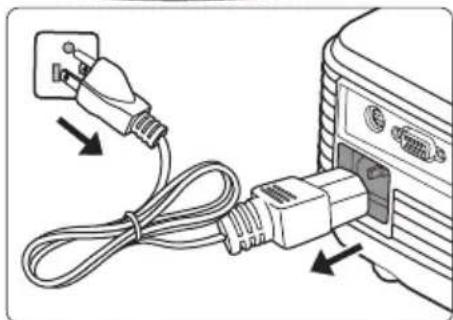
- Never replace the lamp assembly or any electronic components unless the projector is unplugged.
- Do not place this product on an unstable cart, stand, or table. The product may fall, sustaining serious damage.
- Do not attempt to disassemble this projector. There are dangerous high voltages inside which may cause death if you should come into contact with live parts. The only user serviceable part is the lamp which has its own removable cover. Under no circumstances should you ever undo or remove any other covers. Refer servicing only to suitably qualified professional service personnel.
-
Do not place this projector in any of the following environments.
-
Space that is poorly ventilated or confined. Allow at least 50~cm clearance from walls and free flow of air around the projector.
- Locations where temperatures may become excessively high, such as the inside of a car with all windows rolled up.
- Locations where excessive humidity, dust, or cigarette smoke may contaminate optical components, shortening the projector's life span and darkening the picture.
- Locations near fire alarms
- Locations with an ambient temperature above 40^ / 104^
-
Locations where the altitudes are higher than 3000m (10000 feet).
-
Do not block the ventilation holes. If the ventilation holes are seriously obstructed, overheating inside the projector may result in a fire.
-
Do not place this projector on a blanket, bedding or any other soft surface.
- Do not cover this projector with a cloth or any other item.
-
Do not place inflammables near the projector.
-
Always place the projector on a level, horizontal surface during operation.
-
Do not use if tilted at an angle of more than 10 degrees left to right, nor at angle of more than 15 degrees front to back. Using the projector when it is not fully horizontal may cause a malfunction of, or damage to, the lamp.
-
Do not stand the projector on end vertically. Doing so may cause the projector to fall over, causing injury or resulting in damage to the projector.
- Do not step on the projector or place any objects upon it. Besides probable physical damage to the projector, doing so may result in accidents and possible injury.
- Do not place liquids near or on the projector. Liquids spilled into the projector may cause it to fail. If the projector does become wet, disconnect it from the power supply's wall socket and call your local service center to have the projector serviced.
- This product is capable of displaying inverted pictures for ceiling mount installation.

Use only qualified ceiling mount kit for mounting the projector and ensure it is securely installed.
- When the projector is under operation, you may sense some heated air and odor from its ventilation grill. It is a normal phenomenon and not a product defect.
- Do not use the Security bar for transporting or installation. It should be used with a commercially available theft prevention cable.
Safety instructions for ceiling mounting of the projector
We want you to have a pleasant experience using your projector, so we need to bring this safety matter to your attention to prevent damage to person and property.
If you intend to mount your projector on the ceiling, we strongly recommend that you use a proper fitting projector ceiling mount kit and that you ensure it is securely and safely installed.
If you use an inappropriate projector ceiling mount kit, there is a safety risk that the projector may fall from the ceiling due to an improper attachment through the use of the wrong gauge or length screws.
You can purchase a projector ceiling mount kit from the place you purchased your projector. We recommends that you also purchase a separate Kensington lock compatible security cable and attach it securely to both the Kensington lock slot on the projector and the base of the ceiling mount bracket. This will perform the secondary role of restraining the projector should its attachment to the mounting bracket become loose.
Projector features
The projector integrates high-performance optical engine projection and a user-friendly design to deliver high reliability and ease of use.
The projector offers the following features.
- Screen Color correction allowing projection on surfaces of several predefined colors
- Quick auto search speeding up the signal detecting process
- Up to 8 sets of picture modes providing multiple choices for different projection purposes
- Selectable quick cooling function makes the projector cool in a shorter time
- One-key auto-adjustment to display the best picture quality
- Digital keystone correction to correct distorted images
- Adjustable color balance control for data/video display
- High brightness projection lamp
- Ability to display 16.7 million colors
- Multi-language On-Screen Display (OSD) menus
- Switchable normal and economic modes to reduce the power consumption
- Component HDTV compatibility (YP bPr)
- High quality manual zoom lens

- The apparent brightness of the projected image will vary depending on the ambient lighting conditions, selected input signal contrast/brightness settings, and is directly proportional to projection distance.
- The lamp brightness will decline over time and may vary within the lamp manufacturers specifications. This is normal and expected behavior.
Shipping contents
Carefully unpack and verify that you have all of the items shown below. If any of these items are missing, please contact your place of purchase.
Standard accessories

The supplied accessories will be suitable for your region, and may differ from those illustrated.
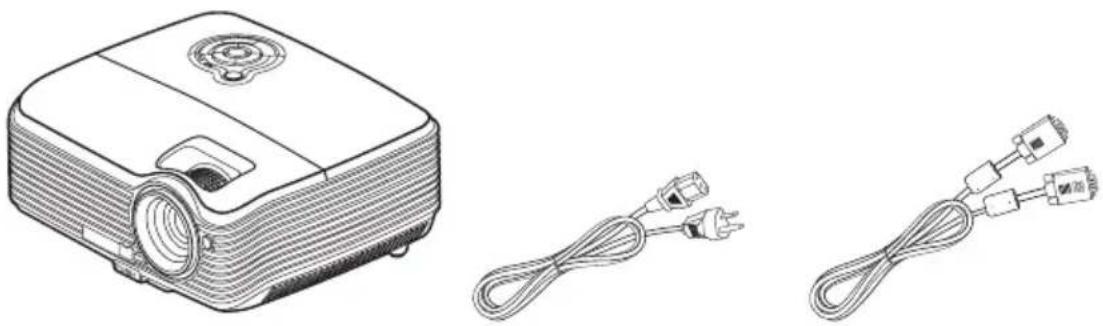
Projectile Power Cord VGA Cable

Multi-language user manual DVD
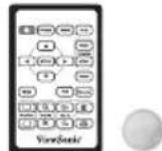
Quick Start Guide Remote Control & Battery

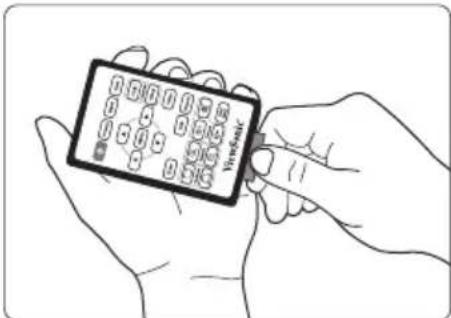
Pull the tab before using the remote control.
Optional accessories
- Ceiling mount
- Replacement lamp
- Soft carry case
Projector exterior view
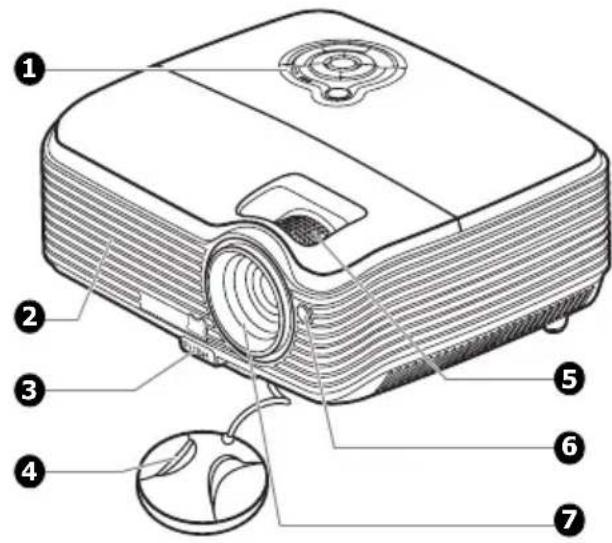
Front/upper side
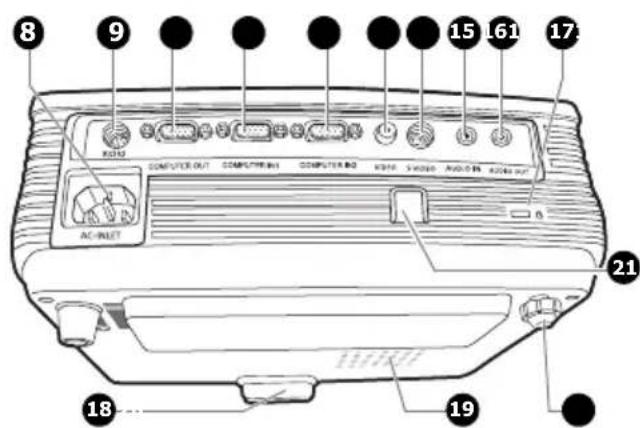
Rear/ lower side
- External control panel (See "Projector and remote control" on page 8 for details.)
- Vent (heated air exhaust)
- Quick-release button
- Lens cover
- Focus ring and Zoom ring
- Front IR remote sensor
- Projection lens
- AC power cord inlet
- RS-232 control port
- RGB signal output socket
- RGB (PC)/Component video (YPbPr/YCbCr) signal input socket-1
- RGB (PC)/Component video (YPbPr/YCbCr) signal input socket-2
- Video input socket
- S-Video input socket
- Audio signal input socket
- Audio signal output socket
- Kensington anti-theft lock slot
- Quick-release foot
- Lamp cover
- Rear adjuster foot
- Security bar Connects a commercially available theft prevention cable.

Warning
-
THIS APPARATUS MUST BE EARTHED.
-
When installing the unit, incorporate a readily accessible disconnect device in the fixed wiring, or connect the power plug to an easily accessible socket-outlet near the unit. If a fault should occur during operation of the unit, operate the disconnect device to switch the power supply off, or disconnect the power plug.
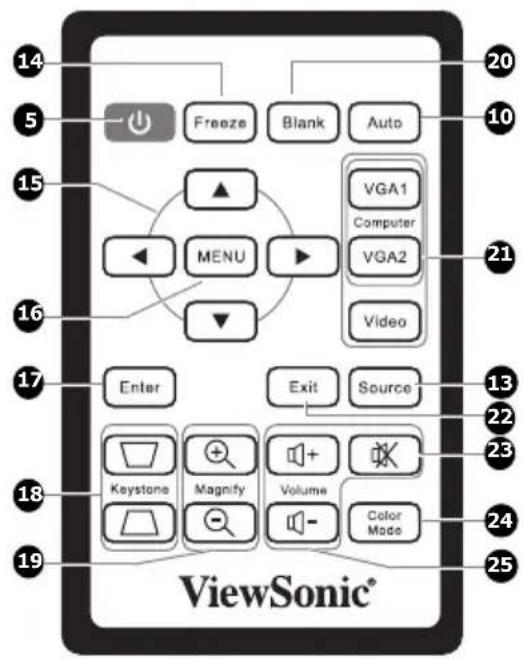
Controls and functions Projector and remote control
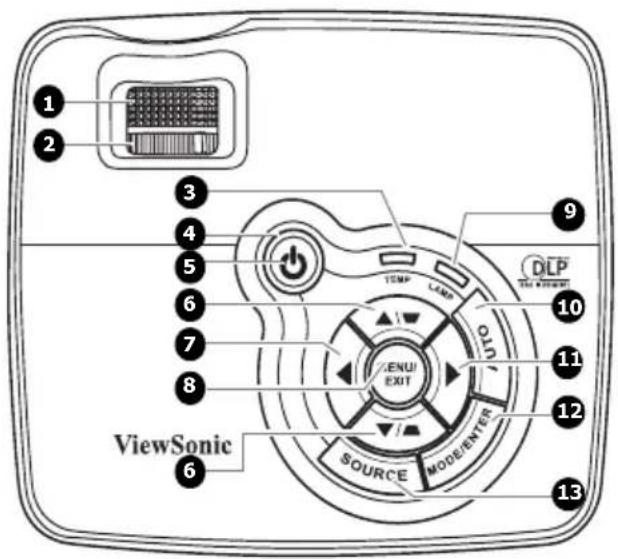
1. Focus ring
Adjusts the focus of the projected image.
See "Fine-tuning the image size and clarity" on page 26 for details.
2. Zoom ring
Adjusts the size of the image. See "Finetuning the image size and clarity" on page 26 for details.
3. TEMperature indicator light
Lights up red if the projector's temperature becomes too high. See "Indicators" on page 49 for details.
4. POWER indicator light
Lights up or flashes when the projector is under operation. See "Indicators" on page 49 for details.
5. POWER
Toggles the projector between standby mode and on. See "Starting up the projector" on page 19 and "Shutting down the projector" on page 35 for details.
6. Keystone
Down)
Manually corrects distorted images resulting from an angled projection. See "Correcting keystone" on page 26 for details.
7.LeftBlank
Hides the screen picture. See "Hiding the image" on page 33 for details.
8. MENU/EXIT
Turns on the On-Screen Display (OSD) menu. Goes back to previous OSD menu, exits and saves menu settings. See "Using the menus" on page 21 for details.
9. LAMP indicator light
Indicates the status of the lamp. Lights up or flashes when the lamp has developed a problem. See "Indicators" on page 49 for details.
10.AUTO
Automatically determines the best picture timings for the displayed image. See "Auto-adjusting the image" on page 25 for details.
11. Right
Activates panel key lock. See "Locking control keys" on page 33 for details. When the On-Screen Display (OSD) menu is activated, the #6, #7, and #11 keys are used as directional arrows to select the desired menu items and to make adjustments. See "Using the menus" on page 21 for details.
12. MODE/ENTER
Selects an available picture setup mode. See "Selecting a picture mode" on page 29 for details. Enacts the selected On-Screen Display (OSD) menu item.
13. SOURCE
Displays the source selection bar. See "Switching input signal" on page 24 for details.
14. Freeze
Freezes the projected image. See "Freezing the image" on page 34 for details.
15. // ▲ ▲ ▼
Selects the desired menu items and makes adjustments. See "Using the menus" on page 21 for details.
16.MENU
Turns on the On-Screen Display (OSD) menu.
17. Enter
Enacts the selected On-Screen Display (OSD) menu item.
- Keystone keys () Manually corrects distorted images resulting from an angled projection.
19. Magnify keys (+, -)
Magnifies or reduces the projected picture size. See "Magnifying and searching for details" on page 27 for details.
20. Blank
Hides the screen picture. See "Hiding the image" on page 33 for details.
21. Source selection keys (VGA 1/VGA 2/Video)
Selects an input source for display.
22.Exit
Goes back to previous OSD menu, exits and saves menu settings.
23.
Toggles the projector audio between on and off.
24. Color Mode
Selects an available picture setup mode. See "Selecting a picture mode" on page 29 for details.
25. Volume keys (+, -)
Magnifies or reduces the volume level.
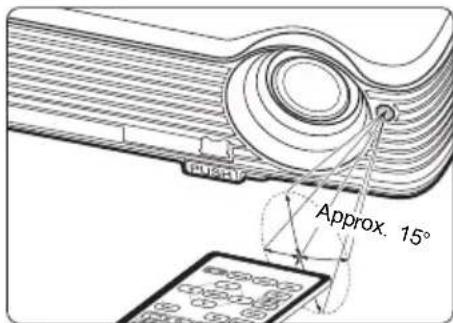
Remote control effective range
Infra-Red (IR) remote control sensor is located on the front of the projector. The remote control must be held at an angle within 30 degrees perpendicular to the projector's IR remote control sensor to function correctly. The distance between the remote control and the sensor should not exceed 8 meters ( 26 feet).
Make sure that there are no obstacles between the remote control and the IR sensor on the projector that might obstruct the infra-red beam.
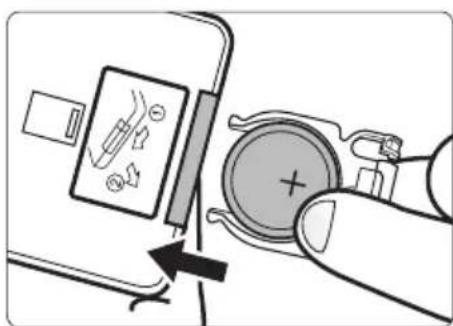
Replacing the remote control battery
- Pull out the battery holder.

Please follow the illustrated instructions. Push and hold the locking arm while pulling out the battery holder.
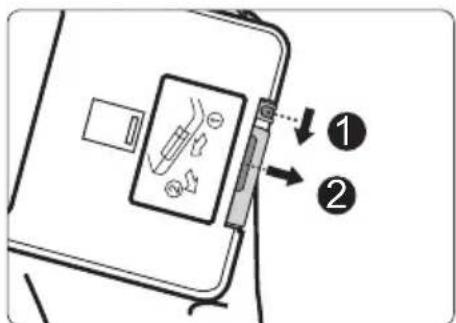
-
Insert the new battery in the holder. Note the positive polarity should face outward.
-
Push the holder into the remote control.

CAUTION
-
Avoid excessive heat and humidity.
-
There may be battery damage if the battery is incorrectly replaced.
-
Replace only with the same or equivalent type recommended by the battery manufacturer.
-
Dispose of the used battery according to the battery manufacturer's instructions.
-
Never throw a battery into a fire. There may be danger of an explosion.
If the battery is dead or if you will not be using the remote control for a long time, remove the battery to prevent damage to the remote control from possible battery leakage.
Choosing a location
Your room layout or personal preference will dictate which installation location you select. Take into consideration the size and position of your screen, the location of a suitable power outlet, as well as the location and distance between the projector and the rest of your equipment.
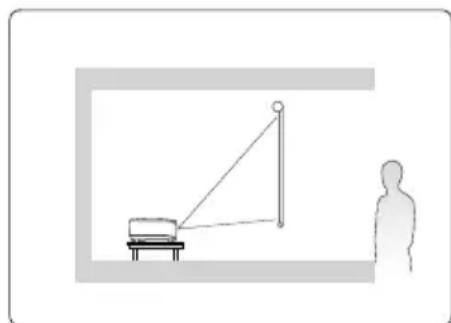
Your projector is designed to be installed in one of four possible installation locations:
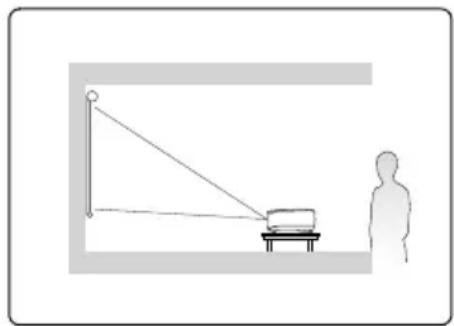
1. Front Table
Select this location with the projector placed near the floor in front of the screen. This is the most common way to position the projector for quick setup and portability.
2. Front Ceiling
Select this location with the projector suspended upside-down from the ceiling in front of the screen.
Purchase the projector ceiling mount kit from your dealer to mount your projector on the ceiling.
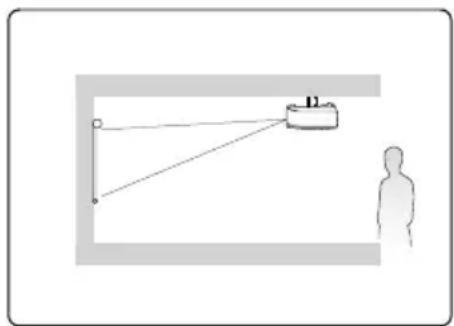
Set Front Ceiling in the SYSTEM SETUP: Basic > Projector Position menu after you turn the projector on.
3. Rear Ceiling
Select this location with the projector suspended upside-down from the ceiling behind the screen.
Note that a special rear projection screen and the projector ceiling mounting kit are required for this installation location.
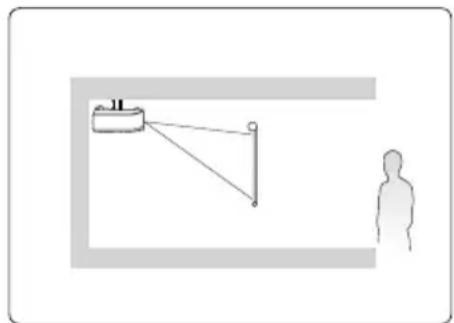
Set Rear Ceiling in the SYSTEM SETUP: Basic > Projector Position menu after you turn the projector on.
4. Rear Table
Select this location with the projector placed near the floor behind the screen.
Note that a special rear projection screen is required.
Set Rear Table in the SYSTEM SETUP: Basic > Projector Position menu after you turn the projector on.
Projection dimensions
Refer to "Dimensions" on page 52 for the center of lens dimensions of this projector before calculating the appropriate position.
4:3 image on a 4:3 screen
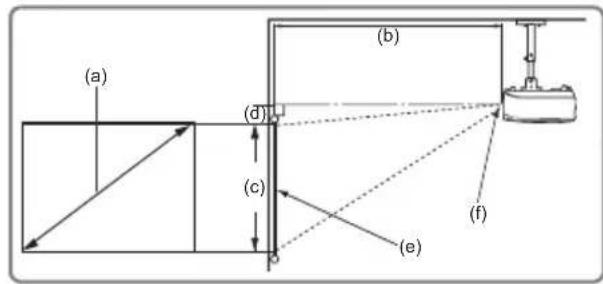
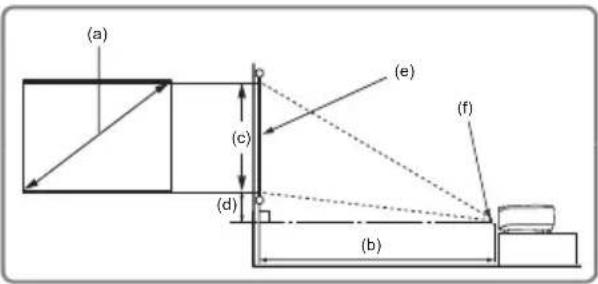
16:9 image on a 4:3 screen
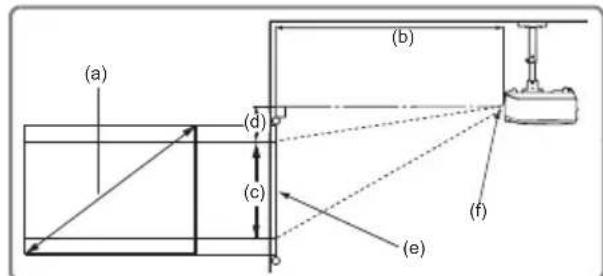
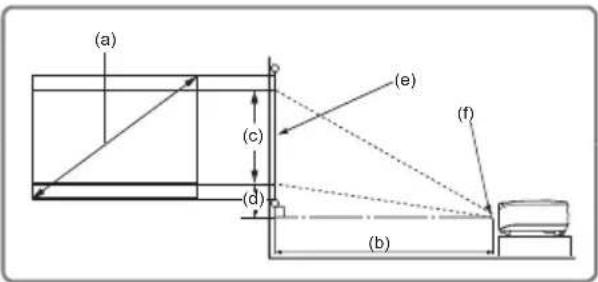
(e): Screen
(f): Center of lens
| (a) Screen Size [inch (m)] | 4:3 Screen 16:9 Screen | |||||||||
| (b) Projection distance [m (inch)] | (c) Image height [cm (inch)] | (d) Vertical offset [cm (inch)] | (b) Projection distance [m (inch)] | (c) Image height [cm (inch)] | (d) Vertical offset [cm (inch)] | |||||
| min. max. | min. max. | |||||||||
| 40 (1.0) 1 | 5 (60) | 1.7 (66) | 61 (24) 3 | (1) 1.5 (60) | 1.7 (66) 46 | (18) | 11 (4) | |||
| 50 (1.3) 1 | 9 (75) | 2.1 (82) | 76 (30) 4 | (2) 1.9 (75) | 2.1 (82) 57 | (23) | 13 (5) | |||
| 60 (1.5) 2 | 3 (90) | 2.5 (98) | 91 (36) 5 | (2) 2.3 (90) | 2.5 (99) 69 | (27) | 16 (6) | |||
| 70 (1.8) | 2.7 (105) | 2.9 (115) | 107 (42) | 5 (2) | 2.7 (105) | 2.9 (115) | 80 (32) | 19 (7) | ||
| 80 (2.0) | 3.0 (120) | 3.4 (132) | 122 (48) | 6 (2) | 3.0 (120) | 3.4 (132) | 91 (36) | 21 (8) | ||
| 90 (2.3) | 3.4 (135) | 3.8 (148) | 137 (54) | 7 (3) | 3.4 (135) | 3.8 (148) | 103 (41) | 24 (10) | ||
| 100 (2.5) | 3.8 (150) | 4.2 (165) | 152 (60) | 8 (3) | 3.8 (150) | 4.2 (165) | 114 (45) | 27 (11) | ||
| 120 (3.0) | 4.6 (180) | 5.0 (198) | 183 (72) | 9 (4) | 4.6 (180) | 5.0 (198) | 137 (54) | 32 (13) | ||
| 150 (3.8) | 5.7 (225) | 6.3 (247) | 229 (90) | 11 (5) | 5.7 (225) | 6.3 (247) | 171 (68) | 40 (16) | ||
| 200 (5.1) | 7.6 (300) | 8.4 (330) | 305 (120) | 15 (6) | 7.6 (300) | 8.4 (330) | 229 (90) | 53 (21) | ||
| 250 (6.4) | 9.5 (375) | 10.5 (412) | 381 (150) | 19 (8) | 9.5 (375) | 10.5 (412) | 286 (113) | 67 (26) | ||
| 300 (7.6) | 11.4 (450) | 12.5 (495) | 457 (180) | 23 (9) | 11.4 (450) | 12.6 (495) | 343 (135) | 80 (32) | ||

There is 3% tolerance among these numbers due to optical component variations. It is recommended that if you intend to permanently install the projector, you should physically test the projection size and distance using the actual projector in situ before you permanently install it, so as to make allowance for this projector's optical characteristics. This will help you determine the exact mounting position so that it best suits your installation location.
When connecting a signal source to the projector, be sure to:
- Turn all equipment off before making any connections.
- Use the correct signal cables for each source.
- Ensure the cables are firmly inserted.

In the connections shown below, some cables may not be included with the projector (see "Shipping contents" on page 6). They are commercially available from electronics stores.
Connecting a computer or monitor
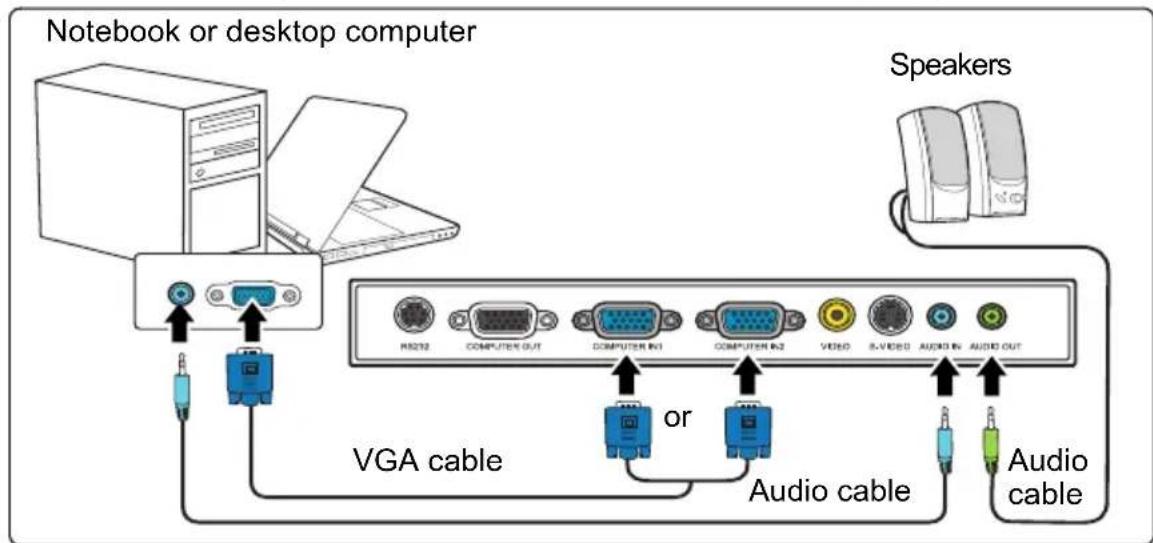
Connecting a computer
The projector provides two VGA input sockets that allow you to connect them to both IBM® compatibles and Macintosh® computers. A Mac adapter is needed if you are connecting legacy version Macintosh computers.
To connect the projector to a notebook or desktop computer:
- Take the supplied VGA cable and connect one end to the D-Sub output socket of the computer.
- Connect the other end of the VGA cable to the COMPUTER IN 1 or COMPUTER IN 2 signal input socket on the projector.
- If you wish to make use of the projector (mixed mono) speaker in your presentations, take a suitable audio cable and connect one end of the cable to the audio output socket of the device, and the other end to the AUDIO IN socket of the projector.
- If you wish, you can use another suitable audio cable and connect one end of the cable to the AUDIO OUT socket of the projector, and the other end to your external speakers (not supplied).
Once connected, the audio can be controlled by the projector On-Screen Display (OSD) menus.
The final connection path should be like that shown in the following diagram:

Many notebooks do not turn on their external video ports when connected to a projector. Usually a key combo like FN + F3 or CRT/LCD key turns the external display on/off. Locate a function key labeled CRT/LCD or a function key with a monitor symbol on the notebook. Press FN and the labeled function key simultaneously. Refer to your notebook's documentation to find your notebook's key combination.
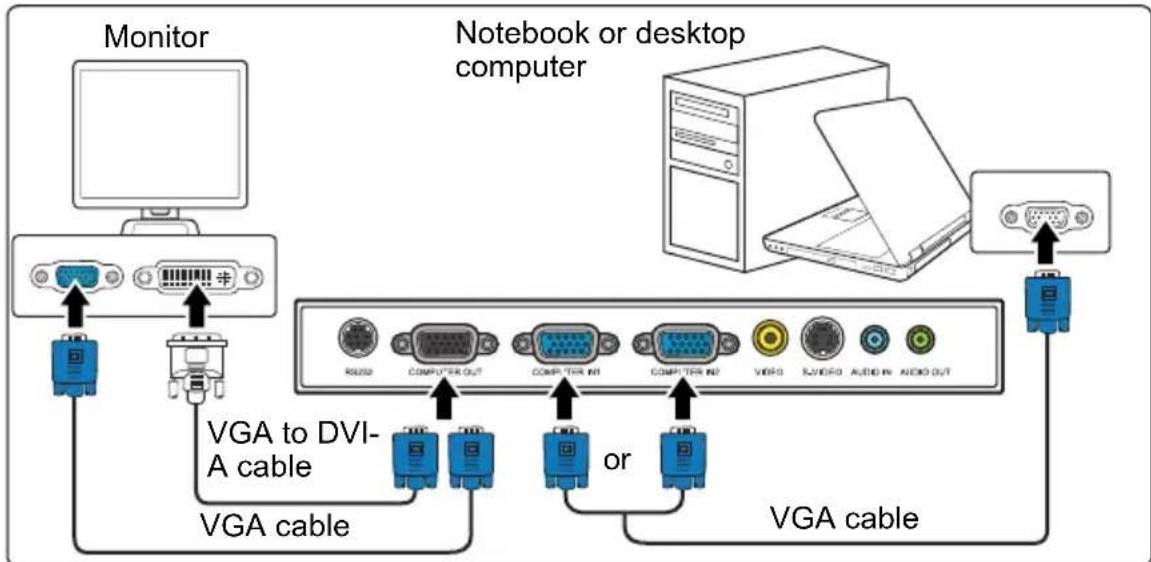
Connecting a monitor
If you want to view your presentation close-up on a monitor as well as on the screen, you can connect the COMPUTER OUT signal output socket on the projector to an external monitor with a VGA cable following the instructions below:
To connect the projector to a monitor:
- Connect the projector to a computer as described in "Connecting a computer" on page 13.
- Take a suitable VGA cable (only one supplied) and connect one end of the cable to the D-Sub input socket of the video monitor.
Or if your monitor is equipped with a DVI input socket, take a VGA to DVI-A cable and connect the DVI end of the cable to the DVI input socket of the video monitor.
- Connect the other end of the cable to the COMPUTER OUT socket on the projector. The final connection path should be like that shown in the following diagram:

-
The COMPUTER OUT output only works when COMPUTER IN 1 or COMPUTER IN 2 is made to the projector.
-
To use this connection method, make sure the Active VGA Out and Active Audio Out functions are turned on. See "Active VGA Out" on page 41 and "Audio Settings" on page 41 for details.
Connecting Video source devices
You can connect your projector to various Video source devices that provide any one of the following output sockets:
- Component Video
·S - V i d e o
Video (composite)
You need only connect the projector to a Video source device using just one of the above connecting methods, however each provides a different level of video quality. The method you choose will most likely depend upon the availability of matching terminals on both the projector and the Video source device as described below:
Best video quality
The best available video connection method is Component Video (not to be confused with composite Video). Digital TV tuner and DVD players output Component Video natively, so if available on your devices, this should be your connection method of choice in preference to (composite) Video.
See "Connecting a Component Video source device" on page 16 for how to connect the projector to a component video device.
Better video quality
The S-Video method provides a better quality analog video than standard composite Video. If you have both composite Video and S-Video output terminals on your Video source device, you should elect to use the S-Video option.
See "Connecting an S-Video source device" on page 17 for how to connect the projector to an S-Video device.
Least video quality
Composite Video is an analog video and will result in a perfectly acceptable, but less than optimal result from your projector, being the least video quality of the available methods described here.
See "Connecting a composite Video source device" on page 18 for how to connect the projector to a composite Video device.
Connecting audio
The projector has one built-in mono speaker which is designed to provide basic audio functionality accompanying data presentations for business purposes only. They are not designed for, nor intended for stereo audio reproduction use as might be expected in home theater or home cinema applications. Any stereo audio input (if provided), is mixed into a common mono audio output through the projector speaker.
If you wish, you can make use of the projector (mixed mono) speaker in your presentations, and also connect separate amplified speakers to the Audio Out socket of the projector. The audio output is a mixed mono signal and controlled by the projector Volume and Mute settings.
If you have a separate sound system, you will most likely want to connect the audio output of your Video source device to that sound system, instead of to the mono audio projector.
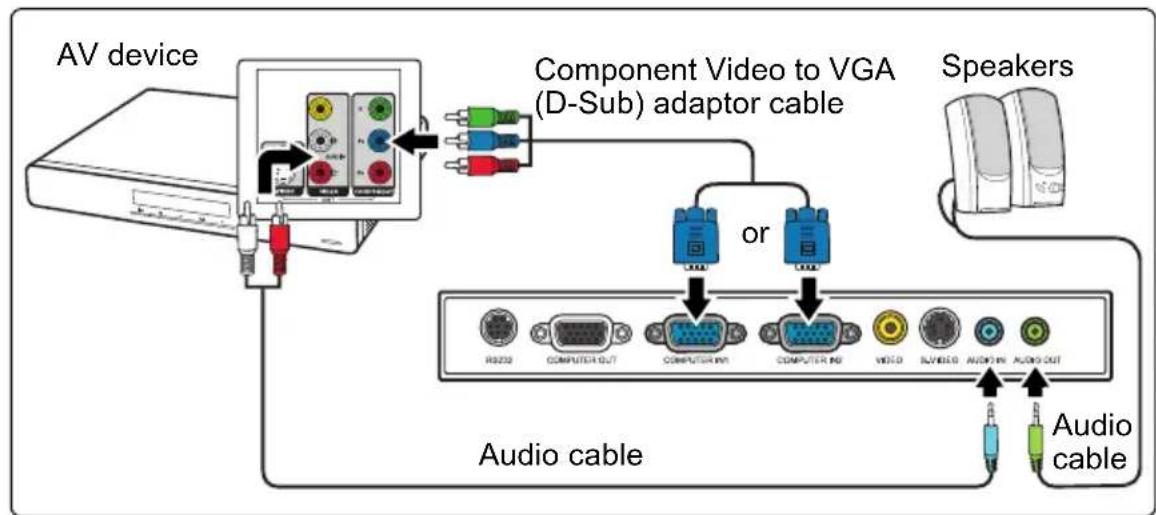
Connecting a Component Video source device
Examine your Video source device to determine if it has a set of unused Component Video output sockets available:
- If so, you can continue with this procedure.
- If not, you will need to reassess which method you can use to connect to the device.
To connect the projector to a Component Video source device:
- Take a Component Video to VGA (D-Sub) adaptor cable and connect the end with 3 RCA type connectors to the Component Video output sockets of the Video source device. Match the color of the plugs to the color of the sockets; green to green, blue to blue, and red to red.
- Connect the other end of the Component Video to VGA (D-Sub) adaptor cable (with a D-Sub type connector) to the COMPUTER IN 1 or COMPUTER IN 2 socket on the projector.
- If you wish to make use of the projector (mixed mono) speaker in your presentations, take a suitable audio cable and connect one end of the cable to the audio output socket of the device, and the other end to the AUDIO IN socket of the projector.
- If you wish, you can use another suitable audio cable and connect one end of the cable to the AUDIO OUT socket of the projector, and the other end to your external speakers
Once connected, the audio can be controlled by the projector On-Screen Display (OSD) menus.
The final connection path should be like that shown in the following diagram:

- The projector is only capable of playing mixed mono audio, even if a stereo audio input is connected. See "Connecting audio" on page 15 for details.
- If the selected video image is not displayed after the projector is turned on and the correct video source has been selected, check that the Video source device is turned on and operating correctly. Also check that the signal cables have been connected correctly.

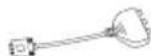
VGA-Component adapter (ViewSonic P/N:CB-00008906)
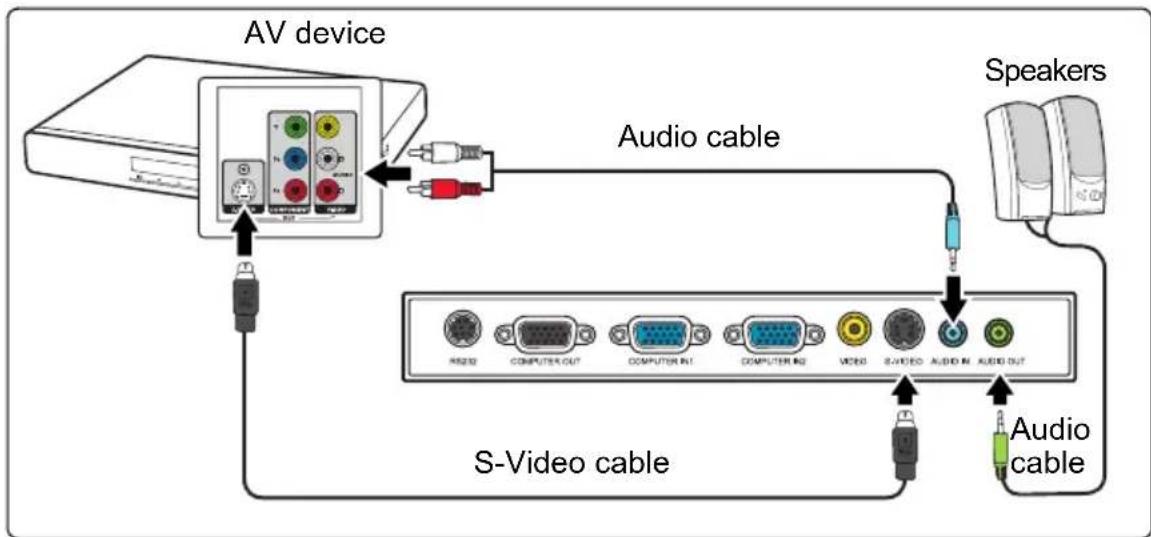
Connecting an S-Video source device
Examine your Video source device to determine if it has an unused S-Video output socket available:
- If so, you can continue with this procedure.
- If not, you will need to reassess which method you can use to connect to the device.
To connect the projector to an S-Video source device:
- Take an S-Video cable and connect one end to the S-Video output socket of the Video source device.
- Connect the other end of the S-Video cable to the S-VIDEO socket on the projector.
- If you wish to make use of the projector (mixed mono) speaker in your presentations, take a suitable audio cable and connect one end of the cable to the audio output socket of the device, and the other end to the AUDIO IN socket of the projector.
- If you wish, you can use another suitable audio cable and connect one end of the cable to the AUDIO OUT socket of the projector, and the other end to your external speakers
Once connected, the audio can be controlled by the projector On-Screen Display (OSD) menus.
The final connection path should be like that shown in the following diagram:

- The projector is only capable of playing mixed mono audio, even if a stereo audio input is connected. See "Connecting audio" on page 15 for details.
- If the selected video image is not displayed after the projector is turned on and the correct video source has been selected, check that the Video source device is turned on and operating correctly. Also check that the signal cables have been connected correctly.
- If you have already made a Component Video connection between the projector and this S-Video source device using Component Video connections, you need not connect to this device using an S-Video connection as this makes an unnecessary second connection of poorer picture quality. See "Connecting Video source devices" on page 15 for details.
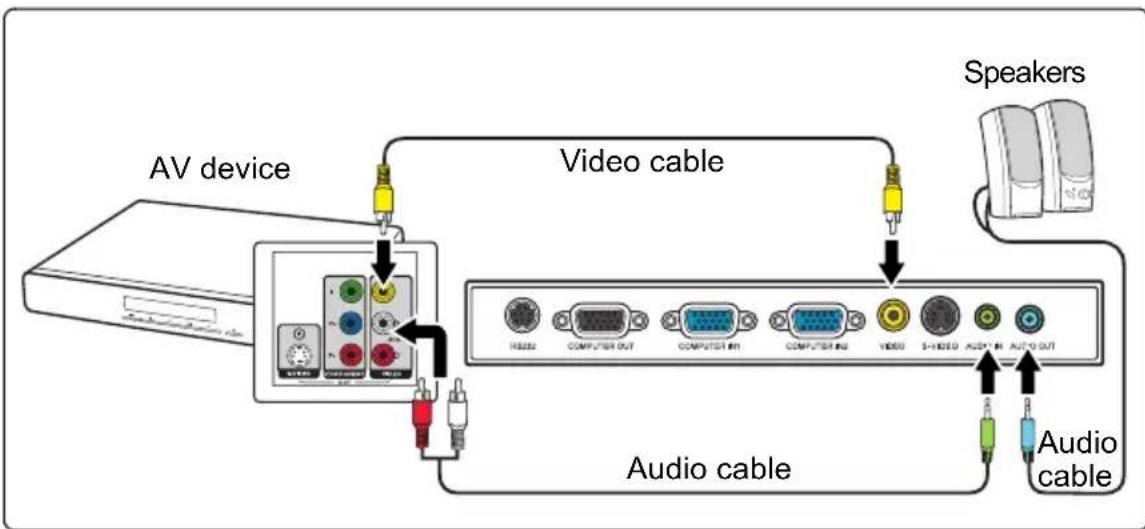
Connecting a composite Video source device
Examine your Video source device to determine if it has a set of unused composite Video output sockets available:
- If so, you can continue with this procedure.
- If not, you will need to reassess which method you can use to connect to the device.
To connect the projector to a composite Video source device:
- Take a Video cable and connect one end to the composite Video output socket of the Video source device.
- Connect the other end of the Video cable to the VIDEO socket on the projector.
- If you wish to make use of the projector (mixed mono) speaker in your presentations, take a suitable audio cable and connect one end of the cable to the audio output socket of the device, and the other end to the AUDIO IN socket of the projector.
- If you wish, you can use another suitable audio cable and connect one end of the cable to the AUDIO OUT socket of the projector, and the other end to your external speakers
Once connected, the audio can be controlled by the projector On-Screen Display (OSD) menus.
The final connection path should be like that shown in the following diagram:

- The projector is only capable of playing mixed mono audio, even if a stereo audio input is connected. See "Connecting audio" on page 15 for details.
- If the selected video image is not displayed after the projector is turned on and the correct video source has been selected, check that the Video source device is turned on and operating correctly. Also check that the signal cables have been connected correctly.
- You need only connect to this device using a composite Video connection if Component Video and S-Video inputs are unavailable for use. See "Connecting Video source devices" on page 15 for details.
Starting up the projector
-
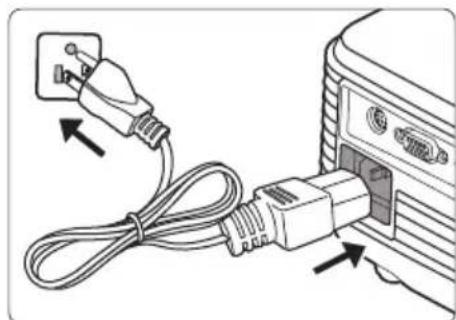
Plug the power cord into the projector and into a wall socket. Turn on the wall socket switch (where fitted). Check that the POWER indicator light on the projector flashes blue after power has been applied.
-
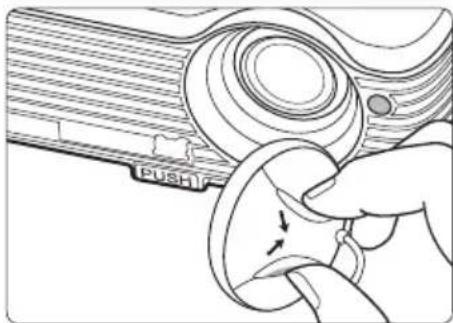
Remove the lens cap. If it is closed, it could become deformed due to the heat produced by the projection lamp.
- Press POWER on the projector or remote control to start the projector. The POWER indicator light stays blue when the projector is on.
The start up procedure takes about 30 seconds. In the later stage of start up, a startup logo is projected.
(If necessary) Rotate the focus ring to adjust the image clearness.
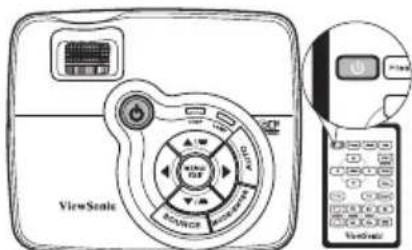

- If the projector is still hot from previous activity, it will run the cooling fan for approximately 90 seconds before energizing the lamp.
-
To maintain the lamp life, once you turn the projector on, wait at least 5 minutes before turning it off.
-
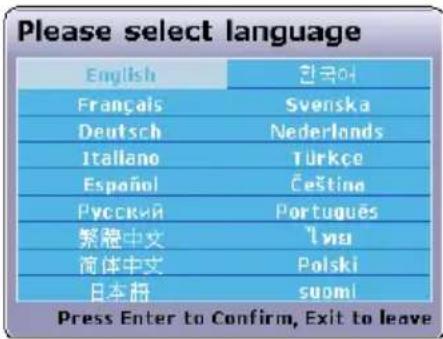
If the projector is activated for the first time, select your OSD language following the on-screen instructions.
-
Switch all of the connected equipment on.
- The projector will start to search for input signals. The current input signal being scanned appears in the upper left corner of the screen. If the projector doesn't detect a valid signal, the message 'No Signal' will continue to be displayed until an input signal is found.
You can also press SOURCE on the projector or remote control to select your desired input signal. See "Switching input signal" on page 24 for details.

If the frequency/resolution of the input signal exceeds the projector's operating range, you will see the message 'Out of Range' displayed on a blank screen. Please change to an input signal which is compatible with the projector's resolution or set the input signal to a lower setting.
See "Timing chart" on page 52 for details.
Using the menus
The projector is equipped with On-Screen Display (OSD) menus for making various adjustments and settings.
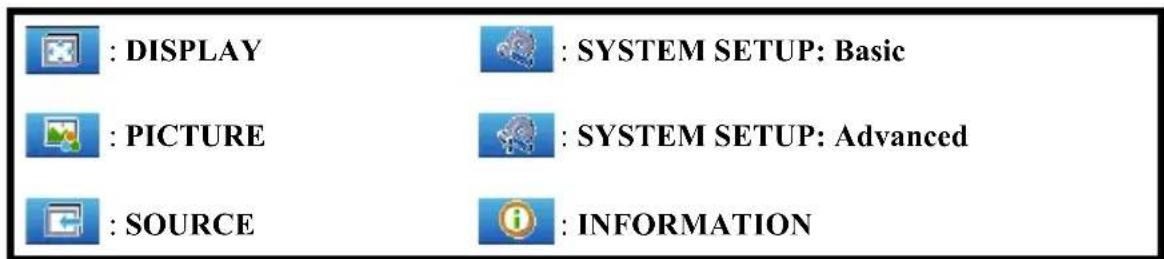
Below is the overview of the OSD menu.
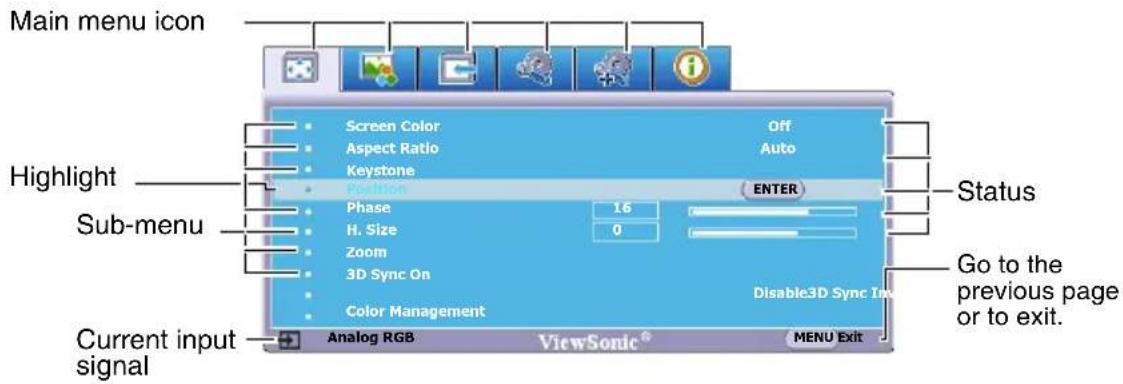
To use the OSD menus, please set them to your familiar language first.
- Press MENU/EXIT on the projector or MENU on the remote control to turn the OSD menu on.
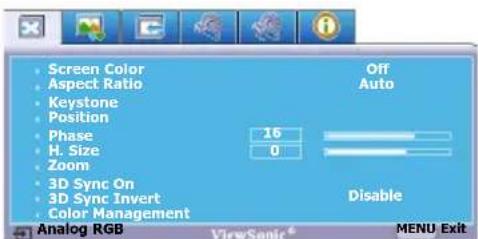
2.Use / to highlight the SYSTEM SETUP:Basic menu.
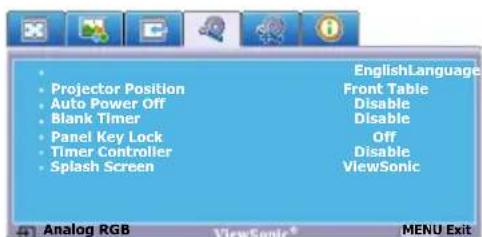
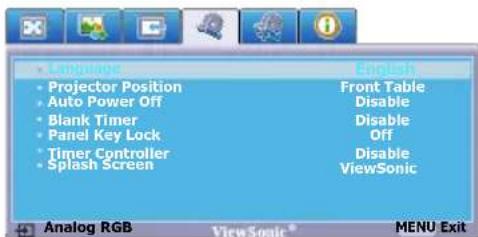
- Press to highlight Language and press to select a preferred language.
ENGLISH/ FRANÇAIS/ DEUTSCH/ITALIANO/ ESPÁNOL/ PYCCKNI/繁體中文/简体中文/日本語/韓国어/Svenska/Nederland's/Türkce/Cestina/Portugues/Tulunna/Polski/Suomi
- Press MENU/EXIT twice* on the projector or Exit on the remote control to leave and save the settings.
*The first press leads you back to the main menu and the second press closes the OSD menu.
Utilizing the password function
For security purposes and to help prevent unauthorized use, the projector includes an option for setting up password security. The password can be set through the On-Screen Display (OSD) menu. For details of the OSD menu operation, please refer to "Using the menus" on page 21.

You will be inconvenienceed if you activate the password functionality and subsequently forget the password. Print this user manual (if necessary) and write the password you used in this manual, and keep it in a safe place for later use.
Setting a password

Once a password has been set, the projector cannot be used unless the correct password is entered every time the projector is started.
- Open the OSD menu and go to the SYSTEM SETUP: Advanced > Security Settings menu. Press MODE/ENTER on the projector or Enter on the remote control. The Security Settings page is displayed.
- Highlight Power On Lock and select On by pressing / .
- As pictured to the right, the four arrow keys ( , ▲▶,▼) respectively represent 4 digits (1,2,3,4). According to the password you desire to set, press the arrow keys to enter six digits for the password.
- Confirm the new password by re-entering the new password.

Once the password is set, the OSD menu returns to the Security Settings page.

The digits being input will be displayed as asterisks on-screen. Write your selected password down here in this user manual in advance or right after the password is entered so that it is available to you should you ever forget it.
Password:
Keep this user manual in a safe place.
- To leave the OSD menu, press MENU/EXIT on the projector or Exit on the remote control.
If you forget the password
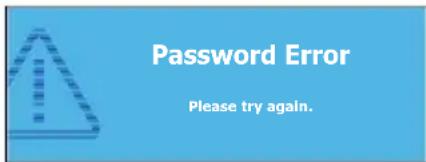
If the password function is activated, you will be asked to enter the six-digit password every time you turn on the projector. If you enter the wrong password, the password error message as pictured to the right is displayed lasting for three seconds, and the message
'INPUT PASSWORD' follows. You can retry by entering another six-digit password, or if you did not
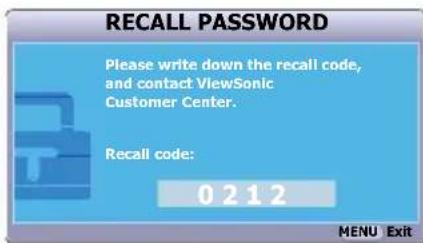
record the password in this user manual, and you absolutely do not remember it, you can use the password recall procedure. See "Entering the password recall procedure" on page 23 for details.
If you enter an incorrect password 5 times in succession, the projector will automatically shut down in a short time.
Entering the password recall procedure
- Press and hold AUTO on the projector or remote control for 3 seconds. The projector will display a coded number on the screen.
- Write down the number and turn off your projector.
- Seek help from the local service center to decode the number. You may be required to provide proof of purchase documentation to verify that you are an authorized user of the projector.
Changing the password
- Open the OSD menu and go to the SYSTEM SETUP: Advanced > Security Settings > Change Password menu.
- Press MODE/ENTER on the projector or Enter on the remote control. The message 'INPUT CURRENT PASSWORD' is displayed.
-
Enter the old password.
-
If the password is correct, another message 'INPUT NEW PASSWORD' is displayed.
-
If the password is incorrect, the password error message is displayed lasting for three seconds, and the message 'INPUT CURRENT PASSWORD' is displayed for your retry. You can press MENU/EXIT on the projector or Exit on the remote control to cancel the change or try another password.
-
Enter a new password.
The digits being input will be displayed as asterisks on-screen. Write your selected password down here in this user manual in advance or right after the password is entered so that it is available to you should you ever forget it.
Password:
Keep this user manual in a safe place.
- Confirm the new password by re-entering the new password.
- You have successfully assigned a new password to the projector. Remember to enter the new password next time the projector is started.
- To leave the OSD menu, press MENU/EXIT on the projector or Exit on the remote control.
Disabling the password function
To disable password protection, go back to the SYSTEM SETUP: Advanced > Security Settings > Power On Lock menu after opening the OSD menu system. Select Off by pressing / . The message 'INPUT PASSWORD' is displayed. Enter the current password.
- If the password is correct, the OSD menu returns to the Security Settings page with 'Off' shown in the row of Power On Lock. You will not have to enter the password next time you turn on the projector.
- If the password is incorrect, the password error message is displayed lasting for three seconds, and the message 'INPUT PASSWORD' is displayed for your
retry. You can press MENU/EXIT on the projector or Exit on the remote control to cancel the change or try another password.

Though the password function is disabled, you need to keep the old password in hand should you ever need to re-activate the password function by entering the old password.
Switching input signal
The projector can be connected to multiple devices at the same time. However, it can only display one full screen at a time.
Be sure the Quick Auto Search function in the SOURCE menu is On if you want the projector to automatically search for the signals.
You can also manually cycle through the available input signals.
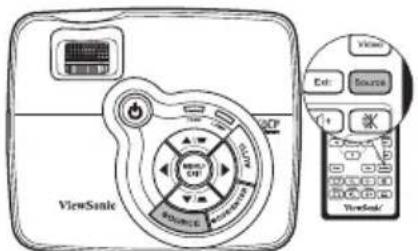
- Press SOURCE on the projector or remote control. A source selection bar is displayed.
- Press / until your desired signal is selected and press MODE/ENTER on the projector or Enter on the remote control. Once detected, the selected source information will be displayed on the screen for seconds. If there are multiple devices connected to the projector, repeat steps 1-2 to search for another signal.

- The brightness level of the projected image will change accordingly when you switch between different input signals. Data (graphic) "PC" presentations using mostly static images are generally brighter than "Video" using mostly moving images (movies).
- The input signal type effects the options available for the Color Mode. See "Selecting a picture mode" on page 29 for details.
- The native display resolution of this projector is in a 4:3 aspect ratio. For best display picture results, you should select and use an input signal which outputs at this resolution. Any other resolutions will be scaled by the projector depending upon the 'aspect ratio' setting, which may cause some image distortion or loss of picture clarity. See "Selecting the aspect ratio" on page 27 for details.
Adjusting the projected image Adjusting the projection angle
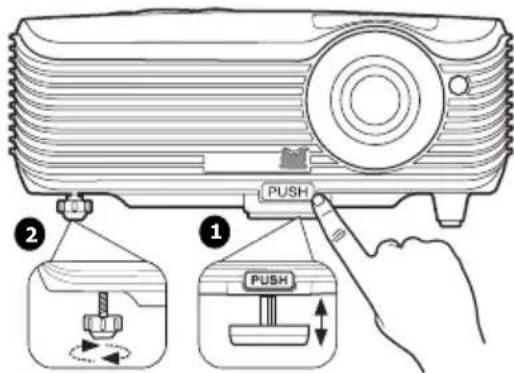
The projector is equipped with 1 quick-release adjuster foot and 1 rear adjuster foot. These adjusters change the image height and projection angle. To adjust the projector:
- Press the quick-release button and lift the front of the projector. Once the image is positioned where you want it, release the quick-release button to lock the foot in position.
- Screw the rear adjuster foot to fine tune the horizontal angle.
To retract the foot, hold up the projector while pressing the quick-release button, then slowly lower the projector. Screw the rear adjuster foot in a reverse direction.
If the projector is not placed on a flat surface or the screen and the projector are not perpendicular to each other, the projected image becomes trapezoidal. To correct this situation, see "Correcting keystone" on page 26 for details.

- Do not look into the lens while the lamp is on. The strong light from the lamp may cause damage to your eyes.
- Be careful when you press the adjuster button as it is close to the exhaust vent where hot air comes from.
Auto-adjusting the image
In some cases, you may need to optimize the picture quality. To do this, press AUTO on the projector or remote control. Within 3 seconds, the built-in Intelligent Auto Adjustment function will re-adjust the values of Frequency and Clock to provide the best picture quality.
The current source information will be displayed in the upper left corner of the screen for 3 seconds.
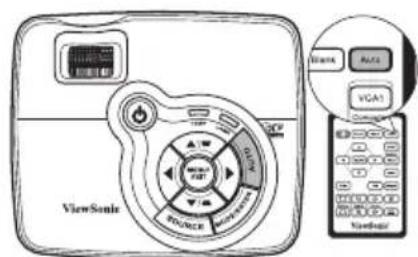

The screen will be blank while AUTO is functioning.
- This function is only available when PC signal (analog RGB) is selected.
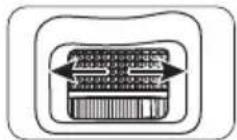
Fine-tuning the image size and clarity
- Adjust the projected image to the size that you need using the zoom ring.
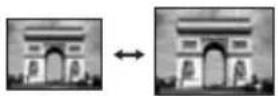
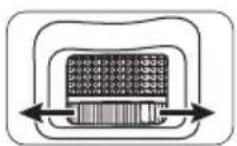
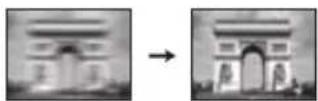
- Then sharpen the image by rotating the focus ring.
Correcting keystone
Keystoning refers to the situation where the projected image is noticeably wider at either the top or bottom. It occurs when the projector is not perpendicular to the screen.
To correct this, besides adjusting the height of the projector, you will need to manually correct it following one of these steps.
- Using the remote control
Press the projector or remote control to display the Keystone correction page. Press to correct keystoning at the top of the image. Press to correct keystoning at the bottom of the image.
-
Using the OSD menu
-
Press MENU/EXIT on the projector or MENU on the remote control and then press until the DISPLAY menu is highlighted.
-
Press to highlight Keystone and press MODE/ENTER on the projector or Enter on the remote control. The Keystone correction page is displayed.
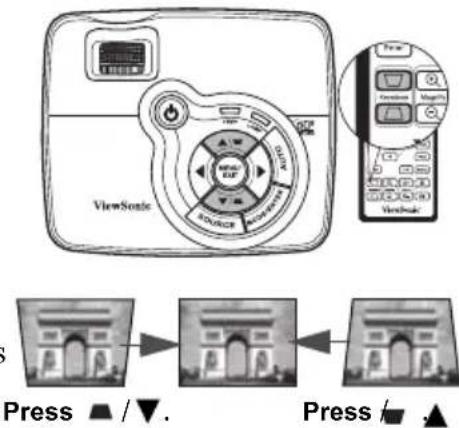
- Press to correct keystoning at the top of the image or press to correct keystoning at the bottom of the image.
Magnifying and searching for details
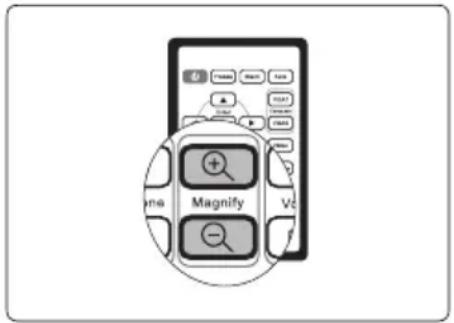
If you need to find the details on the projected picture, magnify the picture. Use the direction arrow keys for navigating the picture.
-
Using the remote control
-
Press Magnify +/- to display the Zoom bar.
- Press Magnify + to magnify the center of the picture. Press the key repeatedly until the picture size is suitable for your need.
3.Use the directional arrows (,,) n the projector or remote control to navigate the picture. - To restore the picture to its original size, press AUTO. You can also press Magnify -. When the key is pressed again, the picture is further reduced until it is restored to the original size.
-
Using the OSD menu
-
Press MENU/EXIT on the projector or MENU on the remote control and then press until the DISPLAY menu is highlighted.
- Press to highlight Zoom and press MODE/ENTER on the projector or Enter on the remote control. The Zoom bar is displayed.
- Repeat steps 2-4 in the section of "Using the remote control" above. Or if you are using the projector control panel, continue to the following steps.
- Press on the projector repeatedly to magnify the picture to a desired size.
- To navigate the picture, press MODE/ENTER on the projector or Enter on the remote control to switch to the paning mode and press the directional arrows (▲, ▼, ▽) to navigate the picture.
- Use the directional arrows (·, ·, ·) in the projector or remote control to navigate the picture.
- To reduce size of the picture, press MODE/ENTER on the projector or Enter on the remote control to switch back to the zoom in/out functionality, and press AUTO to restore the picture to its original size. You can also press repeatedly until it is restored to the original size.
The picture can only be navigated after the picture is magnified. You can further magnify the picture while searching for details.
Selecting the aspect ratio
The 'aspect ratio' is the ratio of the image width to the image height. Most analog TV and computers are in 4:3 ratio, which is the default for this projector, and digital TV and DVDs are usually in 16:9 ratio.
With the advent of digital signal processing, digital display devices like this projector can dynamically stretch and scale the image output to a different aspect than that of the image input signal.
To change the projected image ratio (no matter what aspect the source is):
-
Press MENU/EXIT on the projector or MENU on the remote control and then press until the DISPLAY menu is highlighted.
-
Press to highlight Aspect Ratio.
-
Press / to select an aspect ratio to suit the format of the video signal and your display requirements.
About the aspect ratio

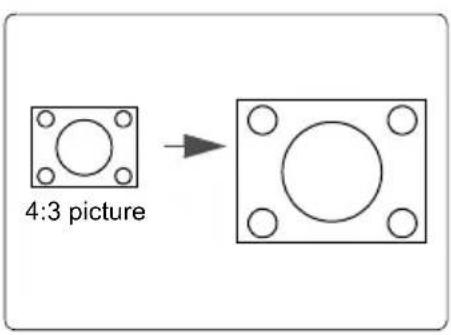
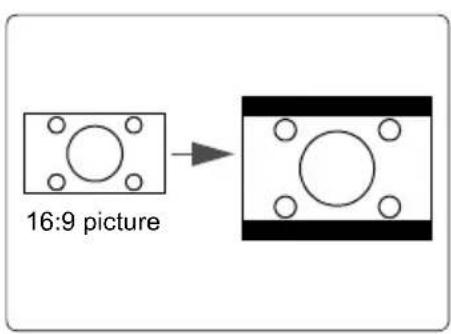
In the pictures below, the black portions are inactive areas and the white portions are active areas. OSD menus can be displayed on those unused black areas.
- Auto: Scales an image proportionally to fit the projector's native resolution in its horizontal width. This is suitable for the incoming image which is neither in 4:3 nor 16:9 and you want to make most use of the screen without altering the image's aspect ratio.
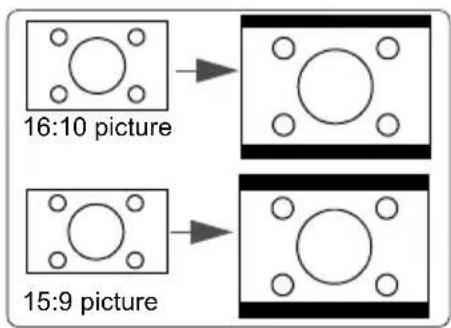
- 4:3: Scales an image so that it is displayed in the center of the screen with a 4:3 aspect ratio. This is most suitable for 4:3 images like computer monitors, standard definition TV and 4:3 aspect DVD movies, as it displays them without aspect alteration.
- 16:9: Scales an image so that it is displayed in the center of the screen with a 16:9 aspect ratio. This is most suitable for images which are already in a 16:9 aspect, like high definition TV, as it displays them without aspect alteration.
Optimizing the image Selecting a picture mode
The projector is preset with several predefined picture modes so that you can choose one to suit your operating environment and input signal picture type.
To select an operation mode that suits your need, you can follow one of the following steps.
- Press MODE/ENTER on the projector or Color Mode on the remote control repeatedly until your desired mode is selected.

- Go to the PICTURE > Color Mode menu and press / to select a desired mode.
Picture modes for different types of signals
The picture modes available for different types of signals are listed below.
PC input signals: D-Sub / Comp. 1/2 (analog RGB)
- Brightest mode: Maximizes the brightness of the projected image. This mode is suitable for environments where extra-high brightness is required, such as using the projector in well lit rooms.
- Daylight mode: Is designed for presentations under daylight environment to match PC and notebook coloring.
- ViewMatch mode: Switch in between high brightness performance or Accuracy color performance.
- Cinema mode: Is appropriate for playing colorful movies, video clips from digital cameras or DVs through the PC input for best viewing in a blackened (little light) environment.
- User 1/User 2 mode: Recalls the settings customized based on the current available picture modes. See "Setting the User 1/User 2 mode" on page 30 for details.
Video input signals: S-Video, Video, D-Sub / Comp. 1/2 (YPbPr)
- Brightest mode: Optimized for daylight viewing, with living room level ambient brightness.
- Gaming mode: Suitable for all types of entertainment media, including gaming and movies.
- ViewMatch mode: Switch in between high brightness performance or Accuracy color performance.
- Cinema mode: Is suitable for enjoying dark movies or DVD movies best viewed in a blackened (little light) home cinema or lounge room environment.
- User 1/User 2 mode: Recalls the settings customized based on the current available picture modes. See "Setting the User 1/User 2 mode" on page 30 for details.
Setting the User 1/User 2 mode
There are two user-definable modes if the current available picture modes are not suitable for your need. You can use one of the picture modes (except the User 1/User 2) as a starting point and customize the settings.
- Press MENU/EXIT on the projector or MENU on the remote control to open the On-Screen Display (QSD) menu.
- Go to the PICTURE Color Mode menu.
- Press to select User 1 or User 2.
- Press to highlight Reference Mode.

This function is only available when User 1 or User 2 mode is selected up in the Color Mode sub-menu item.
- Press / to select a picture mode that is closest to your need.
- Press to select a sub-menu item to be changed and adjust the value with / . See "Fine-tuning the image quality in user modes" below for details.
- When all settings have been done, highlight Save Settings and press MODE/ENTER on the projector or Enter on the remote control to store the settings.
- The confirmation message 'Setting Saved' is displayed.
Using Screen Color
In the situation where you are projecting onto a colored surface such as a painted wall which may not be white, the Screen Color feature can help correct the projected picture's colors to prevent possible color difference between the source and projected pictures.
To use this function, go to the DISPLAY > Screen Color menu and press / to select a color which is closest to the color of the projection surface. There are several precalibrated colors to choose from: Whiteboard, Greenboard, and Blackboard.

This function is only available when a PC type input signal is selected.
Fine-tuning the image quality in user modes
According to the detected signal type, there are some user-definable functions available when User 1 or User 2 mode is selected. You can make adjustments to these functions based on your needs.
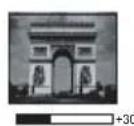
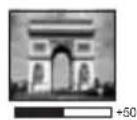
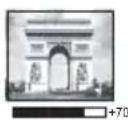
Adjusting Brightness
Highlight the PICTURE > Brightness menu and press /
The higher the value, the brighter the image. And the lower the setting, the darker the image. Adjust this control so the black areas of the image appear just as black and that detail in the dark areas is visible.
Adjusting Contrast
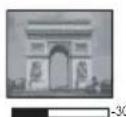
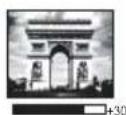
Highlight the PICTURE > Contrast menu and press /
The higher the value, the greater the contrast. Use this to set the peak white level after you have previously adjusted the Brightness setting to suit your selected input and viewing environment.
Adjusting Color
Highlight the PICTURE > Color menu and press /
Lower setting produces less saturated colors. If the setting is too high, colors on the image will be overpowering, which makes the image unrealistic.
Adjusting Tint
Highlight the PICTURE > Tint menu and press /
The higher the value, the more reddish the picture becomes. The lower the value, the more greenish the picture becomes.
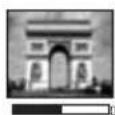
Adjusting Sharpness
Highlight the PICTURE > Sharpness menu and press / .
The higher the value, the sharper the picture becomes. The lower the value, the softer the picture becomes.
Adjusting Brilliant Color
Highlight the PICTURE > Brilliant Color menu and press /
This feature utilizes a new color-processing algorithm and system level enhancements to enable higher brightness while providing truer, more vibrant colors in the projected picture. It enables a greater than 50% brightness increase in mid-tone images, which are common in video and natural scenes, so the projector reproduces images in realistic and true colors. If you prefer images with that quality, select On. If you don't need it, select Off.
When Off is selected, the Color Temperature function is not available.
Selecting a Color Temperature
Highlight the PICTURE > Color Temperature menu and press /
The options available for color temperature* settings vary according to the signal type selected.
- T1: With the highest color temperature, T1 makes the image appear the most bluish white than other settings.
- T2: Makes images appear bluish white.
- T3: Maintains normal colorings for white.
- T4: Makes images appear reddish white.
*About color temperatures:
There are many different shades that are considered to be "white" for various purposes. One of the common methods of representing white color is known as the "color temperature". A white color with a low color temperature appears to be reddish white. A white color with a high color temperature appears to have more blue in it.
Color Management
Only in permanent installations with controlled lighting levels such as boardrooms, lecture theaters, or home theaters, should color management be considered. Color management provides fine color control adjustment to allow for more accurate color reproduction, should you require it.
If you have purchased a test disc which contains various color test patterns and can be used to test the color presentation on monitors, TVs, projectors, etc., you can project any image from the disc on the screen and enter the Color Management menu to make adjustments.
To adjust the settings:
- Go to the DISPLAY menu and highlight Color Management.
- Press MODE/ENTER on the projector or Enter on the remote control and the Color Management page is displayed.
- Highlight Primary Color and press / to select a color from among Red, Yellow, Green, Cyan, Blue, or Magenta.
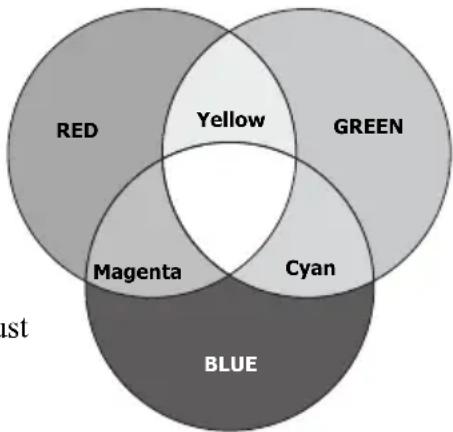
- Press to highlight Hue and press / to select its range. Increase in the range will include colors consisted of more proportions of its two adjacent colors.
Please refer to the illustration to the right for how the colors relate to each other.
For example, if you select Red and set its range at 0, only pure red in the projected picture will be selected. Increasing its range will include red close to yellow and red close to magenta.
- Press to highlight Saturation and adjust its values to your preference by pressing
Every adjustment made will reflect to the image immediately.
For example, if you select Red and set its value at 0, only the saturation of pure red will be affected.

Saturation is the amount of that color in a video picture. Lower settings produce less saturated colors; a setting of "0" removes that color from the image entirely. If the saturation is too high, that color will be overpowering and unrealistic.
- Press to highlight Gain and adjust its values to your preference by pressing / . The contrast level of the primary color you select will be affected. Every adjustment made will reflect to the image immediately.
- Repeat steps 3 to 6 for other color adjustments.
- Make sure you have made all of the desired adjustments.
- Press MENU/EXIT on the projector or Exit on the remote control to exit and save the settings.
Hiding the image
In order to draw the audience's full attention to the presenter, you can use the projector or Blank on the remote control to hide the screen image. Press any key on the projector or remote control to restore the image. The word 'BLANK' appears at the lower right corner of the screen while the image is hidden.
You can set the blank time in the SYSTEM SETUP: Basic > Blank Timer menu to let the projector return the image automatically after a period of time when there is no action taken on the blank screen.
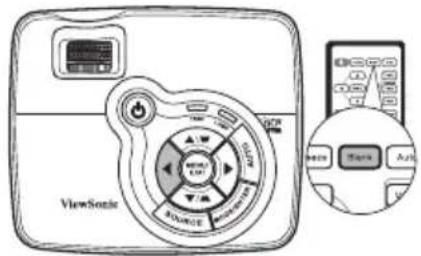

Once Blank is pressed, the projector enters Economic mode automatically.

CAUTION
Do not block the projection lens from projecting as this could cause the blocking object to become heated and deformed or even cause a fire.
Locking control keys
With the control keys on the projector locked, you can prevent your projector settings from being changed accidentally (by children, for example). When the Panel Key Lock is on, no control keys on the projector will operate except LOWER.
- Press on the projector or go to the
SYSTEM SETUP: Basic > Panel Key
Lock menu, and select On by pres on the projector or remote control.
- A confirmation message is displayed. Select Yes to confirm.
To release panel key lock, press and hold for 3 seconds on the projector.

You can also use the remote control to enter the SYSTEM SETUP: Basic > Panel Key Lock and press / to select Off.

-
Keys on the remote control are still functional when panel key lock is enabled.
-
If you press POWER to turn off the projector without disabling panel key lock, the projector will still be in locked status the next time it is turned on.
Freezing the image
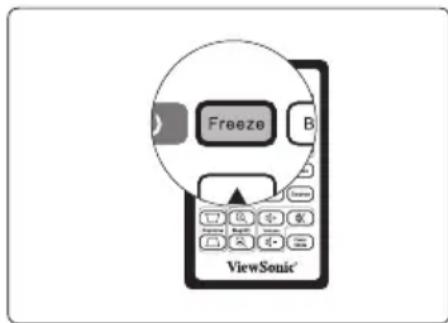
Press Freeze on the remote control to freeze the image. The word 'FREEZE' will be displayed in the upper left corner of the screen. To release the function, press any key on the projector or remote control.
Even if an image is frozen on the screen, the pictures are running on the video or other device. If the connected devices have active audio output, you will still hear the audio even though the image is frozen on screen.
Operating in a high altitude environment
We recommend you use the High Altitude Mode when your environment is between 1500 m-3000 m above sea level, and temperature is between 0^ - 35^ .
CAUTION
Do not use the High Altitude Mode if your altitude is between 0 m and 1500 m and temperature is between 0^ and 35^ . The projector will be over cooled, if you turn the mode on under such a condition.
To activate the High Altitude Mode:
-
Press MENU/EXIT on the projector or MENU on the remote control and then press until the SYSTEM SETUP: Advanced menu is highlighted.
-
Press to highlight High Altitude Mode and press / to select On. A confirmation message is displayed.
- Highlight Yes and press MODE/ENTER on the projector or Enter on the remote control.
Operation under "High Altitude Mode" may cause a higher decibel operating noise level because of increased fan speed necessary to improve overall system cooling and performance.
If you use this projector under other extreme conditions excluding the above, it may display auto shut-down symptoms, which is designed to protect your projector from over-heating. In cases like this, you should switch to High Altitude Mode to solve these symptoms. However, this is not to state that this projector can operate under any and all harsh or extreme conditions.
Personalizing the projector menu display
The On-Screen Display (OSD) menus can be set according to your preferences. The following settings do not affect the projection settings, operation, or performance.
- Menu Display Time in the SYSTEM SETUP: Advanced > Menu Settings menu sets the length of time the OSD will remain active after your last key press. The time length ranges from 5 to 30 seconds in 5-second increments. Use to select a suitable time frame.
- Menu Position in the SYSTEM SETUP: Advanced > Menu Settings menu sets the OSD position in five locations. Use to select a preferred position.
- Language in the SYSTEM SETUP: Basic menu sets your familiar language for the OSD menus. Use to select your language.
- Splash Screen in the SYSTEM SETUP: Basic menu sets a preferred logo screen to be displayed during projector start-up. Use to select a screen.
Shutting down the projector
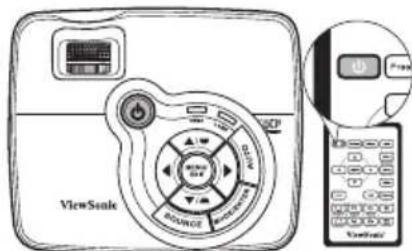
- Press POWER and a confirmation message is displayed prompting you.
If you don't respond in a few seconds, the message will disappear.
- Press POWER a second time. The POWER indicator light flashes blue, the projection lamp shuts down, and the fans will continue to run for approximately 90 seconds to cool down the projector.
- Disconnect the power cord from the wall socket if the projector will not be used in an extended period of time.

CAUTION
- To protect the lamp, the projector will not respond to any commands during the cooling process.
- To shorten the cooling time, you can also activate the Quick Cooling function. See "Quick Cooling" on page 40 for details.
- Do not unplug the power cord before the projector shutdown sequence is complete or during the 90-second cooling down process.
- If the projector is not properly shut down, to protect the lamp, when you attempt to re-start the projector, the fans will run for a few minutes to cool down. Press POWER again to start the projector after the fans stop and the POWER indicator light flashes blue.
Menu operation
Menu system
Please note that the on-screen display (OSD) menus vary according to the signal type selected.
The menu items are available when the projector detects at least one valid signal. If there is no equipment connected to the projector or no signal detected, limited menu items are accessible.
| Main menu | Sub-menu Options | |
| 1. DISPLAY | Screen Color | Off/Whiteboard/Greenboard/Blackboard |
| Aspect Ratio Auto/4:3/16:9 | ||
| Keystone | ||
| Position | ||
| Phase | ||
| H. Size | ||
| Zoom | ||
| 3D Sync TI 3D DLP Link/Off | ||
| 3D Sync Invert Disable/Invert | ||
| Color Management | Primary Color R/G/B/C/M/Y | |
| Hue | ||
| Saturation | ||
| Gain | ||
| 2. PICTURE | Color Mode | PC source: Brightest/Daylight/ViewMatch/Cinema/User 1/User 2Video source: Brightest/Gaming/ViewMatch/Cinema/User 1/User 2 |
| Reference Mode | PC source: Brightest/Daylight/ViewMatch/CinemaVideo source: Brightest/Gaming/ViewMatch/Cinema | |
| Brightness | ||
| Contrast | ||
| Color | ||
| Tint | ||
| Sharpness | ||
| Brilliant Color On/Off | ||
| Color Temperature T1/T2/T3/T4 | ||
| Save Settings | ||
| 3. SOURCE | Quick Auto Search On/Off | |
| 4. SYSTEM SETUP: Basic | Language | ENGLISH/ FRANÇAIS/DEUTSCH/ITALIANO/ESPÁÑOL/PYCCKÍN/繁體中文/簡体中文/日本語/韓語/Svenska/Nederlanden/Südkönje/Céstina/Português/Türkce/Polski/Suomi | |
| Projector Position | Front Table/Rear Table/Rear Ceiling/Front Ceiling | ||
| Auto Power Off | Disable/5 min/10 min/20 min/30 min/40 min/50 min/60 min | ||
| Blank Timer | Disable/5 min/10 min/15 min/20 min/25 min/30 min | ||
| Panel Key Lock On/Off | |||
| Timer Controller | Disable/30 min/1 hr/2 hr/3 hr/4 hr/8 hr/12 hr | ||
| Splash Screen Black/Blue/ViewSonic | |||
| Message On/Off | |||
| 5. SYSTEM SETUP: Advanced | Quick Cooling On/Off | ||
| High Altitude Mode On/Off | |||
| DCR On/Off | |||
| Active VGA Out On/Off | |||
| Audio Settings | Mute On/Off | ||
| Volume | |||
| Active Audio Out On/Off | |||
| Menu Settings | Menu Display Time | 5 sec/10 sec/15 sec/20 sec/25 sec/30 sec | |
| Menu Position | Center/Top-Left/Top-Right/Bottom-Left/Bottom-Right | ||
| Closed Caption | Closed Caption Enable | On/Off | |
| Caption Version CC1/CC2/CC3/CC4 | |||
| Lamp Settings | Lamp Mode Normal/Economic | ||
| Reset Lamp Timer | |||
| Equivalent Lamp Hour | |||
| Security Settings | Change Password | ||
| Power On Lock On/Off | |||
| Reset All Settings | On/Off | ||
| 6. INFORMATION | Current System Status | Source Color Mode Resolution Color System Equivalent Lamp Hour | |
Description of each menu
| Function Description | ||
| 1. DISPLAY menu | Screen Color | Corrects the projected picture's color when the projection surface is not white. See "Using Screen Color" on page 30 for details. |
| Aspect Ratio | There are three options to set the image's aspect ratio depending on your input signal source. See "Selecting the aspect ratio" on page 27 for details. | |
| Keystone | Corrects any keystoning of the image. See "Correcting keystone" on page 26 for details. | |
| Position | Displays the position adjustment page. To move the projected image, use the directional arrow keys. The values shown on the lower position of the page change with every key press you made until they reach their maximum or minimum. | |
| Phase | Adjusts the clock phase to reduce image distortion. | |
| H. Size | Adjusts the horizontal width of the image. | |
| Zoom | Magnifies or reduces the projected image. See "Magnifying and searching for details" on page 27 for details. | |
| 3D Sync | This projector features a 3D function which enables you to enjoy the 3D movies, videos, and sporting events in a more realistic way by presenting the depth of the images. You need to wear a pair of 3D glasses to view the 3D images. • T I 3 D D L P L i n k: Enable projector for TI 3D DLP Link. • Off: Disable 3D. When the 3D Sync function is on: • The brightness level of the projected image will decrease. • The Color Mode cannot be adjusted. • The Keystone can only be adjusted within limited degrees. • The Zoom can only magnify the pictures to limited sizes. | |
| 3D Sync Invert | When you discover the inversion of the image depth, enable this function to correct the problem. (For TI 3D DLP Link only) | |
| Color Management | See "Color Management" on page 32 for details. | |
| Function Description | ||
| 2.PICTURE menu | Color Mode | Pre-defined picture modes are provided so you can optimize your projector image set-up to suit your program type. See "Selecting a picture mode" on page 29 for details. |
| Reference Mode | Selects a picture mode that most suits your need for the image quality and further fine-tune the image based on the selections listed on the same page below. See "Setting the User 1/User 2 mode" on page 30 for details. | |
| Brightness | Adjusts the brightness of the image. See "Adjusting Brightness" on page 30 for details. | |
| Contrast | Adjusts the degree of difference between dark and light in the image. See "Adjusting Contrast" on page 30 for details. | |
| Color | Adjusts the color saturation level -- the amount of each color in a video image. See "Adjusting Color" on page 31 for details. | |
| Tint | Adjusts the red and green color tones of the image. See "Adjusting Tint" on page 31 for details. The function is only available when Video or S-Video with NTSC system is selected. | |
| Sharpness | Adjusts the image to make it look sharper or softer. See "Adjusting Sharpness" on page 31 for details. | |
| Brilliant Color | Adjusts white peaking while maintaining correct color presentation. See "Adjusting Brilliant Color" on page 31 for details. | |
| Color Temperature | See "Selecting a Color Temperature" on page 31 for details. | |
| Save Settings | Saves the settings made for the User 1 or User 2 mode. | |
| 3.SOURCE | Quick Auto Search | See "Switching input signal" on page 24 for details. |
| 4. SYSTEM SETUP: Basic menu | Language | Sets the language for the On-Screen Display (OSD) menus. See "Using the menus" on page 21 for details. |
| Projector Position | The projector can be installed on a ceiling or behind a screen, or with one or more mirrors. See "Choosing a location" on page 11 for details. | |
| Auto Power Off | Allows the projector to turn off automatically if no input signal is detected after a set period of time. See "Setting Auto Power Off" on page 44 for details. | |
| Blank Timer | Sets the image blank time when the Blank feature is activated, once elapsed the image will return to the screen. See "Hiding the image" on page 33 for details. | |
| Panel Key Lock | Disables or enables all panel key functions except POWER on the projector and keys on the remote control. See "Locking control keys" on page 33 for details. | |
| Timer Controller | Sets the auto-shutdown timer. The timer can be set to a value between 30 minutes and 12 hours. | |
| Splash Screen | Allows you to select which logo screen will be displayed during projector start-up. Three options are available: ViewSonic logo, Black screen, or Blue screen. | |
| Message | Selecting On displays the current information on the screen when the projector is detecting or searching for a signal. | |
| 5. SYSTEM SETUP: Advanced menu | Quick Cooling | Selecting On enables the function and the projector cooling time will be shortened to a few seconds. If you attempt to restart the projector right after the quick cooling process, it may not be turned on successfully and will rerun its cooling fans. |
| High Altitude Mode | A mode for operation in high altitude areas. See "Operating in a high altitude environment" on page 34 for details. | |
| DCR | Enables or disables the DCR (Dynamic Contrast Ratio) function. Selecting On enables the function and the projector will automatically switch the lamp mode between normal and economic modes according to the input image detected. This function is only available when a PC source is in use. After enabling DCR, frequent lamp mode switching may shorten lamp life and noise level will vary during operation. | |
| Function Description | ||
| 5. SYSTEM SETUP: Advanced menu | Active VGA Out | Selecting On outputs a VGA signal when the COMPUTER IN 1/COMPUTER IN 2 and COMPUTER OUT sockets are correctly connected to devices. See "Connecting a monitor" on page 14 for how to make the connection. |
| Audio Settings | The sound adjustments made as below will have an effect on the projector speaker. Be sure you have made a correct connection to the projector audio input. See "Connection" on page 13 for how the audio input is connected. | |
| Mute | ||
| Mutes the sound. | ||
| Volume | ||
| Adjusts the sound level | ||
| Active Audio Out | ||
| Selecting On outputs an audio signal when the AUDIO IN and AUDIO OUT sockets are correctly connected to devices. | ||
| Menu Settings | Menu Display Time | |
| Sets the length of time the OSD will remain active after your last key press. The range is from 5 to 30 seconds in 5-second increments. | ||
| Menu Position | ||
| Sets the On-Screen Display (OSD) menu position. | ||
| Closed Caption | Closed Caption Enable | |
| Activates the function by selecting On when the selected input signal carries closed captions. | ||
| • Captions: An on-screen display of the dialogue, narration, and sound effects of TV programs and videos that are closed captioned (usually marked as "CC" in TV listings). | ||
| Set your screen aspect ratio to 4:3. This function is not available when the aspect ratio is "16:9".This function is only available when a Composite video or S-Video input signal is selected and its system format is NTSC. | ||
| Caption Version | ||
| Selects a preferred closed captioning mode. To view captions, select CC1, CC2, CC3, or CC4 (CC1 displays captions in the primary language in your area). | ||
| 5. SYSTEM SETUP: Advanced menu | Lamp Settings | Lamp ModeSee "Setting Lamp mode as Economic" on page 44 for detailsReset Lamp TimerSee "Resetting the lamp timer" on page 48 for details.Equivalent Lamp HourSee "Getting to know the lamp hour" on page 44 for details on how the total lamp hour is calculated. |
| Security Settings | See "Utilizing the password function" on page 22 for details, | |
| Reset All Settings | Returns all settings to the factory preset values.The following settings will still remain: Phase, H. Size, User 1, User 2, Language, Projector Position, High Altitude Mode, Security Settings. | |
| 6. INFORMATION menu | Current System Status | SourceShows the current signal source.Color ModeShows the selected mode in the PICTURE menu.ResolutionShows the native resolution of the input signal.Color SystemShows input system format, NTSC, PAL, SECAM, or RGB.Equivalent Lamp HourDisplays the number of hours the lamp has been used. |
Care of the projector
Your projector needs little maintenance. The only thing you need to do on a regular basis is to keep the lens clean.
Never remove any parts of the projector except the lamp. Contact your dealer if other parts need replacing.
Cleaning the lens
Clean the lens whenever you notice dirt or dust on the surface.
- Use a canister of compressed air to remove dust.
- If there is dirt or smears, use lens-cleaning paper or moisten a soft cloth with lens cleaner and gently wipe the lens surface.
CAUTION
Never rub the lens with abrasive materials.
Cleaning the projector case
Before you clean the case, turn the projector off using the proper shutdown procedure as described in "Shutting down the projector" on page 35 and unplug the power cord.
- To remove dirt or dust, wipe the case with a soft, lint-free cloth.
- To remove stubborn dirt or stains, moisten a soft cloth with water and a neutral pH detergent. Then wipe the case.
CAUTION
Never use wax, alcohol, benzene, thinner or other chemical detergents. These can damage the case.
Storing the projector
If you need to store the projector for an extended time, please follow the instructions below:
- Make sure the temperature and humidity of the storage area are within the recommended range for the projector. Please refer to "Specifications" on page 51 or consult your dealer about the range.
- Retract the adjuster feet.
- Remove the battery from the remote control.
- Pack the projector in its original packing or equivalent.
Transporting the projector
It is recommended that you ship the projector with its original packing or equivalent.
Lamp information
Getting to know the lamp hour
When the projector is in operation, the duration (in hours) of lamp usage is automatically calculated by the built-in timer.
To obtain the lamp hour information:
- Press MENU/EXIT on the projector or MENU on the remote control and then press until the SYSTEM SETUP: Advanced menu is highlighted.
- Press to highlight Lamp Settings and press MODE/ENTER on the projector or Enter on the remote control. The Lamp Settings page is displayed.
- You will see the Equivalent lamp hour information on the menu.
- To leave the menu, press MENU/EXIT on the projector or Exit on the remote control.
You can also get the lamp hour information on the INFORMATION menu.
Extending lamp life
The projection lamp is a consumable item. To keep the lamp life as long as possible, you can do the following settings via the OSD menu.
Setting Lamp mode as Economic
Using Economic mode reduces system noise and power consumption by 20% . If the Economic mode is selected, the light output will be reduced and result in darker projected pictures.
Setting the projector in Economic mode also extends the lamp operation life. To set Economic mode, go into the SYSTEM SETUP: Advanced > Lamp Settings > Lamp mode menu and press
Setting Auto Power Off
This function allows the projector to turn off automatically if no input source is detected after a set period of time to prevent unnecessary waste of lamp life.
To set Auto Power Off, go into the SYSTEM SETUP: Basic > Auto Power Off menu and press / . If the preset time lengths are not suitable for your presentation, select Disable. The projector will not automatically shut down in a certain time period.
Timing of replacing the lamp
When the Lamp indicator lights up red or a message appears suggesting it is time to replace the lamp, please install a new lamp or consult your dealer. An old lamp may cause a malfunction in the projector and in some instances the lamp may explode.
CAUTION
The Lamp indicator light and Temperature warning light will light up if the lamp becomes too hot. Turn the power off and let the projector cool for 45 minutes. If the Lamp or Temp indicator still lights up after turning the power back on, please contact your dealer. See "Indicators" on page 49 for details.
The following lamp warning displays will remind you to change the lamp.
| Status Message | |
| The lamp has been in operation for 3500 hours.Install a new lamp for optimal performance. If the projector is normally run with Economic selected (See "Setting Lamp mode as Economic" on page 44), you may continue to operate the projector until the 3950 hour lamp warning appears. | Notice Order Replacement Lamp Lamp > 3500 Hours OK |
| The lamp has been in operation for 3950 hours. A new lamp should be fitted to avoid the inconvenience when the projector runs out of lamp time. | Notice Replace Lamp Soon Lamp > 3950 Hours OK |
| The lamp has been in operation for 4000 hours.It is strongly recommended that you replace the lamp at this age. The lamp is a consumable item.The lamp brightness diminishes with use. This is normal lamp behavior. You can replace the lamp whenever you notice that the brightness level has significantly diminished. If the lamp is not replaced beforehand, it must be replaced after 4000 hours usage. | Notice Replace Lamp Now Lamp > 4000 Hours Lamp usage time exceeded OK |
| The lamp MUST be replaced before the projector will operate normally. | Notice Lamp usage time exceeded Replace lamp (refer to User Manual) Then reset lamp timer OK |
Replacing the lamp
To prepare a new lamp, contact your dealer and tell the lamp type number.
Type number: RLC-055(PJD5122/PJD5211/PJD5221)
RLC-056 (PJD5231)

WARNING
Hg - Lamp contains mercury. Manage in accordance with local disposal laws. See www.lamprecycle.org
- To reduce the risk of electrical shock, always turn the projector off and disconnect the power cord before changing the lamp.
- To reduce the risk of severe burns, allow the projector to cool for at least 45 minutes before replacing the lamp.
- To reduce the risk of injuries to fingers and damage to internal components, use caution when removing lamp glass that has shattered into sharp pieces. Before replacing the lamp, clean the lamp compartment and dispose of cleaning materials. Be careful of sharp edges in the lamp compartment. Wash hands after lamp replacement.
-
Only ViewSonic certified lamps are tested with this projector. Use of other lamps may cause electrical shock and fire.
-
Turn the power off and disconnect the projector from the wall socket. If the lamp is hot, avoid burns by waiting for approximately 45 minutes until the lamp has cooled.
-
Turn the projector over. Then loosen the screws on the lamp cover.
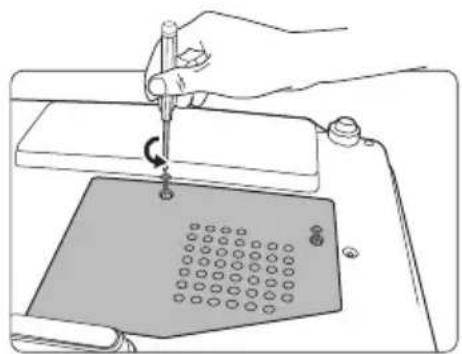
- Remove the lamp cover from the projector.

WARNING
-
Do not turn the power on with the lamp cover removed.
-
Do not insert your fingers between the lamp and the projector. The sharp edges inside the projector may cause injuries.
-
Loosen the screw that secures the lamp.
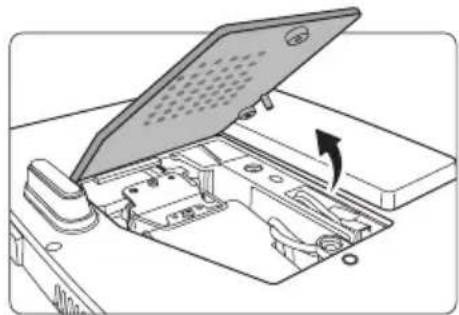

- Pull out the lamp connector from a slot in the lamp compartment. Disconnect it from the projector as illustrated.
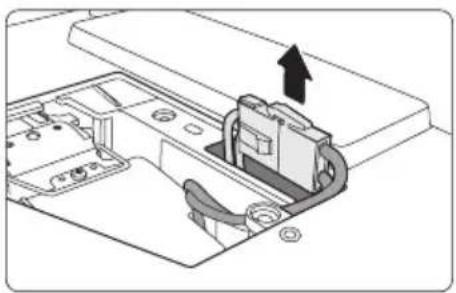
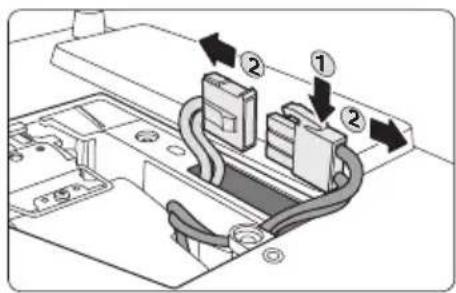
- Lift the handle so that it stands up. Use the handle to slowly pull the lamp out of the projector.
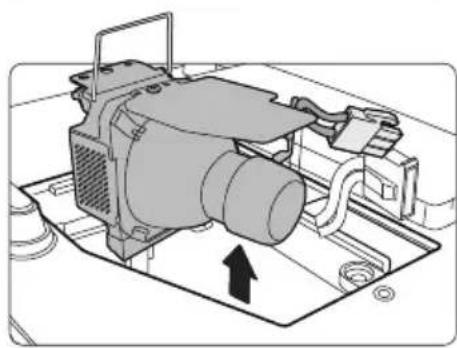
CAUTION
Pulling it too quickly may cause the lamp to break and scatter broken glass in the projector.
-
Do not place the lamp in locations where water might splash on it, children can reach it, or near flammable materials.
-
Do not insert your hands into the projector after the lamp is removed. If you touch the optical components inside, it could cause color unevenness and distortion of the projected images.
-
Insert the new lamp into the lamp compartment and make sure it fits in the projector.
-
Reconnect the lamp connector and place it back into its slot to be flush with the projector.
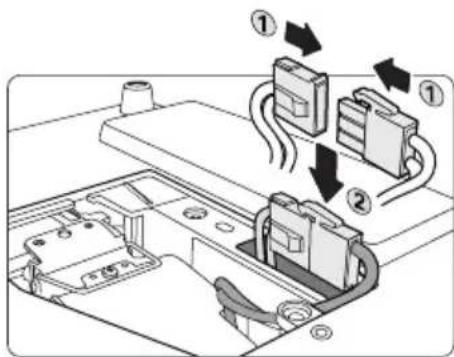
- Tighten the screw that secures the lamp.
CAUTION
- Loose screw may cause a bad connection, which could result in malfunction.
- Do not over tighten the screw.
- Ensure the handle is fully laid flat and locked in place.
- Replace the lamp cover on the projector.
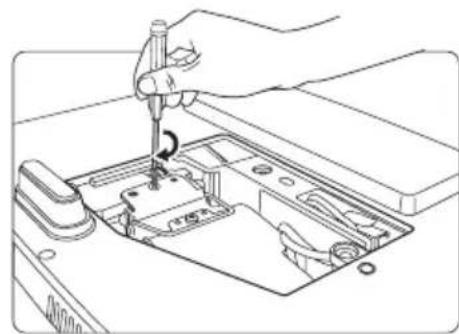
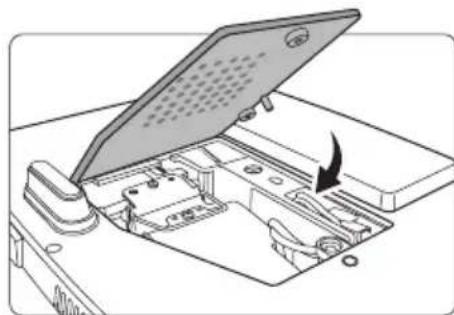
- Tighten the screws that secure the lamp cover.
CAUTION
- Loose screw may cause a bad connection, which could result in malfunction.
- Do not over tighten the screws.
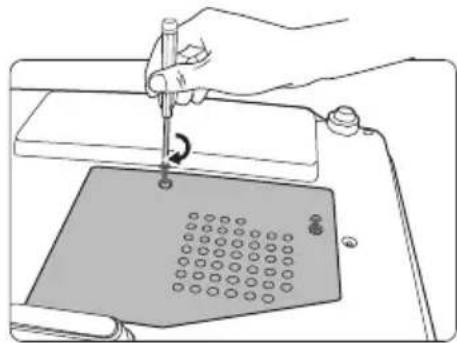
- Restart the projector.
CAUTION
Do not turn the power on with the lamp cover removed.
Resetting the lamp timer
- After the startup logo, open the On-Screen
Display (OSD) menu. Go to the SYSTEM SETUP: Advanced > Lamp Settings menu.
Press MODE/ENTER on the projector or Enter on the remote control. The Lamp Settings page is displayed. Press to highlight Reset lamp
timer and press MODE/ENTER on the projector or Enter on the remote control. A warning
message is displayed asking if you want to reset
the lamp timer. Highlight Reset and press MODE/ENTER on the projector or Enter on the remote control. The lamp time will be reset to '0'.
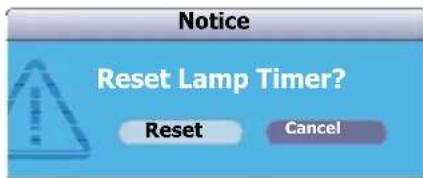
CAUTION
Do not reset if the lamp is not new or replaced as this could cause damage.
Indicators
| Light Status & | Description | ||
| Power | Temp Lamp | ||
| Power events | |||
| Blue Flashing | Off Off | Stand-by mode | |
| Blue Off Off | Powering up | ||
| Blue Off Off | Normal operation | ||
| Blue Flashing | Off Off | 1. The projector needs 90 seconds to cool down as it was abnormally shut down without the normal cooling down process. Or2. The projector needs to cool for 90 seconds after the power is turned off. Or3. The projector has shut down automatically. If you try to re-start the projector, it will shut down again. Please contact your dealer for assistance. | |
| Lamp events | |||
| Purple Flashing | Off Red | The projector has shut down automatically. If you try to re-start the projector, it will shut down again. Please contact your dealer for assistance. | |
| Off Off | Red | 1. The projector needs 90 seconds to cool down. Or2. Please contact your dealer for assistance. | |
| Thermal events | |||
| Off Red Off | The projector has shut down automatically. If you try to re-start the projector, it will shut down again. Please contact your dealer for assistance. | ||
| Off Red Red | |||
| Off Red Green | |||
| Red Red Red | |||
| Red Red Green | |||
| Blue Red Red | |||
| Blue Red Green | |||
| Purple Red Red | |||
| Purple Red Green | |||
| Off Green Red | |||
The projector does not turn on.
| Cause Remedy | |
| There is no power from the power cord. | Plug the power cord into the AC inlet on the projector, and plug the power cord into the power outlet. If the power outlet has a switch, make sure that it is switched on. |
| Attempting to turn the projector on again during the cooling process. | Wait until the cooling down process has completed. |
⑦ No picture
| Cause Remedy | |
| The video source is not turned on or connected correctly. | Turn the video source on and check that the signal cable is connected correctly. |
| The projector is not correctly connected to the input signal device. | Check the connection. |
| The input signal has not been correctly selected. | Select the correct input signal with the SOURCE key on the projector or remote control. |
| The lens cover is still closed. Open the | lens cover. |
⑦ Blurred image
| Cause Remedy | |
| The projection lens is not correctly focused. | Adjust the focus of the lens using the focus ring. |
| The projector and the screen are not aligned properly. | Adjust the projection angle and direction as well as the height of the projector if necessary. |
| The lens cover is still closed. Open the lens cover. | |
⑦ Remote control does not work
| Cause Remedy | |
| The battery is out of power. Replace the battery with a new one. | |
| There is an obstacle between the remote control and the projector. | Remove the obstacle. |
| You are too far away from the projector. | Stand within 8 meters (26 feet) of the projector. |
Projector specifications

All specifications are subject to change without notice.
| General | |
| Product name Digital Projector | |
| Optical | |
| Resolution • PJD5122: 800 x | 600 SVGA • PJD5211/PJD5221/PJD5231: 1024 x 768 XGA |
| Display system 1-CHIP DMD | |
| Lens F/Number F = 2.57 to 2 | 65, f = 21 to 23.1 mm |
| Lamp • PJD5122/PJD5211/P | D5221: 220 W lamp (RLC-055) • PJD5231: 210 W lamp (RLC-056) |
| Electrical | |
| Power supply AC100-240V, | 2.9 A, 50/60 Hz (Automatic) |
| Power consumption 315 W (Max); < 1 W (Standby) | |
| Mechanical | |
| Dimensions | 264 mm (W) x 96.4 mm (H) x 225 mm (D) |
| Weight 2.3 Kg (5.07 lbs) | |
| Input terminal | |
| Computer input | |
| RGB input D-Sub 15-pin (female) x 2 | |
| Video signal input | |
| S-VIDEO Mini DIN 4-pin | port x 1 |
| VIDEO RCA jack x 1 | |
| SD/HDTV signal input | Analog - D-Sub <> Component RCA jack x 3 (through RGB input) |
| Output terminal | |
| RGB output | D-Sub 15-pin (female) x 1 |
| Speaker | 1 watt (mono) x 1 |
| Control terminal | |
| RS-232 serial control | 8 pin x 1 |
| Environmental Requirements | |
| Operating temperature | 0°C-40°C at sea level |
| Operating relative humidity | 10%-90% (without condensation) |
| Operating altitude | • 0-1499 m at 0°C-35°C • 1500-3000 m at 0°C-30°C (with High Altitude Mode on) |
Dimensions
264mm W × 96.4mm H × 225mm D
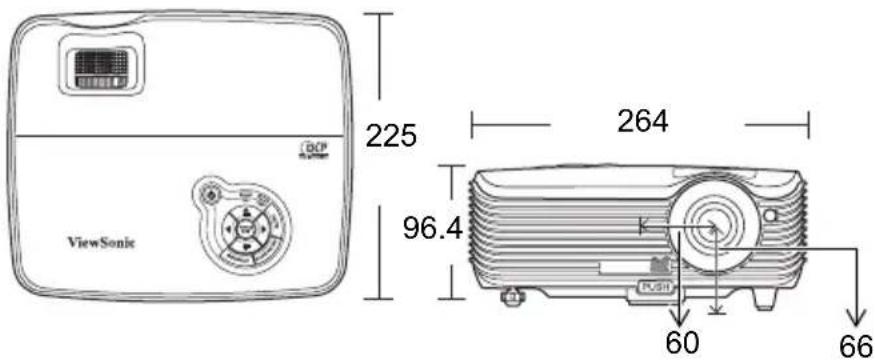
Ceiling mount installation
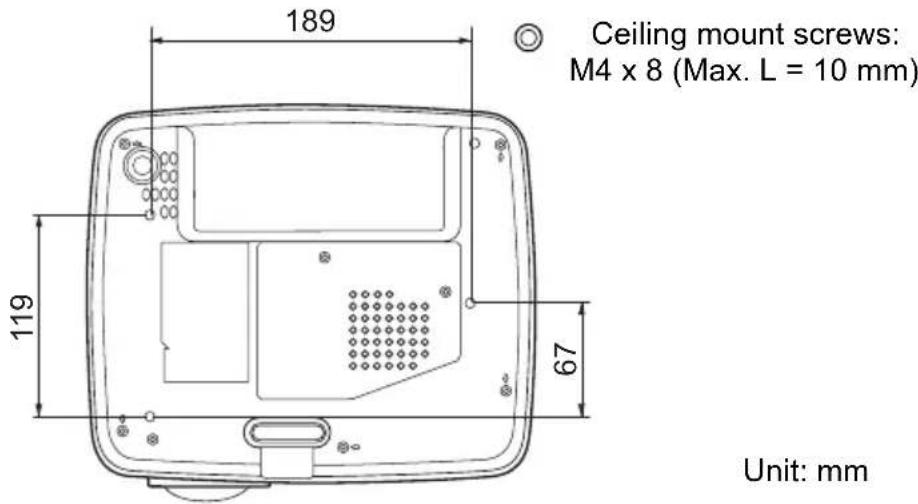
Timing chart
Supported timing for PC input
| Resolution | Horizontal Frequency (kHz) | Vertical Frequency (Hz) | Pixel Frequency (MHz) | Mode |
| 720 x 400 | 31.469 | 70.087 | 28.3221 | 720 x 400_70 |
| 640 x 480 | 31.469 59.94 | 25.175 VGA_60 | ||
| 37.861 72.809 | 31.5 VGA_72 | |||
| 37.5 75 31.5 | VGA_75 | |||
| 43.269 85.008 | 36 VGA_85 | |||
| 24.688 49.673 | 19.75 VGA_50 | |||
| 61.91 119.518 | 52.5 VGA_120 | |||
| 800 x 600 | 37.879 60.317 | 40 SVGA_60 | ||
| 48.077 72.188 | 50 SVGA_72 | |||
| 46.875 75 49.5 | SVGA_75 | |||
| 53.674 85.061 | 56.25 SVGA_85 | |||
| 30.998 49.916 | 30.75 SVGA_50 | |||
| 77.425 119.854 | 83 | SVGA_120 | ||
| \( {1024} \times {768} \) | 48.363 60.004 | 65 XGA_60 | ||
| 56.476 70.069 | 75 XGA_70 | |||
| 60.023 75.029 | 78.75 XGA_75 | |||
| 68.667 84.997 | 94.5 XGA_85 | |||
| 39.634 49.98 52 XGA_50 | ||||
| 98.958 119.80 | 137.75 XGA_120 | |||
| \( {1280} \times {800} \) | 49.702 59.81 83.5 WXGA_60 | |||
| 62.795 74.934 | 106.5 WXGA_75 | |||
| 71.554 84.88 | 22.5 WXGA_85 | |||
| \( {1280} \times {960} \) | 60 | 60 | 108 | \( {1280} \times {960}\;{60} \) |
| 85.938 85.002 | 148.51280 x 960_85 | |||
| \( {1440} \times {900} \) | 55.935 | 59.887 | 106.5 | WXGA+ 60 |
| \( {1400} \times {1050} \) | 65.317 | 59.978 | 121.75 | SXGA+ 60 |
| \( {1600} \times {1200} \) | 75 | 60 | 162 | UXGA |
| \( {640} \times {480}@{67}\mathrm{{Hz}} \) | 35 | 66.667 | 30.24 | MAC13 |
| \( {832} \times {624}@{75}\mathrm{{Hz}} \) | 49.722 | 74.546 | 57.28 | MAC16 |
| \( {1024} \times {768}@{75}\mathrm{{Hz}} \) | 60.241 | 75.02 | 80 | MAC19 |
| \( {1152} \times {870}@{75}\mathrm{{Hz}} \) | 68.68 | 75.06 | 100 | MAC21 |

1024 x 768@120Hz is not supported for the PJD5122.
Supported timing for Component-YPbPr input
| Signal Format | Horizontal Frequency (kHz) | Vertical Frequency (Hz) |
| 480i(525i)@60Hz | 15.73 | 59.94 |
| 480p(525p)@60Hz | 31.47 | 59.94 |
| 576i(625i)@50Hz | 15.63 | 50.00 |
| 576p(625p)@50Hz | 31.25 | 50.00 |
| 720p(750p)@60Hz | 45.00 | 60.00 |
| 720p(750p)@50Hz | 37.50 | 50.00 |
| 1080i(1125i)@60Hz | 33.75 | 60.00 |
| 1080i(1125i)@50Hz | 28.13 | 50.00 |
| 1080P@60HZ | 67.5 | 60 |
| 1080P@50Hz | 56.26 | 50 |

Displaying a 1080i(1125i)@60Hz or 1080i(1125i)@50Hz signal may result in slight image vibration.
Supported timing for Video and S-Video inputs
| Video mode | Horizontal Frequency (kHz) | Vertical Frequency (Hz) | Color sub-carrier Frequency (MHz) |
| NTSC | 15.73 | 60 | 3.58 |
| PAL | 15.63 | 50 | 4.43 |
| SECAM | 15.63 | 50 | 4.25 or 4.41 |
| PAL-M | 15.73 | 60 | 3.58 |
| PAL-N | 15.63 | 50 | 3.58 |
| PAL-60 | 15.73 | 60 | 4.43 |
| NTSC4.43 | 15.73 | 60 | 4.43 |
Copyright
Copyright 2010. All rights reserved. No part of this publication may be reproduced, transmitted, transcribed, stored in a retrieval system or translated into any language or computer language, in any form or by any means, electronic, mechanical, magnetic, optical, chemical, manual or otherwise, without the prior written permission of ViewSonic Corporation.
Disclaimer
ViewSonic Corporation makes no representations or warranties, either expressed or implied, with respect to the contents thereof and specifically disclaims any warranties, merchantability or fitness for any particular purpose. Further, ViewSonic Corporation reserves the right to revise this publication and to make changes from time to time in the contents thereof without obligation to notify any person of such revision or changes.
- DLP and Digital Micromirror Device (DMD) are trademarks of Texas Instruments. Others are copyrights of their respective companies or organizations.
IR control table
| Key Format | Byte1 | Byte2 | Byte3 | Byte4 | ||
| Power NEC | 83 F4 02 fd | |||||
| Freeze NEC | 83 F4 03 fc | |||||
| Up NEC 83 F4 0b f4 | ||||||
| Down NEC | 83 F4 0c f3 | |||||
| Left NEC | 83 F4 0d f2 | |||||
| Right | NEC 83 F4 0e f1 | |||||
| Color Mode | NEC 83 F4 10 ef | |||||
| Volume+ | NEC 83 F4 82 | 7d | ||||
| Volume- | NEC 83 F4 83 | 7c | ||||
| Auto | NEC | 83 | F4 | 08 | f7 | |
| Source | NEC | 83 | F4 | 04 | fb | |
| Blank | NEC | 83 | F4 | 07 | f8 | |
| Menu NEC | 83 F4 0f | f0 | ||||
| Magnify + | NEC 83 F4 18 e7 | |||||
| Magnify - | NEC 83 F4 19 e6 | |||||
| Enter | NEC 83 F4 15 ea | |||||
| Exit NEC 83 F4 85 7a | ||||||
| Mute | NEC | 83 | F4 | 14 | eb | |
| VGA1 | NEC 83 F4 41 be | |||||
| VGA2 | NEC 83 F4 45 ba | |||||
| Video | NEC | 83 | F4 | 52 | ad | |
| Keystone + | NEC 83 F4 09 F6 | |||||
| Keystone - | NEC 83 F4 0a F5 |
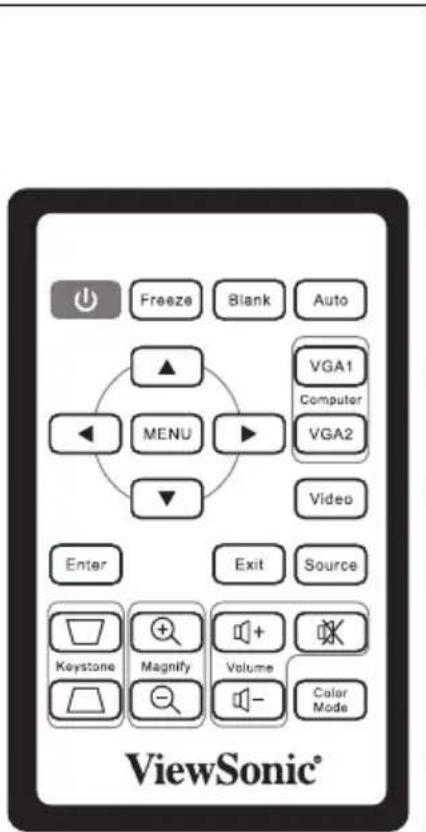
RS232 command table
| Pin | Description | Pin | Description |
| 1 | RX | 2 | CTS |
| 3 | NC | 4 | GND |
| 5 | RTS | 6 | NC |
| 7 | TX | 8 | GND |
| RS-232 protocol | |
| Baud Rate 115200 bps (default) | |
| Data Length 8 bit | |
| Parity Check None | |
| Stop Bit 1 bit | |
| Flow Control None | |
| Function Status Action | CMD | ||
| Power | Write Turn on 0x06 0x14 0x00 0x04 0x00 0x34 0x11 0x00 0x00 0x5D | ||
| Turn off 0x06 0x14 0x00 0x04 0x00 0x34 0x11 0x01 0x00 0x5E | |||
| Read | Power status (on/off) | 0x07 0x14 0x00 0x05 0x00 0x34 0x00 0x00 0x11 0x00 0x5E | |
| Reset Execute | 0x06 0x14 0x00 0x04 0x00 0x34 0x11 0x02 0x00 0x5F | ||
| High Altitude Mode | Write | High Altitude Mode Off | 0x06 0x14 0x00 0x04 0x00 0x34 0x11 0x0C 0x00 0x69 |
| High Altitude Mode On | 0x06 0x14 0x00 0x04 0x00 0x34 0x11 0x0C 0x01 0x6A | ||
| Read | High Altitude Mode status | 0x07 0x14 0x00 0x05 0x00 0x34 0x00 0x00 0x11 0xC 0xC | |
| Lamp Mode | Write | Lamp Mode Normal | 0x06 0x14 0x00 0x04 0x00 0x34 0x11 0x10 0x00 0x6D |
| Lamp Mode Economic | 0x06 0x14 0x00 0x04 0x00 0x34 0x11 0x10 0x01 0x6E | ||
| Read | Lamp Mode status | 0x07 0x14 0x00 0x05 0x00 0x34 0x00 0x00 0x11 0x10 0xC | |
| Projectile Position | Write | Front Table | 0x06 0x14 0x00 0x04 0x00 0x34 0x12 0x00 0x00 0x5E |
| Rear Table | 0x06 0x14 0x00 0x04 0x00 0x34 0x12 0x00 0x01 0x5F | ||
| Rear Ceiling | 0x06 0x14 0x00 0x04 0x00 0x34 0x12 0x00 0x02 0x60 | ||
| Front Ceiling | 0x06 0x14 0x00 0x04 0x00 0x34 0x12 0x00 0x03 0x61 | ||
| Read | Projectile position status | 0x07 0x14 0x00 0x05 0x00 0x34 0x00 0x00 0x12 0x00 0x5F | |
| 3D Sync | Write | Off | 0x06 0x14 0x00 0x04 0x00 0x34 0x12 0x20 0x00 0x7E |
| TI 3D DLP Link | 0x06 0x14 0x00 0x04 0x00 0x34 0x12 0x20 0x01 0x7F | ||
| Read | 3D Sync Status | 0x07 0x14 0x00 0x05 0x00 0x34 0x00 0x00 0x12 0x20 0x7F | |
| 3D Sync Invert | Write | Off | 0x06 0x14 0x00 0x04 0x00 0x34 0x12 0x21 0x00 0x7F |
| On | 0x06 0x14 0x00 0x04 0x00 0x34 0x12 0x21 0x01 0x80 | ||
| Read | 3D Sync Invert Status | 0x07 0x14 0x00 0x05 0x00 0x34 0x00 0x00 0x12 0x21 0x80 | |
| Contrast | Write | Contrast decrease | 0x06 0x14 0x00 0x04 0x00 0x34 0x12 0x02 0x00 0x60 |
| Contrast increase | 0x06 0x14 0x00 0x04 0x00 0x34 0x12 0x02 0x01 0x61 | ||
| Read | Contrast ratio | 0x07 0x14 0x00 0x05 0x00 0x34 0x00 0x00 0x12 0x02 0x61 | |
| Brightness | Write | Brightness decrease | 0x06 0x14 0x00 0x04 0x00 0x34 0x12 0x03 0x00 0x61 |
| Brightness increase | 0x06 0x14 0x00 0x04 0x00 0x34 0x12 0x03 0x01 0x62 | ||
| Read Brightness 0x07 | 0x14 0x00 0x05 0x00 0x34 0x00 0x00 0x12 0x03 0x62 | ||
| Aspect Ratio | Write | Aspect ratio Auto | 0x06 0x14 0x00 0x04 0x00 0x34 0x12 0x04 0x00 0x62 |
| Aspect ratio real | 0x06 0x14 0x00 0x04 0x00 0x34 0x12 0x04 0x01 0x63 | ||
| Aspect ratio 4:3 | 0x06 0x14 0x00 0x04 0x00 0x34 0x12 0x04 0x02 0x64 | ||
| Aspect ratio 16:9 | 0x06 0x14 0x00 0x04 0x00 0x34 0x12 0x04 0x03 0x65 | ||
| Read | Aspect ratio | 0x07 0x14 0x00 0x05 0x00 0x34 0x00 0x00 0x12 0x04 0x63 | |
| Auto Adjust Execute 0x06 | 0x14 0x00 0x04 0x00 0x34 0x12 0x05 0x00 0x63 | ||
| Horizontal Position | Write | Horizontal position shift right | 0x06 0x14 0x00 0x04 0x00 0x34 0x12 0x06 0x01 0x65 |
| Horizontal position shift left | 0x06 0x14 0x00 0x04 0x00 0x34 0x12 0x06 0x00 0x64 | ||
| Read | Horizontal position | 0x07 0x14 0x00 0x05 0x00 0x34 0x00 0x00 0x12 0x06 0x65 | |
| Vertical Position | Write | Vertical position shift up | 0x06 0x14 0x00 0x04 0x00 0x34 0x12 0x07 0x00 0x65 |
| Vertical position shift down | 0x06 0x14 0x00 0x04 0x00 0x34 0x12 0x07 0x01 0x66 | ||
| Read | read Vertical position | 0x07 0x14 0x00 0x05 0x00 0x34 0x00 0x00 0x12 0x07 0x66 | |
| Color temperature | Write | color temperature T1 | 0x06 0x14 0x00 0x04 0x00 0x34 0x12 0x08 0x00 0x66 |
| color temperature T2 | 0x06 0x14 0x00 0x04 0x00 0x34 0x12 0x08 0x01 0x67 | ||
| color temperature T3 | 0x06 0x14 0x00 0x04 0x00 0x34 0x12 0x08 0x02 0x68 | ||
| color temperature T4 | 0x06 0x14 0x00 0x04 0x00 0x34 0x12 0x08 0x03 0x69 | ||
| Read | color temperature status | 0x07 0x14 0x00 0x05 0x00 0x34 0x00 0x00 0x12 0x08 0x67 | |
| Blank | Write | Blank on 0x06 0x14 0x00 0x04 0x00 0x34 0x12 0x09 0x01 0x68 | |
| Blank off 0x06 0x14 0x00 0x04 0x00 0x34 0x12 0x09 0x00 0x67 | |||
| Read | Blank status | 0x07 0x14 0x00 0x05 0x00 0x34 0x00 0x00 0x12 0x09 0x68 | |
| Keystone-Vertical | Write | Decrease 0x06 0x14 0x00 0x04 0x00 0x34 0x12 0x0A 0x00 0x68 | |
| Increase 0x06 0x14 0x00 0x04 0x00 0x34 0x12 0x0A 0x01 0x69 | |||
| Read | Keystone status | 0x07 0x14 0x00 0x05 0x00 0x34 0x00 0x00 0x12 0xA0 A 0x69 | |
| Color Mode | Write | Brightest 0x06 0x14 0x00 0x04 0x00 0x34 0x12 0xB 0x00 0x69 | |
| Cinema 0x06 0x14 0x00 0x04 0x00 0x34 0x12 0xB 0x01 0xC6A | |||
| User 1 0x06 0x14 0x00 0x04 0x00 0x34 0x12 0xB 0x02 0xB | |||
| User 2 0x06 0x14 0x00 0x04 0x00 0x34 0x12 0xB 0x03 0xC6C | |||
| Daylight /Gaming | 0x06 0x14 0x00 0x04 0x00 0x34 0x12 0xB 0x04 0xD | ||
| ViewMatch 0x06 0x14 0x00 0x04 0x00 0x34 0x12 0xB 0x05 0xE | |||
| Read | Color Mode status | 0x07 0x14 0x00 0x05 0x00 0x34 0x00 0x00 0x12 0xB 0x6A | |
| Primary Color | Write | Primary color R | 0x06 0x14 0x00 0x04 0x00 0x34 0x12 0x10 0x00 0x6E |
| Primary color G | 0x06 0x14 0x00 0x04 0x00 0x34 0x12 0x10 0x01 0xF | ||
| Primary color B | 0x06 0x14 0x00 0x04 0x00 0x34 0x12 0x10 0x02 0x70 | ||
| Primary color C | 0x06 0x14 0x00 0x04 0x00 0x34 0x12 0x10 0x03 0x71 | ||
| Primary color M | 0x06 0x14 0x00 0x04 0x00 0x34 0x12 0x10 0x04 0x72 | ||
| Primary color Y | 0x06 0x14 0x00 0x04 0x00 0x34 0x12 0x10 0x05 0x73 | ||
| Read | Primary color status | 0x07 0x14 0x00 0x05 0x00 0x34 0x00 0x00 0x12 0x10 0xF | |
| Hue | Write | Hue decrease | 0x06 0x14 0x00 0x04 0x00 0x34 0x12 0x11 0x00 0xF |
| Hue increase | 0x06 0x14 0x00 0x04 0x00 0x34 0x12 0x11 0x01 0x70 | ||
| Read Hue | 0x07 0x14 0x00 0x05 0x00 0x34 0x00 0x00 0x12 0x11 0x70 | ||
| Saturation | Write | Saturation decrease | 0x06 0x14 0x00 0x04 0x00 0x34 0x12 0x12 0x00 0x70 |
| Saturation increase | 0x06 0x14 0x00 0x04 0x00 0x34 0x12 0x12 0x01 0x71 | ||
| Read Saturation | 0x07 0x14 0x00 0x05 0x00 0x34 0x00 0x00 0x12 0x12 0x71 | ||
| Gain | Write | Gain decrease | 0x06 0x14 0x00 0x04 0x00 0x34 0x12 0x13 0x00 0x71 |
| Gain increase | 0x06 0x14 0x00 0x04 0x00 0x34 0x12 0x13 0x01 0x72 | ||
| Read Gain | 0x07 0x14 0x00 0x05 0x00 0x34 0x00 0x00 0x12 0x13 0x72 | ||
| Freeze | Write | Freeze on | 0x06 0x14 0x00 0x04 0x00 0x34 0x13 0x00 0x01 0x60 |
| Freeze off | 0x06 0x14 0x00 0x04 0x00 0x34 0x13 0x00 0x00 0xF | ||
| Read | Freeze status | 0x07 0x14 0x00 0x05 0x00 0x34 0x00 0x00 0x13 0x00 0x60 | |
| Source input | Write | Input source VGA | 0x06 0x14 0x00 0x04 0x00 0x34 0x13 0x01 0x00 0x60 |
| Input source VGA2 | 0x06 0x14 0x00 0x04 0x00 0x34 0x13 0x01 0x08 0x68 | ||
| Input source Composite | 0x06 0x14 0x00 0x04 0x00 0x34 0x13 0x01 0x05 0x65 | ||
| Input source S-VIDEO | 0x06 0x14 0x00 0x04 0x00 0x34 0x13 0x01 0x06 0x66 | ||
| Read Source | 0x07 0x14 0x00 0x05 0x00 0x34 0x00 0x00 0x13 0x01 0x61 | ||
| Quick Auto Search | Write | Quick Auto Search on | 0x06 0x14 0x00 0x04 0x00 0x34 0x13 0x02 0x01 0x62 |
| Quick Auto Search off | 0x06 0x14 0x00 0x04 0x00 0x34 0x13 0x02 0x00 0x61 | ||
| Read | Quick Auto Search status | 0x07 0x14 0x00 0x05 0x00 0x34 0x00 0x00 0x13 0x02 0x62 | |
| Mute | Write | Mute on 0x06 0x14 0x00 0x04 0x00 0x34 0x14 0x00 0x01 0x61 | |
| Mute off 0x06 0x14 0x00 0x04 0x00 0x34 0x14 0x00 0x00 0x60 | |||
| Read | Mute status | 0x07 0x14 0x00 0x05 0x00 0x34 0x00 0x00 0x14 0x00 0x61 | |
| Volume | Write | Increase Volume | 0x06 0x14 0x00 0x04 0x00 0x34 0x14 0x01 0x00 0x61 |
| Decrees Volume | 0x06 0x14 0x00 0x04 0x00 0x34 0x14 0x02 0x00 0x62 | ||
| Read Vol | 0x07 0x14 0x00 0x05 0x00 0x34 0x00 0x00 0x14 0x03 0x64 | ||
| Language | Write | ENGLISH | 0x06 0x14 0x00 0x04 0x00 0x34 0x15 0x00 0x00 0x61 |
| FRANÇAIS | 0x06 0x14 0x00 0x04 0x00 0x34 0x15 0x00 0x01 0x62 | ||
| DEUTSCH | 0x06 0x14 0x00 0x04 0x00 0x34 0x15 0x00 0x02 0x63 | ||
| ITALIANO | 0x06 0x14 0x00 0x04 0x00 0x34 0x15 0x00 0x03 0x64 | ||
| ESPÁÑOL | 0x06 0x14 0x00 0x04 0x00 0x34 0x15 0x00 0x04 0x65 | ||
| PYCCKN | 0x06 0x14 0x00 0x04 0x00 0x34 0x15 0x00 0x05 0x66 | ||
| 繁體中文 | 0x06 0x14 0x00 0x04 0x00 0x34 0x15 0x00 0x06 0x67 | ||
| 简体中文 | 0x06 0x14 0x00 0x04 0x00 0x34 0x15 0x00 0x07 0x68 | ||
| 日本語 | 0x06 0x14 0x00 0x04 0x00 0x34 0x15 0x00 0x08 0x69 | ||
| 한국어 | 0x06 0x14 0x00 0x04 0x00 0x34 0x15 0x00 0x09 0x6A | ||
| Svenska | 0x06 0x14 0x00 0x04 0x00 0x34 0x15 0x00 0x0a 0x6B | ||
| Nederland | 0x06 0x14 0x00 0x04 0x00 0x34 0x15 0x00 0x0b 0x6C | ||
| Türkçe | 0x06 0x14 0x00 0x04 0x00 0x34 0x15 0x00 0x0c 0x6D | ||
| Čeština | 0x06 0x14 0x00 0x04 0x00 0x34 0x15 0x00 0x0d 0x6E | ||
| Português | 0x06 0x14 0x00 0x04 0x00 0x34 0x15 0x00 0xe 0x6F | ||
| Туksанes | 0x06 0x14 0x00 0x04 0x00 0x34 0x15 0x00 0x0f 0x70 | ||
| Polski | 0x06 0x14 0x00 0x04 0x00 0x34 0x15 0x00 0x10 0x71 | ||
| Suomi | 0x06 0x14 0x00 0x04 0x00 0x34 0x15 0x00 0x11 0x72 | ||
| Read Language | 0x14 0x00 0x05 0x00 0x34 0x00 0x00 0x15 0x00 0x62 | ||
| Lamp Time | Write | Reset Lamp usage hour | 0x06 0x14 0x00 0x04 0x00 0x34 0x15 0x01 0x00 0x62 |
| Read | Lamp usage hour | 0x07 0x14 0x00 0x05 0x00 0x34 0x00 0x00 0x15 0x01 0x63 | |
| Error status | Read | Read error status | 0x07 0x14 0x00 0x05 0x00 0x34 0x00 0x00 0xC 0xD 0x66 |
Customer Support
For technical support or product service, see the table below or contact your reseller.
Note: You will need the product serial number.
| Country/Region Web Site | T=Telephone F=Fax | ||
| Australia/New Zealand www.viewsonic.com.au | AUS=1800 880 818 NZ=0800 008 822 | service@au.viewsonic.com | |
| Canada www.viewsonic.com | T (Toll-Free)= 1-866-463-4775 T (Toll)= 1-424-233-2533 F= 1-909-468-3757 | service.ca@viewsonic.com | |
| Europe www.viewsoniceurope.com www.viewsoniceurope.com/uk/Support/Calldesk.htm | |||
| Ifong Kong www.hk.viewsonic.com T= 852 3102 2900 service@hk.viewsonic.com | |||
| India www.in.viewsonic.com T= 1800 11 9999 service@in.viewsonic.com | |||
| Ireland (Eire) www.viewsoniceurope.com/uk/ www.viewsoniceurope.com/uk/support/call-desk/service_ie@viewsoniceurope.com | |||
| Korea | www.kr.viewsonic.com | T= 080 333 2131 | service@kr.viewsonic.com |
| Latin America (Argentina) | www.viewsonic.com/la/ | T= 0800-4441185 | soporte@viewsonic.com |
| Latin America (Chile) | www.viewsonic.com/la/ | T=1230-020-7975 | soporte@viewsonic.com |
| Latin America (Columbia) | www.viewsonic.com/la/ | T= 01800-9-157235 | soporte@viewsonic.com |
| Latin America (Mexico) | www.viewsonic.com/la/ | T= 001-8882328722 | soporte@viewsonic.com |
| Renta y Datos, 29 SUR 721, COL. LA PAZ, 72160 PUEBLA, PUE. Tel: 01.222.891.55.77 CON 10 LINEAS Electroser, Av Reforma No. 403Gx39 y 41, 97000 Merida, Yucatan. Tel: 01.999.925.19.16 Other places please refer to http://www.viewsonic.com/la/soporte/index.htm#Mexico | |||
| Latin America (Peru) | www.viewsonic.com/la/ | T= 0800-54565 | soporte@viewsonic.com |
| Macau | www.hk.viewsonic.com T= 853 28 | 70 0303 service@hk.viewsonic.com | |
| Middle East | ap.viewsonic.com/me/ | Contact your reseller | service@ap.viewsonic.com |
| Puerto Rico & Virgin Islands | www.viewsonic.com | T= 1-800-688-6688 (English) T= 1-866-379-1304 (Spanish) F= 1-909-468-3757 | service.us@viewsonic.com soporte@viewsonic.com |
| Singapore/Malaysia/Thailand www.viewsonic.com.sg T= | 65 6461 6044 service@sg.viewsonic.com | ||
| South Africa | ap.viewsonic.com/za/ | Contact your reseller | service@ap.viewsonic.com |
| United Kingdom | www.viewsoniceurope.com/uk/ | www.viewsoniceurope.com/uk/support/call-desk/ | service_gb@viewsoniceurope.com |
| United States | www.viewsonic.com | T (Toll-Free)= 1-800-688-6688 T (Toll)= 1-424-233-2530 F= 1-909-468-3757 | service.us@viewsonic.com |
Limited Warranty VIEWSONIC ^圆 PROJECTOR
What the warranty covers:
ViewSonic warrants its products to be free from defects in material and workmanship, under normal use, during the warranty period. If a product proves to be defective in material or workmanship during the warranty period, ViewSonic will, at its sole option, repair or replace the product with a like product. Replacement product or parts may include remanufactured or refurbished parts or components.
Limited Three (3) year General Warranty
Subject to the more limited one (1) year warranty set out below, North and South America: Three (3) years warranty for all parts excluding the lamp, three (3) years for labor, and one (1) year for the original lamp from the date of the first consumer purchase; Europe except Poland: Three (3) years warranty for all parts excluding the lamp, three (3) years for labor, and ninety (90) days for the original lamp from the date of the first consumer purchase; Poland: Two (2) years warranty for all parts excluding the lamp, two (2) years for labor, and ninety (90) days for the original lamp from the date of the first consumer purchase.
Limited One (1) year Heavy Usage Warranty:
Under heavy usage settings, where a projector's use includes more than four (4) hours average daily usage, North and South America: One (1) year warranty for all parts excluding the lamp, one (1) year for labor, and ninety (90) days for the original lamp from the date of the first consumer purchase; Europe: One (1) year warranty for all parts excluding the lamp, one (1) year for labor, and ninety (90) days for the original lamp from the date of the first consumer purchase.
Other regions or countries: Please check with your local dealer or local ViewSonic office for the warranty information.
Lamp warranty subject to terms and conditions, verification and approval. Applies to manufacturer's installed lamp only. All accessory lamps purchased separately are warranted for 90 days.
Who the warranty protects:
This warranty is valid only for the first consumer purchaser.
What the warranty does not cover:
- Any product on which the serial number has been defaced, modified or removed.
- Damage, deterioration, failure, or malfunction resulting from:
a. Accident, abuse, misuse, neglect, fire, water, lightning, or other acts of nature, improper maintenance, unauthorized product modification, or failure to follow instructions supplied with the product.
b. Operation outside of product specifications.
c. Operation of the product for other than the normal intended use or not under normal conditions.
d. Repair or attempted repair by anyone not authorized by ViewSonic.
e. Any damage of the product due to shipment.
f. Removal or installation of the product.
g. Causes external to the product, such as electric power fluctuations or failure.
h. Use of supplies or parts not meeting ViewSonic's specifications.
i. Normal wear and tear.
j. Any other cause which does not relate to a product defect.
3. Removal, installation, and set-up service charges.
How to get service:
- For information about receiving service under warranty, contact ViewSonic Customer Support (please refer to "Customer Support" page). You will need to provide your product's serial number.
- To obtain warranted service, you will be required to provide (a) the original dated sales slip, (b) your name, (c) your address, (d) a description of the problem, and (e) the serial number of the product.
- Take or ship the product freight prepaid in the original container to an authorized ViewSonic service center or ViewSonic.
- For additional information or the name of the nearest ViewSonic service center, contact ViewSonic.
Limitation of implied warranties:
There are no warranties, express or implied, which extend beyond the description contained herein including the implied warranty of merchantability and fitness for a particular purpose.
Exclusion of damages:
ViewSonic's liability is limited to the cost of repair or replacement of the product. ViewSonic shall not be liable for:
- Damage to other property caused by any defects in the product, damages based upon inconvenience, loss of use of the product, loss of time, loss of profits, loss of business opportunity, loss of goodwill, interference with business relationships, or other commercial loss, even if advised of the possibility of such damages.
- Any other damages, whether incidental, consequential or otherwise.
- Any claim against the customer by any other party.
Effect of state law:
This warranty gives you specific legal rights, and you may also have other rights which vary from state to state. Some states do not allow limitations on implied warranties and/or do not allow the exclusion of incidental or consequential damages, so the above limitations and exclusions may not apply to you.
Sales outside the U.S.A. and Canada:
For warranty information and service on ViewSonic products sold outside of the U.S.A. and Canada, contact ViewSonic or your local ViewSonic dealer.
The warranty period for this product in mainland China (Hong Kong, Macao and Taiwan Excluded) is subject to the terms and conditions of the Maintenance Guarantee Card.
For users in Europe and Russia, full details of warranty provided can be found in www.viewsoniceurope.com under Support/Warranty Information.
Mexico Limited Warranty
VIEWSONIC 假 PROJECTOR
What the warranty covers:
ViewSonic warrants its products to be free from defects in material and workmanship, under normal use, during the warranty period. If a product proves to be defective in material or workmanship during the warranty period, ViewSonic will, at its sole option, repair or replace the product with a like product. Replacement product or parts may include remanufactured or refurbished parts or components & accessories.
How long the warranty is effective:
3 years for all parts excluding the lamp, 3 years for labor, 1 year for the original lamp from the date of the first consumer purchase. Lamp warranty subject to terms and conditions, verification and approval. Applies to manufacturer's installed lamp only. All accessory lamps purchased separately are warranted for 90 days.
Who the warranty protects:
This warranty is valid only for the first consumer purchaser.
What the warranty does not cover:
- Any product on which the serial number has been defaced, modified or removed.
- Damage, deterioration or malfunction resulting from:
a. Accident, misuse, neglect, fire, water, lightning, or other acts of nature, unauthorized product modification, unauthorized attempted repair, or failure to follow instructions supplied with the product.
b. Any damage of the product due to shipment.
c. Causes external to the product, such as electrical power fluctuations or failure.
d. Use of supplies or parts not meeting ViewSonic's specifications.
e. Normal wear and tear.
f. Any other cause which does not relate to a product defect.
3. Any product exhibiting a condition commonly known as "image burn-in" which results when a static image is displayed on the product for an extended period of time.
4. Removal, installation, insurance, and set-up service charges.
How to get service:
For information about receiving service under warranty, contact ViewSonic Customer Support (Please refer to the attached Customer Support page). You will need to provide your product's serial number, so please record the product information in the space provided below on your purchase for your future use. Please retain your receipt of proof of purchase to support your warranty claim.
For Your Records
Product Name: Model Number:
Document Number: Serial Number:
Purchase Date: Extended Warranty Purchase? (Y/N)
If so, what date does warranty expire?
- To obtain warranty service, you will be required to provide (a) the original dated sales slip, (b) your name, (c) your address, (d) a description of the problem, and (e) the serial number of the product.
- Take or ship the product in the original container packaging to an authorized ViewSonic service center.
- Round trip transportation costs for in-warranty products will be paid by ViewSonic.
Limitation of implied warranties:
There are no warranties, express or implied, which extend beyond the description contained herein including the implied warranty of merchantability and fitness for a particular purpose.
Exclusion of damages:
ViewSonic's liability is limited to the cost of repair or replacement of the product. ViewSonic shall not be liable for:
- Damage to other property caused by any defects in the product, damages based upon inconvenience, loss of use of the product, loss of time, loss of profits, loss of business opportunity, loss of goodwill, interference with business relationships, or other commercial loss, even if advised of the possibility of such damages.
- Any other damages, whether incidental, consequential or otherwise.
- Any claim against the customer by any other party.
- Repair or attempted repair by anyone not authorized by ViewSonic.
| Contact Information for Sales & Authorized Service (Centro Autorizzato de Servizio) within Mexico: | |
| Name, address, of manufacturer and importers:México, Av. de la Palma #8 Piso 2 Despacho 203, Corporativo Interpalmas, Col. San Fernando Huixquilucan, Estado de MéxicoTel: (55) 3605-1099 http://www.viewsonic.com/la/soporte/index.htm | |
| NUMERO Gratis DE ASISTENCIA TÉCNICA PARA TODO MÉXICO: 001.866.823.2004 | |
| Hermosillo:Distribuciones y Servicios Computaciones SA de CV.Calle Juarez 284 local 2Col. Bugambillas C.P: 83140Tel: 01-66-22-14-9005E-Mail: disc2@hmo.megared.net.mx | Villahermosa:Compumantenimictnos Garantizados, S.A. de C.V.AV. GREGORIO MENDEZ #1504COL, FLORIDA C.P. 86040Tel: 01 (993) 3 52 00 47 / 3522074 / 3 52 20 09E-Mail: compumantenimientos@prodigy.net.mx |
| Puebla, Pue. (Matrix):RENTAY DATOS, S.A. DE C.V. Domicilio:29 SUR 721 COL. LA PAZ72160 PUEBLA, PUE.Tel: 01(52).222.891.55.77 CON 10 LINEASE-Mail: datos@puebla.megared.net.mx | Veracruz, Ver.:CONEXION Y DESARROLLO, S.A DE C.V. Av. Americas # 419ENTRE PINZON Y ALVARADOFracc. Reforma C.P. 91919Tel: 01-22-91-00-31-67E-Mail: gacosta@qplus.com.mx |
| ChihuahuauSolutiones Globales en ComputaciónC. Magisterio # 3321 Col. MagisterialChihuahua, Chih.Tel: 4136954E-Mail: Cefeo@soluglobales.com | CuernavacaCompusupport de Cuernavaca SA de CVFrancisco Leyva # 178 Col. Miguel HidalgoC.P. 62040, Cuernavaca MorelosTel: 01 777 3180579 / 01 777 3124014E-Mail: aquevedo@compusupportcva.com |
| Distrito Federal:QPLUS, S.A. de C.V.Av. Coyoacán 931Col. Del Valle 03100, México, D.F.Tel: 01(52)55-50-00-27-35E-Mail : gacosta@qplus.com.mx | Guadalajara, Jal.:SERVICRECE, S.A. de C.V.Av. Niños Héroes # 2281Col. Arcos Sur, Sector Juárez44170, Guadalajara, JaliscoTel: 01(52)33-36-15-15-43E-Mail: mmiranda@servicrece.com |
| Guerrero AcapulcoGS Computación (Grupo Sesicomp)Progreso #6-A, Colo Centro39300 Acapulco, GuerreroTel: 744-48-32627 | Monterrey:Global Product ServicesMar Caribe # 1987, Esquina con Golfo PérsicoFracc. Bernardo Reyes, CP 64280Monterrey N.L. MéxicoTel: 8129-5103E-Mail: aydeem@gpsl.com.mx |
| MERIDA:ELECTROSERAv Reformà No. 403Gx39 y 41Merida, Yucatán, México CP97000Tel: (52) 999-925-1916E-Mail: rrrb@sureste.com | Oaxaca, Oax.:CENTRO DE DISTRIBUTION Y SERVICIO, S.A. de C.V.Murguia # 708 P.A., Col. Centro, 68000, OaxacaTel: 01(52)95-15-15-22-22Fax: 01(52)95-15-13-67-00E-Mail: gpotai2001@hotmail.com |
| Tijuana:STDAv Ferrocarril Sonora #3780 L-CCol 20 de NoviembreTijuana, Mexico | FOR USA SUPPORT:ViewSonic Corporation381 Brea Canyon Road, Walnut, CA. 91789 USATel: 800-688-6688 (English); 866-323-8056 (Spanish);Fax: 1-800-685-7276E-Mail: http://www.viewsonic.com |