
DPF8-CAM - Digital photo frame VIEWSONIC - Free user manual and instructions
Find the device manual for free DPF8-CAM VIEWSONIC in PDF.

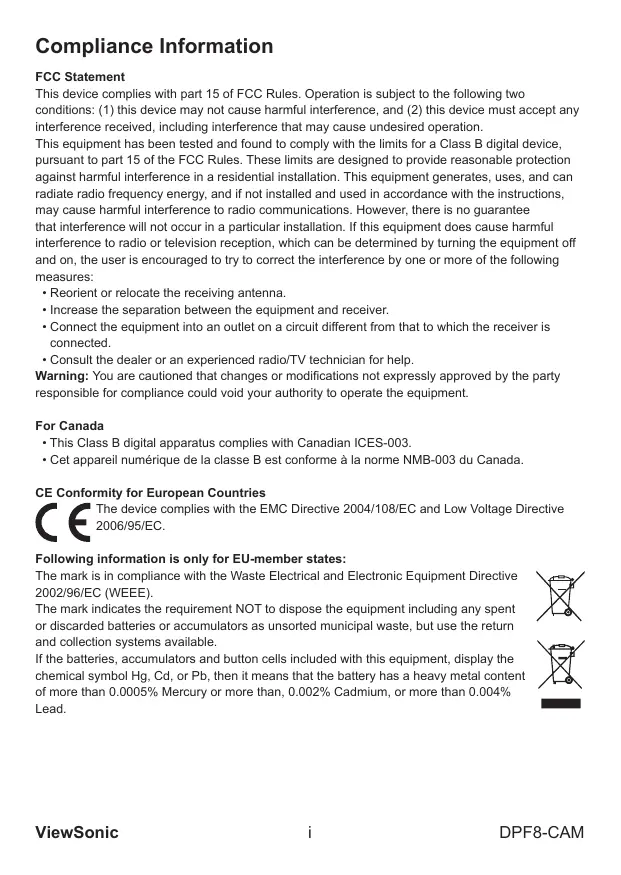

| Product Type | Digital Photo Frame |
| Brand | VIEWSONIC |
| Model | DPF8-CAM |
| Screen Size | 8 inches (diagonal) |
| Display Resolution | 800 × 600 pixels (estimated) |
| Supported Image Format | JPEG, BMP, PNG |
| Internal Memory | 128 MB (estimated) |
| Memory Card Slot | SD / SDHC / MMC |
| USB Port | USB 2.0 (for PC connection) |
| Power Supply | 5V DC power adapter (included) |
| Power Consumption | 5 W (estimated) |
| Dimensions (W × H × D) | 225 × 175 × 35 mm (estimated) |
| Weight | 500 g (estimated) |
| Main Functions | Slideshow, clock, calendar, photo display |
| Image Rotation | Automatic (motion sensor) |
| Brightness Control | Manual adjustment |
| Maintenance and Cleaning | Soft non-abrasive cloth, non-alcoholic product |
| Operating Temperature | 0 °C to 40 °C |
| Spare Parts and Repairability | No spare parts available; repair by authorized center |
| Standards | Class B, ICES-003, NMB-003 |
Frequently Asked Questions - DPF8-CAM VIEWSONIC
User questions about DPF8-CAM VIEWSONIC
0 question about this device. Answer the ones you know or ask your own.
Ask a new question about this device
Download the instructions for your Digital photo frame in PDF format for free! Find your manual DPF8-CAM - VIEWSONIC and take your electronic device back in hand. On this page are published all the documents necessary for the use of your device. DPF8-CAM by VIEWSONIC.
USER MANUAL DPF8-CAM VIEWSONIC
This device complies with part 15 of FCC Rules. Operation is subject to the following two conditions: (1) this device may not cause harmful interference, and (2) this device must accept any interference received, including interference that may cause undesired operation.
This equipment has been tested and found to comply with the limits for a Class B digital device, pursuant to part 15 of the FCC Rules. These limits are designed to provide reasonable protection against harmful interference in a residential installation. This equipment generates, uses, and can radiate radio frequency energy, and if not installed and used in accordance with the instructions, may cause harmful interference to radio communications. However, there is no guarantee that interference will not occur in a particular installation. If this equipment does cause harmful interference to radio or television reception, which can be determined by turning the equipment off and on, the user is encouraged to try to correct the interference by one or more of the following measures:
- Reorient or relocate the receiving antenna.
- Increase the separation between the equipment and receiver.
- Connect the equipment into an outlet on a circuit different from that to which the receiver is connected.
- Consult the dealer or an experienced radio/TV technician for help.
Warning: You are cautioned that changes or modifications not expressly approved by the party responsible for compliance could void your authority to operate the equipment.
For Canada
CE Conformity for European Countries

The device complies with the EMC Directive 2004/108/EC and Low Voltage Directive 2006/95/EC.
Following information is only for EU-member states:
The mark is in compliance with the Waste Electrical and Electronic Equipment Directive 2002/96/EC (WEEE).
The mark indicates the requirement NOT to dispose the equipment including any spent or discarded batteries or accumulators as assorted municipal waste, but use the return and collection systems available.
If the batteries, accumulators and button cells included with this equipment, display the chemical symbol Hg, Cd, or Pb, then it means that the battery has a heavy metal content of more than 0.0005% Mercury or more than, 0.002% Cadmium, or more than 0.004% Lead.


Important Safety Instructions
- Read these instructions completely before using the equipment.
- Keep these instructions in a safe place.
- Heed all warnings.
- Follow all instructions.
- Do not use this equipment near water. Warning: To reduce the risk of fire or electric shock, do not expose this apparatus to rain or moisture.
- Clean with a soft, dry cloth.
- Do not block any ventilation openings. Install the unit in accordance with the manufacturer's instructions.
- Do not install near any heat sources such as radiators, heat registers, stoves, or other devices (including amplifiers) that produce heat.
- Do not defeat the safety purpose of the polarized or grounding-type plug. A polarized plug has two blades with one wider than the other. A grounding type plug has two blades and a third grounding prong. The wide blade and the third prong are provided for your safety. If the provided plug does not fit into your outlet, consult an electrician for replacement of the obsolete outlet.
- Protect the power cord from being walked on or pinched particularly at plugs. Convenience receptacles and the point where they exit from the unit. Be sure that the power outlet is located near the unit so that it is easily accessible.
- Only use attachments/accessories specified by the manufacturer.
- Use only with the cart, stand, tripod, bracket, or table specified by the manufacturer, or sold with the unit. When a cart is used, use caution when moving the cart/unit combination to avoid injury from tipping over.
- Unplug this unit when unused for long periods of time.
- Refer all servicing to qualified service personnel. Servicing is required when the unit has been damaged in any way, such as: if the power-supply cord or plug is damaged, if liquid is spilled onto or objects fall into the unit, if the unit is exposed to rain or moisture, or if the unit does not operate normally or has been dropped.
- Caution: There is a risk of explosion if the battery is replaced by an incorrect type. Dispose of used batteries according to the instructions.
- Only use battery packs approved by the manufacturer or else damage may occur.
Declaration of RoHS Compliance
This product has been designed and manufactured in compliance with Directive 2002/95/EC of the European Parliament and the Council on restriction of the use of certain hazardous substances in electrical and electronic equipment (RoHS Directive) and is deemed to comply with the maximum concentration values issued by the European Technical Adaptation Committee (TAC) as shown below:
| Substance | Proposed Maximum Concentration | Actual Concentration |
| Lead (Pb) | 0.1% | < 0.1% |
| Mercury (Hg) | 0.1% | < 0.1% |
| Cadmium (Cd) | 0.01% | < 0.01% |
| Hexavalent Chromium (Cr6+) | 0.1% | < 0.1% |
| Polybrominated biphenyls (PBB) | 0.1% | < 0.1% |
| Polybrominated diphenyl ethers (PBDE) | 0.1% | < 0.1% |
Certain components of products as stated above are exempted under the Annex of the RoHS Directives as noted below:
Examples of exempted components are:
- Mercury in compact fluorescent lamps not exceeding 5 mg per lamp and in other lamps not specifically mentioned in the Annex of RoHS Directive.
- Lead in glass of cathode ray tubes, electronic components, fluorescent tubes, and electronic ceramic parts (e.g. piezoelectronic devices).
- Lead in high temperature type solders (i.e. lead-based alloys containing 85% by weight or more lead).
- Lead as an allotting element in steel containing up to 0.35% lead by weight, aluminium containing up to 0.4% lead by weight and as a cooperer alloy containing up to 4% lead by weight.
Copyright Information
Copyright © ViewSonic Corporation, 2010. All rights reserved.
ViewSonic, the three birds logo, OnView, ViewMatch, and ViewMeter are registered trademarks of ViewSonic Corporation.
Disclaimer: ViewSonic Corporation shall not be liable for technical or editorial errors or omissions contained herein; nor for incidental or consequential damages resulting from furnishing this material, or the performance or use of this product.
In the interest of continuing product improvement, ViewSonic Corporation reserves the right to change product specifications without notice. Information in this document may change without notice.
No part of this document may be copied, reproduced, or transmitted by any means, for any purpose without prior written permission from ViewSonic Corporation.
Product Registration
To meet your future needs, and to receive any additional product information as it becomes available, please register your product on the Internet at: www.viewsonic.com. The ViewSonic Wizard CD-ROM also provides an opportunity for you to print the registration form, which you may mail or fax to ViewSonic.
For Your Records
Product Name:
DPF8-CAM
ViewSonic Digital Photo Frame
Model Number:
VS13784
Document Number:
DPF8-CAM_UG_ENG Rev. 1A 09-15-10
Serial Number:
Purchase Date:
Product disposal at end of product life
ViewSonic respects the environment and is committed to working and living green. Thank you for being part of Smarter, Greener Computing. Please visit ViewSonic website to learn more.
USA & Canada: http://www.viewsonic.com/company/green/recycle-program/
Europe: http://www.viewsoniceurope.com/uk/support/recycling-information/
Taiwan: http://recycle.epa.gov.tw/recycle/index2.aspx
Table of Contents
Getting Started. 2
Package Content 2
Product Features 2
Photo frame Overview 3
How to set up the stand 4
Connecting to AC power 5
Powering on/off your photo frame 5
Using the internal/ external memory devices. 5
Operations and Functions 6
Best Capture Environment 6
Setting language 6
Recapturing old photos. 7
Playing back your files 9
Setting Date /Time / Alarm 11
Main Menu 12
Advanced Setting. 13
Appendix 14
Troubleshooting 14
Using Remote Control 14
Specifications. 15
Package Content
The package contains the following items:
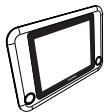
Photo frame
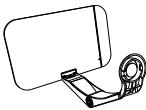
Frame Stand
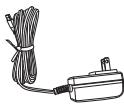
AC adapter
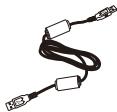
USB cable
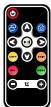
Remote Control
CD
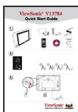
Quick Start Guide
Product Features
- 20.32 cm (8") Digital photo frame with 5 Mega-pixel camera
- 8” TFT LCD display (800x600 pixels)
- Fixed focus
- Removable and extendable stand for digitalizing old pictures
- Auto slideshow with multiple transition effects
- Supports high resolution pictures (JPEG) up to 16 Mega-pixel
- Supports SD, SDHC, MMC, MS Pro card (up to 32GB) and USB flash drive
- Sleep mode as auto-off function for saving power
- USB 2.0 high speed
- Calendar, clock, and alarm
Photo frame Overview
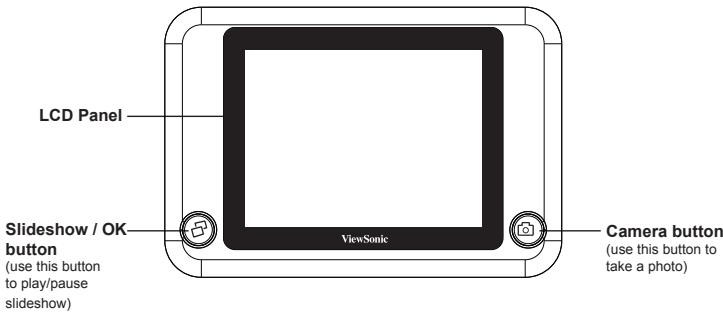
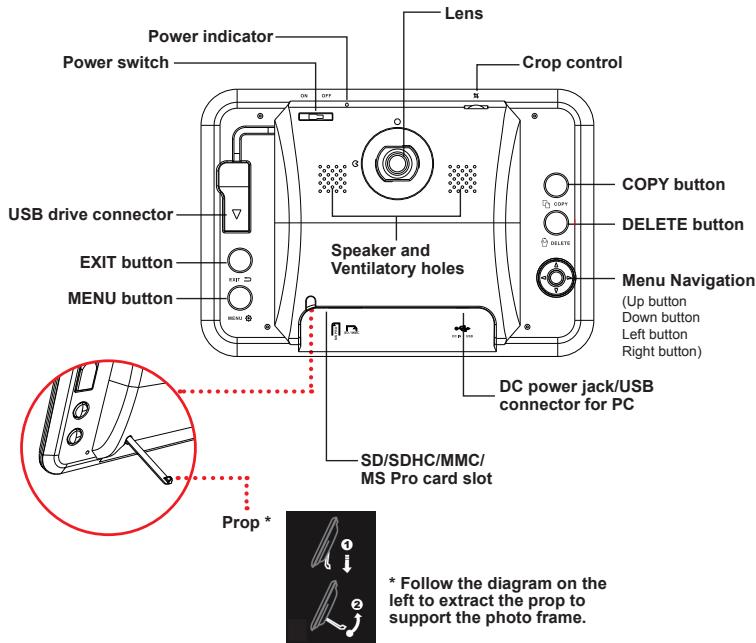
How to set up the stand
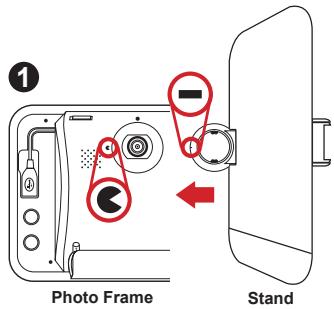
1) Align the mark on the stand with the mark on the back of the photo frame. Then gently place the ring of the stand on top of the lens to attach the stand.
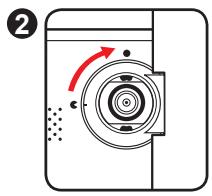
2) Gently rotate the stand clockwise as indicated until the mark is aligned with the mark.
3) Unfold the stand on the table by following the steps in the illustrations:

4) Place the photo frame on a flat surface such as a table.
Connecting to AC power
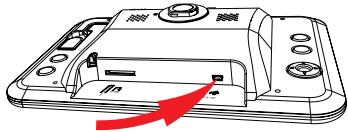
Connect one end of the accessory power cable to the photo frame, and then connect the power adapter to a power socket.
Note: Always use the accessory power cable only.
Powering on/off your photo frame
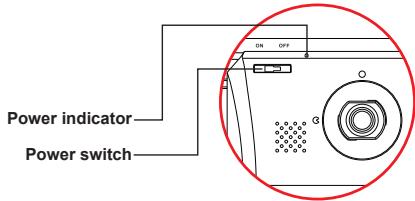
To power on the photo frame, turn the power switch to the ON position. When power is turned on, the power indicator will light up. To power off the photo frame, turn the power switch to the OFF position.
Using the internal/ external memory devices
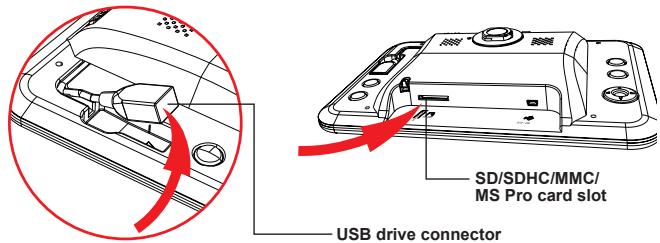
You can use the internal memory, or the compatible external memory devices (SD/SDHC/MMC/MS Pro/USB drive) to store the photos you took.
Note: If you connect the external memory devices to the photo frame first and then power on it, the data in the USB drive will be read first. However, if the photo frame is already powered on, the memory device that inserted lastly will be read first.
Operations and Functions
Best Capture Environment
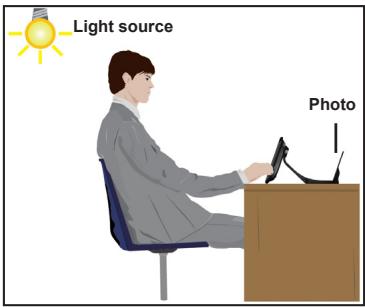
When capturing an old photo into the photo frame, the photo should be well lit as indicated.
The light source should come from above and behind the handler to produce the best result.
Setting language
1) Press the MENU button ( Ⓒ ) to bring up the main menu.
2) Move the Menu Navigation ( 心 ) up/down/left/right to choose Setting and press 心 to confirm. Move the Menu Navigation ( 心 ) up or down to choose Language and continue to move the Menu Navigation ( 心 ) right to enter the language sub-menu.
3) Move the Menu Navigation ( ) up or down to choose the desired language and press to confirm.
Recapturing old photos
- LCD indicators in preview mode
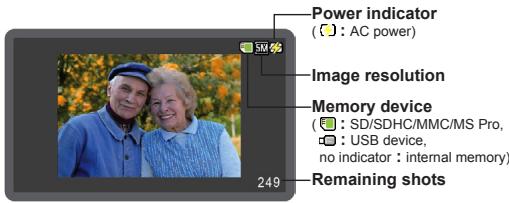
- Select camera resolution:
You can take the photos in two resolutions: 3 or 5 Mega-pixel. The default resolution is 5 Mega-pixel. To change to lower resolution for keeping picture size small, press MENU button ( ) on the reverse and use the Menu Navigation ( ) to select Setting. Go to Camera Resolution and select 3M. Press the Slideshow how button ( ) to confirm. To return to preview, press the EXIT button ( ) on the back.
- How to recapture aged photos?
1) Place your photo aligned with the base line on the foot stand.
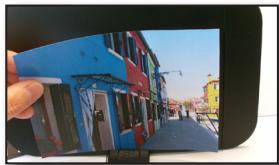
2) Press to enter the preview mode.
3) Press again to take a photo. Notice: The focus range of the camera is 19 to 23~cm , ideal for recapturing old photos put on the stand. The photo frame

is not suitable for using as a regular camera to take new pictures.
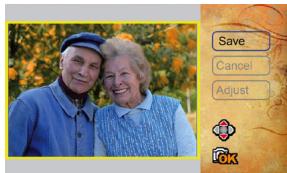
4) The photo frame will automatically play back the photo you just took and the menu (Save/Cancel/Adjust) will show up.
5) Choose [Save] or [Cancel] or [Adjust] as you need by moving the Menu Navigation ( ) up or down and then press to confirm.
- How to Save or Cancel the pictures?
After the photo is taken by the camera, the photo frame automatically enters Playback mode. Yellow frame (□) indicates the picture size ready to be saved in the photo frame.
The camera is programmed to automatically detect the picture size shown in yellow frame. However, sometimes adjustment is needed.
Use the Menu Navigation ( ) on the back side to move up or down to select Save, Cancel, or Adjust function.
A. If the picture size is correct, select Save and press the Camera button (☑) to save the picture.
B. If you don't like the picture, select Cancel and press the Camera button (☑) to cancel the picture without saving it.
- How to adjust the pictures?
If the picture size in the yellow frame does not 100% match the old photos, select Adjust and press the Camera button ( ) to enter Photo Adjust mode.
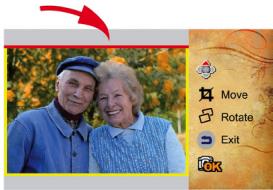
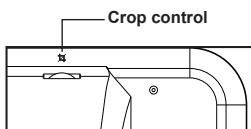
| Use the Menu Navigation up/down/left/right to choose the side of the photo to be adjusted. | |
| Turn the crop control to move the red line for adjusting the borders of the photo. | |
| Press (Slideshow/OK button) to rotate the photo. | |
| Press (EXIT button) to exit and go back to the preview mode. | |
| Press (Camera button) to confirm. |
Note: Please recompose the photo first if needed, and then rotate the photo. The rotate function will only be effective for the image inside the lines.
Playing back your files
This product is a photo frame to playback photos (JPEG) taken by your digital camera. To see your photos in action, only a few simple steps are needed:
1) Save your favorite photos onto a memory card or a USB drive. (You may need to use your computer and a card reader for this operation.)
2) Insert the card into the photo frame or plug the USB drive to the photo frame.
3) Power on the photo frame.
4) Wait for the slideshow to automatically start.
- Slideshow playback
By default, the photo frame will automatically play photo slideshow shortly after powered on. If the photo frame is in other mode, you can press once to switch to slideshow mode.
- Using function bar
While in slideshow, you can press the MENU button ( ) for about 2 seconds to bring up the function bar. To perform a function, use the Menu Navigation ( ) (up/down/left/right) to shift between items, and press to confirm.
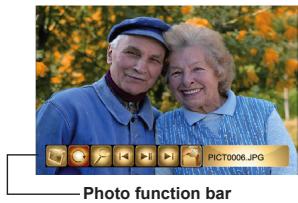
The photo function bar provides the following items:

1) Rotate photo: rotate the current photo 90^ clockwise.
2) Zoom in/out photo.
3) Show previous photo.
4) Pause/Resume slideshow.
5) Show next photo.
6) Index playback: The image index mode allows you to view 12 image miniatures in one single page. This function is handy when you want to browse all photos in a quick way or select a particular photo among tons of image files.
In index mode, you can:
View a photo in full screen.
Use the Menu Navigation ( ) (up/down/left/right) to move the highlight box. The pages can be scrolled up or down as well. When the desired photo is selected, press to confirm. Note that this operation will switch the mode to slideshow.
-
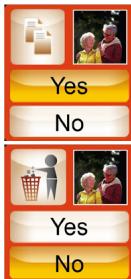
Copy a photo from your memory card to the internal memory and vice versa. Use the Menu Navigation ( ) (up/down/left/right) to select the desired file and press the COPY button () . The YES/NO window will show up. Move the Menu Navigation () up or down to choose and press to confirm.
-
Delete a file existing in the internal/external memory device. Use the Menu Navigation ( ) (up/down/left/right) to select the desired file and press the Delete button ( ). The YES/NO window will show up. Move the Menu Navigation ( ) up or down to choose and press to confirm.
7) The file name of current photo.
When the photo function bar is inactive in slideshow mode, you can:
- Press to play/pause/resume slideshow.
- Move the Menu Navigation (O) left or right to view previous or next photo.
Move the Menu Navigation (O) up or down to zoom in/out of the photo if needed. - Press to go to the preview mode for taking a photo.
- Press the EXIT button ( ) to go back to main menu.
- Press the COPY button ( ) to copy a photo from your memory card to the internal memory and vice versa.
- Press the DELETE button ( ) to delete a photo from the current memory device.
Setting Date /Time / Alarm
When you power on your photo frame for the first time, you are recommended to adjust the time and language settings. To set date/time, you can press the MENU button ( ) to go to the main menu. Move the Menu Navigation ( ) up/down/left/right to choose Date/Time and
press to confirm.
You can:
- move the Menu Navigation ( ) left/right to toggle analog/digital clock
- move the Menu Navigation ( ) up/down to toggle calendar on/off
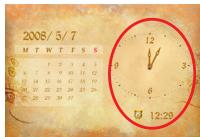
Calendar with analog clock
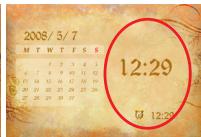
Calendar with digital clock
- To adjust date, time and alarm:
1) Press the MENU button ( Ⓞ ) for about 2 seconds. The clock will turn into digital format and a highlight box will appear.
2) Move the Menu Navigation ( ) up or down to adjust value. Move the Menu Navigation ( ) left or right to shift between items.
3) Continue to move the Menu Navigation ( Ⓞ ) left or right until the alarm icon is selected. Move the Menu Navigation ( Ⓞ ) up or down to toggle on (highlighted) or off (gray out).
Note: The alarm function is set to off every time the photo frame is powered on. However, the configuration of the alarm will be saved.
4) When all settings are completed, press the MENU button ( ) for about two seconds to exit. (Or just let the photo frame stay idle for a few seconds and the highlight box will disappear.)
- About wake-up alarm
When the clock reaches the set time and the alarm starts beeping, you can:
1) Press to turn off the alarm.
2) If you press any other button, the alarm will stop beeping for 5 minutes. After 5 minutes, the alarm will start beeping again. This snooze function allows you to catch a bit more sleep and it can launch twice (for a total of 10 minutes).
3) If the alarm beeps for 1 minute and no button is pressed, the alarm will enter snooze function mode.
Note: The alarm volume is not adjustable.
Main Menu
The main menu provides several options for you to fine-tune this product's functions. The following table gives details on main menu.
| How to... | Action |
| Bring up the main menu | Press the MENU button ( Ⓒ). |
| Move the highlight bar | Use the Menu Navigation ( Ⓞ) (up/down/left/right). |
| Enter sub-menu / Confirm an item | Press Ⓞ (the Slideshow/OK button). |
| Exit menu / Go back to slideshow display | Press the EXIT button ( ⌿). |
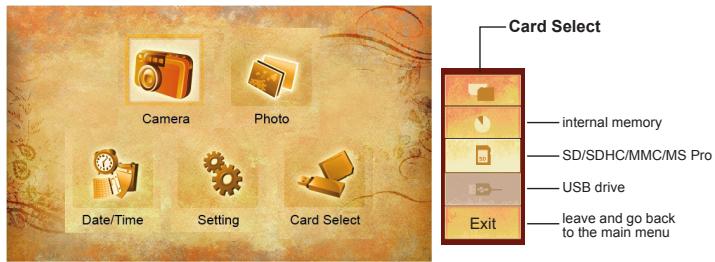
- Camera: go to the camera preview mode.
- Photo: display all the photos stored in the internal/external memory.
You can also Copy ( ) or Delete ( ) a photo in this option. - Date/Time: set date, time and alarm clock. (see "SETTING DATE/TIME/ALARM" section)
- Card Select: change the storage device.
Advanced Setting
Use the Menu Navigation ( ) on the back side to move Up/Down/Left/Right to select the item and press Slideshowhow button ( ) to confirm the setting.
Language:
Set the language to be used for "On Screen Display".
Camera resolution:
Set the photo resolution in 3 Mega-pixel or 5 Mega-pixel.
Sleep mode:
Set the auto-power-off function.
Off/30min/1hr/2hr/4hr/8hr
Screen setting:
Set the screen Brightness/Contrast (-4 to +4).
Slideshow speed:
Set the speed for slideshow playback.
5 sec/10 sec/15 sec/30 sec/1 min/3 min/5 hr/10 hr/24 hr
Memory size:
This option shows the remaining size of current device.
Display mode:
[Smart ratio]: the photo frame will automatically display a photo in best ratio depending on its smart program.
[Original]: display a photo in original mode.
[Fit to screen]: display a photo in fit-to-screen mode.
Slideshow effect:
Set the pattern for slideshow playback.
Date stamp:
If date stamp function is enabled, the date will be printed on the photos you took.
Date/time:
Check the status of date, time and alarm clock.
Default:
Restore factory defaults. If reset default function is enabled, the current settings will be overridden.
| Language |
| Camera resolution |
| Sleep mode |
| Screen setting |
| Slideshow speed |
| Memory size |
| Display mode |
| Slideshow effect |
| Date stamp |
| Date/time |
| Default |
Troubleshooting
| Problem | Cause | Solution |
| Power indicator is not lit. | Power is off or power indicator is broken. | Check whether the power supply (AC adapter) is well connected and the socket works normally. |
| The order of image files is not what I wanted. | The order of files is sorted by file name.Numbers have higher priority than alphabets. | Rename the files. |
Note: Since there are many brands of memory cards, please test the compatibility on the spot when you purchase the memory cards. This digital photo frame cannot support pirate cards. If the memory card is correctly inserted, and the start-up interface is displayed but the photo frame can not read the card, please turn off and restart the photo frame, or format the card and re-copy files.
Using remote control
| Before using the remote control, be sure to remove the insulator. | Button | Description | |
| 1 | Press to power off. Press and hold down for 2 seconds to power on. | ||
| 2 | Directional buttons | ||
| 3 | Shutter button | ||
| 4 | Enter/Play/Pause | ||
| 5 | Exit button | ||
| 6 | Menu button | ||
| 7 | Up/Right | ||
| 8 | Down/Left | ||
| 9 | Delete button | ||
| 10 | Copy button | ||
| 11 | Enter/Confirm/Slideshow | ||
Specifications
| Item | Specification | |
| Panel | Panel Size | 20.32 cm(8") TFT LCD |
| Panel Resolution | 800x600 RGB | |
| Photo Capture | Image Sensor | 5 mega-pixel CMOS (2592x1944) |
| Resolution | Best mode (5 Mega-pixel) / Fine mode (3 Mega-pixel) | |
| Lens | Fixed lens (Focus range: 19 to 23 cm) | |
| Digitalize old photos | Supports 9x13cm (3.5" x 5") and 10x15cm (4" x 6") photos | |
| Photo | Photo Format | JPEG |
| Max. Resolution | 16 mega-pixel | |
| Auto Slide Show | Yes | |
| Photo Effect | 14 options | |
| Edit Function | Copy / Delete | |
| Storage | Internal Memory | 100MB for storage |
| External Memory | SD/SDHC/MMC/MS Pro, up to 32GB | |
| USB Flash Drive | Yes | |
| Interface | USB Port | USB 2.0 high speed for PC connection and USB flash drive |
| Date / Time | Clock / Calendar | Yes |
| Alarm mode / Sleep mode | Yes | |
| Power | External Power Supply | AC-input: 100~240V, 50~60Hz; DC-output: 5V, 1A |
| Operating Condition | Temperature | 0 to 40°C |
| Humidity | 80% RH (non-condensing) | |
| Storage Condition | Temperature | -10 to 50°C |
| Humidity | 80% RH (non-condensing) | |
Customer Support
For technical support or product service, see the table below or contact your reseller.
Note : You will need the product serial number.
| Country/Region | Website | T = Telephone F = FAX | |
| Australia/New Zealand | www.viewsonic.com.au | AUS= 1800 880 818 NZ= 0800 008 822 | service@au.viewsonic.com |
| Canada | www.viewsonic.com | T (Toll-Free)= 1-866-463-4775 T (Toll)= 1-424-233-2533 F= 1-909-468-3757 | service.ca@viewsonic.com |
| Europe | www.viewsoniceurope.com | www.viewsoniceurope.com/uk/Support/Calldesk.htm | |
| Hong Kong | www.hk.viewsonic.com | T= 852 3102 2900 | service@hk.viewsonic.com |
| India | www.in.viewsonic.com | T= 1800 11 9999 | service@in.viewsonic.com |
| Ireland (Eire) | www.viewsoniceurope.com/uk/ | www.viewsoniceurope.com/uk/support/call-desk/ | service_ile@ viewsoniceurope.com |
| Korea | www.kr.viewsonic.com | T= 080 333 2131 | service@kr.viewsonic.com |
| Latin America (Argentina) | www.viewsonic.com/la/ | T= 0800-4441185 | soporte@viewsonic.com |
| Latin America (Chile) | www.viewsonic.com/la/ | T= 1230-020-7975 | soporte@viewsonic.com |
| Latin America (Columbia) | www.viewsonic.com/la/ | T= 01800-9-157235 | soporte@viewsonic.com |
| Latin America (Mexico) | www.viewsonic.com/la/ | T= 001-8882328722 | soporte@viewsonic.com |
| Renta y Datos, 29 SUR 721, COL. LA PAZ, 72160 PUEBLA, PUE. Tel: 01.222.891.55.77 CON 10 LINEAS Electroser, Av Reforma No. 403Gx39 y 41, 97000 Mérida, Yucatán. Tel: 01.999.925.19.16 Other places please refer to http://www.viewsonic.com/la/soporte/index.htm#Mexico | |||
| Latin America (Peru) | www.viewsonic.com/la/ | T= 0800-54565 | soporte@viewsonic.com |
| Macau | www.hk.viewsonic.com | T= 853 2870 0303 | service@hk.viewsonic.com |
| Middle East | ap.viewsonic.com/me/ | Contact your reseller | service@ap.viewsonic.com |
| Puerto Rico & Virgin Islands | www.viewsonic.com | T= 1-800-688-6688 (English) T= 1-866-379-1304 (Spanish) F= 1-909-468-3757 | service.us@viewsonic.com soporte@viewsonic.com |
| Singapore/Malaysia/Thailand | www.ap.viewsonic.com | T= 65 6461 6044 | service@sg.viewsonic.com |
| South Africa | ap.viewsonic.com/za/ | Contact your reseller | service@ap.viewsonic.com |
| United Kingdom | www.viewsoniceurope.com/uk/ | www.viewsoniceurope.com/uk/support/call-desk/ | service_gb@ viewsoniceurope.com |
| United States | www.viewsonic.com | T (Toll-Free)= 1-800-688-6688 T (Toll)= 1-424-233-2530 F= 1-909-468-3757 | service.us@viewsonic.com |
Limited Warranty ViewSonic® Digital Photo Frame
What the warranty covers:
ViewSonic warrants its products to be free from defects in material and workmanship, under normal use, during the warranty period. If a product proves to be defective in material or workmanship during the warranty period, ViewSonic will, at its sole option, repair or replace the product with a like product. Replacement product or parts may include remanufactured or refurbished parts or components.
How long the warranty is effective:
ViewSonic Digital Photo Frame are warranted for 1 year for labor from the date of the first customer purchase.
Who the warranty protects:
This warranty is valid only for the first consumer purchaser.
What the warranty does not cover:
- Any product on which the serial number has been defaced, modified or removed.
- Damage, deterioration or malfunction resulting from:
a. Accident, misuse, neglect, fire, water, lightning, or other acts of nature, unauthorized product modification, or failure to follow instructions supplied with the product.
b. Any damage of the product due to shipment.
c. Removal or installation of the product.
d. Causes external to the product, such as electrical power fluctuations or failure.
e. Use of supplies or parts not meeting ViewSonic's specifications.
f. Normal wear and tear.
g. Any other cause which does not relate to a product defect.
- Any product exhibiting a condition commonly known as "image burn-in" which results when a static image is displayed on the product for an extended period of time.
- Removal, installation, one way transportation, insurance, and set-up service charges.
How to get service:
- For information about receiving service under warranty, contact ViewSonic Customer Support (please refer to Customer Support page). You will need to provide your product's serial number.
- To obtain warranted service, you will be required to provide (a) the original dated sales slip, (b) your name, (c) your address, (d) a description of the problem, and (e) the serial number of the product.
- Take or ship the product freight prepaid in the original container to an authorized ViewSonic service center or ViewSonic.
- For additional information or the name of the nearest ViewSonic service center, contact ViewSonic.
Limitation of implied warranties:
There are no warranties, express or implied, which extend beyond the description contained herein including the implied warranty of merchantability and fitness for a particular purpose.
Exclusion of damages:
ViewSonic's liability is limited to the cost of repair or replacement of the product. ViewSonic shall not be liable for:
- Damage to other property caused by any defects in the product, damages based upon inconvenience, loss of use of the product, loss of time, loss of profits, loss of business opportunity, loss of goodwill, interference with business relationships, or other commercial loss, even if advised of the possibility of such damages.
- Any other damages, whether incidental, consequential or otherwise.
- Any claim against the customer by any other party.
- Repair or attempted repair by anyone not authorized by ViewSonic.
4.3: ViewSonic DPF Warranty
DPF_LW01 Rev. 1A 06-20-08
- For Canada
- CE Conformity for European Countries
- Following information is only for EU-member states:
- Important Safety Instructions
- Declaration of RoHS Compliance
- Copyright Information
- Product Registration
- For Your Records
- Product disposal at end of product life
- Table of Contents
- Getting Started. 2
- Operations and Functions 6
- Appendix 14
- Package Content
- Product Features
- Photo frame Overview
- How to set up the stand
- Connecting to AC power
- Powering on/off your photo frame
- Using the internal/ external memory devices
- Operations and Functions
- Best Capture Environment
- Setting language
- Recapturing old photos
- - LCD indicators in preview mode
- - Select camera resolution:
- - How to recapture aged photos?
- Playing back your files
- - Slideshow playback
- - Using function bar
- Setting Date /Time / Alarm
- You can:
- - To adjust date, time and alarm:
- - About wake-up alarm
- Main Menu
- Advanced Setting
- Language:
- Camera resolution:
- Sleep mode:
- Screen setting:
- Slideshow speed:
- Memory size:
- Display mode:
- Slideshow effect:
- Date stamp:
- Date/time:
- Default:
- Specifications
- Customer Support
- Limited Warranty ViewSonic® Digital Photo Frame
- What the warranty covers:
- How long the warranty is effective:
- Who the warranty protects:
- What the warranty does not cover:
- How to get service:
- Limitation of implied warranties:
- Exclusion of damages:
Brand : VIEWSONIC
Model : DPF8-CAM
Category : Digital photo frame