
Exon V30 - Mouse Ozone - Free user manual and instructions
Find the device manual for free Exon V30 Ozone in PDF.


Pick your language and provide your email: we'll send you a specifically translated version.
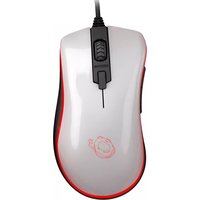
| Product type | Gaming mouse |
| Brand | Ozone |
| Model | Exon V30 |
| Interface | USB 2.0 |
| Sensor type | Optical |
| DPI range | 800-3200 DPI |
| Number of buttons | 5 programmable buttons |
| Scroll wheel | Yes, with middle-click function |
| LED lighting | Blue LED accent |
| USB cable length | 1.8 m braided cable |
| Dimensions (L x W x H) | 130 x 68 x 38 mm |
| Weight | 135 g |
| Power source | Powered via USB connection |
| Compatibility | Windows, macOS, Linux |
| Main functions | DPI switching, programmable keys, fast response time |
| Software | Ozone configuration software |
| Maintenance | Wipe with a soft dry cloth |
| Safety | Avoid liquid contact and extreme temperatures |
| Spare parts | Replacement mouse feet and cable available on request |
| Repairability | Screws accessible under the mouse feet; repair by qualified technician recommended |
| General information | Plug and play, no external power supply required |
Frequently Asked Questions - Exon V30 Ozone
How do I connect the Ozone Exon V30 to my computer?
Plug the USB connector into a free USB port. Windows will automatically detect the device; no driver installation is normally required.
How do I adjust the DPI sensitivity?
Use the DPI button on the mouse to cycle through preset sensitivity levels. The selected level is usually indicated by an LED color change.
Can I customize the buttons on this mouse?
Yes, if the Ozone configuration software is installed, you can remap buttons and assign macros. Without the software, buttons use the default functions.
How do I clean the Exon V30 mouse?
Unplug the mouse and wipe the surfaces with a soft, slightly damp cloth. Do not use abrasive cleaners or submerge the mouse in water.
Why is the LED light not working?
Check the USB connection and try another port. If the LED is still off, it may be disabled in the software or need a driver reset.
Is the Exon V30 compatible with Mac OS?
Yes, it works as a standard USB mouse with macOS. Advanced features may require software support.
What should I do if the cursor jumps or moves erratically?
Clean the sensor lens and ensure the mouse is on a suitable surface. Update or reinstall the drivers if the issue persists.
Does the mouse have a warranty?
Ozone products usually include a manufacturer warranty. Contact the reseller or Ozone support for warranty claims.
Can I use the mouse while charging?
The mouse is USB powered and does not contain a rechargeable battery, so no charging wait time is needed.
Where can I download the user manual?
You can download the PDF manual from the Ozone official website or by searching for Exon V30 on notice-facile.com.
User questions about Exon V30 Ozone
0 question about this device. Answer the ones you know or ask your own.
Ask a new question about this device
No questions yet. Be the first to ask one.
Download the instructions for your Mouse in PDF format for free! Find your manual Exon V30 - Ozone and take your electronic device back in hand. On this page are published all the documents necessary for the use of your device. Exon V30 by Ozone.
USER MANUAL Exon V30 Ozone


Manual assistant
Powered by Anthropic
Waiting for your message
Product information
Brand : Ozone
Model : Exon V30
Category : Mouse