Exon F60 - Mouse Ozone - Free user manual and instructions
Find the device manual for free Exon F60 Ozone in PDF.


Pick your language and provide your email: we'll send you a specifically translated version.
| Product Type | Gaming Mouse |
| Brand | Ozone |
| Model | Exon F60 |
| Sensor Type | Optical |
| DPI Range | 800 - 3200 DPI (adjustable) |
| Connection | Wired USB |
| USB Cable Length | 1.8 m |
| Number of Buttons | 6 |
| Lighting | RGB LED |
| Dimensions (L x W x H) | 125 x 65 x 40 mm |
| Weight | 110 g |
| Power Source | USB powered |
| Compatible Systems | Windows, macOS, Linux |
| Main Functions | Left/right click, scroll wheel, DPI switch, forward/back buttons |
| Maintenance | Clean with dry cloth; avoid liquids |
| Safety | Not for children under 3 years; contains small parts |
| Spare Parts & Repairability | Not available separately; professional repair recommended |
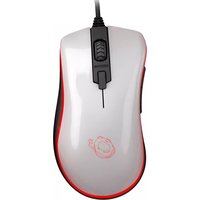
| General Information | Designed for gaming with ergonomic shape |
Frequently Asked Questions - Exon F60 Ozone
How do I adjust the DPI settings on the Exon F60?
The Exon F60 has a dedicated DPI switch button. Press it to cycle through preset DPI levels (800, 1600, 2400, 3200). The current DPI is indicated by the color of the RGB lighting.
Is the Exon F60 plug-and-play?
Yes, it is plug-and-play for basic functionality. For advanced features like button remapping or lighting customization, you may need to install the Ozone software from the official website.
How should I clean the mouse?
Unplug the mouse and use a soft, dry cloth to wipe the exterior. For stubborn dirt, slightly dampen the cloth with water. Do not use alcohol or abrasive cleaners. Avoid getting moisture into the openings.
Does the Exon F60 work with macOS?
Yes, the mouse is compatible with macOS. However, the Ozone software for customization may not be available for macOS. Basic functions (click, scroll, DPI switch) work without additional software.
How can I change the RGB lighting color?
If you have the Ozone software installed, you can customize the lighting effect and color. Otherwise, the lighting may cycle through default presets. Some models allow changing color by long-pressing the DPI button.
Can I use the Exon F60 on a glass surface?
The optical sensor may not track well on transparent or reflective surfaces like glass. It is recommended to use a mouse pad or a non-reflective surface for optimal performance.
Can I reprogram the buttons?
Yes, using the Ozone software you can assign different functions to each button, such as macros, media controls, or keyboard shortcuts. The software is available for Windows only.
What should I do if the mouse is not moving or clicking?
First, check the USB connection. Try a different USB port. If it still doesn't work, test on another computer. If the mouse has a physical switch, ensure it is turned on. If issues persist, contact Ozone support.
Is the Exon F60 suitable for left-handed use?
No, the Exon F60 is an ergonomic right-handed mouse with a thumb rest on the left side. It is not ambidextrous and may not be comfortable for left-handed users.
How long is the USB cable?
The USB cable is approximately 1.8 meters (6 feet) long, providing ample reach for most desktop setups.
User questions about Exon F60 Ozone
0 question about this device. Answer the ones you know or ask your own.
Ask a new question about this device
No questions yet. Be the first to ask one.
Download the instructions for your Mouse in PDF format for free! Find your manual Exon F60 - Ozone and take your electronic device back in hand. On this page are published all the documents necessary for the use of your device. Exon F60 by Ozone.
USER MANUAL Exon F60 Ozone


Manual assistant
Powered by Anthropic
Waiting for your message
Product information
Brand : Ozone
Model : Exon F60
Category : Mouse