
Exon X90 - Mouse Ozone - Free user manual and instructions
Find the device manual for free Exon X90 Ozone in PDF.


| Product Type | Gaming Mouse |
| Brand | Ozone |
| Model | Exon X90 |
| Dimensions (L x W x H) | 125 x 65 x 40 mm |
| Weight | 100 g |
| Power Source | USB Cable |
| Connection Type | Wired USB 2.0 |
| Cable Length | 1.8 m |
| Sensor Type | Optical |
| Resolution (DPI) | Up to 6400 DPI (adjustable) |
| Number of Buttons | 8 programmable buttons |
| Lighting | RGB LED, customizable |
| Polling Rate | 1000 Hz |
| Onboard Memory | Yes, for profile storage |
| Software Support | Ozone Gaming Software (downloadable) |
| Compatibility | Windows 7/8/10/11, macOS |
| Material | Matte plastic with rubber grips |
| Color | Black |
| Warranty | 2 years |
Frequently Asked Questions - Exon X90 Ozone
User questions about Exon X90 Ozone
0 question about this device. Answer the ones you know or ask your own.
Ask a new question about this device
Download the instructions for your Mouse in PDF format for free! Find your manual Exon X90 - Ozone and take your electronic device back in hand. On this page are published all the documents necessary for the use of your device. Exon X90 by Ozone.
USER MANUAL Exon X90 Ozone
Software installation
Buttons layout
Default button assignment
Software overview
Software basics
Sensor settings
Button settings
Lighting settings
Legal Notice
Warranty
SYSTEM REQUIREMENTS
Operating System:
Windows 7 / Windows 8 / Windows 8.1 / Windows 10
Free USB 1.1/2.0 port.
50 MB free hard disk space.
SOFTWARE INSTALLATION
Plug EXON X90 USB connector to a USB port of your PC.
Download the driver from www.ozonegaming.com
Double click "Setup.exe" to start the installation program. Click "Next" to continue.
Select the folder to save the driver and click "Next" to continue.
Installation runs automatically. Click "Finish" to complete the installation.
EXO n
X90
INDEX
System requirements
Software installation
Buttons layout
Default button assignment
Software overview
Software basics
Sensor settings
Button settings
Lighting settings
Legal Notice
Warranty
BUTTONS LAYOUT DEFAULT

BUTTON
ASSIGNMENT
- Click
- Right click
03.Wheel Click - Function
- DPI Lock - 100
- Browser Forward
- Browser Backward
- Volume Up
09.Volume Down - DPI Selector
- Profile Selector
EXO n
X90
INDEX
System requirements
Software installation
Buttons layout
Default button assignment
Software overview
Software basics
Sensor settings
Button settings
Lighting settings
Legal Notice
Warranty
SOFTWARE OVERVIEW
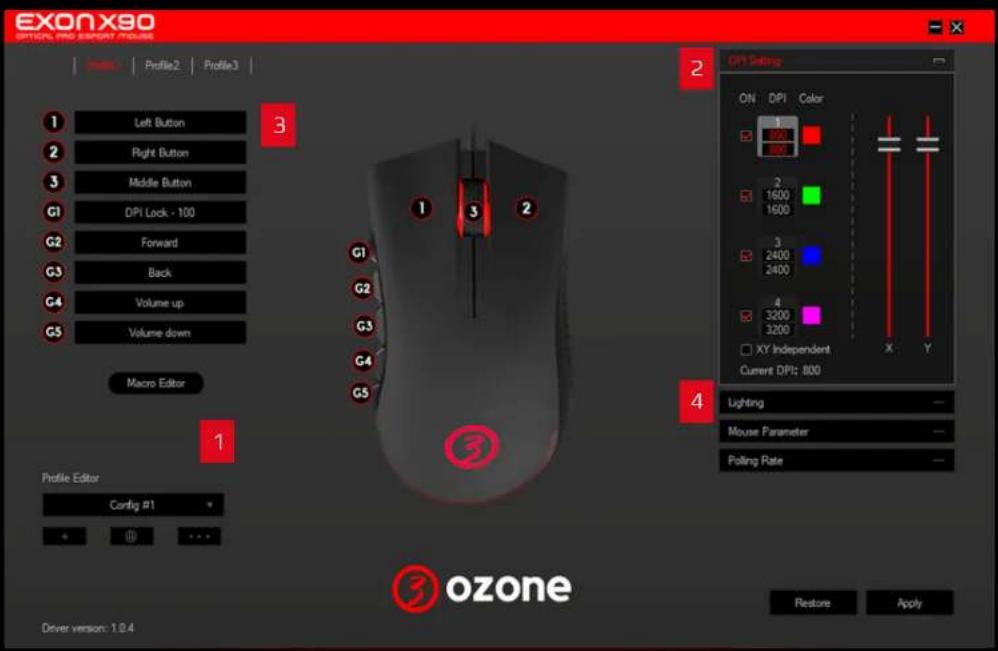
Pressing any title takes you to its thread
01. SOFTWARE BASICS

1. Reset to default configuration
Hit Apply to store any settings customization you make.
Hit Restore to discard every settings customization you previously made and saved. This will restore your Exon X90 to its default configuration.

2. Profiles
Before start editing your mouse configuration, select a Profile to store all settings.
Although Exon X90 comes with 3 default profiles, you can add and save as many as you want.
EXO n
X90
INDEX
System requirements
Software installation
Buttons layout
Default button assignment
Software overview
Software basics
Sensor settings
·DPI settings
- Mouse parameter
- Polling rate
Button settings
Lighting settings
Legal Notice
Warranty
02. SENSOR SETTINGS

1. DPI Settings
Four DPI profiles (DPI 1 to DPI 4) are available to select, set and store DPI levels from 100 to 12000 through DPI Setting panel's graphic bar.
DPI jumps can be manually enabled or disabled through a ticking box.

Each DPI profile is assigned a color you can change by clicking once on the swatch and choosing among the hues displayed in the DPI Color palette modal window displayed.
EXO n
X90
INDEX
System requirements
Software installation
Buttons layout
Default button assignment
Software overview
Software basics
Sensor settings
• DPI settings
- Mouse parameter
Polling rate
Button settings
Lighting settings
Legal Notice
Warranty
02. SENSOR SETTINGS
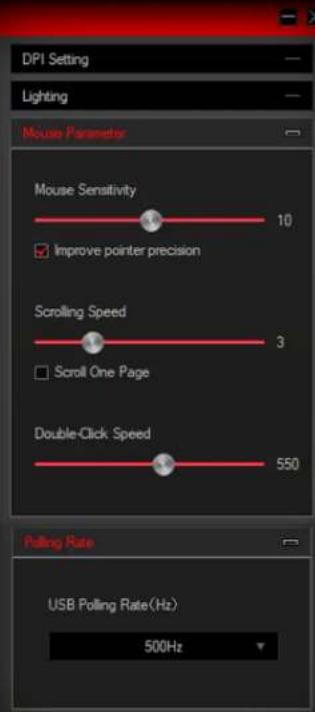
2. Mouse Parameter
Mouse Parameter dialog box allows you to improve your user experience through:
Mouse sensitivity: increases or decreases cursor's speed and its accuracy.
Scrolling Speed: Increases or decreases mouse's scroll depth.
Double-Click Speed: increases or decreases mouse's double-click haste.
3. Polling Rate
Allows you to set mouse polling rate accuracy within a 125Hz to 1000Hz range.
EXO n
X90
INDEX
System requirements
Software installation
Buttons layout
Default button assignment
Software overview
Software basics
Sensor settings
Button settings
Button configuration:
overview
- Macro editor:
macros creation
- Macro editor:
macros options
- Macro editor:
macros edition
Lighting settings
Legal Notice
Warranty
03. BUTTON SETTINGS

1. Button Configuration: overview
Click on any mouse's button table (numbered from 1 to
3 and from G1 to G5) to display the list of assignable events and behaviours:
- Left Button
-Right Button
- Middle Button
-Forward
-Back
- Three Click
-Fire Key
Key Combination
-Macro
-Disable
·DPI:
DPI + · DPI - · DPI Loop
•Multimedia:
Media Player · Play/Pause · Next · Previous
Stop · Mute · Volume Up · Volume Down
Email · Calculator · Explorer · Home Page
-DPI Lock:
100·200·300·400·500·600·700·800·900
1000·1100
EXO n
X90
INDEX
System requirements
Software installation
Buttons layout
Default button assignment
Software overview
Software basics
Sensor settings
Button settings
- Button configuration:
overview
Macro editor:
macros creation
- Macro editor:
macros options
- Macro editor:
macros edition
Lighting settings
Legal Notice
Warranty
03. BUTTON SETTINGS
2.1. Macro Editor. Macros Creation
You can create and save macros to enhance both your gaming performance or workflow, just by following this simple 2 steps process:

EXO n
X90
INDEX
System requirements
Software installation
Buttons layout
Default button assignment
Software overview
Software basics
Sensor settings
Button settings
- Button configuration:
overview
- Macro editor:
macros creation
- Macro editor:
macros options
- Macro editor:
macros edition
Lighting settings
Legal Notice
Warranty
03. BUTTON SETTINGS
2.2. Macro Editor. Macros Options
Macros creation also allows the addition of behaviours such as:


Start record

Automatic insert delay

Cycle until the key released

Cycle until any key pressed

Specified cycle times
1\~65535
Insert event

- Automatic insert delay: introduces an automatic delay as the macro is launched
• Cycles: macro will be reproduced
· Until the launch key is released
· Until any key is pressed
· A specific time cycle set by the user
- Insert event: macros can be added keystroke events such as:
· Key Down
· Key Up
· Delay
· Left Button
- Right Button
· Middle Button
03. BUTTON SETTINGS
2.3. Macro Editor. Macros Edition
Macros details can be easily modified, regarding both input keystrokes and their delay time:


EXO n
X90
INDEX
System requirements
Software installation
Buttons layout
Default button assignment
Software overview
Software basics
Sensor settings
Button settings
Lighting settings
Available lighting FXs
Legal Notice
Warranty
04. LIGHTING SETTINGS

Click on effect dropdown list to display the list of assignable lighting effects:
-Colorful Streaming
•Steady
•Breathing
•Tail
-Neon
•Colorful Steady
•Flicker
-Stars twinkle
-Wave
-Led Off
Lighting effects details (such as steady color hue, color brightness, effect's speed or direction) can be easily adjusted with a simple scroll in the Brightness bar below.
EXO n
X90
INDEX
System requirements
Software installation
Buttons layout
Default button assignment
Software overview
Software basics
Sensor settings
Button settings
Lighting settings
Legal Notice
Warranty
LEGAL NOTICE

Statement of Compliance with European Union Directives
Ozone declares that this product is in compliance with the essential requirements and other relevant provisions from the following Directives: 1999/5/EC; 2004/108/EC; 2011/65/EC, as applicable. The technical documentation required by the Conformity Evaluation process is in Ozone's possession and can be requested through the email info@ozonegaming.com

Disposal of batteries and electrical or electronic equipment waste
The existence of this symbol on the product, batteries or respective packaging, signifies that this product and the contained batteries can not be disposed as domestic waste.
It is the user's responsibility to deliver this product at a batteries, electrical or electronic recycling pick-up point. The pick-up and separate recycling contributes for the preservation of natural resources and suppresses potential negative consequences for the human health and the environment resultant of inadequate disposal of dangerous substances contained in batteries and electrical or electronic equipment.
For additional information regarding batteries, electrical or electronic recycling pick-up points, please contact your local municipal services.
EXO n
X90
INDEX
System requirements
Software installation
Buttons layout
Default button assignment
Software overview
Software basics
Sensor settings
Button settings
Lighting settings
Legal Notice
Warranty
WARRANTY
Who does the warranty protect:
This warranty is valid for the original purchaser only.
What does the warranty protect:
For warranty claims, please contact Ozone's overseas distribution partners in your
country. Find the distribution partner list at www.ozonegaming.com
Warranty: 2 years from the purchasing date (depending on the laws of each country)
URL: www.ozonegaming.com
E-mail: support@ozonegaming.com
What does not the warranty cover:
Any product, on which the serial number has been defaced, modified or removed.
Accident, misuse, neglect, fire, water, lightning, or other acts of nature, unauthorized product modification, or failure to follow instructions supplied with the product.
Repair or attempted repair by anyone not authorized by Ozone Gaming.
Damage to or loss of any programs, data or removable storage media.
Software or data loss occurring during repair or replacement.
Any damage of the product due to shipment.
Removal or installation of the product.
External causes, such as electric power fluctuations or failure.
Use of supplies or parts not meeting Ozone Gaming's specifications.
Normal wear and tear.
Any other cause which does not relate to a product defect.
If you have any questions regarding technical problems, please contact us via our website:
www.ozonegaming.com
Ozone reserves the right for any modifications in text and/or images

ozone
WITHIN THE GAME
WWW.OZONEGAMING.COM



- SYSTEM REQUIREMENTS
- SOFTWARE INSTALLATION
- INDEX
- BUTTON
- ASSIGNMENT
- Software overview
- SOFTWARE BASICS
- Reset to default configuration
- Profiles
- EXO n
- X90
- Sensor settings
- ·DPI settings
- SENSOR SETTINGS
- DPI Settings
- Mouse Parameter
- Polling Rate
- Button settings
- BUTTON SETTINGS
- Button Configuration: overview
- Macro Editor. Macros Creation
- Macro Editor. Macros Options
- Macro Editor. Macros Edition
- LIGHTING SETTINGS
- LEGAL NOTICE
- WARRANTY
- What does the warranty protect:
- What does not the warranty cover:
- ozone
- WITHIN THE GAME
Brand : Ozone
Model : Exon X90
Category : Mouse