Radon Opto - Mouse Ozone - Free user manual and instructions
Find the device manual for free Radon Opto Ozone in PDF.


Pick your language and provide your email: we'll send you a specifically translated version.
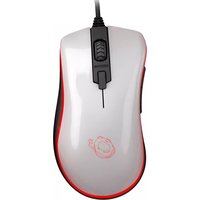
| Product Type | Wired Optical Mouse |
| Brand | Ozone |
| Model | Radon Opto |
| Connectivity | USB 2.0 Wired |
| Sensor | Optical Sensor |
| Resolution | Up to 3200 DPI |
| Number of Buttons | 5 Programmable Buttons |
| Scroll Wheel | Scrolling Wheel with Middle Button |
| Cable Length | 1.8 Meters Braided Cable |
| Dimensions (H x W x D) | 40 mm x 70 mm x 125 mm |
| Weight | 120 grams |
| Power Source | Powered via USB Connection |
| Compatibility | Windows, macOS, Linux |
| Ergonomic Design | Right-Handed Ergonomic Shape |
| Grip Style | Palm or Claw Grip |
| Switch Durability | 5 Million Clicks |
| Surfaces Compatible | Works on Most Surfaces |
| Maintenance | Clean Lens and Exterior with Soft Dry Cloth |
| Safety Instructions | Keep Away from Liquids and Extreme Heat |
| Spare Parts and Repairability | Consult Manual for Disassembly; Use Ozone Certified Parts |
| General Information | Comes with User Manual and Quick Start Guide |
Frequently Asked Questions - Radon Opto Ozone
How do I install the Ozone Radon Opto mouse?
Simply plug the USB connector into an available USB port on your computer. The mouse will automatically install its drivers on most operating systems. For advanced settings, download the dedicated software from the Ozone website.
Can I adjust the DPI (sensitivity) of the mouse?
Yes, the Radon Opto supports DPI adjustment. Use the dedicated DPI switch button on the mouse to cycle through preset DPI levels, or configure custom settings in the Ozone software.
What should I do if the mouse cursor moves erratically?
First, clean the optical lens and the surface you are using. Ensure the sensor is not blocked by dust. If the issue persists, try using a different USB port or restart your computer. Update the mouse drivers from the Ozone support page.
Is the Radon Opto compatible with Mac computers?
Yes, the mouse works on macOS without additional drivers. Basic functions like scrolling and clicking will work. For programmable buttons, you may need to use the Ozone software if a Mac version is available.
How do I clean my Ozone Radon Opto mouse?
Unplug the mouse before cleaning. Use a soft, dry, lint-free cloth to wipe the exterior. For the optical lens, gently use a cotton swab dipped in isopropyl alcohol to remove stubborn dirt. Do not use water or harsh chemicals.
Can I use the mouse on a glass surface?
The optical sensor is designed to work on most surfaces, but transparent glass or glossy surfaces may cause tracking issues. For best performance, use a mouse pad or a matte surface.
What is the warranty period for this mouse?
Ozone typically offers a 2-year limited warranty on gaming peripherals. Check the product documentation or contact Ozone support for the exact warranty terms in your region.
Why is the scroll wheel not working properly?
Ensure the wheel is free of debris. Try rotating the wheel several times to dislodge any particles. If the problem continues, the wheel encoder may be faulty; consult the user manual for troubleshooting or contact support.
Are there any special safety precautions I should take?
Do not expose the mouse to water, extreme temperatures, or direct sunlight. Avoid bending the cable sharply. Unplug the mouse during lightning storms or when not in use for extended periods.
Can I customize the buttons on the Radon Opto?
Yes, the five buttons are programmable. Download the Ozone software, connect the mouse, and you can remap buttons, assign macros, or adjust performance profiles according to your preferences.
User questions about Radon Opto Ozone
0 question about this device. Answer the ones you know or ask your own.
Ask a new question about this device
No questions yet. Be the first to ask one.
Download the instructions for your Mouse in PDF format for free! Find your manual Radon Opto - Ozone and take your electronic device back in hand. On this page are published all the documents necessary for the use of your device. Radon Opto by Ozone.
USER MANUAL Radon Opto Ozone

Manual assistant
Powered by Anthropic
Waiting for your message
Product information
Brand : Ozone
Model : Radon Opto
Category : Mouse