
MUSICTOUCH - Portable media player DANE-ELEC - Free user manual and instructions
Find the device manual for free MUSICTOUCH DANE-ELEC in PDF.


| Product type | Portable MP4 media player |
| Brand | DANE-ELEC |
| Model | MUSICTOUCH |
| Power | Rechargeable Li-polymer battery via USB (charging time approx. 2 hours) |
| Display | Touch screen |
| Supported audio formats | MP3, WMA, WAV (including DRM files) |
| Video formats | MTV (conversion required from other formats) |
| Main functions | Audio and video player, FM radio, voice recorder, photo viewer, e-book reader, slideshow, file management |
| Memory | Internal memory + Micro SD / T-Flash card slot |
| Connectivity | USB 2.0 port, 3.5mm headphone jack |
| Controls | Physical buttons (volume +/-, HOLD, reset) and touch screen |
| Speaker | Built-in speaker (enable/disable in settings) |
| Repeat and playback | Multiple repeat modes (track, folder, shuffle) and equalizer with presets and customization |
| Indicators | Animated charging indicator |
| Included accessories | Earphones, USB cable, stylus, user manual |
| Maintenance and cleaning | Clean with a soft, slightly damp cloth; do not use chemical products |
| Safety | Do not expose to humidity, extreme temperatures, shocks; do not repair yourself; use only approved accessories; set the volume to a moderate level to protect hearing |
| Spare parts and repairability | Do not attempt to repair or disassemble the device; this voids the warranty. Use only accessories provided or approved by the manufacturer. |
| General information | Product warranty: 1 year; accessories: 7 days. Software version: 6.0 |
Frequently Asked Questions - MUSICTOUCH DANE-ELEC
User questions about MUSICTOUCH DANE-ELEC
0 question about this device. Answer the ones you know or ask your own.
Ask a new question about this device
Download the instructions for your Portable media player in PDF format for free! Find your manual MUSICTOUCH - DANE-ELEC and take your electronic device back in hand. On this page are published all the documents necessary for the use of your device. MUSICTOUCH by DANE-ELEC.
USER MANUAL MUSICTOUCH DANE-ELEC
For your safety — Read this user guide carefully to ensure proper use of the product and to avoid any accidental damage to the player or injury to the user.
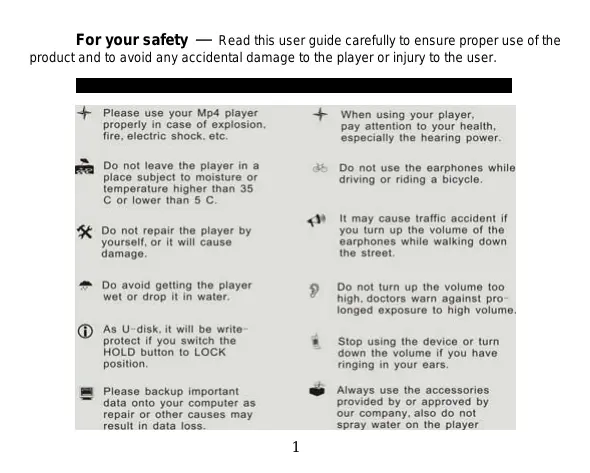
| Please use your Mp4 player properly in case of explosion, fire, electric shock, etc. | When using your player, pay attention to your health, especially the hearing power. |
| Do not leave the player in a place subject to moisture or temperature higher than 35 C or lower than 5 C. | Do not use the earphones while driving or riding a bicycle. |
| Do not repair the player by yourself, or it will cause damage. | It may cause traffic accident if you turn up the volume of the earphones while walking down the street. |
| Do avoid getting the player wet or drop it in water. | Do not turn up the volume too high, doctors warn against pro- longed exposure to high volume. |
| As U-disk, it will be write- protect if you switch the HOLD button to LOCK position. | Stop using the device or turn down the volume if you have ringing in your ears. |
| Please backup important data onto your computer as repair or other causes may result in data loss. | Always use the accessories provided by or approved by our company, also do not spray water on the player |
- Please use your MP4 player properly at all times to avoid any risk of explosion, fire or receiving an electric shock etc. Do not knock, drop or cause any violent impact to the player at any time.
- Do not use the player in the following conditions and environments: high humidity or moisture, temperatures higher than 35C, temperatures lower than 5C, dusty areas, strong magnetic fields and do not leave it in direct sunlight for a long period of time.
- This player is a sophisticated electronic device. Do not attempt to repair or dismantle it yourself as you could damage it and void your product warranty.
- Avoid getting the player wet or dropping in water.
- When using U-disk, it will 'write protect' if you switch the HOLD
button to LOCK position
Always remember to back up important data contained on your player onto your computer to avoid any potential data loss
- Please use the volume control responsibly to avoid damage to your hearing. Stop using the player immediately if you start to get a ringing noise in your ears. Doctors warn against exposure to high volume for prolonged periods.
- Do not use the earphones while driving or riding a bicycle
- Do not have volume set high while walking down a street – you may be unable to hear traffic warnings and cause an accident
Gently clean the housing with a slightly damp cotton cloth. Under no circumstances use other chemical agents to clean the player.
- Only use the accessories supplied or approved by our company. It could be dangerous to use other than these designated products and any breach of this condition will affect the product warranty.
Note: Please recharge the digital player before using it! Function features
The player supports MP3, WMA and WAV format music files. Including WMA files with DRM (Digital Rights Management) function.
Supports USB 2.0 capability, much faster than USB 1.1, enabling faster communication with your PC.
The player is a voice recorder and FM radio.
The player has repeat functions.
The player has Video Playback, Photo Viewer, E-book, slide show functions, etc.
The player can power off automatically after a preset time.
Accessories

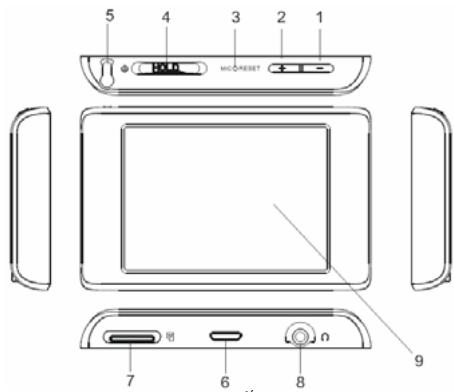
- Volume down
- Microphone/RESET button
- Touch pen holder
- Micro SD Flash Memory card slot
-
Touch screen
-
Volume up
-
HOLD button/Power on/off
- USB port
- Earphone jack
Charging the Li -polymer battery safely
- Connect the player to your PC's USB port with the USB cable provided.
- The power sign is shown moving when charging. Once fully charged, the power sign will stop moving. Please shut off the power once charged. The charging time is approximately 2 hours.
- To stop recharging, disconnect the USB cable.
Basic operations
Turn power on and play music
- Connect earphones to earphone jack.
- Switch【HOLD】 button to unlock position
- Slide and hold the【HOLD】button in the direction of to turn power on and enter main menu (the default menu is "Music" menu).
- To return to main menu: touch button.
To Play: touch button.
To Pause: touch button.
To change tracks: touch 【←→】 button
To turn unit off: Slide and hold the【HOLD】button in the direction of

Volume Adjustment
In Audio playing, playback video files, or tuning FM radio mode, you can touch [ - & + ] icons in the display or press [ - & + ] button on the top of the player to turn down/turn up the volume.
Menu Navigation
- button: Enter submenu.
Skip button【Shift menus.
Skip button【Y】:Shift pages.

button: Return /previous menu
- Press button to return to main menu.
- Touch the icons to enter into your desired option (e.g. MUSIC, FILE, VOICE, PHOTO, FM, SETUP, VIDEO, EBOOK, Sys Info).
MUSIC
Slide and hold the【HOLD】button in the direction of to turn unit on and enter main menu, then select "Music" icon and enter the music mode by touching it.
Touch 【按钮】 button to select music files and touch button to playback it.
MusicPlaybackSubmenu
Touch icon to enter into submenu and touch icons to switch page and select your desired mode (e.g. Repeat, Equalizer, 3D, Play Rate, File, Classified, Play List, Slide Show).
Repeat
- Select Repeat mode and touch it to enter.
- Select and touch the repeat mode: No Repeat, Repeat One, Repeat All, Random All, Folder Normal, Folder Repeat, Folder Random).
Equalizer
- Select Equalizer mode and touch it to enter.
- Touch icons to switch page and select your desired option (e.g. Normal, Pop, Rock, Classic, Jazz, Bass, Custom EQ).
3D
- Select 3D mode and touch it to enter.
- Use the touch pen to select your desired option (e.g. Off, On).
Play Rate
- Select Play Rate mode and touch it to enter.
- Use the touch pen to select your desired speed (e.g. 1.00X, 1.14X, 1.33X, 0.67X, 0.80X).
File
- Select File mode and touch it to enter.
- Use the touch pen to select the music files.
- Touch + icon to add your selected files to the play list, touch × icon and you can select: "NO" or "YES".
- Touch icon to playback your selected file.
- Touch icon to return to previous list.
Classified
- Select Classified mode and touch it to enter.
- Use the touch pen to select "No" or "Yes".
Play List
Touch "Play List" to enter and you can see the play list (My List, pla, m3u, *wpl), open
one of the play list and select the music files by touching it, then you can touch icon to playback it.
You can touch to select to delete the play list or the music file.
Slide Show
- Touch "Slide Show" to enter.
- Touch 1 1 1 1 1 1 1 1 1 1 1 1 1 1 1 1 1 1 1 1 1 1 1 1 1 1 1 1 1 1 1 1 1 1 1 1 1 1 1 1 1 1 1 1 1 1 1 1 1 1 0 Seconds, 5 Seconds, 30 Seconds, 60 Seconds, and it will playback slide show file after playback music for the selected time.
FILE
- In main menu, select "File" icon and enter by touching it.
- Slide the scroll bar and select your desired file (including MTV files, music files, photo files, recorded files and TXT files, etc). you can select the folder and enter by touching OK icon.
- Touch icon to enter "Delete" menu, and select "No" or "Yes" and touch it for confirm.
- Touch icon to return previous menu..
VOICE
- In main menu, select "Voice" icon and enter by touching it.
- Touch 【H】 to choose the recorded files, and touch to playback your desired recorded file.
- Touch icon to start recording.
-
Touch icon to play or pause, touch icon to save the recorded file, and touch to playback it.
-
Whilst in playback mode, touch to enter into submenu (e.g. Repeat, Equalizer, 3D, Play Rate, File). this part please refer to
- Touch to return to main menu.
- NOTE: In music, voice or FM mode, you can touch 1 icon to record.
PHOTO
- In main menu, select "Photo" icon and enter by touching it.
- Touch the photo files or slide the scroll bar to choose your desired photo file, and touch the photo icon or touch OK icon to scan it.
- Touch the screen again to browse all photos at interval of 3 seconds, or touch the screen to browse one by one. Slide the 【HOLD button in the direction of to return to photos list.
- You can select one of the photo files and touch icon to delete it.
- Touch icon to return to main menu.
SETUP
- In main menu, select "SETUP" icon and enter by touching it.
- You can touch icons to switch page and enter the submenu by touching the icon: USB Mode, Time, Power, Language, Display, Record, Sys Tools, Storage, Speaker.
- Touch to return to previous menu.
USB Mode
Select USB Mode (MSC mode or MTP mode) and touch it to confirm.
Time:
Enter the "Time" menu by touching it and touch the relevant icon to select: "Adjust",
"Alarm", "Time Zone".
Adjust:
- Select "Adjust" mode and enter by touching it.
- Touch icons to adjust time (hour, minute) and date (year, month, day).
Alarm:
Select "Alarm" mode and enter by touching Alarm icon, and touch "Adjust" to enter, then adjust the alarm clock time by touching icons, touch On/Off mode to turn off or turn on the alarm clock.
Time Zone:
Select "Time Zone" mode and enter by touching it, then touch icons to setup the time zone.
Power
- Select "Power" mode and enter by touching it, then you can touch to select: "Auto off" or "Always on while playing".
- You can touch icons and select: 15 Minutes, 30 Minutes, 60 Minutes, 90 Minutes, 120 Minutes, close.
- You can touch "Always on while playing" icon and select: No, Yes.
Language
Select "Language" mode and enter by touching it, then you can touch icons and select the system language by touching it: English, French, German, Italian, Spanish, Portuguese, Polish, Russia. CHI (Simp), CHI (Trad).
Display
- Select "Display" and enter by touching it, then touch "Brightness" or "Backlight" menu to enter.
- Touch 【 】 icons to setup screen brightness or set screen backlight time (15
Seconds, 30 Seconds, 1 Minute, Close).
Record
Enter "Record" mode by touching it and touch "Quality" to select: Long Time, Normal Quality, High Quality.
Sys Tools
Select "Sys Tools" and enter by touching it, then you can touch touch the relevant icon: Delete, Format, Reset, Refresh, File Sort.
Storage
You can touch it to select Internal or Micro SD/T-Flash, (the LCD will display: Checking...).
Speaker
You can touch and select speaker "Off" or "On" mode.
VIDEO
In order to play video files in this digital player, you must change the video files into MTV format.
Play MTV Video files
1 In main menu, touch "Video" icon to enter the mode.
2 Use the touch pen to select your desired file, then touch it or icon to playback it.
3 Use the touch pen to click the screen, the menu will display in the bottom, touch M to enter into the submenu: Repeat, Video OSD Color,
Repeat:
You can use the touch pen to select: No Repeat, Repeat One, Repeat All, Random All, Folder Normal, Folder Repeat, Folder Random.
Video OSD Color:
Select Video OSD Color icon by touching it: Red, Green, Blue, Cyan, Yellow, Gray.
- Touch to play or pause, you also can touch - + in the display to adjust the volume. Slide the【HOLD】button in the direction of to return to video files list.
- Select one of the video files stored in the player, you can touch × icon to enter "Delete" menu, and touch to select "No" or "Yes".
- Touch to return to previous menu.
EBOOK
- In main menu, select and touch "EBOOK" icon to enter the mode.
- Use the touch pen to select your desired file, then touch it or touch icon to open it. You can touch to scan previous or next page.
- Select one file stored in the player, you can touch × icon to delete it.
- Touch to return to previous menu.
Sys Info
In main menu, touch "Sys Info" icon to enter, then you can see some system information, like: Firmware version, free flash capacity and total flash capacity.
Ver: 6.0
Warranty product: 1 year. Accessories: 7 days.
