MR 8 - Digital audio recorder FOSTEX - Free user manual and instructions
Find the device manual for free MR 8 FOSTEX in PDF.


| Product Type | Multitrack Digital Audio Recorder |
| Brand | Fostex |
| Model | MR-8 |
| Number of Tracks | 8 tracks (recording and playback) |
| Storage Media | CompactFlash (CF) card |
| Audio Resolution | 16-bit, 44.1 kHz (CD quality) |
| Inputs | 2 combo XLR/jack inputs (mic/line), stereo line input, optical SPDIF input |
| Outputs | Headphone outputs, stereo line outputs, optical SPDIF output |
| Power Supply | 9V DC power adapter (included) or 6 AA batteries |
| Dimensions (W x D x H) | 295 x 210 x 55 mm |
| Weight | 1.4 kg (without batteries) |
| Main Features | Multitrack recording, internal mixing, built-in effects (reverb, chorus, etc.), metronome, looping |
| Connectivity | MIDI In/Out, USB for file transfer |
| Display | Backlit LCD screen |
| Maintenance and Cleaning | Clean with a soft, dry cloth. Avoid moisture and dust. Do not use solvents. |
| Safety | Do not expose to water or extreme temperatures. Use only the supplied power adapter. Disconnect during storms. |
| Spare Parts and Repairability | Power adapter and batteries available. For repairs, contact a Fostex authorized service center. |
| General Information | User manual available in PDF. Manufacturer's warranty 2 years. |
Frequently Asked Questions - MR 8 FOSTEX
User questions about MR 8 FOSTEX
0 question about this device. Answer the ones you know or ask your own.
Ask a new question about this device
Download the instructions for your Digital audio recorder in PDF format for free! Find your manual MR 8 - FOSTEX and take your electronic device back in hand. On this page are published all the documents necessary for the use of your device. MR 8 by FOSTEX.
USER MANUAL MR 8 FOSTEX
"TO REDUCE THE RISK OF FIRE OR ELECTRIC SHOCK, DO NOT EXPOSE THIS APPLIANCE TO RAIN OR MOISTURE."
SAFETY INSTRUCTIONS
- Read Instructions - All the safety and operating instructions should be read before the appliance is operated.
- Retain Instructions - The safety and operating instructions should be retained for future reference.
- Heed Warnings - All warnings on the appliance and in the operating instructions should be adhered to.
- Follow Instructions - All operating and use instructions should be followed.
- Water and Moisture - The appliance should not be used near water - for example, near a bathtub, washbowl, kitchen sink, laundry tub, in a wet basement, or near a swimming pool, and the like.
- Carts and Stands - The appliance should be used only with a cart or stand that is recommended by the manufacturer.

An appliance and cart combination should be moved with care. Quick stops, excessive force, and uneven surfaces may cause the appliance and cart combination to overturn.
- Wall or Ceiling Mounting - The appliance should be mounted to a wall or ceiling only as recommended by the manufacturer.
- Ventilation - The appliance should be situated so that its location or position dose not interfere with its proper ventilation. For example, the appliance should not be situated on a bed, sofa, rug, or similar surface that may block the ventilation openings; or, placed in a built-in installation, such as a bookcase or cabinet that may impede the flow of air through the ventilation openings.
- Heat - The appliance should be situated away from heat sources such as radiators, heat registers, stoves, or other appliances (including amplifiers) that produce heat.
CAUTION:
TO PREVENT ELECTRIC SHOCK, MATCH WIDE BLADE OF PLUG TO WIDE SLOT, FULLY INSERT.
ATTENTION:
POUR EVITER LES CHOCS ELECTRIQUES, INTRODUIRE LA LAME LA PLUS LARGE DE LA FICHE DANS LA BORNE CORRESPONDANTE DE LA PRISE ET POUSSER JUSQU' AU FOND.

The lightning flash with arrowhead symbol, within an equilateral triangle, is intended to alert the user to the presence of uninsulated “dangerous voltage” within the product’s enclosure that may be of sufficient magnitude to constitute a risk of electric shock to persons.

The exclamation point within an equilateral triangle is intended to alert the user to the presence of important operating and maintenance (servicing) instructions in the literature accompanying the appliance.
- Power Sources - The appliance should be connected to a power supply only of the type described in the operating instructions or as marked on the appliance.
- Grounding or Polarization - The precautions that should be taken so that the grounding or polarization means of an appliance is not defeated.
- Power Cord Protection - Power supply cords should be routed so that they are not likely to be walked on or pinched by items placed upon or against them, paying particular attention to cords at plugs, convenience receptacles, and the point where they exit from the appliance.
- Cleaning - The appliance should be cleaned only as recommended by the manufacturer.
- Nonuse Periods - The power cord of the appliance should be unplugged from the outlet when left unused for a long period of time.
- Object and Liquid Entry - Care should be taken so that objects do not fall and liquids are not spilled into the enclosure through openings.
- Damage Requiring Service - The appliance should be serviced by qualified service personnel when:
A. The power supply cord or the plug has been damaged; or
B. Objects have fallen, or liquid has been spilled into the appliance; or
C. The appliance has been exposed to rain; or
D. The appliance does not appear to operate normally or exhibits a marked change in performance; or
E. The appliance has been dropped, or the enclosure damaged.
-
Servicing - The user should not attempt to service the appliance beyond that described in the operating instructions. All other servicing should be referred to qualified service personnel.
-
The appliance should be situated away from drops of water or spray of water.
-
Objects containing liquid such as vase must not be put on the appliance.
-
The appliance is not completely isolated from the power supply even if the power switch is at off position.
Table of Contents
Introduction 5
MR-8 Main features ....5
About power supply ....5
Precaution upon handling the MR-8 ......6
Notes on repair 6
About copyrights 6
About damages 6
The basics of the MR-8....7
Recording method ....7
Song mode 7
About song 7
Time base 8
Remain display 9
Input monitor and repro monitor ....9
TRIM control 9
Names and Functions ....10
Top panel (left part) ....10
Top panel (right part) 12
Rear panel 14
Side panel ....15
Bottom panel 15
About recording medium....16
CompactFlash TM card....16
Recording time 16
Inserting a CompactFlash™ card ......16
How to remove a CompactFlash™ card ...16
How to insert a CompactFlash™ card .....16
About the power ....17
Connecting the AC adaptor ....17
Inserting batteries ....17
Turning on the unit 17
Turning off the power 18
Turning on the LCD display backlight .....18
Low battery display ....18
Listening the demo song ....19
Preparation of a CompactFlash card ....20
Preparation for recording onto the supplied card ....20
Preparation for recording onto a new card 22
Creating a song/selecting a song 23
Creating a song 23
Selecting a desired song 24
Formatting a card 25
Connections 26
Display 27
Home screen 27
Selecting a time base 28
Adjusting the display contrast 28
MENU screen 28
Warning message 28
MR-8 recording basics ....29
Relation between the input jacks and tracks ....29
[INPUT A SELECT] switch....29
Input level setting 30
Distortion setting 30
Insert effects 30
Recording onto a single track ....31
Preparation for recording 31
Starting recording 32
Playback the recorded track ....32
Undo/redo 32
Recording onto two tracks ....33
Preparation for recording ....33
Starting recording 34
Playback the recorded tracks ....34
Undo/redo ....34
Punch in/out 35
Punch in/out using the keys on the top panel 35
Punch in/out using the footswitch ....35
Auto punch in/out 36
Setting the punch-in and punch-out points ....36
Rehearsal 36
Actual auto punch in/out 37
Using effects ......38
Using the insert effects for recording .....38
Mic simulation effects ....38
Amp simulation effects ....38
Using the reverb or delay 39
Selecting an effect type ....39
Selecting a delay type ....39
Adjusting the delay/reverb time .....40
Adjusting the effect send levels .....40
Using the mastering effects ....41
Selecting the desired effect type ....41
Bouncing tracks 42
Selecting the bounce mode ....43
Rehearsal of track bounce ....44
Actual track bounce 45
Checking the bounced signals on track .....45
Mixdown 47
Analog mixdown 47
Digital mixdown 48
Playback functions ....49
Basic playback 49
3 x playback (cueing) 49
Playback between LOCATE A and B points ...49
Play mode ....50
Selecting a play mode 50
Auto play mode 50
Auto return mode 50
Loop mode 50
Loop function in auto punch in/out mode ...51
Locate functions ....52
ABS locate 52
LOCATE ABS ZERO function ....52
LOCATE REC END function ....52
Zero return 52
Resetting the counter 52
Locating to counter zero ....53
Locating to the LOCATE A or B point .....53
Storing a locate point ....53
Locating 54
Setting the pre-roll/post-roll ....55
How to set the pre-roll/post-roll time .....55
Setting the beat resolution ....56
How to set the beat resolution ....56
Editing a song 57
Creating a new song 57
Selecting a desired song 57
Editing a song name 58
Selecting an unnecessary song ....59
Protecting a song 60
Deleting the unnecessary file in a song ......61
Track editing 62
Erasing whole track data 62
Copying/pasting whole track data ......63
Moving whole track data 65
Exchange whole track data 66
Part editing 68
Erasing a desired part 69
Copying/pasting (1) 70
Copying to the clipboard 70
Pasting clipboard data 71
Copying/pasting (2) 72
Moving the desired part
to the other track (s) 73
Exchange parts between tracks .....75
Synchronizing with MIDI 77
Synchronization using MTC 77
Settings of the MR-8 and MIDI sequencer ....77
MIDI sync/MTC frame rate settings .....77
Synchronization using MIDI clock ....78
Using the rhythm guide function .....79
Creating the signature/tempo map .....79
Setting the signature map ....79
Changing the bar number or signature ....80
Deleting an unnecessary bar/signature setting ....81
Changing the bar offset 81
Creating the tempo map ....82
Editing the tempo map 84
Deleting an unnecessary tempo setting ..84
Setting the click level 85
WAV file conversion 86
Enabling the file conversion .....86
Procedure of file conversion ....86
Exporting data to a personal computer .....88
Connection to a personal Computer .....88
Notes on exporting a file 88
Exporting a WAV file to a personal computer ....89
Initializing the MR-8 91
Troubleshooting 92
MR-8 specifications 95
Physical dimensions 96
Block diagram 96
MIDI Implementation Chart ....98
Index 99
Optional accessories ....100
Declaration of EC Directive ....101
Introduction
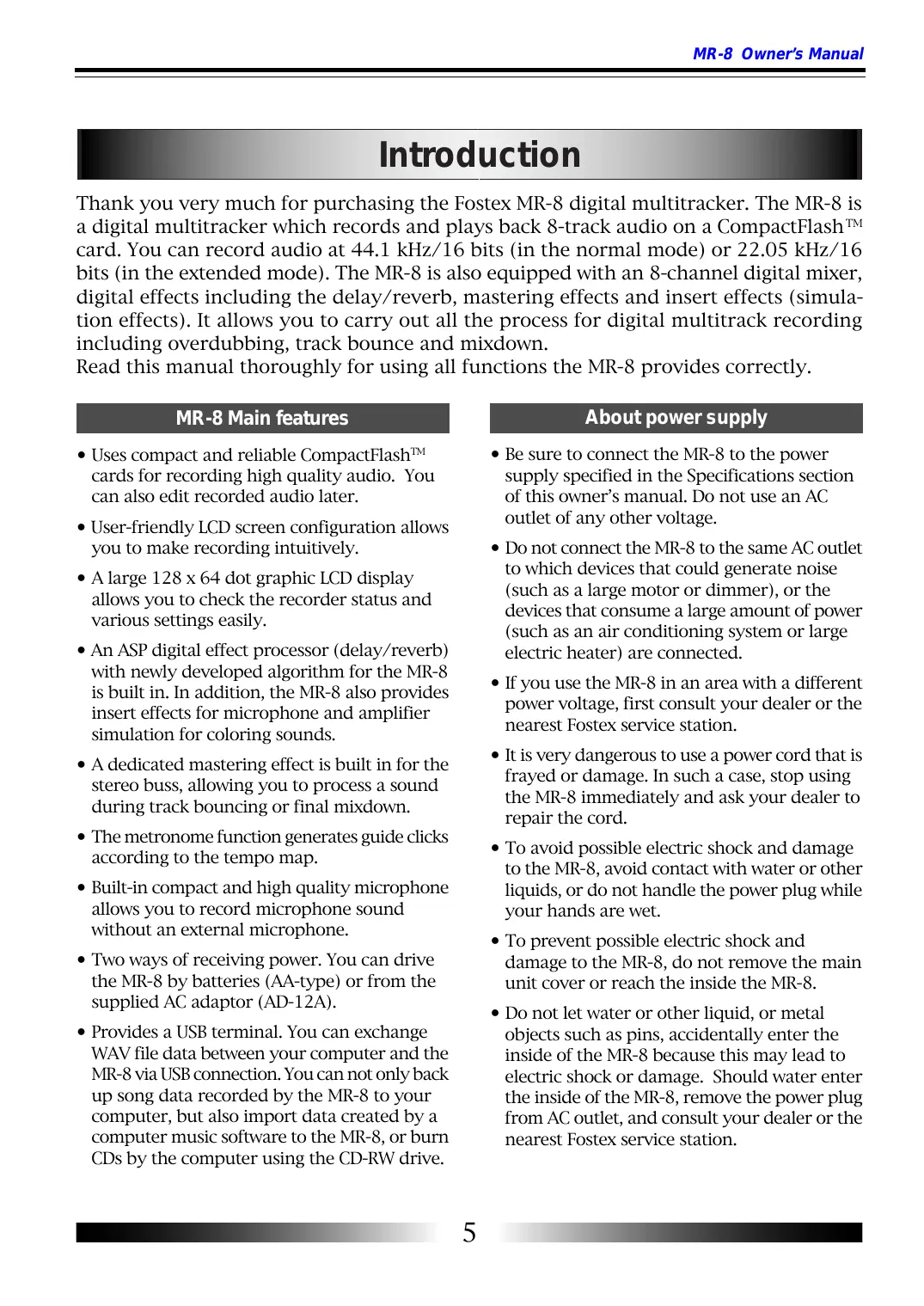
Thank you very much for purchasing the Fostex MR-8 digital multitracker. The MR-8 is a digital multitracker which records and plays back 8-track audio on a CompactFlash TM card. You can record audio at 44.1 kHz/16 bits (in the normal mode) or 22.05 kHz/16 bits (in the extended mode). The MR-8 is also equipped with an 8-channel digital mixer, digital effects including the delay/reverb, mastering effects and insert effects (simulation effects). It allows you to carry out all the process for digital multitrack recording including overdubbing, track bounce and mixdown.
Read this manual thoroughly for using all functions the MR-8 provides correctly.
MR-8 Main features
- Uses compact and reliable CompactFlash™ cards for recording high quality audio. You can also edit recorded audio later.
- User-friendly LCD screen configuration allows you to make recording intuitively.
- A large 128 x 64 dot graphic LCD display allows you to check the recorder status and various settings easily.
- An ASP digital effect processor (delay/reverb) with newly developed algorithm for the MR-8 is built in. In addition, the MR-8 also provides insert effects for microphone and amplifier simulation for coloring sounds.
- A dedicated mastering effect is built in for the stereo buss, allowing you to process a sound during track bouncing or final mixdown.
- The metronome function generates guide clicks according to the tempo map.
- Built-in compact and high quality microphone allows you to record microphone sound without an external microphone.
- Two ways of receiving power. You can drive the MR-8 by batteries (AA-type) or from the supplied AC adaptor (AD-12A).
- Provides a USB terminal. You can exchange WAV file data between your computer and the MR-8 via USB connection. You can not only back up song data recorded by the MR-8 to your computer, but also import data created by a computer music software to the MR-8, or burn CDs by the computer using the CD-RW drive.
About power supply
- Be sure to connect the MR-8 to the power supply specified in the Specifications section of this owner's manual. Do not use an AC outlet of any other voltage.
- Do not connect the MR-8 to the same AC outlet to which devices that could generate noise (such as a large motor or dimmer), or the devices that consume a large amount of power (such as an air conditioning system or large electric heater) are connected.
- If you use the MR-8 in an area with a different power voltage, first consult your dealer or the nearest Fostex service station.
- It is very dangerous to use a power cord that is frayed or damage. In such a case, stop using the MR-8 immediately and ask your dealer to repair the cord.
- To avoid possible electric shock and damage to the MR-8, avoid contact with water or other liquids, or do not handle the power plug while your hands are wet.
- To prevent possible electric shock and damage to the MR-8, do not remove the main unit cover or reach the inside the MR-8.
- Do not let water or other liquid, or metal objects such as pins, accidentally enter the inside of the MR-8 because this may lead to electric shock or damage. Should water enter the inside of the MR-8, remove the power plug from AC outlet, and consult your dealer or the nearest Fostex service station.
- To prevent damage to the MR-8, be sure to power on the connected devices first, then turn on the power to the MR-8. When you remove or connect the cables to the input/output connectors on the MR-8, make sure that the track and master faders and volume controls are set to “0”.
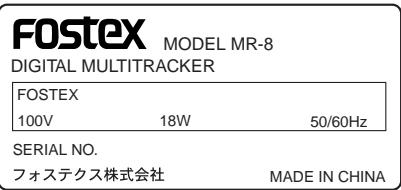
Equipment name, electrical ratings, serial number and other information for the MR-8, are written on bottom side.
- Do not install the MR-8 in locations subject to the following:
*Extremely high or low temperature, or significant changes in temperature.
* Excessive humidity or dust.
* Excessive changes in power supply voltage.
* Unstable or significantly vibrating or shaking surfaces.
* Near a strong magnetic field (such as a TV or speaker).
Notes on repair
- The MR-8 does not use any parts that user can repair easily. Contact your dealer or the nearest FOSTEX service station to ask about repairs.
- Use the packing carton designed for the MR-8 when you transport the MR-8 to the dealer for repair or return.
If you have discarded the packing box, try to pack the MR-8 completely using shock absorbing materials.
Fostex is not responsible for malfunction or damage due to incomplete packaging or caused during transport.
About copyrights
- It is prohibited by law to use any part of a CD recording or video images or audio data for which copyright is possessed by a third party for commercial purposes such as contents, broadcasts, sales, or distribution-any purpose other than for your personal pleasure.
About damages
- Fostex is not responsible for any “direct damage” or “indirect damage” caused by using the MR-8.
Note for audio interruption
- If you make recording or editing to a song many times, audio may be occasionally interrupted when the song is played back, due to data fragmentation.
Note that this is not a malfunction.
The basics of the MR-8
The chapter describes the basics of the MR-8 you should know before using the MR-8.
Recording method
The MR-8 records audio on a CompactFlash™ card. Songs are recorded on a card along with the ABS time (00m00.000s through 60m00.000s). The ABS time shows the absolute time on a card and you can start recording from any desired time within the range between 00m00.000s and 60m00.000s ABS time.
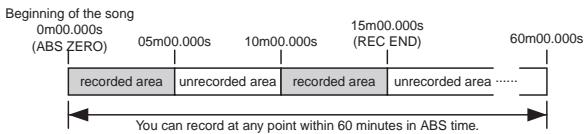
As the MR-8 does not consume the card space when no audio is recorded, you can record audio effectively, while the recordable time for a tape recorder depends on the CompactFlash ™ card capacity.

Song mode
The MR-8 provides two song modes: Normal and Extended modes. You can select an appropriate mode when creating a new song (see page 21).
Normal mode:
Audio quality takes precedence over the recording time. In this mode, you can record and play back 8-track audio at 44.1 kHz, 16 bit.
The recorded audio can be output digitally from the [DIGITAL OUT] connector, allowing digital copy to an external digital device (such as an MD and DAT).
Extended mode:
The recording time takes precedence.
In this mode, you can record and play back 8-track audio at 22.05 kHz, 16 bit. You can get longer recording time than the normal mode (see page 16).
Note that audio recorded in the extended mode cannot be output digitally from the [DIGITAL OUT] connector.
About song
To understand songs, imagine separated rooms as shown below. With the MR-8, you can create up to 99 songs on a card (although the available space may limit the number of songs).
![graph TD A["Song01"] --> B["Song02"] B --> C["Song03"] C --> D["Song04"] E["Song05"] --> F["Song98"] F --> G["Song99"]](/content/2025/01/168439/images/7d5094fc32a80eb20bf9fe2ba875f97feba8598835233e027be3886180b5a51d.jpg)
Each song is independent on a card and you can record, play back or edit a song without affecting other songs.
You can give a desired song name for managing recorded songs (see page 57).
Recorded track data is stored in a song as mono WAV files, as shown below.
![graph LR A["Song01"] --> B["WAV file"] B --> C["Track 1"] B --> D["Track 2"] B --> E["Track 8"]](/content/2025/01/168439/images/c58687464ae193f702ddad9cabe518e6d42f18bda7a943c10aea204eaa5858c5.jpg)
The MR-8 can convert the two WAV files bounced to tracks 7 and 8 (L and R) to a stereo WAV file (see page 86). You can export the converted stereo WAV file to your USB-connected personal computer, and use the file by a computer music software or burn the file to a CD-R/CD-RW disc for making an original audio CD using a CD-RW drive connected to the computer (see page 88).
Time base
The term, "time base", is used as the reference of recorder position information.
Using the [TIME BASE SELECT] key, you can select from among three time base types: ABS, Bar/Beat/Clk and Time counter.
ABS time:
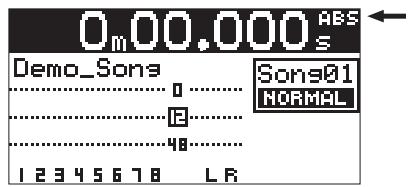
ABS time stands for Absolute time, which is "striped" on a card when creating a song. It starts from 0m00.000s (=ABS zero, the beginning of a song) and ends by 60m00.000s at maximum.
The following screen shows that the recorder is located at 0m00.000s of ABS time, which is the beginning of the song.
You can see "ABS" at the right-top.
Bar/Beat/Clk:
The Bar/Beat/Clk information is created according to the internal tempo map.
The following screen shows that the beginning position of the song is "bar -2/beat 1/clk 000". You can see "clk" at the right-top.
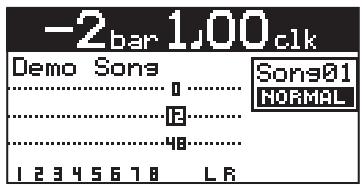
The Bar/Beat/Clk information is initially offset by "-2 bars" at 0m00.000s ABS time (which is called "bar offset"). The MR-8 determines the Bar/Beat/Clk values in a song according to the offset, time signature and tempo.
You can change the Bar offset (initially set to "-2") between 1 and -7 in the menu mode (see page 81).
Time counter:
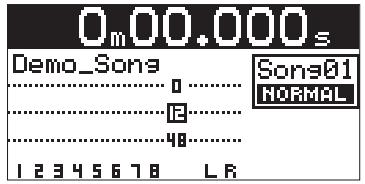
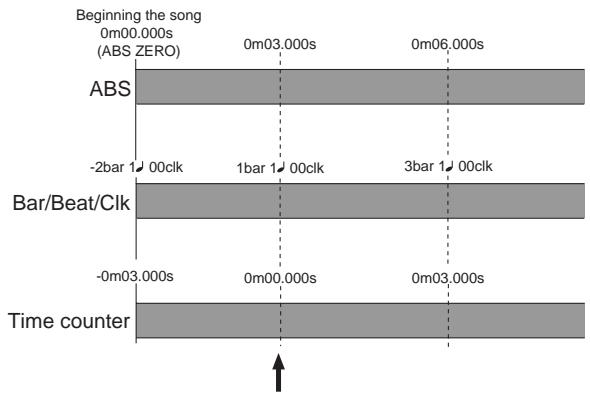
This is similar to the "time counter" mode used for tape recorders. It shows the recorder position within the range between "-60m00.000s" and "60m00.000s" and looks similar to the ABS time, however, you can reset the current position to "0m00.000s" whenever you want (see page 52). Therefore, you can reset a start position of the part which you work with to the zero point (to which you can return by simply pressing the [0 RETURN] key (see page 53).
You can see no time base type indication at the right-top.
The figure below shows the relation between the three time base types.
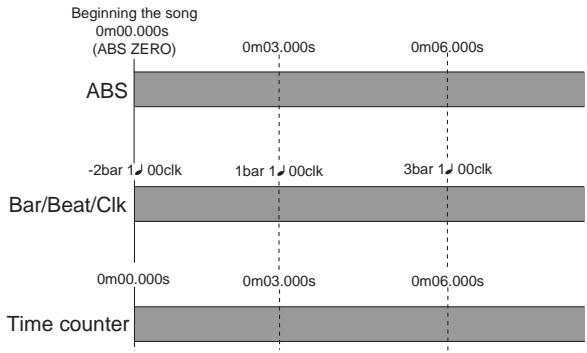
If you reset the time counter at the position pointed by the arrow, the time counter values changes as below.
Remain display
"Remain" shows how much time you can further record audio data to the available space left on the current CompactFlash™ card. As described earlier, the MR-8 stripes ABS time from 0m00.000s to 60m00.000s at maximum for each song, however, the remaining time (= available recording time left) depends on the available space on the CompactFlash™ card. The remain time is shown as in the screen example below during recording or record standby. Note that it shows the remaining time for recording onto a mono track.
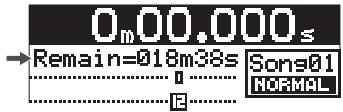
A mono track means a single track. Therefore, to know the remaining time for recording to more than one track, divide the displayed time by the number of tracks. Note that the remaining time shown on the screen is an approximate time.
Input monitor and repro monitor
Each of the MR-8 tracks has two output modes: repro monitor and input monitor.
In the repro monitor mode, the track playback signal is output.
In the input monitor mode, the input signal fed to the track is output, therefore, you can check the level of the input signal to be recorded.
To enter a MR-8 track to input monitor mode, press the appropriate [REC SELECT] key to arm the track (i.e. make the track record-ready), then press only the [RECORD] key to enter the "RECORD READY" mode or press both the [RECORD] and [PLAY] keys simultaneously to start recording.
![graph LR A["Signal input in the recorder"] --> B["track 1"] A --> C["track 2"] A --> D["track 3 READY"] A --> E["track 4 READY"] A --> F["track 5"] A --> G["track 6"] A --> H["track 7"] A --> I["track 8"] B --> J["Playback sound (Playback monitor)"] C --> K["Playback sound (Playback monitor)"] D -->…](/content/2025/01/168439/images/fb326d43c57561107693db293fda9de690725c39aba090e65036be2686b2f6f8.jpg)
TRIM control
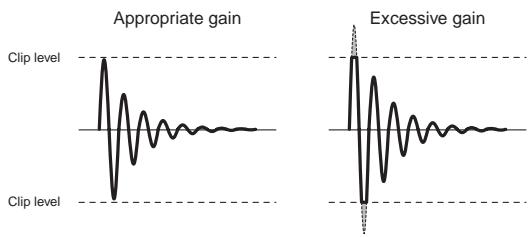
Pay great attention to the TRIM control adjustment.
The signal received at the [INPUT A] or [INPUT B] jack is routed to the appropriate TRIM control, by which the signal level fed to the A/D converter of the MR-8 is controlled.
You can check this level by the PEAK indicator. If the level is too high, the PEAK indicator lights, while you may hear the sound distorted or noisy. This distortion (noise) generated at this stage cannot be eliminated, therefore, adjust the TRIM control properly so that the PEAK indicator does not light at the loudest part of the input signal.
Names and Functions
Top panel (left part)
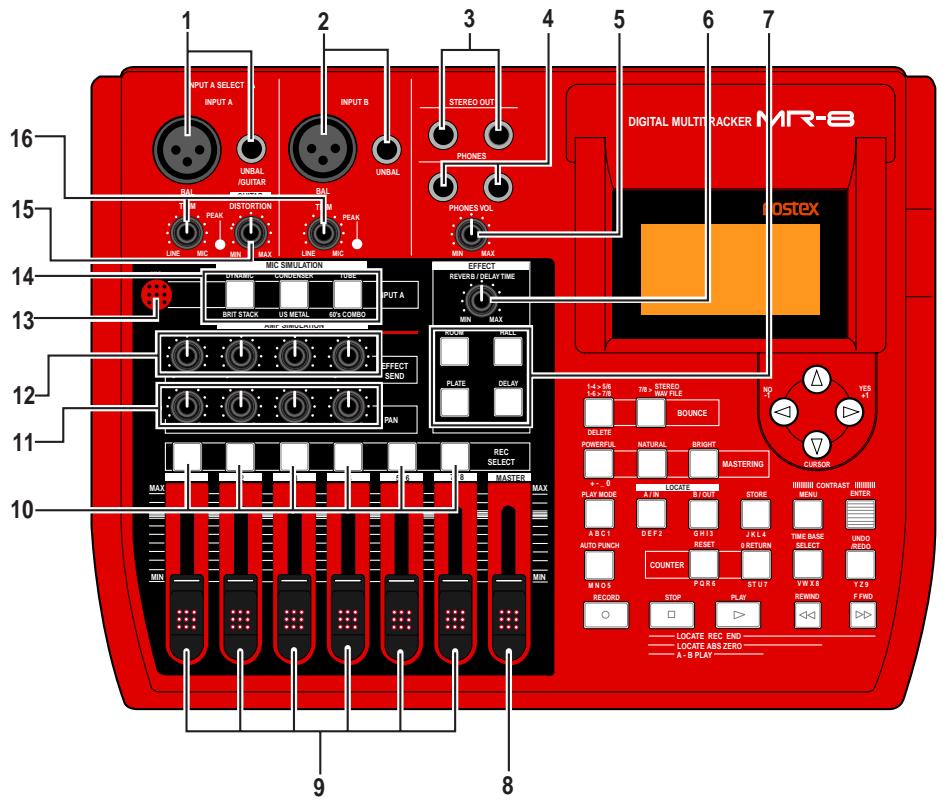
1. [INPUT A] connectors
Both the [BAL] XLR and [UNBAL/GUITAR] phone connectors are provided. You can connect a guitar, microphone, keyboard, etc. According to the source connected, select the [INPUT A SELECT] switch appropriately.
To record a mono source, use only the [INPUT A] section. To record a stereo source, use both the [INPUT A] and [INPUT B] sections (see page 29).
On each input section, the [UNBAL/GUITAR] phone connector takes priority to the [BAL] XLR connector. You cannot use both the [UNBAL/GUITAR] and [BAL] connectors on the same section simultaneously.
2. [INPUT B] connectors
Both the [BAL] XLR and [UNBAL] phone connectors are provided. You can connect a microphone, keyboard, etc.
This section is used only when recording a stereo source. When recording a mono source, this section is not used (see page 29).
On each input section, the [UNBAL] phone connector takes priority to the [BAL] XLR connector. You cannot use both the [UNBAL] and [BAL] connectors on the same section simultaneously.
3. [STEREO OUT] jacks (L, R)
These jacks output the stereo (L and R) buss signals. Connect these jacks to a monitor equipment or master recorder (see page 26).
4. [PHONES] jacks (1, 2)
Two jacks (1 and 2) are provided. You can use two pairs of stereo headphones with the MR-8.
5. [PHONES VOL] control
Adjusts the headphone output level.
6. [REVERB/DELAY TIME] control
Controls the reverb time or delay time (see page 40).
7. [EFFECT] keys
Select the effect type from among ROOM, HALL, PLATE and DELAY (see page 39).
8. [MASTER] fader
Adjusts the stereo (L and R) buss output level (see page 32 and 33).
9. Track faders
Each fader adjusts the appropriate track play-back level. Each of track faders 5/6 and 7/8 controls the appropriate stereo signal (see page 19, 32, and 33).
10. [REC SELECT] keys
Used to select one or two recording tracks.
You can record onto up to two tracks simultaneously. Pressing a key arms or unarm the corresponding track(s). Tracks 5/6 or 7/8 are armed or unarmed simultaneously (see page 29, 31, and 33).
11. [PAN] controls
Control panning for tracks 1 through 4 (see page 45).
12. [EFFECT SEND] controls
Control the amount of signals from tracks 1 through 4 sent to the internal effect (reverb/delay). (see page 40).
13. Internal microphone
You can make recording using the internal microphone by setting the [INPUT A SELECT] switch on the rear panel to "INT MIC" (see page 29).
14. Insert effect select keys
Used to select the insert effect (mic simulation or amp simulation) for the signal from the [INPUT A] jack.
When setting the [INPUT A SELECT] switch on the rear panel to "MIC/LINE", you can use the mic simulation effect. When setting the switch to "GUITAR", you can use the amp simulation effect (see page 30 and 38).
15. [DISTORTION] control
Controls the amount of the distortion effect for a guitar connected to the phone jack on the [INPUT A] section.
This control is effective only when the [INPUT A SELECT] switch is set to "GUITAR" (see page 30).
16. [TRIM] controls
Control the input gain of the [INPUT A] and [INPUT B] sections (see page 30).
Top panel (right part)
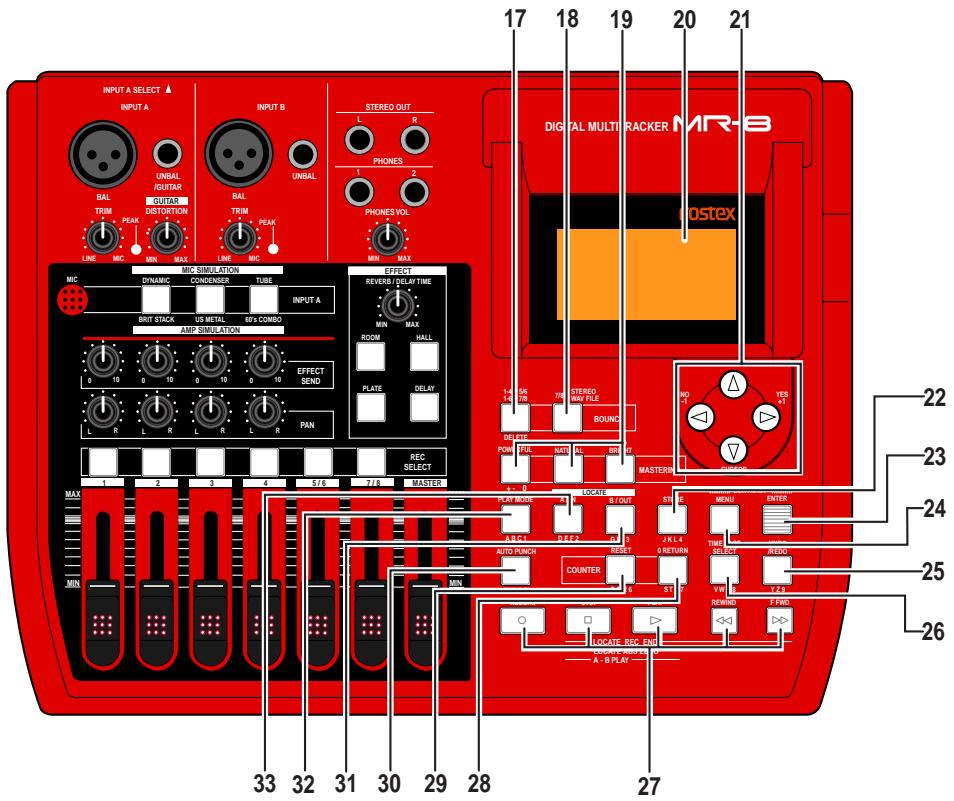
17. [1-4 > 5/6, 1-6 > 7/8] / [DELETE] key
Selects the bounce mode (see page 43).
Each press of the key alternates "1-4 > 5/6" and "1-6 > 7/8". In the menu mode, this key is also used for deleting a character in a song name (see page 58).
18. [7/8 > STEREO WAV FILE] key
Converts a mono WAV file recorded on tracks 7/8 to a stereo WAV file (see page 86).
You can export the stereo WAV file to your personal computer over the USB connection (see page 88).
19. [MASTERING] keys
Used to select the mastering effect during track bounce or mixdown (see page 41).
In the menu mode, the [POWERFUL] key is used for character entry of +, -, _, and 0 (see page 21).
20. LCD display
This 128 x 64 dot LCD display shows various information (see page 27).
21. [CURSOR ▶/◀/△/▽] keys
Used to move the cursor in the menu mode, execute/cancel settings, etc.
22. [STORE] / J K L 4 entry key
Stores the current recorder position (time data) as the LOCATE A/IN or LOCATE B/OUT point (see page 36 and 53). In the menu mode, this key is used for character entry of J (j), K (k), L (l) and 4 (see page 21).
23. [ENTER] / [CONTRAST] key
Confirms the selection in the menu mode.
While holding down this and the [MENU] key together, you can adjust the LCD display contrast by using the [CURSOR ⊙] and [CURSOR ⊙] key (see page 28).
24. [MENU] / [CONTRAST] key
Enters the menu mode.
While holding down this and the [ENTER] key together, you can adjust the LCD display contrast by using the [CURSOR ⊙] and [CURSOR ⊙] key (see page 28).
25. [UNDO/REDO] /Y Z 9 entry key
Used to undo or redo recording or editing (see page 32 and 34). Each press of the key alternates "undo" and "redo". In the menu mode, this key is used for character entry of Y (y), Z (z) and 9 (see page 21).
26. [TIME BASE SELECT] /VW X 8 entry key
Selects the time base shown on the LCD display (see page 27). Pressing this key while holding down the [MENU] and [ENTER] keys together resets the LCD display contrast to the default value (see page 28). In the menu mode, this key is used for character entry of V (v), W (w), X (x) and 8 (see page 21).
27. Transport keys
[PLAY] key
Starts playback of the recorder.
Pressing this key while holding down the [RECORD] key starts recording of the armed (record-ready) track(s). Pressing this key during recording releases recording.
[STOP] key
Stops the recorder.
By pressing the [PLAY], [REWIND] or [F FWD] key while holding down the [STOP] key, you can locate to a specific point or repeat playback as below.
• [STOP] + [PLAY] (A-B PLAY)
Repeats playback between the LOCATE A and LOCATE B points (see page 49).
• [STOP] + [REWIND] (LOCATE ABS ZERO)
Locates to the beginning (ABS ZERO) of the current song (see page 52).
• [STOP] + [F FWD] (LOCATE REC END)
Locates to the recording end of the current song (REC END) (see page 52).
[RECORD] key
Pressing the [PLAY] key while holding down the [RECORD] key starts recording of the armed (record-ready) track(s) (see page 32 and 34).
By pressing only the [RECORD] key when any track(s) is armed (in record-ready), the input signal(s) of the armed track(s) can be monitored (i.e. input monitor mode).
[F FWD] key
Pressing this key fast forwards the recorder.
During playback, pressing this key starts 3 x cueing. While holding down the [STOP] key, pressing this key locates to the recording end of the current song (REC END) (see page 52).
While holding down the [ENTER] key, pressing this key selects a song (see page 24).
[REWIND] key
Pressing this key rewinds the recorder.
During playback, pressing this key starts 3 x reverse cueing. While holding down the [STOP] key, pressing this key locates to the beginning (ABS ZERO) of the current song (see page 52). While holding down the [ENTER] key, pressing this key selects a song (see page 24).
28. [COUNTER 0 RETURN] / ST U 7 entry key
Locates to the counter zero point (see page 53). In the menu mode, this key is used for character entry of S (s), T (t), U (u) and 7 (see page 21).
29. [COUNTER RESET] / P Q R 6 entry key
Resets the counter to zero (see page 52). In the menu mode, this key is used for character entry of P (p), Q (q), R (r) and 6 (see page 21).
30. [AUTO PUNCH] / M N O 5 entry key
Turns on or off the auto punch mode (see page 36). In the menu mode, this key is used for character entry of M (m), N (n), O (o) and 5 (see page 21).
31. [LOCATE B/OUT] / G H I 3 entry key
Pressing the [STORE] key followed by this key stores the LOCATE B (or punch out) point (see page 36 and 53). In the menu mode, this key is used for character entry of G (g), H (h), I (i) and 3 (see page 21).
32. [LOCATE A/IN] / D E F 2 entry key
Pressing the [STORE] key followed by this key stores the LOCATE A (or punch in) point (see page 36 and 53). In the menu mode, this key is used for character entry of D (d), E (e), F (f) and 2 (see page 21).
33. [PLAY MODE] / A B C 1 entry key
Selects the play mode from among normal, auto play, auto return and loop (see page 50).
In the menu mode, this key is used for character entry of A (a), B (b), C (c) and 1 (see page 21).
Rear panel
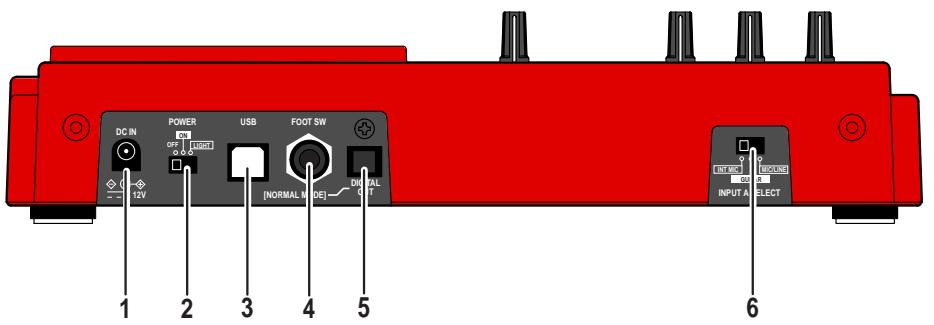
1. [DC IN] jack
Connect the supplied AC adaptor to this jack (see page 17).
2. [POWER] switch
Used to turn on or off the power.
By setting the switch to "LIGHT", the backlight of the LCD display lights up (see page 18).
When driving the MR-8 by batteries, we recommend not to use the backlight, because the batteries are exhausted quickly.
3. [USB] port
Used to connect with a personal computer using a standard USB cable (see page 88).
4. [FOOT SW] jack
Used to connect with the optional footswitch (Model 8051) or an unlatched-type footswitch (see page 35).
5. [DIGITAL OUT] connector
Used to connect with an external digital device (see page 48).
Only song data created by the normal mode (44.1 kHz, 16 bit) can be digitally output from this port.
Song data created by the extended mode cannot be digitally output.
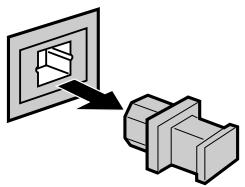
When you open the MR-8 carton, the protection cap is inserted to the [DIGITAL OUT] connector. When using the connector, remove the cap. When no connection is made to the connector, keep the cap inserted.
6. [INPUT A SELECT] switch
This switch must be set appropriately according to the input source of the [INPUT A] section (see page 29).
| MIC/LINE | Set the switch to this position when the source is an external microphone or line level source. Both the [BAL] XLR and [UNBAL/GUITAR] phone connectors can be used. |
| GUITAR | Set the switch to this position when the source is a guitar connected to the phone connector. Both the [BAL] XLR and [UNBAL/GUITAR] phone connectors can be used. |
| INT MIC | Set the switch to this position when the source is the built-in microphone. Both the [BAL] XLR and [UNBAL/GUITAR] phone connectors cannot be used. |
Side panel
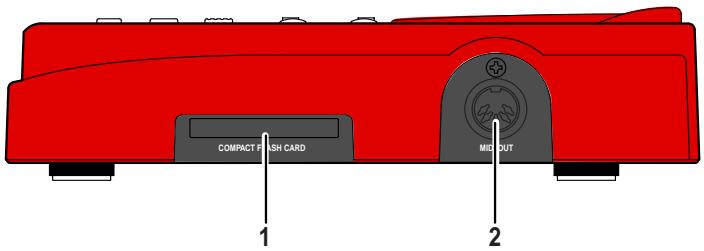
1. Card slot
A CompactFlash TM card is inserted to this slot (see page 16).
2. [MIDI OUT] jack
Used to connect to a [MIDI IN] jack of an external MIDI device (such as a MIDI sequencer) (see page 77).
Bottom panel
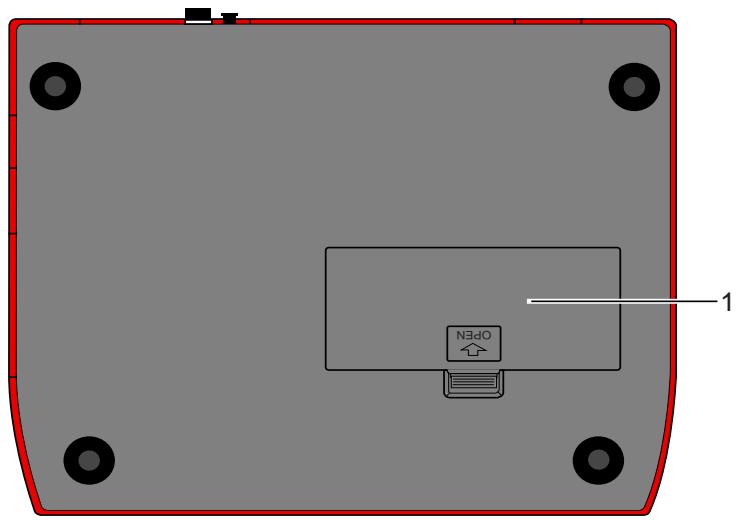
1. Battery compartment
To use the MR-8 with batteries, insert six standard alkaline AA-type batteries to this compartment (see page 17).
About recording medium
CompactFlash™ card
The MR-8 uses a CompactFlash TM card (see the illustration below) as a recording medium.
On the CompactFlash ™ card supplied with the unit, a demo song is recorded. See "Playing back the demo song" on page 19 for details about how to play back the demo song.
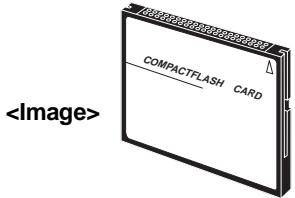
When using a CompactFlash TM card other than the supplied one, make sure that the card is tested and confirmed by Fostex. If you use a card which is not tested and confirmed by Fostex, the MR-8 may not work correctly. About cards confirmed by Fostex, see the Fostex web site or contact your nearest Fostex dealer or service station. Also note that, before using a new card, you must format the card by the MR-8 (see page 22).
Recording time
The available recording time depends on the memory size of the card used. The following table shows the approximate recording time when recording in the normal mode (at 44.1-kHz, 16-bit), as well as in the extended mode (at 22.05-kHz, 16-bit). Refer to this table when purchasing a CompactFlash TM card. We recommend to use a CompactFlash TM card whose memory size is more than 128 MB.
Approx. Minutes
| Memory size | Mono | 2TR | 4TR | 6TR | 8TR |
| 128MB | 24 (48) | 12 (24) | 6 (12) | 4 (8) | 3 (6) |
| 256MB | 48 (96) | 24 (48) | 12 (24) | 8 (16) | 6 (12) |
| 512MB | 96 (193) | 48 (96) | 24 (48) | 16 (32) | 12 (24) |
* Minutes in parenthesis: extended mode
Inserting a CompactFlash™ card
Insert a CompactFlash TM card to the slot on the right side panel. (When shipped, the supplied card is inserted.)
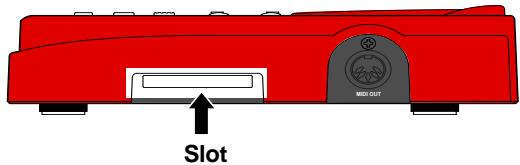
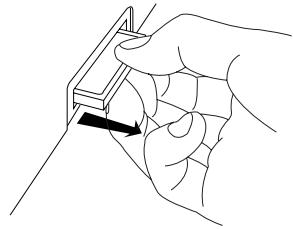
How to remove a CompactFlash™ card
Place your fingertip in the groove under the card and pull it forward.
How to insert a CompactFlash™ card
With the surface side up, insert a card until it cannot go further.
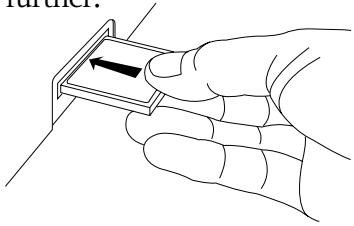
- Do not insert a card in the wrong direction.
- Do not push a card with excessive force.
About the power
You can use the MR-8 either with the supplied AC adaptor (Model AD-12A) or alkaline batteries (AA-type x 6, not supplied with the MR-8). When preparing the power source, make sure that the [POWER] switch of the MR-8 is set to off.
Connecting the AC adaptor
See the illustration below.
Connect the plug of the supplied AC adaptor to the [DC IN] jack firmly, then connect the AC adaptor to the AC main outlet. Make sure that the voltage of your AC outlet matches the supplied AC adaptor's specification.
![Model AD-12A DC IN POWER USB FOOT SW [DC IN] connector](/content/2025/01/168439/images/bca5cfed2bffde1a22d185451e39233c8ce2d8c8bfbee9b374018d29bd0e6f65.jpg)
When the AC adaptor is connected while batteries are installed, the power is supplied to the MR-8 from the AC adaptor. If the AC adaptor is unplugged, the batteries supply the power to the MR-8.
Inserting batteries
The battery compartment is located at the bottom of the MR-8.
To insert batteries, follow the procedure below.
- Put the MR-8 with the bottom panel up on soft material such as cloth.
- Push the tab on the battery compartment cover to the direction shown by arrow in the illustration below, and remove the cover.
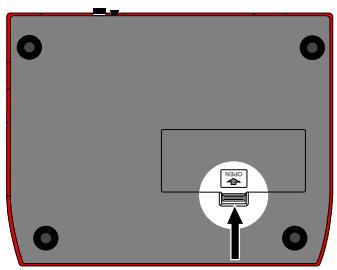
- Insert six batteries in the right direction as shown below.
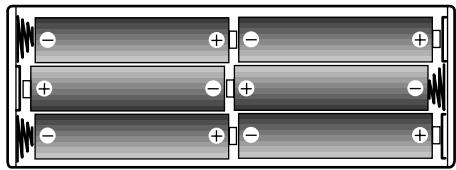
- Place the compartment cover to the original position.
- Do not leave the exhausted batteries in the battery compartment.
- When batteries are exhausted, remove them from the battery compartment. If you leave them, chemical liquid in the batteries may leak out and damage the unit. If you do not use the unit with batteries for a long time, remove the batteries even though they are new.
- Never mix old and new batteries.
Turning on the unit
The first time you turn on the power, the LCD display shows the startup screen, followed by the screen below showing that the demo song is loaded. See page 27 for details about screens.
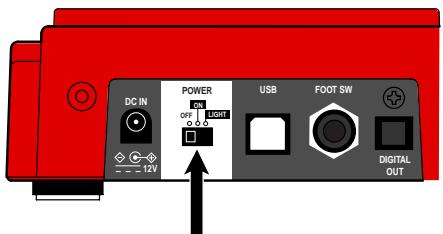
[POWER] switch
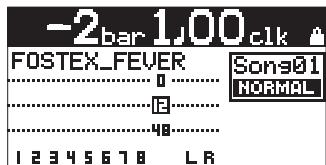
The beginning of the demo song is shown.
If the LCD display does not show the startup screen when turning on the power, check the following.
- The power is supplied to the unit. (i.e. the AC adaptor is correctly connected, or batteries are not exhausted and correctly set.)
- The card is correctly set to the slot.
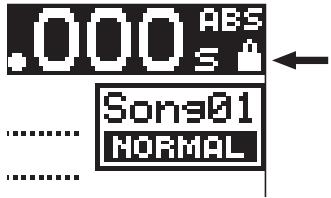
Note that the demo song is protected and the "☐" icon is shown at the top right of the screen. You can play back a protected song but cannot make recording or edit data. See page 20 for the details.
Note when external devices are connected.
If external devices are connected to the MR-8, follow the procedure below when turning on the power.
- Turn down the MR-8 [MASTER] fader.
- Turn on the power of source devices.
- Turn on the power of the MR-8.
- Turn on the power of monitor devices (such as an amplifier, speakers with built-in amplifiers, etc.).
Turning off the power
When turning off the power, make sure that the MR-8 is stopped. If external devices are connected, reverse the procedure shown above (i.e. monitor devices -> MR-8 -> source devices).
If you turn off the MR-8 power while the card is accessed, the recorded songs or card itself may be damaged.
You do not have to shut down the MR-8 before turning it off. All data recorded before turning off the power are memorized.
Turning on the LCD display backlight
If you hardly see the screen on the LCD display in the dark place, turn the LCD display backlight by setting the [POWER] switch to the "LIGHT" position.
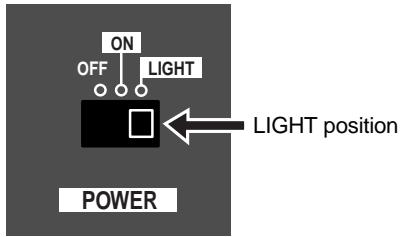
When using the MR-8 with batteries, we recommend not to turn on the backlight except when it is needed. Turning on the backlight consumes the battery power, therefore, the operation time becomes shorter.
Low battery display
When using the MR-8 with batteries and the battery power becomes low, "Low Battery!" flashes on the display.
If you see this, interrupt the current work and replace batteries.
Note that when "Low Battery!" flashes on the display, you cannot turn on the backlight.
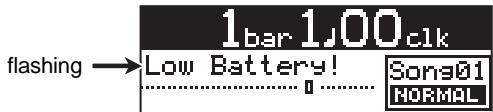
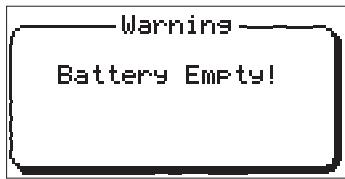
If you continue your work after "Low Battery!" starts flashing, the batteries finally become empty. In such a condition, the warning message as shown below appears on the display and the MR-8 does not accept any key operation.
We recommend to replace batteries as soon as "Low Battery!" starts flashing.
Listening the demo song
A demo song is recorded on the supplied CompactFlash ™ card. Let's listen to this song.
![INPUT A SELECT INPUT B [POWER] SW DIGITAL MULTITRACKER MR-8 FOSTEX MIC SIMULATION COMPENSER TUBE INPUT A BIT STACK US METAL MEY COMBO AMP SIMULATION EFFECT SEND PAN RECE SELECT 1 2 3 4 5/6 7/8 MASTER MAX MAX 1+ 2B 3B+ STUDIO 1A+ 2B 3A+ STUDIO FLK POWERSFUL NATURAL SRIGHT MASTERING T+ 0 PLAY MODE AUT…](/content/2025/01/168439/images/d052646e4ad74b34e026b1f490aa219173ff9e48113340a9e3bd523dc73c83fd.jpg)
1) Connect headphones or a monitor system to the MR-8.
2) Set the [POWER] switch to ON.
The MR-8 turns on the power. After the LCD display shows the startup screen, the demo song (Song 01: FOSTEX_FEVER) is loaded.
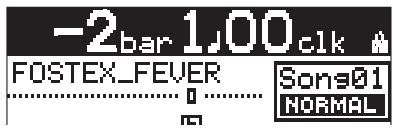
3) Raise the [MASTER] fader to the "≡" position. Do not raise the track faders at this stage.
4) Press the [PLAY] key to start playback.
5) Raise the track faders gradually to adjust the play back level.
If you are using headphones for monitoring, also raise the [PHONES] control gradually to adjust the headphones level. (If you are using a monitor amplifier/speaker system for monitoring, adjust the level control of the amplifier.)
6) When the demo song ends, press the [STOP] key to stop the recorder.
Tips: Listening to the demo song again
When the recorder is stopped after listening to the demo song, press the [REWIND] key while holding down the [STOP] key. The recorder instantly moves back to the beginning of the demo song.
Then pressing the [PLAY] key starts playback from the beginning of the demo song.
To record a new material onto the supplied card, you have to delete the demo song.
If you wish to keep the demo song, you cannot record a material onto the supplied card, therefore, you must record a material onto a new CompactFlash TM card.
Before recording a material onto a new card, you must make preparations for a card. See "Preparations of a CompactFlash™ card" on the next page.
Preparation of a CompactFlash™ card
After playing back the demo song, let's make preparations for a CompactFlash ™ card onto which you are going to record. Depending on whether you are going to record a material onto the supplied CompactFlash ™ card or a new card, make either of the following preparations.
Preparation for recording onto the supplied card
Before recording a material onto the supplied card, you must release the protection of the demo song and delete the demo song, then create a new song on the card.
1) Make sure that the supplied card is set to the slot, then turn on the MR-8 power.
The recorded demo song is loaded.
2) Press the [MENU] key to enter the menu mode.
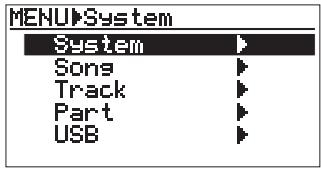
The LCD display shows the MENU screen. The first time you access to this screen, "System" is highlighted.
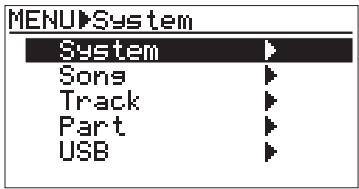
3) Highlight "Song" using the [CURSOR ☑] key, then press the [ENTER] key (or [CURSOR ☑] key).
The display now shows the song edit menu screen. Initially, "Select Song" is highlighted.
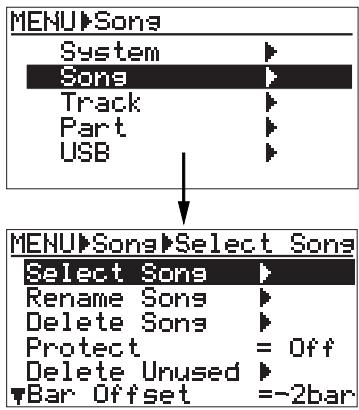
4) Highlight "Protect" using the [CURSOR ☑] key, then press the [ENTER] key (or [CURSOR ☑] key).
"On" (default) starts flashing.
![graph TD A["MENU"] --> B["Songs"] --> C["Protect"] B --> D["Select Sons"] --> E["Rename Sons"] --> F["Delete Sons"] --> G["Protect"] --> H["= On"] G --> I["Delete Unused"] --> J["▼Bar Offset"] --> K["==2bar"] L["MENU"] --> M["Songs"] --> N["Protect"] N --> O["Select Sons"] --> P["Rename Sons"] --> Q…](/content/2025/01/168439/images/552afa4c8a0dc021e092011a4bdc2539a613b2f1d4755db26f681860e1cec26e.jpg)
5) Select "Off" using the [CURSOR ☑] or [CURSOR ☑] key, then press the [ENTER] key.
The protection is released, and the screen now looks like the following.
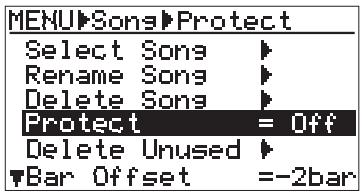
6) Highlight "Delete Song" using the [CURSOR Ⓓ] key, then press the [ENTER] key.
The display shows the screen on which you can select a song to be deleted.
On the supplied card, only one song (S01: FOSTEX_FEVER) is shown.
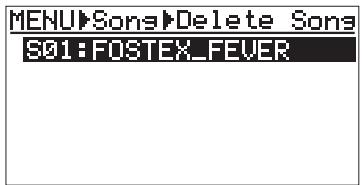
7) While "S01: FOSTEX_FEVER" is highlighted, press the [ENTER] key.
The display shows the confirmation screen for deleting a song.
In this screen, “Delete Song” and “Can’t Undo” are shown for warning, as well as “Yes->RECORD+YES Key” and “No->NO Key” alternately flash.
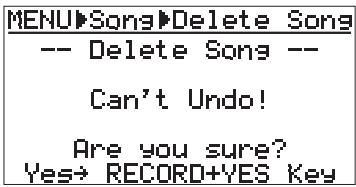
You cannot undo song deletion. To cancel deleting a song, press the [CURSOR ☺] key when the confirmation screen is shown.
8) Press the [CURSOR ▶] key while holding down the [RECORD] key.
The demo song is deleted, while the display now shows the screen for newly creating song 01, in which you can select the song mode (initially, "Normal" is flashing).
![MENU>Song>Select Sons -- New Sons -- Songs Mode = Normal - flashing Songs Name = [CANCEL] [ENTER]](/content/2025/01/168439/images/f1d2c5ff80a1520afdf889b05d7dd27e20c38187e2ca23bba546461085926c52.jpg)
You can select between "Normal" and "Extended".
| Normal | Fs 44.1 kHz, 16-bit high quality audio mode. Normally, select this option. |
| Extended | Fs 22.05 kHz, 16-bit long time mode. Song data recorded in this mode cannot be digitally output. |
9) Select the song mode using the [CURSOR ▶] or [CURSOR ◀] key, then press the [ENTER] key.
Now the song mode is set and the selected option steadily lights.
10) Press the [CURSOR ▽] key.
The cursor moves to the first character entry position of a song name.
![MENU▶Songs▶Select Songs -- New Sons -- Song Mode = Normal Song Name = [CANCEL] [ENTER] flashing](/content/2025/01/168439/images/a64e40f8ae2691a4ae647617fb34e254620c930f312ba7b3e171996c48d27535.jpg)
11) Enter a desired character using the character entry keys together with [CURSOR] keys.
See below for details about how to enter characters. You can enter up to 16 characters. You must enter a song name, otherwise, you cannot create a song.
![FOSTEX MR 8 - 11) Enter a desired character using the character entry keys together with [CURSOR] keys. - 1](/content/2025/01/168439/images/f07aa15a3fd2d7a0f9b53d1233fa9e59633ac098bc9f47721e7d11b27a18edb6.jpg)
Some keys on the MR-8 top panel act as character entry keys in the menu mode. For example, the [PLAY MODE] key (shown at the left) can be used for entering A, B, C, a, b, c and 1.
Each press of a character entry key switches the character to be entered from among those assigned to the key.
The following procedure shows how to enter "Moonlit" as a song name.
- Use the [AUTO PUNCH] key to enter "M".
- Press the [CURSOR ⊙] key to move the cursor right.
- Use the [AUTO PUNCH] key to enter "o".
- Press the [CURSOR ⊙] key to move the cursor right.
- Use the [AUTO PUNCH] key to enter "o".
- Press the [CURSOR ⊙] key to move the cursor right.
- Use the [AUTO PUNCH] key to enter "n".
- Use the [STORE] key to enter "I".
- Use the [LOCATE B/OUT] key to enter "i".
- Use the [O RETURN] key to enter "t".
Pressing a different character entry key automatically moves the cursor right.
If two successive characters are assigned to the same character entry key, press the [CURSOR ⊗] key after selecting the first character to move the cursor right.
Also note that you cannot use “+” for a song name with less than 9 characters. For example, you cannot enter “AAA+BBB” for a song name.
You can use “+” for a song name with 8 or more characters. For example, you can enter “AAA+BBBBB”.
![MENU▶Songs▶Select Songs -- New Songs -- Songs Mode = Normal Songs Name = Moonli! [CANCEL] [ENTER]](/content/2025/01/168439/images/a87388ec7118279aab21924630e460bbe14059bba4bdfb4c42d882247f4918c9.jpg)
To correct a character entered, use the [CURSOR ⓐ/▶] keys to move the cursor to the character you want to correct, and re-enter the desired character.
By moving the cursor to the last character and pressing the [1-4>5/6, 1-6>7/8] key repeatedly, you can delete all characters.
You have to enter a song name. If you go to the next operation without entering a song name, the warning message appears and the display shows the song name entry screen. If you enter a song name which is already used in the card, the same warning message appears. You can change a song name whenever you like in the menu mode (see page 58).
12) Highlight “[ENTER]” at the bottom of the screen using the [CURSOR ⑦] key, and press the [ENTER] key.
The screen changes to show the Song menu screen. To cancel creating a song, highlight “[CANCEL]” and press the [ENTER] key in the step above.
![MENU>SongSelect Songs -- New Sons -- Songs Mode = Normal Songs Name = Moonlit [CANCEL] [ENTER] MENU>SongSelect Songs ▲S01:Moonlit ---:New Sons](/content/2025/01/168439/images/4a7766363c651973e96adf0be832d93816218fe833f8ca492ebc431557374e19.jpg)
13) Press the [MENU] key to quit the menu mode.
To create another song, follow the same procedure above. You can also delete an unnecessary song (see page 59).
Preparation for recording onto a new card
Before recording a material onto a new card (which is operation-confirmed by Fostex), carry out the following procedure for preparation.
You can use a card which has been used with a digital camera or personal computer if the card is operation-confirmed. However, depending on the use of the card, the remaining space for recording with the MR-8 may be small. Therefore, we recommend to format the card by your digital camera or personal computer before using it with the MR-8.
If you cannot format such a card with another device, you can format the card with the MR-8 using the "Card Format" menu after creating a new song by the following procedure. See page 25 for formatting a card with the MR-8.
1) While the MR-8 power is off, remove the supplied card from the slot and insert a new card to the slot.
2) Turn on the MR-8 power.
After showing the startup screen, the display automatically shows the "Select Song" screen of the Song menu, on which you can create song 01.
![MENU>Sons>Select Sons -- New Sons -- Songs Mode = Normal Songs Name = [CANCEL] [ENTER]](/content/2025/01/168439/images/8528574d69bf8c24b64f5b051e36c4451a26781ed398e6815863a94b414db99d.jpg)
As described earlier, set the song mode (Normal or Extended) and song name to create song 01.
After creating a song, you can make recording onto the card.
Creating a song/selecting a song
This section describes how to create a new song on a card and how to select a desired song among more than one song created.
Creating a song
In the following procedure, we assume that song 1 (S01) is already created on the card and we are going to created a new song.
1) While the recorder is stopped, press the [MENU] key to enter the menu mode.
The LCD display shows the MENU screen. The first time you access to this screen, "System" is highlighted.
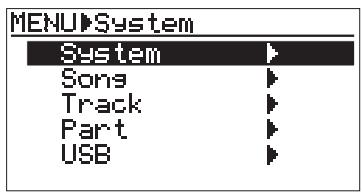
2) Highlight "Song" using the [CURSOR ☑] key, then press the [ENTER] key.
The display now shows the song edit menu screen. Initially, "Select Song" is highlighted.
![graph TD A["MENUE"] --> B["System"] A --> C["Sons"] A --> D["Track"] A --> E["Part"] A --> F["USB"] G["MENUE"] --> H["Select Sons"] H --> I["Select Sons"] I --> J["Rename Sons"] I --> K["Delete Sons"] I --> L["Protect = Off"] I --> M["Delete Unused"] I --> N["Bar Offset = -2bar"]](/content/2025/01/168439/images/1e769416a240276aaf9cea3521f258a92aa14433e314c0015d9b098111734588.jpg)
3) While "Select Song" is highlighted, press the [ENTER] key.
Song 01 (S01: Original Song1) already created is highlighted, while "--:New Song" is shown on the next line.
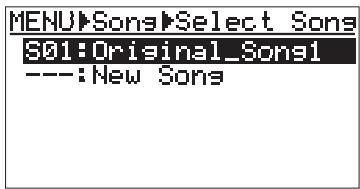
4) Highlight "--:New Song" using the [CURSOR ⑦] key, then press the [ENTER] key.
The display now shows the screen on which you can select the song mode of the new song you are going to create.
![graph TD A["MENUSonSSelect Song\nS01:Original_Song1\n---:New Song"] --> B["MENUSonSSelect Song\n-- New Song --\nSongs Mode = Normal\nSongs Name =\n[CANCEL"] [ENTER]] B --> C["flashing"]](/content/2025/01/168439/images/cb86385a5e39199078974666e925dd19010d882988631c504e3e6933eca8a102.jpg)
5) Select the song mode using the [CURSOR ◀] or [CURSOR ▶] key.
You can select between "Normal" and "Extended".
6) Press the [CURSOR ▽] key.
The cursor (flashing point) moves to the first character entry position of a song name.
![MENU▶Songs▶Select Songs -- New Songs -- Songs Mode = Normal Songs Name = ■ [CANCEL] [ENTER] flashing](/content/2025/01/168439/images/3afa4394e8ad8b0966f05d128f7ffb0e369531057bfa761595469b0dab7ce73a.jpg)
7) Enter a desired name following the same procedure as described on page 21.
8) After completing song name entry, use the [CUR SOR Ⓥ] key to move the cursor to "ENTER" at the bottom of the screen, then press the [ENTER] key.
The screen now shows the song list in which you see the new song added.
To cancel creating a song, use the [CURSOR ⑦] key to move the cursor to "[CANCEL]"
(instead of "[ENTER]") , then press the [ENTER] key.
9) Press the [MENU] key to quit the menu mode.
To create another song, follow the same procedure above. You can also delete an unnecessary song (see page 59).
Selecting a desired song
If more than one song is created on a card, you have to select a desired song first by following the procedure below.
1) When the display shows the home screen and the recorder is stopped, press the [REWIND] key (or [F FWD] key) while holding down the [ENTER] key.
![NO +1 YES +1 MASTERING CURSOR [INTER] CONTRAST J K L 4 0 RETURN STU 7 VW X 8 Y Z 9 ENTER TIME BASE SELECT /REDO [ENTER] key [F FWD] key PLAY REWIND F FWD [REWIND] key](/content/2025/01/168439/images/aba8bc1f40c9cc55127847b88b9fbf1bef003f888878f9d0bf8cb9ee9c67e003.jpg)
Pressing the [REWIND] key while holding down the [ENTER] key selects the lower song number of the current song number.
Pressing the [F FWD] key while holding down the [ENTER] key selects the higher song number of the current song number.
When the current recorder position is the beginning of a song, pressing the [F FWD] key (or [REWIND] key) while holding down the [ENTER] key moves the position to the beginning of the next or previous song.
When the current recorder position is the middle of a song, pressing the [REWIND] key while holding down the [ENTER] key moves the position to the beginning of the current song.
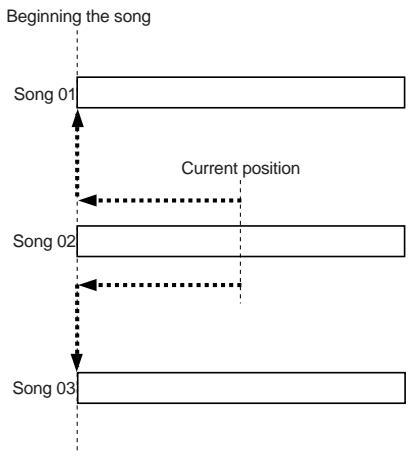
You can also select a song from the menu mode (see page 57).
Formatting a card
By formatting a card, all recorded data on the card are erased and the card returns to the initial condition, follow the procedure shown below to format the card.
1) Turn off the MR-8.
2) Set the card you are going to format to the slot.
3) Turn on the MR-8.
The display shows the startup screen, then the song is loaded.
4) Press the [MENU] key to enter the menu mode.
The display changes to the menu selection screen, in which "System" is initially highlighted.
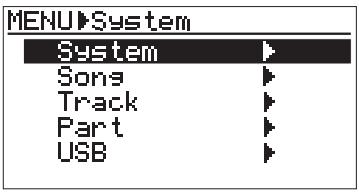
5) While "System" is highlighted, press the [ENTER] key.
The display now shows the System menu selection screen, in which "Card Format" is initially highlighted.
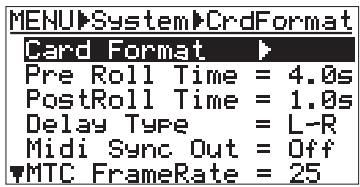
6) While "Card Format" is highlighted, press the [ENTER] key.
The display now shows the screen for confirmation before the card format. In this screen, "Delete All Songs!" and "Can't Undo!" are shown for warning, as well as "Yes->RECORD+YES key" and "No->NO key" alternately flash.
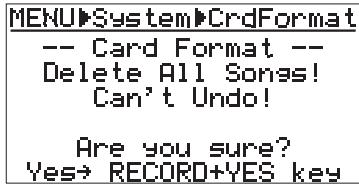
Once you start formatting, you cannot stop it on the way.
To cancel formatting, press the [CURSOR ⊙] key when the confirmation screen is shown.
7) Press the [CURSOR ▶] key while holding down the [RECORD] key.
The MR-8 starts formatting. When completed, "Completed!" is shown on the display.
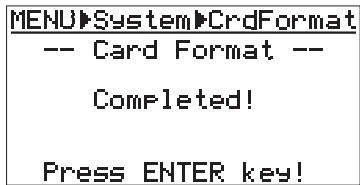
8) Press the [ENTER] key.
The screen exits the "Card Format" menu, and automatically change to the "Select Song" menu for creating a new song (01).
Then, select the song mode and enter the song name to create a new song to the formatted card, following the same procedure as described on page 21.
Connections
You can connect sound sources, recorders, a monitor amplifier, headphones, a personal computer, etc. to the MR-8, as show in the figure below. When making connection or disconnection, make sure that the [MASTER] fader and [PHONES VOL] control are turned down. Otherwise, the noise generated when making connection or disconnection may damage external equipment.
![graph TD A["Microphone"] --> B["Speaker with balance/TV"] C["Guitar, keyboard etc."] --> B D["Guitar"] --> B E["Master recorder or Monitor Speaker"] --> B B --> F["Headphones"] G["MIDI device"] --> H["MIDI cable"] H --> I["Personal Computer"] I --> J["Digital master recorder"] K["Foot switch (Model…](/content/2025/01/168439/images/371bf746602fd24273a94c6baa5fd60e9c2354b398b2461ca46906af92723c19.jpg)
Display
The following describes details about the LCD display, including screen contents and operation.
Home screen
When turning on the MR-8 while a formatted CompactFlash card is set, the display shows the startup screen (showing the startup status of the MR-8), followed by the "home" screen, which is similar to the one below. In this condition, the previously loaded song (or the demo song when you first use the MR-8 with the supplied card) is loaded and the recorder is located at the beginning of the song.
The home screen includes the following information.
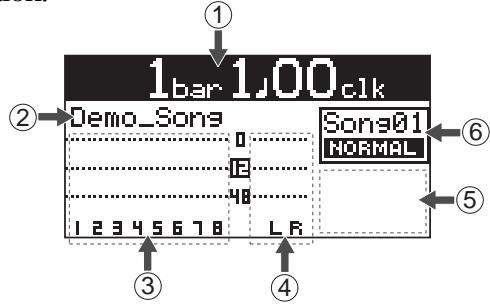
1. Time counter display
Time information of the current recorder position is shown in the selected time base (ABS, Bar/Beat or time counter). Using the [TIME BASE SELECT] key, you can select a desired time base. When the recorder is moving (playing back, fast forwarding, etc.), the appropriate icon is also shown.
2. Character display
Normally, the name of the song currently loaded is shown (up to 14 characters can be shown at a time). It also shows following information.
- a name of the operation currently being executed (such as “BOUNCE 1-6>7/8”).
- a warning message (such as "Low Battery!") as a flashing display.
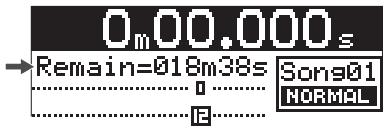
- The "Remain" time when at least one track is armed (i.e. at least one of the [REC SELECT] keys is active). The remain time shows how much time you can further record audio data onto a mono track using the available space left on the current card.
3. Track level display
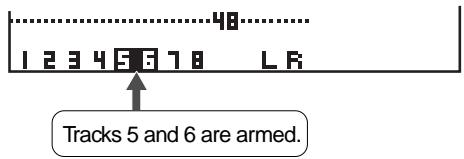
The recording or playback levels of tracks 1 through 8 are shown. The track number of an armed track is shown in reverse.
4. Stereo buss (L and R) level display
During recording or playback, the output levels of the stereo buss (L and R) are shown.
5. Song status display
Shows the following song status icons when the appropriate modes (functions) are active.
| INPUT MONI | At least one of the tracks is in the input monitor mode (see page 32). |
| AUTO PUNCH | The auto punch mode is active (see page 36). |
| AUTO RTH | The auto return mode is active (see page 50). |
| LOOP | The loop mode is active (see page 50). |
6. Song number/song mode display
Shows the song number and mode (Normal or Extended) of the song currently loaded.
Selecting a time base
When the display shows the home screen, pressing the [TIME BASE SELECT] key switches the time base among ABS, Bar/Beat and time counter.
![graph TD A["Example of Bar/Beat display"] --> B["Example of time counter display"] B --> C["Example of ABS display"] D["1bar 1.00 clk\nDemo_Sons\n0....\nB....\n48....\n12345678 LA"] --> E["0m00.000s\nDemo_Sons\n0....\nB....\n48....\n12345678 LA"] E --> F["0m00.000s\nDemo_Sons\n0....\nB....\n48....\n…](/content/2025/01/168439/images/01f19548538518b9e921cfc77401436291c8b58155c16e5cc67be2c3cd6bee78.jpg)
Adjusting the display contrast
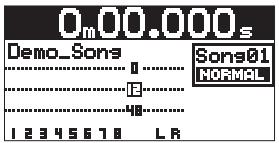
You can adjust the display contrast by using the [CURSOR ⊕] or [CURSOR ⊙] key while holding down the [MENU] and [ENTER] key simultaneously.
Use the [CURSOR ⊙] key to heighten the contrast. Use the [CURSOR ⊙] to lower the contrast.
High contrast
Low contrast
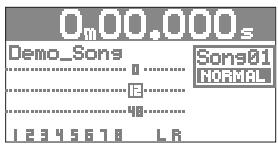
You can reset to the default contrast setting by pressing the [TIME BASE SELECT] key while holding down the [MENU] and [ENTER] key simultaneously.
MENU screen
Pressing the [MENU] key while the recorder is stopped enters the menu mode and brings up the MENU screen. In the menu mode, you can make setting or editing via the appropriate MENU screen.
Warning message
If a serious problem happens to the MR-8 during operation, an appropriate warning message is shown on the display. Most warning messages are being shown until the [ENTER] key is pressed.
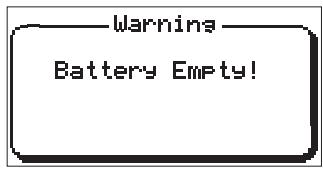
This message is shown when the battery power is too low to drive the unit.
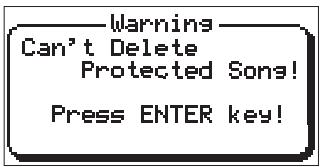
This message is shown when you are going to delete a song which is protected.
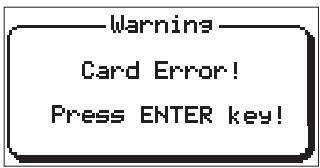
This message is shown when the MR-8 cannot read a card.
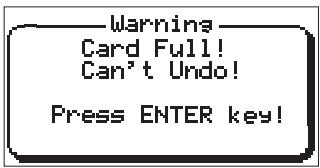
This message is shown when you are going to edit a track or part the operation but there is not enough space on the card for executing the undo function.
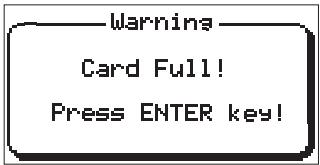
During recording, this message is shown if there is no more space on the card for continuing recording.
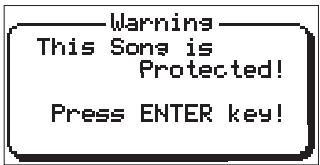
This message is shown when you are going to record a material onto a song or edit the song which is protected.
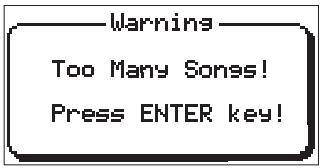
This message is shown when you are going to create a new song while 99 songs exist on the card.
MR-8 recording basics
Before starting recording, we recommend to understand the MR-8 recording basics (such as the relation between the input jacks and tracks and useful recording functions) described below.
Relation between the input jacks and tracks
The MR-8 provides eight tracks (1 through 8) and you can record onto a selected mono track or stereo tracks at a time.
Depending on whether you select a mono track or stereo tracks for recording, use the input jacks appropriately as described below.
- Recording onto a mono track
Select a recording track by pressing any one of the [REC SELECT] keys. When selecting a mono recording track, only the [INPUT A] section can be used. Note that you cannot use the [INPUT B] section.
![graph TD A["INPUT A"] --> B["BALANCE"] A --> C["UNBALANCE"] A --> D["MIC"] B --> E["REC SEL"] C --> E D --> E E --> F["1"] --> G["TRACK 1"] E --> H["2"] --> I["TRACK 2"] E --> J["3"] --> K["TRACK 3"] E --> L["4"] --> M["TRACK 4"]](/content/2025/01/168439/images/1dc2cad852af7822e4155b6d4ac654a2940a46c888b12fc877650b2467111aac.jpg)
- Recording onto stereo track
Select a pair of recording tracks (1 and 2, 3 and 4, 5/6, or 7/8) by pressing the appropriate [REC SELECT] key(s). Note that you can select tracks 5/6 or 7/8 by pressing a single key, while you have to select tracks "1 and 2" or "3 and 4" by pressing appropriate two keys. When selecting stereo recording tracks, both the [INPUT A] and [INPUT B] sections can be used. The signals from the [INPUT A] and [INPUT B] sections are recorded onto the odd and even tracks, respectively.
![graph TD subgraph INPUT A A1["BALANCE"] --> A2["REC SEL"] A3["UNBALANCE"] --> A2 A4["MIC"] --> A2 A2 --> A3 A2 --> A4 A3 --> A5["TRACK 1"] A3 --> A6["TRACK 2"] A3 --> A7["TRACK 3"] A3 --> A8["TRACK 4"] A3 --> A9["5/6"] A4 --> A9 A5 --> A10["TRACK 5"] A5 --> A11["TRACK 6"] A6 --> A12["TRACK 7"] A6 --…](/content/2025/01/168439/images/07b5a7e086f95811131955ae7bc88f0bb21655720e6eb5400450f86820a188ee.jpg)
[INPUT A SELECT] switch
An internal microphone is built in the [INPUT A] section. You can select a sound source of the [INPUT A] section between this built-in microphone or an external source (a guitar or mic/line source) using the [INPUT A SELECT] switch.
![[INPUT A SELECT] switch](/content/2025/01/168439/images/c05a9d330ca9ce8d83ae371d705b85cfd6e0f59179c1bc552391125f8261d3c7.jpg)
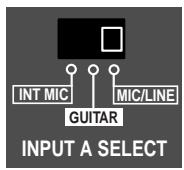
MIC/LINE:
Set the switch to this position when connecting an external microphone or line-level source such as a keyboard. Both the [BAL] XLR and [UNBAL/GUITAR] phone connectors can be used. Use the [TRIM] control to adjust the input level. When setting the switch to the MIC/LINE position, the microphone simulation effect can be inserted.
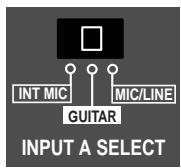
GUITAR:
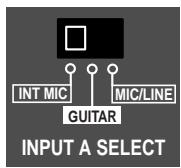
Set the switch to this position when connecting a guitar. Both the [BAL] XLR and [UNBAL/GUITAR] phone connectors can be used. Use the [TRIM] control to adjust the input level and use the [DISTORTION] control to control the distortion applied to the source. When setting the switch to the GUITAR position, the guitar amplifier simulation effect can be inserted.
INT MIC:
Set the switch to this position when using the built-in microphone. Use the [TRIM] control to adjust the input level. When setting the switch to this position, you cannot use the [INPUT A] input connectors, as well as the insert effect.
Input level setting
Each of the [INPUT A] and [INPUT B] sections provides the [TRIM] control, with which you can adjust the input gain for any selected input source. This adjustment determines the recording level.
![INPUT A SELECT INPUT A BAL TRIM UNBAL JGUTAR OUTPUTA DISTORTION MIN MAX LINE MIC INPUT B BAL TRIM UNBAL LINE MIC The [TRIM] control and [PEAK] indicator for the [INPUT A] section. The [TRIM] control and [PEAK] indicator for the [INPUT B] section.](/content/2025/01/168439/images/d2c5ab4e6a266e43c322df6a593aebabe0724e0be00ce308554d33e81e2607ad.jpg)
Set the [TRIM] control appropriately so that the [PEAK] indicator does not light up at the loudest part.
Distortion setting
You can apply distortion when recording an electric guitar.
To record a guitar with distortion, set the [INPUT A SELECT] switch to "GUITAR" and connect a guitar to the [UNBAL/GUITAR] phone connector of [INPUT A].
The distortion level can be adjusted using the [DISTORTION] control.
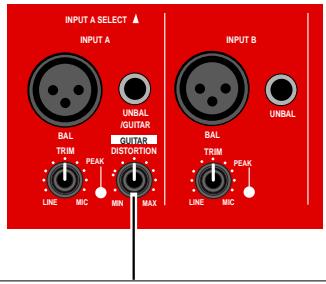
[DISTORTION] control which adjusts the distortion level.
Insert effects
The [INPUT A] section provides the insert effects which allows you to use a simulation effect when recording the INPUT A signal. Depending on the [INPUT A SELECT] switch setting, a microphone or amplifier simulation effect can be used.
About simulation effect
The microphone and amplifier simulation effects on the MR-8 simulate some of popular microphones and guitar amplifiers. Each simulation effect can produce the similar sonic performance that it would have with the actual modeled microphone or guitar amplifier. For example, selecting "TUBE" mic simulation effect allows you to record a vocal sound from your microphone as if you are using a tube microphone.
![graph LR A["DYNAMIC"] --> B["BRIT STACK"] C["CONDENSER"] --> D["US METAL"] E["TUBE"] --> F["60's COMBO"] G["INPUT A"] --> H["AMP SIMULATION"]](/content/2025/01/168439/images/20e125c8f2109a2d9400cd116b506754284b1f253625de2c7e08d907d71d4bbe.jpg)
Mic simulation effects
When the [INPUT A SELECT] switch is set to "MIC/LINE", you can apply any one of the following mic simulation effects by using the keys shown in the illustration above.
| DYNAMIC | Simulates the sound of a popular dynamic microphone. |
| CONDENSER | Simulates the sound of a popular condenser microphone. |
| TUBE | Simulates the sound of a popular tube microphone. |
Amp. simulation effects
When the [INPUT A SELECT] switch is set to "GUI-TAR", you can apply any one of the following mic simulation effects by using the keys shown in the illustration above.
| BRIT STACK | Simulates a popular British stuck-type guitar amplifier. |
| US METAL | Simulates a popular US metal guitar amplifier. |
| 60s COMBO | Simulates a popular tube combo guitar amplifier. |
Recording onto a single track
You can record onto any one of tracks 1 through 4.
The following describes the procedure for recording a guitar sound onto track 1. We assume that a CompactFlash card is set to the slot and Song 1 is loaded.
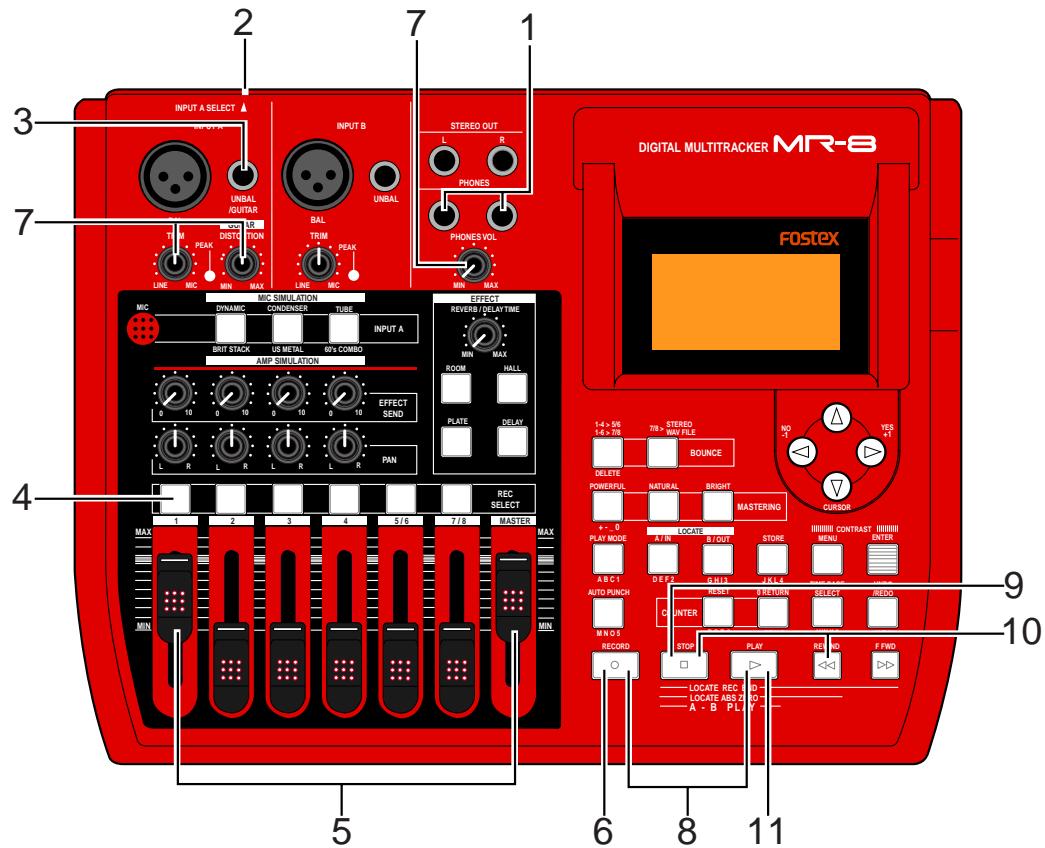
Preparation for recording
1) Connect headphones to the [PHONES] jack.
2) Set the [INPUT A SELECT] switch to "GUITAR".
- To record an external microphone or line output signal such as a keyboard output, set the [INPUT A SELECT] switch to "MIC/LINE".
To record a built-in microphone sound, set the [INPUT A SELECT] switch to "INT MIC".
When setting the switch to "MIC/LINE", you can use the microphone simulation effect (see page 30 and 38). - When recording a guitar sound with the [INPUT A SELECT] switch set to "GUITAR", you can use the amplifier simulation effect. Try each of three simulation types (see page 30 and 38).
3) Connect a guitar to the [UNBAL/GUITAR] phone connector of the [INPUT A] section.
4) Press the [REC SELECT] key for track 1.
Track 1 is armed, while track number "1" starts flashing on the screen.
In the song name display section on the screen, the remaining time (available recording time) of the card is shown.
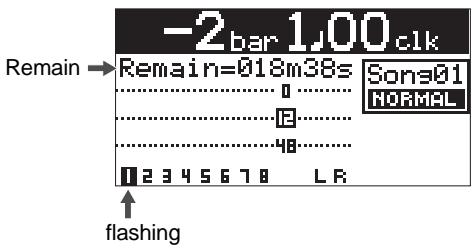
5) Set the track 1 fader and [MASTER] fader to the nominal position (marked by “≡”).
Raising these faders allows you to monitor the input sound. If these faders are not raised, you cannot monitor the sound via headphones.
These faders are used to adjust the monitor level. To adjust the recording level, use the [TRIM] control on the [INPUT A] section.
6) Press the [RECORD] key.
The armed track (track 1, in this case) now changes from tape monitoring to input monitoring, while "INPUT MOHI" is shown on the screen.
7) While playing the guitar, adjust the recording level using the [TRIM] control on the [INPUT A] section.
The screen shows the input level of track 1, as well as the output levels of the stereo outputs (L and R). Turning the [PHONES VOL] control clockwise raises the headphone monitor level.
Adjust the built-in distortion effect level using the [GUITAR DISTORTION] control.
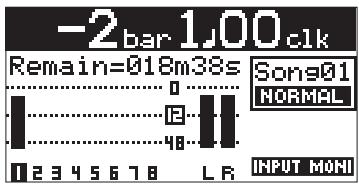
Adjust the [TRIM] control properly so that the PEAK indicator does not light at the loudest part of the guitar sound. If the input level is too high, the PEAK indicator lights and the sound may be distorted or noisy.
When receiving a line level signal, set the [TRIM] control to left ("LINE") to get the appropriate level. When receiving a microphone signal (external or internal), set the [TRIM] control to right ("MIC") to get the appropriate level.
If you do not use the built-in distortion effect, turn the [GUITAR DISTORTION] control fully left.
Starting recording
8) While holding down the [RECORD] key, press the [PLAY] key to start recording.
9) When finishing recording, press the [STOP] key to stop the recorder.
After completing recording, press the [REC SELECT] key for track 1 to unarm track 1.
Playing back the recorded track
10) While holding down the [STOP] key, press the [REWIND] key.
The recorder instantly locates to the beginning of the song and stops.
11) Press the [PLAY] key to start playback.
You can adjust the monitor level using the fader for track 1, [MASTER] fader or [PHONES VOL] control. If you are not satisfied with the result, use the undo/redo function to cancel the recording and try again. If you are satisfied with the result, make recording onto the next track by following the same procedure.
Undo/redo
If you press the [UNDO/REDO] key after finishing recording, you can return to the condition before the recording started (UNDO operation). Therefore, you can try recording again.
If you press the [UNDO/REDO] key again (after UNDO), the undo operation is canceled and you can return to the condition when the recording finished (REDO operation).
![NO 12 YES 14 CURSOR MASTERING STORE INTER contrast MENU LATER JELK RETURN TIME BASE SELECT INDO REDO ST O 7 T W R T W R REND PLAY [UNDO/REDO] key](/content/2025/01/168439/images/8fc2a87f0effb825f4158438ea2d43085b96495728c5fea9527d6138352dc283.jpg)
The undo/redo function can be used for all kind of recordings, however, if you carry out any of the following operations after making recording, you cannot undo the recording.
- Carrying out new recording.
- Carrying out new editing.
- Turning off the power.
- Carrying out song select, song delete or song name editing.
Recording onto two tracks
You can record a pair of tracks at a time. A pair can be tracks 1-2, 3-4, 5-6 or 7-8.
The following describes the procedure for recording a stereo keyboard onto tracks 5-6 while listening to the guitar sound recorded on track 1.
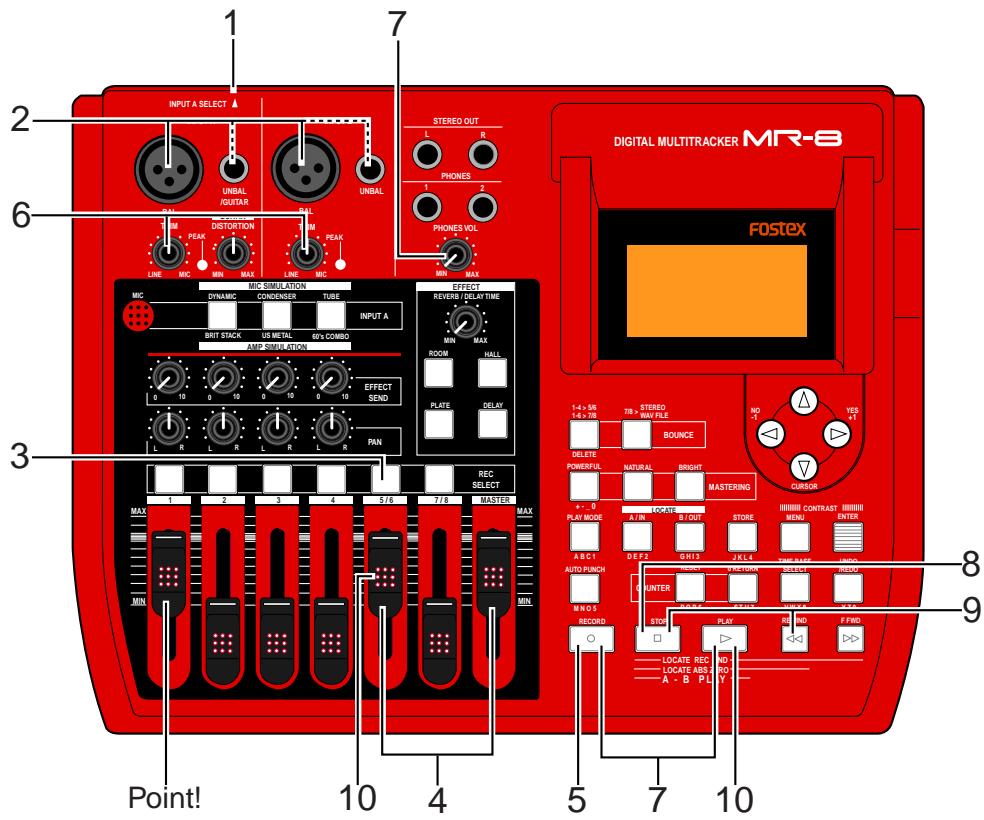
Preparation for recording
1) Set the [INPUT A SELECT] switch to "MIC/LINE".
2) Connect stereo outputs of the keyboard to the input connectors on the [INPUT A] and [INPUT B] sections.
3) Press the [REC SELECT] key for track 5/6.
Track 5/6 is armed, while track number "5-6" starts flashing on the screen.
In the song name display section on the screen, the remaining time (available recording time) of the card is shown.
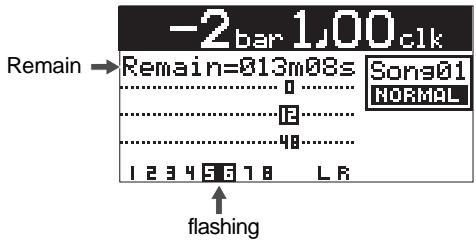
4) Set the track 5/6 fader and [MASTER] fader to the nominal position (marked by “≡”).
Raising these faders allows you to monitor the input sound. If these faders are not raised, you cannot monitor the sound via headphones.
5) Press the [RECORD] key.
The armed tracks (tracks 5/6, in this case) now changes from tape monitoring to input monitoring, while "INPUT MONTH" is shown on the screen.
6) While playing the keyboard, adjust the recording level using the [TRIM] controls on the [INPUT A] and [INPUT B] sections.
The screen shows the input levels of tracks 5 and 6, as well as the output levels of the stereo outputs (L and R). Turning the [PHONES VOL] control clockwise raises the headphone monitor level.
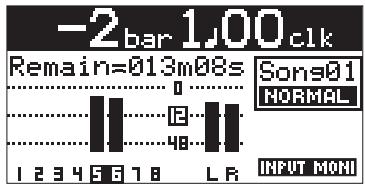
Adjust each of the [TRIM] control properly so that the PEAK indicator does not light at the loudest part of the keyboard sound. If the input level is too high, the PEAK indicator lights and the sound may be distorted or noisy.
Starting recording
7) While holding down the [RECORD] key, press the [PLAY] key to start recording.
When the recorder starts running, the meter for track 1 (onto which you recorded the guitar) shows the playback level. By raising the fader for track 1, you can record the keyboard onto tracks 5-6 while listening to the guitar on track 1 (i.e. overdubbing).
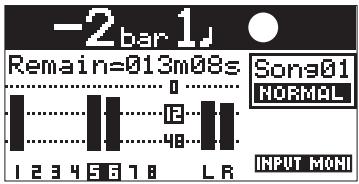
8) When finishing recording, press the [STOP] key to stop the recorder.
After completing recording, press the [REC SELECT] key for tracks 5/6 to unarm tracks 5/6.
Playing back the recorded tracks
9) While holding down the [STOP] key, press the [REWIND] key.
The recorder instantly locates to the beginning of the song and stops.
10) Press the [PLAY] key to start playback.
You can adjust the monitor level using the fader for tracks 5/6, [MASTER] fader or [PHONES VOL] control.
If you are not satisfied with the result, use the undo/redo function to cancel the recording and try again. If you are satisfied with the result, make recording onto the other track(s) by following the same procedure.
Undo/redo
If you press the [UNDO/REDO] key after finishing recording, you can return to the condition before the recording started (UNDO operation). Therefore, you can try recording again.
If you press the [UNDO/REDO] key again (after UNDO), the undo operation is canceled and you can return to the condition when the recording finished (REDO operation).
![NO ✓ YES ✓ QUICKER MASTERING STORE 2 EL4 SETION ST 07 PLAY WHIP WHIP CONTRAST MENU MENA TIME BASE TLDAY RHO AUDIO T23 [UNDO/REDO] key](/content/2025/01/168439/images/e801c947c45c1ea11848640c9dd92e57dd035c134d49b7defeaca5f1e34e09e0.jpg)
The undo/redo function can be used for all kind of recordings, however, if you carry out any of the following operations after making recording, you cannot undo the recording.
- Carrying out new recording.
- Carrying out new editing.
- Turning off the power.
- Carrying out song select, song delete or song name editing.
Punch in/out
Using the punch in/out function of the MR-8, you can overwrite a desired part of the recorded track. "Punch in" means switching from playback to record, while "punch out" means switching form record to playback. The following description is assumed that the song you are going to make punch in/out recording to is loaded and the preparations for recording is completed.
Punch in/out using the keys on the top panel
The punch in/out operation by yourself using the keys on the top panel sometimes disturbs you to concentrate on playing. In such a case, ask someone to operate the MR-8, or use the other two ways described later.
1) Press the [REC SELECT] key for the track you are going to make punch in/out recording.
The track is armed.
2) Locate the recorder to the point before the punch-in point and then press the [PLAY] key to start play back.
It may be a good idea to play the instrument along with the playback sound, so that you can get the tempo and feel.
3) When the recorder reaches at the point you want to punch in, press the [PLAY] key while holding down the [RECORD] key.
The armed track is punched in (i.e. starts recording).
4) When the recorder reaches at the point you want to punch out, press the [PLAY] key.
The recording track is punched out (i.e. switches from recording to playback).
5) Rewind the recorder and play back the part you made punch in/out to check the result.
If you are not satisfied with the result, use the undo function to cancel the punch in/out recording and try again.
Punch in/out using the footswitch
You can make hands-free punch in/out recording using the Fostex Model 8051 optional footswitch or an unlatched-type footswitch.
1) Connect the footswitch to the [FOOT SW] jack on the MR-8 rear panel.
![Model 8051 [FOOT SW] jack](/content/2025/01/168439/images/7e6bc8dc683034f8985461998ba5025f2ea02f70eb33cca959039bcf2c9dba3d.jpg)
2) Press the [REC SELECT] key for the track you are going to make punch in/out recording.
3) Locate the recorder to the point before the punch-in point and then press the [PLAY] key to start play back.
It may be a good idea to play the instrument along with the playback sound, so that you can get the tempo and feel.
4) When the recorder reaches at the point you want to punch in, press the footswitch.
The armed track is punched in (i.e. starts recording).
5) When the recorder reaches at the point you want to punch out, press the footswitch again.
The recording track is punched out (i.e. switches from recording to playback).
You cannot successively make another punch in/out operation. To make another punch in/out operation, stop the MR-8, then carry out the same procedure as above.
6) Rewind the recorder and play back the part you made punch in/out to check the result.
If you are not satisfied with the result, use the undo function to cancel the punch in/out recording and try again.
Auto punch in/out
By setting the punch-in and punch-out points in advance, The recorder automatically makes punch in/out recording for you.
Setting the punch-in and punch-out points
You can set the punch-in and punch-out points while playing back the recorder (as well as you can set them while stopped).
If a song is record-protected, you cannot store the auto punch-in and punch-out points. If you want to store these points, you must release the protection in advance (see page 20 and 60).
1) During playback, when the recorder reaches at the point where you want to punch in, press the [LOCATE A/IN] key while holding down the [STORE] key.
The time value of the recorder position at which you operate above is stored to the punch-in point, while “Store LOCATE A” is shown on the display.
![graph TD A["LOCATE"] --> B["A/IN"] B --> C["D"] B --> D["G"] B --> E["H"] B --> F["J"] B --> G["L"] B --> H["OUT"] B --> I["STORE"]](/content/2025/01/168439/images/2e64e25f9680298580642d43efe601e16c4b985bffb2a27c50ac51fff888459d.jpg)
2) When the recorder reaches at the point where you want to punch out, press the [LOCATE B/OUT] key while holding down the [STORE] key.
The time value of the recorder position at which you operate above is stored to the punch-out point, while “Store LOCATE B” is shown on the display.
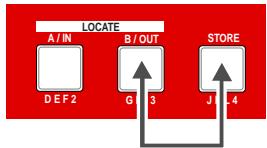
3) Stop the recorder after setting the punch-in and punch-out points.
- If you are not satisfied with the punch-in or - out point you set, simply redo the operation above. The new point overwrites the previous one.
- The punch-in and punch-out point data also can be used for locate function, loop playback, auto return function, part editing, etc.
Rehearsal
You can rehearse the auto punch in/out for checking the punch-in and -out points or practicing punch-in and -out timing.
Pressing the [AUTO PUNCH] key switches the auto punch in/out mode on or off. The key is lit when the mode is on, while it is unlit when off.
1) Locate the recorder to the point before the punch-in point.
You can locate to the punch-in point by pressing the [LOCATE A/IN] key. Therefore, by pressing the [LOCATE A/IN] key, followed by the [RE-WIND] key then the [STOP] key, you can easily locate the point above.
2) Press the [REC SELECT] key for the track you are going to make punch in/out to arm the track.
3) Press the [AUTO PUNCH] key to make the auto punch mode active (the [AUTO PUNCH] key lights up).
"AUTO PUNCH" (AUTO PUNCH) is now shown on the screen.
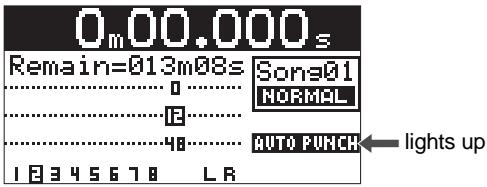
4) Press the [PLAY] key to start playback of the song.
"AUTO PUNCH" (AUTO PUNCH) on the screen changes to "REHEARSAL" (REHEARSAL), showing that the recorder starts the auto punch in/out rehearsal.
The recorder automatically switches the monitor of the armed track from "repro" to "input" at the punch-in point, and switches back to "repro" from "input" at the punch-out point.
Actual recording is not made, though only the monitor is switched. You can practice as many times as you like.
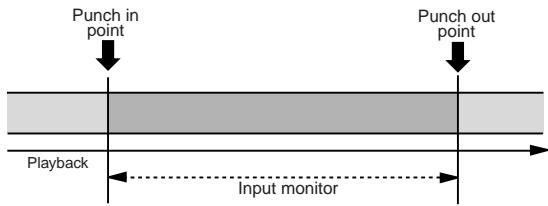
5) After the punch-out point is passed, locate the recorder back to the beginning position.
By using the loop function when rehearsing auto punch in/out, you can concentrate on playing without bothering to operate the MR-8. See page 51 for details about the loop function.
Actual auto punch in/out
After rehearsing, let's execute actual auto punch in/out.
1) Locate the recorder to the point before the punch-in point.
2) Make sure that "AUTO PUNCH" is shown on the screen (i.e. the auto punch mode is active).
If it is not shown, Press the [AUTO PUNCH] key.
3) Press the [RECORD] key while holding down the [PLAY] key.
"AUTO PUNCH" (AUTO PUNCH) on the screen changes to "TAKE" (TAKE), showing that the recorder starts execution of the actual auto punch in/out.
The recorder starts playback and automatically switches to start recording at the punch-in point, then automatically releases recording at the punch-out point.
![graph LR A["Punch in point"] --> B["Playback"] C["Punch out point"] --> D["Recording"] D --> E["Playback"]](/content/2025/01/168439/images/1295d7aebc7c3779adc97fb9a33814fc03dc4d514735ce686295ad601ec3f73e.jpg)
You can cancel the auto punch in/out recording you made by pressing the [UNDO/REDO] key.
In addition to the punch in/out function, the MR-8 allows you to edit the recorded material using the following editing functions.
- Deleting all data on a track
- Copying all data on a track and pasting it to another track
- Exchanging all track data between tracks
- Deleting a desired part
- Copying a desired part on a track and pasting it to another track
• Exchanging parts between tracks
See "Track editing" on page 62 for details. See "Part editing" on page 68 for details.
A "part" is defined as audio data between the "LOCATE A" and "LOCATE B" points. Therefore, you have to set the "LOCATE A" and "LOCATE B" points when editing a "part".
The punch-in and punch-out points set for the auto punch in/out function also can be used as the "LOCATE A" and "LOCATE B" points.
Using effects
The MR-8 provides the insert effects for recording (microphone and amplifier simulation effects), the delay/reverb for track bounce or mixdown (for tracks 1 through 4 only) as well as the mastering effects. The following describes how to use the effects and details about each effect.
Using the insert effects for recording
As described briefly on page xx, the [INPUT A] section of the MR-8 provides two types of insert effects: microphone and amplifier simulation effects.
These preset effects simulate popular microphones and guitar amplifiers. If you use the microphone simulation effect when you record an acoustic guitar through your microphone, you can make recording as if you are using a famous microphone. If you use the guitar amplifier simulation effect when you record an electric guitar directly connected to the MR-8, you can make recording as if you are using a famous guitar amplifier.
Mic simulation effects
You can use mic simulation effects when the [INPUT A SELECT] switch on the rear panel is set to "MIC/LINE".
![graph TD A["Input A SELECT"] --> B[""MIC/LINE" position"] B --> C["GUITAR"] C --> D["INT MIC"] C --> E["MIC/LINE"]](/content/2025/01/168439/images/fc55d7b6287b438a57d72ab49f4646f20f8d92d2aed580f72bb1895cfa0d57d6.jpg)
You can choose from three mic simulation effects by pressing any of DYNAMIC, CONDENSER and TUBE keys. The selected key is lit.
![graph LR A["DYNAMIC"] --> B["CONDENSER"] B --> C["TUBE"] C --> D["INPUT A"]](/content/2025/01/168439/images/dff9b924a2d3b56e8450a9cdef84f1375f58644856a459f906f70765636aad8b.jpg)
Details of each mic simulation effect
| DYNAMIC | Simulates the sound of a popular dynamic microphone. |
| CONDENSER | Simulates the sound of a popular condenser microphone for professional use. |
| TUBE | Simulates the sound of a popular tube microphone for professional use. |
Amp simulation effects
You can use mic simulation effects when the [INPUT A SELECT] switch on the rear panel is set to "GUITAR". (Note that, when the switch is set to "GUITAR", only the [UNBAL/GUITAR] connector can be used.
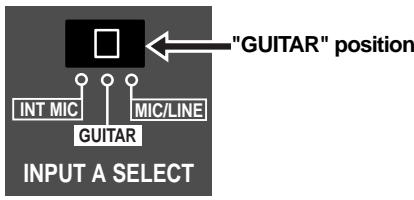
You can choose from three guitar amp simulation effects by pressing any of BRIT STACK, US METAL and 60's COMBO keys. The selected key is lit.
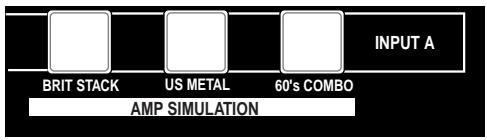
Details of each amp simulation effect
| BRIT STACK | Simulates a popular British stuck-type guitar amplifier. |
| US METAL | Simulates a popular US high gain metal guitar amplifier. |
| 60's COMBO | Simulates a popular tube combo guitar amplifier. |
In addition, when the [INPUT A SELECT] switch is set to "GUITAR", you can also apply distortion to the guitar sound by raising the [DISTORTION] control to the appropriate position.
![INPUT A SELECT INPUT A BAL TSM PEAK MIN MCC UNIT Guitar UNIT B BAL TSM PEAK MIN MCC LINE MIC LINE MIC [DISTORTION] control](/content/2025/01/168439/images/2feca7935b26facff8dfc18ace9931570290d4d0f226c54b4149938cc74067d0.jpg)
Using the reverb or delay
The MR-8 incorporates the original reverb/delay effects featuring the newly-developed algorithm. You can apply the reverb or delay to playback signals of tracks 1 through 4 during mixdown and track bounce.
Selecting an effect type
You can select an effect type from among three reverb options (ROOM, HALL and PLATE) and a delay (DELAY) by using the [EFFECT] keys shown below. The selected key is lit.
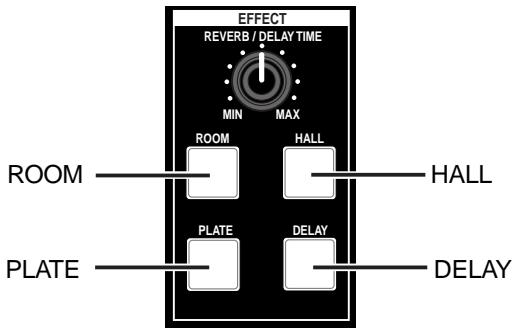
Details of each effect type
| ROOM | Simulates the reverb in a medium-sized room. |
| HALL | Simulates the reverb in a typical hall with moderate early reflection. |
| PLATE | Simulates a plate reverb with a wide frequency range. |
| DELAY | You can select from among three delay types; Mono, L-R and Diff (Diffusion) using a menu screen. See below for details. |
Selecting a delay type
When pressing the [DELAY] key to select the delay effect, you can select a delay type.
1) While the recorder is stopped, press the [MENU] key to enter the menu mode.
The MENU screen is shown in which "System" is highlighted.
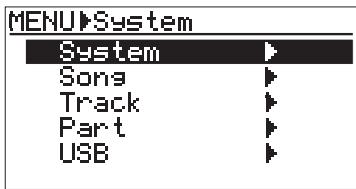
2) While "System" is highlighted, press the [ENTER] key.
The display now shows the system menu screen.
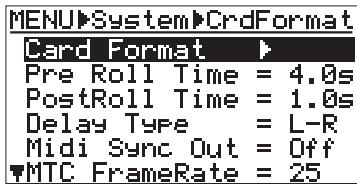
3) Use the [CURSOR ☑] key to highlight "Delay Type" and then press the [ENTER] key.
The current delay type starts flashing and now you can select a desired type from among three options shown below ("L-R" is initially selected).
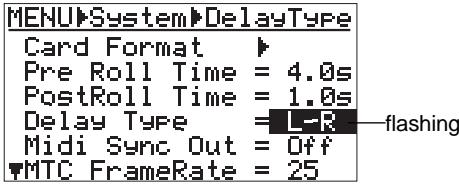
| L-R | L-R delay (default) |
| Mono | Mono delay |
| Diff | Diffusion delay |
4) Use the [CURSOR ◀/▶] keys to select a desired delay type and then press the [ENTER] key.
The selected delay type is set, while the "Delay Type" is highlighted on the screen.
5) Press the [MENU] key to quit the menu mode.
Adjusting the delay/reverb time
You can adjust the reverb time or delay time using the [REVERB/DELAY TIME] control, depending on the selected effect type.
![EFFECT REVERB / DELAY TIME MIN MAX [REVERB / DELAY TIME] control ROOM HALL PLATE DELAY](/content/2025/01/168439/images/c131d112b57fa02684e8a6ce634a6a121096ef74fb86935fa1f8f73d89ae5b64.jpg)
| Effect type | Reverb time/delay time adjustable range |
| HALL | Reverb time adjustable range.1.0 s to 6.0 s |
| ROOM | Reverb time adjustable range.0.1 s to 2.0 s |
| PLATE | Reverb time adjustable range.0.5 s to 4.0 s |
| DELAY | Delay time adjustable range.100 ms to 1000 ms |
Adjusting the effect send levels
To apply the effect (reverb or delay) to tracks 1 through 4, adjust the [EFFECT SEND] control for each track to adjust the level of the track signal sent to the effector.
In the example as illustrated below, tracks 1 and 2 signals are sent to the effect.
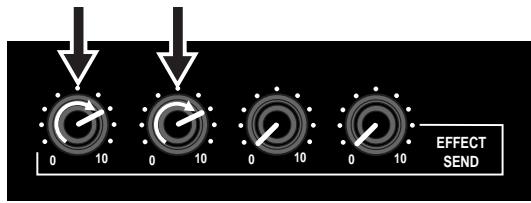
As shown in the signal flowchart below, a track ( playback) signal after the track fader is fed to the [EFFECT SEND] control and adjusted, then fed to the effector input. The effector's stereo output signals (wet signals) and stereo (L/R) signals (dry signals) are merged together and then output from the [STEREO OUT] jacks.
As you can see in the flowchart below, the signal sent to the effector is affected by the track fader (i.e. a track fader must be raised to send track signal to the effector). The signal which passes through a fader is generally called a "post fader signal".
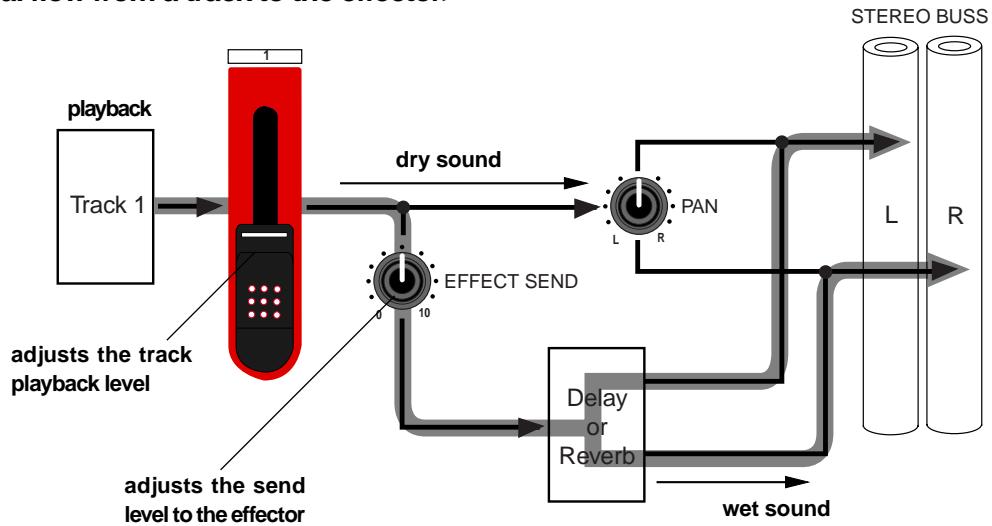
Using the mastering effects
The MR-8 provides the dedicated mastering effects for the stereo busses (L and R).
You can use the mastering effects when bouncing more than one track to stereo tracks or when mixing down tracks 1 through 8 to stereo and sent to an external master recorder for recording.
![graph TD Trk1["Trk 1"] -->|playback| Mixing["Mixing"] Trk2["Trk 2"] -->|playback| Mixing Trk3["Trk 3"] -->|playback| Mixing Trk4["Trk 4"] -->|playback| Mixing Trk5["Trk 5"] -->|recording| Mixing Trk6["Trk 6"] -->|recording| Mixing Delay["Delay or Reverb"] --> Mixing Bounce["Bounce"] --> Mixing Maste…](/content/2025/01/168439/images/3e788c40bb94968bed6b71f9e1fde0de4c40e14494beae931cc14eb36d003b1c.jpg)
![graph TD Trk1["Trk 1"] -->|playback| Mixing["Mixing"] Trk2["Trk 2"] -->|playback| Mixing Trk3["Trk 3"] -->|playback| Mixing Trk4["Trk 4"] -->|playback| Mixing Trk5["Trk 5"] -->|playback| Mixing Trk6["Trk 6"] -->|playback| Mixing Trk7["Trk 7"] -->|recording| Mixing Trk8["Trk 8"] -->|recording| Mixing…](/content/2025/01/168439/images/577b03e0a17e836bf1b9d2ccf90b15d72038791978cf57beb9a288a6b9191ecf.jpg)
![graph TD Trk1["Trk 1"] -->|playback| Mixing["Mixing"] Trk2["Trk 2"] -->|playback| Mixing Trk3["Trk 3"] -->|playback| Mixing Trk4["Trk 4"] -->|playback| Mixing Trk5["Trk 5"] -->|playback| Mixing Trk6["Trk 6"] -->|playback| Mixing Trk7["Trk 7"] -->|playback| Mixing Trk8["Trk 8"] -->|playback| Mixing D…](/content/2025/01/168439/images/36b1599f955d6ced10c826c49ff290851ab9d10e024e2e0cf731390804aeda0a.jpg)
Selecting the desired effect type
Three mastering effect types are available. You can select a desired type using the [MASTERING] keys (POWERFUL, NATURAL and BRIGHT). The selected key is lit.
![graph LR A["POWERFUL"] --> B["NATURAL"] B --> C["BRIGHT"] C --> D["MASTERING"] E["+"] --> F["0"]](/content/2025/01/168439/images/8046044fc5e21c26c6d835047a21a7f27abda7aa5953c7f56301b4e3a5a6c758.jpg)
Details about each mastering effect type
Each effect type has the following character. Use the appropriate type.
| POWERFUL | Adds power to the sound. Good for rock. |
| NATURAL | Slightly adds power to the sound. Good for acoustic music. |
| BRIGHT | Add brightness to the sound. Good for use when the mixed sound is dark. |
When making the mastering effect active, the audio output level increases. Therefore, if you make it active or deactive while monitoring audio, the monitoring level suddenly changes.
See "Track bounce" on page 42 for details about track bounce which allows mix multiple tracks to stereo. See "Mixdown" on page 47 for details about mixdown.
Bouncing tracks
The track bounce function of the MR-8 allows you to mix several tracks and record onto two other tracks. Two modes of track bounce are available: bouncing tracks 1 through 4 to tracks 5/6 ("1-4 > 5/6" mode), and bouncing tracks 1 through 6 to tracks 7/8 ("1-6 > 7/8" mode). In either mode, you can apply a reverb (or delay) and control panning for tracks 1 through 4 when bouncing to two tracks in stereo.
Furthermore, you can apply the mastering effect to the mixed signals. By deleting the original track data after track bouncing, you can record new materials onto these tracks. See the following for details.
You can record more than eight materials using the track bounce function as shown in the following example.
Make recordings to tracks 1 through 6.
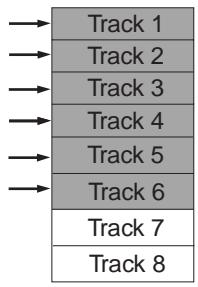
Bounce tracks 1 through 6 to tracks 7/8.

![graph LR Track1["Track 1"] --> Mixing["Mixing"] Track2["Track 2"] --> Mixing Track3["Track 3"] --> Mixing Track4["Track 4"] --> Mixing Track5["Track 5"] --> Mixing Track6["Track 6"] --> Mixing Track7["Track 7"] --> Mixing Track8["Track 8"] --> Mixing Mixing --> Output](/content/2025/01/168439/images/dd3cb5f7b1825cba53eab51f07e01f74936bf571bfba6e8afe1a51780819ec3b.jpg)
Delete tracks 1 through 6.
| Track 1 |
| Track 2 |
| Track 3 |
| Track 4 |
| Track 5 |
| Track 6 |
| Track 7 |
| Track 8 |
Overdub new materials to tracks 1 through 4.
Bounce tracks 1 through 4 to tracks 5/6.
Delete tracks 1 through 4.
Overdub new materials to tracks 1 through 4.
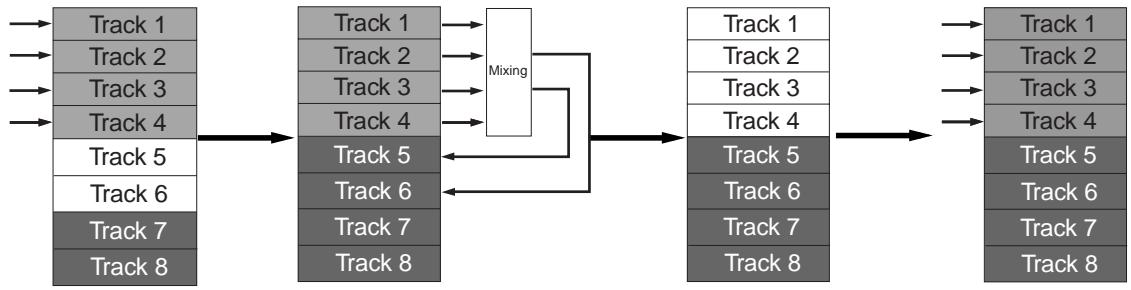
In this step, you can make bouncing while listening to tracks 7/8 as well (see page 46).
The following shows the signal flow for each of two track bouncing modes. Understand the signal flow before making track bouncing.
- "1-6 > 7/8" mode
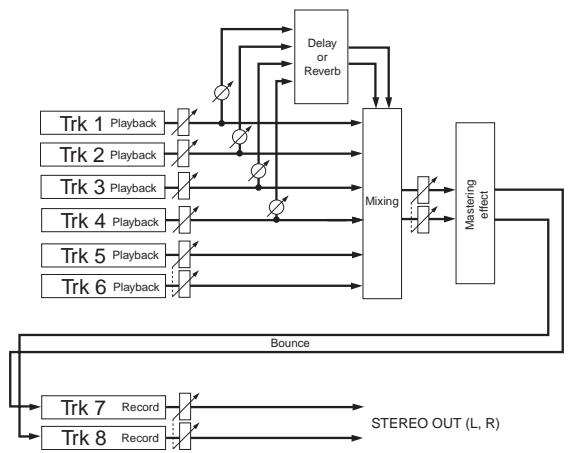
In the "1-6 > 7/8" mode, tracks 1 through 6 are played back and mixed down to stereo, and bounced to tracks 7/8.
In this mode, you can apply a reverb (or delay) to tracks 1 through 4, as well as the mastering effect to the mixed signals.
From headphones (or monitor speakers), you can hear the signals bounced to tracks 7/8 (i.e. mixed signals).
- "1-4 > 5/6" mode
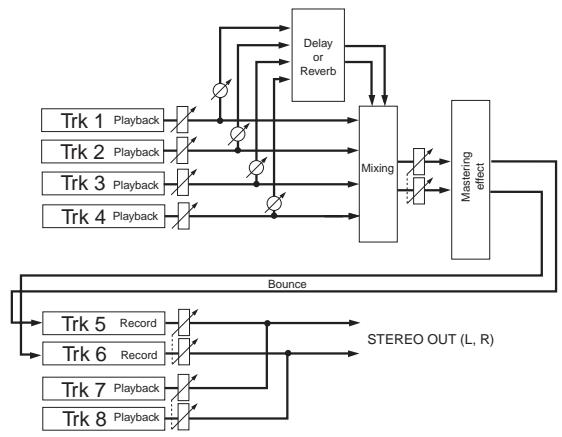
In the "1-4 > 5/6" mode, tracks 1 through 4 are played back and mixed down to stereo, and bounced to tracks 5/6.
As with the "1-6 > 7/8" mode, you can apply a reverb (or delay) to tracks 1 through 4, as well as the mastering effect to the mixed signals.
From headphones (or monitor speakers), you can hear the signals bounced to tracks 5/6 (i.e. mixed signals) as well as playback signals of tracks 7/8.
Selecting the bounce mode
While the recorder is stopped, each press of the [1-4 > 5/6, 1-6 > 7/8] key switches the bounce mode among "1-4 > 5/6" mode", "1-6 > 7/8" mode and off.
![1-4 > 5/6 1-6 > 7/8 7/8 > STEREO WAV FILE BOUNCE DELETE [1-4>5/6, 1-6>7/8] key](/content/2025/01/168439/images/9fd3a8dfd820ad9e49914585aba635c12bc5961b68481139fa37dd7b77928325.jpg)
When either of the bounce modes is selected, the destination tracks (5/6 or 7/8) are automatically armed and change to input monitoring, as well as the screen shows the appropriate bounce mode.
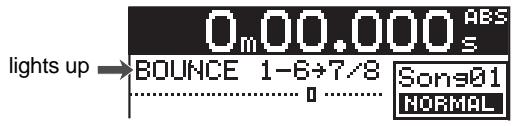
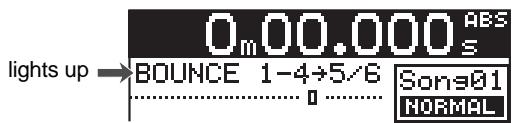
Rehearsal of track bounce
Before executing track bounce, you can rehearse it. During rehearsal, you can control the playback level, panning and reverb (or delay) send setting of each source track, as well as apply the mastering effect to the mixed L/R signals. We recommend to make rehearsal thoroughly until you satisfy the sound. The following shows the rehearsal procedure in the "1-6 > 7/8" mode. We assume that recordings have been already made to tracks 1 through 6.
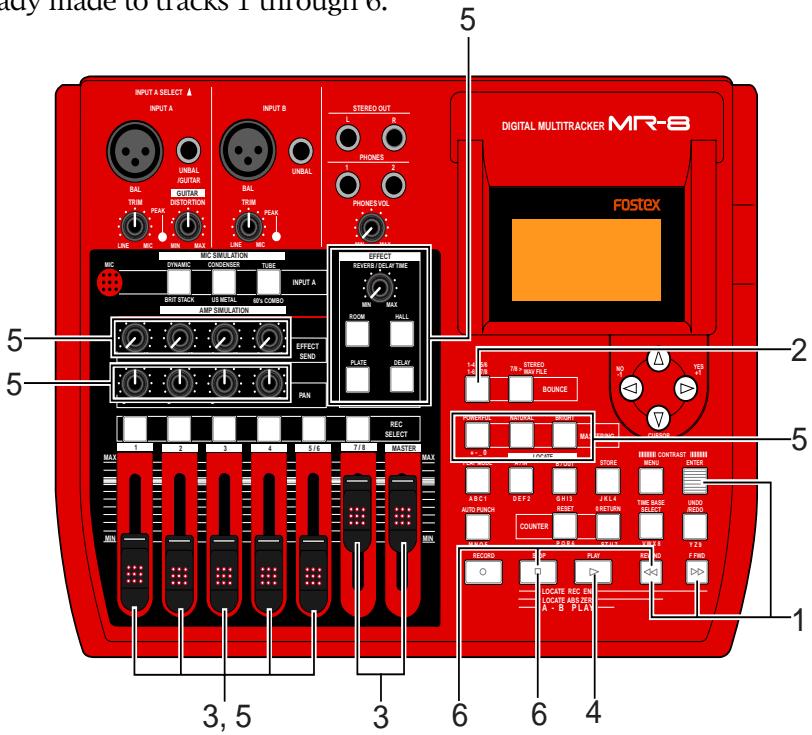
1) Select the song you are going to bounce tracks.
2) Use the [1-4 > 5/6, 1-6 > 7/8] key to select "1-6 > 7/8" bounce mode.
Selecting this bounce mode automatically arms tracks 7/8 and changes the monitoring for these tracks to input monitoring.
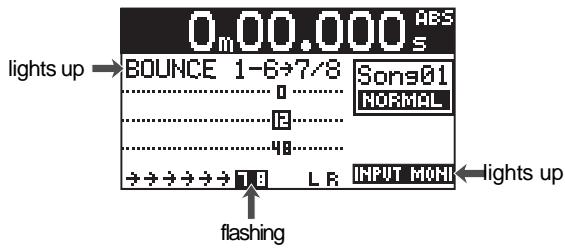
3) Raise the [7/8] fader and [MASTER] fader to the "≡" position. Set all the other track faders to the minimum position.
4) Press the [PLAY] key to start playback from the beginning of the song.
5) While playing back, adjust playback levels of tracks 1 through 4 and 5/6 using the appropriate track faders.
You can also adjust panning for tracks 1 through 4, apply the reverb or delay to these tracks, as well as apply the mastering effect to the mixed sound.
During rehearsal and actual track bouncing, the track faders and [MASTER] fader control the following signals.
| Fader 1 through 4 | Signal levels of tracks 1 through 4 for recording. |
| Fader 5/6 | Signal levels of tracks 5/6 for recording. |
| Fader 7/8 | Monitor levels of tracks 7/8. |
| [MASTER] fader | Recording master level of tracks 7/8. |
During rehearsal and actual track bouncing, level meters on the screen show the following signals.
| Meters1 through 4 | Playback levels of tracks 1 through 4. |
| Meter 5/6 | Playback level of tracks 5/6 for recording. |
| Meter 7/8 | Recording level of tracks 7/8. |
| MetersL and R | Monitor output levels (STEREO OUT L and R). |
By raising the [PHONES VOL] control, you can hear the signals bounced to tracks 7/8.
Use the [7/8] fader to control the monitor output level, and use the [MASTER] fader to adjust the recording level appropriately while watching the meter 7/8.
See "Applying effects" on page 38 for details
You can freely adjust panning for tracks 1 through 4 using the PAN controls. For example, a guitar to left, a vocal to center, etc.
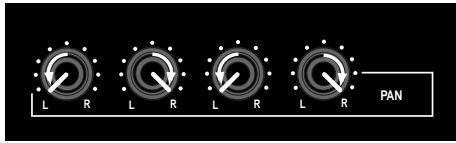
We recommend to rehearse track bouncing thoroughly to decide the recording level, effect setting, panning, etc. until you are satisfied.
6) After finishing rehearsal, locate the beginning of the song.
Do not move the controls and faders after finishing rehearsal.
Actual track bounce
After finishing rehearsal, let's carry out the actual track bounce.
1) Before carrying out the actual track bounce, make sure that the bounce mode is active.
2) Press the [PLAY] key while holding down the [RECORD] key.
The track bounce starts with the effect/level settings made in the rehearsal mode and the mixed signals are recorded onto tracks 7/8.
3) After completing the track bounce, press the [STOP] key to stop the recorder.
Stopping the recorder changes the monitoring of tracks 7/8 to repro monitoring.
Checking the bounced signals on track
You can check the bounced signals while the bounce mode is active.
1) Press the [REWIND] key while holding down the [STOP] key to locate the beginning of the song.
2) Make sure that the monitoring of tracks 7/8 is repro monitoring.
3) Press the [PLAY] key to start playback from the beginning of the song.
4) Use the [7/8] fader to control the playback level of the bounced signals.
By playing back the recorder while the bounce mode ("1-6 > 7/8") is active, only tracks 7/8 can be monitored. In this condition, you cannot monitor playback signals of tracks 1 through 6 even if you raise the appropriate faders.
If you want to redo the track bounce, use the undo function to go back to the condition before carrying out the track bounce, and try again.
You can bounce a desired part using the auto punch in/out function (see page 35).
5/6" mode>
You can bounce tracks in the "1-4 > 5/6" mode in the same manner as the "1-6 > 7/8" mode described above. However, you can monitor the playback sounds of tracks 7/8 (if any sounds are recorded) simultaneously.
![graph TD A["Trk 1 Playback"] --> B["Mixing"] C["Trk 2 Playback"] --> B D["Trk 3 Playback"] --> B E["Trk 4 Playback"] --> B B --> F["Mastering effect"] F --> G["Bounce"] H["Trk 5 Record"] --> I["STEREO OUT (L, R)"] J["Trk 6 Record"] --> I K["Trk 7 Playback"] --> I L["Trk 8 Playback"] --> I I --> B B…](/content/2025/01/168439/images/bc9d165eb3f243e44f05567cefa0f90650afb03bfb775ad815ca3b5dfbec2d68.jpg)
Therefore, during rehearsal and actual track bouncing, faders and level meters act as the following.
| Faders1 through 4 | Control the signal levels of tracks 1 through 4 for recording. |
| Fader 5/6 | Controls the monitor levels of tracks 5/6. |
| Fader 7/8 | Controls the monitor levels of tracks 7/8. |
| [MASTER]fader | Controls the recording master level of tracks 5/6. |
| Meters1 through 4 | Show the playback levels of tracks 1 through 4. |
| Meter 5/6 | Shows the recording level of tracks 5/6. |
| Meter 7/8 | Shows the playback level of tracks 7/8. |
| MetersL and R | Shows the monitor output levels (STE-REO OUT L and R). |
You can export bounced song data on tracks 7/8 to a personal computer.
The exported data can be used for making an original audio CD via a CD-RW drive connected to the computer, or used with a musical applications on the computer.
To export song data on tracks 7/8 to a personal computer, you must convert the mono WAV files of tracks 7/8 to a stereo WAV file.
See page 86 for details about how to convert mono files to a stereo file. See page 88 for details about how to export song data to a personal computer.
Mixdown
After completing recording to tracks 1 through 8 and editing, let's make recording of the mixed sound to a stereo master recorder while adjusting the level balance between tracks, panning, etc. This process is called "mixdown". The MR-8 is equipped with the [DIGITAL OUT] connector, so you can make mixdown recording in digital domain to a digital recorder (DAT, MD, etc.) which accepts an S/P DIF digital signal.
![graph LR Trk1["Trk 1"] -->|playback| Mixing["Mixing"] Trk2["Trk 2"] -->|playback| Mixing Trk3["Trk 3"] -->|playback| Mixing Trk4["Trk 4"] -->|playback| Mixing Trk5["Trk 5"] -->|playback| Mixing Trk6["Trk 6"] -->|playback| Mixing Trk7["Trk 7"] -->|playback| Mixing Trk8["Trk 8"] -->|playback| Mixing D…](/content/2025/01/168439/images/f45631a4bd1b6f9bd79ee6dcbf73816fb93ce51d0c6e91a44b7b3c4ae3634804.jpg)
Only song data of the "Normal" song mode can be output from the [DIGITAL OUT] connector. Song data of the "Extended" song mode cannot be output from this connector.
Analog mixdown
1) Connect the [STEREO OUT (L, R)] jacks of the MR-8 to the input connectors of an analog master recorder.
Analog master recorder
![[STEREO OUT (L, R)] jacks INPUT A SELECT INPUT B Digital Multitracker MR-8 FOSTEX](/content/2025/01/168439/images/070b5e8591799829979877da95ff91e6d111e90320045c05dbab7ba8dffdfe41.jpg)
2) While playing back the MR-8, rehearse mixing down the recorded sounds by adjusting the level and panning of each track, applying an effect to tracks and applying the mastering effects, etc.
The output levels from the [STEREO OUT (L, R)] connectors can be controlled by the [MASTER] fader. Adjust the levels appropriately so that the highest segments of L and R meters do not light.
See "Applying effects" on page 38 for details about applying the delay/reverb and mastering effects.
3) Adjust the recording level of the master recorder while rehearsing mixing down.
See the manual of the master recorder for details about how to adjust the recording level.
4) After rehearsing mixdown and adjusting the recording level, locate the MR-8 to the beginning of the song.
5) Start recording the master recorder and then start playing back the MR-8.
6) After finishing recording, stop both recorders.
By moving up or down the MR-8 [MASTER] fader, you can fade in or fade out recording.
Digital mixdown
The following is described assuming that you already finished rehearsal of mixdown, as in step 2 of "Analog mixdown" above.
1) Connect the [DIGITAL OUT] connector of the MR-8 to the digital input connector of a digital master recorder.
If the master recorder supports the S/P DIF (optical) digital input, you can make direct connection using an optical cable.
![POWER USB FOOT SH [DIGITAL OUT] connector Digital master recorder](/content/2025/01/168439/images/fb25dfc2e60431878e34db5328bc534cfc4d48a2f2044bd99a20f00b2f2c0b9a.jpg)
The [DIGITAL OUT] connector of the MR-8 is the Toslink optical type.
If your digital recorder provides only the coaxial type connector, use the Fostex COP-1/96 kHz coaxial-optical converter.
Contact Fostex or our dealer for details about the Model COP-1/96 kHz.
2) Make the master recorder to accept the digital input.
Make sure that the recorder accepts the digital signal output from the MR-8, which is 44.1-kHz, 16-bit, S/P DIF signal.
Generally, a digital recorder does not have a facility for controlling the digital input level.
3) Use the [MASTER] fader of the MR-8 to adjust the output level.
Adjust the level appropriately so that the level meter of the master recorder shows "0" when the MR-8 outputs the biggest signal.
If the level meter exceeds "0", the sound may be distorted.
4) Start recording the master recorder and then start playing back the MR-8.
5) After finishing recording, stop both recorders.
By moving up or down the MR-8 [MASTER] fader, you can fade in or fade out recording.
Playback functions
This chapter describes basic and advanced playback functions of the MR-8.
Basic playback
In the following description, it is assumed that a CompactFlash ™ card with recorded data is set in the slot.
1) Load a desired song to be played back.
See page 23 for details about how to select a song.
2) Press the [PLAY] key to start playback.
The meters on the screen shows playback levels of tracks.
3) Use track faders to control track playback levels, as well as use the [MASTER] fader to control the total level.
If you monitor the sound via headphones, you can use the [PHONES VOL] control to adjust the monitor level.
4) Set the [PAN] control for each track (1\~4) to the desired position.
3 x playback (cueing)
By pressing the [F FWD] or [REWIND] key during playback, you can monitor playback at 3 x speed. It may be useful for searching a specific position.
* Press the [F FWD] key during playback.
The recorder plays back in normal direction at 3 x speed.
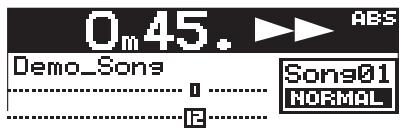
* Press the [REWIND] key during playback.
The recorder plays back in reverse direction at 3 x speed.
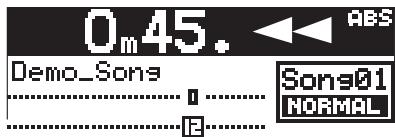
Playback between LOCATE A and B points
When the LOCATE A and LOCATE B points are set, you can playback between these points once. This function is always available regardless of the play mode setting (see "Play mode" on page 50).
This function allows you to check the editing part (between LOCATE A and B points) for copy/paste, erase, etc. See "Part editing" on page 68.
Note that you have to set the LOCATE A and B points to use this function.
See page 53 for details about how to set the LO-CATE A and B points.
1) While the recorder is stopped, press the [PLAY] key while holding down the [STOP] key.
The MR-8 plays back audio data between the LOCATE A and LOCATE B points once, then stops.
During playback, you can monitor playback audio of the desired track(s) by raising the appropriate track fader(s), as well as the [MASTER] fader and [PHONES VOL] control.
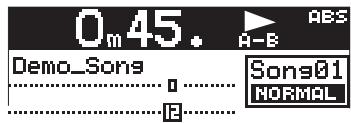
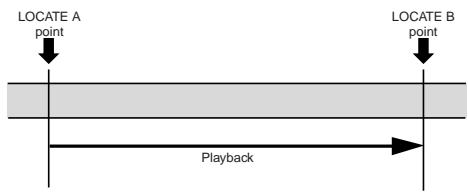
If you carry out the operation above when the LOCATE A point is set ahead of the LOCATE B point (i.e. LOCATE A > LOCATE B), the MR-8 plays back audio data between the LOCATE A and REC END points once, then stops.
Play mode
The MR-8 offers special play modes including Auto play, Auto return and Loop playback.
- Selecting a play mode
- While the recorder is stopped, pressing the [PLAY MODE] key switches play modes among "Off", "Auto Play", "Auto return" and "Loop".
The current mode is shown on the screen as follows (when "Off" is selected, there is no indication).
![PLAY MODE A B C 1 [PLAY MODE] key](/content/2025/01/168439/images/4a62c74c4bca75555a9be062df9fdb0ca062f11d0b90a0201f740937658372bb.jpg)
![graph TD A["Play mode "off""] --> B["Auto play mode"] B --> C["Display: 0.00.000 ABS S Demo_Sons"] B --> D["Display: 0.00.000 ABS S Song01 NORMAL"] B --> E["Display: 0.00.000 ABS S Auto PLAY"]](/content/2025/01/168439/images/1d8687524f8d924bc493259a688fc5f6da4ddc6b330e2f88559cdd232edb64cd.jpg)
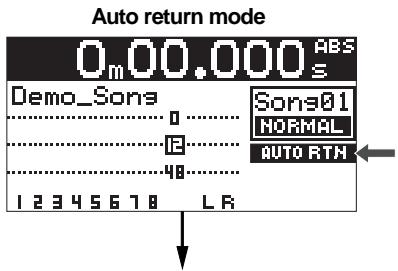
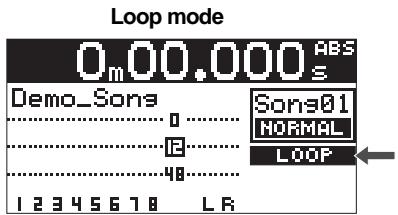
- Auto play mode
In the Auto play mode, when executing the locate function, the recorder automatically starts playback from the locate point.
![graph TD A["LOCATE A point"] --> B["Locate"] B --> C["When locating to the LOCATE A point, the recorder automatically starts playback immediately."] D["a point where you execute the locate function"] --> E["Locate"] E --> F["Playback"] G["a point where you execute the locate function"] --> H["Locate…](/content/2025/01/168439/images/190be222084b2fb2ce390cd42851fe34247bc5f9d1f2d7afaf73597174fd0270.jpg)
- Auto return mode
The auto return mode is active when the LOCATE A and LOCATE B points are set.
In the auto return mode, when reaching at the LOCATE B point during playback, the recorder automatically locates to the LOCATE A point and stops.
![graph TD A["LOCATE A point"] --> B[" playback"] C["LOCATE B point"] --> D[" playback"] B --> E[" recording when reaching at the LOCATE B point during playback, the recorder automatically locates to the LOCATE A point and stops."] D --> F[" recording when reaching at the LOCATE B point during playbac…](/content/2025/01/168439/images/5a5638cc8f0103778cbc749b01e53266f8cf3d925ec05e9ec2a516fc7e37c181.jpg)
- Loop mode
As with the auto return mode, the loop mode is active when the LOCATE A and LOCATE B points are set. In the loop mode, when reaching at the LOCATE B point during playback, the recorder automatically locates to the LOCATE A point and starts playback. The recorder repeats this behavior until you stops the recorder.
You may find it very convenience to use the loop function together with the auto punch in/out function (see the next page).
![graph TD A["LOCATE A point"] --> B["Playback"] C["LOCATE B point"] --> D["Playback"] B --> E["When locating to the LOCATE A point, the recorder automatically starts playback."] D --> F["When reaching at the LOCATE B point during playback, the recorder automatically locates to the LOCATE A point."]](/content/2025/01/168439/images/0b6dccdb051e06008b1e9ae5ee2c07328daf7fe93f91d7da50ebc399445381bb.jpg)
Loop function in auto punch in/out mode
When the loop mode is active (and the auto punch in/out mode is inactive), the LOCATE A and LOCATE B points are used as the loop start and end points. When the auto punch in/out mode is active (and the loop mode is inactive), the LOCATE A and LOCATE B points are used as the punch-in and punch-out points.
When both the auto punch in/out and loop modes are active, the LOCATE A and LOCATE B points are used as the punch-in and punch-out points, while the loop function starts at "the LOCATE A point minus the pre-roll time" and ends at "the LOCATE B point plus the post-roll time, as shown below. The pre-roll time is initially set to four seconds, while the post-roll time is set to one second.
If you set the LOCATE A point to the beginning of a song (ABS ZERO) or set the LOCATE B point to the recording end point (REC END) of a song, the pre-roll or post-roll time is ignored.
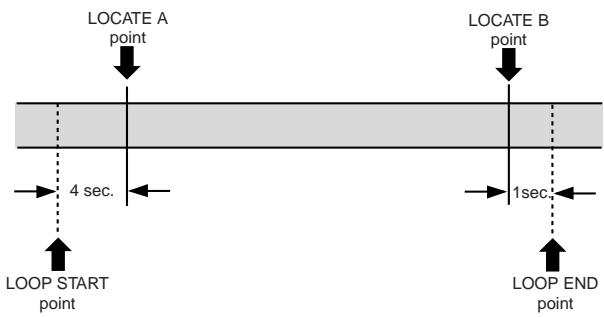
Using the loop function in the auto punch in/out mode allows you to minimize the key operation and concentrate on playing.
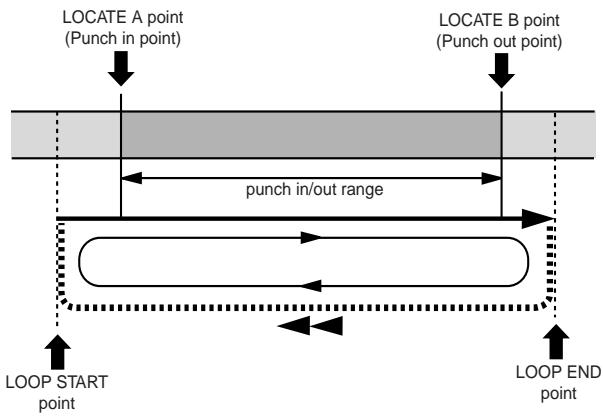
You can change the pre-roll and post-roll time within the range between 0.1 and 10.0 seconds (in 0.1 sec steps) in the menu mode (see "Pre-roll and post-roll setting" on page 55).
Locate functions
The following describes the locate functions, which allows you to locate immediately to the desired point in a song.
ABS locate
Regardless of the current recorder position, you can locate to the beginning of the song (LOCATE ABS ZERO) or the recording end of the song (LOCATE REC END). These locate functions locate absolute positions regardless of time base selection or counter reset of the time counter.
- LOCATE ABS ZERO function
* While the recorder is stopped, press the [REWIND] key while holding down the [STOP] key.
The MR-8 immediately locates to the beginning of the song (ABS ZERO).
![graph TD A["RECORD"] --> B["STOP"] B --> C["PLAY"] C --> D["REND"] D --> E["F FWD"] style A fill:#fff,stroke:#333 style B fill:#fff,stroke:#333 style C fill:#fff,stroke:#333 style D fill:#fff,stroke:#333 style E fill:#fff,stroke:#333](/content/2025/01/168439/images/69a38b5d7f2ec8c6f5e92c63494fd8ec206bd40a3b589a9e07e65b06b8ce9c04.jpg)
![graph TD A["ABS ZERO"] --> B["the current position"] B --> C["REC END"] D["LOCATE ABS ZERO"] --> B style A fill:#f9f,stroke:#333 style B fill:#ccf,stroke:#333 style C fill:#cfc,stroke:#333](/content/2025/01/168439/images/75ad8167110daa40fefc28d1466923c630823e2e2a818a9b07409e974512a65e.jpg)
- LOCATE REC END function
* While the recorder is stopped, press the [F FWD] key while holding down the [STOP] key.
The MR-8 immediately locates to the recording end of the song (REC END).
![graph TD A["RECORD"] --> B["STOP"] B --> C["PLAY"] C --> D["REWIND"] D --> E["END"] style A fill:#fff,stroke:#333 style B fill:#fff,stroke:#333 style C fill:#fff,stroke:#333 style D fill:#fff,stroke:#333 style E fill:#fff,stroke:#333](/content/2025/01/168439/images/ff0f4ba14a162b8c4481cbfeea5ae2d7656acc394fdbb0a3fa12f772ab731427.jpg)
![graph TD A["ABS ZERO"] --> B["the current position"] B --> C["Locate"] C --> D["REC END"]](/content/2025/01/168439/images/b424b6f2fb05d7ab1781d931699c1ec124cd70d2502f79b27e5fec99a37273d1.jpg)
Zero return
When the time base is set to "time counter", you can reset the time counter to "0m00.000s" at any point. By resetting the time counter at the desired point, you can easily locate there using the zero return function.
For example, if you make recording repeatedly to different tracks from the same point, by resetting the time counter at the point you start recording, you can easily locate the starting point anytime.
- Resetting the counter
![graph TD A["COUNTER"] --> B["RESET"] B --> C["0 RETURN"] C --> D["STU7"] style A fill:#f9f,stroke:#333 style B fill:#ccf,stroke:#333 style C fill:#cfc,stroke:#333 style D fill:#fcc,stroke:#333](/content/2025/01/168439/images/84328176d3be6454cf36b58818b9444afeaef7b3191eeeaacab0b8994d7b41c2.jpg)
- You can reset the time counter only while the time base is set to "time counter". You cannot reset the counter when the time base is set to ABS or Bar/Beat.
- When turning the power off then on, the time counter shows "0m00.000s" at the beginning of the song. Therefore, if you do not reset the time counter, the time counter matches the ABS time.
- When resetting the time counter at the desired point, the time values at the beginning and recording end of the song are changed. For example, if you reset the time counter at the recording end of the song whose length is 3 minutes and 3 seconds, the time counter at the beginning of the song shows "- 3m03.000s".
![graph TD A["ABS ZERO 0m00.000s"] --> B["REC END 3m 03.000s"] C["ABS ZERO - 3m03.000s"] --> D["REC END 0m 00.000s"]](/content/2025/01/168439/images/3e8606199ba76c0ea536fbad723711aafa6447c09ac4bc135cfb3d234f7159b7.jpg)
* While the recorder is stopped with the time base set to "time counter", press the [COUNTER RESET] key.
The time counter is reset to "0m00.000s".
![graph TD A["3.03.000s"] --> B["0.00.000s"] A --> C["Sons01 NORMAL"] B --> D["Demo_Sons"] B --> E["Sons01 NORMAL"]](/content/2025/01/168439/images/7fa9071ea7cd9e827cdb269147303feb754b9a8965c5aa8a6972e6041a4829fe.jpg)
- Locating to counter zero
You can locate to the zero position of the time counter regardless of the current time base setting (even if the time base is set to ABS or Bar/beat).
* While the recorder is stopped, press the [0 RETURN] key.
The recorder locates to "0m00.000s" in time counter base.
![graph LR A["COUNTER"] --> B["RESET"] B --> C["0 RETURN"] C --> D["[0 RETURN"] key]](/content/2025/01/168439/images/b46f45359d9d10b795bbf995e7e68b5de1dde747b93d9763407076e6cd79eed9.jpg)
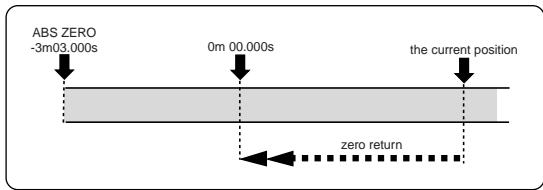
Regardless of the "00m00.000s" position in time counter base, executing the LO-CATE ABS ZERO function always locates the beginning of the song.
![graph TD A["ABS ZERO -3m03.000s"] --> B["0m 00.000s"] B --> C["the current position"] D["zero return"] --> E["LOCATE ABS ZERO"]](/content/2025/01/168439/images/a3024e3ad4886f3f97908b4e0afcf0534c506b768a84c1f217fedd1bc6855da8.jpg)
Locating to the LOCATE A or LOCATE B point
You can store desired points (time data) of a song as the LOCATE A and LOCATE B points.
These time data can be used not only for locating, but also for auto punch in/out, play modes and part editing.
- Storing a locate point
You can store the LOCATE A or LOCATE B point while the recorder is running or stops at the desired point, regardless of time base setting.
If a song is record-protected, you cannot store the LOCATE A and LOCATE B points. If you want to store these points, you must release the protection in advance (see page 20 and 60).
The LOCATE A point must be earlier than the LOCATE B point. If not, you cannot carry out the auto punch in/out or loop function correctly.
While the time base is set to "Bar/Beat", setting "beat resolution" in the menu to "On" allows you to store the LOCATE A or B point in beat resolution. In other words, the clock digit of the value is automatically rounded down or up, so that the clock digit is always "00".
See page 56 for details about how to make the beat resolution active or inactive.
- Storing a LOCATE A point
* To store the LOCATE A point, while the recorder is playing back (or stopped), press the [LOCATE A/IN] key while holding down the [STORE] key.
The time value of the recorder position at which you operate above is stored to the LOCATE A point, while “Store LOCATE A” is shown on the display.
![graph TD A["A / IN"] --> D["D"] B["B / OUT"] --> G["G H I 3"] C["STORE"] --> J["J"] D -->|↑| A G -->|↑| B J -->|↑| C](/content/2025/01/168439/images/c5a2568b801cb1f07cc810d24f5f1a60e075b7ac58331210ab4a65fb3abf56f8.jpg)
- Storing a LOCATE B point
* To store the LOCATE B point, while the recorder is playing back (or stopped), press the [LOCATE B/ OUT] key while holding down the [STORE] key.
The time value of the recorder position at which you operate above is stored to the LOCATE B point, while “Store LOCATE B” is shown on the display.
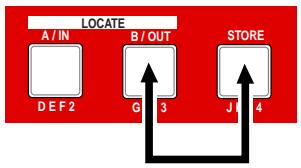
- Locating
You can instantly locate to the stored point by carrying out the operation below.
* While the recorder is stopped, press the [LOCATE A/IN] (or [LOCATE B/OUT]) key.
The recorder instantly locate to the appropriate point.
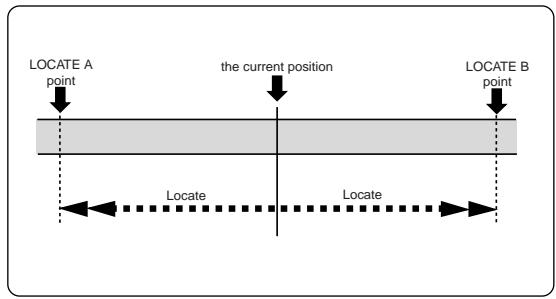
By selecting the play mode to "Auto play", you can automatically start playback after locating the LOCATE A or LOCATE B point.
Setting the pre-roll/post-roll
As described earlier on page 51, when both the auto punch in/out and loop modes are active, the pre-roll and post-roll are effective in the loop function.
You can set the pre-roll and post-roll time value by the following procedure.
When both the auto punch in/out and loop modes are active, the loop function starts at "the LOCATE A point minus the pre-roll time" and ends at "the LOCATE B point plus the post-roll time". The pre-roll time is initially set to four seconds, while the post-roll time is set to one second.
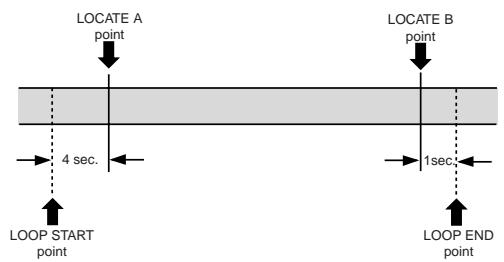
- How to set the pre-roll/post-roll time
1) While the recorder is stopped, press the [MENU] key to enter the menu mode.
The display shows the menu selection screen, in which "System" is highlighted initially.
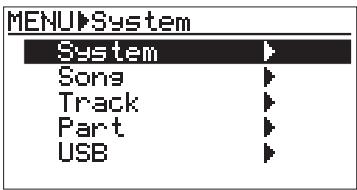
2) When "System" is highlighted, press the [ENTER] key.
The display now shows the system menu selection screen, in which "Card Format" is highlighted initially.
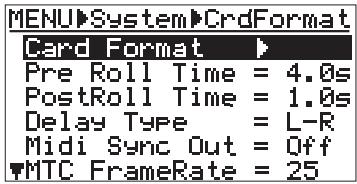
3) Use the [CURSOR ⑦] key to highlight "Pre Roll Time", then press the [ENTER] key.
The current pre-roll time value (initially, "4.0s") flashes.
4) Use the [CURSOR ▶]/[CURSOR ◀] keys to select the desired pre-roll time.
You can select the pre-roll time between 0.1 s and 10.0 s in 0.1 s steps.
5) After selecting the pre-roll time, press the [ENTER] key.
The pre-roll time is set, and the screen now highlights "Pre Roll Time".
6) Use the [CURSOR ☑] key to highlight "PostRoll Time", then press the [ENTER] key.
The current post-roll time value (initially, "1.0s") flashes.
7) Select the post-roll time in the similar manner to the pre-roll time selection, then press the [ENTER] key.
You can select the post-roll time between 0.1 s and 10.0 s in 0.1 s steps.
8) After setting the pre-roll and post-roll, press the [MENU] key to exit the menu mode.
Setting the beat resolution
As described earlier, while the time base is set to "Bar/Beat", setting "Beat resolution" in the menu to "On" allows you to store the LOCATE A or B point in beat resolution.
When "Beat resolution" is set to "On", the clock digit of the Bar/Beat/Clock value is automatically rounded down or up, so that the clock digit is always "00".
For example, while the time base is set to "Bar/Beat" and the "Beat resolution" is set to "On", if you set the LOCATE A point to "1 bar/1 ♪/46 clk" and the LOCATE B point to "2 bar/4 ♪/51 clk", the rounded values are stored as below.
"1 bar / 1 ♩ / 46 clk" -> "1 bar / 1 ♩ / 00 clk" (The clock value "46" is rounded down.)
"2 bar / 4 ♩ / 51 clk" -> "3 bar / 1 ♩ / 00 clk" (The clock value "51" is rounded up.)
How to set the beat resolution
1) While the recorder is stopped, press the [MENU] key to enter the menu mode.
The display shows the menu selection screen, in which "System" is highlighted initially.
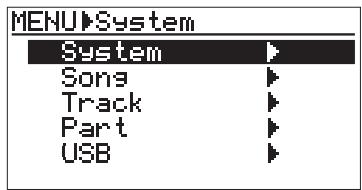
2) When "System" is highlighted, press the [ENTER] key.
The display now shows the system menu selection screen, in which "Card Format" is highlighted initially.
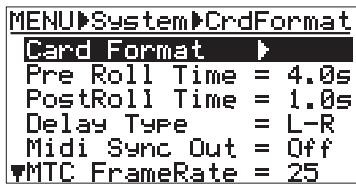
3) Use the [CURSOR ☑] key to highlight
"♪ Resolution", then press the [ENTER] key.
The current beat resolution setting option ("On" or "Off") flashes (initially, "Off").
![graph TD A["MENSU▶System▶ Reso"] --> B["↓ Resolution = Off"] B --> C["Click Level = Off"] C --> D["Init Memory ▶"] A --> E["MENSU▶System▶ Reso"] E --> F["↓ Resolution = Off"] F --> G["Click Level = Off"] G --> H["Init Memory ▶"] E --> I["− flashing"]](/content/2025/01/168439/images/948544fab0628fcb74a0efac20a3227ac94d2e956c3a68690db1a87f1aadf2fd.jpg)
4) Use the [CURSOR ▶]/[CURSOR ◀] keys to select "On", then press the [ENTER] key.
The beat resolution is set to "On", and the screen now highlights "♪ Resolution".
To set the beat resolution to "off", select "Off" and then press the [ENTER] key.
5) After completing the setting, press the [MENU] key to exit the menu mode.
Editing a song
The following describes song editing functions.
Creating a new song
See "Creating a song/selecting a song" on page 22 for details about how to create a new song.
Selecting a desired song
When more than one song is created on a card, you can select (load) a desired song.
You can also select a desired song by pressing the [REWIND] key or [F FWD] key while holding down the [ENTER] key (see page 24 for details).
1) While the recorder is stopped, press the [MENU] key to enter the menu mode.
The display shows the menu selection screen, in which "System" is highlighted initially.
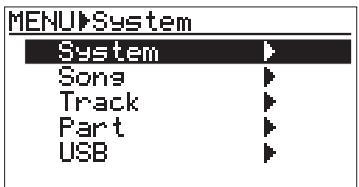
2) Use the [CURSOR ☑] key to highlight "Song", then press the [ENTER] key.
The display now shows the song edit menu selection screen, in which "Select Song" is highlighted initially.
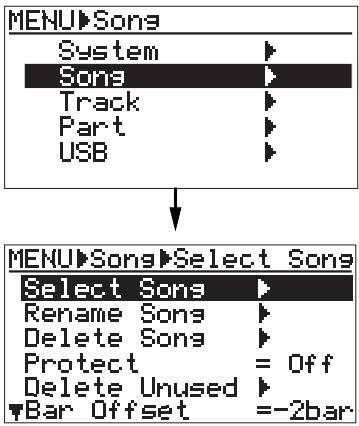
3) While "Select Song" is highlighted, press the [ENTER] key.
The display now shows the song list screen, in which the current song number and name are highlighted. "▼" shows that the song list continues.
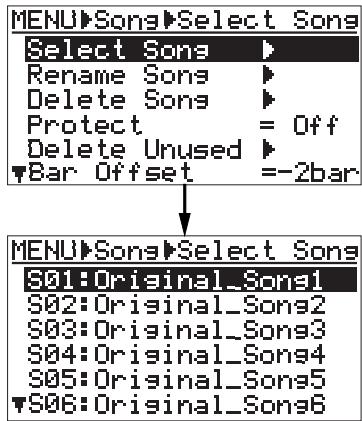
Pressing the [CURSOR ☑] key scrolls down the list. When you create a new song, select "--: New Song" shown in the bottom line of the list (see page 23).
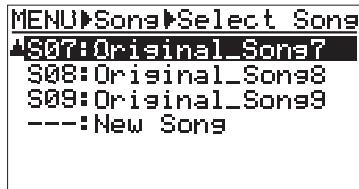
4) Use the [CURSOR Ⓐ/Ⓥ] keys to select a desired song, and press the [ENTER] key.
The display returns to the song edit menu selection screen, in which "Select Song" is highlighted.
5) Press the [MENU] key to exit the menu mode.
The display shows the home screen of the selected song.
Editing a song name
You can edit a current song name.
1) Load the desired song of which you are going to edit the song name.
2) While the recorder is stopped, press the [MENU] key to enter the menu mode.
The display shows the menu selection screen, in which "System" is highlighted initially.
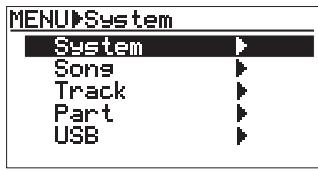
3) Use the [CURSOR ☑] key to highlight "Song", then press the [ENTER] key.
The display now shows the song edit menu selection screen, in which "Select Song" is highlighted initially.
![graph TD A["MENUE"] --> B["System"] A --> C["Sons"] A --> D["Track"] A --> E["Part"] A --> F["USB"] G["MENUE"] --> H["Select Sons"] G --> I["Rename Sons"] G --> J["Delete Sons"] G --> K["Protect = Off"] G --> L["Delete Unused"] G --> M["Bar Offset = -2bar"]](/content/2025/01/168439/images/f9a32aeee949f31bd4b8a7077bed04c871ab43abe02ce8fbeb45a6405cbc4e50.jpg)
4) Use the [CURSOR ⑦] key to highlight "Rename Song", then press the [ENTER] key.
The display now shows the song name editing screen, in which the first character of the current song name flashes.
![MENU>Sons>Rename Sons Select Sons Rename Sons Delete Sons Protect = Off Delete Unused ▼Bar Offset =-2bar MENU>Sons>Rename Sons -- Rename Sons -- Songs Name = Original_Sons [CANCEL] [ENTER] flashing](/content/2025/01/168439/images/58a099fdcbd0bbd6a15a6a599f7b0dcb9e81c60f0bf115d0cad021a32f1887bb.jpg)
5) Use the character entry keys to enter a desired character to the flashing point.
You can move the cursor (flashing point) using the [CURSOR ⊙] and [CURSOR ⊙] keys.
Some keys on the MR-8 top panel act as character entry keys in the menu mode. For example, the [PLAY MODE] key (shown at the left) can be used for entering A, B, C, a, b, c and 1. Each press of a
character entry key switches the character to be entered from among those assigned to the key.
To modify a part of the current name, use the [CURSOR ⊙] and [CURSOR ▶] keys to move the cursor to a character to be changed, and enter a desired character using the appropriate character entry key. If you reenter a new name, move the cursor to the first character of the name, and press the [1-4 > 5/6, 1-6 > 7/8] key repeatedly until all characters are deleted. Then, enter a new song name using the character entry keys. In the screen example below, "Moon_Light" is entered.
![MENU\Sons\Rename Sons -- Rename Sons -- Sons Name = Moon_Lish! [CANCEL] [ENTER]](/content/2025/01/168439/images/a31e0a390a41c76db3b7e2d5fe638106a1d1cff3838514f3fcf37f92b218070e.jpg)
If you carry out step 6 below after entering the same name as an existing song or without entering a name, the display shows "Illegal Song Name!" and returns to the song name editing screen. Also note that you cannot use "+" for a song name with less than 9 characters. For example, you cannot enter "AAA+BBB" for a song name. You can use "+" for asong name with 8 or more characters. For example, you can enter "AAA+BBBBB".
6) After entering the name, move the cursor to "[ENTER]" on the screen using the [CURSOR Ⓥ] key, then press the [ENTER] key.
The display now shows the screen in which "Rename Song" is highlighted.
7) Press the [MENU] key to exit the menu mode.
The MR-8 exits the menu mode and the display shows the home screen of the current song.
Deleting an unnecessary song
- You cannot delete a song which is protected. To delete such a song, release the protection of the song first (see page 60).
- You cannot undo deleting a song. Be careful when selecting a song you are going to delete.
1) While the recorder is stopped, press the [MENU] key to enter the menu mode.
The display shows the menu selection screen, in which "System" is highlighted initially.

2) Use the [CURSOR ☑] key to highlight "Song", then press the [ENTER] key.
The display now shows the song edit menu selection screen, in which "Select Song" is highlighted initially.
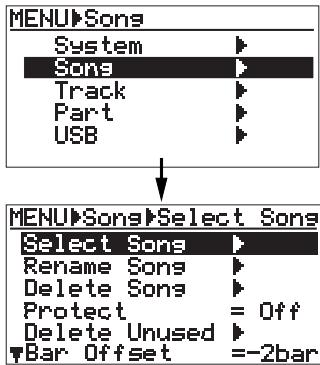
3) Use the [CURSOR ☑] key to highlight "Delete Song", then press the [ENTER] key.
The display now shows the song list screen, from which you select a song to be deleted.
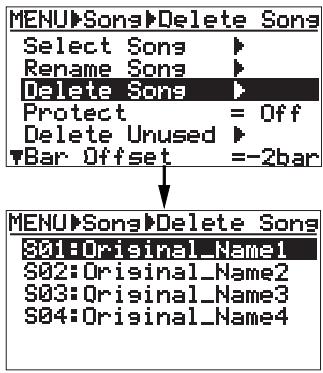
4) Use the [CURSOR Ⓐ/v] keys to select a song to be deleted, and press the [ENTER] key.
The display now shows the confirmation screen for deleting the song. In this screen, “Delete Song” and “Can’t Undo!” are shown for warning, as well as “Yes->RECORD+YES” and “No->NO Key” alternately flash. The MR-8 asks for confirmation because you cannot undo deleting the song.
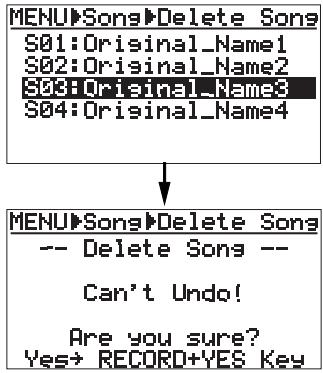
To cancel deleting the song, press the [CURSOR ◇] key.
5) Press the [CURSOR ▶] key while holding down the [RECORD] key.
The selected song is deleted, while any song number greater than the song number of the deleted song is moved up.
In the screen example below, after Song 03 is deleted, ex-Song 04 ("Original_Name4") is moved up to Song 03.
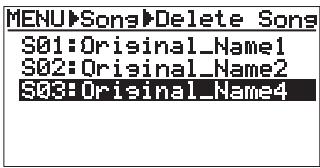
6) Press the [MENU] key to exit the menu mode.
Protecting a song
You can protect a song to prevent an accidental erasure. The protection can be released whenever you want.
To keep a recorded song, we recommend to protect it.
You cannot make recording or editing to a protected song. If you want to make recording or editing to a protected song, you must release the protection first.
1) Load the song you want to protect.
2) While the recorder is stopped, press the [MENU] key to enter the menu mode.
The display shows the menu selection screen, in which "System" is highlighted initially.
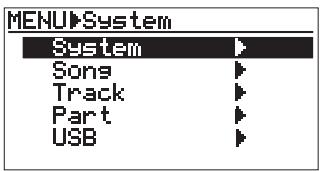
3) Use the [CURSOR ☑] key to highlight "Song", then press the [ENTER] key.
The display now shows the song edit menu selection screen, in which "Select Song" is highlighted initially.
![graph TD A["MENU"] --> B["Sons"] B --> C["System"] B --> D["Sons"] D --> E["Track"] D --> F["Part"] D --> G["USB"] H["MENU"] --> I["Sons"] --> J["Select Sons"] J --> K["Select Sons"] K --> L["Rename Sons"] K --> M["Delete Sons"] K --> N["Protect = Off"] K --> O["Delete Unused"] K --> P["Bar Offset =…](/content/2025/01/168439/images/75e957c750047a604ad76d8e97a6bbb1cbc662f60506be45ec11283bcd9d09b8.jpg)
4) Use the [CURSOR ☑] key to highlight "Protect", then press the [ENTER] key.
The current option ("On" or "Off") flashes.
The default option is "Off".
![graph TD A["MENU►Sons►Protect"] --> B["Select Sons"] A --> C["Rename Sons"] A --> D["Delete Sons"] A --> E["Protect = Off"] A --> F["Delete Unused"] A --> G["▼Bar Offset =-2bar"] H["MENU►Sons►Protect"] --> I["Select Sons"] H --> J["Rename Sons"] H --> K["Delete Sons"] H --> L["Protect = Off"] H -->…](/content/2025/01/168439/images/a7a1861b5233876a58d3a66052ff2596e5465a4d81c888304faefe76a42e1210.jpg)
5) Use the [CURSOR ◀/▶] keys to select "On", and press the [ENTER] key.
The current song is now protected. You cannot make any recording or editing with the song.
To release the protection, carry out the same procedure above but select "Off" in step 5.
6) Press the [MENU] key to exit the menu mode.
When the protected song is loaded, “☐” is shown in the upper right corner of the home screen (indicated by the arrow below).
When this icon is shown, you cannot make recording or edit the song.
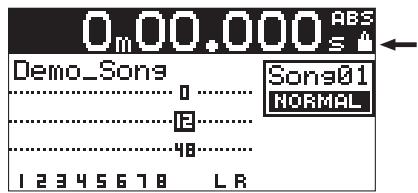
Deleting the unnecessary file in a song
Each song has two WAV file: one for track data, while the other for undo/redo operation. The latter file is called "undo WAV file" and allows undo/redo operation. Executing undo operation consumes the space of the card. Therefore, the more often you execute undo/redo, the remaining space becomes smaller.
If you decide not to use the undo function in the recording process, you can delete only the undo WAV file which is not necessary now.
By deleting the undo WAV file, you can increase the remaining (recordable) space of a song.
- You cannot delete the undo WAV file of a song which is protected. To delete the undo WAV file of such a song, release the protection before deleting the undo WAV file.
- Note that you cannot undo deleting the undo WAV file.
- By deleting the undo WAV file, you can never execute the undo/redo function for the previous recording/editing.
When you make recording/editing after deleting the undo WAV file, a new undo WAV file is created. You can undo/redo recording/editing made after deleting the undo WAV file.
1) Load the song of which you want to delete the undo WAV file.
2) While the recorder is stopped, press the [MENU] key to enter the menu mode.
The display shows the menu selection screen, in which "System" is highlighted initially.
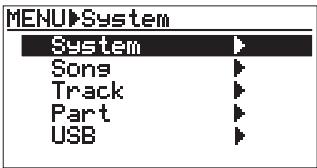
3) Use the [CURSOR ☑] key to highlight "Song", then press the [ENTER] key.
The display now shows the song edit menu selection screen, in which "Select Song" is highlighted initially.
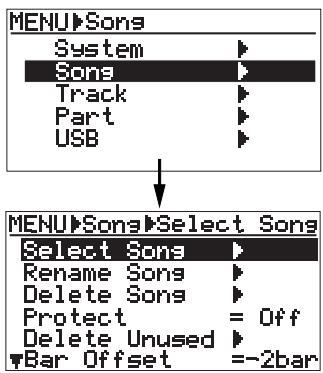
4) Use the [CURSOR ☑] key to highlight "Delete Unused", then press the [ENTER] key. The display now shows the confirmation screen for deleting the unused (undo WAV) file.
In this screen, “DEL Unused” and “Can’t Undo!” are shown for warning, as well as “Yes-> RECORD+YES” and “No-> NO Key” alternately flash. The MR-8 asks for confirmation because you cannot undo deleting the undo WAV file.
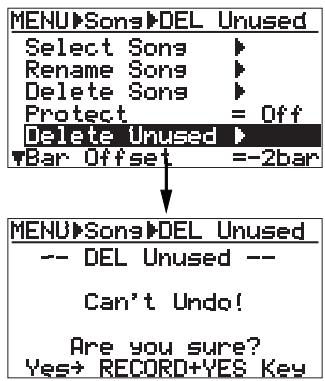
To cancel deleting the file, press the [CURSOR ◇] key.
5) Press the [CURSOR ▶] key while holding down the [RECORD] key.
The file is deleted, and "Completed!" is shown on the display.
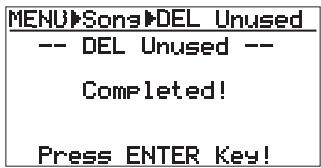
6) Press the [ENTER] key.
The display returns to show the screen in which "Delete Unused" is highlighted.
7) Press the [MENU] key to exit the menu mode.
Track editing
The following describes how to edit whole selected (mono or stereo) track data.
By pressing the [UNDO/REDO] key after executing the track edit operation, you can undo the editing. By pressing the [UNDO/REDO] key after the undo operation, you can return the track(s) to the condition after being edited.
If there is not enough space on the CompactFlash card for executing the undo operation, the display shows "Warning Card Full! Can't Undo!" when you are going to make editing. If you carry out any of the following, you cannot undo the editing anymore.
- Making new recording
- Making new editing
- Turning off the power
- Loading another song
Erasing whole track data
You can erase whole data (from ABS ZERO to REC END) of the desired mono or stereo track(s) of the song currently loaded.
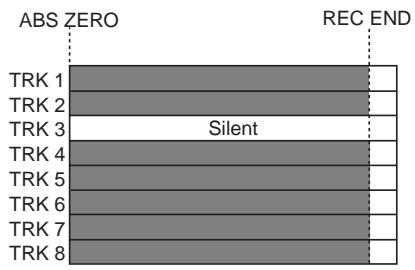
You cannot erase track data of a song protected. Release the protection before erasing track data.
1) Load the song you want to edit.
2) While the recorder is stopped, press the [MENU] key to enter the menu mode.
The display shows the menu selection screen, in which "System" is highlighted initially.
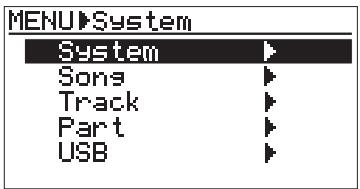
3) Use the [CURSOR ☑] key to highlight "Track", then press the [ENTER] key.
The display now shows the track edit menu selection screen, in which "Erase Track" is highlighted initially.
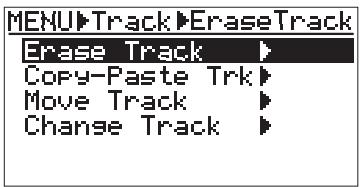
4) While "Erase Track" is highlighted, press the [ENTER] key.
The display now shows the screen for selecting the track(s) to be erased. Initially, "1" flashes.
The current position information is shown at the top of the screen (shown in Bar/Beat base in the screen example below).
![123bar 4J67clk -- Erase Track -- Erase Track = 1 - flashing [CANCEL] [ENTER]](/content/2025/01/168439/images/de4fcdca8d23aecda3a2916bcadac4d036e9fb98f0d0ca03799d9c7a5baa96bb.jpg)
5) Use the [CURSOR ◀/◎] keys to select a mono track or a pair of stereo tracks to be erased.
You can select from among mono tracks (1 through 8) and stereo pair tracks (1/2, 3/4, 5/6 and 7/8).
6) Use the [CURSOR ☑] key to move the cursor to "ENTER" on the screen, then press the [ENTER] key.
The display shows "Please Wait!", immediately followed by "Completed!" when the MR-8 completes erasing.
If you want to cancel the erase operation, move the cursor to "CANCEL" on the screen, then press the [ENTER] key.
![graph TD A["Erase Track"] -->|Please Wait!| B["Erase Track"] C["Erase Track"] -->|Completed!| D["Erase Track"] E["Press ENTER Key!"] --> B](/content/2025/01/168439/images/acace3dad5c40c12234f34b46bf22e95c75e80dd2631e9648a4379037857a535.jpg)
7) Press the [ENTER] key.
The display returns show to the screen in which "Erase Track" is highlighted.
8) Press the [MENU] key to exit the menu mode.
If you are not satisfied with the result, press the [UNDO/REDO] key to undo the operation (see page 62).
Copying/pasting whole track data
You can copy whole data (from ABS ZERO to REC END) of the desired mono or stereo track(s) of the song currently loaded and paste it to the other desired track(s). The data on the source (copied) track still remains after the copy/paste operation.
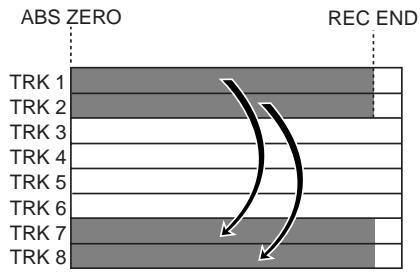
You cannot copy/paste track data of a song protected. Release the protection before copying/pasting track data.
1) Load the song you want to edit.
2) While the recorder is stopped, press the [MENU] key to enter the menu mode.
The display shows the menu selection screen, in which "System" is highlighted initially.
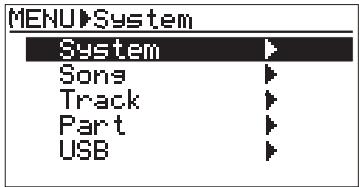
3) Use the [CURSOR ☑] key to highlight "Track", then press the [ENTER] key.
The display now shows the track edit menu selection screen, in which "Erase Track" is highlighted initially.
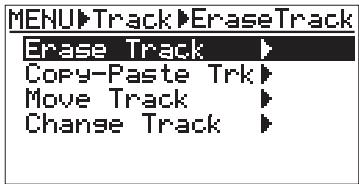
4) Use the [CURSOR ☑] key to highlight "Copy-Paste Trk", then press the [ENTER] key.
The display now shows the screen for selecting the source track(s) and destination track(s) of copy/paste. "SourceTrack" selects the copy source track(s), while "Dest. Track" selects the paste destination track(s).
The current position information is shown at the top of the screen (shown in Bar/Beat base in the screen example below).
![123bar 4J67clk -- Copy-Paste Trk -- Source Track = 1/2 Dest. Track = 7/8 [CANCEL] [ENTER] flashing](/content/2025/01/168439/images/04eb5ecfec5b107da0eb06a5359d32f16554010f24fad2198b2229e15ab85a02.jpg)
5) Use the [CURSOR ◀/◎] keys to select the source track(s) to be copied.
You can select from among mono tracks (1 through 8) and stereo pair tracks (1/2, 3/4, 5/6 and 7/8).
6) Use the [CURSOR Ⓥ] key to move the cursor to the option for "Dest. Track".
7) Use the [CURSOR ⬇/▶] keys to select the destination track(s).
If you select a mono track for the copy source in step 5 above, you can select a mono destination track. If you select stereo pair tracks for the copy source in step 5 above, you can select stereo pair destination tracks.
You cannot select the same track(s) for the copy source and destination.
8) Use the [CURSOR ⑦] key to move the cursor to "ENTER" on the screen, then press the [ENTER] key.
The display shows "Please Wait!", immediately followed by "Completed!" when the MR-8 completes the copy/paste operation.
If you want to cancel the copy/paste operation, move the cursor to "CANCEL" on the screen, then press the [ENTER] key.
![graph TD A["MENU▶Track ▶CpPasteTrk -- Copy-Paste Trk-- Please Wait!"] --> B["MENU▶Track ▶CpPasteTrk -- Copy-Paste Trk-- Completed! Press ENTER Key!"]](/content/2025/01/168439/images/62a00061d512fcb4055f0de7212d6d1374b404d3181fbbb95c37e5dfbfe575c1.jpg)
If a destination track has recorded data, pasting the copied data overwrites the previous data.
9) Press the [ENTER] key.
The display returns show to the screen in which "Copy-Paste Trk" is highlighted.
10) Press the [MENU] key to exit the menu mode.
If you are not satisfied with the result, press the [UNDO/REDO] key to undo the operation (see page 62).
Moving whole track data
You can move whole data (from ABS ZERO to REC END) of the desired mono or stereo track(s) to the other desired track(s). After the data is moved, the original track(s) is(are) silent.
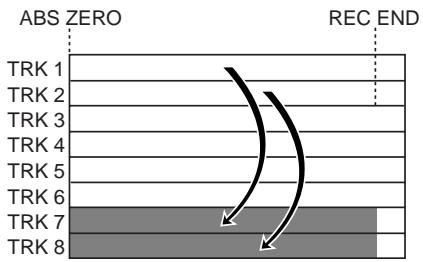
You cannot move track data of a song protected. Release the protection before moving track data.
1) Load the song you want to edit.
2) While the recorder is stopped, press the [MENU] key to enter the menu mode.
The display shows the menu selection screen, in which "System" is highlighted initially.
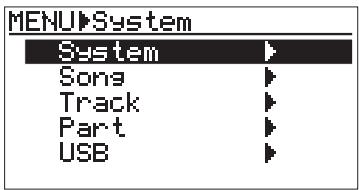
3) Use the [CURSOR ☑] key to highlight "Track", then press the [ENTER] key.
The display now shows the track edit menu selection screen, in which "Erase Track" is highlighted initially.
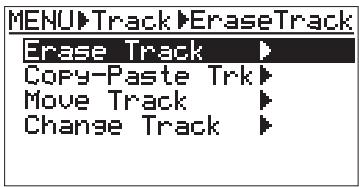
4) Use the [CURSOR ⑦] key to highlight "Move Track", then press the [ENTER] key.
The display now shows the screen for selecting the source track(s) and destination track(s) of the move operation. "Source Track" selects the move source track(s), while "Dest. Track" selects the move destination track(s).
The current position information is shown at the top of the screen (shown in Bar/Beat base in the screen example below).
![123bar 4J67clk -- Move Track -- Source Track = 1/2 Dest. Track = 7/8 [CANCEL] [ENTER] flashing](/content/2025/01/168439/images/a2b405a57e451016016e88ba945ca1e5c8bff125e2e1c2fb6739e23ae0d76a18.jpg)
5) Use the [CURSOR ◀/◎] keys to select source track(s) to be moved.
You can select from among mono tracks (1 through 8) and stereo pair tracks (1/2, 3/4, 5/6 and 7/8).
6) Use the [CURSOR Ⓥ] key to move the cursor to the option for "Dest. Track".
7) Use the [CURSOR ⏻/▶] keys to select the destination track(s).
If you select a mono track for the move source in step 5 above, you can select a mono destination track. If you select stereo pair tracks for the move source in step 5 above, you can select stereo pair destination tracks.
You cannot select the same track(s) for the move source and destination.
8) Use the [CURSOR ☑] key to move the cursor to "ENTER" on the screen, then press the [ENTER] key.
The display shows "Please Wait!", immediately followed by "Completed!" when the MR-8 completes the move operation.
If you want to cancel the move operation, move the cursor to "[CANCEL]" on the screen, then press the [ENTER] key.
![graph TD A["MENU"] --> B["Track"] --> C["Move Track"] C --> D["-- Move Track --"] D --> E["Please Wait!"] E --> F["↓"] F --> G["MENU"] --> H["Track"] --> I["Move Track"] I --> J["-- Move Track --"] J --> K["Completed!"] K --> L["Press ENTER Key!"]](/content/2025/01/168439/images/46800402aa257474169804fd8f851dd8a955657a4395fd43bebb31f186368e2d.jpg)
If a destination track has recorded data, moving data overwrites the previous data.
9) Press the [ENTER] key.
The display returns show to the screen in which "Move Track" is highlighted.
10) Press the [MENU] key to exit the menu mode.
If you are not satisfied with the result, press the [UNDO/REDO] key to undo the operation (see page 62).
Exchange whole track data
You can exchange whole data (from ABS ZERO to REC END) between the desired mono or stereo track(s).
![graph TD A["TRK 1"] --> B["Transistor"] C["TRK 2"] --> B D["TRK 3"] --> B E["TRK 4"] --> B F["TRK 5"] --> B G["TRK 6"] --> B H["TRK 7"] --> I["Transistor"] J["TRK 8"] --> K["Transistor"] B --> L["Rec END"] I --> L style A fill:#000,stroke:#000,color:#fff style C fill:#000,stroke:#000,color:#fff styl…](/content/2025/01/168439/images/c5a874335ee2dbcbb66c9c20cbc09a4ae3cacc2f2efc913095d413cf21ead6f2.jpg)
You cannot exchange track data of a song protected. Release the protection before exchanging track data.
1) Load the song you want to edit.
2) While the recorder is stopped, press the [MENU] key to enter the menu mode.
The display shows the menu selection screen, in which "System" is highlighted initially.
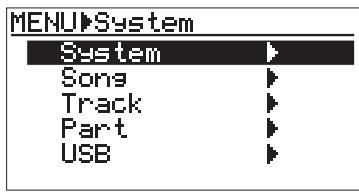
3) Use the [CURSOR ☑] key to highlight "Track", then press the [ENTER] key.
The display now shows the track edit menu selection screen, in which "EraseTrack" is highlighted initially.
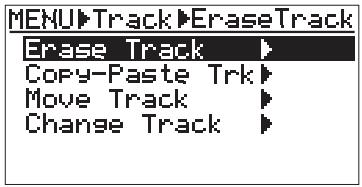
4) Use the [CURSOR ⑦] key to highlight "Change Track", then press the [ENTER] key.
The display now shows the screen for selecting the source track(s) and destination track(s) of the exchange operation.
"Source Track" selects the exchange source track(s), while "Dest. Track" selects the exchange destination track(s).
The current position information is shown at the top of the screen (shown in Bar/Beat base in the screen example below).
![123bar 4J67clk -- Change Track -- Source Track = 1/2 Dest. Track = 7/8 [CANCEL] [ENTER] flashing](/content/2025/01/168439/images/874ec7df09c21c6a9dfa75f0a99a716e3457e7d06047fe5cbc4f746e000d463d.jpg)
5) Use the [CURSOR ◀/◎] keys to select the source track(s) to be exchanged.
You can select from among mono tracks (1 through 8) and stereo pair tracks (1/2, 3/4, 5/6 and 7/8).
6) Use the [CURSOR ☑] key to move the cursor to the option for "Dest. Track".
7) Use the [CURSOR ⏻/▶] keys to select the destination track(s).
If you select a mono track for the exchange source in step 5 above, you can select a mono destination track. If you select stereo pair tracks for the exchange source in step 5 above, you can select stereo pair destination tracks.
You cannot select the same track(s) for the exchange source and destination.
8) Use the [CURSOR Ⓤ] key to move the cursor to "ENTER" on the screen, then press the [ENTER] key.
The display shows "Please Wait!", immediately followed by "Completed!" when the MR-8 completes the exchange operation.
If you want to cancel the exchange operation, move the cursor to "[CANCEL]" on the screen, then press the [ENTER] key.
![graph TD A["MENU ►Track ►Change Trk -- Change Track -- Please Wait!"] --> B["MENU ►Track ►Change Trk -- Change Track -- Completed! Press ENTER Key!"]](/content/2025/01/168439/images/662f09ac0ff60bc95bfab7e020988ef87504734710c4d3aaae99ef7e8815a251.jpg)
9) Press the [ENTER] key.
The display returns show to the screen in which "Change Track" is highlighted.
10) Press the [MENU] key to exit the menu mode.
If you are not satisfied with the result, press the [UNDO/REDO] key to undo the operation (see page 62).
Part editing
The following describes how to edit a "part" (*) of selected (mono or stereo) track data. Read the following carefully before carrying out part editing.
<(*) About "part">
A "part" is defined as audio data between the "LOCATE A" and "LOCATE B" points. Therefore, to carry out part editing, you have to store the "LOCATE A" and "LOCATE B" points. See page 53 for details about how to store these points.
You can listen to audio of the part before carrying out the edit operation. After storing the LOCATE A and LOCATE B points, follow the procedure below for checking.
1. Press the [PLAY] key while holding down the [STOP] key.
The MR-8 starts playback between the LOCATE A and LOCATE B points (see also page 49).
2. During playback, raise the appropriate track fader(s) and the [MASTER] fader.
You can monitor only the part of the editing track(s).
You can change the LOCATE A or LOCATE B point whenever you want (even during the edit operation). See the following for details.
On the screen for selecting the target track(s) to be edited, you can see the time (or Bar/Beat) information of the current recorder position.

The time (or Bar/beat) value changes in realtime when the recorder moves (i.e. plays, fastforwards, rewinds, locates, etc.). The LOCATE A or LOCATE B point can be changed while this screen is shown. For example, if you move the recorder to the desired position before selecting a track to be deleted, then press the [STORE] key followed by the [LOCATE A/IN] or [LOCATE B/OUT] key, the new editing point is stored.
When you carry out the locate operation to the LOCATE A or LOCATE B point and the current position matches the locate point, "LocA=" (or "LocB=") is shown on the left of the time (or Bar/Beat) information, as shown below. "LocA=" (or "LocB=") is also shown when you store the new editing point.

By pressing the [UNDO/REDO] key after executing the edit operation, you can undo the editing. By pressing the [UNDO/REDO] key after the undo operation, you can return the track(s) to the condition after being edited.
If there is not enough space on the CompactFlash card for executing the undo operation, the display shows "Warning Card Full! Can't Undo!" when you are going to make editing. If you carry out any of the following, you cannot undo the editing anymore.
- Making new recording
- Making new editing
- Turning off the power
- Loading another song
Erasing a desired part
You can erase a desired part on the selected mono or stereo track(s).
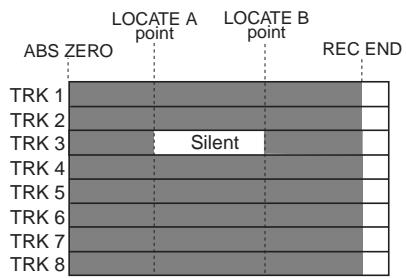
You cannot erase a part of a song protected. Release the protection before erasing the part.
1) Load the song you want to edit.
2) Store the LOCATE A and LOCATE B points (see page 53).
You can check the part by playing back between the LOCATE A and LOCATE B points (see page 68).
3) While the recorder is stopped, press the [MENU] key to enter the menu mode.
The display shows the menu selection screen, in which "System" is highlighted initially.
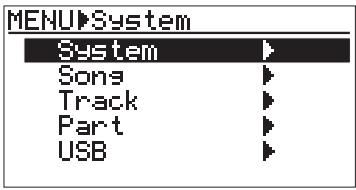
4) Use the [CURSOR ☑] key to highlight "Part", then press the [ENTER] key.
The display now shows the part edit menu selection screen, in which "Erase Part" is highlighted initially.
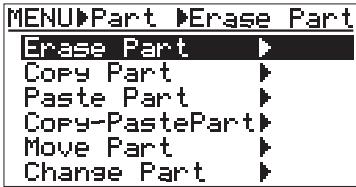
5) While "Erase Part" is highlighted, press the [ENTER] key.
The display now shows the screen for selecting the target track(s) which the desired part to be erased belongs to. The current position information (in ABS, Bar/Beat or time counter base) is shown at the top of the screen.
![***bar *J **clk -- Erase Part -- Erase Track = 1 [CANCEL] [ENTER] flashing](/content/2025/01/168439/images/4b3ad81c1cc085875cca6cebf978e4de986fa0626edae427dde08b8fcf1938b1.jpg)
6) Use the [CURSOR ⏻/ play] keys to select a mono track or a pair of stereo tracks.
You can select from among mono tracks (1 through 8) and stereo pair tracks (1/2, 3/4, 5/6 and 7/8).
7) Use the [CURSOR ⑦] key to move the cursor to "[ENTER]" at the lower right on the screen, then press the [ENTER] key.
The display shows "Please Wait!", immediately followed by "Completed!" when the MR-8 completes erasing.
If you want to cancel the erase operation, move the cursor to "[CANCEL]" on the screen, then press the [ENTER] key.
![graph TD A["***bar *J **clk"] --> B["-- Erase Part -- Please Wait!"] B --> C["MENU►Part ►Erase Part"] C --> D["-- Erase Part -- Completed!"] D --> E["Press ENTER Key!"]](/content/2025/01/168439/images/8c0de4962e886bc253ea1abe06a4a8e9bf891bf9f1191d708d603a2fcc9fc613.jpg)
8) Press the [ENTER] key.
The display returns show to the screen in which "Erase Part" is highlighted.
9) Press the [MENU] key to exit the menu mode.
If you are not satisfied with the result, press the [UNDO/REDO] key to undo the operation (see page 68).
Copying/pasting (1)
You can copy a part of the mono or stereo track(s) and paste it to the desired position of the other track(s). The source part is copied to the (virtual) clipboard first, then pasted to the desired position of the other track(s).
![graph TD A["ABS ZERO"] --> B["TRK 1"] A --> C["TRK 2"] A --> D["TRK 3"] A --> E["TRK 4"] A --> F["TRK 5"] A --> G["TRK 6"] A --> H["TRK 7"] A --> I["TRK 8"] B --> J["LOCATE A point"] C --> K["LOCATE B point"] D --> L["REC END"] E --> M["Clip Board (Virtual)"] F --> M G --> M H --> M I --> M M --> N[…](/content/2025/01/168439/images/8fc5fcff9b6c4a0c0a7d74bb0b5941d054470f85112ffd27ec545599ac7dd42b.jpg)
If you want to copy a part and paste it to the same position of the other track(s), we recommend to use the other copy/paste method described later in "Copying/pasting (2)" (though, of course, you can make such a copy/paste operation with the method described here).
You cannot copy/paste track data of a song protected. Release the protection before making the copy/paste operation.
If you turn off the power after copying data to the clipboard, the data on the clipboard disappears. Also note that you cannot undo copying data to the clipboard.
- Copying to the clipboard
1) Load the song you want to edit.
2) Store the LOCATE A and LOCATE B points (see page 53).
You can check the part by playing back between the LOCATE A and LOCATE B points (see page 68).
3) While the recorder is stopped, press the [MENU] key to enter the menu mode.
The display shows the menu selection screen, in which "System" is highlighted initially.
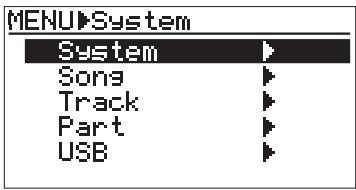
4) Use the [CURSOR ☑] key to highlight "Part", then press the [ENTER] key.
The display now shows the part edit menu selection screen, in which "Erase Part" is highlighted initially.
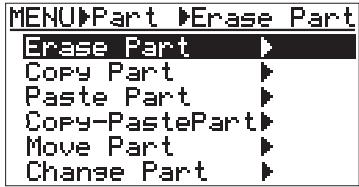
5) Use the [CURSOR ☑] key to highlight "Copy Part", then press the [ENTER] key.
The display now shows the screen for selecting the track(s) of which you copy data.
![***bar *J **clk -- Copy Part -- Copy Track = 1 - flashing [CANCEL] [ENTER]](/content/2025/01/168439/images/a2a9e7092a47be3c140aca6cc5fc2f979b7d0fe2ef93c53e0bb0c6ae981dd6f2.jpg)
6) Use the [CURSOR ⏻/▶] keys to select the track(s). You can select from among mono tracks (1 through 8) and stereo pair tracks (1/2, 3/4, 5/6 and 7/8).
7) Use the [CURSOR ⑦] key to move the cursor to "[ENTER]" at the lower right on the screen, then press the [ENTER] key.
The display shows "Please Wait!", immediately followed by "Completed!" when the MR-8 completes the copy operation. To cancel the copy operation, move the cursor to "[CANCEL]" at the lower left on the screen, then press the [ENTER] key.
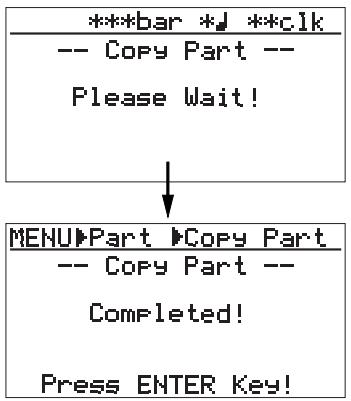
8) Press the [ENTER] key.
The display returns show to the screen in which "Copy Part" is highlighted.
9) Press the [MENU] key to exit the menu mode.
- Pasting clipboard data
1) Store the LOCATE A point where you want to paste the data (see page 53).
If you paste the data to the same position as the copied part, you can skip this step (because you have already stored it as the LOCATE A point before the copy operation).
2) While the recorder is stopped, press the [MENU] key to enter the menu mode.
The display shows the menu selection screen, in which "System" is highlighted initially.
3) Use the [CURSOR ⑦] key to highlight "Part", then press the [ENTER] key.
The display now shows the part edit menu selection screen, in which "Paste Part" is highlighted initially.
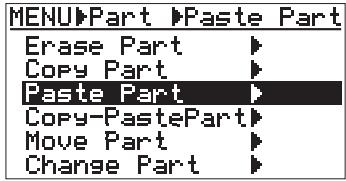
4) While "Paste Part" is highlighted, press the [ENTER] key.
The display now shows the screen for selecting the track(s) to which you want to paste the data.
If you are going to carry out the paste operation when no data is pasted on the clipboard, the error message ("Clip board Empty!") is shown on the display and the MR-8 does not accept the opera-
tion. Press the [MENU] key to exit the menu mode and copy the desired data to the clipboard before carrying out the paste operation.
![***bar *J **clk -- Paste Part -- Paste Track = 1 - flashing [CANCEL] [ENTER]](/content/2025/01/168439/images/ca3b3d3827dc9e22a23ffe1b16e672929f5baf8ae0cf466f703e02e5b2848b1b.jpg)
5) Use the [CURSOR ⬇/▶] keys to select the desired track(s).
If you select a mono track for the copy source, you can select a mono destination track. If you select stereo pair tracks for the copy source, you can select stereo pair destination tracks.
6) Use the [CURSOR ⑦] key to move the cursor to "[ENTER]" at the lower right on the screen, then press the [ENTER] key.
The display shows "Please Wait!", immediately followed by "Completed!" when the MR-8 completes the paste operation.
To cancel the paste operation, move the cursor to "[CANCEL]" at the lower left on the screen, then press the [ENTER] key.
![graph TD A["***bar *"] --> B["Paste Part --"] B --> C["Please Wait!"] C --> D["MENU▶Part ▶Paste Part"] D --> E["Paste Part --"] E --> F["Completed!"] F --> G["Press ENTER Key!"]](/content/2025/01/168439/images/0e4e9e01e73691f571157223319a047e3d896e101aa29c75acccd05ad9dba3a6.jpg)
7) Press the [ENTER] key.
The display returns show to the screen in which "Paste Part" is highlighted.
8) Press the [MENU] key to exit the menu mode.
If you are not satisfied with the result, press the [UNDO/REDO] key to undo the operation (see page 68).
Copying/pasting (2)
The following describes how to copy a part of the mono or stereo track(s) and paste it to the same position of the other track(s).
Unlike the method described in "Copying/past-ing a part (1)" earlier, you cannot set the desired paste position with this method. In other words, the paste position is always the LOCATE A point of the copy operation.
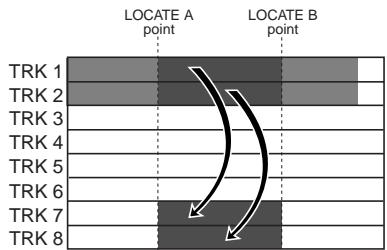
You cannot copy/paste track data of a song protected. Release the protection before making the copy/paste operation.
1) Load the song you want to edit.
2) Store the LOCATE A and LOCATE B points (see page 53).
You can check the part by playing back between the LOCATE A and LOCATE B points (see page 68).
3) While the recorder is stopped, press the [MENU] key to enter the menu mode.
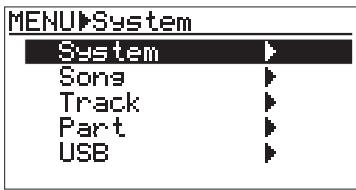
4) Use the [CURSOR ⑦] key to highlight "Part", then press the [ENTER] key.
The display now shows the part edit menu selection screen.
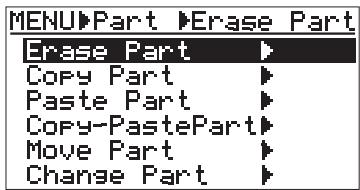
5) Use the [CURSOR ⑦] key to highlight "Copy Paste", then press the [ENTER] key.
The display now shows the screen for selecting the source track(s) and destination track(s) of copy/paste. "Source Track" selects the copy source track(s), while "Dest. Track" selects the paste destination track(s).
![***bar *j **clk -- Copy-PastePart -- Source Track = 1 Dest. Track = 1 [CANCEL] [ENTER]](/content/2025/01/168439/images/c6a26d70f513679fc8fd8de353fb05b1aac8c06b8c0f57056e0c27c202d1bebc.jpg)
6) Use the [CURSOR ⏻/▶] keys to select the source track(s) to be copied.
You can select from among mono tracks (1 through 8) and stereo pair tracks (1/2, 3/4, 5/6 and 7/8).
7) Use the [CURSOR ☑] key to move the cursor to the option for "Dest. Track".
8) Use the [CURSOR ◀/▶] keys to select the destination track(s).
If you select a mono track for the copy source in step 6 above, you can select a mono destination track. If you select stereo pair tracks for the copy source in step 6 above, you can select stereo pair destination tracks.
You cannot select the same track(s) for the copy source and destination.
9) Use the [CURSOR ☑] key to move the cursor to "ENTER" at the lower right on the screen, then press the [ENTER] key.
The display shows "Please Wait!", immediately followed by "Completed!" when the MR-8 completes the copy operation.
To cancel the copy/paste operation, move the cursor to "[CANCEL]" at the lower left on the screen, then press the [ENTER] key.
![graph TD A["***bar *"] --> B["Copy-PastePart --"] B --> C["Please Wait!"] D["MENUPart ▶Copy Paste"] --> E["Copy-PastePart --"] E --> F["Completed!"] G["Press ENTER Key!"]](/content/2025/01/168439/images/3d85823f76c121143039471e379c5595bbd69ca3eca39afe6ef6968b13eef628.jpg)
10) Press the [ENTER] key.
The display returns show to the screen in which "Copy-Paste Part" is highlighted.
11) Press the [MENU] key to exit the menu mode.
If you are not satisfied with the result, press the [UNDO/REDO] key to undo the operation (see page 68).
Moving the desired part to the other track(s)
You can move the desired part of the desired mono or stereo track(s) to the other desired track(s). After the part is moved, the original part on the source track(s) becomes silent.
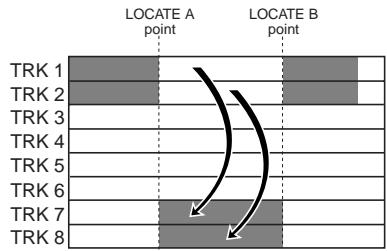
You cannot move data of a song protected. Release the protection before moving data.
1) Load the song you want to edit.
2) Store the LOCATE A and LOCATE B points (see page 53).
You can check the part by playing back between the LOCATE A and LOCATE B points (see page 68).
3) While the recorder is stopped, press the [MENU] key to enter the menu mode.
The display shows the menu selection screen, in which "System" is highlighted initially.
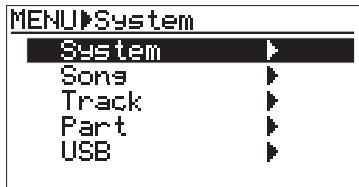
4) Use the [CURSOR ⑦] key to highlight "Part", then press the [ENTER] key.
The display now shows the part edit menu selection screen, in which "Erase Part" is highlighted initially.
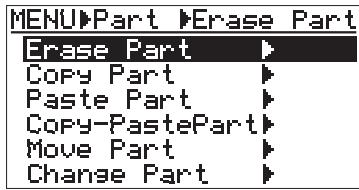
5) Use the [CURSOR Ⓥ] key to highlight "Move Part", then press the [ENTER] key.
The display now shows the screen for selecting the source track(s) and destination track(s) of the move operation. "Source Track" selects the move source track(s), while "Dest. Track" selects the move destination track(s).
![***bar *■ **clk -- Move Part -- Source Track = 1 Dest. Track = 1 [CANCEL] [ENTER]](/content/2025/01/168439/images/4ec4fc2b19638271cb24437fb5515539684cbd14c3c76b4ff584d696d18e857e.jpg)
6) Use the [CURSOR ◀/▶] keys to select the move source track(s).
You can select from among mono tracks (1 through 8) and stereo pair tracks (1/2, 3/4, 5/6 and 7/8).
7) Use the [CURSOR Ⓥ] key to move the cursor to the option for "Dest. Track".
8) Use the [CURSOR ◀/▶] keys to select the move destination track(s).
If you select a mono track for the move source in step 6 above, you can select a mono destination track. If you select stereo pair tracks for the move source in step 6 above, you can select stereo pair destination tracks.
You cannot select the same track(s) for the move source and destination.
9) Use the [CURSOR ☑] key to move the cursor to "ENTER" at the lower right on the screen, then press the [ENTER] key.
The display shows "Please Wait!", immediately followed by "Completed!" when the MR-8 completes the move operation.
To cancel the move operation, move the cursor to "[CANCEL]" at the lower left on the screen, then press the [ENTER] key.
![graph TD A["***bar *d **clk"] --> B["-- Move Part --"] B --> C["Please Wait!"] C --> D["MENU→Part →Move Part"] D --> E["-- Move Part --"] E --> F["Completed!"] F --> G["Press ENTER Key!"]](/content/2025/01/168439/images/1f4ac6b08886a1ea03beb62f615b3b1b9d6403ead63356e9d4ebb406b568ef04.jpg)
10) Press the [ENTER] key.
The display returns show to the screen in which "Move Part" is highlighted.
11) Press the [MENU] key to exit the menu mode.
If you are not satisfied with the result, press the [UNDO/REDO] key to undo the operation (see page 68).
Exchange parts between tracks
You can exchange parts between mono or stereo tracks.
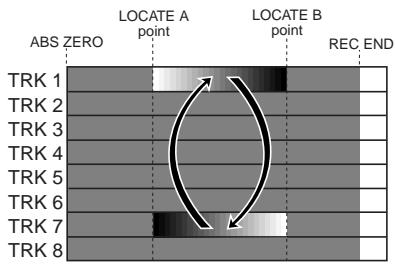
You cannot exchange data of a song protected. Release the protection before exchanging data.
1) Load the song you want to edit.
2) Store the LOCATE A and LOCATE B points (see page 53).
You can check the part by playing back between the LOCATE A and LOCATE B points (see page 68).
3) While the recorder is stopped, press the [MENU] key to enter the menu mode.
The display shows the menu selection screen, in which "System" is highlighted initially.
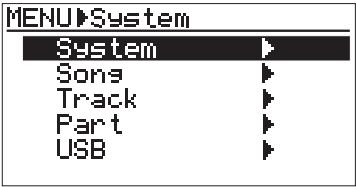
4) Use the [CURSOR ⑦] key to highlight "Part", then press the [ENTER] key.
The display now shows the part edit menu selection screen, in which "Erase Part" is highlighted initially.
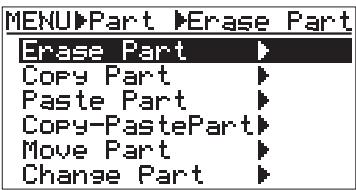
5) Use the [CURSOR ⑦] key to highlight "Change Part", then press the [ENTER] key.
The display now shows the screen for selecting the source track(s) and destination track(s) of the exchange operation. "Source Track" selects the exchange source track(s), while "Dest. Track" selects the exchange destination track(s).
![***bar *J **clk -- Change Part -- Source Track = 1 Dest. Track = 1 [CANCEL] [ENTER]](/content/2025/01/168439/images/d3c3bc4784ae2e801eab2c8903eedc5913d458081994607f6030080ffa269bc1.jpg)
6) Use the [CURSOR ◀/▶] keys to select the exchange source track(s).
You can select from among mono tracks (1 through 8) and stereo pair tracks (1/2, 3/4, 5/6 and 7/8).
7) Use the [CURSOR Ⓥ] key to move the cursor to the option for "Dest. Track".
8) Use the [CURSOR ◀/▶] keys to select the exchange destination track(s).
If you select a mono track for the exchange source in step 6 above, you can select a mono destination track. If you select stereo pair tracks for the exchange source in step 6 above, you can select stereo pair destination tracks.
You cannot select the same track(s) for the exchange source and destination.
9) Use the [CURSOR ⑦] key to move the cursor to "[ENTER]" at the lower right on the screen, then press the [ENTER] key.
The display shows "Please Wait!", immediately followed by "Completed!" when the MR-8 completes the part exchange operation.
To cancel the part exchange operation, move the cursor to "[CANCEL]" at the lower left on the screen, then press the [ENTER] key.
![graph TD A["***bar *"] --> B["Change Part --"] B --> C["Please Wait!"] D["MENU→Part →ChangePart"] --> E["Change Part --"] E --> F["Completed!"] F --> G["Press ENTER Key!"]](/content/2025/01/168439/images/8f831ab77f0519c5e3fa2766ace6e273bca90c87d8ecbb8e60c2b8dca9716876.jpg)
10) Press the [ENTER] key.
The display returns show to the screen in which
"Change Part" is highlighted.
11) Press the [MENU] key to exit the menu mode.
If you are not satisfied with the result, press the [UNDO/REDO] key to undo the operation (see page 68).
Synchronizing with MIDI
By connecting the external MIDI devices (such as a sequencer, sound module, computer, etc.) via the [MIDI OUT] connector of the MR-8, you can make powerful recording.
For example, by synchronizing a sequencer with the MR-8 during playback, you can mix down signals (such as a vocal, guitar, etc.) recorded on the MR-8 tracks and audio from a sound module.
You can synchronize MIDI with the MR-8 by connecting a MIDI device to the [MIDI OUT] connector on the MR-8 and sending out MTC (MIDI time code) or MIDI clock (with Song Position Pointer) from the MR-8.
Synchronization using MTC
The following describes how to synchronize a sequencer to the MR-8 which supports MTC (MIDI Time code).
Connection
Connect the [MIDI OUT] connector of the MR-8 to the [MIDI IN] connector of an external MIDI sequencer using a MIDI cable (not supplied).
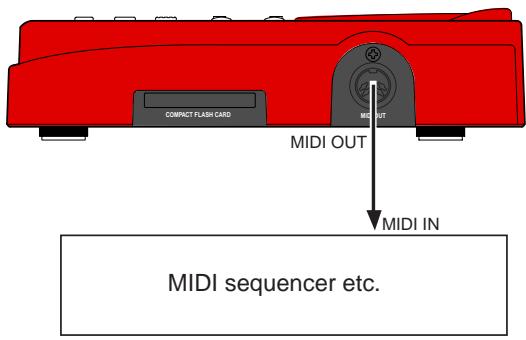
Settings of the MR-8 and MIDI sequencer
1) In the "System" menu of the menu mode, set the "Midi Sync Out" item to "MTC" and the "MTC Frame Rate" to an appropriate frame rate.
See "MIDI sync/MTC frame rate settings" below for details.
2) Enable the external MIDI sequencer to synchronize to MTC.
See the operation manual of the sequencer for details.
3) Press the [PLAY] key of the MR-8 to start playback.
The sequencer also starts playback while synchronizing to the MR-8.
MIDI sync/MTC frame rate settings
While the MR-8 is stopped, you can set the reference of MIDI synchronization to "MTC" and the MTC frame rate appropriately to match the sequencer.
The MTC from the MR-8 has an hour offset, which is fixed. Therefore, when starting the MR-8 from the beginning of a song (ABS ZERO), the MTC starts from "01h00m00s00f".
1) While the recorder is stopped, press the [MENU] key to enter the menu mode.
The display shows the menu selection screen, in which "System" is highlighted initially.
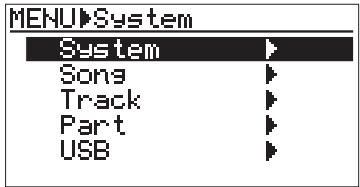
2) While "System" is highlighted, press the [ENTER] key.
The display now shows the system menu screen, in which "Card Format" is highlighted initially.
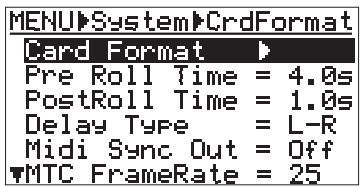
3) Use the [CURSOR ☑] key to highlight "Midi Sync Out", then press the [ENTER] key.
The current option (the default is "Off") flashes. You can now select the desired one from among three options below.
- Off: No signal is output from the [MIDI OUT] connector.
- CLK: MIDI clock with Song Position Pointer is output from the [MIDI OUT] connector.
- MTC: MIDI time code is output from the [MIDI OUT] connector.
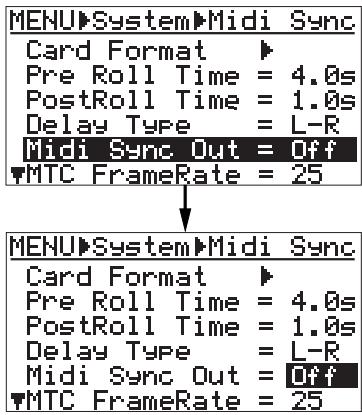
4) Use the [CURSOR ◀/▶] keys to select "MTC", then press the [ENTER] key.
"Midi Sync Out" setting is now effective, while "Midi Sync Out" is highlighted on the screen.
5) Use the [CURSOR ☑] key to highlight "MTC FrameRate", then press the [ENTER] key.
The current option (the default is "25") flashes. You can now select a frame rate from among four options: "24", "25", "30nd" and "30df".
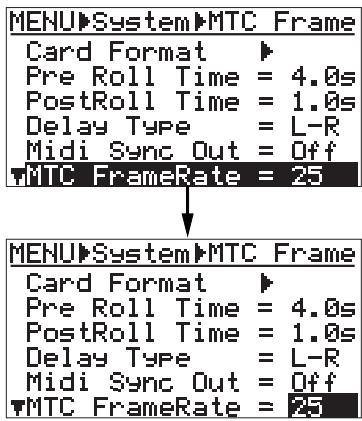
6) Use the [CURSOR ⏻/▶] keys to select the desired frame rate, then press the [ENTER] key.
The frame rate setting is now effective, while "MTC FrameRate" is highlighted on the screen.
7) Press the [MENU] key to exit the menu mode.
Synchronization using MIDI clock
The following describes how to synchronize a sequencer to the MR-8 using MIDI clock. Use this method if the sequencer does not support MTC (MIDI Time code)
- To synchronize a sequencer to the MR-8 using MIDI clock, you have to make the signature/tempo map in the MR-8. The MIDI clock is output according to the signature/tempo map in the MR-8. When starting recording, synchronize the sequencer to the MIDI clock fed from the MR-8.
- Generally, a sequencer supporting MIDI song position pointer as well as MIDI clock can synchronize to the MR-8 when you start playback of the MR-8 from the middle of a song. It locates the current song position and chase the MR-8. However, note that some sequencer may not synchronize to the MR-8.
Connection
As with the connection for MTC synchronization, connect the [MIDI OUT] connector of the MR-8 to the [MIDI IN] connector of an external MIDI sequencer using a MIDI cable.
Settings of the MR-8 and MIDI sequencer
1) In the "System" menu of the menu mode, set the "Midi Sync Out" item to "Clk".
See "MIDI sync/MTC frame rate settings" above about how to set.
2) In the "Song" menu of the menu mode, create the signature/tempo map by setting "Signature Map" and "Tempo Map" appropriately.
See "Using the rhythm guide function" on page 79 for details about how to set these items.
3) Enable the external MIDI sequencer to synchronize to MIDI clock.
See the operation manual of the sequencer for details.
4) Press the [PLAY] key of the MR-8 to start playback.
The sequencer also starts playback while synchronizing to the MR-8.
Using the rhythm guide function
The MR-8 provides the metronome function which can output the guide click for recording. To output the guide click, create the signature/tempo map using the "Signature Map" and "Tempo Map" items and set the click level using the "Click level" item in the menu mode. The rhythm guide click is output together with the stereo output signals during recording/play-back.
Creating the signature/tempo map
Setting the signature map
First, set the signature for each bar in the internal programmable signature/tempo map.
For example, you can set the signature to 4/4 for bars 1 and 2, and set to 2/4 from bar 3, etc.
The signature map specifies the signature at the signature changing point. Each signature specified in the signature map is effective until another signature is specified.
To output the guide click or feed the MIDI clock and song position pointer to an external MIDI device, you have to set the signature map, as well as the tempo map which will be described later.
1) While the recorder is stopped, press the [MENU] key to enter the menu mode.
The display shows the menu selection screen, in which "System" is highlighted initially.
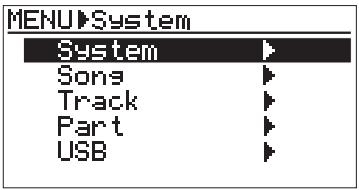
2) Use the [CURSOR ☑] key to highlight "Song", then press the [ENTER] key.
The display now shows the song edit menu screen, in which "Select Song" is highlighted initially.
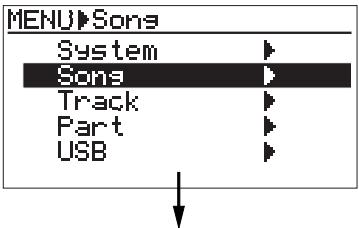
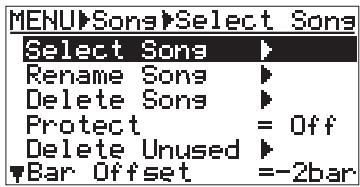
3) Use the [CURSOR ☑] key to highlight "Signature Map", then press the [ENTER] key.
The display shows the current signature map. By default, "1bar -> 4/4" and "--bar -> --" are shown. In this condition, the signature is set to "4/4" from the beginning to the end of a song. If you want to change the signature from the middle of a song, use the "--bar -> --" line.
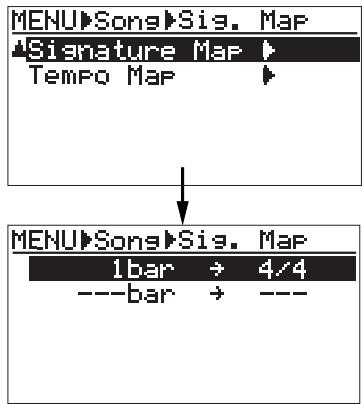
Let's assume to specify the signatures as below.
| from bar 1 to bar 3 | -> 4/4 |
| from bar 4 to bar 7 | -> 3/4 |
| from bar 8 to bar 11 | -> 4/4 |
| from bar 12 to bar 15 | -> 5/8 |
| from bar 16 to the last bar | -> 3/4 |
4) Use the [CURSOR ☑] key to highlight "--bar -> --", then press the [ENTER] key.
The display shows the screen for new signature setting. "2" for bar number entry flashes. You can enter a numeric value between 1 and 999.
![graph TD A["MENU"] --> B["Sig. Map"] B --> C["1bar → 4/4"] B --> D["---bar → ---"] A --> E["MENU"] --> F["Sig. Map"] F --> G["Bar = 2 bar\nSig. = 4/4"] F --> H["[CANCEL"][ENTER][DEL]] style A fill:#f9f,stroke:#333 style E fill:#ccf,stroke:#333 style F fill:#cfc,stroke:#333 style G fill:#fcc,stroke:#…](/content/2025/01/168439/images/d6b18fb9fb2e94543783fba45a46e59b23618aa92e5c2cbcc52c3f13070ec2c6.jpg)
5) Use the [CURSOR ◀/▶] keys to enter "4".
![MENU>Song>Sig. Map Bar = 4 bar Sis. = 4/4 [CANCEL][ENTER][DEL] flashing](/content/2025/01/168439/images/bec52dbe28d931cddc2bc27e22d1e5c2697e77870590530c3e7dc7307c40a14f.jpg)
6) Use the [CURSOR ☑] key to flash "4/4" for "Sig." setting.
You can select a desired signature from among 1/4, 2/4, 3/4, 4/4, 5/4, 1/8, 2/8, 3/8, 4/8, 5/8, 6/8, 7/8 and 8/8.
![MENU▶Songs▶Sig. Map Bar = 4 bar Sig. = 4/4 [CANCEL][ENTER][DEL] flashing](/content/2025/01/168439/images/1308ca5fd8eeda14a24880356258d265140f110c73545e84449a04500406d1b8.jpg)
7) Use the [CURSOR ◀/▶] keys to enter "3/4".
![MENU>Song>Sig. Mar Bar = 4 bar Sig. = 3/4 [CANCEL][ENTER][DEL] flashing](/content/2025/01/168439/images/be0ca9560bc79ae4b13ae06871ef5958017c58a9a68cd83e4eee75ebadcdab04.jpg)
8) Use the [CURSOR ☑] key to move the cursor to "[ENTER]" at the lower center of the screen, then press the [ENTER] key.
The bar and signature setting above is completed and the display changes to show the signature map screen, in which the new setting is reflected.
![graph TD A["MENU ▶Sons ▶Sis. Map"] --> B["Bar = 4 bar\nSis. = 3/4"] B --> C["[CANCEL"][ENTER][DEL]] C --> D["MENU ▶Sons ▶Sig. Map"] D --> E["1bar → 4/4\n4bar → 3/4\n---bar → ---"]](/content/2025/01/168439/images/7e0ded074b6ca726b59199440690a256e5ebd27880486c298a645e9e701e19a8.jpg)
9) Use the [CURSOR ☑] key to highlight "--bar -> --", then press the [ENTER] key.
The display shows the screen for new signature setting as step 4 above. Follow the same procedure as described above until you finish all settings. You can make up to 64 bar/signature settings.
10) After completing all settings, use the [CURSOR ⬇] key to return the display to show the screen in which "Signature Map" is highlighted.
Then, continue to the procedure for tempo setting described on page 82.
To edit the signature map you created, see below.
Changing the bar number or signature
You can change the bar number or signature you specified.
1) While the display shows the signature map screen, use the [CURSOR Ⓐ/▽] key to highlight the setting you want to change, then press the [ENTER] key.
The display changes to show the screen where the bar number flashes, showing that you can now edit it.
![graph TD A["MENU▶Songs▶Sig. Map"] --> B["1bar → 4/4"] A --> C["4bar → 3/4"] A --> D["8bar → 4/4"] A --> E["12bar → 5/8"] A --> F["16bar → 3/4"] A --> G["---bar → ---"] H["MENU▶Songs▶Sig. Map"] --> I["Bar = 16 bar\nSig. = 3/4"] I --> J["[CANCEL"][ENTER][DEL]] K["flashing"] --> I](/content/2025/01/168439/images/d0e2dc1a44799ca547876d8427f9768ea4523edb88795ad0087af08cfd3fc4bb.jpg)
2) Use the [CURSOR ◀/◎] keys to enter a desired number.
3) Use the [CURSOR Ⓥ] key to highlight the signature value.
You can now select a signature.
4) Use the [CURSOR ◀/▶] keys to select a desired signature.
5) Use the [CURSOR ☑] key to move the cursor to "[ENTER]" at the lower center of the screen, then press the [ENTER] key.
The new bar and signature setting above is now effective.
6) To exit the menu mode, press the [MENU] key.
You can also exit the menu mode by pressing the [CURSOR ⊙] key as many times as required until exiting the menu mode.
Deleting an unnecessary bar/signature setting
You can delete an unnecessary bar/signature setting from the signature map.
1) On the signature map screen, use the [CURSOR ④/⑦] key highlight the bar/signature setting you want to delete, then press the [ENTER] key.
The display changes to show the screen where the bar number flashes.
![graph TD A["MENU"] --> B["Song"] B --> C["Sig."] C --> D["Bar = 16 bar\nSig. = 3/4"] D --> E["16bar → 3/4\n---bar → ---"] F["FLASHING"] --> G["[CANCEL"][ENTER][DEL]]](/content/2025/01/168439/images/f32d50bd7338ce18b4b78f322b84d8a880ee781ebc00f0c23657d38afe99010c.jpg)
2) Use the [CURSOR ☑] key to move the cursor to "[DEL]" at the lower right of the screen, then press the [ENTER] key.
The selected setting is immediately deleted.
The following shows the screen examples for deleting "16bar -> 3/4".
![MENU▶Songs▶Sig. Map Bar = 16 bar Sig. = 3/4 [CANCEL][ENTER][DEL] MENU▶Songs▶Sig. Map 1bar → 4/4 4bar → 3/4 8bar → 4/4 12bar → 5/8 ---bar → ---](/content/2025/01/168439/images/39c923af2608e1a10a69bf7be823dfc1a1b7588ea00ca0bc378e5ca007d39aa1.jpg)
3) To exit the menu mode, press the [MENU] key. You can also exit the menu mode by pressing the [CURSOR ⊗] key as many times as required until exiting the menu mode.
Changing the bar offset
If you locate the ABS zero point (the beginning of a song) while the time base is set to Bar/Beat/Clk, the display will show "-2bar 1♩ 00clk" by default. This means the ABS zero point corresponds to "bar -2, beat 1".
This offset (the Bar/Beat position at the ABS zero point) is called "bar offset". You can set a desired bar offset if necessary.
1) Bring up the song edit menu screen and use the [CURSOR ⑦] key to highlight "Bar Offset" on the first page of the screen, then press the [ENTER] key.
The current bar offset flashes ("-2bar" by default), showing that you can now edit it.
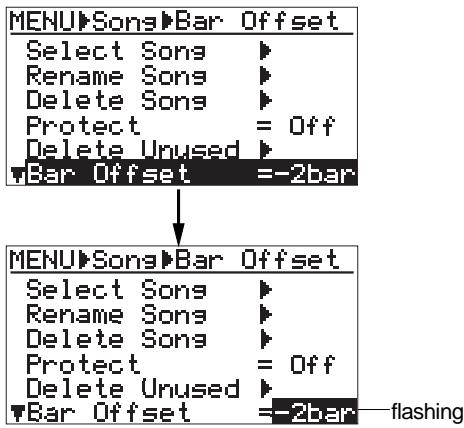
You can select from among the following options.
| option | meaning | option | meaning |
| -8bar | ABS Zero=-8bar | -3bar | ABS Zero=-3bar |
| -7bar | ABS Zero=-7bar | -2bar | ABS Zero=-2bar |
| -6bar | ABS Zero=-6bar | -1bar | ABS Zero=-1bar |
| -5bar | ABS Zero=-5bar | 0bar | ABS Zero=1bar |
| -4bar | ABS Zero=-4bar | ||
2) Use the [CURSOR ◀/▶] keys to select a desired option, then press the [ENTER] key.
The selected option is now effective, while "Bar Offset" is highlighted on the screen.
3) To exit the menu mode, press the [MENU] key.
You can also exit the menu mode by pressing the [CURSOR ⊗] key as many times as required until exiting the menu mode.
Creating the tempo map
After setting the signature map, you have to create the tempo map.
Like the signature map, the tempo map specifies the tempo at the tempo changing point. Each tempo specified in the signature map is effective until another tempo is specified.
For example, you can set the tempo to 120 at the third beat in bar 4, and set to 90 at the second beat in bar 12, etc.
By creating the signature map and tempo map, the signature/tempo map is completed, and you can output the guide click or feed the MIDI clock and song position pointer to an external MIDI device.
Let's assume to create the tempo map as below.
| The first beat in bar 1 | -> 120 |
| The second beat in bar 4 | -> 180 |
| The third beat in bar 8 | -> 90 |
| The first beat in bar 12 | -> 120 |
| The fourth beat in bar 16 | -> 250 |
1) Bring up the song edit menu screen and use the [CURSOR ☑] key to highlight "Tempo Map", then press the [ENTER] key.
The display shows the screen for new tempo setting. By default, "1bar 1→120bpm" and "--bar -→--bpm" are shown.
In this condition, the tempo is set to "120bpm" from the beginning to the end of a song.
You can create the tempo map as shown above by the following procedure.
![graph TD A["MENU>Sons"] --> B["Tempo Map"] C["Signature Map"] --> D["Tempo Map"] E["MENU>Sons"] --> F["Tempo Map"] G["1bar 1J → 120bpm"] --> H["---bar -J → ---bpm"]](/content/2025/01/168439/images/fbc9f95c9d67392461a1aac79205ac032033e4da178a0f6f09a1de29ab908f68.jpg)
2) Use the [CURSOR ⑦] key to highlight "--bar -ʃ -> --bpm", then press the [ENTER] key. The display shows the screen for new tempo setting. Initially, the upper "2" for bar number entry flashes. You can enter a numeric value between 1 and 999.
![MENU>SongTempo Map 1bar 1J → 120bpm ---bar -J → ---bpm MENU>SongTempo Map Bar = 2 bar Beat = 1 J Tempo = 120 bpm [CANCEL][ENTER][DEL] flashing](/content/2025/01/168439/images/2554e3417dfa8bf8fed5471472805b4e658edabf4c760228d4abeb886931169d.jpg)
3) Use the [CURSOR ◀/▶] keys to enter "4".
![MENU▶Songs▶Tempo Map Bar = 4 bar Beat = 1 J Tempo = 120 bpm [CANCEL][ENTER][DEL] flashing](/content/2025/01/168439/images/0502694b178273124a3d791b7e229a431aa6c40dcaf487e6585c884a215fa818.jpg)
4) Use the [CURSOR ☑] key to flash "1" for "Beat" setting.
You can enter a beat number between 1 and 8.
![MENU>Sons>Tempo Map Bar = 4 bar Beat = 1 J Tempo = 120 bpm [CANCEL][ENTER][DEL] flashing](/content/2025/01/168439/images/24bb36941334b3f4439457c64dbe910328e17dec0e01a3aa1ae8b9b12eb981a9.jpg)
5) Use the [CURSOR ◀/▶] keys to enter "2".
![MENU>SongTempo Map Bar = 4 bar Beat = 2 J Tempo = 120 bpm [CANCEL][ENTER][DEL] flashing](/content/2025/01/168439/images/d95e1d691f140443766198510912dda2fbf50d0205037816065436d8215a1393.jpg)
6) Use the [CURSOR ⑦] key to flash "120" for "Tempo" setting.
You can enter a tempo value between 30 and 250.
![MENU>SonsTempo Map Bar = 4 bar Beat = 2 J Tempo = 120 bpm [CANCEL][ENTER][DEL] flashing](/content/2025/01/168439/images/4796bda82748867f0c997d8fbc8f2700a7857a2d57177b95c25cd2f1dcc7acd4.jpg)
7) Use the [CURSOR ◀/▶] keys to enter "180".
![MENU▶Sons▶Tempo Map Bar = 4 bar Beat = 2 J Tempo = 180 rpm [CANCEL][ENTER][DEL] flashing](/content/2025/01/168439/images/b19574488c1266348ec08d5909a8ad41a1a833cfa09561dffaca74b75161a1b2.jpg)
8) Use the [CURSOR ⑦] key to highlight "[ENTER]" at the lower center of the screen, then press the [ENTER] key.
The tempo setting above is completed and the display changes to show the tempo map screen, in which the new setting is reflected. If you want to cancel the setting, highlight "[CANCEL]" instead of "[ENTER]", then press the [ENTER] key.
![MENU▶Songs▶Tempo Map Bar = 4 bar Beat = 2 ♪ Tempo = 180 bpm [CANCEL] [CENTER] [DEL] MENU▶Songs▶Tempo Map 1bar 1→ 120bpm 4bar 2→ 180bpm ---bar -→ ---bpm](/content/2025/01/168439/images/24686f504d5f167f5e82728c39e68dfdf2ce1572b09b87c83c66496912c5cd8b.jpg)
9) Use the [CURSOR ☑] key to highlight "—bar -♩ -> —bpm", then press the [ENTER] key.
The display shows the screen for new tempo setting as shown in step 2 above. Follow the same procedure as described above until you finish all settings.
10) After completing all settings, use the [CURSOR Ⓥ] key to return the display to show the menu selection screen.
Then, in order to use the rhythm guide function, continue to the procedure for click level setting described on page 85.
To edit the tempo map you created, see below.
Editing the tempo map
You can edit the tempo map you created.
1) While the display shows the tempo map screen, use the [CURSOR Ⓐ/▽] key to highlight the setting you want to change, then press the [ENTER] key.
The display changes to show the screen where the bar number currently set is highlighted, showing that you can now edit it.
![MENU▶Songs▶Tempo Map 1bar 1J → 120bpm 4bar 2J → 180bpm 8bar 3J → 90bpm 12bar 1J → 120bpm 16bar 4J → 250bpm ---bar -J → ---bpm MENU▶Songs▶Tempo Map Bar = 4 bar Beat = 2 J Tempo = 180 bpm [CANCEL][ENTER][DEL] flashing](/content/2025/01/168439/images/9b18a988b7330d4f271eb88e698baa81cb0c2ccdd8bec5c14bda4ef6b61bcb80.jpg)
2) Use the [CURSOR ⏻/▶] keys to enter a desired bar number.
3) Use the [CURSOR ☑] key to highlight the beat number currently set.
You can now edit the beat number.
4) Use the [CURSOR ◀/◎] keys to enter a desired number.
5) Use the [CURSOR ⑦] key to highlight the tempo value currently set.
You can now edit the tempo value.
6) Use the [CURSOR ◀/◎] keys to enter a desired tempo value.
7) After editing is completed, use the [CURSOR Ⓥ] key to move the cursor to "[ENTER]" at the lower center of the screen, then press the [ENTER] key.
The new tempo setting above is now effective, while the display changes to show the tempo map screen.
8) To exit the menu mode, press the [MENU] key.
You can also exit the menu mode by pressing the [CURSOR ⬇] key as many times as required until exiting the menu mode.
Deleting an unnecessary tempo setting
You can delete an unnecessary tempo setting from the tempo map.
1) On the tempo map screen, use the [CURSOR Ⓐ/Ⓧ] key highlight the tempo setting you want to delete, then press the [ENTER] key.
The display changes to show the screen where the bar number currently set is highlighted, showing that you can now edit it.
![graph TD A["MENU ▶ Song ▶ Tempo ▶ Map"] --> B["1bar 1J → 120bpm"] A --> C["4bar 2J → 180bpm"] A --> D["8bar 3J → 90bpm"] A --> E["12bar 1J → 120bpm"] A --> F["16bar 4J → 250bpm"] A --> G["---bar -J → ---bpm"] B --> H["MENU ▶ Song ▶ Tempo ▶ Map"] C --> H D --> H E --> H F --> H G --> H H --> I["Bar =…](/content/2025/01/168439/images/b26d34643a307bdba8de3a6c9aa2f6f63f0d6dab4f6990c56b3e28569f9c534a.jpg)
2) Use the [CURSOR ☑] key to move the cursor to "[DEL]" at the lower right of the screen, then press the [ENTER] key.
The selected setting is immediately deleted and the subsequent settings go up in the list.
The following shows the screen examples for deleting "12bar 1→120bpm".
![MENU▶Song▶Tempo Map Bar = 12 bar Beat = 1 J Tempo = 120 bpm [CANCEL][ENTER][OEL] MENU▶Songs▶Tempo Map 1bar 1J → 120bpm 4bar 2J → 180bpm 8bar 3J → 90bpm 16bar 4J → 250bpm ---bar -J → ---bpm](/content/2025/01/168439/images/c1506027c7bf50faa048bcb723cc6c2007ee58c04167562b33657d9993975124.jpg)
3) To exit the menu mode, press the [MENU] key.
You can also exit the menu mode by pressing the [CURSOR ⊙] key as many times as required until exiting the menu mode.
Setting the click level
After creating the signature/tempo map, set the click level finally. In the initial condition, the click is not output (the click level is set to "Off").
Therefore, to use the rhythm guide function, you have to set to output the click at the desired level.
1) In the menu selection screen, use the [CURSOR ☑] key to highlight "System", then press the [ENTER] key.
The display now shows the system menu screen, in which "Card Format" is highlighted.
![graph TD A["MENU System"] --> B["Card Format"] B --> C["Pre Roll Time = 4.0s"] B --> D["PostRoll Time = 1.0s"] B --> E["Delay Type = L-R"] B --> F["Midi Sync Out = Off"] B --> G["MTC FrameRate = 25"]](/content/2025/01/168439/images/bc9031d149a2cbe80c0090f5099bc3d13f2334e8036acab951982a7962284b45.jpg)
2) Use the [CURSOR ☑] key to highlight "Click Level", then press the [ENTER] key.
The current click level flashes (it is set to "Off" by default).
![graph TD A["MENU▶System▶Click Lvl"] --> B["Resolusion = Off"] B --> C["Click Level = Off"] C --> D["Init Memory ▶"] E["MENU▶System▶Click Lvl"] --> F["Resolusion = Off"] F --> G["Click Level = Off"] G --> H["Init Memory ▶"] I["flashing"] --> G](/content/2025/01/168439/images/d57403cdde52a464001bfaf07b8cac394b19a4e5b1fab05dfad411881f946ae4.jpg)
3) Use the [CURSOR ◀/▶] keys to select a desired click level, then press the [ENTER] key.
You can select the click level from among levels 1 through 10 and Off (default). Selecting larger level number outputs the louder rhythm guide click.
4) To exit the menu mode, press the [MENU] key.
As described above, you can hear the rhythm guide click by setting the signature/tempo map and click level.
The click is output via the stereo buss (L, R), and you can play back or record while listening to the rhythm guide.
When mixing down tracks or recording the mixed stereo signals to an external master recorder, set the "Click Level" to "Off". Otherwise, the click is also output from the [STEREO OUT (L, R)] jacks together with the mixdown signals.
WAV file conversion
You can convert track data recorded on tracks 7/8 (which consists of an L/R pair of mono WAV files) to a stereo WAV file, which can be exported to a personal computer.
The following describes how to convert data on tracks 7/8 (which may be bounced from other tracks or simply recorded in stereo) to a stereo WAV file.
Two mono WAV files recorded on tracks 7/8 are converted to a stereo WAV file as shown below. (Note that only files recorded on tracks 7/8 can be converted to a stereo WAV file.)
![graph LR A["Track 7 (L ch)"] --> C["Stereo (L, R)"] B["Track 8 (R ch)"] --> C["Stereo (L, R)"]](/content/2025/01/168439/images/390f2ba7751245e292585d75262f9ba4d0ee4cc65b34d2ad2bc3f7f06faa1f59.jpg)
If you are going to make file conversion when no WAV data exists on tracks 7/8, an error message (“Track 7/8 Empty!”) appears and the operation is canceled.
You can select the range of track data to be converted between all data (from ABS ZERO to REC END) and a specific part (from the LOCATE A and LOCATE B points).
If you want to convert a part of track data, you have to store the LOCATE A and LOCATE B points in advance.
Enabling the file conversion
You can enable the WAV file conversion function by pressing the [7/8 > STEREO WAV FILE] key.
![graph LR A["1-4 > 5/6\n1-6 > 7/8"] --> B["DELETE"] C["7/8 > STEREO WAV FILE"] --> D["BOUNCE"]](/content/2025/01/168439/images/06d7de1823de6f37e45ee9df221cd617ad1e57d121d68736a7e8e904973e92d6.jpg)
[7/8 > STEREO WAV FILE] key
Each press of the [7/8 > STEREO WAV FILE] key enables or disables the conversion function. The key lights when the conversion function is enabled.
Procedure of file conversion
The following is assumed that the song whose track data you want to convert is loaded.
1) While the recorder is stopped, press the [7/8 > STEREO WAV FILE] key to enable the file conversion function.
The display shows the "7/8 > STEREO WAV FILE" screen, in which you can select the range of track data to be converted.
You can select between "ABS ZERO to REC END" (i.e. all data) and "LOCATE A - LOCATE B" (specified range). By default, "ABS ZERO to REC END" is shown.
"NAME = *****" shows the name for the converted file, and you can enter a desired name. Initially, it shows the name of the source file, therefore, if you do not change the name, the same file name is given. See the next page for details about how to enter a desired name.
When you convert more than one data in the same song, you have to give a different name for each converted file. See the
![7/8> STEREO WAV FILE - Convert WAV File - MODE = ABS ZERO-REC END NAME = ***** [CANCEL] [ENTER]](/content/2025/01/168439/images/ca6232f49f85917ac641abdfa2c7fbfc1b633d66d18e53cfc1d276aa8d0f3361.jpg)
2) After selecting the range to be converted using the [CURSOR Ⓤ/▶] keys, use the [CURSOR ▦] key to move the cursor to "[ENTER]" at the lower right of the screen, then press the [ENTER] key.
The file conversion starts and the percent number on the screen counts up as the conversion progresses.
If you want to cancel the conversion after the conversion has started, press the [STOP] key.
If you cancel the conversion after the conversion has started, no file is converted.
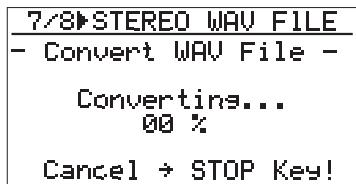
When completing the conversion, the screen shows "Completed!".
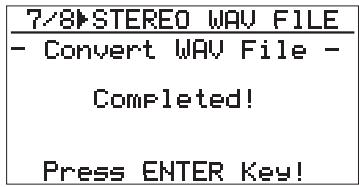
3) Press the [ENTER] key.
The MR-8 quits the conversion function and the display returns to the home screen.
You can edit a file name by the following procedure.
- After selecting the range of track data to be converted, press the [CURSOR ⑦] key to move the cursor to the leftmost position of the file name.
![7/8 STEREO WAV FILE - Convert WAV File - MODE = ABS ZERO-REC END NAME = ********* [ CANCEL ] [ ENTER ]](/content/2025/01/168439/images/031d386c81092d7e0a6c52e53f0d2f776cf85982b246da4bb96cdfa742cf3b7f.jpg)
- Use the [CURSOR ⏻/▶] keys to move the edit position and enter a new name with the character entry keys.
While the leftmost position is flashing, pressing the [1-4>5-6, 1-6>7-8]/[DELETE] key repeatedly deletes the current file name.
- After entering a new name, use the [CURSOR ☑] key to move the cursor to "[ENTER]" at the lower right of the screen, then press the [ENTER] key.
The conversion is immediately carried out and then "Completed!" is shown on the display.
If you convert data with the same name as previously converted data, the following screen appears on the display.
This screen warns you that the WAV file with the same name already exists and asks you to carry out the conversion by overwriting the existing file or cancel the conversion.
![7/8▶STEREO WAV FILE - Convert WAV File - Same file name exists! Overwrite Prev File? [NO] [YES]](/content/2025/01/168439/images/e3fe6de25cbd1595554065bd7f43bc7f5fc4f343faddd39f665e94d33f428366.jpg)
If you carry out the conversion by overwriting the existing file, use the [CURSOR ⑦] key to move the cursor to "[YES]", then press the [ENTER] key.
If you do not want to overwrite the existing file, use the [CURSOR ⑦] key to move the cursor to "[NO]", then press the [ENTER] key. The display returns to show the screen for editing the file name, so you can enter a different file name and then carry out the conversion.
If you want to cancel the conversion when the screen above is shown, use the [CURSOR ☑] key to move the cursor to "[NO]" and press the [ENTER] key to show the screen for editing the file name, and then press the [7-8>STEREO WAV FILE] key to quit the conversion function.
Exporting data to a personal computer
The MR-8 is equipped with the USB port for direct connection to a personal computer using a USB cable. This allows you to export stereo WAV file data, which is converted from a pair of mono WAV files for tracks 7/8, to your computer. The exported data can be played back or edited using a computer's music software, or used as a source when burning an original audio CD using a CD-RW drive. You can also export whole song data to a personal computer for backup only when the remaining space of a CompactFlash card becomes small.
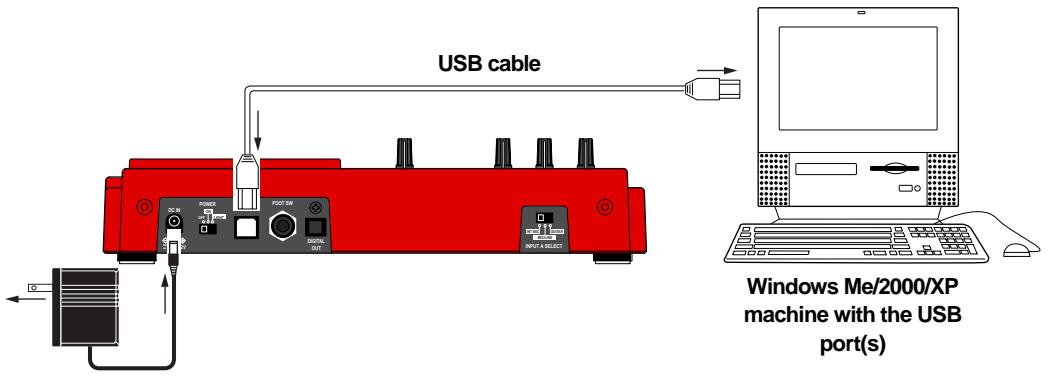
Connection to a personal computer
Connect the [USB] port of the MR-8 to the USB port of a personal computer using a USB cable, as shown above. (A USB cable is not supplied with the MR-8.)
When the MR-8 is connected to a computer, we recommend to use the AC adaptor for supplying the stable power to the MR-8.
Only Windows Me, 2000 or XP computers with the USB port(s) can be used with the MR-8. Other computers (such as Macintosh machines) cannot be used.
Check your computer before making connection.
Notes on exporting a file
You can export only a stereo WAV file which is converted from a pair of mono WAV files for tracks 7/8, as described earlier in "WAV file conversion".
A mono WAV file or undo file cannot be exported to a personal computer.
See the next page for details about the exportable files.
When exporting whole data of a song on a card to a personal computer for backup only, always export the whole song folder, instead of individual track data.
By using a card reader for CompactFlash cards on the market, you can back up MR-8 song data to a personal computer which does not provide the USB port.
Exporting a WAV file to a personal computer
The following describes the procedure for exporting a WAV file to a Windows ME computer.
Converted stereo WAV files are located in the "2 MIX" folder in the Song folder, as shown below. So you can export only a stereo WAV file in the "2 MIX" folder (indicated by an arrow).
Note that, if you export a WAV file which is located in a folder other than the "2 MIX" folder, the MR-8 may malfunction.
![graph TD A["Song"] --> B["2 MIX"] B --> C[".wav"] B --> D[".wav"] B --> E[".wav"] B --> F[".wav"] B --> G[".wav"] B --> H[".wav"] B --> I[".wav"] B --> J[".wav"] B --> K[".wav"] B --> L[".wav"] B --> M[".wav"]](/content/2025/01/168439/images/100dcef2c1721944cac0375749bb23654d1ee96c32fff83f4afbf8a2b50083eb.jpg)
1) Turn on the power of the personal computer and the MR-8.
2) Press the [MENU] key to enter the menu mode. The MENU screen is shown in which "System" is highlighted.
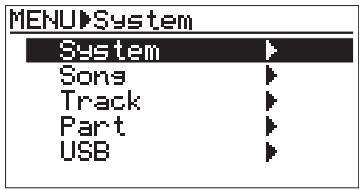
3) Highlight "USB" using the [CURSOR ☑] key, then press the [ENTER] key (or the [CURSOR ▶] key).
The MR-8 enters the USB mode, while the display shows the lower screen below.
![graph TD A["MENU→USB"] --> B["System"] A --> C["Sons"] A --> D["Track"] A --> E["Part"] A --> F["USB"] G["MENU→USB"] --> H["---- USB Mode ----"] G --> I["STOP Key → Exit"]](/content/2025/01/168439/images/1bc283cf997be548b50ad096017b9fad5ec959b1ddff09e6d87ede6cc902afea.jpg)
While the MR-8 is in the USB mode, no keys except the [STOP] key are ineffective. Pressing the [STOP] key exits the USB mode.
4) Connect the MR-8 to a personal computer using a USB cable.
5) Open "My computer" on the computer screen.
You see the "Removable disc" drive added on the computer. The first time you connect the MR-8, the device driver is installed automatically.
6) Open the "Removable disc" drive added, and select a desired stereo WAV file in the "2 MIX" folder in a desired song folder, then copy to the computer.
When you open the "Removable disc" drive added, the contents of the card inserted to the MR-8 are shown, in which you can see all the song folders.
Open the "2 MIX" folder in a desired song folder, and select a desired stereo WAV file then copy to the computer.
While copying data, the [RECORD] key indicator of the MR-8 flashes, showing that the card is accessed. When completing data copy, the indicator turns off.
After copying a WAV file in a folder to a computer, the original file remains. However, if you execute "move to another folder", the original file on the card is lost.
7) When completing the data export, disconnect the MR-8 from the personal computer.
To disconnect the MR-8 from the personal computer after completing the data export, make sure that the [RECORD] key indicator of the MR-8 is not lit, and follow the procedure for hardware disconnection of Windows.
8) Press the [MENU] key to exit the menu mode.
A stereo WAV file transferred to a personal computer can be played back or edited using a computer's music software, or used as a source when burning an original audio CD using a CD-RW drive.
Initializing the MR-8
By initializing the MR-8, you can initialize all global menu settings common to all songs, as well as the time base and display contrast level.
| Initialized item | Default setting |
| Pre-roll time setting | 4 seconds |
| Post-roll time setting | 1 second |
| Delay type setting | L-R (stereo) delay |
| MIDI sync out setting | Off |
| MTC frame rate setting | 25 frames |
| Beat resolution mode setting | Off |
| Click level setting | Off |
| Time base (shown when turning on the power) | Bar/Beat |
| Display contrast level | Factory preset level |
1) While the recorder is stopped, press the [MENU] key to enter the menu mode.
The MENU screen is shown in which "System" is highlighted.
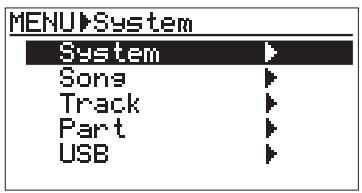
2) While "System" is highlighted, press the [ENTER] key.
The display now shows the system menu screen in which "Card Format" is highlighted initially.
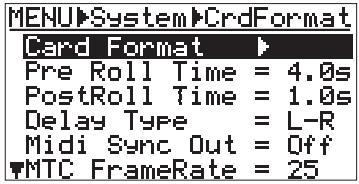
3) Use the [CURSOR ⑦] key to highlight "Init Memory", then press the [ENTER] key.
The display now shows the confirmation screen for initializing. in which "Yes->RECORD+YES key" and "No->NO Key" alternatively flash.
![graph TD A["MENU▶System▶Init Mem"] --> B["↓ Resolution = Off"] B --> C["Click Level = Off"] C --> D["Init Memory ▶"] D --> E["MENU▶System▶Init Mem"] E --> F["Initialize Memory - Initialize System Settings!"] F --> G["Are you sure?"] G --> H["Yes→ RECORD+YES Key"]](/content/2025/01/168439/images/1118317e7378317a8fc42324ee12b71a5554c19ba6b0538c802637c23000dd44.jpg)
4) Press the [CURSOR ▶] key while holding down the [RECORD] key.
The settings are immediately initialized, and "Completed!" is shown. To cancel the initialization, press the [CURSOR ⊙] key.
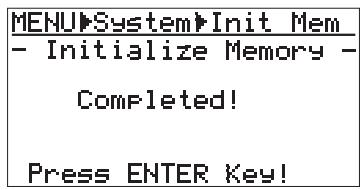
5) Press the [ENTER] key.
"Init memory" is highlighted on the display.
6) Press the [MENU] key to exit the menu mode.
Troubleshooting
If you encounter any problem while operating the MR-8, check the following for the possible cause of the problem before contacting our service station or dealer.
Troubles for recording
I am going to make recording using the internal microphone but I cannot see the input level on the display.
- Is the [INPUT A SELECT] switch on the rear panel set to "INT MIC"?
To make recording using the internal microphone, set the switch to "INT MIC".
- Is the [TRIM] control for the [INPUT A] section adjusted appropriately?
Set the sound source near to the internal microphone or set the [TRIM] control just below the position where the [PEAK] indicator in the [INPUT A] section lights at the loudest part.
![graph TD A["Input"] --> B["GUITAR"] B --> C["INT MIC"] B --> D["MIC/LINE"]](/content/2025/01/168439/images/96658d80a5849273acce202e243d7fd9a83ac0820c1998d18f5cb9d006ec97bf.jpg)
- Is the [RECORD] key flashing and does "INFUT MONI" light on the display?
Press the [RECORD] key to set the armed (record-ready) track to the input monitor mode by pressing only the [RECORD] key.
The recorder stopped suddenly when recording.
- Is there enough recordable space on the CompactFlash card?
You cannot record onto the CompactFlash card which is full. Replace it with a new card or delete unnecessary data (see page 20).
The meter shows very low level and actually the recording level is too low.
- Is the [TRIM] control for the input section the sound source is connected adjusted appropriately?
Set the [TRIM] control just below the position where the [PEAK] indicator in the [INPUT A] section lights at the loudest part (see page 30).
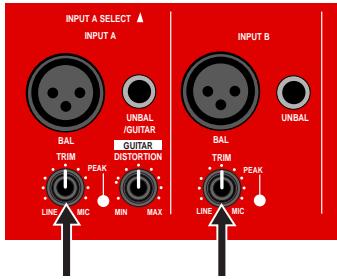
The meter shows good level for recording, but no signal can be monitored via headphones though the [PHONES VOL] control is brought up.
- Are the track fader for the recording track and the [MASTER] fader brought up?
Both of these fader, as well as the [PHONES VOL] control, have to be brought up in order to monitor the recording signal via headphones.
We recommend to bring up both the track fader for the recording track and the [MASTER] fader to the “≡” position (see page 32 and 34).
During overdubbing, the playback signal of the recorded track cannot be monitored.
- Is the track fader for the playback track brought up?
During overdubbing, bring up the faders for both the playback and recording tracks appropriately. Otherwise, you cannot make overdubbing while listening to the recorded track(s) (see page 34).
Auto punch in/out cannot be executed.
- Is "AUTO FUNCH" shown on the screen?
If it is not, press the [AUTO PUNCH] key to make the auto punch in/out function active.
- Are the punch-in and punch-out points set correctly?
To check each point, press the [LOCATE A/IN] or [LOCATE B/OUT] key.
The recorder locates to the punch-in or punch-out point, while the screen shows the appropriate time data. If the punch-out point is earlier than the punch-in point, set these points appropriately so that the punch-in point is earlier than the punch-out point (see page 36).
Cannot record audio data of a song onto an external digital recorder.
- Is the connection between the [DIGITAL OUT] connector on the MR-8 and the optical input connector of the digital recorder made correctly?
Check the connection, as well as the optical cable (see page 48).
- Is the digital recorder set correctly for recording the signal fed to the digital input. See the manual of the digital recorder for details about the setting.
- Did the song data you are going to record onto the digital recorder created by the normal mode (44.1-kHz, 16-bit)?
Only song data created by the normal mode can be output from the [DIGITAL OUT] connector.
Song data created by the extended mode (22.05-kHz, 16-bit) cannot be digitally output.
Troubles for playback
During playback, the recorder suddenly executes locating.
- Is "AUTO RTH" or "LOOP" shown on the display?
If so, the play mode is set to the auto return or loop mode.
Press the [PLAY MODE] key until "Off" is selected (see page 50).
Cannot monitor the playback sound.
- Are the track fader(s) for the playback track(s) and the [MASTER] fader brought up to the appropriate positions?
You cannot hear the sound of a playback track if either of the corresponding track fader or the [MASTER] fader is set at the minimum position. If you monitor via headphones, the [PHONE VOL] control also have to be brought up (see page 32 and 34).
Pressing the [PLAY] key while holding down the [STOP] key cannot execute the loop playback function.
- Are the LOCATE A and LOCATE B points set correctly?
By default, both of these points are set to the beginning of a song (i.e. "0m00.000s" or "-2bar 1↓00clk"). In this condition, you cannot carry out the loop playback function.
Also, if the LOCATE B point is earlier than the LOCATE A point, you cannot carry out the loop playback function (see page 53).
Troubles for effect
Cannot apply the effect.
- Are the [EFFECT SEND] control for the track you want to apply the effect and track fader brought up appropriately?
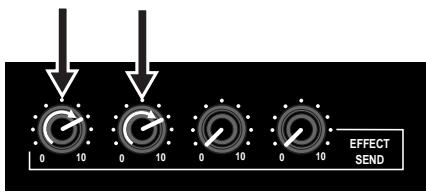
The [EFFECT SEND] control for the track you want to apply the effect have to be brought up, otherwise, the track signal is not sent to the internal digital effector (see page 40).
Also, the track fader have to be brought up.
Troubles for USB connection
Cannot export a WAV file to a personal computer.
• Is the USB cable connected correctly?
Check the connection, as well as the USB cable (see page 88).
- Is the personal computer meets the requirement?
Only Windows Me/2000/XP machines can be used with the MR-8 (see page 88).
Troubles for power supply
The MR-8 suddenly turned off the power.
- Are the plugs of the AC adaptor plugged in firmly?
Check the connection of the AC adaptor with the MR-8 and AC main outlet (see page 17). - Are the batteries empty? (when supplying the power from batteries)
Check the batteries (see page 17).
Other troubles
Cannot hear the rhythm guide click, though the signature/tempo map is set.
- Is the "Click level" item in the menu mode set correctly?
By default, this item is set to "Off" and no rhythm guide click is output.
Set it appropriately (see page 85).
MR-8 specifications
[Inputs/Outputs]
0 dBu=0.775 Vrms, 0 dBV=1/0 Vrms.
- Analog inputs [INPUT A, INPUT B]
Connectors : XLR-3-31 type 1/4-inch, phone type Input level : -50 dBV (MIC) to +2 dBV (LINE)
Input impedance : 1.5kΩ or more (MIC/BAL) : 40kΩ or more (LINE/UNBAL) : 500kΩ or more (GUITAR/UNBAL)
- Stereo analog output [STEREO OUT (L, R)]
Connectors : 1/4-inch, phone type
Nominal output level : -10 dBV (unbalanced)
Load impedance : 10kΩ or more
• Headphones output [PHONES]
Connectors : 1/4-inch, stereo phone type
Load impedance : 16Ω or more
Output level : 20mW or more (@ 32Ω load)
- MIDI output [MIDI OUT]
Connector : DIN 5-pin
Format : conformed to the MIDI standard
• Digital output [DIGITAL OUT]
Connector : Toslink optical type
Format : IEC 60958 (S/P DIF)
* Only normal mode song data is output.
- Footswitch
Connector : 1/4-inch, phone type
Level : TTL level
• USB
Connector : B type (standard)
[Record/playback]
- Recording medium : CompactFlash™ card
- Sampling frequencies
: 44.1 kHz (Normal mode)
: 22.05 kHz (Extended mode)
- Quantization : 16 bits, linear (non expanded)
- Format : FAT16 (VFAT)
- Recording time : approximately 25 minutes/128 MB (mono track)
- The number of tracks : 8 * the number of simultaneously recordable tracks: 2
- ADC : 16-bit, delta-sigma
- DAC : 16-bit, delta-sigma
• Frequency response : 20 Hz to 20 kHz - Dynamic range : 88 dB or more (TYPICAL)
* Normal mode
• Total harmonic distortion : 0.05% or more (TYPICAL)/Normal mode
[General]
• Weight (net) : MR-8/approx. 1.6kg
: AD-12A/approx. 500g
- Dimensions : 283 (W) x 215 (D) x 65 (H) mm
• Power requirements : DC 12 V
: Using the AC adaptor or six AA-type alkaline batteries
- Supplied accessories : AC adaptor
: Owner's manual
* Changes in specifications and features may be made without notice or obligation.
* CompactFlash™ is the trademark of SanDisk Corporation in U. S. A. and licensed to CFA (CompactFlash™ Association).
* The polarity of the supplied AC adaptor is center plus/outer minus.
![FOSTEX MR 8 - [General] - 1](/content/2025/01/168439/images/1fef89a62c078d57f3ac431ed63cd5f165c5bcc5aab285c8cb26779f2d171482.jpg)
[Pin assignment of XLR connectors]
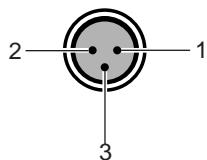
| 1 | GND |
| 2 | HOT |
| 3 | COLD |
Physical dimensions
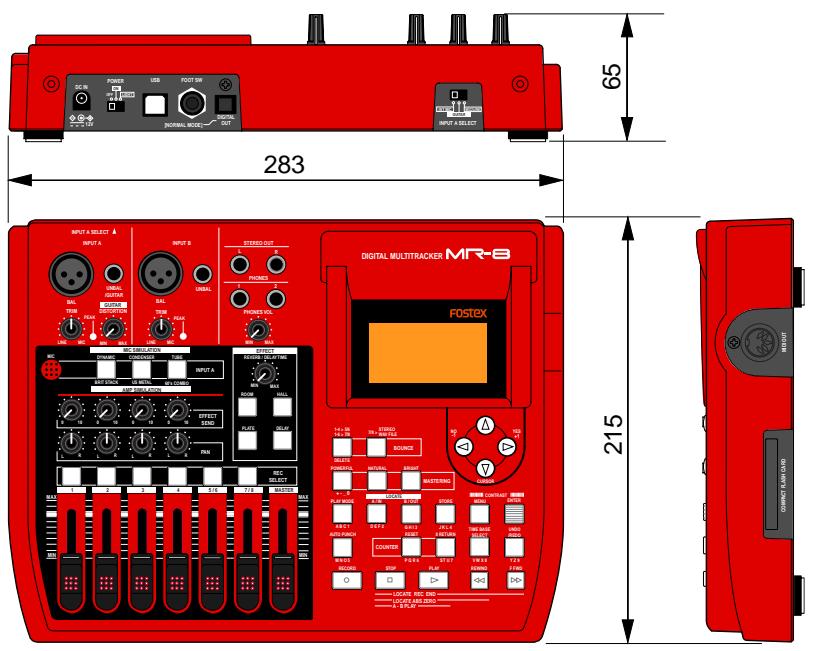
Block diagram
When using the normal mode
![graph TD subgraph_INPUT_A["INPUT A"] A1["INT MIC"] --> A2["INPUT FX"] A2 --> A3["AD"] A3 --> A4["TRIM"] A4 --> A5["BRIDGE"] A5 --> A6["BRIDGE"] A6 --> A7["BRIDGE"] A7 --> A8["BRIDGE"] A8 --> A9["BRIDGE"] A9 --> A10["BRIDGE"] A10 --> A11["BRIDGE"] A11 --> A12["BRIDGE"] A12 --> A13["BRIDGE"] A13 --> A…](/content/2025/01/168439/images/38a8dbc5fd09f4b46909a117dadd24b98781f1da850acdd8b1859da473230095.jpg)
When using the bounce mode (1-4 > 5/6 mode)
![graph TD subgraph Input Channels IN1["IN 1"] --> OUT1["OUT 1"] OUT1 --> TRK1FADER["TRK 1 FADER"] OUT1 --> TRK1PAN["TRK 1 PAN"] OUT1 --> TRK1EFF["TRK 1 EFF"] IN2["IN 2"] --> OUT2["OUT 2"] OUT2 --> TRK2FADER["TRK 2 FADER"] OUT2 --> TRK2PAN["TRK 2 PAN"] OUT2 --> TRK2EFF["TRK 2 EFF"] IN3["IN 3"] --> OUT…](/content/2025/01/168439/images/b4d82e56a1a17a16c767868f3790c8c9651d6cbcafe370e7402858ff288cfd60.jpg)
When using the bounce mode (1-6 > 7/8 mode)
![graph TD subgraph Input Channels IN1["IN 1"] --> OUT1["OUT 1"] IN2["IN 2"] --> OUT2["OUT 2"] IN3["IN 3"] --> OUT3["OUT 3"] IN4["IN 4"] --> OUT4["OUT 4"] IN5["IN 5"] --> OUT5["OUT 5"] IN6["IN 6"] --> OUT6["OUT 6"] IN7["IN 7"] --> OUT7["OUT 7"] IN8["IN 8"] --> OUT8["OUT 8"] end subgraph Fader Levels T…](/content/2025/01/168439/images/adb4e00cd725787c253d947749926b2e1ea673264417382bd10734eb864e3e46.jpg)
MIDI Implementation Chart
(Digital Multitracker)
Model MR-8
Date:
Version: V1.00
| Function...... | Transmitted | Recognized | Remarks | |
| Basic Channel | Default Changed | X X | X X | |
| Mode | Default Message Altered | X X*************** | X X X | |
| Note Number: | True Voice | X*************** | X X | |
| Velocity | Note ON Note OFF | X X | X X | |
| After Touch | Key's Channel's | X X | X X | |
| Pitch Bend | X | X | ||
| Control Change | X | X | ||
| Program Change: | True # | X*************** | X X | |
| System Exclusive | ○ rem. 1 | X | ||
| Common | : Quarter Frame : Song Position : Song Select : Tune | ○ ○ X X | X X X X | |
| System Real Time | : Clock : Commands | ○ ○ rem. 2 | X X | |
| Aux. Message | : Local ON/OFF : All Notes OFF : Active Sense : Reset | X X X X | X X X X | |
| Notes | rem.1 : MTC rem. 2 : START, STOP, CONTINUE | |||
Mode 1: OMNI ON, POLY
Mode 3: OMNI OFF, POLY
Mode 2: OMNI ON, MONO
Mode 4: OMNI OFF, MONO
○: Yes
X : No
Index
Amp simulation 30, 38
Absolute time ....8
AC adaptor ....17
Auto return 50
Auto play 50
Accessory ....100
Beginning of the song 8,52
Battery 17
Bounce 42
Back light 18
Bar offset 8,81
Block diagram 96
Character entry key 21
Counter function ....52
Counter 0 reset ....52
Cueing 49
Clip board 70
Click level 85
Contrast 28
Copy 63,70,72
Computer 88
Delay 39
Distortion 30, 39
Display 27
Demonstration song 19
Erase 62,69
Effects 38
Effect send 40
Extended mode 7,21
Flash card ....16
Format 25
Foot switch 35
Gain 9,30,32,34
<|>
Insert Effects ....30, 38
INPUT select switch 29
Input monitor 9,32,33
Internal microphone 29, 31
Low battery display ....18
Loop 50
Locate ....52
Locate points 53
Master recorder 47
Mastering effects ....41
Mic simulation 30, 38
MIDI 77,98
Mix down 47
Move 65,73
Metronome 79
MTC 77
Normal mode 7,21
<0>
Over dubbing ....34
Playback 32, 34, 49
Power supply 5,17
PAN 45
Part 68
Punch in/out 35
Play mode ....50
Preroll 55
PEAK LED 30, 32, 34
Protect 20,60
Paste 63,70,72
Postroll 55
Part exchange 75
Pin assignment 95
Recording time 16
Resolution 56
Reset 52
Reverb 39
Redo 32, 34, 62, 68
Remain 9,27
Repro monitor 9
Recording 31, 33
Recording level 30, 32, 34
REC END 8,52
Simulation 30,38
Signature map 79
Slot 16
Song 7,57
Song name 21,58
Synchronization ....77
Storing the punch in/out points 36
Storing the locate points ....53
Time base 8,28
Tempo map 79
Track 29,62
Trouble shutting 92
Trim 9,30,32,34
Track fader 19, 31, 33, 44
Track exchange 66
Undo 32, 34, 62, 68
Undo file ....61
USB 88
WAV file 7,86
Warning message 27
Optional accessories
Dynamic microphoneModel M521XLR type (Female) -> PHONE | RP Stereo HeadphoneModel T40RPRP dynamic type, Closed type | Headphone distributorModel PH-50 |
Stereo HeadphoneModel T-5Dynamic type, Semi-open type | RP Stereo HeadphoneModel T50RPRP dynamic type, Semi-open type | Coaxial/Optical convertorModel COP-1/96k |
Stereo HeadphoneModel T-7Dynamic type, Semi open type | Foot switchModel 8051 | Personal MonitorModel 6301B/BX |
RP Stereo HeadphoneModel T20RPRP dynamic type, Semi-open type | Optical CableModel 8562Toslink optical type (2m) | Powered near field studio monitorModel NF-01A |
Declaration of EC Directive
This equipment is compatible with the EMC Directive (89/336/EEC) - Directive on approximation of member nation's ordinance concerning the electromagnetic compatibility and with the Low Voltage Directive (73/23/EEC) - Directive on approximation of member nation's ordinance concerning electric equipment designed to be used within the specified voltage range.
The Affect of Immunity on This Equipment
The affect of the European Specification EN50082-1 (coexistence of electromagnetic waves - common immunity specification) on this equipment are as shown below.
In the electrical fast transient/burst requirements, surge, conducted disturbances by radio-frequency fields, power frequency magnetic field, radiate electromagnetic field requirements and static electricity discharging environment, this could be affected by generation of noise in some cases.
FOSTEX DISTRIBUTORS LIST IN EUROPE
* Including non-EU countries (as of January, 2003).
NAME: ATEC Audio-u. Videogeraete VertriebsgesmbH.
NAME: EML Sound Industries NV
ADD: P. O. Box 22, FIN-02631 Espoo, Finland
TEL: (+358) 9-5259330, FAX: (+358) 9-52593352
ADD: ZAC de Folliouses, B. P. 609, Les Echets, 01706 Miribel, France
TEL: (+33) 472 26 27 00, FAX: (+33) 472 26 27 01
NAME: Mega Audio GmbH
ADD: Stromberger Str. 32, D-55411 Bingen, Germany
TEL: (+49) 6721-94330, FAX: (+49) 6721-32046
NAME: Bon Studio S. A.
ADD: 6 Zaimi Street, Exarchia, 106.83 Athens, Greece
TEL: (+30) 210-3809-605, 606, 607, 608
FAX: (+30) 210-3845-755, 210-3827-868
NAME: I. D. elrf. electronic Ltd.
ADD: ARMULA 38 108 REYKJAVIK, ICELAND
TEL: (+354) 588 5010, FAX: (+354) 588 5011
NAME: Proel S.p.A.
ADD: Zona Via Alla Ruenia 37/43 64027-Sant' Omero
(Teramo), Italy
TEL: (+39) 0861-81241, FAX: (+39) 0861-887862
NAME: IEMKE ROOS AUDIO B. V.
ADD: Kuiperbergweg 20, 1101 AG Amsterdam, The
Netherlands
TEL: (+31) 20-697-2121, FAX: (+31) 20-697-4201
NAME: Siv. Ing. Benum A/S
ADD: P. O. Box 145 Vinderen, 0319 Oslo 3, Norway
TEL: (+47) 22-139900, FAX: (+47) 22-148259
NAME: Caius - Tecnologias Audio e Musica, Lda.
Alcorcon (Madrid), Spain
TEL: (+34) 91-4470700, 91-4470898
FAX: (+34) 91-5930716
NAME: TTS Scandinavia AB
ADD: Kavallerivagen 24, 172 48 Sundbyberg, Sweden
TEL: (+46) 8-59798000, FAX: (+46) 8-59798001
NAME: Audio Bauer Pro AG
ADD: Bernerstrasse-Nord 182, CH-8064 Zurich, Switzerland
TEL: (+41) 1-4323230, FAX: (+41) 1-4326558
NAME: SCV London
ADD: 40 Chigwell Lane, Oakwood Hill Industrial Estate,
Loughton, Essex IG10 3NY U.K.
TEL: (+44) 20-8418-0778, FAX: (+44) 20-8418-0624
FOstex®
FOSTEX CORPORATION
3-2-35, Musashino, Akishima-shi, Tokyo, Japan 196-0021
FOSTEX AMERICA
15431, Blackburn Ave., Norwalk, CA 90650, U. S. A.


- SAFETY INSTRUCTIONS
- CAUTION
- ATTENTION
- TABLE OF CONTENTS
- INTRODUCTION 5
- THE BASICS OF THE MR-8....7
- NAMES AND FUNCTIONS ....10
- ABOUT RECORDING MEDIUM....16
- ABOUT THE POWER ....17
- LISTENING THE DEMO SONG ....19
- PREPARATION OF A COMPACTFLASH CARD ....20
- CREATING A SONG/SELECTING A SONG 23
- FORMATTING A CARD 25
- CONNECTIONS 26
- DISPLAY 27
- MR-8 RECORDING BASICS ....29
- RECORDING ONTO A SINGLE TRACK ....31
- RECORDING ONTO TWO TRACKS ....33
- PUNCH IN/OUT 35
- USING EFFECTS ......38
- BOUNCING TRACKS 42
- MIXDOWN 47
- PLAYBACK FUNCTIONS ....49
- LOCATE FUNCTIONS ....52
- SETTING THE PRE-ROLL/POST-ROLL ....55
- SETTING THE BEAT RESOLUTION ....56
- EDITING A SONG 57
- TRACK EDITING 62
- PART EDITING 68
- SYNCHRONIZING WITH MIDI 77
- USING THE RHYTHM GUIDE FUNCTION .....79
- WAV FILE CONVERSION 86
- EXPORTING DATA TO A PERSONAL COMPUTER .....88
- INITIALIZING THE MR-8 91
- TROUBLESHOOTING 92
- MR-8 SPECIFICATIONS 95
- PHYSICAL DIMENSIONS 96
- BLOCK DIAGRAM 96
- MIDI IMPLEMENTATION CHART ....98
- INDEX 99
- OPTIONAL ACCESSORIES ....100
- DECLARATION OF EC DIRECTIVE ....101
- INTRODUCTION
- MR-8 MAIN FEATURES
- ABOUT POWER SUPPLY
- NOTES ON REPAIR
- ABOUT COPYRIGHTS
- ABOUT DAMAGES
- NOTE FOR AUDIO INTERRUPTION
- THE BASICS OF THE MR-8
- RECORDING METHOD
- SONG MODE
- NORMAL MODE
- EXTENDED MODE
- ABOUT SONG
- TIME BASE
- ABS TIME
- BAR/BEAT/CLK
- TIME COUNTER
- REMAIN DISPLAY
- INPUT MONITOR AND REPRO MONITOR
- TRIM CONTROL
- NAMES AND FUNCTIONS
- [INPUT A] CONNECTORS
- [INPUT B] CONNECTORS
- [STEREO OUT] JACKS (L, R)
- [PHONES] JACKS (1, 2)
- [PHONES VOL] CONTROL
- [REVERB/DELAY TIME] CONTROL
- [EFFECT] KEYS
- [MASTER] FADER
- TRACK FADERS
- [REC SELECT] KEYS
- [PAN] CONTROLS
- [EFFECT SEND] CONTROLS
- INTERNAL MICROPHONE
- INSERT EFFECT SELECT KEYS
- [DISTORTION] CONTROL
- [TRIM] CONTROLS
- TOP PANEL (RIGHT PART)
- [1-4 > 5/6, 1-6 > 7/8] / [DELETE] KEY
- [7/8 > STEREO WAV FILE] KEY
- [MASTERING] KEYS
- LCD DISPLAY
- [CURSOR ▶/◀/△/▽] KEYS
- [STORE] / J K L 4 ENTRY KEY
- [ENTER] / [CONTRAST] KEY
- [MENU] / [CONTRAST] KEY
- [UNDO/REDO] /Y Z 9 ENTRY KEY
- [TIME BASE SELECT] /VW X 8 ENTRY KEY
- TRANSPORT KEYS
- [PLAY] KEY
- [STOP] KEY
- [RECORD] KEY
- [F FWD] KEY
- [REWIND] KEY
- [COUNTER 0 RETURN] / ST U 7 ENTRY KEY
- [COUNTER RESET] / P Q R 6 ENTRY KEY
- [AUTO PUNCH] / M N O 5 ENTRY KEY
- [LOCATE B/OUT] / G H I 3 ENTRY KEY
- [LOCATE A/IN] / D E F 2 ENTRY KEY
- [PLAY MODE] / A B C 1 ENTRY KEY
- [DC IN] JACK
- [POWER] SWITCH
- [USB] PORT
- [FOOT SW] JACK
- [DIGITAL OUT] CONNECTOR
- [INPUT A SELECT] SWITCH
- CARD SLOT
- [MIDI OUT] JACK
- BATTERY COMPARTMENT
- ABOUT RECORDING MEDIUM
- COMPACTFLASH™ CARD
- RECORDING TIME
- INSERTING A COMPACTFLASH™ CARD
- HOW TO REMOVE A COMPACTFLASH™ CARD
- HOW TO INSERT A COMPACTFLASH™ CARD
- ABOUT THE POWER
- CONNECTING THE AC ADAPTOR
- INSERTING BATTERIES
- TURNING ON THE UNIT
- NOTE WHEN EXTERNAL DEVICES ARE CONNECTED
- TURNING OFF THE POWER
- TURNING ON THE LCD DISPLAY BACKLIGHT
- LOW BATTERY DISPLAY
- LISTENING THE DEMO SONG
- TIPS: LISTENING TO THE DEMO SONG AGAIN
- PREPARATION OF A COMPACTFLASH™ CARD
- PREPARATION FOR RECORDING ONTO THE SUPPLIED CARD
- PRESS THE [CURSOR ▶] KEY WHILE HOLDING DOWN THE [RECORD] KEY
- SELECT THE SONG MODE USING THE [CURSOR ▶] OR [CURSOR ◀] KEY, THEN PRESS THE [ENTER] KEY
- PRESS THE [CURSOR ▽] KEY
- ENTER A DESIRED CHARACTER USING THE CHARACTER ENTRY KEYS TOGETHER WITH [CURSOR] KEYS
- PREPARATION FOR RECORDING ONTO A NEW CARD
- CREATING A SONG/SELECTING A SONG
- CREATING A SONG
- WHILE THE RECORDER IS STOPPED, PRESS THE [MENU] KEY TO ENTER THE MENU MODE
- HIGHLIGHT "SONG" USING THE [CURSOR ☑] KEY, THEN PRESS THE [ENTER] KEY
- WHILE "SELECT SONG" IS HIGHLIGHTED, PRESS THE [ENTER] KEY
- HIGHLIGHT "--:NEW SONG" USING THE [CURSOR ⑦] KEY, THEN PRESS THE [ENTER] KEY
- SELECT THE SONG MODE USING THE [CURSOR ◀] OR [CURSOR ▶] KEY
- ENTER A DESIRED NAME FOLLOWING THE SAME PROCEDURE AS DESCRIBED ON PAGE 21
- SELECTING A DESIRED SONG
- FORMATTING A CARD
- CONNECTIONS
- DISPLAY
- HOME SCREEN
- TIME COUNTER DISPLAY
- CHARACTER DISPLAY
- TRACK LEVEL DISPLAY
- STEREO BUSS (L AND R) LEVEL DISPLAY
- SONG STATUS DISPLAY
- SONG NUMBER/SONG MODE DISPLAY
- SELECTING A TIME BASE
- ADJUSTING THE DISPLAY CONTRAST
- MENU SCREEN
- WARNING MESSAGE
- MR-8 RECORDING BASICS
- RELATION BETWEEN THE INPUT JACKS AND TRACKS
- RECORDING ONTO A MONO TRACK
- RECORDING ONTO STEREO TRACK
- MIC/LINE
- GUITAR
- INT MIC
- INPUT LEVEL SETTING
- DISTORTION SETTING
- INSERT EFFECTS
- ABOUT SIMULATION EFFECT
- MIC SIMULATION EFFECTS
- AMP. SIMULATION EFFECTS
- RECORDING ONTO A SINGLE TRACK
- PREPARATION FOR RECORDING
- SET THE TRACK 1 FADER AND [MASTER] FADER TO THE NOMINAL POSITION (MARKED BY “≡”)
- PRESS THE [RECORD] KEY
- WHILE PLAYING THE GUITAR, ADJUST THE RECORDING LEVEL USING THE [TRIM] CONTROL ON THE [INPUT A] SECTION
- STARTING RECORDING
- WHEN FINISHING RECORDING, PRESS THE [STOP] KEY TO STOP THE RECORDER
- PLAYING BACK THE RECORDED TRACK
- WHILE HOLDING DOWN THE [STOP] KEY, PRESS THE [REWIND] KEY
- PRESS THE [PLAY] KEY TO START PLAYBACK
- UNDO/REDO
- RECORDING ONTO TWO TRACKS
- PLAYING BACK THE RECORDED TRACKS
- PUNCH IN/OUT
- PUNCH IN/OUT USING THE KEYS ON THE TOP PANEL
- PUNCH IN/OUT USING THE FOOTSWITCH
- REWIND THE RECORDER AND PLAY BACK THE PART YOU MADE PUNCH IN/OUT TO CHECK THE RESULT
- AUTO PUNCH IN/OUT
- SETTING THE PUNCH-IN AND PUNCH-OUT POINTS
- DURING PLAYBACK, WHEN THE RECORDER REACHES AT THE POINT WHERE YOU WANT TO PUNCH IN, PRESS THE [LOCATE A/IN] KEY WHILE HOLDING DOWN THE [STORE] KEY
- WHEN THE RECORDER REACHES AT THE POINT WHERE YOU WANT TO PUNCH OUT, PRESS THE [LOCATE B/OUT] KEY WHILE HOLDING DOWN THE [STORE] KEY
- STOP THE RECORDER AFTER SETTING THE PUNCH-IN AND PUNCH-OUT POINTS
- REHEARSAL
- LOCATE THE RECORDER TO THE POINT BEFORE THE PUNCH-IN POINT
- PRESS THE [REC SELECT] KEY FOR THE TRACK YOU ARE GOING TO MAKE PUNCH IN/OUT TO ARM THE TRACK
- PRESS THE [AUTO PUNCH] KEY TO MAKE THE AUTO PUNCH MODE ACTIVE (THE [AUTO PUNCH] KEY LIGHTS UP)
- PRESS THE [PLAY] KEY TO START PLAYBACK OF THE SONG
- AFTER THE PUNCH-OUT POINT IS PASSED, LOCATE THE RECORDER BACK TO THE BEGINNING POSITION
- ACTUAL AUTO PUNCH IN/OUT
- USING EFFECTS
- USING THE INSERT EFFECTS FOR RECORDING
- AMP SIMULATION EFFECTS
- USING THE REVERB OR DELAY
- SELECTING AN EFFECT TYPE
- SELECTING A DELAY TYPE
- ADJUSTING THE DELAY/REVERB TIME
- ADJUSTING THE EFFECT SEND LEVELS
- USING THE MASTERING EFFECTS
- SELECTING THE DESIRED EFFECT TYPE
- DETAILS ABOUT EACH MASTERING EFFECT TYPE
- BOUNCING TRACKS
- SELECTING THE BOUNCE MODE
- REHEARSAL OF TRACK BOUNCE
- AFTER FINISHING REHEARSAL, LOCATE THE BEGINNING OF THE SONG
- ACTUAL TRACK BOUNCE
- CHECKING THE BOUNCED SIGNALS ON TRACK
- MIXDOWN
- ANALOG MIXDOWN
- DIGITAL MIXDOWN
- PLAYBACK FUNCTIONS
- BASIC PLAYBACK
- 3 X PLAYBACK (CUEING)
- PLAYBACK BETWEEN LOCATE A AND B POINTS
- PLAY MODE
- SELECTING A PLAY MODE
- AUTO PLAY MODE
- AUTO RETURN MODE
- LOOP MODE
- LOOP FUNCTION IN AUTO PUNCH IN/OUT MODE
- LOCATE FUNCTIONS
- ABS LOCATE
- LOCATE ABS ZERO FUNCTION
- LOCATE REC END FUNCTION
- ZERO RETURN
- RESETTING THE COUNTER
- LOCATING TO COUNTER ZERO
- LOCATING TO THE LOCATE A OR LOCATE B POINT
- STORING A LOCATE POINT
- STORING A LOCATE A POINT
- STORING A LOCATE B POINT
- LOCATING
- SETTING THE PRE-ROLL/POST-ROLL
- HOW TO SET THE PRE-ROLL/POST-ROLL TIME
- WHEN "SYSTEM" IS HIGHLIGHTED, PRESS THE [ENTER] KEY
- USE THE [CURSOR ⑦] KEY TO HIGHLIGHT "PRE ROLL TIME", THEN PRESS THE [ENTER] KEY
- USE THE [CURSOR ▶]/[CURSOR ◀] KEYS TO SELECT THE DESIRED PRE-ROLL TIME
- AFTER SELECTING THE PRE-ROLL TIME, PRESS THE [ENTER] KEY
- USE THE [CURSOR ☑] KEY TO HIGHLIGHT "POSTROLL TIME", THEN PRESS THE [ENTER] KEY
- SELECT THE POST-ROLL TIME IN THE SIMILAR MANNER TO THE PRE-ROLL TIME SELECTION, THEN PRESS THE [ENTER] KEY
- AFTER SETTING THE PRE-ROLL AND POST-ROLL, PRESS THE [MENU] KEY TO EXIT THE MENU MODE
- SETTING THE BEAT RESOLUTION
- HOW TO SET THE BEAT RESOLUTION
- EDITING A SONG
- CREATING A NEW SONG
- USE THE [CURSOR ☑] KEY TO HIGHLIGHT "SONG", THEN PRESS THE [ENTER] KEY
- USE THE [CURSOR Ⓐ/Ⓥ] KEYS TO SELECT A DESIRED SONG, AND PRESS THE [ENTER] KEY
- PRESS THE [MENU] KEY TO EXIT THE MENU MODE
- EDITING A SONG NAME
- DELETING AN UNNECESSARY SONG
- USE THE [CURSOR ☑] KEY TO HIGHLIGHT "DELETE SONG", THEN PRESS THE [ENTER] KEY
- USE THE [CURSOR Ⓐ/V] KEYS TO SELECT A SONG TO BE DELETED, AND PRESS THE [ENTER] KEY
- PROTECTING A SONG
- DELETING THE UNNECESSARY FILE IN A SONG
- TRACK EDITING
- ERASING WHOLE TRACK DATA
- COPYING/PASTING WHOLE TRACK DATA
- MOVING WHOLE TRACK DATA
- PRESS THE [ENTER] KEY
- EXCHANGE WHOLE TRACK DATA
- PART EDITING
- PRESS THE [PLAY] KEY WHILE HOLDING DOWN THE [STOP] KEY
- DURING PLAYBACK, RAISE THE APPROPRIATE TRACK FADER(S) AND THE [MASTER] FADER
- ERASING A DESIRED PART
- COPYING/PASTING (1)
- COPYING TO THE CLIPBOARD
- PASTING CLIPBOARD DATA
- COPYING/PASTING (2)
- MOVING THE DESIRED PART TO THE OTHER TRACK(S)
- USE THE [CURSOR Ⓥ] KEY TO HIGHLIGHT "MOVE PART", THEN PRESS THE [ENTER] KEY
- USE THE [CURSOR ◀/▶] KEYS TO SELECT THE MOVE SOURCE TRACK(S)
- USE THE [CURSOR Ⓥ] KEY TO MOVE THE CURSOR TO THE OPTION FOR "DEST. TRACK
- USE THE [CURSOR ◀/▶] KEYS TO SELECT THE MOVE DESTINATION TRACK(S)
- USE THE [CURSOR ☑] KEY TO MOVE THE CURSOR TO "ENTER" AT THE LOWER RIGHT ON THE SCREEN, THEN PRESS THE [ENTER] KEY
- EXCHANGE PARTS BETWEEN TRACKS
- SYNCHRONIZING WITH MIDI
- SYNCHRONIZATION USING MTC
- CONNECTION
- SETTINGS OF THE MR-8 AND MIDI SEQUENCER
- MIDI SYNC/MTC FRAME RATE SETTINGS
- SYNCHRONIZATION USING MIDI CLOCK
- USING THE RHYTHM GUIDE FUNCTION
- CREATING THE SIGNATURE/TEMPO MAP
- SETTING THE SIGNATURE MAP
- USE THE [CURSOR ☑] KEY TO HIGHLIGHT "SIGNATURE MAP", THEN PRESS THE [ENTER] KEY
- USE THE [CURSOR ☑] KEY TO HIGHLIGHT "--BAR -> --", THEN PRESS THE [ENTER] KEY
- CHANGING THE BAR NUMBER OR SIGNATURE
- DELETING AN UNNECESSARY BAR/SIGNATURE SETTING
- CHANGING THE BAR OFFSET
- USE THE [CURSOR ◀/▶] KEYS TO SELECT A DESIRED OPTION, THEN PRESS THE [ENTER] KEY
- TO EXIT THE MENU MODE, PRESS THE [MENU] KEY
- CREATING THE TEMPO MAP
- BRING UP THE SONG EDIT MENU SCREEN AND USE THE [CURSOR ☑] KEY TO HIGHLIGHT "TEMPO MAP", THEN PRESS THE [ENTER] KEY
- EDITING THE TEMPO MAP
- DELETING AN UNNECESSARY TEMPO SETTING
- SETTING THE CLICK LEVEL
- WAV FILE CONVERSION
- ENABLING THE FILE CONVERSION
- PROCEDURE OF FILE CONVERSION
- WHILE THE RECORDER IS STOPPED, PRESS THE [7/8 > STEREO WAV FILE] KEY TO ENABLE THE FILE CONVERSION FUNCTION
- AFTER SELECTING THE RANGE TO BE CONVERTED USING THE [CURSOR Ⓤ/▶] KEYS, USE THE [CURSOR ▦] KEY TO MOVE THE CURSOR TO "[ENTER]" AT THE LOWER RIGHT OF THE SCREEN, THEN PRESS THE [ENTER] KEY
- EXPORTING DATA TO A PERSONAL COMPUTER
- CONNECTION TO A PERSONAL COMPUTER
- NOTES ON EXPORTING A FILE
- EXPORTING A WAV FILE TO A PERSONAL COMPUTER
- WHEN COMPLETING THE DATA EXPORT, DISCONNECT THE MR-8 FROM THE PERSONAL COMPUTER
- INITIALIZING THE MR-8
- WHILE "SYSTEM" IS HIGHLIGHTED, PRESS THE [ENTER] KEY
- USE THE [CURSOR ⑦] KEY TO HIGHLIGHT "INIT MEMORY", THEN PRESS THE [ENTER] KEY
- TROUBLESHOOTING
- TROUBLES FOR RECORDING
- TROUBLES FOR PLAYBACK
- ARE THE LOCATE A AND LOCATE B POINTS SET CORRECTLY
- TROUBLES FOR EFFECT
- ARE THE [EFFECT SEND] CONTROL FOR THE TRACK YOU WANT TO APPLY THE EFFECT AND TRACK FADER BROUGHT UP APPROPRIATELY
- TROUBLES FOR USB CONNECTION
- TROUBLES FOR POWER SUPPLY
- OTHER TROUBLES
- IS THE "CLICK LEVEL" ITEM IN THE MENU MODE SET CORRECTLY
- MR-8 SPECIFICATIONS
- [INPUTS/OUTPUTS]
- ANALOG INPUTS [INPUT A, INPUT B]
- STEREO ANALOG OUTPUT [STEREO OUT (L, R)]
- HEADPHONES OUTPUT [PHONES]
- MIDI OUTPUT [MIDI OUT]
- DIGITAL OUTPUT [DIGITAL OUT]
- FOOTSWITCH
- USB
- [RECORD/PLAYBACK]
- SAMPLING FREQUENCIES
- [GENERAL]
- [PIN ASSIGNMENT OF XLR CONNECTORS]
- BLOCK DIAGRAM
- MIDI IMPLEMENTATION CHART
- INDEX
- DECLARATION OF EC DIRECTIVE
- THE AFFECT OF IMMUNITY ON THIS EQUIPMENT
- FOSTEX DISTRIBUTORS LIST IN EUROPE
Brand : FOSTEX
Model : MR 8
Category : Digital audio recorder