CARD - Accessory IRIS - Free user manual and instructions
Find the device manual for free CARD IRIS in PDF.



User questions about CARD IRIS
0 question about this device. Answer the ones you know or ask your own.
Ask a new question about this device
Download the instructions for your Accessory in PDF format for free! Find your manual CARD - IRIS and take your electronic device back in hand. On this page are published all the documents necessary for the use of your device. CARD by IRIS.
USER MANUAL CARD IRIS
© 2007 I.R.I.S. All rights reserved
OCR technology by I.R.I.S.
Connectionist, Linguistic and Field Analysis technology by I.R.I.S.
© 2007 I.R.I.S. All rights reserved
It's the Business You Want, Not the Cards!©
Cardiris is the unbeatable productivity tool for your business cards. This business card organizer allows you to archive, index and OCR business cards from around the world.
In our information age, all key corporate information is contained in databases. With information being the key, Cardiris gives a comprehensive answer to the need to manage your business contacts: Cardiris goes the full circle from archiving scanned business cards to contact management. After all, isn't it the business you want, and not the cards?
ONE, CARDIRIS GIVES YOU GREAT IMAGES
Cardiris improves the everyday operation of your office by getting rid of all business cards. Enter any office and you'll find the desk and drawers of the employees crowded with business cards of all types and places. Business cards suffer more than other documents from the known disadvantages of the paper world: they get lost easily, aren't available to your colleagues, can't be searched or sorted etc.
Cardiris, the “electronic Rolodex” ^® , puts a final end to all this. You begin by scanning the business cards, thus putting images in a database. Use this management tool to file your business cards and no more stacks of business cards will be lying around in your office!
So, all business cards can be thrown away or returned to the owner as soon as they have been archived. This means that you never lose any information contained on a card, not even the company's colorful logo or slogan, the contact's photograph or still a second telephone number or e-mail address which you don't usually encode in your “traditional” contact manager or database.
When you are dealing with “exotic” business cards - in, say, Vietnamese or Arabic - which you simply cannot enter in a database, the advantage is all the more prominent: as you first archive the card images, Cardiris offers a unique
solution here. Even if a business card can't be read by OCR, the color image is there to be consulted!
As a wide range of dedicated business card scanners, flatbed scanners and “all-in-one” devices or “MFPs” (“multifunctional peripherals”) is supported, whatever scanner you may already own is fine by us.
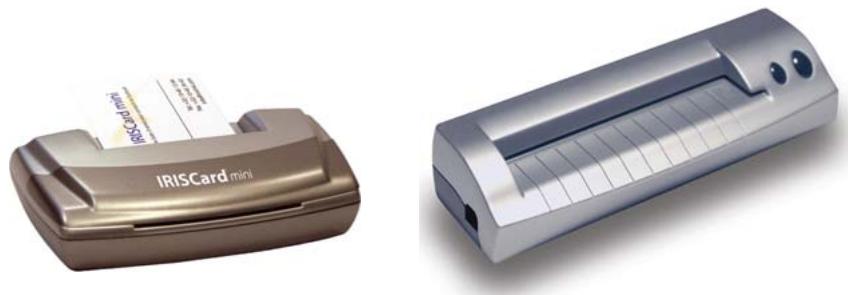
Your Cardiris software may be bundled with the I.R.I.S. Card Scanner “IRISCard Pro”, a USB-2 A6 color scanner, and with the “IRISCard Mini”, a USB A8 greyscale scanner. Dedicated scanners are optimized for scanning business cards and have many advantages over other scanner types: they hardly take up any space on your desk, they swiftly cope with business cards of varying paper and printing qualities and you never have to wonder about selecting the correct card format.
natural_image
Two IRISCard mini devices shown from different angles, one with a golden case and the other with a silver case (no visible text or symbols on the devices themselves)The color, greyscale or black-and-white images are saved compressed to limit the use of space on your hard disk. The scanned business cards are prominently displayed so as to make them legible without having to zoom. Optimal legibility is ensured, even on low-end monitors and the LCD screens of notebook computers!
As Cardiris also allows you to add comments, it suffices to scan every business card you come across and add some notes and you'll never lose any information again!
Two,OCRBRINGSYOUEDITABLETEXT
Once the cards are archived, you can convert images into data by indexing and OCRing them. Indexing means that a business card is sorted by a primary search key - the company name is filled out and checked -, OCR means that the card's data is extracted automatically from the image.
OCR stands for two things here: character recognition to convert the scanned image into editable text and field analysis. Optical character recognition (OCR) allows to encode business cards without the time-consuming task of retyping them. Think of your last exhibition when you came back with an entire stack of business cards and it took your secretary two days to encode them!
Cardiris incorporates specialized recognition technology, optimized for tiny characters, and supports countries from all over the world - North and South American business cards, business cards from the European countries, including the Eastern-European nations, African, Asian and Oceanic business cards, you name it! (The “Asian Edition” of Cardiris reads business cards from China, Japan, Singapore, South-Korea and Taiwan. Business cards from these countries in English are supported by the “other” editions of the Cardiris software!)
Field analysis assigns the recognized data to specific database fields. Cardiris extensively uses a knowledge database, thus acquiring the necessary intelligence to discriminate the first and last name, a city and its state, a telephone and a fax number etc.
Ralph C. Gauer
Marketing Director
muratec
The Fax Specialists
Muratec America, Inc.
6400 International Parkway, Suite 1500
Plano, Texas 75093
972-364-3338 Fax 972-364-3400
Email: rgauer@muratec.com
At this stage, Cardiris takes the layout of a business card into account. Each country has a different “style” of composing business cards, Americans compose an address differently than the French do etc. In this way, Cardiris can process correctly business cards of all designs and countries: business cards with an American or European look, vertical cards as well as horizontal cards etc.
The recognition accuracy depends on the printing quality, whether or not a too stylized font or “exotic” layout has been used etc. Cutting and pasting is available to edit and correct the recognized data, but so are “drag-and-drop” operations for maximal ease of use. To correct small errors, you can indeed draw a frame around the information and drag the frame to a database field - say, the city: the OCR gets done “on the fly”.
Interestingly, the scanning, indexing and recognition are separate phases. Indexing and OCR can be deferred, performed later on at any moment. Sales executives at an info desk or on the company booth at a trade show, secretaries at a reception desk may be too busy to perform the complete cycle of indexing and OCRing business cards, but surely they can quickly scan the business card of their visitors... When they do, Cardiris will keep trace of every single contact they come across with a minimal effort.
THREE, IT'S A DATABASE
Once your business cards are converted into text placed in data fields, you have a real address database, similar to a cardfile system: the data is directly searchable by any field. Extensive sort and select functions are available, duplicate contacts can be found and resolved. Looking up a company, client or prospect is a cinch. Even with very little to go on, say, no more than the first characters of a company name, you are sure to find your contact again instantly.
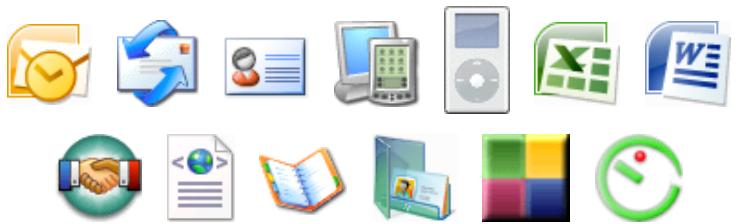
The resulting data is available for export. Cardiris smoothly complements such applications as contact managers, “customer relations managers” (“CRMs”), “personal information managers” (“PIMs”), general databases, spreadsheets or even word processors whose mail merge function allows to print letters, envelopes and labels. Or synchronize your Cardiris database with the contacts stored on your PDA - your Palm organizer, your Windows Mobile (Pocket PC) handheld device etc.
natural_image
Collection of computer and document icons including office, email, and spreadsheet (no text or symbols)Exchanging data with the professional CRM software Microsoft Dynamics CRM requires a special version of Cardiris!

Some other clearcut advantages of Cardiris over the paper world are all too obvious: as you are dealing with a database, the information is centralized and available to all your colleagues. Also, databases are easily transportable on CD-ROM etc.
ABOUT THIS GUIDE
This guide gives a short introduction to Cardiris. It contains all you need to know to get started with this I.R.I.S. product successfully.
However, this guide does not intend to be a complete user documentation of Cardiris. To make full use of the many advanced capabilities of this software package, it is mandatory that you study the on-line help information closely.
SYSTEM REQUIREMENTS
This is the minimal system configuration required to use Cardiris:
☐ a Pentium based Intel PC or compatible.
256 MB RAM.
☐ 150 MB free disk space.
☐ the Windows Vista, Windows XP or Windows 2000 operating system.
Your Cardiris software may be bundled with the I.R.I.S. Card Scanners “IRISCard Pro” and “IRISCard Mini”. It takes a USB port to connect the scanner “IRISCard Mini” and a USB-2 port to connect the scanner “IRISCard Pro”...
INSTALLING THE CARDIRIS SOFTWARE
The Cardiris software is delivered on an autorunning CD-ROM. To install, simply insert the CD-ROM in your CD-ROM drive and wait for the installation program to start running. Follow the on-screen instructions.
REGISTER TO VOTE!
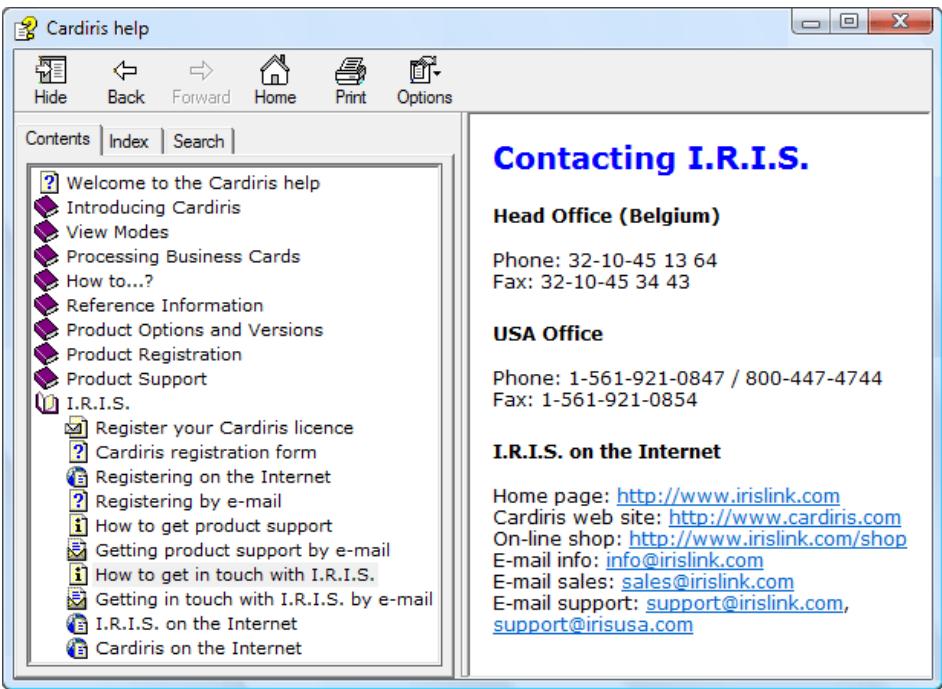
Don't forget to register your Cardiris licence! Doing so will allow us to keep you informed of future product developments and related I.R.I.S. products. The registration benefits, including free product support and special offers, are strictly limited to registered users.
text_image
Cardiris help Hide Back Forward Home Print Options Contents Index Search ? Welcome to the Cardiris help Introducing Cardiris View Modes Processing Business Cards How to...? Reference Information Product Options and Versions Product Registration Product Support I.R.I.S. Register your Cardiris licence ? Cardiris registration form Registering on the Internet ? Registering by e-mail How to get product support Getting product support by e-mail How to get in touch with I.R.I.S. Getting in touch with I.R.I.S. by e-mail I.R.I.S. on the Internet Cardiris on the Internet Contacting I.R.I.S. Head Office (Belgium) Phone: 32-10-45 13 64 Fax: 32-10-45 34 43 USA Office Phone: 1-561-921-0847 / 800-447-4744 Fax: 1-561-921-0854 I.R.I.S. on the Internet Home page: http://www.irislink.com Cardiris web site: http://www.cardiris.com On-line shop: http://www.irislink.com/shop E-mail info: info@irislink.com E-mail sales: sales@irislink.com E-mail support: support@irislink.com, support@irisusa.comYou can register in many ways: by sending in your registration card or faxing its electronic counterpart, by calling I.R.I.S. during working hours and by filling out a registration form on the I.R.I.S. web site!
STARTING THE SOFTWARE UP
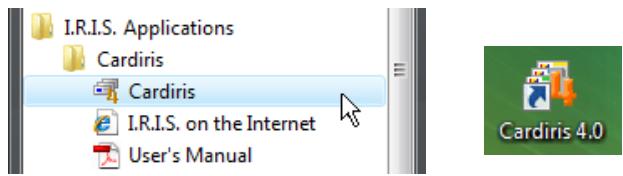
Click on the Cardiris application in the submenu "I.R.I.S. Applications - Cardiris" or click on the shortcut to the Cardiris application on your desktop.
text_image
I.R.I.S. Applications Cardiris Cardiris I.R.I.S. on the Internet User's Manual Cardiris 4.0IT TAKES TWO TO TANGO
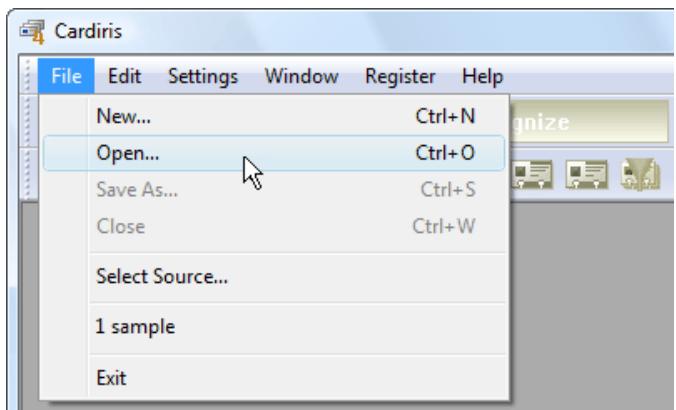
The Cardiris application window is displayed. The database last opened is loaded into memory automatically. (The first time, the sample database SAMPLE.CID is opened.) Use the command "Open" under the "File" menu to load another database. (You can access the databases last loaded directly under the "File" menu.)
text_image
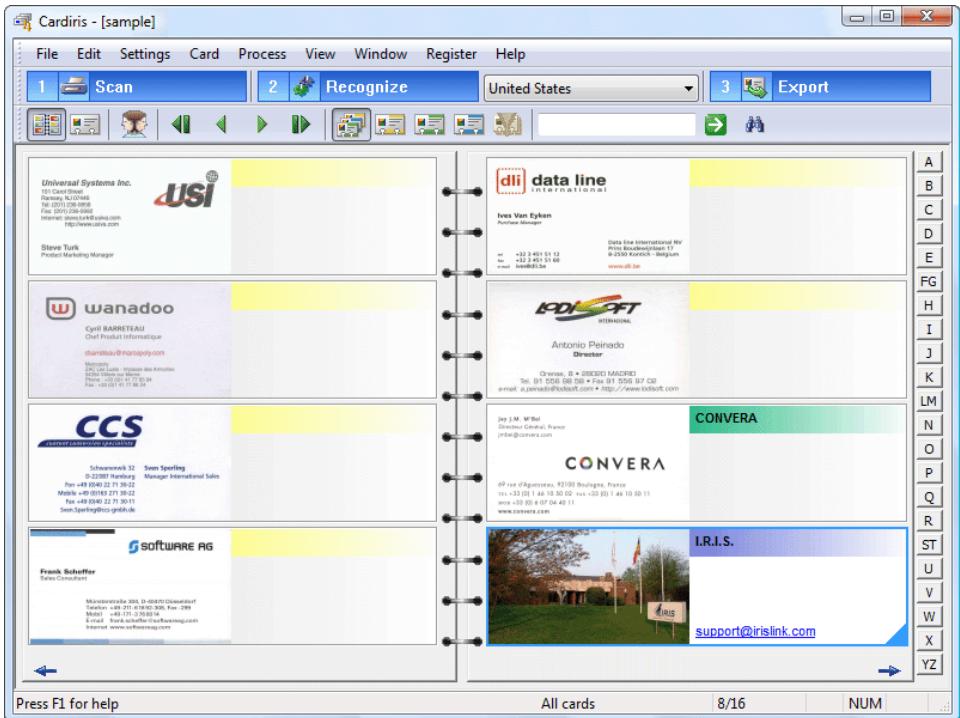
Cardiris File Edit Settings Window Register Help New... Ctrl+N Open... Ctrl+O Save As... Ctrl+S Close Ctrl+W Select Source... 1 sample ExitCardiris starts up in the album view mode: it displays 16 business cards in an album-like presentation. Only the major data fields - company name, first name and name, job title and e-mail address - are listed.
GETTING STARTED
text_image
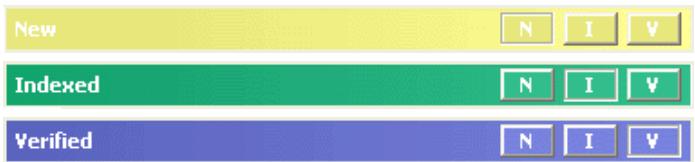
Cardiris - [sample] File Edit Settings Card Process View Window Register Help 1 Scan 2 Recognize United States 3 Export Universal Systems Inc. Ttl Card Street Rissey, NJ 2006 Tel: 0571-798-8888 Fax: 0571-798-8888 Email: pmlc@risiris.com http://www.risislink.com Steve Turk Product Marketing Manager USI dli data line International Ives Van Eyken Aurora Manager tel: +32 4 051 51 12 Fax: +32 4 051 51 06 e-mail: hir@risris.com www.isi.de wanadoo Cyril BARRETEAU Chief Product Informatique caminiou@monopoly.com SICU Limited - Insgesie des Américos SICU Limited - Insgesie des Américos Phone: +01-0556 08 08 00 • Fax: 01-5556 07 08 Fax: +01-0556 07 08 00 IPOLSOFT INTERNATIONAL Antonio Peinado Director Chines, B • 2006D MADRID Tel: 01-5556 08 08 00 • Fax: 01-5556 07 08 e-mail: e.penado@risiris.com • http://www.risislink.com CCS Schwartzwerk 32 Sven Speiling D-22007 Hamburg Manager International Sales Fax: +49 (0546) 22 71 30-22 Mobile: +49 (0546) 22 71 30-22 Fax: +49 (0546) 22 71 30-22 Sven Speiling@risiris.com Joy J.M. M'Nil Director's Canada, France jmk@risiris.com CONVERA 69 rue d'Aguanyea, P2100 Bouygues, France vss: +33 (0) 1 46 10 30 02 • vss: +33 (0) 1 46 10 30 11 vss: +33 (0) 1 46 10 30 11 www.covera.com Software AG Frank Scheffler Sana Consulting Mandersonville, OH, D-08491 Disseinfof Takota: +49 (25) 41/8/20 306, Fax: -288 Bkoglu: +49 (25) 41/8/20 306, Fax: -288 E-mail: Bond.achette@risirislink.com Internet: www.sofirens.org I.R.I.S. support@irislink.com Press F1 for help All cards 8/16 NUMA color code indicates the card status of each business card: new cards are yellow, indexed cards are green and verified cards are blue. The card status is a crucial concept and we’ll discuss it in depth later.
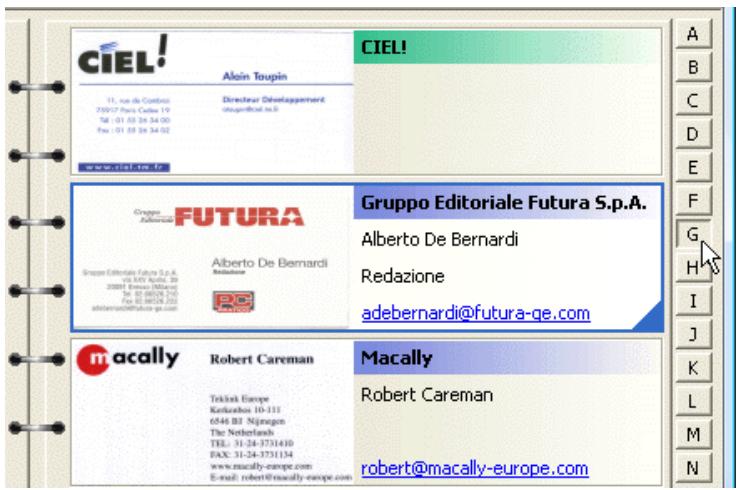
Click the arrow buttons below to navigate through the business cards: you'll turn the pages of the album. Or click the "Letter" buttons: they bring you directly to the cards of companies that start with that letter. Click the "G" button and the cursor moves to the first card whose company name starts with the letter "G"...
text_image
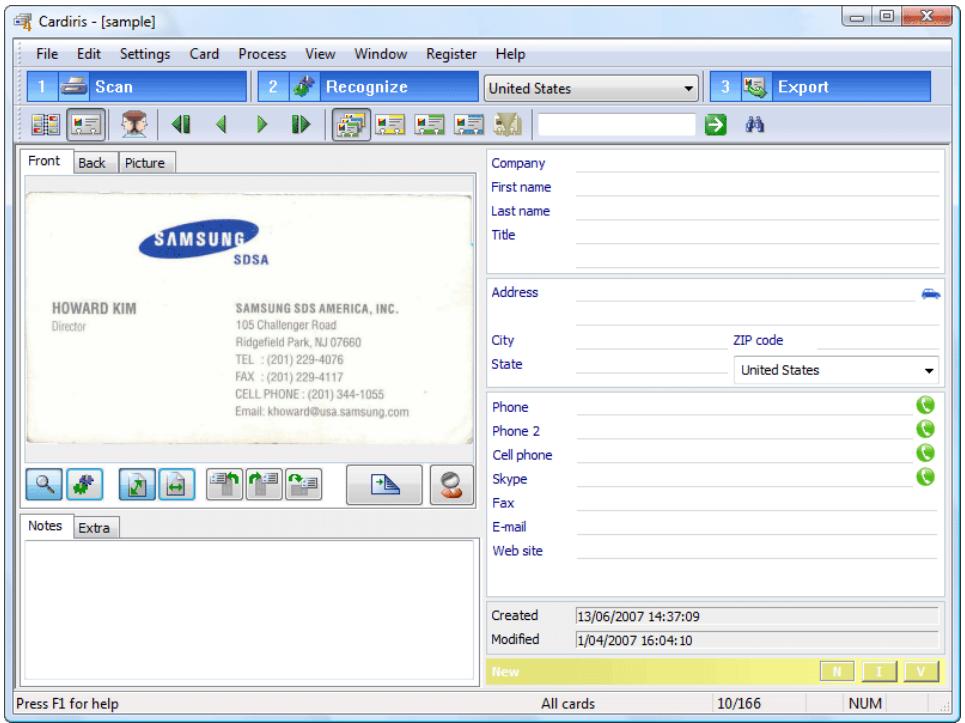
CIEL! Alain Toupin 11. rue de Contino 230017 Paris-Castien 19 Tel: 01-55 26 24 00 Fax: 01-55 26 24 02 www.ciel-mi-lc CIEL! Gruppo Editoriale Futura S.p.A. Alberto De Bernardi Redazione adebernardi@futura-qe.com Gruppo Editoriale Futura S.p.A. Alberto De Bernardi Redazione adebernardi@futura-qe.com macally Robert Careman Tekrisi Europe Kerkerhos 10-111 6546 83 Nijmegen The Netherlands TEL: 31-24-3731610 FAX: 31-24-3731134 www.macally-europe.com E-mail: robert@macally-europe.com Macally Robert Careman robert@macally-europe.comDouble-click a card to open the card view mode (or click the "Card" button on the Cardiris toolbar). The card view is limited to a single business card. It displays the card image, the card data or business contact, and the personal notes and additional information. Click the browse buttons to navigate through the business cards.
GETTING STARTED
text_image
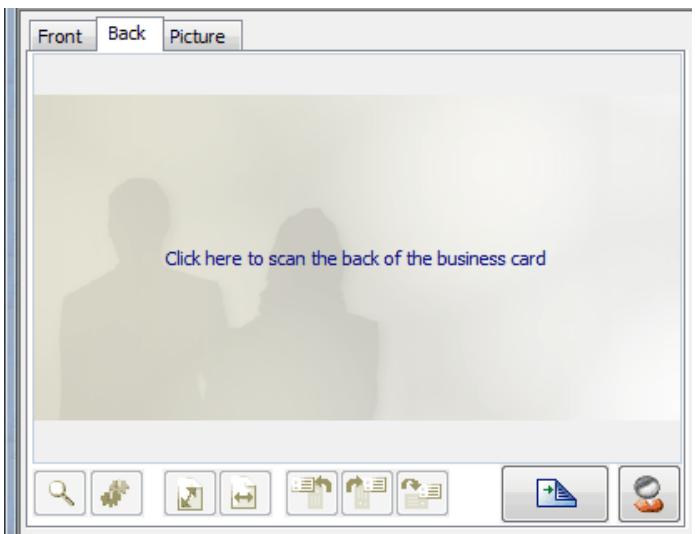
Cardiris - [sample] File Edit Settings Card Process View Window Register Help 1 Scan 2 Recognize United States 3 Export Front Back Picture Company First name Last name Title Address City ZIP code State United States SAMSUNG SDSA HOWARD KIM SAMSUNG SDS AMERICA, INC. Director 105 Challenger Road Ridgefield Park, NJ 07660 TEL : (201) 229-4076 FAX : (201) 229-4117 CELL PHONE : (201) 344-1055 Email: khoward@usa.samsung.com Phone Phone 2 Cell phone Skype Fax E-mail Web site Created 13/06/2007 14:37:09 Modified 1/04/2007 16:04:10 New N I V Press F1 for help All cards 10/166 NUMThis view mode also allows you to scan the back of a business card and to attach a picture - a photo of your contact for instance - to the business card.
text_image
Front Back Picture Click here to scan the back of the business cardMaximize the Cardiris application in both view modes to display the card image(s) optimally!
A SHORT TUTORIAL
The best way to become familiar with the operation of Cardiris is undoubtedly by using it. A sample database is provided with the software; it allows you to get started even when the scanner isn't connected to your computer yet. Let's make use of it now.
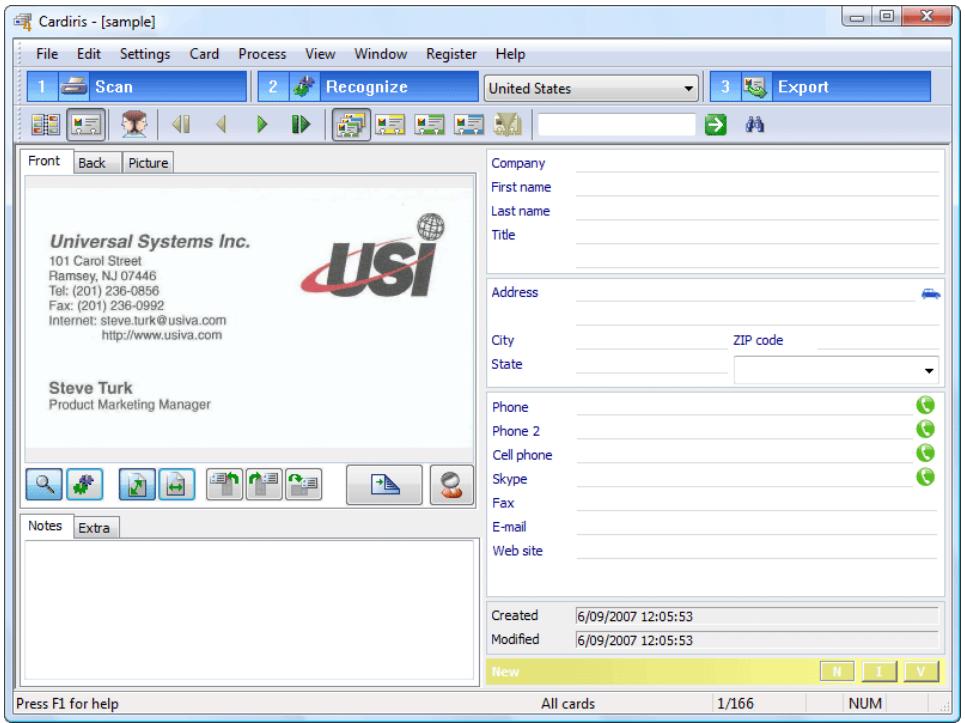
Go to the first card of the sample database in the card view. You can see its image and the empty data fields - company name, address, phone and fax number etc. There's ample room for comments below the image in the "Notes" tab.
GETTING STARTED
text_image
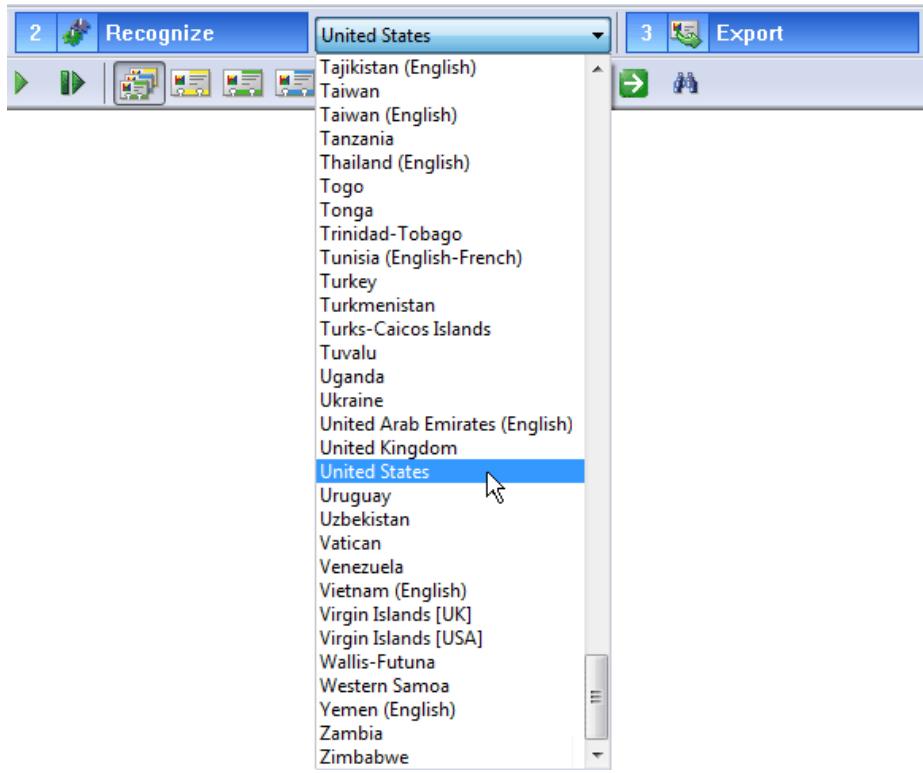
Cardiris - [sample] File Edit Settings Card Process View Window Register Help 1 Scan 2 Recognize United States 3 Export Front Back Picture Company First name Last name Title Address City ZIP code State Phone Phone 2 Cell phone Skype Fax E-mail Web site Created 6/09/2007 12:05:53 Modified 6/09/2007 12:05:53 New N I V Universal Systems Inc. 101 Carol Street Ramsey, NJ 07446 Tel: (201) 236-0856 Fax: (201) 236-0992 Internet: steve.turk@usiva.com http://www.usiva.com Steve Turk Product Marketing Manager Notes Extra Press F1 for help All cards 1/166 NUMSelect the correct country with the "Card Style" button. (Reading business cards from China, Japan, Singapore, South-Korea and Taiwan requires the “Asian Edition” of Cardiris. Business cards from these Asian countries in English are supported by the “other” editions of the Cardiris software!)
text_image
2 Recognize United States Tajikistan (English) Taiwan Taiwan (English) Tanzania Thailand (English) Togo Tonga Trinidad-Tobago Tunisia (English-French) Turkey Turkmenistan Turks-Caicos Islands Tuvalu Uganda Ukraine United Arab Emirates (English) United Kingdom United States Uruguay Uzbekistan Vatican Venezuela Vietnam (English) Virgin Islands [UK] Virgin Islands [USA] Wallis-Futuna Western Samoa Yemen (English) Zambia ZimbabweSpecial routines are used that allow the software to assign the recognized data to specific database fields - company name, e-mail address and web site etc. When Cardiris recognizes the character string "John Williams", it "knows" that John is a first name and Williams a last name. In the same way so does the system recognize titles, such as "vice president", "engineer", cities such as Boise and Chicago, states such as Oregon and Maryland etc.
GETTING STARTED
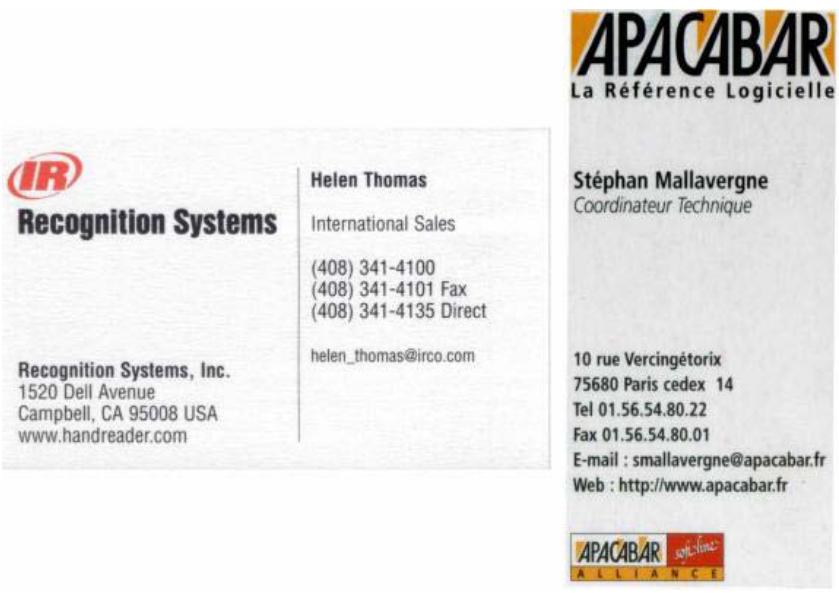
By selecting the business card's “style” in the button bar, you not only indicate the language of the text to be recognized, you also indicate the general layout of the business card. Each country has a different style of composing business cards, Americans compose an address differently than the French do etc. (Some card styles correspond to several languages: Belgium and Canada have two official languages, Switzerland has three! Cardiris detects the selected language automatically...)
text_image
APACABAR La Référence Logicielle Recognition Systems Helen Thomas International Sales (408) 341-4100 (408) 341-4101 Fax (408) 341-4135 Direct helen_thomas@irco.com Stéphan Mallavergne Coordinateur Technique 10 rue Vercingétorix 75680 Paris cedex 14 Tel 01.56.54.80.22 Fax 01.56.54.80.01 E-mail : smallavergne@apacabar.fr Web : http://www.apacabar.fr APACABAR softshinc ALLIANCEClick the "Recognize" button to start the character recognition.

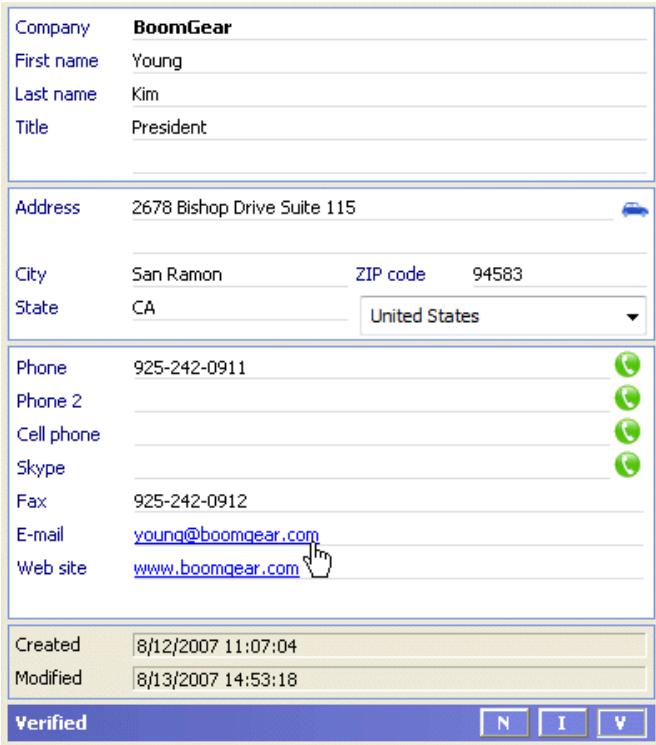
The image is converted into editable text, and the recognized text is assigned to the various fields: the company name gets placed in the company field, the phone number goes where it belongs etc.
text_image
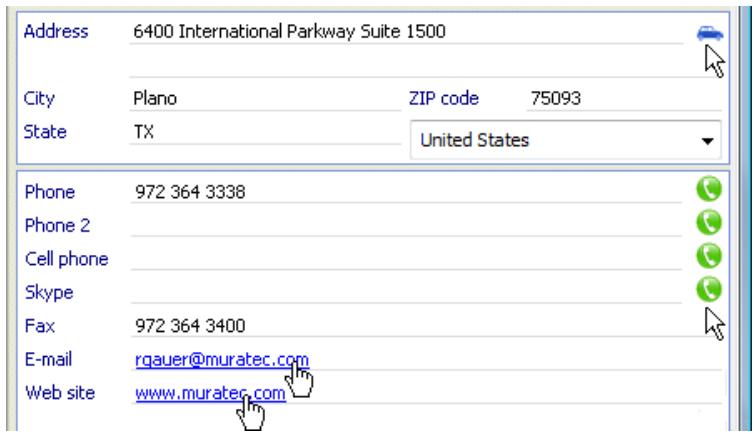
Company BoomGear First name Young Last name Kim Title President Address 2678 Bishop Drive Suite 115 City San Ramon ZIP code 94583 State CA United States Phone 925-242-0911 Phone 2 Cell phone Skype Fax 925-242-0912 E-mail young@boomgear.com Web site www.boomgear.com Created 8/12/2007 11:07:04 Modified 8/13/2007 14:53:18 Verified N I VYou can make direct use of the contacts stored with Cardiris! Click the e-mail address in the data fields and you create a new e-mail message for your contact automatically, click the URL and you visit his web site promptly! There are more "AutoActions": click the "Telephone" button in any phone field to call up your contact with the VoIP software Skype, click the "Routeplanning" button to get travel and driving directions to your contact.
text_image
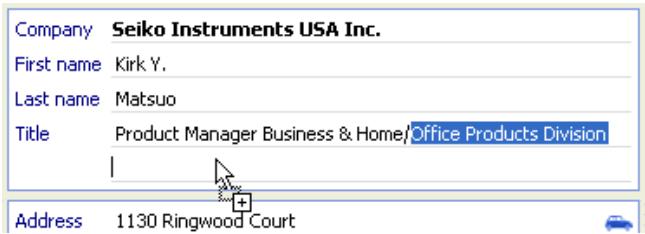
Address 6400 International Parkway Suite 1500 City Plano ZIP code 75093 State TX United States Phone 972 364 3338 Phone 2 Cell phone Skype Fax 972 364 3400 E-mail rqauer@muratec.com Web site www.muratesc.comCheck the results so far. Use cutting and pasting or drag-and-drop operations to move data about - you then hold the left mouse button depressed in a field and drag the text to another field. (The command "Clear All Fields but Notes" under the "Edit" menu erases all data simultaneously with the exception of the personal notes you enter manually on via the keyboard.)
text_image
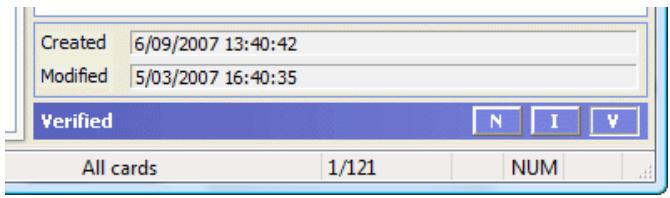
Company Seiko Instruments USA Inc. First name Kirk Y. Last name Matsuo Title Product Manager Business & Home/Office Products Division Address 1130 Ringwood CourtClick the status button "V(erified)" (or press F12) to indicate that the card is verified. The card status is a crucial concept of Cardiris, and you should understand its meaning fully before you start using the business card organizer extensively.
text_image
Created 6/09/2007 13:40:42 Modified 5/03/2007 16:40:35 Verified N I V All cards 1/121 NUMWhen a new card has been scanned, the card's image is displayed but the contact's data aren't filled out yet. With indexed cards, the company name is checked by the user; these cards are searchable by the company name.
With verified cards, every field is validated by the user; these contacts can be searched by any field, exported to other applications, the e-mail address, telephone and fax number can be used without any risk etc.
A color code is used to distinguish the various card statuses: new cards are yellow, indexed cards are green and verified cards are blue!
text_image
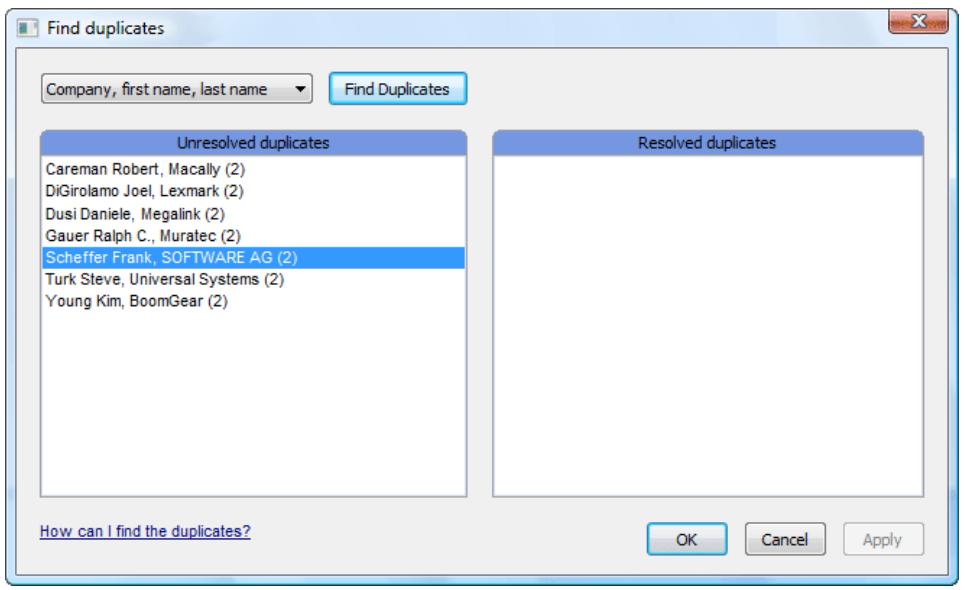
New Indexed VerifiedWhether your cards are verified or not, Cardiris helps you find and resolve duplicates! The software is even flexible: you can use broad nets or execute fine searches to detect the duplicate contacts. And resolving duplicates couldn't be more user-friendly: just click on the data you want to maintain, the other data gets erased automatically...
text_image
Find duplicates Company, first name, last name Find Duplicates Unresolved duplicates Careman Robert, Macally (2) DiGirolamo Joel, Lexmark (2) Dusi Daniele, Megalink (2) Gauer Ralph C., Muratec (2) Scheffer Frank, SOFTWARE AG (2) Turk Steve, Universal Systems (2) Young Kim, BoomGear (2) Resolved duplicates How can I find the duplicates? OK Cancel ApplyCONSULTING THE CONTACTS
You now have a validated, verified contact in your database. Such addresses can be consulted, searched, printed, exported... you name it!
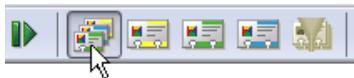
Let's start with some search capabilities. How can you find your contacts back? First of all, you can limit the view to cards with a specific card status by clicking one of the status selection buttons on the Cardiris toolbar. (Click the button "All Cards" to display the business cards of any status.)
text_image
Screenshot of a software toolbar with navigation and editing icons, showing a cursor clicking a button.The status bar indicates which selection is currently enabled (and how many cards your selection holds). The album view can also be a good indicator that you’ve enabled a limited view mode because you’ll only see a single color!

text_image
Verified cards 1/21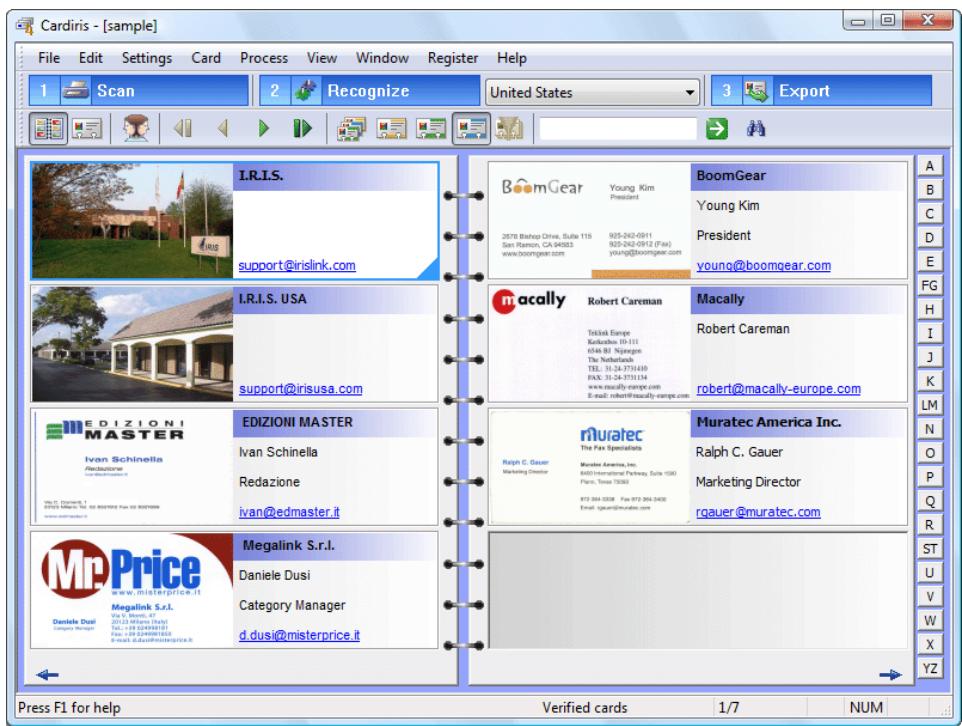
text_image
Cardiris - [sample] File Edit Settings Card Process View Window Register Help 1 Scan 2 Recognize United States 3 Export I.R.I.S. support@rislink.com I.R.I.S. USA support@risusa.com EDIZIONI MASTER Ivan Schinella Redazione ivan@edmaster.it Megalink S.r.l. Daniele Dusi Category Manager d.dusi@misterprice.it BoomGear Young Kim President 2078 Bishop Drive, Suite 115 935-242-0911 San Ramon, CA 94983 935-242-0912 (Fax) www.boomgear.com young@boomgear.com Macally Robert Careman Tekisk Europe Keraboun 10-111 Giki Bt. Nigeria The Netherlands TEL: 31-24-375169 PAX: 31-24-375134 www.macally-europe.com E-mail: robert@macally-europe.com Muratec The Fair Operations Rajsh G. Gauer Marketing Director Wollics America, Inc. 8001 International Parkway, Suite 1500 Plano, Texas 7500 972-364-0338 Fax: 972-364-0400 Email: riguam@muratec.com Macally Robert Careman robert@macally-europe.com Muratec America Inc. Ralph C. Gauer Marketing Director rgauer@muratec.com Press F1 for help Verified cards 1/7 NUMSEARCHING CONTACTS
By executing such operations, you're basically using Cardiris as a Rolodex. But there are more advanced ways of searching business cards: "free-text" searching and search masks!
Use the "Search" field to execute "free-text" searches on all fields simultaneously. (Case differences are ignored.) Click the "Search" button or press Enter to execute the search.

text_image
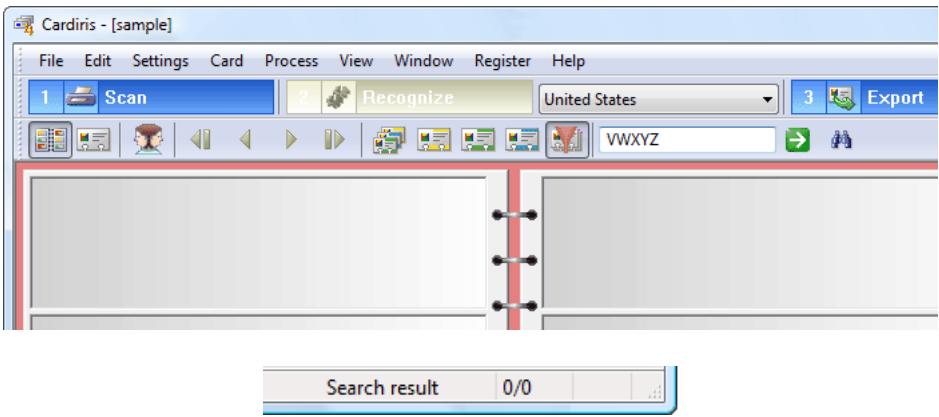
seil seiko john locke "john locke" john AND lockeWhen no card meets the search criteria, you'll quickly notice it: the application window is empty and the status bar confirms that there are no cards to display.
text_image
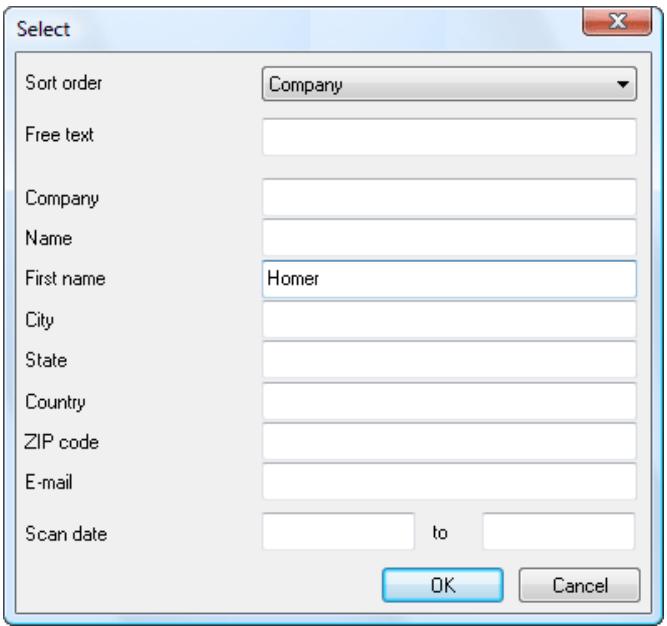
Cardiris - [sample] File Edit Settings Card Process View Window Register Help 1 Scan 2 Recognize United States 3 Export WWXYZ Search result 0/0The "Select" button executes "query by example" precision searches. This time, Cardiris looks for cards that start with the entered character strings, not for cards that contain the entered character string. Furthermore, you limit searches to specific data fields: the major fields of the database are used as a mask.
text_image
Select Sort order Company Free text Company Name First name Homer City State Country ZIP code E-mail Scan date to OK CancelIn this example, we're looking for a person we once met; the one thing we remember for sure is the first name Homer. (And hooray for computers: imagine having to search for that contact in a physical Rolodex that contains some 400 cards...)
To redisplay all cards, simply click on the status selection button "All Cards"!
text_image
Screenshot of a software toolbar with navigation icons and a cursor hovering over a document iconEXPORTING CONTACTS
Obviously, your contacts are available for export. You can for instance save your contacts in the vCard format and enter them in your Windows Address Book (Windows XP) with a single click. Or send them directly to your PDA software or your contact management software Microsoft Outlook (Express).
Business card reading smoothly complements such applications as contact managers, databases, spreadsheets or even word processors whose mail merge function allows to print letters, envelopes and labels! (Exchanging data with the professional CRM software Microsoft Dynamics CRM requires a special version of Cardiris.)

text_image
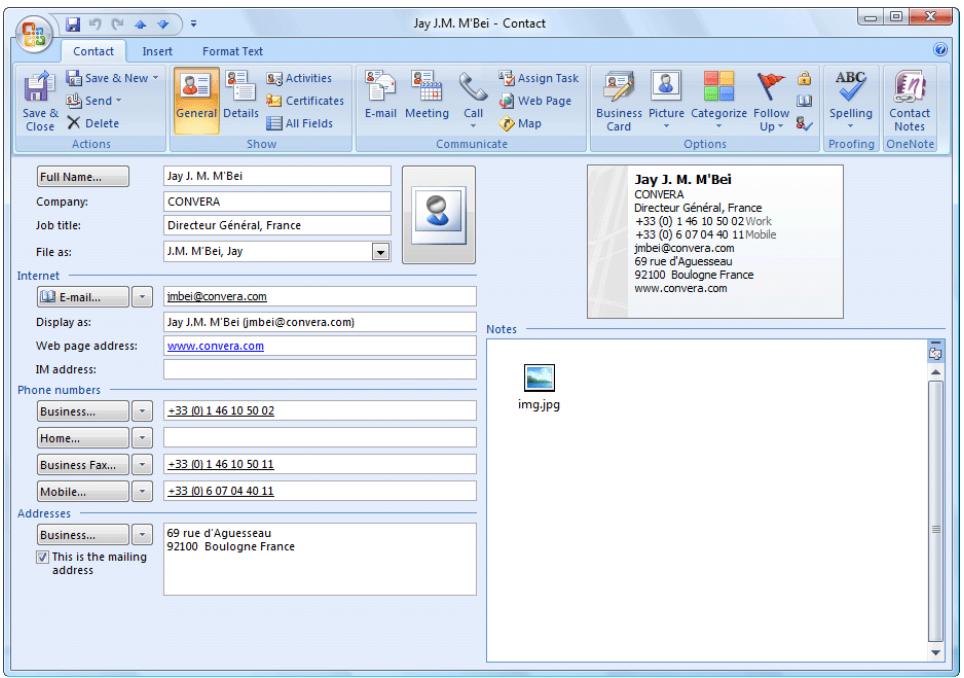
Business card formats Import Export Synchronize Intellect Apple iPod Business card images (*.jpg, *.tif) Cardiris 4.x E-mail FrontRange GoldMine HTML (*.html) IBM Lotus Notes Innomatix InfoContacts II - InfoBusiness Microsoft Dynamics CRM Microsoft Outlook Microsoft Outlook Express Novell GroupWise Palm Desktop Sage ACT! Text (*.csv) Time and Chaos vCard (*.vcf) XML (*.xml) ✓ Export all cards Configure... Export Close 3 ExportThe text result looks for instance like this when you send the results directly to Microsoft Outlook.
text_image
Jay J.M. M'Bei - Contact Contact Insert Format Text Save & New Send Save & Delete Actions General Details Activities Certificates All Fields E-mail Meeting Call Assign Task Web Page Map Business Picture Categorize Follow Up ABC Spelling Contact Notes Show Communicate Options Proofing OneNote Full Name... Jay J. M. M'Bei Company: CONVERA Job title: Directeur Général, France File as: J.M. M'Bei, Jay Internet jmbei@convera.com Display as: Jay J.M. M'Bei (jmbei@convera.com) Web page address: www.convera.com IM address: Phone numbers Business... +33 (0) 1 46 10 50 02 Home... Business Fax... +33 (0) 1 46 10 50 11 Mobile... +33 (0) 6 07 04 40 11 Addresses Business... 69 rue d'Aguesseau This is the mailing address 92100 Boulogne France Notes img.jpgBut as Cardiris is a comprehensive database in its own right, the buck doesn't stop here! You can import contacts from other databases and you can synchronize an external database (of your handheld computer for instance) and the Cardiris database with equal ease.
SCANNING BUSINESS CARDS
We could end our short tutorial here... but we haven't scanned yet!
GETTING STARTED
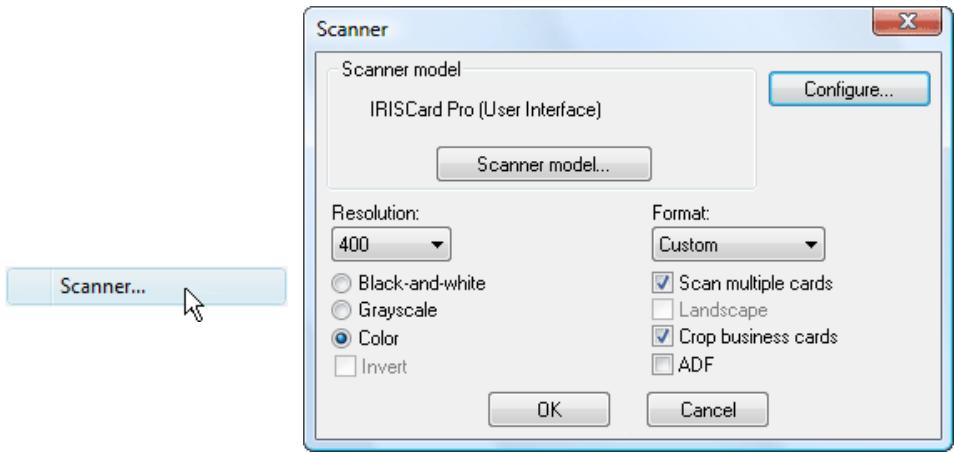
Your Cardiris software may be bundled with the I.R.I.S. Card Scanners "IRISCard Pro", a USB-2 A6 color scanner, and "IRISCard Mini", a USB A8 greyscale scanner. In that case, setting your card scanner up is easy: the Twain driver is already installed. Simply select the scanner as image source with the command "Scanner" under the "Settings" menu.
text_image
Scanner Scanner model IRISCard Pro (User Interface) Scanner model... Configure... Resolution: 400 Format: Custom Black-and-white Grayscale Scan multiple cards Landscape Color Crop business cards ADF Invert OK Cancel Scanner...You must select a scanning resolution of 400 dpi to recognize business cards successfully!
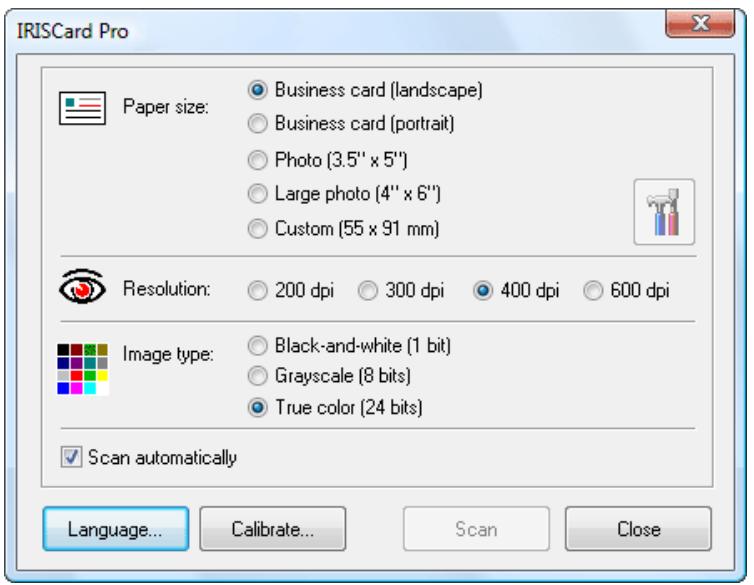
Use the Twain interface of the I.R.I.S. Card Scanners to enable the automatic scanning mode! Give the scan command once and enable the option "Scan Automatically" in the Twain user interface.
text_image
IRISCard Pro Paper size: Business card (landscape) Business card (portrait) Photo (3.5" x 5") Large photo (4" x 6") Custom (55 x 91 mm) Resolution: 200 dpi 300 dpi 400 dpi 600 dpi Image type: Black-and-white (1 bit) Grayscale (8 bits) True color (24 bits) Scan automatically Language... Calibrate... Scan CloseYou can now insert one business card after the other: as soon as a business card is placed in the scanner, the scanning starts...
Here's another tip: the “IRISCard Pro” scanner is equipped with two buttons. Press the large button to scan a business card! Cardiris starts running (if necessary) and the scanned card is inserted in the current database...
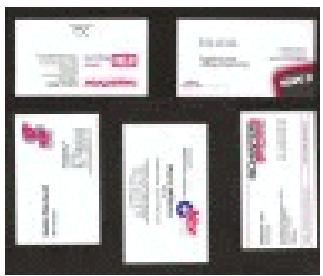
When you're using a flatbed scanner, you can scan several business cards simultaneously on the scanner's flatbed and have them segmented by the software. The background must be black or white if Cardiris is to extract the various business cards. (Luckily, there's a very simple way of creating a black background: scan your cards with the lid open... Or scan them with the lid closed and you'll add a white background to your images!)
GETTING STARTED
text_image
Scanned document pages with red and white text, some containing company logos or logos, arranged in a grid layout.

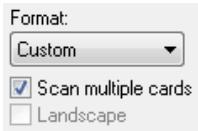
Enable the option "Scan Multiple Cards" in the scanner setup or select "Multiple Cards" under the "Settings" menu before you scan the cards! Select the option "Single Card" when you're scanning the business cards one by one. (Or select the option "Detect Cards in Image" and let Cardiris handle this issue automatically...)
text_image
Format: Custom Scan multiple cards Landscape
text_image
Single Card • Multiple Cards Detect Cards in ImageThe complete page as you scanned it will never appear as such on the computer screen; only the segmented business cards will.
If you forgot to enable the image “splitting” before the scanning, select the large image and click the command "Extract Card(s)" under the "Process" menu to segment it into the actual card images, throwing away the superfluous black or white borders.
Extract Card(s)

GETTING ON-LINE HELP
This guide only discusses the major features of Cardiris. However, Cardiris is a comprehensive, fully featured business card organizer that has many extra features which we did not discuss here. You are recommended to consult the online help system to obtain more information on its numerous capabilities.