
TEW-2K1 - Router TRENDNET - Free user manual and instructions
Find the device manual for free TEW-2K1 TRENDNET in PDF.


| Product type | Wireless router |
| Wi-Fi standard | 802.11b (11 Mbit/s) |
| Frequency | 2.4 GHz |
| Ports | 1 WAN 10/100 port, 4 LAN 10/100 ports |
| Power supply | AC adapter 5V DC, 1A |
| Dimensions | 186 x 154 x 30 mm |
| Weight | 230 g |
| Wireless security | WEP 64/128-bit |
| Operating mode | Router, access point, repeater |
| Antennas | 1 internal antenna |
| Operating temperature | 0 °C to 40 °C |
| Operating humidity | 10% to 90% non-condensing |
| Configuration | Web interface (HTTP) |
| Maintenance and cleaning | Soft dry cloth |
Frequently Asked Questions - TEW-2K1 TRENDNET
User questions about TEW-2K1 TRENDNET
0 question about this device. Answer the ones you know or ask your own.
Ask a new question about this device
Download the instructions for your Router in PDF format for free! Find your manual TEW-2K1 - TRENDNET and take your electronic device back in hand. On this page are published all the documents necessary for the use of your device. TEW-2K1 by TRENDNET.
USER MANUAL TEW-2K1 TRENDNET
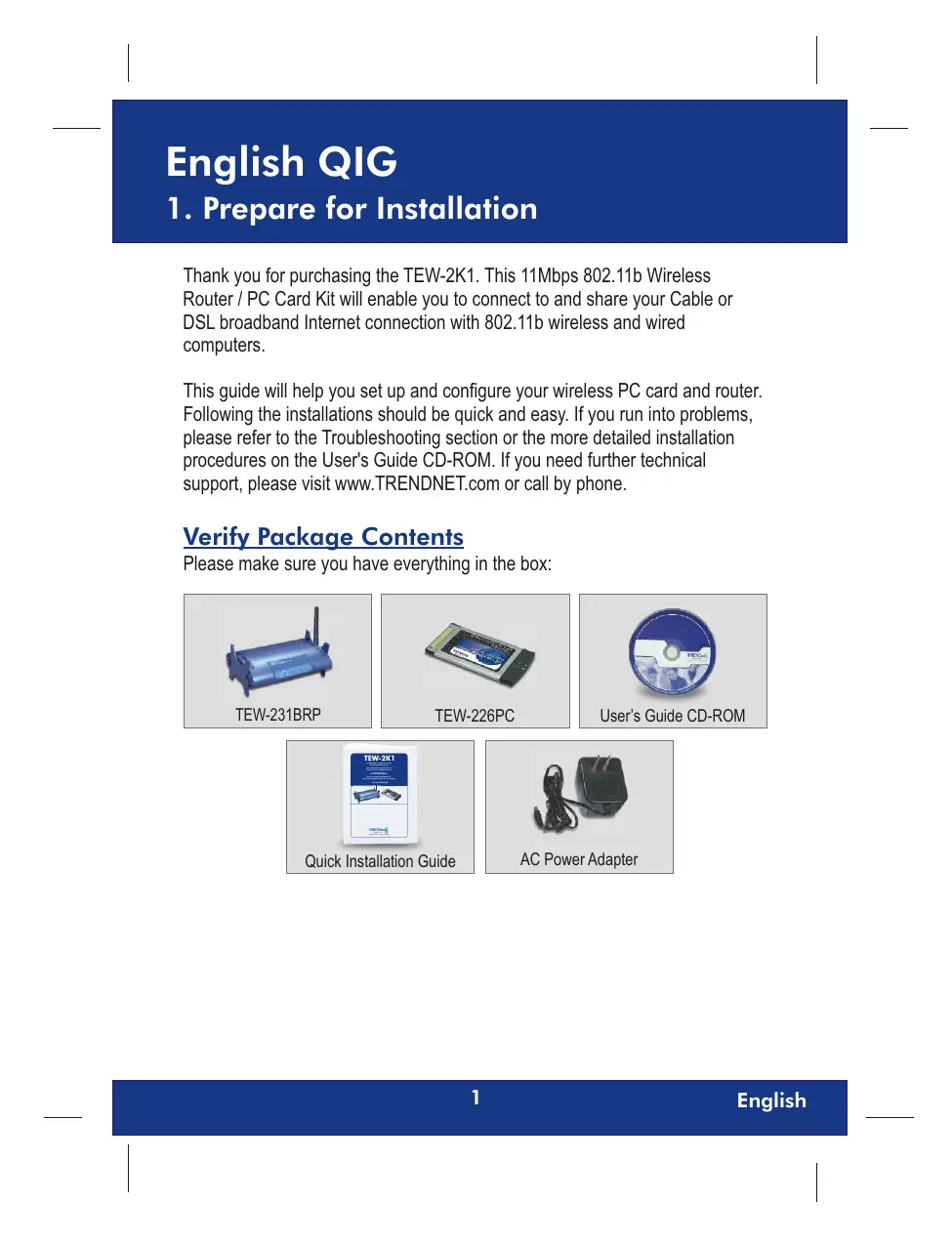
Thank you for purchasing the TEW-2K1. This 11Mbps 802.11b Wireless Router / PC Card Kit will enable you to connect to and share your Cable or DSL broadband Internet connection with 802.11b wireless and wired computers.
This guide will help you set up and configure your wireless PC card and router. Following the installations should be quick and easy. If you run into problems, please refer to the Troubleshooting section or the more detailed installation procedures on the User's Guide CD-ROM. If you need further technical support, please visit www.TRENDNET.com or call by phone.
Verify Package Contents
Please make sure you have everything in the box:
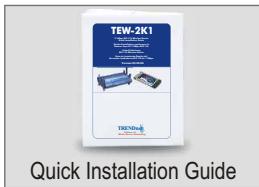
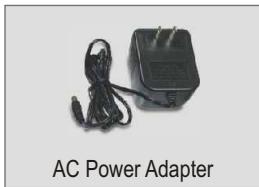
Collect Internet Service Provider (ISP) Information
During the installation of your Wireless Router, the Quick Setup application will ask you to specify your ISP connection type. Therefore, please verify your Cable or DSL Internet broadband connection type with your ISP and ensure you have all the information for one of the following connection types:
A. Dynamic IP Cable Connection
Nothing required. IP address will automatically be assigned by the ISP.
B. Static or Fixed IP Cable Connection
Internet IP Address: (eg. 215.24.24.129)
Subnet Mask:
Gateway IP Address:
Primary DNS:
Secondary DNS:
C. PPPoE DSL Connection
Login Name:
Password:
D. PPTP DSL Connection
Login Name:
Password:
2. Install Hardware
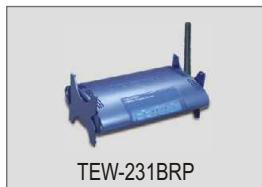
Router (TEW-231BRP)
- Turn off your Cable/DSL Modem and Computer.
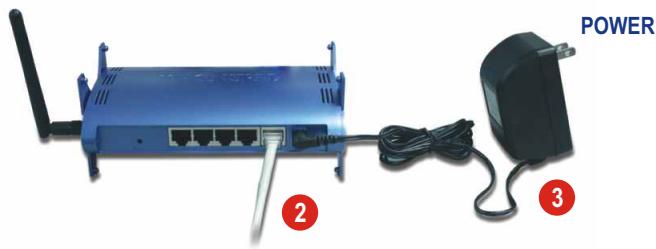
- Attach the antenna to the connector on the side of your AP/Router.
- Connect the RJ-45 Ethernet cable from your Cable or DSL modem's Ethernet port to the WAN port on the TEW-231BRP.
- Turn on your Cable/DSL Modem. Once the Cable/DSL Modem is on, connect the included power adapter to your AP/Router and to a power outlet.
- Turn on your Computer.
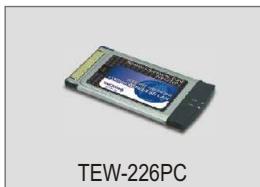
PC Card (TEW-226PC)
The TEW-226PC Wireless PC Card is designed to operate in Windows 98, Windows ME, Windows 2000, and Windows XP.
Minimum Hardware Requirements
- Laptop with an available 32-bit CardBus
- 300 MHz processor and 32 MB of memory (Recommended)
- Properly installed CardBus Controller
3. Install Wireless Configuration Utility
Windows 98SE/ME/2000/XP
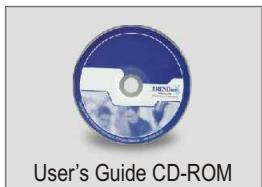
- Insert the TEW-226PC/TEW228PI CD-ROM into your computer's CD-ROM drive; the installation menu window will appear automatically. If the window does not appear automatically, click Start, click Run, and type E:\Autorun.exe in the text-field. Click OK.
NOTE: Replace "E" in "E:\Autorun.exe" with whichever letter is assigned to your CD-ROM drive.
- On the Installation Menu, click Install Utility.
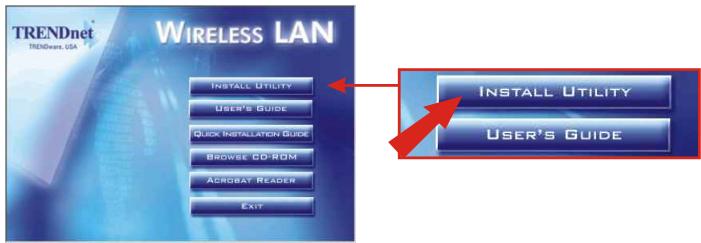
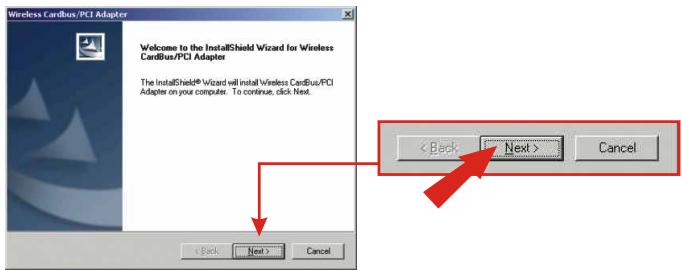
- Click Next.
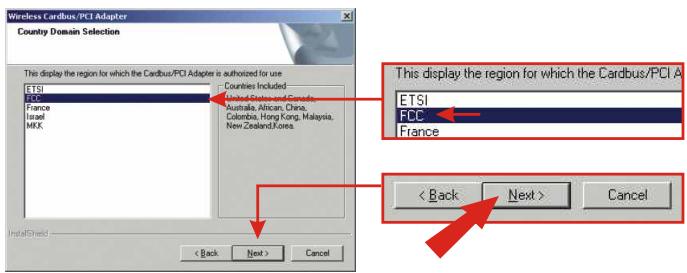
4. Select the region and click Next.
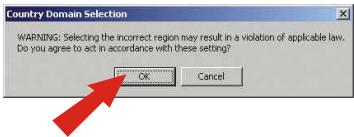
5. Click OK.
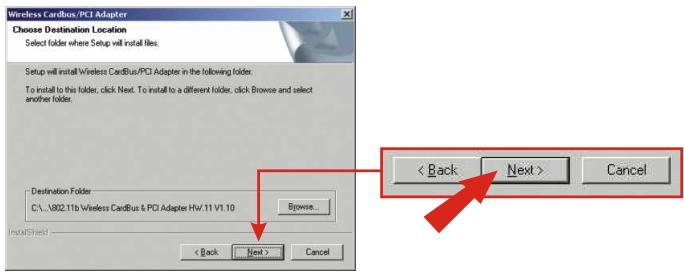
6. Click Next to start installing.
8. Click Finish.
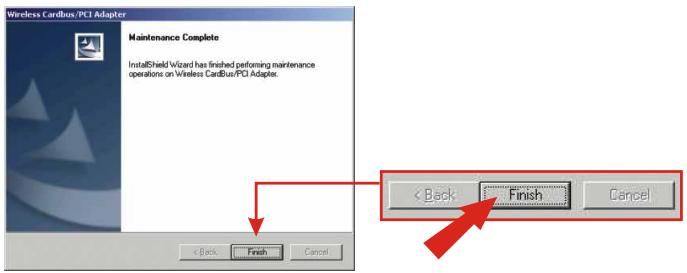
NOTE: For Windows 98SE/ME, select "No, I will restart my computer later," and click Finish.
- Click Exit on the Installation menu screen.
Install Hardware
- Shut down your computer.
- Insert the PC Card firmly into your notebook PC's open PC Card slot. Only the plastic end-piece should protrude from the slot.
- Reboot your computer.
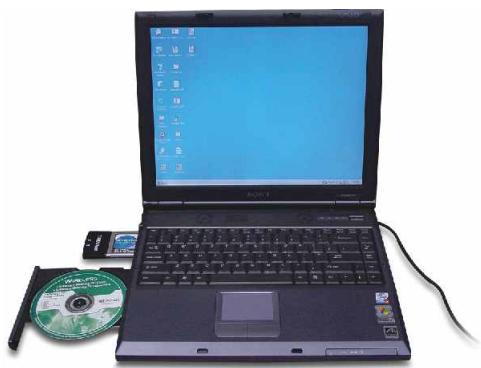
Windows XP
- After your computer reboots, the "Found New Hardware Wizard" will appear. Verify that Install the software automatically is selected and that the TEW-226PC/228PI CD-ROM is in your CD-ROM drive. Then, click Next.

- When you are prompted to choose a driver from a list of compatible drivers, choose the one that is located in the TEW-421PC/423PI CD-ROM's Windows XP folder, and click Next.
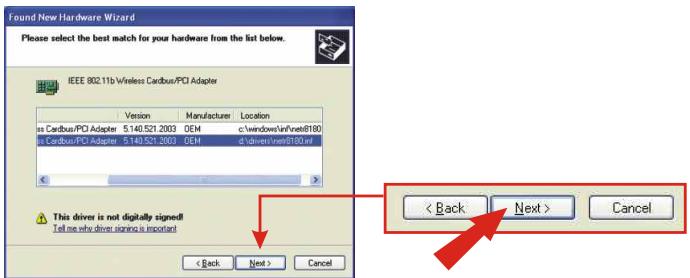
- A warning message will tell you that the device you're installing has not yet been certified for Windows XP compatibility. Click Continue Anyway.
NOTE: TRENDnet's Wireless Adapter drivers have been fully tested in all supported Windows Operating Systems and have been found to provide assured compatibility.

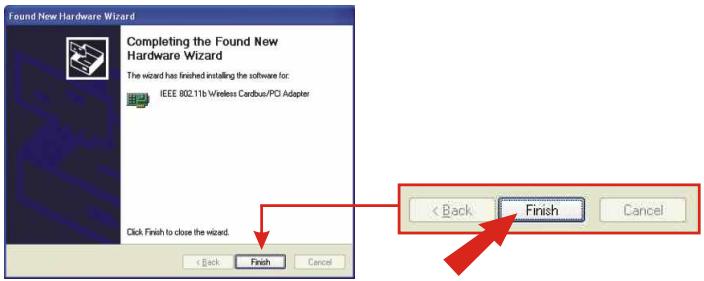
- The "Found New Hardware Wizard" will tell you that it has finished installing the software for your IEEE 802.11b Wireless Cardbus/PCI Adapter. Click Finish.
- Double-click the wireless computer icon in your system tray (next to the clock in the bottom right corner of your screen).

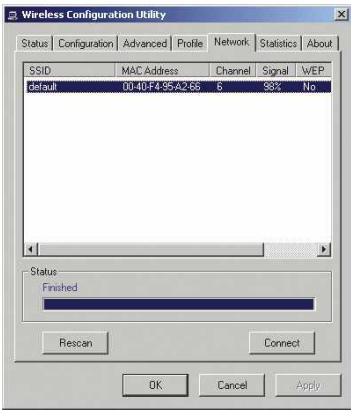
- On the Wireless Configuration Utility window, click the Network tab.
- Select the wireless network SSID to "default", then, click Connect.
- Go to Verify Connection.
Windows 2000
- After your computer reboots, the "Found New Hardware Wizard" will appear. Click Next.
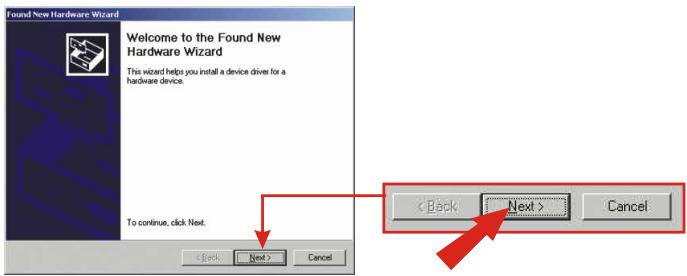
- Ensure that Search for a suitable driver for my device is selected and that the TEW-226PC/228PI CD-ROM is in your CD-ROM drive. Then, click Next.
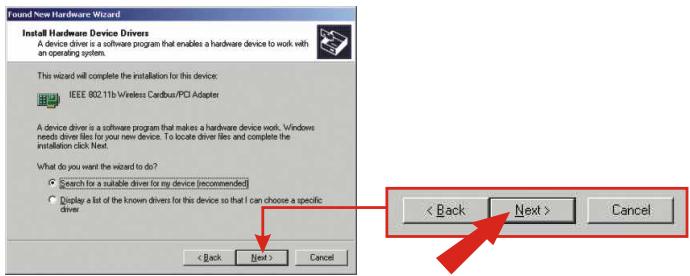
3. On the next screen, select Specify a location, and click Next.
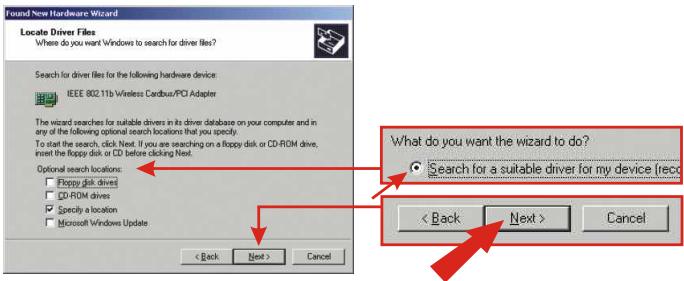
4. Click the Browse button on the window that pops up.
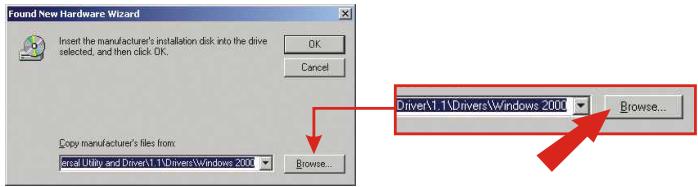
5. Double-click your CD-ROM drive, double-click Drivers, and select "NETR8180.INF", and click Open.
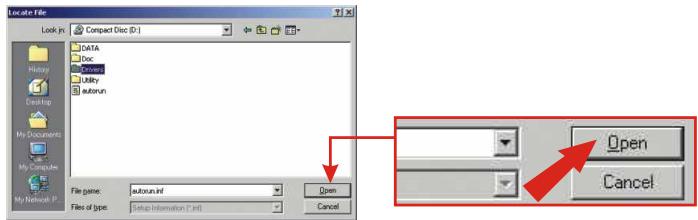
6. Click OK.
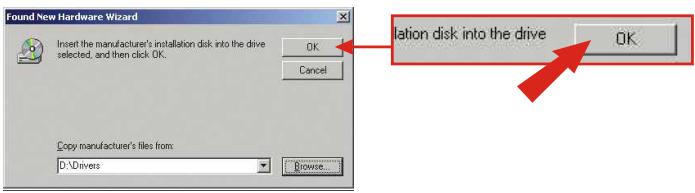
7. Click Next.
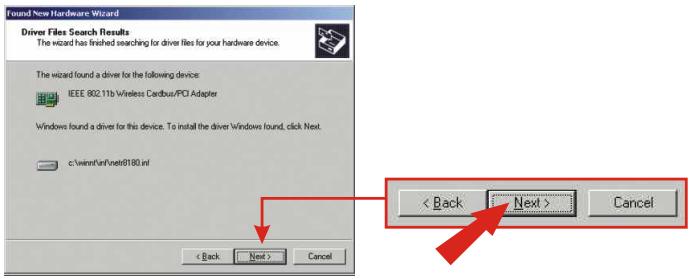
- A message will tell you that the driver you're about to install "does not contain a digital signature" and will ask you if you want to continue the installation. Click Yes.
NOTE: TRENDnet's Wireless Adapter drivers have been fully tested in all supported Windows Operating Systems and have been found to provide assured compatibility.
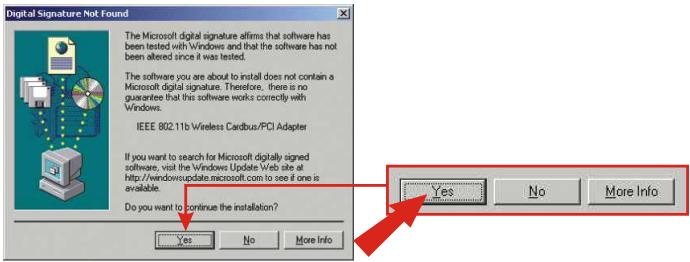
- The "Found New Hardware Wizard" will tell you that it has finished installing the software for your new device. Click Finish.
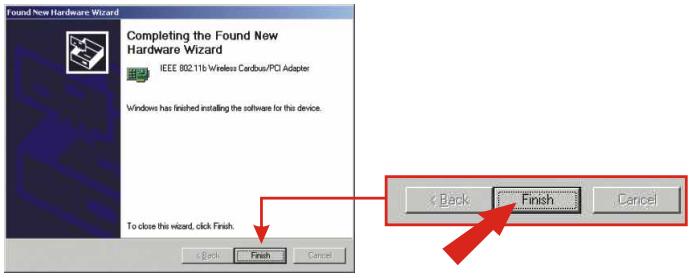
- Double-click the wireless computer icon in your system tray (next to the clock in the bottom right corner of your screen).

- On the Wireless Configuration Utility window, click the Network tab.
- Select the wireless network SSID to "default", then, click Connect.
- Go to Verify Connection.
Windows 98SE/ME
- After your computer reboots, the "Add New Hardware Wizard" will appear. Click Next.
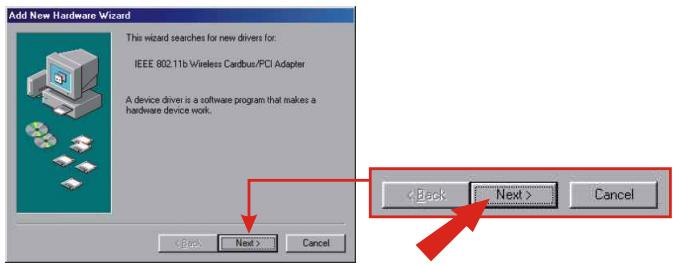
2. Select Search for the best driver for your device and click Next.
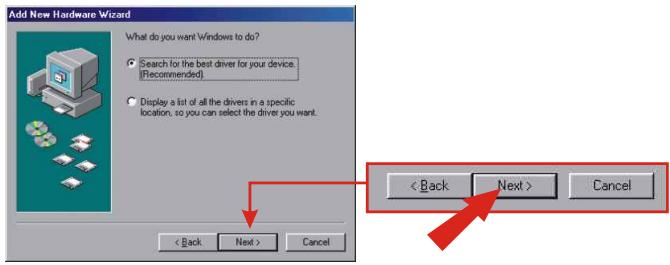
3. Select Specify a location, and click Browse.
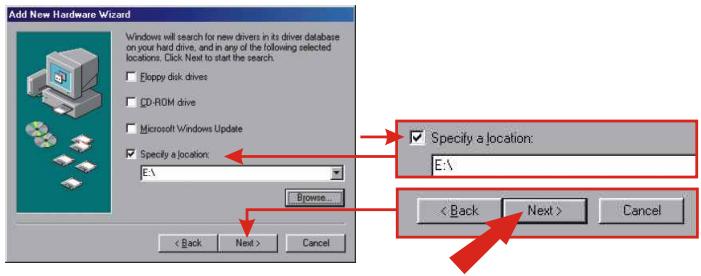
-
If the TEW-226PC/228PI CD-ROM is not in your CD-ROM drive, put it into your CD-ROM drive now. From the "Browse for Folder" window that has appeared, double-click the icon for the CD-ROM drive containing the TEW-226PC/228PI CD-ROM.
-
Double-click the TEW-226PC/228PI CD-ROM's Driver folder; then click OK.
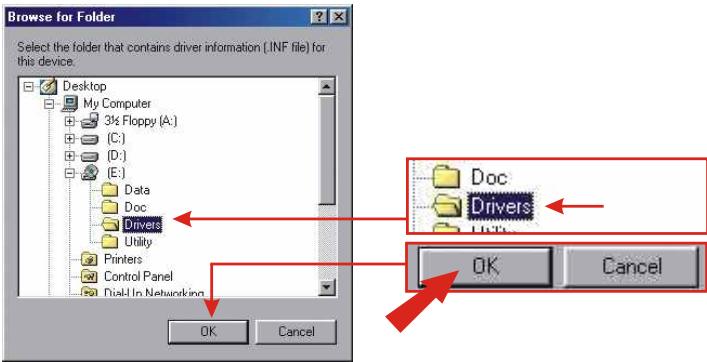
- Click Next.
NOTE: For Windows ME, select the E:\Driver\Windows ME folder.
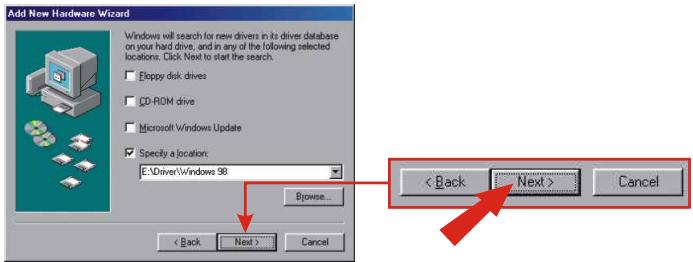
- Click Next.
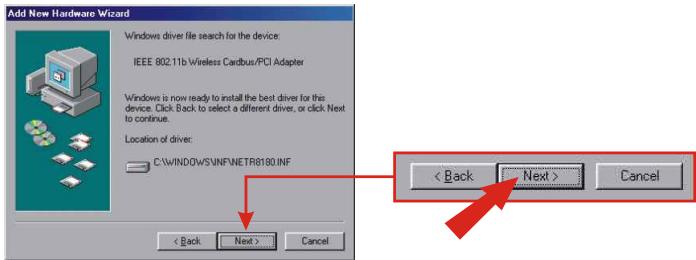
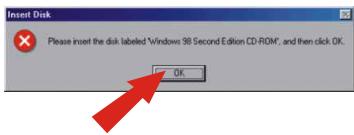
- You may be asked to insert your Windows 98/ME CD-ROM. If this is the case, insert your Windows 98/ ME CD-ROM, and click OK.
- The "Add New Hardware Wizard" will tell you that it has finished installing the software for your IEEE 802.11b Wireless Cardbus/PCI Adapter. Click Finish.
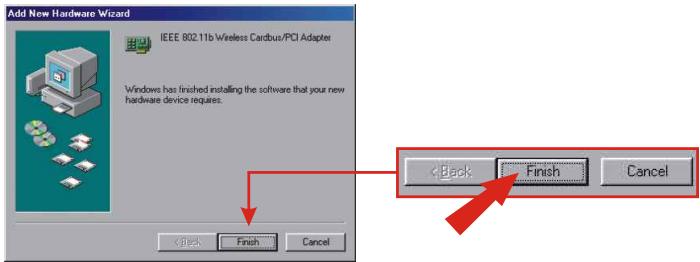
- Click Finish.
- Windows will ask you if you want to restart your computer. Click Yes.
NOTE: If this prompt does not appear, you must manually restart your computer.
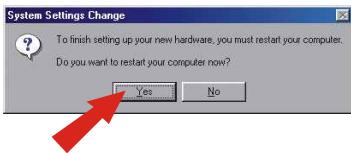
- After the computer restarts, double-click the wireless computer icon in your system tray (next to the clock in the bottom right corner of your screen).
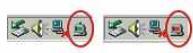
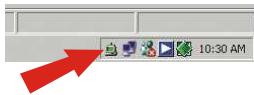
- On the Wireless Configuration Utility window, click the Network tab.
- Select the wireless network SSID to "default", then, click Connect.
Verify Connection
Note: The wireless router TEW-231BRP has the following factory default settings:
SSID: default
WEP: Disable
Channel: 6
If you cannot see the "default" SSID, make sure your AP/Router is connected and is turned on; then, click Rescan.
The wireless connection has been established, click the Status tab of the Wireless Configuration Utility. If the Status page displays "Signal Strength" and "Link Quality" information, your card's wireless configuration is complete.
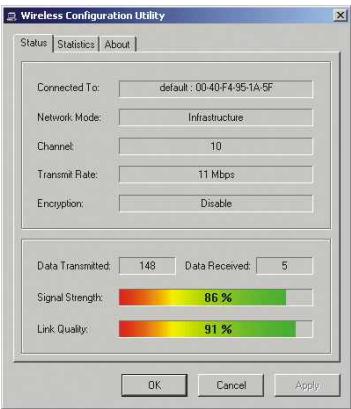
Congratulations! You have finished installing the Wireless PC Card. Continue to Section 5 of this Quick Installation Guide to configure your wireless router.
5. Configure the Router
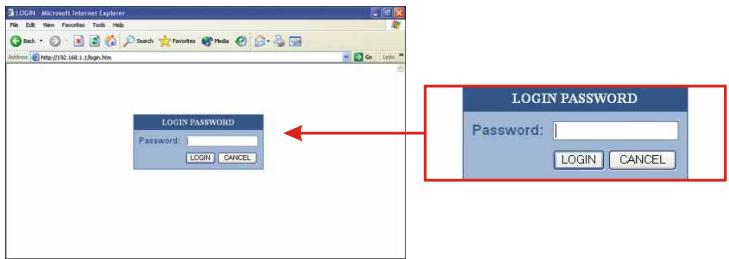
- Open your web browser and type http://192.168.1.1 into the Address box and press the Enter key.
- The login screen will appear; click LOGIn to access the Quick Setup.
NOTE: By default, no password has been set on the wireless router. To reset the password on the wireless router, please refer to the User's Guide CD-ROM.
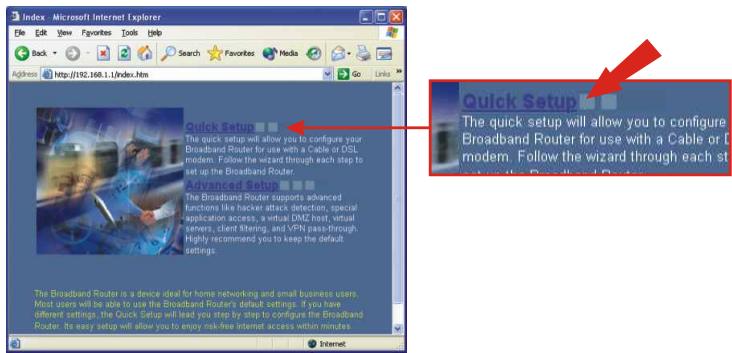
- Click on Quick Setup to configure your Wireless Router for Broadband Internet access.
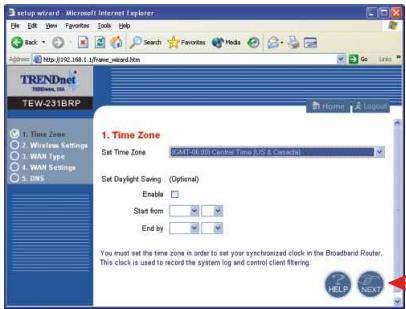
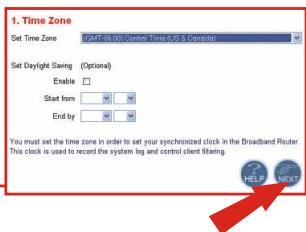
- Click on the dropdown menu to select the appropriate time zone. If your region runs on Daylight Savings Time, you should enable the "Set Daylight Saving" option and input the dates and times when Daylight Savings Time goes into and out-of effect. Then click Next.
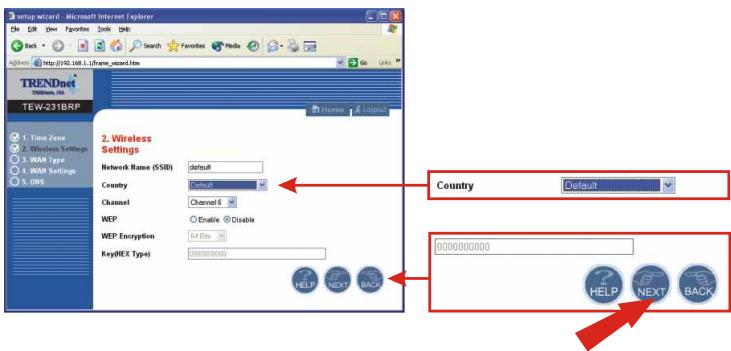
- Click on the dropdown menu to select your country. (Note: "USA" by default).
NOTE: After selecting your country, a WARNING pop-up will appear to inform you that choosing an incorrect country may be in violation of applicable laws. Click OK.
- Your wireless configuration is complete. Click Next.
NOTE: If you wish to enable the WEP security feature, refer to the User's Guide on the included CD-ROM.
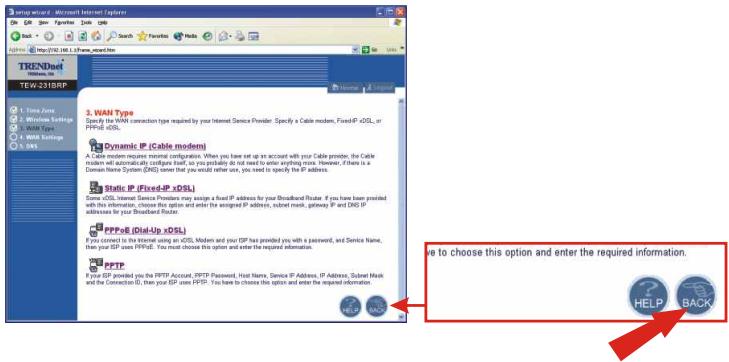
- Select the appropriate WAN connection type by clicking on Dynamic IP, Static IP, PPPoE, or PPTP.
Dynamic IP
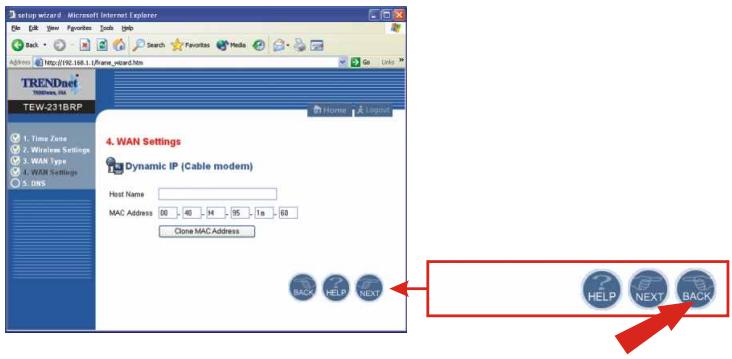
- Specify the Host Name (if any) and Clone the MAC Address (if required by your ISP). Click Next.
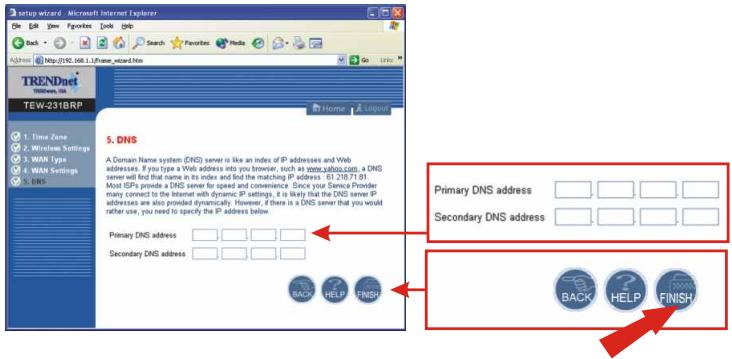
- Specify Primary and Secondary DNS addresses if you wish to use DNS addresses other than your ISP-provided DNS addresses. Click Finish.
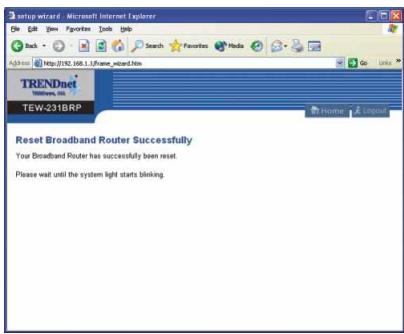
- To verify your Internet connection, type http://www.TRENDNET.com in your browser's address bar, and hit Enter. If the website appears, your router is configured properly.
Static or Fixed IP Cable Connection
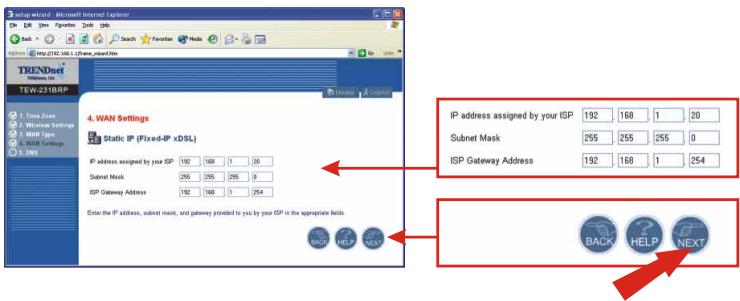
- Enter the IP Address, Subnet Mask, and ISP Gateway Address provided by your ISP. Click Next.
- Specify Primary and Secondary DNS addresses if you wish to use DNS addresses other than your ISP-provided DNS addresses. Click Finish.
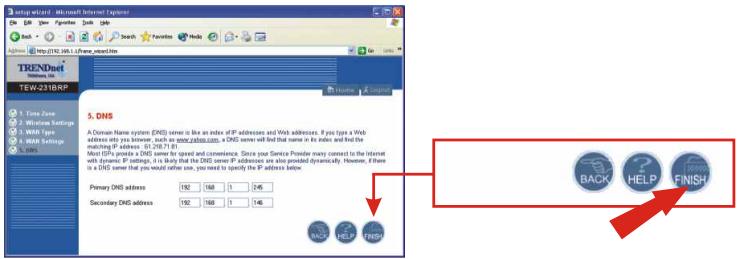
- To verify your Internet connection, type http://www.TRENDNET.com in your browser's address bar, and hit Enter. If the website appears, your router is configured properly.
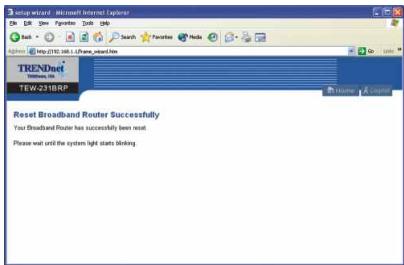
PPPoE
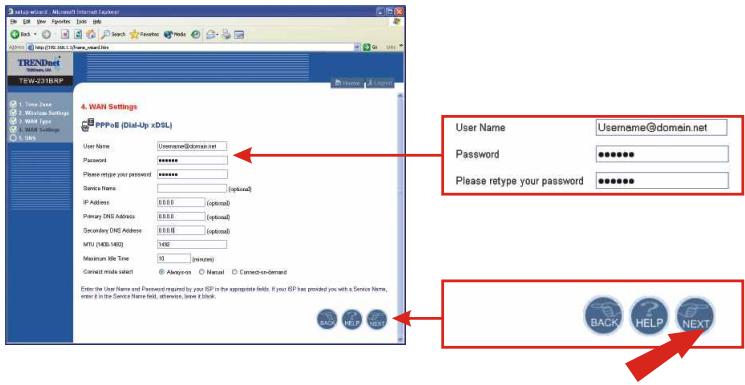
- Enter your PPPoE User Name and Password, and retype your password. Then, click Next.
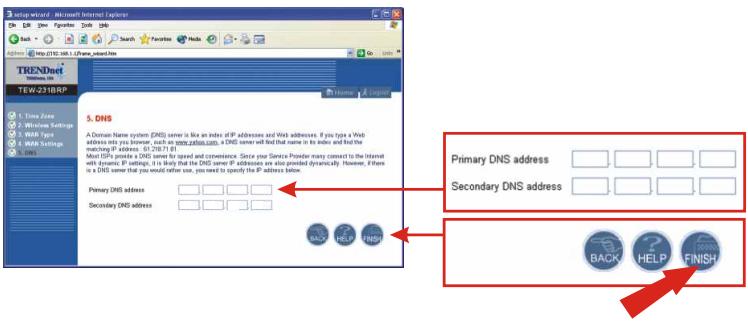
- Specify Primary and Secondary DNS addresses if you wish to use DNS addresses other than your ISP-provided DNS addresses. Click Finish.
- To verify your Internet connection, type http://www.TRENDNET.com in your browser's address bar, and hit Enter. If the website appears, your router is configured properly.
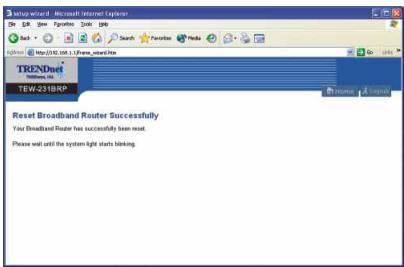
PPTP
- Enter your PPTP User Name and Password, and retype your password. Then, click Next.
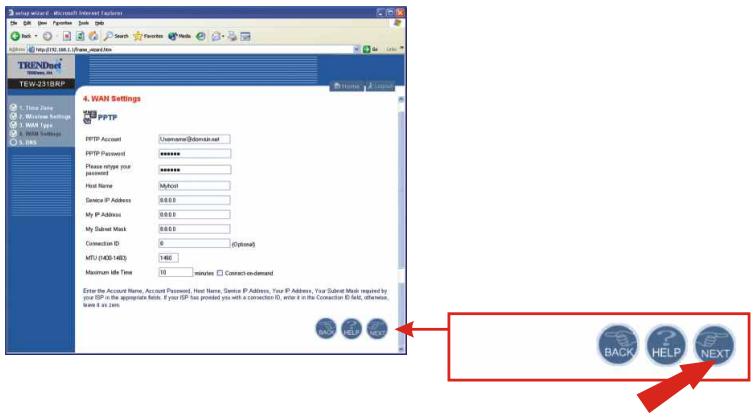
- Specify Primary and Secondary DNS addresses if you wish to use DNS addresses other than your ISP-provided DNS addresses. Click Finish.

- To verify your Internet connection, type http://www.TRENDNET.com in your browser's address bar, and hit Enter. If the website appears, your router is configured properly.
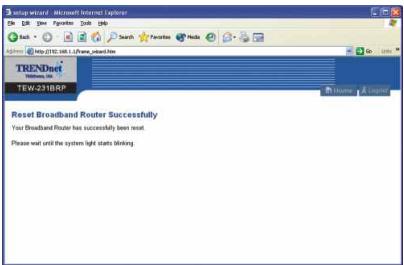
NOTE: Open a web browser and try to access internet. If you still have problems, retry the steps or contact our technical support.
Q1. I completed all the steps in the quick installation guide, but my card isn't connecting to my wireless router. What should I do?
A1. You should first verify that the Network SSID matches your wireless router SSID. If they already match, you should check your TCP/IP properties to ensure that Obtain an IP address automatically is selected. Refer to your Windows User's Manual if you are unable to locate your TCP/IP properties.
Q2. Windows is unable to recognize my hardware. What should I do?
A2. Make sure your computer meets the minimum requirements as specified in Section 1 of this quick installation guide. Also, you must install the wireless configuration utility (as described in Section 2) BEFORE you physically install your network card. Lastly, you may consider moving the card to a different PCI/PC Card Slot.
Q3. I cannot open the wireless configuration utility. What should I do?
A3. Go to your device manager (control panel >> system) to make sure the adapter is installed properly. If you see a networking device with a yellow question mark or exclamation point, you will need to reinstall the device and/or the drivers.
Q4. I specified the IP address, 192.168.1.1 in my internet browser, but an error message says "The page cannot be displayed". How can I get into the TEW-231BRP web configuration page?
A4. Please check your hardware and TCP/IP settings again by following the instructions in section 1-3, make sure the Power, WAN, and on the LAN lights on the Router's front panel are on, and verify that the TCP/IP configuration is correct. Then try accessing 192.168.1.1 again using your web browser.
Q5. I am not sure what type of Internet Account Type I have for my Cable/DSL connection, How do I find out?
A5. You can simply contact your Internet Service Provider's (ISP) Customer Service or Technical Support Department for the correct information.
Q6. I set up my internet connection type and saved it, but I still cannot connect to the Internet. Why?
A6. Option 1: Go to the Status section of the configuration page, and click on the Connection Detail button. Click on the Release/Renew button to allow the router to refresh the connection with your ISP. Then try browsing a website such as http://www.trendnet.com again with your Internet browser.
Option 2: Please power down all the equipment including Cable/DSL modem, Router and your PC. Power on the Cable/DSL modem and wait 60 seconds, then power on the router followed by your PC. This simple power cycle normally helps the router to find your Internet connection. Then try browsing a website such as http://www.trendnet.com with your web browser.
If you still encounter problems, please refer to the User's Guide CD-ROM or contact technical support.
Contact Technical Support
Telephone: +1-310-891-1100
Fax: +1-310-891-1111
Website: www.TRENDNET.com
E-mail: support@trendware.com
Technical Support Hours
7:00AM ~ 6:00PM, Monday through Friday
Pacific Standard Time (except holidays)
TRENDnet TRENDware, USA What's Next in Networking
Product Warranty Registration
Please take a moment to register your product online. Go to TRENDware's website at http://www.TRENDNET.com
TRENDware International, Inc.
3135 Kashiwa Street
Torrance, CA 90505
http://www.TRENDNET.com
- VERIFY PACKAGE CONTENTS
- COLLECT INTERNET SERVICE PROVIDER (ISP) INFORMATION
- DYNAMIC IP CABLE CONNECTION
- STATIC OR FIXED IP CABLE CONNECTION
- PPPOE DSL CONNECTION
- PPTP DSL CONNECTION
- INSTALL HARDWARE
- ROUTER (TEW-231BRP)
- PC CARD (TEW-226PC)
- MINIMUM HARDWARE REQUIREMENTS
- INSTALL WIRELESS CONFIGURATION UTILITY
- WINDOWS 98SE/ME/2000/XP
- SELECT THE REGION AND CLICK NEXT
- CLICK OK
- CLICK NEXT TO START INSTALLING
- CLICK FINISH
- WINDOWS XP
- WINDOWS 2000
- ON THE NEXT SCREEN, SELECT SPECIFY A LOCATION, AND CLICK NEXT
- CLICK THE BROWSE BUTTON ON THE WINDOW THAT POPS UP
- DOUBLE-CLICK YOUR CD-ROM DRIVE, DOUBLE-CLICK DRIVERS, AND SELECT "NETR8180.INF", AND CLICK OPEN
- CLICK NEXT
- WINDOWS 98SE/ME
- SELECT SEARCH FOR THE BEST DRIVER FOR YOUR DEVICE AND CLICK NEXT
- SELECT SPECIFY A LOCATION, AND CLICK BROWSE
- VERIFY CONNECTION
- CONFIGURE THE ROUTER
- DYNAMIC IP
- PPPOE
- PPTP
- CONTACT TECHNICAL SUPPORT
- TECHNICAL SUPPORT HOURS
- TRENDNET TRENDWARE, USA WHAT'S NEXT IN NETWORKING
- PRODUCT WARRANTY REGISTRATION
Brand : TRENDNET
Model : TEW-2K1
Category : Router