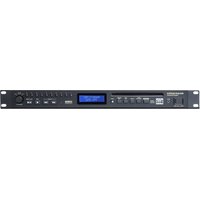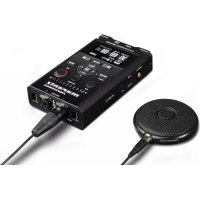
PMD560 - Audio recorder MARANTZ - Free user manual and instructions
Find the device manual for free PMD560 MARANTZ in PDF.


User questions about PMD560 MARANTZ
0 question about this device. Answer the ones you know or ask your own.
Ask a new question about this device
Download the instructions for your Audio recorder in PDF format for free! Find your manual PMD560 - MARANTZ and take your electronic device back in hand. On this page are published all the documents necessary for the use of your device. PMD560 by MARANTZ.
USER MANUAL PMD560 MARANTZ
Solid State Recorder
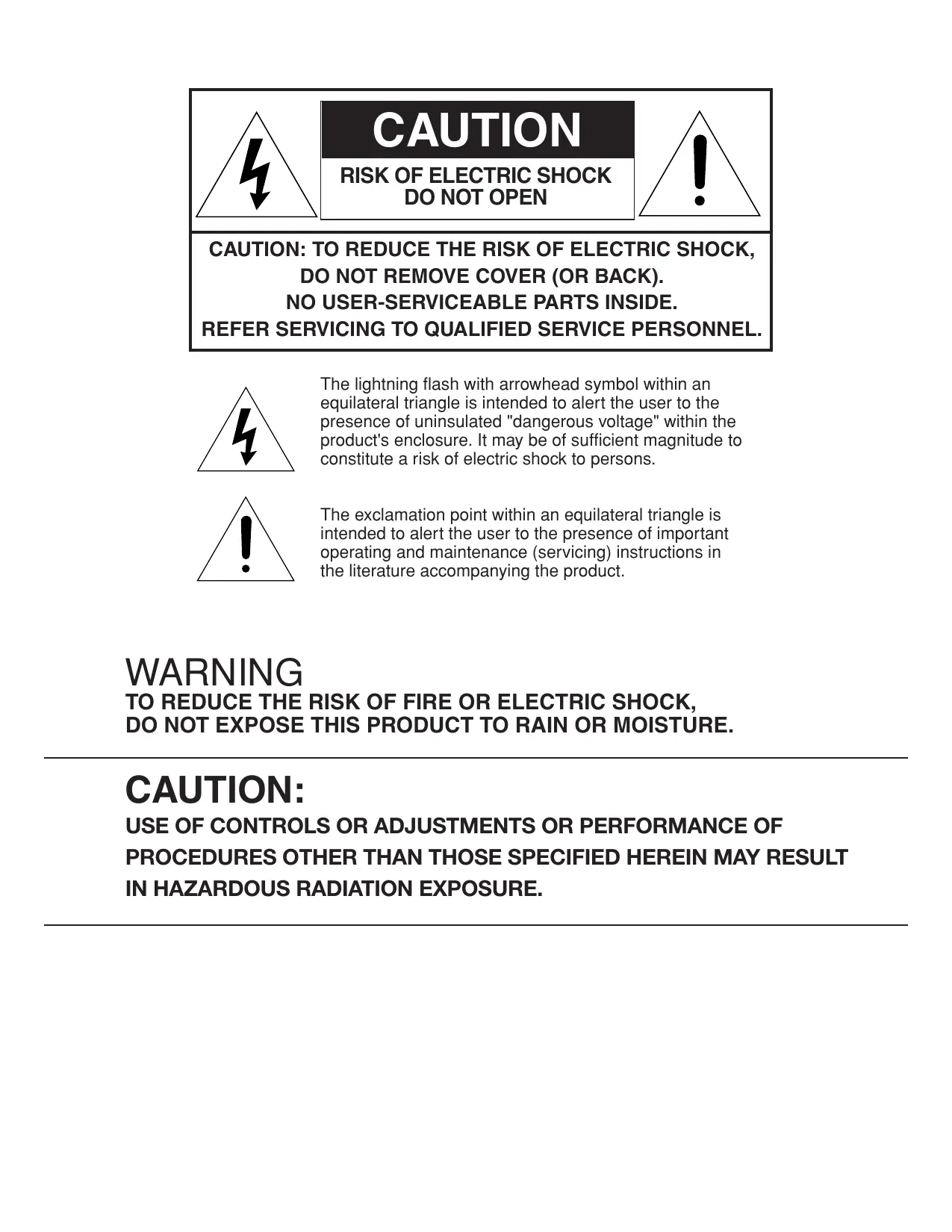
CAUTION
RISK OF ELECTRIC SHOCK DO NOT OPEN

CAUTION: TO REDUCE THE RISK OF ELECTRIC SHOCK, DO NOT REMOVE COVER (OR BACK).
NO USER-SERVICEABLE PARTS INSIDE.
REFER SERVICING TO QUALIFIED SERVICE PERSONNEL.
The lightning flash with arrowhead symbol within an equilateral triangle is intended to alert the user to the presence of uninsulated "dangerous voltage" within the product's enclosure. It may be of sufficient magnitude to constitute a risk of electric shock to persons.

The exclamation point within an equilateral triangle is intended to alert the user to the presence of important operating and maintenance (servicing) instructions in the literature accompanying the product.
WARNING
TO REDUCE THE RISK OF FIRE OR ELECTRIC SHOCK, DO NOT EXPOSE THIS PRODUCT TO RAIN OR MOISTURE.
CAUTION:
USE OF CONTROLS OR ADJUSTMENTS OR PERFORMANCE OF PROCEDURES OTHER THAN THOSE SPECIFIED HEREIN MAY RESULT IN HAZARDOUS RADIATION EXPOSURE.
IMPORTANT SAFETY INSTRUCTIONS
READ BEFORE OPERATING EQUIPMENT
This product was designed and manufactured to meet strict quality and safety standards. There are, however, some installation and operation precautions, which you should be particularly aware of.
-
Read Instructions - All the safety and operating instructions should be read before the product is operated.
-
Retain Instructions - The safety and operating instructions should be retained for future reference.
-
HeedWarnings - All warnings on the product and in the operating instructions should be adhered to.
-
Follow Instructions - All operating and use instructions should be followed.
-
Cleaning – Unplug this product from the wall outlet before cleaning. Do not use liquid or aerosol cleaners. Use a damp cloth for cleaning.
-
Attachments - Do not use attachments not recommended by the product manufacturer as they may cause hazards.
-
Water and Moisture - Do not use this product near water-for example, near a bath tub, wash bowl, kitchen sink, laundry tub, swimming pool, in a wet basement, and the like.
-
Accessories – Do not place this product on an unstable cart, stand, tripod, bracket, or table. The product may fall, causing serious injury to a child or adult, and serious damage to the product. Use only with a cart, stand, tripod, bracket or table recommended by the manufacturer, or sold with the product. Any mounting of the product should follow the manufacturer's instructions, and should use a mounting accessory recommended by the manufacturer.
-
A product and cart combination should be moved with care. Quick stops, excessive force, and uneven surfaces may cause the product and cart combination to overturn.
-
Ventilation - Slots and openings in the cabinet are provided for ventilation, to ensure reliable operation of the product and

to protect it from overheating. These openings must not be blocked or covered. The openings should never be blocked by placing the product on a bed, sofa, rug, or other similar surface. This product should not be placed in a built-in installation such as a bookcase or rack unless proper ventilation is provided and the manufacturer's instructions have been adhered to.
-
Power Sources - This product should be operated only from the type of power source indicated on the marking label. If you are not sure of the type of power supply to your home, consult your product dealer or local power company. For products intended to operate from battery power or other sources, refer to the operating instructions.
-
Power Cord Protection - Power supply cords should be routed so that they are not likely to be walked on or pinched by items placed upon or against them. Pay particular attention to cords at plugs, convenience receptacles, and the point where they exit from the product.
-
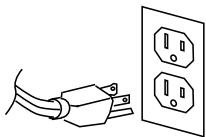
Grounding or Polarization - This product may be equipped with a grounded polarized alternating-current line plug (a plug having one blade wider than the other and a ground prong). This plug will fit into the power outlet only one way. This is a safety feature. If you are unable to
insert the plug fully into the outlet, contact your electrician to replace your obsolete outlet. Do not defeat the safety purpose of the polarized plug.
- Protective Attachment Plug - The product is equipped with an attachment plug having overload protection. This is a safety feature. See Instruction Manual for replacement or resetting of protective device. If replacement of the plug is required, be sure the service technician uses a replacement plug specified by the manufacturer with the same overload protection as the original plug.
-
Outdoor Antenna Grounding – If an outside antenna or cable system is connected to the product, be sure the antenna or cable system is grounded so as to provide some protection against voltage surges and built-up static charges. Article 810 of the National Electrical Code, ANSI/NFPA 70, provides information with regard to proper grounding of the mast and supporting structure, grounding of the lead-in wire to an antenna discharge unit, size of grounding conductors, location of antenna-discharge unit, connection to grounding electrodes, and requirements for the grounding electrode. See Figure 1.
-
Lightning - Unplug the unit from the wall outlet and disconnect the antenna or cable system for added protection during a lightning storm, or when it is left unattended and unused for long periods of time. This will prevent damage to the product due to lightning and power line surges.
-
Power Lines - An outside antenna system should not be located in the vicinity of overhead power lines, other electric light or power circuits, or where it can fall into such power lines or circuits. When installing an outside antenna system, extreme care should be taken to keep from touching such power lines or circuits, as contact with them might be fatal.
-
Overloading – Do not overload wall outlets, extension cords, or integral convenience receptacles as this can result in a risk of fire or electric shock.
-
Object and Liquid Entry – Never push objects of any kind into this product through openings as they may touch dangerous voltage points, or short-out parts that could result in a fire or electric shock. Never spill liquid of any kind on the product.
-
Servicing – Do not attempt to service this product yourself as opening or removing covers may expose you to dangerous voltage or other hazards. Refer all servicing to qualified service personnel.
-
Damage Requiring Service – Unplug this product from the wall outlet and refer servicing to qualified service personnel under the following conditions:
a. When the power supply cord or plug is damaged.
b. If liquid has been spilled, or objects have fallen into the product.
c. If the product has been exposed to rain or water.
d. If the product does not operate normally by following the operating instructions. Adjust only those controls that are covered by the operating instructions. Improper adjustment of other controls may result in damage and will often require extensive work by a qualified technician to restore the product to its normal operation.
e. If the product has been dropped or damaged in any way.
f. When the product exhibits a distinct change in performance.
-
Replacement Parts - When replacement parts are required, be sure the service technician uses replacement parts specified by the manufacturer or having the same characteristics as the original part. Unauthorized substitutions may result in fire, electric shock, or other hazards.
-
Safety Check - Upon completion of any service or repairs to this product, ask the service technician to perform safety checks to determine that the product is in proper operating condition.
-
Wall or Ceiling Mounting – The product should be mounted to a wall or ceiling only as recommended by the manufacturer.
-
Heat - The product should be situated away from heat sources such as radiators, heat registers, stoves, or other products (including amplifiers) that produce heat.
Regulatory Compliance
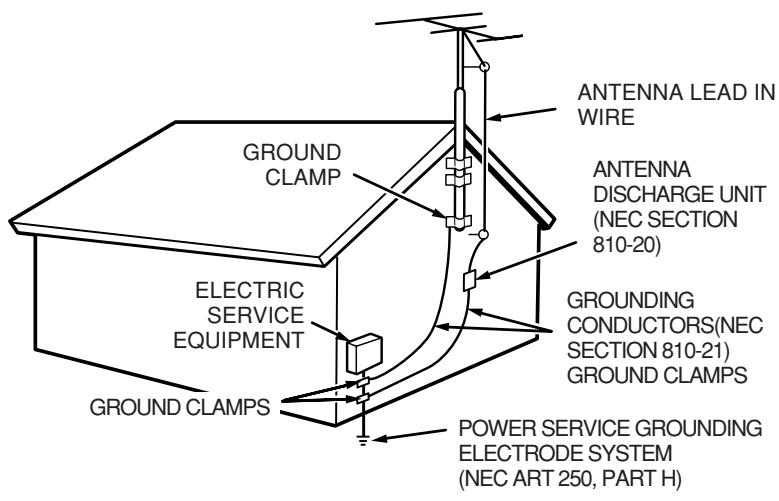
FIGURE 1 EXAMPLE OF ANTENNA GROUNDING AS PER NATIONAL ELECTRICAL CODE,ANSI/NFPA 70 NEC-NATIONAL ELECTRICAL CODE
NOTE TO CATV SYSTEM INSTALLER:
This reminder is provided to call the CATV (Cable-TV) system installer's attention to Article 820-40 of the NEC. This article provides guidelines for proper grounding and, in particular, specifies that the cable ground shall be connected to the grounding system of the building, as close to the point of cable entry as practical.
NOTE:
This equipment has been tested and found to comply with the limits for a Class B digital device, pursuant to Part 15 of the FCC Rules. These limits are designed to provide reasonable protection against harmful interference in a residential installation. This equipment generates, uses, and can radiate radio frequency energy. If it is not installed and used in accordance with these instructions, it may cause harmful interference to radio communications. However, there is no guarantee that interference will not occur in any particular installation. If this equipment does cause harmful interference to radio or television reception, which can be determined by turning the equipment off and on, the user is encouraged to try to correct the interference by one or more of the following measures:
- Reorient or relocate the receiving antenna.
- Increase the separation between the equipment and receiver.
- Connect the equipment to an outlet on a circuit different from that which the receiver is connected.
- Consult the dealer or an experienced radio/TV technician for help.
NOTE:
Changes or modifications may cause this unit to fail to comply with Part 15 of the FCC Rules and may void the user's authority to operate the equipment.
WARNING
Do not expose the equipment to rain or moisture.
Do not remove the cover from the equipment.
Do not insert anything into the equipment through the ventilation holes.
Do not cover the ventilation with any items such as tablecloths, newspapers, curtains, etc.
No naked flame sources, such as lighted candles, should be placed on the equipment.
When setting up the recorder ensure that:
- it will not be exposed to interference from external equipment.
- it will not be exposed to electrostatic discharges.
- it will not be exposed to direct sunlight.
- heavy objects are not placed on the recorder.
Copyright
Recording and playback of any material may require consent. For further information refer to the following US ordinances:
Copyright act of 1956
Dramatic and Musical Performance Act 1958
- Performers Protection Acts 1963 and 1972
- any subsequent statutory enactments and orders
CE marking (only EU version)

English
This product is in conformity with the EMC directive and low-voltage directive.

Français
Equipment mains working system
This product complies with household power and safety requirements in your area.
This Class B digital apparatus complies with Canadian ICES-003.
Controls and Connections 4
Front side 4
Rear side. 5
Display 6
Basic operation 6
CF cards 7
To insert a CF card 7
To eject a CF card 7
CF card security 7
CF card Format 7
Recording 8
Recording Procedure 8
Recording Format parameters 8
Recording time chart 8
How to adjust record level 9
How to adjust record balance 9
Pre Record 9
Silent Skip (Automatic Pause Recording) 9
Add a Track manually 9
Add a Track automatically 9
Playback 10
Playback Procedure 10
Track Access 10
Search 10
Audible Search 11
EDL Mark 11
Add an EDL mark manually 11
Search the EDL mark 11
Add an EDL mark automatically 11
Edit 12
- Trk Erase (How to erase tracks) 12
- TrkMkErase (How to erase all EDL marks within one track) ....12
- AllMkErase (How to erase all EDL marks) ....13
- Format (How to format a CF card) 13
5.Card Check(How to check a CF card) 13
Virtual Track and Copy Segment ....14
Creating a Virtual Track 14
Using Copy Segment to create a new file 15
Entering Virtual Track Playback mode 16
Virtual Track Edit mode 16
Copy SEG? [How to convert a Virtual Track to a new file] ....16
Copy SEG A?
[How to convert all Virtual Tracks to new files] ....16
VT Erase? [How to erase a Virtual Track] 17
AVT Erase? [How to erase all Virtual Tracks] 17
USB mode 18
Computer compatible 18
How to connect via the USB port 18
Diagram of file structure 19
Machine ID 19
Additional Functions 20
Key lock 20
Set Date and Time 20
REMOTE1 jack 20
REMOTE2 jack 20
Display 21
Preset Setup 21
Table of Preset defaults (Americas) 22
Table of Preset defaults (Europe) 22
RS-232C Control
Windows Application 27
RS-232C control 28
Troubleshooting 32
Error Message 33
Specifications 34
LIMITED WARRANTY 35
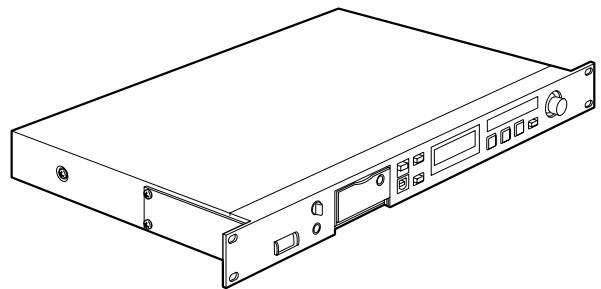
- PMD560
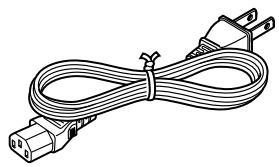
Power cord
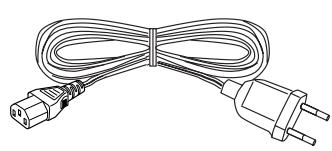
Europe models include 2 power cords
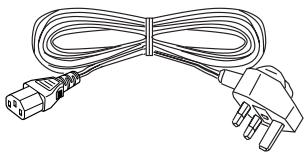
- USB cable
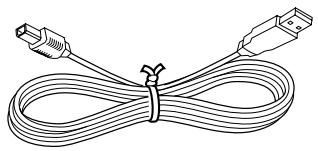
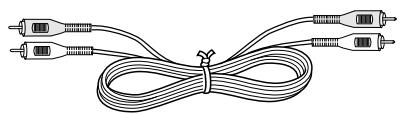
Audio cable (2)
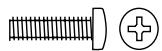
- Security screws (2)
ISO 3x10 (3mm x 10mm long) For CF card door.
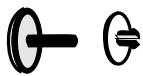
- Plastic pin and retainer (spare - for CF card door)
- CD-ROM
- Contents of the CD may vary.
- Contents usually include:
- PDF format manual(s)
- Several languages may be included.
- This User Guide
- Customer Registration Document (Americas only)
Thank you for selecting the Marantz Professional PMD560 Solid State Recorder.
The PMD560 is an audio recorder that records in digital audio formats onto a Compact Flash™ memory card (CF card) or Microdrive™.
CF cards, also used in digital cameras, are widely available at consumer electronics retailers and computer resellers.
Features
- Stereo (2 channels) and mono (1 channel) audio recording and playback.
Audio inputs may be from :
- line level audio sources connected to the LINE IN jack.
Audio outputs may be from :
-
headphones connected to the HEADPHONE jack, or
-
analog audio devices such as an amplifier or other devices connected to the LINE OUT jack.
-
Records onto various types of CF cards. (Please refer to the Marantz Professional web site www.d-mpro.com for what kind of media are recommended.)
-
Computer compatible
The PMD560 records directly onto CF cards. Recordings can be transferred to your desktop or laptop computer by removing the CF card from the PMD560 or by connecting the PMD560 to your computer via the USB port. Audio recorded in the popular MP3 compression format is directly available for intranet or internet file sharing.
- MS-DOS™ and Windows compatible file system.
Automatic recording
The PMD560 can be set to stop recording when there is silence (Silent Skip) and automatically start when sound resumes. The PMD560 can be set to automatically add an EDL mark to the track at each such starting point.
-
Two different recording formats :
-
Compressed recording using MPEG1 Layer III (MP3) mono and stereo.
MP3 compressed at 128kbps (stereo) or 64kbps (mono).
-
Uncompressed recording using 16-bit linear Pulse Code Modulation (PCM).
-
Three remote options, including RS-232C, permit wired remote control.
-
Security - CF cards
For security, the CF card compartment door can be secured with a screw. Requiring a tool to open the CF card compartment reduces casual removal of the CF card.
-
Pre-Recording memory buffer records 2 seconds of audio before recording is started.
-
Playback aids
A common problem with lengthy voice or other recordings is difficulty in locating one or more specific passages for playback. The PMD560 has several ways to mark specific record starting points.
Tracks
-
A new track (file) is automatically started each time you begin a recording.
-
It is not possible to record over a previously recorded track unless it is first erased.
-
An Auto Track feature can add tracks every minute or other selected recording intervals. (Minute track: Setting the interval to one minute provides a new track every minute of a recording. This permits navigation of a large audio recording by time.)
-
A new track can be started during recording by pressing the REC button (if the "Manual Trk" preset is turned On).
-
EDL marks*
EDL (Edit Decision List) marks can be created during recording manually or automatically. EDL marks help you find specific points in the recording.
-
During playback, you can instantly locate EDL marks.
-
Up to 255 EDL marks can be added to a CF card. EDL marks are numbered consecutively starting at one. During recording, you can manually add an EDL mark by pushing and holding the SHIFT button While you push the REC/MARK button. EDL marks can also be added automatically.
*The EDL marking system is proprietary to Marantz Professional solid state recorders.
Virtual Track
Virtual Track allows you to set an in point and an out point within a file for later immediate playback access.
- Copy Segment
Copy Segment works just like the copy and paste function of your standard word processing program. It allows you to "highlight" a section of a track(file) by setting an in point and an out point, and then paste that section into a new track(file) without destroying the original track(file).
- Setup
Three menu selectable Presets make it easy to switch between your commonly used input, recording format and other menu selections.
Time / Date stamp
A built-in date and time generator marks (stamps) the beginning of each track.
Front side

① POWER switch
Push to turn Power on or off.
② CF card access light(green)
This light flashes while the CF card is being read from or written to.
It is lit and steady while the CF card is ready.
③ SHIFT button
Push and hold the SHIFT button while you push other buttons (black labels) to activate alternate functions.
④ Display
Labels, icons and alphanumeric messages on the display communicate the status of PMD560.
⑤ Level meter
The louder the sound input to the recorder on the Left/Right channel, the more LED lights are displayed.
⑥ Jog Wheel
This is a main control, which changes function depending on the state of the PMD560.
Turn the Jog Wheel to:
- choose the track (during stop,play-pause or playback)
+SHIFT choose an EDL mark (during stop or playback) - adjust recording level (during rec pause or recording)
- +SHIFT adjust recording balance (during rec pause or recording)
- scroll through settings (Menu or Edit Menu)
- Audible search (during playback) while held down. The search continues while the wheel is held down.
- Search (playback pause) while held down. The search continues while the wheel is held down.
Push the Jog Wheel to:
- select displayed setting (Menu or Edit Menu)
⑦ COPY / V.TR MODE button
During playback, push the COPY button to copy mode and setup the start point and end point.
During stop, push the COPY button to enter virtual track playback mode.
See page 14, How to Virtual Track and Copy Segment.
⑧ PLAY/PAUSE button
From stop, push to begin playback.
During playback, push to pause playback.
During play - pause, push to resume playback.
During recording, push to pause recording.
The PLAY/PAUSE button is lit(green) and steady during playback, and blinking during play-pause.
(9) STOP / CANCEL button
STOP
During recording, push to stop recording and end the track (file).
During playback, push to stop playback and end the playback session.
When you resume, playback starts at the beginning of the current track.
- CANCEL
During menu operations, push to cancel all entries made and return to stop mode.
10 REC / MARK button
REC
From record - pause, push to start recording. During recording, push to increment the track (start a new audio file), if "Manual Trk" is turned on in the Preset menu.
From Stop, push to enter record - pause. This allows you to check your record level prior to recording.
The REC/MARK button is lit (red) and steady during recording, and blinking during record-pause.
MARK
Push and hold the SHIFT button while pushing the REC/MARK button to add an EDL Mark manually during pause, recording, or playback.

11 MENU / STORE / EDIT button
-MENU
Menu, accessed from stop by pushing the MENU button, lets you set or change recording and playback parameters, such as changing inputs and setting the Date and Time.
STORE
Push the STORE button while in the preset menu to write menu changes and return to stop mode.
See page 21, How to set or change the preset parameters.
- EDIT
Edit menu, accessed from stop by pushing and holding the SHIFT button then pushing the EDIT button, lets you erase tracks, erase EDL marks and format the CF card.
12 DISPLAY / LOCK button
DISPLAY
Push to tab through alternate information displays. Displays are slightly different in Stop, Record and Play. See Page 21, Display, for more information.
- LOCK
Secures the PMD560 in its present state during Record, Playback or Stop.
Push and hold the SHIFT button while pushing the DISPLAY/LOCK button to lock all functions.
USB port
USB mode is started by connecting a USB cable while stopped.
The CF card in the PMD560 appears as an external drive on a connected computer. It may also be removed for data transfer.
See page 18, How to connect via the USB port.
14 CF card compartment
Pull the card door open to access the CF card.
15 LEVEL control
Turn to adjust the volume of headphones plugged into the HEADPHONE jack.
16 HEADPHONE jack
Stereo headphones are plugged into this jack.
LINE IN (RCA)
Plug external line level audio devices in this jack.
Plug stereo audio cable in this jack to record from the output of an external unit.
LINE OUT (RCA)
Plug external line level audio devices in this jack.
Plug stereo audio cable in this jack to connect to the input of an amplifier or other external unit.
3 REMOTE 2 jack
This jack accepts the optional wired remote Marantz model RC600PMD. Model RC600PMD connects via a TRRS (Tip Ring Ring Sleeve) plug. Model RC600PMD permits:
Starting recording.
- Pausing recording
- Adding EDL marks.
4 REMOTE1 jack
REMOTE1 accepts a remote (not supplied) that connects via a TS(Tip Sleeve) 1/4 inch plug.
5 RS-232C connector
Using serial communication, a host device can control the PMD560. (page 28)
6 AC IN jack
Plug the supplied power cord in this jack.
Display
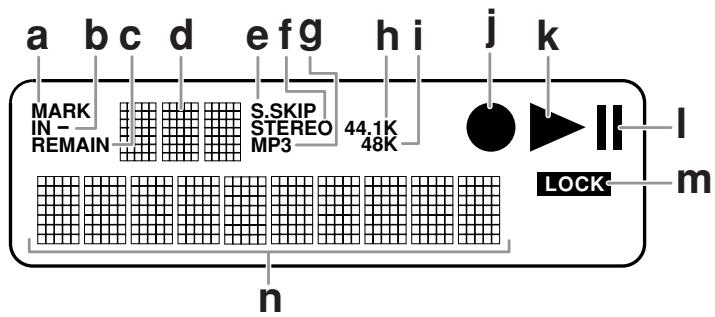
a. MARK
The MARK label appears when the number displayed on the upper alphanumeric display refers to EDL marks.
b. IN-
The IN- label appears when the beginning (start point) of Copy segment function has been set.
c. REMAIN
The REMAIN label appears to indicate remaining time.
d. Upper alphanumeric display
Displays track number, number of tracks on CF card, EDL mark number, number of EDL's on CF card.
e. S.SKIP
The S.SKIP label appears when Silent Skip is enabled.
f. STEREO
The STEREO label appears when the recording channel is stereo.
q. MP3
The MP3 label appears when the audio file is MP3.
h.44.1K
The 44.1K label appears when the recording audio wave(s) is 44,100 samples per second.
i. 48K
The 48K label appears when the recording audio wave(s) is 48,000 samples per second.
j. Record
The Record symbol appears when the PMD560 is in record mode. It appears with the Play symbol when recording and appears flashing when in record - pause.
k. Play
The Play symbol appears when the PMD560 is in playback, playback pause, recording, or recording pause.
I. Pause
The Pause symbol appears when the PMD560 is in playback pause or recording pause.
m. LOCK
The Lock symbol appears when the PMD560 is in key lock.
n. Lower alphanumeric display
Displays a variety of information including remaining time, clock time, menu settings, etc.
The PMD560 comes factory preset for recording in stereo. These are settings for recording a meeting, not settings for recording a vocal performance.
-
Rack mount the PMD560 or install on a stable cart or stand.
-
Connect line level analog inputs and/or outputs to the LINE IN/OUT jacks.
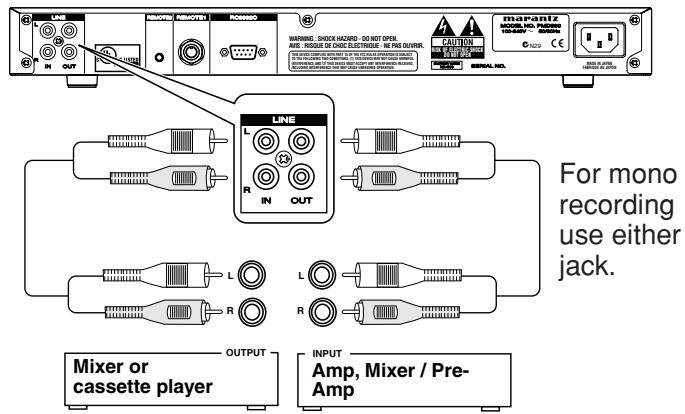
- Install a CF card.
See page 7 for installing a CF card.
- Push the POWER switch to turn on.
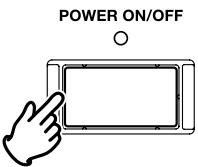
a. A full display will appear. Wait for the PMD560 to initialize.
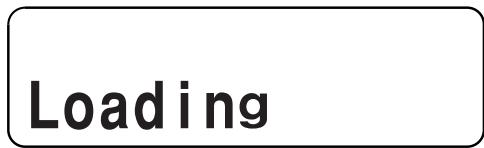
b. The display will change to this display for a newly formatted CF card.
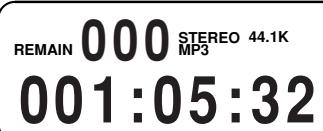
The PMD560 records onto various types of CF (Compact Flash) cards. Please refer to the Marantz Professional web site at www.dmpro.com for what kinds of media are recommended.
To insert a CF card
a. Open the CF card door.
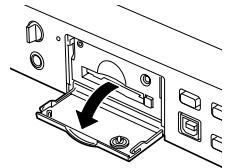
b. Fully insert the CF card.
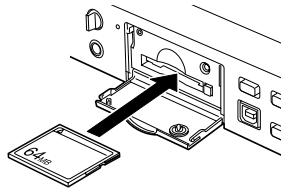
c. Close the CF card door.
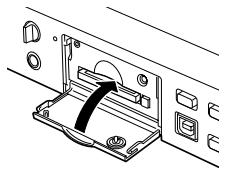
Note:
If the CF card door won't latch, check that the Card eject button is in the click in position.
To eject a CF card
a. Push the POWER switch to turn off.
b. Open the CF card door.
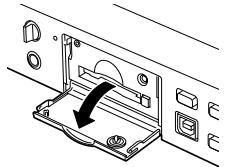
c. Push the card eject button so it is in click out position.
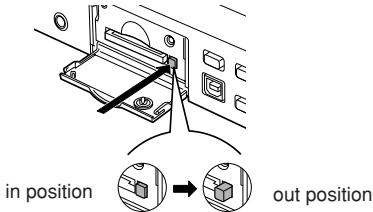
d. Push the Card eject button and remove the CF card.

- If the CF card door opens while power is on, "Door Open" is displayed.
- If recording is in progress, opening the CF card door automatically stops recording and writes critical track information to properly close the file.
CF card security
The supplied CF card compartment security screw requires using a small Phillips screwdriver to open the CF card compartment door. This reduces the possibility that the CF card will be misplaced or stolen.
a. Remove the plastic pin and then the retainer.
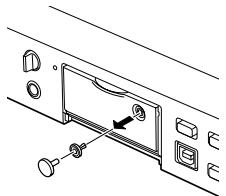
b. Insert the screw.
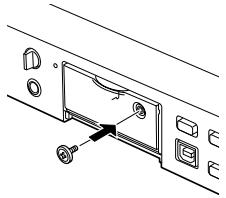
c. Tighten the screw with a small Phillips screwdriver tight enough so the screw cannot be removed with a fingernail.
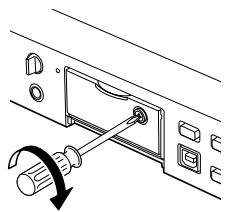
CF card Format
- Formatting a CF card erases all audio files on the CF card and prepares it for use in the PMD560.
If the CF card is formatted other than FAT16 or FAT32 (FAT=file allocation table), please format in your computer.
Setup the "Format" in the Edit menu. (page 13)
Recording Procedure
- Push the POWER switch to turn on.
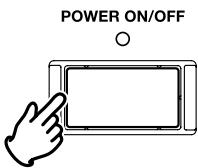
-
Push the REC button to enter record-pause.
-
Push the REC button again, PMD 560 begins Recording.
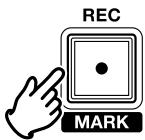
The REC indicator and the red light in the REC button and blinking during record-pause, and lit and steady during recording.
The display will show the information display of recording. (page 21)
001STEREO 44.1K MP3 000:01:23

- Push the PLAY/PAUSE button to pause recording.

-
Push the REC button to resume recording.
-
Push the STOP button to stop recording and end the track (close the audio file).
The display switches to information about the just recorded track.
001STEREO 44.1K MP3000:00:00
You can push the PLAY/PAUSE button to play the just recorded track, or push the STOP button again to enter stop mode.
Pushing the PLAY/PAUSE button will play the beginning of the first track.
Recording Format parameters
The PMD560 can record in several compression algorithms.
- Compressed recording using MPEG1 Layer III (MP3) mono and stereo.
- Uncompressed recording using 16-bit linear Pulse Code Modulation (PCM).
Channel : Stereo
| RecFormat | Sampling Rate | Bitrate | File Extension |
| MP3-44.1kHz | 44.1kHz | 128 kbps | .mp3 |
| MP3-48kHz | 48kHz | 128 kbps | .mp3 |
| PCM-44.1kHz | 44.1kHz | 1412 kbps | .wav |
| PCM-48kHz | 48kHz | 1536 kbps | .wav |
Channel : Mono
| RecFormat | Sampling Rate | Bitrate | File Extension |
| MP3-44.1kHz | 44.1kHz | 64 kbps | .mp3 |
| MP3-48kHz | 48kHz | 64 kbps | .mp3 |
| PCM-44.1kHz | 44.1kHz | 705.5 kbps | .wav |
| PCM-48kHz | 48kHz | 768 kbps | .wav |
For PCM format, standard WAV and BWF are available.
Setup the "Rec Format" and "RecChannel" and "BWF" of the preset menu. (page 23)
Recording time chart
All times are approximated record times.
Different media manufacturers allow more or less space for error correction and the like on their respective products.
| bit rate | 64 kbps | 128 kbps | |
| .mp3 | mono | stereo | |
| CARD SIZE | 32 MB | 1:06 | 0:33 |
| 64 MB | 2:13 | 1:06 | |
| 128 MB | 4:26 | 2:13 | |
| 256 MB | 8:52 | 4:26 | |
| 340 MB | 11:46 | 5:53 | |
| 512 MB | 17:44 | 8:52 | |
| (1 GB) 1024 MB | 35:28 | 17:44 | |
| (2GB) 2048MB | 70:56 | 35:28 | |
| (4GB) 4096MB | 141:52 | 70:56 |
| fs | 44.1 kHz | ||
| PCM | mono | stereo | |
| CARD SIZE | 32 MB | 0:06 | 0:03 |
| 64 MB | 0:12 | 0:06 | |
| 128 MB | 0:24 | 0:12 | |
| 256 MB | 0:48 | 0:24 | |
| 340 MB | 1:04 | 0:32 | |
| 512 MB | 1:36 | 0:48 | |
| (1 GB) 1024 MB | 3:13 | 1:36 | |
| (2GB) 2048MB | 6:27 | 3:13 | |
| (4GB) 4096MB | 12:54 | 6:27 | |
| fs | 48 kHz | ||
| PCM | mono | stereo | |
| CARD SIZE | 32 MB | 0:05 | 0:02 |
| 64 MB | 0:11 | 0:05 | |
| 128 MB | 0:22 | 0:11 | |
| 256 MB | 0:44 | 0:22 | |
| 340 MB | 0:59 | 0:29 | |
| 512 MB | 1:28 | 0:44 | |
| (1 GB) 1024 MB | 2:57 | 1:28 | |
| (2GB) 2048MB | 5:55 | 2:57 | |
| (4GB) 4096MB | 11:51 | 5:55 | |
How to adjust record level
Turn the Jog Wheel to set or adjust the record level (Vol.) during recording or in record-pause.
Example display
Vol. -10dB
Vol. Mute
The record level can be from 0 to -59 dB and Mute.
Turn to adjust 1 dB at a time.
The record level setting is remembered, even after power off, so you do not have to do anything else to confirm or store it.
How to adjust record balance
First check or adjust the record level (above). Push and hold the SHIFT button while you turn the Jog Wheel to set or adjust the record balance during recording or in record-pause.
Record balance maintains the record level of the target channel and reduces the record level of the other channel in 1 dB increments. For example, if you push and hold the SHIFT button and turn the Jog Wheel 5 clicks to the right, the right channel record level is not changed, and the left channel record level is reduced 5dB.
Example display
Bal.L-10dB
The record balance setting is remembered, even after power off, so you do not have to do anything else to confirm or store it.
Pre Record
When PreRecord is on and the PMD560 is in record-pause, it 'listens to' the selected audio input(s) and continuously buffers 2 seconds of audio.
Then, when record is started, the PMD560 writes the previously buffered 2 seconds of audio to the card & continues to record from there.
Setup the "PreRecord" of the preset menu. (page 24)
Silent Skip (Automatic Pause Recording)
Silent Skip automatically pauses recording when there is a period of silence and resumes recording when sound resumes.
The Silent Skip Menu setting permits:
- Turning Silent Skip On or Off.
- Adjusting the margin sound level that defines silence in -60dB, -54dB, -38dB or -20dB.
Setup the "Silent Skip" of the preset menu. (page 25)
Add a Track manually
When Manual Trk (Manual Track incrementing) is On during recording, push the REC button to increment the track. A new track is created at that point. The continuity of sound is not guaranteed and depends on the speed of a card or the file size.
Setup the "Manual Trk" of the preset menu. (page 24)
Add a Track automatically
With Auto Trk(Automatic Track incrementing) on, a new track is begun automatically at specified intervals of recording time.
Automatic Track can be set to increment every 1, 5, 10, 15 or 30 minutes, or every 1, 2, 6, 8, 12 or 24 hours. Automatic Track makes finding a particular point in a recording easier. For example, if a new track begins every minute during playback, the Minute Track makes finding a particular passage easier because of the relationship between track numbers and time. During playback, you can select track 3 to play approximately the 3rd minute of recording. To go directly to the beginning of the 10th minute, select track 10, etc.
| Track | Recording time |
| # | minutes:seconds |
| 1 | .0:00 - 1:00 |
| 2 | .1:01 - 2:00 |
| 3 | .2:01 - 3:00 |
The continuity of sound is not guaranteed and depends on the speed of a card or the file size.
Setup the "Auto Trk" of the preset menu. (page 24)
Playback Procedure
- Push the POWER switch to ON.
- Push the PLAY/PAUSE button to begin playback.
The PLAY indicator and the green light in the PLAY/PAUSE button will be lit and steady while in playback.
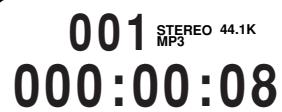
- Push the PLAY/PAUSE button again to pause playback. The green light in the PLAY/PAUSE button is blinking during play-pause.
- Push the STOP button to stop playback.
The display switches to information about the just played track.
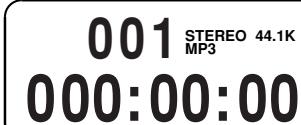
You can push the PLAY/PAUSE button to play the just played track, or push the STOP button again to enter stop mode.
Pushing the PLAY/PAUSE button will play the beginning of the first track.
Track Access
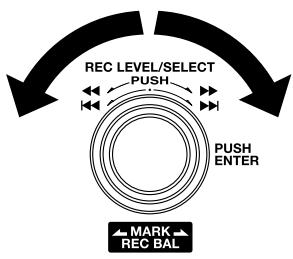
- TRACK JUMP
During playback or play-pause, turn left to jump to the previous track.
If turned while playing the first track, it jumps to the last track on the CF card.
- TRACK JUMP
During playback or play-pause, turn right to jump to the next track.
If turned while playing the last track, it jumps to the first track on the CF card.
Search
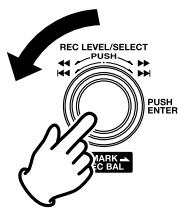
During play - pause, push and turn left the Jog wheel to rewind quickly. The rewind is at 10X speed in the first click. Then it speeds up to 100X speed in 2nd click, 200X speed in 3rd click.
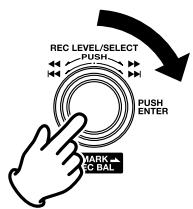
During play - pause, push and turn right the Jog wheel to fast forward quickly. The fast forward is at 10X speed in the first click. Then it speeds up to 100X speed in 2nd click, 200X speed in 3rd click.
Note:
- If the Jog wheel is held past the end of a track, the fast forward will continue into the next track.
- If the Jog wheel is held past the beginning of a track, the rewind will continue into the previous track.
Audible Search
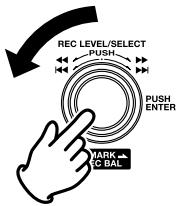
During playback, push and turn left the Jog wheel to "rewind" and do a 2X speed audible search in the reverse direction. Release to return to normal forward playback.
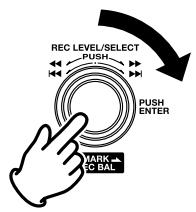
During playback, push and turn right the Jog wheel to "fast forward" and do a 2X speed audible search in the forward direction. Release to return to normal forward playback.
EDL (Edit Decision List) marks can be created during recording or playback manually or automatically. EDL marks help you find specific points in the recording.
- The EDL marking system is proprietary to Marantz.
- During playback, you can instantly locate EDL marks.
- Up to 255 EDL marks can be added to a CF card.
- EDL marks are numbered consecutively starting at one.
- During recording or playback, you can manually add an EDL mark by pushing and holding the SHIFT button while push the REC/MARK button. EDL marks can also be added automatically.
Add an EDL mark manually
Push and hold the SHIFT button while pushing the REC/MARK button to add an EDL Mark manually during pause, recording or playback.
Search the EDL mark
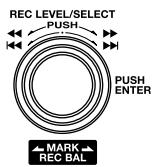
From Stop or playback, push and hold the SHIFT button
while you turn the Jog wheel to scroll through the EDL marks on the CF card.
To start playback from the displayed EDL Mark, push the PLAY/PAUSE button.
Add an EDL mark automatically
The Auto Mark Menu item turns the automatic EDL mark feature Off or On.
- If Auto Mark is on and the machine is in record - pause, when recording is resumed a mark will be added.
- If Auto Mark is on and the PMD560 is recording audio below the sound threshold for more than three seconds, audio that crosses the threshold will cause a mark to be added.
The Auto Mark Menu setting permits:
- Turning Auto Mark On or Off.
- Adjusting the margin sound level that defines silence in -60dB, -54dB, -38dB or -20dB.
Setup the "Auto Mark" of the preset menu. (page 25)
Edit menu, accessed from stop by pushing and holding the SHIFT button then pushing the MENU/STORE/EDIT button, lets you erase tracks, erase EDL marks, format the CF card and card check.
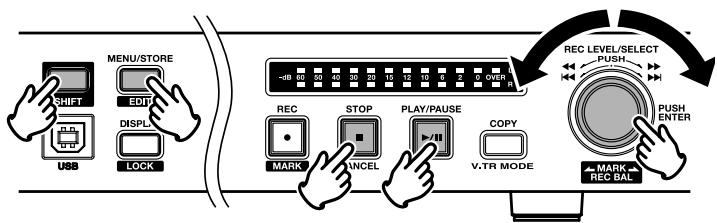
Edit mode includes:
- Trk Erase
- TrkMkErase
- AllMkErase
- Format
5.Card Check
1. Trk Erase (How to erase tracks)
TrkErase lets you erase a selected track.
After identifying the track number you want to erase.
- Select the Trk Erase Edit menu choice:
While in stop, push and hold the SHIFT button then push the MENU/STORE/EDIT button.
"Trk Erase" will appear in the display.
- Push the Jog wheel.
The Display switches to track number flashing.
-
Turn the Jog wheel until the track number you want to erase is flashing.
-
Push the Jog wheel.
"Executing" will be displayed until Trk Erase is finished.
Then "Completed" will be displayed.
-
Display returns to step 3 so you can erase another track.
-
Push the STOP/CANCEL button to cancel.
Note:
The related virtual track(s) and EDL marks associated with the erased track will also erase.
2. TrkMkErase
(How to erase all EDL marks within one track)
TrkMkErase lets you erase all of a track's EDL marks.
Decide on which track's EDL marks you want to erase.
- Select the TrkMkErase Edit menu choice:
While in stop, push and hold the SHIFT button then push the MENU/STORE/EDIT button.
"Trk Erase" will appear in the display.
- Turn the Jog wheel until "TrkMkErase" is displayed.
- Push the Jog wheel.
The Display switches to track number flashing.
- Turn the Jog wheel so the track number whose EDL
marks you want to erase is flashing.
- Push the Jog wheel.
"Executing" will be displayed until TrkMkErase is finished.
Then, "Completed" will be displayed
- Display returns to step 4 so you can erase another track's
EDL marks.
- Push the STOP/CANCEL button to cancel.
Note:
EDL marks will automatically be renumbered.
3. AllMkErase (How to erase all EDL marks)
AllMkErase lets you erase all EDL marks on the CF card.
- Select the AllMkErase Edit menu choice: While in stop, push and hold the SHIFT button then push the MENU/STORE/EDIT button. "Trk Erase" will appear in the display.
- Turn the Jog wheel until "AllMkErase" is displayed.
- Push the Jog wheel. The Display switches to "All" flashing.
- Push the Jog wheel. "Executing" will be displayed until AllMkErase is finished. Then "Completed" will be displayed. The PMD560 and display return to stop mode.
- Push the STOP/CANCEL button to cancel.
4. Format (How to format a CF card) Format lets you erase all audio files on the CF card and prepares it for use in the PMD560. If the CF card is formatted other than FAT16 or FAT32 (FAT=file allocation table), please format in your computer.
- Select the Format Edit menu choice: While in stop, push and hold the SHIFT button then push the MENU/STORE/EDIT button. "Trk Erase" will appear in the display.
- Turn the Jog wheel until "Format" is displayed.
- Push the Jog wheel. The Display switches to "OK?" flashing.
- Push the Jog wheel. "Executing" will be displayed until Format is finished. Then "Completed" will be displayed. The PMD560 and display return to stop mode.
- Push the STOP/CANCEL button to cancel.
5. Card Check(How to check a CF card)
Although rare, manufacturing defects in CF cards occasionally prevent a CF card from being able to read and write at the speeds required by the PMD560. Card Check does a sample read/write to check if a CF card has problems. If a Card Check fails, you can usually return the CF card for a replacement.
- Select the Card Check Edit menu choice: While in stop, push and hold the SHIFT button then push the MENU/STORE/EDIT button. "Trk Erase" will appear in the display.
- Turn the Jog wheel until "Card Check" is displayed.
- Push the Jog wheel. The Display switches to "OK?" flashing.
- Push the Jog wheel. "Executing" will be displayed until Card Check is finished. Then write-speed and read-speed will be displayed alternately.
- Push the STOP/CANCEL button to cancel.
Note:
Check that there is no large difference between the read and write values, and that the values are not largely different at each time you check.
Virtual Track
Virtual Track allows you to set an In point and an Out point within a file (or across multiple files of the same RecFormat and RecChannel) for later, immediate access. Files marked as Virtual Tracks are stored in the PMD560 and can be accessed quickly by entering the PMD560 in Virtual Track Playback mode. See page 14, Creating a Virtual Track. See page 16, Entering Virtual Track Playback mode.
Note:
Because Virtual Tracks are really just location information stored on the card, creating Virtual Tracks requires practically no memory on your card reserving valuable space for actual recorded material.
Copy Segment
Copy Segment operates exactly like Virtual Track except, instead of storing In and Out points for immediate playback access, Copy Segment physically turns your "highlighted" section into a new and separate file, without destroying the original source file(s).
See page 15, Using Copy Segment to create a new file.
Virtual Track Edit mode
In addition, Virtual Playback mode has an edit menu that allows you to turn one Virtual Track into a new file, all Virtual Tracks into new files, erase a Virtual Track, and erase all Virtual Tracks.
See page 16, Virtual Track Edit mode.
Creating a Virtual Track
- During playback, push the COPY button when the audio reaches your desired In Point.
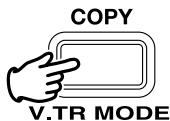
"SetAs IN?" is displayed.
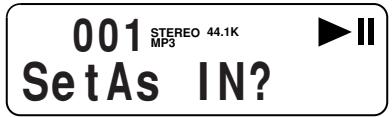
- Push the Jog wheel or the PLAY/PAUSE button to store the In point.
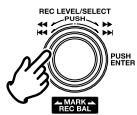
"IN-" will flash in the display to indicate the In point has been stored and playback of the file resumes.
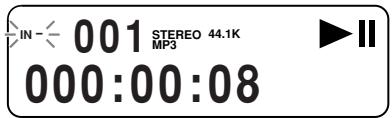
- Continue to let the PMD560 play to your desired Out point, or use the standard transport controls like the Jog wheel to span greater time lengths.
- When you have reached your desired Out point, push the COPY button.
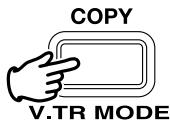
"SetAs OUT?" is displayed.
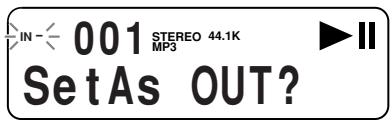
- Push the Jog wheel or the PLAY/PAUSE button to store the Out point.
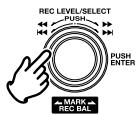
"StoreV. Tr?" is displayed.
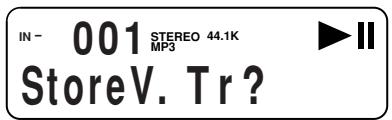
- Push the Jog wheel or the PLAY/PAUSE button to store your segment as a Virtual Track. "Executing" will be displayed momentarily, and then the display will read "Completed." To playback your created Virtual Track, see page 16, Entering Virtual Track Playback mode.
001STEREO 44.1K MP3
Completed
Using Copy Segment to create a new file
- During playback, push the COPY button when the audio reaches your desired In Point.
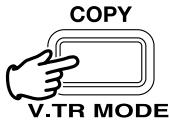
"SetAs IN?" is displayed.
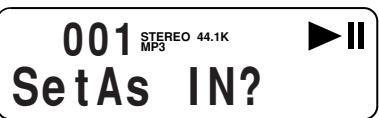
- Push the Jog wheel or the PLAY/PAUSE button to store the In point.
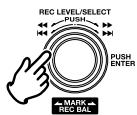
"In-" will flash in the display to indicate the In point has been stored and playback of the file resumes.
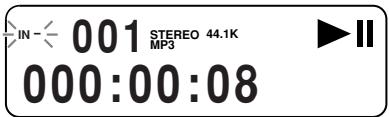
- Continue to let the PMD560 play to your desired Out point, or use the standard transport controls like the Jog wheel to span greater time lengths.
- When you have reached your desired Out point, push the COPY button.
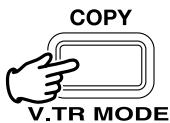
"SetAs OUT?" is displayed.
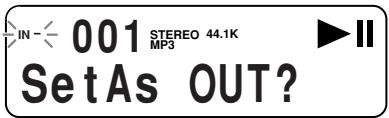
- Push the Jog wheel or the PLAY/PAUSE button to store the Out point.
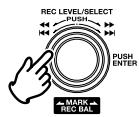
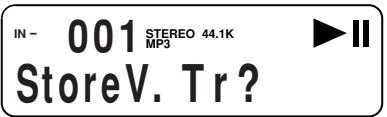
"StoreV. Tr?" is displayed.
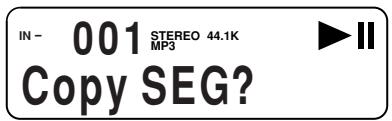
- Turn the Jog wheel until the display reads "Copy SEG?"
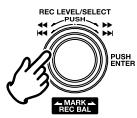
- Push the Jog wheel or the PLAY/PAUSE button to start the Copy process.
"Executing" will be shown on the display.
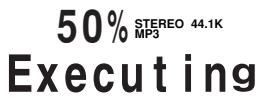
When the copy procedure is completed, the display will show "Completed" for 1 sec. and then returns to stop mode with your new file as the current track.

Note:
- When a copy area spans across two or more tracks, a track is connected and copied.
- When the copy area spans across files of different RecFormat or RecChannel, it can not copy.
- The copy area can not exceed 80 minutes.
- When copying a PCM segment, processing time is real time.
- When copying an MP3 segment, processing time is at 8X speed.
Entering Virtual TrackPlayback mode
Now that you have created a Virtual Track, to play it back you must put the PMD560 into Virtual Track Playback mode.
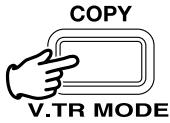
- From stop mode, push the COPY button to enter Virtual Track Playback mode.
"V. Tr Play" will be shown on the display.
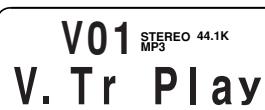
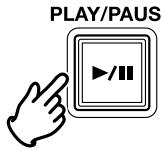
- Push the PLAY/PAUSE button to play the first Virtual Track. If you have more than one Virtual Track, you can turn the Jog wheel until the track you wish to play is displayed in the upper numeric display. Then push the PLAY/PAUSE button.
- To exit Virtual TrackPlayback mode: If a Virtual Track is playing, push the STOP button twice. If the PMD560 is in Virtual TrackPlayback mode and stopped, simply push the STOP button once.
Virtual Track Edit mode
Just like regular playback mode, Virtual track has its own Edit mode. Within this Edit mode, you have the ability to turn one of your Virtual tracks into a new file, all Virtual Tracks into new files, erase a Virtual Track, and erase all Virtual Tracks.
- To enter Virtual Track Edit mode, push and hold the SHIFT button and then push the MENU/STORE/EDIT button, while in Virtual Track Playback mode.
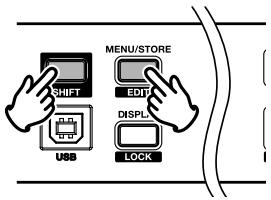
See next Frame, How to convert a Virtual Track to a new file.
See page 16, How to convert all Virtual Tracks to new files.
See page 17, How to erase a Virtual Track.
See page 17, How to erase all Virtual Tracks.
Copy SEG?
[How to convert a Virtual Track to a new file]
When in Virtual Track Edit mode, "Copy SEG?" lets you copy a single Virtual Track to a new file.
After identifying the track to copy:
- Select the "Copy SEG?" Edit menu choice: While in Virtual Track playback mode, push and hold the SHIFT button and then push the MENU/STORE/EDIT button. "Copy SEG?" will appear in the display.
- Push the Jog wheel. The display switches to the Track number blinking in the upper numeric display.
- Turn the Jog wheel until the Track number you want to copy is flashing.
- Push the Jog wheel. "Executing" will be displayed while the copy process works. Then "Completed" will be displayed for one second. The display returns to step 3 so you can copy another track.
- Push the STOP/CANCEL button to cancel.
Copy SEG A?
[How to convert all Virtual Tracks to new files] When in Virtual Track Edit mode, "Copy SEG A?" lets you copy all of your Virtual Tracks to new files.
- Select the "Copy SEG A?" Edit menu choice: While in Virtual Track playback mode, push and hold the SHIFT button and then push the MENU/STORE/EDIT button. "Copy SEG?" will appear in the display.
- Turn the Jog wheel until the display reads "Copy SEG A?"
- Push the Jog wheel. The display switches to "All" blinking in the upper numeric display.
- Push the Jog wheel. "Executing" will be displayed while the copy process works. Then "Completed" will be displayed for one second. The PMD560 and display returns to stop mode.
- Push the STOP/CANCEL button to cancel.
VT Erase?
[How to erase a Virtual Track]
When in Virtual Track Edit mode, "VT Erase?" lets you erase a single Virtual Track.
After identifying the track to erase:
- Select the "VT Erase?" Edit menu choice: While in Virtual Track playback mode, push and hold the SHIFT button and then push the MENU/STORE/EDIT button. "Copy SEG?" will appear in the display.
- Turn the Jog wheel until "VT Erase?" is displayed.
- Push the Jog wheel. The display switches to the Track number blinking in the upper numeric display.
- Turn the Jog wheel until the Track number you want to erase is flashing.
- Push the Jog wheel. "Executing" will be displayed while the erasing process works. Then "Completed" will be displayed for one second. The display returns to step 4 so you can erase another track.
- Push the STOP/CANCEL button to cancel.
AVT Erase?
[How to erase all Virtual Tracks]
When in Virtual Track Edit mode, "AVT Erase?" lets you erase all Virtual Tracks from memory.
- Select the "AVT Erase?" Edit menu choice: While in Virtual Track Playback mode, push and hold the SHIFT button and then push the MENU/STORE/EDIT button. "Copy SEG?" will appear in the display.
- Turn the Jog wheel until "AVT Erase?" is displayed.
- Push the Jog wheel. The display switches to the "All" blinking in the upper numeric display.
- Push the Jog wheel. "Executing" will be displayed while the erasing process works. Then "Completed" will be displayed for one second. The PMD560 and display returns to stop mode.
- Push the STOP/CANCEL button to cancel.
The PMD560 records directly onto CF cards.
Recordings can then be transferred to your desktop or laptop computer by removing the CF card from the PMD560, or by connecting the PMD560, to your computer via the USB port.
Audio recorded in the popular MP3 compression format is directly available for intranet or internet file sharing.
Computer compatible
On your computer you can then:
- log and archive audio files
- play audio files
Save audio files to:
- your hard drive
-
a floppy
a CD-R disc -
post streaming audio files on your web site
- use software and your computer to transcribe digital recordings
How to connect via the USB port
The CF card in the PMD560 appears as an external drive on a connected computer.
- Connect the cable to the PMD560 and your computer during stop.
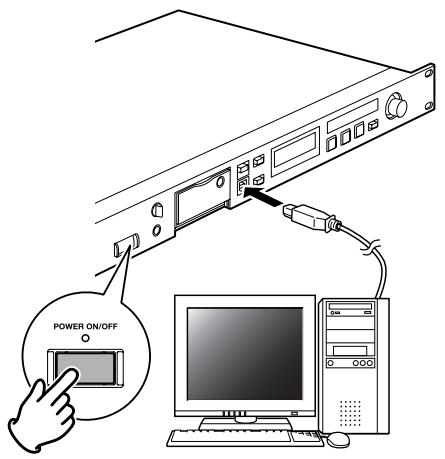
- "USB" is displayed.
USB
Note:
- The PMD560 cannot be used while in USB mode.
- The CF card in the PMD560 appears as a removable device on your computer.
- The audio files are in a folder that is named MPGLANG1.
- Remove the USB cable to resume recording or playback on the PMD560.
CAUTION:
- Only copy audio files (tracks) to other volumes.
- Do not modify or delete the EDL file.
- If the EDL and Virtual Track file is missing or damaged PMD560 will not be able to recognize EDL marks and Virtual Tracks.
- Do not remove a CF card during USB mode. Data and the CF card can be damaged.
Diagram of file structure
A file titled PMD660 will appear on your computer.
EDL,Virtual Track and a folder (directory) titled MPGLANG1 will also appear.
Files within the MPGLANG1 folder are numbered from aaaaa001 through the number of tracks recorded to a maximum of aaaaa999.
("aaaa" depends on the Machine ID parameter).
The file extension will be .mp3 or .wav depending on the
"Rec Format" parameter that is set for the recording.
Root----PMD660.EDL
-----PMD660.CPY
---MPGLANG1
---aaaa001.MP3
---aaaa002.MP3
---aaaa003.MP3
Changes made to file names or structures on your computer will prevent file recognition and playback in the PMD560.
Machine ID
An audio track (file) has Machine ID information. This information is included in a file name. For example, if the Machine ID is "aaaa", the first file is numbered "aaaa001.wav" or "aaaa001.mp3".
Default setting is MZ000.
If "1" is set as the machine ID, audio files recorded using the PMD560 can be played on the PMD570/670.
The machine ID should be 5 characters long to allow playback on the PMD671.
Setup the "Machine ID" of the preset menu. (page 26)
Key lock
The key lock secures the PMD560 in the state it is in during Record, Playback or Stop.
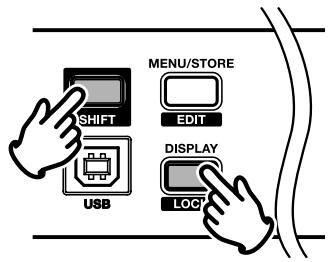
Push and hold the SHIFT button while pushing the DISPLAY/LOCK button to turn KEY LOCK on. All buttons and functions will cease to operate.
Set Date and Time
The date and time are written on each audio track (file) when the track is started. When an audio track is viewed on a computer, this date and time appears as when the file was 'created'.
Setup the "Date/Time" of the preset menu. (page 23)
REMOTE1 jack
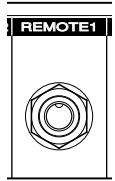
Plug a wired remote (not supplied) in this jack.
A switch connected to the 1/4 inch jack off (open) and on (closed) does the following, depending on the RemoteMode setting:

RemoteMode:
StartPause
From Record-Pause or Playback-Pause, switch remote on to start recording or playback. During recording or playback, switch remote off to pause and on to resume. If Auto Mark is On, an EDL mark is added when recording resumes.
Start Pause Tr
From Record-Pause or Playback-Pause, switch remote on to start recording or playback. During recording or playback, switch remote off to pause and on to resume.
During recording ,switch remote off to create a new track.
Mark
During recording or playback, switch remote to on to add an EDL mark.
Manual Trk
During recording, switch remote to on to increment the track. A new track is created at that point. There is no break in recording.
See page 26 for instructions on how to set or change the Remote Mode.
REMOTE2 jack
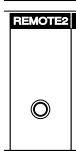
The REMOTE2 jack is for the optional RC600PMD remote.
The RC600PMD is designed for microphone interviews. It attaches to your microphone.
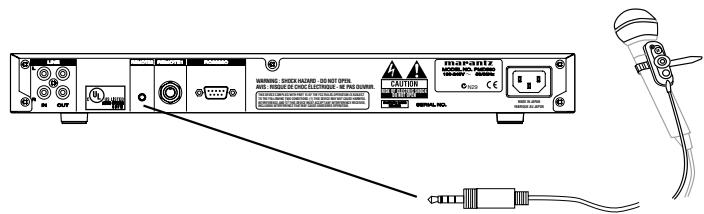
The remote's five feet cord with a four contact mini plug, plugs into the PMD560.
The RC600PMD does not require any menu changes for use. The RC600PMD includes:
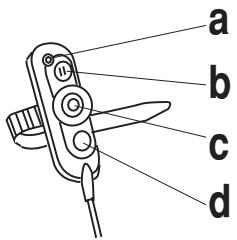
a An indicator light:
- (green) lit and steady during standby or stop
- (red) lit and steady while recording
- (flashing red) during rec pause
- (orange) flashes for 1/2 second when an over peak level signal is input during recording or rec pause, then it goes back to red
- (green flash) for 2 seconds when an EDL mark is added during recording
b push to pause recording
c push to start/resume recording and to manually increment tracks
d push to add an EDL mark while recording or playback
Display
Push the DISPLAY/LOCK button to alternate information displays.
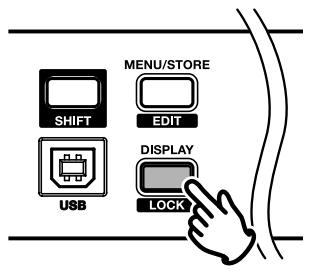
Displays are slightly different in Stop, Record and Playback.
- During Stop:
- Remaining record time for the CF card (Default display)
- Total EDL marks on CF card.
- Current clock date
- Current clock time
- Remaining record time for the CF card (Default display)
During Record:
- Elapsed record time of the current track (Default display)
- Remaining record time for the CF card
- Recording date information
Recording time information - Recording track name (Machine ID) information
- Elapsed record time of the current track (Default display)
During Playback:
- Elapsed play time of the current track (Default display)
- Remaining playing time on the current track
- Recorded date information
- Recorded time information
- Playing track name (Machine ID) information
- Elapsed play time of the current track (Default display)
Presents lets you set or change recording and playback parameters, such as changing inputs and setting the Date and Time.
Three menu selectable Presets make it easy to switch between your commonly used input, recording format and other menu selections.
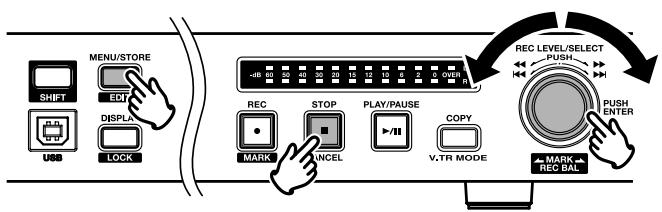
General Menu procedure
- With the PMD560 at Stop, Push the MENU/STORE/EDIT button.
- Turn the Jog wheel to choose the Preset number.
- When displayed, push the Jog wheel to select that Preset number choice.
- Turn the Jog wheel to tab through the sub menu display.
- When the desired parameter or value is displayed and flashing, push the Jog wheel to select it.
- Repeat steps 4-5 as desired.
- When finished, push the MENU/STORE/EDIT button to store your changes, or push the STOP/CANCEL button to cancel them.
Preset defaults
The default Menu settings for Preset 1, 2 and 3 can be restored by the Default Menu choice. (page 22)
Table of Preset defaults (Americas)
| Display | Selection range | Default Setting | ||
| Preset1 | Preset2 | Preset3 | ||
| 1. Date/Time | 2005 - 2099 | 2005 | 2005 | 2005 |
| Jan - Dec | Jan | Jan | Jan | |
| 1 - 31 | 01 | 01 | 01 | |
| AM/PM 00:00 - 11:59 | AM 00:00 | AM 00:00 | AM 00:00 | |
| 2. Rec Format | MP3-44.1K/ MP3-48K/PCM-44.1K/ PCM-48K | MP3-44.1K | MP3-44.1K | PCM-48K |
| 3. BWF | On/Off | Off | Off | Off |
| 4. RecChannel | Stereo/Mono | Stereo | Stereo | Stereo |
| 5. PreRecord | On/Off | On | On | Off |
| 6. Manual Trk | On/Off | On | On | On |
| 7. Auto Trk | Off/1/5/10/15/30min,1/2/6/8/12/24 hrs | 5min | Off | Off |
| 8. Auto Mark | On/Off-60/-54/-38/-20dB | Off-38dB | Off-38dB | Off-38dB |
| 9. Silent Skip | On/Off-60/-54/-38/-20dB | Off-38dB | Off-38dB | Off-38dB |
| 10. Remote | StartPause / StrtPausTrMark / Manual Trk | Mark | StartPause | ManualTrk |
| 11. Machine ID | 5-digit ASCII code | MZ000 | MZ000 | MZ000 |
| 12. Default | --- | |||
| 13. Version | --- | |||
| Application: | Meeting compressed | Music compressed | Highest QualityUncompressed | |
Table of Preset defaults (Europe)
| Display | Selection range | Default Setting | ||
| Preset1 | Preset2 | Preset3 | ||
| 1. Date/Time | 2005 - 2099 | 2005 | 2005 | 2005 |
| Jan - Dec | Jan | Jan | Jan | |
| 1 - 31 | 01 | 01 | 01 | |
| 00:00 - 23:59 | ---00:00 | ---00:00 | ---00:00 | |
| 2. RecFormat | MP3-44.1K/ MP3-48K/PCM-44.1K/ PCM-48K | PCM-44.1K | PCM-48K | MP3-44.1K |
| 3. BWF | On/Off | On | On | Off |
| 4. RecChannel | Stereo/Mono | Stereo | Stereo | Stereo |
| 5. PreRecord | On/Off | On | On | On |
| 6. Manual Trk | On/Off | On | On | On |
| 7. Auto Trk | Off/1/5/10/15/30min,1/2/6/8/12/24 hrs | Off | Off | Off |
| 8. Auto Mark | On/Off-60/-54/-38/-20dB | Off-38dB | Off-38dB | Off-38dB |
| 9. Silent Skip | On/Off-60/-54/-38/-20dB | Off-38dB | Off-38dB | Off-38dB |
| 10. Remote | StartPause / StrtPausTrMark / Manual Trk | StartPause | StartPause | StartPause |
| 11. Machine ID | 5-digit ASCII code | MZ000 | MZ000 | MZ000 |
| 12. Default | --- | |||
| 13. Version | --- | |||
| Application: | High QualityUncompressed | Highest QualityUncompressed | MusicCompressed | |
1. Date/Time (How to set or change the Date and Time)
The date and time are written on each audio track(file) when the track is started. When an audio track is viewed on a computer, this date and time appears as when the file was 'created'.
- From stop, push the MENU/STORE/EDIT button.
- Turn the Jog wheel to select Preset 1, 2 or 3.
- Push the Jog wheel to accept the selected Preset.
- Turn the Jog wheel so Date/Time is displayed.
- Push the Jog wheel while Date/Time is displayed. The Date and time information will be displayed with the month flashing. (Europe : the day flashing)
- Turn the Jog wheel until the current month is displayed.
- Push the Jog wheel to confirm the month. The day will be flashing. (Europe : the month flashing)
- Turn the Jog wheel until the current day is displayed.
- Push the Jog wheel to confirm the day. The year will be flashing.
- Turn the Jog wheel until the current year is displayed.
- Push the Jog wheel to confirm the year. The hour will be flashing.
- Turn the Jog wheel until the current hour is displayed.
- Push the Jog wheel to confirm the hour. The minute will be flashing.
- Turn the Jog wheel until the current minute is displayed.
- Push the Jog wheel to confirm the minute.
- Date/Time will be displayed.
- If you are finished making Menu changes to the Preset, push the MENU/STORE/EDIT button to save your changes. (or push the STOP/CANCEL button to cancel all changes)
- Display returns to stop mode.
Note:
The Date/Time setting will remain for about 5 years if the PMD560 is not plugged in.
Date/Time setting applies to all three presets.
2. Rec Format
(How to set or change the Rec Format parameters)
The PMD560 can record in several compression algorithms.
| RecChannel in menu | Rec Format in menu | bit rate | file extensions |
| Stereo | PCM-44.1K | 1412k | .wav |
| PCM-48K | 1536k | .wav | |
| MP3-44.1K | 128k | .mp3 | |
| MP3-48K | 128k | .mp3 | |
| Mono | PCM-44.1K | 705.6k | .wav |
| PCM-48K | 768k | .wav | |
| MP3-44.1K | 64k | .mp3 | |
| MP3-48K | 64k | .mp3 |
- From stop, push the MENU/STORE/EDIT button.
- Turn the Jog wheel to select Preset 1, 2 or 3.
- Push the Jog wheel to accept the selected Preset.
- Turn the Jog wheel so Rec Format is displayed.
-
Push the Jog wheel while Rec Format is displayed. The Rec Format choice (PCM-44.1K, PCM-48K, MP3-44.1K or MP3-48K) is flashing.
-
Turn the Jog wheel to tab through the Rec Format choices.
- When correct, Push the Jog wheel. Display returns to Rec Format.
- Turn the Jog wheel to select other Menu choices for editing. When editing the Preset is complete, push the MENU/STORE/EDIT button to store the changes, or push the STOP/CANCEL button to exit Menu mode without making any changes.
- Display returns to stop mode.
3. BWF
When BWF is On, the record file of PCM is BWF( Broadcast Wav Format). When BWF is Off, the record file of PCM is standard wav format. BWF applies to PCM only.
- From stop, push the MENU/STORE/EDIT button.
- Turn the Jog wheel to select Preset 1, 2 or 3.
- Push the Jog wheel to accept the selected Preset.
- Turn the Jog wheel so BWF is displayed.
- Push the Jog wheel while BWF is displayed. The BWF choice (On or Off) is flashing.
- Turn the Jog wheel to tab through the BWF choices.
- When correct, Push the Jog wheel. Display returns to BWF.
- Turn the Jog wheel to select other Menu choices for editing. When editing the Preset is complete, push the MENU/STORE/EDIT button to store the changes, or push the STOP/CANCEL button to exit Menu mode without making any changes.
- Display returns to stop mode.
4. RecChannel
(How to set or change the RecChannel parameters)
- From stop, push the MENU/STORE/EDIT button.
- Turn the Jog wheel to select Preset 1, 2 or 3.
- Push the Jog wheel to accept the selected Preset.
- Turn the Jog wheel so RecChannel is displayed.
- Push the Jog wheel while RecChannel is displayed. The RecChannel choice (Stereo or Mono) is flashing.
- Turn the Jog wheel to tab through the RecChannel choices.
- When correct, push the Jog wheel. Display returns to RecChannel.
- Turn the Jog wheel to select other Menu choices for editing. When editing the Preset is complete, push the MENU/STORE/EDIT button to store the changes, or push the STOP/CANCEL button to exit Menu mode without making any changes.
- Display returns to stop mode.
5. PreRecord
When PreRecord is on and the PMD560 is in record-pause, it 'listens to' the selected audio input(s) and continuously buffers 2 seconds of audio. When recording begins, the 2 second pre record buffer is written at the beginning of the new track. The 2 seconds give you time to start recording without missing the first seconds of audio.
- From stop, push the MENU/STORE/EDIT button.
- Turn the Jog wheel to select Preset1, 2 or 3.
- Push the Jog wheel to accept the selected Preset.
- Turn the Jog wheel so PreRecord is displayed.
- Push the Jog wheel while PreRecord is displayed. The PreRecord choice (On or Off) is flashing.
- Turn the Jog wheel to tab through the PreRecord choices.
- When correct, Push the Jog wheel. Display returns to PreRecord.
- Turn the Jog wheel to select other Menu choices for editing. When editing the Preset is complete, push the MENU/STORE/EDIT button to store the changes, or push the STOP/CANCEL button to exit Menu mode without making any changes.
- Display returns to stop mode.
6. Manual Trk
When Manual Trk incrementing is On during recording, push the REC button to increment the track. A new track is created at that point. A slight break might be heard during playback.
- From stop, push the MENU/STORE/EDIT button.
- Turn the Jog wheel to select Preset 1, 2 or 3.
- Push the Jog wheel to accept the selected Preset.
- Turn the Jog wheel so Manual Trk is displayed.
- Push the Jog wheel while Manual Trk is displayed. The Manual Trk choice (On or Off) is flashing.
- Turn the Jog wheel to tab through the Manual Trk choices.
- When correct, Push the Jog wheel. Display returns to Manual Trk.
- Turn the Jog wheel to select other Menu choices for editing. When editing the Preset is complete, push the MENU/STORE/EDIT button to store the changes, or push the STOP/CANCEL button to exit Menu mode without making any changes.
- Display returns to stop mode.
7. Auto Trk
With Auto Trk (Automatic Track incrementing) on, a new track begins automatically at specified intervals of recording time.
Automatic Track can be set to increment every 1, 5, 10, 15 or 30 minutes, or every 1, 2, 6, 8, 12 or 24 hours.
Automatic Track makes finding a particular point in a recording easier.
For example, if a new track begins every minute during playback :
- The Minute Tracks make finding a particular passage easier because of the relationship between track numbers and time.
- You can select track 3 to play approximately the 3rd minute of recording.
- You can go directly to the beginning of the 10th minute by selecting track 10, etc.
| Track | Recording time |
| # | minutes:seconds |
| 1 | 0:00 – 1:00 |
| 2 | 1:01 – 2:00 |
| 3 | 2:01 – 3:00 |
- From stop, push the MENU/STORE/EDIT button.
- Turn the Jog wheel to select Preset1, 2 or 3.
- Push the Jog wheel to accept the selected Preset.
- Turn the Jog wheel so Auto Trk is displayed.
- Push the Jog wheel while Auto Trk is displayed. The Auto Trk choice (Off, 1, 5, 10, 15 or 30 minutes, or 1, 2, 6, 8, 12 or 24 hours) is flashing.
- Turn the Jog wheel to tab through the Auto Trk choices.
- When correct, Push the Jog wheel. Display returns to Auto Trk.
- Turn the Jog wheel to select other Menu choices for editing. When editing the Preset is complete, push the MENU/STORE/EDIT button to store the changes, or push the STOP/CANCEL button to exit Menu mode without making any changes.
- Display returns to stop mode.
Note:
If you intend to transfer your PMD560 audio recording to a CD, the Auto Track function makes the CD easily navigable without requiring any post production to divide files into tracks.
8. Auto Mark
The Auto Mark Menu item turns the automatic EDL mark feature Off or On. See page 11 to manually add EDL marks.
- If Auto Mark is on and the machine is in record - pause, when recording is resumed a mark will be added.
- If Auto Mark is on and the PMD560 is recording audio below the sound threshold for more than three seconds, audio that crosses the threshold will cause a mark to be added.
The Auto Mark Menu setting permits :
- Turning Auto Mark On or Off
-
Adjusting the margin sound level that defines silence in -60dB, -54dB, -38dB, or -20dB.
-
From stop, push the MENU/STORE/EDIT button.
- Turn the Jog wheel to select Preset1, 2 or 3.
- Push the Jog wheel to accept the selected Preset.
- Turn the Jog wheel so Auto Mark is displayed.
- Push the Jog wheel while Auto Mark is displayed. The On or Off will be flashing.
- Turn the Jog wheel to toggle between On and Off.
- When correct, Push the Jog wheel. The display switches to sound level flashing.
- Turn the Jog wheel to change the margin of sound level choices (-60dB, -54dB, -38dB or -20dB).
- When correct, Push the Jog wheel. Display returns to Auto Mark.
- Turn the Jog wheel to select other Menu choices for editing. When editing the Preset is complete, push the MENU/STORE/EDIT button to store the changes, or push the STOP/CANCEL button to exit Menu mode without making any changes.
- Display returns to stop mode.
Note:
The Auto Mark and Silent Skip features use the same level setting.
As the level of Auto Mark is changed, that of Silent Skip also changes automatically.
9. Silent Skip
Silent Skip automatically pauses recording when there is a period of silence and resumes recording when sound resumes. This feature is often referred to as voice activated recording. Silent Skip looks for sound below a preset level for three seconds time. When that occurs, the PMD560 switches to record pause. When a signal above the preset level is input, recording resumes.
The Silent Skip Menu setting permits :
- Turning Silent Skip On or Off.
- Adjusting the margin of sound level that defines silence in -60dB, -54dB, -38dB or -20dB.
When the Auto Mark menu choice is at On, resumption of recording after a record pause by Silent Skip adds an EDL mark.
- From stop, push the MENU/STORE/EDIT button.
- Turn the Jog wheel to select Preset 1, 2 or 3.
- Push the Jog wheel to accept the selected Preset.
- Turn the Jog wheel so Silent Skip is displayed.
- Push the Jog wheel while Silent Skip is displayed. The On or Off will be flashing.
- Turn the Jog wheel to toggle between On and Off.
- When correct, Push the Jog wheel. The display switches to sound level flashing.
- Turn the Jog wheel to change the margin sound level choices (-60dB, -54dB, -38dB or -20dB).
- When correct, Push the Jog wheel. Display returns to Silent Skip.
- Turn the Jog wheel to select other Menu choices for editing. When editing the Preset is complete, push the MENU/STORE/EDIT button to store the changes, or push the STOP/CANCEL button to exit Menu mode without making any changes.
- Display returns to stop mode.
Note:
The Auto Mark and Silent Skip features use the same level setting. As the level of Auto Mark is changed, that of Silent Skip also changes automatically.
10. Remote
The Remote Menu setting is for a wired remote ( not supplied) plugged into the REMOTE1 jack.
- From stop, push the MENU/STORE/EDIT button.
- Turn the Jog wheel to select Preset 1, 2 or 3.
- Push the Jog wheel to accept the selected Preset.
- Turn the Jog wheel so Remote is displayed.
- Push the Jog wheel while Remote is displayed. The Remote choice (StartPause, StrtPausTr, Mark or ManualTrk) is flashing.
- Turn the Jog wheel to tab through the Remote choices.
- When correct, Push the Jog wheel. Display returns to Remote.
- Turn the Jog wheel to select other Menu choices for editing. When editing the Preset is complete, push the MENU/STORE/EDIT button to store the changes, or push the STOP/CANCEL button to exit Menu mode without making any changes.
- Display returns to stop mode.
11. Machine ID
An audio track (file) has Machine ID information.
This information is included in the file name.
For example, if the Machine ID is "aaaa", the first file is numbered "aaaa001.wav" or "aaaa001.mp3".
- From stop, push the MENU/STORE/EDIT button.
- Turn the Jog wheel to select Preset 1, 2 or 3.
- Push the Jog wheel to accept the selected Preset.
- Turn the Jog wheel until Machine ID is displayed.
- Push the Jog wheel while Machine ID is displayed. The first character of the Machine ID will be flashing.
- Turn the Jog wheel to select the characters. To end the machine ID, select the space character (fully lit and flashing).
- When correct, Push the Jog wheel. The next position will be flashing. Repeat steps 6 and 7 until all Machine ID characters are correct. When the space character is selected, the display returns to the Machine ID, so proceed to step 9.
- After the last character, Push the Jog wheel. The display returns to the Machine ID.
- Turn the Jog wheel to select other Menu choices for editing. When editing the Preset is complete, push the MENU/STORE/EDIT button to store the changes, or push the STOP/CANCEL button to exit Menu mode without making any changes.
- Display returns to stop mode.
Note:
The Machine ID setting applies to all three presets.
12. Default
The Default menu choice resets all Menu (not Edit menu) items in the Preset to their default values. This is convenient if you are setting up a new Preset configuration because you do not have to check all the settings - you know they are at the default.
Note:
U.S. defaults are used for illustration.
See page 22 for a table of menu defaults.
Defaults are listed for each menu item.
- From stop, push the MENU/STORE/EDIT button.
- Turn the Jog wheel to select Preset 1, 2 or 3.
- Push the Jog wheel to accept the selected Preset.
- Turn the Jog wheel until Default is displayed.
- Push the Jog wheel while Default is displayed. The OK? is flashing.
- Push the Jog wheel. Display returns to stop mode.
An RS-232C Windows Application for the PMD560 is available for free download (see www.d-mpro.com to download). The Application lets you control and setup the PMD560 from your PC.
Connect your Windows compatible computer to the PMD560 via the REMOTE RS-232C connector on the PMD560 to your computer's RS-232C port. Install the software on your computer.
The software is provided without warranty.
From your computer you can then:
- control all functions of the PMD560.
- change setup/preset menu settings.
- read/write settings to/from PMD560.
- save setup/preset settings as a text file.
- convert a setup text file to a PMD560 Preset.
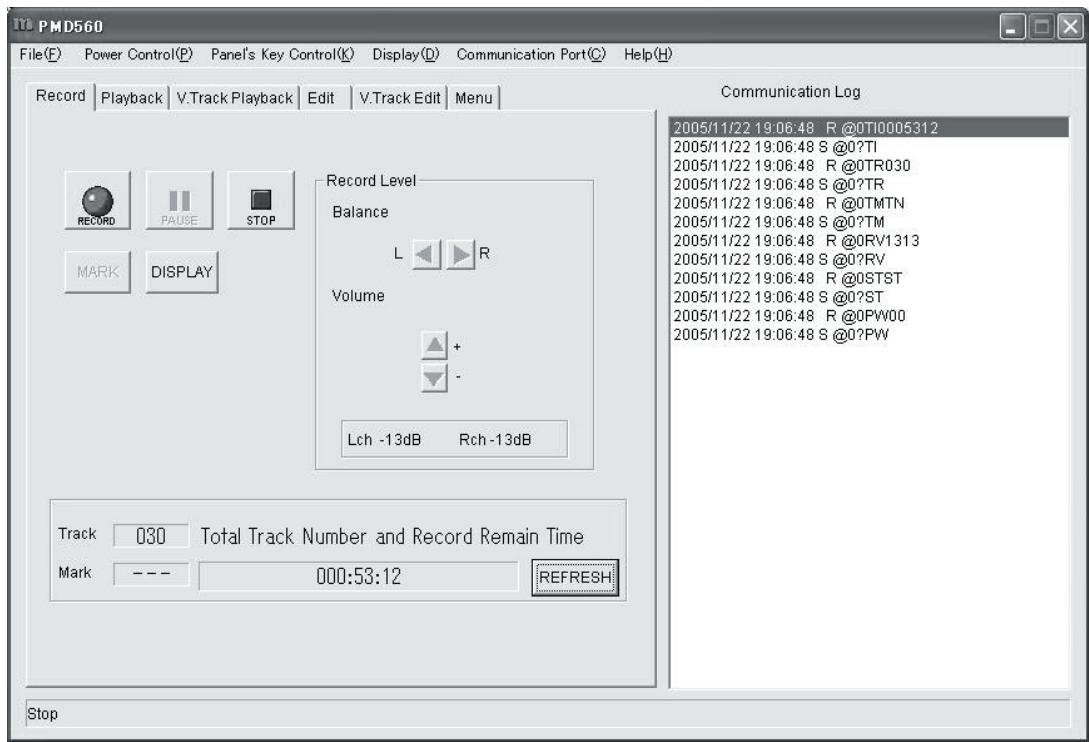
Control screen as it would appear on your computer.
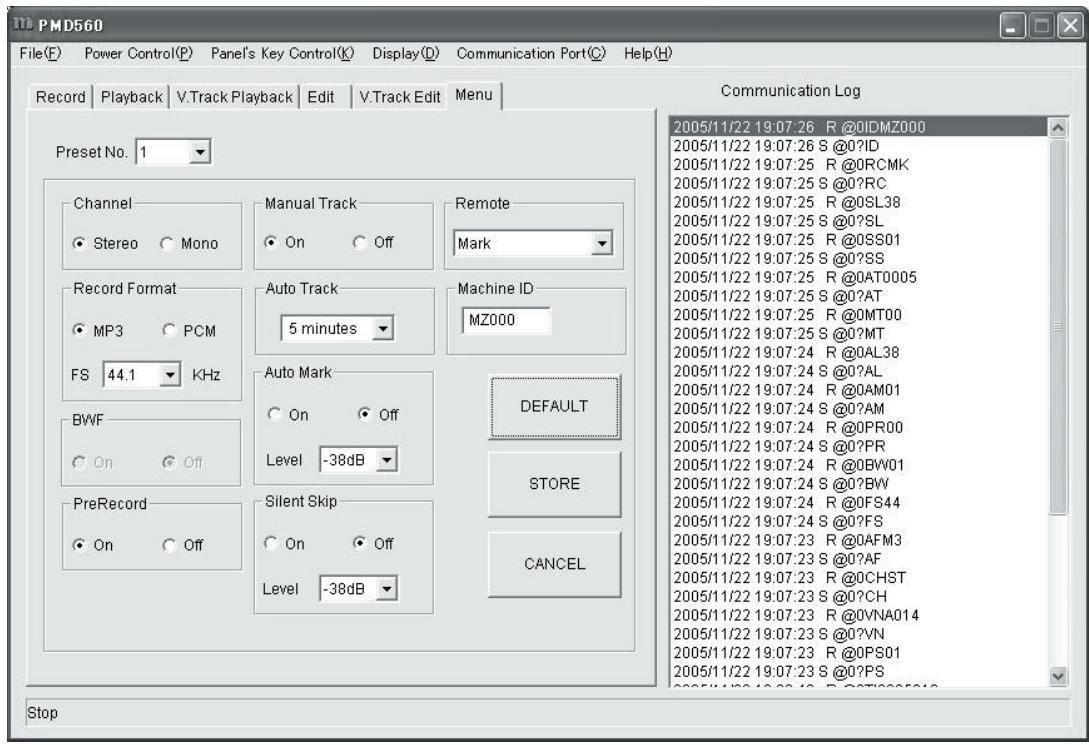
Preset Menu screen as it would appear on your computer (example settings).
Connect a male (D-Sub 9 Pin) to female (D-Sub 9 Pin) straight cable for RS-232C external control by host equipment.
- The RS-232C host can control functions of the PMD560 externally.
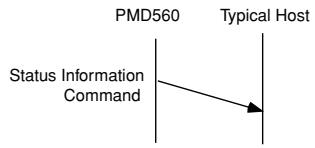
- The PMD560 automatically transmits status data when status is changed.
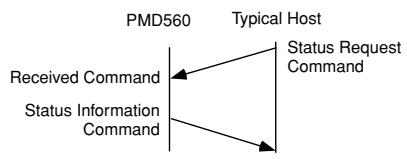
- The PMD560 will respond to status requests by transmitting the associated status data.
RS-232C specifications:
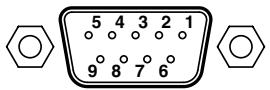
Connector pin assignment
| pin | use | Typical Host | PMD560 |
| 1 | NC | Not Connected | Not Connected |
| 2 | RX | Receive Data | Transmit Data |
| 3 | TX | Transmit Data | Receive Data |
| 4 | NC | Not Connected | Not Connected |
| 5 | GND | Ground | Ground |
| 6 | NC | Not connected | Not connected |
| 7 | RTS | RTS send | RTS receive |
| 8 | CTS | CTS receive | CTS send |
| 9 | NC | Not Connected | Not Connected |
| cable connector | D-Sub 9 pin (female) | D-Sub 9 pin (male) | |
Physical specifications
| Cable | Straight cable |
| Baud rate | 9600 bps |
| Data bits | 8 bits |
| Parity bit | None |
| Stop bit | 1 bit |
| Flow control | CTS/RTS Hardware Flow |
Flow control and timing
CTS/RTS hardware flow control
| Typical Host RTS send | PMD560 CTS send | |
| Not Busy (Normal) | H L | |
| Busy | H L | |
Timing chart
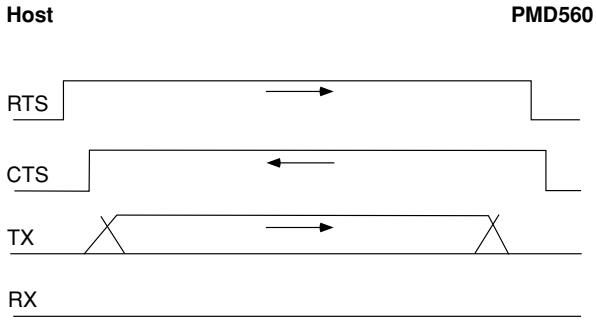
- The host requests data by setting RTS to H.
- Upon data request by RTS, the PMD560 responds by setting CTS to H if not busy.
- The host checks if CTS is H and starts data output on TX.
- When data output finishes, the host sets RTS to L.
- The PMD560 checks if RTS is L and sets CTS to L.
Command format
Start character: "@ End character: 0Dh
Basic format
| Header | Addr | Command code | Return | |||
| @ | 0 | 0Dh | ||||
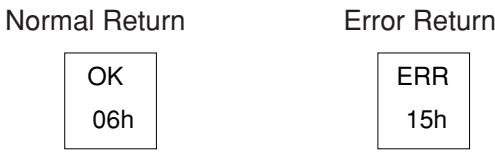
Received okay and error codes
OK (data receive successful) (ACK): 06h
Error (data receive error) (NACK): 15h
Note:
- The receiving side ignores data received prior to "@". If code data is received without receiving "@", the data receive error code will be returned.
- The tolerance for send/receive clock error is ± 3.5% .
- For sending a command, wait more than 20ms after reception of a response (OK, ERR or Status).
- Reception of 0Dh or timeout is used to determine the end of a command. Timeout occurs 1 second after the reception of the last byte.
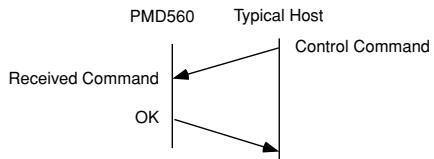
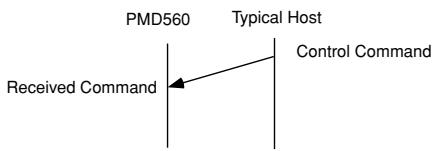
Hand shake flow charts for control commands
Host sends a command that causes a change in PMD560 status.
Host sends a command that causes no change in PMD560 status. For example, Host requests Play during Playback.
Status Request Commands from the host are received by the PMD560, then the status information code is transmitted to the host.
A change in the state of the PMD560 automatically transmits a status information code to the host.
Control command codes
The control command packets have a data length of 7~11 bytes. ASCII codes from 0x00 to 0x7f are used to receive serial data. At the transmission end, take steps to convert the ASCII codes into HEX data to set the data in the data packets. CR (0x0d) is added as the data packet delimiter.
Example: Control command code for number 5 (ASCII code @02305CR)
| @ | 0 | 2 | 3 | 0 | 5 | CR |
| 0x40 | 0x30 | 0x32 | 0x33 | 0x30 | 0x35 | 0x0d |
When transmitting commands consecutively, put more than 100ms blank between commands.
Status Request and Status Information codes
The status data packets have a data length of 7~12 bytes. ASCII codes from 0x00 to 0x7f are used to transmit serial data. For this reason, the ASCII codes are converted into HEX data before the data is set in the data packets and transmitted. CR (0x0d) is added as the data packet delimiter.
Example: Status Information code "Door open" (ASCII code @0DS01CR)
| @ | 0 | D | S | 0 | 1 | CR |
| 0x40 | 0x30 | 0x44 | 0x53 | 0x30 | 0x31 | 0x0d |
| Control Command | Code |
| 0 | "@02300"+ CR |
| 1 | "@02301"+ CR |
| 2 | "@02302"+ CR |
| 3 | "@02303"+ CR |
| 4 | "@02304"+ CR |
| 5 | "@02305"+ CR |
| 6 | "@02306"+ CR |
| 7 | "@02307"+ CR |
| 8 | "@02308"+ CR |
| 9 | "@02309"+ CR |
| DISPLAY | "@02311"+ CR |
| Standby | "@02312"+ CR |
| Power On | "@023PW"+ CR |
| Add EDL mark | "@023121"+ CR |
| Recording Volume + | "@023V+"+ CR |
| Recording Volume - | "@023V- "+ CR |
| Recording Balance Right | "@023BR"+ CR |
| Recording Balance Left | "@023BL"+ CR |
| Track Jump >>I(Next) | "@02332"+ CR |
| Track Jump >>I(Back) | "@02333"+ CR |
| PAUSE | "@02348"+ CR |
| Fast Reverse Start 10x | "@023501"+ CR |
| Fast Reverse Start 100x | "@023502"+ CR |
| Fast Reverse Start 200x | "@023503"+ CR |
| Fast Reverse Stop | "@0235001"+ CR |
| Fast Forward Start 10x | "@023521"+ CR |
| Fast Forward Start 100x | "@023522"+ CR |
| Fast Forward Start 200x | "@023523"+ CR |
| Fast Forward Stop | "@0235201"+ CR |
| PLAY | "@02353"+ CR |
| STOP | "@02354"+ CR |
| RECORD | "@02355"+ CR |
| Manual Track | "@023MT"+ CR |
| Next EDL mark | "@023M+"+ CR |
| Previous EDL mark | "@023M- "+ CR |
| Enter V.Track play mode* | "@023VM"+ CR |
| Track Erase(XXX)* | "@023TEXXX"+ CR |
| Track mark Erase(XXX)* | "@023MEXXX"+ CR |
| All mark Erase* | "@023MEALL"+ CR |
| Format* | "@023FORMAT"+ CR |
| V.Track Erase(VXX)** | "@023VTEXX"+ CR |
| All V.Track Erase** | "@023VTEAL"+ CR |
| Copy Segment(VXX)** | "@023CSXX"+ CR |
| All Copy Segment** | "@023CSAL"+ CR |
| Set IN Point | "@023VTIN"+ CR |
| Set OUT Point for V.Track | "@023VTOUTV"+ CR |
| Set OUT Point for CopySeg | "@023VTOUTC"+ CR |
| Lock panel's key | "@023KL"+CR |
| Unlock panel's key | "@023KU"+CR |
| Preset-1* | "@0PS01"+ CR |
| Preset-2* | "@0PS02"+ CR |
| Preset-3* | "@0PS03"+ CR |
| RecFormat* | |
| PCM | "@0AFPM"+ CR |
| MP3 | "@0AFM3"+ CR |
| 44.1kHz | "@0FS44"+ CR |
| 48kHz | "@0FS48"+ CR |
| BWF* | |
| On | "@0BW00"+ CR |
| Off | "@0BW01"+ CR |
| RecChannel* | |
| Stereo | "@0CHST"+ CR |
| Mono | "@0CHMO"+ CR |
| PreRecord* | |
| On | "@0PR00"+ CR |
| Off | "@0PR01"+ CR |
| Manual Track* | |
| On | "@0MT00"+ CR |
| Off | "@0MT01"+ CR |
| Auto Track* | |
| Off | "@0AT0000"+ CR |
| Time(hhmm) | "@0ATHHmm"+ CR |
| Auto Mark* | |
| On | "@0AM00"+ CR |
| Off | "@0AM01"+ CR |
| Level(XX) | "@0ALXX"+ CR |
| Silent Skip* | |
| On | "@0SS00"+ CR |
| Off | "@0SS01"+ CR |
| Level(XX) | "@0SLXX"+ CR |
| Remote* | |
| StartPause | "@0RCSP"+ CR |
| StrtPausTr | "@0RCST"+ CR |
| Mark | "@0RCMK"+ CR |
| ManualTrk | "@0RCMT"+ CR |
| Machine ID(XXXXX)* | "@0IDXXXXX"+ CR |
| Default* | "@0DEFL"+ CR |
* Must be in stop mode. **Must be in virtual play mode.
Table of Status Request and Status Information codes
When a Status Request Command from the host is received by the PMD560, the PMD560 sends the Status Information to the host. When the PMD560 changes status, the PMD560 automatically sends Status Information to the host.
| Status | Request Code | Information Code | BWF | @0?BW" + CR |
| Power Mode | @0?PW" + CR | On | @0BW00" + CR | |
| Off | @0BW01" + CR | |||
| RecChannel | @0?CH" + CR | |||
| Stereo | @0CHST" + CR | |||
| Mono | @0CHMO" + CR | |||
| Door Condition | @0?DS" + CR | Pre Record | @0?PR" + CR | |
| On | @0PR00" + CR | |||
| Off | @0PR01" + CR | |||
| Card Condition | @0?CD" + CR | Manual Track | @0?MT" + CR | |
| On | @0MT00" + CR | |||
| Off | @0MT01" + CR | |||
| Auto Track | @0?AT" + CR | |||
| Off | @0AT0000" + CR | |||
| Time(hhmm) | @0ATHhmm" + CR | |||
| AutoMark | @0?AM" + CR | |||
| On | @0AM00" + CR | |||
| Off | @0AM01" + CR | |||
| Level(XX) | @0?AL" + CR | |||
| S.Skip | @0?SS" + CR | |||
| On | @0SS00" + CR | |||
| Off | @0SS01" + CR | |||
| Level(XX) | @0?SL" + CR | |||
| Remote | @0?RC" + CR | |||
| StartPause | @0RCSP" + CR | |||
| StrtPausTr | @0RCST" + CR | |||
| Mark | @0RCMK" + CR | |||
| ManualTrk | @0RCMT" + CR | |||
| Machine ID(XXXXX) | @0?ID" + CR | |||
| Version | @0?VN" + CR | |||
| Operation Status | @0?ST" + CR | |||
| In Record | ||||
| Recording | @0STRE" + CR | |||
| Record-Pause | @0STRP" + CR | |||
| In Stop | ||||
| Stop | @0STST" + CR | |||
| InPlayback | ||||
| Playback | @0STPL" + CR | |||
| Playback Pause | @0STPP" + CR | |||
| Seek+ | @0STS- " + CR | |||
| Seek- | @0STS- " + CR | |||
| Fast Forward | @0STFF" + CR | |||
| Fast Reverse | @0STRW" + CR | |||
| V.Trk Play | @0STVP" + CR | |||
| V.Trk PlayPause | @0STVU" + CR | |||
| V.Trk Stop | @0STVS" + CR | |||
| V.Trk Seek+ | @0STV+ " + CR | |||
| V.Trk Seek- | @0STV- " + CR | |||
| V.Trk Fast Forward | @0STVF" + CR | |||
| V.Trk Fast Reverse | @0STVR" + CR | |||
| Others | ||||
| Edit/Preset | @0STED" + CR | |||
| Operation Error | @0STER" + CR | |||
| Display Condition | @0?TM" + CR | |||
| Total Track Number | @0TMTN" + CR | |||
| Total Mark Number | @0TMTM" + CR | |||
| Current Date | @0TMCD" + CR | |||
| Current Time | @0TMCT" + CR | |||
| Track Elapse Time | @0TMTT" + CR | |||
| Track Remain Time | @0TMTR" + CR | |||
| Recorded Date | @0TMRD" + CR | |||
| Recorded Time | @0TMRT" + CR | |||
| File Name | @0TMFN" + CR | |||
| Track Number(XXX) | @0?TR" + CR | @0TRXXX" + CR | ||
| Display Time(hhhmmss) | ||||
| ... | @0?TI" + CR | @0Tlhhmmss" + CR | ||
| Rec Volume(Irr) | @0?RV" + CR | @0RVIrr" + CR | ||
| Preset Number | @0?PS" + CR | |||
| Preset-1 | @0PS01" + CR | |||
| Preset-2 | @0PS02" + CR | |||
| Preset-3 | @0PS03" + CR | |||
| Rec Format Algorithm | @0?AF" + CR | |||
| PCM | @0AFPM" + CR | |||
| MP3 | @0AFM3" + CR | |||
| Rec Format FS | @0?FS" + CR | |||
| 44.1kHz | @0FS44" + CR | |||
| 48kHz | @0FS48" + CR |
Should problems occur, it is often unnecessary to consult your dealer or technical service department. On the basis of the following checks, you may be able to rectify a number of conditions yourself without difficulty. If the condition cannot be remedied after the following check, please consult your dealer, contact our Tech Support Center near you which are listed in D&M Professional website below.
AMERICA
- D&M Professional America http://www.d-mpro.com Service number: 866-405-2154 (Toll Free)
EUROPE
- D&M Professional Europe http://www.d-mpro.eu.com
ASIA/Others
- Marantz Korea Co.,Ltd. http://www.marantz.co.kr
- DENON Asia Co.,Ltd. http://www-denon.com.hk
- D&M Electronics Singapore Pte. Ltd. http://www.denonsingapore.com
The PMD560 does not turn on.
- Check power cord and your home circuit breaker.
The PMD560 seems to record, but there is no sound on playback.
- Is the amp on? Check to see if the connect input has been selected.
There is no audio playback through headphones.
- Check HEADPHONE LEVEL control setting.
- Check a different track or CF card.
The PMD560 will not record.
- Check that the maximum of 999 tracks have not been recorded.
- Check that the PMD560 acknowledges the CF card.
There is excessive noise on the PMD560.
- Check cable connections and/or replace cable.
- Check for proper gain levels.
Playback on a PC results in poor sound.
- Check quality of PC sound card and program.
-
Check frequency conversion program.*
-
The PMD560 records audio files with a sampling frequency of 48kHz . Some PC programs convert the files to 44.1kHz (using a sample rate converter). Only high quality sample rate converters should be used.
PC cannot read files
- Check the capability of the PC program. Some playback and editing programs do not support MP3 or Broadcast Wave (.wav) formats.
If the PMD560 exhibits erratic behavior, the microprocessor can be reset by powering off, disconnecting Power cord.
Care and Maintenance
Use a soft cloth slightly moistened with mild detergent solution.
Media cards that are heavily used should be occasionally reformatted to avoid audio problems due to fragmentation.
| Display | Description |
| CF Card | |
| No Card | No CF card inserted, or card is not detected. |
| Unformat | CF card is formatted other than FAT16 or FAT32. |
| Full Card | Remaining capacity of CF card is less than a few kbytes. |
| Full 999 | The number of tracks on the CF card has reached the 999 maximum. |
| Full Mark | The number of EDL marks on the card has reached the 255 maximum. |
| No Track | Track file is not detected. |
| VBR | VBR file is forwarded or rewinded. |
| No Mark | Mark of track file is not detected. |
| Can not... | Invalid operation. |
| Bad File | The menu setting of the file setting is not detected or file error. |
| Err FS | Version up file or file system error. |
| Full V99 | Copy track (Virtual Track) file is 99 track. |
| No V.Track | Copy track (Virtual Track) file is not detected. |
| Limit 80m | Copy track (Virtual Track) time set to over 80 minutes. |
| Err Format | Not supported file format. |
| Others | |
| Err DSP | DSP processing error. |
| Err Card | Card or File error. |
| Err RTC | RTC processing error. |
| Err EEPROM | EEPROM error. |
| Err SRAM | SRAM error. |
| Err Flash | Flash ROM error. |
Digital audio system
System Solid State Recorder
Compatible media CF memory cards
Microdrive
Recording and media methods
mp3 MPEG1 Layer III compression
PCM 16 bit linear PCM
Recording bit rate
MP3 mono 64 kbps
MP3 stereo 128 kbps
Sampling frequency 44.1, 48 kHz
Number of channels 2 (stereo), 1 (mono)
Frequency response (PCM) 20Hz to 20,000 Hz (+0dB,-2.0dB)
Signal-to-Noise Ratio
IEC-A weighted 86 dB
Total harmonic distortion
at 0 VU (PCM) 0.01%
Dynamic range 86 dB
Inputs
LINE IN
Type RCA jack
Input sensitivity 500 mVrms/22 kohms
Outputs
LINE OUT
Type RCA jack
Standard level 2 Vrms/300 ohms
General
Headphone output power 20 mW/ 32 ohms
Power requirement
Americas model AC 120/60Hz
Europe model .AC 230/50Hz
Power consumption 12 W
Dimensions
Width 482.6 mm (19.0")
Height 52 mm (2.0")
Depth 300.5 mm (11.8")
Weight 3.0 kg (6.6 lbs.)
Included accessories
Power cord Americas model 1 Europe model 2
USB cable 1
Audio cable 2
Screws (ISO 3x10 mm) 2
Plastic pin and retainer 1
CD-ROM 1
User Guide 1
Optional accessories
(See www.d-mpro.com for description and/or ordering information)
Wired remote . RC600PMD
- Specifications subject to change without notice.
LIMITED WARRANTY
Your Marantz Professional product is warranted against manufacturer defects in material and workmanship for a period of one year parts and labor.
Except as specified below, this warranty covers defects in material and workmanship. The following are not covered under warranty:
-
Damage, deterioration, malfunction or failure to meet performance specifications resulting from:
a) Accidents, acts of nature, misuse, abuse, neglect or unauthorized product modification.
b) Improper installation, removal or maintenance, or failure to follow supplied instructions.
c) Repair or attempted repair by a non-Marantz authorized agent.
d) Any shipment (claims must be presented to the carrier).
e) Any cause other than a defect of manufacturing. -
Cleaning, check-ups with no fault found or changes incurred for installation, removal or reinstallation of the product.
- Any serialized product on which the serial number has been defaced, modified or removed.
- Batteries and battery chargers.
- Accessories, including but not limited to: cables, mounting hardware and brackets, cleaning accessories, power cords and adapters, and carry cases.
Non-transferrable warranty
This Warranty may be enforced only by the original purchaser.
What We Will Pay For
We will pay for all labor and material expenses for items covered by the warranty.
How You Can Get Service (Americas only)
- If your unit needs service in the USA, contact our service referral at the appropriate telephone number indicated below. We will advise you of the name and location of one or more authorized service centers from which service may be obtained. Please do not return the unit directly to us.
- You must pay any shipping charges if it is necessary to ship the product for service. If the necessary repairs are covered by the warranty, we will pay return shipping charges to your location anywhere in the United States or its territories.
- Whenever warranty service is required, you must present the original dated sales receipt or other proof of date purchased.
Limitation of Implied Warranties
All implied warranties, including warranties of merchantability and fitness for a particular purpose, are limited in duration to the length of this warranty.
Exclusion of Damages (Americas only)
Liability for any defective product is limited to repair or replacement of the product at manufacturer's option. Manufacturer shall not be liable for damage to other products caused by any defects in Marantz products, damages based on inconvenience or loss of use of the product, or any other damages, whether incidental, consequential, or otherwise.
Some States do not allow limitations on how long an implied warranty lasts and/or do not allow the exclusion or limitation of incidental or consequential damages, so the above limitations and exclusions may not apply to you.
How State Law Relates to the Warranty (Americas only) This warranty gives you specific legal rights, and you may have other rights which may vary from State to State.
Marantz Professional Service Number (Americas only): Marantz Professional Factory Service (630) 741-0330, toll free within the US (866) 405-2154.
Products purchased outside of the United States, its possessions or territories.
This warranty is enforceable only in the United States and its possessions or territories.
Marantz Professional products Sales Office Site:
For inquiries or information on repair service of Marantz Professional Products, please contact our Sales Office or Tech Support Centre near you which are listed in D&M Professional website below.
AMERICA
D&M Professional America http://www.d-mpro.com
Service number : 866-405-2154 (Toll Free)
EUROPE
D&M Professional Europe http://www.d-mpro.eu.com
ASIA / OTHERS
Marantz Korea Co.,Ltd. http://www.marantz.co.kr
DENON Asia Co.,Ltd. http://www-denon.com.hk
D&M Electronics Singapore Pte. Ltd.
http://www.denonsingapore.com
D&M Holdings Inc.
PROFESSIONAL BUSINESS COMPANY