
P-794M - Modem/Router ZYXEL - Free user manual and instructions
Find the device manual for free P-794M ZYXEL in PDF.


User questions about P-794M ZYXEL
0 question about this device. Answer the ones you know or ask your own.
Ask a new question about this device
Download the instructions for your Modem/Router in PDF format for free! Find your manual P-794M - ZYXEL and take your electronic device back in hand. On this page are published all the documents necessary for the use of your device. P-794M by ZYXEL.
USER MANUAL P-794M ZYXEL
SHDSL 4-Port Internet Security Gateway
User's Guide
Version 1.00
10/2005
Edition 1
ZyXEL
Copyright
Copyright © 2005 by ZyXEL Communications Corporation.
The contents of this publication may not be reproduced in any part or as a whole, transcribed, stored in a retrieval system, translated into any language, or transmitted in any form or by any means, electronic, mechanical, magnetic, optical, chemical, photocopying, manual, or otherwise, without the prior written permission of ZyXEL Communications Corporation.
Published by ZyXEL Communications Corporation. All rights reserved.
Disclaimer
ZyXEL does not assume any liability arising out of the application or use of any products, or software described herein. Neither does it convey any license under its patent rights nor the patent rights of others. ZyXEL further reserves the right to make changes in any products described herein without notice. This publication is subject to change without notice.
Trademarks
ZyNOS (ZyXEL Network Operating System) is a registered trademark of ZyXEL Communications, Inc. Other trademarks mentioned in this publication are used for identification purposes only and may be properties of their respective owners.
Federal Communications Commission (FCC) Interference Statement
This device complies with Part 15 of FCC rules. Operation is subject to the following two conditions:
- This device may not cause harmful interference.
- This device must accept any interference received, including interference that may cause undesired operations.
This equipment has been tested and found to comply with the limits for a Class B digital device pursuant to Part 15 of the FCC Rules. These limits are designed to provide reasonable protection against harmful interference in a commercial environment. This equipment generates, uses, and can radiate radio frequency energy, and if not installed and used in accordance with the instructions, may cause harmful interference to radio communications.
If this equipment does cause harmful interference to radio/television reception, which can be determined by turning the equipment off and on, the user is encouraged to try to correct the interference by one or more of the following measures:
- Reorient or relocate the receiving antenna.
- Increase the separation between the equipment and the receiver.
- Connect the equipment into an outlet on a circuit different from that to which the receiver is connected.
- Consult the dealer or an experienced radio/TV technician for help.
Notice 1
Changes or modifications not expressly approved by the party responsible for compliance could void the user's authority to operate the equipment.
Certifications
1 Go to www.zyxel.com.
2 Select your product from the drop-down list box on the ZyXEL home page to go to that product's page.
3 Select the certification you wish to view from this page.

natural_image
Symbol of a trash bin crossed with no text or labels, accompanied by a blank rectangular block below (no text or symbols present)Safety Warnings
For your safety, be sure to read and follow all warning notices and instructions.
- Do NOT open the device or unit. Opening or removing covers can expose you to dangerous high voltage points or other risks. ONLY qualified service personnel can service the device. Please contact your vendor for further information.
- Connect the power cord to the right supply voltage (110V AC in North America or 230V AC in Europe).
- Place connecting cables carefully so that no one will step on them or stumble over them. Do NOT allow anything to rest on the power cord and do NOT locate the product where anyone can walk on the power cord.
- If you wall mount your device, make sure that no electrical, gas or water pipes will be damaged.
- Do NOT install nor use your device during a thunderstorm. There may be a remote risk of electric shock from lightning.
- Do NOT expose your device to dampness, dust or corrosive liquids.
- Do NOT use this product near water, for example, in a wet basement or near a swimming pool.
- Make sure to connect the cables to the correct ports.
- Do NOT obstruct the device ventilation slots, as insufficient airflow may harm your device.
- Do NOT store things on the device.
- Connect ONLY suitable accessories to the device.
ZyXEL Limited Warranty
ZyXEL warrants to the original end user (purchaser) that this product is free from any defects in materials or workmanship for a period of up to two years from the date of purchase. During the warranty period, and upon proof of purchase, should the product have indications of failure due to faulty workmanship and/or materials, ZyXEL will, at its discretion, repair or replace the defective products or components without charge for either parts or labor, and to whatever extent it shall deem necessary to restore the product or components to proper operating condition. Any replacement will consist of a new or re-manufactured functionally equivalent product of equal value, and will be solely at the discretion of ZyXEL. This warranty shall not apply if the product is modified, misused, tampered with, damaged by an act of God, or subjected to abnormal working conditions.
Note
Repair or replacement, as provided under this warranty, is the exclusive remedy of the purchaser. This warranty is in lieu of all other warranties, express or implied, including any implied warranty of merchantability or fitness for a particular use or purpose. ZyXEL shall in no event be held liable for indirect or consequential damages of any kind of character to the purchaser.
To obtain the services of this warranty, contact ZyXEL's Service Center for your Return Material Authorization number (RMA). Products must be returned Postage Prepaid. It is recommended that the unit be insured when shipped. Any returned products without proof of purchase or those with an out-dated warranty will be repaired or replaced (at the discretion of ZyXEL) and the customer will be billed for parts and labor. All repaired or replaced products will be shipped by ZyXEL to the corresponding return address, Postage Paid. This warranty gives you specific legal rights, and you may also have other rights that vary from country to country.
Safety Warnings
1 To reduce the risk of fire, use only No. 26 AWG or larger telephone wire.
2 Do not use this product near water, for example, in a wet basement or near a swimming pool.
3 Avoid using this product during an electrical storm. There may be a remote risk of electric shock from lightening.
Customer Support
Please have the following information ready when you contact customer support.
• Product model and serial number.
- Warranty Information.
- Date that you received your device.
- Brief description of the problem and the steps you took to solve it.
a. “+” is the (prefix) number you enter to make an international telephone call.
| METHODLOCATION | SUPPORT E-MAIL | TELEPHONE ^A | WEB SITE | REGULAR MAIL |
| SALES E-MAIL | FAX | FTP SITE | ||
| CORPORATEHEADQUARTERS(WORLDWIDE) | support@zyxel.com.tw | +886-3-578-3942 | www.zyxel.comwww.europe.zyxel.com | ZyXEL Communications Corp.6 Innovation Road IIScience ParkHsinchu 300Taiwan |
| sales@zyxel.com.tw | +886-3-578-2439 | ftp.zyxel.comftp.europe.zyxel.com | ||
| CZECH REPUBLIC | info@cz.zyxel.com | +420-241-091-350 | www.zyxel.cz | ZyXEL CommunicationsCzech s.r.o.Modranská 621143 01 Praha 4 - ModranyCeská Republika |
| info@cz.zyxel.com | +420-241-091-359 | |||
| DENMARK | support@zyxel.dk | +45-39-55-07-00 | www.zyxel.dk | ZyXEL Communications A/SColumbusvej2860 SoeborgDenmark |
| sales@zyxel.dk | +45-39-55-07-07 | |||
| FINLAND | support@zyxel.fi | +358-9-4780-8411 | www.zyxel.fi | ZyXEL Communications OyMalminkaari 1000700 HelsinkiFinland |
| sales@zyxel.fi | +358-9-4780 8448 | |||
| FRANCE | info@zyxel.fr | +33-4-72-52-97-97 | www.zyxel.fr | ZyXEL France1 rue des VergersBat. 1 / C69760 LimonestFrance |
| +33-4-72-52-19-20 | ||||
| GERMANY | support@zyxel.de | +49-2405-6909-0 | www.zyxel.de | ZyXEL Deutschland GmbH.Adenauerstr. 20/A2 D-52146WuerselenGermany |
| sales@zyxel.de | +49-2405-6909-99 | |||
| HUNGARY | support@zyxel.hu | +36-1-3361649 | www.zyxel.hu | ZyXEL Hungary48, Zoldlomb Str.H-1025, BudapestHungary |
| info@zyxel.hu | +36-1-3259100 | |||
| KAZAKHSTAN | http://zyxel.kz/support | +7-3272-590-698 | www.zyxel.kz | ZyXEL Kazakhstan43, Dostyk ave.,Office 414Dostyk Business Centre050010, AlmatyRepublic of Kazakhstan |
| sales@zyxel.kz | +7-3272-590-689 | |||
| NORTH AMERICA | support@zyxel.com | 1-800-255-4101+1-714-632-0882 | www.us.zyxel.com | ZyXEL Communications Inc.1130 N. Miller St.AnaheimCA 92806-2001U.S.A. |
| sales@zyxel.com | +1-714-632-0858 | ftp.us.zyxel.com | ||
| NORWAY | support@zyxel.no | +47-22-80-61-80 | www.zyxel.no | ZyXEL Communications A/SNils Hansens vei 130667 OsloNorway |
| sales@zyxel.no | +47-22-80-61-81 | |||
| POLAND | info@pl.zyxel.com | +48-22-5286603 | www.pl.zyxel.com | ZyXEL Communications ul.Emilli Plater 53 00-113 Warszawa Poland |
| +48-22-5206701 | ||||
| RUSSIA | http://zyxel.ru/support | +7-095-542-89-29 | www.zyxel.ru | ZyXEL Russia Ostrovityanova 37a Str. Moscow, 117279 Russia |
| sales@zyxel.ru | +7-095-542-89-25 | |||
| SPAIN | support@zyxel.es | +34-902-195-420 | www.zyxel.es | ZyXEL Communications Alejandro Villegas 33 1°, 28043 Madrid Spain |
| sales@zyxel.es | +34-913-005-345 | |||
| SWEDEN | support@zyxel.se | +46-31-744-7700 | www.zyxel.se | ZyXEL Communications A/S Sjöporten 4, 41764 Göteborg Sweden |
| sales@zyxel.se | +46-31-744-7701 | |||
| UKRAINE | support@ua.zyxel.com | +380-44-247-69-78 | www.ua.zyxel.com | ZyXEL Ukraine 13, Pimonenko Str. Kiev, 04050 Ukraine |
| sales@ua.zyxel.com | +380-44-494-49-32 | |||
| UNITED KINGDOM | support@zyxel.co.uk | +44-1344 303044 08707 555779 (UK only) | www.zyxel.co.uk | ZyXEL Communications UK Ltd.,11 The Courtyard, Eastern Road, Bracknell, Berkshire, RG12 2XB, United Kingdom (UK) |
| sales@zyxel.co.uk | +44-1344 303034 | ftp.zyxel.co.uk |
Table of Contents
Copyright 2
Federal Communications Commission (FCC) Interference Statement ...... 3
Safety Warnings 4
ZyXEL Limited Warranty 5
Customer Support......6
Table of Contents 8
List of Figures 14
List of Tables 16
Preface 18
Chapter 1 Introduction ...... 20
1.1 About Your Prestige ....20
1.2 Features ....20
1.3 Applications ......22
1.3.1 Internet Access ......22
1.3.2 Firewall for Secure Broadband Internet Access 23
1.3.3 VPN Application ......23
1.3.4 LAN-to-LAN Application ......23
1.4 Hardware Connection ....24
1.4.1 Front Panel 24
1.5 Rear Panel 25
Chapter 2 The Web Configurator .... 26
2.1 Overview ......26
2.2 Accessing the Web Configurator 26
2.3 Resetting the Prestige ....27
2.3.1 Procedure To Use The Reset Button 27
2.4 Navigating the Web Configurator ....27
2.4.1 The Status Screen 27
2.5 System Status 28
2.6 ARP Table 29
2.6.1 How ARP Works ......29
2.7 Routing Table 30
2.7.1 PPTP Status ....31
2.7.2 IPSec Status ....31
2.7.3 L2TP Status 32
2.7.4 Email Status 33
2.7.5 Event Log 33
2.7.6 Error Log 34
2.7.7 NAT Sessions 35
2.8 Internet Access Quick Start Setup 35
2.8.1 Auto Scan ....37
Chapter 3 LAN .... 38
3.1 Overview ...... 38
3.2 LAN TCP/IP 38
3.2.1 Factory LAN Defaults ....38
3.2.2 IP Address and Subnet Mask 38
3.2.3 RIP 39
3.3 The Ethernet Screen .... 39
3.4 Ethernet Client Filter 40
3.4.1 Ethernet Client Filter Candidates 41
3.5 Port Setting 42
3.6 DHCP 43
3.6.1 IP Pool Setup 43
3.6.2 DNS Servers ....43
3.6.3 DHCP Setup 43
5.1 Overview ....58
5.2 Time Zone ....58
5.3 Remote Access ....59
5.4 Firmware Upgrade ....60
5.5 Backup/Restore 60
5.6 Restart Router 61
5.7 User Management 62
5.7.1 Create a New User Account 62
Chapter 6
Firewall....64
6.1 Overview 64
6.2 Types of Firewalls 64
6.2.1 Packet Filtering Firewalls ...... 64
6.2.2 Application-level Firewalls ...... 64
6.2.3 Stateful Inspection Firewalls ....65
6.3 General Settings 66
6.4 Packet Filter 67
6.4.1 Add a New TCP/UDP Packet Filter 69
6.4.2 Add a New Raw Packet Filter 70
6.5 Intrusion Detection .....71
6.6 URL Filter 73
6.6.1 Keywords Filtering ....74
6.6.1 Keywords Filtering ....74
6.6.1 Keywords Filtering ....74
6.6.1 Keywords Filtering ....74
6.6.1 Keywords Filtering ....74
6.6.1 Keywords Filtering ....74
6.6.1 Keywords Filtering ....74
6.6.1 Keywords Filtering ....74
6.6.1 Keywords Filtering 74
6.6.1 Keywords Filtering ....74
6.6.1 Keywords Filtering ....74
6.6.1 Keywords Filtering ....74
6.6.1 Keywords Filtering ....74
6.6.1 Keywords Filtering ....74
6.6.1 Keywords Filtering ....74
6.6.1 Keywords Filtering ....74
6.6.1 Keywords Filtering ....74
6.6.1 Keywords Filtering ....74
.2 Domain Filtering 75
6.7 Firewall Log ....76
6.7 Firewall Log ....76
Chapter 7
VPN....78
7.1 Overview ......78
7.2 PPTP 78
7.2.1 PPTP Summary ......78
7.2.2 Creating a PPTP VPN Rule 79
7.2.2.1 Remote Access Connection 79
7.2.2.2 LAN to LAN Connection 81
7.3 IPSec 83
7.3.1 AH (Authentication Header) 83
7.3.2 ESP (Encapsulating Security Payload) 83
7.3.3 Perfect Forward Secrecy (PFS) 84
7.3.4 Pre-Shared Key 84
7.3.5 IPSec VPN Summary 84
7.3.6 IPSec VPN Configuration 85
7.4 L2TP 87
7.4.1 Creating a New L2TP Rule 88
7.4.1.1 Remote Access L2TP Connection 88
7.4.1.2 LAN to LAN L2TP Connection 90
7.5 VPN Example 93
7.5.1 Example: Remote PPTP VPN Dial-in Connection .....93
7.5.2 Example: Remote PPTP VPN Dial-out Connection .....94
Chapter 8
QoS (Quality of Service) 96
8.1 Overview 96
8.1.1 Prioritization ......96
8.2 IP Throttling 98
8.3 QoS Example 100
8.3.1 Example Prioritization with QoS 100
8.3.2 Rate Limiting with IP Throttling Example 101
8.4 Time Schedule 101
8.4.1 Configuring a Time Schedule 102
Chapter 9
Static Route 104
9.1 Overview ...... 104
9.2 Configuration ...... 104
Chapter 10
Dynamic DNS....106
10.1 Overview ...... 106
10.1.1 Configuration 106
Chapter 11
Check Emails....108
11.1 Overview ...... 108
11.2 Configuring ...... 108
Chapter 12
Device Management.... 110
12.1 Overview 110
12.1.1 Universal Plug and Play (UPnP) 110
12.1.1.1 How do I know if I'm using UPnP? 110
12.1.1.2 Cautions with UPnP 110
12.1.2 SNMP 110
12.1.2.1 SNMPv3 111
12.1.2.2 SNMP Traps and MIBs 112
12.2 The Device Management Screen 112
12.3 IGMP 115
Index 116
List of Figures
Figure 1 Application: Internet Access 22
Figure 2 Application: Firewall 23
Figure 3 Application: VPN 23
Figure 4 Application: LAN-to-LAN 24
Figure 5 Front Panel: LEDs 24
Figure 6 Rear Panel 25
Figure 7 Web Configurator: Login 26
Figure 8 Web Configurator: Status 27
Figure 9 Status: ARP Table 29
Figure 10 Status: Routing Table 30
Figure 11 Status: PPTP Status 31
Figure 12 Status: IPSec Status 31
Figure 13 Status: L2TP Status 32
Figure 14 Status: Email Status 33
Figure 15 Event Log 34
Figure 16 Status: Error Log 34
Figure 17 Status: NAT Session 35
Figure 18 Quick Start 36
Figure 19 Quick Start: Auto Scan 37
Figure 20 LAN: Ethernet 40
Figure 21 LAN: Ethernet Client Filter 41
Figure 22 LAN: Ethernet Client Filter: Active PC in LAN 41
Figure 23 LAN: Port Setting 42
Figure 24 LAN: DHCP Server 44
Figure 25 LAN: DHCP Server: Disable 44
Figure 26 LAN: DHCP Server: DHCP 45
Figure 27 LAN: DHCP Server: DHCP: Fixed Host 46
Figure 28 LAN: DHCP Server: DHCP Relay Agent 47
Figure 29 WAN: ISP 49
Figure 30 WAN: ISP: Edit 50
Figure 31 WAN: Edit: Advanced PPP Options 52
Figure 32 ISP: Change Connection Type 53
Figure 33 ISP: Change Connection Type Settings (RFC 1483 Routed) ....54
Figure 34 DNS 55
Figure 35 SHDSL 55
Figure 36 System: Time Zone 58
Figure 37 System: Remote Access 59
Figure 38 System: Firmware Upgrade 60
Figure 39 System: Firmware Upgrade: Progress 60
Figure 40 System: Firmware Upgrade: Device Configuration Option ...... 60
Figure 41 System: Configuration Backup/Restore 61
Figure 42 System: Restart 61
Figure 43 System: User Management 62
Figure 44 System: User Management: Edit Account 63
Figure 45 Firewall: General Settings 66
Figure 46 Firewall: Packet Filter 68
Figure 47 Firewall: Packet Filters: Add TCP/UDP Filter 69
Figure 48 Firewall: Packet Filters: Add Raw Filter 70
Figure 49 Firewall: Intrusion Detection 72
Figure 50 Firewall: URL Filter 74
Figure 51 Firewall: URL Filter: Keywords Filtering 75
Figure 52 Firewall: URL Filter: Domains Filtering 75
Figure 53 Firewall: Firewall Logs 76
Figure 54 VPN: PPTP 78
Figure 55 VPN: PPTP 79
Figure 56 VPN: PPTP: Remote Access 79
Figure 57 VPN: PPTP: LAN to LAN Connection 81
Figure 58 IPSec Summary 84
Figure 59 IPSec: Create 85
Figure 60 VPN: L2TP 87
Figure 61 VPN: L2TP: Create 88
Figure 62 L2TP: Remote Access Connection 88
Figure 63 L2TP: LAN to LAN Connection 91
Figure 64 Remote PPTP VPN Dial-in Network Example 93
Figure 65 Remote PPTP VPN Dial-In Configuration Example 94
Figure 66 PPTP: Remote VPN Dial-out Access 94
Figure 67 PPTP VPN Example: Configuration for the Office 95
Figure 68 QoS: Prioritization 97
Figure 69 QoS: Outbound IP Throttling 99
Figure 70 QoS Network Example 100
Figure 71 QoS: Prioritization Example 100
Figure 72 Rating Limiting with IP Throttling Example 101
Figure 73 Configuration: Time Schedule 102
Figure 74 Configuration: Time Schedule: Edit 102
Figure 75 Static Route: Network Example ] 104
Figure 76 Advanced: Static Route 104
Figure 77 Advanced: Dynamic DNS 106
Figure 78 Advanced: Check Emails 108
Figure 79 SNMP Management Model 111
Figure 80 Advanced: Device Management 113
Figure 81 Advanced: IGMP 115
List of Tables
Table 1 Front Panel: LEDs 24
Table 2 Rear Panel 25
Table 3 Status ...... 28
Table 4 Status: ARP Table 30
Table 5 Status: Routing Table 30
Table 6 Status: PPTP Status 31
Table 7 Status: IPSec Status 32
Table 8 Status: L2TP Status 32
Table 9 Status: Email Status 33
Table 10 Status: Error Log 34
Table 11 Status: NAT Session 35
Table 12 Quick Start 36
Table 13 LAN: Ethernet 40
Table 14 LAN: Ethernet Client Filter 41
Table 15 LAN: Ethernet Client Filter: Active PC in LAN 42
Table 16 LAN: Port Setting 42
Table 17 LAN: DHCP Server 44
Table 18 LAN: DHCP Server: DHCP 45
Table 19 LAN: DHCP Server: DHCP: Fixed Host 46
Table 20 LAN: DHCP Server: DHCP Relay Agent 47
Table 21 WAN: ISP 49
Table 22 WAN: ISP: Edit (PPPoE) 50
Table 23 WAN: Edit: Advanced PPP Options 52
Table 24 DNS 55
Table 25 SHDSL 56
Table 26 System: Time Zone 59
Table 27 System: User Management 62
Table 28 System: User Management: Edit Account 63
Table 29 Firewall: General Settings 66
Table 30 Pre-defined Port Filter 67
Table 31 Firewall: Packet Filter 68
Table 32 Firewall: Packet Filters: Add TCP/UDP Filter 69
Table 33 Firewall: Packet Filters: Add Raw Filter 70
Table 34 IDS: Detectable Attacks 71
Table 35 Firewall: Intrusion Detection 73
Table 36 Firewall: URL Filter 74
Table 37 Firewall: URL Filter: Keywords Filtering 75
Table 38 Firewall: URL Filter: Domains Filtering 76
Table 39 Firewall: Firewall Logs 76
Table 40 VPN: PPTP 79
Table 41 VPN: PPTP: Remote Access 80
Table 42 VPN PPTP: LAN to LAN Connection 81
Table 43 ESP and AH 83
Table 44 VPN Rules (IKE): Add Policy 85
Table 45 VPN: PPTP 87
Table 46 VPN: L2TP: Create: Remote Access Connection 89
Table 47 VPN: L2TP: Create: LAN to LAN 91
Table 48 Remote PPTP VPN Dial-In Configuration Example 94
Table 49 Remote PPTP VPN Dial-In Configuration Example 95
Table 50 QoS: Prioritization 97
Table 52 QoS: Outbound/Inbound IP Throttling 99
Table 53 Rate Limiting with IP Throttling Example 101
Table 54 Configuration: Time Schedule 102
Table 55 Configuration: Time Schedule: Edit 103
Table 56 Advanced: Static Route 105
Table 57 Advanced: Dynamic DNS 107
Table 58 Advanced: Check Emails 108
Table 59 MIBs and Attributes ...... 112
Table 60 Advanced: Device Management 113
Table 61 Advanced: IGMP 115
Preface
Congratulations on your purchase of the Prestige 794M.
Note: Register your product online to receive e-mail notices of firmware upgrades and information at www.zyxel.com for global products, or at www.us.zyxel.com for North American products.
Your Prestige is easy to install and configure.
About This User's Guide
This manual is designed to guide you through the configuration of your Prestige for its various applications using the web-based configurator.
Related Documentation
- Supporting Disk
Refer to the included CD for support documents.
- Quick Start Guide
The Quick Start Guide is designed to help you get up and running right away. They contain connection information and instructions on getting started.
• ZyXEL Glossary and Web Site
Please refer to www.zyxel.com for an online glossary of networking terms and additional support documentation.
User Guide Feedback
Help us help you. E-mail all User Guide-related comments, questions or suggestions for improvement to techwriters@zyxel.com.tw or send regular mail to The Technical Writing Team, ZyXEL Communications Corp., 6 Innovation Road II, Science-Based Industrial Park, Hsinchu, 300, Taiwan. Thank you!
Syntax Conventions
- “Enter” means for you to type one or more characters. “Select” or “Choose” means for you to use one predefined choices.
- The SMT menu titles and labels are in Bold Times New Roman font. Predefined field choices are in Bold Arial font. Command and arrow keys are enclosed in square brackets. [ENTER] means the Enter, or carriage return key; [ESC] means the Escape key and [SPACE BAR] means the Space Bar.
- Mouse action sequences are denoted using a comma. For example, “click the Apple icon, Control Panels and then Modem” means first click the Apple icon, then point your mouse pointer to Control Panels and then click Modem.
- For brevity's sake, we will use “e.g.,” as a shorthand for “for instance”, and “i.e.,” for “that is” or “in other words” throughout this manual.
- The Prestige 794M may be referred to as “the Prestige” in this user’s guide.
Graphics Icons Key
Prestige | Computer | Notebook computer |
Server | DSLAM | Firewall |
Telephone | Switch | Router |
Wireless Signal | ||
CHAPTER 1 Introduction
1.1 About Your Prestige
Your Prestige integrates high-speed 10/100Mbps auto-negotiating LAN interface(s) and a high-speed SHDSL port into a single package. The Prestige is ideal for high-speed Internet browsing and making LAN-to-LAN connections to remote networks. The Prestige is also an SHDSL router.
By integrating SHDSL and NAT, the Prestige provides ease of installation and Internet access. The Prestige is also a complete security solution with a robust firewall and content filtering.
1.2 Features
The following sections describe the features of the Prestige.
Multi-Mode Standard
Your Prestige supports symmetric data rates of up to 4.6Mbps. It also supports rate management that allows subscribers to select a speed to fit their needs and budgets. The Prestige uses the ITU standard PAM16 Line Code, complies with G.991.2 and G.994.1 standards.
10/100M Auto-negotiating Ethernet/Fast Ethernet Interface(s)
This auto-negotiation feature allows the Prestige to detect the speed of incoming transmissions and adjust appropriately without manual intervention. It allows data transfer of either 10 Mbps or 100 Mbps in either half-duplex or full-duplex mode depending on your Ethernet network.
4-Port Switch
A combination of switch and router makes your Prestige a cost-effective and viable network solution. You can connect up to four computers to the Prestige without the cost of a hub. Use a hub to add more than four computers to your LAN.
Encapsulation
The Prestige supports PPPoA (RFC 2364 - PPP over ATM Adaptation Layer 5), RFC 1483 encapsulation over ATM, MAC encapsulated routing (ENET encapsulation), IPoA (RFC1577) as well as PPP over Ethernet (RFC 2516).
Multiplexing
The Prestige supports VC-based and LLC-based multiplexing.
Full Network Management
The embedded web configurator is an all-platform web-based utility that allows you to easily access the Prestige's management settings. Most functions of the Prestige are also configurable via the CLI (Command Line Interface) over a telnet/console connection.
Universal Plug and Play (UPnP)
Using the standard TCP/IP protocol, the Prestige and other UPnP enabled devices can dynamically join a network, obtain an IP address and convey its capabilities to other devices on the network.
Network Address Translation (NAT)
Network Address Translation (NAT) allows the translation of an Internet protocol address used within one network (for example a private IP address used in a local network) to a different IP address known within another network (for example a public IP address used on the Internet).
Firewall
The Prestige is a stateful inspection firewall with DoS (Denial of Service) protection. By default, when the firewall is activated, all incoming traffic from the WAN to the LAN is blocked unless it is initiated from the LAN. The Prestige firewall supports TCP/UDP inspection, DoS detection and prevention, real time alerts, reports and logs.
Content Filtering
The Prestige can block web features such as ActiveX controls, Java applets and cookies, as well as disable web proxies. The Prestige can block or allow access to web sites that you specify. The Prestige can also block access to web sites containing keywords that you specify. You can define time periods and days during which content filtering is enabled and include or exclude a range of users on the LAN from content filtering.
Packet Filtering
The packet filtering mechanism blocks unwanted traffic from entering/leaving your network.
Dynamic DNS (DDNS)
With Dynamic DNS support, you can have a static hostname alias for a dynamic IP address, allowing the host to be more easily accessible from various locations on the Internet. You must register for this service with a Dynamic DNS service provider.
VPN
Establish a Virtual Private Network (VPN) to connect with business partners and branch offices using data encryption and the Internet to provide secure communications without the expense of leased site-to-site lines. The Prestige VPN is based on the IPSec standard and is fully interoperable with other IPSec-based VPN products.
DHCP (Dynamic Host Configuration Protocol)
DHCP (Dynamic Host Configuration Protocol) allows the individual client computers to obtain the TCP/IP configuration at start-up from a centralized DHCP server. The Prestige has built-in DHCP server capability, disabled by default, which means it can assign IP addresses, an IP default gateway and DNS servers to all systems that support the DHCP client.
SNMP
SNMP (Simple Network Management Protocol) is a protocol used for exchanging management information between network devices. SNMP is a member of the TCP/IP protocol suite. Your Prestige supports SNMP agent functionality, which allows a manager station to manage and monitor the Prestige through the network.
Firmware Upgradeable
The firmware of the Prestige can be upgraded via the web configurator.
1.3 Applications
Here are some examples of what you can do with your Prestige.
1.3.1 Internet Access
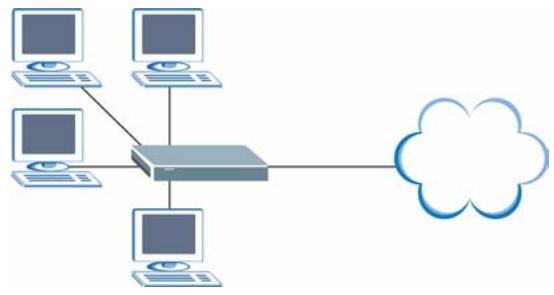
The Prestige is the ideal high-speed Internet access solution. Your Prestige supports the TCP/IP protocol, which the Internet uses exclusively. It is compatible with all major DSL DSLAM (Digital Subscriber Line Access Multiplexer) providers. A DSLAM is a rack of DSL line cards with data multiplexed into a backbone network interface/connection (for example, T1, OC3, DS3, ATM or Frame Relay). Think of it as the equivalent of a modem rack for SHDSL.
Figure 1 Application: Internet Access
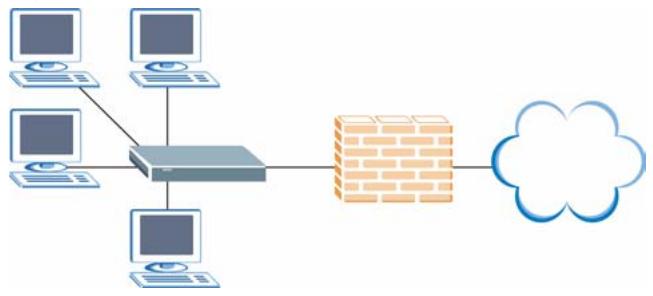
The Prestige provides protection from attacks by Internet hackers. By default, the firewall blocks all incoming traffic from the WAN. The firewall supports TCP/UDP inspection and DoS (Denial of Services) detection and prevention, as well as real time alerts, reports and logs.
Figure 2 Application: Firewall
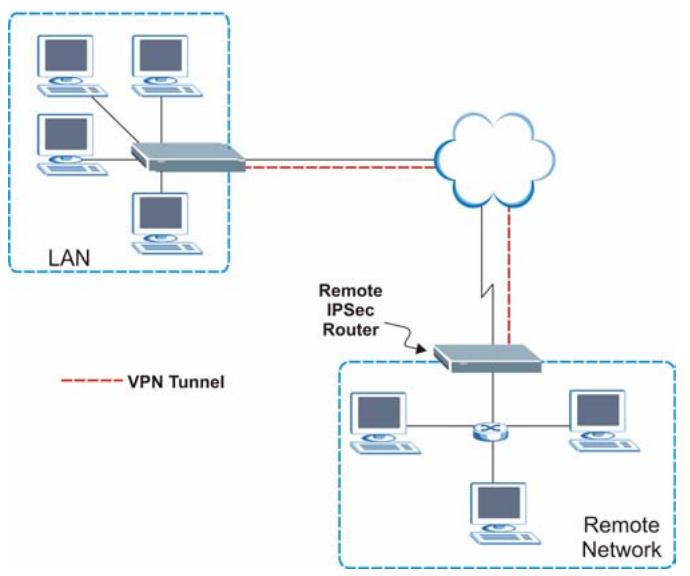
The Prestige's VPN feature makes it an ideal cost-effective way to connect branch offices and business partners over the Internet without the need (and expense) for leased lines between sites. VPN ensures the privacy and integrity of your data transmissions.
Figure 3 Application: VPN
flowchart
graph TD
    subgraph LAN
        A["Computer"] --> B["Router"]
        C["Computer"] --> B
        D["Computer"] --> B
        E["Computer"] --> B
    end
    subgraph Remote Network
        F["Computer"] --> G["Switch"]
        H["Computer"] --> G
        I["Computer"] --> G
        J["Computer"] --> G
    end
    B --> K["Remote IPSec Router"]
    K --> L["Network"]
    style LAN fill:#f9f,stroke:#333
    style Remote Network fill:#bbf,stroke:#333
1.3.4 LAN-to-LAN Application
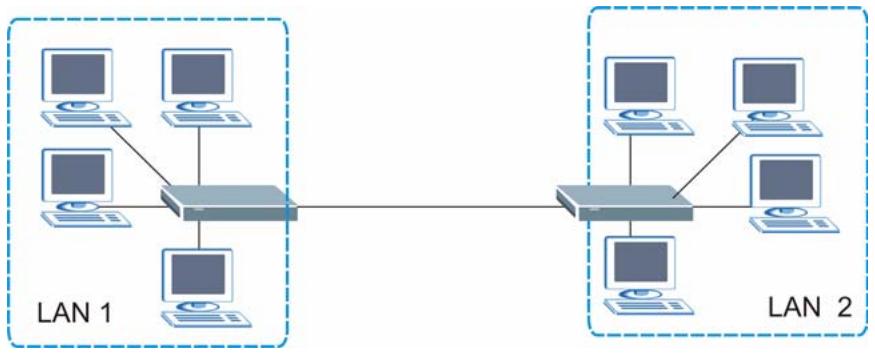
You can use the Prestige to connect two geographically dispersed networks over the SHDSL line. A typical LAN-to-LAN application for your Prestige is shown as follows.
Figure 4 Application: LAN-to-LAN
1.4 Hardware Connection
Refer to the Quick Start Guide for more information on hardware connection and initial setup using the Quick Start screen.
1.4.1 Front Panel
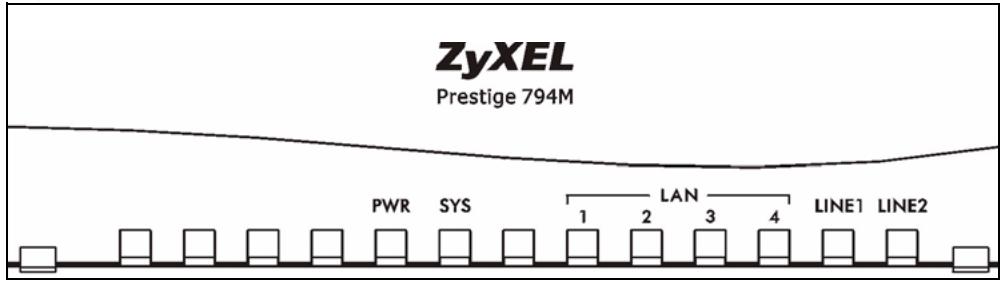
The following figure shows the front panel LEDs.
Figure 5 Front Panel: LEDs
text_image
ZyXEL Prestige 794M PWR SYS 1 2 LAN 3 4 LINE1 LINE2The following table describes the LEDs.
Table 1 Front Panel: LEDs
| LED | COLOR | STATUS | DESCRIPTION |
| PWR | Green | On | The Prestige is turned on. |
| Off | The Prestige is turned off. | ||
| SYS | Green | On | The Prestige is ready and working properly. |
| Flashing | The Prestige is starting up or rebooting. | ||
| Off | The Prestige is not ready. | ||
| LAN 1..4 | Orange | On | The Prestige has a successful 10Mbps Ethernet connection. |
| Flashing | The 10M LAN is sending or receiving packets. | ||
| Green | On | The Prestige has a successful 100Mbps Ethernet connection. | |
| Flashing | The 100M LAN is sending or receiving packets. | ||
| Off | The LAN is not connected. | ||
| LINE 1, 2 | Green | On | The Prestige has a successful SHDSL link. |
| Off | The SHDSL link is down or not connected. |
1.5 Rear Panel
The following figure shows the rear panel of the Prestige.
Figure 6 Rear Panel

text_image
2 LINE 1 CONSOLE 1 2 3 4 RESET PWR LAN ON OFFThe following table describes the ports.
Table 2 Rear Panel
| LABEL | DESCRIPTION |
| LAN 1..4(RJ-45 connector) | Connect a computer to this port with an Ethernet cable. This port is auto-negotiating (can connect at 10 or 100Mbps) and auto-crossover (automatically adjust to straight-through or crossover Ethernet cable). |
| CONSOLE | Only connect this port if you want to configure the Prestige via console port. Connect one end of the console cable to the console port of the Prestige and the other end to a serial port (COM1, COM2 or other COM port) on your computer. Your computer should have a terminal emulation communications program (such as HyperTerminal) set to VT100 terminal emulation, no parity, 8 data bits, 1 stop bit, no flow control and 9600 bps port speed. |
| LINE 1..2 | Connect to a telephone jack using the included telephone cable. |
| RESET | You only need to use this button if you’ve forgotten the Prestige’s password. It returns the Prestige to the factory defaults.Press this button is for less than three seconds to restart the Prestige.Press this button in for more than six seconds to reset the Prestige to the factory default settings. |
| PWR | Connect to a power source using only the included power adaptor for your region. |
| Power Switch | After you’ve made the connections and connect the power adaptor to a power supply, push in the power button to turn on the Prestige. |
CHAPTER 2
The Web Configurator
This chapter introduces the web configurator and describes the Quick Start screen.
2.1 Overview
The embedded web configurator (eWC) allows you to manage the Prestige from anywhere through a browser such as Microsoft Internet Explorer or Netscape Navigator. Use Internet Explorer 6.0 and later or Netscape Navigator 7.0 and later versions with JavaScript enabled. It is recommended that you set your screen resolution to 1024 by 768 pixels. The screens you see in the web configurator may vary somewhat from the ones shown in this document due to differences between individual firmware versions.
2.2 Accessing the Web Configurator
1 Make sure your Prestige hardware is properly connected and prepare your computer/computer network to connect to the Prestige (refer to the Quick Start Guide).
2 Make sure the IP addresses of your computer and the Prestige are in the same range. Refer to the appendix on setting up your computer IP address for more information.
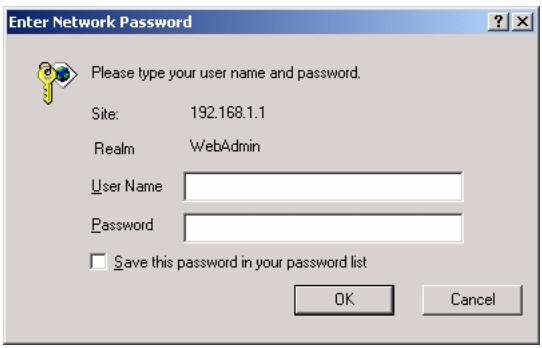
3 Launch your web browser and type "192.168.1.1" as the URL.
4 Enter the username (“admin” is the default) and the password (“1234” is the default).
5 Click OK to log in.
Figure 7 Web Configurator: Login
text_image
Enter Network Password Please type your user name and password. Site: 192.168.1.1 Realm WebAdmin User Name Password Save this password in your password list OK Cancel6 You should now see the HOME screen.
Note: The management session automatically times out when the time period expires (default 180 seconds or 3 minutes). Simply log back into the Prestige if this happens to you. You can change this timeout in the Device Management screen (see Section 12.2 on page 112).
2.3 Resetting the Prestige
If you forget your password or cannot access the web configurator, you will need to reload the factory-default configuration file or use the RESET button on the Prestige. Uploading this configuration file replaces the current configuration file with the factory-default configuration file. This means that you will lose all configurations that you had previously and the password will be reset to 1234, also.
2.3.1 Procedure To Use The Reset Button
1 Make sure the PWR LED is on before you begin this procedure.
2 Press the RESET button for more than six seconds, and then release it. If the SYS LED begins to blink, the defaults have been restored and the Prestige restarts.
2.4 Navigating the Web Configurator
The following summarizes how to navigate the web configurator from the HOME screen.
2.4.1 The Status Screen
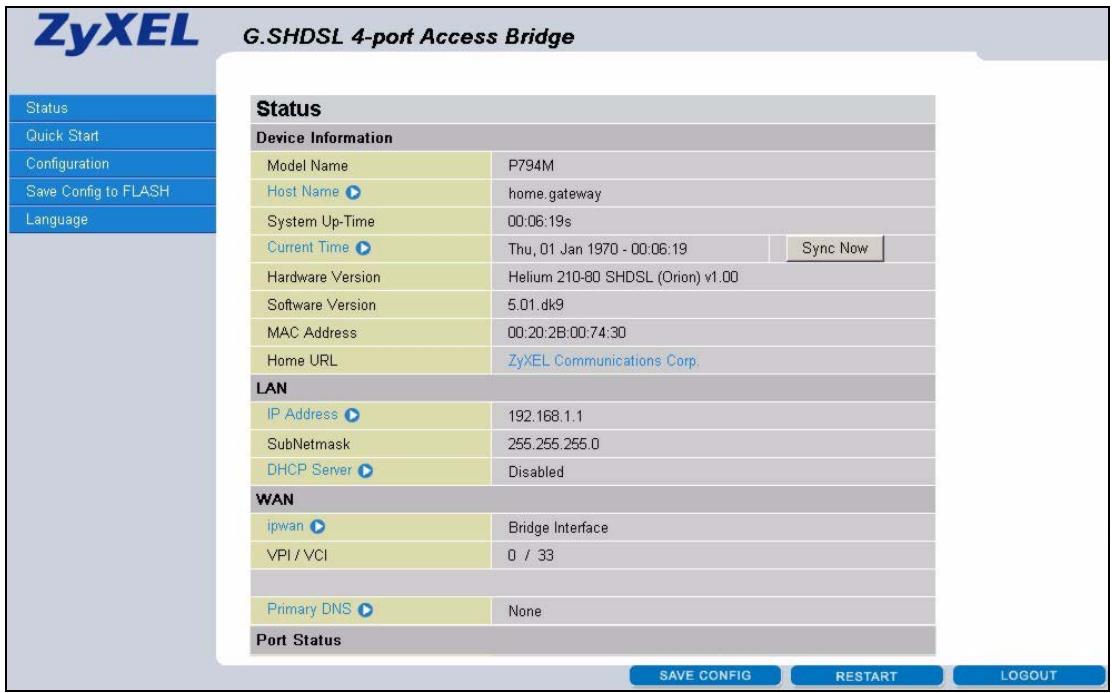
The following screen shows the Status screen. This is the first screen that displays every time you access the web configurator.
Figure 8 Web Configurator: Status
text_image
ZyXEL G.SHDSL 4-port Access Bridge Status Quick Start Configuration Save Config to FLASH Language Device Information Model Name P794M Host Name home.gateway System Up-Time 00:06:19s Current Time Thu, 01 Jan 1970 - 00:06:19 Sync Now Hardware Version Helium 210-80 SHDSL (Orion) v1.00 Software Version 5.01.dk9 MAC Address 00:20:2B:00:74:30 Home URL ZyXEL Communications Corp. LAN IP Address 192.168.1.1 SubNetmask 255.255.255.0 DHCP Server Disabled WAN ipwan Bridge Interface VPI / VCI 0 / 33 Primary DNS None Port Status SAVE CONFIG RESTART LOGOUT- Click the links in the navigation panel to configure the Prestige features.
-
Click the SAVE CONFIG button to save the current settings to the Prestige.
-
Click the RESTART button to reboot the Prestige.
- Click the LOGOUT button at any time to exit the web configurator.
2.5 System Status
Display the Status screen (see Figure 8 on page 27) to view general system information. The following table describes the labels in this screen.
Table 3 Status
| LABEL | DESCRIPTION |
| Device Information | |
| Model Name | This field displays the model number of your Prestige. |
| Host Name | This field displays the host name of the Prestige for identification purposes. Click this label to display the Host Name screen. |
| System Up-Time | This field displays the time (in the format of hh:mm:ss) since the Prestige was last restarted. |
| Current Time | This field displays the system time. Click this label to display the Time Zone screen. Click Sync Now to synchronize the system time to the time server specified in the Time Zone screen. |
| Hardware Version | This is the hardware version associated with your Prestige. |
| Software Version | This is the firmware version the Prestige is currently using. |
| MAC Address | This is the MAC (Media Access Control) or Ethernet address unique to your Prestige. |
| Home URL | Click this link to go to the ZyXEL company web site. |
| LAN | |
| IP Address | This is the IP address (in dotted decimal notation) on the LAN. Click the label to display the Ethernet screen. |
| Subnet Mask | This is the subnet mask (in dotted decimal notation) on the LAN. |
| DHCP Server | This field displays the LAN DNCP server status. Click the label to display the DHCP Server screen. |
| WAN | |
| ipwan | This field displays the type of WAN interface. Click this label to display the WAN Connection screen. |
| VPI/VCI | This field displays the VCI (Virtual Circuit Identifier) and VPI (Virtual Path Identifier) numbers. |
| Primary DNS | This field displays the primary DNS server IP address (in dotted decimal notation). Click this label to display the DNS screen. |
| Port Status | |
| Port | This field displays interface name (Ethernet or SHDSL). Click a label to display the Port Setting or the SHDSL screen. |
| Connected | This field displays a check to indicate that a port is up. Otherwise a cross is displayed. |
| Statistics | |
| RFC1483 WAN Link | This field displays the VCI and VPI number and the number of packets received/transmitted. Click this label to display detailed information. |
| Ethernet | This field displays the number of packets received/transmitted. Click this label to display detailed information. |
| SAVE CONFIG | Click SAVE CONFIG to save the changes. |
| RESTART | Click RESTART to reboot the device. All unsaved changes will be lost. |
| LOGOUT | Click LOGOUT to exit from the web configurator. All unsaved changes will be lost. |
2.6 ARP Table
Address Resolution Protocol (ARP) is a protocol for mapping an Internet Protocol address (IP address) to a physical machine address, also known as a Media Access Control (MAC) address, on the local area network. An IP (version 4) address is 32 bits long. In an Ethernet LAN, MAC addresses are 48 bits long. The ARP table maintains an association between each MAC address and its corresponding IP address.
2.6.1 How ARP Works
When an incoming packet destined for a host device on a local area network arrives at the device, the device's ARP program looks in the ARP table and, if it finds the address, sends it to the device. If no entry is found for the IP address, ARP broadcasts the request to all the devices on the LAN. The device fills in its own MAC and IP address in the sender address fields, and puts the known IP address of the target in the target IP address field. In addition, the device puts all ones in the target MAC field (FF.FF.FF.FF.FF.FF is the Ethernet broadcast address). The replying device (which is either the IP address of the device being sought or the router that knows the way) replaces the broadcast address with the target's MAC address, swaps the sender and target pairs, and unicasts the answer directly back to the requesting machine. ARP updates the ARP table for future reference and then sends the packet to the MAC address that replied.
To view the ARP table, click Status and ARP Table in the navigation panel.
Figure 9 Status: ARP Table
| ARP Table | |||
| IP <> MAC List | |||
| IP Address | MAC Address | Interface | Static |
| 172.21.1.65 | 00:50:8d:af:2b:9d | iplan | no |
| 172.21.4.72 | 00:50:ba:ad:4f:81 | iplan | no |
The following table describes the labels in this screen.
Table 4 Status: ARP Table
| LABEL | DESCRIPTION |
| IP Address | This is the learned IP address of a device connected to a switch port with corresponding MAC address below. |
| MAC Address | This is the MAC address of the device with corresponding IP address above. |
| Interface | This is the interface name on the Prestige to which a device is connected. |
| Static | This shows whether the MAC address is dynamic (learned by the Prestige) or static (manually entered). |
2.7 Routing Table
The routing table contains the route information to the network(s) that the Prestige can reach. The Prestige automatically updates the routing table with the RIP information received from other Ethernet devices.
Click Status and Routing Table in the navigation panel to display the Routing Table screen.
Figure 10 Status: Routing Table
| Routing Table | ||||
| Routing Table | ||||
| Valid | Destination | Netmask | Gateway/Interface | Cost |
| RIP Routing Table | ||||
| Destination | Netmask | Gateway | Cost | |
The following table describes the labels in this screen.
Table 5 Status: Routing Table
| LABEL | DESCRIPTION |
| Routing Table | |
| Valid | This field indicates whether a routing status is successful. |
| Destination | This field displays the IP address of a destination network. |
| Netmask | This field displays the subnet mask of a destination network. |
| Gateway/Interface | This field displays the IP address of a gateway or the interface name on the Prestige this route uses. |
| Cost | This field displays the cost (or hope count) for this route. |
| RIP Routing Table | |
| Destination | This field displays the IP address of a destination network. |
| Netmask | This field displays the subnet mask of a destination network. |
| Gateway | This field displays the IP address of a gateway that this route uses. |
| Cost | This field displays the cost (or hope count) for this route. |
2.7.1 PPTP Status
Use the PPTP Status screen to view PPTP VPN connection information. Click Status and PPTP Status in the navigation panel to display the screen as shown next.
Figure 11 Status: PPTP Status
| PPTP Status | ||||||
| VPN/PPTP for Remote Access Application | ||||||
| Name | Type | Enable | Active | Tunnel Connected | Call Connected | Encryption |
| VPN/PPTP for LAN-to-LAN Application | ||||||
| Name | Type | Enable | Active | Tunnel Connected | Call Connected | Encryption |
| Example | dialout | ✓ | ✗ | ✗ | ✗ | encryption none |
The following table describes the labels in this screen.
Table 6 Status: PPTP Status
| LABEL | DESCRIPTION |
| Name | This field displays the name of the VPN rule used for this connection. |
| Type | This field displays the type of VPN connection (dial-in or dial-out). |
| Enable | This field indicates whether the VPN rule is currently enabled. |
| Active | This field indicates whether the VPN rule is activated. |
| Tunnel Connected | This field indicates whether the VPN tunnel is up. |
| Call Connected | If the Call for this VPN entry is currently connected. |
| Encryption | This field displays the encryption type for this VPN connection. |
2.7.2 IPSec Status
Use the IPSec Status screen to view IPSec VPN connection information. Click Status and IPSec Status in the navigation panel to display the screen as shown next.
Figure 12 Status: IPSec Status
| IPSec Status | |||||||
| VPN Tunnels | |||||||
| Name | Active | Connection State | Statistics | Local Subnet | Remote Subnet | Remote Gateway | SA |
| Example | ✓ | Disconnected | 192.168.1.33 --255.255.255.0 | 192.168.2.33 --255.255.255.0 | 172.21.1.140 | ||
The following table describes the labels in this screen.
Table 7 Status: IPSec Status
| LABEL | DESCRIPTION |
| Name | This field displays the name of the VPN rule used for this connection. |
| Active | This field indicates whether the VPN rule is activated. |
| Connection State | This field displays the connection status (Connected or Disconnected). |
| Statistics | This field displays the number of packets sent using this VPN connection. |
| Local Subnet | This field displays the IP address and/or subnet mask of the local network behind the Prestige. |
| Remote Subnet | This field displays the subnet mask of the local network behind the remote IPSec router. |
| Remote Gateway | This field displays the IP address of the remote IPsec router. |
| SA | This field displays the number of Security Association (SA) for this VPN connection. |
2.7.3 L2TP Status
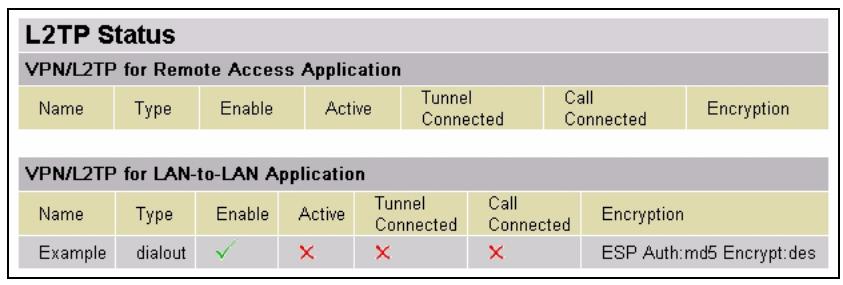
Use the L2TP Status screen to view L2TP VPN connection information. Click Status and L2TP Status in the navigation panel to display the screen as shown next.
Figure 13 Status: L2TP Status
text_image
L2TP Status VPN/L2TP for Remote Access Application Name Type Enable Active Tunnel Connected Call Connected Encryption VPN/L2TP for LAN-to-LAN Application Name Type Enable Active Tunnel Connected Call Connected Encryption Example dialout ✓ ✗ ✗ ✗ ESP Auth:md5 Encrypt:desThe following table describes the labels in this screen.
Table 8 Status: L2TP Status
| LABEL | DESCRIPTION |
| Name | This field displays the name of the VPN rule used for this connection. |
| Type | This field displays the type of VPN connection (dial-in or dial-out). |
| Enable | This field indicates whether the VPN rule is currently enabled. |
| Active | This field indicates whether the VPN rule is activated. |
| Tunnel Connected | This field indicates whether the VPN tunnel is up. |
| Call Connected | If the Call for this VPN entry is currently connected. |
| Encryption | This field displays the encryption type for this VPN connection. |
2.7.4 Email Status
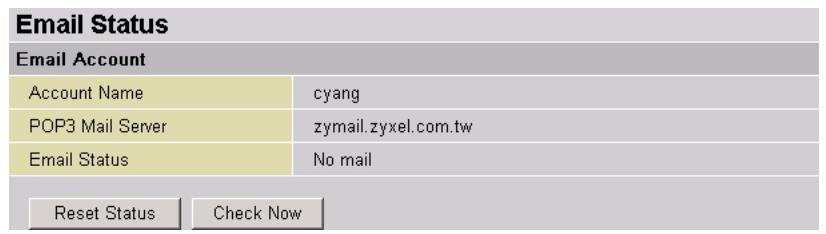
The Email Status screen shows the current E-mail account information (that you configured in the Check Email screen). You can also check your Email account status in this screen. Click Status and Email Status in the navigation panel.
Figure 14 Status: Email Status
text_image
Email Status Email Account Account Name cyang POP3 Mail Server zymail.zyxel.com.tw Email Status No mail Reset Status Check NowThe following table describes the labels in this screen.
Table 9 Status: Email Status
| LABEL | DESCRIPTION |
| Email Account | |
| Account Name | This field displays the E-mail account user name. |
| POP3 Mail Server | This field displays the IP address or domain name of a POP3 mail server. |
| Email Status | This field displays the status of this mail account. |
| Reset Status | This button is available when you enable this E-mail account.Click Reset Status to reset the status. |
| Check Now | This button is available when you enable this E-mail account.Click Check Now to check for any new mail(s) on the mail server.Note: You need to use an E-mail program (such as Microsoft Outlook or Netscape Composer) to retrieve and view E-mails. |
2.7.5 Event Log
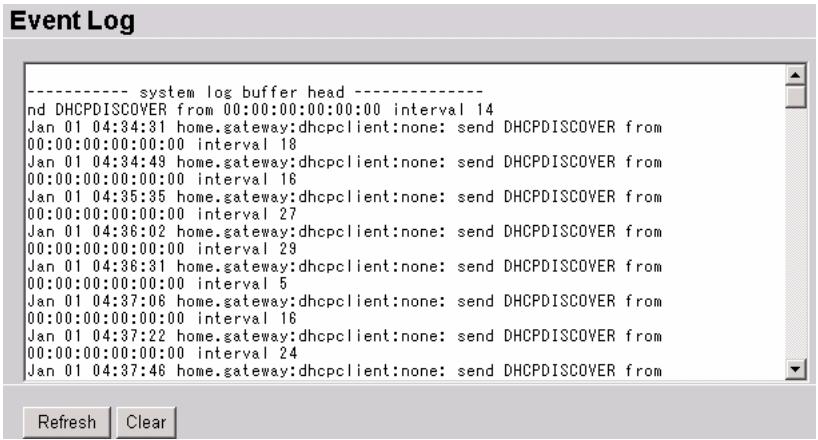
Use the Event Log screen to view system logs (such as when an SHDSL connection is up). Click Status and Event Log in the navigation panel to display the screen as shown next.
Note: To display and log firewall events, enable firewall event logging in the Firewall Log screen.
Figure 15 Event Log
text_image
event Log ------ system log buffer head ---- nd DHCPDISCOVER from 00:00:00:00:00:00 interval 14 Jan 01 04:34:31 home.gateway:dhcpclient:none: send DHCPDISCOVER from 00:00:00:00:00:00 interval 18 Jan 01 04:34:49 home.gateway:dhcpclient:none: send DHCPDISCOVER from 00:00:00:00:00:00 interval 16 Jan 01 04:35:35 home.gateway:dhcpclient:none: send DHCPDISCOVER from 00:00:00:00:00:00 interval 27 Jan 01 04:36:02 home.gateway:dhcpclient:none: send DHCPDISCOVER from 00:00:00:00:00:00 interval 29 Jan 01 04:36:31 home.gateway:dhcpclient:none: send DHCPDISCOVER from 00:00:00:00:00:00 interval 5 Jan 01 04:37:06 home.gateway:dhcpclient:none: send DHCPDISCOVER from 00:00:00:00:00:00 interval 16 Jan 01 04:37:22 home.gateway:dhcpclient:none: send DHCPDISCOVER from 00:00:00:00:00:00 interval 24 Jan 01 04:37:46 home.gateway:dhcpclient:none: send DHCPDISCOVER from Refresh ClearClick Refresh to update the event log entries. Click Clear to delete all event log entries from the text box.
2.7.6 Error Log
Use the Error Log screen to view errors (such as VPN configuration errors).
Note: This screen automatically displays when you click Apply and there is an error in the configuration screen. If this happens, simply check the error message here and try configuring the screen again.
Click Status and Error Log in the navigation panel to display the screen as shown next.
Figure 16 Status: Error Log
| Error Log | ||
| Error Log (times are in seconds since last reboot) | ||
| When | Process | Error Log |
| 18567 | webserver | webserver.Authentication and Encryption can not be null at the same time |
| 18724 | webserver | webserver.PPTP PNS Server Virtual Server config error |
| 18746 | webserver | webserver.PPTP PNS Server Virtual Server config error |
The following table describes the labels in this screen.
Table 10 Status: Error Log
| LABEL | DESCRIPTION |
| When | This field displays the time (in seconds since the Prestige was last restarted) the error occurred. |
| Process | This field displays the name of the application process (or system job) that creates this error. |
| Error Log | This field displays detailed error message. |
2.7.7 NAT Sessions
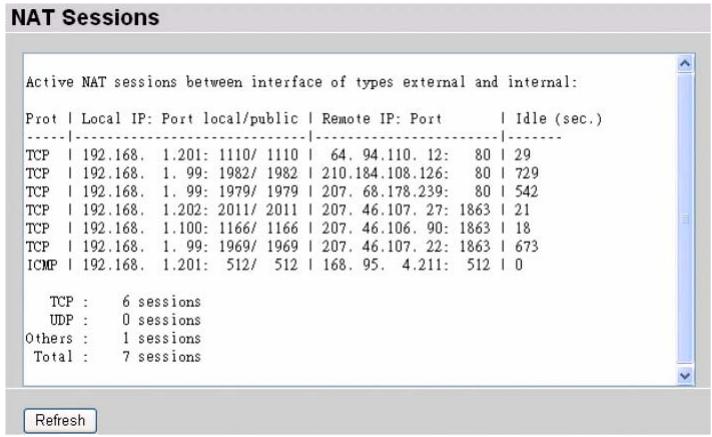
Click Status and NAT Sessions in the navigation panel to display current NAT sessions.
Figure 17 Status: NAT Session
text_image
Active NAT sessions between interface of types external and internal: Prot | Local IP: Port local/public | Remote IP: Port | Idle (sec.) TCP | 192.168. 1.201: 1110/ 1110 | 64. 94.110. 12: 80 | 29 TCP | 192.168. 1. 99: 1982/ 1982 | 210.184.108.126: 80 | 729 TCP | 192.168. 1. 99: 1979/ 1979 | 207. 68.178.239: 80 | 542 TCP | 192.168. 1.202: 2011/ 2011 | 207. 46.107. 27: 1863 | 21 TCP | 192.168. 1.100: 1166/ 1166 | 207. 46.106. 90: 1863 | 18 TCP | 192.168. 1. 99: 1969/ 1969 | 207. 46.107. 22: 1863 | 673 ICMP | 192.168. 1.201: 512/ 512 | 168. 95. 4.211: 512 | 0 TCP : 6 sessions UDP : 0 sessions Others : 1 sessions Total : 7 sessionsThe following table describes the fields in the text box.
Table 11 Status: NAT Session
| LABEL | DESCRIPTION |
| Prot. | This field displays the protocol name (such as TCP, UDP or ICMP) of the NAT session. |
| Local IP | This field displays the local IP address of the NAT session. |
| Port local/public | This field displays the local-to-public port translation. |
| Remote IP | This field displays the public IP address used for this NAT session. |
| Port | This field displays the port number used to connect to the local port. |
| Idle | This field displays the time (in seconds) this NAT session is not being used. |
| TCP | This field displays the number of TCP NAT sessions. |
| UDP | This field displays the number of UDP NAT sessions. |
| Others | This field displays the number of NAT sessions that are not of either TCP or UDP type. |
| Total | This field displays the total number of NAT sessions. |
| Refresh | Click Refresh to update the NAT session information. |
2.8 Internet Access Quick Start Setup
This section shows you how to configure the Prestige for Internet access using the Quick Start screen.
Note: You must already have an Internet access account and obtained the connection information from an ISP Internet Service Provider).
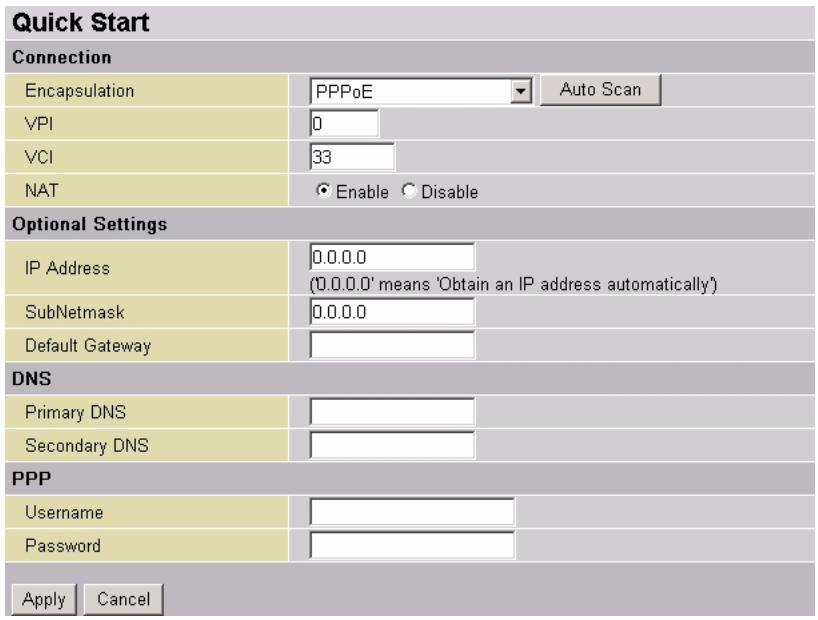
Click Quick Start in the navigation panel to display the screen as shown.
Figure 18 Quick Start
text_image
Quick Start Connection Encapsulation PPPoE Auto Scan VPI 0 VCI 33 NAT ● Enable ○ Disable Optional Settings IP Address 0.0.0.0 ('0.0.0.0' means 'Obtain an IP address automatically') SubNetmask 0.0.0.0 Default Gateway DNS Primary DNS Secondary DNS PPP Username Password Apply CancelThe following table describes the labels in this screen.
Table 12 Quick Start
| LABEL | DESCRIPTION |
| Connection | |
| Encapsulation | Select the connection type from the drop-down list.ClickAuto Scanto have the Prestige automatically detect and select the connection type. Refer toSection 2.8.1 on page 37for more information. |
| VCI | Enter the VCI number. |
| VPI | Enter the VPI number. |
| NAT | SelectEnableto allow more than one computer behind the Prestige to access the Internet.SelectDisableto allow only one user to access the Internet or if computer(s)behind the Prestige is provided with a public IP address(es). |
| Optional Settings | |
| IP Address | Enter the IP address (in dotted decimal notation) If you are provided with a static public IP address.Otherwise, enter 0.0.0.0 if your ISP provides you with a dynamic IP address. |
| Subnet Mask | Enter the subnet mask (in dotted decimal notation) associated with the static IP address above. |
| Default Gateway | Enter the IP address of the default gateway. |
| DNS | |
| Primary/Secondary DNS | If provided by your ISP, enter the IP address(es) of the DNS server(s). |
| PPP | Set the fields below if you select PPPoA or PPPoE in the Encapsulation field. above. |
| Username | Enter the Internet access account username. |
| Password | Enter the password associated with the username above. |
| Apply | Click Apply to save the changes. |
| Cancel | Click Cancel to start configuring this screen again. |
2.8.1 Auto Scan
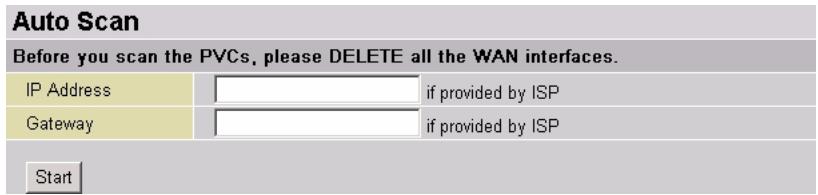
Use the Auto Scan screen to set the Prestige to automatically detect the Internet connection type.
Follow the steps below to allow the Prestige to automatically detect the Internet connection settings.
1 Click Auto Scan in the Quick Start screen to display the screen as shown next.
Figure 19 Quick Start: Auto Scan
text_image
Auto Scan Before you scan the PVCs, please DELETE all the WAN interfaces. IP Address if provided by ISP Gateway if provided by ISP Start2 If provided, enter the IP addresses of the DSLAM device or a gateway.
3 Click Start to begin the scanning process.
4 When the auto scan is complete and successful, a screen displays. Select your option from the list and click Apply. Otherwise, click Cancel and return to the Quick Start screen and configure the Internet access settings manually.
CHAPTER 3 LAN
This chapter describes how to configure LAN settings.
3.1 Overview
Local Area Network (LAN) is a shared communication system to which many computers are attached. The LAN screens can help you configure a LAN DHCP server and manage IP addresses.
3.2 LAN TCP/IP
The Prestige has built-in DHCP server capability that assigns IP addresses and DNS servers to systems that support DHCP client capability.
3.2.1 Factory LAN Defaults
The LAN parameters of the Prestige are preset in the factory with the following values:
- IP address of 192.168.1.1 with subnet mask of 255.255.255.0 (24 bits).
• DHCP server is disabled.
These parameters should work for the majority of installations. If your ISP gives you explicit DNS server address(es), read the embedded web configurator help regarding what fields need to be configured.
3.2.2 IP Address and Subnet Mask
Similar to the way houses on a street share a common street name, so too do computers on a LAN share one common network number.
Where you obtain your network number depends on your particular situation. If the ISP or your network administrator assigns you a block of registered IP addresses, follow their instructions in selecting the IP addresses and the subnet mask.
If the ISP did not explicitly give you an IP network number, then most likely you have a single user account and the ISP will assign you a dynamic IP address when the connection is established. If this is the case, it is recommended that you select a network number from 192.168.0.0 to 192.168.255.0 and you must enable the Network Address Translation (NAT) feature of the Prestige. The Internet Assigned Number Authority (IANA) reserved this block
of addresses specifically for private use; please do not use any other number unless you are told otherwise. Let's say you select 192.168.1.0 as the network number; which covers 254 individual addresses, from 192.168.1.1 to 192.168.1.254 (zero and 255 are reserved). In other words, the first three numbers specify the network number while the last number identifies an individual computer on that network.
Once you have decided on the network number, pick an IP address that is easy to remember, for instance, 192.168.1.1, for your Prestige, but make sure that no other device on your network is using that IP address.
The subnet mask specifies the network number portion of an IP address. Your Prestige will compute the subnet mask automatically based on the IP address that you entered. You don't need to change the subnet mask computed by the Prestige unless you are instructed to do otherwise.
3.2.3 RIP
RIP (Routing Information Protocol, RFC 1058 and RFC 1389) allows a router to exchange routing information with other routers. By default, the Prestige sends and receives RIP packets.
RIP version controls the format and the broadcasting method of the RIP packets that the Prestige sends (it recognizes both formats when receiving). The follow lists the RIP versions that your Prestige supports:
- RIP v1 is universally supported (and is probably adequate for most networks, unless you have an unusual network topology).
- RIP v2 carries more information.
- RIP v2 Multicast sends routing data in RIP-2 format using multicasting. Multicasting can reduce the load on non-router machines since they generally do not listen to the RIP multicast address and so will not receive the RIP packets. However, if one router uses multicasting, then all routers on your network must use multicasting, also.
3.3 The Ethernet Screen
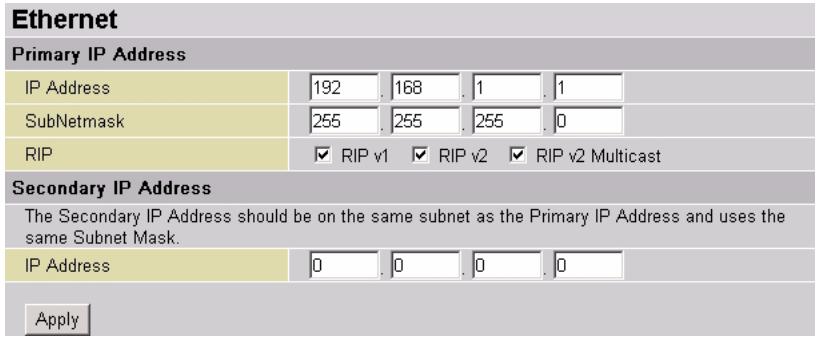
To set the LAN TCP/IP settings, click Configuration, LAN and Ethernet in the navigation panel to display the screen as shown next.
Figure 20 LAN: Ethernet
text_image
Ethernet Primary IP Address IP Address 192 168 1 1 SubNetmask 255 255 255 0 RIP ✓ RIP v1 ✓ RIP v2 ✓ RIP v2 Multicast Secondary IP Address The Secondary IP Address should be on the same subnet as the Primary IP Address and uses the same Subnet Mask. IP Address 0 0 0 0 ApplyThe following table describes the labels in this screen.
Table 13 LAN: Ethernet
| LABEL | DESCRIPTION |
| Primary IP Address | |
| IP Address | Type the IP address of your Prestige in dotted decimal notation. 192.168.1.1 is the factory default. |
| IP Subnet Mask | The subnet mask specifies the network number portion of an IP address. Your Prestige automatically calculate the subnet mask based on the IP address that you assign. Unless you are implementing subnetting, use the subnet mask computed by the Prestige. |
| RIP | The RIP field controls the format and the broadcasting method of the RIP packets that the Prestige sends (it recognizes both formats when receiving).Select RIP v1 if you are unsure what RIP version other Ethernet device(s) supports. RIP v1 is universally supported.Select RIP v2 to send detailed routing data.Select RIP v2 Multicast to set the Prestige to send routing data in RIP-2 format using multicasting. |
| Secondary IP AddressYou can assign a different IP address (in the same subnet as the primary IP address) to the LAN interface. | |
| IP Address | Type the secondary IP address of your Prestige in dotted decimal notation.Note: Make sure this IP address is in the same subnet as the primary IP address above. |
| Apply | Click Apply to save your changes back to the Prestige. |
3.4 Ethernet Client Filter
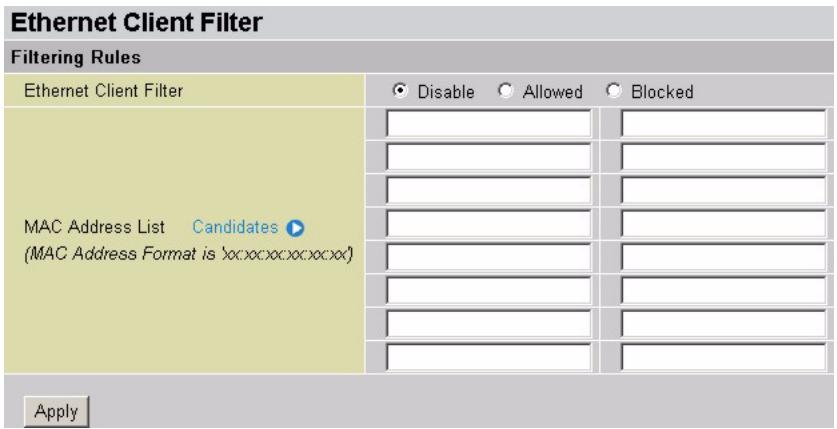
Use the Ethernet Client Filter screen to set the Prestige to allow or block specified Ethernet devices from accessing the LAN.
Click LAN and Ethernet Client Filter in the navigation panel to display the configuration screen.
Figure 21 LAN: Ethernet Client Filter
text_image
Ethernet Client Filter Filtering Rules Ethernet Client Filter Disable Allowed Blocked MAC Address List Candidates (MAC Address Format is yoc:oc:oc:oc:oc:oc) ApplyThe following table describes the labels in this screen.
Table 14 LAN: Ethernet Client Filter
| LABEL | DESCRIPTION |
| Ethernet Client Filter | Select Disable to deactivate this feature. This allows any computer to access the network through the Prestige.Select Allowed to set the Prestige to permit the specified computers to access the network.Select Blocked to set the Prestige to deny the specified computers from accessing the network. |
| MAC Address List | Specify the computer(s) which you want to allow or deny network access. Enter the MAC address of a computer in hexadecimal notation.Click Candidates to add one or more MAC addresses of the devices that are currently connected to the Prestige. |
| Apply | Click Apply to save the settings. |
3.4.1 Ethernet Client Filter Candidates
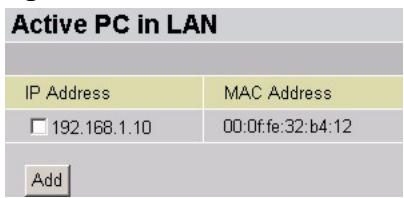
You can display a list of MAC address of the devices that are currently connected to the Prestige. You can use the Active PC in LAN screen to add the selected MAC address(es) to the Ethernet Client Filter screen.
In the Ethernet Client Filter screen, click Candidates to display the screen.
Figure 22 LAN: Ethernet Client Filter: Active PC in LAN
text_image
Active PC in LAN IP Address MAC Address □ 192.168.1.10 00:0f:fe:32:b4:12 AddThe following table describes the labels in this screen.
Table 15 LAN: Ethernet Client Filter: Active PC in LAN
| LABEL | DESCRIPTION |
| IP Address | This field displays the IP address of an Ethernet device connected to the Prestige. |
| MAC Address | This field displays the MAC address associated with the IP address in the IP Address field. |
| Add | Click Add to add the select entry(ies) in the Ethernet Client Filter screen. |
3.5 Port Setting
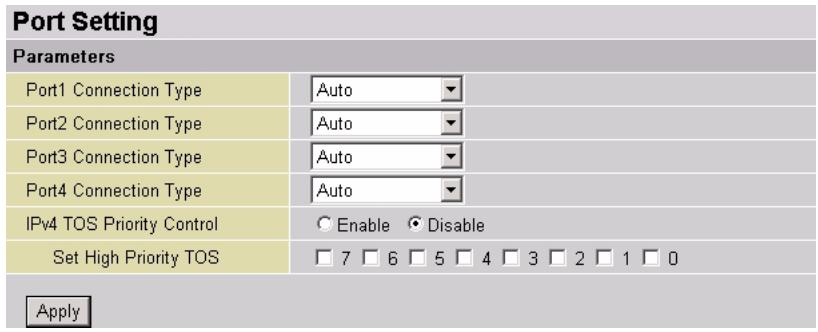
Use the Port Setting screen to configure the LAN port settings on the Prestige. Click Configuration, LAN and Port Setting to display the screen as shown next.
Figure 23 LAN: Port Setting
text_image
Port Setting Parameters Port1 Connection Type Auto Port2 Connection Type Auto Port3 Connection Type Auto Port4 Connection Type Auto IPv4 TOS Priority Control ○ Enable ○ Disable Set High Priority TOS □ 7 □ 6 □ 5 □ 4 □ 3 □ 2 □ 1 □ 0 ApplyThe following table describes the labels in this screen.
Table 16 LAN: Port Setting
| LABEL | DESCRIPTION |
| Port 1 .. 4 Connection Type | Select the speed and the duplex mode of the Ethernet connection on this port.Choices areAuto, 10Mfalfduplex, 10Mfullduplex, 100Mhalfduplexand 100Mfullduplex.SelectingAuto(auto-negotiation) allows one port to negotiate with a peer port automatically to obtain the connection speed and duplex mode that both ends support. When auto-negotiation is turned on, a port on the Prestige negotiates with the peer automatically to determine the connection speed and duplex mode. If the peer port does not support auto-negotiation or turns off this feature, the Prestige determines the connection speed by detecting the signal on the cable and using half duplex mode. When the Prestige’s auto-negotiation is turned off, a port uses the pre-configured speed and duplex mode when making a connection, thus requiring you to make sure that the settings of the peer port are the same in order to connect. |
| IPv4 TOS Priority Control | SelectEnableto set the Prestige to send traffic based on the priority level.SelectDisableto set the Prestige to treat all traffic equally. |
| Set High Priority TOS | This field is applicable when you enable TOS priority control.IEEE 802.1p defines up to 8 separate traffic types by inserting a tag into a MAC-layer frame that contains bits to define class of service. Frames without an explicit priority tag are given the default priority of the ingress (incoming) port.Select the high priority level(s). The Prestige will first send packets with matching priority level(s). |
| Apply | ClickApplyto save your changes. |
3.6 DHCP
DHCP (Dynamic Host Configuration Protocol, RFC 2131 and RFC 2132) allows individual clients to obtain TCP/IP configuration at start-up from a server. You can configure the Prestige as a DHCP server or disable it. When configured as a server, the Prestige provides the TCP/IP configuration for the clients. If DHCP service is disabled, you must have another DHCP server on your LAN, or else the computer must be manually configured.
3.6.1 IP Pool Setup
When you set the Prestige as a DHCP server, you can use the default DHCP client IP address pool setting. The default address pool has 20 IP addresses starting from 192.168.1.2 to 192.168.1.21. This configuration leaves the other IP addresses for other server computers, for instance, servers for mail, FTP, TFTP, web, etc., that you may have.
3.6.2 DNS Servers
There are two places where you can configure DNS setup on the Prestige.
1 Use the WAN DNS screen to configure the Prestige to use a DNS server to resolve domain names for Prestige system features like VPN, DDNS and the time server.
2 Use the LAN DHCP Server screen to configure the DNS server information that the Prestige sends to the DHCP client devices on the LAN.
3.6.3 DHCP Setup
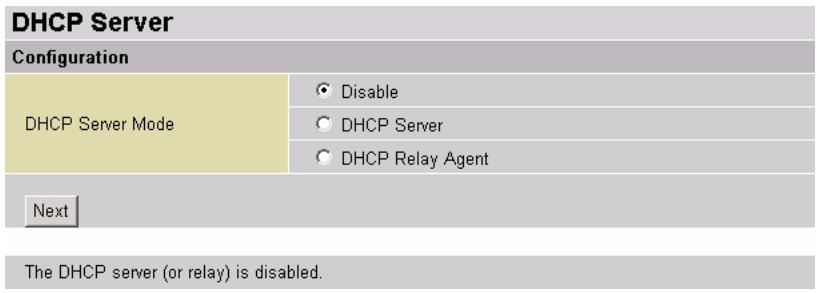
To configure DHCP settings on the LAN, click Configuration, LAN and DHCP Server to display the screen as shown.
Figure 24 LAN: DHCP Server
text_image
DHCP Server Configuration DHCP Server Mode Disable DHCP Server DHCP Relay Agent Next The DHCP server (or relay) is disabled.The following table describes the labels in this screen.
Table 17 LAN: DHCP Server
| LABEL | DESCRIPTION |
| Configuration | |
| DHCP Server Mode | Select Disable to disable DHCP on the LAN.Select DHCP Server to set the Prestige as a DHCP server.Select DHCP Relay Agent to set the Prestige to act as a DHCP relay agent. |
| Next | Click Next to continue. |
Follow the steps below to disable DHCP server/relay on the LAN.
1 In the DHCP Server screen (see Figure 24 on page 44), select Disable and click Next.
2 A screen displays as shown next. Click Apply.
Figure 25 LAN: DHCP Server: Disable

text_image
DHCP Disable server and relay agent The DHCP server and relay agent will be disabled. Apply3.6.3.2 DHCP Server Setup
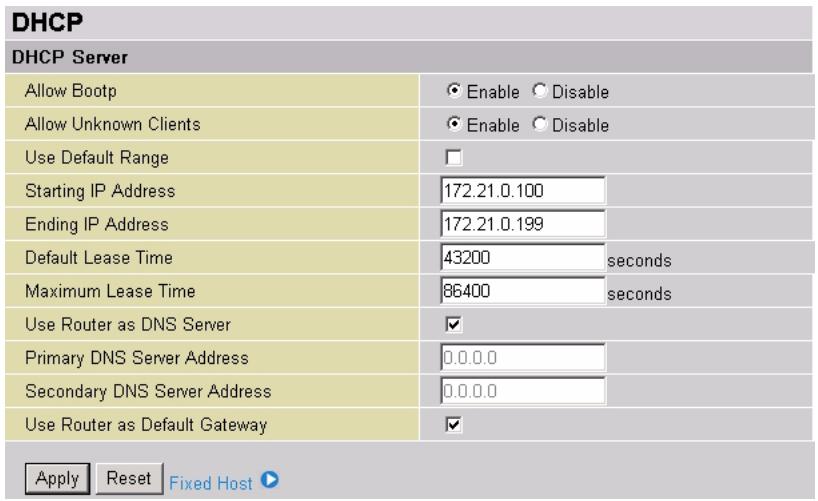
To set the Prestige as a DHCP server, select DHCP Server and click Next in the DHCP Server screen. A screen displays as shown next.
Figure 26 LAN: DHCP Server: DHCP
text_image
DHCP DHCP Server Allow Bootp Enable Disable Allow Unknown Clients Enable Disable Use Default Range Starting IP Address 172.21.0.100 Ending IP Address 172.21.0.199 Default Lease Time 43200 seconds Maximum Lease Time 86400 seconds Use Router as DNS Server Primary DNS Server Address 0.0.0.0 Secondary DNS Server Address 0.0.0.0 Use Router as Default Gateway Apply Reset Fixed HostThe follow table describes the labels in this screen.
Table 18 LAN: DHCP Server: DHCP
| LABEL | DESCRIPTION |
| DHCP Server | |
| Allow Bootp | Select Enable to allow BootP (Bootstrap Protocol) clients. Otherwise, select Disable. |
| Allow Unknown Clients | Select Enable to assign network settings (such as IP address) to any client computer.Select Disable to assign network settings (such as IP address) to the client(s) you specify in the Fixed Host screen. |
| Use Default Range | Select this check box to use the default client IP address pool.The default address pool has 20 IP addresses starting from 192.168.1.2 to 192.168.1.21. |
| Starting IP Address | This field specifies the first of the contiguous addresses in the IP address pool. |
| Ending IP Address | This field specifies the last of the contiguous addresses in the IP address pool. |
| Default Lease Time | Specify the default time (in seconds) a client is allowed to use the assigned IP address. |
| Maximum Lease Time | Specify the maximum time (in seconds) a client is allowed to use the assigned IP address. |
| Use Router as DNS Server | Select this check box to use the Prestige as the default DNS server. The Prestige performs the domain name lookup and forwards the mapping information to the requesting client. |
| Primary/ Secondary DNS Server | This field is applicable when the Use Router as DNS Server check box is not selected.Enter the IP address of the DNS server in dotted decimal notation. |
| Use Router as Default Gateway | Select this check box to use the Prestige as a default gateway for the client computer(s) on the LAN. |
| Apply | Click Apply to save your changes back to the Prestige. |
| Reset | Click Reset to start configuring this screen again. |
| Fixed Host | Click Fixed Host to display a screen where you can assign a static LAN IP address to the specified device MAC address. |
3.6.3.2.1 Fixed Host
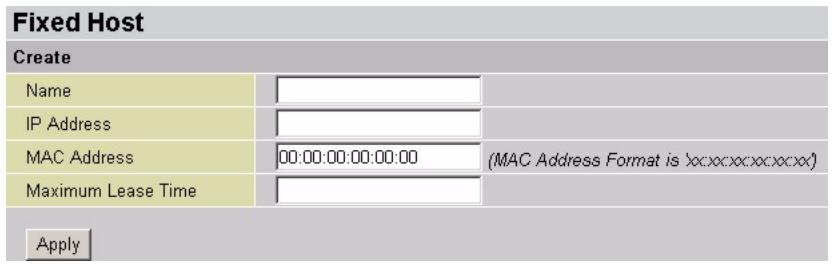
You can set the Prestige to assign one IP address on the LAN to a specific computer based on the MAC address. In the DHCP screen (see Figure 26 on page 45), click Fixed Host to display the screen as shown next.
Figure 27 LAN: DHCP Server: DHCP: Fixed Host
text_image
Fixed Host Create Name IP Address MAC Address 00:00:00:00:00:00 (MAC Address Format is 'xxxxxxxxxxxx') Maximum Lease Time ApplyThe following table describes the labels in this screen.
Table 19 LAN: DHCP Server: DHCP: Fixed Host
| LABEL | DESCRIPTION |
| Name | Enter a descriptive name for identification purposes. |
| IP Address | Type the IP address that you want to assign to the computer on your LAN.Alternatively, click the right mouse button to copy and/or paste the IP address. |
| MAC Address | Type the MAC address of a computer on your LAN. |
| Maximum Lease Time | Specify the maximum time (in seconds) the client is allowed to use the assigned IP address.Note:If you do not specify the lease time here, the Prestige uses the global lease time setting in the DHCP screen (see Figure 26 on page 45). |
| Apply | Click Apply to save your changes back to the Prestige. |
3.6.4 DHCP Relay Agent
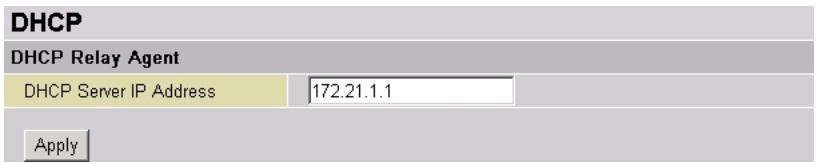
If there is an Ethernet device that performs the DHCP server function for your network, then you can configure the Prestige as a DHCP relay agent. When the switch receives a request from a computer on your network, it contacts the Ethernet device (the DHCP server) for the necessary IP information, and then relays the assigned information back to the computer.
In the main DHCP Server screen, select DHCP Relay and click Next to display the configuration screen.
Figure 28 LAN: DHCP Server: DHCP Relay Agent
text_image
DHCP DHCP Relay Agent DHCP Server IP Address 172.21.1.1 ApplyThe following table describes the labels in this screen.
Table 20 LAN: DHCP Server: DHCP Relay Agent
| LABEL | DESCRIPTION |
| DHCP Server IP Address | Enter the IP address of the DHCP server on the LAN. |
| Apply | Click Apply to save the settings and return to the previous screen. |
CHAPTER 4 WAN
This chapter describes how to configure WAN settings.
4.1 Overview
A WAN (Wide Area Network) is an outside connection to another network or the Internet. Use the WAN screens to change your Prestige's WAN settings, click Configuration and WAN in the navigation panel.
4.1.1 Encapsulation Types
This section describes the various encapsulation (Internet connection) types the Prestige offers.
4.1.1.1 RFC 1483
RFC 1483 describes two methods for Multiprotocol Encapsulation over ATM Adaptation Layer 5 (AAL5). The first method allows multiplexing of multiple protocols over a single ATM virtual circuit (LLC-based multiplexing) and the second method assumes that each protocol is carried over a separate ATM virtual circuit (VC-based multiplexing). Please refer to the RFC for more detailed information.
In addition, the Prestige supports two RFC 1483 methods; routed or bridged. In RFC 1483 Bridged, the Prestige sends the packets based on the MAC address information. That is, the Prestige bridges the packets. In RFC 1483 Routed, the Prestige sends the packets based on the IP address. That is, the Prestige routes the packets. Refer to the RFC for more information.
4.1.1.2 PPPoE
The Prestige supports PPPoE (Point-to-Point Protocol over Ethernet). PPPoE is an IETF Draft standard (RFC 2516) specifying how a computer interacts with a broadband modem (DSL, cable, wireless, etc.) connection. PPPoE is for a dial-up connection using PPPoE. For the service provider, PPPoE offers an access and authentication method that works with existing access control systems (for example RADIUS). PPPoE provides a login and authentication method that the existing Microsoft Dial-Up Networking software can activate, nd therefore requires no new learning or procedures for Windows users. One of the benefits of PPPoE is the ability to let you access one of multiple network services, a function known as dynamic service selection. This enables the service provider to easily create and offer new IP services for individuals.
Operationally, PPPoE saves significant effort for both you and the ISP or carrier, as it requires no specific configuration of the broadband modem at the customer site. By implementing PPPoE directly on the Prestige (rather than individual computers), the computers on the LAN do not need PPPoE software installed, since the Prestige does that part of the task.
Furthermore, with NAT, all of the LAN computers will have access.
4.1.1.3 PPPoA
PPPoA stands for Point to Point Protocol over ATM Adaptation Layer 5 (AAL5). A PPPoA connection functions like a dial-up Internet connection. The Prestige encapsulates the PPP session based on RFC1483 and sends it through an ATM PVC (Permanent Virtual Circuit) to the Internet Service Provider's (ISP) DSLAM (digital access multiplexer). Please refer to RFC 2364 for more information on PPPoA. Refer to RFC 1661 for more information on PPP.
4.1.1.4 IPoA
With IPoA (IP over ATM), the Prestige attempts to map the IP subnet onto the ATM network.
4.2 ISP
Use the ISP screens to configure the Prestige for Internet access. The screen differs by the encapsulation.
Figure 29 WAN: ISP
| WAN Connection | ||||||
| WAN Services Table | ||||||
| Name | Description | Creator | VPI | VCI | ||
| wanlink | RFC1483 WAN Link | Factory Defaults | 0 | 33 | Edit ▶ | Change ▶ |
The following table describes the labels in this screen.
Table 21 WAN: ISP
| LABEL | DESCRIPTION |
| Name | This field displays the descriptive name of this Internet access setting for identification purposes. |
| Encapsulation | This field displays the connection type. |
| Creator | This field indicates how this Internet access setting is created. |
| VPI | This field displays the VPI (Virtual Path Identifier) number. |
| VCI | This field displays the VCI (Virtual Circuit Identifier) number. |
| Edit | Click Edit to change the Internet access settings. The configuration screen varies depending on the encapsulation (or connection type). |
| Change | Click Change to select a different encapsulation and change the settings. |
4.2.1 Edit Settings
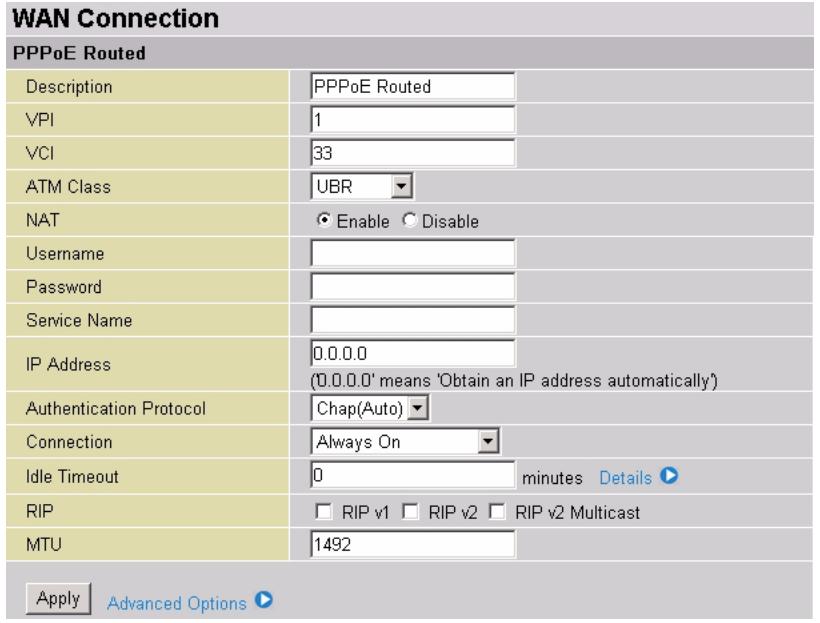
Click Edit in the main ISP screen to modify the settings. The configuration screen varies depending on the encapsulation type.
Figure 30 WAN: ISP: Edit
text_image
WAN Connection PPPoE Routed Description PPPoE Routed VPI 1 VCI 33 ATM Class UBR NAT ● Enable ○ Disable Username Password Service Name IP Address 0.0.0.0 (0.0.0.0' means 'Obtain an IP address automatically') Authentication Protocol Chap(Auto) Connection Always On Idle Timeout 0 minutes Details RIP RIP v1 RIP v2 RIP v2 Multicast MTU 1492 Apply Advanced OptionsThe following table describes the labels in this screen.
Table 22 WAN: ISP: Edit (PPPoE)
| LABEL | DESCRIPTION |
| Description | This read-only field displays the encapsulation type. |
| VPI | The valid range for the VPI is 0 to 255. Enter the VPI assigned to you. |
| VCI | The valid range for the VCI is 32 to 65535 (0 to 31 is reserved for local management of ATM traffic). Enter the VCI assigned to you. |
| ATM Class | Select CBR (Continuous Bit Rate) to specify fixed (always-on) bandwidth for voice or data traffic.Select UBR (Unspecified Bit Rate) for applications that are non-time sensitive, such as e-mail.Select UBRPlus for non-real-time applications (such as e-mail). However, UBRPlus guarantees service at least the MCR (Maximum Cell Rate).Select VBR (Variable Bit Rate) for bursty traffic and bandwidth sharing with other applications. Select VBR-rt (Variable Bit Rate - Real Time) for bursty traffic that is intolerable of delays. |
| Encapsulation Method | This information is provided by your ISP. Select the encapsulation method your ISP uses. |
| Ether Filter Type | Specify what kind of Ethernet packets the Prestige allows through the WAN connection.Select All to allow all Ethernet packet types.Select Ip to allow only IP or ARP related Ethernet packets to pass through.Select Pppoe to allow only PPPoE Ethernet packets to pass through. |
| Spanning Bridge Interface | Select Enable to activate spanning tree feature on the WAN interface.Select Disable to deactivate this feature. |
| NAT | Select Enable to activate NAT (Network Address Translation) to allow more than one computer to access the Internet through the Prestige.Otherwise, select Disable. In this case, only one computer can access the Internet from the LAN. |
| Username | This field is applicable for PPPoA or PPPoE only.Enter the user name exactly as your ISP assigned. If assigned a name in the form user@domain where domain identifies a service name, then enter both components exactly as given. |
| Password | This field is applicable for PPPoA or PPPoE only.Enter the password associated with the user name above. |
| Service Name | This field is applicable for PPPoE only.Type the name of your PPPoE service here. |
| IP Address | This field is applicable for PPPoA and PPPoE only.Enter a static public IP address (in dotted decimal notation) provided by your ISP.Leave this field as 0.0.0.0 to set the Prestige to obtain an IP address (and other TCP/IP information) from the ISP every time. |
| Authentication Protocol | Select an authentication type your ISP uses. Choices are CHAP and PAP.Select None if no authentication is required. |
| Connection | Select Always On when you want your connection up all the time. The Prestige will try to bring up the connection automatically if it is disconnected.Select Connect on Demand when you don't want the connection up all the time and specify an idle time-out in the Idle Timeout field. |
| Idle Timeout | Specify an idle time-out (in minutes) when you select Connect on Demand in the Connection field.The default setting is 0, which means the Internet session will not timeout. |
| RIP | The RIP field controls the format and the broadcasting method of the RIP packets that the Prestige sends (it recognizes both formats when receiving).Select RIP v1 if you are unsure what RIP version other Ethernet device(s) supports. RIP v1 is universally supported.Select RIP v2 to send detailed routing data.Select RIP v2 Multicast to set the Prestige to send routing data in RIP-2 format using multicasting.Refer to Section 3.2.2 on page 38 for more information. |
| MTU | Specify the MTU (Maximum Transmission Unit) in this field. |
| Apply | Click Apply to save the settings and return to the main ISP screen. |
| Advanced Options | Click Advanced Options to configure advanced PPPoE settings. |
4.2.1.1 Advanced PPP Options
For PPPoA or PPPoE connection type, you can configure advanced PPP settings in the Advanced Options screen.
In the WAN Connection screen, click Advanced Options to display the screen shown next.
Figure 31 WAN: Edit: Advanced PPP Options
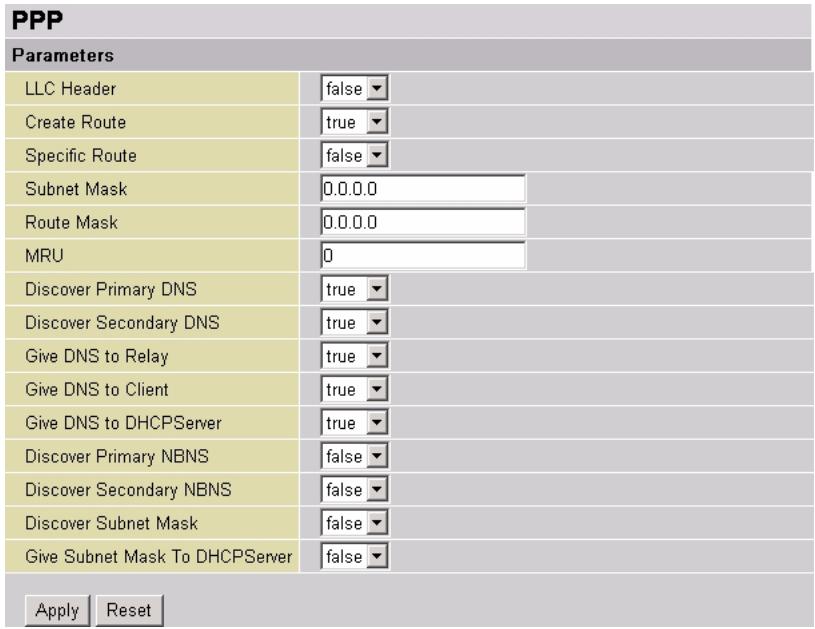
text_image
PPP Parameters LLC Header false Create Route true Specific Route false Subnet Mask 0.0.0.0 Route Mask 0.0.0.0 MRU 0 Discover Primary DNS true Discover Secondary DNS true Give DNS to Relay true Give DNS to Client true Give DNS to DHCPServer true Discover Primary NBNS false Discover Secondary NBNS false Discover Subnet Mask false Give Subnet Mask To DHCPServer false Apply ResetThe following table describes the labels in his screen.
Table 23 WAN: Edit: Advanced PPP Options
| LABEL | DESCRIPTION |
| LLC Header | Specify an encapsulation mode in this field. Select true for LLC or false for VC. |
| Create Route | Specify whether the Prestige is to add a route after IPCP (Internet Protocol Control Protocol) negotiation is completed.Select true to add a route to direct packets to the remote end of the PPP link.Otherwise, select false to disable auto-route creation. |
| Specific Route | Specify whether the route created (after a successful PPP connection) is a default or specific route.Select true to set the created route for packets between the Prestige and the remote network. The address of this subnet is obtained during the connection negotiation.Select false to set the route as a default route for all packets. |
| Subnet Mask | Specify the subnet mask for PPP connection. If you enter 0.0.0.0, the Prestige calculates the subnet mask from the IP address obtained during connection negotiation. |
| Route Mask | Specify the subnet mask the route (after a successful PPP connection) uses. If you enter 0.0.0.0, the subnet mask is determined by the IP address of the remote end. The IP address is obtained during connection negotiation. |
| MRU | This field is optional. Enter the MRU (Maximum Receive Unit) if your ISP provides the information. The MRU is automatically obtained during the LCP protocol stage. |
| Discover Primary/Secondary DNS | Enable this feature to allow the Prestige to automatically obtain the DNS server IP address(es) from the ISP. Otherwise, select false. |
| Give DNS to Relay | Enable this feature to set the Prestige to provide DNS server information to DNS request from a local computer. |
| Give DNS to Client | Enable this feature to set Prestige to provide DNS server information to a remote PPP peer device. |
| Give DNS to DHCP Server. | Enable this feature to set the Prestige to provide DNS server information to a DHCP server. |
| Discover Primary/ Secondary NBNS. | Enable this feature to set the Prestige to request NBNS (NetBIOS Name Server) server information from the remote PPP peer device.An NBNS server (also known as a WINS server) maps a NetBIOS name to an IP address. |
| Discover Subnet Mask | Enable this feature to set the Prestige to use the subnet mask obtained after the Internet connection is established. |
| Give Subnet Mask to DHCP Server | Enable this feature to set the Prestige to provide the subnet mask information to the DHCP server. The subnet mask is obtained during the connection negotiation. |
| Apply | Click Apply to save the changes. |
| Reset | Click Reset to start configuring this screen again. |
4.2.2 Change Connection Type
Follow the steps below to change your Internet connection type and settings.
1 Click Change in the main ISP screen (see Figure 29 on page 49).
2 A screen displays as shown. Select the connection type your ISP uses and click Next. Click Quick Start to configure the line settings in the Quick Start screen (refer to Section 2.7.4 on page 33 for more information).
Figure 32 ISP: Change Connection Type
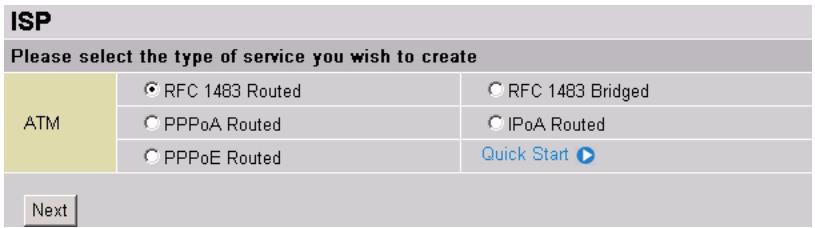
text_image
ISP Please select the type of service you wish to create ATM ○ RFC 1483 Routed ○ RFC 1483 Bridged ○ PPPoA Routed ○ IPoA Routed ○ PPPoE Routed Quick Start ▶ Next3 A configuration screen displays. This screen varies depending on the connection type you select. Refer to Section 4.2 on page 49 for more information.
Figure 33 ISP: Change Connection Type Settings (RFC 1483 Routed)
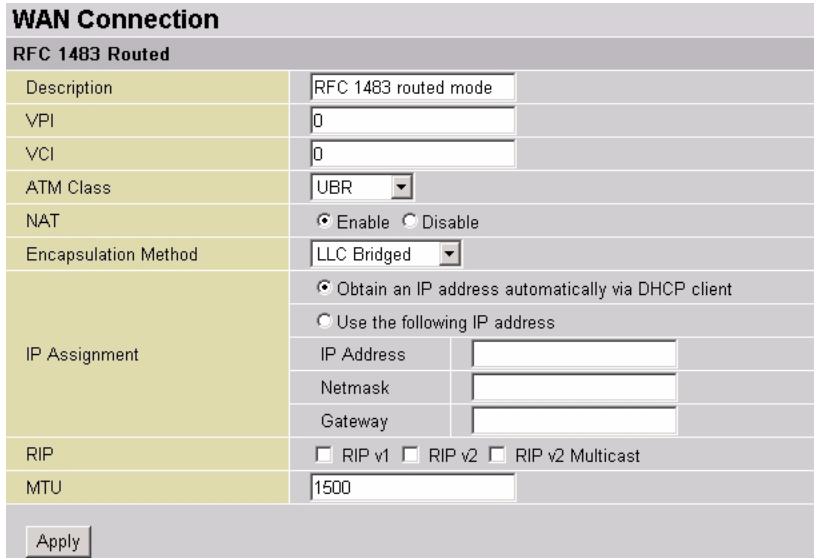
text_image
WAN Connection RFC 1483 Routed Description RFC 1483 routed mode VPI 0 VCI 0 ATM Class UBR NAT Enable Disable Encapsulation Method LLC Bridged IP Assignment Obtain an IP address automatically via DHCP client Use the following IP address IP Address Netmask Gateway RIP v1 RIP v2 RIP v2 Multicast MTU 1500 Apply4 Click Apply to save the changes and return to the main ISP screen.
4.3 DNS
Use DNS (Domain Name System) to map a domain name to its corresponding IP address and vice versa, for instance, the IP address of www.zyxel.com is 204.217.0.2. The DNS server is extremely important because without it, you must know the IP address of a computer before you can access it.
The Prestige can get the DNS server addresses in the following ways.
1 The ISP tells you the DNS server addresses, usually in the form of an information sheet, when you sign up. If your ISP gives you DNS server addresses, manually enter them in the DNS server fields.
2 If your ISP dynamically assigns the DNS server IP addresses (along with the Prestige's WAN IP address), set the DNS server fields to get the DNS server address from the ISP.
3 You can manually enter the IP addresses of other DNS servers. These servers can be public or private. A DNS server could even be behind a remote IPSec router.
Use the DNS screen to specify the DNS server IP address(es) provided by your ISP.
Figure 34 DNS
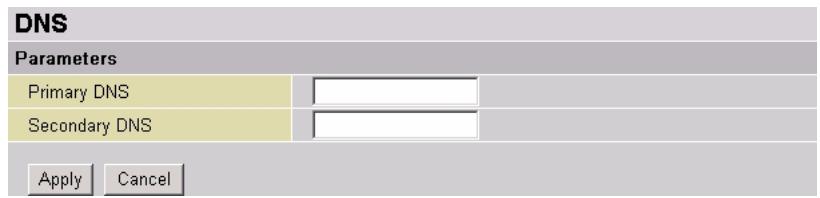
text_image
DNS Parameters Primary DNS Secondary DNS Apply CancelThe following table describes the labels in this screen.
Table 24 DNS
| LABEL | DESCRIPTION |
| Primary/Secondary DNS | Enter the DNS server IP address(es) in dotted decimal notation. For example, 192.168.1.1. |
| Apply | Click Apply to save the settings. |
| Cancel | Click Cancel to discard all changes. |
4.4 SHDSL Parameters
Use the SHDSL screen to configure advanced SHDSL settings. Click Configuration, WAN and SHDSL in the navigation panel to display the screen as shown next.
Figure 35 SHDSL
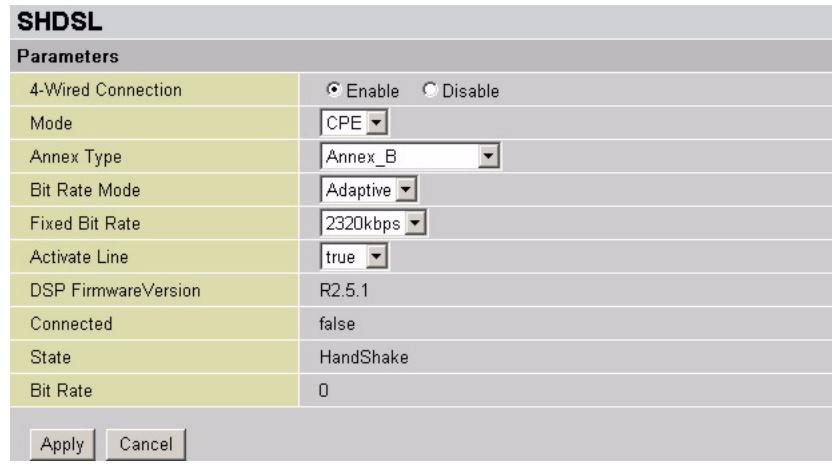
text_image
SHDSL Parameters 4-Wired Connection Enable Disable Mode CPE Annex Type Annex_B Bit Rate Mode Adaptive Fixed Bit Rate 2320kbps Activate Line true DSP FirmwareVersion R2.5.1 Connected false State HandShake Bit Rate 0 Apply CancelThe following table describes the labels in this screen.
Table 25 SHDSL
| LABEL | DESCRIPTION |
| 4 Wire Connection | Select Enable to activate 4-wire connection. The 4-wire mode is described in ITU-T G.991.2. 4-wire mode can increase the reach of a particular data rate without having to regenerate the signal. It can also give increased bandwidth for LAN-to-LAN applications.Otherwise, select Disable. |
| Mode | Select CPE (Customer Premises Equipment) if the Prestige is connected to the ISP. This is the default setting.To connect the Prestige to another SHDSL router, select CO (Central Office) here and set the remote SHDSL router to CPE mode. Or vise versa if you select CPE on the Prestige. |
| Annex Type | Select a DSL operating mode.Annex_A (default) is mostly used in North America, whereas Annex_B is more widespread in Europe.Annex_A_B, Annex_A_B_ANFP (Access Network Frequency Plan) and Annex_B_ANFP are automatically selected when the DSL line is in training state. These options are not available in CO mode.Note: For LAN-LAN connection, make sure the annex type is the same on Prestige and the remote SHDSL router. |
| Bit Rate Mode | Specify the bit rate. Choices are fixed or adaptive. |
| Fix Bit Rate | This field is applicable when you select Fixed in the Bit Rate Mode field.Select a fixed transfer rate for the DSL line from the drop-down list box. |
| Activate Line | Select false to disable SHDSL connection.Select true to enable SHDSL connection.Note: After you change the SHDSL line settings here, you must disable and enable the SHDSL line again to make the changes take effect. |
| DSP FirmwareVersion | This read-only field displays the SHDSL line code firmware version. |
| Connected | This field displays current SHDSL connection status. |
| State | This field displays current SHDSL connection state. |
| Bit Rate | This field displays the connection speed. |
| Apply | Click Apply to save the changes. |
| Cancel | Click Cancel to discard all changes. |
CHAPTER 5 System
This chapter describes the System screens.
5.1 Overview
Use the System screens to configure the time server and user account settings, upgrade firmware and backup/restore configuration on the Prestige.
5.2 Time Zone
To change your Prestige's time and date, click Configuration, System and Time Server in the navigation panel. The screen appears as shown. Use this screen to configure the Prestige's time based on your local time zone.
The world map and the v indicator shows the current time zone you select.
Figure 36 System: Time Zone
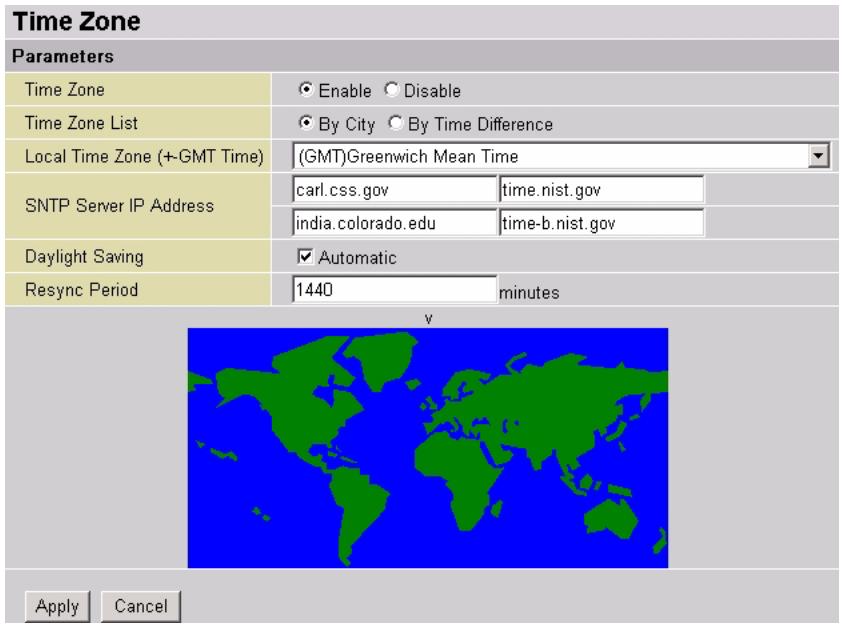
text_image
Time Zone Parameters Time Zone Enable Disable Time Zone List By City By Time Difference Local Time Zone (+-GMT Time) (GMT)Greenwich Mean Time SNTP Server IP Address carl.css.gov time.nist.gov india.colorado.edu time-b.nist.gov Daylight Saving Automatic Resync Period 1440 minutes Apply CancelThe following table describes the labels in this screen.
Table 26 System: Time Zone
| LABEL | DESCRIPTION |
| Time Zone | Select Enable to use the time zone settings to set your Prestige system time.Select Disable to deactivate this feature. |
| Time Zone List | Specify the order of the Local Time Zone list is to be displayed.Select By City to display the list alphabetically based on the cities for each time zone.Select By Time Different to display the list in ascending order. |
| Local Time Zone (GMT Time) | Select a time zone from the drop-down list box.Note that world map indicates the current time zone you select. |
| SNTP Server IP Address | Enter the IP address or URL of your time server. Check with your ISP/network administrator if you are unsure of this information. |
| Daylight Saving | This field is available when you select By City in the Time Zone List field.Daylight saving is a period from late spring to early fall when many countries set their clocks ahead of normal local time by one hour to give more daytime light in the evening.Select Automatic if you use daylight savings time. |
| Resync Period | Specify the time period (in minutes) the Prestige waits before updating the system time with the time server specified. |
| Apply | Click Apply to save the settings. |
| Cancel | Click Cancel to discard all changes. |
5.3 Remote Access
Use the Remote Access screen to the session time limit a user is allowed to remotely access the Prestige for management. After the time period is reached, the Prestige automatically disconnects a management session. In this case, you need to log in again with the login username and password.
Click Configuration, System and Remote Access to display the screen as shown.
Figure 37 System: Remote Access
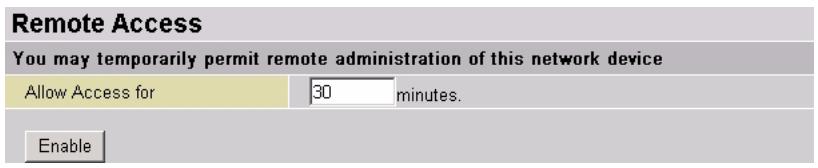
text_image
Remote Access You may temporarily permit remote administration of this network device Allow Access for 30 minutes. EnableEnter a time period (in minutes) in the Allow Access field. Enter a time period of 0 to not time out a management session. Then click Enable.
5.4 Firmware Upgrade
Find firmware at www.zyxel.com in a file that (usually) uses the system model name with a “.bin” extension, e.g., "prestige.bin". The upload process may take up to two minutes. After a successful upload, the system will reboot.
1 Click Configuration, System and Firmware Upgrade in the navigation panel to display the screen as shown.
Figure 38 System: Firmware Upgrade

text_image
Firmware Upgrade You may upgrade the system software on your network device New Firmware Image Browse... Upgrade2 Click Browse... to find the firmware file you want to upload. Remember that you must decompress compressed (.zip) files before you can upload them.
3 Click Upload to begin the upload process. A screen displays showing the firmware upgrade progress.
Note: Do NOT turn off the Prestige while firmware upload is in progress!
Figure 39 System: Firmware Upgrade: Progress

bar
Firmware Upgrade | Category | Value (%) | |---|---| | Upgrade | 92 |4 After the Prestige successfully upgrades the firmware, a screen displays. Select Current Settings to keep current Prestige settings. Select Factory Default Settings to reset the Prestige to the factory defaults.
Figure 40 System: Firmware Upgrade: Device Configuration Option
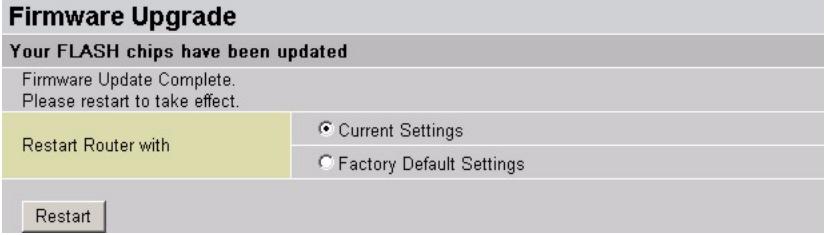
text_image
Firmware Upgrade Your FLASH chips have been updated Firmware Update Complete. Please restart to take effect. Restart Router with Current Settings Factory Default Settings Restart5 Click Restart to reboot the Prestige. Wait for about one minute before accessing the Prestige again.
5.5 Backup/Restore
Use the Backup/Restore screen for configuration file maintenance. Click Configuration, System and Backup/Restore in the navigation panel.
Figure 41 System: Configuration Backup/Restore
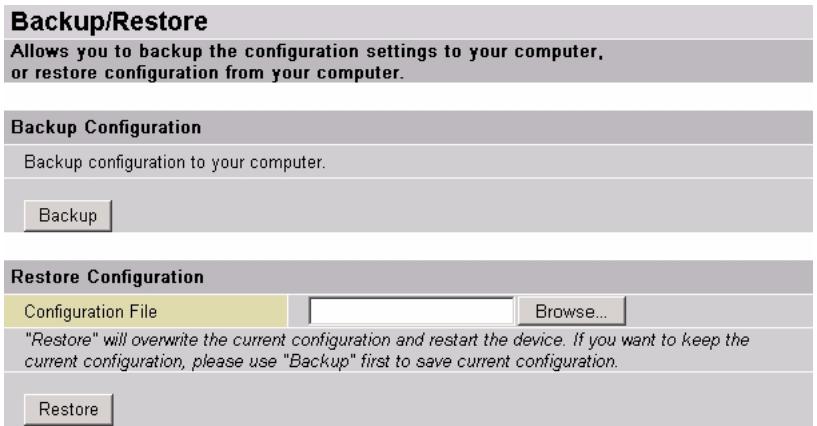
text_image
Backup/Restore Allows you to backup the configuration settings to your computer, or restore configuration from your computer. Backup Configuration Backup configuration to your computer. Backup Restore Configuration Configuration File Browse... "Restore" will overwrite the current configuration and restart the device. If you want to keep the current configuration, please use "Backup" first to save current configuration. RestoreBackup configuration allows you to back up (or save) the Prestige's current configuration to a file on your computer. Once your Prestige is configured and functioning properly, it is highly recommended that you back up your configuration file before making configuration changes. The backup configuration file will be useful in case you need to return to your previous settings.
Click Backup to save the Prestige's current configuration to your computer.
Restore configuration allows you to upload a new or previously saved configuration file from your computer to your Prestige.
Click Browse... to find the file you want to upload. Click Restore to begin the upload process.
Note: Restore only the configuration file that you have previously backed up using the Backup/Restore screen.
Do NOT manually edit the configuration file.
5.6 Restart Router
The Restart Router screen allows you to reboot the Prestige without turning the power off. Click Configuration, System and Restart in the navigation panel to display the screen as shown below.
Figure 42 System: Restart
| Restart Router | |
| After restarting. Please wait for several seconds to let the system | |
| Restart Router with | ● Current Settings |
| ○ Factory Default Settings | |
| Restart | |
In the Restart Router with field, select Current Settings and click Restart to reboot the Prestige with the current settings.
Note: All unsaved configuration settings will be lost.
Select Factory Default Settings and click Restart to reboot and reset the Prestige to the factory default.
Note: All custom settings will be lost.
5.7 User Management
Use the User Management screen to maintain login accounts.
Figure 43 System: User Management
| User Management | ||||
| Current Defined Users | ||||
| Valid | User | Comment | ||
| true | admin | Default admin user | Edit ▶ | |
| true | Cindy | Example | Edit ▶ | Delete ▶ |
| Create ▶ | ||||
The following table describes the labels in this screen.
Table 27 System: User Management
| LABEL | DESCRIPTION |
| Valid | This field indicates whether the account is activated (true) or not (false). |
| User | This field displays the account username. |
| Comment | This field displays additional information about the login account. |
| Edit | Click Edit to change the settings of a login account. Refer to Table 28 on page 63 for field descriptions. |
| Delete | Click Delete to remove an account from the table.Note: You cannot delete the account with the “admin” username. |
| Create | Click Create to add a new login account. |
5.7.1 Create a New User Account
To add a new user account, click Create in the User Management screen. A screen displays as shown.
Figure 44 System: User Management: Edit Account
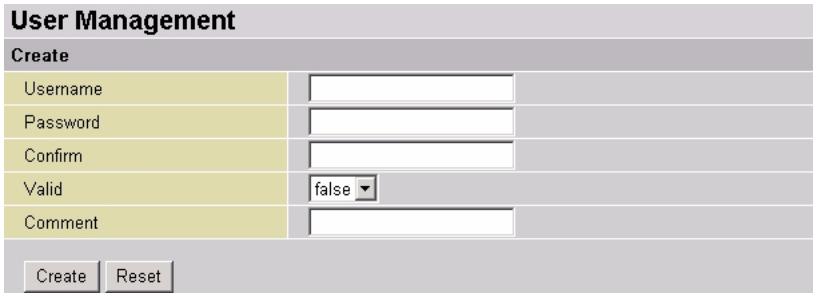
text_image
User Management Create Username Password Confirm Valid false Comment Create ResetThe following table describes the labels in this screen.
Table 28 System: User Management: Edit Account
| LABEL | DESCRIPTION |
| Username | Enter an account username. |
| Password | Enter a password associated to the username above. |
| Confirm | Enter the password again for confirmation. |
| Valid | Select true to activate this account. Otherwise, select false to disable it. |
| Comment | Enter additional information about this account. |
| Create | Click Create to add this new account and return to the main User Management screen. |
| Reset | Click Reset to start configuring this screen again. |
CHAPTER 6 Firewall
This chapter gives some background information on firewalls.
6.1 Overview
Originally, the term firewall referred to a construction technique designed to prevent the spread of fire from one room to another. The networking term firewall is a system or group of systems that enforces an access-control policy between two networks. It may also be defined as a mechanism used to protect a trusted network from an untrusted network. Of course, firewalls cannot solve every security problem. A firewall is one of the mechanisms used to establish a network security perimeter in support of a network security policy. It should never be the only mechanism or method employed. For a firewall to guard effectively, you must design and deploy it appropriately. This requires integrating the firewall into a broad information-security policy. In addition, specific policies must be implemented within the firewall itself.
6.2 Types of Firewalls
There are three main types of firewalls:
1 Packet Filtering Firewalls
2 Application-level Firewalls
3 Stateful Inspection Firewalls
6.2.1 Packet Filtering Firewalls
Packet filtering firewalls restrict access based on the source/destination computer network address of a packet and the type of application.
6.2.2 Application-level Firewalls
Application-level firewalls restrict access by serving as proxies for external servers. Since they use programs written for specific Internet services, such as HTTP, FTP and telnet, they can evaluate network packets for valid application-specific data. Application-level gateways have a number of general advantages over the default mode of permitting application traffic directly to internal hosts:
1 Information hiding prevents the names of internal systems from being made known via DNS to outside systems, since the application gateway is the only host whose name must be made known to outside systems.
2 Robust authentication and logging pre-authenticates application traffic before it reaches internal hosts and causes it to be logged more effectively than if it were logged with standard host logging. Filtering rules at the packet filtering router can be less complex than they would be if the router needed to filter application traffic and direct it to a number of specific systems. The router need only allow application traffic destined for the application gateway and reject the rest.
6.2.3 Stateful Inspection Firewalls
Stateful inspection firewalls restrict access by screening data packets against defined access rules. They make access control decisions based on IP address and protocol. They also "inspect" the session data to assure the integrity of the connection and to adapt to dynamic protocols. These firewalls generally provide the best speed and transparency; however, they may lack the granular application level access control or caching that some proxies support.
Firewalls, of one type or another, have become an integral part of standard security solutions for enterprises.
Your Prestige includes a full SPI (Stateful Packet Inspection) firewall for controlling Internet access from your LAN, as well as helping to prevent attacks from hackers. In addition to this, when using NAT (Network Address Translation), the Prestige acts as a “natural” Internet firewall, as all computers on your LAN will use private IP addresses that cannot be directly accessed from the Internet.
The following lists the different security features on the Prestige:
- Firewall: This prevents access from outside your network. The router provides three levels of security support:
- NAT: This masks the IP addresses of the computers on the LAN invisible to the WAN. This makes it much more difficult for a hacker to target a machine on your network.
- Firewall Security and Policy (General Settings): Inbound direction of packet filter rules to block unauthorized computers or applications access to your local network from the Internet.
- Intrusion Detection: Enable this feature to detect, prevent and log malicious attacks.
- Access Control: Prevents specified local computers from accessing your local network:
- Firewall Security and Policy (General Settings): Outbound direction of packet filter rules to block unauthorized computers or applications access from the Internet.
- MAC Filter rules: To prevent unauthorized computers from accessing the network through the Prestige.
- URL Filter: To block computers on your local network from accessing specific web sites.
6.3 General Settings
Enable the firewall in the General Settings screen. Click Configuration, Firewall and General Settings in the navigation panel to display the screen as shown.
Figure 45 Firewall: General Settings
| General Settings | |
| Firewall Security | |
| Security | ○ Enable ● Disable |
| Policy | ○ All blocked/User-defined |
| ○ High security level | |
| ○ Medium security level | |
| ○ Low security level | |
| (⚠️If some applications cannot work after enabling Firewall, please check the Packet Filter especially Port Filter rules. For example, adding (TCP:443,outbound allowed) will let HTTPS data go through Firewall.) | |
| Block WAN Request | ○ Enable ● Disable |
| (⚠️Enable for preventing any ping test from Internet, such as hacker attack.) | |
| Apply | |
The following table describes the labels in this screen.
Table 29 Firewall: General Settings
| LABEL | DESCRIPTION |
| Security | Select Enable to activate firewall on the Prestige.Select Disable to deactivate firewall on the Prestige. |
| Policy | The options are applicable when you select Enable in the Security field.Select All blocked/User-defined to block all out-going (LAN to Internet) and incoming packets (Internet to LAN) based on the firewall filters you configure. By default, there is no custom filters.Select High security level, Medium security level (default) or Low security level to block packets based on the pre-defined firewall filters. Refer to Table 30 on page 67 for more information. |
| Block WAN Request | Select Enable to set the Prestige not to respond to any incoming Ping requests.Select Disable to deactivate this feature. The Prestige will respond to all Ping requests. |
| Apply | Click Apply to save the settings. |
The following table lists inbound (Internet to LAN) and outbound (LAN to Internet) traffic that is allowed or not allowed for the pre-defined port filters. The Prestige uses the pre-defined port filters when you select a security level in the General Settings screen.
Table 30 Pre-defined Port Filter
| APPLICATION | PROTOCOL | PORT NUMBER | FIREWALL | ||||||
| HIGH | MEDIUM | LOW | |||||||
| START | END | INBOUND | OUTBOUND | INBOUND | OUTBOUND | INBOUND | OUTBOUND | ||
| HTTP(80) | TCP(6) | 80 | 80 | NO | YES | NO | YES | NO | YES |
| DNS (53) | UDP(17) | 53 | 53 | NO | YES | NO | YES | YES | YES |
| DNS (53) | TCP(6) | 53 | 53 | NO | YES | NO | YES | YES | YES |
| FTP(21) | TCP(6) | 21 | 21 | NO | NO | NO | YES | NO | YES |
| Telnet(23) | TCP(6) | 23 | 23 | NO | NO | NO | YES | NO | YES |
| SMTP(25) | TCP(6) | 25 | 25 | NO | YES | NO | YES | NO | YES |
| POP3(110) | TCP(6) | 110 | 110 | NO | YES | NO | YES | NO | YES |
| NEWS(119) | TCP(6) | 119 | 119 | NO | NO | NO | YES | NO | YES |
| RealAudio (7070) | UDP(17) | 7070 | 7070 | NO | NO | YES | YES | YES | YES |
| PING | ICMP(1) | N/A | N/A | NO | YES | NO | YES | NO | YES |
| H.323(1720) | TCP(6) | 1720 | 1720 | NO | NO | NO | YES | YES | YES |
| T.120(1503) | TCP(6) | 1503 | 1503 | NO | NO | NO | YES | YES | YES |
| SSH(22) | TCP(6) | 22 | 22 | NO | NO | NO | YES | YES | YES |
| NTP(123) | UDP(17) | 123 | 123 | NO | YES | NO | YES | NO | YES |
| HTTPS(443) | TCP(6) | 443 | 443 | NO | NO | NO | YES | NO | YES |
| ICQ (5190) | TCP(6) | 5190 | 5190 | NO | NO | NO | NO | YES | YES |
6.4 Packet Filter
The packet filters are applicable when the firewall is enabled in the General Settings screen.
Use the Packet Filter screen to configure port and address filters. Click Configuration, Firewall and Packet Filters.
The Prestige comes with pre-configured packet filters as shown in the screen. These filters are for the Policy security levels in the Firewall: General Settings screen (refer to Section 6.3 on page 66). You can modify or delete the pre-configured packet filters.
Figure 46 Firewall: Packet Filter

text_image
Packet Filter Add TCP/UDP Filter ▶ Add Raw IP Filter ▶| Packet Filter Rules | |||||||
| Rule Name | Time Schedule | Source IP / Netmask | Protocol | Source port(s) | Inbound | ||
| Destination IP / Netmask | Destination port(s) | Outbound | |||||
| mei_http | Always On | 0.0.0.0 / 0.0.0.0 | TCP | 0 ~ 65535 | Block | Edit ▶ | Delete ▶ |
| 0.0.0.0 / 0.0.0.0 | 80 ~ 80 | Allow | |||||
| mei_dns | Always On | 0.0.0.0 / 0.0.0.0 | UDP | 0 ~ 65535 | Block | Edit ▶ | Delete ▶ |
| 0.0.0.0 / 0.0.0.0 | 53 ~ 53 | Allow | |||||
| mei_tdns | Always On | 0.0.0.0 / 0.0.0.0 | TCP | 0 ~ 65535 | Block | Edit ▶ | Delete ▶ |
| 0.0.0.0 / 0.0.0.0 | 53 ~ 53 | Allow | |||||
| mei_ftp | Always On | 0.0.0.0 / 0.0.0.0 | TCP | 0 ~ 65535 | Block | Edit ▶ | Delete ▶ |
| 0.0.0.0 / 0.0.0.0 | 21 ~ 21 | Allow | |||||
| mei_tnet | Always On | 0.0.0.0 / 0.0.0.0 | TCP | 0 ~ 65535 | Block | Edit ▶ | Delete ▶ |
| 0.0.0.0 / 0.0.0.0 | 23 ~ 23 | Allow | |||||
| mei_smtp | Always On | 0.0.0.0 / 0.0.0.0 | TCP | 0 ~ 65535 | Block | Edit ▶ | Delete ▶ |
| 0.0.0.0 / 0.0.0.0 | 25 ~ 25 | Allow | |||||
| mei_pop3 | Always On | 0.0.0.0 / 0.0.0.0 | TCP | 0 ~ 65535 | Block | Edit ▶ | Delete ▶ |
| 0.0.0.0 / 0.0.0.0 | 110 ~ 110 | Allow | |||||
| mei_nntp | Always On | 0.0.0.0 / 0.0.0.0 | TCP | 0 ~ 65535 | Block | Edit ▶ | Delete ▶ |
| 0.0.0.0 / 0.0.0.0 | 119 ~ 119 | Allow | |||||
| mei_rav | Always On | 0.0.0.0 / 0.0.0.0 | UDP | 0 ~ 65535 | Allow | Edit ▶ | Delete ▶ |
| 0.0.0.0 / 0.0.0.0 | 7070 ~ 7070 | Allow | |||||
| mei_icmp | Always On | 0.0.0.0 / 0.0.0.0 | ICMP | N/A | Block | Edit ▶ | Delete ▶ |
| 0.0.0.0 / 0.0.0.0 | N/A | Allow | |||||
| mei_h323 | Always On | 0.0.0.0 / 0.0.0.0 | TCP | 0 ~ 65535 | Block | Edit ▶ | Delete ▶ |
| 0.0.0.0 / 0.0.0.0 | 1720 ~ 1720 | Allow | |||||
| mei_t120 | Always On | 0.0.0.0 / 0.0.0.0 | TCP | 0 ~ 65535 | Block | Edit ▶ | Delete ▶ |
| 0.0.0.0 / 0.0.0.0 | 1503 ~ 1503 | Allow | |||||
| mei_ssh | Always On | 0.0.0.0 / 0.0.0.0 | TCP | 0 ~ 65535 | Block | Edit ▶ | Delete ▶ |
| 0.0.0.0 / 0.0.0.0 | 22 ~ 22 | Allow | |||||
| mei_sntp | Always On | 0.0.0.0 / 0.0.0.0 | UDP | 0 ~ 65535 | Block | Edit ▶ | Delete ▶ |
| 0.0.0.0 / 0.0.0.0 | 123 ~ 123 | Allow | |||||
| mei_https | Always On | 0.0.0.0 / 0.0.0.0 | TCP | 0 ~ 65535 | Block | Edit ▶ | Delete ▶ |
| 0.0.0.0 / 0.0.0.0 | 443 ~ 443 | Allow | |||||
The following table describes the labels in this screen.
Table 31 Firewall: Packet Filter
| LABEL | DESCRIPTION |
| Add TCP/UDP Filter | Click Add TCP/UDP Filter to configure a new TCP/UFDP packet filter. |
| Add Raw IP Filter | Click Add Raw IP Filter to configure a new IP packet filter. |
| Packet Filter Rules | |
| Rule Name | This field displays the descriptive name for a rule. |
| Time Schedule | This field displays the time when this rule is active. |
| Source IP/Netmask | This field displays the source IP address and subnet mask. |
| Destination IP/Netmask | This field displays the destination IP address and subnet mask |
| Protocol | This field displays the protocol name. |
| Source Port | This field displays the source port number or port number range. |
| Destination Port | This field displays the destination port number or port number range. |
| Inbound | This field displays whether the incoming packets are forwarded (Allow) or dropped (Block). |
| Outbound | This field displays whether the outgoing packets are forwarded (Allow) or dropped (Block). |
| Edit | Click Edit to modify the settings of the selected filter. |
| Delete | Click Delete to remove the selected filter. |
6.4.1 Add a New TCP/UDP Packet Filter
To add a new TCP/UDP packet filter, click Add TCP/UDP Filter in the Packet Filter screen.
Figure 47 Firewall: Packet Filters: Add TCP/UDP Filter
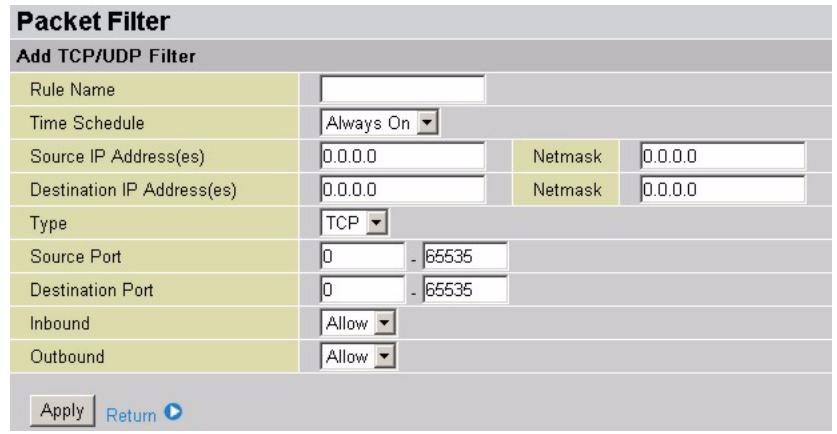
text_image
Packet Filter Add TCP/UDP Filter Rule Name Time Schedule Always On Source IP Address(es) 0.0.0.0 Netmask 0.0.0.0 Destination IP Address(es) 0.0.0.0 Netmask 0.0.0.0 Type TCP Source Port 0 - 65535 Destination Port 0 - 65535 Inbound Allow Outbound Allow Apply ReturnThe following table describes the labels in this screen.
Table 32 Firewall: Packet Filters: Add TCP/UDP Filter
| LABEL | DESCRIPTION |
| Rule Name | Enter a descriptive name for identification purposes. |
| Time Schedule | Specify the time in which this filter is active. Select Always On to activate the rule all the time. Otherwise select a time you configure in the Time Schedule screen. |
| Source IP Address(es) | Enter the start source IP address in dotted decimal notation. For example, 192.168.1.10.In theNetmaskfield, enter the source subnet mask address in dotted decimal notation. For example, 255.255.255.0. |
| Destination IP Address(es) | Enter the end source IP address in dotted decimal notation. Enter the same source IP address here if you want to filter packets to or from an IP address. For example, 192.168.1.10.In theNetmaskfield, enter the destination subnet mask in dotted decimal notation. For example, 255.255.255.0. |
| Type | Select the packet type to filter. Choices areTCPandUDP. |
| Source Port | Specify the source port or a range of source port numbers in the fields provided. |
| Destination Port | Specify the destination port or a range of destination port numbers in the fields provided. |
| Inbound/Outbound | Specify whether to deny (Block) or allow (Allow) incoming (from the Internet) or out-going (to the Internet) traffic. |
| Apply | ClickApplyto save the settings and return to the mainPacket Filterscreen. |
| Return | ClickReturnto discard all changes and go back to the mainPacket Filterscreen. |
6.4.2 Add a New Raw Packet Filter
To add a new raw packet filter, click Add Raw Filter in the Packet Filters screen.
Figure 48 Firewall: Packet Filters: Add Raw Filter
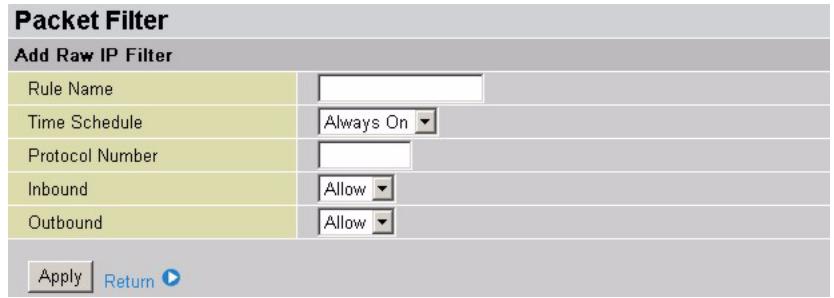
text_image
Packet Filter Add Raw IP Filter Rule Name Time Schedule Always On Protocol Number Inbound Allow Outbound Allow Apply ReturnThe following table describes the labels in this screen.
Table 33 Firewall: Packet Filters: Add Raw Filter
| LABEL | DESCRIPTION |
| Rule Name | Enter a descriptive name for identification purposes. |
| Time Schedule | Specify the time in which this filter is active. Select Always On to activate the rule all the time. Otherwise select a time you configure in the Time Schedule screen. |
| Protocol Number | Enter a protocol number. |
| Inbound/Outbound | Specify whether to deny (Block) or allow (Allow) incoming (from the Internet) or out-going (to the Internet) traffic. |
| Apply | Click Apply to save the settings and return to the main Packet Filter screen. |
| Return | Click Return to discard all changes and go back to the main Packet Filter screen. |
6.5 Intrusion Detection
The Prestige's Intrusion Detection System (IDS) is used to detect hacker attacks and intrusion attempts from the Internet. When you enable IDS on the Prestige, inbound packets are filtered and blocked depending on whether they are detected as possible hacker attacks, intrusion attempts or other connections that the router determines to be suspicious.
If the Prestige detects a possible attack, the source IP or destination IP address will be added to the Blacklist. Any further attempts using this IP address will be blocked for the time period specified in the Block Duration field. The default setting for this function is false (disabled). Some attack types are denied immediately without using the Blacklist function, such as Land attack and Echo/CharGen scan.
The following table lists the types of attacks that the IDS is able to detect and the actions performed.
Table 34 IDS: Detectable Attacks
| NAME | PARAMETER | BLACKLIST | TYPE OF BLOCK DURATION | DROP PACKET | LOG |
| Ascend Kill | Ascend Kill data | Source IP | DoS | Yes | Yes |
| WinNuke | TCP Port 135, 137~139, Flag: URG | Source IP | DoS | Yes | Yes |
| Smurf | ICMP type 8 Des IP is broadcast | Destination IP | Victim Protection | Yes | Yes |
| Land attack | SrcIP = DstIP | Yes | Yes | ||
| Echo/CharGen Scan | UDP Echo Port and CharGen Port | Yes | Yes | ||
| Echo Scan | UDP Dst Port = Echo(7) | Source IP | Scan | Yes | Yes |
| CharGen Scan | UDP Dst Port = CharGen(19) | Source IP | Scan | Yes | Yes |
| X'mas Tree Scan | TCP Flag: X'mas | Source IP | Scan | Yes | Yes |
| IMAP SYN/FIN Scan | TCP Flag: SYN/FIN DstPort: IMAP(143) SrcPort: 0 or 65535 | Source IP | Scan | Yes | Yes |
| SYN/FIN/RST/ACK Scan | TCP, No Existing session And Scan Hosts more than five. | Source IP | Scan | Yes | Yes |
| Net Bus Scan | TCP No Existing session DstPort = Net Bus 12345,12346, 3456 | Source IP | Scan | Yes | Yes |
| Back Orifice Scan | UDP, DstPort = Orifice Port (31337) | Source IP | Scan | Yes | Yes |
| SYN Flood | Max TCP Open Handshaking Count (Default 100 c/sec) | Yes | |||
| ICMP Flood | Max ICMP Count (Default 100 c/sec) | Yes | |||
| ICMP Echo | Max PING Count (Default 15 c/sec) | Yes |
Click Configuration, Firewall and Intrusion Detection in the navigation panel to display the screen as shown.
Note: The Intrusion Detection screen is available when you enable the firewall feature on the Prestige.
Figure 49 Firewall: Intrusion Detection
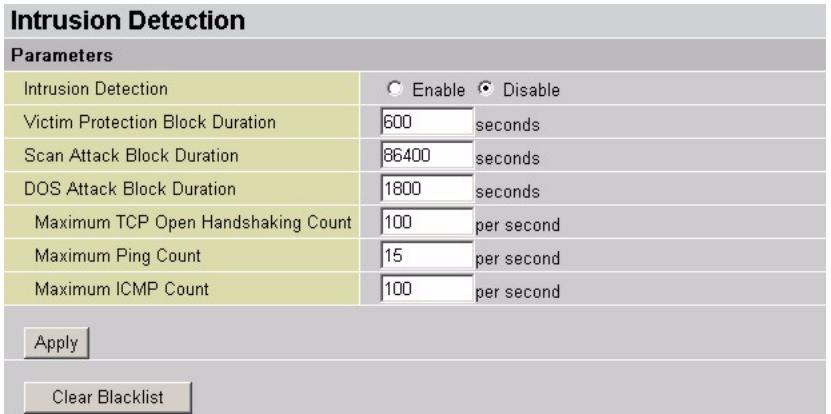
text_image
Intrusion Detection Parameters Intrusion Detection Enable Disable Victim Protection Block Duration 600 seconds Scan Attack Block Duration 86400 seconds DOS Attack Block Duration 1800 seconds Maximum TCP Open Handshaking Count 100 per second Maximum Ping Count 15 per second Maximum ICMP Count 100 per second Apply Clear BlacklistThe following table describes the labels in this screen.
Table 35 Firewall: Intrusion Detection
| LABEL | DESCRIPTION |
| Intrusion Detection | Select Enable to activate this feature.Select Disable to deactivate this feature. |
| Victim Protection Block Duration | Specify the time period (in seconds) the Prestige blocks any Smurf attacks when detected. |
| Scan Attack Block Duration | Specify the time period (in seconds) the Prestige blocks hosts that attempt a possible Scan attack. Scan attack types include X'mas scan, IMAP SYN/FIN scan and similar attempts. |
| DoS Attack Block Duration | Specify the time period (in seconds) the Prestige blocks hosts that attempt a possible Denial of Service (DoS) attack.Possible DoS attacks this attempts to block include Ascend Kill and WinNuke. |
| Max TCP Open Handshaking Count | This is the rate of new TCP handshake open sessions that causes the firewall to determine that this is a SYN Flood attack. The Prestige then starts to delete new sessions. |
| Max PING Count | This is the rate of ICMP echo (or Ping) requests that the Prestige receives per second. If the current rate is above this number, the firewall decides that this is an ICMP Echo Storm attack. |
| Max ICMP Count | This is the rate of ICMP packets that the Prestige receives per second. If the current rate is above this number, the firewall decides that this is an ICMP Flood attack. |
| Apply | Click Apply to save the settings. |
| Clear Blacklist | Click Clear Blacklist to reset the blacklist. |
Note: For SYN Flood, ICMP Echo Storm and ICMP flood attacks, the Prestige logs the event in the Event Log screen. The Prestige cannot prevent such attacks from occurring.
6.6 URL Filter
URL (Uniform Resource Locator) filtering allows you to create and enforce Internet access policies tailored to your needs. URL filtering gives you the ability to block web sites that contain key words (that you specify) in the web address (such as www.xxx.com). You can set a schedule for when the Prestige performs content filtering.
Note: URL filter blocks web browser (HTTP) connection attempts using port 80 only.
Click Configuration, Firewall and URL Filter in the navigation panel to display the screen as shown next.
Figure 50 Firewall: URL Filter
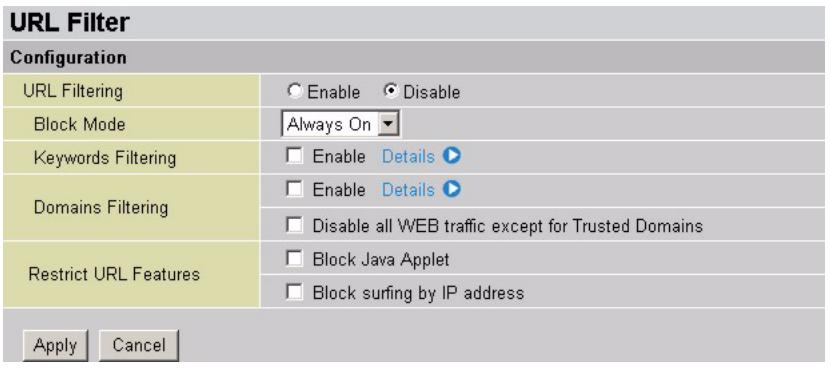
text_image
URL Filter Configuration URL Filtering Enable Disable Block Mode Always On Keywords Filtering Enable Details Domains Filtering Enable Details Disable all WEB traffic except for Trusted Domains Restrict URL Features Block Java Applet Block surfing by IP address Apply CancelThe following table describes the labels in this screen.
Table 36 Firewall: URL Filter
| LABEL | DESCRIPTION |
| URL Filter | Select Enable to activate this feature.Select Disable to deactivate this feature. |
| Block Mode | Select Always Block to apply the filter(s) at all times.Select Block From and specify the time period the Prestige applies the filter(s). |
| Keywords Filtering | Select Enable to set the Prestige to block access to web address containing the specified keyword(s). Click Details to configure the keywords. |
| Domain Filtering | Select Disable all WEB traffic except for Trusted Domains to set the Prestige to allow access to the specified web sites whose address contains trusted keywords or domains you configure in the Keyword Filer and Domain Filter screens. |
| Restrict URL Features | Select Block Java Applet to prevent Java applet applications from running.Select Block surfing by IP address to set the Prestige to disallow Internet access based on a device's IP address. |
| Apply | Click Apply to save the settings. |
| Cancel | Click Cancel to discard all changes. |
6.6.1 Keywords Filtering
Use the Keywords Filtering screen to specify the keywords in the URL. For example, if you specify the keyword "xxx", the Prestige blocks all sites containing this keyword including the URL http://www.website.com/xxx.html.
In the URL Filter screen, select Enable for Keywords Filtering and click Details to display the screen as shown next.
Figure 51 Firewall: URL Filter: Keywords Filtering
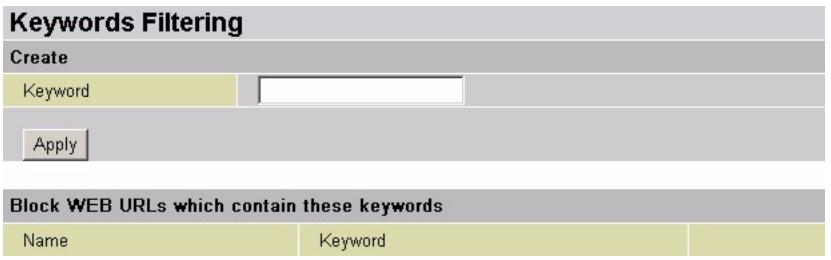
text_image
Keywords Filtering Create Keyword Apply Block WEB URLs which contain these keywords Name KeywordThe following table describes the labels in this screen.
Table 37 Firewall: URL Filter: Keywords Filtering
| LABEL | DESCRIPTION |
| Create | |
| Keyword | Enter a keyword in this field. |
| Apply | Click Apply to add the keyword to the table below. |
| Block WEB URLs which contain these keywords | This read-only table lists the keywords in the web site address to which the Prestige blocks access. |
| Name | This field displays the name of the filter rule. |
| Keyword | This field displays the keyword you created. |
| Delete | Click Delete to remove the select keyword from this table. |
6.6.2 Domain Filtering
Use the Domains Filtering screen to specify the URL domain. For example, if you specify the domain “www.xxx.com”, the Prestige blocks access to the sites in this domain, including “www.xxx”.
In the URL Filter screen, select Enable for Domains Filtering and click Details to display the screen as shown next.
Figure 52 Firewall: URL Filter: Domains Filtering
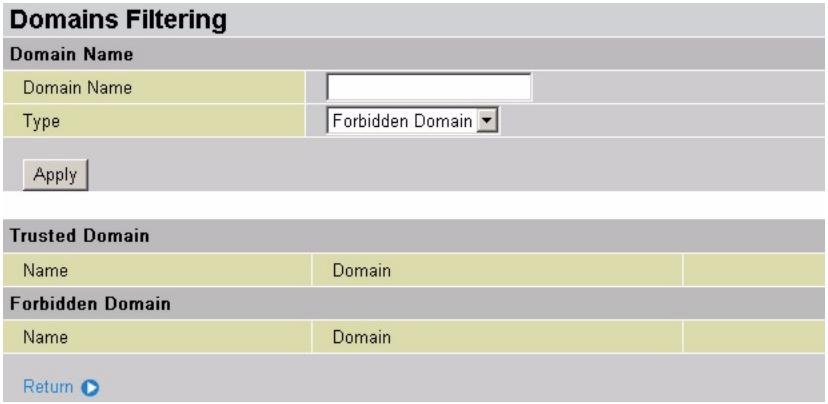
text_image
Domains Filtering Domain Name Domain Name Type Forbidden Domain Apply Trusted Domain Name Domain Forbidden Domain Name Domain ReturnThe following table describes the labels in this screen.
Table 38 Firewall: URL Filter: Domains Filtering
| LABEL | DESCRIPTION |
| Domain Name | |
| Domain Name | Enter a domain name in this field. |
| Type | Specify whether to allow access (Trusted Domain) or deny access (Forbidden Domain) from the drop-down list box. |
| Apply | Click Apply to add the keyword to the table below. |
| Trusted Domain | This read-only table lists the domains to which the Prestige allows access. |
| Name | This field displays the name of the filter rule. |
| Domain | This field displays the specified domain. |
| Forbidden Domain | This read-only table lists the domains to which the Prestige blocks access. |
| Name | This field displays the name of the filter rule. |
| Domain | This field displays the specified domain. |
| Delete | Click Delete to remove the select keyword from this table. |
6.7 Firewall Log
Use the Firewall Log screen to set the Prestige to log firewall events (such as when an attack is detected). View the event logs in the Event Log screen.
Click Configuration, Firewall and Firewall Log in the navigation panel to display the screen as shown.
Figure 53 Firewall: Firewall Logs
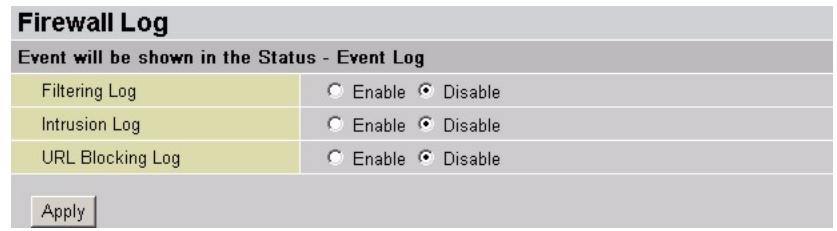
text_image
Firewall Log Event will be shown in the Status - Event Log Filtering Log Enable Disable Intrusion Log Enable Disable URL Blocking Log Enable Disable ApplyThe following table describes the labels in this screen.
Table 39 Firewall: Firewall Logs
| LABEL | DESCRIPTION |
| Filtering Log | Select Enable to log filtering events.Select Disable not to log filtering events. |
| Intrusion Log | Select Enable to log intrusion detections.Select Disable not to log intrusion detections. |
| URL Blocking Log | Select Enable to log URL blocking events.Select Disable not to log URL blocking events. |
CHAPTER 7 VPN
This chapter shows you how to configure the Prestige for VPN connection.
7.1 Overview
A VPN (Virtual Private Network) provides secure communications between sites without the expense of leased site-to-site lines. A secure VPN is a combination of tunneling, encryption, authentication, access control and auditing technologies/services used to transport traffic over the Internet or any insecure network that uses the TCP/IP protocol suite for communication.
Your Prestige supports three main types of VPN (Virtual Private Network): PPTP, IPSec and L2TP.
7.2 PPTP
Point-to-Point Tunneling Protocol (PPTP) is a network protocol that enables secure transfer of data from a remote client to a private server, creating a Virtual Private Network (VPN) using TCP/IP-based networks.
PPTP supports on-demand, multi-protocol and virtual private networking over public networks, such as the Internet. You can set the Prestige to initiate a VPN connection or accept connection requests from a VPN client.
7.2.1 PPTP Summary
To view PPTP VPN rule summary, click VPN and PPTP in the navigation panel to display the main PPTP screen.
Figure 54 VPN: PPTP
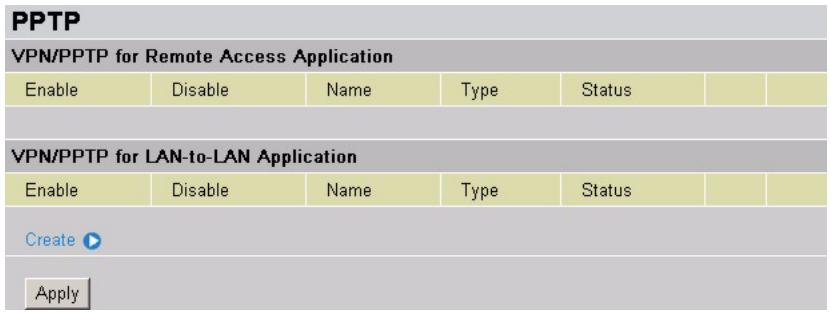
text_image
PPTP VPN/PPTP for Remote Access Application Enable Disable Name Type Status VPN/PPTP for LAN-to-LAN Application Enable Disable Name Way Status Create ▶ ApplyThe following table describes the labels in this screen.
Table 40 VPN: PPTP
| LABEL | DESCRIPTION |
| Enable | Select this option to activate this VPN rule. |
| Disable | Select this option to deactivate this VPN rule. |
| Name | This field displays the descriptive name for the VPN rule. |
| Type | This field displays whether the Prestige acts as a client (Dialout) or server (Dialin) for the VPN rule. |
| Status | This field displays whether the VPN rule is in use or not. |
| Edit | Click Edit to modify the settings of the selected rule. |
| Create | Click Create to add a new VPN rule. |
| Apply | Click Apply to save the changes. |
7.2.2 Creating a PPTP VPN Rule
To configure a PPTP VPN rule, click Create in the summary screen to display the screen as shown.
Figure 55 VPN: PPTP
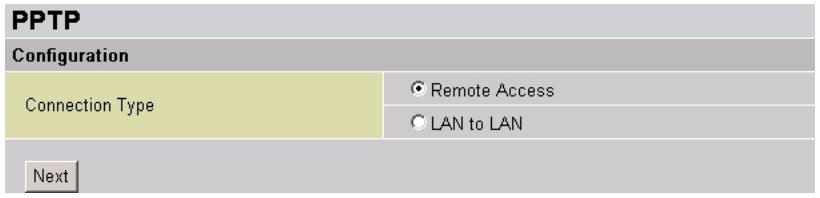
text_image
PPTP Configuration Connection Type Remote Access LAN to LAN NextIn the Connection Type field, select Remote Access or LAN to LAN and click Next to display the configuration screen.
7.2.2.1 Remote Access Connection
Use PPTP Remote Access Connection screen to configure the Prestige to set up PPTP connection to a remote VPN device.
Figure 56 VPN: PPTP: Remote Access
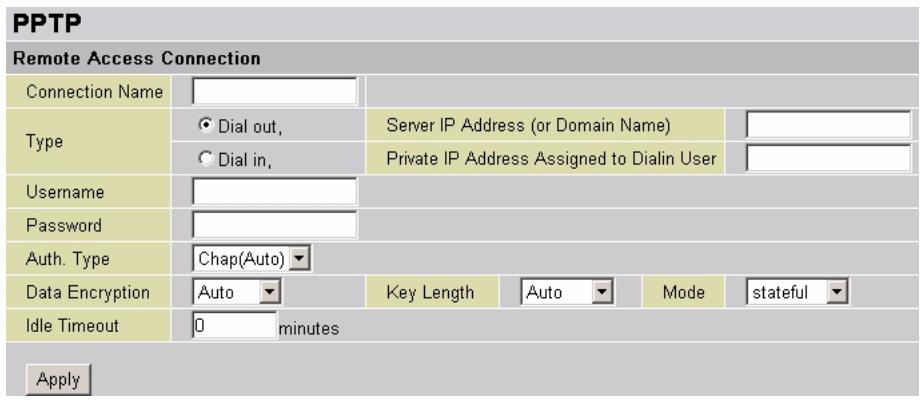
text_image
PPTP Remote Access Connection Connection Name Type Username Password Auth. Type Data Encryption Idle Timeout Apply Dial out, Dial in, Server IP Address (or Domain Name) Private IP Address Assigned to Dialin User Chap(Auto) Auto Key Length Auto Mode stateful 0 minutesThe following table describes the labels in this screen.
Table 41 VPN: PPTP: Remote Access
| LABEL | DESCRIPTION |
| Connection Name | Enter a descriptive name for identification purposes. |
| Type | Select Dial Out if you want your Prestige to operate as a client (connecting to a remote VPN device).Select Dial In to allow computers to establish a VPN connection to the Prestige. |
| Server IP Address (or Domain Name) | This field is applicable when you select Dial Out in the Type fieldEnter the IP address or the domain name of the remote VPN device. |
| Private IP Address Assigned to Dialin User | This field is applicable when you select Dial In in the Type field.Enter the IP address (in dotted decimal notation) to assign to the remote VPN client that initiates the VPN connection. For example, 192.168.1.10. |
| Username | If you select Dial Out in the Type field, enter the username provided.If you select Dial In in the Type field, enter a username to be used when establishing a VPN connection. |
| Password | Enter the password associated with the username above. |
| PPP Authentication Type | Specify the authentication type to use when accepting or establishing a VPN connection. Choices are PAP (Password Authentication Protocol) and CHAP (Challenge Handshake Authentication Protocol). The default is CHAP.When you select PAP, password is sent unencrypted. While CHAP provides better security by encrypting the password before transmission and reauthenticates the VPN client to protect against identity theft. |
| Data Encryption | You can set the Prestige to encrypt data sent over the VPN connection using MPPE (Microsoft Point to Point Encryption).Select Auto to set the Prestige to automatically detect whether the remote VPN device uses data encryption.Select Enable to activate data encryption on the Prestige. Make sure the remote VPN device also has data encryption activated with the same encryption settings as the Prestige.Select Disable to deactivate data encryption on the Prestige. You cannot establish a VPN connection if data encryption in enabled on the remote VPN device. |
| Key Length | Specify the key length for data encryption. Choices are Auto, 40 bits and 128 bits.Select Auto to set the Prestige to automatically detect the key length used by the remote VPN device.Otherwise select 40 bits or 128 bits (for stronger encryption) to set the key length manually.Note: Make sure the key length is the same on the Prestige and the remote VPN device. |
| Mode | Specify the encryption mode. Choices are Stateful and Stateless.Select Stateful to use a different encryption key after 256 packets of data transmitted.Select Stateless to use a different encryption key for each packet. |
| Idle Time | Specify the time interval in minutes (where there is no traffic between the Prestige and the computer) that can elapse before the Prestige automatically disconnects the connection.Enter 0 to allow connection up all the time. |
| Apply | Click Apply to save the changes. |
7.2.2.2 LAN to LAN Connection
Use the PPTP LAN to LAN screen to configure the Prestige to accept connection requests from a VPN client.
Figure 57 VPN: PPTP: LAN to LAN Connection
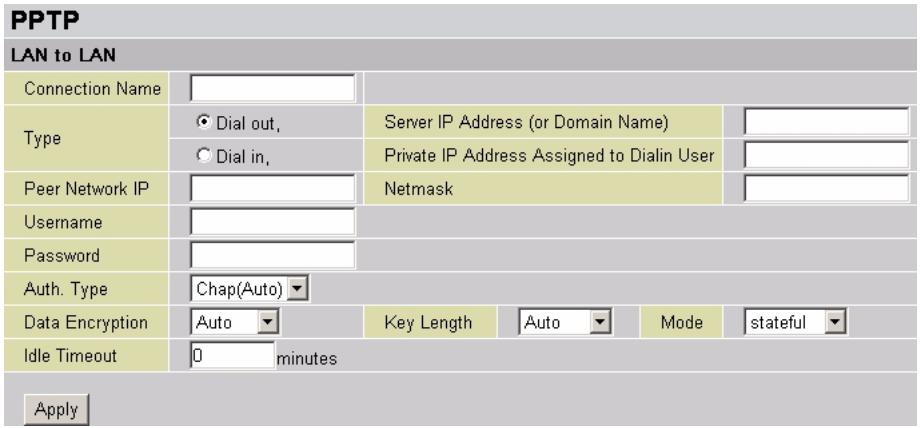
text_image
PPTP LAN to LAN Connection Name Type ○ Dial out, ○ Dial in, Peer Network IP Username Password Auth. Type Data Encryption Idle Timeout Apply Server IP Address (or Domain Name) Private IP Address Assigned to Dialin User Netmask Chap(Auto) Key Length Auto Mode stateful 0 minutesThe following table describes the labels in this screen.
Table 42 VPN PPTP: LAN to LAN Connection
| LABEL | DESCRIPTION |
| Connection Name | Enter a descriptive name for identification purposes. |
| Type | Select Dial Out if you want your Prestige to operate as a client (connecting to a remote VPN device).Select Dial In to allow computers to establish a VPN connection to the Prestige.When configuring your Prestige as a client, enter the remote Server IP Address (or Hostname) you wish to connection to.When configuring your router as a server, enter the Private IP Address Assigned to Dial in User address. |
| Server IP Address (or Domain Name) | This field is applicable when you select Dial Out in the Type fieldEnter the IP address or the domain name of the remote VPN device. |
| Private IP Address Assigned to Dialin User | This field is applicable when you select Dial In in the Type field.Enter the IP address (in dotted decimal notation) to assign to the remote VPN client that initiates the VPN connection. For example, 192.168.1.10. |
| Netmask | This field is applicable when you selectDial Inin theTypefield.Enter the subnet mask (in dotted decimal) notation to assign to the remote VPN client that initiates this VPN connection. For example, 255.255.255.0. |
| Peer Network IP | Enter the IP address (in dotted decimal notation) of the remote network. For example, 192.168.1.1. |
| Username | If you selectDial Outin theTypefield, enter the username provided.If you selectDial Inin theTypefield, enter a username to be used when establishing a VPN connection. |
| Password | Enter the password associated with the username above. |
| PPP Authentication Type | Specify the authentication type to use when accepting or establishing a VPN connection. Choices arePAP (Password Authentication Protocol) andCHAP(Challenge Handshake Authentication Protocol). The default isCHAP.When you select PAP, password is sent unencrypted. While CHAP provides better security by encrypting the password before transmission and reauthenticates the VPN client to protect against identity theft. |
| Data Encryption | You can set the Prestige to encrypt data sent over the VPN connection using MPPE (Microsoft Point to Point Encryption).SelectAutoto set the Prestige to automatically detect whether the remote VPN device uses data encryption.SelectEnableto activate data encryption on the Prestige. Make sure the remote VPN device also has data encryption activated with the same encryption settings as the Prestige.SelectDisableto deactivate data encryption on the Prestige. You cannot establish a VPN connection if data encryption in enabled on the remote VPN device. |
| Key Length | Specify the key length for data encryption. Choices areAuto, 40 bitsand 128 bits.SelectAutoto set the Prestige to automatically detect the key length used by the remote VPN device.Otherwise select40 bitsor128 bits(for stronger encryption) to set the key length manually.Note:Make sure the key length is the same on the Prestige and the remote VPN device. |
| Mode | Specify the encryption mode. Choices areStatefulandStateless.SelectStatefulto use a different encryption key after 256 packets of data transmitted.SelectStateleststo use a different encryption key for each packet. |
| Idle Time | Specify the time interval in minutes (where there is no traffic between the Prestige and the computer) that can elapse before the Prestige automatically disconnects the connection.Enter0to allow connection up all the time. |
| Apply | ClickApplyto save the changes. |
7.3 IPSec
Internet Protocol Security (IPSec) is a standards-based VPN that offers flexible solutions for secure data communications across a public network like the Internet. IPSec is built around a number of standardized cryptographic techniques to provide confidentiality, data integrity and authentication at the IP layer.
7.3.1 AH (Authentication Header)
AH protocol (RFC 2402) was designed for integrity, authentication, sequence integrity (replay resistance), and non-repudiation but not for confidentiality, for which the ESP was designed.
In applications where confidentiality is not required or not sanctioned by government encryption restrictions, an AH can be employed to ensure integrity. This type of implementation does not protect the information from dissemination but will allow for verification of the integrity of the information and authentication of the originator.
7.3.2 ESP (Encapsulating Security Payload)
The ESP protocol (RFC 2406) provides encryption as well as the services offered by AH. ESP authenticating properties are limited compared to the AH due to the non-inclusion of the IP header information during the authentication process. However, ESP is sufficient if only the upper layer protocols need to be authenticated.
An added feature of the ESP is payload padding, which further protects communications by concealing the size of the packet being transmitted.
Table 43 ESP and AH
| ESP | AH | |
| Encryption | DES (default)Data Encryption Standard (DES) is a widely used method of data encryption using a secret key. DES applies a 56-bit key to each 64-bit block of data. | |
| 3DESTriple DES (3DES) is a variant of DES, which iterates three times with three separate keys (3 x 56 = 168 bits), effectively doubling the strength of DES. | ||
| AESAdvanced Encryption Standard is a newer method of data encryption that also uses a secret key. Various secret key lengths (128, 192 and 256 bits) are implemented. AES is faster than 3DES. | ||
| Select NULL to set up a phase 2 tunnel without encryption. | ||
| Authentication | None (default)No authentication | |
| MD5MD5 (Message Digest 5) produces a 128-bit digest to authenticate packet data. | MD5 (default)MD5 (Message Digest 5) produces a 128-bit digest to authenticate packet data. | |
| SHA1SHA1 (Secure Hash Algorithm) produces a 160-bit digest to authenticate packet data. | SHA1SHA1 (Secure Hash Algorithm) produces a 160-bit digest to authenticate packet data. | |
| Select MD5 for minimal security and SHA1 for maximum security. | ||
7.3.3 Perfect Forward Secrecy (PFS)
Enabling PFS means that the key is transient. The key is thrown away and replaced by a brand new key using a new Diffie-Hellman exchange for each new IPSec SA setup. With PFS enabled, if one key is compromised, previous and subsequent keys are not compromised, because subsequent keys are not derived from previous keys. The (time-consuming) Diffie-Hellman exchange is the trade-off for this extra security.
This may be unnecessary for data that does not require such security, so PFS is disabled (None) by default in the Prestige. Disabling PFS means new authentication and encryption keys are derived from the same root secret (which may have security implications in the long run) but allows faster SA setup (by bypassing the Diffie-Hellman key exchange).
7.3.4 Pre-Shared Key
A pre-shared key identifies a communicating party during a phase 1 IKE negotiation. It is called pre-shared because you have to share it with another party before you can communicate with them over a secure connection.
7.3.5 IPSec VPN Summary
To configure a IPSec VPN rule, click VPN and IPSec in the navigation panel to display the main IPSec screen. Click Create to configure a new IPSec VPN connection.
Figure 58 IPSec Summary
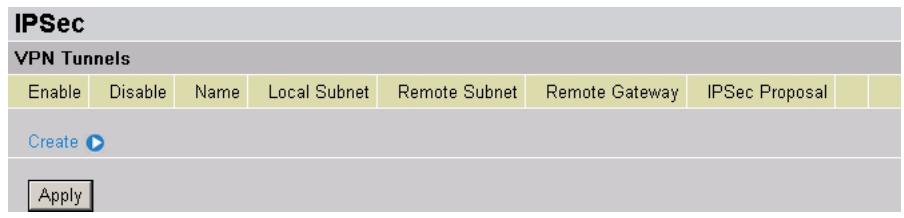
text_image
IPSec VPN Tunnels Enable Disable Name Local Subnet Remote Subnet Remote Gateway IPSec Proposal Create Apply7.3.6 IPSec VPN Configuration
To configure an IPSec VPN connection, click Create in the main IPSec screen.
Figure 59 IPSec: Create
| IPSec | |||||
| Create | |||||
| Connection Name | |||||
| Local | |||||
| Network | Single Address | IP Address | |||
| Subnet | IP Address | Netmask | |||
| IP Range | IP Address | End IP | |||
| Remote | |||||
| Secure Gateway Address(or Hostname) | |||||
| Network | Single Address | IP Address | |||
| Subnet | IP Address | Netmask | |||
| IP Range | IP Address | End IP | |||
| Proposal | |||||
| ESP | Authentication | None ▼ | |||
| Encryption | NULL ▼ | ||||
| AH | Authentication | MD5 ▼ | |||
| Perfect Forward Secrecy | None ▼ | ||||
| Pre-shared Key | |||||
| Apply | |||||
The following table describes the labels in this screen.
Table 44 VPN Rules (IKE): Add Policy
| LABEL | DESCRIPTION |
| Connection Name | Enter a descriptive name for identification purposes. |
| Local | Configure the fields to allow one or more than one computer on the LAN to use a VPN connection. |
| Single Address | Select Single Address to allow one VPN client with the specified IP address to use the VPN connection.Enter a single IP address in the IP Address field. |
| Subnet | Select Subnet Address to allow more than one computer in the specified subnet to use the VPN connection.Enter the IP address and subnet mask in the IP Address and Netmask fields respectively. |
| IP Range | Select IP Range to allow more than one computer in the specified IP address range to use the VPN connection.Enter the starting and ending IP addresses in the IP Address and End IP fields respectively. |
| Remote | Configure the fields to allow one or more than one computer on the remote network to use a VPN connection. |
| Secure Gateway Address (or Hostname) | Type the WAN IP address or hostname of the remote IPSec router with which you're making the VPN connection. |
| Single Address | Select Single Address to allow one VPN client with the specified IP address to use the VPN connection.Enter a single IP address in the IP Address field. |
| Subnet | Select Subnet Address to allow more than one computer in the specified subnet to use the VPN connection.Enter the IP address and subnet mask in the IP Address and Netmask fields respectively. |
| IP Range | Select IP Range to allow more than one computer in the specified IP address range to use the VPN connection.Enter the starting and ending IP addresses in the IP Address and End IP fields respectively. |
| Proposal | |
| ESP | Select ESP to provide basic authentication and data encryption for the VPN connection. |
| Authentication | Specify the method to authenticate data packet in this field. Choices are None, MD5 and SHA1.Select None to disable authentication.Select MD5 (Message Digest 5) for minimal security and SHA1 (Secure Hash Algorithm) for maximum security. |
| Encryption | Specify the method to encrypt data packet in this field. Choices are NULL, DES, 3DES, AES128, AES 192 and AES 256.When DES is used for data communications, both sender and receiver must know the same secret key, which can be used to encrypt and decrypt the message or to generate and verify a message authentication code. The DES encryption algorithm uses a 56-bit key.Triple DES (3DES) is a variation on DES that uses a 168-bit key. As a result, 3DES is more secure than DES. It also requires more processing power, resulting in increased latency and decreased throughput.For this implementation, select AES 128, AES 192 or AES 256 that uses different encryption key lengths. AES is faster than 3DES. Select NULL to set up a tunnel without encryption. When you select NULL, you do not enter an encryption key. |
| AH | Select AH to authenticate and ensure the integrity of data packets. |
| Authentication | Specify the method to authenticate data packet in this field. Choices are MD5 and SHA1.Select MD5 (Message Digest 5) for minimal security and SHA1 (Secure Hash Algorithm) for maximum security. |
| Perfect Forward Secret | Perfect Forward Secret (PFS) is disabled (None) by default in phase 2 IPSec SA setup. This allows faster IPSec setup, but is not so secure.Specify an MODP (Modular Exponentiation Groups) mode from the drop-down list box. Choices are MODP 768-bit (Group 1), MODP 1024-bit (Group 2) and MODP 1536-bit (Group 5). The larger the random number bits, the higher the security ut slower. |
| Pre-Shared Key | Enter your pre-shared key in this field. A pre-shared key identifies a communicating party during a phase 1 IKE negotiation. It is called "pre-shared" because you have to share it with another party before you can communicate with them over a secure connection.Type from 8 to 31 case-sensitive ASCII characters or from 16 to 62 hexadecimal ("0-9", "A-F") characters. You must precede a hexadecimal key with a "0x (zero x), which is not counted as part of the 16 to 62 character range for the key. For example, in "0x0123456789ABCDEF", 0x denotes that the key is hexadecimal and 0123456789ABCDEF is the key itself.Note:Both ends of the VPN tunnel must use the same pre-shared key.You will receive a PYLD_MALFORMED (payload malformed) packet if the same pre-shared key is not used on both ends. |
| Apply | Click Apply to save the changes. |
| Cancel | Click Cancel to discard all changes and return to the main VPN screen. |
7.4 L2TP
L2TP (Layer 2 Tunneling Protocol) is another tunneling protocol to support VPN. L2TP allows a PPP session to travel through the Internet and a user to access a corporate network.
Click VPN and L2TP to display the summary screen.
Figure 60 VPN: L2TP
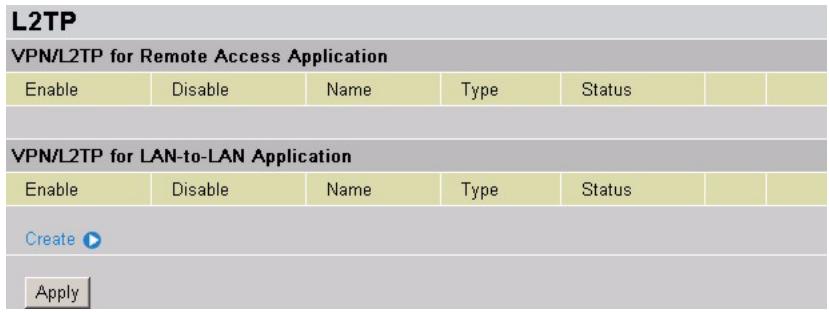
text_image
L2TP VPN/L2TP for Remote Access Application Enable Disable Name Type Status / VPN/L2TP for LAN-to-LAN Application Enable Disable Name Way Status / Create ▶ ApplyThe following table describes the labels in this screen.
Table 45 VPN: PPTP
| LABEL | DESCRIPTION |
| Enable | Select this option to activate this VPN rule. |
| Disable | Select this option to deactivate this VPN rule. |
| Name | This field displays the descriptive name for the VPN rule. |
| Type | This field displays whether the Prestige acts as a client (Dialout) or server (Dialin) for the VPN rule. |
| Status | This field displays whether the VPN rule is in use or not. |
| Edit | Click Edit to modify the settings of the selected rule. |
| Create | Click Create to add a new VPN rule. |
| Apply | Click Apply to save the changes. |
| Delete | Click Delete to remove the selected VPN rule. |
7.4.1 Creating a New L2TP Rule
Click Create to configure a new VPN connection. There are two types of L2TP VPN supported, Remote Access and LAN-to-LAN. Select a connection type and click Next.
Figure 61 VPN: L2TP: Create
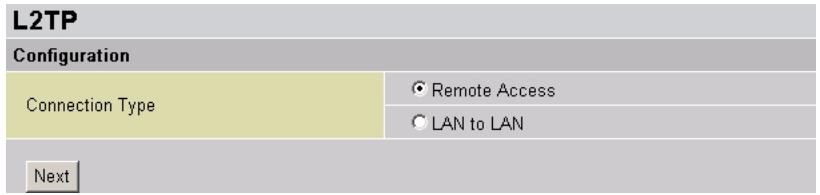
text_image
L2TP Configuration Connection Type Remote Access LAN to LAN Next7.4.1.1 Remote Access L2TP Connection
Use the L2TP Remote Access Connection screen to create an L2TP VPN rule for accessing a remote network.
Figure 62 L2TP: Remote Access Connection
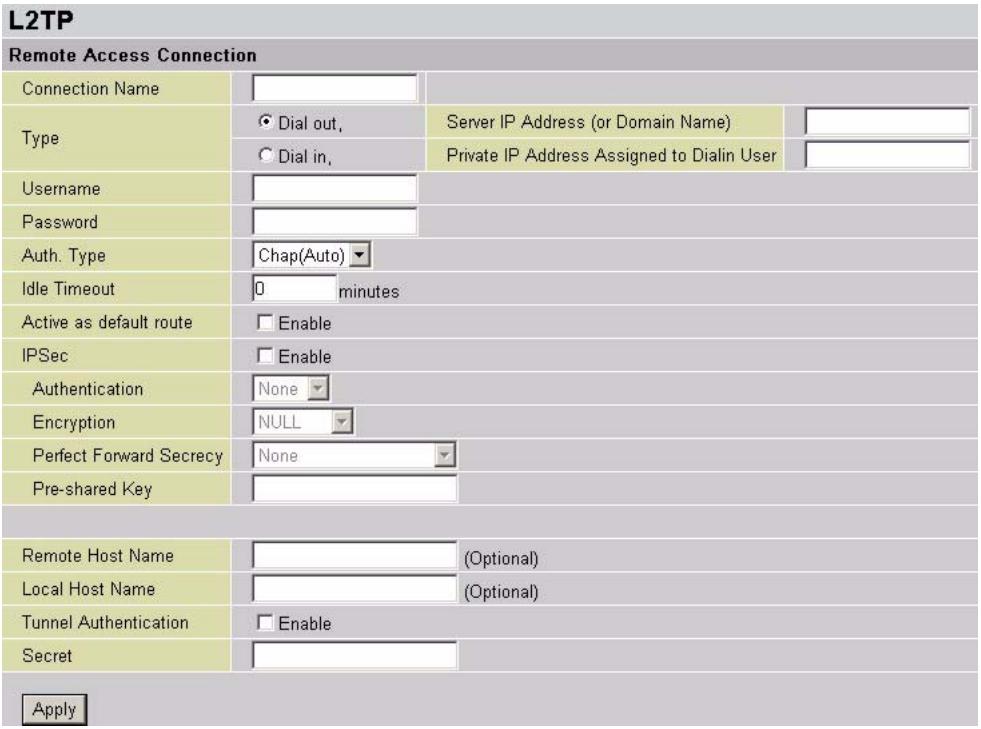
text_image
L2TP Remote Access Connection Connection Name Type Username Password Auth. Type Idle Timeout Active as default route IPSec Authentication Encryption Perfect Forward Secrecy Pre-shared Key Remote Host Name Local Host Name Tunnel Authentication Secret ApplyThe following table describes the labels in this screen.
Table 46 VPN: L2TP: Create: Remote Access Connection
| LABEL | DESCRIPTION |
| Connection Name | Enter a descriptive name for identification purposes. |
| Type | Select Dial Out to set the Prestige to act as a client (connecting to a remote VPN server).Select Dial In to set the Prestige to act as a VPN server. |
| Server IP Address (or Domain Name) | This field is applicable when you select Dial Out in the Type fieldEnter the IP address or the domain name of the remote VPN device. |
| Private IP Address Assigned to Dial in User | This field is applicable when you select Dial In in the Type field.Enter the IP address (in dotted decimal notation) to assign to the remote VPN client that initiates the VPN connection. For example, 192.168.1.10. |
| Username | If you select Dial Out in the Type field, enter the username provided.If you select Dial In in the Type field, enter a username to be used when establishing a VPN connection. |
| Password | Enter the password associated with the username above. |
| Authentication Type | Specify the authentication type to use when accepting or establishing a VPN connection. Choices are PAP (Password Authentication Protocol) and CHAP (Challenge Handshake Authentication Protocol). The default is CHAP.When you select PAP, password is sent unencrypted. While CHAP provides better security by encrypting the password before transmission and reauthenticates the VPN client to protect against identity theft. |
| Idle Time | Specify the time interval in minutes (where there is no traffic between the Prestige and the computer) that can elapse before the Prestige automatically disconnects the connection.Enter 0 to allow connection up all the time. |
| Active as default route | Select this option to set this VPN connection as a default route. |
| IPSec | Select this option to enable IPSec security for your LT2P VPN connection. |
| Authentication | Specify the method to authenticate data packet in this field. Choices are None, MD5 and SHA1.Select None to disable authentication.Select MD5 (Message Digest 5) for minimal security and SHA1 (Secure Hash Algorithm) for maximum security. |
| Encryption | Specify the method to encrypt data packet in this field. Choices are NULL, DES, 3DES, AES128, AES 192 and AES 256.When DES is used for data communications, both sender and receiver must know the same secret key, which can be used to encrypt and decrypt the message or to generate and verify a message authentication code. The DES encryption algorithm uses a 56-bit key.Triple DES (3DES) is a variation on DES that uses a 168-bit key. As a result, 3DES is more secure than DES. It also requires more processing power, resulting in increased latency and decreased throughput.For this implementation, select AES 128, AES 192 or AES 256 that uses different encryption key lengths. AES is faster than 3DES.elect NULL to set up a tunnel without encryption. When you select NULL, you do not enter an encryption key. |
| Encryption | Select the encryption method from the pull-down menu. There are four options, DES, 3DES, AES and NONE. NONE means it is a tunnel only with no encryption. 3DES and AES are more powerful but increase latency.DES stands for Data Encryption Standard, it uses 56 bits as an encryption method.3DES stands for Triple Data Encryption Standard, it uses 168 (56*3) bits as an encryption method.AES stands for Advanced Encryption Standards, it uses 128 bits as an encryption method. |
| Perfect Forward Secrecy | Perfect Forward Secret (PFS) is disabled (None) by default in phase 2 IPSec SA setup. This allows faster IPSec setup, but is not so secure.Specify an MODP (Modular Exponentiation Groups) mode from the drop-down list box. Choices are MODP 768-bit (Group 1), MODP 1024-bit (Group 2) and MODP 1536-bit (Group 5). The larger the random number bits, the higher the security ut slower. |
| Pre-shared Key | Enter your pre-shared key in this field. A pre-shared key identifies a communicating party during a phase 1 IKE negotiation. It is called "pre-shared" because you have to share it with another party before you can communicate with them over a secure connection.Type from 8 to 31 case-sensitive ASCII characters or from 16 to 62 hexadecimal ("0-9", "A-F") characters. You must precede a hexadecimal key with a "0x (zero x), which is not counted as part of the 16 to 62 character range for the key. For example, in "0x0123456789ABCDEF", 0x denotes that the key is hexadecimal and 0123456789ABCDEF is the key itself.Note: Both ends of the VPN tunnel must use the same pre-shared key.You will receive a PYLD_MALFORMED (payload malformed) packet if the same pre-shared key is not used on both ends. |
| Remote Host Name | This optional field is applicable when you select Dial Out in the Type field above.Enter the host name of the remote VPN device. The name must match to establish a VPN connection. |
| Local Host Name | This field is optional.Enter the host name of the Prestige. |
| Tunnel Authentication | Select this option to set the Prestige to authenticate both the remote L2TP client and host. The remote L2TP client and host must also support this feature. |
| Secret | This field is applicable when you select Tunnel Authentication above.Enter the authentication key up to 16 alphanumerical characters. |
| Apply | Click Apply after changing settings. |
7.4.1.2 LAN to LAN L2TP Connection
Use the L2TP LAN to LAN screen to create an L2TP VPN rule to connect to another VPN device on the LAN.
Figure 63 L2TP: LAN to LAN Connection
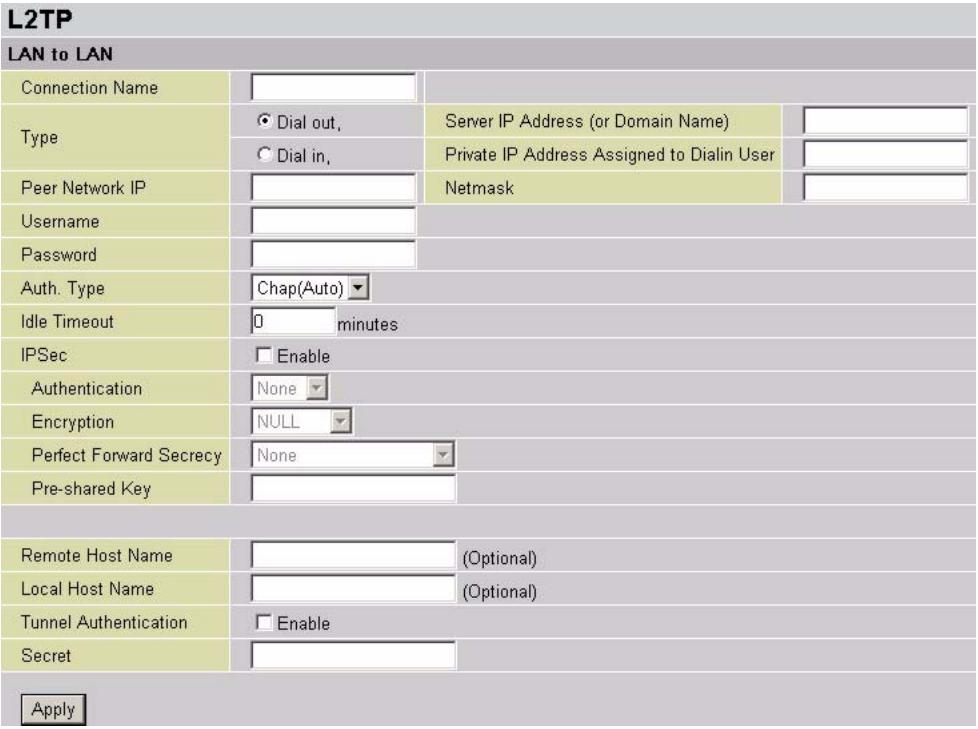
text_image
L2TP LAN to LAN Connection Name Type Peer Network IP Username Password Auth. Type Idle Timeout IPSec Authentication Encryption Perfect Forward Secrecy Pre-shared Key Remote Host Name Local Host Name Tunnel Authentication Secret Apply Dial out, Dial in, Chap(Auto) minutes Enable (Optional) (Optional)The following table describes the labels in this screen.
Table 47 VPN: L2TP: Create: LAN to LAN
| LABEL | DESCRIPTION |
| Connection Name | Enter a descriptive name for identification purposes. |
| Type | Select Dial Out to set the Prestige to act as a client (connecting to a remote VPN server).Select Dial In to set the Prestige to act as a VPN server. |
| Server IP Address (or Domain Name) | This field is applicable when you select Dial Out in the Type fieldEnter the IP address or the domain name of the remote VPN device. |
| Private IP Address Assigned to Dial in User | This field is applicable when you select Dial In in the Type field.Enter the IP address (in dotted decimal notation) to assign to the remote VPN client that initiates the VPN connection. For example, 192.168.1.10. |
| Username | If you select Dial Out in the Type field, enter the username provided.If you select Dial In in the Type field, enter a username to be used when establishing a VPN connection. |
| Password | Enter the password associated with the username above. |
| Authentication Type | Specify the authentication type to use when accepting or establishing a VPN connection. Choices are PAP (Password Authentication Protocol) and CHAP (Challenge Handshake Authentication Protocol). The default is CHAP.When you select PAP, password is sent unencrypted. While CHAP provides better security by encrypting the password before transmission and reauthenticates the VPN client to protect against identity theft. |
| Idle Time | Specify the time interval in minutes (where there is no traffic between the Prestige and the computer) that can elapse before the Prestige automatically disconnects the connection.Enter 0 to allow connection up all the time. |
| Active as default route | Select this option to set this VPN connection as a default route. |
| IPSec | Select this option to enable IPSec security for your LT2P VPN connection. |
| Authentication | Specify the method to authenticate data packet in this field. Choices are None, MD5 and SHA1.Select None to disable authentication.Select MD5 (Message Digest 5) for minimal security and SHA1 (Secure Hash Algorithm) for maximum security. |
| Encryption | Specify the method to encrypt data packet in this field. Choices are NULL, DES, 3DES, AES128, AES 192 and AES 256.When DES is used for data communications, both sender and receiver must know the same secret key, which can be used to encrypt and decrypt the message or to generate and verify a message authentication code. The DES encryption algorithm uses a 56-bit key.Triple DES (3DES) is a variation on DES that uses a 168-bit key. As a result, 3DES is more secure than DES. It also requires more processing power, resulting in increased latency and decreased throughput.For this implementation, select AES 128, AES 192 or AES 256 that uses different encryption key lengths. AES is faster than 3DES.elect NULL to set up a tunnel without encryption. When you select NULL, you do not enter an encryption key. |
| Encryption | Select the encryption method from the pull-down menu. There are four options, DES, 3DES, AES and NONE. NONE means it is a tunnel only with no encryption. 3DES and AES are more powerful but increase latency.DES stands for Data Encryption Standard, it uses 56 bits as an encryption method.3DES stands for Triple Data Encryption Standard, it uses 168 (56*3) bits as an encryption method.AES stands for Advanced Encryption Standards, it uses 128 bits as an encryption method. |
| Perfect Forward Secrecy | Perfect Forward Secret (PFS) is disabled (None) by default in phase 2 IPSec SA setup. This allows faster IPSec setup, but is not so secure.Specify an MODP (Modular Exponentiation Groups) mode from the drop-down list box. Choices are MODP 768-bit (Group 1), MODP 1024-bit (Group 2) and MODP 1536-bit (Group 5). The larger the random number bits, the higher the security ut slower. |
| Pre-shared Key | Enter your pre-shared key in this field. A pre-shared key identifies a communicating party during a phase 1 IKE negotiation. It is called "pre-shared" because you have to share it with another party before you can communicate with them over a secure connection.Type from 8 to 31 case-sensitive ASCII characters or from 16 to 62 hexadecimal ("0-9", "A-F") characters. You must precede a hexadecimal key with a "0x (zero x), which is not counted as part of the 16 to 62 character range for the key. For example, in "0x0123456789ABCDEF", 0x denotes that the key is hexadecimal and 0123456789ABCDEF is the key itself.Note: Both ends of the VPN tunnel must use the same pre-shared key.You will receive a PYLD_MALFORMED (payload malformed) packet if the same pre-shared key is not used on both ends. |
| Remote Host Name | This optional field is applicable when you selectDial Outin theTypefield above.Enter the host name of the remote VPN device. The name must match to establish a VPN connection. |
| Local Host Name | This field is optional.Enter the host name of the Prestige. |
| Tunnel Authentication | Select this option to set the Prestige to authenticate both the remote L2TP client and host. The remote L2TP client and host must also support this feature. |
| Secret | This field is applicable when you selectTunnel Authenticationabove.Enter the authentication key up to 16 alphanumerical characters. |
| Apply | ClickApplyafter changing settings. |
7.5 VPN Example
This section shows some VPN configuration examples.
7.5.1 Example: Remote PPTP VPN Dial-in Connection
The following network example shows a remote VPN client connecting to the LAN behind the Prestige from the Internet.
Figure 64 Remote PPTP VPN Dial-in Network Example
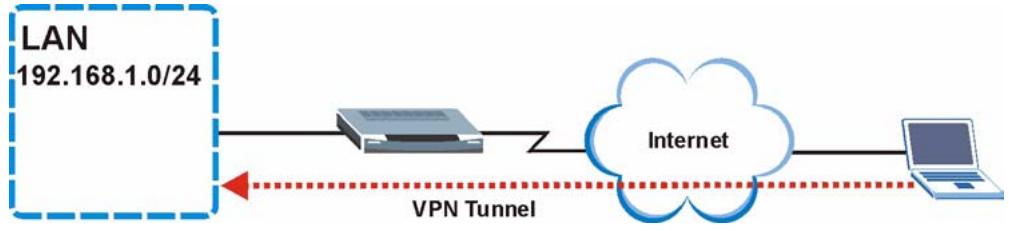
flowchart
graph LR
    A["LAN 192.168.1.0/24"] --> B["Router"]
    B --> C["Internet"]
    C --> D["Laptop"]
    style A fill:#f9f,stroke:#333
    style D fill:#bbf,stroke:#333
    subgraph VPN_Tunnel
        B
        C
    end
Create a PPTP dial in VPN connection for this network example. The Prestige assigns an IP address of 192.168.1.200 to the remote VPN client when the VPN connection is established.
Figure 65 Remote PPTP VPN Dial-In Configuration Example
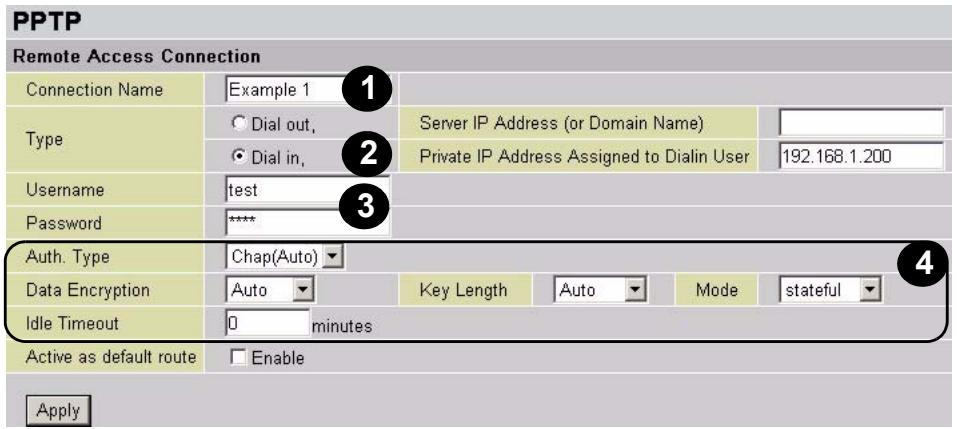
text_image
PPTP Remote Access Connection Connection Name Example 1 Type C Dial out, Dial in, Usernamealed as default route Password **** Auth. Type C Chap(Auto) Data Encryption Auto Idle Timeout 0 minutes Enable ApplyThe following table describes the configuration steps.
Table 48 Remote PPTP VPN Dial-In Configuration Example
| STEP | FIELD | SETTING | DESCRIPTION |
| 1 | Connection Name | Example | This name is for identification purposes only. |
| 2 | Dial in | Select this field to allow a remote VPN client to establish a VPN connection to the Prestige. | |
| Private IP Address Assigned to Dialing User | 192.168.1.200 | The Prestige assigns this IP address to the remote VPN client after the VPN connection is established. | |
| 3 | Username | test | Specify the user name and password the remote VPN client must supply to establish a VPN connection. |
| Password | test | ||
| 4 | Auth.Type | Chap(Auto) | In this network example, the default authentication and encryption settings are used. |
| Data Encryption | Auto | ||
| Key Length | Auto | ||
| Mode | stateful | ||
| Idle Time | 0 | A value of 0 means the connection is always on. |
7.5.2 Example: Remote PPTP VPN Dial-out Connection
The following figure depicts a VPN network example where a computer on the LAN behind the Prestige can establish a VPN connection to the public file server.
Figure 66 PPTP: Remote VPN Dial-out Access
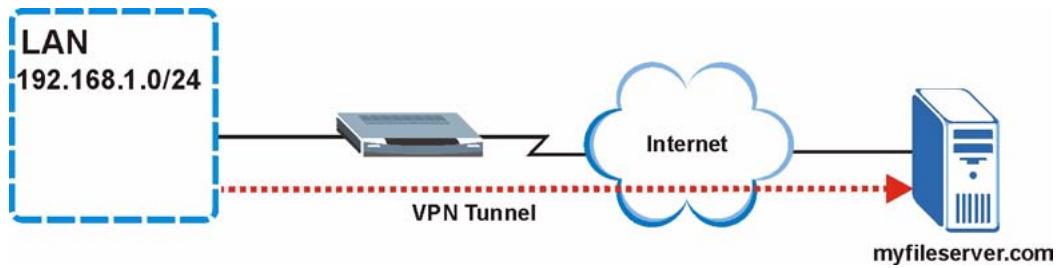
flowchart
graph LR
    A["LAN 192.168.1.0/24"] --> B["Server"]
    B --> C["Internet"]
    C --> D["Server"]
    style A fill:#f9f,stroke:#333
    style D fill:#bbf,stroke:#333
    subgraph VPN_Tunnel
        B
        C
    end
On the Prestige, create a dial-out PPTP VPN rule to allow a computer on the LAN to access the public file server securely.
Figure 67 PPTP VPN Example: Configuration for the Office
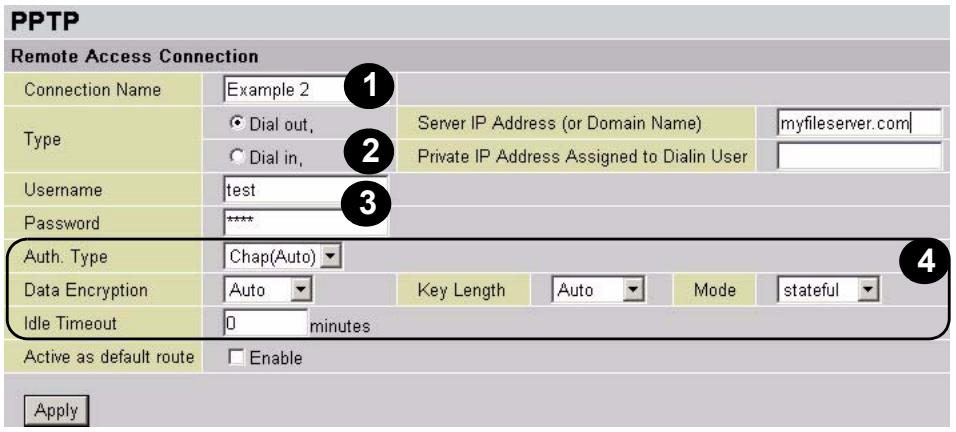
text_image
PPTP Remote Access Connection Connection Name Example 2 Type C Dial out, Server IP Address (or Domain Name) myfileserver.com Dial in, Private IP Address Assigned to Dialin User Usernamealedtest Password **** Auth. Type Chap(Auto) Data Encryption Auto Key Length Auto Mode stateful Idle Timeout 0 minutes Active as default route Enable ApplyThe following table describes the configuration steps.
Table 49 Remote PPTP VPN Dial-In Configuration Example
| STEP | FIELD | SETTING | DESCRIPTION |
| 1 | Connection Name | Example | This name is for identification purposes only. |
| 2 | Dial out | Select this field to allow a VPN client behind the Prestige to establish a VPN connection to a remote network. | |
| Server IP Address (or Hostname) | myfileserver.com | This is the domain name for the file server on the Internet. You may also enter the IP address. | |
| 3 | Username | test | Specify the user name and password a VPN client must supply to establish a VPN connection. |
| Password | test | ||
| 4 | Auth.Type | Chap(Auto) | In this network example, the default authentication and encryption settings are used. |
| Data Encryption | Auto | ||
| Key Length | Auto | ||
| Mode | stateful | ||
| Idle Time | 0 | A value of 0 means the connection is always on. |
Note: Both the local and remote networks MUST in different subnets with LAN to LAN application.
CHAPTER 8 QoS (Quality of Service)
This chapter shows you how to configure QoS on the Prestige.
8.1 Overview
QoS function helps you to control your network traffic for each application from LAN to WAN (Internet). It facilitates you to control the different quality and speed of throughput for each application when the system is running with full loading of upstream.
You can find two items under the QoS section: Prioritization and IP Throttling (bandwidth management).
8.1.1 Prioritization
The Prestige provides three priority settings:
- High
- Normal (This is the default for the traffic type(s) that does not match any rules.)
- Low
Click Configuration, QoS and Prioritization in the navigation panel to display the screen as shown.
Figure 68 QoS: Prioritization
| Prioritization | |||||||
| Configuration (from LAN to WAN packet) | |||||||
| Application | Time Schedule | Priority | Protocol | Source Port | Source IP Address Range ('0.0.0.0' means Any) | DSCP Marking | |
| Destination Port | Destination IP Address Range ('0.0.0.0' means Any) | ||||||
| PPTP | Disabled | High | GRE | none | 0.0.0.0 ~0.0.0.0 | Disabled | |
| none | 0.0.0.0 ~0.0.0.0 | ||||||
| Always On | High | any | 0 ~ 0 | 0.0.0.0 ~0.0.0.0 | Disabled | ||
| 0 ~ 0 | 0.0.0.0 ~0.0.0.0 | ||||||
| Always On | High | any | 0 ~ 0 | 0.0.0.0 ~0.0.0.0 | Disabled | ||
| 0 ~ 0 | 0.0.0.0 ~0.0.0.0 | ||||||
| Always On | High | any | 0 ~ 0 | 0.0.1.0 ~0.0.1.0 | Disabled | ||
| 0 ~ 0 | 0.0.1.0 ~0.1.1.1.1.1.1.1.1.1.1.1.1.1.1.1.1.1.1.1.1.1.1.1.1.1.1.1.1.1.1.1.1.1.1 1 | ||||||
| Always On | High | any | 0 ~ 0 | 0.125 ~ 125 ~ 125 ~ 125 ~ 125 ~ 125 ~ 125 ~ 125 ~ 125 ~ 125 ~ 125 ~ 125 ~ 125 ~ 125 ~ 125 ~ 125 ~ 125 ~ 125 ~ 125 ~ 125 ~ 125 ~125 ~ 125 ~ 125 ~ 125 ~ 125 ~ 125 ~ 125 ~ 125 ~ 125 ~ 125 ~ 125 ~ 125 ~ 125 ~ 125 ~ 125 ~ 125 ~ 125 ~ 125 ~ 125 ~ 125 ~367 | |||
| Always On | High | any | 0 ~ 0 | 0.488 ~ 488 ~ 488 ~ 488 ~ 488 ~ 488 ~ 488 ~ 488 ~ 488 ~ 488 ~ 488 ~ 488 ~ 488 ~ 488 ~ 488 ~ 488 ~ 488 ~ 488 ~ 488 ~ 488 ~ 488 ~488 ~488 ~488 ~488 ~488 ~488 ~488 ~488 ~488 ~488 ~488 ~488 ~488 ~488 ~488 ~488 ~488 ~488 ~488 ~488 ~488 ~488 ~488 ~488 ~488 -49999999999999999999999999999999999999999999999999999999999999999999999999999999999999999999999999999- | |||
| Always On | High | any | 0~ 0 | 0.366~ 366~ 366~ 366~ 366~ 366~ 366~ 366~ 366~ 366~ 366~ 366~ 366~ 366~ 366~ 366~366~366~366~366~366~366~366~366~366~366~366~366~366~366~366~366~366~366~366~366~366~366~366~366~366-47777777777777777777777777777777777777777777777777777777777777777777777777777777777777777777777777777T- | |||
| Always On | High | any | 0~ 0 | 0.355~ 355~ 355~ 355~ 355~ 355~ 355~ 355~ 355~ 355~ 355~355~355~355~355~355~355~355~355~355~355~355~355~355~355~355~355~355~355- | |||
| Always On | High | any | 0~ 0 | 0.342~ 342~ 342~ 342~ 342~ 342~ 342~ 342~ 342~ 342~ 342~342- | |||
| Always On | High | any | 0~ 0 | 0.342~ 342~ 342~ 342~ 342~ 342~ 342- | |||
| Always On | High | any | 0~ 0 | 0.342~ 342~ 342~ 342- | |||
| Always On | High | any | 0~ 0 | 0.342~ 342- | |||
| Always On | High | any | 0~ 0 | 0.342- | |||
| Always On | High | any | 0~ 0 | 0.342- | |||
| Always On | High | any | 0~ 0 | 0.342- | |||
| Always On | High | any | 0~ 0 | 0.342- | |||
| Always On | High | any | 0~ 0 | 0.342- | |||
The following table describes the labels in this screen.
Table 50 QoS: Prioritization
| LABEL | DESCRIPTION |
| Application | Enter a descriptive name for identification purposes. |
| Time Schedule | Specify when this rule is active. Select Always On to activate the rule all the time. Otherwise, select a schedule (that you configure in the Time Schedule screen). |
| Priority | Select a priority level. Choices are High and Low. |
| Protocol | Select a protocol type from the drop-down list box. Choices are any, tcp, udp, icmp and gre. |
| Source Port | Enter the source port number from which traffic travels. |
| Destination Port | Enter the destination port number to which traffic travels. |
| Source IP Address Range | You can set the Prestige to prioritize traffic from specified source IP address(es). Specify one or a range of source IP address(es). Leave the fields as 0.0.0.0 to prioritize packets from any source IP address. |
| Destination IP address Range | You can set the Prestige to prioritize traffic to specified destination IP address(es). Specify one or a range of destination IP address(es). Leave the fields as 0.0.0.0 to prioritize packets from any destination IP address. |
| DSCP Marking | DiffServ Code Point (DSCP) marking allows the classification of traffic based on the DSCP value.Select Disabled to deactivate DSCP marking or select a marking scheme. Refer to Table 51 on page 98 for the mapping table. |
| Apply | Click Apply to save the settings. |
The following is a mapping table between the Prestige DSCP marking scheme and the standard DSCP value.
| PRESTIGE SETTING | STANDARD DSCP MARKING |
| Disabled | None |
| Best Effort | Best Effort (000000) |
| Premium | Express Forwarding (101110) |
| Gold Service (L) | Class 1, Gold (001010) |
| Gold Service (M) | Class 1, Silver (001100) |
| Gold Service (H) | Class 1, Bronze (001110) |
| Silver Service (L) | Class 2, Gold (010010) |
| Silver Service (M) | Class 2, Silver (010100) |
| Silver Service (H) | Class 2, Bronze (010110) |
| Bronze Service (L) | Class 3, Gold (011010) |
| Bronze Service (M) | Class 3, Silver (011100) |
| Bronze Service (H) | Class 3, Bronze (011110) |
8.2 IP Throttling
IP Throttling (or bandwidth management) helps you make sure that the Prestige forwards certain types of traffic (especially real-time applications) with minimum delay.
Use the Outbound IP Throttling screen to limit rates on traffic from the LAN to the WAN interface on the Prestige.
Use the Inbound IP Throttling screen to limit rates on traffic from the WAN to the LAN interface on the Prestige.
Figure 69 QoS: Outbound IP Throttling
| Outbound IP Throttling | |||||||||
| Configuration (from LAN to WAN packet) | |||||||||
| Application | Time Schedule | Protocol | Source Port | Source IP Address Range (0.0.0.0' means Any) | Rate Limit | ||||
| Destination Port | Destination IP Address Range (0.0.0.0' means Any) | ||||||||
| Always On | any | 0 ~ 0 | 0.0.0.0 | ~0.0.0.0 | 1 *32 (kbps) | ||||
| 0 ~ 0 | 0.0.0.0 | ~0.0.0.0 | |||||||
| Always On | any | 0 ~ 0 | 0.0.0.0 | ~0.0.0.0 | 1 *32 (kbps) | ||||
| 0 ~ 0 | 0.0.0.0 | ~0.0.0.0 | |||||||
| Always On | any | 0 ~ 0 | 0.0.0.0 | ~0.0.0.0 | 1 *31 (kbps) | ||||
| 0 ~ 0 | 0.0.0.0 | ~0.0.0.0 | |||||||
| Always On | any | 0 ~ 0 | 0.0.0.0 | ~0.0.0.0 | 1 *32 (kbps) | ||||
| 0 ~ 0 | 0.0.0.0 | ~0.0.0.0 | |||||||
| Always On | any | 0 ~ 0 | 0.0.0.0 | ~0.0.0.0 | 1 *32 (kbps) | ||||
| 0 ~ 0 | 0.0.0.0 | ~0.0.0.0 | |||||||
| Always On | any | 0 ~ 0 | 0.0.0.0 | ~0.0.0.0 | 1 *32 (kbps) *32 (kbps) | ||||
| 0 ~ 0 | 0.0.0.0 | ~0.0.0.0 | |||||||
| Always On | any | 0 ~ 0 | 0.0.0.0 | ~0.0.0.0 | 1 *32 (kbps) | ||||
| 0 ~ 0 | 0.0.0.0 | ~ 0.0. 1 | |||||||
| Always On | any | (1) ~ 1) ~ 1) ~ 1) ~ 1) ~ 1) ~ 1) ~ 1) ~ 1) ~ 1) ~ 1) ~ 1) ~ 1) ~ 1) ~ 1) ~ 1) ~ 1) ~ 1) ~ 1) ~ 1) ~ 1) ~ 1) ~ 1) ~ 1) ~ 1) ~ 1) ~4) ~4) ~4) ~4) ~4) ~4) ~4) ~4) ~4) ~4) ~4) ~4) ~4) ~4) ~4) ~4) ~4) ~4) ~4) ~4) ~4) ~4) ~4) ~4) ~4) ~4) ~4) ~4) ~4) ~4) ~4) ~4) ~4) ~4)(b)(c)(d)(e)(f)(g)(h)(i)(j)(k)(l)(m)(m)(n)(o)(p)(q)(r)(s)(t)(u)(v)(w)(x)(y)(z)(a)(a)(a)(a)(a)(a)(a)(a)(a)(a)(a)(a)(a)(a)(a)(a)(a)(a)(a)(a)(a)(a)(a)(a)(a)(a)(a)(a)(a)(a)(a)(a)(a)(a)(a)(a)(a)(a)(a)(a)(a)(a)(a)(a)(a)(a)(a)(a)(a)(a)(b)(b)(b)(b)(b)(b)(b)(b)(b)(b)(b)(b)(b)(b)(b)(b)(b)(b)(b)(b)(b)(b)(b)(b)(b)(b)(b)(b)(b)(b)(b)(b)(b)(b)(b)(b)(b)(b)(b)(b)(b)(b)(b)(b)(b)(b)(b)(b)(b)(b)(a), a, b, c, d, e, f, g, h, i, j, k, l, m, n, o, p, q, r, s, t, u, v, w, x, y, z, a, b, c, d, e, f, g, h, i, j, k, l, m, n, o, p, q, r, s, t, u, v, w, x, y, z, a, b, c, d, e, f, g, h, i, j, k, l, m, n, o, p, q, r, s, t, u, v, w, x (b), c (c), d (c), e (c), f (c), g (c), h (c), i (c), j (c), k (c), l (c), m (c), n (c), o (c), p (c), q (c), r (c), s (c), t (c), u (c), v (c), x (c), y (c), z (c), a (c), b (c), c (c), d (c), e (c), f (c), g (c), h (c), i (c), j (c), k (c),l (c),m (c),n (c),o (c),p (c),q (c),r (c),s (c),t (c),u (c),v (c),x (c),y (c),z (c),a (c), b (c),c (c),d (c),e (c),f (c),g (c),h (c),i (c),j (c),k (c),l (c),m (c),n (c),o (c),p (c),q (c),r (c),s (c),t (c),u (c),v (c),x (c),y (c),z (c),a (c), b (c),c (c),d (c),e (c),f (c),g (c),h (c),i (c),j (c),l (c),m (c),n (c),o (c). | |||||||
The following table describes the labels in this screen.
Table 52 QoS: Outbound/Inbound IP Throttling
| LABEL | DESCRIPTION |
| Application | Enter a descriptive name for identification purposes. |
| Time Schedule | Specify when this rule is active. Select Always On to activate the rule all the time. Otherwise, select a schedule (that you configure in the Time Schedule screen). |
| Protocol | Select a protocol type from the drop-down list box. Choices are any, tcp, udp, icmp and gre. |
| Source Port | Enter the source port number from which traffic travels. |
| Destination Port | Enter the destination port number to which traffic travels. |
| Source IP Address Range | You can set the Prestige to prioritize traffic from specified source IP address(es).Specify one or a range of source IP address(es). Leave the fields as 0.0.0.0 to prioritize packets from any source IP address. |
| Destination IP address Range | You can set the Prestige to prioritize traffic to specified destination IP address(es).Specify one or a range of destination IP address(es). Leave the fields as 0.0.0.0 to prioritize packets from any destination IP address. |
| Upstream Rate Limit | Specify an outgoing bandwidth limit on the WAN port to assign for this rule.Enter a number that is a multiple of 32. |
| Apply | ClickApplyto save the settings. |
8.3 QoS Example
The following figure shows a network example where you want to limit the rates on different traffic types. The total upstream rate and the downstream rate of the Prestige are 928kbps and 8Mbps respectively.
Figure 70 QoS Network Example
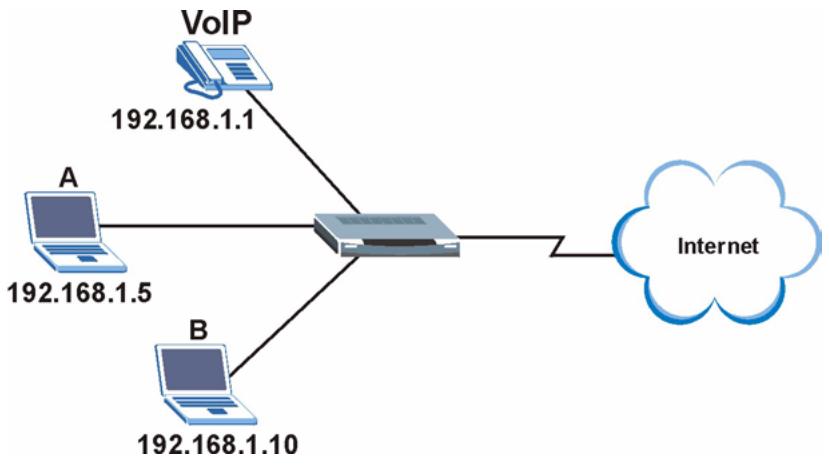
flowchart
graph TD
    VoIP["VoIP\n192.168.1.1"] --> Router["Router"]
    A["Router\n192.168.1.5"] --> Router
    B["Router\n192.168.1.10"] --> Router
    Router --> Internet["Internet"]
8.3.1 Example Prioritization with QoS
You can use the Prioritization screen to prioritize time-sensitive applications (like VoIP). Set a high priority level for VoIP traffic to improve service quality and prevent other applications from using most of the bandwidth. In the example figure, computer B is a restricted user whose traffic has the lowest priority on the network.
Figure 71 QoS: Prioritization Example
| Prioritization | |||||||
| Configuration (from LAN to WAN packet) | |||||||
| Application | Time Schedule | Priority | Protocol | Source Port | Source IP Address Range ('0.0.0.0' means Any) | DSCP Marking | |
| Destination Port | Destination IP Address Range ('0.0.0.0' means Any) | ||||||
| PPTP | Always On | High | GRE | none | 0.0.0.0 ~0.0.0.0 | Gold service (L) | |
| none | 0.0.0.0 ~0.0.0.0 | ||||||
| VoIP | Always On | High | any | 0 ~ 0 | 192.168.1.1 ~192.168.1.1 | Gold service (L) | |
| 0 ~ 0 | 0.0.0.0 ~0.0.0.0 | ||||||
| Restricted | TimeSlot1 | Low | any | 0 ~ 0 | 192.168.1.10 ~192.168.1.10 | Gold service (L) | |
| 0 ~ 0 | 0.0.0.0 ~0.0.0.0 | ||||||
| Always On | High | any | 0 ~ 0 | 0.0.0.0 ~0.0.0.0 | Disabled | ||
8.3.2 Rate Limiting with IP Throttling Example
With IP throttling you can fine tune bandwidth limits for specific applications. For the example network, you want to give a guaranteed bandwidth for VoIP applications. The following table lists the bandwidth allocated for the type of applications (or users) in this example.
Table 53 Rate Limiting with IP Throttling Example
| TOTAL UPSTREAM | VOIP | PPTP | RESTRICTED | OTHERS | |
| Bandwidth (kbps) | 928 (29 x 32 kbps) | 128 (4x 32) | 192 (6x 32) | 160 (5x32) | 448 (14 x 32) |
Configure the Outbound IP Throttling screen based on the calculated rates.
Figure 72 Rating Limiting with IP Throttling Example
| Outbound IP Throttling | ||||||
| Configuration (from LAN to WAN packet) | ||||||
| Application | Time Schedule | Protocol | Source Port | Source IP Address Range (0.0.0.0' means Any) | Rate Limit | |
| Destination Port | Destination IP Address Range (0.0.0.0' means Any) | |||||
| PPTP | Always On | gre | 0 ~ 0 | 0.0.0.0 | ~ 0.0.0.0 | 6 *32 (kbps) |
| 0 ~ 0 | 0.0.0.0 | ~ 0.0.0.0 | ||||
| VoIP | Always On | any | 0 ~ 0 | 0.0.0.0 | ~ 0.0.0.0 | 4 *32 (kbps) |
| 0 ~ 0 | 0.0.0.0 | ~ 0.0.0.0 | ||||
| Restricted | TimeSlot1 | any | 0 ~ 0 | 192.168.1.10 | ~ 192.168.1.10 | 5 *32 (kbps) |
| 0 ~ 0 | 0.0.0.0 | ~ 0.0.0.0 | ||||
| Others | TimeSlot1 | any | 0 ~ 0 | 192.168.1.5 | ~ 192.168.1.5 | 14 *32 (kbps) |
| 0 ~ 0 | 0.0.0.0 | ~ 0.0.0.0 | ||||
| Always On | any | 0.0.0.0 | ~ 0.0.0.0 | 1 *32 (kbps) | ||
8.4 Time Schedule
You can configure time schedule profiles and associate a profile to a Prestige setting. This allows the Prestige to automatically disable or enable the setting. The time schedule is based on the Prestige system time. You must configure the Prestige to use a time server to update the system time accurately and automatically (refer to the section on time server).
Click Configuration and Time Schedule to display the main summary screen.
Figure 73 Configuration: Time Schedule
| Time Schedule | ||||||
| Time Slot | ||||||
| ID | Name | Day in a week | Start Time | End Time | ||
| 1 | TimeSlot1 | sMTWTFs | 08 : 00 | 18 : 00 | Edit | Clear |
| 2 | TimeSlot2 | sMTWTFs | 08 : 00 | 18 : 00 | Edit | Clear |
| 3 | TimeSlot3 | sMTWTFs | 08 : 00 | 18 : 00 | Edit | Clear |
| 4 | TimeSlot4 | sMTWTFs | 08 : 00 | 18 : 00 | Edit | Clear |
| 5 | TimeSlot5 | sMTWTFs | 08 : 00 | 18 : 00 | Edit | Clear |
| 6 | TimeSlot6 | sMTWTFs | 08 : 00 | 18 : 00 | Edit | Clear |
| 7 | TimeSlot7 | sMTWTFs | 08 : 00 | 18 : 00 | Edit | Clear |
| 8 | TimeSlot8 | sMTWTFs | 08 : 00 | 18 : 00 | Edit | Clear |
| 9 | TimeSlot9 | sMTWTFs | 08 : 00 | 18 : 00 | Edit | Clear |
| 10 | TimeSlot10 | sMTWTFs | 08 : 00 | 18 : 00 | Edit | Clear |
| 11 | TimeSlot11 | sMTWTFs | 08 : 00 | 18 : 00 | Edit | Clear |
| 12 | TimeSlot12 | sMTWTFs | 08 : 00 | 18 : 00 | Edit | Clear |
| 13 | TimeSlot13 | sMTWTFs | 08 : 00 | 18 : 00 | Edit | Clear |
| 14 | TimeSlot14 | sMTWTFs | 08 : 00 | 18 : 00 | Edit | Clear |
| 15 | TimeSlot15 | sMTWTFs | 08 : 00 | 18 : 00 | Edit | Clear |
| 16 | TimeSlot16 | sMTWTFs | 08 : 00 | 18 : 00 | Edit | Clear |
The following table describes the labels in this screen.
Table 54 Configuration: Time Schedule
| LABEL | DESCRIPTION |
| ID | This field displays the index number. |
| Name | This field displays the descriptive name for identification purposes. |
| Day in a Week | This field displays whether the day of the week (in upper case) the time schedule is active. |
| Start/End Time | These fields display the beginning and end of the time schedule. |
| Edit | Click Edit to modify the time schedule. |
| Clear | Click Clear to reset the time settings to the factory default for the selected time schedule. |
8.4.1 Configuring a Time Schedule
To configure a time schedule, click Edit for a time schedule policy to display the configuration screen.
Figure 74 Configuration: Time Schedule: Edit
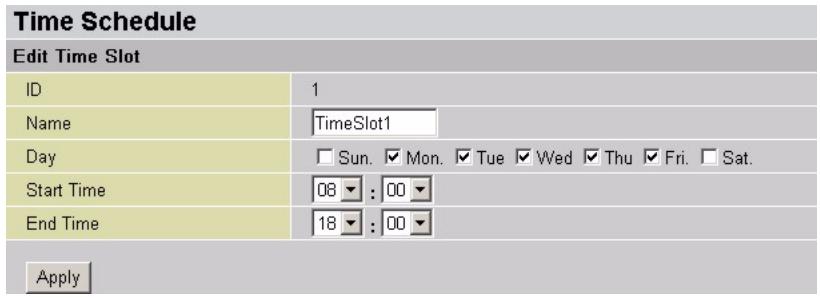
text_image
Time Schedule Edit Time Slot ID 1 Name TimeSlot1 Day □ Sun. □ Mon. □ Tue □ Wed □ Thu □ Fri. □ Sat. Start Time 08 : 00 End Time 18 : 00 ApplyThe following table describes the labels in this screen.
Table 55 Configuration: Time Schedule: Edit
| LABEL | DESCRIPTION |
| ID | This read-only field displays the index number. |
| Name | Enter a descriptive name for identification purposes. |
| Day | Select the day of the week this time schedule is active. |
| Start Time | Set the beginning of the time range the time schedule is active. |
| End Time | Set the end of the time range the time schedule is active. |
| Apply | Click Apply to save the changes. |
CHAPTER 9 Static Route
This chapter shows you how to set advanced system settings.
9.1 Overview
Each remote node specifies only the network to which the gateway is directly connected, and the Prestige has no knowledge of the networks beyond. For instance, the Prestige knows about network N2 in the following figure through remote node router R1. However, the Prestige is unable to route a packet to network N3 because it doesn't know that there is a route through the same remote node router R1 (via gateway router R2). The static routes are for you to tell the Prestige about the networks beyond the remote nodes.
Figure 75 Static Route: Network Example ]
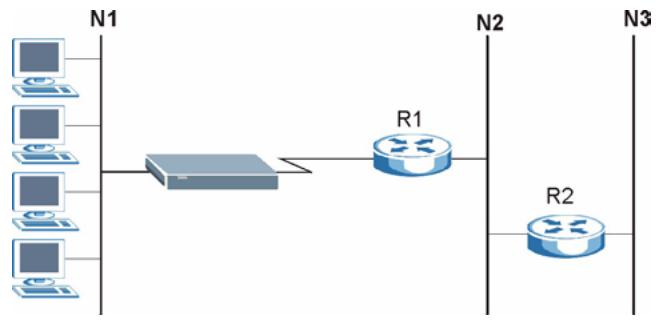
flowchart
graph LR
    N1["Client 1"] --> R1["R1"]
    N1["Client 2"] --> R1["R1"]
    N1["Client 3"] --> R1["R1"]
    N1["Client 4"] --> R1["R1"]
    N1["Client 5"] --> R1["R1"]
    R1["R1"] --> N2["Router"]
    R2["R2"] --> N2["Router"]
    N2["Router"] --> N3["Router"]
9.2 Configuration
Click Configuration, Advanced and Static Route in the navigation panel to display the screen as shown.
Figure 76 Advanced: Static Route
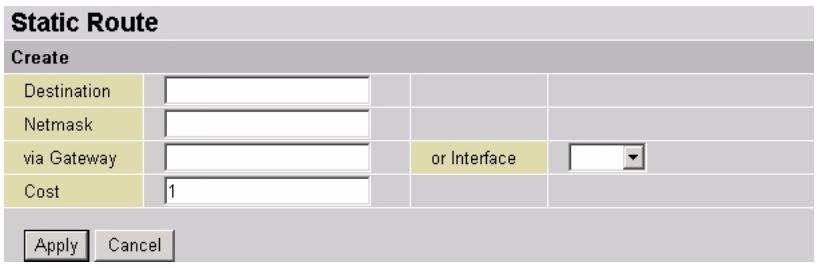
text_image
Static Route Create Destination Netmask via Gateway Cost 1 or Interface Apply CancelThe following table describes the labels in this screen.
Table 56 Advanced: Static Route
| LABEL | DESCRIPTION |
| Destination | This parameter specifies the IP network address of the final destination. Routing is always based on network number. If you need to specify a route to a single host, use a subnet mask of 255.255.255.255 in the subnet mask field to force the network number to be identical to the host ID. |
| Netmask | Enter the IP subnet mask in dotted decimal notation. |
| via gateway | Enter the IP address of the gateway.The gateway is a router or switch on the same network segment as the device's LAN or WAN port. The gateway helps forward packets to their destinations. |
| or Interface | Select the interface through which packets are to be forwarded. |
| Cost | IP routing uses hop count as the measurement of cost, with a minimum of 1 for directly connected networks. Enter a number that approximates the cost for this link. The number need not be precise, but it must be between 1 and 15. In practice, 2 or 3 is usually a good number. |
| Apply | Click Apply to save the settings. |
| Cancel | Click Cancel to start configuring the screen again. |
CHAPTER 10 Dynamic DNS
10.1 Overview
Dynamic DNS allows you to update your current dynamic IP address with one or many dynamic DNS services so that anyone can contact you (in NetMeeting, CU-SeeMe, etc.). You can also access your FTP server or Web site on your own computer using a domain name (for instance myhost.dhs.org, where myhost is a name of your choice) that will never change instead of using an IP address that changes each time you reconnect. Your friends or relatives will always be able to call you even if they don't know your IP address.
First of all, you need to have registered a dynamic DNS account with www.dyndns.org. This is for people with a dynamic IP from their ISP or DHCP server that would still like to have a domain name. The Dynamic DNS service provider will give you a password or key.
Note: You must go to the Dynamic DNS service provider's website and register a user account and a domain name before you can use the Dynamic DNS service with your Prestige.
10.1.1 Configuration
Click Configuration, Advanced and Dynamic DNS to display the screen as shown next.
Figure 77 Advanced: Dynamic DNS
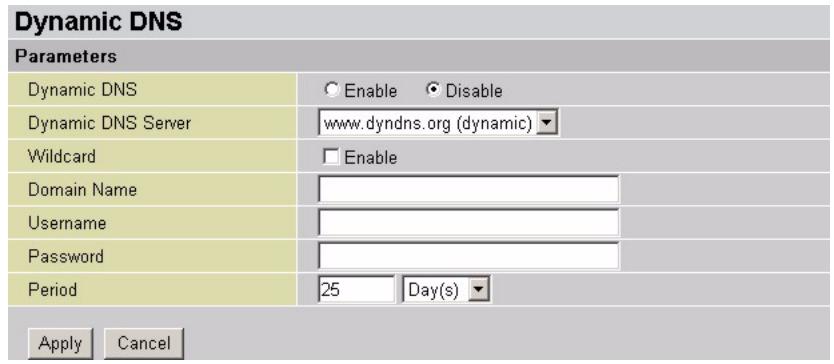
text_image
Dynamic DNS Parameters Dynamic DNS Enable Disable Dynamic DNS Server www.dyndns.org (dynamic) Wildcard Enable Domain Name Username Password Period 25 Day(s) Apply CancelThe following table describes the labels in this screen.
Table 57 Advanced: Dynamic DNS
| LABEL | DESCRIPTION |
| Dynamic DNS | Select Enable to activate this feature and configure the fields below.Select Disable to deactivate this feature. |
| Dynamic DNS Server | Select your DDNS service provider from the drop-down list box. |
| Wildcard | Enabling the wildcard feature for your host causes *.yourhost.dyndns.org to be aliased to the same IP address as yourhost.dyndns.org. This feature is useful if you want to be able to use, for example, www.yourhost.dyndns.org and still reach your hostname. |
| Domain Name | Enter the domain name your registered with the DDNS service provider you selected above. |
| Username | Enter your account username. |
| Password | Enter the password associated with the username above. |
| Period | Specify the time period the Prestige waits before updating information (such as the WAN IP address) with the DDNS server. Enter a number in the field and select a time unit (Hour(s) or Day(s))In addition to the scheduled update period you set, the Prestige automatically updates with the DDNS server when the Prestige's WAN IP address changes. |
| Apply | Click Apply to save the settings. |
| Cancel | Click Cancel to start configuring the screen again. |
CHAPTER 11 Check Emails
This chapter shows you how to configure the Check Emails screen for POP3 email checking.
11.1 Overview
You can configure the Prestige to automatically check the your POP3 mail box for new messages. You can check your mail box status in the Email Status screen (see Section 2.7.4 on page 33 for more information).
11.2 Configuring
Click Configuration, Advanced and Check Emails in the navigation panel to display the screen as shown next.
Figure 78 Advanced: Check Emails
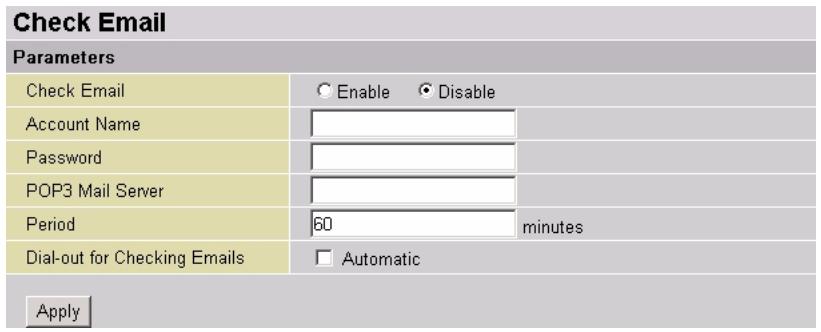
text_image
Check Email Parameters Check Email Enable Disable Account Name Password POP3 Mail Server Period 60 minutes Dial-out for Checking Emails Automatic ApplyThe following table describes the labels in this screen.
Table 58 Advanced: Check Emails
| LABEL | DESCRIPTION |
| Check Email | Select Enable to activate this feature and configure the fields below.Select Disable to deactivate this feature. |
| Account Name | Enter your POP3 e-mail account name. Normally, it is the text in your email address before the "@" symbol. |
| Password | Enter the password associated with the account name above. |
| POP3 Mail Server | Enter your (POP) mail server name provided by your Internet Service Provider (ISP) or network administrator. |
| Interval | Enter the time period (in minutes) the Prestige waits before checking your e-mail status. |
| Automatically dial-out for checking emails | You can set the Prestige to automatically set up the SHDSL line to connect to the mail server when the line is down.Select the check box to enable automatic line set up.Note: Enabling this feature may add to your Internet access cost if your ISP charge by the time. |
| Apply | Click Apply to save the changes. |
CHAPTER 12 Device Management
This chapter shows you how to configure device management security and monitoring settings.
12.1 Overview
Configure general system settings (such as the system name, web server port numbers, etc.), UPnP and SNMP settings in the Device Management screen.
12.1.1 Universal Plug and Play (UPnP)
Universal Plug and Play (UPnP) is a distributed, open networking standard that uses TCP/IP for simple peer-to-peer network connectivity between devices. A UPnP device can dynamically join a network, obtain an IP address, convey its capabilities and learn about other devices on the network. In turn, a device can leave a network smoothly and automatically when it is no longer in use.
12.1.1.1 How do I know if I'm using UPnP?
UPnP hardware is identified as an icon in the Network Connections folder (Windows XP). Each UPnP compatible device installed on your network will appear as a separate icon. Selecting the icon of a UPnP device will allow you to access the information and properties of that device.
12.1.1.2 Cautions with UPnP
All UPnP-enabled devices may communicate freely with each other without additional configuration. Disable UPnP if this is not your intention.
12.1.2 SNMP
Simple Network Management Protocol (SNMP) is a protocol used for exchanging management information between network devices. SNMP is a member of the TCP/IP protocol suite. Your Prestige supports SNMP version one SNMPv1), version two (SNMPv2) and version three (SNMPv3). The next figure illustrates an SNMP management operation.
Figure 79 SNMP Management Model
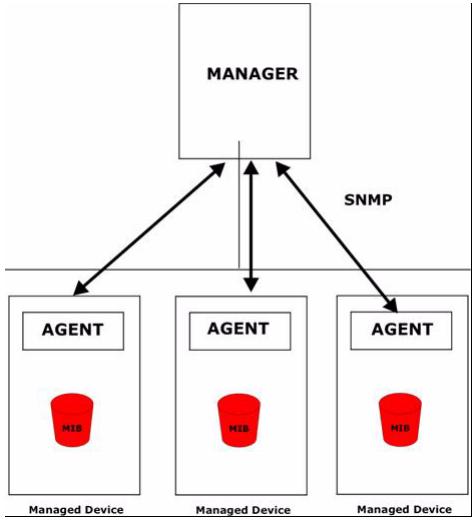
flowchart
graph TD
    A["MANAGER"] --> B["AGENT"]
    A --> C["AGENT"]
    A --> D["AGENT"]
    B --> E["Managed Device"]
    C --> F["Managed Device"]
    D --> G["Managed Device"]
    B <--> H["SNMP"]
    C <--> H
    D <--> H
An SNMP managed network consists of two main components: agents and a manager.
An agent is a management software module that resides in a managed device. An agent translates the local management information from the managed device into a form compatible with SNMP. The manager is the console through which network administrators perform network management functions. It executes applications that control and monitor managed devices.
The managed devices contain object variables/managed objects that define each piece of information to be collected about a device. Examples of variables include such as number of packets received, node port status etc. A Management Information Base (MIB) is a collection of managed objects. SNMP allows a manager and agents to communicate for the purpose of accessing these objects.
SNMP itself is a simple request/response protocol based on the manager/agent model. The manager issues a request and the agent returns responses using the following protocol operations:
- Get - Allows the manager to retrieve an object variable from the agent.
- GetNext - Allows the manager to retrieve the next object variable from a table or list within an agent. In SNMPv1, when a manager wants to retrieve all elements of a table from an agent, it initiates a Get operation, followed by a series of GetNext operations.
- Set - Allows the manager to set values for object variables within an agent.
- Trap - Used by the agent to inform the manager of some events.
12.1.2.1 SNMPv3
SNMPv3 provides a secure environment for the management of systems and stations. It is designed to protect against unauthorized modification of SNMP messages and operations by using passwords (or community) to authenticate users. SNMPv3 provides user-based security and view-based access control models.
12.1.2.2 SNMP Traps and MIBs
Traps supported: Cold Start, Authentication Failure.
The following table lists the MIBs and attributes.
Table 59 MIBs and Attributes
| MIB | ATTRIBUTE |
| RFC 1213(MIB II) | System groupInterfaces groupAddress Translation groupIP groupICMP groupTCP groupUDP groupEGP (not applicable)TransmissionSNMP group |
| RFC1650(EtherLike-MIB) | dot3Stats |
| RFC 1493(Bridge MIB) | dot1dBase groupdot1dTp groupdot1dStp group (if configured as spanning tree) |
| RFC 1471(PPP/LCP MIB): | pppLink grouppppLqr group |
| RFC 1472(PPP/Security MIB) | PPP Security Group) |
| RFC 1473(PPP/IP MIB) | PPP IP Group |
| RFC 1474(PPP/Bridge MIB) | PPP Bridge Group |
| RFC1573(IfMIB) | ifMIBObjects Group |
| RFC1695(atmMIB) | atmMIBObjects |
| RFC 1907(SNMPv2) | only snmpSetSerialNo OID |
12.2 The Device Management Screen
Click Configuration, Advanced and Device Management in the navigation panel to display the screen as shown.
Figure 80 Advanced: Device Management
| Device Management | |||
| Device Host Name | |||
| Host Name | home.gateway | ||
| Embedded Web Server | |||
| * HTTP Port | 80 | (80 is default HTTP port) | |
| Management IP Address | 0.0.0.0 | (0.0.0.0' means Any) | |
| Expire to auto-logout | 180 | seconds | |
| Universal Plug and Play (UPnP) | |||
| UPnP | ○ Enable ○ Disable | ||
| * UPnP Port | 2800 | ||
| SNMP Access Control | |||
| SNMP V1 and V2 | |||
| Read Community | public | IP Address | 0.0.0.0 |
| Write Community | password | IP Address | 0.0.0.0 |
| Trap Community | IP Address | ||
| SNMP V3 | |||
| Username | Password | ||
| Access Right | ○ Read ○ Read/Write | IP Address | |
| *: This setting will become effective after you save to flash and restart the router. | |||
| Apply | |||
The following table describes the labels in this screen.
Table 60 Advanced: Device Management
| LABEL | DESCRIPTION |
| Device Host Name | |
| Host Name | Enter a name for identification purposes. |
| Embedded Web Server | |
| HTTP Port | Specify the port number of the embedded web server on the Prestige for accessing the web configurator. The default port number is80.Enter a number.Note:Make sure the port number is not already used by another service.If you change the port number, you need to append the port number to theWANorLANport IP address to access the web configurator. For example, if you enter “8010” as the web server port number, then you must enter “http://www.192.168.1.1:8010” where 192.168.1.1 is the WAN or LAN port IP address. |
| Management IP Address | A secure client is a “trusted” computer that is allowed to access the embedded web server on the Prestige.Enter the IP address of a computer that you want to allow access.Enter 0.0.0.0 to allow a computer with any IP address to access the Prestige. |
| Expire to auto-logout | Type how many minutes a management web session can be left idle before the session times out. The default is 3 minutes. After it times out you have to log in again. Very long idle timeouts may have security risks.A value of "0" means a management session never times out, no matter how long it has been left idle (not recommended). |
| Universal Plug and Play (UPnP) | Select this Enable to activate UPnP. Be aware that anyone could use a UPnP application to open the web configurator's login screen without entering the Prestige's IP address (although you must still enter the password to access the web configurator).Select Disable to deactivate this feature. |
| UPnP Port | Specify a port number for UPnP traffic. 2800 is the default.Note: Make sure the port number is not already used by another service. |
| SNMP Access Control | |
| SNMP V1 and V2 | |
| Read Community | Enter the Read Community, which is the password for the incoming Get and GetNext requests from the management station. The default is "public" and allows all requests.Enter the IP address of the computer you want to allow to view the device information in the IP Address field. Otherwise, lease this field to 0.0.0.0. |
| Write Community | Enter the write community, which is the password for incoming Set requests from the management station. The default is "password" and allows all requests.Enter the IP address of the computer you want to allow to view and modify the device information in the IP Address field. Otherwise, lease this field to 0.0.0.0. |
| Trap Community | Type the trap community, which is the password sent with each trap to the SNMP manager.Type the IP address of the station to send your SNMP traps to in the IP Address field. |
| SNMP V3 | |
| Username | Enter a username. The Prestige authenticates computer that wishes to obtain device information with this name. |
| Password | Enter a password for the username above. |
| Access Right | Select Read to allow ready-only access. No information change is allowed.Select Read/Write to allow information display and change. |
| IP Address | Enter the IP address of a computer you allow to access the Prestige using SNMPv3. |
| Apply | Click Apply to save the changes. |
12.3 IGMP
A Prestige can passively snoop on IGMP Query, Report and Leave (IGMP version 2) packets transferred between IP multicast routers/switches and IP multicast hosts to learn the IP multicast group membership. It checks IGMP packets passing through it, picks out the group registration information, and configures multicasting accordingly. IGMP snooping allows the Prestige to learn multicast groups without you having to manually configure them.
The Prestige can also forward multicast traffic destined for multicast groups (that it has learned from IGMP snooping or that you have manually configured) to ports that are members of that group. The Prestige discards multicast traffic destined for multicast groups that it does not know. IGMP snooping generates no additional network traffic, allowing you to significantly reduce multicast traffic passing through your Prestige.
Click Configuration, Advanced and IGMP to display the screen as shown.
Figure 81 Advanced: IGMP
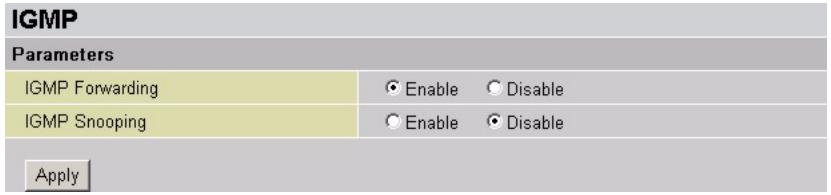
text_image
IGMP Parameters IGMP Forwarding Enable Disable IGMP Snooping Enable Disable ApplyThe following table describes the labels in this screen.
Table 61 Advanced: IGMP
| LABEL | DESCRIPTION |
| IGMP Forwarding | Activate this feature to set the Prestige to forward IGMP packets. |
| IGMP Snooping | Activate this feature to set the Prestige to learn multicast group memberships. |
| Apply | Click Apply to save the changes. |
Index
Numerics
110V AC 4
230V AC 4
4-wire connection 56
A
About your Prestige 20
AC 4
Accessories 4
Address Resolution Protocol (ARP) 29
Advanced PPP options 51
AH (Authentication Header) 83
Airflow 4
Application-level Firewalls 64
Applications 22
ARP 29
How it works 29
ATM Adaptation Layer 5 (AAL5) 48
ATM Class 50
Auto scan for Internet access 37
auto-negotiation 20
B
Bandwidth management 98
Basement 4
C
Cables, Connecting 4
Check email 108
Configuration backup 60
Configuration restore 60
Connecting Cables 4
Content filtering 21
Copyright 2
Corrosive Liquids 4
Covers 4
Customer Support 6
D
Dampness 4
Danger 4
Daylight saving 59
DDNS 21, 106
Denmark, Contact Information 6
Device management 110
DHCP 38, 43, 106
Disable 44
Relay agent 46
Server fixed host setup 46
Sever setup 44
DHCP (Dynamic Host Configuration Protocol) 22, 43
DHCP server 43
DiffServ Code Point (DSCP) 98
DNS 54
DNS server 43
DNS setup 43
Domain filtering 75
Domain Name 54
DoS (Denial of Service) 21
DSCP marking 98
DSLAM (Digital Subscriber Line Access Multiplexer) 22
Dust 4
Dynamic DNS 106
Dynamic DNS (DDNS) 21
E
Electric Shock 4
Electrical Pipes 4
Email status 33
encapsulation 20
Error log status 34
ESP (Encapsulating Security Payload) 83
Ethernet client filter 40
Ethernet client filter candidate 41
Europe 4
Event log status 33
Exposure 4
F
Factory LAN Defaults 38
FCC 3
Features 20
Finland, Contact Information 6
Firewall 21, 64
General settings 66
Log 76
Predefined port filters 67
Types 64
Firmware upgrade 60
Frame Relay 22
France, Contact Information 6
Front panel 24
Front panel LEDs 24
FTP 106
Full Network Management 21
G
Gas Pipes 4
Germany, Contact Information 6
H
High Voltage Points 4
HTTP 64
|
IDS actions 71
IEEE 802.1p 43
IGMP 115
interface 20
Internet access setup
Auto scan 37
Quick start 35
Internet Protocol Security (IPSec) 83
Intrusion detection 71
Intrusion Detection System (IDS) 71
IP Address 38, 40
IP Pool Setup 43
IP throttling
Example 101
IP Throttling 98
IPoA (IP over ATM) 49
IPSec 83
Configuration 85
Summary 84
IPSec standard 22
IPSec status 31
ISP 49
Connection type 53
Edit settings 50
K
Keyword filtering 74
L
L2TP 87
LAN to LAN connection 90
Remote access connection 88
L2TP (Layer 2 Tunneling Protocol) 87
L2TP status 32
LAN TCP/IP 38
Lightning 4
Liquids, Corrosive 4
Log 76
M
Media Access Control (MAC) 29
MPPE (Microsoft Point to Point Encryption) 80
Multi-mode standard 20
multiplexing 21
N
NAT 21, 38
NAT session status 35
Network Address Translation (NAT) 21
North America 4
North America Contact Information 6
Norway, Contact Information 6
0
Opening 4
P
Packet filter 67
Raw packet filter 70
TCP/UDP packet filter 69
Packet filtering 21
Packet Filtering Firewalls 64
Perfect Forward Secrecy 84
PFS (Perfect Forward Secrecy) 84
Pipes 4
Point to Point Protocol over ATM Adaptation Layer 5 (PPPoA) 49
Point-to-Point Tunneling Protocol (PPTP) 78
Pool 4
Port setting 42
Connection type 42
TOS priority control 42
Power Cord 4
PPPoE (Point-to-Point Protocol over Ethernet) 48
PPTP 78
Encryption mode 80
LAN to LAN connection 81
Remote access connection 79
Summary 78
PPTP status 31
Pre-Shared Key 84, 87
Prioritization 96
Example with QoS 100
PVC (Permanent Virtual Circuit) 49
Q
QoS
Example 100
QoS (Quality of Service) 96
Qualified Service Personnel 4
Quick start for Internet access 35
Quick Start Guide 26
R
Read Me First 18
Rear panel 25
Regular Mail 6
Related Documentation 18
Remote access 59
Removing 4
RESET 25
Reset button 27
Resetting the Prestige 27
Restart 61
RFC 1483 48
RFC 2402 83
RFC 2406 83
RFC 2516 48
RIP 39, 51
RIP (Routing Information Protocol) 39
RIP version 39
Risk 4
Risks 4
Routing table 30
S
Service 4, 5
Service Personnel 4
SHDSL parameters 55
Shock, Electric 4
Simple Network Management Protocol (SNMP) 110
SNMP 22, 110
SNMP ( Simple Network Management Protocol) 22
SNMP MIBs 112
SNMP traps 112
SNMPv3 111
Spain, Contact Information 7
Stateful Inspection 21, 64, 65
Static route 104
Status 28
ARP table 29
Email 33
Error log 34
Event log 33
IPSec 31
L2TP 32
NAT sessions 35
PPTP 31
Routing table 30
Subnet Mask 38, 40
Supply Voltage 4
Support E-mail 6
Supporting Disk 18
Sweden, Contact Information 7
Swimming Pool 4
Syntax Conventions 18
System 58
WAN
Encapsulation types 48
WAN (Wide Area Network) 48
Warnings 4
Water 4
Water Pipes 4
Web Configurator 26, 27
Web Site 6
Wet Basement 4
Worldwide Contact Information 6
T
Telephone 6
Thunderstorm 4
Time schedule 101
Time zone 58
Z
ZyXEL Limited Warranty
Note 5
U
Universal Plug and Play 110
Universal Plug and Play (UPnP) 21
UPnP 21, 110
URL (Uniform Resource Locator) 73
URL filter 73
User management 62
V
Vendor 4
Ventilation Slots 4
Virtual Private Network (VPN) 22
Voltage Supply 4
Voltage, High 4
VPN
Example 93
VPN (Virtual Private Network) 78
W
Wall Mount 4