
NWA-3166 - Wireless Access Point ZYXEL - Free user manual and instructions
Find the device manual for free NWA-3166 ZYXEL in PDF.


| Product Type | Wireless Access Point |
| Brand | ZYXEL |
| Model | NWA-3166 |
| Dimensions (L x W x H) | 200 mm x 150 mm x 30 mm |
| Weight | Approx. 250 g |
| Power Supply | 12 V DC, 1 A (power adapter included) |
| Power Consumption | 10 W max |
| Wireless Standards | IEEE 802.11a/b/g |
| Frequency Bands | 2.4 GHz and 5 GHz |
| Maximum Data Rate | 54 Mbps (802.11a/g) |
| Antennas | 2 external omnidirectional antennas (RP-SMA) |
| Wireless Security | WEP 64/128-bit, WPA (TKIP), WPA2 (AES) |
| Management | Via web interface (HTTP/HTTPS), SNMP, Telnet |
| Ports | 1 Ethernet 10/100 Base-T (RJ-45) port with PoE 802.3af support |
| PoE (Power over Ethernet) | Yes, compatible with 802.3af (PoE injector not included) |
| Indicator LEDs | Power, LAN, WLAN |
| Operating Temperature | 0°C to 40°C |
| Operating Humidity | 10% to 90% (non-condensing) |
| Certifications | CE, FCC Class B, NMB-003 Canada |
| Package Contents | Access point, power adapter, documentation CD, Ethernet cable, quick start guide |
| Maintenance and Cleaning | Disconnect the device before cleaning. Use a soft, dry cloth. Do not use chemicals. |
| General Safety | Do not expose to moisture or extreme temperatures. Disconnect during thunderstorms. |
| Repairability and Spare Parts | Contact ZYXEL support or an authorized center. No user-serviceable parts. |
Frequently Asked Questions - NWA-3166 ZYXEL
User questions about NWA-3166 ZYXEL
0 question about this device. Answer the ones you know or ask your own.
Ask a new question about this device
Download the instructions for your Wireless Access Point in PDF format for free! Find your manual NWA-3166 - ZYXEL and take your electronic device back in hand. On this page are published all the documents necessary for the use of your device. NWA-3166 by ZYXEL.
USER MANUAL NWA-3166 ZYXEL
IP Address http://192.168.1.2
User Name
Password 1234
Firmware Version 3.6
Edition 3, 02/2009
www.zyxel.com
ZyXEL
About This User's Guide
Intended Audience
This manual is intended for people who want to configure the NWA-3160 Series using the web configurator. You should have at least a basic knowledge of TCP/IP networking concepts and topology.
Related Documentation
- Quick Start Guide
The Quick Start Guide is designed to help you get up and running right away. It contains information on setting up your network and configuring for Internet access.
- Support Disc
Refer to the included CD for support documents.
ZyXEL Web Site
Please refer to www.zyxel.com for additional support documentation and product certifications.
User Guide Feedback
Help us help you. Send all User Guide-related comments, questions or suggestions for improvement to the following address, or use e-mail instead. Thank you!
The Technical Writing Team,
ZyXEL Communications Corp.,
6 Innovation Road II,
Science-Based Industrial Park,
Hsinchu, 300, Taiwan.
E-mail: techwriters@zyxel.com.tw
Document Conventions
Warnings and Notes
These are how warnings and notes are shown in this User's Guide.
Warnings tell you about things that could harm you or your device.
Note: Notes tell you other important information (for example, other things you may need to configure or helpful tips) or recommendations.
Syntax Conventions
- The product in this book may be referred to as the "NWA", the "device" or the "system" in this User's Guide.
- Product labels, screen names, field labels and field choices are all in bold font.
- A key stroke is denoted by square brackets and uppercase text, for example, [ENTER] means the "enter" or "return" key on your keyboard.
- "Enter" means for you to type one or more characters and then press the [ENTER] key. "Select" or "choose" means for you to use one of the predefined choices.
- A right angle bracket ( > ) within a screen name denotes a mouse click. For example, Maintenance > Status > Show Statistics means you first click Maintenance in the navigation panel, then the Status sub menu and finally the Show Statistics button to get to that screen.
- Units of measurement may denote the "metric" value or the "scientific" value. For example, "k" for kilo may denote "1000" or "1024", "M" for mega may denote "1000000" or "1048576" and so on.
- "e.g.," is a shorthand for "for instance", and "i.e.," means "that is" or "in other words".
- Screens reproduced here for demonstration purposes may not exactly match the screens on your device.
Icons Used in Figures
Figures in this User's Guide may use the following generic icons. The NWA icon is not an exact representation of your device.
| NWA | Computer | Notebook computer |
| Server | Printer | Firewall |
| Telephone | Switch | Router |
SafetyWarnings
-
Do NOT use this product near water, for example, in a wet basement or near a swimming pool.
-
Do NOT expose your device to dampness, dust or corrosive liquids.
-
Do NOT store things on the device.
-
Do NOT install, use, or service this device during a thunderstorm. There is a remote risk of electric shock from lightning.
-
Connect ONLY suitable accessories to the device.
-
ONLY qualified service personnel should service or disassemble this device.
-
Make sure to connect the cables to the correct ports.
-
Place connecting cables carefully so that no one will step on them or stumble over them.
-
Always disconnect all cables from this device before servicing or disassembling.
-
Use ONLY an appropriate power adaptor or cord for your device.
-
Connect the power adaptor or cord to the right supply voltage (for example, 110V AC in North America or 230V AC in Europe).
-
Do NOT allow anything to rest on the power adaptor or cord and do NOT place the product where anyone can walk on the power adaptor or cord.
-
Do NOT use the device if the power adaptor or cord is damaged as it might cause electrocution.
-
If the power adaptor or cord is damaged, remove it from the power outlet.
-
Do NOT attempt to repair the power adaptor or cord. Contact your local vendor to order a new one.
-
Do not use the device outside, and make sure all the connections are indoors. There is a remote risk of electric shock from lightning.
-
"Not to remove the plug and plug into a wall outlet by itself; always attach the plug to the power supply first before insert into the wall."
-
(In other words, do NOT remove the plug and connect it to a power outlet by itself; always attach the plug to the power adaptor first before connecting it to a power outlet.)
-
Antenna Warning! This device meets ETSI and FCC certification requirements when using the included antenna(s). Only use the included antenna(s).
-
If you wall mount your device, make sure that no electrical lines, gas or water pipes will be damaged.
-
The PoE (Power over Ethernet) devices that supply or receive power and their connected Ethernet cables must all be completely indoors.
This product is recyclable. Dispose of it properly.
Table of Contents
About This User's Guide 3
Document Conventions 4
SafetyWarnings 6
Table of Contents 7
Part I: Introduction 15
Chapter 1 Introduction 17
1.1 Overview 17
1.2 Applications for the NWA 18
1.2.1 Access Point 18
1.2.2 Bridge / Repeater 19
1.2.2.1 Bridge / Repeater Mode Example 20
1.2.3 AP + Bridge 22
1.2.4 MBSSID 22
1.2.5 Pre-Configured SSID Profiles 24
1.2.6 Configuring Dual WLAN Adaptors 24
1.3 CAPWAP 25
1.4 Ways to Manage the NWA 25
1.5 Good Habits for Managing the NWA 26
1.6 Hardware Connections 26
1.7 LEDs 27
Chapter 2 The Web Configurator 29
2.1 Overview 29
2.2 Accessing the Web Configurator 29
2.3 Resetting the NWA 30
2.3.1 Methods of Restoring Factory-Defaults 30
2.4 Navigating the Web Configurator 31
Chapter 3
Tutorials 33
3.1 Overview 33
3.2 How to Configure the Wireless LAN 33
3.2.1 Choosing the Wireless Mode 33
3.2.2 Wireless LAN Configuration Overview 34
3.2.3 Further Reading 35
3.3 How to Configure Multiple Wireless Networks 35
3.3.1 Change the Operating Mode 37
3.3.2 Configure the VoIP Network 39
3.3.2.1 Set Up Security for the VoIP Profile 40
3.3.2.2 Activate the VoIP Profile 42
3.3.3 Configure the Guest Network 42
3.3.3.1 Set Up Security for the Guest Profile 44
3.3.3.2 Set up Layer 2 Isolation 45
3.3.3.3 Activate the Guest Profile 46
3.3.4 Testing the Wireless Networks 46
3.4 How to Set Up and Use Rogue AP Detection 47
3.4.1 Set Up and Save a Friendly AP list 49
3.4.2 Activate Periodic Rogue AP Detection 52
3.4.3 Set Up E-mail Logs 53
3.4.4 Configure Your Other Access Points 54
3.4.5 Test the Setup 55
3.5 Using MAC Filters and L-2 Isolation Profiles 55
3.5.1 Scenario 55
3.5.2 Your Requirements 56
3.5.3 Setup 56
3.5.4 Configure the SERVER_1 Network 57
3.5.5 Configure the SERVER_2 Network 60
3.5.6 Checking your Settings and Testing the Configuration 61
3.5.6.1 Checking Settings 61
3.5.6.2 Testing the Configuration 62
Part II: The Web Configurator 65
Chapter 4 Status Screen 67
4.1 Overview 67
4.2 The Status Screen 67
Chapter 5 Management Mode. 71
5.1 Overview 71
5.2 About CAPWAP 71
5.2.1 CAPWAP Discovery and Management 72
5.2.2 CAPWAP and DHCP 72
5.2.3 CAPWAP and IP Subnets 72
5.2.4 Notes on CAPWAP 73
5.3 The Management Mode Screen 74
Chapter 6
AP Controller Mode 75
6.1 Overview 75
6.1.1 What You Can Do in AP Controller Mode 75
6.1.2 What You Need to Know 75
6.1.3 Before You Begin 76
6.2 Controller AP Navigation Menu 76
6.3 Controller AP Status Screen 77
6.4 AP Lists Screen 79
6.4.1 The AP Lists Edit Screen 81
6.5 Configuration Screen 82
6.6 The Profile Edit Screens 83
6.6.1 The Radio Profile Screen 83
6.6.2 The Radio Profile Edit Screen 84
Chapter 7
System Screens 87
7.1 Overview 87
7.1.1 What You Can Do in the System Screens 87
7.1.2 What You Need To Know About the System Screens 88
7.2 General Screen 89
7.3 Password Screen 91
7.4 Time Setting Screen 93
7.5 Technical Reference 95
7.5.1 Administrator Authentication on RADIUS 95
7.5.2 Pre-defined NTP Time Servers List 95
Chapter 8
Wireless Screen 97
8.1 Overview 97
8.1.1 What You Can Do in the Wireless Screen 97
8.1.2 What You Need To Know About the Wireless Screen 98
8.2 The Wireless Screen 101
8.2.1 Access Point Mode 101
8.2.2 Bridge / Repeater Mode 104
8.2.3 AP + Bridge Mode 108
8.2.4 MBSSID Mode 109
8.3 Technical Reference 112
8.3.1 WMM QoS 112
8.3.1.1 WMM QoS Priorities 112
8.3.2 ATC 113
8.3.3ATC+WMM 114
8.3.3.1 ATC+WMM from LAN to WLAN 114
8.3.3.2 ATC+WMM from WLAN to LAN 115
8.3.4 Type Of Service (ToS) 115
8.3.4.1 DiffServ 115
8.3.4.2 DSCP and Per-Hop Behavior 115
8.3.4.3 ToS (Type of Service) and WMM QoS 116
8.3.5 Spanning Tree Protocol (STP) 116
8.3.5.1 Rapid STP 116
8.3.5.2 STP Terminology 117
8.3.5.3 How STP Works 117
8.3.5.4 STP Port States 118
8.3.6 DFS 118
8.3.7 Roaming 118
8.3.7.1 Requirements for Roaming 120
8.3.8 Additional Wireless Terms 121
Chapter 9
SSID Screen 123
9.1 Overview 123
9.1.1 What You Can Do in the SSID Screen 123
9.1.2 What You Need To Know About SSID 124
9.2 The SSID Screen 125
9.2.1 Configuring SSID 126
Chapter 10
Wireless Security Screen 129
10.1 Overview 129
10.1.1 What You Can Do in the Security Screen 129
10.1.2 What You Need To Know About Wireless Security 130
10.2 The Security Screen 132
10.2.1 Security: WEP 133
10.2.2 Security: 802.1x Only 134
10.2.3 Security: 802.1x Static 64-bit, 802.1x Static 128-bit 135
10.2.4 Security: WPA 137
10.2.5 Security: WPA2 or WPA2-MIX 138
10.2.6 Security: WPA-PSK, WPA2-PSK, WPA2-PSK-MIX 139
10.3 Technical Reference 140
Chapter 11
RADIUS Screen 141
11.1 Overview 141
11.1.1 What You Can Do in the RADIUS Screen 142
11.1.2 What You Need To Know About Wireless Security 142
11.2 The RADIUS Screen 143
Chapter 12
Layer-2 Isolation Screen 145
12.1 Overview 145
12.1.1 What You Can Do in the Layer-2 Isolation Screen 146
12.1.2 What You Need To Know About This Chapter 146
12.2 The Layer-2 Isolation Screen 147
12.2.1 Configuring Layer-2 Isolation 148
12.3 Technical Reference 149
Chapter 13
MAC Filter Screen 151
13.1 Overview 151
13.1.1 What You Can Do in the MAC Filter Screen 151
13.1.2 What You Should Know About MAC Filter 151
13.2 The MAC Filter Screen 152
13.2.1 Configuring the MAC Filter 153
Chapter 14
IP Screen 155
14.1 Overview 155
14.1.1 What You Can Do in the IP Screen 155
14.1.2 What You Need To Know About IP 155
14.2 The IP Screen 156
14.3 Technical Reference 157
14.3.1 WAN IP Address Assignment 157
Chapter 15
Rogue AP Detection 159
15.1 Overview 159
15.1.1 What You Can Do in the Rogue AP Screen 160
15.1.2 What You Need To Know About Rogue AP 160
15.2 Configuration Screen 162
15.2.1 Friendly AP Screen 163
15.2.2 Rogue AP Screen 164
Chapter 16
Remote Management Screens 167
16.1 Overview 167
16.1.1 What You Can Do in the Remote Management Screens 168
16.1.2 What You Need To Know About Remote Management 168
16.2 The Telnet Screen 170
16.3 The FTP Screen 171
16.4 The WWW Screen 172
16.5 The SNMP Screen 174
16.6 Technical Reference 176
16.6.1 MIB 176
16.6.2 Supported MIBs 176
16.6.3 SNMP Traps 176
Chapter 17
Internal RADIUS Server 179
17.1 Overview 179
17.1.1 What You Can Do in this Chapter 180
17.1.2 What You Need To Know 180
17.2 Internal RADIUS Server Setting Screen 180
17.3 The Trusted AP Screen 182
17.4 The Trusted Users Screen 183
17.5 Technical Reference 184
Chapter 18
Certificates 187
18.1 Overview 187
18.1.1 What You Can Do in the Certificates Screen 187
18.1.2 What You Need To Know About Certificates 188
18.2 My Certificates Screen 188
18.2.1 My Certificates Import Screen 190
18.2.2 My Certificates Create Screen 192
18.2.3 My Certificates Details Screen 195
18.3 Trusted CAs Screen 198
18.3.1 Trusted CAs Import Screen 199
18.3.2 Trusted CAs Details Screen 200
18.4 Technical Reference 203
18.4.1 Private-Public Certificates 203
18.4.2 Certification Authorities 203
18.4.3 Checking the Fingerprint of a Certificate 204
Chapter 19
Log Screens 205
19.1 Overview 205
19.1.1 What You Can Do in the Log Screens 205
19.1.2 What You Need To Know About Logs 206
19.2 The View Log Screen 206
19.3 The Log Settings Screen 208
19.4 Technical Reference 210
19.4.1 Example Log Messages 210
19.4.2 Log Commands 212
19.4.3 Configuring What You Want the NWA to Log 212
19.4.4 Displaying Logs 212
19.4.5 Log Command Example 212
Chapter 20 VLAN 215
20.1 Overview 215
20.1.1 What You Can Do in the VLAN Screen 215
20.1.2 What You Need To Know About VLAN 216
20.2 Wireless VLAN Screen 217
20.2.1 RADIUS VLAN Screen 219
20.3 Technical Reference 220
20.3.1 VLAN Tagging 220
20.3.2 Configuring Management VLAN Example 220
20.3.3 Configuring Microsoft's IAS Server Example 223
20.3.3.1 Configuring VLAN Groups 224
20.3.3.2 Configuring Remote Access Policies 225
20.3.4 Second Rx VLAN ID Example 233
20.3.4.1 Second Rx VLAN Setup Example 233
Chapter 21 Maintenance 237
21.1 Overview 237
21.1.1 What You Can Do in the Maintenance Screens 237
21.1.2 What You Need To Know 237
21.2 Association List Screen 238
21.3 Channel Usage Screen 239
21.4 F/W Upload Screen 240
21.5 Configuration Screen 242
21.5.1 Backup Configuration 242
21.5.2Restore Configuration 243
21.5.3 Back to Factory Defaults 244
21.6 Restart Screen 244
Chapter 22 Troubleshooting 245
22.1 Overview 245
22.2 Power, Hardware Connections, and LEDs 245
22.3 NWA Access and Login 246
22.4 Internet Access 249
22.5 Wireless Router/AP Troubleshooting 250
Appendix A Product Specifications 251
22.6 Wall-Mounting Instructions 253
Appendix B Wireless LANs 255
Appendix C Pop-up Windows, JavaScripts and Java Permissions 271
Appendix D IP Addresses and Subnetting 279
Appendix E Text File Based Auto Configuration 301
Appendix F How to Access and Use the CLI 309
Appendix G Legal Information 315
Appendix H Customer Support 319
Index 327
PART I
Introduction
Introduction (17)
The Web Configurator (29)
Tutorials (33)
Introduction
1.1 Overview
Your NWA extends the range of your existing wired network without additional wiring, providing easy network access to mobile users.
It is highly versatile, featuring dual wireless modules and supporting up to sixteen Basic Service Set Identifiers (BSSID) simultaneously. The Quality of Service (QoS) features allow you to prioritize time-sensitive or highly important applications such as Voice over Internet Protocol (VoIP).
Multiple security profiles allow you to easily assign different types of security to groups of users. The NWA controls network access with Media Access Control (MAC) address filtering, rogue Access Point (AP) detection, layer 2 isolation and an internal authentication server. It also provides a high level of network traffic security, supporting Institute of Electronic Engineers (IEEE) 802.1x, Wi-Fi Protected Access (WPA), WPA2 and Wired Equivalent Privacy (WEP) data encryption.
Your NWA is easy to install, configure and use. The embedded Web-based configurator enables simple, straightforward management and maintenance.
See the Quick Start Guide for instructions on how to make hardware connections.
1.2 Applications for the NWA
The NWA can be configured to use the following WLAN operating modes
- Access Point
- Bridge / Repeater
- AP + Bridge
- MBSSID
Applications for each operating mode are shown below.
Note: A different channel should be configured for each WLAN interface to reduce the effects of radio interference.
1.2.1 Access Point
The NWA is an ideal access solution for wireless Internet connection. A typical Internet access application for your NWA is shown as follows. Stations A, B and C can access the wired network through the NWAs.
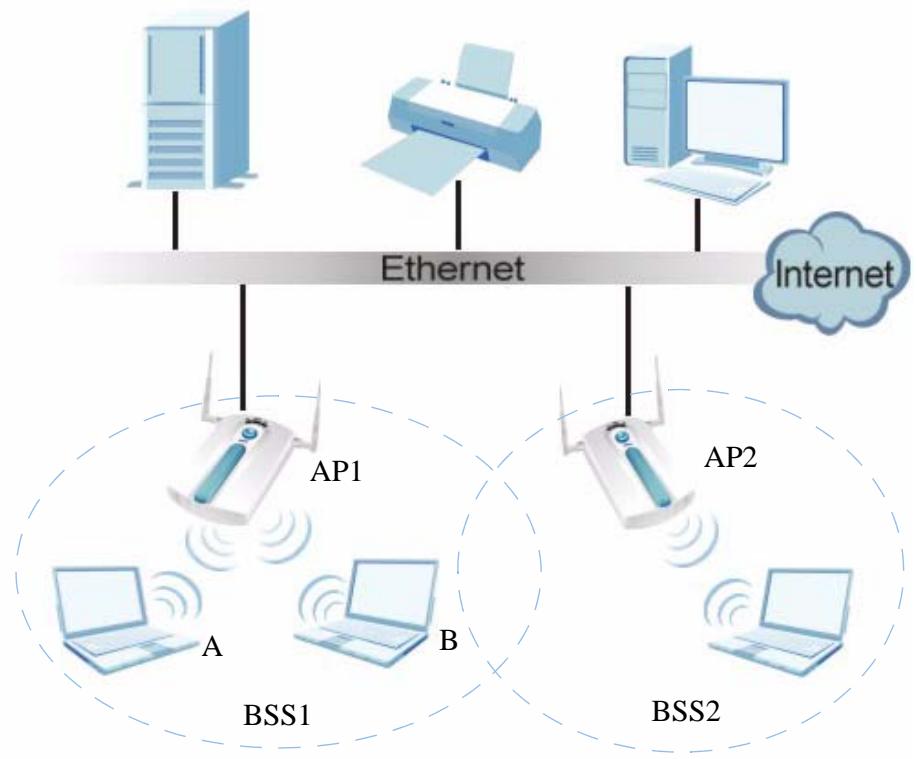
Figure 1 Access Point Application
1.2.2 Bridge / Repeater
The NWA can act as a wireless network bridge and establish wireless links with other APs. In the figure below, the two NWAs (A and B) are connected to independent wired networks and have a bridge connection (A can communicate with B) at the same time. A NWA in repeater mode (C) has no Ethernet connection. When the NWA is in bridge mode, you should enable Spanning Tree Protocol (STP) to prevent bridge loops.
When the NWA is in Bridge / Repeater mode, security between APs (the Wireless Distribution System or WDS) is independent of the security between the wireless stations and the AP. If you do not enable WDS security, traffic between APs is not encrypted. When WDS security is enabled, both APs must use the same pre-shared key. See Section 8.2.2 on page 104 for more details.
Once the security settings of peer sides match one another, the connection between devices is made.
At the time of writing, WDS security is compatible with other ZyXEL access points only. Refer to your other access point's documentation for details.
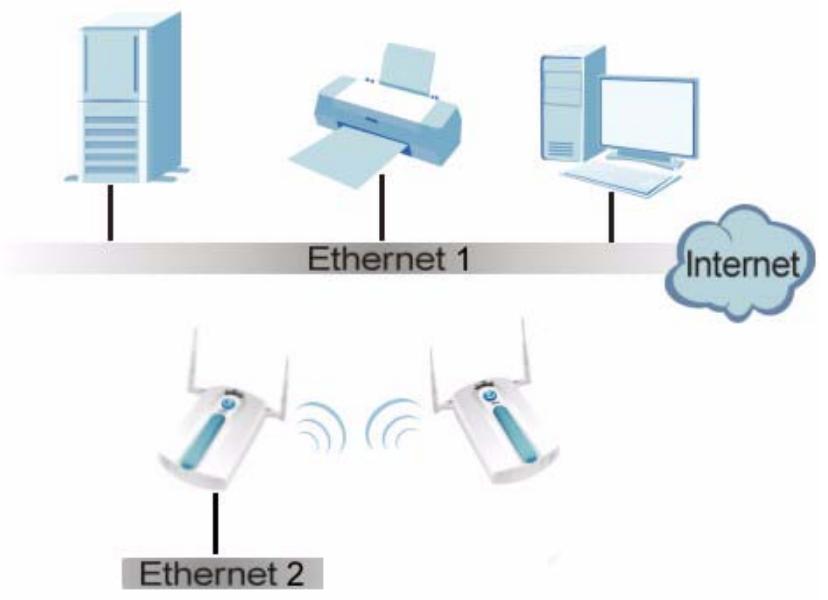
Figure 2 Bridge Application
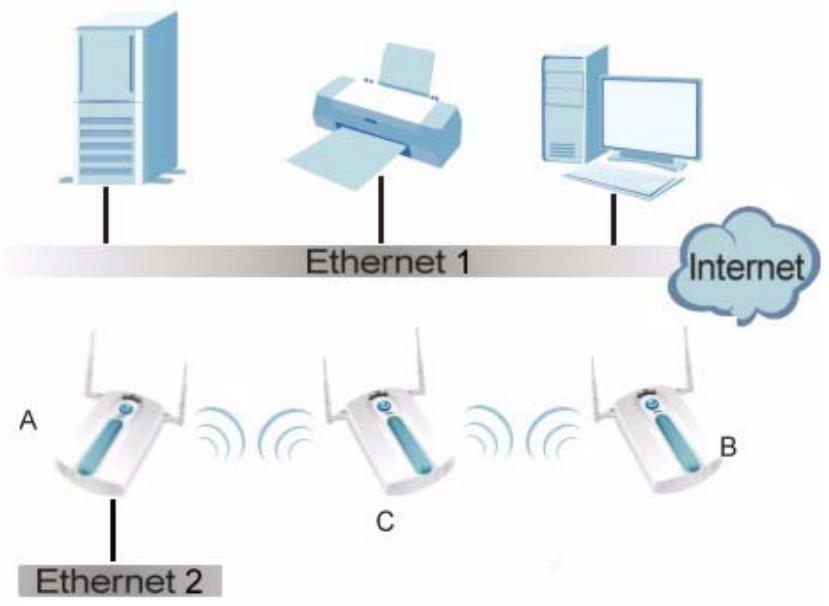
Figure 3 Repeater Application
1.2.2.1 Bridge / Repeater Mode Example
In the example below, when both NWAs are in Bridge/Repeater mode, they form a WDS (Wireless Distribution System) allowing the computers in LAN 1 to connect to the computers in LAN 2.
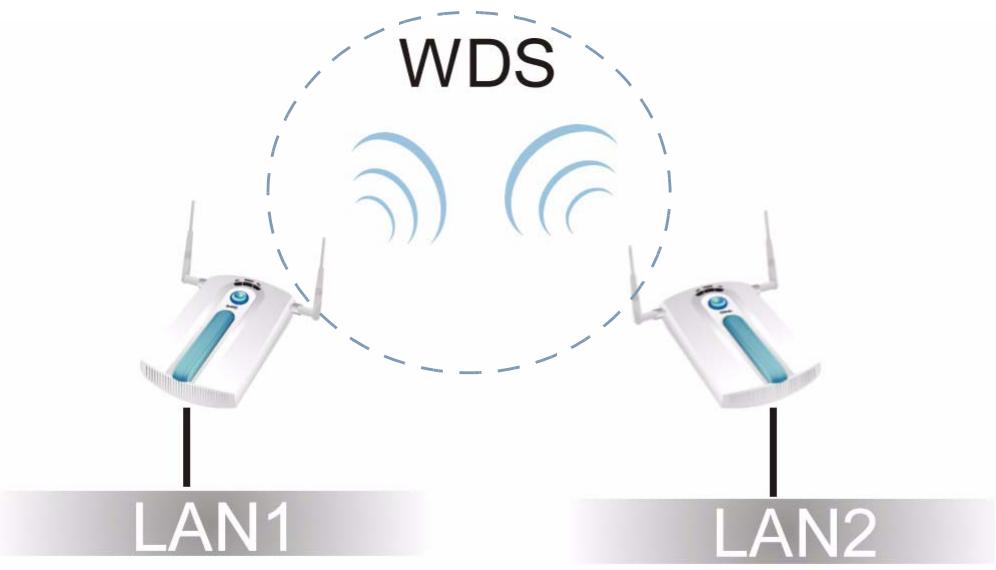
Figure 4 Bridging Example
Be careful to avoid bridge loops when you enable bridging in the NWA. Bridge loops cause broadcast traffic to circle the network endlessly, resulting in possible
throughput degradation and disruption of communications. The following examples show two network topologies that can lead to this problem:
- If two or more NWAs (in bridge mode) are connected to the same hub.
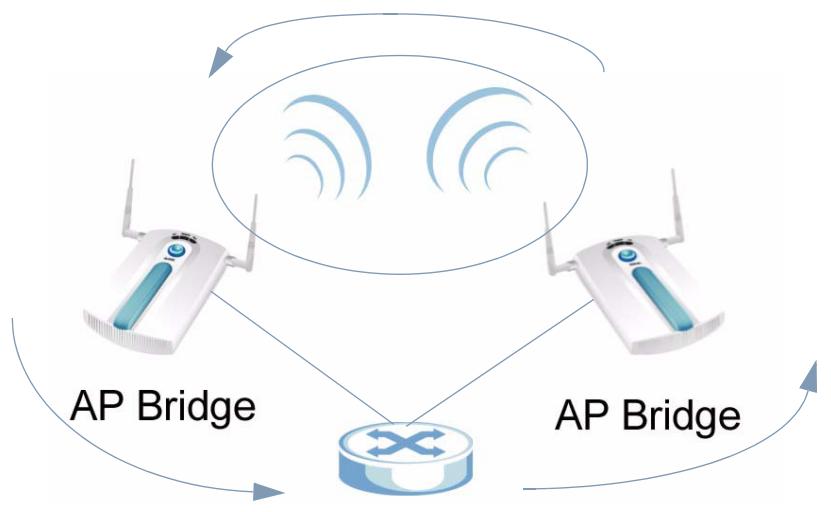
Figure 5 Bridge Loop: Two Bridges Connected to Hub
- If your NWA (in bridge mode) is connected to a wired LAN while communicating with another wireless bridge that is also connected to the same wired LAN.
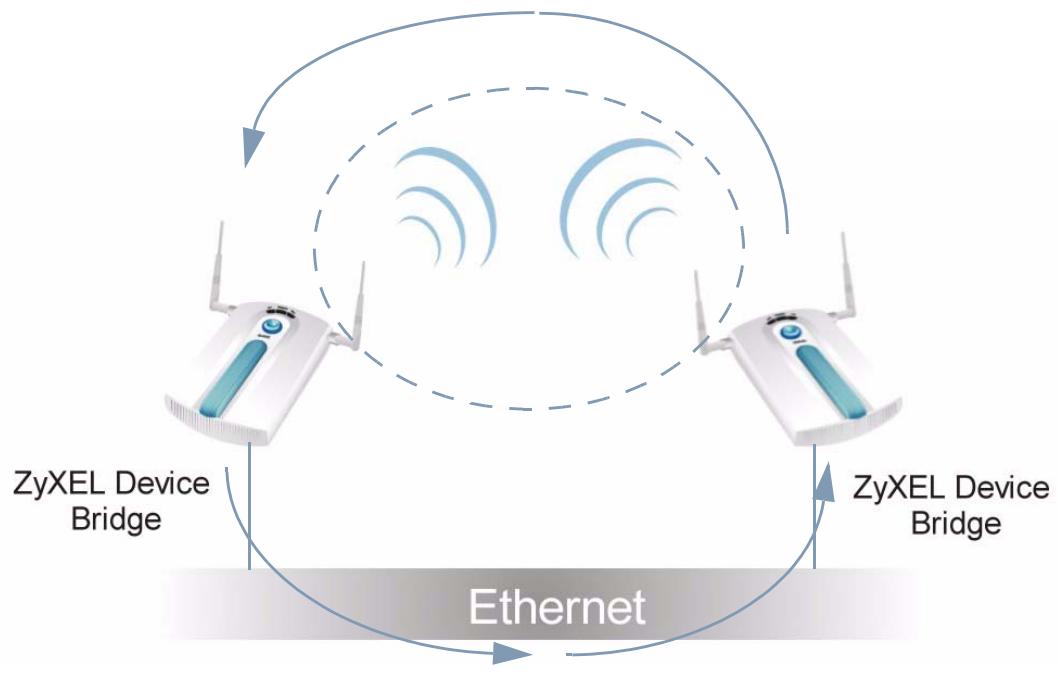
Figure 6 Bridge Loop: Bridge Connected to Wired LAN
To prevent bridge loops, ensure that you enable Spanning Tree Protocol (STP) in the Wireless screen or your NWA is not set to bridge mode while connected to both wired and wireless segments of the same LAN.
1.2.3 AP + Bridge
In AP + Bridge mode, the NWA supports both AP and bridge connection at the same time.
In the figure below, A and B use X as an AP to access the wired network, while X and Y communicate in bridge mode.
When the NWA is in AP + Bridge mode, security between APs (WDS) is independent of the security between the wireless stations and the AP. If you do not enable WDS security, traffic between APs is not encrypted. When WDS security is enabled, both APs must use the same pre-shared key.
Unless specified, the term "security settings" refers to the traffic between the wireless stations and the NWA.
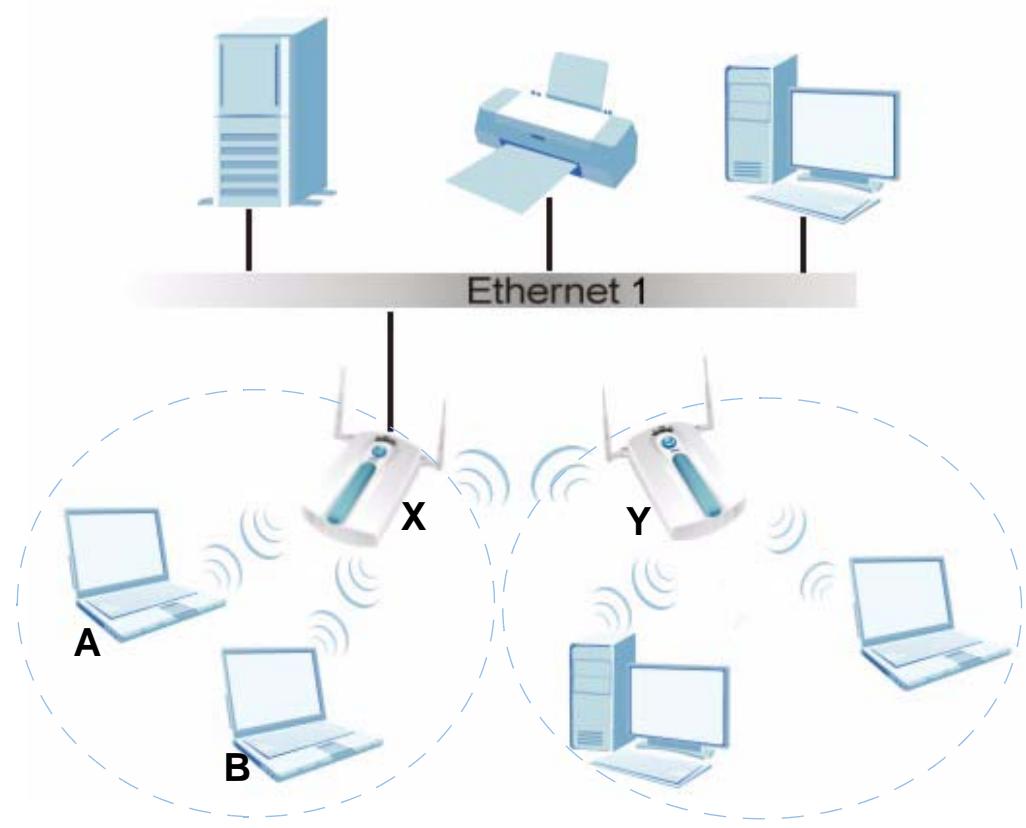
Figure 7 AP + Bridge Application
1.2.4 MBSSID
A Basic Service Set (BSS) is the set of devices forming a single wireless network (usually an access point and one or more wireless clients). The Service Set Identifier (SSID) is the name of a BSS. In Multiple BSS (MBSSID) mode, the NWA
provides multiple virtual APs, each forming its own BSS and using its own individual SSD profile.
You can configure up to sixteen SSID profiles, and have up to eight active at any one time.
You can assign different wireless and security settings to each SSID profile. This allows you to compartmentalize groups of users, set varying access privileges, and prioritize network traffic to and from certain BSSs.
To the wireless clients in the network, each SSID appears to be a different access point. As in any wireless network, clients can associate only with the SSIDs for which they have the correct security settings.
For example, you might want to set up a wireless network in your office where Internet telephony (VoIP) users have priority. You also want a regular wireless network for standard users, as well as a 'guest' wireless network for visitors. In the following figure, VoIP_SSID users have QoS priority, SSID03 is the wireless network for standard users, and Guest_SSID is the wireless network for guest users. In this example, the guest user is forbidden access to the wired Land Area Network (LAN) behind the AP and can access only the Internet.
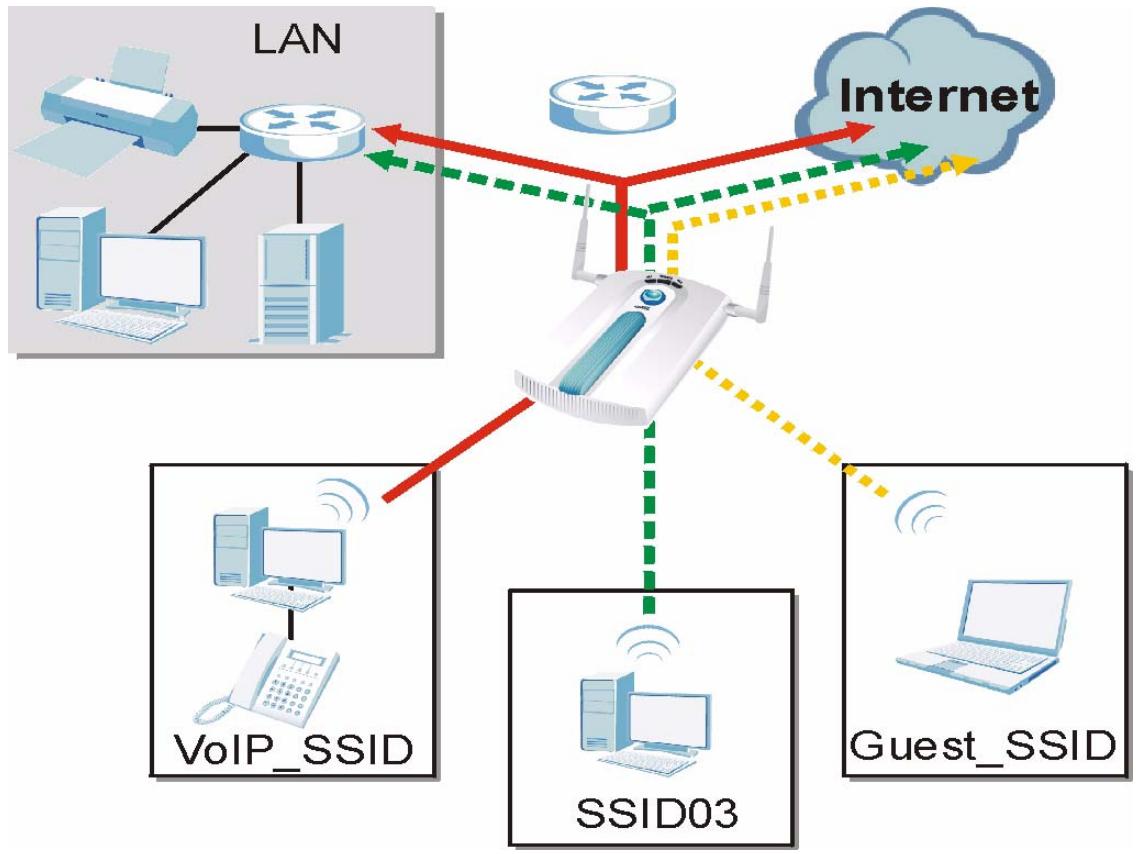
Figure 8 Multiple BSSs
1.2.5 Pre-Configured SSID Profiles
The NWA has two pre-configured SSID profiles.
- VoIP_SSID. This profile is intended for use by wireless clients requiring the highest QoS level for VoIP telephony and other applications requiring low latency. The QoS level of this profile is not user-configurable.
- Guest_SSID. This profile is intended for use by visitors and others who require access to certain resources on the network (an Internet gateway or a network printer, for example) but must not have access to the rest of the network. Layer 2 isolation is enabled (see Section on page 146), and QoS is set to NONE. Intra-BSS traffic blocking is also enabled (see Section 8.1.2 on page 98). These fields are all user-configurable.
1.2.6 Configuring Dual WLAN Adaptors
The NWA is equipped with dual wireless adaptors. This means you can configure two different wireless networks to operate simultaneously.
In the following example, the NWA (Z) uses WLAN1 in Access Point mode to allow IEEE 802.11b and IEEE 802.11g clients to access the wired network, and WLAN2 in AP + Bridge mode to allow an IEEE 802.11a AP to communicate with the wired network.
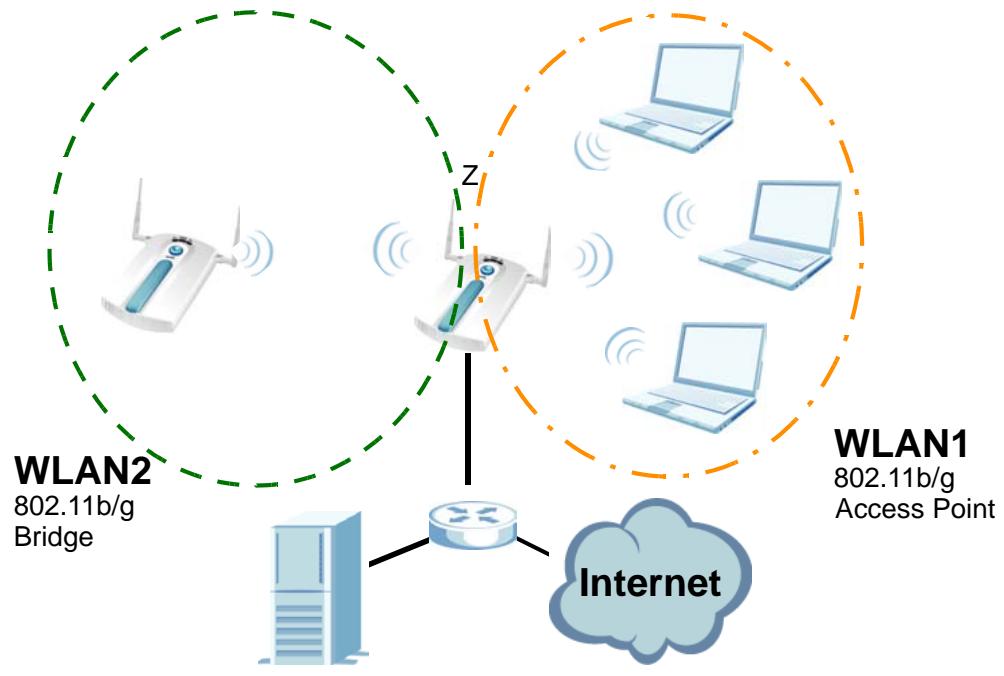
Figure 9 Dual WLAN Adaptors Example
1.3 CAPWAP
The NWA supports Control And Provisioning of Wireless Access Points (CAPWAP). This is ZyXEL's implementation of the Internet Engineering Task Force's (IETF) CAPWAP protocol.
ZyXEL's CAPWAP allows a single access point to manage up to eight other access points. The managed APs receive all their configuration information from the controller AP. The CAPWAP dataflow is protected by Instagram Transport Layer Security (DTLS).
The following ZyXEL AP models can be CAPWAP managed APs:
NWA-3160
NWA-3163
NWA-3500
NWA-3550
NWA-3166
The following figure illustrates a CAPWAP wireless network. The user (U) configures the controller AP (C), which then automatically updates the configurations of the managed APs (M1 ~ M4).
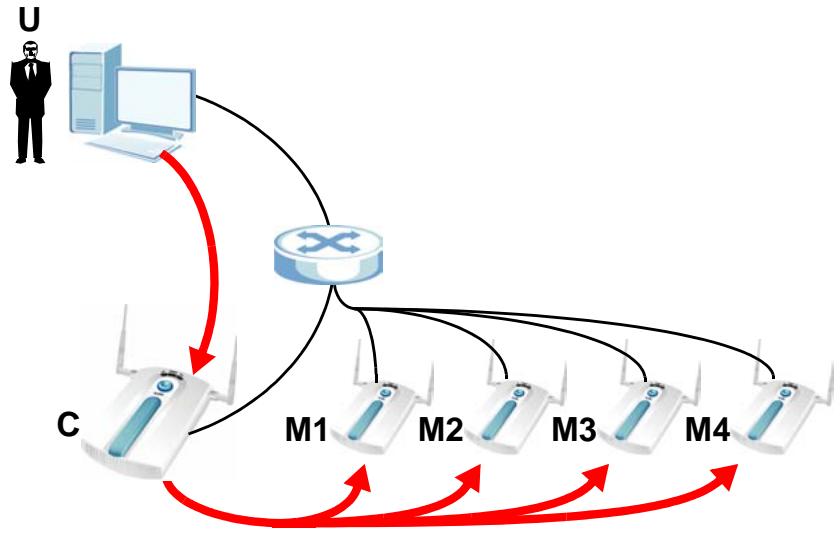
Figure 10 CAPWAP Network Example
1.4 Ways to Manage the NWA
Use any of the following methods to manage the NWA.
- Web Configurator. This is recommended for everyday management of the NWA using a (supported) web browser.
- Command Line Interface (CLI). Line commands are mostly used for troubleshooting by service engineers.
- File Transfer Protocol (FTP). This protocol can be used for firmware upgrades and configuration backup and restore.
- Simple Network Management Protocol (SNMP). The device can be monitored by an SNMP manager. See the SNMP chapter in this User's Guide.
1.5 Good Habits for Managing the NWA
Do the following things regularly to make the NWA more secure and to manage it more effectively.
- Change the password often. Use a password that's not easy to guess and that consists of different types of characters, such as numbers and letters.
- Write down the password and put it in a safe place.
- Back up the configuration (and make sure you know how to restore it). Restoring an earlier working configuration may be useful if the device becomes unstable or even crashes. If you forget your password, you will have to reset the NWA to its factory default settings. If you backed up an earlier configuration file, you won't have to totally reconfigure the NWA; you can simply restore your last configuration.
1.6 Hardware Connections
See your Quick Start Guide for information on making hardware connections.
1.7 LEDs
The following are the LED descriptions for your NWA.
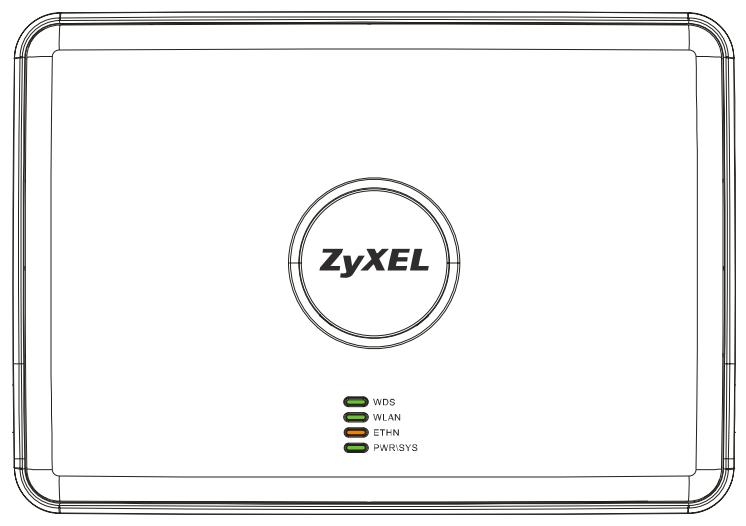
Figure 11 LEDs
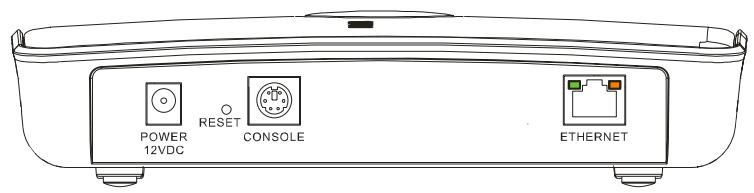
Table 1 LEDs
| LABEL | COLOR | STATUS | DESCRIPTION |
| WDS | Off | Either • The NWA is in Access Point or MBSSID mode and is functioning normally. or • The NWA is in AP+Bridge or Bridge/Repeater mode and has not established a Wireless Distribution System (WDS) connection. | |
| Green | On | The NWA is in AP+Bridge or Bridge/Repeater mode, and has successfully established a Wireless Distribution System (WDS) connection. | |
| WLAN | Green | On | The wireless LAN is active. |
| Blinking | The wireless LAN is active, and transmitting or receiving data. | ||
| Off | The wireless LAN is not active. | ||
| ETHERNET | Green | On | The NWA has a 10 Mbps Ethernet connection. |
| Blinking | The NWA has a 10 Mbps Ethernet connection and is sending or receiving data. | ||
| Yellow | On | The NWA has a 100 Mbps Ethernet connection. | |
| Blinking | The NWA has a 100 Mbps Ethernet connection and is sending/receiving data. | ||
| Off | The NWA does not have an Ethernet connection. | ||
| POWER/SYS | Green | On | The NWA is receiving power and functioning properly. |
| Off | The NWA is not receiving power. | ||
| Red | Blinking | Either • If the LED blinks during the boot up process, the system is starting up. or • If the LED blinks after the boot up process, the system has failed. | |
| Off | The NWA successfully boots up. |
The Web Configurator
2.1 Overview
This chapter describes how to access the NWA's web configurator and provides an overview of its screens.
2.2 Accessing the Web Configurator
1 Make sure your hardware is properly connected and prepare your computer or computer network to connect to the NWA (refer to the Quick Start Guide).
2 Launch your web browser.
3 Type "http://192.168.1.2" as the URL (default).
4 Type "1234" (default) as the password and click Login. In some versions, the default password appears automatically - if this is the case, click Login.
5 You should see a screen asking you to change your password (highly recommended) as shown next. Type a new password (and retype it to confirm) then click Apply. Alternatively, click Ignore.
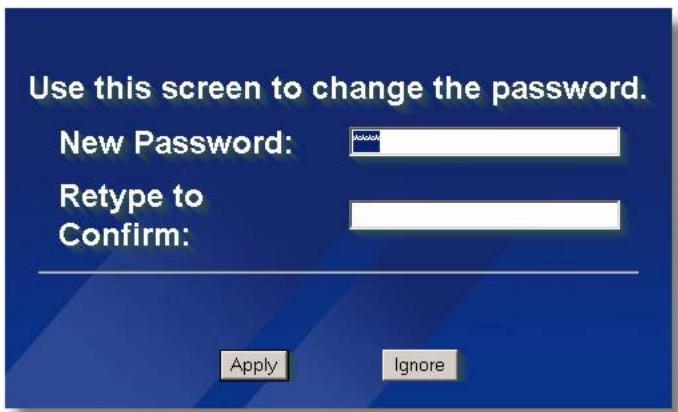
Note: If you do not change the password, this screen appears every time you login.
6 Click Apply in the Replace Certificate screen to create a certificate using your NWA's MAC address that will be specific to this device.
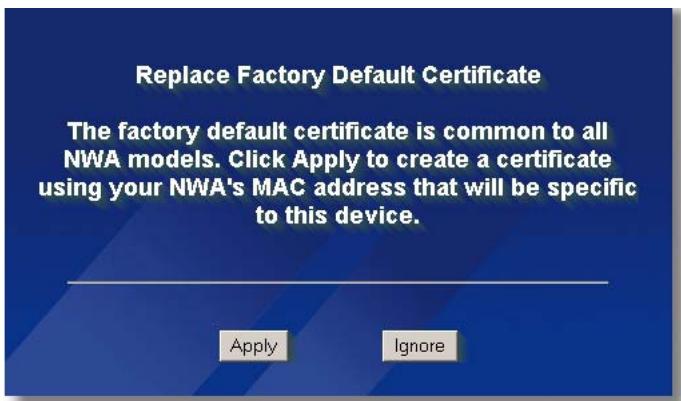
You should now see the Status screen. See Chapter 2 on page 29 for details about the Status screen.
Note: The management session automatically times out when the time period set in the Administrator Inactivity Timer field expires (default five minutes). Simply log back into the NWA if this happens.
2.3 Resetting the NWA
If you forget your password or cannot access the web configurator, you will need to use the RESET button. This replaces the current configuration file with the factory-default configuration file. This means that you will lose all the settings you previously configured. The password will be reset to 1234.
2.3.1 Methods of Restoring Factory-Defaults
You can erase the current configuration and restore factory defaults in three ways:
- Use the RESET button to upload the default configuration file. Hold this button in for about 10 seconds (the lights will begin to blink). Use this method for cases when the password or IP address of the NWA is not known.
- Use the web configurator to restore defaults (refer to Chapter 21 on page 237).
- Transfer the configuration file to your NWA using File Transfer Protocol (FTP).
2.4 Navigating the Web Configurator
The following summarizes how to navigate the web configurator from the Status screen.
Click LOGOUT at any time to exit the web configurator.
Check the status bar at the bottom of the screen when you click Apply or OK to verify that the configuration has been updated.
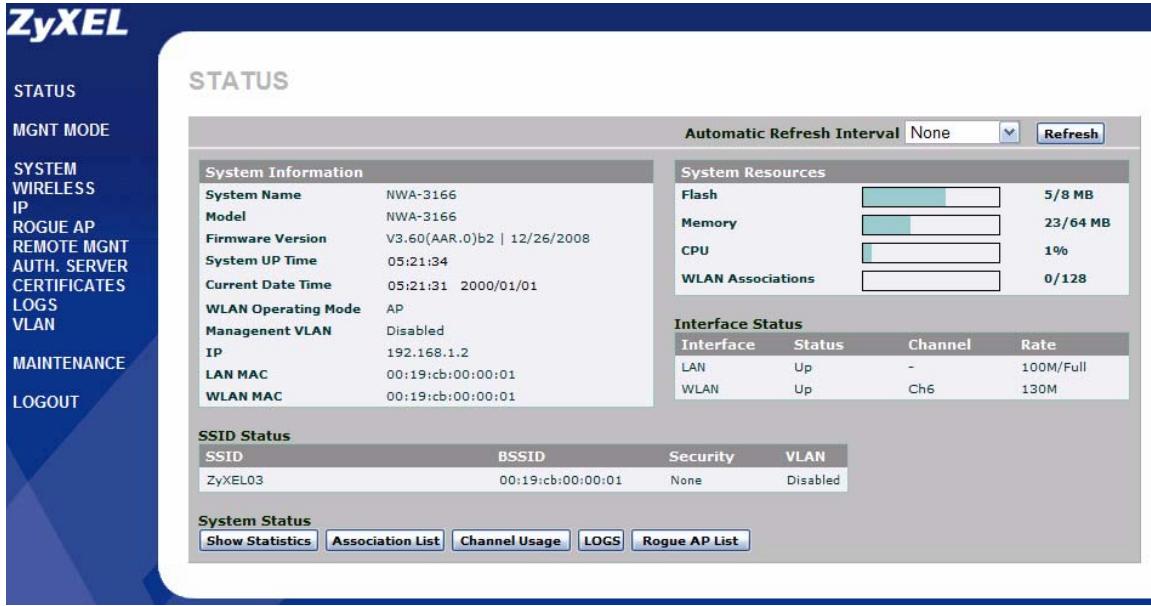
Figure 12 The Status Screen of the Web Configurator
- Click the links on the left of the screen to configure advanced features such as SYSTEM (General, Password and Time Setting), WIRELESS (Wireless, SSID, Security, RADIUS, Layer-2 Isolation, MAC Filter), IP, ROGUE AP (Configuration, Friendly AP, Rogue AP), REMOTE MGNT (Telnet, FTP, WWW and SNMP), AUTH.SERVER (Setting, Trusted AP, Trusted Users), CERTIFICATES (My Certificates, Trusted CAs), LOGS (View Log and Log Settings), VLAN (Wireless VLAN and RADIUS VLAN).
- Click MAINTENANCE to view information about your NWA or upgrade configuration and firmware files. Maintenance features include Status (Statistics), Association List, Channel Usage, F/W (Firmware) Upload, Configuration (Backup, Restore and Default) and Restart.
Tutorials
3.1 Overview
This chapter first provides a basic overview of how to configure the wireless LAN on your NWA, and then gives step-by-step guidelines showing how to configure your NWA for some example scenarios.
3.2 How to Configure the Wireless LAN
This section shows how to choose which wireless operating mode you should use on the NWA, and the steps you should take to set up the wireless LAN in each wireless mode. See Section 3.2.3 on page 35 for links to more information on each step.
3.2.1 Choosing the Wireless Mode
- Use Access Point (AP) operating mode if you want to allow wireless clients to access your wired network, all using the same security and Quality of Service (QoS) settings. See Section 1.2.1 on page 18 for details.
- Use Bridge / Repeater operating mode if you want to use the NWA to communicate with other access points. See Section 1.2.2 on page 19 for details.
The NWA is a bridge when other APs access your wired Ethernet network through the NWA.
The NWA is a repeater when it has no Ethernet connection and allows other APs to communicate with one another through the NWA.
- Use AP + Bridge operating mode if you want to use the NWA as an access point (see above) while also communicating with other access points. See Section 1.2.2.1 on page 20 for details.
- Use MBSSID (Multiple Basic Service Set Identifier) operating mode if you want to use the NWA as an access point with some groups of users having different security or QoS settings from other groups of users. See Section 1.2.4 on page 22 for details.
3.2.2 Wireless LAN Configuration Overview
The following figure shows the steps you should take to configure the wireless settings according to the operating mode you select. Use the Web Configurator to set up your NWA's wireless network (see your Quick Start Guide for information on setting up your NWA and accessing the Web Configurator).
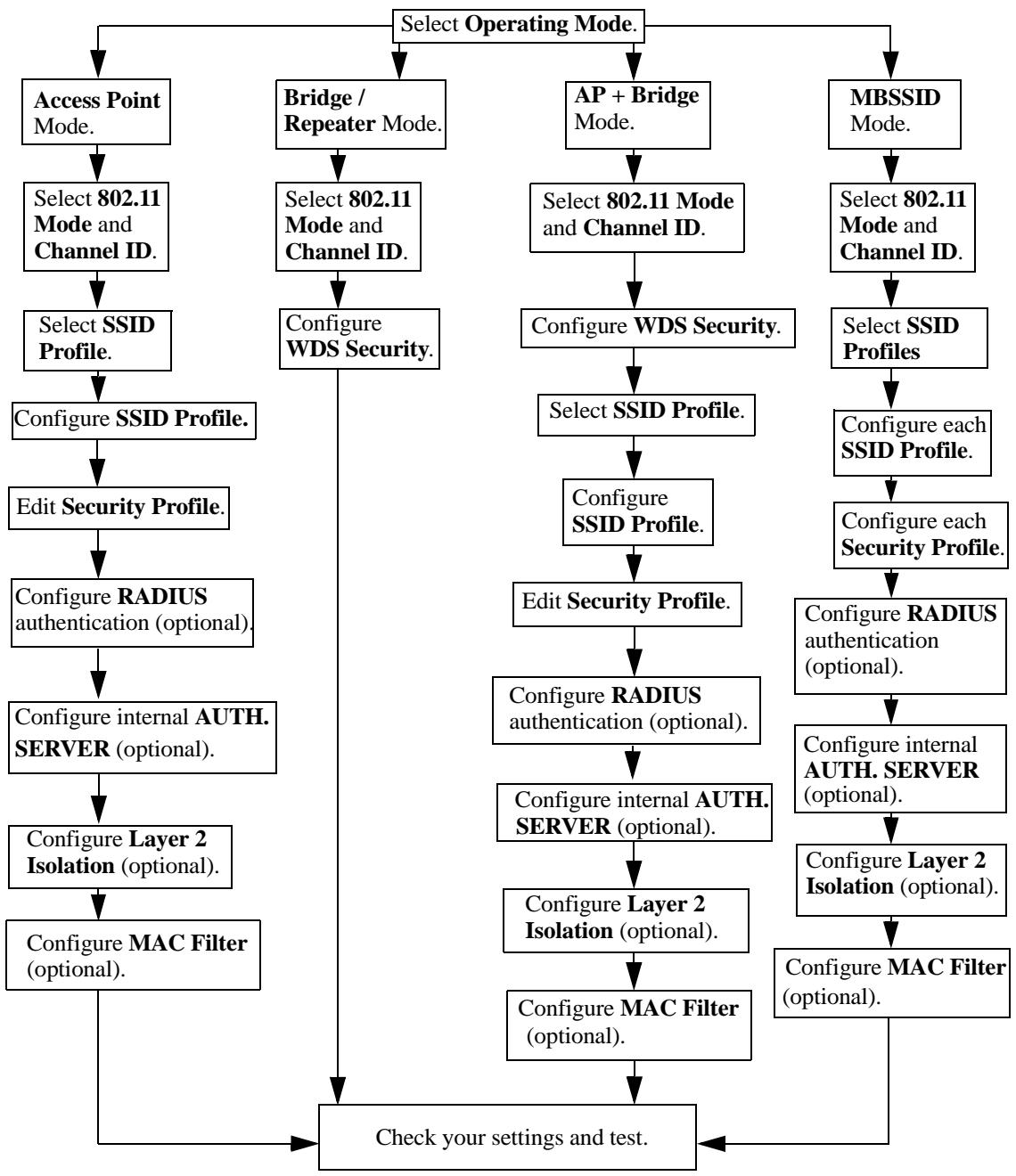
Figure 13 Configuring Wireless LAN
3.2.3 Further Reading
Use these links to find more information on the steps:
- Choosing 802.11 Mode: see Section 8.2.1 on page 101.
- Choosing a wireless Channel ID: see Section 8.2.1 on page 101.
- Selecting and configuring SSID profile(s): see Section 8.2.1 on page 101 and Section 9.2 on page 125.
- Configuring and activating WDS Security: see Section 8.2.2 on page 104.
- Editing Security Profile(s): see Section 10.2 on page 132.
- Configuring an external RADIUS server: see Section 11.2 on page 143.
- Configuring and activating the internal AUTH. SERVER: see Chapter 17 on page 179.
- Configuring Layer 2 Isolation: see Section 12.2.1 on page 148.
- Configuring MAC Filtering: see Section Note: on page 154.
3.3 How to Configure Multiple Wireless Networks
In this example, you have been using your NWA as an access point for your office network (See your Quick Start Guide for information on how to set up your NWA in Access Point mode). Now your network is expanding and you want to make use of the MBSSID feature (see Section 8.2.4 on page 109) to provide multiple wireless networks. Each wireless network will cater for a different type of user.
You want to make three wireless networks: one standard office wireless network with all the same settings you already have, another wireless network with high QoS settings for Voice over IP (VoIP) users, and a guest network that allows visitors to your office to access only the Internet and the network printer.
To do this, you will take the following steps:
1 Change the operating mode from Access Point to MBSSID and reactivate the standard network.
2 Configure a wireless network for VoIP users.
3 Configure a wireless network for guests to your office.
The following figure shows the multiple networks you want to set up. Your NWA is marked Z, the main network router is marked A, and your network printer is marked B.
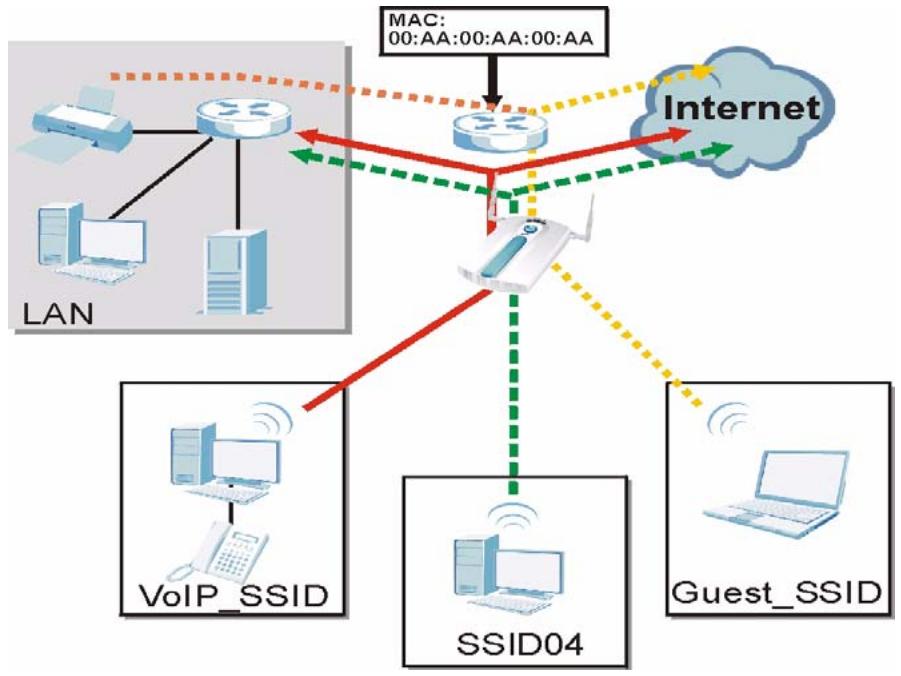
Figure 14 Tutorial: Example MBSSID Setup
The standard network (SSID04) has access to all resources. The VoIP network (VoIP_SSID) has access to all resources and a high QoS setting. The guest network (Guest_SSID) has access to the Internet and the network printer only, and a low QoS setting.
To configure these settings, you need to know the Media Access Control (MAC) addresses of the devices you want to allow users of the guest network to access. The following table shows the addresses used in this example.
Table 2 Tutorial: Example Information
| Network router (A) MAC address | 00: AA:00:AA:00:AA |
| Network printer (B) MAC address | AA:00:AA:00:AA:00 |
3.3.1 Change the Operating Mode
Log in to the NWA (see Section 2.2 on page 29). Click Wireless > Wireless. The Wireless screen appears. In this example, the NWA is in Access Point operating mode, and is currently set to use the SSID03 profile.
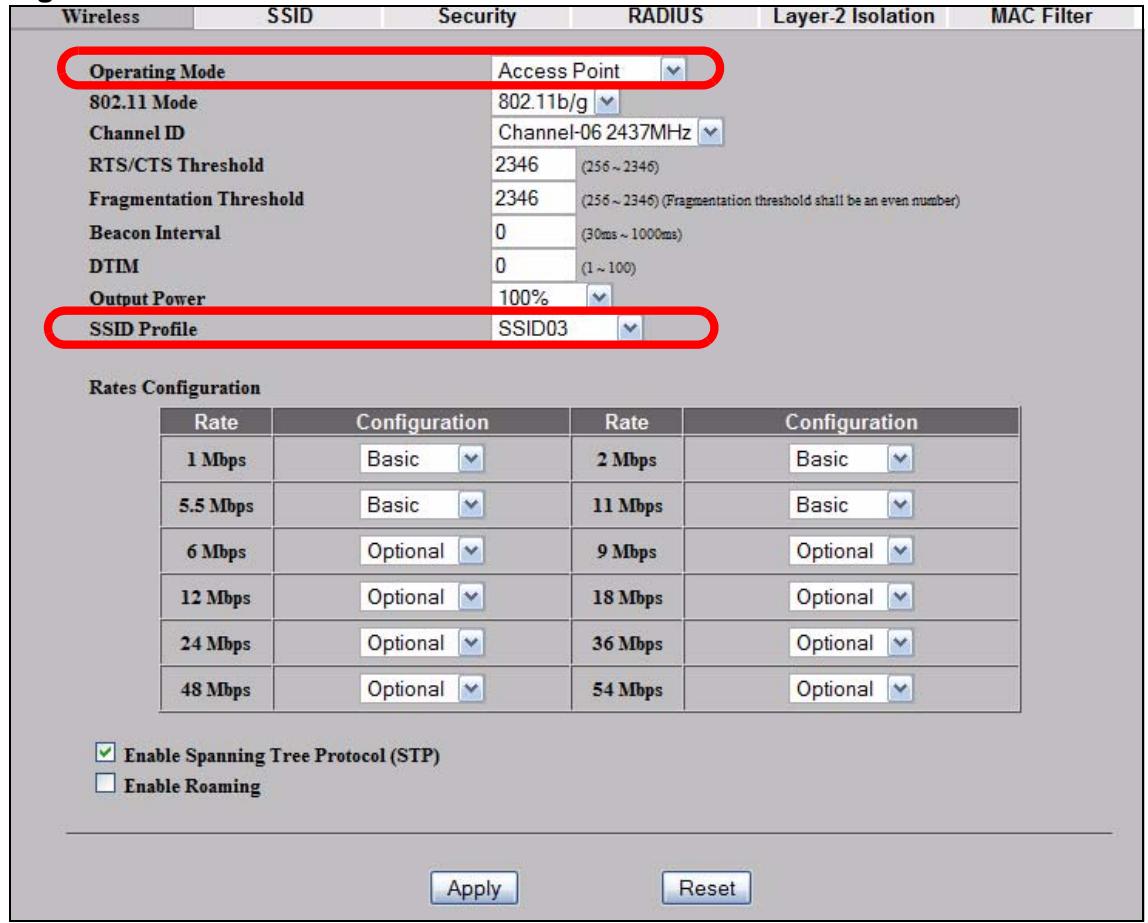
Figure 15 Tutorial: Wireless LAN: Before
Select MBSSID from the Operating Mode drop-down list box. The screen displays as follows.
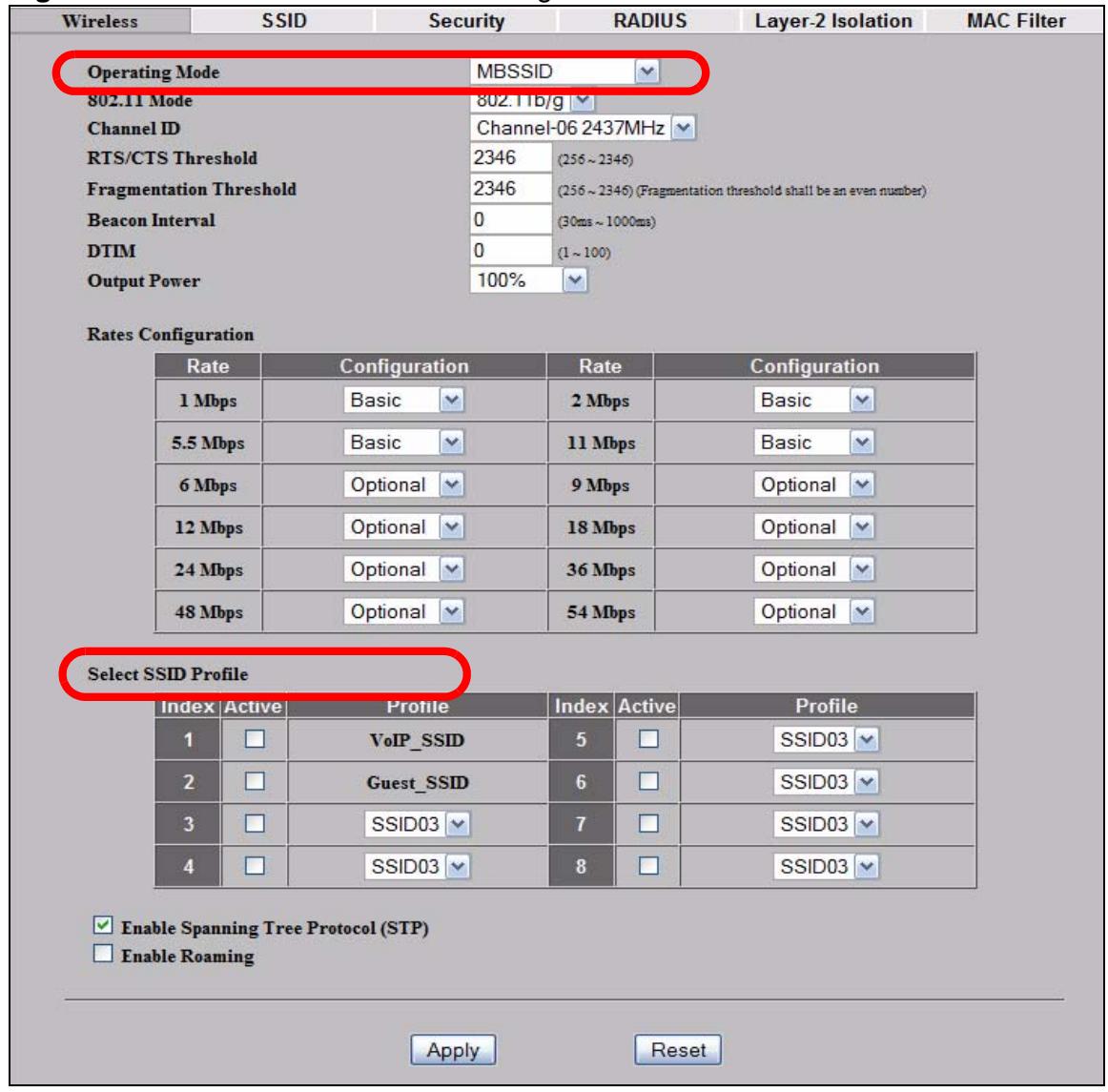
Figure 16 Tutorial: Wireless LAN: Change Mode
This Select SSID Profile table allows you to activate or deactivate SSID profiles. Your wireless network was previously using the SSID03 profile, so select SSID04 in one of the Profile list boxes (number 3 in this example).
Select the Index box for the entry and click Apply to activate the profile. Your standard wireless network (SSID03) is now accessible to your wireless clients as before. You do not need to configure anything else for your standard network.
3.3.2 Configure the VoIP Network
Next, click Wireless > SSID. The following screen displays. Note that the SSID03 SSID profile (the standard network) is using the security01 security profile. You cannot change this security profile without changing the standard network's parameters, so when you set up security for the VoIP_SSID and Guest_SSID profiles you will need to set different security profiles.
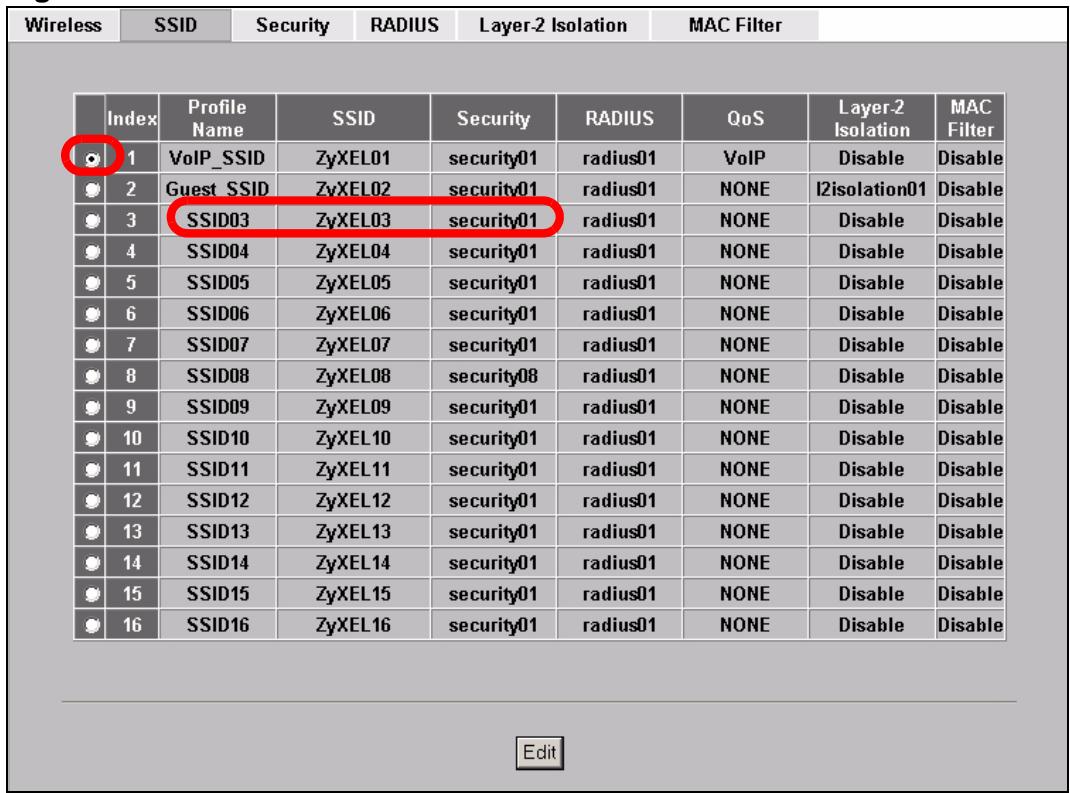
Figure 17 Tutorial: WIRELESS > SSID
The Voice over IP (VoIP) network will use the pre-configured SSID profile, so select VoIP_SSID's radio button and click Edit. The following screen displays.
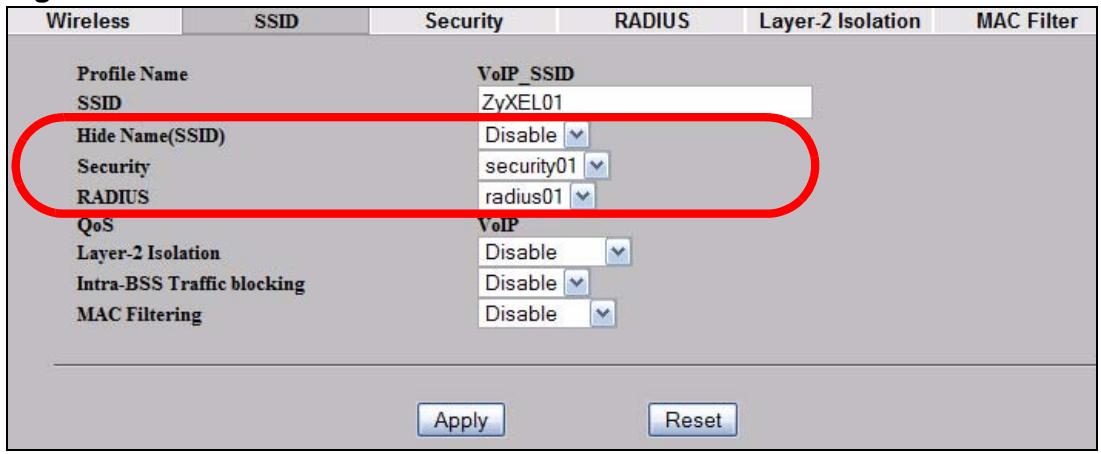
Figure 18 Tutorial: VoIP SSID Profile Edit
1 Choose a new SSID for the VoIP network. In this example, enter VOIP_SSID_Example. Note that although the SSID changes, the SSID profile name (VoIP_SSID) remains the same as before.
2 Select Enable from the Hide Name (SSID) list box. You want only authorized company employees to use this network, so there is no need to broadcast theSSID to wireless clients scanning the area.
3 The standard network (SSID04) is currently using the security01 profile, so use a different profile for the VoIP network. If you used the security01 profile, anyone who could access the standard network could access the VoIP wireless network. Select security02 from the Security field.
4 Leave all the other fields at their defaults and click Apply.
3.3.2.1 Set Up Security for the VoIP Profile
Now you need to configure the security settings to use on the VoIP wireless network. Click the Security tab.
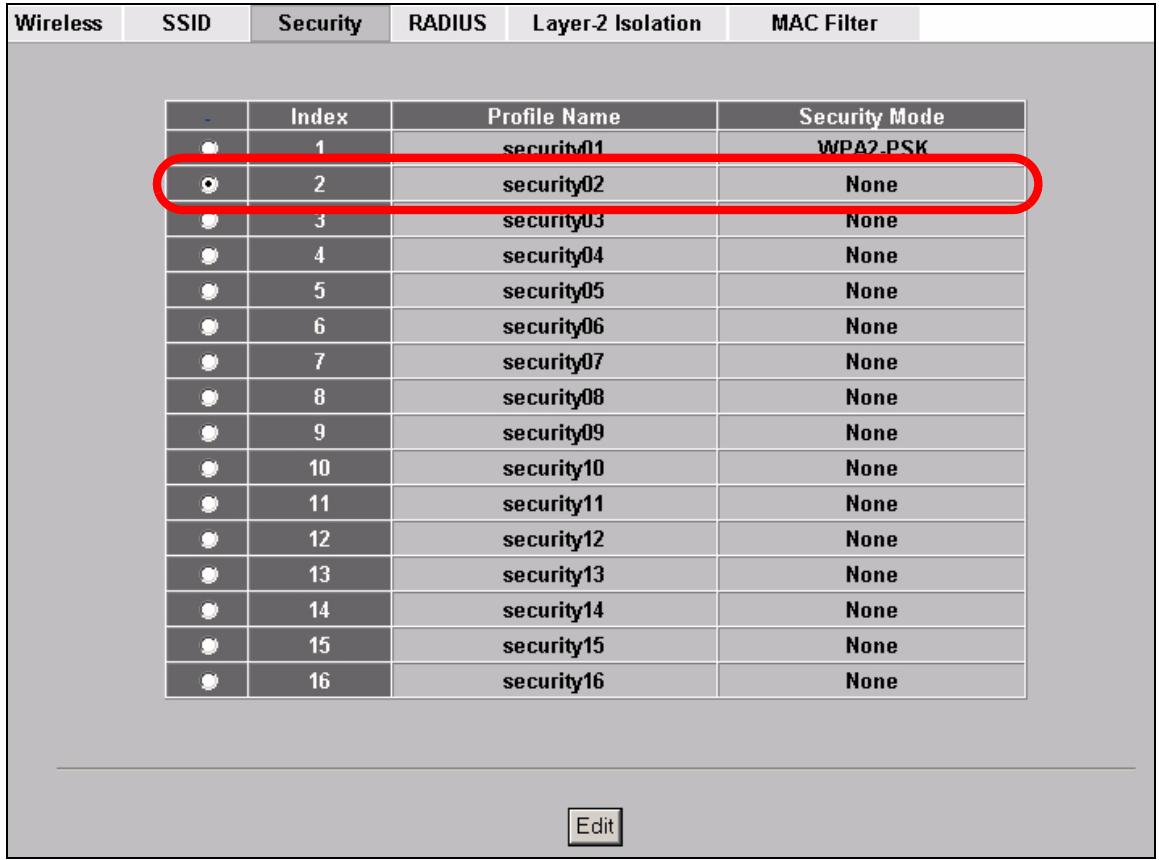
Figure 19 Tutorial: VoIP Security
You already chose to use the security02 profile for this network, so select the radio button for security02 and click Edit. The following screen appears.
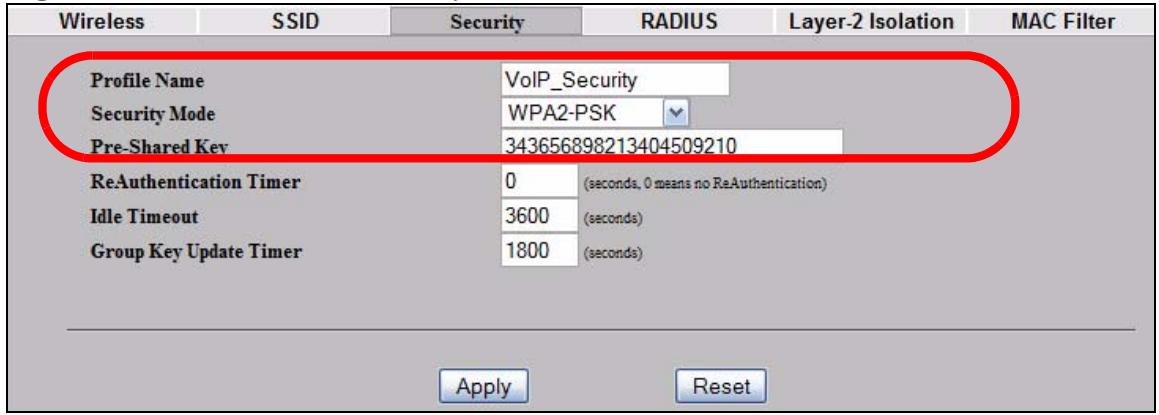
Figure 20 Tutorial: VoIP Security Profile Edit
1 Change the Name field to "VoIP_Security" to make it easier to remember and identify.
2 In this example, you do not have a RADIUS server for authentication, so select WPA2-PSK in the Security Mode field. WPA2-PSK provides strong security that anyone with a compatible wireless client can use, once they know the pre-shared key (PSK). Enter the PSK you want to use in your network in the Pre Shared Key field. In this example, the PSK is "ThisismyWPA2-PSKpre-sharedkey".
3 Click Apply. The Wireless > Security screen displays. Ensure that the Profile Name for entry 2 displays "VoIP_Security" and that the Security Mode is WPA2-PSK.
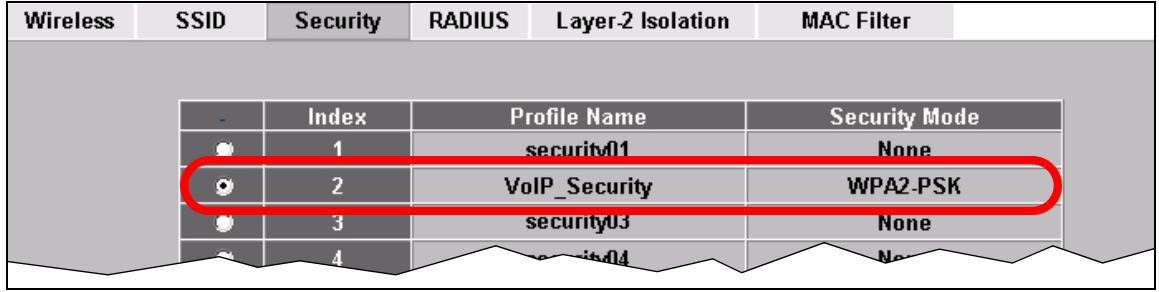
Figure 21 Tutorial: VoIP Security: Updated
3.3.2.2 Activate the VoIP Profile
You need to activate the VoIP_SSID profile before it can be used. Click the Wireless section. In the Select SSID Profile table, select the VoIP_SSID profile and click Apply.
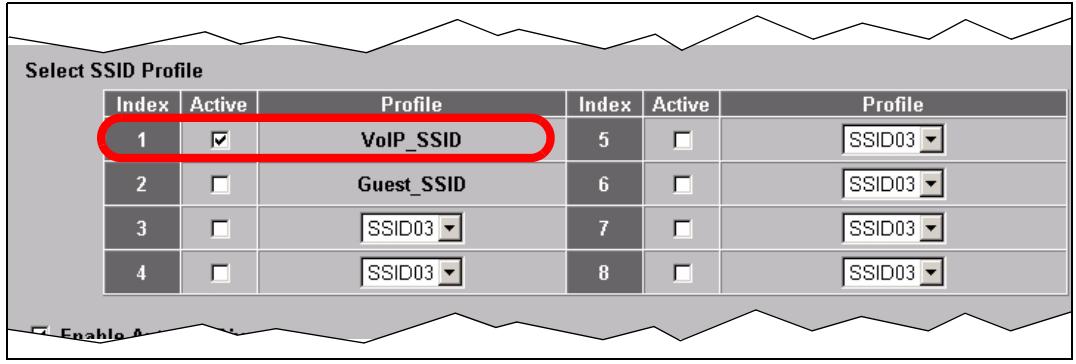
Figure 22 Tutorial: Activate VoIP Profile
Your VoIP wireless network is now ready to use. Any traffic using the VoIP_SSID profile will be given the highest priority across the wireless network.
3.3.3 Configure the Guest Network
When you are setting up the wireless network for guests to your office, your primary concern is to keep your network secure while allowing access to certain resources (such as a network printer, or the Internet). For this reason, the pre-configured Guest_SSID profile has layer-2 isolation and intra-BSS traffic blocking enabled by default. "Layer-2 isolation" means that a client accessing the network via the Guest_SSID profile can access only certain pre-defined devices on the network (see Section on page 146), and "intra-BSS traffic blocking" means that the client cannot access other clients on the same wireless network (see Section 8.1.2 on page 98).
Click Wireless > SSD. Select Guest_SSID's entry in the list and click Edit. The following screen appears.
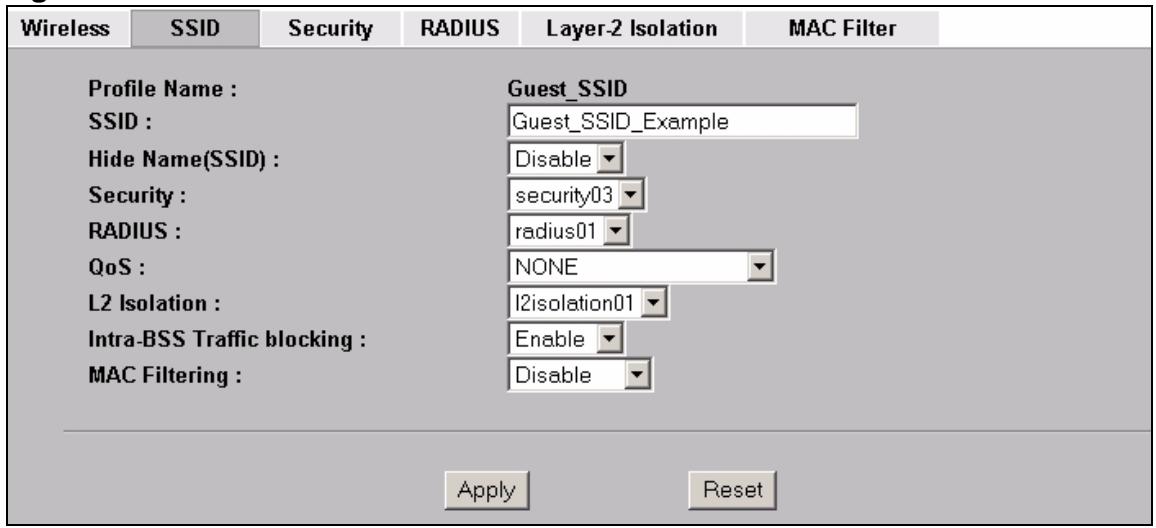
Figure 23 Tutorial: Guest Edit
1 Choose a new SSID for the guest network. In this example, enter Guest_SSID_Example. Note that although the SSID changes, the SSID profile name (Guest_SSID) remains the same as before.
2 Select Disable from the Hide Name (SSID) list box. This makes it easier for guests to configure their own computers' wireless clients to your network's settings.
3 The standard network (SSID04) is already using the security01 profile, and the VoIP network is using the security02 profile (renamed VoIP_Security) so select the security03 profile from the Security field.
4 Leave all the other fields at their defaults and click Apply.
3.3.3.1 Set Up Security for the Guest Profile
Now you need to configure the security settings to use on the guest wireless network. Click the Security tab.
You already chose to use the security03 profile for this network, so select security03's entry in the list and click Edit. The following screen appears.
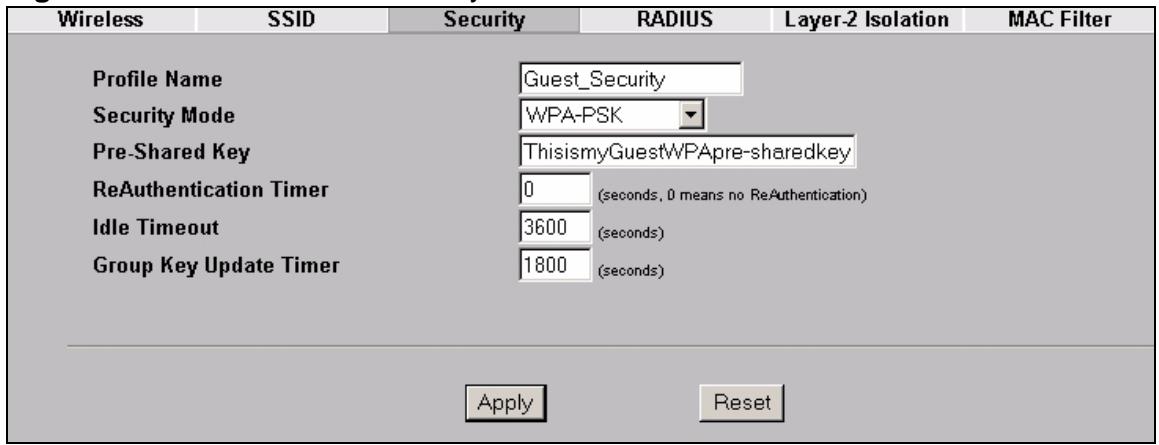
Figure 24 Tutorial: Guest Security Profile Edit
1 Change the Name field to "Guest_Security" to make it easier to remember and identify.
2 Select WPA-PSK in the Security Mode field. WPA-PSK provides strong security that is supported by most wireless clients. Even though your Guest_SSID clients do not have access to sensitive information on the network, you should not leave the network without security. An attacker could still cause damage to the network or intercept unsecured communications.
3 Enter the PSK you want to use in your network in the Pre Shared Key field. In this example, the PSK is "ThisismyGuestWPAPre-sharedkey".
4 Click Apply. The Wireless > Security screen displays. Ensure that the Profile Name for entry 3 displays "Guest_Security" and that the Security Mode is WPA-PSK.
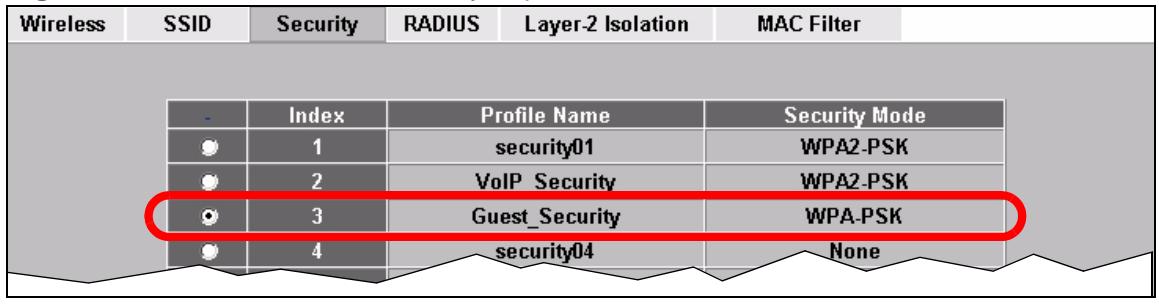
Figure 25 Tutorial: Guest Security: Updated
3.3.3.2 Set up Layer 2 Isolation
Configure layer 2 isolation to control the specific devices you want the users on your guest network to access. Click Wireless > Layer-2 Isolation. The following screen appears.
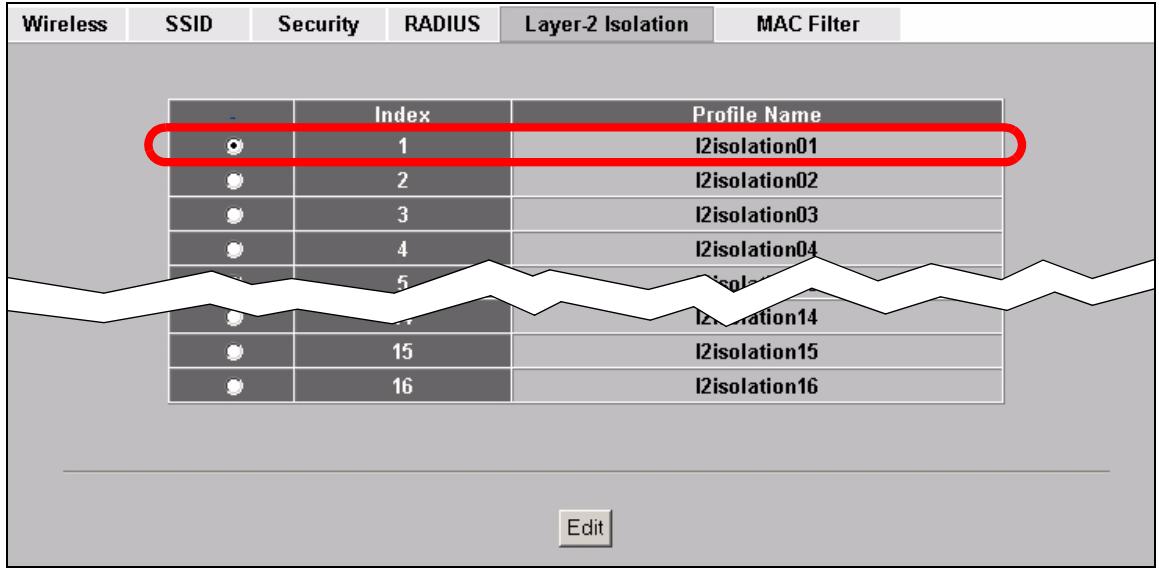
Figure 26 Tutorial: Layer 2 Isolation
The Guest_SSID network uses the l2isolation01 profile by default, so select its entry and click Edit. The following screen displays.
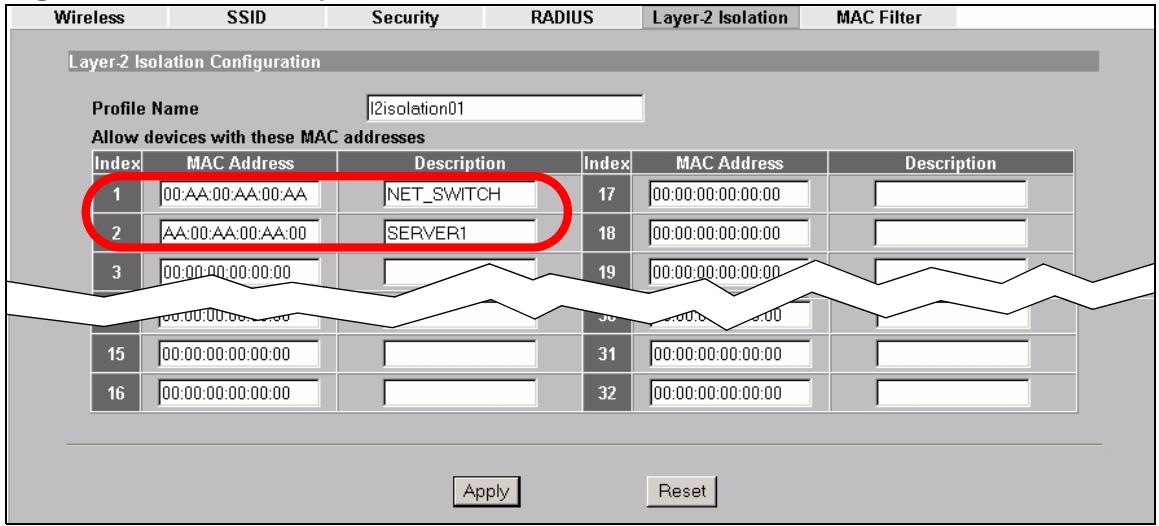
Figure 27 Tutorial: Layer 2 Isolation Profile
Enter the MAC addresses of the two network devices you want users on the guest network to be able to access: the main network router (00:AA:00:AA:00:AA) and the network printer (AA:00:AA:00:AA:00). Click Apply.
3.3.3.3 Activate the Guest Profile
You need to activate the Guest_SSID profile before it can be used. Click the Wireless tab. In the Select SSID Profile table, select the check box for the Guest_SSID profile and click Apply.
Figure 28 Tutorial: Activate Guest Profile
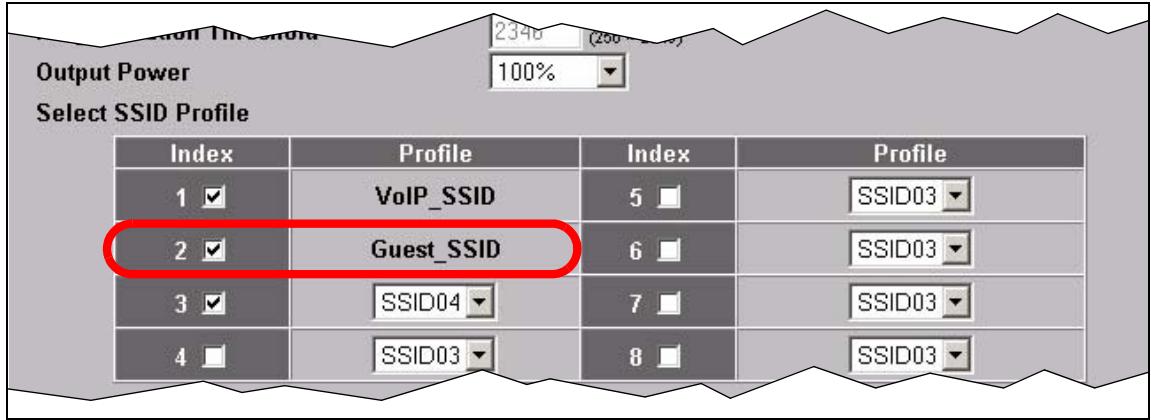
Your Guest wireless network is now ready to use.
3.3.4 Testing the Wireless Networks
To make sure that the three networks are correctly configured, do the following.
- On a computer with a wireless client, scan for access points. You should see the Guest_SSID network, but not the VoIP_SSID network. If you can see the VoIP_SSID network, go to its SSID Edit screen and make sure Hide Name (SSID) is set to Enable.
Whether or not you see the standard network's SSID (SSID04) depends on whether "hide SSID" is enabled.
- Try to access each network using the correct security settings, and then using incorrect security settings, such as the WPA-PSK for another active network. If the behavior is different from expected (for example, if you can access the VoIP wireless network using the security settings for the Guest_SSID wireless network) check that the SSID profile is set to use the correct security profile, and that the settings of the security profile are correct.
- Access the Guest_SSID network and try to access other resources than those specified in the Layer 2 Isolation (l2isolation01) profile screen.
You can use the ping utility to do this. Click Start > Run... and enter "cmd" in the Open: field. Click OK. At the c:> prompt, enter "ping 192.168.1.10" (substitute the IP address of a real device on your network that is not on the layer 2 isolation list). If you receive a reply, check the settings in the WIREFLESS > Layer-2 Isolation > Edit screen, and ensure that the correct layer 2 isolation profile is enabled in the Guest_SSID profile screen.
3.4 How to Set Up and Use Rogue AP Detection
This example shows you how to configure the rogue AP detection feature on the NWA. A rogue AP is a wireless access point operating in a network's coverage area that is not a sanctioned part of that network. The example also shows how to set the NWA to send out e-mail alerts whenever it detects a rogue wireless access point. See Chapter 15 on page 159 for background information on the rogue AP function and security considerations.
In this example, you want to ensure that your company's data is not accessible to an attacker gaining entry to your wireless network through a rogue AP.
Your wireless network operates in an office building. It consists of four access points (all NWAs) and a variable number of wireless clients. You also know that the coffee shop on the ground floor has a wireless network consisting of a single access point, which can be detected and accessed from your floor of the building. There are no other static wireless networks in your coverage area.
The following diagram shows the wireless networks in your area. Your access points are marked A, B, C and D. You also have a network mail/file server, marked E, and a computer, marked F, connected to the wired network. The coffee shop's access point is marked 1.
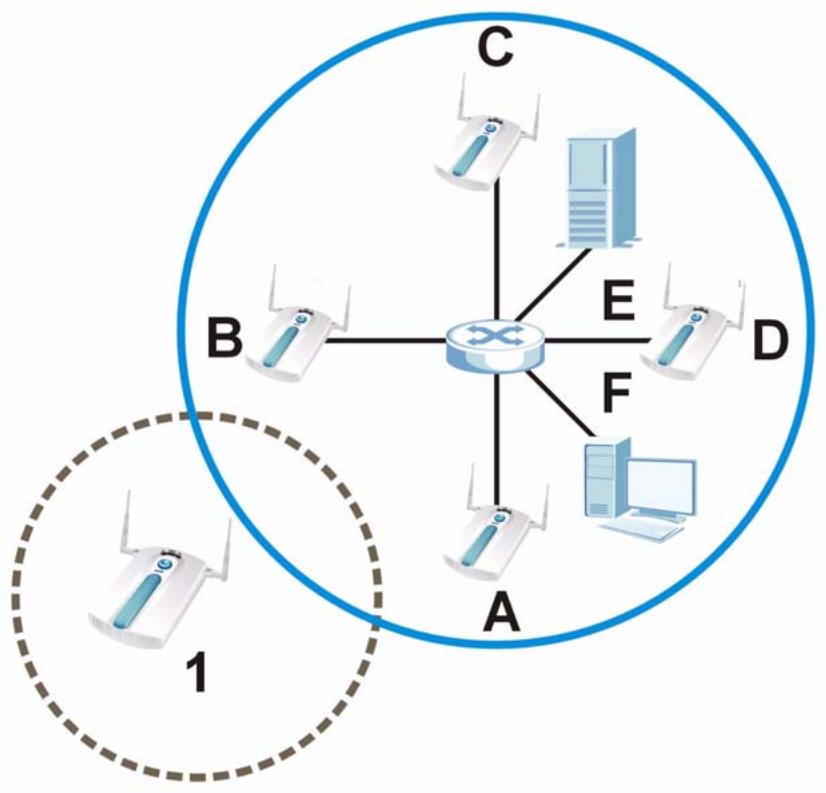
Figure 29 Tutorial: Wireless Network Example
In the figure, the solid circle represents the range of your wireless network, and the dashed circle represents the extent of the coffee shop's wireless network. Note that the two networks overlap. This means that one or more of your APs can detect the AP (1) in the other wireless network.
When configuring the rogue AP feature on your NWAs in this example, you will need to use the information in the following table. You need the IP addresses of your APs to access their Web configurators, and you need the MAC address of each AP to configure the friendly AP list. You need the IP address of the mail server to set up e-mail alerts.
Table 3 Tutorial: Rogue AP Example Information
| DEVICE | IP ADDRESS | MAC ADDRESS |
| Access Point A | 192.168.1.1 | 00:AA:00:AA:00:AA |
| Access Point B | 192.168.1.2 | AA:00:AA:00:AA:00 |
| Access Point C | 192.168.1.3 | A0:0A:A0:0A:A0:0A |
| Access Point D | 192.168.1.4 | OA:A0:0A:A0:0A:A0 |
| File / Mail Server E | 192.168.1.25 | N/A |
| Access Point 1 | UNKNOWN | AF:AF:AF:FA:FA:FA |
Note: The NWA can detect the MAC addresses of APs automatically. However, it is more secure to obtain the correct MAC addresses from another source and add them to the friendly AP list manually. For example, an attacker's AP mimicking the correct SSID could be placed on the friendly AP list by accident, if selected from the list of auto-detected APs. In this example you have spoken to the coffee shop's owner, who has told you the correct MAC address of his AP.
In this example, you will do the following things.
1 Set up and save a friendly AP list.
2 Activate periodic Rogue AP Detection.
3 Set up e-mail alerts.
4 Configure your other access points.
5 Test the setup.
3.4.1 Set Up and Save a Friendly AP list
Take the following steps to set up and save a list of access points you want to allow in your network's coverage area.
1 On a computer connected to the wired network (F in the previous figure), open your Internet browser and enter the URL of access point A (192.168.1.1). Login to the Web configurator and click ROGUE AP > Friendly AP. The following screen displays.
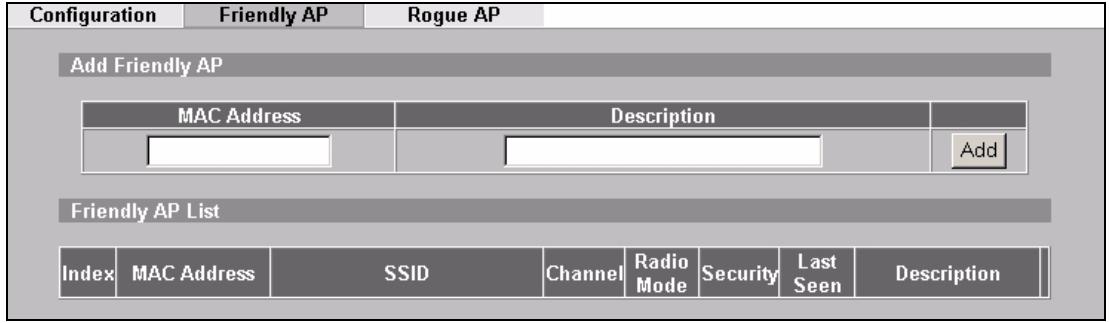
Figure 30 Tutorial: Friendly AP (Before Data Entry)
2 Fill in the MAC Address and Description fields as in the following table. Click Add after you enter the details of each AP to include it in the list.
| MAC ADDRESS | DESCRIPTION |
| 00:AA:00:AA:00:AA | My Access Point _A_ |
| AA:00:AA:00:AA:00 | My Access Point _B_ |
| AO:0A:A0:0A:A0:0A | My Access Point _C_ |
| OA:A0:0A:A0:0A:A0 | My Access Point _D_ |
| AF:AF:AF:FA:FA:FA | Coffee Shop Access Point _1_ |
Note: You can add APs that are not part of your network to the friendly AP list, as long as you know that they do not pose a threat to your network's security.
The Friendly AP screen now appears as follows.
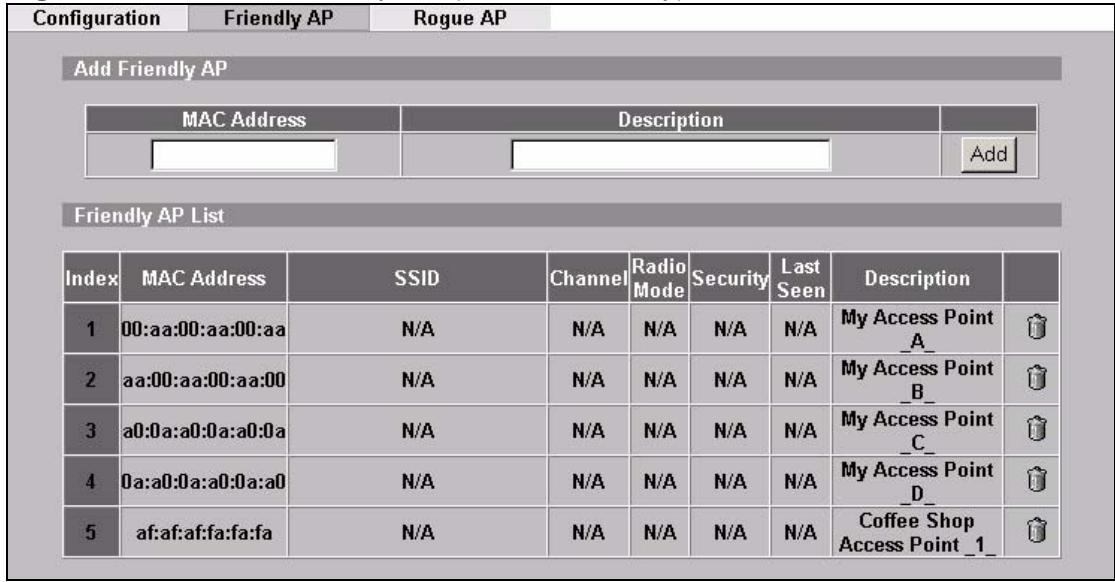
Figure 31 Tutorial: Friendly AP (After Data Entry)
3 Next, you will save the list of friendly APs in order to provide a backup and upload it to your other access points.
Click the Configuration tab. The following screen appears.
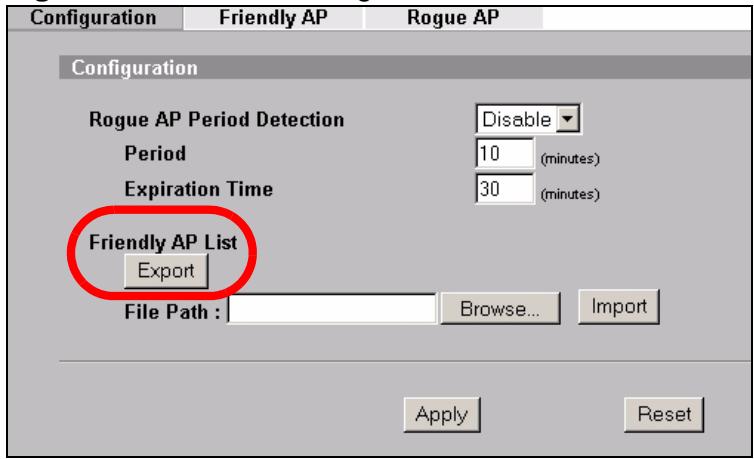
Figure 32 Tutorial: Configuration
4 Click Export. If a window similar to the following appears, click Save.
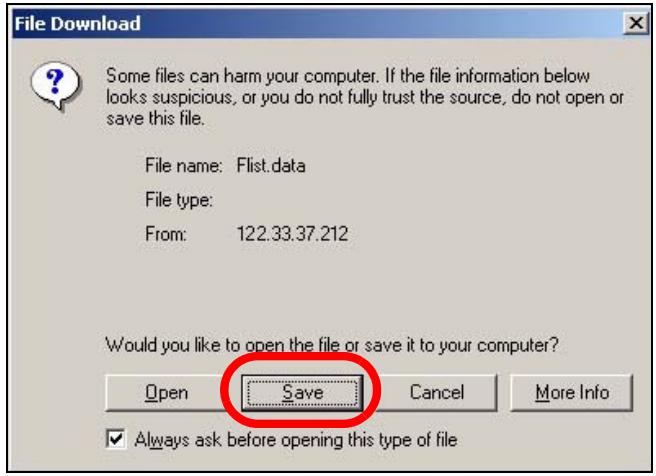
Figure 33 Tutorial: Warning
5 Save the friendly AP list somewhere it can be accessed by all the other access points on the network. In this example, save it on the network file server (E in Figure 29 on page 47). The default filename is "Flist".
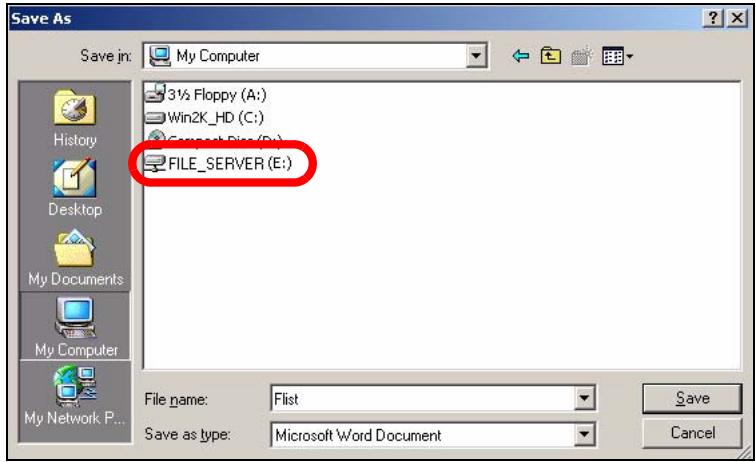
Figure 34 Tutorial: Save Friendly AP list
3.4.2 Activate Periodic Rogue AP Detection
Take the following steps to activate rogue AP detection on the first of your NWAs.
1 In the ROGUE AP > Configuration screen, select Enable from the Activate Rogue AP Period Detection field.
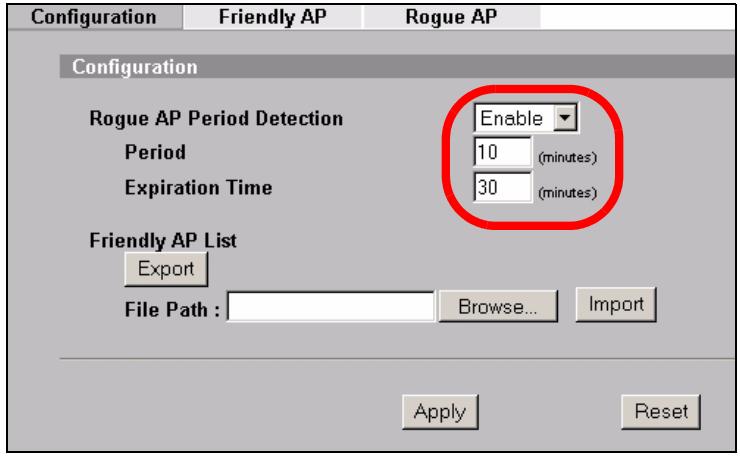
Figure 35 Tutorial: Periodic Rogue AP Detection
2 In the Period (min.) field, enter how often you want the NWA to scan for rogue APs. You can have the NWA scan anywhere from once every ten minutes to once every hour. In this example, enter "10".
3 In the Expiration Time field, enter how long an AP's entry can remain in the list before the NWA discards it from the list when the AP is no longer active. In this example, enter "30".
4 Click Apply.
3.4.3 Set Up E-mail Logs
In this section, you will configure the first of your four APs to send a log message to your e-mail inbox whenever a rogue AP is discovered in your wireless network's coverage area.
Click LOGS > Log Settings. The following screen appears.
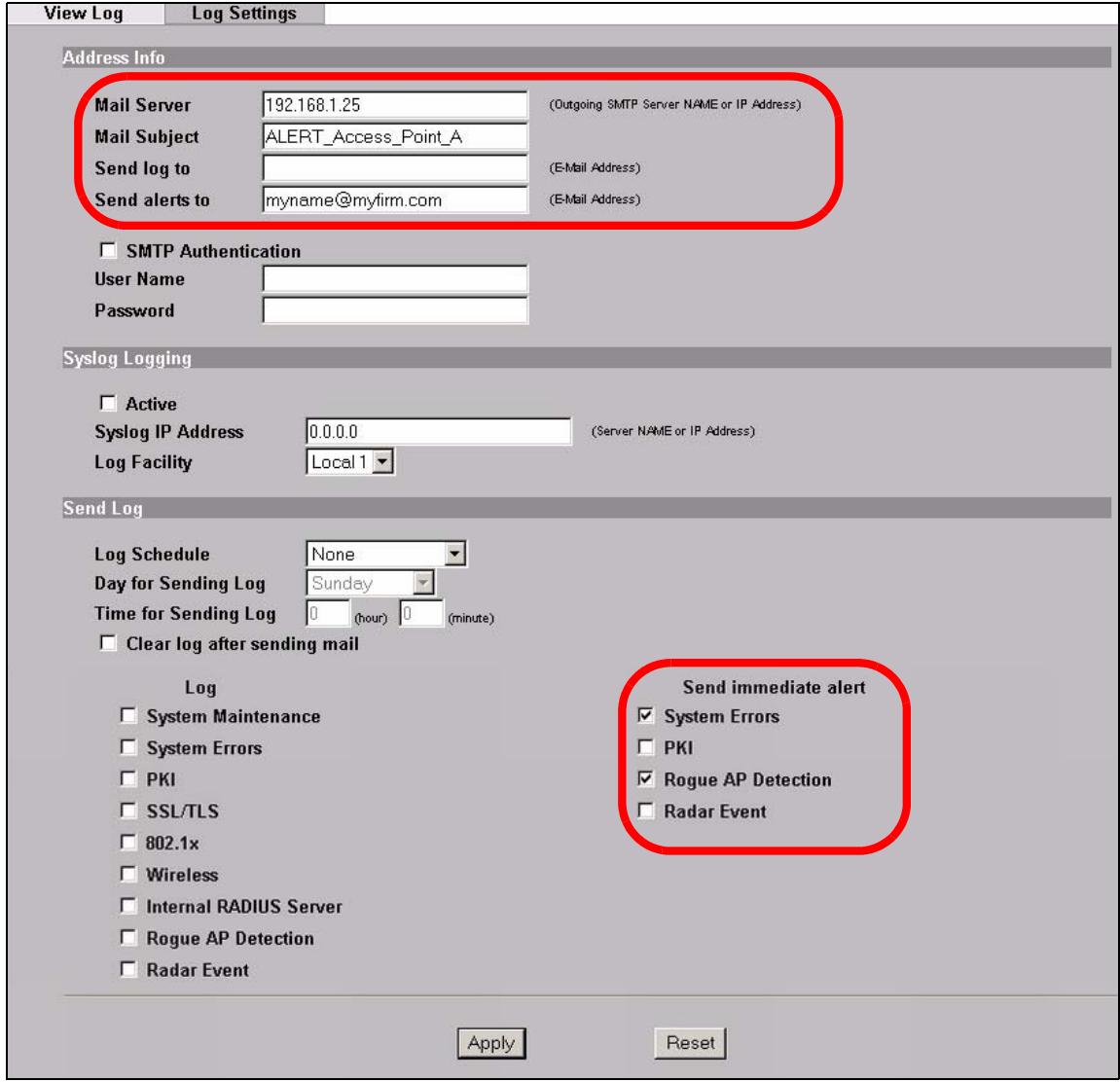
Figure 36 Tutorial: Log Settings
1 In this example, your mail server's IP address is 192.168.1.25. Enter this IP address in the Mail Server field.
2 Enter a subject line for the alert e-mails in the Mail Subject field. Choose a subject that is eye-catching and identifies the access point - in this example, "ALERT_Access_Point_A".
3 Enter the email address to which you want alerts to be sent (mname@myfirm.com, in this example).
4 In the Send Immediate Alert section, select the events you want to trigger immediate e-mails. Ensure that Rogue AP is selected.
5 Click Apply.
3.4.4 Configure Your Other Access Points
Access point A is now configured to do the following.
- Scan for access points in its coverage area every ten minutes.
- Recognize friendly access points from a list.
- Send immediate alerts to your email account if it detects an access point not on the list.
Now you need to configure the other wireless access points on your network to do the same things.
For each access point, take the following steps.
1 From a computer on the wired network, enter the access point's IP address and login to its Web configurator.
2 Import the friendly AP list. Click ROGUE AP > Configuration > Browse.... Find the "Flist" file where you previously saved it on the network and click Open.
3 Click Import. Check the ROGUE AP > Friendly AP screen to ensure that the friendly AP list has been correctly uploaded.
4 Activate periodic rogue AP detection.
5 Set up e-mail logs, but change the Mail Subject field so you can tell which AP the alerts come from ("ALERT_Access_Point_B", etc.)
3.4.5 Test the Setup
Next, test your setup to ensure it is correctly configured.
- Log into each AP's Web configurator and click ROGUE AP > Rogue AP. Click Refresh. If any of the MAC addresses from Section 3.4.1 on page 49 appear in the list, the friendly AP function may be incorrectly configured - check the ROGUE AP > Friendly AP screen.
If any entries appear in the rogue AP list that are not in Section 3.4.1 on page 49, write down the AP's MAC address for future reference and check your e-mail inbox. If you have received a rogue AP alert, email alerts are correctly configured on that NWA.
- If you have another access point that is not used in your network, make a note of its MAC address and set it up next to each of your NWAs in turn while the network is running.
Either wait for at least ten minutes (to ensure the NWA performs a scan in that time) or login to the NWA's Web configurator and click ROGUE AP > Rogue AP > Refresh to have the NWA perform a scan immediately.
1 Check the ROGUE AP > Rogue AP screen. You should see an entry in the list with the same MAC address as your "rogue" AP.
2 Check the LOGS > View Logs screen. You should see a Rogue AP Detection entry in red text, including the MAC address of your "rogue" AP.
3 Check your e-mail. You should have received at least one e-mail alert (your other NWAs may also have sent alerts, depending on their proximity and the output power of your "rogue" AP).
3.5 Using MAC Filters and L-2 Isolation Profiles
This example shows you how to allow certain users to access only specific parts of your network. You can do this by using multiple MAC filters and layer-2 isolation profiles.
3.5.1 Scenario
In this example, you run a company network in which certain employees must wirelessly access secure file servers containing valuable proprietary data.
You have two secure servers (1 and 2 in the following figure). Wireless user "Alice" (A) needs to access server 1 (but should not access server 2) and wireless user "Bob" (B) needs to access server 2 (but should not access server 1). Your
NWA is marked Z. C is a workstation on your wired network, D is your main network switch, and E is the security gateway you use to connect to the Internet.
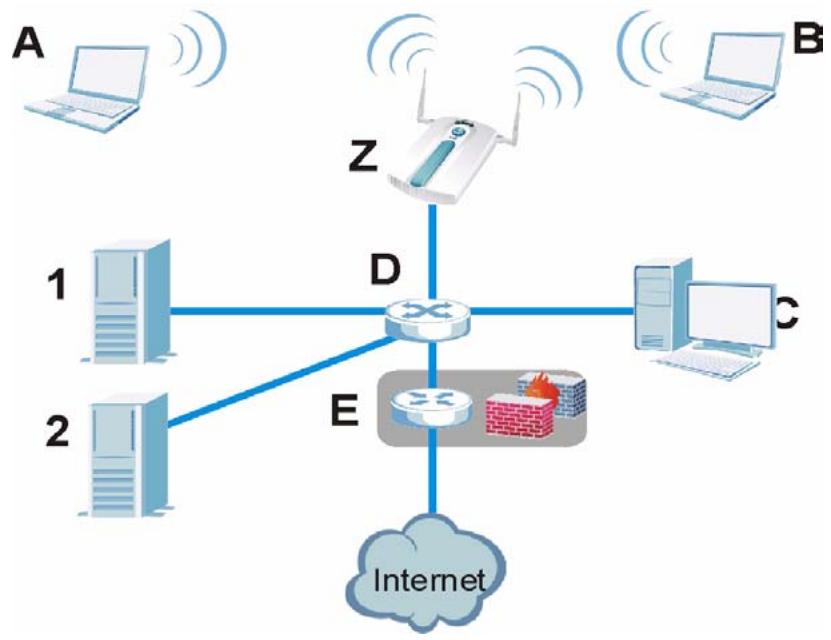
Figure 37 Tutorial: Example Network
3.5.2 Your Requirements
1 You want to set up a wireless network to allow only Alice to access Server 1 and the Internet.
2 You want to set up a second wireless network to allow only Bob to access Server 2 and the Internet.
3.5.3 Setup
In this example, you have already set up the NWA in MBSSID mode (see Chapter 12 on page 145). It uses two SSID profiles simultaneously. You have configured each SSID profile as shown in the following table.
Table 4 Tutorial:SSID Profile Security Settings
| SSID Profile Name | SERVER_1 | SERVER_2 |
| SSID | SSID_S1 | SSID_S2 |
| Security | Security Profile security03: WPA2-PSK Hide SSID | Security Profile security04: WPA2-PSK Hide SSID |
| Intra-BSS traffic blocking | Enabled | Enabled |
Each SSID profile already uses a different pre-shared key.
In this example, you will configure access limitations for each SSID profile. To do this, you will take the following steps.
1 Configure the SERVER_1 network's SSID profile to use specific MAC filter and layer-2 isolation profiles.
2 Configure the SERVER_1 network's MAC filter profile.
3 Configure the SERVER_1 network's layer-2 isolation profile.
4 Repeat steps 1 ~ 3 for the SERVER_2 network.
5 Check your settings and test the configuration.
To configure layer-2 isolation, you need to know the MAC addresses of the devices on your network, which are as follows.
Table 5 Tutorial: Example Network MAC Addresses
| DEVICE | LABEL | MAC ADDRESS |
| NWA | Z | BB:AA:99:88:77:66 |
| Secure Server 1 | 1 | AA:99:88:77:66:55 |
| Secure Server 2 | 2 | 99:88:77:66:55:44 |
| Workstation | C | 88:77:66:55:44:33 |
| Switch | D | 77:66:55:44:33:22 |
| Security gateway | E | 66:55:44:33:22:11 |
To configure MAC filtering, you need to know the MAC addresses of the devices Alice and Bob use to connect to the network, which are as follows.
Table 6 Tutorial: Example User MAC Addresses
| USER | MAC ADDRESS |
| Alice | 11:22:33:44:55:66 |
| Bob | 22:33:44:55:66:77 |
3.5.4 Configure the SERVER_1 Network
First, you will set up the SERVER_1 network which allows Alice to access secure server 1 via the network switch.
You will configure the MAC filter to restrict access to Alice alone, and then configure layer-2 isolation to allow her to access only the network router, the file server and the Internet security gateway.
Take the following steps to configure the SERVER_1 network.
1 Log into the NWA's Web Configurator and click Wireless > SSID. The following screen displays, showing the SSID profiles you already configured.

Figure 38 Tutorial:SSID Profile
2 Select SERVER_1's entry and click Edit. The following screen displays.
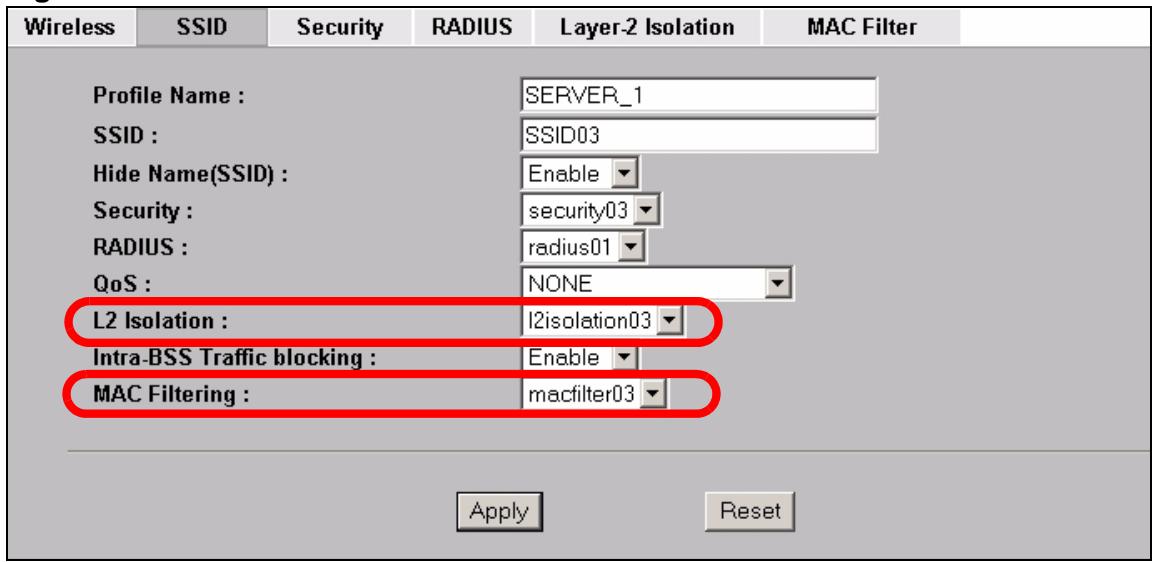
Figure 39 Tutorial:SSID Edit
Select I2Isolation03 in the L2 Isolation field, and select macfilter03 in the MAC Filtering field. Click Apply.
3 Click the Layer-2 Isolation tab. When the Layer-2 Isolation screen appears, select L2Isolation03's entry and click Edit. The following screen displays.
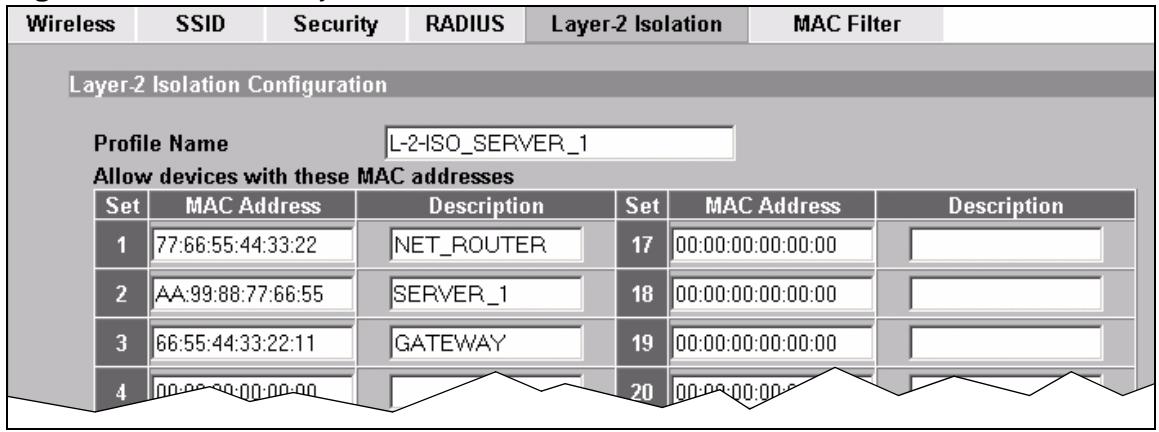
Figure 40 Tutorial: Layer-2 Isolation Edit
4 Enter the network router's MAC Address and add a Description ("NET_ROUTER" in this case) in Set 1's entry.
5 Enter server 1's MAC Address and add a Description ("SERVER_1" in this case) in Set 2's entry.
6 Change the Profile Name to "L-2-ISO_SERVER_1" and click Apply. You have restricted users on the SERVER_1 network to access only the devices with the MAC addresses you entered.
7 Click the MAC Filter tab. When the MAC Filter screen appears, select macfilter03's entry and click Edit.
8 Enter the MAC address of the device Alice uses to connect to the network in Set 1's MAC Address field and enter her name in the Description field, as shown in the following figure. Change the Profile Name to "MacFilter_SERVER_1". Select Allow Association from the Filter Action field and click Apply.
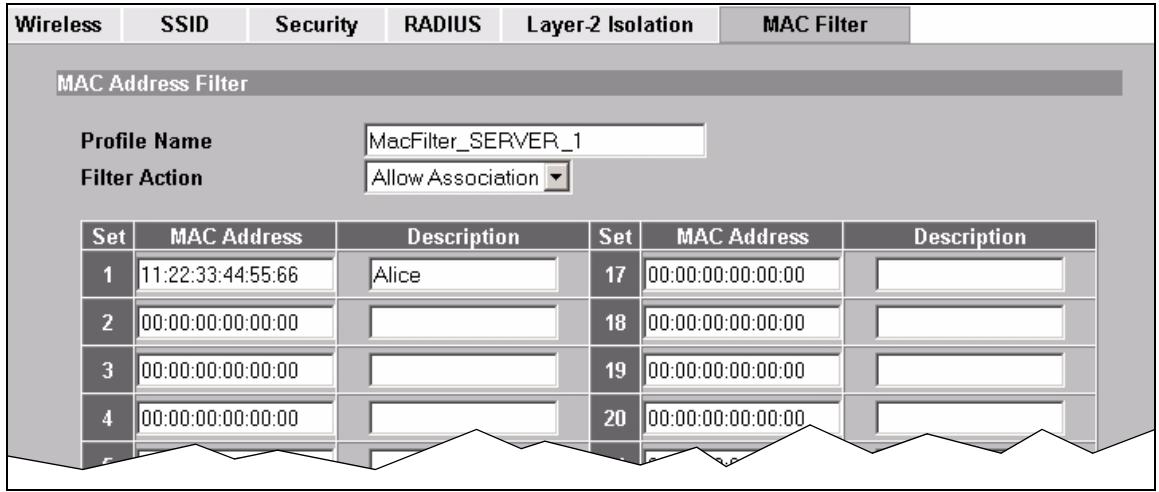
Figure 41 Tutorial: MAC Filter Edit (SERVER_1)
You have restricted access to the SERVER_1 network to only the networking device whose MAC address you entered. The SERVER_1 network is now configured.
3.5.5 Configure the SERVER_2 Network
Next, you will configure the SERVER_2 network that allows Bob to access secure server 2 and the Internet.
To do this, repeat the procedure in Section 3.5.4 on page 57, substituting the following information.
Table 7 Tutorial: SERVER_2 Network Information
| SSID Screen | |
| Index | 4 |
| Profile Name | SERVER_2 |
| SSID Edit (SERVER_2) Screen | |
| L2 Isolation | L2Isolation04 |
| MAC Filtering | macfilter04 |
| Layer-2 Isolation (L2Isolation04) Screen | |
| Profile Name | L-2-ISO_SERVER-2 |
| Set 1 | MAC Address: 77:66:55:44:33:22 Description: NET_ROUTER |
Table 7 Tutorial: SERVER_2 Network Information
| Set 2 | MAC Address: 99:88:77:66:55:44 Description: SERVER_2 |
| Set 3 | MAC Address: 66:55:44:33:22:11 Description: GATEWAY |
| MAC Filter (macfilter04) Edit Screen | |
| Profile Name | MacFilter_SERVER_2 |
| Set 1 | MAC Address: 22:33:44:55:66:77 Description: Bob |
3.5.6 Checking your Settings and Testing the Configuration
Use the following sections to ensure that your wireless networks are set up correctly.
3.5.6.1 Checking Settings
Take the following steps to check that the NWA is using the correct SSIDs, MAC filters and layer-2 isolation profiles.
1 Click Wireless > Wireless. Check that the Operating Mode is MBSSID and that the correct SSID profiles are selected and activated, as shown in the following figure.
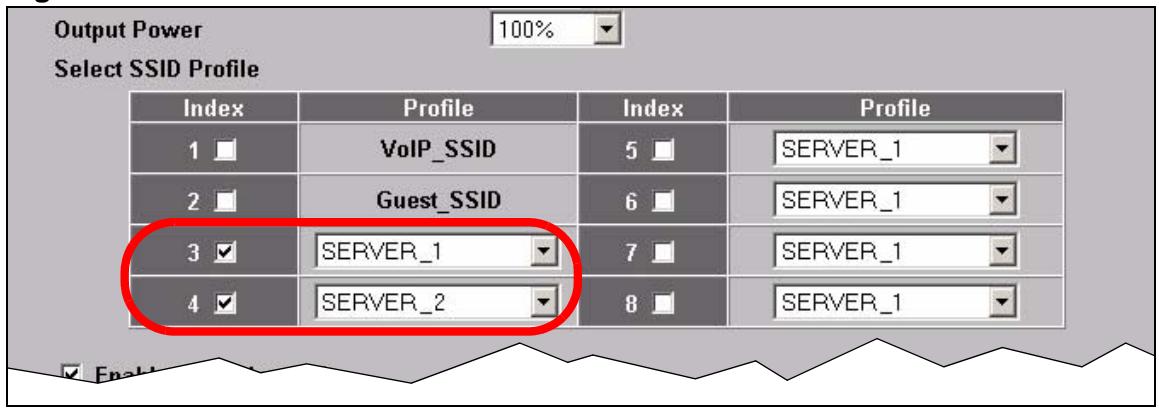
Figure 42 Tutorial: SSID Profiles Activated
2 Next, click the SSID tab. Check that each configured SSID profile uses the correct Security, Layer-2 Isolation and MAC Filter profiles, as shown in the following figure.
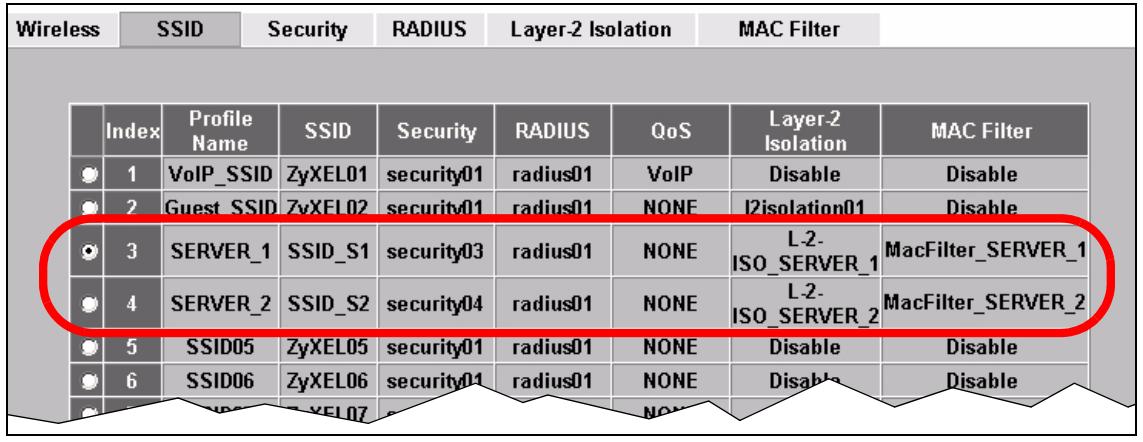
Figure 43 Tutorial:SSID Tab Correct Settings
If the settings are not as shown, follow the steps in the relevant section of this tutorial again.
3.5.6.2 Testing the Configuration
Before you allow employees to use the network, you need to thoroughly test whether the setup behaves as it should. Take the following steps to do this.
1 Test the SERVER_1 network.
- Using Alice's computer and wireless client, and the correct security settings, do the following.
Attempt to access Server 1. You should be able to do so.
Attempt to access the Internet. You should be able to do so.
Attempt to access Server 2. You should be unable to do so. If you can do so, layer-2 isolation is misconfigured.
- Using Alice's computer and wireless client, and incorrect security settings, attempt to associate with the SERVER_1 network. You should be unable to do so. If you can do so, security is misconfigured.
- Using another computer and wireless client, but with the correct security settings, attempt to associate with the SERVER_1 network. You should be unable to do so. If you can do so, MAC filtering is misconfigured.
2 Test the SERVER_2 network.
- Using Bob's computer and wireless client, and the correct security settings, do the following.
Attempt to access Server 2. You should be able to do so.
Attempt to access the Internet. You should be able to do so.
Attempt to access Server 1. You should be unable to do so. If you can do so, layer-2 isolation is misconfigured.
- Using Bob's computer and wireless client, and incorrect security settings, attempt to associate with the SERVER_2 network. You should be unable to do so. If you can do so, security is misconfigured.
- Using another computer and wireless client, but with the correct security settings, attempt to associate with the SERVER_2 network. You should be unable to do so. If you can do so, MAC filtering is misconfigured.
If you cannot do something that you should be able to do, check the settings as described in Section 3.5.6.1 on page 61, and in the individual Security, layer-2 isolation and MAC filter profiles for the relevant network. If this does not help, see the Troubleshooting chapter in this User's Guide.
PART II
The Web
Configurator
Status Screen (67) VLAN (215)
Management Mode (71) Maintenance (237)
System Screens (87)
Wireless Screen (97)
SSID Screen (123)
Wireless Security Screen (129)
RADIUS Screen (141)
Layer-2 Isolation Screen (145)
MAC Filter Screen (151)
IP Screen (155)
Rogue AP Detection (159)
Remote Management Screens (167)
Internal RADIUS Server (179)
Certificates (187)
Log Screens (205)
Status Screen
4.1 Overview
The Status screen displays when you log into the NWA or click Status in the navigation menu. Use this screen to look at the current status of the device, system resources, and interfaces. The Status screen also provides detailed information about system statistics, associated wireless clients, and logs.
4.2 The Status Screen
Use this screen to get a quick view of system, Ethernet, WLAN and other information regarding your NWA.
Click Status. The following screen displays.
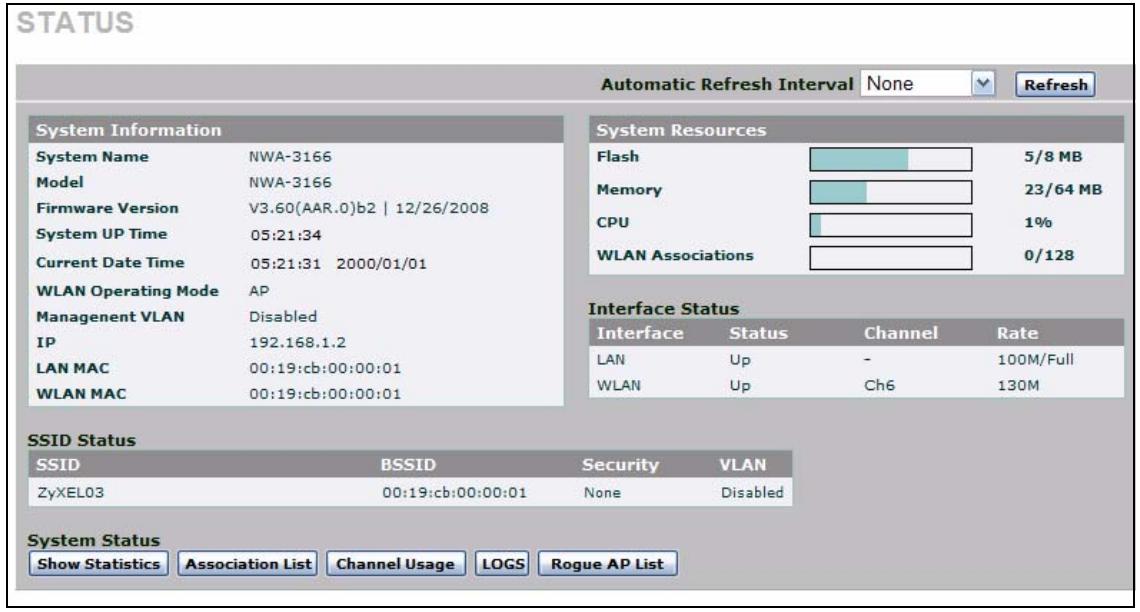
Figure 44 The Status Screen
The following table describes the labels in this screen.
Table 8 The Status Screen
| LABEL | DESCRIPTION |
| Automatic Refresh Interval | Enter how often you want the NWA to update this screen. |
| Refresh | Click this to update this screen immediately. |
| System Information | |
| System Name | This field displays the NWA system name. It is used for identification. You can change this in the System > General screen's System Name field. |
| Model | This field displays the NWA's exact model name. |
| Firmware Version | This field displays the current version of the firmware inside the device. It also shows the date the firmware version was created. You can change the firmware version by uploading new firmware in Maintenance > F/W Upload. |
| System Up Time | This field displays the elapsed time since the NWA was turned on. |
| Current Date Time | This field displays the date and time configured on the NWA. You can change this in the System > Time Setting screen. |
| WLAN Operating Mode | This field displays the current operating mode of the wireless module (AP, Bridge / Repeater, AP + Bridge or MBSSID). You can change the operating mode in the Wireless > Wireless screen. |
| Management VLAN | This field displays the management VLAN ID if VLAN is active, or Disabled if it is not active. You can enable or disable VLAN, or change the management VLAN ID, in the VLAN > Wireless VLAN screen. |
| IP | This field displays the current IP address of the NWA on the network. |
| LAN MAC | This displays the MAC (Media Access Control) address of the NWA on the LAN. Every network device has a unique MAC address which identifies it across the network. |
| WLAN MAC | This displays the MAC address of the wireless module. |
| System Resources | |
| Flash | This field displays the amount of the NWA's flash memory currently in use. The flash memory is used to store firmware andSSID profiles. |
| Memory | This field displays what percentage of the NWA's volatile memory is currently in use. The higher the memory usage, the more likely the NWA is to slow down. Some memory is required just to start the NWA and to run the web configurator. |
| CPU | This field displays what percentage of the NWA's processing ability is currently being used. The higher the CPU usage, the more likely the NWA is to slow down. |
| WLAN Associations | This field displays the number of wireless clients currently associated with the wireless module. It supports up to 128 concurrent associations. |
| Interface Status | |
| Interface | This column displays each interface of the NWA. |
Table 8 The Status Screen
| LABEL | DESCRIPTION |
| Status | This field indicates whether or not the NWA is using the interface. For each interface, this field displays Up when the NWA is using the interface and Down when the NWA is not using the interface. |
| Rate | For the LAN port this displays the port speed and duplex setting. For the WLAN interface, it displays the downstream and upstream transmission rate or N/A if the interface is not in use. |
| SSID Status | |
| Interface | This column displays each of the NWA's wireless interfaces. |
| SSID | This field displays each of the SSIDs currently in use. |
| BSSID | This field displays the MAC address of the wireless adaptor. |
| Security | This field displays the type of wireless security used by eachSSID. |
| VLAN | This field displays the VLAN ID of eachSSID in use, or Disabled if theSSID does not use VLAN. |
| System Status | |
| Show Statistics | Click this link to view port status and packet specific statistics. See Section 23.2 on page 254. |
| Association List | Click this to see a list of wireless clients currently associated to each of the NWA's wireless modules. See Section 21.2 on page 238. |
| Channel Usage | Click this to see which wireless channels are currently in use in the local area. See Section 21.3 on page 239. |
| Logs | Click this to see a list of logs produced by the NWA. See Chapter 19 on page 205. |
| Rogue AP List | Click this to see a list of unauthorized access points in the local area. See Section 15.2.2 on page 164. |
Management Mode
5.1 Overview
This chapter discusses using the NWA in management mode. This screen determines whether the NWA is used in its default standalone mode, or as part of a Control And Provisioning of Wireless Access Points (CAPWAP) network.
5.2 About CAPWAP
The NWA supports CAPWAP. This is ZyXEL's implementation of the IETF's CAPWAP protocol (RFC 4118).
The CAPWAP dataflow is protected by Datagram Transport Layer Security (DTLS).
The following figure illustrates a CAPWAP wireless network. You (U) configure the AP controller (C), which then automatically updates the configurations of the managed APs (M1 ~ M4).
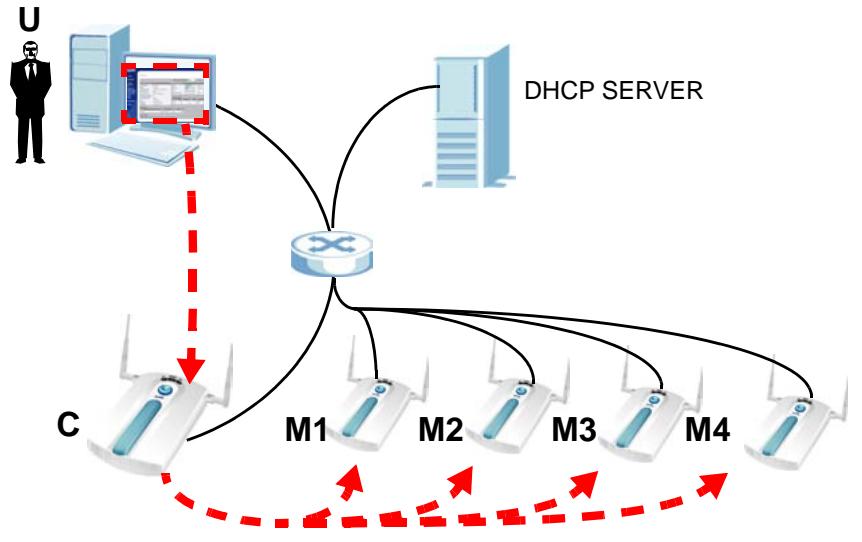
Figure 45 CAPWAP Network Example
Note: The NWA can be a standalone AP (default) or a CAPWAP managed AP. It cannot be a CAPWAP AP controller.
5.2.1 CAPWAP Discovery and Management
The link between CAPWAP-enabled access points proceeds as follows:
1 An AP in managed AP mode joins a wired network (receives a dynamic IP address).
2 The AP sends out a management request, looking for an AP in CAPWAP AP controller mode.
3 If there is an AP controller on the network, it receives the management request. If the AP controller is in Manual mode it adds the details of the AP to its Unmanaged Access Points list, and you decide which available APs to manage. If the AP is in Always Accept mode, it automatically adds the AP to its Managed Access Points list and provides the managed AP with default configuration information, as well as securely transmitting the DTLS pre-shared key. The managed AP is ready for association with wireless clients.
5.2.2 CAPWAP and DHCP
CAPWAP managed APs must be Dynamic Host Configuration Protocol (DHCP) clients, supplied with an IP address by a DHCP server on your network.
Furthermore, the AP controller must have a static IP address; it cannot be a DHCP client.
5.2.3 CAPWAP and IP Subnets
By default, CAPWAP works only between devices with IP addresses in the same subnet (see the appendices for information on IP addresses and subnetting).
However, you can configure CAPWAP to operate between devices with IP addresses in different subnets by doing the following.
- Activate DHCP option 43 on your network's DHCP server.
- Configure DHCP option 43 with the IP address of the CAPWAP AP controller on your network.
DHCP Option 43 allows the CAPWAP management request (from the AP in managed AP mode) to reach the AP controller in a different subnet, as shown in the following figure.
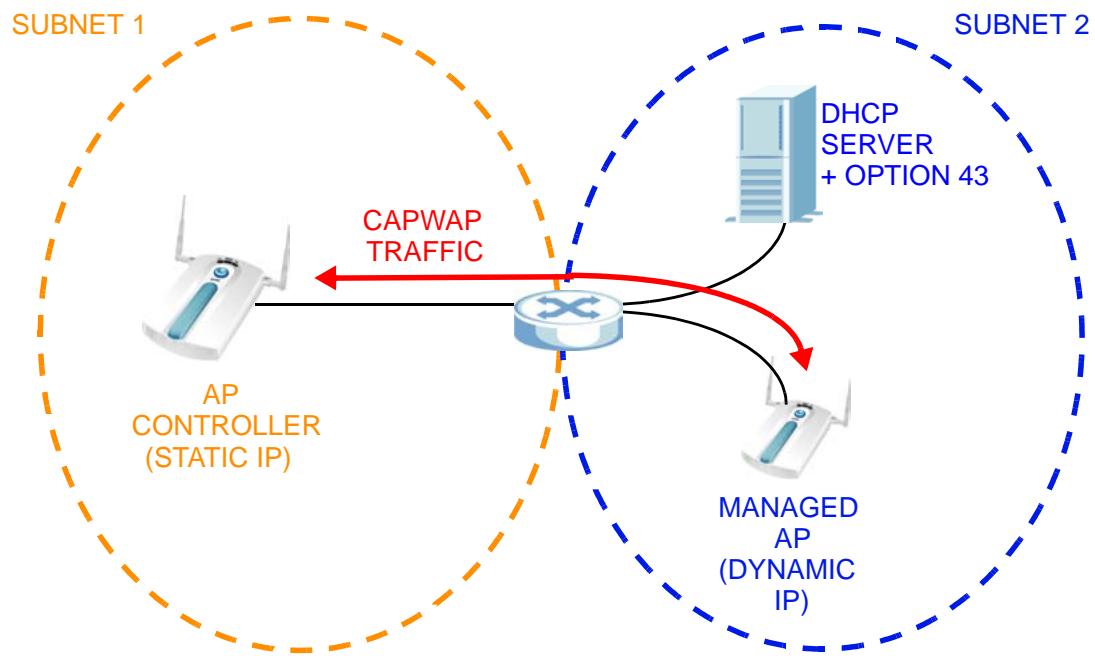
Figure 46 CAPWAP and DHCP Option 43
5.2.4 Notes on CAPWAP
This section lists some additional features of ZyXEL's implementation of the CAPWAP protocol.
- When the AP controller uses its internal Remote Authentication Dial In User Service (RADIUS) server, managed APs also use the AP controller's authentication server to authenticate wireless clients.
- Only one AP controller can exist in any single broadcast domain.
- If a managed AP's link to the AP controller is broken, the managed AP continues to use the wireless settings with which it was last provided.
5.3 The Management Mode Screen
Use this screen to configure the NWA as a CAPWAP managed AP, or to use it in its default standalone mode.
Click MGNT MODE in the NWA's navigation menu. The following screen displays.
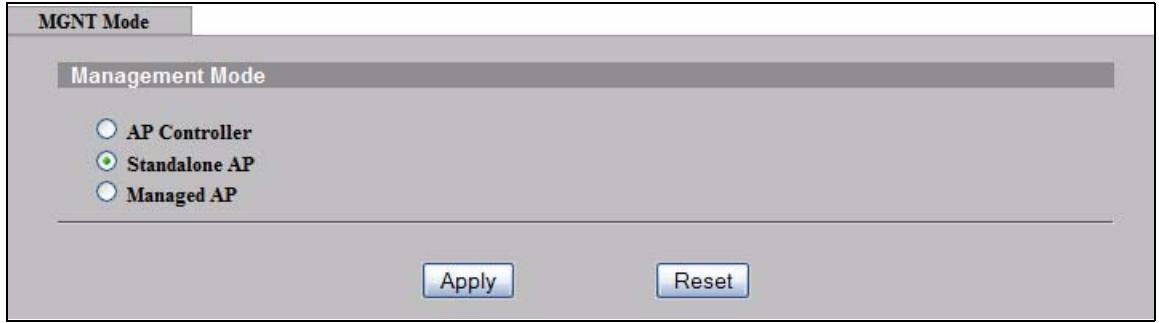
Figure 47 The Management Mode Screen
The following table describes the labels in this screen.
Table 9 The Management Mode Screen
| LABEL | DESCRIPTION |
| AP Controller | Select this option to have the NWA act as a managing device for other NWAs on your network. |
| Standalone AP | Select this to manage the NWA using its own web configurator, neither managing nor managed by other devices. |
| Managed AP | Select this to have the NWA managed by another NWA on your network. When you do this, the NWA can be configured ONLY by the management AP. If you do not have an AP controller on your network and want to return the NWA to standalone mode, you must use its physical RESET button. All settings are returned to their default values. |
| Apply | Click this to save your changes. If you change the mode in this screen, the NWA restarts. Wait a short while before you attempt to log in again. If you changed the mode to Managed AP, you cannot log in as the web configurator is disabled; you must manage the NWA through the management AP on your network. |
| Reset | Click this to return this screen to its previously-saved settings. |
AP Controller Mode
6.1 Overview
This chapter discusses the Controller AP management mode. When the NWA is used as a CAPWAP (Control And Provisioning of Wireless Access Points) controller AP, the Web Configurator changes to reflect this by including the Controller and Profile Edit screens.
Refer to Section 5.2 on page 71 for more information on CAPWAP.
6.1.1 What You Can Do in AP Controller Mode
- Use the Navigation Menu (Section 6.2 on page 76) to manage settings across all connected APs.
- Use the Status screen (Section 6.3 on page 77) to view information about your managed wireless network.
- Use the AP Lists screen (Section 6.4 on page 79) to manage connected APs.
- Use the Configuration screen (Section 6.5 on page 82) to control the way in which the NWA accepts new APs to manage.
- Use the Redundancy screen (Section 6.6 on page 87) to set the controller AP as a primary or secondary controller.
- Use the Profile Edit screens (Section 6.6 on page 83) to edit an individual AP's Radio,SSID, Security, RADIUS, Layer-2 Isolation, and MAC Address settings.
6.1.2 What You Need to Know
The following terms and concepts may help as you read through this chapter.
Controller AP Mode
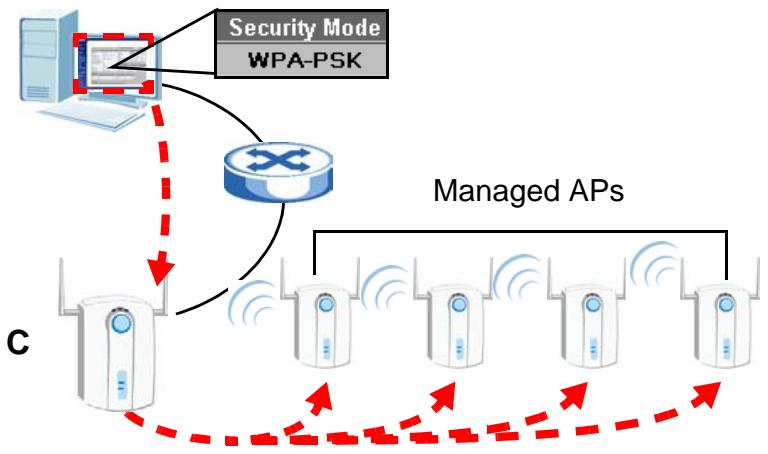
Your NWA can be a CAPWAP controller AP. In this setup, the NWA can manage the wireless configurations and device settings of several APs at the same time.
In the figure below, an administrator is able to manage the security settings of 5 APs (1 controller AP and 4 managed APs). He changes the security mode to WPA-PSK just by accessing the Web Configurator of the controller AP (C).
Figure 48 CAPWAP Controller
Figure 49 System Restart
Note: Be careful when configuring the controller AP as its managed APs automatically inherit some its settings. Moreover, some of these changes will automatically disconnect the wireless clients of the managed APs.
6.1.3 Before You Begin
The Controller AP options are only available when the NWA is set to function in this mode. Therefore, ensure that you have switched modes first as described in Section 5.3 on page 74 before continuing.
6.2 Controller AP Navigation Menu
When you choose Controller AP mode in the MGNT MODE screen and click Apply, you are automatically logged off from the Web Configurator. The NWA reboots and shows the following message.
The device is rebooting
Please wait at least 35 seconds before attempting to access the device again.
Note: The NWA reboots every time you change mode in the MGMT MODE screen. You can switch from Standalone AP to Controller AP (and vice versa) using the Web Configurator.
After logging in again, the navigation menu changes to include links for the Controller and Profile Edit screens. The items marked below are screens that can be configured for all APs managed by the NWA.
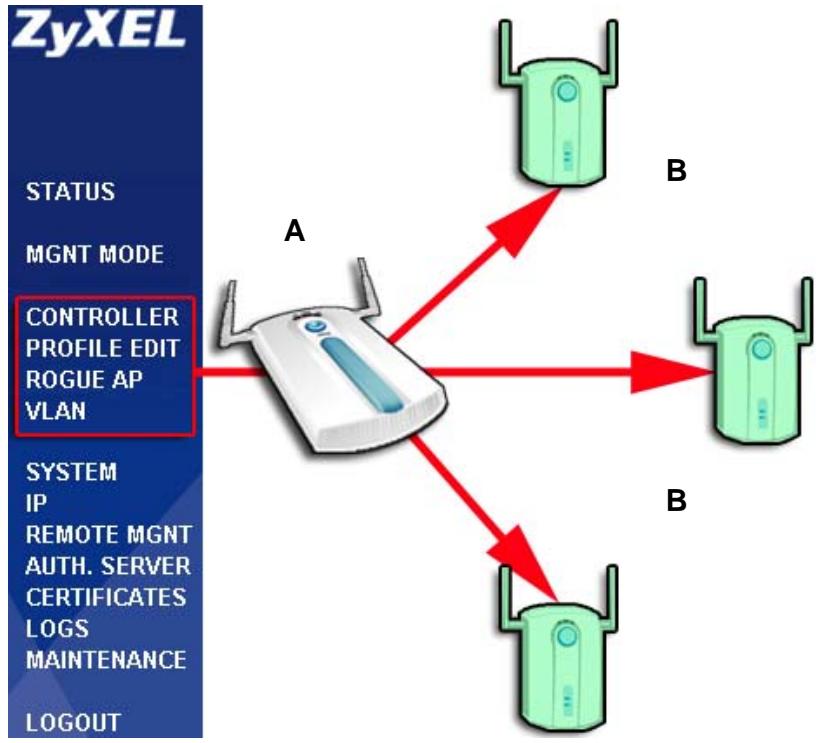
Figure 50 Controller AP Navigation Links
In the figure above, changes made in the highlighted screens of the Controller AP (A) are automatically applied to all the Managed APs (B).
Note: A managed AP may potentially be turned if it is within range of its controller AP while the controller AP updates its settings. The managed AP retains the last settings acquired from the controller AP and is automatically updated once it is detected again by the controller AP.
6.3 Controller AP Status Screen
When the NWA is in AP controller mode, the Status screen displays some unique fields in the System Information, AP Status, WLAN Association and System Status sections. The System Status links take you to screens that provide information on the access points managed by the NWA.
Click Status. The following screen displays.
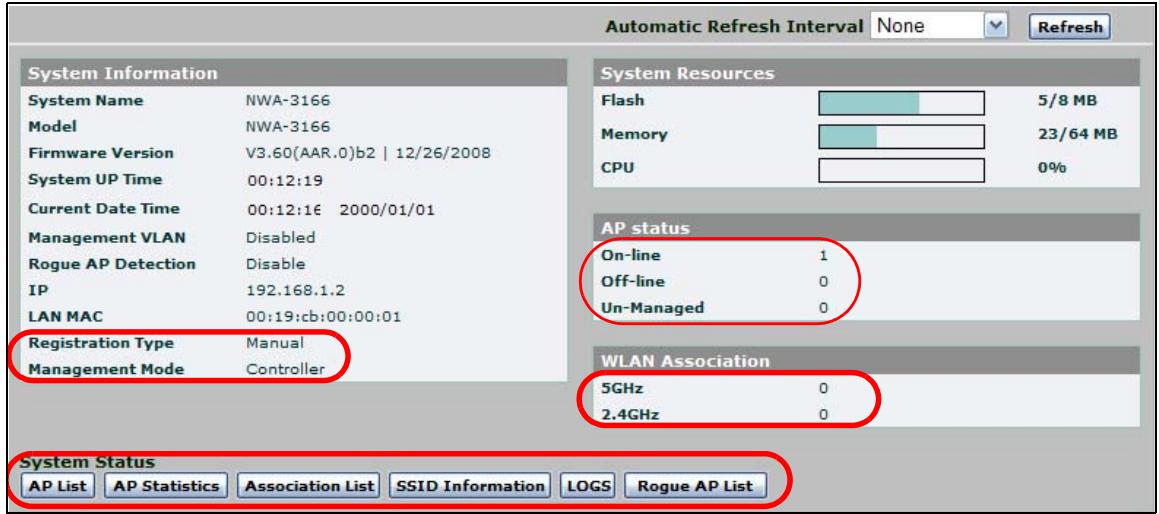
Figure 51 AP Controller: the Status Screen
The following table describes the new labels in this screen.
Table 10 AP Controller: the Status Screen
| LABEL | DESCRIPTION |
| Registration Type | This field displays how the managed APs are registered with the NWA. • Manual displays if you add unmanaged APs to the NWA's list of managed APs manually. • Always Accept displays if the NWA automatically manages any CAPWAP-enabled AP that transmits a management request over the network. |
| Management Mode | When the NWA is in AP controller mode, this displays Controller. |
| On-line | This field displays the number of access points, managed by the NWA, that are currently active. |
| Off-line | This field displays the number of access points, managed by the NWA, that are not currently active (turned off or otherwise unreachable on the network). |
| Un-managed | This field displays the number of access points on the network that are not managed by the NWA, but are transmitting CAPWAP management requests. |
| 5GHz | This field displays the number of wireless clients associated with APs managed by the NWA (including the NWA itself) broadcasting at 5GHz. |
| 2.1GHz | This field displays the number of wireless clients associated with APs managed by the NWA (including the NWA itself) broadcasting at 2.1GHz. |
| AP List | Click this to see a list of the APs managed by the NWA. |
| AP Statistics | Click this to see packet statistics related to each of the APs managed by the NWA. |
| Association List | Click this to see information about each of the wireless clients connected to APs managed by the NWA. |
| SSID Information | Click this to see details of the security settings used by eachSSID, and the number of wireless clients associated with eachSSID. |
6.4 AP Lists Screen
Use this screen to view and add managed APs. By default, the NWA is always included in this table. Although you cannot remove it, you can edit its settings.
Click Controller > AP Lists. The following screen displays.
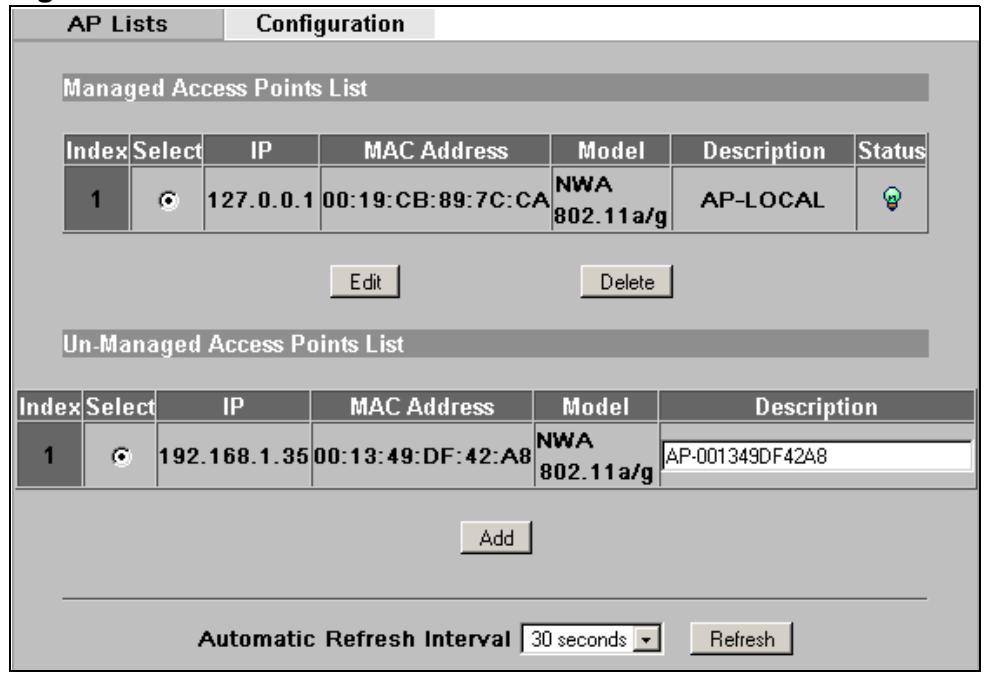
Figure 52 The Controller > AP Lists Screen
The following table describes the labels in this screen.
Table 11 The Controller > AP Lists Screen
| LABEL | DESCRIPTION |
| Managed Access Points List | This section lists the access points currently controlled by the NWA. This always includes the NWA itself. |
| Index | This is the index number of the managed AP. |
| Select | Click this then select Edit to configure the managed AP's settings. Click Delete to remove it from the NWA's managed AP list. |
| IP | This displays the IP address of the managed AP. |
| MAC Address | This displays the MAC address of the managed AP. |
| Model | This displays the model name and 802.11 mode of the managed AP. |
| Description | This displays the description of the managed AP. |
Table 11 The Controller > AP Lists Screen
| LABEL | DESCRIPTION |
| Status | This displays whether the managed AP is active, not active or upgrading its firmware. • Red: the AP is not active. • Green: the AP is active. • Yellow: the AP is upgrading its firmware. Note: You can still edit a managed AP's settings even if it is offline. However, the changes only take effect when the NWA detects that the managed AP is online again. |
| Edit | Select the managed AP from the list and click this to edit the managed AP's settings. |
| Delete | Select the managed AP from the list and click this to delete the managed AP from the list. When you do this, the managed AP is no longer handled by the NWA until you add it back to the list. |
| Un-Managed Access Points List | This section lists the CAPWAP-enabled access points in the area that are in managed AP mode but which are not currently controlled by the NWA. |
| Index | This is the index number of an unmanaged AP that is requesting to be managed by the NWA. |
| Select | Click this then select Add to include the unmanaged AP in the NWA's managed AP list. |
| IP | This displays the IP address of the unmanaged AP. |
| MAC Address | This displays the MAC address of the unmanaged AP. |
| Model | This displays the model name and 802.11 mode of the unmanaged AP. |
| Description | This displays the description of the unmanaged AP. |
| Add | Select the unmanaged AP from the list and click this to include the unmanaged AP in the NWA's managed AP list. |
| Automatic Refresh Interval | Enter how often you want the NWA to update this screen. |
| Refresh | Click this to update this screen immediately. |
6.4.1 The AP Lists Edit Screen
Use this screen to change the description or radio profile of an AP managed by the NWA. Click Edit in the CONTROLLER > AP Lists screen. The following screen displays.
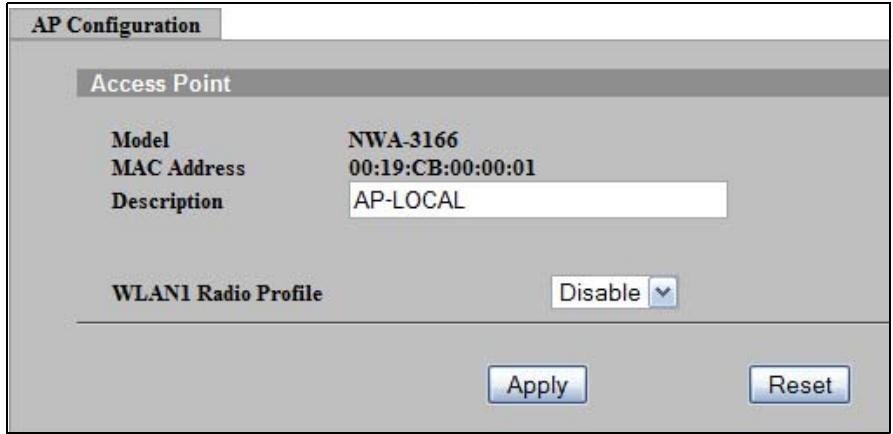
Figure 53 The Controller > AP Configuration Screen
The following table describes the labels in this screen.
Figure 54 The Controller > AP Configuration Screen
| LABEL | DESCRIPTION |
| Model | This is the model number of the managed AP. |
| MAC Address | This is the MAC address of the managed AP. |
| Description | Enter a short description of this access point (up to 32 English keyboard characters). |
| WLAN1 Radio Profile | Select the radio profile you want to use for this AP. Configure radio profiles in the Profile Edit > Radio screen. Select Disable if you do not want to use a radio profile. The AP's radio is not active when you select Disable. |
| Apply | Click this to save the changes in this screen. |
| Reset | Click this to return the fields in this screen to their previously-saved values. |
6.5 Configuration Screen
Use this screen to control the way in which the NWA accepts new APs to manage. You can also configure the pre-shared key (PSK) that is used to secure the data transmitted between the NWA and the APs it manages.
When the NWA is in AP controller mode, click CONTROLLER > Configuration. The following screen displays.
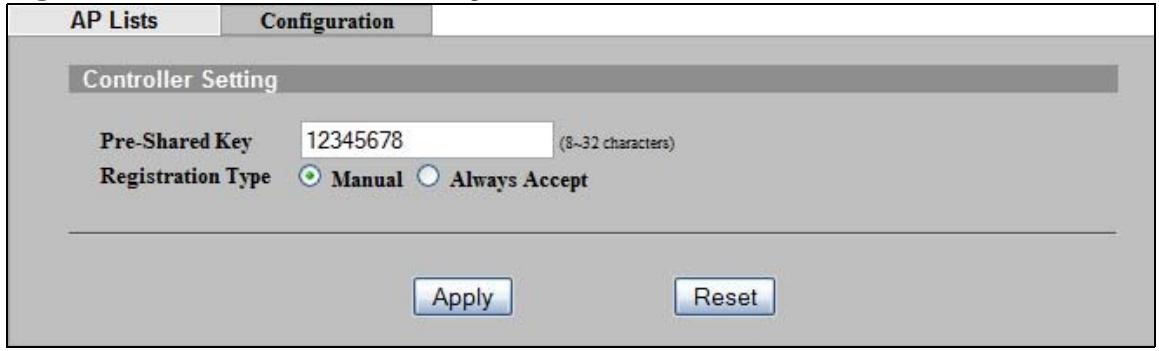
Figure 55 The Controller > Configuration Screen
The following table describes the labels in this screen.
Table 12 The Controller > Configuration Screen
| LABEL | DESCRIPTION |
| Pre-Shared Key | This is the security key used to encrypt communications between the NWA and its managed APs. This key is used to encrypt DTLS (Datagram Transport Layer Security) transmissions. Enter 8~32 English keyboard characters.The proprietary AutoPSK protocol transfers the DTLS key from the NWA to the managed APs automatically. |
| Registration Type | This controls whether the NWA manages all CAPWAP-enabled APs that transmit management request packets, or requires the user to select which such APs to manage.• Select Manual to choose which APs to manage (select the APs you want to manage in the Controller > AP Lists screen).• Select Always Accept to manage any AP on your network that transmits a CAPWAP request for management. |
| Apply | Click this to save the changes in this screen. |
| Reset | Click this to return the fields in this screen to their previously-saved values. |
6.6 The Profile Edit Screens
This section describes the Profile Edit screens, which are available only in AP controller mode.
The following Profile Edit screens are identical to those in regular mode:
- The Profile Edit > SSID screen (see Section 9.2 on page 125).
- The Profile Edit > Security screen (see Section 10.2 on page 132).
- The Profile Edit > RADIUS screen (see Section 11.2 on page 143).
- The Profile Edit > Layer-2 Isolation screen (see Section 12.2 on page 147).
- The Profile Edit > MAC Filter screen (see Section 13.2 on page 152).
6.6.1 The Radio Profile Screen
Use this screen to configure radio profiles. Radio profiles contain information about an AP's wireless settings and can be applied to APs managed by the NWA.
In AP Controller mode, click Profile Edit > Radio. The following screen displays.
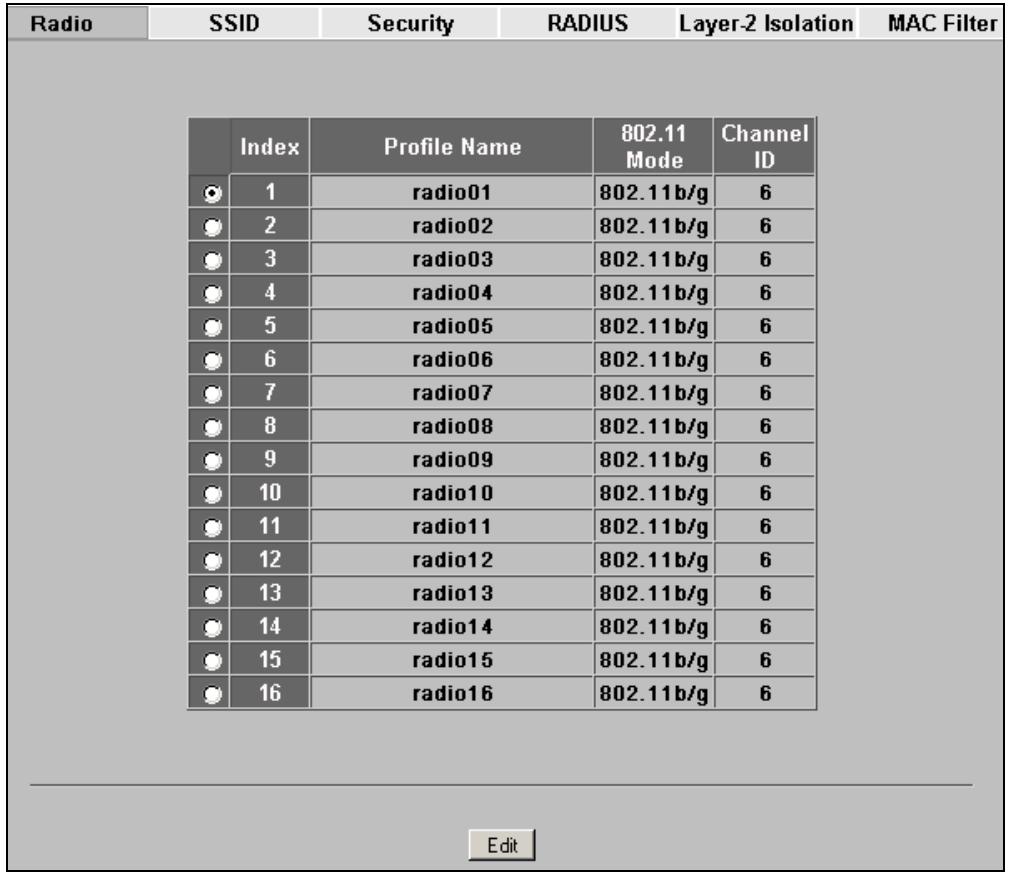
Figure 56 The Profile Edit > Radio Screen
The following table describes the labels in this screen.
Table 13 The Profile Edit > Radio Screen
| LABEL | DESCRIPTION |
| Index | This field displays the index number of each radio profile. |
| Profile Name | This field displays the identification name of each radio profile on the NWA. |
| 802.11 Mode | This field displays the IEEE 802.11 wireless mode the radio profile uses. |
| Channel ID | This field displays the wireless channel the radio profile uses. |
| Edit | Click the radio button next to the profile you want to configure and click Edit to go to the radio profile configuration screen. |
6.6.2 The Radio Profile Edit Screen
Use this screen to configure a specific radio profile. In the Profile Edit > Radio screen, select a profile and click Edit. The following screen displays.
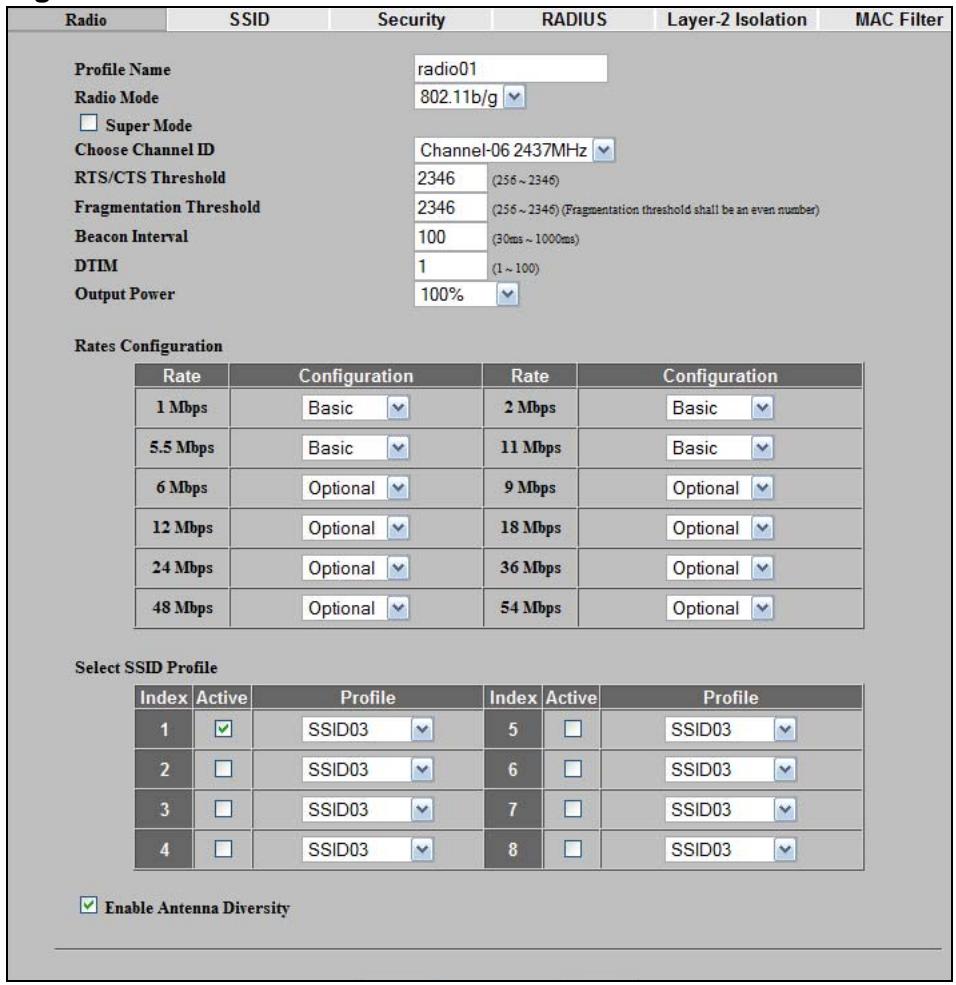
Figure 57 The Profile Edit > Radio > Edit Screen
The following table describes the labels in this screen.
Table 14 The Profile Edit > Radio > Edit Screen
| LABEL | DESCRIPTION |
| Profile Name | Enter a name identifying this profile. |
| 802.11 Mode | Select 802.11b to allow only IEEE 802.11b compliant WLAN devices to associate with the NWA. Select 802.11g to allow only IEEE 802.11g compliant WLAN devices to associate with the NWA. Select 802.11b/g to allow both IEEE802.11b and IEEE802.11g compliant WLAN devices to associate with the NWA. The transmission rate of your NWA might be reduced. Select 802.11a to allow only IEEE 802.11a compliant WLAN devices to associate with the NWA. Select 802.11n/g to allow only IEEE 802.11n and IEEE 802.11g compliant WLAN devices to associate with the NWA. Select 802.11n/a to allow only IEEE 802.11n and IEEE 802.11a compliant WLAN devices to associate with the NWA. |
| Super Mode | Select this to improve data throughput on the WLAN by enabling fast frame and packet bursting. |
| Choose Channel ID | Set the operating frequency/channel depending on your particular region. To manually set the NWA to use a channel, select a channel from the drop-down list box. |
| RTS/CTS Threshold | (Request To Send) The threshold (number of bytes) for enabling RTS/CTS handshake. Data with its frame size larger than this value will perform the RTS/CTS handshake. Setting this attribute to be larger than the maximum MSDU (MAC service data unit) size turns off the RTS/CTS handshake. Setting this attribute to its smallest value (256) turns on the RTS/CTS handshake. Enter a value between 256 and 2346. |
| Fragmentation Threshold | The threshold (number of bytes) for the fragmentation boundary for directed messages. It is the maximum data fragment size that can be sent. Enter an even number between 256 and 2346. |
| Beacon Interva | When a wirelessly networked device sends a beacon, it includes with it a beacon interval. This specifies the time period before the device sends the beacon again. The interval tells receiving devices on the network how long they can wait in low-power mode before waking up to handle the beacon. This value can be set from 30ms to 1000ms. A high value helps save current consumption of the access point. |
| DTIM | Delivery Traffic Indication Message (DTIM) is the time period after which broadcast and multicast packets are transmitted to mobile clients in the Active Power Management mode. A high DTIM value can cause clients to lose connectivity with the network. This value can be set from 1 to 100. |
Table 14 The Profile Edit > Radio > Edit Screen
| LABEL | DESCRIPTION |
| Output Power | Set the output power of the NWA in this field. If there is a high density of APs in an area, decrease the output power of the NWA to reduce interference with other APs. Select one of the following 100% (Full Power), 50%, 25%, 12.5% or Minimum. See the product specifications for more information on your NWA's output power. |
| Rates Configuration | This section controls the data rates permitted for clients of an AP using this radio profile.For each Rate, select an option from the Configuration list. The options are:Basic (1~11 Mbps only): Clients can always connect to the access point at this speed.Option: Clients can connect to the access point at this speed, when permitted to do so by the AP.Disabled: Clients cannot connect to the access point at this speed. |
| Select SSID Profile | Use this section to choose the SSID profile or profiles you want access points using this radio profile to use. Each AP can use multiple SSID profiles simultaneouslyConfigure SSID profiles in the Profile Edit > SSID screens. |
| Index | This is the SSID profile's index number. |
| Active | Select this to use the SSID profile selected in the Profile field. |
| Profile | Select the profile you want to use. Ensure that you also select the Active box. |
| Enable Antenna Diversity | Select this to have access points using this radio profile use antenna diversity, where available. Antenna diversity uses multiple antennas to reduce signal interference. |
| Apply | Click this to save your changes. |
| Reset | Click this to reload the previous configuration for this screen. |
System Screens
7.1 Overview
This chapter provides information and instructions on how to identify and manage your NWA over the network.
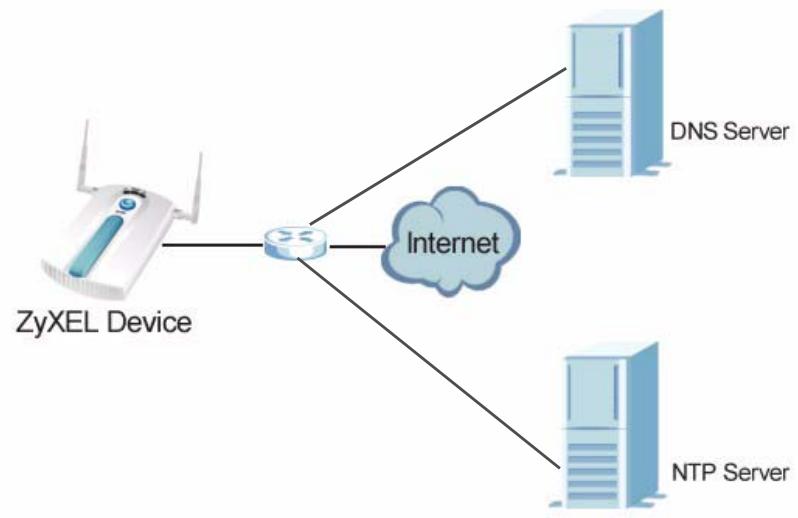
Figure 58 NWA Setup
In the figure above, the NWA connects to a Domain Name Server (DNS) server to avail of a domain name. It also connects to an Network Time Protocol (NTP) server to set the time on the device.
7.1.1 What You Can Do in the System Screens
- Use the General screen (see Section 7.2 on page 89) to specify the System name, Domain name and Web Configurator timeout limit. You can also configure your System DNS Servers in this screen.
- Use the System > Password screen (see Section 7.3 on page 91) to manage the password for your ZyXEL Device and have a RADIUS server authenticate management logins to the ZyXEL Device.
- Use the Time Setting screen (see Section 7.4 on page 93) to change your NWA's time and date. This screen allows you to configure the NWA's time based on your local time zone.
7.1.2 What You Need To Know About the System Screens
The following terms and concepts may help as you read through the chapter.
IP Address Assignment
Every computer on the Internet must have a unique IP address. If your networks are isolated from the Internet, for instance, only between your two branch offices, you can assign any IP addresses to the hosts without problems. However, the Internet Assigned Numbers Authority (IANA) has reserved the following three blocks of IP addresses specifically for private networks.
Table 15 Private IP Address Ranges
| 10.0.0.0 - 10.255.255.255 |
| 172.16.0.0 - 172.31.255.255 |
| 192.168.0.0 - 192.168.255.255 |
You can obtain your IP address from the IANA, from an ISP or have it assigned by a private network. If you belong to a small organization and your Internet access is through an ISP, the ISP can provide you with the Internet addresses for your local networks. On the other hand, if you are part of a much larger organization, you should consult your network administrator for the appropriate IP addresses.
Note: Regardless of your particular situation, do not create an arbitrary IP address; always follow the guidelines above. For more information on address assignment, please refer to RFC 1597, Address Allocation for Private Internets and RFC 1466, Guidelines for Management of IP Address Space.
IP Address and Subnet Mask
Similar to the way houses on a street share a common street name, computers on a LAN share one common network number.
Where you obtain your network number depends on your particular situation. If the ISP or your network administrator assigns you a block of registered IP addresses, follow their instructions in selecting the IP addresses and the subnet mask.
If the ISP did not explicitly give you an IP network number, then most likely you have a single user account and the ISP will assign you a dynamic IP address when the connection is established. The Internet Assigned Number Authority (IANA) reserved this block of addresses specifically for private use; please do not use any other number unless you are told otherwise. Let's say you select 192.168.1.0 as
the network number; which covers 254 individual addresses, from 192.168.1.1 to 192.168.1.254 (zero and 255 are reserved). In other words, the first three numbers specify the network number while the last number identifies an individual computer on that network.
Once you have decided on the network number, pick an IP address that is easy to remember, for instance, 192.168.1.2, for your device, but make sure that no other device on your network is using that IP address.
The subnet mask specifies the network number portion of an IP address. Your device will compute the subnet mask automatically based on the IP address that you entered. You don't need to change the subnet mask computed by the device unless you are instructed to do otherwise.
7.2 General Screen
Use the General screen to identify your NWA over the network. Click System > General. The following screen displays.
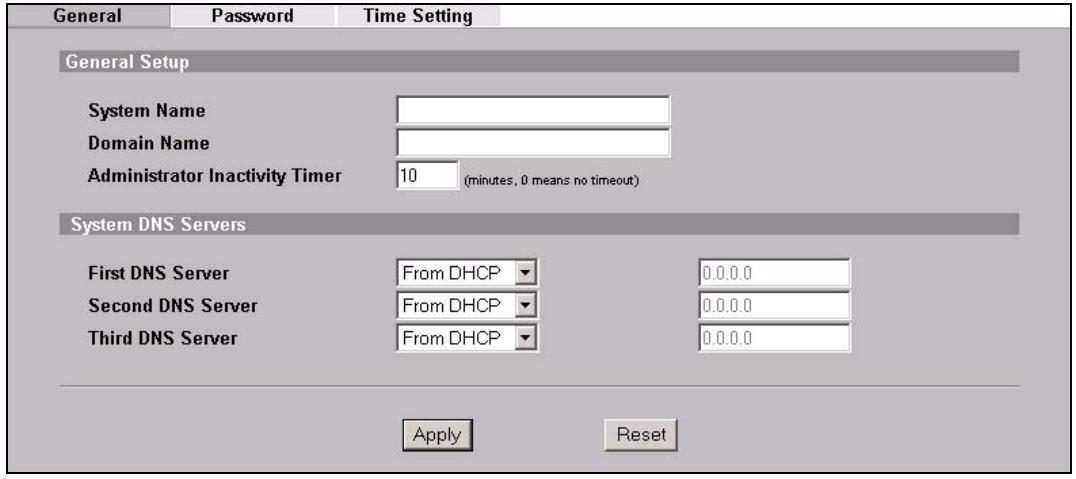
Figure 59 System > General
The following table describes the labels in this screen.
Table 16 System > General
| LABEL | DESCRIPTION |
| General Setup | |
| System Name | Type a descriptive name to identify the NWA in the Ethernet network. |
| This name can be up to 30 alphanumeric characters long. Spaces are not allowed, but dashes "- " and underscores " _ " are accepted. | |
| Domain Name | This is not a required field. Leave this field blank or enter the domain name here if you know it. |
Table 16 System > General
| LABEL | DESCRIPTION |
| Administrator Inactivity Timer | Type how many minutes a management session can be left idle before the session times out.The default is 5 minutes. After it times out you have to log in with your password again. Very long idle timeouts may have security risks.A value of "0" means a management session never times out, no matter how long it has been left idle (not recommended). |
| System DNS Servers | |
| First DNS ServerSecond DNS ServerThird DNS Server | Select From DHCP if your DHCP server dynamically assigns DNS server information (and the NWA's Ethernet IP address). The field to the right displays the (read-only) DNS server IP address that the DHCP assigns.Select User-Defined if you have the IP address of a DNS server.Enter the DNS server's IP address in the field to the right. If you chose User-Defined, but leave the IP address set to 0.0.0.0,User-Defined changes to None after you click Apply. If you set a second choice to User-Defined, and enter the same IP address, the second User-Defined changes to None after you click Apply.Select None if you do not want to configure DNS servers. If you do not configure a DNS server, you must know the IP address of a machine in order to access it.The default setting is None. |
| Apply | Click Apply to save your changes. |
| Reset | Click Reset to reload the previous configuration for this screen. |
7.3 Password Screen
Use this screen to control access to your NWA by assigning a password to it. Click System > Password. The following screen displays.
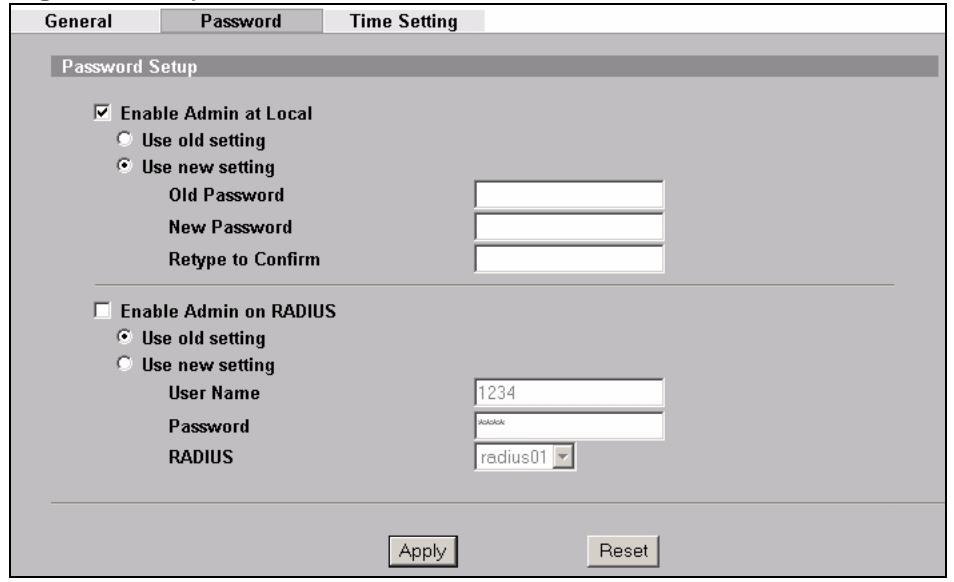
Figure 60 System > Password.
Note: Even if you uncheck Enable Admin at Local, you still use the password set here to log in via the console port (not available on all models).
The following table describes the labels in this screen.
Table 17 System > Password
| LABEL | DESCRIPTIONS |
| Enable Admin at Local | Select this check box to have the device authenticate local management logins to the device. |
| Use old setting | Select this to have the NWA use the local management password already configured on the device ("1234" is the default). |
| Use new setting | Select this if you want to change the local management password. |
| Old Password | Type in your existing system password ("1234" is the default password). |
| New Password | Type your new system password (up to 31 characters). Note that as you type a password, the screen displays an asterisk (*) for each character you type. |
| Retype to Confirm | Retype your new system password for confirmation. |
| Enable Admin on RADIUS | Select this (and configure the other fields in this section) to have a RADIUS server authenticate management logins to the NWA. |
| Use old setting | Select this to have a RADIUS server authenticate management logins to the NWA using the RADIUS username and password already configured on the device. |
Table 17 System > Password
| LABEL | DESCRIPTIONS |
| Use new setting | Select this if you want to change the RADIUS username and password the NWA uses to authenticate management logon. |
| User Name | Enter the username for this user account. This name can be up to 31 ASCII characters long, including spaces. |
| Password | Type a password (up to 31 ASCII characters) for this user profile. Note that as you type a password, the screen displays a (*) for each character you type. Spaces are allowed.Note: If you are using PEAP authentication, this password field is limited to 14 ASCII characters in length. |
| RADIUS | Select the RADIUS server profile of the RADIUS server that is to authenticate management logins to the NWA.The NWA tests the user name and password against the RADIUS server when you apply your settings.The user name and password must already be configured in the RADIUS server.You must already have a RADIUS profile configured for the RADIUS server (see Section 11.2 on page 143).The server must be set to Active in the profile. |
| Apply | Click Apply to save your changes. |
| Reset | Click Reset to reload the previous configuration for this screen. |
7.4 Time Setting Screen
Use this screen to change your NWA's time and date, click System > Time Setting. The following screen displays.
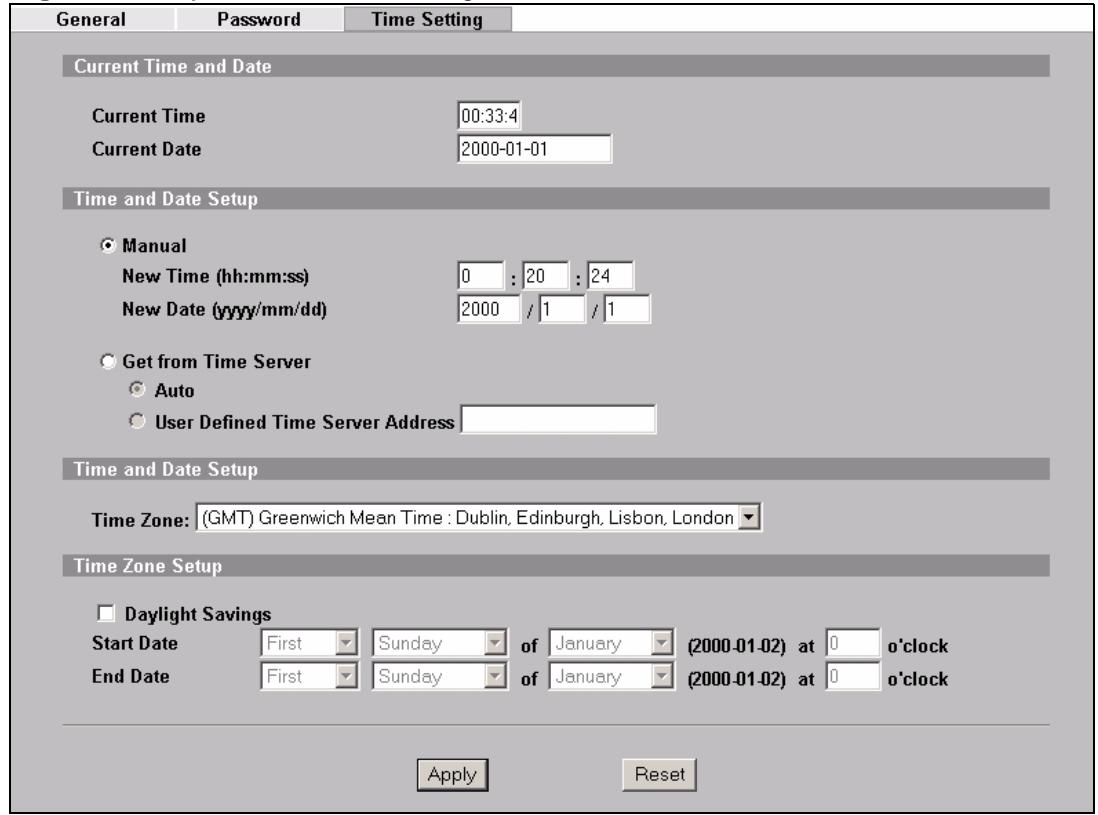
Figure 61 System > Time Setting
The following table describes the labels in this screen.
Table 18 System > Time Setting
| LABEL | DESCRIPTION |
| Current Time | This field displays the time of your NWA. Each time you reload this page, the NWA synchronizes the time with the time server (if configured). |
| Current Date | This field displays the last updated date from the time server. |
| Manual | Select this radio button to enter the time and date manually. If you configure a new time and date, time zone and daylight saving at the same time, the time zone and daylight saving will affect the new time and date you entered. |
| New Time (hh:mm:ss) | This field displays the last updated time from the time server or the last time configured manually. When you set Time and Date Setup to Manual, enter the new time in this field and then click Apply. |
Table 18 System > Time Setting
| LABEL | DESCRIPTION |
| New Date (yyyy: mm: dd) | This field displays the last updated date from the time server or the last date configured manually. When you set Time and Date Setup to Manual, enter the new date in this field and then click Apply. |
| Get from Time Server | Select this radio button to have the NWA get the time and date from the time server you specify below. |
| Auto | Select this to have the NWA use the predefined list of time servers. |
| User Defined Time Server Address | Enter the IP address or URL of your time server. Check with your ISP/network administrator if you are unsure of this information. |
| Time Zone | Choose the time zone of your location. This will set the time difference between your time zone and Greenwich Mean Time (GMT). |
| Daylight Savings | Select this option if you use daylight savings time. Daylight saving is a period from late spring to early fall when many countries set their clocks ahead of normal local time by one hour to give more daytime light in the evening. |
| Start Date | Configure the day and time when Daylight Saving Time starts if you selected Enable Daylight Saving. The at field uses the 24 hour format. Here are a couple of examples: Daylight Saving Time starts in most parts of the United States on the second Sunday of March. Each time zone in the United States starts using Daylight Saving Time at 2 A.M. local time. So in the United States you would select Second, Sunday, March and 2:00. Daylight Saving Time starts in the European Union on the last Sunday of March. All of the time zones in the European Union start using Daylight Saving Time at the same moment (1 A.M. GMT or UTC). So in the European Union you would select Last, Sunday, March. The time you type in the at field depends on your time zone. In Germany for instance, you would type 2 because Germany's time zone is one hour ahead of GMT or UTC (GMT+1). |
| End Date | Configure the day and time when Daylight Saving Time ends if you selected Enable Daylight Saving. The o'clock field uses the 24 hour format. Here are a couple of examples: Daylight Saving Time ends in the United States on the first Sunday of November. Each time zone in the United States stops using Daylight Saving Time at 2 A.M. local time. So in the United States you would select First, Sunday, November and 2:00. Daylight Saving Time ends in the European Union on the last Sunday of October. All of the time zones in the European Union stop using Daylight Saving Time at the same moment (1 A.M. GMT or UTC). So in the European Union you would select Last, Sunday, October. The time you type in the at field depends on your time zone. In Germany for instance, you would type 2 because Germany's time zone is one hour ahead of GMT or UTC (GMT+1). |
Table 18 System > Time Setting
| LABEL | DESCRIPTION |
| Apply | Click Apply to save your changes. |
| Reset | Click Reset to reload the previous configuration for this screen. |
7.5 Technical Reference
This section provides some technical information about the topics covered in this chapter.
7.5.1 Administrator Authentication on RADIUS
The administrator authentication on RADIUS feature lets a (external or internal) RADIUS server authenticate management logins to the NWA. This is useful if you need to regularly change a password that you use to manage several NWAs.
Activate administrator authentication on RADIUS in the System > Password screen and configure the same user name, password and RADIUS server information on each NWA. Then, whenever you want to change the password, just change it on the RADIUS server.
7.5.2 Pre-defined NTP Time Servers List
When you turn on the NWA for the first time, the date and time start at 2000-01-01 00:00:00. When you select Auto in the System > Time Setting screen, the NWA then attempts to synchronize with one of the following pre-defined list of NTP time servers.
The NWA continues to use the following pre-defined list of NTP time servers if you do not specify a time server or it cannot synchronize with the time server you specified.
Table 19 Default Time Servers
| ntp1.cs.wisc.edu |
| ntp1.gbg.netnod.se |
| ntp2.cs.wisc.edu |
| tock.usno.navy.mil |
| ntp3.cs.wisc.edu |
| ntp.cs.strath.ac.uk |
| ntp1.sp.se |
| time1.stupi.se |
| tick.stdtime.gov.tw |
| took.stdtime.gov.tw |
| time.stdtime.gov.tw |
When the NWA uses the pre-defined list of NTP time servers, it randomly selects one server and tries to synchronize with it. If the synchronization fails, then the NWA goes through the rest of the list in order from the first one tried until either it is successful or all the pre-defined NTP time servers have been tried.
Wireless Screen
8.1 Overview
This chapter discusses the steps to configure the Wireless Settings screen on the NWA. It also introduces the wireless LAN (WLAN) and some basic scenarios.
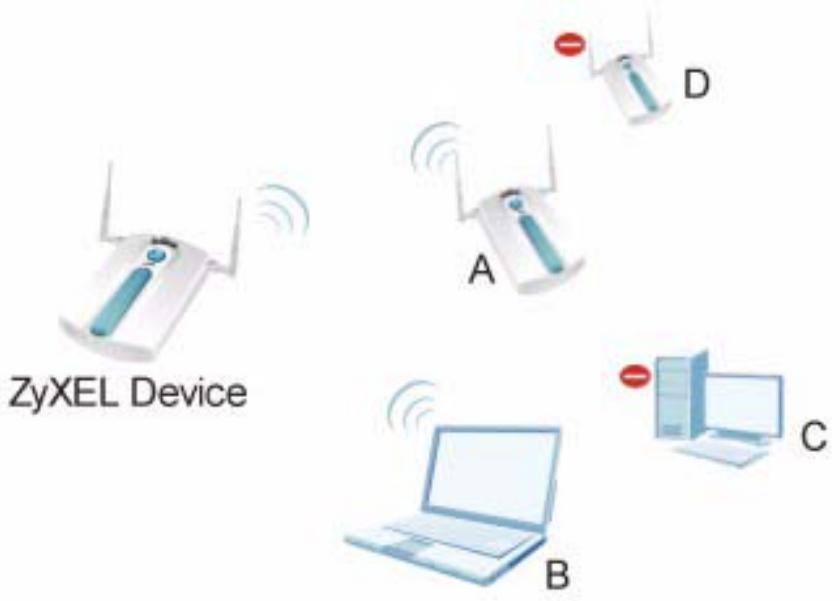
Figure 62 Wireless Mode
In the figure above, the NWA allows access to another bridge device (A) and a notebook computer (B) upon verifying their settings and credentials. It denies access to other devices (C and D) with configurations that do not match those specified in your NWA.
8.1.1 What You Can Do in the Wireless Screen
Use the Wireless > Wireless screen (see Section 8.2 on page 101) to configure the NWA to use a WLAN interface and operate in AP (Access Point), AP + Bridge, Bridge / Repeater or MBSSID mode.
8.1.2 What You Need To Know About the Wireless Screen
The following terms and concepts may help as you read through this chapter.
BSS
A Basic Service Set (BSS) exists when all communications between wireless stations or between a wireless station and a wired network client go through one access point (AP).
Intra-BSS traffic is traffic between wireless stations in the BSS. When Intra-BSS traffic blocking is disabled, wireless station A and B can access the wired network and communicate with each other. When Intra-BSS traffic blocking is enabled, wireless station A and B can still access the wired network but cannot communicate with each other.
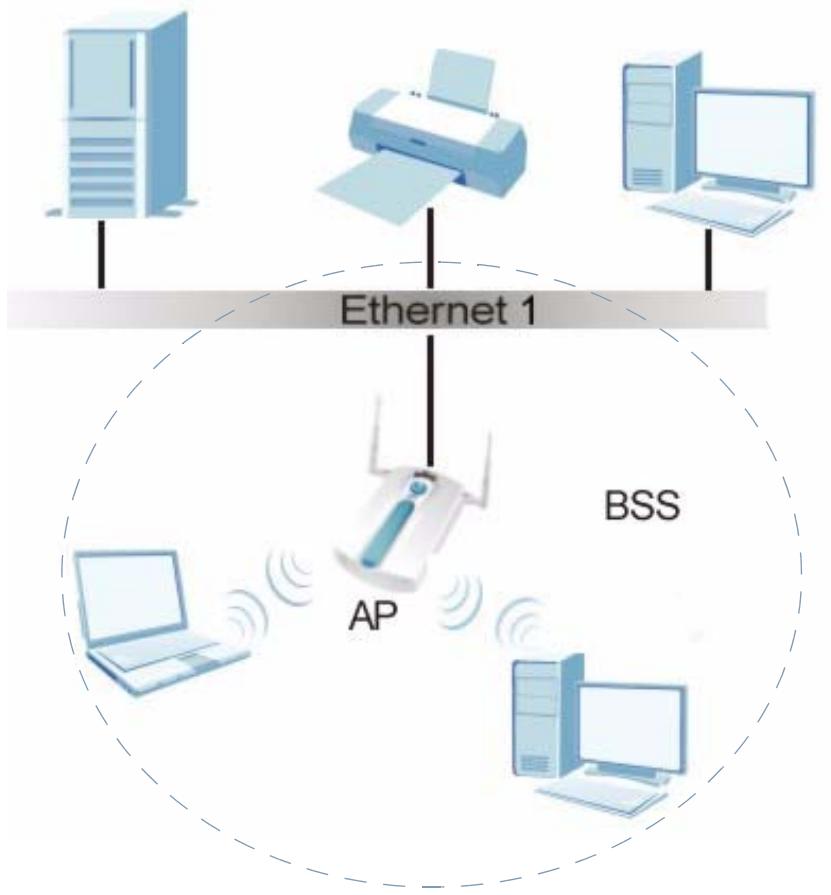
Figure 63 Basic Service set
ESS
An Extended Service Set (ESS) consists of a series of overlapping BSSs, each containing an access point, with each access point connected together by a wired network. This wired connection between APs is called a Distribution System (DS).
An ESSID (ESS IDentification) uniquely identifies each ESS. All access points and their associated wireless stations within the same ESS must have the same ESSID in order to communicate.
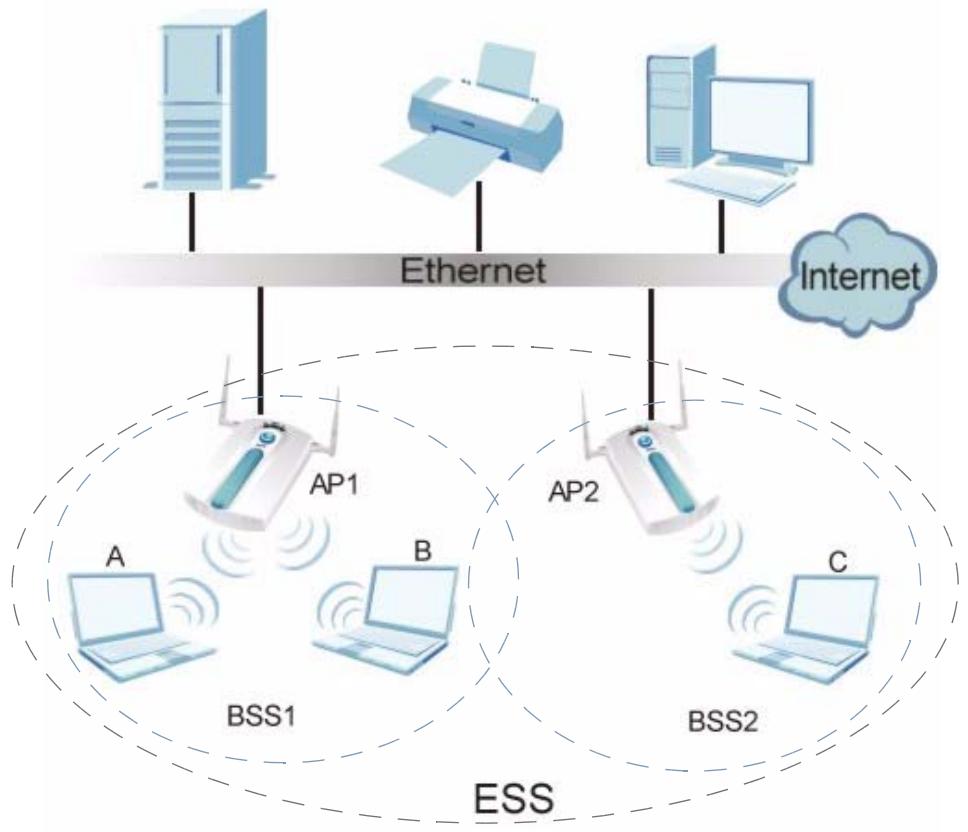
Figure 64 Extended Service Set
Operating Mode
The NWA can run in four operating modes as follows:
- AP (Access Point). The NWA is wireless access point that allows wireless communication to other devices in the network.
- Bridge / Repeater. The NWA acts as a wireless network bridge and establishes wireless links with other APs. You need to know the MAC address of the peer device, which also must be in bridge mode. The NWA can establish up to five wireless links with other APs.
- AP + Bridge Mode. The NWA functions as a bridge and access point simultaneously.
- MBSSID Mode. The Multiple Basic Service Set Identifier (MBSSID) mode allows you to use one access point to provide several BSSs simultaneously.
Refer to Chapter 1 on page 17 for illustrations of these wireless applications.
SSID
The SSID (Service Set Identifier) identifies the Service Set with which a wireless station is associated. Wireless stations associating to the access point (AP) must have the same SSID.
Normally, the ZyXEL Device acts like a beacon and regularly broadcasts the SSID in the area. You can hide the SSID instead, in which case the ZyXEL Device does not broadcast the SSID. In addition, you should change the default SSID to something that is difficult to guess.
This type of security is fairly weak, however, because there are ways for unauthorized wireless devices to get theSSID. In addition, unauthorized wireless devices can still see the information that is sent in the wireless network.
Channel
A channel is the radio frequency(ies) used by IEEE 802.11a/b/g/n wireless devices. Channels available depend on your geographical area. You may have a choice of channels (for your region) so you should use a different channel than an adjacent AP (access point) to reduce interference.
Wireless Mode
The IEEE 802.1x standard was designed to extend the features of IEEE 802.11 to support extended authentication as well as providing additional accounting and control features. Wireless Mode supports 802.11b/g, 802.11a, 802.11n/g and 802.11n/a.
MBSSID
Traditionally, you needed to use different APs to configure different Basic Service Sets (BSSs). As well as the cost of buying extra APs, there was also the possibility of channel interference. The NWA's MBSSID (Multiple Basic Service Set Identifier) function allows you to use one access point to provide several BSSs simultaneously. You can then assign varying levels of privilege to different SSIDs.
Wireless stations can use different BSSIDs to associate with the same AP.
The following are some notes on multiple BSS.
-
A maximum of eight BSSs are allowed on one AP simultaneously.
-
You must use different WEP keys for different BSSs. If two stations have different BSSIDs (they are in different BSSs), but have the same WEP keys, they may hear each other's communications (but not communicate with each other).
-
MBSSID should not replace but rather be used in conjunction with 802.1x security.
8.2 The Wireless Screen
Use this screen to choose the operating mode for your NWA. Click Wireless > Wireless. The screen varies depending upon the operating mode you select.
8.2.1 Access Point Mode
Use this screen to use your NWA as an access point. Select Access Point as the Operating Mode. The following screen displays.
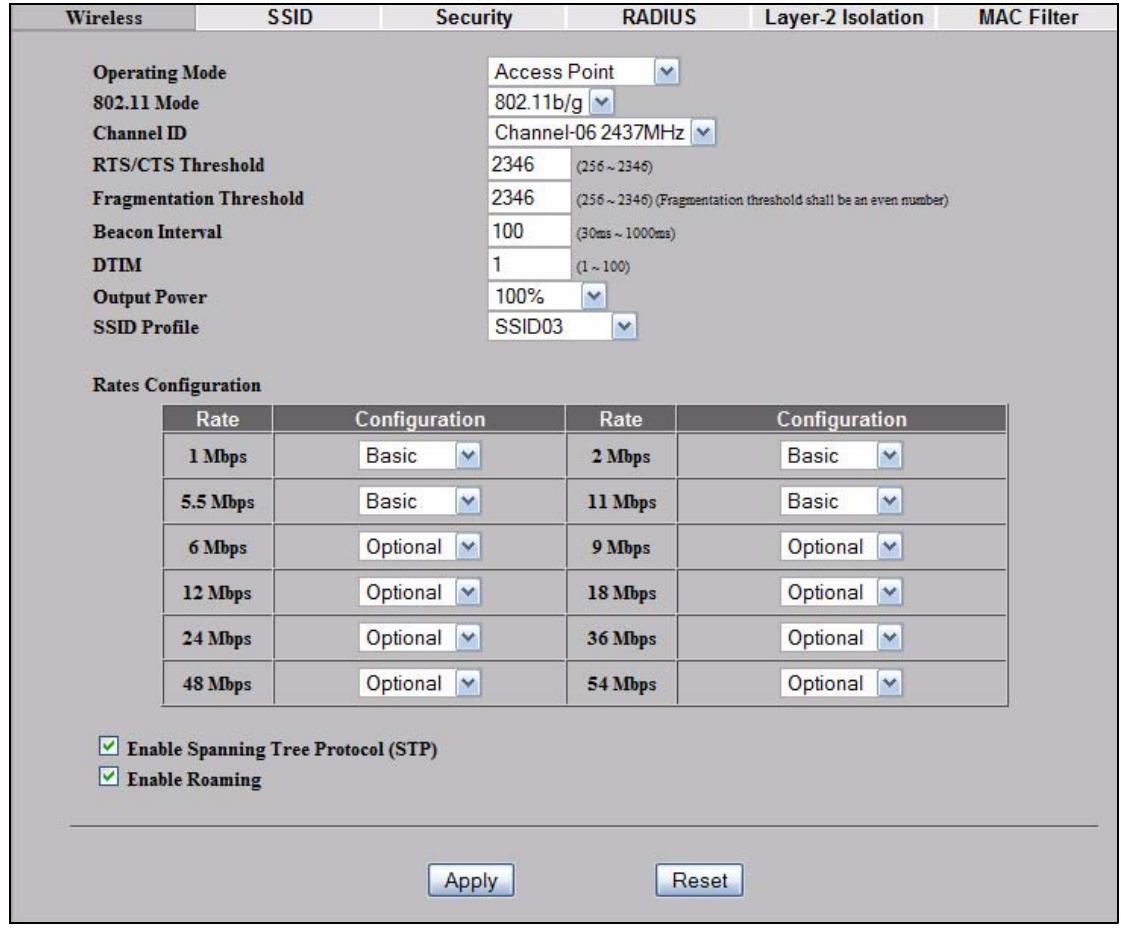
Figure 65 Wireless: Access Point
The following table describes the general wireless LAN labels in this screen.
Table 20 Wireless: Access Point
| LABEL | DESCRIPTION |
| Operating Mode | Select Access Point from the drop-down list. |
| 802.11 Mode | Select 802.11b/g to allow both IEEE802.11b and IEEE802.11g compliant WLAN devices to associate with the NWA. The transmission rate of your NWA might be reduced. Select 802.11a to allow only IEEE 802.11a compliant WLAN devices to associate with the NWA. Select 802.11n/g to allow only IEEE 802.11n and IEEE 802.11g compliant WLAN devices to associate with the NWA. Select 802.11n/a to allow only IEEE 802.11n and IEEE 802.11a compliant WLAN devices to associate with the NWA. |
| Choose Channel ID | Set the operating frequency/channel depending on your particular region. To manually set the NWA to use a channel, select a channel from the drop-down list box. Click MAINTENANCE and then the Channel Usage tab to open the Channel Usage screen to make sure the channel is not already used by another AP or independent peer-to-peer wireless network. To have the NWA automatically select a channel, click Auto Selection instead. |
| RTS/CTS Threshold | Use RTS/CTS to reduce data collisions on the wireless network if you have wireless clients that are associated with the same AP but out of range of one another. When enabled, a wireless client sends an RTS (Request To Send) and then waits for a CTS (Clear To Send) before it transmits. This stops wireless clients from transmitting packets at the same time (and causing data collisions). A wireless client sends an RTS for all packets larger than the number (of bytes) that you enter here. Set the RTS/CTS equal to or higher than the fragmentation threshold to turn RTS/CTS off. |
| Fragmentation Threshold | The threshold (number of bytes) for the fragmentation boundary for directed messages. It is the maximum data fragment size that can be sent. Enter an even number between 256 and 2346. |
| Beacon Interval | When a wirelessly networked device sends a beacon, it includes with it a beacon interval. This specifies the time period before the device sends the beacon again. The interval tells receiving devices on the network how long they can wait in low-power mode before waking up to handle the beacon. This value can be set from 30ms to 1000ms. A high value helps save current consumption of the access point. |
| DTIM | Delivery Traffic Indication Message (DTIM) is the time period after which broadcast and multicast packets are transmitted to mobile clients in the Active Power Management mode. A high DTIM value can cause clients to lose connectivity with the network. This value can be set from 1 to 100. |
Table 20 Wireless: Access Point
| LABEL | DESCRIPTION |
| Output Power | Set the output power of the NWA in this field. If there is a high density of APs in an area, decrease the output power of the NWA to reduce interference with other APs. Select one of the following 100%(Full Power), 50%, 25%, 12.5% or Minimum. See the product specifications for more information on your NWA's output power.Note: Reducing the output power also reduces the NWA's effective broadcast radius. |
| SSID Profile | TheSSID (Service Set IDentifier) identifies the Service Set with which a wireless station is associated. Wireless stations associating to the access point (AP) must have the sameSSID. Select anSSID Profile from the drop-down list boxConfigureSSID profiles in theSSID screen (see Section 9.2 on page 125 for information on configuringSSID).If you are configuring the NWA from a computer connected to the wireless LAN and you change the NWA'sSSID or security settings, you will lose your wireless connection when you press Apply to confirm. You must then change the wireless settings of your computer to match the NWA's new settings. |
| Rates Configuration | This section controls the data rates permitted for clients.For each Rate, select an option from the Configuration list. The options are:Basic(1~11 Mbps only):Clients can always connect to the access point at this speed.Option:Clients can connect to the access point at this speed, when permitted to do so by the AP.Disabled:Clients cannot connect to the access point at this speed. |
| Enable Spanning Tree Control (STP) | (R)STP (Section 8.3.5 on page 116) detects and breaks network loops and provides backup links between switches, bridges or routers. It allows a bridge to interact with other (R)STP -compliant bridges in your network to ensure that only one path exists between any two stations on the network. Select the check box to activate STP on the NWA. |
| Enable Roaming | Roaming allows wireless stations to switch from one access point to another as they move from one coverage area to another. Select this checkbox to enable roaming on the NWA if you have two or more NWAs on the same subnet.Note: All APs on the same subnet and the wireless stations must have the sameSSID to allow roaming. |
| Apply | Click Apply to save your changes. |
| Reset | Click Reset to begin configuring this screen afresh. |
8.2.2 Bridge / Repeater Mode
Use this screen to have the NWA act as a wireless network bridge / repeater and establish wireless links with other APs. You need to know the MAC address of the peer device, which also must be in bridge / repeater mode.
Note: You can view an example of this setup in Section 8.3.7 on page 118.
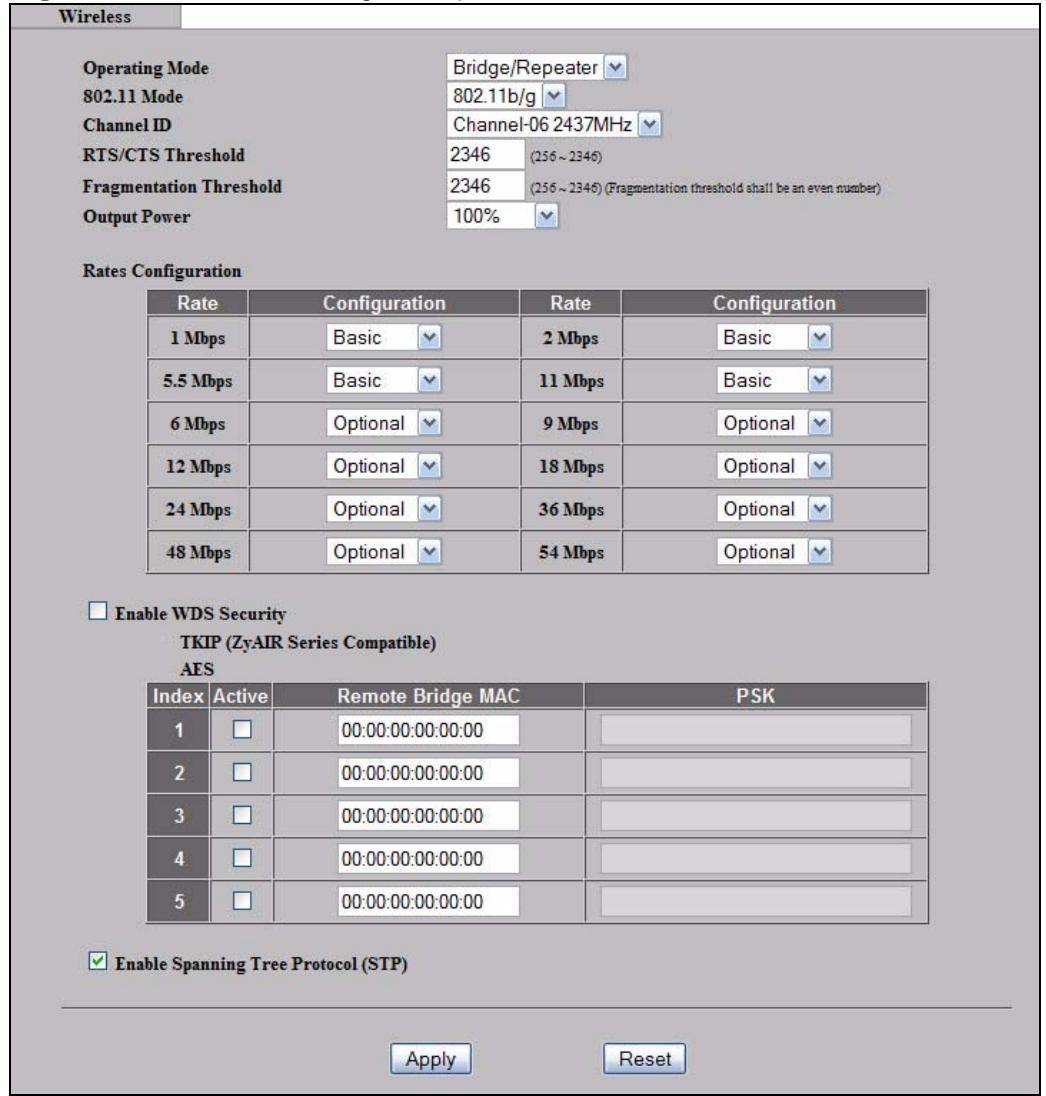
Figure 66 Wireless: Bridge / Repeater
The following table describes the bridge labels in this screen.
Table 21 Wireless: Bridge / Repeater
| LABEL | DESCRIPTIONS |
| Operating Mode | Select Bridge / Repeater in this field. |
| 802.11 mode | Select 802.11b/g to allow both IEEE802.11b and IEEE802.11g compliant WLAN devices to associate with the NWA. The transmission rate of your NWA might be reduced. Select 802.11a to allow only IEEE 802.11a compliant WLAN devices to associate with the NWA. Select 802.11n/g to allow only IEEE 802.11n and IEEE 802.11g compliant WLAN devices to associate with the NWA. Select 802.11n/a to allow only IEEE 802.11n and IEEE 802.11a compliant WLAN devices to associate with the NWA. |
| Choose Channel ID | Set the operating frequency/channel depending on your particular region. To manually set the NWA to use a channel, select a channel from the drop-down list box. Click MAINTENANCE and then the Channel Usage tab to open the Channel Usage screen to make sure the channel is not already used by another AP or independent peer-to-peer wireless network. To have the NWA automatically select a channel, click Scan instead. |
| RTS/CTS Threshold | Use RTS/CTS to reduce data collisions on the wireless network if you have wireless clients that are associated with the same AP but out of range of one another. When enabled, a wireless client sends an RTS (Request To Send) and then waits for a CTS (Clear To Send) before it transmits. This stops wireless clients from transmitting packets at the same time (and causing data collisions). A wireless client sends an RTS for all packets larger than the number (of bytes) that you enter here. Set the RTS/CTS equal to or higher than the fragmentation threshold to turn RTS/CTS off. |
| Fragmentation Threshold | The threshold (number of bytes) for the fragmentation boundary for directed messages. It is the maximum data fragment size that can be sent. Enter an even number between 256 and 2346. |
| Output Power | Set the output power of the NWA in this field. If there is a high density of APs in an area, decrease the output power of the NWA to reduce interference with other APs. Select from 100% (Full Power), 50%, 25%, 12.5% and Minimum. See the product specifications for more information on your NWA's output power. Note: Reducing the output power also reduces the NWA's effective broadcast radius. |
Table 21 Wireless: Bridge / Repeater
| LABEL | DESCRIPTIONS |
| Rates Configuration | This section controls the data rates permitted for clients.For each Rate, select an option from the Configuration list. The options are:Basic (1~11 Mbps only): Clients can always connect to the access point at this speed.Option: Clients can connect to the access point at this speed, when permitted to do so by the AP.Disabled: Clients cannot connect to the access point at this speed. |
| Enable WDS Security | Select this to turn on security for the NWA's Wireless Distribution System (WDS). A Wireless Distribution System is a wireless connection between two or more APs. If you do not select the check box, traffic between APs is not encrypted.Note: WDS security is independent of the security settings between the NWA and any wireless clients.When you enable WDS security, also do the following:Select the type of security you want to use (TKIP or AES) to secure traffic on your WDS.Enter a pre-shared key in the PSK field for each access point in your WDS. Each access point can use a different pre-shared keyConfigure WDS security and the relevant PSK in each of your other access point(s).Note: Other APs must use the same encryption method to enable WDS security. |
| TKIP (ZyAir Series Compatible) | Select this to enable Temporal Key Integrity Protocol (TKIP) security on your WDS. This option is compatible with other ZyXEL access points that support WDS security. Use this if the other access points on your network support WDS security but do not have an AES option.Note: Check your other AP's documentation to make sure it supports WDS security. |
| AES | Select this to enable Advanced Encryption System (AES) security on your WDS. AES provides superior security to TKIP. Use AES if the other access points on your network support it for the WDS.Note: At the time of writing, this option is compatible with other ZyXEL NWA access points only. |
| Index | This is the index number of the bridge connection. |
| Active | Select the check box to enable the bridge connection. Otherwise, clear the check box to disable it. |
| Remote Bridge MAC | Type the MAC address of the peer device in a valid MAC address format, that is, six hexadecimal character pairs, for example, 12:34:56:78:9a:bc. |
Table 21 Wireless: Bridge / Repeater
| LABEL | DESCRIPTIONS |
| PSK | Type a pre-shared key (PSK) from 8 to 63 case-sensitive ASCII characters (including spaces and symbols). You must also set the peer device to use the same pre-shared key. Each peer device can use a different pre-shared key. |
| Enable Spanning Tree Control (STP) | (R)STP (Section 8.3.5 on page 116) detects and breaks network loops and provides backup links between switches, bridges or routers. It allows a bridge to interact with other (R)STP -compliant bridges in your network to ensure that only one path exists between any two stations on the network. Select the check box to activate STP on the NWA. |
| Apply | Click Apply to save your changes. |
| Reset | Click Reset to begin configuring this screen afresh. |
8.2.3 AP + Bridge Mode
Use this screen to have the NWA function as a bridge and access point simultaneously. Select AP + Bridge as the Operating Mode. The following screen displays.
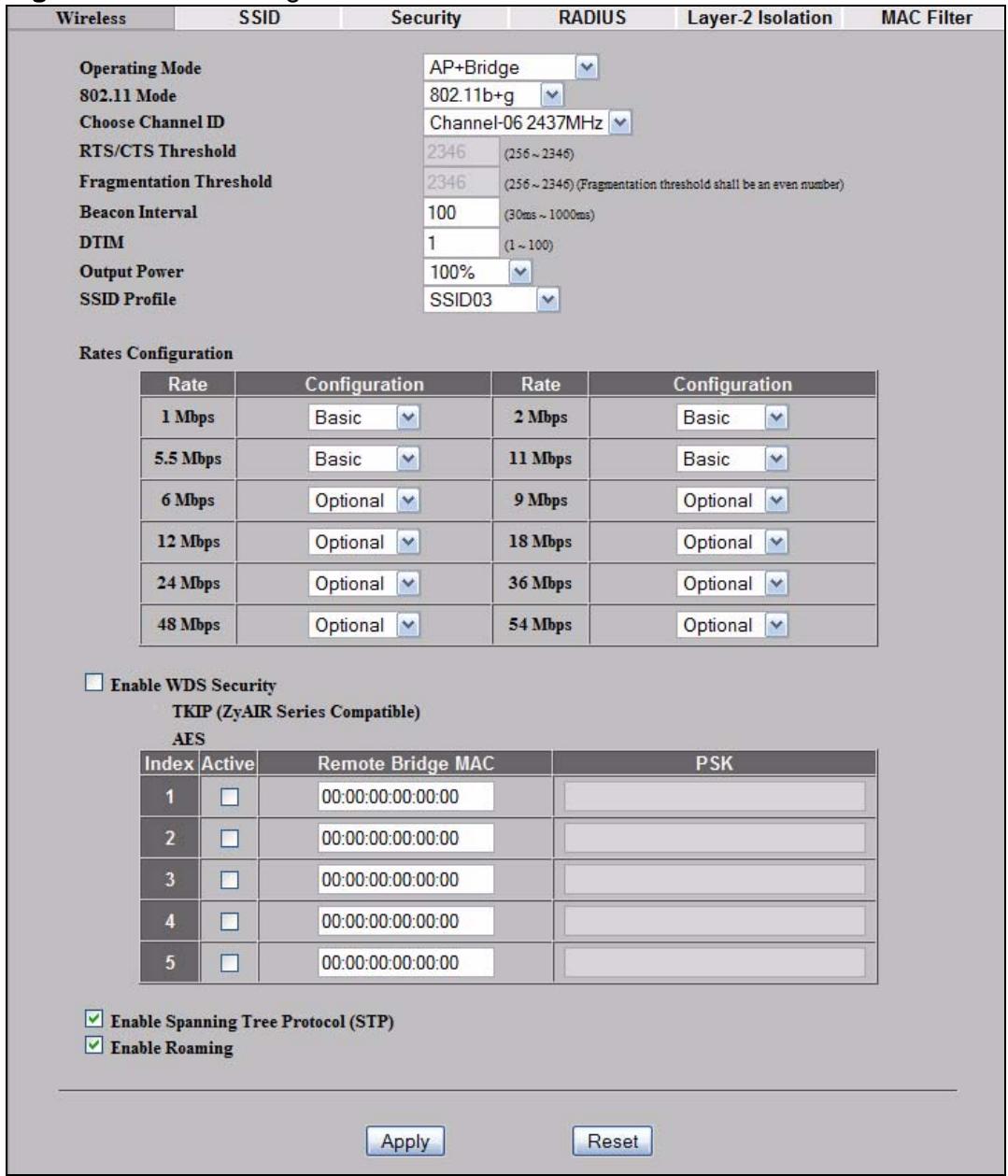
Figure 67 AP + Bridge
See the tables describing the fields in the Access Point and Bridge / Repeater operating modes for descriptions of the fields in this screen.
8.2.4 MBSSID Mode
Use this screen to have the NWA function in MBSSID mode. Select MBSSID as the Operating Mode. The following screen displays.
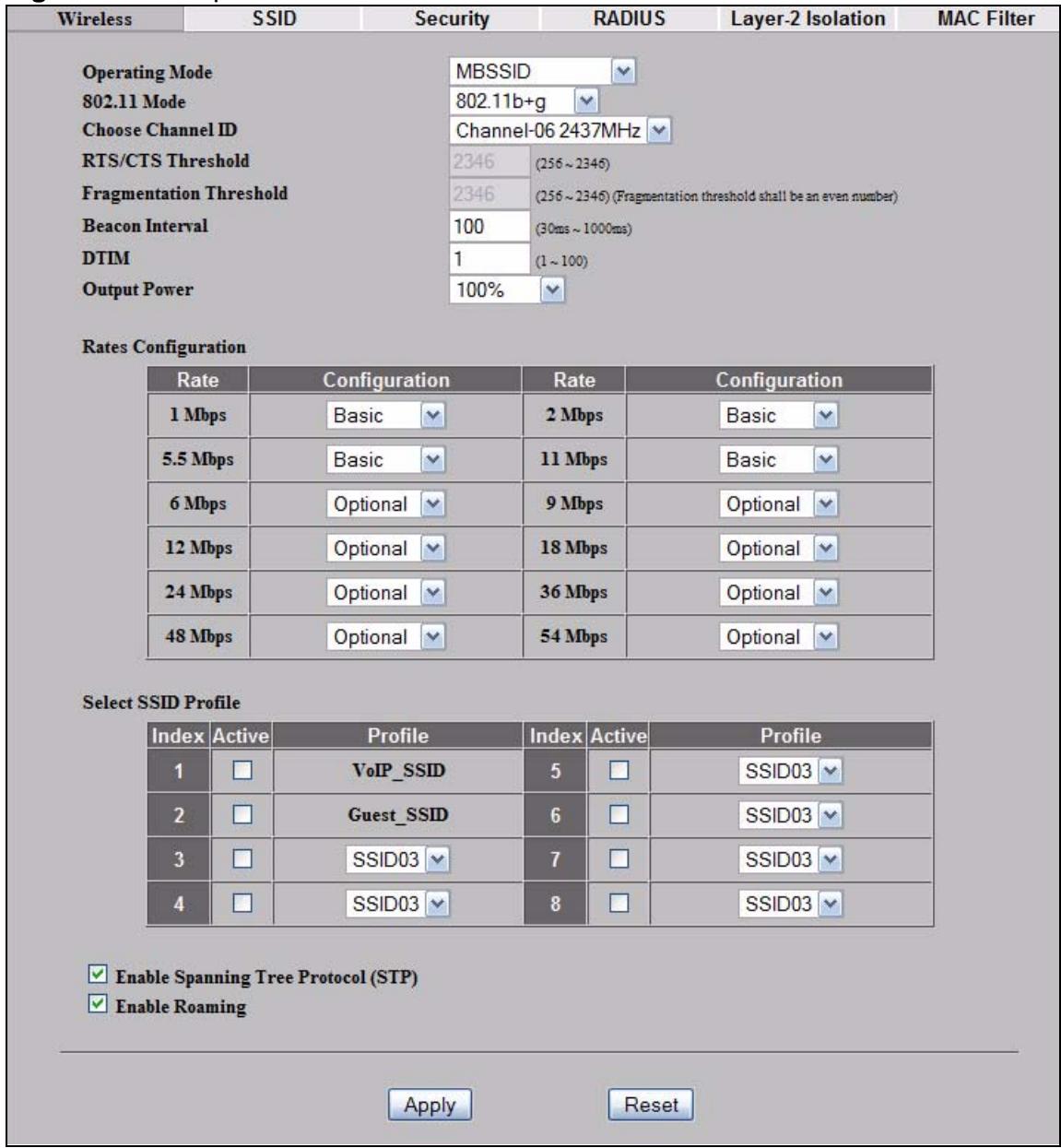
Figure 68 Multiple BSS
The following table describes the labels in this screen.
Table 22 Multiple BSS
| LABEL | DESCRIPTION |
| Operating Mode | Select MBSSID in this field to display the screen as shown |
| 802.11 Mode | Select 802.11b/g to allow both IEEE802.11b and IEEE802.11g compliant WLAN devices to associate with the NWA. The transmission rate of your NWA might be reduced. Select 802.11a to allow only IEEE 802.11a compliant WLAN devices to associate with the NWA. Select 802.11n/g to allow only IEEE 802.11n and IEEE 802.11g compliant WLAN devices to associate with the NWA. Select 802.11n/a to allow only IEEE 802.11n and IEEE 802.11a compliant WLAN devices to associate with the NWA. |
| Super Mode | Select this to improve data throughput on the WLAN by enabling fast frame and packet bursting. |
| Choose Channel ID | Set the operating frequency/channel depending on your particular region. To manually set the NWA to use a channel, select a channel from the drop-down list box. Click MAINTENANCE and then the Channel Usage tab to open the Channel Usage screen to make sure the channel is not already used by another AP or independent peer-to-peer wireless network. To have the NWA automatically select a channel, click Scan instead. |
| RTS/CTS Threshold | Use RTS/CTS to reduce data collisions on the wireless network if you have wireless clients that are associated with the same AP but out of range of one another. When enabled, a wireless client sends an RTS (Request To Send) and then waits for a CTS (Clear To Send) before it transmits. This stops wireless clients from transmitting packets at the same time (and causing data collisions). A wireless client sends an RTS for all packets larger than the number (of bytes) that you enter here. Set the RTS/CTS equal to or higher than the fragmentation threshold to turn RTS/CTS off. |
| Fragmentation Threshold | The threshold (number of bytes) for the fragmentation boundary for directed messages. It is the maximum data fragment size that can be sent. Enter an even number between 256 and 2346. |
| Beacon Interval | When a wirelessly networked device sends a beacon, it includes with it a beacon interval. This specifies the time period before the device sends the beacon again. The interval tells receiving devices on the network how long they can wait in low-power mode before waking up to handle the beacon. This value can be set from 30ms to 1000ms. A high value helps save current consumption of the access point. |
| DTIM | Delivery Traffic Indication Message (DTIM) is the time period after which broadcast and multicast packets are transmitted to mobile clients in the Active Power Management mode. A high DTIM value can cause clients to lose connectivity with the network. This value can be set from 1 to 100. |
Table 22 Multiple BSS
| LABEL | DESCRIPTION |
| Output Power | Set the output power of the NWA in this field. If there is a high density of APs in an area, decrease the output power to reduce interference with other APs. Select one of the following 100% (Full Power), 50%, 25%, 12.5% or Minimum. See the product specifications for more information on your NWA's output power.Note: Reducing the output power also reduces the NWA's effective broadcast radius. |
| Rates Configuration | This section controls the data rates permitted for clients.For each Rate, select an option from the Configuration list. The options are:Basic (1~11 Mbps only): Clients can always connect to the access point at this speed.Option: Clients can connect to the access point at this speed, when permitted to do so by the AP.Disabled: Clients cannot connect to the access point at this speed. |
| Select SSID Profile | An SSID profile is the set of parameters relating to one of the NWA's BSSs. The SSID (Service Set IDentifier) identifies the Service Set with which a wireless station is associated. Wireless stations associating with the access point (AP) must have the same SSID.Note: If you are configuring the NWA from a computer connected to the wireless LAN and you change the NWA's SSID or security settings, you will lose your wireless connection when you press Apply to confirm.You must then change the wireless settings of your computer to match the NWA's new settings. |
| Index | Select the check box to activate an SSID profile. |
| Profile | Select the profile(s) of the SSIDs you want to use in your wireless network. You can have up to eight BSSs running on the NWA simultaneously, one of which is always the pre-configured VoIP_SSID profile and another of which is always the pre-configured Guest_SSID profileConfigure SSID profiles in the SSID screen. |
| Enable Spanning Tree Control (STP) | (R)STP detects and breaks network loops and provides backup links between switches, bridges or routers. It allows a bridge to interact with other (R)STP -compliant bridges in your network to ensure that only one path exists between any two stations on the network SELECT the check box to activate STP on the NWA. |
| Enable Roaming | Roaming allows wireless stations to switch from one access point to another as they move from one coverage area to another. Select this checkbox to enable roaming on the NWA if you have two or more NWAs on the same subnet.Note: All APs on the same subnet and the wireless stations must have the same SSID to allow roaming. |
Table 22 Multiple BSS
| LABEL | DESCRIPTION |
| Apply | Click Apply to save your changes. |
| Reset | Click Reset to begin configuring this screen afresh. |
8.3 Technical Reference
This section provides technical background information about the topics covered in this chapter.
8.3.1 WMM QoS
WMM (Wi-Fi MultiMedia) QoS (Quality of Service) ensures quality of service in wireless networks. It controls WLAN transmission priority on packets to be transmitted over the wireless network.
WMM QoS prioritizes wireless traffic according to the delivery requirements of the individual and applications. WMM QoS is a part of the IEEE 802.11e QoS enhancement to certified Wi-Fi wireless networks.
On APs without WMM QoS, all traffic streams are given the same access priority to the wireless network. If the introduction of another traffic stream creates a data transmission demand that exceeds the current network capacity, then the new traffic stream reduces the throughput of the other traffic streams.
The NWA uses WMM QoS to prioritize traffic streams according to the IEEE 802.1q or DSCP information in each packet's header. The NWA automatically determines the priority to use for an individual traffic stream. This prevents reductions in data transmission for applications that are sensitive to latency and jitter (variations in delay).
8.3.1.1 WMM QoS Priorities
The following table describes the WMM QoS priority levels that the NWA uses.
Table 23 WMM QoS Priorities
| PRIORITY LEVEL | DESCRIPTION |
| voice (WMMVoice) | Typically used for traffic that is especially sensitive to jitter. Use this priority to reduce latency for improved voice quality. |
| video (WMMVIDEO) | Typically used for traffic which has some tolerance for jitter but needs to be prioritized over other data traffic. |
Table 23 WMM QoS Priorities
| PRIORITY LEVEL | DESCRIPTION |
| best effort(WMM BEST EFFORT) | Typically used for traffic from applications or devices that lack QoS capabilities. Use best effort priority for traffic that is less sensitive to latency, but is affected by long delays, such as Internet surfing. |
| background(WMM BACKGROUND) | This is typically used for non-critical traffic such as bulk transfers and print jobs that are allowed but that should not affect other applications and users. Use background priority for applications that do not have strict latency and throughput requirements. |
8.3.2 ATC
Automatic Traffic Classifier (ATC) is a bandwidth management tool that prioritizes data packets sent across the network. ATC assigns each packet a priority and then queues the packet accordingly. Packets assigned a high priority are processed more quickly than those with low priority if there is congestion, allowing time-sensitive applications to flow more smoothly. Time-sensitive applications include both those that require a low level of latency and a low level of jitter such as Voice over IP or Internet gaming, and those for which jitter alone is a problem such as Internet radio or streaming video.
ATC assigns priority based on packet size, since time-sensitive applications such as Internet telephony (Voice over IP or VoIP) tend to have smaller packet sizes than non-time sensitive applications such as FTP (File Transfer Protocol). The following table shows some common applications, their time sensitivity, and their typical data packet sizes. Note that the figures given are merely examples - sizes may differ according to application and circumstances.
Table 24 Typical Packet Sizes
| APPLICATION | TIME SENSITIVITY | TYPICAL PACKET SIZE (BYTES) |
| Voice over IP (SIP) | High | < 250 |
| Online Gaming | High | 60 ~ 90 |
| Web browsing (http) | Medium | 300 ~ 600 |
| FTP | Low | 1500 |
When ATC is activated, the device sends traffic with smaller packets before traffic with larger packets if the network is congested.
ATC assigns priority to packets as shown in the following table.
Table 25 Automatic Traffic Classifier Priorities
| PACKET SIZE (BYTES) | ATC PRIORITY |
| 1 ~ 250 | ATC_High |
| 250 ~ 1100 | ATC_Medium |
| 1100 + | ATC_Low |
You should activate ATC on the NWA if your wireless network includes networking devices that do not support WMM QoS, or if you want to prioritize traffic but do not want to configure WMM QoS settings.
8.3.3 ATC+WMM
The NWA can use a mapping mechanism to use both ATC and WMM QoS. The ATC + WMM function prioritizes all packets transmitted onto the wireless network using WMM QoS, and prioritizes all packets transmitted onto the wired network using ATC. See Section 9.2.1 on page 126 for details of how to configure ATC+WMM.
Use the ATC ^+ WMM function if you want to do the following:
- enable WMM QoS on your wireless network and automatically assign a WMM priority to packets that do not already have one (see Section 8.3.3.1 on page 114).
- automatically prioritize all packets going from your wireless network to the wired network (see Section 8.3.3.2 on page 115).
8.3.3.1 ATC+WMM from LAN to WLAN
ATC+WMM from LAN (the wired Local Area Network) to WLAN (the Wireless Local Area Network) allows WMM prioritization of packets that do not already have WMM QoS priorities assigned. The NWA automatically classifies data packets using ATC and then assigns WMM priorities based on that ATC classification.
The following table shows how priorities are assigned for packets coming from the LAN to the WLAN.
Table 26 ATC + WMM Priority Assignment (LAN to WLAN)
| PACKET SIZE (BYTES) | → | ATC VALUE | → | WMM VALUE |
| 1 ~ 250 | ATC_High | WMM Video | ||
| 250 ~ 1100 | ATC_Medium | WMM BEST EFFORT | ||
| 1100 + | ATC_Low | WMM BACKGROUND |
8.3.3.2 ATC+WMM from WLAN to LAN
ATC + WMM from WLAN to LAN automatically prioritizes (assigns an ATC value to) all packets coming from the WLAN. Packets are assigned an ATC value based on their WMM value, not their size.
The following table shows how priorities are assigned for packets coming from the WLAN to the LAN when using ATC+WMM.
Table 27 ATC + WMM Priority Assignment (WLAN to LAN)
| WMM VALUE | → | ATC VALUE |
| WMMVoice | ATC_High | |
| WMM Video | ATC_High | |
| WMM BEST EFFORT | ATC_Medium | |
| WMM BACKGROUND D | ATC_Low | |
| NONE | ATC_Medium |
8.3.4 Type Of Service (ToS)
Network traffic can be classified by setting the ToS (Type Of Service) values at the data source (for example, at the NWA) so a server can decide the best method of delivery, that is the least cost, fastest route and so on.
8.3.4.1 DiffServ
DiffServ is a class of service (CoS) model that marks packets so that they receive specific per-hop treatment at DiffServ-compliant network devices along the route based on the application types and traffic flow. Packets are marked with DiffServ Code Points (DSCPs) indicating the level of service desired. This allows the intermediary DiffServ-compliant network devices to handle the packets differently depending on the code points without the need to negotiate paths or remember state information for every flow. In addition, applications do not have to request a particular service or give advanced notice of where the traffic is going.
8.3.4.2 DSCP and Per-Hop Behavior
DiffServ defines a new DS (Differentiated Services) field to replace the Type of Service (TOS) field in the IP header. The DS field contains a 2-bit unused field and a 6-bit DSCP field which can define up to 64 service levels. The following figure illustrates the DS field.
Figure 69 DiffServ: Differentiated Service Field
| DSCP | Unused |
| (6-bit) | (2-bit) |
DSCP is backward compatible with the three precedence bits in the ToS octet so that non-DiffServ compliant, ToS-enabled network device will not conflict with the DSCP mapping.
The DSCP value determines the forwarding behavior, the PHB (Per-Hop Behavior), that each packet gets across the DiffServ network. Based on the marking rule, different kinds of traffic can be marked for different priorities of forwarding.
Resources can then be allocated according to the DSCP values and the configured policies.
8.3.4.3 ToS (Type of Service) and WMM QoS
The DSCP value of outgoing packets is between 0 and 255. 0 is the default priority. WMM QoS checks the DSCP value in the header of data packets. It gives the traffic a priority according to this number.
In order to control which priority level is given to traffic, the device sending the traffic must set the DSCP value in the header. If the DSCP value is not specified, then the traffic is treated as best-effort. This means the wireless clients and the devices with which they are communicating must both set the DSCP value in order to make the best use of WMM QoS. A Voice over IP (VoIP) device for example may allow you to define the DSCP value.
The following table lists which WMM QoS priority level the NWA uses for specific DSCP values.
Table 28 ToS and IEEE 802.1d to WMM QoS Priority Level Mapping
| DSCP VALUE | WMM QOS PRIORITY LEVEL |
| 224, 192 | voice |
| 160, 128 | video |
| 96, 0A | besteffort |
| 64, 32 | background |
A. The NWA also uses best effort for any DSCP value for which another WMM QoS priority is not specified (255, 158 or 37 for example).
8.3.5 Spanning Tree Protocol (STP)
STP detects and breaks network loops and provides backup links between switches, bridges or routers. It allows a bridge to interact with other STP-compliant bridges in your network to ensure that only one route exists between any two stations on the network.
8.3.5.1 Rapid STP
The NWA uses IEEE 802.1w RSTP (Rapid Spanning Tree Protocol) that allow faster convergence of the spanning tree (while also being backwards compatible with
STP-only aware bridges). Using RSTP topology change information does not have to propagate to the root bridge and unwanted learned addresses are flushed from the filtering database. In RSTP, the port states are Discarding, Learning, and Forwarding.
8.3.5.2 STP Terminology
The root bridge is the base of the spanning tree; it is the bridge with the lowest identifier value (MAC address).
Path cost is the cost of transmitting a frame onto a LAN through that port. It is assigned according to the speed of the link to which a port is attached. The slower the media, the higher the cost - see the following table.
Table 29 STP Path Costs
| LINK SPEED | RECOMMENDE D VALUE | RECOMMENDE RANGE | ALLOWED RANGE | |
| Path Cost | 4Mbps | 250 | 100 to 1000 | 1 to 65535 |
| Path Cost | 10Mbps | 100 | 50 to 600 | 1 to 65535 |
| Path Cost | 16Mbps | 62 | 40 to 400 | 1 to 65535 |
| Path Cost | 100Mbps | 19 | 10 to 60 | 1 to 65535 |
| Path Cost | 1Gbps | 4 | 3 to 10 | 1 to 65535 |
| Path Cost | 10Gbps | 2 | 1 to 5 | 1 to 65535 |
On each bridge, the root port is the port through which this bridge communicates with the root. It is the port on this switch with the lowest path cost to the root (the root path cost). If there is no root port, then this bridge has been accepted as the root bridge of the spanning tree network.
For each LAN segment, a designated bridge is selected. This bridge has the lowest cost to the root among the bridges connected to the LAN.
8.3.5.3 How STP Works
After a bridge determines the lowest cost-spanning tree with STP, it enables the root port and the ports that are the designated ports for connected LANs, and disables all other ports that participate in STP. Network packets are therefore only forwarded between enabled ports, eliminating any possible network loops.
STP-aware bridges exchange Bridge Protocol Data Units (BPDUs) periodically. When the bridged LAN topology changes, a new spanning tree is constructed.
Once a stable network topology has been established, all bridges listen for Hello BPDUs (Bridge Protocol Data Units) transmitted from the root bridge. If a bridge does not get a Hello BPDU after a predefined interval (Max Age), the bridge assumes that the link to the root bridge is down. This bridge then initiates
negotiations with other bridges to reconfigure the network to re-establish a valid network topology.
8.3.5.4 STP Port States
STP assigns five port states (see next table) to eliminate packet looping. A bridge port is not allowed to go directly from blocking state to forwarding state so as to eliminate transient loops.
Table 30 STP Port States
| PORT STATES | DESCRIPTIONS |
| Disabled | STP is disabled (default). |
| Blocking | Only configuration and management BPDUs are received and processed. |
| Listening | All BPDUs are received and processed. |
| Learning | All BPDUs are received and processed. Information frames are submitted to the learning process but not forwarded. |
| Forwarding | All BPDUs are received and processed. All information frames are received and forwarded. |
8.3.6 DFS
When you choose 802.11a in Access Point mode, the NWA uses DFS (Dynamic Frequency Selection) to give you a wider choice of wireless channels.
DFS allows you to use channels in the frequency range normally reserved for radar systems. Radar uses radio signals to detect the location of objects for military, meteorological or air traffic control purposes. As long as your NWA detects no radar activity on the channel you select, you can use the channel to communicate. However, a wireless LAN operating on the same frequency as an active radar system could disrupt the radar system. Therefore, if the NWA detects radar activity on the channel you select, it automatically instructs the wireless clients to move to another channel, then resumes communications on the new channel.
8.3.7 Roaming
A wireless station is a device with an IEEE 802.11a/b/g/n compliant wireless interface. An access point (AP) acts as a bridge between the wireless and wired networks. An AP creates its own wireless coverage area. A wireless station can associate with a particular access point only if it is within the access point's coverage area.
In a network environment with multiple access points, wireless stations are able to switch from one access point to another as they move between the coverage
areas. This is known as roaming. As the wireless station moves from place to place, it is responsible for choosing the most appropriate access point depending on the signal strength, network utilization or other factors.
The roaming feature on the access points allows the access points to relay information about the wireless stations to each other. When a wireless station moves from a coverage area to another, it scans and uses the channel of a new access point, which then informs the other access points on the LAN about the change. An example is shown in Figure 70 on page 119.
With roaming, a wireless LAN mobile user enjoys a continuous connection to the wired network through an access point while moving around the wireless LAN.
Enable roaming to exchange the latest bridge information of all wireless stations between APs when a wireless station moves between coverage areas. Wireless stations can still associate with other APs even if you disable roaming. Enabling roaming ensures correct traffic forwarding (bridge tables are updated) and maximum AP efficiency. The AP deletes records of wireless stations that associate with other APs (Non-ZyXEL APs may not be able to perform this). 802.1x authentication information is not exchanged (at the time of writing).
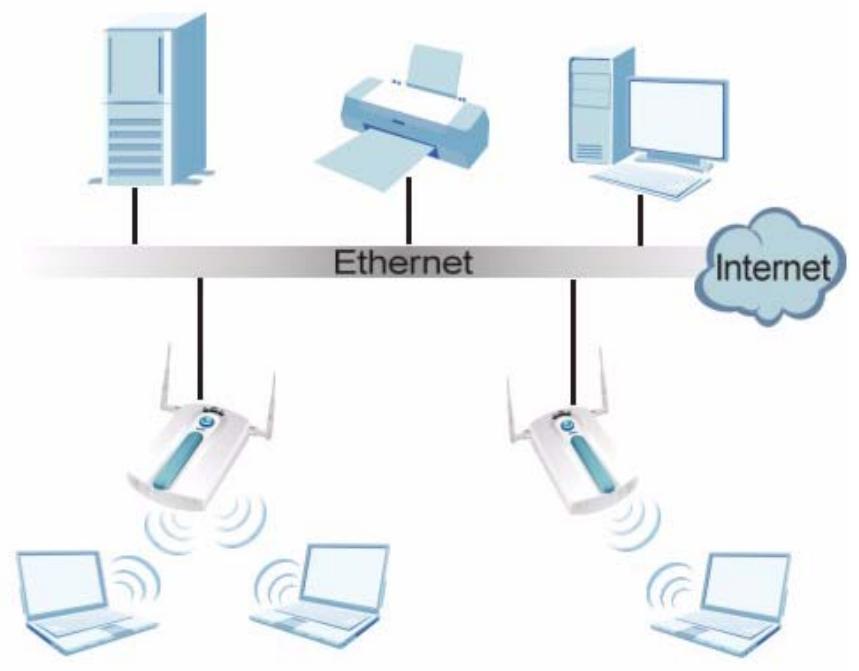
Figure 70 Roaming Example
The steps below describe the roaming process.
1 Wireless station Y moves from the coverage area of access point AP 1 to that of access point AP 2.
2 Wireless station Y scans and detects the signal of access point AP 2.
3 Wireless station Y sends an association request to access point AP 2.
4 Access point AP 2 acknowledges the presence of wireless station Y and relays this information to access point AP 1 through the wired LAN.
5 Access point AP 1 updates the new position of wireless station Y.
8.3.7.1 Requirements for Roaming
The following requirements must be met in order for wireless stations to roam between the coverage areas.
- All the access points must be on the same subnet and configured with the same ESSID.
- If IEEE 802.1x user authentication is enabled and to be done locally on the access point, the new access point must have the user profile for the wireless station.
- The adjacent access points should use different radio channels when their coverage areas overlap.
- All access points must use the same port number to relay roaming information.
- The access points must be connected to the Ethernet and be able to get IP addresses from a DHCP server if using dynamic IP address assignment.
To enable roaming on your NWA, click WIRELESS > Wireless. The screen appears as shown.
Figure 71 Enabling Roaming
Select the Enable Roaming check box and click Apply.
Note: Roaming cannot be enabled in Bridge / Repeater mode.
8.3.8 Additional Wireless Terms
Table 31 Additional Wireless Terms
| TERM | DESCRIPTION |
| Intra-BSS Traffic | This describes direct communication (not through the NWA) between two wireless devices within a wireless network. You might disable this kind of communication to enhance security within your wireless network. |
| RTS/CTS Threshold | In a wireless network which covers a large area, wireless devices are sometimes not aware of each other's presence. This may cause them to send information to the AP at the same time and result in information colliding and not getting through. By setting this value lower than the default value, the wireless devices must sometimes get permission to send information to the NWA. The lower the value, the more often the devices must get permission. If this value is greater than the fragmentation threshold value (see below), then wireless devices never have to get permission to send information to the NWA. |
| Preamble | A preamble affects the timing in your wireless network. There are two preamble modes: long and short. If a device uses a different preamble mode than the NWA does, it cannot communicate with the NWA. |
| Fragmentation Threshold | A small fragmentation threshold is recommended for busy networks, while a larger threshold provides faster performance if the network is not very busy. |
| Roaming | If you have two or more NWAs (or other wireless access points) on your wireless network, you can enable this option so that wireless devices can change locations without having to log in again. This is useful for devices, such as notebooks, that move around a lot. |
| Antenna | An antenna couples Radio Frequency (RF) signals onto air. A transmitter within a wireless device sends an RF signal to the antenna, which propagates the signal through the air. The antenna also operates in reverse by capturing RF signals from the air. Positioning the antennas properly increases the range and coverage area of a wireless LAN. |
9.1 Overview
This chapter describes how you can configure Service Set Identifier (SSID) profiles in your NWA.
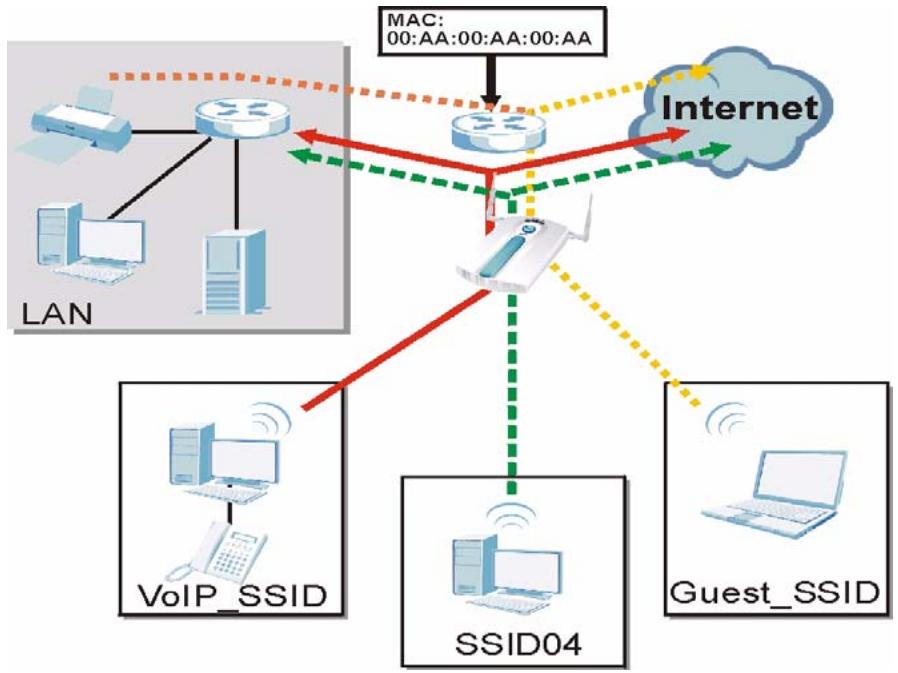
Figure 72 Sample SSD Profiles
In the figure above, the NWA has three SSID profiles configured: a standard profile (SSID04), a profile with high QoS settings for Voice over IP (VoIP) users (VoIP_SSID), and a guest profile that allows visitors access only the Internet and the network printer (Guest_SSID).
9.1.1 What You Can Do in the SSD Screen
Use the Wireless > SSD screen (see Section 9.2 on page 125) to configure up to 16 SSD profiles for your NWA.
9.1.2 What You Need To Know About SSD
The following terms and concepts may help as you read through this chapter.
When the NWA is set to Access Point, AP + Bridge or MBSSID mode, you need to choose the SSID profile(s) you want to use in your wireless network (see page 97 for more information on operating modes).
To configure the settings of your SSID profile, you need to know the Media Access Control (MAC) addresses of the devices you want to allow access to it.
Each SSID profile references the settings configured in the following screens:
- Wireless > Security (one of the security profiles).
- Wireless > RADIUS (one of the RADIUS profiles).
- Wireless > MAC Filter (the MAC filter list, if activated in the SSID profile).
- Wireless > Layer 2 Isolation (the layer 2 isolation list, if activated in the SSID profile).
- Also, use the VLAN screen to set up wireless VLANs based on SSID.
Configure the fields in the above screens to use the settings in an SSID profile.
9.2 The SSID Screen
Use this screen to select the SSID profile you want to configure. Click Wireless > SSID to display the screen as shown.
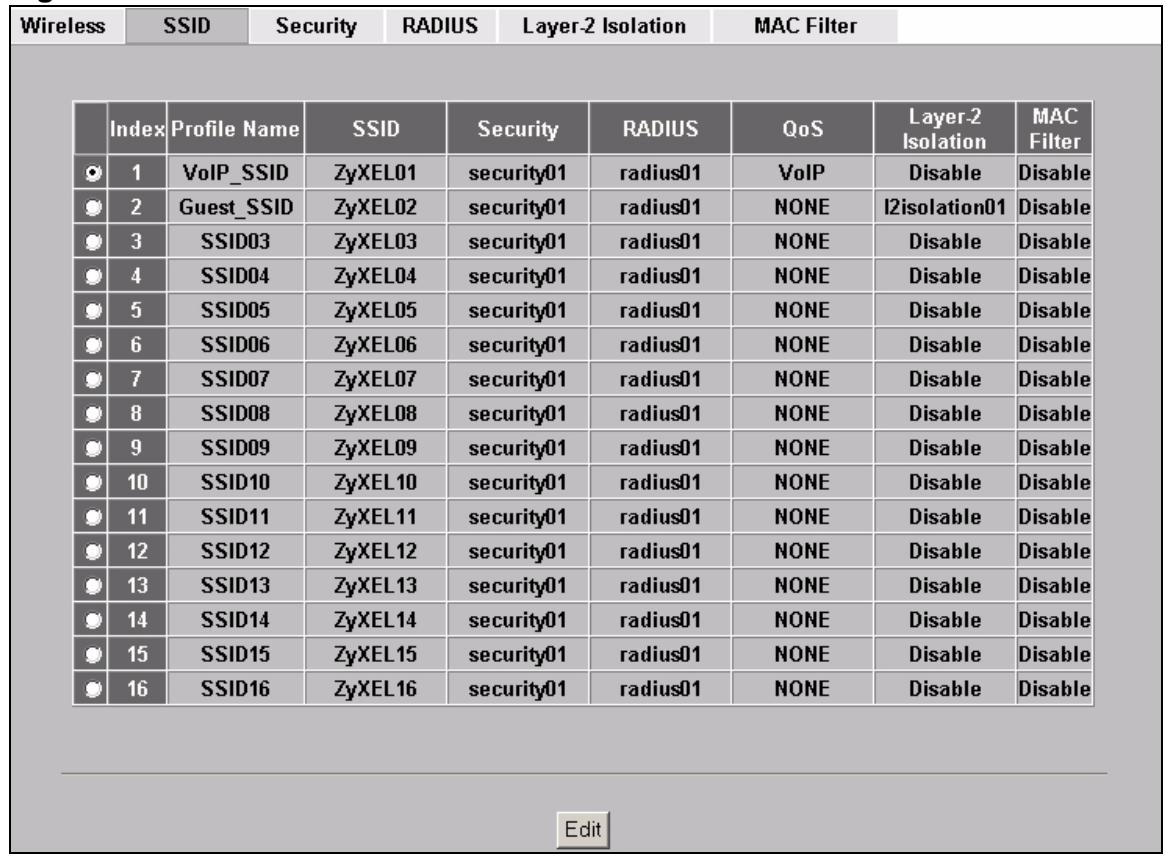
Figure 73 SSD
The following table describes the labels in this screen.
Table 32 SSID
| LABEL | DESCRIPTION |
| Index | This field displays the index number of each SSID profile. |
| Profile Name | This field displays the identification name of each SSID profile on the NWA. |
| SSID | This field displays the name of the wireless profile on the network. When a wireless client scans for an AP to associate with, this is the name that is broadcast and seen in the wireless client utility. |
| Security | This field indicates which security profile is currently associated with each SSID profile. See Section 10.2 on page 132 for more information. |
| RADIUS | This field displays which RADIUS profile is currently associated with each SSID profile, if you have a RADIUS server configured. |
| QoS | This field displays the Quality of Service setting for this profile or NONE if QoS is not configured on a profile. |
Table 32 SSID
| LABEL | DESCRIPTION |
| Layer 2 Isolation | This field displays which layer 2 isolation profile is currently associated with each SSID profile, or Disable if Layer 2 Isolation is not configured on an SSID profile. |
| MAC Filter | This field displays which MAC filter profile is currently associated with each SSID profile, or Disable if MAC filtering is not configured on an SSID profile. |
| Edit | Click the radio button next to the profile you want to configure and click Edit to go to the SSID configuration screen. |
9.2.1 Configuring SSD
Use this screen to configure an SSID profile. Select an SSID profile in Wireless > SSID and click Edit to display the following screen.
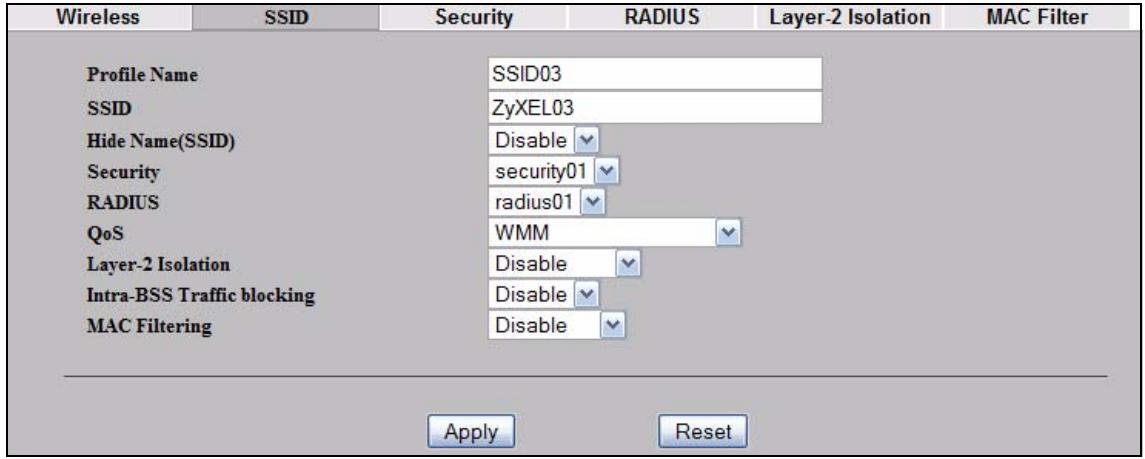
Figure 74 Configuring SSID
The following table describes the labels in this screen.
Table 33 Configuring SSD
| LABEL | DESCRIPTION |
| Profile Name | Enter a name to identify this profile. |
| SSID | When a wireless client scans for an AP to associate with, this is the name that is broadcast and seen in the wireless client utility. |
| Hide Name (SSID) | Select Disable if you want the NWA to broadcast thisSSID (a wireless client scanning for an AP will find thisSSID). Alternatively, select Enable to have the NWA hide thisSSID (a wireless client scanning for an AP will not find thisSSID). |
| Security | Select a security profile to use with thisSSID profile. See Section 10.2 on page 132 for more information. |
| RADIUS | Select a RADIUS profile from the drop-down list box, if you have a RADIUS server configured. If you do not need to use RADIUS authentication, ignore this field. See Section 11.2 on page 143 for more information. |
Table 33 Configuring SSD
| LABEL | DESCRIPTION |
| QoS | Displays the Quality of Service priority for this BSS's traffic. • In the pre-configured VoIP_SSID profile, the QoS setting is VoIP. This is not user-configurable. The VoIP setting is available only on the VoIP_SSID profile, and provides the highest level of QoS. • If you select WMM from the QoS list, the priority of a data packet depends on the packet's IEEE 802.1q or DSCP header. If a packet has no WMM value assigned to it, it is assigned the default priority. • If you select ATC from the QoS list, the NWA automatically assigns priority based on packet size. • If you select ATC+WMM from the QoS list, the NWA uses WMM on the wireless network and ATC on the wired network. • If you select WMMVoice, WMMVIDEO, WMMBEST_effORT or WMMBACKGROUND, the NWA applies that QoS setting to all of that SSID's traffic. • If you select NONE, the NWA applies no priority to traffic on this SSID. Note: When you configure an SSID profile's QoS settings, the NWA applies the same QoS setting to all of the profile's traffic. |
| L2 Isolation | Select a layer 2 isolation profile from the drop-down list box. If you do not want to use layer 2 isolation on this profile, select Disable. |
| Intra-BSS Traffic blocking | Select Enable from the drop-down list box to prevent wireless clients in this profile's BSS from communicating with one another. |
| MAC Filtering | Select a MAC filter profile from the drop-down list box. If you do not want to use MAC filtering on this profile, select Disable. |
| Apply | Click Apply to save your changes. |
| Reset | Click Reset to begin configuring this screen afresh. |
Wireless Security Screen
10.1 Overview
This chapter describes how to use the Wireless Security screen. This screen allows you to configure the security mode for your NWA.
Wireless security is vital to your network. It protects communications between wireless stations, access points and the wired network.
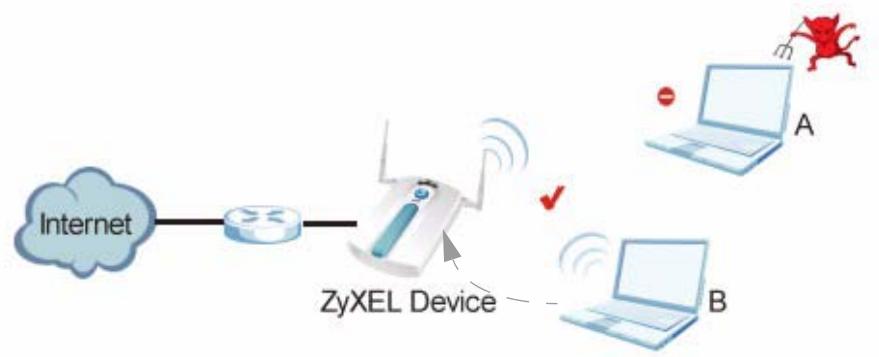
Figure 75 Securing the Wireless Network
In the figure above, the NWA checks the identity of devices before giving them access to the network. In this scenario, Computer A is denied access to the network, while Computer B is granted connectivity.
The NWA secure communications via data encryption, wireless client authentication and MAC address filtering. It can also hide its identity in the network.
10.1.1 What You Can Do in the Security Screen
Use the Wireless > Security screen (see Section 10.2 on page 132) to choose the security mode for your NWA.
10.1.2 What You Need To Know About Wireless Security
The following terms and concepts may help as you read through this chapter.
User Authentication
Authentication is the process of verifying whether a wireless device is allowed to use the wireless network. You can make every user log in to the wireless network before they can use it. However, every device in the wireless network has to support IEEE 802.1x to do this.
For wireless networks, you can store the user names and passwords for each user in a RADIUS server. This is a server used in businesses more than in homes. If you do not have a RADIUS server, you cannot set up user names and passwords for your users.
Unauthorized wireless devices can still see the information that is sent in the wireless network, even if they cannot use the wireless network. Furthermore, there are ways for unauthorized wireless users to get a valid user name and password. Then, they can use that user name and password to use the wireless network.
You can configure up to 16 security profiles in your NWA. The following table shows the relative effectiveness of wireless security methods:.
Table 34 Wireless Security Levels
| SECURITY LEVEL | SECURITY TYPE |
| Least Secure Most Secure | Unique SSID (Default) |
| Unique SSID with Hide SSID Enabled | |
| MAC Address Filtering | |
| WEP Encryption | |
| IEEE802.1x EAP with RADIUS Server Authentication | |
| Wi-Fi Protected Access (WPA) | |
| WPA2 |
The available security modes in your NWA are as follows:
- None. No data encryption.
-
WEP. Wired Equivalent Privacy (WEP) encryption scrambles the data transmitted between the wireless stations and the access points to keep network communications private.
-
802.1x-Only. This is a standard that extends the features of IEEE 802.11 to support extended authentication. It provides additional accounting and control features. This option does not support data encryption.
- 802.1x-Static64. This provides 802.1x-Only authentication with a static 64bit WEP key and an authentication server.
- 802.1x-Static128. This provides 802.1x-Only authentication with a static 128bit WEP key and an authentication server.
- WPA. Wi-Fi Protected Access (WPA) is a subset of the IEEE 802.11i standard.
- WPA2. WPA2 (IEEE 802.11i) is a wireless security standard that defines stronger encryption, authentication and key management than WPA.
- WPA2-MIX. This commands the NWA to use either WPA2 or WPA depending on which security mode the wireless client uses.
- WPA2-PSK. This adds a pre-shared key on top of WPA2 standard.
- WPA2-PSK-MIX. This commands the NWA to use either WPA-PSK or WPA2-PSK depending on which security mode the wireless client uses.
Passphrase
A passphrase functions like a password. In WEP security mode, it is further converted by the NWA into a complicated string that is referred to as the "key". This key is requested from all devices wishing to connect to a wireless network.
PSK
The Pre-Shared Key (PSK) is a password shared by a wireless access point and a client during a previous secure connection. The key can then be used to establish a connection between the two parties.
Encryption
Encryption is the process of converting data into unreadable text. This secures information in network communications. The intended recipient of the data can "unlock" it with a pre-assigned key, making the information readable only to him. The NWA when used as a wireless client employs Temporal Key Integrity Protocol (TKIP) data encryption.
EAP
Extensible Authentication Protocol (EAP) is a protocol used by a wireless client, an access point and an authentication server to negotiate a connection.
The EAP methods employed by the NWA when in Wireless Client operating mode are Transport Layer Security (TLS), Protected Extensible Authentication Protocol (PEAP), Lightweight Extensible Authentication Protocol (LEAP) and Tunnelled Transport Layer Security (TTLS). The authentication protocol may either be
Microsoft Challenge Handshake Authentication Protocol Version 2 (MSCHAPv2) or Generic Token Card (GTC).
Further information on these terms can be found in Appendix B on page 255.
10.2 The Security Screen
Note: The following screens are configurable only in Access Point, AP + Bridge and MBSSID operating modes.
Use this screen to choose and edit a security profile. Click Wireless > Security. The following screen displays.
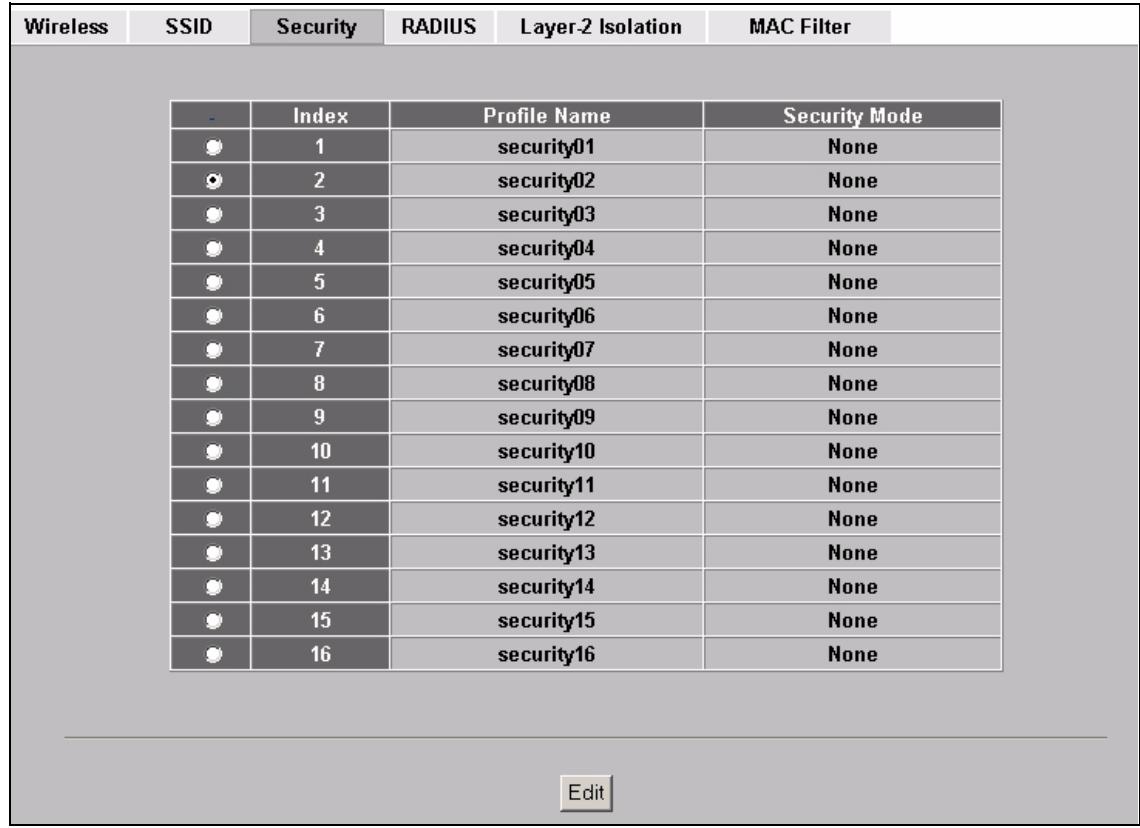
Figure 76 Wireless > Security
The following table describes the labels in this screen.
Table 35 Wireless > Security
| LABEL | DESCRIPTION |
| Index | This is the index number of the security profile. |
| Profile Name | This field displays a name given to a security profile in the Security configuration screen. |
Table 35 Wireless > Security
| LABEL | DESCRIPTION |
| Security Mode | This field displays the security mode this security profile uses. |
| Edit | Select an entry from the list and click Edit to configure security settings for that profile. |
After selecting the security profile you want to edit, the following screen appears. Enter the name you want to call this security profile in the Profile Name field.
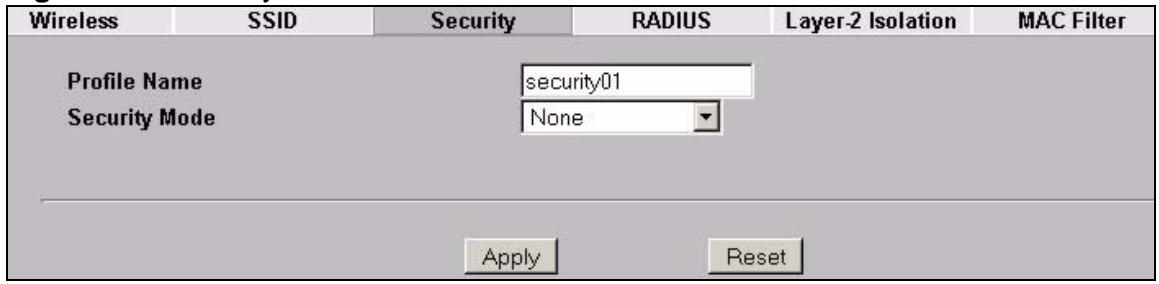
Figure 77 Security Profile
The next screen varies according to the Security Mode you select.
10.2.1 Security: WEP
Use this screen to set the selected profile to Wired Equivalent Privacy (WEP) security mode. Select WEP in the Security Mode field to display the following screen.
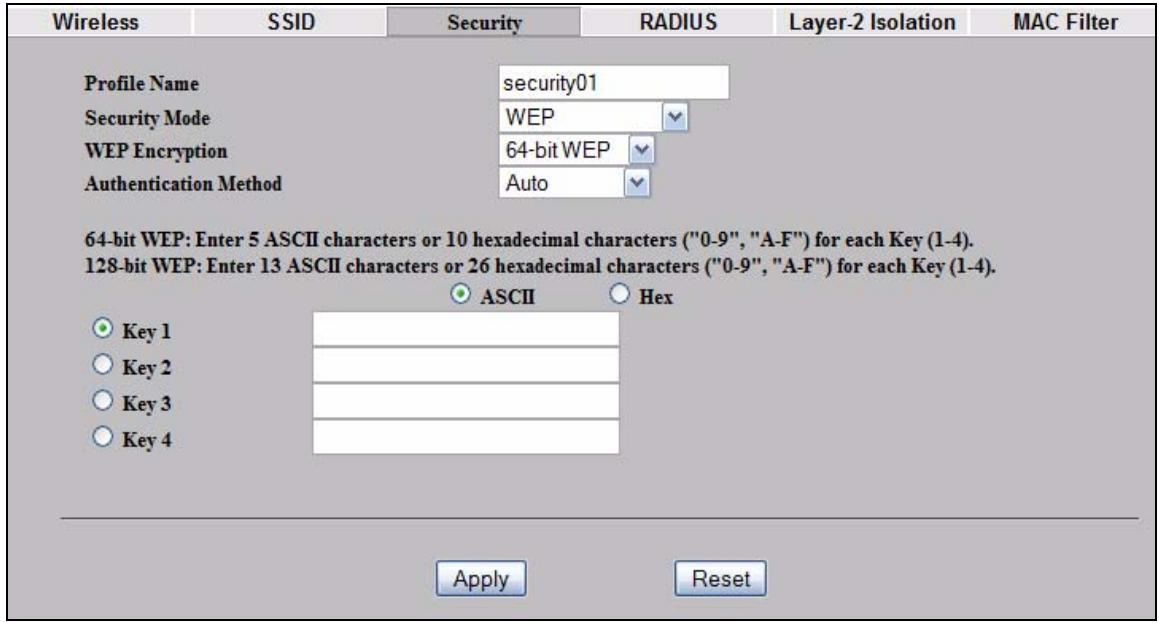
Figure 78 Security: WEP
The following table describes the labels in this screen.
Table 36 Security: WEP
| LABEL | DESCRIPTION |
| Profile Name | Type a name to identify this security profile. |
| Security Mode | Choose WEP in this field. |
| WEP Encryption | Select Disable to allow wireless stations to communicate with the access points without any data encryption. Select 64-bit WEP or 128-bit WEP to enable data encryption. |
| Authentication Method | Select Auto or Shared Key from the drop-down list box. The default setting is Auto. |
| ASCII | Select this option to enter ASCII characters as the WEP keys. |
| Hex | Select this option to enter hexadecimal characters as the WEP keys. The preceding "0x" is entered automatically. |
| Key 1 to Key 4 | The WEP keys are used to encrypt data. Both the NWA and the wireless stations must use the same WEP key for data transmission. If you chose 64-bit WEP, then enter any 5 ASCII characters or 10 hexadecimal characters ("0-9", "A-F"). If you chose 128-bit WEP, then enter 13 ASCII characters or 26 hexadecimal characters ("0-9", "A-F"). You must configure all four keys, but only one key can be activated at any one time. The default key is key 1. |
| Apply | Click Apply to save your changes. |
| Reset | Click Reset to begin configuring this screen afresh. |
10.2.2 Security: 802.1x Only
Use this screen to set the selected profile to 802.1x Only security mode. Select 802.1x-Only in the Security Mode field to display the following screen.
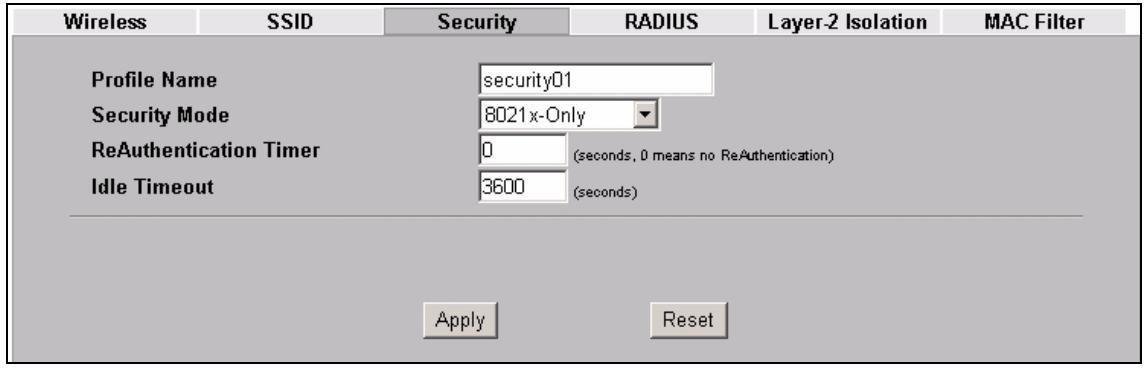
Figure 79 Security: 802.1x Only
The following table describes the labels in this screen.
Table 37 Security: 802.1x Only
| LABEL | DESCRIPTION |
| Profile Name | Type a name to identify this security profile. |
| Security Mode | Choose 802.1x Only in this field. |
| ReAuthentication Timer | Specify how often wireless stations have to resend user names and passwords in order to stay connected. Enter a time interval between 10 and 9999 seconds. The default time interval is 1800 seconds (30 minutes). Alternatively, enter “0” to turn reauthentication off. Note: If wireless station authentication is done using a RADIUS server, the reauthentication timer on the RADIUS server has priority. |
| Idle Timeout | The NWA automatically disconnects a wireless station from the wired network after a period of inactivity. The wireless station needs to enter the user name and password again before access to the wired network is allowed. The default time interval is 3600 seconds (or 1 hour). |
| Apply | Click Apply to save your changes. |
| Reset | Click Reset to begin configuring this screen afresh. |
10.2.3 Security: 802.1x Static 64-bit, 802.1x Static 128-bit
Use this screen to set the selected profile to 802.1x Static 64 or 802.1x Static 128 security mode. Select 802.1x Static 64 or 802.1x Static 128 in the Security Mode field to display the following screen.
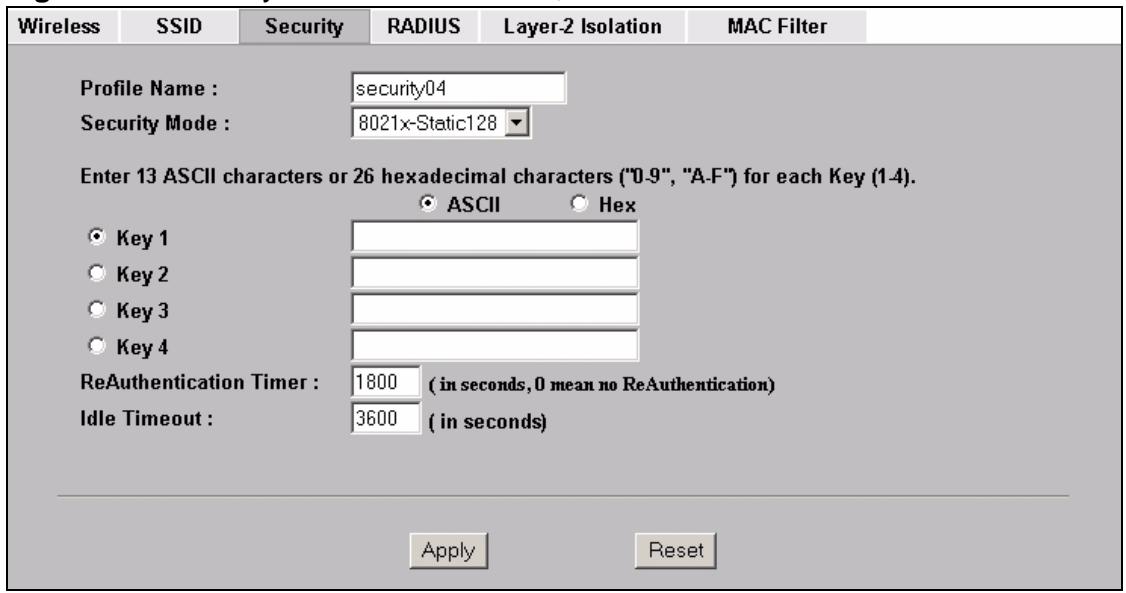
Figure 80 Security: 802.1x Static 64-bit, 802.1x Static 128-bit
The following table describes the labels in this screen.
Table 38 Security: 802.1x Static 64-bit, 802.1x Static 128-bit
| LABEL | DESCRIPTION |
| Profile Name | Type a name to identify this security profile. |
| Security Mode | Choose 802.1x Static 64 or 802.1x Static 128 in this field. |
| ASCII | Select this option to enter ASCII characters as the WEP keys. |
| Hex | Select this option to enter hexadecimal characters as the WEP keys. The preceding "0x" is entered automatically. |
| Key 1 to Key 4 | If you chose 802.1x Static 64, then enter any 5 characters (ASCII string) or 10 hexadecimal characters ("0-9", "A-F") preceded by 0x for each key. If you chose 802.1x Static 128-bit, then enter 13 characters (ASCII string) or 26 hexadecimal characters ("0-9", "A-F") preceded by 0x for each key. There are four data encryption keys to secure your data from eavesdropping by unauthorized wireless users. The values for the keys must be set up exactly the same on the access points as they are on the wireless stations. The preceding "0x" is entered automatically. You must configure all four keys, but only one key can be activated at any one time. The default key is key 1. |
| ReAuthentication Timer | Specify how often wireless stations have to resend user names and passwords in order to stay connected. Enter a time interval between 10 and 9999 seconds. The default time interval is 1800 seconds (30 minutes). Alternatively, enter "0" to turn reauthentication off. Note: If wireless station authentication is done using a RADIUS server, the reauthentication timer on the RADIUS server has priority. |
| Idle Timeout | The NWA automatically disconnects a wireless station from the wired network after a period of inactivity. The wireless station needs to enter the user name and password again before access to the wired network is allowed. The default time interval is 3600 seconds (or 1 hour). |
| Apply | Click Apply to save your changes. |
| Reset | Click Reset to begin configuring this screen afresh. |
10.2.4 Security: WPA
Use this screen to set the selected profile to Wi-Fi Protected Access (WPA) security mode. Select WPA in the Security Mode field to display the following screen.
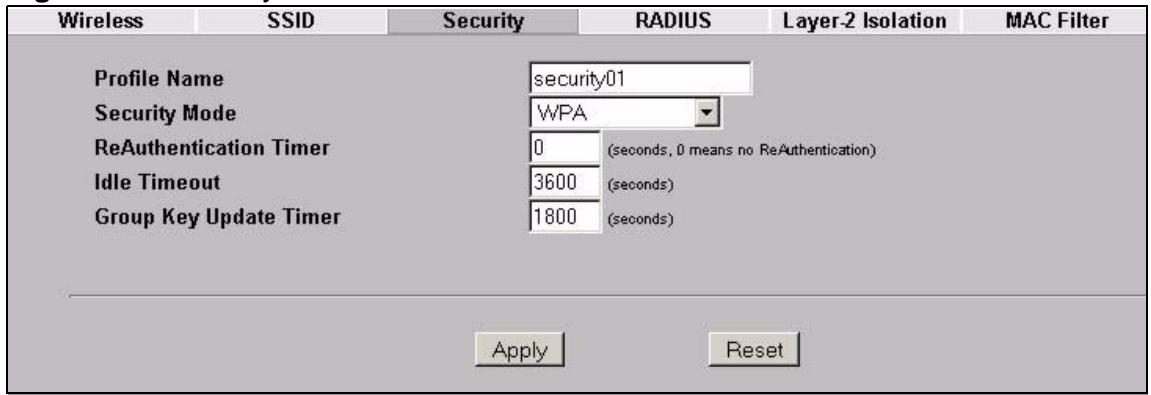
Figure 81 Security: WPA
The following table describes the labels in this screen.
Table 39 Security: WPA
| LABEL | DESCRIPTION |
| Profile Name | Type a name to identify this security profile. |
| Security Mode | Choose WPA in this field. |
| ReAuthentication Timer | Specify how often wireless stations have to resend user names and passwords in order to stay connected. Enter a time interval between 10 and 9999 seconds. The default time interval is 1800 seconds (30 minutes). Alternatively, enter “0” to turn reauthentication off. Note: If wireless station authentication is done using a RADIUS server, the reauthentication timer on the RADIUS server has priority. |
| Idle Timeout | The NWA automatically disconnects a wireless station from the wired network after a period of inactivity. The wireless station needs to enter the user name and password again before access to the wired network is allowed. The default time interval is 3600 seconds (or 1 hour). |
| Group Key Update Timer | The Group Key Update Timer is the rate at which the AP sends a new group key out to all clients. The re-keying process is the WPA equivalent of automatically changing the group key for an AP and all stations in a WLAN on a periodic basis. Setting of the Group Key Update Timer is also supported in WPA-PSK mode. The NWA default is 1800 seconds (30 minutes). |
| Apply | Click Apply to save your changes. |
| Reset | Click Reset to begin configuring this screen afresh. |
10.2.5 Security: WPA2 or WPA2-MIX
Use this screen to set the selected profile to WPA2 or WPA2-MIX security mode. Select WPA2 or WPA2-MIX in the Security Mode field to display the following screen.
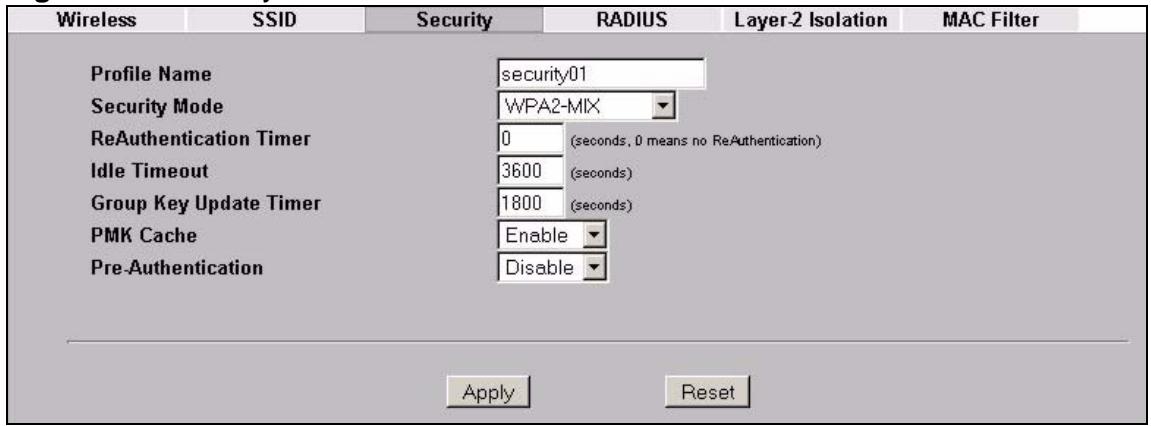
Figure 82 Security:WPA2 or WPA2-MIX
The following table describes the labels not previously discussed.
Table 40 Security: WPA2 or WPA2-MIX
| LABEL | DESCRIPTIONS |
| Profile Name | Type a name to identify this security profile. |
| Security Mode | Choose WPA2 or WPA2-MIX in this field. |
| ReAuthentication Timer | Specify how often wireless stations have to resend usernames and passwords in order to stay connected. Enter a time interval between 10 and 9999 seconds. The default time interval is 1800 seconds (30 minutes). Alternatively, enter “0” to turn reauthentication off. Note: If wireless station authentication is done using a RADIUS server, the reauthentication timer on the RADIUS server has priority. |
| Idle Timeout | The NWA automatically disconnects a wireless station from the wired network after a period of inactivity. The wireless station needs to enter the username and password again before access to the wired network is allowed. The default time interval is 3600 seconds (or 1 hour). |
| Group Key Update Timer | The Group Key Update Timer is the rate at which the AP sends a new group key out to all clients. The re-keying process is the WPA equivalent of automatically changing the group key for an AP and all stations in a WLAN on a periodic basis. Setting of the Group Key Update Timer is also supported in WPA-PSK mode. The NWA’s default is 1800 seconds (30 minutes). |
Table 40 Security: WPA2 or WPA2-MIX
| LABEL | DESCRIPTIONS |
| PMK Cache | When a wireless client moves from one AP's coverage area to another, it performs an authentication procedure (exchanging security information) with the new AP. Instead of re-authenticating a client each time it returns to the AP's coverage area, which can cause delays to time-sensitive applications, the AP and the client can store (or "cache") and use information about their previous authentication. Select Enable to allow PMK caching, or Disable to switch this feature off. |
| Pre-Authentication | Pre-authentication allows a wireless client to perform authentication with a different AP from the one to which it is currently connected, before moving into the new AP's coverage area. This speeds up roaming. Select Enable to allow pre-authentication, or Disable to switch it off. |
| Apply | Click Apply to save your changes. |
| Reset | Click Reset to begin configuring this screen afresh. |
10.2.6 Security: WPA-PSK, WPA2-PSK, WPA2-PSK-MIX
Use this screen to set the selected profile to WPA-PSK, WPA2-PSK or WPA2-PSK-MIX security mode. Select WPA-PSK, WPA2-PSK or WPA2-PSK-MIX in the Security Mode field to display the following screen.
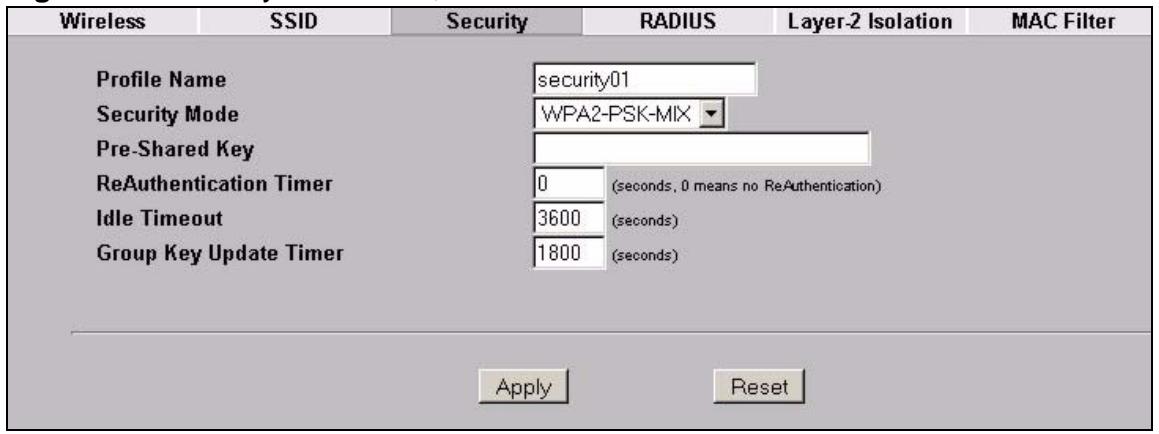
Figure 83 Security: WPA-PSK, WPA2-PSK or WPA2-PSK-MIX
The following table describes the labels not previously discussed
Table 41 Security: WPA-PSK, WPA2-PSK or WPA2-PSK-MIX
| LABEL | DESCRIPTION |
| Profile Name | Type a name to identify this security profile. |
| Security Mode | Choose WPA-PSK, WPA2-PSK or WPA2-PSK-MIX in this field. |
Table 41 Security: WPA-PSK, WPA2-PSK or WPA2-PSK-MIX
| LABEL | DESCRIPTION |
| Pre-Shared Key | The encryption mechanisms used for WPA and WPA-PSK are the same. The only difference between the two is that WPA-PSK uses a simple common password, instead of user-specific credentials.Type a pre-shared key from 8 to 63 case-sensitive ASCII characters (including spaces and symbols). |
| ReAuthentication Timer | Specify how often wireless stations have to resend usernames and passwords in order to stay connected.Enter a time interval between 10 and 9999 seconds. The default time interval is 1800 seconds (30 minutes). Alternatively, enter “0” to turn reauthentication off.Note: If wireless station authentication is done using a RADIUS server, the reauthentication timer on the RADIUS server has priority. |
| Idle Timeout | The NWA automatically disconnects a wireless station from the wired network after a period of inactivity. The wireless station needs to enter the username and password again before access to the wired network is allowed.The default time interval is 3600 seconds (or 1 hour). |
| Group Key Update Timer | The Group Key Update Timer is the rate at which the AP sends a new group key out to all clients. The re-keying process is the WPA equivalent of automatically changing the group key for an AP and all stations in a WLAN on a periodic basis. Setting of the Group Key Update Timer is also supported in WPA-PSK mode. The NWA's default is 1800 seconds (30 minutes). |
| Apply | Click Apply to save your changes. |
| Reset | Click Reset to begin configuring this screen afresh. |
10.3 Technical Reference
This section provides background information on the topics in this chapter.
The following is a general guideline in choosing the security mode for your NWA.
- Use WPA(2) security if you have WPA(2)-aware wireless clients and a RADIUS server. WPA has user authentication and improved data encryption over WEP.
- Use WPA(2)-PSK if you have WPA(2)-aware wireless clients but no RADIUS server.
- If you don't have WPA(2)-aware wireless clients, then use WEP key encrypting. A higher bit key offers better security. You can manually enter 64-bit or 128-bit.
More information on Wireless Security can be found in Appendix B on page 255.
RADIUS Screen
11.1 Overview
This chapter describes how you can use the Wireless > RADIUS screen.
Remote Authentication Dial In User Service (RADIUS) is a protocol that can be used to manage user access to large networks. It is based on a client-server model that supports authentication, authorization and accounting. The access point is the client and the server is the RADIUS server.
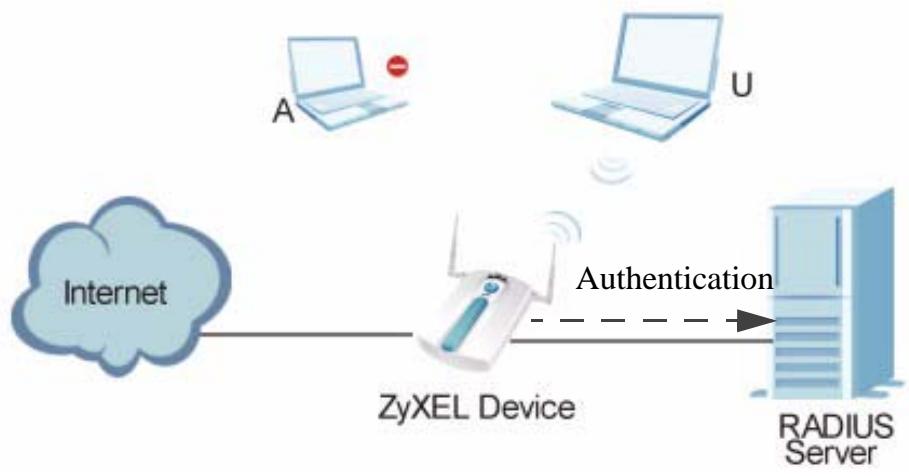
Figure 84 RADIUS Server Setup
In the figure above, wireless clients A and B are trying to access the Internet via the NWA. The NWA in turn queries the RADIUS server if the identity of clients A and U are allowed access to the Internet. In this scenario, only client U's identity is verified by the RADIUS server and allowed access to the Internet.
11.1.1 What You Can Do in the RADIUS Screen
Use the Security > RADIUS screen (see Section 11.2 on page 143) if you want to authenticate wireless users using a RADIUS Server and/or Accounting Server.
11.1.2 What You Need To Know About Wireless Security
The RADIUS server handles the following tasks:
Authentication which determines the identity of the users.
- Authorization which determines the network services available to authenticated users once they are connected to the network.
- Accounting which keeps track of the client's network activity.
RADIUS is a simple package exchange in which your AP acts as a message relay between the wireless client and the network RADIUS server.
You should know the IP addresses, ports and share secrets of the external RADIUS server and/or the external RADIUS accounting server you want to use with your NWA. You can configure a primary and backup RADIUS and RADIUS accounting server for your NWA.
You can configure up to four RADIUS server profiles. Each profile also has one backup authentication server and a backup accounting server. These profiles can be assigned to an SSID profile in the Wireless > SSID configuration screen.
11.2 The RADIUS Screen
Use this screen to set up your NWA's RADIUS server settings. Click Wireless > RADIUS. The screen appears as shown.
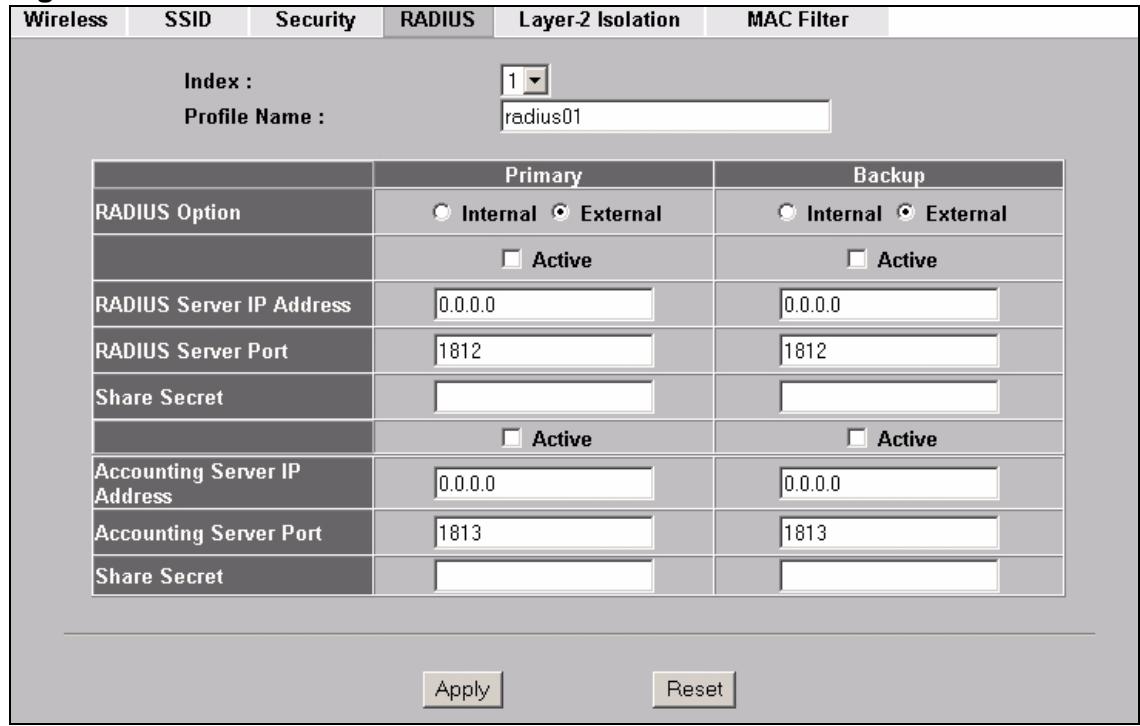
Figure 85 Wireless > RADIUS
The following table describes the labels in this screen.
Table 42 Wireless > RADIUS
| LABEL | DESCRIPTION |
| Index | Select the RADIUS profile you want to configure from the drop-down list box. |
| Profile Name | Type a name for the RADIUS profile associated with the Index number above. |
| Primary | Configure the fields below to set up user authentication and accounting. |
| Backup | If the NWA cannot communicate with the Primary accounting server, you can have the NWA use a Backup RADIUS server. Make sure the Active check boxes are selected if you want to use backup servers.The NWA will attempt to communicate three times before using the Backup servers. Requests can be issued from the client interface to use the backup server. The length of time for each authentication is decided by the wireless client or based on the configuration of the ReAuthentication Timer field in the Security screen. |
| RADIUS Option |
Table 42 Wireless > RADIUS
| LABEL | DESCRIPTION |
| Internal | Select this check box to use the NWA's internal authentication server. The Active, RADIUS Server IP Address, RADIUS Server Port and Share Secret fields are not available when you use the internal authentication server. |
| External | Select this check box to use an external authentication server. The NWA does not use the internal authentication server when this check box is enabled. |
| Active | Select the check box to enable user authentication through an external authentication server. This check box is not available when you select Internal. |
| RADIUS Server IP Address | Enter the IP address of the external authentication server in dotted decimal notation. This field is not available when you select Internal. |
| RADIUS Server Port | Enter the port number of the external authentication server. The default port number is 1812. You need not change this value unless your network administrator instructs you to do so. This field is not available when you select Internal. |
| Share Secret | Enter a password (up to 128 alphanumeric characters) as the key to be shared between the external authentication server and the NWA. The key must be the same on the external authentication server and your NWA. The key is not sent over the network. This field is not available when you select Internal. |
| Active | Select the check box to enable user accounting through an external authentication server. |
| Accounting Server IP Address | Enter the IP address of the external accounting server in dotted decimal notation. |
| Accounting Server Port | Enter the port number of the external accounting server. The default port number is 1813. You need not change this value unless your network administrator instructs you to do so with additional information. |
| Share Secret | Enter a password (up to 128 alphanumeric characters) as the key to be shared between the external accounting server and the NWA. The key must be the same on the external accounting server and your NWA. The key is not sent over the network. |
| Apply | Click Apply to save your changes. |
| Reset | Click Reset to begin configuring this screen afresh. |
Layer-2 Isolation Screen
12.1 Overview
Layer-2 isolation is used to prevent wireless clients associated with your NWA from communicating with other wireless clients, APs, computers or routers in a network.
In the following figure, layer-2 isolation is enabled on the NWA (Z) to allow a guest wireless client (A) to access the main network router (B). The router provides access to the Internet (C) and the network printer (D) while preventing the client from accessing other computers and servers on the network. The client can communicate with other wireless clients only if Intra-BSS Traffic blocking is disabled.
Note: Intra-BSS Traffic Blocking is activated when you enable layer-2 isolation.
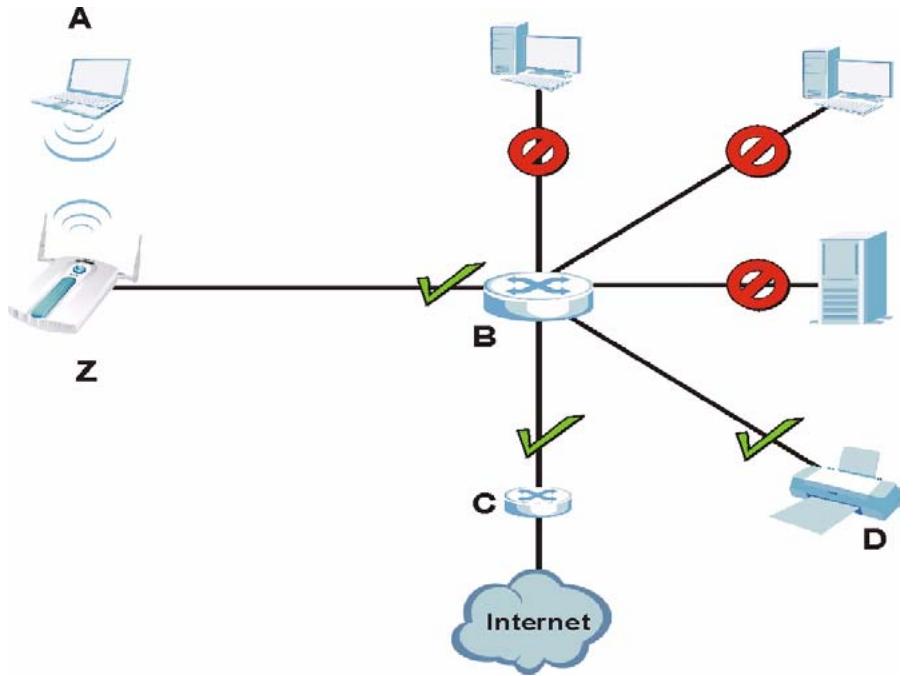
Figure 86 Layer-2 Isolation Application
MAC addresses that are not listed in the Allow devices with these MAC addresses table of the Wireless > Layer-2 Isolation screen are blocked from
communicating with the NWA's wireless clients except for broadcast packets. Layer-2 isolation does not check the traffic between wireless clients that are associated with the same AP. Intra-BSS Traffic allows wireless clients associated with the same AP to communicate with each other.
12.1.1 What You Can Do in the Layer-2 Isolation Screen
Use the Wireless > Layer-2 Isolation screen (see Section 12.2 on page 147) to configure the MAC addresses of the wireless client, AP, computer or router that you want to allow the associated wireless clients to have access to.
12.1.2 What You Need To Know About This Chapter
Every Ethernet device has a unique MAC (Media Access Control) address. The MAC address is assigned at the factory and consists of six pairs of hexadecimal characters, for example, 00:A0:C5:00:00:02. You need to know the MAC address of each device to configure MAC filtering on the NWA.
If layer-2 isolation is enabled, you need to know the MAC address of each wireless client, AP, computer or router that you want to allow to communicate with the ZyXEL Device's wireless clients.
12.2 The Layer-2 Isolation Screen
Use this screen to select and configure a layer-2 isolation profile. Click Wireless > Layer-2 Isolation. The screen appears as shown next.
Figure 87 Wireless > Layer 2 Isolation
| Wireless | SSID | Security | RADIUS | Layer-2 Isolation | MAC Filter |
| - | Index | Profile Name | |||
| ○ | 1 | I2isolation01 | |||
| ○ | 2 | I2isolation02 | |||
| ○ | 3 | I2isolation03 | |||
| ○ | 4 | I2isolation04 | |||
| ○ | 5 | I2isolation05 | |||
| ○ | 6 | I2isolation06 | |||
| ○ | 7 | I2isolation07 | |||
| ○ | 8 | I2isolation08 | |||
| ○ | 9 | I2isolation09 | |||
| ○ | 10 | I2isolation10 | |||
| ○ | 11 | I2isolation11 | |||
| ○ | 12 | I2isolation12 | |||
| ○ | 13 | I2isolation13 | |||
| ○ | 14 | I2isolation14 | |||
| ○ | 15 | I2isolation15 | |||
| ○ | 16 | I2isolation16 | |||
The following table describes the labels in this screen.
Table 43 WIRELESS > Layer-2 Isolation
| LABEL | DESCRIPTION |
| Index | This is the index number of the profile. |
| Profile Name | This field displays the name given to a layer-2 isolation profile in the Layer-2 Isolation Configuration screen. |
| Edit | Select an entry from the list and click Edit to configure settings for that profile. |
12.2.1 Configuring Layer-2 Isolation
Use this screen to specify the configuration for your layer-2 isolation profile. Select a layer-2 isolation profile in Wireless > Layer-2 Isolation and click Edit to display the following screen.
Note: When configuring this screen, remember to select the correct layer-2 isolation profile in the Wireless> SSID > Edit screen of the relevant SSID profile.
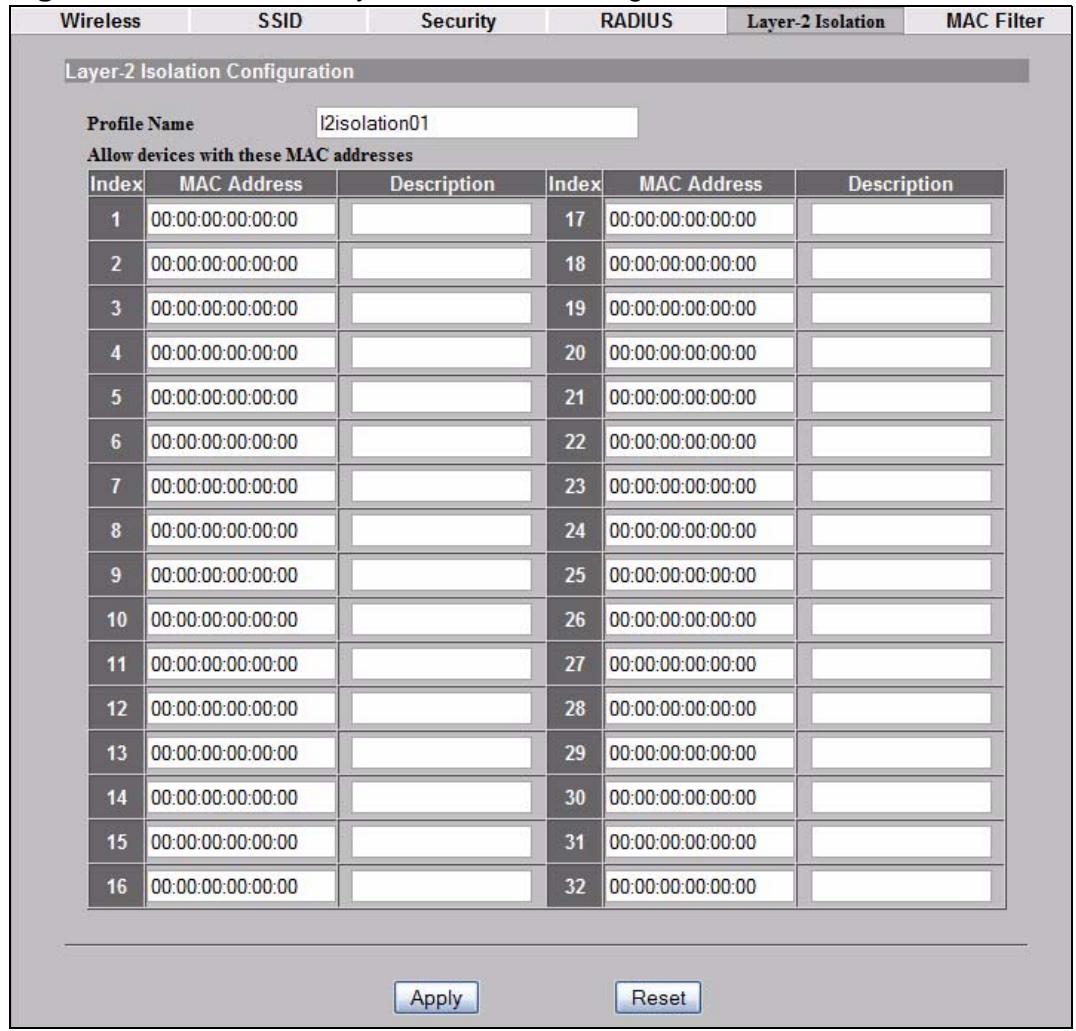
Figure 88 Wireless > Layer-2 Isolation Configuration Screen
The following table describes the labels in this screen.
Table 44 Wireless> Layer-2 Isolation Configuration
| LABEL | DESCRIPTION |
| Profile Name | Type a name to identify this layer-2 isolation profile. |
| Allow devices with these MAC addresses | These are the MAC address of a wireless client, AP, computer or router. A wireless client associated with the NWA can communicate with another wireless client, AP, computer or router only if the MAC addresses of those devices are listed in this table. |
Table 44 Wireless> Layer-2 Isolation Configuration
| LABEL | DESCRIPTION |
| Set | This is the index number of the MAC address. |
| MAC Address | Type the MAC addresses of the wireless client, AP, computer or router that you want to allow the associated wireless clients to have access to in these address fields. Type the MAC address in a valid MAC address format (six hexadecimal character pairs, for example 12:34:56:78:9a:bc). |
| Description | Type a name to identify this device. |
| Apply | Click Apply to save your changes. |
| Reset | Click Reset to begin configuring this screen afresh. |
12.3 Technical Reference
This section provides technical background information on the topics discussed in this chapter.
The figure that follows illustrates two example layer-2 isolation configurations on your NWA (A).
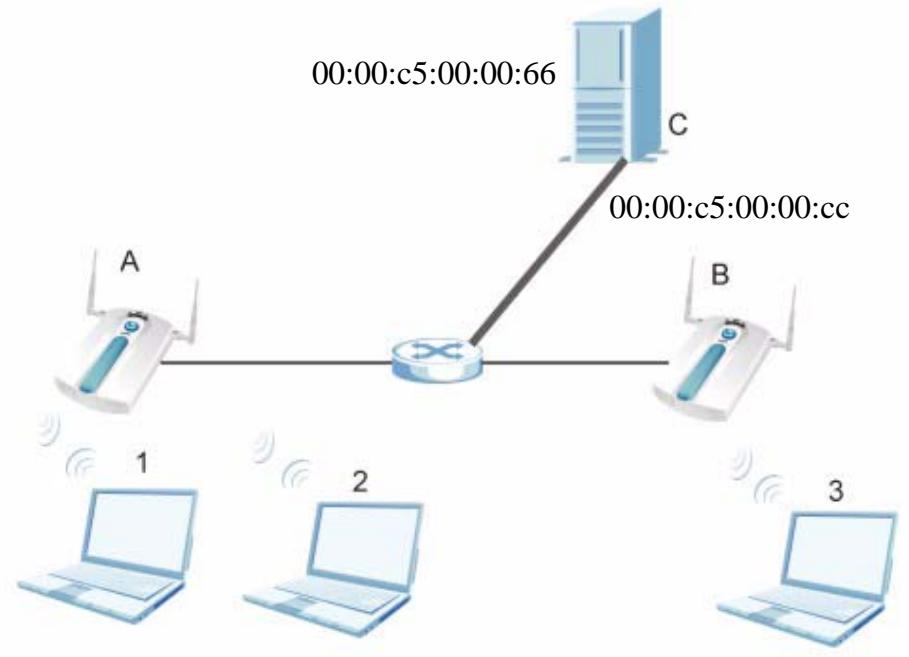
Figure 89 Layer-2 Isolation Example Configuration
Example 1: Restricting Access to Server
In the following example wireless clients 1 and 2 can communicate with file server C, but not access point B or wireless client 3.
- Enter C's MAC address in the MAC Address field, and enter "File Server C" in the Description field.
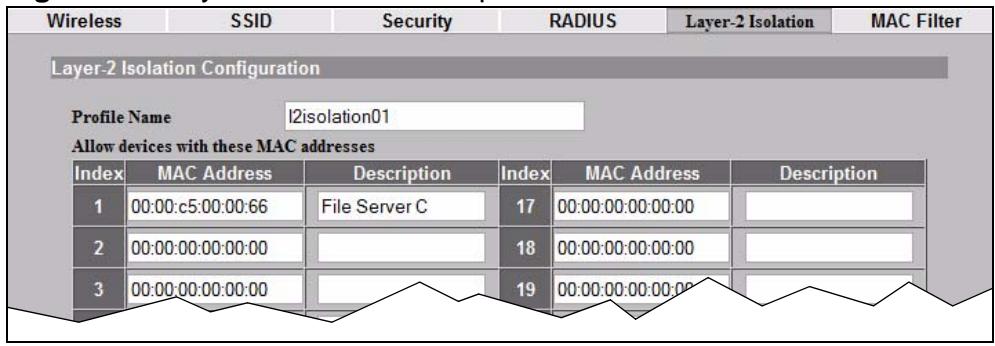
Figure 90 Layer-2 Isolation Example 1
Example 2: Restricting Access to Client
In the following example wireless clients 1 and 2 can communicate with access point B and file server C but not wireless client 3.
- Enter the server's and your NWA's MAC addresses in the MAC Address fields. Enter "File Server C" in C's Description field, and enter "Access Point B" in B's Description field.
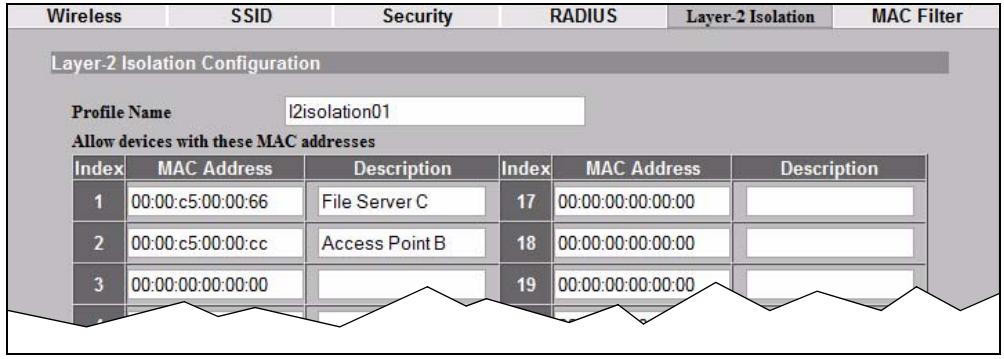
Figure 91 Layer-2 Isolation Example 2
MAC Filter Screen
13.1 Overview
This chapter discusses how you can use the Wireless > MAC Filter screen.
The MAC filter function allows you to configure the NWA to grant access to devices (Allow Association) or exclude devices from accessing the NWA (Deny Association).
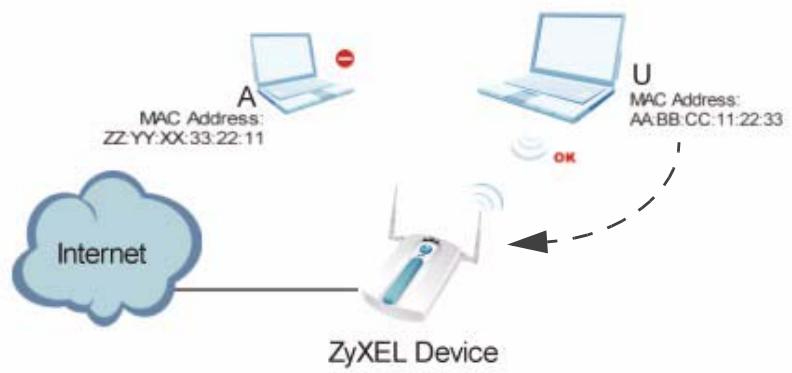
Figure 92 MAC Filtering
In the figure above, wireless client U is able to connect to the Internet because its MAC address is in the allowed association list specified in the NWA. The MAC address of client A is either denied association or is not in the list of allowed wireless clients specified in the NWA.
13.1.1 What You Can Do in the MAC Filter Screen
Use the Wireless > MAC Filter screen (see Section 13.2 on page 152) to specify which wireless station is allowed or denied access to the ZyXEL Device.
13.1.2 What You Should Know About MAC Filter
Every Ethernet device has a unique MAC (Media Access Control) address. The MAC address is assigned at the factory and consists of six pairs of hexadecimal
characters, for example, 00:A0:C5:00:00:02. You need to know the MAC address of each device to configure MAC filtering on the NWA.
13.2 The MAC Filter Screen
The MAC filter profile is a user-configured list of MAC addresses. Each SSID profile can reference one MAC filter profile. The NWA provides 16 MAC Filter profiles, each of which can hold up to 32 MAC addresses.
Click Wireless > MAC Filter. The screen displays as shown.
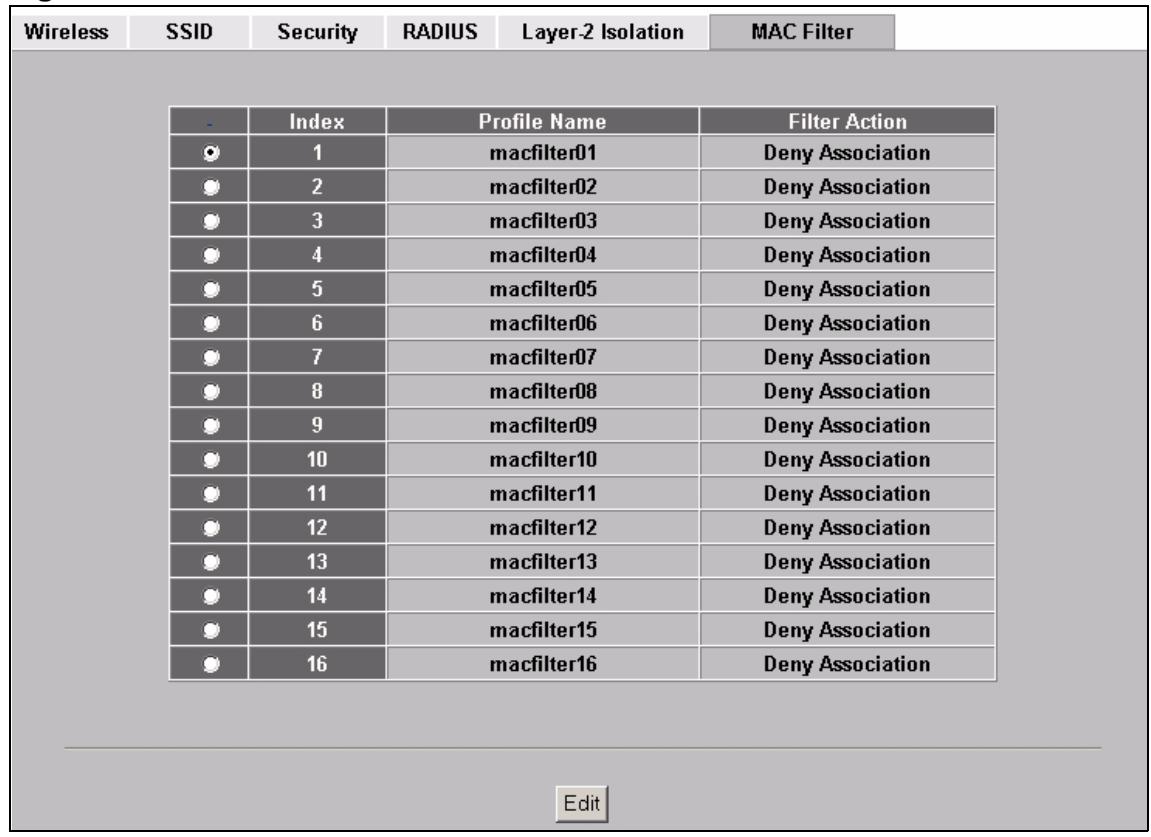
Figure 93 WIRELESS > MAC Filter
The following table describes the labels in this screen.
Table 45 WIRELESS > MAC Filter
| LABEL | DESCRIPTION |
| Index | This is the index number of the profile. |
| Profile Name | This field displays the name given to a MAC filter profile in the MAC Filter Configuration screen. |
| Edit | Select an entry from the list and click Edit to configure settings for that profile. |
13.2.1 Configuring the MAC Filter
To change your NWA's MAC filter settings, click WI RELESS > MAC Filter > Edit. The screen appears as shown.
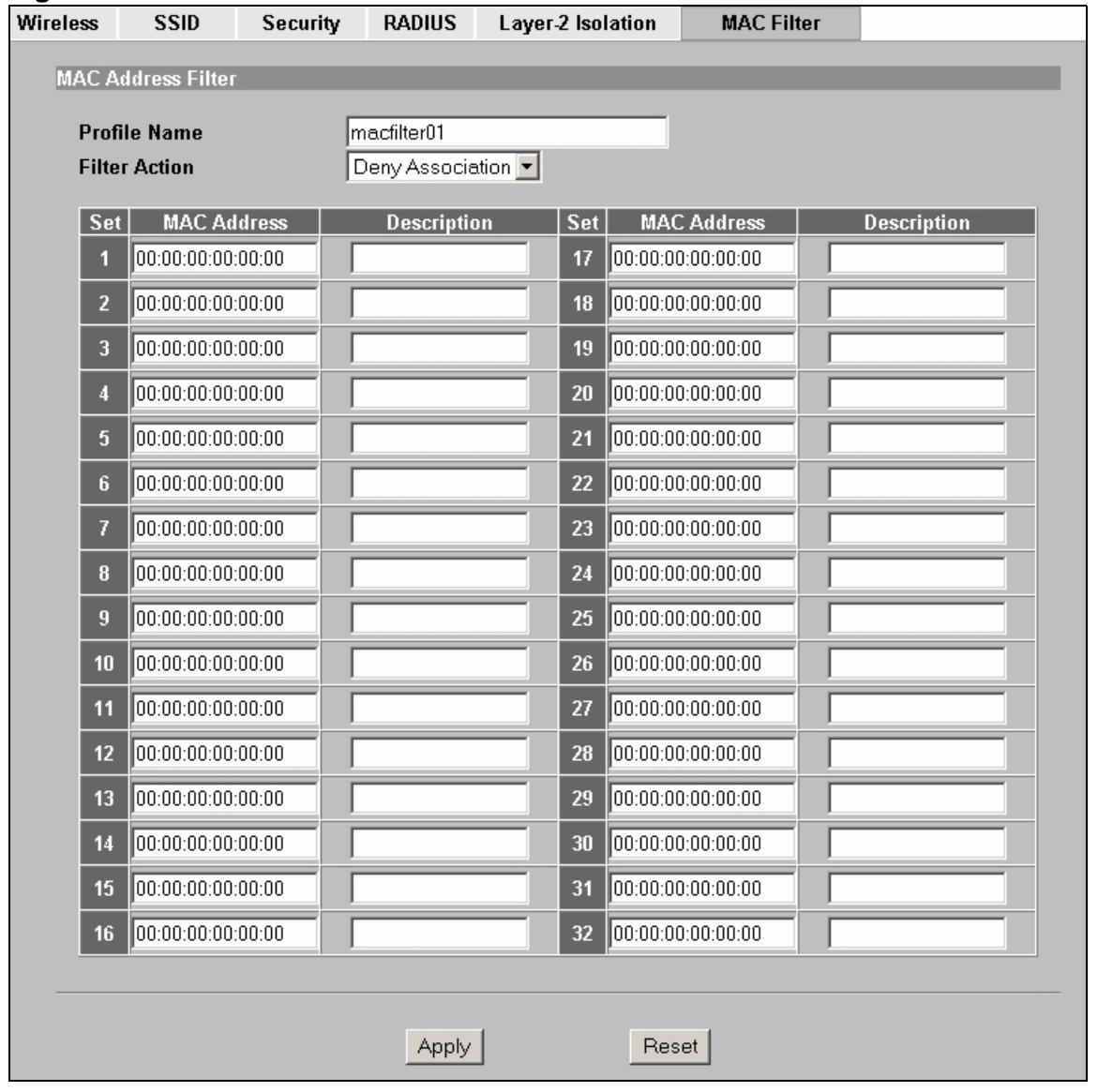
Figure 94 MAC Address Filter
The following table describes the labels in this screen.
Table 46 MAC Address Filter
| LABEL | DESCRIPTION |
| Profile Name | Type a name to identify this profile. |
| Filter Action | Define the filter action for the list of MAC addresses in the MAC address filter table. Select Deny Association to block access to the router. MAC addresses not listed will be allowed to access the router. Select Allow Association to permit access to the router. MAC addresses not listed will be denied access to the router. |
| MAC Address | Enter the MAC addresses (in XX:XX:XX:XX:XX format) of the wireless station to be allowed or denied access to the NWA. |
| Description | Type a name to identify this wireless station. |
| Apply | Click Apply to save your changes. |
| Reset | Click Reset to begin configuring this screen afresh. |
Note: To activate MAC filtering on an SSID profile, select the correct filter from the Enable MAC Filtering drop-down list box in the Wireless > SSID > Edit screen and click Apply
14.1 Overview
The Internet Protocol (IP) address identifies a device on a network. Every networking device (including computers, servers, routers, printers, etc.) needs an IP address to communicate across the network. These networking devices are also known as hosts.
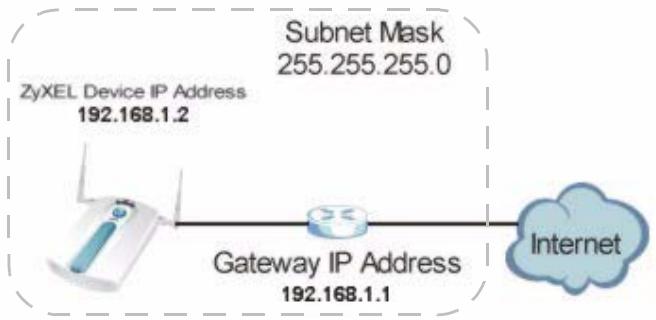
Figure 95 IP Setup
The figure above illustrates one possible setup of your NWA. The gateway IP address is 192.168.1.1 and the IP address of the NWA is 192.168.1.2 (default). The gateway and the device must belong in the same subnet mask to be able to communicate with each other.
14.1.1 What You Can Do in the IP Screen
Use the IP Screen (see Section 14.2 on page 156) to configure the IP address of your NWA.
14.1.2 What You Need To Know About IP
The Ethernet parameters of the NWA are preset with the following values:
- IP address of 192.168.1.2
- Subnet mask of 255.255.255.0 (24 bits)
These parameters should work for the majority of installations.
14.2 The IP Screen
Use this screen to configure the IP address for your NWA. Click IP to display the following screen.
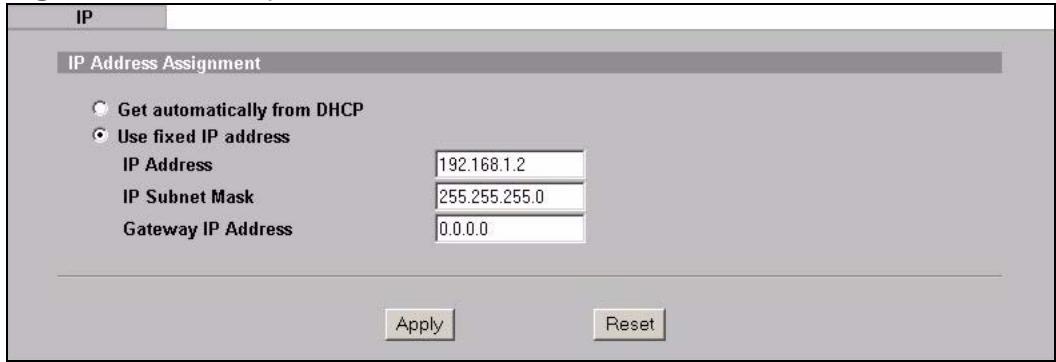
Figure 96 IP Setup
The following table describes the labels in this screen.
Table 47 IP Setup
| LABEL | DESCRIPTION |
| IP Address Assignment | |
| Get automatically from DHCP | Select this option if your NWA is using a dynamically assigned IP address from a DHCP server each time.Note: You must know the IP address assigned to the NWA (by the DHCP server) to access the NWA again. |
| Use fixed IP address | Select this option if your NWA is using a static IP address. When you select this option, fill in the fields below. |
| IP Address | Enter the IP address of your NWA in dotted decimal notation.Note: If you change the NWA's IP address, you must use the new IP address if you want to access the web configurator again. |
| IP Subnet Mask | Type the subnet mask. |
| Gateway IP Address | Type the IP address of the gateway. The gateway is an immediate neighbor of your NWA that will forward the packet to the destination. On the LAN, the gateway must be a router on the same segment as your NWA; over the WAN, the gateway must be the IP address of one of the remote nodes. |
| Apply | Click Apply to save your changes. |
| Reset | Click Reset to begin configuring this screen afresh. |
14.3 Technical Reference
This section provides technical background information about the topics covered in this chapter.
14.3.1 WAN IP Address Assignment
Every computer on the Internet must have a unique IP address. If your networks are isolated from the Internet (only between your two branch offices, for instance) you can assign any IP addresses to the hosts without problems. However, the Internet Assigned Numbers Authority (IANA) has reserved the following three blocks of IP addresses specifically for private networks.
Table 48 Private IP Address Ranges
| 10.0.0.0 | - | 10.255.255.255 |
| 172.16.0.0 | - | 172.31.255.255 |
| 192.168.0.0 | - | 192.168.255.255 |
You can obtain your IP address from the IANA, from an ISP or have it assigned by a private network. If you belong to a small organization and your Internet access is through an ISP, the ISP can provide you with the Internet addresses for your local networks. On the other hand, if you are part of a much larger organization, you should consult your network administrator for the appropriate IP addresses.
Note: Regardless of your particular situation, do not create an arbitrary IP address; always follow the guidelines above. For more information on address assignment, please refer to RFC 1597, Address Allocation for Private Internets and RFC 1466, Guidelines for Management of IP Address Space.
Rogue AP Detection
15.1 Overview
Rogue APs are wireless access points operating in a network's coverage area that are not under the control of the network's administrators, and can open up holes in a network's security. Attackers can take advantage of a rogue AP's weaker (or non-existent) security to gain access to the network, or set up their own rogue APs in order to capture information from wireless clients. If a scan reveals a rogue AP, you can use commercially-available software to physically locate it.
Note that it is not necessary for a network to have a legitimate wireless LAN component for rogue APs to open the network to an attacker. In this case, any AP detected can be classified as rogue.
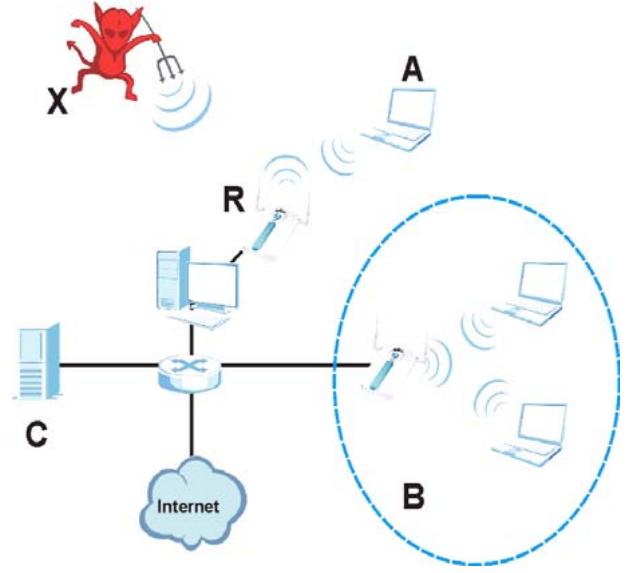
Figure 97 Rogue AP Example
In the example above, a corporate network's security is compromised by a rogue AP (R) set up by an employee at his workstation in order to allow him to connect his notebook computer wirelessly (A). The company's legitimate wireless network (the dashed ellipse B) is well-secured, but the rogue AP uses inferior security that is easily broken by an attacker (X) running readily available encryption-cracking software. In this example, the attacker now has access to the company network, including sensitive data stored on the file server (C).
15.1.1 What You Can Do in the Rogue AP Screen
- Use the Rogue AP > Configuration screen (see Section 15.2 on page 162) to enable your NWA's Rogue AP detection settings. You can choose to scan for rogue APs manually, or to have the NWA scan automatically at pre-defined intervals.
- Use the Rogue AP > Friendly AP screen (see Section 15.2.1 on page 163) to specify APs as trusted.
- Use the Rogue AP > Rogue AP screen (see Section 15.2.2 on page 164) to display details of all IEEE 802.11a/b/g/n wireless access points within the NWA's coverage area, except for the NWA itself and the access points included in the friendly AP list.
15.1.2 What You Need To Know About Rogue AP
The following terms and concepts may help as you read through this chapter.
You can configure the NWA to detect rogue IEEE 802.11a (5 GHz) and IEEE 802.11b/g (2.4 GHz) APs.
You can also set the NWA to e-mail you immediately when a rogue AP is detected (see Chapter 19 on page 208 for information on how to set up e-mail logs).
You can set how often you want the NWA to scan for rogue APs in the ROGUE AP > Configuration screen (see Section 15.2 on page 162).
Friendly APs
If you have more than one AP in your wireless network, you must also configure the list of "friendly" APs. Friendly APs are other wireless access points, aside from the NWA, that are detected in your network, as well as any others that you know are not a threat (those from neighboring networks, for example). It is recommended that you export (save) your list of friendly APs often, especially if you have a network with a large number of access points. If you do not add them to the friendly AP list, these access points will appear in the Rogue AP list each time the NWA scans.
The friendly AP list displays details of all the access points in your area that you know are not a threat. If you have more than one AP in your network, you need to configure this list to include your other APs. If your wireless network overlaps with that of a neighbor (for example) you should also add these APs to the list, as they do not compromise your own network's security. If you do not add them to the friendly AP list, these access points will appear in the Rogue AP list each time the NWA scans.
"Honeypot" Attack
Rogue APs need not be connected to the legitimate network to pose a severe security threat. In the following example, an attacker (X) is stationed in a vehicle outside a company building, using a rogue access point equipped with a powerful antenna. By mimicking a legitimate (company network) AP, the attacker tries to capture usernames, passwords, and other sensitive information from unsuspecting clients (A and B) who attempt to connect. This is known as a "honeypot" attack.
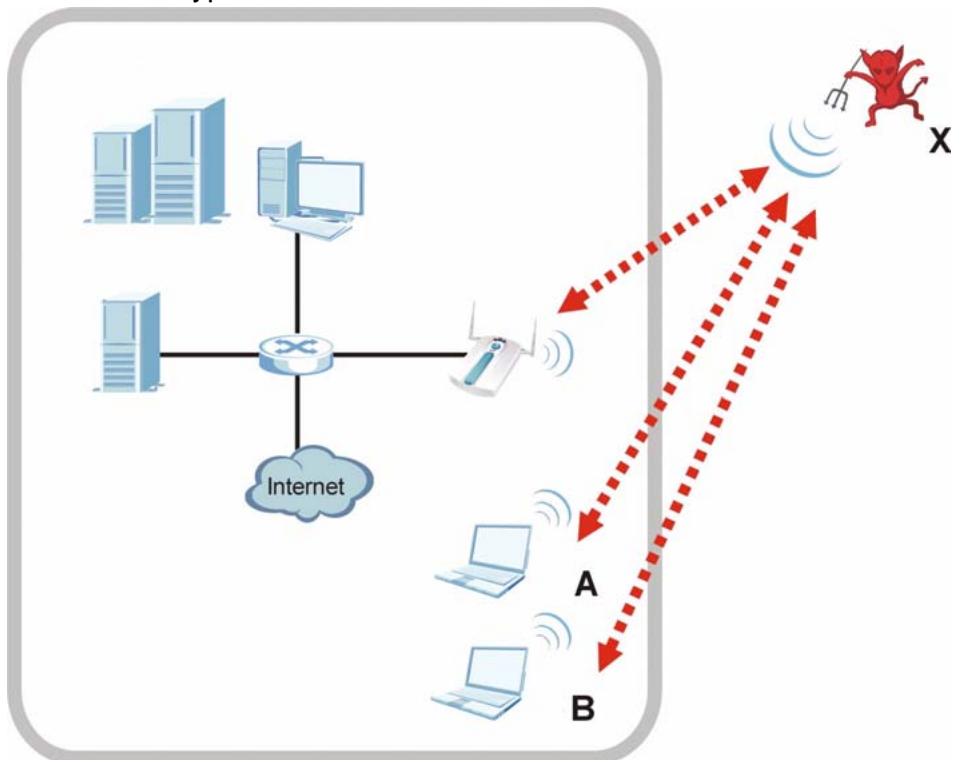
Figure 98 "Honeypot" Attack
If a rogue AP in this scenario has sufficient power and is broadcasting the correct SSID (Service Set Identifier) clients have no way of knowing that they are not associating with a legitimate company AP. The attacker can forward network traffic from associated clients to a legitimate AP, creating the impression of normal service. This is a variety of "man-in-the-middle" attack.
This scenario can also be part of a wireless denial of service (DoS) attack, in which associated wireless clients are deprived of network access. Other opportunities for the attacker include the introduction of malware (malicious software) into the network.
15.2 Configuration Screen
Use this screen to enable your NWA's Rogue AP detection settings. Click Rogue AP > Configuration. The following screen appears:
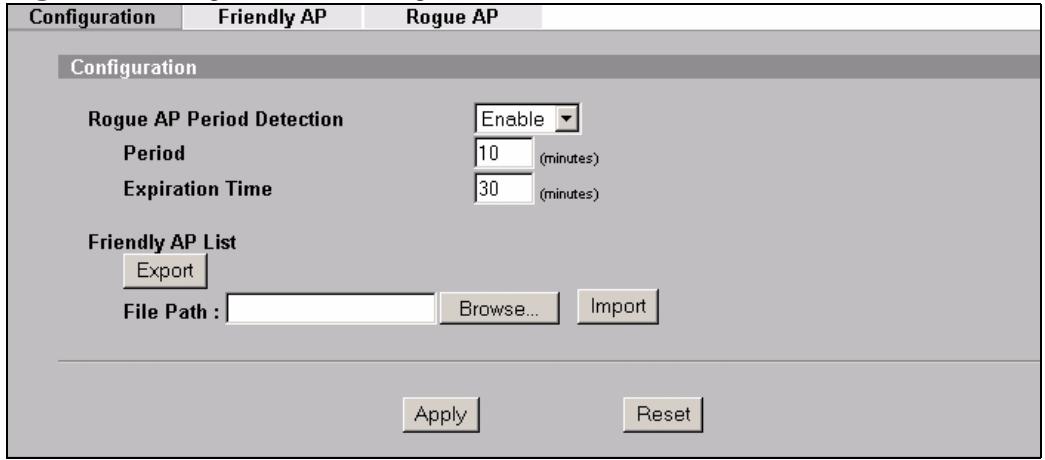
Figure 99 Rogue AP > Configuration
The following table describes the labels in this screen.
Table 49 Rogue AP > Configuration
| LABEL | DESCRIPTION |
| Rogue AP Period Detection | Select Enable to turn rogue AP detection on. You must also enter a time value in the Period field. |
| Select No to turn rogue AP detection off. | |
| Period (minutes) | Enter the period you want the NWA to wait between scanning for rogue APs (between 10 and 60 minutes). You must also select Enable in the Active Rogue AP Period Detection field. |
| Expiration Time (minutes) | Specify how long (between 30 and 180 minutes) an AP's entry can remain in the Rogue AP List before the NWA removes it from the list if the AP is no longer active. |
| Friendly AP List | |
| Export | Click this button to save the current list of friendly APs' MAC addresses and descriptions (as displayed in the ROGUE AP > Friendly AP screen) to your computer. |
| File Path | Enter the location of a previously-saved friendly AP list to upload to the NWA. Alternatively, click the Browse button to locate a list. |
| Browse | Click this button to locate a previously-saved list of friendly APs to upload to the NWA. |
| Import | Click this button to upload the previously-saved list of friendly APs displayed in the File Path field to the NWA. |
| Apply | Click Apply to save your settings. |
| Reset | Click Reset to return all fields in this screen to their previously-saved values. |
15.2.1 Friendly AP Screen
Use this screen to specify APs as trusted. Click Rogue AP > Friendly AP. The following screen appears:
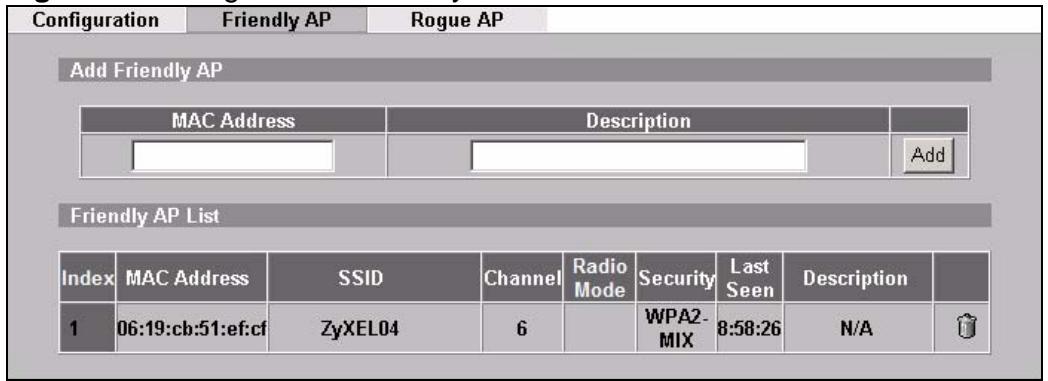
Figure 100 Rogue AP > Friendly AP
The following table describes the labels in this screen.
Table 50 Rogue AP > Friendly AP
| LABEL | DESCRIPTION |
| Add Friendly AP | Use this section to manually add a wireless access point to the list. You must know the device's MAC address. |
| MAC Address | Enter the MAC address of the AP you wish to add to the list. |
| Description | Enter a short, explanatory description identifying the AP with a maximum of 32 alphanumeric characters. Spaces, underscores ( ) and dashes (-) are allowed. |
| Add | Click this button to include the AP in the list. |
| Friendly AP List | This is the list of safe wireless access points you have already configured. |
| Index | This is the index number of the AP's entry in the list. |
| MAC Address | This field displays the Media Access Control (MAC) address of the AP. All wireless devices have a MAC address that uniquely identifies them. |
| SSID | This field displays the Service Set Identifier (also known as the network name) of the AP. |
| Channel | This field displays the wireless channel the AP is currently using. |
| Radio Mode | The field displays the radio mode the AP is currently using. |
| Security | This field displays the type of wireless encryption the AP is currently using. |
| Last Seen | This field displays the last time the NWA scanned for the AP. |
| Description | This is the description you entered when adding the AP to the list. |
| Delete | Click this button to remove an AP's entry from the list. |
15.2.2 Rogue AP Screen
Use this scre to display details of all wireless access points within the NWA's coverage area. Click Rogue AP > Rogue AP. The following screen displays.
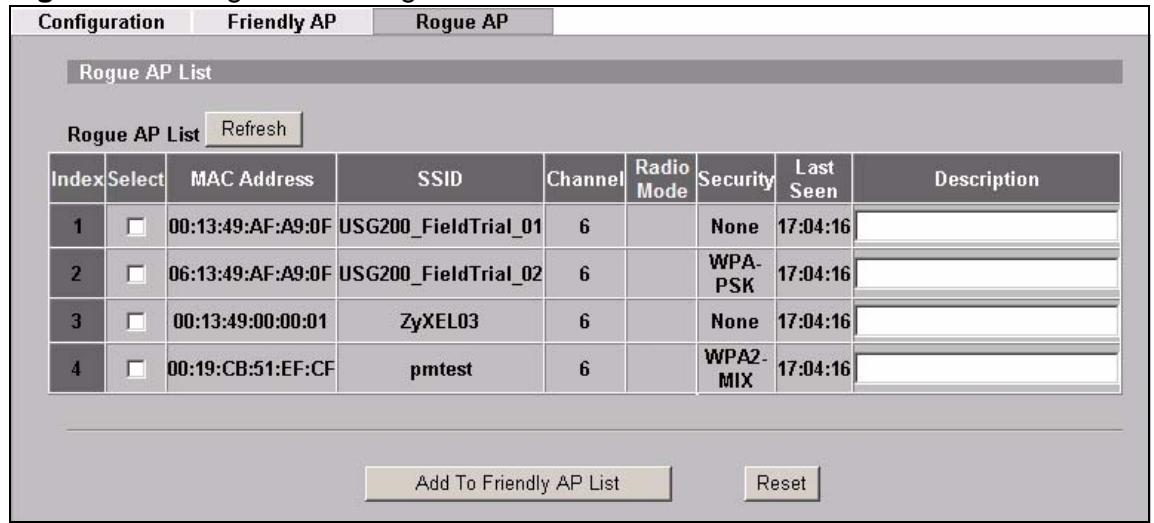
Figure 101 Rogue AP > Rogue AP
The following table describes the labels in this screen.
Table 51 Rogue AP > Rogue AP
| LABEL | DESCRIPTION |
| Rogue AP List | This displays details of access points in the NWA's coverage area that are not listed in the friendly AP list (see Section 15.2.1 on page 163) |
| Refresh | Click this button to have the NWA scan for rogue APs. |
| Index | This is the index number of the AP's entry in the list. |
| Active | Use this check box to select the APs you want to move to the friendly AP list (see Section 15.2.1 on page 163) |
| MAC Address | This field displays the Media Access Control (MAC) address of the AP. All wireless devices have a MAC address that uniquely identifies them. |
| SSID | This field displays the Service Set Identifier (also known as the network name) of the AP. |
| Channel | This field displays the wireless channel the AP is currently using. |
| Radio Mode | The field displays the radio mode the AP is currently using. |
| Security | This field displays the type of wireless encryption the AP is currently using. |
| Last Seen | This field displays the last time the NWA scanned for the AP. |
| Description | If you want to move the AP's entry to the friendly AP list, enter a short, explanatory description identifying the AP before you click Add to Friendly AP List. A maximum of 32 alphanumeric characters are allowed in this field. Spaces, underscores (_) and dashes (-) are allowed. |
Table 51 Rogue AP > Rogue AP
| LABEL | DESCRIPTION |
| Add to Friendly AP List | If you know that the AP described in an entry is not a threat, select the Active check box, enter a short description in the Description field and click this button to add the entry to the friendly AP list (see Section 15.2.1 on page 163). When the NWA next scans for rogue APs, the selected AP does not appear in the rogue AP list. |
| Reset | Click Reset to return all fields in this screen to their default values. |
Remote Management Screens
16.1 Overview
This chapter shows you how to enable remote management of your NWA. It provides information on determining which services or protocols can access which of the NWA's interfaces.
Remote Management allows a user to administrate the device over the network. You can manage your NWA from a remote location via the following interfaces:
WLAN
LAN
Both WLAN and LAN
- Neither (Disable)
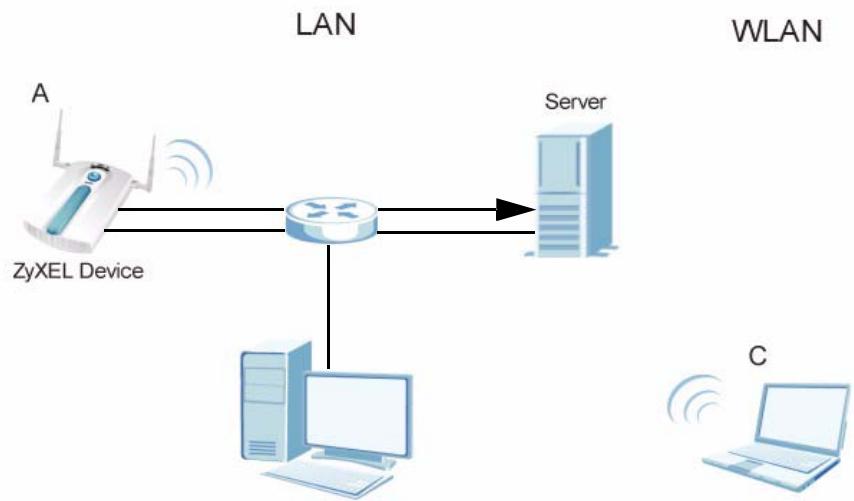
Figure 102 Remote Management Example
In the figure above, the NWA (A) is being managed by a desktop computer (B) connected via LAN (Land Area Network). It is also being accessed by a notebook (C) connected via WLAN (Wireless LAN).
16.1.1 What You Can Do in the Remote Management Screens
- Use the Telnet screen (see Section 16.2 on page 170) to configure through which interface(s) and from which IP address(es) you can use Telnet to manage the ZyXEL Device. A Telnet connection is prioritized by the NWA over other remote management sessions.
- Use the FTP screen (see Section 16.3 on page 171) to configure through which interface(s) and from which IP address(es) you can use File Transfer Protocol (FTP) to manage the ZyXEL Device. You can use FTP to upload the latest firmware for example.
- Use the WWW screen (see Section 16.4 on page 172) to configure through which interface(s) and from which IP address(es) you can use the Web Browser to manage the ZyXEL Device.
- Use the SNMP screen (see Section 16.5 on page 174) to configure through which interface(s) and from which IP address(es) a network systems manager can access the ZyXEL Device.
16.1.2 What You Need To Know About Remote Management
The following terms and concepts may help as you read through this chapter.
Telnet
Telnet is short for Telecommunications Network, which is a client-side protocol that enables you to access a device over the network.
FTP
File Transfer Protocol (FTP) allows you to upload or download a file or several files to and from a remote location using a client or the command console.
WWW
The World Wide Web allows you to access files hosted in a remote server. For example, you can view text files (usually referred to as 'pages') using your web browser via HyperText Transfer Protocol (HTTP).
SNMP
Simple Network Management Protocol (SNMP) is a member of the TCP/IP protocol suite used for exchanging management information between network devices.
Your NWA supports SNMP agent functionality, which allows a manager station to manage and monitor the NWA through the network. The NWA supports SNMP version one (SNMPv1), version two (SNMPv2c), and version three (SNMPv3). The next figure illustrates an SNMP management operation.
Note: SNMP is only available if TCP/IP is configured.
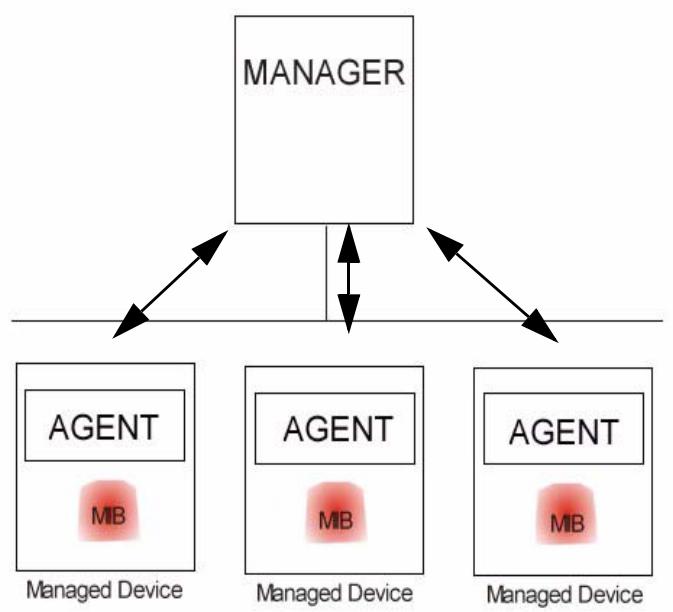
Figure 103 SNMP Management Mode
An SNMP managed network consists of two main types of component: agents and a manager.
An agent is a management software module that resides in a managed device (the NWA). An agent translates the local management information from the managed device into a form compatible with SNMP. The manager is the console through which network administrators perform network management functions. It executes applications that control and monitor managed devices.
SNMP allows a manager and agents to communicate for the purpose of accessing information such as packets received, node port status, etc.
Remote Management Limitations
Remote management over LAN or WLAN will not work when:
- You have disabled that service in one of the remote management screens.
- The IP address in the Secured Client IP field does not match the client IP address. If it does not match, the NWA will disconnect the session immediately.
-
You may only have one remote management session running at one time. The NWA automatically disconnects a remote management session of lower priority when another remote management session of higher priority starts. The priorities for the different types of remote management sessions are as follows:
-
Telnet
- HTTP
System Timeout
There is a default system management idle timeout of five minutes (three hundred seconds). The NWA automatically logs you out if the management session remains idle for longer than this timeout period. The management session does not time out when a statistics screen is polling. You can change the timeout period in the SYSTEM screen.
16.2 The Telnet Screen
Use this screen to configure your NWA for remote Telnet access. You can use Telnet to access the NWA's Command Line Interface (CLS).
Click REMOTE MGNT > TELNET. The following screen displays.
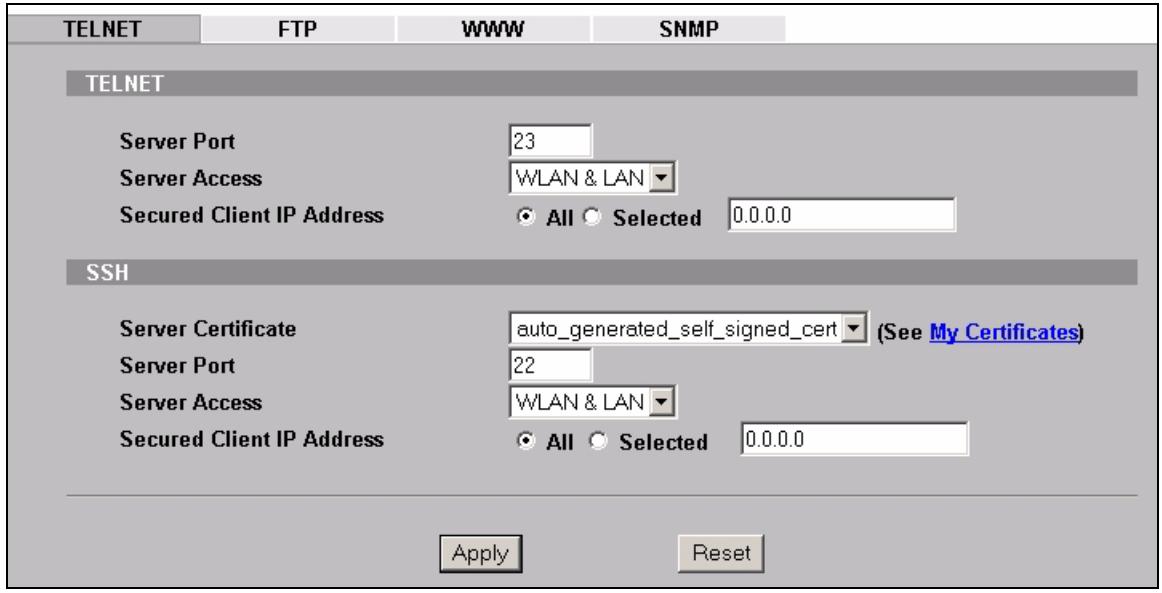
Figure 104 Remote Management: Telnet
The following table describes the labels in this screen.
Table 52 Remote Management: Telnet
| LABEL | DESCRIPTION |
| TELNET | |
| Server Port | You can change the server port number for a service if needed, however you must use the same port number in order to use that service for remote management. |
| Server Access | Select the interface(s) through which a computer may access the NWA using Telnet. |
Table 52 Remote Management: Telnet
| LABEL | DESCRIPTION |
| Secured Client IP Address | A secured client is a “trusted” computer that is allowed to communicate with the NWA using this service. Select All to allow any computer to access the NWA using this service. Choose Selected to just allow the computer with the IP address that you specify to access the NWA using this service. |
| SSH | |
| Server Certificate | Select the certificate whose corresponding private key is to be used to identify the NWA for SSH connections. You must have certificates already configured in the Certificates > My Certificates screen. |
| Server Port | You can change the server port number for a service if needed, however you must use the same port number in order to use that service for remote management. |
| Server Access | Select the interface(s) through which a computer may access the NWA using SSH. |
| Secured Client IP Address | A secured client is a “trusted” computer that is allowed to communicate with the NWA using this service. Select All to allow any computer to access the NWA using this service. Choose Selected to just allow the computer with the IP address that you specify to access the NWA using this service. |
| Apply | Click Apply to save your customized settings and exit this screen. |
| Reset | Click Reset to begin configuring this screen afresh. |
16.3 The FTP Screen
You can upload and download the NWA's firmware and configuration files using FTP. To use this feature, your computer must have an FTP client.
To change your NWA's FTP settings, click REMOTE MGMT > FTP. The following screen displays.
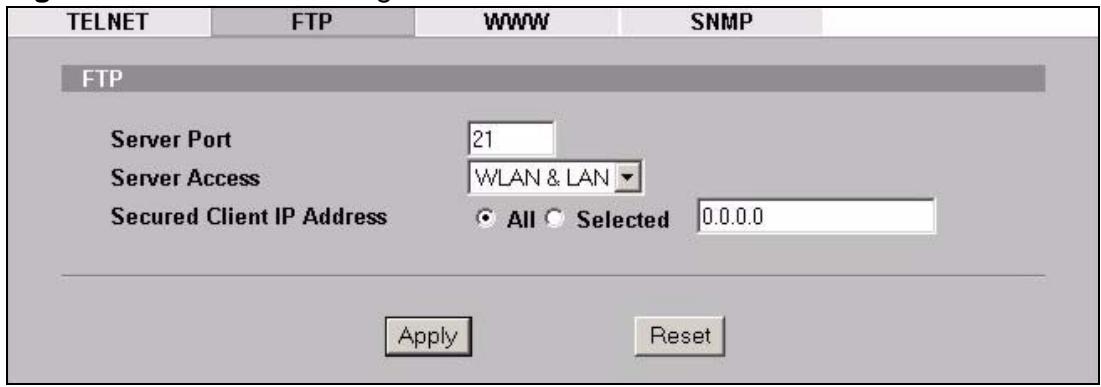
Figure 105 Remote Management: FTP
The following table describes the labels in this screen.
Table 53 Remote Management: FTP
| LABEL | DESCRIPTION |
| Server Port | You may change the server port number for a service if needed, however you must use the same port number in order to use that service for remote management. |
| Server Access | Select the interface(s) through which a computer may access the NWA using this service. |
| Secured Client IP Address | A secured client is a “trusted” computer that is allowed to communicate with the NWA using this service. Select All to allow any computer to access the NWA using this service. Choose Selected to just allow the computer with the IP address that you specify to access the NWA using this service. |
| Apply | Click Apply to save your customized settings and exit this screen. |
| Reset | Click Reset to begin configuring this screen afresh. |
16.4 The WWW Screen
You can choose to configure your NWA via the World Wide Web (WWW) using a Web browser. This lets you specify which IP addresses or computers are able to communicate with and access the NWA.
To change your NWA's WWW settings, click REMOTE MGNT > WWW. The following screen shows.
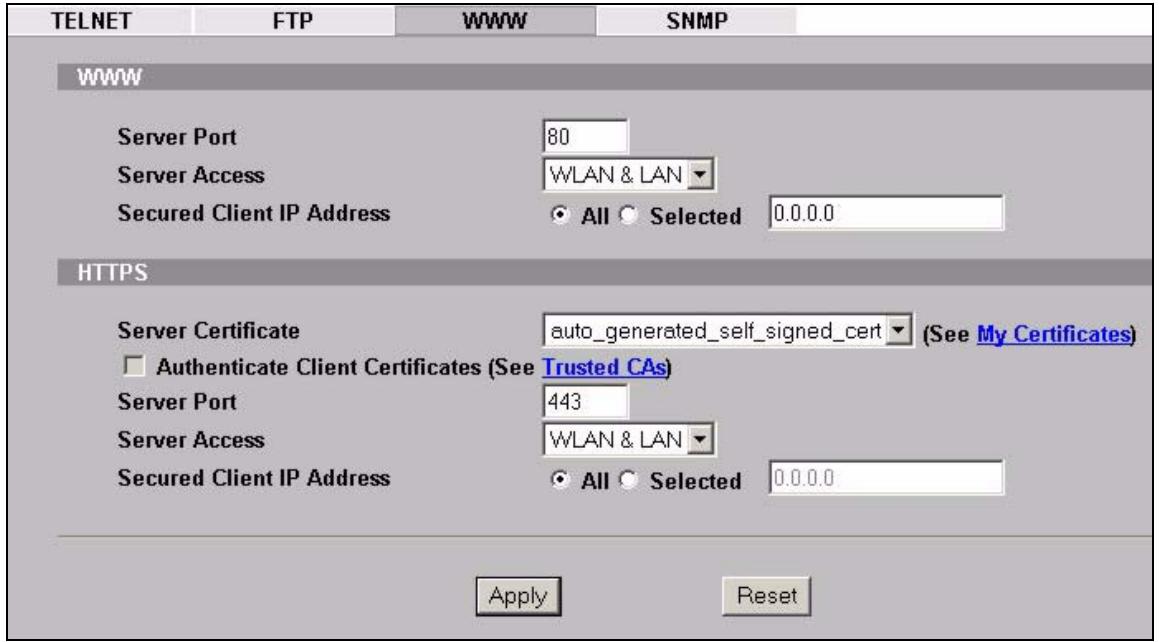
Figure 106 Remote Management: WWW
The following table describes the labels in this screen.
Table 54 Remote Management: WWW
| LABEL | DESCRIPTION |
| WWW | |
| Server Port | You may change the server port number for a service if needed, however you must use the same port number in order to use that service for remote management. |
| Server Access | Select the interface(s) through which a computer may access the NWA using this service. |
| Secured Client IP Address | A secured client is a “trusted” computer that is allowed to communicate with the NWA using this service. Select All to allow any computer to access the NWA using this service. Choose Selected to just allow the computer with the IP address that you specify to access the NWA using this service. |
| HTTPS | |
| Server Certificate | Select the Server Certificate that the NWA will use to identify itself. The NWA is the SSL server and must always authenticate itself to the SSL client (the computer which requests the HTTPS connection with the NWA). |
| Authentication Client Certificates | Select Authentication Client Certificates (optional) to require the SSL client to authenticate itself with the NWA by sending the NWA a certificate. To do that the SSL client must have a CA-signed certificate from a CA that has been imported as a trusted CA on the NWA (see the appendix on importing certificates for details). |
| Server Port | The HTTPS proxy server listens on port 443 by default. If you change the HTTPS proxy server port to a different number on the NWA, for example 8443, then you must notify people who need to access the NWA web configurator to use "https://NWA IP Address:8443" as the URL. |
| Server Access | Select a NWA interface from Server Access on which incoming HTTPS access is allowed. You can allow only secure web configurator access by setting the HTTP Server Access field to Disable and setting the HTTPS Server Access field to an interface(s). |
| Secured Client IP Address | A secure client is a “trusted” computer that is allowed to communicate with the NWA using this service. Select All to allow any computer to access the NWA using this service. Choose Selected to just allow the computer with the IP address that you specify to access the NWA using this service. |
| Apply | Click Apply to save your customized settings and exit this screen. |
| Reset | Click Reset to begin configuring this screen afresh. |
16.5 The SNMP Screen
Use this screen to have a manager station administrate your NWA over the network. To change your NWA's SNMP settings, click REMOTE MGMT > SNMP. The following screen displays.
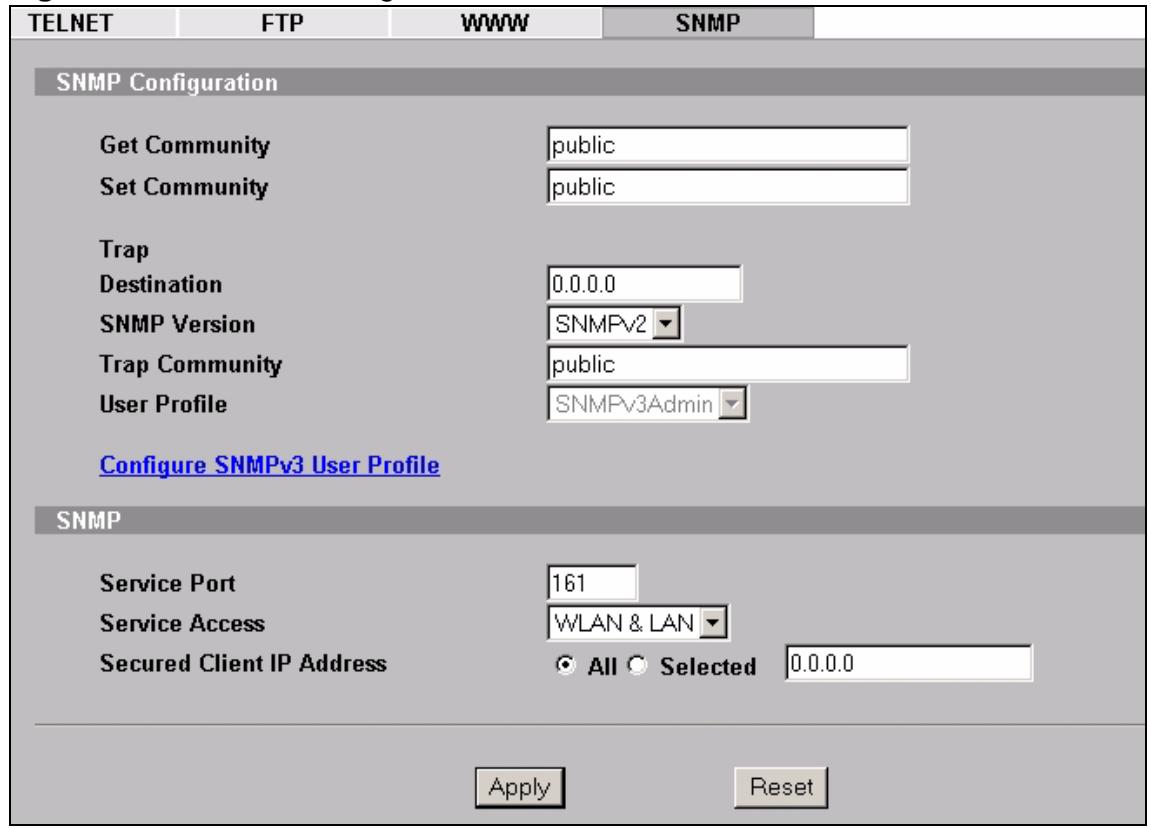
Figure 107 Remote Management: SNMP
The following table describes the labels in this screen.
Table 55 Remote Management: SNMP
| LABEL | DESCRIPTION |
| SNMP Configuration | |
| Get Community | Enter the Get Community, which is the password for the incoming Get and GetNext requests from the management station. The default is public and allows all requests. |
| Set Community | Enter the Set community, which is the password for incoming Set requests from the management station. The default is public and allows all requests. |
| Community | Type the trap community, which is the password sent with each trap to the SNMP manager. The default is public and allows all requests. |
| Trap Destination | Type the IP address of the station to send your SNMP traps to. |
| SNMP Version | Select the SNMP version for the NWA. The SNMP version on the NWA must match the version on the SNMP manager. Choose SNMP version 1 (SNMPv1), SNMP version 2 (SNMPv2) or SNMP version 3 (SNMPv3). |
Table 55 Remote Management: SNMP
| LABEL | DESCRIPTION |
| Trap Community | Type the trap community, which is the password sent with each trap to the SNMP manager. The default is "public" and allows all requests.This field is available only when SNMPv1 or SNMPv2 is selected in the SNMP Version field. |
| User Profile | This field is available only when you select SNMPv3 in the SNMP Version field.When sending SNMP v3 traps (messages sent independently by the SNMP agent) the agent must authenticate the SNMP manager. If the SNMP manager does not provide the correct security details, the agent does not send the traps.The NWA has two SNMP version 3 login accounts, User and Admin. Each account has different security settings. You can use either account's security settings for authenticating SNMP traps.Select User to have the NWA use the User account's security settings, or select Admin to have the NWA use the Admin account's security settings.Use the Configure SNMPv3 User Profile link to set up each account's security settings. |
| Configure SNMPv3 User Profile | Click this to go to the SNMPv3 User Profile screen, where you can configure administration and user login details. |
| SNMP | |
| Service Port | You may change the server port number for a service if needed, however you must use the same port number in order to use that service for remote management. |
| Service Access | Select the interface(s) through which a computer may access the NWA using this service. |
| Secured Client IP Address | A secured client is a "trusted" computer that is allowed to communicate with the NWA using this service.Select All to allow any computer to access the NWA using this service.Choose Selected to just allow the computer with the IP address that you specify to access the NWA using this service. |
| Apply | Click Apply to save your customized settings and exit this screen. |
| Reset | Click Reset to begin configuring this screen afresh. |
16.6 Technical Reference
This section provides some technical background information about the topics covered in this chapter.
16.6.1 MIB
Managed devices in an SMNP managed network contain object variables or managed objects that define each piece of information to be collected about a device. Examples of variables include such as number of packets received, node port status etc. A Management Information Base (MIB) is a collection of managed objects. SNMP itself is a simple request/response protocol based on the manager/agent model. The manager issues a request and the agent returns responses using the following protocol operations:
- Get - Allows the manager to retrieve an object variable from the agent.
- GetNext - Allows the manager to retrieve the next object variable from a table or list within an agent. In SNMPv1, when a manager wants to retrieve all elements of a table from an agent, it initiates a Get operation, followed by a series of GetNext operations.
- Set - Allows the manager to set values for object variables within an agent.
- Trap - Used by the agent to inform the manager of some events.
16.6.2 Supported MIBs
The NWA supports MIB II that is defined in RFC-1213 and RFC-1215 as well as the proprietary ZyXEL private MIB. The purpose of the MIBs is to let administrators collect statistical data and monitor status and performance.
16.6.3 SNMP Traps
SNMP traps are messages sent by the agents of each managed device to the SNMP manager. These messages inform the administrator of events in data networks handled by the device. The NWA can send the following traps to the SNMP manager.
Table 56 SNMP Traps
| TRAP NAME | OBJECT IDENTIFIER # (OID) | DESCRIPTION |
| Generic Traps | ||
| coldStart | 1.3.6.1.6.3.1.1.5.1 | This trap is sent after booting (power on). This trap is defined in RFC-1215. |
Table 56 SNMP Traps
| TRAP NAME | OBJECT IDENTIFIER # (OID) | DESCRIPTION |
| warmStart | 1.3.6.1.6.3.1.1.5.2 | This trap is sent after booting (software reboot). This trap is defined in RFC-1215. |
| linkDown | 1.3.6.1.6.3.1.1.5.3 | This trap is sent when the Ethernet link is down. |
| linkUp | 1.3.6.1.6.3.1.1.5.4 | This trap is sent when the Ethernet link is up. |
| authenticationFailure (defined in RFC-1215) | 1.3.6.1.6.3.1.1.5.5 | The device sends this trap when it receives any SNMP get or set requirements with the wrong community (password).Note: snmpEnableAuthenTraps, OID 1.3.6.1.2.1.11.30 (defined in RFC 1214 and RFC 1907) must be enabled on in order for the device to send authenticationFailure traps. Use a MIB browser to enable or disable snmpEnableAuthenTraps. |
| Traps defined in the ZyXEL Private MIB. | ||
| whyReboot | 1.3.6.1.4.1.890.1.5.13.0.1 | This trap is sent with the reason for restarting before the system reboots (warm start)."System reboot by user!" is added for an intentional reboot (for example, download new files, CI command "sys reboot").If the system reboots because of fatal errors, a code for the error is listed. |
| pwTFTPStatus | 1.3.6.1.4.1.890.1.9.23.3.1 | This trap is sent to indicate the status and result of a TFTP client session that has ended. |
Some traps include an SNMP interface index. The following table maps the SNMP interface indexes to the NWA's physical and virtual ports.
Table 57 SNMP Interface Index to Physical and Virtual Port Mapping
| TYPE | INTERFACE | PORT |
| Physical | enet0 | Wireless LAN adaptor WLAN1 |
| enet1 | Ethernet port (LAN) | |
| enet2 | Wireless LAN adaptor WLAN2 |
Table 57 SNMP Interface Index to Physical and Virtual Port Mapping
| TYPE | INTERFACE | PORT |
| Virtual | enet3 ~ enet9 | WLAN1 in MBSSID mode |
| enet10 ~ enet16 | WLAN2 in MBSSID mode | |
| enet17 ~ enet21 | WLAN1 in WDS mode | |
| enet22 ~ enet26 | WLAN2 in WDS mode |
Internal RADIUS Server
17.1 Overview
This chapter describes how the NWA can use its internal RADIUS server to authenticate wireless clients.
Remote Authentication Dial In User Service (RADIUS) is a protocol that enables you to control access to a network by authenticating user credentials.
The following figure shows the NWA (Z) using its internal RADIUS server to control access to a wired network. A wireless notebook (A) requests access by sending its credentials. The NWA consults its internal RADIUS server's list of user names and passwords. If the credentials of the wireless notebook match an entry, the NWA allows the client to access the network.
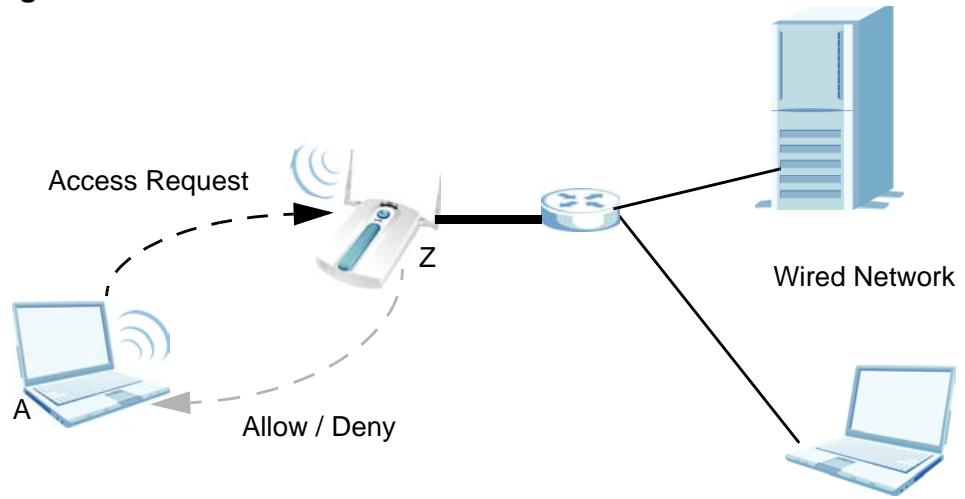
Figure 108 RADIUS Server
The NWA can also serve as a RADIUS server to authenticate other APs and their wireless clients. For more background information on RADIUS, see Section 11.1.2 on page 142.
17.1.1 What You Can Do in this Chapter
- Use the AUTH. SERVER > Setting screen (see Section 17.2 on page 180) to turn the NWA's internal RADIUS server off or on and to view information about the NWA's certificates.
- Use the AUTH. SERVER > Trusted AP screen (see Section 17.3 on page 182) to specify APs as trusted. Trusted APs can use the NWA's internal RADIUS server to authenticate wireless clients.
- Use the AUTHSERVER > Trusted Users screen (see Section 17.4 on page 183) to configure a list of wireless client user names and passwords.
17.1.2 What You Need To Know
The following terms and concepts may help as you read through this chapter.
The NWA has a built-in RADIUS server that can authenticate wireless clients or other trusted APs. Certificates are used by wireless clients to authenticate the RADIUS server. These are "digital signatures" that identify network devices. Certificates ensure that the clients supply their login details to the correct device. Information matching the certificate is held on the wireless client's utility. A password and user name on the utility must match the Trusted Users list so that the RADIUS server can be authenticated.
Note: The NWA can function as an AP and as a RADIUS server at the same time.
17.2 Internal RADIUS Server Setting Screen
Use this screen to turn the NWA's internal RADIUS server off or on and to view information about the NWA's certificates.
Click AUTH. SERVER > Setting. The following screen displays.
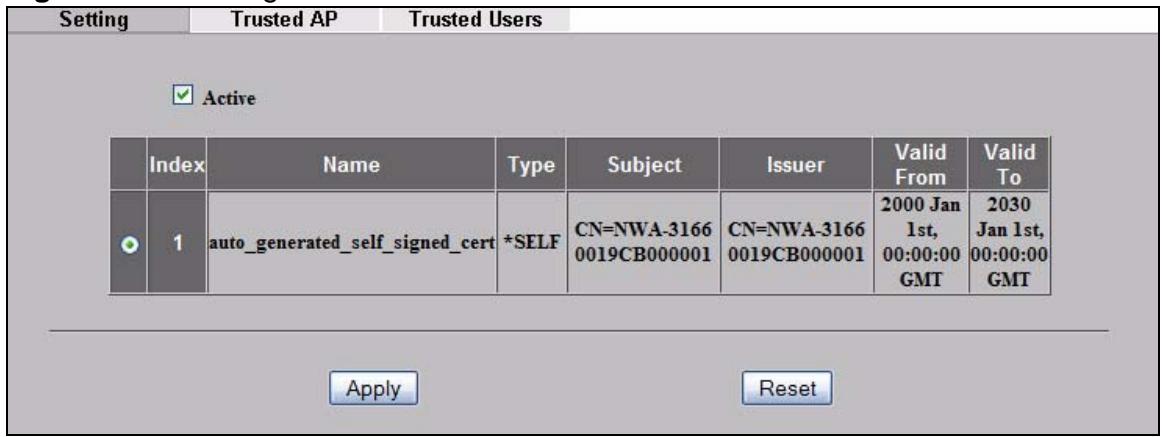
Figure 109 Setting Screen
The following table describes the labels in this screen.
Table 58 Internal RADIUS Server Setting Screen
| LABEL | DESCRIPTION |
| Active | Select the Active check box to have the NWA use its internal RADIUS server to authenticate wireless clients or other APs. |
| # | This field displays the certificate index number. The certificates are listed in alphabetical order. Use the CERTIFICATES screens to manage certificates. The internal RADIUS server uses one of the certificates listed in this screen for authentication with each wireless client. The exact certificate used depends on the certificate information configured on the wireless client. |
| Name | This field displays the name used to identify this certificate. It is recommended that you give each certificate a unique name. autogenerated_self_signed_cert is the factory default certificate common to all NWAs that use certificates. Note: It is recommended that you replace the factory default certificate with one that uses your NWA's MAC address. Do this when you first log in to the NWA or in the CERTIFICATES > My Certificates screen. |
| Type | This field displays what kind of certificate this is. REQ represents a certification request and is not yet a valid certificate. Send a certification request to a certification authority, which then issues a certificate. Use the My Certificate Import screen to import the certificate and replace the request. SELF represents a self-signed certificate. *SELF represents the default self-signed certificate, which the NWA uses to sign imported trusted remote host certificates. CERT represents a certificate issued by a certification authority. |
| Subject | This field displays identifying information about the certificate's owner, such as CN (Common Name), OU (Organizational Unit or department), O (Organization or company) and C (Country). It is recommended that each certificate have unique subject information. |
| Issuer | This field displays identifying information about the certificate's issuing certification authority, such as a common name, organizational unit or department, organization or company and country. With self-signed certificates, this is the same information as in the Subject field. |
| Valid From | This field displays the date that the certificate becomes applicable. The text displays in red and includes a Not Yet Valid! message if the certificate has not yet become applicable. |
| Valid To | This field displays the date that the certificate expires. The text displays in red and includes an Expiring! or Expired! message if the certificate is about to expire or has already expired. |
| Apply | Click Apply to have the NWA use certificates to authenticate wireless clients. |
| Reset | Click Reset to start configuring this screen afresh. |
17.3 The Trusted AP Screen
Use this screen to specify APs as trusted. Click AUTH. SERVER > Trusted AP.
The following screen displays:
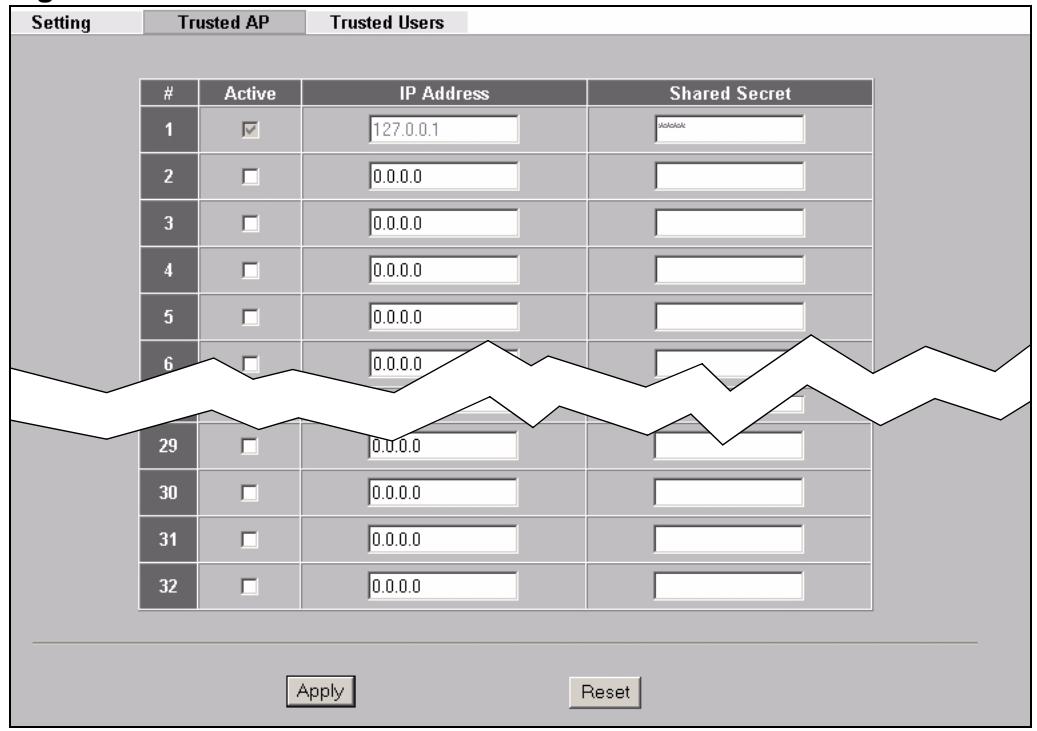
Figure 110 Trusted AP Screen
The following table describes the labels in this screen.
Table 59 Trusted AP Screen
| LABEL | DESCRIPTION |
| # | This field displays the trusted AP index number. |
| Active | Select this check box to have the NWA use the IP Address and Shared Secret to authenticate a trusted AP. |
| IP Address | Type the IP address of the trusted AP in dotted decimal notation. |
| Shared Secret | Enter a password (up to 31 alphanumeric characters, no spaces) as the key for encrypting communications between the AP and the NWA. The key is not sent over the network. This key must be the same on the AP and the NWA. Both the NWA's IP address and this shared secret must also be configured in the “external RADIUS” server fields of the trusted AP. Note: The first trusted AP fields are for the NWA itself. |
| Apply | Click Apply to save your changes. |
| Reset | Click Reset to begin configuring this screen afresh. |
17.4 The Trusted Users Screen
Use this screen to configure trusted user entries. Click AUTH.SERVER > Trusted Users. The following screen displays.
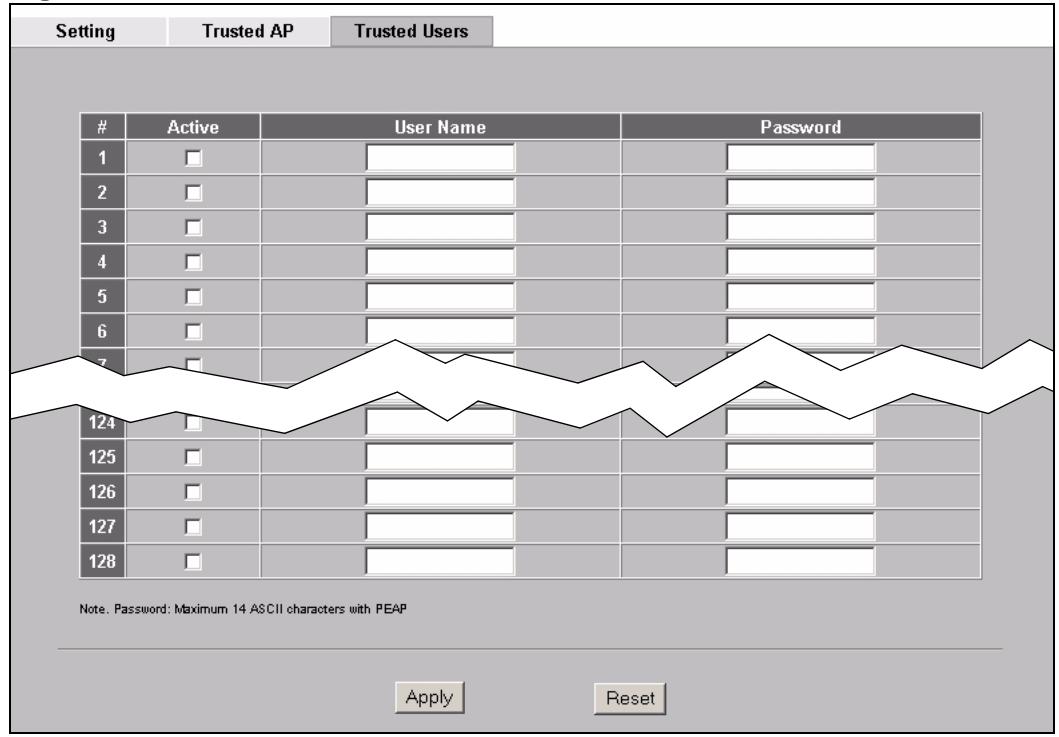
Figure 111 Trusted Users Screen
The following table describes the labels in this screen.
Table 60 Trusted Users
| LABEL | DESCRIPTION |
| # | This field displays the trusted user index number. |
| Active | Select this to have the NWA authenticate wireless clients with the same user name and password activated on their wireless utilities. |
| UserID | Enter the user name for this user account. This name can be up to 31 alphanumeric characters long, including spaces. The wireless client's utility must use this name as its login name. |
| Password | Type a password (up to 31 ASCII characters) for this user profile. Note that as you type a password, the screen displays a (*) for each character you type.The password on the wireless client's utility must be the same as this password.Note: If you are using PEAP authentication, this password field is limited to 14 ASCII characters in length. |
| Apply | Click Apply to save your changes. |
| Reset | Click Reset to begin configuring this screen afresh. |
17.5 Technical Reference
This section provides some technical background information about the topics covered in this chapter.
A trusted AP is an AP that uses the NWA's internal RADIUS server to authenticate its wireless clients. Each wireless client must have a user name and password configured in the AUTH. SERVER > Trusted Users screen.
The following figure shows how this is done. Wireless clients make access requests to trusted APs, which relay the requests to the NWA.
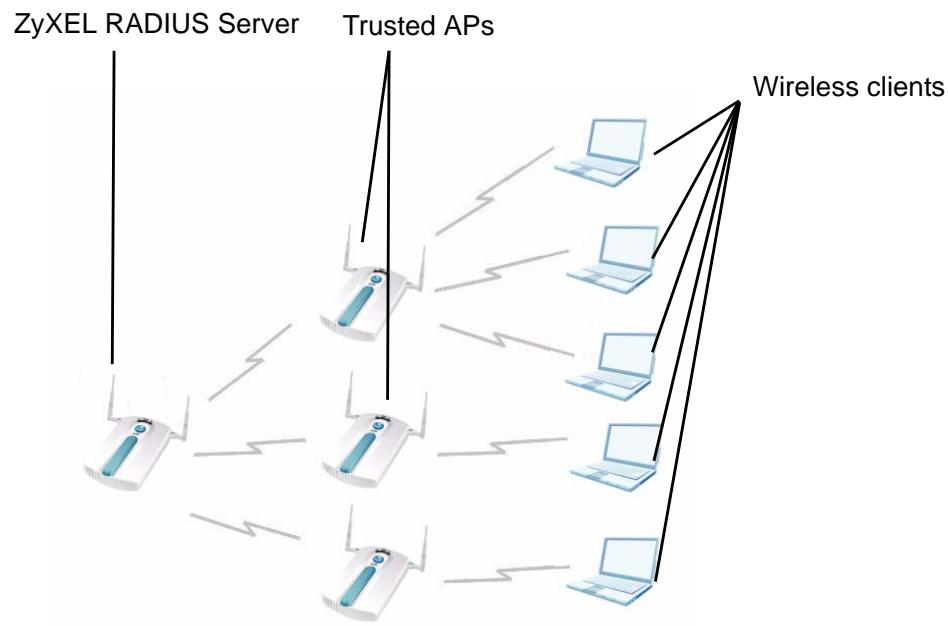
Figure 112 Trusted APs Overview
Take the following steps to set up trusted APs and trusted users.
1 Configure an IP address and shared secret in the Trusted AP database to specify an AP as trusted.
2 Configure wireless client user names and passwords in the Trusted Users database to use a trusted AP as a relay between the NWA's internal RADIUS server and the wireless clients.
The wireless clients can then be authenticated by the NWA's internal RADIUS server.
PEAP (Protected EAP) and MD5 authentication is implemented on the internal RADIUS server using simple username and password methods over a secure TLS connection. See Appendix B on page 255 for more information on the types of EAP authentication and the internal RADIUS authentication method used in your NWA.
Note: The internal RADIUS server does not support domain accounts (DOMAIN/user). When you configure your Windows XP SP2 Wireless Zero Configuration PEAP/MS-CHAPv2 settings, deselect the Use Windows logon name and password check box. When authentication begins, a pop-up dialog box requests you to type a Name, Password and Domain of the RADIUS server. Specify a name and password only, do not specify a domain.
18.1 Overview
This chapter describes how your NWA can use certificates as a means of authenticating wireless clients. It gives background information about public-key certificates and explains how to use them.
A certificate contains the certificate owner's identity and public key. Certificates provide a way to exchange public keys for use in authentication.
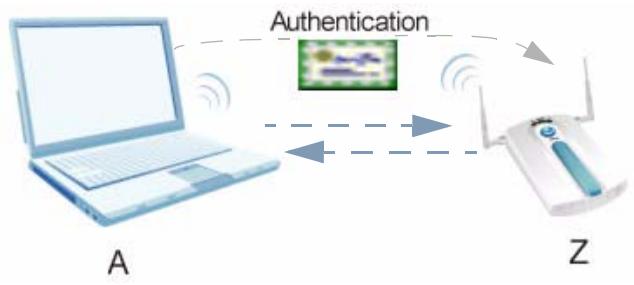
Figure 113 Certificates Example
18.1.1 What You Can Do in the Certificates Screen
- Use the Certificates > My Certificate (see Chapter 18 on page 195) screens to view details of certificates storage space and settings. This screen also allows you to import or create a new certificate.
- Use the Certificates > Trusted CAs (see Chapter 18 on page 199) screens to save CA certificates to the NWA. This screen displays a summary list of certificates of the certification authorities that you have set the NWA to accept as trusted.
18.1.2 What You Need To Know About Certificates
The following terms and concepts may help as you read through this chapter.
The NWA also trusts any valid certificate signed by any of the imported trusted CA certificates. The certification authority certificate that you want to import has to be in one of these file formats:
- Binary X.509: This is an ITU-T recommendation that defines the formats for X.509 certificates.
- PEM (Base-64) encoded X.509: This Privacy Enhanced Mail format uses 64 ASCII characters to convert a binary X.509 certificate into a printable form.
- Binary PKCS#7: This is a standard that defines the general syntax for data (including digital signatures) that may be encrypted. The NWA currently allows the importation of a PKS#7 file that contains a single certificate.
- PEM (Base-64) encoded PKCS#7: This Privacy Enhanced Mail (PEM) format uses 64 ASCII characters to convert a binary PKCS#7 certificate into a printable form.
18.2 My Certificates Screen
Use this screen to view the NWA's summary of certificates and certification requests. Click Certificates > My Certificates. The following screen displays.
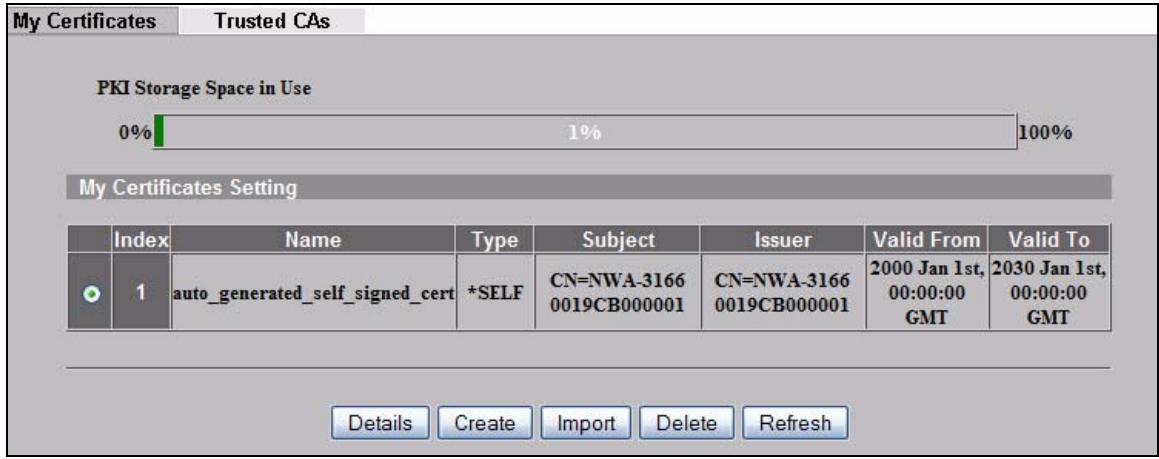
Figure 114 Certificates > My Certificates
The following table describes the labels in this screen.
Table 61 Certificates > My Certificates
| LABEL | DESCRIPTION |
| PKI Storage Space in Use | This bar displays the percentage of the NWA's PKI storage space that is currently in use. When you are using 80% or less of the storage space, the bar is green. When the amount of space used is over 80%, the bar is red. When the bar is red, you should consider deleting expired or unnecessary certificates before adding more certificates. |
| Replace | This button displays when the NWA has the factory default certificate. The factory default certificate is common to all NWAs that use certificates. ZyXEL recommends that you use this button to replace the factory default certificate with one that uses your NWA's MAC address. |
| Index | This field displays the certificate index number. The certificates are listed in alphabetical order. |
| Name | This field displays the name used to identify this certificate. It is recommended that you give each certificate a unique name. |
| Type | This field displays what kind of certificate this is. REQ represents a certification request and is not yet a valid certificate. Send a certification request to a certification authority, which then issues a certificate. Use the My Certificate Import screen to import the certificate and replace the request. SELF represents a self-signed certificate. *SELF represents the default self-signed certificate, which the NWA uses to sign imported trusted remote host certificates. CERT represents a certificate issued by a certification authority. |
| Subject | This field displays identifying information about the certificate's owner, such as CN (Common Name), OU (Organizational Unit or department), O (Organization or company) and C (Country). It is recommended that each certificate have unique subject information. |
| Issuer | This field displays identifying information about the certificate's issuing certification authority, such as a common name, organizational unit or department, organization or company and country. With self-signed certificates, this is the same information as in the Subject field. |
| Valid From | This field displays the date that the certificate becomes applicable. The text displays in red and includes a Not Yet Valid! message if the certificate has not yet become applicable. |
| Valid To | This field displays the date that the certificate expires. The text displays in red and includes an Expiring! or Expired! message if the certificate is about to expire or has already expired. |
| Details | Click the details icon to open a screen with an in-depth list of information about the certificate. Click the delete icon to remove the certificate. A window displays asking you to confirm that you want to delete the certificate. You cannot delete a certificate that one or more features is configured to use. Do the following to delete a certificate that shows *SELF in the Type field. 1. Make sure that no other features, such as HTTPS, VPN, SSH are configured to use the *SELF certificate. 2. Click the details icon next to another self-signed certificate (see the description on the Create button if you need to create a self-signed certificate). 3. Select the Default self-signed certificate which signs the imported remote host certificates check box. 4. Click Apply to save the changes and return to the My Certificates screen. 5. The certificate that originally showed *SELF displays SELF and you can delete it now. Note that subsequent certificates move up by one when you take this action |
| Create | Click Create to go to the screen where you can have the NWA generate a certificate or a certification request. |
| Import | Click Import to open a screen where you can save the certificate that you have enrolled from a certification authority from your computer to the NWA. |
| Delete | Click Delete to delete an existing certificate. A window display asking you to confirm that you want to delete the certificate. Note that subsequent certificates move up by one when you take this action. |
| Refresh | Click Refresh to display the current validity status of the certificates. |
18.2.1 My Certificates Import Screen
Use this screen Click Certificates> My Certificates and then Import to open the My Certificate Import screen.
Note: You can import only a certificate that matches a corresponding certification request that was generated by the NWA.
Note: The certificate you import replaces the corresponding request in the My Certificates screen.
Note: You must remove any spaces from the certificate's filename before you can import it.
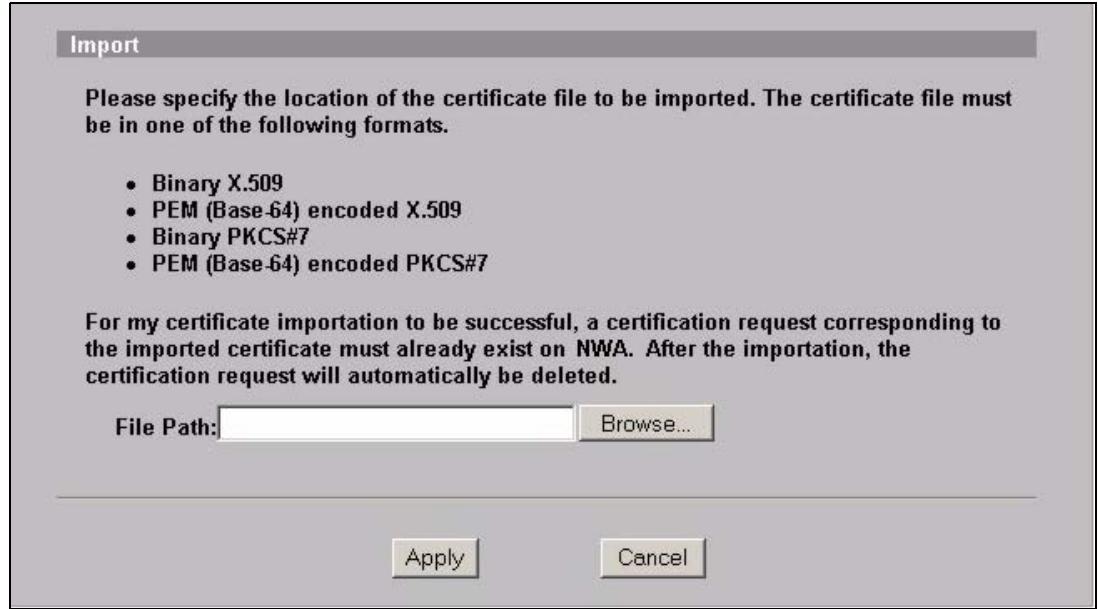
Figure 115 Certificates > My Certificates Import
The following table describes the labels in this screen.
Table 62 Certificates > My Certificate Import
| LABEL | DESCRIPTION |
| File Path | Type in the location of the file you want to upload in this field or click Browse to find it. |
| Browse | Click Browse to find the certificate file you want to upload. |
| Apply | Click Apply to save the certificate on the NWA. |
| Cancel | Click Cancel to quit and return to the My Certificates screen. |
18.2.2 My Certificates Create Screen
Use this screen to have the NWA create a self-signed certificate, enroll a certificate with a certification authority or generate a certification request.
Click Certificates > My Certificates and then Create to open the My Certificate Create screen. The following figure displays.
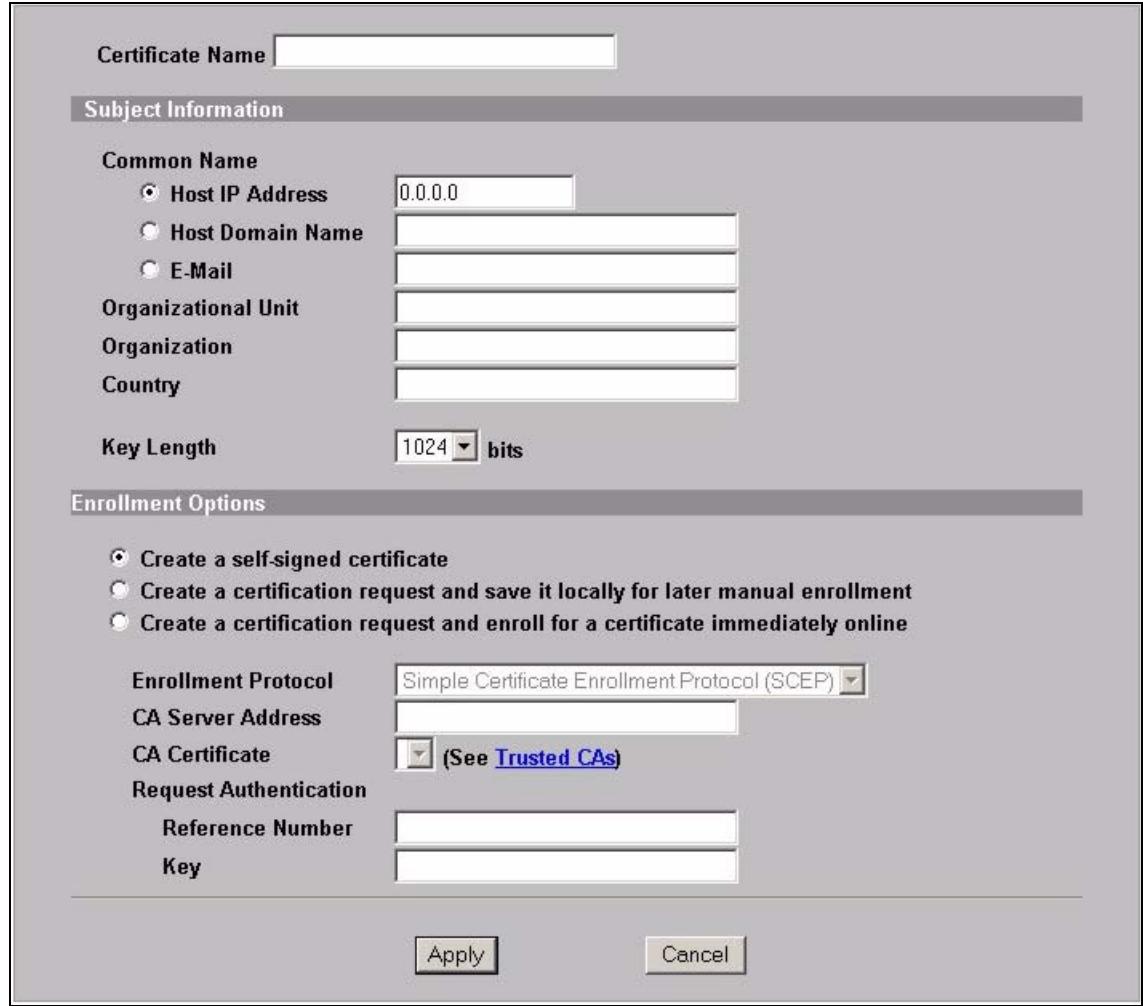
Figure 116 Certificates > My Certificate Create
The following table describes the labels in this screen.
Table 63 Certificates > My Certificate Create
| LABEL | DESCRIPTION |
| Certificate Name | Type up to 31 ASCII characters (not including spaces) to identify this certificate. |
| Subject Information | Use these fields to record information that identifies the owner of the certificate. You do not have to fill in every field, although the Common Name is mandatory. The certification authority may add fields (such as a serial number) to the subject information when it issues a certificate. It is recommended that each certificate have unique subject information. |
| Common Name | Select a radio button to identify the certificate's owner by IP address, domain name or e-mail address. Type the IP address (in dotted decimal notation), domain name or e-mail address in the field provided. The domain name or e-mail address can be up to 31 ASCII characters. The domain name or e-mail address is for identification purposes only and can be any string. |
| Organizational Unit | Type up to 127 characters to identify the organizational unit or department to which the certificate owner belongs. You may use any character, including spaces, but the NWA drops trailing spaces. |
| Organization | Type up to 127 characters to identify the company or group to which the certificate owner belongs. You may use any character, including spaces, but the NWA drops trailing spaces. |
| Country | Type up to 127 characters to identify the nation where the certificate owner is located. You may use any character, including spaces, but the NWA drops trailing spaces. |
| Key Length | Select a number from the drop-down list box to determine how many bits the key should use (512 to 2048). The longer the key, the more secure it is. A longer key also uses more PKI storage space. |
| Enrollment Options | These radio buttons deal with how and when the certificate is to be generated. |
| Create a self-signed certificate | Select Create a self-signed certificate to have the NWA generate the certificate and act as the Certification Authority (CA) itself. This way you do not need to apply to a certification authority for certificates. |
| Create a certification request and save it locally for later manual enrollment | Select Create a certification request and save it locally for later manual enrollment to have the NWA generate and store a request for a certificate. Use the My Certificate Details screen to view the certification request and copy it to send to the certification authority. Copy the certification request from the My Certificate Details screen (Section 18.2.3 on page 195) and then send it to the certification authority. |
| Create a certification request and enroll for a certificate immediately online | Select Create a certification request and enroll for a certificate immediately online to have the NWA generate a request for a certificate and apply to a certification authority for a certificate. You must have the certification authority's certificate already imported in the Trusted CAs screen. When you select this option, you must select the certification authority's enrollment protocol and the certification authority's certificate from the drop-down list boxes and enter the certification authority's server address. You also need to fill in the Reference Number and Key if the certification authority requires them. |
| Enrollment Protocol | Select the certification authority's enrollment protocol from the drop-down list box. |
| Simple Certificate Enrollment Protocol (SCEP) is a TCP-based enrollment protocol that was developed by VeriSign and Cisco. | |
| Certificate Management Protocol (CMP) is a TCP-based enrollment protocol that was developed by the Public Key Infrastructure X.509 working group of the Internet Engineering Task Force (IETF) and is specified in RFC 2510. | |
| CA Server Address | Enter the IP address (or URL) of the certification authority server. |
| CA Certificate | Select the certification authority's certificate from the CA Certificate drop-down list box. |
| You must have the certification authority's certificate already imported in the Trusted CAs screen. Click Trusted CAs to go to the Trusted CAs screen where you can view (and manage) the NWA's list of certificates of trusted certification authorities. | |
| Request Authentication | When you select Create a certification request and enroll for a certificate immediately online, the certification authority may want you to include a reference number and key to identify you when you send a certification request. Fill in both the Reference Number and the Key fields if your certification authority uses CMP enrollment protocol. Just fill in the Key field if your certification authority uses the SECP enrollment protocol. |
| Key | Type the key that the certification authority gave you. |
| Apply | Click Apply to begin certificate or certification request generation. |
| Cancel | Click Cancel to quit and return to the My Certificates screen. |
After you click Apply in the My Certificate Create screen, you see a screen that tells you the NWA is generating the self-signed certificate or certification request.
After the NWA successfully enrolls a certificate or generates a certification request or a self-signed certificate, you see a screen with a Return button that takes you back to the My Certificates screen.
If you configured the My Certificate Create screen to have the NWA enroll a certificate and the certificate enrollment is not successful, you see a screen with a Return button that takes you back to the My Certificate Create screen. Click Return and check your information in the My Certificate Create screen. Make sure that the certification authority information is correct and that your Internet connection is working properly if you want the NWA to enroll a certificate online.
18.2.3 My Certificates Details Screen
Use this screen to view in-depth certificate information and change the certificate's name. In the case of a self-signed certificate, you can set it to be the one that the NWA uses to sign the trusted remote host certificates that you import to the NWA.
Click Certificates > My Certificates to open the My Certificates screen (Figure 114 on page 188). Click the details button to open the My Certificate Details screen.

Figure 117 Certificates > My Certificate Details
The following table describes the labels in this screen.
Table 64 Certificates > My Certificate Details
| LABEL | DESCRIPTION |
| Name | This field displays the identifying name of this certificate. If you want to change the name, type up to 31 characters to identify this certificate. You may use any character (not including spaces). |
| Property Default self-signed certificate which signs the imported remote host certificates. | Select this check box to have the NWA use this certificate to sign the trusted remote host certificates that you import to the NWA. This check box is only available with self-signed certificates. If this check box is already selected, you cannot clear it in this screen, you must select this check box in another self-signed certificate's details screen. This automatically clears the check box in the details screen of the certificate that was previously set to sign the imported trusted remote host certificates. |
| Certificate Path | Click the Refresh button to have this read-only text box display the hierarchy of certification authorities that validate the certificate (and the certificate itself). If the issuing certification authority is one that you have imported as a trusted certification authority, it may be the only certification authority in the list (along with the certificate itself). If the certificate is a self-signed certificate, the certificate itself is the only one in the list. The NWA does not trust the certificate and displays "Not trusted" in this field if any certificate on the path has expired or been revoked. |
| Refresh | Click Refresh to display the certification path. |
| Certificate Information | These read-only fields display detailed information about the certificate. |
| Type | This field displays general information about the certificate. CA-signed means that a Certification Authority signed the certificate. Self-signed means that the certificate's owner signed the certificate (not a certification authority). "X.509" means that this certificate was created and signed according to the ITU-T X.509 recommendation that defines the formats for public-key certificates. |
| Version | This field displays the X.509 version number. |
| Serial Number | This field displays the certificate's identification number given by the certification authority or generated by the NWA. |
| Subject | This field displays information that identifies the owner of the certificate, such as Common Name (CN), Organizational Unit (OU), Organization (O) and Country (C). |
| Issuer | This field displays identifying information about the certificate's issuing certification authority, such as Common Name, Organizational Unit, Organization and Country. With self-signed certificates, this is the same as the Subject Name field. |
| Signature Algorithm | This field displays the type of algorithm that was used to sign the certificate. The NWA uses rsa-pkcs1-sha1 (RSA public-private key encryption algorithm and the SHA1 hash algorithm). Some certification authorities may use ras-pkcs1-md5 (RSA public-private key encryption algorithm and the MD5 hash algorithm). |
| Valid From | This field displays the date that the certificate becomes applicable. The text displays in red and includes a Not Yet Valid! message if the certificate has not yet become applicable. |
| Valid To | This field displays the date that the certificate expires. The text displays in red and includes an Expiring! or Expired! message if the certificate is about to expire or has already expired. |
| Key Algorithm | This field displays the type of algorithm that was used to generate the certificate's key pair (the NWA uses RSA encryption) and the length of the key set in bits (1024 bits for example). |
| Subject Alternative Name | This field displays the certificate owner's IP address (IP), domain name (DNS) or e-mail address (EMAIL). |
| Key Usage | This field displays for what functions the certificate's key can be used. For example, "DigitalSignature" means that the key can be used to sign certificates and "KeyEncipherment" means that the key can be used to encrypt text. |
| Basic Constraint | This field displays general information about the certificate. For example, Subject Type=CA means that this is a certification authority's certificate and "Path Length Constraint=1" means that there can only be one certification authority in the certificate's path. |
| MD5 Fingerprint | This is the certificate's message digest that the NWA calculated using the MD5 algorithm. |
| SHA1 Fingerprint | This is the certificate's message digest that the NWA calculated using the SHA1 algorithm. |
| Certificate in PEM (Base-64) Encoded Format | This read-only text box displays the certificate or certification request in Privacy Enhanced Mail (PEM) format. PEM uses 64 ASCII characters to convert the binary certificate into a printable form.You can copy and paste a certification request into a certification authority's web page, an e-mail that you send to the certification authority or a text editor and save the file on a management computer for later manual enrollment.You can copy and paste a certificate into an e-mail to send to friends or colleagues or you can copy and paste a certificate into a text editor and save the file on a management computer for later distribution (via floppy disk for example). |
| Export | Click this button and then Save in the File Download screen. The Save As screen opens, browse to the location that you want to use and click Save. |
| Apply | Click Apply to save your changes. You can only change the name, except in the case of a self-signed certificate, which you can also set to be the default self-signed certificate that signs the imported trusted remote host certificates. |
| Cancel | Click Cancel to quit and return to the My Certificates screen. |
18.3 Trusted CAs Screen
Use this screen to view the list of trusted certificates. The NWA accepts any valid certificate signed by a certification authority on this list as being trustworthy. You do not need to import any certificate that is signed.
Click Certificates > Trusted CAs to open the Trusted CAs screen. The following figure displays.
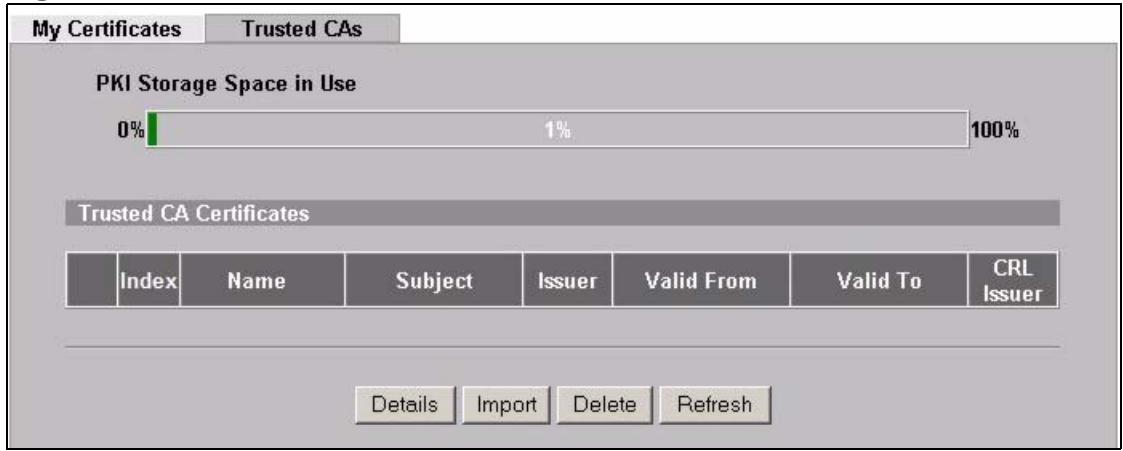
Figure 118 Certificates > Trusted CAs
The following table describes the labels in this screen.
Table 65 Trusted CAs
| LABEL | DESCRIPTION |
| PKI Storage Space in Use | This bar displays the percentage of the NWA's PKI storage space that is currently in use. When you are using 80% or less of the storage space, the bar is green. When the amount of space used is over 80%, the bar is red. When the bar is red, you should consider deleting expired or unnecessary certificates before adding more certificates. |
| Index | This field displays the certificate index number. The certificates are listed in alphabetical order. |
| Name | This field displays the name used to identify this certificate. |
| Subject | This field displays identifying information about the certificate's owner, such as CN (Common Name), OU (Organizational Unit or department), O (Organization or company) and C (Country). It is recommended that each certificate have unique subject information. |
| Issuer | This field displays identifying information about the certificate's issuing certification authority, such as a common name, organizational unit or department, organization or company and country. With self-signed certificates, this is the same information as in the Subject field. |
| Valid From | This field displays the date that the certificate becomes applicable. The text displays in red and includes a Not Yet Valid! message if the certificate has not yet become applicable. |
| Valid To | This field displays the date that the certificate expires. The text displays in red and includes an Expiring! or Expired! message if the certificate is about to expire or has already expired. |
| CRL Issuer | This field displays Yes if the certification authority issues Certificate Revocation Lists for the certificates that it has issued and you have selected the Issues certificate revocation lists (CRL) check box in the certificate's details screen to have the NWA check the CRL before trusting any certificates issued by the certification authority. Otherwise the field displays "No". |
| Details | Click Details to view in-depth information about the certification authority's certificate, change the certificate's name and set whether or not you want the NWA to check a certification authority's list of revoked certificates before trusting a certificate issued by the certification authority. |
| Import | Click Import to open a screen where you can save the certificate of a certification authority that you trust, from your computer to the NWA. |
| Delete | Click Delete to delete an existing certificate. A window display asking you to confirm that you want to delete the certificate. Note that subsequent certificates move up by one when you take this action. |
| Refresh | Click this button to display the current validity status of the certificates. |
18.3.1 Trusted CAs Import Screen
Use this screen to save a trusted certification authority's certificate to the NWA. Click Certificates > Trusted CAs to open the Trusted CAs screen and then click Import to open the Trusted CAs Import screen. The following figure displays.
Note: You must remove any spaces from the certificate's filename before you can import the certificate.
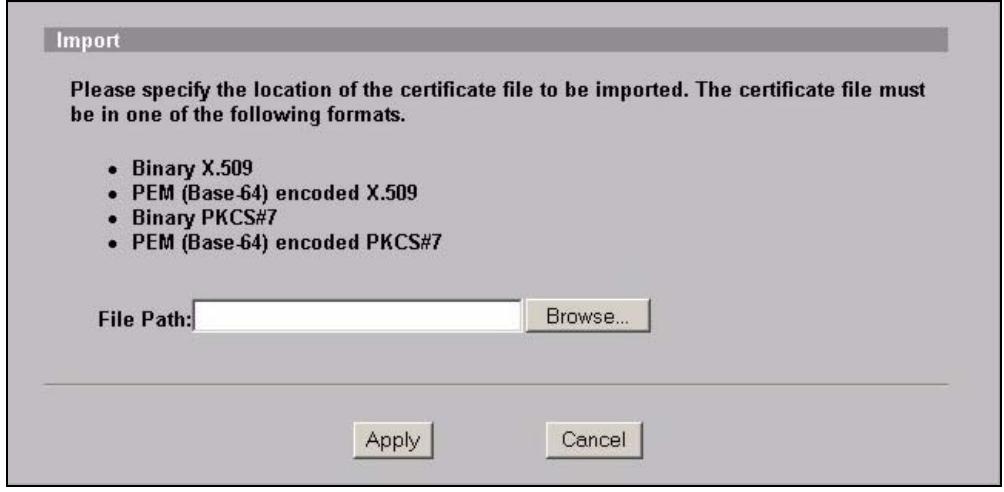
Figure 119 Certificates > Trusted CAs Import
The following table describes the labels in this screen.
Table 66 Certificates > Trusted CA Import
| LABEL | DESCRIPTION |
| File Path | Type in the location of the file you want to upload in this field or click Browse to find it. |
| Browse | Click Browse to find the certificate file you want to upload. |
| Apply | Click Apply to save the certificate on the NWA. |
| Cancel | Click Cancel to quit and return to the Trusted CAs screen. |
18.3.2 Trusted CAs Details Screen
Use this screen to view in-depth information about the certification authority's certificate, change the certificate's name and set whether or not you want the NWA to check a certification authority's list of revoked certificates before trusting a certificate issued by the certification authority.
Click Certificates > Trusted CAs to open the Trusted CAs screen. Click the details icon to open the Trusted CAs Details screen.
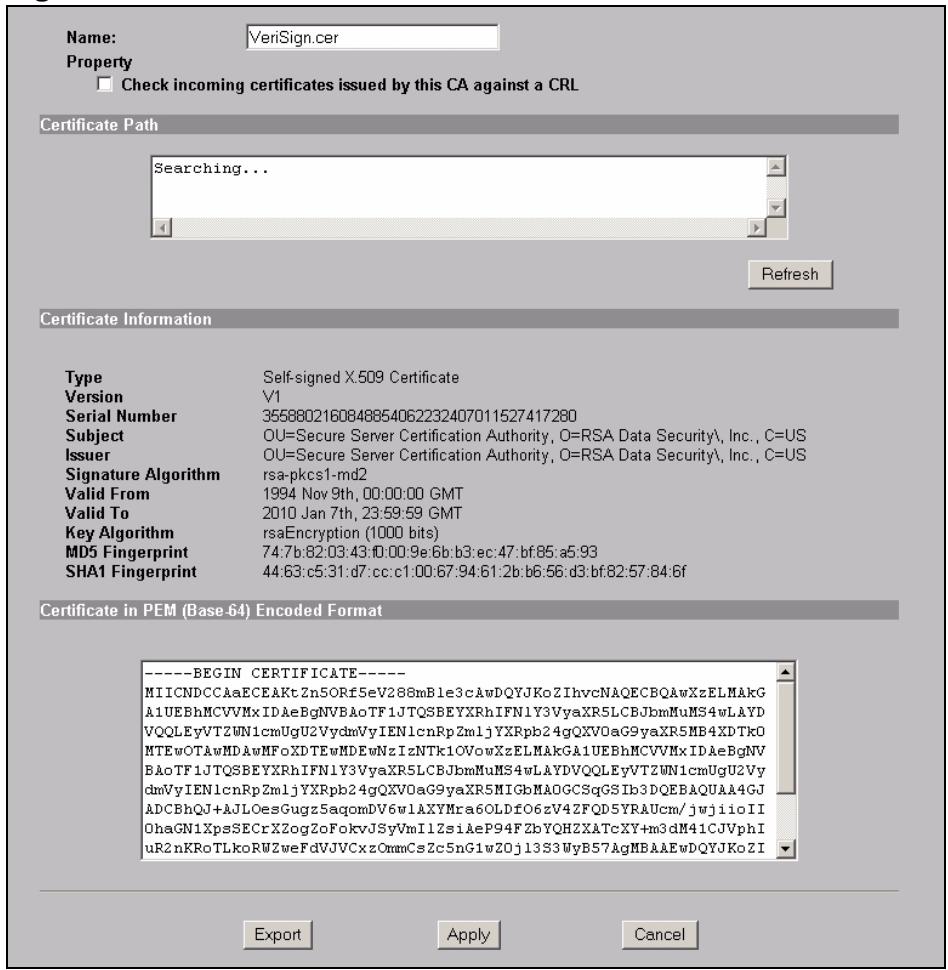
Figure 120 Certificates > Trusted CAs Details
The following table describes the labels in this screen.
Table 67 Certificates > Trusted CAs Details
| LABEL | DESCRIPTION |
| Name | This field displays the identifying name of this certificate. If you want to change the name, type up to 31 characters to identify this key certificate. You may use any character (not including spaces). |
| Property Check incoming certificates issued by this CA against a CRL | Select this check box to have the NWA check incoming certificates that are issued by this certification authority against a Certificate Revocation List (CRL).Clear this check box to have the NWA not check incoming certificates that are issued by this certification authority against a Certificate Revocation List (CRL). |
| Certificate Path | Click the Refresh button to have this read-only text box display the end entity's certificate and a list of certification authority certificates that shows the hierarchy of certification authorities that validate the end entity's certificate. If the issuing certification authority is one that you have imported as a trusted certification authority, it may be the only certification authority in the list (along with the end entity's own certificate). The NWA does not trust the end entity's certificate and displays "Not trusted" in this field if any certificate on the path has expired or been revoked. |
| Refresh | Click Refresh to display the certification path. |
| Certificate Information | These read-only fields display detailed information about the certificate. |
| Type | This field displays general information about the certificate. CA-signed means that a Certification Authority signed the certificate. Self-signed means that the certificate's owner signed the certificate (not a certification authority). X.509 means that this certificate was created and signed according to the ITU-T X.509 recommendation that defines the formats for public-key certificates. |
| Version | This field displays the X.509 version number. |
| Serial Number | This field displays the certificate's identification number given by the certification authority. |
| Subject | This field displays information that identifies the owner of the certificate, such as Common Name (CN), Organizational Unit (OU), Organization (O) and Country (C). |
| Issuer | This field displays identifying information about the certificate's issuing certification authority, such as Common Name, Organizational Unit, Organization and Country.With self-signed certificates, this is the same information as in the Subject Name field. |
| Signature Algorithm | This field displays the type of algorithm that was used to sign the certificate. Some certification authorities use rsa-pkcs1-sha1 (RSA public-private key encryption algorithm and the SHA1 hash algorithm). Other certification authorities may use ras-pkcs1-md5 (RSA public-private key encryption algorithm and the MD5 hash algorithm). |
| Valid From | This field displays the date that the certificate becomes applicable. The text displays in red and includes a Not Yet Valid! message if the certificate has not yet become applicable. |
| Valid To | This field displays the date that the certificate expires. The text displays in red and includes an Expiring! or Expired! message if the certificate is about to expire or has already expired. |
| Key Algorithm | This field displays the type of algorithm that was used to generate the certificate's key pair (the NWA uses RSA encryption) and the length of the key set in bits (1024 bits for example). |
| Subject Alternative Name | This field displays the certificate's owner's IP address (IP), domain name (DNS) or e-mail address (EMAIL). |
| Key Usage | This field displays for what functions the certificate's key can be used. For example, "DigitalSignature" means that the key can be used to sign certificates and "KeyEncipherment" means that the key can be used to encrypt text. |
| Basic Constraint | This field displays general information about the certificate. For example, Subject Type=CA means that this is a certification authority's certificate and "Path Length Constraint=1" means that there can only be one certification authority in the certificate's path. |
| CRL Distribution Points | This field displays how many directory servers with Lists of revoked certificates the issuing certification authority of this certificate makes available. This field also displays the domain names or IP addresses of the servers. |
| MD5 Fingerprint | This is the certificate's message digest that the NWA calculated using the MD5 algorithm. You cannot use this value to verify that this is the remote host's actual certificate because the NWA has signed the certificate; thus causing this value to be different from that of the remote host's actual certificate. See Section 18.1.2 on page 188 for how to verify a remote host's certificate before you import it into the NWA. |
| SHA1 Fingerprint | This is the certificate's message digest that the NWA calculated using the SHA1 algorithm. You cannot use this value to verify that this is the remote host's actual certificate because the NWA has signed the certificate; thus causing this value to be different from that of the remote host's actual certificate. See Section 18.1.2 on page 188 for how to verify a remote host's certificate before you import it into the NWA. |
| Certificate in PEM (Base-64) Encoded Format | This read-only text box displays the certificate or certification request in Privacy Enhanced Mail (PEM) format. PEM uses 64 ASCII characters to convert the binary certificate into a printable form. You can copy and paste the certificate into an e-mail to send to friends or colleagues or you can copy and paste the certificate into a text editor and save the file on a management computer for later distribution (via floppy disk for example). |
| Export | Click this button and then Save in the File Download screen. The Save As screen opens, browse to the location that you want to use and click Save. |
| Apply | Click Apply to save your changes. You can only change the name and/or set whether or not you want the NWA to check the CRL that the certification authority issues before trusting a certificate issued by the certification authority. |
| Cancel | Click Cancel to quit and return to the Trusted CAs screen. |
18.4 Technical Reference
This section provides technical background information about the topics covered in this chapter.
18.4.1 Private-Public Certificates
When using public-key cryptography for authentication, each host has two keys. One key is public and can be made openly available. The other key is private and must be kept secure.
These keys work like a handwritten signature (in fact, certificates are often referred to as "digital signatures"). Only you can write your signature exactly as it should look. When people know what your signature looks like, they can verify whether something was signed by you, or by someone else. In the same way, your private key "writes" your digital signature and your public key allows people to verify whether data was signed by you, or by someone else. This process works as follows.
1 Tim wants to send a message to Jenny. He needs her to be sure that it comes from him, and that the message content has not been altered by anyone else along the way. Tim generates a public key pair (one public key and one private key).
2 Tim keeps the private key and makes the public key openly available. This means that anyone who receives a message seeming to come from Tim can read it and verify whether it is really from him or not.
3 Tim uses his private key to sign the message and sends it to Jenny.
4 Jenny receives the message and uses Tim's public key to verify it. Jenny knows that the message is from Tim, and that although other people may have been able to read the message, no-one can have altered it (because they cannot re-sign the message with Tim's private key).
5 Additionally, Jenny uses her own private key to sign a message and Tim uses Jenny's public key to verify the message.
18.4.2 Certification Authorities
A Certification Authority (CA) issues certificates and guarantees the identity of each certificate owner. There are commercial certification authorities like CyberTrust or VeriSign and government certification authorities. You can use the NWA to generate certification requests that contain identifying information and public keys and then send the certification requests to a certification authority.
18.4.3 Checking the Fingerprint of a Certificate
A certificate's fingerprints are message digests calculated using the MD5 or SHA1 algorithms. The following procedure describes how to check a certificate's fingerprint to verify that you have the actual certificate.
1 Browse to where you have the certificate saved on your computer.
2 Make sure that the certificate has a ".cert" or ".crt" file name extension.
Figure 121 Certificates on Your Computer
3 Double-click the certificate's icon to open the Certificate window. Click the Details tab and scroll down to the Thumbprint Algorithm and Thumbprint fields.
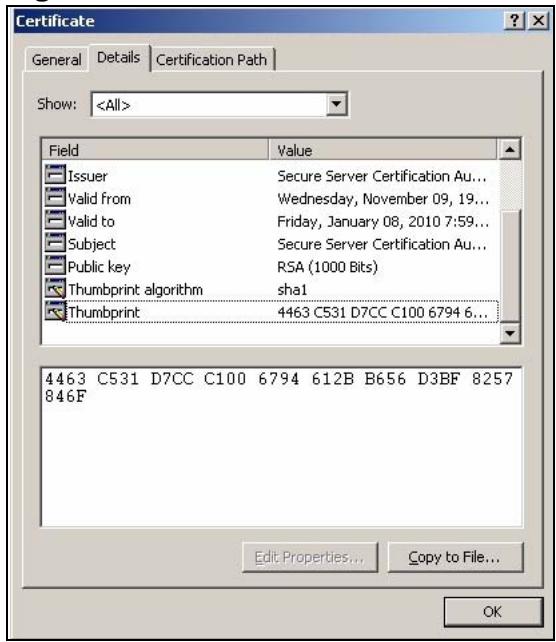
Figure 122 Certificate Details
4 Use a secure method to verify that the certificate owner has the same information in the Thumbprint Algorithm and Thumbprint fields. The secure method may vary according to your situation. Possible examples would be over the telephone or through an HTTPS connection.
19.1 Overview
This chapter provides information on viewing and generating logs on your NWA.
Logs are files that contain recorded network activity over a set period. They are used by administrators to monitor the health of the computer system(s) they are managing. Logs enable administrators to effectively monitor events, errors, progress, etc. so that when network problems or system failures occur, the cause or origin can be traced. Logs are also essential for auditing and keeping track of changes made by users.
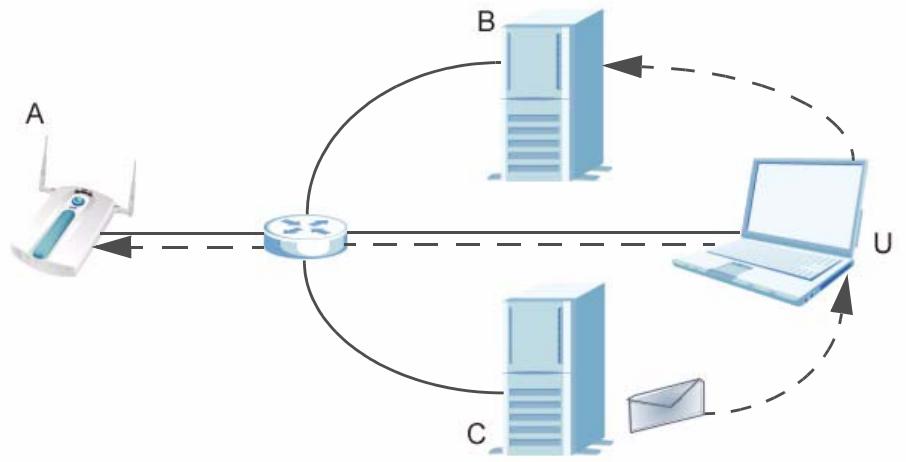
Figure 123 Accessing Logs in the Network
The figure above illustrates three ways to access logs. The user (U) can access logs directly from the NWA (A) via the Web configurator. Logs can also be located in an external log server (B). An email server (C) can also send harvested logs to the user's email account.
19.1.1 What You Can Do in the Log Screens
-
Use the View Log screen (Section 19.2 on page 206) to display all logs or logs for a certain category. You can view logs and alert messages in this page. Once the log entries are all used, the log will wrap around and the old logs will be deleted.
-
Use the Log Settings screen (Section 19.3 on page 208) to configure where and when the NWA will send the logs, and which logs and/or immediate alerts it will send.
19.1.2 What You Need To Know About Logs
The following terms and concepts may help as you read through this chapter.
Alerts and Logs
An alert is a type of log that warrants more serious attention. Some categories such as System Errors consist of both logs and alerts. You can differentiate them by their color in the View Log screen. Alerts are displayed in red and logs are displayed in black.
Receiving Logs via Email
If you want to receive logs in your email account, you need to have the necessary details ready, such as the Server Name or SMPT Address of your email account. Ensure that you have a valid email address.
Enabling Syslog Logging
To enable Syslog Logging, obtain your Syslog server's IP address (or server name).
19.2 The View Log Screen
Use this screen to see the logs for the categories that you selected in the Log Settings screen (see Figure 125 on page 208). Options include logs about system maintenance, system errors and access control.
You can view logs and alert messages in this page. Once the log entries are all used, the log will wrap around and the old logs will be deleted.
Click a column heading to sort the entries. A triangle indicates ascending or descending sort order.
Click Logs > View Log. The following screen displays.
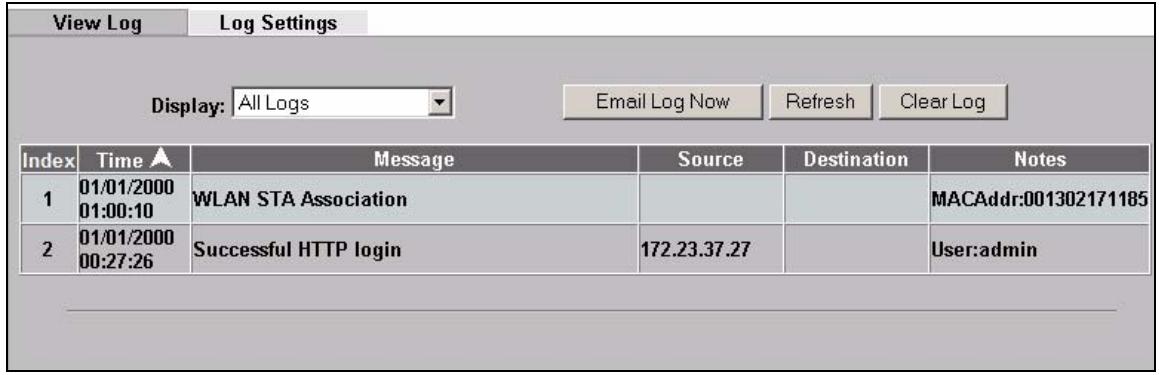
Figure 124 Logs > View Log
The following table describes the labels in this screen.
Table 68 Logs > View Log
| LABEL | DESCRIPTION |
| Display | Select a log category from the drop down list box to display logs within the selected category. To view all logs, select All Logs. The number of categories shown in the drop down list box depends on the selection in the Log Settings page. |
| Index | This field displays the log index number. The logs are listed in chronological order. |
| Time | This field displays the time the log was recorded. |
| Message | This field states the reason for the log. |
| Source | This field lists the source IP address and the port number of the incoming packet. |
| Destination | This field lists the destination IP address and the port number of the incoming packet. |
| Notes | This field displays additional information about the log entry. |
| Email Log Now | Click Email Log Now to send the log screen to the e-mail address specified in the Log Settings page. |
| Refresh | Click Refresh to renew the log screen. |
| Clear Log | Click Clear Log to clear all the logs. |
19.3 The Log Settings Screen
Use this screen to configure where and when the NWA will send the logs, and which logs and/or immediate alerts to send.
Click Logs > Log Settings. The following screen displays.
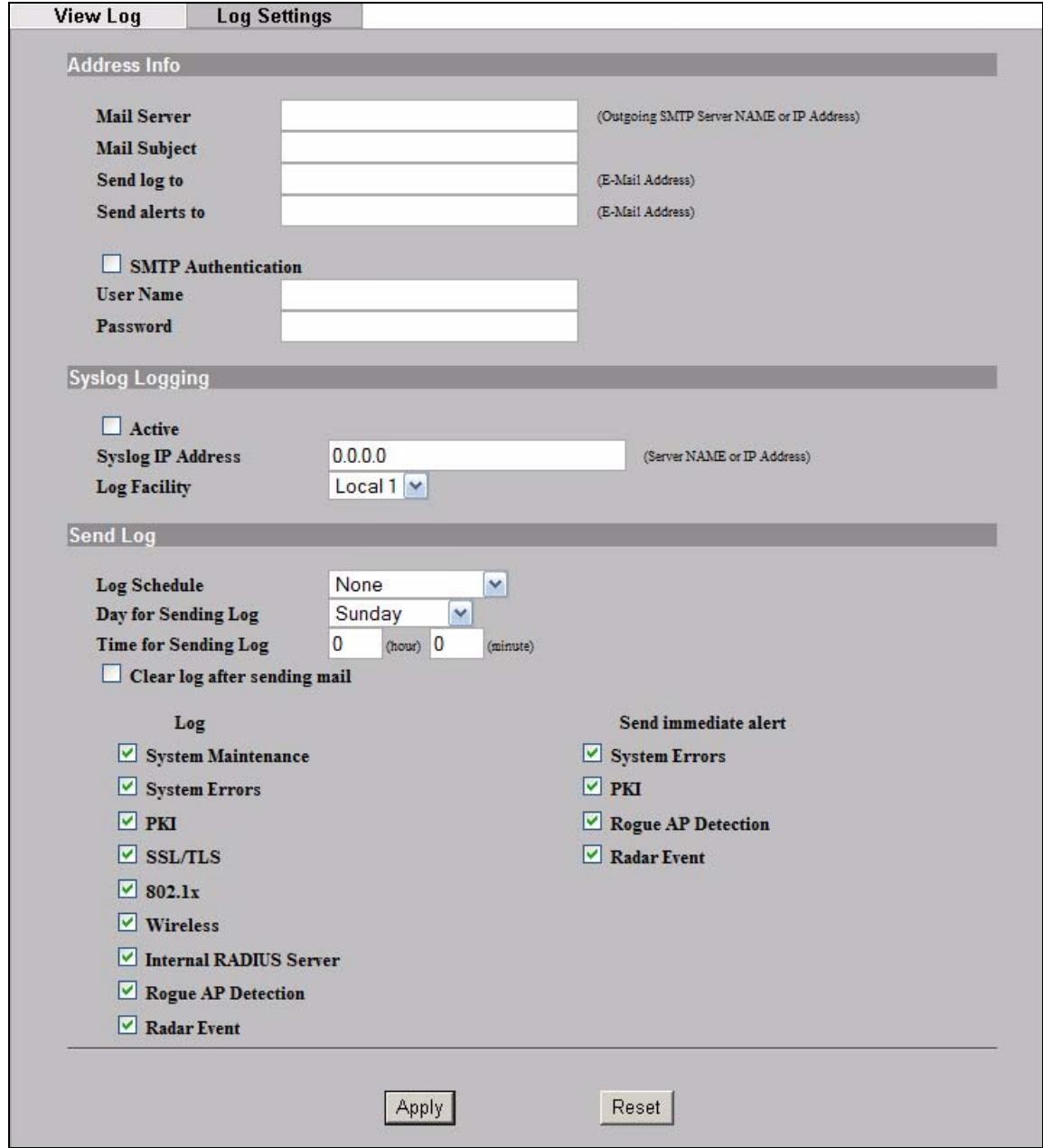
Figure 125 Logs > Log Settings
The following table describes the labels in this screen.
Table 69 Logs > Log Settings
| LABEL | DESCRIPTION |
| Address Info | |
| Mail Server | Enter the server name or the IP address of the mail server for the e-mail addresses specified below. If this field is left blank, logs and alert messages will not be sent via e-mail. |
| Mail Subject | Type a title that you want to be in the subject line of the log e-mail message that the NWA sends. |
| Send Log to | Logs are sent to the e-mail address specified in this field. If this field is left blank, logs will not be sent via e-mail. |
| Send Alerts to | Enter the e-mail address where the alert messages will be sent. If this field is left blank, alert messages will not be sent via e-mail. |
| SMTPAuthentication | If you use SMTP authentication, the mail receiver should be the owner of the SMTP account. |
| UserID | If your e-mail account requires SMTP authentication, enter the username here. |
| Password | Enter the password associated with the above username. |
| Syslog Logging | Syslog logging sends a log to an external syslog server used to store logs. |
| Active | Click Active to enable syslog logging. |
| Syslog IP Address | Enter the server name or IP address of the syslog server that will log the selected categories of logs. |
| Log Facility | Select a location from the drop down list box. The log facility allows you to log the messages to different files in the syslog server. Refer to the documentation of your syslog program for more details. |
| Send Log | |
| Log Schedule | This drop-down menu is used to configure the frequency of log messages being sent as E-mail: • Daily • Weekly • Hourly • When Log is Full • None. If the Weekly or the Daily option is selected, specify a time of day when the E-mail should be sent. If the Weekly option is selected, then also specify which day of the week the E-mail should be sent. If the When Log is Full option is selected, an alert is sent when the log fills up. If you select None, no log messages are sent. |
| Day for Sending Log | This field is only available when you select Weekly in the Log Schedule field. Use the drop down list box to select which day of the week to send the logs. |
| Time for Sending Log | Enter the time of the day in 24-hour format (for example 23:00 equals 11:00 pm) to send the logs. |
Table 69 Logs > Log Settings
| LABEL | DESCRIPTION |
| Clear log after sending mail | Select the check box to clear all logs after logs and alert messages are sent via e-mail. |
| Log | Select the categories of logs that you want to record. |
| Send Immediate Alert | Select the categories of alerts for which you want the NWA to immediately send e-mail alerts. |
| Apply | Click Apply to save your customized settings and exit this screen. |
| Reset | Click Reset to reconfigure all the fields in this screen. |
19.4 Technical Reference
This section provides some technical background information about the topics covered in this chapter.
19.4.1 Example Log Messages
This section provides descriptions of some example log messages.
Table 70 System Maintenance Logs
| LOGMESSAGE | DESCRIPTION |
| Time calibration is successful | The NWA has adjusted its time based on information from the time server. |
| Time calibration failed | The NWA failed to get information from the time server. |
| DHCP client gets %s | A DHCP client got a new IP address from the DHCP server. |
| DHCP client IP expired | A DHCP client's IP address has expired. |
| DHCP server assigns %s | The DHCP server assigned an IP address to a client. |
| SMT Login Successfully | Someone has logged on to the NWA's SMT interface. |
| SMT Login Fail | Someone has failed to log on to the NWA's SMT interface. |
| WEB Login Successfully | Someone has logged on to the NWA's web configurator interface. |
| WEB Login Fail | Someone has failed to log on to the NWA's web configurator interface. |
| TELNET Login Successfully | Someone has logged on to the NWA via telnet. |
| TELNET Login Fail | Someone has failed to log on to the NWA via telnet. |
| FTP Login Successfully | Someone has logged on to the NWA via FTP. |
| FTP Login Fail | Someone has failed to log on to the NWA via FTP. |
Table 71 ICMP Notes
| TYPE | CODE | DESCRIPTION |
| 0 | Echo Reply | |
| 0 | Echo reply message | |
| 3 | Destination Unreachable | |
| 0 | Net unreachable | |
| 1 | Host unreachable | |
| 2 | Protocol unreachable | |
| 3 | Port unreachable | |
| 4 | A packet that needed fragmentation was dropped because it was set to Don't Fragment (DF) | |
| 5 | Source route failed | |
| 4 | Source Quench | |
| 0 | A gateway may discard internet datagrams if it does not have the buffer space needed to queue the datagrams for output to the next network on the route to the destination network. | |
| 5 | Redirect | |
| 0 | Redirect datagrams for the Network | |
| 1 | Redirect datagrams for the Host | |
| 2 | Redirect datagrams for the Type of Service and Network | |
| 3 | Redirect datagrams for the Type of Service and Host | |
| 8 | Echo | |
| 0 | Echo message | |
| 11 | Time Exceeded | |
| 0 | Time to live exceeded in transit | |
| 1 | Fragment reassembly time exceeded | |
| 12 | Parameter Problem | |
| 0 | Pointer indicates the error | |
| 13 | Timestamp | |
| 0 | Timestamp request message | |
| 14 | Timestamp Reply | |
| 0 | Timestamp reply message | |
| 15 | Information Request | |
| 0 | Information request message | |
| 16 | Information Reply | |
| 0 | Information reply message |
Table 72 Sys log
| LOGMESSAGE | DESCRIPTION |
| Mon dd hr:mm:ss hostname src="<srcIP:srcPort>" dst="<dstIP:dstPort>" msg="<msg>" note="<note>" | This message is sent by the "RAS" when this syslog is generated. The messages and notes are defined in this appendix's other charts. |
19.4.2 Log Commands
Go to the command interpreter interface (refer to Appendix F on page 309 for a discussion on how to access and use the commands).
19.4.3 Configuring What You Want the NWA to Log
Use the sys logs load command to load the log setting buffer that allows you to configure which logs the NWA is to record.
Use sys logs category followed by a log category and a parameter to decide what to record
Table 73 Log Categories and Available Settings
| LOG CATEGORIES | AVAILABLE PARAMETERS |
| error | 0, 1, 2, 3 |
| mten | 0, 1 |
| Use 0 to not record logs for that category, 1 to record only logs for that category, 2 to record only alerts for that category, and 3 to record both logs and alerts for that category. | |
Use the sys logs save command to store the settings in the NWA (you must do this in order to record logs).
19.4.4 Displaying Logs
Use the sys logs display command to show all of the logs in the NWA's log.
Use the sys logs category display command to show the log settings for all of the log categories.
Use the sys logs display [log category] command to show the logs in an individual NWA log category.
Use the sys logs clear command to erase all of the NWA's logs.
19.4.5 Log Command Example
This example shows how to set the NWA to record the error logs and alerts and then view the results.
ras>sys logs load ras>sys logs category error 3 ras>sys logs save ras>sys logs display access #.time source destination notes message 0 |11/11/2002 15:10:12 |172.22.3.80:137 |172.22.255.255:137 ACCESS BLOCK
20.1 Overview
This chapter discusses how to configure VLAN on the NWA.
A VLAN (Virtual Local Area Network) allows a physical network to be partitioned into multiple logical networks. Stations on a logical network can belong to one or more groups. Only stations within the same group can talk to each other.
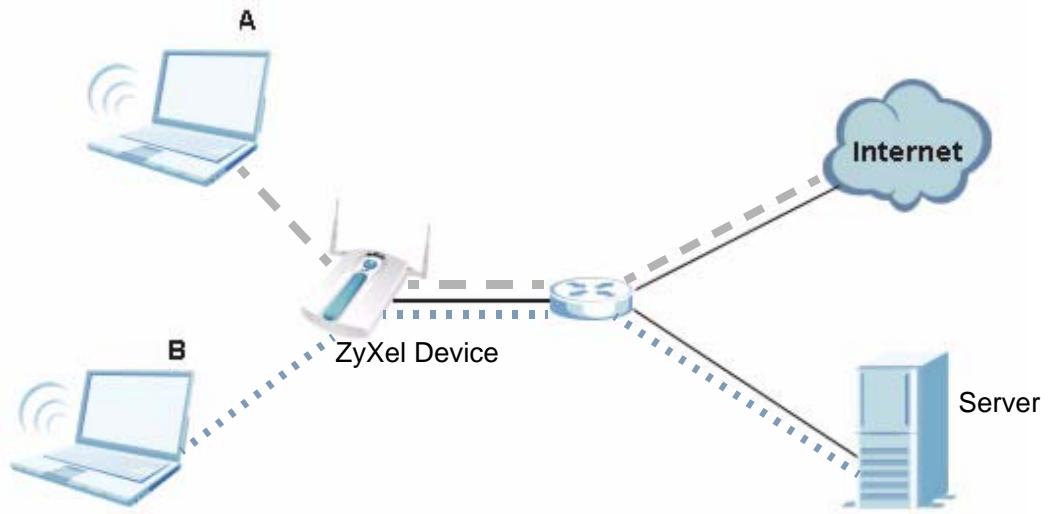
Figure 126 VLAN Example
In the figure above, the NWA allows station A to connect to the internet but not to the server. It allows station B to connect to the server but not to the Internet.
20.1.1 What You Can Do in the VLAN Screen
- Use the Wireless VLAN screen (Section 20.2 on page 217) to enable and configure your Wireless Virtual LAN setup. The NWA tags all packets from an SSID with the VLAN ID you set in this screen.
- Use the Radius VLAN screen (Section 20.2.1 on page 219) to configure your RADIUS Virtual LAN setup. Your RADIUS server assigns VLAN IDs to a user or user group's traffic based on what you set in this screen.
20.1.2 What You Need To Know About VLAN
The following terms and concepts may help as you read through this chapter.
When you use wireless VLAN and RADIUS VLAN together, the NWA first tries to assign VLAN IDs based on RADIUS VLAN configuration. If a client's user name does not match an entry in the RADIUS VLAN screen, the NWA assigns a VLAN ID based on the settings in the Wireless VLAN screen. See Section 20.3.3 on page 223 for more information.
Note: To use RADIUS VLAN, you must first select Enable VIRTUAL LAN and configure the Management VLAN ID in the VLAN > Wireless VLAN screen.
The Management VLAN ID identifies the "management VLAN". A device must be a member of this "management VLAN" in order to access and manage the NWA. If a device is not a member of this VLAN, then that device cannot manage the NWA.
Note: If no devices are in the management VLAN, then you will be able to access the NWA only through the console port (not through the network).
20.2 Wireless VLAN Screen
Use this screen to enable and configure your Wireless Virtual LAN setup. Click VLAN > Wireless VLAN. The following screen appears.
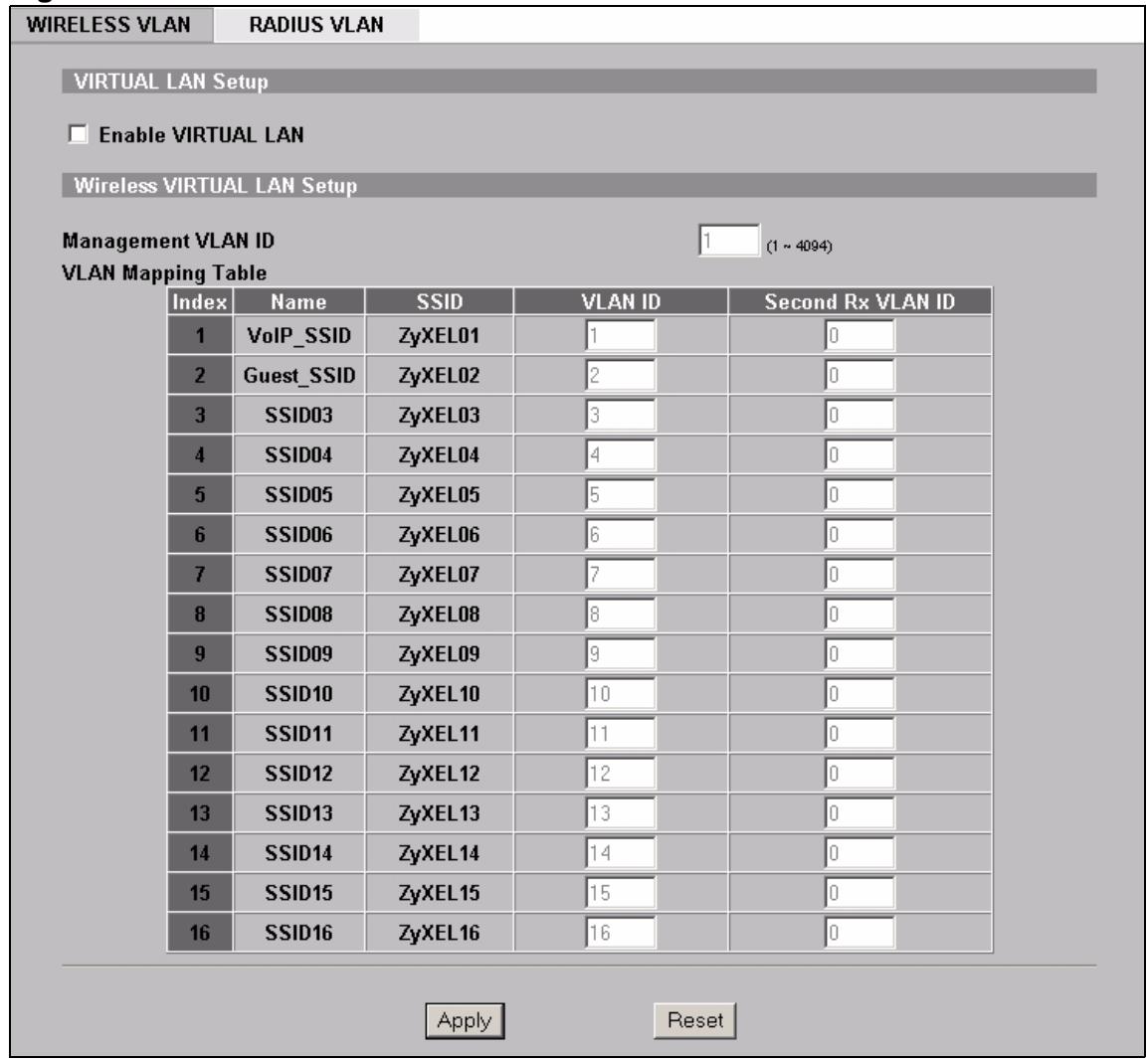
Figure 127 VLAN > Wireless VLAN
The following table describes the labels in this screen
Table 74 VLAN > Wireless VLAN
| FIELD | DESCRIPTION |
| Enable VIRTUAL LAN | Select this box to enable VLAN tagging. |
| Management VLAN ID | Enter a number from 1 to 4094 to define this VLAN group. At least one device in your network must belong to this VLAN group in order to manage the NWA. Note: Mail and FTP servers must have the same management VLAN ID to communicate with the NWA. See Section 20.3.2 on page 220 for more information. |
| VLAN Mapping Table | Use this table to have the NWA assign VLAN tags to packets from wireless clients based on the SSID they use to connect to the NWA. |
| Index | This is the index number of the SSID profile. |
| Name | This is the name of the SSID profile. |
| SSID | This is the SSID the profile uses. |
| VLAN ID | Enter a VLAN ID number from 1 to 4094. Packets coming from the WLAN using this SSID profile are tagged with the VLAN ID number by the NWA. Different SSID profiles can use the same or different VLAN IDs. This allows you to split wireless stations into groups using similar VLAN IDs. |
| Second Rx VLAN ID | Enter a number from 1 to 4094, but different from the VLAN ID. Traffic received from the LAN that is tagged with this VLAN ID is sent to all SSIDs with this VLAN ID configured in the VLAN ID or Second Rx VLAN ID fields. See Section 20.3.4 on page 233 for more information. |
| Apply | Click this to save your changes to the NWA. |
| Reset | Click this to return this screen to its last-saved settings. |
20.2.1 RADIUS VLAN Screen
Use this screen to configure your RADIUS Virtual LAN setup. Click VLAN > RADIUS VLAN. The following screen appears.
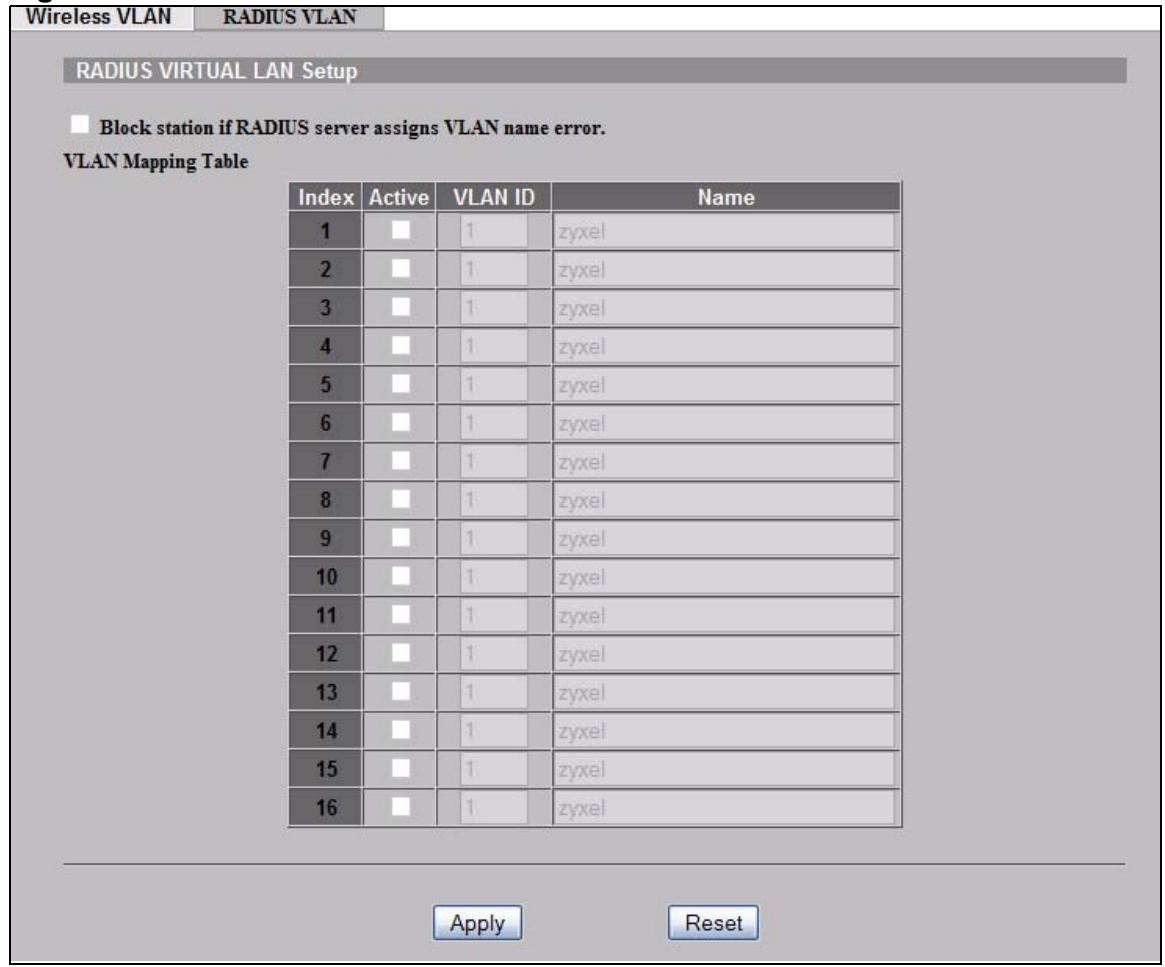
Figure 128 VLAN > RADIUS VLAN
The following table describes the labels in this screen.
Table 75 VLAN > RADIUS VLAN
| LABEL | DESCRIPTION |
| Block station if RADIUS server assign VLAN name error! | Select this to have the NWA forbid access to wireless clients when the VLAN attributes sent from the RADIUS server do not match a configured Name field. When you select this check box, only users with names configured in this screen can access the network through the NWA. |
| VLAN Mapping Table | Use this table to map names to VLAN IDs so that the RADIUS server can assign each user or user group a mapped VLAN ID. See your RADIUS server documentation for more information on configuring VLAN ID attributes. See Section 20.3.3 on page 223 for more information. |
| Index | This is the index number of the VLAN mapping ID. |
Table 75 VLAN > RADIUS VLAN
| LABEL | DESCRIPTION |
| Active | Select a check box to enable the VLAN mapping profile. |
| ID | Type a VLAN ID. Incoming traffic from the WLAN is authorized and assigned a VLAN ID before it is sent to the LAN. |
| Name | Type a name to have the NWA check for specific VLAN attributes on incoming messages from the RADIUS server. Access-accept packets sent by the RADIUS server contain VLAN related attributes. The configured Name fields are checked against these attributes. If a configured Name field matches these attributes, the corresponding VLAN ID is added to packets sent from this user to the LAN. If the VLAN-related attributes sent by the RADIUS server do not match a configured Name field, a wireless station is assigned the wireless VLAN ID associated with its SSID (unless the Block station if RADIUS server assign VLAN error! check box is selected). |
| Apply | Click Apply to save your changes to the NWA. |
| Reset | Click Reset to begin configuring this screen afresh. |
20.3 Technical Reference
This section provides some technical background information and configuration examples about the topics covered in this chapter.
20.3.1 VLAN Tagging
The NWA supports IEEE 802.1q VLAN tagging. Tagged VLAN uses an explicit tag (VLAN ID) in the MAC header of a frame to identify VLAN membership. The NWA can identify VLAN tags for incoming Ethernet frames and add VLAN tags to outgoing Ethernet frames.
Note: You must connect the NWA to a VLAN-aware device that is a member of the management VLAN in order to perform management. See the Configuring Management VLAN example BEFORE you configure the VLAN screens.
20.3.2 Configuring Management VLAN Example
This section shows you how to create a VLAN on an Ethernet switch.
By default, the port on the NWA is a member of the management VLAN (VLAN ID 1). The following procedure shows you how to configure a tagged VLAN.
Note: Use the out-of-band management port or console port to configure the switch if you misconfigure the management VLAN and lock yourself out from performing in-band management.
On an Ethernet switch, create a VLAN that has the same management VLAN ID as the NWA. The following figure has the NWA connected to port 2 and your computer connected to port 1. The management VLAN ID is 10.
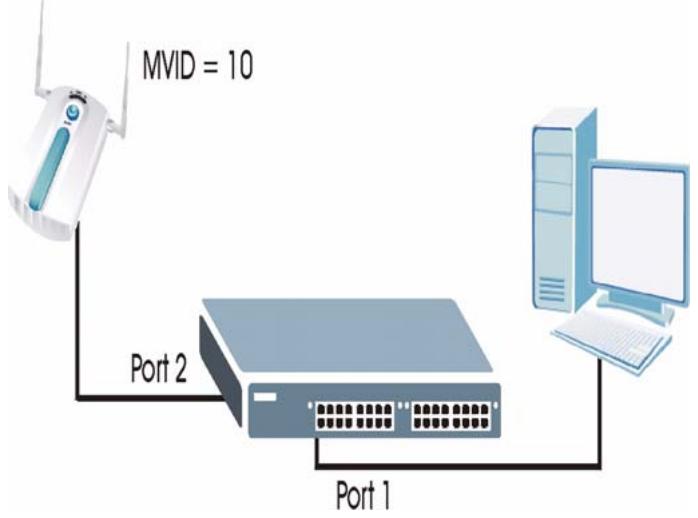
Figure 129 Management VLAN Configuration Example
Perform the following steps in the switch web configurator:
1 Click VLAN under Advanced Application.
2 Click Static VLAN.
3 Select the ACTIVE check box.
4 Type a Name for the VLAN ID.
5 Type a VLAN Group ID. This should be the same as the management VLAN ID on the NWA.
6 Enable Transmitted Packets (Tx) Tagging on the port which you want to connect to the NWA. Disable Tx Tagging on the port you are using to connect to your computer.
7 Under Control, select Fixed to set the port as a member of the VLAN.
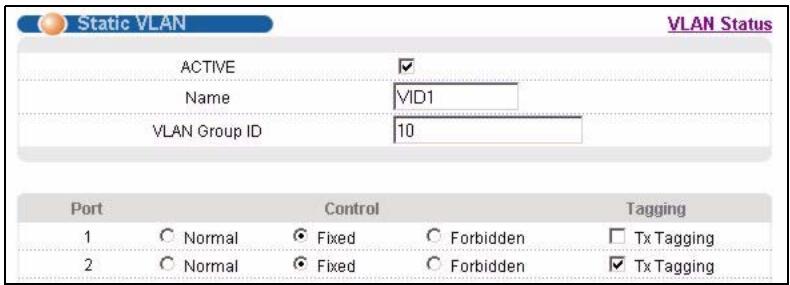
Figure 130 VLAN-Aware Switch - Static VLAN
8 Click Apply. The following screen displays.
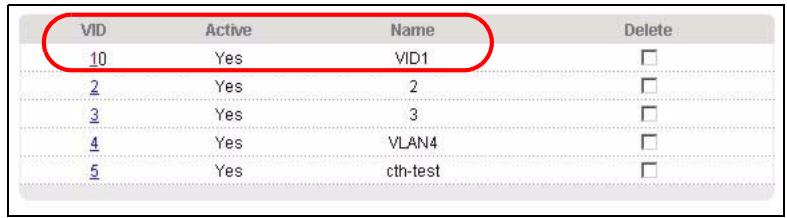
Figure 131 VLAN-Aware Switch
9 Click VLAN Status to display the following screen.
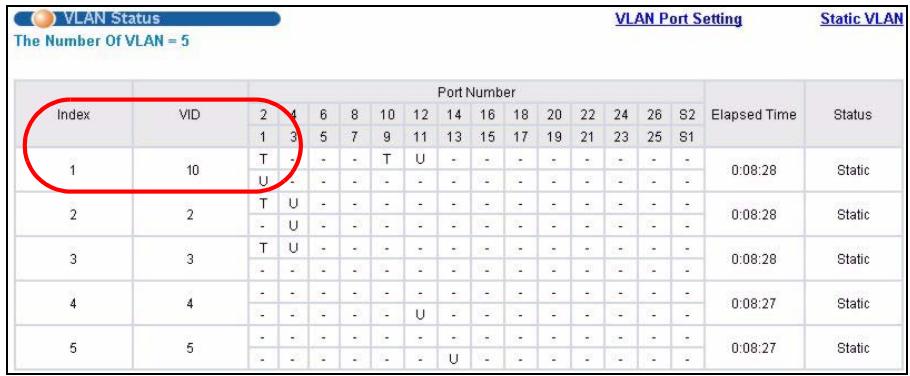
Figure 132 VLAN-Aware Switch - VLAN Status
Follow the instructions in the Quick Start Guide to set up your NWA for configuration. The NWA should be connected to the VLAN-aware switch. In the above example, the switch is using port 1 to connect to your computer and port 2 to connect to the NWA: Figure 129 on page 221.
1 In the NWA web configurator click VLAN to open the VLAN setup screen.
2 Select the Enable VLAN Tagging check box and type a Management VLAN ID (10 in this example) in the field provided.
3 Click Apply.
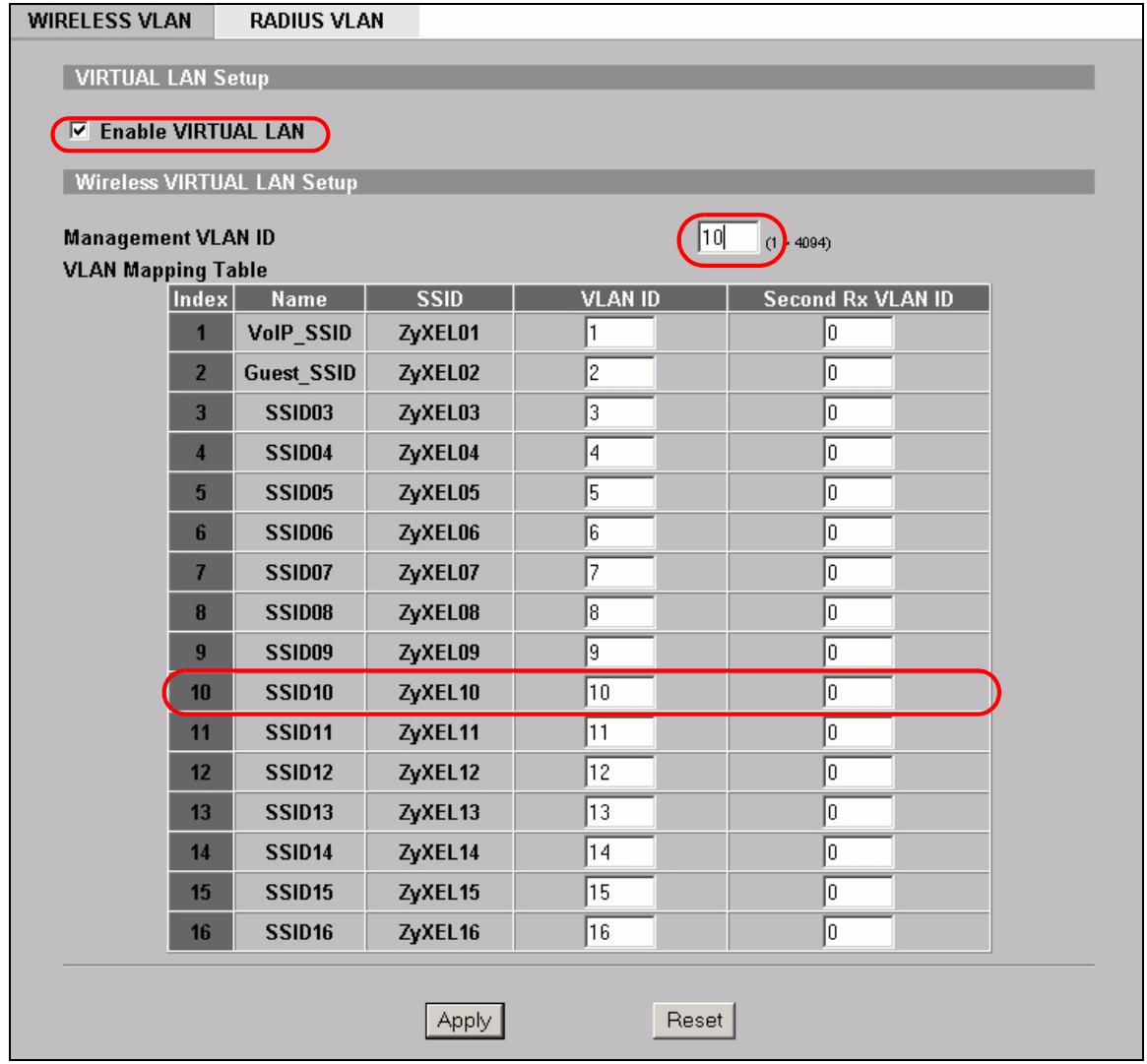
Figure 133 VLAN Setup
4 The NWA attempts to connect with a VLAN-aware device. You can now access and mange the NWA though the Ethernet switch.
Note: If you do not connect the NWA to a correctly configured VLAN-aware device, you will lock yourself out of the NWA. If this happens, you must reset the NWA to access it again.
20.3.3 Configuring Microsoft's IAS Server Example
Dynamic VLAN assignment can be used with the NWA. Dynamic VLAN assignment allows network administrators to assign a specific VLAN (configured on the NWA) to an individual's Windows User Account. When a wireless station is successfully authenticated to the network, it is automatically placed into its respective VLAN.
ZyXEL uses the following standard RADIUS attributes returned from Microsoft's IAS RADIUS service to place the wireless station into the correct VLAN:
Table 76 Standard RADIUS Attributes
| ATTRIBUTE NAME | TYPE | VALUE |
| Tunnel-Type | 064 | 13 (decimal) – VLAN |
| Tunnel-Medium-Type | 065 | 6 (decimal) – 802 |
| Tunnel-Private- Group-ID | 081 | <string> (string) – either the Name you enter in the NWA's VLAN > RADIUS VLAN screen or the number. See Figure 145 on page 231. |
The following occurs under Dynamic VLAN Assignment:
1 When you configure your wireless credentials, the NWA sends the information to the IAS server using RADIUS protocol.
2 Authentication by the RADIUS server is successful.
3 The RADIUS server sends three attributes related to this feature.
4 The NWA compares these attributes with the VLAN screen mapping table.
4a If the Name, for example "VLAN 20" is found, the mapped VLAN ID is used.
4b If the Name is not found in the mapping table, the string in the Tunnel-Private-Group-ID attribute is considered as a number ID format, for example 2493. The range of the number ID (Name:string) is between 1 and 4094.
4c If a or b are not matched, the NWA uses the VLAN ID configured in the WIREFLESS VLAN screen and the wireless station. This VLAN ID is independent and hence different to the ID in the VLAN screen.
20.3.3.1 Configuring VLAN Groups
To configure a VLAN group you must first define the VLAN Groups on the Active Directory server and assign the user accounts to each VLAN Group.
1 Using the Active Directory Users and Computers administrative tool, create the VLAN Groups that will be used for each VLAN ID. One VLAN Group must be created for each VLAN defined on the NWA. The VLAN Groups must be created as Global/Security groups.
1a Type a name for the VLAN Group that describes the VLAN Group's function.
1b Select the Global Group scope parameter check box.
1c Select the Security Group type parameter check box.
1d Click OK.
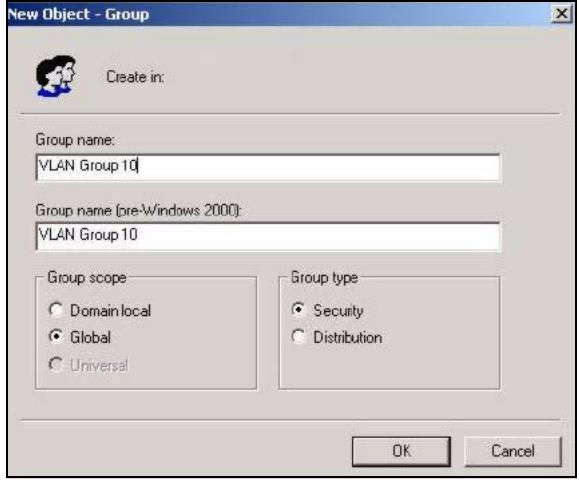
Figure 134 New Global Security Group
2 In VLAN Group ID Properties, click the Members tab.
- The IAS uses group memberships to determine which user accounts belong to which VLAN groups. Click the Add button and configure the VLAN group details.
3 Repeat the previous step to add each VLAN group required.
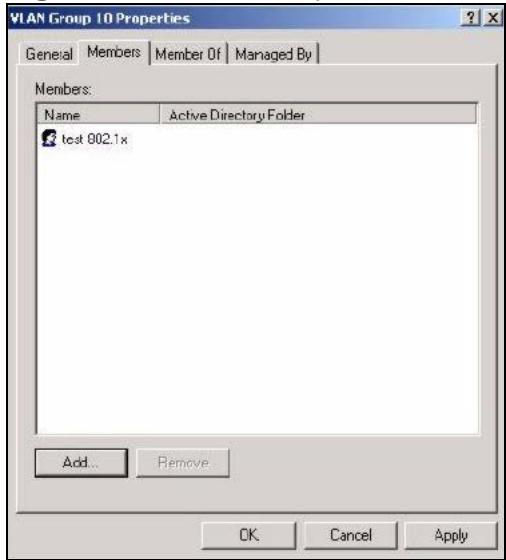
Figure 135 Add Group Members
20.3.3.2 Configuring Remote Access Policies
Once the VLAN Groups have been created, the IAS Remote Access Policy needs to be defined. This allows the IAS to compare the user account being authenticated against the group memberships of each VLAN Group.
1 Using the Remote Access Policy option on the Internet Authentication Service management interface, create a new VLAN Policy for each VLAN Group defined in the previous section. The order of the remote access policies is important. The most specific policies should be placed at the top of the policy list and the most general at the bottom. For example, if the Day-And-Time Restriction policy is still present, it should be moved to the bottom or deleted to allow the VLAN Group policies to take precedence.
1a 1. Right click Remote Access Policy and select New Remote Access Policy.
1b Enter a Policy friendly name that describes the policy. Each Remote Access Policy will be matched to one VLAN Group. An example may be, Allow - VLAN 10 Policy.
1c Click Next.
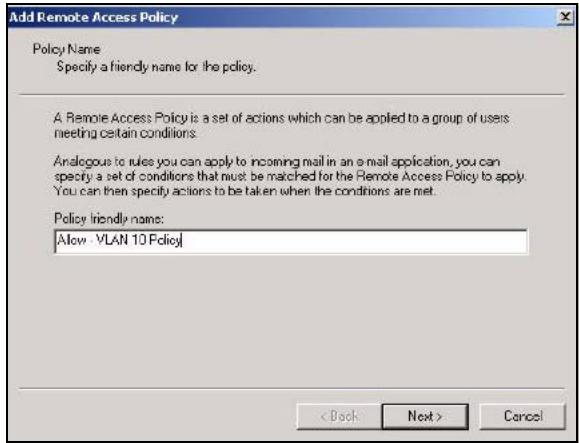
Figure 136 New Remote Access Policy for VLAN Group
2 The Conditions window displays. Select Add to add a condition for this policy to act on.
3 In the Select Attribute screen, click Windows-Groups and the Add button.
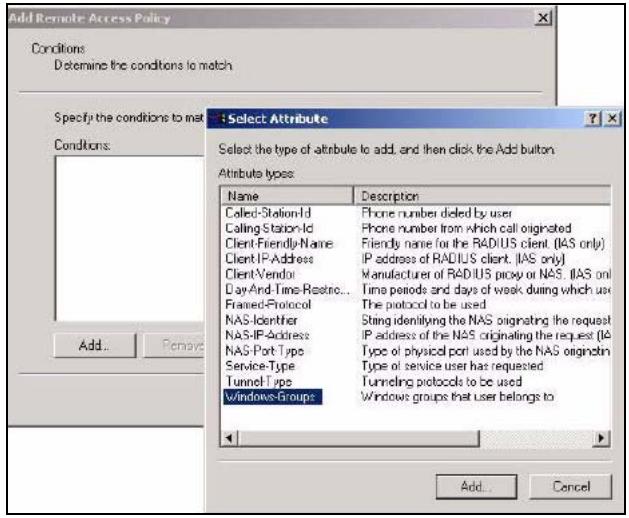
Figure 137 Specifying Windows-Group Condition
4 The Select Groups window displays. Select a remote access policy and click the Add button. The policy is added to the field below. Only one VLAN Group should be associated with each policy.
5 Click OK and Next in the next few screens to accept the group value.
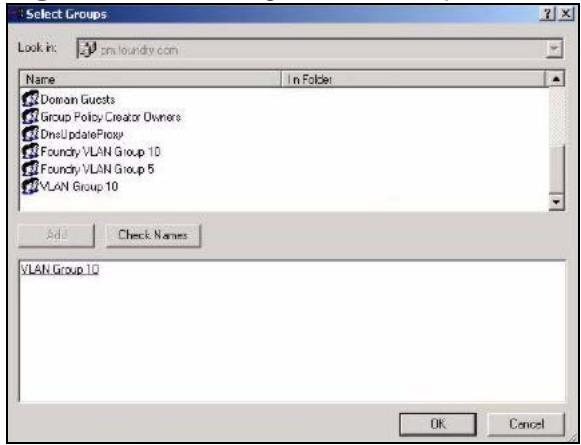
Figure 138 Adding VLAN Group
6 When the Permissions options screen displays, select Grant remote access permission.
6a Click Next to grant access based on group membership.
6b Click the Edit Profile button.
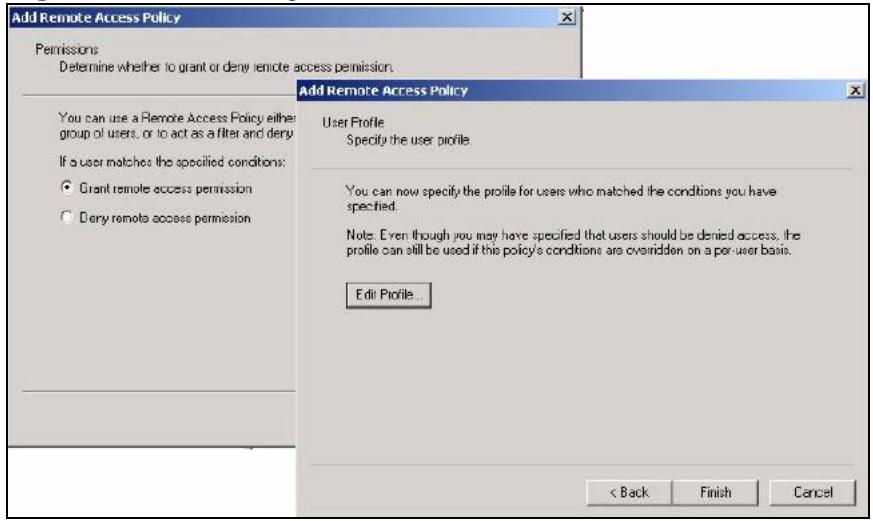
Figure 139 Granting Permissions and User Profile Screens
7 The Edit Dial-in Profile screen displays. Click the Authentication tab and select the Extensible Authentication Protocol check box.
7a Select an EAP type depending on your authentication needs from the dropdown list box.
7b Clear the check boxes for all other authentication types listed below the dropdown list box.
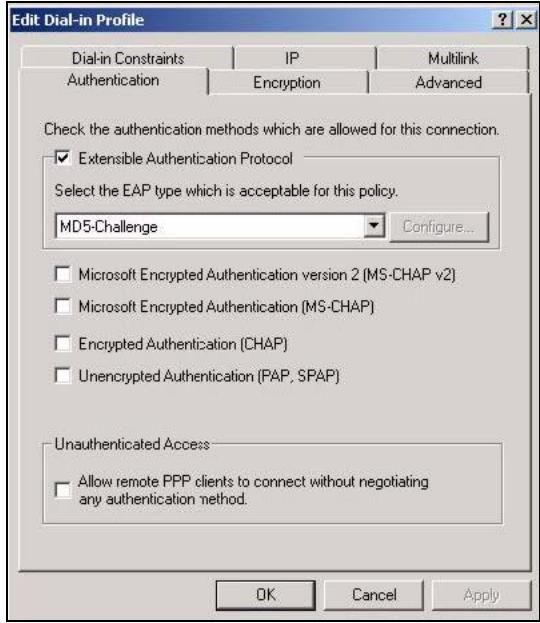
Figure 140 Authentication Tab Settings
8 Click the Encryption tab. Select the Strongest encryption option. This step is not required for EAP-MD5, but is performed as a safeguard.
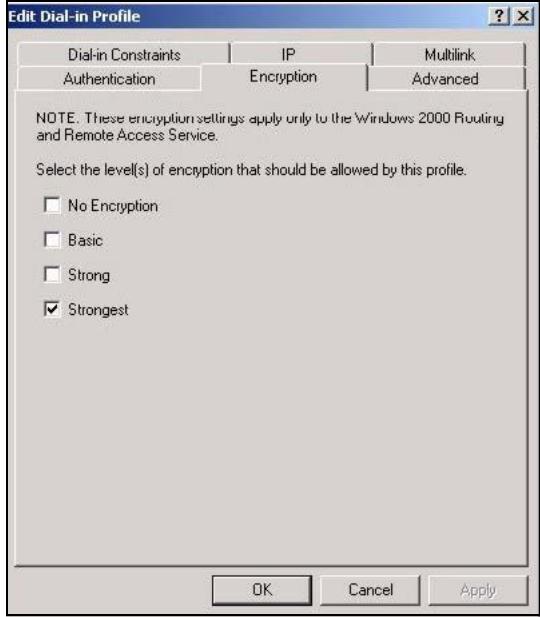
Figure 141 Encryption Tab Settings
9 Click the IP tab and select the Client may request an IP address check box for DHCP support.
10 Click the Advanced tab. The current default parameters returned to the NWA should be Service-Type and Framed-Protocol.
- Click the Add button to add an additional three RADIUS VLAN attributes required for 802.1X Dynamic VLAN Assignment.
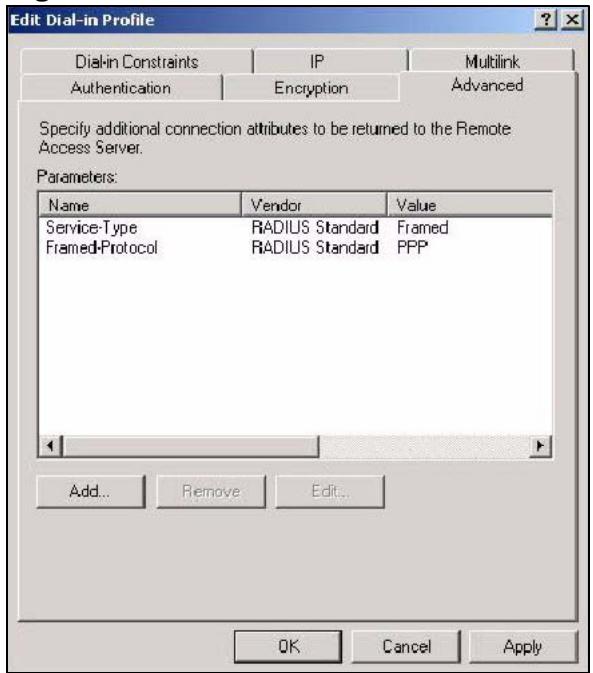
Figure 142 Connection Attributes Screen
11 The RADIUS Attribute screen displays. From the list, three RADIUS attributes will be added:
13 Return to the RADIUS Attribute Screen shown as Figure 143 on page 230.
13a Select Tunnel-Pvt-Group-ID.
13b Click Add.
14 The Attribute Information screen displays.
14a In the Enter the attribute value in: field select String and type a number in the range 1 to 4094 or a Name for this policy. This Name should match a name in the VLAN mapping table on the NWA. Wireless stations belonging to the VLAN Group specified in this policy will be given a VLAN ID specified in the NWA VLAN table.
14b Click OK.
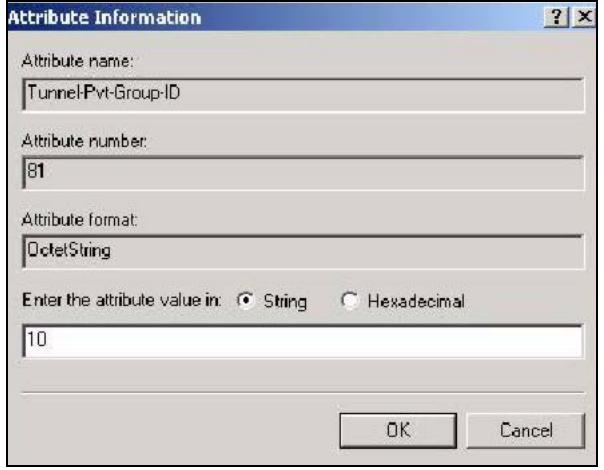
Figure 145 VLAN ID Attribute Setting for Tunnel-Pvt-Group-ID
15 Return to the RADIUS Attribute Screen shown as Figure 143 on page 230.
15a Select Tunnel-Type.
15b Click Add.
16 The Enumerable Attribute Information screen displays.
16a Select Virtual LANs (VLAN) from the attribute value drop-down list box.
16b Click OK.
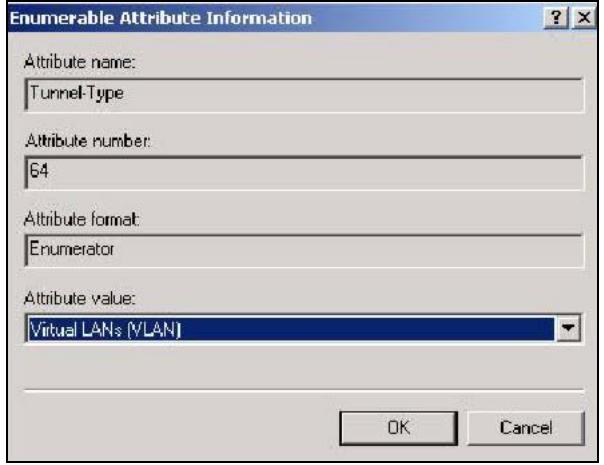
Figure 146 VLAN Attribute Setting for Tunnel-Type
17 Return to the RADIUS Attribute Screen shown as Figure 143 on page 230.
17a Click the Close button.
17b The completed Advanced tab configuration should resemble the following screen.
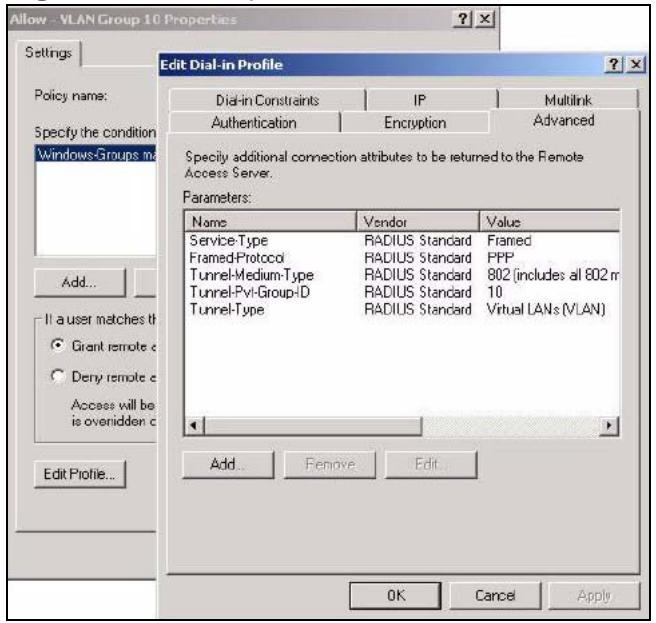
Figure 147 Completed Advanced Tab
Note: Repeat the Configuring Remote Access Policies procedure for each VLAN Group defined in the Active Directory. Remember to place the most general Remote Access Policies at the bottom of the list and the most specific at the top of the list.
20.3.4 Second Rx VLAN ID Example
In this example, the NWA is configured to tag packets from SSID01 with VLAN 1 and tag packets from SSID02 with VLAN 2. VLAN 1 and VLAN 2 have access to a server, S, and the Internet, as shown in the following figure.
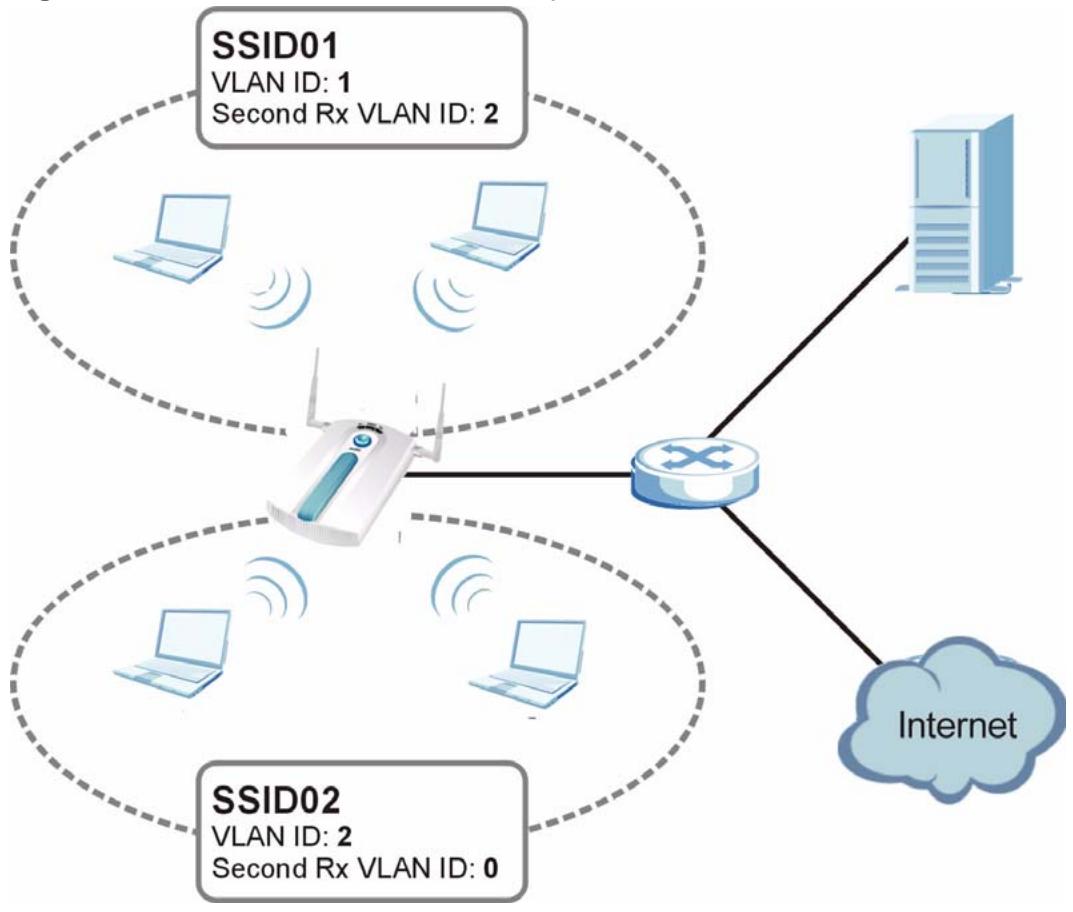
Figure 148 Second Rx VLAN ID Example
Packets sent from the server S back to the switch are tagged with a VLAN ID (incoming VLAN ID). These incoming VLAN packets are forwarded to the NWA. The NWA compares the VLAN ID in the packet header with each SSID's configured VLAN ID and second Rx VLAN ID settings.
In this example, SSID01's second Rx VLAN ID is set to 2. All incoming packets tagged with VLAN ID 2 are forwarded to SSID02, and also to SSID01. However, SSID02 has no second Rx VLAN ID configured, and the NWA forwards only packets tagged with VLAN ID 2 to it.
20.3.4.1 Second Rx VLAN Setup Example
The following steps show you how to setup a second Rx VLAN ID on the NWA.
1 Log into the Web Configurator.
2 Click VLAN > Wireless VLAN.
3 If VLAN is not already enabled, click Enable Virtual LAN and set up the Management VLAN ID (see Section 20.3.2 on page 220).
Note: If no devices are in the management VLAN, then no one will be able to access the NWA and you will have to restore the default configuration file.
4 Select the SSID profile you want to configure (SSID03 in this example), and enter the VLAN ID number (between 1 and 4094).
5 Enter a Second Rx VLAN ID. The following screen shows SSID03 tagged with a VLAN ID of 3 and a Second Rx VLAN ID of 4.
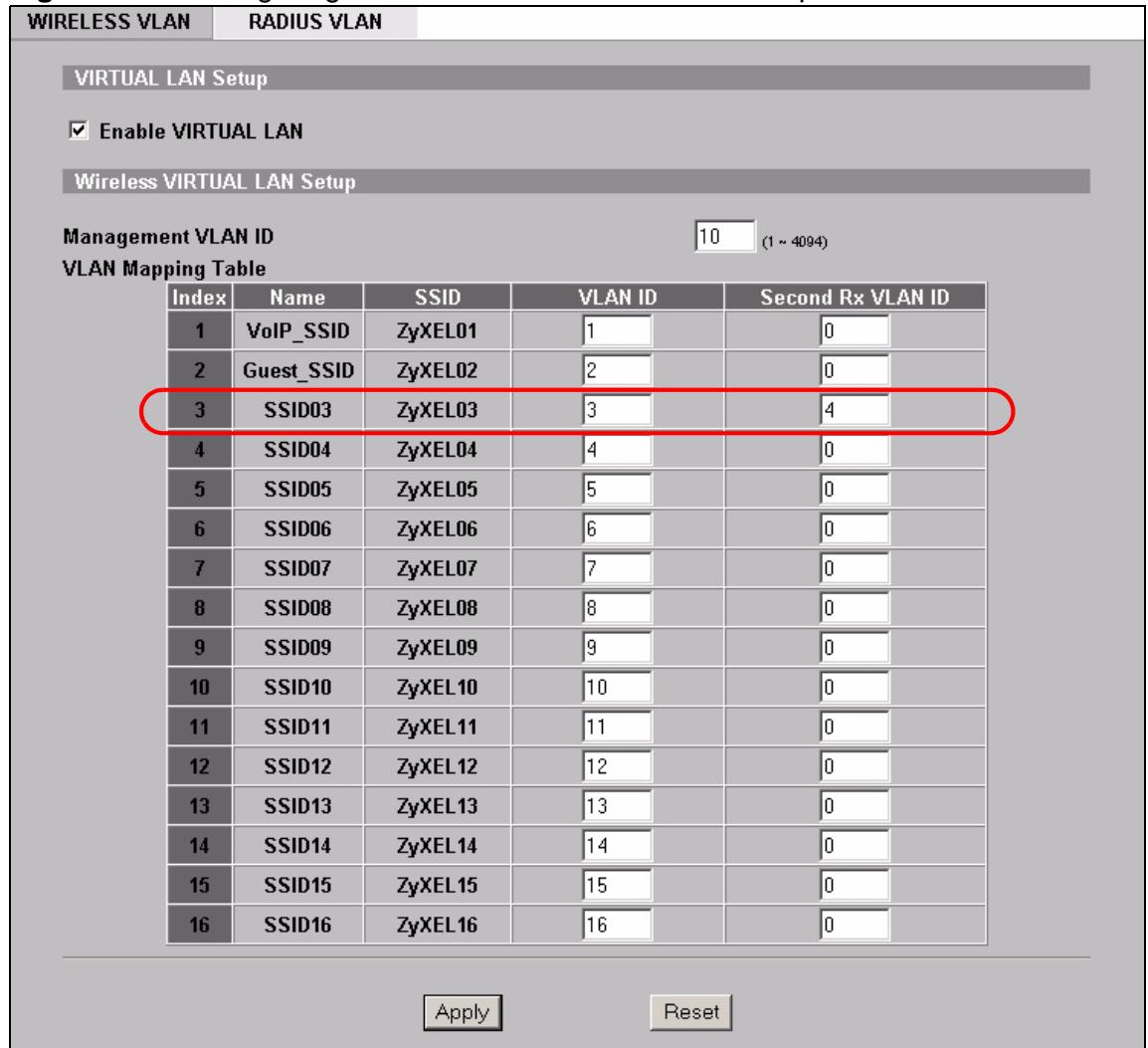
Figure 149 Configuring SSID: Second Rx VLAN ID Example
6 Click Apply to save these settings. Outgoing packets from clients in SSID03 are tagged with a VLAN ID of 3, and incoming packets with a VLAN ID of 3 or 4 are forwarded to SSID03.
Maintenance
21.1 Overview
This chapter describes the maintenance screens. It discusses how you can view the association list and channel usage, upload new firmware, manage configuration and restart your NWA without turning it off and on.
21.1.1 What You Can Do in the Maintenance Screens
The following is a list of the maintenance screens you can configure on the NWA.
- Use the Association List screen (Section 21.2 on page 238) to view the wireless stations that are currently associated with the NWA.
- Use the Channel Usage screen (Section 21.3 on page 239) to view whether a channel is used by another wireless network or not. If a channel is being used, you should select a channel removed from it by five channels to completely avoid overlap.
- Use the F/W Upload screen (Section 21.4 on page 240) to upload the latest firmware for your NWA.
- Use the Configuration screen (Section 21.5 on page 242) to view information related to factory defaults, backup configuration, and restoring configuration.
- Use Restart screen (Section 21.6 on page 244) to reboot the NWA without turning the power off.
21.1.2 What You Need To Know
The following terms and concepts may help as you read through this chapter.
Find firmware at www.zyxel.com in a file that (usually) uses the system model name with a ".bin" extension, for example "[Model #].bin". The upload process uses HTTP (Hypertext Transfer Protocol) and may take up to two minutes. After a successful upload, the system will reboot. See the Firmware and Configuration File Maintenance chapter for upgrading firmware using FTP/TFTP commands.
21.2 Association List Screen
Use this screen to know which wireless clients are associated with the NWA. Click Maintenance > Association List. The following screen displays.
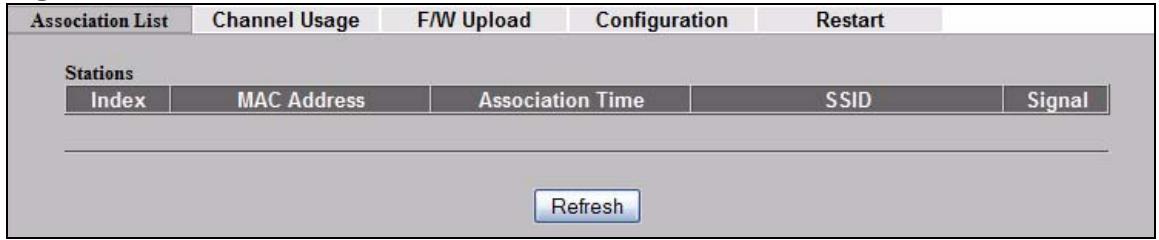
Figure 150 Maintenance > Association List
The following table describes the labels in this screen.
Table 77 Maintenance > Association List
| LABEL | DESCRIPTION |
| Stations | |
| Index | This is the index number of an associated wireless station. |
| MAC Address | This field displays the MAC address of an associated wireless station. |
| Association Time | This field displays the time a wireless station first associated with the NWA. |
| SSID | This field displays theSSID to which the wireless station is associated. |
| Signal | This field displays the RSSI (Received Signal Strength Indicator) of the wireless connection. |
| Refresh | Click Refresh to reload the screen. |
21.3 Channel Usage Screen
Use this screen to see what channel the wireless clients are using to associate with the NWA, as well as the signal strength and network mode. Click Maintenance > Channel Usage. The following figure displays.
Wait a moment while the NWA compiles the information.
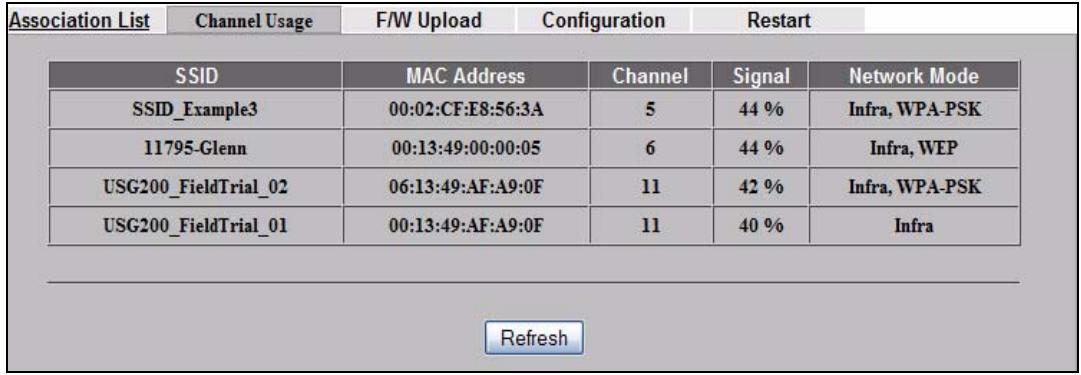
Figure 151 Maintenance > Channel Usage
The following table describes the labels in this screen.
Table 78 Maintenance > Channel Usage
| LABEL | DESCRIPTION |
| SSID | This is the Service Set IDentification name of the AP in an Infrastructure wireless network or wireless station in an Ad-Hoc wireless network. For our purposes, we define an Infrastructure network as a wireless network that uses an AP and an Ad-Hoc network (also known as Independent Basic Service Set (IBSS)) as one that doesn't. See the chapter on wireless configuration for more information on basic service sets (BSS) and extended service sets (ESS). |
| MAC Address | This field displays the MAC address of the AP in an Infrastructure wireless network. It is randomly generated (so ignore it) in an Ad-Hoc wireless network. |
| Channel | This is the index number of the channel currently used by the associated AP in an Infrastructure wireless network or wireless station in an Ad-Hoc wireless network. |
| Signal | This field displays the strength of the AP's signal. If you must choose a channel that's currently in use, choose one with low signal strength for minimum interference. |
| Network Mode | “Network mode” in this screen refers to your wireless LAN infrastructure (refer to the Wireless LAN chapter) and security setup. |
| Refresh | Click Refresh to reload the screen. |
21.4 F/W Upload Screen
Use this screen to upload firmware to your NWA.
Click MAINTENANCE > F/W Upload. The following screen displays.
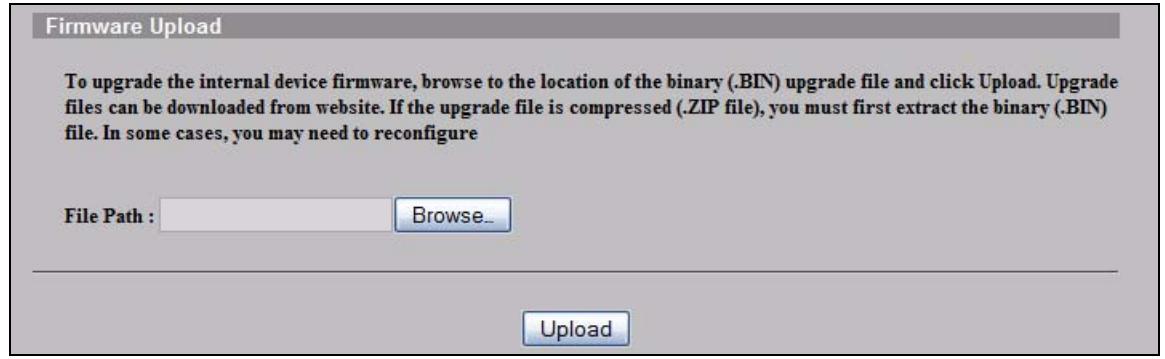
Figure 152 Maintenance > F/W Upload
The following table describes the labels in this screen.
Table 79 Maintenance > F/W Upload
| LABEL | DESCRIPTION |
| File Path | Type in the location of the file you want to upload in this field or click Browse ... to find it. |
| Browse... | Click Browse... to find the .bin file you want to upload. Remember that you must decompress compressed (.zip) files before you can upload them. |
| Upload | Click Upload to begin the upload process. This process may take up to two minutes. |
Do not turn off the NWA while firmware upload is in progress!
After you see the Firmware Upload in Process screen, wait two minutes before logging into the NWA again.
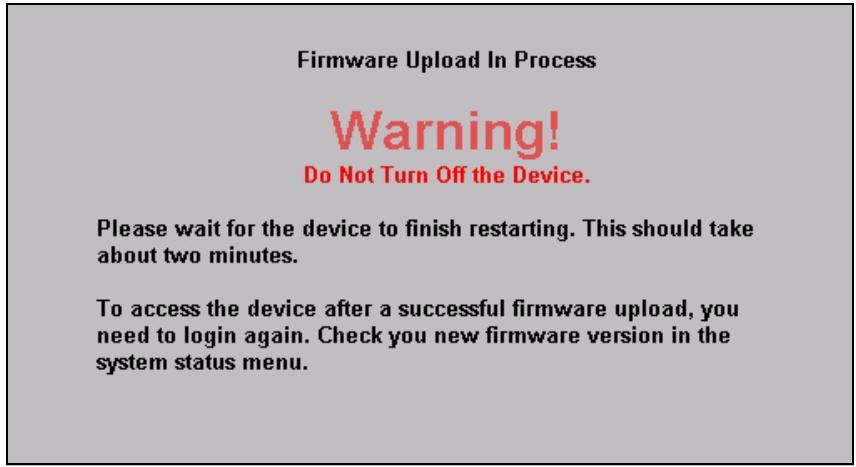
Figure 153 Firmware Upload In Process
The NWA automatically restarts in this time causing a temporary network disconnect. In some operating systems, you may see the following icon on your desktop.
Figure 154 Network Temporarily Disconnected
After two minutes, log in again and check your new firmware version in the System Status screen.
If the upload was not successful, the following screen will appear. Click Return to go back to the F/W Upload screen.
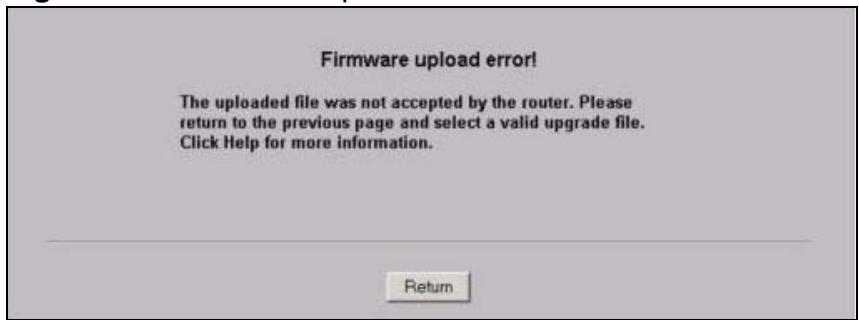
Figure 155 Firmware Upload Error
21.5 Configuration Screen
Use this screen backup or upload your NWA's configuration file. You can also reset the configuration of your device in this screen. Click Maintenance > Configuration. The following figure displays.
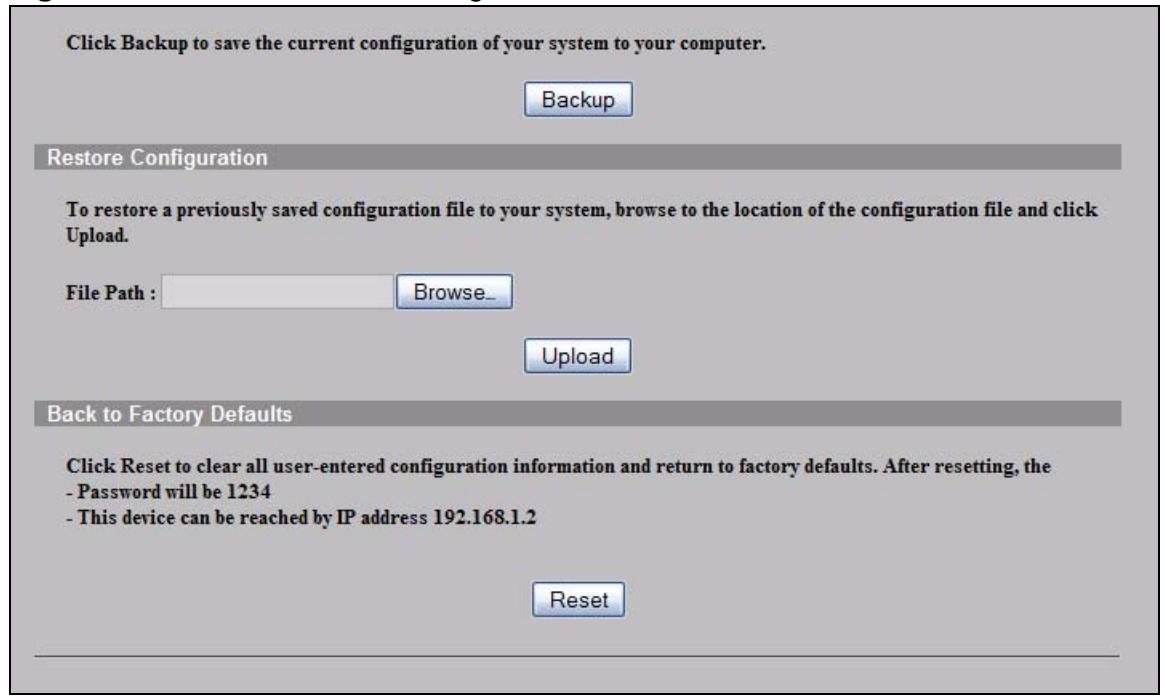
Figure 156 Maintenance > Configuration
21.5.1 Backup Configuration
Backup configuration allows you to back up (save) the NWA's current configuration to a file on your computer. Once your NWA is configured and functioning properly, it is highly recommended that you back up your configuration file before making configuration changes. The backup configuration file will be useful in case you need to return to your previous settings.
Click Backup to save the NWA's current configuration to your computer.
21.5.2 Restore Configuration
Restore configuration allows you to upload a new or previously saved configuration file from your computer to your NWA.
Table 80 Restore Configuration
| LABEL | DESCRIPTION |
| File Path | Type in the location of the file you want to upload in this field or click Browse ... to find it. |
| Browse... | Click Browse... to find the file you want to upload. Remember that you must decompress compressed (.ZIP) files before you can upload them. |
| Upload | Click Upload to begin the upload process. |
Do not turn off the NWA while configuration file upload is in progress.
After you see a "restore configuration successful" screen, you must then wait one minute before logging into the NWA again.
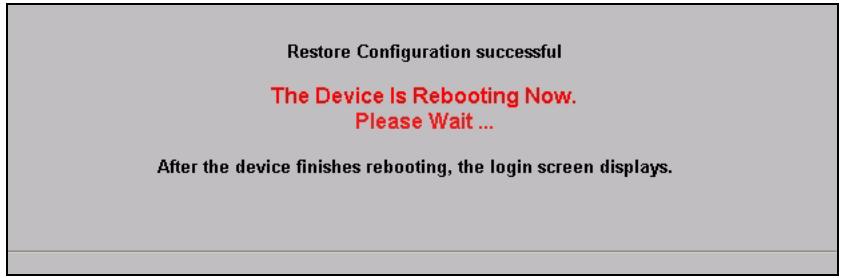
Figure 157 Configuration Upload Successful
The NWA automatically restarts in this time causing a temporary network disconnect. In some operating systems, you may see the following icon on your desktop.
Figure 158 Network Temporarily Disconnected
If you uploaded the default configuration file you may need to change the IP address of your computer to be in the same subnet as that of the default NWA IP address (192.168.1.2). See your Quick Start Guide for details on how to set up your computer's IP address.
If the upload was not successful, the following screen will appear. Click Return to go back to the Configuration screen.
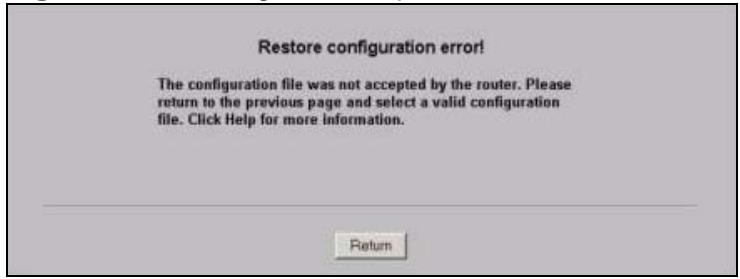
Figure 159 Configuration Upload Error
21.5.3 Back to Factory Defaults
Pressing the Reset button in this section clears all user-entered configuration information and returns the NWA to its factory defaults as shown on the screen. The following warning screen will appear.
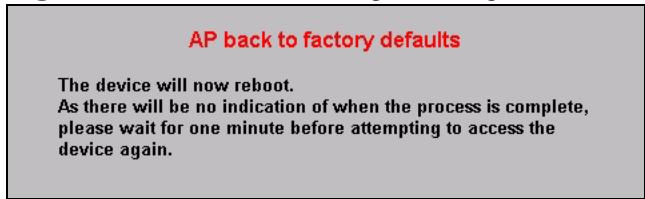
Figure 160 Reset Warning Message
You can also press the RESET button to reset your NWA to its factory default settings. Refer to Section 2.3 on page 30 for more information.
21.6 Restart Screen
Use this screen to restart the NWA without turning it off and on.
Click Maintenance > Restart. The following screen displays. Click Restart to have the NWA reboot. This does not affect the NWA's configuration.
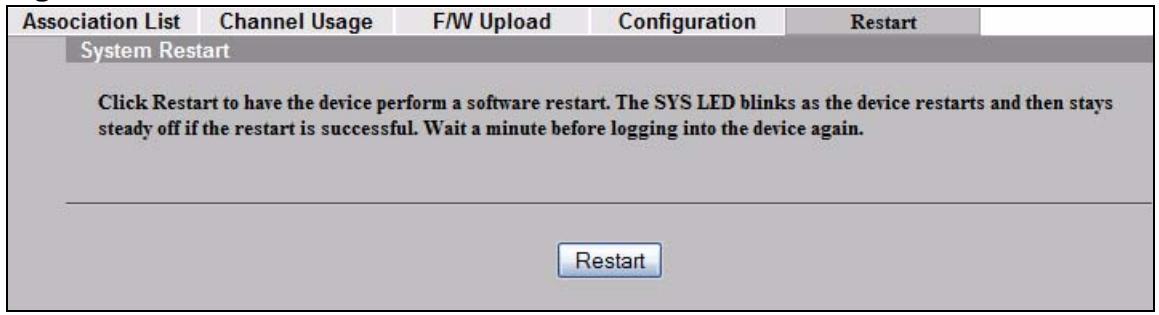
Figure 161 Restart Screen
Troubleshooting
22.1 Overview
This chapter offers some suggestions to solve problems you might encounter. The potential problems are divided into the following categories.
- Power, Hardware Connections, and LEDs
- NWA Access and Login
- Internet Access
22.2 Power, Hardware Connections, and LEDs
The NWA does not turn on. None of the LEDs turn on.
1 Make sure you are using the power adaptor or cord included with the NWA.
2 Make sure the power adaptor or cord is connected to the NWA and plugged in to an appropriate power source. Make sure the power source is turned on.
3 Disconnect and re-connect the power adaptor or cord to the NWA.
4 If the problem continues, contact the vendor.
One of the LEDs does not behave as expected.
1 Make sure you understand the normal behavior of the LED. See Section 1.7 on page 27.
2 Check the hardware connections. See the Quick Start Guide.
3 Inspect your cables for damage. Contact the vendor to replace any damaged cables.
4 Disconnect and re-connect the power adaptor to the NWA.
5 If the problem continues, contact the vendor.
22.3 NWA Access and Login
I forgot the IP address for the NWA.
1 The default IP address is 192.168.1.2.
2 If you changed the IP address and have forgotten it, you might get the IP address of the NWA by looking up the IP address of the default gateway for your computer. To do this in most Windows computers, click Start > Run, enter "cmd", and then enter "ipconfig". The IP address of the Default Gateway might be the IP address of the NWA (it depends on the network), so enter this IP address in your Internet browser. You can also use the following methods to access the web configurator:
- If you know your NWA's System Name, enter it in your browser's URL bar. The default System Name is NWA-Series. See Section 7.2 on page 89 for information on locating and changing the NWA's System Name.
Note: If you changed the System Name, and the new name is over 15 characters long, you must enter NWA-Series instead.
- If you know your NWA's MAC (Media Access Control) address, enter its last six characters in your browser's URL bar, in the format zyxelXXXXXX, where XXXXX represents the MAC address characters without the colons. The MAC address is usually printed on a label on the NWA.
For example, if your MAC address is 12:34:56, then remove the colons and enter in your browser's address bar as zyxel123456.
Note: The NWA has two MAC addresses; one for the wired interface (LAN, or Local Area Network) and one for the wireless interface (WLAN, or Wireless Local Area Network). Use the LAN MAC address when accessing the NWA over the wired network, and use the WLAN MAC address when accessing the NWA over the wireless interface.
3 If this does not work, you have to reset the device to its factory defaults. See Section 2.3 on page 30.
I forgot the password.
1 The default password is 1234.
2 If this does not work, you have to reset the device to its factory defaults. See Section 2.3 on page 30.
I cannot see or access the Login screen in the web configurator.
1 Make sure you are using the correct IP address.
- The default IP address is 192.168.1.2.
- If you changed the IP address, use the new IP address.
- If you changed the IP address and have forgotten it, see the troubleshooting suggestions for I forgot the IP address for the NWA.
2 Check the hardware connections, and make sure the LEDs are behaving as expected. See the Quick Start Guide and Section 1.7 on page 27.
3 Make sure your Internet browser does not block pop-up windows and has JavaScripts and Java enabled.
4 Make sure your computer is in the same subnet as the NWA. (If you know that there are routers between your computer and the NWA, skip this step.)
- If there is no DHCP server on your network, make sure your computer's IP address is in the same subnet as the NWA.
5 Reset the device to its factory defaults, and try to access the NWA with the default IP address. See your Quick Start Guide.
6 If the problem continues, contact the network administrator or vendor, or try one of the advanced suggestions.
Advanced Suggestions
- Try to access the NWA using another service, such as Telnet. If you can access the NWA, check the remote management settings to find out why the NWA does not respond to HTTP.
- If your computer is connected to the WAN port or is connected wirelessly, use a computer that is connected to a LAN/ETHERNET port.
I can see the Login screen, but I cannot log in to the NWA.
1 Make sure you have entered the user name and password correctly. The default password is 1234. This fields are case-sensitive, so make sure [Caps Lock] is not on.
2 You cannot log in to the web configurator while someone is using Telnet to access the NWA. Log out of the NWA in the other session, or ask the person who is logged in to log out.
3 Disconnect and re-connect the power adaptor or cord to the NWA.
4 If this does not work, you have to reset the device to its factory defaults. See Section 2.3.1 on page 30.
I cannot access the NWA via the console port.
1 Check to see if the NWA is connected to your computer's console port.
2 Check to see if the communications program is configured correctly. The communications software should be configured as follows:
VT100 terminal emulation.
9,600 bps is the default speed on leaving the factory. Try other speeds in case the speed has been changed.
No parity, 8 data bits, 1 stop bit, data flow set to none.
I cannot use FTP to upload / download the configuration file. / I cannot use FTP to upload new firmware.
See the troubleshooting suggestions for I cannot see or access the Login screen in the web configurator. Ignore the suggestions about your browser.
22.4 Internet Access
I cannot access the Internet.
1 Check the hardware connections, and make sure the LEDs are behaving as expected. See the Quick Start Guide and Section 22.2 on page 245.
2 Make sure you entered your ISP account information correctly. These fields are case-sensitive, so make sure [Caps Lock] is not on.
3 If you are trying to access the Internet wirelessly, make sure the wireless settings on the wireless client are the same as the settings on the AP.
4 Disconnect all the cables from your device, and follow the directions in the Quick Start Guide again.
5 If the problem continues, contact your ISP.
I cannot access the Internet anymore. I had access to the Internet (with the NWA), but my Internet connection is not available anymore.
1 Check the hardware connections, and make sure the LEDs are behaving as expected. See the Quick Start Guide and Section 1.7 on page 27.
2 Reboot the NWA.
3 If the problem continues, contact your ISP.
The Internet connection is slow or intermittent.
1 There might be a lot of traffic on the network. Look at the LEDs, and check Section 1.7 on page 27. If the NWA is sending or receiving a lot of information, try closing some programs that use the Internet, especially peer-to-peer applications.
2 Check the signal strength. If the signal is weak, try moving the NWA closer to the AP (if possible), and look around to see if there are any devices that might be interfering with the wireless network (microwaves, other wireless networks, and so on).
3 Reboot the NWA.
4 If the problem continues, contact the network administrator or vendor, or try one of the advanced suggestions.
Advanced Suggestions
Check the settings for QoS. If it is disabled, you might consider activating it. If it is enabled, you might consider raising or lowering the priority for some applications.
22.5 Wireless Router/AP Troubleshooting
I cannot access the NWA or ping any computer from the WLAN.
1 Make sure the wireless LAN is enabled on the NWA
2 Make sure the wireless adapter on the wireless station is working properly.
3 Make sure the wireless adapter (installed on your computer) is IEEE 802.11 compatible and supports the same wireless standard as the NWA.
4 Make sure your computer (with a wireless adapter installed) is within the transmission range of the NWA.
5 Check that both the NWA and your wireless station are using the same wireless and wireless security settings.
6 Make sure traffic between the WLAN and the LAN is not blocked by the firewall on theNwA.
7 Make sure you allow the NWA to be remotely accessed through the WLAN interface. Check your remote management settings.
Product Specifications
The following tables summarize the NWA's hardware and firmware features.
Table 81 Hardware Specifications
| Power Specification | 12 V DC, 1.5 A |
| Reset button | Returns all settings to their factory defaults. |
| Ethernet Port | • Auto-negotiating: 10 Mbps or 100 Mbps in either half-duplex or full-duplex mode. • Auto-crossover: Use either crossover or straight-through Ethernet cables. |
| Power over Ethernet (PoE) | IEEE 802.3af compliant. |
| Console Port | One MIL-C-5015 style RS-232 console port |
| Antenna | Three embedded U.FL-R-SMT connectors (2T/3R) |
| Output Power | IEEE 802.11a: 5150-5250 Using single antenna: 12dBm IEEE 802.11a: 5250 - 5850 Using single antenna:18dbm IEEE 802.11b Using single antenna: 17dBm IEEE 802.11g Using single antenna: 14dBm IEEE 802.11gn: HT20 Using single antenna: 12.5dBm Using three antennas: 17dBm IEEE 802.11gn: HT40 Using single antenna: 8.5 dBm Using three antennas: 13 dBm IEEE 802.11an: HT20 / HT40 5150-5250 Using single antenna: 7.5 dBm Using three antennas: 12 dBm IEEE 802.11an: HT20 / HT40 5250 - 5850 Using single antenna: 13.5 dBm Using three antennas: 18 dBm |
| Operating Temperature | 0 ~ 50 °C |
| Storage Temperature | -20 ~ 60 °C |
| Operating Humidity | 10 ~ 90 % (non-condensing) |
| Storage Humidity | 5 ~ 95 % (non-condensing) |
| Dimensions | 198.5 mm (L) x 138.5mm (W) x 47.5mm (H) |
| Weight | 450g |
Table 81 Hardware Specifications
| Distance between the centers of wall-mounting holes on the device's back. | 140 mm |
| Screw size for wall-mounting | M4 Tap Screw. See Figure 163 on page 254 for details. |
| Plenum Rating | The NWA's housing is treated with fire-retardant chemicals. In the event of fire, plenum-rated materials burn more slowly and produce less smoke than non-plenum-rated materials, decreasing the quantity of toxic or asphyxiating material produced. |
Table 82 Firmware Specifications
| Default IP Address | 192.168.1.2 |
| Default Subnet Mask | 255.255.255.0 (24 bits) |
| Default Password | 1234 |
| Wireless LAN Standards | IEEE 802.11a, IEEE 802.11b, IEEE 802.11g, IEEE 802.11n |
| Wireless security | WEP, WPA(2), WPA(2)-PSK, 802.1x |
| Layer 2 isolation | Prevents wireless clients associated with your NWA from communicating with other wireless clients, APs, computers or routers in a network. |
| Multiple BSSID (MBSSID) | MBSSID mode allows the NWA to operate up to 8 different wireless networks (BSSs) simultaneously, each with independently-configurable wireless and security settings. |
| Rogue AP detection | Rogue AP detection detects and logs unknown access points (APs) operating in the area. |
| Internal RADIUS server | PEAP, 32-entry Trusted AP list, 128-entry Trusted Users list. |
| VLAN | 802.1Q VLAN tagging. |
| STP (Spanning Tree Protocol) / RSTP (Rapid STP) | (R)STP detects and breaks network loops and provides backup links between switches, bridges or routers. It allows a bridge to interact with other (R)STP-compliant bridges in your network to ensure that only one path exists between any two stations on the network. |
| WMM QoS | allows you to prioritize wireless traffic. |
| Certificates | The NWA can use certificates (also called digital IDs) to authenticate users. Certificates are based on public-private key pairs. Certificates provide a way to exchange public keys for use in authentication. |
| SSL Passthrough | SSL (Secure Sockets Layer) uses a public key to encrypt data that's transmitted over an SSL connection. Both Netscape Navigator and Internet Explorer support SSL, and many Web sites use the protocol to obtain confidential user information, such as credit card numbers. By convention, URLs that require an SSL connection start with “https” instead of “http”. The NWA allows SSL connections to take place through the NWA. |
| MAC Address Filter | Your NWA checks the MAC address of the wireless station against a list of allowed or denied MAC addresses. |
Table 82 Firmware Specifications
| Wireless Association List | With the wireless association list, you can see the list of the wireless stations that are currently using the NWA to access your wired network. |
| Logging and Tracing | Built-in message logging and packet tracing. |
| Embedded FTP and TFTP Servers | The embedded FTP and TFTP servers enable fast firmware upgrades as well as configuration file backups and restoration. |
| Auto Configuration | Administrators can use text configuration files to configure the wireless LAN settings for multiple APs. The AP can automatically get a configuration file from a TFTP server at start up or after renewing DHCP client information. |
| SNMP | SNMP (Simple Network Management Protocol) is a protocol used for exchanging management information between network devices. SNMP is a member of the TCP/IP protocol suite. Your NWA supports SNMP agent functionality, which allows a manger station to manage and monitor the NWA through the network. The NWA supports SNMP version one (SNMPv1), version two c (SNMPv2c), version two (SNMPv3). |
| DFS | DFS (Dynamic Frequency Selection) allows a wider choice of 802.11a wireless channels. |
| CAPWAP | The ZyXEL Device can be managed via CAPWAP (Control And Provisioning of Wireless Access Points), which allows multiple APs to be configured and managed by a single AP controller. |
22.6 Wall-Mounting Instructions
Complete the following steps to hang your NWA on a wall.
Note: See Table 81 on page 251 for the size of screws to use and how far apart to place them.
1 Select a position free of obstructions on a sturdy wall.
2 Drill two holes for the screws.
Be careful to avoid damaging pipes or cables located inside the wall when drilling holes for the screws.
3 Do not insert the screws all the way into the wall. Leave a small gap of about 0.5 cm between the heads of the screws and the wall.
4 Make sure the screws are snugly fastened to the wall. They need to hold the weight of the NWA with the connection cables.
5 Align the holes on the back of the NWA with the screws on the wall. Hang the NWA on the screws.
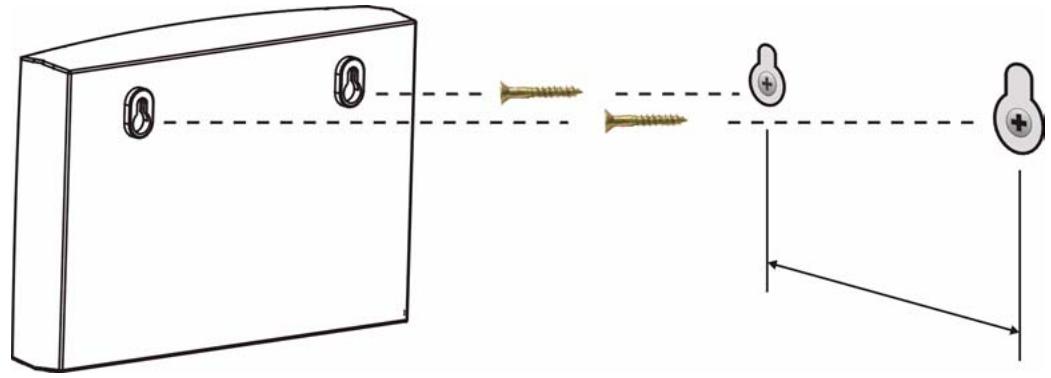
Figure 162 Wall-mounting Example
The following are dimensions of an M4 tap screw and masonry plug used for wall mounting. All measurements are in millimeters (mm).
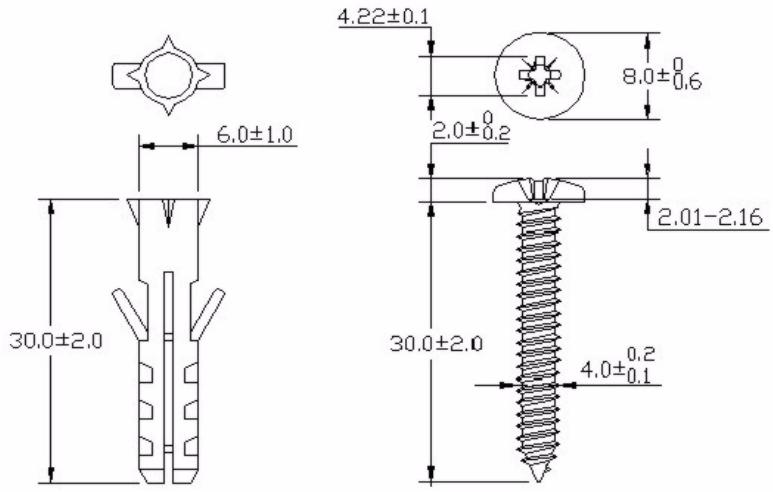
Figure 163 Masonry Plug and M4 Tap Screw
Wireless LANs
Wireless LAN Topologies
This section discusses ad-hoc and infrastructure wireless LAN topologies.
Ad-hoc Wireless LAN Configuration
The simplest WLAN configuration is an independent (Ad-hoc) WLAN that connects a set of computers with wireless adapters (A, B, C). Any time two or more wireless adapters are within range of each other, they can set up an independent network, which is commonly referred to as an ad-hoc network or Independent Basic Service Set (IBSS). The following diagram shows an example of notebook computers using wireless adapters to form an ad-hoc wireless LAN.
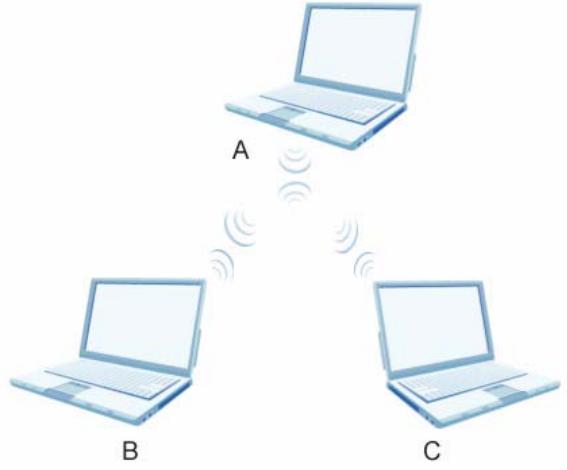
Figure 164 Peer-to-Peer Communication in an Ad-hoc Network
BSS
A Basic Service Set (BSS) exists when all communications between wireless clients or between a wireless client and a wired network client go through one access point (AP).
Intra-BSS traffic is traffic between wireless clients in the BSS. When Intra-BSS is enabled, wireless client A and B can access the wired network and communicate
with each other. When Intra-BSS is disabled, wireless client A and B can still access the wired network but cannot communicate with each other.
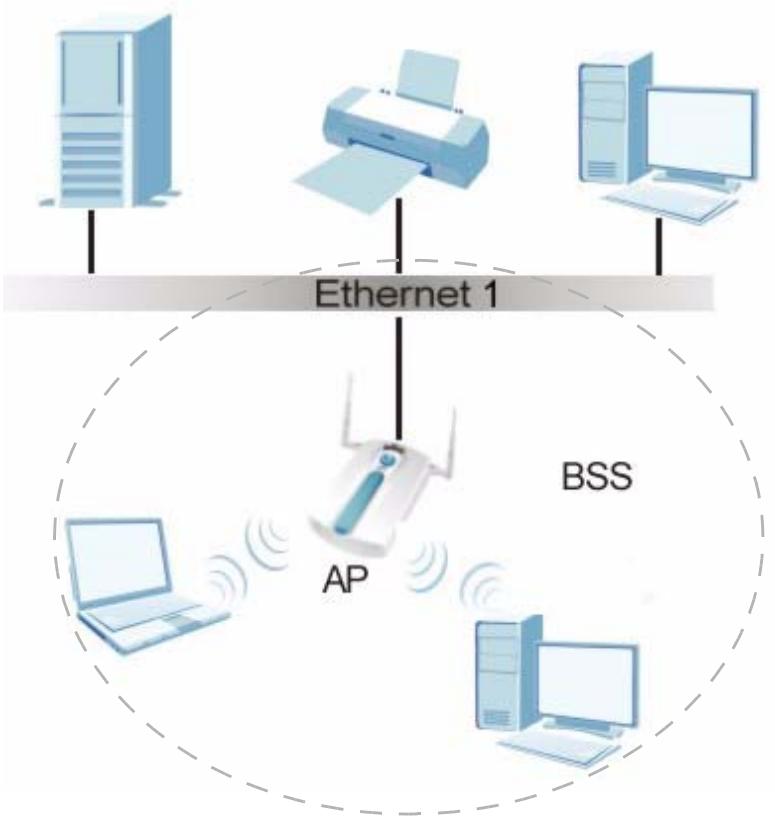
Figure 165 Basic Service Set
ESS
An Extended Service Set (ESS) consists of a series of overlapping BSSs, each containing an access point, with each access point connected together by a wired network. This wired connection between APs is called a Distribution System (DS).
This type of wireless LAN topology is called an Infrastructure WLAN. The Access Points not only provide communication with the wired network but also mediate wireless network traffic in the immediate neighborhood.
An ESSID (ESS IDentification) uniquely identifies each ESS. All access points and their associated wireless clients within the same ESS must have the same ESSID in order to communicate.
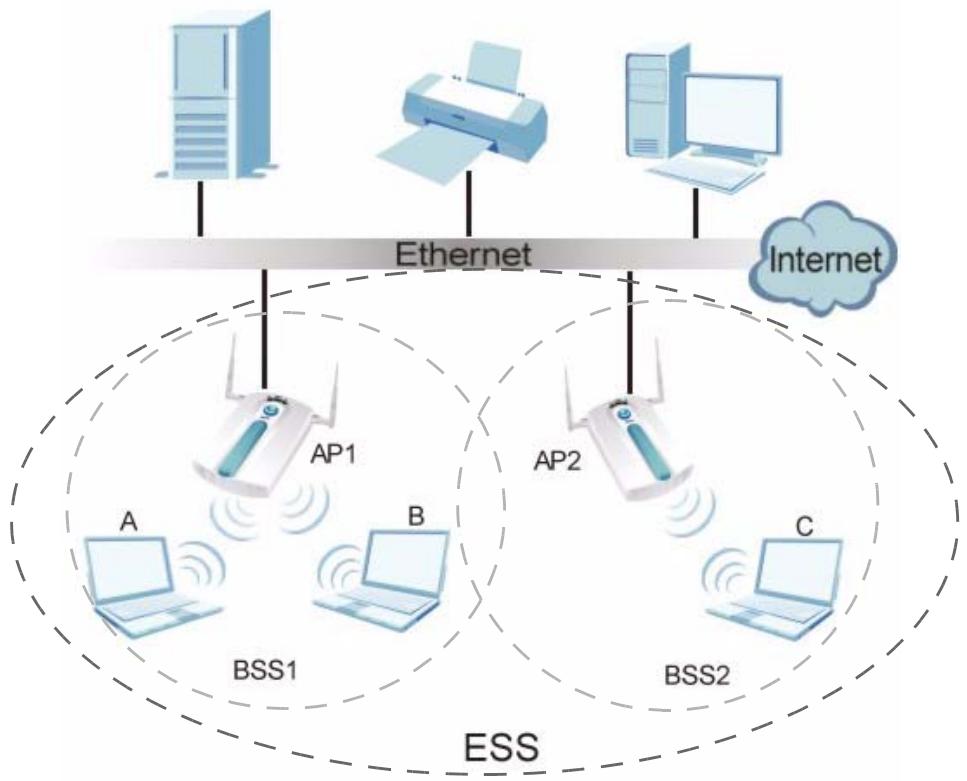
Figure 166 Infrastructure WLAN
Channel
A channel is the radio frequency(ies) used by IEEE 802.11a/b/g/n wireless devices. Channels available depend on your geographical area. You may have a choice of channels (for your region) so you should use a different channel than an adjacent AP (access point) to reduce interference. Interference occurs when radio signals from different access points overlap causing interference and degrading performance.
Adjacent channels partially overlap however. To avoid interference due to overlap, your AP should be on a channel at least five channels away from a channel that an adjacent AP is using. For example, if your region has 11 channels and an adjacent AP is using channel 1, then you need to select a channel between 6 or 11.
RTS/CTS
A hidden node occurs when two stations are within range of the same access point, but are not within range of each other. The following figure illustrates a hidden node. Both stations (STA) are within range of the access point (AP) or wireless gateway, but out-of-range of each other, so they cannot "hear" each other, that is they do not know if the channel is currently being used. Therefore, they are considered hidden from each other.
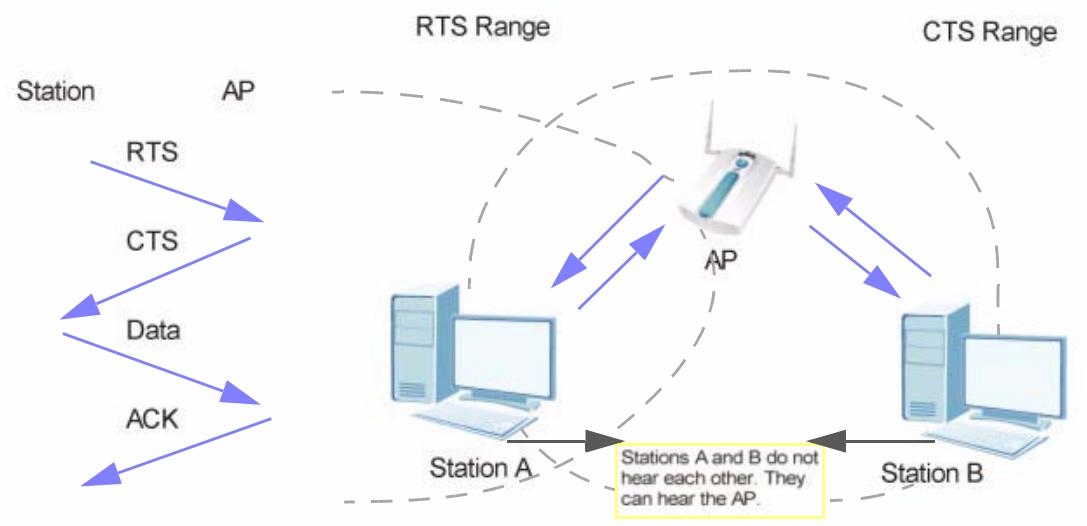
Figure 167 RTS/CTS
When station A sends data to the AP, it might not know that the station B is already using the channel. If these two stations send data at the same time, collisions may occur when both sets of data arrive at the AP at the same time, resulting in a loss of messages for both stations.
RTS/CTS is designed to prevent collisions due to hidden nodes. An RTS/CTS defines the biggest size data frame you can send before an RTS (Request To Send)/CTS (Clear to Send) handshake is invoked.
When a data frame exceeds the RTS/CTS value you set (between 0 to 2432 bytes), the station that wants to transmit this frame must first send an RTS (Request To Send) message to the AP for permission to send it. The AP then responds with a CTS (Clear to Send) message to all other stations within its range to notify them to defer their transmission. It also reserves and confirms with the requesting station the time frame for the requested transmission.
Stations can send frames smaller than the specified RTS/CTS directly to the AP without the RTS (Request To Send)/CTS (Clear to Send) handshake.
You should only configure RTS/CTS if the possibility of hidden nodes exists on your network and the "cost" of resending large frames is more than the extra
network overhead involved in the RTS (Request To Send)/CTS (Clear to Send) handshake.
If the RTS/CTS value is greater than the Fragmentation Threshold value (see next), then the RTS (Request To Send)/CTS (Clear to Send) handshake will never occur as data frames will be fragmented before they reach RTS/CTS size.
Note: Enabling the RTS Threshold causes redundant network overhead that could negatively affect the throughput performance instead of providing a remedy.
Fragmentation Threshold
A Fragmentation Threshold is the maximum data fragment size (between 256 and 2432 bytes) that can be sent in the wireless network before the AP will fragment the packet into smaller data frames.
A large Fragmentation Threshold is recommended for networks not prone to interference while you should set a smaller threshold for busy networks or networks that are prone to interference.
If the Fragmentation Threshold value is smaller than the RTS/CTS value (see previously) you set then the RTS (Request To Send)/CTS (Clear to Send) handshake will never occur as data frames will be fragmented before they reach RTS/CTS size.
Preamble Type
Preamble is used to signal that data is coming to the receiver. Short and Long refer to the length of the synchronization field in a packet.
Short preamble increases performance as less time sending preamble means more time for sending data. All IEEE 802.11b/g compliant wireless adapters support long preamble, but not all support short preamble.
Select Long preamble if you are unsure what preamble mode the wireless adapters support, and to provide more reliable communications in busy wireless networks.
Select Short preamble if you are sure the wireless adapters support it, and to provide more efficient communications.
Select Dynamic to have the AP automatically use short preamble when wireless adapters support it, otherwise the AP uses long preamble.
Note: The AP and the wireless adapters MUST use the same preamble mode in order to communicate.
IEEE 802.11g Wireless LAN
IEEE 802.11g is fully compatible with the IEEE 802.11b standard. This means an IEEE 802.11b adapter can interface directly with an IEEE 802.11g access point (and vice versa) at 11 Mbps or lower depending on range. IEEE 802.11g has several intermediate rate steps between the maximum and minimum data rates. The IEEE 802.11g data rate and modulation are as follows:
Table 83 IEEE 802.11g
| DATA RATE (MBPS) | MODULATION |
| 1 | DBPSK (Differential Binary Phase Shift Keyed) |
| 2 | DQPSK (Differential Quadrature Phase Shift Keying) |
| 5.5 / 11 | CCK (Complementary Code Keying) |
| 6/9/12/18/24/36/48/54 | OFDM (Orthogonal Frequency Division Multiplexing) |
Wireless Security Overview
Wireless security is vital to your network to protect wireless communication between wireless clients, access points and the wired network.
Wireless security methods available on the NWA are data encryption, wireless client authentication, restricting access by device MAC address and hiding the NWA identity.
The following figure shows the relative effectiveness of these wireless security methods available on your NWA.
Table 84 Wireless Security Levels
| SECURITY LEVEL | SECURITY TYPE |
| Least Secure Most Secure | Unique SSID (Default) |
| Unique SSID with Hide SSID Enabled | |
| MAC Address Filtering | |
| WEP Encryption | |
| IEEE802.1x EAP with RADIUS Server Authentication | |
| Wi-Fi Protected Access (WPA) | |
| WPA2 |
Note: You must enable the same wireless security settings on the NWA and on all wireless clients that you want to associate with it.
IEEE 802.1x
In June 2001, the IEEE 802.1x standard was designed to extend the features of IEEE 802.11 to support extended authentication as well as providing additional accounting and control features. It is supported by Windows XP and a number of network devices. Some advantages of IEEE 802.1x are:
- User based identification that allows for roaming.
- Support for RADIUS (Remote Authentication Dial In User Service, RFC 2138, 2139) for centralized user profile and accounting management on a network RADIUS server.
- Support for EAP (Extensible Authentication Protocol, RFC 2486) that allows additional authentication methods to be deployed with no changes to the access point or the wireless clients.
RADIUS
RADIUS is based on a client-server model that supports authentication, authorization and accounting. The access point is the client and the server is the RADIUS server. The RADIUS server handles the following tasks:
Authentication
Determines the identity of the users.
-
Authorization
-
Determines the network services available to authenticated users once they are connected to the network.
-
Accounting
Keeps track of the client's network activity.
RADIUS is a simple package exchange in which your AP acts as a message relay between the wireless client and the network RADIUS server.
Types of RADIUS Messages
The following types of RADIUS messages are exchanged between the access point and the RADIUS server for user authentication:
- Access-Request
Sent by an access point requesting authentication.
- Access-Reject
Sent by a RADIUS server rejecting access.
- Access-Accept
Sent by a RADIUS server allowing access.
- Access-Challenge
Sent by a RADIUS server requesting more information in order to allow access. The access point sends a proper response from the user and then sends another Access-Request message.
The following types of RADIUS messages are exchanged between the access point and the RADIUS server for user accounting:
Accounting-Request
Sent by the access point requesting accounting.
- Accounting-Response
Sent by the RADIUS server to indicate that it has started or stopped accounting.
In order to ensure network security, the access point and the RADIUS server use a shared secret key, which is a password, they both know. The key is not sent over the network. In addition to the shared key, password information exchanged is also encrypted to protect the network from unauthorized access.
Types of EAP Authentication
This section discusses some popular authentication types: EAP-MD5, EAP-TLS, EAP-TTLS, PEAP and LEAP. Your wireless LAN device may not support all authentication types.
EAP (Extensible Authentication Protocol) is an authentication protocol that runs on top of the IEEE 802.1x transport mechanism in order to support multiple types of user authentication. By using EAP to interact with an EAP-compatible RADIUS server, an access point helps a wireless station and a RADIUS server perform authentication.
The type of authentication you use depends on the RADIUS server and an intermediary AP(s) that supports IEEE 802.1x.
For EAP-TLS authentication type, you must first have a wired connection to the network and obtain the certificate(s) from a certificate authority (CA). A certificate (also called digital IDs) can be used to authenticate users and a CA issues certificates and guarantees the identity of each certificate owner.
EAP-MD5 (Message-Digest Algorithm 5)
MD5 authentication is the simplest one-way authentication method. The authentication server sends a challenge to the wireless client. The wireless client 'proves' that it knows the password by encrypting the password with the challenge and sends back the information. Password is not sent in plain text.
However, MD5 authentication has some weaknesses. Since the authentication server needs to get the plaintext passwords, the passwords must be stored. Thus someone other than the authentication server may access the password file. In addition, it is possible to impersonate an authentication server as MD5 authentication method does not perform mutual authentication. Finally, MD5 authentication method does not support data encryption with dynamic session key. You must configure WEP encryption keys for data encryption.
EAP-TLS (Transport Layer Security)
With EAP-TLS, digital certifications are needed by both the server and the wireless clients for mutual authentication. The server presents a certificate to the client. After validating the identity of the server, the client sends a different certificate to the server. The exchange of certificates is done in the open before a secured tunnel is created. This makes user identity vulnerable to passive attacks. A digital certificate is an electronic ID card that authenticates the sender's identity. However, to implement EAP-TLS, you need a Certificate Authority (CA) to handle certificates, which imposes a management overhead.
EAP-TTLS (Tunnel Transport Layer Service)
EAP-TTLS is an extension of the EAP-TLS authentication that uses certificates for only the server-side authentications to establish a secure connection. Client authentication is then done by sending username and password through the secure connection, thus client identity is protected. For client authentication, EAP-
TTLS supports EAP methods and legacy authentication methods such as PAP, CHAP, MS-CHAP and MS-CHAP v2.
PEAP (Protected EAP)
Like EAP-TTLS, server-side certificate authentication is used to establish a secure connection, then use simple username and password methods through the secured connection to authenticate the clients, thus hiding client identity. However, PEAP only supports EAP methods, such as EAP-MD5, EAP-MSCHAPv2 and EAP-GTC (EAP-Generic Token Card), for client authentication. EAP-GTC is implemented only by Cisco.
LEAP
LEAP (Lightweight Extensible Authentication Protocol) is a Cisco implementation of IEEE 802.1x.
Dynamic WEP Key Exchange
The AP maps a unique key that is generated with the RADIUS server. This key expires when the wireless connection times out, disconnects or reauthentication times out. A new WEP key is generated each time reauthentication is performed.
If this feature is enabled, it is not necessary to configure a default encryption key in the Wireless screen. You may still configure and store keys here, but they will not be used while Dynamic WEP is enabled.
Note: EAP-MD5 cannot be used with Dynamic WEP Key Exchange
For added security, certificate-based authentications (EAP-TLS, EAP-TTLS and PEAP) use dynamic keys for data encryption. They are often deployed in corporate environments, but for public deployment, a simple user name and password pair is more practical. The following table is a comparison of the features of authentication types.
Table 85 Comparison of EAP Authentication Types
| EAP-MD5 | EAP-TLS | EAP-TTLS | PEAP | LEAP | |
| Mutual Authentication | No | Yes | Yes | Yes | Yes |
| Certificate – Client | No | Yes | Optional | Optional | No |
| Certificate – Server | No | Yes | Yes | Yes | No |
| Dynamic Key Exchange | No | Yes | Yes | Yes | Yes |
| Credential Integrity | None | Strong | Strong | Strong | Moderate |
| Deployment Difficulty | Easy | Hard | Moderate | Moderate | Moderate |
| Client Identity Protection | No | No | Yes | Yes | No |
WPA and WPA2
Wi-Fi Protected Access (WPA) is a subset of the IEEE 802.11i standard. WPA2 (IEEE 802.11i) is a wireless security standard that defines stronger encryption, authentication and key management than WPA.
Key differences between WPA or WPA2 and WEP are improved data encryption and user authentication.
If both an AP and the wireless clients support WPA2 and you have an external RADIUS server, use WPA2 for stronger data encryption. If you don't have an external RADIUS server, you should use WPA2-PSK (WPA2-Pre-Shared Key) that only requires a single (identical) password entered into each access point, wireless gateway and wireless client. As long as the passwords match, a wireless client will be granted access to a WLAN.
If the AP or the wireless clients do not support WPA2, just use WPA or WPA-PSK depending on whether you have an external RADIUS server or not.
Select WEP only when the AP and/or wireless clients do not support WPA or WPA2. WEP is less secure than WPA or WPA2.
Encryption
Both WPA and WPA2 improve data encryption by using Temporal Key Integrity Protocol (TKIP), Message Integrity Check (MIC) and IEEE 802.1x. WPA and WPA2 use Advanced Encryption Standard (AES) in the Counter mode with Cipher block chaining Message authentication code Protocol (CCMP) to offer stronger encryption than TKIP.
TKIP uses 128-bit keys that are dynamically generated and distributed by the authentication server. AES (Advanced Encryption Standard) is a block cipher that uses a 256-bit mathematical algorithm called Rijndael. They both include a per-packet key mixing function, a Message Integrity Check (MIC) named Michael, an extended initialization vector (IV) with sequencing rules, and a re-keying mechanism.
WPA and WPA2 regularly change and rotate the encryption keys so that the same encryption key is never used twice.
The RADIUS server distributes a Pairwise Master Key (PMK) key to the AP that then sets up a key hierarchy and management system, using the PMK to dynamically generate unique data encryption keys to encrypt every data packet that is wirelessly communicated between the AP and the wireless clients. This all happens in the background automatically.
The Message Integrity Check (MIC) is designed to prevent an attacker from capturing data packets, altering them and resending them. The MIC provides a strong mathematical function in which the receiver and the transmitter each compute and then compare the MIC. If they do not match, it is assumed that the data has been tampered with and the packet is dropped.
By generating unique data encryption keys for every data packet and by creating an integrity checking mechanism (MIC), with TKIP and AES it is more difficult to decrypt data on a Wi-Fi network than WEP and difficult for an intruder to break into the network.
The encryption mechanisms used for WPA(2) and WPA(2)-PSK are the same. The only difference between the two is that WPA(2)-PSK uses a simple common password, instead of user-specific credentials. The common-password approach makes WPA(2)-PSK susceptible to brute-force password-guessing attacks but it's still an improvement over WEP as it employs a consistent, single, alphanumeric password to derive a PMK which is used to generate unique temporal encryption keys. This prevent all wireless devices sharing the same encryption keys. (a weakness of WEP)
User Authentication
WPA and WPA2 apply IEEE 802.1x and Extensible Authentication Protocol (EAP) to authenticate wireless clients using an external RADIUS database. WPA2 reduces the number of key exchange messages from six to four (CCMP 4-way handshake) and shortens the time required to connect to a network. Other WPA2 authentication features that are different from WPA include key caching and preauthentication. These two features are optional and may not be supported in all wireless devices.
Key caching allows a wireless client to store the PMK it derived through a successful authentication with an AP. The wireless client uses the PMK when it tries to connect to the same AP and does not need to go with the authentication process again.
Pre-authentication enables fast roaming by allowing the wireless client (already connecting to an AP) to perform IEEE 802.1x authentication with another AP before connecting to it.
Wireless Client WPA Supplicants
A wireless client supplicant is the software that runs on an operating system instructing the wireless client how to use WPA. At the time of writing, the most widely available supplicant is the WPA patch for Windows XP, Funk Software's Odyssey client.
The Windows XP patch is a free download that adds WPA capability to Windows XP's built-in "Zero Configuration" wireless client. However, you must run Windows XP to use it.
WPA(2) with RADIUS Application Example
You need the IP address of the RADIUS server, its port number (default is 1812), and the RADIUS shared secret. A WPA(2) application example with an external RADIUS server looks as follows. "A" is the RADIUS server. "DS" is the distribution system.
1 The AP passes the wireless client's authentication request to the RADIUS server.
2 The RADIUS server then checks the user's identification against its database and grants or denies network access accordingly.
3 The RADIUS server distributes a Pairwise Master Key (PMK) key to the AP that then sets up a key hierarchy and management system, using the pair-wise key to dynamically generate unique data encryption keys to encrypt every data packet that is wirelessly communicated between the AP and the wireless clients.
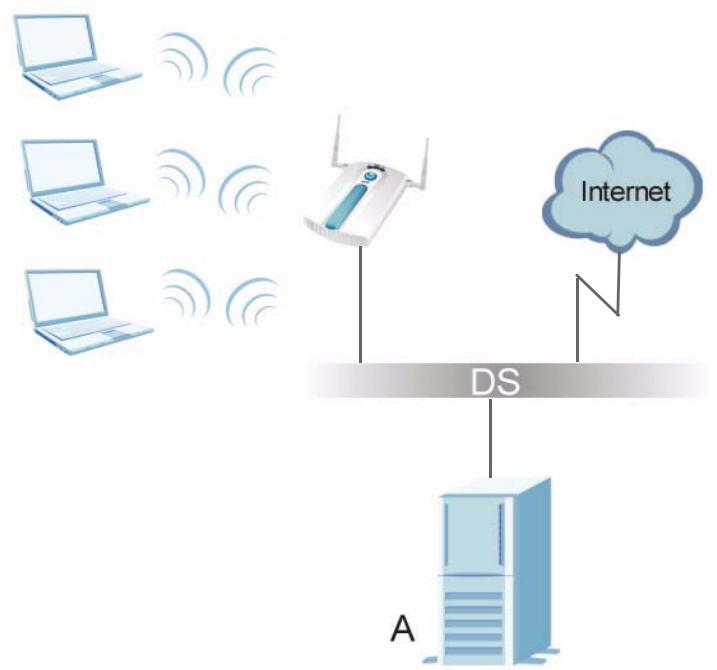
Figure 168 WPA(2) with RADIUS Application Example
WPA(2)-PSK Application Example
A WPA(2)-PSK application looks as follows.
1 First enter identical passwords into the AP and all wireless clients. The Pre-Shared Key (PSK) must consist of between 8 and 63 ASCII characters or 64 hexadecimal characters (including spaces and symbols).
2 The AP checks each wireless client's password and (only) allows it to join the network if the password matches.
3 The AP and wireless clients use the pre-shared key to generate a common PMK (Pairwise Master Key).
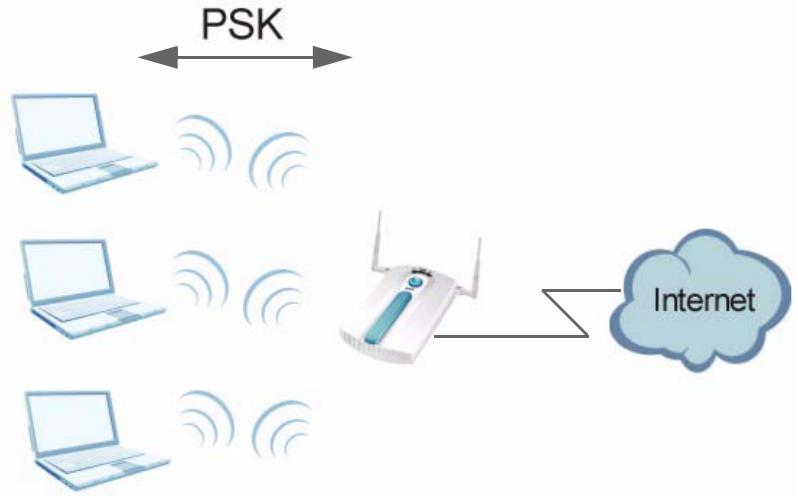
Figure 169 The AP and wireless clients use the TKIP or AES encryption process to encrypt data WPA(2)-PSK Authentication
4 Security Parameters Summary
Refer to this table to see what other security parameters you should configure for each Authentication Method/ key management protocol type. MAC address filters are not dependent on how you configure these security features.
Table 86 Wireless Security Relational Matrix
| AUTHENTICATION METHOD/ KEYMANAGEMENT PROTOCOL | ENCRYPTION METHOD | ENTERMANUAL KEY | IEEE 802.1X |
| Open | None | No | Disable |
| Enable without Dynamic WEP Key | |||
| Open | WEP | No | Enable with Dynamic WEP Key |
| Yes | Enable without Dynamic WEP Key | ||
| Yes | Disable | ||
| Shared | WEP | No | Enable with Dynamic WEP Key |
| Yes | Enable without Dynamic WEP Key | ||
| Yes | Disable | ||
| WPA | TKIP/AES | No | Enable |
| WPA-PSK | TKIP/AES | Yes | Disable |
| WPA2 | TKIP/AES | No | Enable |
| WPA2-PSK | TKIP/AES | Yes | Disable |
Pop-up Windows, JavaScript and Java Permissions
In order to use the web configurator you need to allow:
- Web browser pop-up windows from your device.
- JavaScripts (enabled by default).
- Java permissions (enabled by default).
Note: Internet Explorer 6 screens are used here. Screens for other Internet Explorer versions may vary.
Internet Explorer Pop-up Blockers
You may have to disable pop-up blocking to log into your device.
Either disable pop-up blocking (enabled by default in Windows XP SP (Service Pack) 2) or allow pop-up blocking and create an exception for your device's IP address.
Disable pop-up Blockers
1 In Internet Explorer, select Tools, Pop-up Blocker and then select Turn Off Pop-up Blocker.
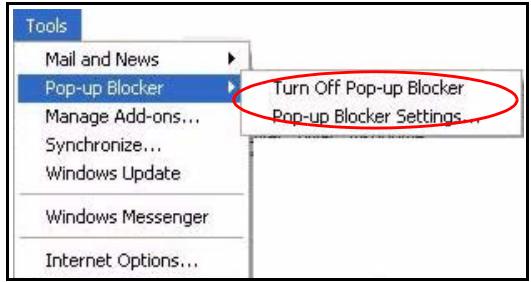
Figure 170 Pop-up Blocker
You can also check if pop-up blocking is disabled in the Pop-up Blocker section in the Privacy tab.
1 In Internet Explorer, select Tools, Internet Options, Privacy.
2 Clear the Block pop-ups check box in the Pop-up Blocker section of the screen. This disables any web pop-up blockers you may have enabled.
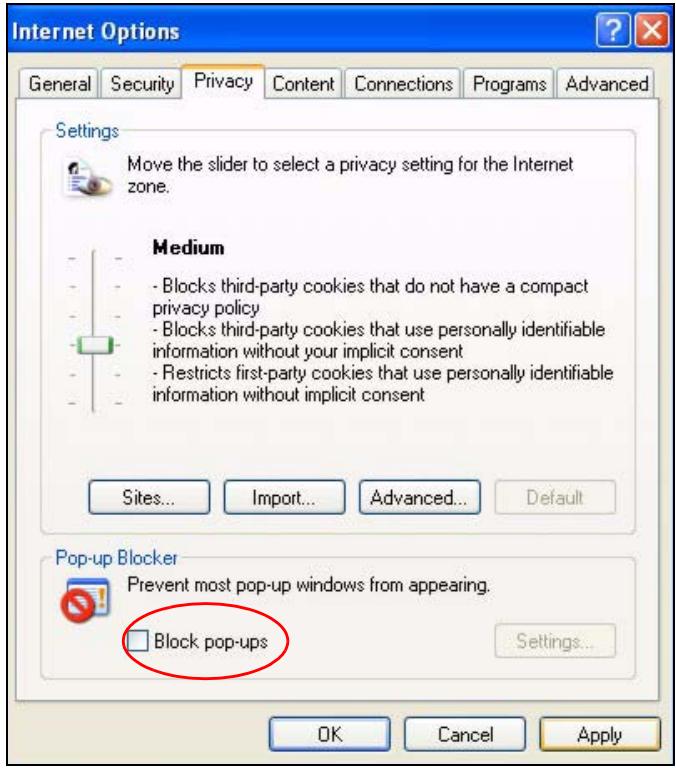
Figure 171 Internet Options: Privacy
3 Click Apply to save this setting.
Enable pop-up Blockers with Exceptions
Alternatively, if you only want to allow pop-up windows from your device, see the following steps.
1 In Internet Explorer, select Tools, Internet Options and then the Privacy tab.
2 Select Settings...to open the Pop-up Blocker Settings screen.
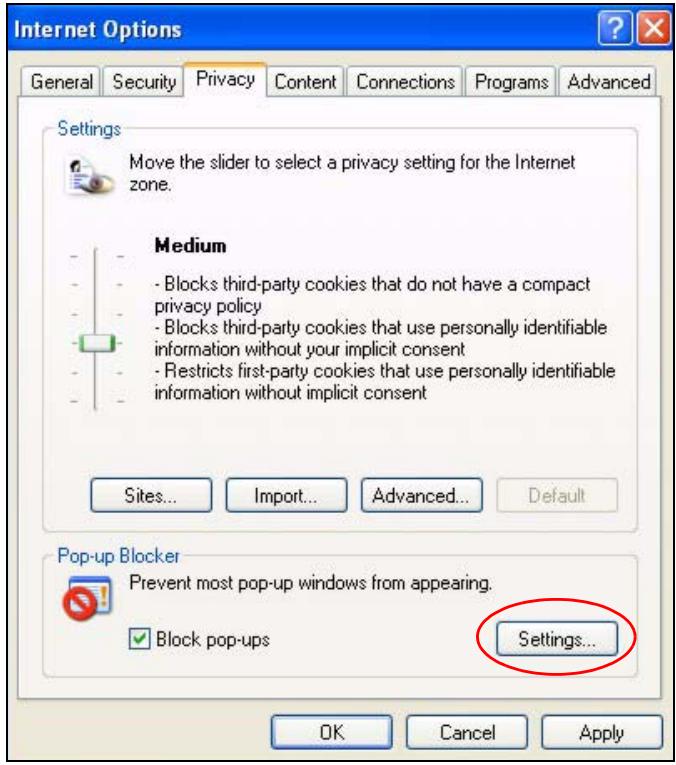
Figure 172 Internet Options: Privacy
3 Type the IP address of your device (the web page that you do not want to have blocked) with the prefix "http://". For example, http://192.168.167.1.
4 Click Add to move the IP address to the list of Allowed sites.

Figure 173 Pop-up Blocker Settings
5 Click Close to return to the Privacy screen.
6 Click Apply to save this setting.
JavaScript
If pages of the web configurator do not display properly in Internet Explorer, check that JavaScripts are allowed.
1 In Internet Explorer, click Tools, Internet Options and then the Security tab.
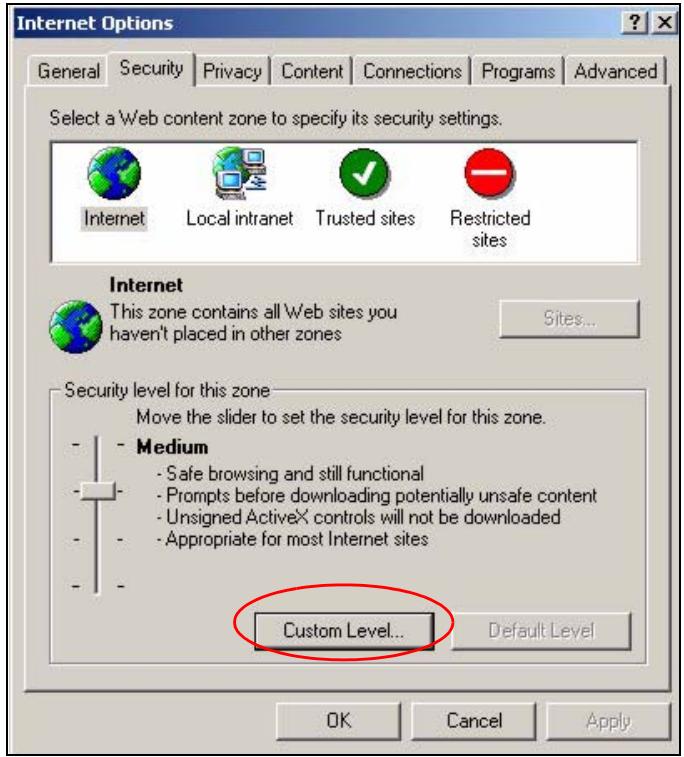
Figure 174 Internet Options: Security
2 Click the Custom Level... button.
3 Scroll down to Scripting.
4 Under Active scripting make sure that Enable is selected (the default).
5 Under Scripting of Java applets make sure that Enable is selected (the default).
6 Click OK to close the window.
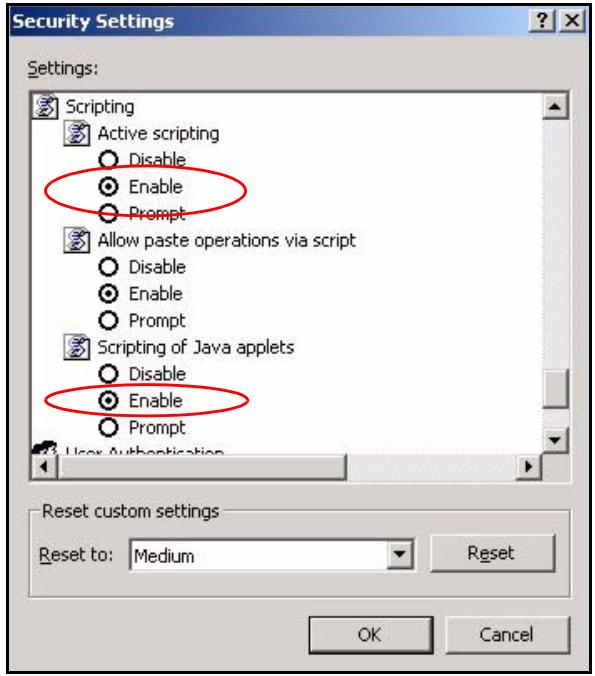
Figure 175 Security Settings - Java Scripting
Java Permissions
1 From Internet Explorer, click Tools, Internet Options and then the Security tab.
2 Click the Custom Level... button.
3 Scroll down to Microsoft VM.
4 Under Java permissions make sure that a safety level is selected.
5 Click OK to close the window.
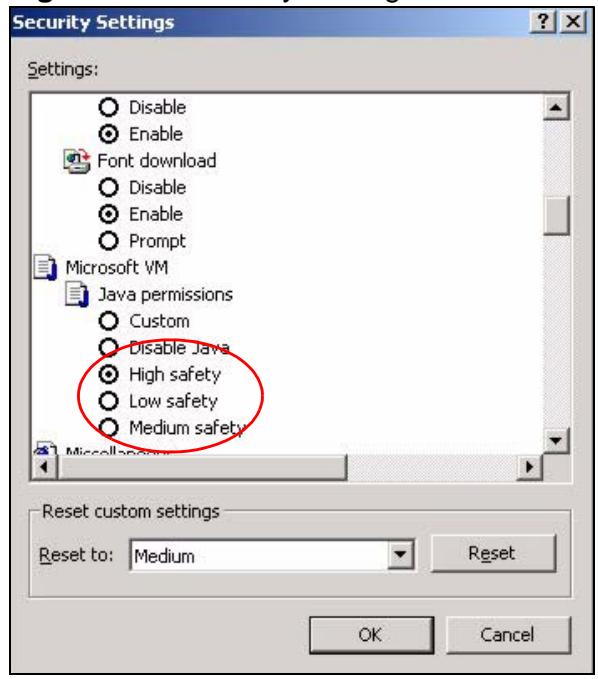
Figure 176 Security Settings - Java
JAVA (Sun)
1 From Internet Explorer, click Tools, Internet Options and then the Advanced tab.
2 Make sure that Use Java 2 for
3 Click OK to close the window.
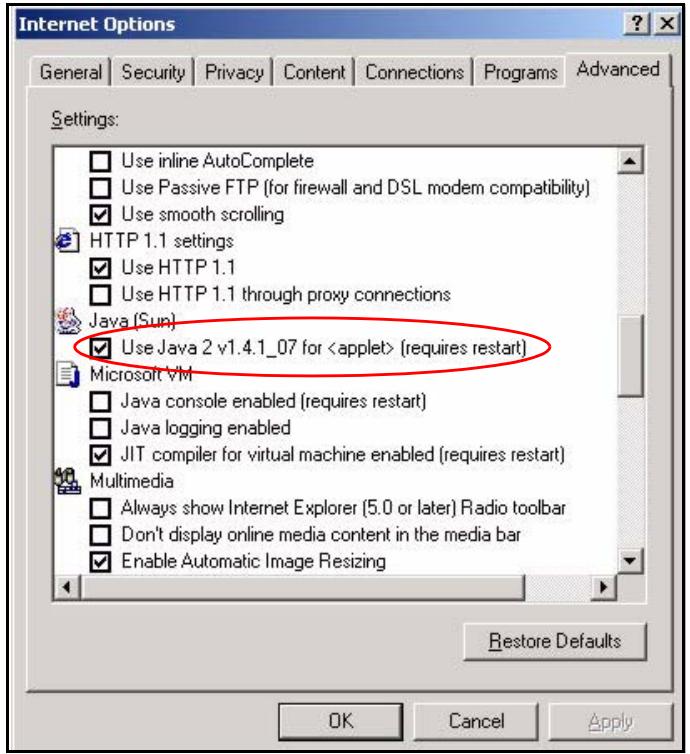
Figure 177 Java (Sun)
IP Addresses and Subnetting
This appendix introduces IP addresses and subnet masks.
IP addresses identify individual devices on a network. Every networking device (including computers, servers, routers, printers, etc.) needs an IP address to communicate across the network. These networking devices are also known as hosts.
Subnet masks determine the maximum number of possible hosts on a network. You can also use subnet masks to divide one network into multiple sub-networks.
Introduction to IP Addresses
One part of the IP address is the network number, and the other part is the host ID. In the same way that houses on a street share a common street name, the hosts on a network share a common network number. Similarly, as each house has its own house number, each host on the network has its own unique identifying number - the host ID. Routers use the network number to send packets to the correct network, while the host ID determines to which host on the network the packets are delivered.
Structure
An IP address is made up of four parts, written in dotted decimal notation (for example, 192.168.1.1). Each of these four parts is known as an octet. An octet is an eight-digit binary number (for example 11000000, which is 192 in decimal notation).
Therefore, each octet has a possible range of 00000000 to 11111111 in binary, or 0 to 255 in decimal.
The following figure shows an example IP address in which the first three octets (192.168.1) are the network number, and the fourth octet (16) is the host ID.
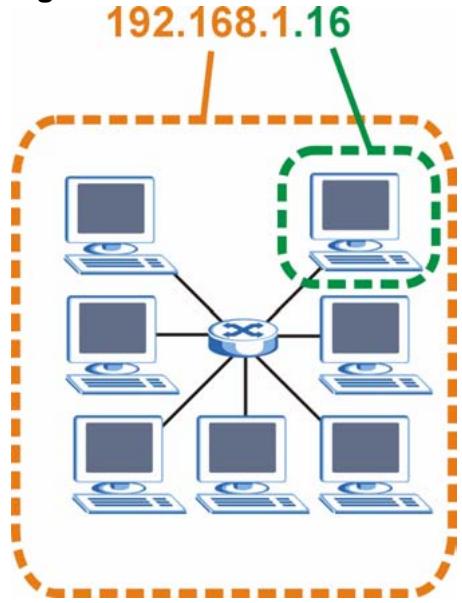
Figure 178 Network Number and Host ID
How much of the IP address is the network number and how much is the host ID varies according to the subnet mask.
Subnet Masks
A subnet mask is used to determine which bits are part of the network number, and which bits are part of the host ID (using a logical AND operation). The term "subset" is short for "sub-network".
A subnet mask has 32 bits. If a bit in the subnet mask is a "1" then the corresponding bit in the IP address is part of the network number. If a bit in the subnet mask is "0" then the corresponding bit in the IP address is part of the host ID.
The following example shows a subnet mask identifying the network number (in bold text) and host ID of an IP address (192.168.1.2 in decimal).
Table 87 Subnet Masks
| 1ST OCTET: (192) | 2ND OCTET: (168) | 3RD OCTET: (1) | 4TH OCTET (2) | |
| IP Address (Binary) | 11000000 | 10101000 | 00000001 | 00000010 |
| Subnet Mask (Binary) | 11111111 | 11111111 | 11111111 | 00000000 |
Table 87 Subnet Masks
| 1ST OCTET: (192) | 2ND OCTET: (168) | 3RD OCTET: (1) | 4TH OCTET (2) | |
| Network Number | 11000000 | 10101000 | 00000001 | |
| Host ID | 00000010 |
By convention, subnet masks always consist of a continuous sequence of ones beginning from the leftmost bit of the mask, followed by a continuous sequence of zeros, for a total number of 32 bits.
Subnet masks can be referred to by the size of the network number part (the bits with a "1" value). For example, an "8-bit mask" means that the first 8 bits of the mask are ones and the remaining 24 bits are zeroes.
Subnet masks are expressed in dotted decimal notation just like IP addresses. The following examples show the binary and decimal notation for 8-bit, 16-bit, 24-bit and 29-bit subnet masks.
Table 88 Subnet Masks
| BINARY | DECIMAL | ||||
| 1ST OCTET | 2ND OCTET | 3RD OCTET | 4TH OCTET | ||
| 8-bit mask | 11111111 | 00000000 | 00000000 | 00000000 | 255.0.0.0 |
| 16-bit mask | 11111111 | 11111111 | 00000000 | 00000000 | 255.255.0.0 |
| 24-bit mask | 11111111 | 11111111 | 11111111 | 00000000 | 255.255.255.0 |
| 29-bit mask | 11111111 | 11111111 | 11111111 | 11111000 | 255.255.255.248 |
Network Size
The size of the network number determines the maximum number of possible hosts you can have on your network. The larger the number of network number bits, the smaller the number of remaining host ID bits.
An IP address with host IDs of all zeros is the IP address of the network (192.168.1.0 with a 24-bit subnet mask, for example). An IP address with host IDs of all ones is the broadcast address for that network (192.168.1.255 with a 24-bit subnet mask, for example).
As these two IP addresses cannot be used for individual hosts, calculate the maximum number of possible hosts in a network as follows:
Table 89 Maximum Host Numbers
| SUBNET MASK | HOST ID SIZE | MAXIMUM NUMBER OF HOSTS | ||
| 8 bits | 255.0.0.0 | 24 bits | \( 2^{24} - 2 \) | 16777214 |
| 16 bits | 255.255.0.0 | 16 bits | \( 2^{16} - 2 \) | 65534 |
| 24 bits | 255.255.255.0 | 8 bits | \( 2^8 - 2 \) | 254 |
| 29 bits | 255.255.255.2 48 | 3 bits | \( 2^3 - 2 \) | 6 |
Notation
Since the mask is always a continuous number of ones beginning from the left, followed by a continuous number of zeros for the remainder of the 32 bit mask, you can simply specify the number of ones instead of writing the value of each octet. This is usually specified by writing a “/” followed by the number of bits in the mask after the address.
For example, 192.1.1.0 /25 is equivalent to saying 192.1.1.0 with subnet mask 255.255.255.128.
The following table shows some possible subnet masks using both notations.
Table 90 Alternative Subnet Mask Notation
| SUBNET MASK | ALTERNATIVE NOTATION | LAST OCTET (BINARY) | LAST OCTET (DECIMAL) |
| 255.255.255.0 | /24 | 0000 0000 | 0 |
| 255.255.255.128 | /25 | 1000 0000 | 128 |
| 255.255.255.192 | /26 | 1100 0000 | 192 |
| 255.255.255.224 | /27 | 1110 0000 | 224 |
| 255.255.255.240 | /28 | 1111 0000 | 240 |
| 255.255.255.248 | /29 | 1111 1000 | 248 |
| 255.255.255.252 | /30 | 1111 1100 | 252 |
Subnetting
You can use subnetting to divide one network into multiple sub-networks. In the following example a network administrator creates two sub-networks to isolate a group of servers from the rest of the company network for security reasons.
In this example, the company network address is 192.168.1.0. The first three octets of the address (192.168.1) are the network number, and the remaining octet is the host ID, allowing a maximum of 2^8 - 2 or 254 possible hosts.
The following figure shows the company network before subnetting.
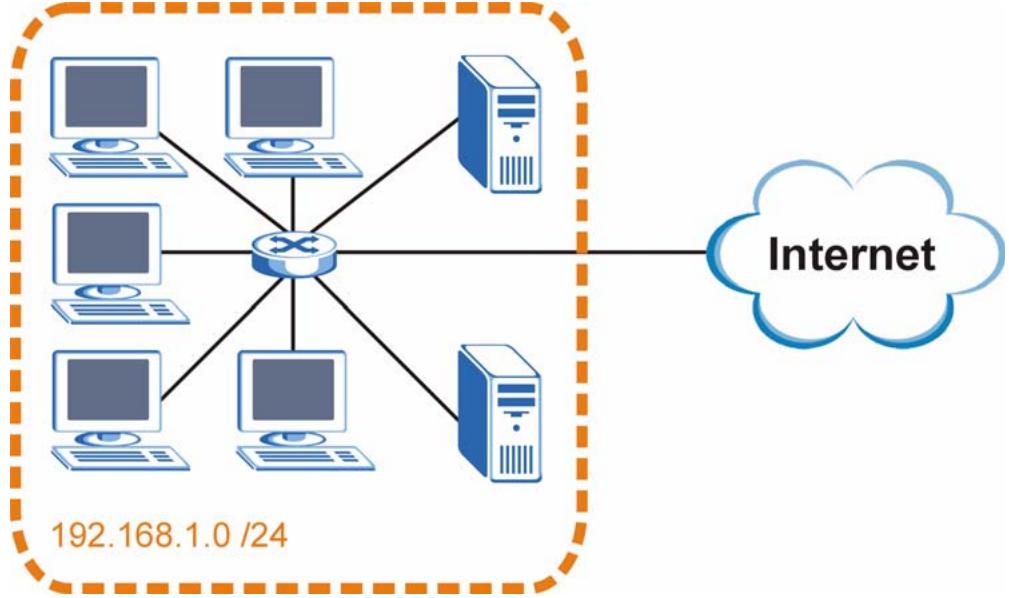
Figure 179 Subnetting Example: Before Subnetting
You can "borrow" one of the host ID bits to divide the network 192.168.1.0 into two separate sub-networks. The subnet mask is now 25 bits (255.255.255.128 or /25).
The "borrowed" host ID bit can have a value of either 0 or 1, allowing two subnets; 192.168.1.0 /25 and 192.168.1.128 /25.
The following figure shows the company network after subnetting. There are now two sub-networks, A and B.
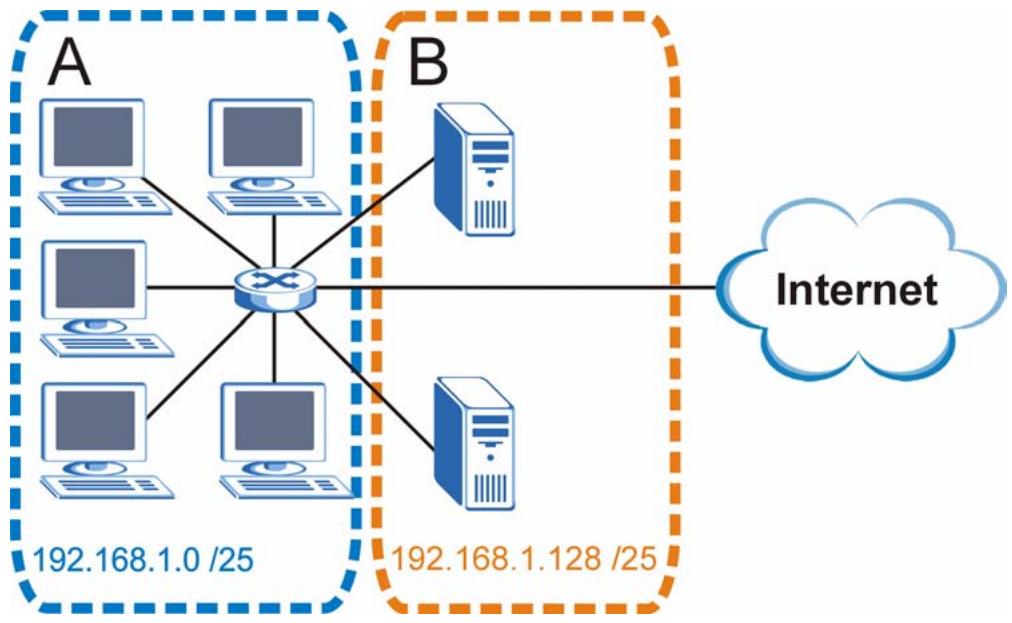
Figure 180 Subnetting Example: After Subnetting
In a 25-bit subnet the host ID has 7 bits, so each sub-network has a maximum of 2^7 - 2 or 126 possible hosts (a host ID of all zeroes is the subnet's address itself, all ones is the subnet's broadcast address).
192.168.1.0 with mask 255.255.255.128 is subnet A itself, and 192.168.1.127 with mask 255.255.255.128 is its broadcast address. Therefore, the lowest IP address that can be assigned to an actual host for subnet A is 192.168.1.1 and the highest is 192.168.1.126.
Similarly, the host ID range for subnet B is 192.168.1.129 to 192.168.1.254.
Example: Four Subnets
The previous example illustrated using a 25-bit subnet mask to divide a 24-bit address into two subnets. Similarly, to divide a 24-bit address into four subnets, you need to "borrow" two host ID bits to give four possible combinations (00, 01, 10 and 11). The subnet mask is 26 bits
(11111111.11111111.11111111.11000000) or 255.255.255.192.
Each subnet contains 6 host ID bits, giving 2^6 - 2 or 62 hosts for each subnet (a host ID of all zeroes is the subnet itself, all ones is the subnet's broadcast address).
Table 91 Subnet 1
| IP/SUBNET MASK | NETWORK NUMBER | LAST OCTET BIT VALUE |
| IP Address (Decimal) | 192.168.1. | 0 |
| IP Address (Binary) | 11000000.10101000.00000001. | 00000000 |
| Subnet Mask (Binary) | 11111111.11111111.11111111. | 11000000 |
| Subnet Address: 192.168.1.0 | Lowest Host ID: 192.168.1.1 | |
| Broadcast Address: 192.168.1.63 | Highest Host ID: 192.168.1.62 | |
Table 92 Subnet 2
| IP/SUBNET MASK | NETWORK NUMBER | LAST OCTET BIT VALUE |
| IP Address | 192.168.1. | 64 |
| IP Address (Binary) | 11000000.10101000.00000001. | 01000000 |
| Subnet Mask (Binary) | 11111111.11111111.11111111. | 11000000 |
| Subnet Address: 192.168.1.64 | Lowest Host ID: 192.168.1.65 | |
| Broadcast Address: 192.168.1.127 | Highest Host ID: 192.168.1.126 | |
Table 93 Subnet 3
| IP/SUBNET MASK | NETWORK NUMBER | LAST OCTET BIT VALUE |
| IP Address | 192.168.1. | 128 |
| IP Address (Binary) | 11000000.10101000.00000001. | 10000000 |
| Subnet Mask (Binary) | 11111111.11111111.11111111. | 11000000 |
| Subnet Address: 192.168.1.128 | Lowest Host ID: 192.168.1.129 | |
| Broadcast Address: 192.168.1.191 | Highest Host ID: 192.168.1.190 | |
Table 94 Subnet 4
| IP/SUBNET MASK | NETWORK NUMBER | LAST OCTET BIT VALUE |
| IP Address | 192.168.1. | 192 |
| IP Address (Binary) | 11000000.10101000.00000001 . | 11000000 |
| Subnet Mask (Binary) | 11111111.11111111.11111111 . | 11000000 |
| Subnet Address: 192.168.1.192 | Lowest Host ID: 192.168.1.193 | |
| Broadcast Address: 192.168.1.255 | Highest Host ID: 192.168.1.254 | |
Example: Eight Subnets
Similarly, use a 27-bit mask to create eight subnets (000, 001, 010, 011, 100, 101, 110 and 111).
The following table shows IP address last octet values for each subnet.
Table 95 Eight Subnets
| SUBNET | SUBNET ADDRESS | FIRST ADDRESS | LAST ADDRESS | BROADCAST ADDRESS |
| 1 | 0 | 1 | 30 | 31 |
| 2 | 32 | 33 | 62 | 63 |
| 3 | 64 | 65 | 94 | 95 |
| 4 | 96 | 97 | 126 | 127 |
| 5 | 128 | 129 | 158 | 159 |
| 6 | 160 | 161 | 190 | 191 |
| 7 | 192 | 193 | 222 | 223 |
| 8 | 224 | 225 | 254 | 255 |
Subnet Planning
The following table is a summary for subnet planning on a network with a 24-bit network number.
Table 96 24-bit Network Number Subnet Planning
| NO. “BORROWED” HOST BITS | SUBNET MASK | NO. SUBNETS | NO. HOSTS PER SUBNET |
| 1 | 255.255.255.128 (/25) | 2 | 126 |
| 2 | 255.255.255.192 (/26) | 4 | 62 |
| 3 | 255.255.255.224 (/27) | 8 | 30 |
| 4 | 255.255.255.240 (/28) | 16 | 14 |
| 5 | 255.255.255.248 (/29) | 32 | 6 |
| 6 | 255.255.255.252 (/30) | 64 | 2 |
| 7 | 255.255.255.254 (/31) | 128 | 1 |
The following table is a summary for subnet planning on a network with a 16-bit network number.
Table 97 16-bit Network Number Subnet Planning
| NO. “BORROWED” HOST BITS | SUBNET MASK | NO. SUBNETS | NO. HOSTS PER SUBNET |
| 1 | 255.255.128.0 (/17) | 2 | 32766 |
| 2 | 255.255.192.0 (/18) | 4 | 16382 |
| 3 | 255.255.224.0 (/19) | 8 | 8190 |
| 4 | 255.255.240.0 (/20) | 16 | 4094 |
| 5 | 255.255.248.0 (/21) | 32 | 2046 |
| 6 | 255.255.252.0 (/22) | 64 | 1022 |
| 7 | 255.255.254.0 (/23) | 128 | 510 |
| 8 | 255.255.255.0 (/24) | 256 | 254 |
| 9 | 255.255.255.128 (/25) | 512 | 126 |
| 10 | 255.255.255.192 (/26) | 1024 | 62 |
| 11 | 255.255.255.224 (/27) | 2048 | 30 |
| 12 | 255.255.255.240 (/28) | 4096 | 14 |
| 13 | 255.255.255.248 (/29) | 8192 | 6 |
| 14 | 255.255.255.252 (/30) | 16384 | 2 |
| 15 | 255.255.255.254 (/31) | 32768 | 1 |
Configuring IP Addresses
Where you obtain your network number depends on your particular situation. If the ISP or your network administrator assigns you a block of registered IP addresses, follow their instructions in selecting the IP addresses and the subnet mask.
If the ISP did not explicitly give you an IP network number, then most likely you have a single user account and the ISP will assign you a dynamic IP address when the connection is established. If this is the case, it is recommended that you select a network number from 192.168.0.0 to 192.168.255.0. The Internet Assigned Number Authority (IANA) reserved this block of addresses specifically for private use; please do not use any other number unless you are told otherwise. You must also enable Network Address Translation (NAT) on the NWA.
Once you have decided on the network number, pick an IP address for your NWA that is easy to remember (for instance, 192.168.1.1) but make sure that no other device on your network is using that IP address.
The subnet mask specifies the network number portion of an IP address. Your NWA will compute the subnet mask automatically based on the IP address that
you entered. You don't need to change the subnet mask computed by the NWA unless you are instructed to do otherwise.
Private IP Addresses
Every machine on the Internet must have a unique address. If your networks are isolated from the Internet (running only between two branch offices, for example) you can assign any IP addresses to the hosts without problems. However, the Internet Assigned Numbers Authority (IANA) has reserved the following three blocks of IP addresses specifically for private networks:
10.0.0.0 -10.255.255.255
172.16.0.0 - 172.31.255.255
- 192.168.0.0 — 192.168.255.255
You can obtain your IP address from the IANA, from an ISP, or it can be assigned from a private network. If you belong to a small organization and your Internet access is through an ISP, the ISP can provide you with the Internet addresses for your local networks. On the other hand, if you are part of a much larger organization, you should consult your network administrator for the appropriate IP addresses.
Regardless of your particular situation, do not create an arbitrary IP address; always follow the guidelines above. For more information on address assignment, please refer to RFC 1597, Address Allocation for Private Intermets and RFC 1466, Guidelines for Management of IP Address Space.
Setting up Your Computer's IP Address
All computers must have a 10M or 100M Ethernet adapter card and TCP/IP installed.
Windows 95/98/Me/NT/2000/XP, Macintosh OS 7 and later operating systems and all versions of UNIX/LINUX include the software components you need to install and use TCP/IP on your computer. Windows 3.1 requires the purchase of a third-party TCP/IP application package.
TCP/IP should already be installed on computers using Windows NT/2000/XP, Macintosh OS 7 and later operating systems.
After the appropriate TCP/IP components are installed, configure the TCP/IP settings in order to "communicate" with your network.
If you manually assign IP information instead of using dynamic assignment, make sure that your computers have IP addresses that place them in the same subnet as the NWA's LAN port.
Windows 95/98/Me
Click Start, Settings, Control Panel and double-click the Network icon to open the Network window
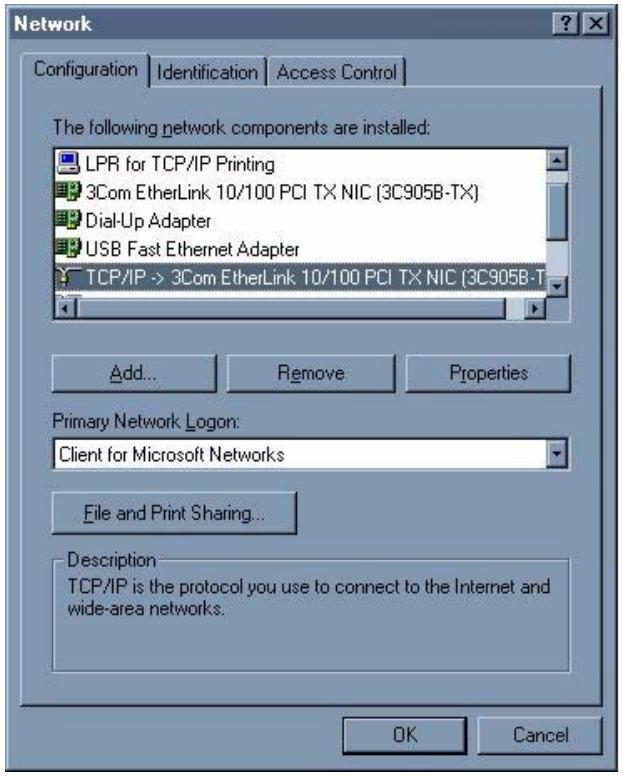
Figure 181 Windows 95/98/Me: Network: Configuration
Installing Components
The Network window Configuration tab displays a list of installed components. You need a network adapter, the TCP/IP protocol and Client for Microsoft Networks.
If you need the adapter:
1 In the Network window, click Add.
2 Select Adapter and then click Add.
3 Select the manufacturer and model of your network adapter and then click OK.
If you need TCP/IP:
1 In the Network window, click Add.
2 Select Protocol and then click Add.
3 Select Microsoft from the list of manufacturers.
4 Select TCP/IP from the list of network protocols and then click OK.
If you need Client for Microsoft Networks:
1 Click Add.
2 Select Client and then click Add.
3 Select Microsoft from the list of manufacturers.
4 Select Client for Microsoft Networks from the list of network clients and then click OK.
5 Restart your computer so the changes you made take effect.
Configuring
1 In the Network window Configuration tab, select your network adapter's TCP/IP entry and click Properties
2 Click the IP Address tab.
- If your IP address is dynamic, select Obtain an IP address automatically.
- If you have a static IP address, select Specify an IP address and type your information into the IP Address and Subnet Mask fields.
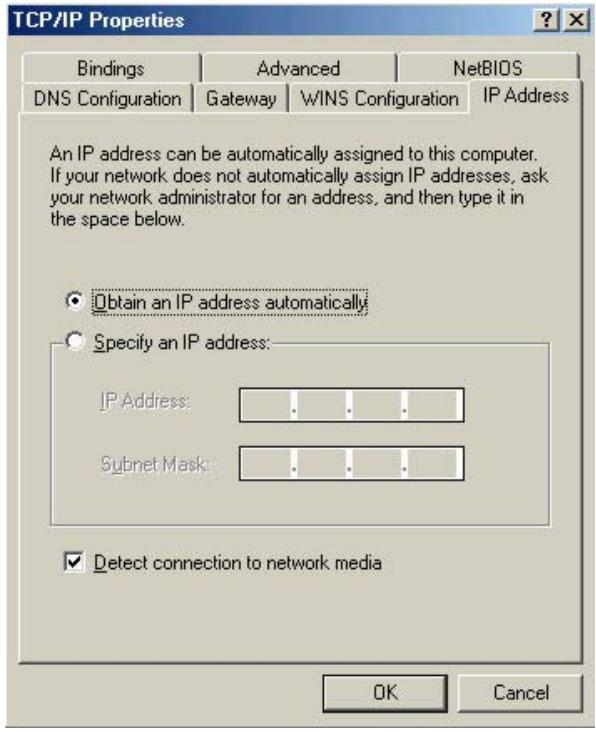
Figure 182 Windows 95/98/Me: TCP/IP Properties: IP Address
3 Click the DNS Configuration tab.
- If you do not know your DNS information, select Disable DNS.
- If you know your DNS information, select Enable DNS and type the information in the fields below (you may not need to fill them all in).
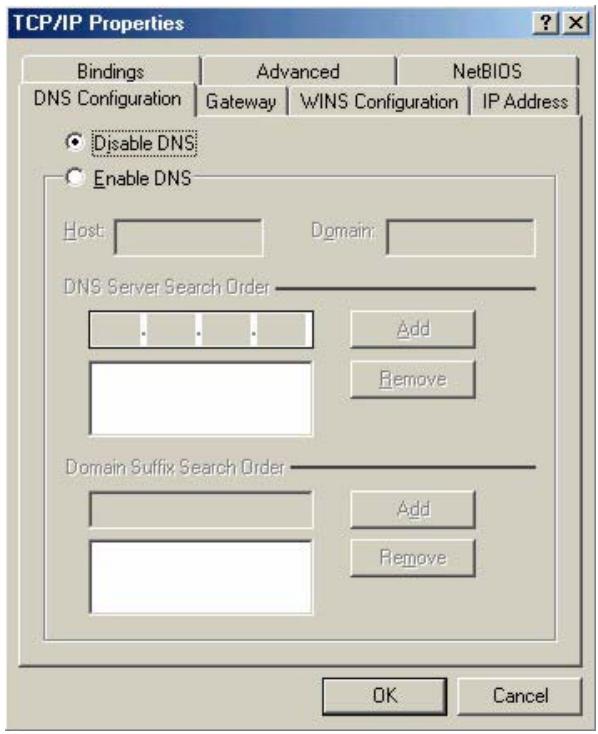
Figure 183 Windows 95/98/Me: TCP/IP Properties: DNS Configuration
4 Click the Gateway tab.
- If you do not know your gateway's IP address, remove previously installed gateways.
- If you have a gateway IP address, type it in the New gateway field and click Add.
5 Click OK to save and close the TCP/IP Properties window.
6 Click OK to close the Network window. Insert the Windows CD if prompted.
7 Turn on your NWA and restart your computer when prompted.
Verifying Settings
1 Click Start and then Run.
2 In the Run window, type "winipcfg" and then click OK to open the IP Configuration window.
3 Select your network adapter. You should see your computer's IP address, subnet mask and default gateway.
Windows 2000/NT/XP
1 For Windows XP, click start, Control Panel. In Windows 2000/NT, click Start, Settings, Control Panel.
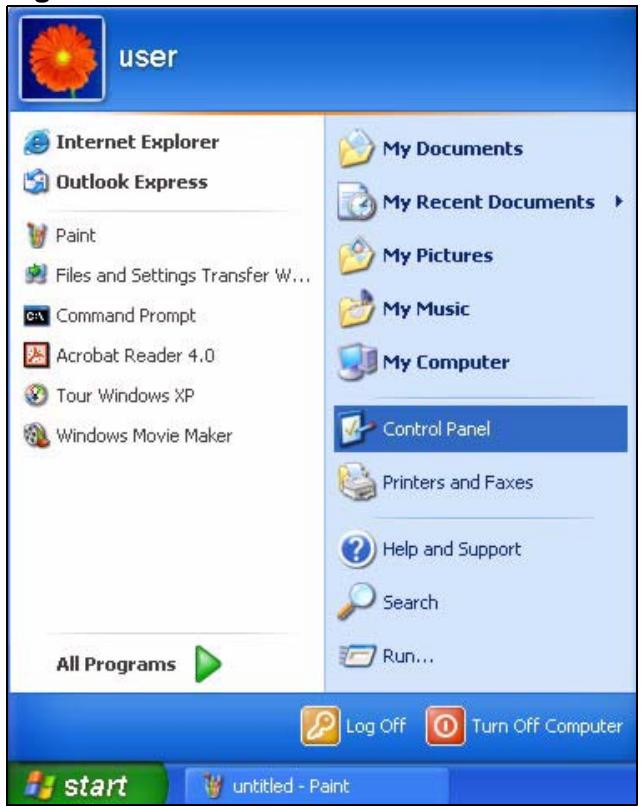
Figure 184 Windows XP: Start Menu
2 For Windows XP, click Network Connections. For Windows 2000/NT, click Network and Dial-up Connections.
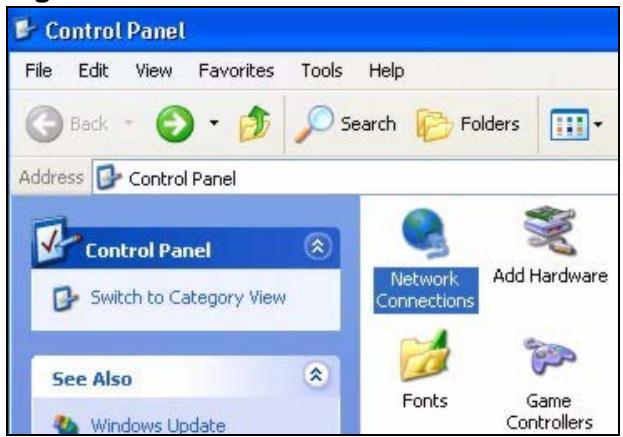
Figure 185 Windows XP: Control Panel
3 Right-click Local Area Connection and then click Properties.
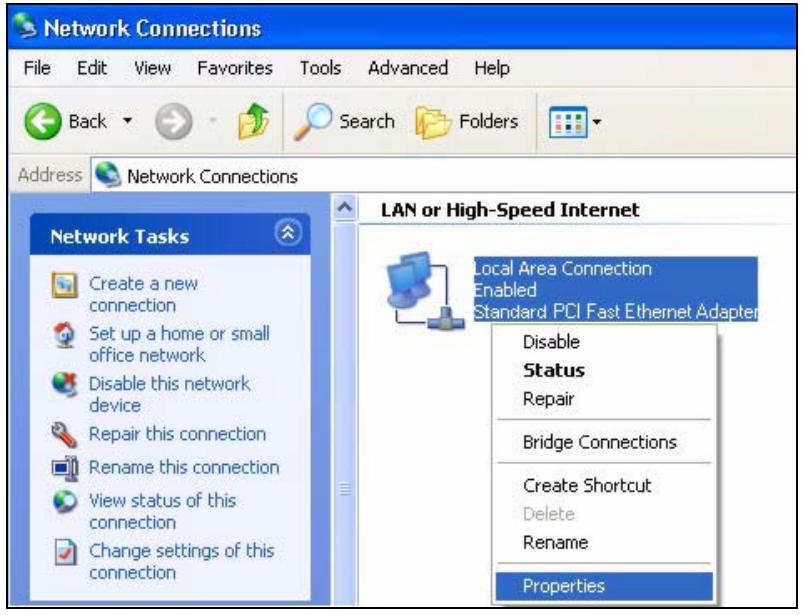
Figure 186 Windows XP: Control Panel: Network Connections: Properties
4 Select Internet Protocol (TCP/IP) (under the General tab in Win XP) and click Properties.
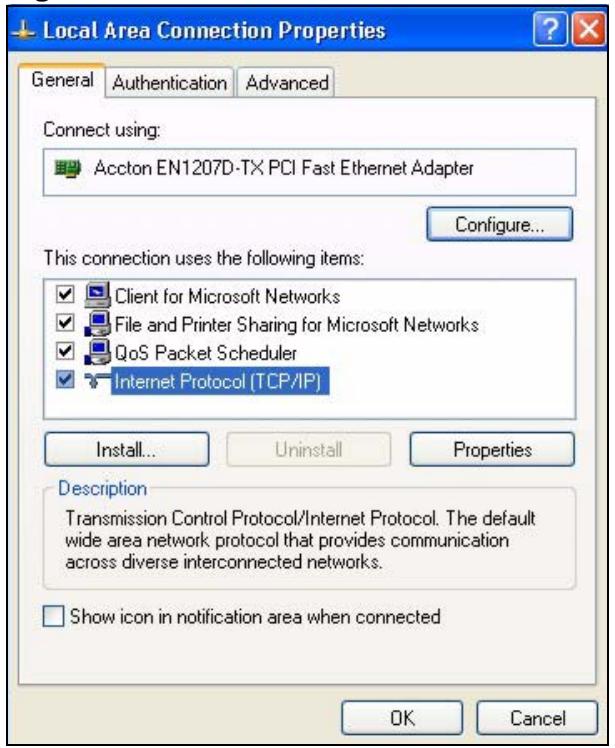
Figure 187 Windows XP: Local Area Connection Properties
5 The Internet Protocol TCP/IP Properties window opens (the General tab in Windows XP).
-
If you have a dynamic IP address click Obtain an IP address automatically.
-
If you have a static IP address click Use the following IP Address and fill in the IP address, Subnet mask, and Default gateway fields. Click Advanced.
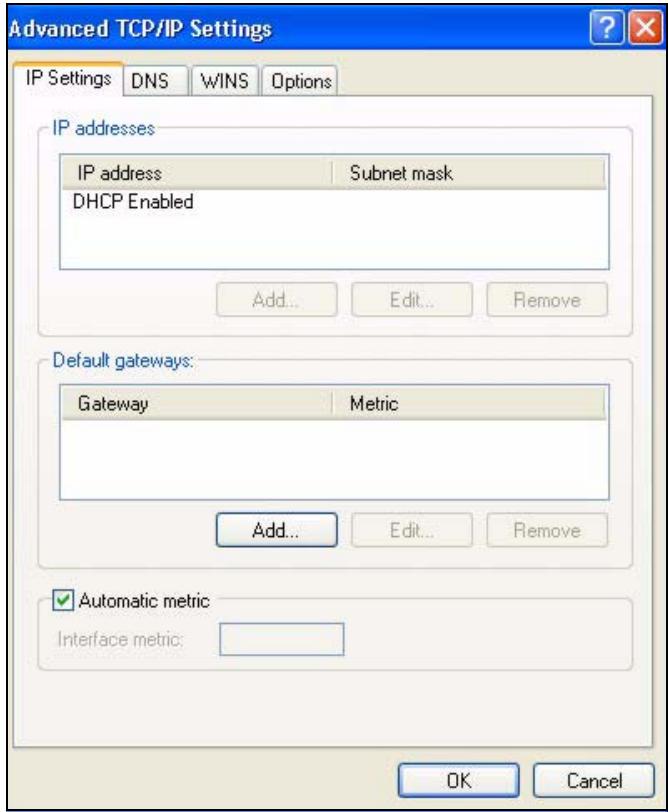
Figure 188 Windows XP: Advanced TCP/IP Settings
6 If you do not know your gateway's IP address, remove any previously installed gateways in the IP Settings tab and click OK.
Do one or more of the following if you want to configure additional IP addresses:
- In the IP Settings tab, in IP addresses, click Add.
- In TCP/IP Address, type an IP address in IP address and a subnet mask in Subnet mask, and then click Add.
- Repeat the above two steps for each IP address you want to add.
- Configure additional default gateways in the IP Settings tab by clicking Add in Default gateways.
- In TCP/IP Gateway Address, type the IP address of the default gateway in Gateway. To manually configure a default metric (the number of transmission hops), clear the Automatic metric check box and type a metric in Metric.
- Click Add.
- Repeat the previous three steps for each default gateway you want to add.
- Click OK when finished.
7 In the Internet Protocol TCP/IP Properties window (the General tab in Windows XP):
- Click Obtain DNS server address automatically if you do not know your DNS server IP address(es).
- If you know your DNS server IP address(es), click Use the following DNS server addresses, and type them in the Preferred DNS server and Alternate DNS server fields.
If you have previously configured DNS servers, click Advanced and then the DNS tab to order them.
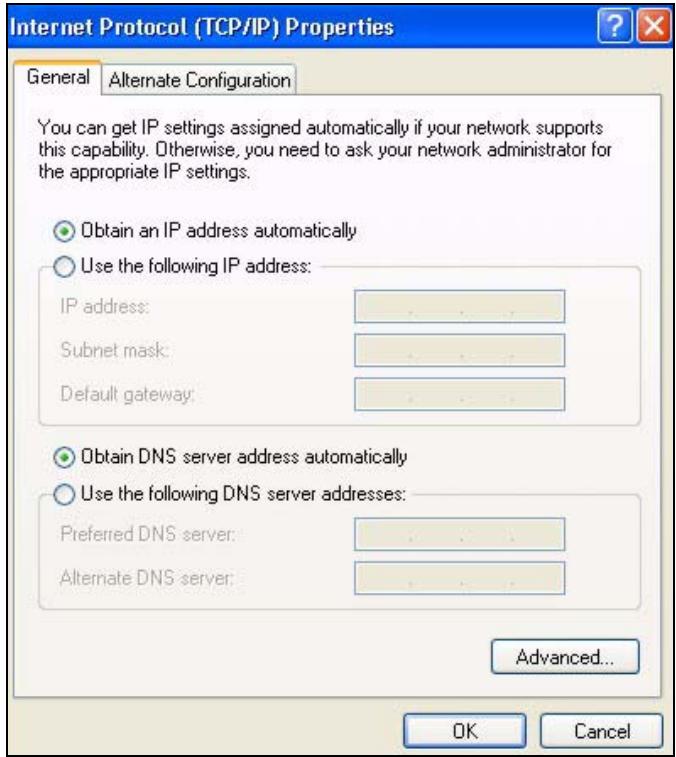
Figure 189 Windows XP: Internet Protocol (TCP/IP) Properties
8 Click OK to close the Internet Protocol (TCP/IP) Properties window.
9 Click OK to close the Local Area Connection Properties window.
10 Turn on your NWA and restart your computer (if prompted).
Verifying Settings
1 Click Start, All Programs, Accessories and then Command Prompt.
2 In the Command Prompt window, type "ipconfig" and then press [ENTER]. You can also open Network Connections, right-click a network connection, click Status and then click the Support tab.
Macintosh OS 8/9
1 Click the Apple menu, Control Panel and double-click TCP/IP to open the TCP/IP Control Panel.
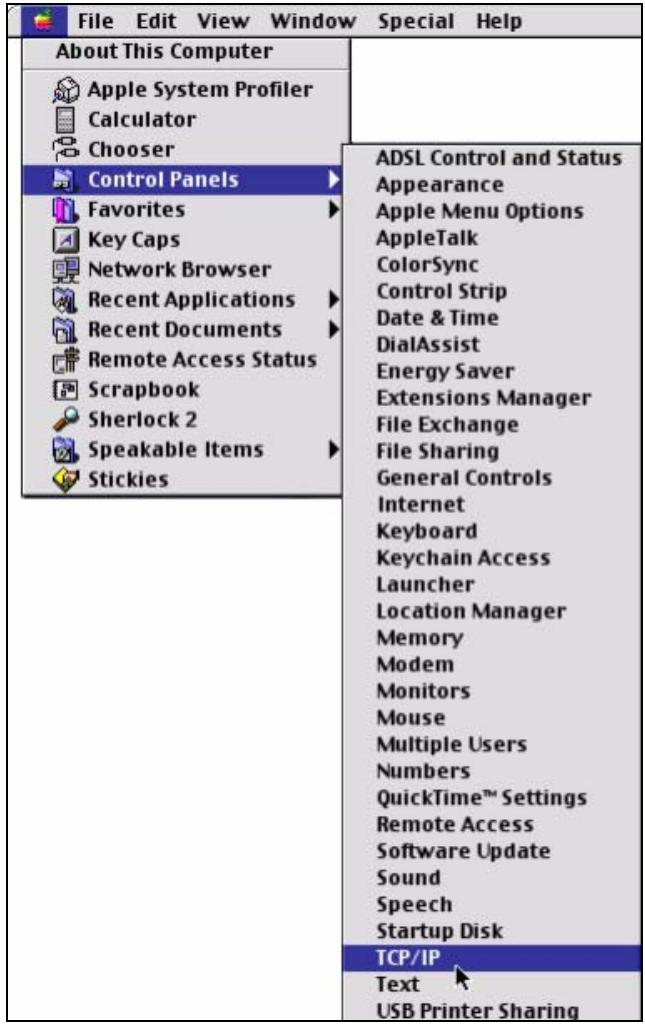
Figure 190 Macintosh OS 8/9: Apple Menu
2 Select Ethernet built-in from the Connect via list.
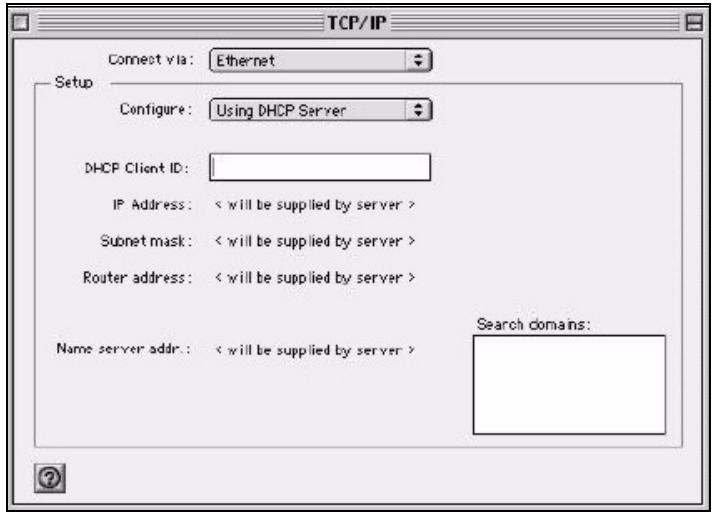
Figure 191 Macintosh OS 8/9: TCP/IP
3 For dynamically assigned settings, select Using DHCP Server from the Configure: list.
4 For statically assigned settings, do the following:
From the Configure box, select Manually.
- Type your IP address in the IP Address box.
- Type your subnet mask in the Subnet mask box.
- Type the IP address of your NWA in the Router address box.
5 Close the TCP/IP Control Panel.
6 Click Save if prompted, to save changes to your configuration.
7 Turn on your NWA and restart your computer (if prompted).
Verifying Settings
Check your TCP/IP properties in the TCP/IP Control Panel window.
Macintosh OS X
1 Click the Apple menu, and click System Preferences to open the System Preferences window.
Figure 192 Macintosh OS X: Apple Menu
2 Click Network in the icon bar.
- Select Automatic from the Location list.
- Select Built-in Ethernet from the Show list.
- Click the TCP/IP tab.
3 For dynamically assigned settings, select Using DHCP from the Configure list.
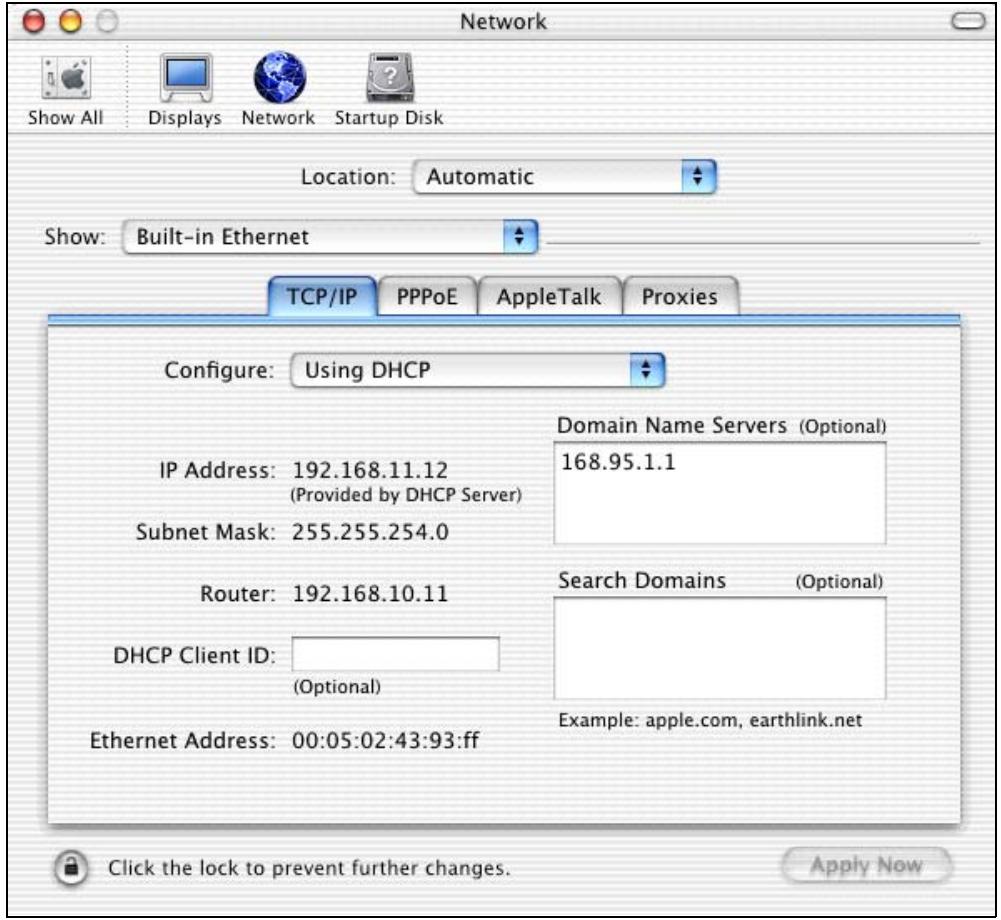
Figure 193 Macintosh OS X: Network
4 For statically assigned settings, do the following:
From the Configure box, select Manually.
- Type your IP address in the IP Address box.
- Type your subnet mask in the Subnet mask box.
- Type the IP address of your NWA in the Router address box.
5 Click Apply Now and close the window.
6 Turn on your NWA and restart your computer (if prompted).
Verifying Settings
Check your TCP/IP properties in the Network window.
Text File Based Auto Configuration
This chapter describes how administrators can use text configuration files to configure the wireless LAN settings for multiple APs.
Text File Based Auto Configuration Overview
You can use plain text configuration files to configure the wireless LAN settings on multiple APs. The AP can automatically get a configuration file from a TFTP server at startup or after renewing DHCP client information.
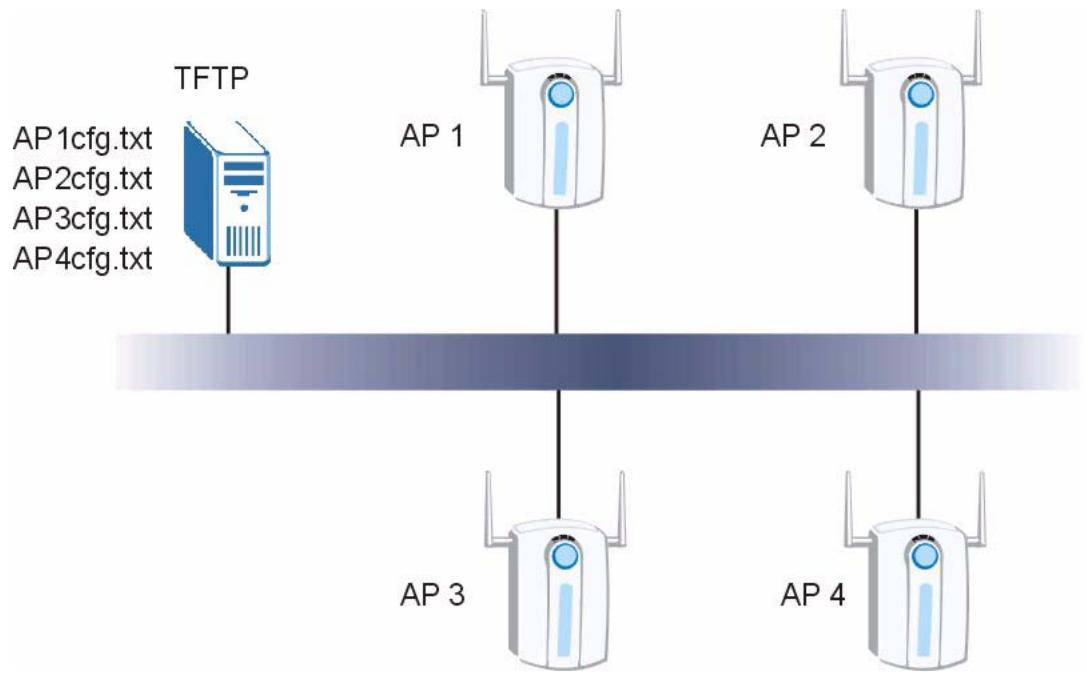
Figure 194 Text File Based Auto Configuration
Use one of the following methods to give the AP the IP address of the TFTP server where you store the configuration files and the name of the configuration file that it should download.
You can have a different configuration file for each AP. You can also have multiple APs use the same configuration file.
Note: If adjacent APs use the same configuration file, you should leave out the channel setting since they could interfere with each other's wireless traffic.
Auto Configuration by DHCP
A DHCP response can use options 66 and 67 to assign a TFTP server IP address and a filename. If the AP is configured as a DHCP client, these settings can be used to perform auto configuration.
Table 98 Auto Configuration by DHCP
| COMMAND | DESCRIPTION |
| wcfg autocfg dhcp [enable | disable] | Turn configuration of TFTP server IP address and filename through DHCP on or off. |
If this feature is enabled and the DHCP response provides a TFTP server IP address and a filename, the AP will try to download the file from the specified TFTP server. The AP then uses the file to configure wireless LAN settings.
Note: Not all DHCP servers allow you to specify options 66 and 67.
Configuration Via SNMP
You can configure and trigger the auto configuration remotely via SNMP.
Use the following procedure to have the AP download the configuration file.
Table 99 Configuration via SNMP
| STEPS | MIB VARIABLE | VALUE |
| Step 1 | pwTftpServer | Set the IP address of the TFTP server. |
| Step 2 | pwTftpFileName | Set the file name, for example, g3000hcfg.txt. |
| Step 3 | pwTftpFileType | Set to 3 (text configuration file). |
| Step 4 | pwTftpOpCommand | Set to 2 (download). |
Verifying Your Configuration File Upload Via SNMP
You can use SNMP management software to display the configuration file version currently on the device by using the following MIB.
Table 100 Displaying the File Version
| ITEM | OBJECT ID | DESCRIPTION |
| pwCfgVersion | 1.3.6.1.4.1.890.1.9.1.2 | This displays the current configuration file version. |
Troubleshooting Via SNMP
If you have any difficulties with the configuration file upload, you can try using the following MIB 10 to 20 seconds after using SNMP to have the AP download the configuration file.
Table 101 Displaying the File Version
| ITEM | OBJECT ID | DESCRIPTION |
| pwTftpOpStatus | 1.3.6.1.4.1.890.1.9.1.6 | This displays the current operating status of the TFTP client. |
Configuration File Format
The text based configuration file must use the following format.
Figure 195 Configuration File Format
!#ZYXEL PROWLAN
!#VERSION12
wcfg security 1 xxx
wcfg security save
wcfg ssid 1 xxx
wcfg ssid save
The first line must be !#ZYXEL PROWLAN.
The second line must specify the file version. The AP compares the file version with the version of the last configuration file that it downloaded. If the version of the downloaded file is the same or smaller (older), the AP ignores the file. If the version of the downloaded file is larger (newer), the AP uses the file.
Configuration File Rules
You can only use the wlan and wcfg commands in the configuration file. The AP ignores other ZyNOS commands but continues to check the next command.
The AP ignores any improperly formatted commands and continues to check the next line.
If there are any errors while processing the configuration file, the AP generates a message with the line number and reason for the first error (subsequent errors during the processing of an individual configuration file are not recorded). You can use SNMP management software to display the message by using the following MIB.
Table 102 Displaying the Auto Configuration Status
| ITEM | OBJECT ID | DESCRIPTION |
| pwAutoCfgMessage | 1.3.6.1.4.1.890.1.9.1.9 | Auto configuration status message string |
The commands will be executed line by line just like if you entered them in a console or Telnet CI session. Be careful to ensure the integrity of the whole AP configuration. If there are existing settings in the AP, the newly loaded configuration file will either coexist with the previous settings or replace them.
You can zip each configuration file. You must use the store compression method and a .zip file extension. When zipping a configuration file, you can also add password protection using the same password that you use to log into the AP.
Wcfg Command Configuration File Examples
These example configuration files use the wcfg command to configure security and SSID profiles.
Figure 196 WEP Configuration File Example
!#ZYXEL PROWLAN
!#VERSION 11
wcfg security 1 name Test-wep
wcfg security 1 security wep
wcfg security 1 wep keysize 64ascii
wcfg security 1 wep key1 abcde
wcfg security 1 wep key2 bcdef
wcfg security 1 wep key3 cdefg
wcfg security 1 wep key4 defgh
wcfg security 1 wep keyindex 1
wcfg security save
wcfg ssid 1 name ssid-wep
wcfg ssid 1 security Test-wep
wcfg ssid 1 l2iolation disable
wcfg ssid 1 macfilter disable
wcfg ssid save
Figure 197 802.1X Configuration File Example
!#ZYXEL PROWLAN
!#VERSION 12
wcfg security 2 name Test-802lx
wcfg security 2 mode 8021x-static128
wcfg security 2 wep key1 abcdefghijklm
wcfg security 2 wep key2 bcdefghijklmn
wcfg security 2 wep keyindex 1
wcfg security 2 reauthtime 1800
wcfg security 2 idle time 3600
wcfg security save
wcfg radius 2 name radius-rd
wcfg radius 2 primary 172.23.3.4 1812 1234 enable
wcfg radius 2 backup 172.23.3.5 1812 1234 enable
wcfg radius save
wcfg ssid 2 name ssid-802lx
wcfg ssid 2 security Test-802lx
wcfg ssid 2 radius radius-rd
wcfg ssid 2 qos 4
wcfg ssid 2 l2isolation disable
wcfg ssid 2 macfilter disable
wcfg ssid save
Figure 198 WPA-PSK Configuration File Example
!#ZYXEL PROWLAN
!#VERSION 13
wcfg security 3 name Test-wpapsk
wcfg security 3 mode wpapsk
wcfg security 3 passphrase qwertyuiop
wcfg security 3 reauthtime 1800
wcfg security 3 idletime 3600
wcfg security 3 groupkeytime 1800
wcfg security save
wcfg ssid 3 name ssid-wpapsk
wcfg ssid 3 security Test-wpapsk
wcfg ssid 3 qos 4
wcfg ssid 3 l2siolation disable
wcfg ssid 3 macfilter disable
wcfg ssid save
Figure 199 WPA Configuration File Example
!#ZYXEL PROWLAN
!#VERSION 14
wcfg security 4 name Test-wpa
wcfg security 4 mode wpa
wcfg security 4 reauthtime 1800
wcfg security 4 idle time 3600
wcfg security 4 groupkeytime 1800
wcfg security save
wcfg radius 4 name radius-rd1
wcfg radius 4 primary 172.0.20.38 1812 20 enable
wcfg radius 4 backup 172.0.20.39 1812 20 enable
wcfg radius save
wcfg ssid 4 name ssid-wpa
wcfg ssid 4 security Test-wpa
wcfg ssid 4 qos 4
wcfg ssid 4 l2isolation disable
wcfg ssid 4 macfilter disable
wcfg ssid save
Wlan Command Configuration File Example
This example configuration file uses the wlan command to configure the AP to use the security andSSID profiles from the wcfg command configuration file examples and general wireless settings. You could actually combine all of this chapter's example configuration files into a single configuration file. Remember that the commands are applied in order. So for example, you would place the
commands that create security and SSID profiles before the commands that tell the AP to use those profiles.
Figure 200 Wlan Configuration File Example
!#ZYXEL PROWLAN
!#VERSION 15
wcfg ssid 1 name ssid-wep
wcfg ssid 1 security Test-wep
wcfg ssid 2 name ssid-8021x
wcfg ssid 2 security Test-8021x
wcfg ssid 2 radius radius-rd
wcfg ssid 3 name ssid-wpapsk
wcfg ssid 3 security Test-wpapsk
wcfg ssid 4 name ssid-wpa2psk
wcfg ssid 4 security Test-wpa2psk
wcfg ssid save
!line starting with !!' is comment
!change to channel 8
wlan chid 8
!change operating mode -> AP mode,
!then select ssid-wep as running WLAN profile
wlan opmode 0
wlan ssidprofile ssid-wep
!change operating mode -> MBSSID mode,
!then select ssid-wpapsk, ssid-wpa2psk as running WLAN profiles
wlan opmode 3
wlan ssidprofile ssid-wpapsk ssid-wpa2psk
! set output power level to 50%
wlan output power 2
How to Access and Use the CLI
This chapter introduces the command line interface (CLI).
Accessing the CLI
Use any of the following methods to access the CLI.
Console Port
You can use this method if your NWA has a console port.
1 Connect your computer to the console port on the NWA using the appropriate cable.
2 Use terminal emulation software with the following settings:
Table 103 Default Settings for the Console Port
| SETTING | DEFAULT VALUE |
| Terminal Emulation | VT100 |
| Baud Rate | 9600 bps |
| Parity | None |
| Number of Data Bits | 8 |
| Number of Stop Bits | 1 |
| Flow Control | None |
3 Press [ENTER] to open the login screen.
Telnet
1 Connect your computer to one of the Ethernet ports.
2 Open a Telnet session to the NWA's IP address. If this is your first login, use the default values.
Table 104 Default Management IP Address
| SETTING | DEFAULTVALUE |
| IP Address | 192.168.1.1 |
| Subnet Mask | 255.255.255.0 |
Make sure your computer IP address is in the same subnet, unless you are accessing the NWA through one or more routers. In the latter case, make sure remote management of the NWA is allowed via Telnet.
SSH
You can use this method if your NWA supports SSH connections.
1 Connect your computer to one of the Ethernet ports.
Use a SSH client program to access the NWA. If this is your first login, use the default values in Table 104 on page 310 and Table 105 on page 310. Make sure your computer IP address is in the same subnet, unless you are accessing the NWA through one or more routers.
Logging in
Use the administrator username and password. If this is your first login, use the default values. in some NWA models you may not need to enter the user name.
Table 105 Default User Name and Password
| SETTING | DEFAULT VALUE |
| User Name | admin |
| Password | 1234 |
The NWA automatically logs you out of the management interface after five minutes of inactivity. If this happens, simply log back in again. Use the sys stdio set command to extend the idle timeout. For example, the NWA automatically logs you out of the management interface after 60 minutes of inactivity after you use the sys stdio set 60 command. Use the sys stdio show command to display the current idle timeout setting.
Command Conventions
Command descriptions follow these conventions:
- Commands are in courier new font.
- Required input values are in angle brackets <> ; for example, ping
means that you must specify an IP address for this command. - Optional fields are in square brackets []; for instance in the show logins [name]command, the name field is optional.
The following is an example of a required field within an optional field: snmp-server [contact
- The | (bar) symbol means "or".
- italic terms represent user-defined input values; for example, in sys datetime date [year month date], year month date can be replaced by the actual year month and date that you want to set, for example, 2007 08 15.
- A key stroke is denoted by square brackets and uppercase text, for example, [ENTER] means the "Enter" or "Return" key on your keyboard.
means press the [ENTER] key. - An arrow () indicates that this line is a continuation of the previous line.
A long list of pre-defined values may be replaced by a command input value 'variable' so as to avoid a very long command in the description table. Refer to the command input values table if you are unsure of what to enter.
Table 106 Common Command Input Values
| LABEL | DESCRIPTION |
| description | Used when a command has a description field in order to add more detail. |
| ip-address | An IP address in dotted decimal notation. For example, 192.168.1.3. |
| mask | The subnet mask in dotted decimal notation, for example, 255.255.255.0. |
| mask-bits | The number of bits in an address's subnet mask. For example type /24 for a subnet mask of 255.255.255.0. |
| port | A port number. |
| hostname | The hostname can be an IP address or domain name. |
| name | Used for the name of a rule, policy, set, group and so on. |
| number | Used for a number, for example 10, that you have to enter. |
Note: Commands are case sensitive! Enter commands exactly as seen in the command interface. Remember to also include underscores if required.
Copy and Paste Commands
You can copy and paste commands directly from this document into your terminal emulation console window (such as HyperTerminal). Use right-click (not [CTRL]-[V]) to paste your command into the console window as shown next.
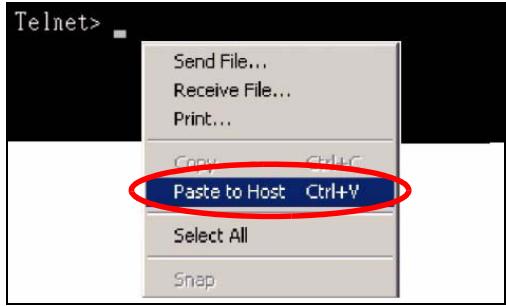
Using Shortcuts and Getting Help
This table identifies some shortcuts in the CLI, as well as how to get help.
Table 107 CLI Shortcuts and Help
| COMMAND / KEY(S) | DESCRIPTION |
| ( up/down arrow keys) | Scrolls through the list of recently-used commands. You can edit any command or press [ENTER] to run it again. |
| ? | Displays the keywords and/or input values that are allowed in place of the ?: |
| help | Displays the (full) commands that are allowed in place of help. |
Use the help command to view the executable commands on the NWA. Follow these steps to create a list of supported commands:
1 Log into the CLI.
2 Type help and press [ENTER]. A list comes up which shows all the commands available for this device.
ras> help alarm chsh config exit ip statistics switch sys voip ras>
Saving Your Configuration
In the NWA some commands are saved as you run them and others require you to run a save command. See the related section of this guide to see if a save command is required.
Note: Unsaved configuration changes are lost once you restart the NWA
Logging Out
Use the exit command to log out of the CLI.
Legal Information
Copyright
Copyright © 2008 by ZyXEL Communications Corporation.
The contents of this publication may not be reproduced in any part or as a whole, transcribed, stored in a retrieval system, translated into any language, or transmitted in any form or by any means, electronic, mechanical, magnetic, optical, chemical, photocopying, manual, or otherwise, without the prior written permission of ZyXEL Communications Corporation.
Published by ZyXEL Communications Corporation. All rights reserved.
Disclaimers
ZyXEL does not assume any liability arising out of the application or use of any products, or software described herein. Neither does it convey any license under its patent rights nor the patent rights of others. ZyXEL further reserves the right to make changes in any products described herein without notice. This publication is subject to change without notice.
Trademarks
ZyNOS (ZyXEL Network Operating System) is a registered trademark of ZyXEL Communications, Inc. Other trademarks mentioned in this publication are used for identification purposes only and may be properties of their respective owners.
Certifications
Federal Communications Commission (FCC) Interference Statement
The device complies with Part 15 of FCC rules. Operation is subject to the following two conditions:
-
This device may not cause harmful interference.
-
This device must accept any interference received, including interference that may cause undesired operations.
This device has been tested and found to comply with the limits for a Class B digital device pursuant to Part 15 of the FCC Rules. These limits are designed to provide reasonable protection against harmful interference in a residential installation. This device generates, uses, and can radiate radio frequency energy, and if not installed and used in accordance with the instructions, may cause harmful interference to radio communications. However, there is no guarantee that interference will not occur in a particular installation.
If this device does cause harmful interference to radio/television reception, which can be determined by turning the device off and on, the user is encouraged to try to correct the interference by one or more of the following measures:
1 Reorient or relocate the receiving antenna.
2 Increase the separation between the equipment and the receiver.
3 Connect the equipment into an outlet on a circuit different from that to which the receiver is connected.
4 Consult the dealer or an experienced radio/TV technician for help.
FCC Radiation Exposure Statement
- This transmitter must not be co-located or operating in conjunction with any other antenna or transmitter.
- For operation within 5.15 5.25GHz frequency range, it is restricted to indoor environment.
- IEEE 802.11b or 802.11g operation of this product in the U.S.A. is firmware-limited to channels 1 through 11.
- To comply with FCC RF exposure compliance requirements, a separation distance of at least 20~cm must be maintained between the antenna of this device and all persons.
注意!
依據 低功率電波輻射性電機管理辦法
Changes or modifications not expressly approved by the party responsible for compliance could void the user's authority to operate the equipment.
This device has been designed for the WLAN 2.4 GHz and 5 GHz networks throughout the EC region and Switzerland, with restrictions in France.
This Class B digital apparatus complies with Canadian ICES-003.
Viewing Certifications
1 Go to http://www.zyxel.com.
2 Select your product on the ZyXEL home page to go to that product's page.
3 Select the certification you wish to view from this page.
ZyXEL Limited Warranty
ZyXEL warrants to the original end user (purchaser) that this product is free from any defects in materials or workmanship for a period of up to two years from the date of purchase. During the warranty period, and upon proof of purchase, should the product have indications of failure due to faulty workmanship and/or materials, ZyXEL will, at its discretion, repair or replace the defective products or components without charge for either parts or labor, and to whatever extent it shall deem necessary to restore the product or components to proper operating condition. Any replacement will consist of a new or re-manufactured functionally equivalent product of equal or higher value, and will be solely at the discretion of ZyXEL. This warranty shall not apply if the product has been modified, misused, tampered with, damaged by an act of God, or subjected to abnormal working conditions.
Note
Repair or replacement, as provided under this warranty, is the exclusive remedy of the purchaser. This warranty is in lieu of all other warranties, express or implied, including any implied warranty of merchantability or fitness for a particular use or purpose. ZyXEL shall in no event be held liable for indirect or consequential damages of any kind to the purchaser.
To obtain the services of this warranty, contact your vendor. You may also refer to the warranty policy for the region in which you bought the device at http:// www.zyxel.com/web/support_warranty_info.php.
Registration
Register your product online to receive e-mail notices of firmware upgrades and information at www.zyxel.com.
Customer Support
In the event of problems that cannot be solved by using this manual, you should contact your vendor. If you cannot contact your vendor, then contact a ZyXEL office for the region in which you bought the device. Regional offices are listed below (see also http://www.zyxel.com/web/contact_us.php). Please have the following information ready when you contact an office.
Required Information
- Product model and serial number.
Warranty Information. - Date that you received your device.
- Brief description of the problem and the steps you took to solve it.
“+” is the (prefix) number you dial to make an international telephone call.
Corporate Headquarters (Worldwide)
- Support E-mail: support@zyxel.com.tw
- Sales E-mail: sales@zyxel.com.tw
- Telephone: +886-3-578-3942
Fax: +886-3-578-2439
Web: www.zyxel.com - Regular Mail: ZyXEL Communications Corp., 6 Innovation Road II, Science Park, Hsinchu 300, Taiwan
China - ZyXEL Communications (Beijing) Corp.
- Support E-mail: cso.zycn@zyxel.cn
Sales E-mail: sales@zyxel.cn - Telephone: +86-010-82800646
Fax: +86-010-82800587 - Address: 902, Unit B, Horizon Building, No.6, Zhichun Str, Haidian District, Beijing
Web: http://www.zyxel.cn
China - ZyXEL Communications (Shanghai) Corp.
- Support E-mail: cso.zycn@zyxel.cn
Sales E-mail: sales@zyxel.cn
Telephone: +86-021-61199055
Fax: +86-021-52069033 - Address: 1005F, ShengGao International Tower, No.137 XianXia Rd., Shanghai
Web: http://www.zyxel.cn
Costa Rica
- Support E-mail: soporte@zyxel.co.kr
- Sales E-mail: sales@zyxel.co.cr
- Telephone: +506-2017878
Fax: +506-2015098
Web: www.zyxel.co.cr - Regular Mail: ZyXEL Costa Rica, Plaza Roble Escazú, Etapa El Patio, Tercer Piso, San José, Costa Rica
Czech Republic
E-mail: info@cz.zyxel.com
Telephone: +420-241-091-350
Fax: +420-241-091-359
Web: www.zyxel.cz
- Regular Mail: ZyXEL Communications, Czech s.r.o., Modranská 621, 143 01 Praha 4 - Modrany, Ceská Republika
Denmark
- Support E-mail: support@zyxel.dk
- Sales E-mail: sales@zyxel.dk
- Telephone: +45-39-55-07-00
Fax: +45-39-55-07-07
Web: www.zyxel.dk - Regular Mail: ZyXEL Communications A/S, Columbusvej, 2860 Soeborg, Denmark
Finland
- Support E-mail: support@zyxel.fi
Sales E-mail: sales@zyxel.fi - Telephone: +358-9-4780-8411
Fax: +358-9-4780-8448
Web: www.zyxel.fi
- Regular Mail: ZyXEL Communications Oy, Malminkaari 10, 00700 Helsinki, Finland
France
E-mail: info@zyxel.fr
- Telephone: +33-4-72-52-97-97
Fax: +33-4-72-52-19-20
Web: www.zyxel.fr
- Regular Mail: ZyXEL France, 1 rue des Vergers, Bat. 1 / C, 69760 Limonest, France
Germany
- Support E-mail: support@zyxel.de
Sales E-mail: sales@zyxel.de - Telephone: +49-2405-6909-69
Fax: +49-2405-6909-99
Web: www.zyxel.de - Regular Mail: ZyXEL Deutschland GmbH., Adenauerstr. 20/A2 D-52146, Wuerselen, Germany
Hungary
- Support E-mail: support@zyxel.hu
- Sales E-mail: info@zyxel.hu
- Telephone: +36-1-3361649
Fax: +36-1-3259100
Web: www.zyxel.hu - Regular Mail: ZyXEL Hungary, 48, Zoldlomb Str., H-1025, Budapest, Hungary
India
- Support E-mail: support@zyxel.in
- Sales E-mail: sales@zyxel.in
- Telephone: +91-11-30888144 to +91-11-30888153
- Fax: +91-11-30888149, +91-11-26810715
Web: http://www.zyxel.in - Regular Mail: India - ZyXEL Technology India Pvt Ltd., II-Floor, F2/9 Okhla Phase -1, New Delhi 110020, India
Japan
- Support E-mail: support@zyxel.co.jp
Sales E-mail: zyp@zyxel.co.jp - Telephone: +81-3-6847-3700
Fax: +81-3-6847-3705
Web: www.zyxel.co.jp - Regular Mail: ZyXEL Japan, 3F, Office T&U, 1-10-10 Higashi-Gotanda, Shinagawa-ku, Tokyo 141-0022, Japan
Kazakhstan
- Support: http://zyxel.kz/support
Sales E-mail: sales@zyxel.kz - Telephone: +7-3272-590-698
Fax: +7-3272-590-689
Web: www.zyxel.kz - Regular Mail: ZyXEL Kazakhstan, 43 Dostyk Ave., Office 414, Dostyk Business Centre, 050010 Almaty, Republic of Kazakhstan
Malaysia
- Support E-mail: support@zyxel.com.my
Sales E-mail: sales@zyxel.com.my - Telephone: +603-8076-9933
Fax: +603-8076-9833
Web: http://www.zyxel.com.my - Regular Mail: ZyXEL Malaysia Sdn Bhd., 1-02 & 1-03, Jalan Kenari 17F, Bandar Puchong Jaya, 47100 Puchong, Selangor Darul Ehsan, Malaysia
North America
- Support E-mail: support@zyxel.com
- Support Telephone: +1-800-978-7222
Sales E-mail: sales@zyxel.com
Sales Telephone: +1-714-632-0882
Fax: +1-714-632-0858
Web: www.zyxel.com - Regular Mail: ZyXEL Communications Inc., 1130 N. Miller St., Anaheim, CA 92806-2001, U.S.A.
Norway
-
Support E-mail: support@zyxel.no
-
Sales E-mail: sales@zyxel.no
Telephone: +47-22-80-61-80
Fax: +47-22-80-61-81
Web: www.zyxel.no - Regular Mail: ZyXEL Communications A/S, Nils Hansens vei 13, 0667 Oslo, Norway
Poland
- E-mail: info@pl.zyxel.com
Telephone: +48-22-333 8250
Fax: +48-22-333 8251
Web: www.pl.zyxel.com - Regular Mail: ZyXEL Communications, ul. Okrzej 1A, 03-715 Warszawa, Poland
Russia
- Support: http://zyxel.ru/support
Sales E-mail: sales@zyxel.ru - Telephone: +7-095-542-89-29
Fax: +7-095-542-89-25
Web: www.zyxel.ru
Regular Mail: ZyXEL Russia, Ostrovityanova 37a Str., Moscow 117279, Russia
Singapore
- Support E-mail: support@zyxel.com.sg
- Sales E-mail: sales@zyxel.com.sg
- Telephone: +65-6899-6678
Fax: +65-6899-8887
Web: http://www.zyxel.com.sg - Regular Mail: ZyXEL Singapore Pte Ltd., No. 2 International Business Park, The Strategy #03-28, Singapore 609930
Spain
- Support E-mail: support@zyxel.es
Sales E-mail: sales@zyxel.es - Telephone: +34-902-195-420
Fax: +34-913-005-345
Web: www.zyxel.es - Regular Mail: ZyXEL Communications, Arte, 215^a planta, 28033 Madrid, Spain
Sweden
- Support E-mail: support@zyxel.se
Sales E-mail: sales@zyxel.se - Telephone: +46-31-744-7700
Fax: +46-31-744-7701
Web: www.zyxel.se - Regular Mail: ZyXEL Communications A/S, Sjöporten 4, 41764 Göteborg, Sweden
Taiwan
- Support E-mail: support@zyxel.com.tw
Sales E-mail: sales@zyxel.com.tw - Telephone: +886-2-27399889
Fax: +886-2-27353220
Web: http://www.zyxel.com.tw - Address: Room B, 21F., No.333, Sec. 2, Dunhua S. Rd., Da-an District, Taipei
Thailand
- Support E-mail: support@zyxel.co.th
- Sales E-mail: sales@zyxel.co.th
- Telephone: +662-831-5315
Fax: +662-831-5395
Web: http://www.zyxel.co.th - Regular Mail: ZyXEL Thailand Co., Ltd., 1/1 Moo 2, Ratchaphruk Road, Bangrak-Noi, Muang, Nonthaburi 11000, Thailand.
Turkey
- Support E-mail: cso@zyxel.com.tr
- Telephone: +90 212 222 55 22
Fax: +90-212-220-2526
Web: http://www.zyxel.com.tr - Address: Kaptanpasa Mahallesi Piyalepasa Bulvari Ortadogu Plaza N:14/13 K:6 Okmeydani/Sisli Istanbul/Turkey
Ukraine
- Support E-mail: support@ua.zyxel.com
- Sales E-mail: sales@ua.zyxel.com
- Telephone: +380-44-247-69-78
Fax: +380-44-494-49-32
Web: www.ua.zyxel.com
- Regular Mail: ZyXEL Ukraine, 13, Pimonenko Str., Kiev 04050, Ukraine
United Kingdom
- Support E-mail: support@zyxel.co.uk
Sales E-mail: sales@zyxel.co.uk - Telephone: +44-1344-303044, 0845 122 0301 (UK only)
Fax: +44-1344-303034
Web: www.zyxel.co.uk - Regular Mail: ZyXEL Communications UK Ltd., 11 The Courtyard, Eastern Road, Bracknell, Berkshire RG12 2XB, United Kingdom (UK)
Index
A
access 18
access point 18
access privileges 23
accessing the CLI 309
address 88
address assignment 88, 157
address filtering 17
administrator authentication on RADIUS 95
Advanced Encryption Standard See AES.
AES 265
alternative subnet mask notation 282
antenna 251
AP 17, 18, 19, 22
AP (access point) 100, 257
AP+Bridge 18
AP/Bridge 22
applications 18
Access Point 18
AP/Bridge 22
Bridge/Repeater 19
MBSSID 22
ATC 113, 127
ATC ^+ WMM 127
ATM 113
authentication server 17
auto configuration 301
auto configuration status 304
B
backup 242
Basic Service Set 98
see BSS
bridge 19, 22
Bridge Protocol Data Units (BPDUs) 117
Bridge/Repeater 18, 19
BSS 22, 23, 255
BSSID 17
C
CA 203, 263
CAPWAP 71, 73, 75
Certificate Authority
See CA.
certificates 181
CA 203
thumbprint algorithms 204
thumbprints 204
verifying fingerprints 204
Certification Authority. See CA.
certifications 315
notices 317
viewing 317
channel 18, 100, 257
interference 257
Class of Service (CoS) 115
command interface 26
configuration 17
configuration file
examples 304
format 303
configuration file rules 303
console port (accessing the CLI) 309
contact information 319
Control and Provisioning of Wireless Access Points
See CAPWAP
copyright 315
CoS 115
CTS (Clear to Send) 258
customer support 319
D
default 244
DFS 118
Differentiated Services 115
DiffServ 115
DiffServ Code Point (DSCP) 115
DiffServ Code Points 115
DiffServ marking rule 116
dimensions 251
disclaimer 315
Distribution System 98
DS field 115
DSCPs 115
DTLS 25,71
dual wireless modules 17
Dynamic Frequency Selection 118
dynamic WEP key exchange 264
E
EAP authentication 262
encryption 22, 265
ESS 98,256
ESS IDentification 99
ESSID 250
Extended Service Set 98
see ESS
Extended Service Set IDentification 100, 103, 111
F
FCC interference statement 315
file version 303
filtering 17
firmware file
maintenance 237
fragmentation threshold 259
friendly AP list 160, 163
FTP 26,169
restrictions 169
G
general setup 89
guest SSID 24
H
help (in the CLI) 312
hidden node 258
honeypot attack 161
host 91
host ID 88
humidity 251
1
IANA 88,288
IBSS 255
IEEE 802.11g 260
IEEE 802.1x17
in-band management 221
Independent Basic Service Set 239 see IBSS
initialization vector (IV) 265
installation 17
interference 18
internal authentication server 17
Internal RADIUS Server Setting Screen 180
Internet Assigned Numbers Authority See IANA
Internet security gateway 17
Internet telephony 23
IP address 88, 157, 252
IPSec VPN capability 252
isolation 17
L
layer-2 isolation 17, 24
LEDS 27
log descriptions 210
login 310
logs 205
0
operating mode 18
out-of-band management 221
M
MAC address 17, 146, 151
MAC address filter action 154
MAC filter 24
MAC filtering 252
MAC service data unit 85
maintenance 17
management 17
Management Information Base (MIB) 176
Management Mode 71
CAPWAP and DHCP 72
CAPWAP and IP Subnets 72
managed AP 72
standalone mode 71
management VLAN 220
managing the device
good habits 26
using FTP. See FTP.
using Telnet. See command interface.
using the command interface. See command interface.
mask 88
max age 117
MBSSID 18, 22
Message Integrity Check (MIC) 265
mobile access 17
mode 18
MSDU 85
N
NAT 287
network 17
network access 17
network bridge 19
network number 88
network traffic 17
P
Pairwise Master Key (PMK) 265, 268
password 252
path cost 117
Per-Hop Behavior 115
PHB (Per-Hop Behavior) 116
power specifications 251
preamble mode 259
pre-configured profiles 24
priorities 112
prioritization 17
private IP address 88, 157
private networks 88
product registration 318
PSK 266
Q
QoS 17, 127
Quick Start Guide 29
R
radio 18
RADIUS 261
message types 262
messages 262
shared secret key 262
rapid STP 116
reauthentication time 135, 136, 137, 138, 140
registration
product 318
related documentation 3
remote management limitations 168
repeater 19
reset button 251
restore 243
RF interference 18
roaming 118
requirements 120
rogue AP 17, 160, 161, 162, 163
root bridge 117
RTS (Request To Send) 258
threshold 258, 259
RTS/CTS handshake 85
s
safety warnings 6
saving configuration 313
screws 253
security 19
security profiles 17
server 17
Service Set 100, 103, 111
Service Set Identifier
see SSID
shortcuts 312
SNMP 253
MIBs 176
traps 176
SSH (accessing the CLI) 310
SSID 22
SSID profile 124
pre-configured 23
SSID profiles 23, 24
STP 116
STP - how it works 117
STP (Spanning Tree Protocol) 252
STP path costs 117
STP port states 118
STP terminology 117
subset 279
subset mask 88, 252, 280
subsetting 283
syntax conventions 4
system name 89
systemtimeout170
T
tagged VLAN example 221
telnet 170
Telnet (accessing the CLI) 309
temperature 251
Temporal Key Integrity Protocol (TKIP) 265
text file based auto configuration 253, 301
TFTP restrictions 169
time-sensitive 17
ToS 115
trademarks 315
traffic security 17
Type of Service 115
U
use 17
V
Virtual Local Area Network 215
VLAN 215
VoIP 17, 23, 127
VoIP SSID 24
W
warranty 317
note 318
wcfg command 304
WDS 19, 20, 22
web configurator 17, 29, 31
WEP 17
WEP encryption 134
Wi-Fi Multimedia QoS 112
Wi-Fi Protected Access 17, 265
wired network 17, 18, 19
wireless channel 250
wireless client WPA supplicants 266
Wireless Distribution System (WDS) 22
wireless Internet connection 18
wireless LAN 250
wireless modules (dual) 17
wireless security 23, 129, 250, 260
WLAN
interference 257
security parameters 268
WLAN interface 18
WMM 127
WPA 17,265
key caching 266
pre-authentication 266
user authentication 266
vs WPA-PSK 266
wireless client supplicant 266
with RADIUS application example 267
WPA2 17, 265
user authentication 266
vs WPA2-PSK 266
wireless client supplicant 266
with RADIUS application example 267
WPA2-Pre-Shared Key 265
WPA2-PSK 265, 266
application example 267
WPA-PSK 265, 266
application example 267
- About This User's Guide
- Intended Audience
- Related Documentation
- User Guide Feedback
- Document Conventions
- Warnings and Notes
- Warnings tell you about things that could harm you or your device.
- Syntax Conventions
- Icons Used in Figures
- SafetyWarnings
- Table of Contents
- Part II: The Web Configurator 65
- Chapter 4 Status Screen 67
- Chapter 5 Management Mode. 71
- Chapter 6
- AP Controller Mode 75
- Chapter 7
- System Screens 87
- Chapter 8
- Wireless Screen 97
- Chapter 9
- SSID Screen 123
- Chapter 10
- Wireless Security Screen 129
- Chapter 11
- RADIUS Screen 141
- Chapter 12
- Layer-2 Isolation Screen 145
- Chapter 13
- MAC Filter Screen 151
- Chapter 14
- IP Screen 155
- Chapter 15
- Rogue AP Detection 159
- Chapter 16
- Remote Management Screens 167
- Chapter 17
- Internal RADIUS Server 179
- Chapter 18
- Certificates 187
- Chapter 19
- Log Screens 205
- Chapter 20 VLAN 215
- Chapter 21 Maintenance 237
- Chapter 22 Troubleshooting 245
- PART I
- Introduction
- Overview
- Applications for the NWA
- Access Point
- Bridge / Repeater
- Bridge / Repeater Mode Example
- AP + Bridge
- MBSSID
- Pre-Configured SSID Profiles
- Configuring Dual WLAN Adaptors
- CAPWAP
- Ways to Manage the NWA
- Good Habits for Managing the NWA
- Hardware Connections
- LEDs
- The Web Configurator
- Overview
- Accessing the Web Configurator
- Resetting the NWA
- Methods of Restoring Factory-Defaults
- Navigating the Web Configurator
- Tutorials
- Overview
- How to Configure the Wireless LAN
- Choosing the Wireless Mode
- Wireless LAN Configuration Overview
- Further Reading
- How to Configure Multiple Wireless Networks
- Change the Operating Mode
- Configure the VoIP Network
- Set Up Security for the VoIP Profile
- Activate the VoIP Profile
- Configure the Guest Network
- Set Up Security for the Guest Profile
- Set up Layer 2 Isolation
- Activate the Guest Profile
- Testing the Wireless Networks
- How to Set Up and Use Rogue AP Detection
- Set Up and Save a Friendly AP list
- Activate Periodic Rogue AP Detection
- Set Up E-mail Logs
- Configure Your Other Access Points
- Test the Setup
- Using MAC Filters and L-2 Isolation Profiles
- Scenario
- Your Requirements
- Setup
- Configure the SERVER_1 Network
- Configure the SERVER_2 Network
- Checking your Settings and Testing the Configuration
- Checking Settings
- Testing the Configuration
- PART II
- The Web
- Configurator
- Status Screen
- Overview
- The Status Screen
- Management Mode
- Overview
- About CAPWAP
- CAPWAP Discovery and Management
- CAPWAP and DHCP
- CAPWAP and IP Subnets
- Notes on CAPWAP
- The Management Mode Screen
- AP Controller Mode
- Overview
- What You Can Do in AP Controller Mode
- What You Need to Know
- Controller AP Mode
- Before You Begin
- Controller AP Navigation Menu
- Controller AP Status Screen
- AP Lists Screen
- The AP Lists Edit Screen
- Configuration Screen
- The Profile Edit Screens
- The Radio Profile Screen
- The Radio Profile Edit Screen
- System Screens
- Overview
- What You Can Do in the System Screens
- What You Need To Know About the System Screens
- IP Address Assignment
- IP Address and Subnet Mask
- General Screen
- Password Screen
- Time Setting Screen
- Technical Reference
- Administrator Authentication on RADIUS
- Pre-defined NTP Time Servers List
- Wireless Screen
- Overview
- What You Can Do in the Wireless Screen
- What You Need To Know About the Wireless Screen
- BSS
- ESS
- Operating Mode
- SSID
- Channel
- Wireless Mode
- MBSSID
- The Wireless Screen
- Access Point Mode
- Bridge / Repeater Mode
- AP + Bridge Mode
- MBSSID Mode
- Technical Reference
- WMM QoS
- WMM QoS Priorities
- ATC
- ATC+WMM
- ATC+WMM from LAN to WLAN
- ATC+WMM from WLAN to LAN
- Type Of Service (ToS)
- DiffServ
- DSCP and Per-Hop Behavior
- ToS (Type of Service) and WMM QoS
- Spanning Tree Protocol (STP)
- Rapid STP
- STP Terminology
- How STP Works
- STP Port States
- DFS
- Roaming
- Requirements for Roaming
- Figure 71 Enabling Roaming
- Additional Wireless Terms
- Overview
- What You Can Do in the SSD Screen
- What You Need To Know About SSD
- The SSID Screen
- Configuring SSD
- Wireless Security Screen
- Overview
- What You Can Do in the Security Screen
- What You Need To Know About Wireless Security
- User Authentication
- Passphrase
- PSK
- Encryption
- EAP
- The Security Screen
- Security: WEP
- Security: 802.1x Only
- Security: 802.1x Static 64-bit, 802.1x Static 128-bit
- Security: WPA
- Security: WPA2 or WPA2-MIX
- Security: WPA-PSK, WPA2-PSK, WPA2-PSK-MIX
- Technical Reference
- RADIUS Screen
- Overview
- What You Can Do in the RADIUS Screen
- What You Need To Know About Wireless Security
- The RADIUS Screen
- Layer-2 Isolation Screen
- Overview
- What You Can Do in the Layer-2 Isolation Screen
- What You Need To Know About This Chapter
- The Layer-2 Isolation Screen
- Configuring Layer-2 Isolation
- Technical Reference
- Example 1: Restricting Access to Server
- Example 2: Restricting Access to Client
- MAC Filter Screen
- Overview
- What You Can Do in the MAC Filter Screen
- What You Should Know About MAC Filter
- The MAC Filter Screen
- Configuring the MAC Filter
- Overview
- What You Can Do in the IP Screen
- What You Need To Know About IP
- The IP Screen
- Technical Reference
- WAN IP Address Assignment
- Rogue AP Detection
- Overview
- What You Can Do in the Rogue AP Screen
- What You Need To Know About Rogue AP
- Friendly APs
- "Honeypot" Attack
- Configuration Screen
- Friendly AP Screen
- Rogue AP Screen
- Remote Management Screens
- Overview
- What You Can Do in the Remote Management Screens
- What You Need To Know About Remote Management
- Telnet
- FTP
- WWW
- SNMP
- Remote Management Limitations
- System Timeout
- The Telnet Screen
- The FTP Screen
- The WWW Screen
- The SNMP Screen
- Technical Reference
- MIB
- Supported MIBs
- SNMP Traps
- Internal RADIUS Server
- Overview
- What You Can Do in this Chapter
- What You Need To Know
- Internal RADIUS Server Setting Screen
- The Trusted AP Screen
- The Trusted Users Screen
- Technical Reference
- Overview
- What You Can Do in the Certificates Screen
- What You Need To Know About Certificates
- My Certificates Screen
- My Certificates Import Screen
- My Certificates Create Screen
- My Certificates Details Screen
- Trusted CAs Screen
- Trusted CAs Import Screen
- Trusted CAs Details Screen
- Technical Reference
- Private-Public Certificates
- Certification Authorities
- Checking the Fingerprint of a Certificate
- Overview
- What You Can Do in the Log Screens
- What You Need To Know About Logs
- Alerts and Logs
- Receiving Logs via Email
- Enabling Syslog Logging
- The View Log Screen
- The Log Settings Screen
- Technical Reference
- Example Log Messages
- Log Commands
- Configuring What You Want the NWA to Log
- Displaying Logs
- Log Command Example
- Overview
- What You Can Do in the VLAN Screen
- What You Need To Know About VLAN
- Wireless VLAN Screen
- RADIUS VLAN Screen
- Technical Reference
- VLAN Tagging
- Configuring Management VLAN Example
- Click Apply.
- Configuring Microsoft's IAS Server Example
- Configuring VLAN Groups
- Configuring Remote Access Policies
- 6b Click the Edit Profile button.
- Second Rx VLAN ID Example
- Second Rx VLAN Setup Example
- Maintenance
- Overview
- What You Can Do in the Maintenance Screens
- What You Need To Know
- Association List Screen
- Channel Usage Screen
- F/W Upload Screen
- Do not turn off the NWA while firmware upload is in progress!
- Configuration Screen
- Backup Configuration
- Restore Configuration
- Do not turn off the NWA while configuration file upload is in progress.
- Back to Factory Defaults
- Restart Screen
- Troubleshooting
- Overview
- Power, Hardware Connections, and LEDs
- NWA Access and Login
- I forgot the password.
- I cannot see or access the Login screen in the web configurator.
- Advanced Suggestions
- Internet Access
- I cannot access the Internet.
- The Internet connection is slow or intermittent.
- Wireless Router/AP Troubleshooting
- Product Specifications
- Wall-Mounting Instructions
- Be careful to avoid damaging pipes or cables located inside the wall when drilling holes for the screws.
- Wireless LANs
- Wireless LAN Topologies
- Ad-hoc Wireless LAN Configuration
- RTS/CTS
- Fragmentation Threshold
- Preamble Type
- IEEE 802.11g Wireless LAN
- Wireless Security Overview
- IEEE 802.1x
- RADIUS
- Types of RADIUS Messages
- Types of EAP Authentication
- EAP-MD5 (Message-Digest Algorithm 5)
- EAP-TLS (Transport Layer Security)
- EAP-TTLS (Tunnel Transport Layer Service)
- PEAP (Protected EAP)
- LEAP
- Dynamic WEP Key Exchange
- WPA and WPA2
- Wireless Client WPA Supplicants
- WPA(2) with RADIUS Application Example
- WPA(2)-PSK Application Example
- Security Parameters Summary
- Pop-up Windows, JavaScript and Java Permissions
- Internet Explorer Pop-up Blockers
- Disable pop-up Blockers
- Enable pop-up Blockers with Exceptions
- JavaScript
- Java Permissions
- JAVA (Sun)
- IP Addresses and Subnetting
- Introduction to IP Addresses
- Structure
- Subnet Masks
- Network Size
- Notation
- Subnetting
- Example: Four Subnets
- Example: Eight Subnets
- Subnet Planning
- Configuring IP Addresses
- Private IP Addresses
- Setting up Your Computer's IP Address
- Windows 95/98/Me
- Installing Components
- Configuring
- Verifying Settings
- Windows 2000/NT/XP
- Macintosh OS 8/9
- Macintosh OS X
- Text File Based Auto Configuration
- Text File Based Auto Configuration Overview
- Auto Configuration by DHCP
- Configuration Via SNMP
- Verifying Your Configuration File Upload Via SNMP
- Troubleshooting Via SNMP
- Configuration File Format
- Figure 195 Configuration File Format
- Configuration File Rules
- Wcfg Command Configuration File Examples
- Wlan Command Configuration File Example
- How to Access and Use the CLI
- Accessing the CLI
- Console Port
- SSH
- Logging in
- Command Conventions
- Copy and Paste Commands
- Using Shortcuts and Getting Help
- Saving Your Configuration
- Logging Out
- Legal Information
- Copyright
- Disclaimers
- Trademarks
- Certifications
- Federal Communications Commission (FCC) Interference Statement
- FCC Radiation Exposure Statement
- 注意!
- Viewing Certifications
- ZyXEL Limited Warranty
- Note
- Registration
- Customer Support
- Required Information
- Corporate Headquarters (Worldwide)
- China - ZyXEL Communications (Beijing) Corp.
- China - ZyXEL Communications (Shanghai) Corp.
- Costa Rica
- Czech Republic
- Denmark
- Finland
- France
- Germany
- Hungary
- India
- Japan
- Kazakhstan
- Malaysia
- North America
- Norway
- Poland
- Russia
- Singapore
- Spain
- Sweden
- Taiwan
- Thailand
- Turkey
- Ukraine
- United Kingdom
- Index
- A
- B
- C
- D
- E
- F
- G
- H
- 1
- L
- 0
- M
- N
- P
- Q
- R
- s
- T
- U
- V
- W
Brand : ZYXEL
Model : NWA-3166
Category : Wireless Access Point