
DV-1100S - Satellite receiver HUMAX - Free user manual and instructions
Find the device manual for free DV-1100S HUMAX in PDF.


User questions about DV-1100S HUMAX
0 question about this device. Answer the ones you know or ask your own.
Ask a new question about this device
Download the instructions for your Satellite receiver in PDF format for free! Find your manual DV-1100S - HUMAX and take your electronic device back in hand. On this page are published all the documents necessary for the use of your device. DV-1100S by HUMAX.
USER MANUAL DV-1100S HUMAX
Common Interface Standard
DV-1100S
User's Manual
Bedienungsanleitung
Copyright (Copyright © 2001 HUMAX Corporation)
Not to be copied, used or translated in part or whole without HUMAX's prior consent in writing except approval of ownership of copyright and copyright law.
Confidential unpublished works. Copyright 1992-1997 Dolby Laboratories. All rights reserved.
Warranty
The information in this document is subject to change without notice. HUMAX does not have any responsibility for direct, indirect, accidental, necessary and other damage due to your offer or use of the information contained in this manual.
Trademarks
VIACCESS™ is a trademark of France Telecom.
CryptoWorks (TM) is a trademark of Philips Electronics N.V.
Irdeto is a trademark of Mindport BV.
Nagravision is a registered trademark of KUDELSKI S.A.
Conax is a trademark of Telenor Conax AS.
Dolby and the double-D symbol are trademarks of Dolby Laboratories.
DTS and DTS Digital Out are trademarks of Digital Theatre Systems Inc.
Manufactured under license from Dolby Laboratories.
This product incorporates copyright protection technology that is protected by method claims of certain U.S. patent and other intellectual property rights owned by Macrovision Corporation and other rights owners.
Use of this copyright protection technology must be authorized by Macrovision, and is intended for home and other limited viewing uses only unless otherwise authorized by Macrovision Corporation. Reverse engineering or disassembly is prohibited.
US Patent Nos. 4,631,603; 4,577,216; 4,819,098; 4,907,093; and 6,516,132.
Thank you for purchasing a HUMAX Satellite receiver and Digital Video Disc. Please read this user manual carefully, to be able to safely install, use and maintain the receiver at maximum performance. Keep this user manual next to your receiver for future reference.
Read this manual carefully and make sure you understand the instructions provided. For your safety, check what the result of each action will be.
Warnings, Cautions and Notes
Throughout the whole manual, pay special attention to the following marks that indicate hazardous situations.
- Warning
Indicates a hazardous situation which, if not avoided, could result in serious injury.
- Caution
Indicates a situation which, if not avoided, could damage the equipment or other apparatus.
Note
Indicates additional information to the user to make the user aware of possible problems and information of any importance to help the user to understand, to use and to maintain the installation.



To reduce the risk of electric shock, do not remove cover (or back). No user serviceable parts inside. Refer servicing to qualified service personnel.
This symbol indicates dangerous voltage inside the product that presents a risk of electric shock or personal injury.
This symbol indicates important instructions accompanying the product.
Only for DVD player
1. CAUTION
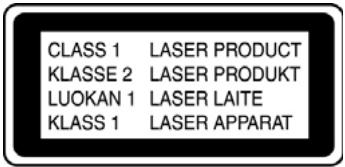
Use of controls or adjustments or performance of procedures other than those specified herein may result in hazardous radiation exposure.
The DVD player is classified as a CLASS 1 LASER product. The CLASS 1 LASER PRODUCT label is located on the exterior.
2. Supported disc formats
The following discs can be used in your DVD.
Note: Supported discs could be different with the following disc.
DVD Video (Digital Versatile Disc)
Super Video CD
Video CD
Super Audio CD (Only plays the CD layer of a hybrid SACD disc)
Audio CD
MP3
3. Region code of the DVD player and DVDs


Since DVD films are not normally released in all parts of the world at the same time, all DVD players have a specific regional code. Discs can be given an optional regional code. If the regional codes differ between the player and the disc, playback is not possible.
DVDs must be marked ALL for all regions or specific number for specific region to work in this machine. If the DVD is marked with a different region, it cannot be played in this DVD player.
Some DVD discs may not have a regional code label even though their playback is prohibited by area limits.
Region 1 The U.S., U.S. territories and Canada
Region 2 Europe, Japan, Middle East, Egypt, South Africa, Greenland
Region 3 Taiwan, Korea, the Philippines, Indonesia, Hong Kong
Region 4 Mexico, South America, Central America, Australia, New Zealand, Pacific Islands, Caribbean
Region 5 Russia (former USSR), Eastern Europe, India, most of Africa, North Korea, Mongolia
Europe European Region 2 DVDs may be sub-coded D1 through D4. D1 identifies a UK-only release. D2 a identify European DVDs that are not sold in the UK and Ireland. D4 identifies DVDs that are distributed throughout Europe.
This receiver has been manufactured to comply with international safety standards. Please read the following safety precautions carefully.
Safety Instructions and Precautions
1. MAINS SUPPLY
90 - 250V AC 50/60Hz
Operate this product only from the type of power supply indicated on the marking label. If you are not sure of the type of power supplied to your home, consult your local power company. Disconnect the product from the mains before you start any maintenance or installation procedures.
2. OVERLOADING
Do not overload a wall outlet, extension cord or adapter as this may result in electric fire or shock.
3. LIQUIDS
The product should not be exposed to any liquids such as dripping or splashing. In addition, no objects filled with liquids, such as vases, should be placed on the apparatus.
4. CLEANING
Disconnect the product from the wall outlet before cleaning.
Use a light damp cloth (no solvents) to dust the product.
5. VENTILATION
The slots on top of the product must be left uncovered to allow proper airflow to the unit.
Do not stand the product on soft furnishings or carpets. Do not stack electronic equipments on top of the product.
6. ATTACHMENTS
Do not use any unsupported attachments as these may be hazardous or cause damage the product.
7. CONNECTION TO THE SATELLITE DISH LNB
Disconnect the product from the mains before connecting or disconnecting the cable from the satellite dish. Failure to do so can damage the LNB
8. CONNECTION TO THE TV
Disconnect the product from the mains before connecting or disconnecting the cable from the satellite dish. Failure to do so can damage the TV.
9. EARTHING
The LNB cable must be buried in the ground.
The buried cable of the system must comply with SABS 061.
10. LOCATION
Place the product indoors to avoid exposing it to lightening, rain or sun.
Do not place it near a radiator or heat register.
Make sure it has more than 10 cm clearance from any appliances susceptible to electromagnetic influences, such as a TV or a VCR.
Do not block these openings with any object, and do not place the product on a bed, sofa, rug, or other similar surface.
If you place the product on a rack or bookcase, ensure that there is adequate ventilation and that you have followed the manufacturer's instructions for mounting.
Do not place the product on an unstable cart, stand, tripod, bracket, or table where it can fall. A falling product can cause serious injury to a child or adult, and serious damage to the appliance.
11. LIGHTNING, STORM, or NOT IN USE
Unplug the product from the wall outlet and disconnect the antenna during a thunderstorm or when left unattended and unused for long periods of time. This will prevent damage to the unit due to lightning and power-surges.
12. EXTRANEOUS OBJECTS
Do not insert anything through the openings in the unit, where they can touch dangerous voltage points or damage parts.
13. REPLACEMENT OF PARTS
When replacement parts are required, be sure the service technician uses replacement parts specified by the manufacturer or those that have the same characteristics as the original part. Unauthorised substitution may result in additional damage to the unit.
Warning
- Follow these directions in order not to damage the power cord or plug.
Do not modify or process the power cord or plug arbitrarily.
Do not bend or twist the power cord too much.
Make sure to disconnect the power cord with the plug held.
Keep heating appliances as far as possible from the power cord in order to prevent the cover vinyl from melting.
- Follow these directions. Failure to follow one of them may cause electrical shock.
Do not open the main body.
Do not insert metals or inflammable objects inside the product.
Do not touch the power plug with wet hands..
Disconnect the power cord in case of lightning.
-
Do not use the product when it is out of order. If you continue to use the product when defective, serious damage can be caused to it. Make sure to contact your local product distributor if the product is out of order.
-
Please do not insert metal or alien substance into the slots for the modules and smart cards. In doing so can cause damage to the STB and reduce its life span.
Only for DVD player
1. Cleaning discs
Some malfunctions (frozen or distorted and broken sound for example) are due to dirt on the disc. To avoid such problems you should clean your discs regularly.
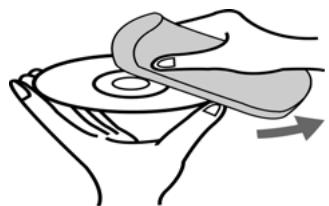
Dirty discs should be cleaned with a soft cloth. Always wipe from the middle to the edge.
Note: Do not use any solvents such as benzine, thinner, alcohol, commercially available cleaning agents or antistatic sprays designed for analogue records.
2. Handling discs
Do not touch the playback side of disc.
Hold the disc by the edges so that fingerprints will not get on the surface.
3. Storing discs
After playing, store the disc in its case.
Do not expose the disc to direct sunlight or sources of heat, or leave it in a parked car exposed to direct sunlight, as there may be a considerable temperature increase inside the car.
STB
1.Before Using the Receiver GB12
1.1 Package Contents GB12
1.2 Front Panel GB13
1.3 Rear Panel GB14
1.4 Remote Control GB15
2. Setup GB19
2.1 Connecting the Antenna for STB GB19
2.2 Connecting for DVD player GB22
2.3 Powering On GB24
3. Installation Wizard GB25
3.1 Language GB25
3.2 Area Setting GB25
3.3 Antenna Setting GB26
3.4 Automatic Search GB27
3.5 Time Setting GB27
4. Basic Operation GB28
4.1 Switching Channel GB28
4.2 Volume Control GB28
4.3 Motion Still GB28
4.4 Change the Subtitle Language GB28
4.5 Change a Audio Language GB29
4.6 Program Information (I- plate) GB29
4.7 Option List GB31
5. Channel List GB34
5.1 Displaying and Switching Channel List GB34
5.2 Changing Channel List Group GB35
5.3 Edit Channels GB35
5.4 Edit Favourite Channels GB39
5.5 Channel Change Mode GB42
6. Program Guide GB43
6.1 Viewing Programme Guide Information GB43
6.2 Finding a Programme GB45
6.3 Viewing Reserved Programme GB46
7. Setting Preferences GB48
7.1 Parental Control GB48
7.2 Language Setting GB50
7.3 Time Setting GB52
7.4 Schedule GB53
7.5 A/V Control GB54
7.6 Miscellaneous Settings GB55
8. Installation GB57
8.1 Antenna Setting GB57
8.2 Automatic Search GB60
8.3 Manual Search GB62
8.4 Other Search GB65
8.5 Motor Antenna GB68
8.6 Default Setting GB74
9. Software Update GB76
9.1 OTA (Over the Air) GB76
9.2 Software Update from PC GB80
10. System Information GB81
10.1 Status GB81
10.2 Signal Detection GB81
10.3 Common Interface GB82
11. Games GB83
DVD Player
- Getting Started GB85
- Playing a DVD-VIDEO Disc GB86
2.1 Playing a title GB87
2.2 General Information GB87
2.3 Search GB88
2.4 Skipping Chapter GB89
2.5 Repeat Mode GB89
2.6 Repeat a section of disc GB90
2.7 Fast Playing GB90
2.8 Slow Motion GB91
2.9 Zooming in and out GB91
2.10 Subtitle/Audio GB91
2.11 Listening Mode GB92
2.12 Time display GB92
2.13 Angle GB92
- Playing a Audio CD GB93
3.1 Playing Audio CD GB93
3.2 Detail Information GB93
3.3 Playlist Menu GB94
3.4 Search GB95
3.5 Listening Mode GB96
3.6 Time Display GB96
3.7 Fast Playing GB97
3.8 Play Mode GB97
3.9 Repeat Mode GB97
3.10 Playlist Editor GB98
3.11 MP3 Disc Scan GB98
- Settings (DVD part) GB99
4.1 Language GB99
4.2 Audio GB100
4.3 Display GB101
4.4 Disc GB103
4.5 Parental Control GB104
Appendix1. Menu Map GB106
Appendix2. Trouble Shooting GB108
Appendix 3. Specification GB110
Appendix4. Glossary GB113
Appendix5. Service and Support GB115
1. Before Using the Receiver
This chapter provides detailed instructions on the product and its accessories.
1.1 Package Contents
Please check all package contents before using your product.

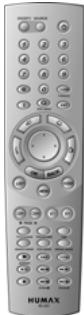
Remote Control Unit

User's Manual
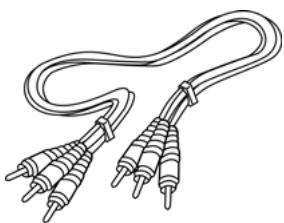
RCA A/V Cable
Batteries
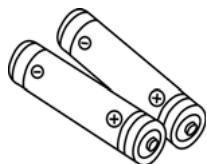
Note: Since faults may occur if the remote controller is being left without a battery for a long time, always keep the battery inserted in the remote controller.
1.2 Front Panel
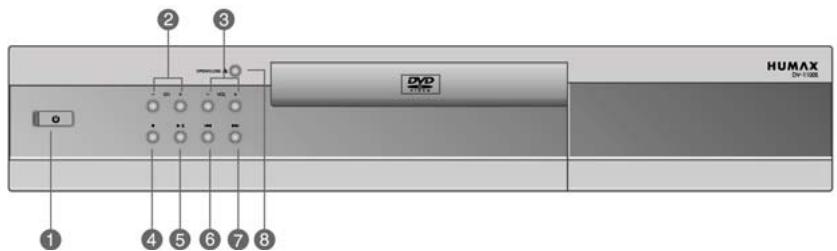
- STANDBY Button (⊙)
Switches between Operation and Standby modes.
- CH-/CH+
Moves the TV/Radio channel up/down.
- V-/V+
Adjust the audio volume.
- (Stop
Stop play a disc.
- Play/Pause
Start playback/Pause playback.
- Skip previous
Return to the beginning of the current chapter/track or skip back to the previous chapter/track.
- Skip next
Skip to the next chapter/track.
- OPEN/CLOSE
Open and close the disc tray.
1.3 Rear Panel
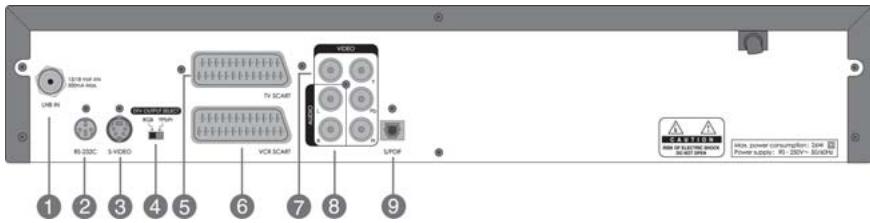
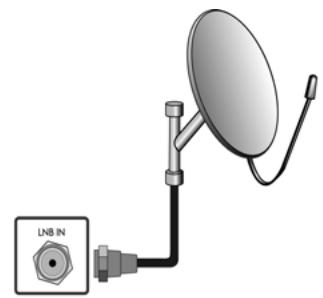
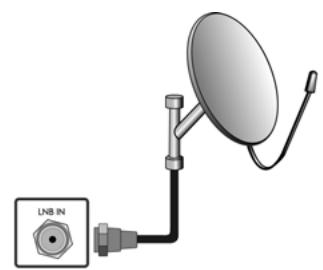
- LNB IN
Connects a satellite antenna cable.
- RS-232C
Connects to your PC to upgrade product's software programme.
- S-VIDEO
Connect your receiver to a TV or VCR that accepts S-Video input.
- COMPONENT SELECT
RGB If you select RGB, you can connect to video, audio L and R.
YPbPr If you select YPbPr, you can connect your receiver to a TV or VCR that accepts high-quality video input.
- TV SCART
Connects a TV SCART cable.
- VCR SCART
Connects a VCR SCART cable.
- VIDEO
Connects to your TV or VCR and output Video signals.
- AUDIO L/R
Connects to your TV or VCR and output Audio signals.
- S/PDIF
Outputs the digital audio signals(S/PDIF).
1.4 Remote Control
STBRCU
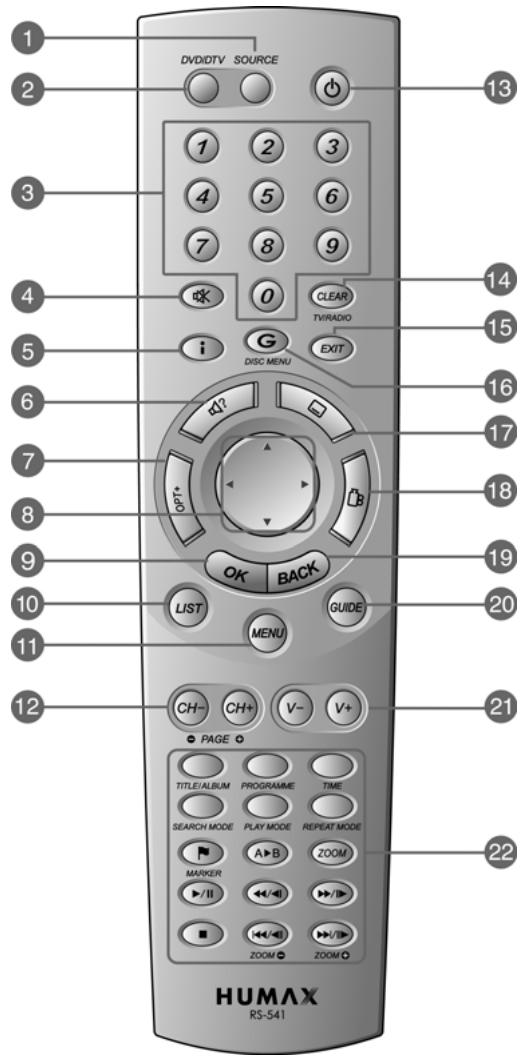
-
SOURCE
-
OPT+ (OPTION)
13.STANDBY 18.ANGLE
2.DVD/DTV
8.ARROWBUTTONS
-
TV/RADIO 19. BACK
-
NUMERICAL BUTTONS
-
OK
-
EXIT 20. GUIDE
-
MUTE
-
LIST
-
GAME
-
V-/V+
-
i (INFORMATION)
-
MENU
-
SUBTITLE 22.DVD FUNCTION BUTTONS
-
SOUNDTRACK
-
CH-/CH+ and PAGE-/PAGE+
1. Before Using the Receiver
STB
1. SOURCE
Selects the input source between TV and satellite receiver.
2. DVD/DTV
Change mode between STB and DVD.
3. NUMERICAL BUTTONS
Enters a TV/Radio channel number or menu option number.
4. MUTE
Pauses the audio temporarily. That is, volumes on/off temporarily.
5. i (INFORMATION)
Displays the information about the channel and programme.
6. SOUNDTRACK
Displays the Soundtrack.
7. OPT+ (OPTION)
Displays the channel attributes during watching a programme.
8. ARROW BUTTONS
Changes the channel or move the cursor to the up, down, left or right menu option.
9. OK
Selects a menu, or confirms the selected operation. And displays the channel list during watching a programme.
10. LIST
Displays the channel list in STB.
Note: This part explains STB function only.
11 MENU
Displays the main menu in STB.
12. CH-/CH+ and PAGE-/PAGE+
Changes the Channel or Page.
13.STANDBY
Switches between Operation and Standby modes.
14. TV/RADIO
Switches between TV and Radio modes.
15. EXIT
Exits the main menu or Guide screen.
16. GAME
Displays the Game.
17. SUBTITLE
Changes the subtitle language in STB.
18.ANGLE
Used in STB in case of multifeed.
19. BACK
Returns to the previous menu and screen.
20. GUIDE
Displays the Programme Guide.
21.V-V+
Adjusts the audio volume.
22.DVD FUNCTION BUTTONS
DVD RCU
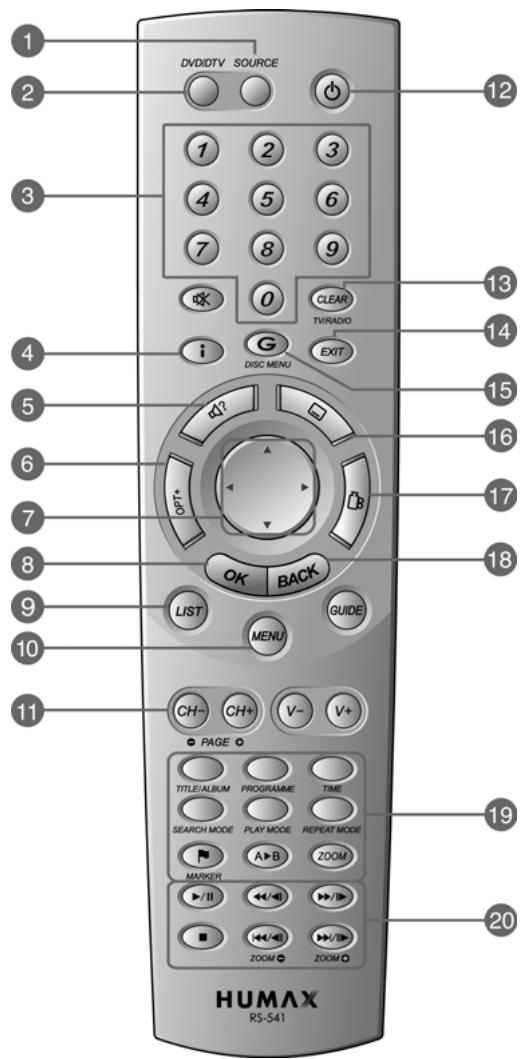
-
SOURCE
-
OPT+ (OPTION)
-
PAGE-/PAGE+
-
SUBTITLE
2.DVD/DTV
7.ARROW BUTTONS
12.STANDBY
-
ANGLE
-
NUMERICAL BUTTONS
-
OK
-
CLEAR
-
BACK
-
i (INFORMATION)
-
LIST
-
EXIT
19.DVD FUNCTION BUTTONS
-
SOUNDTRACK
-
MENU
15.DISCMENU
- PLAY CONTROL BUTTONS
DVD
1. SOURCE
Selects the input source between TV and satellite receiver.
2. DVD/DTV
Change mode between STB and DVD.
3. NUMERICAL BUTTONS
Enters a menu option number.
4. i (INFORMATION)
Displays the information about the channel and programme.
5. SOUNDTRACK
Displays the Soundtrack.
6. OPT+ (OPTION)
Select the listening mode.
7. ARROW BUTTONS
Changes the channel or move the cursor to the up, down, left or right menu option.
8. OK
Selects a menu, or confirms the selected operation.
9. LIST
Displays the playlist menu in DVD.
10.MENU
Displays the setup menu in DVD.
11.PAGE-/PAGE+
Changes the Page.
12.STANDBY
Switches between Operation and Standby modes.
13. CLEAR
Clear in DVD.
14. EXIT
Exits the main menu or Guide screen.
15.DISCMENU
Displays the main disc menu.
16. SUBTITLE
Changes the subtitle language in DVD.
17. ANGLE
Change angle in DVD.
18. BACK
Returns to the previous menu and screen.
19.DVD FUNCTION BUTTONS
TITLE/ALBUM
Displays the title menu.
PROGRAMME
Edit playlist.
TIME
Change time display.
SEARCH MODE
Change search mode.
PLAY MODE
Change play mode.
REPEAT MODE
Change repeat mode.
MARKER
Mark any point in a DVD during playback.
A B
Repeat between A and B in DVD.
ZOOM
Enlarge the picture during DVD playback.
20. PLAY CONTROL BUTTONS
Play/Pause)
Start playback/Pause playback.
(Fast backward/Slow Motion)
Fast backward a disc/execute a backward slow playback when playing a DVD.
(Fast forward/Slow Motion)
Fast forward a disc/execute a forward slow playback when playing a DVD.
(Stop)
Stop play a disc.
( Skip previous)
Return to the beginning of the current chapter/track or skip back to the previous chapter/track.
(Frame by Frame)
Skip next)
Skip to the next chapter/track.
2. Setup
This chapter describes how to set up the receiver. Select the most appropriate procedure depending on your requirements.
Note: If you encounter any problem when setting up the receiver, please contact your local product distributor.
2.1 Connecting the Antenna for STB
1. Connecting TV and VCR with SCART
This is the most simple set-up mode.
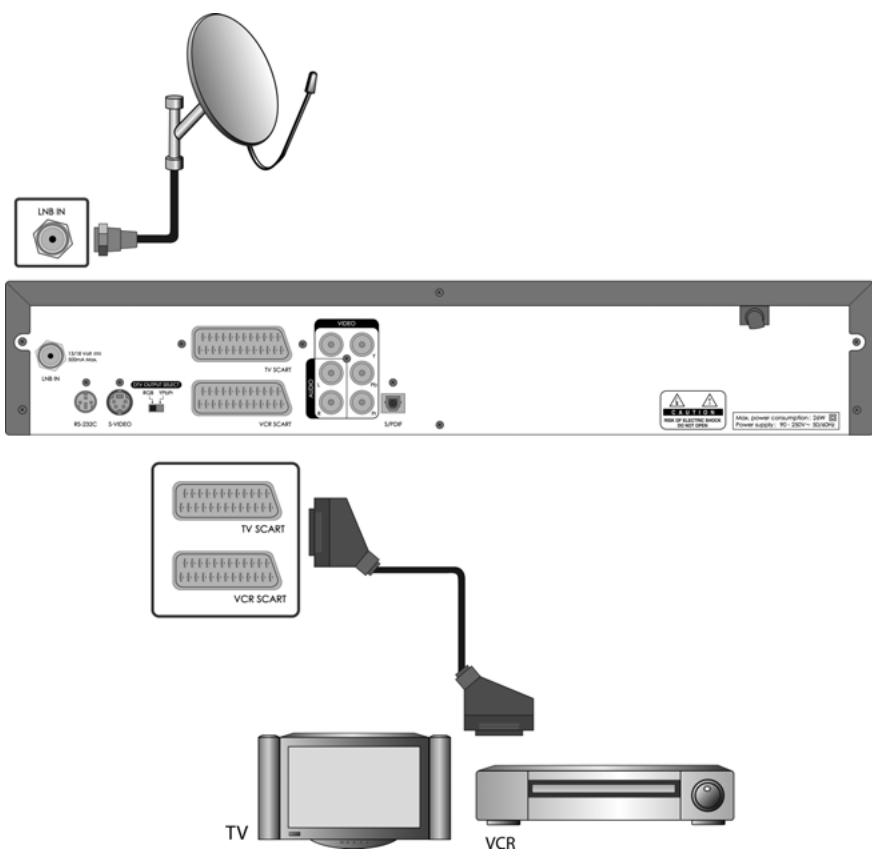
2. Setup
2. Connecting Hi-Fi system 1
Connect the outputs on this receiver to corresponding inputs on your Hi-Fi Audio or Dolby Prologic Decoder. (left audio out to left audio in, right audio out to right audio in)
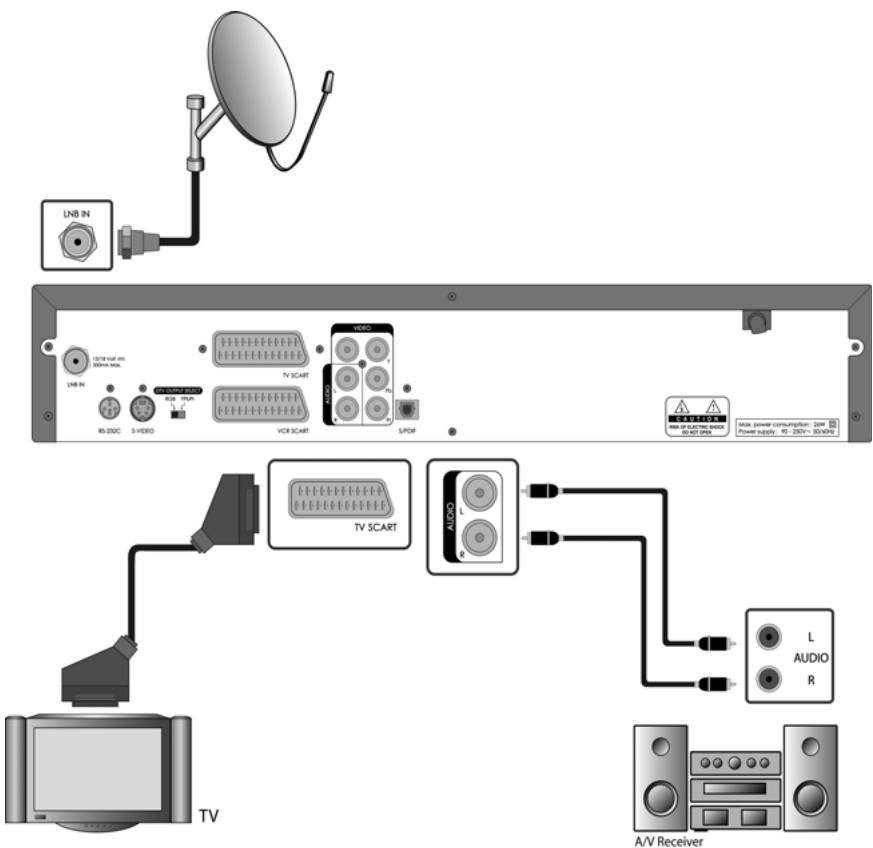
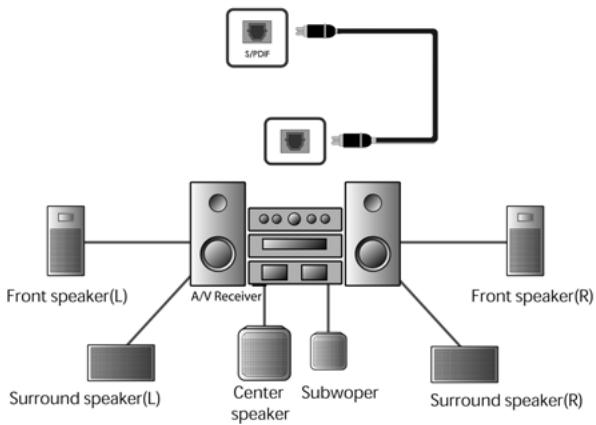
3. Connecting Hi-Fi system 2
If you wish to connect the optical S/PDIF terminal and Dolby digital decoder to listen Dolby digital audio, DTS audio or Multi Surround audio, connect as following.

2. Setup
2.2 Connecting for DVD player
1. Connection with Component Video (Y Cb Cr) cable
This method of transmitting pictures produces the highest quality as the video signal is split into its Y(brightness), U and V (red minus brightness, blue minus brightness)components. Insert one end of a component video (Y Cb Cr) cable into the red/blue/green cinch socket at the back of the DVD player and the other end into the component video input sockets on the TV set.
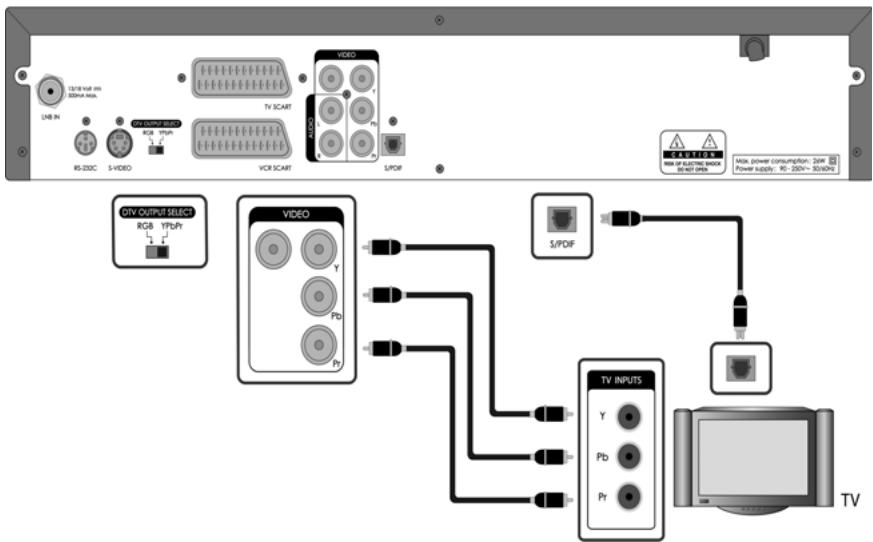
Note: the socket and connector color on the DVD player must match the color of the sockets on the TV set(Red-Red, Blue-Blue, Green-Green). If this is not the case, the colors on the screen may be distorted or the picture may not be visible.
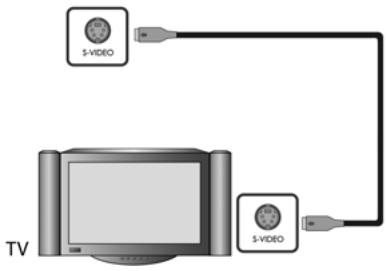
2. Connection with S-Video cable
First, you set the SCART Output as S-Video in 5.4.
If you enjoy the highest quality, connect to a TV with a S-Video socket.
- Connect the S-video connector on the rear of the player to the corresponding connector on the TV using the S-Video cable.
- Connect the audio left and right channel sockets on the player rear panel to the corresponding sockets on your TV or Stereo system.

2. Setup
2.3 Powering On
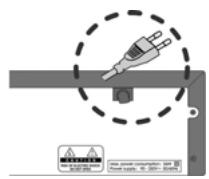
- Connect the power cord of the receiver to a wall outlet.
- Turn on the power button, located at the left on the back of the receiver.
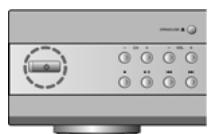
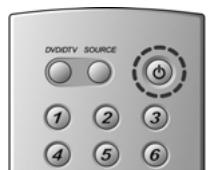
Make sure that the Standby LED indicator is turned on Red. - Power on by pressing the STANDBY (⊙) button at Remote Controller or the STANDBY (⊙) button at the front of the receiver.
Note:
- If you turn off at the STB mode, you will start at the STB mode when you turn on.
If you turn off at the DVD mode, you will start at the DVD mode when you turn on.
3. Installation Wizard
When powering on your receiver for the first time after purchasing, the Installation Wizard is automatically started.
You can easily set-up using simple organisation and options, and watch the broadcasting after completing the set-up procedure. You can select items using the NUMERICAL (0~9) buttons.
Note: If you press the BACK (⊗) button or select Back and press the OK (⊗) button while running the Installation Wizard, you can return to the previous screen.
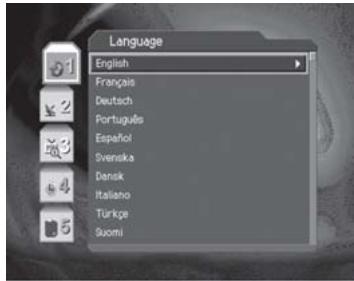
3.1 Language
You can select Menu, Audio, and the subtitle language.
Select the appropriate language from the list using the / button and press the OK (按钮 to save the selected language as a default language and move to the next step Antenna Setting.
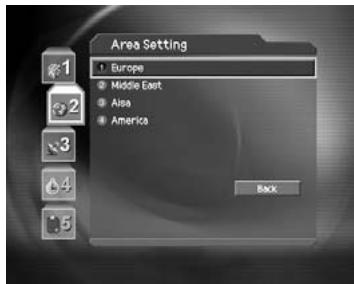
3.2 Area Setting
You can select area.
Select the appropriate area from the list using the / button and press the OK (按钮.
3.3 Antenna Setting
You can set the antenna's properties to watch the programme.
- Select the Satellite which the antenna points to. Press the OK (⊗) or button to display satellites list. Select satellite using the / button, and press the OK (⊗) button.
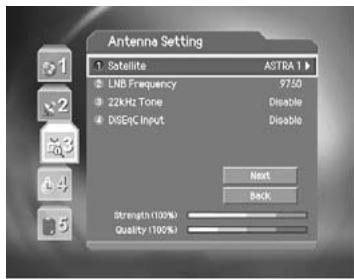
- Set the LNB Frequency.
Press the OK (or) button to display LNB frequency list. Select LNB frequency using the / button, and press the OK (or) button.
If you cannot find the LNB frequency value from the list, select User Define, manually enter the frequency using the NUMERICAL (0~9) button, and then press the OK (⊗) button.
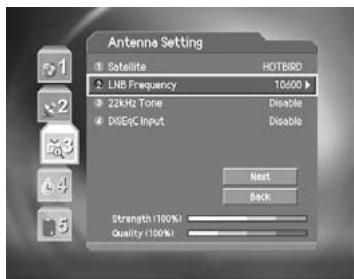
Note: When using Universal LNB, select Universal for LNB Frequency which is 9750/10600(MHz). Also, if you select Universal, 22KHz tone value is disabled.
- Set up 22kHz Tone.
Select 22kHz Tone using the / button, and press the OK (⊙) or button to change the setting. When using 22kHz tone switch, select Enable. Otherwise, select Disable.
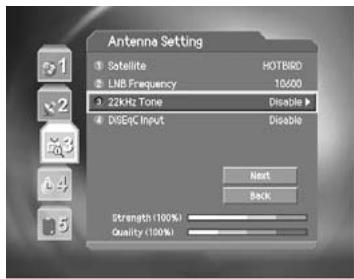
- Select DiSEqC Input switch.
Select DiSEqC Input using the / button, and press the OK (or) button to display DiSEqC Switch List.
Select DiSEqC Switch using the / button and then press the OK (按钮.
- When you complete the setting, select Next using the / button and press the OK (按钮 to start Automatic Search.
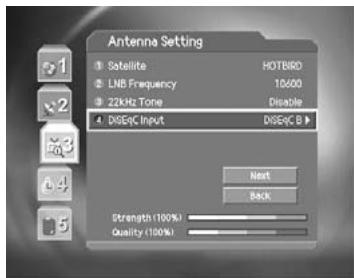
Note:
- If the antenna is correctly set up, the level at signal strength bar and quality bar, which are located at the bottom of the screen, are generally moved up.
- If you encounter any problems or questions when setting up the antenna, please contact your local product installer or distributor.
3.4 Automatic Search
You can automatically search for satellites according to the Antenna Setting.
Please wait for finishing the Automatic Search. If you want to stop the Automatic Search, press the OK (⊗) button.
If the Automatic Search is stopped or finished, the searched result is automatically saved and go to the next step.
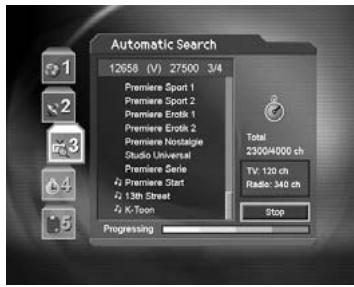
3.5 Time Setting
You can set the current time.
Press the OK (or) button to display the values for GMT Offset. Select the appropriate GMT Offset value using the / button and press the OK (or) button to set the current time. Check the current time at the bottom of the screen to see if it's correctly set up. Then select Next using the / button and press the OK (or) button to finish Installation Wizard.
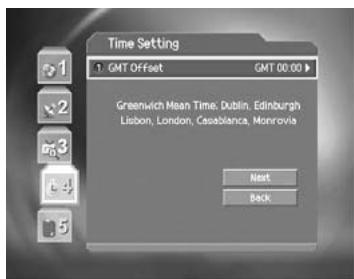
Warning: Press the EXIT (@) button to save the previous input information and exit the Installation Wizard when running the Installation wizard. If you exit the Install Wizard without fully completing the setting procedures, you may not watch any broadcasting normally. In this case, you can use the Menu - Installation - Antenna Setting and Channel Search menu to configure your receiver as you like.
4. Basic Operation
This chapter describes functions such as switching channel, volume control, and basic features for watching programmes.
4.1 Switching Channel
You can switch the current channel using one of the following methods.
- Press the CH-/CH+ (CH + / CH) button.
- Enter your desired channel numeric using the NUMERICAL (0~9) to move to the channel directly.
- Press the TV/RADIO (O) button to switch between TV channel and Radio channel.
Note: You can switch channel using the channel list or programme guide. Please refer to Chapter 5 and 6 for more information.
4.2 Volume Control
- Press the V-/V+ (⊙/⊙) buttons to adjust the audio volume.
- Press the MUTE () button to stop the sound temporarily.
Note:
- The mute function keeps enabled while you change the channel
- The DVD mode doesn't provide the volume control.
4.3 Motion Still
- Press the FREEZE ( ) button at remote controller to pause the current programme.
- Press the FREEZE ( ) button again to continue the programme.
4.4 Change the Subtitle Language
If the current programme provides Subtitle information, you can select the language for the Subtitle.
- Press the SUBTITLE (按钮) button to display the subtitle language list.
- Select your desired subtitle language using the / button, and press the OK (×) button. Then the subtitle will be displayed in the selected language at the bottom of the screen.
- Select OFF from the subtitle language list not to display subtitle from the screen.
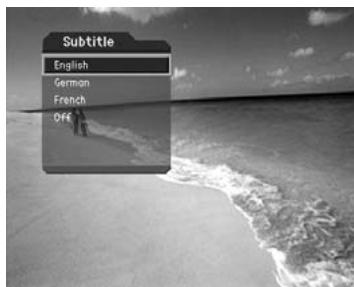
Note: You can select a default subtitle language by selecting MENU - Preferences - Language Setting - Subtitle Language.
4.5 Change a Audio Language
If the current programme is available in multiple audio languages, you can select the language that you wish to listen in.
- Press the SOUNDTRACK (▶) button to display soundtrack list.
- Select your desired audio language using the / button to change Audio immediately.
- Select Audio Direction (left, right, stereo) using the / button.
Note:
- you can select your desired default audio language by selecting MENU - Preferences - Language Setting - Audio Language.
If the programme is Dolby digital one, you cannot set the audio direction such as left, right, and stereo. - If you select Dolby by selecting MENU - Preferences - Language Setting - Audio Priority, Dolby Digital programme is automatically broadcasted with Dolby digital audio without considering default audio language.
4.6 Program Information (I-plate)
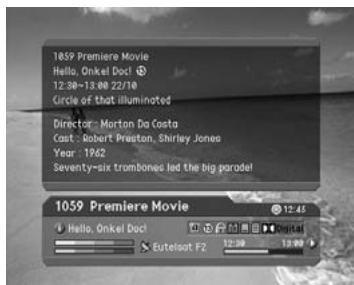
Programme information is always displayed for a specific period of time whenever you switch channels. You can view the programme information by pressing the i (①) button while watching a programme. Press the EXIT (②) button to hide the I-plate.
1. General Information
The General Information is displayed as following on the screen.
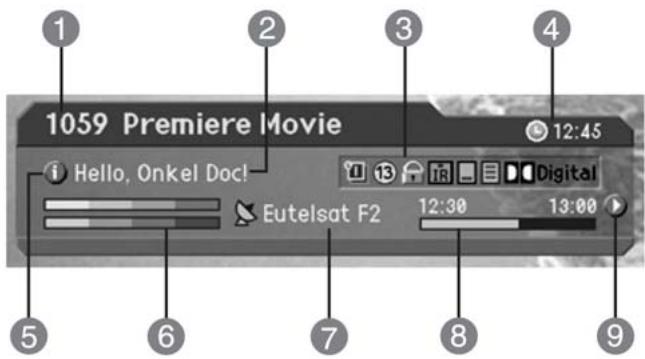
- Channel number and channel name
- Programme name
- Icons

Displayed only if this programme is reserved.

Represents parental level. It indicates the minimum level of ages that the programme is targeted at.

Displayed only when the channel is a locked channel.

Displayed only when the channel is a scrambled channel.

Displayed only when subtitle information is available.

Displayed only when there is any teletext information.

Displayed only when the programme is a dolby digital one.
- Current time
- Detailed programme information: displayed if detailed programme information is provided.
- Signal strength and signal quality: indicates signal level.
- Satellite name or channel change mode: If you select All channels by selecting MENU - Edit channels - Channel Change Mode, the Satellite name, which the current channel is belonged to, is displayed; if you select Within the current channel list, the channel list, which you selected, is displayed.
- Programme broadcasting time and progress bar: displays programme playing time and progress bar.
- Next programme Information: displayed if next programme information is provided. Press the button to display the next programme information.
Note: If there is no available programme information, programme information is not displayed.
2. Detailed Programme Information
You can see detailed information about the current programme. Press the i (1) button where I-plate is displayed to view detailed information.
Note:
- Press the i (①) button again to hide the information box.
- If the detailed programme information is more than one page, use / button to move to the previous or next page.
4.7 Option List
you can view and confirm detailed information about the current channel and change the information in necessary.
Note: Press the OPT+ (按钮 when the channel list is displayed to view option list. Then the following functions in the option list are performed to the channel where cursor is located.
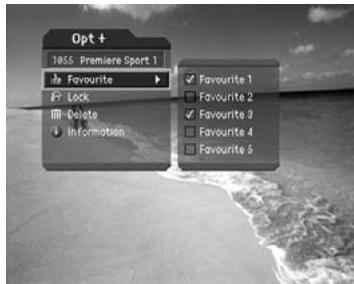
1. Add a channel to favourite group
You can add current channel to the favourite group immediately. Also, you can add a channel to multiple Favourite groups.
- Press the OPT+ (按钮。
- Select Favourite using the / button, and press the OK (OK) or button.
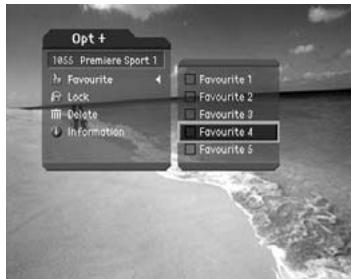
- Select favourite group using the / button and press the OK (按钮 to register for favourite group.
- Press the OK (按钮 again on the selected favourite group to release the registered channel.
- Move to the parent menu using the button to save the changes automatically.
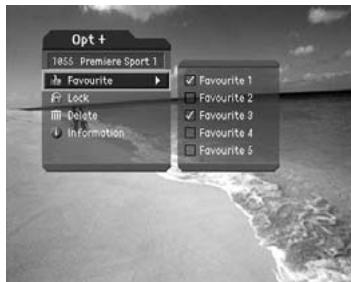
Note: For detailed information about how to change Favourite Group's name and how to register Favourite Channel for the whole channels, refer to Chapter 5.
2. Lock/Unlock a Channel
You can lock or unlock the current channel while watching a programme.
- Press the OPT+ button.
- Select Lock using the / button, and press the OK (or) button.
-
Select Lock option using the / button, and press the OK (OK) button.
-
Select Unlock option using the / button, and press the OK (按钮。
- You will be prompted to enter your password. Enter your password to unlock the channel.
- Move to the parent menu using the button to save the changes automatically.
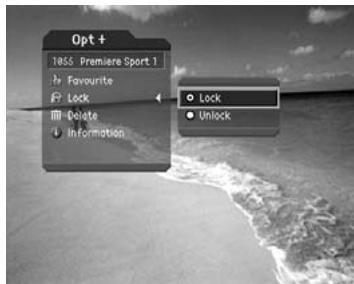
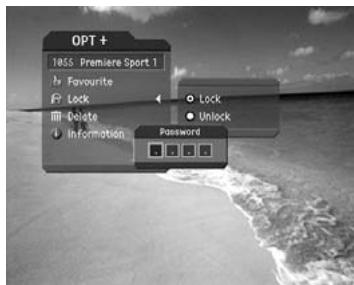
Note: When switching to the locked channel, you must enter the password to watch a programme.
3. Delete a Channel
You can delete the current channel while watching a programme.
- Press the OPT+ (按钮
- Select Delete using the / button, and press the OK (O) or button.
- Select Yes in the confirmation message and press the OK (按钮.
- Enter your password using the NUMERICAL (0~9) button to delete the current channel.
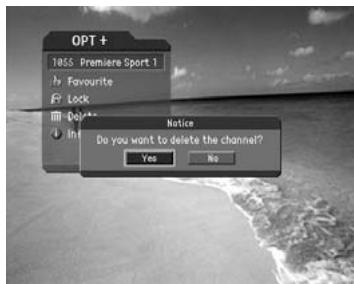
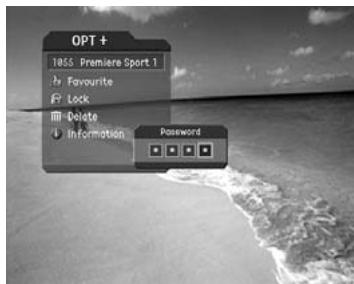
4. Channel Information
You can display detailed information about the current channel while watching a programme.
- Press the OPT+ (按钮。
- Select Information using the / button to display channel information automatically.
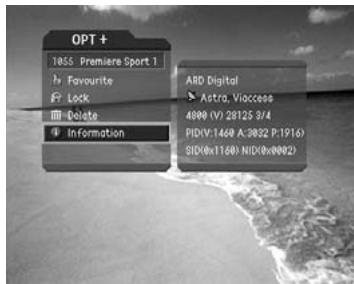
The following information is displayed on the Information.
1st Line Provider name
2nd Line Satellite and CAS type
3rd Line Transponder Information for the channel (Frequency, Polarisation, Symbol rate, FEC)
4th Line Video PID, Audio PID ,PCR PID(Packet Identification)
5th Line Service ID(SID), Network ID(NID)
5 types of channel lists are provided for easy and quick channel finding.
TV The list of all TV channels with 2 subgroups: one is sorted by channel number, the other is sorted by channel name.
Radio The list of all Radio channels with 2 subgroups: one is sorted by channel number, the other is sorted by channel name.
Favourite The list of the favourite channels with 5 subgroups that you can organise channels by your private taste.
Satellite The lists of channels classified by satellites. The number of subgroup is decided by the result of channel search.
Scramble The lists of channels classified by CAS types. The number of subgroup is decided by the result of channel search.
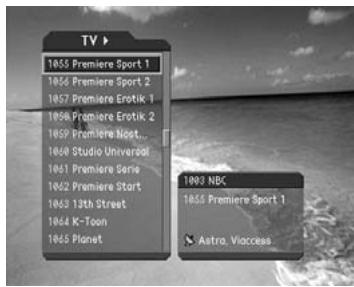
5.1 Displaying and Switching Channel List
You can display channel list using LIST (LIST) button and switch into other channel on the channel list.
- Press the LIST (LIST) button while watching a programme to display the channel list.
- Select your desired channel using the / button and press the OK (O) button to change the channel.
- Enter the channel numeric directly using NUMERICAL (0~9) button to move cursor into your desired channel. And then press the OK (⊗) button to change into the selected channel.
- Select On by going to MENU - Preferences - Miscellaneous Settings - Option in Channel List to display scramble icon in the channel list.
Select Off by going to MENU - Preferences - Miscellaneous Settings - Option in Channel List to display only channel list without scramble icon.
Note:
- If there are multiple channels, press the PAGE-/PAGE+ (@)/@ button to move by page.
- Whenever you press the TV/RADIO (○) button while the channel list is displayed, the channel list will be switched between TV and Radio channel list.
5.2 Changing Channel List Group
You can select channel list by group.
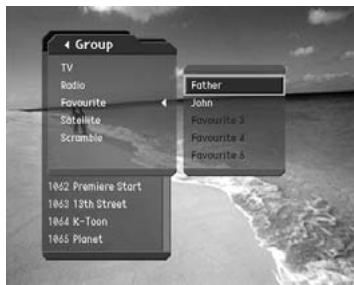
- Press the button while the channel list is displayed to view the group list.
-
Select your desired channel group using the / button.
-
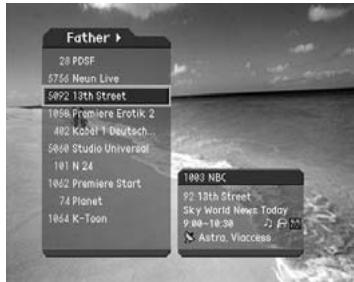
Press the OK (▶) or button, select your desired subgroup using the button, and then press the OK (⊗) button.
- The channel list for the selected subgroup is displayed.
Note:
- The subgroup of favourite channel list may exist or not depending on your configuration. And The subgroup of Satellite and Scramble channel list may exist or not depending on the result of Channel Search.
- If Within the current channel list option is selected from MENU - Edit channels - Channel Change Mode menu, you can only change programme within the selected channel list using the CH-/CH+ (@)/@) while your watching a programme.
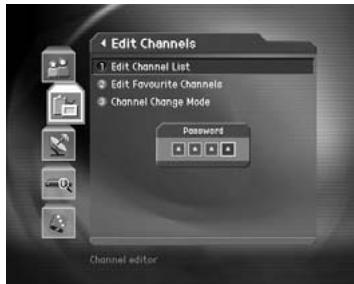
5.3 Edit Channels
You can edit all channels or each channel by channel list group.
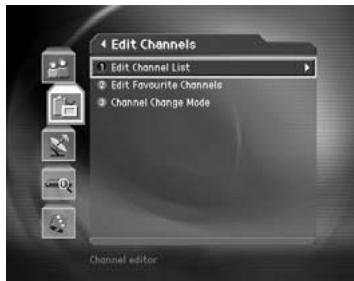
- Press the MENU (Θ) button.
- Select Edit Channels using the / button, and press the OK (⊙) or button.
- Select Edit Channel List using the / button, and press the OK (O) or button.
- You will be prompted to enter your password. Enter your password using NUMERICAL (0~9) button.
Note:
- Press the BACK (or) or button to save the changes and return to the previous menu, press the MENU (or) or EXIT (or) button to exit the menu screen.
- You can easily navigate all menus using the assigned numeric for each menu. Press the MENU - 2 - 1 in order at remote controller to select Edit Channel List menu.
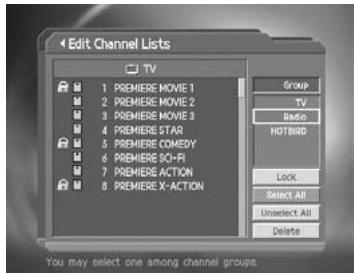
1. Select a Channel Group
You can select the channel list group to edit. TV or Radio, and the subgroups from the channel search for satellite and scramble channel lists are included as channel list groups.
- Press the OK (or) button in Group to display channel list group.
- Select your desired channel list group using the / button, and press the OK (O) button.
Note:
- Press the TV/RADIO (○) button to move to TV or RADIO channel list directly.
- For editing Favourite channel list, move to MENU - Edit Channels - Edit Favourite Channels menu.
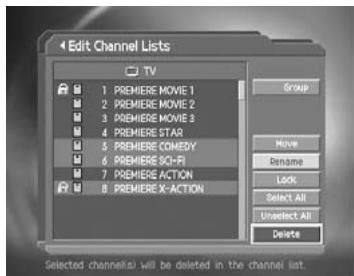
2. Delete Channels
You can delete one or more channels.
- Move the cursor to the channel list using the / button.
- Select your desired channel, and then press the OK ( ) button. You can select multiple channels.
- Select Delete in the right using the button, and press the OK (OK) button.
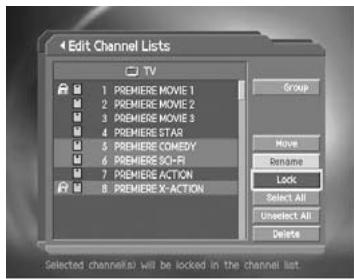
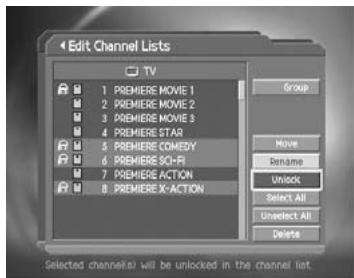
3. Lock/Unlock Channels
You can lock or unlock one or more channels.
- Move the cursor to the channel list using the / button.
- Select your desired channel, and then press the OK ( ) button. You can select multiple channels.
- Select Lock in the right using the button, and press the OK (按钮.
Note:
- Only if all selected channels are locked, Lock in Channel List is switched into Unlock. When you press Unlock, locked channel is switched into unlocked channel.
- Enter password using the NUMERICAL (0~9) button to watch locked channel.
4. Move Channels
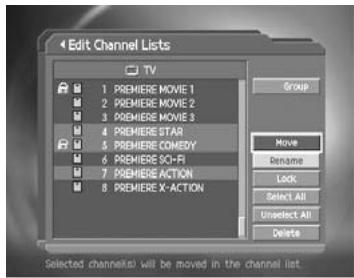
You can move one or more channels into your desired location, which changes the channel number accordingly.
- Move the cursor to the channel list using the / button.
- Select your desired channel, and then press the OK ( ) button. You can select multiple channels.
- Select Move in the right using the button, and press the OK (按钮。 Then the selected channel(s) disappears from the channel list for a while.
- Move the cursor to the desired location in the channel list using the / button, and press the OK (⊗) button.
- The selected channel(s) is moved to the selected location in order.
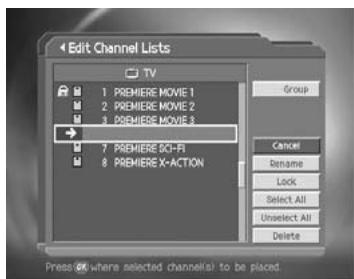
Note: Move is available only for TV or radio channel list.
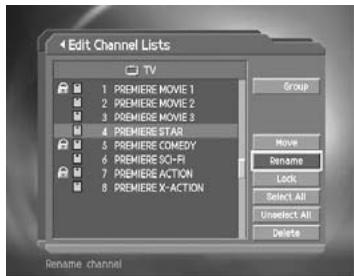
5. Rename a Channel
You can change the channel name as you like.
- Move the cursor to the channel list using the / button.
- Select your desired channel, and then press the OK ( ) button. You can select only one channel.
- Select Rename in the right using the button, and then press the OK (按钮。
- Enter a channel name directly using the keyboard displayed on the screen.
- When finishing entering channel name, select OK, and press the OK (⊙) button.
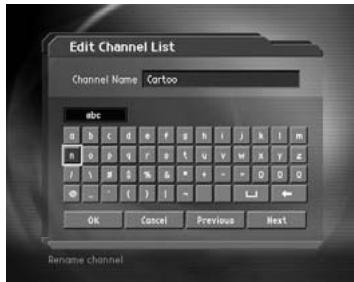
6. Select/Unselect All Channels
You can select/unselect all channels at a time.
- Select Select All in the right and press the OK (∞) button to select all channels.
- Select Unselect All in the right and press the OK ( ) button to unselect all the selected channels.
5.4 Edit Favourite Channels
You can edit Favourite channel or Favourite channel list.
- Press the MENU (Θ) button.
- Select Edit Channels using the / button, and press the OK (OK) button.
- Select Edit Favourite Channels using the / button, and press the OK (⊗) or button.
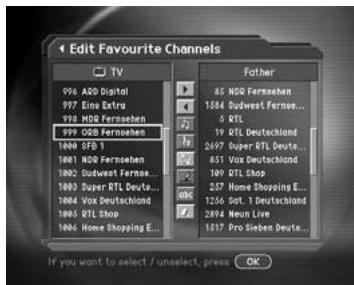
Note:
- Press the BACK (or) or button to save the changes and return to the previous menu. Press the MENU (or) or EXIT (or) button to exit the Menu screen.
- You can easily navigate all menu items using the assigned numerical button for each menu. Press the MENU - 2 - 2 in order on the remote controller to select the Edit Favourite Channels menu.
The buttons for editing the Favourite channel list are described in the following table.
Add Adds Favourite channel.
Remove Removes from the Favourite channel.
TV/Radio Switches between TV and Radio channel list.
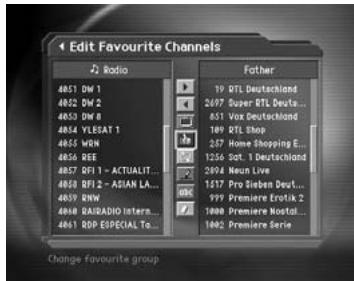
Fav.Group Changes Favourite channel list group.
Move Moves the order of channel list within the Favourite channel list.
Rename Renames the name of Favourite channel list.
abc Sort Sorts channels by number or name in all TV/Radio channel list.
Unselect All Unselect all the selected channel.
1. Add/Remove favourite channels
You can add favourite channel(s) to a specific Favourite channel list or remove the added favourite channel(s) from the list.
- Select Favourite Group using
-
Select your desired channel(s) in all TV/Radio channel list, and press to add Favourite channel(s).
-
Select your desired channel(s) in Favourite channel list, and press to remove Favourite channel(s).
Note: You can switch between TV and Radio channel list using TV/RADIO (○) button at remote controller or □.
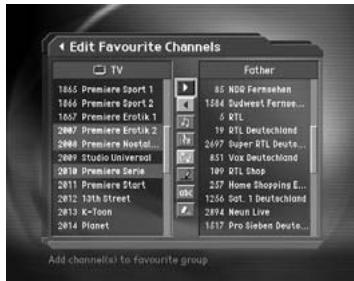
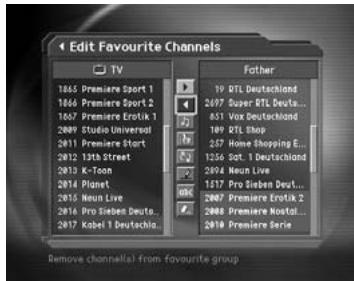
2. Move favourite channels
You can move favourite channel(s) to your desired location within the Favourite channel list.
- Select Favourite Group using
- Select your desired channel to move within the Favourite channel list and press the OK (©) button.
- Select , and press the OK ( ) button.
- Move the cursor to your desired location using the / button, and press the OK (O) button.
- The selected channel(s) is moved into desired location you selected.
3. Rename a favourite channel list
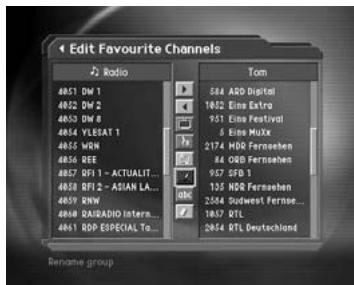
You can rename Favourite channel list.
- Select Favourite group using
- Select , and press the OK ( ) button.
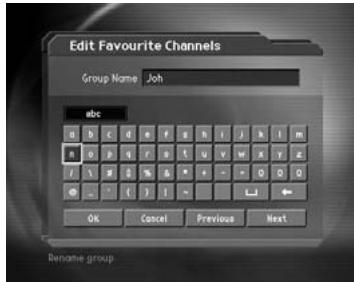
- Enter the Favourite channel list name using the keyboard displayed on the screen.
- When finishing entering the favourite channel list name, select OK, and press the OK (⊗) button.
4. Additional Features
Additional Features provide many useful functions which are necessary to add Favourite Channel.
Change between TV and Radio channel list
You can add not only TV channel(s) but also Radio channel(s) to Favourite channel list.
Press to switch TV or Radio channels.
Note: You can also change into TV or Radio channel by pressing TV/RADIO (○) button at remote controller.
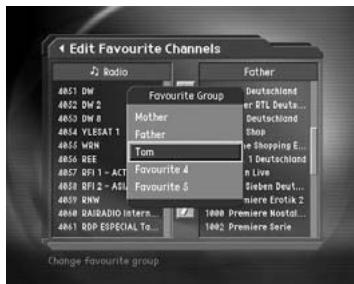
Select a favourite channel list
You can select your desired Favourite channel list to edit. Press to display the Favourite channel list. Then select your desired channel list using the / button, and press the OK (O) button.
Sort a channel list
You can sort all TV or Radio channel list by channel number or name for easy Favourite channel searching. If channel lists are sorted by channel number, abc is displayed. When you press this button, all the channel lists are sorted by name. Or, if channel lists are sorted by channel name, abc is switched into 123. Press this button to order channels by number
Unselect all the selected channels
Press button to unselect all the selected channel.
5.5 Channel Change Mode
You can change the channel either in the group or in the entire channels while watching a programme.
- Press the MENU (Θ) button.
- Select Channel Change Mode using the / button, and press the OK (∞) or button.
- Select All Channels or Within the current channel list using the / button, and press the OK (OK) button.
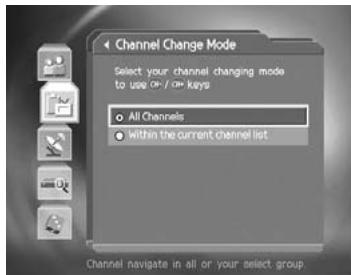
Note: When Within the current channel list is selected, you can only change the channel within the current channel list using the CH-/CH+ (@) buttons. To change the channel in another channel list in which the current channel list is not located, change the channel list group or select All channels option.
The Programme Guide displays programme information about each channel, based on the date and time. You can also schedule your recording using the information given.
6.1 Viewing Programme Guide Information
You can view programme information for all channels.
- Press the GUIDE (按钮。
- Move to previous or next programme within the same channel using the / button.
- Move to other desired channel using / button. If there are multiple channels, use PAGE-/PAGE+ (⊙/⊙) button to move to channels by page. Also, you can enter your desired channel number using the NUMERICAL (0~9) button at remote controller to move to the channel directly.
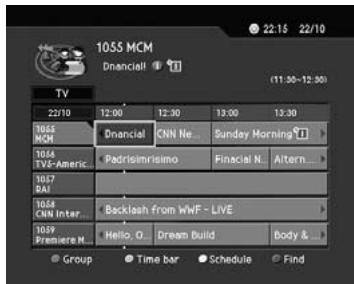
- Select your desired programme, and press the OK (⊙) button. Then you can watch the programme if it is on air, or you can reserve it if it is the future programme.
- Press the i (按钮 in the selected programme to view detailed information for the selected programme.
1. Viewing Guide Information by Channel List Groups
You can view programme information for desired channel list by groups.
- Press the GUIDE ( ) button.
- Press the Red button to display the channel list group.
- Select your desired channel list group using the / button.
- Move the cursor to the sub-group using the button, select your desired sub-group using the / button, and then press the OK (OK) button.
- The Programme Guide for selected channel list is displayed.
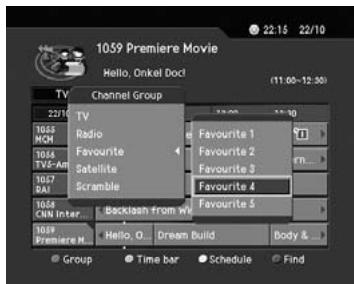
2. Viewing Programme Information Using Time Bar
You can quickly search for your desired time zone using the Time bar.
- Press the GUIDE (@) button.
- Press the Green button to display Time Bar.
- Select the each button using the / button, and press the OK (∞) button to move as your desired amount of time. If you press the button repeatedly, the same operation is repeated.
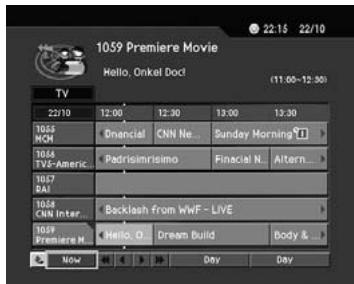
- Each button functions as follows.
Now Moves to the current programme where the cursor is located.
Moves to the previous programme or 30 minutes before.
Moves to the next programme or 30 minutes after.
Moves to 2 hours before.
Moves to 2 hours after.
Day Moves to one day before.
Day Moves to one day after.
- Select 一 and press the OK () button to exit the Time Bar.
Note: Guide provides programme information from the previous day to the next 7 days.
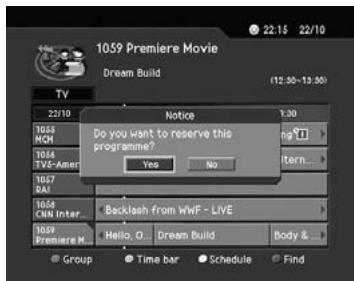
3. Reserving a Recording
You can automatically reserve your desired programme by selecting the scheduled programme and pressing the OK (©) button.
- Select the desired programme and press the OK (×) button. The following message will be displayed.
- Select Yes and press the OK (@) button to reserve the programme. When reservation has been completed, the is displayed on the reserved programme.
- Select No and press the OK (⊙) button not to reserve the programme.
- If the channel is locked, parental controlled or restricted by watching time, you will be prompted to enter your Password. Enter your Password to complete the reservation.
6.2 Finding a Programme
You can find your desired programme by programme name or genre easily.
- Press the GUIDE ( ) button.
- Press the Blue button to display Find screen.
- Enter the programme name directly using the keyboard displayed on the screen.
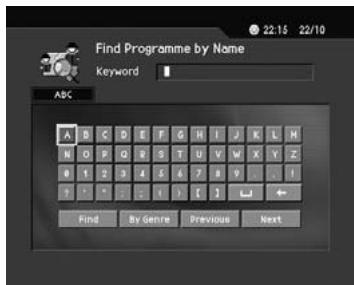
Note: If you select Previous or Next on the Keyboard displayed on the screen and press OK (©) button, the keyboard layout is switched.
- When completing entering programme name, select the Find, and press the OK (⊙) button.
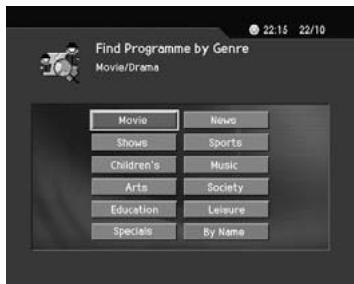
- Select By Genre and press the OK (×) button to search programme by genre.
- Select your desired genre and press the OK ( ) button.
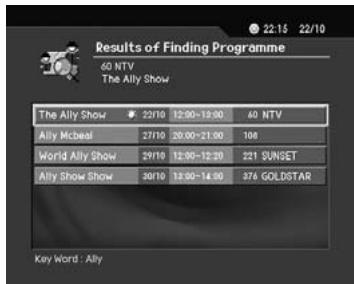
- If you select your desired programme from the Found Programme List screen and press the OK (▶) button, you can watch the programme if it is on air, or you can reserve your recording if it is the future programme.
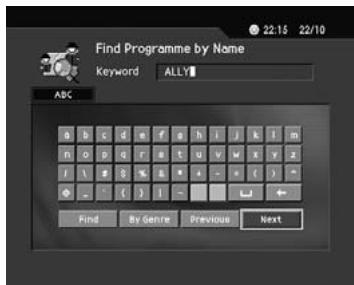
Note: The Found Programme List may differ depending on the provided programme information.
6.3 Viewing Reserved Programme
You can add or edit watching-reserved programme by schedule screen.
- Press the GUIDE ( ) button.
- Press the Yellow button to display the Schedule screen.
- Select the reserved programme and press the OK (@) button to edit the reservation information.
- Select a blank list and press the OK (O) button to add a new watching schedule.
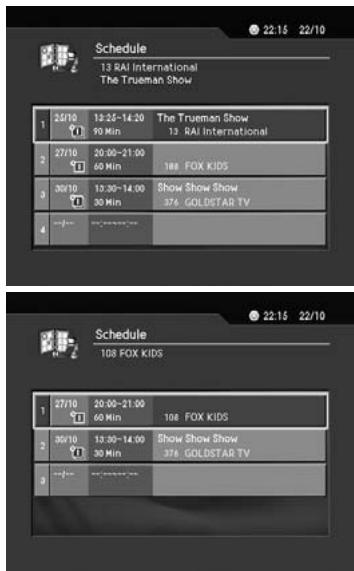
1. Editing Reserved Programme
- Change the reserved Start Time using the / button and the NUMERICAL (0~9) button.
- Change the reserved End Time using the / button and the NUMERICAL (0~9) button.
- Change the Repeat mode using the / button. The options are Once, Daily, and Weekly.
- Change the Lock mode using the / button.
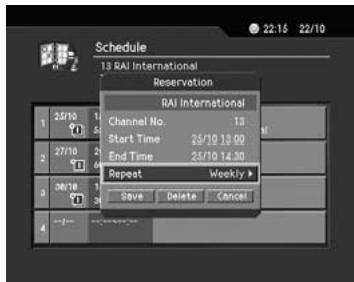
- Select the Delete and press the OK (⊙) button to delete the reserved programme.
- Select the Cancel and press the OK (⊗) button to cancel the editing.
- Select the Save and press the OK ( ) button to complete the editing.
2. Adding Reservation
- Enter your desired channel number using the NUMERICAL (0~9) button. The channel name is automatically displayed by channel number.
- Enter your desired Start Time using the / button and the NUMERICAL (0~9) button.
- Enter your desired End Time using the / button and the NUMERICAL (0~9) button.
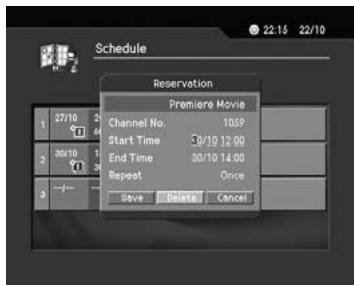
- Select one of Repeat mode options among Once, Daily, and Weekly using the / button.
- Select Lock mode using the button.
- Select the Save and press the OK (⊗) button to complete entering.
- Select the Cancel and press the OK (⊗) button to cancel the reservation.
- If the channel is locked, restricted by watching time, you will be prompted to enter your Password to complete the reservation.
Note:
- You can reserve up to 20 programmes.
If your desired programmed is already reserved programme, adjust the reservation appropriately.
7. Setting Preferences
You can set censorship, watching time, and all other items suitable for your environment.
Note:
- Press the BACK (⊗) or button to save the changes and return to the previous menu. Press the (⊗) or EXIT (⊗) button to exit the Menu screen.
- You can easily select all menu items using the assigned numerical button for each menu.
7.1 Parental Control
You can set parental control for each programme and watching time. You can also change your password.
- Press the MENU (Θ) button.
- Select the Preferences using the / button, and press the OK (OK) or button.
- Select the Parental Control using the / button, and press the OK (OK) or button.
- When prompting message is displayed to ask Password, enter the Password using the NUMERICAL (0~9) button.
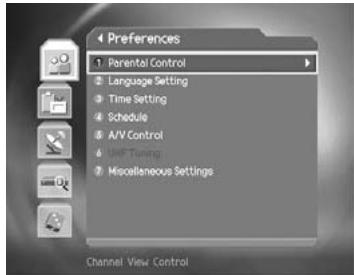
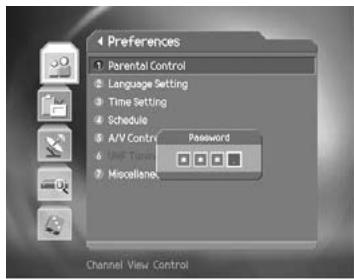
1. Setting Censorship
Censorship Classification allows you to block programmes according to the age level you have set.
- Select the Censorship Classification using the / button, and press the OK (⊗) or button.
- Select your desired Age Level using the / button, and press the OK (O) button.
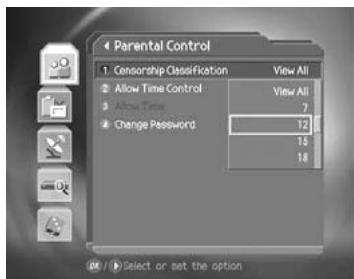
View All All programmes can be watched because there is no age limitation.
7 Programmes are blocked under the age of 7.
12 Programmes are blocked under the age of 12.
15 Programmes are blocked under the age of 15.
18 Programmes are blocked under the age of 18.
Lock All All Programmes are blocked without considering the age level.
Note: You have to enter Password to watch the programme which is blocked by the age level.
2. Setting Allow Watch Time
You can block programmes according to the watching time for all the channels.
- Select the Allow Time Control using the / button.
- Select Enable or Disable the Allow Time Control using the OK (⊗) or > button.
Disable You can watch whenever you want regardless of Allow Time.
Enable You can watch only while the time specified by Allow Time.
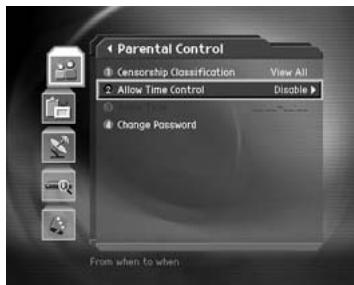
- When you have selected Enable, set the Start and End Time using the Numerical buttons, and select OK and press the OK (按钮。
- If you wish to cancel the entered time, select Cancel, and press the OK (∞) button.
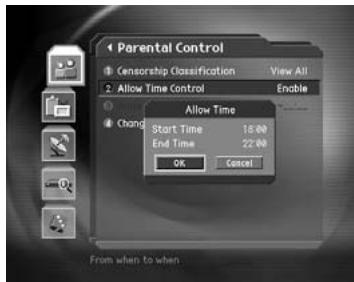
Note: Once the setting has been completed, you can watch programme only while the time specified by Allow Time. Or you should enter the Password to watch any programme during unspecified time.
3. Change Password
You can change the current password into new one.
- Select Change Password using the / button, and press the OK (⊗) or button.
- Enter New Password using the NUMERICAL (0~9) button, and select OK and press OK (⊗) button.
- Enter the New Password again to confirm the Verify Password, and select OK and press the OK ( ) button.
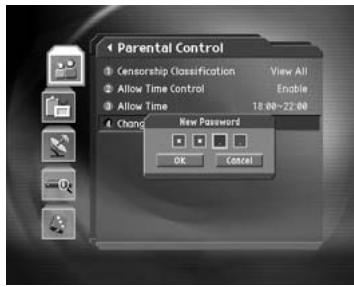
Note: The Default Password is "0000". If you have forgotten your Password, please contact your local product distributor.
7.2 Language Setting
You can set Language for Menu, Audio, and Subtitle.
- Press the MENU (Θ) button.
- Select Preferences using the / button, and press the OK (or) button.
- Select Language Setting using the / button, and press the OK (O) or button.
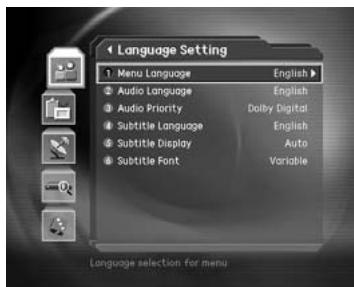
1. Menu/Audio/Subtitle Language
You can set the language for Menu, Audio and Subtitle. Default language is English.
- Select Menu/Audio/Subtitle Language using the / button.
- Press the OK (or) button to display the available Language List.
- Select your desired language using the / button, and press the OK (O) button.
2. Audio Priority
You can select the priority of audio.
- Select Audio Priority using the / button.
- Press the OK (or) button to display the Language or Dolby Digital option.
- Select your desired option and press the OK ( ) button.
Language You can watch programme in the selected language.
Dolby Digital You can listen sound in Dolby Digital mode. However, if you select Dolby Digital, you cannot change the audio language.
3. Subtitle Display
You can select whether or not to display the Subtitle automatically if provided.
- Select Subtitle Display using the / button.
- Select your desired option using the OK (⊗) or button.
Auto Subtitles are displayed automatically in the predefined subtitle language.
Manual Subtitles are displayed in the language when you select the subtitle language by pressing the SUBTITLE (按钮 at remote controller.
4. Subtitle Font
You can select the Subtitle font.
- Select Subtitle Font using the / button.
- Select your desired option using the OK (⊗) or button.
Variable Uses the horizontally variable Subtitle Font.
Fixed Uses the fixed Subtitle Font.
7.3 Time Setting
You can specify the current time and Power On/Off time.
- Press the MENU (O) button.
- Select Preferences using the / button, and press the OK (or) button.
- Select Time Setting using the / button, and press the OK (or) button.
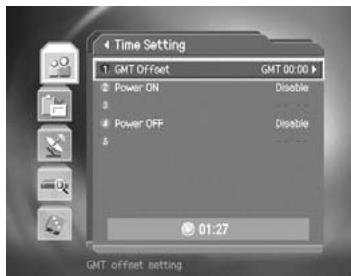
1. Setting Current Time
You can set the GMT Offset for current time.
- Select GMT Offset using the / button.
- Press the OK (or) button to display GMT list. GMT is changed by from 30 minutes to 1 hour.
- Select your GMT offset using the / buttons, and press the OK (@) button.
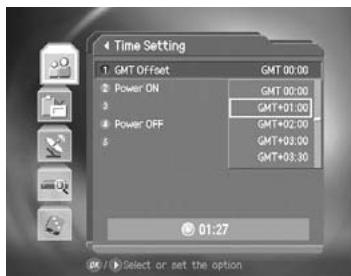
Note: The current time is set automatically whenever GMT Offset changes.
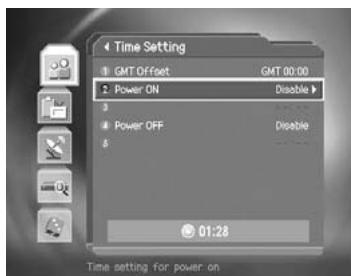
2. Power On
You can set the time when the product is automatically powered on.
Note: This is not available for the DVD play mode.
- Select Power On using the / button.
- Select either Enable or Disable the Power On using the or OK (⊙) button.
Enable Uses the Power On and sets the Power on time.
Disable Not uses the Power On.
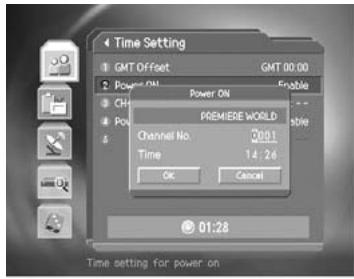
- When you have selected Enable, enter the Channel No and Time using the NUMERICAL (0~9) buttons, and select OK and press the OK (◎) button.
3. Power Off
You can set the time when the product is automatically powered off.
- Select Power Off using the / button.
- Select either Enable or Disable the Power Off using the OK (∞) or button.
Enable Uses the Power Off and sets the Power Off time.
Disable Not uses the Power Off.
- When you have selected Enable, enter the Time using the NUMERICAL (0~9) buttons, and select OK and press the OK (◎) button.
Note: Once Power On/Off is specified, it is repeated everyday.
7.4 Schedule
You can reserve a programme to watch programme at your desired time.
Note: This is not available for DVD play mode.
- Press the MENU (Θ) button.
- Select Preferences using the / button, and press the OK (or) button.
- Select Schedule using the / button, and press the OK (O) or button.
- Reserved Pregoramme List is displayed on the screen. To edit the existing reservation, select your desired reservation, and press the OK (⊗) button. To add a new reservation, select a blank list and press the OK (⊗) button.
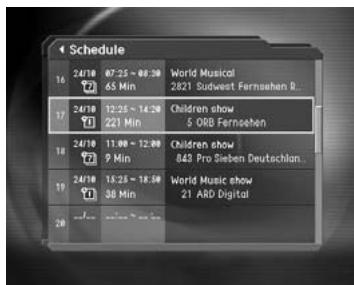
Note: For detailed information about how to edit or add a reservation, refer to Ch6 Programmem Guide.
7.5 A/V Control
You can set Audio or Video Output Control.
- Press the MENU (Θ) button.
- Select Preferences using the / button, and press the OK (or) button.
- Select AV Control using the / button, and press the OK (O) or button.
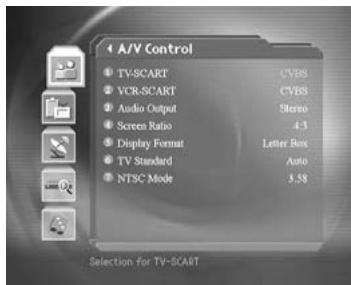
1. TV-SCART
You can set TV SCART Output.
- Select TV-SCART in Channel List using the / button, and press the OK (or) or button.
- Select one option among CVBS/RGB/S-Video using the / button, and press the OK (O) button.
Note: If you select RGB during setting as YPbPr, you cannot set the TV-SCART.
2. VCR-SCART
You can set VCR SCART Output.
- Select VCR-SCART Disable/ using the / button.
- Select one option among CVBS/S-Video using the OK (⊗) or button.
3. Audio Output
Set the Audio Output.
- Select Audio Output using the / button.
- Select one option form Stereo or Mono using the OK (⊗) or button.
4. Screen Ratio
You can set the aspect ratio of your TV.
- Select Screen Ratio using the / button.
- Select one option from 4:3 or 16:9 using the OK (⊗) or button.
5. Display Format
You can select the Display Format according to TV Screen Ratio.
- Select Display Format using the / button, and press the OK (⊙) or button.
- If the Screen Ratio is set to '4:3', you can select one from Auto/Letter box/Center Mode using the / button, and press the OK (◎) button.
- If the Screen Ratio is set to '16:9', you can select one from Auto/Pillar box/Full mode using the / button, and press the OK (O) button.
6. TV Standard
You can select the TV Standard: PAL or NTSC.
- Select TV Standard using the / button, and press the OK (or) button.
- Select one option among Auto/PAL/NTSC using the / button, and press the OK (⊗) button.
Auto The TV supports both PAL and NTSC.
PAL The TV supports only PAL.
NTSC The TV supports only NTSC.
7. NTSC Mode
If TV Standard is set to NTSC, set the following mode.
- Select NTSC Mode using the / button.
- Select one option from 3.58/4.43 using the OK (⊗) or button.
7.6 Miscellaneous Settings
- Press the MENU (Θ) button.
- Select Preferences using the / button, and press the OK (or) button.
- Select Miscellaneous Settings using the / button, and press the OK (or) or button.
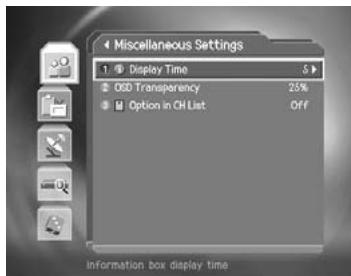
1. i-Plate Display Time
You can set the duration during which the Information box is to be automatically displayed when you switch the channel.
- Select i-Plate Display Time using the / button, and press the OK (or) or button.
- Select a value among Disable or between 1 ~ 20 seconds using the / button, and press the OK (按钮。
Note: When it is set to Disable, the i-Plate will not be displayed when you switch the channel.
2. OSD Transparency
You can set the transparency of On Screen Display.
- Select OSD Transparency using the / button, and press the OK (or) or button.
- Select one option among Disable/25/50/75 using the / button, and press the OK (@) button.
Disable Fully opaque screen
25, 50, 75 As the number is bigger, the screen is more transparent.
3. Option in Channel List
You can set whether or not to display the scrambled icon in channel list.
- Select the Option in CH List using the / button.
- Select one option from On/Off using the or Disable/OK (⊙) button.
On Scramble icon display in the channel list.
Off Scramble icon disappear in the channel list.
This chapter describes how to search for channels and a series of procedures.
8.1 Antenna Setting
You can set Antenna and LNB Information for channel search. If antenna is not correctly set, you cannot search channel, therefore, you cannot watch a programme, either.
- Press the MENU (Θ) button.
- Select Installation using the / button, and press the OK (O) or button.
- Password is required to use Installation Menu. Enter Password to directly move to Installation Menu.
- Select Antenna Setting using the / button, and press the OK (or) or button to enter Antenna Setting.
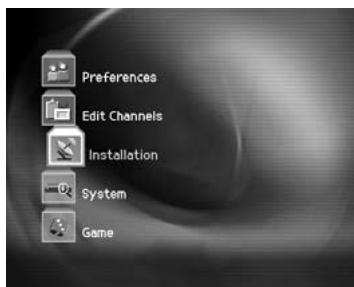
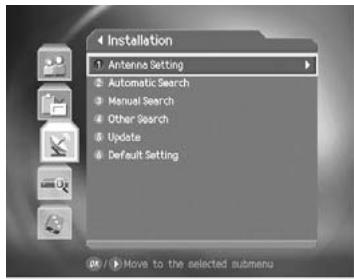
Note: If no satellite is registered from Antenna Setting menu, Channel Search such as Automatic Search, Manual Search, Multiple Manual Search, Advanced Search is not available.
Satellite
You can select satellite for Channel Search.
- Select Satellite using the / button, and press the OK (OK) or button
- Select the satellite that is the antenna heads for from the alphabetically sorted satellite list using the / button, and press the OK (OK) button.
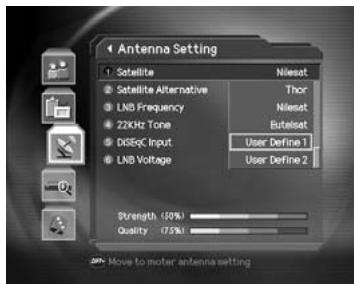
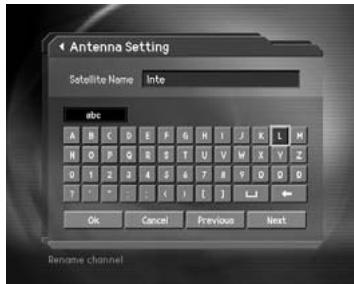
- If no desired satellite exists in the list, select User Define Satellite item. When you are prompted to select whether or not to edit User Define Satellite, select Yes, and press the OK (⊗) to display keyboard to edit the Name. Enter Satellite Name directly, select OK, and press the OK (⊗) button.
Satellite Alternative
You can search and watch a programme by using the antenna headed for the selected satellite.
- Select Satellite Alternative using the / button, and press the OK (OK) or button.
- Then, you can change into one of the following options.
Disable Does not search the selected satellite.
Enable Searches the selected satellite.
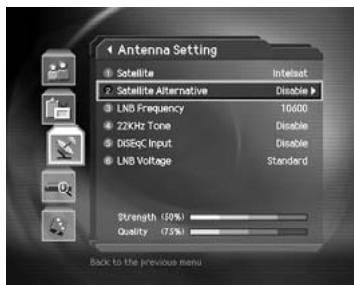
Note: If there is no satellite that Satellite Alternative is set to Enable, Channel Search is not available.
LNB Frequency (MHz)
You can enter LNB Frequency.
- Select LNB Frequency using the / button, and press the OK (OK) or button.
- Select one value from Universal,9750,10600, 5150, 11475, User Define using the / button. If you have selected User Define, enter LNB Frequency value directly, and press the OK (∞) button.
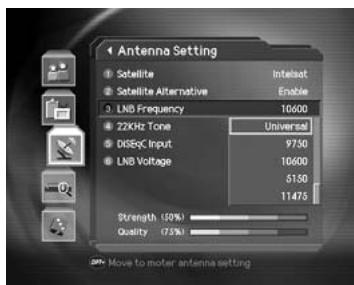
Note: If you have selected Universal, select 9750/10600. In this case, the 22kHz tone value is disabled.
22kHz Tone
You can select whether or not to use 22kHz Tone.
- Select 22kHz Tone using the / button.
- Select whether or not to use 22kHz Tone using the OK (⊙) or button.
Enable Selects Enable if Dual LNB is used or 2 antennas are connected to the 22kHz tone switch box.
Disable Selects Disable if 22kHz Tone is not used.
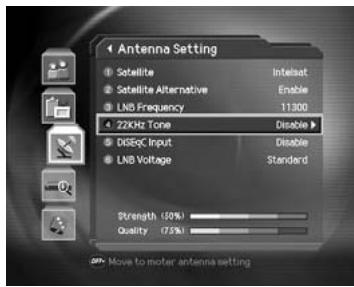
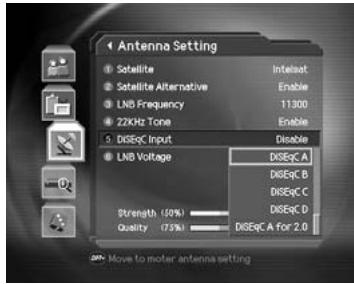
DiSEqC Input
You can select DiSEqC switch.
- Select DiSEqC Input using the / button, and press the OK (or) button.
Select the DiSEqC Swtich using the / button, and press the OK (∞) button.
You can select one option among Tone burst A~B, DiSEqC A~D, DiSEqC A~D for 2.0 and Disable.
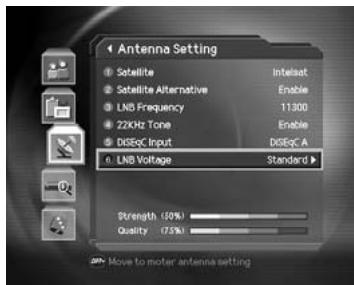
LNB Voltage
You can raise the LNB Voltage value (select high) preparing for the distance between antenna and receiver is further than 60m .
Caution: If your set the LNB Voltage value as High when the distance between antenna and receiver is close, the LNB may be damaged. Please be careful.
- Select LNB Voltage using the / button.
- Set the LNB Voltage value using the OK (⊗) or button.
Standard
if the distance between antenna and receiver is within 60m
High
if the distance between antenna and receiver is further than 60m
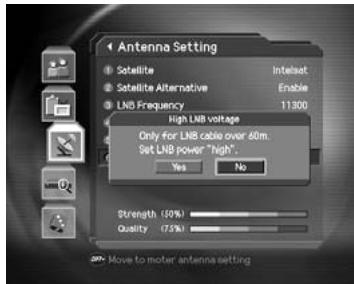
- If you change the setting value to High, a message will prompt you to confirm. Select Yes and press the OK (×) button. When the value is set to High, 1V higher than LNB voltage is supplied to LNB.
8.2 Automatic Search
If you select the satellite to search channel according to the Antenna Setting, you can automatically search the satellite without entering any other information. And You cannot watch any programme without searching channel.
- Select MENU ( ) button.
- Select Installation using the / button, and press the OK (O) or button.
- Select Automatic Search from Installation menu using the / button, and press the OK (⊗) or button.
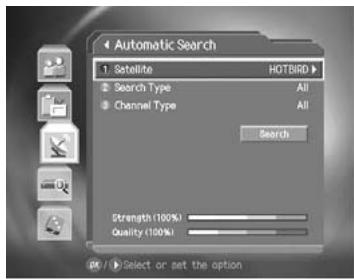
Satellite
You can select which satellite to search the channel.
- Select Satellite using the / button, and press the OK (OK) or button.
- Select one of satellites using the / button, and press the OK (⊙) button.
Note: Channel Search is performed only for the satellites that have been set to Enable in Antenna Setting - Satellite Alternative menu. If you wish to search channels for satellites, which is not listed on the Satellite List of Automatic Search, move to Antenna Setting and set the Satellite Alternative item as Enable.
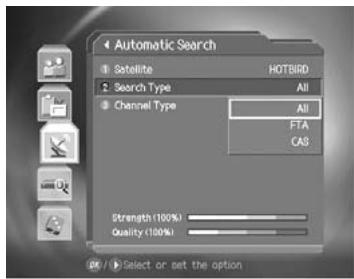
Search Type
You can set search type to search by free channel or CAS type.
- Select Search Type using the / button, and press the OK (or) or button.
- Select All, FTA or CAS using the / button, and press the OK (@) button.
All Searches all channels.
FTA Searches only free channels.
CAS Searches channels for selected CAS.
Note: The CAS type is Viaccess, Nagravision, Cryptoworks, and so on.
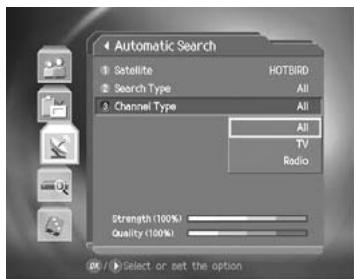
Channel Type
You can search by TV or Radio channel.
- Select Channel Type using the / button, and press the OK (⊗) or button.
- Select one option among All, TV and Radio using the / button.
All Searches all channels.
TV Searches only TV Channel. Scrambled
Radio Searches only Radio Channel.
Search
You can complete the setting and start searching.
- Select Search, and press the OK ( ) button to start Automatic Search.
- During operating search, the cursor is located at Stop. Therefore, if you press the OK (∞) button during searching, the operation is stop and the channels found until then will be displayed.
- Even if search operation is completed, and the channel does not exist, press the OK (⊗) button and try to reset the search operation again if necessary.
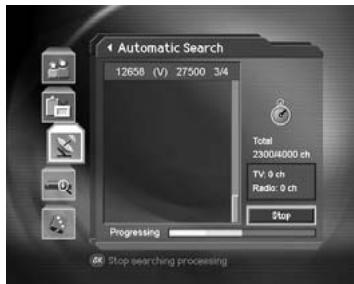
- You can delete unnecessary channels from the searched channels. Select your desired channels to delete and press the OK (按钮. Then select Delete and press the OK (按钮. To delete all channels, select Select All to select all channels, select Delete, and press the OK (按钮.
- When completing Channel Search and deleting unnecessary channels, select Save to save the changes.
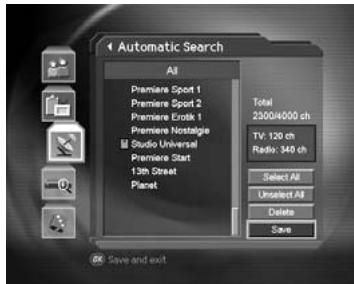
8.3 Manual Search
You can search channels of the selected satellites by transponders if you know the Transponder information.
1. Satellite
Selects a satellite to search from the satellites set in Antenna setting.
- Select Satellite using the / button, and press the OK (OK) or button.
- Select one of the Satellite names to search channel using the / button, press the OK (O) button.
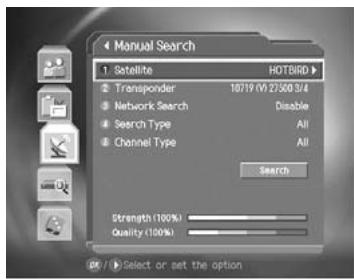
Note: If the satellite scheduled to search channel is not exist in the Satellite list, move to Antenna Setting menu, set Antenna for the Satellite, and then try again.
2. Transponder
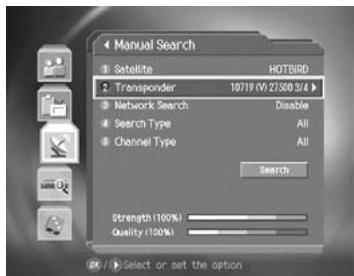
Sets transponder value for the satellite.
- Select Transponder using the / button and press the OK (or) button.
- Select one value from the transponder value using the / button, and press the OK (O) button.
- If you cannot find your desired Transponder information form the Transponder List, select User Define, and press the OK (×) button to change the Transponder information as follows.
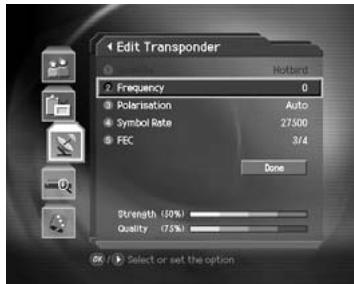
- Enter Transponder frequency using the NUMERICAL (0~9) button.
- Select Polarisation and press the OK (⊙) or button to select one option among Auto/Horizontal/Vertical.
Note: Horizontal outputs 18V, and Vertical outputs 13V through LNB line.
- Select Symbol Rate (ks/s) and press the OK (OK) or button to select one Symbol Rate value from 27500/26000/22000. If your desired value does not exist, select User Define to enter Symbol Rate value directly using the NUMERICAL (0~9) button.
- Select FEC (Forward Error Correction) option and press the OK (⊗) or button to select one option among Auto, 1/2, 2/3, 3/4, 5/6, and 7/8.
- When completing entering Transponder information, select Done and press the OK (⊗) button to finish entering User Define Transponder value.
Note:
- For channel transponder information, you can find your desired information from Satellite channel magazine, Satellite channel related home pages, news release and home page of broadcasting company, etc.
- If you have correctly completed setting the Transponder information, Strength bar and Quality bar should represent as High. If the Level is close to 0, please try to reset.
3. Network Search
If your desired transponder provides the information of other transponder, you can determine whether or not to search the channel for other transponder.
- Select Network Search using the / button.
- Select either Enable or Disable using the OK (⊙) or button. Select Enable to run Network Search.
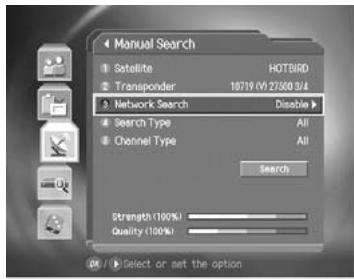
4. Search Type
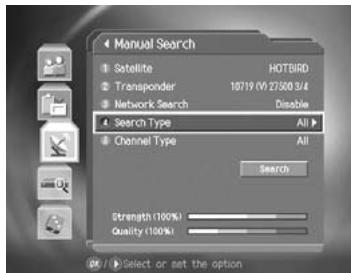
You can determine whether or not to search channel by free or CAS type.
- Select Search Type using the / button, and press the OK (or) button.
- Select one option among All, FTA and CAS using the / button, and press the OK (O) button.
All Searches all types of channel.
FTA Searches only Free Channel.
CAS Searches channels for selected CAS type.
5. Channel Type
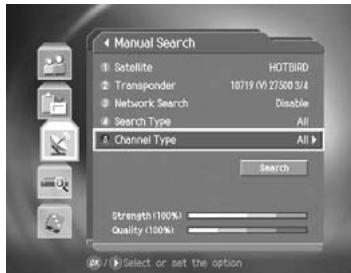
You can search by TV or Radio Channel.
- Select Channel Type using the / button, and press the OK (×) or button.
- Select one option among All, TV and Radio using the / button.
All Searches all channels.
TV Searches only TV Channel.
Radio Searches only Radio Channel.
6. Search
You can complete the setting and start searching.
- Select Search and press the OK (∞) button to start Manual Search.
- The next procedures are the same as those of Automatic Search. Please refer to Automatic Search.
8.4 Other Search
You can directly enter the Packet ID value or find how to search channel using SMATV. And you can search channel for several transponders at one time.
- Press the MENU (Θ) button to run Menu.
- Select Installation using the / button, and press the OK (or) button.
- Select Other Search, and press the OK (⊗) or button. Press the BACK (⊗) or button to return to the previous menu.
1. Advanced Search
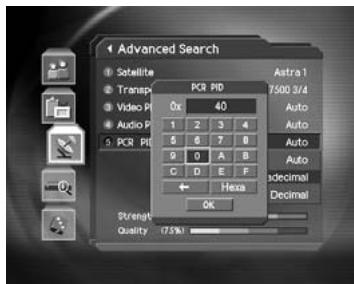
You can find your desired channel by entering Video, Audio and PCR Packet ID directly In Other Search Menu, select Advanced Search using the / button, and press the OK (or) or button to start Advanced Search.
Satellite, Transponder
The setting for satellite and transponder is the same as that of Manual Search. Refer to the satellite and transponder setting for Manual Search.
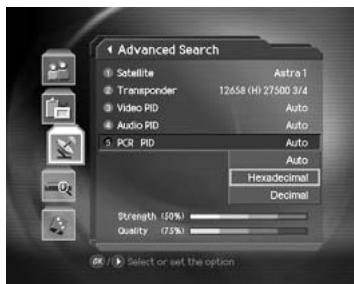
Video PID, Audio PID, PCR PID
You can enter the PID value for specific channel.
- Select the PID to set using the / button, and press the OK (or) button.
Video PID
Enter the Video PID value.
Audio PID
Enter the Audio PID value.
PCR PID
Enter the PCR PID value.
- Set PID value.
Auto
Search PID value automatically.
Hexadecimal
Enter PID value in Hexadecimal numeric.
Decimal
Enter PID value in Decimal.
- When you have select Hexadecimal or Decimal, enter PID value directly using Keyboard.
- When completing entering PID value, select OK, and press the OK (O) button.
Search
You can complete setting and start searching.
- Select Search and press the OK (∞) button to start Advanced Search.
- The next procedures are the same as those of Automatic Search. Please refer to Automatic Search.
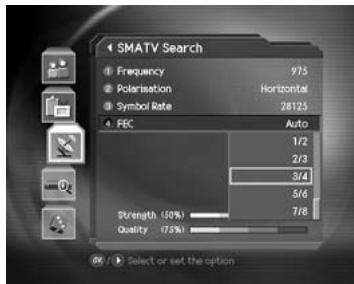
2. SMATV Search
If your receiver uses the antenna for common use, operate SMATV Search. For SMATV Search, Channel Search is performed by the antenna for common use regardless of the setting value in Antenna Setting.
Select SMATV Search in Other Search Menu using the / button, and press the OK (O) or button.
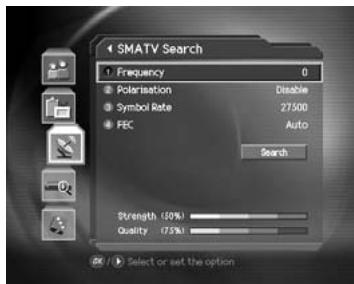
Frequency
- Select Frequency using the / button, and press the OK (O) or button.
- Enter the down converted frequency through common LNB. You can enter the frequency between 950 and 2150 MHz.
Polarisation
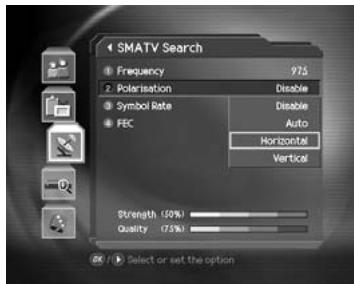
- Select Polarisation using the / button, and press the OK (or) button.
- Select one from Disable/Auto/Horizontal/Vertical and press the OK (∞) button.
Note: Horizontal outputs 18V, and Vertical outputs 13V through LNB line. Select Disable when LNB Power is not necessary.
Symbol Rate
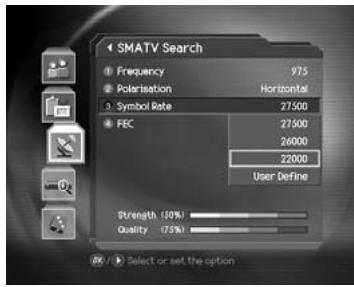
- Select Symbol Rate using the / button, and press the OK (OK) or button.
- Select the symbol rate of the transponder. If the rate does not exist in the list, select User Define and enter the value directly.
FEC
- Select FEC using the / button, and press the OK (OK) or button.
- Select one option among Auto,1/2,2/3,3/4,5/6,7/8, and press the OK (OK) button.
Search
You can complete setting and start searching.
- Select Search and press the OK (⊙) button to start SMATV Search.
- The next procedures are the same as those of Automatic Search. Please refer to Automatic Search.
3. Multiple Manual Search
If you wish to search multiple transponder at the same time, you can run Multiple Manual Search. This function is useful when repeating Manual Search.
- Select Multiple Manual Search from Other Search Menu using the / button, press the OK (O) or button to enable the Multiple Manual Search.
- Select one option among Satellite, TP List Edit, Search Type, Channel Type using the / button, and press the OK (⊗) or button.
- Set the selected item.
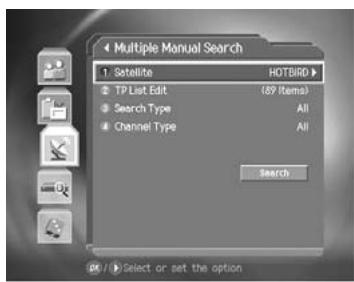
Note: Settings for Satellite, Search Type, and Channel Type is the same as those of Manual Search. Refer to Manual Search.
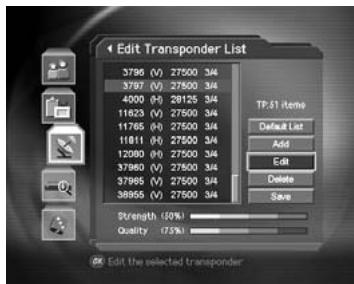
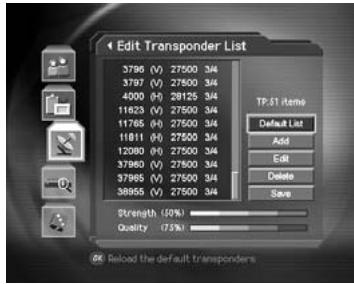
Transponder List Edit
You can edit TP list to search at a time and change the setting for Transponder.
- Select Transponder List Edit from Multiple Manual Search, and press the OK (or) or button.
- Select Add and press the OK ( ) button to add a new Transponder data.
- Select a specific transponder from the transponder list, press the OK (⊙) button, select Edit, and then press the OK (⊙) button to edit Transponder data.
- Select a specific transponder from the transponder list, press the OK (∞) button, select Delete, and then press the OK (∞) button to delete Transponder data. You can select multiple transponders to delete.
- When completing configuring transponder list, select Save and press the OK (⊗) button to save the result and exit.
Note: When you select Default List and press OK (⊗), default transponder list is displayed.
8.5 Motor Antenna
If you use Motor Antenna, which is operated by motor, you should set the antenna as Motor before Channel Search.
- Press the MENU (Θ) button.
- Select Installation using the / button, and press the OK (O) or button.
- Select Antenna Setting using the / button, and press the OK (OK) or button.
- Press the OPT+ button on the Antenna Setting screen to switch into Motor Antenna Menu.
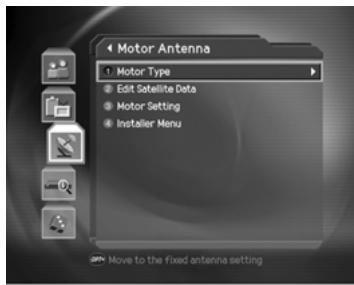
1. Motor Type
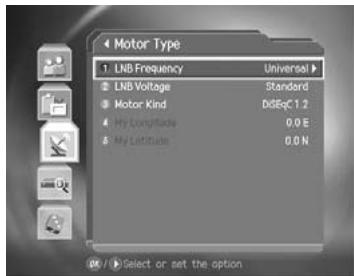
You should set the Motor Type before Motor Antenna Setting.
- Select Motor Type from Motor Antenna, and press the OK (⊙) or button.
-
Set LNB Frequency.
-
Select LNB Frequency using the / button, and press the OK (O) or button.
- Select one value among LNB frequency list. If desired LNB frequency is not in the list, enter LNB Frequency value using the NUMERICAL (0~9) button after selecting User Define.
-
When completing entering LNB Frequency, press the OK (OK) button.
-
Set LNB Voltage
Refer to Installaion - Antenna Setting - LNB Voltage. The distance between antenna and receiver is 30m instead of 60m.
- Select Motor Kind using the / button, and press the OK (or) button to select Motor Type.
DiSEqC 1.2 General Motor Antenna using DiSEqC 1.2.
USALS Motor Antenna using USALS
-
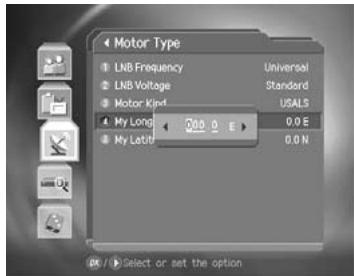
Set My Longitude.
-
Select My Longitude using the / button, and press the OK (OK) or button.
- Enter Longitude value using the NUMERICAL (0~9) button.
- Set East/West using the button.
-
When completing setting, press the OK ( ) button.
-
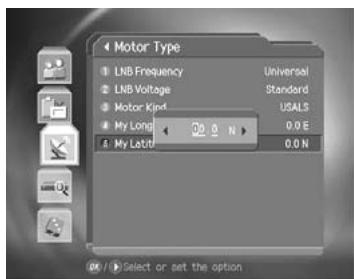
Set My Latitude.
-
Select My Latitude using the / button, and press the OK (OK) or button.
- Enter Latitude value using the NUMERICAL (0~9) button.
- Set North/South using the / button.
- When completing setting, press the OK ( ) button.
2. Edit Satellite Data
You can set the position of the Satellite, which the Motor Antenna heads for, and decide whether or not to use the satellite.
- Select Edit Satellite Data from Motor Antenna Menu using the / button.
- Move to Edit Satellite Data by pressing the OK (@) button.
- Select Satellite using the / button, and press the OK (OK) button.
- Select a satellite to edit, and press the OK ( ) button.
- Select Satellite Alternative using the / button and press the OK (OK) button to decide whether or not to use the selected Satellite.
Enable Channel Search is available.
Disable Currently selected Satellite is regarded as out of existence. Channel Search is unavailable.
- Select Satellite Longitude using the / button, and press the OK (OK) button.
- Enter the Longitude value for Satellite using the NUMERICAL (0~9) button. Change East/West value using the / button.
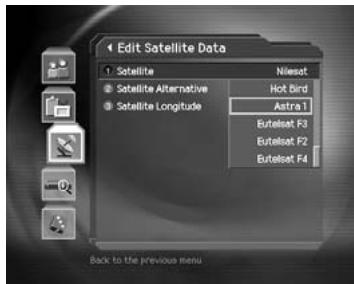
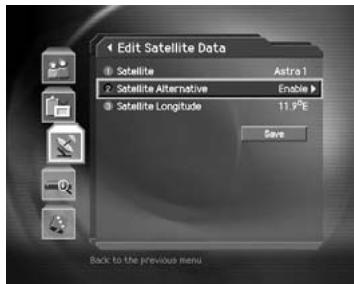
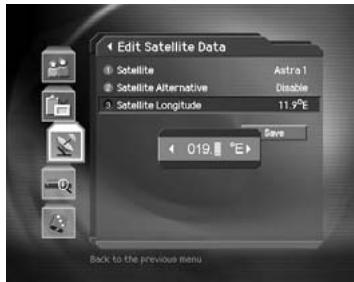
Note: Satellite Longitude item is able to edit only for User Define Satellite.
3. Motor Setting
You can set Motor Antenna for Channel Search and watching.
- Select Motor Setting from Motor Antenna using the / button, and press the OK (or) or button.
-
Select Satellite.
-
Select Satellite using the / button, and press the OK (oc) or button.
- Select the satellite which the Antenna heads for.
-
Press the OK (⊗) button.
-
Select transponder using the / button, and press the OK (or) button.
-
Set Motor Driving.
-
Select Driving Mode using the / button, and press the OK (OK) or button.
- Select Driving Mode Type, and press the OK (⊗) button.
Continuous Motor moves continuously
Step Motor moves by specified unit.
Time Motor moves during specified time.
- Adjust Driving Size using the / button in case of Step or Time.
Step by Impulse
Time by Second
- Select () , and press the OK () button.
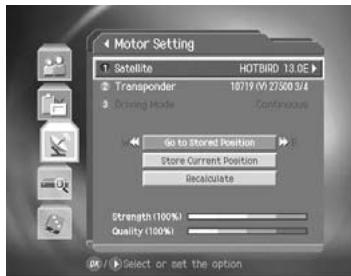
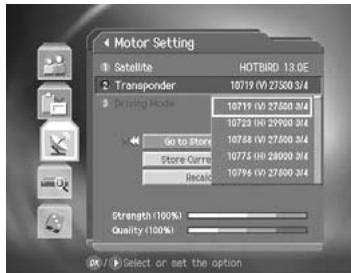
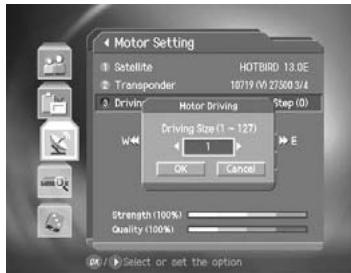
-
Move the Antenna to the position of the selected Satellite.
-
Select Go to Stored Position using the / button.
-
Press the OK (oc) button to move Antenna to the position of the Satellite. Please wait during the Antenna is moving.
-
Confirm Signal Strength and Quality Level and fine-tune the Antenna direction.
-
Select Go to Stored Position using the / button.
-
Move the Antenna to East/West by pressing / button. Adjust Signal Level to maximum/
-
Save the adjusted position of Satellite.
-
Select Store Current Position using the / button.
-
Press the OK (按钮) button to save the Antenna position headed for the selected Satellite.
-
You can set antenna position by satellite by repeating the above procedure.
-
You can recalculate positions for all other satellite based on one satellite. Adjust position of antenna by satellite based on one set position without setting each position of antenna by satellite.
-
Select Recalculate using the / button.
- Press the OK (OK) button.
- To adjust all positions again, select Yes and press the OK (按钮.
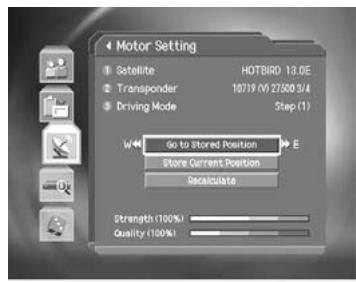
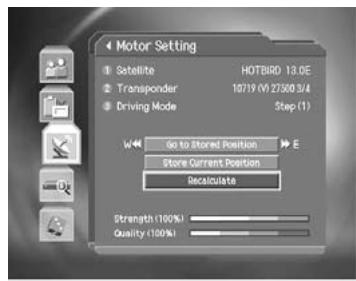
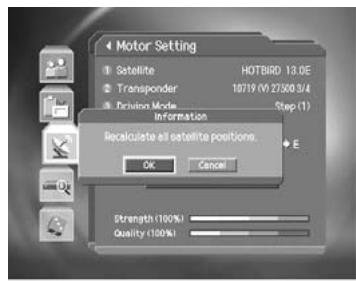
Note: You cannot perform 6 ~ 9 steps in case of USALS Motor.
4.Installer Menu
You can set default setting and operation limit for Motor Antenna.
- Select Installer Menu from Motor Antenna Menu using the / button.
- Press the OK ( ) button to move to Installer Menu.
Motor Limit Setting
You can set the maximum Motor Limit both East and West to prevent damage to the antenna.
- Select Motor Limit using the / button.
- Set Motor Limit to Disable by pressing the OK (⊙) or button.
Enable Motor Limit is already set. Motor does not move more than the amount of limit.
Disable Motor Limit is disabled. Setting is released.
Note: When newly setting Motor Limit, set the value to Disable.
- Select Limit Position using the / button.
- Select the Direction of Limit by pressing the OK (⊙) or button.
East Motor sets East limit to move.
West Motor sets West limit to move.
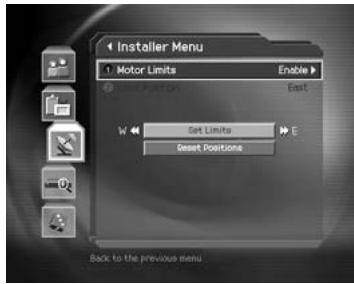
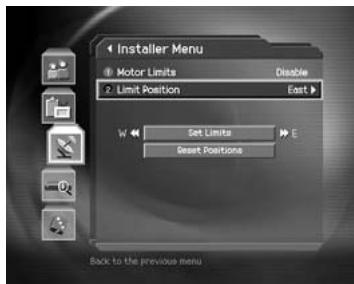
- Select Set Limit using the / button.
- Move antenna to the limit position to set using or button.
- Press the OK ( ) button to set limit.
- If limit is set, Motor Limit option is automatically changed into Enable.
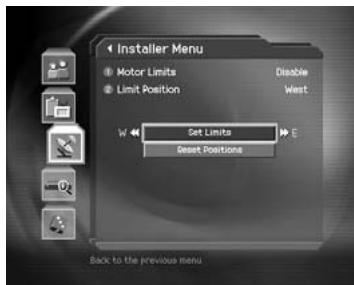
Reset Position
You can restore the position saved at Motor Antenna to the default setting.
- Select Reset Positions using the / button.
- Press the OK ( ) button.
- Select Yes and press the OK (⊙) button to restore all saved value at Motor Antenna to the default setting.
- Please wait during the Motor Antenna is restored.
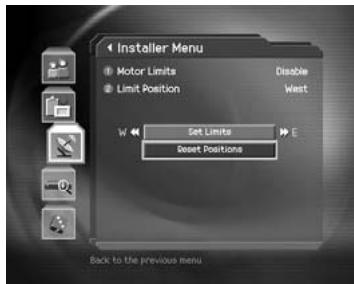
Note: Motor Antenna may not be reset depending on Antenna condition. In this case, please repeat the above procedure again.
8.6 Default Setting
Default Setting restores the receiver to the default settings
Warning: Please Note that once you perform Default Setting, all data such as Antenna Setting information Channel List, and User Configured data are deleted.
To perform Factory Default:
- Press the MENU (O) button.
- Select Installation using the / button, and press the OK (O) or button.
- Enter password using the NUMERICAL (0~9) button.
- Select Default Setting using the / button, press the OK (O) or button.
- Select Yes and press the OK ( ) button to restore all setting to Factory Default. Select No and press the OK () or BACK () button to return to the previous menu.
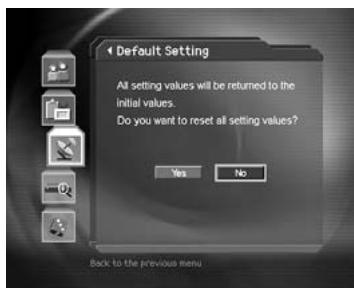
-
Confirm again to start loading default setting. Enter password using the NUMERICAL (0~9) button to perform restoring.
-
When completing the default setting, press the OK (⊗) button to automatically run the Installation Wizard. When default setting is completed, Installation Wizard is automatically displayed, which helps Channel Search. For detailed information about Installation Wizard, refer to 3. Installation Wizard.
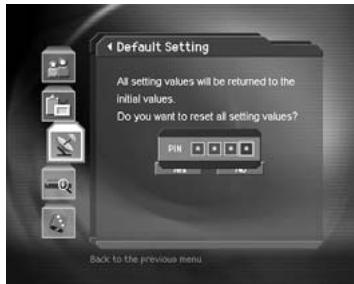
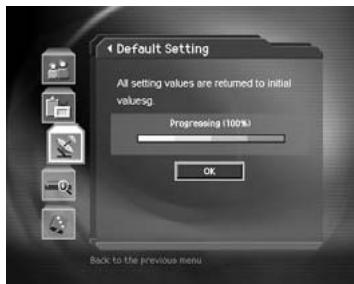
9. Software Update
In order to maintain proper performance of this product, it is essential to have the most up-to-date software. The latest news and release of software versions may be found at the HUMAX website - http://www.HUMAXdigital.com.
It is recommended that you periodically check for the availability of software update.
Warning: During update, the DVD software is also updated. If the right DVD software set, the DVD player can play rightly.
9.1 OTA (Over the Air)
OTA, an abbreviation of "over-the-air", means that downloads the software can be downloaded where the manufacturer reserves the right to decide when and where to release through Antenna system.
Over the Air(OTA) is simply an alternative method for downloading software versions. However, the manufacturer reserves the right to decide when and where this software update can take place by "beaming" latest software versions over the air via antenna systems. Note that OTA is only limited to certain geographical regions mainly due to different antennas having different footprints(area where the signal can be received). The software update via satellite system will only occur under the following circumstances.
- The equipment should have appropriate loader software.
Caution: Please Note that if you don't have normal loader software, the equipment may not be updated or work after software update.
- The manufacturer decides to release software downloading via a designated antenna system.
- The equipment must be "tuned" properly to the same antenna that the manufacturer uses.
- Update software when the quality of receiving signal strength is high. If the weather is not so good that the quality of receiving signal strength is not recommendable, perform the software update later.
Caution:
- Please be careful to keep the power on and the power cord plugged in during software update. If the power is off during software update, it may cause fatal damage to the product.
- Please be careful not to pull out the signal line (LNB Cable) during software update. Update may be interrupted and the product may not work.
Note:
- The other functions of product cannot work at all during software update.
It may take 5~10 minutes to update software. - Scheduling operation cannot work during software update.
1. If new software is found when powering on
- A message will be displayed to notify that new software is found.
- Select Yes and press the OK (⊗) button to update the software.
- Starts downloading new software. Please wait until the updated is completed.
- When completing the software update, the equipment is automatically powered off and on again.
2. If updating software from Menu
- Press the MENU (O) button.
- Select Installation using the / button, and press the OK (O) or button.
- Enter Password using the NUMERICAL (0~9) button.
- Select Update using the / button, and press the OK (or) button.
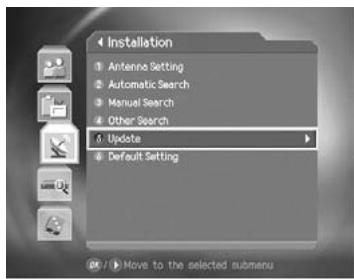
3. If new version of software is detected during watching a programme.
- A message will be displayed to notify that new software is found.
- Select Yes and press the OK (⊗) button to start upgrading. Select No and press the OK (⊗) button to return to the previous menu.
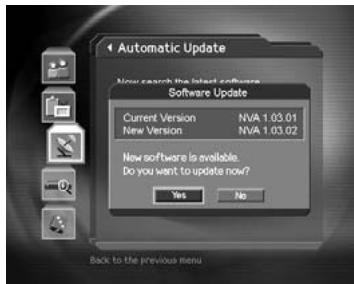
4. If using Automatic Update
You can set the product to find HUMAX software update site and update software automatically.
-
Select Automatic Update from Update screen using the / button, and press the OK (or) or button.
-
Automatically search for new software.
- When detecting update software, the following result is displayed. If new software is not found by Automatic, use Manual Update.
- Select Yes and press the OK (⊙) button to start updating. Select No and press the OK (⊙) button to return to the previous menu without updating.
When completing the software update, the product is automatically powered off and on again.
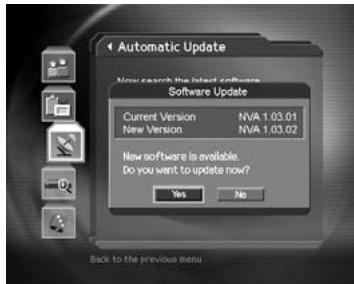
Note: Software Update Sites of HUMAX are listed in the following table.
| Satellite | Transponder data |
| Astra1 | 12669 (V) 22000 5/6 |
| Sirius | 12054 (V) 27500 3/4 |
| Hispasat | 11811 (H) 27500 3/4 |
| Nilesat | 11765 (H) 27500 3/4 |
| Hotbird | 12475 (H) 27500 3/4 |
Among the Software Update Sites of HUMAX, the software search operation is performed only for the satellites that have been set to Enable in Installation - Antenna Setting - Satellite Alternative menu and that have all other Antenna Setting correct.
Manual Update
You can perform Manual Update only if you know which satellite has new software and the Transponder information correctly.
- Select Manual Update from Update screen using the / button, and press the OK (⊗) or button.
Select the the Satellite which provides update software. Satellite list contains the satellites that have been set to Enable in Installation - Antenna Setting - Satellite Alternative menu. For unlisted satellite, start with Antenna Setting. - Enter Transponder Frequency in which updated software is provided.
- Enter Polarisation value.
- Select Symbol Rate value. If it is not found in the List, select User Define and enter manually.
- Select FEC value.
Note: How to setting Satellite and Transponder for Manual Update Sites is the same as how to edit User Define Transponder data in Manual Search. Refer to Manual Search.
- Select Search and Press the OK ( ) button to search software.
- It is displayed whether or not New Software exist. If new software does not exist, press the OK (⊗) button to return to the Manual Update Menu.
- Select Yes and press the OK ( ) button to start updating. Select No and press the OK ( ) button to return to the previous menu.
- Performs Software Update. Please wait until it is completed.
- When completing the software update, the product is automatically powered off and on again.
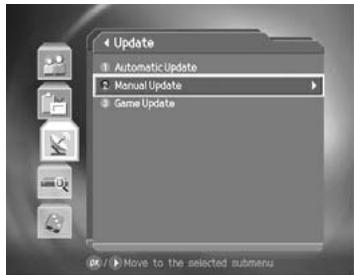
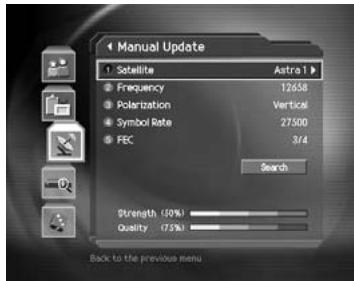
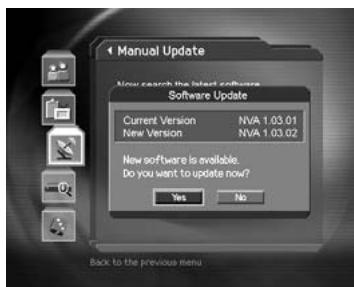
9.2 Software Update from PC
You can connect your receiver to the PC directly and update your software by transferring the new software from the PC. Follow these steps to download new software from PC to this product.Software
- Download new software file(HDF files) equivalent for this product model from our website into your computer(http://www.HUMAXdigital.com).
- Download and install download tool from our website into your computer.
- Connect your PC to this product with RS-232C serial cable.
- Execute installed download tool, and then follow the instructions contained the download tool.
- Press the STANDBY (按钮 to make this product operating.
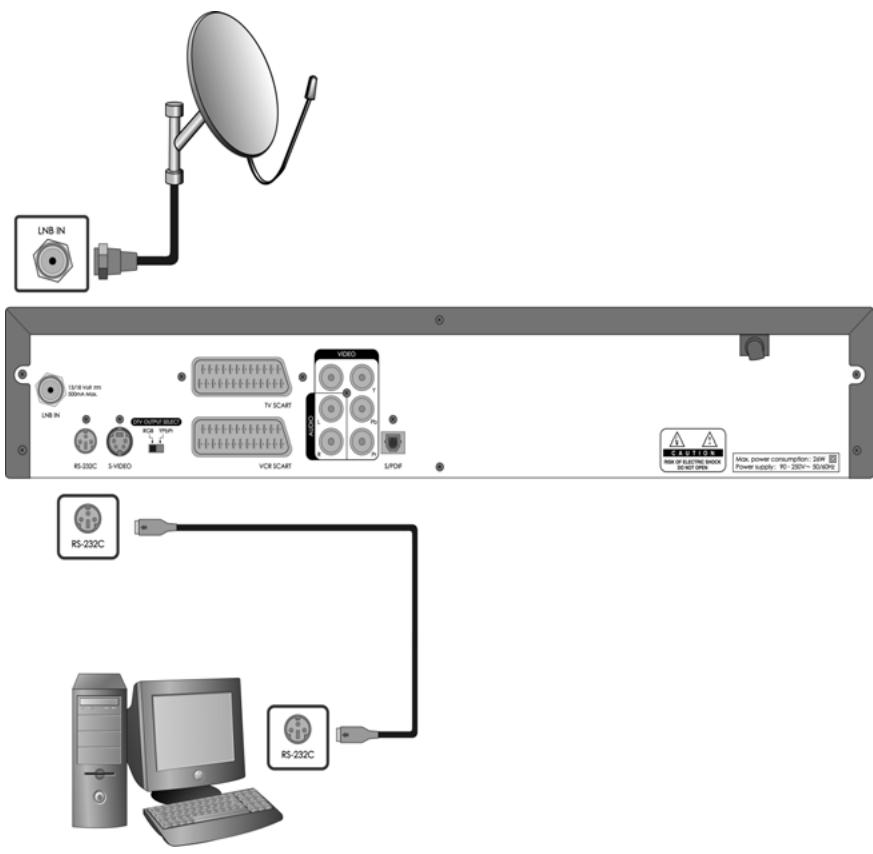
10. System Information
You can view all system information, signal strength, and Common Interface information.
- Press the MENU (Θ) button.
- Select System using the / button, and press the OK (or) button.
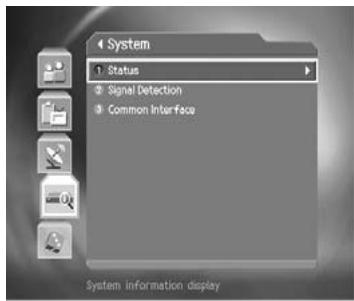
10.1 Status
You can view System information
- Select Status using the / button, and press the OK (or) button.
- Confirm the information about Hardware version, Software version, Loader version, System ID, Update Date, Slot1, 2.
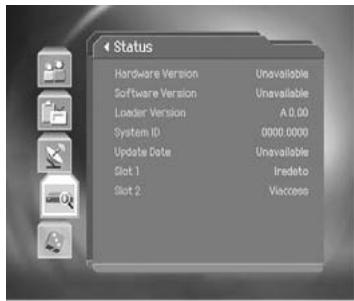
10.2 Signal Detection
You can view the signal strength and signal quality receiving from satellite via your satellite dish.
- Select Signal Detection using the / button, and press the OK (⊗) or button.
- Display information about the satellite and transponder, which current channel belongs to and the graphs and percentage of Signal Strength and Quality of the channel.
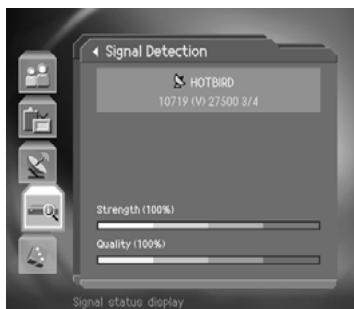
10.3 Common Interface
You can view the current status of CI module.
- Select Common Interface using the / button, and press the OK (O) or button.
- Select each Slot using the / button, and press the OK (O) or button.
- If Common Interface is available, you can view information about each Slot.
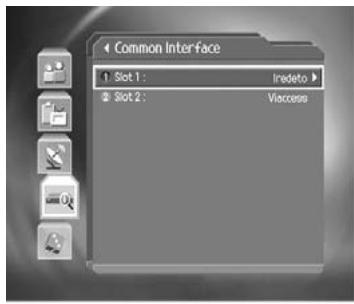
Note: The displayed information about each Common Interface may differ depending on Common Interface type.
11. Games
This product provides various games for user's entertainment.
- Press the MENU (Θ) button.
- Select Game using the / button, and press the OK (or) or button.System
- According to the instruction displayed on screen, you can enjoy the game using / / / and OK (按钮.
Note: Press the EXIT (O) or BACK (O) button to exit the game.
DVD Player
1. Getting Started
Loading a Disc
You can enable your DVD player by pressing the DVD/STB button while watching a satellite channel.
- Press the OPEN/CLOSE button to open the disc loading tray which is located at the front of your receiver.
- Put the selected disc on the tray and check that it is located correctly.
- Press the OPEN/CLOSE button to close the tray.
- The player is recognising a disc. Please wait.
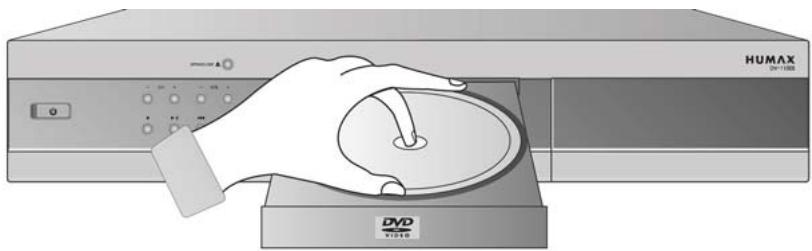
2. Playing a DVD-VIDEO Disc
You can recognise the DVD-Video disc by the logo.
Each disc has one or more chapters.
Your receiver moves within the titles or chapters to access easily and conveniently.
| DVD-VIDEO Disc | |||||
| TITLE 1 | TITLE 2 | ||||
| Chapter 1 | 2 | 3 | Chapter 1 | 2 | 3 |
Buttons
Marker Marking

A-B repeat

Zoom on/off

Play / Pause

Fast backward/ Slow motion

Fast forward/Slow motion

Stop

Skip previous /Frame by frame

Skip next / Frame by frame
2.1 Playing a title
- Press the OPEN/CLOSE button on the Front panel and insert a disc.
- Press the OPEN/CLOSE button to close the disc loading tray.
- Press the button to play the disc.
- Disc menu is displayed.
- Select your desired item using the / / / or NUMERICAL (0~9) button, and press the OK (⊙) button. As the disc plays, the display shows the current chapter or title, and the elapsed playing time.
- Return to menu when the title is fully played.
- Press the button to move to the next title.
Stop/Resume Press the STOP ( ) button to stop playing. Press the button to resume playing from where you stopped playing.
Pause/Play Press the button to pause play. Press the button again to resume playing.
2.2 General Information
Press the i (按钮 to display the information as below while playing a DVD.
Press the i (①) button, BACK (◎) button or EXIT (◎) button to hide the information displayed on the screen. The following information is displayed.
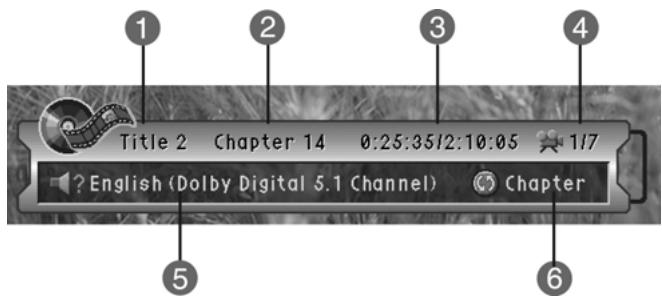
- Title No.: Displays the title number.
- Chapter No.: Displays the chapter number.
- Play Time Information: Displays full playing time and currently playing time of the Disc or chapter. Time display format can be changed by the TIME button.
- Angle: Displays total number of angles and the number of currently playing angles.
- Soundtrack : Displays audio information.
- Repeat Mode : Displays repetition of the currently playing chapter.
2.3 Search
You can move directly to your desired chapter/title/time/marker.
Press the SEARCH MODE button to change search mode.
Press the EXIT (O) or BACK (O) button to immediately hide search mode on the screen.
1. Chapter/Title
- Press the SEARCH MODE button repeatedly to select a chapter or title.
- Enter your desired chapter or title number using the NUMERICAL (0~9) button when your desired item is displayed. If you enter more than the total chapter or title number, the number entered is discarded. In that case, enter the chapter or title number again.
Press the OK ( ) button to immediately move to the beginning of a selected chapter or title.
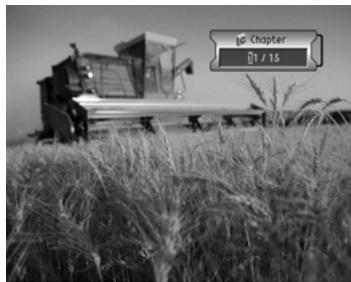
2. Time
- Press the SEARCH MODE button repeatedly to select time.
- Enter your desired time using the NUMERICAL (0~9) button when time is displayed. If you enter more than the total play time, the entered number is discarded. In that case, enter the time again.
- Press the OK ( ) button to move to the selected time immediately.
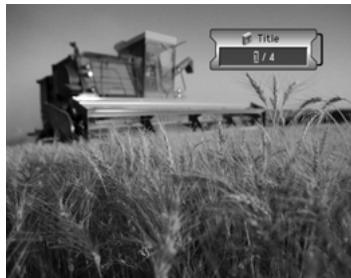
3. Marker
- Press the SEARCH MODE button repeatedly to select Marker.
- Select your desired marker from the Marker list using the or button, and then press the OK (按钮。The chapter or title is played from the marked point.
- Select a marked point in the Marker list and press the CLEAR (CLEAR) button to delete the mark.
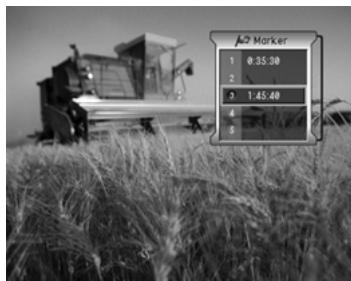
Note:
- If the marking list is full, you cannot add a new mark and a Fully Marked message is displayed.
- Press the Marker MARKER (▶) button to mark while watching a channel.
2.4 Skipping Chapter
You can move to the beginning of the current chapter, the next chapter, or the previous chapter.
- Press the SKIP NEXT (按钮) button to move from the chapter currently playing to the next chapter.
- Press the SKIP PREVIOUS (按钮 to move to the beginning of the chapter currently playing.
- Press the SKIP PREVIOUS (←→) button again to move to the beginning of the previous chapter.
Note: Press the SKIP NEXT (or SKIP PREVIOUS) button to display the number of the chapter currently moving on the top right of the screen.
2.5 Repeat Mode
You can repeat the currently playing chapter, title or disc.
- Press the REPEAT MODE button to display current repeat mode during playing.
- Press the REPEAT MODE button repeatedly to change repeat mode in the order of Chapter -> Title ->Disc -> Off.
Note: Select Off to disenable repeat mode.
2.6 Repeat a section of disc
You can set the sections to repeatedly switch between each other.
- Press the ( + ) button while playing a disc to set the repeat point to A.
- Press the ( + ) button repeatedly to repeat playing between Section A and B.
- Play the setting start and end section repeatedly.
- If the A B setting is displayed on the screen, press the (A+B) button to release the setting. If the A B setting is not displayed on the screen, press the (A+B) button to display the screen setting, and then press the (A+B) button again to release the setting.
2.7 Fast Playing
Press the FORWARD (▶) button to increase the forward playing speed.
Press the FORWARD (▶) button to increase the backward playing speed.
Each time you press the FORWARD (or BACKWARD) button, the playing speed options are rotated as below.
Forward x2 -> x4 -> x8 -> x16 -> normal play -> x2 -> x4 ...
Backward x2 -> x4 -> x8 -> x16 -> normal play-> x2 -> x4 ...

Note:
- The DVD subtitle is displayed as forward x2. If you increase the playing speed faster than this, the subtitle is not displayed.
- Press the button to play at normal speed.
2.8 Slow Motion
- Press the PAUSE (▶) button to temporarily stop the currently playing DVD disc.
- Press the FORWARD (按钮 to play in slow motion. Each time you press the FORWARD (按钮, the slow motion speed options are rotated as below.
Slow motion 5% - > 8% - > 12% - > 20% - > 30% - > 40% - > 50% - > 60% - > 70% - > 80% - > 90% - > normal play -> 5% - > 8%
Note: Press the button to play at normal speed.
2.9 Zooming in and out
- Press the ZOOM (ZOOM) button to zoom in or out. Press the ZOOM (ZOOM) button to turn On. Press the ZOOM (ZOOM) button to turn Off.
- Press the ZOOM+ (or ZOOM- button to zoom in or out. Press the / / button to move within the zoomed in/out screen.
2.10 Subtitle/Audio
If the disc provides several types of subtitles or audio information, you can change the subtitle or audio.
Press the SUBTITLE (or AUDIO button repeatedly to select your desired subtitle /audio language.
Note:
- Subtitle/audio languages can be changed according to the DVD title.
- Select Off in Subtitle to not display a subtitle.
2.11 Listening Mode
Press the OPT+按钮 repeatedly to select your desired listening mode.
Note: Listening mode can be different according to DVD title.
2.12 Time display
Press the TIME button repeatedly to select your desired listening mode.
Total elapsed Displays the total elapsed time since the title has been playing.
Total remain Displays the total remaining time to be played.
Single elapse Displays the elapsed time for the currently playing chapter.
Single remain Displays the remaining time to be played for the currently playing chapter.
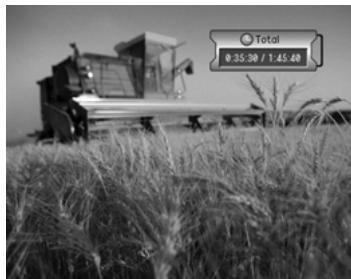
Note:
- The selected time play mode is also adjusted in the front panel.
- Total time on the screen is displayed as Total in the front panel; Single chapter on the screen is displayed as Single in the front panel.
2.13 Angle
You can select the camera angle.
Press the ANGLE button repeatedly to select your desired angle.
Note: The number of angles can be changed according to the DVD.
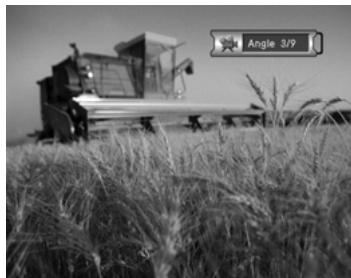
3. Playing a Audio CD
Audio CDs contain music tracks. You can recognise an Audio CD by the logo. You can use your stereo system to listen to music.
3.1 Playing Audio CD
- Press the OPEN/CLOSE button on the Front panel and insert a disc.
- Press the OPEN/CLOSE button to close the disc loading tray.
- The main menu will be displayed to list all audio files in the disc as below.
- Select your desired item using the / button and press the OK (OK) button. The audio is played.
You can move by page using the PAGE-/PAGE+ (@/@) button.
You can change play mode by pressing the PLAY MODE button repeatedly.
You can also change repeat mode by pressing the REPEAT MODE button repeatedly.
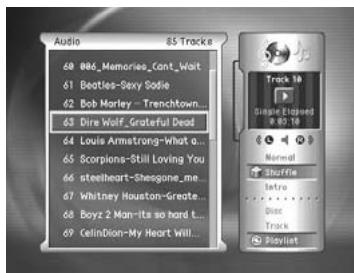
Note: You can play tracks in the same way as with a disc. Please refer to chapter 2.2 Playing a Title.
3.2 Detail Information
If you select MP3 file on the Main Screen, press the i (①) button to display its detailed information.
You can press the i (1) button, BACK (∞) button or EXIT (∞) button to hide the information displayed on the screen and return to main screen.
Note: This is only available for MP3 files.
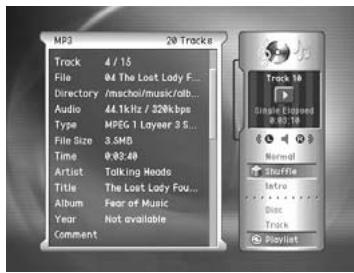
You can see current status of your audio player at a glance. The following information is displayed.
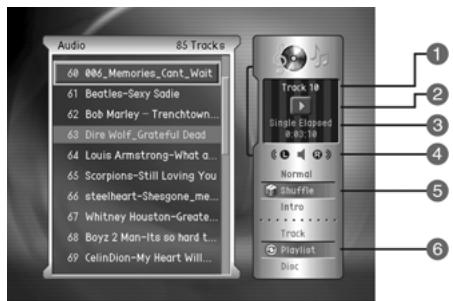
- Track No Displays the track number.
- Play Status Displays the play status.
- Time Display Displays the currently playing time of an audio CD.
- Listening Mode Displays listening mode.
- Play Mode Displays play mode.
- Repeat Mode Displays repetition of the currently playing track.
3.3 Playlist Menu
- Press theLIST (LIST) button while playing an Audio Disc to display Playlist menu.
- Press the / button to select your desired Playlist menu.
- Press the OK (or) or button to move to sub-menu or select an option.
Note: If Playlist is On, the Track Number is displayed in the assigned order in the Playlist and the Disc in Repeat Mode is disabled.
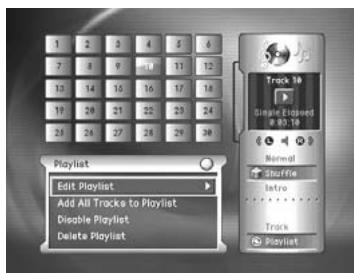
Edit Playlist
Edits the playlist. Refer to 3.10 to edit. Select your desired tracks and press the OK (∞) button. Press the BACK (∞) or EXIT (∞) button to return to the Playlist.
Add All Tracks to Playlist
Adds all tracks on the audio disc to the playlist.
Enable Playlist
The playlist is set to On and track(s) on the playlist is (are) played.
Disable Playlist
The playlist is set to Off and all tracks on the audio disc are played.
Delete Playlist
All tracks on the playlist are deleted and the playlist is enabled.
3.4 Search
You can directly move to your desired place.
Press the SEARCH MODE button to change search mode.
1. Track
- Press the SEARCH MODE button to select a track.
- Enter your desired track number using the NUMERICAL (0~9) button.
If you enter more than the total number, the number entered is discarded. In that case, enter the track number again.
- Press the OK (按钮 to move to the beginning of selected track immediately.
2. Time
- Press the SEARCH MODE button repeatedly to select time.
- Enter your desired time using the NUMERICAL (0~9) button when time is displayed. If you enter more than the total play time, the entered number is discarded. In that case, enter the time again.
- Press the OK ( ) button to move to the selected time immediately.
Note: Time moves to the appropriate point within current playing track.
3. Marker
- Press the SEARCH MODE button repeatedly to select a Marker.
- Select your desired marker from Marker list using the or button, and then press the OK (OK) button. The track is played from the marked point.
- Select a marked point in the Marker list and press the CLEAR (CLEAR) button to delete the mark.
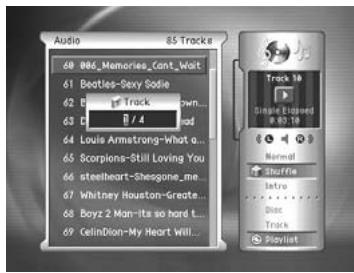
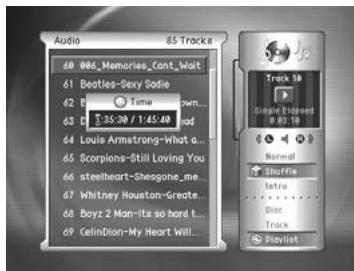
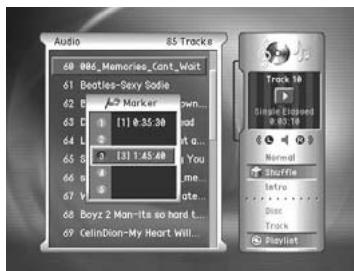
3. Playing a Audio CD
Note:
- If you press the MARKER (▶) button during playing a track, it is immediately marked at the point.
If the marking list is full, you cannot add a new mark and a Fully Marked message is displayed.
3.5 Listening Mode
Press the () button repeatedly to select your desired listening mode.
Note: If you change listening mode, the sound is immediately changed into the selected option.
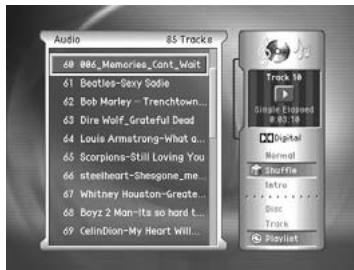
3.6 Time Display
Press the TIME button repeatedly to select your desired listening mode.
Total Displays the total time of a disc.
Total elapsed Displays the total elapsed time since the disc has been playing.
Total remain Displays the total remaining time to be played for the disc.
Single Displays the total time of the current track.
Single elapsed Displays the elapsed playing time of the current track.
Single remain Displays the remaining time to be played for the currently playing track.
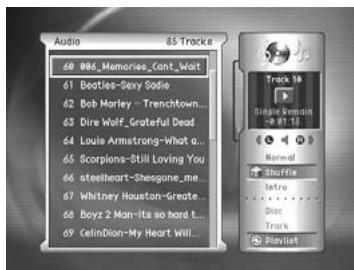
Note: The displayed time mode on the screen is also adjusted in the front panel.
3.7 Fast Playing
- Press the FORWARD (▶) button to increase the forward playing speed.
- Press the FORWARD (▶▶) button to increase the backward playing speed.
- Each time you press the FORWARD (or BACKWARD) button, the playing speed options are rotated as below.
Forward x2 -> x3 -> x4 -> normal play -> x2 -> x3 ...
Backward x2 -> x3 -> x4 -> normal play -> x2 -> x3 ...
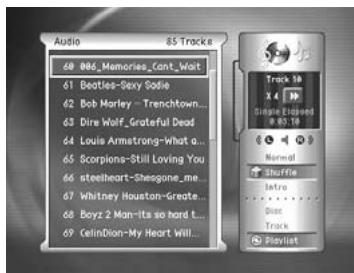
Note:
- Press the button to play at normal speed.
This is also applied to menu-playback, audio main screen, and playlist.
3.8 Play Mode
- Press the PLAY MODE button during playing to display play mode.
- Press the PLAY MODE button repeatedly to rotate the play mode in the order of Normal -> Shuffle -> Intro -> Normal...
Normal Plays in normal track order.
Shuffle Plays in random track order.
Intro Plays the beginning of a track for 10 seconds.
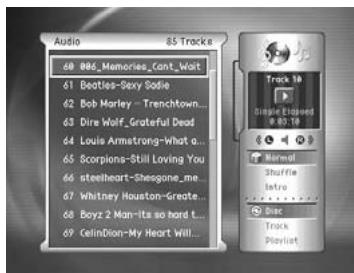
3.9 Repeat Mode
- Press the REPEAT MODE button during playing to display current repeat mode.
- Press the REPEAT MODE button repeatedly to rotate the repeat mode in the order of Off -> Disc -> Track -> Playlist -> Off.
Note:
- Select Off to disenable repeat mode.
- If the playlist is set to Off, you cannot select repeat mode.
- The Disc repeat mode is disable during playing in the Playlist.
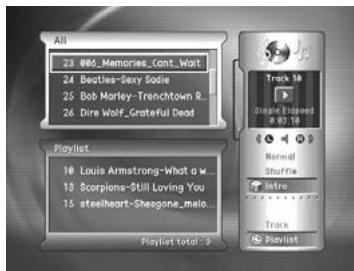
3.10 Playlist Editor
You can edit the playlist to play music file with the making lists.
- Press the PROGRAM or LIST (LIST) button during playing to display Playlist Editor.
- Select Edit Playlist using the or button and press the OK (按钮。
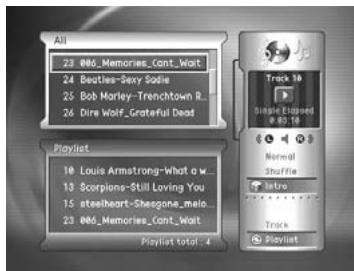
1. Add Track
Select your desired track from All, and then press the OK (按钮 or directly enter your desired track number using the NUMERICAL (0~9) button to add to the Playlist.
2. Delete Track
- When All is highlighted, press the ANGLE button to move the highlight into Playlist.
- Select your desired track and press the CLEAR (CLEAR) button to delete it.
3. Play Track
When you complete editing the playlist, press the PLAY/PAUSE (▶) button to play tracks in the assigned order on the Playlist.
Note: Directly enter your desired track number in playlist using the NUMERICAL (0~9) button, and press the OK (⊗) button to add to the Playlist.
3.11 MP3 Disc Scan
In case of MP3 Disc, you can scan the total play time of the mp3 file exists in the disc.
- Press the DISC MENU (G) button to scan an MP3 Disc.
- Press the OK (or) button to start scanning.
- The total time is displayed when completing scanning.
Note: If the tray is open and then closed, the scanning process is reset.
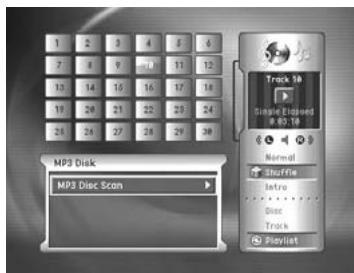
You can set all other items suitable for your environment.
Note:
- Press the BACK (←) or ← button to save the changes and return to the previous menu. Press the MENU (→) or EXIT (→) button to exit the Menu screen.
- You can easily select all menu items using the assigned numerical button for each menu.
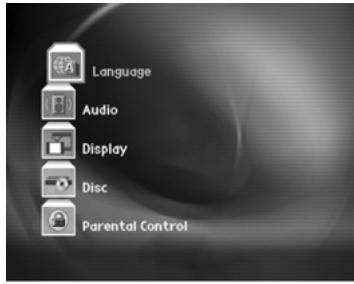
4.1 Language
You can set Language for Menu, Audio, and Subtitle.
- Press the MENU (Θ) button.
- Select Language using the / button, and press the OK (oc) or Stereo Normal.
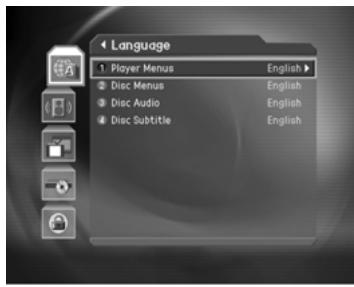
1. Player Menus/Disc Menus/Disc Audio/Disc Subtitle Language
You can set the language for Menu, Audio and Subtitle. Default language is English.
- Select Player Menus/ Disc Menus/ Disc Audio/Disc Subtitle Language using the / button.
- Press the OK (or) button to display the available Language List.
- Select your desired language using the / button, and press the OK (O) button.
Player Menus
Set the OSD(on screen information display) language of the DVD player.
Disc Menus
Set the language of the Disc title.
Disc Audio
Set the audio language of the DVD disc.
Disc Subtitle
Set the subtitle language of the DVD disc.
4.2 Audio
You can set Audio.
- Press the MENU (Θ) button.
- Select Audio using the / button, and press the OK (or) or button.
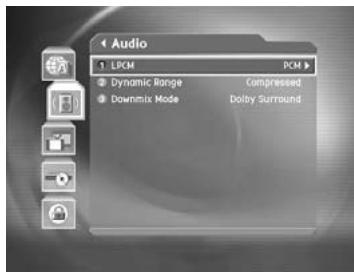
1.LPCM
You can select digital audio output according to the type of audio system you use.
Select LPCM using the / button, and press the OK (or) or button.
PCM
Set when connecting to an audio system without a Dolby Digital, DTS, or other special decoder.
2. Dynamic Range
You can set the dynamic range.
Select Dynamic Range using the / button, and press the OK (or) or button.
Maximum you can set the dynamic range to maximum.
Compressed you can set the dynamic range to compressed.
3. Downmix Mode
You can set the downmix mode.
Select Downmix Mode using the / button, and press the OK (or) or button. You can select one option from Dolby Surround or Stereo Normal.
4.3 Display
You can set video display.
- Press the MENU (Θ) button.
- Select Display using the / button, and press the OK (OK) or button.
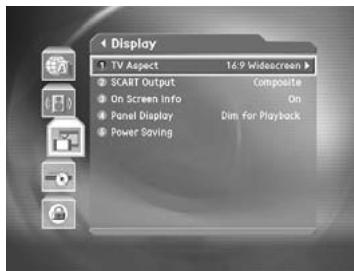
1. TV Aspect
You can set the aspect ratio of your TV.
- Select TV Aspect using the / button, and press the OK (or) or button.
- Select one option among 16:9 Widescreen/4:3 Letter Box/4:3 Pan&Scan using the / button, and press the OK (×) button.
2. SCART Output
You can set the scart output.
- Select SCART Output using the / button, and press the OK (O) or button.
- Select one option among Composite/S-Video/RGB using the / button, and press the OK (按钮。
Composite/S-Video/RGB
If you set the YPbPr/RGB switch which is located in the back of your receiver, LPCM to YpbPr with setting scart output to RGB, the video signal is not output to scart. Please use the component terminal.
3. On Screen Info
Display the option information.
Select On Screen Info using the / button, and press the OK (⊗) or button.
On Display the on screen information when you change the option.
Off Not display.
4. Panel Display
You can set the front luminosity.
- Select Panel Display using the / button, and press the OK (⊗) or button.
- Select one option among Dim/Bright/Dim for Playback using the / button, and press the OK (按钮.
Dim Front panel luminosity is dim.
Bright Front panel luminosity is bright.
5. Power Saving
You can set the power saving.
- Select Power Saving using the / button, and press the OK (⊗) or button.
- Select one option among Screen Saver Time/Audio Screen Saver/Standby Time using the / button, and press the OK (⊙) or button.
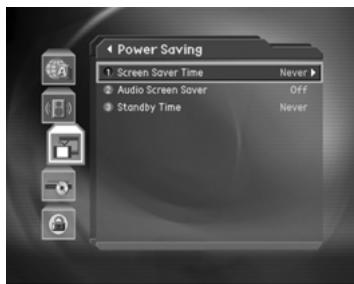
Screen Saver Time
If there's no action for assigned amount of time (3min/10min/30min), screen saver is run. If the screen saver time is set to NEVER, the screen saver time is not enabled.
Audio Screen Saver
If standby time is set to On, audio is muted while the screen saver is on. If standby time is set to Off, the audio screen saver is not enabled.
Standby Time
If the assigned amount of time (5min/15min/35min) has elapsed without playing, it automatically goes to Standby status. If Standby time is set to NEVER, Standby time is not enabled.
4. Settings (DVD part)
4.4 Disc
You can set the option of Disc.
- Press the MENU (Θ) button.
- Select Disc using the / button, and press the OK (or) button.
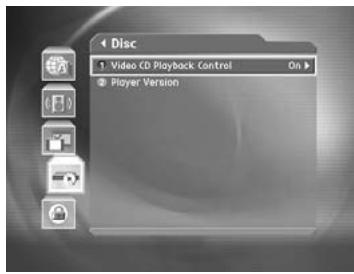
1. Video CDPlayback Control
You can set the playback control of video CD.
Select Video CD Playback Control using the / button, and press the OK (or) or button.
On Display video CD playback when the video CD is playing.
Off Not display video CD playback.
2. Player Version
You can view player information.
Select Player Version using the / button, and press the OK (⊗) or button.
Confirm the information about Player Version and Release Date.
4.5 Parental Control
You can set parental control and change your password.
- Press the MENU (Θ) button.
- Select the Parental Control using the / button, and press the OK (O) or button.
- When prompting message is displayed to ask Password, enter the Password using the NUMERICAL (0~9) button.
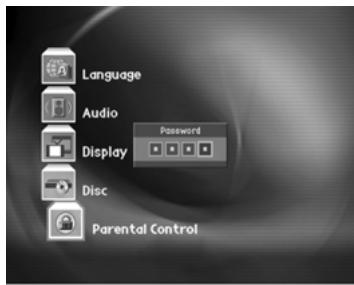
1. Country
You can set the Country.
Select Country using the / button, and press the OK (⊗) or button.
International You can set your desired country.
USA You can set Country to USA.
2. Parental Level
You can set the parental level.
- Select Parental Level using the / button, and press the OK (OK) or button.
- If Country set to International, select one option among Unrestricted / General / Most Audience / Mature Young / Teenage / Mature Teenage / Mature Audience / Adult / Always Restricted using the button, and press the OK (OK) button.
If Country set to USA, select one option among Off/G/PG/PG-13/R/NC-17/X using the / button, and press the OK (按钮.
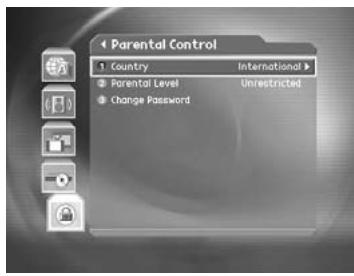
Note: When you set to Unrestricted, the all discs play without password.
3. Change Password
You can change the current password into new one.
- Select Change Password using the / button, and press the OK (OK) or button.
- Enter New Password using the NUMERICAL(0~9) button, and select OK and press OK (⊗) button.
- Enter the New Password again to confirm the Verify Password, and select OK and press the OK ( ) button.
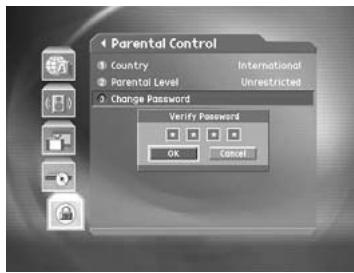
Note: The Default Password is "0000". If you have forgotten your Password, please contact your local product distributor.
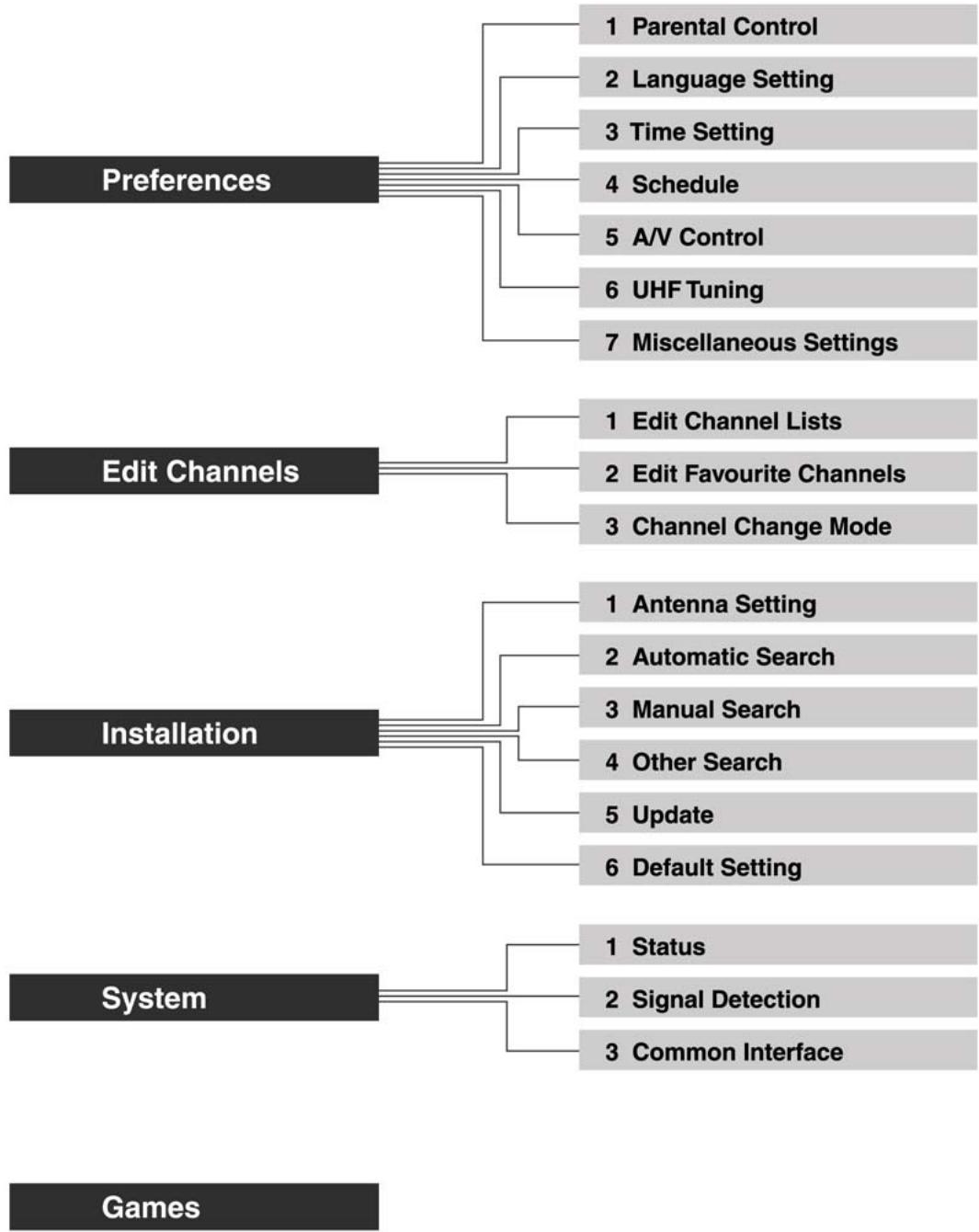
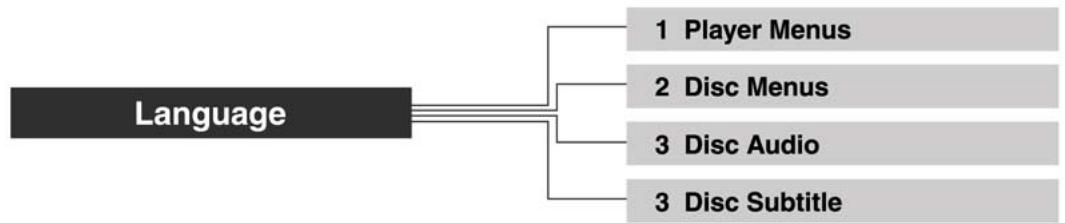
DVD

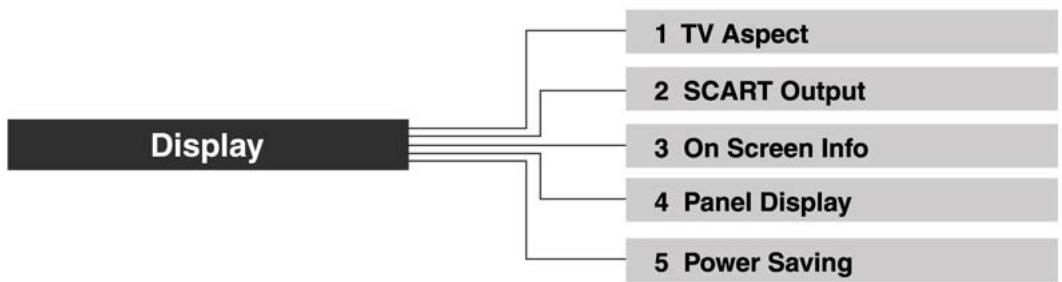


Before contacting your local service, please make sure following instructions. If the product does not work normally after completing the following trouble shooting, please contact your local product distributor or service centre.
STB and DVD
-
No message is displayed on the front panel or product has no power
-
Check the main power cable and check that it is plugged into a suitable power outlet.
-
Check whether the Power Switch is On.
-
No picture
-
Make sure that the product is in Operation Mode.
- Make sure that the AV Cable is firmly connected to the TV.
- Make sure that Antenna line is correctly connected to the equipment.
- Make sure that Antenna Setting is correct.
- Check the brightness level of TV.
-
Check the channel is on air.
-
Poor picture & sound quality
-
Install the antenna in a place where there is no obstacle.
- Make sure there is no mobile phone or microwave oven near the equipment.
- Use 75 coaxial cable to connecting TV and antenna.
- Keep the product and the antenna cable for satellite far away from each other.
- Make sure the receiving level, and adjust antenna if the level is low. The receiving level can be influenced by weather.
Note: If the Antenna is covered with snow or the signal is weaken by heavy rain, sound and picture may temporarily be poor. However, these poor sound and picture quality because of weather conditions cannot be not accepted as a malfunction of equipment.
- Change satellite dish into bigger one if satellite dish is small.
- Replace LNB with the one with low nise factor if the noise factor is high.
-
Replace LNB with new one if it is damaged or out of order.
-
No or poor sound
-
Check the volume level of the TV and Receiver.
- Check the Mute status of the TV and product.
-
Press the Audio button to change the Sound Track type.
-
Remote controller does not operate
-
To control the equipment with the remote controller, the remote controller's top end should directly point towards the receiving part of receiver's remote controller.
-
Check the battery of Remote controller.
-
Check the battery of Remote controller.
-
Reservation is not available
-
Check whether it it not overlapped with other reservation.
-
Cehck whether the power switch is off.
-
Watching scrambled channel is not available
-
Check the correct Smart Card is plugged in.
- Check the correct smart card is plugged in, and correctly plug the smart card again.
- Check whether the Smart Card is damaged.
DVD only
-
Disc can't be played
-
Ensure the disc label is upwards.
- Clean the disc.
- Check if the disc is defective by trying another disc.
-
Check region code.
-
No return to start-up screen when disc is removed.
-
Reset by switching the player off, then on again.
-
Check to see if the programme requires another disc to be loaded.
-
Distored sound from Hi-Fi amplifier
- Check to make sure that no audio connections are made to the amplifier phono input.
- No color in picture
- The disc format is not according to the TV-set used.(PAL/NTSC)
Error Message (STB only)
| Error message | Possible causes | What to do |
| No or bad signal | The satellite dish is not pointing at the satellite.Signal too weak.Satellite dish is too small.LNB is faulty.Wrong antenna setting. | Adjust dish.Increase the LNB voltage or connect a signal amplifier.Changeto a large dish.Changethe LNB.Set the antenna correctly |
| The channel is not available. | The channel has signal, but no audio or video.The channel is not deleted by broadcasting company.The channel is for data broadcasting.Smart Card is not plugged in.The Smart Card is not correct.Smart Card is not correctly plugged in.Smart Card is broken. | Confirm if the channel is currently on air(Cannot watch the channel in usual way.)Plug in Smart Card.Plug insuitable Smart Card.Pull out the Smart Card, and plug it in again.Replace the Smart Card. |
| The audio is not available. | The channel has signal, but no Audio. | Press the Audio button to confirm if the channel has Audio. |
| CI module is not installed. | CI module is not installed.CI module is not correctly inserted.CI module is not recognized. | Install CI module.Reinstall CI module.Install other CI module to check if the exiting CI module has problem. If the existing CI has no problem, contact local distributor of the equipment. |
| Invalid CI module | CI model is not correct.CI module is not correctly inserted.CI module is broken. | Install correct CI module.Pull out the CI module and plug it in again.Replace CI module. |
| LNB short | LNB cable is shorten.LNB is internally shorten.LNB In Port is inserted by alien substance or damaged. | Replace LNB Cable.Replace LNB.Remove the alien substance and contact local service center if it is damaged. |
| Tuner & Channel | |
| Input Connector | F-type, IEC-169-24, Female |
| Frequency Range | 950MHz to 2150MHz |
| Signal Level | -10 to -93dBm |
| LNB Power & Polarisation | Vertical: +13.5V (+14.5V at high voltage) Horizontal: +18V (+19V at high voltage) Current: 500mA Max. Overload Protection |
| 22kHz Tone | Frequency: 22±4kHz Amplitude: 0.6±0.2V |
| DiSEqC Control | Version 1.0 Compatible, USALS |
| Demodulation | QPSK |
| Input Symbol Rate | 1~45 Ms/s |
| FEC mode | Convolutional Code Rate 1/2, 2/3, 3/4, 5/6 and 7/8 with Constraint Length K=7 |
| MPEG Transport Stream A/V Decoding | |
| Transport Stream | MPEG-2 ISO/IEC 13818 Transport Stream Specification |
| Profile Level | MPEG2 MP@ML |
| Video Input Rate | 15 Mbit/s Max |
| Aspect Ratio | 4:3, 16:9, Letter box |
| Video Resolution | 720x576, 720x480 |
| Audio Decoding | MPEG/MusiCam Layer I & II |
| Audio Mode | Single channel/Dual channel/Joint Stereo/Stereo |
| Memory | |
| Flash Memory | 4M byte |
| Graphic (MPEG) & System DRAM | 16M byte |
| EEPROM | 16K byte |
| Available Disc(DVD) | |
| Available Reading | MP3/Audio CD/VCD/CD/CD-R, RW/DVD-R, RW/DVD+R, RW, SVACD |
Appendix 3. Specification
| A/V & Data In/Out | |
| Video | RCA/SCART Video Output(CVBS, RGB, YPbPr) |
| Audio R/L | RCA/SCART Volume and Mute Control (Resolution: 20 bits DAC, MAX. 2Vrms) |
| S/PDIF | Digital Audio Output, Fiber-Optic (Resolution: 20 bits) |
| RS-232C | Transfer Rate:115,200 bps,3 pin Socket type |
| Power Supply | |
| Input Voltage | 90~250V AC, 50/60Hz |
| Type | SMPS |
| Power Consumption | Max. 40W |
| Stand by Power | ≤ 4W |
| Protection | Separate Internal Fuse. The input should be protected against lighting |
| Physical Specifications | |
| Size | 420 * 75 * 300 mm |
| Weight (Net) | Around 4.8Kg |
| Operating Temp | 0 °C to + 45 °C |
| Storage Humidity | -10% ~ 70% RH(Non-Condensing) |
DiSEqC (Digital Satellite Equipment Control)
A standard through which it is possible to let a DiSEqC compatible receiver send a signal over the RF cable to a switching device to switch between different LNBs or dishes. The DiSEqC uses the 22KHz signal to control the switching device.
Component Video (Y Cb Cr)
This method of transmitting pictures produces the highest quality as the video signal is split into its Y(brightness), U and V(red minus rightness, blue minus brightness)components. The signal can also be sent as interlaced or as progressive scan.
Dolby Digital
Dolby Laboratories standard for transmitting 5.1 channels. Five full-value channels are transmitted in this acoustic playback system. A further channel is used for low frequencies(effects). The loudspeakers are arranged front left, front middle, rear left and rear right. This system is currently the most common system and is used in cinemas.
DTS (Digital Theater Systems)
DTS are trademarks of Digital Theater Systems Inc.
Transmission standard for 5.1 channels from Digital Theater Systems Inc. This is the second most wide-spread after Dolby Digital.
DVD (Digital Versatile Disc)
A new storage medium that combines the convenience of the compact disc with the latest digital video technology. DVD video uses modern MPEG2 data compression technology that enables an entire feature film to be stored on a single five inch disc.
Programme Guide (Electronic Programme Guide, EPG)
A electronic programme guide (EPG) that comes with the broadcast to a particular satellite, Note that every station fills the EPG differently or not, so differences in the EPG are not necessarily receiver errors.
Frequency
The number of cycles or events per one second, which is expressed in the unit of hertz
FTA (Free-To-Air)
An unscrambled broadcast, which you can view without additional payments to a service provider.
Hi-Fi (High Fidelity)
The characteristics of audio devices that can play back all the audio frequencies of the human, which is the range of 16Hz~20KHz, uniformly from the low frequency to high frequency.
LNB (Low Noise Block)
An electronic unit mounted on the satellite dish. It receives the signals reflected by the dish and converts them to signals that can be used by this product.
MP3
MP3 files are highly compressed music files. The data is compressed to 1/10 of the volume of the original audio material using a special process. This means that 10 hours of music can be stored on a single CD.
OSD (On Screen Display)
The function that displays the information about the monitor that the user needs or has to know on the screen directly. OSD information includes brightness, contrast, tuning, RGB adjustment, and screen size and positions (top, left, width, and height), and so on.
OTA (Over The Air)
Means that software downloads where the manufacturer reserves the right to decide when and where to release them through satellite system.
SCART
A 21-pin connector used for connection of this product, VCR and TV. Also called Euroconnector or Peritel connector.
S/PDIF (Sony/Philips Digital Interface format)
Standard format for digital audio output. It outputs audio signals directly as digital audio signals without changing into analog signals because conversion into analog signals can degrade signal quality.
S-VIDEO
This is used to transmit the brightness signal(Y signal) and color signal(C signal) separately.
Transponder
An automatic device that receives amplifies and retransmits a signal on a different frequency.
You can get information such as a troubleshooting guide, software upgrades and product support guide from the following web sites and call center (Hotline)
Please try to contact to your local dealers first when you have any problem.
Web site and e-mail
Chapter
http://www.HUMAXdigital.com
English
http://www.HUMAXdigital.com/Deutsch/
Deutsch
http://www.HUMAXarabia.com
Arabic
HCSA (HUMAX Customer Service Area)
Software Download, Information and Technical Q&A
http://www.HUMAXdigital.com/hcsa/
English
http://www.HUMAXdigital.com/Deutsch/hcsa/
Deutsch
E-mail (Technical Q&A)
tech-info@HUMAX-digital.co.uk
Europe & North Africa
techninfo@HUMAX-digital.de
Germany
callcenterME@HUMAXdigital.com
Middle East
Webmaster@HUMAXdigital.com
Asia & Other area
Call Center
HUMAX Middle East Call Center (Dubai, UAE)
Tel: +971 (0)4 359 2323 (Open: 9:00 - 20:00 / close on Friday)
E-mail: callcenterME@HUMAXdigital.com
Open: Local Time in Dubai (GMT+4)
9:00 - 20:00 (Saturday - Thursday, close on Friday)
Support Language: English/Arabic
HUMAX Hotline (Germany)
Germany: 01805 778 870 (€0,12/Min)
Other Countries: + 49 1805 778 870( € 0,12/Min+ International Call Charge)
Open: Local Time in Germany (GMT+1)
8:00 - 20:00 (Monday - Friday)
8:00 - 18:00 (Saturday)
Support Language: Deutsch/English
HUMAX BTCI Hotline (Premiere Model)
Germany: 01805-778900 (€0,12/Min)
Austria: 0900-900633 (€ 0,33/Min)
For hardware repair, please refer to support website.( Homepage or HCSA)