
TL-SG3452X - Switch TP-LINK - Free user manual and instructions
Find the device manual for free TL-SG3452X TP-LINK in PDF.


Pick your language and provide your email: we'll send you a specifically translated version.
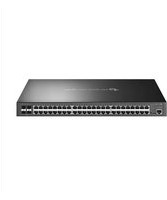
| Product Type | Managed Gigabit Switch (L2+) |
| Ports | 48 x 10/100/1000 Mbps RJ45, 4 x 10G SFP+ |
| Switching Capacity | 176 Gbps |
| Packet Forwarding Rate | 130.94 Mpps |
| MAC Address Table | 16K entries |
| Management | Web-based GUI, CLI, SNMP, RMON |
| VLAN Support | Up to 4K VLANs |
| Link Aggregation | Up to 8 ports per group |
| Quality of Service (QoS) | Yes, with priority queues |
| Security Features | ACL, 802.1X, port security |
| Dimensions (W x D x H) | 440 x 220 x 44 mm |
| Weight | 4.5 kg (approximate) |
| Power Supply | 100-240V AC, 50/60Hz |
| Max Power Consumption | 32.2W |
| Operating Temperature | 0°C to 50°C |
| Mounting | Rack-mountable (1U) |
| Cooling | Built-in fan |
| Standards | IEEE 802.3, 802.3u, 802.3ab, 802.3ae |
| Cleaning Instructions | Use a soft dry cloth; do not use liquid cleaners |
| Safety Instructions | Operate in well-ventilated area; avoid moisture |
| Spare Parts and Repairability | No user-serviceable parts; contact authorized service |
| General Information | TP-Link JetStream series, ideal for SMB networks |
Frequently Asked Questions - TL-SG3452X TP-LINK
How do I access the web management interface of the TL-SG3452X?
Connect your computer to one of the RJ45 ports, set your IP address to a static address in the same subnet as the switch, then open a browser and enter the default IP address 192.168.0.1.
What are the default login credentials?
The default username is admin and the default password is admin. It is recommended to change the password after first login for security.
How can I reset the switch to factory defaults?
Press and hold the RESET button on the front panel for about 10 seconds until all LEDs flash. The switch will reboot and return to factory settings.
How to create and configure VLANs on the switch?
Log in to the web interface, go to VLAN > 802.1Q, create a new VLAN and assign member ports. Set the port type to tagged or untagged as required for your network.
Does the switch support link aggregation?
Yes, the TL-SG3452X supports link aggregation which allows combining multiple ports into one high-bandwidth logical link. Configure it under LAG (Link Aggregation Group) in the web management.
How to enable QoS on the switch?
Go to QoS > Basic Settings and enable QoS. You can set priority for different traffic types based on 802.1p or DSCP values.
How to update the firmware?
Download the latest firmware from TP-Link official website. In the web interface, go to System Tools > Firmware Upgrade, choose the file and click Upgrade. Do not power off during upgrading.
Is the switch rack-mountable?
Yes, it is designed for 19-inch racks and includes rack-mounting brackets.
What security features does the switch provide?
It supports Access Control Lists (ACL), 802.1X port authentication, IP-MAC binding, and port security to protect your network.
Can the switch be powered by a redundant power supply?
The switch has a single AC power socket and cannot be connected to a DC power source. For high availability, use an external UPS.
User questions about TL-SG3452X TP-LINK
0 question about this device. Answer the ones you know or ask your own.
Ask a new question about this device
No questions yet. Be the first to ask one.
Download the instructions for your Switch in PDF format for free! Find your manual TL-SG3452X - TP-LINK and take your electronic device back in hand. On this page are published all the documents necessary for the use of your device. TL-SG3452X by TP-LINK.
USER MANUAL TL-SG3452X TP-LINK
Manual assistant
Powered by Anthropic
Waiting for your message
Product information
Brand : TP-LINK
Model : TL-SG3452X
Category : Switch