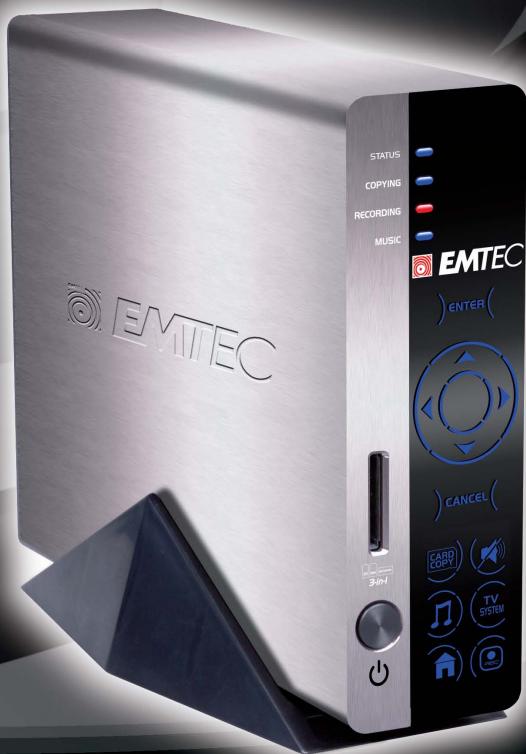
HDD MOVIE CUBE R100 - Media hard drive EMTEC - Free user manual and instructions
Find the device manual for free HDD MOVIE CUBE R100 EMTEC in PDF.


| Product type | Multimedia hard drive with recording |
| Brand | EMTEC |
| Model | HDD MOVIE CUBE R100 |
| Dimensions (L x H x D) | 203 x 164.4 x 53 mm |
| Net weight | Approximately 1.5 kg |
| Power supply | AC 100-240 V, 50-60 Hz; 12 V DC power adapter supplied |
| Power consumption | Approximately 35 W |
| Internal hard drive | 3.5" SATA (not supplied depending on version) |
| Video playback formats | DAT, VOB, IFO, MPG, AVI, MPEG-2 TS |
| Audio playback formats | MP3, OGG, WMA |
| Photo playback formats | JPEG, BMP |
| Video recording formats | MPEG-2 (.mpg) in HQ/SP/LP/EP/SLP quality |
| Recorded audio formats | MP2 2 channels |
| Video outputs | Composite, Y/Pb/Pr Component |
| Audio outputs | Analog stereo (RCA), S/PDIF coaxial and optical |
| Video/audio inputs | Composite (RCA) for recording |
| Network connectivity | Ethernet RJ45 10/100 |
| USB ports | 2 USB 2.0 host ports, 1 slave port (mini-B for PC connection) |
| Memory card reader | SD/MMC/MS/MS Pro (4-in-1) |
| Remote control | Supplied with batteries |
| Main functions | Multimedia playback, scheduled or direct recording, time shift, card copy, title editing, network browsing |
| Safety | Do not open, use in a dry and temperate environment, unplug before cleaning |
| Maintenance and cleaning | Wipe with a dry cloth, do not use liquids |
| Spare parts and repairability | Have repaired only by an authorized center; do not disassemble yourself |
| Operating temperature | +5 to +35 °C |
| Operating humidity | 5% to 80% RH |
Frequently Asked Questions - HDD MOVIE CUBE R100 EMTEC
User questions about HDD MOVIE CUBE R100 EMTEC
0 question about this device. Answer the ones you know or ask your own.
Ask a new question about this device
Download the instructions for your Media hard drive in PDF format for free! Find your manual HDD MOVIE CUBE R100 - EMTEC and take your electronic device back in hand. On this page are published all the documents necessary for the use of your device. HDD MOVIE CUBE R100 by EMTEC.
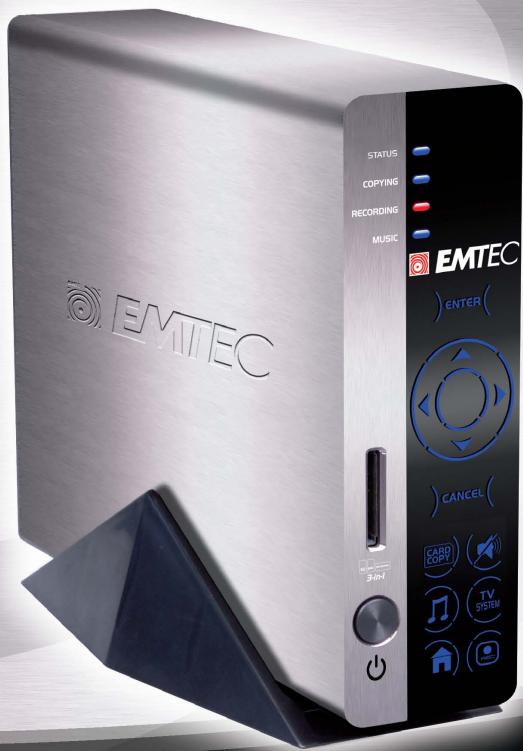
USER MANUAL HDD MOVIE CUBE R100 EMTEC
Multimedia player with recording function
TV/DVD/Video/VCR

400 FILMS*


300 000 PHOTOS

200 000 MP3


Table of Contents
1. Introduction 3
1.1 Preface 3
1.2 Packing List 4
1.3Caution 5
1.4 Connection 7
1.5 First Time Usage 12
2. About the Player 13
2.1 Remote Control 13
2.2 Front Panel 18
2.3 Rear Panel 20
3. Getting Started 21
3.1 Selecting Video In - Live TV, Recording and Time Shift 21
3.2 Selecting Playback -Playback and Edit Recorded Titles 21
3.3 Selecting Browser - Playback Multimedia Files 21
3.4 Selecting Setup 22
3.5 Selecting Playlist - Music Playlist 22
4. Title List Menu for Recorded Videos 23
4.1 Title List Menu 23
4.2 Playing Back Titles 24
4.3 Deleting Titles 24
4.4 Renaming Titles 24
4.5 Sorting Files 25
4.6 Title Edit Menu 26
4.7 Tools 29
4.8 Saving Your Recorded Titles 29
5. Timer Record Menu 30
5.1 Create a New Schedule 30
5.2 Editing Schedule 31
5.3 Deleting Schedules 31
5.4 Viewing Schedule Status 32
5.5 Viewing Recording History 32
6. Setup Menu 33
6.1 Changing Language Settings 33
6.2 Changing Audio Settings 35
6.3 Changing Video Settings 36
6.4 Changing Record Settings 38
6.5 Changing Network Settings 40
6.6 Changing System Settings 41
6.7 Miscellaneous 43
7. Browser Menu 44
7.1 Browsing Music 44
7.2BrowsingPhotos 45
7.3 Browsing Movies 46
7.4 Network Function 47
8. Playlist Menu 50
9. File Copy Menu 51
10. Firmware Installation and Update 53
10.1 Firmware Installation 54
10.2 Firmware Update 56
11. Appendixes 58
11.1 Specifications 58
11.2 Frequently Asked Questions 60
11.3 Copyrights and Trademarks 62
11.4 Warranty 62
I. Introduction
1.1 Preface
Dear Customer,
Thank you very much for purchasing the Movie Cube-R. In the digital era, this product is a great home entertainment partner. With the outstanding brushed aluminum design, you can enjoy movies and music, view photos of precious moments, and record your favorite TV or movie program and view them in your own time. The editing function provides you with an easy way to save these. The unit can also backup the data from your digital camera without a PC. It's easy to use this product as a portable external storage device with its built-in HDD and high-speed USB 2.0.
This player has the following functionality:
Movie Playback - supports VOB (DVD), IFO (DVD), MPG (MPEG-2/1), AVI (MPEG-4 ASP: XviD), DAT (VCD), and MPEG2 TS files; resolution up to 1080i;
Video Recording – supports one button recording and schedule recording in MPG format, can easily record programs from TV, DVD player and DV, and save as MPEG-2 (.mpg) format; also can edit the recorded titles.
--- Time shifting function
Music Playback - supports MP3, OGG, and WMA* files,
-- supports one button playlist music playback;
Photo Playback - supports digital camera JPEG, and BMP files;
Card copy - supports memory cards: SD/MMC/MS/MS Pro,
supports one button memory card copy to internal HDD;
Data Storage - works as a portable hard disk using USB 2.0 port.
Network function--- Network streaming playback
We hope that this product will bring you a lot of enjoyment. We are committed to apply multimedia technology in your work, entertainment, family, daily life, car and everywhere! Welcome to Emtec. Thank you again for choosing our Movie Cube-R.
1.2 Packing List
| Part | Quantity |
| Player | 1 |
| Cradle | 1 |
| A/V IN cable | 1 |
| A/V OUT cable | 1 |
| Y/Pb/Pr OUT cable | 1 |
| SCART 6 RCA cable | 1 |
| USB cable | 1 |
| Remote Control | 1 |
| Remote Control Battery | 2 |
| AC/DC adaptor | 1 |
| AC/DC adaptor Power Cord | 1 |
| User Manual | 1 |
| Quick Installation Guide | 1 |
| Driver CD | 1 |
Note:
The actual contents in the package might be different from the packing list in this manual.
This player's design and manufacture has your safety in mind. In order to safely and effectively use this player, please read the following before usage.
1.3.1 Usage cautions
User should not modify this player. If commercial hard disk is being used, the environmental temperature should be within +5^ +35^ .
1.3.2 Power
The player's power voltage: DC 12V.
When using this player, please connect the supplied AC adapter or AC adapter cable to the player's power jack. When placing the adapter cable, make sure it can not get damaged or be subject to pressure. To reduce the risk of electric shock, unplug the adapter first before cleaning it. Never connect the adapter to the player in a humid or dusty area. Do not replace the adapter or cable's wire or connector.
1.3.3 Radio interference/compatibility
-
If not properly shielded, almost all electronic devices will get radio interference. Under some conditions, your player might get interference.
-
The design of this player has followed the FCC/CE standard, and has followed the following rules:
(1) This player may not cause harmful interference;
(2) This player could accept some interference received including interference that may cause undesired operation.
1.3.4 Repair
If the player has a problem, you should take it to an appointed repair center and let the specialists do the repair, never repair the player yourself, you might damage the player or endanger yourself or your data.
1.3.5 Disposing of the player
When you dispose of the player, be sure to dispose it appropriately. Some countries may regulate disposal of electrical device, please consult with your local authority.
1.3.6 Hard disk cautions
The player uses an internal hard disk for data storage, in normal case, format or repair is not required.
You should carefully read the < Frequently Asked Questions > chapter, and check our website for latest information before formatting the hard disk.
If you need to format, please note the following:
(1) When formatting the hard disk, remember to choose FAT32 as the system format. If you use NTFS system, the player may not operate properly in some situation..
Note: NTFS partition on the hard disk is read-only.
(2) The player cannot be formatted in non-Windows OS (example: Mac), or else the player will not operate.
- Physical impact may create bad a sector in the hard disk, you can use CHKDSK to fix the problem.
-
All data stored in the player may be lost due to physical impact, electrical shock, power lost, HDD format etc. Please backup your data.
-
It is suggested to do defragment after a long period of usage.
- Regularly backup the data in the hard disk so that it can be recovered in the event of data corruption or loss. Our company takes no responsibility for loss of data stored on the hard disk.
1.3.7 Others
When using this player, please do not let the player come into contact with water or other liquid, if water is accidentally spilled on the player, please use a dry cloth to absorb the spillage.
Electronic products are vulnerable, when using please avoid shaking or hitting the player, and do not press the buttons too hard.
Do not let the player come into contact with water or other liquid.
Do not disassemble the player, repair the player or change the design of the player, any damage done will not be included in the repair policy.
Do not press the buttons of the player too hard.
Avoid hitting the player with hard object, avoid shaking the player, and stay away from magnetic fields.
During electrostatic discharge and the strong electromagnetic field, the product will malfunction, then unplug the power cable and the product will return to normal performance next time it is powered on.
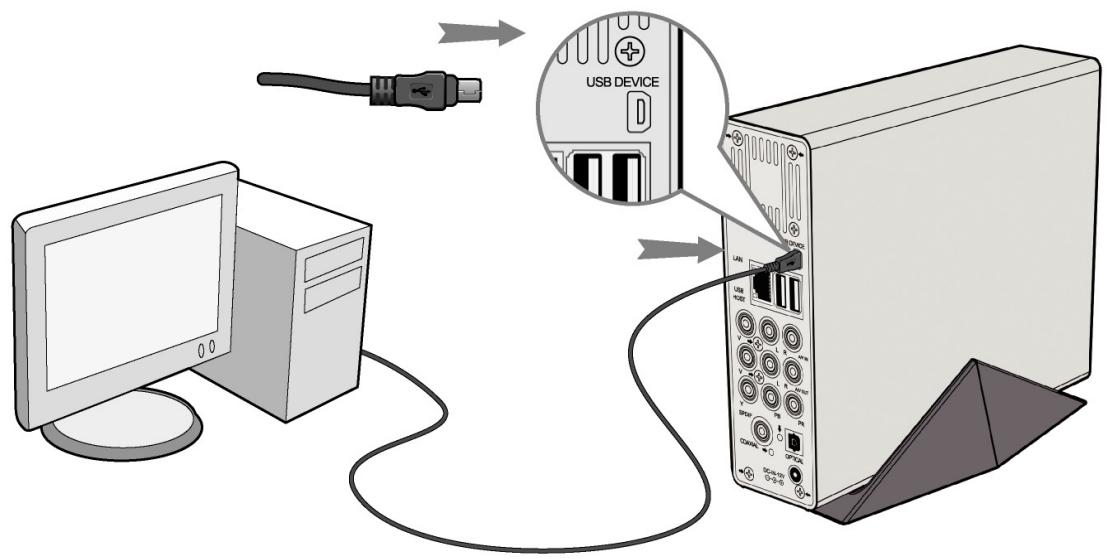
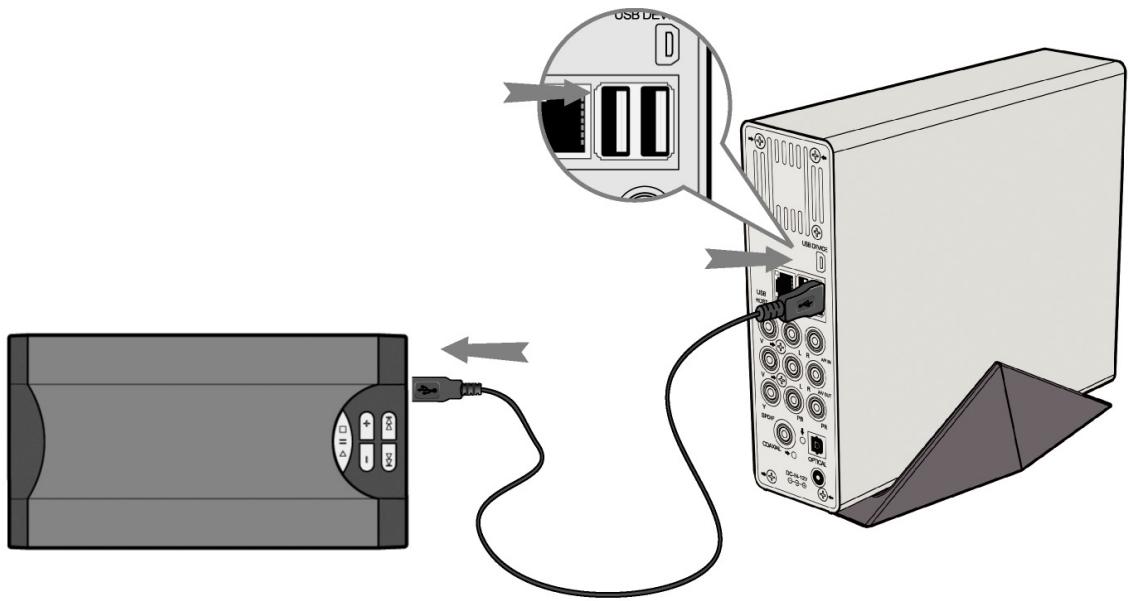
1.4.1 Connect to Computer
(1) Make sure the player is powered on;
(2) Plug in the mini connector of the USB cable to this player's USB DEVICE port;
(3) Plug in the big connector of the USB cable to Computer.
1.4.2 USB Mass Storage Device (like U disk, MP3, USB HDD etc.) Connection
(1) Make sure the player is powered on;
(2) Plug in the U disk or USB HDD etc. to one of the USB host ports of this player.
1.4.3 Memory card connection
A Memory card can be used by inserting into the card slot
(1) Follow the picture below for inserting the memory card into the card slot properly;
(2) Insert the card by following the arrow pointer in the picture.
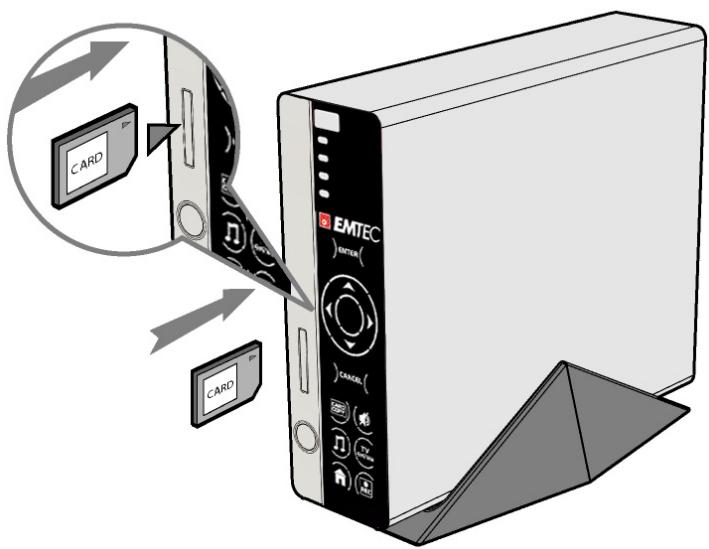
After properly inserted, you can press the copy button to copy all the contents in the memory card to the current partition.
1.4.4 TV connection
Note: For details about TV connection, pls check the Quick installation guide which is included in the box.
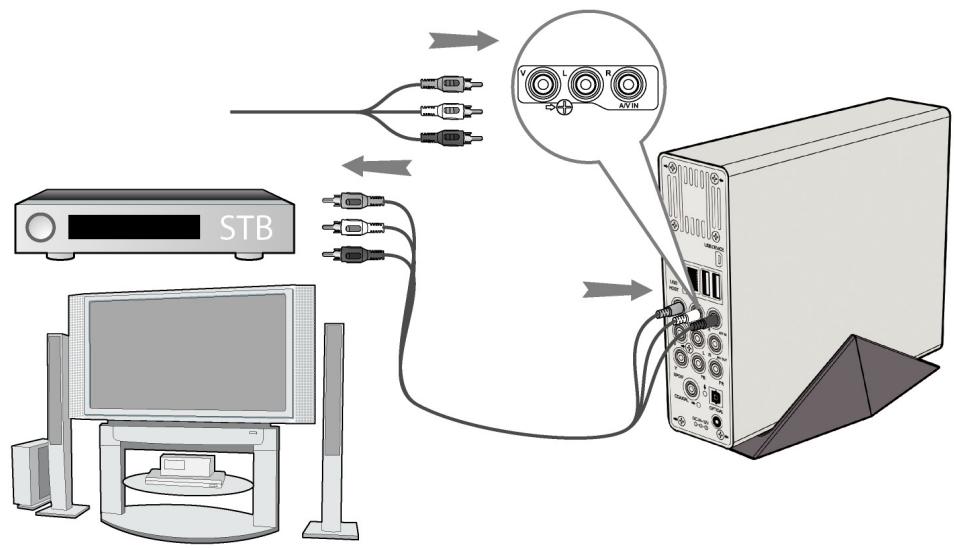
1.A/V IN
(1) Follow the picture and plug in the 3 color connector to the player's A/V IN jack;
(2) Follow the picture and plug in the 3 color connector to the A/V OUT jack of the TV/IPTV Set-Top Box (STB).
In this way, you can record TV programs from the TV/IPTV Set-Top Box.
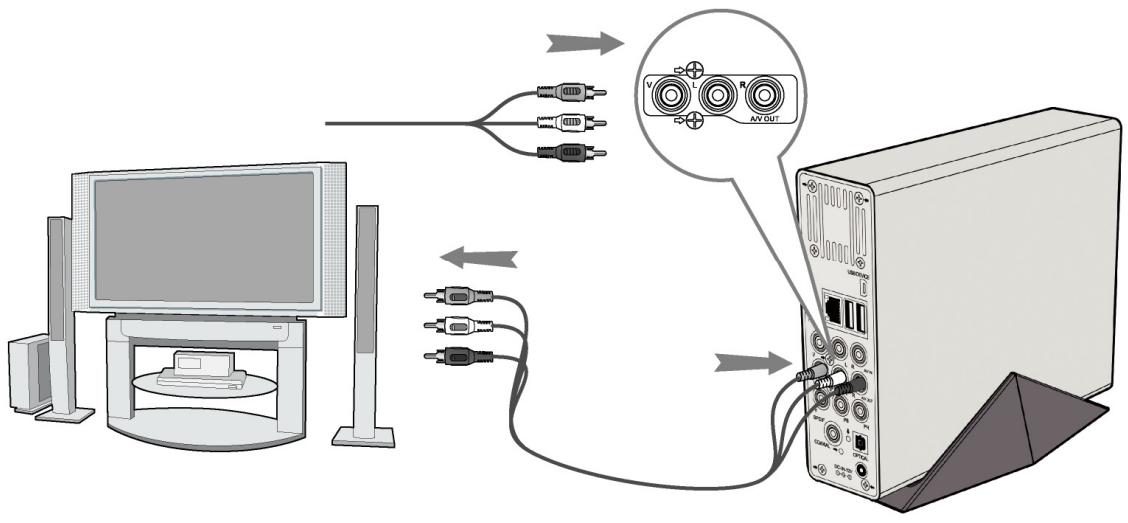
2. A/V OUT
(1) Follow the picture and plug in the 3 color connector to the player's A/V OUT jack;
(2) Follow the picture and plug in the 3 color connector to the TV's A/V IN jack.
In this way, you can enjoy the content in the player on TV or other display devices.
3. Y/Pb/Pr Component OUT
(1) Follow the picture and plug in the 3 color connector to the player's Y/Pb/Pr jack;
(2) Follow the picture and plug in the 3 color connector to the TV's Y/Pb/Pr jack.
Audio Connection while using Y/Pb/Pr Video out:
First method: use the audio output from the A/V OUT jack;
Second method: use the audio output from the S/PDIF Coaxial or Optical jack.
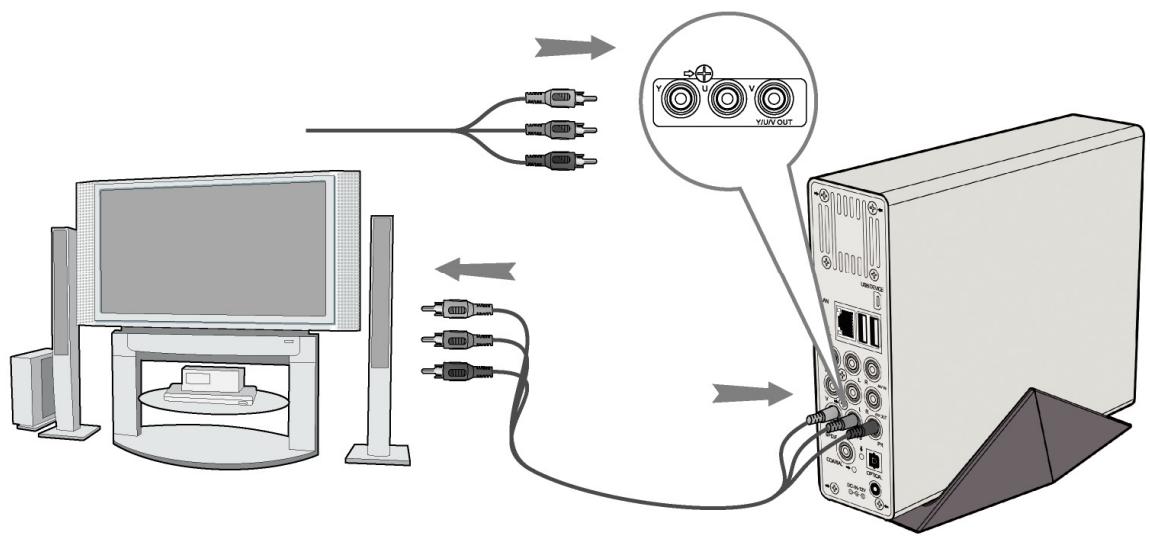
In this way, you can also enjoy videos, music, and photos in the player on TV.
1.4.5 Digital Audio Device connection
(1) Follow the picture and plug in the RCA connector on your coaxial cable to the player's S/PDIF Coaxial jack. Or if you use optical fiber, please plug in the Toslink connector on your optical fiber to the player's S/PDIF Optical jack; (not supplied)
(2) Follow the picture and plug in the other connector on your coaxial cable or optical fiber to the digital audio device.(not supplied)
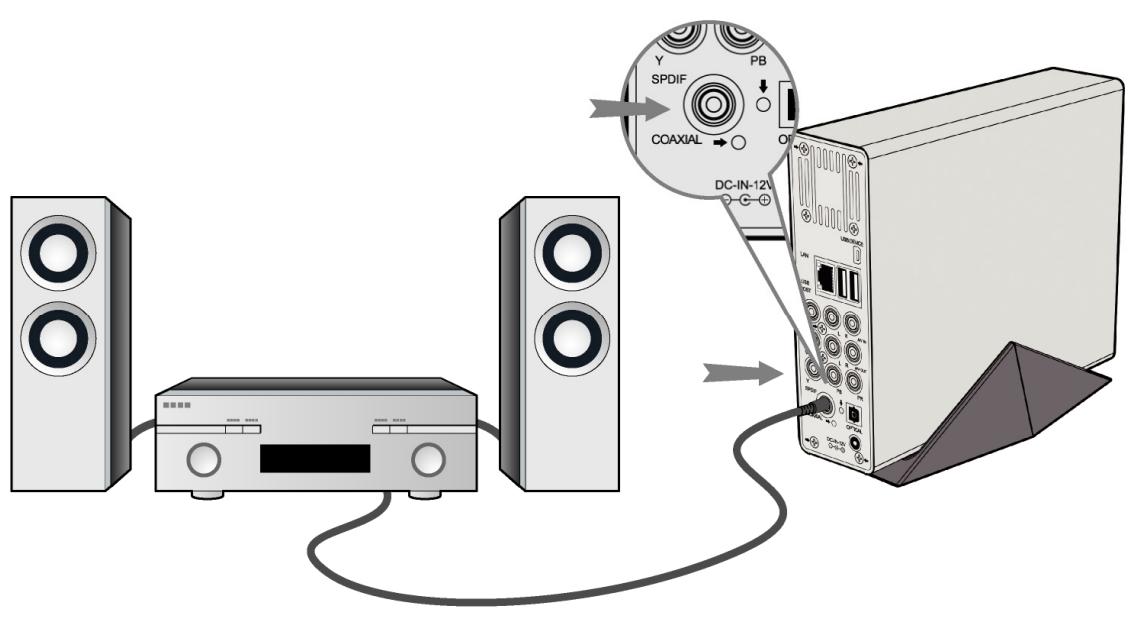
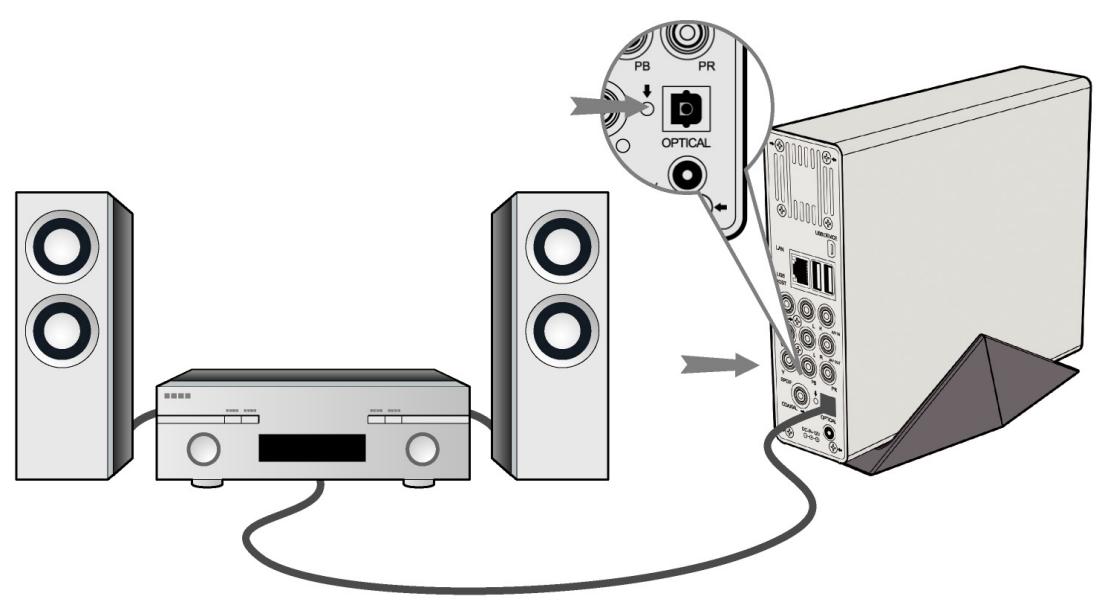
1.4.6 Power connection
(1) Follow the picture and connect the AC adaptor to the player's DC IN jack;
(2) Follow the picture and plug in the AC adaptor to the power outlet.
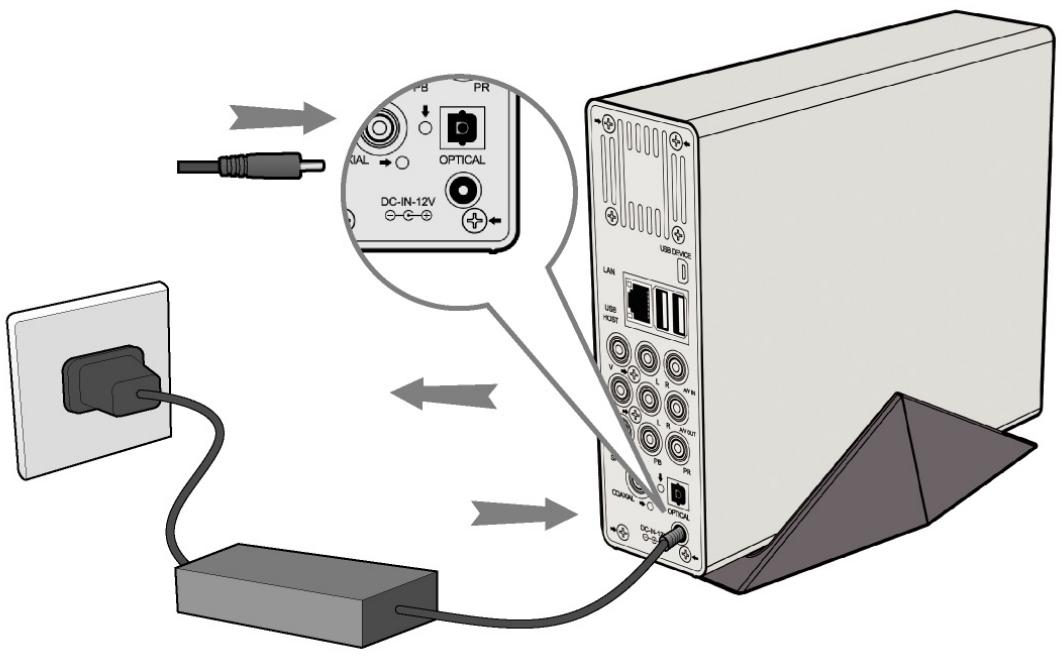
1.4.7 Network connection
To connect to a network you require a cat5, cat5e or cat6 network cable (not supplied).
(1) Connect one of the crystal plugs on the cable to the player's RJ45 LAN socket;
(2) Connect the other crystal plug on the cable to a RJ45 LAN port on your router, switch, or hub devices.
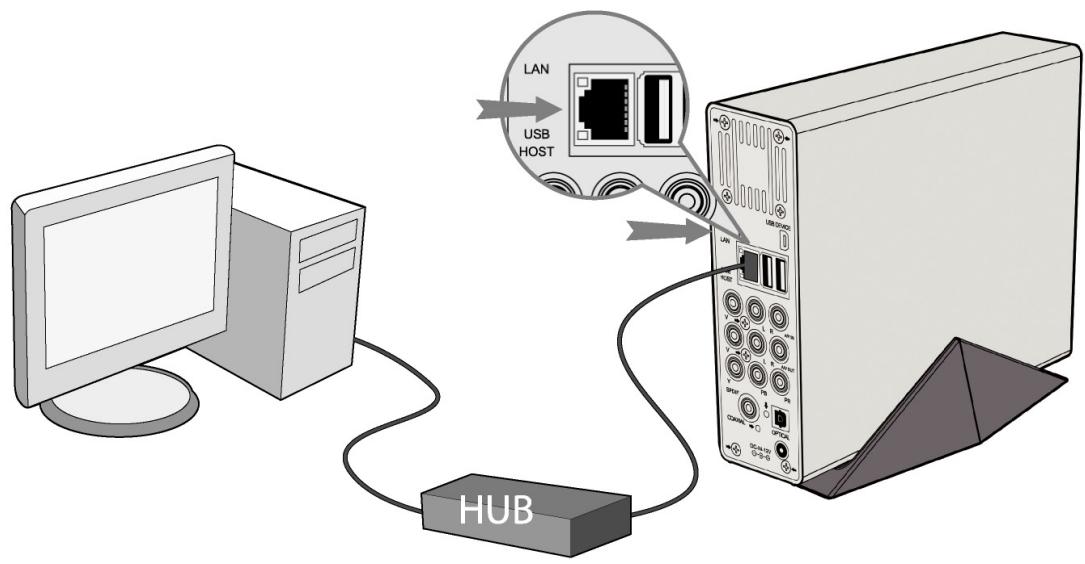
1.5.1 Firmware Installation
For users who bought the player without a HDD inside, and want to install a SATA HDD, please see 'Firmware Installation' on page 54 for details.
1.5.2 Remote Control
First time usage of Remote control
Install the batteries before using the remote control, installation steps are as the picture shows:
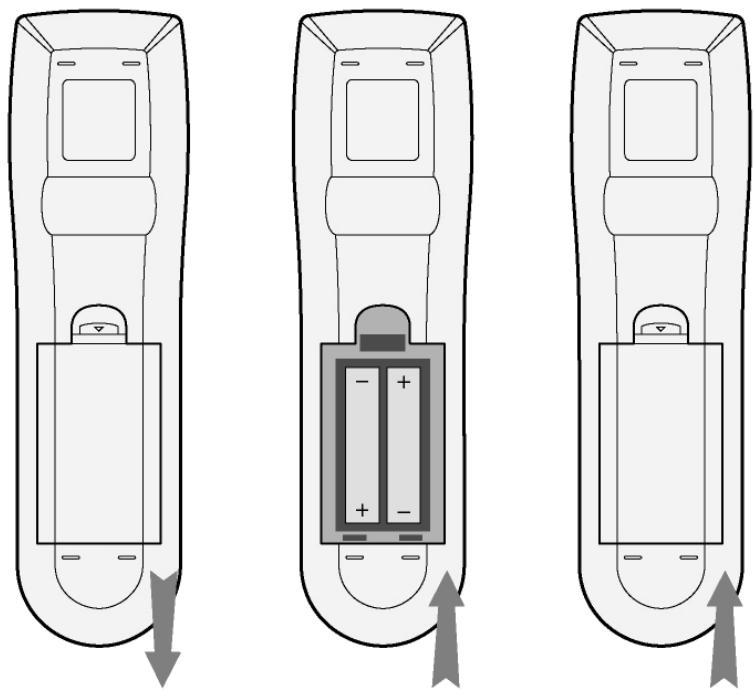
1.5.3 Power on/off, language control
1. Power on
After connecting the socket, press the POWER button to turn on the player; after the player is on, the button on the front panel will light, wait for a couple of seconds to enter the system and the OK indicator will turn off.
2. Power off
In playback and other interface, press the POWER button to turn off the player, when power off the player will prompt you that the system is being shut down. After the system is shut down, the light of the buttons on the front panel will turn off and the OK indicator will turn on.
3. Language control
The system language of this player can be set to English or other languages. In the setup interface is language setup, the selected language will take effect immediately.
2. About the Player
2.1 Remote Control
All procedures in this manual can be carried out using the remote control buttons. Certain functions can also be carried out using the front panel.
See the following for details on each button and its function:
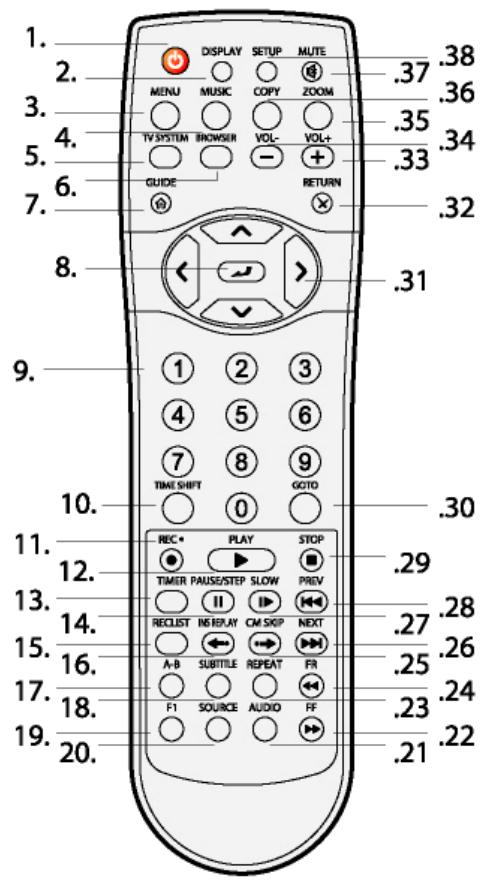
- Power 2. DISPLAY
- MENU 4. MUSIC
- TV SYSTEM 6. BROWSER
- GUIDE 8. ENTER
- Numeric buttons 10. TIME SHIFT
- REC 12. PLAY
- TIMER 14. PAUSE/STEP
- REC LIST 16. INS REPLAY
- A-B 18. SUBTITLE
- F1 20. SOURCE
21.AUDIO 22.FF - REPEAT 24. FR
- CM SKIP 26. NEXT
- SLOW 28. PREV
- STOP 30. GOTO
- Navigation buttons 32. RETURN
- VOL+ 34. VOL-
35.ZOOM 36.COPY
37.MUTE 38. Setup
| No. | Button | Function |
| 1 | Power button: Press to power on/off. | |
| 2 | DISPLAY | |
| Display button: Press to display current status. • Press during playback and an onscreen display appears, showing track number and time elapsed/remaining. • Press during recording and an onscreen display appears, showing the recording quality setting and time elapsed. • Press during live TV and an onscreen display appears, showing the current channel number and time. | ||
| 3 | MUSIC | |
| 4 | MUSIC | |
| Music button: When the machine is not playing, recording or connected with PC by a USB cable, press the button to start playback music in the first nonempty playlist. Press the button again to switch to the next playlist and playback music. | ||
| 5 | TV SYSTEM | |
| TV SYSTEM button: Press to switch between NTSC, PAL, 480P, 576P, 720P, and 1080i. | ||
| 6 | BROWSER | |
| BROWSER button: Press to browse music, photo, and movie files on HDD, USB, CARD, and NET. | ||
| 7 | GUIDE | |
| GUIDE button: Press to view the Guide menu. See ‘The Guide Menu’ on page 21 for more details. | ||
| 8 | ENTER button: Press to select options in menus. | |
| 9 | Numeric buttons: Press to enter channel numbers or numeric input when changing settings. | |
| 10 | TIME SHIFT button: While in Video In mode, press to activate the time shift function, which allows you to pause live TV and resume the program from the point you left it. While paused, the program is recorded to the HDD or USB device, as long as space is available. Press to activate TIME SHIFT function and wait for the PLAY arrow to appear on the screen. PAUSESTEP Press and the program will be paused. PLAY to resume viewing the program. Time shift mode remains active until you press STOP | |
| 11 | RECORD button: Press to begin recording or to resume when recording has been paused. Press repeatedly to set one touch recording (OTR) length (30 mins / 60 mins / 90 mins / 120 mins / 180 mins /Off). | |
| 12 | PLAY button: Press to begin playback of a title. | |
| 13 | TIMER button: Press to enter the Timer Menu directly to add, edit and delete recording schedules. See 'Creating a New Schedule' on page 30 for more details. | |
| 14 | PAUSE/STEP II PAUSE / STEP button: Press to pause current playback. Press again to step to the next frame. Press to resume playback. | |
| 15 | RECLIST | REC LIST buttons: Press to show the recording List. |
| 16 | INS REPLAY | INSTANT REPLAY button. Press to backward 10 seconds of the current playback, which suitable for sport program. |
| 17 | A-B | A-B button: Press to set the beginning and end points of a section to repeat. |
| 18 | SUBTITLE | SUBTITLE button: Press to activate available subtitles. |
| 19 | F1 | F1 button: Press to enter the file copy menu. |
| 20 | SOURCE | SOURCE button: Press to select input source. See 'Selecting Video In' on page 21 for more details. |
| 21 | AUDIO | AUDIO button: Press to select an audio track. |
| 22 | FF | FAST FORWARD button: Press to fast forward the current playback. Press repeatedly to select speeds. |
| 23 | REPEAT | REPEAT 1/ALL button: Press to set repeat option - Chapter, Title or Off. |
| 24 | FR | FAST REWIND button: Press to fast rewind the current playback. Press repeatedly to select speeds. |
| 25 | CM SKIP | CM SKIP button: Press to advance 30 seconds when in playback or record mode. |
| 26 | NEXT | NEXT button: Press to go the next chapter on a title. |
| 27 | SLOW | SLOW MOTION button: Press to play back in slow motion. Three motion settings are available. Press to resume regular playback. |
| 28 | PREV | PREVIOUS button: Press to go the previous chapter on a title. |
| 29 | STOP | STOP button: Press to stop playback. |
| 30 | GOTO | GOTO button: Press to jump to a specific point on a title. Specify the point using Title, Chapter and Time. |
| 31 | Navigational buttons: Press the arrow buttons to select menu options. | |
| 32 | RETURN | RETURN button: Press to return to the previous screen when navigating menus. |
| 33 | VOL+ | VOL+ button: Press to increase the volume. |
| 34 | VOL- | VOL- button: Press to decrease the volume. |
| 35 | ZOOM | ZOOM button: Press to zoom in/out the image (photo or video). |
| 36 | COPY | COPY button: Press to copy all the contents of the card to the working partition (FAT32 only) of the HDD. |
| 37 | MUTE | MUTE button: Press to mute audio output, and press again to resume. |
| 38 | SETUP | SETUP button: Press to access the Setup Menu directly. |
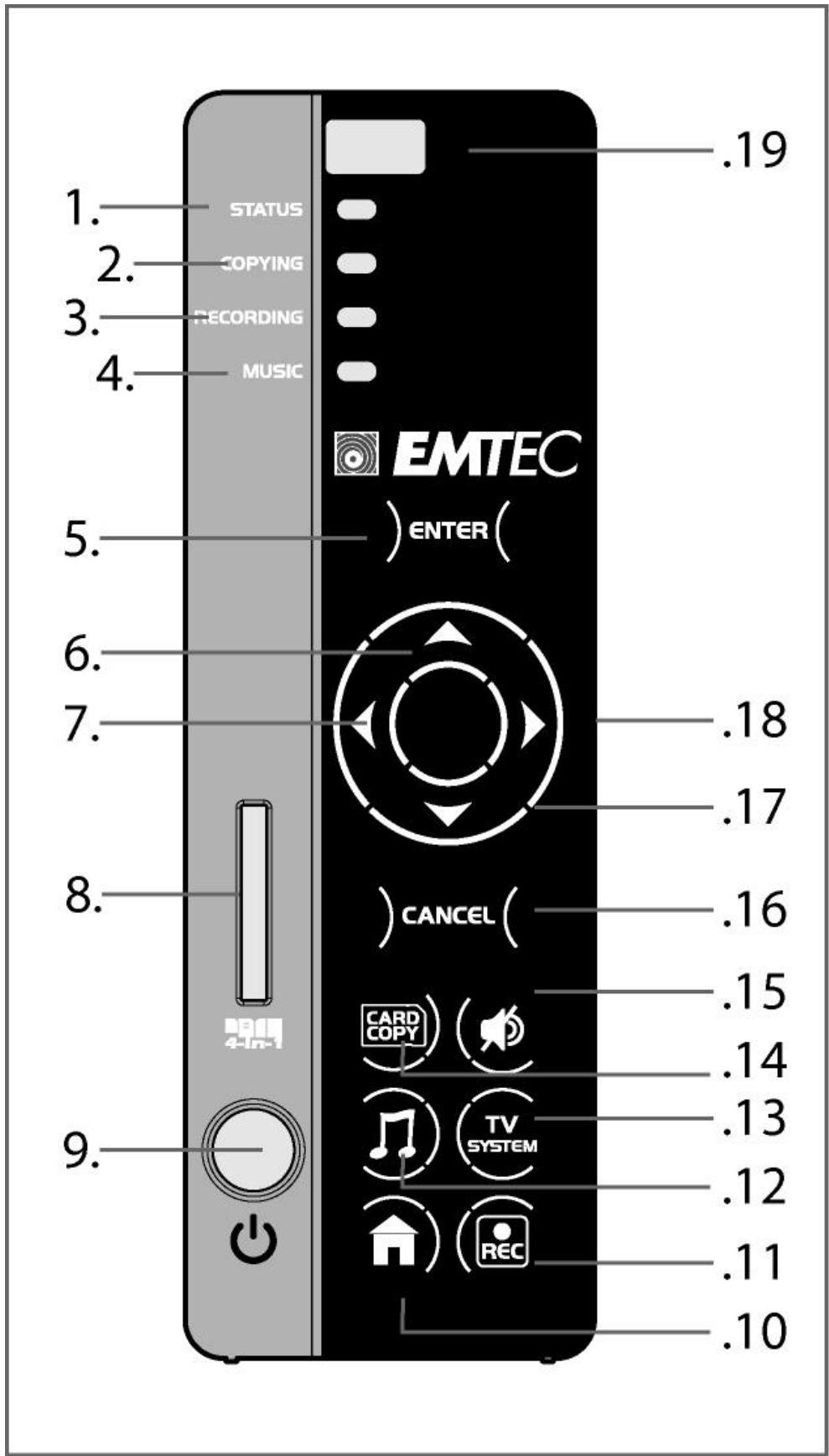
| No. | Name | Function |
| 1 | STATUS indicator | Blue means OK status: Indicator turns on when recording or card copy finishes, press any button to turn it off; Indicator flickers when any button is pressed or any signal is received from the remote control. Red means ERROR status: Indicator turns on when card copy or music playback is failed, press any button to turn it off. |
| 2 | COPYING indicator | Indicator turns on when card copy starts. |
| 3 | RECORDING indicator | Indicator (red) turns on when recording starts. |
| 4 | MUSIC indicator | Indicator turns on during music playback. |
| 5 | ENTER button | Enter/play. |
| 6 | UP button | Move the highlight up. |
| 7 | LEFT button | Move the highlight left. |
| 8 | 4-In-1 card slot | Compatible with 4 types of memory cards. |
| 9 | POWER button | Press and hold for 2 sec to power on/off. |
| 10 | GUIDE button | Press to view the Guide menu. |
| 11 | REC button | Press to begin recording. |
| 12 | MUSIC button | When the machine is not playing, recording or connected with PC by a USB cable, press the button to start playback music in the first nonempty playlist. Press the button again to switch to the next playlist and playback music. |
| 13 | TV SYSTEM button | Press to switch between NTSC, PAL, 480P, 576P, 720P, and 1080i. |
| 14 | COPY button | Press to copy all the contents of the card to the working partition of the HDD. |
| 15 | MUTE button | Press to mute audio output, and press again to resume. |
| 16 | CANCEL button | Cancel/exit. |
| 17 | DOWN button | Move the highlight down. |
| 18 | RIGHT button | Move the highlight right. |
| 19 | Infrared receiver window | Receiving IR signals from the remote control. |
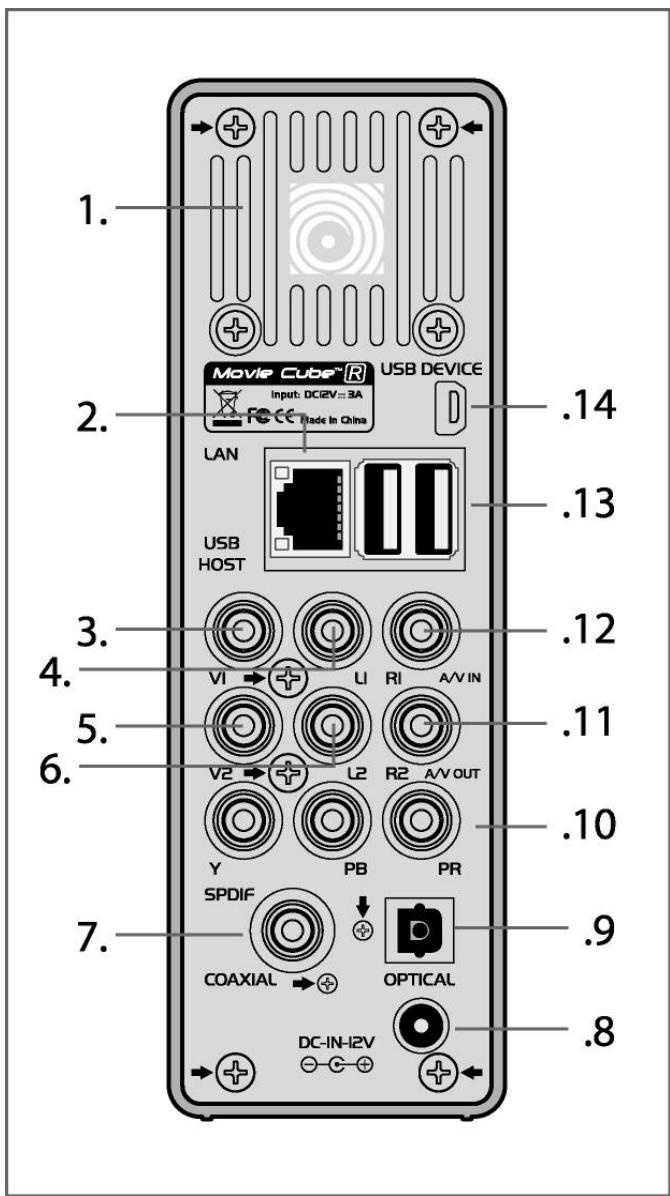
- Air Flow hole
2.RJ45 Net socket - V1:Video IN jack
- L1:Audio IN jack(Left Channel)
- V2:Video OUT jack
- L2:Audio OUT jack(Left Channel)
- S/PDIF Coaxial jack
- DC IN jack
- S/PDIF Optical jack
- Y/Pb/Pr OUT jack(Components Video)
- R2: Audio OUT jack(Right Channel)
- R1:Audio IN jack(Right Channel)
- USB Host ports x 2
- USB Slave port(MINI B)
3. Getting Started
Power on the system, and after a few seconds, the system will enter a guide menu. To enter
this menu, press on the remote control too.
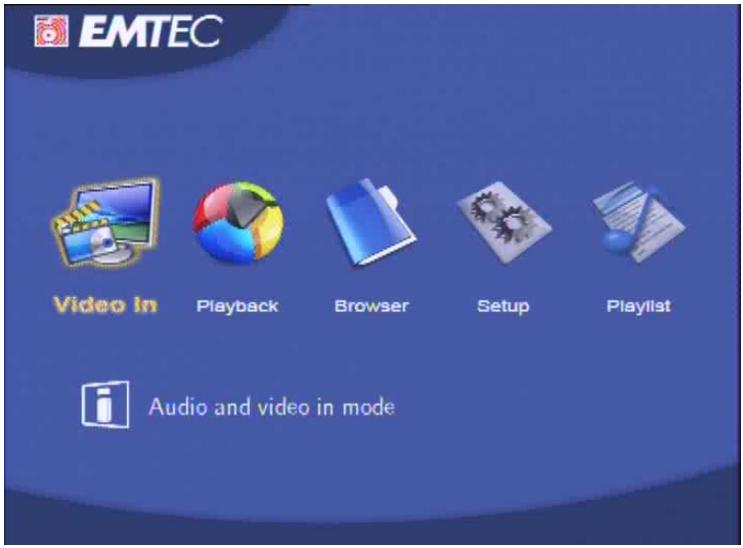
3.1 Selecting Video In - Live TV, Recording and Time Shift
To pre-view the video to be recorded, or have time shift function (See 'TIME SHIFT button' on page 15 for more details).
To select an input source, press on the remote control or select Video In button on the guide menu page.
3.2 Selecting Playback -Playback and Edit Recorded Titles
A clip recorded in HDD or USB device is called a Title.
Playback the recorded video, you can also Merge/Split/Delete/Edit all the recorded video titles.
Press on the remote control or select Playback button on the main menu page to access Title List.
3.3 Selecting Browser - Playback Multimedia Files
You can browse all the multimedia (Videos/ Music/Photos) files on the internal HDD/USB/Card/ or Network and playback them on TV.
Press on the remote control or select Browser button on the guide menu page to browser movie, photo, and music files stored either on a HDD, USB device, Memory Card, or Network.
3.4 Selecting Setup
To enter the setup menu, select guide menu page.

on the remote control or select Setup button on the
3.5 Selecting Playlist - Music Playlist
To enter the music playlist menu, select Playlist button on the guide menu page.
4. Title List Menu for Recorded Videos
The Title List menu allows you to play and edit all saved titles. To enter the menu, press

to enter Title List. To select Playback from the Guide menu will enter the Title List also.
4.1 Title List Menu
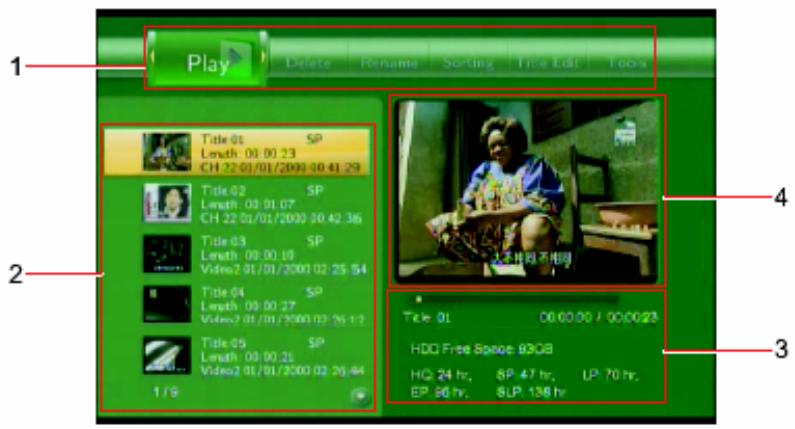
| Number | Function | Description |
| 1 | Menu Bar | Press or to scroll through the menu. Here you can Play / Delete / Rename / Sort / Edit a recorded title. |
| 2 | Title Lists | Here lists all recorded titles. Here you can see thumbnail / length / quality / recorded channel / recorded date & time of a title. A sign shows this recorded title has not been watched. A sign shows this title is been recording now. |
| 3 | Information | Here you can see a playback progress bar of a title, the remained free space of HDD, and remained recording time of each quality. |
| 4 | Preview | Shows the preview window. |
To play a recorded title, do the following:

and

on the remote control to select the Play tab from the menu bar.
- Press

and
on the remote control to select the title you wish to play.
- Press

on the remote control or the ENTER (Play) button on the front panel to play
the file.
- Press

on the remote control or the CANCEL (Stop) button on the front panel to stop return to the Title List menu screen.
4.3 Deleting Titles
To delete a title, do the following:

and

on the remote
control to select the Delete tab from the menu bar.
- Press

and

the
remote control to select the title you wish to delete.
- Press

to confirm and delete
the file.
- A confirmation message appears. Press
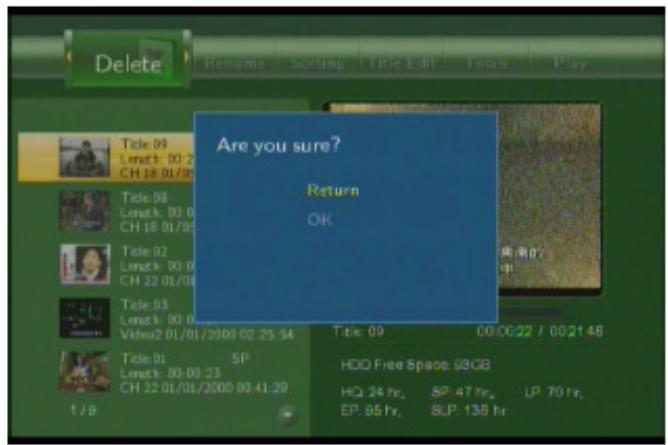
- Press

to delete the selected file. To cancel delete, select Return.
4.4 Renaming Titles
To rename a title, do the following:

and

on the remote
control to select the Rename tab from the menu bar.
- Press

and

the
remote control to select the file you wish to rename.
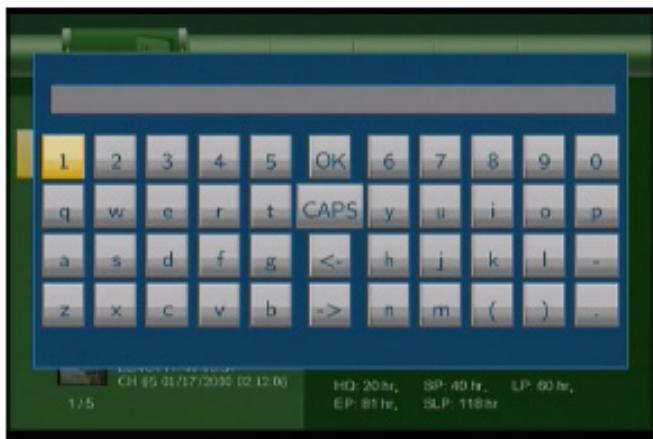
- Press on the remote control. The name entry screen appears.
- Use the navigation arrows to select letters and numbers. Select CAPS to toggle between uppercase and lowercase letters. Press <- to delete a letter. Press -> to insert a space. Press

to input each letter or number.
- Once you have entered the new name, select OK and press to confirm all changes.
If you want to cancel the naming during the process, press
4.5 Sorting Files
Press and on the remote control to select the Sorting tab from the menu bar.
Press , and the menu appears.
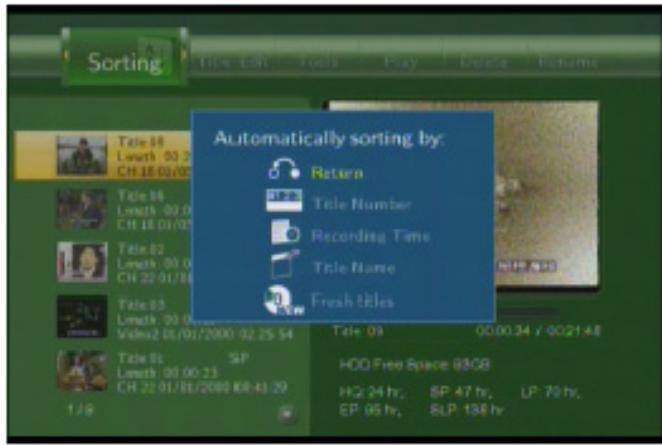
| Return | Select to return to the main screen. | |
| Title Number | Select to sort all files according to title numbers. | |
| Recording Time | Select to sort all files according to the length of the recordings | |
| Title Name | Select to sort all files alphabetically, according to title name. | |
| Fresh Titles | Select to sort all files according to freshness (i.e. the most recent recordings), listing the most recent recording first. |
Press and on the remote control to select the Title Edit tab from the menu bar.
Press , and the menu appears.
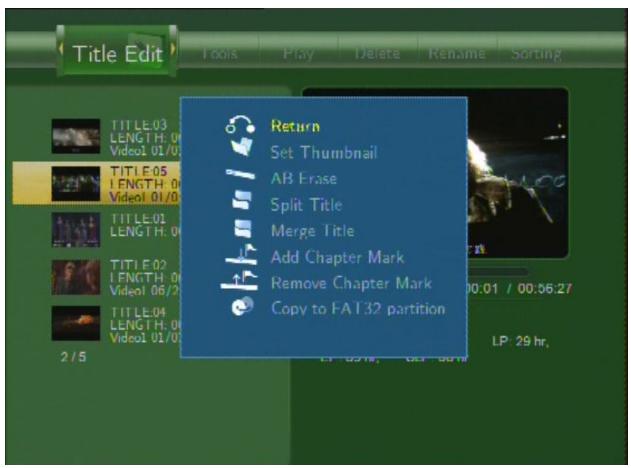
| Return | Select to return to the main screen. | |
| Set Thumbnail | Select to change a thumbnail of the selected video. Press or on the remote control to select Set Thumbnail, an editing screen appears. You can press or to fast forward or fast rewind when searching a proper point. When you reach the point at which you wish to insert a thumbnail, press or to select CONFIRM and press. | |
| AB Erase | Delete a specified clip in a title. Select SET A and press to mark the start for the section to be deleted. Select SET B and press to mark the end of the section to be deleted. Select CONFIRM and press to delete the section. | |
| Split Title | Select a title and divide them into sections. When you reach the point at which you wish to split the track, press to confirm. | |
| Merge Title | Select more than two titles and combine them into one title. A confirmation message appears. Select CONFIRM to merge the files. | |
| Add Chapter Mark | Add a chapter mark to the selected file. A chapter mark is a marker inserted into the title. You can jump between marked sections by pressing PREV or NEXT or on the remote control. An editing screen appears. When you reach the point at which you wish to add the mark, press to confirm. | |
| Remove Chapter Mark | Remove a chapter mark that you have inserted. An editing screen appears. Use the left and right navigation arrows to select the mark you wish to remove and press to delete. | |
| Copy to FAT32 partition | Copy function. In the Title List Menu, press or on the remote control to select which title you want to copy from UDF partition to FAT32 partition. |
Press and on the remote control to select the Title Edit tab from the menu bar. Press

and the menu appears.
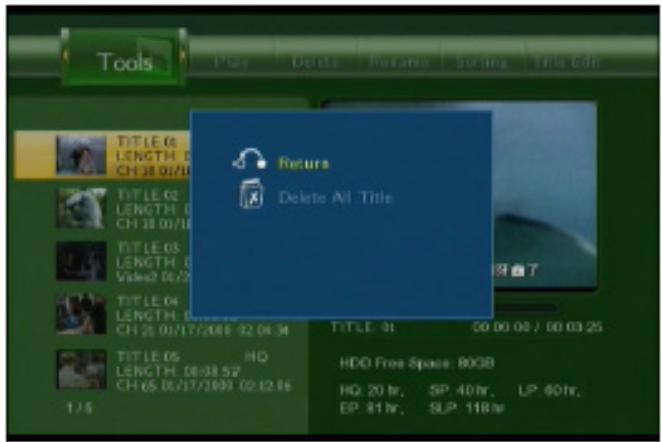
| Return | Select to return to the main screen. | |
| Delete All Title | Select to delete all titles. |
4.8 Saving Your Recorded Titles
All the recorded titles are stored temporarily in a recording disc partition (UDF format) which cannot be identified by personal computers. If you want to share the recorded titles on your computer, please copy the titles from the recording disc to the multimedia disc which is in FAT32 format first. See 'Copy to FAT32 partition' of 'Title Edit Menu' on page 30 for more details.
5. Timer Record Menu
The Timer Record menu allows you to create, edit and delete recording schedules and view
all schedule status and history. Press TIMER on the remote control to enter the menu.
5.1 Create a New Schedule
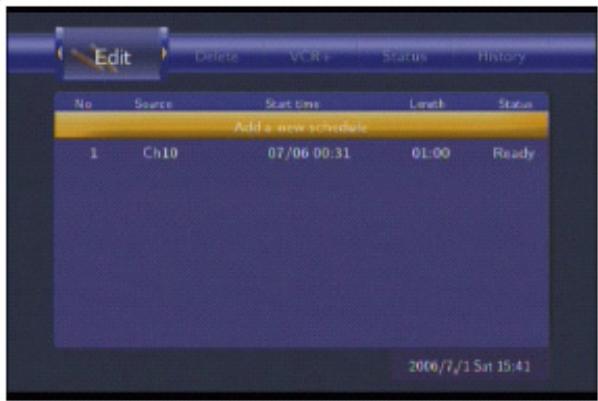
Press and on the remote control to select the Edit tab from the menu bar.
Select Add a New Schedule and press. The schedule setting screen appears.
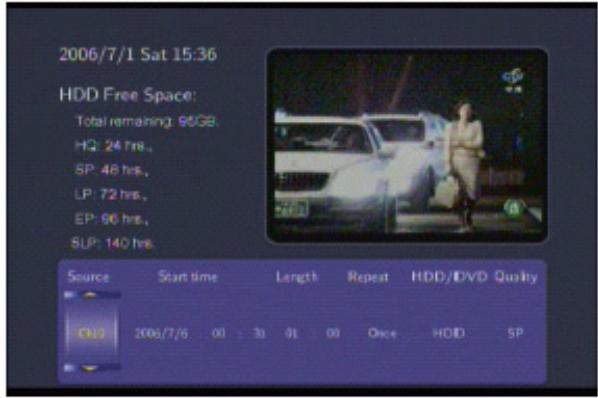
Use and on the remote control to move between fields and Press and to adjust each setting.
| Start Time | Enter the date and time of the recording. |
| Length | Enter the length of the recording |
| Repeat | Select how often you want the schedule to record. Choose from Once, Everyday, Mon-Fri, Mon-Sat or for an individual day of the week. |
| Quality | Select the recording quality. Choose from HQ, SLP, EP, LP and SP. The higher the quality, the more space required on the hard drive. See HDD Free Space on the left of the screen for details of how long you can record for using each setting. |
| Preview | This small preview window will show the current program of the select channel. |
5.2 Editing Schedule
Press and on the remote control to select the Edit tab from the menu bar.
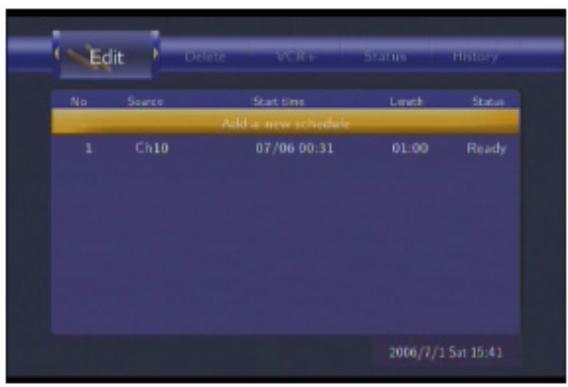
Select the schedule you want to edit from the list and press. The schedule setting screen appears. Modify the schedule as described in 'Creating a New Schedule' on page 32.
5.3 Deleting Schedules
Press and on the remote control to select the Delete tab from the menu bar.
Select the schedule you want to delete and press A confirmation message appears.
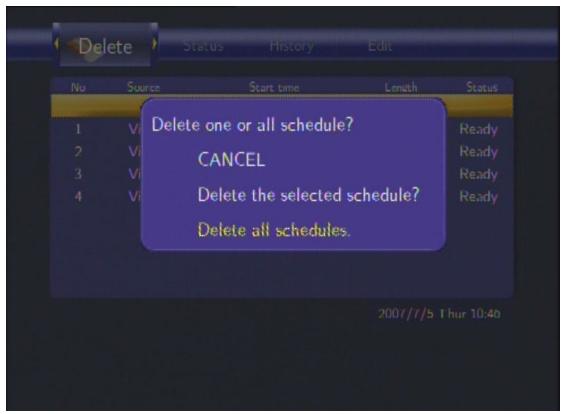
Select CANCEL, Delete the selected schedule or Delete all schedules. Press confirm.
5.4 Viewing Schedule Status
Press and on the remote control to select the Status tab from the menu bar.
The schedule list is displayed. Select a schedule and press
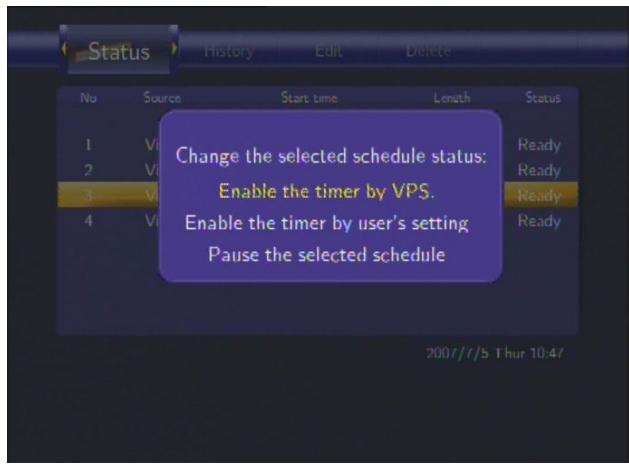
Select Enable VPS, Disable VPS or Pause the selected schedule. Press to confirm.
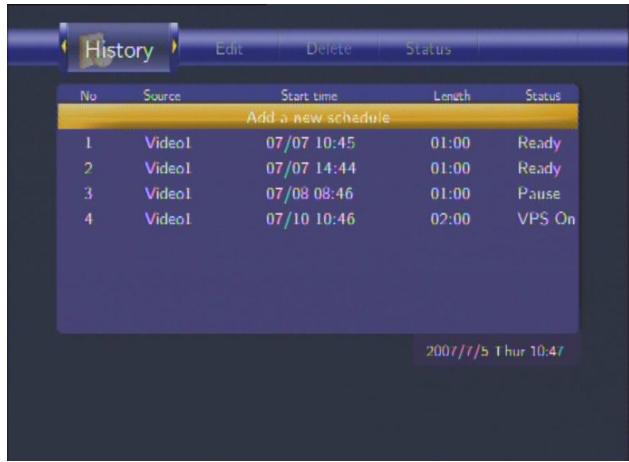
5.5 Viewing Recording History
Press and on the remote control to select the History tab from the menu bar.
Here you can view a complete history of all recordings that were set.
6. Setup Menu
The Setup Menu allows you to configure language, audio, video, record, network and system
settings. To enter the menu, select Setup from the Guide menu or select on the remote control.
6.1 Changing Language Settings
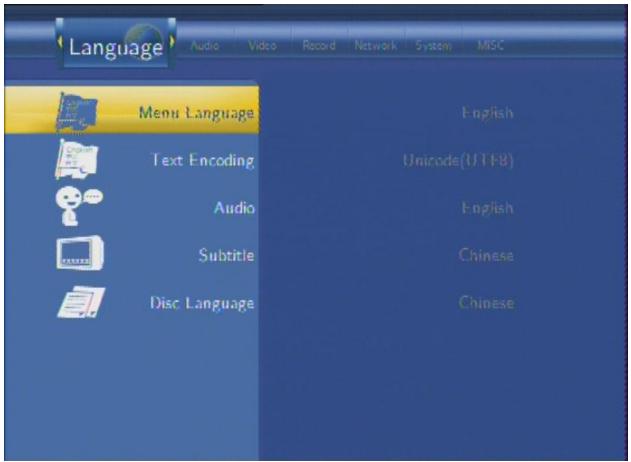
Press and on the remote control to select the Language tab from the menu bar.
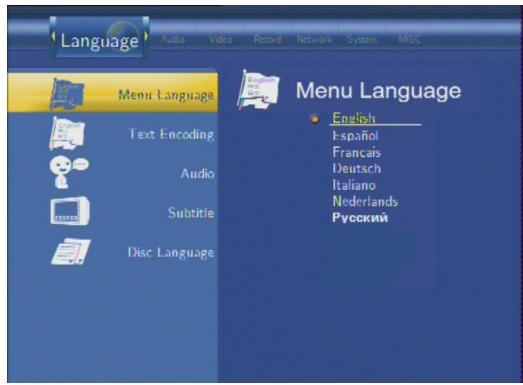
Menu Language
Select to choose the OSD (On Screen Display) language.
Press and to select the language.
Press to confirm.
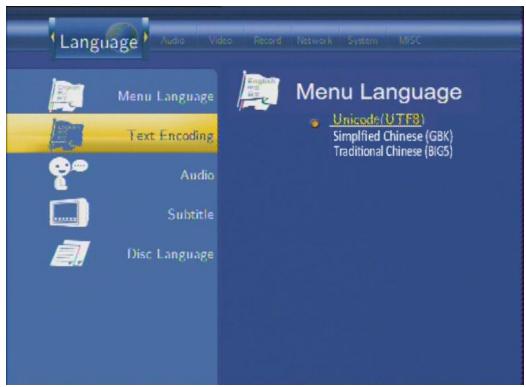
Text Encoding
Select to set text encoding.
Press


select from Unicode, Chinese GBK;
and BIG5. Press

to confirm.
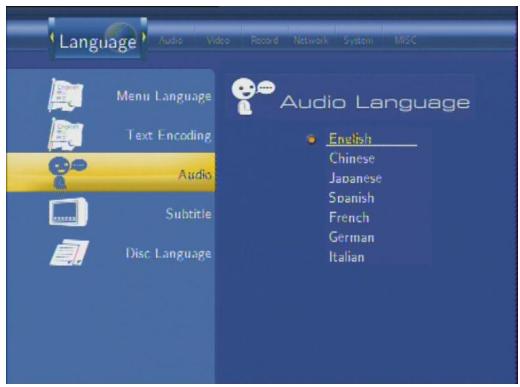
Audio Language
Select to set audio language
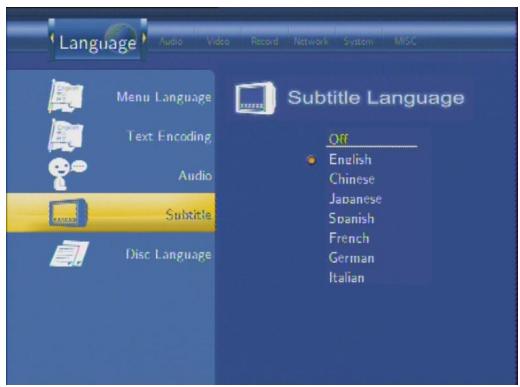
Subtitle Language
Select to set subtitle language
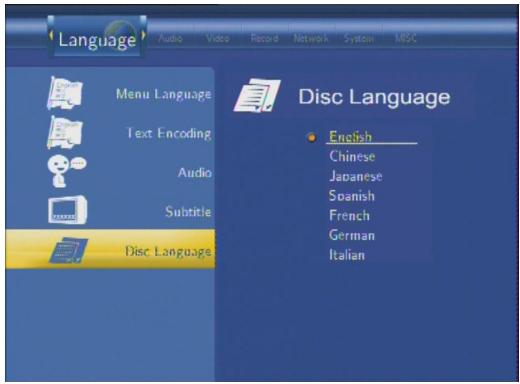
Disc Language
Select to set disc language
6.2 Changing Audio Settings
Press and on the remote control to select the Audio tab from the menu bar.
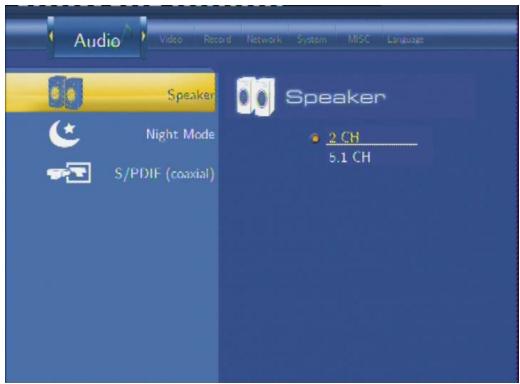
Speaker
Select to set type of speaker.
Press and to select from 2CH, 5.1CH. Press to confirm.
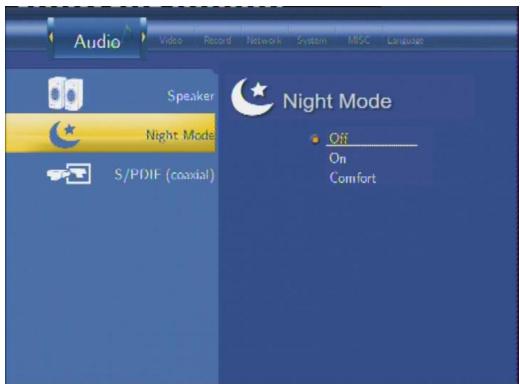
Night Mode
Select to set night mode.
Press and to select from Off, On, and Comfort. Press to confirm.
S/PDIF
Select to set S/PDIF mode.
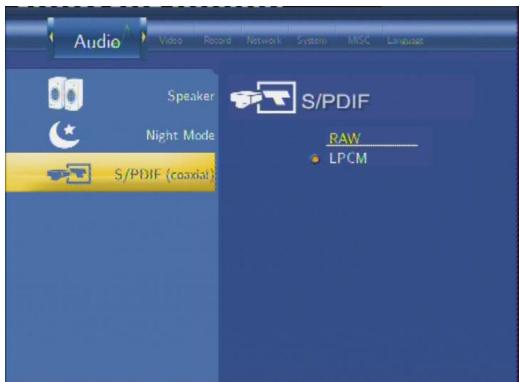
Press and to select from Raw, and LPCM. Press

on the remote control to select the Video tab from the menu bar.
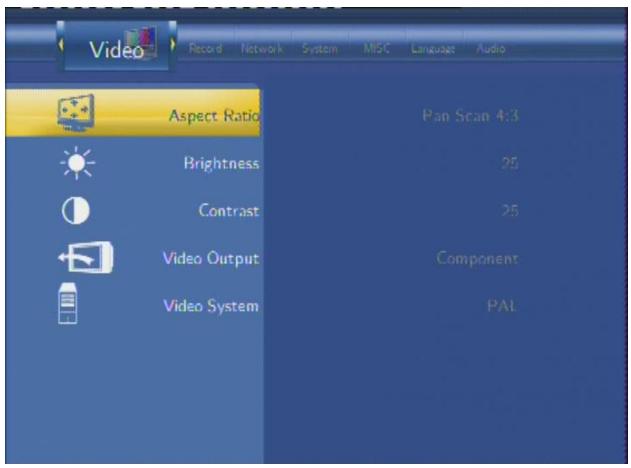
Aspect Ratio
Select to set aspect ratio.
Press and to select from Pan Scan 4:3, Letter Box 4:3, or 16:9. Press to confirm.
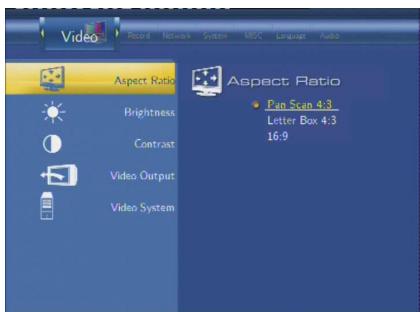
Pan Scan 4:3: Display a wide picture on the entire screen and cuts off the redundant portions. Select when a standard 4:3 TV is connected.
Letter Box 4:3: Display a wide picture with two black borders on the top and bottom of 4:3 screen. Select when a standard 4:3 TV is connected.
16:9: Compress the image to convert the whole image. Select when a 16:9 TV is connected.
| Brightness | Select to set brightness levels. Press and to adjust brightness. The new setting is previewed onscreen. Press to confirm. | Brightness |
| Contrast | Select to set contrast levels. Press and to adjust contrast. The new setting is previewed onscreen. Press to confirm. | Contrast |
| Video Output | Select to adjust video output type. Press and to set the video output type, depending on your viewing preferences. Press to confirm. | Video Aspect Ratio Brightness Contrast Video Output Video System |
| Video System | Select to adjust TV system. Press and to set the TV system, depending on your viewing preferences. Press to confirm. | Video Aspect Ratio Brightness Contrast Video Output Video System |

on the remote control to select the Record tab from the menu bar.
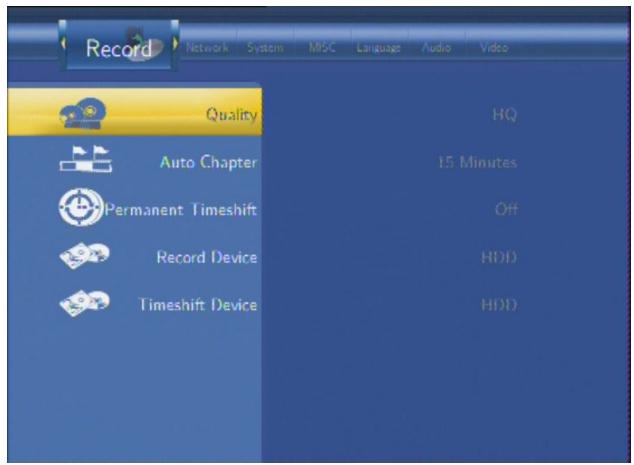
| Quality | Select to set the default recording quality setting. |
| Press and to select the quality setting you require. The highest quality setting is HQ which requires the most storage space. The other settings reduce recording quality sequentially but also require less storage space. Press to confirm. | |
| Auto Chapter | Select to add chapter marks automatically at set intervals. |
| Press and to select the interval you require. An automatic chapter mark will be added at each interval, allowing you browse titles easily after recording. Press to confirm. | |
| Permanent Timeshift | Select to set Time Shift mode. |
| Press and to select from On and Off. Press to confirm. If On, the Time Shift function will be activate permanently. | |
| Record Device | Select to set device to restore the recorded files. |
| Press and to select from HDD and USB. Press to confirm. | |
| Timeshift Device | Select to set Time Shift device. |
| Press and to select from HDD, USB, and Auto. Press to confirm. |
on the remote control to select the Network tab from the menu bar.
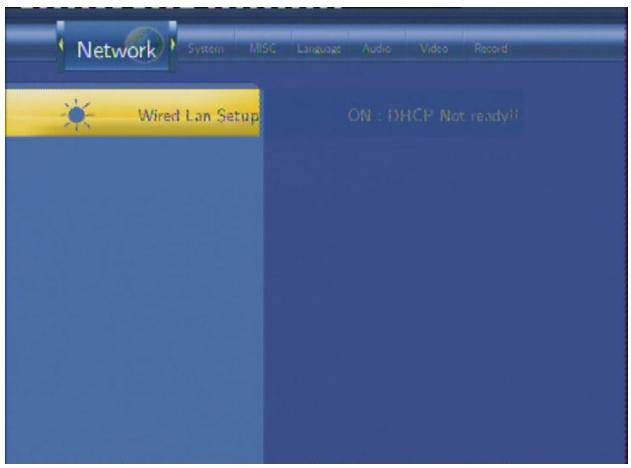
Wired Lan Setup
Select to set the Network Setting. Before use the Network functions, please check following items:
1) Connect the Player to Network first;
2) Please enable NetBIOS of TCP/IP on computer;
3) Please turn off your PC's firewall;
4) Please enable your PC's 'Guest' account;
5) Please share the folders which you wish to browse on your PC, and make sure that 'Everyone' or 'Guest' has the right to access.
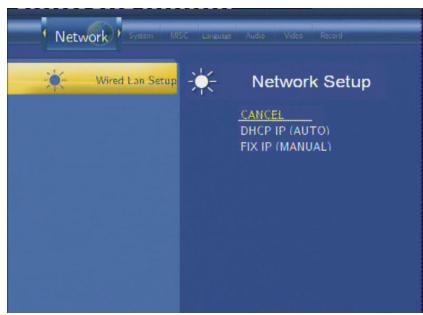
Press and to select DHCP (AUTO) or FIXED IP (MANUAL). Press to confirm.
DHCP DNS(AUTO)
Set the DNS server IP address by auto.
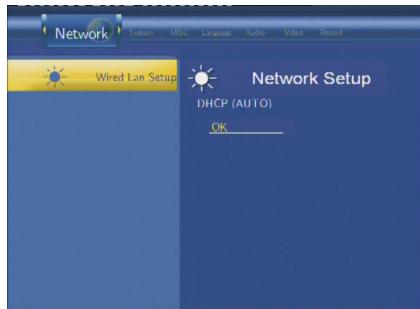
Press

to confirm.
FIX IP (MANUAL)
Using Fixed IP, it is required to enter followings. IP address, Subnet Mask, Default Gateway. For further assistant to above settings, please contact to the network administrator.
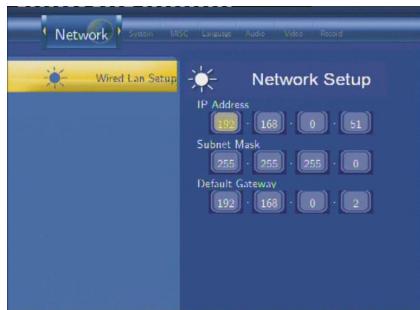
Use Navigational and Numeric buttons to enter IP address.
Press

to confirm.
6.6 Changing System Settings
Press

and

on the remote control to select the System tab from the menu.
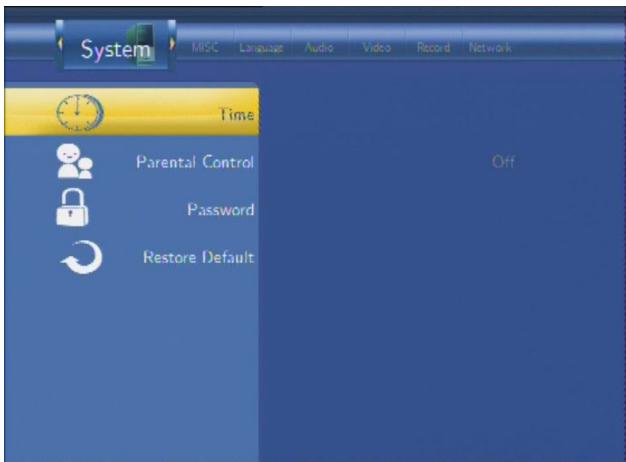
| Time | Select to set the system time. |
| Press and enter Manual setup. | |
| Enter the system menu and press and to select each field and the up and down navigation arrows to adjust each setting. Press to confirm. | |
| Parental Control | Select to set parental control levels. |
| Password Confirm New Password |
Restore Default
Select to restore factory defaults.
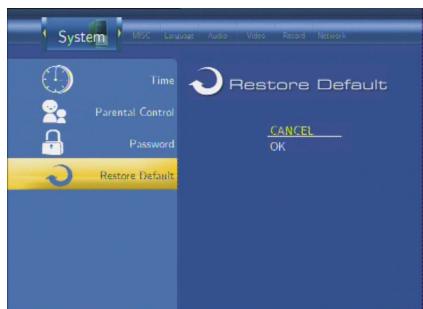
A confirmation message appears. Select OK and press Enter to restore all settings to defaults.
6.7 Miscellaneous
Press

and

on the remote control to select the MISC tab from the menu.
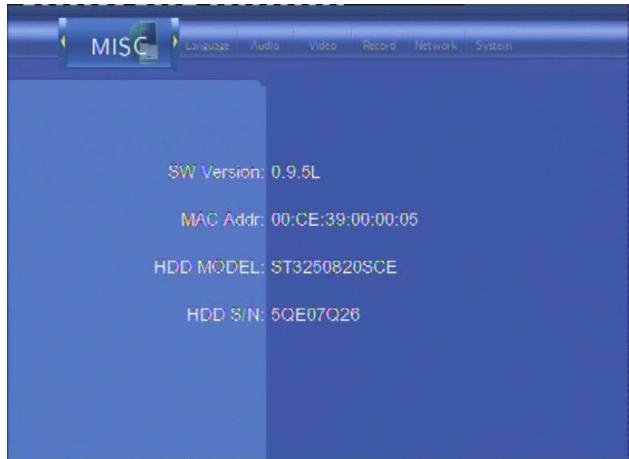
7. Browser Menu
The Browser menu allows you to browse and play music, photo and movie files stored on a HDD, an external USB device, Memory Card, and Network. To enter the menu, select Browser from the Guide menu.
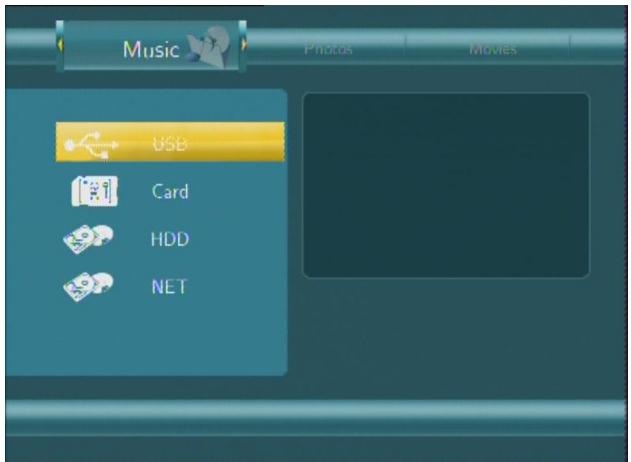
Press and to select the device on which the media is stored. Choose from
HDD, USB, CARD, NET and press
When data on HDD, USB device and Memory Card is connected or connect the system to Network, you can also browse photos, listen to music, and watch movies.
7.1 Browsing Music
Use and on the remote control to select the Music tab.
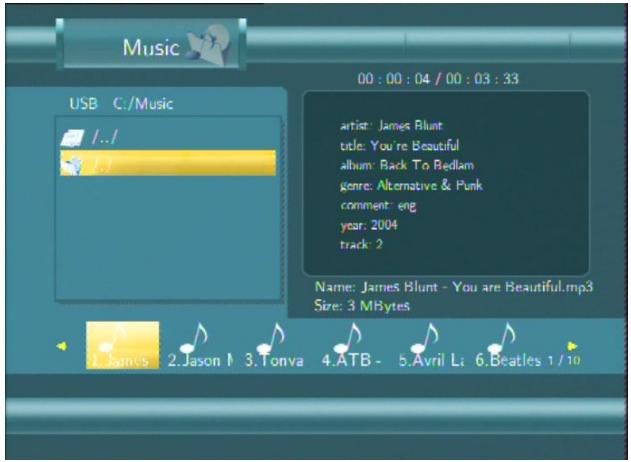
Press A and to select the folder that contains your audio files. A thumbnail strip
appears at the bottom of the screen, along with song information. Press and to select
the file you want to play and press
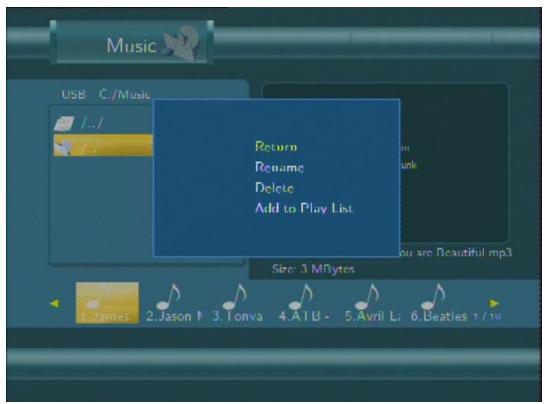
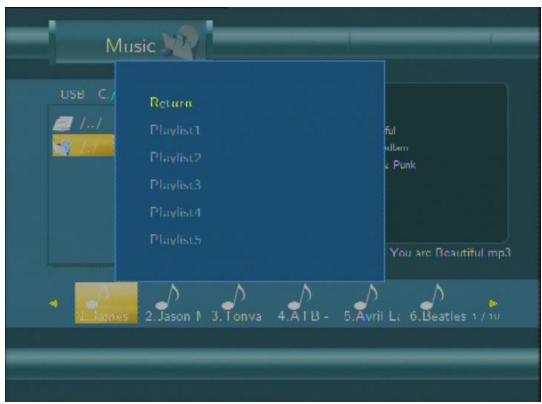
Press and a tools menu appears which enables you to add the current music to the playlists.
7.2 Browsing Photos
Use and on the remote control to select the Photos tab.
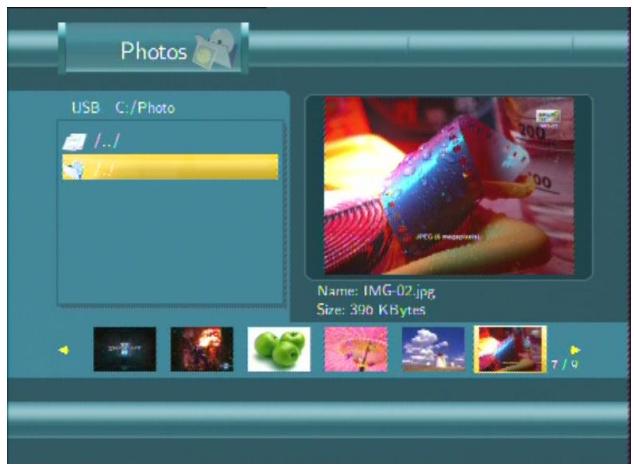
Press and to select the folder containing your photo files. A thumbnail strip appears at the bottom of the screen, along with a preview of the selected photo.
Press and to select the photo you want to view and press. The photo will be displayed full screen.
Note:
- When the photo is displayed in full screen mode, the slide show starts automatically.
- While listening to music files, you can browse the photos at the same time.
While browsing a photo, you can press

or

to
rotate a photo in any angle. Besides,
rotating a photo, you can press available.

to zoom in/out that photo. Three zoom levels are
7.3 Browsing Movies
Use the left and right navigation arrows to select the Movies tab.
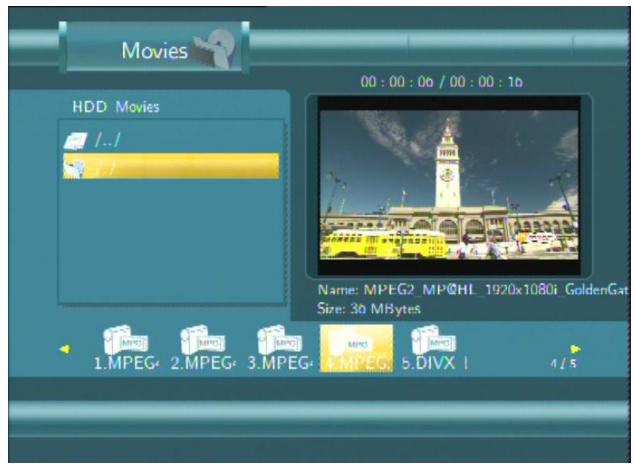
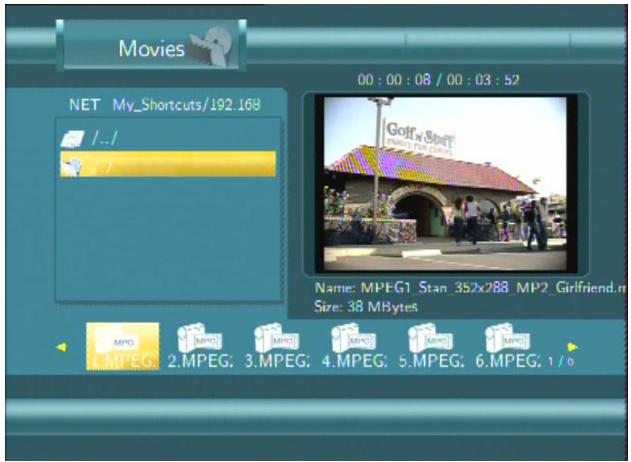
Press and to select the folder that contains your movie files. A thumbnail strip appears at the bottom of the screen, and a preview of the selected movie will be played.
Press and to select the movie you want to view and press. The movie will be played in full screen mode.
This browsing movies function supports DAT, VOB, IFO, MPG, AVI, and TS file formats.
While browsing a movie in full screen mode, you can press to zoom in/out the image. Four zoom levels are available.
You can enable streaming playback of your multimedia files from the network and have file copy function through the network also.
Before viewing the following, please make sure that you have read 'Changing Network Settings' on page 42 and made the right settings.
When selecting NET in the Browser menu, there are two ways to locate the multimedia files shared on your local network. One way is to browse through workgroup; the other way is to browse through 'My Short Cuts'.
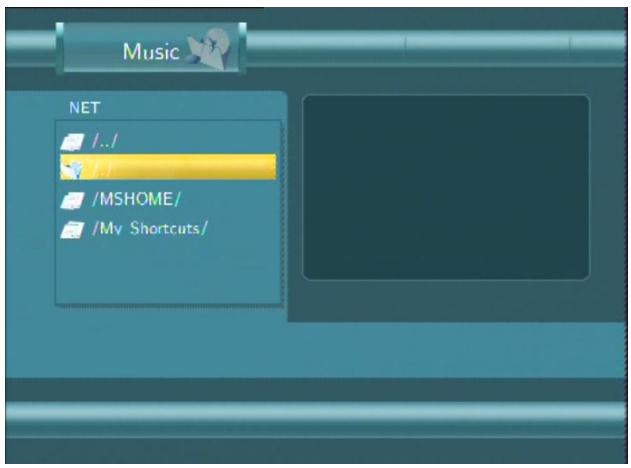
7.4.1 Browsing through Workgroup
You can choose the workgroup which your PC belongs to from the workgroup list, find your PC
name, and press to confirm.
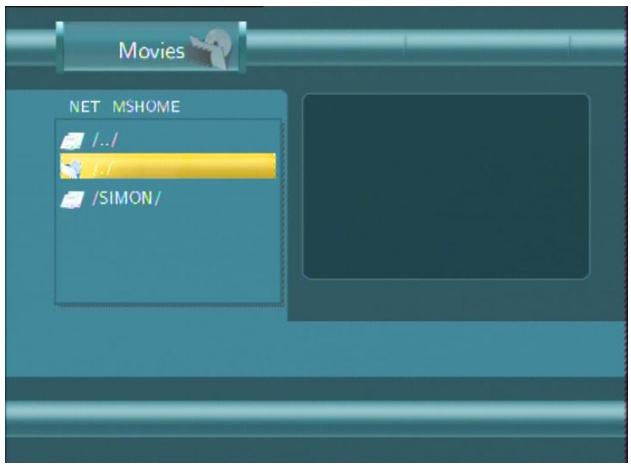
Then select the shared multimedia file that you want to browse.
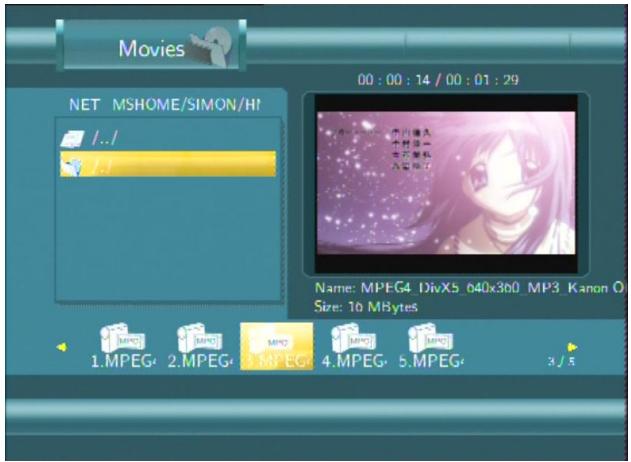
Note: Due to different network conditions, sometimes the workgroup might not be accessed or shown in the list. And then you need to use 'My Shortcuts' to browse shared files.
7.4.2 Browsing through 'My Shortcuts'
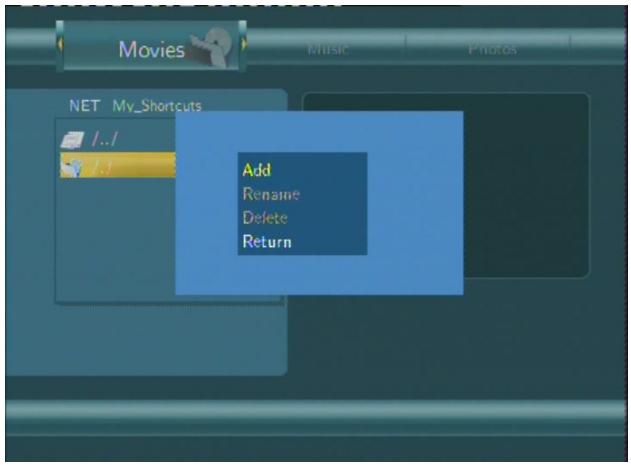
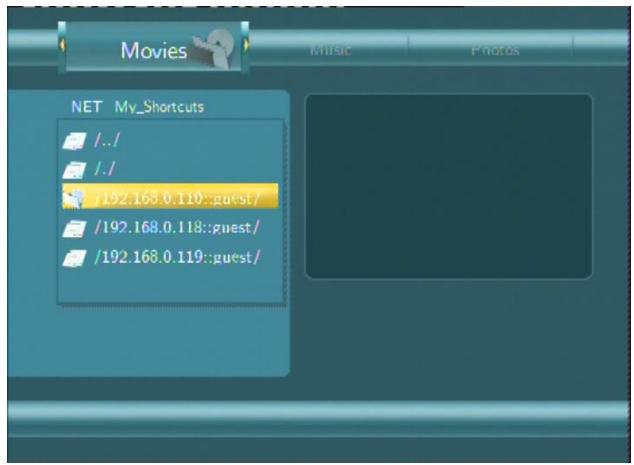
You can also set 'Specific File Server IP' and access it from 'My Shortcuts' in the menu.
Press and a tools menu appears.
Network Browser
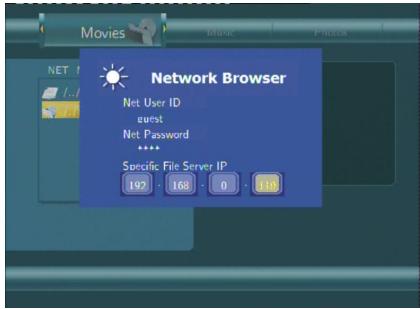
Select to set Net User ID, Net Password, and Specific File Server IP, which enables to browse files on NET through 'My Short Cut'.
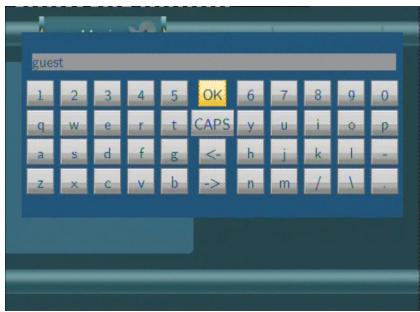
Select Net User ID and the entry screen will appear. Use the navigation arrows to select letters and numbers. See 'Renaming Titles' on page 26 for more details.
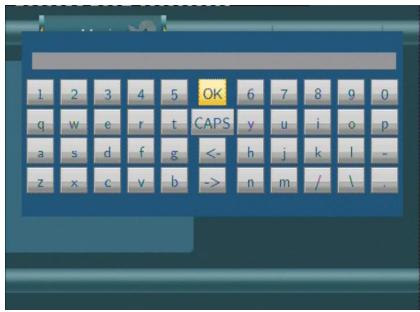
Select Net Password and the entry screen will appear. See above.
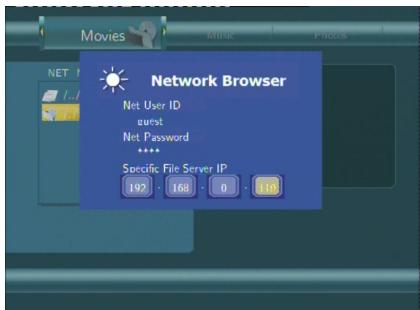
Select Specific File Server IP, and use Navigational and Numeric
buttons to enter IP address. Press

to confirm.
Select your IP address and press to confirm.
Then select the shared multimedia file that you want to browse.
7.4.3 Network File Copy
Note: The current version of firmware may not support copying files across the network. However, it could be supported by firmware updates in the near future.
8. Playlist Menu
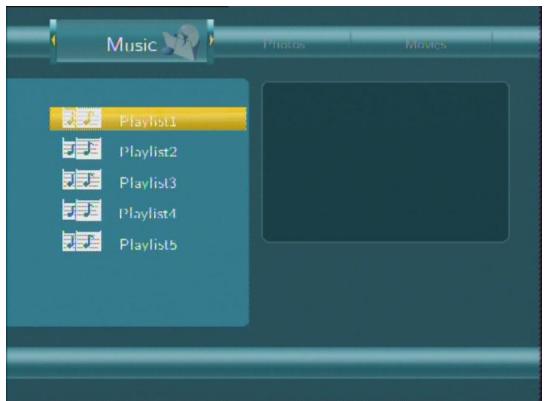
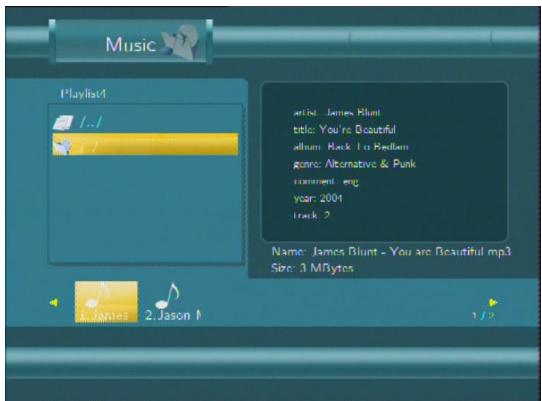
The Playlist menu allows you to browse and play your favourite music in the playlists. To enter the menu, select Playlist from the Guide menu. There are up to 5 playlists.
9. File Copy Menu
Press on the remote control to enter the File Copy menu, which allows you to copy files between HDD and USB devices.
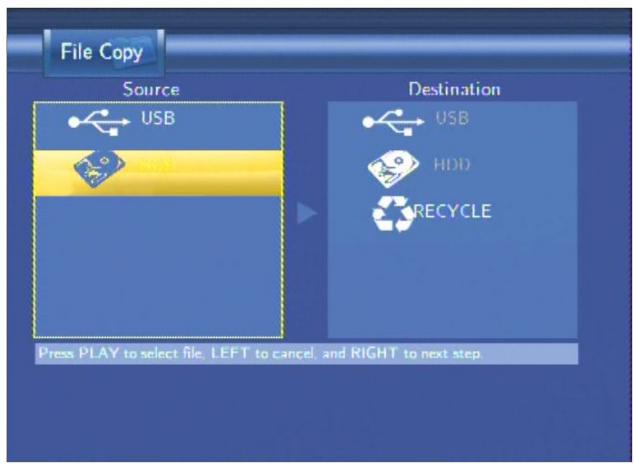
Step 1: Select the source device and destination device.
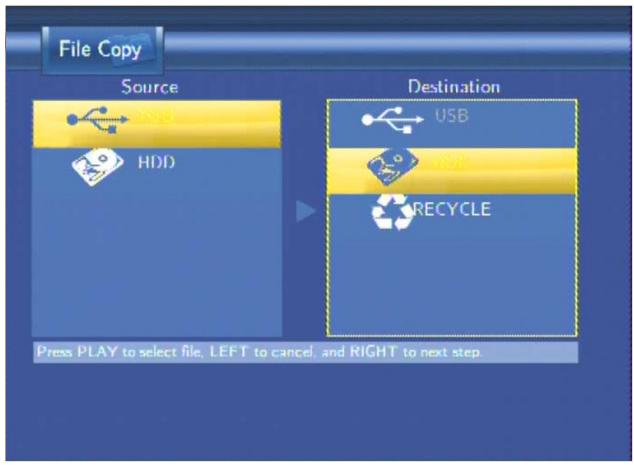
Press and to select device. Press to cancel, and for next step.
Step 2: Select the source files you want to copy.
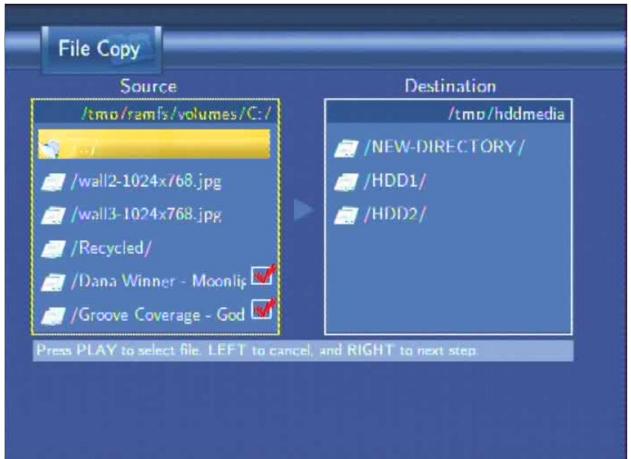
Press

to select files,

to cancel, and

to next step.
Step 3: Select the destination folder to store the above files.
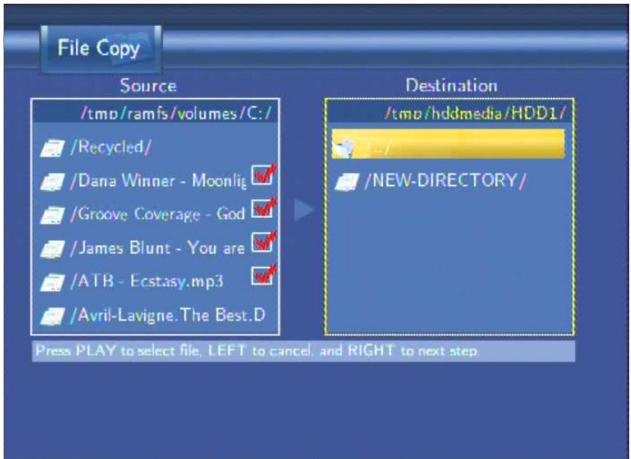
Press

and
to select folder. Press

to cancel, and

for next step.
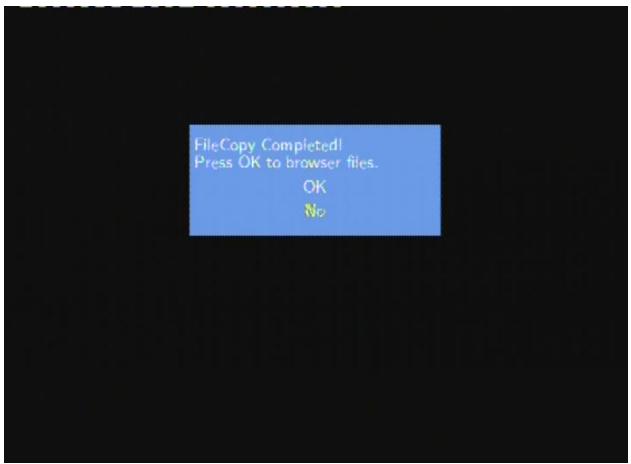
Step 4: Proceed to copy selected files.
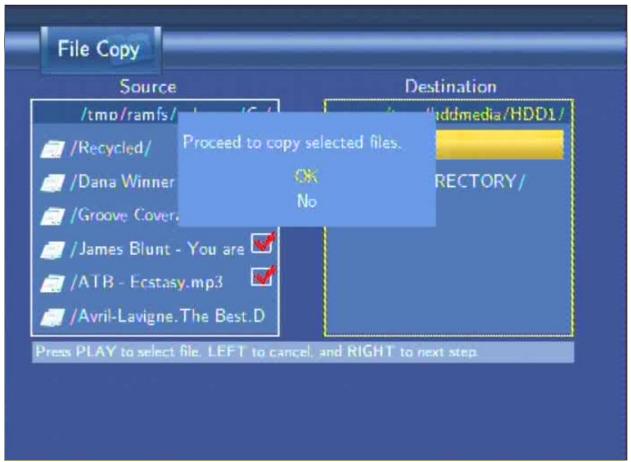
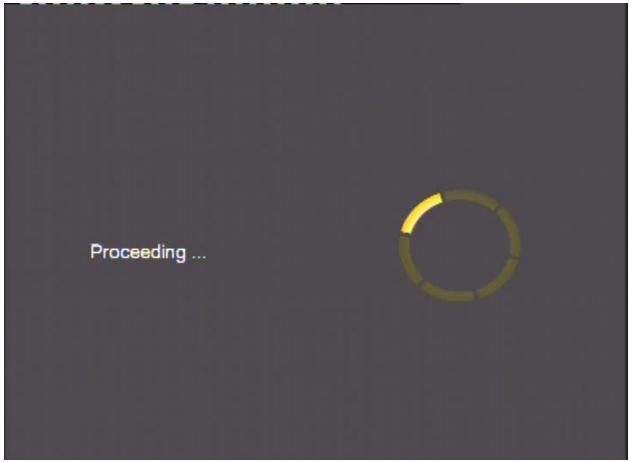
IO. Firmware Installation and Update
The firmware is the operating system (OS) of your device.
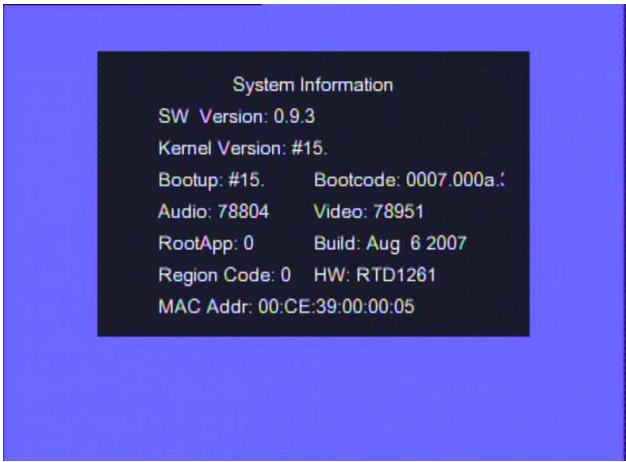
In Video In mode, press STOP on the remote control first, and then PAUSESTEP II. You can see the version information of the current firmware.
When you insert a hard disc on the system for the first time, please power on the player and wait for another 30 seconds, then connect it to your PC by USB cable, and then double click FirmwareInstaller.exe (for Windows OS only) which can be found on the Driver CD on your PC.

Note: Please backup the data in your hard disc in advance. Because the following steps will format the hard disc, which will ERASE ALL DATA currently stored on the hard disc.
Step 1: Check Movie Cube-R
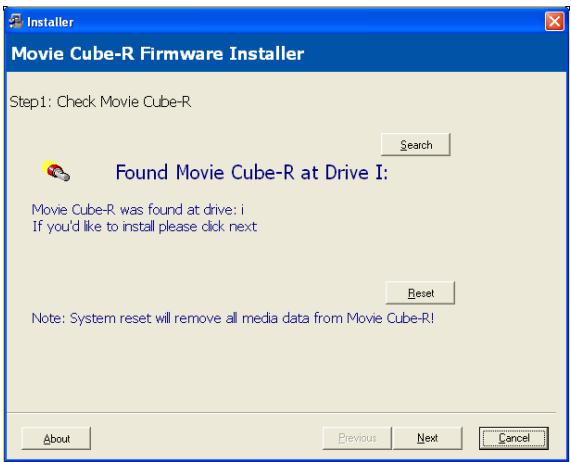
Make sure the software found Movie Cube-R on Windows. If yes, click 'Next' to next step. If not, check the USB cable is connected.
Step 2: Select 'Re-install firmware (All data on the HDD will be removed)'
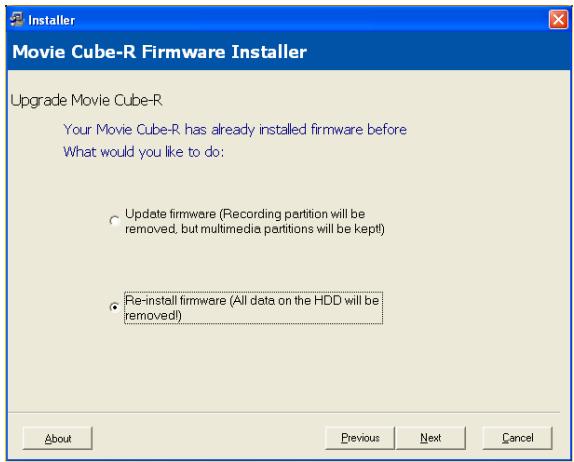
Select 'Re-install firmware (All data on the HDD will be removed)', and click 'Next'. Clicking next will erase all data currently stored on your hard disc
Step 3: Allocate the 'Timeshift Buffer Partition Capacity'
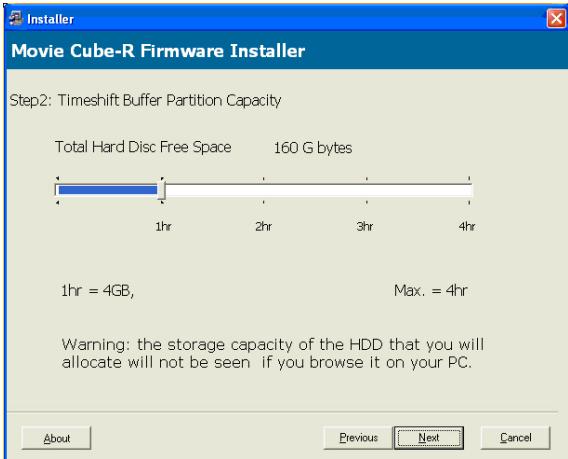
Adjust Time Shift buffer as you prefer, and click 'Next'.
Step 4: Allocating the 'Video Recording and Multimedia Partition Capacity'.
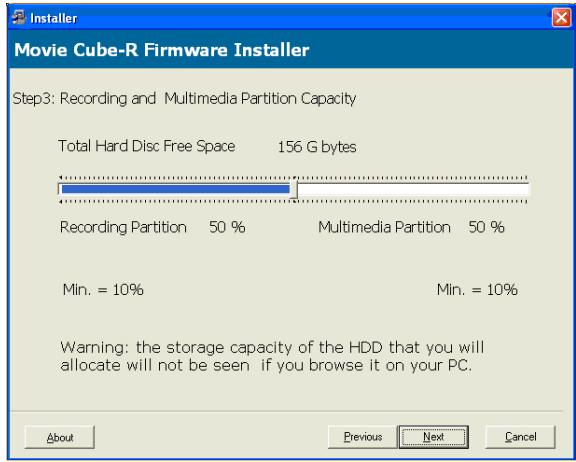
Adjust the capacities for video recording (UDF format) and multimedia storage (FAT32 format) to your specifications, and click 'Next'.
Step 5: Allocating the 'Multimedia Partition Capacity'
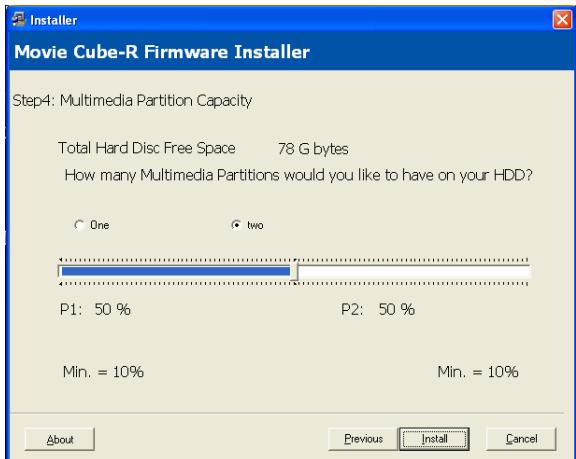
Decide between one or two multimedia partitions which you can plan and partition in size.
Step 6: Starting installation

Click 'Close', unplug the USB cable from your PC, and connect the player to TV. The firmware installation will start automatically. At the same time, you can see the install screen on the TV. After a few minutes, the installation will complete, and the system will reboot, please be patient to wait around 10 seconds.
10.2 Firmware Update
Firmware updates can bring new features, improvements and bug fixes. Before the following steps, please connect your player to PC by USB cable. Then double click the FirmwareInstaller.exe on your PC.
Note: Please copy the recorded data to FAT32 partition in your hard disc in advance. Because the following steps will delete all the recorded videos on the HDD unless you copy them to FAT32 partition. Please see "Copy to FAT32 partition" of 'Title Edit Menu' on page 29 for more details.
Step 1: Check Movie Cube-R
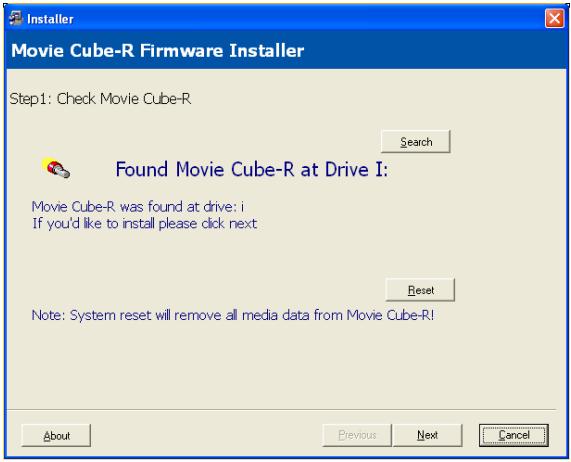
Make sure the software found Movie Cube-R on Windows. If yes, click 'Next' to next step. If not, check the USB cable is connected.
Step 2: Select 'Update firmware (Recording partition will be removed, but multimedia partition will be kept)'
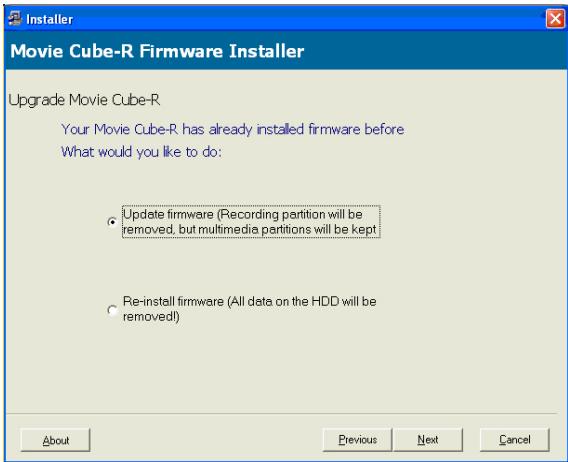
Select 'Update firmware (Recording partition will be removed, but multimedia partitions will be kept)', and click 'Next'.
Step3: Start updating
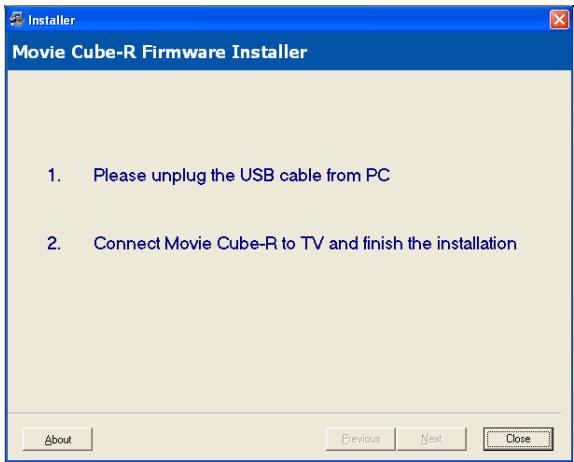
Click 'Close', unplug the USB cable from your PC, and connect the player to TV. The firmware update will start automatically. After a few minutes, the installation will complete, and the system will reboot, please be patient to wait around 10 seconds.
Note: When installation or update is completed, several system partitions would be created. Please do not delete any of these partitions in case of hard disc failure.
II. Appendixes
11.1 Specifications
USB SUPPORTED:
USB HDD
- Other USB Mass Storage Devices
CARD SUPPORTED:
SD/MMC/MS/MS Pro
CONTENT FORMATS SUPPORTED:
- DAT/VOB/IFO/MPG/AVI/MPEG-2 TS
MP3/OGG/WMA
Maximum number of files recognizable: 9999 files - Compression rate: between 32 kbps and 320 kbps
JPEG/BMP
Maximum number of pictures recognizable: 9999 files
VIDEO CODECS SURPORTED:
MPEG-1/MPEG-2
MPEG-4 ASP: XviD
AUDIO CODECS SURPORTED:
- MP2/MP3 /OGG Vorbis/WMA Standard (DRM, Pro & Advanced Profile not supported)/PCM
SUBTITLE FORMS SURPORTED:
SRT, SMI, SSA
RECORDABLE DEVICES SUPPORTED:
Built in HDD
USB HDD
| Mode | 80 GB HDD | 120 GB HDD | 160 GBHDD |
| HQ | 16hrs | 24hrs | 33hrs |
| SP | 32hrs | 48hrs | 66hrs |
| LP | 48hrs | 72hrs | 99hrs |
| EP | 64hrs | 96hrs | 132hrs |
| SLP | 96hrs | 144hrs | 198hrs |
HQ/SP/LP/EP/S-LP mode: MPEG-2 MP@ML
HQ/SP/LP/EP/SLP mode: MP2 2-chanel
| VIDEO OUTPUT SPECIFICATION | |
| Composite Output | 1 Vpp 75 Ohm |
| Components Output | Y:1 Vpp 75 Ohm |
| Cb:0.7 Vpp 75 Ohm | |
| Cr:0.7 Vpp 75 Ohm | |
| AUDIO PERFORMANCE | |
| DA Converter | 24-bit/192kHz |
| AD Converter | 24-bit/96kHz |
| Signal-Noise (1kHz) | ≥95dB |
| Dynamic Range | ≥90dB |
| (1kHz) | |
| Channel | ≥95dB |
| Separation | |
| Total Harmonic | |
| Distortion (1kHz) | ≤-85dB |
| GENERAL | |
| Power Supply | AC 100~240V 50~60Hz |
| Power | Approx. 35 W |
| Consumption | |
| Operating | +5°C to +35°C (+36°F to +95°F) |
| Temperature | |
| Operating Humidity | 5% to 80% RH |
| Hard Disk | 3.5” SATA HDD |
| Dimensions (W/H/D) | 203x164.4x53mm (7.99"x6.47"x2.09") |
| Net Weight | Approx 1.5 kg |
Note: The specifications and design of this product are subject to change without notice.
Question 1. My computer does not recognize my player.
Answer:
(1) Make sure the player is powered on. If it is off, the computer will not be able to find the player;
(2) Make sure the player is connected to computer. (Refer to 1.4.1 for connecting player to computer);
(3) When using Windows 98SE, install the USB driver first. After installation, restart the computer. Then reconnect the player to the computer. (Refer to 1.4.1 for connecting player to computer);
(4) If you installed the Windows 98SE driver over your Windows® XP, 2000, or ME edition, problems might occur;
(5) It is not recommend using the USB ports in the front of your computer, try to use the USB ports in the rear, because the USB ports in the front are often from non-powered hubs.
Question 2. When I try to disconnect the USB device, I keep on getting "The device 'Generic volume' cannot be stopped right now. Try stopping the device again later." message, what should I do?
Answer:
Close any program that might be accessing data on the player, including Windows® Explorer. If it does not work, close all programs and wait for another 20 seconds, then try the green arrow icon again. If it still does not work, you should shut down the player and disconnect the USB cable.
Question 3. I find new file names and folder names that I never created before or they have strange gibberish names.
Answer:
Most likely, the player's file allocation table (FAT) has been corrupted. This might be due to the player shutting down (due to low battery power) while reading or writing to your computer by the USB connection. Windows and Macintosh often write extra files to the hard disk such as finder.def or System volume info. These are normal and will not do any harm to the player.
Question 4. I used my player to transfer files back and forth between different computers. Will defragmenting the player hard disk do any harm to it?
Answer:
Defragmenting the player hard disk may be useful after having transferred many files to and from the player. It is never harmful to use the defragment on the player. Make sure no other programs are running while using the Windows® defragment utility. Make sure you have connected the player with the external power adapter during this procedure.
Question 5. My files have disappeared from the player.
Answer:
Make sure that you browse your files via the correct Browser mode which means correct
filtered views such as Photos, Music, or Movies.
Question 6. Why do some supported photo formats, cannot be shown in the photo function?
Answer:
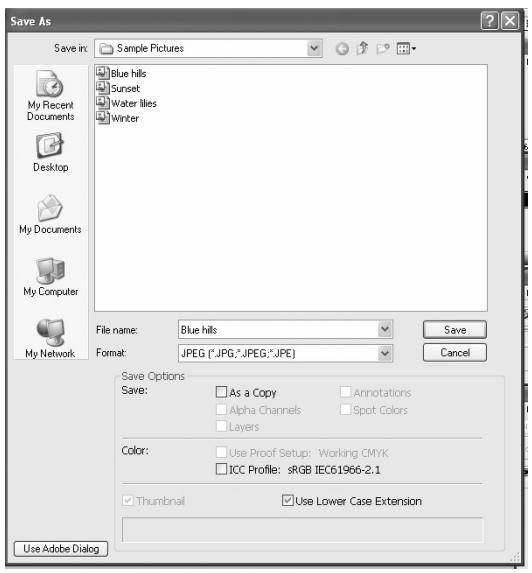
In the JPEG format there are different modes. The player doesn't support all the modes. So you have to change your photo format first as follow:
(1) Use Photoshop to open the photo;
(2) Choose "File" then "save as" from the menu, as the picture on the left hand side shows, select the picture format as JPEG, input the file name and click the "save" icon;
(3) After click on the "save" icon, a new window will appear as the picture on the right hand side shows, select "Baseline (standard)" or "Baseline optimized";
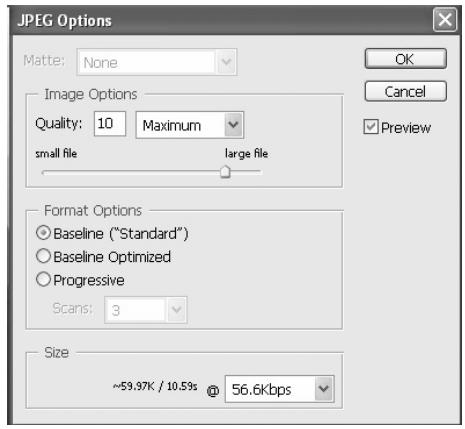
(4) Click the "OK" icon.
Question 7. During power on, why does the TV will have a short flashing, blue screen or screenshot?
Answer:
This is normal, when the system initializes, it will setup the corresponding parameters so it can output the correct video signal to the TV, during the initializing time, the TV will receive incorrect signals or the signals will not be stable and will cause the TV screen to flash, some TV's will treat this as no signal, and will display a blue screen or screenshot.
Question 8. Why when I switch to Y/Pb/Pr 480P, 576P, 720P, 1080I, does the TV screen display an unwatchable picture?
Answer:
Please check if your TV supports Y/Pb/Pr 480P, 576P, 720P, 1080I output, if your TV does not support, please use the A/V signal display instead, press the TV SYSYEM button on the remote control, then switch the TV's video input to NTSC or PAL.
Question 9. Why is there no sound on movie or music playback when using Y/Pb/Pr component output?
Answer:
Y/Pb/Pr output is a video output only, and does not include sound signals, when using Y/Pb/Pr output, please plug the A/V OUT or the S/PDIF jack to output sound.
Question10. Why couldn't the player find the hard disc?
Answer:
Make sure the firmware is installed correctly, and no system partitions on the HDD were deleted. If hard disc failure occurs, please backup your data and reinstall the firmware using the Firmware Installer software in the Driver CD which is provided along with the player.
11.3 Copyrights and Trademarks
Copyrights
All rights reserved. No part of this manual may be reproduced, stored in a retrieval system, or transmitted in any form or by any means, electronic, mechanical, photocopying, recording or otherwise, without the prior written permission from the copyright holder. According to copyright law, no recorded data may be used for purposes other than personal enjoyment without permission from the copyright holder.
Trademarks
Microsoft and Windows are registered trademarks of Microsoft Corporation. All other trademarks are property of their respective holders.
11.4 Warranty
What your warranty does not cover:
-Acts of nature, such as fire, static discharge.
-Damage from unauthorized repair, alteration or accident.
-Damage from misuse or neglect.
-A unit that has been modified or incorporated into other products or is used for institutional or other commercial purposes.
- Loss of customer's software, firmware, information, or memory data.
-Improper handling or installation.
Movie Cube™
Multimedia player with recording function
TV/DVD/Video/VCA