
EKCOWI350 - Network card / adapter EMTEC - Free user manual and instructions
Find the device manual for free EKCOWI350 EMTEC in PDF.


| Product Type | Wireless USB Adapter |
| Brand | Emtec |
| Model | EKCOWI350 |
| Wireless Standard | IEEE 802.11b/g |
| Frequency Band | 2.4 GHz |
| Security | WEP 64/128-bit, WPA TKIP/AES |
| Interface | USB 2.0 Host |
| Operating Modes | Infrastructure (AP), Ad-Hoc (Peer-to-Peer) |
| Supported OS | Windows XP, Windows Vista |
| Dimensions | Approx. 20 x 15 x 8 mm |
| Weight | Approx. 5 g |
| Power Supply | USB powered (5V) |
| Compatibility | Emtec Movie Cube with firmware v2.0.7 or higher |
| Functions | Wireless network access, network browsing, network copy, NAS support |
| LED Indicators | Power/Activity (typical) |
Frequently Asked Questions - EKCOWI350 EMTEC
User questions about EKCOWI350 EMTEC
0 question about this device. Answer the ones you know or ask your own.
Ask a new question about this device
Download the instructions for your Network card / adapter in PDF format for free! Find your manual EKCOWI350 - EMTEC and take your electronic device back in hand. On this page are published all the documents necessary for the use of your device. EKCOWI350 by EMTEC.
USER MANUAL EKCOWI350 EMTEC
User's Guide to Wireless Function
Table of Contents
- WLAN USB Adapter Connection .... 3
- Wireless Setup....4
2.1 Infrastructure (AP)......5
2.2 Peer to Peer (Ad Hoc)....7
2.3 Settings for PC....8
- Getting Started....13
3.1 Browsing Content via WLAN....13
3.2 Network Copy 13
3.3 NAS function....13
- Troubleshooting....14
Notice:
To ensure the functionality of the Wifi USB dongle on EMTEC Movie Cube, you have to check if your firmware is v2.0.7 or higher. If this is not the case then please download the latest firmware upgrade from www.emtec-international.com
1. WLAN USB Adapter Connection
A) Make sure the player is powered on;
B) Plug the Wireless LAN USB Adapter to one of the USB HOST ports of the player.

2. Wireless Setup
Select Setup from the Guide menu or select ⬤ on the remote control to enter the Setup Menu. Press and > on the remote control to select the Network tab from the menu bar.
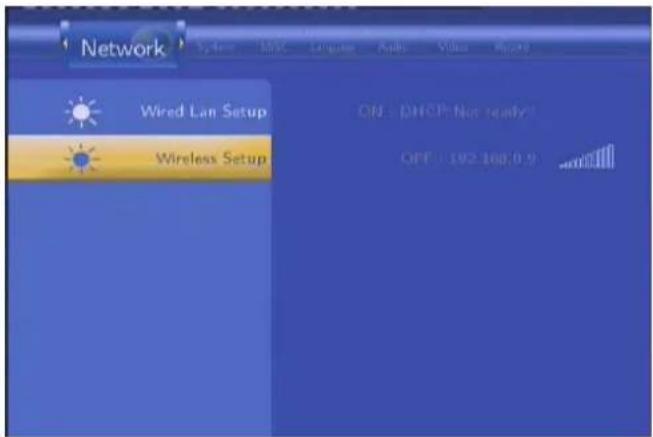
| Wireless Setup | Select to set the WLAN (Wireless Local Area Network) Settings.Before using the wireless functions, please check following items:1) Connect the WLAN USB Adapter to one of the USB HOST ports;2) Make sure your network has a wireless router or an AP (Access Point), or at least your PC should be equipped with a wireless network adapter/card;3) Please turn off your PC’s firewall;4) Please share the folders which you wish to browse on your PC, and make sure that ‘Everyone’ has the right to access;5) Make sure your player is in the effective range of the WLAN. |
- Selecting a connection profile
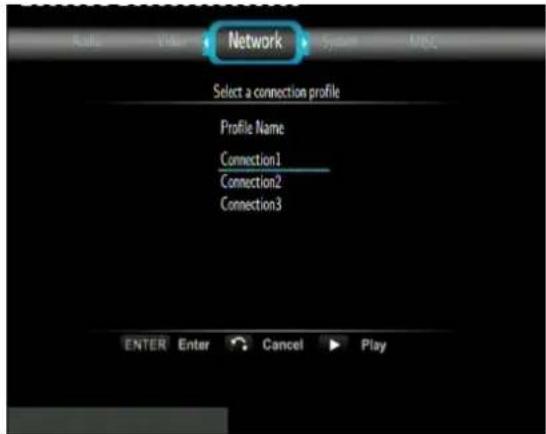
This player can store up to three wireless network connections. Press ENTER to go to next step, press RETURN to cancel, and press PLAY to connect.
- Get Connection Mode

Choose between Infrastructure (AP) and Peer to Peer (Ad Hoc). Press ENTER to go to next step, and press RETURN to cancel.
2.1 Infrastructure (AP)
Infrastructure mode is used to connect computers with wireless network adapters, also known as wireless clients, to an existing wired network with the help from wireless router or access point.
- Get SSID Name

Press ENTER to go to next step, press RETURN to cancel, and press SELECT to refresh the SSID list.
Note: In the Security list, WEP (Wired Equivalent Privacy) and WPA (Wi-Fi Protected Access) means the network is encrypted, i.e. an encryption key is needed to access the network. NONE means it is an open system network.
• Input WEP / WPA Key
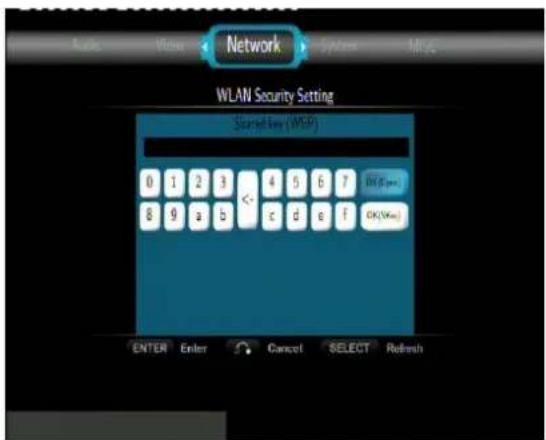
Encryption keys can be inputted via the virtual keyboard. Press the navigational buttons to select, ENTER to input, CAPS to switch between uppercase and lowercase, <- to delete a character, -> to insert a space, shift to make more symbols available, and OK to confirm.
- Wireless Address Setup
A) If there is a DHCP server on your network, i.e. a router is equipped and its DHCP function is enabled, select DHCP IP (AUTO) to set the IP address automatically.

B) Otherwise, please select FIX IP (MANUAL) to set the IP address manually.
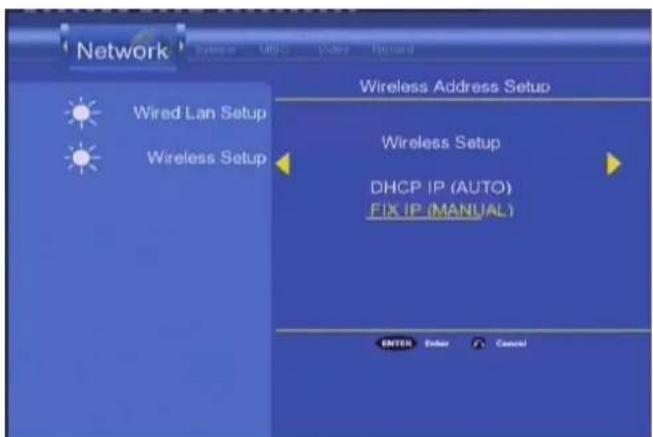
Press and to select FIX IP (MANUAL), and press .

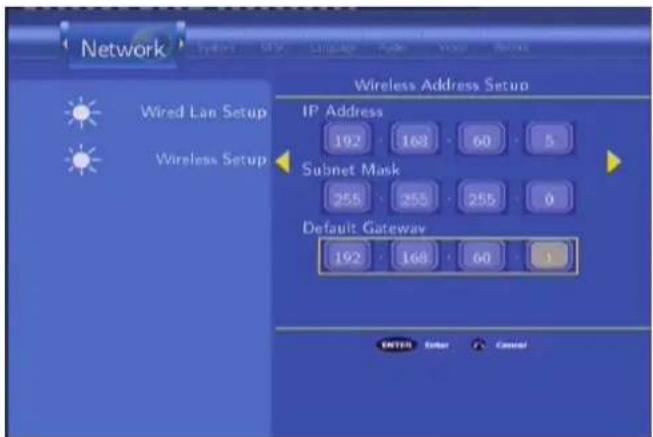
Use the numerical buttons on the remote control to enter IP Address, Subnet Mask, and
Default Gateway, and press

irm. For further assistant to the above settings,
please contact to the network administrator.
- Test connection
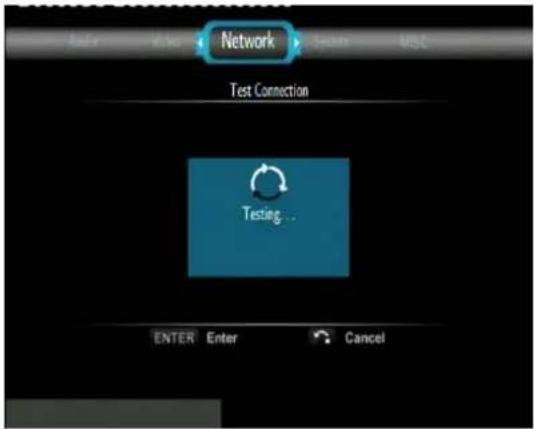
The testing process will take for a while, please be patient to wait. If the test is ok, the network information (Profile Name, IP address, Subnet Mask, Gateway, etc.) will be displayed on the screen.
2.2 Peer to Peer (Ad Hoc)
Peer to Peer mode, which is also called Ad Hoc mode or computer-to-computer mode, is used to connect wireless clients directly together, without the need for a wireless router or access point.
- Ad-Hoc Setup

Press ENTER to go to next step, press RETURN to cancel, and press PLAY to connect.
2.3 Settings for PC
The following shows an example on Windows XP Operating System. Settings might not be the same due to different operating systems and wireless network adapter/card drivers.
- Choose the wireless SSID
Step 1: Click on the Wireless Network Connection icon in the notification area, i.e. system tray.
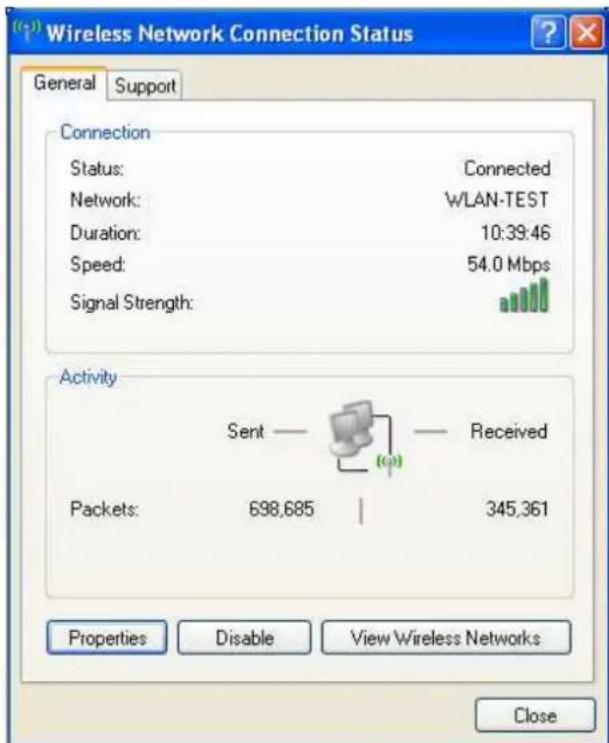
Step 2: Click View Wireless Networks, a network list will be displayed.

Step 3: Select the wireless SSID (which is set in Ad-Hoc Setup) in the network list. And click Connect.

Enter the network key if it is not an open system network. And click Connect. The computer-to-computer network will be built. And the network status will be changed into Connected.

Note: If the SSID you wish to connect is not in the list, please click Refresh network list, and try again.
- Setup the IP address for PC
Step1: Select Change advanced settings in Wireless Network Connection dialog box.
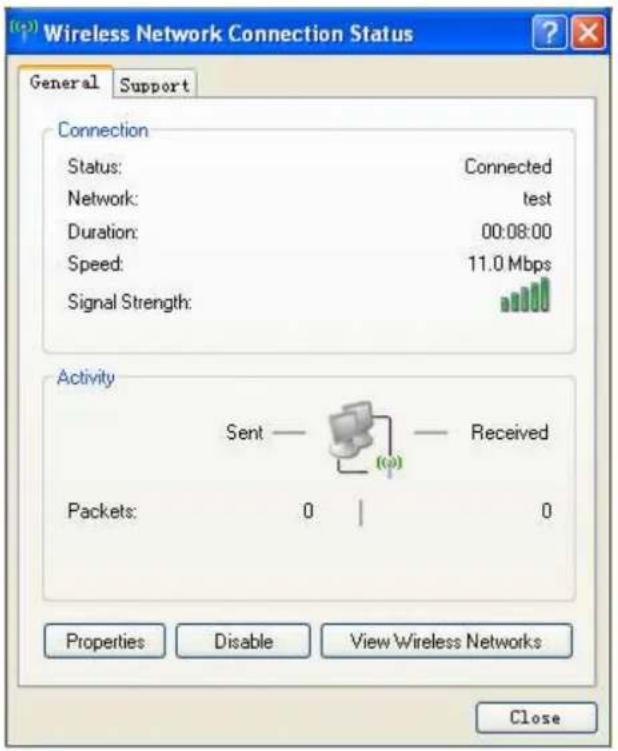
Step 2: Click Properties.

Step 3: Double click Internet Protocol (TCP/IP).
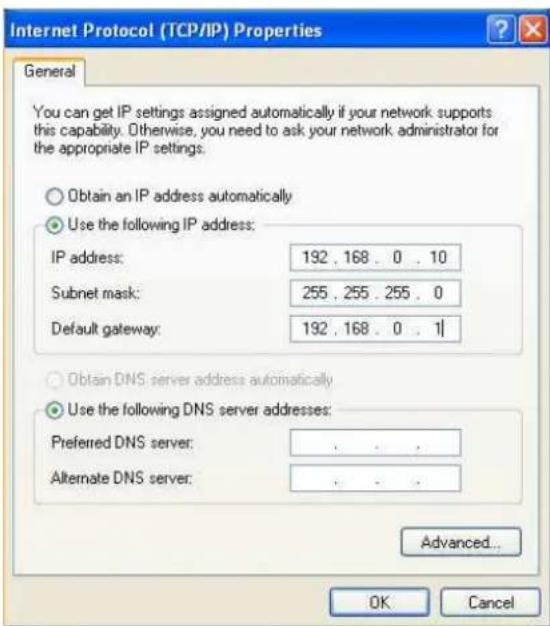
Click Use the following IP address, and manually enter the IP address, Subnet mask, and Default gateway. Then click OK to confirm.
Note: Be sure to put the player and the PC on the same subnet and in the same IP range. For example, if you set the IP on the player to 192.168.1.3, be sure to set the PC to something different inside that same range (192.168.1.2-254).
- Set the network adapter/card to run in 'ad hoc' mode
Step 1: Click Wireless Networks tab on Wireless Network Connection Properties dialog box.
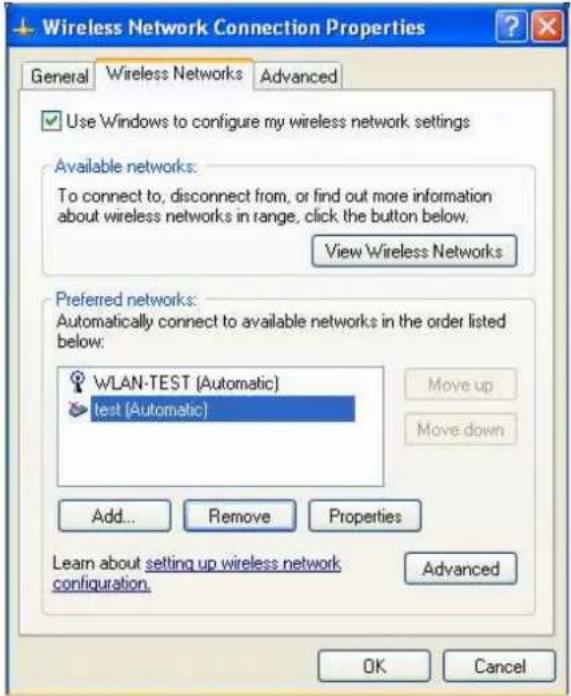
Note: You can also click Add to manually add the wireless SSID here.
Step 2: Select your SSID in Preferred networks, and click Properties.
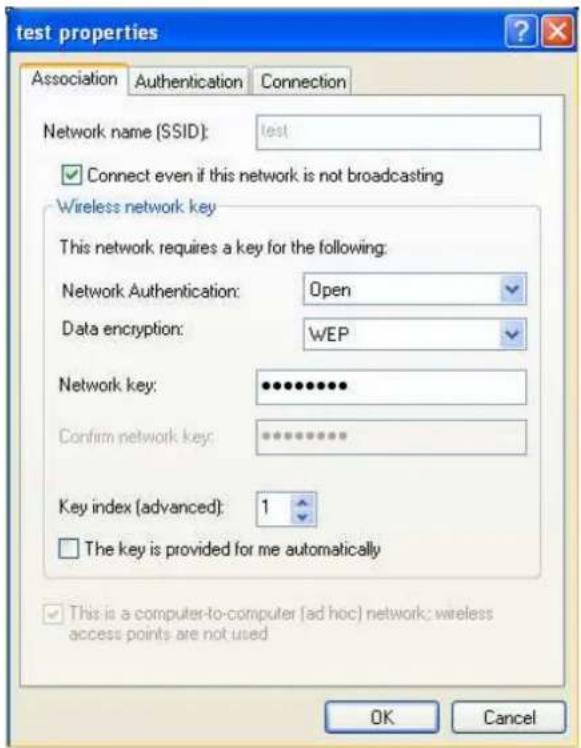
Step 3: Select Network Authentication and Data encryption mode properly, and make sure a check has been added to the box to specify that This is a computer-to-computer (ad hoc) network; wireless access points are not used. Click OK to save the entry.
3. Getting Started
When the wireless setup is done, you can start using the powerful wireless function of this player, and enjoy the happiness.
3.1 Browsing Content via WLAN
You can view the multimedia files shared on the wireless network in the Browser menu.
When selecting NET in the Browser menu, there are two ways to locate the multimedia files shared on your WLAN. One way is to browse through workgroup; the other way is to browse through My Shortcuts.
Note:
- Operations are the same as the wired network function. Please refer to the chapter about Network Function in the user manual;
- While browsing high definition video files (resolution up to 720p / 1080i / 1080p) via WLAN, the video might be buffering. It is normal due to the limit of network speed and signal strength.
3.2 Network Copy
Press the F1 button on the remote control, there appears the File Copy menu where you are allowed to copy files between USB, HDD, and NET. Operations are specified in the chapter about File Copy in the user manual.
3.3 NAS function
This player can be used as a NAS (Network-Attached Storage) device.
When the network connection is done correctly and ready for use, type: \NAS or \IP Address in the Run window (click Run in the start menu) or the address bar of Internet Explorer on your PC (For example, if the IP address of the player is 192.168.0.9, please type:
\192.168.0.9 or \NAS), and click OK or press the Enter button on the keyboard. Then you can view, and edit the files stored on the hard disk installed on the player. In this way, you can playback and copy files via wireless network between your PC and the player without a USB or Ethernet cable.
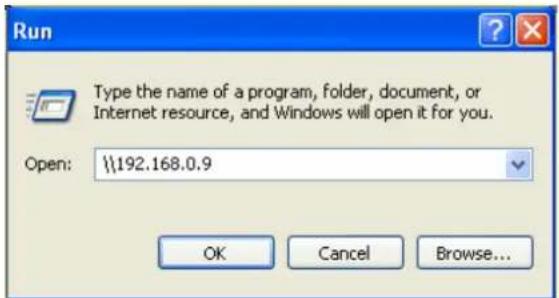
Note: NTFS partitions will be read-only.
4. Troubleshooting
Q1: I cannot get SSID name, the screen always displays: 'Can't get any SSID!!'
A: When the WLAN USB Adapter is connected to the player, it needs some time to get initialized. Please wait for about 1\~2 minutes and try again. Then it will work properly.
Q2: I configured everything correctly, but still cannot get the wireless network connected.
A: Are you using a firewall such as Norton Internet Security, McAfee Personal Firewall, Zone Alarm, etc. or even the built-in firewall of Windows XP? (Don't forget that Service Pack 2 for Windows XP automatically upgrades your firewall and turn it on by default)
If you have a firewall, it may need to be configured or have exceptions created to allow you to see and communicate with the player on the network. To test if your firewall is preventing network communication (including PING and access shared folders), try disabling it to see if you can connect. If you can connect with the firewall disabled, you may need to add the player to the 'Trusted' list or configure the firewall for local intranet access. Worst-case, disable your firewall long enough to use the player, then enable it again when done.
Q3: I'm using Windows Vista, and I cannot use the NAS function.
A: Use the following commands to resolve this problem:
Press Windows logo key + R. Then, type in the Run field: 'secpol.msc', and click OK. It will bring you to Vista's security policy system. Once there, go to: 'Local Policies' -> 'Security Options', and then find: 'Network Security: LAN Manager authentication level'. Change the Setting from 'Send NTLMv2 response only' to 'Send LM & NTLM -- use NTLMv2 session security if negotiated'.
Q4: When I am using the NAS function, I cannot copy files to the player.
A: Please check the file system format of the hard disc drive partitions on the player. NTFS partitions are read-only on the system. Therefore, files cannot be written onto any NTFS partitions via the NAS mode. However, you can copy the files you wish to the NTFS partitions via a USB cable.



- USER'S GUIDE TO WIRELESS FUNCTION
- TABLE OF CONTENTS
- NOTICE
- WLAN USB ADAPTER CONNECTION
- WIRELESS SETUP
- 2.1 INFRASTRUCTURE (AP)
- WIRELESS ADDRESS SETUP
- TEST CONNECTION
- 2.2 PEER TO PEER (AD HOC)
- 2.3 SETTINGS FOR PC
- CHOOSE THE WIRELESS SSID
- SETUP THE IP ADDRESS FOR PC
- GETTING STARTED
- 3.1 BROWSING CONTENT VIA WLAN
- NOTE
- 3.2 NETWORK COPY
- 3.3 NAS FUNCTION
- TROUBLESHOOTING
Brand : EMTEC
Model : EKCOWI350
Category : Network card / adapter