
TS0MFLRD8E - Memory card reader TRANSCEND - Free user manual and instructions
Find the device manual for free TS0MFLRD8E TRANSCEND in PDF.

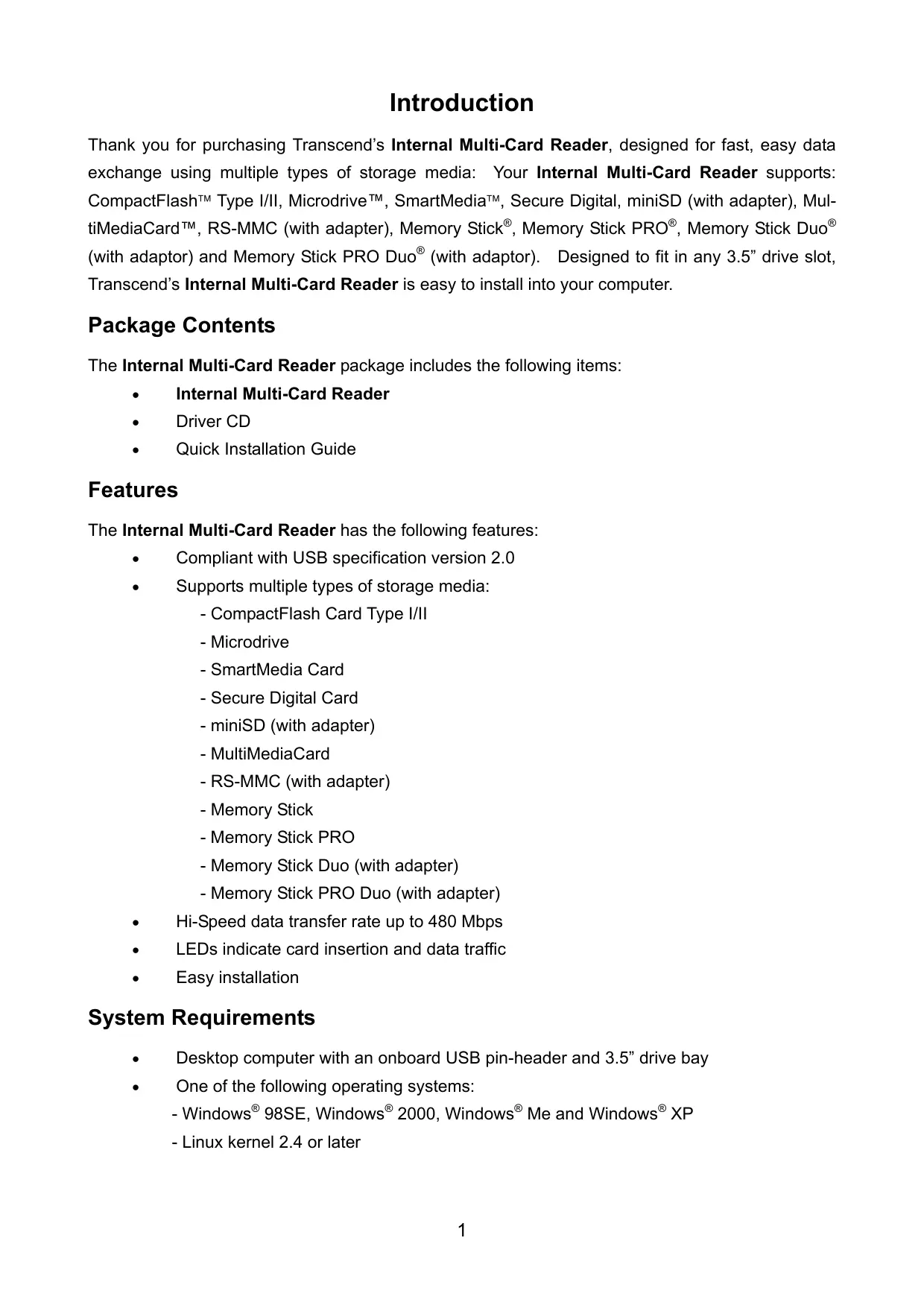

| Product Type | Internal Memory Card Reader |
| Brand | Transcend |
| Model | TS0MFLRD8E |
| Interface | USB 2.0 (compatible with USB 1.1) |
| Maximum Transfer Speed | 480 Mbps (Hi-Speed) |
| Supported Card Formats | CompactFlash Type I/II, Microdrive, SmartMedia, SD, miniSD (with adapter), MMC, RS-MMC (with adapter), Memory Stick, Memory Stick PRO, Memory Stick Duo (with adapter), Memory Stick PRO Duo (with adapter) |
| Number of Slots | 4 (distinct logical drives) |
| Power Supply | 5 V DC via USB port (supplied by motherboard) |
| Dimensions (W x D x H) | 102 mm x 102 mm x 26 mm |
| Weight | 234 g |
| Operating Temperature | 0 °C to 40 °C |
| Storage Temperature | -10 °C to 60 °C |
| Operating Humidity | 0 % to 90 % RH (non-condensing) |
| Certifications | FCC Class B, CE, BSMI |
| Supported Operating Systems | Windows 98SE/2000/Me/XP, Linux kernel 2.4 or later |
| Installation | 3.5-inch drive bay, connection to internal USB header on motherboard |
| Package Contents | Reader, driver CD, quick installation guide |
| Warranty | 2 years |
| LED Indicators | Card presence and data transfer |
| Adapter Compatibility | Requires adapters for miniSD, RS-MMC, Memory Stick Duo |
Frequently Asked Questions - TS0MFLRD8E TRANSCEND
User questions about TS0MFLRD8E TRANSCEND
0 question about this device. Answer the ones you know or ask your own.
Ask a new question about this device
Download the instructions for your Memory card reader in PDF format for free! Find your manual TS0MFLRD8E - TRANSCEND and take your electronic device back in hand. On this page are published all the documents necessary for the use of your device. TS0MFLRD8E by TRANSCEND.
USER MANUAL TS0MFLRD8E TRANSCEND
Internal Multi-Card Reader
User's Manual
P/N TS0MFLRD8B/8E
Transcend
Your Supplier, Your Partner,
Your Friend.
Table of Contents
Introduction
Package Contents. 1
Features. 1
System Requirements 1
Driver Installation
Driver Installation for Windows 98SE and 2000 2
Driver Installation for Windows Me, XP and Linux. 4
Hardware Setup 4
To Use the Internal Multi-Card Reader
To Use with Windows 98SE and 2000 .6
To Use with Windows Me and XP 7
To Use with Linux Kernel 2.4 or Later.. 7
To Safely Remove Memory Cards
To Remove in Windows. 8
To Remove in Linux 8
Specifications 9
Card Reader Limited Warranty
Introduction
Thank you for purchasing Transcend's Internal Multi-Card Reader, designed for fast, easy data exchange using multiple types of storage media: Your Internal Multi-Card Reader supports: CompactFlash™ Type I/II, Microdrive™, SmartMedia™, Secure Digital, miniSD (with adapter), MultiMediaCard™, RS-MMC (with adapter), Memory Stick®, Memory Stick PRO®, Memory Stick Duo® (with adaptor) and Memory Stick PRO Duo® (with adaptor). Designed to fit in any 3.5" drive slot, Transcend's Internal Multi-Card Reader is easy to install into your computer.
Package Contents
The Internal Multi-Card Reader package includes the following items:
Internal Multi-Card Reader
Driver CD
Quick Installation Guide
Features
The Internal Multi-Card Reader has the following features:
Compliant with USB specification version 2.0
Supports multiple types of storage media:
- CompactFlash Card Type I/II
- Microdrive
- SmartMedia Card
- Secure Digital Card
- miniSD (with adapter)
- MultiMediaCard
- RS-MMC (with adapter)
- Memory Stick
- Memory Stick PRO
- Memory Stick Duo (with adapter)
- Memory Stick PRO Duo (with adapter)
Hi-Speed data transfer rate up to 480 Mbps
LEDs indicate card insertion and data traffic
Easy installation
System Requirements
Desktop computer with an onboard USB pin-header and 3.5" drive bay
One of the following operating systems:
- Windows® 98SE, Windows® 2000, Windows® Me and Windows® XP
- Linux kernel 2.4 or later
Driver Installation
Driver Installation for Windows 98SE and 2000
- Power on the computer where you will install the Internal Multi-Card Reader and make sure the USB port is enabled and working properly.

Do not plug your Internal Multi-Card Reader into the USB port at this time.
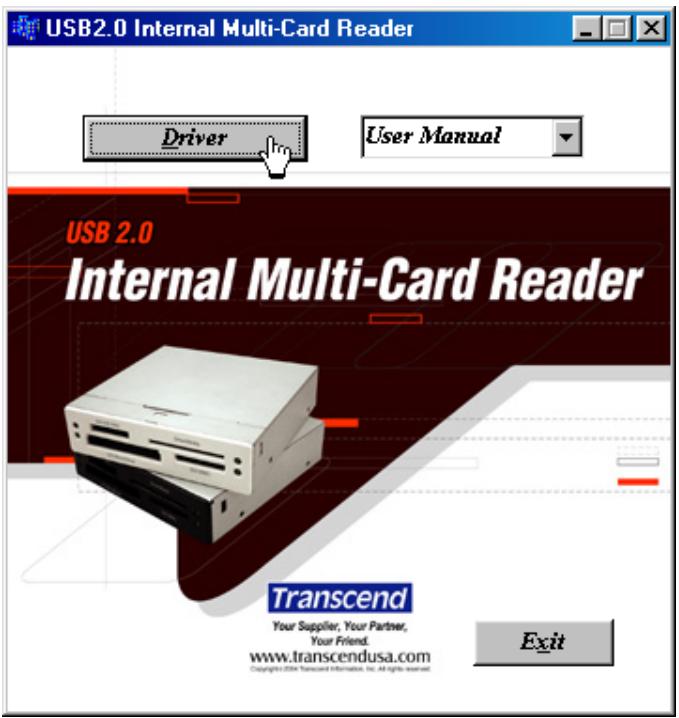
- Insert the Driver CD into the CD-ROM drive (Auto-Run supported). Select the Driver button to install the driver. If the Auto-Run window does not appear, run CardRead.exe in the root directory of the Driver CD.
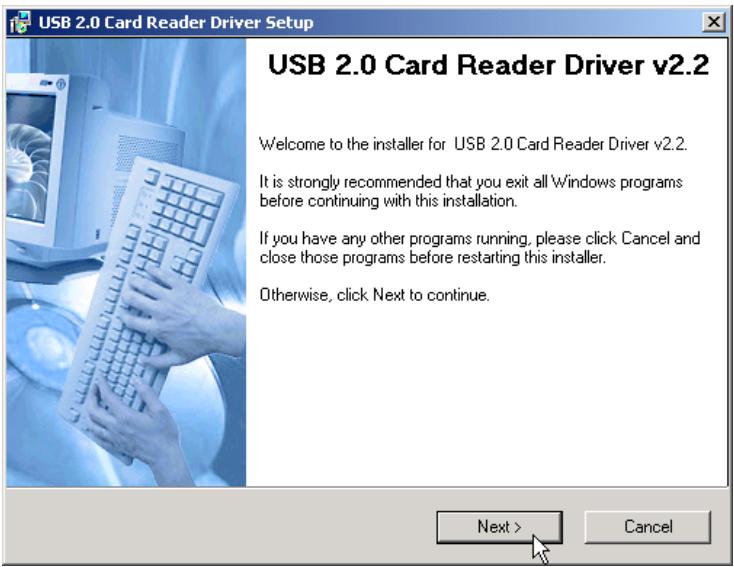
- The Card Reader Setup window will appear, then select the Next button to continue.
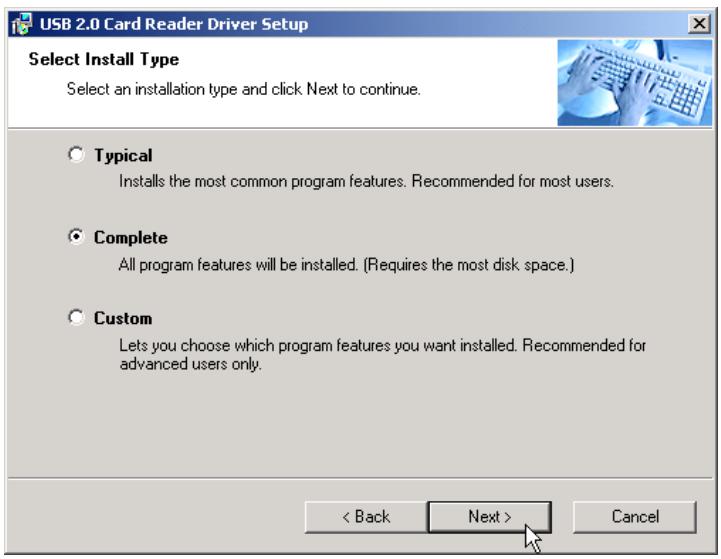
- Choose one installation option and select the Next button to continue.
- Select the Next button to complete the driver installation.
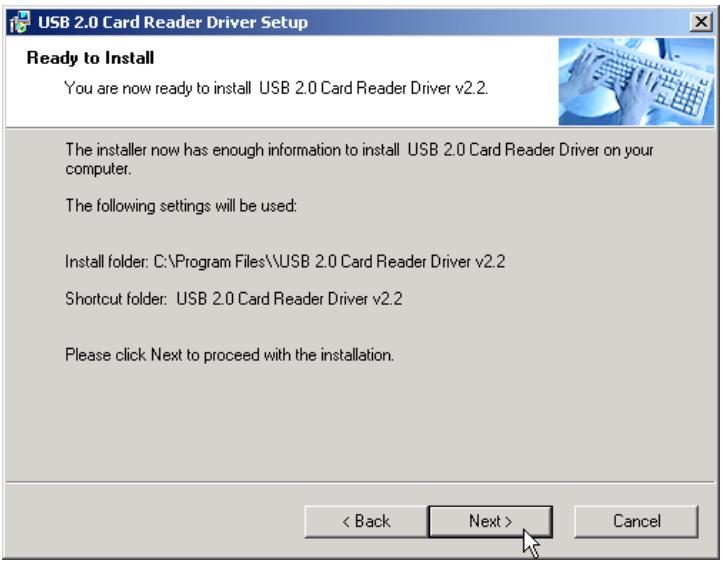
If using Windows 98SE or 2000, the system will ask you to restart your computer. Please do not restart your computer at this time. Cancel the Yes, restart my computer now option and select the Finish button.
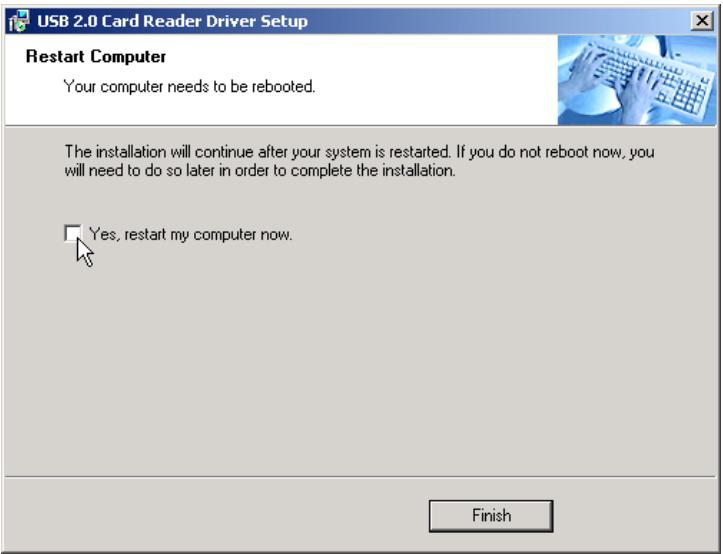
- Shutdown the computer and refer to the Hardware Setup below to set up the Internal Multi-Card Reader.
Driver Installation for Windows Me, XP and Linux
No driver is needed. Turn off the computer and refer to Hardware Setup below to install the Internal Multi-Card Reader into your PC.
Hardware Setup
- Install the Internal Multi-Card Reader into an available 3.5" drive bay.
- Find the layout of the USB pin-header in the owner's manual of your motherboard.
- If the layout of the USB pin-header is as shown below, it matches the default setting of the USB connector.
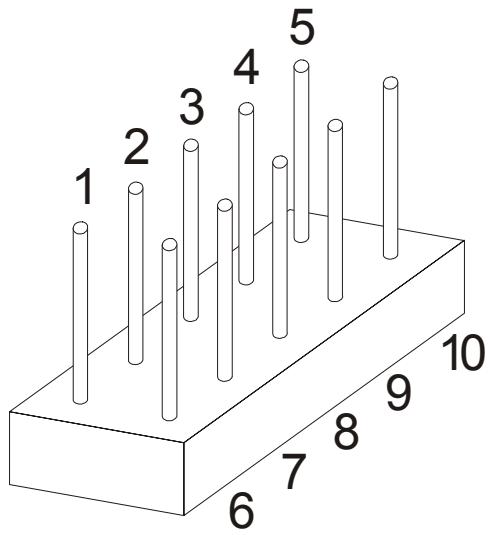
Pin 1: USB Power
Pin 2:USB -
Pin 3: USB +
Pin 4: GND
Pin 5: NC/USBOC
Pin 6: USB Power
Pin 7:USB -
Pin 8: USB +
Pin 9: GND
Pin 10: NC (No pin)
If the layout of the USB pin-header is not as shown above, skip step 4 and go directly to step 5.
- Plug the USB connector of the Internal Multi-Card Reader into the USB pin-header on the motherboard, with the red wire seated in pin 1 or pin 6. The hardware setup is complete.
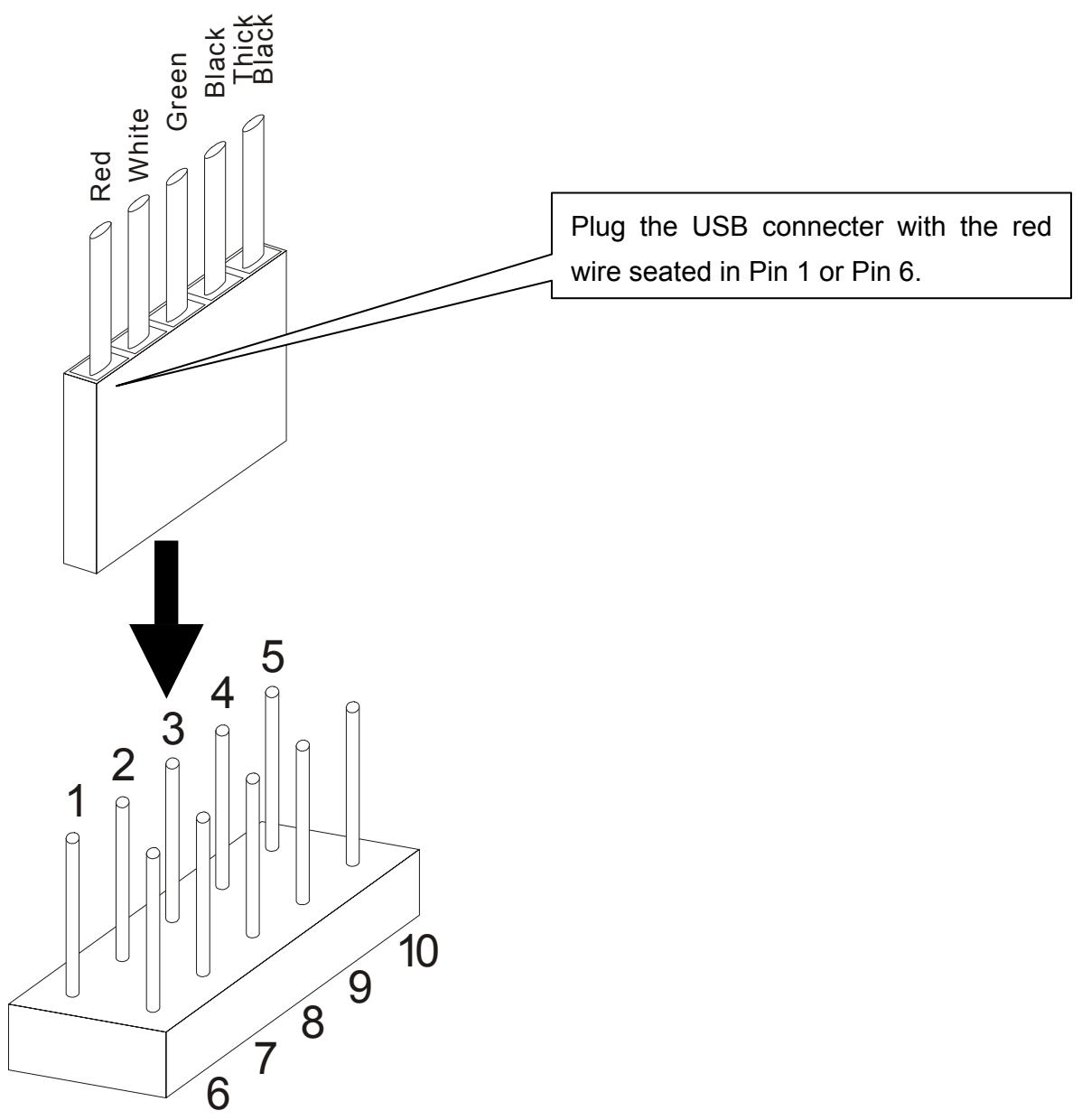
- If the layout of USB pin-header does not match the default setting of the USB connector (shown above in Step 3), please rearrange the color of the wires of the USB cable as follows:
a. Use a needle to raise the small plastic tab and pull the wires out of the connector. Be careful not to break the tab!
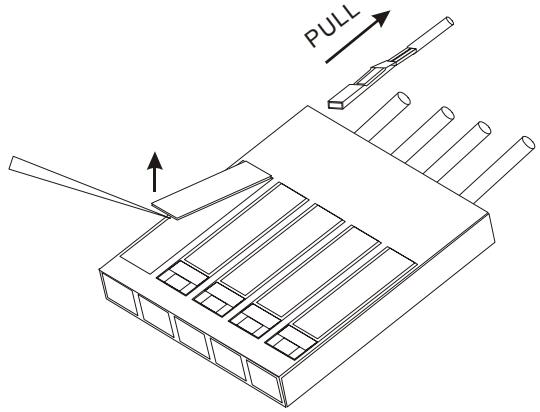
b. Refer to the pin assignment of USB connector (below) to realign the color of the wires.
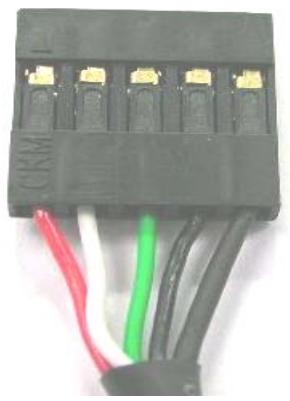
| Wire | Pin Assignment |
| Red | Vcc / Power / +5V |
| White | P-, Data- |
| Green | P+, Data+ |
| Black | GND |
| Thick Black | Not Connect / Shield Ground |

Be careful in realigning the color wires. Any error here will cause serious damage to the Internal Multi-Card Reader.
c. Keep the same side of the wire pins facing up and insert them back into the connector. Press the tab down to fully seat the wire pins.
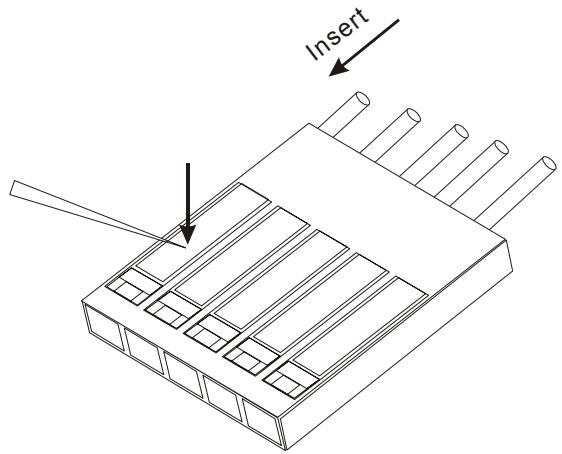
- Connect the USB connector of the Internal Multi-Card Reader to the USB pin-header on the motherboard. The hardware setup is complete.
To Use the Internal Multi-Card Reader
After the driver installation and hardware setup is complete, you can power on the computer and start to use your Internal Multi-Card Reader.
To Use with Windows 98SE and 2000
- Power on the computer. The New Hardware Found window will appear (the first time you power on the computer after installing the Internal Multi-Card Reader).
New Hardware Found

USB Storage Drive
Windows is installing the software for your new hardware.
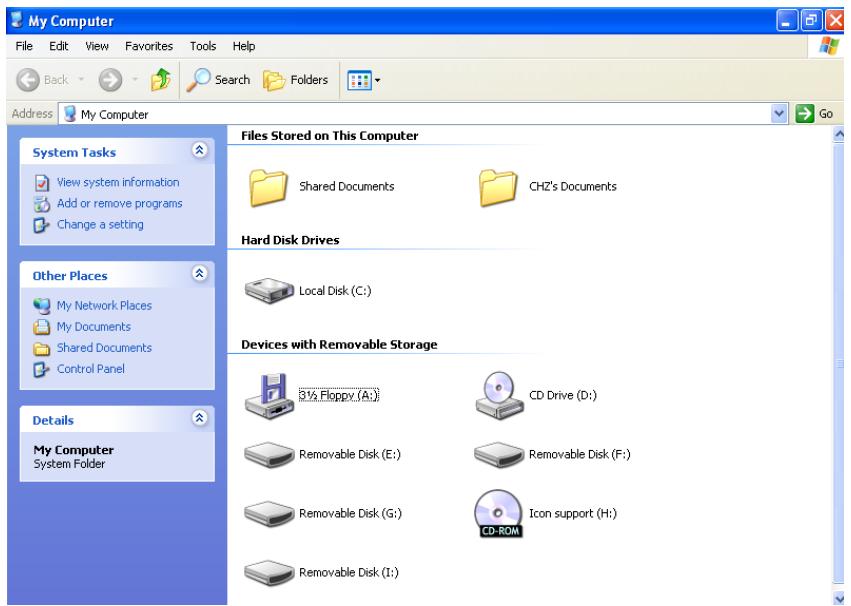
- Four Removable Disk drives with newly assigned drive letters will appear in My Computer. The Internal Multi-Card Reader is ready for use.
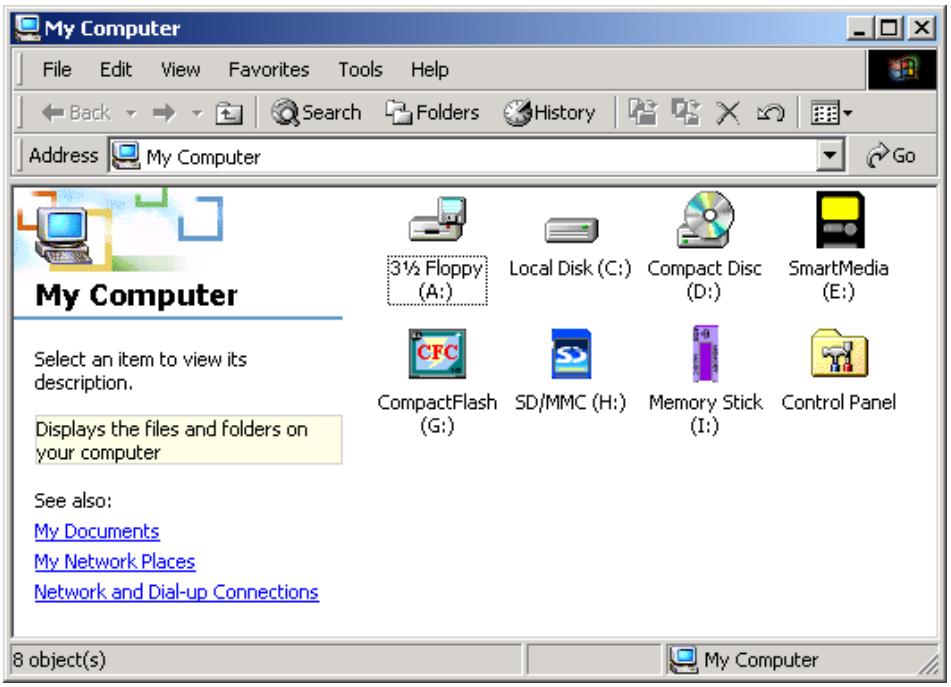
To Use with Windows Me and XP
- Power on the computer. The Found New Hardware status message will appear (the first time you power on the computer after installing the Internal Multi-Card Reader).
- Four Removable Disk drives with newly assigned drive letters will appear in My Computer. The Internal Multi-Card Reader is ready for use.
To Use with Linux Kernel 2.4 or Later
The Internal Multi-Card Reader is a driver-free device for Linux kernel 2.4 or later. Just follow the procedures below to mount and use.
- Power on the computer and insert a memory card into the Internal Multi-Card Reader.
- Create a directory for the Internal Multi-Card Reader.
Example: mkdir /mnt/CardReader
3. Mount the Internal Multi-Card Reader.
Example: mount -a -t mdos /dev/sda1 /mnt/CardReader
No matter how many memory cards are inserted into the Internal Multi-Card Reader, only the memory card that was first inserted can be mounted.
To Safely Remove Memory Cards
To Remove in Windows
Make sure that the LED is not blinking (no data is being transmitted). You can then safely remove the memory card.

Removal of a memory card while data is transferring may cause damage to the card and the system to halt.
To Remove in Linux
Unmount the device from the Linux environment. You can then safely remove the memory card. Example: amount /mnt/CardReader

Never remove or insert a memory card while data is being transmitted. To avoid improper shutdown, open the transmitted file from its new location to ensure transmission has been completed.
Specifications
Power Supply. DC 5V from USB port
Slots for Storage Media: CompactFlash Card Type I/II
Microdrive
SmartMedia Card
Secure Digital Card
miniSD (with adapter)
MultiMediaCard
RS-MMC (with adapter)
Memory Stick
Memory Stick PRO
Memory Stick Duo (with adapter)
Memory Stick PRO Duo (with adapter)
Operating Temperature 0°C-40°C
Storage Temperature. -10°C-60°C
Humidity 0%-90% RH
Emission/Safety FCC Class B, CE, BSMI
Dimensions 102mm x 102mm x 26mm
Weight 234g
Card Reader Limited Warranty
"Above and beyond" is the standard we set ourselves for customer service at Transcend. We consistently position ourselves to be significantly above the industry norm. It's all part of our commitment to Customer Satisfaction.
All Transcend Information, Inc. (Transcend) products are warranted and tested to be free from defects in material and workmanship and to conform to the published specifications. Should your Transcend Card Reader malfunction during normal use in its recommended environment due to improper workmanship or materials within the warranty period, Transcend will repair or replace your product with a comparable product. This warranty is subject to the conditions and limitations set forth herein.
Duration of Warranty: Transcend Card Readers are covered by this warranty for a period of two (2) years from the date of purchase. Transcend will inspect the product and make the determination as to whether the product is eligible for repair or replacement. The decision by Transcend regarding eligibility of the product for repair or replacement will be final and binding. Transcend reserves the right to provide a functionally equivalent refurbished replacement product.
Limitations: This warranty does not apply to products that fail due to accident, abuse, mishandling, improper installation, alteration, acts of nature, improper usage, or problems with electrical power. Transcend Card Reader must be used with devices that conform to the recommended industry standards. Transcend will not be liable for damages resulting from a third party device that causes the Transcend product to fail. Transcend shall in no event be liable for any consequential, indirect, or incidental damages, lost profits, lost business investments, lost goodwill, or interference with business relationships as a result of lost data. Transcend is also not responsible for damage or failure of any third party equipment, even if Transcend has been advised of the possibility. This limitation does not apply to the extent that it is illegal or unenforceable under applicable law.
Disclaimer: The foregoing limited warranty is exclusive, with no other warranties implied or statutory, including but not limited to any implied warranty of merchantability or fitness for a particular purpose. This warranty is not affected in any part by Transcend's providing technical support or advice.
Online Registration: To expedite warranty service, please register your Transcend Product within 30 days of purchase.
Register online at http://www.transcendusa.com/registration

Your Supplier, Your Partner, Your Friend.
Transcend Information, Inc.
www.transcendusa.com
The Transcend logo is a registered trademark of Transcend Information, Inc.
*All logos and marks are trademarks of their respective companies.