
TS-RD13B - Memory card reader TRANSCEND - Free user manual and instructions
Find the device manual for free TS-RD13B TRANSCEND in PDF.


| Product Type | Memory Card Reader |
| Brand | TRANSCEND |
| Model | TS-RD13B |
| Supported Card Formats | CompactFlash (CF), Microdrive, SD/SDHC/SDXC, MMC, miniSD, Memory Stick (MS), xD-Picture Card |
| Interface | USB 2.0 (backward compatible with USB 1.1) |
| Transfer Speed | Up to 480 Mbit/s (USB 2.0) |
| Power Supply | Via USB (5 V, 500 mA max) |
| Supported Operating Systems | Windows XP/Vista/7/8/10, Mac OS X 10.4 or later, Linux 2.6 or later |
| Dimensions (L x W x H) | 8.0 x 5.0 x 1.5 cm |
| Weight | 50 g |
| Operating Temperature | 0 °C to 70 °C |
| Operating Humidity | 10 % to 90 % (non-condensing) |
| Indicator LED | Yes (indicates power and activity) |
| Main Functions | Reading and writing data on inserted memory cards |
| Care and Cleaning | Keep connectors clean and dry. Clean with a soft, dry cloth. |
| Safety | Remove the card before disconnecting the reader to avoid data loss. |
| Spare Parts and Repairability | Not user-serviceable. In case of malfunction, contact customer support. |
Frequently Asked Questions - TS-RD13B TRANSCEND
User questions about TS-RD13B TRANSCEND
0 question about this device. Answer the ones you know or ask your own.
Ask a new question about this device
Download the instructions for your Memory card reader in PDF format for free! Find your manual TS-RD13B - TRANSCEND and take your electronic device back in hand. On this page are published all the documents necessary for the use of your device. TS-RD13B by TRANSCEND.
USER MANUAL TS-RD13B TRANSCEND
System Requirements 2
Driver Installation
Driver Installation for Windows 98/98SE and 2000 3
Driver Installation for Windows ME and XP 4
Driver Installation for Mac OS 9.x 4
Driver Installation for Mac OS X 5
Using the Multi-Card Reader
Windows 98/98SE and 2000 Setup. 5
Windows Me and XP Setup 7
Mac OS 9.x Setup 9
Mac OS X Setup 9
Linux Kernel 2.4 or Later, Setup 10
Safely Remove the Multi-Card Reader
Remove the Reader in Windows 98/98SE 11
Remove the Reader in Windows 2000, Me, or XP 11
Remove the Reader in Mac OS and Linux 11
Input Slot Description 12
Specifications 13
USB Multi-Card Reader Limited Warranty
Introduction
Thank you for purchasing Transcend's Portable Multi-Card Reader, a small device specifically designed for fast, easy data transfer and exchange using multiple types of Memory Cards and without the need for an adapter. Insertable card types include; CompactFlash (CF) Type I/II, Microdrive™, Secure Digital (SD), miniSD™, MultiMediaCard (MMC), RS-MMC, MMCplus™, MMCmobile™, Memory Stick®, Memory Stick PRO®, Memory Stick Duo®, Memory Stick PRO Duo® and xD Memory Cards. Transcend's Multi-Card Reader requires no installation and simply connects to any PC, Mac, or notebook computer using a USB connection. In addition, the device's small size, fast transfer speeds and funky design will enhance you photo, music and data transfer experience.
Package Contents
The Multi-Card Reader package includes the following items:
Multi-Card Reader
Driver CD
USB Extension Cable
Quick Installation Guide
Features
The Multi-Card Reader has the following features:
Fully Compliant with the USB 2.0 specification
High-speed data transfer rates of up to 480Mbit/sec
- USB powered (no external power needed)
Easy Plug and Play installation
Supports multiple types of Memory Cards without the need for an adapter:
CompactFlash Card Type I/II
Microdrive
Secure Digital Card
miniSD
MultiMediaCard
RS-MMC
MMCplus
MMCmobile
Memory Stick
Memory Stick PRO
Memory Stick Duo
Memory Stick PRO Duo
xD
LED indicates card insertion and data transfer
System Requirements
Desktop or notebook computer with a USB port
One of the following operating systems:
-Windows®98/98SE
-Windows®2000
- Windows® Me
- Windows® XP
- MacTM OS 9.x or later
- MacTM OS X
- Linux Kernel 2.4 or later
Driver Installation
Driver Installation for Windows ^ 98/98SE and 2000
- Power on the computer you will be connecting the Multi-Card Reader to, and make sure the USB port is enabled and working properly.

Do Not plug your Multi-Card Reader into the USB port at this time.
- Insert the Driver CD into the CD-ROM drive (Auto-Run supported). Click the Driver button.
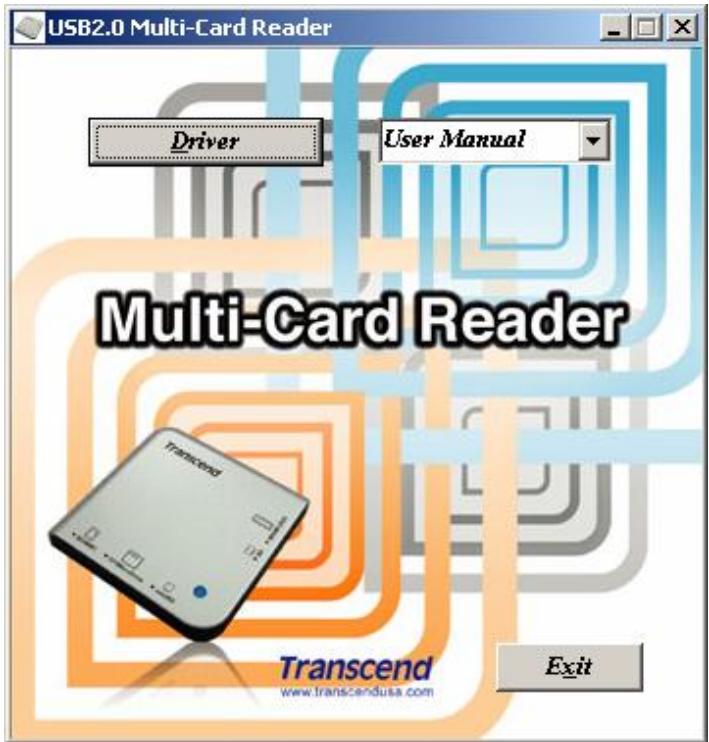
- The InstallShield Wizard guides you through the installation process.
- Restart your computer to complete the driver installation.
You can uninstall the Multi-Card Reader driver by running Add/Remove Programs in Start > Settings >> Control Panel. Follow the on-screen instructions to complete the process.
Driver Installation for Windows ^ ME and XP
There is no need to install the driver for normal usage.
To use the Card Slot Identification Icons, please install the driver.
You can uninstall the driver by running Add/Remove Programs in Start > Settings >> Control Panel. Follow the on-screen instructions to complete the process.
Driver Installation for Macà OS 9.x
- Power on the Mac™ you will be connecting the Multi-Card Reader to, and make sure the USB port is enabled and working properly.

Do NOT plug your Multi-Card Reader into the USB port at this time.
- Insert the Driver CD into the CD-ROM drive and run the Install program in the Mac folder on the Driver CD. Follow the on-screen instructions to complete the driver installation.
- Restart the computer to complete the driver installation process.
Driver Installation for Macà OS X
Transcend's Multi-Card Reader does not require a device driver for the Max OS X operating system. You may connect the device directly using the supplied cable to an available USB port on your Mac™; insert a memory card and a disk icon will appear on the desktop. You can then use the memory card as if it were a Hard Disk on your Mac™
Using the Multi-Card Reader
Secure Digital (SD), MultiMediaCard (MMC), RS-MMC, MMCplus and MMCmobile cards all use the same input slot on the Multi-Card Reader. It is IMPORTANT! to note that SD/MMC and miniSD cards cannot be used at the same time. To prevent data corruption only one of the cards may be used in an input slot at a time.
Memory Stick, Memory Stick PRO, Memory Stick Duo and Memory Stick PRO Duo all use the same input slot on the Multi-Card Reader. To prevent data corruption only one of the cards may be used in an input slot at a time.
Windows ^ 98/98SE and 2000 Setup
- Complete the driver installation.
- Connect the Multi-Card Reader to an available USB port directly using the supplied cable.
- Your computer automatically recognizes the Multi-Card Reader and displays a "New Hardware Found" message. Windows will install the files needed to use your device.
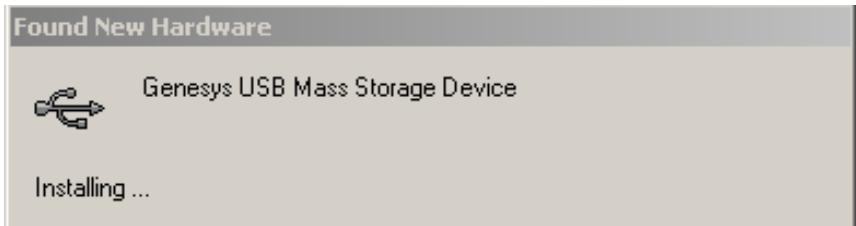
- Four Removable Disk drives with Card Slot Identification Icons will appear in My Computer. The Multi-Card Reader is now ready for use.
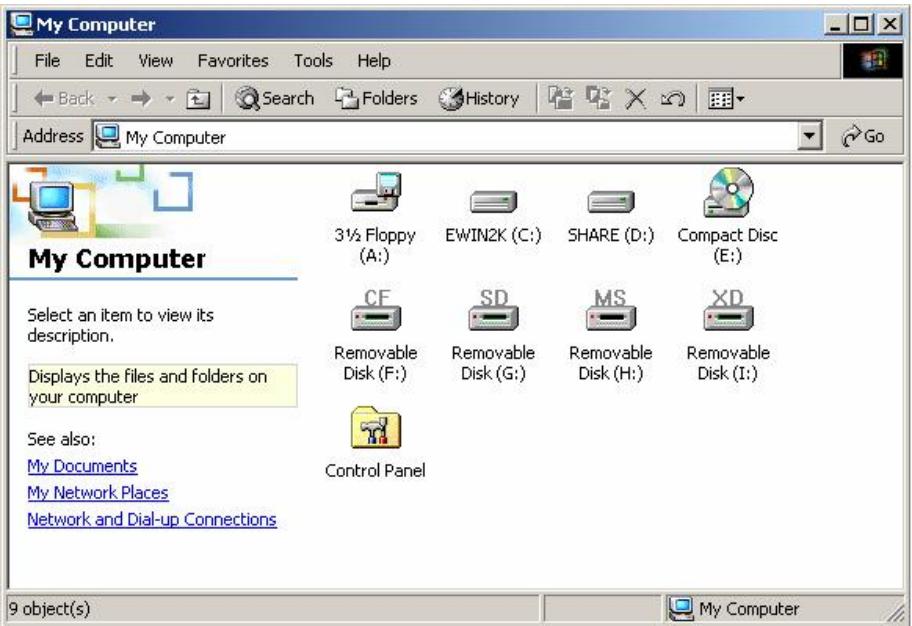
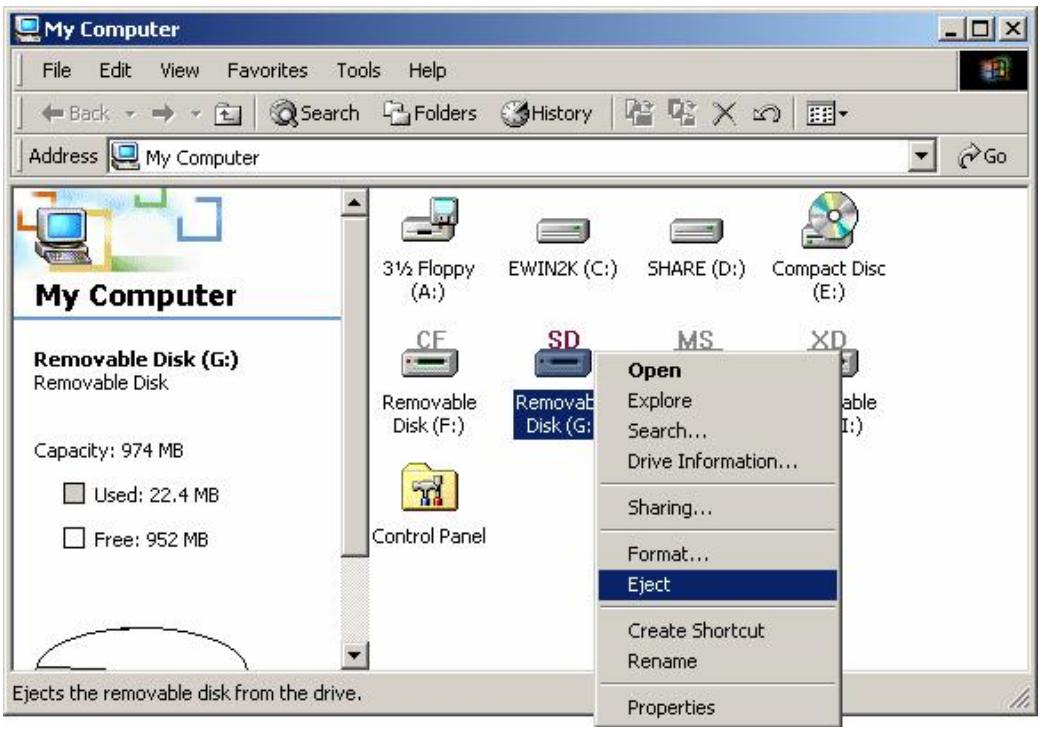
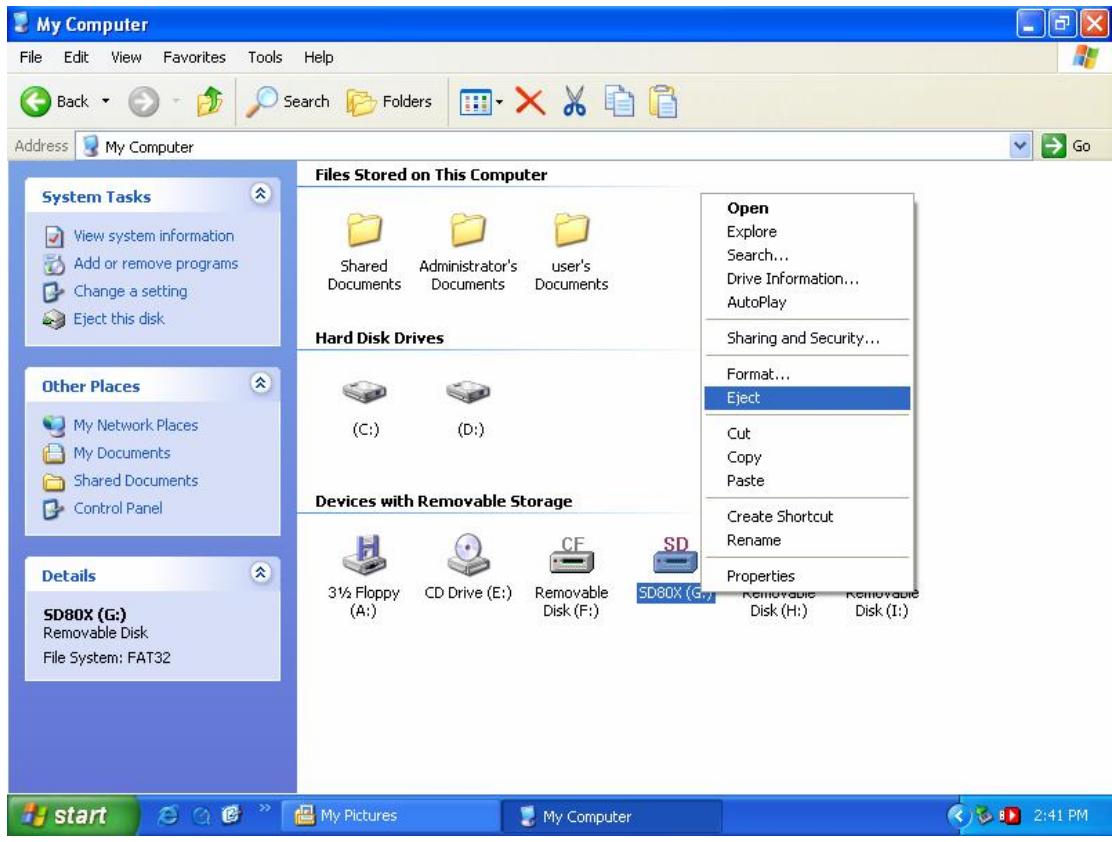
To safely remove a memory card, select the appropriate Card Slot ID and right click on the icon to display the quick settings list. Click "Eject" and then pull out the memory card. Make sure that the LED is not blinking (no data is being transferred) before you remove the card.
WARNING: Never remove or insert a memory card or disconnect the USB cable while data is being transferred. In order to avoid data transfer errors due to improper shutdown of a connected device, you should always open the transferred file in its new location to ensure successful transfer before disconnecting the Reader.
Windows ^ Me and XP Setup
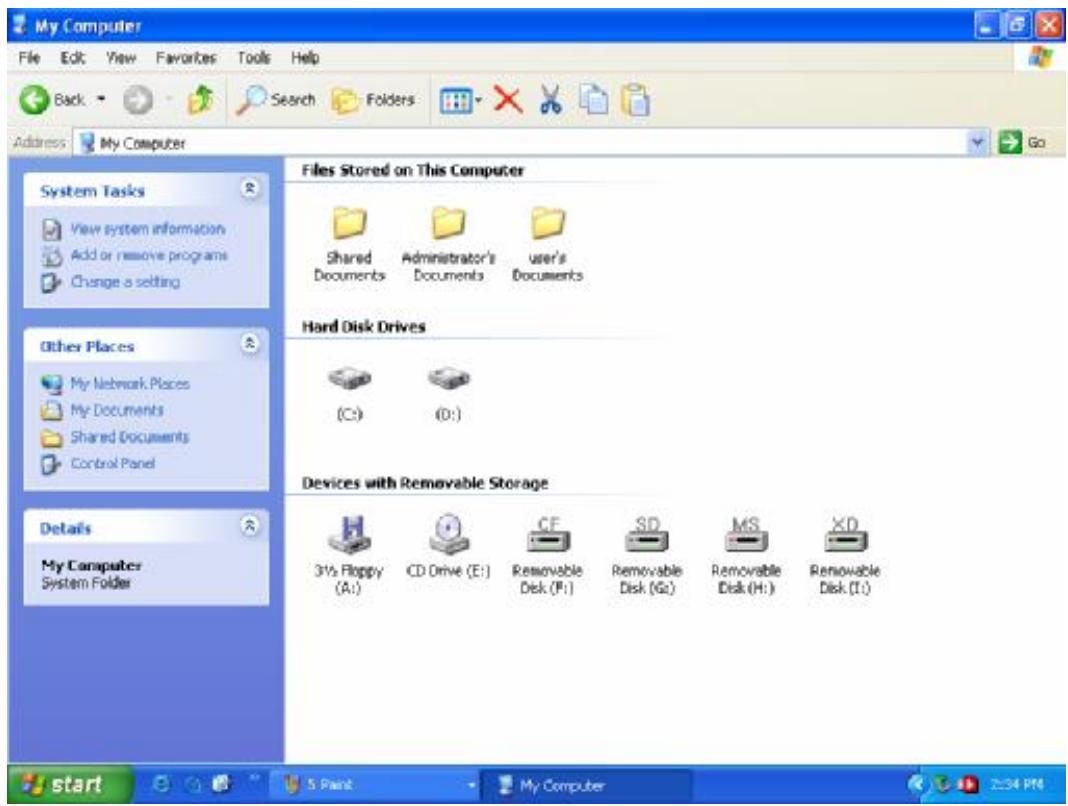
Transcend's Multi-Card Reader does not require a device driver for Windows Me, or Windows XP. You may connect the device directly using the supplied cable to an available USB port on your computer and Windows Me, or Windows XP will automatically detect it.
The below screen shots illustrate the process:
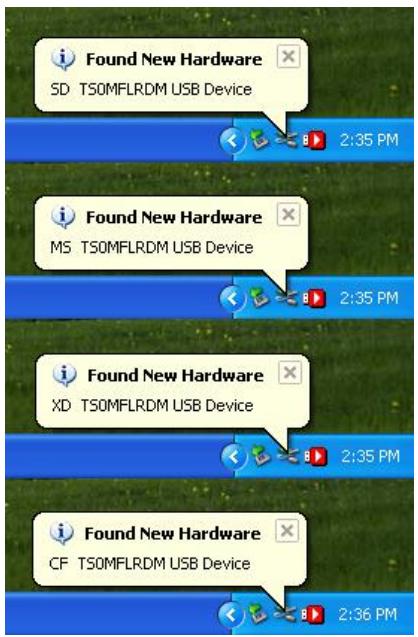
Four Removable Disk drives with newly assigned drive letters appear in My Computer. The Multi-Card Reader is now ready for use.
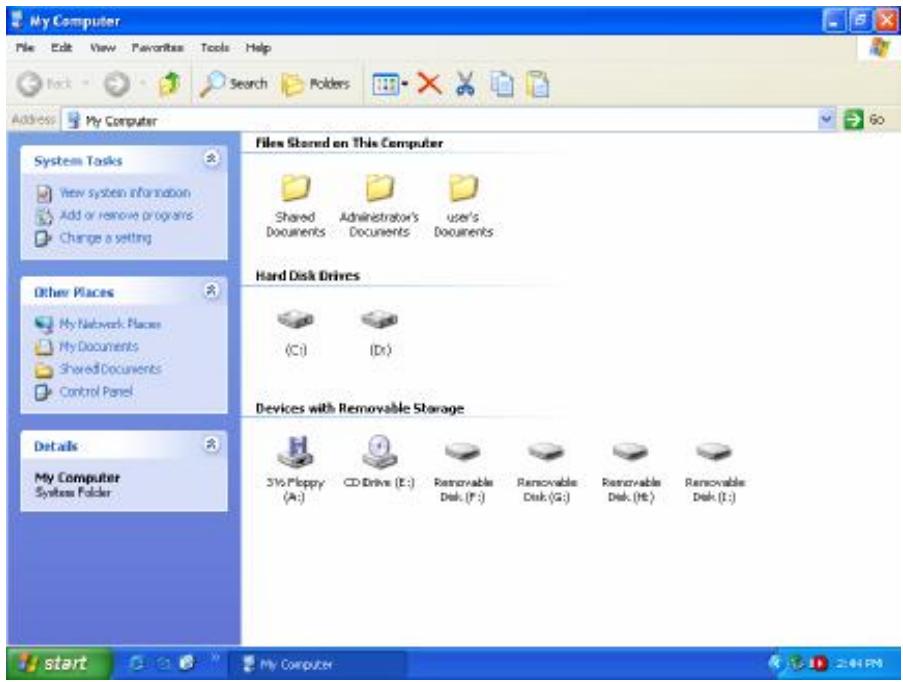
To display the Card Slot Identification Icons, please install the driver.
To safely remove a memory card, select the appropriate Card Slot ID and right click on the icon to display the quick settings list. Click "Eject" and then pull out the memory card. Make sure that the LED is not blinking (no data is being transferred) before you remove the card.

WARNING: Never remove or insert a memory card or disconnect the USB cable while data is being transferred. In order to avoid data transfer errors due to improper shutdown of a connected device, you should always open the transferred file in a new location to ensure successful transfer before disconnecting the Reader.
Macà OS 9.x Setup
- Complete the driver installation.
- Connect the Multi-Card Reader to an available USB port directly using the supplied cable.
- Insert a memory card into the Multi-Card Reader. A disk icon appears on the desktop. You can then use the memory card as if it were a Hard Disk on your Mac.
To safely remove a memory card, drag and drop the corresponding disk icon onto the trashcan icon. After the disk icon disappears, you may remove the memory card.

WARNING: Never remove or insert a memory card or disconnect the USB cable
while data is being transferred. In order to avoid data transfer errors due to improper shutdown of a connected device, you should always open the transferred file in its new location to ensure successful transfer before disconnecting the Reader.
Mac OS X Setup
Transcend's Multi-Card Reader does not require a device driver for the Mac OS X operating system. You may connect the device directly using the supplied cable to an available USB port on your Mac; insert a memory card and a disk icon will appear on the desktop you can then use the memory card as if it were a Hard Disk on you Mac.
To safely remove a memory card, drag and drop the corresponding disk icon onto the trashcan icon. After the disk icon disappears, you may remove the memory card.

WARNING: Never remove or insert a memory card or disconnect the USB cable while data is being transferred. In order to avoid data transfer errors due to improper shutdown of a connected device, you should always open the transferred file in a new location to ensure successful transfer before disconnecting the Reader.
Linux Kernel 2.4 or Later Setup
Transcend's Multi-Card Reader does not require a device driver for Linux Kernel 2.4 or later. You may connect the Reader directly to a USB port on you computer using the supplied cable. Please follow the below procedures to mount and use the device:
- Add the following two commands to /etc/modules.conf: options scsi_mod max_scsi_luns=4 below usb-storage sd_mod
- Plug the Multi-Card Reader into an available USB port using the supplied cable and restart the computer. Your computer automatically detects the Multi-Card Reader.
- Create a directory for the Multi-Card Reader. Example: mkdir /mnt/CardReader
- Mount the Multi-Card Reader. Example: mount -a -t msdos /dev/sda1 /mnt/CardReader
v Mapping of Disks:
To safely remove the memory card, unmount the device from the Linux environment:
Example: umount /mnt/CardReader

WARNING: Never remove or insert a memory card or disconnect the USB cable while data is being transferred. In order to avoid data transfer errors due to improper shutdown of a connected device, you should always open the transferred file in a new location to ensure successful transfer before disconnecting the Reader.
Safely Remove the Multi-Card Reader
Remove the Reader in Windows ^ 98/98SE
Make sure that the LED is not blinking (no data is being transferred). You may remove the Multi-Card Reader from the USB port directly.
Remove the Reader in Windows ^ 2000, Me, or XP
- Click on the icon in the system tray.

- The "Safely remove USB Mass Storage Device" message will appear. Click on it to continue.

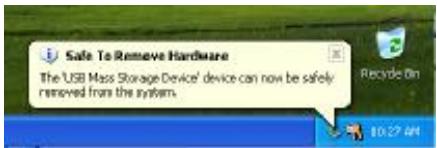
- The "Safe To Remove Hardware" message appears. The Multi-Card Reader can now be safely removed.
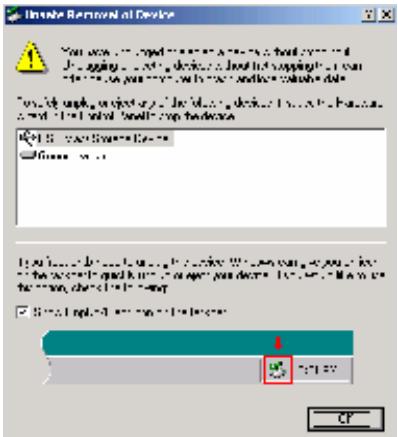
If you attempt to remove the Multi-Card Reader without following the above procedures, the "Unsafe Removal of Device" message (in Windows 2000) appears.
Remove the Reader in Mac OS and Linux
Once there is no memory card in the Multi-Card Reader, you may disconnect the Reader from the USB port at any time.
Input Slot Description
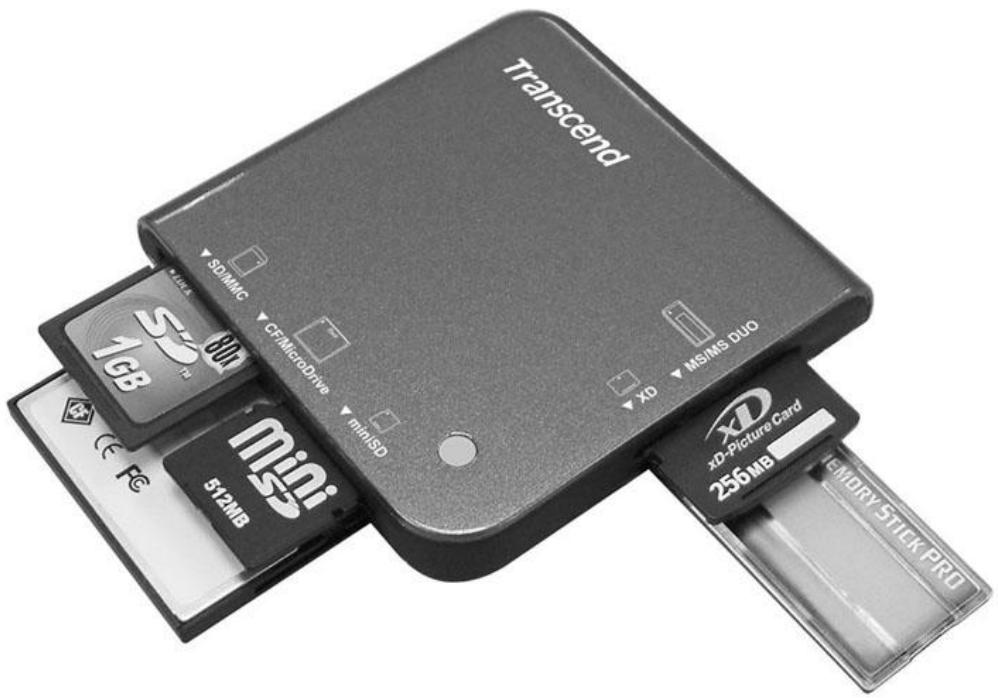
CF Reverse Insertion CompactFlash Card Type I/II and Microdrive
SD/MMC Normal Insertion SD, MMC, RS-MMC, MMCplus, MMC mobile
v miniSD Normal Insertion miniSD
MS/MS Duo/Pro Normal Insertion MS, MS Duo, MS PRO, MS PRO Duo
v xD Normal Insertion xD

To avoid total loss of data NEVER insert an SD/MMC and miniSD card into your Multi-Card Reader at the same time. These cards cannot operate simultaneously.
Specifications
Power Supply 5V DC from USB port
Input Slots for memory cards........... CompactFlash Card Type I / II
Microdrive
Secure Digital (SD) Card
miniSD
MultiMedia Card (MMC)
RS-MMC
MMCplus
MMCmobile
Memory Stick
Memory Stick PRO
Memory Stick Duo
Dimensions 70mm x 70mm x 15mm
Weight 43g
USB Multi-Card Reader Limited Warranty
"Above and beyond" is the set standard for customer service at Transcend. We consistently position ourselves to be significantly above the industry norm, which is all part of our commitment to Customer Satisfaction.
All Transcend Information, Inc. products are warranted and tested to be free from defects in material and workmanship and to conform to the published specifications. During the warranty period, should this Transcend USB Multi-Card Reader fail under normal use in the recommended environment due to improper workmanship or materials, Transcend will repair the product or replace it with a comparable one. This warranty is subject to the conditions and limitations set forth herein.
Duration of Warranty
The Transcend USB Multi-Card Reader is covered by this warranty for a period of two (2) years, which begins on the date of purchase. Proof of purchase including the date of purchase, is required to collect on the warranty. Transcend will inspect the product and decide whether to repair or replace it. Transcend reserves the right to provide a functional equivalent product or a refurbished replacement product.
Limitations
This warranty does not apply to product failure due to accidents, abuse, mishandling, improper installation, alteration, acts of nature, improper usage, or problems with electrical power. In addition, opening or tampering with the product casing, or any physical damage, abuse or alteration to the product's surface, including all warranty or quality stickers, product serial or electronic numbers will also void the product warranty. Transcend is not responsible for recovering any data lost due to failure of a flash memory device. Transcend products must be used with devices that conform to the recommended industry standards. Transcend will not be liable for damages resulting from a third party device that causes the Transcend product to fail. Transcend shall in no event be liable for any consequential, indirect, or incidental damages, lost profits, lost business investments, lost goodwill, or interference with business relationships as a result of lost data. Transcend is also not responsible for damage or failure of any third party equipment, even if Transcend has been advised of the possibility. This limitation does not apply to the extent that it is illegal or unenforceable under applicable law.
Disclaimer
The foregoing limited warranty is exclusive. There are no other warranties, including any implied warranty of merchantability or fitness for a particular purpose. This warranty is not affected in any part by Transcend providing technical support or advice.
Online Registration
To expedite warranty service, please register your Transcend Product within 30 days of purchase.
Register online at http://www.transcendusa.com/registration
Transcend
Exceeding Your Expectations
Transcend Information, Inc.
www.transcendusa.com