
16T30 - Monitor AOC - Free user manual and instructions
Find the device manual for free 16T30 AOC in PDF.
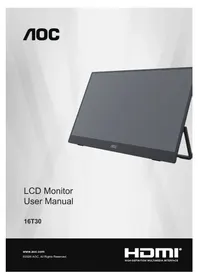


Pick your language and provide your email: we'll send you a specifically translated version.
| Type of product | LED display monitor |
| Brand | AOC |
| Model | 16T30 |
| Screen size | 15.6 inches |
| Display resolution | 1920 x 1080 pixels (Full HD) |
| Aspect ratio | 16:9 |
| Display technology | TFT-LED |
| Brightness | 250 cd/m² |
| Contrast ratio | 1000:1 (typical) |
| Viewing angle | 170° horizontal / 160° vertical |
| Response time | 5 ms |
| Connectivity | 1 x HDMI, 1 x VGA |
| Dimensions (W x H x D) | 356 x 221 x 40 mm (with stand) |
| Weight | 1.2 kg |
| Power supply | AC 100-240V, 50/60Hz (external adapter, 12V DC) |
| Power consumption | 10 W typical, < 0.5 W standby |
| Main functions | On-screen display (OSD), preset modes, VESA mount support |
| Cleaning and maintenance | Use a soft dry cloth; do not use solvent or abrasive cleaners |
| Safety warnings | Do not expose to moisture, do not open the casing, unplug before cleaning |
| Spare parts and repairability | Replacement power adapter and cables are available from the manufacturer |
| General information | Compatible with PC and Mac; 2-year warranty |
Frequently Asked Questions - 16T30 AOC
How do I connect the monitor to my computer?
Use an HDMI or VGA cable. Plug one end into the monitor and the other into your computer. Make sure you select the correct input source using the monitor's buttons. HDMI provides digital video, while VGA is analog.
What is the recommended resolution for this monitor?
The native resolution is 1920 x 1080. For the sharpest image, set your computer's display settings to that resolution and a 60 Hz refresh rate.
How can I clean the screen safely?
Always unplug the monitor first. Wipe the screen gently with a microfiber cloth. If needed, slightly dampen the cloth with water, but never spray liquid directly on the screen. Avoid alcohol or abrasive cleaners.
The monitor shows 'No Signal' - what should I do?
Check that the video cable is securely connected to both the monitor and your computer. Press the source button on the monitor to select the correct input. Verify your computer is powered on and not in sleep mode.
Does the monitor have built-in speakers?
This model does not come with built-in speakers. You can connect external speakers or headphones to the audio output of your computer or use an HDMI audio adapter if supported.
Can I mount this monitor on a wall?
Yes, it supports VESA 75 x 75 mm wall mounting. Use a compatible wall mount bracket and follow the instructions in the manual to remove the stand.
How do I adjust the brightness and contrast?
Use the control buttons on the monitor's bottom bezel. Open the on-screen display (OSD) menu, navigate to 'Brightness/Contrast' and adjust with the +/- buttons.
What power supply does the monitor require?
The monitor uses an external power adapter that accepts AC 100-240V and outputs 12V DC. Only use the original or an approved replacement adapter.
How do I change the input source?
Press the source/input button on the monitor. A menu will appear; use the arrow keys to select HDMI or VGA and press OK.
What should I do if the screen flickers?
Check the video cable connections and try a different cable if possible. Update your graphics driver and set the correct refresh rate (e.g., 60 Hz) in display settings. If the problem persists, try a different power outlet.
User questions about 16T30 AOC
0 question about this device. Answer the ones you know or ask your own.
Ask a new question about this device
No questions yet. Be the first to ask one.
Download the instructions for your Monitor in PDF format for free! Find your manual 16T30 - AOC and take your electronic device back in hand. On this page are published all the documents necessary for the use of your device. 16T30 by AOC.
USER MANUAL 16T30 AOC

Manual assistant
Powered by Anthropic
Waiting for your message
Product information
Brand : AOC
Model : 16T30
Category : Monitor