
TFT-721 - Tablet LENCO - Free user manual and instructions
Find the device manual for free TFT-721 LENCO in PDF.


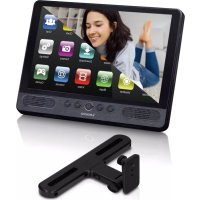
| Product type | Portable digital TV (digital portable TV) |
| Brand | LENCO |
| Model | TFT-721 |
| Screen | LCD |
| Dimensions (L × l × h) | 211.8 × 134.8 × 28 mm |
| Power supply | Mains adapter 230V ±10%, 50-60 Hz; Rechargeable Li-ion battery 3200 mAh, 7.5 V |
| Power consumption | Max 8 W, min 6 W |
| Reception | DVB-T, analog TV PAL/NTSC/SECAM |
| Reception frequencies | 174-300 MHz (VHF) and 474-862 MHz (UHF) |
| Main functions | Teletext, EPG (program guide), favorites list, games (Tetris, PushBox, Calendar), radio mode |
| Connections | Headphone jack, CVBS video output, portable antenna, accessory antenna |
| Remote control | Yes, with battery included |
| LED indicators | Red, green, blue (charging and operating statuses) |
| Maintenance and cleaning | Clean with a soft cloth and mild detergent solution; do not use solvents |
| Safety | Do not cover the ventilation openings; avoid heat sources, moisture, and shocks |
| Spare parts and repairability | Contact authorized after-sales service for any intervention |
Frequently Asked Questions - TFT-721 LENCO
User questions about TFT-721 LENCO
0 question about this device. Answer the ones you know or ask your own.
Ask a new question about this device
Download the instructions for your Tablet in PDF format for free! Find your manual TFT-721 - LENCO and take your electronic device back in hand. On this page are published all the documents necessary for the use of your device. TFT-721 by LENCO.
USER MANUAL TFT-721 LENCO
GENERAL INFORMATION ABOUT THE TFT-721 2
QUICKGUIDE 2
Plug in your TFT-721 2
Preparing the Remote Control 2
1.PANELS 2
1.1 Front panel and side panels 2
1.2 Rear panel 3
- INTRODUCTION 3
2.1 Check list 3
2.2 About transmission 3
2.3 About the portable receiving antenna and accessory antenna 3
2.4 Connecting the TFT-721 to the TV 3
- REMOTE CONTROL 3
3.1 Definition 3
3.2 Preparing the remote control 4
- NAVIGATING WITH MENUS 4
4.1 Analog TV 4
4.1.1 Menu definition 4
4.2 Digital TV 5
4.2.1 Program information 5
4.2.2 Channel 6
4.2.3 Channel setting 6
4.2.4 System Setting 7
4.2.5 Option 8
4.2.6 Games 9
4.2.7 Shortcut menu 9
5.MAINTENANCE 9
5.1 Handling your TFT-721 9
5.2 Considerations about the screen 10
5.3 Cleaning recommendations 10
5.4 Care the power source 10
5.5 Care battery 10
5.6 About the headphone using 11
6.TROUBLESHOOTING 11
- TECHNICAL SPECIFICATIONS 11
7.1 Transmission Standards 11
7.2 RF Input Modulator Output 11
7.3 External power supply 12
GENERAL INFORMATION ABOUT THE TFT-721
TFT-721 is a portable digital TV set; it can be used in a car or outdoor. Throughout this manual you will notice that everyday operation of your TFT-721 is based on a series of user friendly on-screen displays and menus. These menus will help you get the most from your TFT-721, guiding you through installation, channel selection, viewing and many other functions.
Using the buttons on the remote control can perform all functions, and using the buttons on the front panel can also perform some of the functions.
Please be aware that new software may change the functionality of the TFT-721.
Should you experience any difficulties with the operation of your TFT-721, please consult the relevant section of this manual, including the Troubleshooting, or alternatively call your dealer or customer service adviser.
IMPORTANT! Read this before using the TFT-721!
- Do not cover the TFT-721's ventilation openings with items such as newspapers, tablecloths, curtains etc.
- Do not place the TFT-721 on top of a unit that emits heat.
- Do not place naked flame sources, such as lighted candles, on the TFT-721.
Use a soft cloth and a mild solution of washing-up liquid to clean the casing. - Do not expose the TFT-721 to dropping or splashing liquids.
- Do not place any objects filled with liquids, such as vases, by the TFT-721.
- To give your TFT-721 an extra protection, e.g. at a thunderstorm, we recommend that connect it via an external surge protection device.
- Do not remove the cover.
- Do not allow the unit to be exposed to hot, cold or humid conditions.
QUICK GUIDE
Plug in your TFT-721

You can use either an AC adapter or a rechargeable Li-ion battery as a power source for your TFT-721.
! Use the TFT-721 only with the supplied AC adapter.
To use the AC adapter:
- Plug one end of the power cord into the AC adapter.
-
Plug the other end of the power cord into an AC outlet.
-
Plug the cable attached to the AC adapter into the DC in port on the TFT-721.
Preparing the Remote Control
Before using the remote controller, you need to insert the supplied battery in order to enable communication between the TFT-721 and remote controller.
To insert battery:
- Turn the remote controller over.
- Press in the tab and lift the battery cover up.
- Insert the supplied battery into the remote controller.
- Align the battery cover to the remote controller.
- Press down until the cover clicks into place.
! If the remote controller does not operate properly, you may need to replace the battery. When the remote controller is not being used for extended periods of time, remove the batteries to avoid possible damage from battery leakage.
1. PANELS
1.1 Front panel and side panels
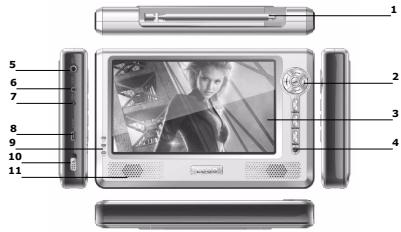
- Portable receiving antenna (the antenna jack can plug the accessory antenna)
- Front panel buttons (include Ok, Cursor up, Cursor down, Cursor left, Cursor right, Menu, Mode, 16:9:4:3)
- Screen
- Infrared remote receiver
- Headphone jack
- Video output jack (CVBS)
- Power supply jack
- Upgrade jack
- Indicators (Red, Green, Blue) The states are shown as:
Red, green, blue - Machine turn on and charge battery
Green - Machine turn on, no charge
Red, blue - Machine turn off and charge battery
Null - Machine turn off
- Power key
- Speaker
1.2 Rear panel
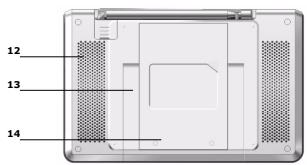
- Cool holes
- Stand
- Li-ion battery cover
2. INTRODUCTION
2.1 Check list
The box for your TFT-721 should contain the following items:
The TFT-721
Owner's manual
Remote control

Video output cable

- Headphone

Power supply adapter (AC adapter)

Upgrade cable

- Car Power Adapter

- Accessorial Antenna

2.2 About transmission
Buildings, mountains and the surrounding terrain can block Radio and TV signals. Depending on whether the receiver is located in a valley, behind a mountain or in a concrete building, the quality of reception may vary considerably. As with most other transmissions, bad weather affects reception quality. We recommend use the accessory long antenna instead of short antenna when the signal isn't good, but not allow using other model antennas.
2.3 About the portable receiving antenna and
accessorial antenna
- Use the antenna for UHF channels 21-69 for DVB-T, such as a directional antenna.
- If possible, place the antenna by the window and directed towards the TV transmitter.
- The strength of TV signal varies according to reflections from buildings or mountains. The signal penetrates thick stone or concrete walls poorly. However, a wooden building is not a big barrier to digital TV signals.
2.4 Connecting the TFT-721 to the TV
- Connect the TFT-721 CVBS jack to the TV CVBS input socket for video.
- Connect the TFT-721 Headphone jack to the TV audio input socket for sound.
3. REMOTE CONTROL
3.1 Definition
This section describes how to operate the TFT-721 using the buttons on the remote control. Using the buttons on the front panel can also perform some of the functions.
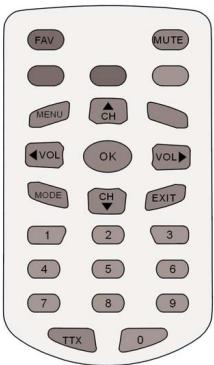
FAV To open the favorite menus
Mute Press once to turn the sound off/on (mute/unmute).
Mode Toggle between DTV, DAB and Analog TV mode. Or call out the soft keyboard at some menus
Ok To confirm a selection or to open Menu.
Exit To exit a selection or to close Menu
Cursor up Move up in the menus and change to the next channel in viewing mode.
Cursordown Move down in the menus and change to the previous channel in viewing mode.
Cursor left Move left/change settings in menus. Decrease the volume level in viewing mode.
Cursor right Move right/change settings in menus. Increase the volume level in viewing mode.
Menu To go back one level at a time within menus. To open/close the menus.
0-9 To change the channel and to select individual menu options.
TTX Press to enter Teletext (if available) (At Digital TV Mode) Act as +10 key to switch 1 or 2 digits channels. (At Analog TV mode)
Red, Green, Yellow, Blue To fast turn pages at Teletext. (At Digital TV Mode)Blue for 16:9/4:3 screen switch. Red, Green, Yellow no used. (At Analog TV mode)
3.2 Preparing the remote control
Remove the cover from the battery compartment at the bottom of the remote control.
Insert the battery, taking care to observe the + and - markings indicated inside.
Replace the cover.
! Attention: This remote controller's figure maybe different to the remote controller what you obtained. But the symbols and functions on the remote controller are the same as this figure
4. NAVIGATING WITH MENUS
The following describes the functions of your TFT-721 while watching Analog TV and terrestrial digital TV. Some of the functions described here are dependent on the Service Provider and can only be used if they are included in the transmitted program information.
4.1 Analog TV
4.1.1 Menu definition
ATV menu includes (PICTURE), (AUDIO), (FUNCTION), (SYSTEM), (PRESET), (VERSION) six windows.
Each window's introduction is shown as following:
PICTURE
Bright: Left/right cursor buttons adjust the brightness of the screen.
Contrast: adjust the contrast of the screen.
Color: adjust the color of the screen.

Figure 4.1.1
AUDIO
VOLUME: adjust the volume of sound.
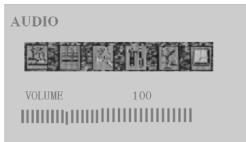
Figure 4.1.2
FUNCTION
MIRROR: Left/right cursor buttons can rotate up-down direction of the screen. (0^ and 180^)
Screen mode: Select 16: 9/4: 3 display formats display formats.
SHOWBATTERY: Select display or no display the battery iron in the up-right corner of screen.
RESET: Reset the picture parameters of screen.
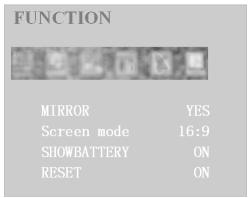
Figure 4.1.3
SYSTEM
C.SYS: Adjust the color mode of TV—Auto, PAL, SECAM.
S.SYS: Adjust the sound mode of TV-I, L, BG, DK.
SWAP: Let the current channel can exchange to another channel.
COPY: Let the current channel can copy from another channel.
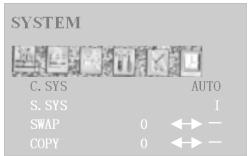
Figure 4.1.4
PRESET
AUTO SEARCH: Auto search the TV channels.
SEARCH: Manual search the last/next TV channel, Left cursor button search the last TV channel, right cursor button search the next TV channel.
FINE TUNER: Micro-adjust the current TV signal.
PROGRAM: Display the current channel number.
Skip: If selected, skip the selected channel number when use CH + / CH- select channel. Select ON means skip; select OFF means no skip.
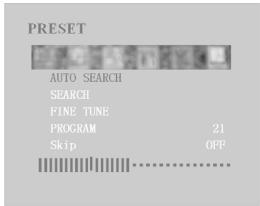
Figure 4.1.5
VERSION
Show the version information of system. (Using adapter) Show the version and battery information of system. (Using battery)
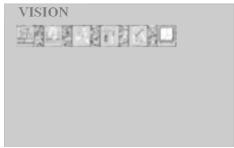
Figure 4.1.6
4.2 Digital TV
4.2.1 Program information
The TFT-721 can display information about TV and radio programs that are currently being broadcast as well as those that will be broadcast next.
Some of the advanced functions described here can only be used if they are included in the program information transmitted by the broadcasters.
When you change channels, a program information banner is displayed for a few seconds.
The program information may include:
The current time
The channel name and number.
The names of the current and next programs
The start and stop times of the current program.
The start and stop times of the next program
You can open the main menu by pressing Menu key at the remote control or front panel. You can perform different settings enter menus.
- Display menu by pressing the Menu button; to hide them, press the menu button again.
-
When menus are displayed, you can move the folders in horizontal directions with left/right cursor buttons.
-
The horizontal row contains folders; there are Channel, Channel Setting, System Setting, Option and Game folders.
- To move a folder into focus, use the left/right cursor buttons.
- When a folder is in focus the bookmarks will be shown in the title bar.
To confirm the selection, press the OK button, then it will appear submenu lists. - When you try to open some of the submenu lists contained in the folders you will be asked to enter a pin code. This code is pre-set to 888888 in the factory.
- Press Menu to open the Menu.
- Press OK to open the Channel list menu.
- You can always leave a menu at any time you want, without affecting any settings, by pressing the Menu button.
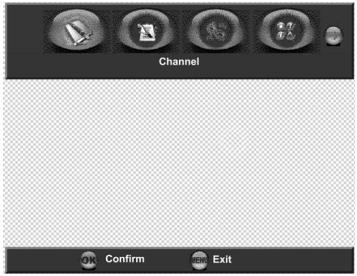
Figure 4.2.1
4.2.2 Channel
The Channel folder includes following menu list: Channel List, Favorite List and EPG.
To move the menu list into focus, use the up/down cursor buttons
You can enter the submenu list by pressing OK.
Exit the menu list by pressing Menu.
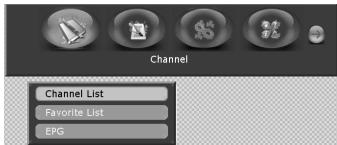
Figure 4.2.2
Channel List
It shows all the channels with information including number, name, bandwidth, quality, frequency, and strength.
To move the channel list into focus, use the up/down cursor buttons.
Use OK to confirm the selection.
Go back to the previous menu by pressing Menu
Use Mode buttons to switch TV/Radio channel list.
Favorite List
The TV list may contain a lot of channels. To sort your own lists you can make it easier to handle channels. You can edit favorite channel lists in this menu.
If you have several lists and want to make changes in them (News, Movie, MTV, Finance and Other), select which list by using the Mode button.
Use right cursor button to add the channel to favorite list.
Electronic Programme Guide (EPG)
In the EPG you will find information about the programs for the current day and for the following seven days. (Provided that this information is included in the channel transmission from the distributor.)
You may also select the type of program you want information about, like Movie, Sports or Music.
Booking: You can select the program, which want to book at the EPG menu.
Choose program by using up/down, left/right cursor buttons.
Use OK to book the selected program.
Go back to the previous menu by pressing Menu.
4.2.3 Channel setting
The Channel Setting folder includes following menu list:
Channel Search and Sort Channel.
To move the menu list into focus, use the up/down cursor buttons
You can enter the menu list by pressing OK. Exit the menu list by pressing Menu.
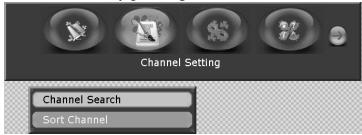
Figure 4.2.3
Channel search
When you want to search for channels, a channel search procedure can be performed in different ways at Search Type combo box: Auto Scan, Manual Scan and Scan By NIT.
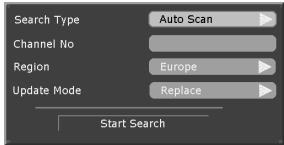
Figure 4.2.4
Auto Scan: you can change the items of region (Europe, Australia), whether the update mode (Append or Replace) before you decide start search.
Focus to Start Search and Press OK to start searching for channels.
! The region item (Europe, Australia) is decided by the signal of different country's broadcasting companies.
Manual Scan: Select the channel number you want to search for by using the number buttons on the remote control or using Mode buttons to open soft digital keyboard.
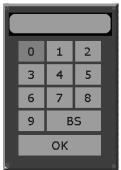
Figure 4.2.5
You can also change the items of region and update mode before you decide start search.
Scan By NIT: Select NIT if you want to search on all of the transmitters connected to a specific network, focuses to Start Search and Press OK to start searching for channels.
During the channel search procedure, the TFT-721 may download a large number of channels. This may include channels from various Service Providers, also those to which you do not have access unless you have a smart card from one of those Service Providers. If you select a program to which you do not have access, you will get a message on the screen.
After search, press OK to save the new channel or press Menu if you don't want to save it.
Sort Channel
You can select how the channels shall be sorted in the TV and Radio lists. There are two sort mode (Name Up or Name Down) are used here.
Note: Sorting does not apply for Favorite Lists.

Figure 4.2.6
4.2.4 System Setting
The system setting folder includes following menu list: Time Setting, Language Setting, Parental Setting, A/V Setting, Factory Setting and Booking List.
To move the menu list into focus, use the up/down cursor buttons
You can enter the submenu list by pressing OK.
Exit the menu list by pressing Menu.
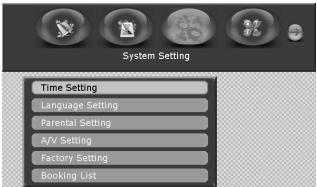
Figure 4.2.7
Time Setting
It includes following submenu list: TimeZone Setting and Banner Time Setting.
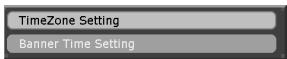
Figure 4.2.8
TimeZone Setting: you can set the time zone here in order to correct current time zone where you are.
Banner Time Setting: When you switch channels, an information banner will be
shown for a few seconds. You can select the duration for which the banner will be shown. (1, 3, 5, 7, 9 seconds)
Language Setting
In order to fit the person of different countries, the menu language can be set to different languages (English, Dutch, French, German, Italian, Portuguese, Spanish). The default language is English.
Here, you can set audio language too. If more than one audio language is transmitted, you may select one language. When available, you can select from the different languages (same as menu languages) being broadcast.
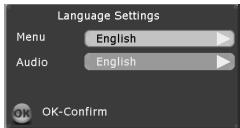
Figure 4.2.9
Parental Setting
To open this menu you will be asked to enter your access code. From the factory the access code is set to 888888. After set, the access code has to be entered before you can watch locked channels. You need to enter the access code every time you start the TFT-721 from standby.

Figure 4.2.10
When input the right access code, the Parental Setting Menu will be opened.
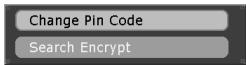
Figure 4.2.11
Change Pin Code: You can change the access code for entering parental setting and locked channel.
Search Encrypt: This function can set: you need to input pin code when re-search channels. It prevents someone else change you setting.
A/V Setting
It includes following submenu list: Video Setting and Audio Setting.
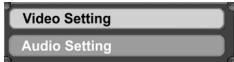
Figure 4.2.12
Video Setting:
Set your video options. It includes TV Shape, Conversion, Standard, Bright, Contrast and Saturation.
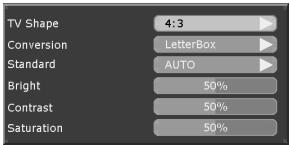
Figure 4.2.13
TV shape: Select your TV screen format. The 4:3 format is standard for most TV screens. Select 16:9 for widescreen TV.
Conversion: you can select different display formats (LetterBox, Pan&Scan, PillarBox, Verticalcut, FullFrame and Auto) to show the TV program.
LetterBox will give a complete picture, but leaves black areas at the up and down. No distortion.
Pan&Scan will fill up the screen vertically but cut some information from the left and right sides of the picture. No distortion.
PillarBox will give a complete picture, but leaves black areas at the left and right. No distortion.
Verticalcut will fill up the screen horizontally but cut some information from the up and down sides of the picture. No distortion.
Frame will fill up the screen size with distortion.
Auto will fit the screen size automatically.
Standard: When the TFT-721 is connected to the TV channels, you may need to select the correct TV standard system. (Auto, PAL, PAL-60)
Bright: left/right cursor buttons adjust the brightness of the screen.
Contrast: left/right cursor buttons adjust the contrast of the screen.
Saturation: left/right cursor buttons adjust the saturation of the screen.
Audio Setting:
Set your audio option.

Figure 4.2.14
Audio Channel: you can choose different audio channel modes here. (Stereo, Left, Right, Mono)
Factory Setting
It includes following submenu list: Restore Default and Clear Channels.
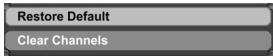
Figure 4.2.15
Restore Default: If you continue from here, all your previous settings, access code and favourite channels, etc. will be erased.
If you do not want to reinstall, you can leave this menu when the warning is displayed by pressing "Menu".
Clear Channels: If you continue this, all your previous channels will be erased.
Book List
You can check the booking programs you set at here.
4.2.5 Option
The option folder includes following menu list: System Information and Save mode.
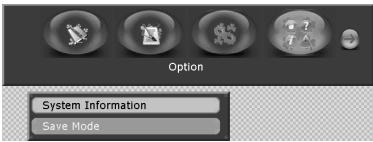
Figure 4.2.16
System Information
When you enter the System Information folder, you will find general information about which hardware and software version your TFT-721 is running on, you can also find the signal information and battery information about TFT-721.
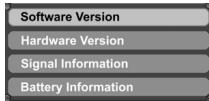
Figure 4.2.17
At the battery information option, you can also select display or close the battery indicated icon at top-right corner on the screen.
Save mode
In order to save power when the TFT-721 at portable state, the screen's brightness can be adjusted or turn off. The save mode folder includes: LEVEL and Close Screen at radio mode.
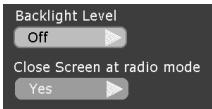
Figure 4.2.18
LEVEL: adjust the screen's brightness at 5 levels, 1 for the darkest, 5 for the highest, off for no save power.
Close Screen at radio mode: set screen whether on or off when system at the radio mode.
4.2.6 Games
The Game folder includes following menu list: Calendar, Tetris and PushBox.
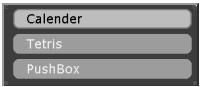
Figure 4.2.19
Calendar: you can check the date, which you would like to know.
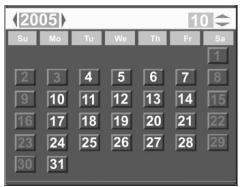
Figure 4.2.20
Tetris, PushBox: available games.
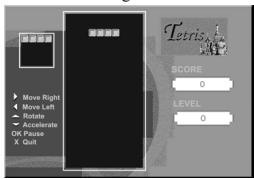
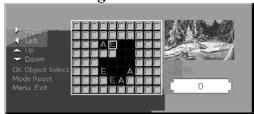
Figure 4.2.21
Figure 4.2.22
4.2.7 Shortcut menu
In order to operate the menu conveniently, there are some often used functions be set at the shortcut menu. The Shortcut Menu folder includes following menu list: Channel List, Favorite List, EPG, TELETEXT and Channel Info. There are some soft buttons on this menu too. (Subtitle, Ch+, Ch-, Fav+, Fav-)
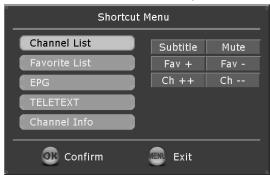
Figure 4.2.23
To Channel List, Favorite List and EPG items, please refer to 4.2.2 section.
TELETEXT
Pressing txt will open a teletext page, if teletext is transmitted for that channel. Select teletext pages using the number buttons on the remote control.
You can also quickly move to the different page options shown on any page by pressing cursor left/right.
Press OK on a highlighted page number to go to that page.
Sometimes a teletext page may contain subpages. When subpages are available, they are numbered on the lower part of the screen. To view a subpage, press OK when no page numbers have been highlighted. Move to the different subpages with cursor left/right.
Note: it may take some time before all of the subpages are available for selection.
Press txt/back to return to TV/Radio mode.
Cursor up/down will show the next or previous teletext page.
Channel Info
There is a program information banner is displayed under the screen.
The program information may include:
The current time
The channel name and number.
The names of the current and next programs
The start and stop times of the current program
The start and stop times of the next program
Audio channel mode
Language mode
Signal strength
All these banners disappear automatically after a few seconds.
Go back to the previous menu by pressing Menu.
Soft buttons
Subtitle: When available, you can select from different subtitle languages.
Ch + + , Ch-: To jump 10 channels forward (Ch + + ) and back (Ch-) from the current channel.
Fav+ Fav-: To move one favorite channel of the current group favorite list.
Mute: if you want to lower the volume in ones, you can set mute.
5. MAINTENANCE
5.1 Handling your TFT-721
- Do not drop the TFT-721 or heavy objects on top of the TFT-721.
-
Do not place the TFT-721 in a location subject to: Heat sources, such as radiators or air ducts,
-
Direct sunlight, Excessive dust, Moisture or rain, Mechanical vibration or shock, Strong magnets or speakers that are not magnetically shielded, Ambient temperature of more than 35^ or less than 5^ and High humidity.
- Do not place electronic equipment near the TFT-721. The electromagnetic field of the TFT-721 may cause a malfunction.
- Provide adequate air circulation to prevent internal heat from building up. Do not place the TFT-721 on porous surfaces such as rugs or blankets, or near material such as curtains or draperies that may block its ventilation slots.
- The TFT-721 uses high-frequency radio signals and may cause interference to radio or TV reception. If this occurs, relocate the TFT-721 a suitable distance away from the set.
- Use only specified peripheral equipment and interface cables; otherwise, problems may occur.
- Do not use cut or damaged connection cables.
- If the TFT-721 is brought directly from a cold location to a warm one, moisture may condense inside the TFT-721. In this case, allow at least one hour before turning on the TFT-721. If any problems occur, unplug the TFT-721 and contact an authorized Service Centre. To find the nearest centre or agent, visit the online support Web site.
- Make sure you disconnect the power cord before cleaning the TFT-721.
5.2 Considerations about the screen
- Please read the details of this guidebook before using, and store safely in case use another day.
- You may see tiny black points and/or bright points (red, blue, or green) that continuously appear on the LCD. LCD has a very few (0.01%) unlit pixels and always lit pixels. You may also see distortion in colours or brightness depending on your perspective. This is a normal result of the manufacturing process and does not indicate a malfunction.
- The LCD is manufactured using high-precision technology, do not apply a strong shock or drop it. Do not disassemble or refit yourself.
- Do not exert pressure on LCD screen. The LCD that is made from glass may be broken by pressure.
- Do not place your LCD in a location subject to direct sunlight or excessively high temperature. This may cause a malfunction.
- Do not place your LCD in a location subject to mechanical vibrations or in an unstable location.
-
Do not place use a moist cloth to wipe the LCD. Liquid may cause a malfunction if it leaks into your LCD.
-
Do not place or drop any object onto the LCD. Also, do not apply any force to the LCD. If the liquid leaves out, please use soap and clean water to clean.
- If you bring your LCD from a cold location to a warm one, moisture may condense on the LCD. In such a case, wipe off the moisture before using your LCD. It is recommended to use tissue papers to wipe off the moisture. If the LCD surface is still not warm enough, moisture may condense again. Leave LCD until its surface is warmed up to the ambient temperature. Do not use alcohol, gas or chemistry reagent to wipe.
- Close LCD after use or during in malfunction. Please switch off power in case safe.
- If you have any questions, please contact our company.
5.3 Cleaning recommendations
- To clean the cover, take care the TFT-721 is disconnected.
- Do not use scented hydrocarbons or chloride solvents. Such products may attack the plastics used in the construction of the cover. The cover should be cleaned by means of a light solution of detergent and water applied with a soft cloth. Dry thoroughly before using the system again.
- Do not use for the cleaning of the front panel, alcohol or its derivatives, these products can attack the mechanical properties of the materials and diminish their useful time of life.
5.4 Care the power source
- Refer the online specifications to check the power operation of your TFT-721.
- Do not share the AC outlet with other power-consuming equipment, such as a photocopier or shredder.
- You can purchase a power strip with a surge protector. This device prevents damage to the TFT-721 caused by sudden power surges, in an electrical storm.
- Do not place heavy objects on the power cord.
- To disconnect the cord, pull it out by the plug.
- Unplug the TFT-721 from the AC outlet if you are planning to not use the TFT-721 for a long time.
- Make sure that AC outlet is easily accessible.
- When the AC adapter is not used, unplug it from the AC outlet.
- Use the AC adapter supplied with the TFT-721 or authorized products. Do not use any other AC adapter as it may cause a malfunction.
5.5 Care battery
-
Battery life is shorter in a cold environment. This is due to decreased battery efficiency at low temperatures.
-
Charge the batteries at temperatures between 10^ to 30^ . Low temperatures require a long charging time.
- This TFT-721 is designed to operate only with special batteries. The battery design for only professional or Service Provider can open. Do not open or try to disassemble the battery cover on the back yourself.
- While the battery is in use or being charged, the battery pack heats up. This normal and is not cause concern.
- When the battery indicated iron on the screen flashes or when you have not used the battery for a long time, you need to recharge the battery.
- If the battery power is still low after charging it, the battery may be reaching the end of its life and should be replaced. Please contact your dealer or Service Provider.
5.6 About the headphone using
- Do not use headphones while driving, cycling, or operating any motorized vehicle. It may create a traffic hazard and is illegal in some areas. It can also be potentially dangerous to play loud music while walking, especially at pedestrian crossings.
- Avoid using headphones at high volume. Hearing experts advise against continuous, loud and extended play. If you experience a ringing in your ears, reduce the volume or discontinue use.
6. TROUBLESHOOTING
| Problem | Possible causes | What to do |
| The LED on the front panel does not light up/is not lit. | Mains cable is not con-ected. The battery isn't installed or need to recharge. Condensed fluid may cause the TFT-721 to malfunction. | Check that the mains cable is plugged into the power socketMake sure the battery is installed properly and charged.Disconnect the AC adapter and remove the battery. Wait three to five minutes.Reattach the AC adapter and reinstall the battery, and press the power button to turn on the TFT-721.Do not use the TFT-721 for at least one hour if there are some condensed fluids in it. |
| The screen is | The TFT-721 is | Press the any buttons |
| close and power LED is on. | in close screen modes | to bring the TFT-721 out of close screen mode |
| The remote control is not working. | Battery exhausted. Remote control is incor- ectly Aimed. | Change battery.Aim the remote control at box Check that nothing blocks the front panel. |
| You have forgotten your PIN code | Please use factory default mode. | |
| When the TFT-721 tries to find and store channels you get the message “No services”. When only very few of the expected number of channels are found. | The aerial is not properly connected to the TFT-721. The aerial is not correctly directed towards the trans- mitter. The aerial is not suitable for digital channels. The signal is too weak for the connected aerial. There are no terrestrial digital transmissions in the area. | Check the aerial installation including its connections. Check that the aerial is directed towards the trans- mitter. Check that digital trans- missions are available in the area. If things does not work out as they should, let the local TV dealer check whether the aerial is intended for receiving digital trans- missions or not. If not you have to exchange the aerial. |
| During the channel searching process, the buttons or remote controller's keys are insensitive. | Since the channel searching process use a lot of system resource, the system scan keys or buttons will become very slow. | Try press buttons or remote controller's keys several times. |
Note: If you have tried all of the actions suggested above, without solving the problem, please contact your dealer or Service Provider.
7. TECHNICAL SPECIFICATIONS
7.1 Transmission Standards
7.2 RF Input Modulator Output
RF input frequency 174-300MHz & 474-862MHz (DTV), VHFL, VHFH, UHF (ATV)
RF input power level -20 dBm to -78dBm
RF impedance 75Ω
Frequency range Loop through 47-862MHz
Supported TV systems PAL NTSC SECAM
Output signal PAL NTSC SECAM
Demodulation OFDM 2K and 8K, QPSK,
16QAM, 64QAM
Three LED indicators, eight Keys.
7.3 External power supply
Input 230V± 10% 50 60Hz
Power consumption max 8W
Power consumption min 6W
DC power to the TFT-721 12V
Battery content 3200mA / h 7.5V
Operating temperature 0^ to +40^
Storage temperature -20°C to +65°C
Humidity 25% to 75% rel. humidity
Dimensions (w× d× h) 211.8mm× 134.8mm× 28mm
Audio decoder Mpeg-1 layer I and II


If at any time in the future you should need to
dispose of this product please note that: Waste electrical products should not be disposed of with household waste.
Please recycle where facilities exist. Check with your Local Authority or retailer for recycling advice. (Waste Electrical and Electronic Equipment Directive)
V0.1
Red, Green, Yellow, Blue
Le menu ATV inclus six fenêtes (IMAGE), (AUDIO), (FUNCTION), (SYSTEME), (PROGRAMME), (VERSION).
Audio Setting: Lancer vote option audio.

Figure 4.2.14
Kanalsuche (Channel Search)
VHFL, VHFH, UHF (ATV)
Energieniveau RF ingang -20 dBm to -78dBm
RF impedantie 75Ω
- GENERAL INFORMATION ABOUT THE TFT-721
- IMPORTANT! Read this before using the TFT-721!
- QUICK GUIDE
- Plug in your TFT-721
- To use the AC adapter:
- Preparing the Remote Control
- PANELS
- Front panel and side panels
- Rear panel
- INTRODUCTION
- Check list
- About transmission
- About the portable receiving antenna and
- accessorial antenna
- Connecting the TFT-721 to the TV
- REMOTE CONTROL
- Definition
- Preparing the remote control
- NAVIGATING WITH MENUS
- Analog TV
- Menu definition
- PICTURE
- AUDIO
- FUNCTION
- SYSTEM
- PRESET
- VERSION
- Digital TV
- Program information
- Channel
- Channel List
- Favorite List
- Electronic Programme Guide (EPG)
- Channel setting
- Channel search
- Sort Channel
- System Setting
- Time Setting
- Language Setting
- Parental Setting
- A/V Setting
- Video Setting:
- Book List
- Option
- System Information
- Save mode
- Games
- Shortcut menu
- TELETEXT
- Channel Info
- Soft buttons
- MAINTENANCE
- Handling your TFT-721
- Considerations about the screen
- Cleaning recommendations
- Care the power source
- Care battery
- About the headphone using
- TROUBLESHOOTING
- TECHNICAL SPECIFICATIONS
- Transmission Standards
- RF Input Modulator Output
- External power supply
- Kanalsuche (Channel Search)
Brand : LENCO
Model : TFT-721
Category : Tablet