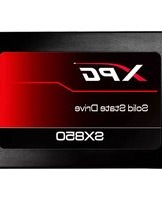
Gammix S60 - SSD XPG - Free user manual and instructions
Find the device manual for free Gammix S60 XPG in PDF.


Pick your language and provide your email: we'll send you a specifically translated version.
| Product Type | SSD (Solid State Drive) |
| Brand | XPG |
| Model | Gammix S60 |
| Interface | SATA III 6 Gb/s |
| Form Factor | 2.5 inch |
| Available Capacities | 256GB, 512GB, 1TB |
| Sequential Read Speed | Up to 560 MB/s |
| Sequential Write Speed | Up to 520 MB/s |
| NAND Type | 3D TLC |
| Cache Technology | SLC Caching |
| Dimensions (L x W x H) | 100.4 x 69.9 x 7.1 mm |
| Weight | 50 g |
| Shock Resistance | 1500G / 0.5ms |
| Operating Temperature | 0°C to 70°C |
| Storage Temperature | -40°C to 85°C |
| Power Consumption (Active) | 5W |
| Power Consumption (Idle) | 1.4W |
| MTBF | 1,500,000 hours |
| Endurance (TBW) | Up to 600 TBW (for 1TB model) |
| Warranty | 5-year limited warranty |
| Supported Features | TRIM, S.M.A.R.T., NCQ, ECC, Wear Leveling |
Frequently Asked Questions - Gammix S60 XPG
How to install the XPG Gammix S60 SSD in a desktop PC?
Connect the SATA data cable to your motherboard and the SATA power cable from your PSU. Then secure the drive in a 2.5" bay using screws. Finally, boot into BIOS to detect the drive and partition it via disk management.
Is the XPG Gammix S60 compatible with my laptop?
Yes, if your laptop has a 2.5" SATA drive bay. The 7mm thickness fits most Ultrabooks and standard laptops. Some laptops require a 9.5mm adapter, so check your device specification.
How to migrate my operating system to the new SSD?
Use cloning software like Acronis True Image (often included free with XPG drives) or Windows built-in system imaging. Connect the SSD as a secondary drive, clone the OS partition, then switch boot order.
How to check the health and firmware of the SSD?
Use monitoring tools such as CrystalDiskInfo or the official XPG SSD Toolbox. These show S.M.A.R.T. status, temperature, and available firmware updates.
What is the warranty for the XPG Gammix S60?
The XPG Gammix S60 comes with a 5-year limited warranty backed by ADATA. For details, refer to the manufacturer's warranty policy.
Does the Gammix S60 support TRIM?
Yes, the Gammix S60 supports the TRIM command, which helps maintain performance by cleaning unused blocks. Ensure TRIM is enabled in your OS (Windows: fsutil behavior query DisableDeleteNotify).
What is the difference between SATA SSD and NVMe SSD?
The Gammix S60 is a SATA III SSD with speeds up to 560 MB/s. NVMe drives use PCIe lanes and reach 3000+ MB/s. SATA is highly compatible with older systems, while NVMe is faster but requires PCIe support.
How to optimize performance of the Gammix S60?
Enable TRIM, update firmware, and ensure your motherboard uses a native SATA 6Gb/s port. Avoid filling the drive above 90% capacity to maintain stable write performance.
Can I use the Gammix S60 as an external drive?
Yes, you can install it in a USB 3.0 SATA enclosure. The maximum speed will be limited by the USB interface, typically 5 Gbps, which is still ideal for portable storage.
How to perform secure erase on the SSD?
Secure erase can be done with motherboard BIOS tools or software like Parted Magic or the XPG SSD Toolbox. This restores strong random write performance and prevents data recovery.
User questions about Gammix S60 XPG
0 question about this device. Answer the ones you know or ask your own.
Ask a new question about this device
No questions yet. Be the first to ask one.
Download the instructions for your SSD in PDF format for free! Find your manual Gammix S60 - XPG and take your electronic device back in hand. On this page are published all the documents necessary for the use of your device. Gammix S60 by XPG.
USER MANUAL Gammix S60 XPG




Manual assistant
Powered by Anthropic
Waiting for your message
Product information
Brand : XPG
Model : Gammix S60
Category : SSD