
Ultimate SU750 - SSD XPG - Free user manual and instructions
Find the device manual for free Ultimate SU750 XPG in PDF.


| Product Type | SSD (Solid State Drive) |
| Brand | XPG |
| Model | Ultimate SU750 |
| Form Factor | 2.5-inch |
| Interface | SATA III 6 Gb/s |
| Capacity Options | 240 GB, 480 GB, 960 GB, 1.92 TB, 2.0 TB |
| Sequential Read Speed | Up to 560 MB/s |
| Sequential Write Speed | Up to 530 MB/s |
| NAND Flash Type | 3D NAND |
| Controller | Silicon Motion SM2258 |
| Dimensions (LxWxH) | 100.45 x 69.85 x 7.0 mm |
| Weight | 45 g |
| Power Consumption (Active) | 2.0 W (typical) |
| Power Consumption (Idle) | 0.3 W (typical) |
| Operating Temperature | 0°C to 70°C |
| Storage Temperature | -40°C to 85°C |
| Shock Resistance | 1500 G (maximum) |
| MTBF | 2,000,000 hours |
| Warranty | 3 years limited |
| Supported Operating Systems | Windows, macOS, Linux |
| Special Features | Advanced wear leveling, TRIM support, S.M.A.R.T., Error Correction Code (ECC) |
Frequently Asked Questions - Ultimate SU750 XPG
User questions about Ultimate SU750 XPG
0 question about this device. Answer the ones you know or ask your own.
Ask a new question about this device
Download the instructions for your SSD in PDF format for free! Find your manual Ultimate SU750 - XPG and take your electronic device back in hand. On this page are published all the documents necessary for the use of your device. Ultimate SU750 by XPG.
USER MANUAL Ultimate SU750 XPG
INSTALLING AN 2.5" SATA SSD ON A DESKTOP PC

BEFORE INSTALLATION
natural_image
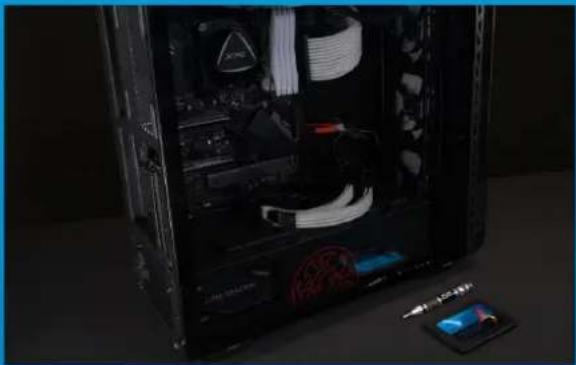
Interior view of a computer tower case with visible internal components and a close-up of a monitor displaying blue LED (no text or symbols)1. GATHER THE THINGS YOU'LL NEED
PC, Phillips screwdriver, and ADATA 2.5" SATA SSD
*Please use a standard Phillips screwdriver (3.5mm) for disassembling the case.
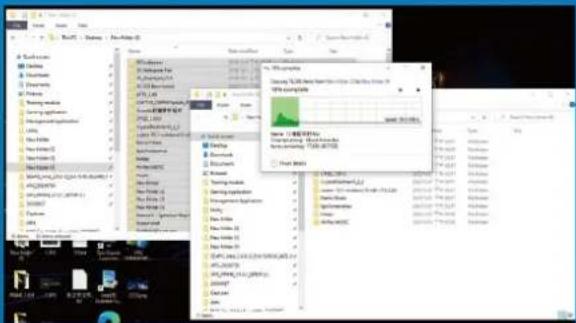
Make sure to backup the important data on your PC to an external device, such as an external HDD, before starting installation.

After backing up your data, power off your PC to avoid data loss or damage to other components during installation.

natural_image
Hand inserting a rack into a server rack with visible socket and ventilation slots (no text or symbols)4. SWITCH OFF THE POWER SWITCH AND UNPLUG POWER CORD
This action is necessary to discharge residual power that can damage your PC and its components.
INSTALLATION

natural_image
Hand placing a hard disk into an open computer tower case with visible internal components and a digital display nearby (no text or symbols)1. REMOVE THE PC CASE
Use the standard Philips screwdriver to remove the screws and then remove the PC case
natural_image
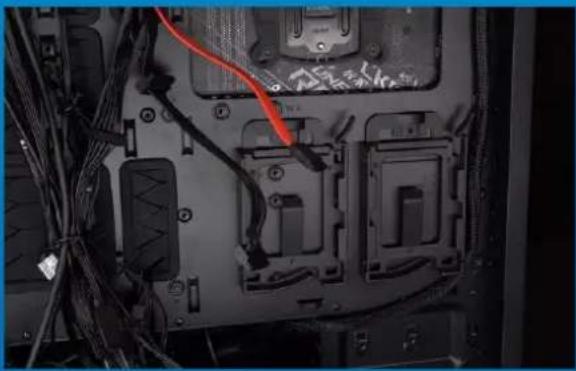
Interior view of a computer motherboard showing exposed circuit boards, cables, and connectors (no visible text or symbols)2. CONFIRM THE POSITION OF THE 2.5" SLOT AND REMOVE THE BRACKET
*Please check the side of the motherboard to find the unused 2.5" bracket
natural_image
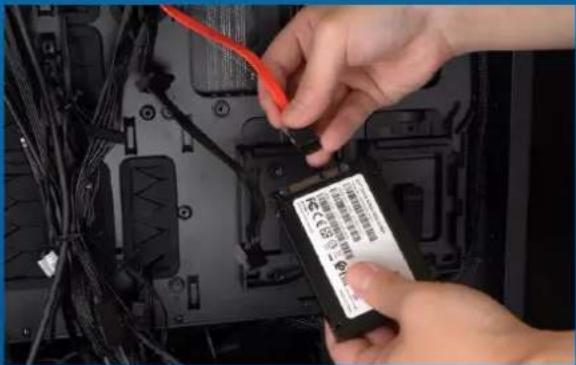
Close-up of hands installing a red cable on an electronic device with cables and connectors (no visible text or symbols)3. REMOVE THE BRACKET AND CABLE
*Each PC has different ways to fix drives. There may be drawers or brackets to place the solid state hard drives. The way to remove them will involve pulling out the bracket or support frame.
**When removing the stand, please check the screws on the top or side carefully, these screws may be fixed on it.

natural_image
Close-up of hands installing a device into a computer motherboard with a blue SUGBO card (no visible text or symbols on the device itself)4. CONNECT CABLES AND ATTACH BRACKET TO THE NEW 2.5" SATA SSD. PUT THE BRACKET IN THE SLOT TO FIX DRIVES
There is a row of pins on the cable as well as on the SSD. Align to the correct orientation and place the bracket back into the slot.
*The slot has a foolproof design. Please insert the SSD in the direction corresponding to the pins on the solid state drive and the slot.. Do not insert it forcibly to avoid damage to the product.

natural_image
Close-up of a hand inserting a CPU into a black server rack, with visible internal components and a small electronic device nearby (no text or symbols)5. RESEMBLE THE CASE
*Do not overtighten the screws as it may damage the screws ad back plate
natural_image
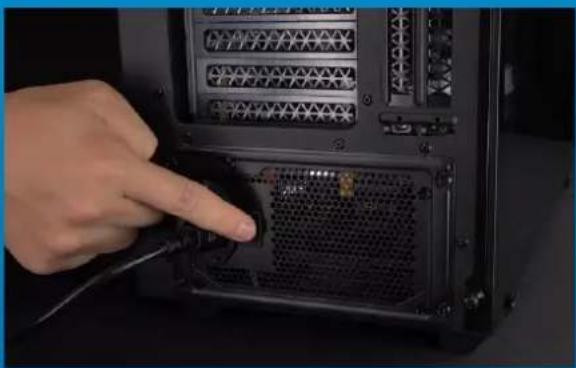
Hand pointing at a black rack-mounted server unit with ventilation grilles and connectors (no visible text or symbols)6. PLUG IN THE POWER CORD AND POWER ON THE PC TO COMPLETE INSTALLATION




- INSTALLING AN 2.5" SATA SSD ON A DESKTOP PC
- BEFORE INSTALLATION
- GATHER THE THINGS YOU'LL NEED
- SWITCH OFF THE POWER SWITCH AND UNPLUG POWER CORD
- INSTALLATION
- REMOVE THE PC CASE
- CONFIRM THE POSITION OF THE 2.5" SLOT AND REMOVE THE BRACKET
- REMOVE THE BRACKET AND CABLE
- CONNECT CABLES AND ATTACH BRACKET TO THE NEW 2.5" SATA SSD. PUT THE BRACKET IN THE SLOT TO FIX DRIVES
- RESEMBLE THE CASE
- PLUG IN THE POWER CORD AND POWER ON THE PC TO COMPLETE INSTALLATION
Brand : XPG
Model : Ultimate SU750
Category : SSD