
TUNECAST AUTO FOR IPHONE AND IPOD - FM Transmitter BELKIN - Free user manual and instructions
Find the device manual for free TUNECAST AUTO FOR IPHONE AND IPOD BELKIN in PDF.



| Product Type | FM Transmitter |
| Brand | BELKIN |
| Model | TUNECAST AUTO FOR IPHONE AND IPOD |
| Power | 12V cigarette lighter |
| FM frequency range | 87.5 - 108 MHz (estimated) |
| Main features | FM transmission, iPhone/iPod charging, ClearScan technology, memory for 2 frequencies, PRO adjustment (Normal, PRO1, PRO2, PRO), mono mode, RDS |
| Compatibility | iPhone and iPod with 30-pin connector |
| Display | Digital LCD display |
| Frequency memory | 2 presets (m1 and m2 buttons) |
| Safety | Do not operate while driving; use only on cigarette lighter; do not insert foreign objects |
| Maintenance | Clean with a soft, dry cloth |
| Warranty | 3 years |
Frequently Asked Questions - TUNECAST AUTO FOR IPHONE AND IPOD BELKIN
User questions about TUNECAST AUTO FOR IPHONE AND IPOD BELKIN
0 question about this device. Answer the ones you know or ask your own.
Ask a new question about this device
Download the instructions for your FM Transmitter in PDF format for free! Find your manual TUNECAST AUTO FOR IPHONE AND IPOD - BELKIN and take your electronic device back in hand. On this page are published all the documents necessary for the use of your device. TUNECAST AUTO FOR IPHONE AND IPOD by BELKIN.
USER MANUAL TUNECAST AUTO FOR IPHONE AND IPOD BELKIN
TuneCast® Auto for iPhone and iPod
User Manual
PM01714ea F8Z343ea
ENGLISH
FRANÇAIS
DEUTSCH
NEDERLANDS
ESPANOL
ITALIANO
TABLE OF CONTENTS
Table of Contents SECTIONS 1 2 3 4 5 6 7
1 Introduction 1
2 Connecting Your TuneCast Auto 2
3 Selecting an FM Frequency 3
Using ClearScan to Select the Best FM Frequency (recommended). 3
Manually Selecting an FM Frequency 4
Storing and Selecting a Frequency 4
4 Using the PRO Setting to Improve Performance 5
Listening to Mono Recordings 5
5 Getting the Most Out of TuneCast Auto 6
Charging Your iPhone or iPod 6
Radio Data System (RDS) 6
Optimizing the Sound Quality of Your TuneCast Auto. 7
6 SafetyWarnings 8
7 Information 9
INTRODUCTION
| Table of Contents | SECTIONS | 1 | 2 | 3 | 4 | 5 | 6 | 7 |
Your TuneCast Auto is designed to power, charge, and transmit audio from your iPhone or iPod to your car stereo. Please review this User Manual carefully so that you can get the most from your TuneCast Auto, virtually anywhere you go.
CONNECTING YOUR TUNECAST AUTO
Table of Contents SECTIONS 1 2 3 4 5 6 7
- Turn down your stereo's volume.
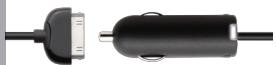
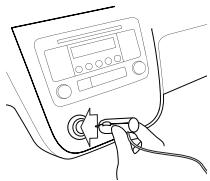
- Connect your TuneCast Auto to the cigarette lighter or power outlet in your vehicle.
- Connect your iPhone or iPod to your TuneCast Auto.
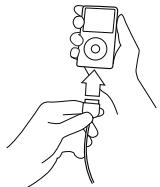
Note: Your TuneCast Auto will automatically turn off if there is no audio for approximately 60 seconds for European versions, but it will automatically turn on again when it detects audio from your iPhone or iPod. You can also press the "m1" or "m2" button to turn on your TuneCast Auto.
SELECTING AN FM FREQUENCY
Table of Contents SECTIONS 1 2 3 4 5 6 7
You can use ClearScan to find a frequency and match it to your stereo, or you can find a frequency on your stereo and match your TuneCast Auto to the same frequency.
Using ClearScan to Select the Best FM Frequency (recommended)
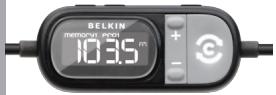
Your TuneCast Auto uses ClearScan technology to constantly scan for the clearest FM frequency in your area.
- Press the ClearScan button. Your TuneCast Auto will display the best frequency.
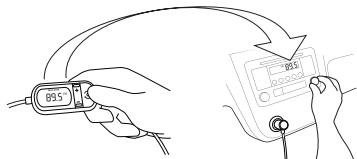
- Tune your stereo to the frequency on your TuneCast Auto display.
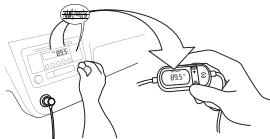
Note: If you immediately press the "ClearScan" button when you turn on your TuneCast Auto, it may take up to 10 seconds for ClearScan to locate the best frequency. If your audio signal declines, just press "ClearScan" and the best FM frequency will instantly display.
SELECTING AN FM FREQUENCY
| Table of Contents | SECTIONS | 1 | 2 | 3 | 4 | 5 | 6 | 7 |
Manually Selecting an FM Frequency
If you want to use a specific frequency, you can manually select it on your TuneCast Auto.
- Tune your stereo to a frequency between stations. The ideal frequency is one not broadcasting a radio station's signal.
- Press the + or - button on your TuneCast Auto to select the same frequency.
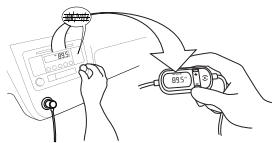
- To identify the best available frequencies in your area, visit www.belkin.com/ mybestfm.
Storing and Selecting a Frequency
You can store two frequencies using the "m1" and "m2" buttons.
- To store a frequency, select the desired frequency on your TuneCast Auto using the + or - buttons. Press and hold the "m1" or "m2" preset button for two seconds. The "m1" or "m2" icon will flash on the screen when the frequency is set.
- To recall a preset frequency, press the "m1" or "m2" preset button. Your TuneCast Auto will change to the preset frequency.
USING THE PRO SETTING TO IMPROVE PERFORMANCE
| Table of Contents | SECTIONS | 1 | 2 | 3 | 4 | 5 | 6 | 7 |
When you connect your iPhone or iPod, your TuneCast Auto will automatically detect the iPhone or iPod model and adjust the volume. Although the default volume setting will be ideal for most conditions, you may be able to improve the audio performance of your TuneCast Auto by using the PRO setting.
Normal - No change to the audio. This setting works well with all types of audio.
PRO 1 - Increases the average volume of the audio. This setting works well with most types of music.
PRO 2 - Increases the average volume even further. This setting works well with quieter music, but it may cause distortion with louder music.
PRO - Increases the average volume and transmits in mono (instead of stereo). This setting works well for podcasts and audio books. It can also be used to improve reception if you are not receiving a clear signal from your TuneCast Auto.
When you press the "PRO" button, your TuneCast Auto will display the current PRO setting. Pressing the "PRO" button again will change the setting to PRO1, PRO2, and PRO as follows:

Listening to Mono Recordings
Your TuneCast Auto transmits in stereo, but you can also transmit in mono if needed. We suggest that you switch to mono transmission only if your car stereo is not receiving a clear signal from the TuneCast Auto or if you are listening to a mono recording such as an audio book.
To switch to mono transmission, press the "PRO" button until PRO is shown on the display.
GETTING THE MOST OUT OF TUNECAST AUTO
| Table of Contents | SECTIONS | 1 | 2 | 3 | 4 | 5 | 6 | 7 |
Charging Your iPhone or iPod
Your TuneCast Auto will charge your iPhone or iPod while it is connected to a power outlet and receiving power. If your iPhone or iPod is not charging, make sure your TuneCast Auto is correctly connected to the power outlet and that your iPhone or iPod is securely connected to your TuneCast Auto. The indicator light on the cigarette lighter adapter should be lit.
Note: Some vehicles do not provide power to the power outlet unless the vehicle is in ignition mode or the engine is running.
Radio Data System (RDS)
The RDS system standardizes several types of information transmitted, including time, track, artist information, and station identification. TuneCast Auto supports RDS and can display artist name followed by song title on your car stereo display. Information is displayed eight characters at a time, except in Europe where it is scrolled across the screen. This will repeat on your stereo display until the transmission ends, or it is replaced by another song. Refer to your car stereo's manual to find out if it has the RDS feature.
Note: The TuneCast Auto supports RDS. Depending on your car stereo system or the location you find yourself in, the quality of the RDS transmission between your TuneCast Auto and your car stereo can vary. Belkin puts great effort in designing top quality products and will always strive to deliver the best in ease of use and quality
GETTING THE MOST OUT OF TUNECAST AUTO
| Table of Contents | SECTIONS | 1 | 2 | 3 | 4 | 5 | 6 | 7 |
Optimizing the Sound Quality of Your TuneCast Auto
A variety of car radio and antenna configurations are available and you may optimize the sound quality in your car based on the location of your TuneCast Auto (for example, placing the TuneCast Auto on the center console may yield better performance than other locations within your vehicle).
SAFETYWARNINGS
| Table of Contents | SECTIONS | 1 | 2 | 3 | 4 | 5 | 6 | 7 |
Do not attempt to connect your TuneCast Auto while driving. Make sure your TuneCast Auto fits securely and firmly into the power outlet before driving.
Do not attempt to adjust or retrieve an unsecured TuneCast Auto or iPhone or iPod while driving. Position the TuneCast Auto so that both the TuneCast Auto and the iPhone or iPod do not interfere with any of the operating controls of the car.
Do not insert any objects other than the cigarette lighter adapter into the power outlet without disconnecting the battery of the car first. Failure to observe this safety warning can result in injury or property damage.
Belkin does not assume any responsibility for personal injury or property damage incurred due to hazardous driving as a result of interaction with the TuneCast Auto, the iPhone or iPod, or the vehicle's power outlet.
INFORMATION
Table of Contents SECTIONS 1 2 3 4 5 6 7
EU DECLARATION OF CONFORMITY
| [Becky [Czech] | [Beklin Ltd] tinto prohlakje, ze lento [F82343ee] je ve shodé se zákkadnimi pozádevaki y ašdaližimi pólustránny ustanovleni směnečn' 1999/5/E.S. |
| [Dansk [Narish] | Undertegnede [Beklin Ltd] erkräner herved, at falcende odutyr [F82343ee] overheder de vasanteligne kral og ovriige relevante kral i direktiv 1999/5/E. |
| [Deutsch [German] | Hierim erklart [Beklin Ltd], dass sich das Gerat [F82343ee] in Überreinigung stimmend im grundlegenden Anforderungen und den übrigen einschlädigten Bestimmungen der Rüttlichkeit 1999/5/EG befindet. |
| [Estonian] | Kasteoselva kinnab [Beklin Ltd] skëdeare that this [F82343ee] is in compliance with the essential requirements and other relevant provisions of Directive 1999/5/E. |
| [English] | Hereby, [Beklin Ltd] declares that this [F82343ee] is in compliance with the essential requirements and other relevant provisions of Directive 1999/5/E. |
| [Espanol [Spanish] | Por medio de la presente [Beklin Ltd] declara que el [F82343ee] cumple con los requisitos escnables y cuqueasillas operaciones aplicables a la ración de la Directive 1999/5/C. |
| [Eu/Jewish [Greek] | ME THI ΑΠΟΥΑ Βeνλί [F82343ee] ΜΥΜΟΡΦΝΕΤΑ ΠΙΝΟ ΠΙ ΚΙ ΜΟΥΙΑΕΙ ΕΑΙΙΤΗΕΙ ΚΑΙ ΦΙ ΜΟΥΙΑΕΙ ΕΚΑΙ ΦΙ ΜΟΥΙΑΕΙ ΕΚΑΙ ΦΙ ΜΟΥΙΑΕΙ ΕΚΑΙ ΦΙ ΜΟΥΙΑΕΙ ΕΚΑΙ ΦΙ ΜΟΥΙΑΕΙ ΕΚΑΙ ΦΙ ΜΟΥΙΑΕΙ ΕΚΑΙ ΦΙ ΜΟΥΙΑΕΙ ΕΚΑΙ ΨΑΙ ΦΙ ΜΟΥΙΑΕΙ ΕΚΑΙ ΦΙ ΜΟΥΙΑΕΙ ΕΚΑΙ ΨΑΙ ΦΙ ΜΟΥΙΑΕΙ ΕΚΑΙ ΨΑΙ ΦΙ ΜΟΥΙΑΕΙ ΕΚΑΙ ΨΑΙ ΦΙ ΜΟΥΙΑΕΙ ΕΚΑΙ ΨΑΙ ΦΙ ΜΟΥΙΑΕΙ ΕΚΑΙ ΨΑΙ ΦΙ ΜΟΥΙΑΕΙ ΕΚΑΙ Τιθικaj. |
| [Francais [French] | Par la presente [Beklin Ltd] declare que l'appellé [F82343ee] est conforme aux exigencies essentielles et aux autres dispositions pertinentes de la directive 1999/5/E. |
| [Italiano [Italian] | Con la presente [Beklin Ltd] dichiera que este [F82343ee] é conforme à requisiti esseniali ed alle autres dispositions pertinenti stabilite dallada datediva 1999/5/E. |
| [Latviki [Latvian] | Ar sən [Beklin Ltd] təklaikar, ka [F82343ee] / ekkäras [təks] atbstl [Direktivs 1999/5/EK bõtskäjäm prazilb'm an citrien ar to saitstajlem notekumemi. |
| [Lutuviu [Lithuanian] | Šuoi [Beklin Ltd] dekraioja, kad səs [F82343ee] ist emorin seismus met de essencelle eisen en de andere relevante bepalingen van richtlij 1999/5/E. |
| [Netherlands [Dutch] | Hierbi verkaart [Beklin Ltd] dat het toestel [F82343ee] in overeerstenming met is met de essencelle eisen en de andere relevante bepalingen van richtlij 1999/5/E. |
| [Malti [Maltese] | Hawnekheik, [Beklin Ltd] jddjkara li dan [F82343ee] kjoconforma mal-higjelitet esseniali u ma providiment ohrari relevanti hy hem fid-Direttiva 1999/5/E. |
| [Mayorgar [Hungarian] | Aluirott, [Beklin Ltd] nyalikozkom, hagy a [F82343ee] megfelé a vonatkož ápvalte kóveltmeányeké és az 1999/5/ECT naïnyégyő ebőlésönain. |
| [Polski [Polish] | Niewijszym [Beklin Ltd] ośtudzacja, ze [F82343ee] jest zgodny z zasadinizcymi wymogami oraz pośostatymi stosovznymi postanowienymi Dyrektywyy 1999/5/E. |
| [Portugues [Portuguese] | [Beklin Ltd] decláque que este [F82343ee] ist conforme com los requisitos esseniales outras dispositions de Direktive 1999/5/C. |
| [Slovenský [Slovenian] | [I Béklin Ltd] zažiava, da je tə[F82343ee] v skladu z bistveni zahtevmi en ostali规则 relevantin Dolovičì directives 1999/5/E. |
| [Slovenský [Slovak] | [Beklin Ltd] týmí vhyvásiusje, ze [F82343ee] spína zázáknićne pozádeviia y věšékí pólustrénuš ustanovleni Smerece 1999/5/E. |
INFORMATION
Table of Contents SECTIONS 1 2 3 4 5 6 7
| [Buomi] [Finnish] | [Belkin Ldt] kavuttaa tätten ität à FZ8343ea] yyppinen laite on direktivin 1999/5/EY oeleistlin vaatmaisten je sitä koskeiven direktiv munken ethotoen mukainen. |
| [Psvenska] [Swedish] | Härmed ingyar Belkin Ldt] att denna[FZ8343ea] stär l'ovresentstämme med这部分vistigena égånskapskrav och örvåg relevante bestammler som framåg av direktiv 1999/5/EG. |
| Isalenska [Icelandic] | Hér með lyssir [Belkin Ldt] yfir bvi ád[FZ8343ea] er i samræmi øv grunkrófr og ádrkr króf, sem gerð eru i tilskipun 1999/5/EC. |
| Ebnorsk [Norwegian] | [Belkin Ldt] erkräser hervet at utsytret[FZ8343ea] er i samsvar med de grunleggende kravy og vírgne relevante kravy i direktiv 1999/5/E. |
http://www.belkin.com/doc/

INFORMATION
Table of Contents SECTIONS 1 2 3 4 5 6 7
Belkin International, Inc., Limited 3-Year Product Warranty
What this warranty covers.
Belkin International, Inc. ("Belkin") warrants to the original purchaser of this Belkin product that the product shall be free of defects in design, assembly, material, or workmanship.
What the period of coverage is.
Belkin warrants the Belkin product for three years.
What will we do to correct problems?
Product Warranty.
Belkin will repair or replace, at its option, any defective product free of charge (except for shipping charges for the product). Belkin reserves the right to discontinue any of its products without notice, and disclaims any limited warranty to repair or replace any such discontinued products. In the event that Belkin is unable to repair or replace the product (for example, because it has been discontinued), Belkin will offer either a refund or a credit toward the purchase of another product from Belkin.com in an amount equal to the purchase price of the product as evidenced on the original purchase receipt as discounted by its natural use.
INFORMATION
Table of Contents SECTIONS 1 2 3 4 5 6 7
What is not covered by this warranty?
All above warranties are null and void if the Belkin product is not provided to Belkin for inspection upon Belkin's request at the sole expense of the purchaser, or if Belkin determines that the Belkin product has been improperly installed, altered in any way, or tampered with. The Belkin Product Warranty does not protect against acts of God such as flood, lightning, earthquake, war, vandalism, theft, normal-use wear and tear, erosion, depletion, obsolescence, abuse, damage due to low voltage disturbances (i.e. brownouts or sags), non-authorized program, or system equipment modification or alteration.
How to get service.
To get service for your Belkin product you must take the following steps:
- Contact Belkin Ltd. Express Business Park, Shipton Way, Rushden, NN10 6GL, United Kingdom, Attn: Customer Service, or call (800)-223-5546, within 15 days of the Occurrence. Be prepared to provide the following information:
a. The part number of the Belkin product.
b. Where you purchased the product.
c. When you purchased the product.
d. Copy of original receipt.
- Your Belkin Customer Service Representative will then instruct you on how to forward your receipt and Belkin product and how to proceed with your claim.
INFORMATION
| Table of Contents | SECTIONS | 1 | 2 | 3 | 4 | 5 | 6 | 7 |
Belkin reserves the right to review the damaged Belkin product. All costs of shipping the Belkin product to Belkin for inspection shall be borne solely by the purchaser. If Belkin determines, in its sole discretion, that it is impractical to ship the damaged equipment to Belkin, Belkin may designate, in its sole discretion, an equipment repair facility to inspect and estimate the cost to repair such equipment. The cost, if any, of shipping the equipment to and from such repair facility and of such estimate shall be borne solely by the purchaser. Damaged equipment must remain available for inspection until the claim is finalized. Whenever claims are settled, Belkin reserves the right to be subrogated under any existing insurance policies the purchaser may have.
INFORMATION
Table of Contents SECTIONS 1 2 3 4 5 6 7
How state law relates to the warranty.
THIS WARRANTY CONTAINS THE SOLE WARRANTY OF BELKIN. THERE ARE NO OTHER WARRANTYES, EXPRESSED OR, EXCEPT AS REQUIRED BY LAW, IMPLIED, INCLUDING THE IMPLIED WARRANTY OR CONDITION OF QUALITY, MERCHANTABILITY OR FITNESS FOR A PARTICULAR PURPOSE, AND SUCH IMPLIED WARRANTYES, IF ANY, ARE LIMITED IN DURATION TO THE TERM OF THIS WARRANTY.
Some states do not allow limitations on how long an implied warranty lasts, so the above limitations may not apply to you.
IN NO EVENT SHALL BELKIN BE LIABLE FOR INCIDENTAL, SPECIAL, DIRECT, INDIRECT, CONSEQUENTIAL OR MULTIPLE DAMAGES SUCH AS, BUT NOT LIMITED TO, LOST BUSINESS OR PROFITS ARISING OUT OF THE SALE OR USE OF ANY BELKIN PRODUCT, EVEN IF ADJISSED OF THE POSSIBILITY OF SUCH DAMAGES.
This warranty gives you specific legal rights, and you may also have other rights, which may vary from state to state. Some states do not allow the exclusion or limitation of incidental, consequential, or other damages, so the above limitations may not apply to you.
Table of Contents SECTIONS 1 2 3 4 5 6 7
Free Tech Support*
*National call rates may apply
www.belkin.com
You can find additional support information on our website www.belkin.com through the tech-support area. If you want to contact technical support by phone, please call the number you need from this list.
| Country | Number | Internet adress |
| AUSTRIA | 08 - 20 20 07 66 | http://www.belkin.com/uk |
| BELGIUM | 07 07 00 073 | http://www.belkin.com/nl |
| CZECH REPUBLIC | 23 900 04 06 | http://www.belkin.com/uk |
| DENMARK | 701 22 403 | http://www.belkin.com/uk |
| FINLAND | 00800 - 22 35 54 60 | http://www.belkin.com/uk |
| FRANCE | 08 - 25 54 00 26 | http://www.belkin.com/fr |
| GERMANY | 0180 - 500 57 09 | http://www.belkin.com/de |
| GREECE | 00800 - 44 14 23 90 | http://www.belkin.com/uk |
| HUNGARY | (06-1)-7774906 | http://www.belkin.com/uk |
| ICELAND | 800 8534 | http://www.belkin.com/uk |
| IRELAND | 0818 55 50 06 | http://www.belkin.com/uk |
| ITALY | 02 - 69 43 02 51 | http://www.belkin.com/it/support/tech |
| LUXEMBOURG | 34 20 80 8560 | http://www.belkin.com/uk |
| NETHERLANDS | 09000 - 040 07 90€0.10 per minute | http://www.belkin.com/nl |
| NORWAY | 815 00 287 | http://www.belkin.com/uk |
| POLAND | 00800 - 441 17 37 | http://www.belkin.com/uk |
| PORTUGAL | 707 200 676 | http://www.belkin.com/uk |
| RUSSIA | 495 580 9541 | http://www.belkin.com/uk |
| SOUTH AFRICA | 0800 - 99 15 21 | http://www.belkin.com/uk |
| SPAIN | 902 - 02 43 66 | http://www.belkin.com/es/support/tech |
| SWEDEN | 07 - 71 40 04 53 | http://www.belkin.com/se/support/tech |
| SWITZERLAND | 08 - 48 00 02 19 | http://www.belkin.com/uk |
| UNITED KINGDOM | 0845 - 607 77 87 | http://www.belkin.com/uk |
| OTHER COUNTRIES | +44 - 1933 35 20 00 | |
BELKIN
www.belkin.com
Belkin Ltd.
Express Business Park
Shipton Way, Rushden
NN10 6GL, United Kingdom
Belkin SAS
130 rue de Silly
92100 Boulogne-Billancourt,
France
Belkin GmbH
Hanebergstrasse 2
80637 Munich
Germany
Belkin Iberia
Belkin Italy & Greece
Via Carducci, 7
Milano 20123
Italy
Belkin B.V.
Boeing Avenue 333
© 2008 Belkin International, Inc. All rights reserved. All trade names are registered trademarks of respective manufacturers listed. iPod is a trademark of Apple Inc., registered in the U.S. and other countries. iPhone is a trademark of Apple Inc.
PM01714ea
F8Z343ea
BELKIN
EU DECLARATION OF CONFORMITY
| #Kesky [Czech] | [Beilin Ltd] tímno prohlázků, zé tento [F82343e4] je ve shodě se zákadnimi pozádevá na dalstími pristufinyimi ustanovenními smirnéce 1999/5/E.S. |
| #Dansk [Danish] | Undertegnede [Beilin Ltd] erkräner herved, at falgende udstrý [F82343e4] overholder de vasantérgne kralog ovogrève relevante krav i direktiv 1999/5/E.F. |
| #Deutsch [German] | Hiertem erklätt [Beilin Ltd] datsch das Gertz [F82343e4] in Überinstimmung mit den grundlegenden Anforderungen und den übrigen einschlädigten Bestimmungen der Rüttlichkeit 1999/5/EG befindet. |
| #Eesti [Estonian] | Käselovääke kinnabit [Beilin Ltd] seadme [F82343e4] vastustuv direktivi 1999/5/EU poinhuiuteja ji nämätudt direktivtuleneuteteile teisteile asjakohastelä teisteile. |
| #English | Herby, [Beilin Ltd], declares that this [F82343e4] is in compliance with the essential requirements and other relevant provisions of Directive 1999/5/E.C. |
| #Espoli [Spanish] | Por medo de la presente [Beilin Ltd] declares que el [F82343e4] cumple con los requisitos esencias y cualescares Herreraas oxcobligaciones o exigencies de la Directive 1999/5/C.E. |
| #Eu(yu)ny [Greek] | METH ΦΙΝΥ ΜΑγΙ ΦΙ Φ Φ Φ Φ Φ Φ Φ Φ Φ Φ Φ Φ Φ Φ Φ Φ Φ Φ Φ Φ Φ Φ Φ Φ Φ Φ Φ Φ Φ Φ Φ Φ Φ Φ Φ Φ Φ Φ Φ Φ Φ Φ Φ Φ Φ Φ Φ Φ Φ Φ Ψ Φ Φ Φ Φ Φ Φ Φ Φ Φ Φ Φ Φ Φ Φ Φ Φ Φ Φ Φ Φ Φ Φ Φ Φ Φ Φ Φ Φ Φ Φ Φ Φ Φ Φ Φ Φ Φ Φ Φ Φ Φ Φ Φ Φ Φ Φ Φ Φ Φ ΤI Φ Φ Φ Φ Φ Φ Φ Φ Φ Φ Φ Φ Φ Φ Φ Φ Φ Φ Φ Φ Φ Φ Φ Φ Φ Φ Φ Φ Φ Φ Φ Φ Φ Φ Φ Φ Φ Φ Φ Φ Φ Φ Φ Φ Φ Φ Φ Φ Φ ΧI Φ Φ Φ Φ Φ Φ Φ Φ Φ Φ Φ Φ Φ Φ Φ Φ Φ Φ Φ Φ Φ Φ Φ Φ Φ Φ Φ Φ Φ Φ Φ Φ Φ Φ Φ Φ Φ Φ Φ Φ Φ Φ Φ Φ Φ Φ Φ Φ ΦΩI Φ Φ Φ Φ Φ Φ Φ Φ Φ Φ Φ Φ Φ Φ Φ Φ Φ Φ Φ Φ Φ Φ Φ Φ Φ Φ Φ Φ Φ Φ Φ Φ Φ Φ Φ Φ Φ Φ Φ Φ Φ Φ Φ Φ Φ Φ Φ Φ Φη Φ Φ Φ Φ Φ Φ Φ Φ Φ Φ Φ Φ Φ Φ Φ Φ Φ Φ Φ Φ Φ Φ Φ Φ Φ Φ Φ Φ Φ Φ Φ Φ Φ Φ Φ Φ Φ Φ Φ Φ Φ Φ Φ Φ Φ Φ Φ Φ Φ ΩI I I I I I I I I I I I I I I I I I I I I I I I I I I I I I I I I I I I I I I I I I I I I I I I I I I I I I I I I I I I I I I I I I I I I I I I I I I I I I I I I I I I I I I I I I I I I I I I I I I I I |
| #Français [French] | Par la presente [Beilin Ltd] déclare que l'appréel [F82343e4] est conformée aux exigences essentielles et aux autres dispositions pertinentes de la directive 1999/5/E.C. |
| #Italiano [Italian] | Con la presente [Beilin Ltd] dichiar che qu'est [F82343e4] é conformé au requisite esseniali ed alle autre dispositions personièts stabilite dallada direltiva 1999/5/C.E. |
| #Laviki [Latvian] | Ar lo [Beilin Ltd Beilin Ltd] dikkar, ka [F82343e4 / ekkärtes füss] atbstl Direktivs 1999/5/EK botskajnik prastib um citern ar to saïtlaftjänek odokumkam. |
| #Lletviču [Lithuanian] | Suo [Beilin Ltd] déclarouka, kad fis [F82343e4] attinka esminius rekalavimus ir itakes in 1999/5/E.BHQ Direktivs noustatas. |
| Niederlands [Dutch] | Hierbi verkaart [Beilin Ltd] dat het toestel [F82343e4] in overeiensteming is met de essentie sien en de andere relevante bepalingen van richtijn 1999/5/E.G. |
| #Mati [Maltese] | Hawnhekk, [Beilin Ltd] jiddikä li dan [F82343e4] jkontomala ha-nigjöt信息安全 μa mo provdeiment ohräjn relevanti hem fidm-direttiva 1999/5/E.C. |
| #Magyar [Hungarian] | Alulitt, [Beilin Ltd] nyalitokozim, hagy a [F82343e4] megfelé a vonatkožó alaptevo kóvetleményeknek é az 1999/5/EC irányev eggyt eböräsinak. |
| #Polski [Polish] | Ninetyzjm [Beilin Ltd] owidzicka, ze [F82343e4] zejtojdz zázyzniczym wymogami odzaz pozafstymi stosowymi postanowieniami Dyektwy 1999/5/E.C. |
| #Portugues [Portuguese] | [Beilin Ltd] declara que este [F82343e4] está conforme com os requisités essentesicas ou autres dispositions da Direktiva 1999/5/E.C. |
| #Slovensko [Slovenian] | [I Beilin Ltd] Čajvac, de je ta [F82343e4] vškăduk je zistkovi zájkradné pozádevá z věkty špitrušće ustanoveniya Smercine 1999/5/E.S. |
| #Slovenskiy [Slovak] | [Beilin Ltd] támto vhylasje, ze [F82343e4] spíha zázákradné pozádevá z věkty špitrušće ustanoveniya Smercine 1999/5/E.S. |
INFORMATIONS
Table des matieres SECTIONS 1 2 3 4 5 6 7
| [Buomi] [Finnish] | [Belkin Ldt] kavuttaa tätten ität à FZ8343ea] yyppinen laite on direktivin 1999/5/EY oeleistlin vaatmaisten je sitä koskevinen direktiv munken ethögen mukainen. |
| [Psvenska] [Swedish] | Härmed ingyar Belkin Ldt] att denna[FZ8343ea] stär l'ovresentstämme med这部分valenteigensignéskapskrav och örvåg relevante bestammler som framåg av direktiv 1999/5/EG. |
| Isalenska [Icelandic] | Hér með lyssir [Belkin Ldt] yfir bvi ád[FZ8343ea] er i samræmi øv grunkrófr og ádrkr áfjord, sem gerð eru i tiliskipun 1999/5/EC. |
| Ebnorsk [Norwegian] | [Belkin Ldt] erkräser hervet at utsytret[FZ8343ea] er i samsvar med de grunleggende krav og évige relevante krav i direktiv 1999/5/E. |
http://www BELKIN.com/doc/
C∈0673
INFORMATIONS
| Table des matières | SECTIONS | 1 | 2 | 3 | 4 | 5 | 6 | 7 |
Express Business Park
Shipton Way, Rushden
Belkin Italy & Greece
Via Carducci, 7
Milano 20123
Italie
Belkin B.V.
Boeing Avenue 333
EU DECLARATION OF CONFORMITY
| [Beisky [Czech] | [Beklín Ltd] tímno prohlátejé, ze tento [F82343ea] je ve shóde se zázakadnimi požádevák y dalási mižloužni ustanovleni smárne 1999/5/E.S. |
| [Denish] [Danish] | Undertegnede [Beklín Ltd] erkräner herved, at falgende udstryt [F82343ea] overhoder de vassiliténg rav og věgne relevante krav i direktiv 1999/5/E. |
| [Deutsch] [German] | Hierim erklart [Beklín Ltd], dass das Geratir [F82343ea] in Überreinbindung mit den grundlegenden Anforderungen und den übrigen einschlädigen Bestimmungen der Rüttlichkeit 1999/5/EG befindet. |
| [Estonian] | Kasteöleva kinnitab [Beklín Ltd] skäme [F82343ea] vastustav direktiv 1999/5/EU pohänhuetä je nätmatud direktivtulenuvetele teistele asajokhaestene steileste. |
| [English] | Hereby, [Beklín Ltd] declares that this [F82343ea] is in compliance with the essential requirements and other relevant provisions of Directive 1999/5/E.C. |
| [Espanol] [Spanish] | Por medio de la presente [Beklín Ltd] declara que el [F82343ea] cumple con los requisitos Españoles y cualesas或其他 dispositions aplicables o exigibles de la Directive 1999/5/C.E. |
| [Finnish] [Greek] | ME THN IAPOYAA [Beklín Ltd] dHAONÉI OTI: YMMOPDΦNETAI TIOI ΜΟΙ ΠΟ ΜΙ ΜΥ ΜΙ ΜΕΙ ΕΑΙ ΘΗΙ ΕΑΙ Θ ΕΑΙ Θ ΕΑΙ Θ ΕΑΙ Θ ΕΑΙ Θ ΕΑΙ Θ ΕΑΙ Θ ΕΑΙ Θ ΕΑΙ Θ ΕΑΙ Θ ΕΑΙ Θ ΕΑΙ Θ ΕΑΙ Θ ΕΑΙ Θ ΕΑΙ Θ ΕΑΙ Θ ΕΑΙ Θ ΕΑι Θ ΕΑΙ Θ ΕΑΙ Θ ΕΑΙ Θ ΕΑΙ Θ ΕΑΙ Θ ΕΑΙ Θ ΕΑΙ Θ ΕΑΙ Θ ΕΑΙ Θ ΕΑΙ Θ ΕΑΙ Θ ΕΑΙ Θ ΕΑΙ Θ ΕΑΙ Θ ΕΑΙ Θ ΕΑΙ Θ ΜΙ ΜΑ Θ ΜΙ ΜΑ Θ ΜΙ ΜΑ Θ ΜΙ ΜΑ Θ ΜΙ ΜΑ Θ ΜΙ ΜΑ Θ ΜΙ ΜΑ Θ ΜΙ ΜΑ Θ ΜΙ ΜΑ Θ ΜΙ ΜΑ Θ ΜΙ ΜΑ Θ ΜΙ ΜΑ Θ ΜΙ ΜΑ Θ ήθερονská prazilbán a citien ar to saisftajlem notekumiami. |
| [Francis] [French] | La presente [Beklín Ltd] declare que l'appréel [F82343ea] est conforme aux exigencies essentielles et aux autres dispositions pertinentes de la directive 1999/5/E.C. |
| [Italiano] [Italian] | Con la presente [Beklín Ltd] dichiarca que este [F82343ea] é conforme à requisiti essenziali ed alle autres dispositions pertinenti stabilite dall'datiiva 1999/5/E.C. |
| [Latvish] [Latvian] | Ar lo [Beklín Ltd] bek [F82343ea] / ekkartas [tasp.] atbst [Direktivs 1999/5/EK] bólkitská prášilnám Ščižtek JÉK TÉ KÁTÉKIEK JÍA TÁAÉE TÍ ΕÜ O ḥ HIAI ΕΑΙ Θ 1999/5/EK |
| [Lutuviu] [Lithuanian] | Sicuo [Beklín Ltd] dékauroja, kad iśs [F82343ea] italina ebinunis reikalavirus ir kitas 1999/5/EEDirektivy noustatas. |
| [Netherlands [Dutch] | Hierbij verkaart [Beklín Ltd] dat het toetstel [F82343ea] in overeestermenting is met de essentieleen eisen en de andere relevante bepalingen van richtijn 1999/5/E.G. |
| [Mali] [Mallese] | Hawnekhek, [Beklín Ltd] jeddikara li dan [F82343ea] jökkonforma mal-higjelitet eszenjalu i ma proceedingschior relevanti hytmid firdiretiva 1999/5/E.C. |
| [Mayfair] [Hungarian] | Alurittok, [Beklín Ltd] nyilakizkom, hagy a [F82343ea] megfelé a vonahtokó alapvető kóveltényények és az 1999/5/ECTivny égyőé bőlésiának. |
| [Polski] [Polish] | Niewszym [Beklín Ltd] odwiedzaca, ze [F82343ea] jest zydogny z zasadniczymami yogomani za poszostymi stosowymi postanowienymi Dynekwy 1998/5/E.C. |
| [Portuguese] [Portuguese] | Niewszym [Beklín Ltd] declara que este [F82343ea] ist完备 os com quicos requisités essenciais ou autres dispositions da Direktive 1999/5/C.E. |
| [Slovensko] [Slovenian] | [I Béklin Ltd] izavla, da je ta [F82343ea] v skladu z bistveni zvezhemmi en otstalmi relevantimi dolovičì direktive 1999/5/E.S. |
| [Slovenský] [Slovak] | [Beklín Ltd] týmí vhyvänska, ze [F82343ea] spína záziskné požádevák y věšétki prúšné uzstanověnia Smerince 1999/5/E.S. |
INFORMATIONEN
Express Business Park
Shipton Way, Rushden
NN10 6GL, GroBbritannien
Belkin SAS
130 rue de Silly
92100 Boulogne-Billancourt,
Frankreich
Belkin GmbH
Hanebergstrasse 2
80637 Munich
Deutschland
Belkin Iberia
Belkin Italy & Greece
Via Carducci, 7
Milano 20123
Italian
Belkin B.V.
Boeing Avenue 333
Radio Data System (RDS)
VEILIGHEIDSWAARSCHUWINGEN
EU DECLARATION OF CONFORMITY
| [Beisky [Czech] | [Beklín Ltd] tímno prohlátejé, ze tento [F82343ea] je ve shóde se zázakadnimi pošteadykav a dalási pólustránny ustanovleni smirnečny 1999/5/E.S. | |
| [Denish] | Undertegnede [Beklín Ltd] erkräner herved, at falgende udstryt [F82343ea] overhinder de vassilić na ogvîre relevante krav i direktiv 1999/5/E. | |
| [Deutsch] | Hierim erklart [Beklín Ltd], dass das Gerat der [F82343ea] in Übererstimmung mit den grundlegenden Anforderungen und den übrigen einschlädigen Bestimmungen der Rüttlichkeit 1999/5/EG befindet. | |
| [Estonian] | Kasteöleva kinnitab [Beklín Ltd] seadme [F82343ea] vastustav direktiv 1999/5/EU pohänhuetelä je nätmatud direktivtulenuvetele teisteile asjaokhahestie steateile. | |
| [English] | Hereby, [Beklín Ltd] declares that this [F82343ea] is in compliance with the essential requirements and other relevant provisions of Directive 1999/5/E. | |
| [Espanol [Spanish] | Por medio de la presente [Beklín Ltd] declara que el [F82343ea] cumple con los requisitos Españoles y cualesquas或其他 dispositions aplicables o exigibles de la Directive 1999/5/E. | |
| [Elamvayr [Greek] | ME THN ΑΠΟΥΑλ [Beklín Ltd] dHAΩΕΩ ΜΙΤ [F82343ea] ΜΥΜΜΟΦΝΕΤΑ ΜΙΣΟ ΠΟ ΚΙ ΟΥ ΜΙΩΕΩ ΕΑΙ ΦΑΙΗΕΩ ΜΑΙ Φ ΜΑΙ Φ ΜΑΙ Φ ΜΑΙ Φ ΜΑΙ Φ ΜΑΙ Φ ΜΑΙ Φ ΜΑΙ Φ ΜΑΙ Φ ΜΑΙ Φ ΜΑΙ Φ ΜΑΙ Φ ΜΑΙ Φ ΜΑΙ Φ ΜΑΙ Φ ΜΑΙ Φ ΜΑΙ Φ ΜΑι Φ ΜΑΙ Φ ΜΑΙ Φ ΜΑΙ Φ ΜΑΙ Φ ΜΑΙ Φ ΜΑΙ Φ ΜΑΙ Φ ΜΑΙ Φ ΜΑΙ Φ ΜΑΙ Φ ΜΑΙ Φ ΜΑΙ Φ ΜΑΙ Φ ΜΑΙ Φ ΜΑΙ Φ ΜΑΙ Φ ήΑΙ Φ ΜΑΙ Φ ΜΑΙ Φ ΜΑΙ Φ ΜΑΙ Φ ΜΑΙ Φ ΜΑΙ Φ ΜΑΙ Φ ΜΑΙ Φ ΜΑΙ Φ ΜΑΙ Φ ΜΑΙ Φ ΜΑΙ Φ ΜΑΙ Φ ΜΑΙ Φ ΜΑΙ Φ ΜΑΙ Ψoltskij. [Polish] [Latvian] | TE MTH ΑПОУДА [Beklín Ltd] dHAΩΕΩ OTI [F82343ea] ΜΥΜΜΟΦΝΕΤΑ ΜΙΣΟ ΠΟ Π Φ ΜΙΩΕΩ ΕΑΙ Φ ΜΑΙ Φ ΜΑΙ Φ ΜΑΙ Φ ΜΑΙ Φ ΜΑΙ Φ ΜΑΙ Φ ΜΑΙ Φ ΜΑΙ Φ ΜΑΙ Φ ΜΑΙ Φ ΜΑΙ Φ ΜΑΙ Φ ΜΑΙ Φ ΜΑΙ Φ ΜΑΙ Φ ΜΑΙ ΤJ OуЗгдзл'mash'pabl'md ul otien ar to saftaizljem notekumiami. |
| [Lutviu (Lithuanian)] | Siuoc [Beklín Ltd] dékauroja, kad iis [F82343ea] italina ensinius reikalavirus ir kitas 1999/5/EID Direktivos nuostatas. | |
| [Netherlands [Dutch] | Hierbi verkaart [Beklín Ltd] dat het toestel [F82343ea] in overeestermenting is met de essentieleen eisen en de andere relevante bepalingen van richtlij 1999/5/E.G. | |
| [Mali [Maltese] | Hawnekhuk, [Beklín Ltd] jddjkjra li dan [F82343ea] jkɔfkomana mal-higjel betesjanuiu ul ma proceedingszhon relevanti hy hem fid-Diretivity 1999/5/E.C. | |
| [Mugar (Hungarian)] | Aluillort, [Beklín Ltd] nyilakozkom, hagy a [F82343ea] megfelé a vonahtokó alapvetőkóvelmeyeknek ész az 1999/5/ÇE irányé nyégyőkő ékoléssinakai. | |
| [Polski [Polish]] | Niewszym [Beklín Ltd] odwiedzaca, ze [F82343ea] jest zydogny z zasadinzcymi wogymi ani pośostatsy stosovwnymi postanowieniami Dynekwy 1998/5/E.C. | |
| [Portugues [Portuguese] | Niewszym [Beklín Ltd] declara que este [F82343ea] ist完备 os com quicos requisites essenciais oureas disposções da Direcixa 1999/5/C.E. | |
| [Slovensko [Slovenian]] | I [Beklín Ltd] izavla, da je ta [F82343ea] v skladu z bistveni ni zhevalni am otstalmi relevantinimi dolovi din directive 1999/5/E.S. | |
| [Slovensky [Slovak]] | [Beklín Ltd] týmtvo hyvinausle, ze [F82343ea] spína záziskné požiadaverya v sěževi špólůnu sustavanovně smerece 1999/5/E.S. |
INFORMATIE
Inhoud
HOOFDSTUK
1
2 3
4
5
6
7
| [Buomi](Finnish) | [Belkin Ldt]vakuttaa tällen ittä [F8Z343eə]typypin laite on direktivin 1999/5/EY oeleistlen vaatmaisten ja itätk oskevien direktiven mühden ethöten mukainen. |
| [Psvenska][Swedish] | Härmed intygär Belkin Ldt] att denna [F8Z343eə]stär i ðverostensättmöle med ö vändestigla egenskapskrav och örviare relevanta bestammler som framåg av direktiv 1999/5/EG. |
| Ialsenka[ICelandic] | Här með lyssir [Belkin Ldt]yfir bvi ád [F8Z343eə] er i Samsrævi ø grunnköför od ārdr kófur, som gerð eru i Iliskupin 1999/5/EG. |
| Ebnorsk[Norwegian] | [Belkin Ldt]erkærser herved at utsytret [F8Z343eə] er i Samsvar med de grunngegende krav og evinge relevante krav i direktiv 1999/5/EF. |
http://www.belkin.com/doc/

C∈0673
INFORMATIE
Inhoud
HOOFDSTUK
1
3
4
5
6
7
DrieJAbeperkte productgarantie van Belkin International,Inc.
INC. ER ZIJN GEEN ANDERE GARANTIES,
NADRUKKELIJK OF TENZIJ WETTELIJK
BEPAALD IMPLICIET, MET INBEGRIP
VAN IMPLICIETE GARANTIES OF
VOORZIENINGEN VOOR KWALITEIT,
Express Business Park
Shipton Way, Rushden
NN10 6GL, United Kingdom
Belkin SAS
130 rue de Silly
92100 Boulogne-Billancourt,
Frankrijk
Belkin GmbH
Hanebergstrasse 2
80637 Munich
Duitsland
Belkin Iberia
Belkin Italy & Greece
Via Carducci, 7
Milano 20123
Italie
Belkin B.V.
Boeing Avenue 333
EU DECLARATION OF CONFORMITY
| [1] | Besky [Czech] | [2] |
| [3] | Dansk [Danish] | [4] |
| [5] | Deutsch [German] | [6] |
| [7] | Esst [Estonian] | [8] |
| [9] | Fernandez [Spanish] | [10] |
| [12] | Enghes [Greek] | [13] |
| [14] | English | [15] |
| [15] | Espanol [Spanish] | [16] |
| [16] | Elyanov [Greek] | [17] |
| [17] | Français [French] | [18] |
| [18] | Italiano [Italian] | [19] |
| [19] | Atviki [Latvian] | [20] |
| [20] | Lutuviu [Lithuanian] | [21] |
| [22] | Netherlands [Dutch] | [22] |
| [23] | Mali [Maltese] | [23] |
| [24] | Magyar [Hungarian] | [25] |
| [25] | Polski [Polish] | [26] |
| [26] | Portugues [Portuguese] | [27] |
| [27] | Slovensk [Slovenian] | [28] |
| [28] | Slovenski [Slovak] | [29] |
INFORMACION
7
| [Buomi](Finnish) | [Belkin Ldt]vakuttaa tällen ittä [F8Z343eə]typypin laite on direktivin 1999/5/EY oeleistlen vaatmaisten ja itätk oskevien direktiven mühden ethöten mukainen. |
| [Psvenska][Swedish] | Härmed intygär Belkin Ldt] att denna [F8Z343eə]stär i ðverostensättmösse med ö vändestigla egenskapskrav och övrigfa relevanta bestammler som framgråv direktiv 1999/5/EG. |
| Ialsenka[ICelandic] | Här með lyssir [Belkin Ldt]yfir bvi ád [F8Z343eə] er i Samsrævi øbrunnkrófr og adrar krófr, sem gerð eru i Itilskupin 1999/5/EG. |
| Ebnorsk[Norwegian] | [Belkin Ldt]erkærser herved at ustyrét [F8Z343eə] er i Samsvar med de grunngegende krav og evrige relevante krav i direktiv 1999/5/EF. |
http://www BELKIN.com/doc/
C∈0673
INFORMACION
INCLUYE LAS GARANTIAS IMPLICITAS O
LAS CONDICIONES DE CALIDAD, APTITUD
E M P L E O D C U A L Q U I R P R O D U C
BELKIN, INCLUSO SI BELKIN HA SIDO
Express Business Park
Shipton Way, Rushden
Belkin Italy & Greece
Via Carducci, 7
Milano 20123
italia
Belkin B.V.
Boeing Avenue 333
1119 PH Schiphol-Rijk
Paises Bajos
Radio Data System (RDS)
EU DECLARATION OF CONFORMITY
| [1] | Besky [Czech] | [Belkin Ltd] tinto proháříká, zé teatro [FZ82343e] je ve shóde se zákádnimi pozáková yaděskii prášužný ustanovodné smirnéce 1999/5/E.S. |
| [2] | Dansk [Danish] | Utrudegrènge [Belkin Ltd] erkräner herved, at falgende udstráty [FZ82343e] overholder de vestremlé kray od vgrëne relevante krav i directivestv 1999/5/E.F. |
| [3] | Deutsch [German] | Hiermit erklart [Belkin Ltd] dass, dass das Gerät [FZ82343e] in Überstimmung mit den grundlegenden Anforderungen und den übrigen einschlügbigen Bestimmungen der Richtein 1999/5/EG befindet. |
| [4] | Eesti [Estonian] | Käeseoleväga kinnabit [Belkin Ltd] seade [FZ82343e] vastust davrìkti 1999/5/EU pohänðteile ja nímatad davrìtivl tultenevitele teistele ajaskohäte steilese. |
| [5] | English | Hereby, [Belkin Ltd] declares that this [FZ82343e] is in compliance with the essential requirements and other relevant provisions of Directive 1999/5/E. |
| [6] | Espanol [Spanish] | Por medio de la presente [Belkin Ltd] declares que el [FZ82343e] cumple con los requisitos especiales y caúquileras或其他 dispoxidaciones aplicables o oxégues de la Directive 1999/5/C. |
| [7] | Elyxurjok [Greek] | ME THN ΑΠΟΥΑ Βελίνη Μθι ΕΤΟ ΕΥΜΜΟΦΝΕΤΑ ΠΙΝΟ ΠΙ ΚΙ ΕΥΩΙΟΩΕ ΑΙΑΙΤΗΕ ΚΑΙ ΘΙ ΕΙΟΙΕ ΣΚΕΤΙΚΕ ΣΙΑΙΤΑ ΠΙ Θ ΕΟ ΔΗΙΑ Ι Λ 1999/5/E.K. |
| [8] | François [French] | Por la presente [Belkin Ltd] déclare que l'appréel [FZ82343e] est conforme aux exigencies essentielles et aux autres dispossessiones pertinentes de la directive 1999/5/E. |
| [9] | Italiano [Italian] | Con la presente [Belkin Ltd] dichiarà che"This [FZ82343e] è conformare ai requisiti essentiali ed alle altre disquisitioni pertinenti stabilità dl'additive 1999/5/C. |
| [10] | Atihrisi [Latvian] | Ar sfo [Belkin Ltd] dt leikarib, ka [FZ82343e / Čekartas típs] ablistel Direktvahs 1999/5/EK bolskajónm prášilb um citern ar to saïtsjafán typokumium. |
| [11] | Lenetvù [Lithuanian] | Siuò [Belkin Ltd] déclaració, kad sis [FZ82343e] itatina esminius rekalavirus ir itakes 1999/5/EB Direktvos nuotastas. |
| [12] | Nederlandis [Dutch] | Hierbi verkaart [Belkin Ltd] dat het toestel [FZ82343e] in overveenstemming is met de essentîle eisen en de andere relevante bepalingen van richtijn 1999/5/E.G. |
| [13] | Mali [Maltese] | Hawnekhak, [Belkin Ltd] jddikjara li dan [FZ82343e] jkɔkonforma mal-higjú信息安全 μι a provendiment ohraini relevanti hem fidm-direttiva 1999/5/E.C. |
| [14] | Magyar [Hungarian] | Aluñolt, [Belkin Ltd] nyalikozkom,高度y a (FZ82343e) megéfel et a vonatkoz áplatov ökőtelmegynekének ész az 1999/5/Érnöly égyőb ékolózsănik. |
| [15] | Polski [Polish] | Niniejszym [Belkin Ltd] owidzicka, zé [FZ82343e] jest zgodny z zasadinizcymi wymogami oraz pozostafniy stowomymi postanowieniami Dyrekwy 1999/5/E.C. |
| [16] | Portugues [Portuguese] | [Belkin Ltd] declara que este [FZ82343e] èsta conforme com os requisitos essenciales ouutas disposipções da Direktiva 1999/5/E.C. |
| [17] | Slovensko [Slovenian] | [I belkin Ltd] záživa, da je ta [FZ82343e] v skladu z bistveni ni zehtavemi in ostali规则 relevantim dinolòðiDirective 1999/5/E.S. |
| [18] | Slovenskiy [Slovak] | [Belkin Ltd] týmtvo hyvasheje, zé [FZ82343e] spíha zákáldné pozádkávi y séžev kýstušné ustanovenia Smerince 1999/5/E.S. |
INFORMAZIONI
Indices
SEZIONI
1
3
4
5
6
7
| [Buomi](Finnish) | [Belkin Ldt] vakuttaa tällen ittä [F8Z343eə]typypin laite on direktivin 1999/5/EY oeleistlen vaatmaisten ja itätk oskevien direktiven mühden ethöten mukainen. |
| [Psvenska][Swedish] | Härmed intygär Belkin Ldt] att denna [F8Z343eə]stär i Vorensentastlamme med ö vändestigla ergenskapskrav och ürgvå relevante bestammler som framgräv ad direktiv 1999/5/EG. |
| Isalenska[ICelandic] | Här með lyssir [Belkin Ldt] yfir bvi ád [F8Z343eə] er i Samsrævi ø grunnkrófr og adrár krófr, sem gerð eru i Isliskpūn 1999/5/EG. |
| Ebnorsk[Norwegian] | [Belkin Ldt] erkarser herved at utsytret [F8Z343eə] er i Samsvar med de grunngegende krav og evrige relevante krav i direktiv 1999/5/EF. |
http://www.belkin.com/doc/

C∈0673
INFORMAZIONI
Indices
SEZIONI
1
2
3
4
5
6
7
Express Business Park
Shipton Way, Rushden
Belkin Italy & Greece
Via Carducci, 7
Milano 20123
italia
Belkin B.V.
Boeing Avenue 333
1119 PH Schiphol-Rijk
Paesi Bassi