
USB BUSPORT #F5U005EA - USB Hub BELKIN - Free user manual and instructions
Find the device manual for free USB BUSPORT #F5U005EA BELKIN in PDF.



User questions about USB BUSPORT #F5U005EA BELKIN
0 question about this device. Answer the ones you know or ask your own.
Ask a new question about this device
Download the instructions for your USB Hub in PDF format for free! Find your manual USB BUSPORT #F5U005EA - BELKIN and take your electronic device back in hand. On this page are published all the documents necessary for the use of your device. USB BUSPORT #F5U005EA by BELKIN.
USER MANUAL USB BUSPORT #F5U005EA BELKIN
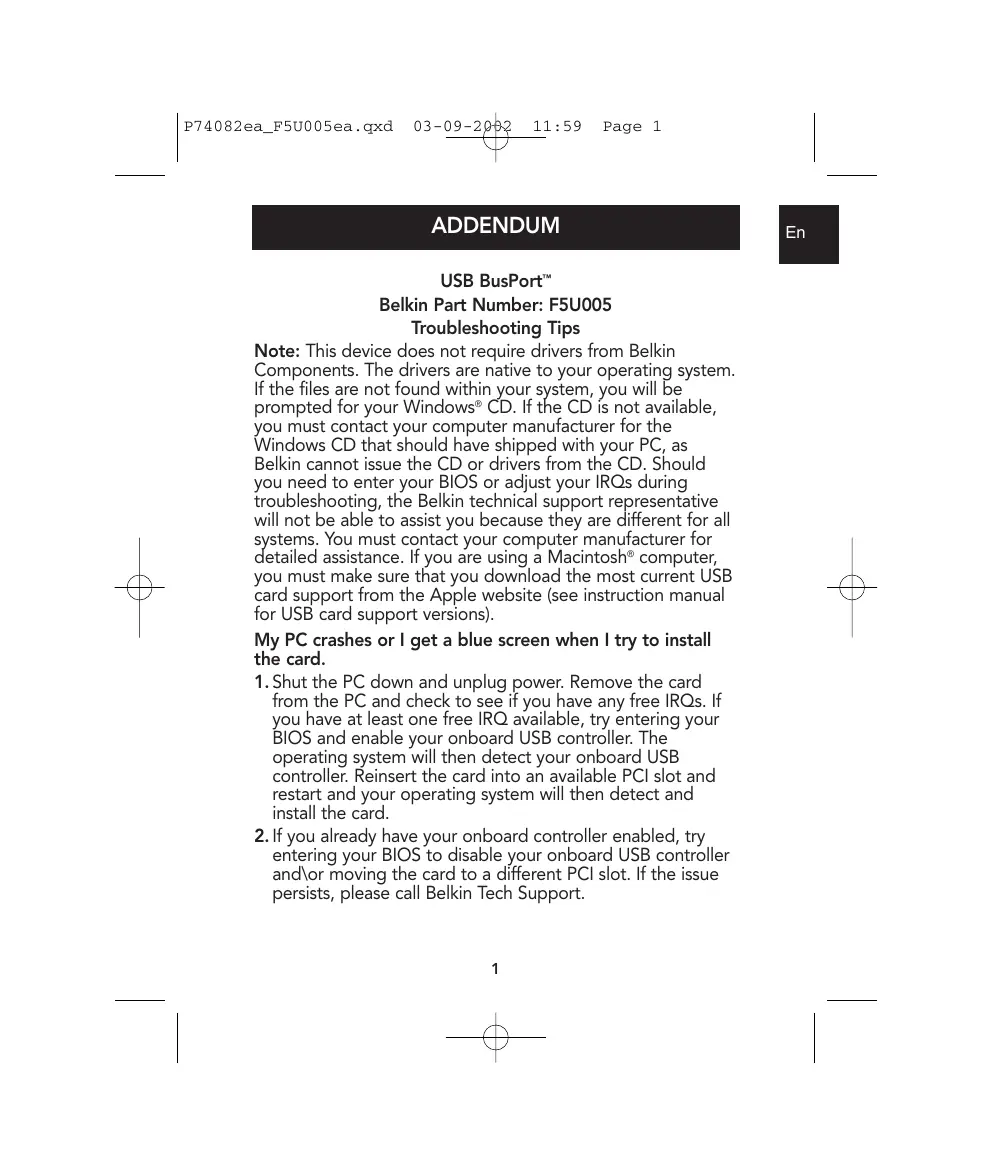
Note: This device does not require drivers from Belkin Components. The drivers are native to your operating system. If the files are not found within your system, you will be prompted for your Windows CD. If the CD is not available, you must contact your computer manufacturer for the Windows CD that should have shipped with your PC, as Belkin cannot issue the CD or drivers from the CD. Should you need to enter your BIOS or adjust your IRQs during troubleshooting, the Belkin technical support representative will not be able to assist you because they are different for all systems. You must contact your computer manufacturer for detailed assistance. If you are using a Macintosh® computer, you must make sure that you download the most current USB card support from the Apple website (see instruction manual for USB card support versions).
My PC crashes or I get a blue screen when I try to install the card.
- Shut the PC down and unplug power. Remove the card from the PC and check to see if you have any free IRQs. If you have at least one free IRQ available, try entering your BIOS and enable your onboard USB controller. The operating system will then detect your onboard USB controller. Reinsert the card into an available PCI slot and restart and your operating system will then detect and install the card.
- If you already have your onboard controller enabled, try entering your BIOS to disable your onboard USB controller and/or moving the card to a different PCI slot. If the issue persists, please call Belkin Tech Support.
How to check to see if you have any free IRQs.
1. Windows 98\Me:
a). Right-click "My Computer" and click "Properties".
b). Make sure you select "View Devices by Type" and double-click "Computer" at the top of the list.
c). Be sure to place the dot in the radio button next to "Interrupt request (IRQ)". You should see a list of settings beginning with 0 through 15. If all numbers are listed, that means all of your IRQs are in use. If any number is missing from the list, then that particular IRQ is free.
2. Windows 2000\XP:
a). Right-click "My Computer" and click "Properties".
b). Click the "Hardware" tab and select "Device Manager". Click "View Resources by Type" and click the (+) next to "Interrupt request (IRQ)". You should see a list of settings beginning with 0 through 15. If all numbers are listed, that means all of your IRQs are in use. If any number is missing from the list, then that particular IRQ is free.
The Opti822C861 PCI to USB Open Host Controller Interface installs properly in Device Manager but nothing works when plugged into the card.
-
There are two types of interfaces that a USB device can work with: Universal Host Controller Interface (UHCI) and Open Host Controller Interface (OHCI). Some USB devices will work with both interfaces. Find out what type of interface your device will work with. If it only supports a Universal Host Controller Interface, it may not work with the Belkin card, which uses an Open Host Controller Interface.
-
If your device works with an Open Host Controller Interface but not when plugged into the card, remove the Belkin entry from Device Manager first and then try moving the card to a different PCI slot. If the issue persists, please call Belkin Tech Support.
When installation asks for my Windows CD, I put it in the CD drive but then get a message that says "unable to find file".
The screen that displays the "unable to find file" message will also display a field (at the bottom of the window) that says, "Copy files from". Make sure you are specifying the correct path (i.e. "D:\Win98" where "D:" is the letter of your CD-ROM). It may be different if your CD-ROM drive letter is not "D:"; simply change it so that it matches the drive letter for your CD-ROM. If you are using Windows Me, change the 98 to 9x and for Windows 2000\XP, change it to I386.
The card is not being detected on my Macintosh computer and I already have the latest USB card support for my operating system.
Make sure your PCI slots meet the requirement for the Belkin USB PCI card, version 2.1 or higher. If you are not sure what version PCI slots are on your motherboard, refer to your User Manual or contact the manufacturer of your computer.
ADDENDUM
USB BusPortTM
Belkin Components, Ltd.
Express Business Park
Shipton Way • Rushden •
NN10 6GL • United Kingdom
Tel +44 (0) 1933 35 2000
Fax +44 01933312000
Belkin Components B.V.
Starparc Building • Boeing Avenue 333 •
1119 PH Schiphol-Rijk
The Netherlands
Tel +31 (0) 20 654 7300
Fax +31 (0) 20 654 7349
Belkin Components, Ltd.
7 Bowen Present
West Gosford
NSW 2250 • Australia
Tel +61 (2) 4372 8600
Fax +61 (2) 4325 4277
© 2002 Belkin Components. All Rights Reserved. All Trade Names Are Registered Trademarks of
Respective Manufacturers Listed.