
SOURIS OPTIQUE SANS FIL RECHARGEABLE #F8E845UK - Wireless Mouse BELKIN - Free user manual and instructions
Find the device manual for free SOURIS OPTIQUE SANS FIL RECHARGEABLE #F8E845UK BELKIN in PDF.


| Product type | Rechargeable wireless optical mouse |
| Brand | Belkin |
| Model | F8E845UK |
| Detection technology | Optical |
| Interface | USB or PS/2 (adapter included) |
| Wireless range | Up to 1.8 meters |
| Number of buttons | 5 (left, right, scroll wheel, 2 programmable side buttons) |
| Scroll wheel | Yes, with fast/auto scroll function |
| Power source | 2 rechargeable NiMH batteries (included) |
| Charger | Charging cradle (mains connection via AC adapter) |
| Initial charging time | 10 to 12 hours |
| Software included | CD-ROM with drivers for button customization |
| Supported operating systems | Windows 98 SE, Me, 2000, XP |
| Dimensions (approx.) | 110 x 60 x 35 mm |
| Weight (with batteries) | Approximately 100 g |
| Radio frequency | 27 MHz (wireless) |
| Certifications | FCC Class B, IC, NMB-003 |
| Package contents | Mouse, receiver/dock, 2 NiMH batteries, PS/2 adapter, CD-ROM, manual |
| Maintenance | Clean with a soft, dry cloth. Do not use abrasive products. |
| Warranty | Limited lifetime warranty (excluding batteries) |
Frequently Asked Questions - SOURIS OPTIQUE SANS FIL RECHARGEABLE #F8E845UK BELKIN
User questions about SOURIS OPTIQUE SANS FIL RECHARGEABLE #F8E845UK BELKIN
0 question about this device. Answer the ones you know or ask your own.
Ask a new question about this device
Download the instructions for your Wireless Mouse in PDF format for free! Find your manual SOURIS OPTIQUE SANS FIL RECHARGEABLE #F8E845UK - BELKIN and take your electronic device back in hand. On this page are published all the documents necessary for the use of your device. SOURIS OPTIQUE SANS FIL RECHARGEABLE #F8E845UK by BELKIN.
USER MANUAL SOURIS OPTIQUE SANS FIL RECHARGEABLE #F8E845UK BELKIN
Rechargeable Wireless Optical Mouse
BELKIN
www.belkin.com
Belkin Ltd.
Express Business Park • Shipton Way
Rushden • NN10 6GL • United Kingdom
Tel: +44 (0) 1933 35 2000
Fax: +44 (0) 1933 31 2000
Belkin B.V.
Starparc Building • Boeing Avenue 333
1119 PH Schiphol-Rijk • The Netherlands
Tel: +31 (0) 20 654 7300
Fax: +31 (0) 20 654 7349
Belkin GmbH
Hanebergstrasse 2
80637 Munich · Germany
Tel: +49 (0) 89 143405 0
Fax: +49 (0) 89 143405 100
Belkin SAS
© 2005 Belkin Corporation. All rights reserved. All trade names are registered trademarks of respective manufacturers listed.
BELKIN
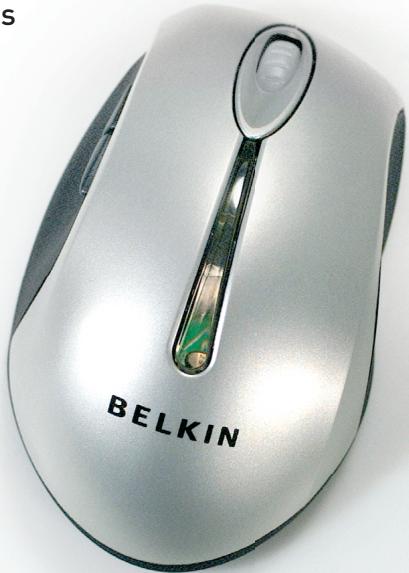
Rechargeable Wireless Optical Mouse
Navigate, input data, and charge for advanced wireless functionality
User Manual
F8E845ea
EN 1
FR 17
DE 33
NL 49
ES 65
IT 81


F8E845ea
BELKIN
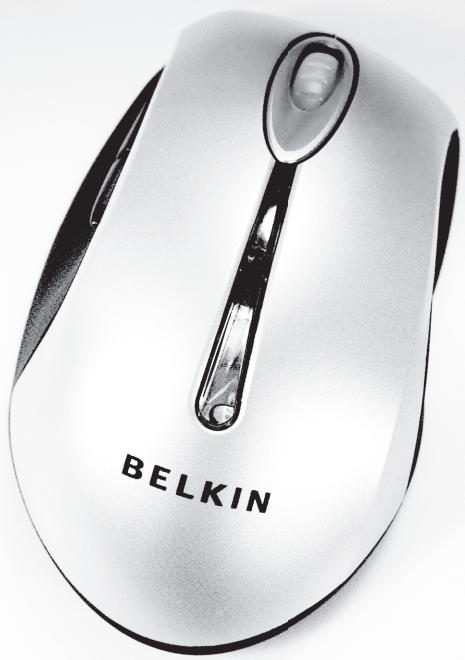
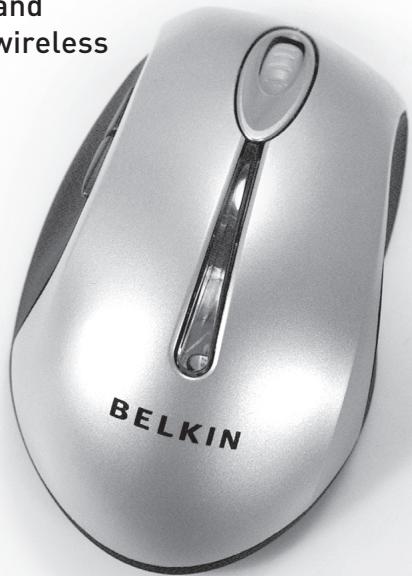
Rechargeable Wireless Optical Mouse
Navigate, input data, and charge for advanced wireless functionality
EN
FR
DE
NL
ES
IT
User Manual
F8E845ea
Table of Contents
1 Introduction 3
System Requirements 4
Packaging Includes 4
Overview. 4
2 Hardware Installation 5
Connecting the USB Mouse 6
Connecting the PS/2 Mouse. 7
Synchronizing your Mouse to your Receiver . . . .8
3 Software Installation 9
Software Features 10
Button Functions 10
Charging. 10
4 Troubleshooting 11
5 Information. 14
Introduction
Congratulations and thank you for purchasing the Rechargeable Wireless Optical Mouse from Belkin. You are about to experience a whole new world of computing convenience with superior input features and navigating accuracy. The Mouse works from up to six feet away without a cord, giving you unencumbered freedom of movement. It provides five customizable buttons, including the convenient scroll wheel, to make repetitive tasks simpler than ever.
Please review this User Manual thoroughly to ensure your safe, long-term use of the Mouse, and for help in getting the most from its advanced features.
1
System Requirements
- Windows® 98 SE, Me, 2000, or XP
- CD-ROM drive
5MB of available disk space
USB or PS/2 port
2
3
4
5
Packaging Includes
Rechargeable Wireless Optical Mouse
- Charging Cradle
- Software CD
- User Manual
2 NiMH Batteries
PS/2 Adapter
Overview
Before starting the installation of the hardware and software for the Mouse, please remove any drivers or software from any mice that were previously installed on your computer. This is to avoid any conflicts they may create, which could result in an improper installation of your Mouse. Please consult the documents that came with your previous mouse for proper instructions on how to uninstall the software and drivers.
Hardware Installation
Important: Before connecting your Mouse or installing software, be sure to identify the type of mouse port you are using (USB or PS/2). Refer to the diagrams below if you have difficulty determining which kind of port your Mouse uses.

USB Port

PS/2 Port
1
2
3
4
5

Important: Do not install the software until the Mouse is connected to your computer. If you have not yet connected the Mouse, please follow the Hardware Installation instructions.
Note: Your Mouse is functional without installing the software provided. However, we recommend software installation because the software allows you to program the Mouse buttons for various functions, adding personalized efficiency and enjoyment to your computing experience.
Hardware Installation
Connecting the USB Mouse
USB in Windows 98 SE, Me, 2000, and XP
- Make sure your computer is turned on before installing the Mouse.
- Connect the receiver to an available USB port on your computer.
- A New Hardware Wizard will start automatically. Note: Windows 98 SE may require you to insert your Windows 98 SE Installation CD into your computer's CD-ROM drive to complete the install.
- When your Installation is complete, insert the batteries into the Mouse and the Mouse should sync up with the receiver automatically. Note: If the Mouse does not sync up with the receiver automatically, please see instructions titled "Synchronizing your Mouse to your Receiver".
- When your Mouse is properly connected and functioning as a standard mouse, you can start the software installation for the extra button features.
Hardware Installation
Connecting the PS/2 Mouse
PS/2 in Windows 98 SE, Me, 2000, and XP
- Turn off your computer.
- Connect the USB-to-PS/2 connector to the mouse cable on the receiver.
- Insert the cable with the connector to the PS/2 (6-pin) mouse port on your computer.
- Place the batteries into the Mouse.
- Turn the computer on.
- When the computer finishes starting up, it will automatically detect the Mouse and make it function. Note: If the Mouse does not work, please see instructions under "Synchronizing your Mouse to your Receiver".
- When your Mouse is properly connected, you can start the software installation.
1
2
3
4
5
Synchronizing your Mouse to your Receiver
If the Mouse does not automatically sync with the receiver, press the connect button on the front of the receiver. The light on the receiver will blink rapidly. Then sync the Mouse to the receiver by pushing the sync button on the bottom of the Mouse. The light on the receiver will stop blinking and light brightly.
Note: Each time you repeat this step, the Mouse will randomly select a new ID. This allows multiple wireless mice to work in the same location without cross talk. If you experience cross talk with another wireless mouse, repeat the synchronizing steps to change the channel.
Software Installation
Important: Do not install the software until the Mouse is connected and properly functioning to your computer. If you have not yet connected the Mouse, please follow the Hardware Installation instructions.
- Insert the included installation CD into your CD-ROM drive. After a few moments, the main menu will start automatically.
- Select "Install Driver" and the computer will begin installation.
- Follow the on-screen instructions to complete the installation.
Note: If the computer does not automatically detect the CD, do the following:
- Click the "Start" button and select "Run".
- From the run dialog box, enter "
:\ Setup" and click "OK". (" " being the letter of the drive that identifies your CD-ROM driver under "My Computer". For example, if the CD is in driver D, enter "D:\Setup".) - Follow the on-screen installation instructions.
Software Features
Your Mouse's software enables a variety of exciting features and functions that will help you to increase your productivity with your new Mouse.
In order to control the Mouse's high-end features, you will need to access your Mouse's Properties dialog box, either through the Control Panel or through your Mouse's software.
Through your Mouse's Properties dialog box, you will find and control the following features:
Please note that only the scroll wheel, fourth, and fifth buttons are programmable through the software.
Button Functions
| Left Button | Primary Mouse Button (standard click-and-drag action) |
| Middle or Wheel Button | Quick/Auto Scroll |
| Right Button | Context Menu |
| Fourth Button | IE Back (if available) |
| Fifth Button | IE Forward (if available) |
Charging
The receiver/cradle must be connected to an outlet using the included AC cable. Place the Mouse into the base station to charge. Please be sure to use the rechargeable batteries provided. Allow batteries to charge for at least 10 to 12 hours before first using your Mouse.
Troubleshooting
If you are having any problems with the installation or operation of your Mouse, please review the following section. If the problem is not referred to below, or the suggested solutions do not solve the problem, please contact our technical support staff at 00 800 223 55 460.
Why isn't my pointer moving smoothly?
The Mouse works well on a wide variety of surfaces, especially those with textured and/or patterned features. Problems will arise, however, if you attempt to use the Mouse on mirrors, glass, or on some half-tone-printed surfaces.
Why don't the scroll functions work with my notebook?
Check to be sure that you have disabled your notebook's trackball, touch pad, or J-key in the BIOS; then, enable the external port so that all your Mouse's functions will be available.

Troubleshooting
My USB Mouse was not detected by the system and won't work. Why?
Please do the following:
- Make sure your USB Mouse is completely plugged into the USB port.
- Check the functioning of your system's USB port in the Device Manager page of System Properties. If there is a circled exclamation point through the USB port's icon, the USB controller has some problem. Please try to uninstall and then reinstall the USB driver, or contact your PC manufacturer's technical support department.
- Check the version of your operating system. If you are not running Windows 98 SE, Me, 2000, or XP, please update your operating system to one of these, so that the USB device can be enabled.
- Make sure that the USB port is enabled in the BIOS setup.
Troubleshooting
My Mouse is not responding.
Please do the following:
- Be sure to install the batteries positioned for correct polarity.
2.Make sure you have connected the receiver correctly. - Make sure the receiver is at least 8 inches (approx. 20cm ) away from other electrical devices such as computers, monitors, and printers.
FCC Statement
DECLARATION OF CONFORMITY WITH FCC RULES FOR ELECTROMAGNETIC COMPATIBILITY
We, Belkin Corporation, of 501 West Walnut Street, Compton, CA 90220, declare under our sole responsibility that the product,
F8E845
to which this declaration relates,
Complies with Part 15 of the FCC Rules. Operation is subject to the following two conditions: (1) this device may not cause harmful interference, and (2) this device must accept any interference received, including interference that may cause undesired operation.
Caution: Exposure to Radio Frequency Radiation.
The radiated output power of this device is far below the FCC radio frequency exposure limits. Nevertheless, the device shall be used in such a manner that the potential for human contact during normal operation is minimized. When connecting an external antenna to the device, the antenna shall be placed in such a manner to minimize the potential for human contact during normal operation. In order to avoid the possibility of exceeding the FCC radio frequency exposure limits, human proximity to the antenna shall not be less than 20cm (8 inches) during normal operation.
Federal Communications Commission Notice
This equipment has been tested and found to comply with the limits for a Class B digital device, pursuant to Part 15 of the FCC Rules. These limits are designed to provide reasonable protection against harmful interference in a residential installation.
This equipment generates, uses, and can radiate radio frequency energy. If this equipment does cause harmful interference to radio or television reception, which can be determined by turning the equipment off and on, the user is encouraged to try and correct the interference by one or more of the following measures:
- Reorient or relocate the receiving antenna.
- Increase the distance between the equipment and the receiver.
- Connect the equipment to an outlet on a circuit different from that to which the receiver is connected.
- Consult the dealer or an experienced radio/TV technician for help.
Modifications
The FCC requires the user to be notified that any changes or modifications to this device that are not expressly approved by Belkin Corporation may void the user's authority to operate the equipment.
Canada-Industry Canada (IC)
The wireless radio of this device complies with RSS 210 Industry Canada. This Class B digital apparatus complies with Canadian ICES-003.
Belkin Corporation Limited Lifetime Product Warranty*
Belkin Corporation warrants this product against defects in materials and workmanship for its lifetime. If a defect is discovered, Belkin will, at its option, repair or replace the product at no charge provided it is returned during the warranty period, with transportation charges prepaid, to the authorized Belkin dealer from whom you purchased the product. Proof of purchase may be required.
This warranty does not apply if the product has been damaged by accident, abuse, misuse, or misapplication; if the product has been modified without the written permission of Belkin; or if any Belkin serial number has been removed or defaced.
THE WARRANTY AND REMEDIES SET FORTH ABOVE ARE EXCLUSIVE IN LIEU OF ALL OTHERS, WHETHER ORAL OR WRITTEN, EXPRESSED OR IMplied. BELKIN SPECIFICALLY DISCLAIMES ANY AND ALL IMPLIED WARRANTY, INCLUDING, WITHOUT LIMITATION, WARRANTY OF MERCHANTABILITY AND FITNESS FOR A PARTICULAR PURPOSE.
No Belkin dealer, agent, or employee is authorized to make any modification, extension, or addition to this warranty.
BELKIN IS NOT RESPONSIBLE FOR SPECIAL, INCIDENTAL, OR CONSEQUENTIAL DAMAGES RESULTING FROM ANY BREACH OF WARRANTY, OR UNDER ANY OTHER LEGAL THEORY, INCLUDING BUT NOT LIMITED TO, LOST PROFITS, DOWNTIME, GOODWILL, DAMAGE TO OR REPROGRAMMING, OR REPRODUCING ANY PROGRAM OR DATA STORED IN, OR USED WITH, BELKIN PRODUCTS.
Some states do not allow the exclusion or limitation of incidental or consequential damages or exclusions of implied warranties, so the above limitations or exclusions may not apply to you. This warranty gives you specific legal rights, and you may also have other rights that vary from state to state.
- Batteries not included under warranty.
BELKIN
Rechargeable Wireless Optical Mouse
BELKIN
www.belkin.com
Belkin Ltd.
Express Business Park • Shipton Way
Rushden • NN10 6GL • United Kingdom
Tel: +44 (0) 1933 35 2000
Fax: +44 (0) 1933 31 2000
Belkin B.V.
Starparc Building • Boeing Avenue 333
1119 PH Schiphol-Rijk • The Netherlands
Tel: +31 (0) 20 654 7300
Fax: +31 (0) 20 654 7349
Belkin GmbH
Hanebergstrasse 2
80637 Munich · Germany
Tel: +49 (0) 89 143405 0
Fax: +49 (0) 89 143405 100
Belkin SAS
© 2005 Belkin Corporation. All rights reserved. All trade names are registered trademarks of respective manufacturers listed.
BELKIN
Souris Optique Sans Fil Rechargeable
My USB Mouse was not detected by the system and won't work. Why?
This Class B digital apparatus complies with Canadian ICES-003.
Express Business Park, Shipton Way
Assistance Technique Belkin
Europe: 00 800 223 55 460
Canada-Industry Canada (IC)
Express Business Park • Shipton Way
Kennisgeving van de Federal Communications Commission (FCC)
Canada - Industry Canada (IC)
Express Business Park • Shipton Way
Express Business Park • Shipton Way
Rushden · NN10 6GL · Reino Unido
Tel: +44 (0) 1933 35 2000
Fax: +44 (0) 1933 31 2000
Belkin B.V.
Starparc Building • Boeing Avenue 333
1119 PH Schiphol-Rijk · Holanda
Tel: +31 (0) 20 654 7300
Fax: +31 (0) 20 654 7349
Belkin GmbH
Hanebergstrasse 2
80637 München • Alemania
Tel: +49 (0) 89 143405 0
Fax: +49 (0) 89143405 100
Belkin SAS
Canada- Industry Canada (IC)
Express Business Park • Shipton Way
Rushden • NN10 6GL • Regno Unito
Tel: +44 (0) 1933 35 2000
Fax: +44 (0) 1933 31 2000
Belkin B.V.
Starparc Building • Boeing Avenue 333
1119 PH Schiphol-Rijk · Paesi Bassi
Tel: +31 (0) 20 654 7300
Fax: +31 (0) 20 654 7349
Belkin GmbH
Hanebergstrasse 2
- Rechargeable Wireless Optical Mouse
- BELKIN
- Table of Contents
- Introduction
- System Requirements
- Packaging Includes
- Overview
- Hardware Installation
- Connecting the USB Mouse
- Connecting the PS/2 Mouse
- Synchronizing your Mouse to your Receiver
- Software Installation
- Software Features
- Button Functions
- Charging
- Troubleshooting
- Why isn't my pointer moving smoothly?
- Why don't the scroll functions work with my notebook?
- My USB Mouse was not detected by the system and won't work. Why?
- My Mouse is not responding.
- FCC Statement
- DECLARATION OF CONFORMITY WITH FCC RULES FOR ELECTROMAGNETIC COMPATIBILITY
- Caution: Exposure to Radio Frequency Radiation.
- Federal Communications Commission Notice
- Modifications
- Canada-Industry Canada (IC)
- Belkin Corporation Limited Lifetime Product Warranty*
- Souris Optique Sans Fil Rechargeable
- Kennisgeving van de Federal Communications Commission (FCC)
- Canada - Industry Canada (IC)
- Canada- Industry Canada (IC)
Brand : BELKIN
Model : SOURIS OPTIQUE SANS FIL RECHARGEABLE #F8E845UK
Category : Wireless Mouse