
SATA300 PCI CARD - SATA Expansion Card SEAGATE - Free user manual and instructions
Find the device manual for free SATA300 PCI CARD SEAGATE in PDF.



| Product Type | SATA Expansion Card |
| Brand | SEAGATE |
| Model | SATA300 PCI CARD |
| Interface | 32-bit PCI (64-bit compatible) |
| Number of SATA Ports | 2 (SATA/300) |
| Number of Ultra ATA Ports | 1 (Ultra ATA/133) |
| SATA Port Speed | 300 MB/s |
| Ultra ATA Port Speed | 133 MB/s |
| Supported Operating Systems | Windows 2000, Windows XP |
| Power Supply | PCI Bus (5V / 3.3V) |
| Main Functions | Adds SATA and Ultra ATA ports, supports internal hard drives |
| Kit Contents | PCI card, SATA cable, CD-ROM or driver disk, SATA power cable (depending on version) |
| Handling Precautions | Sensitive to electrostatic discharge (ESD) - hold by edges, do not touch circuits |
| Safety | Do not connect/disconnect cables while powered, do not force connectors |
| Installation | Insert into a free PCI slot, secure bracket, connect drives |
| Data Backup | Recommended before installation to protect existing data |
| Warranty | Standard limited warranty – refer to manual or website www.maxtor.fr |
| Note | Does not support ATAPI devices (Zip, CD-ROM, DVD) |
| System Requirements | Free PCI slot, Phillips screwdriver, flat pliers |
| Technology | Plug-n-Play, automatic drive detection, BIOS confirmation message |
Frequently Asked Questions - SATA300 PCI CARD SEAGATE
User questions about SATA300 PCI CARD SEAGATE
0 question about this device. Answer the ones you know or ask your own.
Ask a new question about this device
Download the instructions for your SATA Expansion Card in PDF format for free! Find your manual SATA300 PCI CARD - SEAGATE and take your electronic device back in hand. On this page are published all the documents necessary for the use of your device. SATA300 PCI CARD by SEAGATE.
USER MANUAL SATA300 PCI CARD SEAGATE
Included in this Kit 1
Back Up Your Data 2
About Serial ATA 2
Required Tools 2
Remove System Cover 3
Install SATA/300 PCI Card 4
Connect Hard Drive. 5
Connecting a SATA Hard Drive. 6
Connecting an Ultra ATA Hard Drive 7
CheckBIOSMessage 9
Install Windows Driver 10
Existing Windows 2000 Installation 10
New Windows 2000 Installation 12
Existing Windows XP Installation. 13
New Windows XP Installation. 14
Limited Warranty Statement 15
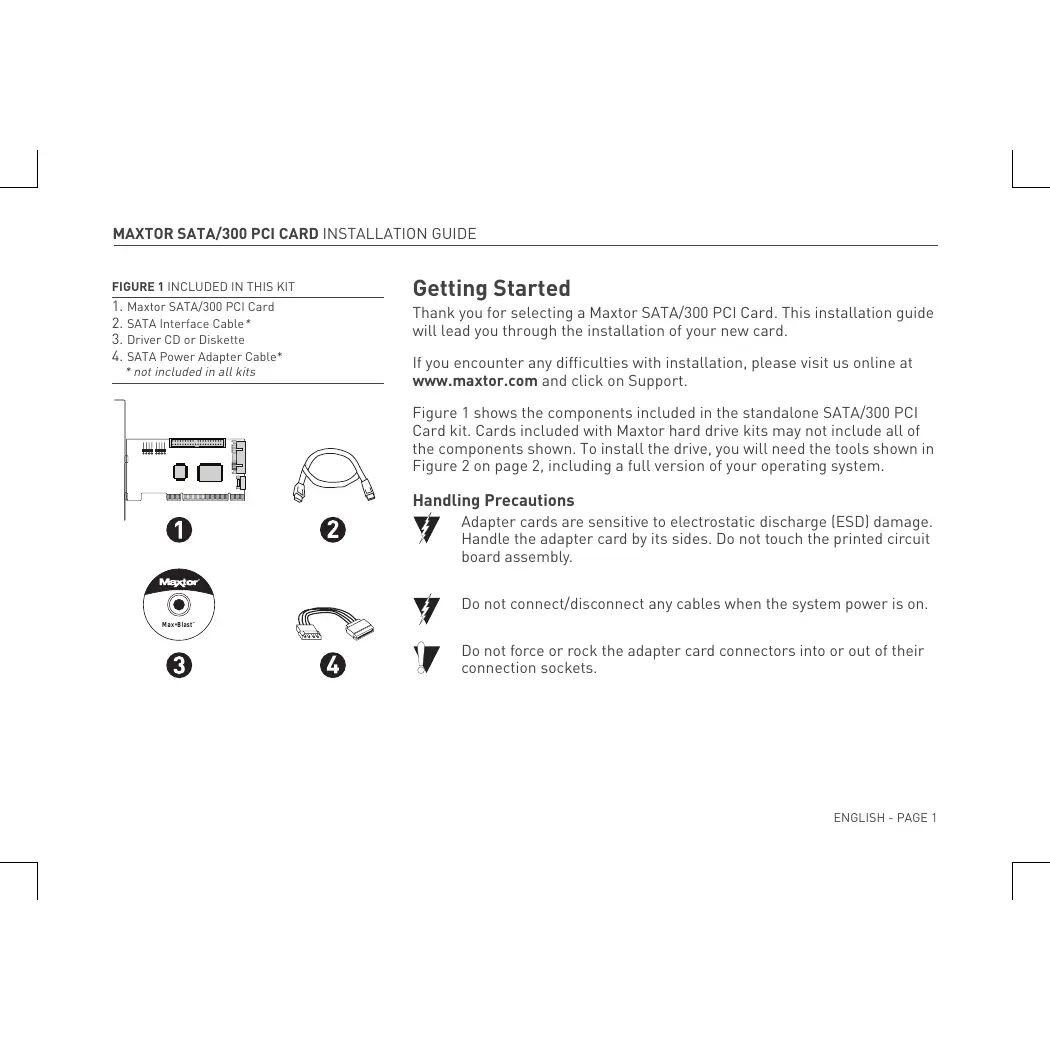
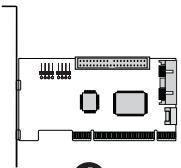
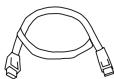
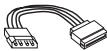
FIGURE 1 INCLUDED IN THIS KIT
- Maxtor SATA/300 PCI Card
- SATA Interface Cable*
- Driver CD or Diskette
- SATA Power Adapter Cable* * not included in all kits
1
2

3
4
Getting Started
Thank you for selecting a Maxtor SATA/300 PCI Card. This installation guide will lead you through the installation of your new card.
If you encounter any difficulties with installation, please visit us online at www.maxtor.com and click on Support.
Figure 1 shows the components included in the standalone SATA/300 PCI Card kit. Cards included with Maxtor hard drive kits may not include all of the components shown. To install the drive, you will need the tools shown in Figure 2 on page 2, including a full version of your operating system.
Handling Precautions

Adapter cards are sensitive to electrostatic discharge (ESD) damage. Handle the adapter card by its sides. Do not touch the printed circuit board assembly.

Do not connect/disconnect any cables when the system power is on.

Do not force or rock the adapter card connectors into or out of their connection sockets.
Back Up Your Data
Protect your data by backing up existing hard drives before installing your new Maxtor SATA/300 PCI Card.
About Serial ATA
Serial ATA (SATA) technology offers you the following benefits:
World's fastest ATA interface
- Ideal for high-performance RAID
- Thin, easy-plug cable design for improved airflow
Simple, no-jumper installation
Unlike standard ATA drives, Serial ATA drives do not require the use of jumpers to install the drive.
Visit www.maxtor.com and click on Support for the latest SATA information and software updates.
FIGURE 2 REQUIRED TOOLS
- System User Manual
- Operating System CD and Boot Disk
- Philips Screwdriver
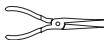
- Small Needle-Nose Pliers

1

2

3
4
Remove System Cover
- Turn your computer off.
- Unplug your system from the electrical outlet.
- Remove the cover from your system case.
Refer to your system user manual for instructions on removing the cover, or obtain the services of a qualified installation technician.
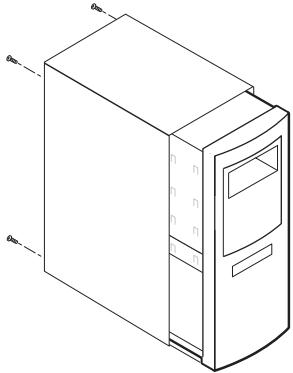
FIGURE 3 REMOVIDING THE SYSTEM COVER
- Attach a grounding strap or touch a metal portion of your computer case. This will ground you to minimize the risk of exposing the hard drive to electrostatic discharge.
Install SATA/300 PCI Card
The SATA/300 PCI Card fits any available 32-bit PCI slot. It also fits the 32-bit portion of a 64-bit PCI slot.
- Unscrew and remove the slot cover of an available PCI slot on the motherboard.
- Install the SATA/300 PCI Card into the open slot. Secure the controller card bracket to the system's frame.
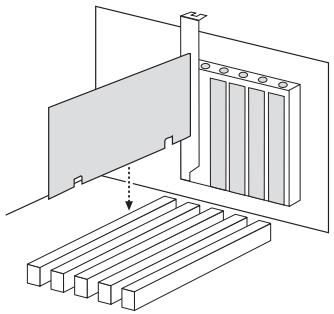
FIGURE 4
INSERTING THE SATA/300 PCI CARD
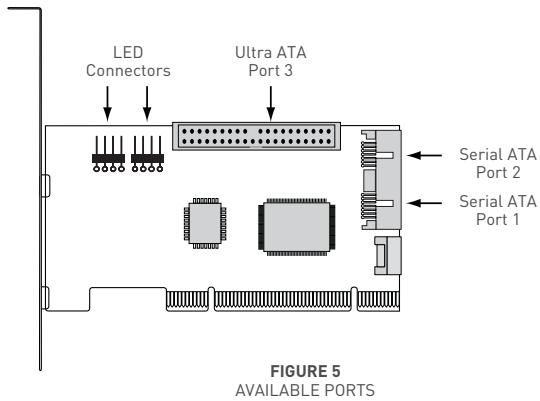
- (optional) Attach your system case's 2- or 4-pin LED cable to the LED connector on the SATA/300 PCI Card (see Figure 5). Make sure that pin 1 on the connector is aligned with pin 1 of the cable. Consult your system case manual for more details on the LED connections for your case.
Connect Hard Drive
The SATA/300 PCI Card has two SATA/300 ports that each support one Serial ATA drive and one parallel Ultra ATA/133 port that supports two Ultra ATA/IDE hard drives. The card does not support ATAPI devices such as Zip drives or CD/DVD drives. Before connecting a hard drive to the card, mount the drive in your system using the instructions provided with the drive or your system manual.

If you have an existing installation of Windows 2000 or XP on a drive that you wish to connect to the SATA/300 PCI card, DO NOT connect the drive to the card yet. Leave the drive attached to its current controller. You must install the Windows driver for the SATA/300 PCI Card before connecting your hard drive to the card. See Install Windows Driver on page 10 for details.
Connecting a SATA Hard Drive
Each of the two SATA/300 ports on the SATA/300 PCI Card supports a single SATA hard drive. To connect a SATA drive to the card:
- Attach one end of a SATA interface cable to one of the SATA connectors on the card. (See Figure 5 on page 5.)
- Attach the other end of the SATA interface cable to the SATA connector on the rear of the hard drive.
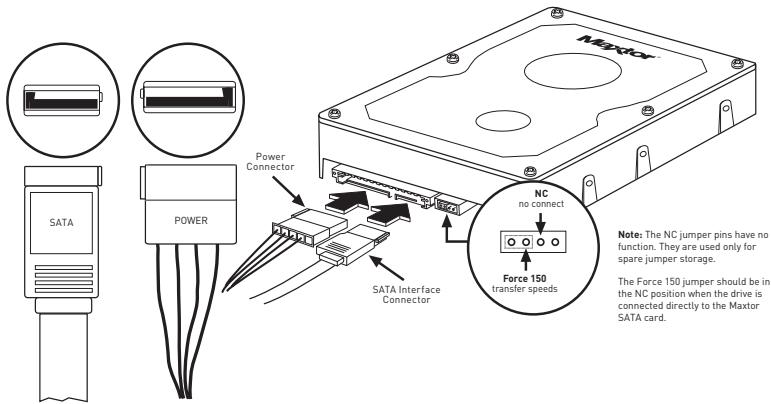
FIGURE 6
ATTACHING CABLES TO SATA DRIVE
Connecting an Ultra ATA Hard Drive
The SATA/300 PCI Card has one Ultra ATA/133 port that supports up to two Ultra ATA/IDE hard drives on a single 80-conductor, 40-pin Ultra ATA cable (sold separately). The card does not support ATAPI devices such as Zip drives or CD/DVD drives. For maximum compatibility and data integrity, Maxtor strongly recommends that you do not use older 40-conductor ATA/IDE cables with this card.
- Configure the jumpers of the Ultra ATA hard drive to the cable select setting. If you are connecting two Ultra ATA drives, they should both be configured to the cable select (CS) setting. Consult the drive label, documentation, or manufacturer for jumper configuration information. Jumper settings for popular Maxtor models are shown below in Figure 7.
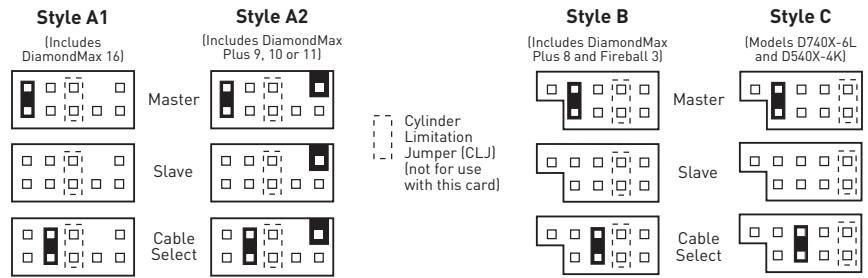
FIGURE 7 PER BLOCK POSITIONS
- Plug the blue connector on the Ultra ATA cable straight into the Ultra ATA connector on the card. The correct orientation of the cable connector can be found by matching the key notch on one side of the cable connector with the corresponding groove in the ATA connector.
- Plug the black cable connector into the ATA connector on the rear of the hard drive. If you are connecting two Ultra ATA drives and wish to use one as a boot drive, plug the black cable connector into the boot drive and the gray connector into the other drive. If neither drive will be used as a boot drive, either the gray or black connector can be used. See Figure 8 below.
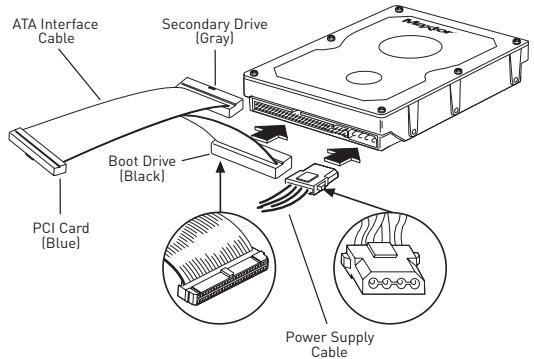
FIGURE 8
CONNECTING THE CABLES
Check BIOS Message
Power on your system and look for an on-screen BIOS message (see Figure 9) that refers to the Maxtor SATA/300 PCI Card. This message indicates that the card has been properly detected by your motherboard. If you do not see this message, turn off your system and make sure that the card is seated properly in the PCI slot.

The SATA/300 PCI Card is a PCI Plug-n-Play (PnP) device that automatically detects attached hard drives. In most cases, you will not need to make changes in the motherboard BIOS Setup utility; however, on some newer systems, you may be able to set the boot order of SATA devices in the motherboard's BIOS Setup. For more information on BIOS Setup, consult your system manual or the system manufacturer.
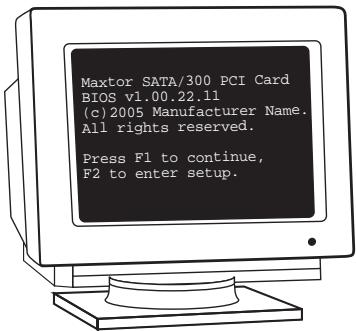
FIGURE 9
SATA/300 PCI CARD BIOSMESSAGE
Install Windows Driver
Existing Windows 2000 Installation

If you have an existing installation of Windows 2000 or XP on a SATA or Ultra ATA drive that you wish to connect to the SATA/300 PCI card, DO NOT connect the drive to the card yet. Leave the drive attached to its current controller. You must install the Windows driver for the SATA/300 PCI Card before connecting your hard drive to the card.
The following section details the installation of SATA/300 PCI Card drivers on a system that has Windows 2000 already installed and running.
- After installing the SATA/300 PCI Card and rebooting your system, Windows 2000 will detect a Mass Storage Controller and display the Found New Hardware Wizard. Insert the driver diskette or CD. (If you inserted a CD, close the language chooser that appears.)
- In the Found New Hardware Wizard window, click Next.
- Select "Search for a suitable driver for my device (recommended)" then click Next.
- Select the "Specify a location" checkbox, deselect the other checkboxes, and click Next.
- Click the Browse button.
- Browse to the I386 folder (Athlon 64, FX, Turion and Opteron users select the AMD64 folder) on the provided driver diskette or CD, then click Open.
- Click OK.
-
Windows will detect the driver for the Maxtor SATA/300 PCI Card. Click Next.
-
When the wizard has finished installing the driver, remove any floppies or CDs then click Finish to restart your system.
- After Windows has restarted, perform a regular shutdown. Connect the interface and power cables to any hard drives you wish to attach to the card, then restart your system.

Upon restart with the new drive connected, Windows should notify you that it has found a new storage device and asks if you would like to proceed with the format to use the drive in the system. Proceed with Windows format as necessary.
New Windows 2000 Installation

If your system does not have a floppy drive, you may need to connect a 3.5-inch floppy drive temporarily to install the SATA driver from a diskette. Windows 2000 and XP Setup typically do not allow browsing to a CD to install drivers.
The following details the installation of the SATA/300 PCI Card drivers while performing a new installation of Windows 2000.
- If you received a driver diskette with this card, continue to the next step. If you received a MaxBlast CD containing drivers for this card, boot your system to the MaxBlast CD and select the option to create a SATA PCI card driver diskette. If you downloaded the drivers from www.maxtor.com, load the drivers onto a floppy disk.
- Boot your system from the Windows 2000 installation CD.
- When prompted by the Windows installer to install a third-party SCSI or RAID driver, press F6.
- When the Windows 2000 Setup window is generated, press S to specify an Additional Device(s).
- Insert the SATA/300 PCI Card driver diskette into drive A: and press Enter.
- Choose Windows Maxtor SATA300 PCI Card from the list that appears on screen, and then press Enter.
- Press S to use the driver on the floppy disk and then press Enter to continue with installation.
- The Windows 2000 Setup screen will appear again saying "Setup will load support for the following mass storage devices:" The list will include Windows Maxtor SATA300 PCI Card. If there are any additional devices to be installed, specify them now then continue to the next step.
From the Windows 2000 Setup screen, press Enter. Setup will now load all device files and complete the Windows 2000 installation.
Existing Windows XP Installation

If you have an existing installation of Windows 2000 or XP on a SATA or Ultra ATA drive that you wish to connect to the SATA/300 PCI card, DO NOT connect the drive to the card yet. Leave the drive attached to its current controller. You must install the Windows driver for the SATA/300 PCI Card before connecting your hard drive to the card.
The following section details the installation of SATA/300 PCI Card drivers on a system that has Windows XP already installed and running.
- After installing the SATA/300 PCI Card and rebooting your system, Windows XP will detect a Mass Storage Controller and display the Found New Hardware Wizard. Insert the driver diskette or CD. (If you inserted a CD, close the language chooser that appears.)
- In the Found New Hardware Wizard window, select "Install from a list or specific location (Advanced)" and click Next.
Select "Search for the best driver in these locations," then select the "Include this location in the search" checkbox and click the Browse button.
- Browse to the I386 folder (Athlon 64, FX, Turion and Opteron users select the AMD64 folder) on the provided driver diskette or CD, then click Next.
- When the New Hardware Wizard has finished installing the SATA/300 PCI Card driver, click Finish.
- Perform a normal shutdown and power the system off.
- Connect the interface and power cables to any hard drives you wish to attach to the card, then restart your system.

Upon restart with the new drive connected, Windows should notify you that it has found a new storage device and asks if you would like to proceed with the format to use the drive in the system. Proceed with Windows format as necessary.
New Windows XP Installation

If your system does not have a floppy drive, you may need to connect a 3.5-inch floppy drive temporarily to install the SATA driver from a diskette. Windows 2000 and XP Setup typically do not allow browsing to a CD to install drivers.
The following details the installation of the driver while performing a new installation of Windows XP.
- If you received a driver diskette with this card, continue to the next step. If you received a MaxBlast CD containing drivers for this card, boot your system to the MaxBlast CD and select the option to create a SATA PCI card driver diskette. If you downloaded the drivers from www.maxtor.com, copy the drivers onto a floppy disk.
- Boot your system from the Windows XP installation CD.
- When prompted by the Windows installer to install a third-party SCSI or RAID driver, press F6.
- When the Windows XP Setup window is generated, press S to specify an Additional Device(s).
- Insert the driver diskette into drive A: and press Enter.
- Choose Windows Maxtor SATA300 PCI Card from the list that appears on screen, and then press Enter.
- Press S to use the driver on the floppy disk and then press Enter to continue with installation.
- The Windows XP Setup screen will appear again saying "Setup will load support for the following mass storage devices:" The list will include Windows Maxtor SATA300 PCI Card. If there are any additional devices to be installed, specify them now then continue to the next step.
- From the Windows XP Setup screen, press Enter. Setup will now load all the drivers and complete the Windows XP installation.
Limited Warranty Statement
Warranty Services
Maxtor's warranty obligations are limited to the terms set forth below.
Please note that Maxtor reserves the right to update from time to time the warranty terms provided for new purchases of Maxtor products, and to establish the effective date of those updated warranty terms. Please refer to www.maxtor.com for the then current form of Limited Warranty Statement for Maxtor brand products.
Please note that Maxtor products are distributed outside the United States and Canada through local authorized distributors and resellers ("Resellers"). These Resellers generally offer a consumer warranty, and associated warranty services, to consumer purchasers. Maxtor recommends that consumers in these jurisdictions first contact the Reseller from whom they purchased the Maxtor product for all issues with regard to product defects and the applicable product warranty.
Maxtor warrants to the original consumer purchaser [you] that new Maxtor disk drive products [New Products] will be free from defects in material and workmanship for the Standard Warranty Period for the relevant New Product. The Standard Warranty Period for the various New Products marketed by Maxtor and for the geographies in which they are sold is detailed on the www.maxtor.com and, for retail packaged products, is the Standard Warranty Period printed by Maxtor on the outside of the retail box.
The warranty period on replacements for New Products is the remainder of the warranty on the original New Product or 90 days from the date of shipment of the replacement product, whichever is longer.
In addition to the New Products, Maxtor may from time to time sell refurbished disk drive products which are not new and which have been reconditioned to Maxtor's standards for refurbished products ("Refurbished Products"). Unless a warranty period ("Refurbished Warranty Period") is designated by Maxtor for the specific Refurbished Product either on www.maxtor.com or on the product packaging (as applied by Maxtor), Refurbished Products are provided strictly on an "AS IS" basis and Maxtor disclaims any and all warranties or conditions whatsoever for Refurbished Products.
To the extent that Maxtor so designates a warranty period for the Refurbished Product, Maxtor warrants to the original consumer purchaser that the Refurbished Product will be free from defects in material and workmanship for the associated Refurbished Warranty Period.
New Products and Refurbished Products are together referred to as "Products." The start of the Standard Warranty Period or Refurbished Warranty Period [together referred to as the "Warranty Period)], as the case may be, is the documented date of your purchase of the Product from Maxtor or Maxtor's authorized reseller. In the absence of a documented purchase date, the start of the Warranty Period will be deemed the date of original shipment by Maxtor from its point of new or refurbish manufacture, as the case may be, to Maxtor's customer.
The Products are manufactured from parts and components that are new or equivalent to new in accordance with industry standards.
If you discover a defect in material or workmanship during the Warranty Period, and Maxtor agrees that the defect exists, Maxtor will, at its option, repair or replace the Product at no charge to you, provided it is returned during the applicable Warranty Period, with transportation charges prepaid, to the facility designated by Maxtor. The Product must be properly packaged in Maxtor or Maxtor-approved packaging, with the Return Material Authorization clearly displayed on the outside of the packaging, to obtain warranty service. Products that fail within the first 30 days after purchase will be replaced with a new Product. Maxtor may require proper proof of purchase documentation prior to issuing the replacement Product.
If Maxtor elects to repair a Product, Maxtor owns all parts removed from the repaired Product. Maxtor uses new and reconditioned parts made by various manufacturers in conjunction with warranty repairs and replacement Products. Repair parts or replacement Products may, at Maxtor's option, include an equal or better model or features.
Maxtor has no responsibility whatsoever with regard to any content or data on returned Products.
To request warranty service and before returning a Product to Maxtor, please contact the Maxtor Service Center. Refer to the Maxtor Installation Guide or www.maxtor.com for your online guide to find the appropriate telephone number for obtaining customer assistance within your jurisdiction and the proper address for shipping authorized returns. Once the Maxtor Service Center determines that a repair is required, Maxtor will issue an RMA number. A copy of your receipt or bill of sale bearing the name and location of Maxtor's authorized reseller and the Maxtor serial number and model number of the Product in which the defect has been reported may be required as a proof of your purchase for warranty service. Note that, as an alternative, Maxtor offers an on-line warranty return option for certain Products through www.maxtor.com.
You are responsible for saving or backing up data contained in any Product returned to Maxtor in conjunction with warranty or any other services. Maxtor shall have no responsibility for such data whatsoever and shall have no liability arising out of any damage to, or loss or disclosure of, such data.
This limited warranty applies only to the Maxtor products that can be identified by the original, unaltered Maxtor trademark, trade name or logo affixed to them. Maxtor does not warrant any product that is not manufactured by, for, or with permission from Maxtor, or which is not otherwise distributed by Maxtor under the Maxtor brand.
This warranty does not cover any of the following conditions:
- Abuse, unreasonable use, mistreatment, or neglect
- Unusual physical or electrical stress or power fluctuations
- Damage caused during installation of the Product
- Damage or capacity/performance/operational resetting caused by the equipment or system with which the Product is used
- Damage caused by modification or repair not made or authorized by Maxtor
- Products whose Maxtor Serial Number and/or Material Number label have been removed, torn or defaced
- Damage caused by use of non-Maxtor packaging
- Damage caused by improper or improperly used packaging
- Damage caused by lack of ESD protection
- Products that are determined to be stolen.
Further, this limited warranty is void if the Product cover, or any label or seal on the Product, is removed or damaged.
Maxtor owns all parts removed from the repaired Products. Maxtor uses new and reconditioned parts in performing warranty repairs and building replacement products.
FAILURE TO COMPLETE AND RETURN ANY MAXTOR PRODUCT REGISTRATION FORM WILL NOT DIMINISH YOUR WARRANTY RIGHTS.
Certain Products include software or firmware as a component [Software]. Maxtor or its suppliers retain all rights of ownership in such Software and any use of the Software is subject to the license agreement provided by Maxtor accompanying such Software. If no license is provided by Maxtor, you are granted the limited right to use the Software as required for the operation of the Product and no other rights are granted whatsoever. Certain Software is licensed under the GNU General Public License Agreement [GPL Software]. EXCEPT AS OTHERWISE PROVIDED BY MAXTOR IN A WRITTEN LICENSE
AGREEMENT, SOFTWARE IS OFFERED "AS IS" AND MAXTOR GRANTS NO WARRANTIES OF ANY KIND, EXPRESS OR IMPLIED, BY STATUTATE, COMMUNICATIONS OR OTHERWISE WITH REGARD TO THE SOFTWARE. MAXTOR SPECIFICALLY DISCLAIMS ANY IMPLIED WARRANTY OF MERCHANTABILITY, FITNESS FOR A PARTICULAR PURPOSE OR NONINFRINGEMENT WITH RESPECT TO THE SOFTWARE. Please note that Maxtor makes the source code for the GPL software available through www.maxtor.com.
TO THE MAXIMUM EXTENT PERMITTED BY LAW, THIS WARRANTY AND THE REMEDIES SET FORTH ABOVE ARE EXCLUSIVE AND IN LIEU OF ALL OTHERS, WHETHER ORAL OR WRITTEN, EXPIRESSED, IMplied OR STATUTORY, OTHER THAN AS EXPRESSLY SET FORTH HEREIN, MAXTOR SPECIFICALLY DISCLAIMS TO THE MAXIMUM EXTENT PERMITTED BY LAW ANY AND ALL REPRESENTATIONS, WARRANTYES AND CONDITIONS AS TO THE PRODUCTS, SERVICES, OR ANY OTHER MATTER WHATSOEVER. IN PARTICULAR, BUT WITHOUT LIMITING THE GENERALITY OF THE foregoing, MAXTOR SPECIFICALLY DISCLAIMS ANY AND ALL IMPLIED OR DEEMED WARRANTYES AND CONDITIONS OF SATISFACTORY QUALITY, MERCHANTABILITY, FITNESS FOR A PARTICULAR PURPOSE, PERFORMANCE IN A SKILLFUL AND WORKMANLIKE Manner, AND NONINFRAGEMENT OF THIRD PARTY RIGHTS OR ANY OTHER WARRANTY ASRIISING FROM A COURSE OF DEALING OR USAGE OF TRADE. THIS LIMITED WARRANTY DOES NOT APPLY TO, AND MAXTOR MAKES NO WARRANTY TO YOU WITH REGARD TO, PRODUCTS ORIGINALLY SOLD AS AN INTEGRATED COMPONENT OF A SYSTEM NOT SUPPLIED BY MAXTOR, OR PRODUCTS PROVIDED UNDER A THIRD PARTY LEASING OR SERVICE ARRANGEMENT. No Maxtor distributor, reseller, dealer, agent or employee is authorized to make any modification, extension or addition to this warranty.
MAXTOR IS NOT RESPONSIBLE OR LIABLE FOR ANY INDIRECT, UNFORSEEABLE, SPECIAL, INCIDENTAL OR CONSEQUENTIAL DAMAGES HOWEVER CAUSED AND WHETHER OR NOT MAXTOR WAS ADVISED OF THE POSSIBILITY OF SUCH DAMAGES, INCLUDING BUT NOT LIMITED TO, COSTS OF PROCEDURE OF SUBSTITUTE GOODS, LOSS OF DATA OR PROGRAMS, LOST PROFITS, DOWNTIME, GOODWILL, DAMAGE OR REPLACEMENT OF EQUIPMENT AND PROPERTY, AND ANY COSTS OF RECOVERING, PROGRAMMING OR REPRODUCING ANY PROGRAM OR DATA STORED IN OR USED WITH MAXTOR PRODUCTS OR ANY OTHER DAMAGES ASING OUT OF THE PURCHASE, USE OR PERFORMANCE OF THE PRODUCT. Maxtor is not, and cannot be, responsible for any losses or damages arising out of any loss of, or any inability to access, data as a result from the failure of a Product, and accordingly you bear this risk. The allocation of risk under this limitation of liability is reflected in the purchase price of the Product. This limitation of liability, however, will not apply to claims for death or personal injury caused by the negligence of Maxtor or its associated companies, officers, representatives or agents.
Some jurisdictions do not allow the exclusion or limitation of incidental or consequential damages or exclusions of implied or deemed conditions or warranties, so the above limitations or exclusions may not apply to you. This warranty gives you specific legal rights, and you may also have other rights that vary from jurisdiction to jurisdiction. By way of example, if a Product is purchased from Maxtor or Maxtor's authorized reseller by you in Europe, Africa or the Middle East, you may have additional warranty rights which are explained at www.maxtor.com.
Please note that you are expressly not permitted to use the Products in conjunction with the operation of nuclear facilities, aircraft navigation, aircraft communication, aircraft flight control, aircraft air traffic control systems, weapons devices or systems, or in any devices or systems in which a malfunction (including, without limitation, software related delay or failure) would result in foreseeable risk of injury or death to the operator of the device or system, or to others.
This Statement of Limited Warranty shall be exclusively interpreted in accordance with the English language with the meaning of its terms. Should any provisions of this Limited Warranty be declared invalid by any court of competent jurisdiction, the balance of this Limited Warranty will remain in full force and effect. In addition, should a translation of this Limited Warranty deviate from the English language version, only the English language version shall apply and be binding.
Sommaire
Mise en route. 19
Précautions de manipulation 19
© 2005 Maxtor Corporation. All rights reserved. Changes are periodically made to the information herein which will be incorporated in revised editions of this publication. Maxtor may make changes or improvements to the product(s) described in this publication at any time and without notice. MaxBlast is a trademark and Maxtor is a registered trademark of Maxtor Corporation. All other brands or products are trademarks or registered trademarks of their respective holders. Maxtor Corporation, 500 McCarthy Blvd., Milpitas, California 95035 USA.