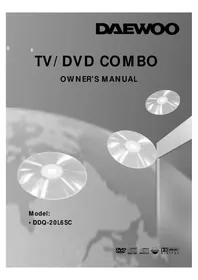
DDQ-20L6SC - Television DAEWOO - Free user manual and instructions
Find the device manual for free DDQ-20L6SC DAEWOO in PDF.


Pick your language and provide your email: we'll send you a specifically translated version.
| Product type | TV (LCD) |
| Screen size | 20 inches (50.8 cm) |
| Display resolution | 1366 x 768 pixels (HD) |
| Aspect ratio | 16:9 |
| Brightness | 250 cd/m² |
| Contrast ratio | 1000:1 |
| Viewing angle | 170° horizontal / 160° vertical |
| Response time | 5 ms |
| Built-in speakers | 2 x 3 W |
| Audio output | Stereo, 3.5 mm headphone jack |
| Video inputs | 1x HDMI, 1x VGA, 1x Composite (AV) |
| Other ports | 1x USB for media playback |
| Digital tuner | Built-in DVB-T2/T |
| Power supply | 100-240 V, 50/60 Hz |
| Power consumption | 30 W typical, <1 W standby |
| VESA wall mount | 100 x 100 mm |
| Remote control | Included |
| Dimensions (with stand) | 480 x 340 x 180 mm |
| Weight (with stand) | 4.0 kg |
| Color | Black |
| Recommended use | Bedroom, kitchen, small living space |
| Cleaning and maintenance | Wipe screen with a dry soft cloth; avoid liquids |
| Safety features | Automatic sleep timer, child lock |
Frequently Asked Questions - DDQ-20L6SC DAEWOO
How do I connect an HDMI device to the TV?
Locate the HDMI port on the back of the TV. Connect one end of an HDMI cable to the device and the other to the TV. Then press the Source/Input button on the remote and select the corresponding HDMI input.
How can I tune digital TV channels?
Go to the Menu, select Channel Setup, then choose Auto Tuning. The TV will scan for available DVB-T2/T channels automatically. Once finished, press Exit to save the channel list.
What is the best way to clean the television screen?
Use a soft dry microfiber cloth to wipe the screen gently. Do not spray water or cleaning solutions directly on the screen; lightly dampen the cloth if needed but avoid excess moisture.
Can I wall mount this TV?
Yes, the TV supports VESA 100 x 100 mm wall mounting. Remove the stand, attach a compatible wall bracket to the back of the TV, and follow the bracket instructions to secure it on a sturdy wall.
What is the refresh rate of the display?
The TV has a 60Hz refresh rate, which is standard for most content. This provides smooth motion for movies, sports, and gaming.
How do I play media from a USB drive?
Insert a USB drive into the USB port. Press Source on the remote and select USB/Media. You can then browse and play supported video, music, and photo files from the drive.
How do I reset the TV to factory settings?
Open the Menu, go to Settings, then select Factory Reset. Enter the PIN (default is usually 0000) and confirm. The TV will restart with default settings.
Why is there no sound from the speakers?
Check if the volume is muted or set too low. Press Volume Up on the remote. Also ensure the audio output is not set to Headphone if nothing is plugged into the headphone jack. If using an external device, check its audio settings.
How can I reduce power consumption?
Enable the Eco Mode or Power Saving feature in the settings. Lower the backlight brightness and set a sleep timer. Also, unplug the TV when not in use for a long time to avoid standby power.
Is the remote control included?
Yes, a remote control is included with the TV. It allows you to control power, volume, channels, sources, and access the menu system. Batteries are usually not included.
User questions about DDQ-20L6SC DAEWOO
0 question about this device. Answer the ones you know or ask your own.
Ask a new question about this device
No questions yet. Be the first to ask one.
Download the instructions for your Television in PDF format for free! Find your manual DDQ-20L6SC - DAEWOO and take your electronic device back in hand. On this page are published all the documents necessary for the use of your device. DDQ-20L6SC by DAEWOO.
USER MANUAL DDQ-20L6SC DAEWOO
Manual assistant
Powered by Anthropic
Waiting for your message
Product information
Brand : DAEWOO
Model : DDQ-20L6SC
Category : Television