
OPTIMISEUR VIDEO LIFESTYLE VS-2 - Audio accessory BOSE - Free user manual and instructions
Find the device manual for free OPTIMISEUR VIDEO LIFESTYLE VS-2 BOSE in PDF.


| Product type | Video expander (video optimizer) |
| Brand | BOSE |
| Model | LIFESTYLE VS-2 |
| Category | Audio accessory |
| Dimensions (W x D x H) | 39.55 x 12.07 x 4.0 cm |
| Weight | 1.13 kg |
| Power supply | Via the LIFESTYLE media center AC power supply module |
| Video inputs | 2 HDMI, 3 Component (Y Pb Pr), 3 S-Video, 3 Composite |
| Video outputs | HDMI, Component (Y Pb Pr), S-Video, Composite |
| Main functions | Conversion of low-quality video signals (Composite, S-Video) to high quality (Component, HDMI); integrated video and audio source selection with the LIFESTYLE system |
| Care and cleaning | Use a soft, dry cloth. Do not use solvents, alcohol, ammonia, or abrasive products. |
| Safety | Do not expose to water or moisture; do not block ventilation openings; unplug before cleaning; use only specified accessories. |
| Repairability | Refer all servicing to qualified personnel. Contact Bose for authorized centers. |
| Warranty | 1 year (according to Bose limited warranty) |
Frequently Asked Questions - OPTIMISEUR VIDEO LIFESTYLE VS-2 BOSE
User questions about OPTIMISEUR VIDEO LIFESTYLE VS-2 BOSE
0 question about this device. Answer the ones you know or ask your own.
Ask a new question about this device
Download the instructions for your Audio accessory in PDF format for free! Find your manual OPTIMISEUR VIDEO LIFESTYLE VS-2 - BOSE and take your electronic device back in hand. On this page are published all the documents necessary for the use of your device. OPTIMISEUR VIDEO LIFESTYLE VS-2 by BOSE.
USER MANUAL OPTIMISEUR VIDEO LIFESTYLE VS-2 BOSE
IMPORTANT SAFETY INSTRUCTIONS
- Read these instructions.
- Keep these instructions – for future reference.
- Heed all warnings – on the product and in the owner's guide.
- Follow all instructions.
- Do not use this apparatus near water - Do not use this product near a bathtub, washbowl, kitchen sink, laundry tub, in a wet basement, near a swimming pool, or anywhere else that water or moisture are present.
- Clean only with a dry cloth – and as directed by Bose Corporation. Unplug this product from the wall outlet before cleaning.
- Do not block any ventilation openings. Install in accordance with the manufacturer's instructions – To ensure reliable operation of the product and to protect it from overheating, put the product in a position and location that will not interfere with its proper ventilation. For example, do not place the product on a bed, sofa, or similar surface that may block the ventilation openings. Do not put it in a built-in system, such as a bookcase or a cabinet, that may keep air from flowing through its ventilation openings.
- Do not install near any heat sources, such as radiators, heat registers, stoves or other apparatus (including amplifiers) that produce heat.
- Do not defeat the safety purpose of the polarized or grounding-type plug. A polarized plug has two blades with one wider than the other. A grounding-type plug has two blades and a third grounding prong. The wider blade or third prong are provided for your safety. If the provided plug does not fit in your outlet, consult an electrician for replacement of the obsolete outlet.
- Protect the power cord from being walked on or pinched, particularly at plugs, convenience receptacles, and the point where they exit from the apparatus.
- Only use attachments/accessories specified by the manufacturer.
- Use only with the cart, stand, tripod, bracket, or table specified by the manufacturer or sold with the apparatus. When a cart is used, use caution when moving the cart/apparatus combination to avoid injury from tip-over.
-
Unplug this apparatus during lightning storms or when unused for long periods of time – to prevent damage to this product.
-
Refer all servicing to qualified service personnel. Servicing is required when the apparatus has been damaged in any way, such as power-supply cord or plug is damaged, liquid has been spilled or objects have fallen into the apparatus, the apparatus has been exposed to rain or moisture, does not operate normally, or has been dropped – Do not attempt to service this product yourself. Opening or removing covers may expose you to dangerous voltages or other hazards. Please call Bose to be referred to an authorized service center near you.
- To prevent risk of fire or electric shock, avoid overloading wall outlets, extension cords, or integral convenience receptacles.
- Do not let objects or liquids enter the product - as they may touch dangerous voltage points or short-out parts that could result in a fire or electric shock.
- See product enclosure bottom for safety-related markings.
Information about products that generate electrical noise
If applicable, this equipment has been tested and found to comply with the limits for a Class B digital device, pursuant to Part 15 of the FCC rules. These limits are designed to provide reasonable protection against harmful interference in a residential installation. This equipment generates, uses, and can radiate radio frequency energy and, if not installed and used in accordance with the instructions, may cause harmful interference to radio communications. However, this is no guarantee that interference will not occur in a particular installation. If this equipment does cause harmful interference to radio or television reception, which can be determined by turning the equipment off and on, you are encouraged to try to correct the interference by one or more of the following measures:
- Reorient or relocate the receiving antenna.
- Increase the separation between the equipment and receiver.
- Connect the equipment to an outlet on a different circuit than the one to which the receiver is connected.
- Consult the dealer or an experienced radio/TV technician for help.
Note: Unauthorized modification of the receiver or radio remote control could void the user's authority to operate this equipment.
This product complies with the Canadian ICES-003 Class B specifications.
SAFETY INFORMATION
Please read this installation guide
Please take the time to follow this installation guide carefully. It will help you set up and operate your system properly, and enjoy all of its advanced features. Save your installation guide for future reference.

WARNING: To reduce the risk of fire or electric shock, do not expose the system to rain or moisture.

WARNING: This apparatus shall not be exposed to dripping or splashing, and objects filled with liquids, such as vases, shall not be placed on the apparatus. As with any electronic products, use care not to spill liquids in any part of the system. Liquids can cause a failure and/or a fire hazard.

CAUTION: No naked flame sources, such as lighted candles, should be placed on the apparatus.

This product conforms to the EMC Directive 89/336/EEC and to the Low Voltage Directive 73/23/EEC. The complete Declaration of Conformity can be found at www.bose.com/static/compliance/index.html.
CONTENTS
Introduction 4
Connecting the VS-2 to Your Media Center 6
Your TV Connection Options 7
Using an HDMI TV Connection 8
Using a Component Video TV Connection 10
Using an S-Video TV Connection 12
Using a Composite Video TV Connection 14
Program Recording Connections 16
Operating Information 17
Mounting Your VS-2 on a Wall 20
Maintaining Your VS-2 21
©2006 Bose Corporation. No part of this work may be reproduced, modified, distributed, or otherwise used without prior written permission. All trademarks referenced herein are property of Bose Corporation. HDMI, the HDMI logo and High-Definition Multimedia Interface are trademarks or registered trademarks of HDMI Licensing LLC.
Introduction
About your LIFESTYLE® VS-2 video enhancer
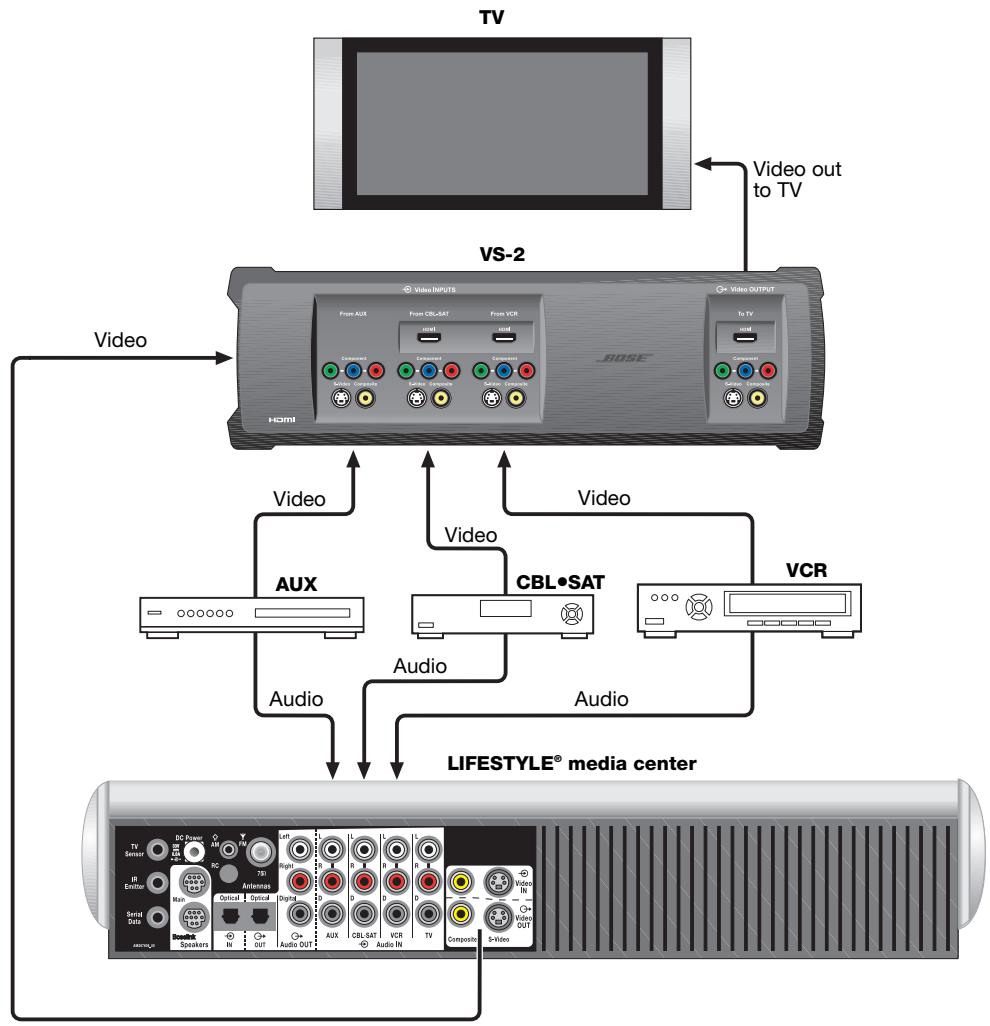
The LIFESTYLE® VS-2 video enhancer allows you to connect more than one audio/video device to your LIFESTYLE® home entertainment system. With this accessory installed, a single button press selects the source video and audio at the same time.
Features and benefits
- Incorporates HDMI™ (High-Definition Multimedia Interface) technology to help maximize your home theater experience.
- Provides HDMI, component, S-Video, and composite video connections for your TV, cable/satellite box, VCR, or other A/V input devices.
- Converts lower-quality video input formats (composite or S-Video) up to higher quality video output formats (component and HDMI).
- Compatible with HDTV and progressive scan TV formats.
How it fits into your LIFESTYLE® system
Video outputs from all your A/V devices, such as your cable/satellite box and VCR, connect to the VS-2, but the audio outputs from these devices connect to the media center. The VS-2 video output connects to your TV. When you select a source, such as your cable box (CBL SAT), the media center selects the cable box audio and directs the VS-2 to pass the cable box video through to your TV.
IMPORTANT: Software update required!
Your VS-2 comes with a software update disc. After setting up the VS-2, you must load this CD into the media center disc player and allow it to update your system. Refer to "Updating the system software" on page 17.
Unpacking
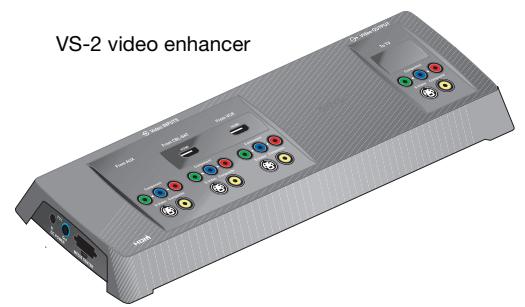
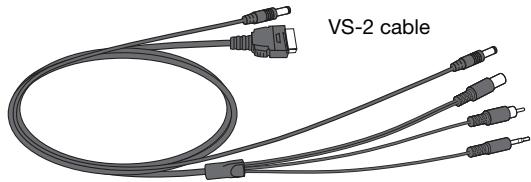
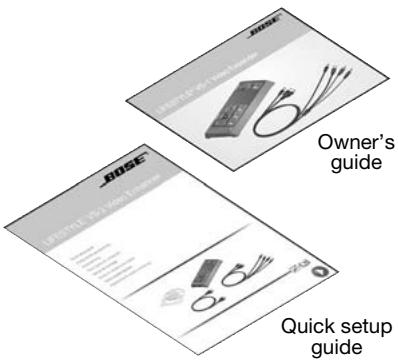
Carefully unpack the VS-2 video enhancer. Check to be sure your system includes the parts shown on this page. Save all packing materials in case you need to repack and transport your product.
If any part of the product appears damaged, do not attempt to use it. Notify Bose or your authorized Bose dealer immediately. For Bose contact information, refer to the address sheet included in the carton.

WARNING: To avoid danger of suffocation, keep the plastic bags out of the reach of children.
Finding a location for the VS-2
You can position the VS-2 on a shelf behind your media center or behind your TV, or you can mount it on the back of an entertainment center or on a wall. To mount it on a wall, see "Mounting Your VS-2 on a Wall" on page 20.

If you need additional cables
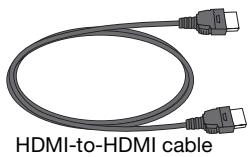
Your VS-2 includes one HDMI-to-HDMI video cable, but you may need additional cables to set up the VS-2 with your LIFESTYLE® system. To determine if you need any additional cables, please read this guide before you begin the actual setup. You can purchase additional cables from your Bose dealer or local electronics retailer.
For your records
Now is a good time to find the serial number on the bottom of the VS-2 video enhancer. Please record it here. This provides easy access to this number if you ever need to contact Bose Customer Service.
Serial number: Purchase date:
Dealer name: Dealer phone:
Please keep your sales receipt with this owner's guide.
Connecting the VS-2 to Your Media Center
Preparation
When setting up a LIFESTYLE® system with the VS-2, the media center power supply plugs into the VS-2 instead of the media center.
- If you are setting up the VS-2 and your LIFESTYLE® system at the same time, find the media center power supply in the LIFESTYLE system carton before you begin.
- If you are adding the VS-2 to an existing LIFESTYLE® system, turn off your LIFESTYLE system, wait 30 seconds, and unplug the media center power supply from the wall outlet. Then, disconnect the power supply from the rear panel of the media center. Also, remove any video cables from the Video OUT and Video IN connectors on the media center.
Connecting the VS-2 to your media center
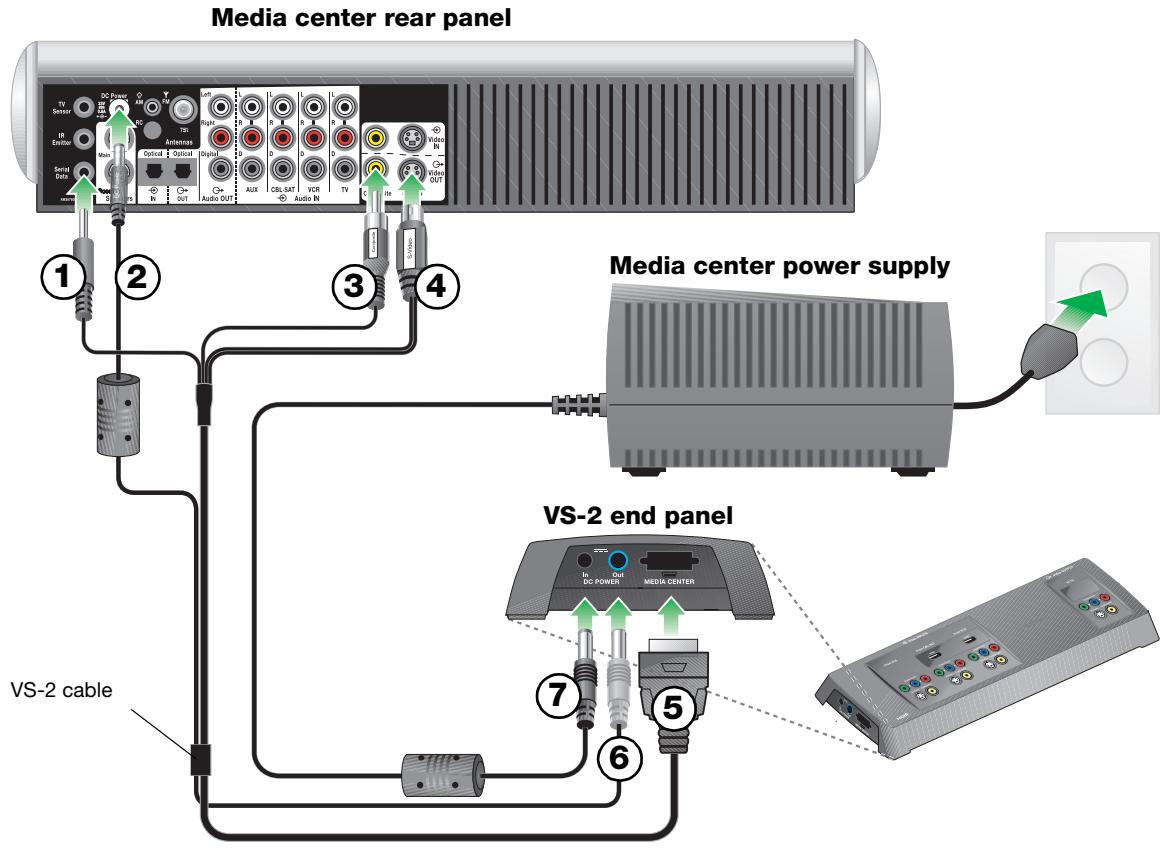
- Connect the 4-connector end of the VS-2 cable to your media center:
① Insert the Serial Data plug into the Serial Data connector.
② Insert the DC Power plug into the DC Power connector.
③ Insert the Composite plug into the Composite Video OUT connector.
④ Insert the S-Video plug into the S-Video OUT connector. - Connect the other end of the VS-2 cable to the VS-2 end panel:
⑤ Insert multi-pin plug into the Media Center connector.
⑥ Insert the DC Power plug into the DC POWER Out connector. - Connect the media center power supply to the end panel of the VS-2:
⑦ Insert the DC power cable from the media center power supply into the DC POWER In connector.
Note: Straighten the DC power cord from the media center power supply and from the VS-2 to the media center as much as possible. This cord is used as the antenna for your LIFESTYLE® system remote control.

WARNING: The VS-2 must be used only with the media center power supply that came with your LIFESTYLE® DVD home entertainment system.
Identifying your TV connectors
Your TV may have some or all of the video input connectors shown on the right. Each type of video connector provides a different level of video image quality.
Examine the rear panel of your TV and determine whether it has HDMI, component, S-Video, or composite video input connectors. For additional instructions, refer to the owner's guide that came with your TV.
Choosing the TV connector you will use
- Using the table on the right, choose the available TV video connector that provides the highest possible video quality.
- Make sure you have the correct cable on hand. An HDMI cable is provided with the VS-2.
- Go to the page listed for instructions on making the connections to your TV and other A/V devices.
- As a reminder, place a check mark in the table to indicate your choice.

HDMI est quality
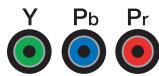
Component Better quality

S-Vic Good c

Composite Standard quality
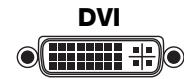
You may have a TV that has a DVI connector, but not an HDMI connector. In this case, you still can use an HDMI connection by using a DVI-to-HDMI cable adapter or a DVI-to-HDMI cable.
| Video Quality | TV Video Connector | Cable Type | Connection Instructions | Check One |
| Best ★★★★ | HDMI | Supplied with the VS-2 | Go to page 8. | □ |
| Better ★★★ | Component Y Pb Pr | Not supplied | Go to page 10. | □ |
| Good ★★ | S-Video | Supplied with your LIFESTYLE® system | Go to page 12. | □ |
| Standard ★ | Composite | Supplied with your LIFESTYLE® system | Go to page 14. | □ |
Using an HDMI TV Connection
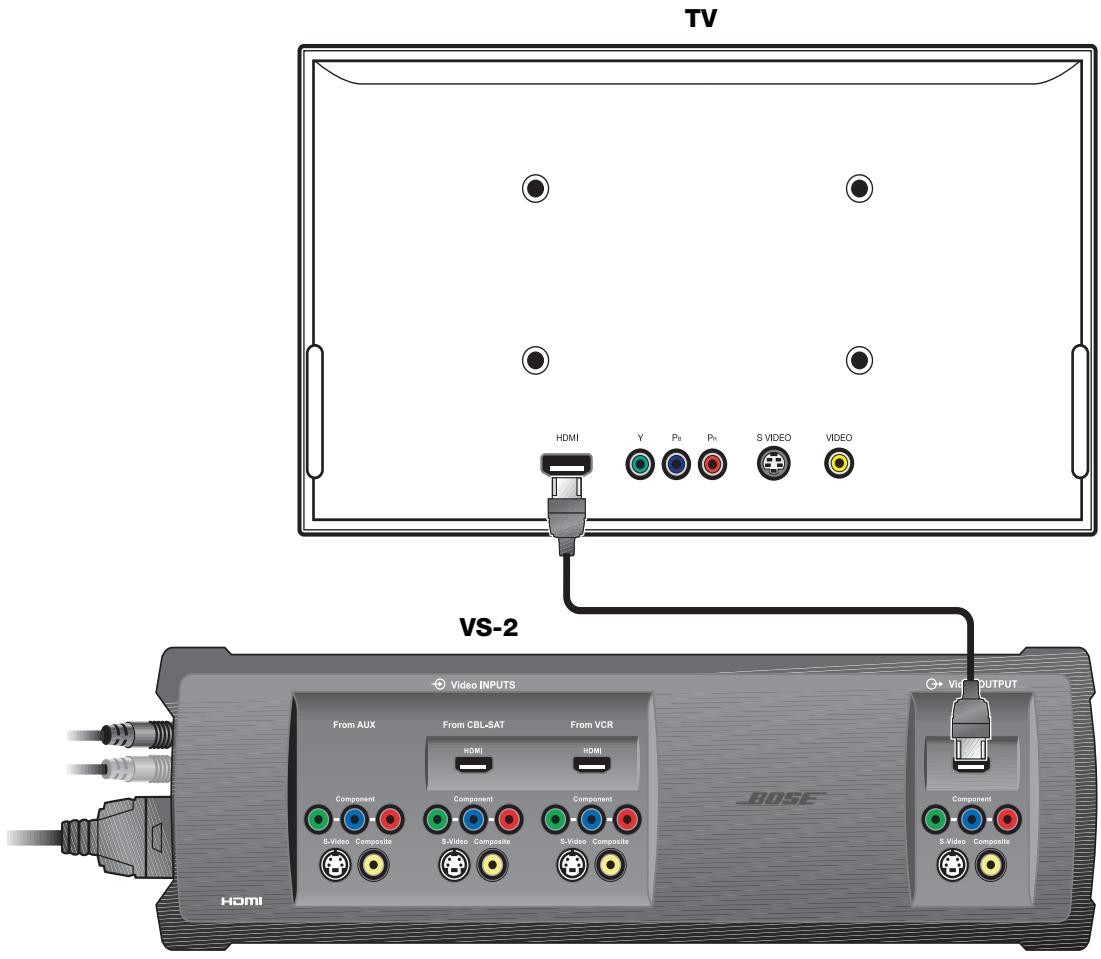
Connecting the VS-2 HDMI output to your TV
To connect your TV to the VS-2 using the supplied HDMI cable, do the following:
- Plug one end of the HDMI cable into the HDMI connector on the rear of your TV.
- Plug the other end of the HDMI cable into the Video OUTPUT HDMI connector on the VS-2.
- Go to page 9 for instructions on connecting other A/V devices to the VS-2.
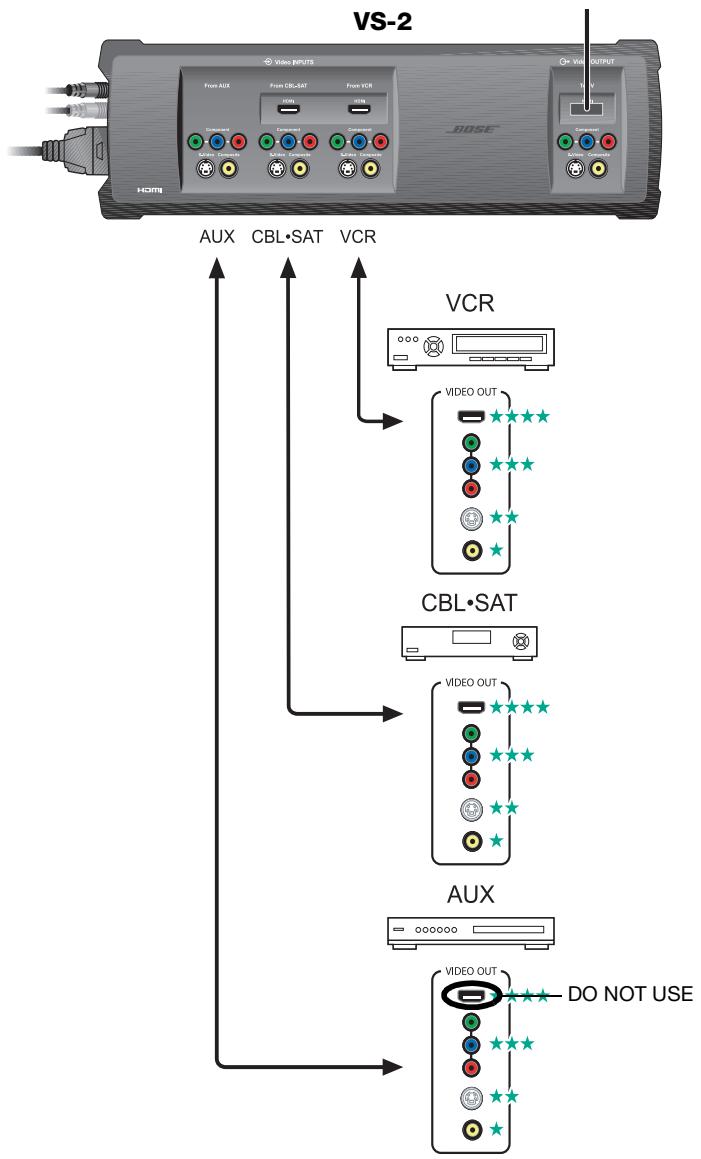
Choosing connection types for your A/V devices
- Look at the rear panel of each A/V device to determine what type of video output connectors it has.
- In the following table, choose the type of available video connector that provides the highest possible video quality. We recommend using an HDMI connection if it is available. Place a check mark in the table for the connector type used for each of your A/V devices.
If any of your A/V devices do not have an HDMI connector, you can use any other type of connection. Remember, the VS-2 converts these up to HDMI format.
| Video Quality | Video Connector | VCR | CBL·SAT | AUX (Other) |
| Best | HDMI | □ | □ | Not available on VS-2 |
| Better | Component Y Pb Pr | □ | □ | □ |
| Good | S-Video | □ | □ | □ |
| Standard | Composite | □ | □ | □ |
Connecting your A/V devices to the VS-2
- Plug one end of the video cable into the appropriate video output connector(s) on your A/V device.
- Plug the other end of the video cable into the appropriate Video INPUT connector(s) on the VS-2.
- Refer to your LIFESTYLE® system installation guide for information on making audio connections.
Using a Component Video TV Connection
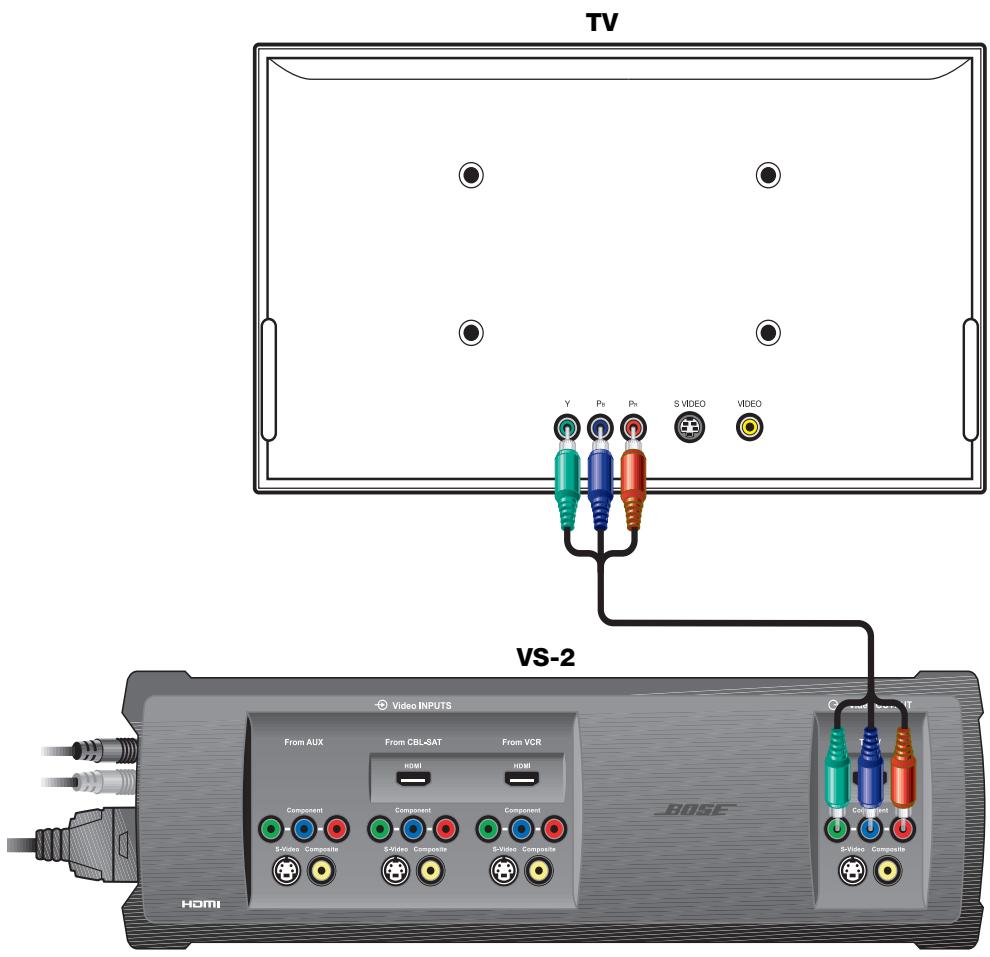
Connecting the VS-2 component video output to your TV
You need to obtain a component video cable from Bose or your local electronics dealer to complete this connection.
To connect your TV to the VS-2 using a component video cable (not supplied), do the following:
- Plug one end of the component video cable into the component connectors on the rear of your TV. Be sure to match the color of each plug to the color of each connector.
- Plug the other end of the component video cable into the Video OUTPUT Component connectors on the VS-2. Again, be sure to match the color of each plug to the color of each connector.
- Go to page 11 for instructions on connecting other A/V devices to the VS-2.
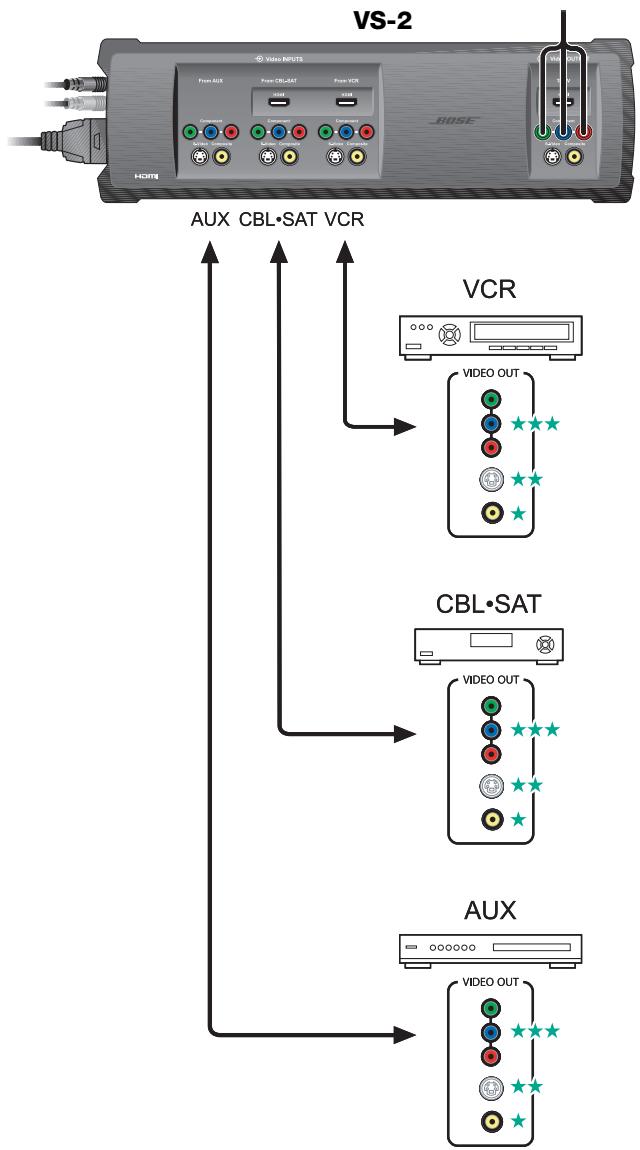
Choosing connection types for your A/V devices
- Look at the rear panel of each A/V device to determine what type of video output connectors it has.
- In the following table, choose the type of available video connector that provides the highest possible video quality. We recommend using a component connection if it is available. Place a check mark in the table for the connector type used for each of your A/V devices.
If any of your A/V devices do not have component video connectors, you can use either an S-Video or Composite connection. Remember, the VS-2 converts either of these up to component video format.
| Video Quality | Video Connector | VCR | CBL●SAT | AUX (Other) |
| Better ★★★ | Component Y Pb Pr | □ | □ | □ |
| Good ★★ | S-Video | □ | □ | □ |
| Standard ★ | Composite | □ | □ | □ |
Connecting your A/V devices to the VS-2
- Plug one end of the video cable into the appropriate video output connector(s) on your A/V device. If you are making a component connection, be sure to match the color of the plug to the color of the connector.
- Plug the other end of the video cable into the appropriate Video INPUT connector(s) on the VS-2. Again, if you are making a component connection, be sure to match the color of the plug to the color of the connector.
- Refer to your LIFESTYLE® system installation guide for information on making audio connections.
Using an S-Video TV Connection
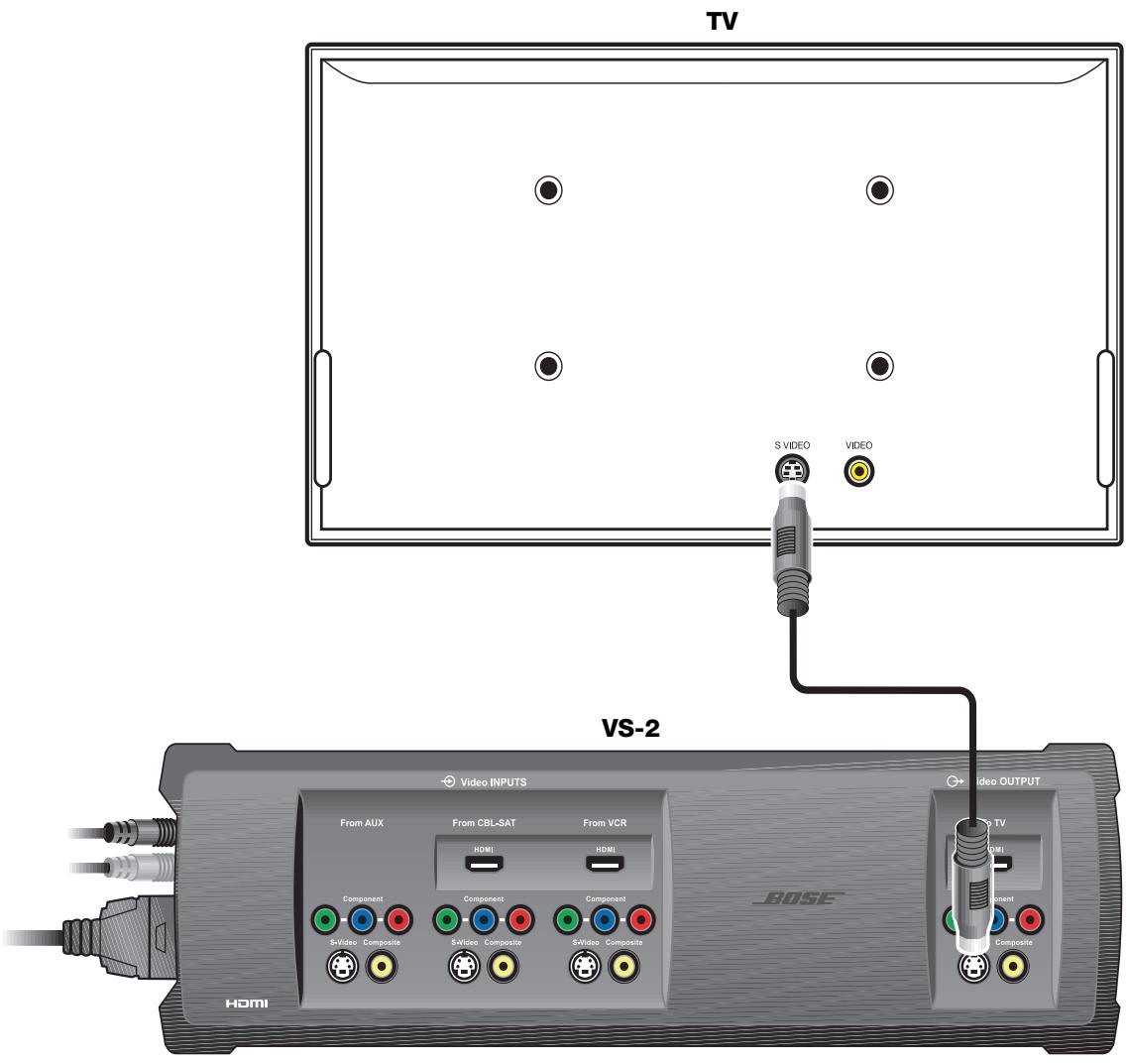
Connecting the VS-2 S-Video output to your TV
You can use the S-Video cable included with your LIFESTYLE® system to make this connection.
To connect your TV to the VS-2 using an S-Video cable, do the following:
- Plug one end of the S-Video cable into the S-Video connector on the rear of your TV.
- Plug the other end of the S-Video cable into the Video OUTPUT S-Video connector on the VS-2.
- Go to page 13 for instructions on connecting other A/V devices to the VS-2.
Choosing connection types for your A/V devices
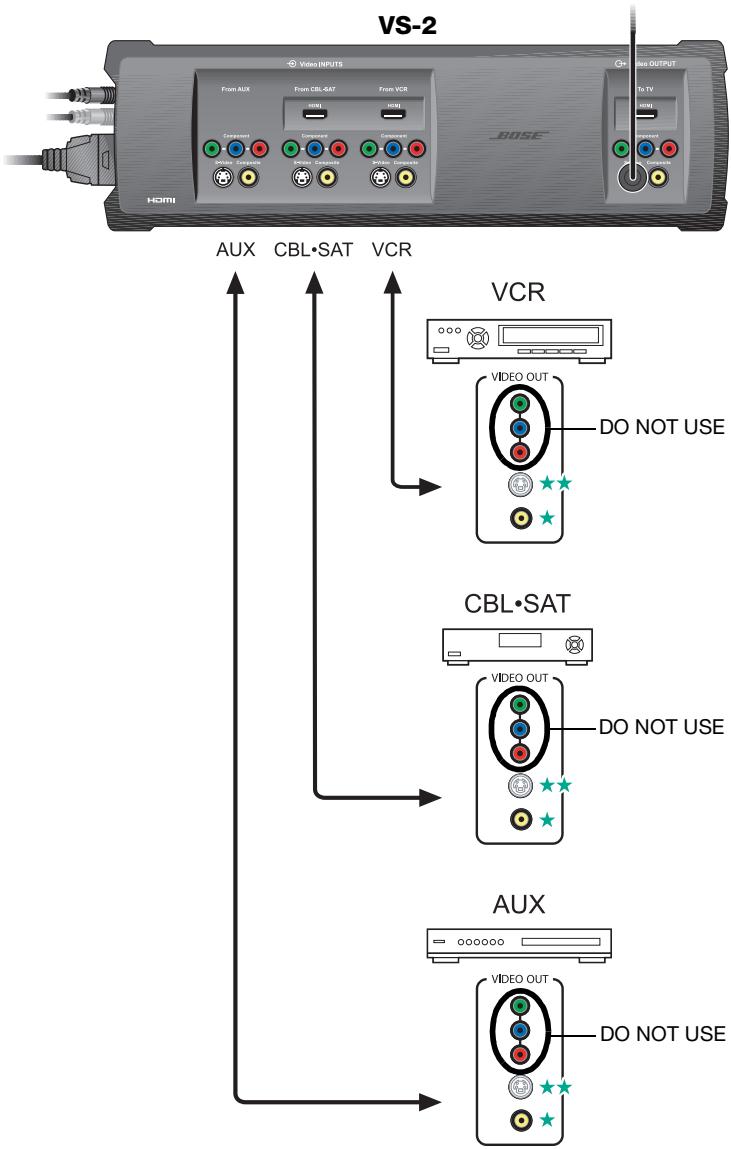
If you connected your TV to the VS-2 using an S-Video cable, you can use only an S-Video or Composite connection for your A/V devices even though a device may have HDMI or component video output connectors.
- Look at the rear panel of each A/V device to determine what type of video output connectors it has.
- In the following table, choose the type of video connector that provides the highest possible video quality. We recommend using an S-Video connection if it is available. Place a check mark in the table for the connector type used for each of your A/V devices.
If any of your A/V devices do not have an S-Video connector, you can use a Composite connector. Remember, the VS-2 converts this up to S-Video format.
| Video Quality | Video Connector | VCR | CBL●SAT | AUX (Other) |
| Good | S-Video | |||
| ★★ | □ | □ | □ | |
| Standard | Composite | |||
| ★ | □ | □ | □ |
Connecting your A/V devices to the VS-2
- Plug one end of the video cable into the appropriate video output connector on the rear of your A/V device.
- Plug the other end of the video cable into the appropriate Video INPUT connector(s) on the VS-2.
- Refer to your LIFESTYLE® system installation guide for information on making audio connections.
Using a Composite Video TV Connection
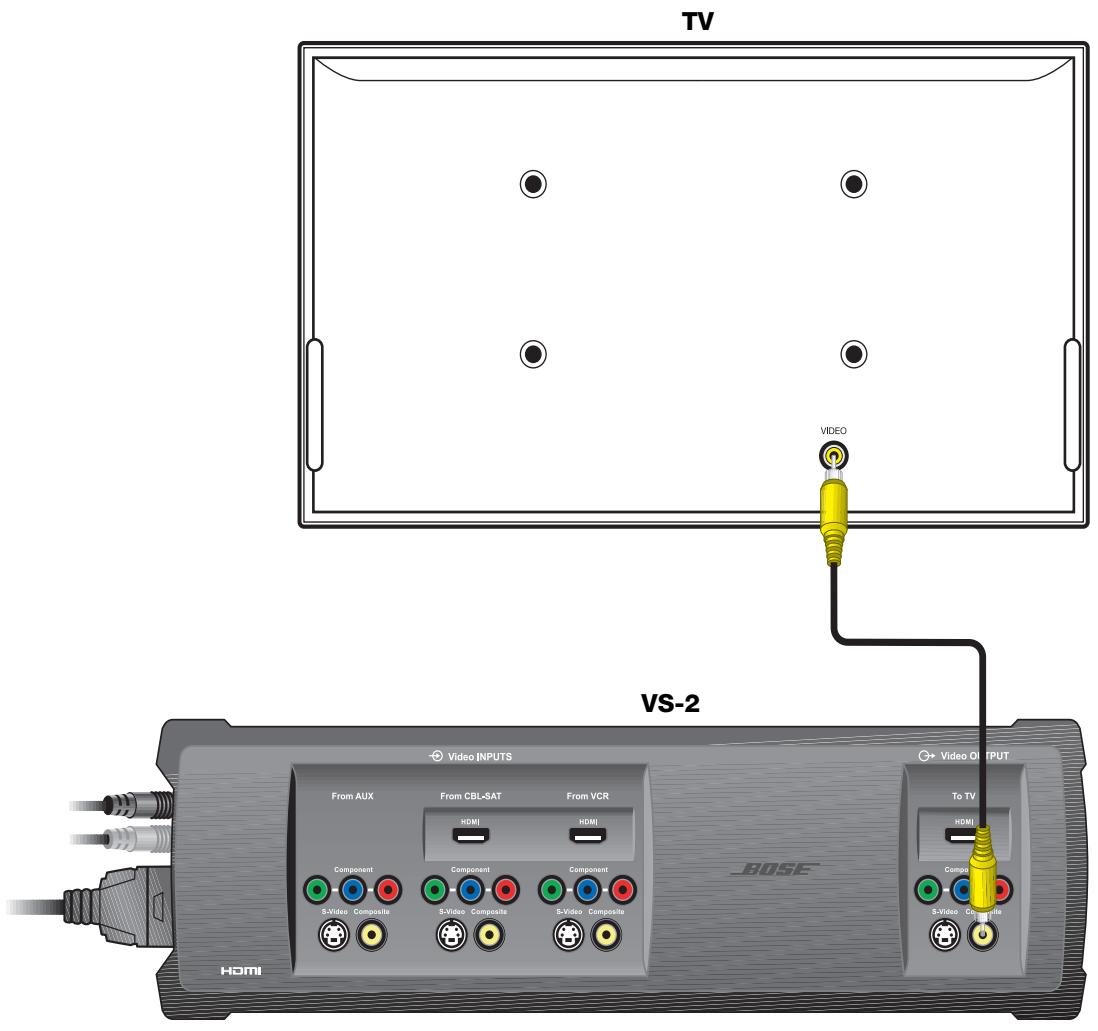
Connecting the VS-2 composite video output to your TV
You can use the composite video cable included with your LIFESTYLE® system to make this connection.
To connect your TV to the VS-2 using a composite video cable, do the following:
- Plug one end of the composite video cable into the composite video connector on the rear of your TV.
- Plug the other end of the composite video cable into the Video OUTPUT Composite connector on the VS-2.
- Go to page 15 for instructions on connecting other A/V devices to the VS-2.
Choosing connection types for your A/V devices
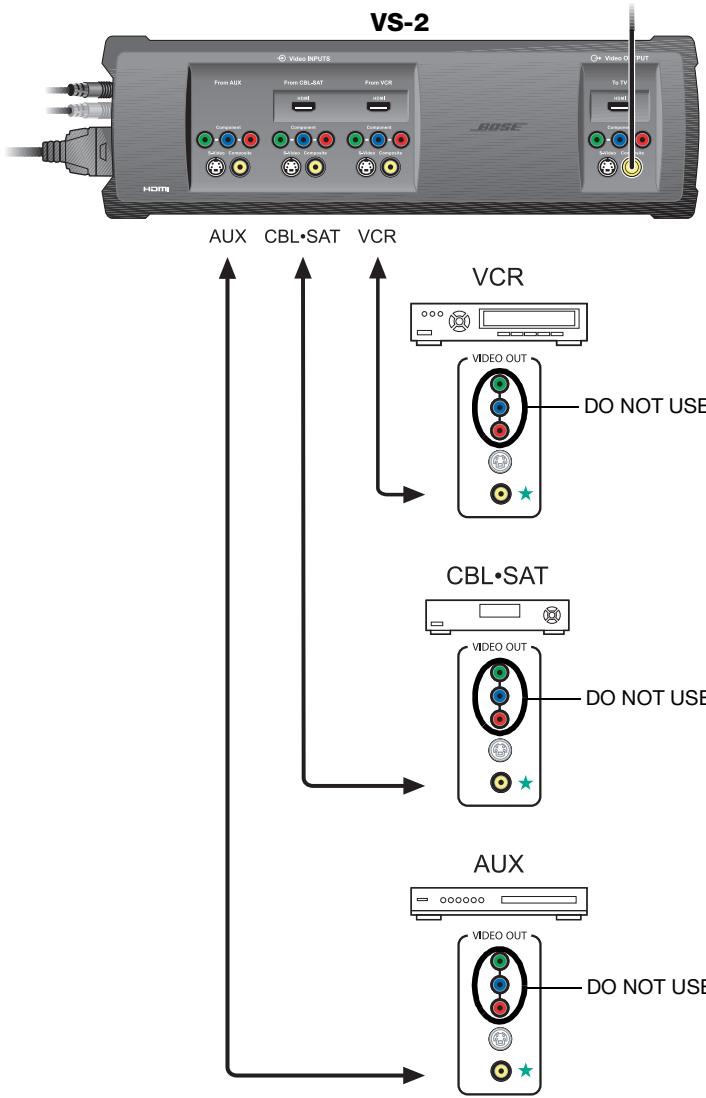
If you connected your TV to the VS-2 using a composite video cable, you can use only an S-Video or Composite connection for your A/V devices even though a device may have HDMI or component video output connectors.
- Look at the rear panel of each A/V device to determine what type of video output connectors it has.
- In the following table, choose the type of video connector that provides the highest possible video quality. We recommend using an S-Video connection if it is available. Place a check mark in the table for the connector type used for each of your A/V devices.
| Video Quality | Video Connector | VCR | CBL●SAT | AUX (Other) |
| Good | S-Video | |||
| ★★ | □ | □ | □ | |
| Standard | Composite | |||
| ★ | □ | □ | □ |
Connecting your A/V devices to the VS-2
- Plug one end of the video cable into the appropriate video output connector on the rear of your A/V device.
- Plug the other end of the video cable into the appropriate Video INPUT connector on the VS-2.
- Refer to your LIFESTYLE® system installation guide for information on making audio connections.
Program Recording Connections
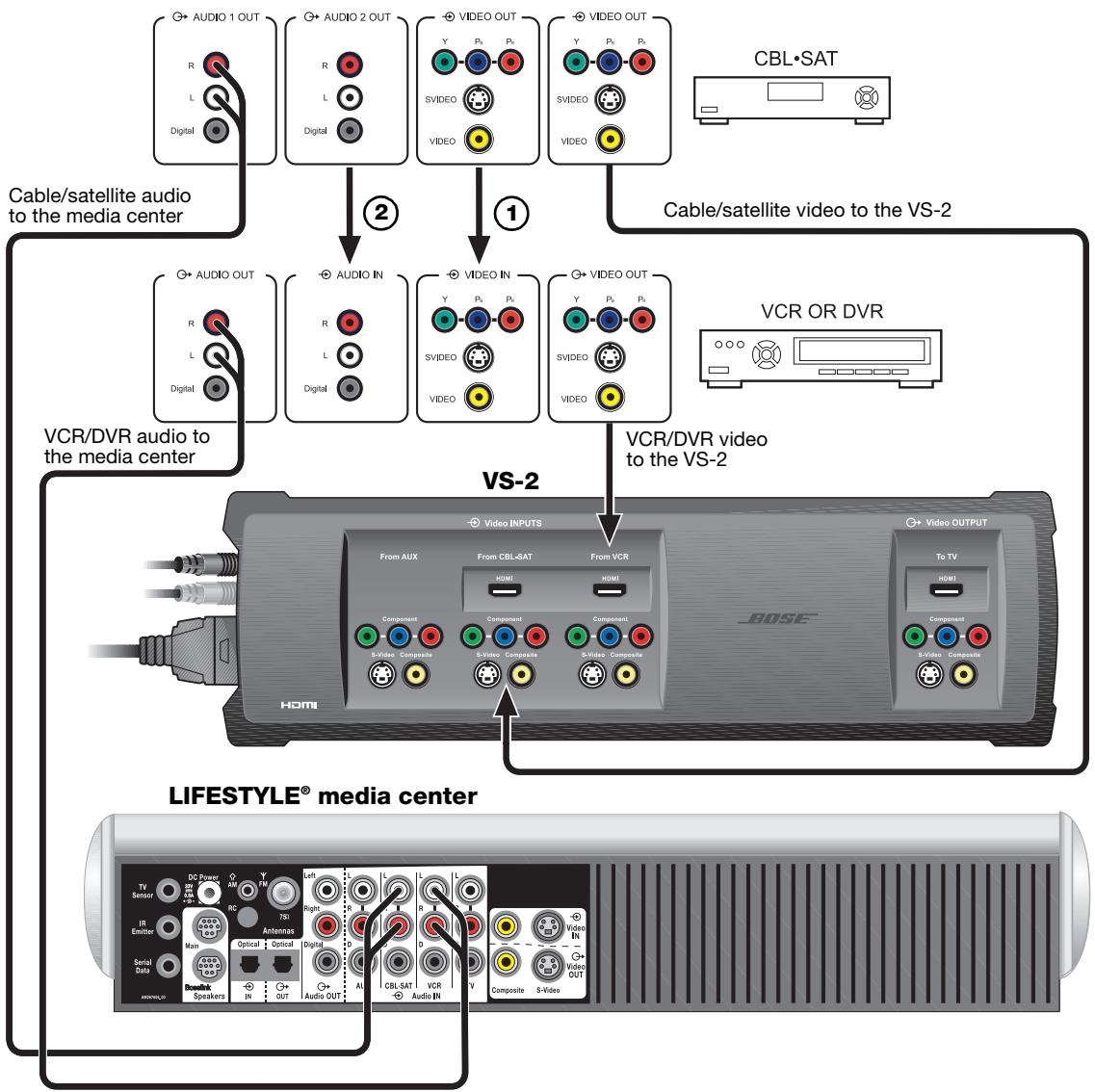
Connecting your cable/satellite box to your VCR/DVR
To record programs from your cable or satellite service, you can connect your cable/satellite box to your VCR or DVR. The diagram on this page is an example of how this equipment may be connected.
Before you start, make sure that your cable/satellite box and VCR/DVR have the necessary input and output connectors available.
① Connect an unused video output on your cable/satellite box to an unused video input on your VCR/DVR. Choose the connection type that provides the highest level of image quality. Refer to page 7.
② Connect an unused audio output on your cable/satellite box to an unused audio input on your VCR/DVR.
Recording programs
Using the connection method in the example diagram, you do not need to select the CBL-SAT source in order to record the program. If you wish, you can listen to another source while recording.
Operating Information
Updating the system software
- Turn on your LIFESTYLE® system and select the CD/DVD source.
- Load the software update disc into the media center disc player.
- Wait for the display window of the media center to indicate when it is done.
IMPORTANT: Software update required!
Your VS-2 comes with a software update disc. To enable the media center to operate with the VS-2, you must load this CD into the media center disc player and allow it to update your system.
New System menu items
When the VS-2 is connected to your LIFESTYLE® system, the following new items will appear in the System menu.
Video options
| New Item | Possible Settings (Factory/default settings in bold type) |
| Widescreen TV | No......Tells your LIFESTYLE® system that it is connected to a 4:3 TV. Yes......Tells your LIFESTYLE® system that it is connected to a 16:9 (widescreen) TV. |
| Video Resolution (only for HDMI TV connection) | Adjustable......Allows your LIFESTYLE® system to select the optimal video resolution setting for your TV. Refer to Video Resolution in “New Settings menu items” on page 18. Fixed......Prohibits any change to video resolution. |
| Persistent Video | Disabled......Removes video from your TV screen when switching from your selected video source to an audio source. Enabled......Allows the video from your selected source (CBL●SAT, VCR, or AUX) to remain on your TV screen when switching from this source to an audio source. |
| Settings on TV | Yes......Allows the Settings menu for the TV, CBL●SAT, VCR, and AUX sources to appear on your TV screen as well as on the media center display window. No......Allows the Settings menu for the TV, CBL●SAT, VCR, and AUX sources to appear only on the media center display window. |
Audio options
| New Item | Possible Settings (Factory/default settings in bold type) |
| CBL●SAT/VCR Audio (only for HDMI connections) | Bose 5.1 ....................Allows you to hear 5.1-channel surround sound from your LIFESTYLE® system when the selected source is CBL●SAT or VCR. Recommended setting – should not be changed. TV Stereo ....................Tells the VS-2 to send two-channel digital audio received (through an HDMI cable) from your cable/satellite box or VCR to your TV (through an HDMI cable). The LIFESTYLE® system speakers are silent. |
New Settings menu items
When the VS-2 is connected to your LIFESTYLE® system, the following new items appear in the Settings menu.
| New Menu Item | Description | Possible Settings (Factory/default settings in bold type) |
| Audio Delay | Changes the amount of delay between audio and video. Used to synchronize the audio with the action when viewing audio/video program content. | 0 (no delay), 1, 2, 3, 4, 5, 6, 7, 8 (maximum delay) |
| Video Resolution | Lists output video resolutions supported by your TV when it is connected to the HDMI output of the VS-2. The optimal resolution for your TV is listed as the default setting and remains selected unless you change it. Available only when the Video Resolution option in the System menu is set to Adjustable. | 480/576p (lowest quality), 720p, 1080i, 1080p (highest quality) |
| Image View | Modifies the image on your TV screen. | Gray Bars......Adds a vertical gray bar to the left and right side of the image. Stretch ...... Stretches the image horizontally to fit the screen. Zoom ...... Image size is increased horizontally and vertically to fit the screen. Normal .......Image is not changed. |
| SD Progressive Scan | For standard-definition video, determines whether interlaced or progressive video is sent to your TV. Available only when your TV is connected to the VS-2 using a component video cable. | Off ...... Sends interlaced video (480i or 576i) to your TV. On ...... Sends progressive video (480p or 576p) to your TV. |
Switching sources
Adding the VS-2 to your system setup greatly simplifies source selection. Just press the remote button (CD/DVD, VCR, CBL*SAT, or AUX) for the source you want to use. If you select one of the sources connected to the VS-2, be sure the source is turned on.
Selecting TV channels
When the VS-2 is connected to your LIFESTYLE® system, the remote changes channels on the source selected by the TV Control setting (CBL·SAT, VCR, TV, or AUX) in the System menu under Remote Control options. This means that when you select the TV source on the remote, you see and hear the TV channel coming from your TV Control selection. For example, if you set TV control to CBL·SAT and press the TV source button on your remote, you will see and hear the program on the selected channel of your cable or satellite box.
If TV Control is set to TV (default setting), your TV screen goes blank when selecting the TV source unless you enable the Persistent Video option (see “New System menu items” on page 17). If your TV screen is blank, the media center displays CHOOSE TV INPUT to remind you to select the correct video input on your TV.
Watching video from one source while listening to audio from another
Normally, when you switch to an audio source from a video source, your TV screen goes blank. To change this so the video source remains on your TV screen, go to the System menu and change the Persistent Video option setting to Enabled.
Enabling Persistent Video allows you to continue viewing the video portion of a program while listening to the audio from another source, such as FM or AM radio. For example, you can watch a ball game on your TV while listening to the broadcast audio of the same ball game from a local radio station.
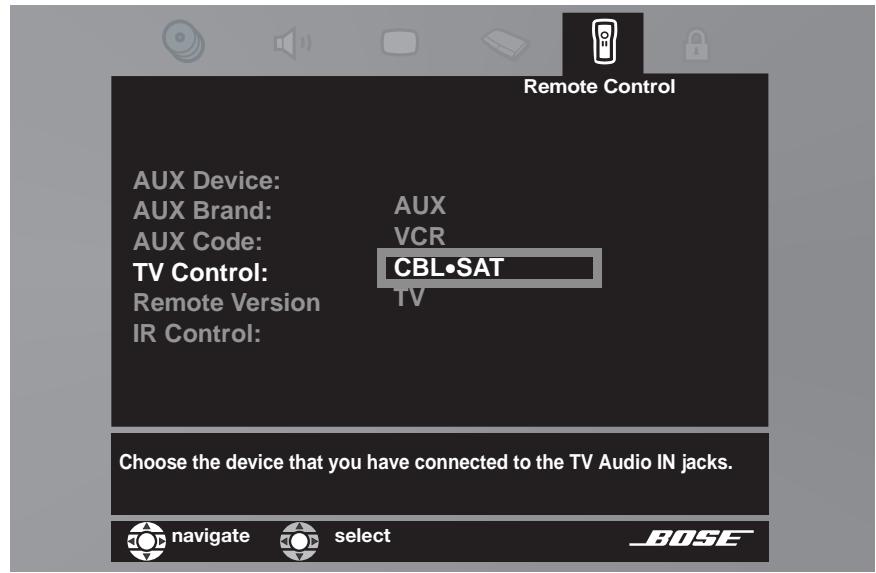
System menu - Remote Control options
Media center display - blank TV message
TV
CHOOSE TV INPUT
Mounting Your VS-2 on a Wall
Required tools
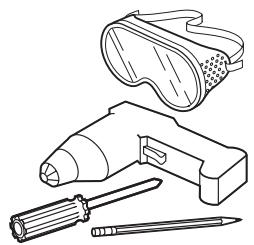


Recommended hardware
For solid wood
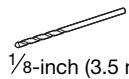
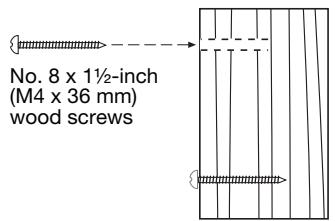
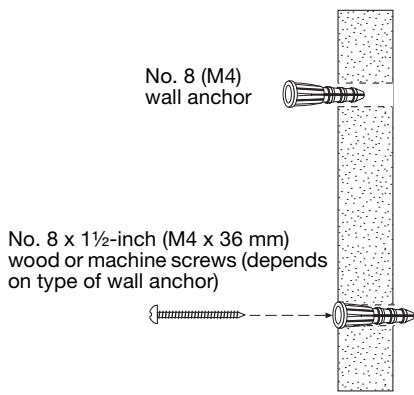
For wallboard
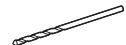
Use drill size specified for type of wall anchor used.
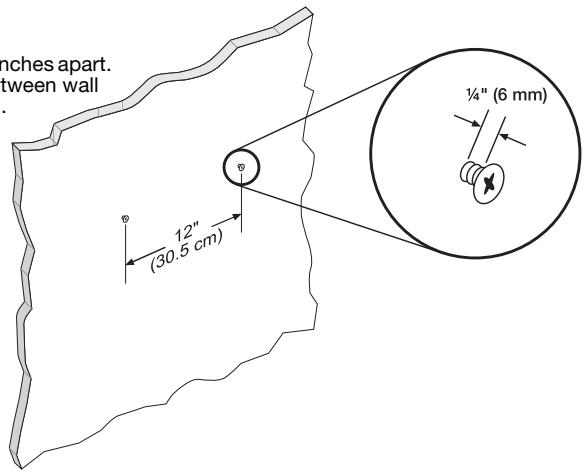
1 Install two screws eight inches apart. Leave 14 inch (6 mm) between wall surface and screw head.
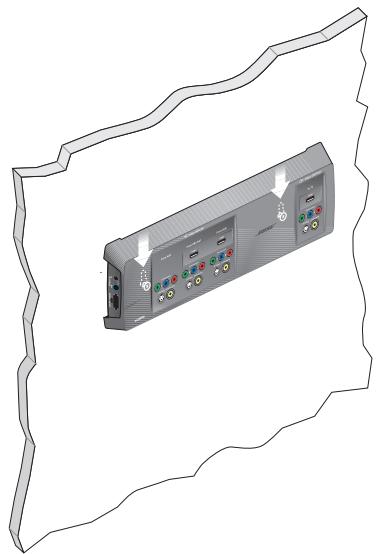
2 Position the VS-2 mounting holes over the screws so that it is flush with the wall.
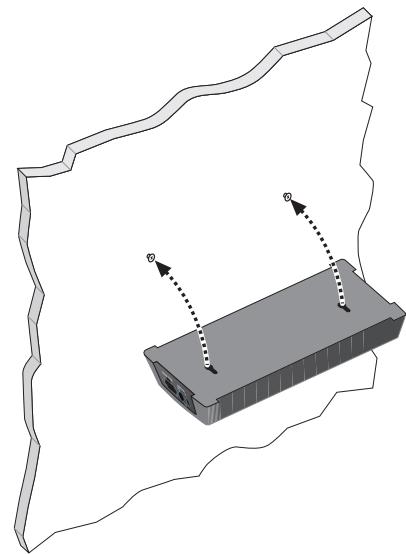
3 Lower the VS-2 onto the screws to lock it in place.
Cleaning
- Use only a soft, dry cloth to clean the outside of the VS-2.
- Do not use any solvents, chemicals, or cleaning solutions containing alcohol, ammonia, or abrasives.
- Do not allow liquids to spill into any openings.
- Do not use any sprays near the VS-2.
Troubleshooting
| Problem | What to do |
| System will not turn on | ·Make sure the VS-2 cable is correctly connected between the VS-2 and the media center (see “Connecting the VS-2 to your media center” on page 6). ·Make sure the media center power supply is plugged into an AC receptacle. |
| No picture on TV | ·If you have not done so, load the software update disc into the DVD player. See “Updating the system software” on page 17. ·Make sure the VS-2 cable is correctly connected between the VS-2 and the media center (see “Connecting the VS-2 to your media center” on page 6). ·Make sure you connected your TV to the TV output connector on the VS-2. ·Make sure you have selected the correct video input on your TV. |
| The wrong picture appears on my TV for the source I selected | ·If you have not done so, load the software update disc into the DVD player. See “Updating the system software” on page 17. ·Make sure your sources are connected to the appropriate VS-2 inputs. ·Make sure the Serial Data plug from the VS-2 is fully inserted into the media center connector. ·Make sure you have selected the correct video input on your TV. |
| Some sources do not appear on my TV | ·Make sure your sources are connected to the appropriate VS-2 inputs. ·Make sure you have not used a source that outputs a video format that is higher in quality than what your TV can accept. |
Technical information
Dimensions
15.6"W x 4.8"D x 1.6"H
(39.55 cm x 12.07 cm x 4.0 cm)
VS-2 power rating
9W
Video inputs
(2) HDMI (CBL · SAT and VCR)
(3) Component
(3) S-Video
(3) Composite
Video output
HDMI
Component
S-Video
Composite
Weight (approximate)
2.5 lb (1.13 kg)
Finish
Diecast aluminum
Contacting Customer Service
If you need help solving problems while setting up this product, contact Bose Customer Service. See the address and phone number list included with your system.
Limited Warranty
What is covered:
All parts defective in material and workmanship. This limited warranty for the LIFESTYLE® VS-2 video enhancer covers the functionality of the system for its normal, intended use as specified in the Owner's Guide and does not cover a malfunction that has resulted from improper or unreasonable use or maintenance, accident, excess moisture, improper packing, lightning, power surges, or unauthorized tampering, alteration or modification while not under the control of Bose. Bose® systems are not designed to be used in every environment, so please review your Owner's Guide.
WHERE PERMITTED, THE PROVISIONS OF THIS LIMITED WARRANTY ARE IN LIEU OF ANY OTHER WARRANTY, WHETHER EXPRESS OR IMPLIED, WRITTEN OR ORAL, INCLUDING ANY WARRANTY OF MERCHANTABILITY OR FITNESS FOR A PARTICULAR PURPOSE.
For how long:
In countries where the duration of a warranty is not determined by statute, the Bose Limited Warranty lasts one year from the purchase date. For countries where minimum warranty terms are determined by statute, the Bose Limited Warranty term is the longer of the statutory period or the term listed above.
Notwithstanding the above, in the United States, where applicable, if you qualify as a "consumer" under the Magnuson-Moss Warranty Act, then you may be entitled to any implied warranties allowed by law for the period of the express Limited Warranty as set forth below. Some states do not allow limitations on how long an implied Limited Warranty lasts, so the above limitation may not apply to you.
What we will do:
At our option, we will repair or replace any defective parts within a reasonable period of time and free of charge.
How you can obtain limited warranty service:
- You can ship the system to either a Bose Service Agency or to Bose directly with a proof of purchase from an authorized dealer. Please:
A. Properly and carefully pack the product for shipping. If you need a carton for shipping, contact Bose for a new carton
B. Please contact Bose to get a return reference number. Place this number prominently on the outside of the carton.
C. Label and ship the product to the appropriate Bose location.
- You can return the system with proof of purchase from an authorized dealer to a Bose Service Agency or directly to Bose. Proof of purchase is not required where it is excluded by statute.
Other Rights:
EXCLUSIVE REMEDY:
THIS LIMITED WARRANTY IS FULY TRANSFERABLE PROVIDED THAT THE CURRENT OWNER FURNISHES THE ORIGINAL PROOF OF PURCHASE FROM AN AUTHORIZED BOSE DEALER. THE MAXIMUM LIABILITY OF BOSE SHALL NOT EXCEED THE ACTUAL PURCHASE PRICE PAID BY YOU FOR THE PRODUCT. IN NO EVENT SHALL BOSE BE LIABLE FOR SPECIAL, INCIDENTAL, CONSEQUENTIAL OR INDIRECT DAMAGES. SOME PLACES DO NOT ALLOW LIMITATIONS OR THE EXCLUSION OR LIMITATION OF RELIEF, SPECIAL, INCIDENTAL, CONSEQUENTIAL OR INDIRECT DAMAGES TO SPECIFIED AMOUNTS, SO THE ABOVE LIMITATIONS OR EXCLUSIONS MAY NOT APPLY TO YOU.
OTHER CONDITIONS:
FOR YOUR BENEFIT, WE RECOMMEND THAT YOU RECORD YOUR SERIAL NUMBERS(S), FOUND ON THE PRODUCT(S), AND OTHER PURCHASE INFORMATION, AND KEEP IT WITH YOUR PERSONAL RECORDS LONG WITH PROOF OF PURCHASE. IF NECESSARY, THIS INFORMATION WILL ALLOW US TO BETTER SERVE YOUR NEEDS.
THIS LIMITED WARRANTY GIVES YOU SPECIFIC RIGHTS SUBJECT TO SPECIFIED CONDITIONS. YOU MAY ALSO HAVE OTHER LEGAL RIGHTS WHICH APPLY TO THE PRODUCT YOU HAVE ACQUIRED. THESE LEGAL RIGHTS VARY FROM STATE TO STATE OR COUNTRY TO COUNTRY. SOME PLACES DO NOT ALLOW THE EXCLUSION, RESTRICTION OR MODIFICATION OF CERTAIN IMPLIED RIGHTS OR THEIR EFFECT. IN THOSE SITUATIONS THIS LIMITED WARRANTY WILL ONLY APPLY TO THE EXTENT THAT THE APPLICABLE LAW ALLOWS. OTHER LAWS PROVIDE YOU WITH A STATUTORY CLAIM AGAINST THE SELLER.
The laws of your state or country may provide you with legal claims against the seller or manufacturer of this product. The Limited Warranty does not affect those rights.
Remedies:
The provisions of this Limited Warranty are in lieu of any other warranties or conditions, except those provided by law. This Limited Warranty does not affect any legal rights provided to you by law and does not preclude any legal remedy you may have under the law.
This Limited Warranty is void if the label bearing the serial number has been removed or defaced.