
VOYAGER 855 - Bluetooth Headset PLANTRONICS - Free user manual and instructions
Find the device manual for free VOYAGER 855 PLANTRONICS in PDF.


| Product type | Bluetooth stereo headset |
| Weight (headset only) | 11 g |
| Weight (with stereo cable) | 15 g |
| Power supply | Rechargeable lithium-ion battery |
| Charging time | 3 hours |
| Talk time | Up to 7 hours |
| Stereo playback time | Up to 6 hours |
| Standby time | Up to 160 hours |
| Bluetooth range | 10 meters |
| Bluetooth version | 2.0 + EDR |
| Bluetooth profiles | Headset, Hands-Free, A2DP, AVRCP |
| Main functions | Hands-free calls, stereo music listening, volume control, call reject, voice dial, microphone mute |
| Included accessories | Ear tips (small, medium, large), stereo cable, 100-240V AC charger, flexible boom, earloop (optional) |
| Care and cleaning | Clean ear tips with warm soapy water, dry before reassembly |
| Safety | Do not use while driving if both ears are covered; exposure to high volume may damage hearing; avoid contact with liquids |
| Spare parts and repairability | Replacement ear tips, stereo cable, chargers (AC, vehicle, USB) available via Plantronics |
| Warranty | Limited one-year warranty from date of purchase |
Frequently Asked Questions - VOYAGER 855 PLANTRONICS
User questions about VOYAGER 855 PLANTRONICS
0 question about this device. Answer the ones you know or ask your own.
Ask a new question about this device
Download the instructions for your Bluetooth Headset in PDF format for free! Find your manual VOYAGER 855 - PLANTRONICS and take your electronic device back in hand. On this page are published all the documents necessary for the use of your device. VOYAGER 855 by PLANTRONICS.
USER MANUAL VOYAGER 855 PLANTRONICS
| Welcome | 3 |
| What is Bluetooth? | 3 |
| Package Contents & Features | 4 |
| Charging | 5 |
| Pairing | 6 |
| Custom Fit | 8 |
| Headset Controls | 12 |
| Stereo Headset Controls | 13 |
| Indicators | 15 |
| Range | 15 |
| Hands-Free Features | 16 |
| Optional Accessories | 17 |
| Troubleshooting | 18 |
| Product Specifications | 19 |
| Technical Assistance | 19 |
| Limited Warranty | 19 |
| Important Safety and Operational Information | 20 |
| Regulatory Notices | 22 |
Thank you for choosing the Plantronics Voyager™ 855 headset. To get the most from your new headset, we recommend that you take the following steps:
- Read this User Guide, including all the safety information at the end of this guide, before you use your headset.
-
If you need assistance, please do the following:
-
Follow the steps in the "Troubleshooting" section on page 18.
-
Contact the Plantronics Technical Assistance Center at 866-363-BLUE (2583) or visit www.plantronics.com/support.
-
Visit www.plantronics.com/productregistration to register your headset online, so we can provide you with the best possible service and technical support.
NOTE: If you are considering returning the product, please contact the Technical Assistance Center first.
WHAT IS BLUETOOTH?
Bluetooth wireless technology provides a way for devices to communicate with each other using short-range radio frequency instead of wires. Any two Bluetooth devices can communicate as long as they both have Bluetooth turned on, they are within range, and they have been paired – a quick "handshake" that connects the two devices.
Bluetooth range is up to 33 feet (10 meters). Obstructions, such as walls or other electronic devices, can cause interference or shorten the effective range. For optimal performance, place your headset and phone on the same side of your body.
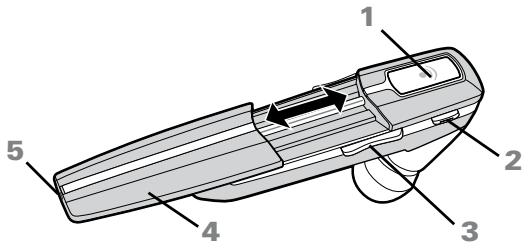
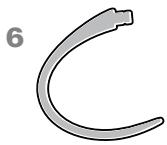
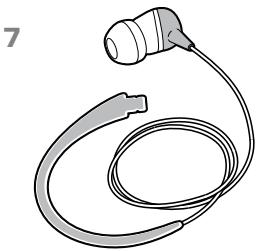
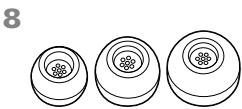
- Call control button (on/off)
- Mute microphone (Pause/Play*)
- Volume up/down (Track forward/back*)
- Extendable boom
- Microphone port
- Ear loop stabilizer
- Stereo plug-in cable
- Noise isolating ear buds (small, medium and large)
-
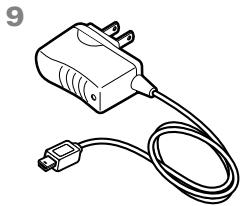
AC charger 100 - 240V
-
Stereo mode only and requires Bluetooth AVRCP (Audio Video Remote Control Profile). See "Stereo Headset Controls" on page 13 for details.
Before you use your headset for the first time, charge it for at least 1 hour. It takes approximately 3 hours to fully charge your headset.
- Connect the charger cable to the headset.
- Plug the charger into a power outlet.
While your headset is charging, the indicator glows red. When your headset is fully charged, the indicator turns off.
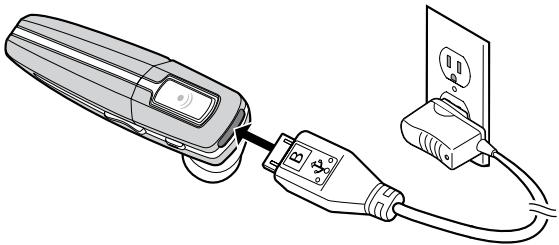
WARNING: Do not use your headset while it is connected to the charger.
CHECK THE CHARGE LEVEL
When your headset is on, simultaneously press and hold the call control button and the volume down button for about two seconds. The indicator flashes red to show the charge level.
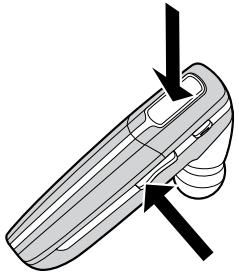
| Red Flashes | Battery Level | |
| 1 | More than 2/3 full | |
| 2 | 1/3 to 2/3 full | |
| 3 | Less than 1/3 full |
Pairing is the process of introducing your headset to your phone. Before using your headset for the first time, you must pair it with your Bluetooth phone. Normally you need to pair your headset with your phone only once. To see a demo of the pairing process, visit www.plantronics.com/easytopair.
QUICKPAIR™ TECHNOLOGY
Your new headset includes Plantronics QuickPair technology to simplify the Bluetooth setup process. The first time you turn your headset on, your headset automatically enters pairing mode for 10 minutes. Once paired successfully, your headset stays on for instant use.
If not successfully paired after 10 minutes, your headset automatically powers off. When you turn the headset on again, it automatically goes into pairing mode until successfully paired with a Bluetooth phone.
To pair your headset for the first time:
- Turn ON the Bluetooth feature on your phone.
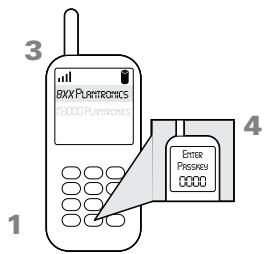
TIP: For most phones, select Settings/Tools > Connections > Bluetooth > On. See your phone's user guide for more information.
- Press and hold the call control button to turn on your headset. (The indicator flashes red/blue to show that the headset is on and in pairing mode.)
TIP: If you don't see the red/blue flash, press and hold the call control button to turn your headset off, and then press and hold the call control button again until you see the red/blue flash.
- Use the commands on your phone to locate your headset.
TIP: For most phones, select Settings/Tools > Connections > Bluetooth > Search > 8XXPlantronics. See your phone's user guide for more information.
- When prompted for the passkey, enter 0000.
When pairing is successful, the red/blue indicator on your headset turns off. Your headset is now connected and ready to use.
SUBSEQUENT PAIRING
If you've already paired your headset with another device, follow these steps:
- Turn ON the Bluetooth feature on your phone.
TIP: For most phones, select Settings/Tools > Connections > Bluetooth > On. See your phone's user guide for more information.
- Turn the headset off by pressing and holding the call control button until the indicator turns red and then turns off.
- Turn the headset back on by pressing and holding the call control button until the indicator flashes red/blue. The headset remains in pairing mode for 3 minutes.
- Use the commands on your phone to locate your headset.
TIP: For most phones, select Settings/Tools > Connections > Bluetooth > Search > 8XXPlantronics. See your phone's user guide for more information.
- When prompted for the passkey, enter 0000.
When pairing is successful, the indicator on your headset turns off. Your headset is now connected and ready to use.
The Plantronics Voyager 855 headset comes with three sizes of sound isolating ear buds. We recommend that you try all three ear buds to find the one that fits snugly in your ear. For added comfort and stability, you can add the optional small or large ear loop stabilizer.
TIPS:
- For optimum performance and a secure and comfortable fit, the headset should sit snugly in your ear canal with the microphone pointing toward the corner of your mouth.
- If the ear bud is too big or too small, the headset may not stay in your ear, or you may have difficulty hearing.
PUT ON THE HEADSET
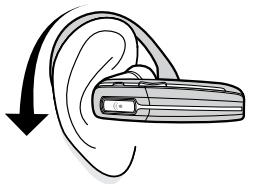
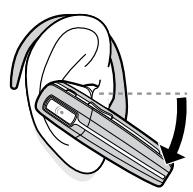
- Hold the headset with the boom pointing directly at your cheekbone and the ear bud placed comfortably in your ear canal.
- Gently twist the headset downward while pressing it into your ear canal.
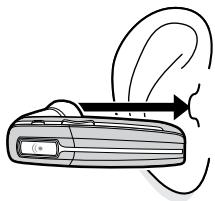
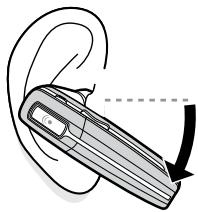
TIP: For optimal voice clarity, point the boom toward the corner of your mouth. The ear bud should be fully seated to the speaker post to ensure secure attachment.
WARNING: Select an ear bud that inserts comfortably in the ear canal. The ear bud should seal but not be forced down the ear canal. If the ear bud becomes lodged in the ear canal, seek medical attention immediately.
CHOOSE AN EAR BUD THAT FITS
When the ear bud fits properly, it should be sealed in your ear so that you feel a slight amount of resistance when you remove the headset from your ear.
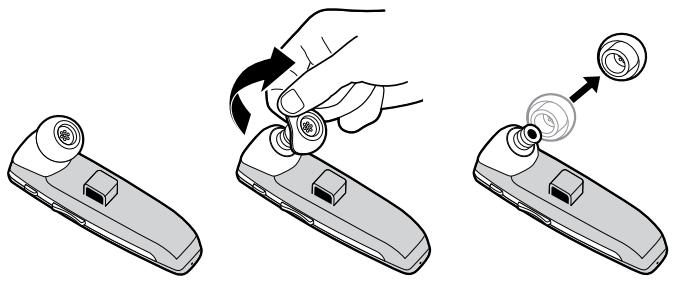
- Remove the headset from your ear.
- Gently twist the ear bud while pulling it off the speaker post.
- Press a different ear bud onto the speaker post with the stem side of the ear bud facing downward.
TIP: Try using different size ear buds on the headset and stereo plug-in cable. Do not assume that you need the same size for both ears.
USE THE STEREO PLUG-IN CABLE
You can use the stereo plug-in cable to listen to music in stereo.
- Insert the ear loop tab on the stereo cable into the slot on the under side of the headset until you feel it click into place.
TIP: You can attach the ear loop on either side of your headset, so that you can wear the headset on your right or left ear.
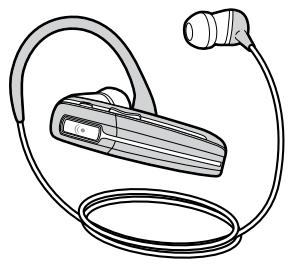
- Drape the stereo plug-in cable across the back of your neck so that the headset hangs over one shoulder and the stereo ear bud hangs over the other shoulder.
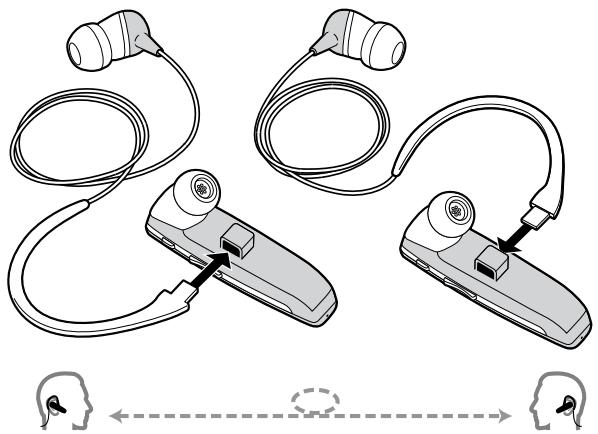
- Guide the loop behind your ear. Gently twist the headset downwards while pressing it into your ear canal.
- Gently press the ear bud on the stereo cable inside your other ear canal.
TIP: To remove the stereo plug-in cable from your headset, gently pull the ear loop straight out of its slot.

USE THE OPTIONAL EAR LOOP STABILIZER
For increased stability, you can attach the optional small or large ear loop stabilizer.
TIP: You can attach the ear loop stabilizer on either side of your headset, so that you can wear the headset on your right or left ear.
- Insert the ear loop tab into the slot on the under side of the headset until you feel it click into place.
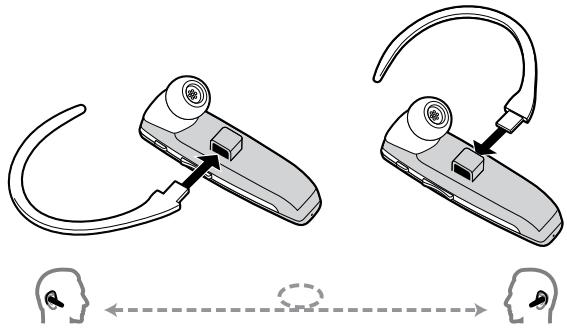
- Guide the loop behind your ear.
- Gently twist headset downward while pressing it into your ear.
TIP: To remove the ear loop stabilizer from your headset, gently pull the ear loop straight out of its slot.
| Action | Steps |
| Turn on the headset | Press and hold the call control button until the indicator glows blue. NOTE: When your headset is in standby mode, the indicator is off. To confirm that your headset is on, press any button or slide the boom out. You should see a blue light flash or hear a tone. |
| Turn off the headset | Press and hold the call control button until the indicator glows red. When the power is off, the indicator stays off. |
| Answer a call | Briefly press the call control button, or slide the boom to the open position. Volume up Volume down |
| End a call | Briefly press the call control button, or slide the boom to the closed position. |
| Make a call | The call automatically transfers to your headset after you enter the number on your phone and press send. |
| Toggle mute on/off | Press the mute button. |
| Turn off the online indicator | Press and hold mute for 2 seconds while the headset is on. Headset will flash blue 4 times. Repeat action to activate online indicators. Headset will flash blue 2 times. |
| Adjust volume | During an active call, press the volume button: Volume up Volume down |
WARNING: Do not use headphones / headsets at high volumes for an extended period of time. Doing so can cause hearing loss. Always listen at moderate levels. See www.plantronics.com/healthandsafety for more information on headsets and hearing.
TIPS
- If you're wearing the headset, you hear ascending tones when the power turns on and descending tones when the power turns off.
- When you receive a call, your phone may ring before your headset rings. Wait until you hear the ring in your headset to press the call control button and answer the call.
- To reject a call and send the caller to voice mail, press the call control button for about 2 seconds.
- If your phone supports voice dialing see "Hands-Free Features" on page 16 and the instructions that came with your phone.
- When mute is on, a low tone plays every 60 seconds.
STEREO HEADSET CONTROLS
For stereo listening, your Bluetooth device must support the Bluetooth Advanced Audio Distribution Profile (A2DP) profile. The A2DP profile defines how Bluetooth devices stream stereo quality audio from one device to another. For example, music streamed from a mobile phone to a wireless headset.
If your Bluetooth device also supports the Audio/Video Remote Control Profile (AVRCP), you can use your headset to control music playback. For example, you can use functions such as pause, stop, next/previous track and volume controls. If your device does not support the AVRCP profile, then you must use the controls on your device to control music playback.
STEREO HEADSET CONTROLS
- Check your Bluetooth device's instruction manual to determine whether your device supports the A2DP and AVRCP profiles.
- Pair your Bluetooth device with your headset. See "Pairing" on page 6 for instructions.
- Open the music player on your Bluetooth device.
- Do any of the following:
| Action | Steps |
| Play/Pause music | Press the mute button. |
| Adjust volume | Press the volume button up/down to adjust the volume level. NOTE: You hear a tone for each volume increase/decrease. When you reach the max/min volume level, you hear a double tone. See “Warning” on page 21. |
| Next track | Press and hold the volume up button for about 2 seconds until you hear a tone indicating that the track has changed. |
| Previous track | Press and hold the volume down button for about 2 seconds until you hear a tone indicating that the track has changed. |
| Answering a call while listening to music | Press the call control button or slide the boom to the open position. NOTE: When you receive a call, the music pauses and the phone rings in your headset. When you end the call, the music resumes. |
| Reject a call while listening to music | Press the call control button for 2 seconds. |
| Action | Light | Tone |
| Charging | Solid red | None |
| Fully charged | None | None |
| Low battery | Triple red flash every 10 seconds | 3 high tones every 10 seconds |
| Pairing | Flashes red and blue | 1 low tone |
| Paired | Flashes blue | 1 low tone |
| Turning on | Solid blue for 2 seconds | Ascending tones |
| Incoming call | 3 blue flashes every 2 seconds | 3 low tones every 2 seconds |
| Standby | None | None |
| Call in progress | 1 blue flash every 2 seconds | None |
| Missed call | 3 purple flashes every 10 seconds | None |
| Out of range | None | 1 high tone |
| Back in range | None | 1 low tone |
| Turning mute on | None | 1 low-high tone |
| Mute is active | None | 1 low tone every 60 seconds |
| Unmute | None | 1 high-low tone |
| Turning off | Solid red for 4 seconds | Descending tones |
NOTE: To turn off the online indicator, see "Headset Controls" on page 12.
RANGE
To maintain a connection, keep your headset within 33 feet (10 meters) of the Bluetooth device. If there are obstacles between your headset and the device you may experience interference. For optimal performance, place your headset and phone on the same side of your body.
As you move out of range, audio quality degrades. When you are far enough away to lose the connection, you hear a high tone in the headset. The headset attempts to reconnect after 30 seconds. If you move back in range later, you can manually reconnect by pressing the call control button.
NOTE: Audio quality is also dependent upon the device with which the headset is paired.
If your phone and your wireless service provider both support hands-free operation, you can use the following features:
| Action | Steps |
| Redial the last number you called | Double-click the call control button. You hear 2 low tones after the second press. |
| Voice activated dialing | When the headset is on, press and hold the call control button for about 2 seconds until you hear 1 low tone. |
| Reject a call | When your headset rings, press and hold the call control button for about 2 seconds until you hear 1 long low tone. |
ADDITIONAL FEATURES
| Action | Steps |
| Transfer a call from your headset to your phone | While a call is in progress, press and hold the call control button until you hear a low tone. |
| Transfer a call from your phone to your headset | While a call is in progress, quickly press and release the call control button. You will then hear a low tone. |
| Enable/Disable online indicators | Press and hold mute for 2 seconds while the headset is on. Headset will flash blue 4 times. Repeat action to activate online indicators. Headset will flash blue 2. |
| Listen to music | • Press the mute button to play or pause the streaming music. • Press and hold the volume up button for about 2 seconds to go to the next track. • Press and hold the volume down button for about 2 seconds to go to the previous track. |
NOTES:
- To listen to stereo music from your headset, your Bluetooth device must support the A2DP Bluetooth profile.
- To control music playback, your Bluetooth device must also support the AVRCP Bluetooth profile.
- When the online indicator is disabled, other indicators, such as low battery and missed call, still function.
AVAILABLE FOR PURCHASE
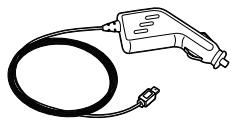
76777-01
Vehicle power charger
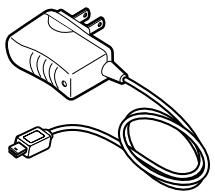
76772-03
AC charger 100-240v
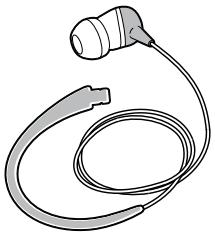
76774-01
Stereo plug in cable
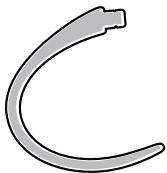
77069-01
76775-01
Ear loop stabilizer (M/L)
Ear loop stabilizer (S)


76776-01
Ear bud replacement pack (S, M, L)
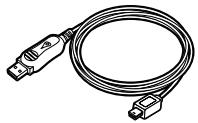
76778-01
USB charging cable
| Problem | Solution |
| My headset does not work with my phone. | Make sure the headset is fully charged and paired with your phone. Headset was not in pairing mode when mobile phone menu selections were made. See “Pairing” on page 6. Incorrect menu selections were made on your mobile phone. See “Pairing” on page 6. |
| My phone did not locate the headset. | Turn both your phone and headset off and on, and then repeat the pairing process on page 6. |
| I could not enter my passkey. | Turn both your phone and headset off and on, and then repeat the pairing process on page 6. |
| I cannot hear caller/dial tone. | The headset is not turned on. Press the call control button for approximately 2 seconds until you hear a tone or see the indicator glow blue. Your headset is out of range. Move the headset closer to the phone or Bluetooth device. See “Range” on page 15. Your headset battery is drained. Charge your battery using the AC charger. See “Charging” on page 5. The listening volume is too low. Press the volume up button to increase the sound you hear in the headset. |
| Audio quality is poor. | Make sure that you have a proper seal on the ear bud. See “Custom Fit” on page 8. |
| I cannot hear music. | For stereo listening, your Bluetooth device must support the Bluetooth Advanced Audio Distribution Profile (A2DP), which defines how Bluetooth devices stream stereo quality audio from one device to another. For example, music streamed from a mobile phone to a wireless headset. |
| Callers cannot hear me. | Mute is turned on. Press the mute button. Your headset is out of range. Move the headset closer to the phone or Bluetooth device. See “Range” on page 15. |
| The ear buds do not fit my ear. | Try a different size ear bud. See “Custom Fit” on page 8. |
| My headset falls out of my ear. | Use the ear loop stabilizer for increased lateral support. See “Custom Fit” on page 8. Try a different size ear bud. For a proper fit, the ear bud should create a seal. When the ear bud fits properly, you feel a slight amount of resistance when you remove the headset from your ear. See “Custom Fit” on page 8. |
| My ear bud needs to be cleaned. | Remove the ear bud from the headset and wash it in warm soapy water and rinse thoroughly. When the ear bud is completely dry, put it back on your headset. |
| Talk time* | battery enables up to 7 hours |
| Stereo listening time* | battery enables up to 6 hours |
| Standby time* | up to 160 hours |
| Range | up to 33 feet (10 meters) |
| Headset weight | 11 grams |
| Headset weight with stereo plug-in cable | 15 grams |
| Battery type | Lithium ion |
| Charge time | 3 hours for full charge |
| Version | Bluetooth 2.0 + EDR (Enhanced Data Rate) |
| Bluetooth profiles: | • Headset profile (HSP) for talking on the phone. • Hands-free profile (HFP) for talking on the phone and operating the phone. • Advanced Audio Distribution Profile (A2DP) for receiving high-quality audio content. • Audio/Video Remote Control Profile (AVRCP) for operating audio/video devices. |
- Performance dependent on battery and may vary by device.
TECHNICAL ASSISTANCE
The Plantronics Technical Assistance Center (TAC) is ready to assist you. Call 866-363-BLUE (2583) or visit us on the Web at www.plantronics.com/support. You can also call the Technical Assistance Center for accessibility information.
LIMITED WARRANTY
This warranty covers defects in materials and workmanship of products manufactured, sold or certified by Plantronics which were purchased and used in the United States.
The warranty lasts for one year from the date of purchase of the products.
This warranty extends to you only if you are the end user with the original purchase receipt.
We will, at our option, repair or replace the products that do not conform to the warranty. We may use functionally equivalent reconditioned/ refurbished/ remanufactured/pre-owned or new products or parts.
To obtain service in the U.S., contact Plantronics at (866) 363-BLUE (2583).
THIS IS PLANTRONICS' COMPLETE WARRANTY FOR THE PRODUCTS.
This warranty gives you specific legal rights, and you may also have other rights that vary from state to state. Please contact your dealer or our service center for the full details of our limited warranty, including items not covered by this limited warranty.
IMPORTANT SAFETY AND OPERATIONAL INFORMATION
Please read the following safety and operational instructions before using your Bluetooth headset. Keep these instructions for future reference.
When using your Bluetooth headset, these basic safety precautions and warnings should be followed to reduce the risk of fire, electric shock, injury to persons and damage to property.
This symbol identifies and alerts the user to the presence of important safety warnings.
WARNING
- CHILDREN. Never allow children to play with the product – small parts may be a choking hazard.
- Check local laws regarding use of a mobile phone and headset while driving. If you use the headset while driving, ensure your attention and focus remain on driving safely.
- Use of a headset that covers both ears will impair your ability to hear other sounds. Use of any such headset whilst operating a motor vehicle or riding a bicycle may cause a serious hazard to you and/or others, and is illegal in some regions.
- Observe all signs that require an electrical device or RF radio product to be switched off in designated areas, such as hospitals, blasting areas, potentially explosive atmospheres and aircraft. On aircraft, obey the airline regulations for use of wireless equipment.
- To reduce the risk of electric shock, explosion or fire use only the supplied charger or Class 2 AC adapter to charge the headset. Ensure that the voltage rating (e.g. 120V , 60Hz ) corresponds to the power supply you intend to use.
- Do not disassemble the AC adapter as this may expose you to dangerous voltages or other risks. Incorrect reassembly can cause electric shock or fire when the product is subsequently used.
- Do not insert anything into the product because this may cause damage to the internal components or cause injury to you.
-
Avoid contact with liquids. Do not locate this product near water, for example, near a bath or sink, in a wet cellar or near a swimming pool.
-
Discontinue use of product and contact Plantronics if the product overheats, has a damaged cord or plug, if the product has been dropped or damaged or if the product has come into contact with liquids.
-
Exposure to high volume sound levels may damage your hearing. Although there is no single volume setting that is appropriate for everyone, you should always use your headset or headphones with the volume set at moderate levels and avoid prolonged exposure to high volume sound levels. The louder the volume, the less time is required before your hearing could be affected. You may experience different sound levels when using your headset or headphones with different devices. The device you use and its settings affect the level of sound you hear. If you experience hearing discomfort, you should stop listening to the device through your headset or headphones. To protect your hearing, some hearing experts suggest that you:
-
Set the volume control in a low position before putting the headset or headphones on your ears.
- Limit the amount of time you use headsets or headphones at high volume.
- Avoid turning up the volume to block out noisy surroundings.
-
Turn the volume down if the sound from the headset or headphones prevents you from hearing people speaking near you. See www.plantronics.com/healthandsafety for more information on headsets and hearing.
-
As with all corded products, there is a danger of strangulation if the cord or lanyard should become wrapped around your neck.

BATTERYWARNINGS
To reduce the risk of fire or injury to persons, read and follow these instructions.
- Charge the headset according to the instructions supplied with the unit.
- Do not expose the battery to high temperatures.
- Do not puncture or otherwise damage the battery. The cell contains corrosive materials which may damage eyes and skin and may be toxic if swallowed.
- Do not short-circuit the battery, as this may result in a sudden rise in temperature.
- Do not incinerate the battery.
- Never put batteries in mouth. If swallowed, contact your doctor or local poison control centre.
- Dispose of or recycle the battery according to local and regional regulatory requirements. Lithium Ion batteries are recyclable. For more information, visit www.rbrc.org.
EXPOSURE TO RADIO FREQUENCY RADIATION
This device and its antenna must not be collocated or operated in conjunction with any other antenna or transmitter. To comply with FCC RF exposure requirements, only use supplied antenna. Any unauthorized modification to the antenna or device could void the user's authority to operate this device.
INDUSTRY CANADA RADIO EQUIPMENT
The term "IC:" before the radio certification number only signifies that Industry Canada technical specifications were met. Operation is subject to the following two conditions: (1) this device may not cause interference, and (2) this device must accept any interference, including interference that may cause undesired operation of the device. "Privacy of communications may not be ensured when using this telephone." This product meets the applicable Industry Canada technical specifications of the RSS210.
TABLE DES MATIÈRES
CHOIX D'UN EMBOUT APPROPRIÉ
© 2007 Plantronics, Inc. All rights reserved. Plantronics, the logo design, Plantronics Voyager, QuickPair, and Sound Innovation are trademarks or registered trademarks of Plantronics, Inc. The Bluetooth® word mark and logos are owned by the Bluetooth SIG, Inc. and any use of such marks by Plantronics, Inc. is under license.
Patents U.S. 5,210,791; 6,903,693 and Patents Pending.
76518-02 (07-07)