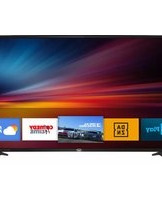
LTV 3210 Smart - Television Trevi - Free user manual and instructions
Find the device manual for free LTV 3210 Smart Trevi in PDF.


Pick your language and provide your email: we'll send you a specifically translated version.
| Product Type | Smart Television |
| Brand | Trevi |
| Model | LTV 3210 Smart |
| Screen Size | 32 inches (81 cm) |
| Resolution | HD Ready (1366 x 768 pixels) |
| Display Technology | LED LCD |
| Smart Platform | Built-in Smart TV with pre-installed apps |
| Connectivity | Wi-Fi, Ethernet, HDMI (2), USB (1), AV input |
| Dimensions (with stand) | Approx. 73.0 x 46.0 x 18.0 cm |
| Weight (with stand) | Approx. 5.5 kg |
| Power Consumption (typical) | 55 W |
| Standby Power Consumption | < 0.5 W |
| Power Supply | AC 100-240V, 50/60Hz |
| Sound Output | 2 x 8W speakers |
| Remote Control | IR remote included |
| Wall Mount Compatibility | VESA 200 x 200 mm |
| Energy Class | F (EU directive) |
| Cleaning Instructions | Wipe with a soft, dry cloth. Do not use liquid cleaners. |
| Safety Features | Child lock, automatic standby after inactivity |
| Spare Parts Availability | Remote control, stand, and power cord available from Trevi service |
Frequently Asked Questions - LTV 3210 Smart Trevi
How do I set up the Trevi LTV 3210 Smart TV for the first time?
After connecting the TV to power and turning it on, follow the on-screen setup wizard. Choose your language, connect to Wi-Fi (or skip), scan for channels, and sign in to your Google account if desired. The TV will guide you through each step.
How do I connect the TV to Wi-Fi?
Go to Settings > Network > Wireless. Select your Wi-Fi network, enter the password, and confirm. The TV will automatically connect.
Why is there no picture on my TV?
Check that the TV is powered on (standby light). Verify all cable connections. Try a different HDMI port or source. If using an external device, ensure it is turned on. If the screen remains black, perform a power cycle: unplug for 30 seconds, then reconnect.
How do I update the firmware on my Trevi LTV 3210?
Go to Settings > About > System Update. The TV will check for updates automatically. If an update is available, follow the prompts to install. Ensure the TV stays connected to power during the update.
Can I install additional apps on this TV?
Yes, the TV has a built-in app store (e.g., Google Play Store or similar). Open the app store from the home screen, search for the app, and install it. Note that some apps may not be compatible with the HD resolution.
How do I reset the TV to factory settings?
Go to Settings > General > Reset (or Factory Reset). Enter your PIN (default 0000) if prompted, and confirm. This will erase all personal data and settings.
What should I do if the TV remote stops working?
Check the batteries and replace if needed. Ensure there are no obstacles between the remote and the TV's IR receiver. If the problem persists, try resetting the remote by removing batteries and pressing any button for 5 seconds, then reinsert batteries.
How do I connect external speakers to the Trevi LTV 3210?
You can connect speakers via the Audio Out (3.5mm jack) or via HDMI ARC if your speakers support it. Go to Settings > Sound to select the output method.
Is the wall mount bracket included?
No, the wall mount bracket is not included in the box. You need to purchase a VESA 200x200 compatible bracket separately. Ensure the wall can support the TV's weight.
How do I clean the TV screen safely?
Turn off the TV and unplug it. Use a soft, dry, lint-free microfiber cloth to gently wipe the screen. Do not use any liquids, alcohol, or abrasive cleaners. Avoid pressing too hard.
User questions about LTV 3210 Smart Trevi
0 question about this device. Answer the ones you know or ask your own.
Ask a new question about this device
No questions yet. Be the first to ask one.
Download the instructions for your Television in PDF format for free! Find your manual LTV 3210 Smart - Trevi and take your electronic device back in hand. On this page are published all the documents necessary for the use of your device. LTV 3210 Smart by Trevi.
USER MANUAL LTV 3210 Smart Trevi

Manual assistant
Powered by Anthropic
Waiting for your message
Product information
Brand : Trevi
Model : LTV 3210 Smart
Category : Television