LB-7 - Label printer Tach-It - Free user manual and instructions
Find the device manual for free LB-7 Tach-It in PDF.


Pick your language and provide your email: we'll send you a specifically translated version.
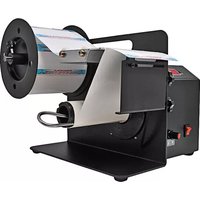
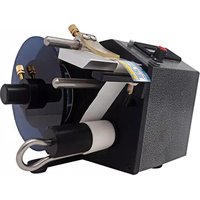
| Product Type | Label Printer |
| Brand | Tach-It |
| Model | LB-7 |
| Print Method | Direct Thermal / Thermal Transfer |
| Print Resolution | 203 dpi |
| Print Speed | Up to 4 inches per second |
| Max Label Width | 2.28 inches (58 mm) |
| Max Label Length | 39 inches (1 m) |
| Connectivity | USB 2.0 |
| Power Supply | AC Adapter, 100-240V, 50/60Hz |
| Dimensions | 7.5 x 4.5 x 3.5 inches |
| Weight | 2.2 lbs (1 kg) |
| Supported Label Types | Continuous, die-cut, fanfold |
| Display | LED status indicators |
| Main Functions | Print barcodes, text, graphics; compatible with label design software |
| Maintenance and Cleaning | Clean print head with isopropyl alcohol swab; wipe exterior with dry cloth |
| Safety | Do not use in wet environment; unplug when not in use |
| Spare Parts and Repairability | Replaceable print head and rollers; contact support for service |
| General Information | Designed for office and light industrial labeling tasks |
Frequently Asked Questions - LB-7 Tach-It
How do I load the label roll into the LB-7?
Open the top cover, release the label holder, insert the roll with labels feeding through the guide, then close the cover. Ensure the label roll is properly aligned.
How to connect the LB-7 to a computer?
Use the included USB cable to connect the printer to your computer. Install the driver from the provided CD or download from the Tach-It website.
What software is required to design labels?
The printer works with label design software like Bartender or NiceLabel. A basic utility is included in the driver package.
How do I clean the print head?
Turn off the printer, open the cover, and gently wipe the print head with a lint-free swab moistened with isopropyl alcohol. Let it dry before use.
Why are my labels printing faintly or not at all?
Check if the label roll is loaded correctly and the print head is clean. Also verify that the correct label type is selected in the software.
Can I print labels from a mobile device?
The LB-7 does not have built-in Bluetooth or Wi-Fi. Use a USB connection to a mobile device with an OTG adapter if your device supports it.
How to update the firmware?
Download the latest firmware from the Tach-It support page. Connect the printer via USB and run the firmware update utility.
What types of labels are compatible?
The printer supports continuous, die-cut, and fanfold labels with a width up to 58 mm. Use genuine Tach-It labels for best results.
How to reset the printer to factory settings?
Turn off the printer. Hold the feed button while turning the power on. Release the button when the LED flashes. The printer will reset.
What is the warranty period for the LB-7?
The Tach-It LB-7 comes with a one-year limited warranty against defects in materials and workmanship. Register your product online for extended support.
User questions about LB-7 Tach-It
0 question about this device. Answer the ones you know or ask your own.
Ask a new question about this device
No questions yet. Be the first to ask one.
Download the instructions for your Label printer in PDF format for free! Find your manual LB-7 - Tach-It and take your electronic device back in hand. On this page are published all the documents necessary for the use of your device. LB-7 by Tach-It.
USER MANUAL LB-7 Tach-It
Manual assistant
Powered by Anthropic
Waiting for your message
Product information
Brand : Tach-It
Model : LB-7
Category : Label printer