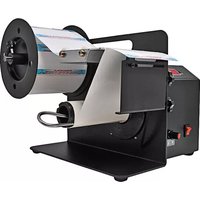
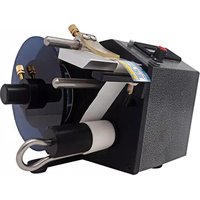
6510-TL - Label printer Tach-It - Free user manual and instructions
Find the device manual for free 6510-TL Tach-It in PDF.


Pick your language and provide your email: we'll send you a specifically translated version.
| Product Type | Label Printer |
| Brand | Tach-It |
| Model | 6510-TL |
| Dimensions (approx.) | 200 x 150 x 100 mm |
| Weight (approx.) | 1 kg |
| Power Supply | DC adapter (input: 100-240V AC, output: 12V DC) |
| Connectivity | USB 2.0 |
| Print Technology | Direct Thermal |
| Resolution | 203 dpi |
| Print Speed | Up to 100 mm/s |
| Max Label Width | 50 mm |
| Max Label Length | Continuous roll |
| Supported Media | Continuous labels, die-cut labels |
| Display | LCD (2 lines) |
| Keypad | Alphanumeric keyboard |
| Barcode Support | Yes (Code 39, Code 128, EAN, etc.) |
| Memory | Store up to 100 label formats |
| Software Compatibility | Windows, macOS (label design software included) |
| Maintenance | Clean print head with alcohol swab after every roll change |
| Safety | CE, FCC certified; use only supplied power adapter |
| Spare Parts | Print head, cutter blade, platen roller |
Frequently Asked Questions - 6510-TL Tach-It
How do I install the Tach-It 6510-TL label printer?
Connect the printer to your computer via USB, install the included software, and load a roll of labels. Follow the setup guide in the manual for detailed steps.
What type of labels can I use with the 6510-TL?
The printer supports direct thermal labels up to 50 mm wide. Both continuous and die-cut labels are compatible.
Why is the printer not turning on?
Check the power adapter connection and ensure the outlet is working. If using batteries, replace them. If the issue persists, contact support.
How do I clean the print head?
Turn off the printer, open the cover, and gently wipe the print head with a cotton swab moistened with isopropyl alcohol. Allow to dry before use.
Can I print barcodes with this printer?
Yes, the 6510-TL supports common barcode symbologies such as Code 39, Code 128, and EAN using the included software.
The labels are printing too light or smudging. What can I do?
Adjust the print darkness setting in the software or printer menu. Also ensure the print head is clean and the label quality is good.
How do I replace the label roll?
Open the top cover, remove the empty core, insert a new roll with the labels feeding from the bottom, and thread the labels under the sensor.
Is the Tach-It 6510-TL compatible with macOS?
Yes, the printer works with macOS (10.12 or later) using the drivers available on the Tach-It website.
What should I do if a label jam occurs?
Turn off the printer, open the cover, and gently remove the jammed label. Check for debris on the rollers. Reload and test.
Where can I find the user manual?
The manual can be downloaded for free from notice-facile.com in PDF format. Visit the product page and click the download button.
User questions about 6510-TL Tach-It
0 question about this device. Answer the ones you know or ask your own.
Ask a new question about this device
No questions yet. Be the first to ask one.
Download the instructions for your Label printer in PDF format for free! Find your manual 6510-TL - Tach-It and take your electronic device back in hand. On this page are published all the documents necessary for the use of your device. 6510-TL by Tach-It.
USER MANUAL 6510-TL Tach-It
Manual assistant
Powered by Anthropic
Waiting for your message
Product information
Brand : Tach-It
Model : 6510-TL
Category : Label printer