
LATITUDE D600 - Laptop DELL - Free user manual and instructions
Find the device manual for free LATITUDE D600 DELL in PDF.



| Product Type | Laptop |
| Brand | Dell |
| Model | Latitude D600 |
| Dimensions (approx.) | 312 x 259 x 32 mm |
| Weight (approx.) | 2.2 kg |
| Power Supply | AC/DC Adapter (65 W) |
| Battery | Lithium-ion 4,460 mAh, battery life 3 to 4 hours |
| Display | 14.1 inches (estimated) |
| Processor | Intel Pentium M (estimated) |
| RAM | Up to 2 GB (estimated) |
| Hard Drive | Variable capacity (estimated) |
| Connectivity | Modem v.92 56K, Ethernet 10/100/1000 |
| Ports | USB, parallel, serial, VGA, audio, RJ-11, RJ-45 |
| Main Functions | Office computing, multimedia, network connectivity |
| Security | Safety instructions, ergonomic precautions, protection against electrostatic discharge |
| Maintenance and Cleaning | Clean the screen with a soft cloth and water; avoid aerosol cleaners |
| Spare parts and repairability | Battery, adapter, memory, hard drive, Mini PCI card, modem |
| Warranty | Limited, duration varies by country |
| General Information | Dell Latitude D-series professional laptop |
Frequently Asked Questions - LATITUDE D600 DELL
User questions about LATITUDE D600 DELL
0 question about this device. Answer the ones you know or ask your own.
Ask a new question about this device
Download the instructions for your Laptop in PDF format for free! Find your manual LATITUDE D600 - DELL and take your electronic device back in hand. On this page are published all the documents necessary for the use of your device. LATITUDE D600 by DELL.
USER MANUAL LATITUDE D600 DELL
System Information Guide
Notes, Notices, and Cautions

NOTE: A NOTE indicates important information that helps you make better use of your computer.

NOTICE: A NOTICE indicates either potential damage to hardware or loss of data and tells you how to avoid the problem.

CAUTION: A CAUTION indicates a potential for property damage, personal injury, or death.
Abbreviations and Acronyms
For a complete list of abbreviations and acronyms, see the User's Guide (depending on your operating system, double-click the User's Guide icon on your desktop, or click the Start button, click Help and Support Center, and then click User and system guides).
If you purchased a Dell™ n Series computer, any references in this document to Microsoft® Windows® operating systems are not applicable.
Information in this document is subject to change without notice. © 2002 Dell Computer Corporation. All rights reserved.
Reproduction in any manner whatsoever without the written permission of Dell Computer Corporation is strictly forbidden.
Trademarks used in this text: Dell, the DELL logo, Inspiron, Dell Precision, Dimension, OptiPlex, and Latitude are trademarks of Dell Computer Corporation; Intel, Pentium, and Celeron are registered trademarks of Intel Corporation; Microsoft and Windows are registered trademarks of Microsoft Corporation; EMC is a registered trademark of EMC Corporation.
Other trademarks and trade names may be used in this document to refer to either the entities claiming the marks and names or their products. Dell Computer Corporation disclaims any proprietary interest in trademarks and trade names other than its own.
Contents
CAUTION: Safety Instructions 5
General 5
Power 6
Battery 7
Air Travel 8
EMC Instructions 8
California Residents 8
When Using Your Computer 9
Ergonomic Computing Habits 10
When Working Inside Your Computer 10
Protecting Against Electrostatic Discharge 11
Battery Disposal 11
Finding Information for Your Computer 12
Setting Up Your Computer 13
About Your Computer 15
Front View 16
Left View 17
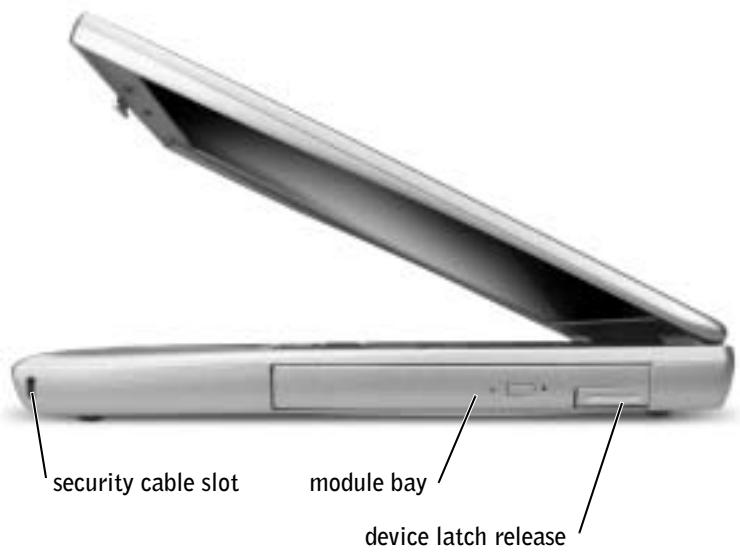
Right View 18
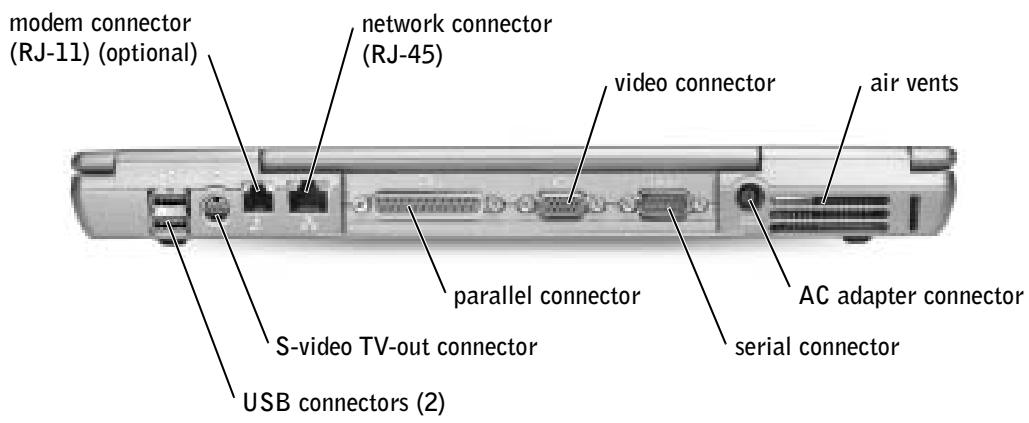
Back View 19
Bottom View 20
Removing a Battery 21
Removing and Installing a Reserve Battery 22
Installing a Battery 24
Running the Dell Diagnostics 25
Regulatory Notices 28
Limited Warranty for the U.S. 29
"Total Satisfaction" Return Policy (U.S. Only) 32
Limited Warranty Terms for Canada 33
"Total Satisfaction" Return Policy (Canada Only) 36
Dell Software and Peripherals (Canada Only). 37
One-Year End-User Manufacturer Guarantee (Latin America and the Caribbean Only) 38
Intel® Warranty Statement for Pentium® and Celeron® Processors Only (U.S. and Canada Only) 39

CAUTION: Safety Instructions
Use the following safety guidelines to help ensure your own personal safety and to help protect your computer and working environment from potential damage.
General
- Do not attempt to service the computer yourself unless you are a trained service technician. Always follow installation instructions closely.
- If you use an extension power cable with your AC adapter, ensure that the total ampere rating of the products plugged in to the extension power cable does not exceed the ampere rating of the extension cable.
- Do not push objects into air vents or openings of your computer. Doing so can cause fire or electric shock by shorting out interior components.
- Do not store your computer in a low-airflow environment, such as a carrying case or a closed briefcase, while the computer is turned on. Restricting airflow can damage the computer or cause a fire.
- Keep your computer away from radiators and heat sources. Also, do not block cooling vents. Avoid placing loose papers underneath your computer; do not place your computer in a closed-in wall unit or on a bed, sofa, or rug.
- Place the AC adapter in a ventilated area, such as a desk top or on the floor, when you use it to run the computer or to charge the battery. Do not cover the AC adapter with papers or other items that will reduce cooling; also, do not use the AC adapter inside a carrying case.
- The AC adapter may become hot during normal operation of your computer. Use care when handling the adapter during or immediately after operation.
- Do not allow your portable computer to operate with the base resting directly on exposed skin for extended periods of time. The surface temperature of the base will rise during normal operation (particularly when AC power is present). Allowing sustained contact with exposed skin can cause discomfort or, eventually, a burn.
- Do not use your computer in a wet environment, for example, near a bath tub, sink, or swimming pool or in a wet basement
- If your computer includes an integrated or optional (PC Card) modem, disconnect the modem cable if an electrical storm is approaching to avoid the remote risk of electric shock from lightning via the telephone line.
CAUTION: Safety Instructions (continued)
- To help avoid the potential hazard of electric shock, do not connect or disconnect any cables or perform maintenance or reconfiguration of this product during an electrical storm. Do not use your computer during an electrical storm unless all cables have been disconnected and the computer is operating on battery power.
- If your computer includes a modem, the cable used with the modem should be manufactured with a minimum wire size of 26 American wire gauge (AWG) and an FCC-compliant RJ-11 modular plug.
- Before you open the memory module/Mini PCI card/modem cover on the bottom of your computer, disconnect all cables from their electrical outlets and disconnect the telephone cable.
- If your computer has a modem RJ-11 connector and a network RJ-45 connector, insert the telephone cable into the RJ-11 connector, not the RJ-45 connector.
- PC Cards may become very warm during normal operation. Use care when removing PC Cards after their continuous operation.
- Before you clean your computer, disconnect the computer from the electrical outlet. Clean your computer with a soft cloth dampened with water. Do not use liquid or aerosol cleaners, which may contain flammable substances.
Power
- Use only the Dell-provided AC adapter approved for use with this computer. Use of another AC adapter may cause a fire or explosion.
- Before you connect the computer to an electrical outlet, check the AC adapter voltage rating to ensure that the required voltage and frequency match the available power source.
- To remove the computer from all power sources, turn the computer off, remove the battery pack, and disconnect the AC adapter from the electrical outlet.
- To help prevent electric shock, plug the AC adapter and device power cables into properly grounded power sources. These power cables may be equipped with 3-prong plugs to provide an earth grounding connection. Do not use adapter plugs or remove the grounding prong from the power cable plug. If you use a power extension cable, use the appropriate type, 2-prong or 3-prong, to mate with the AC adapter power cable.

CAUTION: Safety Instructions (continued)
- Be sure that nothing rests on your AC adapter's power cable and that the cable is not located where it can be tripped over or stepped on.
- If you are using a multiple-outlet power strip, use caution when plugging the AC adapter's power cable into the power strip. Some power strips may allow you to insert the plug incorrectly. Incorrect insertion of the power plug could result in permanent damage to your computer, as well as risk of electric shock and/or fire. Ensure that the ground prong of the power plug is inserted into the mating ground contact of the power strip.
Battery
- Use only Dell™ battery modules that are approved for use with this computer. Use of other types may increase the risk of fire or explosion.
- Do not carry a battery pack in your pocket, purse, or other container where metal objects (such as car keys or paper clips) could short-circuit the battery terminals. The resulting excessive current flow can cause extremely high temperatures and may result in damage to the battery pack or cause fire or burns.
- The battery poses a burn hazard if you handle it improperly. Do not disassemble it. Handle a damaged or leaking battery pack with extreme care. If the battery is damaged, electrolyte may leak from the cells and may cause personal injury.
- Keep the battery away from children.
- Do not store or leave your computer or battery pack near a heat source such as a radiator, fireplace, stove, electric heater, or other heat-generating appliance or otherwise expose it to temperatures in excess of 60^ (140^) . When heated to excessive temperatures, battery cells could explode or vent, posing a risk of fire.
- Do not dispose of your computer's battery in a fire or with normal household waste. Battery cells may explode. Discard a used battery according to the manufacturer's instructions or contact your local waste disposal agency for disposal instructions. Dispos of a spent or damaged battery promptly.
CAUTION: Safety Instructions (continued)
Air Travel
-
Certain Federal Aviation Administration regulations and/or airline-specific restrictions may apply to the operation of your Dell computer while you are on board an aircraft. For example, such regulations/restrictions may prohibit the use of any personal electronic device (PED) that has the capacity for intentional transmission of radio frequency or other electromagnetic signals while on an aircraft.
-
In order to best comply with all such restrictions, if your Dell portable computer is equipped with Dell TrueMobile™ or some other wireless communication device,
press Fn F2 to disable this device before you board the aircraft and follow all instructions provided by airline personnel with regard to such device.
- Additionally, the use of any PED, such as a portable computer, may be prohibited in aircraft during certain critical phases of flight, for example, takeoff and landing. Some airlines may further define the critical flight phase as any time the aircraft is below 3050m (10,000 ft). Please follow the airline's specific instructions as to when the use of a PED is allowed.
EMC Instructions
Use shielded signal cables to ensure that you maintain the appropriate EMC classification for the intended environment. For parallel printers, a cable is available from Dell. If you prefer, you can order a cable from Dell at its worldwide website at www.dell.com.
Static electricity can harm electronic components inside your computer. To prevent static damage, discharge static electricity from your body before you touch any of your computer's electronic components, such as a memory module. You can do so by touching an unpainted metal surface on the computer's input/output panel.
California Residents
WARNING: Handling the cord on this product, or cords associated with accessories sold with this product, will expose you to lead, a chemical known to the State of California to cause birth defects or other reproductive harm. Wash your hands after handling the cord.
When Using Your Computer
Observe the following safe-handling guidelines to prevent damage to your computer:
- When setting up the computer for work, place it on a level surface.
- When traveling, do not check the computer as baggage. You can put your computer through an X-ray security machine, but never put your computer through a metal detector. If you have the computer checked by hand, be sure to have a charged battery available in case you are asked to turn on the computer.
- When traveling with the hard drive removed from the computer, wrap the drive in a nonconducting material, such as cloth or paper. If you have the drive checked by hand, be ready to install the drive in the computer. You can put the hard drive through an X-ray security machine, but never put the drive through a metal detector.
- When traveling, do not place the computer in overhead storage compartments where it could slide around. Do not drop your computer or subject it to other mechanical shocks.
- Protect your computer, battery, and hard drive from environmental hazards such as dirt, dust, food, liquids, temperature extremes, and overexposure to sunlight.
- When you move your computer between environments with very different temperature and/or humidity ranges, condensation may form on or within the computer. To avoid damaging the computer, allow sufficient time for the moisture to evaporate before using the computer.

NOTICE: When taking the computer from low-temperature conditions into a warmer environment or from high-temperature conditions into a cooler environment, allow the computer to acclimate to room temperature before turning on power.
- When you disconnect a cable, pull on its connector or on its strain-relief loop, not on the cable itself. As you pull out the connector, keep it evenly aligned to avoid bending any connector pins. Also, before you connect a cable make sure both connectors are correctly oriented and aligned.
- Handle components with care. Hold a component such as a memory module by its edges, not its pins.
- When preparing to remove a memory module from the system board or disconnect a device from the computer, turn off the computer, disconnect the AC adapter cable, and then wait 5 seconds before proceeding to help avoid possible damage to the system board.
When Using Your Computer (continued)
- Clean the display with a soft, clean cloth and water. Apply the water to the cloth; then stroke the cloth across the display in one direction, moving from the top of the display to the bottom. Remove moisture from the display quickly and keep the display dry. Long-term exposure to moisture can damage the display. Do not use a commercial window cleaner to clean your display.
- If your computer gets wet or is damaged, follow the procedures described in "Solving Problems" in your User's Guide. If, after following these procedures, you confirm that your computer is not operating properly, contact Dell (see "Getting Help" in your User's Guide for the appropriate contact information).
Ergonomic Computing Habits
CAUTION: Improper or prolonged keyboard use may result in injury.
CAUTION: Viewing the display or external monitor screen for extended periods of time may result in eye strain.
For comfort and efficiency, observe the ergonomic guidelines in the Appendix of your online User's Guide when setting up and using your computer.
This portable computer is not designed for continuous operation as office equipment. For extended use in an office, it is recommended that you connect an external keyboard.
When Working Inside Your Computer
Before removing or installing memory modules, Mini PCI cards, or modems, perform the following steps in the sequence indicated.
NOTICE: The only time you should ever access the inside of your computer is when you are installing memory modules, a Mini PCI card, or a modem.
NOTICE: Wait 5 seconds after turning off the computer before disconnecting a device or removing a memory module, Mini PCI card, or modem to help prevent possible damage to the system board.
1 Shut down your computer and turn off any attached devices.
2 Disconnect your computer and devices from electrical outlets to reduce the potential for personal injury or shock. Also, disconnect any telephone or telecommunication lines from the computer.
3 Remove the main battery from the battery bay and, if necessary, the second battery from the module bay.
When Using Your Computer (continued)
4 Ground yourself by touching the unpainted metal surface of the I/O panel on the back of the computer.
While you work, periodically touch the I/O panel to dissipate any static electricity that might harm internal components.
Protecting Against Electrostatic Discharge
Static electricity can harm electronic components inside your computer. To prevent static damage, discharge static electricity from your body before you touch any of your computer's electronic components, such as a memory module. You can do so by touching an unpainted metal surface on the computer's I/O panel.
As you continue to work inside the computer, periodically touch an I/O connector to remove any static charge your body may have accumulated.
You can also take the following steps to prevent damage from electrostatic discharge (ESD):
- When unpacking a static-sensitive component from its shipping carton, do not remove the component from the antistatic packing material until you are ready to install the component. Just before unwrapping the antistatic packaging, be sure to discharge static electricity from your body.
- When transporting a sensitive component, first place it in an antistatic container or packaging.
- Handle all sensitive components in a static-safe area. If possible, use antistatic floor pads and workbench pads.

Battery Disposal
Your computer uses a lithium-ion battery. For instructions about replacing the lithium-ion battery in your computer, see "Removing a Battery" later in this document and "Using a Battery" in your online User's Guide.
Do not dispose of the battery along with household waste. Contact your local waste disposal agency for the address of the nearest battery deposit site.
Finding Information for Your Computer
| What are you looking for? | Find It Here |
| ·A diagnostic program for my computer | Drivers and Utilities CD (also known as the ResourceCD) |
| ·Drivers for my computer | Documentation and drivers are already installed on your computer when shipped from Dell. You can use the CD to reinstall drivers, run the Dell Diagnostics, or access your documentation. |
| ·My computer documentation | Readme files may be included on your CD to provide last-minute updates about technical changes to your computer or advanced technical-reference material for experienced users or technicians. |
| ·My device documentation | |
| ·Express Service Code and Service Tag | Express Service Code and Product Key |
| ·Microsoft®Windows®License Label | These labels are located on your computer. |
| ·Latest drivers for my computer | Dell Support Website |
| ·Answers to technical service and support questions | The Dell Support website provides several online tools, including: |
| ·Online discussions with other users and technical support | ·Solutions — Troubleshooting hints and tips, articles from technicians, and online courses |
| ·Documentation for my computer | ·Community Forum — Online discussion with other Dell customers |
| ·Upgrades — Upgrade information for components, such as memory, the hard drive, and the operating system | |
| ·Customer Care — Contact information, order status, warranty, and repair information | |
| ·Downloads — Drivers, patches, and software updates | |
| ·Reference — Computer documentation, product specifications, and white papers | |
| • How to use Windows XP • Documentation for my computer • Documentation for devices (such as a modem) | Windows Help and Support Center 1 Click the Start button and click Help and Support. 2 Type a word or phrase that describes your problem and click the arrow icon. 3 Click the topic that describes your problem. 4 Follow the instructions on the screen. |
| • How to reinstall my operating system | Operating System CD If you reinstall your operating system, use the Drivers and Utilities CD to reinstall drivers for the devices that came with your computer. The product key for your operating system is located on your computer. |
Setting Up Your Computer
1 Unpack the accessories box.
2 Set aside the contents of the accessories box, which you will need to complete the setup of your computer.
The accessories box also contains user documentation and any software or additional hardware (such as PC Cards, drives, or batteries) you have ordered.
3 Connect the AC adapter to the AC adapter connector and to the electrical outlet.

NOTICE: When you turn on your computer, you might receive a message stating that you need to shut down your computer and upgrade your computer memory. If this message appears, see your User's Guide on the Dell Support website (support.dell.com) for instructions about upgrading your computer memory.

NOTE: Do not dock the computer until it has been turned on and shut down at least once.
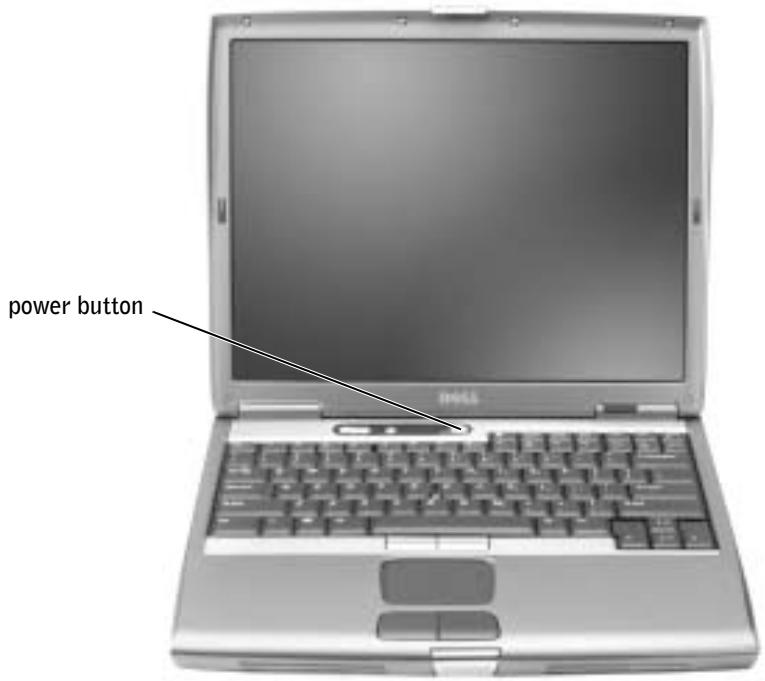
4 Open the computer display and press the power button to turn on the computer.
About Your Computer
See your online User's Guide for detailed information about the computer. Depending on your operating system, double-click the User's Guide icon on your desktop, or click the Start button, click Help and Support Center, and then click User and system guides. The following items address some of the more commonly asked questions about the computer.
- Modem and network adapter: The computer may include both a v.92 56K modem and a 10/100/1000 Ethernet LOM network adapter. For connector locations, see "Right View" later in this document. For more information on ports and connectors, see "About Your Computer" in your online User's Guide.
- Battery life and usage: Various batteries are available for use with your computer. Using the 4460-mAh battery that comes standard with the computer, you can expect from 3 to 4 hours of operating time from a single fully charged battery with average usage. Performing certain types of operations, such as extended wireless operation, can significantly reduce battery life.
- For more information on battery performance, usage, and conserving power, see "Using a Battery" and "Power Management" in the User's Guide.
- For information on an optional second battery, see "Using the Module Bay" in the User's Guide.
- Module bay devices: For information on the module bay and the devices it supports, see "Using the Module Bay" in the User's Guide.
- Docking devices: Your computer supports the Dell D/Dock Expansion Station and the Dell D/Port Advanced Port Replicator.
- For information on your optional docking device, see the documentation that accompanied the device.
- For information on obtaining optimal performance when using a docking device with this computer, see "Solving Problems" in the User's Guide.

NOTE: Docking devices may not be available in all countries.
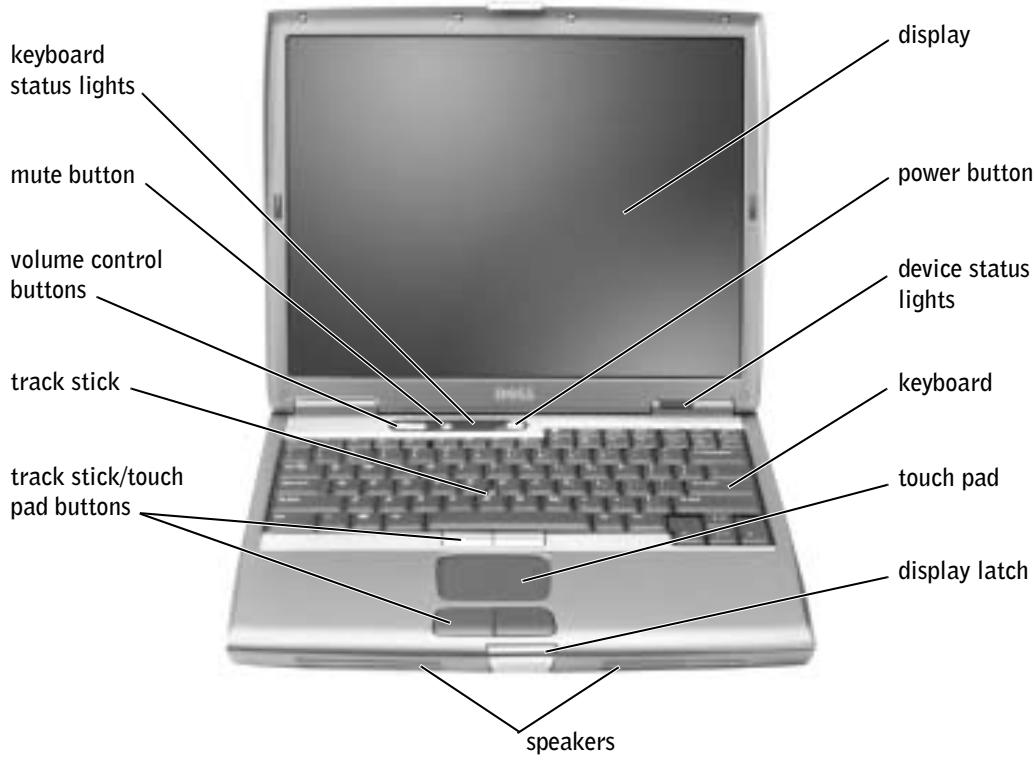
Front View
Left View
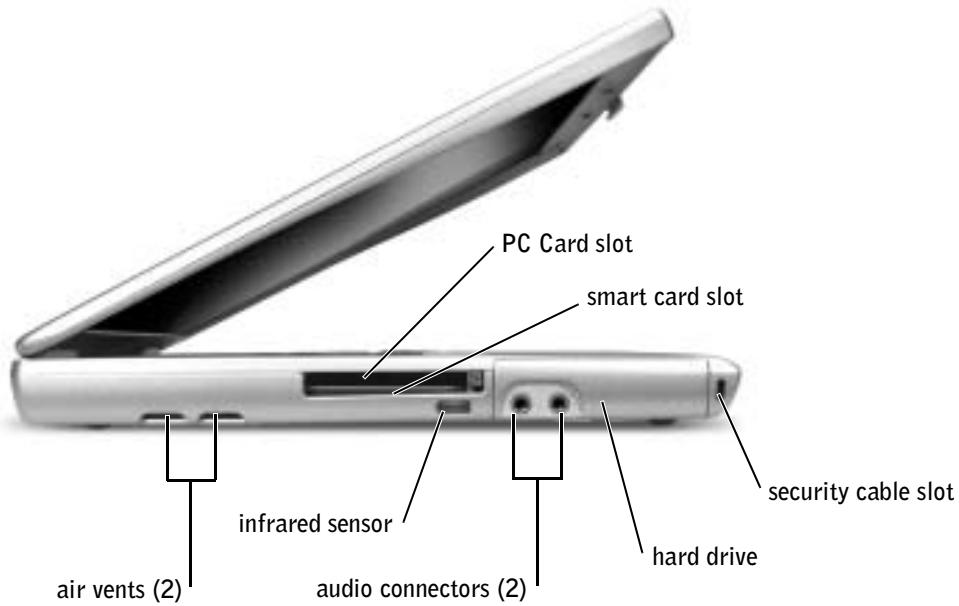
Right View
Back View

NOTICE: To avoid damaging the computer, wait 5 seconds after turning off the computer before you disconnect an external device.

CAUTION: Do not block, push objects into, or allow dust to accumulate in the air vents. Do not store your computer in a low-airflow environment, such as a closed briefcase, while it is running. Restricting the airflow can damage the computer or cause a fire.
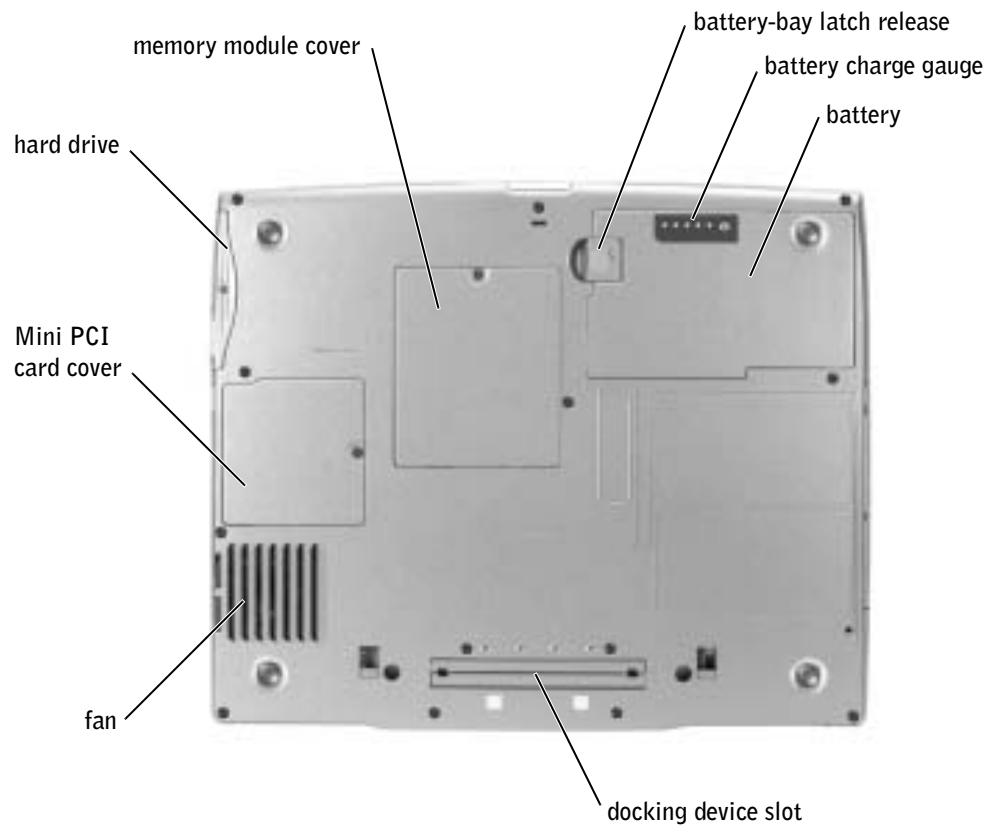
Bottom View
Removing a Battery
For more information about removing the second battery, see "Using the Module Bay" in your online User's Guide.

CAUTION: Before performing these procedures, turn off the computer, disconnect it from the electrical outlet, and disconnect the modem from the telephone wall jack.

NOTICE: If you choose to replace the battery with the computer in standby mode, you have up to 90 seconds to complete the battery replacement before the computer shuts down and loses any unsaved data.
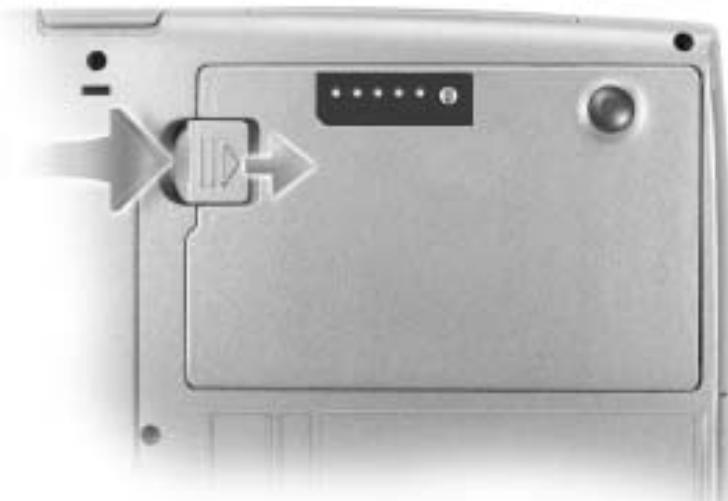
1 Ensure that the computer is turned off, disconnected from an electrical outlet, and disconnected from the telephone wall jack.
2 If the computer is connected to a docking device ( docked), undock it. See the documentation that came with your docking device for instructions.
3 Slide and hold the battery-bay latch release on the bottom of the computer, and then remove the battery from the bay.
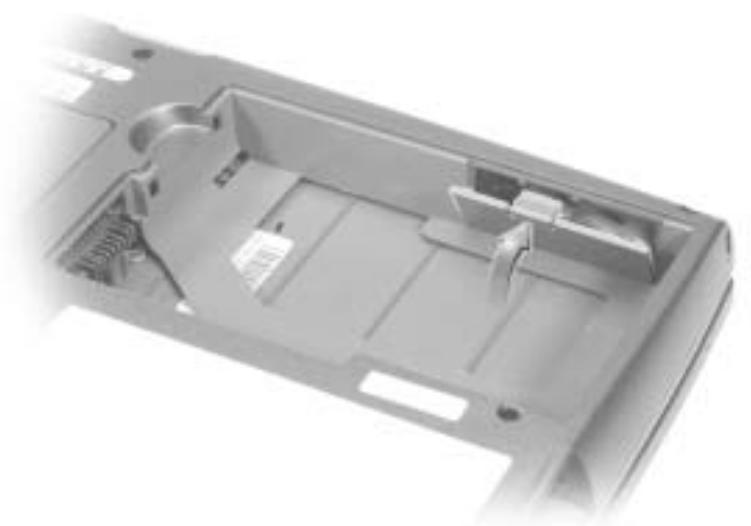
Removing and Installing a Reserve Battery
1 Remove the battery.
2 Remove the reserve battery cover.
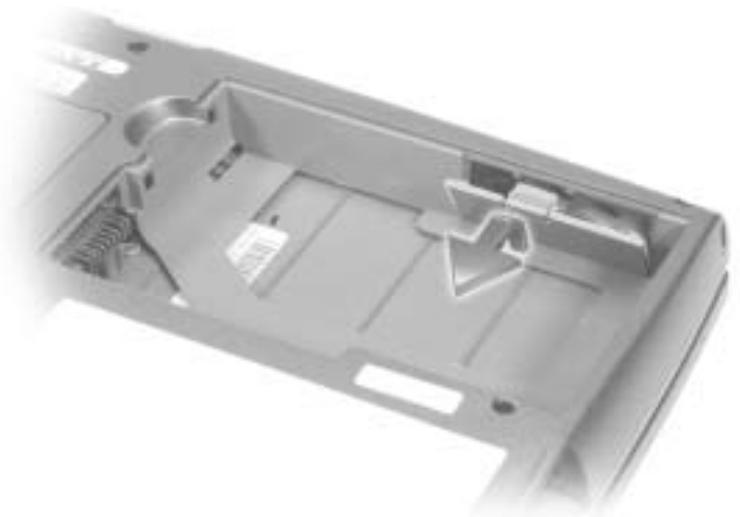
3 Pull the reserve battery out of its compartment, and disconnect the cable from the connector.
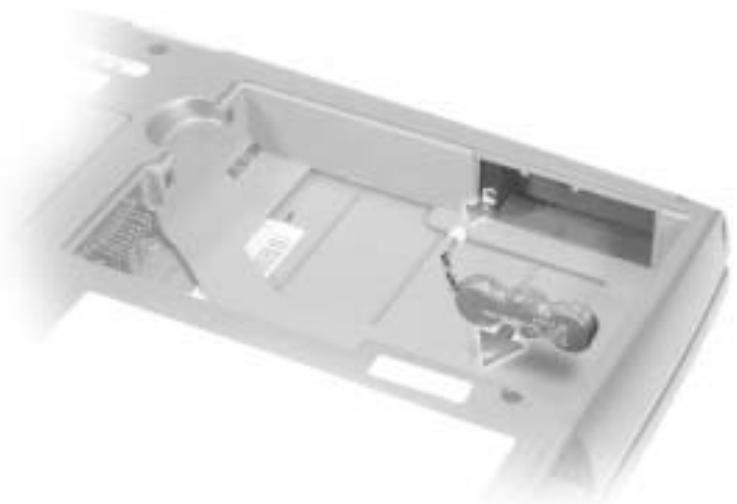
4 Connect the reserve battery cable to the connector in the reserve battery compartment.
5 Place the reserve battery in the compartment, and replace the reserve battery cover.
Installing a Battery
Slide the battery into the bay until the latch release clicks.
For more information about installing the second battery, see "Using the Module Bay" in your online User's Guide.
Running the Dell Diagnostics
The Dell Diagnostics is located on a hidden Diagnostic utility partition on your hard drive.
1 Shut down the computer.
2 If the computer is connected to a docking device ( docked), undock it. See the documentation that came with your docking device for instructions.
3 Connect the computer to an electrical outlet.
4 Turn on the computer. When the DELL™ logo appears, press F12 immediately. If you wait too long and the Microsoft® Windows® logo appears, continue to wait until you see the Windows desktop. Then shut down your computer and try again.
5 When the boot device list appears, highlight Diagnostics and press
Enter
The computer begins to run the Pre-boot System Assessment, a series of embedded diagnostics that perform initial testing on your system board, keyboard, hard drive, and display.
During the assessment, answer any questions that appear.
- If a component failure is detected, the computer stops and beeps. To stop the assessment and reboot to the operating system, press ; to continue to the next test, press ; to retest the component that failed, press .
- If failures are detected during the Pre-boot System Assessment, write down the error code(s) and contact Dell (see "Getting Help" in your User's Guide for the appropriate contact information) before continuing on to the Dell Diagnostics.
- If you receive a message stating that no Diagnostics utility partition has been found, follow the instructions on the screen to run the Dell Diagnostics from your Drivers and Utilities CD.
If the Pre-boot System Assessment completes successfully, you receive the message Booting Dell Diagnostic Utility Partition. Press any key to continue.

NOTE: If your computer cannot display a screen image, contact Dell (see "Getting Help" in your User's Guide for the appropriate contact information).

NOTE: If you cannot see anything on your display, you can hold down the mute button and press the power button (instead of F12) to begin the Dell Diagnostics. You do not need to highlight Diagnostics and press

computer automatically runs the Pre-boot System Assessment.

NOTE: The service tag for your computer is located in the title bar of each screen.
6 Press any key to start the Dell Diagnostics from the Diagnostics utility partition on your hard drive.
7 After the Dell Diagnostics loads and the Main Menu screen appears, click the button for the option you want.
| Option | Function |
| Express Test | Performs a quick test of devices. The test typically takes 10 to 20 minutes and requires no interaction on your part. Run Express Test first to increase the possibility of tracing the problem quickly. |
| Extended Test | Performs a thorough check of devices. The test typically takes 1 hour or more and requires you to answer questions periodically. |
| Custom Test | Tests a specific device. You can customize the tests to be run. |
| Symptom Tree | Allows you to select tests based on a symptom of the problem you are experiencing. The option lists the most common symptoms. |
8 If a problem is encountered during a test, a message appears, displaying the error code and a description of the problem. Write down the error code and problem description and follow the instructions on the screen. If you cannot resolve the error condition, contact Dell (see "Getting Help" in your User's Guide for the appropriate contact information).
9 If you run a test from the Custom Test or Symptom Tree option, click the applicable tab described in the following table for more information.
| Tab | Function |
| Results | Displays the results of the test and any error conditions encountered. |
| Errors | Displays error conditions encountered, error codes, and problem description. |
| Help | Describes the test and may indicate requirements for running the test. |
| Configuration | Displays your hardware configuration for the selected device. The Dell Diagnostics obtains your configuration information for all devices from the system setup program, memory, and various internal tests and displays the information in the device list in the left pane of the screen. The device list may not display the names of all the components installed on your computer or all devices attached to your computer. |
| Parameters | Allows you to customize the test by changing the test settings. |
10 When you have finished running a test, close the screen to return to the Main Menu screen. To exit the Dell Diagnostics and reboot the computer, close the Main Menu screen.
Regulatory Notices
Electromagnetic Interference (EMI) is any signal or emission, radiated in free space or conducted along power or signal leads, that endangers the functioning of a radio navigation or other safety service or seriously degrades, obstructs, or repeatedly interrupts a licensed radio communications service. Radio communications services include but are not limited to AM/FM commercial broadcast, television, cellular services, radar, air-traffic control, pager, and Personal Communication Services (PCS). These licensed services, along with unintentional radiators such as digital devices, including computers, contribute to the electromagnetic environment.
Electromagnetic Compatibility (EMC) is the ability of items of electronic equipment to function properly together in the electronic environment. While this computer has been designed and determined to be compliant with regulatory agency limits for EMI, there is no guarantee that interference will not occur in a particular installation. If this equipment does cause interference with radio communications services, which can be determined by turning the equipment off and on, you are encouraged to try to correct the interference by one or more of the following measures:
Reorient the receiving antenna.
Relocate the computer with respect to the receiver.
- Move the computer away from the receiver.
- Plug the computer into a different outlet so that the computer and the receiver are on different branch circuits.
If necessary, consult a Dell Technical Support representative or an experienced radio/television technician for additional suggestions.
For additional regulatory information, see "Regulatory Notices" in the Appendix of your online User's Guide. The sections specific to each regulatory agency provide country-specific EMC/EMI or product safety information.
Limited Warranties and Return Policy
Dell-branded hardware products purchased in the U.S. or Canada come with either a 90-day (U.S. only), one-year, two-year, three-year, or four-year limited warranty. To determine which warranty you purchased, see the invoice that accompanied your hardware product(s). The following sections describe the limited warranties and return policy for the U.S., the limited warranties and return policy for Canada, and the manufacturer guarantee for Latin America and the Caribbean.
Limited Warranty for the U.S.
What is covered by this limited warranty?
This limited warranty covers defects in materials and workmanship in your—our end-user customer's—Dell-branded hardware products, including Dell-branded peripheral products.
What is not covered by this limited warranty?
This limited warranty does not cover:
- Software, including the operating system and software added to the Dell-branded hardware products through our factory-integration system, third-party software, or the reloading of software
Non-Dell-branded products and accessories - Problems that result from:
External causes such as accident, abuse, misuse, or problems with electrical power
Servicing not authorized by us
Usage that is not in accordance with product instructions
- Failure to follow the product instructions or failure to perform preventive maintenance
- Problems caused by using accessories, parts, or components not supplied by us
- Products with missing or altered service tags or serial numbers
- Products for which we have not received payment
THIS WARRANTY GIVES YOU SPECIFIC LEGAL RIGHTS, AND YOU MAY ALSO HAVE OTHER RIGHTS WHICH VARY FROM STATE TO STATE (OR JURISDICTION TO JURISDICTION). DELL'S RESPONSIBILITY FOR MALFUNCITONS AND DEFECTS IN HARDWARE IS LIMITED TO REPAIR AND REPLACEMENT AS SET FORTH IN THIS WARRANTY STATEMENT. ALL EXPRESS AND IMPLIED WARRANTYES FOR THE PRODUCT, INCLUDING BUT NOT LIMITED TO ANY IMPLIED WARRANTYES AND CONDITIONS OF MERCHANTABILITY AND FITNESS FOR A PARTICULAR PURPOSE, ARE LIMITED IN TIME TO THE TERM OF THE LIMITED WARRANTY PERIOD REFLECTED ON YOUR INVOICE. NO WARRANTYES, WHETHER EXPRESS OR IMPLIED, WILL APPLY AFTER THE LIMITED WARRANTY PERIOD HAS EXPIRED. SOME STATES DO NOT ALLOW LIMITATIONS ON HOW LONG AN IMPLIED WARRANTY LASTS, SO THIS LIMITATION MAY NOT APPLY TO YOU.
WE DO NOT ACCEPT LIABILITY BEYOND THE REMEDIES PROVIDED FOR IN THIS LIMITED WARRANTY OR FOR CONSEQUENTIAL OR INCIDENTAL DAMAGES, INCLUDING, WITHOUT LIMITATION, ANY LIABILITY FOR THIRD PARTY CLAIMS AGAINST YOU FOR DAMAGES, FOR PRODUCTS NOT BEING AVAILABLE FOR USE, OR FOR LOST DATA OR LOST SOFTWARE. OUR LIABILITY WILL BE NO MORE THAN THE AMOUNT YOU PAID FOR THE PRODUCT THAT IS THE SUBJECT OF A CLAIM. THIS IS THE MAXIMUM AMOUNT FOR WHICH WE ARE RESPONSIBLE.
SOME STATES DO NOT ALLOW THE EXCLUSION OR LIMITATION OF INCIDENTAL OR CONSEQUENTIAL DAMAGES, SO THE ABOVE LIMITATION OR EXCLUSION MAY NOT APPLY TO YOU.
How long does this limited warranty last?
This limited warranty lasts for the time period indicated on your invoice, except that the limited warranty on Dell-branded batteries lasts only one year and the limited warranty on the lamps for Dell-branded projectors lasts only ninety days. The limited warranty begins on the date of the invoice. The warranty period is not extended if we repair or replace a warranted product or any parts. Dell may change the availability of limited warranties, at its discretion, but any changes will not be retroactive.
What do I do if I need warranty service?
Before the warranty expires, please call us at the relevant number listed in the following table. Please also have your Dell service tag number or order number available.
| Individual Home Consumers: | |
| Technical Support | 1-800-624-9896 |
| Customer Service | 1-800-624-9897 |
| Individual Home Consumers who purchased through an Employee Purchase Program: | |
| Technical Support and Customer Service | 1-800-822-8965 |
| Home and Small Business Commercial Customers: | |
| Technical Support and Customer Service | 1-800-456-3355 |
| Medium, Large, or Global Commercial Customers, Healthcare Customers, and Value Added Resellers (VARs): | |
| Technical Support and Customer Service | 1-800-822-8965 |
| Government and Education Customers: | |
| Technical Support and Customer Service | 1-800-234-1490 |
| Dell-Branded Memory | 1-888-363-5150 |
What will Dell do?
During the first 90 days of the 90-day limited warranty and the first year of all other limited warranties: For the first 90 days of the 90-day limited warranty and the first year of all other limited warranties, we will repair any Delbranded hardware products returned to us that prove to be defective in materials or workmanship. If we are not able to repair the product, we will replace it with a comparable product that is new or refurbished.
When you contact us, we will issue a Return Material Authorization Number for you to include with your return. You must return the products to us in their original or equivalent packaging, prepay shipping charges, and insure the shipment or accept the risk if the product is lost or damaged in shipment. We will return the repaired or replacement products to you. We will pay to ship the repaired or replaced products to you if you use an address in the United States (excluding Puerto Rico and U.S. possessions and territories). Otherwise, we will ship the product to you freight collect.
If we determine that the product is not covered under this warranty, we will notify you and inform you of service alternatives that are available to you on a fee basis.
NOTE: Before you ship the product(s) to us, make sure to back up the data on the hard drive(s) and any other storage device(s) in the product(s). Remove any confidential, proprietary, or personal information and removable media such as floppy disks, CDs, or PC Cards. We are not responsible for any of your confidential, proprietary, or personal information; lost or corrupted data; or damaged or lost removable media.
During the remaining years: For the remaining period of the limited warranty, we will replace any defective part with new or refurbished parts, if we agree that it needs to be replaced. When you contact us, we will require a valid credit card number at the time you request a replacement part, but we will not charge you for the replacement part as long as you return the original part to us within thirty days after we ship the replacement part to you. If we do not receive the original part within thirty days, we will charge to your credit card the then-current standard price for that part.
We will pay to ship the part to you if you use an address in the United States (excluding Puerto Rico and U.S. possessions and territories). Otherwise, we will ship the part freight collect. We will also include a prepaid shipping container with each replacement part for your use in returning the replaced part to us.
NOTE: Before you replace parts, make sure to back up the data on the hard drive(s) and any other storage device(s) in the product(s). We are not responsible for lost or corrupted data.
What if I purchased a service contract?
If your on-site service contract is with Dell, on-site service will be provided to you under the terms of the on-site service agreement. Please refer to that contract for details on how to obtain service.
If you purchased through us a service contract with one of our third-party service providers, please refer to that contract for details on how to obtain service.
How will you fix my product?
We use new and refurbished parts made by various manufacturers in performing warranty repairs and in building replacement parts and systems. Refurbished parts and systems are parts or systems that have been returned to Dell, some of which were never used by a customer. All parts and systems are inspected and tested for quality. Replacement parts and systems are covered for the remaining period of the limited warranty for the product you bought.
What do I do if I am not satisfied?
We pride ourselves on our great customer service. If you are not satisfied with the service you receive under this limited warranty, please let us know. We have found that the best way to resolve issues regarding our limited warranty is to work together. If, after those discussions, you are still not satisfied, we believe arbitration is the most expeditious way to resolve your concerns. Therefore, ANY CLAIM, DISPUTE, OR CONTROVERSY (WHETHER IN CONTRACT, TORT, OR OTHERWISE, WHETHER PREEXISTING, PRESENT, OR FUTURE, AND INCLUDING STATUTORY, COMMON LAW, INTENTIONAL TORT, AND EQUITABLE CLAIMS) AGAINST DELL arising from or relating to this limited warranty, its interpretation, or the breach, termination, or validity thereof, the relationships which result from this limited warranty (including, to the full extent permitted by applicable law, relationships with third parties), Dell's advertising, or any related purchase SHALL BE RESOLVED EXCLUSIVELY AND FINALLY BY BINDING ARBITRATION ADMINISTERED BY THE NATIONAL ARBITRATION FORUM (NAF) under its Code of Procedure then in effect (available via the Internet at www.arb-forum.com/ or via telephone at 1-800-474-2371). The arbitration will be limited solely to the dispute or controversy between you and Dell. Any award of the arbitrator(s) shall be final and binding on each of the parties, and may be entered as a judgment in any court of competent jurisdiction. Information may be obtained and claims may be filed with the NAF at P.O. Box 50191, Minneapolis, MN 55405. This provision applies only to individual home consumers and consumers who purchased through an employee purchase program. It does not apply to small, medium, large, and global commercial customers or government, education, and healthcare customers.
May I transfer the limited warranty?
Limited warranties on systems may be transferred if the current owner transfers ownership of the system and records the transfer with us. The limited warranty on Dell-branded memory may not be transferred. You may record your transfer by going to Dell's website:
If you are an Individual Home Consumer, go to www.dell.com/us/en/dhs/topics/sbtopic_015_care.htm
- If you are a Small, Medium, Large, or Global Commercial Customer, go to www.dell.com/us/en/biz/topics/sbtopic_care nav_015_care.htm
- If you are a Government, Education, or Healthcare Customer, or an Individual Consumer who purchased through an employee purchase program, go to www.dell.com/us/en/pub/topics/sbtopic_015_ccare.htm
If you do not have Internet access, call your customer care representative or call 1-800-624-9897.
"Total Satisfaction" Return Policy (U.S. Only)
We value our relationship with you and want to make sure that you're satisfied with your purchases. That's why we offer a "Total Satisfaction" return policy for most products that you—the end-user customer—purchase directly from Dell. Under this policy, you may return to Dell products that you purchased directly from Dell for a credit or a refund of the purchase price paid, less shipping and handling and applicable restocking fees as follows:
-
New Hardware Products and Accessories — All new hardware, accessories, parts, and unopened software still in its sealed package, excluding the products listed below, may be returned within thirty days from the invoice date. To return applications software or an operating system that has been installed by Dell, you must return the entire computer. A different return policy applies to nondefective products purchased through Dell's Software and Peripherals division by customers of our Small and Medium Business divisions. Those products may be returned within thirty days from the invoice date, but a fifteen percent (15%) restocking fee will be deducted from any refund or credit. The "Total Satisfaction" Return Policy and Software and Peripherals division return policy are not available for Dell | EMC storage products, EMC-branded products, or enterprise software.
-
Reconditioned or Refurbished Dell-Branded Hardware Products and Parts — All reconditioned or refurbished Dell-branded server and storage products may be returned within thirty days from the invoice date. All other reconditioned or refurbished Dell-branded hardware products and parts may be returned within fourteen days of the invoice date.
To return products, e-mail or call Dell customer service to receive a Credit Return Authorization Number within the return policy period applicable to the product you want to return. You must obtain a Credit Return Authorization Number in order to return the product. See "Getting Help" in your User's Guide (or www.dell.com/us/en/gen/contact.htm) to find the appropriate contact information for obtaining customer assistance.
You must ship the products to Dell within five days of the date that Dell issues the Credit Return Authorization Number. You must also return the products to Dell in their original packaging, in as-new condition along with any media, documentation, and all other items that were included in the original shipment, prepay shipping charges, and insure the shipment or accept the risk of loss or damage during shipment.
Limited Warranty Terms for Canada
What is covered by this limited warranty?
This limited warranty covers defects in materials and workmanship in your—our end-user customer's—Dell-branded hardware products, including Dell-branded peripheral products.
What is not covered by this limited warranty?
This limited warranty does not cover:
- Software, including the operating system and software added to the Dell-branded hardware products through our factory-integration system, or the reloading of the software
Non-Dell branded products and accessories - Problems that result from:
External causes such as accident, abuse, misuse, or problems with electrical power
Servicing not authorized by us
Usage that is not in accordance with product instructions
- Failure to follow the product instructions or failure to perform preventive maintenance
Problems caused by using accessories, parts, or components not supplied by us
- Products with missing or altered service tags or serial numbers
- Products for which we have not received payment
THIS WARRANTY GIVES YOU SPECIFIC LEGAL RIGHTS, AND YOU MAY ALSO HAVE OTHER RIGHTS WHICH VARY FROM PROVINCE TO PROVINCE. DELL'S RESPONSIBILITY FOR MALFUNCTIONS AND DEFECTS IN PRODUCT IS LIMITED TO REPAIR AND REPLACEMENT AS SET FORTH IN THIS WARRANTY STATEMENT, FOR THE TERM OF THE WARRANTY PERIOD REFLECTED ON YOUR INVOICE. EXCEPT FOR THE EXPRESS WARRANTYES CONTAINED IN THIS WARRANTY STATEMENT, DELL DISCLAIMS ALL OTHER WARRANTYES AND CONDITIONS, EXPRESS OR IMPLIED, INCLUDING WITHOUT LIMITATION IMPLIED WARRANTYES AND CONDITIONS OF MERCHANTABILITY AND FITNESS FOR A PARTICULAR PURPOSE, STATUTORY OR OTHERWISE. SOME PROVINCES DO NOT ALLOW THE EXCLUSION OF CERTAIN IMPLIED WARRANTYES OR CONDITIONS, OR LIMITATIONS ON HOW LONG AN IMPLIED WARRANTY OR CONDITION LASTS. THEREFORE, THE FOREGOING EXCLUSIONS AND LIMITATIONS MAY NOT APPLY TO YOU.
WE DO NOT ACCEPT LIABILITY BEYOND THE REMEDIES PROVIDED FOR IN THIS WARRANTY STATEMENT OR FOR SPECIAL, INDIRECT, CONSEQUENTIAL, OR INCIDENTAL DAMAGES, INCLUDING, WITHOUT LIMITATION, ANY LIABILITY FOR THIRD PARTY CLAIMS AGAINST YOU FOR DAMAGES, FOR PRODUCTS NOT BEING AVAILABLE FOR USE, OR FOR LOST DATA OR LOST SOFTWARE. OUR LIABILITY WILL BE NO MORE THAN THE AMOUNT YOU PAID FOR THE PRODUCT THAT IS THE SUBJECT OF A CLAIM. THIS IS THE MAXIMUM AMOUNT FOR WHICH WE ARE RESPONSIBLE.
SOME PROVINCES DO NOT ALLOW THE EXCLUSION OR LIMITATION OF SPECIAL, INDIRECT, INCIDENTAL, OR CONSEQUENTIAL DAMAGES, SO THE ABOVE LIMITATION OR EXCLUSION MAY NOT APPLY TO YOU.
How long does this limited warranty last?
This limited warranty lasts for the time period indicated on your invoice, except that the limited warranty on Dell-branded batteries lasts only one year and the limited warranty on the lamps for Dell-branded projectors lasts only ninety days. The limited warranty begins on the date of the invoice. The warranty period is not extended if we repair or replace a warranted product or any parts. Dell may change the terms and availability of limited warranties, at its discretion, but any changes will not be retroactive (that is, the warranty terms in place at the time of purchase will apply to your purchase).
What do I do if I need warranty service?
Before the warranty expires, please call us at the relevant number listed in the following table. Please also have your Dell service tag number or order number available.
| Individual Home Consumers; Home Office and Small Business Customers: | |
| Technical Support and Customer Service | 1-800-847-4096 |
| Medium, Large, and Global Commercial Customers; Government, Education, and Healthcare Customers; and Value Added Resellers (VARs): | |
| Technical Support | 1-800-387-5757 |
| Customer Service | 1-800-326-9463 |
| Government or Education Consumers, or Individual Home Consumers who purchased through an Employee Purchase Program: | |
| Technical Support | 1-800-387-5757 |
| Customer Service | 1-800-326-9463 (Extension 8221 for Individual Consumers) |
| Dell-Branded Memory | 1-888-363-5150 |
What will Dell do?
During the first year of all limited warranties: During the first year of all limited warranties, we will repair any Dell-branded hardware products returned to us that prove to be defective in materials or workmanship. If we are not able to repair the product, we will replace it with a comparable product that is new or refurbished.
When you contact us, we will issue a Return Material Authorization Number for you to include with your return. You must return the products to us in their original or equivalent packaging, prepay shipping charges, and insure the shipment or accept the risk if the product is lost or damaged in shipment. We will return the repaired or replacement products to you. We will pay to ship the repaired or replaced products to you if you use an address in Canada. Otherwise, we will ship the product to you freight collect.
If we determine that the problem is not covered under this warranty, we will notify you and inform you of service alternatives that are available to you on a fee basis.
NOTE: Before you ship the product(s) to us, make sure to back up the data on the hard drive(s) and any other storage device(s) in the product(s). Remove any confidential, proprietary or personal information, removable media, such as floppy disks, CDs, or PC Cards. We are not responsible for any of your confidential, proprietary or personal information; lost or corrupted data; or damaged or lost removable media.
During the remaining years following the first year of all limited warranties: We will replace any defective part with new or refurbished parts, if we agree that it needs to be replaced. When you contact us, we will require a valid credit card number at the time you request a replacement part, but we will not charge you for the replacement part as long as you return the original part to us within thirty days after we ship the replacement part to you. If we do not receive the original part within thirty days, we will charge to your credit card the then-current standard price for that part.
We will pay to ship the part to you if you use an address in Canada. Otherwise, we will ship the part freight collect. We will also include a prepaid shipping container with each replacement part for your use in returning the replaced part to us.
NOTE: Before you replace parts, make sure to back up the data on the hard drive(s) and any other storage device(s) in the product(s). We are not responsible for lost or corrupted data.
What if I purchased an on-site service contract?
If your service contract is with Dell, service will be provided to you under the terms of the service contract. Please refer to that contract for details on how to obtain service. Dell's service contracts can be found online at www.dell.ca or by calling Customer Care at 1-800-847-4096. If you purchased through us a service contract with one of our third-party service providers, please refer to that contract (mailed to you with your invoice) for details on how to obtain service.
How will you fix my product?
We use new and refurbished parts made by various manufacturers in performing warranty repairs and in building replacement parts and systems. Refurbished parts and systems are parts or systems that have been returned to Dell, some of which were never used by a customer. All parts and systems are inspected and tested for quality. Replacement parts and systems are covered for the remaining period of the limited warranty for the product you bought. Dell owns all parts removed from repaired products.
What do I do if I am not satisfied?
We pride ourselves on our great customer service. If you are not satisfied with the service you receive under this limited warranty, please let us know. We have found that the best way to resolve issues regarding our limited warranty is to work together. If, after those discussions, you are still not satisfied, we believe arbitration is the most expeditious way to resolve your concerns. Therefore, ANY CLAIM, DISPUTE, OR CONTROVERSY (WHETHER IN CONTRACT, TORT, OR OTHERWISE, WHETHER PREEXISTING, PRESENT OR FUTURE, AND INCLUDING STATUTORY, COMMON LAW, INTENTIONAL TORT, AND EQUITABLE CLAIMS) AGAINST DELL arising from or relating to this limited warranty, its interpretation, or the breach, termination or validity thereof, the relationships which result from this limited warranty (including, to the full extent permitted by applicable law, relationships with third parties), Dell's advertising, or any related purchase SHALL BE RESOLVED EXCLUSIVELY AND FINALLY BY BINDING ARBITRATION ADMINISTERED BY THE NATIONAL ARBITRATION FORUM (NAF) under its Code of Procedure then in effect (available via the Internet at www.arb-forum.com/, or via telephone at 1-800-474-2371). The arbitration will be limited solely to the dispute or controversy between you and Dell. Any award of the arbitrator(s) shall be final and binding on each of the parties, and may be entered as a judgment in any court of competent jurisdiction. Information may be obtained and claims may be filed with the NAF at P.O. Box 50191, Minneapolis, MN 55405.
May I transfer the limited warranty?
Limited warranties on systems may be transferred if the current owner transfers ownership of the system and records the transfer with us. The limited warranty on Dell-branded memory may not be transferred. You may record your transfer by going to our website:
If you are an Individual Home Consumer, go to www.dell.com/us/en/dhs/topics/sbtopic_016_ccare.htm
- If you are a Home Office, Small, Medium, Large, or Global Commercial Customer, go to www.dell.com/us/en/biz/topics/sbtopic_ccare/nav_016_care.htm
- If you are a Government, Education, or Healthcare Customer, or an Individual Home Consumer who purchased through an Employee Purchase Program, go to www.dell.com/us/en/pub/topics/sbtopic_016_care.htm
If you do not have Internet access, please call Dell at 1-800-326-9463.
"Total Satisfaction" Return Policy (Canada Only)
If you are an end-user customer who bought new products directly from Dell, you may return them to Dell up to 30 days after you receive them for a refund or credit of the product purchase price. If you are an end-user customer who bought reconditioned or refurbished products from Dell, you may return them to Dell within 14 days after the date of invoice for a refund or credit of the product purchase price. In either case, the refund or credit will not include any shipping and handling charges shown on your invoice and will be subject to a fifteen percent (15%) restocking fee, unless otherwise prohibited by law. If you are an organization that bought the products under a written agreement with Dell, the agreement may contain different terms for the return of products than specified by this policy.
To return products, you must call Dell Customer Service at 1-800-387-5759 to receive a Credit Return Authorization Number. To expedite the process of your refund or credit, Dell expects you to return the products to Dell in their original packaging within five days of the date that Dell issues the Credit Return Authorization Number. You must also prepay shipping charges and insure the shipment or accept the risk of loss or damage during shipment. You may return software for a refund or credit only if the sealed package containing the floppy disk(s) or CD(s) is unopened. Returned products must be in as-new condition, and all of the manuals, floppy disk(s), CD(s), power cables, and other items included with a product must be returned with it. For customers who want to return, for refund or credit only, either application or operating system software that has been installed by Dell, the whole system must be returned, along with any media and documentation that may have been included in the original shipment.
The "Total Satisfaction" Return Policy does not apply to Dell | EMC storage products. It also does not apply to products purchased through Dell's Software and Peripherals division. For those products, please instead refer to Dell's Software and Peripheral's then-current return policy (see the following section, "Dell Software and Peripherals (Canada Only)").
Dell Software and Peripherals (Canada Only)
Third-Party Software and Peripherals Products
Similar to other resellers of software and peripherals, Dell does not warrant third-party products. Third-party software and peripheral products are covered by the warranties provided by the original manufacturer or publisher only. Third party manufacturer warranties vary from product to product. Consult your product documentation for specific warranty information. More information may also be available from the manufacturer or publisher.
While Dell offers a wide selection of software and peripheral products, we do not specifically test or guarantee that all of the products we offer work with any or all of the various models of Dell computers, nor do we test or guarantee all of the products we sell on the hundreds of different brands of computers available today. If you have questions about compatibility, we recommend and encourage you to contact the third-party software and peripheral product manufacturer or publisher directly.
Dell-Branded Peripheral Products
Dell does provide a limited warranty for new Dell-branded peripheral products (products for which Dell is listed as the manufacturer) such as monitors, batteries, memory, docking stations, and projectors). To determine which limited warranty applies to the product you purchased, see the Dell invoice and/or the product documentation that accompanied your product. Descriptions of Dell's limited warranties are described in preceding sections.
Return Policy
If you are an end-user customer who bought Dell Software and Peripherals products directly from a Dell company, you may return Dell Software and Peripherals products that are in as-new condition to Dell up to 30 days from the date of invoice for a refund of the product purchase price if already paid. This refund will not include any shipping and handling charges shown on your invoice; you are responsible for those.
To return products, you must call Dell Customer Service at 1-800-387-5759 to receive a Credit Return Authorization Number. You must ship the Dell Software and Peripherals products back to Dell in their original manufacturer's packaging (which must be in as-new condition), prepay shipping charges, and insure the shipment or accept the risk of loss or damage during shipment.
To qualify for refund or replacement, returned products must be in as-new condition, software products must be unopened, and all of the manuals, floppy disk(s), CD(s), power cables, and other items included with a product must be returned with it.
One-Year End-User Manufacturer Guarantee (Latin America and the Caribbean Only)
Guarantee
Dell Computer Corporation ("Dell") warrants to the end user in accordance with the following provisions that its branded hardware products, purchased by the end user from a Dell company or an authorized Dell distributor in Latin America or the Caribbean, will be free from defects in materials, workmanship, and design affecting normal use, for a period of one year from the original purchase date. Products for which proper claims are made will, at Dell's option, be repaired or replaced at Dell's expense. Dell owns all parts removed from repaired products. Dell uses new and reconditioned parts made by various manufacturers in performing repairs and building replacement products.
Exclusions
This Guarantee does not apply to defects resulting from: improper or inadequate installation, use, or maintenance; actions or modifications by unauthorized third parties or the end user; accidental or willful damage; or normal wear and tear.
Making a Claim
Claims must be made in Latin America or the Caribbean by contacting the Dell point of sale within the guarantee period. The end user must always supply proof of purchase, indicating name and address of the seller, date of purchase, model and serial number, name and address of the customer, and details of symptoms and configuration at the time of malfunction, including peripherals and software used. Otherwise, Dell may refuse the guarantee claim. Upon diagnosis of a warranted defect, Dell will make arrangements and pay for ground freight and insurance to and from Dell's repair/replacement center. The end user must ensure that the defective product is available for collection properly packed in original or equally protective packaging together with the details listed above and the return number provided to the end user by Dell.
Limitation and Statutory Rights
Dell makes no other warranty, guarantee or like statement other than as explicitly stated above, and this Guarantee is given in place of all other guarantees whatsoever, to the fullest extent permitted by law. In the absence of applicable legislation, this Guarantee will be the end user's sole and exclusive remedy against Dell or any of its affiliates, and neither Dell nor any of its affiliates shall be liable for loss of profit or contracts, or any other indirect or consequential loss arising from negligence, breach of contract, or howsoever.
This Guarantee does not impair or affect mandatory statutory rights of the end user against and/or any rights resulting from other contracts concluded by the end user with Dell and/or any other seller.
Dell World Trade LP
One Dell Way, Round Rock, TX 78682, USA
Dell Computadores do Brasil Ltda (CNPJ No. 72.381.189/0001-10)/
Dell Commercial do Brasil Ltda (CNPJ No. 03 405 822/0001-40)
Avenida Industrial Belgraf, 400
92990-000 - Eldorado do Sul - RS - Brasil
Dell Computer de Chile Ltda
Coyancura 2283, Piso 3 - Of.302
Intel® Warranty Statement for Pentium® and Celeron® Processors Only (U.S. and Canada Only)
Intel's Three Year Limited Warranty
Limited Warranty
Intel warrants that its family of Pentium® and Celeron® processors, if properly used and installed, will be free from defects in materials and workmanship and will substantially conform to Intel's publicly available specifications for a period of three (3) years after the date the Pentium or Celeron processor was purchased (whether purchased separately or as part of a computer system).
If the Pentium or Celeron processor, which is the subject of this Limited Warranty, fails during the warranty period for reasons covered by this Limited Warranty, Intel, at its option, will:
REPAIR the Pentium or Celeron processor by means of hardware and/or software; OR
- REPLACE the Pentium or Celeron processor with another Pentium or Celeron processor; OR
if Intel is unable to repair or replace the particular Pentium or Celeron processor,
- REFUND the then-current value of the Pentium or Celeron processor.
THIS LIMITED WARRANTY, AND ANY IMPLIED WARRANTYES THAT MAY EXIST UNDER STATE LAW, APPLY ONLY TO THE ORIGINAL PURCHASER OF THE PENTIUM OR CELERON PROCESSOR, OR PENTIUM OR CELERON PROCESSOR-BASED COMPUTER AND LAST ONLY FOR AS LONG AS SUCH PURCHASER CONTINUES TO OWN THE PROCESSOR.
Extent of Limited Warranty
Intel does not warrant that your Pentium or Celeron processor will be free from design defects or errors known as "errata." Current characterized errata are available upon request. This limited warranty is for purchasers in the United States and Canada only. The limited warranty does not cover any costs relating to removal or replacement of any Pentium or Celeron processors that are soldered or otherwise permanently affixed to your system's motherboard.
This limited warranty does not cover damages due to external causes, including accident, problems with electrical power, usage not in accordance with product instructions, misuse, neglect, alteration, repair, improper installation, or improper testing.
How to Obtain Warranty Service
To obtain warranty service for your Pentium or Celeron processor, you may contact your computer system manufacturer in accordance with its instructions, or you may contact Intel.
To request warranty service from Intel, you should call Intel at 1-800-628-8686 during the warranty period during normal business hours (Pacific Time), excluding holidays. Please be prepared to provide:
(1) your name, address, and telephone numbers;
(2) proof of purchase;
(3) this Intel warranty card;
(4) a description of the computer system including the brand and model; and
(5) an explanation of the problem.
[Note: The Customer Service Representative may need additional information from you depending on the nature of the problem.]
The replacement processor is warranted under this written warranty and is subject to the same limitations and exclusions for the remainder of the original warranty period or one (1) year, whichever is longer.
WARRANTY LIMITATIONS AND EXCLUSIONS
THESE WARRANTYES REPLACE ALL OTHER WARRANTYES, EXPRESS OR IMPLIED INCLUDING, BUT NOT LIMITED TO, THE IMPLIED WARRANTYES OF MERCHANTABILITY AND FITNESS FOR A PARTICULAR PURPOSE. INTEL MAKES NO EXPRESS WARRANTYES BEYOND THOSE STATED HERE. INTEL DISCLAIMS ALL OTHER WARRANTYES, EXPRESS OR IMPLIED, INCLUDING, WITHOUT LIMITATION, IMPLIED WARRANTYES OF MERCHANTABILITY AND FITNESS FOR A PARTICULAR PURPOSE.
SOME LAWS DO NOT ALLOW THE EXCLUSION OF IMplied WARRANTY SO THIS LIMITATION MAY NOT APPLY TO YOU. IF THESE LAWS APPLY, THEN ALL EXPRESS AND IMPLIED WARRANTY ARE LIMITED IN DURATION TO THE LIMITED WARRANTY PERIOD. NO WARRANTY APPLY AFTER THAT PERIOD. SOME LAWS DO NOT ALLOW LIMITATIONS ON HOW LONG AN IMPLIED WARRANTY LASTS, SO THIS LIMITATION MAY NOT APPLY TO YOU.
LIMITATIONS OF LIABILITY
INTEL'S RESPONSIBILITY UNDER THIS, OR ANY OTHER WARRANTY, IMPLIED OR EXPRESS, IS LIMITED TO REPAIR, REPLACEMENT OR REFUND, AS SET FORTHABOVE. THESE REMEDIES ARE THE SOLE AND EXCLUSIVE REMEDIES FOR ANY BREACH OF WARRANTY. INTEL IS NOT RESPONSIBLE FOR INDIRECT, SPECIAL, INCIDENTAL, OR CONSEQUENTIAL DAMAGES RESULTING FROM ANY BREACH OF WARRANTY OR UNDER ANY OTHER LEGAL THEORY INCLUDING, BUT NOT LIMITED TO, LOST PROFITS, DOWNTIME, GOODWILL, DAMAGE TO OR REPLACEMENT OF EQUIPMENT AND PROPERTY, AND ANY COSTS OF RECOVERING, REPROGRAMMING, OR REPRODUCING ANY PROGRAM OR DATA STORED IN OR USED WITH A SYSTEM CONTAINING YOUR PENTIUM PROCESSOR. SOME JURISDICTIONS DO NOT ALLOW THE EXCLUSION OR LIMITATION OF INCIDENTAL OR CONSEQUENTIAL DAMAGES, SO THE ABOVE LIMITATIONS OR EXCLUSIONS MAY NOT APPLY TO YOU.
THE LIMITED WARRANTY GIVES YOU SPECIFIC LEGAL RIGHTS, AND YOU MAY ALSO HAVE OTHER RIGHTS THAT VARY FROM JURISDICTION TO JURISDICTION.
Intel Pentium® and Celeron® Processors are backed by a three-year limited warranty. Please refer to the reverse side of this card for complete warranty details.
Intel's Commitment to Quality
Intel is committed to producing the highest quality processors available. That's why we have hundreds of people dedicated to continuously improve our design, manufacturing, and testing technology.
We put every one of our Pentium® and Celeron® processors through a rigorous battery of tests during the design and manufacturing processes.
To verify that the new chip will correctly run the software written for Intel Architecture processors, a team of Intel engineers is dedicated to compatibility testing. In a state-of-art lab, this group runs an extensive set of operating systems, applications, network tests and stress tests repeatedly to ensure that the processor is compatible with representative software.
Just as importantly, we work with hardware and software companies in the computer industry to ensure that our processors are compatible with their products.
Additionally, a sampling of Intel processors are subjected to a rigorous "burn-in" test whereby the chip is operated at higher-than-normal temperatures and voltages. During this burn-in period, the processor experiences the equivalent of weeks of normal usage. These units are monitored for failures as part of our ongoing quality assurance process.
As a result, today's microprocessors from Intel are among the most reliable components in computers.
What are 'Errata'?
Exhaustive product testing can highlight differences between the actual behavior of the microprocessor and its specifications. Sometimes the discrepancies are caused by a design defect or error, which we call errata. Rigorous validation identifies most errata during the development of the processor, but we do detect additional errata during the life cycle of a microprocessor.
When an erratum is identified, our engineers work to characterize it and find a solution. We work with system designers and software developers to ensure that the discrepancy does not affect their products. If necessary, special software or hardware solutions (sometimes known as "work arounds") are implemented in the system design to prevent computer users from encountering the problem. Errata may then be corrected in future revisions of the microprocessor.
No microprocessor is perfect, and Intel recognizes that some consumers want to know about any errata, whether or not the errata affect them. Intel makes documentation of all characterized Pentium and Celeron processor errata publicly available through our Technical Documentation Service.
At Intel, our goal is to make every computer user satisfied with his or her Pentium or Celeron processor. Should you have any questions, comments or concerns about your Intel microprocessor, please call us at 1-800-628-6868.
©1997, 1998 Intel Corporation. All rights reserved.
Dell™ Latitude™ D600
One Dell Way, Round Rock, TX 78682, USA
Dell Computadores do Brasil Ltda (CNPJ No. 72.381.189/0001-10)/
Dell Commercial do Brasil Ltda (CNPJ No. 03 405 822/0001-40)
Avenida Industrial Belgraf, 400
Intel's Three Year Limited Warranty
Limited Warranty
Intel warrants that its family of Pentium® and Celeron® processors, if properly used and installed, will be free from defects in materials and workmanship and will substantially conform to Intel's publicly available specifications for a period of three (3) years after the date the Pentium or Celeron processor was purchased (whether purchased separately or as part of a computer system).
If the Pentium or Celeron processor, which is the subject of this Limited Warranty, fails during the warranty period for reasons covered by this Limited Warranty, Intel, at its option, will:
- REPAIR the Pentium or Celeron processor by means of hardware and/or software; OR
- REPLACE the Pentium or Celeron processor with another Pentium or Celeron processor; OR
if Intel is unable to repair or replace the particular Pentium or Celeron processor, - REFUND the then-current value of the Pentium or Celeron processor.
THIS LIMITED WARRANTY, AND ANY IMPLIED WARRANTYES THAT MAY EXIST UNDER STATE LAW, APPLY ONLY TO THE ORIGINAL PURCHASER OF THE PENTIUM OR CELERON PROCESSOR, OR PENTIUM OR CELERON PROCESSOR-BASED COMPUTER AND LAST ONLY FOR AS LONG AS SUCH PURCHASER CONTINUES TO OWN THE PROCESSOR.
Extent of Limited Warranty
Intel does not warrant that your Pentium or Celeron processor will be free from design defects or errors known as "errata." Current characterized errata are available upon request. This limited warranty is for purchasers in the United States and Canada only. The limited warranty does not cover any costs relating to removal or replacement of any Pentium or Celeron processors that are soldered or otherwise permanently affixed to your system's motherboard.
This limited warranty does not cover damages due to external causes, including accident, problems with electrical power, usage not in accordance with product instructions, misuse, neglect, alteration, repair, improper installation, or improper testing.
How to Obtain Warranty Service
To obtain warranty service for your Pentium or Celeron processor, you may contact your computer system manufacturer in accordance with its instructions, or you may contact Intel.
To request warranty service from Intel, you should call Intel at 1-800-628-8686 during the warranty period during normal business hours (Pacific Time), excluding holidays. Please be prepared to provide:
(1) your name, address, and telephone numbers;
(2) proof of purchase;
(3) this Intel warranty card;
(4) a description of the computer system including the brand and model; and
(5) an explanation of the problem.
[Note: The Customer Service Representative may need additional information from you depending on the nature of the problem.]
The replacement processor is warranted under this written warranty and is subject to the same limitations and exclusions for the remainder of the original warranty period or one (1) year, whichever is longer.
WARRANTY LIMITATIONS AND EXCLUSIONS
THESE WARRANTYES REPLACE ALL OTHER WARRANTYES, EXPRESS OR IMPLIED INCLUDING, BUT NOT LIMITED TO, THE IMPLIED WARRANTYES OF MERCHANTABILITY AND FITNESS FOR A PARTICULAR PURPOSE. INTEL MAKES NO EXPRESS WARRANTYES Beyond THOSE STATED HERE. INTEL DISCLAIMS ALL OTHER WARRANTYES, EXPRESS OR IMPLIED, INCLUDING, WITHOUT LIMITATION, IMPLIED WARRANTYES OF MERCHANTABILITY AND FITNESS FOR A PARTICULAR PURPOSE.
SOME LAWS DO NOT ALLOW THE EXCLUSION OF IMPLIED WARRANTYES SO THIS LIMITATION MAY NOT APPLY TO YOU. IF THESE LAWS APPLY, THEN ALL EXPRESS AND IMPLIED WARRANTYES ARE LIMITED IN DURATION TO THE LIMITED WARRANTY PERIOD. NO WARRANTYES APPLY AFTER THAT PERIOD. SOME LAWS DO NOT ALLOW LIMITATIONS ON HOW LONG AN IMPLIED WARRANTY LASTS, SO THIS LIMITATION MAY NOT APPLY TO YOU.
LIMITATIONS OF LIABILITY
INTELL'S RESPONSIBILITY UNDER THIS, OR ANY OTHER WARRANTY, IMPLIED OR EXPRESS, IS LIMITED TO REPAIR, REPLACEMENT OR REFUND, AS SET FORTH ABOVE. THESE REMEDIES ARE THE SOLE AND EXCLUSIVE REMEDIES FOR ANY BREACH OF WARRANTY. INTEL IS NOT RESPONSIBLE FOR INDIRECT, SPECIAL, INCIDENTAL, OR CONSEQUENTIAL DAMAGES RESULTING FROM ANY BREACH OF WARRANTY OR UNDER ANY OTHER LEGAL THEORY INCLUDING, BUT NOT LIMITED TO, LOST PROFITS, DOWNTIME, GOODWILL, DAMAGE TO OR REPLACEMENT OF EQUIPMENT AND PROPERTY, AND ANY COSTS OF RECOVERING, REPROGRAMMING, OR REPRODUCING ANY PROGRAM OR DATA STORED IN OR USED WITH A SYSTEM CONTAINING YOUR PENTIUM PROCESSOR. SOME JURISDICTIONS DO NOT ALLOW THE EXCLUSION OR LIMITATION OF INCIDENTAL OR CONSEQUENTIAL DAMAGES, SO THE ABOVE LIMITATIONS OR EXCLUSIONS MAY NOT APPLY TO YOU.
THE LIMITED WARRANTY GIVES YOU SPECIFIC LEGAL RIGHTS, AND YOU MAY ALSO HAVE OTHER RIGHTS THAT VARY FROM JURISDICTION TO JURISDICTION.
Intel Pentium® and Celeron® Processors are backed by a three-year limited warranty. Please refer to the reverse side of this card for complete warranty details.
Intel's Commitment to Quality
Intel is committed to producing the highest quality processors available. That's why we have hundreds of people dedicated to continuously improve our design, manufacturing, and testing technology.
We put every one of our Pentium® and Celeron® processors through a rigorous battery of tests during the design and manufacturing processes.
To verify that the new chip will correctly run the software written for Intel Architecture processors, a team of Intel engineers is dedicated to compatibility testing. In a state-of-art lab, this group runs an extensive set of operating systems, applications, network tests and stress tests repeatedly to ensure that the processor is compatible with representative software.
Just as importantly, we work with hardware and software companies in the computer industry to ensure that our processors are compatible with their products.
Additionally, a sampling of Intel processors are subjected to a rigorous "burn-in" test whereby the chip is operated at higher-than-normal temperatures and voltages. During this burn-in period, the processor experiences the equivalent of weeks of normal usage. These units are monitored for failures as part of our ongoing quality assurance process.
As a result, today's microprocessors from Intel are among the most reliable components in computers.
What are 'Errata'?
Exhaustive product testing can highlight differences between the actual behavior of the microprocessor and its specifications. Sometimes the discrepancies are caused by a design defect or error, which we call errata. Rigorous validation identifies most errata during the development of the processor, but we do detect additional errata during the life cycle of a microprocessor.
When an erratum is identified, our engineers work to characterize it and find a solution. We work with system designers and software developers to ensure that the discrepancy does not affect their products. If necessary, special software or hardware solutions (sometimes known as "work arounds") are implemented in the system design to prevent computer users from encountering the problem. Errata may then be corrected in future revisions of the microprocessor.
No microprocessor is perfect, and Intel recognizes that some consumers want to know about any errata, whether or not the errata affect them. Intel makes documentation of all characterized Pentium and Celeron processor errata publicly available through our Technical Documentation Service.
At Intel, our goal is to make every computer user satisfied with his or her Pentium or Celeron processor. Should you have any questions, comments or concerns about your Intel microprocessor, please call us at 1-800-628-6868.
©1997, 1998 Intel Corporation. All rights reserved.
Dell™ Latitude™ D600
Avisoderegulamentoao 110
TermodeGarantiaContratual-Brasil 111
One Dell Way, Round Rock, TX 78682, USA
Dell Computadores do Brasil Ltda (CNPJ N° 72.381.189/0001-10)
Dell Comercial do Brasil Ltda (CNPJ N° 03.405.822/0001-40)
Avenida Industrial Belgraf, 400
92990-000 - Eldorado do Sul - RS - Brasil
Dell Computer de Chile Ltda
Coyancura 2283, Piso 3 - Of. 302,
Col. Cuauhtemoc, Mexico, D.F. 06500
Dell™ Latitude™ D600
Dell Commercial do Brasil Ltda (CNPJ No. 03 405 822/0001-40)
Avenida Industrial Belgraf, 400
92990-000 - Eldorado do Sul - RS - Brasil
Dell Computer de Chile Ltda
Coyancura 2283, Piso 3 - Of.302
Intel's Three Year Limited Warranty
Limited Warranty
Intel warrants that its family of Pentium® and Celeron® processors, if properly used and installed, will be free from defects in materials and workmanship and will substantially conform to Intel's publicly available specifications for a period of three (3) years after the date the Pentium or Celeron processor was purchased (whether purchased separately or as part of a computer system).
If the Pentium or Celeron processor, which is the subject of this Limited Warranty, fails during the warranty period for reasons covered by this Limited Warranty, Intel, at its option, will:
- REPAIR the Pentium or Celeron processor by means of hardware and/or software; OR
- REPLACE the Pentium or Celeron processor with another Pentium or Celeron processor; OR
if Intel is unable to repair or replace the particular Pentium or Celeron processor, - REFUND the then-current value of the Pentium or Celeron processor.
THIS LIMITED WARRANTY, AND ANY IMPLIED WARRANTYES THAT MAY EXIST UNDER STATE LAW, APPLY ONLY TO THE ORIGINAL PURCHASER OF THE PENTIUM OR CELERON PROCESSOR, OR PENTIUM OR CELERON PROCESSOR-BASED COMPUTER AND LAST ONLY FOR AS LONG AS SUCH PURCHASER CONTINUES TO OWN THE PROCESSOR.
Extent of Limited Warranty
Intel does not warrant that your Pentium or Celeron processor will be free from design defects or errors known as "errata." Current characterized errata are available upon request. This limited warranty is for purchasers in the United States and Canada only. The limited warranty does not cover any costs relating to removal or replacement of any Pentium or Celeron processors that are soldered or otherwise permanently affixed to your system's motherboard.
This limited warranty does not cover damages due to external causes, including accident, problems with electrical power, usage not in accordance with product instructions, misuse, neglect, alteration, repair, improper installation, or improper testing.
How to Obtain Warranty Service
To obtain warranty service for your Pentium or Celeron processor, you may contact your computer system manufacturer in accordance with its instructions, or you may contact Intel.
To request warranty service from Intel, you should call Intel at 1-800-628-8686 during the warranty period during normal business hours (Pacific Time), excluding holidays. Please be prepared to provide:
(1) your name, address, and telephone numbers;
(2) proof of purchase;
(3) this Intel warranty card;
(4) a description of the computer system including the brand and model; and
(5) an explanation of the problem.
[Note: The Customer Service Representative may need additional information from you depending on the nature of the problem.]
The replacement processor is warranted under this written warranty and is subject to the same limitations and exclusions for the remainder of the original warranty period or one (1) year, whichever is longer.
WARRANTY LIMITATIONS AND EXCLUSIONS
THESE WARRANTYES REPLACE ALL OTHER WARRANTYES, EXPRESS OR IMPLIED INCLUDING, BUT NOT LIMITED TO, THE IMPLIED WARRANTYES OF MERCHANTABILITY AND FITNESS FOR A PARTICULAR PURPOSE. INTEL MAKES NO EXPRESS WARRANTYES BEYOND THOSE STATED HERE. INTEL DISCLAIMS ALL OTHER WARRANTYES, EXPRESS OR IMPLIED, INCLUDING, WITHOUT LIMITATION, IMPLIED WARRANTYES OF MERCHANTABILITY AND FITNESS FOR A PARTICULAR PURPOSE.
SOME LAWS DO NOT ALLOW THE EXCLUSION OF IMPLIED WARRANTY SO THIS LIMITATION MAY NOT APPLY TO YOU. IF THESE LAWS APPLY, THEN ALL EXPRESS AND IMPLIED WARRANTY ARE LIMITED IN DURATION TO THE LIMITED WARRANTY PERIOD. NO WARRANTYES APPLY AFTER THAT PERIOD. SOME LAWS DO NOT ALLOW LIMITATIONS ON HOW LONG AN IMPLIED WARRANTY LASTS, SO THIS LIMITATION MAY NOT APPLY TO YOU.
LIMITATIONS OF LIABILITY
INTEL'S RESPONSIBILITY UNDER THIS, OR ANY OTHER WARRANTY, IMPLIED OR EXPRESS, IS LIMITED TO REPAIR, REPLACEMENT OR REFUND, AS SET FORTHABOVE. THESE REMEDIES ARE THE SOLE AND EXCLUSIVE REMEDIES FOR ANY BREACH OF WARRANTY. INTEL IS NOT RESPONSIBLE FOR INDIRECT, SPECIAL, INCIDENTAL, OR CONSEQUENTIAL DAMAGES RESULTING FROM ANY BREACH OF WARRANTY OR UNDER ANY OTHER LEGAL THEORY INCLUDING, BUT NOT LIMITED TO, LOST PROFITS, DOWNTIME, GOODWILL, DAMAGE TO OR REPLACEMENT OF EQUIPMENT AND PROPERTY, AND ANY COSTS OF RECOVERING, REPROGRAMMING, OR REPRODUCING ANY PROGRAM OR DATA STORED IN OR USED WITH A SYSTEM CONTAINING YOUR PENTIUM PROCESSOR. SOME JURISDICTIONS DO NOT ALLOW THE EXCLUSION OR LIMITATION OF INCIDENTAL OR CONSEQUENTIAL DAMAGES, SO THE ABOVE LIMITATIONS OR EXCLUSIONS MAY NOT APPLY TO YOU.
THE LIMITED WARRANTY GIVES YOU SPECIFIC LEGAL RIGHTS, AND YOU MAY ALSO HAVE OTHER RIGHTS THAT VARY FROM JURISDICTION TO JURISDICTION.
Intel Pentium® and Celeron® Processors are backed by a three-year limited warranty. Please refer to the reverse side of this card for complete warranty details.
Intel's Commitment to Quality
Intel is committed to producing the highest quality processors available. That's why we have hundreds of people dedicated to continuously improve our design, manufacturing, and testing technology.
We put every one of our Pentium® and Celeron® processors through a rigorous battery of tests during the design and manufacturing processes.
To verify that the new chip will correctly run the software written for Intel Architecture processors, a team of Intel engineers is dedicated to compatibility testing. In a state-of-art lab, this group runs an extensive set of operating systems, applications, network tests and stress tests repeatedly to ensure that the processor is compatible with representative software.
Just as importantly, we work with hardware and software companies in the computer industry to ensure that our processors are compatible with their products.
Additionally, a sampling of Intel processors are subjected to a rigorous "burn-in" test whereby the chip is operated at higher-than-normal temperatures and voltages. During this burn-in period, the processor experiences the equivalent of weeks of normal usage. These units are monitored for failures as part of our ongoing quality assurance process.
As a result, today's microprocessors from Intel are among the most reliable components in computers.
What are 'Errata'?
Exhaustive product testing can highlight differences between the actual behavior of the microprocessor and its specifications. Sometimes the discrepancies are caused by a design defect or error, which we call errata. Rigorous validation identifies most errata during the development of the processor, but we do detect additional errata during the life cycle of a microprocessor.
When an erratum is identified, our engineers work to characterize it and find a solution. We work with system designers and software developers to ensure that the discrepancy does not affect their products. If necessary, special software or hardware solutions (sometimes known as "work arounds") are implemented in the system design to prevent computer users from encountering the problem. Errata may then be corrected in future revisions of the microprocessor.
No microprocessor is perfect, and Intel recognizes that some consumers want to know about any errata, whether or not the errata affect them. Intel makes documentation of all characterized Pentium and Celeron processor errata publicly available through our Technical Documentation Service.
At Intel, our goal is to make every computer user satisfied with his or her Pentium or Celeron processor. Should you have any questions, comments or concerns about your Intel microprocessor, please call us at 1-800-628-6868.
©1997, 1998 Intel Corporation. All rights reserved.