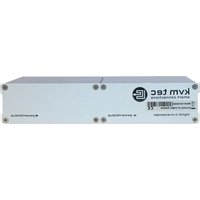
Masterline MVX1R - Switch KVM-TEC - Free user manual and instructions
Find the device manual for free Masterline MVX1R KVM-TEC in PDF.


Pick your language and provide your email: we'll send you a specifically translated version.
| Product Type | KVM Switch |
| Model | Masterline MVX1R |
| Brand | KVM-TEC |
| Number of Ports | 1 |
| Supported Video Resolutions | Up to 1920x1080 |
| Dimensions (W x D x H) | 200 mm x 80 mm x 30 mm |
| Weight | 0.5 kg |
| Power Supply | 5V DC, 1A |
| Power Consumption | 5 W |
| Operating Temperature | 0°C to 40°C |
| Storage Temperature | -20°C to 60°C |
| Humidity | 20% to 80% non-condensing |
| Primary Function | Switch between computers using a single keyboard, monitor, and mouse |
| Connection Interfaces | VGA, USB, Audio |
| Switching Method | Front panel button, hotkeys, or remote switching |
| Hotkey Support | Yes (e.g., Scroll Lock + Scroll Lock) |
| Compatibility | Windows, Linux, macOS |
| Maintenance | Clean with a dry, soft cloth. Do not use liquids. |
| Safety Instructions | Keep away from liquids and extreme temperatures. Do not open the device. |
| Spare Parts and Repairability | No user-serviceable parts. Contact support for repairs. |
| General Information | Designed for efficient multi-computer control in professional environments. |
Frequently Asked Questions - Masterline MVX1R KVM-TEC
How do I install the KVM-TEC Masterline MVX1R?
Connect your keyboard, mouse, and monitor to the console ports on the switch. Then connect each computer to the corresponding input ports using the provided cables. Power on the switch and then the computers.
How do I switch between computers?
Press the front panel button to cycle through connected computers. Alternatively, use hotkeys: quickly press Scroll Lock twice, then the number key corresponding to the port (1, 2, etc.).
What video resolutions are supported?
The device supports resolutions up to 1920x1080 (Full HD). Ensure your monitor and cables are compatible.
Can I use the KVM switch with different operating systems?
Yes, the Masterline MVX1R is compatible with Windows, macOS, and Linux. No additional drivers are required for basic functionality.
Does the KVM switch support audio?
Yes, it includes audio input/output jacks to switch audio between connected computers. Ensure your audio devices are connected to the console ports.
What should I do if the KVM switch is not detected?
Check all cable connections, ensure the switch is powered on (LED indicator lights), and try a different USB port. If using hotkeys, verify the correct sequence.
Is the device hot-pluggable?
Yes, you can connect or disconnect computers while the switch is powered on. However, it is recommended to avoid frequent hot-plugging to prevent potential damage.
How do I clean the KVM switch?
Use a dry, soft cloth to wipe the exterior. Do not use any liquids or abrasive cleaners, as they may damage the device.
What is the warranty period for this product?
The KVM-TEC Masterline MVX1R typically comes with a 2-year limited warranty. Check your purchase documentation for exact terms.
Can I use the KVM switch with Bluetooth peripherals?
The switch uses wired USB connections. Bluetooth peripherals may not work directly; connect them to the computers instead, and the KVM will switch the monitor input.
User questions about Masterline MVX1R KVM-TEC
0 question about this device. Answer the ones you know or ask your own.
Ask a new question about this device
No questions yet. Be the first to ask one.
Download the instructions for your Switch in PDF format for free! Find your manual Masterline MVX1R - KVM-TEC and take your electronic device back in hand. On this page are published all the documents necessary for the use of your device. Masterline MVX1R by KVM-TEC.
USER MANUAL Masterline MVX1R KVM-TEC


Manual assistant
Powered by Anthropic
Waiting for your message
Product information
Brand : KVM-TEC
Model : Masterline MVX1R
Category : Switch