
DVP4420S - DVD player AKAI - Free user manual and instructions
Find the device manual for free DVP4420S AKAI in PDF.


| Product Type | DVD Player |
| Brand | AKAI |
| Model | DVP4420S |
| Disc Compatibility | DVD, MP3, CD, CD-R, CD-RW, KODAK PICTURE CD |
| TV Systems Supported | PAL / NTSC / MULTI |
| Video Converter | 10 bits / 27 MHz |
| Horizontal Resolution | More than 500 lines |
| Video Outputs | Composite, S-Video, 21-pin SCART (CVBS/RGB) |
| Audio Outputs | Stereo analog (2 channels), digital coaxial, digital optical, 6.3 mm headphone |
| Audio Converter | 24 bits / 96 kHz |
| Decoded Audio Formats | Dolby Digital 2 channels, MPEG-II Audio, Linear PCM, MP3 |
| Advanced Playback Functions | 3-level zoom, multi-speed search, repeat (title/chapter/track A-B), programming, random play, OSD menu |
| Interactive Functions | Multi-angle, multi-language audio/subtitles, parental control, resume |
| Power Supply | AC 230 V~, 50/60 Hz |
| Power Consumption | Less than 35 W |
| Dimensions (W × D × H) | 430 × 255 × 50 mm |
| Net Weight | 2.8 kg |
| Gross Weight | 3.4 kg |
| Operating Temperature | 5 °C to 35 °C (estimated) |
| Care and Cleaning | Clean the cabinet with a soft, damp cloth (mild soapy water). Clean discs from the center outward with a soft cloth. Do not use solvents. |
| Safety | Do not expose to moisture or splashes. Do not obstruct ventilation slots. Disconnect during thunderstorms or prolonged non-use. Refer all servicing to qualified personnel. |
| Included Accessories | Remote control, audio cable, video cable, 2 AAA batteries |
Frequently Asked Questions - DVP4420S AKAI
User questions about DVP4420S AKAI
0 question about this device. Answer the ones you know or ask your own.
Ask a new question about this device
Download the instructions for your DVD player in PDF format for free! Find your manual DVP4420S - AKAI and take your electronic device back in hand. On this page are published all the documents necessary for the use of your device. DVP4420S by AKAI.
USER MANUAL DVP4420S AKAI
May we take this opportunity to thank you for purchasing this DVD player. We strongly recommend that you carefully study the operating instructions before operating the unit.
Manufactured under license from Dolby Laboratories. "Dolby" and the double-D symbol are trademarks of Dolby Laboratories. Confidential Unpublished Works. ©1992-1997 Dolby Laboratories, Inc. All rights reserved.
Main Features
Fully compatible with DVD, MP3, CD, CD-R, CD-RW and KODAK PICTURE CD disc.
Compatible with full DVD playback functions: multi-angle, multi-language, multi-story, parental control, etc..
Advanced 10-bit/27MHz video D/A converter with over 500 lines of horizontal resolution.
Video output: Normal video output, S-video output, 21 pin scart,
Audio output: Dolby Digital 2ch output, MPEG-II Audio output, Coaxial and optical digital output Linear PCM decoding output.
24-bit/96kHz audio D/A converter.
3-step zoom/smooth scan.
NTSC/PAL TV system compatible.
Features of playback specifications
This product complies the MPEG II standardization law.
-720X480 30Hz
-720X576 25Hz
PAL and NTSC
This product incorporates copyright protection technology that is protected by method claims of certain U.S. patents and other intellectual property rights owned by Macrovision Corporation and other rights owners. Use of this copyright protection technology must be authorized by Macrovision Corporation, and is intended for home and other limited viewing uses only unless otherwise authorized by Macrovision Corporation. Reverse engineering or disassembly is prohibited.
Features of audio specifications
Dolby Digital 2ch decoding output
MPEG-II Audio output
Linear PCM audio decoding output
MP3 audio decoding output
Playback features
Skipping ahead and skipping back
Multi-speed slow motion playback
3-step zooming playback
3-way repeat playback
Numeric selection
Programmable playback
Time search
Getting started
Disc types
| DVD VIDEO | Audio & Video | Disc size 12cm Single side, single layer /single side, double layer PAL and NTSC DVD disc Playback time 135min/240min max. |
| COMPACT DISC DIGITAL AUDIO | Audio | Disc size 12cm/8cm CD disc Playback time 74min/20min max |
Disc maintenance
- Before playback, wipe the disc from the center hole toward the outer edge with a clean cloth.
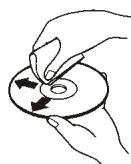
Right
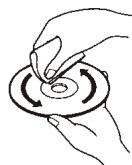
Wrong
- Never use benzine, thinner, cleaning fluid, static electricity prevention liquids or any other solvent.
Table of contents
| Getting Started | P1-P6 |
| Features | P1 |
| Disc types & maintenance | P2 |
| Safety precautions | P3 |
| Accessories and remote control unit | P4 |
| System connection | P5 |
| Front panel | P6 |
| Basic operation | P7-P8 |
| Starting playback and function buttons | P7 |
| Searching buttons and other buttons | P8 |
| MP3 & JPEG operations | P9 |
| Playback mode | P11 |
| Menu and program | P13 |
| Initial settings | P14 |
| Troubleshooting tips | P17 |
| Definition of terms | P18 |
Safety precautions

WARNING

To avoid electrical shock, do not open the cabinet, refer servicing to qualified personnel only.

ATTENTION
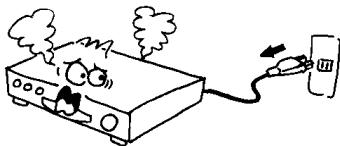
If smoke, malodor or noises are emitted from the unit, turn off the power and disconnect the AC power cord.

WARNING
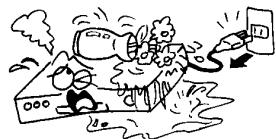
Keep the unit away from flower vases, tubs, sinks, etc.. If liquids are spilled into the unit, serious damage could occur.

WARNING
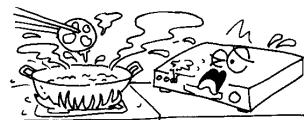
Do not expose this equipment to rain or moisture.

ATTENTION
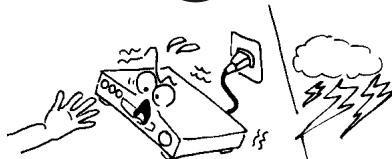
Touching the unit is dangerous, If thunder.

ATTENTION
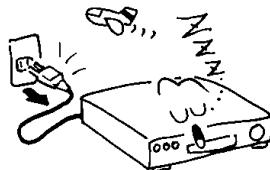
When left unused for a long period of time, the unit should be unplugged from the household AC outlet.

WARNING
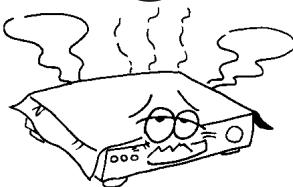
Do not block ventilation holes of the unit so that air can circulate freely.

ATTENTION
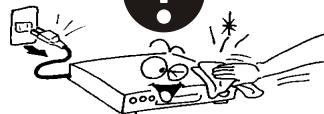
Be sure to turn the unit off and disconnect the AC power cord before cleaning the unit surface.
If the surface is dirty, wipe clean with a cloth which has been dipped in a weak soap-and-water solution and wrung out thoroughly, and then wipe again with a dry cloth.
Notes: This unit is a class 1 laser product and uses a visible laser beam which could cause hazardous radiation exposure if directed. Be sure to operate it correctly as instructed.

The above items are true of not only this unit but also most of the household electronic products.
Accessories
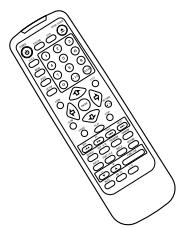

Remote control unit
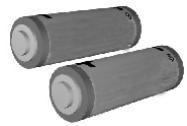

Batteries (size AAA, R03, UM-4)
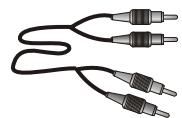

Audio cord
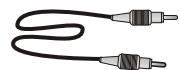

Video cord
Battery installation (remote control unit)
- Remove the battery cover.
- Insert two batteries(AAA, R03, UM-4 type) making sure the polarity (+ / - ) matches the marks inside the unit.
- Replace the cover.
--Do not attempt to recharge, short-circuit, disassemble, heat or throw the batteries into the fire.
--Do not mix old and new batteries.
Remote control unit
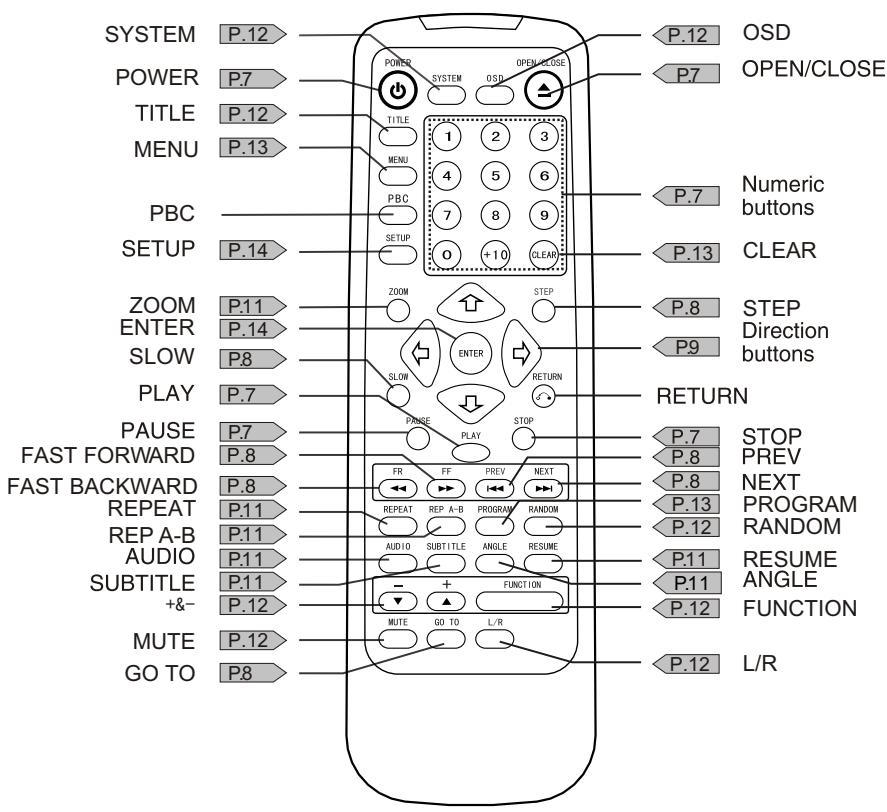
Point remote control unit no more than 8m from the remote sensor and within about 60° of the front of the unit.
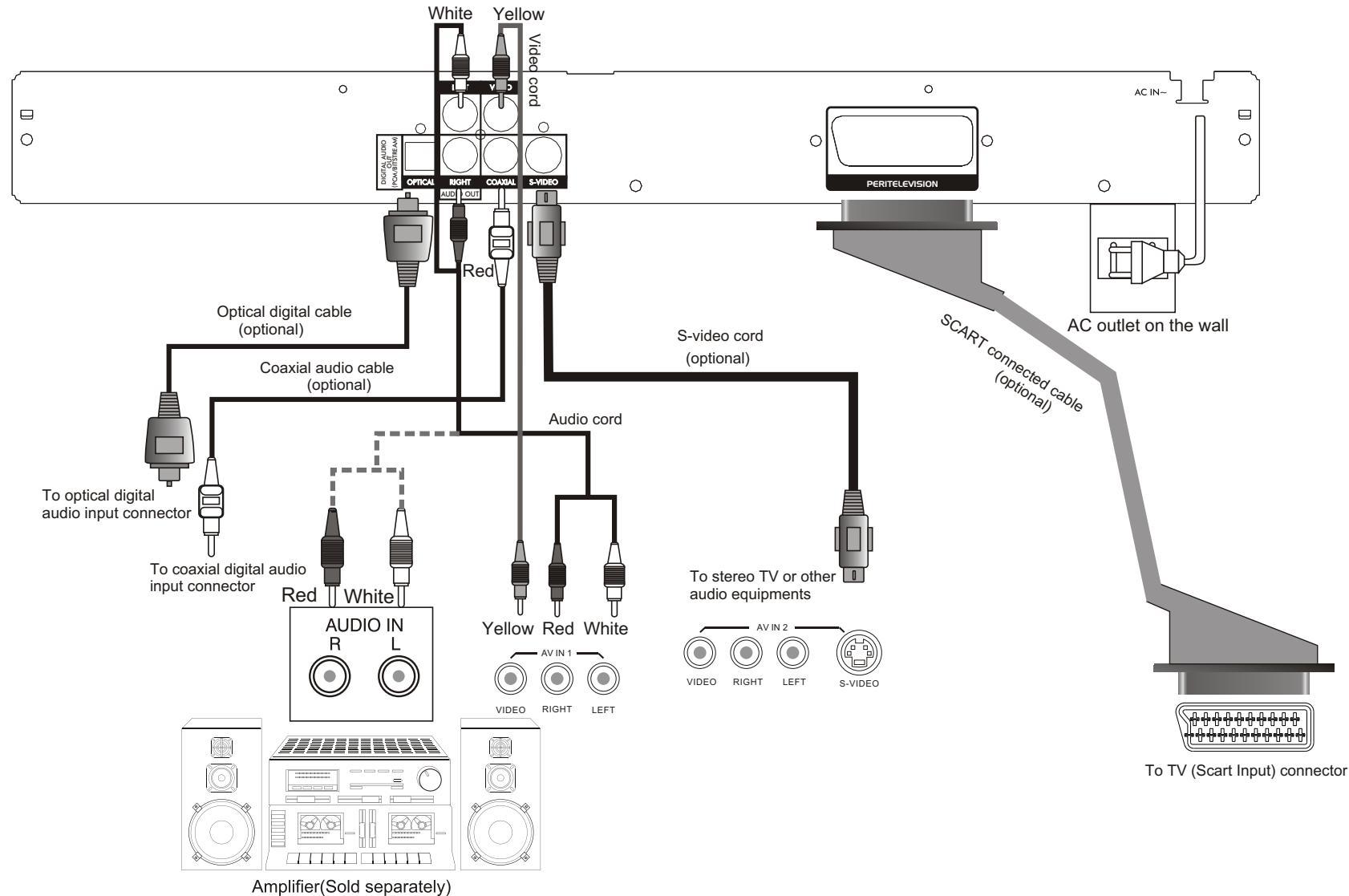
System connection
Front panel
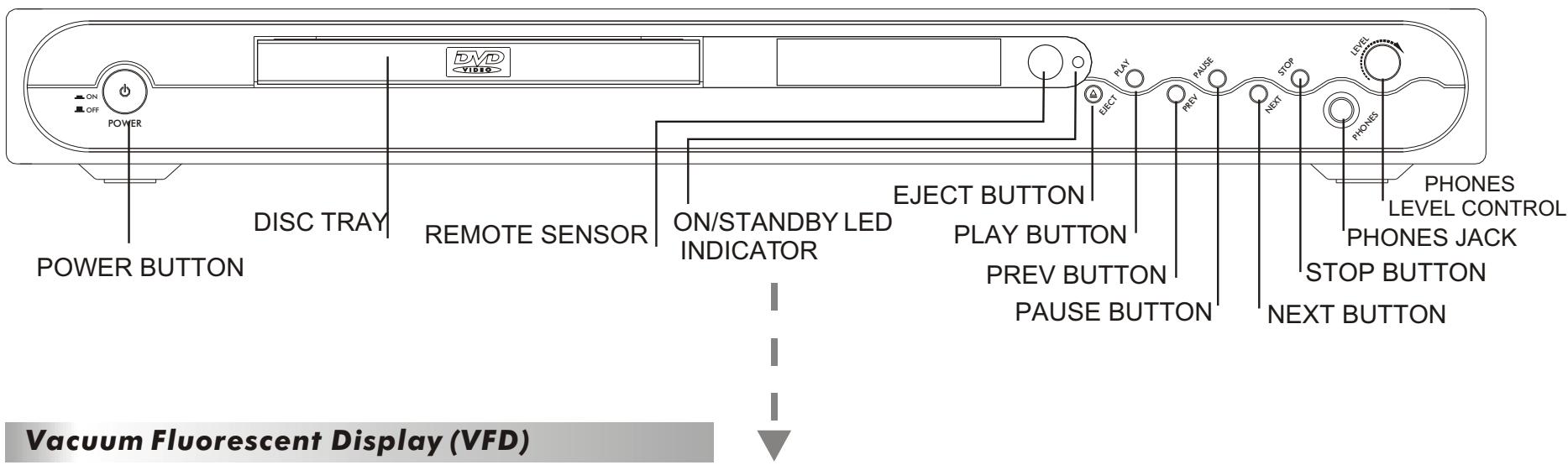
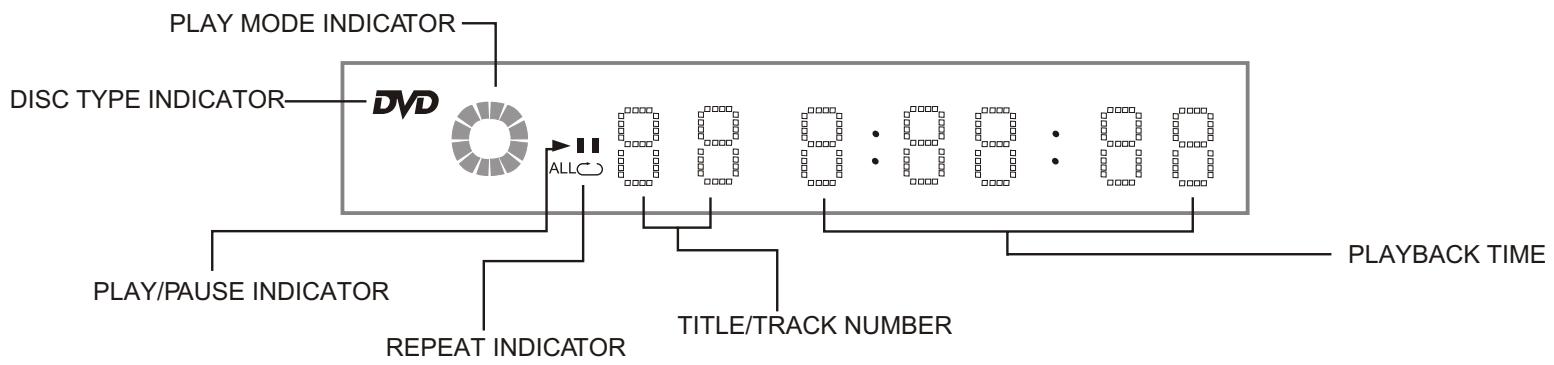
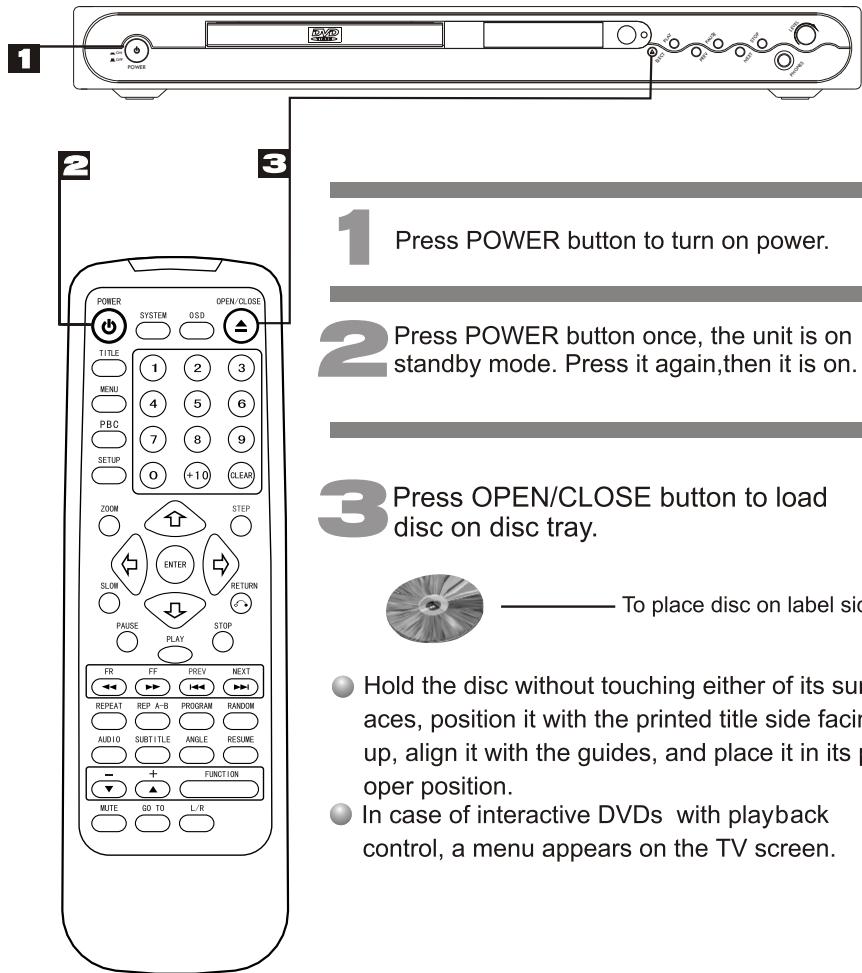
Starting playback
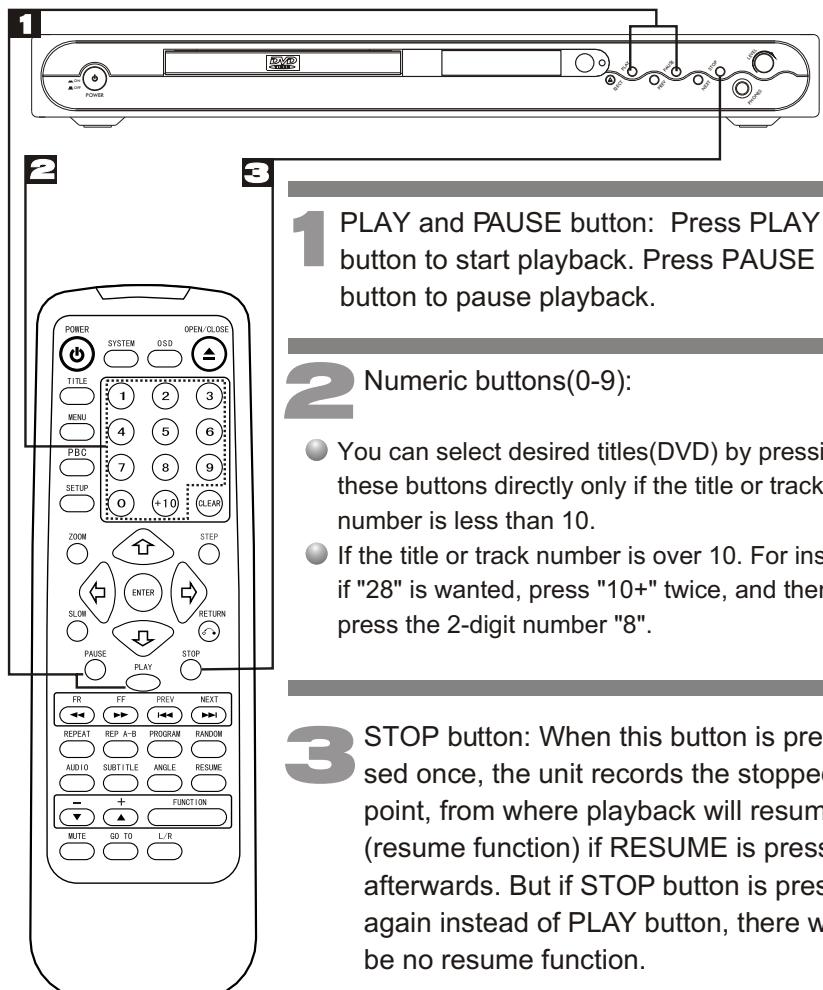
Function buttons
Searching function buttons

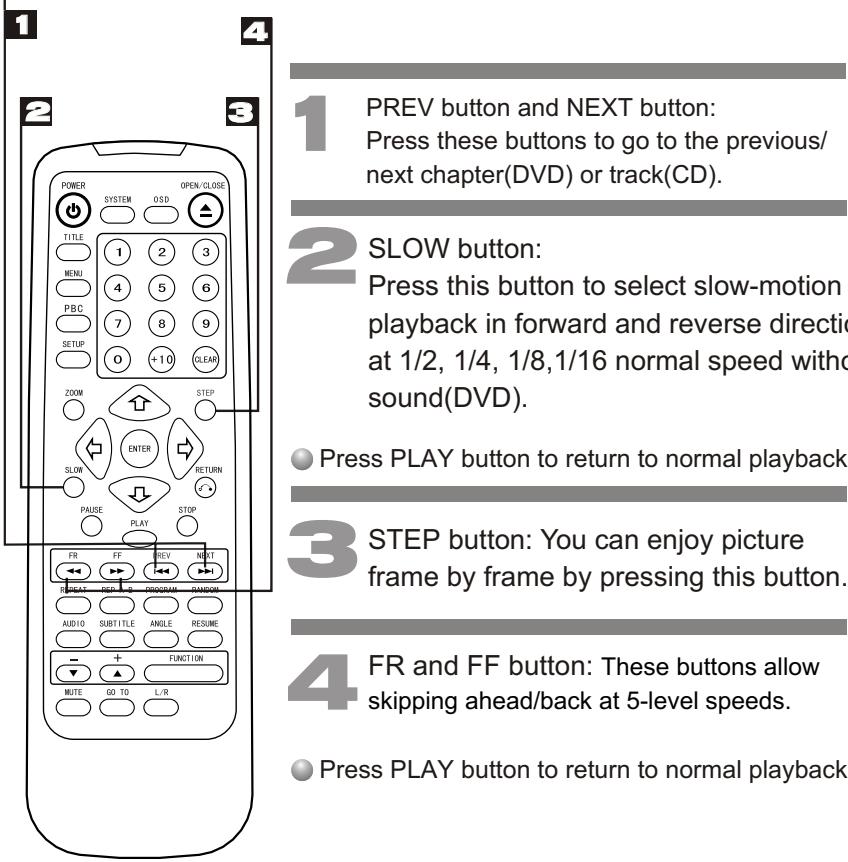
Other buttons
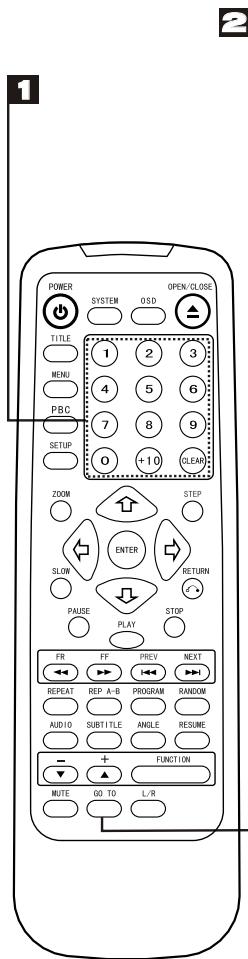
Numeric buttons(0-9): These buttons can function with GO TO button.
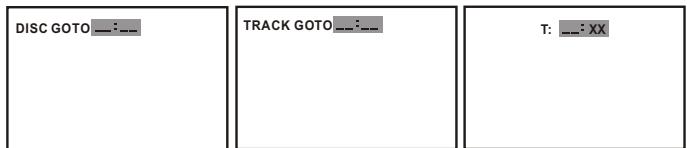
2 GO TO button: Press this button to go to desired position. The player provides 3 search mode of DVD disc, but it provides 3 search mode.
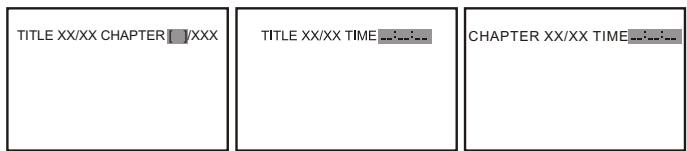
[DVD only]
[DVD only]
[DVD only]
[CD only]
- When the above items are showed on TV screen, you can input numbers to locate desired sector and commence play.
The number you input is invalid if it is beyond the track's capacity.
MP3 operations
MP3 is a kind of audio compacted format adopted the third audio-compacted layer mode in the international standard MPEG. Utilizing MP3 format, the compress rate can reach 12 to 1 high. Therefore, only one MP3 compact disc can hold music over six hundred minutes or more than one hundred and fifty songs. Moreover, it's audio quality almost reaches the CD standard.
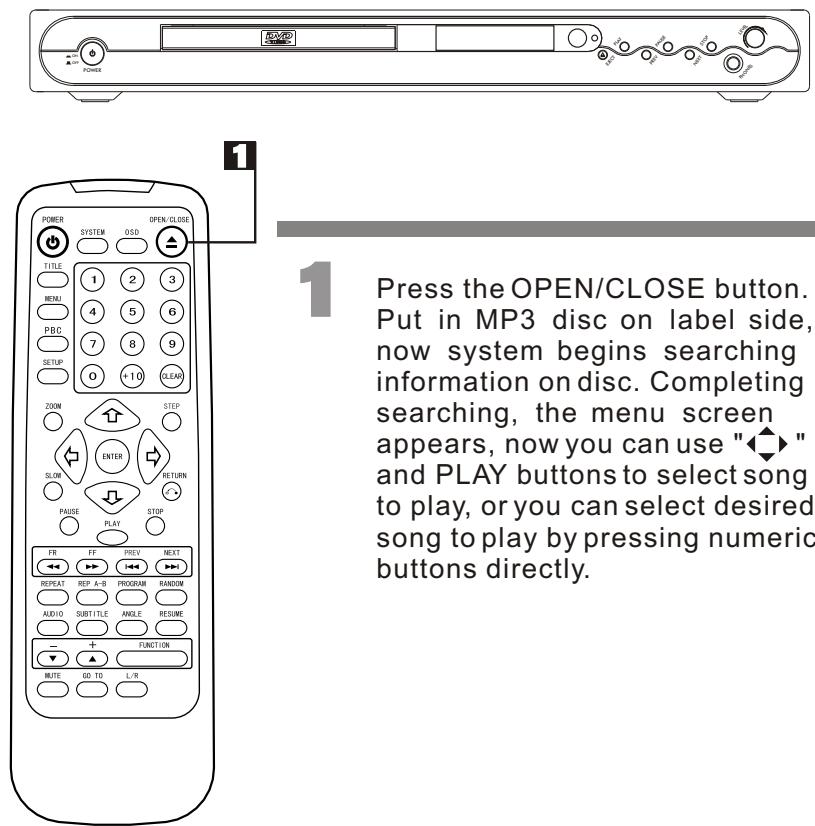
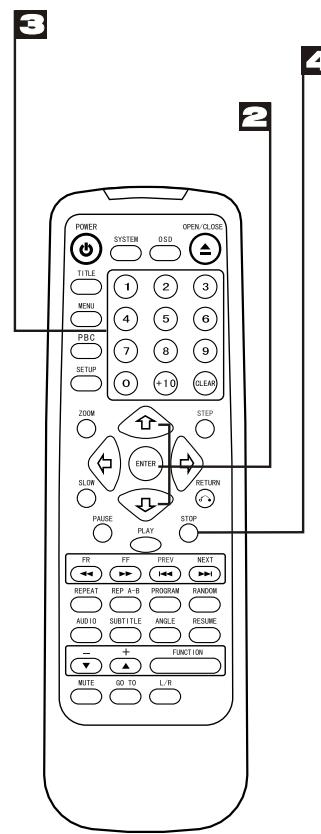
2 " 口 口 & ENTER buttons: Their functions is to choose the previous or next song to be played.
3 Numeric buttons:
Pressing number buttons on your remote controller, you can directly select the song which you want to enjoy to be played. For example, if you want to enjoy listening to the eighteenth song, please press "1" once, and then press "8".
STOP button:
Pressing the button will stop playback.
JPEG operations
Press OPEN/CLOSE:
Put KODAK JPEG disc properly, the system will search automatically. After sear-ching, the direction arrows and PLAY button can be used to choose the option desired by the user. Also the numeric buttons can be used to select directly. Press NEXT/PREV/STOP buttons to control.
Optional Play Modes:
FOLDER -Play the catalog.
SINGLE - Play the selected song or JPEG picture once and stop.
REP-ONE -Play the same song or JPEG picture over and over.
FOLDER R -Repeat Play the catalog.
RANDOM - Randomly play each song or JPEG picture in the current directory.
Twelve slideshow transition modes are provided, use "PROGRAM" button to select:
mode 1: wipe top
mode 2: wipe bottom
mode 3: wipe left
mode 4: wipe right
mode 5: diagonal wipe left top
mode 6: diagonal wipe right top
mode 7: diagonal wipe left bottom
mode 8: diagonal wipe right botton
mode 9: extend from center h
mode 10: extend from center v
JPEG operations
mode 11: compress to center h
mode 12: compress to center v
mode 13: window h
mode 14: window v
mode 15: wipe from edge to center
mode 16: random
mode 17: no
Image transformation
There are four modes of transformation: "Invert", "Mirror", "Left" and "Right". The arrow keys are used to select.
Up -Invert/Normal
Down - Mirror/Normal
Left -Turn left
Right -Turn right
Zoom
Press ZOOM button to enter ZOOM mode. Then press"FR and FF" button zoom in/out.
Note: during ZOOM function, slide show transition and image transformation are disabled.
Stop
The "Stop" key is used to enable KODAK JPEG digest mode when in stop state. After it is enabled, up to 12 scaled downJPEG pictures will be displayed on the screen. The "Prev & Next" keys can be used to display the next/prev twelve pictures. Bypassing DIRECTION and ENTER key the corresponding picture will be enlarged to fill screen, and the digest mode will be cancelled.
Repeat playback mode buttons
The repeat functions that you can enjoy are dependent on the disc types played.
DVD: title repeat, chapter repeat and given portion repeat.
CD: all tracks repeat, single track repeat and given portion repeat.
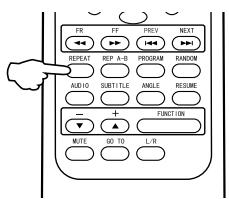
REPEAT button: To press this button:
You can repeatedly play a title (DVD) or all tracks (CD) when "ALL 一 _ 一 " appears on VFD.
You can repeatedly play a chapter (DVD) or a single track (CD) when " " appears on VFD.
You can cancel repeat functions when no " 一 _ 一 ^ 一 appears on VFD.
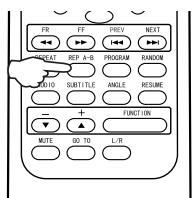
REP A-B button:
You can repeatedly play a given portion by operating as following:
To press this button once to define the portion head. To press this button again to define the portion toe. And then the portion will be played repeatedly.
To press this button again to return to normal playback.
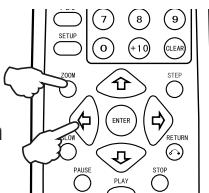
ZOOM button:
Press this button during normal, zoom in or zoom out playback mode. This player can magnify a picture at 3 levels. Press this button to magnify picture and at zoom in mode use direction buttons " " to select desired . part of the zoomed picture.
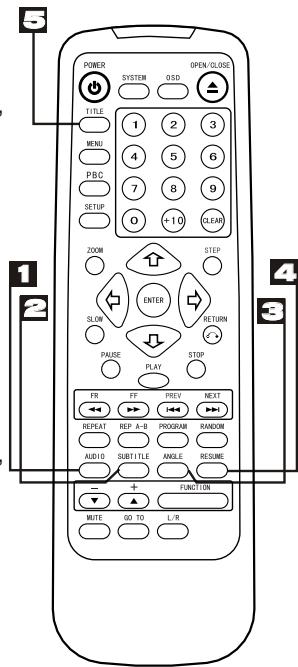
Interactive function buttons
1 AUDIO button: To press this button, you can change the audio language from the one selected at the initial settings to a different language, if available.
2 SUBTITLE button: To press this button, you can change the subtitle language from the one selected at the initial settings to a different language, if available.
3 ANGLE button: Some DVDs may contain scenes which have been shot simultaneously from a number of different angles. For these discs, the same scene can be viewed from each of these different angles by using the ANGLE button.
RESUME button: When you press STOP button the player can memorize the stopped point from which play will go on when you press RESUME button.
5 TITLE button:
DVD disc:
Press TITLE button, then the DVD menu or titles available on the disc will be displayed. Then you can use " ← " and ENTER button to select programs.
※ The buttons mentioned in 1-3 can work only when the disc played supports the corresponding functions.
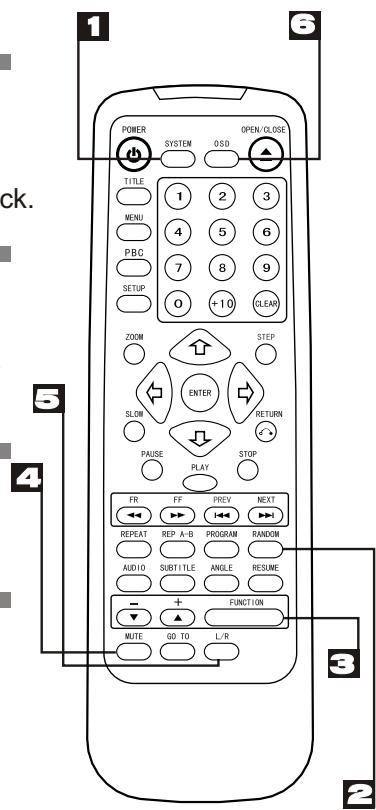
Other function buttons
SYSTEM button:
Press this button to select PAL, NTSC or MULTI.
RANDOM button:
Random mode allows you to play tracks randomly by pressing this button, pressing again will cancel random playback.
3 FUNCTION button:
Press to select volume, pitch. Then press "+" or "-" button for adjustment.
MUTE button:
Press this button to turn on/off the sound.
L/R button:
Press this button consecutively and the audio output will change as following:
→MONO-LEFT→MONO-RIGHT→STEREO
Display
OSD button:
Press this button once to show main playback information on TV screen and press it again to show playback time. Press this button at the fifth time, and then the display will be canceled.
Connecting headphones
1 Connect the headphones.
Headphones with a 6.3 mm stereo plug can be connected.
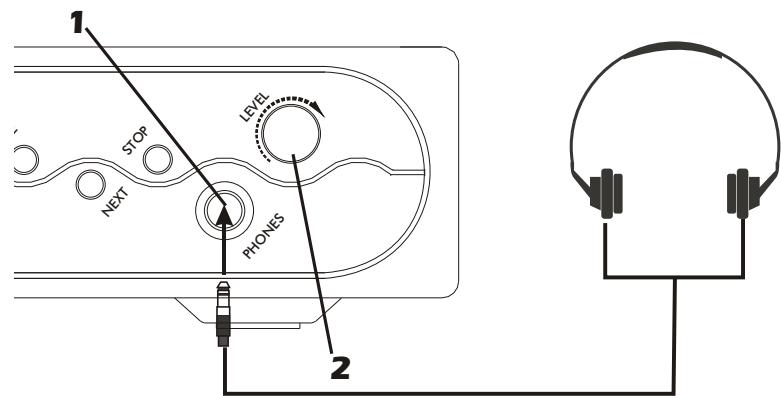
2 Adjust the volume.
Menu function buttons
MENU button:
Press this button, disc menu available on the disc will be displayed.
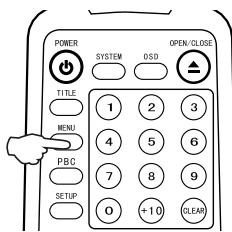
If playing some DVD discs, press this button back to root menu screen.
- If playing DVDs you can use the functions of MENU, PROGRAM and RANDOM.
3 You can press CLEAR button to cancel and input again if you mis-input track numbers.
4 Now you can press " " and "ENTER" button to select "START" option and enjoy the desired tracks.
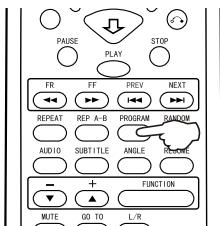
Program functions
- When you want to play only partial tracks/chapters of a disc (DVDs) or to arrange the tracks/chapters playback order, you need program functions. Do as following:
Press PROGRAM button. Then "PROGRAM" will appear on TV screen
2 Press the track number in the order you want. For example, if the track numbers you want to play are 1, 3 and 8, just input in the order of 1-3-8.
Common procedures of initial settings
Press SETUP button to get the setup menu. Use direction buttons " " to select the preferred item and press ENTER button to confirm. After finishing settings, press SETUP again to leave the setup menu main page to the TV display.
Setup menu main page
SETUP MENU-MAIN PAGE
GENERAL SETUP
ANALOG AUDIO SETUP
DOLBY DIGITAL SETUP
VIDEO SETUP
PREFERENCE
The following menu items can changed:
GENERAL SETUP: selects the GENERAL PAGE menu.
ANALOG AUDIO SETUP: selects the ANALOG AUDIO SETUP PAGE menu.
DOLBY DIGITAL SETUP: selects the DOLBY DIGITAL SETUP menu.
VIDEO SETUP: selects theVIDEO SETUPPAGE menu.
PREFERENCE: selects the PREFERENCES PAGE menu.
General setup page





GENERAL SETUP PAGE
The following menu items can be changed:
TV DISPLAY: selects the aspect ratio of the playback picture.
4:3/PANSCAN: pan & scan display.
4:3/LETTERBOX: letterbox display.
16:9: widenscreen display.
ANGLE MARK: viewing angles change option(if available). See changing the angles on page 11.
OSD LANG: selects a language for on screen display.
DIGITAL OUTPUT: select audio output :SPDIFOFF, ALL, PCM ONLY.
CLOSED CAPTIONS: this is to turn on/off captions.
SCR Saver: this is to turn on/off screen saver.
Analog audio setup page





ANALOG AUDIO SETUP PAGE
This page is for setup speaker output.
DOWN MIX
LT/RT: 2ch output, main channel with surround.
STEREO: 2ch output, main right channel with right surround; main left channel with left surround.
Dolby digital setup page
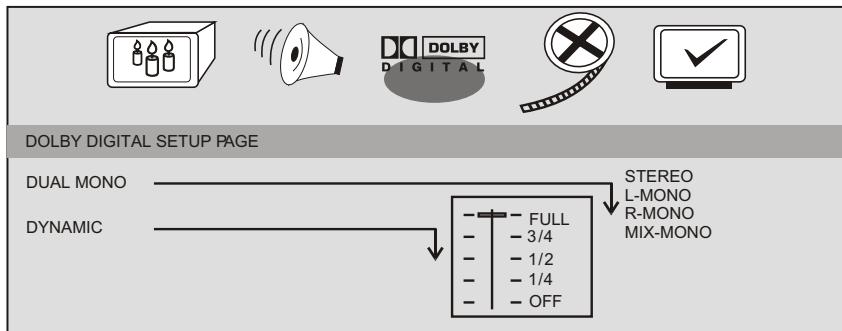
The following menu items can be changed:
DUAL MONO: Reproduction mode, used only when the input consists of two independent audio channels(1/1 mode). Possible selections are:
STEREO: Reproduce both channels as is.
L-MONO: Reproduce the left channel only.
R-MONO: Reproduce the right channel only.
MIX-MONO: Mix both channels.
The default is STEREO.
DYNAMIC: Dynamic range compression.
Video setup page
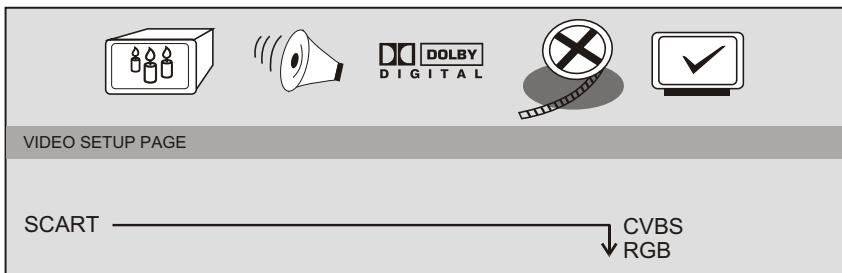
The following menu items can be changed:
SCART: Selects CVBS or RGB video output of scart.
Preference setup page
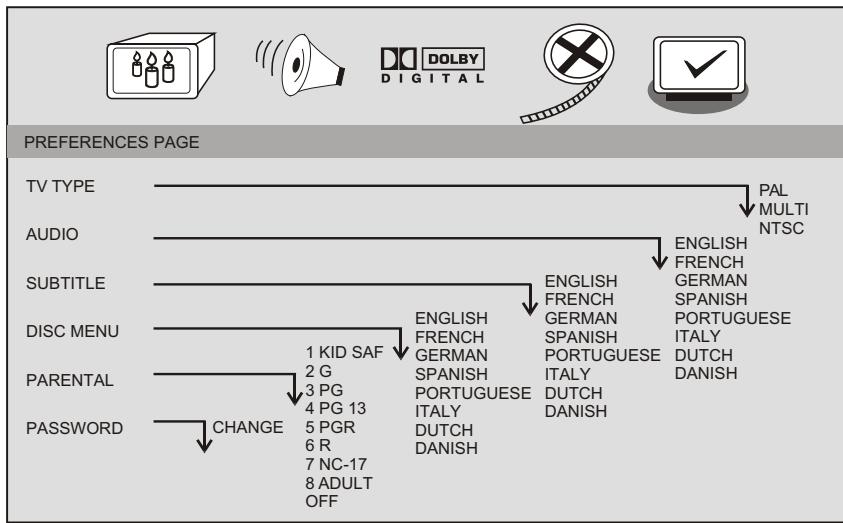
The following menu items can be changed:
TV TYPE: selects the type of television.
MULTI: automatic-self-selecting television sets.
NTSC
PAL
AUDIO: Selects a language for audio(if available).
SUBTITLE: Selects a language for subtitles(if available). no subtitles are display after selecting OFF.
DISC MENU: Selects a language for title menus or DVD menus(if available).
PARENTAL[DVD only]: This is to disable the playing of specified DVDs which are unsuitable for children. Some DVDs are encoded with specific rating level. If the rating level of the disc is higher than that preset in the setup operation, playback of the disc will be prohibited. After selecting one of the PARENTAL items the screen will change to the PASSWORD VERIFY page.
PASSWD[DVD only]: Selects the menu setup PASSWORD CHANGE PAGE.
Password change page
| Password CHANGE PAGE | |
| OLD PASSWORD | [XXXX] |
| NEW PASSWORD | [YYYY] |
| CONFIRM PASSWORD | [YYYY] |
| OK | |
OLD PASSWORD: Enter the OLD password. (Factory setting is 1369)
NEW PASSWORD: Enter the NEW password. Enter 4 digits from the remote control unit numeric buttons.
CONFIRM PASSWORD: Confirm the NEW password by entering it again. If the confirmation is incorrect, the Password Change Page will be displayed again.
Electronical parameters
| Item | Standard requirement | |
| Power source | AC 230V~, 50Hz/60Hz | |
| Power consumption | <35W | |
| Laser | Wave length: 655nm; Laser power: class 1 | |
| Signal system | PAL/NTSC | |
| Digital audio output | Optical digital output: optical connector; Coaxial digital output: pin jack; | |
| Output | PHONES | Stereo, Φ6.3mm jack |
| Output | SCART | 21 Pin Scart |
| S-video | Y output level: 1Vp-p(75 ); C output level: 0.300Vp-p(75 )(PAL), 0.286Vp-p(75 )(NTSC); connector: S-terminal | |
| Video | Output level: 1 Vp-p(75 ); connector: pin jack(1 systems) | |
| Audio | Output level: 2Vrm(1KHz, 0 dB); connector: pin jack. 2 channels output. | |
| Audio characteristics | Frequency response | 20Hz~20kHz |
| S/N ratio | ≥90dB | |
| Dynamic range | ≥80dB(1kHz) | |
| Total harmonic distortion | ≤-65dB (1kHz) | |
Other specifications
| Accessories | Handset x 1 Video cord x 1 Battery x 2 (AAA, R03, UM-4 type) Audio cord x 1 | |
| Dimensions | 430(L) X 255(W) X 50(H) mm | |
| Carton size | 485(L) X 108(W) X 345(H) mm | |
| Weight | N.W.: 2.8 kg G.W.: 3.4 kg | |
| Remote control distance | 8.0m | |
Troubleshooting tips [Common]
Before calling for service, you can check the following items on symptoms and solutions:
No sound or distorted sound:
Ensure that the equipment is connected properly.
Ensure that the input settings for the TV and stereo system are proper.
Adjust the volume using the OSD for player information.
No picture:
Ensure that the equipment is connected properly.
Ensure that the input setting for the TV is "video".
No play:
Condensation has formed : wait about 1 to 2 hours to allow the player to dry out.
This player can't play discs other than DVDs,,MP3s and CDs.
The disc may be dirty and require cleaning.
Ensure that the disc is installed with the label side up.
No remote control:
Check the batteries are installed with the correct polarities (+ & -)
The batteries are depleted: replace them with new ones.
Point the remote control unit at the remote control sensor and operate.
Remove the obstacles between the remote control unit and the remote control sensor.
Operate the remote control unit at a distance of not more than 8 meters from the remote control sensor.
No key operation(by the unit and/or the remote control) is effective:
Turn the unit off and then back to on. Alternatively, turn off the unit, disconnect the AC power cord and the re-connect it.(The player may not be operating properly due to lightning, static electricity or some other external factor.)
Troubleshooting tips [DVD]
Play does not commence even when title is selected:
Confirm the "Rating" settings.
Audio soundtrack and/or subtitle language is not the one selected at the initial settings:
If the audio soundtrack and/or subtitle language does not exist on the disc, the language selected at the initial setting will not be seen/heard.
No subtitles:
Subtitles appear only with discs which contain them.
Alternative audio soundtrack(or subtitle) language fail to be selected:
- An alternative language is not selected with discs which do not contain more than one language.
- In the case of some discs, the alternative language cannot be selected by operating the AUDIO or SUBTITLE button. Try selecting it from the DVD menu if one is available.
Angle cannot be changed:
This function is dependent on software availability. Even if a disc has a number of angles recorded, these angles may be recorded for specific scenes only.
Definition of terms
Angle
Recorded onto some DVD discs are scenes which have been simultaneously shot from a number of different angles (the same scene is shot from the front, front the left side, from the right side, etc.). With such discs, the ANGLE button can be used to view the scene from different angles.
DVD
This refers to a high-density optical disc on which high-quality pictures and sound have been recorded by means of digital signals. Incorporating a new video compression technology(MPEG II) and high-density recording technology, DVD enables esthetically pleasing full-motion video to be recorded over long periods of time(for instance, a whole movie can be recorded).
DVD has a structure consisting of two 0.6mm thin discs which are adhered to each other. Since the thinner the disc, the higher the density at which the information can be recorded, a DVD disc has a greater capacity than a single 1.2mm thick disc. Since the two thin discs are adhered to each other, there is the potential to achieve double-sided play sometime in the future for even longer duration play.
Chapter number
These numbers are recorded on DVD discs. A title is subdivided into many sections, each of which is numbered, and specific parts of video presentations can be searched quickly using these numbers.
Subtitles
These are the printed lines appearing at the bottom of the screen which translate or transcribe the dialogue. They are recorded on DVD discs.
Definition of terms
Track number
These numbers are assigned to the tracks which are recorded on Cds. They enable specific tracks to be located quickly.
Time number
This indicates the play time which has elapsed from the start of a disc or a title. It can be used to find a specific scene quickly. (It may not work with some discs.)
Region management information
The Region number for this DVD player is 2.

AKAI

- MAIN FEATURES
- FEATURES OF PLAYBACK SPECIFICATIONS
- FEATURES OF AUDIO SPECIFICATIONS
- PLAYBACK FEATURES
- GETTING STARTED
- DISC MAINTENANCE
- SAFETY PRECAUTIONS
- ACCESSORIES
- BATTERY INSTALLATION (REMOTE CONTROL UNIT)
- REMOTE CONTROL UNIT
- FRONT PANEL
- STARTING PLAYBACK
- FUNCTION BUTTONS
- SEARCHING FUNCTION BUTTONS
- OTHER BUTTONS
- MP3 OPERATIONS
- 3 NUMERIC BUTTONS
- STOP BUTTON
- JPEG OPERATIONS
- PRESS OPEN/CLOSE
- OPTIONAL PLAY MODES
- TWELVE SLIDESHOW TRANSITION MODES ARE PROVIDED, USE "PROGRAM" BUTTON TO SELECT
- IMAGE TRANSFORMATION
- ZOOM
- STOP
- REPEAT PLAYBACK MODE BUTTONS
- INTERACTIVE FUNCTION BUTTONS
- OTHER FUNCTION BUTTONS
- DISPLAY
- CONNECTING HEADPHONES
- MENU FUNCTION BUTTONS
- PROGRAM FUNCTIONS
- COMMON PROCEDURES OF INITIAL SETTINGS
- GENERAL SETUP PAGE
- ANALOG AUDIO SETUP PAGE
- DOLBY DIGITAL SETUP PAGE
- VIDEO SETUP PAGE
- PREFERENCE SETUP PAGE
- PASSWORD CHANGE PAGE
- TROUBLESHOOTING TIPS [COMMON]
- NO SOUND OR DISTORTED SOUND
- NO PICTURE
- NO PLAY
- NO REMOTE CONTROL
- NO KEY OPERATION(BY THE UNIT AND/OR THE REMOTE CONTROL) IS EFFECTIVE
- TROUBLESHOOTING TIPS [DVD]
- PLAY DOES NOT COMMENCE EVEN WHEN TITLE IS SELECTED
- AUDIO SOUNDTRACK AND/OR SUBTITLE LANGUAGE IS NOT THE ONE SELECTED AT THE INITIAL SETTINGS
- NO SUBTITLES
- ALTERNATIVE AUDIO SOUNDTRACK(OR SUBTITLE) LANGUAGE FAIL TO BE SELECTED
- ANGLE CANNOT BE CHANGED
- DEFINITION OF TERMS
- ANGLE
- DVD
- CHAPTER NUMBER
- SUBTITLES
- TRACK NUMBER
- TIME NUMBER
- AKAI
Brand : AKAI
Model : DVP4420S
Category : DVD player