STD-2001 - DVD player AKAI - Free user manual and instructions

Find the device manual for free STD-2001 AKAI in PDF.

📄 81 pages English EN 💬 AI Question
Notice AKAI STD-2001 - page 45
View the manual : Français FR English EN
Manual assistant
Powered by ChatGPT
Waiting for your message
Product information

Brand : AKAI

Model : STD-2001

Category : DVD player

Download the instructions for your DVD player in PDF format for free! Find your manual STD-2001 - AKAI and take your electronic device back in hand. On this page are published all the documents necessary for the use of your device. STD-2001 by AKAI.

USER MANUAL STD-2001 AKAI

PROGRAM CLEAR SUBTITLE

PROGRAM CLEAR SUBTITLE

“TROUBLESHOOTING” SECTION.

APPLIANCE COVER, WHICH MAY BE OF

INSTRUCTIONS IN THE MANUAL

TO AVOID DIRECT EXPOSURE TO LASER

RADIATION, DO NOT OPEN THE APPLIANCE

COVER. LASER RADIATION MAY APPEAR

WHEN OPENING THE APPLIANCE COVER

OR BREAKING TH E PROTECTORS. DO

NOT LOOK AT THE LASER BEAM DIRECTLY. THE DVD PLAYER IS A CLASS 1 LASER

PRODUCT. USE OF CONTROLS OR

SETTING OF FEATURES IN A WAY OTHER

THAN SPECIFIED IN THIS MANUAL MAY

RESULT IN HAZARDOUS RADIATION

APPLIANCE COVER. REFER ALL SERVICING

TO QUALIFIED SERVICE PERSONNEL. TO AVOID FIRE OR ELECTRIC SHOCK, DO

NOT EXPOSE THIS APPLIANCE

TO RAIN OR MOISTURE. NEVER ATTEMPT

TO OPEN THE APPLIANCE COVER.

SHOULD NOT BE EXPOSED TO WATER AND NO OBJECT EXPOSED TO WATER AND NO

1. Read the instructions

You should read all the safety and operating instructions before using the product.

2. Keep the instructions

You should keep all the safety and operating instructions for future reference.

3. Pay attention to warnings

You must strictly follow all the warn ings on the product and in the operating instructions.

4. Follow the instructions

You must follow all the operating instructions.

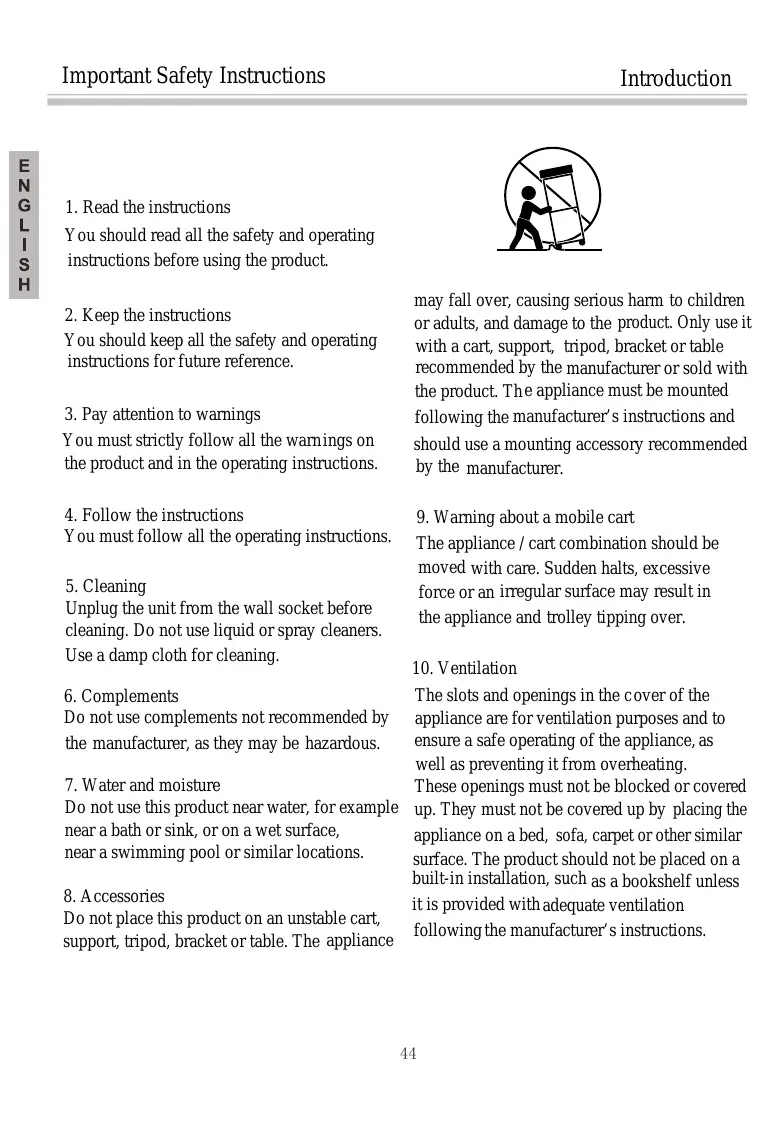
Unplug the unit from the wall socket before cleaning. Do not use liquid or spray cleaners. Use a damp cloth for cleaning. may fall over, causing serious harm to children or adults, and damage to the product. Only use it with a cart, support, tripod, bracket or table recommended by the manufacturer or sold with the product. Th e appliance must be mounted following the manufacturer’s instructions and should use a mounting accessory recommended by the manufacturer.

9. Warning about a mobile cart

The appliance / cart combination should be moved with care. Sudden halts, excessive force or an irregular surface may result in the appliance and trolley tipping over.

The slots and openings in the c over of the appliance are for ventilation purposes and to ensure a safe operating of the appliance, as well as preventing it from overheating.

7. Water and moisture

These openings must not be blocked or covered Do not use this product near water, for example up. They must not be covered up by placing the near a bath or sink, or on a wet surface, appliance on a bed, sofa, carpet or other similar near a swimming pool or similar locations. surface. The product should not be placed on a built-in installation, such as a bookshelf unless

it is provided with adequate ventilation Do not place this product on an unstable cart, following the manufacturer’s instructions. support, tripod, bracket or table. The appliance

Do not use complements not recommended by the manufacturer, as they may be hazardous.

The power cables should be positioned in a way This appliance should only work with the type that they cannot be trodden on or pierced by of power supply specified on the corresponding objects placed on or against them , paying special label. If you are unsure about your home’s type atten tion to the cables on the plugs, multiple of power supply, consult your supplier or the connectors and the point where they come out local electricity company. For products of the appliance. designed for operating on a battery or other power supplies, consult the operating instructions.

14. Grounding the exterior antenna

If an exterior antenna or cable system is connected to the appliance, ensure that the cable or antenna system is grounded in order to offer some protection against rises in tension and static discharges . Article 810 of the National Electric Rule (United States) ANSI NFPA 70 provides information on the adequate grounding fo r the pole and its supporting structure,

12. Grounding or polarization

This appliance can be equipped with a polarized alternative current (a plug with a blade longer than the other. The plug can only be inserted into the wall socket in one way.This is a safety measure. If you cannot inse rt the plug all the way into the socket, try turning it around. around. Should the plug no t go in either, contact your electrician to replace the old wall socket. Respect the polarized plug safety measure.

Precaution Introduction ● Please use the original packing box and materials for safe transportation of this appliance. It is normal that the cover and rear panel of the appliance reach a high temperature after the DVD player has been used for a long period of time.

Do not move this appliance while operating. Doing so could damage the disc slot and the disc.

Press the OPEN / CLOSE button on the front panel or on the remote control to open or close the disc slot. Do not press or touch the slot when it is opening or closing.

Features Introduction Totally compatible with MPEG4, DVD, CD, CD-R and CD-RW (finalised) ● Screen saver. ● Multiple playing modes: search program.

Coaxial digital audio out. Video out-put: S-video, composite video and by components (Y, Pb, Pr). ● Progressive Scan Video output

HDMI output Disc formats permitted for this DVD player MPEG4 files on disc

Connecting to a TV Connections

V id e o o u t O P T IC A L S C A R T O U TP U T D ig ita lo u t HDMI TV SCART Notes: there are four ways of connecting the audio out / video (AV) of the player to a TV:

1. S-Video cable and left / right channel Audio cable [switch (Video) to (S-Video)].

2. Composite video cable and left / right channel audio cable.

3. Composite video cable and left / right channel audio cable [switch to (Video) to

(INTERLACE-YUV or P-SCAN Y, Pb, Pr)].

4. SCART Cable [switch (video type) to TV – RGB].

Connecting to an AV amplifier with analog 2.1 audio channel in

1. Connect the TV to the VIDEO IN of the DVD player.

2. Connect the amplifier to the 2.1 Audio channel IN of the DVD player.

Connecting to am AV Amplifier with Digital Audio Input Notes: 1.Select the COAXIAL or OPTICAL digital audio output.

2. Set the players audio out to RAW or PCM mode.

3. Set the Amplifier to the AV input connected to the DVD player.

O P T IC A L D ig ita lo u t S C A R T O U TP U T Connecting to USB or CARD port Connections PLAY/PAUSE NEXT STD-2000 PREV POWER FUNCTION Connect USB or CARD to DVD player USB or CARD port on front panel.

1. Power on you DVD player.

2. Make sure that the tray has no disc in it .

3. Insert you moveable memorier into USB or CARD connector of your DVD player,

then the media files will be played automatic.

4. If you want to stop to play, you could take it out straightway.

Remote control Connections

Chapter 1: Basic features of the remote control:

The remote control function keys are detailed as follows: OPEN/CLOSE DISPLAY POWER Press <STOP> once during playback to stop and hold playback. Press <PLAY> to resume playback from the point you pressed STOP. Press <STOP> twice to stop playback completely. Note: The screen saver will automatically turn on if playba ck is stoped about 3 Minutes (When Screen Saver is set to on). Slow TIME Press <SLOW> repeatedly to slow motion playback at variable speeds: 1/2,1/3,1/4,1/5,1/6,1/7.

PROGRAM CLEAR SUBTITLE

REV FWD HDMI DVD/DVB HDMI Press <HDMI> to skip to 720P or 1080I or 1080P USB/CARD Press <USB/CARD> to skip to USB or Card functions DISPLAY Press <DISPLAY > to display the infomations of the video disc on the TV screen, including song information, broadcast time, remain time, etc..

1. To operate the remote control functions you must

first press the DVD player’s Power (on) button.

2. Some of the keys have multiple functions. The

previous function can be used in DVD mode; next can be used in DVB-T mode. Return P re ss <RETURN> to the main men u whe n P BC is on. Mute P re ss <MUTE> to mute the Aud io outpu t. P re ss <MUTE> a ga in to res um e no rmal a ud io outpu t. Vol+,VolP re ss <VOL+> button to increa se V olum e. P re ss <VOL-> button to red uc e volume till to no volum e ou tput. Power During playback, press <POWER> to stop the player and return to standby mode. While the player is in standby, press <POWER> or any key on the front panel to resume normal operation. Language During DVD playba ck, press <LANG> repeatedly to select video languages. No te : This function va ry by the disc. Open/Close To open the disc tray , press <OPEN/CLOSE>. To close the disc tray , press <OPEN/CLOSE> again. V-MODE Press <V-MODE> to choose Interlace-YUV,TV-RGB,

P-SCAN YPBPR,S-VIDEO

0-10+ Keys DVD/DVB These keys are used to input the time, as well as title, chapter and track numbers. When a numeric item is displayed on the screen, press the 0-10+ keys to select the desired entry, And press <ENTER> to confirm. Press <DVD/DVB> to skip to DVD or DVB functions SUBTITLE Press <SUBTITLE> to directly choose the subtitle language available on the DVD. L/R REV During CD/VCD/SVCD playback Press < L/R > to select a audio channel (STEREO, LEFT, RIGHT, etc). Note: This function is disc specific. During DVD or CD/VCD playback, press <REV> once to play the previous chapter, title or track. During DVD or CD/VCD playback, press and hold <REV> to scan in reverse. The player will review the disc at 2, 4, 8 and 20 times Normal speed as follows: X2 0 Play/Pause Press <PLAY> from stop mode to start playback. Press <PLAY> during playback to replay the last 10 seconds. This function is not available if the elapsed time of current tracks less than 10 seconds. Note: MP3 discs and some DVD discs do not have a 10 second review feature. Press <PAUSE> during playback to pause playback. Press <PLAY> to resume normal playback. Press <PLAY> to resume normal playback. PREV Press <PREV> to skip to previous chapter or track. NEXT Press <NEXT> to skip to next chapter or track.

FWD SETUP During DVD or CD/VCD playback, press <FWD> once to play the next chapter, title or track. During DVD or CD/VCD playback, press and hold <FWD> to scan forward. The player will review The disc at 2, 4, 8 and 20 times normal speed as follows:

X2 0 Press <SETUP>,Menu list will appear on TV screen Time During playba ck,pre s s < Time >,a nd the [Tra ck S e a rch] me nu will display Notes: 1.Time searches for an exact time in the movie. 2.In Title/Chapter mode, you cannot select value outside the range of the total number of titles or chapters. 3.For some DVD discs, the Search function is unavailable. Press <PLAY> to resume normal playback. Menu/PBC During DVD, VCD or SVCD playback (with PBC on), press <MENU> to return to the program menu. In the Setup Menu, press <MENU> to return to the main menu or stop mode. Any time, press <MENU> to cancel the current OSD or some menus. No te : This function is s ubject to the disc. During VCD playbac k, pre ss <P BC> (play ba ck con trol) to s elec t P BC on an d off. Title During DVD playback, press <TITLE> to display the DVD title menu or play the first title. No te : This function is s ubject to the disc. A-B During playback, press <A-B> to select point A. Press it again to select point B. The player will repeat the section from A to B automatically . Press <A-B> third time to cancel A-B repeat and clear points A and B. Note: 1. During CD/SVCD playback, points A and B must be within the same track.During DVD playback, points A and B can be selected from different chapters.

2. This function is subject to the disc.

Repeat Press <REPEAT> to select Repeat Title, Repeat chapter , Repeat off during DVD playback. Press REPEAT to select Repeat Single, Repeat All and Repeat off when PBC is off ( VCD, CD, SVCD ). Zoom During VCD/SVCD/DVD playback, press <ZOOM> to magnify the image as follows: ZOOM2 ZOOM:OFF ZOOM3 ZOOM4 ZOOM1/4 ZOOM1/3 ZOOM1/2 Program In s top mode ,pre s s <P ROG> to display the [P rogra m] s ubme nu: Inpu t the trac k nu mbe rs in th e orde r you wou ld like them to p lay. Whe n finishe d, s elec t [PLAY] a nd th en pres s <ENTER> to p lay the tra cks in th e ne w prog ra mmed o rder. S elec t [CLEAR] a nd p re ss <ENTER> to c lear a ll the nu mbe rs you h av e inpu t. Inpu t the title n um be r a nd th e ch ap te r n um be r in the de sire d orde r. The n se lect [P LAY] a nd th en p re ss <ENTER> to p lay the ch ap te rs in th e orde r you h av e se t. Se lect [CLEAR] a nd p re ss <ENTER> to c lear a ll the nu mbe rs you h av e inpu t.

Us e the numbe r ke ys to input the de s ire d Time , Title or Cha pte r, the n pre s s <ENTER> to confimr.P re s s <Time> a ga in, to e xit the time me nu. TV/Radio Press <TV/Radio> to skip to TV or Radio functions Recording function Live recording While watching TV, you can start live recording by simply pressing the “REC” button on remote control. It will record the TV program me you are watching in to the connected USB stick. Press “REC” again to stop the recording. A live recording will end automaticall if the USB stick is full. Timer recording When the power is ON, you can record your favourite TV program me into a USB stick. (1)Press ”SETUP” button and choose the “Book list” item by using UP and DOWN button. Press “ENTER” to get into the recording schedule as Picture XX. Picture XX. (2)Select your favourite channel and edit the date, recording beginning time, recording ending time and Frequence as Picture XX. Then at the time you set beginning, it will start as Picture XX. (3)You can set the timer recording function and then press “STANDY” button to enter standby mode. The unit will wake up and start recording at the time you set beginning. When recording finish, it will turn to standy mode automatically. ENCODING When a CD is loaded, Press the SUBTITLE button to start to encoding. ● Use the UP and DOWN arrow button to select speed, bitrate a nd choose the file you need. ● Use UP and DOWN button to select the tracks you want to encode, Press ENTER button to decide. ● Use LEFT and RIGHT button to the START interface, Press ENTER button to start encoding. ● When highlighted the CHANGE SPEED, press ENTER button to change the encoding speed. Use LEFT and RIGHT button to cancel. REFERENCE: 1.To protect your DVD player, the interval between turning the unit on and off, via the Main Power button will take more than 30 seconds. 2.If the unit will not be used for an extended period of time, please disconnect the power plug from the outlet. 3.The player should only be operated with the correct power supply that corresponds to the marking label. The incorrect power supply could damage the unit. 4.The player may not be compatible with some encrypted discs

The menu setup system – DVD Section Advanced features

1. General steps of the menu set-up

A) Press the SETUP key and the main menu setup will appear. AUTO B) Press the “left” and “right” function keys to highlight the icon of the page you want and then press the “down” or “right” function keys to activate that page. For example, if you want to setup the video page, press “right” to highlight the video icon and the video page will be shown on the screen. C) Press the “down” function key to highlight the desired option. Press ENTER or the “right” function key to select. That option’s possibilities appear on the right. For example, press the “down” function key to highlight the option BRIGHTNESS, next press ENTER to select and the brightness options will appear on the right. D) Press the function keys to highlight the option Exit Setup, followed by ENTER or SETUP once again to exit the setup menu.

The menu setup system – DVD Section Advanced features

2. Introduction to the setup points

The system setup options are the following: SYSTEM SETUP TV SYSTEM According to the TV’s colour system, the TV system may be chosen. AUTO

The screen saver can be activated or un-activated at this point.

HD output include: HD OFF;720P;1080I and 1080P

The menu setup system – DVD Section Advanced features

According to the TV type of line out connection, the choices are S-VIDEO, YUV, P-SCAN, Y, Pb, Pr. NOTE: Select P-SCAN only if your DVD player is connected to a progressive scan TV with Y, Cb, Cr cables.

According to the TV type, one can choose between 4:3 PS,4:3LB and 16:9

The password option comes blocked from the manufacturer and the rating cannot be established nor the password changed. For the rating to be able to work, it is necessary to activate the password mode. If you want to establish the rating limits, you must introduce the default password, which is 0000, and then press ENTER to confirm. To change the password, you must introduce th e old one followed by a new one. Introduce a 4 digit number as your new password. Pl ease remember your password as choosing DEFAULT will make the setup of your DVD play er return to its original settings excepting the password.

The menu setup system – DVD Section Advanced features

The “rating” feature is a limitation by rating system, as film rating. It works with DVDs that have been assigned a rating. It helps to control the type of DVDs your family watches.

The DEFAULT setup option RESTORES the factory settings. It allows your DVD player to work in the best possible condition. player to work in the best possible condition. When your DVD player does not work correctly, it may be due to introducing some incorrect settings. Please try using the “restore factory values” function to see if the unitcan return to its normal operating mode. LANGUAGE SETUP The language setup options are as follows:

Highlight the option OSD LANGUAGE and press the function keys to select the OSD language (software operating) you prefer. Press ENTER to confirm and the options will be shown in that language.

The menu setup system – DVD Section Advanced features

2.2.2 AUDIO LANGUAGE

Highlight the option AUDIO LANG and press the function keys to select the audio you prefer. Press ENTER to confirm. If the disc you are playing has that language available, it will play in that language.

2.2.3 SUBTITLE LANGUAGE

Highlight the option SUBTITLE LANG and press the function to select the subtitle language you prefer. Press ENTER to confirm. If the disc you are playing has that language available, it will play in that language.

Highlight the option MENU LANG and press the function keys to select the language menu you prefer. Press ENTER to confirm. If the disc you are playing has that language available, the menu will be shown in that language. NOTE: If your preferred language is not available, the disc’s default language will be shown.

The menu setup system – DVD Section Advanced features

AUDIO SETUP The audio setup options are as follows:

Highlight the option AUDIO OUT and press the function keys to choose the audio out format you prefer. Press ENTER to confirm. There are three optional audio out modes: SPDIF / OFF, SPDIF / RAW and SPDIF /PCM.

VIDEO SETUP The video setup options are as follows:

Use the “up” and “down” function keys to move the control and adjust the brightness.

The menu setup system – DVD Section Advanced features

Use the “up” and “down” function keys to move the control and adjust the contrast.

Use the “up” and “down” function keys to move the control and adjust the hue.

Use the “up” and “down” function keys to move the control and adjust the saturation.

The menu setup system – DVD Section Advanced features

SPEAKER SETUP The speaker setup options are as follows:

A) LT/RT Choose this setting option when you are connected to a two-way analog audio in. B) STEREO Choose this setting option when the DVD player is connected to a TV or therefore, a modulator.

DIGITAL SETUP The digital setup options are as follows:

LINE OUT: Choose this setting option to disconnect the signal in. It will be more appropriate to choose this option for nighttime playing, as the sound out tends to be low. RF REMOD: It is more appropriate to c hoose this option for day time playing, as the sound out tends to be high.

The menu setup system – DVD Section Advanced features

When the LINE OUT option is selected, choose this setting option to adjust the out relation for different effects.

If your amplifier has Dolby digital output mode, you may choose STEREO, MONO L, MONO R and MIX MONO for the decoding method. (For the DVD KARAOKE with AC-3 only) REFERENCE:

1. To protect your DVD player, the interval between turning on and turning

off, by the main ON button, should be over 30 seconds.

2. If the unit is not going to be used for a long period of time, please

disconnect the plug from the power socket.

3. The DVD player should only operate with the correct power supply,

which is the one marked on the sticker. An inappropr iate power supply could damage the unit.

4. It may be the DVD player is not compatible with some encrypted discs.

5. If the DVD player stops during play ing, eject the disc and disconnect

the unit. Wait for ten minutes and turn the unit on once again.

The menu setup system – DVB-T Section Advanced features

1. First installation after turning on

The first time you setup the unit (Picture 1) amessage appears asking if the user wishes to setup assistant to be activated. After selecting “Yes” a new frame appears, shown in Picture 2, requesting the country, OSD language and time zone be introduced. Use the function keys to choose the right options. Then, select “Next” and press the ENTER key to go to the next screen, shown in Picture 3. Select Area OSD Langua Do you want to start first time installation wizard? Picture 1 France English Picture 2 Do you want to start Auto Scan? Picture 4 Picture 3

The menu setup system – DVB-T Section Advanced features

Pressing the SETUP key will access the Main Menu, shown in Picture 5. From here, pressing SETUP once again, or alternatively RETURN will exit the menu. The main menu is divided into four principal selection points: Channel guide, System Config, Installation and Game, shown on the left of the screen. Selecting one of these points, a submenu will open, with the submenu points appearing on the right of the screen. The submenus are shown in Picture 5 to 8 and are detailed as follows: Picture 5:Channel Guide Picture 6:System Config Picture 7:Instllation Picture8:Game After entering the main menu, the first point, Channel Guide, will appear highlighted. Press the “up” or “down” function keys to select another point. Press ENTER to move to the following menu corresponding to the highlighted point. The submenus and their points are: Channel Guide: Includes: TV channels, radio channels, type of channels, channel edit and list of notes. See picture 5. System Config: Includes: TV settings, video settings, audio settings, language, parental control, time settings and system information. See Picture 6. Installation: Includes: automatic scan, manual scan and default setup. See Picture 7. Game: Includes: Boxman, Burning Tetris and Hit Rat. See picture 8

The menu setup system – DVB-T Section Advanced features

The TV Channels Menu is shown in Picture 9.The channels appear on the left of the menu, and a preview window appears on the right. From here, the channel can be changed using the “up” and “down” function keys, ENTER to start viewing and “left” or “right” to change the channel group. The channel groups include news, sports, favourites, etc. Press DISPLAY to classify channels, which can be arranged in alphabetical order (A-Z), inverted alphabetical order, free viewing at the top, coded at the bottom, and by transponder (Picture 10). Picture 9: TV Channels Menu Picture 10: Channel Classification

The Radio Channels Menu, shown in Figure 11, is similar to the TV Channels Menu. The channels appear listed on the left. The channels can be changed using the “up” and “down” function keys, and the groups can be changed using the “left” or “right” function keys. Press DISPLAY to classify channels. Picture 11: Radio Channels Menu

3.3 Type of Channels

From the Type of Channels Menu, shown in Picture 12, each channel can be classified into a group. Pressing ENTER will add the series channels to the column category. Use the TV / RADIO function key to alternate between TV channels and radio channels. Note: Should there be no channels, the user will not be able to enter this menu. Picture 12: Type of Channels Menu

The menu setup system – DVB-T Section

Advanced features Channel edit The channel edit menu is shown in Picture 13. To change the name of a channel select the channel and press ENTER. Following this, use the left or right function keys to select a character and “up” or “down” to change a character. Press ENTER to confirm the name change. To change the position of a channel, select the MOVE column and press ENTER. Next, use the “up” and “down” function keys to change the number order of the channel and the ENTER key to confirm the change. Select the DELETE column and press ENTER if you wish to erase a channel. Use the TV / RADIO key to alternate between television channels and radio channels. Note: If there are no channels available, the user the user cannot access channel edit. Picture 13: Channel edit menu

List of notes Will show all the notes on programs that appear in you Electronic Programmes Guide (EPG) menu or that you have added manually.

Setting the TV From the Settings Menu, shown in Picture 14, the TV system, the video out and the aspect proportion of the TV. Press “up” or “down” to select the points. To change the settings, press the “left” and “right” function keys to alternate between the different settings, or press ENTER and then the “up” and “down” function keys to select a list of options. The possible options are: TV system: NTSC, PAL, Automatic. See Picture 15. Video: YCbCr, TV-RGB, P-SCAN-YUV, PC-VGA, S-VIDEO. See Picture 16. TV type: 4:3 Panoramic, 4:3 Letterbox, 16:9. See Picture 17. Picture 14: TV settings menu Picture 15: TV system

Advanced features Setting the video From the Video Settings Menu, shown in Picture 18, the brightness, contrast, hue and can be changed. Press the “up” or “down” function keys to select one of the points. To change the settings, press the “left” and “right” function keys to alternate between the different settings. Alternatively, you can also press ENTER to choose from a list of possible settings. Settings: Brightness: 0, 2, 4, 6, 8, 10, 12 Contrast: 0, 2, 4, 6, 8, 10, 12 Hue: +12, +10, +8, +6, +4, +2, 0

Picture 18: Video Settings Menu Setting the audio From the Audio Settings Menu, shown in Picture 19, the audio out option can be changed using the “left” and “right” function keys. Alternatively, press ENTER to choose amongst a list of possible settings. The following are the audio out options: SPDIF OFF, SPDIF RAW, SPDIF PCM. Picture 19: Audio Settings Menu

The menu setup system – DVB-T Section

Advanced features Language The Language Menu, shown in Picture 20, allows the user to change the language of the system’s software (OSD). Use the “left” or “right” function keys to select a language, or ENTER to choose amongst a list with a ll the possible languages. OSD languages: English, Spanish and Italian. Picture 20: Language Menu

Parental control The Parental Control Menu (Picture 21) has two aspects: change of password (pin) and channel blocking. When changing the password the user will be requested to introduce the old password, the new one, and the new one once again (Picture 22). To change the channel blocking, the user will first have to introduce the password, as shown in Picture

23. If the password is correct, the Channel lock Menu will appear (Picture 24). Use

the “up” and “down” function keys to select a channel, the ENTER function key to block or unblock a channel and the TV / RADIO function key to alternate between television channels and radio channels. Picture 21: Parental Control Menu Picture 22: Changing the Password Picture 24: Channel lock Picture 23: Introducing the Password

The menu setup system – DVB-T Section

Advanced features Language The Language Menu, shown in Picture 20, allows the user to change the language of the system’s software (OSD). Use the “left” or “right” function keys to select a language, or ENTER to choose amongst a list with a ll the possible languages. OSD languages: English, Spanish and Italian. Picture 20: Language Menu

Parental control The Parental Control Menu (Picture 21) has two aspects: change of password (pin) and channel blocking. When changing the password the user will be requested to introduce the old password, the new one, and the new one once again (Picture 22). To change the channel blocking, the user will first have to introduce the password, as shown in Picture

23. If the password is correct, the Channel lock Menu will appear (Picture 24). Use

the “up” and “down” function keys to select a channel, the ENTER function key to block or unblock a channel and the TV / RADIO function key to alternate between television channels and radio channels. Picture 21: Parental Control Menu Picture 22: Changing the Password Picture 24: Channel lock Picture 23: Introducing the Password

The menu setup system – DVB-T Section

Advanced features Manual Scan The Manual Scan Menu is shown in Picture 31. A channel scan or search can be done establishing the following points: Country, Type of search, Start with channel,Start with frequency…, Finish with frequency… and Wide band. If the search type is single channel, then the country and start channel can be set. If the search type is range of channels, then the country, start channel and finish channel can be set. Use the “up” and “down” function keys to select a point and the “left” and “right” function keys to change the settings. Once you have done this, start the search (Start Scan) and press the ENTER function key. Picture 31: Manual Scan Menu

Default setup A message frame will appear, as shown in Picture 32, asking whether the user wishes to reset the factory settings system. After returning to the factory settings, the installation message will appear for the first time. Picture 32: Default setup 6.Game The Game Menu is shown in Picture 33. There are three games: Box Man, Burning Tetris and Hit Rat. Picture 33: Game

The menu setup system – DVB-T Section Advanced features 7.USB Media Play You can connect Ex-equipments via the USB. At present, system can support usual USB media players and upgrade to system software. This product supports the play of MP3, JPEG and MPEG-4( AVI).It can support only the files displaying in the list and the file formate this product plays.

1). In main menu, press UP/DOWN to choose Movie option,Press OK key to confirm, enter Movie main directory. 2). Press OK key to enter next directory , every directory displays only movie file and folder name. 3). Press UP/DOWN key to choose movie file name.Press OK key to play movies 4). Press EXIT key to exit movie play mode and return to the file directory .

1). In main menu, press UP/DOWN to choose Music option,to choose OK key to confirm, enter Music main directory. 2). Press OK key to enter next directory, every directory can show music file and folder name only, 3). UP/DOWN key to choose music file name, Press ENTER key to play music file

1). In main menu, press UP/DOWN to choose Photo option,press OK key to confirm, enter Photo directory. 2). Press OK key to enter next directory, every directory can show photo file and folder name only. 3). PressUP/DOWN key to choose photo file name, Press OK key to play Photo file ; 5).Press PREV key to play previous Photo, NEXT key to play next Photo; 6). In full-screen play state: (1). Press Left,Right key to rotate the photo clockwise/counterclockwise by 90 degrees; (2). Press UP key to view lens photo vertically,Press DOWN key to view lend photo horizontally. 7). Press EXIT key to exit play mode and return to file directory. 8.PVR function You must connet Ex-equipments via the USB before you want to record the program.

8.1 Quick start recording

1).If you want to record the program,can press REC key only, the “REC” symbol will show on the left-up of screen, then begin recording the program. 2).Press STOP(■ )key to stop the recorder; 3).If you want to playback the program which you record,can Refer to the chapter 7 USB Media Play - 7.1 USB Movie.

The menu setup system – DVB-T Section Advanced features Recording function: 1.Live recording While watching TV,you can start live recording by simply pressing the “REC” button on remote control.It will record the TV programme you are watching in to the connected USB stick. Press “REC” again to stop the recording.A live recording will end automaticall if the USB stick is full. 2.Timer recording When the power is ON,you can record your favourite TV programme into a USB stick. (1)Press”SETUP” button and choose the “Book list” item by using UP and DOWN button. Press “ENTER” to get into the recording schedule as Picture 33. Picture 34. Picture 33 Timer recording page Picture 34 Timer recording schdule (2)Select your favourite channel and edit the date,recording beginning time, recording ending time and Frequence as Picture 35.Then at the time you set beginning,it will start as Picture 36. Picture 35 Timer recording setup Picture 36 Timer recording coming page (3)You can set the timer recording function and then press “STANDY” button to enter standby mode.The unit will wake up and start recording at the time you set beginning.When recording finish,it will turn to standy mode automatically.

Playing MPEG4 / MP3 files Advanced features When a disc with MPEG4 or MP3 files is inserted, the screen will show the following: Name of current MP3 / JPEG file. To play a JPEG file, the name must have the JPEG extension Name of the current directory File region type: shows the type of file being played and its region The file being played is an audio MP3 file The file being played is a JPEG image file Name of the current MP4 file. To play a JPEG file, the name must have the JPEG extension Name of the current directory File region type: shows the type of file played and its region The file being played is an audio MP3 file The file being played is a JPEG image file Press to select the file when the cursor appears in the files window. Press to change ENTER to play the current file selected by the cursor, press between the directory window and the files window. NOTE: The DVD player will not function correctly in the following cases:

1. The disc is very scratched, damaged or dirty.

2. The disc is not finished.

3. The DVD player does not allow the recording format.

Playing Kodak Picture CDs Advanced features Inserting a KODAK Picture CD The KODAK Picture CD is the shape and size of a normal CD. A KODAK Picture CD can be requested simply by marking the corresponding box on the envelope handed in when getting a film developed (35mm colour film or with the Advanced Photo System (APS)) when you drop it off at a Kodak Express shop with the KODAK Picture CD symbol. When given your order, you will receive the copies of your photos, the negatives and all the film’s photographs safely stored on your KODAK Picture CD. Each KODAK Picture CD will provide you with the tools to embellish, share and mange your photographs on a computer. You can also record JPEG images yourself on a CD-R or CD-RW with a CD recorder. NOTE:

1. The maximum JPEG image size the system permits is 3840 x 3840 pixels.

2. JPEG stands for Joint Picture Expert Group. It is the first international standard for

still images compression (ISO 10918-1) constituted by ISO Still Images Compression Standards Committee (International Standardization Organization). The images on a KODAK Picture CD are stored in this format (JPEG). This DVD player can decode the KODAK Picture CD JPEG images and play the images in different modes. You can now play KODAK Picture CDs on this DVD player and see your photographs on a TV in the comfort of your living room. When you insert a KODAK Picture CD in your DVD player, a slide show will appear automatically. Each image of the KODAK Picture CD will be shown consecutively resembling a slide show and they will be shown in a way that they occupy the entire screen of the TV. General functioning Press PAUSE to stop playing. Press PREV or NEXT to see the next or previous picture. Press PLAY to continue the slide show playback. Press STOP to return to the root menu. Image rotation Press the function keys to rotate the picture as desired. Zoom function This DVD player can enlarge and reduce pictures as well as show panoramic zoom. Press the ZOOM function key consecutively and the image will enlarge or reduce in the following succession:

Q1/2 Q1/3 Q1/4 QOFF Note: During ZOOM function, the slide show and image rotation ca nnot be operated. Q OFF un-activates the zoom. Press PLAY to return to slide show mode.

Preparing the remote control Inserting the batteries

Other Using the remote control Point the remote control towards the DVD player’s sensor. (The images below are only for reference). PLAY/PAUSE NEXT STD-2000 PREV POWER FUNCTION

size - 1.5 V batteries) OPEN/CLOSE Make sure that the + and – poles of the batt eries coincide with the marks on the inside of the battery compartment.

PROGRAM CLEAR SUBTITLE

Note: Do not expose the remote control or the DVD player to strong light such as direct sunlight. Notes: Notes: The incorrect use of batteries can produce leakage of the inner liquid and corrosion. ●Point the remote control directly towards the DVD player. To handle the remote control safely, ●Do not leave the remote control in an excessively follow these instructions: hot or damp place. ●Do not put the batteries in the wrong way. ●Do not spill water or place anything wet on the remote control. ●Do not recharge, heat, open or short●Battery life is of approximately one year in circuit the batteries. normal use conditions. ●Do not throw the batteries in the fire. ●Do not leave empty batteries inside the remote control. ●Do not use different types of battery at the same time. Do not mix new batteries with old ones. ●If you are not going to use the remote control for a long period of time, remove the batteries to avoid potential corrosion damage. ●If the remote control does not work correctly, replace with new batteries. or the working distance is very short, ●If liquid leakage occurs inside the batteries, carefully clean the battery compartment and then put new ones in.

Specifications Other Power supply: 110-230V - 50 / 60 Hz Power consumption: 20 W Video standard: NTSC / PAL Unit weight: 2,0 Kilos Video out: 1,0 V (p-p) / 75Ω, sinc., negative polarity, RCA jack connection x 1 S - Video out key (signal out key, Y, C separated): Y out: 1,0 V (p-p) / 75 Ω ,sinc., negative polarity C out: 0,286 V (p-p) / 75Ω Audio Out Channel out: 2.1: RCA jack key x 3 Coaxial out: 0.5 V (p-p) 75Ω Response frequency: from 20 Hz to 20 KHz Audio / noise (S/N) proportion: > 90 dB Total harmonic distortion: < 0,0025% [Accessories] Audio / video cable x 1 Remote control x 1 User manual x 1 These specifications are subject to change without prior notice. Weight and dimensions are approximate.

1. Precautions for handling and cleaning discs

a.) Handling discs ● To keep a disc clean; do not touch the play side (non-label side) of the disc. ● DO not attach paper or tape to the disc. ● Keep the disc away from direct sunlight or heat sources. ● Store the disc in a disc case after playback. b.) Cleaning discs ● Before playback, wipe the disc outwards in straight lines, from the center with clean cloth. Keep dust away from the pickup lens by keeping the disc tray closed after use. If there is dust on the pickup lens, use a cleaning disc to clean it. Refer to the operating instructions of the cleaning disc you bought. 2.Condensation The following circumstances may result in condensation on the pickup: ● If you have just turned on the heater or the cold air from an air conditioner directly hits the unit. ● If you move the unit from an air conditioned room to a hot, humid room. ● The room is humid or damp. If condensation occurs, the player will not operate properly, Remove the disc, connect the power cord, turn on the player, and leave it for two or three hours so the player can warm up and evaporate any moisture.

Troubleshooting Other If you have any questions, please consult the following troubleshooting guide THERE IS NO IMAGE AND NO SOUND

THE MESSAGE “BAD DISC” APPEARS

●Check the ON button is connected ●Check the socket works ●Check the power supply cable is not ●Check the disc is not bent, broken or deformed ●Check the disc is not too stained or damaged ●Check the disc format is compatible with the damaged DVD player ●Check the plug is firmly inserted into the wall socket ●Please check if you have attempted to play a software CD. If so, turn the DVD player

●Check the audio connections are properly ●Check the main unit POWER button is connected connected ●Check the audio key is not damaged ●Check the remote control batteries are ●Check the volume is activated in the VOL / working CH setup ●Point the remote control directly towards ●Check you have setup the DVD player’s the unit’s infrared sensor AUDIO settings correctly ●Remove any obstacles between the remote control and the sensor ●Check you have used the correct AV IN on your television ●Check the audio is not in silent mode

THE UNIT DOES NOT WORK

(MUTE) ● Disconnect the power supply and reconnect

THERE IS SOUND BUT NO IMAGE

●Check the video connections are properly connected

THE MESSAGE “NO DISC” APPEARS

your TV ●Check that you have placed the disc in the VIDEO settings correctly ●Check that the disc is the right way up. ●Check that the disc is not deformed, stained ●Check you have used the correct AV IN on ●Check the video key is not broken ●Check you have setup the DVD player’s tray. or scratched.

DISTORTED IMAGE OR SOUND

●Check you have setup the DVD player’s AUDIO settings correctly ●Check the disc in not scratched or stained ●Check the AV key or the OUT terminal are not damaged