
RDV-1.1 - Network audio player ONKYO - Free user manual and instructions
Find the device manual for free RDV-1.1 ONKYO in PDF.


| Product Type | Network Audio Player |
| Brand | ONKYO |
| Model | RDV-1.1 |
| Dimensions (W x H x D) | 435 x 100 x 300 mm |
| Weight | 4.2 kg |
| Power Supply | 220-240 V AC, 50/60 Hz |
| Power Consumption | 30 W (standby: 0.5 W) |
| Main Functions | Playback of network audio files (DLNA, UPnP), Internet streaming (TuneIn, Deezer, etc.), USB playback, optical and coaxial audio input, analog (RCA) and digital (optical/coaxial) audio output, headphone jack, LCD display |
| Supported Audio Formats | MP3, WMA, AAC, FLAC, WAV, ALAC, DSD (up to 5.6 MHz), AIFF, Ogg Vorbis |
| Network Connectivity | Ethernet 10/100 Base-T, Wi-Fi 802.11 b/g/n, Bluetooth (optional) |
| Care and Cleaning | Unplug the device before cleaning. Use a soft, dry cloth. Do not use abrasive products or solvents. |
| Safety | Do not expose to moisture or heat sources. Use only the supplied power cord. Unplug during storms or prolonged non-use. |
| Spare Parts and Repairability | Spare parts (cables, remote control) are available from ONKYO customer service. The device contains no user-serviceable parts. |
| General Information | Class B digital device compliant with Canadian NMB-003 standard. Polarized plug (one wider blade) to prevent electric shock. |
Frequently Asked Questions - RDV-1.1 ONKYO
User questions about RDV-1.1 ONKYO
0 question about this device. Answer the ones you know or ask your own.
Ask a new question about this device
Download the instructions for your Network audio player in PDF format for free! Find your manual RDV-1.1 - ONKYO and take your electronic device back in hand. On this page are published all the documents necessary for the use of your device. RDV-1.1 by ONKYO.
USER MANUAL RDV-1.1 ONKYO
Super Audio CD & DVD Audio/Video Player
RDV-1.1
Instruction Manual
WARNING:
TO REDUCE THE RISK OF FIRE OR ELECTRIC SHOCK, DO NOT EXPOSE THIS APPARATUS TO RAIN OR MOISTURE.
CAUTION:
TO REDUCE THE RISK OF ELECTRIC SHOCK, DO NOT REMOVE COVER (OR BACK). NO USER-SERVICEABLE PARTS INSIDE. REFER SERVICING TO QUALIFIED SERVICE PERSONNEL.

WARNING
RISK OF ELECTRIC SHOCK
DO NOT OPEN
AVIS
BISQUE DE CHOC ELECTRQUE
NE PAS OUVB


The lightning flash with arrowhead symbol, within an equilateral triangle, is intended to alert the user to the presence of uninsulated "dangerous voltage" within the product's enclosure that may be of sufficient magnitude to constitute a risk of electric shock to persons.

The exclamation point within an equilateral triangle is intended to alert the user to the presence of important operating and maintenance (servicing) instructions in the literature accompanying the appliance.
Important Safety Instructions
-
Read these instructions.
-
Keep these instructions.
-
Heed all warnings.
-
Follow all instructions.
-
Do not use this apparatus near water.
-
Clean only with dry cloth.
-
Do not block any ventilation openings. Install in accordance with the manufacturer's instructions.
-
Do not install near any heat sources such as radiators, heat registers, stoves, or other apparatus (including amplifiers) that produce heat.
-
Do not defeat the safety purpose of the polarized or grounding-type plug. A polarized plug has two blades with one wider than the other. A grounding type plug has two blades and a third grounding prong. The wide blade or the third prong are provided for your safety. If the provided plug does not fit into your outlet, consult an electrician for replacement of the obsolete outlet.
-
Protect the power cord from being walked on or pinched particularly at plugs, convenience receptacles, and the point where they exit from the apparatus.
-
Only use attachments/accessories specified by the manufacturer.
-
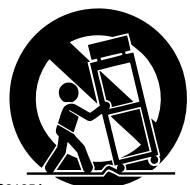
Use only with the cart, stand, tripod, bracket, or table specified by the manufacturer, or sold with the apparatus. When a cart is used, use caution when moving the cart/ apparatus combination to avoid injury from tip-over.
PORTABLE CART WARNING
S3125A
-
Unplug this apparatus during lightning storms or when unused for long periods of time.
-
Refer all servicing to qualified service personnel. Servicing is required when the apparatus has been damaged in any way, such as power-supply cord or plug is damaged, liquid has been spilled or objects have fallen into the apparatus, the apparatus has been exposed to rain or moisture, does not operate normally, or has been dropped.
-
Damage Requiring Service
Unplug the apparatus form the wall outlet and refer servicing to qualified service personnel under the following conditions:
A. When the power-supply cord or plug is damaged,
B. If liquid has been spilled, or objects have fallen into the apparatus,
C. If the apparatus has been exposed to rain or water.
D. If the apparatus does not operate normally by following the operating instructions. Adjust only those controls that are covered by the operating instructions as an improper adjustment of other controls may result in damage and will often require extensive work by a qualified technician to restore the apparatus to its normal operation,
E. If the apparatus has been dropped or damaged in any way, and
F. When the apparatus exhibits a distinct change in performance this indicates a need for service.
- Object and Liquid Entry
Never push objects of any kind into the apparatus through openings as they may touch dangerous voltage points or short-out parts that could result in a fire or electric shock.
The apparatus shall not be exposed to dripping or splashing and no objects filled with liquids, such as vases shall be placed on the apparatus.
Don't put candles or other burning objects on top of this unit.
- Batteries
Always consider the environmental issues and follow local regulations when disposing of batteries.
- If you install the apparatus in a built-in installation, such as a bookcase or rack, ensure that there is adequate ventilation.
Leave 20cm (8") of free space at the top and sides and 10cm (4") at the rear. The rear edge of the shelf or board above the apparatus shall be set 10cm (4") away from the rear panel or wall, creating a flue-like gap for warm air to escape.
Precautions
This unit contains a semiconductor laser system and is classified as a "CLASS 1 LASER PRODUCT". So, to use this model properly, read this Instruction Manual carefully. In case of any trouble, please contact the store where you purchased the unit.
To prevent being exposed to the laser beam, do not try to open the enclosure.
DANGER:
VISIBLE AND INVISIBLE LASER RADIATION WHEN OPEN AND INTERLOCK FAILED OR DEFEATED. DO NOT STARE INTO BEAM.
CAUTION:
THIS PRODUCT UTILIZES A LASER. USE OF CONTROLS OR ADJUSTMENTS OR PERFORMANCE OF PROCEDURES OTHER THAN THOSE SPECIFIED HEREIN MAY RESULT IN HAZARDOUS RADIATION EXPOSURE.
The label on the right is applied on the rear panel except for USA and Canadian models.
- This unit is a CLASS 1 LASER PRODUCT and employs a laser inside the cabinet.
- To prevent the laser from being exposed, do not remove the cover. Refer servicing to qualified personnel.
For U.S. model
The laser is covered by a housing which prevents exposure during operation or maintenance. However, this product is classified as a Laser Product by CDRH (Center for Devices and Radiological Health) which is a department of the Food and Drug Administration. According to their regulations 21 CFR section 1002.30, all manufactures who sell Laser Products must maintain records of written communications between the manufacturer, dealers and customers concerning radiation safety. If you have any complaints about instructions or explanations affecting the use of this product, please feel free to write to the address on the back page of this manual. When you write us, please include the model number and serial number of your unit.
In compliance with Federal Regulations, the certification, identification and the period of manufacture are indicated on the rear panel.
FCC INFORMATION FOR USER
CAUTION:
The user changes or modifications not expressly approved by the party responsible for compliance could void the user's authority to operate the equipment.
NOTE:
This equipment has been tested and found to comply with the limits for a Class B digital device, pursuant to Part 15 of the FCC Rules.
These limits are designed to provide reasonable protection against harmful interference in a residential installation. This equipment generates, uses and can radiate radio frequency energy and, if not installed and used in accordance with the instructions, may cause harmful interference to radio communications. However, there is no guarantee that interference will not occur in a particular installation.
If this equipment does cause harmful interference to radio or television reception, which can be determined by turning the equipment off and on, the user is encouraged to try to correct the interference by one or more of the following measures:
Reorient or relocate the receiving antenna.
- Increase the separation between the equipment and receiver.
- Connect the equipment into an outlet on a circuit different from
that to which the receiver is connected.
- Consult the dealer or an experienced radio/TV technician for help.
For Canadian model
NOTE: This class B digital apparatus complies with Canadian ICES-003.
For models having a power cord with a polarized plug:
CAUTION: TO PREVENT ELECTRIC SHOCK, MATCH WIDE BLADE OF PLUG TO WIDE SLOT, FULLY INSERT.
Replacement and mounting of an AC plug on the power supply cord of this unit should be performed only by qualified service personnel.
IMPORTANT
The wires in the mains lead are coloured in accordance with the following code:
Blue: Neutral
Brown: Live
As the colours of the wires in the mains lead of this apparatus may not correspond with the coloured markings identifying the terminals in your plug, proceed as follows:
The wire which is coloured blue must be connected to the terminal which is marked with the letter N or coloured black.
The wire which is coloured brown must be connected to the terminal which is marked with the letter L or coloured red.
IMPORTANT
A 5 ampere fuse is fitted in this plug. Should the fuse need to be replaced, please ensure that the replacement fuse has a rating of 5 amperes and that it is approved by ASTA or BSI to BS1362. Check for the ASTA mark or the BSI mark on the body of the fuse.
IF THE FITTED MOULDED PLUG IS UNSUITABLE FOR THE SOCKET OUTLET IN YOUR HOME
THEN THE FUSE SHOULD BE REMOVED AND THE PLUG CUT OFF AND DISPOSED OF SAFELY. THERE IS A DANGER OF SEVERE ELECTRICAL SHOCK IF THE CUT OFF PLUG IS INSERTED INTO ANY 13 AMPERE SOCKET.
If in any doubt, consult a qualified electrician.
For European Models
Declaration of Conformity
We, ONKYO EUROPE ELECTRONICS GmbH LIEGNITZERSTRASSE 6, 82194 GROEBENZELL, GERMANY
declare in own responsibility, that the ONKYO product described in this instruction manual is in compliance with the corresponding technical standards such as EN60065, EN55013, EN55020 and EN61000-3-2, -3-3.
GROEBENZELL, GERMANY
ONKYO EUROPE ELECTRONICS GmbH
1. Region Numbers
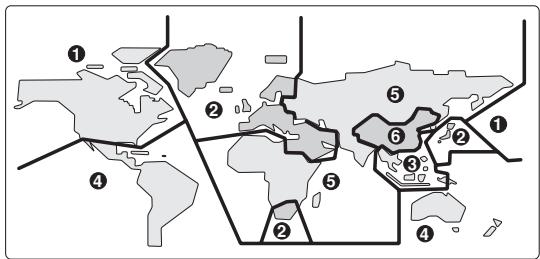
The DVD standard uses region numbers to control how discs can be played around the world, the world being divided into six regions. This unit will only play DVD discs that match its region number, which can be found on its rear panel (e.g., ②).
2. About this Manual
This manual explains how to use all of this unit's functions. Although the DVD standard offers many special features, not all discs use them all, so depending on the disc being played, this unit may not respond to certain functions. See the disc's sleeve notes for supported features.
When you attempt to use a DVD feature that is not available, this logo may appear onscreen, indicating that the feature is not supported by the current disc or this unit.

3. Recording Copyright
Unless it's for personal use only, recording copyrighted material is illegal without the permission of the copyright holder.
4. Power
WARNING
BEFORE PLUGGING IN THE UNIT FOR THE FIRST TIME, READ THE FOLLOWING SECTION CAREFULLY.
AC outlet voltages vary from country to country. Make sure that the voltage in your area meets the voltage requirements printed on this unit's rear panel (e.g., AC 120V , 60Hz ).
Precautions—Continued
5. Never Touch this Unit with Wet Hands
Never handle this unit or its power cord while your hands are wet or damp. If water or any other liquid gets inside this unit, have it checked by the dealer from whom you purchased this unit.
6. Installing this Unit
- Install this unit in a well-ventilated location. Ensure that there's adequate ventilation all around this unit, especially if it's installed in an audio rack. If the ventilation is inadequate, the unit may overheat, leading to malfunction.
- Do not expose this unit to direct sunlight or heat sources, because its internal temperature may rise, shortening the life of the optical pickup.
- Avoid damp and dusty places, and places subject to vibrations from loudspeakers. Never put the unit on top of, or directly above a loudspeaker.
- Install this unit horizontally. Never use it on its side or on a sloping surface, because it may cause a malfunction.
- If you install this unit near a TV, radio, or VCR, the picture and sound quality may be affected. If this occurs, move this unit away from the TV, radio, or VCR.
7. Care
Occasionally, you should dust this unit all over with a soft cloth. For stubborn stains, use a soft cloth dampened with a weak solution of mild detergent and water. Dry the unit immediately afterwards with a clean cloth. Do not use abrasive cloths, thinners, alcohol, or other chemical solvents, because they may damage the finish or remove the panel lettering.
8. Handling Notes
- If you need to transport this unit, use the original packaging to pack it how it was when you originally bought it.
- Do not use volatile liquids, such as insect sprays, near this unit. Do not leave rubber or plastic items on this unit for a long time, because they may leave marks on the case.
- This unit's top and rear panels may get warm after prolonged use. This is normal.
- When you've finished using this unit, remove all discs and turn off the power.
- If you do not use this unit for a long time, it may not work properly the next time you turn it on, so be sure to use it occasionally.
9. To Obtain a Clear Picture
This unit is a high-tech, precision device. If the lens on the optical pickup, or the disc drive mechanism becomes dirty or worn, the picture quality may be affected. To maintain the best picture quality, we recommend regular inspection and maintenance (cleaning or worn part replacement) every 1,000 hours of use depending on the operating environment. Contact the dealer from whom you purchased this unit.
10. Moisture Condensation
Moisture condensation may damage this unit.
Read the following carefully:
When you take a glass containing a cold drink outside on a summer's day, drops of water, called condensation, form on the outside of the glass. Similarly, moisture may condense on the lens of the optical pickup, one of the most important parts inside this unit.
- Moisture condensation can occur in the following situations:
The unit is moved from a cold place to a warm place.
A heater is turned on, or cold air from an air conditioner is hitting the unit.
In the summer, when this unit is moved from an air conditioned room to a hot and humid place.
The unit is used in a humid place. - Do not use this unit when there's the possibility of moisture condensation occurring. Doing so may damage your discs and certain parts inside this unit. If condensation does occur, remove all discs and leave this unit turned on for two to three hours. By this time, the unit will have warmed up and any condensation will have evaporated. To reduce the risk of condensation, keep this unit connected to a wall outlet.
Contents
Important Safety Instructions 2
Precautions 3
Introduction 8
RDV-1.1 Features 8
Supplied Accessories 9
Disc Notes. 10
Terminology 13
Before Use 15
Setting the Voltage Selector (Worldwide model only) 15
Installing the Remote's Batteries. 15
Using the Remote Controller. 15
Getting to Know the RDV-1.1 16
Front Panel. 16
Display 17
Rear Panel 18
Remote Controller 22
Connecting 25
Before Making Any Connections 25
AV Cables & Connectors 25
Video Formats & RDV-1.1 Inputs & Outputs 27
Audio Formats & RDV-1.1 Outputs 28
Getting Connected 29
Connecting a Standard TV. 30
Connecting an HDTV or Projector 31
Connecting a SCART-compatible TV (European model only) 32
Connecting a Component with an HDMI Input 32
Connecting to an AV Receiver's Video Inputs 33
Connecting i.LINK-compatible Components 34
Connecting to an AV Receiver's Audio Inputs 36
Connecting a Stereo Amp 37
Connecting Standard Video Equipment for Progressive Conversion 39
Connecting a Component with an HDMI Output 40
Connecting Components with RI. 40
Controlling Components That Are Out of Range 41
Connecting the Power Cord 42
Turning On the RDV-1.1 43
Turning On the RDV-1.1 with the Remote Controller 43
Initial Setup. 44
First Time Setup. 44
BasicPlayback 46
Loading Discs 46
Starting, Pausing & Stopping Playback.....47
Navigating Disc Menus. 48
Selecting Chapters & Titles by Number.....49
Selecting Tracks by Number 50
Fast Forward & Reverse 51
Frame-by-FramePlayback. 51
Slow-motionPlayback 52
Adjusting the Display Brightness 52
Navigating MP3 Discs 53
Viewing a Slideshow of JPEG Images 54
Making a Playlist with the Disc Navigator... 55
AdvancedPlayback. 57
Zooming. 57
Time Search 57
RepeatPlayback 58
A-B Repeat Playback. 58
RandomPlayback 59
Memory Playback 60
Selecting Camera Angles 62
Selecting Soundtracks 63
Selecting Subtitles 63
Last Memory 64
Displaying Information 64
Turning Off the Video Circuits 67
Selecting the Video Input Source 67
Setting the HDMI Output Resolution 67
Setting the Picture's Aspect Ratio 68
Using the Picture Control Menu. 68
Configuring the RDV-1.1 69
Using the Onscreen Setup Menus. 71
Picture Menu 73
Audio Menu 75
Language Menu 82
Display Menu. 83
Operation Menu. 83
Initial Setup Menu. 85
Selecting Other Languages 85
Language Code List 86
Controlling Other Components. 87
Entering Remote Control Codes. 87
Learning the Commands of Other Remote Controllers 92
Deleting the Learnt Commands of One Mode 93
Deleting the Learnt Commands of All Modes 93
Troubleshooting 94
Specifications 97
Thank you for purchasing the Integrare RESEARCH RDV-1.1 Super Audio CD & DVD Audio/Video Player. Read this manual carefully before using your new player. A good understanding of its features and operation will allow you to achieve optimum performance and enjoyment.
Keep this manual for future reference.
Important Safety Instructions...... 2
Precautions 3
Introduction 8
Before Use 15
Getting to Know the RDV-1.1...... 16
Connecting 25
Initial Setup 44
BasicPlayback 46
AdvancedPlayback 57
Configuring the RDV-1.1 69
Controlling Other Components... 87
Troubleshooting 94
Specifications 97
Introduction
RDV-1.1 Features
Highlights
THX Ultra certification
DVD-Video, DVD-Audio, and SACD universal player
Dual-laser pickup
- Apogee audio D/A converters²
VCD,DVD-VR, CD, and MP3 playback
- JPEG picture display and slideshow
CD-R/RW, DVD-R/RW
- Backlit, preprogrammed leaning remote controller
Processing
- Dolby Digital and DTS
192 kHz/24-bit audio D/A converters
216 MHz/14-bit video D/A converters - Progressive upconversion with 3:2 and 2:2 reverse pulldown
- Direct Digital Path
- VLSC—Vector Linear Shaping Circuitry
Connections
- HDMI digital video and digital audio in/out
- 2 i.LINK multichannel digital audio sockets
- 5 digital audio outputs—1 AES/EBU, 2 optical, 2 coaxial
- 2 HD component video outputs
- 1 component video output, 2 S-Video outputs, 2 composite video outputs
5.1-channel analog audio output - Dedicated downmix analog audio output
- Component, S-Video, and composite video inputs with progressive conversion
Bidirectional RS-232 port - IR in/out
-
R compatible
12 V trigger input -
THX is a trademark or registered trademark of THX Ltd. All rights reserved.
- Clocked by Apogee is under license and trademark of Apogee Electronics, Inc.
- Manufactured under license from Dolby Laboratories. "Dolby", "Pro Logic" and the double-D symbol are trademarks of Dolby Laboratories.
- "DTS" and "DTS Digital Surround" are registered trademarks of Digital Theater Systems, Inc.
- VLSC is a trademark of Onkyo Corporation.
- HDMI, the HDMI logo and High-Definition Multimedia Interface are trademarks or registered trademarks of HDMI Licensing, LLC.
- The i.LINK logo is a trademark of Sony Corporation, registered in the U.S. and other countries.
- Niles is a registered trademark of Niles Audio Corporation.
- Xantech is a registered trademark of Xantech Corporation.
Functions
- Disc Navigator for MP3 and JPEG discs
- Title, chapter, group, track, folder (MP3) and time search
- Frame-by-frame playback
- Slow motion playback
- Fast forward and reverse
- Last Memory function allows you to resume playback from a specific point on a DVD-Video disc or VCD
- Repeat playback: title, chapter, group, track, folder (MP3/JPEG)
- Random playback: title, chapter, group, track, folder (MP3/JPEG)
Supports 4:3 and 16:9 aspect ratio TVs
Supports up to 8 soundtracks/languages
Supports up to 32 subtitle languages - Multiple camera angles
Parental Lock - Screen Saver
Others
- Auto Power Off function
- Toroidal power supply transformer
- Silent slide disc tray
Aluminium front panel - Adjustable display brightness with off setting
THX Ultra
Before any home theater component can be THX Ultra certified, it must pass a rigorous series of quality and performance tests. Only then can a product feature the THX Ultra logo, which is your guarantee that the Home Theater products you purchase will give you superb performance for many years to come.
THX notice
Please note that the analog audio output setup features of this player have not been evaluated by THX engineers and did not certify their technical performance. For optimum results THX recommends the use of the digital audio outputs.
Introduction—Continued
Supplied Accessories
Make sure you have the following accessories. If anything is missing, contact the dealer from whom you purchased this unit.
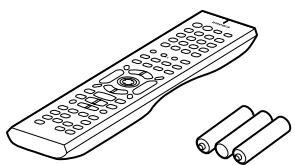
Remote controller (RC-561DV) & three batteries (AA/R6)
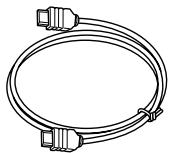
HDMI cable
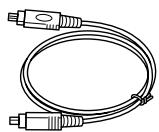
i.LINK cable
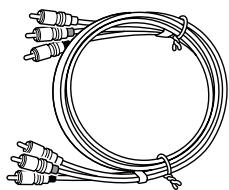
AV cable (RCA)
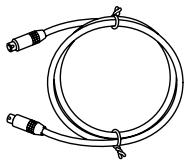
S-Video cable
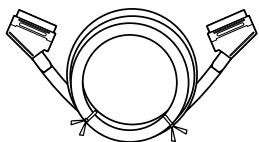
SCART cable
(European model only)
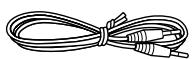
R cable
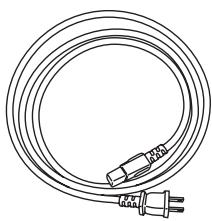
Power cord
(Plug type varies from country to country.)
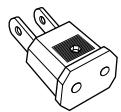
Power-plug adapter
Only supplied in certain countries. Use this adapter if your AC outlet does not match with the plug on the RDV-1.1's power cord. (Adapter varies from country to country.)
* In catalogs and on packaging, the letter added to the end of the product name indicates the color of the RDV-1.1. Specifications and operation are the same regardless of color.
Introduction—Continued
Disc Notes
Supported Discs
The RDV-1.1 supports the following discs.
| Disc | Logo | Format or file type |
| DVD-Video | DVD VIDEO | DVD-Video |
| DVD-Audio | AUDIO | DVD-Audio |
| SACD | SUPER AUDIO CD | Super Audio CD (sin-gle layer, dual layer, hybrid) |
| DVD-R | DVD R | DVD-Video |
| DVD-RW | DVD RW | DVD-Video, DVD-VR |
| VCD | COMPACT DISC DIGITAL VIDEO | Video CD (Version 1.1 and 2.0) |
| CD | COMPACT DISC DIGITAL AUDIO | Audio CD (PCM and DTS) |
| CD-R | COMPACT DISC DIGITAL AUDIO Recordable | Video CD, audio CD, MP3, JPEG |
| CD-RW | COMPACT DISC DIGITAL AUDIO ReWritable | Video CD, audio CD, MP3, JPEG |
| JPEG CD | JPEG |
- Some audio CDs feature copy protection that doesn't conform to the official CD standard. Since these are nonstandard discs, they may not play properly in the RDV-1.1.
- The RDV-1.1 supports CD-R and CD-RW discs recorded in Video CD format, audio CD format, or ISO9660 Level 2 format with MP3 or JPEG files. It also supports DVD-R and DVD-RW discs recorded in DVD-Video or DVD-Audio format, and DVD-RW discs recorded in DVD-VR format. However, some CD-R/RW and DVD-R/RW discs may not work properly for any of the following reasons: incomplete disc finalization, disc burner characteristics, disc characteristics, the disc is damaged or dirty. See the manual supplied with your disc burner for more information. Condensation or dirt on the optical pickup lens can also affect playback.
- Since the RDV-1.1 does not support DVD-VR discs with CPRM (Content Protection for Recordable Media), do not attempt to play such discs.
- The RDV-1.1 does not support disc types not listed.
-
The RDV-1.1 supports 8cm and 12cm discs.
-
Don't use discs with an unusual shape, such as those shown below, because they may damage the RDV-1.1.


- Don't use discs that have residue from adhesive tape, rental discs with peeling labels, or discs with custom-made labels or stickers. Doing so may damage the RDV-1.1 and you may not be able to remove the disc properly.
DVD-Video Regions
The DVD-Video standard uses region numbers to control how discs can be played around the world, the world being divided into six regions, as shown. The RDV-1.1 will only play DVD-Video discs that match its region number, which can be found on the rear panel (e.g., ⑤). If you attempt to play a disc intended for another region, a message saying that the disc cannot be played appears. Discs marked ALL will play in any DVD player.
Unsupported DVD Features
DVD offers many special features, including multiple soundtracks, subtitles, camera angles, and so on. However, not all discs use all of these features. When you attempt to use
a feature that is not supported by the current disc, for example, you press the remote controller's [AUDIO] button while playing a disc with only one soundtrack, this icon will appear onscreen, indicating that the disc doesn't support that feature.
Similarly, if a disc uses features that are not supported by the RDV-1.1, for example, special interactive menu functions, this icon will appear onscreen, indicating that the feature is not supported by the RDV-1.1.


Introduction—Continued
Video CDs
The RDV-1.1 supports Version 1.1 and Version 2.0 of the Video CD standard. Version 2.0 supports PBC (Playback Control).
Video CD (Version 1.1)
On the RDV-1.1, the contents of Video CDs that conform to Version 1.1 of the Video CD standard are handled as tracks.
Video CD with PBC (Version 2.0)
In addition to the functions supported by Version 1.1, Version 2.0 offers playback control via interactive menus and search functions. Note that the RDV-1.1 doesn't support all PBC functions.
MP3 & JPEG Compatibility
- The RDV-1.1 can play/display MP3 and JPEG files recorded on CD-R and CD-RW discs.
- Discs must be in ISO9660 Level 2 format (folders can be up to eight levels deep).
Discs must be finalized. - The RDV-1.1 can only recognize the first session on multisession discs.
- You can determine the order in which the RDV-1.1 plays/displays your MP3 songs and JPEG pictures by prefixing file and folder names with a three-digit number. For example 001_ROOT, 002.Folder, and so on, and 001.Track.mp3, 002.Track.mp3, and so on.
- Only the first eight characters of folder and track names (excluding the filename extension) appear on the display.
- The folder numbered "001" appears as "ROOT" in the Disc Navigator.
- The RDV-1.1 supports up to 999 folders and up to 672 files.
- If you try to play an incompatible file, the message "This format cannot be played" appears on the display.
MP3
- MP3 files must be MPEG1 Audio Layer 3 format, 44.1 or 48kHz , fixed bit-rate.
- MP3 files must have a“.mp3” or“.MP3” filename extension.
- Variable bit-rates (VBR) from 64 kbps to 384 kbps are supported. (Playing times of VBR files may be displayed incorrectly.)
JPEG
- JPEG files must have a“.jpg” or“.jpeg” filename extension (either uppercase or lowercase is OK).
- Baseline JPEG files are supported. Progressive JPEG files are not.
- Only JPEG files with the following brightness/color difference ratios are supported: 4:4:4, 4:2:2, and 4:1:1.
- JPEG files must be less than 5 MB in size.
Function Support
The following icons are used throughout this manual to indicate which discs can be used with each function.
| Icon | Disc type | Icon | Disc type |
| DVD- | DVD-Video | VCD | Video CD |
| DVD-A | DVD-Audio | CD | Audio CD |
| SACD | Super Audio CD | MP3 | MP3 |
| DVD-VR | DVD-VR | JPEG | JPEG |
Disc Content Organization
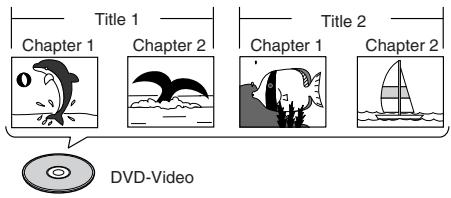
DVD-Video
DVD-Video discs typically contain one or more titles, which may be subdivided into chapters.
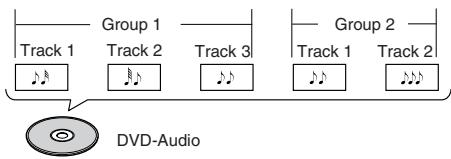
DVD-Audio
DVD-Audio discs contain groups and tracks.
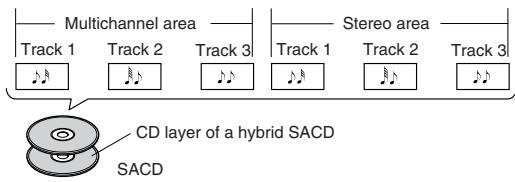
SACD
SACDs have two separate areas for storing audio tracks—one for multichannel audio, the other for 2-channel stereo audio. In addition, hybrid SACDs have an extra layer for playback in standard CD players. You can specify how the RDV-1.1 handles SACDs on page 81.
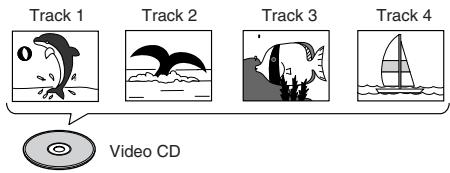
VCD
VCDs contain video tracks.
Introduction—Continued
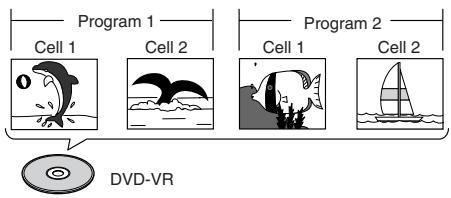
DVD-VR
DVD-VR discs contain programs, which may be subdivided into cells. They may also contain playlists.
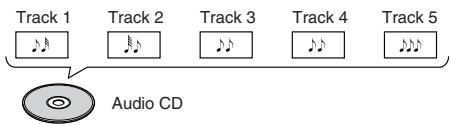
CD
CDs contain tracks.
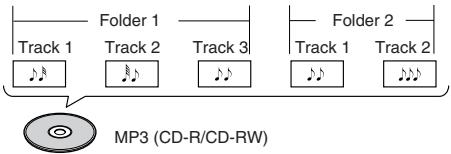
MP3
MP3 discs contain MP3 tracks organized into folders.
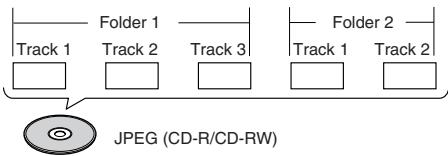
JPEG
JPEG discs contain pictures organized into folders. On the RDV-1.1, JPEG files as handled as tracks.
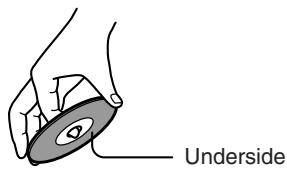
Handling Discs
- Never touch the underside of a disc. Always hold a disc by the edge, as shown.
- Never attach adhesive tape or sticky labels to discs.

Cleaning Discs
- For best results, keep your discs clean. Fingerprints and dust can affect the sound and picture quality and should be removed as follows. Using a clean, soft cloth, wipe from the center outwards, as shown. Never wipe in a circular direction.
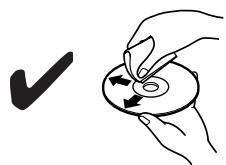

- To remove stubborn dust or dirt, wipe the disc with a damp, soft cloth, and then dry it with a dry cloth.
- Never use solvent-based cleaning fluids, such as thinner or benzine, commercially available cleaners, or antistatic sprays intended for vinyl records, because they may damage the disc.
Storing Discs
- Don't store discs in places subject to direct sunlight, or near heat sources.
- Don't store discs in places subject to moisture or dust, such as in a bathroom or near a humidifier.
- Always store discs in their cases and vertically. Stacking, or putting objects on unprotected discs may cause warping, scratches, or other damage.
Copyright
It is forbidden by law to copy, broadcast, show, broadcast on cable, play in public, or rent copyrighted material without permission.
Commercial DVD-Video discs are copy-protected, and any recordings made from these discs will be distorted. This product incorporates copyright protection technology that is protected by U.S. patents and other intellectual property rights. Use of this copyright protection technology must be authorized by Macrovision, and is intended for home and other limited viewing uses only unless otherwise authorized by Macrovision. Reverse engineering or disassembly is prohibited.
Introduction—Continued
Terminology
AES/EBU: A digital audio connection format similar to coaxial but found mainly on professional digital audio equipment. Balanced XLR cables are used for better noise immunity and longer cable runs.
CD-R (compact disc recordable): A type of CD that can be recorded only once. Can be used for VCD, CD, MP3, or JPEG.
CD-RW (compact disc rewrite): A type of CD that can be recorded over and over again. Can be used for VCD, CD, MP3, or JPEG.
Chapter: Titles on DVD-Video discs can be subdivided into chapters.
■ Component video: A video connection format that separates the luminance (Y) and color difference signals (PR, PB), providing better picture quality than S-Video.
Composite video: A video connection format that combines the luminance and color signals together.
- Direct Digital Path: Unique Onkyo technology that uses dedicated shielded cables to connect the digital audio outputs, protecting the digital output signals against the possibility of noise and interference.
Dolby Digital: Once known as AC-3, this is the designated surround sound format for DVD-Video, HDTV, and select digital broadcasts (cable, satellite, over-the-air). A Dolby Digital bitstream may contain mono, stereo, Dolby Surround, or 5.1-channel audio information.
Dolby Pro Logic: The decoders used in home theater equipment to decode Dolby Surround material. See Dolby Surround.
Dolby Surround: The original Dolby surround-sound format uses matrix encoding to deliver four channels (left, right, center, and surround) over two audio channels. Can be used with VHS video, analog TV, and other analog stereo systems. The movie theater version is known as Dolby Stereo.
Downmixing: The process of mixing multiple audio channels into fewer channels. For example, a 5.1-channel surround mix can be downmixed to two channels for reproduction on stereo systems.
Downsampling: The process of reducing the sampling rate of digital audio.
DTS (Digital Theater Systems): Like Dolby Digital, the DTS surround-sound format offers up to 5.1-channels of information, but uses less compression for a more faithful sound.
DVD-Audio: The DVD format for storing up to six (5.1) channels of 24-bit/96 kHz digital audio or two channels of 24-bit/192 kHz digital audio.
DVD-R (DVD recordable): A type of DVD disc that can be recorded only once. Can be used for DVD-Video or DVD-Audio.
DVD-RW (DVD rewritable): A type of DVD disc that can be recorded over and over again. Can be used for DVD-Video, DVD-Audio, or DVD-VR.
DVD-Video: The format for storing MPEG2 video on DVD, with interactive menus, multiple soundtracks, subtitles, camera angles, and so on.
DVD-VR (DVD Video Recording): The DVD format used by DVD recorders for storing video on DVD-RW discs. Recorded programs can be deleted or arranged into playlists.
Field: In interlaced scanning, a field is a single scan of the screen. There are two fields per frame. See Interlaced Scanning and Progressive Scanning.
■ Frame: An individual TV picture is called a frame. With the NTSC color system there are 30 frames per second (25 for PAL).
- HD: Abbreviation for high definition, as in HDTV (high-definition TV).
■ HDMI (High Definition Multimedia Interface): A new connection format that greatly simplifies AV connections by carrying uncompressed SD or HD digital video and up to eight channels of digital audio all in one cable.
i.LINK: Another name for the IEEE 1394 connection format. Commonly used on AV equipment. It's a bidirectional format, so connected components can talk to each other for optimal setup and perfectly synchronized audio transmission.
i.LINK Audio: The protocol for carrying up to six (5.1) channels and up to 24-bit/192 kHz digital audio over i.LINK (IEEE 1394). Officially known as the A&M Protocol—Audio and Music Data Transmission Protocol.
■ IEEE 1394: High-speed digital connection format used for video, audio, and computer applications. See also A&M Protocol and i.LINK.
■ Interlaced scanning: TV pictures are made by scanning the screen in horizontal lines from top to bottom. With Interlaced scanning, two scans (fields) are used to make each picture (frame). Contrast with Progressive scanning.
JPEG (Joint Photographic Experts Group): The acronym commonly used to refer to the compressed file format used to store digital images.
LFE (low-frequency effects): The surround-sound channel used for low-frequency effects.
Linear PCM: The uncompressed digital audio format used for audio CDs. PCM stands for Pulse Code Modulation.
Introduction—Continued
MP3 (MPEG 1 Audio Layer 3): Popular compressed file format for storing digital music.
MPEG1 (Moving Picture Experts Group 1): The compressed digital video format used for VCDs.
MPEG2 (Moving Picture Experts Group 2): The compressed digital video format used for DVDs, offering better picture quality than MPEG1.
NTSC: The color TV system used in the United States, Japan, Taiwan, and Korea.
PAL: The color TV system used in most of Europe, the United Kingdom, Australia, Brazil, and China.
PBC (Playback Control): Version 2.0 of the VCD standard supports interactive menus and search functions.
- Progressive scanning: TV pictures are made by scanning the screen in horizontal lines from top to bottom. With progressive scanning, each picture (frame) is made by scanning the entire screen from top to bottom in one go, resulting is a clearer and stabler picture. Contrast with Interlaced scanning.
S-Video: A video connection format that separates the luminance (Y) and color (C) signals, providing better picture quality than composite video.
SACD (Super Audio CD): SACD uses Direct Stream Digital (DSD) technology for audio performance superior to that of standard CDs. It also supports multi-channel audio, and hybrid discs can be played in standard CD players.
SD: Abbreviation for standard definition, as in SDTV (standard-definition TV)
THX: Founded in 1983 by George Lucas, THX develops quality assurance programs to ensure that movies are experienced as the director intended.
THX Ultra: A quality assurance program developed by THX to ensure faithful sound and picture reproduction of movies in cinemas and home theaters.
Title: The contents of DVD-Video discs are organized into titles.
Upconversion: The process of converting video to a higher quality. For example, converting S-Video to component video, or standard definition TV pictures to HDTV.
Upsampling: The process of converting digital audio to a higher sampling rate.
VCD (Video CD): The format for storing MPEG1 video on CD.
■ VLSC (Vector Linear Shaping Circuitry): Unique Onkyo circuitry that reduces pulse noise in analog audio signals converted from digital sources.
Before Use
Setting the Voltage Selector (Worldwide model only)
The Worldwide model has a voltage selector for compatibility with power systems around the world. Before you plug in this model, make sure that the voltage selector is set to the correct voltage for your area. If it isn't, use a small screwdriver to set it as appropriate. For example, if the voltage in your area is 120 volts, set the selector to "120V." If it's between 220 and 230 volts, set it to "220-230V."
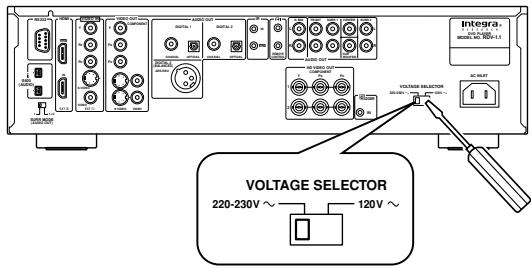
Installing the Remote's Batteries
1 To open the battery compartment, press the small hollow and slide off the cover.
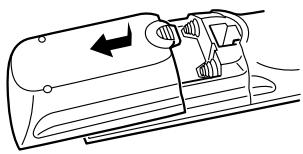
2 Insert the three supplied batteries (AA/R6) in accordance with the polarity markings inside the battery compartment.
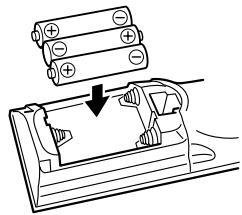
3 Put the cover onto the remote controller and slide it shut.
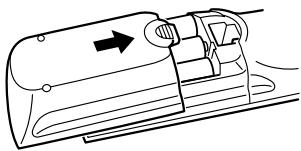
Notes:
- The supplied batteries should last for about six months, although this will vary with usage.
- If the remote controller doesn't work reliably, try replacing both batteries.
- Don't mix new and old batteries, or different types of batteries.
- If you intend not to use the remote controller for a long time, remove the batteries to prevent possible leakage and corrosion.
- Flat batteries should be removed as soon as possible to prevent possible leakage and corrosion.
Using the Remote Controller
To use the remote controller, point it at the RDV-1.1's remote control sensor, as shown below.
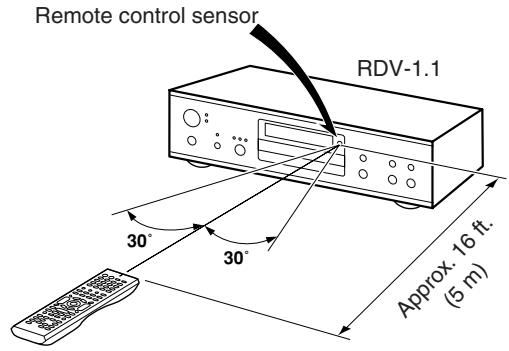
Notes:
- The remote controller may not work reliably if the RDV-1.1 is subjected to bright light, such as direct sunlight or inverter-type fluorescent lights. Keep this in mind when installing the RDV-1.1.
- If another remote controller of the same type is used in the same room, or the RDV-1.1 is installed close to equipment that uses infrared rays, the remote controller may not work reliably.
- Don't put anything, such as a book, on the remote controller, because the buttons may be pressed inadvertently, thereby draining the batteries.
- The remote controller may not work reliably if the RDV-1.1 is installed in a rack behind colored glass doors. Keep this in mind when installing the RDV-1.1.
- The remote controller will not work if there's an obstacle between it and the RDV-1.1's remote control sensor.
Getting to Know the RDV-1.1
Front Panel
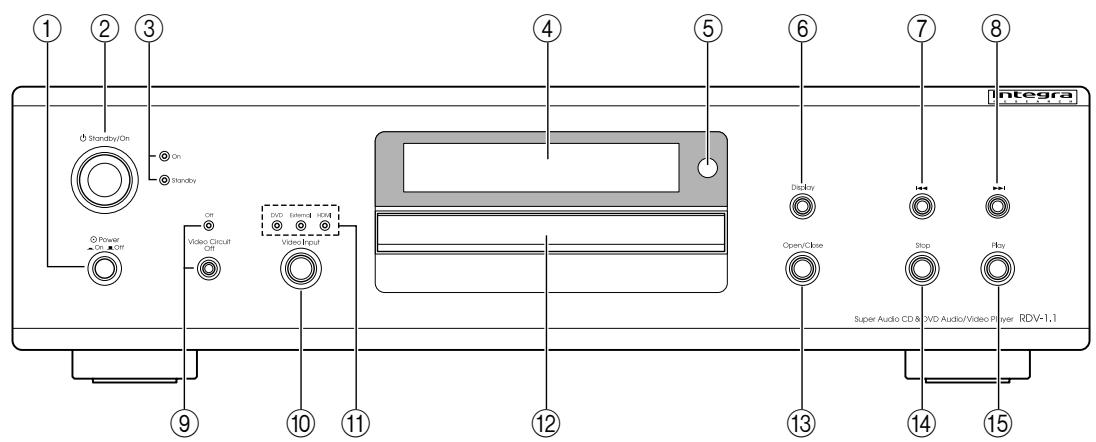
For detailed information, refer to the pages in parenthesis.
① Power switch (43)
This is the main power switch. When set to OFF, the RDV-1.1 is completely shutdown. When set to ON, the RDV-1.1 can be set to On or Standby.
② Standby/On button (43)
This button is used to set the RDV-1.1 to On or Standby.
③ On & Standby indicators (43)
The On indicator lights up when the RDV-1.1 is set to On. The Standby indicator lights up when it's set to Standby.
④ Display
See "Display" on page 17 for more information.
⑤ Remote control sensor (15)
This sensor receives control signals from the remote controller.
⑥ Display button (64)
This button is used to display information about the disc, title, chapter, group, or track, including the elapsed time, remaining time, total time, and so on.
⑦ Previous [▶] button (49, 53, 50)
This button is used to select the previous chapter or track. During playback it selects the beginning of the current chapter or track.
⑧ Next [▶] button (49, 53, 50)
This button is used to select the next chapter or track.
⑨ Video Circuit Off button & indicator (67)
This button is used to turn off all of the internal video circuitry, eliminating the possibility of interference when playing audio-only discs. The Off indicator lights up when the video circuitry is turned off.
10 Video Input knob (67)
This knob is used to select the video input source: DVD (the RDV-1.1), External (component video input, S-Video input, or composite video input), or HDMI (HDMI input).
① DVD,External & HDMI indicators (67)
These indicators show the currently selected video input source: DVD, External, or HDMI.
⑫ Disc tray (46)
Discs are loaded onto the disc tray.
⑬ Open/Close button (46)
This button is used to open and close the disc tray.
14 Stop button (47)
This button is used to stop playback.
15 Play button (47)
This button is used to start playback.
Display
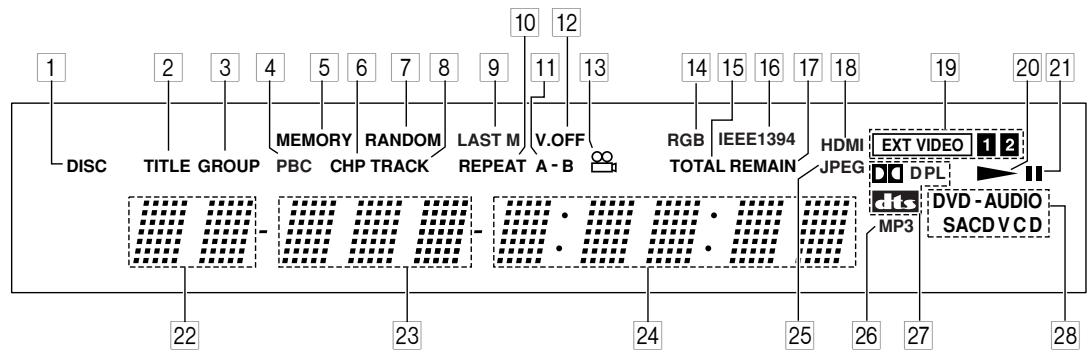
For detailed information, refer to the pages in parenthesis.
DISC indicator (58, 59)
This indicator appears when using the Repeat function's Disc Repeat option or the Random function's Disc Random option.
2 TITLE indicator
While stopped, the total number of titles on the current DVD-Video disc is displayed here. During playback, the number of the current title is displayed.
3 GROUPindicator
While stopped, the total number of groups on the current DVD-Audio disc is displayed here. During playback, the number of the current group is displayed.
4 PBC indicator
This indicator appears when the VCD currently playing supports PBC (Playback Control).
5 MEMORY indicator (60)
This indicator appears when using the Memory function.
6 CHP indicator
This indicator appears while the number of the current chapter is being displayed.
7 RANDOM indicator (59)
This indicator appears when using the Random function.
8 TRACK indicator
This indicator appears while track numbers are being displayed. While stopped, the total number of tracks on a VCD, SACD, DVD-Audio group, audio CD, or MP3 disc are displayed. During playback, the number of the current track is displayed.
9 LAST M indicator (64)
This indicator appears when using the Last Memory function.
10 REPEAT indicator (58)
This indicator appears when using the Repeat function.
11 A-B indicators (58)
These indicators appear when using the A-B Repeat function.
12 V.OFF indicator (67)
This indicator appears while the video circuits are turned off.
13 Camera angle indicator (62)
This indicator appears if the DVD-Video title currently playing features multiple camera angles.
14 RGB indicator (European model only) (75)
This indicator appears when the SCART Output Setting is set to RGB.
15 TOTAL indicator (64)
This indicator appears while the total time is being displayed.
16 IEEE 1394 indicator
This indicator appears when the RDV-1.1 is properly connected to an i.LINK (IEEE 1394) component.
17 REMAIN indicator (64)
This indicator appears while the remaining time is being displayed.
18 HDMI indicator
This indicator appears when the RDV-1.1 is properly connected to an HDMI component.
19EXTVIDEO1,2indicators(67)
The EXTVIDEO 1 indicator appears when the External is selected as the video source. The EXTVIDEO 2 indicator appears when the HDMI is selected as the video source.
20 Play indicator (47)
This indicator appears during playback.
21 Pause indicator (47)
This indicator appears when playback is paused.
22 Title/Group number
Title and group numbers appears here.
Getting to Know the RDV-1.1—Continued
23 Chapter & track number
Chapter and track numbers appears here.
24 Time display
Time information, such as total time, remaining time, and so on, is displayed here in hours, minutes, and seconds. Other messages are also displayed.
25 JPEG indicator
This indicator appears while a JPEG picture is being displayed.
26 MP3 indicator
This indicator appears when playing an MP3 track.
27 Dolby Digital ( D D), Dolby Pro Logic (DPL) & DTS ( ) indicators
The Dolby Digital indicator (DD) appears when
a Dolby Digital soundtrack is selected. The Dolby Pro Logic (PL) indicator appears when the RDV-1.1's Dolby Pro Logic decoder is on. The DTS indicator appears when a DTS soundtrack is selected.
DVD-AUDIO & SACD VCD indicators
These indicators show the type of disc loaded.
DVD: DVD-Video, DVD-VR
DVD-AUDIO: DVD-Audio
SACD: Super Audio CD
VCD: Video CD
CD: Audio CD, MP3, JPEG
Rear Panel
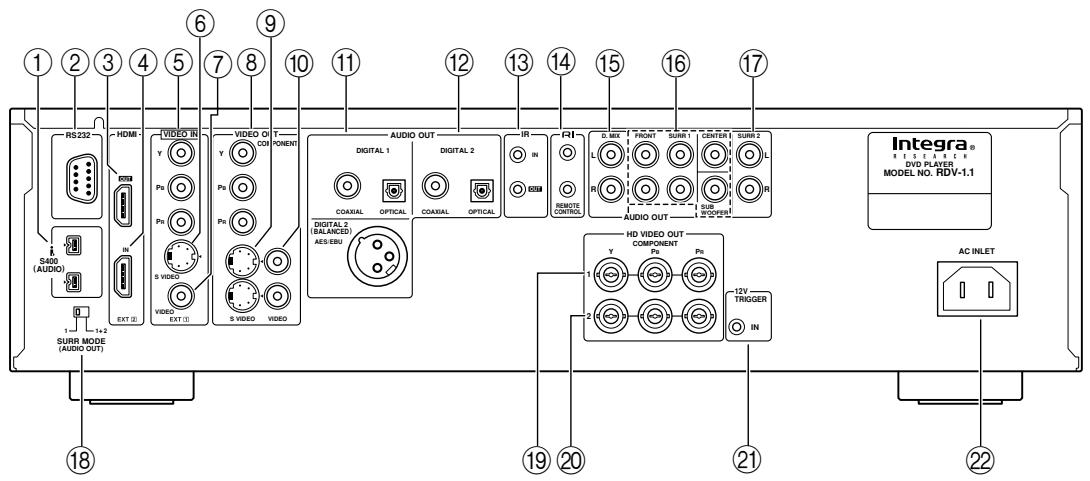
See page 20 for the European model.
For detailed information, refer to the pages in parenthesis.
① i.LINK S400 (AUDIO) (34)
These sockets can output up to six channels and up to 192kHz / 24 -bit digital audio in i.LINK format and can be connected to the i.LINK sockets on a compatible AV receiver or other component. The actual output signal depends on the disc currently playing. Since i.LINK is a bidirectional connection, connected components can talk to each other for optimal setup and perfectly synchronized audio transmission.
② RS 232
This bidirectional RS-232 port can be connected to an external controller.
③ HDMI OUT (32)
This HDMI socket outputs digital video and audio and can be connected to an HDMI input on a compatible TV or other component.
When the video input source is set to HDMI, the signals received by the HDMI IN are output here.
④ HDMI IN (32, 40)
This input accepts HDMI digital video and audio and can be connected to an HDMI output on a compatible AV receiver or other component.
When the video input source is set to HDMI, video signals received here are output by the HDMI OUT.
⑤VIDEO IN component (Y, PR, PB) (39)
This input accepts both SD and HD component video and it can be connected to a component video output on a TV or other video component.
When an SD component video signal is input, it's upconverted to progressive video and output by the HD VIDEO OUT COMPONENT 1 and 2 outputs.
When an HD component video signal is input, it's output by the HD VIDEO OUT COMPONENT 1 output at the same resolution.
Getting to Know the RDV-1.1—Continued
⑥VIDEO IN SVIDEO (39)
This input accepts S-Video and can be connected to an S-Video output on a satellite/cable tuner or other component.
When the video input source is set to External, video signals received here are upconverted to progressive video and output by the HD VIDEO OUT COMPONENT 1 and 2 outputs.
⑦VIDEO INVIDEO (39)
This input accepts composite video and can be connected to a composite video output on a satellite/cable tuner or other component.
When the video input source is set to External, video signals received here are upconverted to progressive video and output by the HD VIDEO OUT COMPONENT 1 and 2 outputs.
⑧VIDEO OUT COMPONENT (Y, PR, PB) (30)
These sockets output component video and can be connected to a component video input on a TV or projector. They output only interlaced video.
These two sockets output S-Video and can be connected to an S-Video input on a TV or projector.
These two sockets output composite video and can be connected to a composite video input on a TV or projector.
⑪ DIGITAL 1 AUDIO OUT (36, 38)
These sockets output digital audio and can be connected to the digital audio input on a hi-fi amp, AV receiver, surround sound decoder (Dolby Digital, DTS), or other component. There's a coaxial output and an optical output.
⑫ DIGITAL 2 AUDIO OUT (36, 38)
These sockets output digital audio and can be connected to the digital audio inputs on a hi-fi amp, AV receiver, surround sound decoder (Dolby Digital, DTS), or other component. There's an AES/EBU (balanced XLR) output, a coaxial output, and an optical output.
⑬ IR IN/OUT (41)
The IR IN socket can be used to connect a commercially available IR receiver, which can be used to pickup signals from the remote controller when the RDV-1.1 is located in another room, installed in a rack, or is out of range of the remote controller The IR OUT connector can be used to connect a commercially available IR emitter, which can be used to pass remote controller signals received by the IR IN along to other components.
14 RIREMOTECONTROL(40)
These RI (Remote Interactive) sockets can be connected to the RI sockets on other Integra RESEARCH AV components for interactive control.
To use Rl you must make an analog audio connection between the RDV-1.1 and your Integra RESEARCH AV receiver, even if they are connected digitally.
15 D.MIX AUDIO OUT (30, 31, 37)
These sockets output analog audio and can be connected to a stereo analog audio input on a TV, hi-fi amp, or other component. If the source audio is multichannel (Dolby Digital, DTS, DVD-Audio, SACD), they output a 2-channel downmix.
16 FRONT, SURR 1, CENTER & SUBWOOFER AUDIO OUT (37)
These sockets output 5.1-channel analog audio and can be connected to a 5.1-channel analog audio input on an AV receiver, surround sound decoder (Dolby Pro Logic), or other component.
⑰ SURR 2 AUDIO OUT (37)
These sockets output the same analog audio as the SURR1 outputs and can be connected to the analog surround back left and right inputs on a 7.1-channel AV receiver or other component. When using these sockets, the SURR MODE switch should be set to 1 + 2 .
18 SURR MODE (AUDIO OUT) switch (37)
This switch is used to set the surround output mode of the analog multichannel audio outputs. If you connect the SURR 2 outputs to a 7.1-channel AV receiver or amp, set this switch to 1 + 2 . This reduces the output level by 3 dB. If you're not using the SURR 2 outputs, set this switch to 1.
19 HDVIDEO OUT COMPONENT 1 (31)
These BNC sockets output HD component video and can be connected to the HD component video input on an HDTV or projector. If you input HD video to the component VIDEO IN socket, this output should be connected to the HDTV or projector. When an SD video signal is fed to a VIDEO IN socket (component, S-Video, or composite), and the video input source is set to External, that video signal is upconverted to progressive and output here. When an HD video signal is fed to the component VIDEO IN socket, and the video input source is set to External, that HD video signal is output here at the same resolution.
© HDVIDEOOUTCOMPONENT2(31)
These BNC sockets output HD component video and can be connected to the HD component video input on an HDTV or projector.
When an SD video signal is fed to a VIDEO IN socket (component, S-Video, or composite), and the video input source is set to External, that video signal is upconverted to progressive and output here.
When an HD video signal is fed to the component Video IN socket, and the video input source is set to External, nothing is output by these sockets.
Getting to Know the RDV-1.1—Continued
② 12VTRIGGERIN
This socket can be connected to the 12-volt trigger output on an AV receiver or other component so that the RDV-1.1 can be turned on remotely.
② AC INLET (42)
The supplied power cord should be connected here.
European model
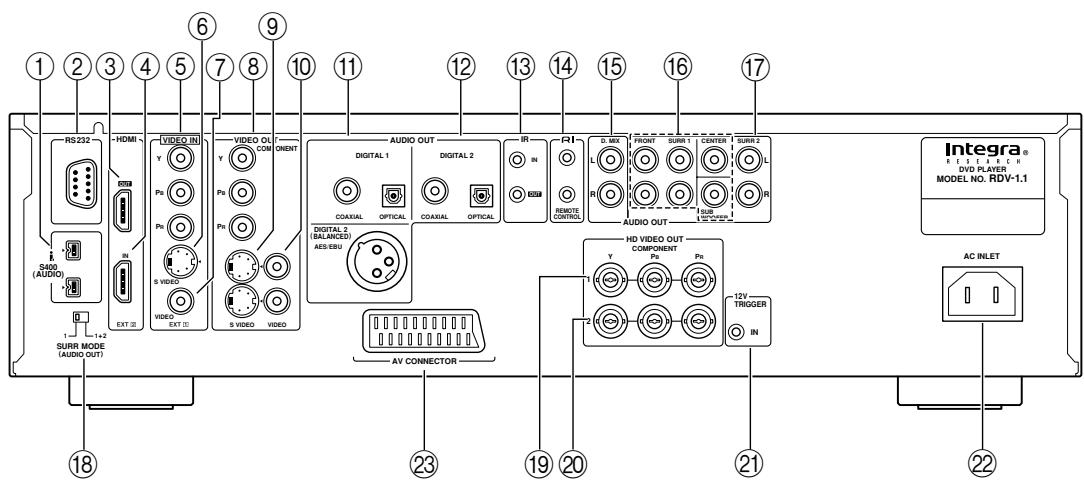
For detailed information, refer to the pages in parenthesis.
① i.LINK S400 (AUDIO) (34)
These sockets can output up to six channels and up to 192kHz / 24 -bit digital audio in i.LINK format and can be connected to the i.LINK sockets on a compatible AV receiver or other component. The actual output signal depends on the disc currently playing. Since i.LINK is a bidirectional connection, connected components can talk to each other for optimal setup and perfectly synchronized audio transmission.
② RS 232
This bidirectional RS-232 port can be connected to an external controller.
③ HDMI OUT (32)
This HDMI socket outputs digital video and audio and can be connected to an HDMI input on a compatible TV or other component.
When the video input source is set to HDMI, the signals received by the HDMI IN are output here.
④ HDMI IN (32, 40)
This input accepts HDMI digital video and audio and can be connected to an HDMI output on a compatible AV receiver or other component.
When the video input source is set to HDMI, video signals received here are output by the HDMI OUT.
⑤VIDEO IN component (Y, PR, PB) (39)
This input accepts both SD and HD component video and it can be connected to a component video output on a TV or other video component.
When an SD component video signal is input, it's upconverted to progressive video and output by the HD VIDEO OUT COMPONENT 1 and 2 outputs. When an HD component video signal is input, it's output by the HDVIDEO OUT COMPONENT 1 output at the same resolution.
⑥VIDEO IN SVIDEO (39)
This input accepts S-Video and can be connected to an S-Video output on a satellite/cable tuner or other component.
When the video input source is set to External, video signals received here are upconverted to progressive video and output by the HD VIDEO OUT COMPONENT 1 and 2 outputs.
⑦VIDEO INVIDEO (39)
This input accepts composite video and can be connected to a composite video output on a satellite/cable tuner or other component.
When the video input source is set to External, video signals received here are upconverted to progressive video and output by the HD VIDEO OUT COMPONENT 1 and 2 outputs.
⑧VIDEO OUT COMPONENT (Y, PR, PB) (30)
These sockets output component video and can be connected to a component video input on a TV or projector. They output only interlaced video.
These two sockets output S-Video and can be connected to an S-Video input on a TV or projector.
Getting to Know the RDV-1.1—Continued
These two sockets output composite video and can be connected to a composite video input on a TV or projector.
⑪ DIGITAL 1 AUDIO OUT (36, 38)
These sockets output digital audio and can be connected to the digital audio input on a hi-fi amp, AV receiver, surround sound decoder (Dolby Digital, DTS), or other component. There's a coaxial output and an optical output.
⑫ DIGITAL 2 AUDIO OUT (36, 38)
These sockets output digital audio and can be connected to the digital audio inputs on a hi-fi amp, AV receiver, surround sound decoder (Dolby Digital, DTS), or other component. There's an AES/EBU (balanced XLR) output, a coaxial output, and an optical output.
⑬ IR IN/OUT (41)
The IR IN socket can be used to connect a commercially available IR receiver, which can be used to pickup signals from the remote controller when the RDV-1.1 is located in another room, installed in a rack, or is out of range of the remote controller The IR OUT connector can be used to connect a commercially available IR emitter, which can be used to pass remote controller signals received by the IR IN along to other components.
14 R I REMOTE CONTROL (40)
These RI (Remote Interactive) sockets can be connected to the RI sockets on other Integra RESEARCH AV components for interactive control.
To use Rl you must make an analog audio connection between the RDV-1.1 and your Integra RESEARCH AV receiver, even if they are already connected digitally.
15 D.MIX AUDIO OUT (30, 31, 37)
These sockets output analog audio and can be connected to a stereo analog audio input on a TV, hi-fi amp, or other component. If the source audio is multichannel (Dolby Digital, DTS, DVD-Audio, SACD), they output a 2-channel downmix.
16 FRONT, SURR 1, CENTER & SUBWOOFER AUDIO OUT (37)
These sockets output 5.1-channel analog audio and can be connected to a 5.1-channel analog audio input on an AV receiver, surround sound decoder (Dolby Pro Logic), or other component.
⑰ SURR 2 AUDIO OUT (37)
These sockets output the same analog audio as the SURR1 outputs and can be connected to the analog surround back left and right inputs on a 7.1-channel AV receiver or other component. When using these sockets, the SURR MODE switch should be set to 1 + 2
18 SURR MODE (AUDIO OUT) switch (37)
This switch is used to set the surround output mode of the analog multichannel audio outputs. If you connect the SURR 2 outputs to a 7.1-channel AV receiver or amp, set this switch to 1 + 2 . This reduces the output level by 3dB . If you're not using the SURR 2 outputs, set this switch to 1.
These BNC sockets output HD component video and can be connected to the HD component video input on an HDTV or projector. If you input HD video to the component VIDEO IN socket, this output should be connected to the HDTV or projector. When an SD video signal is fed to aVIDEO IN socket (component, S-Video, or composite), and the video input source is set to External, that video signal is upconverted to progressive and output here. When an HD video signal is fed to the componentVIDEO IN socket, and the video input source is set to External, that HD video signal is output here at the same resolution.
20 HDVIDEO OUT COMPONENT 2 (31)
These BNC sockets output HD component video and can be connected to the HD component video input on an HDTV or projector.
When an SD video signal is fed to a VIDEO IN socket (component, S-Video, or composite), and the video input source is set to External, that video signal is upconverted to progressive and output here. When an HD video signal is fed to the component VIDEO IN socket, and the video input source is set to External, nothing is output by these sockets.
21 12VTRIGGER IN
This socket can be connected to the 12-volt trigger output on an AV receiver or other component so that the RDV-1.1 can be turned on remotely.
② ACINLET(42)
The supplied power cord should be connected here.
AV CONNECTOR (32)
This SCART socket outputs RGB video, S-Video, composite video, and analog stereo audio and can be connected to the SCART socket on a TV, projector, or other component.
Getting to Know the RDV-1.1—Continued
Remote Controller
The RDV-1.1's remote controller is a multipurpose device that can be used to control not just the RDV-1.1 but an Integra RESEARCH AV receiver, TV, and VCR. This section explains how it's used to control the RDV-1.1 or an Integra RESEARCH AV receiver. See page 91 for information on using it to control TVs and VCRs.
Controlling the RDV-1.1 (DVD Mode)
In DVD mode, the remote controller controls the RDV-1.1. To select DVD mode, press the [DVD] Mode button.
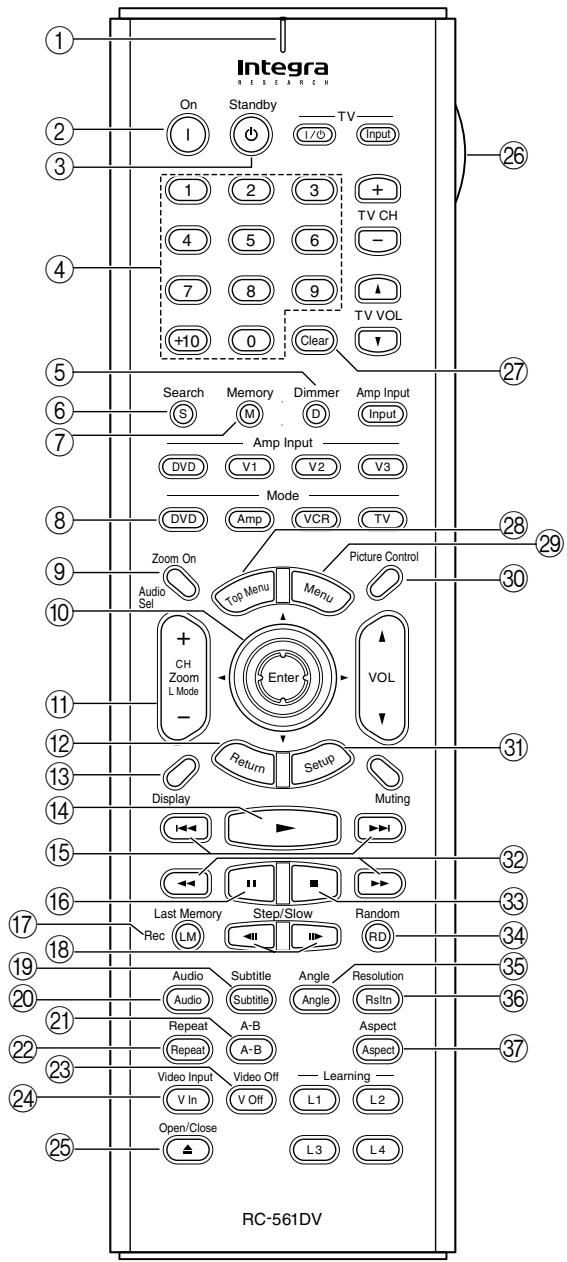
For detailed information, refer to the pages in parenthesis.
① Tx/Learn indicator (87)
This indicator lights up when the remote controller is transmitting commands. It's also used when configuring the remote controller for use with a TV or VCR.
② On button (43)
This button is used to turn on the RDV-1.1.
③ Standby button (43)
This button is used to set the RDV-1.1 to Standby.
④ Number buttons (49, 50, 57)
These buttons are used to enter title, chapter, group, and track numbers and to enter times for locating specific points in time.
To enter a single-digit number, simply press the corresponding button. To enter a double-digit number, enter the numbers in order from left-to-right (e.g., to enter 14, press [1] then [4].
The [+10] button is used to enter multiples of ten (i.e., 10, 20, 30, and so on). For example, to enter the number 25, press the [+10] button twice followed by the [5] button.
⑤ Dimmer button (52)
This button is used to adjust the display brightness.
⑥ Search button (49, 50, 57)
This button is used to search for titles, chapters, groups, tracks, and specific points in time.
⑦ Memory button (60)
This button is used with the Memory function.
⑧ DVD Mode button
This button is used to select the remote controller's DVD mode.
⑨ Zoom On button (57)
This button is used to turn the Zoom function on and off.
Arrow [ ] / [ ] / [ ] / [ ] & Enter buttons (43)
The arrow buttons are mainly used to navigate onscreen menus. The [Enter] button is used to confirm choices.
⑪ Zoom [+/-] button (57)
This button is used with the Zoom function to zoom in and out.
② Return button (48, 53, 71)
This button is used to return to the previously displayed onscreen setup menu.
⑬ Display button (64)
This button is used to display information about the current disc, title, chapter, group, or track, including the elapsed time, remaining time, total time, and so on.
⑭ Play [▶] button (47)
This button is used to start playback.
Getting to Know the RDV-1.1—Continued
15 Previous/Next [←]/[→] buttons (49, 50, 53)
The Previous [▶] button is used to select the previous chapter or track. During playback it selects the beginning of the current chapter or track. The Next [▶] button is used to select the next chapter or track.
16 Pause [I] button (47)
This button is used to pause playback.
17 Last Memory button (64)
This button is used with the Last Memory function.
Step/Slow [<II][Ib] buttons (51, 52)
These buttons are used for frame-by-frame playback and slow-motion playback.
19 Subtitle button (63)
This button is used to select subtitles.
20 Audio button (63)
This button is used to select foreign language soundtracks and audio formats (e.g., Dolby Digital or DTS). It's also used to select the multichannel area, 2-channel area, or CD layer on SACDs.
② A-B button (58)
This button is used to set the A-B Repeat function.
2 Repeat button (58)
This button is used to set the Repeat function.
23 Video Off button (67)
This button is used to turn off all of the internal video circuitry for pure audio playback.
24 Video Input button (67)
This button is used to select the video input source: DVD (the RDV-1.1), External (component video input, S-Video input, or composite video input), or HDMI (HDMI input).
25 Open/Close [△] button (46)
This button is used to open and close the disc tray.
26 LIGHT button
This button is used to turn on or off the remote controller's illuminated buttons.
27 Clear button (49, 50)
This button is used to cancel functions and to clear entered numbers.
28 Top Menu button (48)
This button is used to select a DVD's top menu.
29 Menu button (48)
This button is used to select a DVD's menu.
Picture Control button (68)
This button is used to open the Picture Control menu.
③ Setup button (71)
This button is used to access the onscreen setup menus (OSD).
② FR/FF [←]/[▶] buttons (51)
The FR [ ] button is used to start fast reverse. The FF [ ] button is used to start fast forward.
3 Stop [■] button (47)
This button is used to stop playback.
34 Random button (59)
This button is used with the Random function.
⑤ Angle button (62)
This button is used to select different camera angles.
36 Resolution button (67)
This button is used to select a video resolution for the HDMI OUT.
⑦ Aspect button (68)
This button is used to set the picture's aspect ratio.
Getting to Know the RDV-1.1—Continued
Controlling an Integra RESEARCH AV Receiver (Amp Mode)
In Amp mode, the remote controller can be used to control an Integra RESEARCH AV receiver connected to the RDV-1.1 via R1. To select Amp mode, press the [Amp] Mode button.
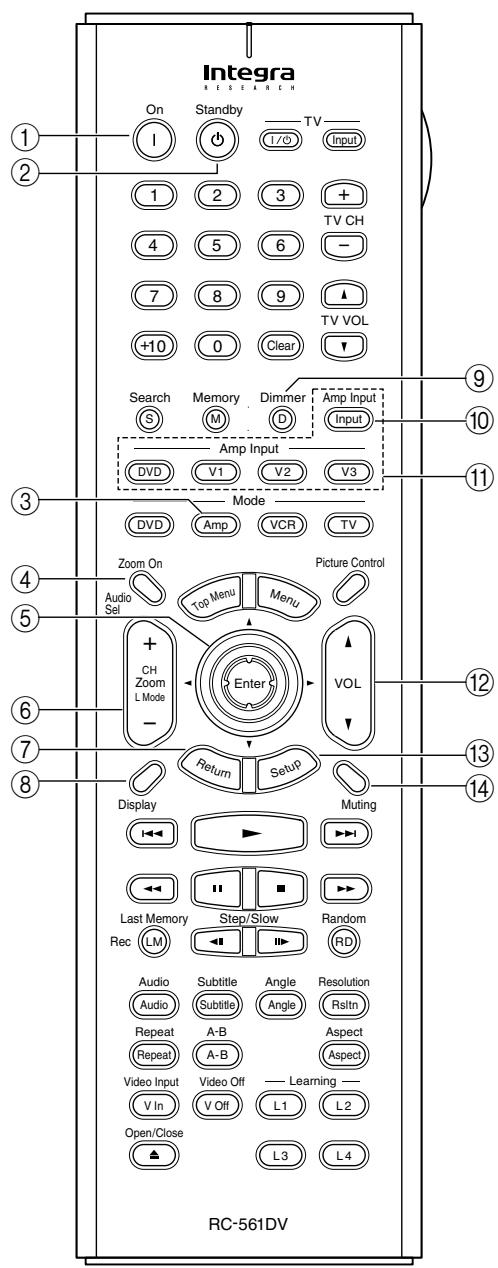
① On button
This button is used to turn the AV receiver on.
② Standby button
This button is used to set the AV receiver to Standby.
③ Amp Mode button
This button is used to select the remote controller's Amp mode.
④ Audio Sel button
This button is used to select the audio input signal format on the AV receiver.
⑤ Arrow [▲]/[▼]/[▲] /[▶] & Enter buttons
The arrow buttons are mainly used to navigate onscreen menus. The [Enter] button is used to confirm choices.
⑥ CH & L Mode [+/-] button
This button is used to select listening modes and radio presets on the AV receiver.
⑦ Return button
This button is used to return to the previously displayed menu of the AV receiver's onscreen setup menus (OSD).
⑧ Display button
This button is used to display various information about the input source currently selected on the AV receiver.
(9) Dimmer button
This button is used to adjust the display brightness on the AV receiver.
10 Amp Input button
This button is used to select the input source on the AV receiver.
⑪ Amp Input (DVD, V1, V2, V3) buttons
These buttons are used to select the input source on the AV receiver: DVD, Video 1, Video 2, or Video 3.
⑫ VOL button
This button is used to set the volume of the AV receiver.
⑬ Setup button
This button is used to access the AV receiver's onscreen setup menus (OSD).
14 Muting button
This button is used to mute the AV receiver.
Connecting
This chapter explains how to connect the RDV-1.1 to your other AV components.
Before Making Any Connections
- Read the manuals supplied with your AV components.
- Don't connect the power cord until you've completed all audio and video connections.
Optical Digital Outputs
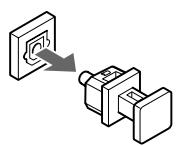
The RDV-1.1's optical digital output sockets have dust caps for keeping out dust and dirt when they're not in use. Remove the cap before inserting an optical plug, and push the plug in all the way to make a good connection. Keep the dust cap in a safe place for future use.
RCA AV Connection Color Coding
RCA-type AV connections are usually color coded: red, white, and yellow. Use red plugs to connect right-channel audio inputs and outputs (typically labeled "R"). Use white plugs to connect left-channel audio inputs and outputs (typically labeled "L"). And use yellow plugs to connect composite video inputs and outputs.

- Push each plug in all the way to make a good connection (loose connections can cause noise or malfunctions).
To prevent interference, keep audio and video cables away from power cords and speaker cables.
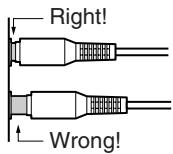
AV Cables & Connectors
| Video | |||
| HDMI | HDMI | HDMI connections can carry uncompressed, standard or high definition digital video and up to eight channels of digital audio, for the best picture and sound quality. | |
| Component video | Y Pb/Cs Pr/CR Y Pb/Cs PR/CR | Y Pb PR | Component video connections separate the luminance (Y) and color difference signals (Pr, Pb) and provide picture quality better than S-Video and composite video. (Some manufacturers label their component video sockets slightly differently.) The RDV-1.1 has an RCA component video input and output, and two BNC HD component video outputs. |
| Y Pb/Cs Pr/CR Y Pb/Cs PR/CR Y Pb PR | Y Pb PR | ||
| S-Video | SVIDEO | S-Video connections provide better picture quality than composite video. | |
| Composite video | VIDEO | Composite video is commonly used on TVs, VCRs, and other video equipment. Use only dedicated composite video cables. | |
| SCART (European model only) | AV CONNECTOR | SCART connections carry video (RGB, S-Video, and composite) and analog stereo audio all in one cable. | |
Connecting—Continued
| Audio | |||
| i.LINK | i. | i.LINK (IEEE 1394) connections can carry up to six (5.1) channels and up to 24-bit/192 kHz digital audio, and can be used for multichannel digital audio (DVD-Video, DVD-Audio, SACD) and stereo digital audio (VCD, CD, MP3). | |
| Optical digital | OPTICAL | Optical digital audio connections can carry Dolby Digital or DTS multichannel digital audio (DVD-Video, DVD-Audio) or stereo digital audio (DVD-Video, DVD-Audio, SACD, VCD, CD, MP3). | |
| Coaxial digital | COAXIAL | Coaxial digital audio connections can carry Dolby Digital or DTS multichannel digital audio (DVD-Video, DVD-Audio) or stereo digital audio (DVD-Video, DVD-Audio, SACD, VCD, CD, MP3). | |
| AES/EBU | DIGITAL 1 (BALANCED) AES EBU | A digital audio connection format similar to coaxial but found mainly on professional digital audio equipment. Balanced XLR cables are used for better noise immunity and longer cable runs. | |
| Analog | L R | RCA analog audio connectors can be found on virtually all AV components. | |
| Multichannel analog audio cable (RCA) | FRONT SURF1 CENTER SURF2 | This cable carries multichannel analog audio and it's typically used to connect DVD players with individual 5.1/7.1-channel analog audio outputs. Several standard analog audio cables can be used instead of a multichannel cable. | |
Connecting—Continued
Video Formats & RDV-1.1 Inputs & Outputs
The RDV-1.1 supports several video input formats. The following table shows what's output by each video output when each of the various video inputs is selected. It also shows whether or not the video is upconverted to progressive video.
| Selected video input | RDV-1.1 video output | |||||||
| HDMI OUTa | HD VIDEO OUT COMPONENT 2 | HDVIDEO OUT COMPONENT 1 | COMPONENT VIDEO OUT | SVIDEO VIDEO OUT | VIDEO VIDEO OUT | SCARTb | ||
| DVD (i.e., RDV-1.1) | DVDc | DVD (progressive) | DVD (progressive) | DVD (interlaced) | ||||
| External | COMPONENTVIDEO IN (SD) | Externalc | External (progressive) | External (progressive) | ||||
| COMPONENTVIDEO IN (HD) | Externalc | No output | External (resolution unchanged) | |||||
| SVIDEOVIDEO IN | Externalc | External (progressive) | External (progressive) | |||||
| VIDEOVIDEO IN | Externalc | External (progressive) | External (progressive) | |||||
| HDMI IN | HDMI thru | DVD (progressive) | DVD (progressive) | |||||
a. Only works with components that support HDCP (High-bandwidth Digital Content Protection).
b. European model only. Outputs RGB (i.e., component video), S-Video, or composite video. When set to RGB, nothing is output by the component video output (see page 75).
c. Resolutions supported by the connected TV can be selected by pressing the [Resolution] button (see page 67).
Audio Formats & RDV-1.1 Outputs
The RDV-1.1 supports many digital audio formats. The following table shows which outputs work with each format.
| Disc type | Audio format | RDV-1.1 audio output | |||||
| HDMI OUT (digital)a | i.LINK (digital)b | DIGITAL 1 & 2 AUDIO OUT (digital)c | FRONT, SURR 1, CENTER, SUBWOOFER, SURR 2 (analog)d, i | D.MIX AUDIO OUT (analog)e | SCART (analog)f | ||
| DVD-Video | PCM | ✓g | ✓h | ✓i | ✓j | ✓ | ✓ |
| Dolby Digital | ✓k | ✓ | ✓ | ✓l | ✓ | ✓ | |
| DTS | ✓k | ✓ | ✓ | ✓ | ✓ | ✓ | |
| MPEGm | ✓k | ✓ | ✓ | ✓ | ✓ | ✓ | |
| DVD-Audion | PCM | X | ✓ | ✓o, i | ✓ | ✓ | ✓ |
| Dolby Digital | X | ✓ | ✓p | ✓ | ✓ | ✓ | |
| DTS | X | ✓ | ✓p | ✓ | ✓ | ✓ | |
| MPEG | X | ✓ | ✓p | ✓ | ✓ | ✓ | |
| SACDa | Stereo area | X | ✓r | X | ✓ | ✓ | ✓ |
| Multichannel area | X | ✓r | X | ✓ | ✓ | ✓ | |
| Hybrid disc CD layer | ✓ | ✓ | ✓ | ✓ | ✓ | ✓ | |
| VCD | MPEG1 | ✓ | ✓ | ✓ | ✓ | ✓ | ✓ |
| CD | PCM | ✓ | ✓ | ✓i | ✓j | ✓ | ✓ |
| DTS | ✓k | ✓ | ✓ | ✓ | ✓ | ✓ | |
| MP3 | MP3 | ✓ | ✓ | ✓ | ✓ | ✓ | ✓ |
a. The Digital Out/Digital 2 settings apply to the HDMI OUT (see page 76). Components must support HDCP (High-bandwidth Digital Content Protection) in order to play DVD-Video. The RDV-1.1 does.
b. The Digital Out/Digital 1 settings apply to the i.LINK sockets (see page 75). Components must support DTCP (Digital Transmission Content Protection) in order to play DVD-Video, DVD-Audio, and SACD. The RDV-1.1 does.
c. If the Digital Out setting is set to Off, nothing is output by these outputs (see page 76).
d. 2-channel stereo sources are output only by the FRONT AUDIO OUT sockets. For multichannel sources, the Downmix Setting determines how the FRONT AUDIO OUT sockets work (see page 77).
e. 2-channel sources, including Dolby Surround, are output as they are. Multichannel sources (5.1) are down mixed.
f. European model only. 2-channel sources, including Dolby Surround, are output as they are. Multichannel sources can be down mixed to stereo or Lt/Rt (see page 77).
g. To output PCM at sampling rates other than 44.1kHz and 48kHz , set the Linear PCM Out setting to Down Sample On (see page 76).
h. Protected high sampling rate digital audio (96 kHz) will be down sampled to 48 kHz.
i. You can choose whether or not to downsample 96kHz audio to 48kHz (see page 76).
j. Set the Dolby Pro Logic setting to On to add surround sound (see page 77).
k. To use with an HDMI TV that does not support this format, set the appropriate Digital Out/Digital 2 setting (i.e., Dolby Digital Out, DTS Out, or MPEG Out) to downmix to PCM (see page 76).
1. Set the Dolby Pro Logic setting to Auto or On to decode Dolby Surround material. Set it to On to add surround sound to 2-channel Dolby Digital material (see page 77).
m. Only the 2-channel audio information is used.
n. High sampling rate DVD-Audio (192 kHz/176 kHz) will be down sampled to 96 kHz, 88.2 kHz, 48 kHz, or 44.1 kHz depending on the disc.
o. Some DVD-Audio discs may not allow PCM output from the DIGITAL 1/2 AUDIO OUTs.
p. Multichannel DVD-Audio will be down mixed to stereo.
q. By default the RDV-1.1 plays the multichannel area, although you can change this (see page 81).
r. When the i.LINK Output Setting is set to On, SACD audio is output from the i.LINK sockets, but not the analog audio outputs. When it's set to Off, SACD audio is output from the analog audio outputs, but not the i.LINK sockets (see page 77).
Connecting—Continued
Getting Connected
If you're not sure how to connect the RDV-1.1 to your other components, check what type of sockets they have and use the following map to locate the appropriate hookup information.
Video Output Connections
Components with an HDMI input page 32 (F)
Components with a component video input
Digital HDTV or projector page 31 (D)
Components that support progressive scanning page 31 (D)
Components that do not support progressive scanning page 30 (A),page 33 (G)
Components with a SCART socket page 32 (E)
Components with an S-Video input page 30 (B),page 34 (H)
Components with a composite video input page 30 (C),page 34 (I)
Audio Output Connections
Components with digital audio inputs
Components that support Dolby Digital and DTS page 36 (K)
Components that do not support Dolby Digital and DTS page 38 (N)
Components with analog audio inputs
Components with a multichannel audio input page 37 (L)
Components with a 2-channel audio input - page 37 (M)
i.LINK (AUDIO) Components page 34 (J)
Video Input Connections
Components with an HDMI output page 40 (P)
Components with a component video output- page 39 (O)
Components with an S-Video output page 39 (O)
Components with a composite video output page 39 (O)
Connecting—Continued
Connecting a Standard TV
This section shows how to connect the RDV-1.1 to a standard TV, in which the TV handles both the video and audio. If your TV has a Dolby Pro Logic decoder built-in, you'll be able to enjoy DVDs that bear the Dolby Surround logo.
To fully enjoy the Dolby Digital and DTS soundtracks available on most DVD-Video discs, or the multichannel audio of DVD-Audio and SACD, you need a suitable AV receiver (see page 36).
The RDV-1.1 has three types of video output for use with standard TVs: component video, S-Video, and composite video.
Component video offers the best picture quality, so if your TV supports it, use a commercially available component video cable to connect the RDV-1.1's COMPO-NENT VIDEO OUT to the component video input on your TV. If your TV supports progressive scanning, you must use a component video connection to take advantage of it.
If you don't have component video, S-Video offers better picture quality than composite video, so if your TV supports it, use the supplied S-Video cable to connect the RDV-1.1's SVIDEOVIDEO OUT to an S-Video input on your TV. Failing that, use the supplied composite video cable to connect the RDV-1.1'sVIDEOVIDEO OUT to a composite video input on your TV.
A. Using Component Video
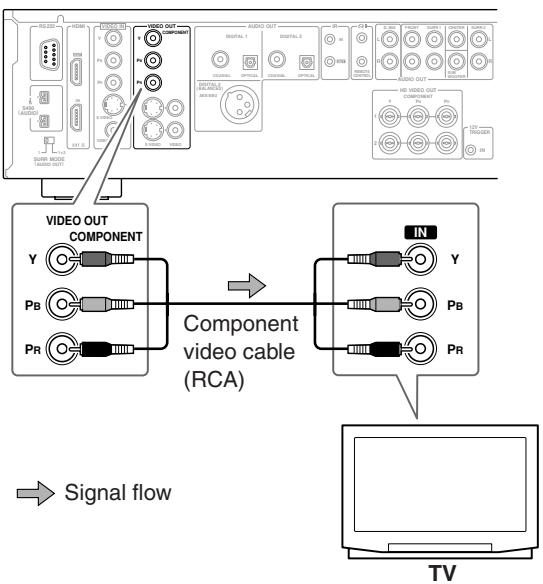
Audio connection not shown here. Make a suitable audio connection to your TV, AV receiver, or amp.
B. Using S-Video
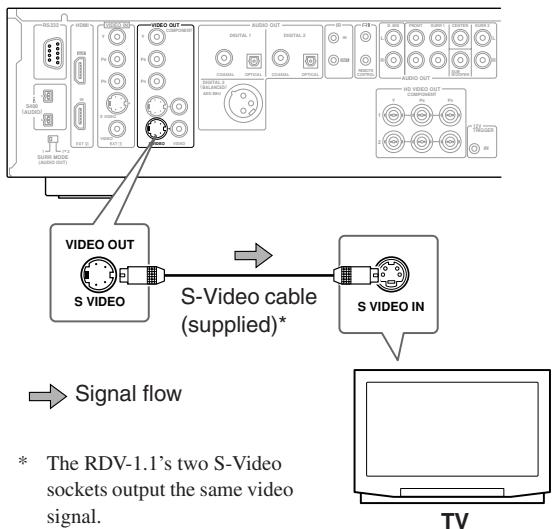
Audio connection not shown here. Make a suitable audio connection to your TV, AV receiver, or amp.
C. Using Composite Video
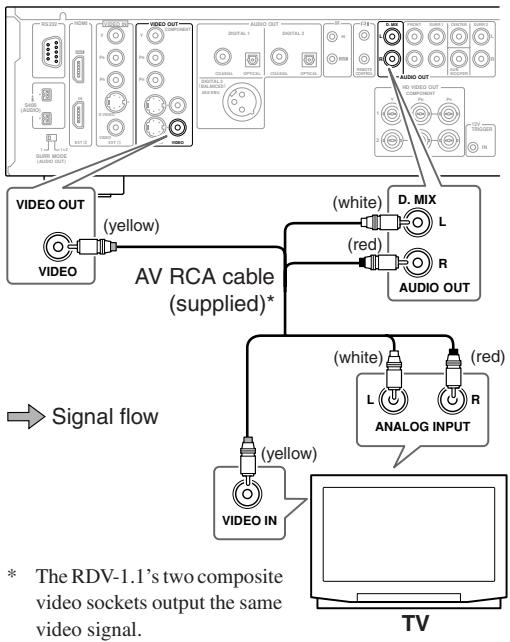
Connecting—Continued
1 Turn off the RDV-1.1 and your TV, and disconnect their power cords from the wall outlets.
2 Connect the RDV-1.1 to your TV as shown.
3 When you've completed all connections, see "Turning On the RDV-1.1" on page 43.
Notes:
- Before making any connections, turn off the RDV-1.1 and your TV and disconnect their power cords from the wall outlets.
- Also refer to the hookup pages in your TV's manual.
- Connect the RDV-1.1's video outputs directly to your TV. Don't connect a VCR or other video equipment in between. Doing so may result in picture distortion, because of the copy protection system used on DVD-Video discs.
- See the tables on page 27 for details on how the RDV-1.1 outputs video and audio from each output.
D. Connecting an HDTV or Projector
This section shows how to connect the RDV-1.1 to an HDTV (plasma, LCD) or projector.
Use a commercially available component video cable (BNC) to connect the RDV-1.1's HD VIDEO OUT COMPONENT 1 or 2 sockets to a component video input on your HDTV. Use the supplied AV cable (RCA) to connect the RDV-1.1's D.MIX AUDIO OUT to an analog audio input on your HDTV.
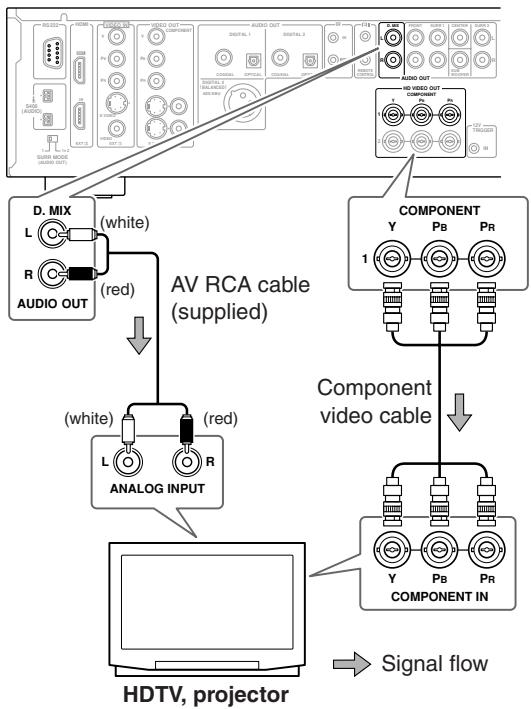
Notes:
- The yellow plugs on the supplied AV RCA cable are not used in this example.
- Don't connect a standard TV to the HD VIDEO OUT COMPONENT 1 or 2 socket, because you'll get no picture.
- See the tables on page 27 for details on how the RDV-1.1 outputs video and audio from each output.
Connecting—Continued
E. Connecting a SCART-compatible TV (European model only)
This section shows how to connect the RDV-1.1 to a TV fitted with a SCART socket. SCART is a convenient connection format because it carries video (RGB, S-Video, composite) and stereo analog audio all in a single cable. If your TV has a Dolby Pro Logic decoder built-in, with a SCART connection you'll be able to enjoy DVDs that bear the Dolby Surround logo.
Use the supplied SCART cable to connect the RDV-1.1's AV CONNECTOR to a SCART socket on your TV.
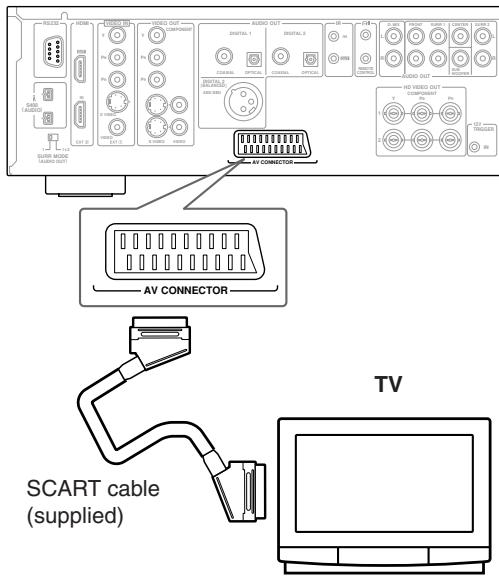
Notes:
- The RDV-1.1's SCART socket can output RGB, S-Video, or composite video. The default setting is composite video. If your TV's SCART socket supports RGB or S-Video (check your TV's manual), you can change this setting and enjoy better picture quality (see page 75).
- See the tables on page 27 for details on how the RDV-1.1 outputs video and audio from its SCART socket.
F. Connecting a Component with an HDMI Input
This section shows how to connect the RDV-1.1 to an HDTV or projector that has an HDMI input socket.
What is HDMI?
HDMI (High Definition Multimedia Interface) is a new connection format that can carry uncompressed, standard or high definition digital video and up to eight channels of digital audio. Until now, several separate video and audio cables have been required to connect AV components together. With HDMI, a single cable is all that's necessary to achieve the best picture and audio quality. HDMI video is compatible with DVI (Digital Visual Interface). To send HDMI video to a DVI input requires an HDMI-to-DVI cable. The RDV-1.1 supports HDCP (High-bandwidth Digital Content Protection), and for an HDMI-to-DVI connection to work, the other component must also support it. Note that this may not work with some DVI components.
Using HDMI
Use the supplied HDMI cable to connect the RDV-1.1's HDMI OUT to an HDMI input on your TV or projector.
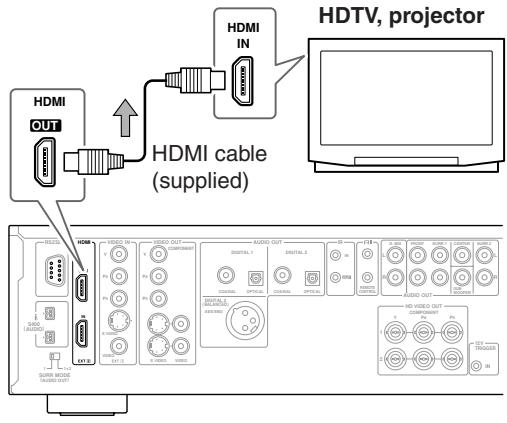

Signal flow
Notes:
- Use the Digital Out/Digital 2 settings to match the HDMI output format with your HDTV (see page 76).
- The RDV-1.1 supports HDCP (High-bandwidth Digital Content Protection), a protection system for digital video. HDMI components that you connect to the RDV-1.1 must also support HDCP.
- The RDV-1.1 supports High-Definition Multimedia Interface Specification Information Version 1.0.
- See the tables on page 27 for details on how the RDV-1.1 outputs video and audio from its HDMI OUT socket.
Connecting—Continued
HDMI & the RDV-1.1
Video
The RDV-1.1's HDMI OUT supports the following video resolutions:
- 640 × 480 p (VGA), 60 ~Hz
- 720x480p (progressive), 60 Hz
- 720 × 576p (progressive), 50 Hz
1280× 720p (progressive), 50 / 60~Hz
1920 x 1080i (interlaced), 50 / 60Hz - Through Source Resolution (external input video is output at the same resolution. DVD playback is output at 480p or 576p)
If the connected HDTV or projector doesn't support a resolution, you may get no picture.
When playing a DVD, or when watching an external video input source, the HDMI OUT works as follows.
| Selected video input | HDMI OUTa | |
| DVD playback (i.e., RDV-1.1) | DVDb | |
| External | COMPONENT VIDEO IN (SD) | Externalb |
| COMPONENT VIDEO IN (HD) | Externalb | |
| S VIDEO VIDEO IN | Externalb | |
| VIDEO VIDEO IN | Externalb | |
| HDMI | HDMI thru | |
a. Only works with components that support HDCP (High-bandwidth Digital Content Protection).
b. Resolutions supported by the connected TV can be selected by pressing the [Resolution] button (see page 67).
On the RDV-1.1, you can select a resolution suitable for use with the connected HDTV or projector (see page 67).
Audio Formats
The RDV-1.1's HDMI OUT supports the following audio formats:
PCM (48 kHz, 44.1 kHz)
Dolby Digital
DTS
MPEG
If your HDMI-compatible TV or projector doesn't support Dolby Digital, DTS, or MPEG, the HDMI OUT will not output digital audio in that format. In this case, set the Digital Out/Digital 2 setting (i.e., Dolby Digital Out, DTS Out, or MPEG Out) to downmix to PCM (see page 76).
To output 96kHz PCM audio from a DVD-Video disc, set the Linear PCM Out setting to Down Sample On (see page 76).
Note that audio from DVD-Audio and SACD discs is not output by the HDMI OUT. For these formats you need to use the analog multichannel output (see page 37) or i.LINK (see page 34).
Connecting to an AV Receiver's Video Inputs
This section shows how to connect the RDV-1.1's video outputs to an AV receiver's video inputs.
Component video offers the best picture quality, so if your AV receiver supports it, use a commercially available component video cable to connect the RDV-1.1's COMPONENT VIDEO OUT to a component video input on your AV receiver. If your AV receiver supports progressive scanning, you must use a component video connection to take advantage of it.
If you don't have component video, S-Video offers better picture quality than composite video, so if your AV receiver supports it, use the supplied S-Video cable to connect the RDV-1.1's SVIDEOVIDEO OUT to an S-Video input on your AV receiver. Failing that, use the supplied composite video cable to connect the RDV-1.1'sVIDEOVIDEO OUT to a composite video input on your AV receiver.
G. Using Component Video
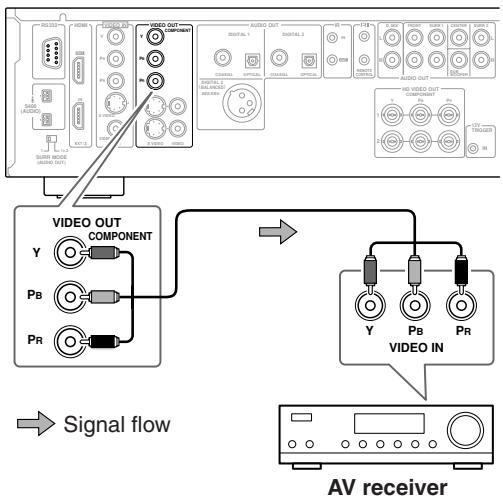
Notes:
- The COMPONENT VIDEO OUT supports interlaced video.
- HD COMPONENT VIDEO OUT 1 and 2 support progressive video.
- HD COMPONENT VIDEO OUT 1 supports HD video.
Connecting—Continued
H. Using S-Video
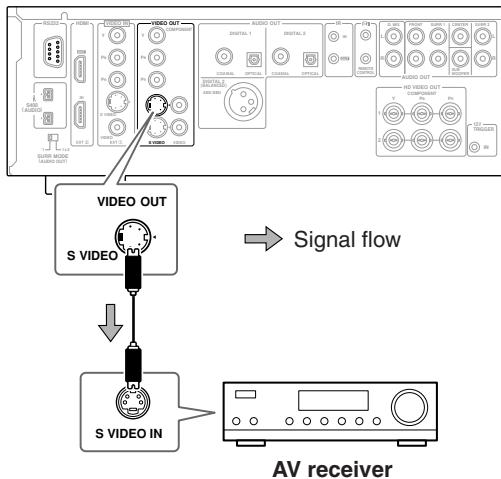
I. Using Composite Video
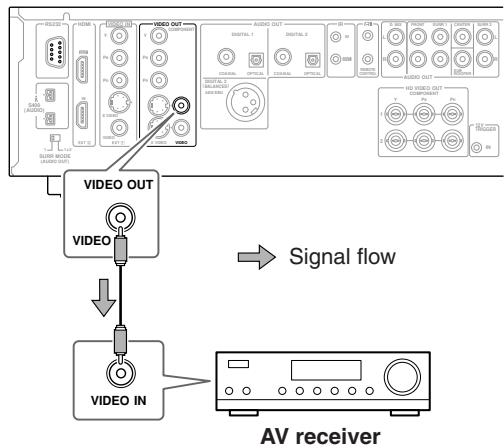
J. Connecting i.LINK-compatible Components
This section shows how to connect the RDV-1.1 to an i.LINK-compatible component, such as an AV receiver.
What is i.LINK?
i.LINK is a brand name for IEEE 1394, the high-speed serial connection format commonly used on computers, camcorders, and other AV equipment to carry digital video and audio or other data. It's a bidirectional format, so connected components can talk to each other for optimal setup and synchronized operation.
Connecting a single i.LINK cable between the RDV-1.1 and an i.LINK-compatible AV receiver is all you need do to fully enjoy the multichannel audio of DVD-Video, DVD-Audio, and SACD.
Other advantages of i.LINK include automatic setup and source selection. For example, when you start playback on the RDV-1.1, an AV receiver connected via i.LINK will automatically select the RDV-1.1 as its input source.
What is i.LINK Audio?
i.LINK Audio is the standard for carrying up to six (5.1) channels and up to 24-bit/192 kHz digital audio over i.LINK (IEEE 1394). It's officially known as the A&M Protocol—Audio and Music Data Transmission Protocol.
The RDV-1.1 can output digital audio from DVD-Video, DVD-Audio, SACD, VCD, CD, and MP3 discs.
Using i.LINK
Use the supplied i.LINK cable to connect one of the RDV-1.1's i.LINK sockets to an i.LINK socket on your i.LINK-compatible AV receiver or other component. The RDV-1.1 has two i.LINK sockets, so you can easily connect other i.LINK-compatible components.
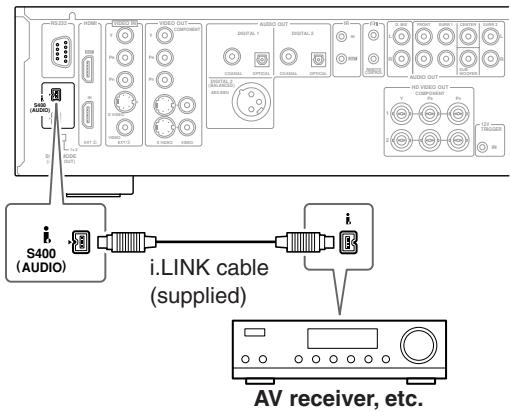
Connecting—Continued
Notes:
- Make sure that the i.LINK plugs are fully inserted.
- Don't disconnect any i.LINK cables while the RDV-1.1 is on.
- A short circuit may occur if the metallic part of an i.LINK plug comes into contact with the RDV-1.1's metal case, so make sure that your connections are secure, and don't leave one end of an i.LINK cable disconnected.
- Since i.LINK carries digital audio only, you must make separate connections for video (see pages 30 and 31).
- i.LINK cables are available with 4-pin or 6-pin connectors and it's OK to use both types together. The RDV-1.1's i.LINK sockets accepts only 4-pin plugs. The maximum cable length is 3.5m .
- Protected 96kHz digital audio from DVD-Video discs will be down sampled to 48kHz before being output from the i.LINK sockets.
- To output multichannel audio from a DVD-Audio disc, the Analog Audio Out setting must be set to Multi Channel (see page 77).
- The Digital Out/Digital 1 settings affect i.LINK output (see page 75).
- See the table on page 28 for details on how the RDV-1.1 outputs audio from its i.LINK sockets.
SACDPlayback
When the i.LINK Output Setting (see page 77) is set to On, SACD audio is output from the i.LINK sockets, but not the analog audio outputs. When it's set to Off, SACD audio is output from the analog audio outputs, but not the i.LINK sockets.
The RDV-1.1's i.LINK interface complies with the following specifications:
1) IEEE Std 1394a-2000, Standard for a High Performance Serial Bus
2) Audio and Music Data Transmission Protocol 2.0 In accordance with the standard for AM824 sequence adaptation layers, the RDV-1.1 is compatible with IEC60958 bitstream, DVD-Audio, and SACD.
Connecting Several i.LINK Components
With i.LINK it's possible to connect up to 17 components together, making the digital audio and control signals of each component available to all the other components. By using what's called an i.LINK repeater, it's possible to connect up to 63 components together. Multiple i.LINK components must be connected in series (Fig. 1) or in a tree-like system (Fig. 2).
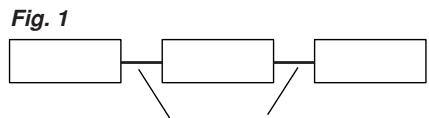
i.LINK cables
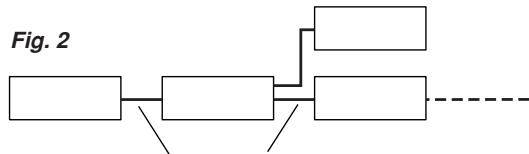
i.LINK cables
i.LINK will not work if any of the connections form a loop, as shown below.
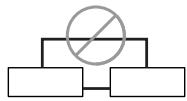
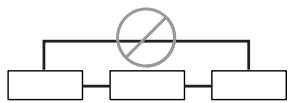
Notes:
- The RDV-1.1 is fully compatible with i.LINK Audio and works with other i.LINK Audio-compatible components, such as AV receivers, CD players, and so on. It may not work reliably when connected to DV cam-corders or computers with i.LINK or IEEE 1394 sockets. Refer to the manuals supplied with your other components for compatibility information.
- Components must support DTCP (Digital Transmission Content Protection) in order to play DVD-Video, DVD-Audio, and SACD over i.LINK. The RDV-1.1 does.
- i.LINK currently supports three transmission speeds: S100 (100 Mbps), S200 (200 Mbps), and S400 (400 Mbps). The RDV-1.1 supports S400. Components of any speed can be connected together, although for best performance, slower components should be connected at the edges of the system (as shown by the shaded components in Fig. 1 and Fig. 2).
Connecting—Continued
- When several i.LINK components are connected together, i.LINK may not work properly if certain components are on standby. i.LINK will work properly while the RDV-1.1 is on standby. However, the system will not work at all if any component is fully shutdown (i.e., power switch set to off). Refer to the manuals supplied with your other components for more information.
- i.LINK operation may be interrupted if a connected component is turned on or off, or its i.LINK settings are turned on or off.
Connecting to an AV Receiver's Audio Inputs
This section shows how to connect the RDV-1.1's audio outputs to an AV receiver's audio inputs.
K. Digital Audio Connection (Dolby Digital & DTS)
To fully enjoy the Dolby Digital and DTS soundtracks available on most DVD-Video discs, you need to connect one of the RDV-1.1's digital audio outputs (DIGITAL 1 or DIGITAL 2) to a digital audio input on an AV receiver that supports Dolby Digital and DTS. You can also enjoy Dolby Surround, if your receiver supports Dolby Pro Logic.
Use an optical, coaxial, or AES/EBU digital audio cable to connect one of the RDV-1.1's DIGITAL 1 (OPTICAL, COAXIAL) or DIGITAL 2 outputs (OPTICAL, COAXIAL, or AES/EBU) to a corresponding digital audio input on your AV receiver, as shown.
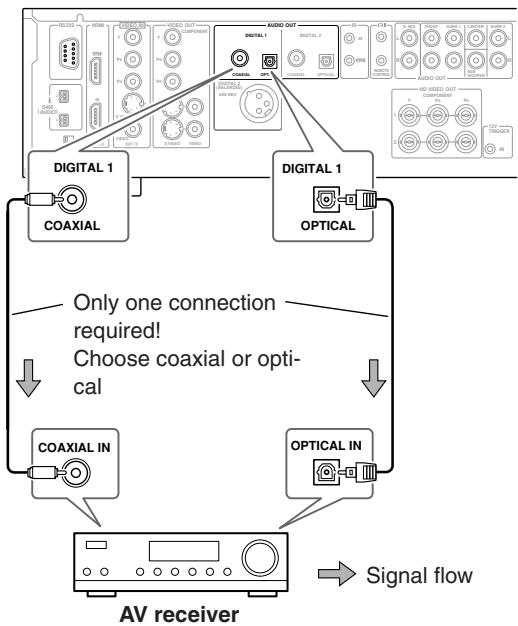
DIGITAL 1 Connections
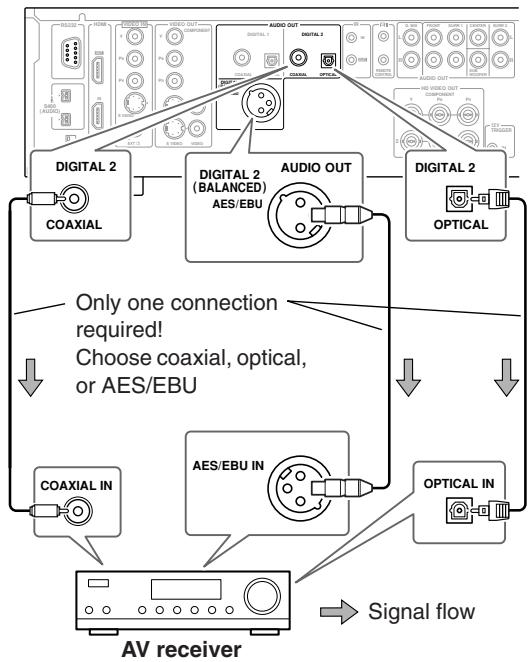
DIGITAL 2 Connections
Notes:
- Dolby Digital, DTS, DVD-Audio, and SACD can also be fully enjoyed by using i.LINK (page 34).
- In addition to a digital connection, it's recommended that you also connect the D.MIX AUDIO OUT to a spare analog audio input on your AV receiver, as this will allow you to record audio to a cassette recorder or CD recorder. If your AV receiver supports Zone 2, you must make an analog audio connection in order to select the RDV-1.1 as the input source for Zone 2.
- Make sure that the digital output (Digital 1 Out or Digital 2 Out) is set to Dolby Digital (see page 75). Otherwise you won't get surround sound. Likewise for DTS (see page 75).
- When playing Dolby Digital or DTS soundtracks, be sure to select Dolby Digital or DTS decoding, respectively, on your AV receiver. Refer to your AV receiver's manual.
- The AES/EBU socket outputs digital audio, so do not connect it to an analog audio input on another component.
Connecting—Continued
L. Analog Audio Connection (Dolby Digital, DTS, DVD-Audio & SACD)
To fully enjoy the multichannel audio of DVD-Audio and SACD, you need to connect the RDV-1.1's 5.1/7.1-channel analog audio output to a multichannel analog audio input on an AV receiver. Dolby Digital and DTS soundtracks can also be fully enjoyed with this type of connection.
Use a multichannel analog audio cable (RCA) to connect the RDV-1.1's FRONT, SURR 1, CENTER, and SUB-WOOFER AUDIO OUTs to a 5.1-channel analog audio input on the AV receiver. (You can use several separate RCA audio cables instead of a multichannel cable.) Set the SURR MODE (AUDIO OUT) switch to 1.
If your AV receiver supports 7.1-channels and you're using back surround speakers, connect the RDV-1.1's SURR 2 AUDIO OUTs to the AV receiver's surround back left and right inputs as well, and set the RDV-1.1's SURR MODE (AUDIO OUT) switch to 1 + 2
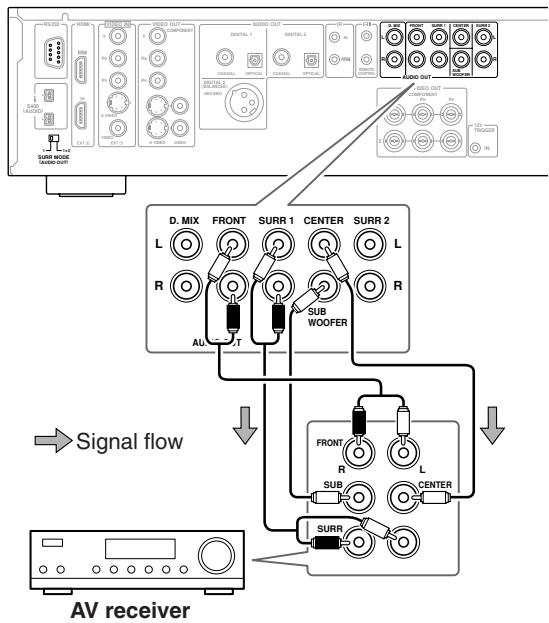
Notes:
Refer to the hookup information supplied with your AV receiver.
- You can experience Dolby Digital only with DVDs that bear the Dolby Digital logo. Likewise, you can experience DTS only with DVDs or CDs that bear the DTS logo.
DVD-Video discs may contain Dolby Digital and DTS soundtracks. The Dolby Digital soundtrack will be selected by default. To play the DTS soundtrack, use the movie's main menu and look under Language or Audio Setup. Alternatively, use the remote controller's [Audio] button (see page 63).
- See the table on page 28 for details on how the RDV-1.1's audio outputs handle Dolby Digital, DTS, DVD-Audio, and SACD.
Connecting a Stereo Amp
This section explains how to connect the RDV-1.1 to a stereo hi-fi amp or receiver for sound quality better than that provided by most TVs. This is great for listening to your CDs and MP3s. DVD-Video discs and VCDs will sound better too. You can also enjoy Dolby Surround, if your receiver supports Dolby Pro Logic.
M. Analog Connection
Use an RCA audio cable to connect the RDV-1.1's D.MIX AUDIO OUT to a stereo analog audio input on your amp or receiver.
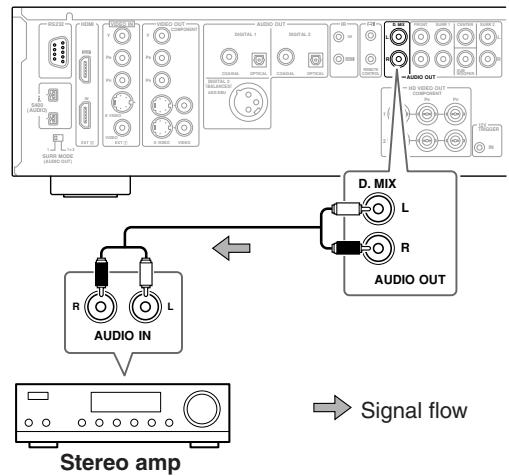
Notes:
- See the table on page 28 for details on how the RDV-1.1 outputs audio from the D.MIX AUDIO OUT.
Connecting—Continued
N. Digital Connection
Use an optical, coaxial, or AES/EBU digital audio cable to connect one of the RDV-1.1's DIGITAL 1 (OPTICAL or COAXIAL) or DIGITAL 2 outputs (OPTICAL, COAXIAL, or AES/EBU) to a corresponding digital audio input on your amp or receiver.
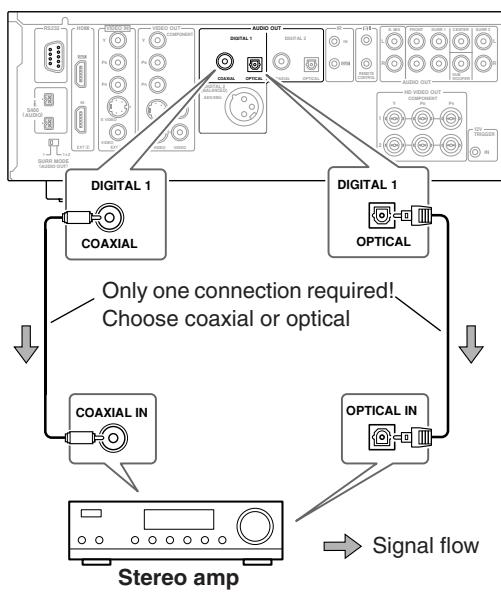
DIGITAL 1 Connections
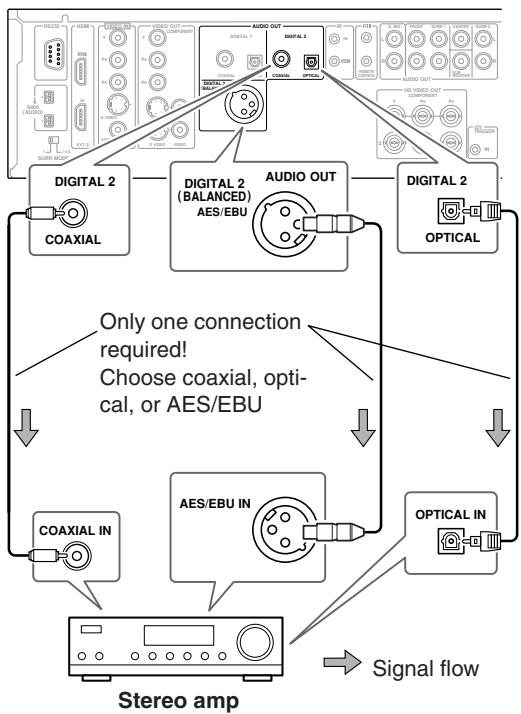
DIGITAL 2 Connections
Notes:
- Be sure to configure the digital output (Digital 1 Out or Digital 2 Out) for PCM (see page 75). Otherwise an unpleasant digital noise may be heard, which may damage your equipment.
- The RDV-1.1 doesn't support AC-3RF, so don't connect it to the AC-3RF input on a Dolby Digital receiver.
- See the table on page 28 for details on how the RDV-1.1 outputs audio from the DIGITAL AUDIO OUTs.
- The AES/EBU socket outputs digital audio, so do not connect it to an analog audio input on another component.
Connecting—Continued
O. Connecting Standard Video Equipment for Progressive Conversion
If your TV supports progressive scanning, you can connect another video component (satellite/cable tuner, LD player, etc.) to the RDV-1.1 and it will upconvert interlaced video to progressive. This is also useful when your TV doesn't have enough video inputs to connect all of your components.
You can connect your other video component to the RDV-1.1's component, S-Video, or composite Video IN input, as shown. To use the other component, on the RDV-1.1, set the video input source to External (see page 67).
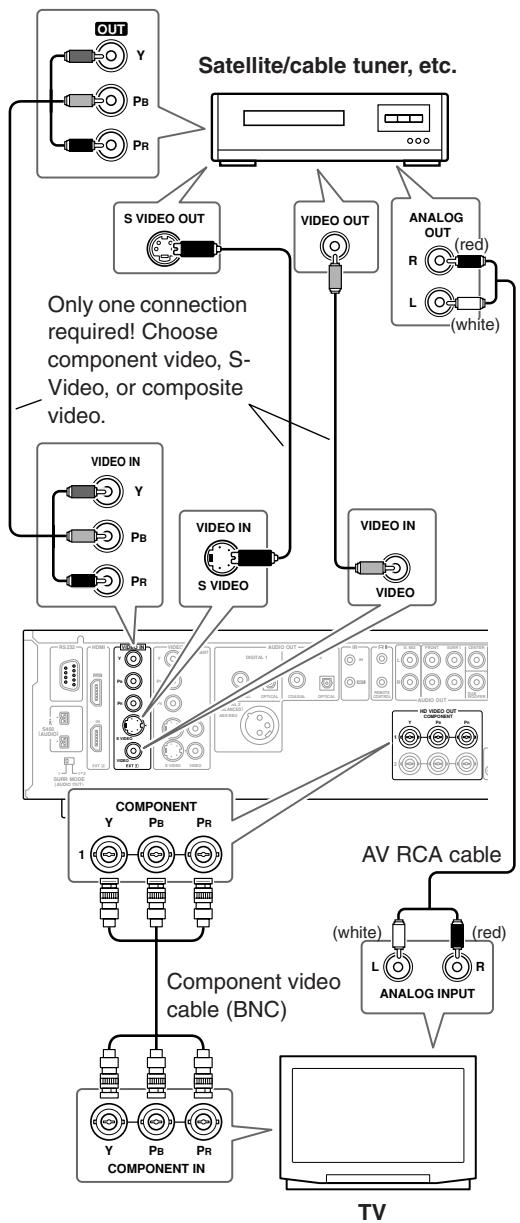
Notes:
- If the source video signal is unstable or of poor quality, the picture may be distorted or flicker.
- The component video VIDEO IN has priority. If there's no signal present at that input, the RDV-1.1 uses the S-Video input. And if there's no signal present there, it uses the composite video input.
- See the table on page 27 for details on how the RDV-1.1's video outputs work with each video input source.
About the HD COMPONENT VIDEO OUTs
When an SD (standard definition) video signal is fed to the component, S-Video, or composite VIDEO IN socket, and the video input source is set to External, that video signal is upconverted to progressive and output by the HDVIDEO OUT COMPONENT 1 and 2 sockets. When an HD (high definition) video signal is fed to the componentVIDEO IN socket, and the video input source is set to External, that video signal is output by the HDVIDEO OUT COMPONENT 1 socket at the same resolution.
Compatibility of this unit with progressive-scan TVs. This player is compatible with progressive video Macro Vision System Copy Guard.
CONSUMERS SHOULD NOTE THAT NOT ALL HIGH DEFINITION TELEVISION SETS ARE FULLY COMPATIBLE WITH THIS PRODUCT AND MAY CAUSE ARTIFACTS TO BE DISPLAYED IN THE PICTURE. IN CASE OF 525 OR 625 PROGRESSIVE SCAN PICTURE PROBLEMS, IT IS RECOMMENDED THAT THE USER SWITCH THE CONNECTION TO THE "STANDARD DEFINITION" OUTPUT. IF THERE ARE QUESTIONS REGARDING OUR TV SET COMPATIBILITY WITH THIS MODEL 525p AND 625p DVD PLAYER, PLEASE CONTACT OUR CUSTOMER SERVICE CENTER.
P. Connecting a Component with an HDMI Output
The RDV-1.1 has an HDMI IN socket, so you can connect another HDMI-compatible component, such as an AV receiver. When the video input source on the RDV-1.1 is set HDMI (see page 67), signals received by the HDMI IN are fed through to the HDMI OUT.
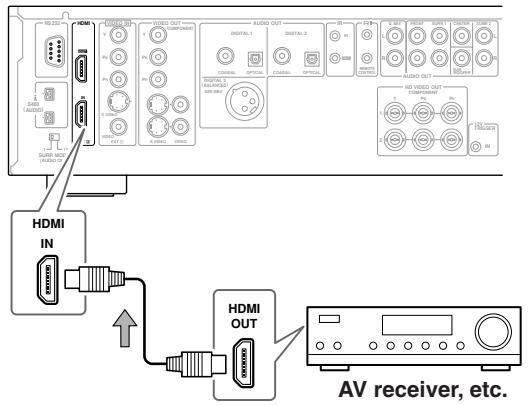

Signal flow
Notes:
- The RDV-1.1 supports HDCP (High-bandwidth Digital Content Protection), a protection system for digital video. HDMI components that you connect to the RDV-1.1 must also support HDCP.
- The RDV-1.1 supports High-Definition Multimedia Interface Specification Information Version 1.0.
Connecting Components with Rl
With RI (Remote Interactive) you can control the RDV-1.1 by using the remote controller supplied with your Integra RESEARCH RI -compatible AV receiver.
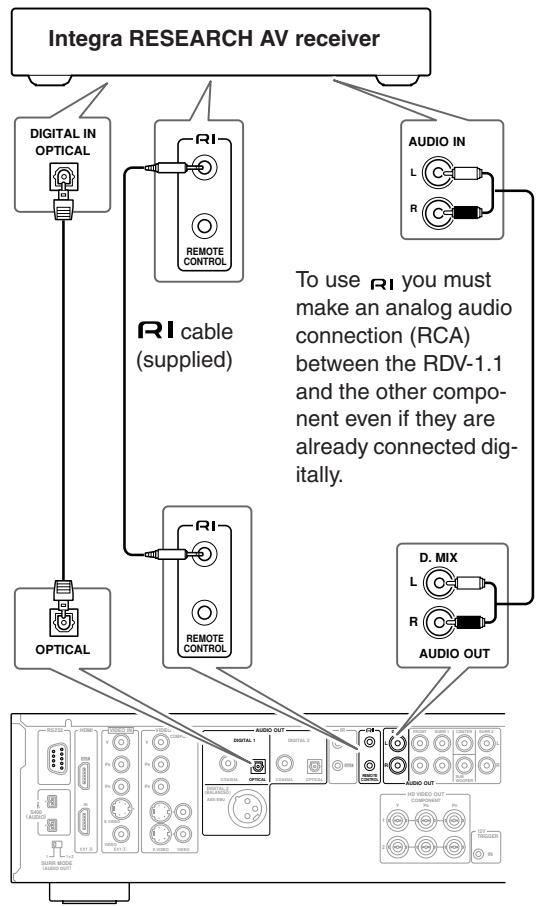
Notes:
- Push the plugs in all the way to make a good connection.
- Use only RI cables for RI connections.
- To use RI you must make an analog audio connection (RCA) between the RDV-1.1 and Integra RESEARCH AV receiver, even if they are already connected digitally.
- The RDV-1.1 has two RI sockets. You can connect either one to the Integra RESEARCH AV receiver. The other socket is for connecting additional RI-compatible components.
- Connect the RDV-1.1's RI socket to only Integra RESEARCH components. Connecting to other manufacturer's components may cause them to malfunction.
Connecting—Continued
Controlling Components That Are Out of Range
You can use the following multiroom kits to control the RDV-1.1 when it's out of range of the remote controller:
- Multiroom kits such as those made by Niles and Xantech.
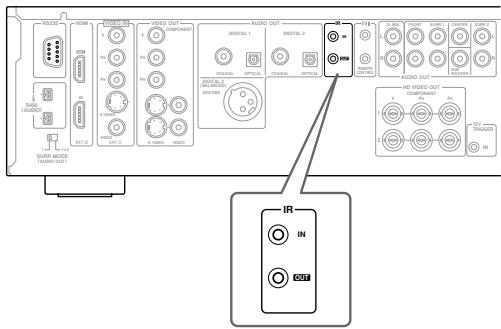
Controlling the RDV-1.1 When It's Out of Range
If the RDV-1.1 is located in another room, installed in a cabinet, or is out of range of its remote controller, you can use a commercially available IR receiver to pick up the remote controller signals and feed them to the RDV-1.1, as shown below.
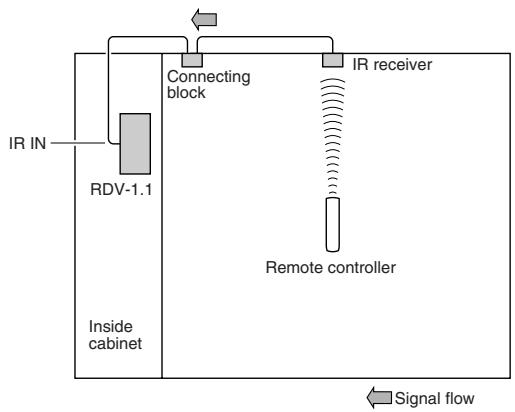
Connect the IR receiver to the RDV-1.1 as shown below.
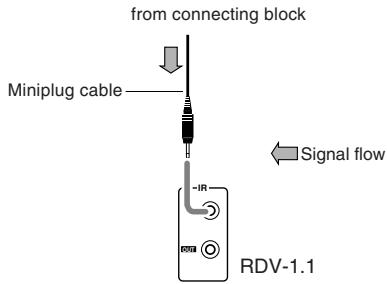
Controlling Other Out-of-range
Components
For another component that is out of range of its remote controller, you can use a commercially available IR emitter to retransmit the remote controller signals received at the RDV-1.1's IR IN, as shown below.
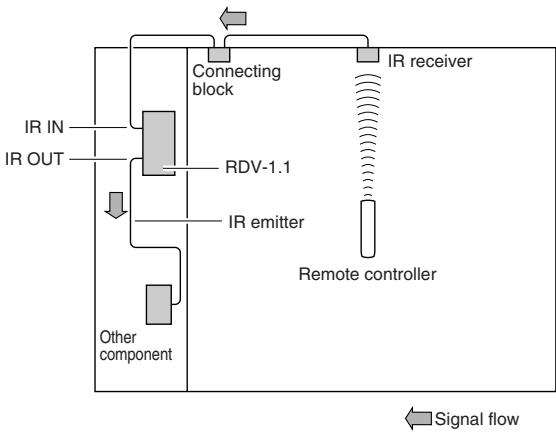
Connect the IR emitter to the RDV-1.1's IR OUT, and place the IR emitter in front of the other AV component's remote control sensor (usually located on its front panel), as shown below. See the instructions supplied with the IR emitter.
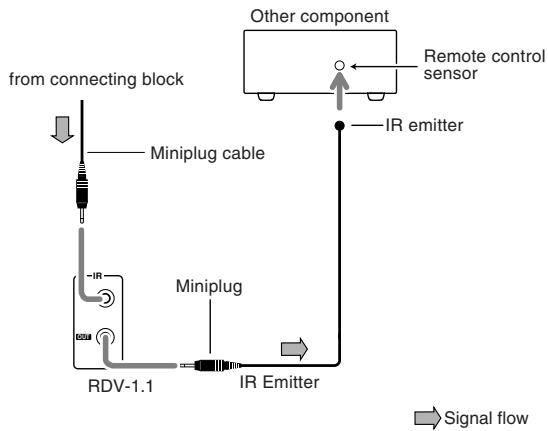
Only remote controller signals received by the RDV-1.1's IR IN are fed through to the IR OUT. Signals picked up by the RDV-1.1's remote control sensor are not.
Connecting—Continued
Connecting the Power Cord
Notes:
- Before connecting the power cord, complete all of the necessary audio and video connections.
- Do not use a power cord other than the one supplied with the RDV-1.1, which is designed exclusively for use with the RDV-1.1 and should not be used with any other component.
- Never disconnect the power cord from the RDV-1.1 while the other end is still plugged into a wall outlet. Doing so may cause an electric shock. Always disconnect the power cord from the wall outlet first.
- The RDV-1.1 is shipped with the Power switch in the On position (■). When the power cord is connected for the very first time, the RDV-1.1 will go on Standby and the Standby indicator will light up.
- To completely shutdown the RDV-1.1, set the Power switch to the Off position (■).
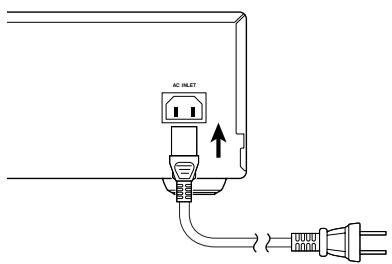
Plug the supplied power cord into the RDV-1.1's AC INLET.
2 Plug the other end of the power cord into a suitable AC wall outlet.
The Standby indicator lights up.
The Standby indicator comes on only if the Power switch is in the On position (■).
Connecting—Continued
Turning On the RDV-1.1
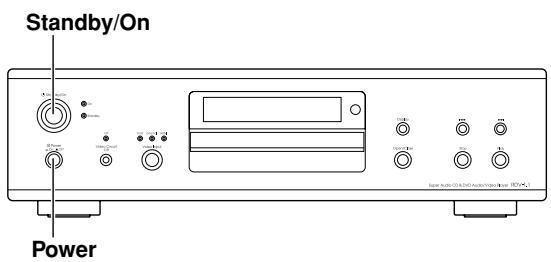
1
Set the Power switch to the On position () .
The Standby indicator lights up.
2
Press the [Standby/On] button.
The display light ups, the On indicator lights up, and the Standby indicator goes off.
The very first time you turn on the RDV-1.1, the Initial Setup menu appears onscreen (see page 44).
Press the [Standby/On] button again to enter Standby.
Turning On the RDV-1.1 with the Remote Controller
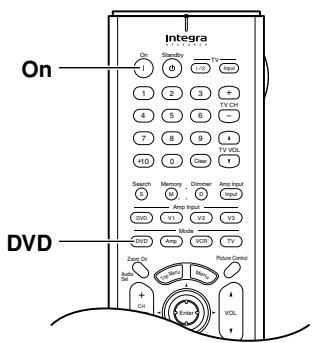
The RDV-1.1 must be in Standby mode for this procedure to work.
1
Press the [DVD] Mode button to select DVD mode.
This is the mode for controlling the RDV-1.1.
2
Press the [On] button.
To set the RDV-1.1 to Standby, press the [Standby] button.
Initial Setup
This chapter explains the settings you need to make the very first time the RDV-1.1 is turned on.
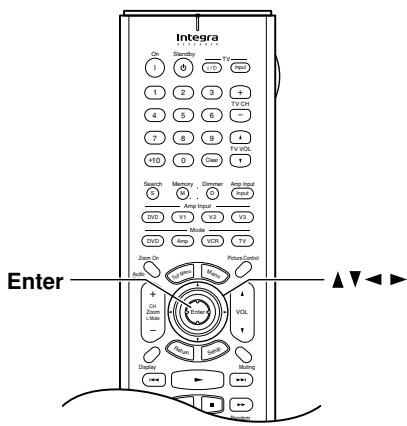
First Time Setup
The very first time you turn on the RDV-1.1, the Initial Setup menu appears onscreen.
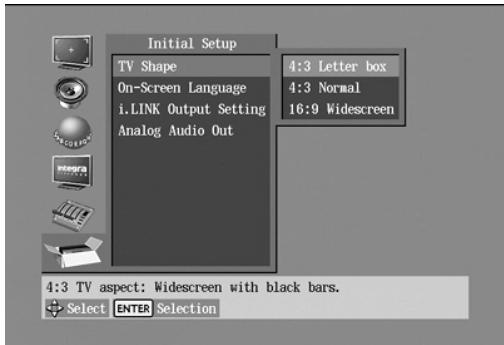
Here you need to make a few settings to get the RDV-1.1 up and running. You can change these settings later (see page 69).
1
Remote controller
Use the Up and Down [] / [] buttons to select a TV shape, and then press [Enter].
![ONKYO RDV-1.1 - Use the Up and Down [] / [] buttons to select a TV shape, and then press [Enter]. - 1](/content/2025/01/151826/images/24bac53b5c98a73b84a256ac81ea9e512dbd6ba258b7bed7d549484a8a0725f6.jpg)
Select 4:3 Letter box or 4:3 Normal if you have a 4:3 TV. Select 16:9 Wide-screen if you have a wide-screen TV. See page 73 for more information.
The On-Screen Language menu appears next.
![ONKYO RDV-1.1 - Use the Up and Down [] / [] buttons to select a TV shape, and then press [Enter]. - 2](/content/2025/01/151826/images/504b696aa135b72c9f7f5eecab0667a6874a97dcbf8a8e1a2c27b45bca45d739.jpg)
2
Use the Up and Down [▲]/[▼] buttons to select a language, and then press [Enter].
See page 82 for more information on the language options.
The i.LINK Output Setting menu appears next.
![ONKYO RDV-1.1 - Use the Up and Down [▲]/[▼] buttons to select a language, and then press [Enter]. - 1](/content/2025/01/151826/images/865e223cc9acfeab0531c67c7a249cd8dc7e883bb591214eae6f86ae4dc660bf.jpg)
3
Use the Up and Down [] / [] buttons to select Off or On for the i.LINK Output Setting (i.LINK), and then press [Enter].
See page 77 for more information on the i.LINK Output Setting. If the i.LINK Output Setting is set to Off, the Analog Audio Out menu appears next.
![ONKYO RDV-1.1 - Use the Up and Down [] / [] buttons to select Off or On for the i.LINK Output Setting (i.LINK), and then press [Enter]. - 1](/content/2025/01/151826/images/e81b1a6fef0357d566c9b433cacf2ecec122b14a212b0ab6c77438accf7ef248.jpg)
If it's set to On, the Initial Setup menu closes.
4
On the Analog Audio Out menu, use the Up and Down [▲]/[▼] buttons to select 2 Channel or Multi Channel (default), and then press [Enter].
Choose 2 Channel if you're connecting the FRONT AUDIO OUTs to a stereo amp.
Choose Multi Channel if you're connecting the FRONT, SURR 1/SURR 2, CENTER, and SUBWOOFER AUDIO OUTs to a multichannel amp.
If you select 2 Channel, the setup is complete and the Initial Setup menu closes. If you select Multi Channel, continue with this procedure.
5
Remote controller
Press the [Enter] button, use the Up and Down [ ] / [ ] buttons to select On or Off, and then press the [Enter] button.
Choose Off if your multichannel amp has its own speaker setup function.
Choose On if your multichannel amp has no speaker setup function.
If you select Off, the following settings cannot be set and the Initial Setup menu closes. If you select On, the Speaker Setting menu appears.
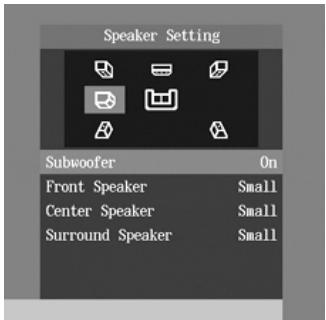
Here you can specify the size of the speakers being fed from the FRONT, SURR 1/SURR 2, CENTER, and SUBWOOFER AUDIO OUTPUTs.
For speakers with a cone diameter larger than 6-1/2 inches (16 cm), specify Large. For those with a smaller diameter, specify Small. See page 78 for more information.
6
Remote controller
Press the [Enter] button, use the Left and Right []/[] buttons to set the Subwoofer setting, and then press [Enter] again.
Off: Select if no subwoofer is being used.
On (default): Select if a subwoofer is being used.
7
Remote controller
Use the Left and Right [<]/[▶] buttons to set the Front Speaker setting, and then press the [Enter] button.
Large: Select if the front speakers are large.
Small (default): Select if the front speakers are small.
Note that if the Subwoofer setting is set to Off, this setting is fixed at Large.
8
Remote controller
Use the Left and Right [<]/[▶] buttons to set the Center Speaker setting, and then press the [Enter] button.
Large: Select if the center speaker is large.
Small (default): Select if the center speaker is small.
Off: Select if no center speaker is being used.
Note that if the Front Speaker Size is set to Small, the Large option cannot be selected.
9
Remote controller
Use the Left and Right [] / [] buttons to set the Surround Speaker setting, and then press the [Enter] button.
Large: Select if the surround speakers are large.
Small (default): Select if the surround speakers are small.
Off: Select if no surround speakers are being used.
The Initial Setup menu closes and the setup is complete.
The RDV-1.1 is now ready for use. See page 46 for information on playing discs.
Notes:
- You can change the language of the onscreen setup menus, and specify your preferred languages for DVD menus, soundtracks, and subtitles on the Language menu (see page 82).
- When a DVD doesn't have menus, soundtracks, and subtitles in different languages, its default language is used.
- When the RDV-1.1 is plugged in and set to Standby, it automatically checks if it's connected to any other i.LINK components. If it is, the default setting for the i.LINK Output Setting becomes On. If not, the default becomes Off.
BasicPlayback
This chapter explains the RDV-1.1's basic playback functions.
Don't forget to turn on your TV or projector and select the video input to which the RDV-1.1 is connected.
If you're using an AV receiver or hi-fi amp for audio playback, turn that on as well and select the audio input to which the RDV-1.1 is connected.
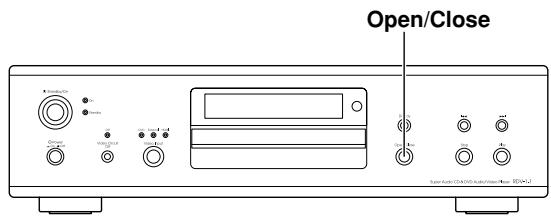
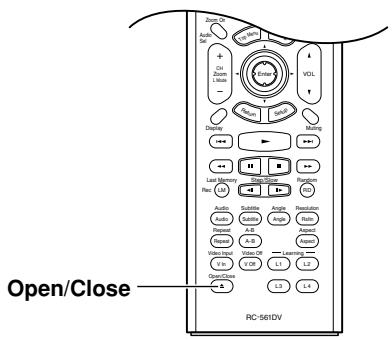
Loading Discs


This section explains how to load discs.
Remote controller
2
Press the Open/Close [▲] button.
The disc tray opens.
Place the disc, label side up, onto the tray.
Make sure that the disc is seated properly.
If you're loading a double-sided DVD, load it with the side that you want to play facing down.
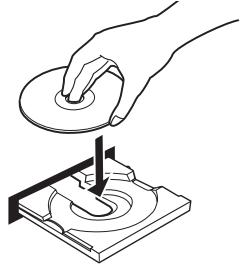

Remote controller
Press the Open/Close [▲] button.
The disc tray closes and the relevant disc type indicator appears on the display.
![ONKYO RDV-1.1 - Press the Open/Close [▲] button. - 1](/content/2025/01/151826/images/8b394a5c0a049d93baf445ff8850a4b5db5ae9c5b3a7b8452f58c5a5639db8dd.jpg)
See page 47 for information on playing discs.
Tip: If you press the Play [▶] button, the disc tray will close and, depending on the type of disc, playback will start automatically.
Notes:
- The disc tray can be opened even while the RDV-1.1 is on Standby, so you don't have to turn it on to remove a disc. (The disc tray will take slightly longer to open.)
- The RDV-1.1 supports 8cm and 12cm discs. To avoid damaging your discs and the RDV-1.1, put the disc in the center of the disc bay.
- Only load discs that are supported by the RDV-1.1 (see page 10). Don't load cartridge-type discs.
- To avoid personal injury, keep your hands away from the disc tray as it closes.
Always use the Open/Close [▲] button to open and close the disc tray. Never push the disc tray, and don't touch it or obstruct it while it's opening or closing.
Don't press down on the tray while it's open, and don't load anything other than supported discs. Doing so may damage your discs and the RDV-1.1.
- Since the RDV-1.1 does not support DVD-VR discs with CPRM (Content Protection for Recordable Media), do not attempt to play such discs.
BasicPlayback—Continued
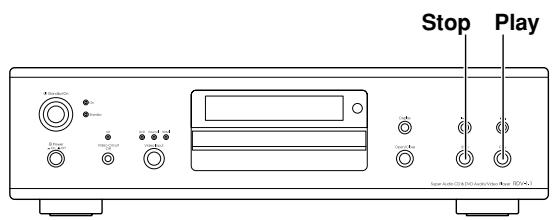
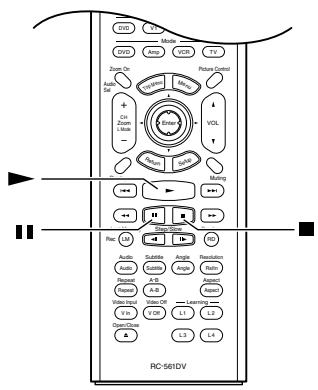
Starting, Pausing & Stopping Playback
DVD-V DVD-A SACD DVD-VR VCD CD MP3 JPEG
This section explains how to start, pause, and stop playback.
| Start Play Remote controller | To start playback, press the Play [▶] button. Playback starts and the Play ▷ indicator appears on the display. If you're playing a DVD-Video disc, or a VCD with PBC (Playback Control), you may need to start playback from a menu (see page 48). See page 53 for more on MP3 discs. |
| ■ Pause Remote controller | To pause playback, press the Pause [■] button. Playback pauses and the Pause■ indicator appears on the display. To resume playback, press the Play [▶] button. Playback resumes and the Pause■ indicator disappears. |
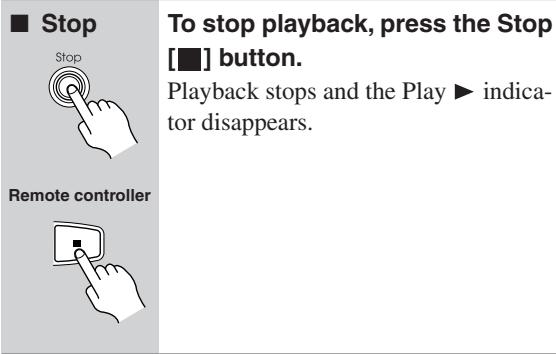
Notes:
- During playback, you can select chapters or tracks by using the Next [▶▶] and Previous [▶▶] buttons. The first press of the Previous [▶▶] button selects the beginning of the current chapter or track.
- When you stop playback of a DVD-Video disc or VCD, the RDV-1.1 remembers the point at which playback was stopped and "Resume" appears onscreen for a few seconds. To resume playback from that point, press the Play [▶] button. To cancel the Resume function, press the Stop [■] button again. The Resume function is reset when the disc is removed from the RDV-1.1.
- With the Last Memory function you can resume playback from any point even if the disc has been removed (see page 64).
- Do not move the RDV-1.1 or subject it to vibration during playback. Doing so may damage the disc and the RDV-1.1.
- You can improve the picture quality of paused playback with the Pause/Still setting (see page 83).
- Prolonged display of the same picture or menu may cause irreparable damage to your TV screen known as screen burn-in. To prevent this, don't keep playback paused for too long and always press the Stop [■] button when you've finished playing a DVD-Video disc or VCD. The RDV-1.1 features a screen saver to protect your TV from the effects of burn-in (see page 83).
- With some DVD-Video discs, you may experience picture noise that is not normally visible with standard TV broadcasts. This is usually because DVD-Video uses a lot of high-resolution video data. The amount of noise, if any, will depend on your particular TV and the problem can sometimes be alleviated by turning down the TV's sharpness control.
Basic Playback—Continued
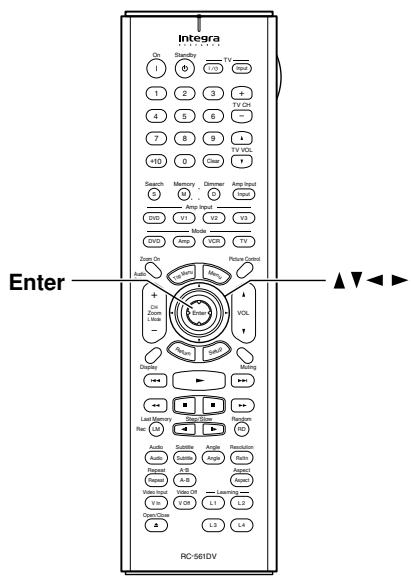
Navigating Disc Meals


DVD-Video discs usually have a menu from which you can select titles, chapters, and other options, including soundtracks, subtitles, and audio formats (e.g., Dolby Digital or DTS). VCDs that support PBC (Playback Control) may also have an onscreen menu (see page 11).
1
Load a DVD-Video disc or VCD (page 46).
With DVD-Video discs, a menu usually appears automatically. If it doesn't, try pressing the [Top Menu] button.
With VCDs that support PBC, you may have to press the Play [▶] button to display the menu.
2
Remote controller
Use the remote controller's arrow [▲], [▼], [▲], [▶] buttons to select items on the menu, and use the [Enter] button to confirm your choice.
If you select a playback option (e.g., subtitles), another menu will usually appear, in which case you use the arrow buttons to select items and the [Enter] button to confirm your choice.
For VCDs that feature PBC, you have to enter a number to select a menu item, which you can do by using the remote controller's number buttons. If the VCD's menu consists of several pages, use the Next [▶] and Previous [▶] buttons to view them. During playback, you can return to the menu by pressing the [Return] button.
Notes:
- Not all DVDs and VCDs have menus.
- Menu operation varies from disc-to-disc. See the disc's sleeve notes for details.
- On some DVDs, options such as foreign language soundtracks, subtitles, and audio formats appear on a separate menu called the disc menu, and titles and chapters appear on what's called the title menu. To display the disc menu, press the [Menu] button. If no menu appears, press the [Top Menu] button.
- With Some DVDs, foreign language soundtracks or audio formats can be selected during playback by using the remote controller's [Audio] button (see page 63). Similarly, subtitles can be selected by using the remote controller's [Subtitle] button (see page 63).
- To use the menu on a VCD that supports PBC, you must turn on PBC (see page 85).
- If PBC is off (see page 85), or your VCD doesn't support it, you can use the Next [▶▶] and Previous [▶▶] buttons, or the remote controller's number buttons to select tracks on a VCD.
- PBC menus can be hidden or displayed while playback is stopped by pressing the [Top Menu] button.
BasicPlayback—Continued
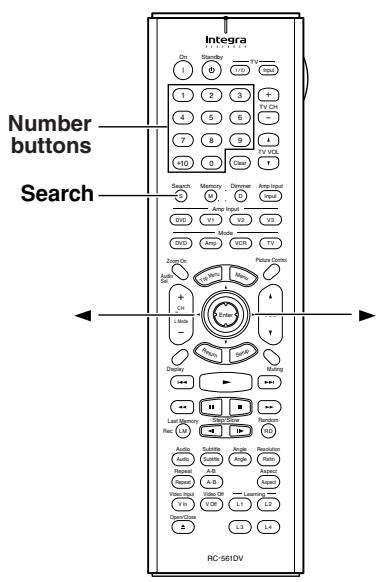
Selecting Chapters & Titles by Number


With the Search function you can select chapters and titles by number.
1
Load a DVD-Video disc (page 46).
2
Remote controller
Search

Press the [Search] button.
The Disc Navigator Search window appears onscreen.
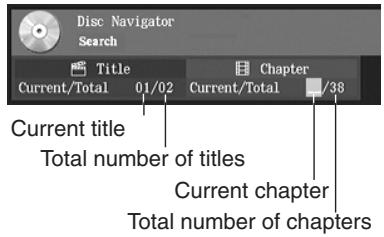
With some DVDs you can select only titles, and the Chapter Current/Total information is not displayed. Some discs won't even allow you to select titles.
3
Remote controller
If you want to select a title, press the Left [ ] button to move the cursor to the current title number.
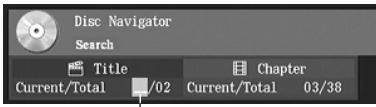
Entered title number appears here
4
Remote controller
1
2
4
5
7
8
+10
C
m - 1 0 ;
Use the number buttons to specify a chapter or title number.
To enter, for example, "2," press the [2] button.
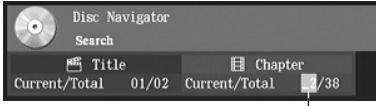
Entered chapter number appears here To enter, for example, "12," press the [1] button followed by the [2] button.
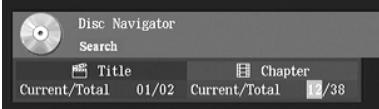
To clear a number, press the [Clear] button.
5
Remote controller
Press the Play [▶] or [Enter] button to start playback of the specified chapter or title.
During playback, you can select other chapters with the Next [▶] and Previous [▶] buttons. The first press of the Previous [▶] button selects the beginning of the current chapter.
Notes:
- During playback you can select chapters directly by using the number buttons. To select chapter #2, simply press [2] and playback starts. To select chapter #10, press [+10] and [0] and playback starts.
- If a DVD-Video disc contains only one title, you won't be able to select titles. Likewise, if it contains no chapters, you won't be able to select chapters.
DVD-Video discs usually have menus for selecting titles and chapters (see page 48). - With some discs you may not be able to select titles and chapters by number.
Basic Playback—Continued
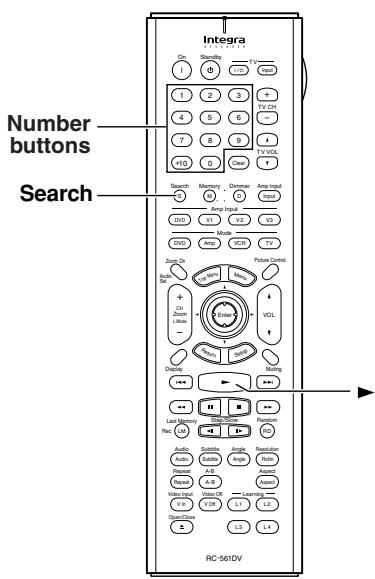
Selecting Tracks by Number
| DVD-A | SACD | VCD | CD | MP3 |
With the Search function you can select tracks by number.
| 1 | Load a DVD-Audio, SACD, VCD, CD, or MP3 disc (page 46). |
| 2 Remote controller Search | During playback, press the [Search] button. The Disc Navigator Search window appears onscreen. This is what appears for CDs. |
| Disc Navigator Search Track Current/Total Total number of tracks Current track |
3
Remote controller
Use the number buttons to enter a track number.
To enter, for example, "5," press the [5] button.
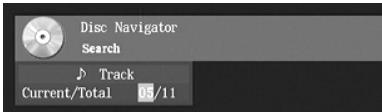
To enter, for example, "11," press the [1] button twice.
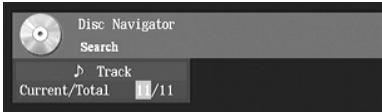
To clear a number, press the [Clear] button.
If you're playing a DVD-Audio disc, and you want to select a track in another group, press the Left [ ] button to select the group number and enter the number of that group first.
4
Remote controller
Press the Play [▶] button to start playback of the specified track.
You can also select tracks during playback by using the Next [▶] and Previous [▶] buttons. The first press of the Previous [▶] button selects the beginning of the current track.
Notes:
- You can select tracks directly at any time by using the number buttons (i.e., without pressing the [Search] button). To select track #2, simply press [2] and playback starts. To select track #10, press [+10] and [0] and playback starts.
- If PBC is on (see page 85), and the currently playing VCD supports it, you may be able to select tracks from a menu (see page 48).
- You can't use the [Search] function during random playback.
BasicPlayback—Continued
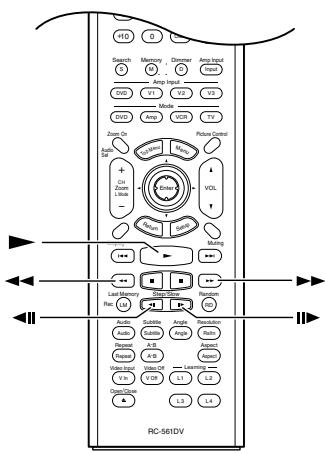
Fast Forward & Reverse

This section explains how to fast forward and reverse.
| ■ Fast forward Remote controller | During playback, press the FF [▶] button to start fast forward. Playback fast forwards and “Fast Forward1” appears onscreen. To change the fast-forward speed, press the FF [▶] button repeatedly to cycle through the speeds: Fast Forward1, Fast Forward2, and so on. To resume normal playback, press the Play [▶] button. |
| ■ Fast reverse Remote controller | During playback, press the FR [←] button to start fast reverse. Playback reverses and “Fast Reverse1” appears onscreen. To change the fast-reverse speed, press the FR [←] button repeatedly to cycle through the speeds: Fast Reverse1, Fast Reverse2, and so on. To resume normal playback, press the Play [▶] button. |
Notes:
- There are five fast forward and reverse speeds for DVD-Video and DVD-Audio, and three for SACD, VCD, CD, and MP3.
- No sound is output during fast forward or reverse of a DVD-Video disc or VCD.
Sound is output intermittently during fast forward or reverse of DVD-Audio, SACD, CD, and MP3 discs. - For DVD-VR discs, fast forward and reverse cannot straddle chapters.
Frame-by-FramePlayback

With frame-by-frame playback you can view individual picture frames one at a time either forward or backward.
■ Forward While paused, press the Step/ frame-by- Slow Forward [II▶] button. frame Press it repeatedly to view sub- sequent frames. Remote controller

- Backward frame-by-frame
- While paused, press the Step/Slow Back [←II] button.
- Press it repeatedly to view previous frames.
Resume To resume normal playback, playback press the Play [▶] button.
Remote controller
Notes:
- Backward frame-by-frame playback does not work with DVD-VR and VCD discs.
- You can improve the picture quality of frame-by-frame playback with the Pause/Still setting (see page 83).
- With some discs the picture may shake when using backward frame-by-frame playback.
- No sound is output during frame-by-frame playback.
- Some DVD-Audio discs feature browsable pictures, which you can select with the Step/Slow Back and Forward [][] buttons.
- Prolonged display of the same picture or menu may cause irreparable damage to your TV screen known as screen burn-in. To prevent this, don't display the same frame for too long. The RDV-1.1 features a screen saver to protect your TV from the effects of burn-in (page 83).
Basic Playback—Continued
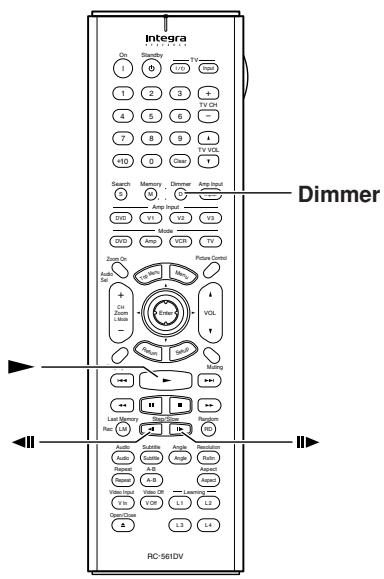
Slow-motion Playback


With slow-motion playback you can watch a scene slowly either forward or backward.
Remote controller
During playback, press the Step/ Slow Forward [II▶] button.
Forward slow-motion playback starts and "Slow1" appears onscreen.
To change the slow-motion speed, press the Step/Slow Forward [■] button repeatedly to cycle through the speeds: Slow1, Slow2, and so on.
![ONKYO RDV-1.1 - During playback, press the Step/ Slow Forward [II▶] button. - 1](/content/2025/01/151826/images/d7b1326516424c16985bbc131f6654d6080a7623b559877c2b6ef1f38ff21fbc.jpg)
Remote controller
![ONKYO RDV-1.1 - During playback, press the Step/ Slow Forward [II▶] button. - 2](/content/2025/01/151826/images/93d7b57e3bf65fd7c3f920bb98e5da8ee348846382877a61a882032e2528fc7c.jpg)
During playback, press the Step/ Slow Back [
Backward slow-motion playback starts and "Reverse Slow1" appears onscreen.
To change the slow-motion speed, press the Step/Slow Back [ ] button repeatedly to cycle through the speeds: Reverse Slow1, Reverse Slow2, and so on.

Remote controller

To resume normal playback, press the Play [▶] button.
Notes:
- There are four slow-motion speeds for DVD-Video/DVD-VR and three for VCD.
- Backward slow-motion playback does not work with DVD-VR and VCD discs.
- No sound is output during slow-motion playback.
Adjusting the Display Brightness


You can adjust the brightness of the display as follows.


Remote controller
Press the [Dimmer] button repeatedly to cycle through the following options: dim, dimmer, off, normal.
BasicPlayback—Continued
Navigating MP3 Discs

1
This section explains how to play MP3 tracks with the Disc Navigator.
The Disc Navigator appears.

Load an MP3 disc (page 46).
Initially, the Track list shows all of the folders at the root level. Pressing the Play [▶] button at this point will play all tracks in all folders in hierarchical order.
The RDV-1.1 numbers folders and tracks in hierarchical order. You can use these numbers to select folders and tracks directly with the Search function (see page 50).

2
Remote controller
To open a folder, use the Up and Down [▲]/[▼] buttons to select it, and then press [Enter].
The Track list shows the files and sub folders in the currently open folder.

3
Remote controller
Use the Up and Down [▲]/[▼] buttons to select files and sub folders in the open folder.
To open a folder in the Track list, press the [Enter] button. To close a folder (i.e., move back up the directory tree), press the [Return] button. Alternatively, select the item at the top of the Track list and press the Play or [Enter] button.
To get back to the root level, press the [Top Menu] button. Alternatively, select the item at the top of the Folder list and press the Play [] or [Enter] button.

4
Remote controller
or

To play a track, select it in the Track list, and then press the Play [▶] or [Enter] button.
If available, the following information about the currently selected track is displayed: Title, Artist, and Album.
During playback, the following information is displayed in the upper-right corner: folder number, track number, and elapsed time.

Track number
[ \text{Playlist number} ]
Subsequent tracks in the same folder are played in order.
To play all of the tracks in a folder, select the folder in the Track list (not the folder at the top of the list), and then press the Play [▶] button.
You can select the next or previous track during playback by using the Next [▶] and Previous [▶] buttons.
The first press of the Previous [▶] button selects the beginning of the current chapter or track.
If during playback you press the [Display] button to view information about an MP3 track (see "Displaying Information" on page 66), press the [Menu] button to return to the Disc Navigator.

5
Remote controller
Press the Stop [■] button to stop playback.
Basic Playback—Continued
Notes:
- You can use the Repeat function to play MP3 tracks repeatedly (see page 58).
- You can use the Random function to play MP3 tracks randomly (see page 59).
- During random playback, the remote controller's arrow [▲], [▼], [▲], [▶] buttons cannot be used with the Disc Navigator.
- You can also use the Disc Navigator to create a playlist of MP3 tracks (see page 55).
Viewing a Slideshow of JPEG Images

1
This section explains how to display a slideshow of JPEG images on your TV.
Load a JPEG disc (page 46).
Depending on the type of JPEG disc, either the first nine pictures appear in thumbnail-size or the Disc Navigator appears.

Initially, the Folder list shows all of the folders at the root level. Pressing the Play [▶] button at this point will start a slideshow of all images in all folders in hierarchical order.
The RDV-1.1 numbers folders and files in hierarchical order.

2
Remote controller
To open a folder, use the Up and Down [▲]/[▼] buttons to select it, and then press [Enter].
The Track list shows the images and sub folders in the currently open folder.

3
Remote controller
Use the Up and Down [▲]/[▼] buttons to select images and sub folders in the open folder.
A thumbnail-size preview and file size and creation date information for the currently selected image is displayed.

To open a folder in the Track list, press the [Enter] button. To close a folder (i.e., move back up the directory tree), press the [Return] button. Alternatively, select the item at the top of the Track list and press the Play [ ] or [Enter] button.
To get back to the root level, press the [Top Menu] button. Alternatively, select the item at the top of the Folder list and press the Play [▶] or [Enter] button.

4
Remote controller
or

To start a slideshow, select an image in the Track list, and then press the Play [▶] or [Enter] button.
Subsequent images in the same folder are displayed in order, with each image being displayed for five seconds. To display an image for longer, press the Pause [■] button. Press the Play [▶] button to resume.
To start a slideshow consisting of all of the images in a folder, select the folder in the Track list (not the folder at the top of the list), and then press the Play [▶] button.
BasicPlayback—Continued
5 You can use the following functions during the slideshow:
To display the next or previous image, use the Next [▶] or Previous [▶] button.
To flip a picture 180 degrees, use the Up and Down [▲]/[▼] buttons (not while zoomed in).
To rotate a picture counterclockwise or clockwise, use the Left and Right [▲]/[▶] buttons (not while zoomed in).
To zoom in or out, use the FF [▶] and FR [▶] buttons. Alternatively, press the [Zoom On] button and use the Zoom [+/-] button. While zoomed in, use the [▲]/[▶] and [▲]/[▼] buttons to move around the picture. The slide-show pauses while zoomed in. To cancel the zoom and resume the slideshow, press the Play [▶] button. 6 Remote controller To stop the slideshow, press the Stop [■] or [Menu] button.
Depending on the type of JPEG disc, either the first nine pictures appear in thumbnail-size or the Disc Navigator appears.
The slideshow stops automatically when all pictures have been displayed.
Notes:
- If the folder containing the JPEG images also contains some MP3 tracks, the RDV-1.1 will play those tracks while showing the slideshow.
- If the selected JPEG file's resolution is 640 × 480 pixels or less, a thumbnail-size preview is shown. If the resolution exceeds 640 × 480 , a preview will only be shown if the file contains thumbnail data.
- You can use the Repeat function to display JPEG images repeatedly (see page 58).
- You can use the Random function to display JPEG images randomly (see page 59).
Making a Playlist with the Disc Navigator


This section explains how to use the Disc Navigator to make a playlist of MP3 and JPEG files.

BasicPlayback—Continued

2
Remote controller
To add a file to the playlist, use the [ ],[ ],[ ],[ ] buttons to select it in the Track list, and then press the [Enter] button.

To add an entire folder to the playlist, select the folder at the top of the Track list and press [Enter]. The folder number followed by "ALL" appears in the playlist.

To open a folder in the Track list, press the [Enter] button. To close a folder (i.e., move back up the directory tree), press the [Return] button. Alternatively, select the item at the top of the Track list and press the Play button.

3
Remote controller
To start the playlist, select any item in the Track list except the top folder and press the Play [▶] button.
To close the Disc Navigator Play List window, press the [Memory] button.

4
Remote controller
To stop the playlist, press the Stop [■] button.
AdvancedPlayback

Zooming


With the Zoom function you can enlarge any part of the picture.
1
Remote controller

During playback, press the [Zoom On] button.
The Zoom x1 window appears onscreen.

2
Remote controller

Press the [+] part of the Zoom [+/-] button to zoom in.
Press the [-] part of the Zoom [+/-] button to zoom out.
The following levels of zoom are available:
1/4, 1/2, x1, x2, x4
3
Remote controller

To see other areas of the picture while zoomed, use the remote controller's arrow [▲], [▼], [▲], [▶] buttons.
The Zoom Navigator shows which area of the screen is currently zoomed.
4
Remote controller
Zoom On

To cancel the Zoom function, press the [Zoom On] button.
Notes:
- The Zoom function may not work with some DVDs.
- The Zoom function can also be used while playback is paused or during slow-motion playback.
- The Zoom function cannot be used to zoom menus.
Time Search


With the Time Search function you can locate specific points.
1
Remote controller

Press the [Search] button twice.
The Disc Navigator Search window appears onscreen.

Disc Navigator

31 + u + 4q = 1 + u + uq dH
m = 311
m = 311
1 + u1 - 1 = ( 1 + u) u1 < 1 = u
2
Remote controller


Disc Navigator
Search
m = 311 ;
m = 311
m = 311
图
Time
m = 311
m = 311
13/14
13/14
er,for example,2 minutes,15
seconds, press [2], [1], and [5].

Disc Navigator
Search
12 = 3 + 3
Time
2.15


3
Remote controller

Press the Play [▶] button to locate the specified point.
Playback starts from the specified point.
Notes:
- Time search works within the currently playing title (DVD-Video/DVD-VR) or track (DVD-Audio, SACD, VCD, CD). If, for example, the current title is one hour long and you enter 1 hour, 30 minutes, nothing will happen.
- In some cases, playback may start from a slightly different point to the one that you specify.
- Time search may not work with some discs.
- Time search cannot be used while a DVD-Video menu is displayed onscreen, or while a VCD that supports PBC is playing.
- The [Search] button cannot be used during random playback.
Advanced Playback—Continued

Repeat Playback
DVD-V
DVD-A
SACD
DVD-VR
VCD
CD
MP3
JPEG
With the Repeat function you can play a disc, title, chapter, group, track, or folder (MP3/JPEG) over-and-over again.
1
Remote controller

Press the [Repeat] button repeatedly to select a repeat option.
The selected repeat option appears onscreen and the REPEAT indicator appears on the display.
The options available depends on the type of disc, as follows:
DVD-Video, DVD-VR: Chapter Repeat, Title Repeat, Disc Repeat, Repeat Off.
DVD-Audio: Track Repeat, Group Repeat, Disc Repeat, Repeat Off.
SACD, VCD, CD: Track Repeat, Disc Repeat, Repeat Off.
MP3, JPEG: Track Repeat, Folder Repeat, Disc Repeat, Repeat Off.
The Chapter Repeat, Title Repeat, Track Repeat, and Group Repeat options can be selected only during playback.
2
Remote controller

Press the Play [▶] button to start repeat playback.
3
Remote controller

To cancel repeat playback, use the [Repeat] button to select Off.
If you're using the Repeat function with the Disc Navigator (MP3/JPEG), the Repeat function is off when the MODE: field is blank.
Notes:
- Repeat playback may not work with some DVD-Video discs.
- The Repeat function can be used in combination with the Random function (see page 59).
- If the Memory function is on (see page 60), the selectable options are Memory Repeat, which plays the playlist repeatedly, and Repeat Off.
- To use the Repeat function with a VCD that supports PBC, you must first turn off PBC (see page 85).
A-B Repeat Playback
DVD-V
DVD-A
SACD
DVD-VI
VCD
CD
With the A-B Repeat function you can play a specified section over-and-over again.
1
Remote controller

During playback, press the [A-B] button to set the A point (i.e., the start of the section you want to repeat).
"A-" appears onscreen and REPEAT A indicator appears on the display.
2
Remote controller
Press the [A-B] button again to set the B point (i.e., the end of the section you want to repeat).
Playback repeats between the A and B points, and "A-B" appears onscreen and REPEAT AB indicator appears on the display.
3
Remote controller
To cancel A-B repeat playback, press the [Clear] button, or use the [A-B] button to select Off.

Notes:
- The A-B Repeat function may not work with some DVD-Video discs and VCDs that support PBC.
- In some cases, the A and B points may be at slightly different points to the ones that you specify.
- If you select a different camera angle during A-B repeat playback, the original camera angle will be selected when playback restarts from the A point.
Advanced Playback—Continued

RandomPlayback


With the Random function you can enjoy a random selection of titles, chapters, groups, tracks, MP3s, or JPEG images.
1
Load a disc (page 46).
2
Remote controller

Press the [Random] button repeatedly to select a random option.
The selected random option appears onscreen and the RANDOM indicator appears on the display.
The available options depend on the current disc type, as follows:
DVD-Video: Title Random, Disc Random, Random Off.
DVD-Audio: Group Random, Disc Random, Random Off.
SACD, VCD, CD: Disc Random, Random Off.
MP3/JPEG: Folder Random (includes files in sub folders), Disc Random, Random Off.
The Title Random and Group Random options can be selected only during playback.
With the Title Random option, chapters within the current title are played at random. With the Disc Random option, titles, chapters, groups, tracks, or folders on the disc are played at random.
If you set the Random function during playback, random playback begins after the current chapter or track has finished.
3
Remote controller

Press the Play [▶] button to start random playback.
Random playback starts.
Random playback stops automatically when all of the items have been played once.
If the Repeat function is on (see page 58), random playback starts all over again when all items have been played.
4
Remote controller

To cancel random playback, use the [Random] button to select Off.
If you're using the Random function with the Disc Navigator (MP3/JPEG), the Repeat function is off when the MODE: field is blank.
Notes:
- To select the next title, chapter, group, track, MP3, or JPEG image during random playback, press the Next [▶] button.
- Random playback may not work with some DVD-Video and JPEG discs.
- To use the Random function with a VCD that supports PBC, you must first turn off PBC (see page 85).
- If the Memory function is on (page 60), random playback is unavailable.
- You can't use the [Search] button during random playback.
- During random playback, the remote controller's arrow [▲], [▼], [▲], [▶] buttons don't work with the Disc Navigator.
Advanced Playback—Continued

Memory Playback

With the Memory function you can create a playlist of titles, chapters, groups, or tracks.
1
Remote controller
Memory

Press the [Memory] button.
The Memory Play Setup window appears onscreen and the MEMORY indicator appears on the display.

The highlighted top row () is used to enter title/group/folder and chapter/ track numbers. Items in the Memory List are numbered.
Move the cursor to the left when you want to enter a title/group/folder number. Move it to the right to enter a chapter/track number. Make sure that the top row is selected before you enter a number.
2
Remote controller

Enter the title/group/folder and chapter/track numbers of the item you want to add to the Memory List.
Use the remote controller's Left and Right [] / [] buttons to select the parameters, and use the Up and Down [] / [] buttons to select numbers from 001 to 999.
You can enter numbers directly by using the remote controller's number buttons.

To add all of the titles, groups, folders, chapters, or tracks on a disc, select the top row, and then press the Down [▼] button.
To select all, while entering a number in the top row, press the [0] button.

3
Remote controller

Press the [Enter] button.
The new item is added to the Memory List as item #01.
In this example, All has been added to the Memory List as item #01.

4
5
Remote controller

Repeat steps 2 and 3 to add more items to the Memory List.
To play the Memory List, press the Play [▶] button.
The Memory Play Setup window must be open when you press the Play [▶] button.
Advanced Playback—Continued
6
Remote controller

To stop playback, press the Stop [■] button.
Notes:
- The playlist is deleted when the RDV-1.1 is set to Standby.
- To use this function with a VCD that supports PBC, you must first turn off PBC (see page 85).
- With some discs you won't be able to make a playlist.
Inserting New Items into the Memory List
1
Remote controller
Memory

Press the [Memory] button.
The Memory Play Setup window appears onscreen.
2
Remote controller


Use the Left or Right []/[] button to move the cursor from the top row.
You must move the cursor away from the top row.
3
Remote controller


Use the Up and Down [▲]/[▼] buttons to select the Memory List item before which you want to insert the new item.
4
Remote controller

Press the [Enter] button to insert a new blank item.
The cursor moves to the top row.
5
Enter the title/group/folder and chapter/track numbers of the item that you want to insert.
6
Remote controller

Press the [Enter] button.
The new item is inserted into the Memory List.
Deleting Items from the Memory List
1
Remote controller
Memory

Press the [Memory] button.
The Memory Play Setup window appears onscreen.
2
Remote controller

Use the Left or Right []/[] button to move the cursor from the top row.
You must move the cursor away from the top row.
3
4
Use the Up and Down [ ] / [ ] buttons to select the item that you want to delete.
Press the [Clear] button to delete the item.
The item is deleted and subsequent items move up the list.
Advanced Playback—Continued
Changing Items in the Memory List
1 Remote controller Memory Press the [Memory] button. The Memory Play Setup window appears onscreen. 2 Remote controller Enter Use the Left or Right [▲]/[▼] button to move the cursor from the top row. You must move the cursor away from the top row. 3 Remote controller Enter Use the Up and Down [▲]/[▼] buttons to select the item that you want to change. 4 Use the Left or Right [▲]/[▼] button to move the cursor to the top row. 5 Change the title/group/folder and chapter/track numbers as necessary. 6 Remote controller Enter Press the [Enter] button to enter your changes. Remote controller Memory To close the Memory Play Setup window, press the [Memory] button.
Notes:
- The playlist is deleted when the RDV-1.1 is set to Standby.
- To use this function with a VCD that supports PBC, you must first turn off PBC (see page 85).

Selecting Camera Angles

Some DVDs feature multiple camera angles that allow you to view scenes from different angles. When a DVD features multiple camera angles, the camera indicator appears on the display. Such discs usually have the camera angle logo ( ) printed on the sleeve.
1 Remote controller Angle Press the [Angle] button repeat- edly to cycle through the avail- able camera angles. The number of the currently selected camera angle appears onscreen. For example, on a disc with three camera angles, you'd see 1/3, 2/3, and 3/3. 2 Remote controller (Clear) Press the [Clear] button to select the default camera angle. The camera indicator disappears from the screen.
Notes:
- With some DVDs you may not be able to select different camera angles even though the camera indicates is displayed.
- With some DVDs you can select camera angles from a menu.
Advanced Playback—Continued

Selecting Soundtracks


Some DVD-Video discs feature soundtracks in several languages or audio formats (e.g., Dolby Digital or DTS). Music DVD-Video discs and DVD-Audio discs sometimes feature audio in several formats, such as PCM, Dolby Digital, or DTS. See the disc's sleeve notes for details.

Remote controller
During playback, press the [Audio] button repeatedly to cycle through the available soundtracks.
The name of the selected soundtrack appears onscreen for several seconds. With VCDs, you can select Stereo, Mono L (left), or Mono R (right). With SACDs you can select Multichannel area, 2 channel area, or CD layer.
Notes:
- With DVDs, when you stop playback and cancel the Resume function (see page 47), the soundtrack language will revert to your default language (see page 82), or the disc's default language.
- With some discs, selecting another soundtrack may cause the picture to skip momentarily.
- To listen to just the accompaniment on a karaoke CD, select the Mono L (left) or Mono R (right) channel. See the disc's sleeve notes for details.
- With some DVD-Video discs you need to select soundtracks from a menu, and you may not be able to select other soundtracks during playback.
Selecting Subtitles

Some DVD-Video discs feature subtitles in several languages. See the disc's sleeve notes for details.

Remote controller
During playback, press the [Subtitle] button repeatedly to cycle through the available subtitles.
The name of the selected subtitle appears onscreen for several seconds. To turn off subtitles, use the [Subtitle] button to select "No Subtitle."
Notes:
- When you stop playback and cancel the Resume function (see page 47), the subtitle language will revert to your default subtitle language (see page 82), or the disc's default subtitle language.
- With some DVDs you can select subtitles from a menu, and you may not be able to select subtitles during playback.
- To check the subtitle language currently selected, press the [Subtitle] button once. The current setting will appear onscreen for several seconds.
Advanced Playback—Continued


Last Memory


With the Last Memory function you can resume playback from where you left off even if the disc has been removed and the RDV-1.1 has been set to Standby. Last Memory also remembers the soundtrack and subtitle settings you were using.
1
Remote controller
Last Memory

During playback, press the [Last Memory] button.
The last memory point for the disc is stored, the LAST M indicator appears, and "Last Mem" appears on the display. If the [Last Memory] button is pressed again, the last memory point is updated.
2
Remote controller

To stop playback, press the Stop [■] button once or twice.
Now you may remove the disc and turn off the RDV-1.1.
3
Remote controller

To resume playback, load the disc, and then press the Play [▶] button.
The Last Memory dialog box appears.
Last Memory is set.
Start playback from memory location?
Yes
No
Memory Clear
4
Remote controller

To resume playback from the last memory point, select Yes, and then press [Enter].
To start playback from the beginning, select No, and then press [Enter]. To start playback from the beginning and delete the last memory point, select Memory Clear, and then press [Enter].
Notes:
- The Last Memory function can store the last point for up to six DVDs. When you set the Last Memory function for a seventh disc, the first disc's settings are deleted.
- The Last Memory function can store the last point for only one VCD, and that point will be lost when the disc is removed.
- The Last Memory function may not work properly with VCDs that support PBC.
- The Last Memory function will not work while a menu is being displayed onscreen.
- The Last Memory function may not work with some DVDs.
- If you inadvertently turn off the RDV-1.1 during playback, you can resume playback from the last point simply by pressing the Play [▶] button.
Displaying Information


You can display various information about a disc, title, chapter, group, or track onscreen and on the RDV-1.1's display.
Display

During playback, press the [Display] button repeatedly.
The information displayed depends on the type of disc. See the following tables.

During playback, press the [Display] button repeatedly.
Advanced Playback—Continued
DVD-Video
Condition Onscreen RDV-1.1 Display Normal No display Elapsed title time 1st press Play DISC DVD Current/total title number, elapsed title time, remaining title time, total title time, selected soundtrack, selected subtitle, number of camera angles. Title Current/Total Elapsed Remaining Total 1/2 1.28 1.44.14 1.45.42 Audio 1.English:Dolby Digital 3/2.1ch Angle Subtitle No Subtitle 2nd press Play DISC DVD Current/total chapter number, elapsed chapter time, remaining chapter time, total chapter time, bit rate. Chapter Current/Total Elapsed Remain Total 2/38 0.14 2.22 2.36 Bit-rate 4.5Mbps 3rd press No display Elapsed title time
DVD-Audio
Condition Onscreen RDV-1.1 Display Normal No display Elapsed track time 1st press Play DISC DVD Current/total track number, elapsed track time, remaining track time, total track time, selected soundtrack, selected subtitle, number of camera angles. Remaining track time Track Current/Total Elapsed Remain Total 1/4 1.16 14.20 15.36 Audio 1.LPCM 2.0ch 192kHz/16Bit 2nd press Play DISC DVD Current/total group number, elapsed group time, remaining group time, total group time. Elapsed group time Group Current/Total Elapsed Remain Total 1/2 1.26 1.15.33 1.16.59 3rd press No display Elapsed track time
SACD
Condition Onscreen RDV-1.1 Display Normal No display Elapsed track time 1st press ▶Play DISC SACD Remaining track time Track Current/Total Elapsed Remaining Total 1/23 0.34 8.14 8.48 2nd press ▶Play DISC SACD As above plus number of audio channels. Track Current/Total Elapsed Remaining Total 1/23 0.45 8.03 8.48 Audio 3/2.1ch 3rd press ▶Play DISC SACD Current/total track number, elapsed disc time, remaining disc time, total disc time. Disc Current/Total Elapsed Remaining Total Remaining disc time 1/23 0.51 60.54 61.45 4th press ▶Play DISC SACD Title, artist name, album name. Disc Title Integra RESEARCH Title Disc titlea Artist Name Integra RESEARCH Artist Album Name Integra RESEARCH Album 5th press No display Elapsed track time
a. If the disc has no title, "No Title" appears.
AdvancedPlayback—Continued
VCD & CD
Condition Onscreen RDV-1.1 Display Normal No display Elapsed track time 1st press ▶Play DISC CD Current/total track number, elapsed track time, remaining track time, total track time. Remaining track time Track Current/Total Elapsed Remaining Total 1/15 0.11 5.17 5.29 2nd press ▶Play DISC CD Current/total track number, elapsed disc time, remaining disc time, total disc time. Elapsed disc time Disc Current/Total Elapsed Remaining Total 1/15 0.17 78.26 78.41 3rd press Same as for 2nd press Remaining disc time 4th press No display Elapsed track time
MP3
Condition Onscreen RDV-1.1 Display Normal Disc Navigatora Elapsed track time 1st pressb Play DISC MP3 Current/Total track number, elapsed track time, current/total folder number, file name, etc. Track Current/Total Elapsed ONKYO 1 2/11 0.21 Folder Current/Total ONKYO 6/46 2nd press Disc Title Integra RESEARCH Title Title, artist name, album name, year, genre, comment. Artist Name Integra RESEARCH Artist Album Name Integra RESEARCH Album Year 2004 Genre Rock Comment lst 3rd pressb No display File name 4th press Disc Navigator Elapsed track time
a. If the Disc Navigator is not shown, press the [Menu] button.
b. When another folder is selected, its name is displayed for three seconds.
Notes:
- For DVD-Video and DVD-Audio discs, when the soundtrack, subtitle, or camera angle is changed, the setting is displayed onscreen for 10 seconds. To cancel this display, press the [Display] button twice.
- When playback is started, paused, stopped, and so on, the status is displayed onscreen for five seconds.
- For DVD-VR discs, the bit rate is not displayed.
- No information is displayed when playing a VCD with PBC.
Advanced Playback—Continued

Off indicator

Turning Off the Video Circuits
You can turn off all of the output video circuitry, eliminating the possibility of interference, for a pure-audio experience when playing audio-only discs.

Remote controller

Video Off
Press the remote controller's [Video Off] button or the RDV-1.1's [Video Circuit Off] button.
The output video circuitry is turned off, the Video Circuit Off indicator lights up, and the V.OFF indicator appears on the display.
2
To turn the video circuitry back on, press the button again.
The output video circuitry is turned on, the Video Circuit Off indicator goes off, and the V.OFF indicator disappears from the display.
Notes:
- When the video circuitry is turned off, all of the RDV-1.1's video outputs don't work. The HDMI IN and VIDEO IN inputs are not affected.
- With some discs you need start playback from a menu, in which case you should turn off the video circuitry after starting playback.
- Although intended for use with audio discs, this function can also be used to enjoy soundtracks and music on DVD-Video discs and VCDs.
Selecting the Video Input Source
This section explains how to select the video input source when you've connected other video components to the RDV-1.1's video inputs, as shown on page 39.


Remote controller
Turn the Video Input knob to select the video input source.
DVD: The RDV-1.1.
External:VIDEO IN (COMPONENT, SVIDEO, orVIDEO).
HDMI: HDMI IN.
The DVD, External, and HDMI indicators show the currently selected video input source.
Notes:
- See the table on page 27 for details on how the RDV-1.1's video outputs work with each video input source.
Setting the HDMI Output Resolution
This section explains how to change the video resolution when your TV or projector is connected to the HDMI OUT.

Remote controller
Press the remote controller's [Resolution] button.
The current resolution scrolls across the display.
While the resolution is scrolling, press the [Resolution] button repeatedly to select another resolution.
The RDV-1.1 supports the following resolutions:
640 x 480p: (VGA), 60 Hz
720 x 480p: (progressive), 60Hz
720 x 576p: (progressive), 50Hz
1280 x 720p: (progressive), 50 / 60Hz
1920 x 1080i: (interlaced), 50 / 60Hz
Through Source Resolution: External input video is output at the same resolution. DVD playback is output at 480p or 576p.
Notes:
- With HDMI, the TV reports to the RDV-1.1 what resolutions it supports, and then only those resolutions can be selected.
- The letters i and p indicate interlaced and progressive respectively.
Advanced Playback—Continued

Setting the Picture's Aspect Ratio
This section explains how to set the picture's aspect ratio.
Remote controller

Press the remote controller's [Aspect] button repeatedly to select an aspect ratio.
Choose an aspect ratio to suit your TV and how you want to see the picture onscreen.
TV Shape
4:3 Letter box
4:3 Letter box: Choose this option if you have a 4:3 aspect ratio TV. When you watch widescreen video sources, the entire picture will be visible but there will be black bars at the top and bottom of the screen.
TV Shape
4:3 Normal
4:3 Normal: Choose this option if you have a 4:3 aspect ratio TV and want to use the full height of the screen when watching widescreen video sources. The picture will be cropped on both sides. This option won't work with discs that don't support pan and scan.
TV Shape
16:9 Widescreen
16:9 Widescreen: Choose this option if you have a 16:9 widenscreen TV.
Notes:
- The aspect ratio cannot be changed during playback.
- When the RDV-1.1 is set to Standby, the aspect ratio reverts to the TV Shape setting (see page 73).
Using the Picture Control Menu
The Picture Control menu provides quick access to the Interlaced, Progressive, and AV Synchronization setup memories.
1
Remote controller
Picture Control

Press the remote controller's [Picture Control] button.
The Picture Control menu appears onscreen.
Interlaced Setting
Progressive Setting
AV Syncro Setting

2


2
Remote controller

Use the Up and Down [] / [] buttons to select Interlaced, Progressive, or AV Synchronization.
If you want to edit the settings of the current setup memory, select Interlaced Setting, Progressive Setting, or AV Synchronization, and then press the [Enter] or Right [▶] button. Editing works the same as for the Picture setup menu (see page 73).
Configuring the RDV-1.1
This chapter explains the various settings on the onscreen setup menus. Settings are arranged into six groups: Picture, Audio, Language, Display, Operation, and Initial Setup. The following table lists all of the settings, with a brief description and page number where you can find full details. (Certain settings cannot be selected or changed during playback.)
Menu Setting Description Page # Picture TV Shape Selects a picture format to match the aspect ratio of your TV. 73 Interlaced Setting Picture adjustments for interlaced scanning. 73 Progressive Setting Picture adjustments for progressive scanning. 74 SCART Output Setting (European model only) Selects the video format for the SCART output: RGB, S-Video, or composite. 75 PAL Output Setting (not North American models) Specify how the RDV-1.1 outputs video signals when playing NTSC discs. 75 Audio Digital Out/Digital1(i.LINK) Dolby Digital Out Determines whether Dolby Digital audio is downmixed. 75 DTS Out Determines whether DTS audio is downmixed. 75 MPEG Out Determines whether MPEG audio is downmixed. 76 Digital Out Turns the DIGITAL 1 AUDIO OUTs on and off. 76 Digital Out/Digital2(HDMI) Dolby Digital Out Determines whether Dolby Digital audio is downmixed. 76 DTS Out Determines whether DTS audio is downmixed. 76 MPEG Out Determines whether MPEG audio is downmixed. 76 Digital Out Turns the DIGITAL 2 AUDIO OUTs on and off. 76 Linear PCM Out Determines whether 96 kHz digital audio is downsampled. 76 i.LINK Output Setting Turns the i.LINK output on and off. 77 Analog Audio Out 2 Channel Stereo, Lt/Rt Determines how the FRONT AUDIO OUT sockets downmix multichannel audio. 77 Multi Channel Dolby Pro Logic Setting Determines how the built-in Dolby Pro Logic decoder works. Speaker Setting On, Off Specify which speakers are connected and their sizes, and enable (on) or disable (off) the Speaker Setting. Speaker Distance On, Off Specify the distance between each speaker and the listener, and enable (on) or disable (off) the Speaker Distance setting. Test Tone Adjust individual speaker levels with the test tone. AV Synchronization Resynchronizes sound and picture. 80 Dynamic Range Control (Dolby Digital only) Sets the Dynamic Range function. 81 SACD Audio Setup Determines how SACD multichannel, 2-channel, and CD tracks are played. 81 CD Audio Setup Configs the digital audio outputs for CD or DTS CD. 81 Language On-Screen Language Specify a language for the onscreen setup menus and messages. 82 Disc Menu Language Specify your preferred language for disc menus. 82 Audio Language Specify your preferred language for soundtracks. 82 Subtitle Language Specify your preferred language for subtitles. 83 Display On-Screen Display Turns onscreen messages and indicators on and off. 83 On-Screen Display Color Selects a color for onscreen setup menus and messages. 83 Background Selects a background color for when playback is stopped. 83 Screen Saver Sets the Screen Saver. 83
Configuring the RDV-1.1—Continued
Menu Setting Description Page # Operation Pause/Still Selects Auto or Frame for paused and still pictures. 83 Parental Lock Sets the Parental Lock function. 84 Remote Confirmation Turns the remote controller beeper on and off. 84 Title/Group Stop Determines if playback stops at the end of the current title or group. 85 PBC Turns PBC (Playback Control) for VCDs on and off. 85 Priority Contents Determines what's played on DVD-Audio discs with DVD-Video content. 85 Auto power off Sets the Auto power off function. 85 Initial Setup TV Shape This is the menu that appears automatically the very first time the RDV-1.1 is turned on. 44 On-Screen Language i.LINK Output Setting Analog Audio Out 2 Channel Multi Channel Speaker Setting On, Off
Configuring the RDV-1.1—Continued

Using the Onscreen Setup Menus
This section explains how to use the onscreen setup menus.
1
Turn on the RDV-1.1 and your TV.
On your TV, select the video input to which the RDV-1.1 is connected.
2
Remote controller

Press the [Setup] button.
The onscreen setup menu appears. (The menus vary slightly from country to country.)


Sets aspect ratio of connected TV. Select ENTERSelection
3
Remote controller

Use the remote controller's arrow buttons to navigate the menus.
Use the Left and Right [] / [] buttons to move left and right. Use the Up and Down [] / [] buttons to move up and down.
4
Remote controller

When you've selected an item, press the [Enter] button to see the available options.
5
Remote controller

Use the arrow buttons to select the options, and press the [Enter] button to confirm your choice.

6
Remote controller

When you've finished, press the [Setup] button again.
The settings are stored and the onscreen setup menu closes.
Configuring the RDV-1.1—Continued
The following diagram shows how to navigate the onscreen setup menus.

Configuring the RDV-1.1—Continued
Picture Menu
TV Shape
With this setting you can select a picture format to match the aspect ratio of your TV.
4:3 Letter box (default):
Choose this option if you have a 4:3 TV. When you watch widescreen movies, the entire picture will be visible but there will be black bars at the top and bottom of the screen, as shown.

Widescreen DVD movie on 4:3 TV with the 4:3 Letter box setting
4:3 Normal
Choose this option if you have a 4:3 TV and want to use the full height of the screen when watching widenscreen movies. The picture will be cropped on both sides, as shown. This option will not work with discs that don't support pan and scan.

Widescreen DVD movie on 4:3 TV with the 4:3 Normal setting
16:9 Widescreen
Choose this option if you have a 16:9 widenscreen TV.
Notes:
- With some DVDs, this setting may have no effect. See the disc's sleeve notes to see which picture format is used.
Interlaced Setting
With this setting you can adjust various picture parameters for interlaced scanning. There are three setup memories (1, 2, 3) for storing your favorite settings. You could, for example, use one for daytime viewing (e.g., sun shining through window) and one for nighttime viewing (e.g., curtains drawn, lights down).
Parameter Range Description Blacker than black Off, On (default) Makes black objects look even blacker. Contrast -7...0...+7 Adjusts the picture contrast. Brightness -7...0...+7 Adjusts the picture brightness. Color -7...0...+7 Adjusts the picture color. Tint -7...0...+7 Adjusts the picture tint. Sharpness -6...0...+6 Adjusts the picture sharpness. S, Composite Video Light, Normal (default)a Adjusts the black level for the S-Video and composite video outputs. Component Video Dark (default), Light Adjusts the black level for the component video outputs. Gamma -7...0...+7 Adjusts the brightness of darker colors. Y/C Time Correction -4, -2, 0, +2, +4 Corrects small shifts in color. DNR (Digital Noise Reduction) Off (default), 1, 2, 3 Reduces picture noise. b
a. On the North American model, the options are Normal and Dark.
b. The effect may not always be noticeable, and depending on the video source, the picture may look better with it set to Off.
Configuring the RDV-1.1—Continued

Selecting the Interlaced Setting
1
Remote controller


Select Interlaced Setting 1, 2, or 3, and then press the [Enter] or Right [▶] button.
The parameters appear onscreen.
2
Remote controller

Use the Up and Down [▲]/[▼] buttons to select the parameters, press the [Enter] button, and then use the Left and Right [▲]/[▶] buttons to set them.

3
Remote controller

Press the [Enter] button.
The setting is stored.
Use the same procedure to set the other parameters, pressing the [Enter] button when you've set each one.
Press the [Setup] button to exit the onscreen setup menu.
Progressive Setting
With this setting you can adjust various picture parameters for progressive scanning. There are three setup memories (1, 2, 3) for storing your favorite settings. You could, for example, use one for daytime viewing (e.g., sun shining through window) and one for nighttime viewing (e.g., curtains drawn, lights down).
Parameter Range Description Contrast -7...0...+7 Adjusts the picture contrast. Brightness -7...0...+7 Adjusts the picture brightness. Color -7...0...+7 Adjusts the picture color. Tint -7...0...+7 Adjusts the picture tint. Sharpness -7...0...+7 Adjusts the picture sharpness. Gamma -7...0...+7 Adjusts the brightness of darker colors. Y/C Time Correction -4...0...+4 Corrects small shifts in color.

2 Use the Up and Down [▲]/[▼] Remote controller buttons to select the parameters, press the [Enter] button, and then use the Left and Right [▲]/[▶] buttons to set them.
Configuring the RDV-1.1—Continued
3
Remote controller

When you've finished, press the [Enter] button.
The setting is stored.
Use the same procedure to set the other parameters, pressing the [Enter] button when you've set each one.
Press the [Setup] button to exit the onscreen setup menu.
SCART Output Setting (European model only)
With this setting you can select the video format to be used for the SCART AV CONNECTOR: RGB, S-Video, or composite video. Before changing this setting, refer to your TV's manual to see if its SCART input can accept video signals in these formats.
Composite (default)
Composite video offers standard quality.
S-Video
S-Video offers the next best picture quality.
RGB
This format offers the best picture quality. The RGB indicator appears on the display when this option is selected.
Notes:
Notes:
- If you select a format that is not supported by your TV, the setup menu may disappear from the screen. If this happens, switch off your equipment, connect the RDV-1.1 to your TV with a composite video or S-Video cable, and then change this setting.
- Composite, S-Video, and RGB can also be selected from the front panel. With the RDV-1.1 turned on, while holding down the Previous [▶] button, press the [Standby/On] button to select "Composite," "S-Video," or "RGB."
- When RGB is selected, nothing is output by the component video output (see page 27).
PAL Output Setting (not North American models)
With this setting you can specify how the RDV-1.1 outputs video signals when playing NTSC format discs.
Auto (default)
Use this option if your TV or projector supports PAL and NTSC. When you play a PAL disc, the video output will be PAL. When you play an NTSC disc, it'll be NTSC. The RDV-1.1 does not convert the format.
PAL
Use this option if your TV doesn't support NTSC playback, or the picture is distorted when watching NTSC discs. The RDV-1.1 will convert NTSC format video to a PAL-compatible format known as Mod PAL or 60Hz PAL.
Notes:
- This setting can be changed only when playback is stopped.
- PAL and AUTO can also be selected from the front panel. With the RDV-1.1 turned on, while holding down the Next [▶] button, press the [Standby/On] button to select "Auto" or "PAL."
Audio Menu
Digital Out/Digital1 (i.LINK)
With these settings you can determine how the RDV-1.1 outputs digital audio from its i.LINK sockets and DIGITAL 1 AUDIO OUTs. The options you choose will depend on the type of component that you connect to the DIGITAL 1 AUDIO OUTs.
Dolby Digital Out
With this setting you can configure the DIGITAL 1 AUDIO OUTs to output Dolby Digital audio as it is or to downmix it into 2-channel PCM.
Dolby Digital (default)
Choose this option if you're connecting a component with a built-in Dolby Digital decoder.
Dolby Digital > PCM
Choose this option if you're connecting a stereo hi-fi amp with a digital input, an AV receiver with a built-in Dolby Pro Logic decoder, or an external D/A converter.
DTS Out
With this setting you can configure the DIGITAL 1 AUDIO OUTs to output DTS audio as it is or to downmix it into 2-channel PCM.
DTS (default)
Choose this option if you're connecting a component with a built-in DTS decoder.
DTS > PCM
Choose this option if you're connecting a stereo hi-fi amp with a digital input or an external D/A converter.
Notes:
- When playing the DTS audio of a DTS CD, set the CD Audio Setup setting to DTS (see page 81).
Configuring the RDV-1.1—Continued
MPEG Out
With this setting you can configure the DIGITAL 1 AUDIO OUTs to output MPEG audio as it is or to downmix it into 2-channel PCM.
MPEG
Choose this option if you're connecting a component with a built-in MPEG decoder.
MPEG > PCM (default)
Choose this option if you're connecting a stereo hi-fi amp with a digital input or an external D/A converter.
Digital Out
With this setting you can turn the DIGITAL 1 AUDIO OUTs on or off. Depending on how you connect the RDV-1.1 to your other components, this can be useful in certain situations.
On (default)
DIGITAL 1 AUDIO OUTs are on.
Off
DIGITAL 1 AUDIO OUTs are off.
Notes:
- This setting has no effect on the analog audio outputs.
Digital Out/Digital2 (HDMI)
With these settings you can determine how the RDV-1.1 outputs digital audio from its HDMI OUT and DIGITAL 2 AUDIO OUTs. The options you choose will depend on the type of component that you connect to the DIGITAL 2 AUDIO OUTs.
Dolby Digital Out
With this setting you can configure the DIGITAL 2 AUDIO OUTs to output Dolby Digital audio as it is or to downmix it into 2-channel PCM.
Dolby Digital (default)
Choose this option if you're connecting a component with a built-in Dolby Digital decoder.
Dolby Digital > PCM
Choose this option if you're connecting a stereo hi-fi amp with a digital input, an AV receiver with a built-in Dolby Pro Logic decoder, or an external D/A converter.
DTS Out
With this setting you can configure the DIGITAL 2 AUDIO OUTs to output DTS audio as it is or to downmix it into 2-channel PCM.
DTS (default)
Choose this option if you're connecting a component with a built-in DTS decoder.
DTS > PCM
Choose this option if you're connecting a stereo hi-fi amp with a digital input or an external D/A converter.
Notes:
- When playing the DTS audio of a DTS CD, set the CD Audio Setup setting to DTS (see page 81).
MPEG Out
With this setting you can configure the DIGITAL 2 AUDIO OUTs to output MPEG audio as it is or to downmix it into 2-channel PCM.
MPEG
Choose this option if you're connecting a component with a built-in MPEG decoder.
MPEG > PCM (default)
Choose this option if you're connecting a stereo hi-fi amp with a digital input or an external D/A converter.
Digital Out
With this setting you can turn the DIGITAL 2 AUDIO OUTs on or off. Depending on how you connect the RDV-1.1 to your other components, this can be useful in certain situations.
On (default)
DIGITAL 2 AUDIO OUTs are on.
Off
DIGITAL 2 AUDIO OUTs are off.
Notes:
- This setting has no effect on the analog audio outputs.
Linear PCM Out
With this setting you can configure the RDV-1.1 to output digital audio with a high sampling rate (e.g., 96kHz ) as it is or to downsample it to 48kHz . This setting applies to the DIGITAL 1 and DIGITAL 2 AUDIO OUTs.
Down Sample On
Choose this option if the component connected to the DIGITAL 1 or 2 AUDIO OUTs doesn't support high sampling rates.
Down Sample Off (default)
Choose this option if the connected component does support high sampling rates.
Notes:
- Some copy-protected DVD-Video discs may use 96kHz digital audio only for A/D conversion to the analog audio outputs.
- With some discs, even if you select Down Sample Off, digital audio will be downsampled to 48kHz regardless, and in some cases, digital audio may not be output by the RDV-1.1's digital audio outputs.
Configuring the RDV-1.1—Continued
i.LINK Output Setting
SACD
This setting is used to configure the i.LINK sockets for use with SACD. It also affects DVD-Audio output.
Off (default)
SACD audio is output by the analog audio outputs but not the i.LINK sockets. Select this option if you're not using the i.LINK sockets.
On
SACD audio is output by the i.LINK sockets but not the analog audio outputs. Select this option if you're using the i.LINK sockets.
Notes:
- When the RDV-1.1 is plugged in and set to Standby, it automatically checks if it's connected to any other i.LINK components. If it is, the default setting for the i.LINK Output Setting becomes On. If not, the default becomes Off.
- When set to On, the Analog Audio Out Speaker Setting and Speaker Distance settings have no effect and are unavailable, and multichannel SACD and DVD-Audio is output as it is.
- When an i.LINK component is connected and an SACD is loaded, if this setting is set to Off, the IEEE 1394 indicator will flash, in which case you should set this setting to On.
Analog Audio Out
DVD- DVD-A SACD
With this setting you can configure the FRONT, SURR 1/SURR 2, CENTER, and SUBWOOFER AUDIO OUT sockets for use with a 2-channel amp or a multichannel amp.
Notes:
- When the i.LINK Output Setting is set to On, this setting is unavailable.
2 Channel
Choose this option if you're connecting just the FRONT AUDIO OUT sockets to a stereo amp.
Stereo Lt/Rt (Downmix)
DVD- DVD - A SACD
To access this setting, select 2 Channel, and then press the [Enter] or Right [▶] button.
With this setting you can determine how the FRONT AUDIO OUT sockets downmix multichannel audio sources.
Stereo (default)
Choose this option if you're connecting the FRONT AUDIO OUT sockets to a stereo amp or TV. Multi-channel audio is downmixed into stereo.
Lt/Rt
Choose this option if you're connecting the FRONT AUDIO OUT sockets to an AV receiver, TV, or other component with a built-in Dolby Pro Logic decoder.
Multichannel audio is downmixed into an Lt/Rt mix, which is a 2-channel mix containing front left, front right, center, and surround channel information.
Multi Channel (default)
Choose this option if you're connecting the FRONT, SURR 1/SURR 2, CENTER, and SUBWOOFER AUDIO OUTPUTs to a multichannel amp. When Multi Channel is selected, you can also set the following settings:
- Dolby Pro Logic Setting
- Speaker Setting
- Speaker Distance
Test Tone
Dolby Pro Logic Setting
This setting determines how the RDV-1.1's built-in Dolby Pro Logic decoder works with 2-channel material.
Auto (default)
The Dolby Pro Logic decoder automatically detects and decodes only Dolby Surround material.
On
The Dolby Pro Logic decoder decodes Dolby Surround material and processes the following audio formats: 2-channel Dolby Digital on DVD-Video discs, 48kHz (16-, 20-, and 24-bit) PCM audio on DVD-Video discs, and 2-channel audio on CDs.
Off
The Dolby Pro Logic decoder is off.
Notes:
- In the Analog Audio Out, Speaker Setting, if Center Speaker or Surround Speaker is set to Off (page 45, 79), the Dolby Pro Logic decoder will not work even if you select Auto or On.
■ Speaker Setting, Speaker Distance
With these settings you can enable or disable the Speaker Setting and Speaker Distance settings.
On
The Speaker Setting and Speaker Distance settings are enabled. These settings are explained in the following sections.
Off
The Speaker Setting and Speaker Distance settings are disabled. Select this option if you connect the multichannel analog audio output to a multichannel analog audio input on an AV receiver that has its own speaker and distance settings. Selecting Off is essentially the same as setting the Speaker Setting Front, Center, and Surround settings to Large, the Subwoofer setting to On, and the Speaker Distance settings to zero.
Test Tone
The test tone is used to adjust the level of each speaker (see page 80).
Configuring the RDV-1.1—Continued

1
Remote controller

Use the Up and Down [ ] / [ ] buttons to select Speaker Setting, press the [Enter] button, use the Up and Down [ ] / [ ] buttons to select On, and then press the [Enter] button.
When the Speaker Setting is set to Off, these settings cannot be selected.

2
Remote controller

Use the Up and Down [▲]/[▼] buttons to select Subwoofer, press the [Enter] button, use the Left and Right [▲]/[▶] buttons to select an option, and then press the [Enter] button.
Off: Select if no subwoofer is being used.
On (default): Select if a subwoofer is being used.
3
Remote controller

Use the Up and Down [] / [] buttons to select Front Speaker, press the [Enter] button, use the Left and Right [] / [] buttons to select an option, and then press the [Enter] button.
When setting the Speaker Setting, for speakers with a cone diameter larger than 6-1/2 inches (16 cm),

specify Large. For those with a smaller diameter, specify Small. If you're using THX-certified speakers, specify Small for all speakers.
Large: Select if the front speakers are large.
Small (default): Select if the front speakers are small.
Note that if the Subwoofer setting is set to Off, this setting is fixed at Large.
4
Remote controller

Use the Up and Down [] / [] buttons to select Center Speaker, press the [Enter] button, use the Left and Right [] / [] buttons to select an option, and then press the [Enter] button.
Large: Select if the center speaker is large.
Small (default): Select if the center speaker is small.
Off: Select if no center speaker is being used.
Note that if the Front Speaker setting is set to Small, the Large option cannot be selected. And if the Subwoofer setting is set to Off, only the Large and Off options can be selected.
Configuring the RDV-1.1—Continued
5
Remote controller Use the Up and Down [▲]/[▼] buttons to select Surround Speaker, press the [Enter] button, use the Left and Right [▲]/ [▼] buttons to select an option, and then press the [Enter] button.
Large: Select if the surround speakers are large.
Small (default): Select if the surround speakers are small.
Off: Select if no surround speakers are being used.
If the Subwoofer setting is set to Off, only the Large and Off options can be selected. 6
Remote controller When you’ve finished, press the [Setup] button to exit setup, or press the Left [▲] button repeatedly to go back to the main setup menu.
Setting the Speaker Distances
Speaker Distance Front Left 3.6m Center 3.6m Front Right 3.6m Surround Right 2.1m Surround Left 2.1m Subwoofer 3.6m
Speaker Range Default Front Left 1.0–30.0 ft.
(0.3–9 m) 12 ft.
(3.6 m) Center Front Right Surround
Right 7.0 ft.
(2.1 m) Surround Left Subwoofer 12 ft.
(3.6 m) Notes:
· If the distance between the furthest
and nearest speakers is greater than
20 feet, corrected values suitable for
home theater use will be set automat-
ically. 3
Remote controller When you've finished, press the
[Setup] button to exit setup, or
press the Left [▲] button repe-
edly to go back to the main setup
menu.
Notes:
- The Speaker Distance settings have no effect on SACD (multichannel area and 2-channel area) and 192kHz / 176.4kHz DVD-Audio.
Configuring the RDV-1.1—Continued
Setting Levels With the Test Tone
1
Remote controller

Use the Up and Down [] / [] buttons to select Test Tone, and then press the [Enter] button.
The Test Tone settings appear onscreen.

2
Remote controller

Use the Up and Down [▲]/[▼] buttons to select each speaker, press the [Enter] button, use the Left and Right [▲]/[▶] buttons to adjust the levels, and then press the [Enter] button.
A test tone is output by each speaker as it is selected.
Speaker levels can be adjusted in 1 dB steps.
Speaker Range Default Front Left -12 dB to 0 dB 0 dB Center Front Right Surround Right Surround Left Subwoofer
You cannot set the level of speakers that are set to Off.
3
Remote controller

When you've finished, press the [Setup] button to exit setup, or press the Left [▲] button repeatedly to go back to the main setup menu.
AV Synchronization
When using progressive scanning you may find that the picture and sound are out of sync. With this setting you can delay the audio to correct this. There are three setup memories (1, 2, 3) for storing settings for up to three components. Memories 2 and 3 are already set at 50~ms , which is a good staring point when compensating for the video delay caused by a typical projector with a built-inScaler.

Selecting the AV Synchronization
1
Use the Up and Down [▲]/[▼] buttons to select setup 1, 2, or 3, and then press the [Enter] or Right [▶] button.
The parameters appear onscreen.

Configuring the RDV-1.1—Continued
2
Use the Left and Right [] / [] buttons to set the delay time.
Memory Range Default 1 0–100 ms 0 ms 2 50 ms 3 50 ms

3
Remote controller
When you've finished, press the [Setup] button.
The settings are stored.

Notes:
- This setting affects only the analog multichannel output. To delay audio from the other outputs, use the delay settings (i.e., the speaker distance settings) on the connected AV receiver.
- The AV Synchronization setting has no effect on SACD (multichannel area and 2-channel area) and 192kHz / 176.4kHz DVD-Audio.
Dynamic Range Control (Dolby Digital only)
DVD-V
DVD-A
With the Dynamic Range Control you can reduce the dynamic range of Dolby Digital material so that you can still hear quiet parts even when listening at low volume levels—ideal for watching movies late at night when you don't want to disturb anyone.
Off (default)
The full dynamic range is preserved.
On
The dynamic range is reduced.
Notes:
- The impact of the Dynamic Range Control depends on the Dolby Digital material that you are playing and with some material there will be little or no effect.
- This setting automatically reverts to Off when the RDV-1.1 is turned on.
SACD Audio Setup
SACD
SACDs have two separate areas for storing audio tracks—one for multichannel audio, the other for 2-channel stereo audio. In addition, hybrid SACDs have an extra layer for playback in standard CD players. With this setting you can determine how SACDs are played by the RDV-1.1.
2 ch Area
The 2-channel stereo audio tracks are played.
Multi ch Area (default)
The multichannel audio tracks are played.
CD Area
The CD layer of hybrid SACDs is played.
Notes:
- If Multi ch Area is selected, and an SACD that contains no multichannel area is loaded, the 2-channel area will be played.
CD Audio Setup
CD
This setting configures the digital audio outputs for use with normal CDs or DTS CDs.
PCM (default)
Choose this option when playing normal audio CDs. DTS
Choose this option when playing DTS CDs.
Notes:
- This setting can be set only when the DTS Out setting for Digital Out/Digital 1 or 2 is set to "DTS->PCM."
Configuring the RDV-1.1—Continued
Language Menu
(These menus vary slightly from country to country.)
On-Screen Language
With this setting you can select a language for the onscreen setup menus and messages.
For North American, European, and Australian models:
English (default): English
Français: French
Espanol: Spanish
Deutsch: German
Italiano: Italian
日本語:Japanese
For East Asian and Korean models:
English (default): English
Français: French
Espanol: Spanish
Deutsch: German
Italiano: Italian
漢語: Chinese
Disc Menu Language
DVD-DVD
With this setting you can specify your preferred language for DVD-Video disc menus. When you play a disc with menus available in several languages, your preferred language will be selected automatically.
For North American, European, and Australian models:
English (default):
French:
Spanish:
German:
Italian:
Japanese:
Others:
See "Selecting Other Languages" on page 85
For East Asian and Korean models:
English (default):
French:
Spanish:
German:
Italian:
Chinese:
Others:
See "Selecting Other Languages" on page 85
Notes:
- Not all DVDs have menus in multiple languages.
- Even if a DVD has menus in multiple languages, this setting may not always work.
- If a DVD has only one menu language, that will be used.
- With some DVDs you can select languages from a menu.
Audio Language
DVD-V
With this setting you can specify your preferred language for soundtracks. When you play a DVD-Video disc with multiple language soundtracks, your preferred language will be selected automatically.
For North American, European, and Australian models:
English (default):
French:
Spanish:
German:
Italian:
Japanese:
Others:
See "Selecting Other Languages" on page 85
For East Asian and Korean models:
English (default):
French:
Spanish:
German:
Italian:
Chinese:
Others:
See "Selecting Other Languages" on page 85
Notes:
- Not all DVDs have soundtracks in multiple languages.
- Even if a DVD has soundtracks in multiple languages, this setting may not always work.
- If a DVD has only one soundtrack, that will be used.
- With some DVDs you can select languages from a menu.
Configuring the RDV-1.1—Continued
Subtitle Language
DVD-V
With this setting you can specify your preferred language for subtitles. When you play a DVD-Video disc with multiple language subtitles, your preferred language will be selected automatically.
For North American, European, and Australian models:
English:
French:
Spanish:
German:
Italian:
Japanese:
No Subtitle (default):
No subtitles will be displayed. This option is useful with DVD-Video discs that display subtitles by default.
Others:
See "Selecting Other Languages" on page 85
For East Asian and Korean models:
English:
French:
Spanish:
German:
Italian:
Chinese:
No Subtitle (default):
No subtitles will be displayed. This option is useful with DVD-Video discs that display subtitles by default.
Others:
See "Selecting Other Languages" on page 85
Notes:
- Not all DVDs have subtitles.
- Even if a DVD has subtitles in multiple languages, this setting may not always work.
- If a DVD has only one subtitle language, that will be used.
- With some DVDs you can select subtitles from a menu.
Display Menu
On-Screen Display
With this setting you can turn on or off onscreen messages, such as "Play," "Stop," and "Resume."
Off
Onscreen messages off.
On (default)
Onscreen messages on.
On-Screen Display Color
With this setting you can set the color and theme for the Disc Navigator.
Amethyst (default)
Sapphire
Pearl
Garnet
Background
With this setting you can select the color of the background that's displayed while playback is stopped.
Blue
Gray
Graphic (default)
The theme picture specified for the On-Screen Display Color setting is used.
Screen Saver
With the Screen Saver you can protect your TV against screen burn-in, which can occur when the same picture is displayed for a long time.
Off
Screen Saver off.
On (default)
Screen Saver on.
When the Screen Saver is set to On, and DVD-Video, DVD-VR, or VCD playback is paused or stopped for 15 minutes, the screen saver automatically displays a moving image.
Once the screen saver has been activated, you can cancel it by pressing either the Play [▶] or Pause [■] button.
Notes:
- The Screen Saver also works with DVD-Audio, SACD, CD, MP3, and JPEG discs.
Operation Menu
Pause/Still
DVD-V
The Pause/Still setting determines how still pictures are displayed when playback is paused and when frame-by-frame playback is used.
Auto (default)
A frame or field is displayed depending on the disc.
Frame
A frame is displayed.
TV pictures are made up of fields, and there are two fields per picture (frame). In general, the Frame option will provide the best picture quality, although in some cases the picture may appear slightly blurred. Since a field has only half as much information, the picture quality will be lower, but it won't be blurred.
Configuring the RDV-1.1—Continued
Parental Lock
DVD-V
With the Parental Lock function you can block access to certain scenes that the authors have flagged as being unsuitable for children.

1
Remote controller

Select Parental Lock->On, and then press the [Enter] button.
The Security Code box appears onscreen.

2
Remote controller

Use the number buttons to enter a 4-digit security code.
The Level box appears onscreen.
3
Remote controller

Use the Up and Down [▲]/[▼] buttons to specify the parental lock level from 1 through 8, and then press [Enter].
The parental lock is now set.
The parental lock levels conform to U.S. movie ratings as follows:
- Level 7: NC-17
Level 6:R
- Level 4: PG13
- Level 3: PG
Level 1:G
4
Remote controller

When you've finished, press the [Setup] button.
The settings are stored.
Notes:
- When entering the security code, you can use the [Clear] button to delete numbers.
- This setting can be changed only when playback is stopped.
- Once this setting has been turned on and a security code set, if you want to turn off parental lock, or change the parental lock level, you'll be prompted to enter the security code.
- Not all discs use parental lock. See the disc's sleeve notes for details.
- Discs with parental lock may cut certain scenes, replace certain scenes with children-friendly scenes, or prevent playback of the entire disc.
- If you forget the security code, instead of entering the numbers, press the Stop [■] button four times.
Remote Confirmation
With this setting you can turn on or off the beeper that confirms the successful reception of commands from the remote controller.
Off (default)
Beeper off.
On
Beeper on.
Configuring the RDV-1.1—Continued
Title/Group Stop
DVD- DVD-A
With this setting you can determine whether or not playback stops when the title or group that's currently playing ends.
Off (default)
Playback continues when the title or group ends.
On
Playback stops when the title or group ends.
PBC
VCD
This setting is used to enable or disable PBC (Playback Control) for VCDs.
Off
PBC disabled.
On (default)
PBC enabled.
Notes:
- PBC functionality depends on the disc. See the disc's sleeve notes for details.
- Some VCDs that support PBC may not use all of the PBC functions supported by the RDV-1.1.
Priority Contents
DVD-A
This setting determines what is played when a DVD-Audio disc also contains DVD-Video material.
DVD-AUDIO (default)
The DVD-Audio material is played.
DVD-VIDEO
The DVD-Video material is played.
Auto power off
The Auto power off function automatically turns off the RDV-1.1 after 20 minutes of inactivity.
Off (default)
Auto power off function off.
On
Auto power off function on.
Initial Setup Menu
This menu appears automatically the very first time the RDV-1.1 is turned on. See "First Time Setup" on page 44 for more information.
Selecting Other Languages
This section explains how to select other languages for disc menus, audio, and subtitles. It should be used in conjunction with the Language settings on page 82.
1 Remote controller Select Others from the Disc Menu Language, Audio Language, or Subtitle Language menu, and then press [Enter].
The language code boxes appear.
The language code boxes appear.
2 Remote controller Use the Left and Right [▲]/[►] buttons to select the code boxes, and use the Up and Down [▲]/[▼] buttons to enter a language code.
See the table below for language codes.
See the table below for language codes.
3 When you’ve finished, press [Enter].

Configuring the RDV-1.1—Continued
Language Code List
Use this list when specifying other languages.
Language Code Japanese JA English EN French FR German DE Italian IT Spanish ES Chinese ZH Dutch NL Portuguese PT Swedish SV Russian RU Korean KO Greek EL Afar AA Abkhazian AB Afrikaans AF Amharic AM Arabic AR Assamese AS Aymara AY Azerbaijani AZ Bashkir BA Byelorussian BE Bulgarian BG Bihari BH Bislama BI Bengali BN Tibetan BO Breton BR Catalan CA Corsican CO Czech CS Welsh CY Danish DA Bhutani DZ Esperanto EO Estonian ET Basque EU Persian FA Finnish FI Fiji FJ Faroese FO Frisian FY Irish GA Scotts-Gaelic GD Galician GL Guarani GN Gujarati GU Hausa HA Hindi HI Croatian HR Hungarian HU Armenian HY Interlingua IA Interlingue IE Inupiak IK
Language Code Kirghiz KY Latin LA Lingala LN Laothian LO Lithuanian LT Latvian LV Malagasy MG Maori MI Macedonian MK Malayalam ML Mongolian MN Moldavian MO Marathi MR Malay MS Maltese MT Burmese MY Nauru NA Nepali NE Norwegian NO Occitan OC Oromo OM Oriya OR Panjabi PA Polish PL Pashto, Pushto PS Quechua QU Rhaeto-Romance RM Kirundi RN Romanian RO Kinyarwanda RW Sanskrit SA Sindhi SD Sangho SG Serbo-Croatian SH Sinhalese SI Slovak SK Slovenian SL Samoan SM Shona SN Somali SO Albanian SQ Serbian SR Siswati SS Sesotho ST Sundanese SU Swahili SW Tamil TA Telugu TE Tajik TG Thai TH Tigrinya TI Turkmen TK Tagalog TL Setswana TN Tonga TO Turkish TR
Language Code Indonesian IN Icelandic IS Hebrew IW Yiddish JI Javanese JW Georgian KA Kazakh KK Greenlandic KL Cambodian KM Kannada KN Kashmiri KS Kurdish KU
Language Code Tsonga TS Tatar TT Twi TW Ukrainian UK Urdu UR Uzbek UZ Vietnamese VI Volapük VO Wolof WO Xhosa XH Yoruba YO Zulu ZU
Controlling Other Components
In addition to controlling the RDV-1.1, the remote controller can also be used to control your TV and VCR. To do this you need to enter the appropriate control codes for your TV and VCR. The remote controller can also learn individual commands from another remote controller (see page 92).

3
Remote controller Use the number buttons to enter
the 4-digit remote control code.
If the code is accepted, the Tx/
Learn indicator flashes slowly
twice.
If the Tx/Learn indicator flashes
quickly three times, the code has not
been accepted, in which case you
should try again from step 2.
Notes:
- The learning mode will be cancelled if you don't press any buttons for 30 seconds.
- In some cases, not all of the remote controller's buttons may work as expected.
- Individually learnt commands for the TV and VCR modes (see page 92) are deleted when a new remote control code is entered.
Entering Remote Control Codes
Entering the appropriate remote control code for your TV and VCR will allow you to control them with the RDV-1.1's remote controller. You'll need to perform this procedure twice to enter the codes for both your TV and VCR.
1 Look up the appropriate remote control code for your TV or VCR.
See “Remote Control Codes” on page 88 2 While holding down the [VCR] or [TV] Mode button, press the [Standby] button, and then release both buttons.
The Tx/Learn indicator flashes slowly once, and then stays lit. Remote controller
Mode
VCR
TV
Standby
#
Controlling Other Components—Continued
Remote Control Codes
When two or more codes are given, try each one in turn, and choose the one that works best.
TV
Manufacturer Control code Admiral 1026, 1040, 1062 Akai 1002, 1067 Akura 1045 Alba 1035, 1043 Amplivision 1063 Amstrad 1035, 1067 Amtron 1009 Anam National 1003, 1009 Anitech 1035 AOC 1004, 1005, 1006 Arc en Ciel 1066 Arcam 1063 ASA 1040 Audiovox 1009 Autovox 1040, 1068 Baird 1069 Bang & Olufsen 1040 Baur 1036, 1054, 1055, 1058, 1059, 1068 Beko 1052 Bell & Howell 1010, 1017 Binatone 1063 Blaupunkt 1041, 1042, 1044, 1058, 1059 Boots 1063 Brionvega 1040 Bruns 1040 BSR 1048 Bush 1035, 1043, 1048, 1050, 1053, 1057 Cascade 1035 Celebrity 1002 Century 1040 Cimline 1035, 1043 Citizen 1004, 1006, 1009, 1017, 1022, 1025 Clatronic 1052 Colortyme 1004, 1006 Condor 1052 Contec 1035 Contec/Cony 1007, 1009 Continental Edison 1066 Craig 1009 Crosley 1040 Crown 1009, 1014, 1035, 1052 Curtis Mathes 1001, 1004, 1006, 1010, 1017, 1022, 1025, 1034 Daewoo 1004, 1005, 1006, 1025, 1035, 1053 Daytron 1004, 1006, 1025, 1035 Decca 1067 Dimensia 1001, 1034
TV Manufacturer Control code Dixi 1035 Dual 1057, 1068 Dumont 1004, 1039, 1040 Electroband 1002 Electrohome 1002, 1003, 1004, 1006, 1008 Elta 1035 Emerson 1004, 1006, 1007, 1009, 1010, 1017, 1025, 1027, 1029, 1033, 1040, 1070 Envision 1004, 1006 Erres 1037 Europhon 1067 Fidelity 1068 Finlux 1039, 1040, 1067 Firstline 1035, 1043, 1048, 1049, 1063 Fisher 1010, 1017, 1052, 1063, 1068 Formenti 1040 Frontech 1045, 1062 Fujitsu 1070 Funai 1009, 1045, 1048, 1070 GE 1001, 1003, 1004, 1006, 1011, 1012, 1019, 1034 GEC 1038, 1063, 1067, 1069 Geloso 1035 Genexxa 1062 GoldStar 1004, 1005, 1006, 1007, 1008, 1025, 1047, 1063 Goodmans 1043, 1053, 1063 Gorenje 1052 Graetz 1062, 1069 Granada 1063, 1067 Grundig 1039, 1041, 1042, 1058, 1059, 1064 Hallmark 1004, 1006 Hanseatic 1060, 1068 Hantarex 1067 HCM 1035 Hinari 1035, 1043 Hitachi 1004, 1006, 1007, 1013, 1027, 1038, 1062, 1063, 1069 Huanyu 1053 ICE 1045, 1063 Imperial 1052 Infinity 1014 Inno Hit 1056, 1067 Interfunk 1055, 1062, 1066, 1069 Intervention 1045, 1063 ITT 1062, 1068, 1069 JBL 1014 JC Penney 1001, 1004, 1005, 1006, 1011, 1012, 1016, 1019, 1022, 1025, 1034 Jensen 1004, 1006 JVC 1007, 1012, 1013, 1015, 1033 Kaisui 1035, 1063 Kapsch 1062, 1069
TV Manufacturer Control code Kathrein 1060 Kawasho 1002, 1004, 1006 Kendo 1043 Kenwood 1004, 1006, 1008 Kloss
Novabeam 1009 Korting 1040 KTV 1009, 1025 LG 1005 Loewe 1014, 1040, 1055 Luxman 1004, 1006 LXI 1001, 1006, 1010, 1014, 1016, 1017, 1034 M Electronic 1035, 1053, 1062, 1063 Magnadyne 1040, 1067, 1068 Magnafon 1067 Magnavox 1004, 1006, 1008, 1014, 1018, 1020 Marantz 1004, 1006, 1014, 1060 Matsui 1035, 1043, 1048, 1050, 1063, 1064, 1067, 1068 Megatron 1006 Memorex 1005, 1006, 1010, 1017, 1035 Metz 1040, 1051, 1058 MGA 1004, 1005, 1006, 1008 Minerva 1039, 1058, 1059, 1064 Mitsubishi 1004, 1005, 1006, 1008, 1040, 1055, 1058 Mivar 1047, 1056, 1067 Motorola 1003, 1026 MTC 1004, 1005, 1006, 1022, 1055 Multitech 1009, 1035 NAD 1006, 1016 NEC 1003, 1004, 1005, 1006 Neckermann 1040, 1041, 1054, 1059, 1060 Nikkai 1045 Nikko 1006 Oceanic 1062 Onwa 1009 Optonica 1021, 1026 Orion 1029, 1043, 1048, 1049, 1050, 1067, 1068 Osaki 1045, 1063 Otto Versand 1036, 1041, 1043, 1054, 1055, 1058, 1059, 1060, 1063 Palladium 1052 Panasonic 1003, 1012, 1014, 1031, 1044, 1046, 1051, 1061, 1062, 1069 Pathe Marconi 1066 Philco 1003, 1004, 1005, 1006, 1007, 1008, 1014, 1018, 1040 Philips 1003, 1004, 1007, 1008, 1014, 1018, 1019, 1020, 1037, 1038, 1040, 1053 Phoenix 1040 Phonola 1037, 1040
Controlling Other Components—Continued
TV
Manufacturer Control code Pioneer 1004, 1006, 1027, 1062 Portland 1004, 1005, 1006, 1025 Price Club 1022 Prism 1012 Profex 1035 Proline 1049 Proscan 1001, 1034 Protech 1035, 1045, 1063 Proton 1004, 1006, 1007 Pye 1037 Quasar 1003, 1012, 1031 Quelle 1036, 1039, 1054, 1055, 1058, 1059, 1068 Radio Shack 1010, 1017, 1034 Radio Shack/Realistic 1001, 1004, 1006, 1007, 1009, 1010, 1017, 1021, 1025 Radiola 1037 Radiomarelli 1040, 1067 RCA 1001, 1003, 1004, 1005, 1006, 1008, 1027, 1034 Realistic 1010, 1017, 1034 Rex 1045, 1062 RFT 1040 Roadstar 1035, 1045 Saba 1040, 1062, 1066, 1069 Saisho 1035, 1043, 1045, 1067, 1068 Salora 1062 Sambers 1056, 1067 Sampo 1004, 1006, 1025 Samsung 1004, 1005, 1006, 1007, 1008, 1022, 1025, 1035, 1045, 1047, 1052, 1056, 1060, 1063, 1065 Sansui 1029 Sanyo 1004, 1010, 1017 SBR 1037, 1038 Schaub Lorenz 1069 Schneider 1068 Scott 1004, 1006, 1007, 1009, 1070 Sears 1001, 1004, 1006, 1008, 1010, 1015, 1016, 1017, 1028, 1034, 1070 SEG 1045, 1063 SEI 1036, 1040, 1048, 1067, 1068 Seleco 1062 Sharp 1004, 1006, 1007, 1021, 1023, 1025, 1026 Shorai 1048 Siarem 1040, 1067 Siemens 1041, 1042, 1058, 1059 Singer 1040 Sinudyne 1036, 1040, 1043, 1067, 1068 Solavox 1062 Sonoko 1035 Sonolor 1062 Sony 1002, 1030, 1032, 1036, 1054
TV
Manufacturer Control code Sounddesign 1004, 1006, 1009, 1070 Starlite 1009 Stern 1062 Sunkai 1043, 1048, 1049, 1050 Sylvania 1004, 1006, 1008, 1014, 1018, 1020 Symphonic 1009, 1028 Tandy 1026, 1062, 1063 Tashiko 1038, 1063 Tatung 1003, 1063, 1067 Tec 1063 Technics 1012, 1044, 1061 Techwood 1004, 1006, 1012 Teknika 1004, 1005, 1006, 1007, 1009, 1022, 1025, 1031, 1070 Teleavia 1066 Telecaption 1024 Telefunken 1066 Teletech 1035 Teleton 1063 Tensai 1048 Thomson 1066 Thorn 1054, 1055, 1058 Toshiba 1010, 1016, 1017, 1022, 1024, 1039 Totevision 1025 Triumph 1067 Universal 1011, 1019 Universum 1045, 1052, 1058 Voxson 1040, 1062 Waltham 1063 Wards 1001, 1004, 1005, 1006, 1008, 1011, 1014, 1018, 1019, 1020, 1021, 1034, 1070 Watt Radio 1068 Wega 1040 Yamaha 1004, 1005, 1006, 1008 Yoko 1045, 1063 Zenith 1004
VCB
Manufacturer Control code Aiwa 2012, 2046, 2047 Akai 2003, 2004, 2022 Alba 2033, 2041, 2044, 2045, 2047 Anitech 2033 ASA 2034 Baird 2036 Bell & Howell 2007 Blaupunkt 2039, 2042 Bush 2033, 2041, 2044, 2045, 2047 Canon 2010, 2011 Carver 2014 Cimline 2033 Citizen 2008, 2009 Colortyme 2005 Craig 2008 Crown 2033 Curtis Mathes 2001, 2005, 2008, 2009, 2010, 2011, 2023, 2026 Cyrus 2034 Daewoo 2012 Dansai 2033 Decca 2034 Dimensia 2001, 2026 Dumont 2034, 2036, 2037 Elcatech 2033 Emerson 2003, 2010, 2012, 2022 ESC 2043 Ferguson 2035 Finlandia 2034, 2036 Finlux 2034, 2036, 2037 Firstline 2033, 2041 Fisher 2007, 2030, 2036 Fuji 2004, 2010, 2024 Funai 2012 Garrard 2012 GE 2001, 2002, 2008, 2010, 2011, 2023, 2025, 2026 GEC 2034 GoldHand 2033 GoldStar 2005, 2009 Goodmans 2031, 2033 Gradiente 2012 Graetz 2036, 2043 Granada 2030, 2034, 2036 Grandin 2033 Grundig 2029, 2033, 2034, 2039, 2040, 2042, 2044 Harman Kardon 2005 HCM 2033, 2044 Hinari 2028, 2033, 2043, 2044, 2047 Hitachi 2013, 2021, 2025, 2028, 2037, 2038, 2043 Ingersol 2028 Interfunk 2034 ITT 2030, 2036, 2043, 2048
Controlling Other Components—Continued
VCR
Manufacturer Control code JC Penney 2005, 2006, 2007, 2008, 2010, 2011, 2013, 2014, 2021 Jensen 2013 JVC 2005, 2006, 2007, 2009, 2032, 2035, 2040, 2048 Kaisui 2033 Kendo 2041, 2046 Kenwood 2005, 2006, 2007, 2009 Kodak 2010 Loewe 2028, 2034 Logik 2028, 2043 Luxor 2030, 2031, 2036 Magnavox 2010, 2011, 2014, 2019, 2020 Marantz 2005, 2006, 2007, 2009, 2010, 2014, 2031, 2034 Matsui 2028, 2041, 2046, 2047 Matsushita 2010 Memorex 2007, 2008, 2010, 2012, 2019, 2030, 2036 Metz 2039 MGA 2022 Minerva 2039 Minolta 2013, 2021 Mitsubishi 2013, 2022, 2032, 2034 Motorola 2010 MTC 2008 Multitech 2008, 2012, 2033 NEC 2005, 2006, 2007, 2009, 2032 Neckermann 2034 Nesco 2033 NOBLEX 2008 Nokia 2030, 2036, 2043 Nordmende 2048 Okano 2046 Olympus 2010 Optonica 2017 Orion 2028, 2041, 2045, 2046, 2047 Osaki 2033 Otto Versand 2034 Palladium 2033 Panasonic 2010, 2011, 2042 Pentax 2013, 2021, 2025, 2037 Pentex Research 2009 Philco 2010, 2011, 2014 Philips 2010, 2014, 2017, 2034, 2048 Phonola 2034 Pioneer 2006, 2013, 2032, 2034 Proline 2044 Proscan 2001, 2002, 2026 Pye 2034 Quasar 2010, 2011 Quelle 2034 Radio Shack 2017 Radio Shack/Realistic 2007, 2008, 2010, 2011, 2012, 2017
VCR
Manufacturer Control code Radiola 2034 RCA 2001, 2002, 2003, 2008, 2010, 2013, 2021, 2023, 2025, 2026, 2027 Realistic 2007, 2008, 2010, 2011, 2012, 2017 Rex 2048 Roadstar 2033, 2043 Runco 2019 Saba 2040, 2048 Saisho 2028, 2041 Salora 2030 Samsung 2008, 2043, 2049 Sansui 2006, 2032 Sanyo 2007, 2008, 2030, 2036 Saville 2047 SBR 2034 Schaub Lorenz 2036 Schneider 2033, 2034 Scott 2015 Sears 2007, 2010, 2013, 2021 SEG 2043 SEI 2028, 2034 Sharp 2016, 2017, 2031 Shintom 2004, 2033, 2036 Shorai 2028 Siemens 2034, 2036, 2039 Singer 2010 Sinudyne 2028, 2034 Sonolor 2030, 2031 Sony 2004, 2018, 2024 STS 2010, 2021 Sunkai 2046 Sylvania 2010, 2011, 2012, 2014 Symphonic 2012 Tandy 2007 Tatung 2034 Teac 2012 Technics 2010, 2042 Teknika 2010, 2012 Telefunken 2048 Thomson 2048 Thorn 2035, 2036 Toshiba 2013, 2015, 2022, 2034, 2048 Totevision 2008 Uher 2043 Unitech 2008 Universum 2034, 2039, 2043 Vector Research 2005, 2006 Video Concepts 2005, 2006, 2022 Wards 2008, 2010, 2012, 2013, 2017, 2021, 2027 XR-1000 2010, 2012 Yamaha 2005, 2006, 2007, 2009 Yoko 2043 Zenith 2004, 2019, 2024
Controlling Other Components—Continued
Controlling a TV

Controlling a VCR

1. Press the [TV] Mode button.
2. Point the remote controller at your TV, and use the following buttons (you must enter appropriate remote control code first, see page 87).
[On], [Standby] Set the TV to On or Standby TV [♀/I]* Set the TV to On or Standby TV [Input]* Selects TV's VCR input TV CH [+]/[-]* Selects channels on the TV TV VOL [▲]/[▼]* Adjusts the TV's volume Number buttons Enter numbers CH [+/-] Selects channels on the TV [TV] Mode Selects the remote controller's TV mode VOL [▲]/[▼] Adjusts the TV's volume [Muting] Mutes the TV
*Buttons marked with an asterisk can be used to control a TV regardless of the currently selected remote controller mode.
1. Press the [VCR] Mode button.
2. Point the remote controller at your VCR, and use the following buttons (you must enter appropriate remote control code first, see page 87).
[On], [Standby] Sets the VCR to On or Standby CH [+/-] Selects channels on the VCR [VCR] Mode Selects the remote controller's VCR mode [►] Starts playback [■] Pauses playback [■] Stops playback [←] Rewinds [►] Fast forwards [Rec] Used to start recording
Controlling Other Components—Continued

Learning the Commands of Other Remote Controllers
The RDV-1.1's remote controller can learn individual commands from other component's remote controllers and then be used to control those components. Commands can be learnt by the dedicated leaning buttons—[L1], [L2], [L3], and [L4]—or any button. Each button can learn up to four commands, one for each remote controller mode: DVD, Amp, VCR, and TV.
If you've entered a control code for a component (page 87) and certain buttons don't work as expected, you can also use this function to program those buttons individually.
1 Point the remote controllers at each other, about 2 to 6 inches (5-15 cm) apart.

2 While holding down the [DVD], [Amp], [VCR], or [TV] Mode button, press the [On] button, and then release both buttons.
The MODE button and Tx/Learn indicator light up.
3 On the RDV-1.1's remote controller, press the button that you want to learn the new command.
The Tx/Learn indicator goes off while the button is being pressed, and comes back on again when it's released.
Use the dedicated leaning buttons—[L1], [L2], [L3], and [L4]—or another button.
4 On the other remote controller, press and hold the button whose command you want to learn until the Tx/Learn indicator flashes.
If the command is learnt successfully, the Tx/ Learn indicator flashes slowly twice, and then the MODE button and Tx/Learn indicator remain lit. If the Tx/Learn indicator flashes quickly three times, the command has not been learnt, in which case you should try again from step 3.
If the Tx/Learn indicator flashes quickly six times, the remote controller's memory is full and no more commands can be learnt.
5 To learn more new commands, repeat steps 3 and 4.
When you've finished, press the Mode button that you pressed in step 2.
To use the learnt command, select the relevant mode, and then press the button.
Notes:
- The following buttons cannot learn new commands: [LIGHT] and the [DVD], [Amp], [VCR], and [TV] Mode buttons.
- Learning mode is cancelled automatically if you don't press any buttons for 30 seconds.
- The RDV-1.1's remote controller comes preprogrammed with the commands necessary for controlling Integra RESEARCH DVD players (DVD mode) and AV receivers (Amp mode). However, you can reprogram individual buttons if necessary. The original commands can be restored by resetting the remote controller.
- To program a button that has already learnt a command, repeat this procedure. The previously learnt command will be overwritten.
- Like most remote controllers, the RDV-1.1's remote controller uses infrared. Commands from remote controllers that don't use infrared cannot be learnt.
- When the remote controller's batteries expire, all learnt commands may be lost and will have to be learnt all over again, so keep your other remote controllers in a safe place.
Controlling Other Components—Continued
Deleting the Learnt Commands of One Mode
This section explains how to delete the learnt commands of one mode: DVD, Amp, VCR, or TV.

Deleting the Learnt Commands of All Modes
This section explains how to delete the learnt commands of all modes: DVD, Amp, VCR, and TV.

1 While holding down the [DVD], [Amp], [VCR], or [TV] Mode button, press the TV [1/0] button, and then release both buttons.
The Tx/Learn indicator flashes slowly three times, and then remains lit.
2 Press the same Mode button again. When the mode's commands have been deleted, the Tx/Learn indicator flashes slowly twice.
If the Tx/Learn indicator flashes quickly three times, the commands have not been deleted, in which case you should try again from step 1.
Notes:
- Learning mode is cancelled automatically if you don't press any buttons for 30 seconds.
1 While holding down the [Amp] Mode button, press the [Standby] button, and then release both buttons.
The Tx/Learn indicator flashes slowly five times, and then remains lit.
2 Press the [Amp] Mode button again.
It takes several seconds to delete the commands. When they've all been deleted, the Tx/Learn indicator flashes slowly twice.
If the Tx/Learn indicator flashes quickly three times, the commands have not been deleted, in which case you should try again from step 1.
Notes:
- Learning mode is cancelled automatically if you don't press any buttons for 30 seconds.
Troubleshooting
Symptom Possible cause Remedy Can't turn on the RDV-1.1? The power cord is not connected. Connect the power cord to a suitable wall outlet (page 42). External interference is affecting the RDV-1.1's digital circuitry. Turn off the RDV-1.1, wait five seconds, then try turning it on again. If that fails, disconnect the power cord from the wall outlet, wait five seconds, reconnect it, then try turning it on again. The RDV-1.1 turns itself off when it's not being used? The Auto power off function will turn the RDV-1.1 off automatically after 20 minutes of inactivity. The Auto power off function can be turned on or off as required (page 85). No picture? The wrong input source is selected on your TV. On your TV, select the input to which the RDV-1.1 is connected (pages 30, 31). The video cable is not connected properly. Check the video cable and correct as necessary (pages 30, 31). Not all of the video outputs work with all disc types and formats. See page 27 for details on how the RDV-1.1 outputs video from each output. No sound? The wrong input source is selected on your hi-fi amp or AV receiver. On your hi-fi amp or AV receiver, select the input to which the RDV-1.1 is connected (Pages 36, 37). The audio cable is not connected properly. Check the audio cable and correct as necessary (pages 36, 37). Your hi-fi amp or AV receiver is turned off. Turn on your hi-fi amp or AV receiver. The Digital Out settings are incorrect. Check the Digital Out/Digital1 or Digital2 setting and correct as necessary (pages 75, 76). Not all of the analog and digital audio outputs work with all disc types and formats. See page 28 for details on how the RDV-1.1 outputs audio from each output. The picture distorts occasionally? The disc is dirty. Remove the disc and clean it (page 12). You're using the Fast Forward or Fast Reverse function. A little picture distortion may occur when using these functions. This is normal. Picture instability or noise? The RDV-1.1 is connected to your TV via a VCR or other video equipment whose copy protection system is affecting the picture. Connect the RDV-1.1 directly to your TV (pages 30, 31). Can't start playback? No disc loaded. Load a disc (page 46). The disc is incompatible. Load only compatible discs (page 10). The disc is upside down. Load the disc the correct way up (page 46). The disc is not centered in the disc tray. Place the disc in the center of the disc tray (page 46). The disc is dirty. Remove the disc and clean it (page 12). The disc supports parental lock and the Parental Lock function is on. Turn off the Parental Lock function (page 84). Can't watch the DVD-Video material on a DVD-Audio disc? The Priority Contents setting is set to DVD-AUDIO. Set the Priority Contents setting to DVD-VIDEO (page 85). Can't play the multichannel area of a hybrid SACD? The SACD Audio Setup setting is not set to Multi ch Area. Set the SACD Audio Setup setting to Multi ch Area (page 81). SACD audio is not output by the i.LINK sockets? This is because the i.LINK Output Setting is set to Off. If the RDV-1.1 is properly connected to an i.LINK component and an SACD is loaded, the IEEE 1394 indicator will flash. Set the i.LINK Output Setting to On (page 77). The i.LINK cables are not connected properly. Check the i.LINK connections and correct as necessary (page 34).
Troubleshooting—Continued
Symptom Possible cause Remedy SACD audio is not output by the analog audio outputs? This is because the i.LINK Output Setting is set to On. Set the i.LINK Output Setting to Off (page 77). Can't access the Analog Audio Out settings? While the i.LINK Output Setting is set to On, the Analog Audio Out Speaker Setting, Speaker Distance, and Test Tone settings have no effect and are unavailable. Set the i.LINK Output Setting to Off (page 77). Can't play MP3 and JPEG discs? The disc is not ISO 9660 Level 2 format. Use only ISO 9660 Level 2 format discs (page 11). The disc has not been finalized. Finalize the disc (page 11). Can't select MP3 files? MP3 files without a“.mp3” or“.MP3” file-name extension are not recognized. Use the correct filename extension (page 11). The MP3 disc is a multisession disc. Only files in the first session of a multisession disc can be played (page 11). Can't view JPEG files? JPEG files without a“.jpg” or“.JPG” or“.JPEG” filename extension are not recognized. Use the correct filename extension (page 11). Only Baseline JPEG files are supported. Progressive JPEG files are not. Use Baseline JPEG files (page 11). Only JPEG files with the following brightness/color difference ratios are supported: 4:4:4, 4:2:2, and 4:1:1. Use JPEG files with the supported ratio (page 11). The JPEG file is too big. Use JPEG files that are less than 5 MB (page 11). The message “NO PLAY” appears on the display? The disc is dirty. Remove the disc and clean it (page 12). Buttons on the remote controller don’t work? Power supply voltage fluctuations and other anomalies, such as static electricity, can interfere with normal operation. Turn off the RDV-1.1, wait five seconds, then turn it on again. If that doesn’t resolve the issue, disconnect the power cord from the wall outlet, wait five seconds, reconnect it, then try again. Buttons on the RDV-1.1 work OK but those on the remote controller don’t? There are no batteries in the remote controller. Install new batteries (page 15). The batteries are flat. Replace with new batteries (page 15). The batteries are installed incorrectly. Check the batteries and correct as necessary (page 15). You’re not pointing the remote controller at the RDV-1.1’s remote sensor. Point the remote controller at the RDV-1.1’s remote sensor (page 15). You’re too far away from the RDV-1.1. Use the remote controller closer to the RDV-1.1 (page 15). The remote controller has a range of approximately 16 ft. (5 meters). A strong light source is interfering with the RDV-1.1’s remote sensor. Make sure that the RDV-1.1 is not subjected to direct sunshine or inverter-type fluorescent lights. Relocate if necessary. If the RDV-1.1 is installed in a cabinet with colored glass doors, the remote controller may not work reliably when the doors are closed. Open the doors, or use a cabinet without colored glass.
Troubleshooting—Continued
Abnormal Behavior
The RDV-1.1 contains a microprocessor for signal processing and control functions. In very rare situations, severe interference, noise from an external source, or static electricity may cause it to lockup. In the unlikely even that this should happen, unplug the power cord from the wall outlet, wait at least five seconds, and then plug it back in again. Alternatively, press and hold the Stop [■] button until "Reset" appears on the display (about 10 seconds).
Restoring the Default Settings
To reset the RDV-1.1 to its factory defaults, turn it on and, while holding down the Stop [■] button, press the [Standby/On] button. "Initialize" appears on the display. When the reset is complete, "Complete" is displayed, and the RDV-1.1 enters Standby mode.
Specifications
Signal System North American models: NTSC Other models: PAL/NTSC Composite Video Output/ Impedance 1.0 V(p-p)/75 Ω negative sync, RCA/phono S-Video Output/Impedance Y: 1.0 V(p-p)/75 Ω negative sync, 4-pin mini DIN C: 0.286 V(p-p)/75 Ω Component Video Output/ Impedance Y: 1.0 V(p-p)/75 Ω PB/PR: 0.7 V(p-p)/75 Ω, RCA/phono, BNC AV Connector (European only) 1.0 V(p-p)/75 Ω, Scart Frequency Response DVD Audio 4 Hz-96 kHz (192 kHz) DVD Linear Sound 4 Hz-44 kHz (96 kHz) 4 Hz-22 kHz (48 kHz) Audio CD 4 Hz-20 kHz (44.1 kHz) S/N Ratio 112 dB Audio Dynamic Range 106 dB THD (Total Harmonic Distortion) 0.002 % (1 kHz) Wow and Flutter Below threshold of measurability AudioOutput (Digital/Optical) -22.5 dBm AudioOutput/Impedance (Digital/Coaxial) 0.5V p-p / 75 Ω AudioOutput/Impedance (Digital/Balanced) 1.3V p-p /110 Ω AudioOutput/Impedance (Analog) 2.0 V(rms) / 320 Ω HDMI socket (IN/OUT) 19-pin i.LINK socket 4-pin (S400) Power Supply North American models: AC 120 V, 60 Hz European and Australian models: AC 230-240 V, 50 Hz Korean models: AC 220-230V, 50/60 Hz Asian models: AC 120/220-230 V, 50/60 Hz Power Consumption 48 W Stand-by Power Consumption 7.1 W Dimensions (W x H x D) 435 W x 123 H x 381 D mm 17. 1/8 W x 4. 13/16 H x 15 D inches Weight 12.1 kg 26.7 lbs Operation Condition Temperature 5 °C – 35 °C (41 F – 95 F) Disc Compatibility DVD-Video, DVD-Audio, SACD, DVD-R (Video Mode), DVD-RW (Video Mode/VR mode), Music CD/CD-R/RW, Video CD, MP3, JPEG Disc that has not been property finalized may only be partially playable or not playable at all.
Specifications and features subject to change without notice.
MEMO

MEMO

Integra Research Division of
ONKYO CORPORATION
Sales & Product Planning Div.: 2-1, Nisshin-cho, Neyagawa-shi, OSAKA 572-8540, JAPAN
Tel: 072-831-8023 Fax: 072-831-8124 http://www.onkyo.com/jp/
Integra Research Division of
ONKYO U.S.A. CORPORATION
18 Park Way, Upper Saddle River, N.J. 07458, U.S.A.
Tel: 201-785-2600 Fax: 201-785-2650 http://www.integraresearch.com
ONKYO EUROPE ELECTRONICS GmbH
Liegnitzerstrasse 6, 82194 Groebenzell, GERMANY
Tel: +49-8142-4401-0 Fax: +49-8142-4401-555 http://www.onkyo.net
ONKYO CHINA LIMITED
Units 2102-2107, Metroplaza Tower I, 223 Hing Fong Road, Kwai Chung, N.T., HONG KONG
Tel: 852-2429-3118 Fax: 852-2428-9039 http://www.onkyochina.com

Printed in Japan
10405-1
SN 29343652
(C) Copyright 2004 ONKYO CORPORATION Japan. All rights reserved.

To resume normal playback, press the Play [▶] button.
Notes:
- There are four slow-motion speeds for DVD-Video/DVD-VR and three for VCD. - Backward slow-motion playback does not work with DVD-VR and VCD discs. - No sound is output during slow-motion playback.Adjusting the Display Brightness
            You can adjust the brightness of the display as follows.   Remote controller Press the [Dimmer] button repeatedly to cycle through the following options: dim, dimmer, off, normal.BasicPlayback—Continued
Navigating MP3 Discs
 1 This section explains how to play MP3 tracks with the Disc Navigator. The Disc Navigator appears.  Load an MP3 disc (page 46). Initially, the Track list shows all of the folders at the root level. Pressing the Play [▶] button at this point will play all tracks in all folders in hierarchical order. The RDV-1.1 numbers folders and tracks in hierarchical order. You can use these numbers to select folders and tracks directly with the Search function (see page 50).  2 Remote controller To open a folder, use the Up and Down [▲]/[▼] buttons to select it, and then press [Enter]. The Track list shows the files and sub folders in the currently open folder.  3 Remote controller Use the Up and Down [▲]/[▼] buttons to select files and sub folders in the open folder. To open a folder in the Track list, press the [Enter] button. To close a folder (i.e., move back up the directory tree), press the [Return] button. Alternatively, select the item at the top of the Track list and press the Play or [Enter] button. To get back to the root level, press the [Top Menu] button. Alternatively, select the item at the top of the Folder list and press the Play [] or [Enter] button.  4 Remote controller or  To play a track, select it in the Track list, and then press the Play [▶] or [Enter] button. If available, the following information about the currently selected track is displayed: Title, Artist, and Album. During playback, the following information is displayed in the upper-right corner: folder number, track number, and elapsed time.  Track number [ \text{Playlist number} ] Subsequent tracks in the same folder are played in order. To play all of the tracks in a folder, select the folder in the Track list (not the folder at the top of the list), and then press the Play [▶] button. You can select the next or previous track during playback by using the Next [▶] and Previous [▶] buttons. The first press of the Previous [▶] button selects the beginning of the current chapter or track. If during playback you press the [Display] button to view information about an MP3 track (see "Displaying Information" on page 66), press the [Menu] button to return to the Disc Navigator.  5 Remote controller Press the Stop [■] button to stop playback.Basic Playback—Continued
Notes:
- You can use the Repeat function to play MP3 tracks repeatedly (see page 58). - You can use the Random function to play MP3 tracks randomly (see page 59). - During random playback, the remote controller's arrow [▲], [▼], [▲], [▶] buttons cannot be used with the Disc Navigator. - You can also use the Disc Navigator to create a playlist of MP3 tracks (see page 55).Viewing a Slideshow of JPEG Images
 1 This section explains how to display a slideshow of JPEG images on your TV.Load a JPEG disc (page 46).
Depending on the type of JPEG disc, either the first nine pictures appear in thumbnail-size or the Disc Navigator appears.  Initially, the Folder list shows all of the folders at the root level. Pressing the Play [▶] button at this point will start a slideshow of all images in all folders in hierarchical order. The RDV-1.1 numbers folders and files in hierarchical order.  2 Remote controllerTo open a folder, use the Up and Down [▲]/[▼] buttons to select it, and then press [Enter].
The Track list shows the images and sub folders in the currently open folder.  3 Remote controllerUse the Up and Down [▲]/[▼] buttons to select images and sub folders in the open folder.
A thumbnail-size preview and file size and creation date information for the currently selected image is displayed.  To open a folder in the Track list, press the [Enter] button. To close a folder (i.e., move back up the directory tree), press the [Return] button. Alternatively, select the item at the top of the Track list and press the Play [ ] or [Enter] button. To get back to the root level, press the [Top Menu] button. Alternatively, select the item at the top of the Folder list and press the Play [▶] or [Enter] button.  4 Remote controller or To start a slideshow, select an image in the Track list, and then press the Play [▶] or [Enter] button.
Subsequent images in the same folder are displayed in order, with each image being displayed for five seconds. To display an image for longer, press the Pause [■] button. Press the Play [▶] button to resume. To start a slideshow consisting of all of the images in a folder, select the folder in the Track list (not the folder at the top of the list), and then press the Play [▶] button.BasicPlayback—Continued
| 5 | You can use the following functions during the slideshow: To display the next or previous image, use the Next [▶] or Previous [▶] button. To flip a picture 180 degrees, use the Up and Down [▲]/[▼] buttons (not while zoomed in). To rotate a picture counterclockwise or clockwise, use the Left and Right [▲]/[▶] buttons (not while zoomed in). To zoom in or out, use the FF [▶] and FR [▶] buttons. Alternatively, press the [Zoom On] button and use the Zoom [+/-] button. While zoomed in, use the [▲]/[▶] and [▲]/[▼] buttons to move around the picture. The slide-show pauses while zoomed in. To cancel the zoom and resume the slideshow, press the Play [▶] button. |
| 6 Remote controller | To stop the slideshow, press the Stop [■] or [Menu] button. Depending on the type of JPEG disc, either the first nine pictures appear in thumbnail-size or the Disc Navigator appears. The slideshow stops automatically when all pictures have been displayed. |
Notes:
- If the folder containing the JPEG images also contains some MP3 tracks, the RDV-1.1 will play those tracks while showing the slideshow. - If the selected JPEG file's resolution is 640 × 480 pixels or less, a thumbnail-size preview is shown. If the resolution exceeds 640 × 480 , a preview will only be shown if the file contains thumbnail data. - You can use the Repeat function to display JPEG images repeatedly (see page 58). - You can use the Random function to display JPEG images randomly (see page 59).Making a Playlist with the Disc Navigator
   This section explains how to use the Disc Navigator to make a playlist of MP3 and JPEG files. BasicPlayback—Continued
 2 Remote controller To add a file to the playlist, use the [ ],[ ],[ ],[ ] buttons to select it in the Track list, and then press the [Enter] button.  To add an entire folder to the playlist, select the folder at the top of the Track list and press [Enter]. The folder number followed by "ALL" appears in the playlist.  To open a folder in the Track list, press the [Enter] button. To close a folder (i.e., move back up the directory tree), press the [Return] button. Alternatively, select the item at the top of the Track list and press the Play button.  3 Remote controller To start the playlist, select any item in the Track list except the top folder and press the Play [▶] button. To close the Disc Navigator Play List window, press the [Memory] button.  4 Remote controller To stop the playlist, press the Stop [■] button.AdvancedPlayback
Zooming
   With the Zoom function you can enlarge any part of the picture.1
Remote controller During playback, press the [Zoom On] button.
The Zoom x1 window appears onscreen. 2
Remote controller Press the [+] part of the Zoom [+/-] button to zoom in.
Press the [-] part of the Zoom [+/-] button to zoom out.
The following levels of zoom are available: 1/4, 1/2, x1, x2, x43
Remote controller To see other areas of the picture while zoomed, use the remote controller's arrow [▲], [▼], [▲], [▶] buttons.
The Zoom Navigator shows which area of the screen is currently zoomed.4
Remote controller Zoom On To cancel the Zoom function, press the [Zoom On] button.
Notes:
- The Zoom function may not work with some DVDs. - The Zoom function can also be used while playback is paused or during slow-motion playback. - The Zoom function cannot be used to zoom menus.Time Search
       With the Time Search function you can locate specific points.1
Remote controller Press the [Search] button twice.
The Disc Navigator Search window appears onscreen.  Disc Navigator  31 + u + 4q = 1 + u + uq dH m = 311 m = 311 1 + u1 - 1 = ( 1 + u) u1 < 1 = u2
Remote controller            Disc Navigator Search m = 311 ; m = 311 m = 311 图 Time m = 311 m = 311 13/14 13/14 er,for example,2 minutes,15 seconds, press [2], [1], and [5].  Disc Navigator Search 12 = 3 + 3 Time 2.15  3
Remote controller Press the Play [▶] button to locate the specified point.
Playback starts from the specified point.Notes:
- Time search works within the currently playing title (DVD-Video/DVD-VR) or track (DVD-Audio, SACD, VCD, CD). If, for example, the current title is one hour long and you enter 1 hour, 30 minutes, nothing will happen. - In some cases, playback may start from a slightly different point to the one that you specify. - Time search may not work with some discs. - Time search cannot be used while a DVD-Video menu is displayed onscreen, or while a VCD that supports PBC is playing. - The [Search] button cannot be used during random playback.Advanced Playback—Continued
Repeat Playback
DVD-V DVD-A SACD DVD-VR VCD CD MP3 JPEG With the Repeat function you can play a disc, title, chapter, group, track, or folder (MP3/JPEG) over-and-over again. 1 Remote controller  Press the [Repeat] button repeatedly to select a repeat option. The selected repeat option appears onscreen and the REPEAT indicator appears on the display. The options available depends on the type of disc, as follows: DVD-Video, DVD-VR: Chapter Repeat, Title Repeat, Disc Repeat, Repeat Off. DVD-Audio: Track Repeat, Group Repeat, Disc Repeat, Repeat Off. SACD, VCD, CD: Track Repeat, Disc Repeat, Repeat Off. MP3, JPEG: Track Repeat, Folder Repeat, Disc Repeat, Repeat Off. The Chapter Repeat, Title Repeat, Track Repeat, and Group Repeat options can be selected only during playback. 2 Remote controller  Press the Play [▶] button to start repeat playback. 3 Remote controller  To cancel repeat playback, use the [Repeat] button to select Off. If you're using the Repeat function with the Disc Navigator (MP3/JPEG), the Repeat function is off when the MODE: field is blank.Notes:
- Repeat playback may not work with some DVD-Video discs. - The Repeat function can be used in combination with the Random function (see page 59). - If the Memory function is on (see page 60), the selectable options are Memory Repeat, which plays the playlist repeatedly, and Repeat Off. - To use the Repeat function with a VCD that supports PBC, you must first turn off PBC (see page 85).A-B Repeat Playback
DVD-V DVD-A SACD DVD-VI VCD CD With the A-B Repeat function you can play a specified section over-and-over again. 1 Remote controller  During playback, press the [A-B] button to set the A point (i.e., the start of the section you want to repeat). "A-" appears onscreen and REPEAT A indicator appears on the display. 2 Remote controller Press the [A-B] button again to set the B point (i.e., the end of the section you want to repeat). Playback repeats between the A and B points, and "A-B" appears onscreen and REPEAT AB indicator appears on the display. 3 Remote controller To cancel A-B repeat playback, press the [Clear] button, or use the [A-B] button to select Off. Notes:
- The A-B Repeat function may not work with some DVD-Video discs and VCDs that support PBC. - In some cases, the A and B points may be at slightly different points to the ones that you specify. - If you select a different camera angle during A-B repeat playback, the original camera angle will be selected when playback restarts from the A point.Advanced Playback—Continued
RandomPlayback
       With the Random function you can enjoy a random selection of titles, chapters, groups, tracks, MP3s, or JPEG images. 1 Load a disc (page 46). 2 Remote controller  Press the [Random] button repeatedly to select a random option. The selected random option appears onscreen and the RANDOM indicator appears on the display. The available options depend on the current disc type, as follows: DVD-Video: Title Random, Disc Random, Random Off. DVD-Audio: Group Random, Disc Random, Random Off. SACD, VCD, CD: Disc Random, Random Off. MP3/JPEG: Folder Random (includes files in sub folders), Disc Random, Random Off. The Title Random and Group Random options can be selected only during playback. With the Title Random option, chapters within the current title are played at random. With the Disc Random option, titles, chapters, groups, tracks, or folders on the disc are played at random. If you set the Random function during playback, random playback begins after the current chapter or track has finished. 3 Remote controller  Press the Play [▶] button to start random playback. Random playback starts. Random playback stops automatically when all of the items have been played once. If the Repeat function is on (see page 58), random playback starts all over again when all items have been played. 4 Remote controller  To cancel random playback, use the [Random] button to select Off. If you're using the Random function with the Disc Navigator (MP3/JPEG), the Repeat function is off when the MODE: field is blank.Notes:
- To select the next title, chapter, group, track, MP3, or JPEG image during random playback, press the Next [▶] button. - Random playback may not work with some DVD-Video and JPEG discs. - To use the Random function with a VCD that supports PBC, you must first turn off PBC (see page 85). - If the Memory function is on (page 60), random playback is unavailable. - You can't use the [Search] button during random playback. - During random playback, the remote controller's arrow [▲], [▼], [▲], [▶] buttons don't work with the Disc Navigator.Advanced Playback—Continued
Memory Playback
 With the Memory function you can create a playlist of titles, chapters, groups, or tracks.1
Remote controller
Memory
Press the [Memory] button.
The Memory Play Setup window appears onscreen and the MEMORY indicator appears on the display.  The highlighted top row () is used to enter title/group/folder and chapter/ track numbers. Items in the Memory List are numbered. Move the cursor to the left when you want to enter a title/group/folder number. Move it to the right to enter a chapter/track number. Make sure that the top row is selected before you enter a number.2
Remote controller
Enter the title/group/folder and chapter/track numbers of the item you want to add to the Memory List.
Use the remote controller's Left and Right [] / [] buttons to select the parameters, and use the Up and Down [] / [] buttons to select numbers from 001 to 999. You can enter numbers directly by using the remote controller's number buttons.  To add all of the titles, groups, folders, chapters, or tracks on a disc, select the top row, and then press the Down [▼] button. To select all, while entering a number in the top row, press the [0] button. 3
Remote controller
Press the [Enter] button.
The new item is added to the Memory List as item #01. In this example, All has been added to the Memory List as item #01. 4
5
Remote controller
Repeat steps 2 and 3 to add more items to the Memory List.
To play the Memory List, press the Play [▶] button.
The Memory Play Setup window must be open when you press the Play [▶] button.Advanced Playback—Continued
6 Remote controller  To stop playback, press the Stop [■] button.Notes:
- The playlist is deleted when the RDV-1.1 is set to Standby. - To use this function with a VCD that supports PBC, you must first turn off PBC (see page 85). - With some discs you won't be able to make a playlist.Inserting New Items into the Memory List
1 Remote controller Memory  Press the [Memory] button. The Memory Play Setup window appears onscreen. 2 Remote controller   Use the Left or Right []/[] button to move the cursor from the top row. You must move the cursor away from the top row. 3 Remote controller   Use the Up and Down [▲]/[▼] buttons to select the Memory List item before which you want to insert the new item. 4 Remote controller  Press the [Enter] button to insert a new blank item. The cursor moves to the top row. 5 Enter the title/group/folder and chapter/track numbers of the item that you want to insert. 6 Remote controller  Press the [Enter] button. The new item is inserted into the Memory List.Deleting Items from the Memory List
1 Remote controller Memory  Press the [Memory] button. The Memory Play Setup window appears onscreen. 2 Remote controller  Use the Left or Right []/[] button to move the cursor from the top row. You must move the cursor away from the top row. 3 4 Use the Up and Down [ ] / [ ] buttons to select the item that you want to delete. Press the [Clear] button to delete the item. The item is deleted and subsequent items move up the list.Advanced Playback—Continued
Changing Items in the Memory List
| 1 Remote controller Memory | Press the [Memory] button. The Memory Play Setup window appears onscreen. |
| 2 Remote controller Enter | Use the Left or Right [▲]/[▼] button to move the cursor from the top row. You must move the cursor away from the top row. |
| 3 Remote controller Enter | Use the Up and Down [▲]/[▼] buttons to select the item that you want to change. |
| 4 | Use the Left or Right [▲]/[▼] button to move the cursor to the top row. |
| 5 | Change the title/group/folder and chapter/track numbers as necessary. |
| 6 Remote controller Enter | Press the [Enter] button to enter your changes. |
| Remote controller Memory | To close the Memory Play Setup window, press the [Memory] button. |
Notes:
- The playlist is deleted when the RDV-1.1 is set to Standby. - To use this function with a VCD that supports PBC, you must first turn off PBC (see page 85). Selecting Camera Angles
 Some DVDs feature multiple camera angles that allow you to view scenes from different angles. When a DVD features multiple camera angles, the camera indicator appears on the display. Such discs usually have the camera angle logo ( ) printed on the sleeve.| 1 Remote controller Angle | Press the [Angle] button repeat- edly to cycle through the avail- able camera angles. The number of the currently selected camera angle appears onscreen. For example, on a disc with three camera angles, you'd see 1/3, 2/3, and 3/3. |
| 2 Remote controller (Clear) | Press the [Clear] button to select the default camera angle. The camera indicator disappears from the screen. |
Notes:
- With some DVDs you may not be able to select different camera angles even though the camera indicates is displayed. - With some DVDs you can select camera angles from a menu.Advanced Playback—Continued
Selecting Soundtracks
    Some DVD-Video discs feature soundtracks in several languages or audio formats (e.g., Dolby Digital or DTS). Music DVD-Video discs and DVD-Audio discs sometimes feature audio in several formats, such as PCM, Dolby Digital, or DTS. See the disc's sleeve notes for details.  Remote controllerDuring playback, press the [Audio] button repeatedly to cycle through the available soundtracks.
The name of the selected soundtrack appears onscreen for several seconds. With VCDs, you can select Stereo, Mono L (left), or Mono R (right). With SACDs you can select Multichannel area, 2 channel area, or CD layer.Notes:
- With DVDs, when you stop playback and cancel the Resume function (see page 47), the soundtrack language will revert to your default language (see page 82), or the disc's default language. - With some discs, selecting another soundtrack may cause the picture to skip momentarily. - To listen to just the accompaniment on a karaoke CD, select the Mono L (left) or Mono R (right) channel. See the disc's sleeve notes for details. - With some DVD-Video discs you need to select soundtracks from a menu, and you may not be able to select other soundtracks during playback.Selecting Subtitles
 Some DVD-Video discs feature subtitles in several languages. See the disc's sleeve notes for details.  Remote controllerDuring playback, press the [Subtitle] button repeatedly to cycle through the available subtitles.
The name of the selected subtitle appears onscreen for several seconds. To turn off subtitles, use the [Subtitle] button to select "No Subtitle."Notes:
- When you stop playback and cancel the Resume function (see page 47), the subtitle language will revert to your default subtitle language (see page 82), or the disc's default subtitle language. - With some DVDs you can select subtitles from a menu, and you may not be able to select subtitles during playback. - To check the subtitle language currently selected, press the [Subtitle] button once. The current setting will appear onscreen for several seconds.Advanced Playback—Continued
 Last Memory
  With the Last Memory function you can resume playback from where you left off even if the disc has been removed and the RDV-1.1 has been set to Standby. Last Memory also remembers the soundtrack and subtitle settings you were using. 1 Remote controller Last Memory During playback, press the [Last Memory] button.
The last memory point for the disc is stored, the LAST M indicator appears, and "Last Mem" appears on the display. If the [Last Memory] button is pressed again, the last memory point is updated. 2 Remote controller To stop playback, press the Stop [■] button once or twice.
Now you may remove the disc and turn off the RDV-1.1. 3 Remote controller To resume playback, load the disc, and then press the Play [▶] button.
The Last Memory dialog box appears. Last Memory is set. Start playback from memory location? Yes No Memory Clear 4 Remote controller To resume playback from the last memory point, select Yes, and then press [Enter].
To start playback from the beginning, select No, and then press [Enter]. To start playback from the beginning and delete the last memory point, select Memory Clear, and then press [Enter].Notes:
- The Last Memory function can store the last point for up to six DVDs. When you set the Last Memory function for a seventh disc, the first disc's settings are deleted. - The Last Memory function can store the last point for only one VCD, and that point will be lost when the disc is removed. - The Last Memory function may not work properly with VCDs that support PBC. - The Last Memory function will not work while a menu is being displayed onscreen. - The Last Memory function may not work with some DVDs. - If you inadvertently turn off the RDV-1.1 during playback, you can resume playback from the last point simply by pressing the Play [▶] button.Displaying Information
       You can display various information about a disc, title, chapter, group, or track onscreen and on the RDV-1.1's display. Display During playback, press the [Display] button repeatedly.
The information displayed depends on the type of disc. See the following tables. During playback, press the [Display] button repeatedly.
Advanced Playback—Continued
DVD-Video
| Condition | Onscreen | RDV-1.1 Display | ||||
| Normal | No display | Elapsed title time | ||||
| 1st press | Play DISC DVD | Current/total title number, elapsed title time, remaining title time, total title time, selected soundtrack, selected subtitle, number of camera angles. | ||||
| Title Current/Total Elapsed Remaining Total | ||||||
| 1/2 1.28 1.44.14 1.45.42 | ||||||
| Audio 1.English:Dolby Digital 3/2.1ch Angle | ||||||
| Subtitle No Subtitle | ||||||
| 2nd press | Play DISC DVD | Current/total chapter number, elapsed chapter time, remaining chapter time, total chapter time, bit rate. | ||||
| Chapter Current/Total Elapsed Remain Total | ||||||
| 2/38 0.14 2.22 2.36 | ||||||
| Bit-rate 4.5Mbps | ||||||
| 3rd press | No display | Elapsed title time | ||||
DVD-Audio
| Condition | Onscreen | RDV-1.1 Display | ||||
| Normal | No display | Elapsed track time | ||||
| 1st press | Play DISC DVD | Current/total track number, elapsed track time, remaining track time, total track time, selected soundtrack, selected subtitle, number of camera angles. | Remaining track time | |||
| Track Current/Total Elapsed Remain Total | ||||||
| 1/4 1.16 14.20 15.36 | ||||||
| Audio 1.LPCM 2.0ch 192kHz/16Bit | ||||||
| 2nd press | Play DISC DVD | Current/total group number, elapsed group time, remaining group time, total group time. | Elapsed group time | |||
| Group Current/Total Elapsed Remain Total | ||||||
| 1/2 1.26 1.15.33 1.16.59 | ||||||
| 3rd press | No display | Elapsed track time | ||||
SACD
| Condition | Onscreen | RDV-1.1 Display | ||||
| Normal | No display | Elapsed track time | ||||
| 1st press | ▶Play DISC SACD | Remaining track time | ||||
| Track Current/Total Elapsed Remaining Total | ||||||
| 1/23 | 0.34 | 8.14 | 8.48 | |||
| 2nd press | ▶Play DISC SACD | As above plus number of audio channels. | ||||
| Track Current/Total Elapsed Remaining Total | ||||||
| 1/23 | 0.45 | 8.03 | 8.48 | |||
| Audio 3/2.1ch | ||||||
| 3rd press | ▶Play DISC SACD | Current/total track number, elapsed disc time, remaining disc time, total disc time. | ||||
| Disc Current/Total Elapsed Remaining Total | Remaining disc time | |||||
| 1/23 | 0.51 | 60.54 | 61.45 | |||
| 4th press | ▶Play DISC SACD | Title, artist name, album name. | ||||
| Disc Title Integra RESEARCH Title | Disc titlea | |||||
| Artist Name Integra RESEARCH Artist | ||||||
| Album Name Integra RESEARCH Album | ||||||
| 5th press | No display | Elapsed track time | ||||
AdvancedPlayback—Continued
VCD & CD| Condition | Onscreen | RDV-1.1 Display | ||||
| Normal | No display | Elapsed track time | ||||
| 1st press | ▶Play DISC CD | Current/total track number, elapsed track time, remaining track time, total track time. | Remaining track time | |||
| Track Current/Total Elapsed Remaining Total | ||||||
| 1/15 | 0.11 | 5.17 | 5.29 | |||
| 2nd press | ▶Play DISC CD | Current/total track number, elapsed disc time, remaining disc time, total disc time. | Elapsed disc time | |||
| Disc Current/Total Elapsed Remaining Total | ||||||
| 1/15 | 0.17 | 78.26 | 78.41 | |||
| 3rd press | Same as for 2nd press | Remaining disc time | ||||
| 4th press | No display | Elapsed track time | ||||
| Condition | Onscreen | RDV-1.1 Display | ||
| Normal | Disc Navigatora | Elapsed track time | ||
| 1st pressb | Play DISC MP3 | Current/Total track number, elapsed track time, current/total folder number, file name, etc. | ||
| Track Current/Total Elapsed | ||||
| ONKYO 1 | 2/11 | 0.21 | ||
| Folder Current/Total | ||||
| ONKYO | 6/46 | |||
| 2nd press | Disc Title Integra RESEARCH Title | Title, artist name, album name, year, genre, comment. | ||
| Artist Name Integra RESEARCH Artist | ||||
| Album Name Integra RESEARCH Album | ||||
| Year 2004 Genre Rock | ||||
| Comment lst | ||||
| 3rd pressb | No display | File name | ||
| 4th press | Disc Navigator | Elapsed track time | ||
Notes:
- For DVD-Video and DVD-Audio discs, when the soundtrack, subtitle, or camera angle is changed, the setting is displayed onscreen for 10 seconds. To cancel this display, press the [Display] button twice. - When playback is started, paused, stopped, and so on, the status is displayed onscreen for five seconds. - For DVD-VR discs, the bit rate is not displayed. - No information is displayed when playing a VCD with PBC.Advanced Playback—Continued
 Off indicator Turning Off the Video Circuits
You can turn off all of the output video circuitry, eliminating the possibility of interference, for a pure-audio experience when playing audio-only discs.  Remote controller  Video Off Press the remote controller's [Video Off] button or the RDV-1.1's [Video Circuit Off] button. The output video circuitry is turned off, the Video Circuit Off indicator lights up, and the V.OFF indicator appears on the display.2
To turn the video circuitry back on, press the button again.
The output video circuitry is turned on, the Video Circuit Off indicator goes off, and the V.OFF indicator disappears from the display.Notes:
- When the video circuitry is turned off, all of the RDV-1.1's video outputs don't work. The HDMI IN and VIDEO IN inputs are not affected. - With some discs you need start playback from a menu, in which case you should turn off the video circuitry after starting playback. - Although intended for use with audio discs, this function can also be used to enjoy soundtracks and music on DVD-Video discs and VCDs.Selecting the Video Input Source
This section explains how to select the video input source when you've connected other video components to the RDV-1.1's video inputs, as shown on page 39.   Remote controllerTurn the Video Input knob to select the video input source.
DVD: The RDV-1.1. External:VIDEO IN (COMPONENT, SVIDEO, orVIDEO). HDMI: HDMI IN. The DVD, External, and HDMI indicators show the currently selected video input source.Notes:
- See the table on page 27 for details on how the RDV-1.1's video outputs work with each video input source.Setting the HDMI Output Resolution
This section explains how to change the video resolution when your TV or projector is connected to the HDMI OUT.  Remote controllerPress the remote controller's [Resolution] button.
The current resolution scrolls across the display. While the resolution is scrolling, press the [Resolution] button repeatedly to select another resolution. The RDV-1.1 supports the following resolutions: 640 x 480p: (VGA), 60 Hz 720 x 480p: (progressive), 60Hz 720 x 576p: (progressive), 50Hz 1280 x 720p: (progressive), 50 / 60Hz 1920 x 1080i: (interlaced), 50 / 60Hz Through Source Resolution: External input video is output at the same resolution. DVD playback is output at 480p or 576p.Notes:
- With HDMI, the TV reports to the RDV-1.1 what resolutions it supports, and then only those resolutions can be selected. - The letters i and p indicate interlaced and progressive respectively.Advanced Playback—Continued
Setting the Picture's Aspect Ratio
This section explains how to set the picture's aspect ratio.Remote controller
Press the remote controller's [Aspect] button repeatedly to select an aspect ratio.
Choose an aspect ratio to suit your TV and how you want to see the picture onscreen.TV Shape
4:3 Letter box
4:3 Letter box: Choose this option if you have a 4:3 aspect ratio TV. When you watch widescreen video sources, the entire picture will be visible but there will be black bars at the top and bottom of the screen.TV Shape
4:3 Normal
4:3 Normal: Choose this option if you have a 4:3 aspect ratio TV and want to use the full height of the screen when watching widescreen video sources. The picture will be cropped on both sides. This option won't work with discs that don't support pan and scan.TV Shape
16:9 Widescreen
16:9 Widescreen: Choose this option if you have a 16:9 widenscreen TV.Notes:
- The aspect ratio cannot be changed during playback. - When the RDV-1.1 is set to Standby, the aspect ratio reverts to the TV Shape setting (see page 73).Using the Picture Control Menu
The Picture Control menu provides quick access to the Interlaced, Progressive, and AV Synchronization setup memories.1
Remote controller
Picture Control
Press the remote controller's [Picture Control] button.
The Picture Control menu appears onscreen.Interlaced Setting
Progressive Setting
AV Syncro Setting
2
 2
Remote controller
Use the Up and Down [] / [] buttons to select Interlaced, Progressive, or AV Synchronization.
If you want to edit the settings of the current setup memory, select Interlaced Setting, Progressive Setting, or AV Synchronization, and then press the [Enter] or Right [▶] button. Editing works the same as for the Picture setup menu (see page 73).Configuring the RDV-1.1
This chapter explains the various settings on the onscreen setup menus. Settings are arranged into six groups: Picture, Audio, Language, Display, Operation, and Initial Setup. The following table lists all of the settings, with a brief description and page number where you can find full details. (Certain settings cannot be selected or changed during playback.)| Menu | Setting | Description | Page # | ||
| Picture | TV Shape | Selects a picture format to match the aspect ratio of your TV. | 73 | ||
| Interlaced Setting | Picture adjustments for interlaced scanning. | 73 | |||
| Progressive Setting | Picture adjustments for progressive scanning. | 74 | |||
| SCART Output Setting (European model only) | Selects the video format for the SCART output: RGB, S-Video, or composite. | 75 | |||
| PAL Output Setting (not North American models) | Specify how the RDV-1.1 outputs video signals when playing NTSC discs. | 75 | |||
| Audio | Digital Out/Digital1(i.LINK) | Dolby Digital Out | Determines whether Dolby Digital audio is downmixed. | 75 | |
| DTS Out | Determines whether DTS audio is downmixed. | 75 | |||
| MPEG Out | Determines whether MPEG audio is downmixed. | 76 | |||
| Digital Out | Turns the DIGITAL 1 AUDIO OUTs on and off. | 76 | |||
| Digital Out/Digital2(HDMI) | Dolby Digital Out | Determines whether Dolby Digital audio is downmixed. | 76 | ||
| DTS Out | Determines whether DTS audio is downmixed. | 76 | |||
| MPEG Out | Determines whether MPEG audio is downmixed. | 76 | |||
| Digital Out | Turns the DIGITAL 2 AUDIO OUTs on and off. | 76 | |||
| Linear PCM Out | Determines whether 96 kHz digital audio is downsampled. | 76 | |||
| i.LINK Output Setting | Turns the i.LINK output on and off. | 77 | |||
| Analog Audio Out | 2 Channel | Stereo, Lt/Rt | Determines how the FRONT AUDIO OUT sockets downmix multichannel audio. | 77 | |
| Multi Channel | Dolby Pro Logic Setting | Determines how the built-in Dolby Pro Logic decoder works. | |||
| Speaker Setting | On, Off | Specify which speakers are connected and their sizes, and enable (on) or disable (off) the Speaker Setting. | |||
| Speaker Distance | On, Off | Specify the distance between each speaker and the listener, and enable (on) or disable (off) the Speaker Distance setting. | |||
| Test Tone | Adjust individual speaker levels with the test tone. | ||||
| AV Synchronization | Resynchronizes sound and picture. | 80 | |||
| Dynamic Range Control (Dolby Digital only) | Sets the Dynamic Range function. | 81 | |||
| SACD Audio Setup | Determines how SACD multichannel, 2-channel, and CD tracks are played. | 81 | |||
| CD Audio Setup | Configs the digital audio outputs for CD or DTS CD. | 81 | |||
| Language | On-Screen Language | Specify a language for the onscreen setup menus and messages. | 82 | ||
| Disc Menu Language | Specify your preferred language for disc menus. | 82 | |||
| Audio Language | Specify your preferred language for soundtracks. | 82 | |||
| Subtitle Language | Specify your preferred language for subtitles. | 83 | |||
| Display | On-Screen Display | Turns onscreen messages and indicators on and off. | 83 | ||
| On-Screen Display Color | Selects a color for onscreen setup menus and messages. | 83 | |||
| Background | Selects a background color for when playback is stopped. | 83 | |||
| Screen Saver | Sets the Screen Saver. | 83 | |||
| Menu | Setting | Description | Page # | |||
| Operation | Pause/Still | Selects Auto or Frame for paused and still pictures. | 83 | |||
| Parental Lock | Sets the Parental Lock function. | 84 | ||||
| Remote Confirmation | Turns the remote controller beeper on and off. | 84 | ||||
| Title/Group Stop | Determines if playback stops at the end of the current title or group. | 85 | ||||
| PBC | Turns PBC (Playback Control) for VCDs on and off. | 85 | ||||
| Priority Contents | Determines what's played on DVD-Audio discs with DVD-Video content. | 85 | ||||
| Auto power off | Sets the Auto power off function. | 85 | ||||
| Initial Setup | TV Shape | This is the menu that appears automatically the very first time the RDV-1.1 is turned on. | 44 | |||
| On-Screen Language | ||||||
| i.LINK Output Setting | ||||||
| Analog Audio Out | 2 Channel | |||||
| Multi Channel | Speaker Setting | On, Off | ||||
Configuring the RDV-1.1—Continued
Using the Onscreen Setup Menus
This section explains how to use the onscreen setup menus. 1 Turn on the RDV-1.1 and your TV. On your TV, select the video input to which the RDV-1.1 is connected. 2 Remote controller  Press the [Setup] button. The onscreen setup menu appears. (The menus vary slightly from country to country.)   Sets aspect ratio of connected TV. Select ENTERSelection 3 Remote controller  Use the remote controller's arrow buttons to navigate the menus. Use the Left and Right [] / [] buttons to move left and right. Use the Up and Down [] / [] buttons to move up and down. 4 Remote controller  When you've selected an item, press the [Enter] button to see the available options. 5 Remote controller  Use the arrow buttons to select the options, and press the [Enter] button to confirm your choice.  6 Remote controller  When you've finished, press the [Setup] button again. The settings are stored and the onscreen setup menu closes.Configuring the RDV-1.1—Continued
The following diagram shows how to navigate the onscreen setup menus. Configuring the RDV-1.1—Continued
Picture Menu
TV Shape
With this setting you can select a picture format to match the aspect ratio of your TV.4:3 Letter box (default):
Choose this option if you have a 4:3 TV. When you watch widescreen movies, the entire picture will be visible but there will be black bars at the top and bottom of the screen, as shown.  Widescreen DVD movie on 4:3 TV with the 4:3 Letter box setting4:3 Normal
Choose this option if you have a 4:3 TV and want to use the full height of the screen when watching widenscreen movies. The picture will be cropped on both sides, as shown. This option will not work with discs that don't support pan and scan.  Widescreen DVD movie on 4:3 TV with the 4:3 Normal setting16:9 Widescreen
Choose this option if you have a 16:9 widenscreen TV.Notes:
- With some DVDs, this setting may have no effect. See the disc's sleeve notes to see which picture format is used.Interlaced Setting
With this setting you can adjust various picture parameters for interlaced scanning. There are three setup memories (1, 2, 3) for storing your favorite settings. You could, for example, use one for daytime viewing (e.g., sun shining through window) and one for nighttime viewing (e.g., curtains drawn, lights down).| Parameter | Range | Description |
| Blacker than black | Off, On (default) | Makes black objects look even blacker. |
| Contrast | -7...0...+7 | Adjusts the picture contrast. |
| Brightness | -7...0...+7 | Adjusts the picture brightness. |
| Color | -7...0...+7 | Adjusts the picture color. |
| Tint | -7...0...+7 | Adjusts the picture tint. |
| Sharpness | -6...0...+6 | Adjusts the picture sharpness. |
| S, Composite Video | Light, Normal (default)a | Adjusts the black level for the S-Video and composite video outputs. |
| Component Video | Dark (default), Light | Adjusts the black level for the component video outputs. |
| Gamma | -7...0...+7 | Adjusts the brightness of darker colors. |
| Y/C Time Correction | -4, -2, 0, +2, +4 | Corrects small shifts in color. |
| DNR (Digital Noise Reduction) | Off (default), 1, 2, 3 | Reduces picture noise. b |
Configuring the RDV-1.1—Continued
Selecting the Interlaced Setting
1 Remote controller    Select Interlaced Setting 1, 2, or 3, and then press the [Enter] or Right [▶] button. The parameters appear onscreen. 2 Remote controller  Use the Up and Down [▲]/[▼] buttons to select the parameters, press the [Enter] button, and then use the Left and Right [▲]/[▶] buttons to set them.  3 Remote controller Press the [Enter] button.
The setting is stored. Use the same procedure to set the other parameters, pressing the [Enter] button when you've set each one. Press the [Setup] button to exit the onscreen setup menu.Progressive Setting
With this setting you can adjust various picture parameters for progressive scanning. There are three setup memories (1, 2, 3) for storing your favorite settings. You could, for example, use one for daytime viewing (e.g., sun shining through window) and one for nighttime viewing (e.g., curtains drawn, lights down).| Parameter | Range | Description |
| Contrast | -7...0...+7 | Adjusts the picture contrast. |
| Brightness | -7...0...+7 | Adjusts the picture brightness. |
| Color | -7...0...+7 | Adjusts the picture color. |
| Tint | -7...0...+7 | Adjusts the picture tint. |
| Sharpness | -7...0...+7 | Adjusts the picture sharpness. |
| Gamma | -7...0...+7 | Adjusts the brightness of darker colors. |
| Y/C Time Correction | -4...0...+4 | Corrects small shifts in color. |
Configuring the RDV-1.1—Continued
3
Remote controller
When you've finished, press the [Enter] button.
The setting is stored. Use the same procedure to set the other parameters, pressing the [Enter] button when you've set each one. Press the [Setup] button to exit the onscreen setup menu.SCART Output Setting (European model only)
With this setting you can select the video format to be used for the SCART AV CONNECTOR: RGB, S-Video, or composite video. Before changing this setting, refer to your TV's manual to see if its SCART input can accept video signals in these formats.Composite (default)
Composite video offers standard quality.S-Video
S-Video offers the next best picture quality.RGB
This format offers the best picture quality. The RGB indicator appears on the display when this option is selected.Notes:
Notes:
- If you select a format that is not supported by your TV, the setup menu may disappear from the screen. If this happens, switch off your equipment, connect the RDV-1.1 to your TV with a composite video or S-Video cable, and then change this setting. - Composite, S-Video, and RGB can also be selected from the front panel. With the RDV-1.1 turned on, while holding down the Previous [▶] button, press the [Standby/On] button to select "Composite," "S-Video," or "RGB." - When RGB is selected, nothing is output by the component video output (see page 27).PAL Output Setting (not North American models)
With this setting you can specify how the RDV-1.1 outputs video signals when playing NTSC format discs.Auto (default)
Use this option if your TV or projector supports PAL and NTSC. When you play a PAL disc, the video output will be PAL. When you play an NTSC disc, it'll be NTSC. The RDV-1.1 does not convert the format.PAL
Use this option if your TV doesn't support NTSC playback, or the picture is distorted when watching NTSC discs. The RDV-1.1 will convert NTSC format video to a PAL-compatible format known as Mod PAL or 60Hz PAL.Notes:
- This setting can be changed only when playback is stopped. - PAL and AUTO can also be selected from the front panel. With the RDV-1.1 turned on, while holding down the Next [▶] button, press the [Standby/On] button to select "Auto" or "PAL."Audio Menu
Digital Out/Digital1 (i.LINK)
With these settings you can determine how the RDV-1.1 outputs digital audio from its i.LINK sockets and DIGITAL 1 AUDIO OUTs. The options you choose will depend on the type of component that you connect to the DIGITAL 1 AUDIO OUTs.Dolby Digital Out
With this setting you can configure the DIGITAL 1 AUDIO OUTs to output Dolby Digital audio as it is or to downmix it into 2-channel PCM.Dolby Digital (default)
Choose this option if you're connecting a component with a built-in Dolby Digital decoder.Dolby Digital > PCM
Choose this option if you're connecting a stereo hi-fi amp with a digital input, an AV receiver with a built-in Dolby Pro Logic decoder, or an external D/A converter.DTS Out
With this setting you can configure the DIGITAL 1 AUDIO OUTs to output DTS audio as it is or to downmix it into 2-channel PCM.DTS (default)
Choose this option if you're connecting a component with a built-in DTS decoder.DTS > PCM
Choose this option if you're connecting a stereo hi-fi amp with a digital input or an external D/A converter.Notes:
- When playing the DTS audio of a DTS CD, set the CD Audio Setup setting to DTS (see page 81).Configuring the RDV-1.1—Continued
MPEG Out
With this setting you can configure the DIGITAL 1 AUDIO OUTs to output MPEG audio as it is or to downmix it into 2-channel PCM.MPEG
Choose this option if you're connecting a component with a built-in MPEG decoder.MPEG > PCM (default)
Choose this option if you're connecting a stereo hi-fi amp with a digital input or an external D/A converter.Digital Out
With this setting you can turn the DIGITAL 1 AUDIO OUTs on or off. Depending on how you connect the RDV-1.1 to your other components, this can be useful in certain situations.On (default)
DIGITAL 1 AUDIO OUTs are on.Off
DIGITAL 1 AUDIO OUTs are off.Notes:
- This setting has no effect on the analog audio outputs.Digital Out/Digital2 (HDMI)
With these settings you can determine how the RDV-1.1 outputs digital audio from its HDMI OUT and DIGITAL 2 AUDIO OUTs. The options you choose will depend on the type of component that you connect to the DIGITAL 2 AUDIO OUTs.Dolby Digital Out
With this setting you can configure the DIGITAL 2 AUDIO OUTs to output Dolby Digital audio as it is or to downmix it into 2-channel PCM.Dolby Digital (default)
Choose this option if you're connecting a component with a built-in Dolby Digital decoder.Dolby Digital > PCM
Choose this option if you're connecting a stereo hi-fi amp with a digital input, an AV receiver with a built-in Dolby Pro Logic decoder, or an external D/A converter.DTS Out
With this setting you can configure the DIGITAL 2 AUDIO OUTs to output DTS audio as it is or to downmix it into 2-channel PCM.DTS (default)
Choose this option if you're connecting a component with a built-in DTS decoder.DTS > PCM
Choose this option if you're connecting a stereo hi-fi amp with a digital input or an external D/A converter.Notes:
- When playing the DTS audio of a DTS CD, set the CD Audio Setup setting to DTS (see page 81).MPEG Out
With this setting you can configure the DIGITAL 2 AUDIO OUTs to output MPEG audio as it is or to downmix it into 2-channel PCM.MPEG
Choose this option if you're connecting a component with a built-in MPEG decoder.MPEG > PCM (default)
Choose this option if you're connecting a stereo hi-fi amp with a digital input or an external D/A converter.Digital Out
With this setting you can turn the DIGITAL 2 AUDIO OUTs on or off. Depending on how you connect the RDV-1.1 to your other components, this can be useful in certain situations.On (default)
DIGITAL 2 AUDIO OUTs are on.Off
DIGITAL 2 AUDIO OUTs are off.Notes:
- This setting has no effect on the analog audio outputs.Linear PCM Out
With this setting you can configure the RDV-1.1 to output digital audio with a high sampling rate (e.g., 96kHz ) as it is or to downsample it to 48kHz . This setting applies to the DIGITAL 1 and DIGITAL 2 AUDIO OUTs.Down Sample On
Choose this option if the component connected to the DIGITAL 1 or 2 AUDIO OUTs doesn't support high sampling rates.Down Sample Off (default)
Choose this option if the connected component does support high sampling rates.Notes:
- Some copy-protected DVD-Video discs may use 96kHz digital audio only for A/D conversion to the analog audio outputs. - With some discs, even if you select Down Sample Off, digital audio will be downsampled to 48kHz regardless, and in some cases, digital audio may not be output by the RDV-1.1's digital audio outputs.Configuring the RDV-1.1—Continued
i.LINK Output Setting
SACD
This setting is used to configure the i.LINK sockets for use with SACD. It also affects DVD-Audio output.Off (default)
SACD audio is output by the analog audio outputs but not the i.LINK sockets. Select this option if you're not using the i.LINK sockets.On
SACD audio is output by the i.LINK sockets but not the analog audio outputs. Select this option if you're using the i.LINK sockets.Notes:
- When the RDV-1.1 is plugged in and set to Standby, it automatically checks if it's connected to any other i.LINK components. If it is, the default setting for the i.LINK Output Setting becomes On. If not, the default becomes Off. - When set to On, the Analog Audio Out Speaker Setting and Speaker Distance settings have no effect and are unavailable, and multichannel SACD and DVD-Audio is output as it is. - When an i.LINK component is connected and an SACD is loaded, if this setting is set to Off, the IEEE 1394 indicator will flash, in which case you should set this setting to On.Analog Audio Out
DVD- DVD-A SACD
With this setting you can configure the FRONT, SURR 1/SURR 2, CENTER, and SUBWOOFER AUDIO OUT sockets for use with a 2-channel amp or a multichannel amp.Notes:
- When the i.LINK Output Setting is set to On, this setting is unavailable.2 Channel
Choose this option if you're connecting just the FRONT AUDIO OUT sockets to a stereo amp.Stereo Lt/Rt (Downmix)
DVD- DVD - A SACD
To access this setting, select 2 Channel, and then press the [Enter] or Right [▶] button. With this setting you can determine how the FRONT AUDIO OUT sockets downmix multichannel audio sources.Stereo (default)
Choose this option if you're connecting the FRONT AUDIO OUT sockets to a stereo amp or TV. Multi-channel audio is downmixed into stereo.Lt/Rt
Choose this option if you're connecting the FRONT AUDIO OUT sockets to an AV receiver, TV, or other component with a built-in Dolby Pro Logic decoder. Multichannel audio is downmixed into an Lt/Rt mix, which is a 2-channel mix containing front left, front right, center, and surround channel information.Multi Channel (default)
Choose this option if you're connecting the FRONT, SURR 1/SURR 2, CENTER, and SUBWOOFER AUDIO OUTPUTs to a multichannel amp. When Multi Channel is selected, you can also set the following settings: - Dolby Pro Logic Setting - Speaker Setting - Speaker Distance Test ToneDolby Pro Logic Setting
This setting determines how the RDV-1.1's built-in Dolby Pro Logic decoder works with 2-channel material.Auto (default)
The Dolby Pro Logic decoder automatically detects and decodes only Dolby Surround material.On
The Dolby Pro Logic decoder decodes Dolby Surround material and processes the following audio formats: 2-channel Dolby Digital on DVD-Video discs, 48kHz (16-, 20-, and 24-bit) PCM audio on DVD-Video discs, and 2-channel audio on CDs.Off
The Dolby Pro Logic decoder is off.Notes:
- In the Analog Audio Out, Speaker Setting, if Center Speaker or Surround Speaker is set to Off (page 45, 79), the Dolby Pro Logic decoder will not work even if you select Auto or On.■ Speaker Setting, Speaker Distance
With these settings you can enable or disable the Speaker Setting and Speaker Distance settings.On
The Speaker Setting and Speaker Distance settings are enabled. These settings are explained in the following sections.Off
The Speaker Setting and Speaker Distance settings are disabled. Select this option if you connect the multichannel analog audio output to a multichannel analog audio input on an AV receiver that has its own speaker and distance settings. Selecting Off is essentially the same as setting the Speaker Setting Front, Center, and Surround settings to Large, the Subwoofer setting to On, and the Speaker Distance settings to zero.Test Tone
The test tone is used to adjust the level of each speaker (see page 80).Configuring the RDV-1.1—Continued
 1 Remote controller  Use the Up and Down [ ] / [ ] buttons to select Speaker Setting, press the [Enter] button, use the Up and Down [ ] / [ ] buttons to select On, and then press the [Enter] button. When the Speaker Setting is set to Off, these settings cannot be selected.  2 Remote controller  Use the Up and Down [▲]/[▼] buttons to select Subwoofer, press the [Enter] button, use the Left and Right [▲]/[▶] buttons to select an option, and then press the [Enter] button. Off: Select if no subwoofer is being used. On (default): Select if a subwoofer is being used. 3 Remote controller  Use the Up and Down [] / [] buttons to select Front Speaker, press the [Enter] button, use the Left and Right [] / [] buttons to select an option, and then press the [Enter] button. When setting the Speaker Setting, for speakers with a cone diameter larger than 6-1/2 inches (16 cm),  specify Large. For those with a smaller diameter, specify Small. If you're using THX-certified speakers, specify Small for all speakers. Large: Select if the front speakers are large. Small (default): Select if the front speakers are small. Note that if the Subwoofer setting is set to Off, this setting is fixed at Large. 4 Remote controller  Use the Up and Down [] / [] buttons to select Center Speaker, press the [Enter] button, use the Left and Right [] / [] buttons to select an option, and then press the [Enter] button. Large: Select if the center speaker is large. Small (default): Select if the center speaker is small. Off: Select if no center speaker is being used. Note that if the Front Speaker setting is set to Small, the Large option cannot be selected. And if the Subwoofer setting is set to Off, only the Large and Off options can be selected.Configuring the RDV-1.1—Continued
| 5 Remote controller | Use the Up and Down [▲]/[▼] buttons to select Surround Speaker, press the [Enter] button, use the Left and Right [▲]/ [▼] buttons to select an option, and then press the [Enter] button. Large: Select if the surround speakers are large. Small (default): Select if the surround speakers are small. Off: Select if no surround speakers are being used. If the Subwoofer setting is set to Off, only the Large and Off options can be selected. |
| 6 Remote controller | When you’ve finished, press the [Setup] button to exit setup, or press the Left [▲] button repeatedly to go back to the main setup menu. |
Setting the Speaker Distances
| Speaker Distance | |
| Front Left | 3.6m |
| Center | 3.6m |
| Front Right | 3.6m |
| Surround Right | 2.1m |
| Surround Left | 2.1m |
| Subwoofer | 3.6m |
| Speaker | Range | Default |
| Front Left | 1.0–30.0 ft. (0.3–9 m) | 12 ft. (3.6 m) |
| Center | ||
| Front Right | ||
| Surround Right | 7.0 ft. (2.1 m) | |
| Surround Left | ||
| Subwoofer | 12 ft. (3.6 m) | |
| Notes: · If the distance between the furthest and nearest speakers is greater than 20 feet, corrected values suitable for home theater use will be set automat- ically. | ||
| 3 Remote controller | When you've finished, press the [Setup] button to exit setup, or press the Left [▲] button repe- edly to go back to the main setup menu. | |
Notes:
- The Speaker Distance settings have no effect on SACD (multichannel area and 2-channel area) and 192kHz / 176.4kHz DVD-Audio.Configuring the RDV-1.1—Continued
Setting Levels With the Test Tone
1 Remote controller  Use the Up and Down [] / [] buttons to select Test Tone, and then press the [Enter] button. The Test Tone settings appear onscreen.  2 Remote controller  Use the Up and Down [▲]/[▼] buttons to select each speaker, press the [Enter] button, use the Left and Right [▲]/[▶] buttons to adjust the levels, and then press the [Enter] button. A test tone is output by each speaker as it is selected. Speaker levels can be adjusted in 1 dB steps.| Speaker | Range | Default |
| Front Left | -12 dB to 0 dB | 0 dB |
| Center | ||
| Front Right | ||
| Surround Right | ||
| Surround Left | ||
| Subwoofer |
AV Synchronization
When using progressive scanning you may find that the picture and sound are out of sync. With this setting you can delay the audio to correct this. There are three setup memories (1, 2, 3) for storing settings for up to three components. Memories 2 and 3 are already set at 50~ms , which is a good staring point when compensating for the video delay caused by a typical projector with a built-inScaler. Selecting the AV Synchronization
1 Use the Up and Down [▲]/[▼] buttons to select setup 1, 2, or 3, and then press the [Enter] or Right [▶] button. The parameters appear onscreen. Configuring the RDV-1.1—Continued
2 Use the Left and Right [] / [] buttons to set the delay time.| Memory | Range | Default |
| 1 | 0–100 ms | 0 ms |
| 2 | 50 ms | |
| 3 | 50 ms |
Notes:
- This setting affects only the analog multichannel output. To delay audio from the other outputs, use the delay settings (i.e., the speaker distance settings) on the connected AV receiver. - The AV Synchronization setting has no effect on SACD (multichannel area and 2-channel area) and 192kHz / 176.4kHz DVD-Audio.Dynamic Range Control (Dolby Digital only)
DVD-V DVD-A With the Dynamic Range Control you can reduce the dynamic range of Dolby Digital material so that you can still hear quiet parts even when listening at low volume levels—ideal for watching movies late at night when you don't want to disturb anyone.Off (default)
The full dynamic range is preserved.On
The dynamic range is reduced.Notes:
- The impact of the Dynamic Range Control depends on the Dolby Digital material that you are playing and with some material there will be little or no effect. - This setting automatically reverts to Off when the RDV-1.1 is turned on.SACD Audio Setup
SACD SACDs have two separate areas for storing audio tracks—one for multichannel audio, the other for 2-channel stereo audio. In addition, hybrid SACDs have an extra layer for playback in standard CD players. With this setting you can determine how SACDs are played by the RDV-1.1.2 ch Area
The 2-channel stereo audio tracks are played.Multi ch Area (default)
The multichannel audio tracks are played.CD Area
The CD layer of hybrid SACDs is played.Notes:
- If Multi ch Area is selected, and an SACD that contains no multichannel area is loaded, the 2-channel area will be played.CD Audio Setup
CD This setting configures the digital audio outputs for use with normal CDs or DTS CDs.PCM (default)
Choose this option when playing normal audio CDs. DTS Choose this option when playing DTS CDs.Notes:
- This setting can be set only when the DTS Out setting for Digital Out/Digital 1 or 2 is set to "DTS->PCM."Configuring the RDV-1.1—Continued
Language Menu
(These menus vary slightly from country to country.)On-Screen Language
With this setting you can select a language for the onscreen setup menus and messages. For North American, European, and Australian models: English (default): English Français: French Espanol: Spanish Deutsch: German Italiano: Italian 日本語:Japanese For East Asian and Korean models: English (default): English Français: French Espanol: Spanish Deutsch: German Italiano: Italian 漢語: ChineseDisc Menu Language
DVD-DVD
With this setting you can specify your preferred language for DVD-Video disc menus. When you play a disc with menus available in several languages, your preferred language will be selected automatically. For North American, European, and Australian models:English (default):
French: Spanish: German: Italian: Japanese: Others: See "Selecting Other Languages" on page 85 For East Asian and Korean models:English (default):
French: Spanish: German: Italian: Chinese: Others: See "Selecting Other Languages" on page 85Notes:
- Not all DVDs have menus in multiple languages. - Even if a DVD has menus in multiple languages, this setting may not always work. - If a DVD has only one menu language, that will be used. - With some DVDs you can select languages from a menu.Audio Language
DVD-V
With this setting you can specify your preferred language for soundtracks. When you play a DVD-Video disc with multiple language soundtracks, your preferred language will be selected automatically. For North American, European, and Australian models:English (default):
French: Spanish: German: Italian: Japanese: Others: See "Selecting Other Languages" on page 85 For East Asian and Korean models:English (default):
French: Spanish: German: Italian: Chinese: Others: See "Selecting Other Languages" on page 85Notes:
- Not all DVDs have soundtracks in multiple languages. - Even if a DVD has soundtracks in multiple languages, this setting may not always work. - If a DVD has only one soundtrack, that will be used. - With some DVDs you can select languages from a menu.Configuring the RDV-1.1—Continued
Subtitle Language
DVD-V
With this setting you can specify your preferred language for subtitles. When you play a DVD-Video disc with multiple language subtitles, your preferred language will be selected automatically. For North American, European, and Australian models:English:
French:
Spanish:
German:
Italian:
Japanese:
No Subtitle (default):
No subtitles will be displayed. This option is useful with DVD-Video discs that display subtitles by default.Others:
See "Selecting Other Languages" on page 85 For East Asian and Korean models:English:
French:
Spanish:
German:
Italian:
Chinese:
No Subtitle (default):
No subtitles will be displayed. This option is useful with DVD-Video discs that display subtitles by default.Others:
See "Selecting Other Languages" on page 85Notes:
- Not all DVDs have subtitles. - Even if a DVD has subtitles in multiple languages, this setting may not always work. - If a DVD has only one subtitle language, that will be used. - With some DVDs you can select subtitles from a menu.Display Menu
On-Screen Display
With this setting you can turn on or off onscreen messages, such as "Play," "Stop," and "Resume."Off
Onscreen messages off.On (default)
Onscreen messages on.On-Screen Display Color
With this setting you can set the color and theme for the Disc Navigator.Amethyst (default)
Sapphire
Pearl
Garnet
Background
With this setting you can select the color of the background that's displayed while playback is stopped.Blue
Gray
Graphic (default)
The theme picture specified for the On-Screen Display Color setting is used.Screen Saver
With the Screen Saver you can protect your TV against screen burn-in, which can occur when the same picture is displayed for a long time.Off
Screen Saver off.On (default)
Screen Saver on. When the Screen Saver is set to On, and DVD-Video, DVD-VR, or VCD playback is paused or stopped for 15 minutes, the screen saver automatically displays a moving image. Once the screen saver has been activated, you can cancel it by pressing either the Play [▶] or Pause [■] button.Notes:
- The Screen Saver also works with DVD-Audio, SACD, CD, MP3, and JPEG discs.Operation Menu
Pause/Still
DVD-V
The Pause/Still setting determines how still pictures are displayed when playback is paused and when frame-by-frame playback is used.Auto (default)
A frame or field is displayed depending on the disc.Frame
A frame is displayed. TV pictures are made up of fields, and there are two fields per picture (frame). In general, the Frame option will provide the best picture quality, although in some cases the picture may appear slightly blurred. Since a field has only half as much information, the picture quality will be lower, but it won't be blurred.Configuring the RDV-1.1—Continued
Parental Lock
DVD-V
With the Parental Lock function you can block access to certain scenes that the authors have flagged as being unsuitable for children. 1
Remote controller
Select Parental Lock->On, and then press the [Enter] button.
The Security Code box appears onscreen. 2
Remote controller
Use the number buttons to enter a 4-digit security code.
The Level box appears onscreen.3
Remote controller
Use the Up and Down [▲]/[▼] buttons to specify the parental lock level from 1 through 8, and then press [Enter].
The parental lock is now set. The parental lock levels conform to U.S. movie ratings as follows: - Level 7: NC-17 Level 6:R - Level 4: PG13 - Level 3: PG Level 1:G4
Remote controller
When you've finished, press the [Setup] button.
The settings are stored.Notes:
- When entering the security code, you can use the [Clear] button to delete numbers. - This setting can be changed only when playback is stopped. - Once this setting has been turned on and a security code set, if you want to turn off parental lock, or change the parental lock level, you'll be prompted to enter the security code. - Not all discs use parental lock. See the disc's sleeve notes for details. - Discs with parental lock may cut certain scenes, replace certain scenes with children-friendly scenes, or prevent playback of the entire disc. - If you forget the security code, instead of entering the numbers, press the Stop [■] button four times.Remote Confirmation
With this setting you can turn on or off the beeper that confirms the successful reception of commands from the remote controller.Off (default)
Beeper off. On Beeper on.Configuring the RDV-1.1—Continued
Title/Group Stop
DVD- DVD-A
With this setting you can determine whether or not playback stops when the title or group that's currently playing ends.Off (default)
Playback continues when the title or group ends.On
Playback stops when the title or group ends.PBC
VCD
This setting is used to enable or disable PBC (Playback Control) for VCDs.Off
PBC disabled.On (default)
PBC enabled.Notes:
- PBC functionality depends on the disc. See the disc's sleeve notes for details. - Some VCDs that support PBC may not use all of the PBC functions supported by the RDV-1.1.Priority Contents
DVD-A
This setting determines what is played when a DVD-Audio disc also contains DVD-Video material.DVD-AUDIO (default)
The DVD-Audio material is played.DVD-VIDEO
The DVD-Video material is played.Auto power off
The Auto power off function automatically turns off the RDV-1.1 after 20 minutes of inactivity.Off (default)
Auto power off function off.On
Auto power off function on.Initial Setup Menu
This menu appears automatically the very first time the RDV-1.1 is turned on. See "First Time Setup" on page 44 for more information.Selecting Other Languages
This section explains how to select other languages for disc menus, audio, and subtitles. It should be used in conjunction with the Language settings on page 82.| 1 Remote controller | Select Others from the Disc Menu Language, Audio Language, or Subtitle Language menu, and then press [Enter]. |
| 2 Remote controller | Use the Left and Right [▲]/[►] buttons to select the code boxes, and use the Up and Down [▲]/[▼] buttons to enter a language code. |
| See the table below for language codes. |
| 3 | When you’ve finished, press [Enter]. |
Configuring the RDV-1.1—Continued
Language Code List
Use this list when specifying other languages.| Language | Code |
| Japanese | JA |
| English | EN |
| French | FR |
| German | DE |
| Italian | IT |
| Spanish | ES |
| Chinese | ZH |
| Dutch | NL |
| Portuguese | PT |
| Swedish | SV |
| Russian | RU |
| Korean | KO |
| Greek | EL |
| Afar | AA |
| Abkhazian | AB |
| Afrikaans | AF |
| Amharic | AM |
| Arabic | AR |
| Assamese | AS |
| Aymara | AY |
| Azerbaijani | AZ |
| Bashkir | BA |
| Byelorussian | BE |
| Bulgarian | BG |
| Bihari | BH |
| Bislama | BI |
| Bengali | BN |
| Tibetan | BO |
| Breton | BR |
| Catalan | CA |
| Corsican | CO |
| Czech | CS |
| Welsh | CY |
| Danish | DA |
| Bhutani | DZ |
| Esperanto | EO |
| Estonian | ET |
| Basque | EU |
| Persian | FA |
| Finnish | FI |
| Fiji | FJ |
| Faroese | FO |
| Frisian | FY |
| Irish | GA |
| Scotts-Gaelic | GD |
| Galician | GL |
| Guarani | GN |
| Gujarati | GU |
| Hausa | HA |
| Hindi | HI |
| Croatian | HR |
| Hungarian | HU |
| Armenian | HY |
| Interlingua | IA |
| Interlingue | IE |
| Inupiak | IK |
| Language | Code |
| Kirghiz | KY |
| Latin | LA |
| Lingala | LN |
| Laothian | LO |
| Lithuanian | LT |
| Latvian | LV |
| Malagasy | MG |
| Maori | MI |
| Macedonian | MK |
| Malayalam | ML |
| Mongolian | MN |
| Moldavian | MO |
| Marathi | MR |
| Malay | MS |
| Maltese | MT |
| Burmese | MY |
| Nauru | NA |
| Nepali | NE |
| Norwegian | NO |
| Occitan | OC |
| Oromo | OM |
| Oriya | OR |
| Panjabi | PA |
| Polish | PL |
| Pashto, Pushto | PS |
| Quechua | QU |
| Rhaeto-Romance | RM |
| Kirundi | RN |
| Romanian | RO |
| Kinyarwanda | RW |
| Sanskrit | SA |
| Sindhi | SD |
| Sangho | SG |
| Serbo-Croatian | SH |
| Sinhalese | SI |
| Slovak | SK |
| Slovenian | SL |
| Samoan | SM |
| Shona | SN |
| Somali | SO |
| Albanian | SQ |
| Serbian | SR |
| Siswati | SS |
| Sesotho | ST |
| Sundanese | SU |
| Swahili | SW |
| Tamil | TA |
| Telugu | TE |
| Tajik | TG |
| Thai | TH |
| Tigrinya | TI |
| Turkmen | TK |
| Tagalog | TL |
| Setswana | TN |
| Tonga | TO |
| Turkish | TR |
| Language | Code |
| Indonesian | IN |
| Icelandic | IS |
| Hebrew | IW |
| Yiddish | JI |
| Javanese | JW |
| Georgian | KA |
| Kazakh | KK |
| Greenlandic | KL |
| Cambodian | KM |
| Kannada | KN |
| Kashmiri | KS |
| Kurdish | KU |
| Language | Code |
| Tsonga | TS |
| Tatar | TT |
| Twi | TW |
| Ukrainian | UK |
| Urdu | UR |
| Uzbek | UZ |
| Vietnamese | VI |
| Volapük | VO |
| Wolof | WO |
| Xhosa | XH |
| Yoruba | YO |
| Zulu | ZU |
Controlling Other Components
In addition to controlling the RDV-1.1, the remote controller can also be used to control your TV and VCR. To do this you need to enter the appropriate control codes for your TV and VCR. The remote controller can also learn individual commands from another remote controller (see page 92). | 3 Remote controller | Use the number buttons to enter the 4-digit remote control code. If the code is accepted, the Tx/ Learn indicator flashes slowly twice. If the Tx/Learn indicator flashes quickly three times, the code has not been accepted, in which case you should try again from step 2. |
Notes:
- The learning mode will be cancelled if you don't press any buttons for 30 seconds. - In some cases, not all of the remote controller's buttons may work as expected. - Individually learnt commands for the TV and VCR modes (see page 92) are deleted when a new remote control code is entered.Entering Remote Control Codes
Entering the appropriate remote control code for your TV and VCR will allow you to control them with the RDV-1.1's remote controller. You'll need to perform this procedure twice to enter the codes for both your TV and VCR.| 1 | Look up the appropriate remote control code for your TV or VCR. See “Remote Control Codes” on page 88 |
| 2 | While holding down the [VCR] or [TV] Mode button, press the [Standby] button, and then release both buttons. The Tx/Learn indicator flashes slowly once, and then stays lit. |
| Remote controller Mode VCR TV Standby # | |
Controlling Other Components—Continued
Remote Control Codes
When two or more codes are given, try each one in turn, and choose the one that works best. TV| Manufacturer | Control code |
| Admiral | 1026, 1040, 1062 |
| Akai | 1002, 1067 |
| Akura | 1045 |
| Alba | 1035, 1043 |
| Amplivision | 1063 |
| Amstrad | 1035, 1067 |
| Amtron | 1009 |
| Anam National | 1003, 1009 |
| Anitech | 1035 |
| AOC | 1004, 1005, 1006 |
| Arc en Ciel | 1066 |
| Arcam | 1063 |
| ASA | 1040 |
| Audiovox | 1009 |
| Autovox | 1040, 1068 |
| Baird | 1069 |
| Bang & Olufsen | 1040 |
| Baur | 1036, 1054, 1055, 1058, 1059, 1068 |
| Beko | 1052 |
| Bell & Howell | 1010, 1017 |
| Binatone | 1063 |
| Blaupunkt | 1041, 1042, 1044, 1058, 1059 |
| Boots | 1063 |
| Brionvega | 1040 |
| Bruns | 1040 |
| BSR | 1048 |
| Bush | 1035, 1043, 1048, 1050, 1053, 1057 |
| Cascade | 1035 |
| Celebrity | 1002 |
| Century | 1040 |
| Cimline | 1035, 1043 |
| Citizen | 1004, 1006, 1009, 1017, 1022, 1025 |
| Clatronic | 1052 |
| Colortyme | 1004, 1006 |
| Condor | 1052 |
| Contec | 1035 |
| Contec/Cony | 1007, 1009 |
| Continental Edison | 1066 |
| Craig | 1009 |
| Crosley | 1040 |
| Crown | 1009, 1014, 1035, 1052 |
| Curtis Mathes | 1001, 1004, 1006, 1010, 1017, 1022, 1025, 1034 |
| Daewoo | 1004, 1005, 1006, 1025, 1035, 1053 |
| Daytron | 1004, 1006, 1025, 1035 |
| Decca | 1067 |
| Dimensia | 1001, 1034 |
| TV | |
| Manufacturer | Control code |
| Dixi | 1035 |
| Dual | 1057, 1068 |
| Dumont | 1004, 1039, 1040 |
| Electroband | 1002 |
| Electrohome | 1002, 1003, 1004, 1006, 1008 |
| Elta | 1035 |
| Emerson | 1004, 1006, 1007, 1009, 1010, 1017, 1025, 1027, 1029, 1033, 1040, 1070 |
| Envision | 1004, 1006 |
| Erres | 1037 |
| Europhon | 1067 |
| Fidelity | 1068 |
| Finlux | 1039, 1040, 1067 |
| Firstline | 1035, 1043, 1048, 1049, 1063 |
| Fisher | 1010, 1017, 1052, 1063, 1068 |
| Formenti | 1040 |
| Frontech | 1045, 1062 |
| Fujitsu | 1070 |
| Funai | 1009, 1045, 1048, 1070 |
| GE | 1001, 1003, 1004, 1006, 1011, 1012, 1019, 1034 |
| GEC | 1038, 1063, 1067, 1069 |
| Geloso | 1035 |
| Genexxa | 1062 |
| GoldStar | 1004, 1005, 1006, 1007, 1008, 1025, 1047, 1063 |
| Goodmans | 1043, 1053, 1063 |
| Gorenje | 1052 |
| Graetz | 1062, 1069 |
| Granada | 1063, 1067 |
| Grundig | 1039, 1041, 1042, 1058, 1059, 1064 |
| Hallmark | 1004, 1006 |
| Hanseatic | 1060, 1068 |
| Hantarex | 1067 |
| HCM | 1035 |
| Hinari | 1035, 1043 |
| Hitachi | 1004, 1006, 1007, 1013, 1027, 1038, 1062, 1063, 1069 |
| Huanyu | 1053 |
| ICE | 1045, 1063 |
| Imperial | 1052 |
| Infinity | 1014 |
| Inno Hit | 1056, 1067 |
| Interfunk | 1055, 1062, 1066, 1069 |
| Intervention | 1045, 1063 |
| ITT | 1062, 1068, 1069 |
| JBL | 1014 |
| JC Penney | 1001, 1004, 1005, 1006, 1011, 1012, 1016, 1019, 1022, 1025, 1034 |
| Jensen | 1004, 1006 |
| JVC | 1007, 1012, 1013, 1015, 1033 |
| Kaisui | 1035, 1063 |
| Kapsch | 1062, 1069 |
| TV | |
| Manufacturer | Control code |
| Kathrein | 1060 |
| Kawasho | 1002, 1004, 1006 |
| Kendo | 1043 |
| Kenwood | 1004, 1006, 1008 |
| Kloss Novabeam | 1009 |
| Korting | 1040 |
| KTV | 1009, 1025 |
| LG | 1005 |
| Loewe | 1014, 1040, 1055 |
| Luxman | 1004, 1006 |
| LXI | 1001, 1006, 1010, 1014, 1016, 1017, 1034 |
| M Electronic | 1035, 1053, 1062, 1063 |
| Magnadyne | 1040, 1067, 1068 |
| Magnafon | 1067 |
| Magnavox | 1004, 1006, 1008, 1014, 1018, 1020 |
| Marantz | 1004, 1006, 1014, 1060 |
| Matsui | 1035, 1043, 1048, 1050, 1063, 1064, 1067, 1068 |
| Megatron | 1006 |
| Memorex | 1005, 1006, 1010, 1017, 1035 |
| Metz | 1040, 1051, 1058 |
| MGA | 1004, 1005, 1006, 1008 |
| Minerva | 1039, 1058, 1059, 1064 |
| Mitsubishi | 1004, 1005, 1006, 1008, 1040, 1055, 1058 |
| Mivar | 1047, 1056, 1067 |
| Motorola | 1003, 1026 |
| MTC | 1004, 1005, 1006, 1022, 1055 |
| Multitech | 1009, 1035 |
| NAD | 1006, 1016 |
| NEC | 1003, 1004, 1005, 1006 |
| Neckermann | 1040, 1041, 1054, 1059, 1060 |
| Nikkai | 1045 |
| Nikko | 1006 |
| Oceanic | 1062 |
| Onwa | 1009 |
| Optonica | 1021, 1026 |
| Orion | 1029, 1043, 1048, 1049, 1050, 1067, 1068 |
| Osaki | 1045, 1063 |
| Otto Versand | 1036, 1041, 1043, 1054, 1055, 1058, 1059, 1060, 1063 |
| Palladium | 1052 |
| Panasonic | 1003, 1012, 1014, 1031, 1044, 1046, 1051, 1061, 1062, 1069 |
| Pathe Marconi | 1066 |
| Philco | 1003, 1004, 1005, 1006, 1007, 1008, 1014, 1018, 1040 |
| Philips | 1003, 1004, 1007, 1008, 1014, 1018, 1019, 1020, 1037, 1038, 1040, 1053 |
| Phoenix | 1040 |
| Phonola | 1037, 1040 |
Controlling Other Components—Continued
TV| Manufacturer | Control code |
| Pioneer | 1004, 1006, 1027, 1062 |
| Portland | 1004, 1005, 1006, 1025 |
| Price Club | 1022 |
| Prism | 1012 |
| Profex | 1035 |
| Proline | 1049 |
| Proscan | 1001, 1034 |
| Protech | 1035, 1045, 1063 |
| Proton | 1004, 1006, 1007 |
| Pye | 1037 |
| Quasar | 1003, 1012, 1031 |
| Quelle | 1036, 1039, 1054, 1055, 1058, 1059, 1068 |
| Radio Shack | 1010, 1017, 1034 |
| Radio Shack/Realistic | 1001, 1004, 1006, 1007, 1009, 1010, 1017, 1021, 1025 |
| Radiola | 1037 |
| Radiomarelli | 1040, 1067 |
| RCA | 1001, 1003, 1004, 1005, 1006, 1008, 1027, 1034 |
| Realistic | 1010, 1017, 1034 |
| Rex | 1045, 1062 |
| RFT | 1040 |
| Roadstar | 1035, 1045 |
| Saba | 1040, 1062, 1066, 1069 |
| Saisho | 1035, 1043, 1045, 1067, 1068 |
| Salora | 1062 |
| Sambers | 1056, 1067 |
| Sampo | 1004, 1006, 1025 |
| Samsung | 1004, 1005, 1006, 1007, 1008, 1022, 1025, 1035, 1045, 1047, 1052, 1056, 1060, 1063, 1065 |
| Sansui | 1029 |
| Sanyo | 1004, 1010, 1017 |
| SBR | 1037, 1038 |
| Schaub Lorenz | 1069 |
| Schneider | 1068 |
| Scott | 1004, 1006, 1007, 1009, 1070 |
| Sears | 1001, 1004, 1006, 1008, 1010, 1015, 1016, 1017, 1028, 1034, 1070 |
| SEG | 1045, 1063 |
| SEI | 1036, 1040, 1048, 1067, 1068 |
| Seleco | 1062 |
| Sharp | 1004, 1006, 1007, 1021, 1023, 1025, 1026 |
| Shorai | 1048 |
| Siarem | 1040, 1067 |
| Siemens | 1041, 1042, 1058, 1059 |
| Singer | 1040 |
| Sinudyne | 1036, 1040, 1043, 1067, 1068 |
| Solavox | 1062 |
| Sonoko | 1035 |
| Sonolor | 1062 |
| Sony | 1002, 1030, 1032, 1036, 1054 |
| Manufacturer | Control code |
| Sounddesign | 1004, 1006, 1009, 1070 |
| Starlite | 1009 |
| Stern | 1062 |
| Sunkai | 1043, 1048, 1049, 1050 |
| Sylvania | 1004, 1006, 1008, 1014, 1018, 1020 |
| Symphonic | 1009, 1028 |
| Tandy | 1026, 1062, 1063 |
| Tashiko | 1038, 1063 |
| Tatung | 1003, 1063, 1067 |
| Tec | 1063 |
| Technics | 1012, 1044, 1061 |
| Techwood | 1004, 1006, 1012 |
| Teknika | 1004, 1005, 1006, 1007, 1009, 1022, 1025, 1031, 1070 |
| Teleavia | 1066 |
| Telecaption | 1024 |
| Telefunken | 1066 |
| Teletech | 1035 |
| Teleton | 1063 |
| Tensai | 1048 |
| Thomson | 1066 |
| Thorn | 1054, 1055, 1058 |
| Toshiba | 1010, 1016, 1017, 1022, 1024, 1039 |
| Totevision | 1025 |
| Triumph | 1067 |
| Universal | 1011, 1019 |
| Universum | 1045, 1052, 1058 |
| Voxson | 1040, 1062 |
| Waltham | 1063 |
| Wards | 1001, 1004, 1005, 1006, 1008, 1011, 1014, 1018, 1019, 1020, 1021, 1034, 1070 |
| Watt Radio | 1068 |
| Wega | 1040 |
| Yamaha | 1004, 1005, 1006, 1008 |
| Yoko | 1045, 1063 |
| Zenith | 1004 |
| Manufacturer | Control code |
| Aiwa | 2012, 2046, 2047 |
| Akai | 2003, 2004, 2022 |
| Alba | 2033, 2041, 2044, 2045, 2047 |
| Anitech | 2033 |
| ASA | 2034 |
| Baird | 2036 |
| Bell & Howell | 2007 |
| Blaupunkt | 2039, 2042 |
| Bush | 2033, 2041, 2044, 2045, 2047 |
| Canon | 2010, 2011 |
| Carver | 2014 |
| Cimline | 2033 |
| Citizen | 2008, 2009 |
| Colortyme | 2005 |
| Craig | 2008 |
| Crown | 2033 |
| Curtis Mathes | 2001, 2005, 2008, 2009, 2010, 2011, 2023, 2026 |
| Cyrus | 2034 |
| Daewoo | 2012 |
| Dansai | 2033 |
| Decca | 2034 |
| Dimensia | 2001, 2026 |
| Dumont | 2034, 2036, 2037 |
| Elcatech | 2033 |
| Emerson | 2003, 2010, 2012, 2022 |
| ESC | 2043 |
| Ferguson | 2035 |
| Finlandia | 2034, 2036 |
| Finlux | 2034, 2036, 2037 |
| Firstline | 2033, 2041 |
| Fisher | 2007, 2030, 2036 |
| Fuji | 2004, 2010, 2024 |
| Funai | 2012 |
| Garrard | 2012 |
| GE | 2001, 2002, 2008, 2010, 2011, 2023, 2025, 2026 |
| GEC | 2034 |
| GoldHand | 2033 |
| GoldStar | 2005, 2009 |
| Goodmans | 2031, 2033 |
| Gradiente | 2012 |
| Graetz | 2036, 2043 |
| Granada | 2030, 2034, 2036 |
| Grandin | 2033 |
| Grundig | 2029, 2033, 2034, 2039, 2040, 2042, 2044 |
| Harman Kardon | 2005 |
| HCM | 2033, 2044 |
| Hinari | 2028, 2033, 2043, 2044, 2047 |
| Hitachi | 2013, 2021, 2025, 2028, 2037, 2038, 2043 |
| Ingersol | 2028 |
| Interfunk | 2034 |
| ITT | 2030, 2036, 2043, 2048 |
Controlling Other Components—Continued
VCR| Manufacturer | Control code |
| JC Penney | 2005, 2006, 2007, 2008, 2010, 2011, 2013, 2014, 2021 |
| Jensen | 2013 |
| JVC | 2005, 2006, 2007, 2009, 2032, 2035, 2040, 2048 |
| Kaisui | 2033 |
| Kendo | 2041, 2046 |
| Kenwood | 2005, 2006, 2007, 2009 |
| Kodak | 2010 |
| Loewe | 2028, 2034 |
| Logik | 2028, 2043 |
| Luxor | 2030, 2031, 2036 |
| Magnavox | 2010, 2011, 2014, 2019, 2020 |
| Marantz | 2005, 2006, 2007, 2009, 2010, 2014, 2031, 2034 |
| Matsui | 2028, 2041, 2046, 2047 |
| Matsushita | 2010 |
| Memorex | 2007, 2008, 2010, 2012, 2019, 2030, 2036 |
| Metz | 2039 |
| MGA | 2022 |
| Minerva | 2039 |
| Minolta | 2013, 2021 |
| Mitsubishi | 2013, 2022, 2032, 2034 |
| Motorola | 2010 |
| MTC | 2008 |
| Multitech | 2008, 2012, 2033 |
| NEC | 2005, 2006, 2007, 2009, 2032 |
| Neckermann | 2034 |
| Nesco | 2033 |
| NOBLEX | 2008 |
| Nokia | 2030, 2036, 2043 |
| Nordmende | 2048 |
| Okano | 2046 |
| Olympus | 2010 |
| Optonica | 2017 |
| Orion | 2028, 2041, 2045, 2046, 2047 |
| Osaki | 2033 |
| Otto Versand | 2034 |
| Palladium | 2033 |
| Panasonic | 2010, 2011, 2042 |
| Pentax | 2013, 2021, 2025, 2037 |
| Pentex Research | 2009 |
| Philco | 2010, 2011, 2014 |
| Philips | 2010, 2014, 2017, 2034, 2048 |
| Phonola | 2034 |
| Pioneer | 2006, 2013, 2032, 2034 |
| Proline | 2044 |
| Proscan | 2001, 2002, 2026 |
| Pye | 2034 |
| Quasar | 2010, 2011 |
| Quelle | 2034 |
| Radio Shack | 2017 |
| Radio Shack/Realistic | 2007, 2008, 2010, 2011, 2012, 2017 |
| Manufacturer | Control code |
| Radiola | 2034 |
| RCA | 2001, 2002, 2003, 2008, 2010, 2013, 2021, 2023, 2025, 2026, 2027 |
| Realistic | 2007, 2008, 2010, 2011, 2012, 2017 |
| Rex | 2048 |
| Roadstar | 2033, 2043 |
| Runco | 2019 |
| Saba | 2040, 2048 |
| Saisho | 2028, 2041 |
| Salora | 2030 |
| Samsung | 2008, 2043, 2049 |
| Sansui | 2006, 2032 |
| Sanyo | 2007, 2008, 2030, 2036 |
| Saville | 2047 |
| SBR | 2034 |
| Schaub Lorenz | 2036 |
| Schneider | 2033, 2034 |
| Scott | 2015 |
| Sears | 2007, 2010, 2013, 2021 |
| SEG | 2043 |
| SEI | 2028, 2034 |
| Sharp | 2016, 2017, 2031 |
| Shintom | 2004, 2033, 2036 |
| Shorai | 2028 |
| Siemens | 2034, 2036, 2039 |
| Singer | 2010 |
| Sinudyne | 2028, 2034 |
| Sonolor | 2030, 2031 |
| Sony | 2004, 2018, 2024 |
| STS | 2010, 2021 |
| Sunkai | 2046 |
| Sylvania | 2010, 2011, 2012, 2014 |
| Symphonic | 2012 |
| Tandy | 2007 |
| Tatung | 2034 |
| Teac | 2012 |
| Technics | 2010, 2042 |
| Teknika | 2010, 2012 |
| Telefunken | 2048 |
| Thomson | 2048 |
| Thorn | 2035, 2036 |
| Toshiba | 2013, 2015, 2022, 2034, 2048 |
| Totevision | 2008 |
| Uher | 2043 |
| Unitech | 2008 |
| Universum | 2034, 2039, 2043 |
| Vector Research | 2005, 2006 |
| Video Concepts | 2005, 2006, 2022 |
| Wards | 2008, 2010, 2012, 2013, 2017, 2021, 2027 |
| XR-1000 | 2010, 2012 |
| Yamaha | 2005, 2006, 2007, 2009 |
| Yoko | 2043 |
| Zenith | 2004, 2019, 2024 |
Controlling Other Components—Continued
Controlling a TV
Controlling a VCR
 1. Press the [TV] Mode button. 2. Point the remote controller at your TV, and use the following buttons (you must enter appropriate remote control code first, see page 87).| [On], [Standby] | Set the TV to On or Standby |
| TV [♀/I]* | Set the TV to On or Standby |
| TV [Input]* | Selects TV's VCR input |
| TV CH [+]/[-]* | Selects channels on the TV |
| TV VOL [▲]/[▼]* | Adjusts the TV's volume |
| Number buttons | Enter numbers |
| CH [+/-] | Selects channels on the TV |
| [TV] Mode | Selects the remote controller's TV mode |
| VOL [▲]/[▼] | Adjusts the TV's volume |
| [Muting] | Mutes the TV |
| [On], [Standby] | Sets the VCR to On or Standby |
| CH [+/-] | Selects channels on the VCR |
| [VCR] Mode | Selects the remote controller's VCR mode |
| [►] | Starts playback |
| [■] | Pauses playback |
| [■] | Stops playback |
| [←] | Rewinds |
| [►] | Fast forwards |
| [Rec] | Used to start recording |
Controlling Other Components—Continued
Learning the Commands of Other Remote Controllers
The RDV-1.1's remote controller can learn individual commands from other component's remote controllers and then be used to control those components. Commands can be learnt by the dedicated leaning buttons—[L1], [L2], [L3], and [L4]—or any button. Each button can learn up to four commands, one for each remote controller mode: DVD, Amp, VCR, and TV. If you've entered a control code for a component (page 87) and certain buttons don't work as expected, you can also use this function to program those buttons individually. 1 Point the remote controllers at each other, about 2 to 6 inches (5-15 cm) apart.  2 While holding down the [DVD], [Amp], [VCR], or [TV] Mode button, press the [On] button, and then release both buttons. The MODE button and Tx/Learn indicator light up. 3 On the RDV-1.1's remote controller, press the button that you want to learn the new command. The Tx/Learn indicator goes off while the button is being pressed, and comes back on again when it's released. Use the dedicated leaning buttons—[L1], [L2], [L3], and [L4]—or another button. 4 On the other remote controller, press and hold the button whose command you want to learn until the Tx/Learn indicator flashes. If the command is learnt successfully, the Tx/ Learn indicator flashes slowly twice, and then the MODE button and Tx/Learn indicator remain lit. If the Tx/Learn indicator flashes quickly three times, the command has not been learnt, in which case you should try again from step 3. If the Tx/Learn indicator flashes quickly six times, the remote controller's memory is full and no more commands can be learnt. 5 To learn more new commands, repeat steps 3 and 4. When you've finished, press the Mode button that you pressed in step 2. To use the learnt command, select the relevant mode, and then press the button.Notes:
- The following buttons cannot learn new commands: [LIGHT] and the [DVD], [Amp], [VCR], and [TV] Mode buttons. - Learning mode is cancelled automatically if you don't press any buttons for 30 seconds. - The RDV-1.1's remote controller comes preprogrammed with the commands necessary for controlling Integra RESEARCH DVD players (DVD mode) and AV receivers (Amp mode). However, you can reprogram individual buttons if necessary. The original commands can be restored by resetting the remote controller. - To program a button that has already learnt a command, repeat this procedure. The previously learnt command will be overwritten. - Like most remote controllers, the RDV-1.1's remote controller uses infrared. Commands from remote controllers that don't use infrared cannot be learnt. - When the remote controller's batteries expire, all learnt commands may be lost and will have to be learnt all over again, so keep your other remote controllers in a safe place.Controlling Other Components—Continued
Deleting the Learnt Commands of One Mode
This section explains how to delete the learnt commands of one mode: DVD, Amp, VCR, or TV. Deleting the Learnt Commands of All Modes
This section explains how to delete the learnt commands of all modes: DVD, Amp, VCR, and TV.  1 While holding down the [DVD], [Amp], [VCR], or [TV] Mode button, press the TV [1/0] button, and then release both buttons. The Tx/Learn indicator flashes slowly three times, and then remains lit. 2 Press the same Mode button again. When the mode's commands have been deleted, the Tx/Learn indicator flashes slowly twice. If the Tx/Learn indicator flashes quickly three times, the commands have not been deleted, in which case you should try again from step 1.Notes:
- Learning mode is cancelled automatically if you don't press any buttons for 30 seconds. 1 While holding down the [Amp] Mode button, press the [Standby] button, and then release both buttons. The Tx/Learn indicator flashes slowly five times, and then remains lit. 2 Press the [Amp] Mode button again. It takes several seconds to delete the commands. When they've all been deleted, the Tx/Learn indicator flashes slowly twice. If the Tx/Learn indicator flashes quickly three times, the commands have not been deleted, in which case you should try again from step 1.Notes:
- Learning mode is cancelled automatically if you don't press any buttons for 30 seconds. Troubleshooting| Symptom | Possible cause | Remedy |
| Can't turn on the RDV-1.1? | The power cord is not connected. | Connect the power cord to a suitable wall outlet (page 42). |
| External interference is affecting the RDV-1.1's digital circuitry. | Turn off the RDV-1.1, wait five seconds, then try turning it on again. If that fails, disconnect the power cord from the wall outlet, wait five seconds, reconnect it, then try turning it on again. | |
| The RDV-1.1 turns itself off when it's not being used? | The Auto power off function will turn the RDV-1.1 off automatically after 20 minutes of inactivity. | The Auto power off function can be turned on or off as required (page 85). |
| No picture? | The wrong input source is selected on your TV. | On your TV, select the input to which the RDV-1.1 is connected (pages 30, 31). |
| The video cable is not connected properly. | Check the video cable and correct as necessary (pages 30, 31). | |
| Not all of the video outputs work with all disc types and formats. | See page 27 for details on how the RDV-1.1 outputs video from each output. | |
| No sound? | The wrong input source is selected on your hi-fi amp or AV receiver. | On your hi-fi amp or AV receiver, select the input to which the RDV-1.1 is connected (Pages 36, 37). |
| The audio cable is not connected properly. | Check the audio cable and correct as necessary (pages 36, 37). | |
| Your hi-fi amp or AV receiver is turned off. | Turn on your hi-fi amp or AV receiver. | |
| The Digital Out settings are incorrect. | Check the Digital Out/Digital1 or Digital2 setting and correct as necessary (pages 75, 76). | |
| Not all of the analog and digital audio outputs work with all disc types and formats. | See page 28 for details on how the RDV-1.1 outputs audio from each output. | |
| The picture distorts occasionally? | The disc is dirty. | Remove the disc and clean it (page 12). |
| You're using the Fast Forward or Fast Reverse function. | A little picture distortion may occur when using these functions. This is normal. | |
| Picture instability or noise? | The RDV-1.1 is connected to your TV via a VCR or other video equipment whose copy protection system is affecting the picture. | Connect the RDV-1.1 directly to your TV (pages 30, 31). |
| Can't start playback? | No disc loaded. | Load a disc (page 46). |
| The disc is incompatible. | Load only compatible discs (page 10). | |
| The disc is upside down. | Load the disc the correct way up (page 46). | |
| The disc is not centered in the disc tray. | Place the disc in the center of the disc tray (page 46). | |
| The disc is dirty. | Remove the disc and clean it (page 12). | |
| The disc supports parental lock and the Parental Lock function is on. | Turn off the Parental Lock function (page 84). | |
| Can't watch the DVD-Video material on a DVD-Audio disc? | The Priority Contents setting is set to DVD-AUDIO. | Set the Priority Contents setting to DVD-VIDEO (page 85). |
| Can't play the multichannel area of a hybrid SACD? | The SACD Audio Setup setting is not set to Multi ch Area. | Set the SACD Audio Setup setting to Multi ch Area (page 81). |
| SACD audio is not output by the i.LINK sockets? | This is because the i.LINK Output Setting is set to Off. If the RDV-1.1 is properly connected to an i.LINK component and an SACD is loaded, the IEEE 1394 indicator will flash. | Set the i.LINK Output Setting to On (page 77). |
| The i.LINK cables are not connected properly. | Check the i.LINK connections and correct as necessary (page 34). |
| Symptom | Possible cause | Remedy |
| SACD audio is not output by the analog audio outputs? | This is because the i.LINK Output Setting is set to On. | Set the i.LINK Output Setting to Off (page 77). |
| Can't access the Analog Audio Out settings? | While the i.LINK Output Setting is set to On, the Analog Audio Out Speaker Setting, Speaker Distance, and Test Tone settings have no effect and are unavailable. | Set the i.LINK Output Setting to Off (page 77). |
| Can't play MP3 and JPEG discs? | The disc is not ISO 9660 Level 2 format. | Use only ISO 9660 Level 2 format discs (page 11). |
| The disc has not been finalized. | Finalize the disc (page 11). | |
| Can't select MP3 files? | MP3 files without a“.mp3” or“.MP3” file-name extension are not recognized. | Use the correct filename extension (page 11). |
| The MP3 disc is a multisession disc. | Only files in the first session of a multisession disc can be played (page 11). | |
| Can't view JPEG files? | JPEG files without a“.jpg” or“.JPG” or“.JPEG” filename extension are not recognized. | Use the correct filename extension (page 11). |
| Only Baseline JPEG files are supported. Progressive JPEG files are not. | Use Baseline JPEG files (page 11). | |
| Only JPEG files with the following brightness/color difference ratios are supported: 4:4:4, 4:2:2, and 4:1:1. | Use JPEG files with the supported ratio (page 11). | |
| The JPEG file is too big. | Use JPEG files that are less than 5 MB (page 11). | |
| The message “NO PLAY” appears on the display? | The disc is dirty. | Remove the disc and clean it (page 12). |
| Buttons on the remote controller don’t work? | Power supply voltage fluctuations and other anomalies, such as static electricity, can interfere with normal operation. | Turn off the RDV-1.1, wait five seconds, then turn it on again. If that doesn’t resolve the issue, disconnect the power cord from the wall outlet, wait five seconds, reconnect it, then try again. |
| Buttons on the RDV-1.1 work OK but those on the remote controller don’t? | There are no batteries in the remote controller. | Install new batteries (page 15). |
| The batteries are flat. | Replace with new batteries (page 15). | |
| The batteries are installed incorrectly. | Check the batteries and correct as necessary (page 15). | |
| You’re not pointing the remote controller at the RDV-1.1’s remote sensor. | Point the remote controller at the RDV-1.1’s remote sensor (page 15). | |
| You’re too far away from the RDV-1.1. | Use the remote controller closer to the RDV-1.1 (page 15). The remote controller has a range of approximately 16 ft. (5 meters). | |
| A strong light source is interfering with the RDV-1.1’s remote sensor. | Make sure that the RDV-1.1 is not subjected to direct sunshine or inverter-type fluorescent lights. Relocate if necessary. | |
| If the RDV-1.1 is installed in a cabinet with colored glass doors, the remote controller may not work reliably when the doors are closed. | Open the doors, or use a cabinet without colored glass. |
Troubleshooting—Continued
Abnormal Behavior
The RDV-1.1 contains a microprocessor for signal processing and control functions. In very rare situations, severe interference, noise from an external source, or static electricity may cause it to lockup. In the unlikely even that this should happen, unplug the power cord from the wall outlet, wait at least five seconds, and then plug it back in again. Alternatively, press and hold the Stop [■] button until "Reset" appears on the display (about 10 seconds).Restoring the Default Settings
To reset the RDV-1.1 to its factory defaults, turn it on and, while holding down the Stop [■] button, press the [Standby/On] button. "Initialize" appears on the display. When the reset is complete, "Complete" is displayed, and the RDV-1.1 enters Standby mode. Specifications| Signal System | North American models: | NTSC |
| Other models: | PAL/NTSC | |
| Composite Video Output/ Impedance | 1.0 V(p-p)/75 Ω negative sync, RCA/phono | |
| S-Video Output/Impedance | Y: 1.0 V(p-p)/75 Ω negative sync, 4-pin mini DIN | |
| C: 0.286 V(p-p)/75 Ω | ||
| Component Video Output/ Impedance | Y: 1.0 V(p-p)/75 Ω | |
| PB/PR: 0.7 V(p-p)/75 Ω, RCA/phono, BNC | ||
| AV Connector (European only) | 1.0 V(p-p)/75 Ω, Scart | |
| Frequency Response | DVD Audio | 4 Hz-96 kHz (192 kHz) |
| DVD Linear Sound | 4 Hz-44 kHz (96 kHz) | |
| 4 Hz-22 kHz (48 kHz) | ||
| Audio CD | 4 Hz-20 kHz (44.1 kHz) | |
| S/N Ratio | 112 dB | |
| Audio Dynamic Range | 106 dB | |
| THD (Total Harmonic Distortion) | 0.002 % (1 kHz) | |
| Wow and Flutter | Below threshold of measurability | |
| AudioOutput (Digital/Optical) | -22.5 dBm | |
| AudioOutput/Impedance (Digital/Coaxial) | 0.5V p-p / 75 Ω | |
| AudioOutput/Impedance (Digital/Balanced) | 1.3V p-p /110 Ω | |
| AudioOutput/Impedance (Analog) | 2.0 V(rms) / 320 Ω | |
| HDMI socket (IN/OUT) | 19-pin | |
| i.LINK socket | 4-pin (S400) | |
| Power Supply | North American models: | AC 120 V, 60 Hz |
| European and Australian models: | AC 230-240 V, 50 Hz | |
| Korean models: | AC 220-230V, 50/60 Hz | |
| Asian models: | AC 120/220-230 V, 50/60 Hz | |
| Power Consumption | 48 W | |
| Stand-by Power Consumption | 7.1 W | |
| Dimensions (W x H x D) | 435 W x 123 H x 381 D mm | |
| 17. 1/8 W x 4. 13/16 H x 15 D inches | ||
| Weight | 12.1 kg | |
| 26.7 lbs | ||
| Operation Condition Temperature | 5 °C – 35 °C (41 F – 95 F) | |
| Disc Compatibility | DVD-Video, DVD-Audio, SACD, DVD-R (Video Mode), DVD-RW (Video Mode/VR mode), Music CD/CD-R/RW, Video CD, MP3, JPEG Disc that has not been property finalized may only be partially playable or not playable at all. | |
MEMO
MEMO
 Integra Research Division ofONKYO CORPORATION
Sales & Product Planning Div.: 2-1, Nisshin-cho, Neyagawa-shi, OSAKA 572-8540, JAPAN Tel: 072-831-8023 Fax: 072-831-8124 http://www.onkyo.com/jp/ Integra Research Division of ONKYO U.S.A. CORPORATION 18 Park Way, Upper Saddle River, N.J. 07458, U.S.A. Tel: 201-785-2600 Fax: 201-785-2650 http://www.integraresearch.com ONKYO EUROPE ELECTRONICS GmbH Liegnitzerstrasse 6, 82194 Groebenzell, GERMANY Tel: +49-8142-4401-0 Fax: +49-8142-4401-555 http://www.onkyo.net ONKYO CHINA LIMITED Units 2102-2107, Metroplaza Tower I, 223 Hing Fong Road, Kwai Chung, N.T., HONG KONG Tel: 852-2429-3118 Fax: 852-2428-9039 http://www.onkyochina.com  Printed in Japan 10405-1 SN 29343652 (C) Copyright 2004 ONKYO CORPORATION Japan. All rights reserved. - Super Audio CD & DVD Audio/Video Player
- RDV-1.1
- WARNING:
- CAUTION:
- WARNING
- AVIS
- Important Safety Instructions
- Precautions
- DANGER:
- For U.S. model
- FCC INFORMATION FOR USER
- NOTE:
- For Canadian model
- IMPORTANT
- For European Models
- Declaration of Conformity
- Region Numbers
- About this Manual
- Recording Copyright
- Power
- Precautions—Continued
- Never Touch this Unit with Wet Hands
- Installing this Unit
- Care
- Handling Notes
- To Obtain a Clear Picture
- Moisture Condensation
- Moisture condensation may damage this unit.
- Contents
- Introduction
- RDV-1.1 Features
- Highlights
- Processing
- Connections
- Functions
- Others
- THX Ultra
- THX notice
- Introduction—Continued
- Supplied Accessories
- Disc Notes
- Supported Discs
- DVD-Video Regions
- Unsupported DVD Features
- Video CDs
- Video CD (Version 1.1)
- Video CD with PBC (Version 2.0)
- MP3 & JPEG Compatibility
- MP3
- JPEG
- Function Support
- Disc Content Organization
- DVD-Video
- DVD-Audio
- SACD
- VCD
- DVD-VR
- CD
- Handling Discs
- Cleaning Discs
- Storing Discs
- Copyright
- Terminology
- Before Use
- Setting the Voltage Selector (Worldwide model only)
- Installing the Remote's Batteries
- Notes:
- Using the Remote Controller
- Getting to Know the RDV-1.1
- Front Panel
- Display
- Getting to Know the RDV-1.1—Continued
- Rear Panel
- See page 20 for the European model.
- ⑥VIDEO IN SVIDEO (39)
- ⑦VIDEO INVIDEO (39)
- ⑧VIDEO OUT COMPONENT (Y, PR, PB) (30)
- ⑪ DIGITAL 1 AUDIO OUT (36, 38)
- ⑫ DIGITAL 2 AUDIO OUT (36, 38)
- ⑬ IR IN/OUT (41)
- RIREMOTECONTROL(40)
- D.MIX AUDIO OUT (30, 31, 37)
- FRONT, SURR 1, CENTER & SUBWOOFER AUDIO OUT (37)
- ⑰ SURR 2 AUDIO OUT (37)
- SURR MODE (AUDIO OUT) switch (37)
- HDVIDEO OUT COMPONENT 1 (31)
- © HDVIDEOOUTCOMPONENT2(31)
- ② 12VTRIGGERIN
- ② AC INLET (42)
- European model
- ① i.LINK S400 (AUDIO) (34)
- ② RS 232
- ③ HDMI OUT (32)
- ④ HDMI IN (32, 40)
- ⑤VIDEO IN component (Y, PR, PB) (39)
- ⑬ IR IN/OUT (41)
- R I REMOTE CONTROL (40)
- HDVIDEO OUT COMPONENT 2 (31)
- 12VTRIGGER IN
- ② ACINLET(42)
- AV CONNECTOR (32)
- Remote Controller
- Controlling the RDV-1.1 (DVD Mode)
- Controlling an Integra RESEARCH AV Receiver (Amp Mode)
- Connecting
- Before Making Any Connections
- Optical Digital Outputs
- RCA AV Connection Color Coding
- AV Cables & Connectors
- Connecting—Continued
- Video Formats & RDV-1.1 Inputs & Outputs
- Audio Formats & RDV-1.1 Outputs
- Getting Connected
- Video Output Connections
- Audio Output Connections
- i.LINK (AUDIO) Components page 34 (J)
- Video Input Connections
- Connecting a Standard TV
- Using Component Video
- Using S-Video
- Using Composite Video
- Connecting an HDTV or Projector
- Connecting a SCART-compatible TV (European model only)
- Connecting a Component with an HDMI Input
- What is HDMI?
- Using HDMI
- HDMI & the RDV-1.1
- Video
- Audio Formats
- Connecting to an AV Receiver's Video Inputs
- Using Component Video
- Using S-Video
- Using Composite Video
- Connecting i.LINK-compatible Components
- What is i.LINK?
- What is i.LINK Audio?
- Using i.LINK
- SACDPlayback
- Connecting Several i.LINK Components
- Connecting to an AV Receiver's Audio Inputs
- Digital Audio Connection (Dolby Digital & DTS)
- Analog Audio Connection (Dolby Digital, DTS, DVD-Audio & SACD)
- Connecting a Stereo Amp
- Analog Connection
- Digital Connection
- Connecting Standard Video Equipment for Progressive Conversion
- About the HD COMPONENT VIDEO OUTs
- Connecting a Component with an HDMI Output
- Connecting Components with Rl
- Controlling Components That Are Out of Range
- Controlling the RDV-1.1 When It's Out of Range
- Controlling Other Out-of-range
- Components
- Connecting the Power Cord
- Turning On the RDV-1.1
- Turning On the RDV-1.1 with the Remote Controller
- Initial Setup
- First Time Setup
- Use the Up and Down [] / [] buttons to select a TV shape, and then press [Enter].
- 2
- Use the Up and Down [▲]/[▼] buttons to select a language, and then press [Enter].
- 3
- Use the Up and Down [] / [] buttons to select Off or On for the i.LINK Output Setting (i.LINK), and then press [Enter].
- 4
- On the Analog Audio Out menu, use the Up and Down [▲]/[▼] buttons to select 2 Channel or Multi Channel (default), and then press [Enter].
- 5
- 6
- 7
- 8
- 9
- BasicPlayback
- Loading Discs
- Press the Open/Close [▲] button.
- Place the disc, label side up, onto the tray.
- BasicPlayback—Continued
- Starting, Pausing & Stopping Playback
- Basic Playback—Continued
- Navigating Disc Meals
- Load a DVD-Video disc or VCD (page 46).
- Selecting Chapters & Titles by Number
- Use the number buttons to enter a track number.
- Press the Play [▶] button to start playback of the specified track.
- Fast Forward & Reverse
- Frame-by-FramePlayback
- Slow-motion Playback
- During playback, press the Step/ Slow Forward [II▶] button.
- During playback, press the Step/ Slow Back [
- Adjusting the Display Brightness
- Navigating MP3 Discs
- Viewing a Slideshow of JPEG Images
- Load a JPEG disc (page 46).
- To open a folder, use the Up and Down [▲]/[▼] buttons to select it, and then press [Enter].
- Use the Up and Down [▲]/[▼] buttons to select images and sub folders in the open folder.
- To start a slideshow, select an image in the Track list, and then press the Play [▶] or [Enter] button.
- Making a Playlist with the Disc Navigator
- AdvancedPlayback
- Zooming
- 1
- During playback, press the [Zoom On] button.
- Press the [+] part of the Zoom [+/-] button to zoom in.
- Press the [-] part of the Zoom [+/-] button to zoom out.
- To see other areas of the picture while zoomed, use the remote controller's arrow [▲], [▼], [▲], [▶] buttons.
- To cancel the Zoom function, press the [Zoom On] button.
- Time Search
- Press the [Search] button twice.
- Press the Play [▶] button to locate the specified point.
- Advanced Playback—Continued
- Repeat Playback
- A-B Repeat Playback
- RandomPlayback
- Memory Playback
- Memory
- Press the [Memory] button.
- Enter the title/group/folder and chapter/track numbers of the item you want to add to the Memory List.
- Press the [Enter] button.
- Repeat steps 2 and 3 to add more items to the Memory List.
- To play the Memory List, press the Play [▶] button.
- Inserting New Items into the Memory List
- Deleting Items from the Memory List
- Changing Items in the Memory List
- Selecting Camera Angles
- Selecting Soundtracks
- During playback, press the [Audio] button repeatedly to cycle through the available soundtracks.
- Selecting Subtitles
- During playback, press the [Subtitle] button repeatedly to cycle through the available subtitles.
- Last Memory
- During playback, press the [Last Memory] button.
- To stop playback, press the Stop [■] button once or twice.
- To resume playback, load the disc, and then press the Play [▶] button.
- To resume playback from the last memory point, select Yes, and then press [Enter].
- Displaying Information
- During playback, press the [Display] button repeatedly.
- AdvancedPlayback—Continued
- Turning Off the Video Circuits
- To turn the video circuitry back on, press the button again.
- Selecting the Video Input Source
- Turn the Video Input knob to select the video input source.
- Setting the HDMI Output Resolution
- Press the remote controller's [Resolution] button.
- Setting the Picture's Aspect Ratio
- Press the remote controller's [Aspect] button repeatedly to select an aspect ratio.
- TV Shape
- 4:3 Letter box
- 4:3 Normal
- 16:9 Widescreen
- Using the Picture Control Menu
- Picture Control
- Press the remote controller's [Picture Control] button.
- Interlaced Setting
- Progressive Setting
- AV Syncro Setting
- Use the Up and Down [] / [] buttons to select Interlaced, Progressive, or AV Synchronization.
- Configuring the RDV-1.1
- Configuring the RDV-1.1—Continued
- Using the Onscreen Setup Menus
- Picture Menu
- 4:3 Letter box (default):
- Selecting the Interlaced Setting
- When you've finished, press the [Enter] button.
- SCART Output Setting (European model only)
- Composite (default)
- S-Video
- RGB
- PAL Output Setting (not North American models)
- Auto (default)
- PAL
- Audio Menu
- Digital Out/Digital1 (i.LINK)
- Dolby Digital Out
- Dolby Digital (default)
- Dolby Digital > PCM
- DTS Out
- DTS (default)
- DTS > PCM
- MPEG Out
- MPEG
- MPEG > PCM (default)
- Digital Out
- On (default)
- Off
- Digital Out/Digital2 (HDMI)
- Linear PCM Out
- Down Sample On
- Down Sample Off (default)
- i.LINK Output Setting
- Off (default)
- On
- Analog Audio Out
- DVD- DVD-A SACD
- Channel
- Stereo Lt/Rt (Downmix)
- DVD- DVD - A SACD
- Stereo (default)
- Lt/Rt
- Multi Channel (default)
- Dolby Pro Logic Setting
- ■ Speaker Setting, Speaker Distance
- Test Tone
- Setting the Speaker Distances
- Setting Levels With the Test Tone
- AV Synchronization
- Selecting the AV Synchronization
- Dynamic Range Control (Dolby Digital only)
- SACD Audio Setup
- ch Area
- Multi ch Area (default)
- CD Area
- CD Audio Setup
- PCM (default)
- Language Menu
- On-Screen Language
- Disc Menu Language
- DVD-DVD
- English (default):
- Audio Language
- DVD-V
- Subtitle Language
- English:
- French:
- Spanish:
- German:
- Italian:
- Japanese:
- No Subtitle (default):
- Others:
- Chinese:
- Display Menu
- On-Screen Display
- On-Screen Display Color
- Amethyst (default)
- Sapphire
- Pearl
- Garnet
- Background
- Blue
- Gray
- Graphic (default)
- Screen Saver
- Operation Menu
- Pause/Still
- Frame
- Parental Lock
- Select Parental Lock->On, and then press the [Enter] button.
- Use the number buttons to enter a 4-digit security code.
- Use the Up and Down [▲]/[▼] buttons to specify the parental lock level from 1 through 8, and then press [Enter].
- When you've finished, press the [Setup] button.
- Remote Confirmation
- Title/Group Stop
- DVD- DVD-A
- PBC
- Priority Contents
- DVD-A
- DVD-AUDIO (default)
- Auto power off
- Initial Setup Menu
- Selecting Other Languages
- Language Code List
- Controlling Other Components
- Entering Remote Control Codes
- Controlling Other Components—Continued
- Remote Control Codes
- Controlling a TV
- Controlling a VCR
- Learning the Commands of Other Remote Controllers
- Deleting the Learnt Commands of One Mode
- Deleting the Learnt Commands of All Modes
- Troubleshooting—Continued
- Abnormal Behavior
- Restoring the Default Settings
- MEMO
- ONKYO CORPORATION
Brand : ONKYO
Model : RDV-1.1
Category : Network audio player