PIKMIN - Video game NINTENDO - Free user manual and instructions
Find the device manual for free PIKMIN NINTENDO in PDF.


| Product type | Video game |
| Brand | Nintendo |
| Model | Pikmin (New Play Control!) |
| Platform | Wii Console |
| Case dimensions (approx.) | 13.5 x 19 x 1.5 cm |
| Case weight (approx.) | 0.1 kg |
| Number of players | 1 |
| Compatible controllers | Wii Remote + Nunchuk controller |
| Available languages | French, English, Spanish |
| Main features | Exploration, Pikmin squad management, collection of 30 ship parts, 30-day limit, three Pikmin types (red, yellow, blue) with special abilities |
| Maintenance and cleaning | Store away from heat and humidity; clean the disc with a soft, dry cloth |
| Safety | Warnings about epilepsy seizures, repetitive motion injuries, eye strain; use Wii Remote wrist strap |
| Spare parts and repairability | Not applicable (software product) |
| Warranty | Nintendo warranty: 3 months for the game, 12 months for the device; customer service at 1-800-255-3700 |
| General information | Developed and published by Nintendo; requires a Wii console and a television |
Frequently Asked Questions - PIKMIN NINTENDO
User questions about PIKMIN NINTENDO
0 question about this device. Answer the ones you know or ask your own.
Ask a new question about this device
Download the instructions for your Video game in PDF format for free! Find your manual PIKMIN - NINTENDO and take your electronic device back in hand. On this page are published all the documents necessary for the use of your device. PIKMIN by NINTENDO.
USER MANUAL PIKMIN NINTENDO
NEED HELP WITH INSTALLATION, MAINTENANCE OR SERVICE?
Nintendo Customer Service
SUPPORT.NINTENDO.COM
or call 1-800-255-3700
Recorded tips for many titles are available on Nintendo's Power Line at (425) 885-7529.
This may be a long-distance call, so please ask permission from whoever pays the phone bill. If the information you need is not on the Power Line, you may want to try using your favorite Internet search engine to find tips for the game you are playing. Some helpful words to include the search, along with the game's title, are: "wal through," "FAQ," "codes," and "tips."
BESOIN D'AIDE POUR L'INSTALLATIO L'ENTRETIEN OU LA RÉPARATION?
The official seal is your assurance that this product is licensed or manufactured by Nintendo. Always look for this seal when buying video game systems, accessories, games and related products.
- Some people (about 1 in 4000) may have seizures or blackouts triggered by light flashes or patterns, and this may occur while they are watching TV or playing video games, even if they have never had a seizure before.
- Anyone who has had a seizure, loss of awareness, or other symptom linked to an epileptic condition should consult a doctor before playing a video game.
- Parents should watch their children play video games. Stop playing and consult a doctor if you or your child has any of the following symptoms:
Convulsions
Loss of awareness
Eye or muscle twitching
Involuntary movements
Altered vision
Disorientation
-
To reduce the likelihood of a seizure when playing video games:
-
Sit or stand as far from the screen as possible.
- Play video games on the smallest available television screen.
- Do not play if you are tired or need sleep.
- Play in a well-lit room.
- Take a 10 to 15 minute break every hour.
WARNING - Repetitive Motion Injuries and Eyestrain
Playing video games can make your muscles, joints, skin or eyes hurt. Follow these instructions to avoid problems such as tendinitis, carpal tunnel syndrome, skin irritation or eyestrain:
- Avoid excessive play. Parents should monitor their children for appropriate play.
Take a 10 to 15 minute break every hour, even if you don't think you need it. - If your hands, wrists, arms or eyes become tired or sore while playing, or if you feel symptoms such as tingling, numbness, burning or stiffness, stop and rest for several hours before playing again.
- If you continue to have any of the above symptoms or other discomfort during or after play, stop playing and see a doctor.
CAUTION - Motion Sickness
Playing video games can cause motion sickness in some players. If you or your child feel dizzy or nauseous when playing video games, stop playing and rest. Do not drive or engage in other demanding activity until you feel better.
IMPORTANT LEGAL INFORMATION
This Nintendo game is not designed for use with
any unauthorized device. Use of any such device will invalidate your Nintendo product warranty. Copying of any Nintendo game is illegal and is strictly prohibited by domestic and international intellectual property laws. "Back-up" or "archival" copies are not authorized and are not necessary to protect your software. Violators will be prosecuted.
WARRANTY & SERVICE INFORMATION
You may need only simple instructions to correct a problem with your product. Try our website at support.nintendo.com or call our Consumer Assistance Hotline at 1-800-255-3700, rather than going to your retailer. Hours of operation are 6 a.m. to 7 p.m., Pacific Time, Monday - Sunday (times subject to change). If the problem cannot be solved with the troubleshooting information available online or over the telephone, you will be offered express factory service through Nintendo. Please do not send any products to Nintendo without contacting us first.
HARDWARE WARRANTY
Nintendo of America Inc. ("Nintendo") warrants to the original purchaser that the hardware product shall be free from defects in material and workmanship for twelve (12) months from the date of purchase. If a defect covered by this warranty occurs during this warranty period, Nintendo will repair or replace the defective hardware product or component, free of charge.* The original purchaser is entitled to this warranty only if the date of purchase is registered at point of sale or the consumer can demonstrate, to Nintendo's satisfaction, that the product was purchased within the last 12 months.
GAME & ACCESSORY WARRANTY
Nintendo warrants to the original purchaser that the product (games and accessories) shall be free from defects in material and workmanship for a period of three (3) months from the date of purchase. If a defect covered by this warranty occurs during this three (3) month warranty period, Nintendo will repair or replace the defective product, free of charge.*
SERVICE AFTER EXPIRATION OF WARRANTY
Please try our website at support.nintendo.com or call the Consumer Assistance Hotline at 1-800-255-3700 for troubleshooting information and repair or replacement options and pricing.*
*In some instances, it may be necessary for you to ship the complete product, FREIGHT PREPAID AND INSURED FOR LOSS OR DAMAGE, to Nintendo. Please do not send any products to Nintendo without contacting us first.
WARRANTY LIMITATIONS
THIS WARRANTY SHALL NOT APPLY IF THIS PRODUCT: (a) IS USED WITH PRODUCTS NOT SOLD OR LICENSED BY NINTENDO (INCLUDING, BUT NOT LIMITED TO, NON-Licensed GAME ENHANCEMENT AND COPIER DEVICES, ADAPTERS, AND POWER SUPPLIES); (b) IS USED FOR COMMERCIAL PURPOSES (INCLUDING RENTAL); (c) IS MODIFIED OR TAMPERED WITH; (d) IS DAMAGED BY NEGLIGENCE, ACCIDENT, UNREASONABLE USE, OR BY OTHER CAUSES UNRELATED TO DEFECTIVE MATERIALS OR WORKMANSHIP; OR (e) HAS HAD THE SERIAL NUMBER ALTERED, DEFACED OR REMOVED.
ANY APPLICABLE IMPLIED WARRANTYES, INCLUDING WARRANTY OF MERCHANTABILITY AND FITNESS FOR A PARTICULAR PURPOSE, ARE HEREBY LIMITED IN DURATION TO THE WARRANTY PERIODS DESCRIBED ABOVE (12 MONTHS OR 3 MONTHS, AS APPLICABLE). IN NO EVENT SHALL NINTENDO BE LIABLE FOR CONSEQUENTIAL OR INCIDENTIAL DAMAGES RESULTING FROM THE BREACH OF ANY IMPLIED OR EXPRESS WARRANTY. SOME STATES DO NOT ALLOW LIMITATIONS ON HOW LONG AN IMPLIED WARRANTY LASTS OR EXCLUSION OF CONSEQUENTIAL OR INCIDENTIAL DAMAGES, SO THE ABOVE LIMITATIONS MAY NOT APPLY TO YOU.
This warranty gives you specific legal rights. You may also have other rights which vary from state to state or province to province.
Nintendo's address is: Nintendo of America Inc., P.O. Box 957, Redmond, WA 98073-0957 U.S.A.
This warranty is only valid in the United States and Canada.

© 2001-2009 Nintendo. TM, © and the Wii logo are trademarks of Nintendo. © 2009 Nintendo.
CONTROLS
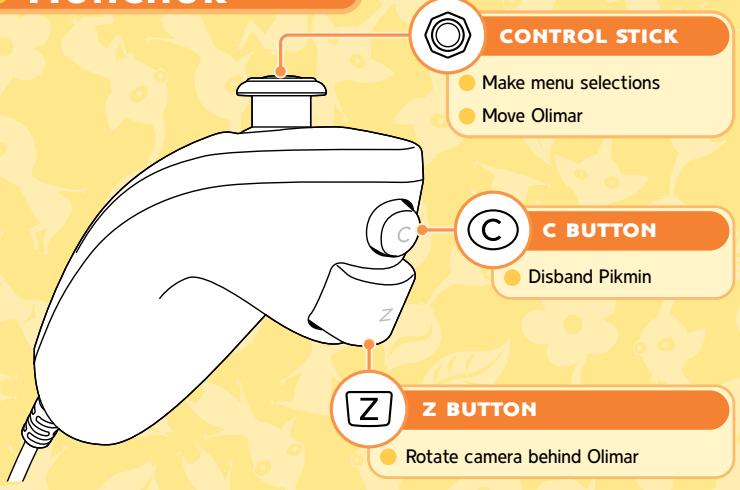
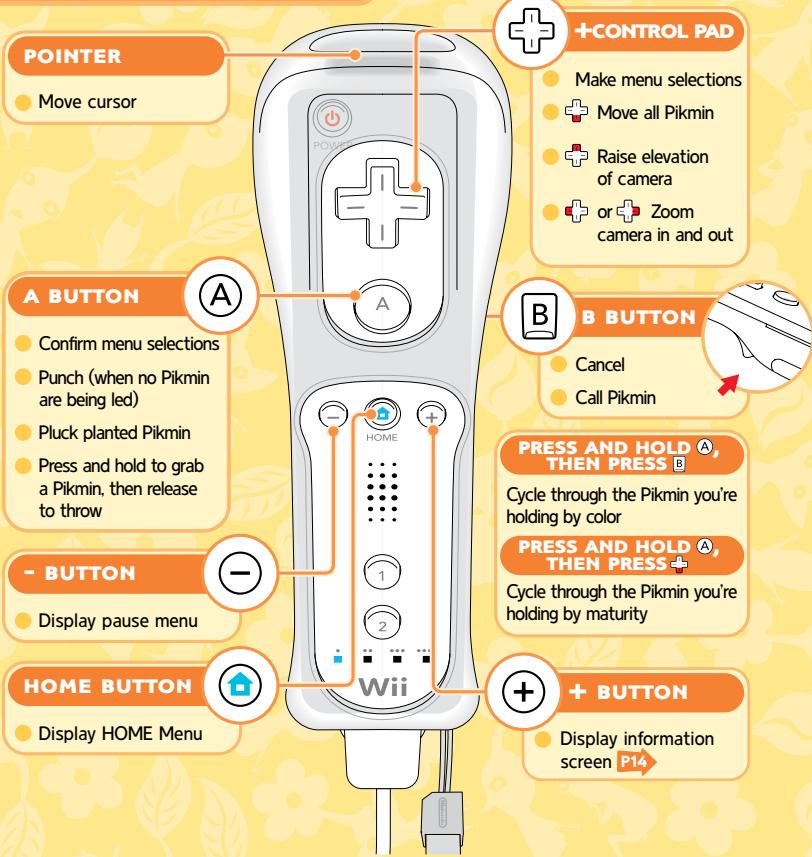
You play New Play Control! Pikmin with the Wii Remote and Nunchuk controllers.
Nunchuk
Pointing
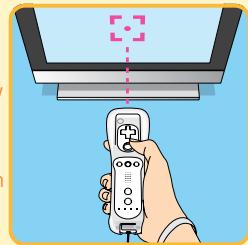
In this game, you'll control much of the action by pointing the Wii Remote controller at the TV screen. The icon will appear where you are pointing. Press A to throw Pikmin to this spot, or press to order your Pikmin there. You can also point at idle Pikmin and press B to call them to you.
You cannot use a Nintendo GameCube controller with this game.
Wii REMOTE

Wii REMOTE
Some of the sounds in the game are played through the Wii Remote speaker. If you turn the Wii Remote speaker volume off, all of the game sounds will come from the TV speakers. For more details, see the Wii Operations Manual.

CAUTION: Wrist STRAP USE
Please use the wrist strap to help prevent injury to other people or damage to surrounding objects or the Wii Remote in case you accidentally let go of the Wii Remote during game play.
Also remember the following:
- Make sure all players put on the wrist strap properly when it is their turn.
- Do not let go of the Wii Remote during game play.
- Dry your hands if they become moist.
- Allow adequate room around you during game play and make sure that all areas you might move into are clear of other people and objects.
- Stay at least three feet from the television.
- Use the Wii Remote Jacket.
GETTING STARTED
Insert the New Play Control! Pikmin Game Disc into the Wii console and turn the power on.
SYSTEM MENU UPDATE
Please note that when first loading the Game Disc into the Wii console, the Wii will check if you have the latest system menu, and if necessary a Wii System Update screen will appear. Press OK to proceed.

1 Read the screen pictured to the right and then press A to confirm.
*This screen will appear even if you insert the Game Disc when the Wii console is already turned on.

On the Wii Menu, point at the Disc Channel and press A.
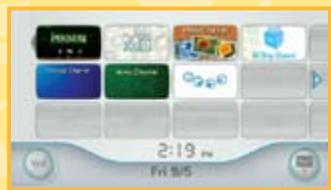
3 When the Channel Preview screen is displayed, point the cursor at Start and press A.
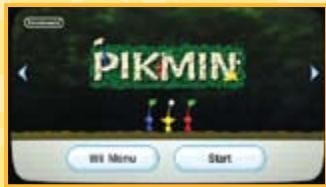
Wii Menu
Channel Preview Screen
A screen will appear that shows you how to attach the wrist strap. Press when you have finished putting on the wrist strap to move to the title screen.
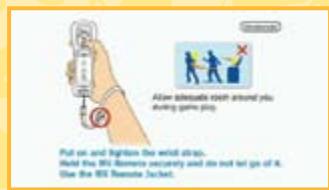
Strap Usage Screen
TITLE SCREEN
On the title screen, press A to display the menu. Select Start to access the file-selection screen and play the game. Select Options to choose from the following settings:
Sound Adjust the volume of sound effects and music.
High Score View the top scores for completed games.
*Once you've reached a certain point in the game, Challenge Mode will be added to the menu. In this mode, the goal is to grow as many Pikmin as you can in a single day.
FILE SELECTION SCREEN
When playing for the first time, choose a New file. If you're continuing a saved game, choose that Ship's Log.
Choose a file and press ① to copy that saved file to an empty location.
Choose a file and press ② to erase that file.

RESTART FROM A PREVIOUS DAY
While you have a Ship's Log selected, you can press ① or ⑦ to choose from any of the previous days you have already played. This feature is a great way to restart from an earlier day if your 30- day deadline is looming and you haven't been quite as productive as you wanted. However, please remember that if you choose to restart from a previous day, play through a day, and then save your game, you will lose your original progress.
Saving Your Progress
You can save your progress after the sun sets by choosing Save. Saving requires that there be more than 31 free blocks of memory available in Wii system memory. Data that has been deleted or overwritten cannot be restored, so proceed carefully.
*For instructions on deleting files from Wii system memory, see the Wii Operations Manual.
ABOUT PIKMIN
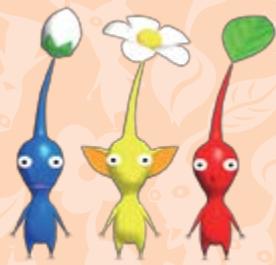
Captain Olimar has crash-landed on an alien world, and he soon encounters strange creatures called Pikmin. These Pikmin are found in three different colors. Understanding the special abilities of each type of Pikmin is Olimar's first step in collecting his spaceship parts and escaping the planet.

UST WHAT ARE PIKMIN?
Pikmin are mysterious life-forms Olimar meets on his adventure. For some reason, they seem eager to help him. Pikmin are very intelligent—they can be thrown, ordered to carry objects, fight dangerous predators, and even use their own judgment to carry out various other tasks.

LEAD UP TO 100 PIKMIN
Olimar can lead a group of up to 100 Pikmin at a time. This number includes Pikmin still in the ground, Pikmin performing tasks, and idle Pikmin too.
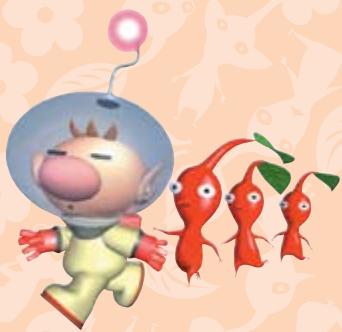
Depending on the circumstances, Pikmin will do different things when they are thrown or ordered to move in a group. Pikmin are at their best when they are working together.
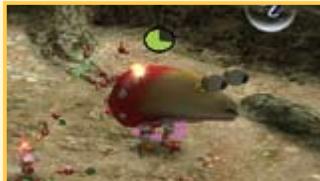
FIGHT ENEMIES
Pikmin can fight and defeat native creatures.
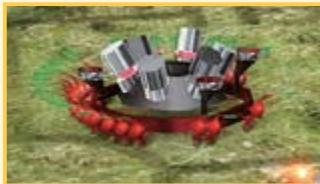
CARRY THINGS
Pikmin can carry pellets and defeated enemies back to Onions. They can also carry spaceship parts back to the spaceship.
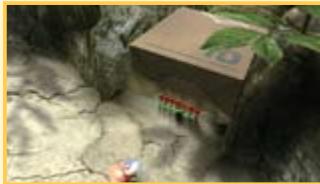
MOVE OBSTACLES
Pikmin can band together to move path-blocking obstacles.
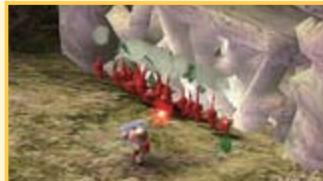
BREAK DOWN WALLS
Pikmin can attack walls to bring them tumbling down.
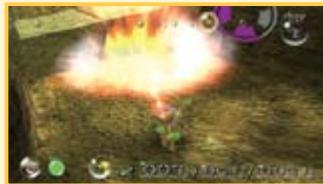
CARRY BOMB-ROCKS
Yellow Pikmin can carry and strategically place bomb-rocks to cause serious damage to walls and enemies.
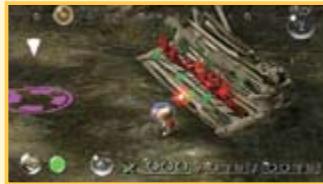
BUILD BRIDGES
Pikmin can construct bridges to allow for passage across rivers and other bodies of water.
DIFFERENT PIKMIN, DIFFERENT SKILLS
Pikmin come in three color variations and inhabit Onions that match their color. Pikmin have different characteristics depending on their color, so keep that in mind when you're issuing commands.


YELLOW PIKMIN
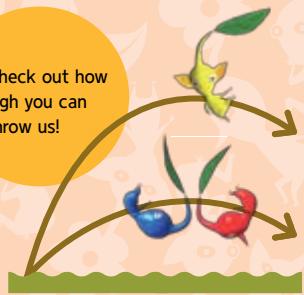
We're bomb-rock experts!

Check out how high you can throw us!

Warning
- When thrown near an obstacle, yellow Pikmin carrying bomb-rocks will set their bombs.
Don't stand too close! If it stands idly when thrown, call back a bomb-carrying Pikmin to have it drop the bomb.
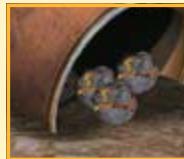
How To Make MORE PIKMIN
To create more Pikmin, you need to order your Pikmin to carry pellets of defeated enemies to an Onion. Then the Onion will produce more Pikmin seeds.

PELLET POSY
When a Pikmin smacks this flower and knocks it to the ground, it will turn into a pellet.
PELLET
Pellets are the energy source that Onions use to create new seeds. The number on top shows how many Pikmin are needed to carry the pellet.
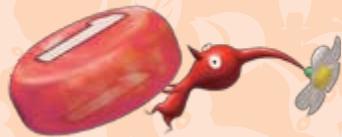
Pikmin will carry objects back to the Onions of their own color. When Pikmin of all three colors are carrying an object, whichever color has the most Pikmin will take it to their Onion.

OW PIKMIN GROW
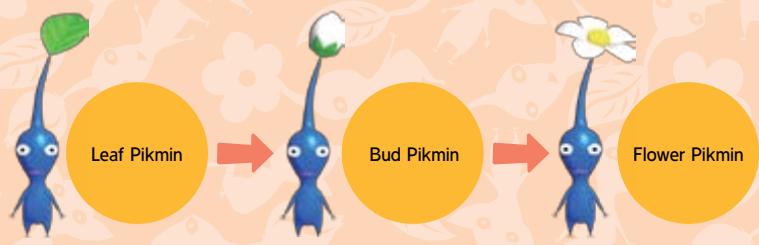
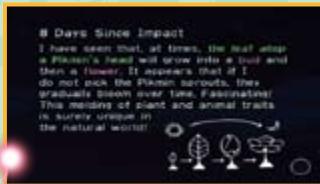
If you leave Pikmin in the ground for a while without picking them, they will extract more nutrients from the soil and grow as shown below. More mature Pikmin can move faster and can carry pellets and defeated enemies faster too.
SEARCHING FOR SPACESHIP PARTS

Captain Olimar has been stranded on an alien planet! To get home, he has to find all of the missing parts of his spaceship, the Dolphin. It's time to enlist the aid of the Pikmin and start searching.

BASIC RULES
The planet is divided into different areas, and Olimar can explore one area per day. Time passes automatically, and when the sun sets, Olimar's day of adventure also comes to an end. Once a certain number of parts are collected, the spaceship will regain some abilities, and new areas will open up for exploration.
*You cannot explore more than one area per day.

FIND ALL 30 PARTS!
As Olimar's spaceship entered the atmosphere, 30 critical parts broke off and were scattered across the planet. Olimar will need every part to repair the Dolphin and fly back to his home planet of Hocotate. Explore all of the areas and find the parts.
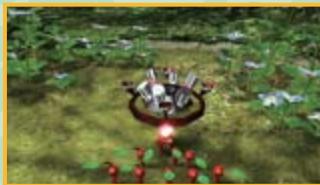

THE 30-DAY TIME LIMIT
Because of toxins in the planet's atmosphere, Olimar has no time to waste in completing his task. The life-support system in Olimar's space suit will protect him from the planet's toxins for only 30 days. If he doesn't find all the parts to his spaceship within 30 days, it's game over!

How to Use Each Day
Pick an area and start exploring. When the sun goes down, exploration time is over.

SELECT AN AREA
First, choose an area to explore. Press to return to the title screen.
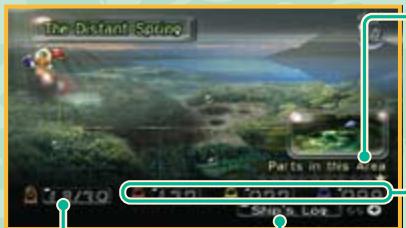
NUMBER OF PARTS COLLECTED
PARTS IN THE SELECTED AREA
indicates found parts, and
shows parts yet to be found.
NUMBER OF PIKMIN INSIDE THE ONIANS
From left to right, the numbers indicate the number of red, yellow, and blue Pikmin.
OLIMAR'S JOURNAL
Press ① to see Olimar's journal entry from the previous day's sunset.

EXPLORING
Work with the Pikmin to explore areas and find the missing spaceship parts.

SUNSET
The native creatures are highly aggressive after dark, so Olimar must pilot his spaceship to the safety of the skies at sunset. The Pikmin board their Onions and follow him. However, there are some restrictions about which Pikmin can board their Onions at night and which Pikmin will be left behind.

- Pikmin traveling with Olimar will board their Onions.
- Pikmin idling near the spaceship or Onions will board their Onions.
*Pikmin who've not yet been picked will remain safely in that area.
*Pikmin who are busy working, fighting, or idle away from the ship will not board the Onions and will get left behind and eaten by enemies in the night!
GAME SCREEN

The game screen is used for exploring areas. Access Olimar's monitor to view information on Pikmin and parts.

MAIN SCREEN
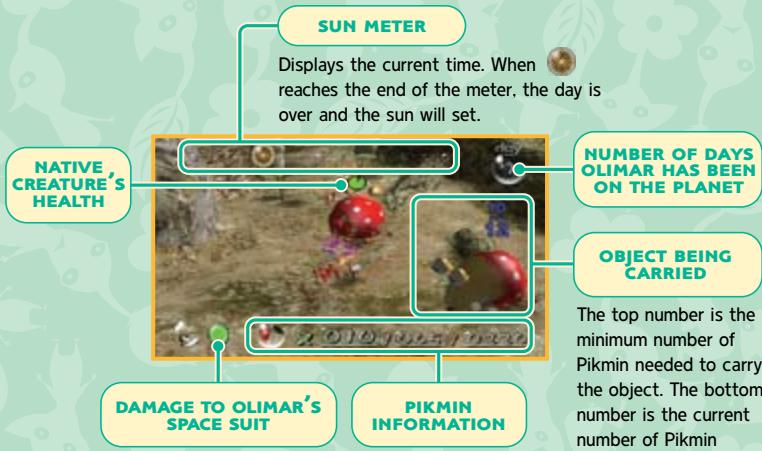

VIEWING PIKMIN INFORMATION
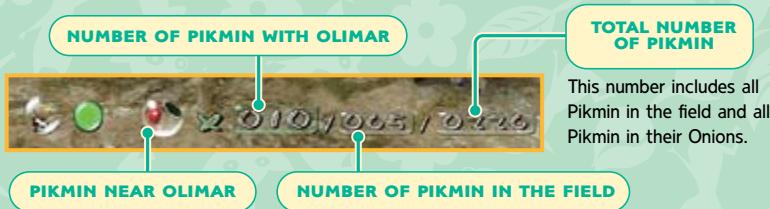
This indicates which Pikmin is closest to Olimar. It will be the next Pikmin Olimar will throw.
A maximum of 100 Pikmin can be in the field at any given time.

OLIMAR'S MONITOR
Press to display Olimar's monitor and check Pikmin information, as well as other data.
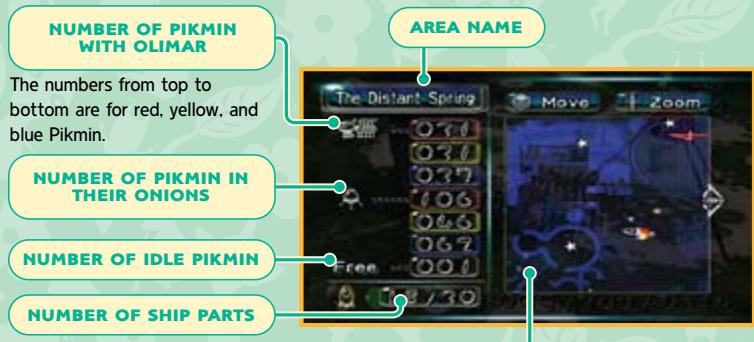
AREA MAP
You'll get the area map after finding a certain spaceship part. Use ⑤ to scroll, and press + and +
to zoom in and out.

VIEWING ICONS ON THE AREA MAP

Olimar's current location and the direction he is facing.

Current location of the Dolphin.

Locations of ship parts.

Location of each Onion.

Location of Pikmin by color.

Location of unpicked Pikmin/working Pikmin/idle Pikmin.

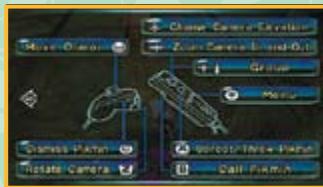
CONTROLLER SCREEN

ss to display the controller screend check the controller settings.
EXPLORING WITH PIKMIN
When you discover a new area, take your Pikmin out and go exploring. The Pikmin you command will surely help you overcome any obstacles you encounter.
SURVEYING AREAS
When you land in an area, the first thing to do is pull up any Pikmin you find, then unload Pikmin from your Onions. Next, use your Pikmin to search out missing ship parts and carry them back to the Dolphin.
ABOUT THE PAUSE MENU
Press to stop the game and display the pause menu shown below. To return to the game, press 5 or , or select Continue from the menu.
Continue Return to the game in progress.
Go to Sunset End the current day and return to the Dolphin.
Continue from Replay the current day. You'll return to the
Previous Save data-selection screen without saving.
Olimar's Energy and Taking Damage
If Olimar is attacked, he will take damage and lose energy. If he loses all of his energy, he will be automatically transported back to his ship and the day ends. If this happens, the majority of the Pikmin traveling with him will be eaten, so please keep track of Olimar's energy.
Pikmin near Onions or the spaceship will escape safely to the Onions, and Pikmin buried in the ground will remain where they are.
You can restore Olimar's energy by standing in front of the spaceship and pressing A. His energy is automatically restored at the beginning of each day.

ALL ABOUT ONIONS
Onions are strange objects that both expel Pikmin seeds and act as Pikmin nests. There are three colors of Onions: yellow, blue, and red. The color of an Onion tells you which color Pikmin seed it will produce. You'll need to return the Pikmin to their Onions at the end of each day, and call them out at the beginning of the next. Every Onion you discover will follow your ship around from that point forward.

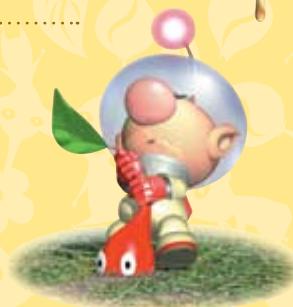
PICKING PIKMIN
Onions will produce Pikmin seeds after receiving pellets or defeated enemies.
After a short while the seeds will sprout into Pikmin. To pick a planted Pikmin,
stand near it and press A. Once a Pikmin has been pulled from the groit will follow Olimar.
*If there are already 100 Pikmin in the field, Onions will not expel new seeds; instead, newly created seeds will be stored inside the Onions.

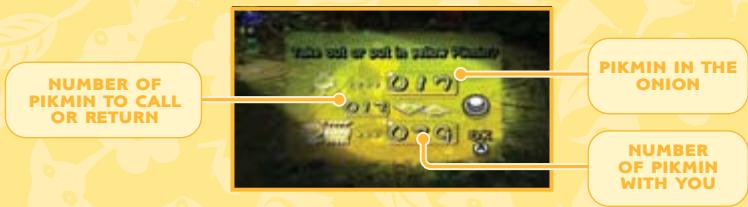
CALLING PIKMIN FROM
ONIONS / RETURNING
Stand beneath an Onion and press A to call Pikmin out. You can return Pikmin to an Onion the same way. Tilt up and down to adjust the number of Pikmin you're calling or returning.
OLIMAR'S ACTIONS

Control Olimar and use Pikmin to progress through the game. In addition to being able to throw Pikmin, you can also command them to move in groups.

Move
Tilt in the direction you want Olimar to travel.

PUNCH
If Olimar has no Pikmin ready to toss, press A to make him punch.
Adjusting the Camera
Press to change the camera angle. Press or to zoom in and out. Use to place the camera behind Olimar.

Using PIkMIN


PICKING PIKMIN
Stand near a Pikmin planted in the ground and press (A) to pull it up. Press (A) repeatedly to pull up all planted Pikmin in an area.


THROWING PIKMIN
When traveling with Pikmin, press A to grab the nearest one. Release A to throw the Pikmin in the direction of the cursor. In certain situations, Pikmin will act on their own.
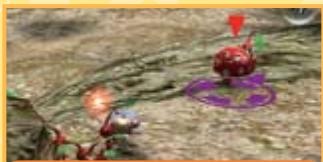
POINT AT THE SCREEN TO MOVE THE CURSOR AND...

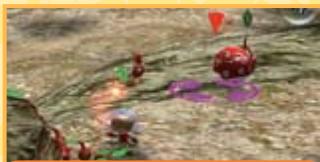
USE A TO THROW PIKMIN.
*Press and hold A to order your Pikmin to group by color. While holding A, press B to throw Pikmin by color group, or press + to throw them by maturity level. Don't forget you have to press and release A to actually throw the Pikmin. While your Pikmin are separated into groups, you can continue to throw them by group with A.

Dismissing Pikmin
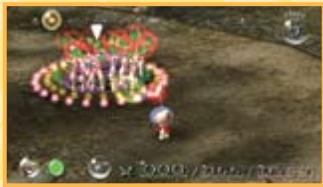
Press © to dismiss your Pikmin into groups by color. Dismissed Pikmin are idle Pikmin.
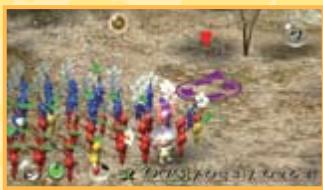
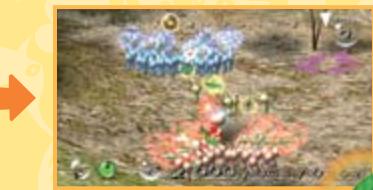
Idle Pikmin are Pikmin that have been separated from or dismissed by Olimar. Idle Pikmin will stop where they are and no longer follow Olimar. To call idle Pikmin, point at them and press , or simply run into them.


CALLING PIKMIN
Point the cursor at idle Pikmin, then press to call them to Olimar's side. Once called, these Pikmin will follow Olimar and take orders from him.
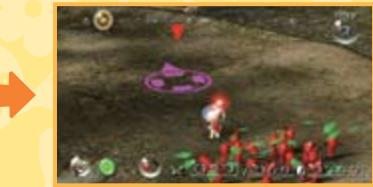

LINING UP PIKMIN
Press to have Pikmin line up in the direction of the cursor. Once the Pikmin are lined up, you can move them together as a group.
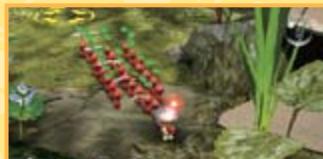
MOVE PIKMIN IN A GROUP!
VEUILLEZ LIRE ATTENTIVEMENT L'INTÉGRAlité DU MODE D'EMPLOI DE LA Wii™ AVANT D'UTILISER VOTRE SYSTème, VOTRE DISQUE DE JEU, OU VOS ACCESSOIRS Wii. CE MODE D'EMPLOI COMPEND D'IMPORTANTES INFORMATIONS SUR VOTRE SANTÉ ET VOTRE SECURITÉ.
INFORMATIONS IMPORTANTES CONCERNANT VOITE SECURITE: VEUILLEZ LIRE LES PRECAUTIONS SUIVANTES AVANT QUE VOUS OU VOITE ENFANT NE JOUIEZ À VOS JEUX VIDÉO.
DEPLACER DES OBSTACLES