
PRINTER DOCK 4000 - Photo printer KODAK - Free user manual and instructions
Find the device manual for free PRINTER DOCK 4000 KODAK in PDF.


User questions about PRINTER DOCK 4000 KODAK
0 question about this device. Answer the ones you know or ask your own.
Ask a new question about this device
Download the instructions for your Photo printer in PDF format for free! Find your manual PRINTER DOCK 4000 - KODAK and take your electronic device back in hand. On this page are published all the documents necessary for the use of your device. PRINTER DOCK 4000 by KODAK.
USER MANUAL PRINTER DOCK 4000 KODAK
Kodak EasyShare printer dock 4000
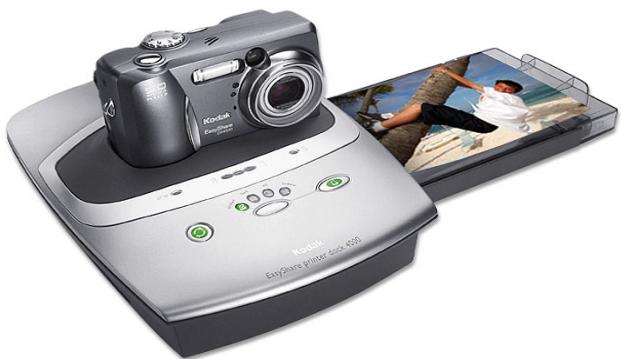
User's Guide
Visit Kodak on the World Wide Web at www.kodak.com

Eastman Kodak Company
343 State Street
Rochester, New York 14650
© Eastman Kodak Company, 2003
Kodak and EasyShare are trademarks of Eastman Kodak Company.
All screen and print images are simulated.
P/N 6B8576
Front View
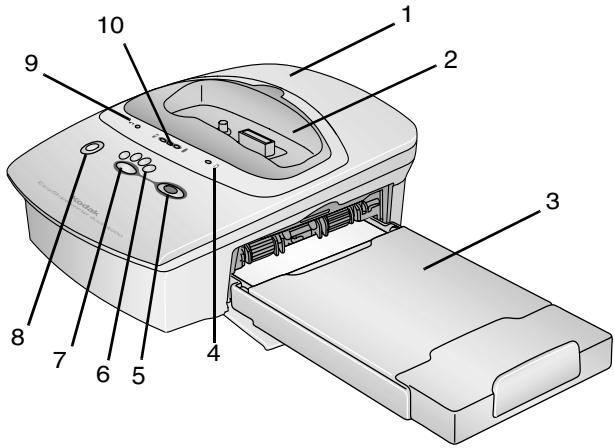
1 Printer dock
2 Universal insert
3 Paper tray
4 Paper indicator
5 Print button
6 Print mode lights
7 Print mode button
8 Transfer button
9 Color cartridge indicator
10 Battery charging lights
Back View
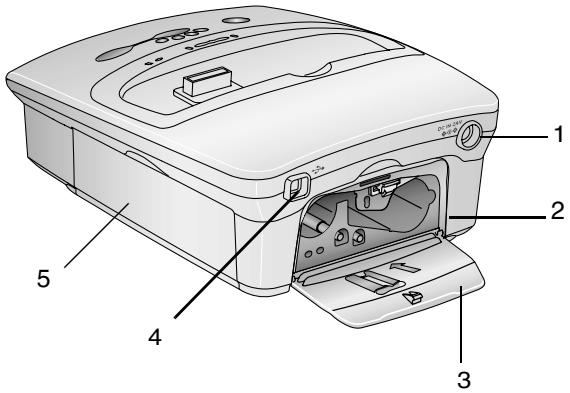
1 DC power connector
2 Color cartridge slot
3 Color cartridge door
4 USB connector
5 Paper tray door
Side Views
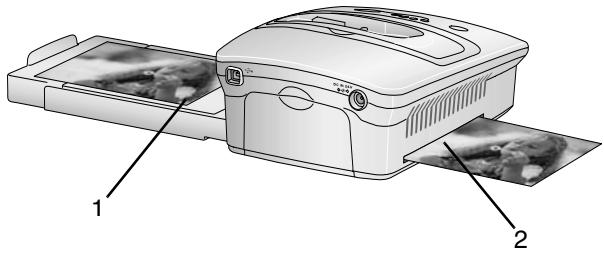
1 Paper tray
2 Paper path
Table of Contents
1 Getting Started with Your Printer Dock . . . . . . . . . . . . .
Need This Guide in Larger Print?............1
What Can I Do With My Printer Dock?............1
Printer Dock Package Contents. 2
Finding a Location for the Printer Dock. 3
Installing the Camera Insert. 4
Connecting the Power 5
Handling and Storing the Color Cartridge 6
Loading the Color Cartridge. 6
Handling and Storing the Paper. 7
Loading the Paper. 8
Inserting the Paper Tray. 9
Indicator Lights and Buttons. 10
2 Getting Started with Your Camera 11
Installing the Rechargeable Battery. 11
Setting Picture Quality 12
Selecting Pictures for Automatic Printing. 12
Docking and Charging the Camera 14
3 Printing Without a Computer 15
Printing from Your Camera 15
Removing Perforated Tabs from Prints 16
Canceling Printing 17
4 Using the Printer Dock with a Computer 19
System Requirements. 19
Installing the Software 21
Upgrading Your Software and Firmware. 24
Connecting to a Computer 25
Transferring Pictures 26
Printing from a Computer 27
Removing Perforated Tabs from Prints 29
Status Monitor—Windows system only. 30
Canceling Printing 30
5 Care and Maintenance 31
General Care. 31
Cleaning the Printer Dock. 31
Cleaning the Print Head 32
Clearing a Paper Jam. 33
Clearing a Color Cartridge Jam 34
Traveling with your Printer Dock. 35
6 Troubleshooting 37
Printing Problems 37
Problems Transferring Pictures 44
Printer Dock Status Lights. 45
7 Getting Help 51
Helpful Web Links 51
Help in this User's Guide 51
Software Help. 51
Telephone Customer Support 52
8 Appendix 55
Printer Dock Specifications 55
Accessories and Supplies. 57
Safety Labels. 58
Regulatory Information. 58
Disposal Information 59
1 Getting Started with Your Printer Dock
Need This Guide in Larger Print?
For a large print version of this User's Guide:
1 Go to the support page at www.kodak.com/go/printerdock.
2 Under Manuals/Guides, View PDF, click your language to open the User's Guide.
3 With the User's Guide open on a Windows system-based computer:
From the File menu, select Print.
In the Print window, select Fit to Page.
With the User's Guide open on Mac OS X:
From the File menu, select Page Setup.
Change Scale to 200% .
4 Print as usual.
What Can I Do With My Printer Dock?
Use the Kodak EasyShare printer dock 4000 to make high-quality 4 × 6 in. (102 × 152 ~mm) photos, with or without a computer.
The printer dock works with Kodak EasyShare CX/DX 3000 and 4000 series digital cameras.
Without a computer, you can:
Print pictures directly from your camera
Charge your camera battery pack
With a computer, you can:
Transfer pictures from your camera to the computer
- Organize, edit, and print pictures
Printer Dock Package Contents
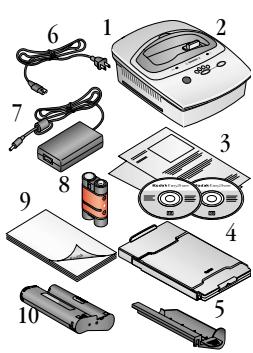
1 Printer dock
2 Universal insert (installed)
3 Welcome kit; includes user's guide**, quick start guide, registration card, Kodak EasyShare software and printer dock software CD.
4 Paper tray
5 Print head cleaning tool
AC power cord
7 AC power adapter
8 Kodak EasyShare Ni-MH rechargeable battery pack
9 Sample photo paper pack (10 pack)
10 Sample color cartridge (10 pictures)
To purchase accessories, see a retail dealer of Kodak products or visit www.kodak.com/go/printerdock.
**In some countries, the user's guide is provided only on CD.
Finding a Location for the Printer Dock
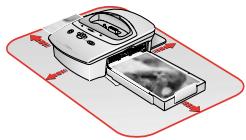
Allow 5 inches (12.7~cm) clearance on all sides of the printer dock.
Place the printer dock on a flat, clean, dust-free surface, out of direct sunlight.
Make sure airflow around the top and back is not blocked.
Do not place the printer dock on cloth or carpeted surfaces.
Avoid areas where ventilation ducts, open doors, or frequent passersby might expose the printer dock and paper to high levels of dust and debris. Airborne dirt particles can cause image-quality problems.
Installing the Camera Insert
The printer dock comes with a universal camera insert installed, which is used to fit the camera to the printer dock. The universal insert is used with most cameras.
If your camera comes with a custom insert, use that one instead of the universal insert. Do not discard the universal insert.
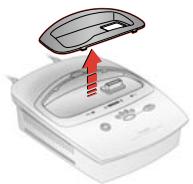

1 To remove the universal insert:
a Push the insert towards the front of the printer and lift the back edge.
b Push the insert towards the rear of the printer and lift out the front edge.
2 To install the custom insert (included with your camera).
a Place the front tabs on the insert in the slots in the front of the printer dock.
b Fit the back of the insert down into the dock and snap the insert into place.
Connecting the Power

CAUTION:
Use only the AC adapter and power cord included with the printer dock. Other adapters and cords can damage your camera, printer dock, or computer.
IMPORTANT: Remove your camera from the printer dock when you are connecting power.
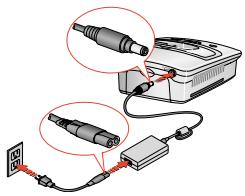
1 Connect the AC power cord to the adapter, then to the back of the printer dock.
2 Connect the AC power cord into a power outlet.
NOTE: Your power cord may be different from the one pictured. Use the plug that accommodates your type of power outlet.
Handling and Storing the Color Cartridge
For best quality prints, store the cartridge in a location where the temperature does not exceed 85^ (30^) .
To avoid fingerprints, handle the color cartridge by the spool ends.
Store the color cartridge away from direct sunlight.
Loading the Color Cartridge
The color cartridge provides the dyes and a protective laminate coating for making your photos.
A sample Kodak color cartridge & photo paper kit (10 pk) are included with the printer dock. To purchase a color cartridge, photo paper kit, and other accessories, see a retail dealer of Kodak products or visit www.kodak.com/go/ printerdock.
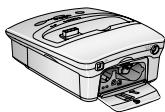
1 Open the color cartridge door on the back of the printer dock.
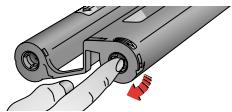
2 Remove the slack in the color cartridge by pushing in on the spool, then rotating the cartridge spool in the direction of the arrow.
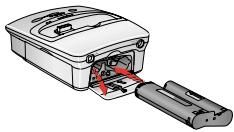
3 Slide the color cartridge in, label side up and with the arrow pointing toward the printer dock, until it locks into place.

CAUTION:
Do not force the cartridge into the slot.
4 Close the color cartridge door.
Handling and Storing the Paper
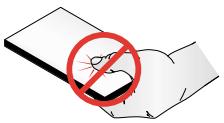
To avoid fingerprints, handle the paper by the edges or by the perforated tabs.
Do not touch the glossy side of the paper.
- Store the paper away from dirt, debris, and direct sunlight.
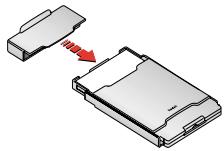
When not in use, place the protective cap on the other end of the paper tray to prevent dirt and dust from getting on the paper.
Loading the Paper

CAUTION:
Use only the Kodak color cartridge & photo paper kit. Do not use inkjet paper.
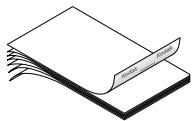
1 Fan the paper before loading it into the paper tray.
IMPORTANT: Do not load paper that is missing perforated tabs.
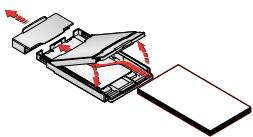
2 Remove the protective cap from the paper tray. Do not discard.
3 Lift the paper tray cover.
4 Load a pack of paper (20 sheets) into the paper tray, with the Kodak logo side facing down and the glossy side up.
NOTE: Use the upper limit line inside the paper tray as a guide to avoid overloading the paper. Do not load more than 25 sheets of paper.
5 Close the paper tray cover.
Inserting the Paper Tray
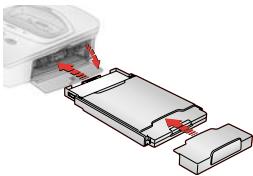
1 Open the paper tray door.
2 Replace the protective cap on the front of the paper tray to catch the completed prints.
3 Slide the paper tray in until the tray locks into place.
NOTE: Keep the protective cap on the paper tray at all times.
Indicator Lights and Buttons
The lights and buttons on the printer dock indicate the status of the printer dock and the camera, as well as printing options based on the configuration of your camera. For Troubleshooting information, see Printer Dock Status Lights, page 45.
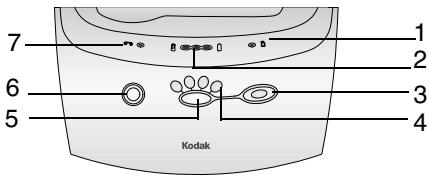
| Lights/Buttons | Function: | |
| 1 | Paper light | Indicates paper tray is empty or jammed. |
| 2 | Battery lights | Indicates battery charge levels. |
| 3 | Print button | Used to print pictures directly from your camera without a computer. |
| 4 | Print Mode lights | Indicates print selection: Order, Last, All, Index. |
| 5 | Print Mode button | Used to select available print modes: Order, Last, All, Index. |
| 6 | Transfer button | Used to transfer pictures to a computer. |
| 7 | Cartridge light | Indicates the color cartridge needs replacing. |
2 Getting Started with Your Camera
Installing the Rechargeable Battery
IMPORTANT: The printer dock charges only the provided Kodak EasyShare Ni-MH rechargeable battery pack. If you use any other batteries, rechargeable or not, no charging takes place.
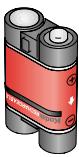
Install the Ni-MH rechargeable battery pack (included with your printer dock) in your camera. Do not use the non-rechargeable starter batteries that came with your camera.
NOTE: The battery pack is not charged when you receive it. You must completely charge the battery before using your camera.
Setting Picture Quality
Use your camera's Quality setting to select your picture resolution. See your camera user's guide for details on setting picture quality.
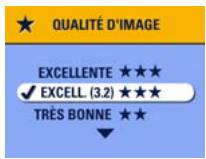
Best (3:2) (DX4530 only)—avoids cropping and maximizes print quality.
Best *** (other models)—maximizes print quality.
Selecting Pictures for Automatic Printing
Follow the process below for your camera model, to tag and select the number of copies for automatic printing, before you place your camera in the printer dock. Camera settings vary depending on your camera model.
For camera models (DX4330, DX4530, CX4200, CX4210, CX4230, CX4300):
1 Press the Review button, then locate a picture.
2 Press the Share button. Highlight Print, then press the OK button.
3 Press to select the number of copies (0-99). Zero removes the tag for that picture.
The Print icon appears with the picture.
4 Press the OK button. Press the Share button to exit the Share menu.
For camera models (DX3215, DX3700):
1 Slide the Mode selector to Setup
2 Press the / buttons to highlight the Review Options then the / buttons to highlight Print Order. Press Select.
3 Select All Pictures, then press Select.
4 Press button to select the desired number of prints. Press Select.
For camera models (DX3500, DX3600, DX3900, DX4900):
1 Turn the Mode dial to Review l then press the Menu button.
2 Press the buttons to display the picture you want to select for printing.
3 Highlight the Print Order menu then press the Select button.
4 Highlight the Print Order setting you want to use, then follow the on-screen directions to complete your order.
5 Press Select.
The Print Order icon appears on the LCD screen with the pictures that are marked for printing.
6 Press Select.
7 Press Menu to exit the Menu screen.
Docking and Charging the Camera
Docking your camera lets you print directly from the camera, transfer pictures from the camera to the computer, and charge the camera battery.
1 Make sure the battery is installed in the camera. See your camera user's guide for details.
2 On the camera bottom, locate the connector.
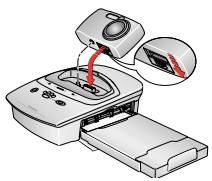
3 Turn off the camera, and place the camera in the printer dock, then push down to seat the connectors. For the DX3215 and DX3700 cameras, turn the camera off again after you place it into the printer dock.
Charging begins immediately.
The camera is now powered by the printer dock instead of the camera battery.
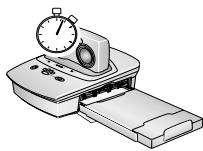
The Kodak EasyShare Ni-MH rechargeable battery pack takes 2.5 to 3.0 hours to fully charge.
After the battery is charged, leave the camera in the printer dock to maintain the full charge.
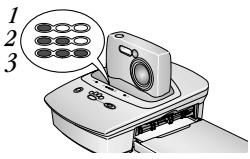
The three green charging lights monitor the charging status (see Printer Dock Status Lights, page 45).
1—Battery is less than half charged.
2—Battery is more than half charged.
3—Battery is fully charged.
NOTE: Fully charge the battery before first use in the camera.
3
Printing Without a Computer
Printing from Your Camera
1 Make sure the AC power cord is connected and the color cartridge and paper are loaded (see Chapter 1, Getting Started with Your Printer Dock).
2 Take a picture with your camera.
3 Place the camera in the printer dock (see Chapter 2, Getting Started with Your Camera).
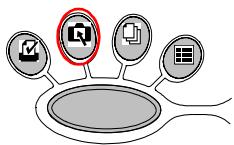
4 On the printer dock, press the Print Mode button to change print modes:
Order -prints pictures tagged for print in your camera's Share or Print Order menu.
Last -prints the last picture taken, or the last picture viewed, when the camera is docked and in review mode.
All -prints all the pictures in your camera's internal memory and memory card.
Index -prints index prints of all the pictures in your camera's internal memory and memory card.
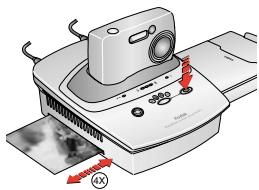
5 Press the Print button.
Printing starts. The paper cycles four times during the printing process before the finished print is ejected. Each of the first three passes places a layer of color (cyan, yellow, and magenta). The fourth pass places a clear coating that protects and preserves the image quality.

CAUTION:
Wait until printing is complete before removing prints, the paper tray, or the camera. Failure to do so can cause paper misfeeds or jams and can damage the printer dock.
Removing Perforated Tabs from Prints
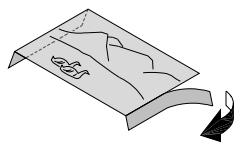
1 Fold the side tabs away from the print.
2 Remove each side tab and discard.
Canceling Printing
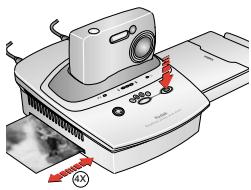
Press and hold the Print button for 5 seconds.
The print job is immediately canceled and ejected into the paper tray. If you cancel a print during the fourth pass (clear coat), the print is ejected upon completion.
4 Using the Printer Dock with a Computer
System Requirements
Windows OS-based Computer
Personal computer running Windows 98, 98SE, ME, 2000^ , or XP
233 MHz processor or greater
64 MB of RAM (128 MB for Windows XP)
200 MB of available hard disk space
CD-ROM drive
Built-in USB port
Color monitor with a minimum resolution of 800 × 600 pixels; High Color (16-bit) or True Color (24-bit) recommended
Internet access for downloading software
- You must have Administrator rights to install software on this system.
Mac OS X
Power Mac G3, G4, G4 Cube; iMac Powerbook G3, G4; iBook
Mac OS 10.1.5* minimum
128 MB of available RAM
200 MB of available hard disk space
CD-ROM drive
Built-in USB port
Color monitor with a minimum resolution of 800 × 600 pixels; thousands or millions of colors recommended
Internet access for downloading software
- You must have Administrator rights to install software on this system.
Installing the Software
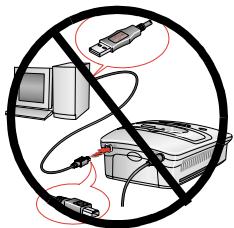

CAUTION:
Do not install the Kodak EasyShare printer dock software with the printer dock connected to the computer. It may cause the software to load incorrectly. If the printer dock is connected, disconnect it before you proceed.
NOTE: For more information on the software applications included on the Kodak EasyShare software CD, click the Help button in the Kodak EasyShare software. Computers with Windows 2000, Windows XP or Mac OS X operating systems need administrator privileges to install the software. See your computer user's guide.
1 Before you begin, close all software applications that are open on your computer (including anti-virus software).
2 Place the Kodak EasyShare software CD into the CD-ROM drive.
3 Place the Kodak EasyShare printer dock software CD into the CD-ROM drive.
4 Load the software:
Windows OS-based computer—if the install window does not appear, choose Run from the Start menu and type d:\setup.exe where d is the drive letter that contains the CD.
Mac OS 8.6 or 9.x-on the install window, click Continue.
Mac OS X—double-click the CD icon on the desktop, then click the Install icon.
5 Follow the on-screen instructions to install the software.
Windows OS-based computers—select Complete to automatically install the most commonly used applications. Select Custom to choose the applications you wish to install.
Mac OS 8.6 or 9.x—select Easy to automatically install the most commonly used applications.
Mac OS X—follow the on-screen instructions.
NOTE: When prompted, take a few minutes to electronically register your printer dock and software. This lets you receive information regarding software updates and registers some of the products included with the printer dock. You must be connected to your Internet service provider to register electronically.
To register later, see www.kodak.com/go/register.
6 If prompted, restart the computer. If you turned off anti-virus software, turn it back on. See the anti-virus software manual for details.
Uninstalling
On a Windows OS-based computer:
1 From the Start menu, select Settings, then select Control Panel.
2 Double-click Add/Remove Programs.
3 Select the Kodak EasyShare printer dock, then click Remove. Follow the on-screen instructions. If prompted, restart the computer.
4 From the Start menu, select Settings, then select Printers.
5 Right-click the Kodak PD4000 printer icon, then select Delete.
6 Follow the on-screen instructions. For Windows 2000 or Windows XP operating systems, continue with the next step. Otherwise stop here.
7 From the Start menu, select Settings, then select Printers.
Select Server Properties from the File menu, then click the Drivers tab.
9 Select Kodak PD4000, then click Remove.
10 Click OK when complete.
On Mac OS X:
1 Double-click the operating drive for your system.
2 Select Library, then select Printers.
3 Open the Kodak folder, then double-click Kodak PD Uninstaller. Follow the on-screen instructions.
Upgrading Your Software and Firmware
Take advantage of the latest enhancements to your Kodak software and printer dock firmware. Software refers to the applications included on the Kodak EasyShare printer dock software. Printer dock firmware is the internal software that runs on the printer dock.
To download the latest versions of software and firmware, visit www.kodak.com/go/printerdock.
Connecting to a Computer
A USB cable is required to connect to a computer. Use the USB cable that came with your Kodak EasyShare camera. To purchase one separately, see a retail dealer of Kodak products or visit www.kodak.com/go/printerdock.

CAUTION:
Make sure your camera is NOT in the printer dock when you are connecting to the computer.
1 Make sure the power is connected to the printer dock (see Connecting the Power, page 5), and the Kodak EasyShare printer dock software is installed on the computer (see Installing the Software, page 21).
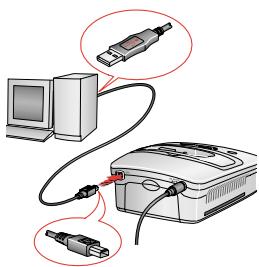
2 Plug the labeled end of a USB cable into the labeled USB port on your computer. See your computer documentation for details.
3 Plug the other end of the USB cable into the square USB connector on the back of the printer dock.
Transferring Pictures
You can transfer pictures directly from your Kodak EasyShare camera to your computer (see your camera user's guide).
With the camera docked, you can transfer pictures through the printer dock.
1 Make sure the Kodak EasyShare software is installed (see Installing the Software, page 21) and the printer dock is connected to your computer (see Connecting to a Computer, page 25).
2 Place the camera in the printer dock (see Docking and Charging the Camera, page 14).
3 Press the Transfer button on the printer dock.
A new drive appears for the printer dock, and the Kodak EasyShare software opens on your computer (if it is installed).
4 Use the Kodak EasyShare software to transfer pictures from the printer dock to your computer.
The printer dock Transfer light blinks green while the pictures are being transferred. Charging is suspended during transfer.
See your camera quick start guide or the Kodak EasyShare software Help for information on installing and using the Kodak EasyShare software.
NOTE: If the Kodak EasyShare software is not installed, you can transfer from the printer dock to your computer by copying pictures from the newly established camera drive to your computer hard drive. See your computer documentation for details.
Printing from a Computer
We recommend using the Kodak EasyShare software included with your Kodak EasyShare camera for printing. This software lets you to take advantage of a wide range of features, including full color enhancement, red eye reduction, picture organization, and much more.
See your camera quick start guide or the Kodak EasyShare software Help for information on installing and using the Kodak EasyShare software.
If there are no pictures on your computer, use the printer dock to transfer pictures from your camera before printing (see Transferring Pictures, page 26).
Printing with Kodak EasyShare software
1 Make sure the Kodak EasyShare printer dock software is installed (see Installing the Software, page 21) and the printer dock is connected to your computer (see Connecting to a Computer, page 25).
2 For borderless 4 × 6 in. prints, set the Kodak EasyShare software settings as follows:
On a Windows OS-based computer:
Paper size—4 x 6 in. (102 x 152 mm)
Paper type—Other or Kodak photo paper PH-10/40
Print layout—Full size
On Mac OS X:
Format for—Kodak PD4000
Paper size—Photo Paper
Print layout—Full size
Picture in print size—Fill
Turn on One-Touch to Better Pictures feature—No
3 Change any other settings as needed.
4 On the Print at Home screen, click Print.
Printing Using Other Applications
1 Make sure the Kodak EasyShare printer dock software is installed (see Installing the Software, page 21), and the printer dock is connected to your computer (see Connecting to a Computer, page 25).
2 Open the pictures you wish to print in the application from which you want to print.
3 Access printer settings by selecting Print or Page Setup from the File menu (depending on your application and platform).
4 Make sure that Kodak PD4000 is selected as the printer and that paper size in the operating system Windows is set to 4'' × 6'' (102 x 152 mm). On Mac OS X, make sure paper size is set to Photo Paper.
5 Change any other settings if needed, then click OK or Print. Depending on your application and platform, you may first need to return to the main menu and select Print from the File menu.
Kodak Color Mode
The Kodak EasyShare printer dock features two Kodak color mode options:
Natural—to get clear prints with no adjustment in color.
Enhanced—to get richer, more vivid colors from your pictures (default).
To change the Kodak color mode:
On Windows 2000/XP operating system:
1 From the Start menu, select Settings, then select Printers.
2 Right-click the Kodak PD4000 printer icon, then select Printing Preferences.
3 Click the Advanced button.
4 Under Document Options, select Printer Features, then select Kodak Color Mode.
5 Select Natural or Enhanced, then click OK.
Click OK when complete.
On Windows 98/ME operating system:
1 From the Start menu, select Settings, then select Printers.
2 Right-click the Kodak PD4000 printer icon, then select Properties.
3 Click the Printer Options tab.
4 Under Color Control, select Natural or Enhanced.
5 Click OK when complete.
On Mac OS X:
1 Make sure the Kodak PD4000 is selected as the current printer.
2 From an application File menu, select Print.
3 Use to scroll through the available panels and select Color.
4 Select Kodak Color.
5 Choose Natural or Enhanced.
Click OK when complete.
Removing Perforated Tabs from Prints
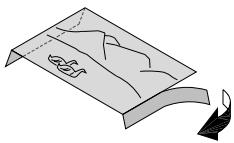
1 Fold the side tabs away from the print.
2 Remove each side tab and discard.
Status Monitor—Windows system only
The Kodak EasyShare printer dock status monitor icon appears in the Windows operating system taskbar in the lower-right corner of your computer screen. The status monitor provides information about the status of the printer and the current print job and lets you order supplies and accessories online. Right-click the status monitor icon to select one of the following:
Open Status Monitor—displays the current printer status and job progress. You can also cancel the current print job (see Canceling Printing, page 30)
Remove Icon from Taskbar—permanently removes the status monitor icon from the Windows taskbar (can be re-added by re-installing the software).
About Kodak Status Monitor—displays the version of the Kodak EasyShare printer dock status monitor.
Exit—temporarily disables the status monitor. The icon will reappear upon Windows startup.
Canceling Printing
On a Windows OS-based computer:
1 From the Start menu, select Settings, then select Printers.
2 Double-click the Kodak PD4000 printer icon.
3 Select the print job you want to cancel.
4 Select Document, then select Cancel.
NOTE: You may cancel the current print job using the status monitor (see above, Status Monitor Windows only).
On Mac OS X:
1 In Print Center, double-click the Kodak PD4000 printer icon.
2 Click the job you want to cancel, then select Delete.
5
Care and Maintenance
General Care
- Keep the printer dock, accessories, and supplies away from high temperatures, humidity, and direct sunlight for extended periods of time.
Support the printer dock and tray by placing it on a flat, level surface.
Do not block the air vents.
Avoid blocking the back of the printer dock and paper tray exit.
Keep power and USB cables away from the paper path.
Keep the surrounding area vacuumed and litter-free.
Keep the printer dock clean.
Protect the printer dock from tobacco smoke, dust, sand, and liquid spills.
Avoid placing objects on the printer dock.
Keep the camera strap away from the paper path.
Cleaning the Printer Dock

CAUTION:
Disconnect the power before cleaning. Do not use abrasives or harsh chemicals to clean any part of the printer dock.
Wipe the printer dock and the paper tray with a dry, lint-free cloth.
Cleaning the Print Head
Clean the print head when lines, streaks, or scratches appear on the prints. The head cleaning tool can be used several times but should be replaced when the cleaning pad appears soiled or is no longer effective. Replacement cleaning tools are available. See a retail dealer of Kodak products or visit www.kodak.com/go/printerdock.
Use the print head cleaning tool to clean the print head.
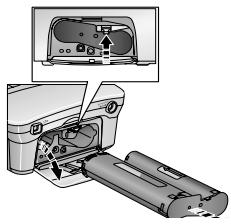
1 Disconnect the power cord.
2 Open the color cartridge door.
3 Pull up on the green lever and remove the color cartridge.
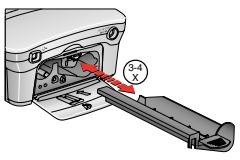
4 Insert the cleaning tool, white pad facing up, into the color cartridge slot.
IMPORTANT: Do not touch or remove the white cleaning pad on the cleaning tool. The cleaning tool can only be inserted one way. Do not force it into the slot.
5 Reinsert and remove the tool at least 3 to 4 times.
6 Reinstall the color cartridge (see Loading the Color Cartridge, page 6).
7 Close the color cartridge door.
Clearing a Paper Jam
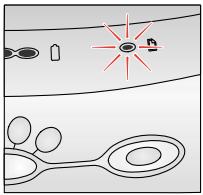
If a paper jam occurs, the Paper light blinks red (see Indicator Lights and Buttons, page 10).

CAUTION: Do not use force when removing a paper jam.
1 Remove the paper tray.
2 Disconnect the power cord, wait 5 seconds, then plug it back in.
NOTE: The printer will reset and eject the paper. If the paper does not eject, try to remove it manually.
3 Replace the paper tray.
4 Press the Print button on the printer to resume printing.
Clearing a Color Cartridge Jam
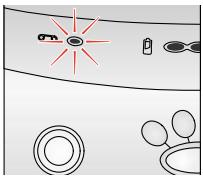
If a color cartridge jam occurs, the cartridge light blinks red.
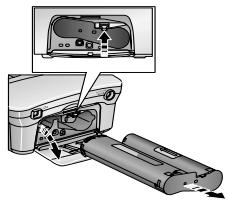
1 Open the color cartridge door.
2 Pull up on the green lever and remove the color cartridge.
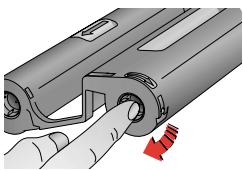
3 Remove the slack in the color cartridge by pushing in on the spool, then rotating the cartridge spool in the direction of the arrow.
4 Reinstall the color cartridge (see Loading the Color Cartridge, page 6).
Traveling with your Printer Dock
IMPORTANT: Protect the printer, accessories, and supplies from high temperatures and dirty environments when transporting. Do not use at the beach. Do not leave in a hot car.
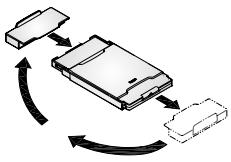
1 Disconnect the power cord and remove all cables.
2 Remove the paper tray from the printer dock, and close the door.
3 Protect the paper by removing the protective cap from the front of the paper tray and placing it on the back of the paper tray.
4 Repack the printer dock in the original packing box, or use the optional printer dock travel bag. See a retail dealer of Kodak products or visit www.kodak.com/go/printerdock.

Troubleshooting
This chapter contains help for your printer dock.
For updates to Troubleshooting information, visit our Web site at
www.kodak.com/go/printerdock.
Printing Problems
| Printing | ||
| Problem | Cause | Action/Solution |
| Paper does not feed. | More than 25 sheets of paper are in the paper tray. | Check the paper limit line inside the paper tray. Remove and re-install the paper tray (page 8). Fan the paper, re-install the paper tray, then press Print. |
| Paper misfeeds or pulls multiple sheets through the printer. | Too much paper is loaded in the paper tray, or the paper is improperly loaded. | Reload the paper (page 8), using no more than 25 sheets. |
| The paper tray is improperly installed. | Re-install the paper tray (page 9). | |
| Paper stops during mid-print, Paper or Cartridge lights flash. | The paper is jammed. | Clear the paper jam (page 33). |
| The color cartridge is jammed. | Clear the cartridge jam (page 34). | |
| Paper stops traveling before print is completed. | The removable tabs may be missing, causing the paper to misfeed. | Remove the paper tray and make sure removable tabs are attached. Reload with new paper if necessary (page 8). |
| Print is scratched along the length of the print. | The print head may need cleaning. | Clean the print head (page 32). |
| The paper may be dusty or dirty. | Remove dirty paper. | |
| Print is blank or light. | The paper is loaded upside down. | Reload the paper with the glossy side facing up and Kodak logo facing down. (page 8). |
| The wrong paper is loaded. | Use only Kodak color cartridge & photo paper kit. | |
| Print is smudged. | There were fingerprints on the print side prior to printing. | Handle paper by the edges or by the removable tabs. |
| Print is spotted. | The paper may be dusty or dirty. | Remove dirty paper. Keep the printer in a clean environment (page 3). |
| Print is dark. | The captured image is too dark. | Try re-taking the picture under better lighting conditions or change the exposure compensation in your camera. Edit the picture using the computer and Kodak EasyShare software. |
| High print head temperature. | Make sure the printer dock is not placed in direct sunlight or is not operating in a high-temperature environment. Let the printer dock cool down for 5 minutes. | |
| Cooling vents may be blocked or dirty. | Check that the cooling vents are not blocked or dirty (page 3). | |
| Pictures are cropped. | Your camera is set at (4:3) aspect ratio. | If available set your camera to Best or Best(3:2) picture quality. Adjust cropped pictures using the computer and Kodak EasyShare software. |
| You may have an older version of EasyShare software. | Consider upgrading your EasyShare software to version 3.0 or higher. See http://www.kodak.com/go/printdockdownloads. | |
| Nothing happens when you try to print. | The AC power cord is not securely connected. | Check the connections (page 5) and try again. |
| The paper tray is improperly installed. | Remove the paper tray, check that paper is properly loaded, and re-install (page 8). | |
| The paper tray is empty. | Check that the Paper light appears, then load the paper (page 8). Check that the paper tray is properly loaded, and re-install. | |
| The color cartridge is improperly installed. | Check that the Cartridge light appears, then re-install the color cartridge (page 6). | |
| The color cartridge is depleted. | Check that the Cartridge light appears, then install a new color cartridge (page 6). | |
| Nothing happens when you try to print...from the camera. | The camera is not in the printer dock or is improperly seated. | Replace the camera on the printer dock (page 14) and try again. |
| There are no pictures in the camera. | Check the camera's internal memory and memory card. Take a picture, and try again. | |
| Nothing happens when you try to print...from the computer. | The USB cable is not securely connected. | Check the connections (page 25) and try again. |
| The Battery Monitor or similar software runs constantly. | Close that software before starting the Kodak software. | |
| The print job is paused or held in the print queue. | Access the printer menu for your system. Make sure no check mark appears next to the Pause Printing option. | |
| The printer is offline. | Access the printer menu for your system. Make sure no check mark appears next to the Use Printer Offline option. | |
| The computer is transferring images. | Wait a few seconds, then try to print from the computer. | |
| Nothing happens when you try to print...from the computer (cont). | There are too many applications running on your computer. | 1 Disconnect the USB cable from the printer dock (page 25). 2 Close all software applications. 3 Reconnect the USB cable (page 25) to the printer dock. |
| Some Advanced Power Management utilities on laptops turn off ports to save battery life. | See the power management section of your laptop user's guide to disable this feature. | |
| The software is not fully or properly installed on the computer. | 1 Disconnect the USB cable from the printer dock. 2 Close all software applications. 3 Uninstall the software (page 21). 4 Re-install the Kodak EasyShare printer dock 4000 software (page 21). 5 Reconnect the USB cable to the printer dock (page 25). | |
| Computer is not running efficiently. | Consider upgrading your computer to meet the recommended system requirements (page 19). | |
| The Operating system does not recognize the printer dock 4000 | 1 Disconnect the printer dock from the computer. 2 Re-install printer drivers. 3 Connect the printer dock to the computer, and try again. | |
| Printing is slow. | High print head temperature. | Make sure the printer dock is not placed in direct sunlight or is not operating in a high-temperature environment. Let the printer dock cool down for 5 minutes. |
| Cooling vents may be blocked or dirty. | Check that the cooling vents are not blocked or dirty (page 3). | |
| Picture file size is large. | Check your computer configuration for memory. | |
| There are too many applications running on your computer. | 1 Disconnect the USB cable from the printer dock (page 25).2 Close all software applications.3 Reconnect the USB cable (page 25) to the printer dock. | |
| Computer is not running efficiently. | Consider upgrading your computer to meet the recommended system requirements (page 19). | |
Problems Transferring Pictures
| Transferring Pictures | ||
| Problem | Cause | Action/Solution |
| Cannot transfer pictures to the computer. | The Transfer button was not pressed. | Press the Transfer button. |
| The AC power adapter or USB cable is not securely connected. | Check the connections (page 25) and try again. | |
| The camera is not properly seated. | Place the camera on the printer dock (page 14) or readjust the camera placement. | |
| The camera was removed from the printer dock during picture transfer. | Replace the camera on the printer dock (page 14) and try again. | |
| There are too many applications running on your computer. | Close all software applications and try again. | |
| The software is not fully or correctly installed on the computer. | 1 Disconnect the USB cable from the printer dock.2 Close all software applications.3 Uninstall the software (page 21).4 Re-install the Kodak EasyShare printer dock software (page 21).5 Reconnect the USB cable to the printer dock (page 25). | |
Printer Dock Status Lights
| Cartridge Light | ||
| Light Status | Cause | Action/Solution |
| Light glows steady red | The color cartridge is depleted. | 1 Install a new color cartridge (page 6).2 Press Print to clear error and resume printing. |
| Excess slack in color cartridge ribbon. | 1 Remove color cartridge, and remove slack (page 6).2 Re-install the color cartridge.3 Press Print to clear error and resume printing. | |
| Light blinks red | The color cartridge is improperly installed. | 1 Remove and re-install the color cartridge (page 6).2 Press Print to clear error and resume printing. |
| There is a color cartridge jam. | 1 Install a new color cartridge (page 6).2 Press Print to clear error and resume printing. | |
| Paper Light | ||
| Light Status | Cause | Action/Solution |
| Light glows steady red | The paper tray is empty. | 1 Load paper (page 8). 2 Press print to clear error and resume printing. |
| The paper tray is improperly installed. | 1 Remove the paper tray, check that paper is properly loaded, and re-install (page 8). 2 Press Print to clear error and resume printing. | |
| Light blinks red | There is a paper jam. | 1 Clear the paper jam (page 33). 2 Press Print to clear error and resume printing. |
| Battery Charging Lights | ||
| Light Status | Cause | Action/Solution |
| No lights | Camera is not on the printer dock or is improperly seated. | Place the camera on the printer dock (page 14) or readjust the camera placement. |
| Camera is turned on. | Turn off the camera. | |
| Correct battery is not installed. | Install a Kodak EasyShare Ni-MH rechargeable battery pack (page 11). | |
| Green lights | Battery is less than half charged. | Camera is on the dock. Leave camera on the dock to continue charging. |
| Battery is more than half charged. | ||
| Battery is fully charged. | Leave camera on the dock to maintain charge. | |
| Red light (blinking) | Battery is not properly installed. | Re-install the battery. |
| Battery or connector pin is damaged. | Check for damage. | |
| Camera and battery have been exposed to extreme temperatures. | Slowly return the camera and battery to room temperature. | |
| Print Mode Lights | ||
| Light Status | Cause | Action/Solution |
| One light glows steady green | The respective print option is available and selected. | None required. To change modes, push the Print mode button repeatedly (page 10). |
| All lights are off | There are no pictures in the camera. | Take a picture. To change modes, push the Print mode button repeatedly. |
| The camera is not on the printer dock or is improperly seated. | Remove the camera from the printer dock, and readjust the camera placement. | |
| The camera is in auto power-off. | Press any button on the printer dock. | |
| Print Light | ||
| Light Status | Cause | Action/Solution |
| Light glows steady green | The printer dock is ready for printing. | None required. |
| Light blinks green | The printer dock is printing. | |
| Transfer Light | ||
| Light Status | Cause | Action/Solution |
| Light glows steady green | The printer dock is ready for transferring pictures. | None required. |
| Light blinks green | Pictures are being transferred to the computer. | |
| Light is off | There are no pictures in the camera. | Take a picture. |
| The camera is not on the printer dock or is improperly seated. | Place the camera on the printer dock (page 14) or readjust the camera placement. | |
| The printer dock is not connected to the computer. | Connect the printer dock to the computer (page 21). | |
| The camera is in auto power-off. | Press any button on the printer dock. | |
| The printer dock is printing from the camera. | The Transfer button is disabled. | |
| The computer is not on. | Turn on the computer. | |

Getting Help
Helpful Web Links
| For help with your printer dock | http://www.kodak.com/go/printerdock |
| For help navigating through a Windows system-based computer and working with digital pictures | http://www.kodak.com/go/pcbasics |
| To download firmware, printer dock drivers, and EasyShare software | http://www.kodak.com/go/ printdockdownloads |
| For product support on cameras, software, accessories, and more | http://www.kodak.com/go/camasupport |
| To purchase a full range of digital camera and dock accessories, see a retail dealer of Kodak products or visit | http://www.kodak.com/go/accessories |
Help in this User's Guide
For help with problems you may have with your printer dock or computer connections, see Chapter 6, Troubleshooting.
Software Help
For help with the Kodak EasyShare printer dock software, see Installing the Software, page 21.
Telephone Customer Support
If you have questions concerning the operation of the software or printer dock, you may speak directly to a customer support representative.
Customer support hours vary by location.
Before You Call
If the printer dock is connected to a computer, please be at the computer, and have the following information available:
Operating system
Processor speed (MHz)
Computer model
Amount of memory (MB)
Exact error message you received
Version of installation CD
Printer dock serial number
Camera model
Telephone Numbers
Australia 1800147701
Austria/Osterreich 0179567357
Belgium/Belgique 027131445
Brazil 0800150000
Canada 18004656325
China 800 820 6027
Denmark/Danmark 38487130
Ireland/Eire 014073054
Finland/Suomi 0800117056
France 0155174077
Germany/Deutschland 06950070035
Greece 0080044125605
Hong Kong 800 901 514
India 91226175823
Italy/Italia 0269633452
Japan 0356445050
Korea 07986310024
Netherlands/Nederland 0203469372
New Zealand 0800440786
Norway/Norge 23162133
Philippines 180018889600
Portugal 0214154125
Singapore 8006363036
Spain/Espana 917497653
Sweden/Sverige 0858770421
Switzerland/Schweiz/Suisse 018385351
Taiwan 0080861008
Thailand 0018006310017
UK 08702430270
United States 18002356325
Outside the United States 5857267260
International Toll Line +44 131 458 714
International Toll Fax Number +44 131 458 962
For the most up-to-date listings, visit: http://www.kodak.com/US/en/digital/contacts/DAIInternationalContacts.shtml.
8 Appendix
This appendix serves as a resource for technical information about your printer dock.
Printer Dock Specifications
| Specifications-Printer Dock | ||
| Printing Process | Thermal Dye Transfer | |
| Operating Temperature- for best picture quality | 49 to 95°F (10 to 35°C) | |
| DC Voltage input AC Voltage | 24 V DC at 1.8 Amps 110 V to 240 V 50/60 Hz | |
| Operating Humidity | 10% to 86% Relative Humidity | |
| Printer Dimensions (without camera) | Width | 8.0 in. (20.2 cm) |
| Depth | 6.38 in. (16.2 cm) | |
| Height | 3.3 in. (8.3 cm) | |
| Weight | 40 oz (1.14 kg) | |
| Printer Dimensions (without paper tray) | Width | 8.0 in. (20.2 cm) |
| Depth | 6.38 in. (16.2 cm) | |
| Printer Dimensions (with paper tray) | Depth | 13.2 in. (33.6 cm) |
| Desk or surface space | Width | 18 in. (45.7 cm) |
| Paper tray | Width | 4.75 in. (12 cm) |
| Depth | 7.75 in. (19.75 cm) | |
| Color cartridge | Width Depth | 3.14 in.(8 cm) 5.21 in.(13.25 cm) |
| Photo size | 4 x 6 in. (102 x 152 mm) CAUTION: Do not use inkjet paper | |
| Paper size | 4 x 7.13 in.(102 x 181 mm) | |
Accessories and Supplies
Kodak accessories and supplies for the printer dock include:
| Accessories and Supplies | |
| Item | Catalog Number |
| Kodak EasyShare printer dock 4000 | 825-6901 |
| US without sensormatic tag | |
| US with sensormatic tag | 859-9268 |
| EAMER | 867-7494 |
| IAR | 897-2440 |
| GCR | 198-1992 |
| APR | 865-5335 |
| Canada | 144-7150 |
| Kodak color cartridge & photo paper kit (PH-40) | 123-1349 (English) |
| 116-5257 (Multi-lingual) | |
| EasyShare Ni-MH rechargeable battery pack | 114-8683 |
| Kodak Printer Dock Travel Kit | 126-8903 |
For a full range of Kodak accessories and supplies, see your retailer of Kodak products or visit www.kodak.com/go/accessories.
Safety Labels

RISK OF ELECTRIC SHOCK:
Do not open. Dry location use only.

CAUTION:
To avoid electrical hazard, use only with products specified in this user manual. Read all instructions before using.
Regulatory Information
FCC Compliance and Advisory
This equipment has been tested and found to comply with the limits for a Class B digital device, pursuant to Part 15 of the FCC Rules. These limits are designed to provide reasonable protection against harmful interference in a residential installation.
This equipment generates, uses, and can radiate radio frequency energy and, if not installed or used in accordance with the instructions, may cause harmful interference to radio communications. However, there is no guarantee that interference will not occur in a particular installation.
If this equipment does cause harmful interference to radio or television reception, which can be determined by turning the equipment off and on, the user is encouraged to try to correct the interference by one or more of the following measures: 1) reorient or relocate the receiving antenna; 2) increase the separation between the equipment and the receiver; 3) connect the equipment to an outlet on a circuit different from that to which the receiver is connected; 4) consult the dealer or an experienced radio/TV technician for additional suggestions.
Any changes or modifications not expressly approved by the party responsible for compliance could void the user's authority to operate the equipment. Where shielded interface cables have been provided with the product or
specified additional components or accessories elsewhere defined to be used with the installation of the product, they must be used in order to ensure compliance with FCC regulation.
KODAK EASYSHARE Printer Dock 4000

Tested To Comply With FCC Standards
FOR HOME OR OFFICE USE
Canadian DOC Statement
DOC Class B Compliance—This Class B digital apparatus complies with Canadian ICES-003.
The printer dock and the AC adapter contain a small amount of lead in the circuit board. Disposal of this material may be regulated due to environmental considerations. For disposal or recycling information, contact your local authorities, or contact the Electronics Industry Alliance Web site at www.eiae.org. Disposal of the color cartridge is not regulated and should not be subject to state or local landfill, incineration, or recycling requirements.
Index
Numerics
800 number for customer support, 54
A
AC power connector, ii accessories and supplies, 51, 57
B
back view of printer dock, ii batteries
loading, 11
ordering, 57
status lights, 47
buttons and lights, 10, 49
buying accessories and supplies, 51, 57
C
cables, 25, 57
camera
battery, loading, 11
docking and charging, 14
insert, installing, 4
printing from, 15
Canadian compliance, 59
canceling printing, 17, 30
care and maintenance of printer dock, 31
cartridge door, color, iii
cartridges
clearing jams, 34
handling and storing, 6
loading, 6
specifications, 56
status lights, 45
catalog numbers for accessories and supplies, 57
charging
batteries, 47
the camera, 14
cleaning
print head, 32
primer dock, 31
clearance around printer dock, 3
clearing
cartridge jams, 34
paper jams, 33
color cartridge door, iii
color cartridges
clearing jams, 34
installing, 6
color mode options, 28
compliance with FCC
regulations, 58
computer
connecting to, 25
helpful Web sites, 51
and printer dock, 19
printing from, 27
system requirements, 19
connecting
to a computer, 25
power, 5
contacting Kodak, 52-54
contents of package, 2
customer support
numbers, 52-54
D
dimensions of printer, 55
docking and charging the
camera, 14
door, color cartridge, iii
E
electricity, connecting, 5, 55
enhanced color mode, 28
environmental requirements, 55
F
FCC compliance, 58
firmware, upgrading, 24, 39, 51
formattingpagelayout,27
front view of printer dock, i
H
handling and storing
color cartridges, 6
paper, 7
help
technical, 24, 51-54
telephone support, 52-54
troubleshooting printer
dock, 37
1
indicator lights and buttons, 10
insert, camera, 4
inserting paper tray, 9
installing
camera insert, 4
cartridges, 6
software, 21
international phone
numbers, 53-54
J
jams,clearing,33,34
jobs, monitoring print, 30
K
Kodak
contacting, 52-54
EasyShare software, 27, 51
Web sites, 51
Kodak EasyShare printer dock 4000. See printer dock
L
layout, formatting, 27
lights, status, 10, 45-49
loading
camera battery, 11
cartridge, 6
paper, 8
software, 21
location for printer dock, 3
M
Macintosh operating
system, 20, 21
maintenance of printer dock, 31
modes, color, 28
monitor, requirements, 19, 20
monitoring printer and print jobs, 30
moving printer dock, 35
N
natural color mode, 28
numbers, telephone, 53-54
0
operating temperature and humidity, 55
P
package contents, 2
packing printer dock for moving, 35
paper
formatting, 27
jams,clearing,33
loading, 8
path, ii
specifications, 56
status light, 45
tray, i, 9
PC system requirements, 19
perforated tab from prints, removing, 16, 29
pictures
setting quality, 12
transferring, 26
power, connecting, 5
print head, cleaning, 32
print jobs, monitoring, 30
Print Mode button and status lights, i, 48
prinert dock accessories and supplies, 57
back view, ii
care and maintenance, 31
and computer, 19
connecting, 25
front view, 1
location and setup, 3
maintaining, 31
print head, cleaning, 32
side view, iii
specifications, 55
status lights, 45-49
technical help, 24, 51-54
travelling with, 35
troubleshooting, 37
upgrading, 24, 51
printer, monitoring, 30
printing
canceling, 17, 30
from camera, 15
problems, 37
with a computer, 27
with other applications, 28 problems
printing, 37
transferring pictures, 44
product support, 24, 51
Q
quality, setting, 12
R
regulatory information, 58, 59
removing perforated tabs from
prints, 16, 29
requirements
environmental, 55
system, 19
resolving problems
with printing, 37
with transferring pictures, 44
s
service and support, 52-54
setting picture quality, 12
side view of printer dock, iii
software
help, 51
installing, 21
KodakEasyShare,27,51
printing with other, 28
requirements, 19
uninstalling, 23
upgrading, 24, 51
specifications
Macintosh OS, 20
primer dock, 55
Windows OS, 19
status lights, 45-49
status monitor, 30
storing color cartridges, 6
supplies and accessories, 51, 57
support, technical, 24, 51-54
system requirements, 19
T
tabs from prints,
removing, 16, 29
technical support, 24, 51-54
telephone numbers, 53-54
temperature requirements, 55
toll free number for customer support, 54
Transfer button and status
lights, 49
transferring pictures, 26, 44
travelling with printer dock, 35
tray, inserting paper, 9
troubleshooting
cartridge jams, 34
paper jams, 33
printing problems, 37
transferring pictures
problems, 44
U
uninstalling software, 23
universal camera insert, 4
upgrading software, 24, 39, 51
URLs for Kodak Web sites, 51
USB cable connections, ii, 25
V
views of printer dock, i-iii
W
Web sites for Kodak, 51
weight of printer dock, 55
Windows OS
installing software, 21
system requirements, 19
- Kodak EasyShare printer dock 4000
- User's Guide
- Front View
- Back View
- Side Views
- Table of Contents
- Appendix 55
- Getting Started with Your Printer Dock
- Need This Guide in Larger Print?
- What Can I Do With My Printer Dock?
- Without a computer, you can:
- With a computer, you can:
- Printer Dock Package Contents
- Finding a Location for the Printer Dock
- Installing the Camera Insert
- Connecting the Power
- CAUTION:
- Handling and Storing the Color Cartridge
- Loading the Color Cartridge
- Handling and Storing the Paper
- Loading the Paper
- Inserting the Paper Tray
- Indicator Lights and Buttons
- Getting Started with Your Camera
- Installing the Rechargeable Battery
- Setting Picture Quality
- Selecting Pictures for Automatic Printing
- For camera models (DX3215, DX3700):
- For camera models (DX3500, DX3600, DX3900, DX4900):
- Docking and Charging the Camera
- 3
- Printing Without a Computer
- Printing from Your Camera
- Removing Perforated Tabs from Prints
- Canceling Printing
- Using the Printer Dock with a Computer
- System Requirements
- Windows OS-based Computer
- Mac OS X
- Installing the Software
- Uninstalling
- On a Windows OS-based computer:
- On Mac OS X:
- Upgrading Your Software and Firmware
- Connecting to a Computer
- Transferring Pictures
- Printing from a Computer
- Printing with Kodak EasyShare software
- Printing Using Other Applications
- Kodak Color Mode
- On Windows 2000/XP operating system:
- On Windows 98/ME operating system:
- Status Monitor—Windows system only
- 5
- Care and Maintenance
- General Care
- Cleaning the Printer Dock
- Cleaning the Print Head
- Clearing a Paper Jam
- CAUTION: Do not use force when removing a paper jam.
- Clearing a Color Cartridge Jam
- Traveling with your Printer Dock
- Troubleshooting
- Problems Transferring Pictures
- Printer Dock Status Lights
- Getting Help
- Help in this User's Guide
- Software Help
- Telephone Customer Support
- Before You Call
- Telephone Numbers
- Appendix
- Accessories and Supplies
- Safety Labels
- RISK OF ELECTRIC SHOCK:
- Regulatory Information
- FCC Compliance and Advisory
- Canadian DOC Statement
- Index
- Numerics
- A
- B
- C
- D
- E
- F
- H
- 1
- J
- K
- L
- M
- N
- 0
- P
- Q
- R
- s
- T
- U
- V
- W
Brand : KODAK
Model : PRINTER DOCK 4000
Category : Photo printer