
M1020 - Photo printer KODAK - Free user manual and instructions
Find the device manual for free M1020 KODAK in PDF.


| Product Type | Portable Photo Printer |
| Brand | KODAK |
| Model | M1020 |
| Dimensions (L x W x H) | approx 20 x 15 x 5 cm |
| Weight | approx 500 g |
| Power Supply | 5V / 2A AC adapter or built-in rechargeable battery |
| Printing Technology | ZINK (Zero Ink) or thermal |
| Print Resolution | 300 x 300 dpi |
| Supported Paper Size | 10 x 15 cm (4 x 6 inches) |
| Connectivity | Bluetooth, NFC, USB |
| Main Features | Wireless printing from smartphone, dedicated app, built-in photo editing |
| Maintenance and Cleaning | Clean with a soft, dry cloth; avoid liquids |
| Safety | Do not expose to moisture; use only the provided adapter |
| Spare Parts and Repairability | Print rolls available; battery replaceable by a professional |
| General Information | Compliant with FCC and Industry Canada (Class B) standards |
| Operating Temperature | 15°C to 30°C |
| Operating Humidity | 20% to 80% non-condensing |
| Acoustic Noise | < 50 dB |
| Power Consumption | Standby: 1 W; printing: 15 W |
Frequently Asked Questions - M1020 KODAK
User questions about M1020 KODAK
0 question about this device. Answer the ones you know or ask your own.
Ask a new question about this device
Download the instructions for your Photo printer in PDF format for free! Find your manual M1020 - KODAK and take your electronic device back in hand. On this page are published all the documents necessary for the use of your device. M1020 by KODAK.
USER MANUAL M1020 KODAK
See the extended user guide - for more information about using your frame, visit www.kodak.com/go/digitalframesupport. See the frame package for package contents.
Front View
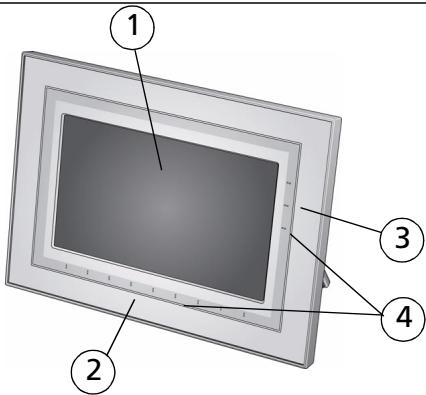
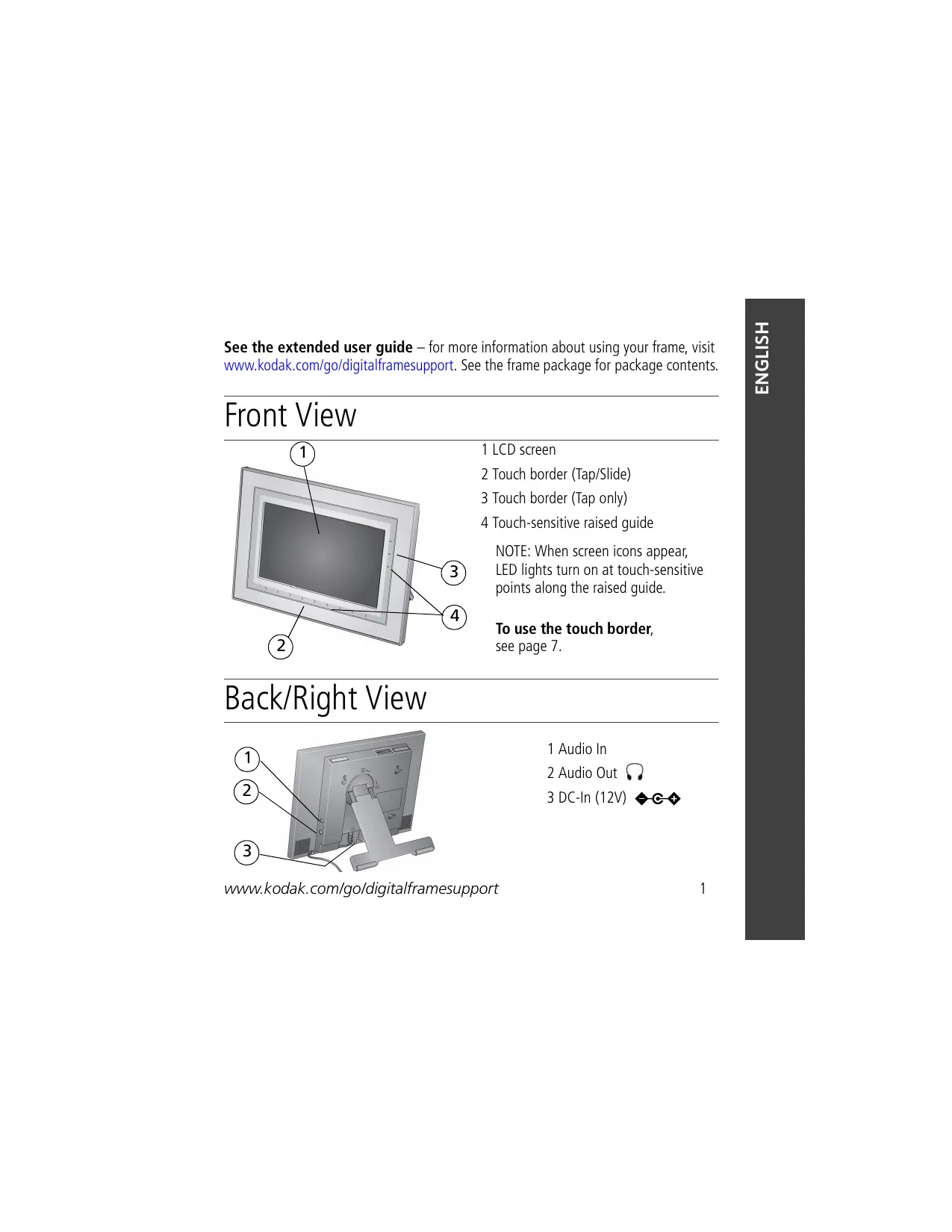
1 LCD screen
2 Touch border (Tap/Slide)
3 Touch border (Tap only)
4 Touch-sensitive raised guide
NOTE: When screen icons appear, LED lights turn on at touch-sensitive points along the raised guide.
To use the touch border, see page 7.
Back/Right View
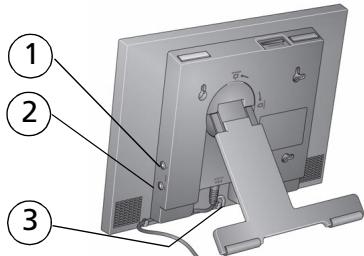
1 Audio In
2 Audio Out
3 DC-In (12V)


Back/Side View
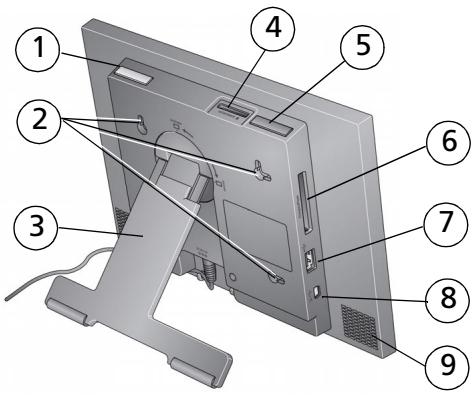
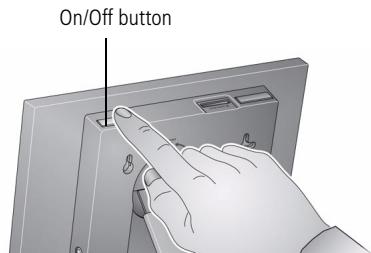
1 On/Off button
6 Memory card slot - CF, MD
2 Wall mounting holes (see page 8)
7 USB connector (to camera/USB device)
3 Rotating/extending stand
8 USB connector (to computer)
4 Memory card slot - SD, MMC, MS, xD
9 Speakers
5 Volume button
1 Getting started
Setting up your picture frame
Changing the frame orientation
Your frame is set up to display pictures in landscape orientation. You can turn the stand to change it to portrait but you must also change the setting (see page 8).
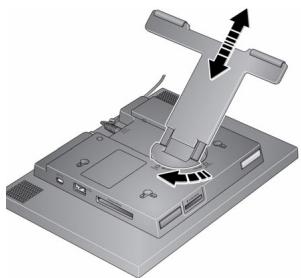
Change the stand position:
Turn the stand 90^ to change the orientation.
Pull the stand out to adjust the frame angle.
Attaching the power cable

CAUTION:
Do not use this power cable with other devices, including digital cameras.
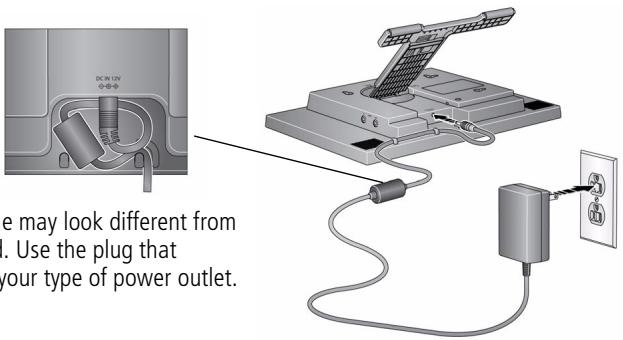
Your power cable may look different from the one pictured. Use the plug that accommodates your type of power outlet.
Turning on your frame
Setting your language
The language screen appears the first time you turn on your frame.
Using the touch border (see page 7):
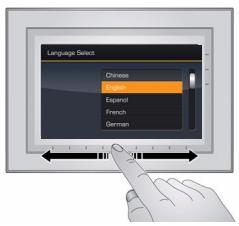
Slide to find your language, then tap OK.
To change the language at a later time:
- Tap (Home) → (Settings) → Language.
The language screen appears.
Slide to find your language, then tap OK.
Enjoying your pictures immediately!
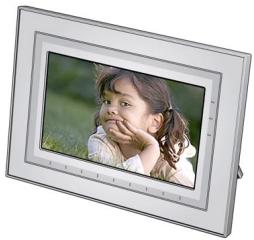
To view your pictures or play a slide show, insert a memory card, or connect a camera or other USB device (see page 6).
If your frame has preloaded sample pictures, a slide show starts automatically.
If you are at the Home screen, see page 10 to start your slide show.
To change the slide show order, see page 12.
Inserting a memory card
To insert a card, push the card firmly into the slot until it stops.
To remove a card from: top card slot - push in the card to release it. side card slot - pull out the card
CAUTION: Do not insert a micro or mini memory card without an adapter.
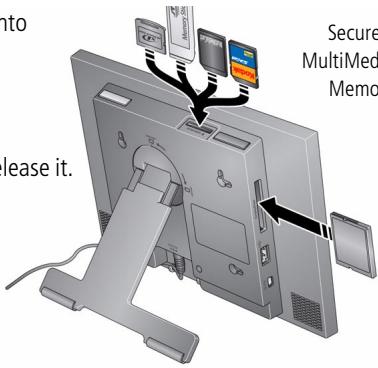
Secure Digital
MultiMedia Card
Memory Stick
xD
CompactFlash
MicroDrive
Connecting a digital camera or other USB device
USB devices: camera, flash drive, card reader, computer, etc. (sold separately)
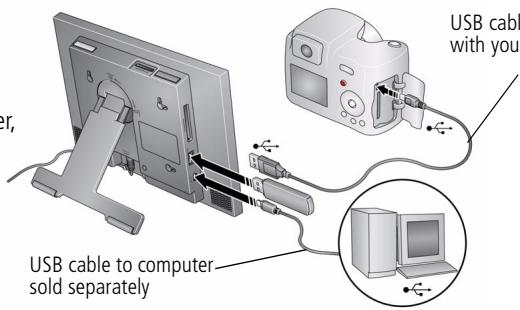
USB cable included
with your USB device
Using your frame's touch border
Touch along the raised guide at the bottom (tap/slide) or right (tap only) border to find/highlight menu items or pictures/videos. Press OK to select them.
NOTE: The screen is not touch-sensitive. Do not touch.

CAUTION:
Only use your finger to touch the border. Using sharp or metal objects may damage the border or screen.
On the raised guide:
Tap at bottom or right to find/highlight menu items, pictures, videos, etc.
- Slide along bottom to find/highlight selections quickly. Sliding right to left during a slide show quickly scrolls forward through your pictures. Slide left to right to reverse
Touch, hold for 2 seconds, then slide along bottom to move quickly through numerous images
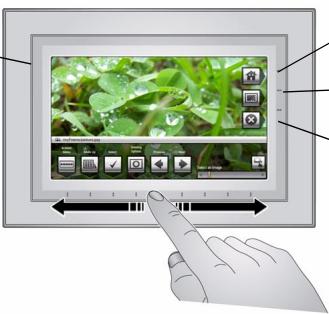

- Home

- Slide show

or

Close
NOTE: When screen icons appear, LEDs turn on at touch-sensitive points along the raised guide.
Tap Menu or More for more options, or tap to resume a slide show.
If the icons disappear, tap the touch border.
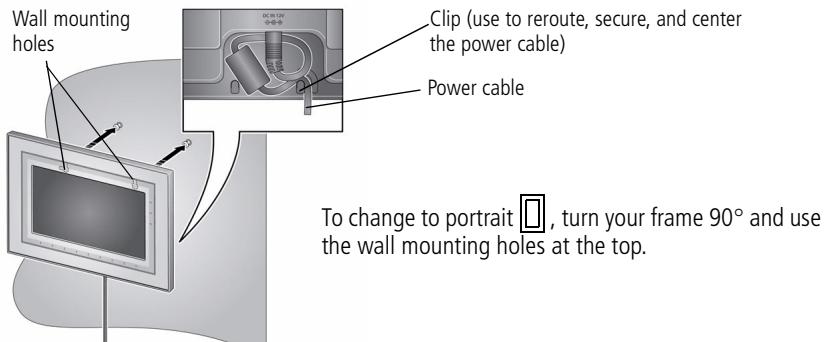
Mounting your frame on the wall
Use wall-anchoring hardware (not included) to anchor your frame securely to your wall.
Changing the frame orientation setting
Change the frame orientation setting if you change to portrait orientation.
1 Tap (Home) (Settings).
2 Select (Viewing options), then tap OK. Select Frame orientation, then tap OK. Select Portrait, then tap OK.
3 Tap to exit.
2 Doing more with your frame
Accessing your pictures
Tap Home to access pictures/videos from all connected devices (see page 6). Use the touch border to make your selections (see page 7).
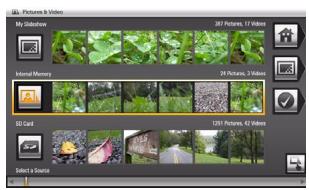
1 Tap (Home), then Pictures and Videos).
All connected sources and the Settings icon are displayed.
2 Slide to highlight a picture source, then:
Tap (Slide show) to start a slide show. OR
Tap OK to view thumbnails.
Picture source icons:

My Frame—the frame's 128 Mb internal memory. Copy your pictures into My Frame from a memory card or other device (page 19).

Memory card—appears when you insert a card (page 6). The label and icon indicate the type of card.

Camera—appears when you connect a digital camera via USB cable (page 6).

USB drive—appears when you insert a USB flash drive (page 6).

Settings—customize your frame settings. For example; set slide show durations and transitions, set viewing options, screen brightness, clock, and timer. See the extended user guide at www.kodak.com/go/digitalframesupport.

My Slide show—appears when you save a slide show you are viewing as your favorite (see page 12).
Viewing your pictures
Playing a slide show
There are three ways to start a slide show on your frame:
Insert a memory card or USB device, then turn on the frame.
Turn on the frame, then insert a card or connect a USB device—a new slide show starts automatically, replacing a currently running slide show or single view picture.
NOTE: Music plays automatically when a memory card or USB device with music on it is connected.
- Select a picture in thumbnails view (page 11), or select a picture source on the Pictures and Videos screen, then tap (Slide show). See page 7 to scroll forward/backward quickly.
NOTE: A slide show plays continuously until you stop it or turn off the frame.
Viewing thumbnails
There are two ways to view your pictures as thumbnails:
- Tap (Home). Tap (Pictures and Videos), select a picture source (see page 9), then tap OK. OR
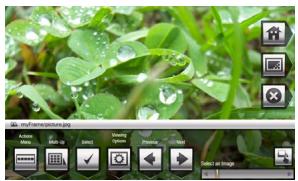
From a slide show or single view, tap (Menu), then (Multi-up).
NOTE: If the screen icons are unavailable, tap the touch border.
To navigate through the thumbnails, slide your finger left/right along the bottom touch border. Touch and hold until the screen changes (about 3 seconds) to move even faster through the thumbnails.
Viewing a single picture
To view a single, full-screen picture, highlight it in thumbnails view, then tap OK.
To magnify a picture up to 8X, tap (Menu), then tap (Zoom) repeatedly. To view other parts of the picture, tap . To return to 1X size, tap (Zoom) repeatedly.
To rotate a picture, tap (Menu), then tap (Rotate).
Viewing pictures by date or filename
By default, the pictures and videos on your frame are arranged and played by date, starting with the oldest. You can play the arrangement or order, by date, or alphabetically by filename.
To change the sort order:
1 Select a picture source (for example, a folder with pictures), or multiple pictures (see page 17).
2 Tap (Menu).
3 Highlight Sort, then tap OK.
4 Select a sort order:
-Date, oldest to newest (default)
-Date, newest to oldest
-Filename, A - Z
-Filename, Z - A
5 Tap OK.
Saving your favorite slide show for easy access
While viewing the slide show:
- Tap (Viewing Options), then Save as My Slideshow. Tap Yes to confirm.
NOTE: The saved slide show appears on the Pictures and Videos screen as a picture source (see page 10).
Playing music only
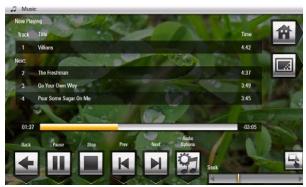
1 Tap the touch border to pause your slide show and to display the screen icons.
2 Tap (Home), then (Music) to view music sources.
3 Slide to the right/left to move up/down the music source list, then tap OK.
4 Slide right/left to go to the previous/next song, or select Play all songs, then tap OK. Your music starts playing.
5 Tap (Slide show) to return to your picture or slide show.
NOTE: Music plays automatically when a memory card or USB device with music on it is connected. Notes on playing, copying, deleting music:
A headphone jack is available on the side of the frame (page 1).
Adjust the volume with the Volume button (page 2).
To copy or delete music files (MP3), slide to highlight the songs in the music source, then tap OK. Tap (Menu) → Copy or Delete → OK.
-For copying, highlight the source you want to copy to, then tap OK
-For deleting, tap Yes to confirm.
Playing a video
- During a slide show, videos play automatically. When the video ends, the slide show resumes. To play a video from thumbnails view, highlight a video thumbnail, then tap OK.
Videos in thumbnail view:
MOV videos are indicated with
AVI, MPEG, and MPG videos display the first frame.
Video control buttons:
| play, pause, and resume the video. |
| rewind / fast forward. |
| stop the video and return to thumbnails. |
Copying pictures
Copy pictures/videos from your current viewing location to other connected devices (see page 5).

CAUTION:
Removing a card or disconnecting a device while copying may damage your card, pictures, or device.
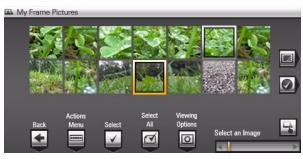
1 Highlight a picture to copy:
In thumbnails view, slide your finger along the bottom touch border to find a picture; or, display a picture in single view.
2 Tap (Menu).
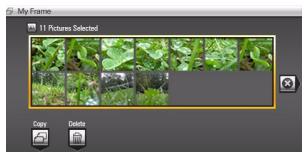
3 Tap (Copy), then OK.
4 Tap the destination you want to copy to, then tap OK. The picture is copied.
5 Tap (Close) to close the menu.
To copy multiple pictures, see page 17.
Deleting pictures

CAUTION:
Removing a card or disconnecting a device while deleting may damage your card, pictures, or device.
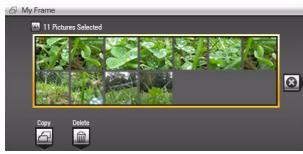
1 Highlight a picture to delete:
In thumbnails view, slide your finger along the bottom touch border to find a picture; or, display a picture in single view.
2 Tap (Menu).
3 Tap (Delete), then tap OK.
4 Tap Yes to confirm.
The picture is deleted.
5 Tap (Close) to close the menu.
To delete multiple pictures, see page 17.
Selecting multiple pictures
Use the multi-select feature to copy or delete two or more pictures; or to play a slide show of selected pictures.
1 In thumbnails view, slide along the bottom touch border to find a picture, then tap to select it.
A check mark appears on the selected picture.
2 Continue selecting pictures.
To remove a check mark, tap again.
Selecting/Unselecting all
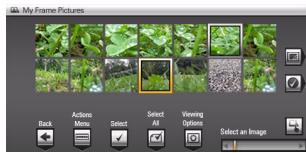
Select all
1 Tap (Menu) whenever pictures are displayed (slide show, thumbnails view, single picture).
2 Tap Select All.
A confirmation screen appears, then your picture display reappears. A check mark is displayed on all pictures in your current location.
Unselect all
To remove all check marks, choose Unselect All.
A confirmation screen appears, then your picture display reappears. All check marks are removed.
Printing pictures
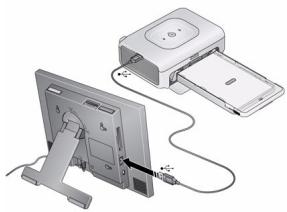
1 Make sure your frame is disconnected from the printer (Pictbridge enabled).
2 On the frame, change your connection mode to Printer by tapping (Home) (Settings) Device configuration USB connection mode.
3 Turn off the frame and printer.
4 Connect the USB cable from the frame to the printer.
5 Turn on the frame and printer.
6 In slide show or single view, tap (Menu), then (Print).
In thumbnails view, see page 17 to print multiple pictures.
NOTE: Remember to change your connection mode back to Computer when you are done.
Copying from your computer
Use the Kodak EasyShare digital display software to drag and drop pictures easily from your computer to a memory card (or other removable USB device). Insert the card into your frame and play a slide show right away (see page 5).
Installing the software
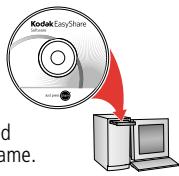
CD packaged with your frame.
1 Insert the CD into your computer and follow the on-screen instructions to install the software.
NOTE: Clicking Complete installs both the Kodak EasyShare software and the Kodak digital display software. Both applications work together to ensure the best experience when working with your pictures, videos, music, frame and connected devices.
Both software icons appear on your desktop.
2 Double-click (Kodak EasyShare digital display icon) to start using the software.
Using the Kodak EasyShare digital display software
The Kodak EasyShare digital display software makes it easy for your frame to communicate with other connected devices.
Copy—drag and drop your pictures, videos, and music:
to and from your computer to your frame via a USB cable (sold separately)
to and from your computer to a memory card, then insert it in your frame
to and from a USB-connected device
into a multimedia presentation that you can save to your frame
Organize—quickly create, rename,and delete files/folders on your frame
For more information on the features included in the EasyShare digital display software, click the Help button.
Customizing your frame
For a custom look, remove the adhesive matte (included) from its liner, align it carefully, then attach it to your frame.
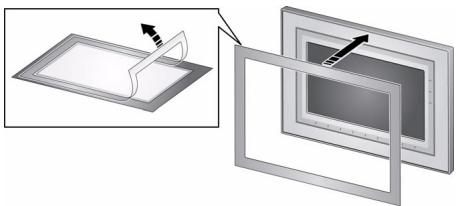
You can reapply the matte to your frame several times. When you are not using the matte, reapply it to the liner and store in a plastic bag to keep the adhesive backing clean.
Maintaining your frame and mattes
IMPORTANT: Always disconnect the power before cleaning. Do not use water, cleaning solutions, or other adhesives on the frame or any of its parts.
Gently wipe the frame, LCD, or matte with a clean, dry cloth (included). For fingerprints on the frame, apply light pressure.
Learning more about your frame
www.kodak.com/go/digitalframes
Frame accessories, including decorative faceplates and custom mattes
www.kodak.com/go/digitalframesupport
Extended user guide
Interactive troubleshooting and repairs
Interactive tutorials
FAQs
Downloads
Product registration
3
Solving frame problems
For step-by-step product support, visit www.kodak.com/go/digitalframesupport and select Interactive Troubleshooting & Repairs.
| If... | Try one or more of the following |
| Frame does not turn on. | ■ Make sure the power cable that was included with your frame is connected securely (see page 4).■ Make sure the power switch on the frame is On. |
| Nothing happens when a memory card, computer, or USB device is connected. | ■ Insert a certified CF/SD/MMC/MS/xD card with images into the designated card slot, then push to seat it (see page 6).NOTE: Do not insert a micro or mini memory card without an adapter.■ Make sure the USB cable that was included with your camera or USB device is connected securely (see page 6).■ Make sure the file format of your pictures/videos is supported (see page 14).NOTE: A large picture/video file may take time to appear. |
| Touch border doesn’t work. | ■ Make sure the power switch on the frame is On.■ Use your finger to touch along the raised guide at the bottom and right border (see page 7). LED lights indicate touch points. |
| Music doesn’t play. | ■ If your frame has songs you purchased, they may be protected files. Convert the files to standard (unprotected) AAC or MP3 formats. |
4 Appendix
Important safety instructions

CAUTION:
Do not disassemble this product; there are no user-serviceable parts inside. Refer servicing to qualified service personnel. Do not expose this product to liquid, moisture, or extreme temperatures. The use of controls, adjustments, or procedures other than those specified herein may result in exposure to shock and/or electrical or mechanical hazards. If the LCD breaks, do not touch the glass or liquid. Contact Kodak customer support.
The use of an accessory that is not recommended by Kodak may cause fire, electric shock, or injury. For approved accessories, visit www.kodak/go/accessories.
- Digital frame battery (internal and non-removable) may include perchlorate material. Special handling may apply in California.
Use only the AC adapter supplied with your frame to avoid damage to the frame.
Do not place frame near naked flame sources such as lighted candles or heaters.
Excessive sound pressure from earphones and headphones may cause hearing loss.
Upgrading your software and firmware
Download the latest versions of the software and the frame firmware (the software that runs on the frame). See www.kodak.com/go/digitalframedownloads.
Additional care and maintenance
Wipe the frame and the LCD gently with a soft, lint-free cloth (included). Do not use cleaning solutions unless designed specifically for LCD screens. Do not allow chemicals, such as suntan lotion, to contact painted surfaces.
Service agreements are available in some countries. Contact a dealer of Kodak products for more information.
For digital frame disposal or recycling information, contact your local authorities. In the US, visit the Electronics Industry Alliance Web site at www.eiae.org or visit www.kodak.com/go/digitalframesupport.
Limited warranty
Kodak warrants Kodak consumer electronic products and accessories ("Products"), excluding batteries, to be free from malfunctions and defects in both materials and workmanship for one year from the date of purchase. Retain the original dated sales receipt. Proof of the date of purchase will be required with any request for warranty repair.
Limited warranty coverage
Warranty service is only available from within the country where the Products were originally purchased. You may be required to ship Products, at your expense, to the authorized service facility for the country where the Products were purchased. Kodak will repair or replace Products if they fail to function properly during the warranty period, subject to any conditions and/or limitations stated herein. Warranty service will include all labor as well as any necessary adjustments and/or replacement parts. If Kodak is unable to repair or replace a Product, Kodak will, at its option, refund the purchase price paid for the Product provided the Product has been returned to Kodak along with proof of the purchase price paid. Repair, replacement, or refund of the purchase price are the sole remedies under the warranty. If replacement parts are used in making repairs, those parts may be remanufactured, or may contain remanufactured materials. If it is necessary to replace the entire Product, it may be replaced with a remanufactured Product. Remanufactured Products, parts and materials are warranted for the remaining warranty term of the original Product, or 90 days after the date of repair or replacement, whichever is longer.
Limitations
This warranty does not cover circumstances beyond Kodak's control. This warranty does not apply when failure is due to shipping damage, accident, alteration, modification, unauthorized service, misuse, abuse, use with incompatible accessories or attachments (such as third party ink or ink tanks), failure to follow Kodak's operation, maintenance or repacking instructions, failure to use items supplied by Kodak (such as adapters and cables), or claims made after the duration of this warranty. Kodak makes no other express or implied warranty for this product, and disclaims the implied warranties of merchantability and fitness for a particular purpose. In the event that the exclusion of any implied warranty is ineffective under the law, the duration of the implied warranty will be one year from the purchase date or such longer period as required by law. The option of repair, replacement, or refund is Kodak's only obligation. Kodak will not be responsible for any special, consequential or incidental damages resulting from the sale, purchase, or use of this product regardless of the cause. Liability
for any special, consequential or incidental damages (including but not limited to loss of revenue or profit, downtime costs, loss of the use of the equipment, cost of substitute equipment, facilities or services, or claims of your customers for such damages resulting from the purchase use or failure of the Product), regardless of cause or for breach of any written or implied warranty is expressly disclaimed.
Your rights
Some states or jurisdictions do not allow exclusion or limitation of incidental or consequential damages, so the above limitation or exclusion may not apply to you. Some states or jurisdictions do not allow limitations on how long an implied warranty lasts, so the above limitation may not apply to you. This warranty gives you specific rights, and you may have other rights which vary from state to state or by jurisdiction.
Outside the United States and Canada
In countries other than the United States and Canada, the terms and conditions of this warranty may be different. Unless a specific Kodak warranty is communicated to the purchaser in writing by a Kodak company, no warranty or liability exists beyond any minimum requirements imposed by law, even though defect, damage, or loss may be by negligence or other act.
FCC compliance and advisory

Kodak EasyShare M820/M1020 digital frame
This equipment has been tested and found to comply with the limits for a Class B digital device, pursuant to Part 15 of the FCC Rules. These limits are designed to provide reasonable protection against harmful interference in a residential installation.
This equipment generates, uses, and can radiate radio frequency energy and, if not installed or used in accordance with the instructions, may cause harmful interference to radio communications. However, there is no guarantee that interference will not occur in a particular installation.
If this equipment does cause harmful interference to radio or television reception, which can be determined by turning the equipment off and on, the user is encouraged to try to correct the interference by one or more of the following measures: 1) reorient or relocate the receiving antenna; 2) increase the separation between the equipment and the receiver; 3) connect the equipment to an outlet on a circuit different from that to which the receiver is connected; 4) consult the dealer or an experienced radio/TV technician for additional suggestions.
Any changes or modifications not expressly approved by the party responsible for compliance could void the user's authority to operate the equipment. Where shielded interface cables have been provided with the
product or specified additional components or accessories elsewhere defined to be used with the installation of the product, they must be used in order to ensure compliance with FCC regulation.
FCC and Industry Canada
This device complies with Industry Canada RSS-210 and FCC Rules. Operation is subject to the following two conditions: (1) this device may not cause harmful interference, and (2) this device must accept any interference received, including interference that may cause undesired operation.
Hereby, Eastman Kodak Company declares that this Kodak product is in compliance with the essential requirements and other relevant provisions of Directive 1999/5/EC.
Canadian DOC statement
DOC Class B Compliance—This Class B digital apparatus complies with Canadian ICES-003.
Waste Electrical and Electronic Equipment labeling

EU: It is the final user's responsibility to discard this equipment into an approved, segregated collection scheme to enable its suitable treatment/disposal and to improve human/environmental protection. For more information, see your retailer, local authority, or www.kodak.com/go/recycle.
Australian C-Tick

N137
MPEG-4
Use of this product in any manner that complies with the MPEG-4 visual standard is prohibited, except for use by a consumer engaging in personal and non-commercial activities.
China RoHS
环保使用期限(EPUP)
Environmental Protection Use Period (EPUP)
In China, this number indicates the time period (in years) within which any hazardous substances present in the product are not expected to be released such that there is risk to human health, property, or the environment. This value is assigned based on normal use of the product as described in the operating instructions.
Product Disclosure Table
有毒有害物质或元素名称及含量标识表
table of hazardous substances' name and concentration
| 部件名称 Component name | 有毒有害物质或元素 hazardous substances' name | |||||
| 铅 (Pb) | 汞 (Hg) | 镉 (Cd) | 六价铬 (Cr6+) | 多溴联苯 (PBB) | 多溴二苯醚(PBDE) | |
| 数码相架电路板元件 (Digital Photo Frame circuit board components) | X | O | O | O | O | O |
| 控制器(Controller) | X | O | O | O | O | O |
| 交流变压器电路板元件 (AC Adapter circuit board components) | X | O | O | O | O | O |
| ○:表示该有毒有害物质在该部件所有均质材料中的含量均在SJ/T 11363-2006规定的限量要求以下。 ×:表示该有毒有害物质至少在该部件的某一均质材料中的含量超出SJ/T 11363-2006规定的限量要求。○:indicates hazardous substance concentration lower than MCV×:indicates hazardous substance concentration higher than MCV | ||||||
Russian GOST-R

Eastman Kodak Company
Rochester, New York 14650
LunpoBaa foTopaMaKa n3roTOBHeA B KInTae;OCTaJIbHbIe 3JNeMeHTbl -B COOTBETCTBm C MapKINPOBKOI
Licensing
Supply of this product does not convey a license nor imply any right to distribute content created with this product in revenue-generating broadcast systems (terrestrial, satellite, cable and/or other distribution channels), streaming applications (via Internet, intranets and/or other networks), other content distribution systems (pay-audio or audio-on-demand applications and the like) or on physical media (compact discs, digital versatile discs, semiconductor chips, hard drives, memory cards and the like). An independent license for such use is required. For details, please visit http://mp3licensing.com.
Kodak
Eastman Kodak Company
Rochester, New York 14650
© Eastman Kodak Company, 2008
Kodak and EasyShare are trademarks of Eastman Kodak Company.
Eastman Kodak Company is an authorized licensee of the CompactFlash trademark.
4F8176_en