USER MANUAL PRINTER DOCK KODAK
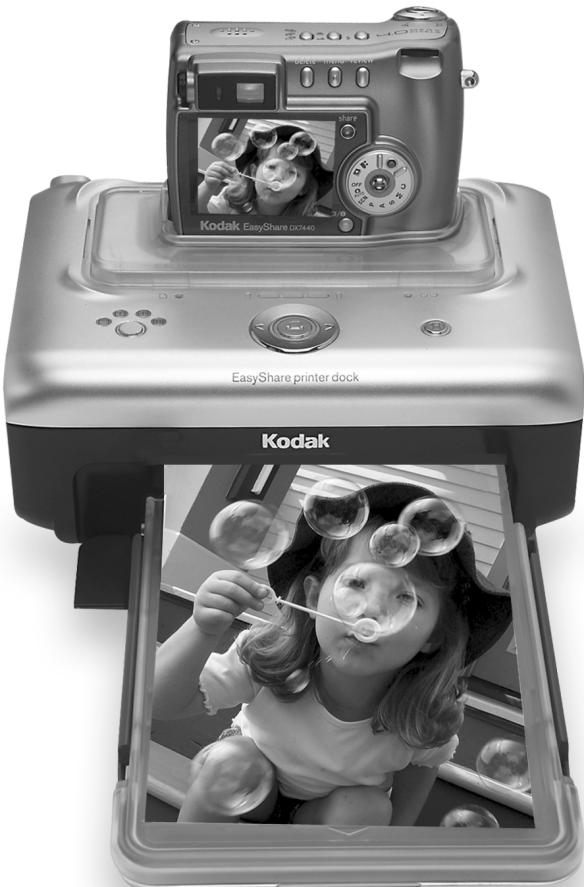
Kodak EasyShare printer dock
User's Guide
www.kodak.com
For interactive tutorials, www.kodak.com/go/howto

Eastman Kodak Company
343 State Street
Rochester, New York 14650
© Eastman Kodak Company, 2004
All screen images are simulated.
Kodak and EasyShare are trademarks of Eastman Kodak Company.
P/N 4J1051
Front/top/side view
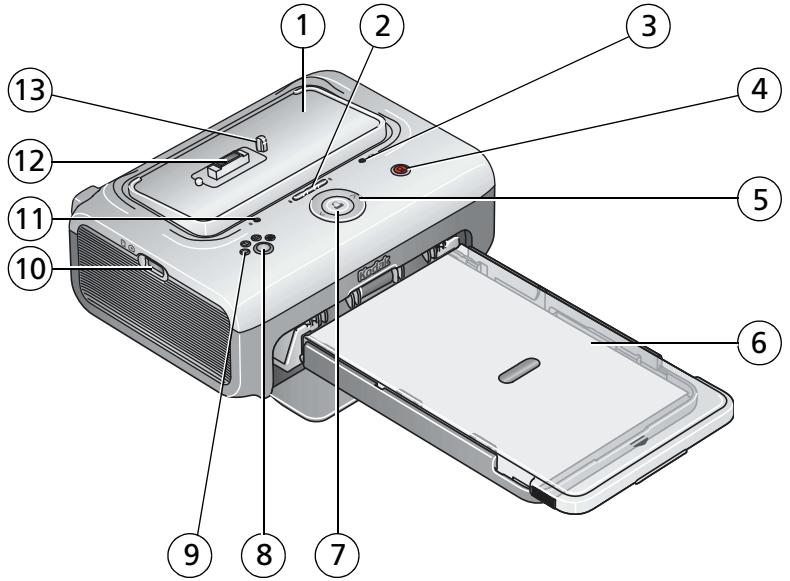
1 Universal camera insert (installed as shown)
2 Battery charging lights/ Refresh button
3 Color cartridge light
4 Transfer button/light
5 Left/Right control
6 Paper tray
7 Print button/light
8 Picture size button
9 Picture size lights , , , 1
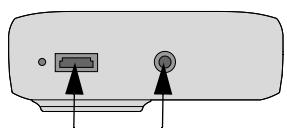
10 USB connector (for Kodak 8-in-1 card reader or PictBridge compatible device)
11 Paper light
12 Camera connector
13 Locator pin for camera
Back/top/side view

1 Power connector (DC-in)
4 Color cartridge (installed as shown)
2 USB connector (to computer)
5 Cartridge door
3 Slot for paper path
Table of contents
1 Getting started 1
Package contents. 1
Finding a location for your printer dock. 2
Installing the custom camera insert. 2
Connecting the power 3
Handling and storing the color cartridge 4
Installing and removing the color cartridge 4
Handling and storing the paper 6
Loading the paper 6
Installing and removing the paper tray. 7
2 Preparing your EasyShare digital camera 8
Choosing the right camera battery 8
Important battery information 9
Battery safety and handling 9
Extending battery life 9
Docking and charging your EasyShare digital camera 10
Refreshing the Ni-MH rechargeable battery pack. 11
Setting the picture quality. 12
Tagging pictures for automatic printing 12
3 Printing without a computer 13
Printing from your EasyShare digital camera 13
Printing tagged pictures 14
Printing from a Kodak 8-in-1 card reader 14
Printing from a PictBridge device 15
Canceling printing. 15
Changing the printed picture size 16
Removing perforated tabs from prints 17
4 Installing software and connecting to a computer 18
Minimum system requirements 18
Installing the software 18
Uninstalling the software 20
Connecting to a computer 21
5 Using the printer dock with a computer 22
Transferring pictures from your Kodak EasyShare digital camera..... 22
Transferring pictures from a Kodak 8-in-1 card reader. 23
Printing from a computer 24
Printing with Kodak EasyShare software 24
Printing using other applications 25
Choosing Kodak color mode 25
Canceling printing 26
6 Care and maintenance 27
General care 27
Cleaning the paper feed roller 28
Traveling with your printer dock 29
7 Troubleshooting 30
Printing problems 30
Problems transferring pictures 36
Printer dock status lights 37
8 Getting help 42
Helpful web links 42
Software help 42
Telephone customer support 42
Before you call 42
9 Appendix 44
Printer dock specifications 44
Additional safety and maintenance tips 45
Upgrading your software and firmware 45
Regulatory information. 46
FCC compliance and advisory 46
Canadian DOC statement 46
VCCI Class B ITE 47
1 Getting started
Package contents
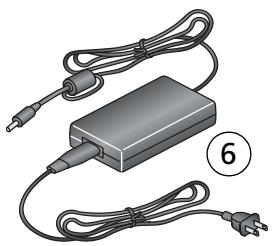
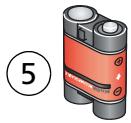
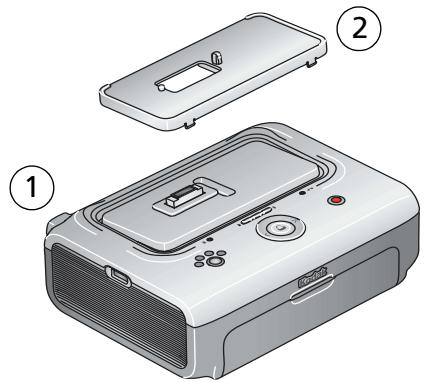
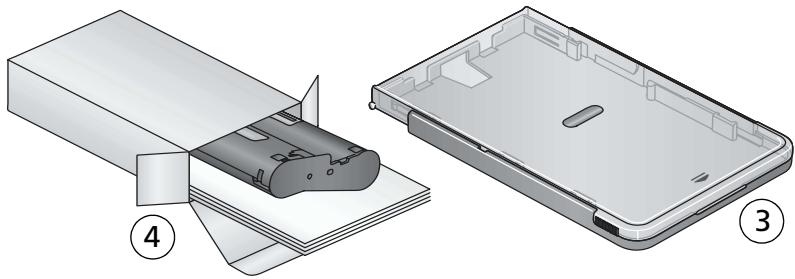
1 Printer dock
4 Kodak color cartridge & photo paper kit / PH-10 (makes up to 10 prints)
2 Universal camera insert (pre-installed)
5 Kodak EasyShare Ni-MH rechargeable battery pack*
3 Paper tray
6 AC power adapter (may be two separate pieces)
Not shown: Welcome Kit, consisting of User's Guide (may be provided on CD), Start Here! guide, Kodak EasyShare software CD. Contents may change without notice.
*Your camera may use a different battery type. See Choosing the right camera battery, page 8 for more information.
Purchase additional accessories for your printer dock at a retailer of Kodak products, or visit www.kodak.com/go/accessories.
Finding a location for your printer dock
- Place the printer dock on a flat, clean, dust-free surface, in a dry location, and out of direct sunlight.
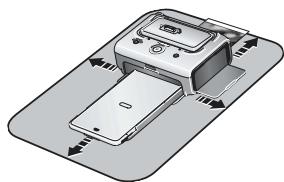
- Allow 5 in. (12.7 cm) clearance on all sides of the printer dock.
For proper ventilation, make sure the top and back of the printer dock are not blocked.
-
When connecting power or USB cables, keep the cables clear of the paper path to the front and rear of the printer dock.
-
Avoid areas where ventilation ducts, open doors, or frequent passersby might expose the printer dock and paper to high levels of dust and debris. Airborne dirt particles can affect picture quality.
Installing the custom camera insert
The printer dock comes with a universal camera insert already installed. The insert allows most Kodak EasyShare CX/DX6000/7000 series and LS600/700 series digital cameras to fit on the printer dock.
For best fit, use the custom camera insert that came with your camera and keep the universal camera insert as a spare.
NOTE: For some cameras, you must use the custom camera insert to dock the camera, otherwise the camera will not fit properly on the printer dock.
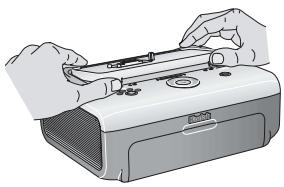
1 Remove the universal camera insert:
a Push the insert toward the back of the printer dock and lift up the front edge.
b Lift up the back edge of the insert and remove.
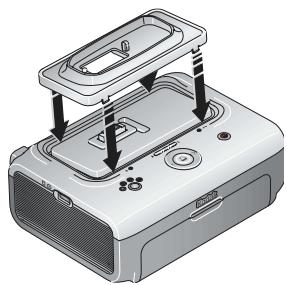
2 Install the custom camera insert included with your camera:
a Place the rear tabs of the insert in the slots toward the back of the printer dock.
b Press the front of the insert down and snap into place.
Connecting the power

RISK OF ELECTRIC SHOCK:
Use only the AC power adapter included with your printer dock. Other adapters or cords can damage your camera, printer dock, or computer. If you purchased your printer dock in the U.S. and plan to take it with you outside the U.S., do not use a common plug adapter. Instead, purchase the printer dock AC power adapter for the region to which you are traveling.
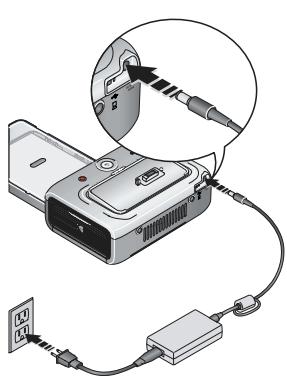
1 Remove the camera from the printer dock.
2 Plug the small end of the AC power adapter cord into the DC-in connector on the back of the printer dock.
NOTE: The AC power adapter included with your printer dock may be different from the one shown. You may need to assemble the AC power adapter first. Use the plug that accommodates your type of power outlet.
3 Plug the other end of the AC power adapter cord into a power outlet.
To purchase an AC power adapter and other accessories, visit www.kodak.com/go/accessories.
Handling and storing the color cartridge
For best quality prints, store the color cartridge in a location where the temperature does not exceed 85^ (30^) .
- To avoid getting fingerprints on the ribbon, handle the color cartridge by the spool ends.
- Keep the color cartridge away from direct sunlight and out of high-temperature environments (such as a vehicle parked in the sun).
Installing and removing the color cartridge
IMPORTANT: Use only Kodak color cartridge & paper kits with your printer dock. Do not force the cartridge in or out of the printer dock. Doing so may damage the cartridge or the printer.
To install the color cartridge:
1 Open the cartridge door on the side of the printer dock.
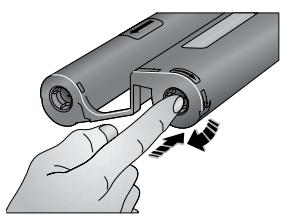
2 Check to make sure there is no slack in the color cartridge ribbon.
To remove slack, push in on the cartridge spool, then rotate the spool clockwise.
IMPORTANT: Be careful not to rotate the spool more than necessary. Doing so could reduce the number of prints you are able to make.
3 Slide the color cartridge in, label side up, with the arrow pointing toward the printer dock. Push the cartridge until it " clicks" into place.
4 Close the cartridge door.
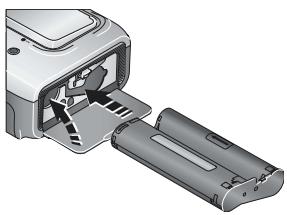
When the cartridge is almost empty, the color cartridge light blinks slowly for 60 seconds.
When the cartridge is depleted, the color cartridge light glows steady amber.
IMPORTANT: The color cartridge may lock in place if there is a paper error. Do not attempt to remove the color cartridge without first clearing the paper error. Make sure the paper light is off before attempting to remove the color cartridge.
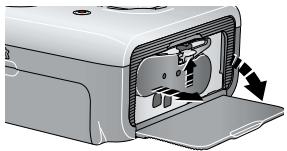
To remove the color cartridge, open the color cartridge door, then push up on the green lever and slide the cartridge out.
Handling and storing the paper
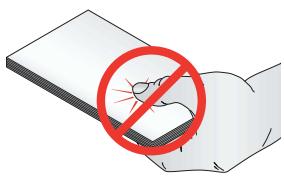
To avoid fingerprints, handle the paper by the edges or by the perforated tabs. Do not touch the glossy side of the paper.
- When storing, remove the paper tray, then close the paper tray cover and paper tray door to keep out dust and debris. Store paper flat.
- Keep the paper away from direct sunlight and out of high-temperature environments (such as a vehicle parked in the sun).
Loading the paper
IMPORTANT: Use only Kodak color cartridge & paper kits with your printer dock. Do not use inkjet paper.
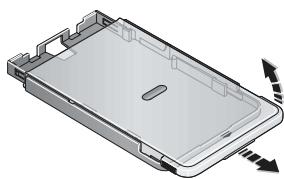
1 Remove the paper tray from the printer dock if installed (see page 7).
2 Slide the paper tray cover back until it stops, about 1.25 in. (3 cm), and lift up on the end of the paper tray cover.
IMPORTANT: Do not load more than 25 sheets of paper. Use the upper limit line inside the paper tray as a guide to prevent overloading. Do not load paper that is missing perforated tabs. To avoid fingerprints, do not touch the glossy side of the paper.
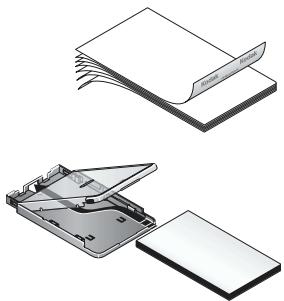
3 "Fan" the paper to keep the sheets from sticking together.
4 Load the paper into the paper tray, with the glossy side facing up, and the Kodak logo side facing down.
5 Close the paper tray cover.
Purchase Kodak color cartridge & paper kits and other accessories at a retailer of Kodak products, or visit www.kodak.com/go/accessories.
Installing and removing the paper tray
To install the paper tray:
1 Open the paper tray door on the printer dock.
2 Slide the paper tray cover back until it stops; about 1.25 in. (3 cm).
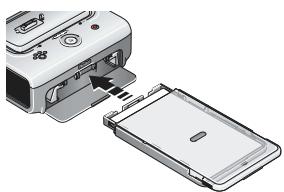
3 Slide the paper tray in the printer tray slot until the tray locks into place.
If you try to make a print when the paper tray is empty, the paper light glows steady amber.
Pull the paper tray out to remove it.
2
Preparing your EasyShare digital camera
Choosing the right camera battery
IMPORTANT: The printer dock is intended to charge only the Kodak EasyShare Ni-MH rechargeable battery pack (included) and the Kodak EasyShare Li-Ion rechargeable battery (included with some cameras). Batteries made by manufacturers other than Kodak are not supported. Damage caused by unauthorized accessories is not covered under warranty.
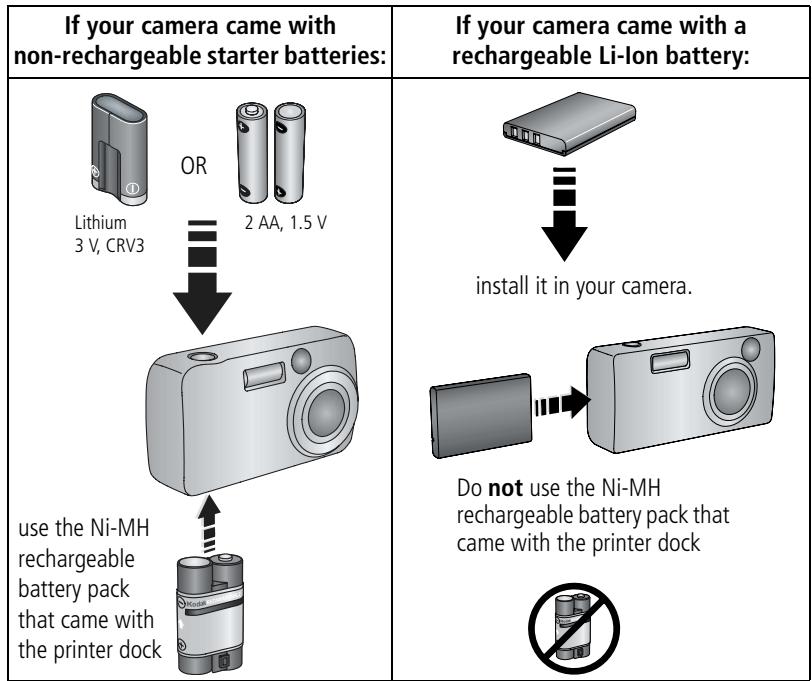
NOTE: The Ni-MH rechargeable battery pack and Li-Ion rechargeable battery are not charged when you receive them. Make sure to completely charge them before using them with your camera (see page 10).
See your camera user's guide for more information on compatible batteries and installation.
Battery safety and handling
- Do not allow batteries to touch metal objects, including coins. If they do, batteries may short circuit, discharge energy, become hot, or leak.
For rechargeable battery disposal information, visit the Rechargeable Battery Recycling Corporation Web site at www.rbrc.com.
Extending battery life
Limit the following activities that quickly deplete battery power:
Reviewing your pictures on the camera screen
Using the camera screen as a viewfinder
- Excessive use of the flash
- Dirt on the battery contacts can affect battery life. Wipe the contacts with a clean, dry cloth before loading batteries in the camera.
- Battery performance is reduced at temperatures below 41^ F ( 5^ C). When using your camera in cold weather, carry spare batteries and keep them warm. Do not discard cold batteries that do not work; when they return to room temperature, they may be usable.
If you are getting fewer than 20 pictures per charge with your Ni-MH rechargeable battery pack, (and if none of the tips above seem to help), consider refreshing the battery pack (see page 11).
For more information on batteries, see your camera user's guide, or visit www.kodak.com/global/en/service/batteries/batteryUsage.jhtml.
Docking and charging your EasyShare digital camera
The Kodak EasyShare printer dock is compatible with Kodak EasyShare CX/DX6000/7000 series and LS600/700 series digital cameras.
Docking your camera lets you make prints directly from the camera, transfer pictures from the camera to the computer, and charge the camera battery.
1 Make sure a dock insert is installed on the printer dock (see page 2), and a dock-rechargeable battery is installed in the camera (see page 8).

2 On the camera bottom, find the dock connector and locator hole.
3 Place the camera in the printer dock, making sure to align the dock connector and locator hole with the camera connector and locator pin. Push down to seat the connector.
The camera is now powered by the printer dock instead of the camera battery.
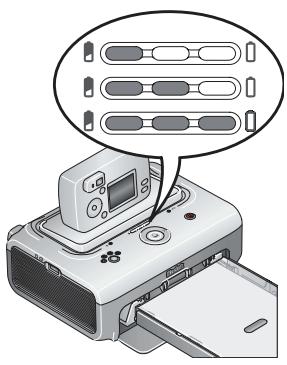
The Kodak EasyShare Ni-MH rechargeable battery pack and the Kodak EasyShare Li-Ion rechargeable battery charge up to 3 hours.
The Battery charging lights turn on as charging progresses. Charging is complete when all three lights are lit.
You may leave the camera in the printer dock to maintain the charge.
Refreshing the Ni-MH rechargeable battery pack
If you are getting fewer than 20 pictures per charge with your Ni-MH rechargeable battery pack, follow the tips under Extending battery life, page 9. If these don't help, the battery pack needs to be refreshed. The refresh cycle completely discharges the battery pack, then fully recharges it.
NOTE: A full refresh cycle can take up to 8 hours, depending on how much charge is left in your battery pack. For best results, refresh the battery pack overnight; do not interrupt the discharge/recharge cycle.
1 Make sure the Ni-MH rechargeable battery pack is in the camera.
2 Place the camera in the printer dock (see page 10).
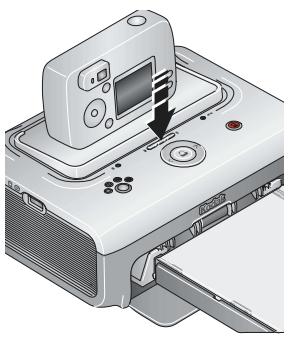
3 Press and hold the Battery charging lights/Refresh button, , until the Battery charging lights begin flashing green (approximately 5 seconds).
The charging lights monitor the refresh status:
| Descending blinking green lights | Discharging battery pack (lights turn off as discharging progresses). |
| Ascending steady green lights | Charging battery pack (lights turn on as charging progresses). Charging is complete when all three lights are lit. |
NOTE: Refreshing only works with the Kodak EasyShare Ni-MH rechargeable battery pack.
Setting the picture quality
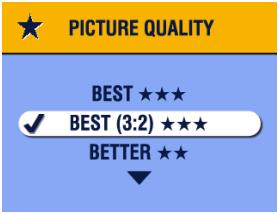
Before taking pictures, change the Picture Quality setting on your Kodak EasyShare camera to Best (3:2) ★★★★. This ensures that the pictures you take are proportional to the printer dock photo paper, preventing unwanted cropping of your pictures.
See your camera user's guide for more information.
Tagging pictures for automatic printing
On your Kodak EasyShare digital camera:
1 Press the Share button.
2 Press to locate a picture.
3 Make sure Print is highlighted (to tag all pictures in the current image storage location, highlight Print All ), then press the OK button.
4 Press to select the number of copies (0 - 99). The default is one. Zero removes the tag for a selected picture.
The Print icon is displayed in the status area.
To apply a print quantity to other pictures, press / to locate them. Keep the print quantity as is, or press / to change it.
5 Press the OK button.
6 Press the Share button to exit.
NOTE: To remove print tagging from all pictures: from the Share menu, highlight Cancel Prints , then press the OK button.
To automatically print tagged pictures from your Kodak Easyshare digital camera:
See page 14.
To print tagged pictures from your computer:
1 Install Kodak EasyShare software on your computer (see page 18).
2 Transfer the tagged pictures to your computer (see page 22).
3 Print using EasyShare software (see page 24).
See the EasyShare software Help for details.
3
Printing without a computer
IMPORTANT: Wait until printing is complete before removing prints, the paper tray, or the camera. Failure to do so can cause paper misfeeds or jams and can damage the printer dock.
Printing from your EasyShare digital camera
1 Make sure the power is connected, and the color cartridge and paper are loaded (see Chapter 1, Getting started).
2 Take a picture with your camera (see your camera user's guide).
3 Place the camera in the printer dock (see page 10).
The current or most recent picture appears on the camera screen.
To review and choose a different picture to print, press the Left/Right control on the printer dock, / .
4 Press the Print button,
The copy screen appears.
To print more than one copy, press to select the number of copies, then press .
(If you don't press any buttons, after 10 seconds printing starts automatically.)
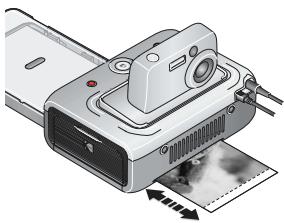
Printing starts. The paper cycles four times during the printing process before the finished print is ejected. The first three passes apply layers of yellow, magenta, and cyan colors to the print, and the fourth pass applies a clear coating that protects and preserves the image.
Printing tagged pictures
If your camera or camera card contains pictures tagged for printing (see page 12 or your camera user's guide), when you place the camera on the printer dock, a message appears indicating that tagged pictures have been found:
To print tagged pictures—press
Printing starts, and tagged pictures are printed. Print tags are removed from tagged pictures on your camera or card as they are printed.
To bypass printing of tagged pictures—press /
The message disappears after 10 seconds of inactivity.
Canceling printing
Press and hold for 2 seconds.
The print job is immediately canceled and ejected into the paper tray. If you cancel a print during the fourth pass (clear coat), the print is ejected upon completion.
NOTE: Using the Print button to cancel a print job only works when printing from a docked camera.
Printing from a Kodak 8-in-1 card reader
Connect a Kodak 8-in-1 card reader to the printer dock to print pictures from your camera card.
NOTE: Other Kodak USB card readers may work with the printer dock, however card readers made by manufacturers other than Kodak are not supported.
1 For best results, tag pictures on your camera card for printing (see page 12 or your camera user's guide). If you do not tag pictures on your camera card, you will have the option of printing only the most recent picture on the card.
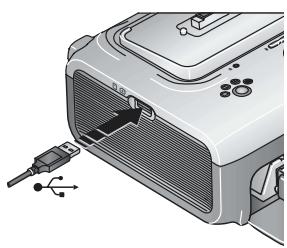
2 Plug the USB connector from the card reader into the USB connector located on the side of the printer dock.
NOTE: If the card reader is already plugged in but the connection has timed-out, disconnect then reconnect the USB cable to re-establish a connection.
3 Insert the camera card into the card reader.
4 Press to begin printing, or press / to cancel.
Printing from a PictBridge device
The printer dock offers PictBridge technology, which lets you communicate with any other PictBridge compatible device.
To print from your PictBridge device:
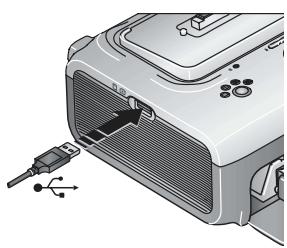
1 Using the USB cable for the PictBridge device, plug the USB connector from the PictBridge device into the USB connector located on the side of the printer dock.
NOTE: If the PictBridge device is already plugged in but the connection has timed-out, disconnect then reconnect the USB cable to re-establish a connection.
2 Use your PictBridge device to review pictures, choose printing options, and print. See your device user's guide for details.
Purchase a Kodak 8-in-1 card reader, a USB cable, and other accessories at a retailer of Kodak products, or visit www.kodak.com/go/accessories.
Changing the printed picture size
1 Follow the procedure for printing from your EasyShare camera (see page 13), Kodak 8-in-1 card reader (see page 15), or PictBridge device (see page 15).
2 Before printing, while making selections or changing settings, press the Picture size button repeatedly to scroll through the available options:
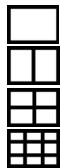
1 up—one 4 × 6 in. (102 × 152 ~mm) picture per print (default)
2 up—two 2.1 × 3.3 in. (54 × 85 ~mm) pictures per print
4 up—four 2 × 3 in. (51 x 76 mm) pictures per print
9 up—nine 1.3 × 2 in. (34 x 51 mm) pictures per print
In most cases, the Picture size setting also determines the number of copies that are printed. For example, if you choose to print a picture with 2 up selected, 2 copies of that picture will be printed on one sheet of paper.
When printing tagged pictures (see page 14), the number of copies that are printed is determined by the setting on your camera or device. For example, if three pictures on your camera are each tagged for printing one copy, and the 4 up option on the printer dock is selected, three 2 × 3 in. (51 × 76 ~mm) pictures are printed on one sheet of paper.
For best results, choose a picture size or number of copies (on your camera or device) that maximizes the use of white space on the paper.
3 Continue changing other settings or begin printing.
NOTE: When printing from a PictBridge device (see page 15), picture size is controlled by the multi-up setting on the device itself, if available. The Picture size lights indicate the device's selected multi-up option, based on the closest available format on the printer dock.
To change the default picture size:
- Select a picture size (see above), then press and hold the Picture size button for 4 seconds.
The selected Picture size light flashes, then turns solid.
Removing perforated tabs from prints
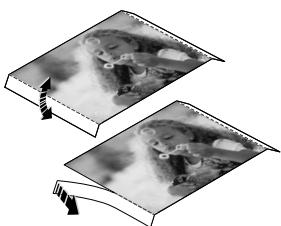
IMPORTANT: Remove perforated tabs from prints only after printing. Paper missing perforated tabs will not feed properly.
1 Fold the tabs up, then down.
2 Remove each tab and discard.
4
Installing software and connecting to a computer
Minimum system requirements
Windows OS-based computers
Windows 98, 98SE, ME, 2000 SP1, or XP OS
Internet Explorer 5.01 or higher
233 MHz processor or greater
64 MB RAM (128 MB RAM for Windows XP OS)
200 MB hard disk space available
CD-ROM drive
Available USB port
Color monitor, 800× 600 pixels (16-bit or 24-bit recommended)
Macintosh computers
Power Mac G3, G4, G5, G4 Cube, iMac; PowerBook G3, G4; or iBook computers
Mac OS 10.2 or higher
Safari 1.0 or higher for Complete installation
128 MB RAM
200 MB hard disk space available
CD-ROM drive
Available USB port
Color monitor, 1024 x 768 pixels (thousands or millions of colors recommended)
Installing the software
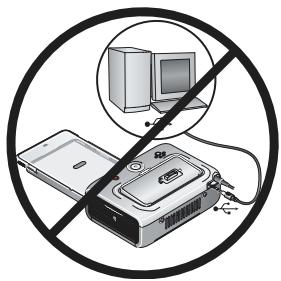
IMPORTANT: Install Kodak EasyShare software before connecting the printer dock to the computer.
1 Close all software applications that are open on your computer (including anti-virus software).
2 Place the Kodak EasyShare software CD into the CD-ROM drive.
3 Load the software:
Windows OS-based computer—if the install window does not appear, choose Run from the Start menu and type d:\setup.exe where d is the drive letter that contains the CD.
Mac OS X—double-click the CD icon on the desktop, then click the Install icon.
4 Follow the on-screen instructions to install the software.
- Select Complete to automatically install the most commonly used applications. Select Custom to choose the applications you wish to install.
IMPORTANT: To use the printer dock with a computer, you must install the printer driver. If you choose Custom installation, make sure printer dock is selected. The printer driver is automatically installed if you choose Complete installation.
Add the printer for Mac OS X:
a Open the finder window and click the Applications button. If you don't see the Applications button, open the Applications folder on your operating drive.
b Open the Utilities folder, then double-click Print Center.
c In the Printer List window, click the Add Printer button.
d Select Kodak EasyShare printer dock, then click Add.
The printer dock is added to your computer.
IMPORTANT: When prompted, take a few minutes to electronically register your printer dock and software. This lets you receive information regarding software updates and registers some of the products included with the printer dock. You must be connected to your Internet service provider to register electronically. To register later, see www.kodak.com/go/register.
5 Restart the computer if prompted. If you turned off anti-virus software, turn it back on. See the anti-virus software manual for details.
For more information on installing the software, see the ReadMe file on the Kodak EasyShare software CD.
For information on the software applications included on the Kodak EasyShare software CD, click the Help button in the EasyShare software.
Uninstalling the software
If you wish to remove the printer dock driver or EasyShare software from your computer, use the following procedure:
Windows OS-based computer:
1 Open Control Panel:
From the Start menu, select Settings, then select Control Panel. (On Windows XP operating systems, Control Panel may be found in the Start menu.)
2 Double-click Add/Remove Programs.
3 Select Kodak EasyShare software, then click Remove.
4 Select Modify to uninstall single components, such as the printer dock driver, or select Remove to uninstall all components.
5 Follow the on-screen instructions. Restart the computer if prompted.
Mac OS X:
1 Double-click the operating drive for your system.
2 Select Library, then select Printers.
3 Open the Kodak folder, then open the printer dock folder.
4 Double-click the Kodak printer dock installer program.
5 Follow the on-screen instructions.
Connecting to a computer
A USB cable is required to connect to a computer. Use the USB cable that came with your Kodak EasyShare camera. To purchase one separately, see a retailer of Kodak products, or visit www.kodak.com/go/accessories.
IMPORTANT: Make sure your camera is NOT in the printer dock when you are connecting to the computer.
1 Make sure the power is connected to the printer dock (see page 3), and Kodak EasyShare software is installed on the computer (see page 18).
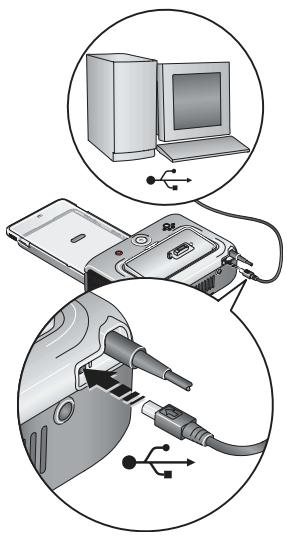
2 Plug the labeled end of a USB cable into the labeled USB port on your computer. See your computer documentation for details.
3 Plug the other end of the USB cable into the square USB connector on the back of the printer dock.
5 Using the printer dock with a computer
Transferring pictures from your Kodak EasyShare digital camera
1 Make sure Kodak EasyShare software is installed (see page 18) and the printer dock is connected to your computer (see page 21).
2 If you have the optional USB card reader, disconnect it from the printer dock.
3 Place the camera in the printer dock (see page 10).
4 Press the Transfer button, on the printer dock. Kodak EasyShare software opens on your computer (if it is installed).
5 Use Kodak EasyShare software to transfer pictures from the printer dock to your computer. See the Kodak EasyShare software Help for details. The printer dock Transfer light blinks green while the pictures are being transferred. The Transfer light continues to blink green until the Transfer or Print button is pressed, the camera is removed from the printer dock, or the camera automatically powers-off.
NOTE: If Kodak EasyShare software is not installed (or not active), but the printer driver is installed, pressing the Transfer button creates a new drive connection between the docked camera and the computer. You can copy pictures from the newly established camera drive to your computer hard drive, and otherwise manage files as you would with other drives on your computer. See your computer documentation for details.
Transferring pictures from a Kodak 8-in-1 card reader
NOTE: Other Kodak USB card readers may work with the printer dock, however card readers made by manufacturers other than Kodak are not supported.
1 Make sure Kodak EasyShare software is installed (see page 18) and the printer dock is connected to your computer (see page 21).
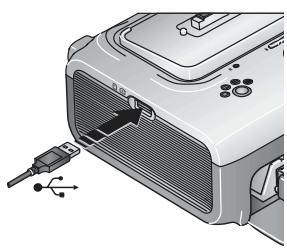
2 Plug the USB connector from the card reader into the USB connector located on the side of the printer dock.
NOTE: If the card reader is already plugged in but the connection has timed-out, disconnect then reconnect the USB cable to re-establish a connection.
3 Press the Transfer button, on the printer dock.
Kodak EasyShare software opens on your computer (if it is installed).
4 Use Kodak EasyShare software to transfer pictures from the printer dock to your computer. See the Kodak EasyShare software Help for details.
The printer dock Transfer light blinks green while the pictures are being transferred. The Transfer light continues to blink green until the Transfer or Print button is pressed, or until the connection times-out.
NOTE: If Kodak EasyShare software is not installed (or not active), but the printer driver is installed, pressing the Transfer button creates a new drive connection between the device and the computer. You can copy pictures from the newly established drive to your computer hard drive, and otherwise manage files as you would with other drives on your computer. See your computer documentation for details.
Purchase a Kodak 8-in-1 card reader and other accessories at a retailer of Kodak products, or visit www.kodak.com/go/accessories.
Printing from a computer
We recommend using Kodak EasyShare software (included) for printing. This software lets you take advantage of a wide range of features, including full color enhancement, red-eye reduction, picture organization, and much more.
If there are no pictures on your computer, use the printer dock to transfer pictures from your camera before printing (see page 22).
IMPORTANT: Wait until printing is complete before removing prints, the paper tray, or the camera. Failure to do so can cause paper misfeeds or jams and can damage the printer dock.
Printing with Kodak EasyShare software
1 Make sure Kodak EasyShare software is installed (see page 18) and the printer dock is connected to your computer (see page 21).
2 Click the My Collection tab.
3 Select the pictures you wish to print.
4 Click the Print at Home tab.
5 Make sure the Kodak EasyShare printer dock is selected as the current printer.
6 Change any other settings, such as paper size and print layout, then click Print.
NOTE: The Picture size button on the printer dock is disabled when printing from a computer. Set printing options using EasyShare software.
See the EasyShare software Help for details.
Printing using other applications
1 Make sure the printer driver is installed (see page 18), and the printer dock is connected to your computer (see page 21).
2 Open the pictures you wish to print in the application from which you want to print.
3 Access printer settings by selecting Print or Page Setup from the File menu (depending on your application and operating system).
4 Make sure the printer dock is selected as the current printer and that paper size is set to 4 × 6 in. (102 x 152 mm).
5 Change any other settings as needed, then click OK or Print. (Depending on your application and operating system, you may first need to return to the main menu and select Print from the File menu.)
NOTE: The Picture size button on the printer dock is disabled when printing from a computer. Set printing options in the application from which you are printing.
Choosing Kodak color mode
Kodak color mode is an automatic color correction feature that helps you make great-looking prints in no time. The Kodak EasyShare printer dock features three Kodak color mode options:
Natural—to get great, natural color for everyday picture-making (default).
Enhanced—to get richer, more vivid colors.
None—to disable automatic color correction.
To change the Kodak color mode:
Windows 2000/XP OS:
1 From the Start menu, select Settings, then select Printers.
2 Right-click the printer dock icon, then select Printing Preferences.
3 Click the Advanced button.
4 Under Document Options, select Printer Features, then select Kodak Color Mode.
5 Select a color mode option, then click OK.
6 Click OK when complete.
Windows 98/ME OS:
1 From the Start menu, select Settings, then select Printers.
2 Right-click the printer dock icon, then select Properties.
3 Click the Printer Options tab.
4 Under Color Control, select a color mode option.
5 Click OK when complete.
Mac OS X:
1 Make sure the printer dock is selected as the current printer.
2 From an application File menu, select Print.
3 Click the drop-down menu, then select Color.
4 Select Kodak Color.
5 Select a color mode option.
6 Click OK when complete.
Canceling printing
Windows OS-based computer:
1 Double-click the printer icon in the system tray.
2 Click the print job you want to cancel.
3 Select Document, then select Cancel.
Mac OS X:
1 In Print Center, double-click the printer icon.
2 Click the job you want to cancel, then select Delete.
6 Care and maintenance
General care
IMPORTANT: Always disconnect the power before cleaning. Do not use harsh or abrasive cleaners or organic solvents on the printer dock or any of its parts.
To clean the printer dock, wipe the outside of the printer dock with a clean, dry cloth.
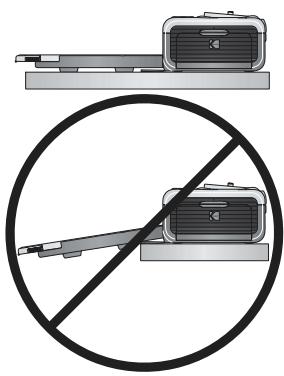
Support the printer dock and tray by placing it on a flat, level surface. Do not block the air vents.
- Avoid blocking the back of the printer dock and paper tray exit.
- Keep power and USB cables away from the paper path.
- Keep the surrounding area vacuumed and litter-free.
- Protect the printer dock from tobacco smoke, dust, sand, and liquid spills.
Avoid placing objects on the printer dock.
- Keep the printer dock, accessories, and supplies away from direct sunlight and out of high-temperature environments (such as a vehicle parked in the sun).
When storing, remove the paper tray, then close the paper tray cover (see page 7) and paper tray door to keep out dust and debris. Store paper flat.
Cleaning the paper feed roller
To prevent misfeeds and to make sure your pictures look their best, we recommend that you keep the feed roller clean. Inspect the roller weekly for debris particles, and clean if necessary.
IMPORTANT: Unplug the power before cleaning the feed roller.
1 Unplug the AC power adapter.
2 Remove the paper tray from the printer dock, and leave the paper tray door open.
3 Lightly moisten a lint-free cloth with water.
IMPORTANT: Do not use cotton or cotton swabs to clean the print roller.
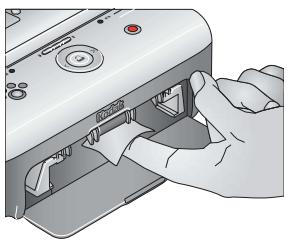
4 Use the moistened cloth to gently wipe clean the surface of the feed roller. Advance the feed roller with your thumb as necessary, and continue cleaning.
5 Allow the feed roller to fully dry before plugging the AC power adapter back in.
Traveling with your printer dock
IMPORTANT: When traveling, keep the printer dock, accessories, and supplies away from direct sunlight and out of high-temperature environments (such as a vehicle parked in the sun).
1 Disconnect the AC power adapter and remove all cables.

RISK OF ELECTRIC SHOCK:
If you purchased your printer dock in the U.S. and plan to take it with you outside the U.S., do not use a common plug adapter. Instead, purchase the printer dock AC power adapter for the region to which you are traveling.
2 Remove the paper tray from the printer dock; close the paper tray cover and the paper tray door on the printer dock.
3 Repack the printer dock in the original packing box, or use the optional printer dock travel bag.
Purchase an AC power adapter, printer dock travel bag, and other accessories at a retailer of Kodak products, or visit www.kodak.com/go/accessories.
7
Troubleshooting
When you have questions about your printer dock, start here. Additional technical information is available in the ReadMe file located on the Kodak EasyShare software CD. For updates to Troubleshooting information, visit www.kodak.com/go/prinderock.
Printing problems
| If... | Try the following |
| Paper does not feed(Paper light may glow steady amber) | IMPORTANT: Use only Kodak color cartridge & paper kits with your printer dock. Do not use inkjet paper.
■ The paper tray may be empty. Load paper (page 6), then press □.
■ Check the paper:
1 Remove the paper tray (page 7).
2 Check the paper supply: make sure paper is not damaged in any way, or removable tabs have not been detached.
Replace with new paper if necessary.
3 "Fan" the paper to keep the sheets from sticking together.
4 Reload the paper tray using no more than 25 sheets.
5 Re-install the paper tray, then press □ to resume printing.
■ Clean the feed roller (page 28). |
| Multiple sheets of paper are pulled through printer | 1 Remove the paper tray (page 7).
2 Remove the paper supply from the paper tray. "Fan" the paper to keep the sheets from sticking together.
3 Reload the paper tray using no more than 25 sheets.
4 Re-install the paper tray. |
| Printer is jammed(Paper and/or cartridge lights may blink quickly) | IMPORTANT: Use only Kodak color cartridge & paper kits with your printer dock. Do not use inkjet paper.
■ If paper light is blinking quickly:
1 Remove the paper tray (page 7).
2 Disconnect the AC power adapter, wait 5 seconds, then plug it back in.
If paper does not automatically eject, carefully remove the paper manually.
IMPORTANT: Always check the paper slot on the back of the printer dock for jammed paper:
3 Remove the paper supply from the paper tray. "Fan" the paper to keep the sheets from sticking together.
4 Reload the paper tray using no more than 25 sheets.
5 Re-install the paper tray, then press □ to resume printing.
■ If cartridge light is blinking fast, check the color cartridge:
IMPORTANT: The color cartridge may lock in place if there is a paper error. Do not attempt to remove the color cartridge without first clearing the paper error. Make sure the paper light is off before attempting to remove the color cartridge.
Remove the color cartridge, remove any slack from the ribbon, then re-install the cartridge (page 4). Press □ to resume printing. |
| Printing stops during mid-print (paper stops feeding, and Paper light may blink) | IMPORTANT: Use only Kodak color cartridge & paper kits with your printer dock. Do not use inkjet paper.
■ Check the paper:
1 Remove the paper tray (page 7).
2 Check the paper slot on the back of the printer dock.
3 Remove loose paper from the printer dock. If paper is jammed, see page 31.
4 Inspect the paper supply: make sure removable tabs have not been detached from the paper. Reload with new paper if necessary.
5 "Fan" the paper to keep the sheets from sticking together.
6 Reload the paper tray using no more than 25 sheets.
7 Re-install the paper tray, then press □ to resume printing.
■ Clean the feed roller (page 28). |
| Print is smudged | ■ Fingerprints may be on glossy side of paper. Handle paper by the edges or by the removable tabs (page 6). |
| Print is spotted | ■ Check to see if the paper is dirty, and use a dry, lint-free cloth to wipe clean.
For excessive dirt or debris, thoroughly clean the paper tray, and load new paper (page 6).
■ When storing, remove and close the paper tray and paper tray door to keep dust and debris from collecting on the paper or inside the printer dock (page 6). |
| Print is too light | IMPORTANT: Use only Kodak color cartridge & paper kits with your printer dock. Do not use inkjet paper.
■ Make sure the paper is loaded with the glossy side up and the Kodak logo facing down. Reload if necessary (page 6).
■ Try re-taking the picture with the flash off.
■ Adjust the exposure compensation on your camera, and try re-taking the picture.
See your camera user's guide for details.
■ Edit the picture using Kodak EasyShare software on your computer. |
| Print is too dark or is discolored | Try re-taking the picture with the flash on, or move within the flash range of the camera.
Adjust the exposure compensation on your camera, and try re-taking the picture.
See your camera user's guide for details.
■ Edit the picture using Kodak EasyShare software on your computer.
■ Make sure the printer dock is not placed in direct sunlight or is not operating in a high-temperature environment.
■ Make sure the cooling vents are not blocked or dirty (page 2). |
| Pictures are cropped | Set your camera to Best (3:2) picture quality. See your camera user's guide for details.
Adjust cropped pictures using Kodak EasyShare software on your computer.
If you are printing from an application on your computer, select the proper paper size in print options. |
| A selected picture does not print. | Image file may be corrupt. Review the picture on the camera or computer and delete if necessary. |
| Nothing happens when you try to print | Check the power connections (page 3).
Remove the paper tray, check that paper is properly loaded, and re-install (page 7).
If the paper light glows steady amber, load paper (page 6).
Make sure the color cartridge is properly installed (page 4). If color cartridge light is on, install a new cartridge. |
| Nothing happens when you try to print (from docked camera) | ■ Camera may not be properly seated on connector. Reseat the camera on the printer dock (page 10).■ Re-establish the connection: remove, then reseat the camera on the printer dock.■ Make sure there is at least one picture in the camera's internal memory or camera card. |
| Nothing happens when you try to print (from Kodak 8-in-1 card reader) | NOTE: Other Kodak USB card readers may work with the printer dock, however card readers made by manufacturers other than Kodak are not supported.■ Check the USB connections from the Kodak 8-in-1 card reader to the printer dock (page 15).■ Re-establish the connection: disconnect, then reconnect the USB cable from the card reader to the printer dock.■ Make sure a camera card is inserted and that there is at least one picture on the camera card. |
| Nothing happens when you try to print (from PictBridge device) | ■ Check the USB connections from the PictBridge device to the printer dock (page 15).■ Re-establish the connection: disconnect, then reconnect the USB cable from the PictBridge device to the printer dock.■ Make sure there is at least one picture in the PictBridge device's internal memory or memory card. |
| Nothing happens when you try to print (from computer) | ■ Check the USB connections from the printer dock to the computer (page 21).■ Close all open software applications. Disconnect then reconnect the USB cable from the printer dock to the computer (page 21).■ Make sure Kodak EasyShare software is installed (page 18). If you chose Custom installation, make sure the printer dock driver is installed.■ Make sure your computer meets the minimum system requirements (page 18). Upgrade your system if necessary.■ Uninstall, then reinstall Kodak EasyShare software (page 18).■ Access the printer menu for your system. Remove check marks next to Pause Printing and Offline, if checked. |
| Printing is slow | NOTE: When printing a large number of prints, printing may slow down to prevent the print head from overheating.
■ Make sure the printer dock is not placed in direct sunlight or is not operating in a high-temperature environment.
■ Make sure the cooling vents are not blocked or dirty (page 2).
■ Close unnecessary software applications.
■ Make sure your computer meets the minimum system requirements (page 18). Upgrade your system if necessary. |
| Unable to remove color cartridge (paper light may glow steady amber or blink) | IMPORTANT: The color cartridge may lock in place if there is a paper error. Do not attempt to remove the color cartridge without first clearing the paper error. Make sure the paper light is off before attempting to remove the color cartridge.
■ Check to see if paper tray is empty or if paper is missing perforated tabs. Reload paper if necessary (page 6), then try again.
■ Make sure paper is not jammed. Clear jam if necessary (page 31), then try again. |
| Paper runs out before the color cartridge (or vice versa) | ■ Supply mismatch can result from many different situations, including:
—Scrapping of paper as a result of jams or other errors
—Gradual advancement of the color cartridge ribbon as a result of removing ribbon slack or clearing jams
—Canceled prints
Supply mismatch is likely to occur as you continue to use your printer dock. If you wish to keep your cartridge and paper supply synchronized, discard unused cartridge or paper when one or the other is fully depleted. |
Problems transferring pictures
| If... | Try one or more of the following |
| Nothing happens when you try to transfer pictures to the computer | NOTE: You cannot use the Transfer button to transfer pictures from a PictBridge device.
Press the Transfer button, on the printer dock.
Check the power and USB connections from the printer dock to computer (page 21).
If you are trying to transfer pictures from a docked camera, make sure to disconnect the optional USB card reader first (page 22).
Camera is not properly seated on connector. Reset the camera on the printer dock (page 10).
If you are trying to transfer pictures from a Kodak 8-in-1 card reader (page 23), check the USB connections between the printer dock and the card reader.
NOTE: Other Kodak USB card readers may work with the printer dock, however card readers made by manufacturers other than Kodak are not supported.
Close unnecessary software applications, and minimize remaining application windows. Follow any messages on the screen that may have been hidden by other windows.
Disconnect then reconnect the USB cable from the printer dock to the computer (page 21).
Make sure Kodak EasyShare software is installed (page 18). Install if necessary. If you choose Custom installation, make sure to install the printer dock driver.
Uninstall, then reinstall Kodak EasyShare software (page 18).
Make sure your computer meets the minimum system requirements (page 18). Upgrade your system if necessary. |
Printer dock status lights
| Color cartridge light |
| Light status | Cause | Action/solution |
| IMPORTANT: The color cartridge may lock in place if there is a paper error. Do not attempt to remove the color cartridge without first clearing the paper error. Make sure the paper light is off before attempting to remove the color cartridge. |
| Light is off | The color cartridge is properly installed and is working normally. | None required. |
| Light blinks amber | Slow blink (for 60 seconds): the color cartridge is nearly depleted. | None required. |
| Fast blink: there is a color cartridge jam. | Clear the jam (page 31), then press □. |
| Light glows steady amber | The color cartridge is depleted. | Install a new color cartridge (page 4), then press □. |
| The color cartridge is not installed or is improperly installed. | Remove and re-install the color cartridge (page 4). Press □ to resume printing. |
| Paper light |
| Light status | Cause | Action/solution |
| IMPORTANT: The color cartridge may lock in place if there is a paper error. Do not attempt to remove the color cartridge without first clearing the paper error. Make sure the paper light is off before attempting to remove the color cartridge. |
| Light is off | The paper tray is properly installed and has an ample supply of paper. | None required. |
| Light blinks amber | There is a paper jam. | Clear the jam (page 31), then press □. |
| Printing stopped during mid-print; paper may be damaged or is missing removable tabs (page 32). | Remove loose paper. Check the paper supply. Reload with new paper if necessary, then press □. |
| Light glows steady amber | The paper tray is empty. | Load paper (page 6), then press □. |
| The paper tray is not installed or is improperly installed. | Remove the paper tray, check that paper is properly loaded, and re-install (page 7). Press □ to resume printing. |
| Paper did not feed; removable tabs may be missing or sheets may be stuck together (page 30). | Check the paper supply. Reload with new paper if necessary, then press □. |
| Feed roller may be dirty. | Clean the feed roller (page 28). |
| Battery charging lights |
| Light status | Cause | Action/solution |
| All lights are off | Camera may not be properly seated on connector. | Reseat the camera on the printer dock (page 10). |
| Camera is turned on. | Turn off the camera. |
| Unrecognized battery type is installed. | Install a Kodak EasyShare Ni-MH rechargeable battery pack or Kodak EasyShare Li-Ion rechargeable battery (page 8). |
| One steady green light | Camera was just placed in camera dock. | None; dock is checking the charge status of the battery. |
| Ascending steady green lights | Battery is charging. Charging is complete when all three lights are lit. | Leave camera on dock to continue charging or maintain charge. |
| One blinking red light | Battery is not properly installed. | Re-install the battery. |
| Battery or connector pin is damaged. | Check for damage. |
| Camera and battery have been exposed to extreme temperatures. | Slowly return the camera and battery to room temperature. |
| Descending blinking green lights | Ni-MH battery pack refresh cycle in progress: discharging (lights turn off as discharging progresses). | Leave camera on dock to continue refresh cycle (page 11). |
| Print light |
| Light status | Cause | Action/solution |
| Light glows steady green | The printer dock is ready for printing. | None required. |
| Light blinks green | The printer dock is printing. |
| Light is off | There are no pictures in the camera or on the card. | None required.
To enable Print:
1 Take pictures.
2 Dock camera, or connect Kodak 8-in-1 card reader. If using card reader, make sure card is inserted. |
| Camera is not docked or Kodak 8-in-1 card reader is not connected. |
| Camera is not properly seated on connector. | Reseat the camera on the printer dock (page 10). |
| Camera is transferring pictures to the computer, or has established an active connection to the computer. | None required.
When transfer is complete, press the blinking Transfer button, →. |
| A PictBridge compatible device is connected. | None required.
Print button is disabled; print command is controlled from PictBridge device. |
| Picture size lights |
| Light status | Cause | Action/solution |
| One light glows steady green | The picture size is available and selected. | None required.
To change picture size, push the Picture size button repeatedly. |
| All lights are off | There are no pictures in the camera, on the card, or on the PictBridge device. | To enable the Picture size option:
1 Take pictures.
2 Dock camera, or connect Kodak 8-in-1 card reader or PictBridge device is not connected. |
| Camera is not docked, or Kodak 8-in-1 card reader or PictBridge device is not connected. |
| Camera is not properly seated on connector. | Reseat the camera on the printer dock (page 10). |
| Camera or Kodak 8-in-1 card reader is transferring pictures to the computer, or has established an active connection to the computer. | None required. |
| Transfer light |
| Light status | Cause | Action/solution |
| Light glows steady green | The printer dock is ready for transferring pictures. | None required. |
| Light blinks green | Pictures are being transferred to the computer. | None required.
After transferring pictures, the transfer light continues to blink green until either the Transfer button is pressed again or the connection has timed-out. |
| Light is off | There are no pictures in the camera or on the card. | None required.
To enable Transfer:
1 Connect printer dock to computer (page 21).
2 Take pictures.
3 Dock camera, or connect Kodak 8-in-1 card reader. If using card reader, make sure card is inserted. |
| Camera is not docked or Kodak 8-in-1 card reader is not connected. |
| The printer dock is not connected to the computer. |
| Camera is not properly seated on connector. | Reseat the camera on the printer dock (page 10). |
| The printer dock may be printing in standalone mode. | The Transfer button is disabled. |
| The computer is off. | Turn on the computer. |
Still having problems?
Visit www.kodak.com/go/support, or see Chapter 8, Getting help.
8
Getting help
Helpful web links
| Help with your printer dock | www.kodak.com/go/printerdock |
| Help with Windows operating system and working with digital pictures | www.kodak.com/go/pcbasics |
| Download latest printer dock software, firmware and drivers | www.kodak.com/go/printerdockdownloads |
| Get support for docks, cameras, software, accessories, more | www.kodak.com/go/support |
| To purchase a full range of digital camera and dock accessories | www.kodak.com/go/accessories |
| Register your printer dock | www.kodak.com/go/register |
| View online tutorials | www.kodak.com/go/howto |
Software help
Click the Help button in the Kodak EasyShare software.
Telephone customer support
If you have questions concerning the operation of the printer dock, software, or camera, you may speak with a customer support representative.
Before you call
Have the printer dock or camera connected to your computer. Be at your computer, and have the following information available:
Computer model
Operating system
Processor type and speed (MHz)
Amount of memory (MB)
Amount of free hard disk space
Version of Kodak EasyShare software
Camera and printer dock serial numbers
Exact error message you received
| Australia | 1800 147 701 | Netherlands | 020 346 9372 |
| Austria | 0179 567 357 | New Zealand | 0800 440 786 |
| Belgium | 02 713 14 45 | Norway/Norge | 23 16 21 33 |
| Brazil | 0800 150000 | Philippines | 1 800 1 888 9600 |
| Canada | 1 800 465 6325 | Portugal | 021 415 4125 |
| China | 800 820 6027 | Singapore | 800 6363 036 |
| Denmark | 3 848 71 30 | Spain | 91 749 76 53 |
| Ireland | 01 407 3054 | Sweden | 08 587 704 21 |
| Finland | 0800 1 17056 | Switzerland | 01 838 53 51 |
| France | 01 55 1740 77 | Taiwan | 0800 096 868 |
| Germany | 069 5007 0035 | Thailand | 001 800 631 0017 |
| Greece | 00800 441 25605 | UK | 0870 243 0270 |
| Hong Kong | 800 901 514 | United States | 1 800 235 6325 |
| India | 91 22 617 5823 | Outside the United States | 585 726 7260 |
| Italy | 02 696 33452 | International Toll Line | +44 131 458 6714 |
| Japan | 03 5540 9002 | International Toll Fax | +44 131 458 6962 |
| Korea | 00798 631 0024 | | |
For the most up-to-date listings, visit:
http://www.kodak.com/US/en/digital/contacts/DAllInternationalContacts.shtml
Printer dock specifications
For more specifications, visit www.kodak.com/go/printerdock.
| Printer dock specifications |
| Printing process | Thermal dye transfer |
| Operating environment (for optimum picture quality) | Temperature: 50 to 95 °F (10 to 35 °C)
Humidity: 10% to 86% RH |
| Power | Output: 24 V DC
Input:
100 V to 120V AC @ 50/60 Hz, connection via in-line AC power adapter (US and Canada only)
100 V to 240V AC @ 50/60 Hz, connection via AC power adapter (all other countries)
Consumption while printing: 50 watts maximum |
| Print speed | Standalone: ≥ 2 min.
Via computer: ≥ 90 sec.
NOTE: Print speed is dependent on picture size, number of continuous prints, and environmental conditions. |
| Size | Without paper tray: 5.28 x 7.40 x 3.27 in.
(134 x 188 x 83 mm) |
| With paper tray: 13.15 x 7.40 x 3.27 in.
(334 x 188 x 83 mm) |
| Weight | Without paper tray: 33.5 oz (950 g) |
| With paper tray: 39.2 oz (1110 g) |
| Print size | 4 x 6 in. (102 x 152 mm) |
| Paper size with perforated tabs | 4 x 7.13 in. (102 x 181 mm) |
| Picture resolution | 300 ppi, continuous tone |
Additional safety and maintenance tips
Always follow basic safety precautions. Refer to the "Important Safety Instructions" sheet packed with your printer dock.
- Do not allow chemicals, such as suntan lotion, to come into contact with the painted surface of the printer dock.
If the printer dock has been subjected to inclement weather or you suspect water has gotten inside the printer dock, turn off the printer dock and remove the paper tray and color cartridge. Allow all components to air-dry for at least 24 hours before using the printer dock again. If this does not resolve the problem, contact customer support (see page 43).
- Connect a tripod directly to the camera; do not connect a tripod to the camera dock or printer dock.
Service agreements are available in some countries. Contact a dealer of Kodak products for more information.
- The printer dock and the AC power adapter contain a small amount of lead in the circuit board. Disposal of this material may be regulated due to environmental considerations.
Disposal of the color cartridge is not regulated and should not be subject to state or local landfill, incineration, or recycling requirements.
For more disposal or recycling information, contact your local authorities. In the US, visit the Electronics Industry Alliance Web site at www.eiae.org.
Upgrading your software and firmware
Download the latest versions of the software included on the Kodak EasyShare software CD and the printer dock firmware (the software that runs on the printer dock). Visit www.kodak.com/go/printerdockdownloads.

Kodak EasyShare printer dock
This equipment has been tested and found to comply with the limits for a Class B digital device, pursuant to Part 15 of the FCC Rules. These limits are designed to provide reasonable protection against harmful interference in a residential installation.
This equipment generates, uses, and can radiate radio frequency energy and, if not installed or used in accordance with the instructions, may cause harmful interference to radio communications. However, there is no guarantee that interference will not occur in a particular installation.
If this equipment does cause harmful interference to radio or television reception, which can be determined by turning the equipment off and on, the user is encouraged to try to correct the interference by one or more of the following measures: 1) reorient or relocate the receiving antenna; 2) increase the separation between the equipment and the receiver; 3) connect the equipment to an outlet on a circuit different from that to which the receiver is connected; 4) consult the dealer or an experienced radio/TV technician for additional suggestions.
Any changes or modifications not expressly approved by the party responsible for compliance could void the user's authority to operate the equipment. Where shielded interface cables have been provided with the product or specified additional components or accessories elsewhere defined to be used with the installation of the product, they must be used in order to ensure compliance with FCC regulation.
Canadian DOC statement
DOC Class B compliance—This Class B digital apparatus complies with Canadian ICES-003.
English translation:
This is a Class B product based on the standard of the Voluntary Control Council for Interference from Information Technology Equipment (VCCI). If this is used near a radio or television receiver in a domestic environment, it may cause radio interference. Install and use the equipment according to the instruction manual.
Index
A
AC power adapter, 1
connecting, 3
accessories & supplies, ordering, 42
B
battery
charging, 10
charging lights, i, 10, 11, 38
extending life, 9, 11
loading, 8
refreshing Ni-MH battery pack, 11
safety and handling, 9
types, 8
button
left/right control, i
picture size, i
print, i
refresh, i
transfer, i
C
cable
poweradapter,AC,1,3
USB, 14, 15, 21, 23
camera
battery, loading, 8
connector, i
docking and charging, 10
locator pin, i, 10
preparing for use with printer dock, 8
printing from, 13
setting picture quality, 12
tagging pictures for printing, 12
transferring pictures from, 22
camera insert
custom, 2
installing & removing, 2
universal, i, 1, 2
Canadian compliance, 46
canceling printing, 15, 26
card reader. See Kodak 8-in-1 card reader
care & maintenance
general, 27
handling, storing cartridge, 4
handling, storing paper, 6
paper feed roller, 28
tips, 45
traveling with printer dock, 29
cartridge. See color cartridge
charging
camera battery, 10
lights, battery, i, 10, 11, 38
color cartridge
door, ii, 4
handling, storing, 4
installing,removing,4
light,i,37
color, automatic correction, 25
computer
connecting printer dock, 21
installing software, 18
printing from, 24
systemrequirements,18
transferring pictures to, 22, 23
uninstalling software, 20
connecting
Kodak 8-in-1 card reader, 14, 23
PictBridge device, 15, 23
connector
camera, i
power (DC-in), ii, 3
USB(from device),i,14,15,23
USB (to computer), ii, 21
contents, package, 1
copies, selecting number of, 12, 13, 16
custom camera insert, installing, 2
customer support, 42
D
DC-in, power connector, ii, 3
disposal and recycling of batteries, 9 of printer dock, 45
docking and charging the camera, 10
door cartridge, ii, 4 paper tray, 7
E
EasyShare software. See Kodak EasyShare software
F
FCC compliance, 46
firmware, upgrading, 42, 45
H
help
software,42
telephone support, 42
troubleshooting, 30
web links, 42
1
insert, camera
custom, 2
installing, removing, 2
universal, i, 1, 2
installing
battery, 8
camera insert, 2
paper tray, 7
software, 18
J
Japanese compliance, 47
K
Kodak 8-in-1 card reader printing from, 14 transferring pictures from, 23
Kodak color mode, 25
Kodak EasyShare software help, 42 installing, 18 printing with, 24 uninstalling, 20
Kodak web sites, 42
L
layout. See picture size
left/right control, i
lights
battery charging, i, 11, 38
color cartridge, i, 37
paper, i, 37
picture size, i, 40
print, i, 39, 41
status, 37
transfer, i
locator
hole for dock, 10
pin for camera, i, 10
M
Macintosh OS installing software on, 18 system requirements, 18 uninstalling software, 20
maintenance general, 27 handling, storing cartridge, 4 handling, storing paper, 6 paper feed roller, 28 tips, 45
multi-up. See picture size
P
package contents, 1
paper
feed roller, cleaning, 28
handling, storing, 6, 17
light,i,37
loading, 6
removing perforated tabs, 17
slot, ii
paper tray, i, 1
installing, removing, 7
PictBridge device
printing from, 15
picture size
and number of copies, 16
button, i
changing default, 16
lights, i, 40
printing different
sizes/layout,16
pictures
automatic color correction of (Kodak color mode), 25
printing from Kodak 8-in-1 card reader, 14
printing from PictBridge device, 15
printing tagged, 14
reviewing on camera, 13
selecting number of copies, 12, 13, 16
setting quality, 12
tagging for automatic printing, 12
transferring from camera, 22
transferring from Kodak 8-in-1 card reader, 23
power
connecting, 3
connector (DC-in), ii, 3
cord (AC adapter), 1, 3
print button/light, i, 39
print order
bypassing, 14
creating on camera (tagging
pictures), 12
printing, 14
primer driver
upgrading, 42, 45
printing
canceling, 15, 26
from a computer, 24
from applications, 25
from docked camera, 13
from Kodak 8-in-1 card reader, 14
from PictBridge device, 15
print order, 14
problems, 30
tagging pictures for, 12
with Kodak EasyShare software, 24
prints, removing tabs from, 17
Q
quality, setting on camera, 12
R
recharging. See charging
recycling and disposal
of batteries, 9
of printer dock, 45
refresh
button, i
of Ni-MH rechargeable battery pack, 11
regulatory information
Canadian compliance, 46
FCC compliance, 46
VCCI compliance, 47
requirements, system, 18
reviewing pictures on camera, 13
s
safety
battery, 9
general, 45
service and support, 42
setup
camera insert, 2
color cartridge, 4
connecting power, 3
loading paper, 6
location for printer dock, 2
package contents, 1
paper tray, 7
slot, paper path, ii
software
help, 42
installing, 18
KodakEasyShare,printing with,24
minimum system
requirements, 18
printing from applications, 25
uninstalling, 20
upgrading, 42, 45
specifications, 44
status lights, 37
supplies & accessories, ordering, 42
support,technical,42
system requirements, computer, 18
T
tabs, removing from prints, 17
tagging
pictures for automatic printing, 12
uninstalling software, 20
telephone support, 42
transfer button/light, i, 41
transferring pictures
from camera to computer, 22
from Kodak 8-in-1 card
reader, 23
problems, 36
traveling with printer dock, 29
tray, paper. See paper tray
troubleshooting
printing problems, 30
status lights, 37
transferring pictures, 36
U
uninstalling software, 20
universal camera insert, i, 1
removing, 2
upgrading software &
firmware, 42, 45
URLs, Kodak web sites, 42
USB
cable, 14, 15, 21, 23
connector (from
device),i,14,15,23
connector (to computer), ii, 21
V
VCCI compliance, 47
W
Windows OS
installing software on, 18
systemrequirements,18