
G600 PRINTER DOCK - Photo printer KODAK - Free user manual and instructions
Find the device manual for free G600 PRINTER DOCK KODAK in PDF.


| Product type | Compact photo printer with docking station |
| Brand | KODAK |
| Model | G600 PRINTER DOCK |
| Printing technology | Thermal dye sublimation printing |
| Printing resolution | Up to 300 x 300 dpi |
| Supported paper sizes | 10 x 15 cm (4 x 6 inches) |
| Connectivity | KODAK camera dock, USB |
| Paper feed tray | Capacity: 20 sheets |
| Dimensions (L x W x H) | Approximately 26.5 x 14.5 x 8.5 cm |
| Weight | Approximately 1.1 kg |
| Power supply | AC adapter 100-240 V, 50/60 Hz |
| Power consumption | Max 60 W during printing, < 3 W standby |
| Main functions | Direct printing from dock, red-eye correction, framing |
| Care and cleaning | Clean the exterior with a soft dry cloth; avoid liquids |
| Safety instructions | Use only the supplied adapter; do not expose to moisture |
| Spare parts and repairability | Ink cartridges and photo paper available; repair by authorized center |
| Operating temperature | 10°C to 35°C |
| Operating humidity | 20% to 80% (non-condensing) |
| General information | Digital photo printer compatible with KODAK EasyShare cameras |
Frequently Asked Questions - G600 PRINTER DOCK KODAK
User questions about G600 PRINTER DOCK KODAK
0 question about this device. Answer the ones you know or ask your own.
Ask a new question about this device
Download the instructions for your Photo printer in PDF format for free! Find your manual G600 PRINTER DOCK - KODAK and take your electronic device back in hand. On this page are published all the documents necessary for the use of your device. G600 PRINTER DOCK by KODAK.
USER MANUAL G600 PRINTER DOCK KODAK
Kodak EasyShare G600 printer dock
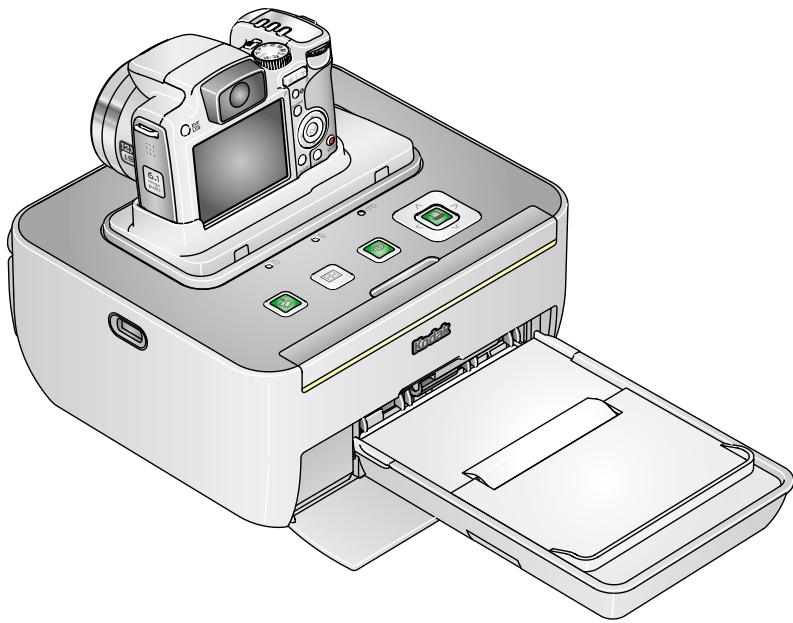
User's guide
www.kodak.com
For interactive tutorials, www.kodak.com/go/howto
Kodak
Eastman Kodak Company
Rochester, New York 14650
© Eastman Kodak Company, 2006
All screen images are simulated.
Kodak, EasyShare, ImageLink, and XtraLife are trademarks of
Eastman Kodak Company.
P/N 4J4599_en
Front/top/side view
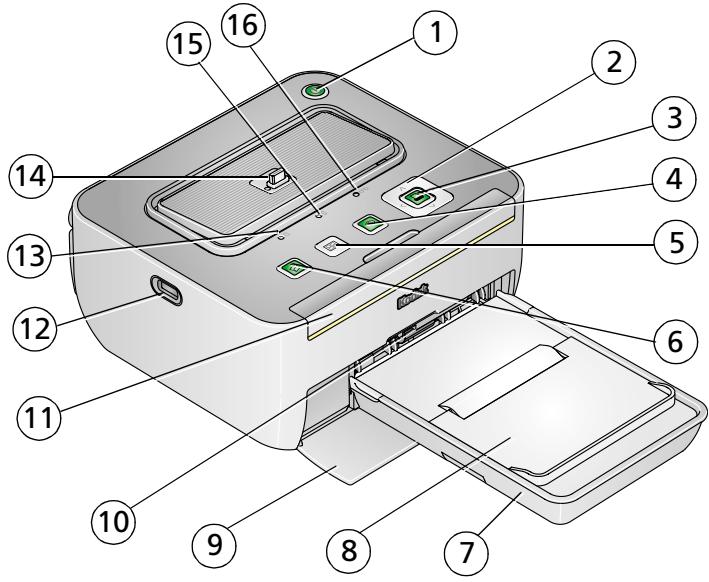
1 Power button/light

2 4-way button)
9 Paper-tray door
10 Paper-tray chamber
3 Print button/light
11 Pull-out handle
4 Red-eye reduction button/ light
12 USB device connector (for compatible USB devices)
5 Print Layout button
13 Paper status indicator light
6 Transfer button/light
14 Camera connector
7 Paper tray
15 Camera battery status light
8 Paper-tray cover
16 Cartridge status indicator light
Back/top/side view
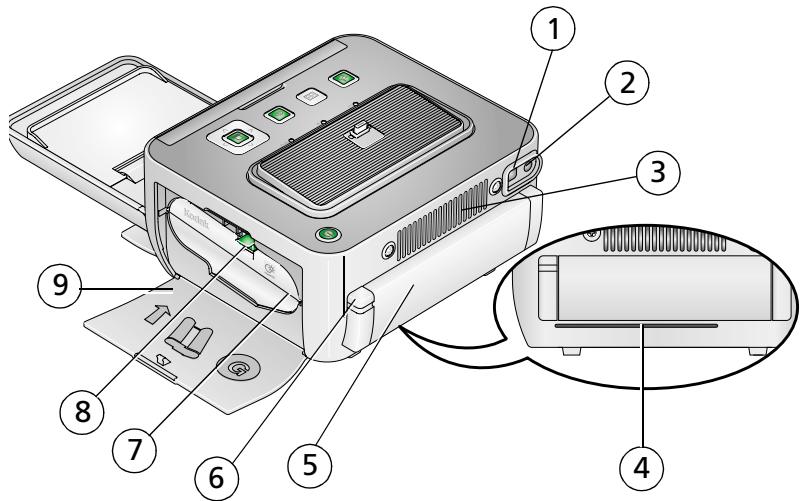
1 USB connector (to computer)
2 Power connector (DC-in)
3 Cooling vent
4 Paper path slot
5 Connector cover for optional battery
6 Connector cover release tab
7 Color cartridge (shown installed)
8 Cartridge-release tab
9 Cartridge door
Table of contents
1 Getting started 1
Finding a location for your printer dock. 1
Handling and storing the cartridge and paper 1
Attaching the custom camera insert 2
Connecting the power 3
Loading the paper and cartridge 4
Inserting and removing the paper tray 6
2 Setting up your digital camera 7
Docking and charging the camera 7
Best camera setting for 4× 6 inch (10× 15~cm) prints. 10
3 Printing without a computer 11
Printing from your digital camera. 11
Selecting pictures on your camera for printing. 12
Printing tagged pictures 12
Printing from a PictBridge compatible device 13
Changing the printed picture layout. 14
Printing pictures on the same sheet 16
Reducing red eye in your prints. 18
Canceling printing 19
4 Installing software 20
Installing the software 20
5 Using the printer dock with a computer 22
Connecting to a computer 22
Transferring pictures from your digital camera 23
Printing from a computer 24
Canceling printing 27
6 Using the printer dock with a USB flash drive 28
Printing pictures from a USB flash drive 28
Canceling printing 29
Copying pictures to a USB flash drive 30
Canceling copying to a USB flash drive 32
7 Printer dock portability 33
Taking your printer dock with you. 33
Powering your printer dock with a battery 35
8 Maintenance and firmware upgrade 38
Maintaining your printer dock. 38
Upgrading your printer dock firmware 40
9 Troubleshooting 41
Printing problems 41
Transfer/communication problems 48
Printer-dock-status lights. 49
10 Getting help 55
Helpful links 55
Telephone customer support 56
11 Appendix 57
Printer dock specifications 57
Important safety instructions 58
Extending battery life 60
Upgrading your software and firmware 61
Additional care and maintenance 61
Warranty. 62
Regulatory information 64
1 Getting started
Finding a location for your printer dock
- Place the printer dock on a flat, clean, dust-free surface, in a dry location, and out of direct sunlight.
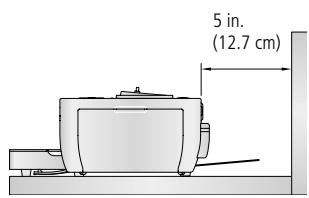
- Allow at least 5 in. (12.7 cm) clearance from the back of the printer dock for paper travel.
For proper ventilation, make sure the top and back of the printer dock are not blocked. -
When connecting power or USB cables, keep the cables clear of the paper path to the front and rear of the printer dock.
-
Avoid areas where ventilation ducts, open doors, or frequent passersby might expose the printer dock and paper to high levels of dust and debris. Airborne dirt particles can affect picture quality.
- Allow enough space on all sides of the printer dock to let you connect and disconnect cables, change the cartridge, and add paper.
Handling and storing the cartridge and paper
Cartridge
- Keep cartridges out of the reach of children.
For best quality prints, store the cartridge in a location where the temperature does not exceed 85^ (30^) .
To avoid getting fingerprints on the ribbon, handle the cartridge by the spool ends. - Keep the cartridge away from direct sunlight and out of high-temperature environments (such as a vehicle parked in the sun).
Paper
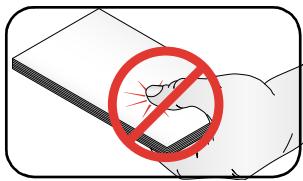
To avoid fingerprints on the paper, handle it by the edges. Do not touch the glossy side of the paper.
To store paper, remove the tray and close the cover and door to keep out dust and debris. Store paper flat.
- Keep the paper away from direct sunlight and out of high-temperature environments (such as a vehicle parked in the sun).
Attaching the custom camera insert
IMPORTANT: Use the custom insert that came with your digital camera to dock the camera. Depending on your camera connector, you may need the Kodak dock adapter kit D-26. See the instructions included with the dock adapter.
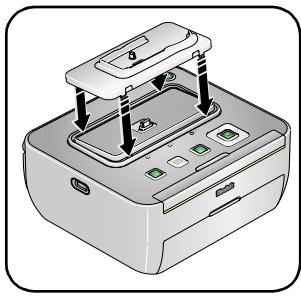
Place the insert tabs into the back slots of the dock.
- Then press the front tabs down and snap into place. Purchase a custom camera insert for your Kodak EasyShare digital camera and other accessories at www.kodak.com/go/accessories.
Connecting the power

RISK OF ELECTRIC SHOCK:
Use only the AC power adapter included with your printer dock. Other adapters or cords can damage your camera, printer dock, or computer.
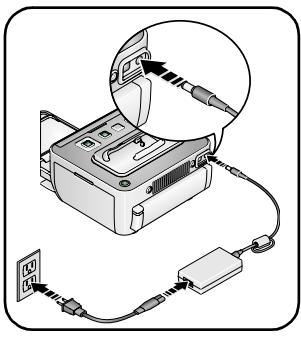
1 Make sure your camera is not docked on the printer dock.
2 Connect the AC power cord to the AC power adapter, then to the back of the printer dock.
NOTE: The AC power adapter included with your printer dock may not require assembly and may be different from the one shown.
3 Connect the AC power adapter into a power outlet. Purchase an AC power adapter and other accessories at www.kodak.com/go/accessories.
4 Press the Power button, to turn on/off the printer dock.
IMPORTANT: When traveling, verify that your AC power adapter is compatible in the region to which you are traveling.
Loading the paper and cartridge
IMPORTANT: Use only Kodak cartridges and photo paper kits with the ⑥ symbol. Do not use inkjet paper. (Kodak photo paper kits sold separately at a retailer of Kodak products, or visit www.kodak.com/go/accessories).
Paper:
IMPORTANT: Do not load more than 30 sheets of paper (see upper limit line, , inside tray). To avoid fingerprints, do not touch the glossy side of the paper (page 2).
1 Fan the sheets of paper to separate and prevent sticking.
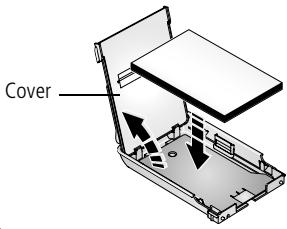
3 Close the paper-tray cover then flip open the hinged section.
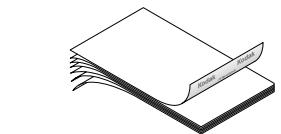
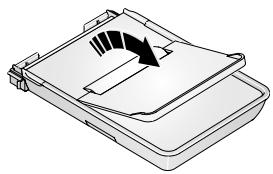
2 Open the paper-tray cover then load the paper, logo side down.
Cartridge:
See Handling and storing the cartridge on page 1.
To load the cartridge:
1 Open the cartridge door.
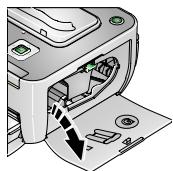
Rotate the cartridge spool clockwise just enough to remove the ribbon slack.
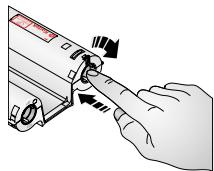
IMPORTANT: Too many rotations may reduce the number of prints you can make.
3 Insert the cartridge into the chamber until it clicks into place.
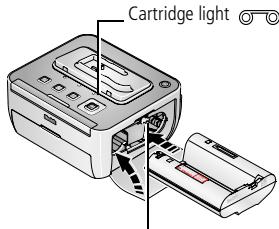
Cartridge-release tab
4 Close the cartridge door.
To remove the cartridge, push up on the Cartridge-release tab then pull out the cartridge.
IMPORTANT: Remove the cartridge when the cartridge light glows red (see page 49).
The cartridge may lock if there is a paper error. Clear the paper error (see page 41) and make sure the paper light is off before you remove the cartridge.
Inserting and removing the paper tray
Inserting the paper tray
1 Open the paper-tray door.

2 Slide the paper-tray into the paper-tray chamber until it snaps into place. (Make sure the hinged section is open).
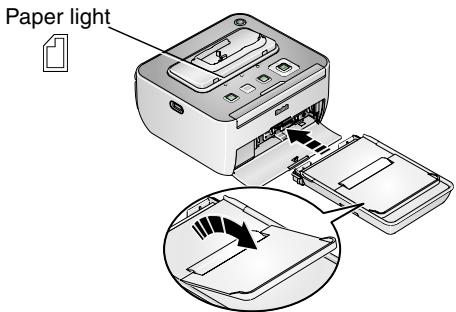
Removing the paper-tray
Reload the paper-tray when the paper light glows red.
Pull the paper-tray out to remove it.
- When storing or traveling with your printer dock, close the paper-tray cover and paper-tray door to keep out dust and debris.
IMPORTANT: Make sure you store the paper-tray in the space provided on the bottom of the printer dock (see page 33).
2 Setting up your digital camera
Docking and charging the camera
Docking your digital camera lets you make prints directly from the camera, transfer pictures from the camera to the computer, and charge the camera battery.
IMPORTANT: To charge your camera battery, your printer dock must be powered by the AC adapter (not the printer battery).
This printer dock is ImageLink print-system compatible. You can dock not only Kodak EasyShare digital cameras, but other brands of ImageLink system-compatible digital devices.
NOTE: Not all cameras are compatible for charging on the G600 printer dock. See your camera user's guide for dock compatibility.
Docking the camera
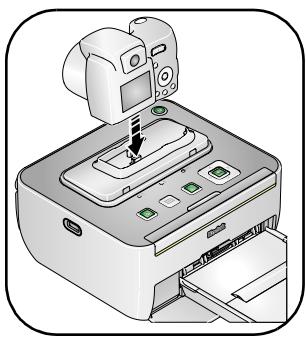
1 Attach a custom camera insert to the printer dock (see page 2).
2 Load a Kodak Ni-MH rechargeable digital camera battery KAA2HR, or a Kodak Li-Ion rechargeable digital camera battery into the camera for charging. See your camera user's guide.
NOTE: Your printer dock charges only Kodak Ni-MH KAA2HR and Li-Ion rechargeable batteries.
3 Place the camera on the printer dock. Push camera down to seat the connector.
The battery status light on the printer dock lights up and an initializing message appears on the camera.
NOTE: If the printer dock is turned off when you dock the camera, the printer dock turns on and initialises.
NOTE: If your printer dock is powered by the printer battery, press the Power button, , to turn on the printer.
4 Keep the camera strap clear of the paper path at the front and back of the printer dock.
The camera is now powered by the printer dock instead of the camera battery.
Charging the camera
For charging, use the AC adapter to power the printer dock. The printer dock will not charge camera batteries when it is powered by its printer battery.
The Kodak Ni-MH rechargeable digital camera battery pack and Kodak Li-Ion rechargeable digital camera battery charge up to 3 hours.
The Camera battery status light on the printer dock blinks green when the camera battery is charging. Charging is complete when the light stops blinking and glows a steady green (see Printer-dock-status lights on page 49).


Blinking green = Battery charging
Steady green = Battery charging complete
You may leave the camera on the printer dock to maintain the charge.
NOTE: Charging does not begin immediately after the camera is docked. It may take several minutes before the battery light indicates the charge status.
For Kodak EasyShare camera and dock compatibility, visit www.kodak.com/go/adapterkitchart.
Refreshing the Kodak Ni-MH rechargeable camera battery
IMPORTANT: The battery refresh feature is intended for use with the Kodak Ni-MH rechargeable digital camera battery KAA2HR only. Li-Ion batteries do not require refreshing.
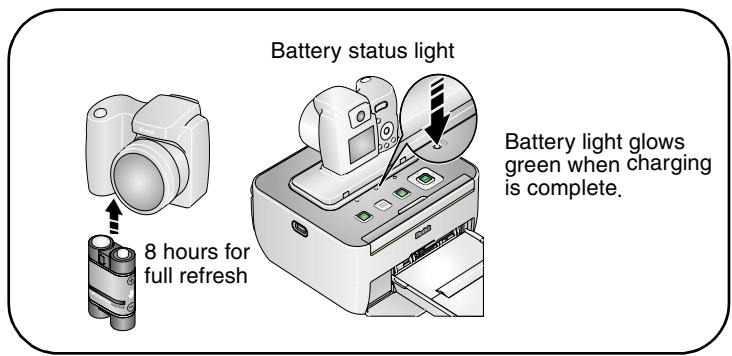
NOTE: If you are getting fewer than 20 pictures per charge, you may need to refresh the battery. The refresh cycle completely discharges the battery, then fully charges it. See Extending battery life, page 60.
1 Make sure the Ni-MH rechargeable battery is in the camera.
2 Place your EasyShare camera on the printer dock (page 7).
3 Press and hold the Print Layout button, + , and the Red-eye Reduction button, , on the printer dock at the same time until the Battery status light blinks amber (approximately 5 seconds), then release the buttons.
To purchase a Kodak Ni-MH rechargeable digital camera battery for your digital camera, visit www.kodak.com/go/accessories. See your camera user's guide for battery compatibility.
Best camera setting for 4 x 6 inch (10 x 15 cm) prints
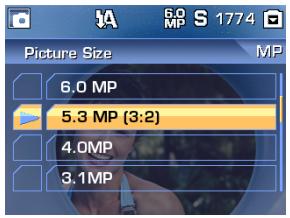
Before taking pictures, change the Picture-size setting or resolution on your digital camera to (3:2). This ensures that the pictures you take are proportional to the printer-dock paper, preventing unwanted cropping of your pictures.
See your Kodak EasyShare digital camera user's guide for more information.
3 Printing without a computer
IMPORTANT: Wait until printing is complete before you remove the paper, Paper tray, or the camera. Failure to do so can cause paper misfeeds or jams.
Printing from your digital camera
1 Take a picture with your camera (see your camera user's guide).
2 Place the camera on the printer dock (page 7).
The current or most recent picture appears on the camera screen.
To print the current picture, press (Print button).
To print additional pictures on your camera:
Press on the printer dock to locate a picture. To fast scroll, press and hold
Press to select the print quantity.
Repeat for each picture you want to print.
Press
The print screen appears.
NOTE: If you don't press any buttons after 5 seconds, printing starts automatically.
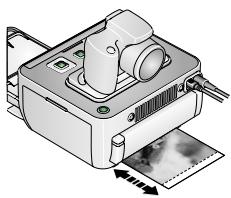
When the printing starts, the Print light blinks. The paper cycles four times during the printing process. The first three passes apply layers of yellow, magenta, and cyan colors to the print, and the fourth pass applies the Kodak XtraLife™ coating that protects and preserves the image.
IMPORTANT: Do not pull out the print. The printer dock automatically ejects the finished print after the fourth pass.
Selecting pictures on your camera for printing
NOTE: The following procedure pertains to Kodak EasyShare digital cameras. For information on tagging pictures on other brands of ImageLink system-compatible cameras, see the camera user's guide.
1 Press the Share button on your camera.
2 Press / to locate a picture.
3 Make sure Print is highlighted (to tag all pictures in the current image storage location, highlight Print All ), then press the OK button.
4 Press to select the number of copies (0-99). The default is one. Zero removes the tag for a selected picture.
To apply a print quantity to other pictures, press / to locate them. Keep the print quantity as is, or press / to change it.
5 Press the OK button.
6 Press the Share button to exit.
Printing tagged pictures
If your camera or memory card contains pictures tagged for printing (see page 12, or your camera user's guide), the printer dock gives you the option to print tagged pictures first. If your camera is docked, a message appears on the camera screen indicating that tagged pictures have been found:
To print tagged pictures—press
The Print light blinks, printing starts, and tagged pictures are printed. Print tags are removed from tagged pictures on your camera or card as they are printed.
To bypass printing of tagged pictures—press / on your camera and select Exit, then press .
NOTE: If you tagged pictures for printing using your digital camera, instead of printing the current picture, all tagged pictures are printed.
NOTE: When printing tagged pictures, the number of copies that are printed is determined by the setting on your camera or device.
Printing from a PictBridge compatible device
Your printer dock is compatible with PictBridge technology, so you can print from any PictBridge compatible device (such as a digital camera or camera phone).
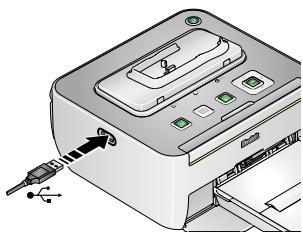
1 Plug the USB cable from the PictBridge compatible device into your printer dock's USB connector.
NOTE: If the PictBridge device is already plugged in, but the connection is no longer available, disconnect the USB cable then reconnect it to re-establish the connection.
2 Use the PictBridge compatible device to review pictures, choose printing options, and print. See your device user's guide for details.
Changing the printed picture layout
1 Follow the steps (except for Press to print from your digital camera (page 11) or PictBridge compatible device (page 13).
NOTE: You can only change the picture layout if a device with a display screen is docked or connected to your printer dock.
2 Press the Print Layout button, 1 , repeatedly to select a picture layout:
| Picture Layout setting | Number and size of prints per sheet | |
| □ | 1-up (full photo) | One 4 x 6 in. (102 x 152 mm) picture |
| □ | 2-up | Up to two 3 x 4 in. (76 x 102 mm) pictures |
| □ | 4-up (wallet size) | Up to four 2 x 3 in. (51 x 76 mm) pictures |
| □ | 9-up (mini photo) | Up to nine 1.3 x 2 in. (34 x 51 mm) pictures |
3 Press to return to the main review screen. Press again to begin printing.
To change the default picture layout:
- Select a picture layout, then press and hold the Print Layout button, , for 4-5 seconds.
The cartridge and paper status lights blink red for 2 seconds then turn off. The selected picture layout appears on the docked camera screen.
Effect of picture layout on number of copies
When printing tagged pictures (see page 12), the number of copies that are printed is determined by the setting on your camera or device. For example, if three pictures on your camera are each tagged for printing one copy, and the 4-up option on the printer dock is selected, three 2 × 3 in. ( 51 × 76 ~mm ) pictures are printed on one sheet of paper.
For best results, use your camera's 3:2 picture size setting to avoid cropping (see your camera user's guide).
NOTE: When printing from a PictBridge compatible device (see page 13), picture size and number of copies are determined by the device's multi-up and copies settings. Change these settings on your device before printing. If the picture layout selected on your device does not match any of the sizes on the printer dock, then the closest picture layout on the printer dock is automatically selected.
Printing pictures on the same sheet
You can select different pictures or more than one copy of a picture to print on the same sheet.
IMPORTANT: Do not press until after you choose the print layout.
Different pictures on the same sheet

1 Select one copy of each picture on your docked camera (page 11) or on your camera prior to docking (page 12).
2 Press the printer dock Print Layout button repeatedly to scroll through and select either 2-up , 4-up , or 9-up , depending on the picture layout you wish to print (see page 14).
3 Press to begin printing.
Duplicate pictures on the same sheet
Method 1: using the digital camera
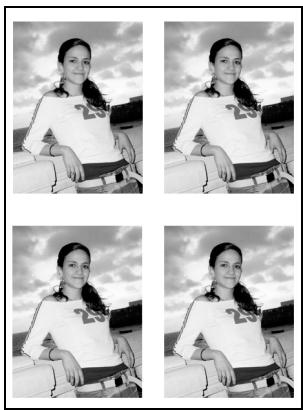
1 Select two or more copies of a picture on your docked camera (page 11) or on your camera prior to docking (page 12).
IMPORTANT: To fill up a sheet with duplicate copies, the number of copies you choose for the tagged pictures on your camera must match the number of prints in the picture layout you choose in step 2.
2 Press the printer dock Print Layout button repeatedly to select either 2-up , 4-up , or 9-up , depending on the picture size you wish to print (see page 14).
3 Press to begin printing.
Method 2: using the printer dock and docked camera
1 Place the camera on the printer dock.
The current or most recent picture appears on the camera screen.
2 Press / (4-way button) on the printer dock to review and choose a picture to print.
3 Press on the printer dock to select the print quantity.
IMPORTANT: Make sure the print quantity you choose matches the number of prints in the picture layout you choose in step 4.
4 Press the Print Layout button repeatedly to select either 2-up , 4-up , or 9-up , depending on the picture size you wish to print (see page 14).
5 Press to begin printing.
The print screen appears.
NOTE: If you don't press any buttons after 5 seconds, printing starts automatically.
Reducing red eye in your prints
Your printer dock incorporates technology that automatically detects and corrects red eye in your subjects before you print your pictures.
- Your printer dock defaults to red-eye reduction being always on, and the Red-eye reduction button/light, , glows green.
Red-eye reduction is applied to images that were captured using the flash on your digital camera. - The Red-eye reduction button is disabled when printing from a computer. If printing from a computer (see page 24), make sure Kodak EasyShare software is installed on the computer.
■ Printing may slightly increase when using red-eye reduction. - Your printer dock may apply red-eye reduction to an area such as a sunburn, which darkens the area in your print. Turn off red-eye reduction.
To turn red-eye reduction off, press the Red-eye reduction button,
To change the red-eye reduction default to off, press and hold the Red-eye reduction button, , for 5 seconds.
The Red-eye-reduction light blinks, then turns off.
Canceling printing
To cancel printing, do one of the following:
Press
A confirmation screen appears. Printing is cancelled when you select that you are sure you want to cancel printing.
Press and hold for 2 seconds.
Printing is cancelled automatically.
NOTE: When printing is cancelled, the paper is ejected from the printer dock. If you cancel a print during the fourth pass (clear coat), the print is ejected upon completion.
4 Installing software
Installing the software
1 Close all software applications that are open on your computer (including anti-virus software).
2 Place the Kodak EasyShare software CD into the CD-ROM drive.
3 Load the software:
Windows OS—if the install window does not appear, choose Run from the Start menu and type d:\setup.exe where d is the drive letter that contains the CD.
Mac OS X—double-click the CD icon on the desktop, then click the Install icon.
4 Follow the on-screen instructions to install the software.
- Select Complete to automatically install the most commonly used applications.
Select Custom to choose the applications you wish to install.
IMPORTANT: To use the printer dock with a computer, you must install the printer driver. If you choose Custom, make sure the printer dock is selected. The printer driver is automatically installed if you choose Complete.
Add the printer for Mac OS X:
a Open the finder window and click the Applications button. If you don't see the Applications button, open the Applications folder on your operating drive.
b Open the Utilities folder, then double-click Print Center.
c In the Printer List window, click the Add Printer button.
d Select the printer dock, then click Add.
The printer dock is added to your computer.
IMPORTANT: When prompted, take a few minutes to electronically register your printer dock and software. This lets you receive information regarding software updates and registers some of the products included with the printer dock. You must be connected to your Internet service provider to register electronically. To register later, visit www.kodak.com/go/register.
5 Restart the computer if prompted. If you turned off anti-virus software, turn it back on. See the anti-virus software manual for details.
For more information on installing the software, see the ReadMe file on the Kodak EasyShare software CD. For information on the software applications included on the Kodak EasyShare software CD, click the Help button in the EasyShare software.
5 Using the printer dock with a computer
Connecting to a computer
IMPORTANT: Make sure your camera is NOT docked when you connect the printer dock to the computer.
1 Make sure Kodak EasyShare software is installed on the computer (page 20).
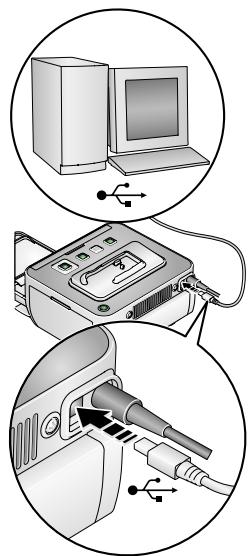
2 Plug the labeled end of the USB cable (included) into the labeled USB port on your computer. See your computer documentation for details.
3 Plug the other end of the USB cable into the square USB connector.
Transferring pictures from your digital camera
1 Make sure the Kodak EasyShare software is installed (page 20) and the printer dock is connected to your computer (page 22).
2 Place the camera on the printer dock (page 7).
3 Press the Transfer button, on the printer dock.
Kodak EasyShare software opens on your computer and the printer dock Transfer light blinks green.
4 Use Kodak EasyShare software to transfer pictures from the camera to your computer. See the Kodak EasyShare software Help for details.
NOTE: The Transfer light blinks while the pictures are being transferred. The Transfer light continues to blink until the connection is no longer available or is ended from the computer.
NOTE: With the software installed, pressing the Transfer button establishes drive connections for the docked camera. You can view, copy, delete, and manage files on the new drives on the computer. See your computer documentation for details.
Printing from a computer
We recommend using Kodak EasyShare software (included) for printing. This software lets you take advantage of a wide range of features, including full-color enhancement, red-eye reduction, picture organization, and much more. To install your Kodak EasyShare software, see page 20.
If there are no pictures on your computer, use the printer dock to transfer pictures from your camera or memory card before printing (page 23).
Printing with Kodak EasyShare software
1 Make sure Kodak EasyShare software is installed (page 20), and the printer dock is connected to your computer (page 22).
2 Click the My Collection tab.
3 Select the pictures you wish to print.
4 Click the Print at Home tab.
5 Make sure the printer dock is selected as the current printer.
6 Change any other settings, such as print layout, then click Print.
NOTE: The Picture-size button on the printer dock is disabled when printing from a computer. Set printing options using EasyShare software.
See the EasyShare software Help for details.
Printing tagged pictures from your computer
1 Make sure Kodak EasyShare software is installed (page 20), and the printer dock is connected to your computer (page 22).
2 Transfer the tagged pictures to your computer (page 23).
3 Follow steps 4 through 6 (page 24).
Printing with other applications
1 Make sure the printer driver is installed (page 20), and the printer dock is connected to your computer (page 22).
2 Open the pictures in the application from which you want to print.
3 Access the printer settings by selecting Print or Page Setup from the File menu (depending on your application and operating system).
4 Make sure the printer dock is selected as the current printer.
5 Change any other settings as needed, then click OK or Print. (Depending on your application and operating system, you may first need to return to the main menu and select Print from the File menu.)
NOTE: The Print Layout button on the printer dock is disabled when printing from a computer. Set printing options in the application from which you are printing.
Choosing a color mode
You have three color-correction options to help you make great-looking prints:
Enhanced—to get richer, more vivid colors.
Natural—to get great, natural color for everyday picture-making.
None—to disable automatic color correction.
To change the color mode:
Windows 2000/XP OS:
1 From the Start menu, select Settings, then select Printers.
NOTE: Depending on your Start menu configuration, you may need to select Printers and Faxes from the Control Panel.
2 Right-click the Kodak EasyShare G600 printer dock icon, then select Printing Preferences.
3 Click the Color-Correction tab.
4 Select a color-correction option, then click OK.
Mac OS X 10.3 or higher:
1 Make sure the printer dock is selected as the current printer.
2 From an application File menu, select Print.
3 Select Color Control from the Copies & Pages pop-up menu.
4 Select Kodak color.
5 Select a color mode option.
Canceling printing
Windows 2000/XP OS:
1 Double-click the printer icon in the system tray.
2 Click the print job you want to cancel.
3 Select Document, then select Cancel.
Mac OS X 10.3 or higher:
1 In Print Center, double-click the printer icon.
2 Click the print job you want to cancel, then select Delete.
6
Using the printer dock with a USB flash drive
You can use your USB flash drive to print and copy pictures, with or without a computer.
Printing pictures from a USB flash drive
1 Make sure your printer dock power is connected (page 3) and your digital camera is docked (page 7).
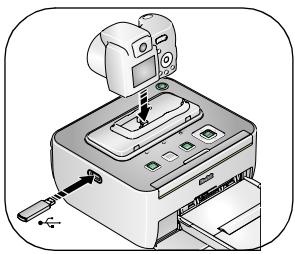
2 Connect the USB flash drive to the USB device connector on your printer dock.
Either a print screen or the flash drive images appear on the camera screen, depending on whether or not your camera can display images from other devices.
NOTE: If the flash drive is already plugged in but the connection is no longer available, disconnect then reconnect the flash drive to re-establish the connection.
3 Follow the steps for printing from your digital camera (page 11) and changing your picture layout (page 14).
IMPORTANT: You can only print pictures from a USB flash drive if your camera is docked.
Canceling printing
To cancel printing, do one of the following:
Press
A confirmation screen appears. Printing is cancelled when you select that you are sure you want to cancel printing.
Press and hold for 2 seconds.
Printing is cancelled automatically.
NOTE: When printing is cancelled, the paper is ejected from the printer dock. If you cancel a print during the fourth pass (clear coat), the print is ejected upon completion.
Copying pictures to a USB flash drive
NOTE: The printer dock Transfer light blinks while the pictures are being copied. The Transfer light continues to blink until the Transfer or Print button is pressed, or until the connection is no longer available.
Copying without a computer connected
If you press the Transfer button, on a printer dock that is not connected to a computer, you have the option to transfer one or all your pictures from your camera to the USB flash drive.
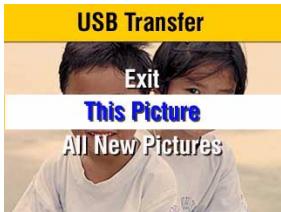
To copy one or all your pictures from your camera to the USB flash drive without a computer connected:
1 Make sure your camera is docked (see page 7), and your USB flash drive is connected to the printer dock (see page 28).
2 Press the Transfer button, on the printer dock. The Transfer screen appears on your camera's screen.
3 Use the buttons on your camera to select your transfer option.
4 Follow your camera's on-screen instructions.
Copying with a computer connected
If you press the Transfer button, on a printer dock that is connected to a computer, you have the option to transfer your pictures from your camera to your computer or USB flash drive.
NOTE: With the Kodak EasyShare software installed (see page 20), pressing the Transfer button establishes drive connections for the docked camera. You can view, copy, delete, and manage files on the new drives on the computer. See your computer documentation for details.
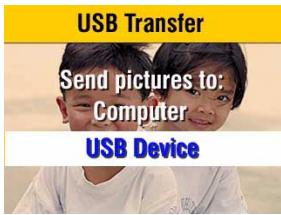
To copy one or all your pictures from your camera to the USB flash drive with a computer connected:
1 Make sure your camera is docked (see page 7), your USB flash drive is connected (see page 28), and your printer dock is connected to the computer (see page 22).
2 Press the Transfer button, on the printer dock. The Transfer screen appears on your computer screen. You have the option to copy your pictures from your camera to your USB flash drive or computer.
3 Use the buttons on your camera to select your transfer option.
4 Follow your computer's on-screen instructions.
Canceling copying to a USB flash drive
To cancel copying, do one of the following:
Press the Transfer button,
NOTE: A cancel confirmation screen appears when you press the Transfer or Print button. Use the / buttons on your camera to make your selection.
7 Printer dock portability
Taking your printer dock with you
For ease-of-use and portability, you can take your printer dock with you and use a detachable printer battery (sold separately) to provide power.
Transporting your printer dock
IMPORTANT: Keep the printer dock, accessories, and supplies away from direct sunlight and out of high-temperature environments (such as a vehicle parked in the sun).
Consider purchasing a printer dock travel bag and other accessories at a retailer of Kodak products or visit www.kodak.com/go/accessories.
IMPORTANT: Before you pack your printer dock, remove the paper tray, printer battery, cables, and any device connected to the printer dock.
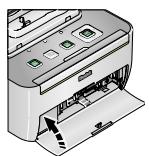
1 Close the paper tray door on the printer dock.
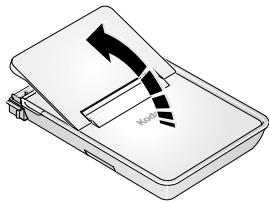
2 Close the paper tray cover.
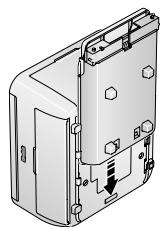
3 Slide the paper tray into the bottom of the printer dock until it clicks into place.
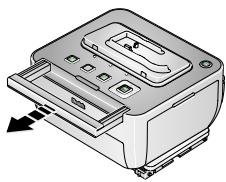
Pull out the handle to transport.
Powering your printer dock with a battery
Charge the printer battery before taking it with you. You must connect the AC power adapter to your printer dock to charge the attached printer battery (sold separately). Purchase the Kodak Li-lon rechargeable printer battery KPB-100 at www.kodak.com/go/accessories.
Attaching the printer battery (optional)
Push down on the connector-cover-release tab.
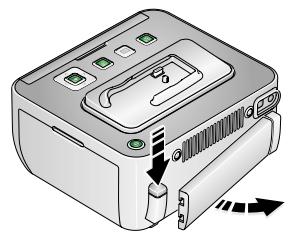
2 Remove the connector cover and store it in a safe place.
3 Snap the battery into place.
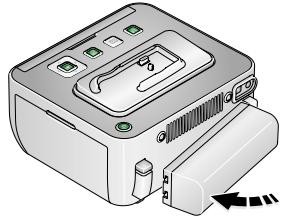
Remove the battery and reattach the connector cover when the battery is not being used.
Printer battery information
Battery charging
The Kodak Li-Ion rechargeable printer battery KPB- 100 begins to charge when you attach it to the printer dock and connect the AC power adapter. Your printer dock uses the Power button, , light to show the printer battery charging status.
NOTE: If your camera is docked, the camera battery charges first (up to 3 hours), then the printer battery charges.
NOTE: If the printer battery is charged and you do not use the printer dock immediately, your printer dock and lights may turn off automatically.

Approximately 3 hours for full charge

Blinking amber = Battery nearly depleted
Steady amber (Normal) = Battery less than fully charged
Blinking green = Battery charging
Steady green = Battery fully charged
Blinking red = Battery error
Steady red = Battery needs charging
Print number
Actual number of prints your fully charged printer battery produces may vary based on usage, battery age, temperature, and other room conditions.
Kodak Li-Ion rechargeable printer battery KPB-100
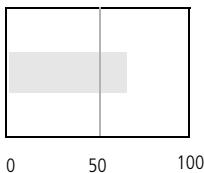
Approximate number of pictures per full charge
Battery safety and handling

CAUTION:
When removing batteries, allow them to cool first; batteries may be hot.
Use only batteries that are approved for this product to avoid risk of explosion.
- Read and follow all warnings and instructions supplied by the battery manufacturer.
- Keep batteries out of the reach of children.
- Do not allow batteries to touch metal objects, including coins. Otherwise, a battery may short circuit, discharge energy, become hot, or leak.
- Do not disassemble, install backward, or expose batteries to liquid, moisture, fire, or extreme temperature.
- Replace all batteries of a set at the same time. Do not mix new batteries with used ones. Do not mix rechargeable and non-rechargeable batteries. Do not mix lithium, Ni-MH, and Ni-Cd batteries together. Do not mix batteries of different chemistry types, grades, or brands. Failure to observe this precaution may cause leakage.
- Remove batteries when the product is stored for an extended period of time. In the unlikely event that battery fluid leaks inside the product, contact your local Kodak Customer Service representative.
In the unlikely event that battery fluid leaks onto your skin, wash immediately with water and contact your local health provider. For additional health-related information, contact your local Kodak Customer Service representative.
Dispose of batteries according to local and national regulations.
If the battery contacts touch metal objects, the battery may short-circuit, discharge energy, become hot, or leak.
Do not charge non-rechargeable batteries.
For more information on batteries, see www.kodak.com/go/batterytypes.
8
Maintenance and firmware upgrade
Maintaining your printer dock
IMPORTANT: Always disconnect the power before cleaning. Do not use harsh or abrasive cleaners or organic solvents on the printer dock or any of its parts.
To clean, wipe the outside of the printer dock with a clean, dry cloth.
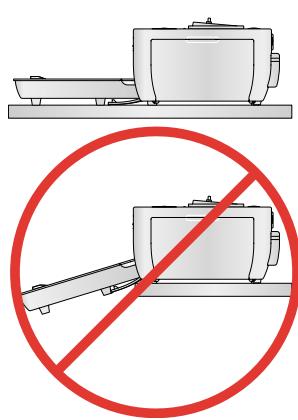
Support the printer dock and tray by placing it on a flat, level surface. Do not block the cooling vents.
- Avoid blocking the back of the printer dock and paper-tray exit.
- Keep power and USB cables away from the paper path.
- Keep the surrounding area vacuumed and litter-free.
- Protect the printer dock from tobacco smoke, dust, sand, and liquid spills.
Avoid placing objects on the printer dock.
- Keep the printer dock, accessories, and supplies away from direct sunlight and out of high-temperature environments (such as a vehicle parked in the sun).
- When storing, remove the paper tray, then close the paper-tray cover (see page 2) and paper-tray door to keep out dust and debris. Store paper flat.
Cleaning the paper-feed rollers
To prevent misfeeds and to make sure your pictures look their best, we recommend that you keep the paper-feed rollers clean. Inspect the rollers weekly for debris particles, and clean, if necessary.
IMPORTANT: Unplug the power before cleaning the paper-feed rollers.
1 Unplug the AC power cord from the power outlet.
2 Remove the paper tray from the printer dock, and leave the paper-tray door open.
3 Lightly moisten a lint-free cloth with water.
IMPORTANT: Do not use cotton swabs to clean the paper-feed rollers.
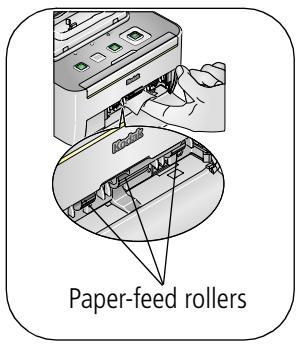
4 Use the moistened cloth to gently wipe clean the surface of the paper-feed rollers. Advance the feed rollers with your thumb, as necessary, and continue cleaning.
5 Allow the paper-feed rollers to fully dry before reconnecting the power.
Upgrading your printer dock firmware
IMPORTANT: To upgrade the firmware, your printer dock must be powered by the AC adapter (not the printer battery).
From your computer
Connect your printer dock to your computer (see page 22). Download the latest version of the printer dock firmware (the software that runs on the printer dock) to your computer. Visit www.kodak.com/go/printerdockdownloads.
From your USB flash drive
1 Transfer the latest version of the printer dock firmware file from your computer to your USB flash drive System or Service folder.
2 Connect your printer dock to the AC power adapter (see page 3), and dock your camera to the printer dock (see page 7).
3 Connect the USB flash drive to your printer dock's USB device connector (see page 28).
The printer dock automatically checks the firmware file version on the flash drive.
4 Press Print, , on your printer dock to begin the firmware upgrade.
To exit the firmware upgrade process, use the buttons on the printer dock to select Exit on the camera.
5 Follow your camera's on-screen instructions.
The Red-eye, Transfer, and Print buttons blink until the upgrade is complete. Blinking stops approximately 5 seconds after the upgrade is complete.
6 Remove the USB flash drive and power your printer dock off, then on again.
9
Troubleshooting
For step-by-step product support, visit www.kodak.com/go/g600support and select Interactive Troubleshooting and Repairs. Select FAQs to learn how to perform a Diagnostic test (identifies common problems).
Printing problems
| If... | Try the following |
| Paper does not feed(Paper light may glow red) | IMPORTANT: Use only Kodak color cartridge & paper kits (with symbol) for your printer dock. Do not use inkjet paper. ■ The paper-tray may be empty. Load paper (page 4), re-install the tray, then press □. ■ Check the paper: 1 Remove the paper-tray (page 6). 2 Inspect the paper supply. Make sure the paper is not damaged. Replace with new paper, if necessary. 3 Carefully "fan" the paper to keep the sheets from sticking together. 4 Reload the tray. Do not load more than 30 sheets of paper (see upper limit line, □, inside tray). 5 Re-install the tray, then press □ to resume printing. ■ Clean the paper-feed rollers (page 39). |
| Multiple sheets of paper are pulled through printer | 1 Remove the paper-tray (page 6). 2 Remove the paper supply from the tray. Carefully "fan" the paper to keep the sheets from sticking together. 3 Reload the tray. Do not load more than 30 sheets of paper (see upper limit line, □, inside tray). 4 Re-install the tray, then press □ to resume printing. |
| Printer is jammed(Paper or Color-cartridge light may glow red/amber) | IMPORTANT: Use only Kodak color cartridge & paper kits (with symbol) for your printer dock. Do not use inkjet paper. ■ If the Paper light blinks quickly: 1 Remove the paper-tray (page 6). 2 Disconnect the power from the printer dock for 10 seconds, then reconnect the power. Carefully remove the paper if it does not automatically eject. IMPORTANT: Always check the paper slot on the back of the printer dock for jammed paper: 3 Remove the paper supply from the tray. Carefully "fan" the paper to keep the sheets from sticking together. 4 Reload the tray. Do not load more than 30 sheets of paper (see upper limit line, inside tray). 5 Re-install the tray, then press to resume printing. ■ If the Color-cartridge light glows red, check the color cartridge. IMPORTANT: The cartridge may lock in place if there is a paper error. Do not attempt to remove the cartridge without first clearing the paper error. Make sure the Paper light is off before attempting to remove the cartridge (see Paper light (page 49)). Remove the cartridge and any slack from the ribbon, then re-install the cartridge (page 4). Press to resume printing. |
| Printing stops during mid-print (paper stops feeding and Paper light glows red) | IMPORTANT: Use only Kodak color cartridge & paper kits (with symbol) for your printer dock. Do not use inkjet paper. ■ Check the paper: 1 Remove the paper-tray (page 6). 2 Check the paper slot on the back of the printer dock. 3 Remove loose paper from the printer dock. If paper is jammed, see page 41. 4 Carefully "fan" the paper to keep the sheets from sticking together. 5 Reload the tray. Do not load more than 30 sheets of paper (see upper limit line, inside tray). 6 Re-install the tray, then press to resume printing. ■ Clean the paper-feed rollers (page 39). |
| Print is smudged | ■ Fingerprints may be on glossy side of paper. Handle paper by the edges (page 2). |
| Print is spotted | ■ Check for dirty paper; wipe paper gently with a dry, lint-free cloth to remove dirt. For excessive dirt or debris, thoroughly clean the paper-tray, and load new paper (page 4). Check and clean the paper-feed rollers (page 39). NOTE: Keep paper in the original protective wrap and remove and close the paper-tray and paper-tray door to keep dust and debris from collecting on the paper or inside the printer dock (page 6). |
| Print is too light or under-exposed | IMPORTANT: Use only Kodak color cartridge & paper kits (with ⑥ symbol) for your printer dock. Do not use inkjet paper. ■ Load the paper with the Kodak logo facing down. Reload the paper, if necessary (page 4). ■ Turn the flash off, then take the picture. See your camera user's guide for details. ■ Adjust the exposure compensation on the camera, then take the picture. See your camera user's guide for details. ■ Move so the distance between you and the subject is within the effective flash range, then take the picture. See your camera user's guide for details. ■ Edit the picture using Kodak EasyShare software on your computer. See the EasyShare software Help for details. |
| Print is too dark, overexposed, or discolored | ■ Reposition the camera for more available light, then take the picture. See your camera user's guide for details. ■ Use fill flash or change your position so light is not behind the subject, then take the picture. See your camera user's guide for details. ■ Turn the flash on, then take the picture. See your camera user's guide for details. ■ Adjust the exposure compensation on your camera, then take the picture. See your camera user's guide for details. ■ Move so the distance between you and the subject is within the effective flash range, then take the picture. See your camera user's guide for details. ■ Edit the picture using Kodak EasyShare software on your computer. See the EasyShare software Help for details. ■ Move the printer dock from direct sunlight; operate in a temperature-controlled environment. ■ Do not block the cooling vents on your printer dock; keep them clean (page 1). |
| Pictures are cropped | Change the picture size or resolution on your digital camera to 3:2. See your camera user's guide for details. Adjust cropped pictures using Kodak EasyShare software on your computer. Select the proper paper size in print options if you are printing from an application on your computer. NOTE: Cropping may vary depending on the selected picture size (page 14). |
| A selected picture does not print. | The image file may be corrupt. Review the picture on the camera or computer and delete, if necessary. The image file may not be JPEG format. The printer dock can only print JPEG files in standalone mode. Connect to a computer (page 22) and use EasyShare software to print BMP and TIFF formats (page 24). |
| Nothing happens when you try to print | Check the power connections (page 3) or printer battery connection (page 35). Check the USB cable (page 13) and camera connections (page 7). Remove the paper-tray. Check that paper is properly loaded, then re-load the tray (page 6). Load paper if the Paper light glows amber (page 4). Make sure the color cartridge is properly installed (page 5). Install a new cartridge if the Cartridge light is on. |
| Nothing happens when you try to print (from docked camera) | Reseat the camera on the printer dock (page 7). Re-establish the connection. Remove the camera, then reseat it on the printer dock. Make sure there is at least one picture in the camera's internal memory or memory card. |
| Nothing happens when you try to print (from PictBridge compatible device) | Check the USB connections from the PictBridge compatible device to the printer dock (page 13). Re-establish the connection: disconnect, then reconnect the USB cable from the PictBridge compatible device to the printer dock. Make sure there is at least one picture in the PictBridge compatible device's internal memory or memory card. |
| Nothing happens when you try to print (from computer) | ■ Make sure your computer meets the minimum system requirements. Upgrade your system, if necessary (see Helpful links, page 55). ■ Check the USB connections from the printer dock to the computer (page 22). ■ The computer may be transferring pictures. Cancel the transfer (page 32), then try to print again. ■ Close unnecessary software applications. Disconnect then reconnect the USB cable from the printer dock to the computer (page 22). ■ Access the printer menu for your system. Remove check marks next to Pause Printing and Offline, if checked. ■ Install Kodak EasyShare software (page 20). If you choose Custom installation, make sure to install the printer driver. ■ Uninstall, then reinstall Kodak EasyShare software (page 20). |
| Printing is slow | NOTE: When printing a large number of prints, printing may slow down to prevent the print head from overheating. ■ Move the printer dock from direct sunlight; operate in a temperature-controlled environment. ■ Do not block the cooling vents; keep them clean (page 1). ■ Close unnecessary software applications. ■ Make sure your computer meets the minimum system requirements. Upgrade your system, if necessary (see Helpful links, page 55). |
| Unable to remove color cartridge (paper light may glow red) | IMPORTANT: The cartridge may lock in place if there is a paper error. Do not attempt to remove the cartridge without first clearing the paper error. Make sure the Paper light is off before attempting to remove the cartridge (see Paper light (page 49). ■ Reload or fill the paper-tray (page 4). ■ Clear paper jam (page 41). ■ Disconnect then reconnect the power. IMPORTANT: Upon reconnecting the power, the color cartridge may advance to the next picture slot on the ribbon, resulting in a supply mismatch. |
| Paper runs out before the color cartridge (or vice versa) | ■ Supply mismatch can result from several different situations, including: —Scrapping of paper as a result of jams or other errors. —Gradual advancement of the color-cartridge ribbon from removing ribbon slack or clearing jams. —Advancement of the color-cartridge ribbon upon reconnecting power to unlock the color cartridge. Supply mismatch is likely to occur as you continue to use your printer dock. If you wish to keep your cartridge and paper supply synchronized, discard unused cartridge or paper when one or the other is fully depleted. |
Transfer/communication problems
| If... | Try one or more of the following |
| Nothing happens when you try to transfer pictures to the computer | ■ Press the Transfer button, on the printer dock. ■ Check the power and USB connections from the printer dock to the computer (page 22). ■ Reseat the camera on the printer dock (page 7). ■ Remove the docked camera (page 7). Check the USB connections between the printer dock and the USB flash drive (disconnect then reconnect them to re-establish the connection). ■ Close unnecessary software applications and minimize remaining application windows. Follow any messages on the screen that may have been hidden by other windows. ■ Disconnect then reconnect the USB cable from the printer dock to the computer (page 22). ■ Make sure your computer meets the minimum system requirements. Upgrade your system if necessary (see Helpful links, page 55). ■ Install Kodak EasyShare software (page 20). If you choose Custom installation, make sure to install the printer driver. ■ Uninstall, then reinstall Kodak EasyShare software (page 20). |
Printer-dock-status lights
| Power button/light | ||
| Light status | Cause | Action/solution |
| Light glows green | Printer dock is turned on. | None required. |
| Light is off | Printer dock is turned off. | Press (Power button) to turn on/off the printer dock. Check the printer dock power connections (page 3). |
| NOTE: Your printer dock uses the Power button to also show the printer battery charging status. | ||
| Color-cartridge light | ||
| Light status | Cause | Action/solution |
| IMPORTANT: The cartridge may lock in place if there is a paper error. Do not attempt to remove the cartridge without first clearing the paper error. Make sure the Paper light is off before attempting to remove the cartridge (see Paper light). | ||
| Light is off | Cartridge properly installed and working normally. | None required. |
| Light glows amber | Cartridge nearly depleted. | None required. |
| Light glows red | Cartridge depleted or uninstalled. | Install a new cartridge (page 4), then press☐. |
| Cartridge incorrectly seated. | Remove and re-install the cartridge (page 4), then press☐. | |
| Paper light | ||
| Light status | Cause | Action/solution |
| IMPORTANT: The cartridge may lock in place if there is a paper error. Do not attempt to remove the cartridge without first clearing the paper error. Make sure the Paper light is off before attempting to remove the cartridge. | ||
| Light is off | Paper tray properly installed with ample supply of paper. | None required. |
| Light glows red | Paper jam. | Clear the jam (page 41), then press □. |
| Printing stopped during mid-print; damaged paper. | Remove loose paper. Check the paper supply. Reload with new paper, if necessary, then press □. | |
| Paper tray empty. | Load paper (page 4), then press □. | |
| Paper tray not installed or improperly installed. | Remove the paper tray, check that paper is properly loaded, and re-install tray (page 6). Press □ to resume printing. | |
| Paper did not feed; sheets stuck together (page 41). | Check the paper supply. Reload with new paper, if necessary, then press □. NOTE: Do not load more than 30 sheets of paper. | |
| Paper-feed rollers are dirty. | Clean the paper-feed rollers (page 39). | |
| Camera battery button/light | ||
| Light status | Cause | Action/solution |
| Light is off | Camera not properly seated on connector. | Reseat the camera on the printer dock (page 7). |
| Unrecognized battery type installed, or camera does not support charging. | Install a Kodak Ni-MH rechargeable digital camera battery or Kodak Li-lon rechargeable digital camera battery. See your camera user's guide for battery compatibility and other charging options. | |
| AC power cord not connected. | Connect the AC power cord (page 3). | |
| Light glows green | Camera just placed on printer dock. | None; dock is checking the charge status of the battery. |
| Battery fully charged. | None required. | |
| Light blinks green | Battery charging. | Leave the camera on the dock to continue charging or to maintain charge. |
| Light glows amber | Battery not properly installed. | Re-install the battery. |
| Battery or connector pin damaged. | Check for damage. | |
| Camera and battery exposed to extreme temperatures. | Slowly return the camera and battery to room temperature. | |
| Battery exhausted. | Refresh the battery (page 9). | |
| Light blinks amber | The Ni-MH battery pack refresh cycle in progress: discharging (light turns off as discharging progresses). | Leave the camera on the dock to continue refresh cycle (page 9). |
| Print button/light | ||
| Light status | Cause | Action/solution |
| Light glows green | Printer dock ready for printing. | None required. |
| Light blinks green | Printer dock printing. | |
| Light is off | No pictures in the camera or on the memory card. | None required. To enable Print: 1 Take pictures. 2 Dock the camera. |
| Camera not properly seated on the connector. | Reseat the camera on the printer dock (page 7). | |
| Camera transferring pictures to the computer; established active connection to the computer. | None required. | |
| PictBridge compatible device connected. | None required. The Print button is disabled; print command is controlled from the PictBridge compatible device. To print from another source, unplug the PictBridge compatible device. | |
| Transfer button/light | ||
| Light status | Cause | Action/solution |
| Light glows green | Printer dock ready for transferring pictures. | None required. |
| Light blinks green | Pictures transferred to the computer. | None required. After transferring pictures, the transfer light continues to blink green until either the camera is removed, the Transfer button is pressed again, or the connection is no longer available. |
| Light is off | No pictures in camera or on memory card. | None required. To enable Transfer: 1 Connect printer dock to computer (page 22). 2 Take pictures. 3 Dock the camera. |
| Camera not docked. | ||
| Printer dock not connected to computer. | ||
| Camera not properly seated on connector. | Reseat the camera on the printer dock (page 7). | |
| Computer off. | Turn on the computer. | |
| Red-eye-reduction button/light | ||
| Light status | Cause | Action/solution |
| Light glows green | Red-eye reduction applied to pictures for current print job. | None required. To turn red-eye reduction on or off, press the Red-Eye-Reduction button. |
| Light is off | Red-eye reduction not selected. | |
| Printer battery charging status | ||
| Light status | Cause | Action/solution |
| NOTE: Your printer dock uses the Power button, , light to show the printer battery charging status. | ||
| Light blinks amber | Printer battery power nearly depleted. | Printer battery able to provide power for only a limited number of prints. Charge the printer battery (see page 36). |
| Light glows amber | Printer battery less than fully charged. | Printer battery working normally. |
| Light blinks green | Battery charging. | None required. |
| Light glows green | Battery fully charged. | None required. |
| Light blinks red | Battery error. | Attach a new printer battery (see page 35). |
| Light glows red | Battery needs charging. | Charge the printer battery (page 36). |
Still having problems?
Visit www.kodak.com/go/support, or see Chapter 10, Getting help, or contact your camera manufacturer.
10 Getting help
Helpful links
| Printer dock | Email, write, or phone Kodak | www.kodak.com/go/contact |
| Get support for your product (FAQs, troubleshooting information, etc.) | www.kodak.com/go/g600support | |
| Purchase full range of digital camera and dock accessories. | www.kodak.com/go/accessories | |
| Download latest printer dock software, firmware and drivers | www.kodak.com/go/printerdockdownlo ads | |
| See online tutorials | www.kodak.com/go/howto | |
| Software | Get information on EasyShare software | www.kodak.com/go/easysharesw (or click the Help button in the EasyShare software) |
| Get help with the Windows operating system and working with digital pictures | www.kodak.com/go/pcbasics | |
| Other | Get support for Kodak docks, cameras, software, accessories, more | www.kodak.com/go/support |
| Get information on Kodak EasyShare printer docks | www.kodak.com/go/printerdocks | |
| Get information on Kodak inkjet products | www.kodak.com/go/inkjet | |
| Optimize your printer for truer, more vibrant colors | www.kodak.com/go/onetouch | |
| Register your printer dock | www.kodak.com/go/register |
Telephone customer support
If you have questions concerning the operation of the software or printer dock, you may speak with a customer support representative. Before you call, have the printer dock connected to your computer and the following information available:
Computer model, Operating system Printer dock serial number
Processor type and speed (MHz) Version of Kodak EasyShare software
Amount of memory (MB) and free hard Exact error message you received disk space
| Australia | 1800 147 701 |
| Austria | 0179 567 357 |
| Belgium | 02 713 14 45 |
| Brazil | 0800 891 4213 |
| Canada | 1 800 465 6325 |
| China | 800 820 6027 |
| Denmark | 3 848 71 30 |
| Ireland | 01 407 3054 |
| Finland | 0800 1 17056 |
| France | 01 55 1740 77 |
| Germany | 069 5007 0035 |
| Greece | 00800 44140775 |
| Hong Kong | 800 901 514 |
| India | 91 22 617 5823 |
| Italy | 02 696 33452 |
| Japan | 03 5540 9002 |
| Korea | 080 708 5600 |
| Netherlands | 020 346 9372 |
| New Zealand | 0800 440 786 |
| Norway | 23 16 21 33 |
| Philippines | 1 800 1 888 9600 |
| Poland | 00800 4411625 |
| Portugal | 021 415 4125 |
| Russia | 8 495 929 9166 |
| Singapore | 800 6363 036 |
| Spain | 91 749 76 53 |
| Sweden | 08 587 704 21 |
| Switzerland | 01 838 53 51 |
| Taiwan | 0800 096 868 |
| Thailand | 001 800 631 0017 |
| Turkey | 00800 448827073 |
| United Kingdom | 0870 243 0270 |
| United States | 1 800 235 6325 585 781 6231 (toll) |
| International Toll Line | +44 131 458 6714 |
| International Toll Fax | +44 131 458 6962 |
11 Appendix
Printer dock specifications
For more specifications, visit www.kodak.com/go/printerdocks.
| Printer dock specifications | |
| Printing process | Continuous tone, thermal dye transfer, full-bleed |
| Operating environment (for optimum picture quality) | Temperature: 50 to 95 °F (10 to 35 °C) Humidity: 10% to 86% RH |
| Power | Output: 24 V DC Input: 100 V to 120V AC @ 50/60 Hz, via AC power adapter (US and Canada only) 100 V to 240V AC @ 50/60 Hz, via AC power adapter (all other countries) Consumption while printing: 60 watts maximum |
| Print speed | Approximately 60 seconds for full 4 x 6 in. (102 x 152 mm) print NOTE: First print may take an additional 15 seconds when printing from camera. Print speed is dependent on picture size, number of continuous prints, and environmental conditions. |
| Size | Without paper tray: 3.9 in x 7.1 in x 3.7 in (99 mm x 180 mm x 95 mm) |
| With paper tray: 3.9 in x 7.1 in x 4.7 in (99 mm x 180 mm x 120 mm) | |
| Weight | Without paper tray: 62.3 ozs (1769 grams) |
| With paper tray: 67.6 ozs (1916.5 grams) | |
| Print size | 4 x 6 in. (102 x 152 mm) |
| Paper size | 4 x 6 in. (102 x 152 mm) |
| Picture resolution | 300 ppi, continuous tone |
Important safety instructions
Using this product
- Read and follow these instructions before using Kodak products. Always follow basic safety procedures.
The use of an accessory attachment that is not recommended by Kodak, such as an AC adapter, may cause fire, electric shock, or injury.

CAUTION:
Do not disassemble this product; there are no user-serviceable parts inside. Refer servicing to qualified service personnel. Do not expose this product to liquid, moisture, or extreme temperatures. Kodak AC adapters and battery chargers are intended for indoor use only. The use of controls, adjustments, or procedures other than those specified herein may result in exposure to shock and/or electrical or mechanical hazards.
Battery safety and handling

CAUTION:
When removing batteries, allow them to cool first; batteries may be hot.
Use only batteries that are approved for this product to avoid risk of explosion.
- Read and follow all warnings and instructions supplied by the battery manufacturer.
- Keep batteries out of the reach of children.
- Do not allow batteries to touch metal objects, including coins. Otherwise, a battery may short circuit, discharge energy, become hot, or leak.
- Do not disassemble, install backward, or expose batteries to liquid, moisture, fire, or extreme temperature.
- Replace all batteries of a set at the same time. Do not mix new batteries with used ones. Do not mix rechargeable and non-rechargeable batteries. Do not mix lithium, Ni-MH, and Ni-Cd batteries together. Do not mix batteries of different chemistry types, grades, or brands. Failure to observe this precaution may cause leakage.
- Remove batteries when the product is stored for an extended period of time. In the unlikely event that battery fluid leaks inside the product, contact your local Kodak Customer Service representative.
In the unlikely event that battery fluid leaks onto your skin, wash immediately with water and contact your local health provider. For additional health-related information, contact your local Kodak Customer Service representative.
Dispose of batteries according to local and national regulations.
If the battery contacts touch metal objects, the battery may short-circuit, discharge energy, become hot, or leak.
Do not charge non-rechargeable batteries.
For more information on batteries, visit www.kodak.com/go/batterytypes.
Extending battery life
Limit the following activities that quickly deplete battery power:
- Reviewing your pictures on the camera screen
Using the camera screen as a viewfinder -
Excessive use of the flash
-
Dirt on the battery contacts can affect battery life. Wipe the contacts with a clean, dry cloth before loading batteries in the camera.
- Battery performance is reduced at temperatures below 5^ C ( 41^ F ). When using your camera in cold weather, carry spare batteries and keep them warm. Do not discard cold batteries that do not work; when they return to room temperature, they may be usable.
If you are getting fewer than 20 pictures per charge with your Kodak Ni-MH rechargeable digital camera battery, (and if none of the tips above seem to help), consider refreshing the battery (see page 9) or replacing it.
For more information on batteries, see your camera user's guide, or visit www.kodak.com/go/batterypypes.
Upgrading your software and firmware
Download the latest versions of the software included on the Kodak EasyShare software CD and the printer dock firmware (the software that runs on the printer dock). Visit www.kodak.com/go/printerdockdownloads.
Additional care and maintenance
- Do not allow chemicals, such as suntan lotion, to come into contact with the painted surface of the printer dock.
If the printer dock has been subjected to inclement weather or you suspect water has gotten inside the printer dock, turn off the printer dock and remove the paper tray and color cartridge. Allow all components to air-dry for at least 24 hours before using the printer dock again. If this does not resolve the problem, contact customer support (see page 56). - Connect a tripod directly to the camera; do not connect a tripod to the camera, dock or printer dock.
Service agreements are available in some countries. Contact a dealer of Kodak products for more information.
This equipment is considered to be electronic equipment and contains parts that are recyclable. As such, this equipment should not be incinerated or disposed of in a landfill. Disposal of this equipment may be regulated in some jurisdictions due to environmental considerations. - Disposal of color cartridges should be done in accordance with applicable regulations.
For more disposal or recycling information, contact your local authorities. In the US, visit the Electronics Industry Alliance Web site at www.eiae.org.
Warranty
Limited Warranty
Kodak warrants Kodak digital cameras and accessories (excluding batteries) to be free from malfunctions and defects in both materials and workmanship for one year from the date of purchase.
Retain the original dated sales receipt. Proof of the date of purchase will be required with any request for warranty repair.
Limited warranty coverage
This limited warranty will be honored only within the geographical location that Kodak digital cameras and accessories were purchased.
Kodak will REPAIR or REPLACE Kodak digital cameras and accessories if they fail to function properly during the warranty period, subject to any conditions and/or limitations stated herein. Such repair service will include all labor as well as any necessary adjustments and/or replacement parts. Such repair or replacement is the sole remedy under this warranty.
If replacement parts are used in making repairs, these parts may be remanufactured, or may contain remanufactured materials. If it is necessary to replace the entire product, it may be replaced with a remanufactured product.
Limitations
Request for Warranty service will not be accepted without proof of date of purchase, such as a copy of the original dated Kodak digital camera or accessory sales receipt. (Always keep the original for your records.)
This warranty does not apply to the battery(s) used in digital cameras or accessories. This warranty does not cover circumstances beyond Kodak's control, nor problems caused by failure to follow the operating instructions in the Kodak digital cameras and accessories User's Guides.
This warranty does not apply when failure is due to shipping damage,
accident, alteration, modification, unauthorized service, misuse, abuse, use with incompatible accessories or attachments, failure to follow Kodak's operation, maintenance or repacking instructions, failure to use items supplied by Kodak (such as adapters and cables), or claims made after the duration of this warranty.
Kodak makes no other express or implied warranty for this product. In the event that the exclusion of any implied warranty is ineffective under the law, the duration of the implied warranty will be one year from the purchase date.
The option of replacement is Kodak's only obligation. Kodak will not be responsible for any special, consequential or incidental damages resulting from the sale, purchase, or use of this product, regardless of the cause. Liability for any special, consequential or incidental damages (including but not limited to loss of revenue or profit, downtime costs, loss of the use of the equipment, cost of substitute equipment, facilities or services, or claims of your customers for such damages resulting from the purchase, use or failure of the product), regardless of cause or for breach of any written or implied warranty is expressly disclaimed and excluded herefrom.
Your rights
Some states or jurisdictions do not allow exclusion or limitation of incidental or consequential damages, so the above limitation or exclusion may not apply to you. Some states or jurisdictions do not allow limitations on how long an implied warranty lasts, so the above limitation may not apply to you.
This warranty gives you specific rights, and you may have other rights which vary from state to state or by jurisdiction.
Outside the United States and Canada
In countries other than the United States and Canada, the terms and conditions of this warranty may be different. Unless specific Kodak warranty is communicated to the purchaser in writing by a Kodak company, no warranty or liability exists beyond any minimum requirements imposed by law, even though defect, damage, or loss may be by negligence or other act.
Regulatory information
FCC compliance and advisory

Kodak EasyShare G600 printer dock
This equipment has been tested and found to comply with the limits for a Class B digital device, pursuant to Part 15 of the FCC Rules. These limits are designed to provide reasonable protection against harmful interference in a residential installation.
This equipment generates, uses, and can radiate radio frequency energy and, if not installed or used in accordance with the instructions, may cause harmful interference to radio communications. However, there is no guarantee that interference will not occur in a particular installation.
If this equipment does cause harmful interference to radio or television reception, which can be determined by turning the equipment off and on, the user is encouraged to try to correct the interference by one or more of the following measures: 1) reorient or relocate the receiving antenna; 2) increase the separation between the equipment and the receiver; 3) connect the equipment to an outlet on a circuit different from that to which the receiver is connected; 4) consult the dealer or an experienced radio/TV technician for additional suggestions.
Any changes or modifications not expressly approved by the party responsible for compliance could void the user's authority to operate the equipment. Where shielded interface cables have been provided with the product or specified additional components or accessories elsewhere defined to be used with the installation of the product, they must be used in order to ensure compliance with FCC regulation.
Canadian DOC statement
DOC Class B compliance—This Class B digital apparatus complies with Canadian ICES-003.
Waste Electrical and Electronic Equipment labeling

In the European Union, do not discard the product as unsorted municipal waste. Contact your local authorities or go to www.kodak.com/go/recycle for recycling program information.
Korea Class B ITE
IgjJ 1
English translation:
As this equipment has obtained EMC registration for household use, it can be used in any area including residential areas.
VCCI Class B ITE
English translation:
This is a Class B product based on the standard of the Voluntary Control Council for Interference from Information Technology Equipment (VCCI). If this is used near a radio or television receiver in a domestic environment, it may cause radio interference. Install and use the equipment according to the instruction manual.
Index
A
AC power adapter & cord, connecting, 3
accessories & supplies, ordering, 55
attaching
custom camera insert, 2
attaching the printer battery, 35
B
battery
charging light, i
charging lights, 51
cover-release tab, ii
extending life, 60
primer
accessorybattery,33
safety and handling, 37, 59
battery safety and handling, 37
button
print, i
red eye reduction, 18
refresh, i
transfer, i
C
cable
AC power adapter & cord, 3
USB, 13, 22
camera
connector, i
preparing for use with printer
dock, 7
printing from, 11
tagging pictures for printing, 12
transferring pictures from, 23
Canadian compliance, 65
canceling printing, 19, 27, 29
care & maintenance
general, 61
paper feed roller, 39
cartridge. See color cartridge
charging
light, battery, i
lights, battery, 51
Class B ITE, 65
color cartridge
door, ii, 4
light, i, 49
loading, removing, 4
release tab, ii
color, automatic correction, 26
computer
connecting printer dock, 22
installing software, 20
printing from, 24
transferring pictures to, 23
connecting
PictBridge compatible device, 13
power, 3
connector
camera, i
power (DC-in), ii, 3
USB(from device),i,13
USB (to computer), ii, 22
cooling vents, ii
copies,selecting number of,11,12,14
copying pictures,30
customer support,56
DC-in, power connector, ii, 3
disposal and recycling of batteries, 37, 59
door cartridge, ii, 4 paper tray, i, 6
F FCC compliance, 64 firmware upgrade, 40 firmware, upgrading, 55, 61
H
help software,55 telephone support, 56 troubleshooting,41 web links,55
I insert, custom camera, 2 inserting paper tray, 6 installing software, 20
Japanese compliance, 66
K
Kodak EasyShare software help, 55 installing, 20 printing with, 24
Kodak web sites, 55
L layout. See picture size light battery charging, i color cartridge, i red eye reduction, 18 lights battery charging, 51 color cartridge, 49 paper, 50 picture size, 49, 53, 5 print, i, 52 status, 49 transfer, i
M
Macintosh OS installing software on, 20
maintaining printer dock, 38
maintenance general, 61 paper feed roller, 39
multi-up. See picture size
P
paper feed roller, cleaning, 39 light,50
loading, 4
paper tray
door, i
inserting removing, 6
PictBridge compatible device, printing from, 13
picture size
and number of copies, 15
changing default, 14
lights, 49, 53, 54
printing different sizes/outputs, 14
pictures
automatic color correction of, 26
printing from PictBridge compatible device, 13
printing tagged, 12
reducing red eye, 18
selecting number of copies, 11, 12, 14
tagging for automatic printing, 12
transferring from camera, 23
portability, 33
power
ACadapter&cord,3
connecting, 3
connector (DC-in), ii, 3
print button/light, i, 52
print order
bypassing, 12
printing, 12
primer battery
attaching, 35
primer battery charging, 36
primer battery information, 36
printer dock
maintenance, 38
transporting, 33
travelling, 33
turning on/off, 3
printer dock firmware
upgrading, 40
primer dock portability, 33
primer dock storage, 38
printer driver
installing, 20
updating, 55, 61
printing
canceling, 19, 27, 29
from a computer, 24
from applications, 25
from docked camera, 11
from PictBridge compatible device, 13
from USB flash drive, 28
print order, 12
problems, 41
reducing red eye, 18
tagged pictures from computer, 24
tagging pictures for, 12
with Kodak EasyShare software, 24
Q
quality
reducing red eye, 18
R
recycling and disposal
of batteries, 37, 59
red eye automatic reduction of, 18 button/light, 18
refresh
button, i
regulatory information
Canadian compliance, 65
Class B ITE, 65
FCC compliance, 64
VCCI compliance, 66
S
safety, 58
service and support, 56
setup
color cartridge, 4
custom camera insert, 2
loading paper, 4
location for printer dock, 1
paper tray, 6
software help, 55 installing, 20 Kodak EasyShare, printing with, 24 printing from applications, 25 upgrading, 55, 61
specifications, 57
status lights, 49
supplies & accessories, ordering, 55
support, technical, 56
T
tagging pictures for printing, 12
telephone support, 56
transfer button/light, i, 52
transferring pictures, 30
from camera to computer, 23
problems, 48
travelling with printer dock, 33
tray, paper. See paper tray
troubleshooting
printing problems, 41
status lights, 49
transferring pictures, 48
turning printer dock on/off, 3
U
upgrading software & firmware, 55, 61
URLs, Kodak web sites, 55
USB cable, 13, 22 connector (from device), i, 13 connector (to computer), ii, 22
USB flash drive printing from, 28 transferring pictures, 30
V
VCCI compliance, 66
vents, cooling, ii
W
warranty, 62 Windows OS installing software on, 20
- Kodak EasyShare G600 printer dock
- User's guide
- Kodak
- Front/top/side view
- Back/top/side view
- Table of contents
- Using the printer dock with a USB flash drive 28
- Printer dock portability 33
- Maintenance and firmware upgrade 38
- Troubleshooting 41
- Getting help 55
- Appendix 57
- Getting started
- Finding a location for your printer dock
- Handling and storing the cartridge and paper
- Cartridge
- Paper
- Attaching the custom camera insert
- Connecting the power
- RISK OF ELECTRIC SHOCK:
- Loading the paper and cartridge
- Paper:
- Cartridge:
- To load the cartridge:
- Inserting and removing the paper tray
- Inserting the paper tray
- Removing the paper-tray
- Setting up your digital camera
- Docking and charging the camera
- Docking the camera
- Charging the camera
- Refreshing the Kodak Ni-MH rechargeable camera battery
- Best camera setting for 4 x 6 inch (10 x 15 cm) prints
- Printing without a computer
- Printing from your digital camera
- Selecting pictures on your camera for printing
- Printing tagged pictures
- Printing from a PictBridge compatible device
- Changing the printed picture layout
- To change the default picture layout:
- Effect of picture layout on number of copies
- Printing pictures on the same sheet
- Different pictures on the same sheet
- Duplicate pictures on the same sheet
- Method 1: using the digital camera
- Method 2: using the printer dock and docked camera
- Reducing red eye in your prints
- Canceling printing
- Installing software
- Installing the software
- Add the printer for Mac OS X:
- Using the printer dock with a computer
- Connecting to a computer
- Transferring pictures from your digital camera
- Printing from a computer
- Printing with Kodak EasyShare software
- Printing tagged pictures from your computer
- Printing with other applications
- Choosing a color mode
- Windows 2000/XP OS:
- Mac OS X 10.3 or higher:
- 6
- Using the printer dock with a USB flash drive
- Printing pictures from a USB flash drive
- Copying pictures to a USB flash drive
- Copying without a computer connected
- Copying with a computer connected
- Canceling copying to a USB flash drive
- Printer dock portability
- Taking your printer dock with you
- Transporting your printer dock
- Powering your printer dock with a battery
- Attaching the printer battery (optional)
- Printer battery information
- Battery charging
- Print number
- Battery safety and handling
- CAUTION:
- 8
- Maintenance and firmware upgrade
- Maintaining your printer dock
- Cleaning the paper-feed rollers
- Upgrading your printer dock firmware
- From your computer
- From your USB flash drive
- 9
- Troubleshooting
- Printing problems
- Transfer/communication problems
- Printer-dock-status lights
- Still having problems?
- Getting help
- Telephone customer support
- Appendix
- Printer dock specifications
- Important safety instructions
- Using this product
- Extending battery life
- Upgrading your software and firmware
- Additional care and maintenance
- Warranty
- Limited Warranty
- Limited warranty coverage
- Limitations
- Your rights
- Outside the United States and Canada
- Regulatory information
- Canadian DOC statement
- Waste Electrical and Electronic Equipment labeling
- Korea Class B ITE
- VCCI Class B ITE
- English translation:
- Index
- A
- B
- C
- Q
- R
- S
- T
- U
- V
- W
Brand : KODAK
Model : G600 PRINTER DOCK
Category : Photo printer