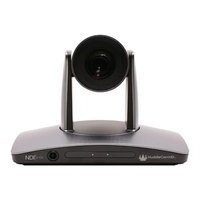
HuddleView HC12X - Security Camera HuddleCamHD - Free user manual and instructions
Find the device manual for free HuddleView HC12X HuddleCamHD in PDF.


Pick your language and provide your email: we'll send you a specifically translated version.
| Product Type | Security Camera |
| Brand | HuddleCamHD |
| Model | HuddleView HC12X |
| Image Sensor | 1/2.8" Progressive Scan CMOS |
| Resolution | 1920x1080 (Full HD) |
| Optical Zoom | 12x |
| Digital Zoom | 12x |
| Lens | F=3.9~46.8mm, F1.6~F2.8 |
| Horizontal Viewing Angle | 72.5° (Wide) ~ 6.4° (Tele) |
| Minimum Illumination | 0.05 Lux (Color), 0.01 Lux (B/W) |
| IR Distance | Up to 100m |
| Pan Range | 360° endless |
| Tilt Range | -20° to +90° |
| Video Output | HDMI, SDI, USB 3.0 |
| Network | 10/100M Ethernet, PoE (802.3af) |
| Power Supply | DC 12V or PoE |
| Power Consumption | <18W |
| Dimensions (WxHxD) | 210mm x 170mm x 174mm |
| Weight | 1.8kg |
| Operating Temperature | 0°C ~ 40°C |
| Certifications | CE, FCC, RoHS |
| Included Accessories | Power adapter, remote control, mounting bracket, user manual |
| Maintenance | Clean lens with soft dry cloth; avoid solvents |
| Security | Supports password protection, IP filtering, encrypted streams |
Frequently Asked Questions - HuddleView HC12X HuddleCamHD
How do I reset the camera to factory defaults?
Press and hold the reset button on the bottom of the camera for 10 seconds. The camera will reboot with default settings.
Can the HuddleView HC12X be used outdoors?
This camera is designed for indoor use only. It is not weatherproof. For outdoor installation, use an approved housing.
Does this camera support ONVIF?
Yes, the camera supports ONVIF Profile S, ensuring compatibility with most third-party NVRs and software.
How to connect the camera to an NVR?
Connect via Ethernet cable and ensure both devices are on the same network. The camera will be detected automatically if ONVIF is enabled. Alternatively, manually add using the camera's IP address.
Does it have a built-in microphone or audio output?
Yes, the camera features a built-in microphone and audio input/output ports for two-way audio communication.
How to set up motion detection?
Access the camera's web interface, go to Event Settings > Motion Detection, draw detection areas, and adjust sensitivity. You can link it to email alerts or recording.
What is the warranty period for this camera?
The HuddleCamHD HuddleView HC12X comes with a 2-year limited warranty against defects in materials and workmanship.
Can I control the camera with a smartphone app?
Yes, download the HuddleCamHD Viewer app (iOS/Android) and scan the QR code on the camera to remotely control pan, tilt, zoom, and view live feed.
How to clean the camera lens?
Use a soft, lint-free cloth slightly dampened with lens cleaner. Gently wipe the lens in a circular motion. Avoid using abrasive materials.
What power supply options are available?
The camera can be powered via DC 12V (adapter included) or PoE (Power over Ethernet) with a compatible switch or injector.
User questions about HuddleView HC12X HuddleCamHD
0 question about this device. Answer the ones you know or ask your own.
Ask a new question about this device
No questions yet. Be the first to ask one.
Download the instructions for your Security Camera in PDF format for free! Find your manual HuddleView HC12X - HuddleCamHD and take your electronic device back in hand. On this page are published all the documents necessary for the use of your device. HuddleView HC12X by HuddleCamHD.
USER MANUAL HuddleView HC12X HuddleCamHD


Manual assistant
Powered by Anthropic
Waiting for your message
Product information
Brand : HuddleCamHD
Model : HuddleView HC12X
Category : Security Camera