
LY26R3A - Refrigerator HAIER - Free user manual and instructions
Find the device manual for free LY26R3A HAIER in PDF.



| Product type | Refrigerator |
| Brand | HAIER |
| Model | LY26R3A |
| Total net capacity | 260 L |
| Net refrigerator capacity | 200 L |
| Net freezer capacity | 60 L |
| Energy class | A+ |
| Annual consumption | 250 kWh |
| Dimensions (W x D x H) | 60 x 65 x 150 cm |
| Noise level | 40 dB |
| Cold type | Ventilated |
| Defrosting | Automatic |
| Lighting | LED |
| Main functions | Open door alarm, child safety, digital display |
| Maintenance and cleaning | Clean with a soft cloth and soapy water, do not use abrasive products |
| Safety | Unplug before cleaning, do not immerse, keep out of reach of children |
| Spare parts and repairability | Available from HAIER after-sales service |
| General information | Refrigerator-freezer, climate class N-ST, refrigerant R600a |
Frequently Asked Questions - LY26R3A HAIER
User questions about LY26R3A HAIER
0 question about this device. Answer the ones you know or ask your own.
Ask a new question about this device
Download the instructions for your Refrigerator in PDF format for free! Find your manual LY26R3A - HAIER and take your electronic device back in hand. On this page are published all the documents necessary for the use of your device. LY26R3A by HAIER.
USER MANUAL LY26R3A HAIER
DIGITAL LCD TELEVISION INSTRUCTION MANUAL
MODEL:LT26K3/R3A
LY26K3/R3A
LTF32K3/R3A
LY32K3/R3A
LTF42K3/R3A
Haier
Please read this manual carefully before operating the unit, and keep it for future reference.
Contents
01 SafetyWarnings
Welcome . P.02
Important information .P.03
Safety notice . P.04
Electrical connections P.05
02 About your LCD TV
Get to know your TV. .P.06
Get to know your remote control. P.08
Connecting your TV. .P.09
Preparation of your remote control. P.11
03 Getting Started
Setting up . P.12
Tuning your TV. P.13
Common interface.. P.16
Using your TV. P18
Adjusting picture settings P 19
Adjusting sound settings P.20
Function settings P21
Time settings 23
Lock menu settings P.25
Shortcut menu display
04 Using the features
Teletext function. P.29
USB mode .P.31
Using External USB Disk For Recording .P.38
Using your DVD player(certain models only).P.40
05 Reference Sections
Troubleshooting. P.44
Specification .P.45
01 SafetyWarnings
WELCOME
Thanks for buying this 26"/32"/42" HD Ready Digital LCD TV.
This guide will help you setup and begin using your TV.
First, check the contents of your box with the parts checklist below:
- 26"/32"/42"HD Ready DigitalLCD TV
Remote control - AAAbattery x2
- Instruction Manual
Quick Start Guide
Now you can get started!
IMPORTANT INFORMATION

WARNING
RISK OF ELECTRIC SHOCK DO NOT OPEN
WARNING
TO REDUCE THE RISK OF ELECTRIC SHOCK DO NOT REMOVE COVER (OR BACK). NO USER SERVICEABLE PARTS INSIDE. REFER TO QUALIFIED SERVICE PERSONNEL.
To avoid electric hazards, it is strongly suggested that the back cover not be opened, as there is no any accessory inside the casing.
If necessary, please contact authorized after-sales services.
A lighting flash mark in a triangle: Apotentially hazardous situation, which, if not avoided, could result in serious injury by high voltage.
An exclamation mark in a triangle: Major part or accessory of which technical specifications must be followed if it is to be replaced.
Warning:
To avoid fire or electric hazards, never place your television receiver in an area with heavy moisture. Attention should be paid to avoid accidental scratches or impacts onto the screen.
Caution:
Please read this manual carefully before using your television and keep this manual in a good place for future reference.
To achieve the best performance of your television, read this User's Manual carefully and properly store it for future reference.
Information of screen displays and figures in the User's Manual may vary due to technical innovations.
Caution:
Unauthorized disassembly of this product is prohibited.
The product should be tightly fixed to avoid drop damages and even fire.
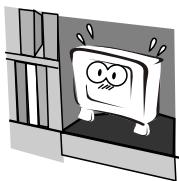
Do not locate the product close to water or oil, which may cause fire hazards.
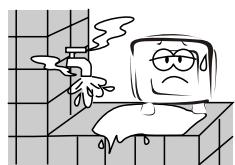
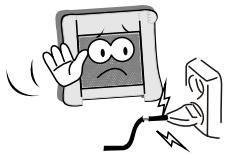
Do not use damaged or worn electric plugs, and keep electric cord away from heat sources to avoid electric shocks or fire hazards.
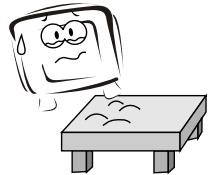
The product must be placed on a solid and stable surface to avoid collapse.
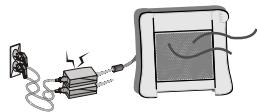
Keep the product away from a transformer or heat source to avoid fire hazards.
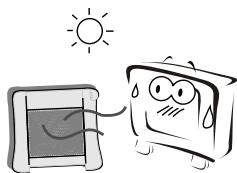
To avoid fire hazards, do not use this product under direct sunlight or closely to heat sources.
Unplug the power supply and antenna of the product when there is a rainstorm, especially
Thunderstorm.
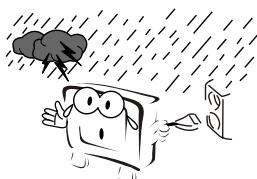
Do not connect excessive sockets in parallel or share the same socket by multiple plugs to avoid fire hazards.
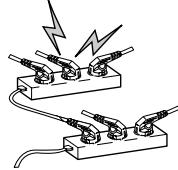
Unauthorized disassembly of the television is prohibited to avoid electric shocks or fire
hazards. Contact authorized after-sales service if technical service is needed.


Disconnect the product from power supply and contact authorized after-sales service if abnormal sound is heard in the product.
Don't use or store inflammable materials near the product to avoid explosion or fire hazards.

Don't place the product in a humid area to avoid fire hazards.
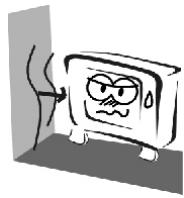
The antenna of the product should be away from electric cable to avoid electric shocks.
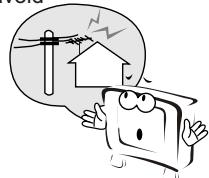
Never touch the plug when your hand is wet as this might cause electric shocks.
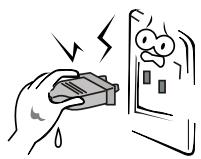
Always make sure that the television is well plugged as poor electric connection might cause fire.
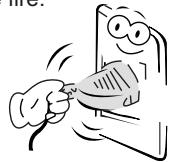
When antenna is used, measures should be taken to prevent water
from flowing down along the cable into the television.
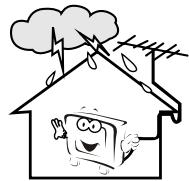
Unplug the television, use soft fabric, never chemicals, if you are going to make cleaning of the product.
Make sure that no water drops in the product.
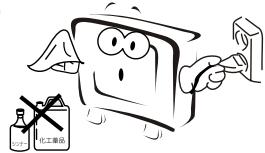
The plug and electric cable must be kept clean to avoid electric
shocks or fire hazards.

Disconnect the television from power supply and antenna when there is a rainstorm or thunderstorm to avoid electric shocks or fire hazards.
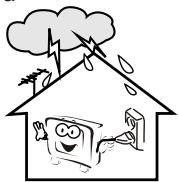
Disconnect the television from power supply to avoid electric shocks or fire
hazards in a long vocation.

02 About your LCD TV
GET TO KNOW YOUR TV
Front control panel
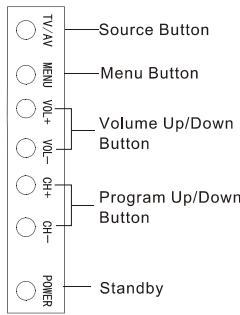
R3
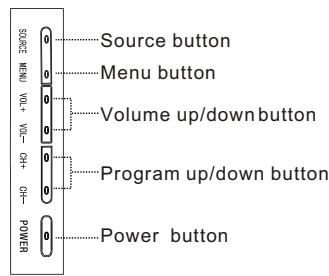
K3
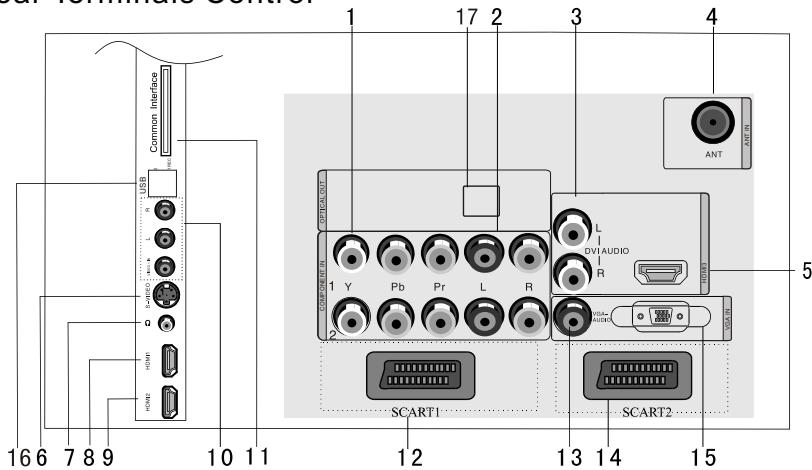
Rear Terminals Control
- YPbPr input
- YPbPr AUDIO input
- DVI AUDIO input
4.ANTENNA input
5.HDMI3 input - S-VIDEO input
- EARPHONE output
8.HDM11 input
9.HDMI2 input
10. AV-VIDEO input
11. Common Interface
12. SCART1 input
13.VGA AUDIO input
14. SCART2 input
15. VGA input
16. USB
17.OPTICAL
GET TO KNOW YOUR TV WITH DVD
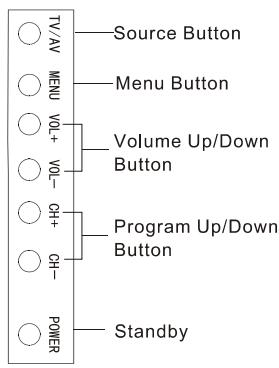
Front control panel
R3
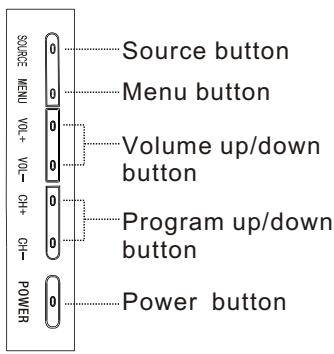
K3
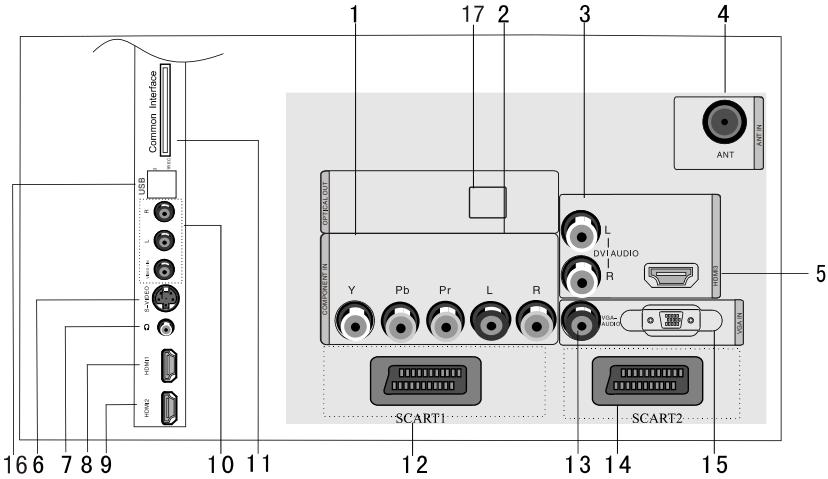
Rear Terminals Control
- YPbPr input
- YPbPr AUDIO input
- DVI AUDIO input
4.ANTENNA input
5.HDMI3 input - S-VIDEO input
- EARPHONE output
8.HDMI1 input
9.HDMI2 input
10.AV-VIDEO input
11. Common Interface
12.SCART1 input
13.VGA AUDIO input
14.SCART2 input
15.VGA input
16.USB
17.OPTICAL
GET TO KNOW YOUR REMOTE CONTROL
When using the remote control, aim towards the remote sensor on the TV
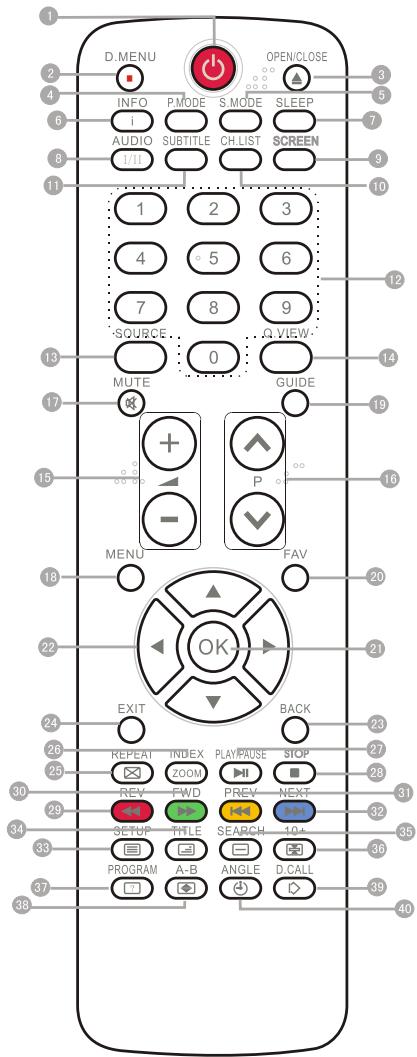
NOTE: RED button, GREEN button, BLUE button and YELLOW button are fast text button in analog signal. Function button in DVBT (just reference the OSD)
1 Stand By
DVD Menu / REC
DVD open / close
Picture Mode
Sound Mode
6 Call Screen Display
Sleep button
8 DTV Audio / NICAM / DVD Audio
9 Aspect Ratio Control button
10 Channel list button
Subtitle button
12 Program Number Channel selection
13 Source Exchange
14 Q.VIEW / Swap Channel
15 V+/V- : Volume selection
16 P+/P:: Channel selection
Mute
18 Menu button
GUIDE button (only for DTV)
20 Favourite list button
21 OK button
2 Cursor Mover button
Back button (only for USB)
24 Exit Screen Display
REPEAT (only for DVD, USB, REC & Timeshift) / CANCEL button
26 Zoom (only for DVD &USB)/Teletext index(only for TV) / REC index
27 Play / Pause button (only for DVD &USB) / Timeshift
28 Stop (only for DVD, USB, REC & Timeshift)
29 Fast Reverse (only for DVD, USB, REC & Timeshift)
30 Fast Forward (only for DVD, USB, REC & Timeshift)
31 Previous (only for DVD, USB, REC & Timeshift)
32 Next (only for DVD, USB, REC & Timeshift)
33 DVD Set up / Text
DVD Title / TeletextMix
35 DVD Search / Teletext Subcode
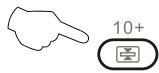
36 DVD 10+ / Teletext Hold
DVD Program / Teletext Reveal
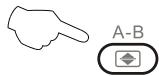
DVD A-B Repeat / Teletext Size
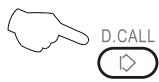
39 DVD Call / Teletext Mode
DVD Angle /Teletext Time
CONNECTING YOUR TV
ANTENNA CONNECTION
Connect your aerial to the side of the TV into the ANTENNAIN socket.
IMPROVE YOUR SIGNAL
To improve picture quality in a poorsignal area, use a signal amplifier (not supplied).
CONNECT YOUR PC TO THE TV
You can use your TV as a monitor for your personal computer by connecting it with a VGA cable (not supplied).
1.Read your computer user guide and check it has a VGAconnector.
2. Turn the power off on your TV and PC.
3. Connect a D type 15-pin VGA interface cable to the VGA video interface connector on the PC. Connect the other end of the cable to the PC interface connector on the TV. Tighten the screws on the VGA connectors and connect the audio cable (not supplied) to the audio input socket on the back of the TV.
4. Turn on the power of the TV firstly and then the PC.
5. Press the button on the TV or TV remote control to set the video input mode to VGA.
6. Once the image shows, if there is noise present, change the VGA mode to another resolution, change the refresh rate to another rate or adjust the brightness and contrast on the menu until the picture is clear.
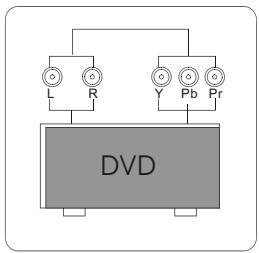
CONNECT ADVD PLAYER TO YOUR TV
Connect the DVD video outputs (Y, Pb, Pr) to the COMPONENT (Y, Pb, Pr)
IN socket onyour TV.
- Turn on the DVD player and insert a DVD.
2 . Press the button to select - Refer to the DVD player user guide for operating instructions.
CONNECT ADVD PLAYER OR VCR TO YOUR TV
There are two ways in which you can connect a DVD player or VCR to your TV. Make sure that both the TV and DVD player or VCR are switched off before you connect them.
Connection Option 1
- Connect the audio and S-VIDEO cables from the VCR output jacks to the TV input jacks.
2.Insert a video tape into the VCR and press PLAY on the VCR. - Turn on the power of the TV first, then the VCR.
- Press the SOURCE button on the TV to set the video input mode to S-VIDEO
Connection Option 2
- Connect the AV DVD/VCR outputs to the AV IN socket on your TV.
- Press the SOURCE button on the TV to set the video input mode to AV.
SCART INPUT
- Connect the scart lead from the external device (DVD player, Set-top box or games console) to the TV scart socket.
- Press the SOURCE button to select SCART mode.
- Press the PLAY button on the external device.
HDMI INPUT
- Connect the cable from the HDMI device to the TV HDMI socket.
- Press the SOURCE button to select HDMI mode.
3.Refer to the HDMI device user guide for how to operate.
MOUNT YOUR TV ONTO THE WALL
You can mount your TV onto the wall by using a wall bracket (not supplied). Use M4/M6 machine screws (4 pcs) to screw the TV onto the bracket (not supplied).
PREPARATION OF YOUR REMOTE CONTROL
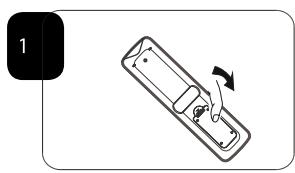
BATTERY INSTALLATION
- Place the remote control face down, then open the cover of the battery compartment.
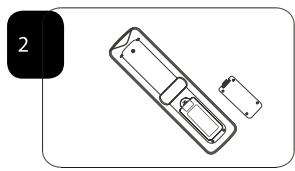
- Install two AAA batteries. (The + and- symbol of the battery must match with the marks on the remote).
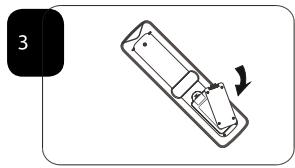
3.Close the cover of the battery compartment.
BATTERY CAUTION
Confirm there is no object between the remote control and the remote sensor of the TV set.
Sunshine or other strong light will interfere with the signal sent by the remote control. In this situation turn the TV set to avoid the direct light source.
Do not put the remote control in direct heat or in a damp place as you may damage the remote.
Please use two AAA 1.5V batteries. Do not mix battery types. Install the batteries at the correct polarities. Do not use rechargeable batteries. If your TV is to be stored for a period of time, remove the batteries from the remote control.
03 Getting Started
Setting up
LOCATION
You will need to place your TV near your plug socket (so the power cable can comfortably reach) and within reach of your aerial socket or extension lead.
CONNECTION
- Insert your TV aerial lead into the Antenna input at the side of the TV.
- Insert the batteries into the remote control. Make sure they are inserted the right way around, matching the polarity as indicated inside the battery compartment.
SWITCHING YOUR TV ON
- Press the STANDBY button on the right side of the TV once. Ared flashing light will appear in the corner of the screen.
- Press STANDBY on the remote control. The TV will turn on and the red light will turn blue. This may take a few moments.
- Select your chosen language when prompted from the list that will appear on screen. Use the button to scroll to the language you want and press to confirm.
TUNING YOUR TV
SWITCHING TO AN EXTERNAL SOURCE OTHER THAN TV
If you have attached a DVD player or similar external device to the TV, you will need to tell the TV to display the content from it. Simply press SOURCE which will bring up the source menu in the left corner of the screen, Use the and button to highlight the required source and press OK select.
For details of how to plug in other equipment see GET TO KNOW YOUR TV on page 6.
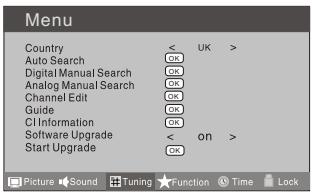
AUTO SEARCH
- Press MENU button.
- Press button to select Tuning menu, press button to enter.
- Press button to select Country item.
Press button to select you needed.
- Press button to select Auto Search item, press OK button to enter.
Press button to select the OK option, and press OK button to start searching.
Press the MENU button, you can choose to skip the TV /DTV Search or not.
- Press EXIT button to stop auto search during searching.
Note: It may take a few moments to complete the Auto Search.
DIGITAL MANUAL SEARCH
- Press MENU button.
- Press button to select Tuning menu, press button to enter.
- Press button to select Digital Manual Search item, press button to enter.
- Press button to select the Channel. Press OK button to start searching.
- Once a channel is located, you can press OK button to save it. Press EXIT button to exit.
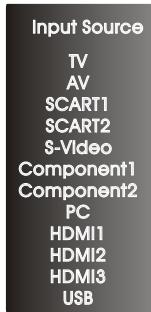
(Without DVD)
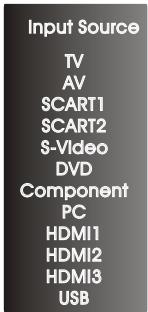
(With DVD)
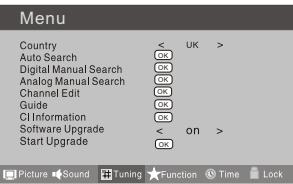
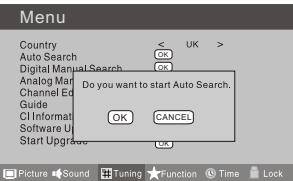
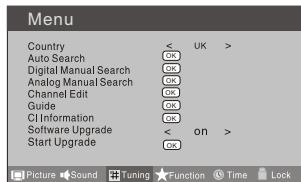
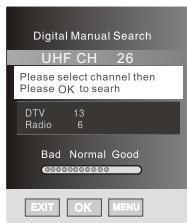
TUNING YOUR TV
Analog Manual Search
Follow the below steps when you need to have a manual search. 1. Press MENU button.
2. Press button to select Tuning menu, press button to enter.
3. Press button to selectAnalog Manual Searchitem, Press button to enter.
4. Press buttonto select Searchitem, press buttonis used to select the higher frequency channel. Press button is used to select the lower frequency channel.
5. And then select Storage To, press▶ button to select the position number you want the channel on. Once a channel is located, you can press red button to save it. Press EXIT button to exit.
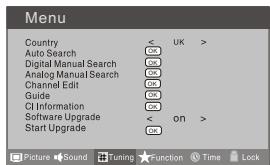
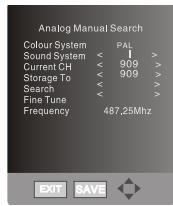
Sound System
Press▼ button toselect "Sound System", then press
button to select the correct sound system.
Current CH
Press button to select the channel number to edit.
Storage To
Press button to select the program number you want to storage to.
■ Fine tune
If the picture and/or sound are poor, try using the FINE TUNE feature. Don't use this feature unless reception is poor.
1 Repeat above steps 1-3, then press button to select the Fine Tuneitem.
2 Press button repeatedly to carry out fine tune, till the best picture and sound are obtained, then loosen the button.
TUNING YOUR TV
Channel Edit
Using this function, you can rename, move, set favorite channel and skip the channel in the analogue mode.
- Press MENU button.
- Press button to select TUNING menu, press button to enter.
- Press button to select CHANNELEDIT item, Press button to enter the sub-menu. You can press red, green, yellow or blue button to enter the menu you need.
RENAME
- Press button to select the channel, and press green button to rename.
- Press button to select the number position of channel name, Press button to select number.
- You can press the EXIT button to cancel the changes at anytime.
NOTES:The RENAME function is only available in ATV program.
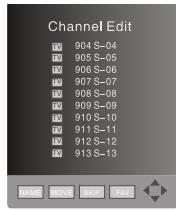
MOVE
- Press button to select the channel any press yellow button to select the position.
- Press button to select the number position you want to remove to, press yellow button to confirm.
3.You can press the EXIT button to cancel the changes at anytime.
Setting favourite channel
- Press button to select the channel, press Red button to set your favourite channel.
- You can press the Red button to cancel the changes at anytime.
- Press FAV button on the remote control and Favourite List will be displayed.
- Press button to select the channel, and press OK button to enter.
SKIP
- Press button to select the channel and press blue button to skip the current channel.
- You can press the blue button to cancel the changes at anytime.
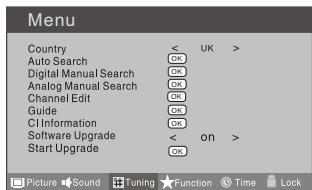
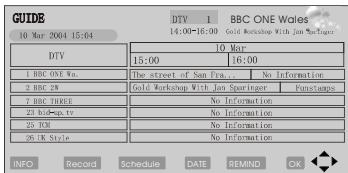
GUIDE (Electronic Program Guide)
Using this function, you can access the DTV program information
- Press MENU button.
- Press button to select TUNING menu. press button to enter.
- Press button to select the guide item. Press OK button to enter the submenu, the electronic program guide is displayed. You can quickly call up Guide menu by GUIDE button on the remote control.
Notes: Only DTV mode.
COMMON INTERFACE
The common interface (CI) slot is designed to accept the Conditional Access (CA) Module and Smart card in order to view the pay TV programmes and additional services. Contact your Common Interface service provider to get more information about the modules and subscription. Please noted that CA modules and smart cards are neither supplied nor optional accessories from us.

Warning: switch off your TV before any module is inserted in the Common Interface slot.
1 Insert the CAM correctly, then Smart Card to the CI slot that is located at the side of the TV.
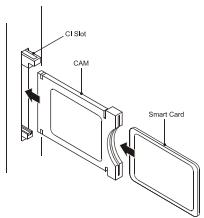
CI Module Insert
Main Menu Module information Smart card information Language Software Download
Press OK to select,or Exit toquit EXIT OK
CI module removed
2 Turn on the TV and it will display the below message if the CA module is detected. Wait for few moments until the card is activated.
3 Press the MENubutton to display the Main Menu and use the and button to highlight the "Common Interface"line and press the "OK" button.
4 Detailed information on the CI card in use is displayed.
5 Press OK button to access the card menu. Refer to the module instruction manual for setting details
6 When module is removed, the following message will appear on the screen.
Software Update function
- When you get the updating news from the TV shop's web, you can update the operating software using the Download menu. The data for various units are transferred consecutively on a special receiving channel.
- You need to search the channel with updating code stream.
Note: You can get information from the TV shop or internet.
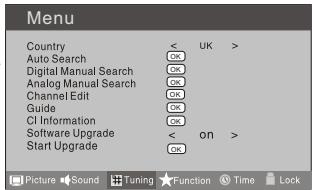
Operation
1 Press MENU button.
2 Press button to select TUNING menu, press button to enter.
3 Press button to select Software Upgrade item.
4 Press button to set it as On. (The default is Off)
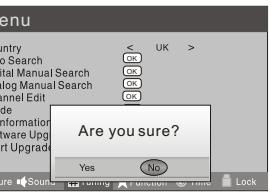
5 If the updating code stream of the channel is suitable for your set, Do System Update option can be selected. Otherwise the Do System Update option is grey and cannot be selected.
6 Press button to select the System Update option and use OK button to enter. Then the TV will restart and search the upgrade information.
NOTES: If the upgrade information is received, the TV will begin to upgrade. Or else, the TV will be back the DTV source.
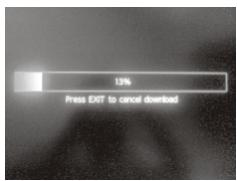
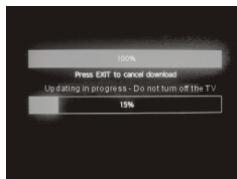
7 Load the receiver identification. This process may also take several minutes. you can press EXIT button to cancel the download and your TV set will be standby.
8 After the download has finished, your TV set will enter burning state and the indicator light is shining. The menu 4 of right appears.
The set will be standby when the update is completed.
USING YOUR TV
How to select the TV program
- Using Program number button Enter the channel number with the number keypad on the remote control.
2.Using P + /P - button
Press the P + / P -button to select a channel number.
HOW to adjust volume
Press V+/V- button on the remote control or the side of the TV to adjust the volume level.
CH.LIST function
Press CH.LIST button on the remote control will display Channel List menu, and then press button to enter.
Press button to select the channel, and then press OK button to enter.
ADJUSTING PICTURE SETTINGS
Changing the Picture Setting
- Press MENU button.
- Press button to select Picture menu, press button to enter.
- Press button to select the item requires adjusting.
- Press button to adjust the selection item.
- When you are satisfied with your choice, press the EXIT button to return to normal viewing or press MENU button to return to the previous menu.
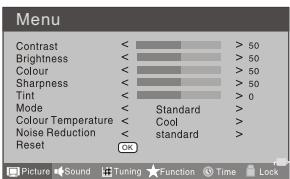
Contrast
This will adjust the intensity of bright parts in the picture but keep the dark parts unchanged.
Brightness
This will adjust the light output of the complete picture, which will mainly affect the darker areas of the picture.
Colour
This will adjust the saturation level of the colours to suit your personal preference.
Sharpness
This will adjust the sharpness of fine details in the picture.
■Tint
Allows you to select the colour mix (Tint) of the picture.
Note: The Tint function is only available in NTSC mode.
Mode
This will select the picture mode. Select Standard/Mild/User/Vivid according to the program. You can quickly select the desired mode by P.MODE button on the remote control.
Colour temperature
This will increase or decrease Warm (red) and Cool (blue) colours to suit personal preferences.
Select Cool to give the white colour a blue tint, Normal to give the white colour a neutral tint, Warm to give the white colour a red tint.
■ Noise Reduction
Automatically filters out and reduces the image noise and improves picture quality when receiving weak video signals.
Select Off/Low/Standard/High according to the image noise.
Reset
To recover to the default value.
ADJUSTING SOUND SETTINGS
Changing the Sound Setting
- Press MENU button.
- Press button to select Sound menu, press button to enter.
- Press button to select the item requires adjusting.
- Press button to adjust the selection item.
- When you are satisfied with your choice, press the EXIT button to return to normal viewing or press MENU button to return to the previous menu.
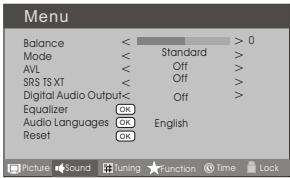
■Balance
This will adjust the output of the right and left speakers to obtain the best stereo reproduction for your listening position.
Mode
This will select the sound mode.
Press button to select Standard/Music/Theater/User according to the program.
You can quickly select the desired mode by S.MODE button on the remote control.
AVL(Automatic volume control)
This will reduces the differences in volume level among broadcasters.
■ SRS TS XT
This will control the Woofer output.
Press button to select SRS TSXT.
Press button toset SRS TSXT as OFF,ON.
Digital Audio Output
This will control the Digital Audio Output.
Press button to select Digital Audio Output.
Press button to set Digital Audio Output. asOFF, PCM,RAW.
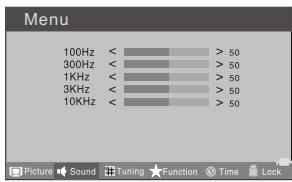
Equalizer
This sound setting can be adjusted to suit your personal preference.
Audio Languages
Press button to select Primary/Secondary item, and then press button to select the languages you needed.
Press button to select Close item, Press OK button to close it.
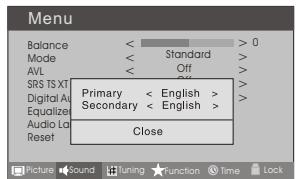
Note: The Audio Language function is only available in DTV mode.
Reset
Torecover to the default menu setting.
FUNCTION SETTINGS
- Press MENU button.
- Press button to select Sound menu, press button to enter.
- Press button to select the item requires adjusting.
- Press button to adjust the selection item.
- When you are satisfied with your choice, press the EXIT button to return to normal viewing or press MENU button to return to the previous menu.
Language
To select the menu language.
Subtitle Language
Toselect the Subtitle language.
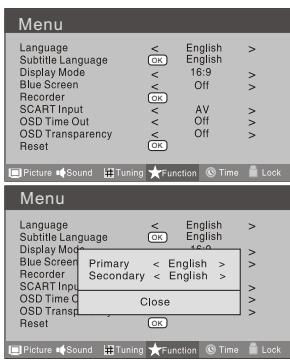
Display Mode
To set the picture proportion, press▶ button to select 4:3/Zoom1/Zoom2/Wide/16:9/Auto. You can quickly select the desired mode by ARC button on the remote control.
- 4:3 mode
Choose 4:3 when you want to view a picture with an original 4:3 aspect ratio, with gray bars appearing at both the left and right sides.
16:9 mode
Choose 16:9 when you want to adjust the picture horizontally, in a linear proportion to fill the entire screen.
- Zoom1
Choose Zoom1 when you want to view the picture without any alteration. However, the top and bottom portions of the picture will be cropped.
- Zoom2
Choose Zoom2 when you want the picture to be altered, both vertically extended and cropped. The picture taking a halfway trade off between alteration and screen coverage.
- Wide
Choose Wide when you want to adjust the picture in a non-linear proportion, that is, more enlarged at topsides and no alteration, at bottom side.
Blue Screen
This will select the character background colour.
Note: The BlueScreen function is only available for ATVmode.
■ Recorder
Torecorder the DTVprogram.
Details of Recorder are described in the page of 38.
SCART Input
When you use the SCART2 input, make sure
the input source is AV or S-VIDEO, and set the SCART INPUT option.
FUNCTION SETTINGS
OSD Time Out
To set how long you want the menus to appear on-screen. Each press of button repeatedly to select the number of preset minutes, the Time will be set in sequence: off,10sec,15sec, 30sec,45sec,60sec.
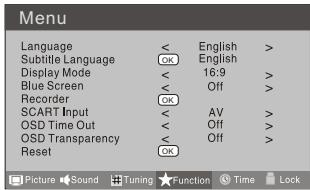
OSD Transparency
To set the transparency background of OSD, the transparency will be set in sequence: Off, 25% , 50% , 75% , 100% .
Reset
Torecover to the default value.
TIME SETTINGS
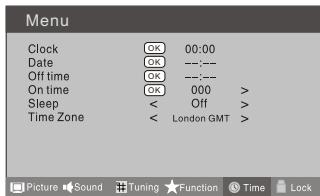
Clock
1 Press MENU button.
2 Press button to select Time menu, press button to enter.
3 Press▶ button to select Clockitem, press▶ button to enter setting.
Press button to select hour or minute, press button to adjust the value.
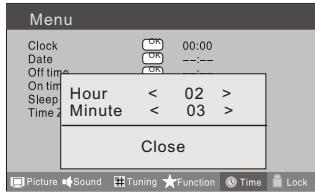
Date
1 Press MENU button.
2 Press button to select Time menu, press button to enter.
3 Press▶ button to select Date item, press▶ button to enter setting.
Press button to select the option, and then press button to adjust value.
NOTE: In DTV mode, because the time information is from the signal, the Clock and Date are not able to be changed.
If you want to change the time, turn off the TV in ATV mode, then turn on the TV.
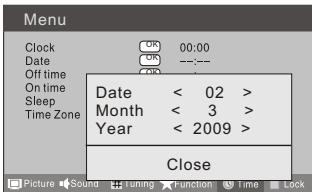
Off Time
1 Press MENU button.
2 Press button to select Time menu, press button to enter.
3 Press button to select OffTime item, press button to enter setting.
Press button to select Repeat option, and then press button to set it on.
Press button to select hour or minute,
Press button to adjust the value.
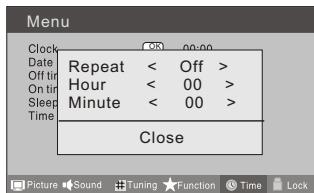
When the offtime has arrived, the TV set will enter into standby mode.
■ On Time
1 Press MENU button.
2 Press▶ button to select Time menu, press▼ button to enter.
3 Press button to select OnTime item, press button to enter setting.
Press button to select activate option, and then press button to setit On.
Press button to select hour or minute,
Press button to adjust the value.
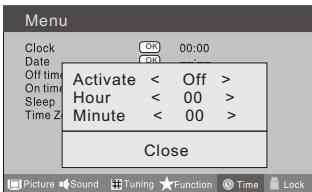
When the on time has arrived, the TV set will switch on automatically.
TIME SETTINGS
Sleep
The sleep timer automatically shuts off the TV after a preset time (from 5 to 240 minutes).
1 Press the MENU button and then use button to select the Time menu.
2 Press the button and then use button to select the Sleep.
3 Press the button and then use button to select the number of minutes. Select Off, 5Min, 10Min, 15Min, 30Min, 45Min, 60Min, 90Min, 120Min, 180Min, 240Min,
4 When you are satisfied with your choice, press MENU button to return to the previous menu or press the EXIT button to return to TV viewing. And the time begins to count down from the number of minutes selected.
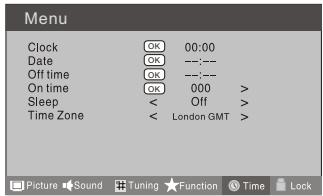
Time Zone
1 Press MENU button.
2 Press button to select Time menu, press button to enter.
3 Press button to select Time Zone item.
4 Press button to select the correct time zone.
5 Press MENU button to save and exit.
LOCK MENU SETTING
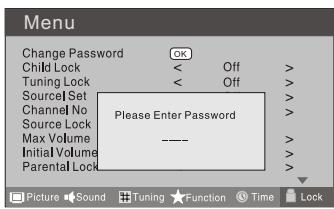
Using this function can control the tuner, program, source volume and so on. Pressing MENU on the remote control, press button to select Lock menu, press button to enter the sub-menu, and you will berequired to enter the password. The initial password of the television is 0000. If you forget your password, you can always input 9443 to regain control.
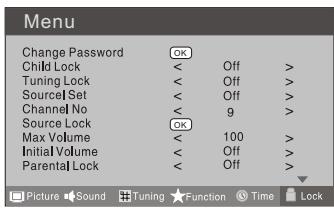
CHANGE PASSWORD
- Press button to select Change Password item. Press button to enter the submenu.
- When you have inputted the four digits you will be prompted to enter it again. Your new password will then be automatically saved.
CHILD LOCK
Press button to select Child Lock.
Press button to setOn or Off mode. If lock on mode is set, Child Lock is in activated automatically. In such case, if Child Lock button (button on the television) is pressed, the screen will displayChild Lock, which can be erased by press of MENU button. 5 seconds later after the latest press, the screen display will disappear automatically. The Child Lock mode can be resumed by entering Lock Setmenu, set Child LockOn or Off.
Tuning Lock
Press▲▼ to select Tuner Lock and to setOn/Off. (To set On, some operation such as search will be not available. When enter the Tuning menu, Tuner Lock will be on the screen. If you want to operate Tuning menu, you need to enter the Lock menu to set Tuner Lock Off or operate unlock.)
Channel NO.
Channel NO. is opted for setting up preset channel.
Press button to select preset Channel. Press button to select channel number.
Source set
Channel set is opted for setting up start source.
Press button to select Off, DTV, TV, AV, SCART1, SCART2, S-Video, Component1, Component2, PC, HDMI1, HDMI2, HDMI3, USB in turn. DVD is available for some model.
Source Lock
Source Lock will control the On or Off of hinder external input modes.
Press button to set as on or off.
When the source lock is set as on, TV source will display, at this time, when press SOURCE button, the TV can switch to correspondingsource and will display the Source is locked.
Max Volume
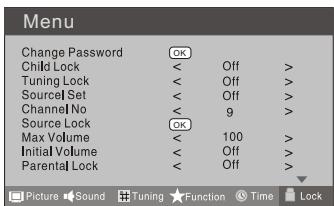
Press▲▼ button to select Max Volume. Press▶ button for adjustment between 0-100. If a certain Value is set, when volume is being adjusted, the sound value can not exceed maximum volume value. If current volume is over Max Volume, when lock set menu is set, current volume will become set maximum volume, if current volume is below maximum volume, customer set volume will stay unchanged.
Initial Volume
The TV will remember it after your setting, that will be the volume when turn on the TV next time.
Parental Lock
Press button to select parental lock. Press button to select OFF or 4-18 to limit the age of children who will watch TV.
Clear Lock
Press button to select Unlock mode. Press button to unlock all set modes, setting all lock options to off, and the maximum volume returns to 100.
SHORTCUT MENU DISPLAY
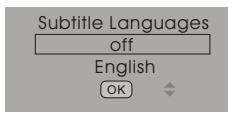
Subtitle Function
- Press SUBTITLE button on the remote control will display Subtitle languages menu, press button to enter.
- Press button to select the item and press OK button to enter. You can press the EXIT button to cancel the changes at anytime.
Notes: press SUBTITLE button on the remote, it will display subtitle languages menu only in the DTV mode.
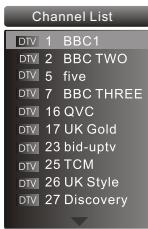
CH.LIST Function
- Press CH.LIST button on the remote control, will display Channel List menu.
- Press button to select the channel and press OK button to enter. You can press the EXIT button to cancel the changes at anytime.
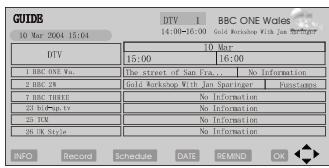
GUIDE Function
Press GUIDE button on the remote control, will display Program Guide menu, press button to select the program.
You can press the EXIT button to cancel the changes at anytime.
Notes: Available only in the DTV mode.
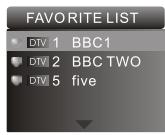
FAV Function
Press FAV button on the remote control, will display Favourite List menu.
Press button to select program and press OK button to enter. You can press the EXIT button to cancel the changes at anytime.
INFO
Press INFO button on the remote control, will display the current channel information.
You can press the EXIT button to cancel the changes at anytime
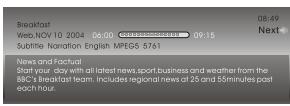
AUDIO/I/II
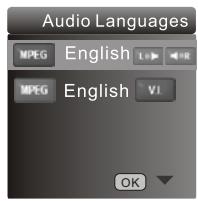
Press AUDIO button on the remote control, will display Audio Languages menu.
Press▲▼ button to select the desired settings and press OK button to enter.
You can press the EXIT button to cancel the changes at anytime.
Notes: Press AUDIO button on the remote, it will display Audio Languages menu only in the DTV mode.
SHORTCUT MENU DISPLAY
■ Eliminate Sound
When you need to pay attention to surrounded sounds, or there is a telephone calling you or there are some guests visiting you, the sound elimination (mute) function is very convenient.
1 Press the MUTE button on the remote control and "Mute" type face will display on the lower part of the screen. At this Time, the sound of the TV set is turned off.
2 If you want to recover the sound, press the MUTE button again or directly press V+ button.
Quick program view
This function enables quick swap to the last watched program. Press Q.view button, and the TV will be back to the TV source, expect in the USB and DVD source.
1 Suppose the channel number you used just now is 8 and the channel number you are using is 18 (as shown in the figure).
2 If you want to return to the last watched program channel 8, you can simply press the Q.View button.
3 If you want to return to channel 18, press the button again. Use this function, you can easily change between the channel you are using and the channel you used last Timer.
| 18 |
| 8 |
| 18 |
04 Using the features
Teletext functions
- Teletext is an information system, broadcast by certain channels, which can be read like a newspaper. It also provides subtitles for people with hearing difficulties or those who are unfamiliar with the language in which a particular program is being broadcast (cable networks, satellite channels, etc.).
Note: The teletext buttons could be working even if there is no teletext signal, but there is no teletext display.
Teletext


Teletext functions
To select "teletext" press the button on the handset. To switch off teletext, press the button again. "Note all menu functions are not available in teletext mode". Only a few direct button control functions are available in teletext mode, they are:
Volume adjustment
- Mute function
Page up/down
Use the P + / P - buttons to browse next or previous page.
Page number entering
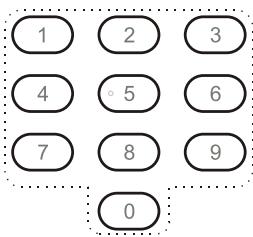
To select a Teletext page, enter the page number using the numeric key pad on the remote control, or use the P+ or P- buttons, or the coloured Fast text buttons.
Mix mode
To view the TV picture while in Text mode press the button, this will superimpose the Teletext data on top of the TV picture. Press this button again to return to Full text.
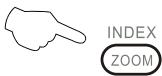
INDEX
Press the INDEX button to go to the index page of teletext.
Teletext


Teletext functions
Language change
Pressing the button will change the Teletext characters between Eastern and Western.
Hold
Pressing the button will stop the teletext page automatically updating. This feature is very useful where there are several teletext pages or data on the same page number.
Size
Pressing the button changes between full screen top half bottom half full screen. This feature is very useful as it magnifies the image making the characters easier to read.
Reveal
Pressing the ? button will reveal hidden text. This feature is used to reveal information such as answers to Teletext on-line interactive puzzles.
Time
While in normal TV mode only, pressing the button will display the teletext time in the top right hand corner for a few seconds.
Fast text coloured buttons
Fast text automatically displays the four most commonly used pages that the broadcaster thinks that you may want to choose next. Press the same coloured button on the remote control as the coloured link at the bottom of the teletext page to go directly to that page.
Subcode
Pressing the button by entering its 4-digit number to enter a secondary page
USB MODE
Note : The diagrams in the following section are schematic and only for your reference. Please see the actual productif necessary.
TO USE THE USB DEVICE
- Supported file formats:
1)Photo: .jpg
2)Music: .mp3 files
3)Movie: .avi files;
4)TEXT..txt;
Note: Due to the particularity of file cording, some files may be unable to read.
- Supported equipment:
Support the equipment that supports Mass Storage Protocol and whose file system is FAT32, such as some USB disks, mobile harddisks, and MP3 player. If USB equipment could not be identified due to unsupported file system, please format the equipment to the above-mentioned file system.
3.To achieve smooth playing, ensure the following:
1) The file code rate should be lower than 300KB/S;
2) Due to the limitation of USB signal transmission distance, it is recommended not to use USB patch cord, in case of using the cord, make sure that its length is not over 1m;
3) Use high-speed USB equipment in conformity with USB2.0 full speed Interface Standard; If USB equipment in conformity with USB1.1 full speed Interface Standard is used, the playing may be unsmooth.
USB MODE
When connecting/removing the USB device
- Press "SOURCE" on the remote control unit to select USB option.
2.Insert USB equipment into corresponding USB interface 2s after starting the system. - After entering the system menu, press “ ” on the remote control unit to select the require USB files, press “OK” button to confirm the selection and enter the file list relative to the selection.
- Press “ / ” on the remote control unit to select the required file, press “OK” button to enter the selected file.
- To exit the streaming media playing system and watch a TV program, you must press "BACK" button to return to the streaming media main menu at first(to protect equipment), and then press "SOURCE" to select "TV" to return to the TV mode.
Notes:
- Under source of USB, when press button MENU ,screen goes black, except when images or movies are being played.
- While playing the USB, press "BACK" button repeatedly, the screen picture will return to USB main interface, and only at this time you can switch corresponding signal sources by pressing "SOURCE" again.
- Please do not unplug the USB device when the connected USB storage device is working. When such device is suddenly separated or unplugged, the stored files or the USB storage device may be damaged.
USB MODE
Operating the USB device
- Press “▲/▼” to scroll through main menu or submenu and select your desired option.
- Press "OK" to confirm your selection.
- Press “ / ” to achieve the FWD (fast forward) and REV (fast back) of the option being played.
- Press "PLAY/PAUSE" to play, and press it again to pause playing.
- Press “ZOOM” to magnify pictures; when the picture is enlarged, press “ ” and “ ” to move the picture.
- Press "STOP" to stop playing, or return to the previous menu, and press "BACK" repeatedly to return to the main menu.
NOTE: You can choose the photos or music in different files to play together.
USB MODE
Playing a Picture
1.After entering USB main interface, press 4 / 4 to select "PHOTO" item.
-
Press "OK" to confirm the selection and enter the picture file list.
-
Press “▲/▼” to select the picture you want to play, press “OK” to confirm, and then press “PLAY/PAUSE” button to play t
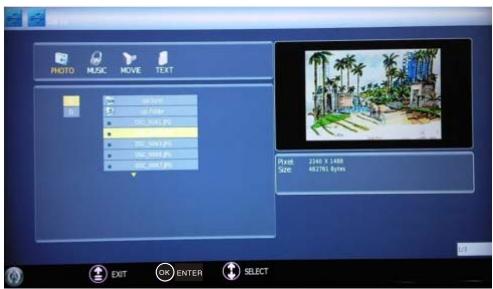
- If you want to pause the picture which is being palyed, press the PALY/PAUSE button again.
Press “ZOOM” to magnify the picture. When the picture is enlarged, press “ ” and “ ” to move the picture.
Press "PREV/NEXT" to select the last or next picture.
Press “ / ” to rotate the picture.
Press "STOP" to stop the picture being played.
5.To exit playing, just press "BACK" repeatedly.
NOTE: The menu display varies with the photo name and pixel in your equipment.
USB MODE
Playing Music
- After entering USB main interface, press “ ” to select “MUSIC”.
- Press "OK" to confirm the selection and enter the music file list.
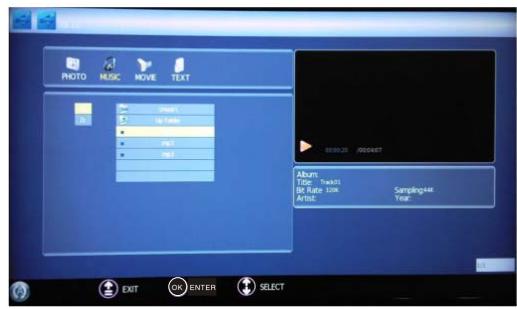
- Press “▲/▼” and “OK” button to select the music you want to play, then press “PLAY/PAUSE” button to play the music.
Press “ / ” to achieve the REV (fast back) and FWD (fast forward) of the musicbeing played.
Press "PREV/NEXT" to select the last or next music.
Press "STOP" to stop the music being played, when the current interface is the music being played.
- To return to the main menu, just press "BACK" repeatedly.
NOTE: You can enjoy the music and the picture at the same time.
USB MODE
Playing a Movie
-
After entering USB main interface, press “ ” to select “Movie”.
-
Press "OK" to confirm the selection and enter the movie file list.
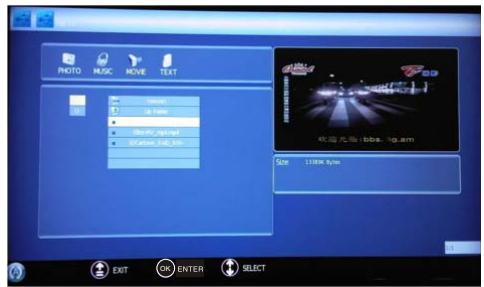
- Press “▲/▼” and “OK” button to select the movie you want to play, and then press “PLAY/PAUSE” button to play the movie.
Press “ZOOM” to magnify the picture.
Press “PREV/NEXT” to select the last or next movie.
Press "STOP" to stop the movie being played.
- To exit playing, just press "BACK" repeatedly.
USB MODE
Text
- After entering USB main interface, press “ ” to select “Text”.
- Press "OK" to confirm the selection and enter the text file list.
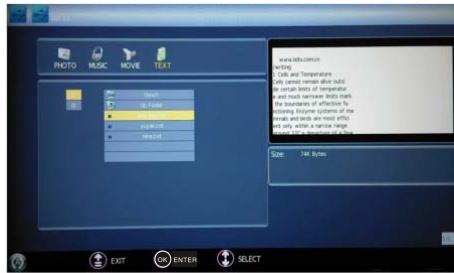
- Press “▲/▼” and OK” buttonto select the text you want to play, and then press “PLAY/PAUSE” button to play the text.
Press "PREV/NEXT" to select the last or next text.
- To exit the "Text" mode, just press "BACK" repeatedly.
NOTE: You can enjoy the music and the text at the same time.
Using External USB Disk For Recording
- Insert the USB device with FAT32 format into the USB1 connector. Then, press MENU button.
Note: Only USB1 is available for recording.
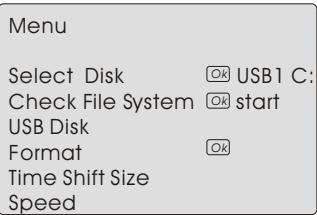
- Press button to select FUNCTION menu, press button to enter.
- Press button to select Recorder. Press OK button to enter the submenu.
- Press button to Select Disk and press or OK button to enter. Press button to select disk if your device has several disks.
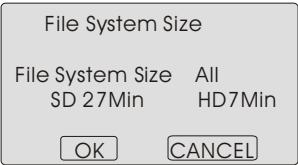
- Press button to select Format and press to enter. Press button to select the size you want to format. Press OK button to format the USB Disk.
NOTES: The system will format the whole device and if your device size is bigger than 1GB, you can set the size which is used for time shift.
- Format may take several minutes and the time is depending on the memory size. Press button to select the Time Shift Disk Size. The max device size for Time Shift is 8GB. Then, press OK button to save.
NOTES: If you select all the size format for time shift, you can not do any recording.
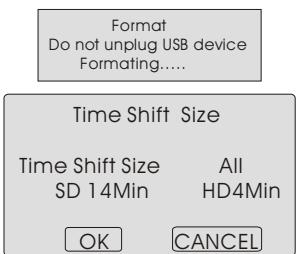
- Waiting for the system checking. And you can see the speed data after the success checking.
NOTES:
- Only have to format when you use the device for record for the first time.
-
The minimum device size for record is 1GB. Provide device formatting function is up to 2TB. The maxMulti-Partition is 16 partitions and one is active at a time.
-
Bit rate: Device bit-rate >4.5MB / s REC is safe at HD stream Device bit-rate >1.5MB / s REC is safe at SD stream Device bit-rate < 600KB / s REC is bad for REC
-
The system can not work normally if the USB device have the listing problem below:
The device has bug.
The device has error block.
The device reports the unfaithful size.
IMPORTANT: USB devices should be format as FAT32 format by your PC before insert to the USB connector.
TIME SHIFT
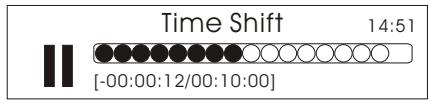
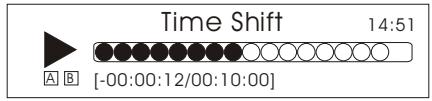
Time Shift function is only available in DTV mode. Press PLAY/PAUSE to pause the program, and press PLAY/PAUSE again, the time shift program will be played. If you want to stop time shift function, press the STOP button. You can stop the time shift program being played by pressing the EXIT button.
RECORDING
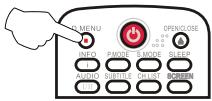
- Press D.MENU button to record the program being played, and press D.MENU or EXIT button to make the recording interface minimum.
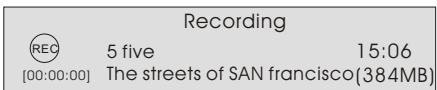
- Press STOP button to stop the program recording being played.
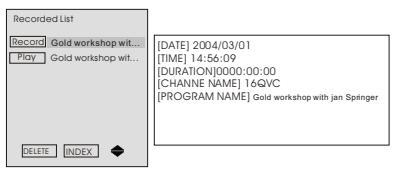
3.For Playback the recorded program. Press INDEX button to open the recorded list.
Press button to select the content you recorded.
Press the button to display the program information.
Press button to cancel.
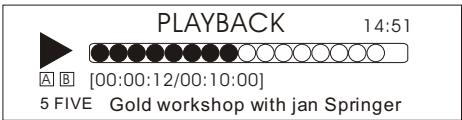
Press OK or PLAY/PAUSE button to play the program recorded and press STOP button to stop it.
NOTE:
- Changing the channel will not influence the recording in the same frequency, but will influence the time shift. When the recorded program is being played, you can not delete it.
- Press the INDEX button repeatedly, the program will be displayed in the order of program name, channel name, program time, file name and file length.
USING YOUR DVD PLAYER (certain models only)
PLAYINGA DVD
- Press the SOURCE button on the remote control to enter DVD mode.
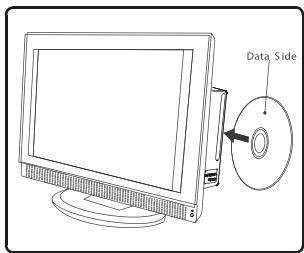
- Place the DVD in the disc slot with the DVD label facing away from you and the screen. The disc slot will only take standard-sized DVD.
- The DVD will automatically load; most begin with a disc menu.
4.Use the▼,▲,▶and按钮sto navigate around theDVD menu to highlight the play option and then pressPLAY/PAUSE.
PAUSINGA DVD
- Press PLAY/PAUSE to pause playback. The sound will also be muted.
- Press PLAY/PAUSE to resume normal playback.
STOPPING ADVD
- Press the button to stop playback of a DVD. The TV screen will show the DVD start-up logo.
- Some discs will remember the moment at which the DVD was stopped, so press PLAY/PAUSE to recall the moment and continue playback.
- Press the button twice to stop completely and clear the memory.
USING FASTFORWARD OR REWIND
- To move forward through a disc more quickly, press the button.
To rewind through the disc, press the button. - Press the or button repeatedly to cycle through the available speeds, which appear in the top left corner of the screen: 2X, 4X, 8X, 16X, 32X and normal playback speed.
- Press PLAY/PAUSE to resume normal playback.
SKIP TO THE NEXT OR PREVIOUS SCENE
During playback press the button to skip to the next scene on the disc, or press to skip to the previous one.
password
Parental control can be activated by setting the Password Mode to On. The default password is 0000. If you forget the password, you can always input 1369 to regain control.
USING THE ZOOM FUNCTION
- Press the ZOOM button to zoom into the image on screen. You can press it repeatedly to further enlarge the picture.
- In zoom mode use the , , and buttons to display a different section of the enlarged picture on the screen.
SWITCHING ON SUBTITLES
- Press the SUBTITLE button during playback.
- The available languages will appear in the top left corner of the screen. Press repeatedly until your desired subtitle language is shown.
- Press SUBTITLE repeatedly until SUBTITLE OFF is shown to switch the subtitles off.
USING REPEAT MODE
Press REPEAT once to repeat the chapter on a DVD, twice to repeat the currently playing title or three times to repeat the whole contents of the disc.
CHANGING THE CAMERA ANGLE
Some DVD have multiple camera angles for some or all scenes. Press the ANGLE button to change the camera angle. Different camera angles may include: front, side, whole view or exterior.
ADDITIONAL DVD FUNCTIONS
D MENU
Press this button to return to the previous menu item.
AUDIO
Many DVD have multiple soundtracks. To change between them press the AUDIO button. Wait three seconds before pressing the button again, to cycle through the options.
TITLE
Press this button to return to the title menu on some DVD. Use the▼,▲,▶ and按钮sto navigate around themenu.
SEARCH
Press SEARCH and use the numerical keys to enter the chapter number you wish to go to and press PLAY/PAUSE.
PROGRAM
During playback press PROGRAM to move directly to a section or programme on the DVD. Press the digit buttons to select the programme number that you want. When finished, move the cursor to select START. The DVD will jump directly to that section and begin to play. If you want to cancel this function, press PROGRAM and move to STOP, then press PLAY/PAUSE.
A-B
Use A-B to set a section of a DVD to repeat. Press A-B to mark the start point and again to mark the end. The section will begin to be repeated immediately. Press A-B to cancel the repetition.
ANGLE
When enjoying sports, concert or theatre, press this key to watch same actions in different angles.(Valid for discs possessing this function. Using a disrecorded in multi-angle you can view the scene from different angles, for example, front, side, whole view and exterior scene.)
D.CALL
When pressing the D.CALL button repeatedly different OSD indicator will be displayed for different types of disc DVD, CDetc
PLAYING A JPEG CD
1.Insert a JPEG CD in the same way as you would a DVD or Audio CD, with the label facing away from you.
2. The CD will load and a menu of the disc's contents will appear on screen
3.Use the and buttons to highlight the folder and picture you wish to view and press PLAY/PAUSE. Each image on the disc will show consecutively, like a slide show.
4. Press PLAY/PAUSE during the slide show to pause on one image.
5. Press the or button to skip to the next image or return to the previous one.
PLAYING AN AUDIO CD
1.Insert a CD in the same way as you would a DVD, with the label facing away from you.
2. The CD will load and a menu of the disc's contents will appear on screen.
3.Use the and buttons to highlight the track you wish to play and press PLAY/PAUSE, or just press PLAY/PAUSE to listen to the whole CD from the beginning.
You can stop, pause, fast forward or fast rewind a CD in the same way as a DVD. You can also use the REPEAT button to repeat a track, folder album or the contents of the whole disc. Press repeatedly to select what you would like to repeat. You can also use the A-B function to repeat a certain section of a track or CD.
05 Reference Sections
TROUBLESHOOTING
To assist in location of possible faults use the help guide below:
| No picture, no sound | Verify if the television is properly plugged in.Verify if the television has a proper supplied power source.Verify if electricity is available. |
| Blank screen | Verify if correct signals are input.Operate the remote to change signal input to correct input.Restart the television if power supply is interrupted. |
| No sound | Press MUTE button and verify if Mute mode is set.Switch to other channel and verify if the same problem happens.Press VOL+ button to see if the problem can be solved. |
| Poor sound | Verify if sound system is correct. Refer to user's manual for adjustment. |
| No picture in some channel | Verify if correct channel is selected.Adjust the antenna. |
| No color for some channel program (black and white) | Verify if the same problem exists in other channels.Check out of picture and sound systems.Refer to relative instructions in the Manual for color adjustment. |
| Spots with some or all pictures | Verify if the antenna is correctly connected.Verify if the antenna is in good condition.Make fine adjustment of channel. |
| Television out of control | Disconnect the television from power supply and 10 seconds later, connect the television to the power supply.If the problem still exists, contactauthorized after-sales service for technical assistance. |
Note:
1.If the fault can not be repaired using the above guide consult with your local authorized service centre.
2. The TV set must only be repaired by a qualified registered service person. Never attempt to remove the back cover as the TV set has dangerous voltages in side that may cause a fatally or fire.
| Specification | |
| SCREEN SECTION | |
| Type | A-si TFT active matrix |
| Viewable angle | 160(H) 150(V) (S626/S626D) |
| 176(H) 176(V) (S632F/S632D /S642F) | |
| Colour system | PAL, SECAM, NTSC (AV) |
| TV/VIDEO SECTION | |
| Sound system | BG, DK, I, L |
| Video input | SCART, S-VIDEO, YPb/Pr, YCb/Cr, AV,VGA, HDMI,USB |
| GENERAL SECTION | |
| DTV Y/Pb/Pr | Composite: 480i/p, 576i, 720p, 1080i, 1080p |
| Power | See rating plate |
| Power consumption | See rating plate |
| Dimensions (W x D x H)cm | 63.3 x 20.0 x 49.7 (including base) (LT26K3) |
| 63.3 x 20.0 x 49.7 (including base) (LY26K3) | |
| 79.8 x 23.0 x 57.5 (including base) (LTF32K3) | |
| 79.8 x 23.0 x 57.5 (including base) (LY32K3) | |
| 102.2 x 28.9 x 70.4 (including base) (LTF42K3) | |
| 66.2 x 20.0 x 50.0 (including base) (LT26R3) | |
| 66.2 x 20.0 x 50.0 (including base) (LY26R3) | |
| 79.6 x 23.0 x 59.0 (including base) (LTF32R3) | |
| 79.6 x 23.0 x 59.0 (including base) (LY32R3) | |
| 102.0 x 29.0 x 72.4 (including base) (LTF42R3) | |
| Environment conditions | Working temperature: +5℃ - +35℃ |
| Working humidity: 20% - 80% | |
| Storage temperature: -15℃ - +45℃ | |
| Storage humidity: 5% - 90% | |
| Accessory | User manual |
| Remote control | |
| Base cover (Only for S642F) | |
| Battery (x2) | |
| The part specifications of this TV set provided here are for reference only. Differences may occur as product technology is updated. Design and specifications are subject to change without notice. | |

Haier
MANUEL D'UTILISATION TELEVISION NUMERIQUE ECRAN LCD
MODELE: LT26K3/R3
LY26K3/R3
LTF32K3/R3
LY32K3/R3
LTF42K3/R3
Haier
RISQUE DE CHOC ELECTRIQUE, NE PAS OUVRIR
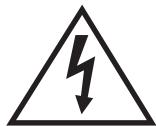
AVERTISSEMENT
AFIN DE RÉDUIRE LE RISQUE DE CHOC ÉLECTRIQUE, NE PAS RETIRER LE CAPOT ARRÊRÉ. AUCUNE PIECE INTERNE NE POT ÉTRE REPAREE PAR L'UTILISATEUR. APPELER UN CENTRE DE REPARATION AGREE.
Press OK to select,or Exit toquit
EXIT
OK
CI module removed
Initial Volume (Volume initial)
79,6 x 23,0 x 59,0 (base comprise) (LTF32R3)
79,6 x 23,0 x 59,0 (base comprise) (LY32R3)
102,0 x 29,0 x 72,4 (base comprise) (LTF42R3)
Conditions
environmentales
Common Interface (CI) 16
Press OK to select,or Exit toquit EXIT OK
CI module removed
Abmessungen (B x T x H) in cm
BG, DK,
SCART, S-VIDEO, YPb/Pr, YCb/Cr, AV, VGA,
HDMI, USB
Composite: 480i/p, 576i, 720p, 1080i, 1080p
Siehe Typenschild
Siehe Typenschild
Common Interface (CI) P.16
Uso del teileisore. P. 18
Smart card information
Language
Software Download
Press OK to select,or Exit toquit
EXIT OK
Sharpness (Nitidezza)
OSD Transparency (Trasparena OSD)
Press OK to select,or Exit toquit EXIT OK
CI module removed
Software update-function
- Brightness (Helderheid)
Blue Screen (Blaww scherm)
Initial Volume (Beginvolume)
TIME SHIFT (TIMESHIFTEN)
- DIGITAL LCD TELEVISION INSTRUCTION MANUAL
- Haier
- Contents
- SafetyWarnings
- About your LCD TV
- Getting Started
- Using the features
- Reference Sections
- WELCOME
- IMPORTANT INFORMATION
- WARNING
- Warning:
- Caution:
- GET TO KNOW YOUR TV
- Front control panel
- GET TO KNOW YOUR TV WITH DVD
- GET TO KNOW YOUR REMOTE CONTROL
- CONNECTING YOUR TV
- ANTENNA CONNECTION
- IMPROVE YOUR SIGNAL
- CONNECT YOUR PC TO THE TV
- CONNECT ADVD PLAYER TO YOUR TV
- CONNECT ADVD PLAYER OR VCR TO YOUR TV
- Connection Option 1
- Connection Option 2
- SCART INPUT
- HDMI INPUT
- MOUNT YOUR TV ONTO THE WALL
- PREPARATION OF YOUR REMOTE CONTROL
- BATTERY INSTALLATION
- BATTERY CAUTION
- Setting up
- LOCATION
- CONNECTION
- SWITCHING YOUR TV ON
- TUNING YOUR TV
- SWITCHING TO AN EXTERNAL SOURCE OTHER THAN TV
- AUTO SEARCH
- Note: It may take a few moments to complete the Auto Search.
- DIGITAL MANUAL SEARCH
- Analog Manual Search
- Sound System
- Current CH
- Storage To
- ■ Fine tune
- Channel Edit
- RENAME
- MOVE
- Setting favourite channel
- SKIP
- GUIDE (Electronic Program Guide)
- COMMON INTERFACE
- Warning: switch off your TV before any module is inserted in the Common Interface slot.
- Software Update function
- Operation
- USING YOUR TV
- How to select the TV program
- HOW to adjust volume
- CH.LIST function
- ADJUSTING PICTURE SETTINGS
- Changing the Picture Setting
- Contrast
- Brightness
- Colour
- Sharpness
- ■Tint
- Mode
- Colour temperature
- ■ Noise Reduction
- Reset
- ADJUSTING SOUND SETTINGS
- Changing the Sound Setting
- ■Balance
- AVL(Automatic volume control)
- ■ SRS TS XT
- Digital Audio Output
- Equalizer
- Audio Languages
- FUNCTION SETTINGS
- Language
- Subtitle Language
- Display Mode
- - 4:3 mode
- 16:9 mode
- - Zoom1
- - Zoom2
- - Wide
- Blue Screen
- ■ Recorder
- OSD Time Out
- OSD Transparency
- TIME SETTINGS
- Clock
- Date
- Off Time
- ■ On Time
- Sleep
- Time Zone
- LOCK MENU SETTING
- CHANGE PASSWORD
- CHILD LOCK
- Tuning Lock
- Channel NO.
- Source set
- Source Lock
- Max Volume
- Initial Volume
- Parental Lock
- Clear Lock
- SHORTCUT MENU DISPLAY
- Subtitle Function
- GUIDE Function
- FAV Function
- INFO
- AUDIO/I/II
- ■ Eliminate Sound
- Quick program view
- Teletext functions
- Teletext
- Page up/down
- Page number entering
- Mix mode
- INDEX
- Language change
- Hold
- Size
- Reveal
- Time
- Fast text coloured buttons
- Subcode
- USB MODE
- TO USE THE USB DEVICE
- When connecting/removing the USB device
- Notes:
- Operating the USB device
- Playing a Picture
- Playing Music
- Playing a Movie
- Text
- Using External USB Disk For Recording
- TIME SHIFT
- RECORDING
- NOTE:
- USING YOUR DVD PLAYER (certain models only)
- PLAYINGA DVD
- PAUSINGA DVD
- STOPPING ADVD
- USING FASTFORWARD OR REWIND
- SKIP TO THE NEXT OR PREVIOUS SCENE
- password
- USING THE ZOOM FUNCTION
- SWITCHING ON SUBTITLES
- USING REPEAT MODE
- CHANGING THE CAMERA ANGLE
- ADDITIONAL DVD FUNCTIONS
- D MENU
- AUDIO
- TITLE
- SEARCH
- PROGRAM
- A-B
- ANGLE
- D.CALL
- PLAYING A JPEG CD
- PLAYING AN AUDIO CD
- TROUBLESHOOTING
- MANUEL D'UTILISATION TELEVISION NUMERIQUE ECRAN LCD
- AVERTISSEMENT
- Initial Volume (Volume initial)
- Sharpness (Nitidezza)
- OSD Transparency (Trasparena OSD)
- Software update-function
- - Brightness (Helderheid)
- Initial Volume (Beginvolume)
- TIME SHIFT (TIMESHIFTEN)
Brand : HAIER
Model : LY26R3A
Category : Refrigerator