
FAXCENTRE F116 - Fax XEROX - Free user manual and instructions
Find the device manual for free FAXCENTRE F116 XEROX in PDF.

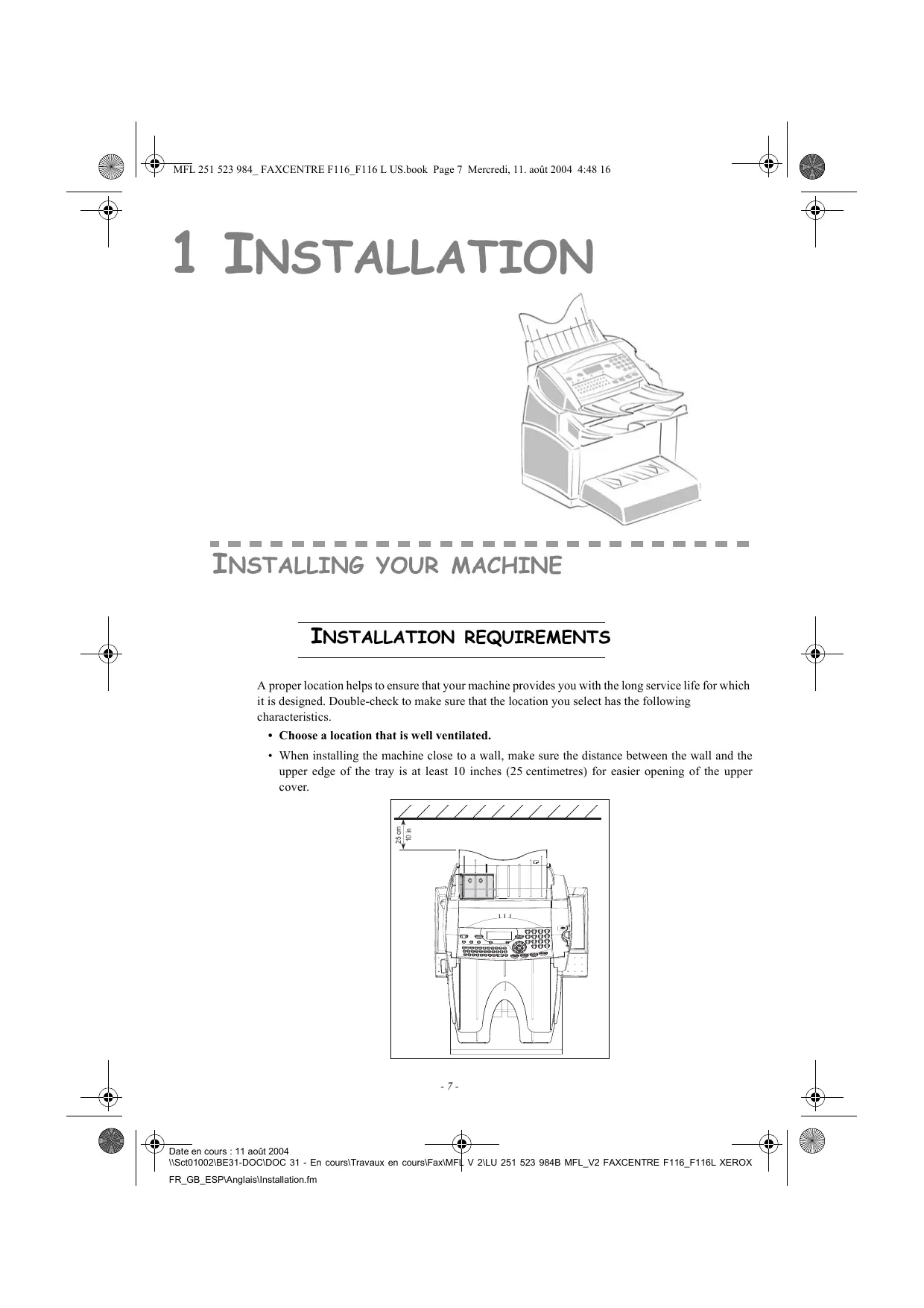

| Product type | Multifunction fax |
| Brand | Xerox |
| Model | FaxCentre F116 |
| Dimensions (W x D x H) | 370 x 250 x 150 mm |
| Weight | 4.0 kg |
| Power supply | 230 V, 50 Hz |
| Consumption (standby / printing) | 10 W / 200 W |
| Paper type | A4, up to 30 sheets |
| Fax transmission speed | 33.6 kbps (approx. 3 s/page) |
| Print quality | 200 x 200 dpi |
| Main functions | Fax, copy, phone, digital answering machine |
| Fax memory | Up to 100 pages |
| Toner cartridge | Approximately 2000 pages |
| Maintenance and cleaning | Clean the scanner glass and rollers regularly with a lint-free cloth |
| Safety | Do not open the device; unplug before cleaning; avoid moisture |
| Spare parts | Toner cartridges, feed rollers |
| Repairability | Entrust to a Xerox authorized technician |
| General information | User manual of 141 pages available for download |
Frequently Asked Questions - FAXCENTRE F116 XEROX
User questions about FAXCENTRE F116 XEROX
0 question about this device. Answer the ones you know or ask your own.
Ask a new question about this device
Download the instructions for your Fax in PDF format for free! Find your manual FAXCENTRE F116 - XEROX and take your electronic device back in hand. On this page are published all the documents necessary for the use of your device. FAXCENTRE F116 by XEROX.
USER MANUAL FAXCENTRE F116 XEROX
Congratulations for purchasing this new generation multifunction machine. This machine is capable of faxing, printing and scanning and furthermore, can be used for Internet communications. Your machine will meet all your professional requirements.
It combines power, user-friendliness and simplicity thanks to its navigator, its multitask access and its direct access directory.
Providing access to the Internet, your machine lets you, depending on model:
- send and receive faxes to E-mails,
- send and receive E-mails.
You can also print to PCL® 6 and SGScript 3 formats (emulation of Postscript® level 3 language). We recommend that you read this Manual carefully, in order to familiarise yourself with the various features and functions of your machine.
| Model | Equipment |
| FaxCentre F116 | • Color scanner • Fax modem 33,6 kbps and data 56 kbps • Laser printer black & white 16 ppm |
| FaxCentre F116L | • Color scanner • Bi-line: 2 fax modem 33,6 kbps • Modem data 56 kbps • Laser printer black & white 16 ppm |
The FAXCENTRE F 116 is equipped with one phone line (L1).
The FAXCENTRE F 116L is equipped with two phone lines (L1 and L2).
List of accessories
The following additional accessories are proposed for the FaxCentre F116 Family:
- Directory card.
- 500-page paper tray.
- LAN driver kit/Activation PCL® 6 and SGScript2
Consumables
To refer to the last page of this user manual for the references.
Control panel
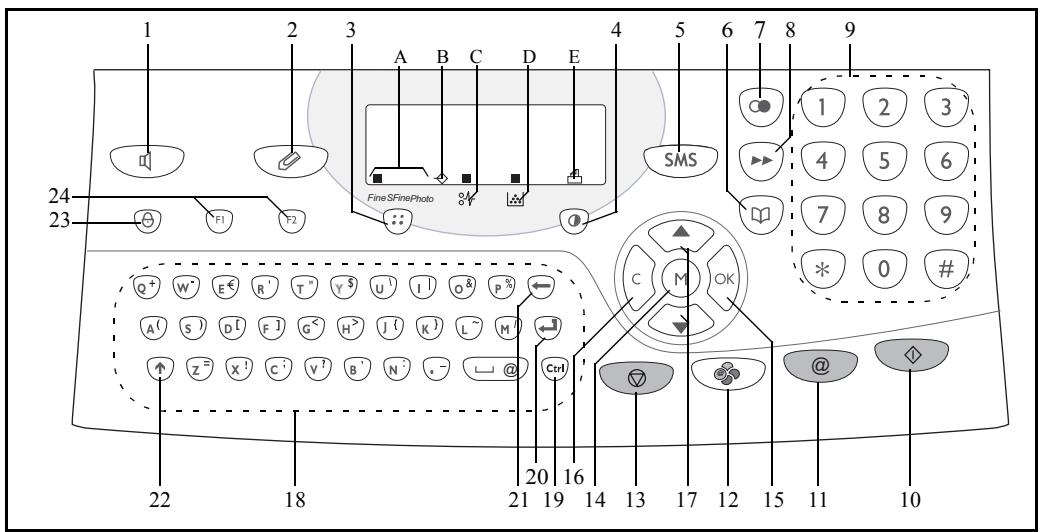
- key: manual line taking, tone monitoring during fax transmission.
- key: attachment to a typed-in mail.
- key: scanning resolution during transmission or copy.
- key: contrast adjustment.
- SMS key: SMS transmission1.
- key: access to directory and quick-dial numbers.
- key: access to the last dialed numbers, or to the last entered e-mail addresses after pressing the @ key.
- key: broadcast transmission (fax, e-mail or SMS).
- Numerical keypad.
- key: fax transmission or black & white local copy.
- @:key: Scan to e-mail (Internet fax transmission).
- key: color document transmission over the Internet.
- key: stop current operation.
-
M key: access to the different functions (MENU).
-
OK key: confirm displayed selection.
-
C key: return to previous menu and correct data entry.
-
or keys: navigation keys.
-
Alphabetical keypad.
-
Ctrl key: access to special characters.
-
key: enter or go to next line.
-
key: erase character before cursor.
-
key: Shift key.
-
key: Charge code key
-
F1 and F2 keys: memorize a key combination. Default setting:
F1: Scan to PC
F2: Scan to FTP
A Scanning resolution during fax transmission (Fine, SFine, Photo).
B : "Line L1 and Line L2" icon:
On: communication in progress.
Blinking: communication being established.
C Machine Paper Jam indicator.
D "Toner" icon:
On: toner empty.
Blinking: toner near end, toner low.
E Fax reception icon:
- On: reception possible.
- Blinking: unprinted document(s) in memory or being received.
- Off: reception impossible.


Installation requirements 7
Operational precautions 8
Unpacking the shipping box 10
Unpacking the machine parts 11
Description 14
Installing the removable parts 15
Installing the paper tray 15
Installing the copy output tray 16
Installing the document feed tray 16
Installing the document output tray 17
Loading paper 17
Loading paper manually 18
Installing the second paper cassette unit (option) 20
Connections 21
Telephone and LAN connection 22
Power line connection and switch-on 23
2 GETTING STARTED 25
Navigation methods 25
Presentation 25
The navigator 25
The display screen 27
Access to functions 27
Menu-driven access 27
Direct access by number 28
Functions list 28
3 SETTING UP YOUR MACHINE 33
Main settings 33
Remote configuration 34
Embedded Web Server 34
Conditions required 34
34
Before transmission 34
Date/Time 34
Your machine number/your name 35
Type of network 35
Geographical settings 35
Confirmation report 36
Document feed type 36
Delay send mode 36
Before reception 37
Fax answering machine 37
-1
Reception without paper 38
Number of copies 38
Relay broadcast 38
Fax or PC reception 39
Technical parameters 39
Local Area Network (LAN) settings 42
Local network settings 42
Automatic configuration 42
Manual configuration 42
IEEE address (or Ethernet address) or MAC address 43
Netbios names 43
L1 and L2 line network configuration (model F116L) 44
Network type 44
Line user mode 44
Recording the line 2 number (model F116L) 45
Selecting the manual transmission mode line 45
Dialing prefix 46
To program the prefix 46
To modify the minimum length 46
Manual call pick-up without off-hooking 47
Call monitoring 47
Stopping a call in progress 47
Call reports and logs 48
Message service and the Internet 49
49
Access to connection and message service parameters 49
Access to servers parameters 50
Settings 52
Standard settings 52
Mail sorting 53
Internet Connection 54
Immediate connection to the Internet 55
Programmed connection 55
Deactivating the Internet function 55
4 Dlrcetory 57
Creating speed dial lists 57
Adding a record 58
Creating group dial lists 58
Adding a list 59
Consulting a record or a list 59
Modifying a record or a list 60
Deleting a record or a list 60
Printing the directory 60
Importing a directory 60
The file structure 61
Procedure 62
Exporting a directory 63
5 OPERATION
Sending
Document positioning 65
Scanner
Choosing the resolution/contrast 66
Resolution
Contrast
Dialing
From the directory 66
From the radial key 67
To multiple numbers 67
Transmission over the Telephone Network 68
Immediate transmission 68
Delayed transmission 68
Transmission with auto radial 68
Rerouting 69
Txforwarding 70
Transmission over the Internet 71
Sending a black and white document to an E-Mail address 71
Sending a color document to an E-mail address 71
Sending a typed message to an E-Mail address 71
Scan to FTP 72
Transmission waiting queue 73
Consult or modify the waiting queue 74
Immediately perform transmission from the waiting queue 74
Printing a document in waiting or in deposit 74
Print the waiting queue 74
74
Cancelling a transmission in progress 74
Reception 75
Reception over the Public Switched Telephone Network (PSTN) 75
Reception over the Internet 75
Copying 75
Localcopy 75
Standard copy 75
Enhanced copy 76
Specificcopy settings 76
77
Fax Reception Mode 78
Choosing the Paper Tray 78
Selecting Paper Formats 79
Received Faxes Reduction Mode 79
Discard size 79
Machine settings 80
-3-
Other functions 80
Logs 80
Printing the functions list 81
Printing the machine settings 81
Programming speed dials 81
Font printing 82
82
Deposit and polling 83
Security 84
Entering the locking code 84
Locking the keyboard 84
Locking the numbers 85
Locking the Internet settings 85
Locking the SMS service 85
Scan to PC 86
Department code 86
Function management by the administrator 86
Activating the department code 86
Deactivating the department code 87
Setting the department codes 87
Creating a department code 88
Deleting a department code 88
Printing a department code 89
Printing the department report 89
Use of the department codes by a department 90
Charge code 90
Entering the charge code 90
Mail box (MBX FAX) 91
MBX management 91
Creating an MBX 91
Modifying the features of a MBX 92
Printing the contents of a MBX 92
Deleting a MBX 92
Printing the MBX list 92
MBX deposit in your machine 93
MBX deposit in a remote machine 93
MBX polling from a remote machine 93
6 MAINTENANCE 95
Maintenance 95
General 95
Replacing the consumables (toner and drum cartridges) 96
Replacing cartridges 96
Cleaning 108
Cleaning the scanner's glass 108
Cleaning the machine 108
-4-
Servicing 110
Scanner calibration 110
Customer support 110
Faults 110
Communication errors 110
Transmission from the feeder 111
Transmission from memory 111
Communication error codes 111
Machine errors 113
Error messages 113
machine paper jam 114
Paper jam at the feeders and trays 117
Scanner documents jams 118
Document feeder document jam 118
sc problems 119
Machine packing and transportation 120
Machine specifications 122
7 SAFETY 123
Warning Markings 123
Electrical Supply 124
Operator Accessible Areas 124
Maintenance 124
Cleaning Your Product 124
WARNING - Electrical Safety Information 125
Laser Safety Information 126
Operational Safety Information 126
Maintenance Information 127
Ozone safety Information 127
For consumables 127
Radio frequency emissions 128
Product safety certification 128
Regulatory Information 128
For fax function 129
USA 129
CANADA 131
EUROPE 131
Environmental Compliance 132
USA 132
Canada 133
Illegal Copies 133
USA 133
Canada 134
Product Recycling and Disposal 136
-5-

1 INSTALLATION
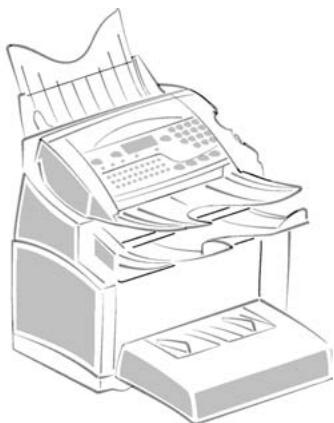
INSTALLING YOUR MACHINE
INSTALLATION REQUIREMENTS
A proper location helps to ensure that your machine provides you with the long service life for which it is designed. Double-check to make sure that the location you select has the following characteristics.
- Choose a location that is well ventilated.
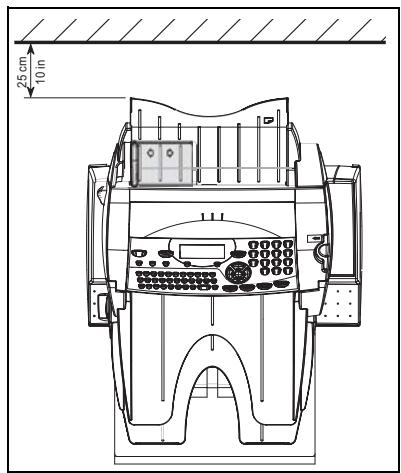
- When installing the machine close to a wall, make sure the distance between the wall and the upper edge of the tray is at least 10 inches (25 centimetres) for easier opening of the upper cover.
-7-




- The machine has been designed to be used indoors only.
- Do not use your machine near water.
- Make sure there is no chance of ammonia or other organic gasses being generated in the area.
- The grounded power outlet (refer to the safety instructions in the Safety section) you plan to connect to for power should be nearby and not obstructed.
- Make sure that the machine is not exposed to direct sunlight.
- Avoid areas in the direct airflow of air conditioners, heaters, or ventilators and areas subject to temperature and humidity extremes.
- Choose a sturdy, level surface where the machine will not be exposed to strong vibration.
- Keep the machine away from any objects that might block its heat vents.
- Do not locate the machine near curtains or other combustible objects.
- Choose an area where there is no possibility of the machine being splashed with water or other liquids.
- Make sure that the surrounding area is clean, dry, and free of dust.
Operational precautions
Note the following important precautions whenever using the machine.
Operating Environment
The following describes the operating environment required when using the machine:
- Temperature: 10^ to 35^ (50^ to 95^) with fluctuation of 10^ (18^) per hour.
- Humidity: 20% to 80% (no condensation) with fluctuation of 20% per hour.
Machine
The following describes precautions for using the machine.
- Never turn the machine off or open any of its covers during a print operation.
- Never place flammable gasses, liquids or objects that generate magnetic forces near the machine.
- When unplugging the power cord, always grasp the plug and never pull on the cord. A damaged cord creates the danger of fire or electrical shock.
- Never touch the power cord when your hands are wet. Doing so creates the danger of electrical shock.
- Always unplug the power cord before moving the machine. Failure to do so can damage the power cord, creating the danger of fire or electrical shock.
- Always unplug the power cord if you do not plan to use the machine for a long time.
- Never try to remove any secured panel or cover. The machine contains high-voltage circuit which creates the danger of electrical shock when exposed.
- Never try to modify the machine. Doing so creates the danger of fire or electrical shock.
- Never place any heavy objects on the power cord, pull on it or bend it. Doing so creates the danger of fire or electrical shock.
-
Always make sure the machine is not placed on the electrical cord or the communications cables of any other electrical equipment. Also make sure that cords and cables do not get into the machine's mechanism. Any of these conditions create the danger of malfunction and fire.
-
Always take care that paper clips, staples, or other small pieces of metal do not get into the machine through its vents or other openings. Such objects create the danger of fire or electrical shock.
- Do not allow water or other liquids to spill on or near the machine. Fire or electrical shock can occur should water or liquid come into contact with the machine.
- Should liquid or any piece of metal accidentally get inside the machine, immediately turn it off, unplug the power cord, and contact your dealer. Failure to take this immediate action creates the danger of fire or electrical shock.
- Whenever the machine emits unusually high amounts of heat, smoke, an unusual odor, or noise, immediately turn it off, unplug it, and contact your dealer. Failure to take this immediate action creates the danger of fire or electrical shock.
- Paper for machine: do not use paper previously printed by your machine or any other machine: the ink or toner deposited on that paper might damage the printing system of your machine.
Caution - Be sure to locate the machine in a well-ventilated location. A minimal amount of ozone is generated during normal operation of this machine. Because of this, an unpleasant odor may result when the machine is used for extensive printing in a poorly ventilated area. For a comfortable, healthy, and safe operation, be sure to locate the machine in a well-ventilated area.


-9-
UNPACKING THE SHIPPING BOX
Take the packing material and the machine out of the shipping box.
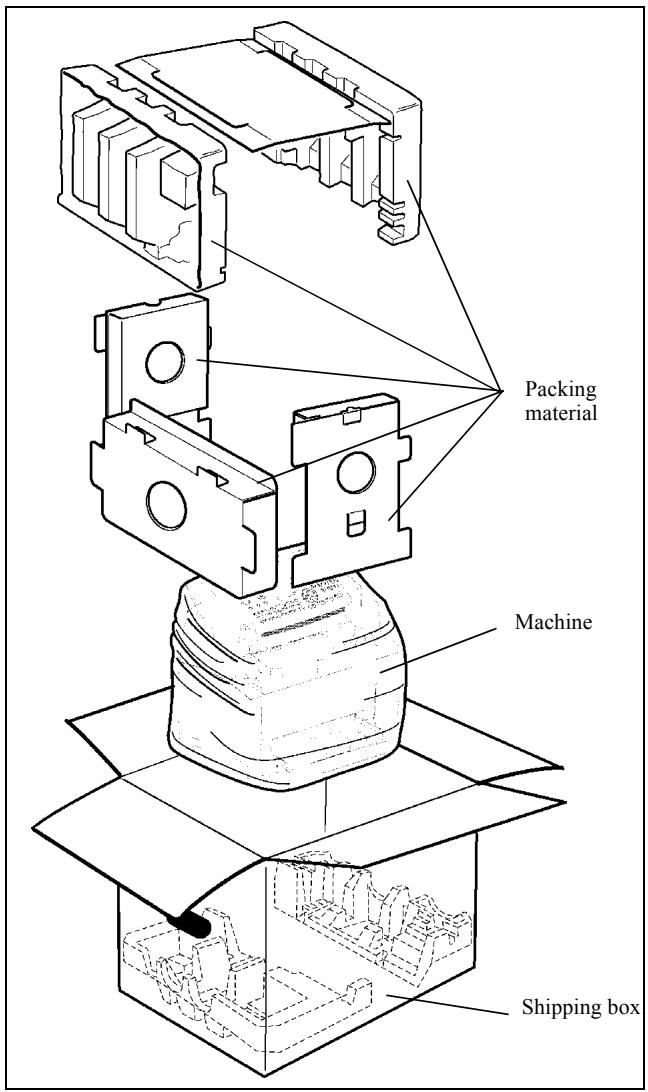
-10-



UNPACKING THE MACHINE PARTS
Remove the plastic bags and check for the parts depicted below.
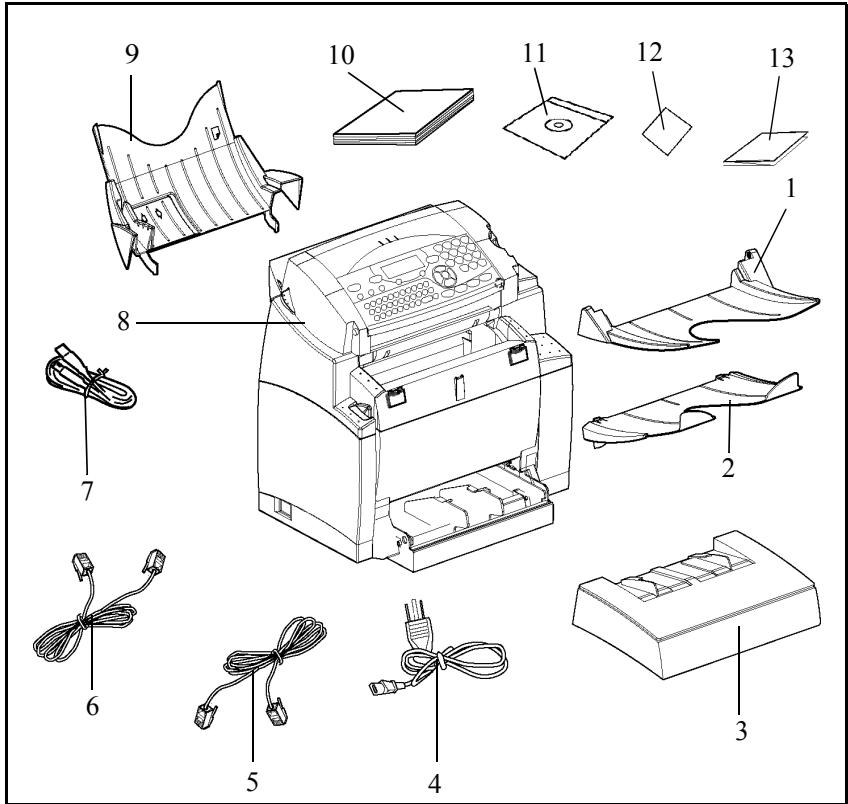
1: Document output tray
2: Paper output tray
3: Paper feed tray
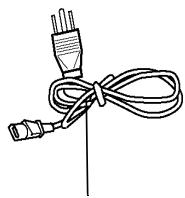
4:AC power cord
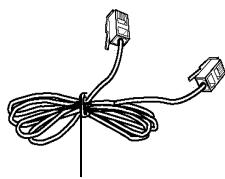
5:L1 telephone line cable (F116)
6:L2 telephone line cable (F116L)
7:USB cable
8: Machine
9: Document feed tray for scanning
10:User Guide
11:PCKitCDRom
12: Self-adhesive key*
13:Quick Start Guide
*This sticker describe the meaning of the keys)
-11-
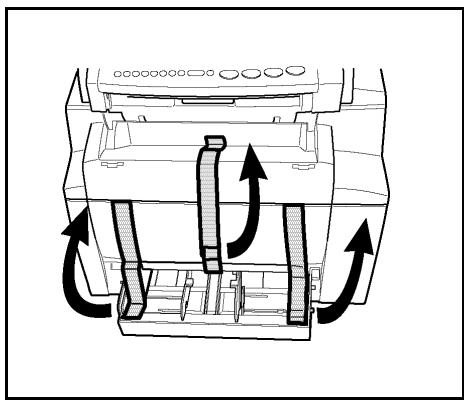
Peel off the three strips of shipping tape from the front of the machine.
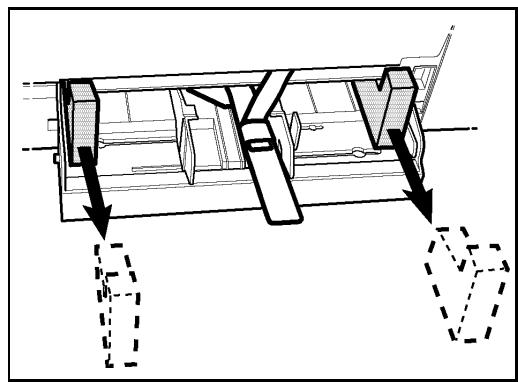
Pull out the two pads from the paper feed inlet.
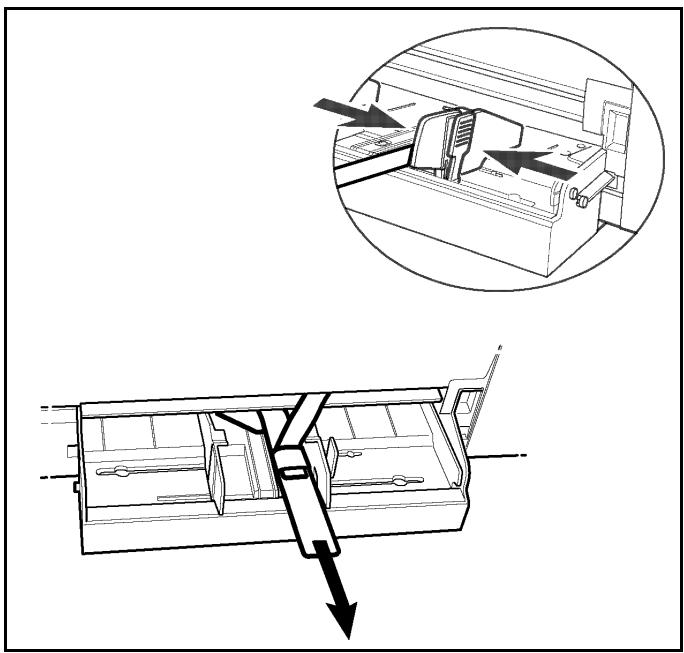
Press the paper size guide on the right, in order to push both paper size guides to the left or to the right. Pull out the plastic tab and the shipping tape from the paper feed inlet.
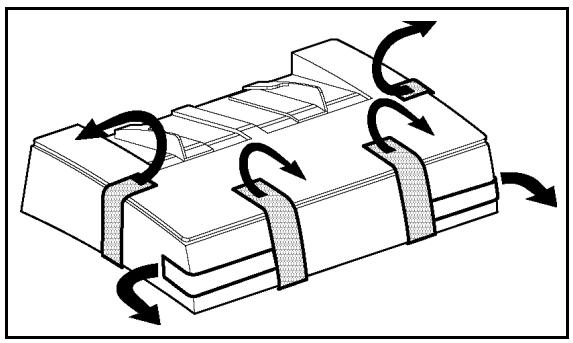
Peel off the shipping tape from the paper tray.
-13-
DESCRIPTION
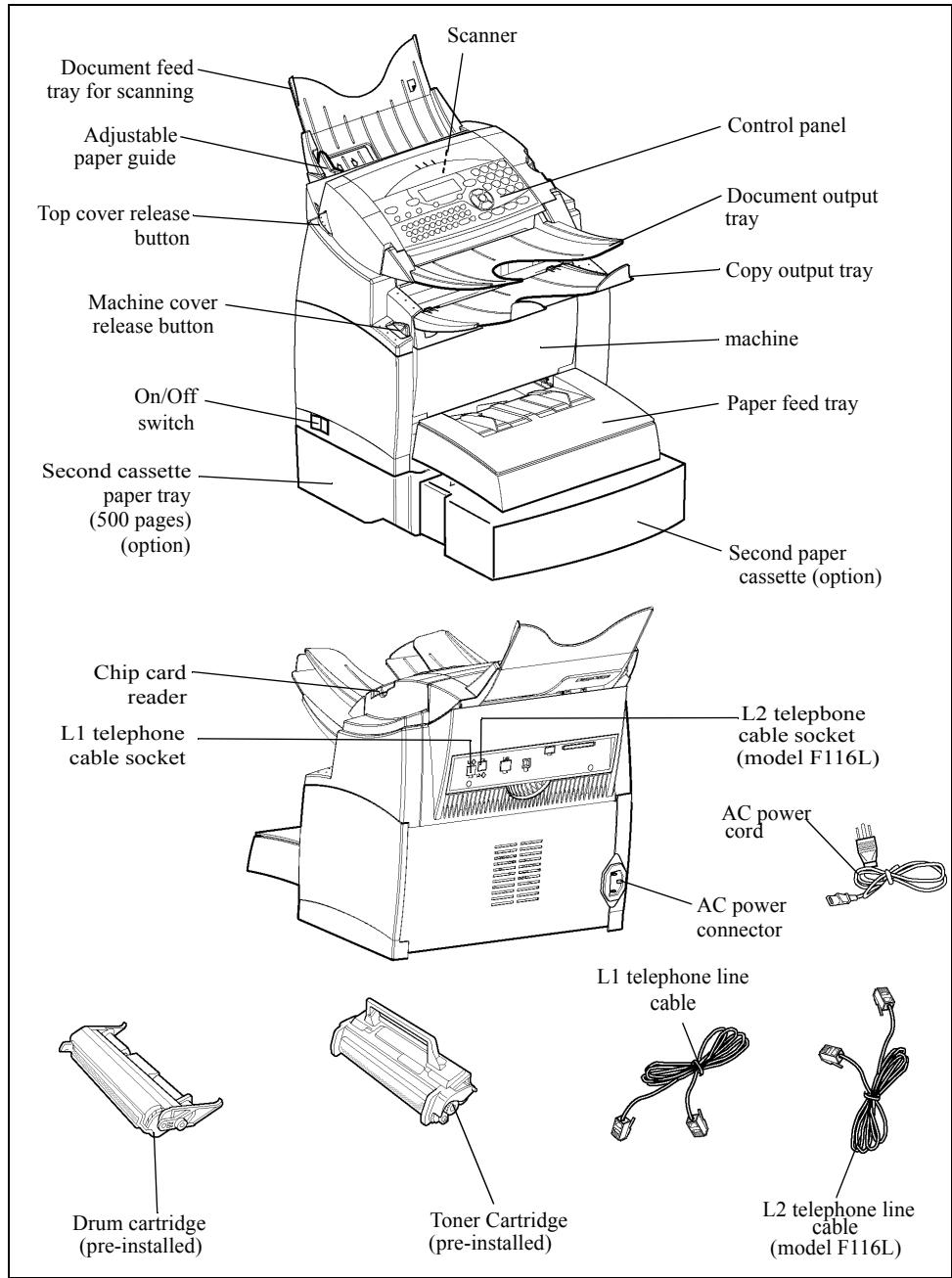
-14-
INSTALLING THE REMOVABLE PARTS
This section details the installation of the machine's removable parts.
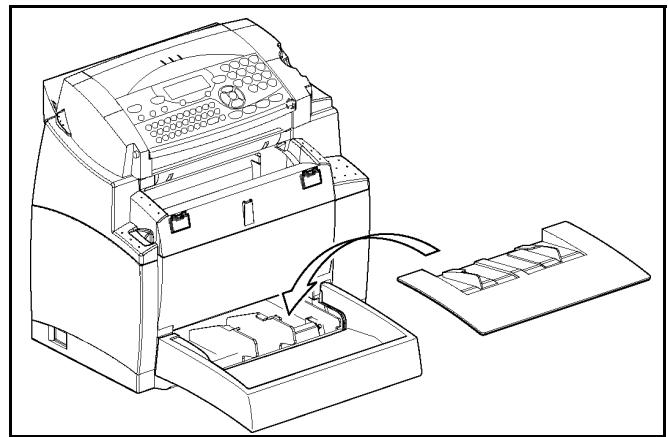
INSTALLING THE PAPER TRAY
Using the machine's left and right notches, gently push the tray in until it stops (as illustrated below).
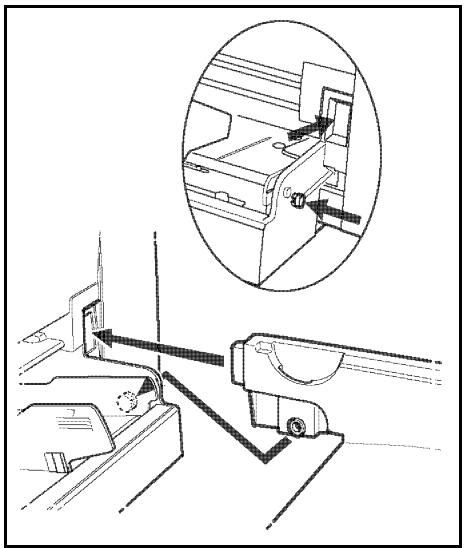
Install the tray cover.
-15-
INSTALLING THE COPY OUTPUT TRAY
With both hands, slightly bend the centre part of the tray upwards in order to insert its clips into the notches located on the upper part of the machine. Release the tray so that it recovers its initial shape. If necessary, push at the base and at the centre of the tray from underneath so that is snaps into place behind notch A.
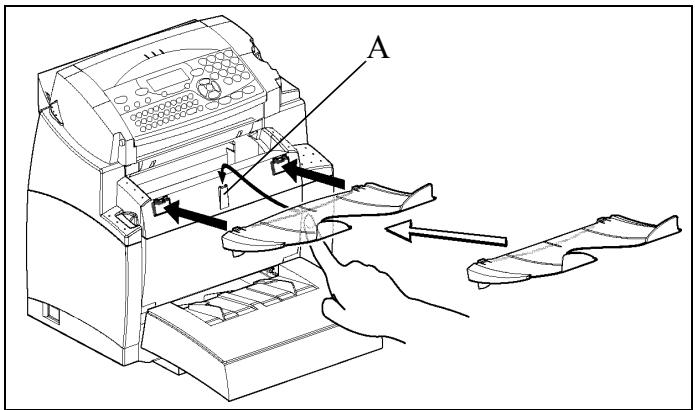
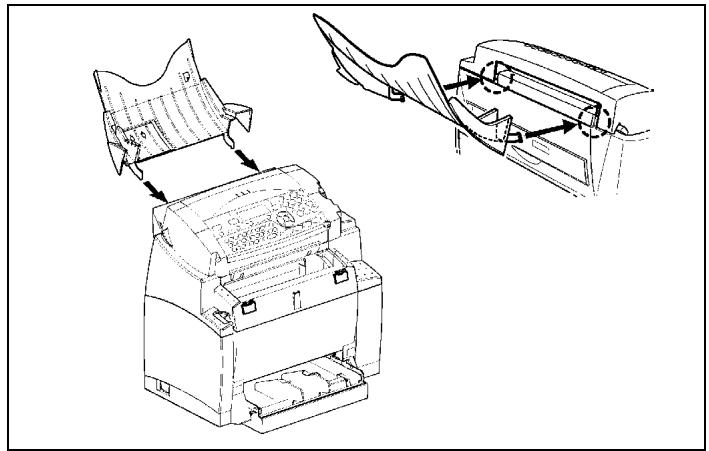
INSTALLING THE DOCUMENT FEED TRAY
Install the tray by inserting its two guides into the notches provided at the rear of the machine.
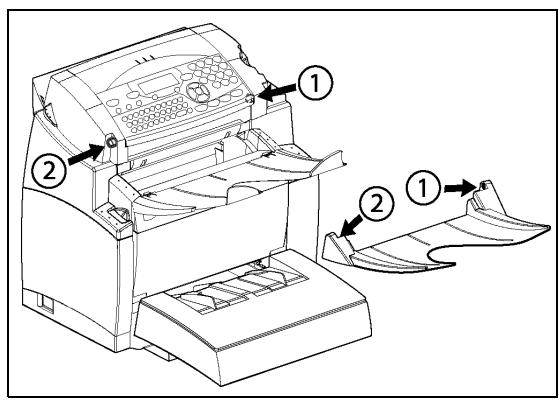
INSTALLING THE DOCUMENT OUTPUT TRAY
Install the output tray on the upper front part of the machine by inserting its two guides into the notches provided.
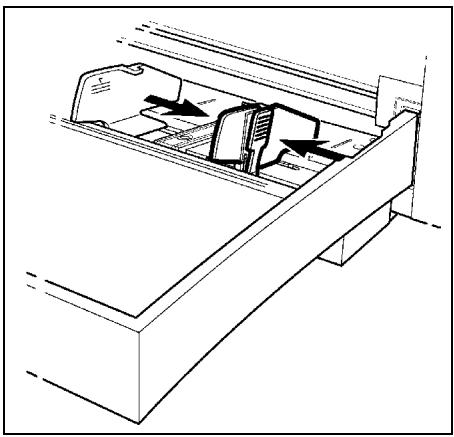
LOADING PAPER
Press the paper size guide on the right in order to push both paper size guides lightly to the left or to the right.
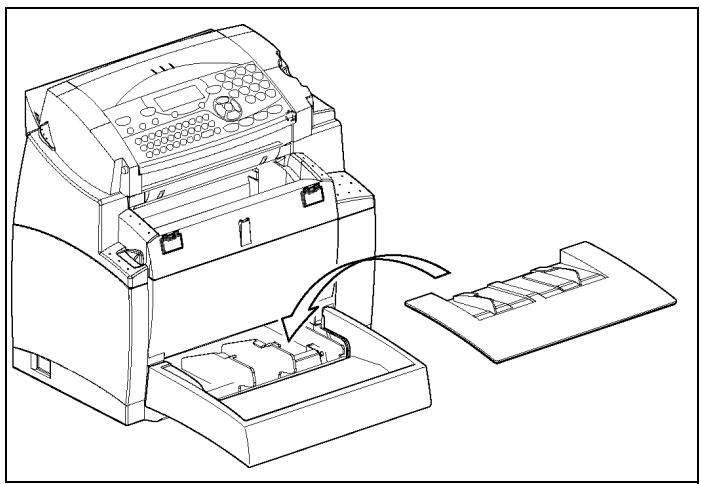
Place a tray of paper into the tray. In case of letterhead paper, be sure to place the paper printed side up.
Secure the tray of paper by pushing the paper size guides against the right and left edges of the tray.
-17-
Supported types of paper:
Auto-feed cassette
16 lb. to 24 lb. (60 to 90g / m^2 )
Manual feed tray
16 lb. to 40 lb. (60 to 160g / m^2 )
Install the paper tray cover into place.
Caution - Do not add paper in the paper tray while the machine is printing.
LOADING PAPER MANUALLY
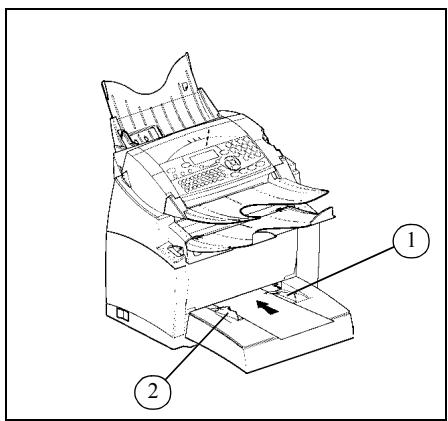
When printing on special paper, such as 16 lb. to 40 lb. max. color paper or transparent film (laser machine compatible), you should load the paper manually, one sheet after the other. To do so:
Insert your sheet of paper or film between the two feed pawls 1 and 2 located on the paper tray cover until it stops in the machine.
Adjust the sheet or film width as appropriate by means of feed pawls 1 or 2.
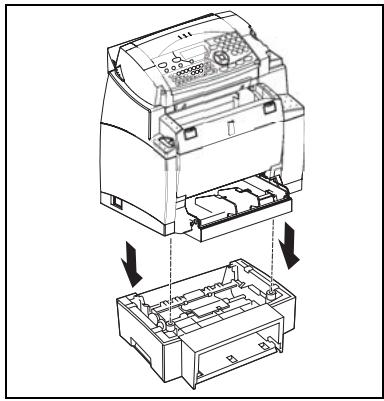
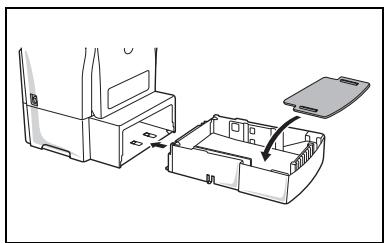
INSTALLING THE SECOND PAPER CASSETTE UNIT (OPTION)
Remove the second paper cassette unit and tray 2 from their packaging, including the protective tape used to hold the various components in place.
Place the machine on top of the base unit. Make sure to align the coupling pins of the base unit with the holes located underneath the machine.
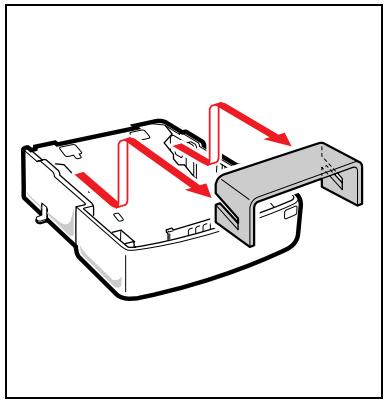
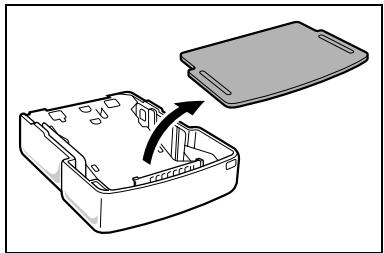
Remove the cover from tray.
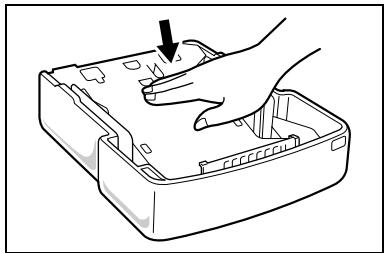
Press down on the paper lifting plate located inside of tray until it locks.
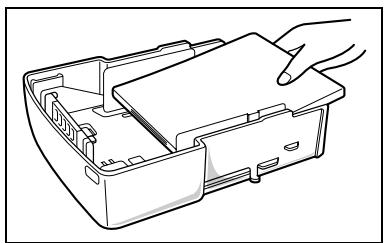
Place a tray of up to 500 sheets of paper into tray so that the side that was facing up when the paper was unwrapped is still facing up.
Replace the cassette cover and insert tray into the second paper cassette unit.
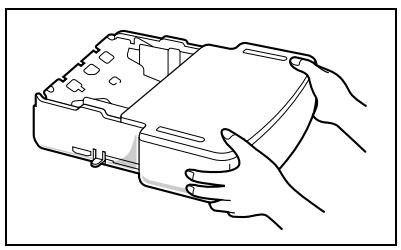
NOTE
: Be sure to use both hands whenever tray is removed from or inserted into the second paper cassette unit. The second paper cassette paper unit only accepts Letter paper format.
-20-
CONNECTIONS
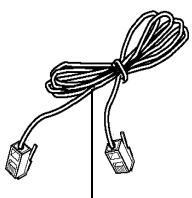
Caution - Use the cable(s) delivered with the machine.
G
H
F
-21-
Contents
Installation
Getting started
Setting up your
Directory
Operation
Maintenance
Safety
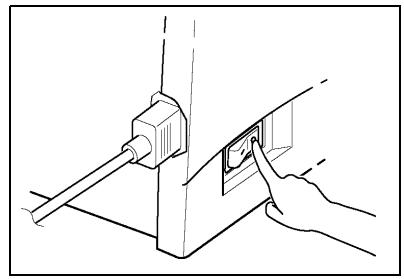
Make sure the On/Off switch is set to 0 (Off).
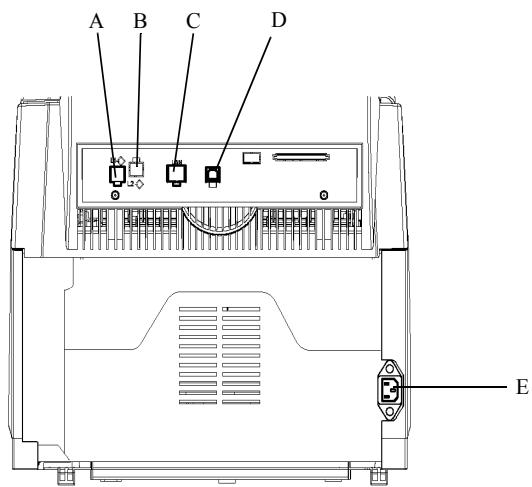
Key to the diagram:
A:L1 telephone line socket
B:L2 telephone line socket (model F116L)
C:LAN socket
D:USBport
E:Main Power Receptacle
F:Power cord
G:Line cord L1
H: Line cord L2 (model F116L)
TELEPHONE AND LAN CONNECTION
It is best that you use direct lines which are reserved for the machine only. This will enable the machine to operate permanently and to receive communications without needing any user intervention.
The machine has one standardized telephone socket (model F116) or 2 standardized telephone sockets (model F116L) to connect it to the telephone network. These sockets are located on the back left of the machine.
^ Your installer or Telecommunications Agency will provide all the information you need in relation to the conditions for connecting your machine to the telephone network.
^ Connect end G of the telephone line cord 1 to socket A (L1), and the other end to the wall telephone socket for the first communications line.
Connect end H of the telephone line cord 2 (model F116L) to socket B (L2), and the other end to the wall telephone socket for the second communications line.
LAN connection. Connect the end of the LAN cable (provided by your network administrator) to socket C on your machine and the other end to your local network socket.
POWER LINE CONNECTION AND SWITCH-ON
Caution - Refer to safety procedure in the Safety chapter.
Connect the end of power cord F to socket E on the machine and the other end to the wall mains socket.
Set the On/Off switch to position 1 (On).
After a few seconds, when the machine has warmed up, the date and time will appear. To set the language and the time of your machine, refer to paragraph Setting Up Your Machine, page 33.
-23-
Installation


2 GETTING STARTED
NAVIGATION METHODS
PRESENTATION
The navigator gives you access to the menus visible on screen.
The navigator

This navigator has 5 keys and allows you to move within the menus available on your machine.
Getting Started
Moving within the menus
| To | Use key | Symbol used |
| Enter the main menu. | M | M |
| Select the next line in a menu. | ▼ | |
| Select the previous line in a menu. | ▲ | |
| Confirm entry and go to the following menu. | ON | OK |
| Return to the previous menu. | C | C |
| Confirm and exist from the current menu. | ◇ | ◇ |
| Exit without confirming from the current menu. | ◇ |

Moving within a data entry field
| To | Use key | Symbol used |
| Move to the right | ▼ | |
| Move to the left. | ▲ |

Getting Started
| To | Use key | Symbol used |
| Confirm and goes to the previous menu | OK | OK |
| Delete a character by moving the cursor to the left. | C | C |
| Confirm your entry and return to the initial screen. | ◇ | ◇ |
The display screen
The screen has two lines of 16 characters.
The cursor shows the line you selected.
1▶DIRECTORY
2 SETUP
For menus with more than two choices, use the arrows or of the navigator to obtain the next (hidden) lines of the menu (3, 4, etc.).
ACCESS TO FUNCTIONS
Access to functions may be achieved in two ways.
- Menu-driven access.
- Direct function access.
Menu-driven access
You may print the functions list to know the number of a function.
Press the M key, the functions menu appears.
1▶ DIRECTION
2 SETUP
Use the or navigator arrows to move the cursor in front of the required function.
4 SMS SERVICE
5 PRINT
Validate your choice by pressing OK.
Getting Started
When in the selected menu, use the or navigator arrows to move the cursor in front of the required sub-function.
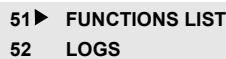
Validate your choice by pressing OK.
Direct access by number
You may print the functions list (M 51 OK) to know the number of a function.
From the stand-by mode:
Press the M key, enter the number of the required function and validate your choice by pressing OK.
FUNCTIONS LIST
MAIN MENU 1:DIRECTORY
| Functions | Function description | Page | |
| M 11 OK | - NEW CONTACT | Enter phone number in directory | 58 |
| M 12 OK | - NEW LIST | Create a list of subscribers | 59 |
| M 13 OK | - MODIFY | Modify a record or a list | 60 |
| M 14 OK | - CANCEL | Delete a record or a list | 60 |
| M 15 OK | Print directory | 60 | |
| M 16 OK | - SAVE/LOAD | Save/load directory on microcard | |
| M 161 OK | SAVE | Save directory on microcard | 57 |
| M 162 OK | LOAD | Load directory from microcard | 57 |
| M 17 OK | - IMPORT | Enable/disable e-mail import | 62 |
| M 18 OK | - EXPORT | Export directory by E-Mail | 62 |
MAIN MENU 2:SETUP
| Functions | Function description | Page | |
| M 21 OK | - DATE/TIME | Date/time setting | 34 |
| M 22 OK | - NUMBER / NAME | Enter your name and your number | 35 |
| M 23 OK | - SEND | ||
| M 231 OK | SEND REPORT | Sending report printing type | 36 |
| M 232 OK | MEMORY SEND. | Sending from scanner or memory | 36 |
| M 233 OK | ECO PER | Setting economy period (see M 32 OK) | 37 |
| M 24 OK | - RECEPTION | ||
| M 241 OK | REC. PAPER | Acceptance of reception without paper | 38 |
| M 242 OK | NBR OF COPIES | Nb of copies for received documents | 38 |
| M 243 OK | PC RECEPT. | Choice for PC reception | 39 |
| M 244 OK | REDUCTION | Reduction of received fax | |
MAIN MENU 2:SETUP
| Functions | Function description | Page | |
| M 25 OK | - NETWORKS | ||
| M 251 OK | TEL. NETWORK | Adjust tel. network settings | 35 |
| M 2511 OK | L1: NETWORK TYP | L1: Network type | |
| M 2512 OK | L2: NETWORK TYP | L2: Network type | |
| M 252 OK | PREFIX | Dialing prefix activation | |
| M 2521 OK | SIZE NUMBER | Min. size number to be send with prefix | |
| M 2522 OK | L1 Prefix | Setting first line dialing prefix | |
| M 2523 OK | L2 Prefix | Setting second line dialing prefix | |
| M 2524 OK | FAX SERVER | Setting fax server dialing prefix | |
| M 253 OK | LOCAL NETWORK | LAN parameter settings | |
| M 2531 OK | CONFIGURATION | Select configuration mode | 42 |
| M 2532 OK | IP ADDRESS | Fax IP Address | 42 |
| M 2533 OK | SUBNET MASK | Subnet mask | 43 |
| M 2534 OK | GATEWAY | Gateway #1 address | 43 |
| M 2535 OK | IEEE ADDRESS | Fax IEEE address | 43 |
| M 2536 OK | NETBIOS1 NAME | NetBIOS name 1 | 43 |
| M 2537 OK | NETBIOS2 NAME | NetBIOS name 2 | 43 |
| M 26 OK | - MULTICOM | Simultaneous communications | |
| M 261 OK | CONFIGURATION | Configure transmission line | |
| M 262 OK | L2 NUMBER | L2: Telephone or fax number | |
| M 29 OK | - TECHNICALS | Technical parameters | 39 |
| M 20 OK | - GEOGRAPHICAL | Geographic setting | 35 |
| M 201 OK | COUNTRY | Choice of country | 35 |
| M 202 OK | NETWORK | Choice of network | 35 |
| M 203 OK | LANGUAGE | Choice of the language | 36 |
MAIN MENU 3:FAX
| Functions | Function description | Page | |
| M 31 OK | - TRANSMISSION | Single and broadcast transmission | 68 |
| M 32 OK | - ECO TRANS. | Send a document in off hours period | 37 |
| M 33 OK | - POLLING RX | Polling a document | 83 |
| M 34 OK | - POLLING TX | Inserting a document to be polled | 83 |
| M 35 OK | - MBX SENDING | Sending to a MBX | 93 |
| M 36 OK | - MBX POLLING | Poll of a MBX | 93 |
| M 37 OK | - BROADCAST | Sendind for broadcasting | 38 |
| M 38 OK | - FAX ANSW. | Fax answering device settings | 37 |
| M 39 OK | - FAX FORWARD. | Fax forwarding function | |
| M 391 OK | RERouting | Rerouting of received messages | 69 |
| M 3911 OK | ACTIVATION | Rerouting activation | 69 |
| M 3912 OK | DESTINATION | Choice your destination | 70 |
| M 3913 OK | COPY | Rerouted document local printing | 70 |
| M 392 OK | TX FORWARD. | TX forwarding function | |
| M 3921 OK | ACTIVATION | TX forwarding activation | 70 |
| M 3922 OK | CALL NUMBER | Recipient selection | 70 |
Getting Started
MAIN MENU 5:PRINT
| Functions | Function description | Page | |
| M 51 OK | - FUNCTIONS LIST | Functions list printing | 81 |
| M 52 OK | - LOGS | Print Tx and Rx logs | 81 |
| M 53 OK | - DIRECTORY | Print the directory | 60 |
| M 54 OK | - SETUP | User parameters printing | 81 |
| M 55 OK | - COMMANDS | Printing of the commands list (see M 65 OK) | |
| M 56 OK | - LISTE MBX | Print list of MBX (see M 75 OK) | |
| M 57 OK | - PCL FONTS | Printing internal PCL fonts | 82 |
| M 58 OK | - SGSCRIPT FONTS | Printing internal SG Script fonts | 82 |
MAIN MENU 6:COMMANDS
| Functions | Function description | Page | |
| M 61 OK | - PERFORM | Perform a command | 74 |
| M 62 OK | - MODIFY | Update of a command | 74 |
| M 63 OK | - CANCEL | Delete a command | 74 |
| M 64 OK | Printing of a document in wait queue | 74 | |
| M 65 OK | - PRINT LIST | Printing of a commands list | 74 |
MAIN MENU 7:MAILBOXES
| Functions | Function description | Page | |
| M 71 OK | - CREATE MBX | Creating and modification of a MBX | 91 |
| M 72 OK | - DEPOSIT MBX | Storing a document in a Mailbox | 93 |
| M 73 OK | - PRINT MBX | Print content of a Mailbox | 92 |
| M 74 OK | - DELETE MBX | Delete an empty MBX | 92 |
| M 75 OK | - PRT MBX LIST | Print list of MBX | 92 |
MAIN MENU 8: ADVANCED FCT
| Functions | Function description | Page | |
| M 81 OK | - LOCK | Activate a lock to limit access | 84 |
| M 811 OK | LOCKING CODE | Locking code | 84 |
| M 812 OK | LOCK KEYBD. | Keyboard locking selection | 84 |
| M 813 OK | LOCK NUMBER | Dialing locking selection | 85 |
| M 814 OK | LOCK PARAMETERS | Parameters locking selection | 85 |
| M 815 OK | LOCK SMS | Activate SMS lock | 85 |
| M 82 OK | - COUNTERS | View activity counters | 82 |
| M 821 OK | SENT PAGES | Sent pages counter | 82 |
| M 822 OK | RECEIVED PG | Received pages counter | 82 |
| M 823 OK | SCANNED PAGE | Scanned pages counter | 82 |
| M 824 OK | PRINTED PG | Printed pages counter | 82 |
| M 83 OK | - FAX SERVER | Configure Fax server | |
| M 831 OK | CONNEC. TYPE | Select type of server FAX connection | |
| M 832 OK | ACCESS MODE | FAX server access mode | |
| M 833 OK | LOCK | Activate a lock to limit access | |
| M 8331 OK | LOCKING CODE | Locking code | |
MAIN MENU 8: ADVANCED FCT
| Functions | Function description | Page | |
| M 8332 OK | LOCK ACCESS | FAX server lock access | |
| M 834 OK | SRV - FAX NAME | Server FAX E-Mail address | |
| M 835 OK | IP ADDRESS | Server FAX IP address | |
| M 836 OK | DOMAIN NAME | Server FAX domain name | |
| M 84 OK | - SCAN. & PRINT | Scanner and printer settings | 77 |
| M 841 OK | SCANNER | Scanner settings | |
| M 842 OK | PRINTER | Printer settings | |
| M 85 OK | - CONSUMABLES | Consumables status | 96 |
| M 87 OK | - SCAN TO | ||
| M 871 OK | SCAN-TO-PC | Scanner application from the PC | 86 |
| M 872 OK | SCAN-TO-FTP | Sending scanned document to FTP adress | 72 |
| M 88 OK | - DEPT. CODES | Setting the Department Codes | |
| M 881 OK | ACTIVATION | Change the Department Code settings | 86 |
| M 882 OK | NEW DEPT. | Create or modify a Department Code | 87 |
| M 883 OK | CANCEL | Delete a Department Code | 88 |
| M 884 OK | Print a Department Code List | 89 | |
| M 80 OK | - CALIBRATION | Scanner calibration | 110 |
MAIN MENU 9:INTERNET
| Functions | Function description | Page | |
| M 91 OK | - SUPPLIER | Select Internet Service Provider | 49 |
| M 92 OK | - INIT PROVIDER | A | |
| M 921 OK | CONNECTION | 49 | |
| M 9211 OK | CALL NUMB. | Supplier's dial-up number | |
| M 9212 OK | IDENTIFIER | Supplier's identifier | |
| M 9213 OK | PASSWORD | Supplier's password | |
| M 922 OK | MESS. SERV | 50 | |
| M 9221 OK | IDENTIFIER | Message service identifier | |
| M 9222 OK | PASSWORD | Message service password | |
| M 9223 OK | E-MAIL ADR | Message service E-Mail address | |
| M 923 OK | SERVERS | 50 | |
| M 9231 OK | SMTP | SMTP Server | |
| M 9232 OK | POP3 | POP3 Server | |
| M 9233 OK | DNS 1 | Primary DNS | |
| M 9234 OK | DNS 2 | Secondary DNS | |
| M 924 OK | SMTP AUTHENT. | 50 | |
| M 9241 OK | ACTIVATION | SMTP authentication activation | |
| M 93 OK | - IMMED ACCES | Immediate access to supplierA | 55 |
| M 94 OK | - SETTINGS | A | |
| M 941 OK | CONNEC. TYPE | Select type of connection | 52 |
| M 942 OK | SEND TYPE | Select type of transmission | 53 |
| M 943 OK | PERIOD | Select the period of connection | 52 |
| M 944 OK | DEPOSIT NOTICE | Deposit notice printing type | 53 |
| M 945 OK | REPLY ADDR | E-Mail return address | |
| M 946 OK | Print Internet parameters | 53 | |
| M 95 OK | Sending E-MailA | 71 | |
| M 96 OK | - SORT MESSAGES | Choose reception typeA | 53 |
Getting Started
MAIN MENU 9:INTERNET
| Functions | Function description | Page | |
| M 97 OK | - MAINTENANCE | ||
| M 972 OK | CALL NUMBER. | Supplier's dial-up number | |
| M 973 OK | IDENTIFIER | Supplier's identifier | |
| M 974 OK | password | Supplier's password | |
A.These menus will appear only with valid ISPN settings
3 SETTING UP YOUR MACHINE
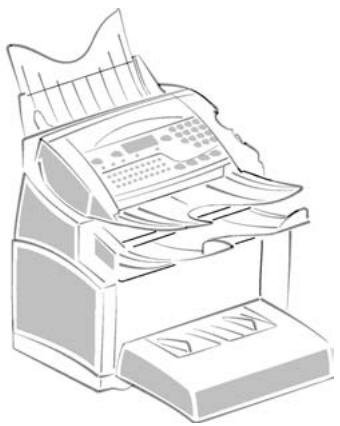
MAIN SETTINGS
After machine power on, the screen displays :
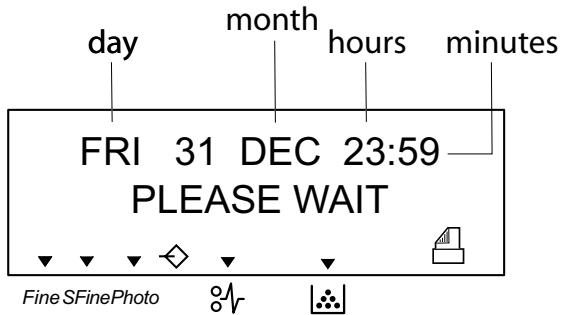
You have to set the date and time, telephone network, language parameter and verify the other parameters listed below.
-33-
You may configure the same parameters by remote as you would locally.
Conditions required
To be able to configure your machine by remote, you must:
- Have a Web browser (Internet Explorer version 4 or above for optimal operation).
- Define your machine's Local Network setting parameters (IP address, subnet mask, etc.); these parameters will be provided by your network administrator. As soon as you receive this information, refer to refer to paragraph Local network settings, page 42 to fill in the required fields.
Accessing the Web Server
Open a Web browser using a PC that is registered on the network.
Enter the IP address of the machine you want to configure in the Address field.
Confirm by pressing ENTER.
When the homepage opens, select the interface language.
Modify the parameters you want on screen then confirm.
BEFORE TRANSMISSION
Date/Time
At any moment you may change the date and time on your machine.
To change the date and time:
M 21 OK - SETUP / DATE/TIME
Enter one after another the number of the month, day, year, hours and minutes, (for example November 8 2004 at 9:33, press 1 1 0 8 0 4 0 9 3 3) and press OK to confirm.
-34-
Your machine number/your name
Your machine will print out your fax machine number and your name on each document it transmits, if you have saved these parameters (number and name) (refer to paragraph FAX Send Header Requirements:, page 129).
To save your fax machine number and your name:
M 22 OK - SETUP / NUMBER / NAME
Enter your fax machine number (20 digits max.) and press OK to confirm.
Enter your name (20 characters max) then press OK to confirm.
Type of network
You may connect your machine to either a PSTN (Public exchange) or private network such as private automatic branch exchange (PABX Private exchange). You must select the network which is the most convenient.
To select the type of network:
M 251 OK - SETUP / NETWORKS / TEL. NETWORK
M 251 OK - SETUP / NETWORKS / TEL. NETWORK / L1 NETWORK
M 251 OK - SETUP / NETWORKS / TEL. NETWORK / L2 NETWORK
Select option PABX or PSTN then confirm your choice with OK.
Geographical settings
These settings will enable you to use your machine in different preset countries using different languages.
Country
By choosing a country, you initialise:
- the settings for the public telephone network,
the language by default.
To select the country:
M 201 OK - SETUP / GEOGRAPHICAL / COUNTRY
Select the required option and press the OK key to confirm.
Network
This setting enables you to individually set the type of public telephone network so that your machine can communicate over the public network of the country you have chosen in compliance with the applicable standards.
NOTE
: These settings are different from the TEL. NETWORK (p. 35) which allows you to choose between public and private network.
To select the network:
M 202 OK - SETUP / GEOGRAPHICAL / NETWORK
Select the required option and press the OK key to confirm.
-35-
Language
This setting enables you to choose a language other than that imposed by the COUNTRY setting.
To select the language:
M 203 OK - SETUP / GEOGRAPHICAL / LANGUAGE
Select the required option and press the OK key to confirm.
Confirmation report
You may print a confirmation report for all communications over the telephone network (STN).
You may choose between more than one criteria for printing reports:
- WITH: a report is given when the transmission was properly performed or when it is completely abandoned (but there is only one report per request),
- WITHOUT: no transmission report, however, your fax will note all transmissions that took place in its log (refer to paragraph Logs, page 80),
- ALWAYS: a report is printed with each transmission,
- ON ERROR: a report is printed only if the transmission failed or is abandoned.
With each transmission report from memory, a reduced version of the first page is automatically reproduced.
To select the report type:
M 231 OK - SETUP / SEND / SEND REPORT
Select the required option WITH, WITHOUT, ALWAYS or ON ERROR and confirm your choice with OK.
Document feed type
You may choose the way you want to feed your documents:
- from memory, transmission will take place only after memory storage of the document and dialing. It allows you to get your originals back quickly to free up the machine.
- from the feeder of the sheet-feed scanner (refer to paragraph Document positioning, page 65), transmission will occur after dialing. It allows transmission of larger documents (the size of these documents can be higher than the memory capacity).
To select the way you want to feed your documents:
M 232 OK - SETUP / SEND / MEMORY SEND.
Select the option MEMORY or FEEDER and validate your choice with OK.
NOTE : In feeder mode, the reduced image will not appear on the transmission report.
Delay send mode
This function allows you to defer a fax transmission to "off peak hours" and thus reduce the cost of your communications.
The delay send mode, via the telephone network (at off-peak hours), is preset by default from 7.00 pm to 7.30 am. Nevertheless you may change this time slot.
Modifying the off peak time:
M 233 OK - SETUP / SEND / ECO PER.
Enter the hours of the new off peak time and confirm your selection with the key OK.
Using the off peak time:
M 32 OK - FAX / ECO TRANS.
Enter the call number and confirm with OK.
BEFORE RECEPTION
Fax answering machine
The Fax answering machine allows you to keep confidential documents in storage and to avoid printing them as you receive them.
The "Fax Messages" indicator light lets you know the state of your Fax answering machine:
Light on: the answering machine is on.
- Blinking: your fax has documents in storage or is in the process of receiving faxes.
- Light off: memory full, the fax cannot receive any more documents.
You can assure document confidentiality by using the 4 digit access code. Once saved, you will require this access code for:
- printing fax messages in memory,
- activate or deactivate the fax answering machine.
Saving an access code
M 383 OK - FAX / FAX ANSW. / ANSWER CODE
Enter the code (4 digits) and confirm with OK.
Activating or deactivating the answering machine
M 382 OK - FAX / FAX ANSW. / ACTIVATION
If you saved an access code for your fax answering machine, enter it and validate with OK.
Select the required option WITH or WITHOUT answering machine and confirm you choice with OK.
Print fax messages stored in the memory
M 381 OK - FAX / FAX ANSW. / PRINT
If you have defined an access code for your fax answering machine, enter it and press OK. Documents received and stored in the memory are printed.
-37-
Reception without paper
Your fax function offers you the possibility to either accept or refuse document reception if your machine is unavailable (no paper...).
If your machine is unavailable, you may choose between two modes of reception:
- reception mode WITHOUT PAPER, your machine saves the incoming messages in the memory,
- reception mode WITH PAPER, your machine refuses all incoming group dial.
To select the reception mode:
M 241 OK - SETUP / RECEPTION / REC. PAPER
Select the option WITH PAPER or WITHOUT PAPER and confirm your choice with OK.
NOTE
: Paper out is indicated by a beep and a message on the screen.
Received faxes are then stored in memory (icon "Fax messages" flashing) to be printed as soon as you add paper into the feeder.
Number of copies
You may print incoming documents more than once (1 to 99).
To set the number of each document received:
M 242 OK - SETUP / RECEPTION / NBR OF COPIES
Enter the wanted number of copies and confirm with OK.
At each document reception, your machine will print the number of copies requested.
Relay broadcast
Your fax function (initiator) can relay a document, in other words, transmit a document to your group dial via a remote machine and with a precise relay list.
To do this the fax initiator and the remote machine must both have the relay function.
To relay you need to supply the remote machine with the document and the relay list number. The remote machine will then transmit this document to all group dial on the list.
Once the relay is activated by your machine and as soon as the document is received by the remote machine, the document is printed before relaying to all subscribers on the list.
To activate relay from your machine:
Set up the document to be repeated (refer to paragraph Document positioning, page 65).
Select M 37 OK - FAX / BROADCAST.
Enter the remote fax machine number where you will relay to or choose your dialing mode (refer to paragraph Dialing, page 66) and press OK.
Enter the relay list number used by the remote machine and press OK.
You may enter the time you wish to transmit the document next to the current time and press OK.
If you wish to modify the document feed type, select one of the options FEEDER or MEMORY, then press OK.
If you wish, you may enter the number of pages of your documents before transmitting.
Activate relay by pressing key
The document in the feeder will be relayed either immediately or at a later time (according to your choice) to the remote machine which will relay the document.
Fax or PC reception
M 243 OK - SETUP / RECEPTION / PC RECEPT.
This menu, combined with a software program installed on your PC (supplied or on option depending on model) will enable you to select the machine you wish to receive the documents on:
Fax.
PC.
- PC if available, fax otherwise.
For more details, please refer to the instruction manual provided with the software kit.
TECHNICAL PARAMETERS
As delivered your machine is preset by default. However, you may adjust it to meet your requirements by resetting the technical parameters.
To set the technical parameters:
M 29 OK - SETUP / TECHNICALS
Select the desired parameter and confirm with OK.
With the keys or , modify the parameter settings by following the table below and press OK.
| Parameter | Setting | Signification |
| 1 - SCANNING MODE | 1 - NORMAL | Default value of the scan mode resolution for the documents to be transmitted. |
| 2 - FINE | ||
| 3 - SFINE | ||
| 4 - PHOTO | ||
| 3 - TX SPEED | 1 - 33600 | Transmission speed for outgoing documents. |
| 2 - 14400 | For a quality telephone line (compatible, no echo), communications occur at maximum speed. | |
| 3 - 12000 | ||
| 4 - 9600 | However, it may be necessary to restrict the transmission speed for some calls. | |
| 5 - 7200 | ||
| 6 - 4800 | ||
| 7 - 2400 | ||
| 4 - ECHO PROTECT | 1 - WITH | If this parameter is on, the on-line echo will be reduced during long distance calls. |
| 2 - WITHOUT | ||
| 6 - EPT MODE | 1 - WITH | For some long distance calls (satellite), the on-line echo may disturb the call. |
| 2 - WITHOUT | ||
| 7 - COM. DISPLAY | 1 - SPEED | Choice between transmission speed displayed or number of the page in progress. |
| 2 - PAGE NUMBER |
-39-
Setting Up Your Machine
| Parameter | Setting | Signification |
| 8 - ECO ENERGY | 1 - WITHOUT2 - DELAY 5 MIN3 - DELAY 15 MIN4 - DELAY 30 MIN5 - STDBY PERIOD | Choosing the machine standby delay: the machine will switch to standby after a delay (in minutes) of NON-operation or during the period of time of your choice. |
| 10 - RX HEADER | 1 - WITH2 - WITHOUT | If this parameter is on, all fax documents received by your machine will include the group dial header with his name, number (if available) machine print date and the page number. |
| 11 - RX SPEED | 1 - 336002 - 144003 - 96004 - 48005 - 2400 | Transmission speed for incoming documents.For a quality telephone line (compatible, no echo), communications occur at maximum speed.However, it may be necessary to restrict the transmission speed for some calls. |
| 12 - RINGS | 2 TO 5 | Number of rings to automatically start your machine. |
| 13 - DISCARD SIZE | 1 - WITH2 - WITHOUT | This parameter defines the threshold beyond which the extra lines are printed on a second page. Bellow this threshold, extras lines are deleted. |
| 20 - E.C.M.(ERRORCORRECTION) | 1 - WITH2 - WITHOUT | This parameter helps correct the calls made on disturbed telephone lines. It is used when the lines are weak or too noisy. Transmission times may be longer. |
| 21 - RETRY DELAY | The interval between 2 redials may be configured between 0 and 99 minutes. If you enter 0, the number will be redialed in the next minute. | |
| 22 - NB RETRIES | Number of redials in the event of call failure from 0 to 99. | |
| 70 - NET VALID | 06:01 TO 21:59 | This parameter lets you modify the period when the machine connects automatically to the Internet.This menu is available only if the "Internet connection type" is set to PERIODIC (M 941). |
| 71 - NET ACTIVE | 7 DAYS / WEEKMON TO FRI | This parameter lets you select the days of the week when the machine connects automatically to the Internet.This menu is available only if the "Internet connection type" is set to PERIODIC (M 941). |
| 72 - MODEM SPEED | 1 - 560002 - 336003 - 144004 - 120005 - 96006 - 72007 - 48008 - 24009 - 120000 - 600 | Choice of maximum Internet transmission speed.For a quality telephone line (compatible, no echo), communications occur at the maximum speed.However, it may be necessary to restrict the transmission speed for some Internet calls (bad line or bad ISP settings). |
-40-
| Parameter | Setting | Signification |
| 73 - IMPROVE REP @ | 1 - WITH2 - WITHOUT | This parameter lets you automatically register the Internet address of your group dial machine during a call (if available). |
| 74 - ERASE MAILBOX | 1 - WITH2 - WITHOUT | When the machine receives an e-mail with an attachment and cannot open it, it erases the message from the ISP MBX, prints and transmits with a notice of uncomprehension to the message sender.At E-mail reception, the machine does not destroy the MBX message, it prints a notice of uncomprehension asking you to recuperate this message with your computer equipment. This parameter is useful only if you have PC equipment. The memory capacity is limited, you need to empty your MBX or else new messages may not be received. |
| 75 - TEXT ATTACHM. | 1 - WITH2 - WITHOUT | Attachment with or without processing, and printing of incoming Internet documents. |
| 76 - ATTACHMENT FORMAT | 1 - IMAGE2 - PDF | Default format of document sent on the Internet:PDF : monochrome or color. IMAGE : monochrome (TIFF) or color (JPEG). |
| 77 - LAN SPEED | AUTO100 FULL100 HALF10 FULL10 HALF | To define the communication speed of the peripheral units in relation to the implemented Local Area Network (LAN). |
| 80 - TONER SAVE | 1 - WITH2 - WITHOUT | Makes printing and cloying lighter to save toner cartridge ink. |
| 90 - RAW PORT | 9100 | RAW network print port connection. |
| 91 - MACHINE ERROR TIMEOUT | 30 mn | Time-out before document being printed is deleted following a print error in PC print mode. |
| 92 - MACHINE WAIT TIMEOUT | 15 seconds | Wait time-out for data from PC before the task is deleted in PC print. |
| 93 - REPLACE FORMAT | 1 - NO2 - LETTER / A4 | Page format change. |
| 94 - PRINT. CLASS. | 1 - PCL/KIT PC2 - KIT PC ONLY | Printing in PCL-/Postscript Mode.Printing in GDI mode. |
LOCAL AREA NETWORK (LAN) SETTINGS
Your machine is a new generation machine that will be part of your local network just like a PC. Its built-in local network access card will enable you to send documents through an SMTP/POP3 local message server (internally or externally, depending on the settings of your message server).
To benefit from all the available network options, you should make the following settings, described in the sections below:
- local network settings, to introduce your machine into your local network.
- message service settings, for all your faxes and E-mails to be automatically managed by your message server.
Caution - Although rather simple, network settings sometimes require a sound knowledge of your own computer configuration. If that is administrated by anyone in your company, we recommend you ask that person for the settings described below.
We recommend that you carry out a manual configuration of your machine. The automatic configuration of the local network settings may be considered, if your local network features a DHCP or BOOTP server that can dynamically assign addresses to the peripheral devices present on the LAN.
To automatically configure the local network settings:
M 25311 OK - SETUP / LOCAL NETWORK / CONFIGURATION
Choose AUTOMATIC and press OK to confirm. The machine scans the local network for a DHCP or BOOTP server that can assign it its settings dynamically (the message SELF-CONF is displayed).
Once the message SELF-CONF has disappeared, check for the IP Address, Sub-network mask and Gateway address. If these are missing, you should carry out a manual configuration (see below).
Manual configuration
To configure your machine manually, you should obtain the usual information used to set a peripheral device (IP address, sub-network mask, network and gateway address).
To configure the local network setting manually:
M 2531 OK - SETUP / LOCAL NETWORK / CONFIGURATION
Choose MANUAL, and press OK to confirm.
IP address
M 2532 OK - SETUP / LOCAL NETWORK / IP ADDRESS
Enter the IP address of your machine and press OK to confirm.
-42-
Sub-network mask
M 2533 OK - SETUP / LOCAL NETWORK / SUBNET MASK
Enter the sub-network mask of your machine and press OK to confirm.
Gateway address
M 2534 OK - SETUP / LOCAL NETWORK / GATEWAY
Enter the IP address of the network gateway and press OK to confirm.
IEEE address (or Ethernet address) or MAC address
M 2535 OK - SETUP / LOCAL NETWORK / IEEE ADDRESS
The Ethernet card of your machine already has an unmodifiable, yet consultable, IEEE address.
Netbios names
These names, which can be used with the network options, are used to identify your machine machine from a PC connected to a local network (for instance with the name "IMP-NETWORK-1").
M 2536 OK - SETUP / LOCAL NETWORK / NETBIOS1 NAMEM 2537 OK - SETUP / LOCAL NETWORK / NETBIOS2 NAME
Enter the selected name (15 characters max) and press OK to confirm.
-43-
L1 AND L2 LINE NETWORK CONFIGURATION (MODEL F116L)
You can define different characteristics for each telephone line in relation to the network type: public or private.
NETWORK TYPE
The telephone lines to which your machine is connected may be connected either to the public network or to a private network (behind a private company exchange).
To configure line 1 (L1) (model F116) of your machine on the private network (PABX), press keys M25111.
To configure line 1 (L1) (model F116) of your machine on the public network (PSTN), press keys M25112.
To configure line 2 (L2) (model F116L) of your machine on the private network (PABX), press keys M25121.
To configure line 1 (L2) (model F116L) of your machine on the public network (PSTN), press keys M25122.
LINE USER MODE
In transmission, your machine has the following 4 operating modes for both lines (depending on the model):
- Automatic mode: selection of the transmission line from those available.
- Manual mode: selection of the transmission line by the operator in the different transmission notes.
- Line 1 transmission mode (L1) (model F116): all transmissions are made on line 1 (line 2 is reserved for reception).
- Line 2 transmission mode (L2) (model F116L): all transmissions are made on line 2 (line 1 is reserved for reception).
To configure your machine in automatic transmission line selection mode, press keys M2611.
To configure your machine in manual transmission line selection mode, press keys M2612.
To configure your machine in systematic line 1 (L1) (model F116) transmission mode, press keys M2613.
To configure your machine in systematic line 2 (L2) (model F116L) transmission mode, press keys M 2 6 1 4.
RECORDING THE LINE 2 NUMBER (MODEL F116L)
On your machine, the fax machine number defined by selecting M 22 in the operator menu is allocated implicitly to line 1 (L1).
You can record the fax machine number that corresponds to line 2 (L2) on you machine. This number is send to the people you call and may also appear at the header on each page of any documents you send them.
To record the number of line 2 (L2) on your machine, press the keys M 2 6 2, then enter or modify the number.
NOTE : If line 2's number (L2) is not defined, by default it takes the value of line 1.
SELECTING THE MANUAL TRANSMISSION MODE LINE
In manual transmission mode, you must always select the line (L1 or L2) to be used.
To do so, there is an additional selection possible in the transmission note.
Selecting:>> LINE L1 selects the line to be used for the transmission. Pressing the and keys switches the LINE L1 (model F116) selection to LINE L2 (model F116L) and vice versa.
The additional selection of the line to be used is offered in the following transmission notes:
- Single or multi-recipient transmission.
Report request. - Transmission to a mailbox.
- Mailbox report.
Re-transmisison.
NOTE : The selection of the line to be used in the transmission notes is only offered if your machine is configured in manual transmission mode. If it is not, the selection is not offered. The default transmission line offered is line 1 (L1).
-45-
DIALING Prefix
Before each automatic call, your machine may add a prefix to the numbers you dial if they have a minimum length.
This function is especially useful when your machine is installed behind a company telephone exchange:
- The internal numbers, for which the prefix is not necessary, are short numbers (between 4 and 6 digits).
- The external numbers, for which the prefix is compulsory, are long numbers
You may program your machine so that it adds the prefix "0" automatically to all the numbers dialed that have a minimum length.
To program the prefix
Press the keys M2522.
Enter the dialing prefix associated with line L1 (model F116).
NOTE : The dialing prefix may contain a maximum of 5 characters.
Press the key or the OK key to record it.
In the same way, you may define a numbering prefix for line L2 (model F116L) of your machine.
Press the keys M2523.
Enter the dialing prefix associated with line L2 (modèle F116L).
Press the key or the OK key to record it
To modify the minimum length
Press the keys M2521.
You may change the default value "10" to another value between 1 and 30.
This minimum value is common to lines L1 and L2.
Manual call pick-up without off-hooking
When a line is idle, you can pick up a line on it manually (L1 or L2) by pressing the (loudspeaker) key:
Press the key.
Select the line in question (L1 or L2) using the and keys.
Press the again to confirm your selection.
NOTE : If a call is in progress on line L2 (model F116L), only line L1 may be picked up manually. In this case, the operation requested is performed without using the menu described above.
CALL MONITORING
If only one call is in progress on line 1 (L1) (model F116) or line 2 (L2) (model F116L), the following is displayed:
L1: called number
TRANS.P1
If 2 calls are in progress, the on-screen display switches back and forward between the following on the display's 2 lines:
L1: called number
TRANS.P1
and
L2: called number
TRANS.P1
STOPPING A CALL IN PROGRESS
If only one call is in progress on line L1 or line L2 (model F116L):
Press the key.
Confirm the stopping of the call in progress by pressing the key again.
This screen remains displayed for a maximum of 5 seconds.
If 2 calls are in progress on line L1 and line L2:
Press the key.
Select the line in question (L1 or L2) using the and keys.
Press the key again to confirm.
This screen remains displayed for a maximum of 5 seconds.
-47-
CALL REPORTS AND LOGS
In the transmission and reception reports, the number of the call line used is always indicated by Line 1 or Line 2.
In the call logs, the Note heading always contains the number of the line used: L1 for line 1 and L2 for line 2.
Example of a log:
SID: Douglas
Number:0987654321
Date: 12-12-04 14:20
** LOGS**
| Date / Time | Subscriber | Mode | Pages | Durat. | Status | Note |
| 29-06 12:15 | 30351234 | NORM | 1 | 0'24" | Correct | L1 |
| 29-06 14:19 | 54500000 | PHOTO | 2 | 0'56" | Correct | L2 |
| 30-06 16:44 | 16/47851122 | FINE | 1 | 0'38" | Correct | L1 |
| 1 | 2 | 3 | 4 | 5 | 6 | 7 |
1 Date and time of the transmission or reception of the document.
2 Caller's telephone number.
3 Transmission mode (Normal, Fine, Superfine or Photo).
4 Number of pages transmitted or received.
5 Call time.
6 Ok result when the transmission or reception is successful. or an information code for a specific call (report, manual call, etc.).
7 List faults example. Note : for a complete list of error codes, (refer to paragraph Communication errors, page 110).
MESSAGE SERVICE AND THE INTERNET
Your machine lets you send and receive documents and E-mails from group dial throughout the world over the Internet.
An E-mail is an electronic message sent over the Internet, to an E-mail address (which is a personal Internet mailbox).
Access to the Internet is possible thanks to an Internet service provider (ISP). The provider puts at your disposal a server, or computer system which allows you to connect to the Internet and your mailbox through your telephone line.
Before sending e-mail transmission, you must:
- take out an Internet subscription from an Internet Service Provider (ISP),
- check that all initialization parameters correspond to those provided by your ISP,
- perform the proper settings, if needed, for the Internet connection.
You may then connect yourself to the Internet via your ISP to send and receive fax-Internet or E-mails. Both operations will be performed during an Internet connection.
INITIALIZATIONS PARAMETERS
You must define or, at least check all parameters needed to identify yourself with the Internet.
Your ISP will provide you with these parameters as soon as you are registered with them.
The parameters are divided in four categories:
- connection, allows you to identify the dial up number, the connection identifier and the connection password,
- message service, allows you to define the message service identifier, the message service password and the E-Mail address,
- servers, allows you to identify the name or the IP address of Internet SMTP providers (send) and POP3 (MBX reception) on the Internet and the address of DNS 1 and DNS 2 servers. The server address is made up of 4 groups of 3 digits maximum, separated by dots.
- SMTP Authentication, used to activate the authentication protocol when the SMTP server used requests this to end e-mails.
When the provider is OTHER, the server parameters are automatically proposed after the message service and connection parameters.
Access to connection and message service parameters
M 91 OK - INTERNET / SUPPLIER
Select the Internet provider from the list NO ACCESS, PROVIDER_1, PROVIDER_2, PROVIDER_3, PROVIDER_4, PROVIDER_5, PROVIDER_6 or LOCAL NETWORK, and press OK.
Choosing NO ACCESS disables access to Internet functions.
M 921 OK - INTERNET / INIT PROVIDER / CONNECTION
Enter the CALL NUMB., press OK.
-49-
Enter connection IDENTIFIER, press OK.
Enter connection PASSWORD, press OK.
M 922 OK - INTERNET / INIT PROVIDER /MESS. SERV
Enter Email IDENTIFIER, press OK.
Enter Email PASSWORD, press OK.
Enter E-MAIL ADR, press OK.
Access to servers parameters
M 923 OK - INTERNET / INIT PROVIDER / SERVERS
Enter SMTP, press OK.
Enter POP3, press OK.
Enter DNS 1 (primary), press OK.
Enter DNS 2 (secondary), press OK.
Access to the authentication SMTP parameters
M 924 OK - INTERNET / INIT PROVIDER / SMTP AUTHENT.
In the ACTIVATION menu, select WITH to activate SMTP authentication then validate with OK key.
In the PARAMETERS menu, select ID.MESS.SERV to keep the same identification parameters as in the messaging service or AUTHENT.SPEC. to define other identification parameters, then validate with Access to SMTP authentication parameters
by pressing OK key. When you select AUTHENT.SPEC, carry out the two following operations:
Enter the IDENTIFIER then validate with OK key.
Enter the PASSWORD then validate with OK key.
Sample Internet settings for the machine (56 kbps modem)
Your access provider should give you the following information:
CALL NUMBER: 0860001000
CONNECTION IDENTIFIER: sg048944@wn.net
CONNECTION PASSWORD: ***
MESSAGE SERVICE IDENTIFIER: demo jt12
MESSAGE SERVICE PASSWORD: ***
E-MAIL ADDRESS: demo2@gofornet.com
Setting Up Your Machine
SERVER:
SMTP
mail.gofornet.com
POP
mail.gofornet.com
DNS 1
103.195.014.001
DNS 2
103.195.014.002
Non-functional data given by way of example.
You should then complete the following MENUS on your machine:
| 91 | SUPPLIER | PROVIDER 1 |
CONNECTION
| 9211 | CALL NUMB. | 0860001000 |
| 9212 | IDENTIFIER | sg048944@wn.net |
| 9213 | password | ***** |
MESSAGE SERVICE
| 9221 | EMAIL ID | demo jt 12 |
| 9222 | EMAIL PASSWORD | ***** |
| 9223 | E-MAIL ADR | demo2@gofernet.com |
SERVERS
| 9231 | SMTP | mail.gofornet.com |
| 9232 | POP3 | mail.gofornet.com |
| 9233 | DNS 1 | 103.195.014.001 |
| 9234 | DNS 2 | 103.195.014.002 |
SMTP AUTHENTIC.
| 9241 | ACTIVATION | With or Without |
Your machine is now configured. Print the settings in order to check they have been acknowledged by pressing M, 9, 4, 5 and OK.
-51-
SETTINGS
The settings are divided into several categories:
- the standard settings define the connection type and frequency to the Internet as well as the transmission type for your documents,
- the E-mail sorting defines treatment for all stored E-mail messages received.
Standard settings
Your machine has two types of settings that let you define:
- The type and frequency of the connection to your ISP.
| SET TIMES | an Internet connection is established every day at 9:00 am, 12:30 am and 5:00 pmA |
| PERIODIC | an Internet connection is established every 3 hours1. (default value) |
| ON DEMAND | an Internet connection is established at your request by IMMED. ACCESS (refer to paragraph Internet Connection, page 54). |
A. To avoid Internet access saturation, the automatic connection will occur in reality 12 minutes, give or take, around the requested time.
- The type of transmission over the Internet.
| IMMEDIATE | document transmission will occur immediately at each transmission request |
| DURING CONNECTIONS | transmissions will only occur at programmed connectionsSET TIMES or PERIODIC TYPE |
At any moment you may print the settings of your machine to know their status.
Selecting the connection type
M 941 OK - INTERNET / SETTINGS / CONNEC. TYPE
Select one of the connection options among SET TIMES, PERIODIC or ON DEMAND and press OK to confirm.
Changing the connection period (PERIODIC type)
M 943 OK - INTERNET / SETTINGS / PERIOD
With the PERIODIC mode, enter the new connection period by means of the numerical keypad (between 00:01 am and 11:59pm ) and press OK to confirm.
An Internet connection will be established every three hours (default value).
Changing the connection times (SET TIMES type)
M 943 OK - INTERNET / SETTINGS / HOURS
With the SET TIMES mode selected, use the or key to place the cursor under the numeral you want to change. Enter the new connection time(s) by means of the numerical keypad (between 00:01 am and 11:59pm ) and press OK to confirm.
Selecting the transmission type
M 942 OK - INTERNET / SETTINGS / SEND TYPE
Select one of the transmission options IMMEDIATE or DURING CNX and press OK to confirm.
Selecting the print mode for the deposit notice
M 944 OK - INTERNET / SETTINGS / DEPOSIT NOTICE
Select one of the deposit notice options WITH, WITHOUT, ALWAYS or ON ERROR and press OK to confirm.
Printing the Internet settings
M 946 OK - INTERNET / SETTINGS / PRINT
The Internet settings are printed.
These settings may also be printed together with all the other settings of your machine (refer to paragraph Printing the machine settings, page 81).
Mail sorting
This function lets you choose the mode for all Internet documents stored in your mail box.
You have three choices:
- F@X ONLY, lets you poll and print E-Mails in your machine.
- PC ONLY, lets you keep your E-Mails in your mailbox for later use with a computer (no E-Mail poll),
-
SHARE PC lets you:
-
if your PC and machine have two different addresses, transfer all mails or only those with attachments to a PC,
- if your PC and machine share the same address, use the machine as a machine for E-Mails for the PC.
M 96 OK - INTERNET / SORT MESSAGES
F@X Only mode
Select option F@X ONLY and press OK to confirm.
All E-Mails are polled and printed.
PC Only mode
Select option PC ONLY and press OK to confirm.
The E-mails are neither polled nor printed and they may be used with a computer.
At each connection, the number of E-mails in your mailbox is displayed on the screen.
-53-
Share PC mode
Select option SHARE PC and press OK to confirm.
You may choose to transfer your E-mails to a PC or use the machine as an E-mail machine.
To transfer the E-Mails to a PC:
Select option WITH PC TRANS. and press OK to confirm.
u Enter the E-Mail address of the computer you wish to transfer your E-Mail and press OK to confirm.
Select your option from the table below and press OK to confirm:
| Menu | Description |
| SEND ALL MAILS | All E-Mails are sent to the PC. |
| UNUSABLE ATTAC | The machine polls and prints the usable E-mails and transfers to the PC mailbox all the E-mails containing attachments it cannot use. |
To use the machine as an E-Mail machine:
Select option W/O PC TRANS and press OK to confirm.
Select your option from the table below and validate with OK.
| Menu | Description |
| DELETE MAILS | The E-mails opened and read by the machine (w/o attachment) are erased after the machine has printed. |
| SAVE MAILS | The E-mails opened and read by the machine are not erased. |
At each connection, the number of E-mails still present in your mailbox are displayed on the screen.
INTERNET CONNECTION
An Internet connection is made with an ISP. It allows both document sending and reception while connected.
A connection takes place the following way:
- Send to one or more of your group dial Internet mailboxes, all fax-Internet documents waiting for transmission.
If you are sending to a computer, the transmitted fax will be received as an attachment to an E-Mail. - Reception of all fax-Internet and E-Mails deposited in your personal Internet mailbox.
You may connect either immediately or automatically depending on the time periods defined. The triggering of a programmed Internet connection depends on the standard settings of your machine.
Immediate connection to the Internet
There are two methods to immediately connect to the Internet:
Access through the menu:
M 93 OK - INTERNET / IMMED ACCES
Direct access:
Press the @ key twice.
Programmed connection
An automatic connection to the Internet depends on how your machine is programmed and more particularly on the standard settings (refer to paragraph Standard settings, page 52).
DEACTIVATING THE INTERNET FUNCTION
If you do not wish to use the Internet functions:
M 91 OK - INTERNET / SUPPLIER
Select NO ACCESS in the ISP list and confirm with OK.
-55-
Setting Up Your Machine

4 DIRECTORY
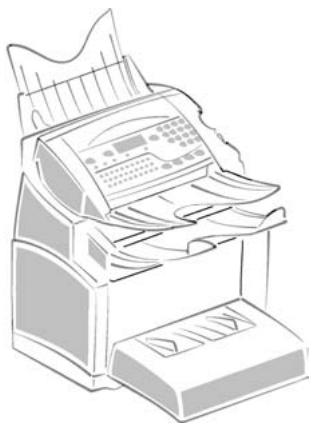
Your machine lets you create a directory by memorising speed dials and group dials.
- Your machine can store up to 500 speed dials with names and phone numbers.
- You may also group several names to build a group dial list with up to 32 group dials. A group dial list is made from the speed dials already stored.
For all speed dials or group dials you may:
- create
- consult
- modify contents
- delete
- print the directory
You may save and if needed load your directory with functions 161 and 162 (refer to paragraph Functions list, page 28). To proceed, you need to contact your reseller and purchase the optional "save" kit.
CREATING SPEED DIAL Lists
For each speed dial you are not required to fill in each line, only name, tel or E-Mail address are required:
NAME of your group dial,
- TEL, and fax machine number of your group dial,
E-MAIL address, example: jones@address.com,
- RECORD NO., this number is automatically assigned by the fax, it allows quick access to the answering machine,
or
- FTP address, example: 134.1.22.9
- If you have not entered an E-MAIL adress, you can enter a FTP adress (to store data).
: If you have not entered an e-mail address, then you have the possibility of entering an FTP address (for archiving purposes).
-57-
NOTE

- RATE for each group dial you may choose your fax transmission speed. The available rates are 2400, 4800, 7200, 9600, 12000, 14400 and 33600 bits per second. With a good telephone connection, well adapted and without echo, the appropriate rate is the highest one.
If your group dial number has both TEL and E-MAIL listed, the validation key (◇ or @) will determine if the document will be sent over the telephone network or over Internet.
ADDING A RECORD
M 11 OK - DIRECTORY / NEW CONTACT
^ Your machine has just created a new record, fill in it by first entering your group dial name then validate with OK.
NOTE : you can stop the list creation at any time by pressing
Enter the person's fax machine number1 and press OK to confirm.
Enter the E-Mail address of your group dial and press OK to confirm.
Define the attached file format (Image or PDF) and press OK to confirm.
Your group dial ID number will automatically appear on the screen, if you wish to modify this number you may do so by choosing another free number and validate with OK.
Select the option WITH assigned key if you want to assign a letter (shortcut key) to your group dial. The first available letter appears by default. If you want to change it, scroll the letters by means of the or keys, and press OK to confirm.
If need be, select the appropriate transmission speed to send your faxes, and confirm your choice by pressing the OK key.
CREATING GROUP DIAL Lists
A group dial is made from the speed dials already stored.
For each list fill in the following lines:
NAME of the list,
- NUMBER ASSIGNED to the list, this number is automatically assigned by the fax. It allows quick access to the answering machine,
- LIST COMPOSITION, its lists the ID numbers assigned to the speed dials included in the list,
- LIST NUMBER, a number lets you identify the list filed under (L).
A list may include both fax and internet group dial.
The same group dial may be included in different lists.
Caution - It is impossible to add one group dial to another group dial.
ADDING A LIST
To add a list:
M 12 OK -DIRECTORY / NEW LIST
Your machine has just created a new list, fill it in by first entering the name of this list then confirm with OK.
NOTE
: You can stop a list or record creation at any time by pressing ⑦ . Also, you do not have to complete all the list characteristics as you create it; you can save the list as it is by pressing ①
The empty field ENTER ABR_NUM. appears, you must fill in the ID numbers assigned to the speed dials included in this list.
There are three ways detailed in the table below, to choose and add one or more group dial to your list. Then confirm your choice by pressing OK.
| From ... | Procedure |
| group dial name | With the alphanumeric keypad enter the first letters of your group dial name and continue until the whole name is displayed on the screen. |
| subscriber ID number | Enter directly the group dial ID number. |
| group dial directory | Press key then select the group dial by means of the or keys. |
For every group dial included in the list repeat the above step then validate with OK.
NOTE
: You can stop record creation at any time by pressing
The list ID number will automatically appear on the screen, if you wish to modify this number you may do so by choosing another free number and validate with OK.
Press to confirm your entry.
CONSULTING A RECORD OR A LIST
Press key
The directory appears in alphabetical order.
Select the speed dial or group dial (L) you wish to consult.
-59-
MODIFYING A RECORD OR A LIST
M 13 OK - DIRECTORY / MODIFY
The directory appears in alphabetical order.
Use the or keys to select the group dial (L) you wish to modify and press OK to confirm.
^ Modify the line or lines in the speed dial or group dial and confirm each modification with OK.
NOTE : You may confirm your modification by pressing , key , but you will exit the menu and may not be able to modify the following lines.
DELETING A RECORD OR A LIST
M 14 OK - DIRECTORY / CANCEL
The directory appears in alphabetical order.
Use the or keys to select the speed dial or group dial (L) you wish to delete and confirm with OK.
Press again OK to confirm your deleting.
The record or list is deleted from the directory.
PRINTING THE DIRECTORY
You may print all the numbers stored in the directory, including all the existing speed dials or subscriber lists.
To print the directory:
M 15 OK - DIRECTORY / PRINT
The directory is printed in alphabetical order.
IMPORTING A DIRECTORY
You can import an existing directory of contacts into your machine as an electronic file. This file must be in a specific format and must not comprise more than 250 entries.
The process of importing a directory uses electronic mail as the transfer mechanism. The electronic file containing the directory is received and processed as an e-mail attachment.
Caution - Importing a new directory completely overwrites any existing directory entries.
THE FILE STRUCTURE
The electronic file containing the data in the directory must be structured into lines or records each comprising five fields separated from one another by a unique character (a tab stop, a comma or a semi-colon). The lines themselves are separated by a line break (carriage return).
| Fields | Contents |
| Name | A unique identifier in your directory, up to 20 characters long. This field is mandatory; the name should not include the field separator character. |
| fax machine number | Your contacts' fax machine number, without spaces or dots, can be up to 30 characters long (including any * and # characters). This field may be left empty, for instance, in the case of contacts to whom you only send e-mails. |
| E-mail address | Your contacts' e-mail address. Can be up to 80 characters long, but must not comprise the field separator character. Any other characters may be used in this field, which can also be left blank. |
| Shortcut key | A capital letter (A to Z), unique to the directory, which is associated with a specific contact and enables quick selection. As with the two previous fields, this field can be left blank. |
| Speed | The fax transmit speed over the PSTN. If you do not specify a value, the default speed is the maximum speed. This field may be left blank if all your fax transmissions are handled by a fax server. |
Caution - You must enter a value for at least one of the fax machine number or E-mail address fields. To enter a blank line, key in four field separator characters in a row.
For example:
Smith;0123456789;jsmith@isp.co.uk;J;8
Jones;01987654321;;@;8
O'Connor;0123469874;d.oconnor@hello.net;U;8
NOTE : alone is the indication that no associated key is assigned to the entry.
-61-
The rate is coded on a number, see the following table:
| Rate | Code number |
| 600 | 7 |
| 1200 | 6 |
| 2400 | 5 |
| 4800 | 4 |
| 7200 | 3 |
| 9600 | 2 |
| 12000 | 1 |
| 14400 | 0 |
| 33600 | 8 |
Caution - You must always enter the field separator character, even if one or more of the fields are left blank. In the example above, which uses a semi-colon as a separator, the entry for « Jones » lacks both E-mail address and shortcut key.
PROCEDURE
To import a directory:
M 17 OK - DIRECTORY / IMPORT
Select WITH to authorise the importation of a directory.
Create your directory on a PC in a file whose structure corresponds to that set out above. In order to be recognised as a directory, the file name must include the word directory and must have a .csv extension. For example: smithdirectory01.csv, jonesdirectory.csv, or simply directory.csv.
Create an e-mail addressed to your E-mail address, attach the file to it, and send your message via your mail server.
^ Your machine will receive the e-mail containing the directory when it connects to the mail server, and will automatically import the attached file into its directory.
Repeat the procedure as many times as required, for instance to update all the LAN faxes on your network with the same directory.
Caution - Importing a new directory completely overwrites any existing directory entries on the fax machine. Once your machine has a complete directory, we advise you to disable importing in order to protect the data already on the machine.
To disable importing:
M 17 OK - DIRECTION / IMPORT
Select WITHOUT to prevent users from importing a directory.
EXPORTING A DIRECTORY
You may also export a directory from a machine as a text file, and send it to any mail client (be it PC or fax based), in the form of an e-mail attachment entitled directoryxxx.csv.
To export the directory:
M 18 OK - DIRECTION / EXPORT
Key in the e-mail address of the PC or other machine to which you want to export the directory.
Confirm by pressing OK.
Repeat the procedure as many times as required, for instance to update all your machines or send the same file to several PC users on your local network.
Directory


5 OPERATION
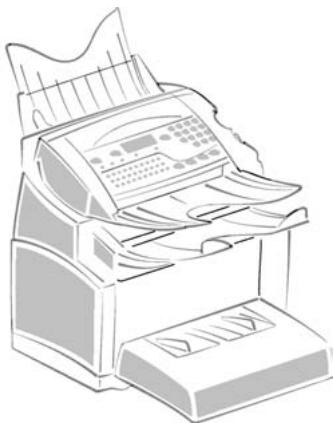
SENDING
Faxes sent over the telephone network are sent from the document feeder or the memory.
Documents sent over the Internet are first stored in memory and sent at the time of Internet connection.
Over the telephone network: all fax transmissions are in black and white.
Over the Internet: you can send black and white documents (TIFF format) or color documents (JPEG format).
DOCUMENT POSITIONING
Scanner
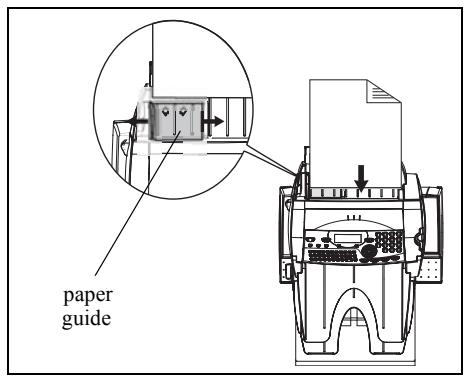
Place your original documents in the document feeder:
- face down,
- first page at bottom of tray.
Set the paper guide to the document width.
Once the operation is completed, remove your original documents from the document exit tray.
Caution - If you forget to position the document to be transmitted, the addressee could receive a blank pages.
NOTE : Since the addressee's number is generally on the document to be transmitted, you may also dial before positioning the document.
CHOOSING THE RESOLUTION/CONTRAST
Resolution
You have 4 modes for document transmission.
The mode choice depends on the type of document to be transmitted:
- Normal mode, no icon appears on the display screen. To be used for good quality documents, without drawings or small details,
- Fine mode, symbolised by Fine at the bottom of the display screen. To be used for documents with drawings or small characters,
- Super Fine mode, symbolised by SFine at the bottom of the display screen. To be used for documents with very fine or small character drawings (unless the machine cannot take with it),
- Photo mode symbolised by Photo at the bottom of the display screen. To be used for photographic documents.
To select the resolution mode:
Press key as many times as necessary to select the required mode. A icon on the screen shows the current mode.
Contrast
You can set the contrast if your document is too light or too dark. If the document is light, you must raise the contrast and if it is dark, you must reduce it.
To set the contrast:
Press 1 as many times as necessary to choose the desired contrast, as shown by the position of a cursor.
DIALING
From the directory
Dialing alphabetically
Enter the first letter of your group dial name with the alphanumeric keypad, then add the remaining letters until your group dial name is complete.
-66-
Assigned number dialing
Press key
Your machine lists the group dials and lists in the directory in alphabetical order.
then
Use keys or of the navigator to scroll all group dial for choice, and choose the required group dial or subscriber list.
or
Press key
Then press the letter assigned to the group dial (refer to paragraph 11 OK - Directory / new contact, page 58).
The screen displays the corresponding name.
or
Enter the group dial or subscriber list assigned number.
The screen displays the name of the group dial or subscriber list assigned to this number.
From the radial key
You can redial one number among the ten last numbers you just dialed before.
For a machine number (Tel in the Directory)
Press key
The screen displays the last number called.
Use keys or of the navigator to select your desired number.
For an E-mail address
Press key @ then C.
The screen displays the last E-mail address used.
Use keys or of the navigator to select your desired E-mail address.
To multiple numbers
You may dial to send a document simultaneously to multiple call numbers.
Caution - This may be achieved only if the machine is setup to send from the memory (refer to paragraph Document feed type, page 36).
Enter the fax or E-mail address, or use the directory or key (refer to above paragraphs).
Press key and enter the number of the second group dial or second subscriber list.
Repeat this last step for all group dials (maximum 10 group dials).
Press OK, , or @ to confirm the last addressee depending on the required operation.
-67-
TRANSMISSION OVER THE TELEPHONE NETWORK
Immediate transmission
Position the document (refer to paragraph Document positioning, page 65).
Enter the fax machine number or choose your dialing mode (refer to paragraph Dialing, page 66) then press
The "Line" icon flashes during the call phase, it stays lit when both machines are in communication.
At the end of transmission the initial screen is displayed.
Delayed transmission
This function allows you to transmit a document at a later time.
To program a postponed transmission you need to identify the group dial number, transmission time, feeder type and number of pages.
To delay the transmission time of your document :
Position the document (refer to paragraph Document positioning, page 65).
Select M 31 OK -FAX / TRANSMISSION.
Enter the group dial number you wish to program at a different time or choose your dialing mode (refer to paragraph Dialing, page 66) and confirm with OK.
Next to the current time, enter the new time and confirm with OK.
Adjust the contrast and confirm by pressing the OK key.
Select the feed type, FEEDER or MEMORY and confirm with OK (refer to paragraph Document feed type, page 36).
You may enter the number of pages before transmission and confirm with OK.
Confirm postponed transmission by pressing key
Your document is stored and will be sent at the new time.
Transmission with auto radial
This function allows you to monitor the dialing operation during a fax transmission. In this case, the maximum transmission rate will be 14400 bps.
This function allows for example:
- to hear if the group dial fax is engaged and if so, choose the moment when the line is clear to start the document transmission,
- to control the communication progress in case of uncertain numbers, etc.
To use the manual dial mode:
Place the document in the machine input tray.
Press
If necessary, set the sound level with navigator or keys.
If not already done, enter the group dial number (ou refer to paragraph From the radial key, page 67 to call back the last group dial).
As soon as you hear the remote machine tone, the line is clear and you can start the transmission.
Press to start the document transmission.
If your machine is set in order to print a transmission report (refer to paragraph Main settings, page 33), the reduced copy of the document first page will not be printed on this report and it notifies you that the communication is manual.
Rerouting
This function is used to reroute faxes received to a directory contact. To use this function, you have to perform two operations: set the rerouting address of the machine and activate rerouting.
Activate rerouting
M 3911 OK - FAX / REROUTING / ACTIVATION
Using the keys or within the navigator select option >>3911 WITH.
Confirm with the OK key.
NOTE : If the function WITHOUT is selected the menus 3912 and 3913 will not be included in the functions overview, when it is printed out.
-69-
- Set the re-direction contact
M 3912 OK - FAX / REROUTING / CALL NUMBER
Using the keys or within the navigator select the group dial from the directory (If the directory is empty the display will show DIRECTIONAL EMPTY). Enter the number of the group dial manually or store the name and related number in the directory (refer to paragraph Adding a record, page 58).
NOTE : You may forward a fax to the e-mail address of the group dial stored in your directory if the fax is not available. The Fax will then be sent as an attachment in the pre-defined file format (see p. 41 for the configuration of the attachment files format).
M 3913 OK - FAX / REROUTING / COPY
Using the keys or within the navigator select the COPY option (local printout of the information relayed to your system) either WITH or WITHOUT.
Confirm with the OK key.
Caution - E-mails can only be relayed to e-mail addresses. The configuration of landlines does not provide for relaying to fax machines.
Tx forwarding
This function is used to configure the machine so that any document transmitted (by fax or to an e-mail address) is also sent to a third party. The recipient will be selected from the entries in your machine's directory. It may be a fax machine number, an e-mail address or an FTP address.
M 3921 OK - FAX / TX FORWARD. / ACTIVATION
Using the keys or within the navigator select WITH ou WITHOUT and confirm with the OK key.
NOTE : If you choose WITHOUT, the menu 3922 won't be displayed.
M 3922 OK - FAX / TX FORWARD. / CALL NUMBER
Select the recipient you want from the directory and confirm by pressing OK.
The function is active and from now on any documents transmitted will have a copy sent to the selected recipient.
The transmission mode to the copied recipient depends on the type of short numbers in the directory:
- If the short number is a telephone number or a mixed number (Tel + e-mail or tel + FTP) the copy will be sent by fax to the recipient's telephone number.
- If the short number is an e-mail address or an FTP number, the copy will be sent in IP mode to the recipient's e-mail or FTP address.
Caution - The Tx forwarding function does not operate in charger mode or in PC Kit mode.
TRANSMISSION OVER THE INTERNET
Sending a black and white document to an E-Mail address
Position the document (refer to paragraph Document positioning, page 65).
Press the @ and enter the recipient's E-mail address, or choose your dialing mode (refer to paragraph Dialing, page 66).
Adjust the contrast and the resolution if necessary (refer to paragraph Choosing the resolution/contrast, page 66).
Press the @ key The document is scanned and placed in memory, it will be sent at the time of Internet connection.
If your group dial is equipped with a PC, he will receive an E-mail with your fax as an attachment in TIFF format.
If your group dial has an Internet fax, he will receive a paper fax.
Sending a color document to an E-mail address
Position the document (refer to paragraph Document positioning, page 65).
Press the @ key and enter the addressee's E-mail address or choose your dialing mode (refer to paragraph Dialing, page 66).
Adjust the contrast and the resolution if necessary (refer to paragraph Choosing the resolution/contrast, page 66).
Press the key.
The document is scanned and placed in memory, it will be sent at the time of Internet connection.
If your group dial has got a PC, he will receive an E-mail with your fax as an attachment in JPEG format.
If your group dial has an Internet fax, he will receive a paper fax.
Sending a typed message to an E-Mail address
You can send a typed message to an E-mail mailbox. You can also add an attachment to this keypad message (the attachment is a scanned paper document).
Access through the menu:
M 95 OK - INTERNET / E-MAIL
Direct access:
Press key @.
-71-
Then, to send to E-mail address:
Enter the addressee's E-mail address or choose your dialing mode (refer to paragraph Dialing, page 66).
u^ Enter the address of who you want to receive a copy of the document (CC:), and press OK to confirm.
Enter the object for mail (80 characters max.) and press OK
Enter the text with the alphabetical keypad (100 lines of 80 characters) and confirm with OK
For this operation, you will get a true editor:
- for capital letters, use key Shift (key ),
- To move within the data entry field, use the or keys,
- to erase a character on the right of the cursor (without moving the cursor), use the or C key,
- to move in the text from one word to another, press key Ctrl and one of the navigator keys,
to go to the next line, use key
Then, you can choose between two options :
Send the typed mail directly. Press OK, the mail is placed in memory and will be sent at the next Internet connection.
Your group dial will receive an E-mail.
^ Add an attachment (scanned document) to your mail:
- Place the document to be attached in the sheet-fed scanner (face down) or on the flat-bed scanner (scan side facing the machine)
- Press key .
- Select B&W SCAN or COLOR SCAN by means of or depending on the document and confirm with OK
- If needed, set the contrast with keys or and confirm with OK
The document is scanned and the mail is placed in memory. They will be sent at the next Internet connection. The other party will receive an E-mail with an attached document.
Scan to FTP
The scan to FTP function enables you to put your TIFF, JPEG and PDF files in an FTP server, for example, for archiving.
To connect to the FTP server, you must know the name of the FTP user and the PASSWORD.
When sending files, the machine connects to the FTP server using the defined connection parameters.
NOTE : This function is programmed by default on the F1 key.
Deposit a file in an FTP server
Put the document in the scanner (refer to paragraph Document positioning, page 65).
Select M 872 OK - SCAN TO / SCAN-TO-FTP or press F2 then press OK key.
Enter the FTP address of the server or select it from the directory by pressing the key.
Enter the name of the FTP user (operation prohibited when the address is in the directory).
^ Enter the password of the FTP user (operation not necessary when the address is in the directory).
Validate with OK key.
Select B&W SCAN to send a document in black and white or COLOR SCAN to send a document in color. Validate with OK key (this setting may be changed at any time during the send procedure with the color key).
^ Enter the name of the attachment and validate with OK key.
If necessary, change the attachment format: PDF or IMAGE et validate with OK key.
Multi-contact sending
To make this type of send, you have to create a group containing exclusively the FTP addresses.
TRANSMISSION WAITING Queue
This function lets you obtain a recap of all documents queuing, for transmission, including those in deposit or in delayed transmission, etc.
It allows you to:
- consult or modify the waiting queue. In this waiting queue the documents are coded the following way:
Order number in the queue / document status / group dial telephone number. Documents may have the following status: - TX: transmission,
- REL: relay,
- DOC: in deposit,
- POL: polling,
- MBX: send to mailbox,
- PMB: mailbox polling,
- TR: ongoing commands,
- CNX: Internet connection,
- NET: Internet transmission,
-
SMS: SMS transmission,
-
immediately perform a transmission from the waiting queue,
- print a document in storage, waiting to be transmitted or in deposit,
-
print the waiting queue, to get the status of each document in the queue, by either:
-
queue order number,
document name or number, - scheduled transmission time (fax),
- operation type regarding the document: transmission from memory, delayed transmission, deposit,
- number of pages of the document,
-
document size (percentage of space stored in memory),
-
cancel a transmission request in the waiting queue.
-73-
Consult or modify the waiting queue
M 62 OK - COMMANDS / MODIFY
In the waiting queue select the required document and confirm your choice with OK.
You may now modify the parameters of the given document then confirm your modifications by pressing key .
Immediately perform transmission from the waiting queue
M 61 OK - COMMANDS / PERFORM
Select the document in the waiting queue and confirm your choice with OK or to immediately perform the selected transmission.
Printing a document in waiting or in deposit
M 64 OK - COMMANDS / PRINT
In the waiting queue select the desired document and confirm your choice with OK.
Print the waiting queue
M 65 OK - COMMANDS / PRINT LIST
A document called COMMANDS LIST is printed.
Deleting a transmission on hold
M 63 OK - COMMANDS / CANCEL
In the waiting queue select the desired document and confirm your choice with OK.
CANCELLING A TRANSMISSION IN PROGRESS
Cancelling a transmission in progress is possible whatever the type of transmission but varies depending on whether the transmission is a single call number or a multi-call number.
- For a single call number from the memory, the document is erased from the memory.
- For a multi-call number, only the call number in progress at the time of the cancellation is erased from the transmission queue.
To cancel transmission in progress:
Press key
A message will ask you to confirm cancellation by pressing the key , a second time.
Press key to confirm cancellation in progress.
-74-
If your machine is set to print a confirmation report (refer to paragraph Confirmation report, page 36), it will print that the communication was cancelled by the user.
RECEPTION
Document reception over the Internet is automatic at each Internet connection.
Reception of all documents over the telephone network is done one at a time at fax reception.
RECEPTION OVER THE PUBLIC SWITCHED TELEPHONE NETWORK (PSTN)
Fax reception depends on the parameter settings of your machine.
RECEPTION OVER THE INTERNET
Whatever the document received, reception is automatic at each Internet connection. Incoming documents other than fax files (Word process file, CAD, etc.) may not be opened by your machine. However, you may keep this (or these) document(s) in your Internet mailbox until it is automatically converted by the F@X to Fax service, if you have a subscription or until computer use or automatic transfer (refer to paragraph Mail sorting, page 53).
COPYING
Your machine offers to ability to print out one or more copies.
LOCAL COPY
Standard copy
Position the document face down (refer to paragraph Document positioning, page 65).
Press key twice.
-75-
Contents
Installation
Getting started
Setting up your
machine
Directory
Operation
Maintenance
Safety
Enhanced copy
Position the document face down (refer to paragraph Document positioning, page 65).
Press key
Enter the desired number of copies and press OK to confirm.
Choose FAST, QUALITY or PHOTO resolution with the keys or , then press OK to confirm.
Set the desired zoom value 25% TO 400% with keys or and the numerical keypad, then press OK to confirm.
Choose the copy output type between COPY ASSEMBLED or NOT ASSEMBLED and press OK to confirm.
Set the required origin values with keys or the numerical keypad and press OK to confirm.
Set the required contrast value with keys or and press OK to confirm.
Set the required brightness value with keys or and press OK to confirm.
Choose the type of paper NORMAL PAPER, THICK with keys or and press OK to confirm.
Choose the paper tray, AUTOMATIC TRAY, UPPER TRAY or LOWER TRAY with keys or and press OK to confirm.
SPECIFIC COPY SETTINGS
When the copy quality is no longer satisfactory, you can perform a calibration. To do so, refer to paragraph Scanner calibration, page 110.
Moreover, a high number of controls let you improve the copy quality.
Scanner settings
- RESOLUTION to set the photocopy resolution.
- ZOOM settings to reduce or magnify any portion of a document by choosing the origin and value of the zoom to apply to that portion.
- The assembly parameter to choose between ASSEMBLED or NOT ASSEMBLED copies.
- The ORIGIN parameter to choose the origin to be applied to the document.
- CONTRAST to choose the photocopy contrast.
- BRIGHTNESS is used to make your original document lighter or darker.
- L/R MARGINS to shift the margins or your original document to the left or to the right.
- A4 or LETTER to choose the format.
machine settings
- PAPER is used to tell your machine what type of paper you use by default.
- TRAY is used to tell your machine which paper tray should be used by default.
- L/R MARGINS to shift the margins of your document to the left or to the right.
Caution - All the settings performed through this menu will become the machine's default settings.
To access to the settings:
M 84 OK - ADVANCED FCT / SCAN. & PRINT
Select the SCANNER or the MACHINE to be set and press OK to confirm.
Use the keys or of the navigator to scroll the described hereafter settings you want to modify.
Scanner settings
Resolution
Set the desired resolution FAST, QUALITY or PHOTO with keys or .
Confirm your setting by pressing key OK.
Zoom
Your machine offers to reduce or magnify a specific part of a document from 25% to 400% .
Enter the desired zoom value with the numerical keypad.
Confirm your setting by pressing key OK.
Assembly
Choose the copy type between ASSEMBLED or NOT ASSEMBLED.
Confirm your choice by pressing key OK.
Origin
If you wish, you can change the origin of the scanner.
By entering new values of X and Y given in mm (X < 210 and Y < 286) , you will move the scanning zone as shown on the figure below.
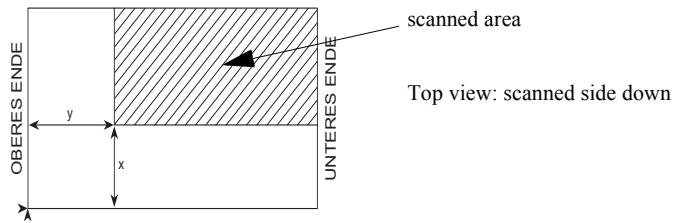
Select the X and Y coordinates with keys or .
Set the required coordinates with the numeric keypad or or .
Confirm your setting by pressing key OK.
-77-

Contrast
Set the desired contrast with keys or .
Confirm your setting by pressing key OK.
Lumination
Set the desired lumination with keys or .
^ Confirm your setting by pressing key OK.
Margins
If you want to shift the side margins of your document to the left or to the right:
Adjust the left/right margins shift (in steps of 0.5mm ) with keys or .
Confirm your setting by pressing key OK.
Paper format
You may choose between two paper widths: A4 or LTR/LGL. Select your format using the and keys.
Confirm your setting by pressing OK.
Fax Reception Mode
Your machine manages two paper trays. The first paper tray can hold A4/Letter format or Legal format.
The second paper tray (optional) can only hold Letter format.
Choosing the Paper Tray
You can choose between the following paper trays:
M 84221 OK - AUTOMATIC
M 84222 OK - SUPERIOR (Tray 1)
M 84223 OK - INFERIOR (Tray 2)
NOTE : the default value of the machine is AUTOMATIC.
Selecting Paper Formats
You can select paper formats by choosing the following menus:
M 84241 OK - (A4)
M 84242 OK - (LETTER)
M 84243 OK - (LEGAL)
Received Faxes Reduction Mode
To print a Legal format received fax on a Letter/A4 format page, you can reduce received faxes using the following menu:
M 2441 OK - AUTOMATIC
This function automatically resize received faxes: a fax received in Legal format will be printed on Letter paper via the previously installed paper tray.
If you choose:
M 2442 OK - FIXED
The machine proposes a 70 to 100% reduction. Beyond this limit, the machine beeps for error. This fixed reduction will be used when printing received documents, whatever the paper format may be.
Discard size
The "Discard Size" parameter acts on printing of received faxes only. The number of lines of a document can be too high for the printing paper format. This parameter defines the threshold beyond which the extra lines are printed on a second page. Bellow this threshold, extras lines are deleted. You can validate this parameter via the following menu:
M 29 OK - TECHNICALS
Using the or keys, select the 13> DISCARD SIZE parameter. Validate by pressing the OK key.
Using the or keys, select 291 > WITH or 292 > WITHOUT. Validate your choice by pressing the OK key.
If you choose WITH, the threshold is set on 3 centimeters.
If you choose WITHOUT, the threshold is set on 1 centimeter
-79-
Machine settings
Paper
Select the type of paper NORMAL or THICK with keys or .
Confirm your setting by pressing key OK.
NOTE : 1) When the THICK type of paper is selected, the printing speed is slowed down.
2) Use the manual feeder for paper substances over 24lb . (90g / m^2) .
Paper tray
Select the paper tray to be used (AUTOMATIC, LOWER or UPPER) using keys or .
Confirm your setting by pressing key OK.
Margins
If you want to shift the side margins of your document to the left or to the right:
Adjust the left / right margin shift (in steps of 0,02 in (0.5mm) ) by means the or keys.
Press OK to confirm.
OTHER FUNCTIONS
Logs
The incoming and outgoing logs list the last 30 transmissions (incoming and outgoing) made by your machine.
An automatic print out will take place after every 30 transmissions. However, you may request a print out at any time.
Each log (incoming or outgoing) contains a table with the following information:
- date and time of the incoming or outgoing document,
- group dial number or E-mail address,
- transmission mode (Norm, Fine, SFine or Photo),
number of pages sent or received,
call duration, - incoming or outgoing results: noted CORRECT if properly transmitted or
information codes for special calls (polling, manual group dial, etc.),
- reason for call error (example: your group dial does not answer).
-80-
To print the logs:
M 52 OK - PRINT / LOGS
The incoming and outgoing logs are printed on the same page.
PRINTING THE FUNCTIONS LIST
You may print the functions list of your machine at any time.
To print the functions list:
M 51 OK - PRINT / FUNCTIONS LIST
PRINTING THE MACHINE SETTINGS
At any moment, you may print the list of your parameter settings to control any changes possibly made to the default parameters.
Printing the machine settings:
M 54 OK - PRINT / SETUP
Your machine prints the list of stored parameters.
PROGRAMMING SPEED DIALS
You may programme speed dials of keys (for example, to send a fax directly to one or multiple group dial, to call this group dial or to get access to a specific menu, etc.).
This sequence is registered in one of the keys F1 or F2 (as you want).
Then, by pressing one of these keys, you will execute the registered sequence.
NOTE : By default, Scan to PC function is programmed on F1 key and Scan to FTP function is programmed on F2 key.
To register a sequence (for example, in key F1).
Press key MENU, then F1: you will enter the menu option
From this moment, all the key pressings are memorized in the key F1.
Press key F1 to register the sequence if you are still in the menus. The sequence memorizing is automatic if you have already exited the menu.
Example: to memorize a fax sending to various group dial in key F1:
Press keys MENU then F1.
Press keys 3, 1 then OK.
Enter the group dial fax machine number.
Press key and enter the second group dial fax machine number or subscribers list.
-81-
Repeat this last step for all group dials.
Press key F1: the sequence is memorized.
To send a fax directly to your group dial (key F1 preset)
Press F1.
Position the document (refer to paragraph Document positioning, page 65).
Press the key
FONT PRINTING
You can print the list of fonts installed on your machine at any time.
To print PCL fonts :
M 57 OK - PRINT / PCL FONTS
To print SG Script fonts:
M 58 OK - PRINT / SGSCRIPT FONTS
Your machine prints the list of fonts.
COUNTERS
At any time, you may consult the activity counters of your machine.
To get to the counters of the machine:
M 82 OK - ADVANCED FCT / COUNTERS
These counters indicate the number of:
transmitted pages,
M 821 OK - ADVANCED FCT / COUNTERS / SENT PAGES
received pages,
M 822 OK - ADVANCED FCT / COUNTERS / RECEIVED PG
- scanned pages,
M 823 OK - ADVANCED FCT / COUNTERS / SCANNED PAGE
- printed pages,
M 824 OK - ADVANCED FCT / COUNTERS / PRINTED PG
-82-
DEPOSIT AND POLLING
You may deposit a document in your machine and keep it available to one or more group dial who can obtain a fax of this document by calling your machine with the POLL function.
Your group dial can then get (if they request it) the fax of a document that you have previously deposited in your machine.
Setting the machine for document deposit,
you must define the type:
- SIMPLE- it may be polled only once from the memory or feeder,
- MULTIPLE- it may be polled as many times as necessary from the memory.
Setting the machine for polled documents,
you must define the poll number, then depending on the type of poll you may:
- launch an immediate poll,
- program a delayed poll with a chosen time,
- launch a multi-poll, either immediately or later.
Placing a document in deposit
Insert the document to deposit in the feeder.
Select MENU 34 OK - FAX / POLLING TX and confirm with OK.
Choose the type, according to the table below:
| Menu | Procedure |
| SIMPLE | Select FEEDER or MEMORY. If necessary, adjust the contrast and confirm with OK. Enter the number of pages that you wish to deposit. |
| MULTIPLE | If necessary, adjust the contrast and confirm with OK. Enter the number of pages that you wish to deposit. |
Confirm deposit by pressing the OK key.
Polling a deposited document
M 33 OK - FAX / POLLING RX
Enter the number of the party whose document you want to poll or choose your dialing mode (refer to paragraph Dialing, page 66).
NOTE : You can poll several documents using the key.
-83-
Depending on the type of poll you should:
| Choice | Procedure |
| Immediate poll | Press ◆. |
| Delayed poll | Press OK. Next to the current time, enter the time you wish to poll the document and press ◆. |
NOTE : When a code is already registered, the machine asks you to give the former code before allowing you to modify it.
SECURITY
There are restrictions to the use of your machine:
- locking the printing of received documents (refer to paragraph Fax answering machine, page 37),
- locking the keyboard,
- locking the numbers,
- locking the Internet settings,
- locking the access to the SMS transmission function.
Entering the locking code
The operator access parameters are confidential; they are protected by a four-digit interlock code that the authorized operators must know.
To access the locking code:
M 811 OK - ADVANCED FCT / LOCK / LOCKING CODE
Enter your four-digit interlock code on the keypad.
Confirm by pressing OK.
^ Confirm the interlock code by entering the code one more time.
Press OK to confirm.
Locking the keyboard
This function allows you to prevent access to non-authorized persons. An access code must be entered each time a person wants to use the machine.
To access the keypad unlocking menu:
M 812 OK - ADVANCED FCT / LOCK / LOCK KEYBD.
Enter the four-digit interlock code.
-84-
Press key OK to confirm.
With keys or of the navigator, select the option WITH.
Press key OK to confirm.
NOTE : After each operation, the machine keyboard locks automatically.
Locking the numbers
This function locks dialing and the numerical keypad is disabled. Transmissions are only possible from numbers included in the directory.
You can still send mails by typing in the addressee's address (if this has no numbers in it).
To access the number interlocking option:
M 813 OK - ADVANCED FCT / LOCK / LOCK NUMBER
Enter the four-digit interlock code with the keypad.
Press key OK to confirm.
With keys or of the navigator, select the option DIRECT ONLY.
Press key OK to confirm.
Locking the Internet settings
This function prevents access to all the Internet settings of menu 9.
As a matter of fact, any untoward change to these settings might result in repeated connection failures. You can still send documents to an E-mail address (M 95) and get connected (M 93).
To access the Internet settings locking menu:
M 814 OK - ADVANCED FCT / LOCK / LOCK PARAMETERS
Enter the four-digit locking code with the numerical keypad
Press OK to confirm
With keys or , select the option WITH
Press OK to confirm
Locking the SMS service
This function prevents access to the SMS service.
To access the SMS service locking menu:
M 815 OK - ADVANCED FCT / LOCK / LOCK SMS
^ Enter the four-digit locking code with the numerical keypad.
Press key OK to confirm.
With keys or , select the option WITH.
-85-
Press key OK to confirm.
Remark : When a code is already saved, the unit first asks you for the old code before allowing you to change it.
SCAN TO PC
This function allows to send an opening notice of a scan function of a PC connected to your machine (with the Companion Suite Pro kit). For more information, refer to the User Manual provided with your PC Kit (Companion Suite Pro).
M 871 OK - ADVANCED FCT / SCAN-TO-PC
M 872 OK - ADVANCED FCT / SCAN-TO-FTP
NOTE : This function is programmed by default on the F2 key.
DEPARTMENT CODE
Use of the machine can be limited to authorized personnel within each department by setting up a Master Department Code and individual Department Codes. You can assign one Master Code and up to 98 Department Codes. The FaxCentre F116/F116 L can then monitor the usage for each department. The Master Department Code is used to setup and modify the Department Code information.
During the setup procedure, you are prompted to enter a 4-digit Master Department Code. This code is required to perform any modifications; it is used as a Supervisory master key. The Master Code department number is preset to 00 by the machine.
The individual Department Codes are used to access and operate the machine. During the setup procedure, you can assign Department Numbers from 1-98. You are also prompted to enter a 4-digit Department Code for each department. As each department enters their assigned department code to access and operate the FaxCentre F116 / F116L, the usage for each department is recorded on the department Code Report.
FUNCTION MANAGEMENT BY THE ADMINISTRATOR
By default, the "Department Code" function is deactivated when the machine is first put into service.
Activating the department code
M 881 OK - ADVANCED FCT / DEPT. CODES / ACTIVATION
Using the browser's or keys, select WITH.
Press OK to confirm; the function is activated.
-86-
Deactivating the department code
M 881 OK - ADVANCED FCT / DEPT. CODES / ACTIVATION
Using the browser's or keys, select WITHOUT.
Press OK to confirm; the function is deactivated.
Setting the department codes
The administrator must enter the department number to be created, between 01 and 98; the number 00 is reserved for the administrator to enter his or her own department code and department name before being able to record other codes for different users.
- Entering the Master1 code
M 882 OK - ADVANCED FCT / DEPT. CODES / NEW DEPT.
The screen displays:
NEW DEPT.. 00>FREE
Using the browser's key select 00.
Confirm by pressing OK.
The screen displays:
8821>DEPT.CODE 8822 DEPT. NAME
Press OK to confirm the line 8821>CODE DEPT.
The screen displays MASTERCODE and ***.
Using the key go to the **** line and enter your 4-digit department code (remember this code).
Confirm the code by pressing OK.
Using the browser's key select 8822 DEPT. NAME and press OK.
Using the alphabetical keypad, enter the name you want to give to your department (maximum 20 characters).
Confirm your department name by pressing OK.
- Code only attributed to the administrator
-87-
Creating a department code
Only the administrator, using the Mastercode is able to attribute other department codes.
Enter your Mastercode and confirm by OK.
M 882 OK - ADVANCED FCT / DEPT. CODES / NEW DEPT.
Enter a number between 01 and 98 or select a free number using the or keys, as shown on the machine's display.
Confirm your selection by pressing OK.
The screen displays:
8821>DEPT.CODE
8822 DEPT. NAME
Press OK; the screen displays:
DEPT.CODE
****
Enter a 4-digit code (remember it); if this code is already used by another service, the machine displays "CODE USED". In this case enter another code.
Confirm your selection by pressing OK.
The machine also asks you if you want to be able to modify the department name. Press OK then the key to return to the main menu.
Deleting a department code
The administrator can also delete a department code to prevent the department associated with it having any access to the machine functions.
Enter your administrator Mastercode.
M 883 OK - ADVANCED FCT / DEPT. CODES / DELETE
Enter the number of the department code you want to delete or search for it using the ou keys.
Confirm by pressing OK. A confirmation screen is displayed. Press OK again to confirm the deletion. Once confirmed, the department code number becomes free again and the counters also associated with this number will be erased.
Caution - If the administrator deletes his or her own department code all the other department codes will also be deleted.
Printing a department code
The administrator may print reports for each department entered. These reports show the department number (between 01 and 98), its name, the associated access code and the number of pages transmitted and copied by this department.
M 884 OK - ADVANCED FCT / DEPT. CODES / PRINT
Enter the number of the department you want to print and confirm by pressing OK.
The machine begins printing the report, as shown in the illustration below.
** DEPARTMENT CODES **
SID: Smith
Number: 0987654321
Date: 12-12-04 14:20
| Department | 01 |
| Departement Name | FAX LASER |
| Departement Code | 3178 |
| Pages sent | 1589 |
| Pages copied | 2890 |
Printing the department report
The administrator may print reports for all the departments created. To do so:
M 884 OK - ADVANCED FCT / DEPART. CODES / PRINT
Enter the administrator department number 00 and confirm by pressing OK. The machine prints the report, as shown in the illustration below.
** DEPARTMENT CODES **
SID: Smith
Number: 0885654321
Date: 12-12-04 14:20
| Dept. | Department name | Dept. Code | Pages sent | Pages copied |
| 00 | Master | 1234 | 1258 | 3698 |
| 001 | Office 44 | 6589 | 2596 | 1589 |
| 002 | Office 85 | 2574 | 3561 | 4587 |
| 003 | Office 47 | 1593 | 1897 | 5984 |
-89-
USE OF THE DEPARTMENT CODES BY A DEPARTMENT
To access the different machine functions, each department must enter its own access code as delivered by the administrator. When the "DEPARTMENT CODE" function is activated M 881 OK the screen displays:
THU 20 FEB 10:15 ENTER DEPT.CODE
Press on the numerical keypad only (pressing any other keys will sound beeps).
The screen displays:
ENTER DEPT CODE
Enter your department's access code (as provided by the administrator). If this code is correct, the machine will grant you access to all the functionalities available, except for menu 88 as this is reserved for the administrator. If the access code does not correspond to any services, the machine displays WRONG CODE.
CHARGE CODE
ENTERING THE CHARGE CODE
The charge code is a number that is sent on-line after your correspondent's fax machine number. To add a charge code after entering your correspondent's number you must press the 1 key. This inserts the "+" symbol after the number and you may then type your charge code.
Example:
TO: 9738088444+****
The charge code will always be hidden.
The maximum length that can be entered is 30 characters. When dialing, only the digits are sent on the line. The + symbol inserted is not sent. In the example above, the number 97380884440123 is dialed.
If your equipment is connected to a private exchange (PABX), enter the prefix (number used by your PABX to access the telephone network, for example 0), followed by a / (or pause.
When a charge code is used, the transmission reports and the machine log printout contains the correspondent's number followed by the charge code's + symbol.
-90-
MAIL BOX (MBX FAX)
There are 32 mailboxes (MBX), enabling you to transmit documents in complete confidence using an access code (named code MBX), to all group dial equipped with a machine compatible to yours.
MBX 00 is public. It is handled directly by the machine to record the messages of the machine TAD as soon as this is put into service.
MBX's 01 to 31 are private. Each is password-protected. They can be used to receive documents confidentially.
The use and access to MBX 01 - 31 are conditioned by the initialization, defined by a MBX code (if needed) and a mnenonic (its S.I.D.).
Later you may:
- modify the features of an MBX,
- print the contents of an MBX, only possible if the MBX contains one or more documents (with a star next to the MBX). When the contents of an MBX have been printed it becomes empty,
- delete an MBX, only if the MBX is initialized and empty,
- print the list of your fax machine's MBX's.
You may receive and send through an MBX in complete confidentiality.
The deposit a document into your MBX, the access code is not needed. All documents deposited in a MBX are added to the ones already present.
In polling, the MBX are only accessible with an MBX code.
You may perform MBX deposits or polls by:
- depositing a document in a machine MBX,
- transmit to deposit a document in a remote machine MBX,
- perform document poll from a remote machine.
MBX MANAGEMENT
Creating an MBX
M 71 OK - MAILBOXES / CREATE MBX
Select a free MBX out of the 31 MBX or directly enter the number of a free MBX and confirm with OK
Select option MAILBOX CODE and press OK.
Value 0000 is always displayed.
Enter the code of your choice, if needed, and press OK.
Select option MAILBOX NAME and press OK.
^ Enter this MBX's S.I.D. (20 characters max.) and press OK.
-91-
The MBX is initialized. If you wish to initialize another, press C and repeat the same procedure.
To exit the MBX, press
Modifying the features of a MBX
M 72 OK - MAILBOXES / DEPOSIT MBX
Select a free MBX out of the 31 MBX, or enter the number of a free MBX directly (1-31) and confirm by pressing OK.
Enter the code of this MBX, if there is one, and confirm with OK.
Select the menu MAILBOX CODE or MAILBOX NAME, then confirm your choice with OK.
Perform data modification of the menu and confirm with OK.
If needed, repeat the last two steps for the other menu.
Printing the contents of a MBX
M 73 OK - MAILBOXES / PRINT MBX
Select a free MBX out of the 31 MBX, or enter the number of a free MBX directly (1-31) and confirm by pressing OK.
^ Enter the code of the MBX, if there is one, and confirm with OK.
All documents found in the MBX are printed and the MBX is emptied.
Deleting a MBX
Before deleting an MBX, you need to make sure it is empty, by printing its content.
M 74 OK - MAILBOXES / DELETE MBX
Select a free MBX out of the 31 MBX, or enter the number of a free MBX directly (1-31) and confirm by pressing OK.
Enter the code of the MBX, if there is one, and confirm with OK.
Press to confirm MBX deletion.
The MBX is deleted and will appear as a free MBX in the list.
Printing the MBX list
M 75 OK - MAILBOXES / PRT MBX LIST
The list gives the status of each MBX.
-92-
MBX deposit in your machine
Insert the document in the machine's document feeder.
Select M 72 OK - MAILBOXES / DEPOSIT MBX and confirm with OK.
Select a free MBX out of the 31 MBX, or enter the number of a free MBX directly (1-31) and confirm by pressing OK.
The document is scanned by the machine and saved in the selected MBX.
MBX deposit in a remote machine
Insert the document in the machine's document feeder.
Select M 35 OK - FAX / MBX SENDING and confirm with OK.
Enter your group dial number for MBX deposit or choose your dialing mode (refer to paragraph Dialing, page 66) and validate with OK.
Enter the group dial MBX number and confirm with OK.
If you wish to delay transmission, enter the new transmission time next to the current time and press OK
If you wish to modify the document feed type, select one of the options FEEDER or MEMORY, and press OK
If you wish, you may enter the number of pages of your document before transmitting, and confirm by pressing OK.
Confirm the transmission request to a remote MBX machine by pressing key
In the case of an immediate transmission, the document is sent immediately.
If the document is set for a postponed transmission the document will be stored in the memory and sent at the requested time.
MBX polling from a remote machine
M 36 OK - FAX / MBX POLLING
Enter your group dial number for MBX deposit or choose your dialing mode (refer to paragraph Dialing, page 66) and validate OK.
Enter the group dial MBX number and press OK
Enter this MBX access code and press OK
If you wish to delay the poll time, enter the departure time next to the current time and confirm by pressing OK.
Confirm the MBX poll request by pressing key
As soon as the remote machine is subscribed, either immediately or later, the document(s) in the remote machine MBX are receiveid in your machine.
NOTE : Please check for remote machine compatibility.
-93-
Operation

6 MAINTENANCE
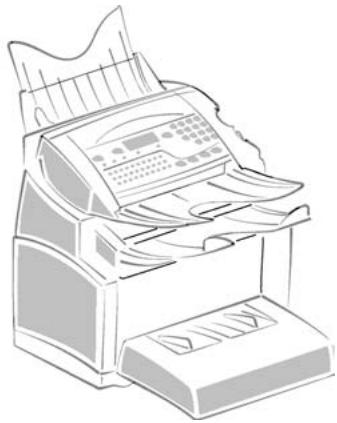
MAINTENANCE
GENERAL
To ensure the best operating conditions for your machine, it is recommended that you regularly clean the inside.
For normal usage, please respect the following rules:
- Never leave the cover open unless required.
- Protect the machine from direct sunlight.
- Do not attempt to oil the machine.
- Always gently close the cover and avoid vibrations.
- Do not open the cover while printing.
- Never try to dismantle the machine.
- Do not use paper that has stayed in the paper tray for a long time.
Look at the safety rules in the Safety chapter at the end of this booklet.
REPLACING THE CONSUMABLES (TONER AND DRUM CARTRIDGES)
To check the remaining capacities of the consumables:
M 85 OK - ADVANCED FCT / CONSUMABLES
The toner cartridge and the drum cartridge come with a chip card.
After replacing a consumable item in the machine, you need to inform the machine about its features.
NOTE
: For this purpose, the chip card supplied with each toner cartridge must be read by the machine each time a new consumable item is installed.
Replacing cartridges
Replacing the toner cartridge
To replace the toner cartridge, proceed as shown below.
When the display shows:
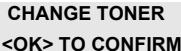
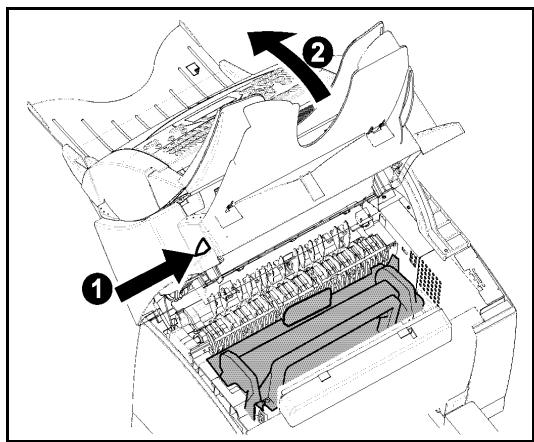
1 - Press the cover release button on the upper left part of the machine to open it
Maintenance
Caution - The Fuser Assy located inside the machine may become very hot during operation. To avoid injury - do not touch.
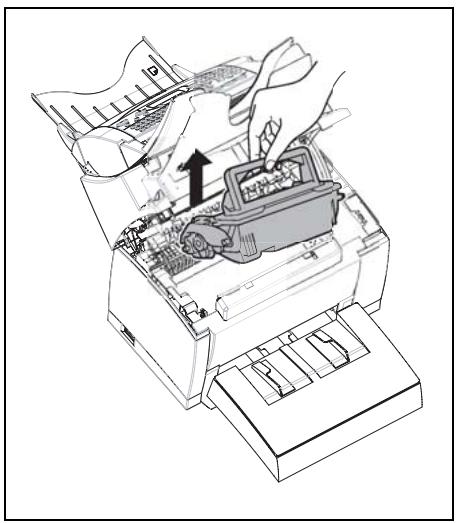
2 - Remove the old toner cartridge.
Caution - In order to protect the environment, do not throw away the used toner cartridge. Used cartridges should be disposed of in accordance with local regulations concerning waste materials.
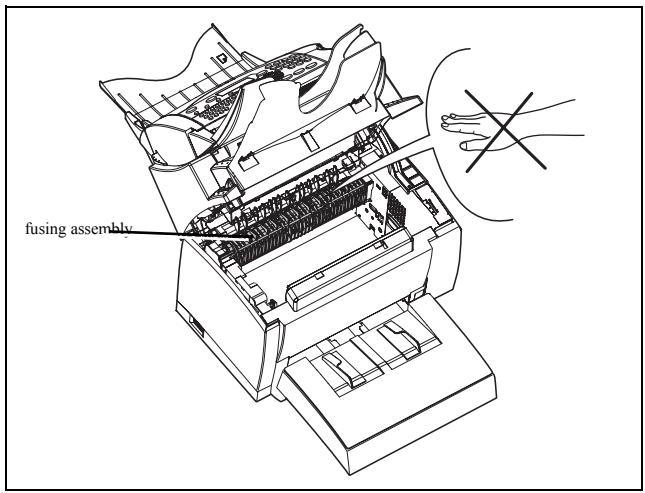
-97-
Maintenance
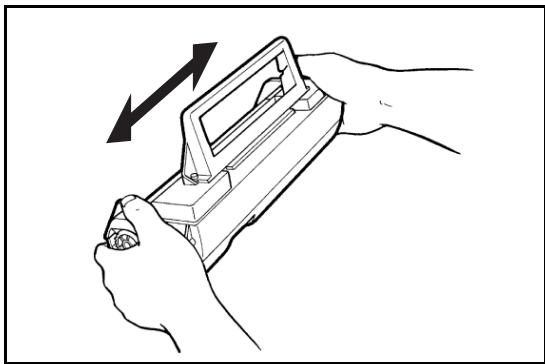
3 - Remove the new toner cartridge from its box. Hold it firmly with both hands and shake it in the directions shown by the arrows in the diagram below.
4 - Holding the cartridge by its handle, slide it into the machine.
Ensure that the four pins (two on either side) are properly aligned with the grooves in the machine.
NOTE : Use the color-coded stickers marked "2", which are located both on the toner cartridge and the inside of the machine, for proper positioning. These two stickers should line up while installing the toner cartridge.
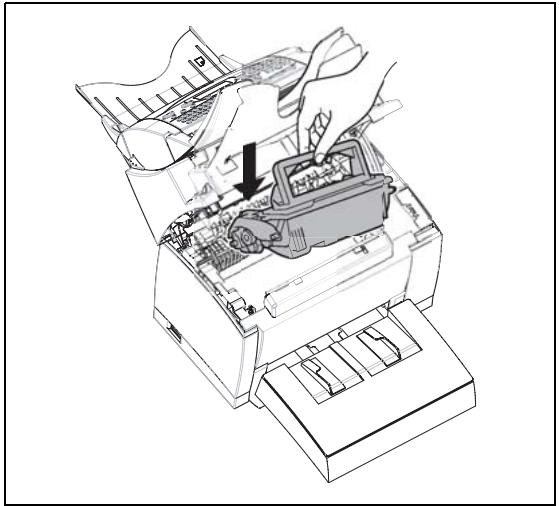
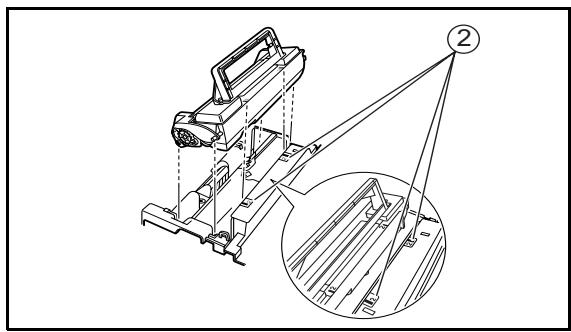
-99-
Maintenance
The cartridge will click into position once it is correctly installed.
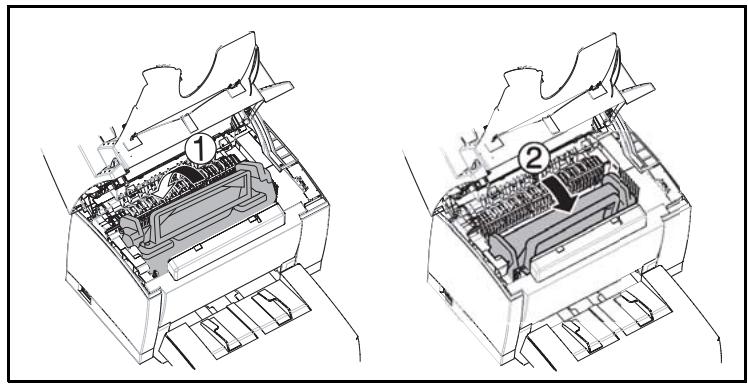
5 - Shut the upper cover by pressing it down gently but firmly until it locks into position.
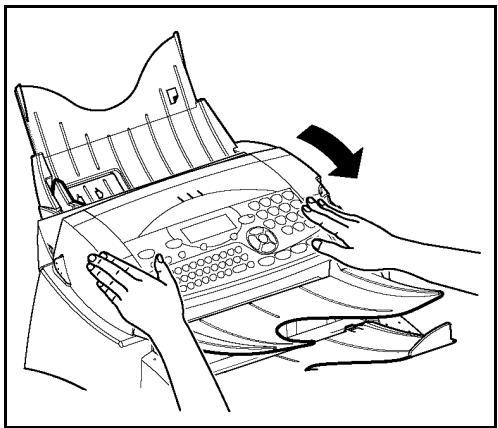
Press OK on the scanner keypad. The display shows:
TUE 02 APR 13:39
INSERT GAUGCARD
-100-
Insert chip card (supplied with the toner cartridge) into the card reader ensuring that the chip is entered as shown in the drawing below.
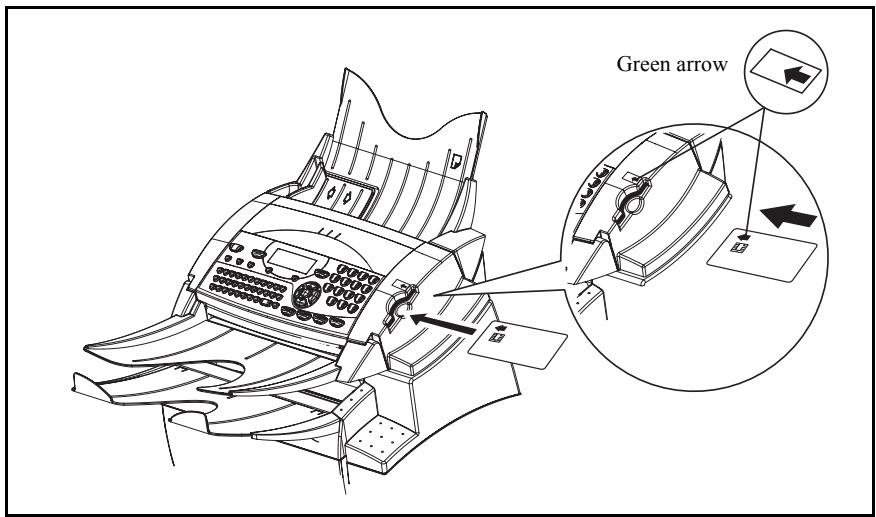
The following is displayed on the scanner control panel screen:
CHANGE TONER?
YES=OK-NO=C
Press OK.
Once the chip card has been read, the display shows:
TONER OK
REMOVE CARD
Remove the card.
Caution - If the following is displayed, check that you have inserted the chip card the right way up.
CANNOT READ CARD
REMOVE CARD
Caution - If the following is displayed, remove your card and insert it the right way up (green arrow side).
CANNOT READ CARD
CHECK DIRECTION
-101-
Maintenance
Replacing the drum cartridge
To replace the drum cartridge, proceed as shown below:
When the display shows:
CHANGEDRUM
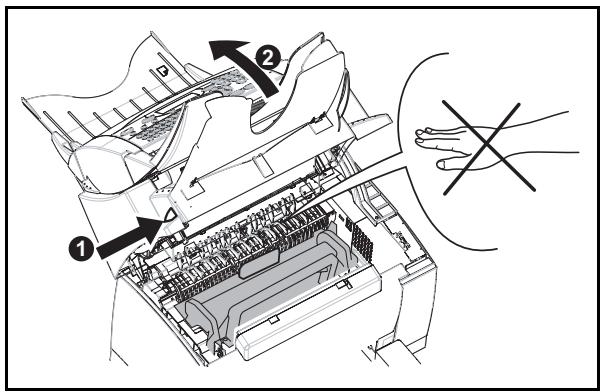
1 - Press the release button of the upper cover to open it.
Caution - The fusing assembly located inside the machine may become very hot during operation. To avoid injury - do not touch
2 - The drum cartridge is under the toner cartridge. Remove the toner cartridge from its housing and place it safely out of the way.
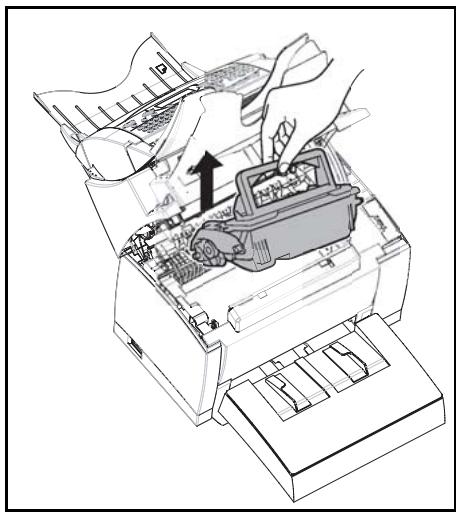
3 - Remove the used drum cartridge and take the new one out of its package.
-102-
Maintenance
Caution - In order to protect the environment, do not throw away the used drum cartridge. Used cartridges should be disposed of in accordance with local regulations concerning waste materials.
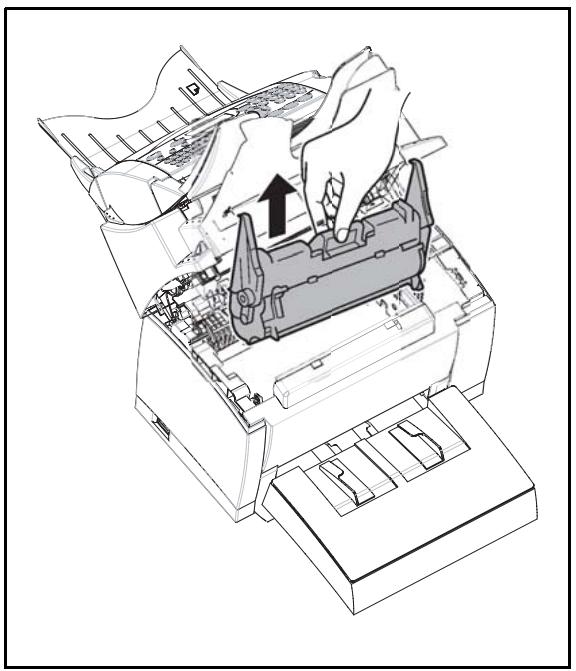
Coots
aannnnnne aannnnnne
eannnnnne
eepnne eee
macnne
rreerrree
Maaannnnnne
safet
-103-
Maintenance
NOTE : Use the color-coded stickers marked "1" which are located both on the drum cartridge and the inside of the machine for proper positioning (the stickers should line up). Ensure that you insert the drum cartridge as far as possible into the machine.
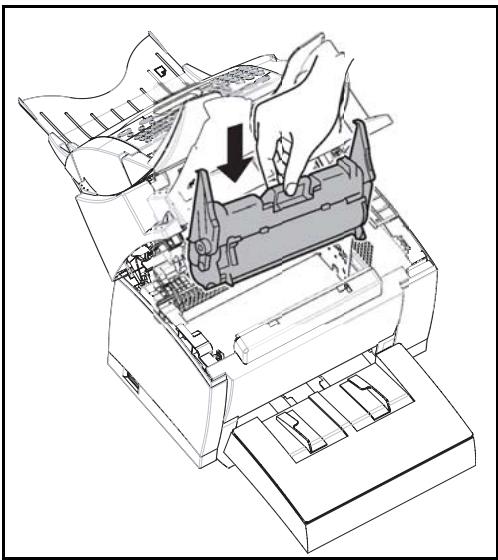
4 - Install the drum cartridge into the machine, ensuring that the pins on the cartridge are aligned with the grooves in the machine.
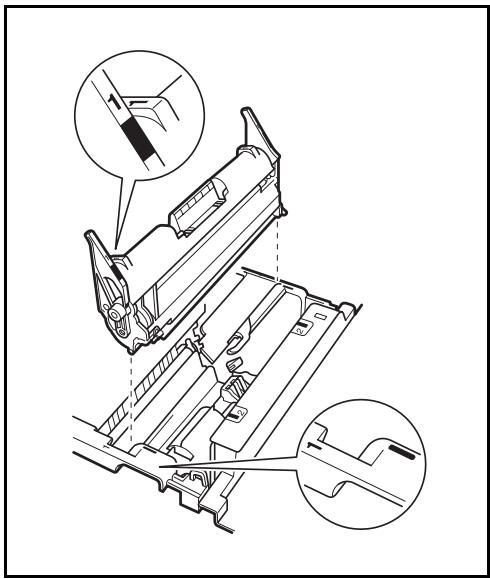
-104-
Maintenance
Ensure that the four pins (two on either side of the cartridge) are properly aligned with the grooves in the machine.
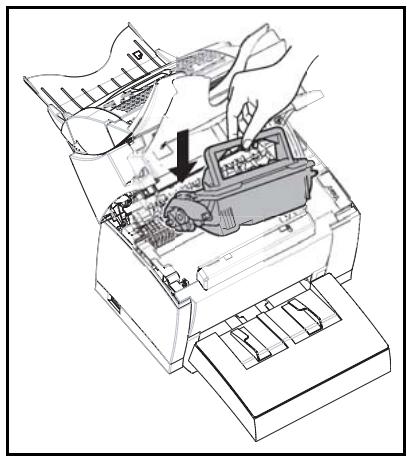
5 - Holding the toner cartridge by its handle, slide it into the machine
NOTE
: Use the color-coded stickers marked "2" which are located both on the toner cartridge and the inside of the machine for proper positioning. These two stickers should be aligned while installing the toner cartridge.
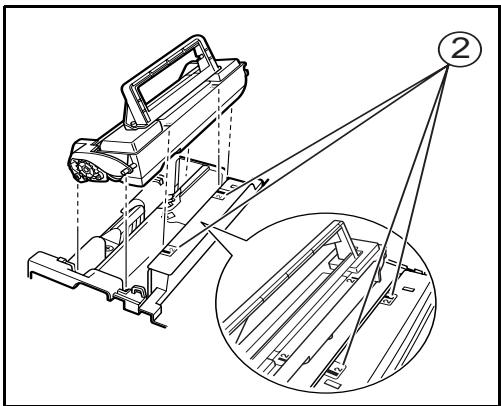
-105-
Coots
nannnnne aennnnnne
eaaee
eep
macnne
rnnnne nnnnne
Prrnnnne
Mannnnnne
saaee
Maintenance
The toner cartridge will click into position once it is correctly installed.
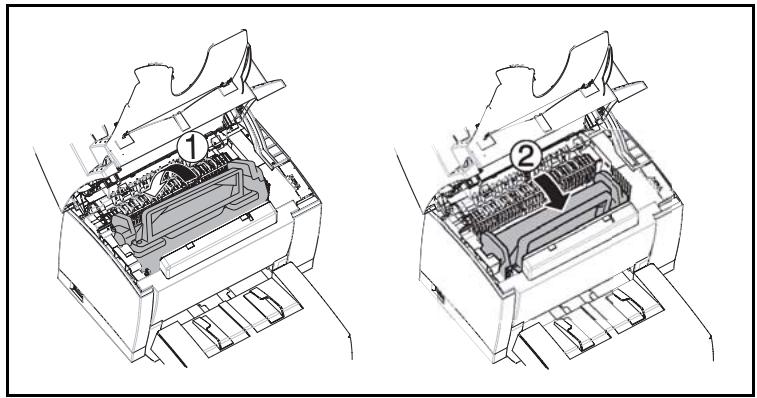
6 - Shut the upper cover by pressing it down gently but firmly until it locks into position.
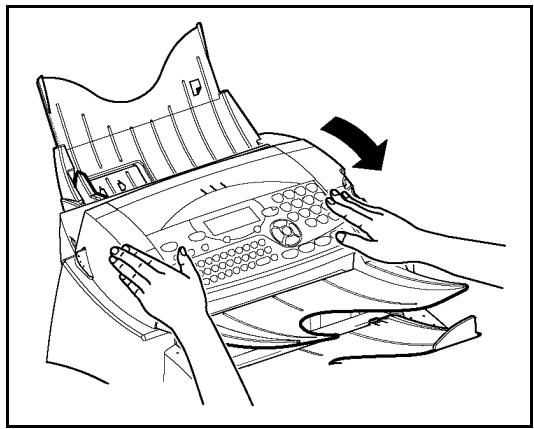
Press the OK key on the scanner control panel. The display shows:
TUE 02 APR 13:39
INSERT GAUGE CAR
Insert the chip card (supplied with the drum cartridge) into the card reader ensuring that the chip is entered as shown in the drawing below.
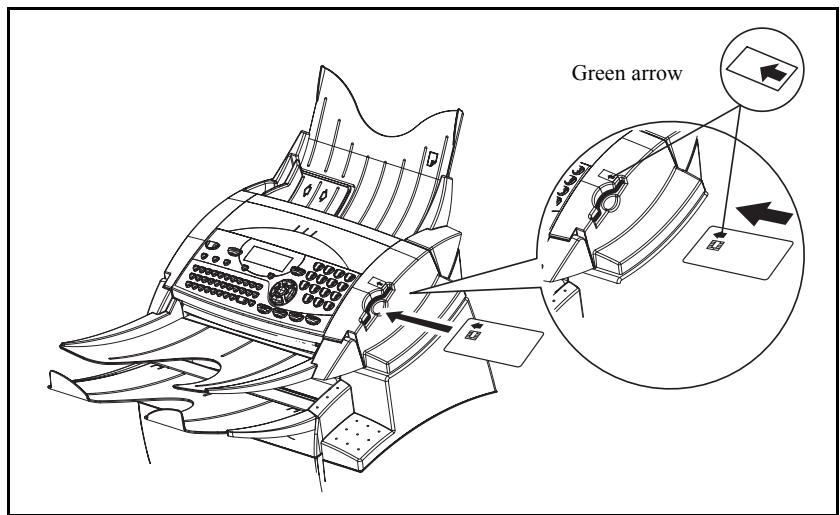
The following is displayed on the scanner control panel screen:
CHANGE DRUM?
YES=OK-NO=C
Press OK.
Once the chip card has been read, the display shows:
DRUM OK
REMOVE CARD
Remove the card.
Caution - If the following is displayed, check that you have inserted the chip card the right way up.
CANNOT READ CARD
REMOVE CARD
Caution - If the following is displayed, remove your card and insert it the right way up (green arrow side).
CANNOT READ CARD
CHECK DIRECTION
-107-
CLEANING
Cleaning the scanner's glass
When one or more vertical lines appear on transmitted copies or faxes, follow these steps:
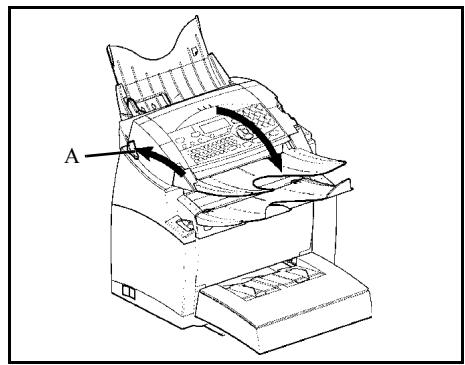
Open the scanner cover by pressing the release button (A).
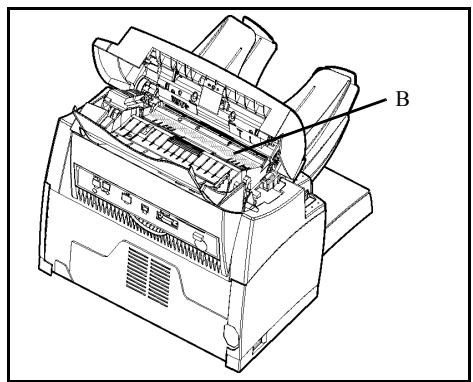
Clean the transparent scanning glass (B) with a soft lint-free cloth slightly dampened with water.
^ Close the scanning cover.
Make a copy in order to ensure that the symptoms are gone.
Cleaning the machine
Dust, dirt and paper debris on the outer surfaces and inside the machine can interfere with machine performance. Clean the machine regularly.
Caution - Use a soft cloth to clean the machine. Never use abrasive or corrosive detergents. The fusing assembly can become very hot during operation. To avoid injury - do not touch. Wait for at least 10 minutes after the machine has been turned off and make sure that the fusing assembly has cooled before cleaning the interior of the machine.
Cleaning the outside of the machine
Clean the outside of the machine with a smooth cloth.
-108-

Cleaning the paper feed roller
1 - Turn OFF the machine and unplug the power cord.
2 - Press the upper cover release button and open the upper cover.
3 - Remove the toner cartridge and the drum cartridge.
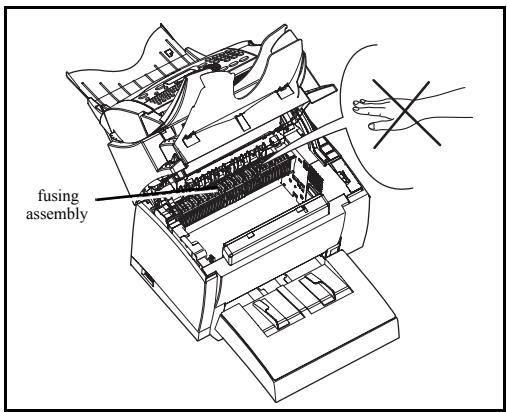
4-Use a soft cloth to clean the paper feed roller located under the fusing assembly.
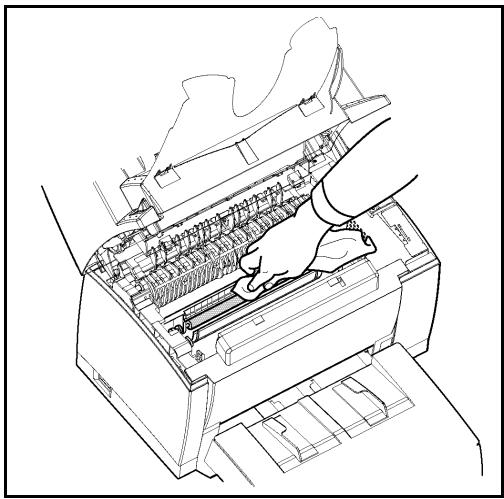
Caution - The fusing assembly inside the machine can become very hot during operation. To avoid injury - do not touch.
5 - Reinstall the drum cartridge and the toner cartridge. refer to paragraph Replacing cartridges, page 96.
6 - Close the upper cover and press it down gently but firmly until it locks into place.
7 - Plug in the power cord and turn ON the machine.
SERVICING
For guaranteed performance of your machine, some maintenance work (replacing the fusing assembly and the transfer roll) has to be done on the machine approximately every 50,000 printed pages. Please contact your service provider for this operation.
SCANNER CALIBRATION
You can perform this operation when the quality of photocopied documents is no longer satisfactory.
M 80 OK - ADVANCED FCT / CALIBRATION
Insert a blank page into the sheet-fed scanner and press OK to confirm.
NOTE : Since the page you insert will be used to define the quality of subsequent copies, it must be free from any visible defects.
CUSTOMER SUPPORT
If a fault cannot be resolved, please check the Communication Error Codes and Machine Errors tables in the next section.
If the problem persists, contact the Xerox Welcome Center at the following numbers:
Xerox US Welcome Center:1-800-821-2797
Xerox Canada Welcome Center:1-800-93-XEROX (1-800-939-3769)
The serial number of the machine will be required, together with any relevant error codes.
FAULTS
COMMUNICATION ERRORS
If the communication fails, the machine advises you of an automatic retry later.
Example of what is displayed:
Current time- FRI 20 DEC 20:13
Time of next try 0142685014 20:18
-110-
Transmission from the feeder
You have the choice between:
- waiting until the transmission takes place at the given time,
- restarting the transmission immediately by pressing ,
- abandoning transmission by pressing . To eject the document, press again.
Transmission from memory
You have the choice between:
- waiting until the transmission takes place at the given time,
- restarting the transmission using the transmission queue. (refer to paragraph Immediately perform transmission from the waiting queue, page 74). In this case, for a document composed of several pages, the transmission will take place from the page where the error occurred,
- abandoning the transmission by deleting the corresponding command in the transmission line (refer to paragraph Deleting a transmission on hold, page 74).
The machine makes at most 5 automatic redials. The non-transmitted document is automatically deleted from the memory and a transmission report is then printed together with an error code and the cause for transmission failure (see the communication error codes).
Communication error codes
The communication error codes appear in the logs and transmission reports.
General codes
Code 01 - Busy or no fax answer
This code appears after 6 unsatisfactory attempts. Call later.
Code 03 - User break
A communication has been stopped by the user pressing the key
Code 04 - Non programmed number
A number saved as a one-touch key or abbreviated number is not valid-check it. (Example: a delayed transmission was programmed with a one-touch key and this key has been deleted in the meantime).
Code 05 - Scanning default
An incident occurred with the scanner, for example, the sheet is jammed.
Code 06 - machine default
An incident occurred in the machine: no paper, paper jam, opened cover... In the reception mode, this incident appears only if the reception parameter is switched to WITHOUT PAPER (refer to paragraph Reception without paper, page 38).
Code 07 - Disconnected
The link has been cut (bad line). Check the number and try again.
Maintenance
Code 08 - Quality
The document you sent was not well received. Contact your group dial to see if you need to send again.
Code 0A - No document to be polled
You tried to poll a document from a group dial who had not prepared his document (no deposit) or the password entered was incorrect.
Code 0B - Wrong number of pages
There is a difference between the number of pages indicated during preparation for the transmission and the number of pages sent- check the number of pages in the document.
Code 0C - Received document error
Ask the group dial who called you to check the length of his document (it may be too long to be completely received).
Code 0D - Transmission failed
Ask the sender to resend the document.
Code 0E - Unknown e-mail address
Check the e-mail address.
Code 13 - Memory full
Your machine can no longer receive since its memory is full. There are too many received unprinted documents or too many documents in the transmission line.
Print the received documents and delete or transmit immediately the documents in the transmission line.
Code 14 - Memory full
Received document memory full.
Code 15 - Unknown mailbox number
You wish to deposit a document in a group dial mailbox. The mailbox number does not exist.
Code 16 - No Relay Bcst list Nr x
You requested a document relay from a remote fax but the fax has not programmed the list of group dial requested.
Code 17 - Unknown mailbox number
You wish to recover a document from a group dial mailbox. The mailbox number does not exist.
Code 18 - Relay Bcost impossible
You requested a document relay from a remote fax which does not have the relay broadcast function.
Code 19 - Group dial has stopped
The communication has been stopped by your group dial. (Example: a fax wanted to poll your fax but there is no document deposited).
Code 1A - Disconnected
The transmission has not started. The telephone line is busy.
Code 1B - Transmission failed
During transmission: start again.
During reception: ask your group dial to resend the document.
Internet codes
Codes 40 and 41 - No reply from supplier
The modem cannot connect to the Internet service provider. If this error always occurs, check the supplier's dial-up number.
Code 42 - Cannot access supplier
The service provider refuses the connection, the service is temporarily unavailable. If this error always occurs, check the Internet connection parameters.
Code 43 - Xmission server unavailable
Cannot connect to the SMTP server for sending mail, the service is temporarily unavailable. If the error always occurs, check the Internet e-mail and server parameters.
Code 44 - Reception server unavailable
Cannot connect to the POP3 server for mail reception, the service is temporarily unavailable. If the error always occurs, check the Internet e-mail and server parameters.
Code 45 - Supplier disconnected
The service is temporarily unavailable; try again later.
Code 46 - SMTP server disconnect
The SMTP server for sending mail is disconnected. The service is temporarily unavailable- try again later.
Code 47 - Reception server disconnect
The POP3 server for mail reception is disconnected. The service is temporarily unavailable- try again later.
Code 48 - Disconnection from Internet
The service is temporarily unavailable- try again later.
Code 49 - Cannot connect to Internet
Check the call number and eventually the associated prefix of the machine.
To check the Internet parameters, print them by pressing in turn the keys MENU, 9, 4, 6 and OK.
Code 50 - Server Error
Check the SMS server number or a communication error occurred during data transmission.
MACHINE ERRORS
Error messages
If the machine has one of the problems described below, the signal "On" flashes red, and you can't use your machine temporarily. The corresponding message is displayed on the screen.
| Message | Action |
| CHANGE TONER <OK> TO CONFIRM | Replace the toner cartridge. Proceed as indicated Replacing the toner cartridge, page 96. |
Maintenance
Message
Action
CHANGE DRUM
Replace the drum cartridge.
Proceed as indicated Replacing the drum cartridge, page 102.
CANNOT READ CHANGE DIRECTION
Insert your chip card the right way up, according to the color of arrows on the card and and on the machine.
CLOSE COVER
Close the front cover of the machine.
DRUM NEAR END
The drum is nearing its the end of life.
TONER NEAR END
The toner cartridge is nearing it's end of life.
PAPER EMPTY
Fill the tray with paper in the required size.
PAPER JAM INSIDE
Open the tray.
Remove the jammed sheet.
PAPER JAM EXTERNAL TRAY
Open the cover.
Remove the jammed sheet from the machine output area.
PAPER JAM INTERNAL TRAY
Open the cover.
Remove the jammed sheet from between the feed tray and the fuser assay.
MACHINE ERROR XX
Power OFF the machine, wait 10 seconds and power ON. If the problem persists call your service provider.
PAPER SIZE ERROR
Check paper size (A4 / LETTER / ...).
machine paper jam
Inside the machine
Use the following procedure to remove any sheets of paper jammed inside the machine.
Caution - The fusing assembly inside the machine can become very hot during operation. To avoid injury - do not touch.
Press the upper cover release button and open the upper cover
Remove the toner cartridge and the drum cartridge
Clear the paper misfeed using one of the following procedures depending upon the location of the paper misfeed.
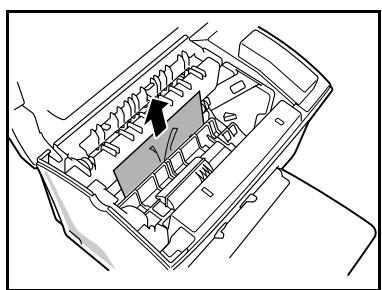
In the vicinity of the drum cartridge
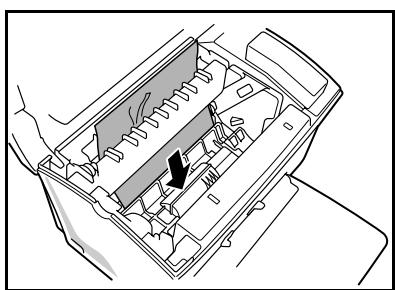
At the fusing assembly
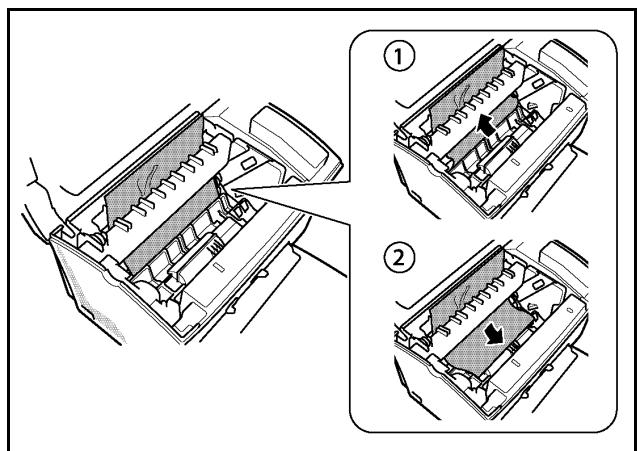
Between the drum cartridge and the fusing assembly
NOTE
: Do not touch the image transfer roller (black roller at the bottom of the machine).
Reinstall the drum cartridge and the toner cartridge (refer to paragraph Replacing cartridges, page 96).
Maintenance
^ Close the upper cover and press it down gently but firmly until it locks into place.
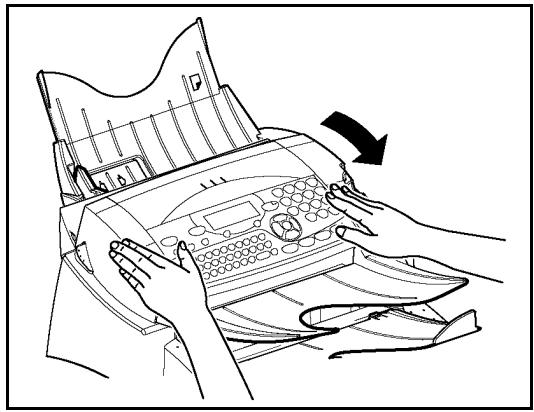
Paper jam at the feeders and trays
The figures below show different type of paper jam you might experience when using your machine.
Remove any stuck sheets as shown by the arrow depending on where the paper jam occurs.
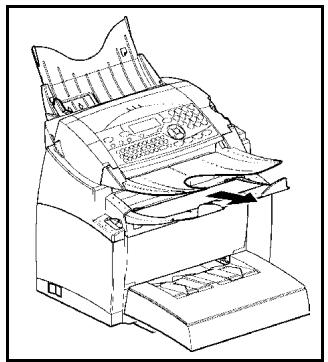
At the machine output tray
Contents
Getting started
machine
Directory
machine
Operation
Safety
-117-
Maintenance
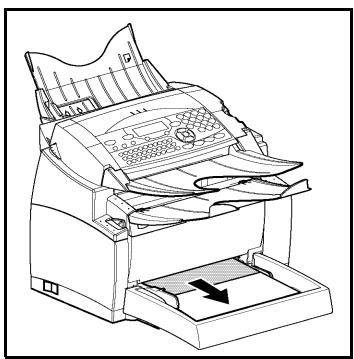
At the paper tray
At the manual feed tray
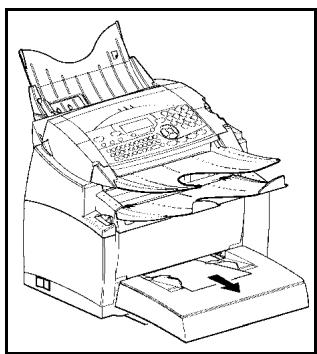
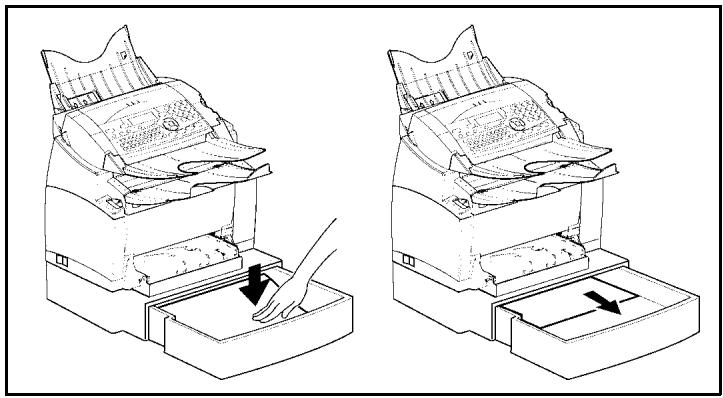
Second cassette unit and paper tray (option)
SCANNER DOCUMENTS JAMS
Document feeder document jam
When a document jam occurs, the following message appears on the control panel screen. REMOVE DOCUMENT.
If jams often occur in a specific part of the unit, the latter needs to be checked, cleaned or repaired.
-118-
Open the scanner cover by pressing key (A).
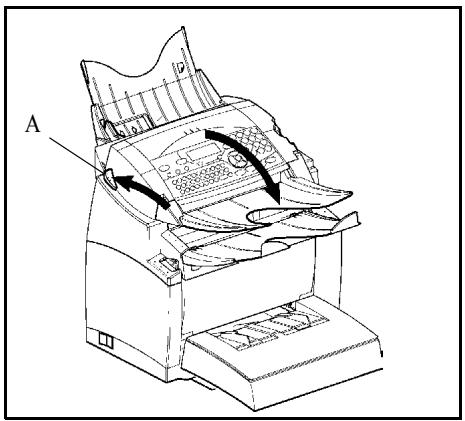
Remove the jammed document (B) without tearing it.
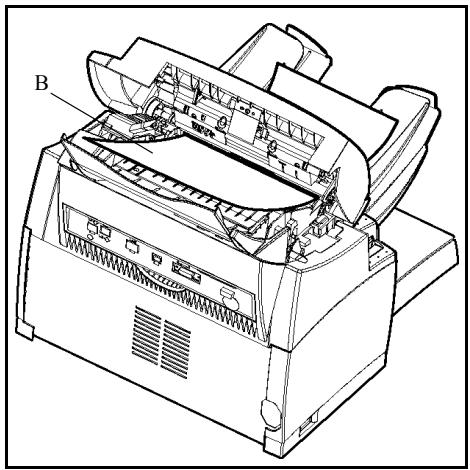
Then, close the scanner cover.
MISC PROBLEMS
At switch-on nothing appears on screen
Check that the power cord is plugged in to the machine and power outlet.
The machine does not detect the presence of your inserted document. The message READY does not appear on the screen.
At the start and during scanning, REMOVE DOCUMENT appears on the screen.
Remove the document or press key
Check the thickness of the document (35 sheets of paper of 20lb (80~g / m^2)
-119-
Maintenance
Flatten documents if needed.
Help the sheets along.
The machine does not receive any faxes
Check that the telephone line cable is correctly plugged in and that there is a tone signal on the telephone line by means of the key.
You receive a blank page
Make a copy of a document ; if it is correct then your machine is functioning normally. Call back the group dial and have him resend the document. It was probably sent with the sheet inserted backwards.
You cannot send a fax
Check that the telephone line cable is correctly plugged in.
Check the tone by pressing key .
Check the prefix is correctly programmed and used.
MACHINE PACKING AND TRANSPORTATION
Always use the original package when transporting the machine. Failure to do so could void the warranty.
1 - Disconnect the machine from the telephone network and the AC power socket.
2-Open the front cover.
3 - Shut the front cover. Unplug the phone line cord and the AC power cord, the document holder and the document tray. Put them in the original package.
4-4 - Put the machine in the plastic bag and then in the original package, with all the original packing material.
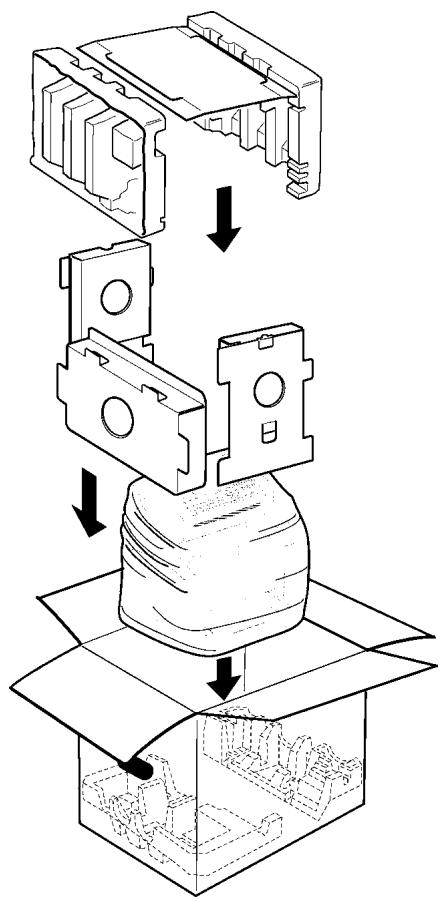
Put all the documentation (User's Manual and printed documents) in the shipping box.
Close the shipping box with adhesive tape.
MACHINE SPECIFICATIONS
Device type: Office color machine, fast operation with all Group 3 devices according to ITU-T recommendations.
| Dimensions: | Width: 15.30 inches (389 mm) |
| Depth: 18.10 inches (460 mm) | |
| Height: 15.30 inches (390 mm) (not including tray) | |
| Weight: | 24 to 25 lbs. (11 kg) |
| Electric power supply: | 110-127 V - 50/60 Hz - 4 A |
| Power consumption (max. values): | - standby mode: less than 15 W |
| - wait mode: less than 75 W | |
| - operation: 580 W (during copy) (850 W peak) | |
| Operating temperature: | - operation: +10°C to 35°C (50 to 95°F) with a maximum difference of 10°C per hour. |
| - storage: +0°C to 40°C (32 to 104°F) with a maximum difference of 10°C per hour. | |
| Operating humidity: | Operation or storage: 20% to 80% RH (without condensation) with a maximum difference of 20% per hour. |
| Original document size: | A4 / Letter / Legal |
| Thickness: 0.002 to 0.0059 inch (0.05 to 0.15 mm) | |
| Document feeder: | Max capacity: sheet stack height 0.12 inches (ie a normal capacity of 35 pages 20 lb. (80 g/m2)) |
| Reception size: (A4 size) | A4 / Letter / Legal |
| Height: 11.70 inches (297 mm) | |
| Reception paper: | Plain paper (copier type 20 lb. (80 g/m2)) |
| Paper tray capacity: | 250 pages max. (20 lb. (80 g/m2)) |
| Second paper tray (option): | Second paper tray : 500 pages (20 lb. (80 g/m2)) |
| Transmission procedures: | In accordance with UIT-T recommendations for group 3 copiers. |
| Possible phone line connections: | To all public switched telephone networks (or equivalent) |
| Scanned image resolution: | Scanner: 600 dpi |
| Reading system: | CIS optronics reading |
| Print type: | Laser printing process |
| machine resolution: | 600 x 600 dpi |
| Communication rate: | For group 3: 33600/14400/12000/9600/7200/4800/2400 bps |
| Encoding type: | MH (Modified Huffman) |
| MR (Modified Read) | |
| MMR (Modified Modified Read) | |
| JBIG | |
| Internet: general specifications: | V90 modem (up to 56 kbps/s) |
| TCP/IP/PPP protocols | |
| SMTP/POP3/MIME protocols for E-mails | |
| File format: | - Image: TIFF-F for black/white documents and JPEG for color documents |
| - PDF : monochrome and color | |
| Printing (depend on model): | - PCL® 5e and PCL® 6 Emulation (A)(option). |
| - SG Script (PostScript® level 2 language emulation and PostScript® level 3 language emulation with configuration file)(B)(option). | |
| The effective transmission time for an letter page ranges between a few seconds to approximately one minute (depending on line quality, modem bit rate, the amount of information on the original document and the resolution)(*) | |
(*) Not taking into account the exchange initialization procedure.
Specifications may change for improvement without prior notice.
A. PCL is a registered trademark by Hewlett Packard.
B. PostScript is a registered trademark by Adobe Systems Incorporated.
7 SAFETY
Read these safety notes carefully before using this product to ensure you operate the equipment safely.
Your Xerox product and recommended supplies have been designed and tested to meet strict safety requirements. These include safety agency approval, and compliance to established environmental standards. Please read the following instructions carefully before operating the product and refer to them as needed to ensure the continued safe operation of your product.
The safety and environment testing and performance of this product have been verified using Xerox materials only.
WARNING: Any unauthorized alternation, which may include the addition of new functions or connection of external devices, may impact the product certification. Please contact your authorized local dealer for more information
Warning Markings
All warning instructions marked on or supplied with the product should be followed.
This WARNING alerts users to areas of the product where there is the possibility of personal injury.

This WARNING alerts users to areas of the product where there are heated surfaces, which should not be touched.


This product shall be operated from the type of electrical supply indicated on the product's data plate label. If you are not sure that your electrical supply meets the requirements, please consult your local power company for advice.

WARNING
This product must be connected to a protective ground circuit.
This product is supplied with a plug that has a protective ground pin. This plug will fit only into an grounded electrical outlet. This is a safety feature. To avoid risk of electric shock, contact your electrician to replace the electrical outlet if you are unable to insert the plug into it. Never use a grounded adapter plug to connect the product to an electrical outlet that lacks a ground connection.
Operator Accessible Areas
This equipment has been designed to restrict operator access to safe areas only. Operator access to hazardous areas is restricted with covers or guards, which would require a tool to remove. Never remove these covers or guards.
Maintenance
Any operator product maintenance procedures will be described in the user documentation supplied with the product. Do not to carry out any maintenance on this product, which is not described in the customer documentation.
Cleaning Your Product
Before cleaning this product, unplug the product from the electrical outlet. Always use materials specifically designated for this product, the use of other materials may result in poor performance and may create a hazardous situation. Do not use aerosol cleaners, they may be explosive and flammable under certain circumstances.
WARNING - ELECTRICAL SAFETY INFORMATION
- Use only power cord supplied with this equipment.
- Plug the power cord directly into a grounded electrical outlet. Do not use an extension cord. If you do not know whether or not an outlet is grounded, consult a qualified electrician.
- This equipment is to be used on an appropriate branch circuit. If this machine needs to be moved to a different location, contact a Xerox service representative or your authorized local representative or service support organization.
- Improper connection of the equipment-grounding conductor can result in electrical shock.
- Do not place this equipment where people might step on or trip on the power cord. Do not place objects on the power cord.
- Do not override or disable electrical or mechanical interlocks.
- Do not obstruct the ventilation openings.
-
Never push objects of any kind into slots or openings on this equipment
-
If any of the following conditions occur, switch off the power to the machine immediately and disconnect the power cord from the electrical outlet. Call an authorized local service representative to correct the problem.
- The equipment emits unusual noise or odors.
- The power cord is damaged or frayed.
- A wall panel circuit breaker, fuse, or other safety device has been tripped.
- Liquid is spilled into the copier/machine.
- The equipment is exposed to water.
- Any part of the equipment is damaged.
Disconnect Device
The power cable is the disconnect device for this equipment. It is attached to the back of the machine as a plug-in device. To remove all electrical power from the equipment, disconnect the power cable from the electrical outlet.
LASER SAFETY INFORMATION
CAUTION: Use of controls, adjustments or performance of procedure other than those specified herein may result in hazardous light exposure.
With specific regard to laser safety, the equipment complies with performance standards for laser product set by government, national and international agencies as a Class 1 laser product. It does not emit hazardous light, as the beam is totally enclosed during all phases of customer operation and maintenance.
OPERATIONAL SAFETY INFORMATION
To ensure the continued safe operation of your Xerox equipment, follow these safety guidelines at all times.
Do These:
-
This equipment is supplied with a plug that has a protective ground pin. This plug will install only into a grounded electrical outlet. This is a safety feature. To avoid risk of electric shock, contact your electrician to replace the electrical outlet if you are unable to insert the plug into it. Never use a plug that lacks an ground connection machine to connect the product to an electrical outlet.
-
Always follow all warnings and instructions that are marked on or supplied with the equipment.
- Always exercise care when moving or relocating equipment. Please contact your local Xerox Service Department, or your local support organization to arrange relocation of the product to a location outside of your building.
- Always locate the equipment in an area that has adequate ventilation, and the room for servicing. See section one Installation.
- Always use materials and supplies specifically designed for your Xerox equipment. Use of unsuitable materials may result in poor performance.
- Always unplug this equipment from the electrical outlet before cleaning.
Do Not Do These:
- Never use a plug that lacks a ground connection from the machine to an electrical outlet.
- Never attempt any maintenance function that is not specifically described in this documentation.
- This equipment should not be placed in a built-in installation unless proper ventilation is provided, please contact your Authorized local dealer for further information.
- Never remove covers or guards that are fastened with screws.
- There are no operator serviceable areas within these covers.
- Never locate the equipment near a radiator or any other heat source.
- Never push objects of any kind into the ventilation openings.
- Never override or "cheat" any of the electrical or mechanical interlock devices.
- Never operate the equipment if you notice unusual noises or odors. Disconnect the power cord
from the electrical outlet and contact your local Xerox Service Representative or Service Provider immediately.
MAINTENANCE INFORMATION
Do not attempt any maintenance procedure that is not specifically described section 6 Maintenance information that is supplied with your copier/machine.
- Do not use aerosol cleaners. The use of cleaners that are not approved may cause poor performance of the equipment, and could create a dangerous condition.
- Use supplies and cleaning materials only as directed in this manual. Keep all of these materials out of the reach of children.
- Do not remove covers or guards that are fastened with screws. There are no parts behind these covers that you can maintain or service.
- Do not perform any maintenance procedures unless you have been trained to do them by an authorized local dealer or unless a procedure is specifically described in the user manuals.
OZONE SAFETY INFORMATION
This product will produce ozone during normal operation. The ozone produced is heavier than air and is dependent on copy volume. Providing the correct environmental parameters as specified in the Xerox installation procedure will ensure that the concentration levels meet safe limits.
If you need additional information about ozone, please request the Xerox publication Ozone by calling 1-800-828-6571 in the United States and Canada. In other markets please contact your authorized local dealer or Service Provider.
FOR CONSUMABLES
Store all consumables in accordance with the instructions given on the package or container.
- Keep all consumables away from the reach of children.
- Never throw toner, toner cartridges or toner containers into an open flame
RADIO FREQUENCY EMISSIONS
United States, Canada,
Note: This equipment has been tested and found to comply with the limits for a Class B digital device, pursuant to part 15 of the FCC Rules. These limits are designed to provide reasonable protection against harmful interference in a residential installation. This equipment generates, uses and can radiate radio frequency energy and, if not installed and used in accordance with the instructions, may cause harmful interference to radio communications. However, there is no guarantee that interference will not occur in a particular installation. If this equipment does cause harmful interference to radio or television reception, which can be determined by turning the equipment off and on, the user is encouraged to try to correct the interference by one or more of the following measures:
- Reorient or relocate the receiving antenna.
- Increase the separation between the equipment and receiver.
- Connect the equipment into an outlet on a circuit different from that to which the receiver is connected.
- Consult the dealer or an experienced radio/TV technician for help.
Shielded interface cables must be used with this equipment to maintain compliance with FCC regulations in the United States
PRODUCT SAFETY CERTIFICATION
This product is certified by the following Agency using the Safety standards listed.
Agency Standard
TUV. UL60950-1 1st (2003) (USA/Canada)
TUV IEC60950-1 Edition 1 (2001)
This product was manufactured under a registered ISO9001 Quality system.
REGULATORY INFORMATION
The CE mark applied to this product symbolizes Xerox's declaration of conformity with the following applicable Directives of the European Union as of the dates indicated:
January 1, 1995: Council Directive 72/23/EEC amended by Council directive 93/68/EEC, approximation of the laws of the member states related to low voltage equipment.
January 1, 1996: Council directive 89/336/EEC, approximation of the laws of the member states related to electromagnetic compatibility.
March 9, 1999: Council Directive 99/5/EEC, on radio equipment and telecommunications terminal equipment and the mutual recognition of their conformity.
A full declaration of conformity, defining the relevant directives and referenced standards, can be obtained from your authorized local dealer.
WARNING: In order to allow this equipment to operate in proximity to Industrial Scientific and Medical (ISM) equipment, the external radiation from the ISM equipment may have to be limited or special mitigation measures taken.
WARNING: Shielded interface cables must be used with this product to maintain compliance with Council Directive 89/336/EEC.
FOR FAX FUNCTION
USA
FAX Send Header Requirements:
The telephone Consumer Protection Act of 1991 makes it unlawful for any person to use a computer or other electronic device, including a Fax machine, to send any message unless such message clearly contains in a margin at the top or bottom of each transmitted page or on the first page of the transmission, the date and time it is sent and an identification of the business or other entity, or other individual sending the message and the telephone number of the sending machine or such business, other entity or individual. (The telephone number provided may not be a 900 number or any other number for which charges exceed local or long distance transmission charges.)
In order to program this information into your FAX machine refer to "Setting the Local ID and Name" and follow the steps provided. To enter the data and time, please refer to the User Guide.
Data Coupler Information:
WARNING: Ask your local Telephone Company for the modular jack type installed on your line. Connecting this machine to an unauthorized jack can damage Telephone Company equipment. You, not Xerox, assume all responsibility and/or liability for any damage caused by the connection of this machine to an unauthorized jack.
This equipment complies with Part 68 of the FCC rules and the requirements adopted by the Administrative Council for machine Attachments (ACTA). On the rear of this equipment is a label that contains, among other information, a product identifier in the format US:AAAEQ##TXXXX. If requested, this number must be provided to the Telephone Company.
A plug and jack used to connect this equipment to the premises wiring and telephone network must comply with the applicable FCC Part 68 rules and requirements adopted by the ACTA. A compliant telephone cord and modular plug is provided with this product. It is designed to be connected to a compatible modular jack that is also compliant. See installation instructions for details.
You may safely connect the machine to the following standard modular jack: USOC RJ-11C using the compliant telephone line cord (with modular plugs) provided with the installation kit. See installation instructions for details.
The Ringer Equivalence Number (or REN) is used to determine the number of devices that may be connected to a telephone line. Excessive RENs on a telephone line may result in the devices not ringing in response to an incoming call. In most but not all areas, the sum of RENs should not exceed five (5.0). To be certain of the number of devices that may be connected to a line, as determined by the total RENs, contact the local Telephone Company. For products approved after July 23, 2001, the REN for this product is part of the product identifier that has the format US:AAAEQ##TXXXX. The digits represented by ## are the REN without a decimal point (e.g., 03 is a REN of 0.3). For earlier products, the REN is separately shown on the label.
If this Xerox equipment causes harm to the telephone network, the Telephone Company will notify you in advance that temporary discontinuance of service may be required. But if advance notice isn't practical, the Telephone Company will notify the customer as soon as possible. Also, you will be advised of your right to file a complaint with the FCC if you believe it is necessary.
The Telephone Company may make changes in its facilities, equipment, operations or procedures that could affect the operation of the equipment. If this happens the Telephone Company will provide advance notice in order for you to make necessary modifications to maintain uninterrupted service.
If trouble is experienced with this Xerox equipment, for repair or warranty information, please contact the appropriate service center; details of which are displayed either on the machine or contained within the user guide. If the equipment is causing harm to the telephone network, the Telephone Company may request that you disconnect the equipment until the problem is resolved.
Repairs to the machine should be made only by a Xerox representative or an authorized Xerox service agency. This applies at any time during or after the service warranty period. If unauthorized repair is performed, the remainder of the warranty period is null and void. This equipment must not be used on party lines. Connection to party line service is subject to state tariffs. Contact the state public utility commission, public service commission or corporation commission for information.
If your office has specially wired alarm equipment connected to the telephone line, ensure the installation of this Xerox equipment does not disable your alarm equipment. If you have questions about what will disable alarm equipment, consult your Telephone Company or a qualified installer.
CANADA
This product meets the applicable Industry Canada technical specifications
NOTICE: The Industry Canada label identifies certified equipment. This certification means that the equipment meets certain telecommunications network protective, operational and safety requirements as prescribed in the appropriate machine Equipment Technical Requirements document(s). The Department does not guarantee the equipment will operate to the users satisfaction.
Before installing this equipment, users should ensure that it is permissible to be connected to the facilities of the local telecommunications company. The equipment must also be installed using an acceptable method of connection. The customer should be aware that compliance with the above conditions may not prevent degradation of service in some situations.
Repairs to certified equipment should be coordinated by a representative designated by the supplier. Any repairs or alterations made by the user to this equipment, or equipment malfunctions, may give the telecommunications company cause to request the user to disconnect the equipment.
Users should ensure for their own protection that the electrical ground connections of the power utility, telephone lines and internal metallic water pipe systems, if present, are connected together. This precaution may be particularly important in rural areas.
CAUTION: Users should not attempt to make such connections themselves, but should contact the appropriate electric inspection authority, or electrician, as appropriate.
NOTICE: The Ringer Equivalence Number (REN) assigned to each machine device provides an indication of the maximum number of machines allowed to be connected to a telephone interface. The termination on an interface may consist of any combination of devices subject only to the requirement that the sum of the Ringer Equivalent Numbers of all of the devices does not exceed 5. The Canadian REN value of this equipment is (XXX).
EUROPE
NOTE:
Although this product can use either loop disconnect (pulse) or DTMF (tone) signaling, it is recommended that it is set to use DTMF signaling. DTMF signaling provides reliable and faster call setup.
Modification of this product, connection to external control software or to external control apparatus not authorized by Xerox, will invalidate its certification.
Regulations
Certification to 1999/5/EC Radio Equipment & Telecommunications
Terminal Equipment Directive
This Xerox product has been self-certified by Xerox for pan-European single terminal connection to the analogue public switched telephone network (PSTN) in accordance with Directive 1999/5/EC.
The product has been designed to work with the national PSTNs and compatible PBXs of the following countries:
Austria Germany Luxembourg Sweden
Belgium Greece Netherlands Switzerland
Denmark Iceland Norway United Kingdom
France Ireland Portugal Finland
Italy Spain Czech Republic Poland
Bulgaria Romania
In the event of problems, you should contact your local Xerox representative in the first instance.
This product has been tested to and is compliant with TBR21, a technical specification for terminal equipment for use on analogue-switched telephone networks in the European Economic Area.
The product may be configured to be compatible with other country networks. Please contact your Xerox representative if it needs to be reconnected to another country's network. There are no user-adjustable settings in the product.
NOTE: Although this product can use either loop disconnect (pulse) or DTMF (tone) signaling it is recommended that it is set to use DTMF signaling. DTMF signaling provides reliable and faster call setup.
Modification, connection to external control software or to external control apparatus not authorized by Xerox, will invalidate its certification.
ENVIRONMENTAL COMPLIANCE
USA
Energy StarAs an ENERGY STAR partner, Xerox Corporation/Fuji Xerox has determined that (the basic configuration of) this product meets the ENERGY STAR guidelines for energy efficiency.
The ENERGY STAR and ENERGY STAR MARK are registered United States trademarks.
The ENERGY STAR Office Equipment Program is a team effort between U.S., European Union and Japanese governments and the office equipment industry to promote energy-efficient copiers, machines, fax, multifunction machine, personal computers, and monitors. Reducing product energy consumption helps combat smog, acid rain and long-term changes to the climate by decreasing the emissions that result from generating electricity.
Xerox ENERGY STAR equipment is preset at the factory to enter a "low power" state and/or shut off completely after a specified period of use. These energy-saving features can reduce product energy consumption in half when compared to conventional equipment.
Canada
Environmental ChoiceTerra Choice Environmental Serviced, Inc. of Canada has verified that this product conforms to all applicable Environmental Choice EcoLogo requirements for minimized impact to the environment.
As a participant in the Environmental Choice program, Xerox Corporation has determined that this product meets the Environmental Choice guidelines for energy efficiency.
Environment Canada established the Environmental Choice program in 1988 to help consumers identify environmentally responsible products and services. Copier, machine, digital press and fax products must meet energy efficiency and emissions criteria, and exhibit compatibility with recycled supplies. Currently, Environmental Choice has more than 1600 approved products and 140 licensees. Xerox has been a leader in offering EcoLogo approved products.
ILLEGAL COPIES
USA
Congress, by statute, has forbidden the reproduction of the following subjects under certain circumstances. Penalties of fine or imprisonment may be imposed on those guilty of making such reproductions.
- Obligations or Securities of the United States Government, such as:
Certificates of Indebtedness National Bank Currency
Coupons from BondsFederal Reserve Bank Notes
Silver CertificatesGold Certificates
United States Bonds Treasury Notes
Federal Reserve NotesFractional Notes
Certificates of Deposit Paper Money
Bonds and Obligations of certain agencies of the government, such as FHA, etc.
Bonds. (U.S. Savings Bonds may be photographed only for publicity purposes in connection with the campaign for the sale of such bonds.)
Internal Revenue Stamps. (If it is necessary to reproduce a legal document on which there is a canceled revenue stamp, this may be done provided the reproduction of the document is performed for lawful purposes.)
Postage Stamps, canceled or uncanceled. (For philatelic purposes, Postage Stamps may be photographed, provided the reproduction is in black and white and is less than 75% or more than 150% of the linear dimensions of the original.)
Postal money Orders.
Bills, Checks, or Draft of money drawn by or upon authorized officers of the United States.
Stamps and other representatives of value, of whatever denomination, which have been or may be issued under any Act of Congress.
- Adjusted Compensation Certificates for Veterans of the World Wars.
- Obligations or Securities of any Foreign Government, Bank, or Corporation.
- Copyrighted materials, unless permission of the copyright owner has been obtained or the reproduction falls within the "fair use" or library reproduction rights provisions of the copyright law. Further information of these provisions may be obtained from the Copyright Office, Library of Congress, Washington, D.C. 20559. Ask for Circular R21.
- Certificates of Citizenship or Naturalization. (Foreign Naturalization Certificates may be photographed.)
6.Passports. Foreign Passports may be photographed.) - Immigration Papers.
- Draft Registration Cards.
- Selective Service Induction Papers that bear any of the following Registrant's information:
Earnings or IncomeDependency Status
Court Record Previous military service
Physical or mental condition
Exception: United States military discharge certificates may be photographed.
- Badges, Identification Cards, Passes, or Insignia carried by military personnel, or by members of the various Federal Departments, such as FBI, Treasury, etc. (unless photograph is ordered by the head or such department or bureau.)
Reproducing the following is also prohibited in certain states:
Automobile Licenses - Drivers' Licenses - Automobile Certificates of Title.
The above list is not all inclusive, and no liability is assumed for its completeness or accuracy. In case of doubt, consult your attorney.
Canada
Parliament, by statute, has forbidden the reproduction of the following subjects under certain circumstances. Penalties of fine or imprisonment may be imposed on those guilty of making such reproductions.
- Current bank notes or current paper money.
- Obligations or securities of a government or bank.
- Exchequer bill paper or revenue paper.
- The public seal of Canada or of a province, or the seal of a public body or authority in Canada, or of a court of law.
- Proclamation, orders, regulations or appointments, or notices thereof (with intent to falsely cause same to purport to have been printed by the Queen's machine for Canada, or the equivalent machine for a province).
-
Marks, brands, seals, wrappers or designs used by or on behalf of the Government of Canada or of a province, the government of a state other than Canada or a department, board, Commission or agency established by the Government of Canada or of a province or of a government of a state other than Canada.
-
Impressed or adhesive stamps used for the purpose of revenue by the Government of Canada or of a province or by the government of a state other than Canada.
- Documents, registers or records kept by public officials charged with the duty of making or issuing certified copies thereof, where the copy falsely purports to be a certified copy thereof.
- Copyrighted material or trademarks of any manner or kind without the consent of the copyright or trademark owner.
The above list is provided for your convenience and assistance, but it is not all-inclusive, and no liability is assumed for its completeness accuracy. In case of doubt, consult your solicitor.
Other countries
Copying certain documents may be illegal in your country. Penalties of fine or imprisonment may be imposed on those found guilty of making such reproductions.
- Currency notes
Bank notes and cheques - Band and government bonds and securities
Passports and identification cards
Copyright material or trademarks without the consent of the owner - Postage stamps and other negotiable instruments
This list is not inclusive and no liability is assumed for either its completeness or accuracy. In case of doubt, contact your legal counsel.
Safety
PRODUCT RECYCLING AND DISPOSAL
Xerox operates a worldwide equipment takeback and reuse/recycle program. Contact your Xerox sales representative (1-800-ASK-XEROX) to determine whether this Xerox product is part of the program. For more information about Xerox environmental programs, visit www.xerox.com/environment.
If you are managing the disposal of your Xerox product, please note that the product contains lead and other materials whose disposal may be regulated due to environmental considerations. The presence of Lead is fully consistent with global regulations applicable at the time that the product was placed on the market. For recycling and disposal information, contact your local authorities. In the United States, you may also refer to the Electronic Industries Alliance web site: www.eiae.org."


CONSUMABLE REFERENCES
Toner cartridge :
006R01218
Drum cartridge :
113R00655
CONSUMABLE CHARACTERISTICS
Toner cartridge:
The standard toner cartridge can produce up to 6000 pages (when printing on Letter paper with a 5% Area Coverage) or 10000 pages ITU No. 1 in normal mode.
The initial toner cartridge can produce up to 2000 pages (when printing on Letter paper with a 5% Area Coverage).
The service life of the toner cartridge mainly depends on the type of printed document and the average number of pages per print operation).
Drum cartridge:
The standard drum cartridge can produce up to 20000 pages.
The initial drum cartridge that comes with the machine can produce up to 4000 pages.
Various factors may influence the effective service life of the drum cartridge, namely the environment (temperature, humidity), the average number of pages per print operation, the type of paper used, etc.



- Consumables
- Control panel
- GETTING STARTED 25
- Navigation methods 25
- SETTING UP YOUR MACHINE 33
- OPERATION
- Sending
- Dialing
- INSTALLATION
- INSTALLING YOUR MACHINE
- INSTALLATION REQUIREMENTS
- Operational precautions
- Operating Environment
- Machine
- UNPACKING THE SHIPPING BOX
- UNPACKING THE MACHINE PARTS
- DESCRIPTION
- INSTALLING THE REMOVABLE PARTS
- INSTALLING THE PAPER TRAY
- INSTALLING THE COPY OUTPUT TRAY
- INSTALLING THE DOCUMENT FEED TRAY
- INSTALLING THE DOCUMENT OUTPUT TRAY
- Supported types of paper:
- LOADING PAPER MANUALLY
- INSTALLING THE SECOND PAPER CASSETTE UNIT (OPTION)
- CONNECTIONS
- Key to the diagram:
- TELEPHONE AND LAN CONNECTION
- POWER LINE CONNECTION AND SWITCH-ON
- GETTING STARTED
- NAVIGATION METHODS
- PRESENTATION
- The navigator
- Moving within the menus
- Moving within a data entry field
- The display screen
- ACCESS TO FUNCTIONS
- Menu-driven access
- Direct access by number
- FUNCTIONS LIST
- SETTING UP YOUR MACHINE
- MAIN SETTINGS
- Conditions required
- Accessing the Web Server
- BEFORE TRANSMISSION
- Date/Time
- Your machine number/your name
- Type of network
- Geographical settings
- Country
- Network
- Language
- Confirmation report
- Document feed type
- Delay send mode
- BEFORE RECEPTION
- Fax answering machine
- Saving an access code
- Activating or deactivating the answering machine
- Print fax messages stored in the memory
- Reception without paper
- Number of copies
- Relay broadcast
- To activate relay from your machine:
- Fax or PC reception
- M 243 OK - SETUP / RECEPTION / PC RECEPT.
- TECHNICAL PARAMETERS
- LOCAL AREA NETWORK (LAN) SETTINGS
- Manual configuration
- IP address
- M 2532 OK - SETUP / LOCAL NETWORK / IP ADDRESS
- Sub-network mask
- M 2533 OK - SETUP / LOCAL NETWORK / SUBNET MASK
- Gateway address
- M 2534 OK - SETUP / LOCAL NETWORK / GATEWAY
- IEEE address (or Ethernet address) or MAC address
- M 2535 OK - SETUP / LOCAL NETWORK / IEEE ADDRESS
- Netbios names
- M 2536 OK - SETUP / LOCAL NETWORK / NETBIOS1 NAMEM 2537 OK - SETUP / LOCAL NETWORK / NETBIOS2 NAME
- L1 AND L2 LINE NETWORK CONFIGURATION (MODEL F116L)
- NETWORK TYPE
- LINE USER MODE
- RECORDING THE LINE 2 NUMBER (MODEL F116L)
- SELECTING THE MANUAL TRANSMISSION MODE LINE
- DIALING Prefix
- To program the prefix
- To modify the minimum length
- Manual call pick-up without off-hooking
- CALL MONITORING
- STOPPING A CALL IN PROGRESS
- CALL REPORTS AND LOGS
- MESSAGE SERVICE AND THE INTERNET
- INITIALIZATIONS PARAMETERS
- Access to connection and message service parameters
- M 922 OK - INTERNET / INIT PROVIDER /MESS. SERV
- Access to servers parameters
- M 923 OK - INTERNET / INIT PROVIDER / SERVERS
- Access to the authentication SMTP parameters
- M 924 OK - INTERNET / INIT PROVIDER / SMTP AUTHENT.
- Sample Internet settings for the machine (56 kbps modem)
- SETTINGS
- Standard settings
- Selecting the connection type
- Changing the connection period (PERIODIC type)
- Changing the connection times (SET TIMES type)
- M 943 OK - INTERNET / SETTINGS / HOURS
- Selecting the transmission type
- M 942 OK - INTERNET / SETTINGS / SEND TYPE
- Selecting the print mode for the deposit notice
- M 944 OK - INTERNET / SETTINGS / DEPOSIT NOTICE
- Printing the Internet settings
- M 946 OK - INTERNET / SETTINGS / PRINT
- Mail sorting
- M 96 OK - INTERNET / SORT MESSAGES
- F@X Only mode
- PC Only mode
- Share PC mode
- INTERNET CONNECTION
- Immediate connection to the Internet
- Programmed connection
- DEACTIVATING THE INTERNET FUNCTION
- DIRECTORY
- CREATING SPEED DIAL Lists
- ADDING A RECORD
- M 11 OK - DIRECTORY / NEW CONTACT
- CREATING GROUP DIAL Lists
- ADDING A LIST
- To add a list:
- M 12 OK -DIRECTORY / NEW LIST
- NOTE
- CONSULTING A RECORD OR A LIST
- MODIFYING A RECORD OR A LIST
- M 13 OK - DIRECTORY / MODIFY
- DELETING A RECORD OR A LIST
- M 14 OK - DIRECTORY / CANCEL
- PRINTING THE DIRECTORY
- IMPORTING A DIRECTORY
- THE FILE STRUCTURE
- PROCEDURE
- EXPORTING A DIRECTORY
- To export the directory:
- M 18 OK - DIRECTION / EXPORT
- DOCUMENT POSITIONING
- Scanner
- CHOOSING THE RESOLUTION/CONTRAST
- Resolution
- Contrast
- From the directory
- Dialing alphabetically
- Assigned number dialing
- From the radial key
- For a machine number (Tel in the Directory)
- For an E-mail address
- To multiple numbers
- TRANSMISSION OVER THE TELEPHONE NETWORK
- Immediate transmission
- Delayed transmission
- Transmission with auto radial
- To use the manual dial mode:
- Rerouting
- Activate rerouting
- M 3911 OK - FAX / REROUTING / ACTIVATION
- M 3912 OK - FAX / REROUTING / CALL NUMBER
- M 3913 OK - FAX / REROUTING / COPY
- Tx forwarding
- M 3921 OK - FAX / TX FORWARD. / ACTIVATION
- M 3922 OK - FAX / TX FORWARD. / CALL NUMBER
- TRANSMISSION OVER THE INTERNET
- Sending a black and white document to an E-Mail address
- Sending a color document to an E-mail address
- Sending a typed message to an E-Mail address
- Then, to send to E-mail address:
- Scan to FTP
- Deposit a file in an FTP server
- Multi-contact sending
- TRANSMISSION WAITING Queue
- Consult or modify the waiting queue
- Immediately perform transmission from the waiting queue
- Printing a document in waiting or in deposit
- Print the waiting queue
- Deleting a transmission on hold
- CANCELLING A TRANSMISSION IN PROGRESS
- RECEPTION
- RECEPTION OVER THE PUBLIC SWITCHED TELEPHONE NETWORK (PSTN)
- RECEPTION OVER THE INTERNET
- COPYING
- LOCAL COPY
- Standard copy
- Enhanced copy
- SPECIFIC COPY SETTINGS
- Scanner settings
- machine settings
- Zoom
- Assembly
- Origin
- Lumination
- Margins
- Paper format
- Fax Reception Mode
- Choosing the Paper Tray
- Selecting Paper Formats
- Received Faxes Reduction Mode
- Discard size
- Paper
- Paper tray
- OTHER FUNCTIONS
- Logs
- PRINTING THE FUNCTIONS LIST
- PRINTING THE MACHINE SETTINGS
- PROGRAMMING SPEED DIALS
- To register a sequence (for example, in key F1).
- FONT PRINTING
- COUNTERS
- DEPOSIT AND POLLING
- Placing a document in deposit
- Polling a deposited document
- SECURITY
- Entering the locking code
- M 811 OK - ADVANCED FCT / LOCK / LOCKING CODE
- Locking the keyboard
- M 812 OK - ADVANCED FCT / LOCK / LOCK KEYBD.
- Locking the numbers
- M 813 OK - ADVANCED FCT / LOCK / LOCK NUMBER
- Locking the Internet settings
- M 814 OK - ADVANCED FCT / LOCK / LOCK PARAMETERS
- Locking the SMS service
- M 815 OK - ADVANCED FCT / LOCK / LOCK SMS
- SCAN TO PC
- DEPARTMENT CODE
- FUNCTION MANAGEMENT BY THE ADMINISTRATOR
- Activating the department code
- Deactivating the department code
- M 881 OK - ADVANCED FCT / DEPT. CODES / ACTIVATION
- Setting the department codes
- M 882 OK - ADVANCED FCT / DEPT. CODES / NEW DEPT.
- Creating a department code
- Deleting a department code
- M 883 OK - ADVANCED FCT / DEPT. CODES / DELETE
- Printing a department code
- ** DEPARTMENT CODES **
- Printing the department report
- USE OF THE DEPARTMENT CODES BY A DEPARTMENT
- THU 20 FEB 10:15 ENTER DEPT.CODE
- ENTER DEPT CODE
- CHARGE CODE
- ENTERING THE CHARGE CODE
- TO: 9738088444+****
- MAIL BOX (MBX FAX)
- MBX MANAGEMENT
- Creating an MBX
- M 71 OK - MAILBOXES / CREATE MBX
- Modifying the features of a MBX
- M 72 OK - MAILBOXES / DEPOSIT MBX
- Printing the contents of a MBX
- M 73 OK - MAILBOXES / PRINT MBX
- Deleting a MBX
- M 74 OK - MAILBOXES / DELETE MBX
- Printing the MBX list
- M 75 OK - MAILBOXES / PRT MBX LIST
- MBX deposit in your machine
- MBX deposit in a remote machine
- MBX polling from a remote machine
- MAINTENANCE
- MAINTENANCE
- GENERAL
- REPLACING THE CONSUMABLES (TONER AND DRUM CARTRIDGES)
- Replacing cartridges
- Replacing the toner cartridge
- Replacing the drum cartridge
- CLEANING
- Cleaning the scanner's glass
- Cleaning the machine
- Cleaning the outside of the machine
- Cleaning the paper feed roller
- SERVICING
- SCANNER CALIBRATION
- CUSTOMER SUPPORT
- FAULTS
- COMMUNICATION ERRORS
- Transmission from the feeder
- Transmission from memory
- Communication error codes
- General codes
- Code 08 - Quality
- Code 0A - No document to be polled
- Code 0B - Wrong number of pages
- Code 0C - Received document error
- Code 0D - Transmission failed
- Code 0E - Unknown e-mail address
- Code 13 - Memory full
- Code 14 - Memory full
- Code 15 - Unknown mailbox number
- Code 16 - No Relay Bcst list Nr x
- Code 17 - Unknown mailbox number
- Code 18 - Relay Bcost impossible
- Code 19 - Group dial has stopped
- Code 1A - Disconnected
- Code 1B - Transmission failed
- Internet codes
- MACHINE ERRORS
- Error messages
- Message
- Action
- machine paper jam
- Paper jam at the feeders and trays
- SCANNER DOCUMENTS JAMS
- Document feeder document jam
- MISC PROBLEMS
- The machine does not receive any faxes
- You receive a blank page
- You cannot send a fax
- MACHINE PACKING AND TRANSPORTATION
- MACHINE SPECIFICATIONS
- SAFETY
- Warning Markings
- Operator Accessible Areas
- Cleaning Your Product
- WARNING - ELECTRICAL SAFETY INFORMATION
- Disconnect Device
- LASER SAFETY INFORMATION
- OPERATIONAL SAFETY INFORMATION
- Do These:
- Do Not Do These:
- MAINTENANCE INFORMATION
- OZONE SAFETY INFORMATION
- FOR CONSUMABLES
- RADIO FREQUENCY EMISSIONS
- United States, Canada,
- PRODUCT SAFETY CERTIFICATION
- REGULATORY INFORMATION
- FOR FAX FUNCTION
- USA
- FAX Send Header Requirements:
- Data Coupler Information:
- CANADA
- This product meets the applicable Industry Canada technical specifications
- EUROPE
- NOTE:
- Regulations
- ENVIRONMENTAL COMPLIANCE
- ILLEGAL COPIES
- Other countries
- PRODUCT RECYCLING AND DISPOSAL
- CONSUMABLE REFERENCES
- CONSUMABLE CHARACTERISTICS
- Toner cartridge:
- Drum cartridge:
Brand : XEROX
Model : FAXCENTRE F116
Category : Fax