
CK3000 EVOLUTION - Bluetooth hands-free kit PARROT - Free user manual and instructions
Find the device manual for free CK3000 EVOLUTION PARROT in PDF.



User questions about CK3000 EVOLUTION PARROT
0 question about this device. Answer the ones you know or ask your own.
Ask a new question about this device
Download the instructions for your Bluetooth hands-free kit in PDF format for free! Find your manual CK3000 EVOLUTION - PARROT and take your electronic device back in hand. On this page are published all the documents necessary for the use of your device. CK3000 EVOLUTION by PARROT.
USER MANUAL CK3000 EVOLUTION PARROT
The manufacturer Parrot S.A. and its affiliates should not be held liable towards End-Users or third parties for prejudice caused by misusage of the product, nor for usage that would be in violation of local traffic regulations and laws.
Disclaimer :
The information in this document is subject to change without notice and does not represent a commitment on the part of vendor. No warranty or representation, either expressed or implied, is made with respect of quality, accuracy or fitness for any particular purpose of this document. The associated with it at any time without obligation to notify any person or organization of such changes. In no event will the manufacturer be liable for direct, indirect, special, incidental or consequential damages arising out of the use or inability to use this product or documentation, even if advised of the possibility of such damages. This document contains materials protected by copyright. All rights are reserved. No part of this manual may be reproduced or transmitted in any form, by any means or for any purpose without express written consent. Product names appearing in this document are mentioned for identification purposes only. All trademarks, product names appearing in this document are registered property of their respective owners.
FCC Compliance Statement :
This device complies with part 15 of the FCC rules. Operation is subject to the following two conditions :
2- This device must accept any interference received, including interference that may cause undesired operation.
Declaration of Conformity:
We, Parrot S.A. of 174 Quai de Jemmapes, 75010 Paris, France, declare under our sole responsibility that our product, Parrot EVOLUTION, to which this declaration relates is in conformity with appropriate standards EN300328, EN301489-17, EN 60950 following the provision of Radio Equipment and Telecommunication Equipment directive 1995/EC with requirements covering EMC directive 89/336/EEC and Low Voltage directive 73/23/EEC.
Bluetooth:
The Bluetooth® word mark and logos are owned by the Bluetooth® SIG, Inc. and any use of such marks by Parrot S.A is under license. Other trademarks and trade names are those of their respective owners.
English
INTRODUCTION
The CK3000 EVOLUTION Car Kit allows you to use your mobile phone in the car with the highest level of comfort and the greatest possible safety.
The voice help feature and the voice recognition capability enable you to use your phone without taking your hands off the wheel.
■ Your conversation is amplified through the vehicle's speakers.
The CK3000 EVOLUTION offers you the following features:
■ Wireless radio connection with your mobile phone
Full duplex hands-free conversations with echo cancellation
Background noise reduction
Voice recognition (up to 150 names) *
Automatic mating of the car stereo and connection to your vehicle's speakers
Registering of up to three mobile phones
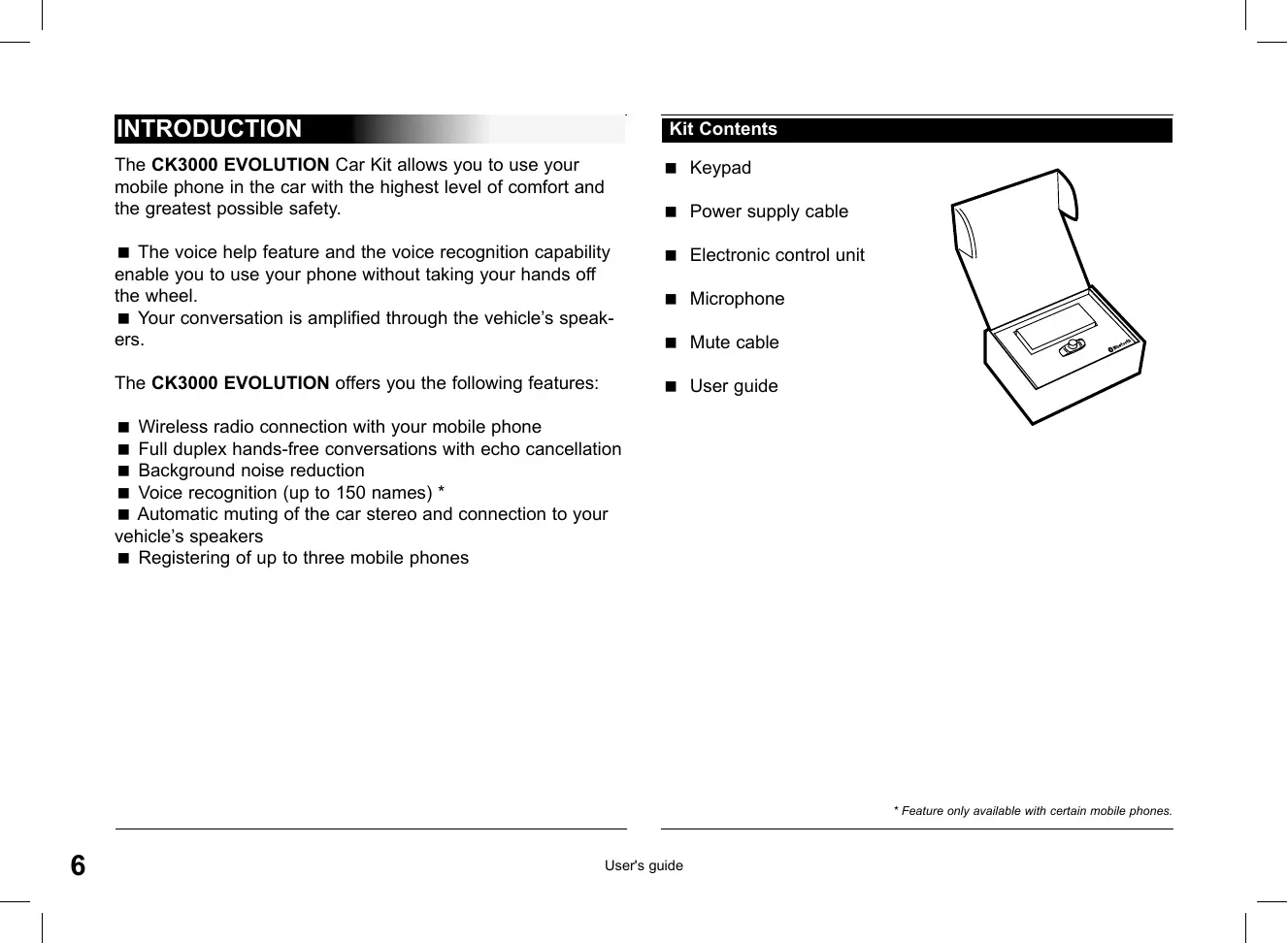
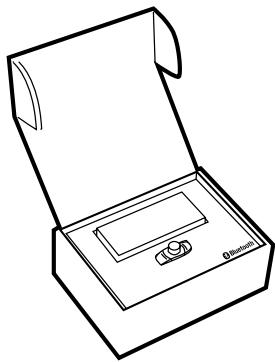
Kit Contents
Keypad
Power supply cable
Electronic control unit
Microphone
Mute cable
■ User guide
FITTING
If your CK3000 EVOLUTION is installed by a professional, skip directly to the next chapter, entitled «Getting Started».
The CK3000 EVOLUTION comprises an electronic control unit, a microphone, a 2-key remote control and two ISO connector plugs for the car stereo.
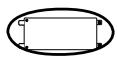
Electronic control unit:
Do not install the control unit near the vehicle's heater or air conditioning unit.
Protect the unit from direct exposure to sunlight. Avoid enclosing the unit inside the vehicle's metal wings or panels, which could affect the quality of the Bluetooth® link.

Microphone:
The microphone must be pointed towards the driver and preferably fitted between the sun visor and the rear-view mirror.

Keypad:
You are advised to fit the keypad where it can easily be reached, preferably on a flat surface that has first been cleaned.
Connect the mute cable to the connector provided on the keypad.
Ensure that the red and green LEDs light up and switch off according to the position of the key in the ignition.

CAUTION

Connecting the mute cable and power supply cable:
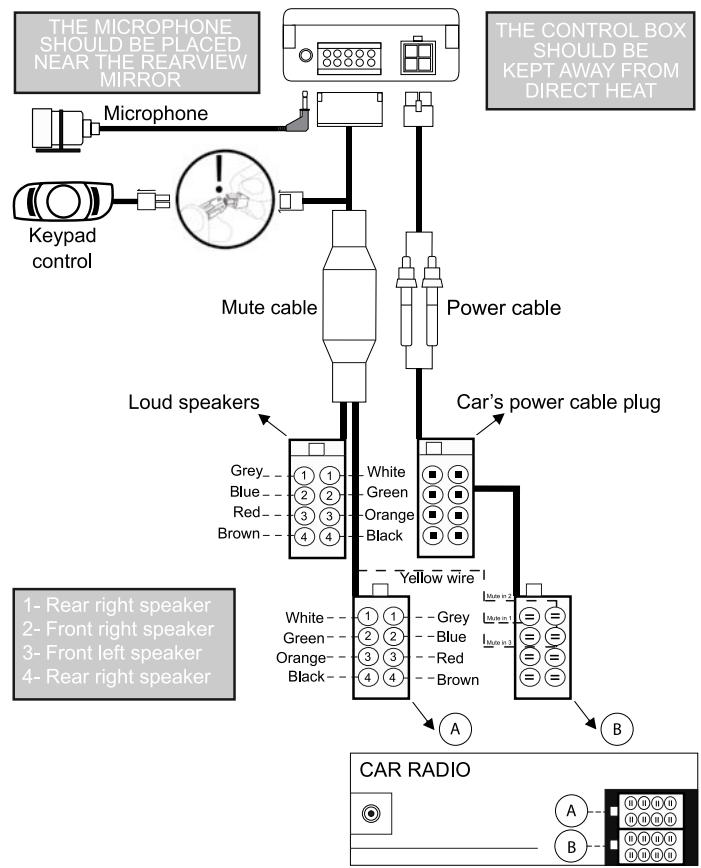
The mute cable is fitted with black ISO connectors.
The power supply cable is fitted with grey ISO connectors.
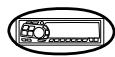
Car stereo with ISO plugs:
Disconnect the car stereo's audio and power leads.
Join the female connectors of the mute cable and power supply cable to the car stereo.
Join the vehicle's audio and power cables to the male connectors.
If the car stereo features a mute jack, connect the yellow wire of the mute cable to one of the «Mute in» jacks (1, 2 or 3). Refer to your car stereo's manual to determine the position of the mute jack.
CAUTION
- The red wire of the power cable must be connected to the constant 12V supply, the orange wire to the ignition 12V and the black wire to earth.
- Check the wiring diagram of the car stereo's ISO power connector plug.
- On some vehicles, the positions of the red and orange wires may need to be reversed. This can easily be done by reversing the fuse holders.
- Do not connect the orange wire to the constant 12V supply, as you could run down the vehicle's battery.
Car stereo without an ISO plug:
You can use a specific adapter for the vehicle (not supplied)
If you do not have an adapter, connect each wire in turn if your vehicle does not have ISO connector plugs.
If the car stereo has a mute jack, connect using the yellow wire of the mute cable.
CABLE DIAGRAM CONNECTION
GETTING STARTED
Choosing the Language When Using for the First Time
- Click the central button - the kit says «LANGUAGE» and then the name of the language currently used by the kit.
If you are happy with the language, you can exit the menu by pressing the red button or go to the next menu by turning the scroll wheel.
If you wish to change the language, access the menu by clicking the central button or green button.
■ When you turn the scroll wheel, the kit announces the languages available (English, French, German, Spanish, Italian, and so on). - When you hear the required language, confirm by clicking the central button or green button.
You will hear a confirmation message.
Adjusting the Volume When Using for the First Time
- Click the central button - the kit says «LANGUAGE» and then the name of the language currently used by the kit.
Turn the scroll wheel until the kit says «VOLUME».
A beep enables you to determine the current volume level.
To increase or decrease the volume, access the menu by clicking the central button or green button. - Turn the scroll wheel towards the right to increase the volume or towards the left to decrease the volume. When you are happy with the level, confirm by clicking the central button or green button.
You will hear a confirmation beep.
Pairing
The first time that you switch the kit on, you must pair your mobile phone with the hands-free kit.
■ Enable the Bluetooth mode on your mobile phone.
Search for any peripherals.
For further information, refer to the chapter entitled «Pairing» in your mobile phone's user guide or check out the www.parrot.biz website http://www.parrot.biz/guide_chm/evolution/index.html
On the left of the screen, click on the «Bluetooth® phones» heading. By choosing the required mobile, you can access all the configuration procedures.
Once detected, «Parrot EVOL» is displayed on your phone.
Select it.
■ Enter the link code (1234) when prompted by your phone and then confirm. The CK3000 EVOLUTION connects to your phone and says «pairing successful».
All the menus are now available when you click the central button and their name is announced by the hands-free kit when you turn the scroll wheel. You are now connected to the hands-free kit and can use it to make and receive calls.
Making and Receiving Calls
Making a call manually:
Dial the number using the phone's keypad.
The conversation automatically switches to hands-free mode. Otherwise, press the kit's green button.
Receiving a call:
Press the kit's green button or say «PHONE» (refer to the chapter entitled «Magic Words») to receive the call.
Press the red button on the hands-free kit or say «HANG UP» (refer to the chapter entitled «Magic Words») if you wish to reject the call.
Ending a call:
Press the red button on the hands-free kit or say «HANG UP» to end the call.
Voicemail:
You can access your voicemail functions from the hands-free kit.
■ Dial up your voicemail.
- When you hear the messages, click the central scroll wheel. The kit says «0».
Then turn the scroll wheel until you hear the required number (1, 2, 3, etc.).
- Confirm by pressing the scroll wheel.
Redial function*:
Hold down (long click: +2 sec) the green key on the hands-free kit to redial the last number dialled. The kit says «Redial».
Volume during calls:
During the call, adjust the volume by turning the central scroll wheel.
Making a call via voice recognition*:
Press the green button or say «PHONE» if the magic words are activated (refer to the chapter entitled «Magic Words»).
Wait until you hear the beep.
- Say the name of the person that you wish to call. You must have first recorded the voiceprints on your phone or kit (refer to the chapter entitled «Adding Voiceprints»).
■ If several numbers are associated with the name, say «Home», «Work» or «Mobile» after the second beep.
Discreet mode:
During a call, if you wish to switch your call over to your mobile, press the green button. The kit says «DISCREET MODE».
Press the green button again to switch back to hands-free mode.
- This function is only available on certain phones.
PRESS THE SCROLLTO ACCESS THE FOLLOWING MENU
Press the green button or press the central button to validate.
Press the red button to cancel or leave the menu.
Turn the scroll to navigate through the menus.
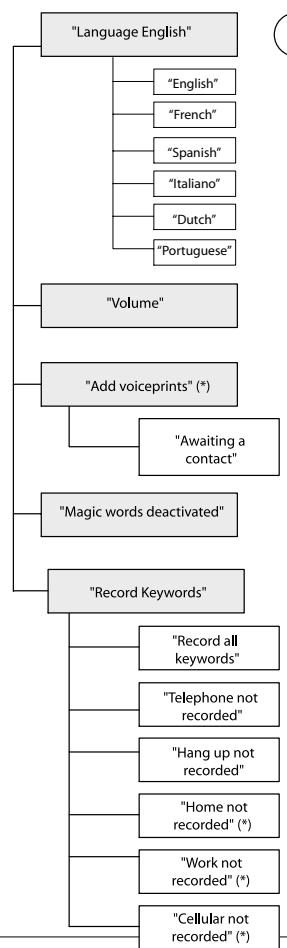
ACCESSING THE MENUS
To access the kit's menus:
- Click the central button.
The kit says «LANGUAGE» and then the name of the current language. - When you turn the central scroll wheel, the kit says the different menus.
- You can exit the menus by pressing the red button on the keypad or by not pressing anything for more than 15 seconds.
Changing the Language
- Click the central scroll wheel - the kit says «LANGUAGE» and then the name of the current language.
If you are happy with the language, you can exit the menu by pressing the red button or go to the next menu by turning the scroll wheel.
If you wish to change the language, access the menu by clicking the central button or green button.
■ When you turn the scroll wheel, the kit announces the languages available (English, French, Spanish, Italiano, Dutch, Portuguese) - When you hear the required language, confirm by clicking the central button or green button.
You will hear a confirmation message.
Adjusting the Volume
- Click the central button - the kit says «LANGUAGE» and then the name of the language currently used by the kit.
Turn the scroll wheel until the kit says «VOLUME».
A beep enables you to determine the current volume level. -
To increase or decrease the volume, access the menu by clicking the central button or green button.
-
Turn the scroll wheel towards the right to increase the volume or towards the left to decrease the volume. When you are happy with the level, confirm by clicking the central button or green button.
You will hear a confirmation beep.
Adding Voiceprints *
- Click the central button - the kit says «LANGUAGE» and then the name of the language currently used by the kit.
Turn the scroll wheel until the kit says «ADD VOICEPRINTS». - Access the menu by clicking the central button or green button.
The kit disconnects from the phone and is now ready to receive your contact names.
To send a contact name, refer to your phone's user guide or connect to the www.parrot.biz website for details on the procedure for your phone.
Connect to our www.parrot.biz website or go straight to the http://www.parrot.biz/guide_chm/evolution/index.html
On the left of the screen, click on the «Bluetooth phones» heading: by choosing the required phone, you can access all the configuration procedures.
As soon as the kit receives a contact, it gives you the instructions to be followed.
Magic Words
Magic words are used to accept an incoming call or end a call, as well as activate the voice recognition feature without taking your hands off the wheel.
- Click the central button - the kit says «LANGUAGE» and then the name of the language currently used by the kit.
Turn the scroll wheel until the kit says «MAGIC WORDS» and the current status («ACTIVATED» or «DEACTIVATED»).
If you are happy with the status, you can go to the next menu by turning the scroll wheel or exit the menu by clicking the red button.
If you wish to change the status, click the central button or green button. The status changes. It changes from «activated» to «deactivated» or vice-versa. The kit announces the new status.
If you choose to activate the magic words but have not yet recorded the words «PHONE» and/or «HANG UP», the kit automatically switches to record mode. The kit guides you through the process for recording the magic words.
Once the magic words have been successfully recorded, they will be activated.
Recording Keywords Phone - Hang Up - Home* - Mobile* - Work*
- Click the central button - the kit says «LANGUAGE» and then the name of the language currently used by the kit.
- Turn the scroll wheel until the kit says «RECORD KEYWORDS». Confirm by clicking the central button or green button.
The kit says «RECORD ALL KEYWORDS».
If you do not wish to record all the keywords, turn the scroll wheel to access the required keyword.
If one or more keywords have already been recorded, the kit selects the first keyword not to have been recorded.
- Press the central button or green button to start recording. Follow the instructions given by the kit.
- When a keyword has been successfully recorded, the kit automatically moves to the next keyword.
- When all keywords have been recorded correctly, the kit automatically activates them.
- You can exit the menu at any time by pressing the red button and record or re-record the keywords at a later stage.
To learn and relearn a name :
Highlight the desired name and press «Yes» to confirm.
Search :
Allows you to look for a name by its first letter(s). To do this, type a letter and confirm by pressing «Yes».
Parameters
Volume :
This function adjusts the volume of CK3000 EVOLUTION.
Click Yes and adjust using or Press «Yes» to confirm.
Auto answer :
This function enables or disables automatic answering of incoming calls. Click «Yes», and then select «Enable» or «Disable».
User:
When several telephones are connected to CK3000
EVOLUTION, this function identifies the telephone with priority. The phone with the highest priority is the first phone to which the kit tries to connect to.
Click Yes, «Main user?» is displayed, confirm.
Caller ID :
This function lets you know the identity of the caller. With this function enabled, when you receive a call, the name of the person calling you is pronounced if it is already stored in your phone book and corresponding voice tag is assigned. Click Yes and select «Enable» or «Disable».
Multi-Tel :
This function is available for Ericsson and Sony Ericsson phones equipped only with the «Headset» profile. The affected phones are Ericsson R520, T39, T68m and the first Sony Ericsson T68i phones (software version lower than R2E). This option allows the simultaneous use of these different phones during a single session of use.
The first phone getting connected to the CK3000 EVOLUTION is the main phone for the use session of the car-kit (until extinction).
If the option «Multi-Tel» is activated for this phone, the CK3000 EVOLUTION will accept incoming calls from the other phones if they were previously paired with the CK3000 EVOLUTION.
Warning :
The «Multi-Tel» function is now compatible with the T68i, T610, T616, T618, Z600 and Z608 (with specific software versions). This function is available when the «Powersave» mode is activated in the phone, i.e. «Headset» profile mode.
Once this mode activated, the CK3000 EVOLUTION has to identify every phone in this new mode. It should be necessary to connect separately each phone with the CK3000 EVOLUTION and restarting it between each identification.
Voice recognition
N^ Phone:
Keywords for calling V-Cards («Home», «Work» and «Cellular») can be accessed by clicking «Yes», Tel. N°. The voice recognition learning sequence is exactly the same as the one for the names.
Key words :
Key words are «Phone» and «Hang Up». You need to record your own key words for use with «Wordspotting» option.
Wordspotting :
If activated, enables use of keywords to make a call and to hang up.
■ Activated: use keywords or buttons
- Deactivated: use buttons only
Pers. Dic:
The key words are pre-recorded in the car kit for French language only (the language is determined by the language used by the menus of the phone).
You need to activate this option if you want to use your own recorded keywords.
Erasing the memory
Click «Yes», and «Clear memory?» is displayed.
Confirm by pressing «Yes» and «Memory erasing in progress. Please wait!» - is announced. To cancel, press «No». It is possible to erase the memory and reset the system without using the Parrot menu. To do this, hold the red and the green buttons together.
François
INTRODUCTION
Le kit pronounce "0"
Guardar as palavras chave
Telefone - Desligar - Casa * - Telemóvel * - Trabajo *